Spearhead VR - Headphones 1More - Free user manual and instructions
Find the device manual for free Spearhead VR 1More in PDF.


User questions about Spearhead VR 1More
0 question about this device. Answer the ones you know or ask your own.
Ask a new question about this device
Download the instructions for your Headphones in PDF format for free! Find your manual Spearhead VR - 1More and take your electronic device back in hand. On this page are published all the documents necessary for the use of your device. Spearhead VR by 1More.
USER MANUAL Spearhead VR 1More
Quickstart Guide Spearhead VR Gaming Headphones
To Start
Step 1. Download the driver/software: https://www.dropbox.com/s/2ikpgkaprdg6iub/SpearheadVR-2.07.exe?dl=0** (if after downloading the software a pop up notification appears saying no headphones detected, please unplug and re plug them in while the software is running)
Step 2. Plug in the headphones
Step 3. Run the software to install driver (now 7.1, lighting control and bass effects will be accessible)
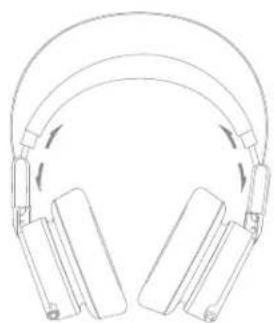
Adjust The Head-band For Comfortable Wearing
* The flexible Head-band is designed under its limitation. We suggest you adjust to fitting size after wearing to avoid breakage caused by unsuitable stress angles.
natural_image
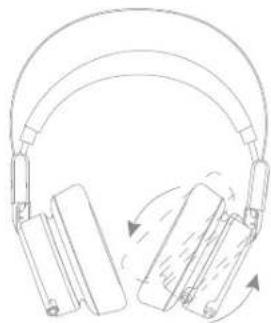
Line drawing of a pair of headphones with adjustable headband (no text or symbols)* Adjust the ear cushions to the comfortable angles after wearing.
natural_image
Line drawing of a pair of hardcover headsets with earbuds and straps, shown in side profile (no text or symbols)FAQ
- How to install the driver in a PC? What advanced functions can be realized by installing the driver? Connect PC and headphones with supplied USB cable, and restart the PC after installing the corresponding driver for WIN 7/8.1/10, which provides custom settings and functions like 7.1 surround sound, smart EQ, LED lighting options and ENC (Environmental Noise Cancellation) etc.
- What functions can be realized when devices are connected separately with 3.5 mm audio cable and USB cable? With 3.5 mm audio cable connected, smart phones and other devices support stereo music playing and microphone functions. While with USB cable, devices support certain custom set-up functions such as surround sound, ENC (Environmental Noise Cancellation) for microphone, and LED lighting options.
- What is the priority when connecting with 3.5 mm audio cable and USB cable in the mean time? 3.5 mm audio cable priors to USB cable due to the default setting.
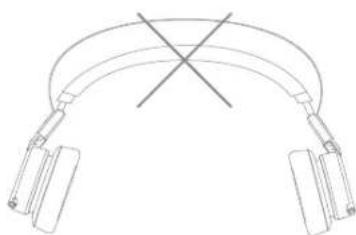
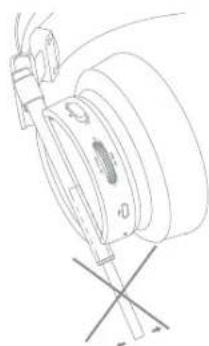
Wrong Usage
natural_image
Line drawing of a curved electronic device with two leads and a central X mark (no text or symbols)* To assure the working life and avoid unexpected breakage, please do not bend the head-band excessively.
natural_image
Technical line drawing of a mechanical component with no visible text or symbols* To assure the working life and avoid unexpected breakage, please do not push the retractable LED lighting tube excessively.
Product Instruction
a Microphone Switch: Turn Up (On) / Turn Down (Off)
⑥ Synchronized Vibrating Effect / Volume Scroll Button
Connect with USB cable into the volume control mode. Press and scroll, switch to super bass mode, press again to get back to volume mode.
For Volume Control: Scroll upwards ( Increase ), scroll downwards ( Decrease )
For Super Bass Effect: Press and scroll upwards ( Increase ), scroll downwards ( Decrease )
© USB Cable Connector
3.5 mm Audio Cable Connector
e Retractable LED Lighting Tube
*The light saber voice control functionality is controlled by the mic being on or off.
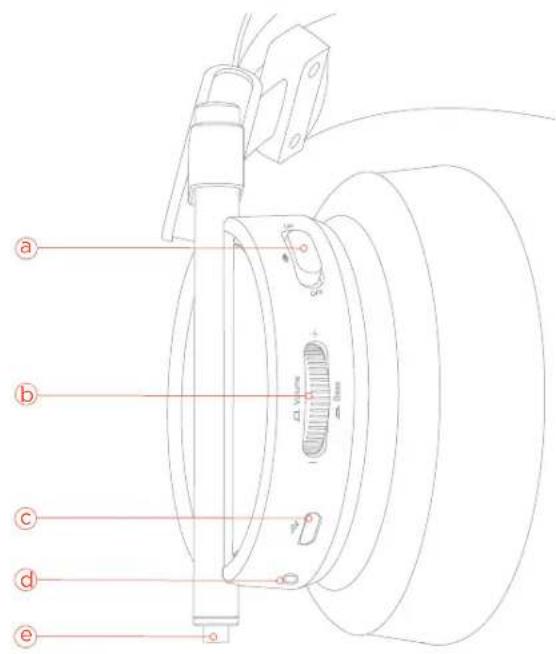
text_image
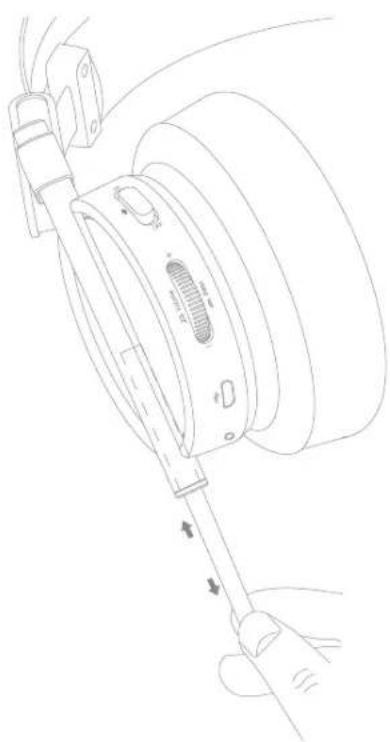
a b c d eHow To Use Retractable LED Lighting Tube
To enjoy custom setting functions (7.1 surround sound, synchronized vibrating effect and lighting set-up) on your Spearhead VR Over-Ear Headphones, please download the driver: http://global.lmore.com / driver / download.htm
Recommended Platforms: PC (Windows 7, Windows 8, Windows 8.1, Windows 10)
* Compatible Platforms:
1. With USB cable, the functions of driver (7.1 surround sound, synchronized vibrating effect and customized lighting set-up) are compatible with PC (Windows 7, Windows 8, Windows 8.1, Windows 10).
2. With USB cable, music playing and microphone are compatible with Mac, MacBook, PS3, PS4, Xbox 360, Xbox One (Xbox One Stereo Adapter Required, not included).
3. With 3.5 mm audio cable (4 pole), music playing and microphone are compatible with PC, Mac, Mac Book, smartphones, PS3, PS4, Xbox 360.
* Please don't connect with USB cable and 3.5 mm audio cable in the meantime, which will result in failure of installation and custom setting functions (7.1 surround sound, synchronized vibrating effect and lighting set-up).
* For the first time use, LED will stay on default on platforms above unless adjusted on your PC.
natural_image
Line drawing of a handheld electronic device with a screwdriver inserted, showing mechanical components and wiring (no text or symbols)Basic Setting For Drive UI
text_image
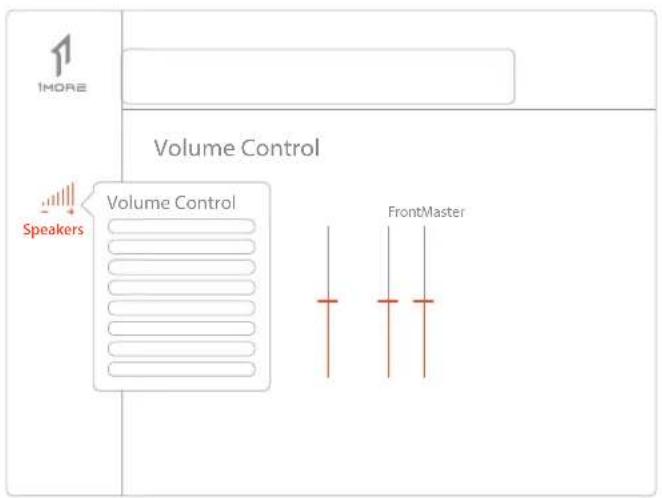
1MORE Volume Control Volume Control Speakers FrontMasterSingle click "Speakers" in right mouse button to jump off "Volume Control" options and so on. Volume control can be set up via either mouse or Synchronized Vibrating Effect / Volume Scroll Button on the headphones.
text_image
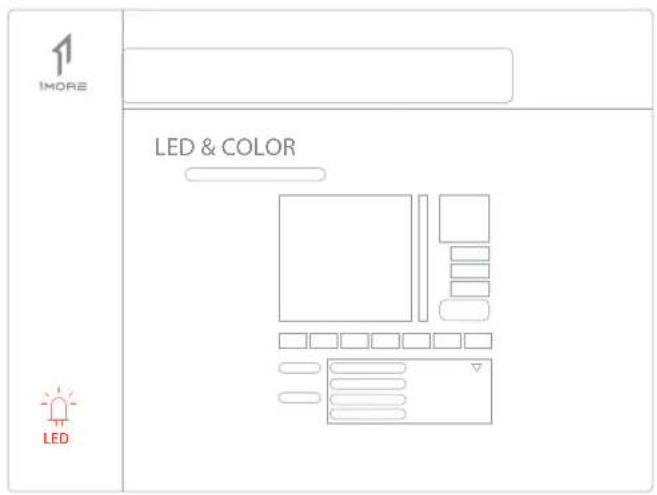
1MORE LED & COLOR LEDSingle click "LED" in left mouse button to jump off "LED & COLOR" option. Custom set up the lighting colors, light modes and speeds as needed.
text_image
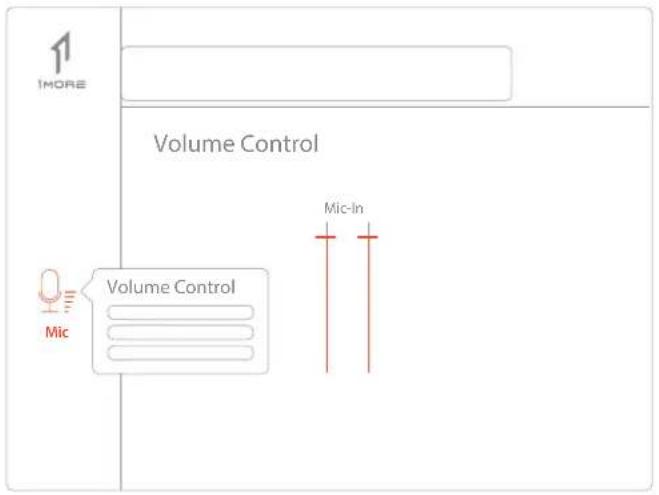
1 MORE Volume Control Mic-in Volume Control MicSingle click "Mic" in right mouse button to jump off "Volume Control" options and so on. Mic volume can be set up via either mouse.
Environmental Consciousness
1MORE Spearhead VR Over-Ear Headphones meet the European RoHS2.0 (2011/65/EU) requirements.
○: means that the amount of toxic substances or elements in a particular part is less than the requirements under the European RoHS2.0 (2011/65/EU) standard.
X: means that the amount of toxic substances or elements in a particular part is more than the requirements under the European RoHS2.0 (2011/65/EU) standard. The "X" in above form meets European RoHS2.0 standard.