
Le Pro 3 - Smartphone LeEco - Free user manual and instructions
Find the device manual for free Le Pro 3 LeEco in PDF.


User questions about Le Pro 3 LeEco
0 question about this device. Answer the ones you know or ask your own.
Ask a new question about this device
Download the instructions for your Smartphone in PDF format for free! Find your manual Le Pro 3 - LeEco and take your electronic device back in hand. On this page are published all the documents necessary for the use of your device. Le Pro 3 by LeEco.
USER MANUAL Le Pro 3 LeEco
natural_image
Pure electrical circuit lines without any symbolsLe Pro3
User Manual
natural_image
Pure electrical circuit lines without any symbols
natural_image
Top-down schematic of a three-part electronic device with circuit board and components (no text or symbols)Changing the way the world experiences technology.
natural_image
Collection of household electronics and devices including smartphone, tablet, car, bicycle, monitor, and smartphone (no text or symbols)Table of Contents
Getting Started
Front View
Back View
Inserting the Nano-SIM Card
Setup
Get to Know Your ecophone
Home Screen
Notification Panel and Notification Management
Emergency Mode
Quick Settings
eui (Ecosystem User Interface)
At a Glance
Entertainment
Camera
Phone Manager
Remote Control
eui System Update
Contacts
Feedback
File Manager
Internet Browser
Music
My LeEco
Screencast
Video Player
Voice Recorder
Settings
Getting Started
Wi-Fi
Bluetooth ^®
Airplane Mode
Mobile Hotspot/Tethering
Data Usage
Mobile Networks
App Management
Sounds and Vibration
Notifications
Display
Wallpaper
Themes
Lock Screen and Security
Privacy and Safety
Accessibility
Accounts
Backup and Reset
Language and Input
Battery
Date and Time
Help
About Device
Use & Safety
Limited Warranty
text_image
Getting Started Front View Back View Assemble Your Device Setup
natural_image
Top-down view of a blue circuit board layout with four distinct components (no text or symbols visible)Getting Started
Front View
Back View
Assemble Your Device
Setup

natural_image
Pure electrical circuit lines without any symbolsFront View
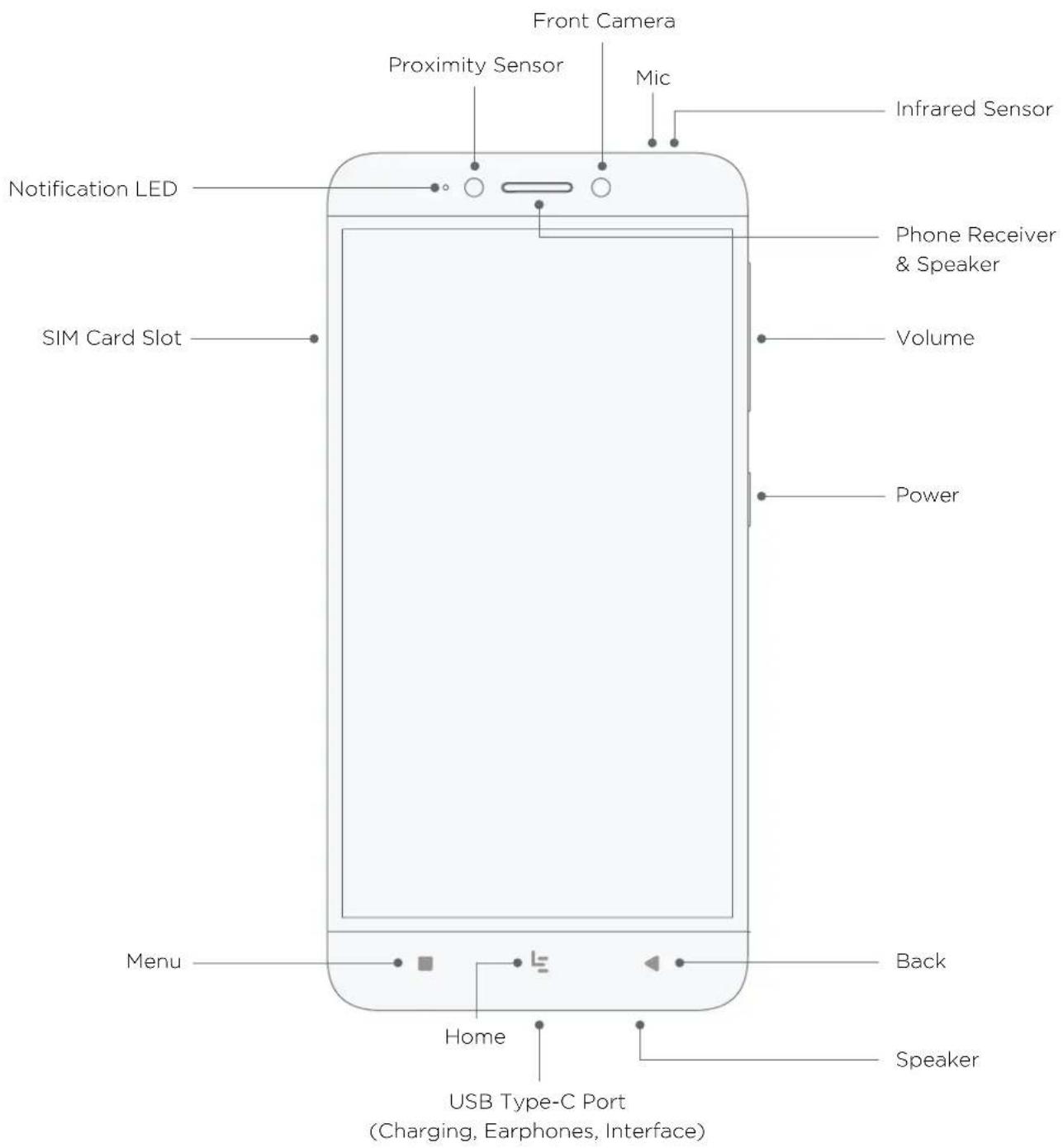
text_image
Front Camera Proximity Sensor Mic Infrared Sensor Notification LED SIM Card Slot Phone Receiver & Speaker Volume Power Menu Home USB Type-C Port (Charging, Earphones, Interface) Back Speaker
natural_image
Pure line drawing of a smartphone and a circuit board without any text or symbolsBack View
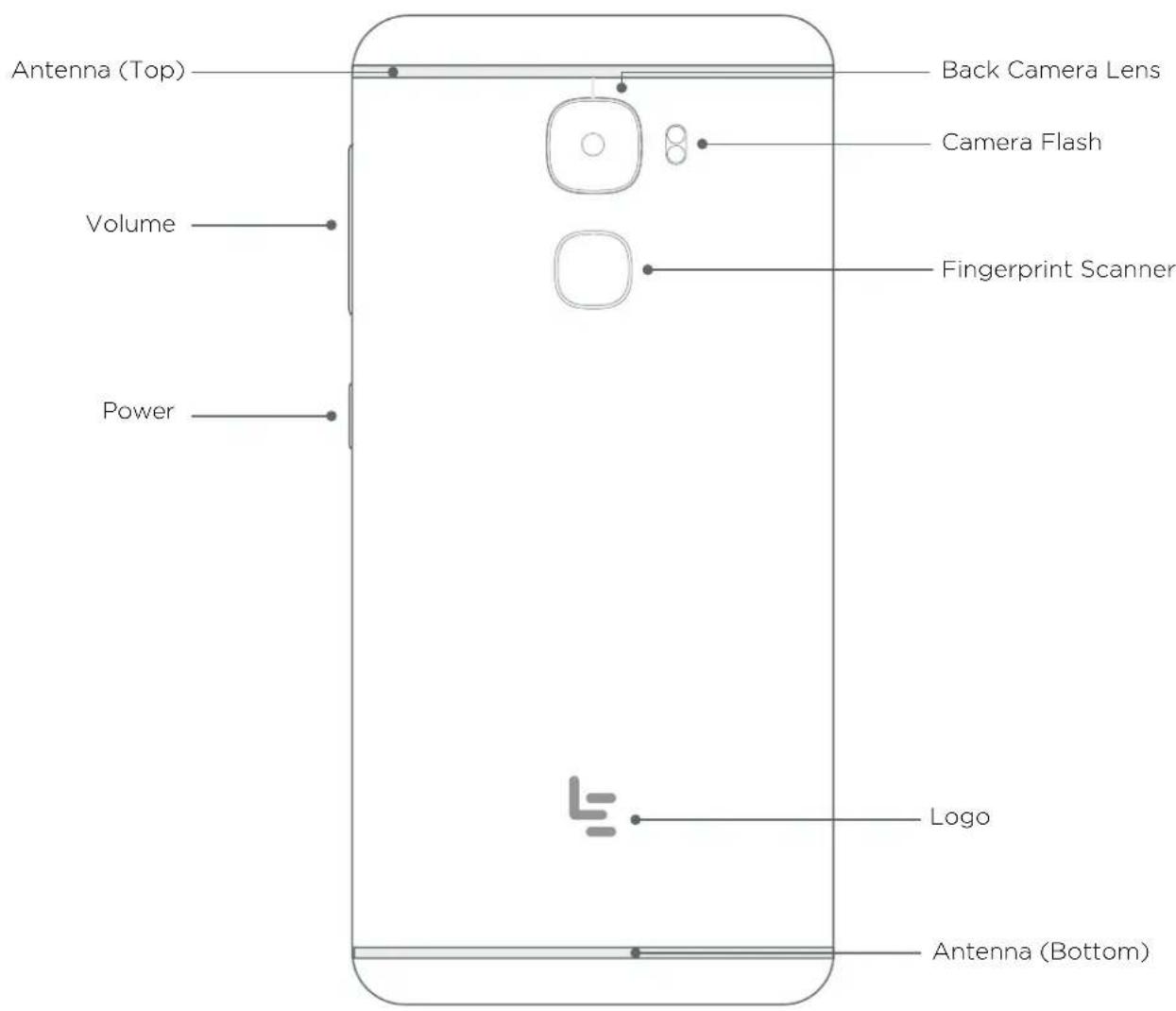
text_image
Antenna (Top) Volume Power Back Camera Lens Camera Flash Fingerprint Scanner Logo Antenna (Bottom)Inserting the Nano-SIM Card
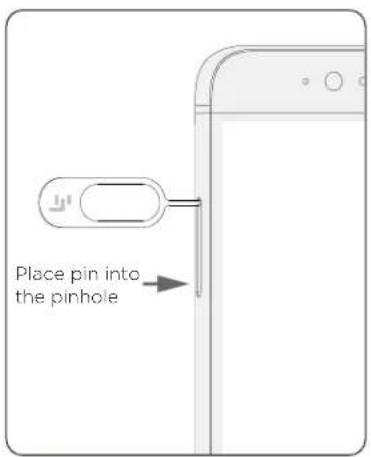
text_image
Place pin into the pinholeStep 1. Press to eject SIM card tray
Your phone should be turned off before ejecting the SIM card tray. Use the SIM card eject pin to remove the SIM card tray by pressing the pin into the pinhole.
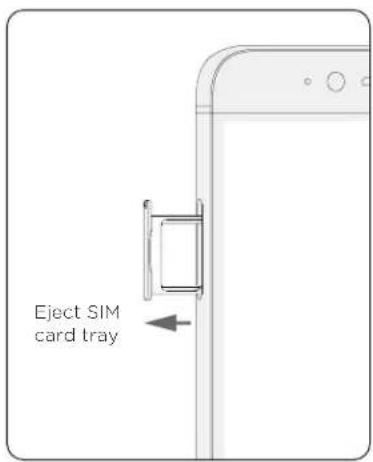
text_image
Eject SIM card trayStep 2. Remove SIM card tray
There is one Nano SIM slot provided. Please insert your Nano SIM in this slot.
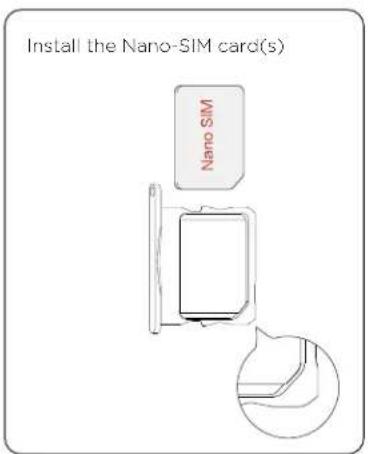
text_image
Install the Nano-SIM card(s) Nano SIMStep 3. Install the Nano-SIM card(s)
Only standard Nano SIM cards are supported. Inserting a modified card may damage the card slot.
text_image
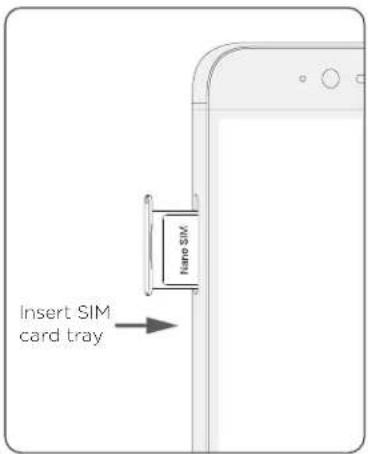
Name SIM Insert SIM card trayStep 4. Insert SIM card tray
Slide the SIM card tray back inside the phone until it locks in place.
Setup
Launch your ecophone experience in a few easy steps:
Powering on
Press and hold the power button for three seconds to turn on your ecophone.
Basic settings\*
Next, you'll be guided through a few steps:
- Select your preferred language.
- Select your geographic location.
- Verify SIM card settings.
- Select a Wi-Fi network
(You can also save this step for later).
Add your fingerprint
Next, setup will prompt you to place your index finger on the scanner. You'll be guided through setup to repeatedly tap and hold the scanner until your ecophone has completed the process of adding your fingerprint.
Font and icon sizing
Customize font and icon sizes for easy visibility.
Transfer storage/settings from another device
You can load storage and settings from another device using QR code technology
Payment settings
Next, you'll be prompted to set up optional payment services to streamline your shopping experience.
Screen lock & security
Create a quick login for your ecophone by opting to set up a PIN when prompted, or by navigating to this menu item within Settings. Login options include: PIN, pattern or password.
My LeEco: Launching your eui experience
Your ecophone is equipped with an incredible lineup of eui entertainment apps. Enhance the experience with My LeEco benefits, which includes premier access to deals on LeMall.com, 5TB cloud storage extended product warranties and more. Signing up is easy! You may bypass this option; or, to get started:
- Review terms of use and permissions when prompted.
- Next, you'll need to login. You can either:
Sign in with your Google account
-or-
Create a new My LeEco account
Enable cloud services
To help back-up data or transfer data from one device to another.
Enable feedback reporting
If you want to automate the process of sending feedback reports to LeEco about any performance issues.

natural_image
Abstract green circuit board pattern with white rectangular and square outlines (no text or symbols)
natural_image
Illustration of a circuit board layout with four distinct components, no text or symbols present.Get to Know Your Ecophone
Home Screen
Notification Panel & Notification Management
Emergency Mode
Quick Settings
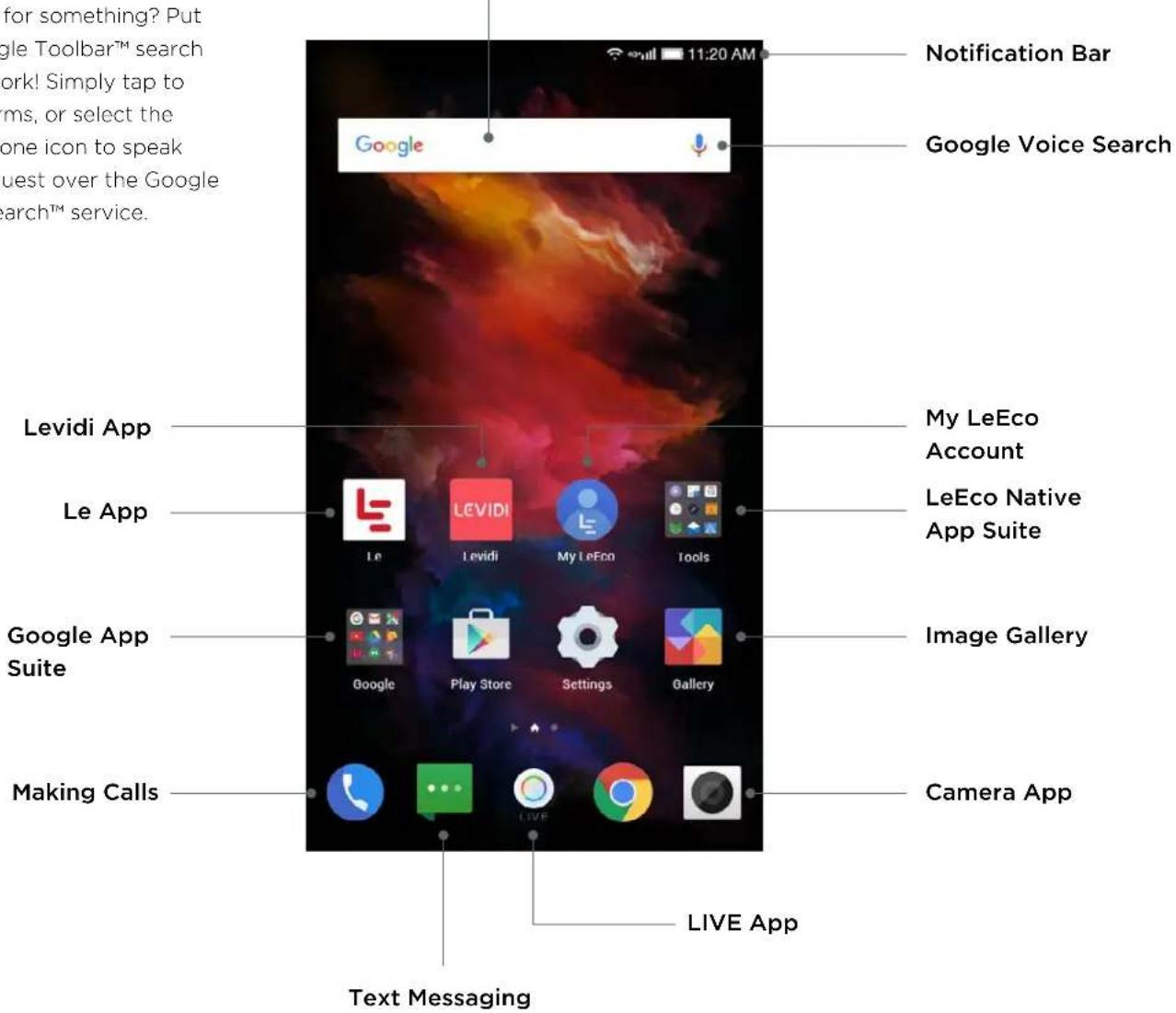
Home Screen
Fast search results
Looking for something? Put the Google Toolbar™ search bar to work! Simply tap to enter terms, or select the microphone icon to speak your request over the Google Voice Search™ service.
text_image
for something? Put gle Toolbar™ search work! Simply tap to ms, or select the one icon to speak uest over the Google search™ service. Notification Bar Google Voice Search Levidi App My LeEco Account Le App Le Eco Native App Suite Google App Suite Image Gallery Google Play Store Settings Gallery Camera App Making Calls LIVE App Text MessagingHome Screen — Shortcuts
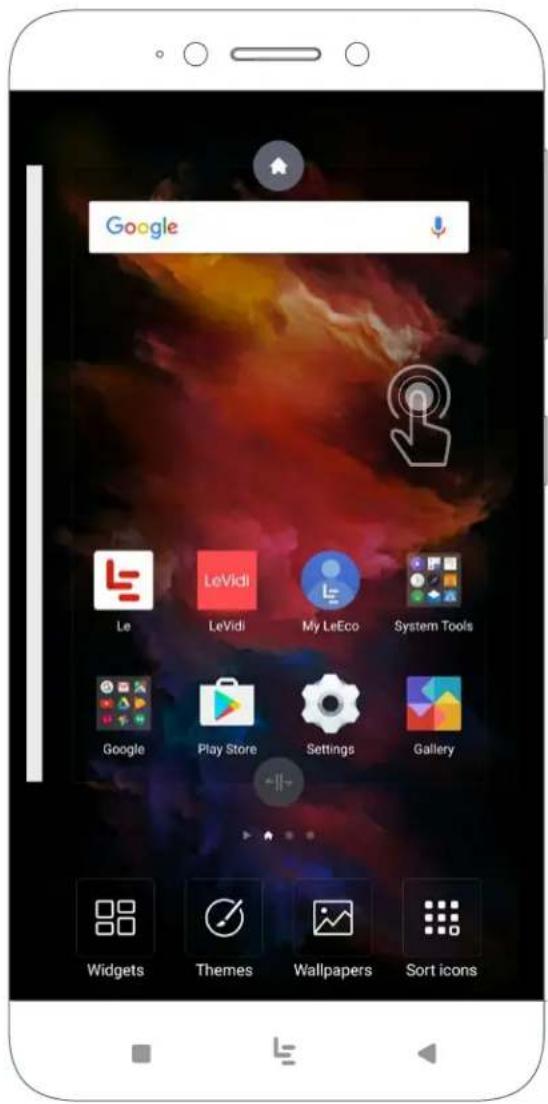
Shortcuts for staying organized
Get access to a collection of organization features by holding a finger down on the home screen (not the icons) for about one second. Use these features to:

Widgets: Select your favorite modules and arrange them on your screen for a quick peek into your applications.

Themes: Check out wallpapers and themes to personalize your eui experience.

Wallpapers: Take this shortcut to access your choices.

Sort Icons: Select the Auto option to place icons to the top left by default. Select the Manual option to place icons anywhere on the screen.
text_image
Google Le LeVidi My LeEco System Tools Google Play Store Settings Gallery Widgets Themes Wallpapers Sort iconsControl Center
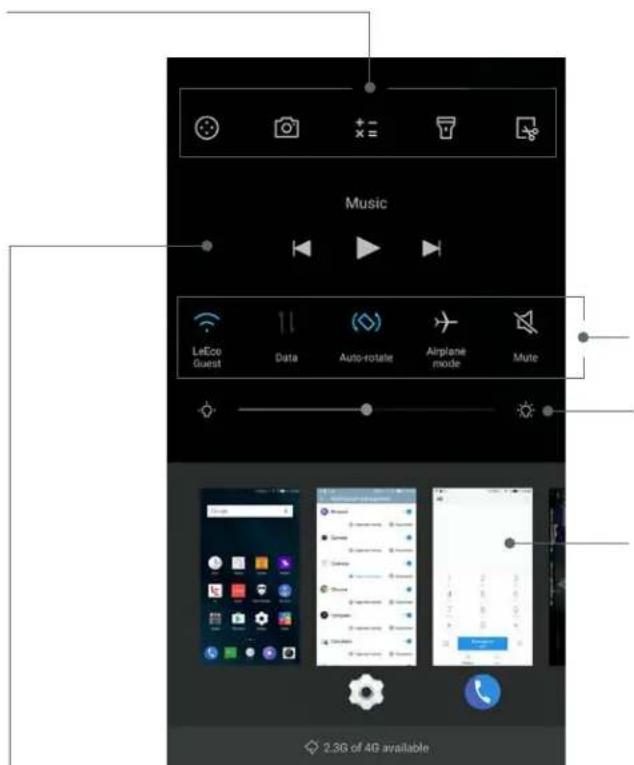
Control Center
Use the Control Center for faster access to tools, recent applications and more.
Quick tools:
Access features such as calculator, flashlight, alarm clock and more.
text_image
Music LeEco Guest Data Auto-rotale Airplane mode Mute 2.3G of 4G availableQuick settings:
Access features to adjust preferences, such as Wi-Fi, data unsafe, auto-rotation and more.
Brightness:
Slide toggle to adjust brightness level.
Recent applications:
Access recently used applications.
Music player:
Quick controls for playing, pausing, backtracking and skipping forward.
Notification Panel & Notification Management
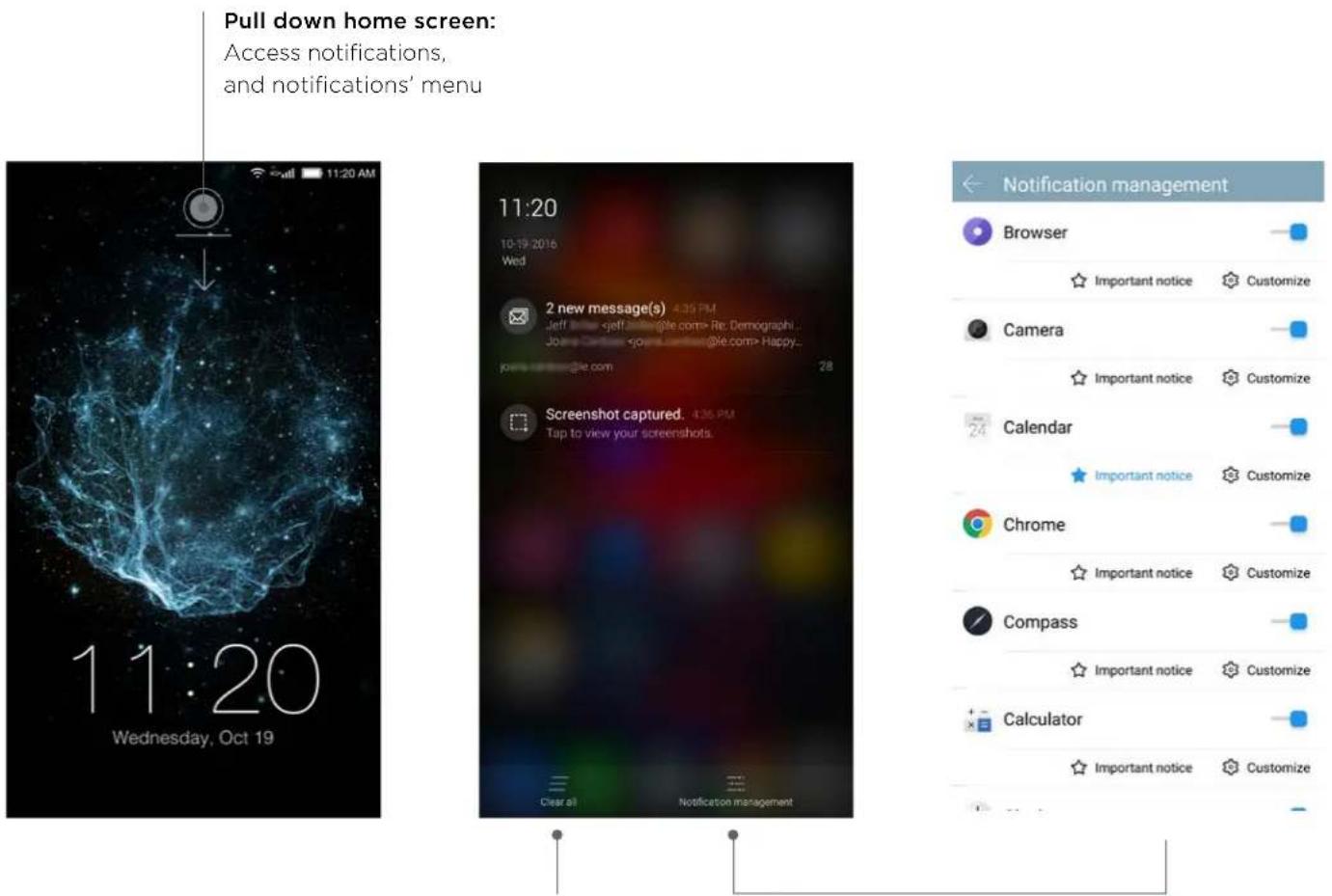
Pull down home screen:
Access notifications, and notifications' menu
Notification Management Clear All Notifications
text_image
eui (Ecosystem User Interface) At a Glance Entertainment Camera Phone Manager Remote Control eui System Update Contacts Email Feedback File Manager Internet Browser Music My LeEco Screencast Video Player Voice Recorder
natural_image
Red circuit board diagram with multiple components and traces, no text or symbols presenteui (Ecosystem User Interface)
At a Glance
Entertainment
Camera
Phone Manager
Remote Control
eui System Update
Contacts
Feedback
File Manager
Internet Browser
Music
My LeEco
Screencast
Video Player
Voice Recorder
At a Glance
Built on the strength of Android™ Marshmallow 6.0, LeEco's Ecosystem User Interface (eui) is a smart and elegant user interface delivering seamless interconnectivity to your devices.

LIVE: A three-by-three grid of streaming entertainment.

Le: Your complete media library of streaming content.
LeView
LeView: Personalized recommendations from all LeEco apps.

Camera: Capture sharp images and video with a feature-packed camera.

Phone Manager: Monitor and configure data usage.
Remote Control: Turn your ecophone into a seamless, universal remote.

System Update: Configure system update preferences.

Contacts: Store and manage your contacts.

Email: Configure one or more email accounts with the Email app.

Feedback: Navigate to our Feedback app to reach out for help or share ideas.

File Manager: Store all of your downloaded files here.

Internet Browser: Explore the web.

Music: Build and customize your music library.
My LeEco: Manage your membership and login details.
Screencast: Cast entertainment to your television screen.

Video Player: Store and play video files.

Voice Recorder: Create, save, customize and share memo recordings.
Remote Control: Turn your ecophone into a seamless, universal remote.

System Update: Configure system update preferences.

Contacts: Store and manage your contacts.

Email: Configure one or more email accounts with the Email app.

Feedback: Navigate to our Feedback app to reach out for help or share ideas.
Entertainment
An unprecedented kaleidoscope of streaming movies, shows, TV channels and more, LeEco's ecosystem user interface (eui) is the soul of your connected ecophone experience.

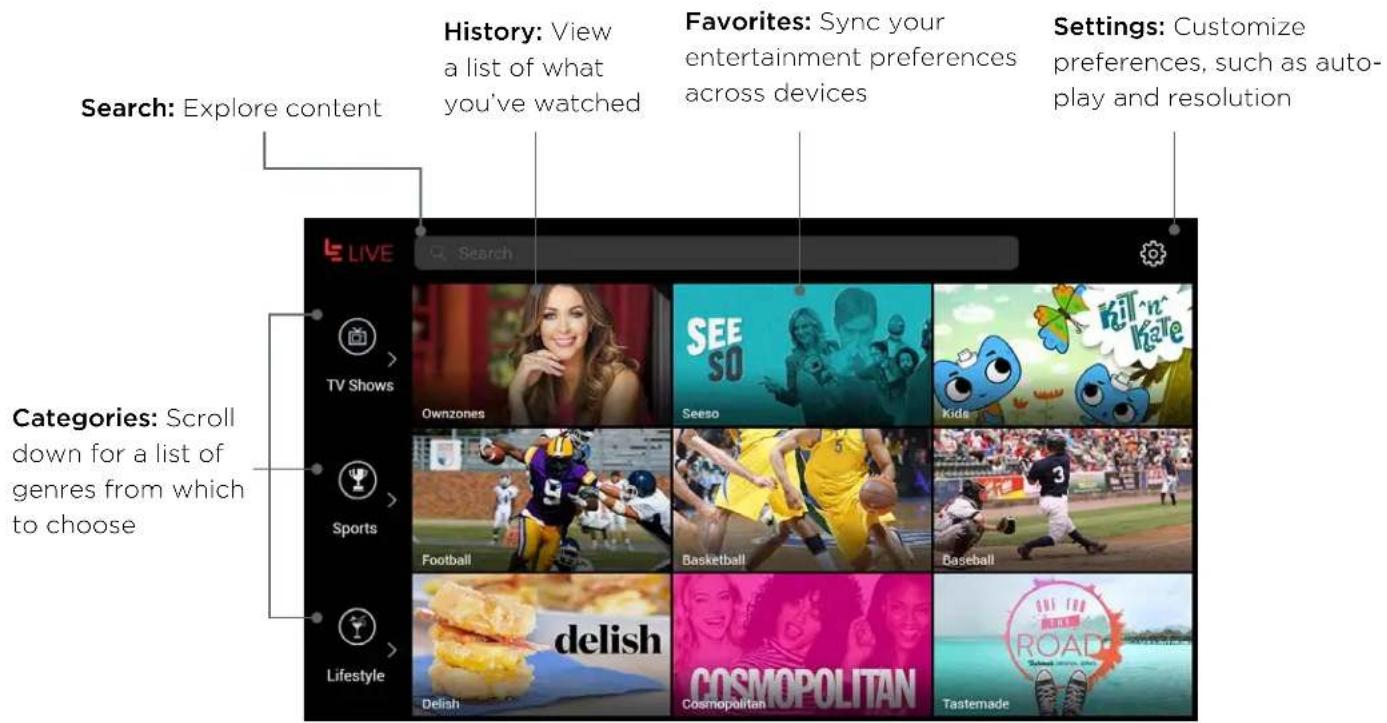
LIVE: A revolutionary TV viewing experience, LIVE serves up a 3x3 tiled mosaic of hand-picked, simultaneously streaming entertainment.
text_image
Search: Explore content History: View a list of what you've watched Favorites: Sync your entertainment preferences across devices Settings: Customize preferences, such as auto- play and resolution Categories: Scroll down for a list of genres from which to choose
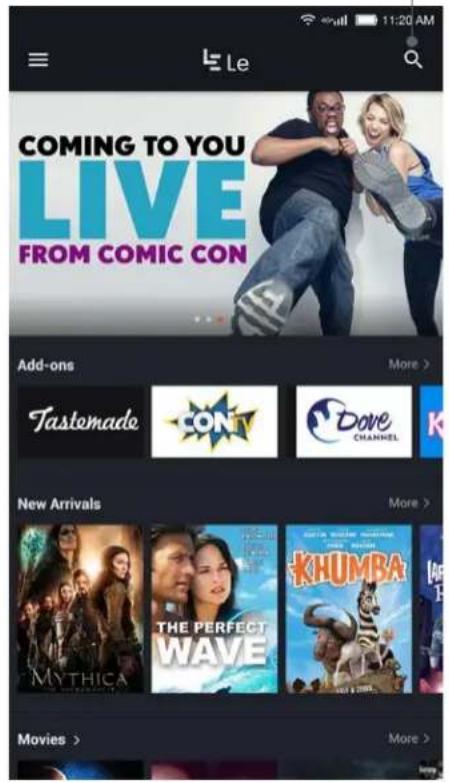
Le: Grab the popcorn and kick back with your complete media library. Your gateway to LeEco's full, unparalleled library of streaming content, Le aggregates our signature entertainment.
Search: Explore content
text_image
LE COMING TO YOU LIVE FROM COMIC CON Add-ons More > Tastemade CON Dove CHANNEL New Arrivals More > MYTHICA THE PERFECT WAVE KHUMBA Movies > More >History: View a list of what you've watched
text_image
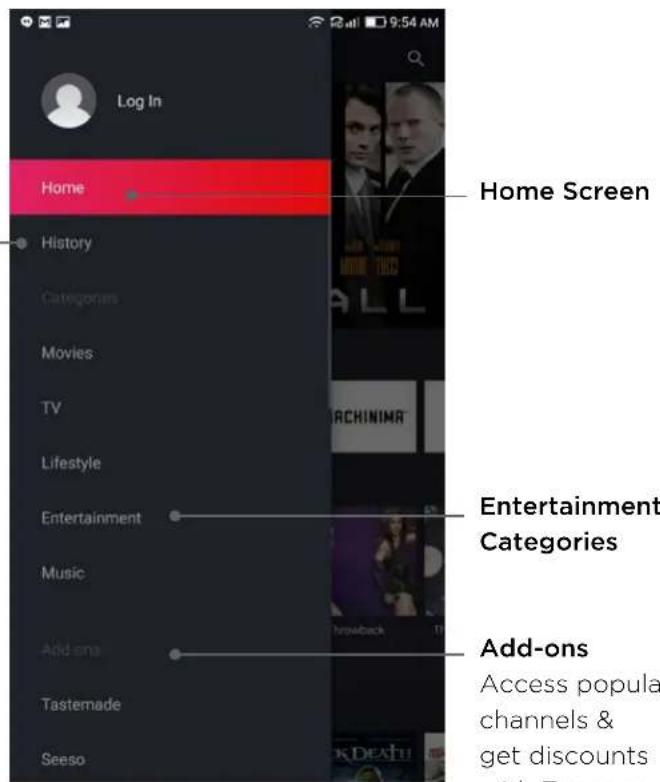
Log In Home History Categories Movies TV Lifestyle Entertainment Music Add-ons Tastemade Seeso Home Screen Entertainment Categories Add-ons Access popula channels & get discounts with E- 9:54 AM
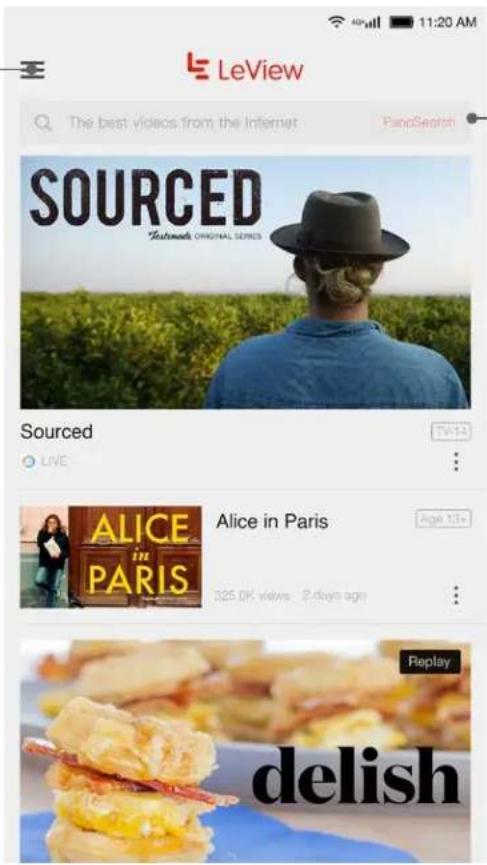
LeView
LeView: Leave it to us — we'll compile the best of the best entertainment for you based on your viewing preferences. Swipe right, and access a window to your selections.
Menu:
Access a selection of available entertainment genres.
text_image
LeView The best videos from the Internet PancSearch SOURCED Textmade ORIGINAL SERIES Sourced LIVE Alice in Paris 325.0K views 2 days ago Replay delishSearch bar:
Find entertainment across all of our signature apps by typing into the search bar.
Scroll down for a list of recommendations
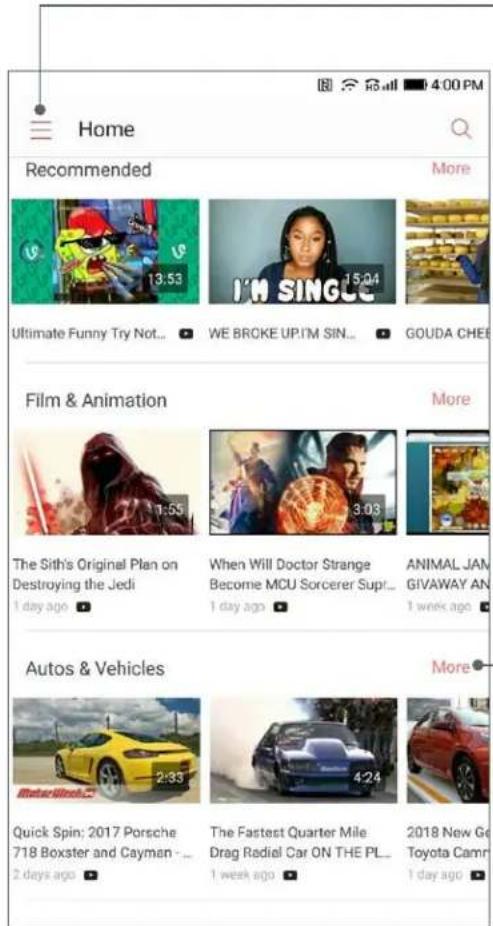
LeVidi: The ultimate destination for what's trending online, LeVidi features the best in web content
text_image
Home Recommended More Ultimate Funny Try Not... WE BROKE UP.I'M SIN... GOUDA CHEE Film & Animation More The Sith's Original Plan on Destroying the Jedi 1 day ago When Will Doctor Strange Become MCU Sorcerer Sup!... 1 day ago ANIMAL JAM GIVAWAY AN 1 week ago Autos & Vehicles More Quick Spin: 2017 Porsche 718 Boxster and Cayman - ... 2 days ago The Fastest Quarter Mile Drag Radiel Car ON THE PL... 1 week ago 2018 New Ge Toyota Camr 1 day agoMenu:
Access account preferences, history and favorites
Home: Access home screen
Explore: Search by recommendations and categories
Subscriptions: Access your subscribed channels
Watch list: Access saved videos
Recently viewed: Access recently-viewed videos
My account: Shortcut to My LeEco
Settings: Access LeVidi preferences
About: App version, privacy policy, help and feedback
More:
Expand to full view of selected entertainment category
My LeEco
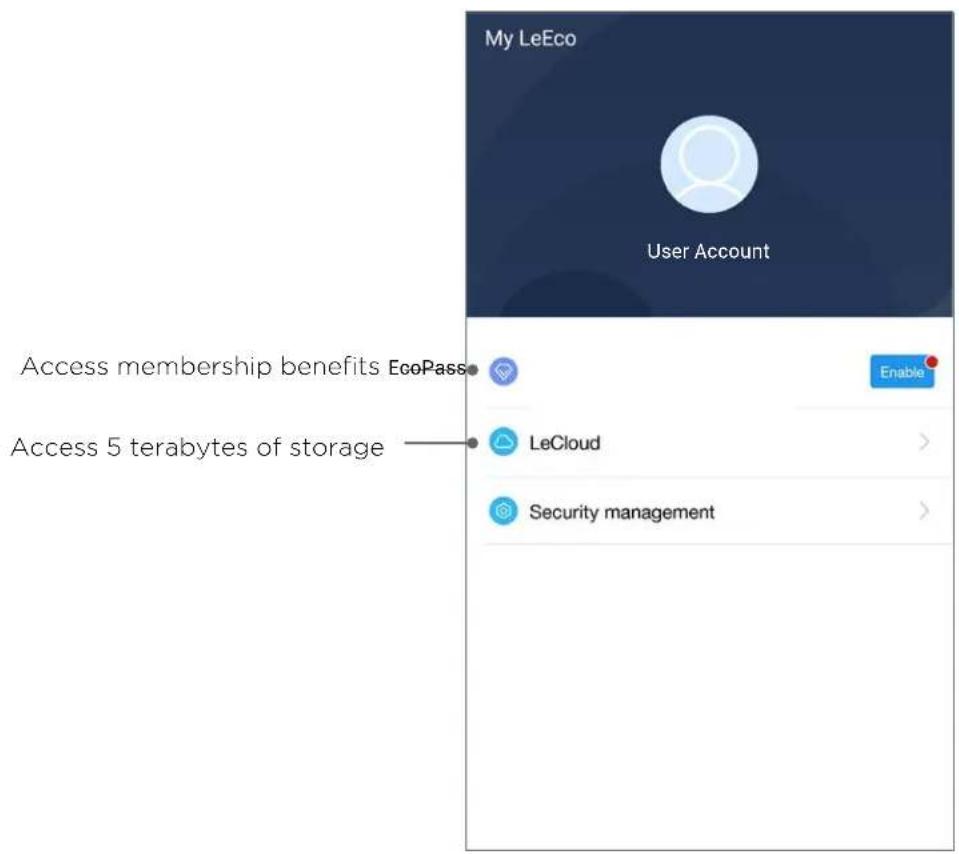
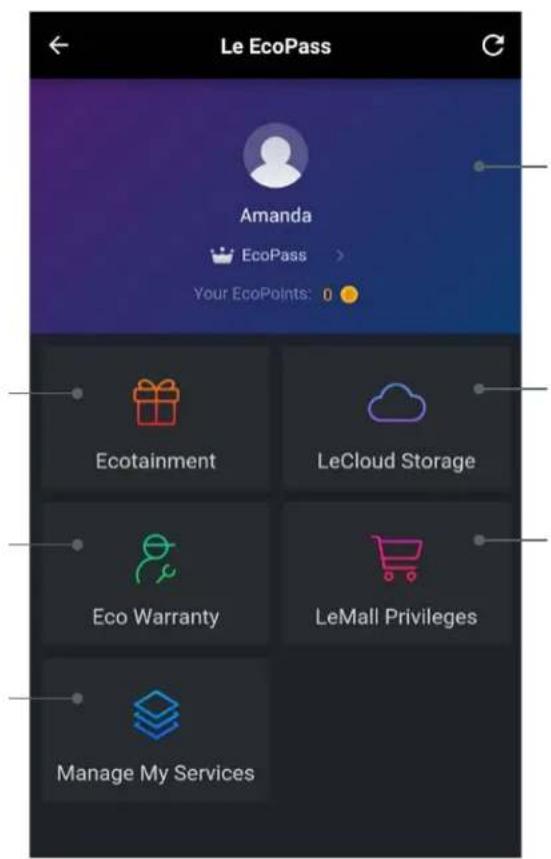
Manage your My LeEco account, which includes membership and login details. Use this app to access EcoPass membership benefits and for any user account preferences.
To begin:
- Launch the My LeEco app.
- Navigate to EcoPass.
- Next, you'll need to login. If you don't have an account yet, you can either:
o Sign in with Google
-Or-
o Tap Sign up and create a new My LeEco account
text_image
My LeEco User Account Access membership benefits EcoPass Access 5 terabytes of storage LeCloud Security managementEcoPass
Ecotainment: Access your entertainment credits.
Eco Warranty: Eco Warranty grants you a hardware warranty and worry-free services
My Subscriptions: Access your channels and services.
text_image
Le EcoPass Amanda EcoPass > Your EcoPoints: 0 Ecotainment LeCloud Storage Eco Warranty LeMall Privileges Manage My ServicesEcoPass: Your exclusive discounts for a world of diverse entertainment.
LeCloud Storage: Safely store all your photos and videos with unlimited cloud storage
LeMall Privieges: Enjoy special privileges on LeMall.com, including exclusive discounts and early access new products.
Contacts
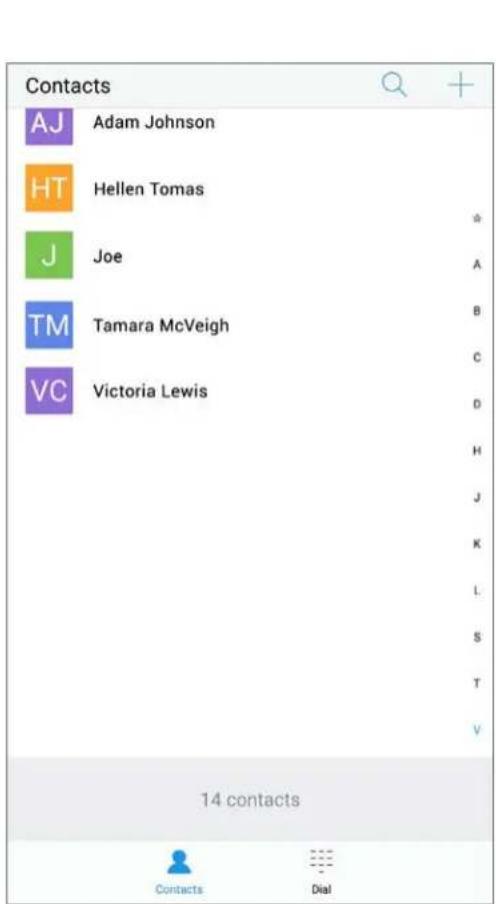
Store and manage all of your contact in one place for one or multiple accounts.
- Add new contact: Tap the (+) upper left key. Populate contact details and select Done once complete.
- Search: Enter key words to locate a contact by name or other details.
- Edit my information: Update your contact information.
- Groups: Categorize your contacts by type, such as coworkers and family.
• Dial: Shortcut to phone keypad
text_image
Contacts AJ Adam Johnson HT Hellen Tomas J Joe TM Tamara McVeigh VC Victoria Lewis 14 contacts Contacts Dial
text_image
Recent Calls Mary Smith California 1 2 3 QQ ABC DEF 4 5 6 GHI JKL MNO 7 8 9 PORS TUV WXYZ * 0 # # # + # Shortcut to letter keyboard Contacts Dial Call MenuMessaging
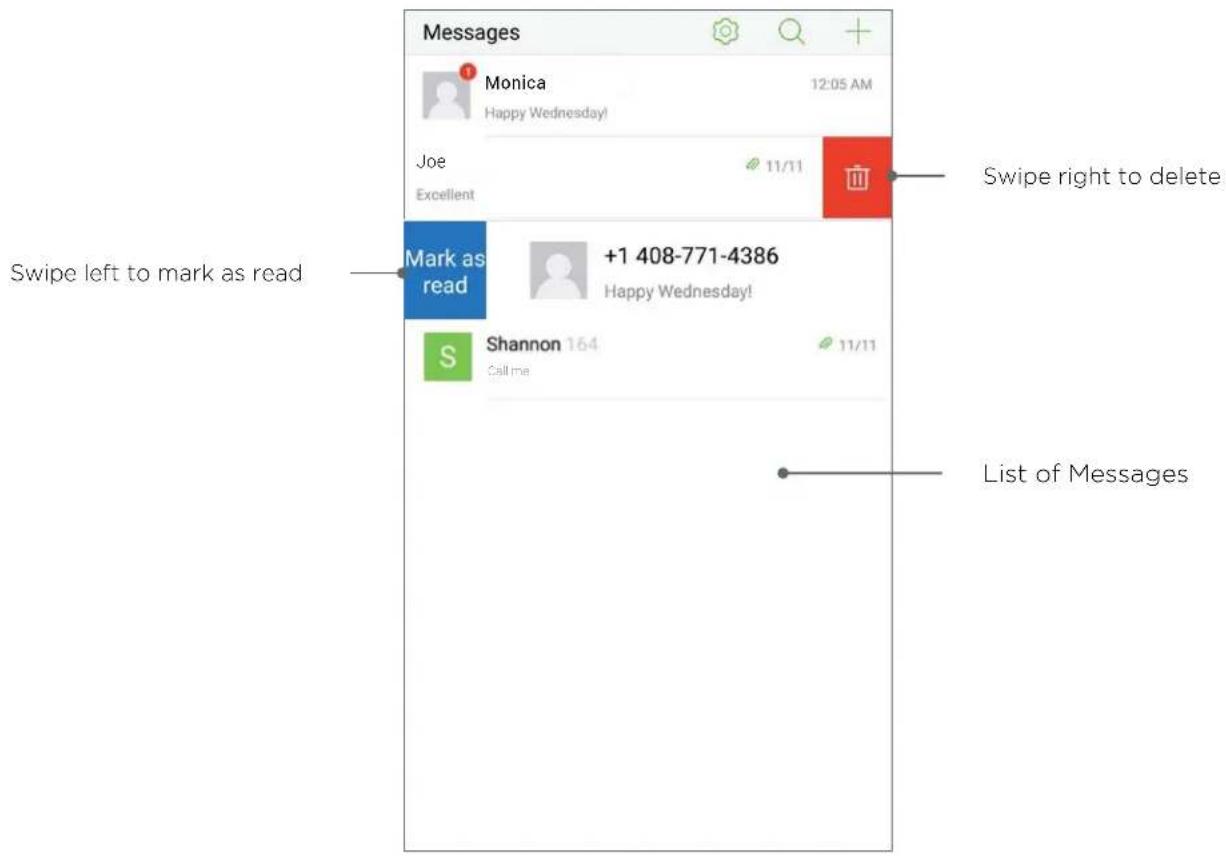
Access text communications and shortcuts.
• Search: Search messages by keyword
- Compose new message: Create a new text message
text_image
Messages Monica 12:05 AM Happy Wednesday! Joe Excellent +1 408-771-4386 Happy Wednesday! Mark as read Shannon 164 Call me 11/11 Swipe right to delete Swipe left to mark as read List of MessagesCamera
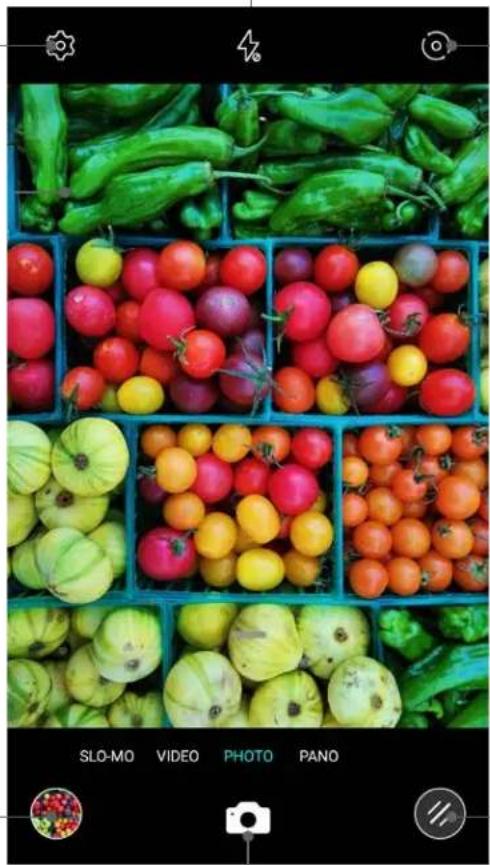
Snap pictures, 16 MP panoramas, slow motion and 4K videos on a full-featured, high-resolution main camera. Use your 8 MP front-facing camera for stellar selfies.
- Note: Be sure to activate photo capture setting under Fingerprint & Password preferences.
- Tap fingerprint scanner to snap the picture (you can also use the center red button).
Flash:
Choose from automatic, on or off modes
Settings:
Configure camera timer, location, image size ratio and exposure preferences.
natural_image
Grid of colorful vegetables including tomatoes, cucumbers, and peppers in blue crates (no text or symbols visible)View Toggle:
Flip capture mode from main camera to front camera.
Album: Review pictures and video.
Camera shutter: Press to capture photos and/or video.
Filters: Enhance photos with color overlays.
Camera Modes
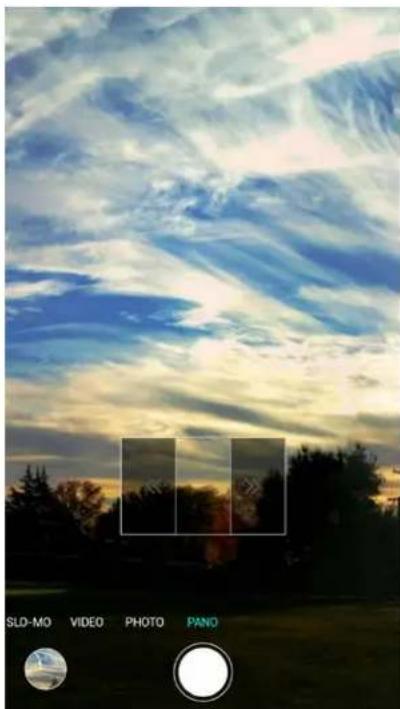
Panorama
- Press shutter button to start taking photo.
- Press the blinking direction arrows to pan across the area you want to photograph.
natural_image
Sunset over a cloudy sky with silhouetted trees and a camera control panel at bottom (no text or symbols on main image)Slow motion video
- Navigate to Video mode.
- Tap S/o-Mo button.
- Start/stop recording by pressing the shutter button.

natural_image
Underwater view of a translucent jellyfish with bright yellow fluorescence against a starry blue background (no text or symbols)Camera Modes
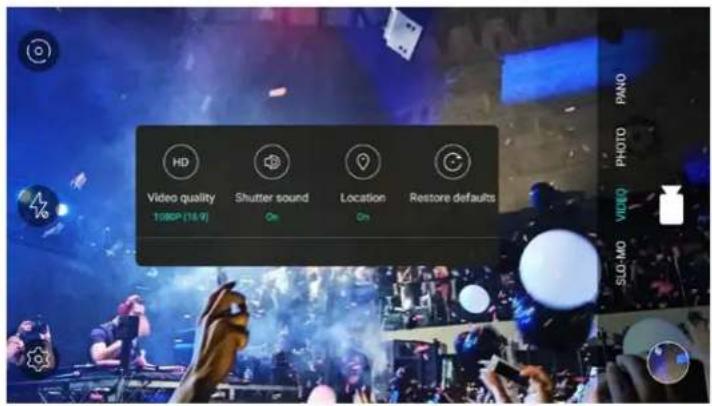
4K video
- Navigate to Video mode.
- Open the Settings icon at top left of screen.
• Under Video Quality, select 4K. - Start and/or stop recording by pressing the shutter button.
text_image
Video quality 1:08EP (16.9) Shutter sound On Location On Restore defaults PANO PHOTO SLO-MOSlow motion video
- Navigate to Video mode.
- Tap Slo-Mo button.
- Start/stop recording by pressing the shutter button.

natural_image
Underwater view of a translucent jellyfish with visible internal structures against a starry blue background (no text or symbols)Settings
Wireless & Networks,
Common, Personal, Other – and all option one level in within within these sections. E.G: Settings> Wifi >Describe all options on this page e.g on/off, choose network, scan, add network, scan qr code, more
System settings
Wi-Fi and Network

Airplane mode


Wi-Fi
NETGEAR82-5G

Bluetooth
On

Dual SIM & mobile networks

Personal hotspot

More
General

Display

Personalize

Sounds & vibration

System settings

App settings
App settings

Phone/contacts

Messages

Browser


Downloads

Remote control

Music

Gallery

Clock

Calendar

Recorder

System settings

App settings
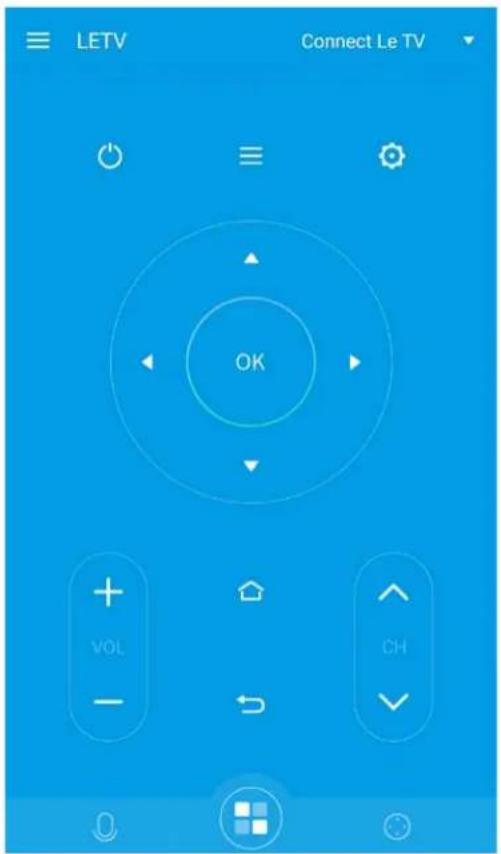
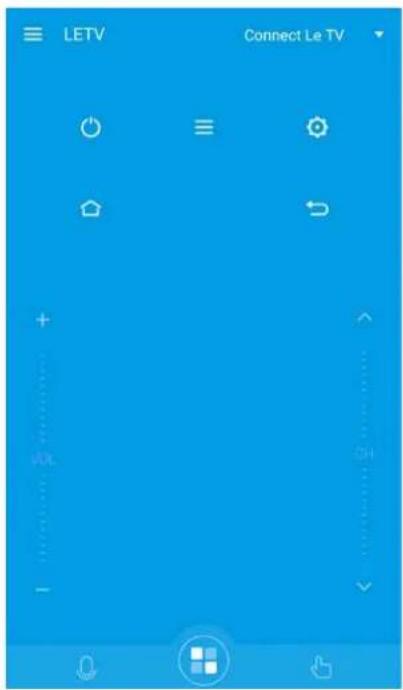
Remote Control
Turn your ecophone into a seamless, universal remote with built-in infrared technology. Now you can connect easily to your TV or other device using your ecophone.
To begin:
- Recommended: Sync your ecophone and your television (or other device) to the same Wi-Fi network.
- Launch the Remote Control app.
- Select Other Devices.
- Tap Add Remote Control at the bottom of your screen.
- Choose a device type from the list.
- Select device brand.
- Follow prompts on your screen to connect your device.
Once setup is complete, your device will be added to a list of recognized remotes.
Note: Remote cannot control all third party devices.
text_image
LETV Connect Le TV OK + VOL - CHRemote Control
Connect your remote controll with other devices.
text_image
LETV Connect Le TV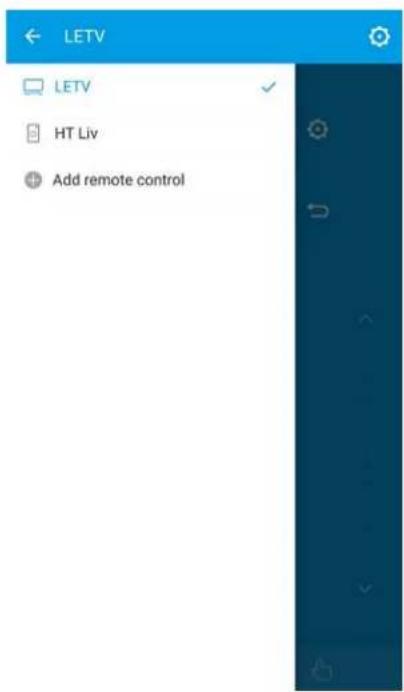
text_image
LETV LETV HT Liv Add remote control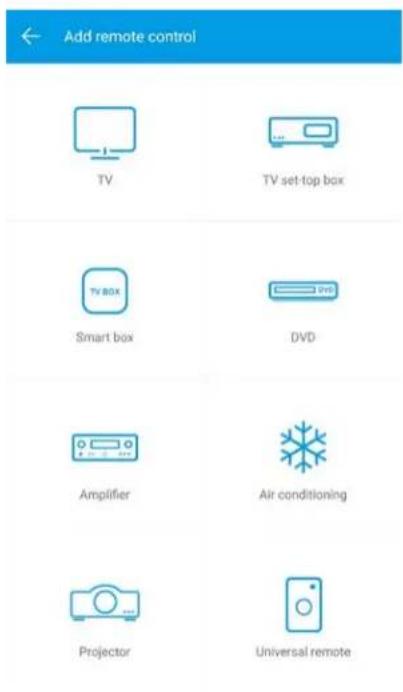
text_image
Add remote control TV TV set-top box TV BOX Smart box DVD Amplifier Air conditioning Projector Universal remotePhone Manager
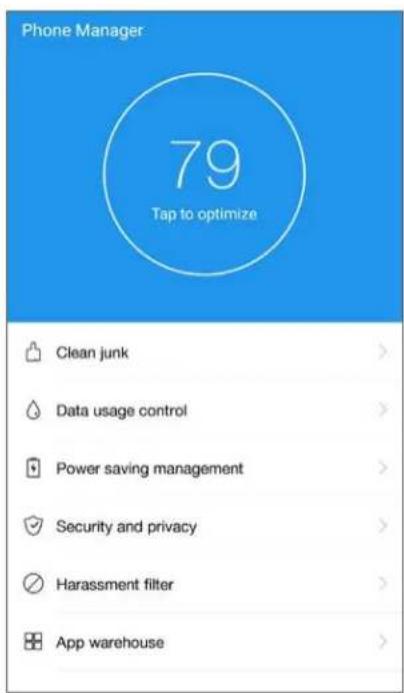
Monitor your data and power usage, along with phone permissions.
- Clean junk: Clears cache of temporary files to create additional space.
- Data usage control: Monitor and permit cellular data usage.
-
Power saving mode: Customize display and other settings to conserve battery power.
-
Access management: Select which apps you'd like to automatically launch on startup.
- App warehouse: Disable apps not being used to minimize data usage.
text_image
Phone Manager 79 Tap to optimize Clean junk Data usage control Power saving management Security and privacy Harassment filter App warehouseSystem Update
Your ecophone will alert you when system updates are available. When prompted, simply follow the instructions to install the update.
To begin:
- Navigate to Settings.
- Select the System Update menu option.
- Tap the center refresh button to check for updates.
- For details on current version, tap the menu option with release number.
Configure one or more accounts with the Email app.
To begin:
- Tap the Email app to launch program.
- Follow on screen instructions to add an email account to your ecophone.
Feedback
Navigate to our Feedback app to reach out for help or share ideas with LeEco.
To begin:
- Launch the Feedback app from your home screen.
- Fill in the requested fields.
o Optional: You can upload a screenshot to help explain the issue. - Provide your contact information and tap Submit.
File Manager
From music to images, you'll find all of your downloaded files here. Open any subcategory (for example: Music) to easily access, edit and share.
To begin:
- Launch the File Manager app from your home screen.
- Select subcategory (for example, Music).
- Press and hold the file.
- Select from options at the bottom of your screen:
o Copy file to new location
o Move file to new location
o Share the file
o Delete the file
o View details
o Rename the file
Internet Browser
Explore the web with this intuitive app. Start by launching the Browser app from your home screen.
- Search bar: Type in a web domain, or use search terms.
- Navigation: Search web suggestions by category.
- Recommended: View abbreviated web suggestions.
- Share: Post or send a link to your content.
- Menu: Access settings, bookmarked pages and saved files, or switch to night color mode (darkened screen colors).
• Home: Navigate to homepage.
- Fan windows: View all open webpages.
- Scan QR code: Shortcut to QR code scanner
Music
Build and customize your music library.
To begin:
- Launch the Music app.
- Open the vertical ellipses ( ) menu and select Settings.
- Next, select the Account Settings option.
- Log in to My LeEco, either by using existing credentials or by creating a new account:
o If you've already logged in to Google on the device, you will be given the option to use that account.
o You will also have the option to create a new account.
- Plug in to an external device (such as a computer) using your USB Type-C adapter.
Note: You can also connect over Bluetooth®
Once you're logged in, any existing music on your account will populate. A variety of options and preferences are available beneath the ( ) menu. For example, you can choose from preselected sound settings, or customize your own, by navigating to the Equalizer menu option*.
Video Player
Store and play video files in the video player app.
To access, navigate to the Player icon and select from video categories.
- Press and hold over a video for delete option.
- During play, you can use the scissor icon to save snapshots to your SD card.
- More: Use the More option to access audio, caption settings, file information and video editing.
Video Recorder
Need to take down a voice memo? With the built-in app, you can create, save, customize and share recordings.
To begin:
- Launch the Recorder app.
• To start and stop recording, tap the red button. - Once complete, tap the bottom right stop button.
Note: You can mark sections of your recording to return to later using the flag button on the lower left.

flowchart
graph TD
    A["Smartphone"] --> B["Device"]
    B --> C["Mobile Device"]
    C --> D["Device"]
    D --> E["Mobile Device"]
    E --> F["Device"]
    F --> G["Mobile Device"]
    G --> H["Device"]
    H --> I["Mobile Device"]
    I --> J["Device"]
natural_image
Top-down schematic of a circuit board layout with multiple components and traces (no text or symbols)Settings
Getting Started
Wi-Fi
Bluetooth®
Airplane Mode
Mobile Hotspot/Tethering
Data Usage
Mobile Networks
App Management
Sounds & Vibration
Notifications
Display
Wallpaper
Themes
Lock Screen and Security
Accessibility
Accounts
Backup and Reset
Language and Input
Battery
Date and Time
Help
About Device
Use & Safety
Limited Warranty
Getting Started
To locate settings, tap the Settings icon on your home screen.
Wi-Fi
Set up your wireless Internet connection.
To begin:
- Navigate to Settings.
- Select the Wi-Fi menu option.
- Activate Wi-Fi using the toggle switch at the top of your screen.
• To join a network, choose from the following options:
o Select your network from the list, and follow prompts to login.
o Add an unlisted network by selecting the (+) option and entering your credentials.
o Add a network via QR code using the Scan QR Code option.
o Choose from additional options under More.
Bluetooth®
Activate Bluetooth to sync your ecophone to external devices, such as a computer or a vehicle.
To begin:
- Navigate to Settings.
- Select the Bluetooth menu option.
- Switch Bluetooth toggle on.
- Ensure device can be recognized by switching
Discoverable toggle on.
- Select from list of available devices.
- Note: If your device isn't showing in the list, try tapping the Refresh button at the bottom of your screen.
Airplane Mode
Set your phone to airplane mode to disable your Wi-Fi connection. To activate, switch the Airplane Mode toggle on. Use the toggle to deactivate when this function is no longer needed.
Mobile Hotspot/Tethering
Leverage your device's Internet connection or wireless Bluetooth and turn your ecophone into a mobile hotspot. Alternatively, you can also set up a tether via USB cable.
To begin:
- Navigate to Settings.
- Select the Personal Hotspot menu option.
- For mobile hotspot, switch Portable Wi-Fi hotspot toggle on.
o Locate and select your ecophone's name within the network list on your external device.
o Enter the password provided on your ecophone. - For a shared connection over Bluetooth, switch
Data Usage
Configure the amount of data being utilized by apps. This function allows you to turn apps on and off depending on your usage.
To begin:
- Navigate to Settings.
- Select the Dual SIM & Mobile Networks menu option.
- Next, select the Data Management menu option.
Bluetooth tethering toggle on.
o Locate and select your ecophone's name within the device list on your external device.
- To sync files over USB, use the charger cord provided and plug in to your external device.
o Follow external device prompts to transfer your content.
Mobile Networks
Manage mobile Internet connection settings.
- Navigate to Settings.
- Navigate to Mobile Networks.
o SIM card: The first menu option shown, navigate here to manage SIM card preferences.
o Mobile data: Toggle mobile data on or off.
o Data management: Configure the amount of data being utilized by apps.
o Preferred network type: Select a network connection.
○ Always accept MMS: Toggle on/off to change preference for accepting multimedia messages.
o VoLTE HD call: Toggle on/off voiceover LTE setting.
Below the main settings, you can make selections for which SIM cards to use for mobile data and calls.
App Management
Configure individual settings for each application.
- Navigate to Settings.
- Navigate to App management.
o All: Access storage information, permissions, notifications, default settings and battery usage
o Installed: List of installed apps
o Running: Manage programs currently running as well as available RAM
o Cached: Clear background processes to free RAM space.
Default apps: Select preferred apps to use when opening files.
Sounds & Vibration
In addition to the side control buttons, there are a number of ways to customize the sound settings on your ecophone.
- Navigate to Settings.
- Navigate to Sound & Vibration.
o Volume: Configure sound settings for media, alarm and ringtone.
o Vibrate: Configure vibration settings for mute, ring and touch functions.
o Ringtones: Configure ring settings for incoming calls, messages, notifications, email, calendar and alerts.
o System: Configure sound settings for different
Notifications
Customize the alerts you receive for your applications.
Shortcut: Swipe down for immediate access to notification settings.
- Navigate to Settings.
- Select the Notification Management menu option.
o Important notice: Prioritizes app alerts first.
o Toggle switch: Turn notifications on or off.
o Customize: Select alert viewing preferences.
functions on your device.
- Dolby Atmos*: Enhance your listening experience with surround sound effects.
Display
Adjust viewing preferences.
- Navigate to Settings.
- Navigate to Display.
o Brightness level: Adjust the level of light on your screen.
o Adaptive brightness: Toggle on to automatically adjust color based on your environment.
o Color mode: Select from a variety of screen color styles.
o Scale view: Adjust size and distribution of content onscreen.
o Video display enhancement: Enhance video color saturation and smoothness.
o Font size: Increase or decrease onscreen text size.
○ Display real-time speed: ??
o Sleep: Select standby time prior to automatically turning off display backlight.
o LED notification light: Set preferences for types of LED light alerts.
o Auto-rotate screen: Set preference to either rotate or lock display when phone is turned horizontally.
Wallpaper
Personalize the background image on your ecophone.
- Navigate to Personalize.
Themes
Select the Online themes menu option to pick a different overall look and feel for your ecophone.
- Select the System wallpapers menu option to.
- Navigate to Personalize.
- Select the System wallpapers menu option to pick your backdrop. Settings can be applied to lock screen mode, home screen or both.
Lock Screen & Security
- Navigate to Settings.
- Navigate to Fingerprint & Password.
o Password locking: You can set up a password for screen and app access.
o Fingerprint management: Use this option to secure your ecophone with fingerprint identification.
o Add fingerprint: Follow simple onscreen prompts to set up your fingerprint.
o Capture photo: Your fingerprint sensor doubles as a camera shutter. Toggle the switch on to activate this function.
o Screen locking management: Set preferences for securing your device.
Accessibility
Customize ecophone functions to suit your needs.
- Navigate to Settings.
- Navigate to Accessibility.
o Talkback: Hear spoken feedback when you tap, select and activate certain ecophone features.
○ Switch access: ??
o Virtual buttons (Multitask, Home and Back): Configure shortcuts for long-pressing the three
Accounts
Configure accounts you've logged into on your ecophone. Tap Add Account to get started, and follow the prompts to enter your credentials.
Backup & Reset
Use remote storage with back up settings to ensure you won't lose data.
- Navigate to Settings.
- Navigate to Restore Factory Settings.
- Select Back up my data and enable this function using the toggle button.
Note: Set up an account for data storage under the Backup account menu option.
You can restore your device to factory settings in a few
virtual buttons on your ecophone.
o System: Your ecophone features a variety of system settings for ease of use, including Captions, Magnification, Pocket Dial and Text-to-Speech. To view, navigate to the System submenu.
simple steps.
- Navigate to Settings.
- Navigate to Restore Factory Settings.
- Select Factory Data Reset, and select the Reset Phone option at the bottom of your screen.
Language & Input
Select language preferences and customize keyboard functions.
- Navigate to Settings.
- Navigate to Language & Input.
Battery
View power usage and set battery consumption allowances for apps and device functions.
- Navigate to Settings.
- Navigate to Battery.
o Status bar: Display or hide battery percentage icon.
Storage
Monitor storage space available on your ecophone. Use the Large File Cleanup feature to locate and delete files taking up the most space within storage.
Date & Time
Configure date and time settings.
- Navigate to Settings.
-
Navigate to Date & Time.
Options include: -
Choose your preferred Language, Region and Keyboard.
o Google Voice™ typing: Set up voice dictation
o Text-to-speech output: Configure speech settings
o Quick charge: Activate/deactivate Quick Charge™ 3.0
o Power saving management: View additional power saving options.
o 24 or 12-hour formats
o Time zone detection options
Help
Need help? Contact our customer support team:
1-855-66-LeEco (1-855-665-3326) | forum.le.com
About Device
Ecophones
It's time to forget limits. At LeEco, we believe in delivering a more comprehensive experience that reaches far beyond what users have come to expect from smartphones. With content at the core, our devices are built with revolutionary and intuitive features. Every ecophone is a work of art that combines three main elements: beautiful design, powerful performance and a unique way of delivering entertainment. And it's all backed up by the power of the cloud.
Forget having limits with your ecophone. Whether you're into music, games and movies or keeping organized day-in and day-out, we've got you covered.
• Personalized entertainment
• Three-by-three tiled LIVE screen, streaming your favorite shows
- Screencast from your ecophone to your ecotv with ease
- Turn your ecophone into a universal remote control
Use & Safety
Battery
Do not attempt to remove or replace your battery. Batteries contain flammable substances such as lithium or other organic solvents, and may overheat resulting in injury. If your device needs servicing, please contact us at 1-855-665-3326. Your battery has specific recycling and disposal instructions. Please visit LeMall.com/us/warranty for more information.
Hearing Loss
Permanent hearing loss may occur if the headset is used at high volumes for prolonged periods. Adjust the volume to a safe level. Your device may also be compatible with certain hearing aids. For information about either of these topics, please see "Hearing Loss Warnings" or "Hearing Aid Compatibility" in the Online User Guide at LeMall.com/us/warranty.
Safety and Care Information
You can find important information about the safety and care of your new phone by scanning the QR code above and navigating to "Safety" or by going to LeMall.com/us/warranty.
Recycling
Because the device includes electronic parts, it must be disposed of separately from household waste when it has reached its end of life. Please consult your local relevant laws and regulations for disposing of electronic devices. Alternatively, you can contact us at 1-855-665-3326 for instructions on how LeEco can help you recycle your device. Please work with us to recycle our products so that we all might be ecologically responsible.
Limited Warranty
Please read and follow all product instructions that come with your LeEco ecophone. LeEco disclaims any liability for loss or damage resulting from improper use or use contrary to the product instructions.
LeEco warrants the LeEco ecophone hardware ("ecophone" or "Product") against defects in materials and workmanship for one (1) year from the date of the original retail purchase. LeEco warrants that the applications supplied LeEco and pre-installed by LeEco prior to your purchase will perform in substantial conformance with the specifications for those applications when initially accessed by you.
This warranty is valid only in the country in which the ecophone was purchased.
For service, contact LeEco at 1-855-343-6688. For warranty repair or replacement services for the Product, LeEco will pay shipping charges both ways. For services outside of warranty or for products returned other than the Product, shipping charges may apply. You may be required to provide proof of purchase in submission of your warranty claim.
This Limited Warranty does not cover: (a) defects or damage resulting from accident, abuse, misuse, improper storage, exposure to liquid, excessive moisture, dampness, sand or dirt, neglect, or unusual physical, electrical or electromechanical stress; (b) scuffs, scratches, dents and other cosmetic damage; (c) equipment that has the serial number
removed, defaced, damaged, altered or made illegible; (d) ordinary wear and tear; (e) defects or damage resulting from the use of ecophone with accessories not furnished or approved by LeEco; (f) defects or damage resulting from improper maintenance, or service not furnished or approved by LeEco, including but not limited to installation of unauthorized software and unauthorized root access (jail breaking), both of which shall void this limited warranty; (g) defects or damage resulting from external causes such as, but not limited to dropping, throwing or subjecting the product to excessive physical force; or (h) defects or damage resulting from cellular signal reception or transmission, or viruses or other software problems introduced into the product. This Limited Warranty covers batteries only if the battery leaks and this Limited Warranty does not cover any battery if the battery has been tampered with or charged using a battery charger not specified or approved by LeEco. There are no user serviceable parts inside of this ecophone. Opening the ecophone case voids this Limited Warranty.
During the warranty period, provided the Product is returned in accordance with the terms of this Limited Warranty, LeEco will repair or replace the Product, at LeEco's sole option, without charge. Repaired or replaced Product may be reconditioned or may contain rebuilt, refurbished or reconditioned parts or components.
For software related problems or issues, you are
responsible for performing a factory reset of the Smartphone prior to returning it under this Limited Warranty. This Limited Warranty only applies to LeEco applications. Warranty or other problem resolution on any third party or user supplied application is the responsibility of the provider of that application.
Replaced Product will be warranted for a period equal to the remainder of the original Limited Warranty on the original product or for ninety (90) days, whichever is longer. All replaced Product, parts, or components shall become the property of LeEco.
To obtain service under this Limited Warranty, you must return the Product to LeEco or to a LeEco authorized service facility accompanied by the original sales receipt or comparable proof of sale showing the original date of purchase, the serial number of the Product and the seller's name and address. When returning your ecophone for service, do not send SIM cards, cases or other third party products as LeEco accepts no liability for their return to you. This Limited Warranty only extends to the ecophone and LeEco supplied applications and not third party products or applications.
If LeEco determines that any product returned is not covered by this Limited Warranty, you must pay LeEco for all parts, shipping, and labor charges for the repair or return of such product.
During repair or service, the contents of the ecophone memory may be reformatted or deleted. You are responsible for maintaining a backup copy of any contents of the memory before sending the ecophone for warranty or other service.
THIS LIMITED WARRANTY SETS OUT THE FULL EXTENT OF LEECO'S RESPONSIBILITIES AND THE SOLE AND EXCLUSIVE REMEDY REGARDING THE PRODUCT COVERED BY THIS WARRANTY. TO THE EXTENT PERMITTED BY APPLICABLE LAW, LEECO MAKES NO OTHER WARRANTIES OF ANY KIND, EXPRESS OR IMPLIED, WITH RESPECT TO THE PRODUCT, INCLUDING BUT NOT LIMITED TO ANY IMPLIED WARRANTY OF MERCHANTABILITY, FITESS FOR A PARTICULAR PURPOSE OR AGAINST INFRINGEMENT.
IN NO EVENT SHALL LEECO BE LIABLE FOR DAMAGES IN EXCESS OF THE PURCHASE PRICE OF THE PRODUCT OR FOR, WITHOUT LIMITATION, LOSS OF USE, DATA, OPPORTUNITY, GOODWILL, PROFITS OR SAVINGS; OR FOR INCONVENIENCE; INCIDENTAL, SPECIAL, CONSEQUENTIAL OR PUNITIVE DAMAGES; OR DAMAGES ARISING FROM THE USE OR INABILITY TO USE THE PRODUCT. SOME STATES AND JURISDICTIONS DO NOT ALLOW LIMITATIONS ON OR DISCLAIMERS OF IMPLIED WARRANTY OR ON HOW LONG AN IMPLIED WARRANTY LASTS, OR THE DISCLAIMER OR LIMITATION OF INCIDENTAL OR CONSEQUENTIAL DAMAGES, SO THE ABOVE LIMITATIONS AND DISCLAIMERS MAY NOT APPLY TO YOU.
LEECO MAKES NO WARRANTIES OR REPRESENTATIONS, EXPRESS OR IMPLIED, STATUTORY OR OTHERWISE, AS TO THE QUALITY, CAPABILITIES, OPERATIONS, PERFORMANCE OR SUITABILITY OF ANY THIRD-PARTY EQUIPMENT, SOFTWARE OR SERVICES USED IN CONJUNCTION
WITH THE PRODUCT, OR THE ABILITY TO INTEGRATE ANY OF SUCH WITH THE PRODUCT. RESPONSIBILITY FOR THE QUALITY, CAPABILITIES, OPERATION, PERFORMANCE AND SUITABILITY OF ANY SUCH THIRD-PARTY EQUIPMENT, SOFTWARE OR SERVICES IS SOLELY WITH YOU AND THE DIRECT VENDOR OR SUPPLIER OF SUCH THIRD-PARTY EQUIPMENT, SOFTWARE OR SERVICES.
Except as provided in this Limited Warranty, nothing in the product instructions or information accompanying the Product or supplied by a party other than LeEco the shall be construed to create an express warranty of any kind with respect to the Product. No agent, employee, dealer, representative or reseller is authorized to modify or extend this Limited Warranty or to make binding representations or claims, whether in advertising, presentations or otherwise, on behalf of LeEco regarding the products or this Limited Warranty.
This Limited Warranty gives you specific legal rights, and you may also have other rights that vary from state to state. Except to any extent expressly allowed by applicable law, transfer or assignment of this Limited Warranty is prohibited.

LeEco
LeEco, ecophone and Le Pro3 are marks or registered trademarks of LeEco or its affiliates. Other names, trademarks or logos are the marks or registered trademarks of their respective holders. © 2016 Le Technologies, Inc. All rights reserved.