Inspiroy H950P - Graphic tablet Huion - Free user manual and instructions
Find the device manual for free Inspiroy H950P Huion in PDF.


| Product Type | Battery-free Pen Tablet |
| Model | Inspiroy H950P |
| Brand | Huion |
| Working Area | 221 x 138 mm (8.7 x 5.4 in) |
| Dimensions | 320.8 x 188.8 x 8 mm |
| Net Weight | 497 g |
| Touch Technology | Battery-free Electromagnetic Resonance |
| Resolution | 5080 LPI |
| Report Rate | 233 PPS |
| Pen Sensing Height | 10 mm |
| Pressure Levels (Pen) | 8192 levels |
| Pen Accuracy | ±0.3 mm |
| Interface | Micro USB |
| Customizable Press Keys | 8 |
| Compatible OS | Windows 7 or later, macOS 10.11 or later, Android 6.0+ |
| Power Supply | USB-powered (5V from computer or OTG adapter) |
| Pen Model | PW100 (163.6 x 14.5 mm, 13 g) |
| Included Accessories | Pen tablet, Battery-free pen, Micro USB cable, Pen holder (with nib clip), Replacement nibs, Quick Start Guide |
| Main Functions | Drawing, writing, customizable shortcuts, pressure sensitivity adjustment, working area mapping, rotation, Windows Ink support |
| Maintenance | Clean with soft damp cloth; do not use detergents or spill liquids |
| Safety | Do not disassemble; keep away from children; avoid water exposure; unplug before cleaning |
| Spare Parts Availability | Replacement nibs (included inside pen holder), pen nibs can be replaced as described in manual |
Frequently Asked Questions - Inspiroy H950P Huion
User questions about Inspiroy H950P Huion
0 question about this device. Answer the ones you know or ask your own.
Ask a new question about this device
Download the instructions for your Graphic tablet in PDF format for free! Find your manual Inspiroy H950P - Huion and take your electronic device back in hand. On this page are published all the documents necessary for the use of your device. Inspiroy H950P by Huion.
USER MANUAL Inspiroy H950P Huion
natural_image
Black rectangular electronic device with blue background (no visible text or symbols)H640P/H950P
Battery-free Pen Tablet
Precautions
- Please read this manual carefully before using, and keep it well for future reference.
- Before cleaning the tablet please unplug the power cord and wipe with a soft damp cloth, do not use any kind of detergents.
- Don't expose this product to water or other liquids. Take care to never spill liquids onto the tablet and pen. Exposing this product to water or other liquids may cause product malfunction or electrical shock.
- Do not place the tablet on where is unstable or a height for children reaching easily in order to avoid danger. Prevent children from swallowing the pen nib or side switch. The pen nib, side switch, or other movable parts may accidentally be pulled out if children are biting on them.
- Power off your tablet in locations where/when electronic devices is not allowed. Because the tablet may cause other electronic devices to malfunction in some locations where/when the use of electronic devices is not allowed, such as within an airplane, be sure to turn off the tablet.
- Do not disassemble the tablet and pen. Do not disassemble or otherwise modify the tablet or pen. Such action may cause heat generation, ignition, electronic shock, or other damage, including human injury. Disassembling the product will void your warranty.
- While getting the components replaced, you are supposed to guarantee that the repairman is using the substitute components specified by the manufacturer. Unauthorized component replacement might cause fire, electric shocks or other dangers.
- Do not insert foreign material into the USB port or any other opening of this product. If a metal object or foreign material is inserted into a port or other opening of this product it may cause the product to malfunction or burn out, or cause electronic shock.
Contents
1. Product Overview.... 3
1.1 Tablet Introduction....3
1.2 Product and Accessories .... 3
1.3 Connecting to Computer......4
1.4 Connecting to Android Phone ....5
1.5 Pen Nib Replacement....6
2. Product Basic Operation....7
3. Function Setting ...... 9
3.1 Device Connection Prompt 9
3.2 Working Area Setting 9
3.3 Press Keys Function Setting ...... 11
3.4 Pen Buttons Function Setting.....11
3.5 Pressure Sensitivity Setting....12
3.6 Pen Pressure Testing ....12
3.7 Enable the Windows Ink feature....13
3.8 Data Export and Import ....13
4. Specifications 14
5. Trouble Shooting 15
5.1 Possible Breakdowns Related to TABLET....15
5.2 Possible Breakdowns Related to SYSTEM 15
6. After-service Contact.... 15
1. Product Overview
1.1 Tablet Introduction
Thanks for choosing HUION ^ INSPIROY ^ H640P/H950P graphics tablet. This is a new generation of professional battery-free drawing tablet, which can greatly improve your work efficiency of painting and creation, and full of fun. You can freely painting and writing, depicting different lines and colors, just as the pen writes on the paper, which brings you a real shock experience.
To give you a better understanding and using of your tablet, please read this user manual carefully. The user manual only shows the information under Windows, unless otherwise specified, this information applies to both Windows and Macintosh systems.
1.2 Product and Accessories
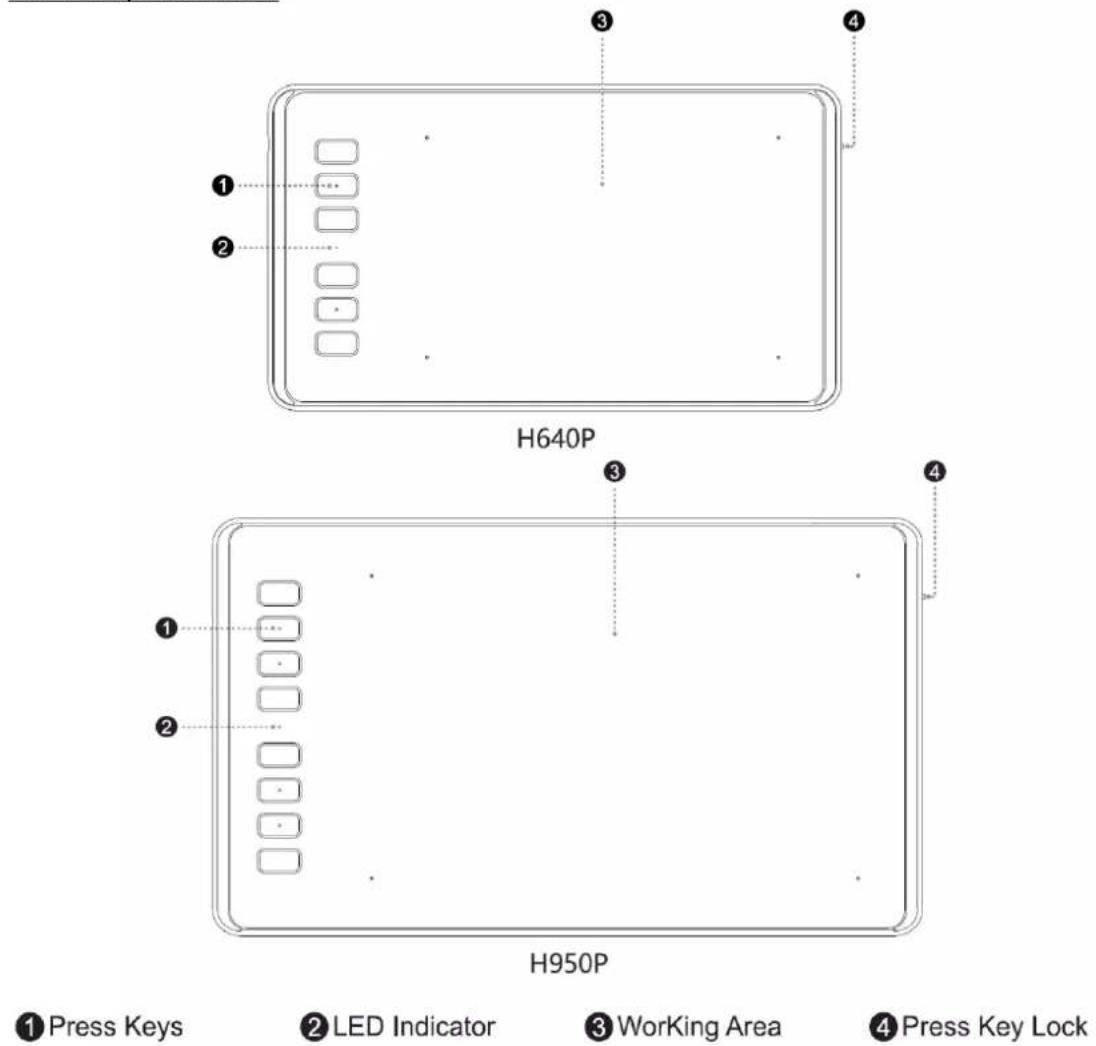
1.2.1 Graphics Tablet
text_image
H640P H950P ① Press Keys ② LED Indicator ③ Working Area ④ Press Key Lock1.2.2 Packing List
natural_image
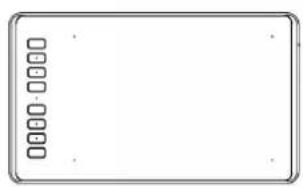
Blank rectangular frame with a row of small square checkboxes on the left side (no text or symbols)Pen Tablet

Battery-free Pen
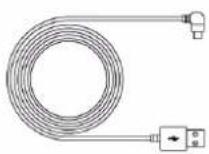
Micro USB Cable
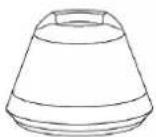
Pen Holder
(Integrated with nib clip)

Replacement Nibs (Inside the pen holder)
Quick Start Guide
1.3 Connecting to Computer
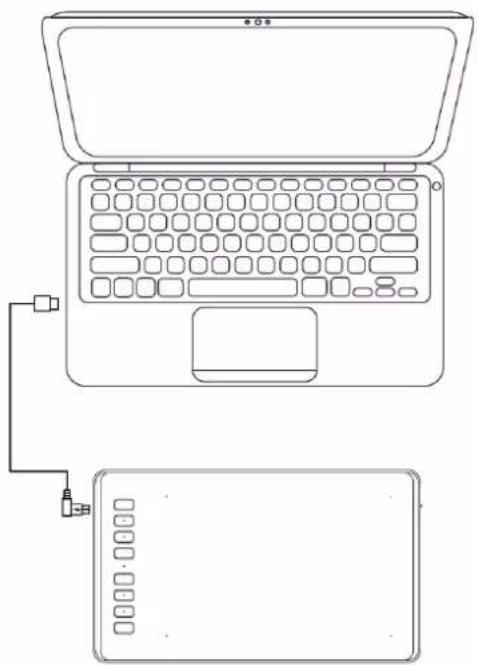
1.3.1 Connect the tablet
natural_image
Line drawing of a laptop with an attached device (no text or symbols)1.3.2 Driver Installation
-
OS Support: Windows 7 or later, macOS 10.11 or later
-
Please download the driver from our website: www.hujon.com/download
After finishing installation, you can find the driver icon 📋 in the system tray area, which means the driver was installed successfully; when you connect the tablet to computer, the icon will change to color 🔒, which means the driver has already recognized the tablet and you can start using it now.
Notice:
-
Before installing, you need to uninstall other driver of similar products, including the old driver of this product.
-
Before installing, please close all graphics software and anti-virus software to avoid unnecessary mistake.
1.4 Connecting to Android Phone
-
Please make sure your phone & pad OS is as following: Android OS 6.0 or later
-
For some models, you need to go phone or pad "Settings" then enable "OTG" function.
-
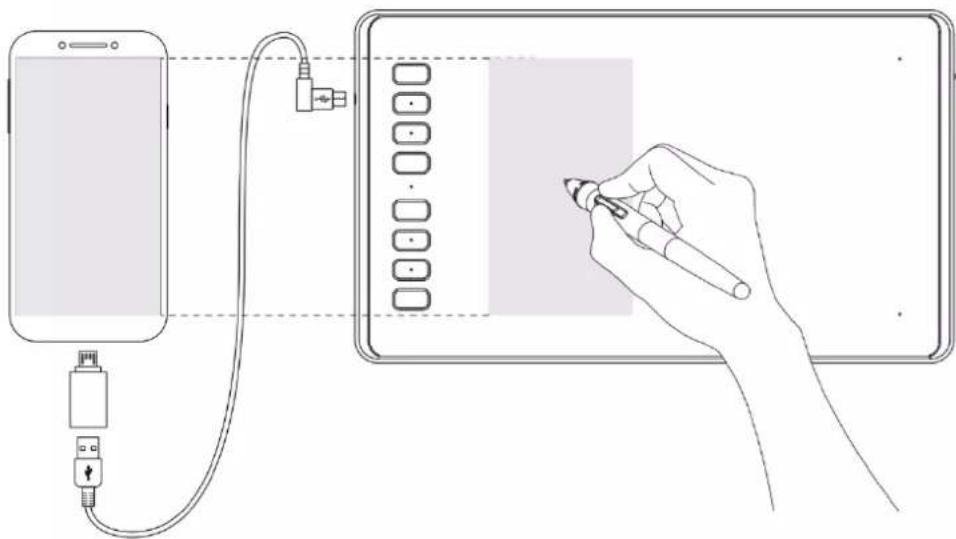
Choose the right OTG Adapter from package, which depends on USB port type of your phone, then connect pen tablet to your phone following the illustrations below:
natural_image
Line drawing showing a hand writing on a screen while connecting to a smartphone via cable (no text or symbols present)Notes:
- The pen tablet can works without installing any driver into your phone.
- Once connected, the tablet will automatically enter phone mode, in which the pen can only work in the left gray area(138x86.2mm).
- Please note that the press keys of pen tablet and digital pen are not supported in phone mode.
1.5 Pen Nib Replacement
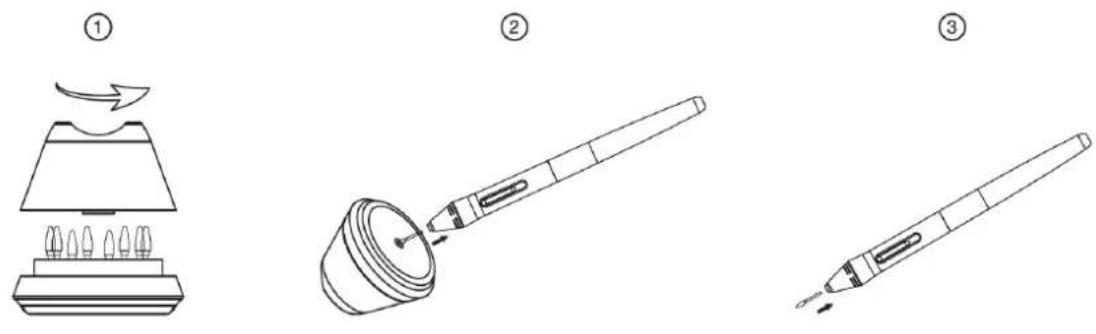
The nib will be wear off after using for a long time, then you need to replace a new nib.
- Anticlockwise rotate the pen holder to open the cover, take a new nib out.
- Insert the pen nib into the hole on the bottom of the holder and tilt the pen to pull out the old nib.
- Insert the new nib straight into the pen and push the nib slowly and firmly until it stops.
2. Product Basic Operation
2.1 Using The Pen
2.1.1 Hold the pen
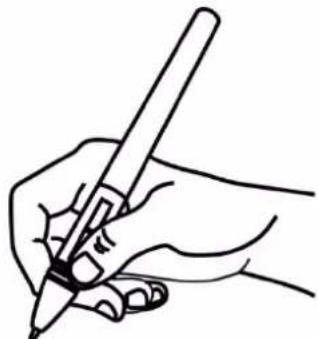
Hold the pen as you hold a normal pen or pencil. Adjust your grip so that you can toggle the side switch easily with your thumb or forefinger. Be careful not to accidentally press the switch while drawing or positioning with the pen.
natural_image
Line drawing of a hand holding a pen, writing on paper (no text or symbols present)Notice: When not in use, place the pen in the pen case or on the desk. Do not place the pen on the surface of screen, which may interfere with the use of other screen cursor positioning equipment, may also cause your computer can not enter the sleep mode.
2.1.2 Position the cursor
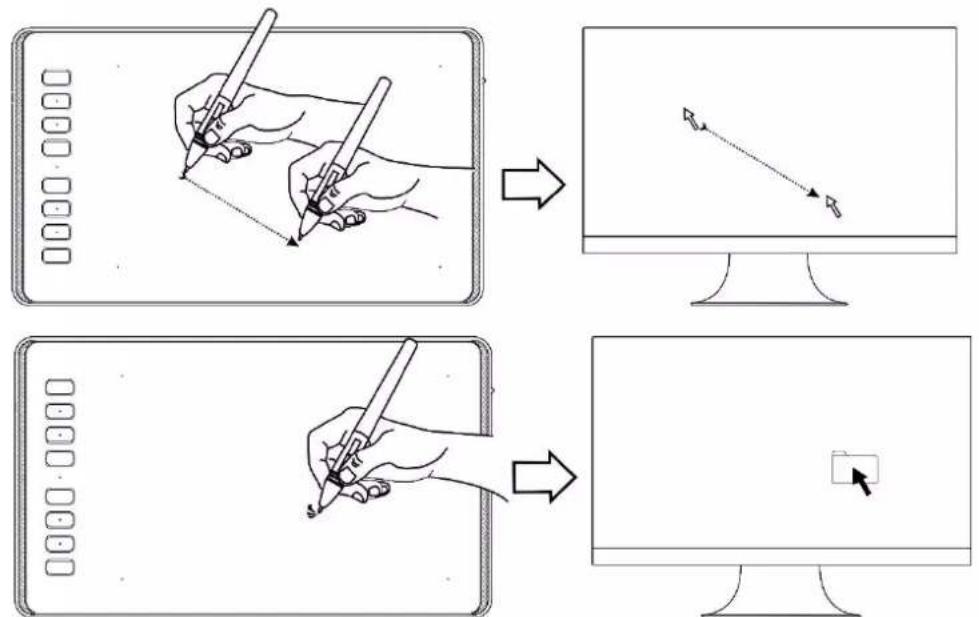
Move the pen slightly above the active area without touching the screen surface, the cursor will move to the new position accordingly.
Press the pen tip on the screen to make a selection. Tap the screen once with the pen tip, or touch it to the screen with enough pressure to register a click.
text_image
Diagram illustrating the step-by-step application of a drawing tool on a computer screen, showing hand-drawn and rendered views.2.1.3 Click
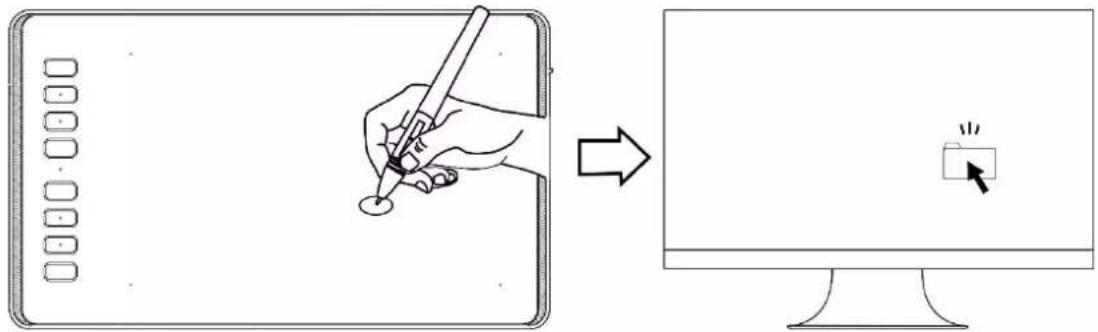
Use the pen tip to tap once on the screen to register a click. Tap to highlight or select an item on the screen and double-click to open it.
text_image
Diagram showing a hand drawing on a tablet and clicking a button on a computer screen, with Chinese UI icons.2.1.4 Move
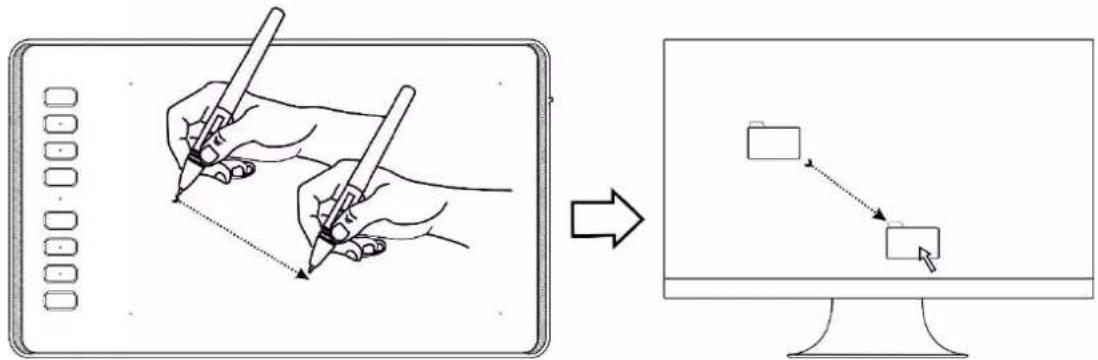
Select the object, then slide the pen tip across the screen to move it.
text_image
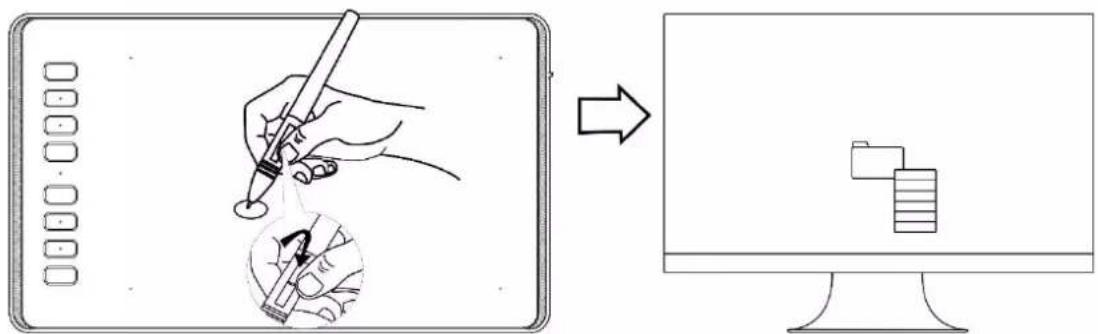
Diagram illustrating the process of drawing a rectangle using a pen, showing before and after states of drawing with arrows.2.1.5 Use the side buttons
The buttonson the pen can be set to two different customizable functions.
You can use the buttons whenever the pen tip is within 10mm of the tablet active area.
You do not have to touch the pen tip to the tablet in order to use the switch.
text_image
Diagram illustrating a digital drawing process: adding a pen to a device, then adding a laptop with a stack of documents.3. Function Setting
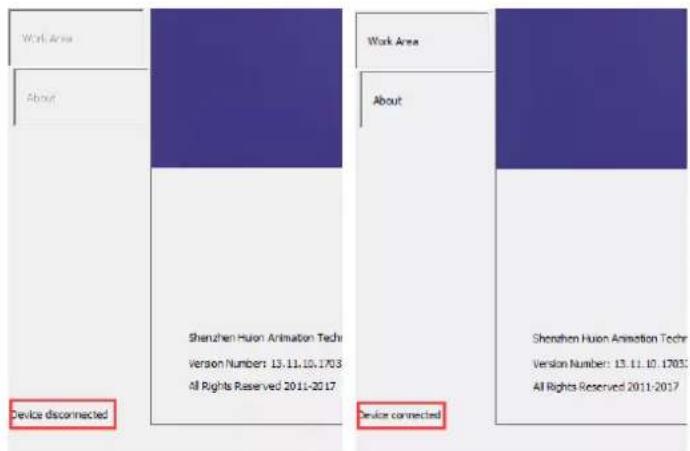
3.1 Device Connection Prompt
- Device disconnected: The computer does not recognize the tablet.
- Device connected: The computer has recognized the tablet.
text_image
Work Area About Device disconnected Shenzhen Huon Animation Tech Version Numbers: 13.11.10.1703 All Rights Reserved 2011-2017 Work Area About Device connected Shenzhen Huon Animation Tech Version Number: 13.11.10.1703 All Rights Reserved 2011-20173.2 Working Area Setting
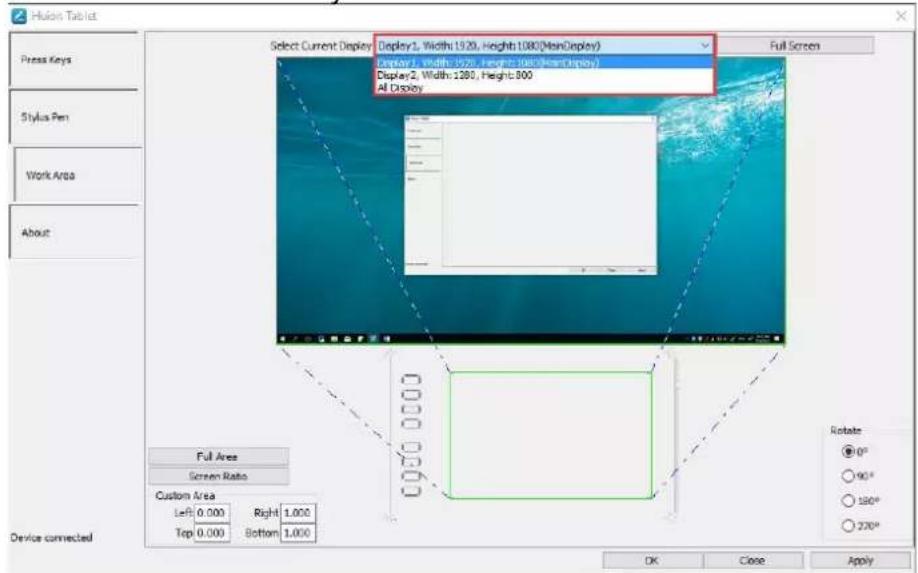
3.2.1 Using Multiple Monitors
Select the Working Area tab to define the relationship between pen movement on the tablet and cursor movement on the monitor screen.
By default the entire active area of tablet maps to the entire monitor. If more than one monitor is in use and you are in extended mode, you need to choose the related monitor on the driver interface which you are going to map to.
If your monitors are in mirror mode (All monitors display the same content), the tablet maps to the entire space on each monitor and the screen cursor is displayed on each monitor simultaneously.
text_image
Hulos Tablet Select Current Display: Display1, Width 1920, Height 1000 (NonDisplay) Factor1, Width 1920, Height 1000 (NonDisplay) Factor2, Width 1280, Height 800 All Display Full Screen Full Area Screen Ratio Custom Area Left 0.000 Right 1.000 Top 0.000 Bottom 1.000 Device connected Rotate ● 0° ○ 90° ○ 180° ○ 220° OK Close Apply3.2.2 Working Area Setting
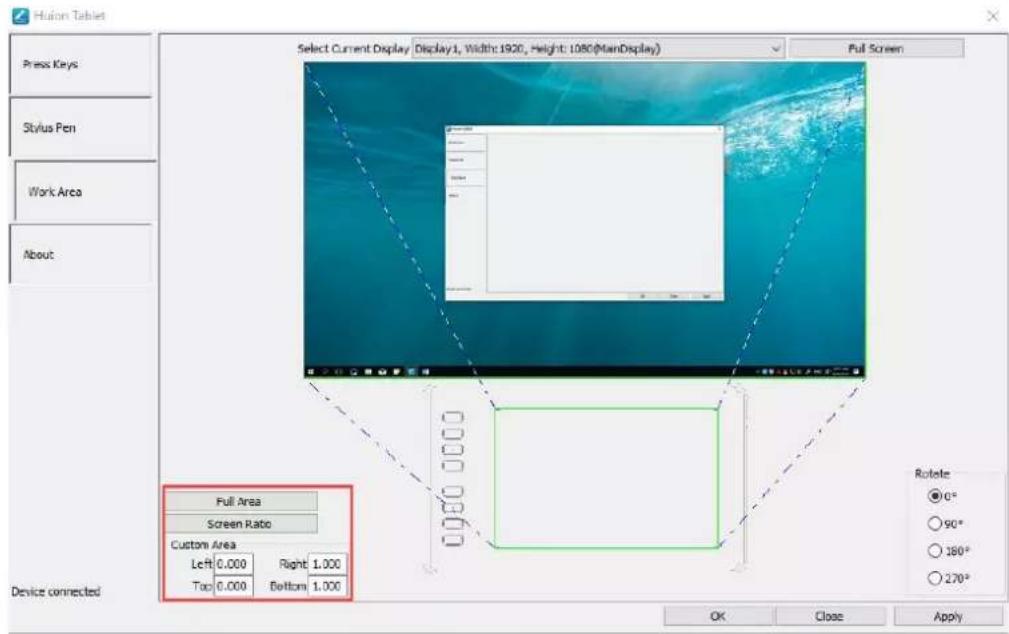
Define the tablet area that will be mapped to the screen area.
- Full Area: the entire active area of the tablet. This is the default setting.
- Customized Area: 1.> Enter coordinate values. or2>. Drag the corners of the foreground graphic to select the screen area.
text_image
Huaon Tablet Select Current Display | Display1, Width: 1920, Height: 1080(ManDisplay) Full Screen Press Keys Stylus Pen Work Area About Full Area Screen Ratio Custom Area Left 0.000 Right 1.000 Top 0.000 Bottom 1.000 Device connected Rotate ○ 0° ○ 90° ○ 180° ○ 270° OK Close Apply3.2.3 Rotate Working Area
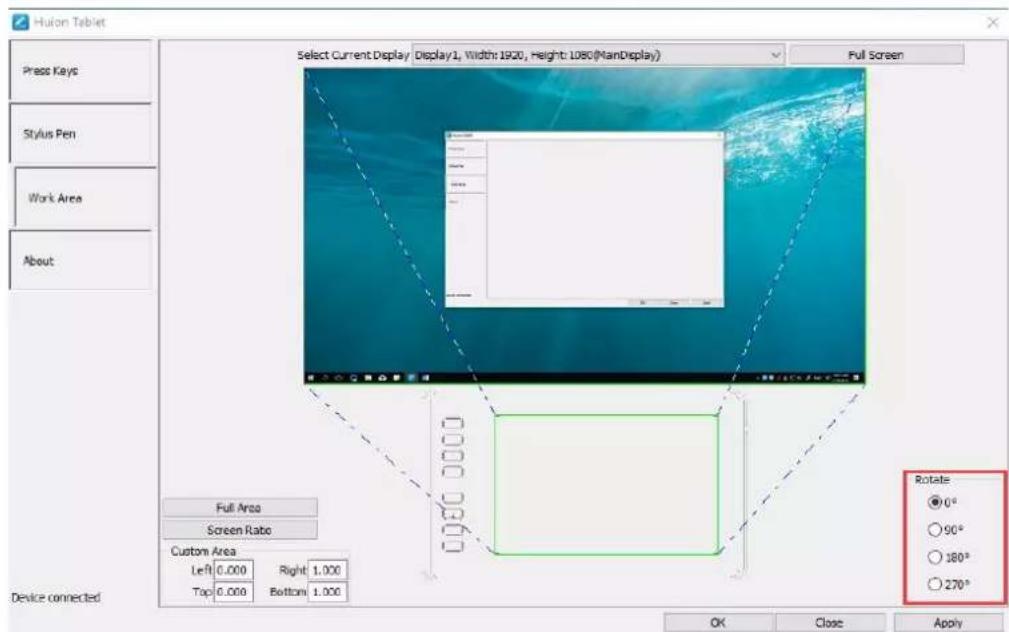
By changing the direction of the tablet to adapt to the left and right hand operation. You can rotate the tablet by 0^, 90^, 180^ or 270^ .
text_image
Hulon Tablet Select Current Display | Display1, Width: 1920, Height: 1080(ManDisplay) Full Screen Press Keys Stylus Pen Work Area About Full Area Screen Rate Custom Area Left 0.000 Right 1.000 Top 0.000 Bottom 1.000 Device connected OK Close Apply Rotate ● 0° ○ 90° ○ 180° ○ 270°3.3 Press Keys Function Setting
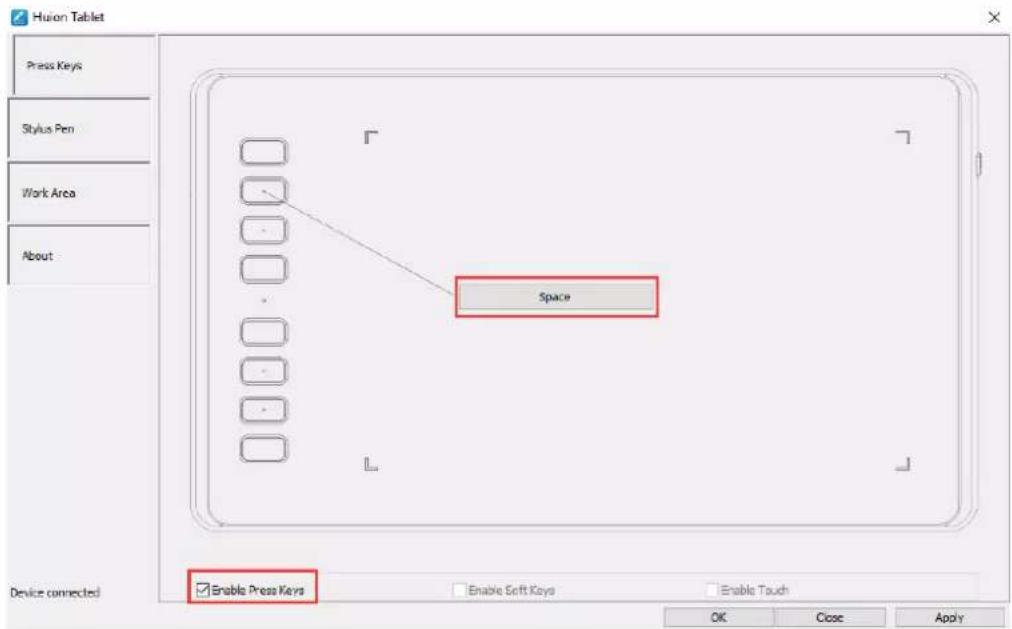
Default Setting: Place the cursor on the press key or click the press key to find the default values.
Customized Setting: Select the function to be achieved on the pop-up dialog box, then click APPLY or OK to take effect.
Enable/Disable Press Keys: Check/Uncheck" Enable Press Keys"
text_image
Huion Tablet Press Keys Stylus Pen Work Area About Space Device connected Enable Press Keys Enable Soft Keys Enable Touch OK Close Apply3.4 Pen Buttons Function Setting
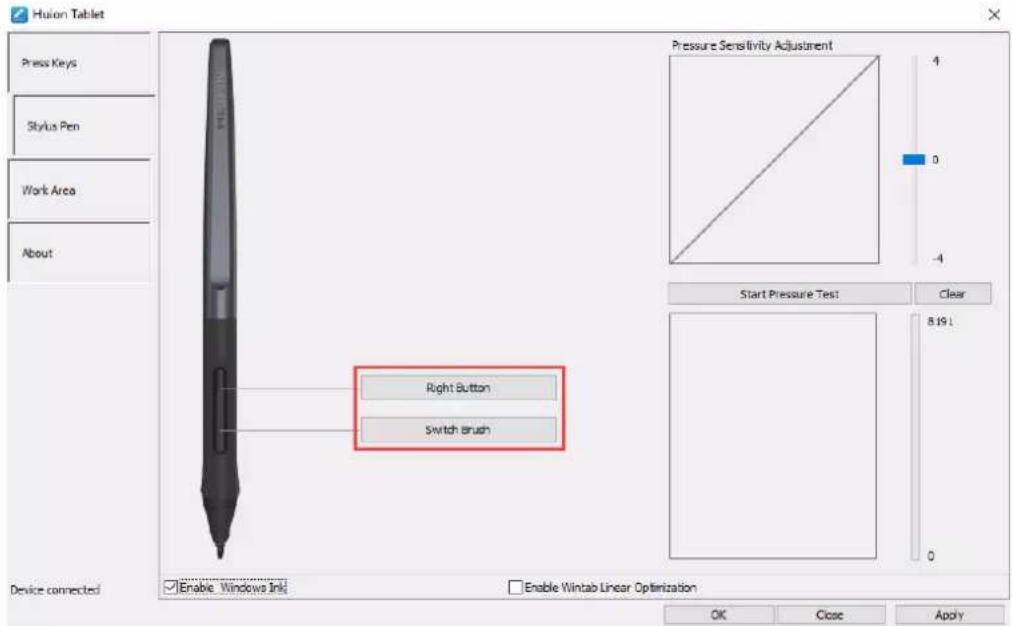
Select the function to be achieved on the pop-up dialog box, then click APPLY or OK to take effect.
text_image
Husion Tablet Press Keys Stylus Pen Work Area About Pressure Sensitivity Adjustment 4 0 -4 Start Pressure Test Clear 8.19 L Device connected Enable Windows Ink Enable Wintab Linear Optimization OK Close Apply3.5 Pressure Sensitivity Setting
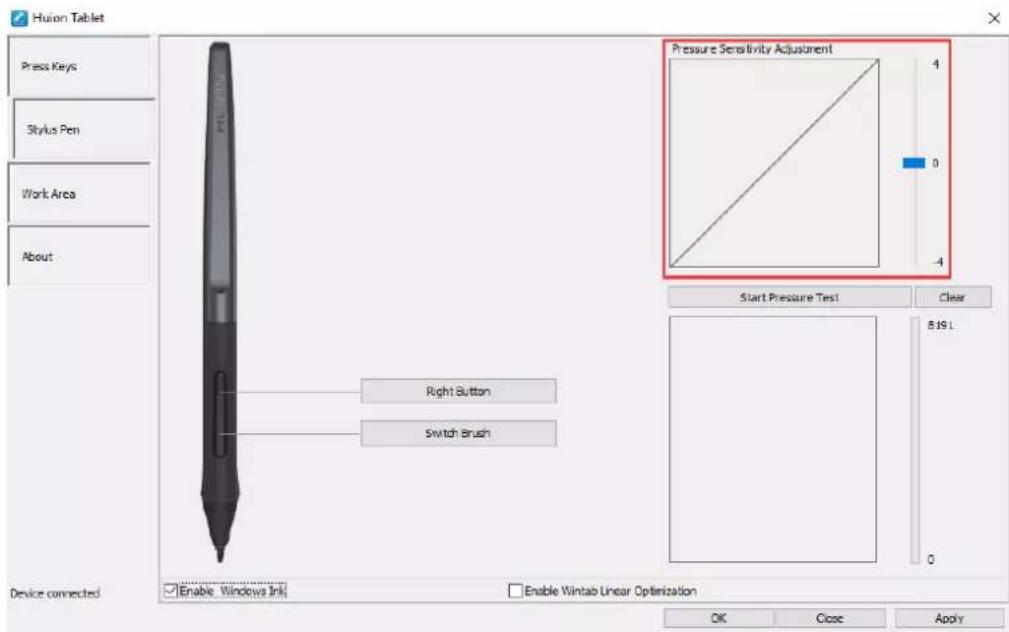
The pressure sensitivity will be changed by dragging the slider up and down, the smaller the value, the more pressure sensitive.
text_image
Huion Tablet Press Keys Stylus Pen Work Area About Pressure Sensitivity Adjustment 4 0 -4 Start Pressure Test Clear 8.19 L Switch Brush Device connected Enable Windows Ink Enable Wintab Linear Optimization OK Close Apply3.6 Pen Pressure Testing
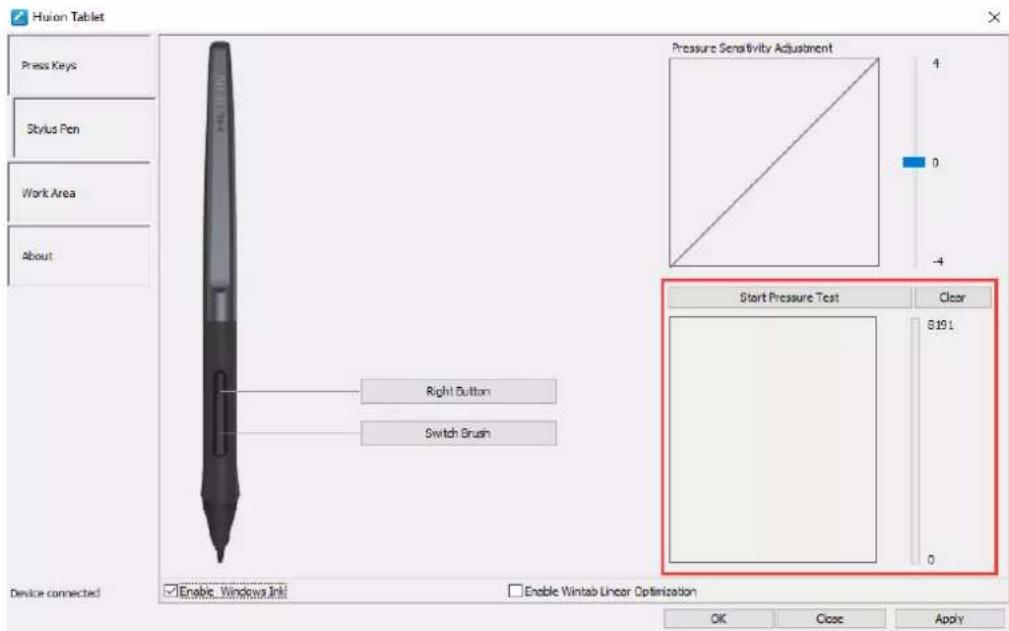
Click “start pressure test”, you can gradually apply pressure to the stylus on the screen to test the pressure level. Click “Clear” button to clear all the ink.
text_image
Huion Tablet Press Keys Stylus Pen Work Area About Pressure Sensitivity Adjustment 4 0 -4 Start Pressure Test Clear S191 Right Button Switch Brush Device connected Enable Windows Ink Enable Wintab Linear Optimization OK Close Apply3.7 Enable the Windows Ink feature
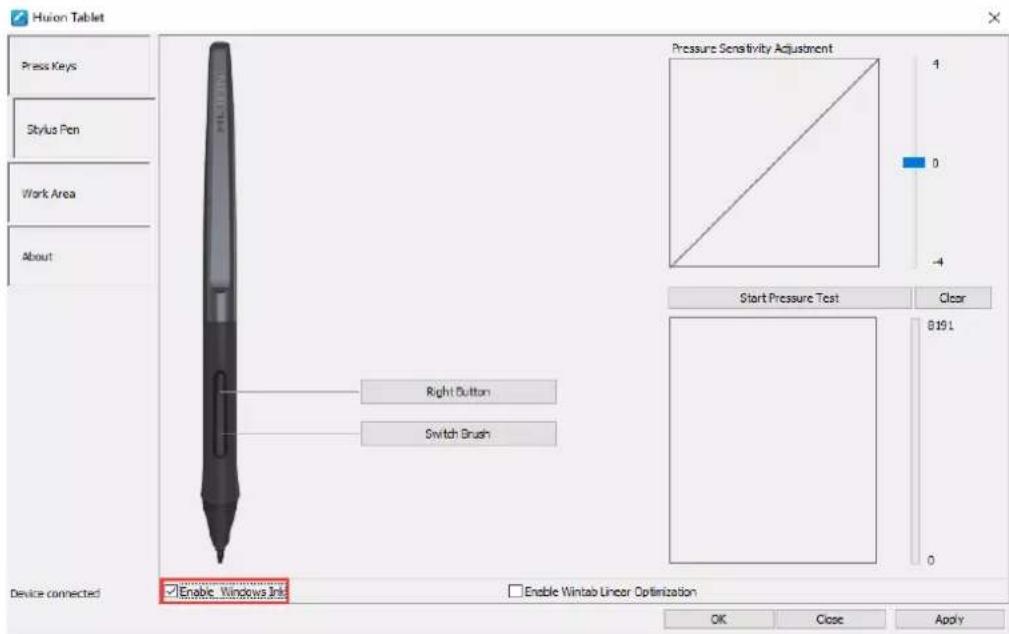
Microsoft Windows provides extensive support for pen input. Pen features are supported in such as Microsoft Office、Windows Journal、Adobe Photoshop CC、SketchBook 6 and so on.
text_image
Huion Tablet Press Keys Stylus Pen Work Area About Pressure Sensitivity Adjustment 4 0 -4 Start Pressure Test Clear 819 L Right Button Switch Brush Device connected Enable Windows Ink Enable Wintab Linear Optimization OK Close Apply3.8 Data Export and Import
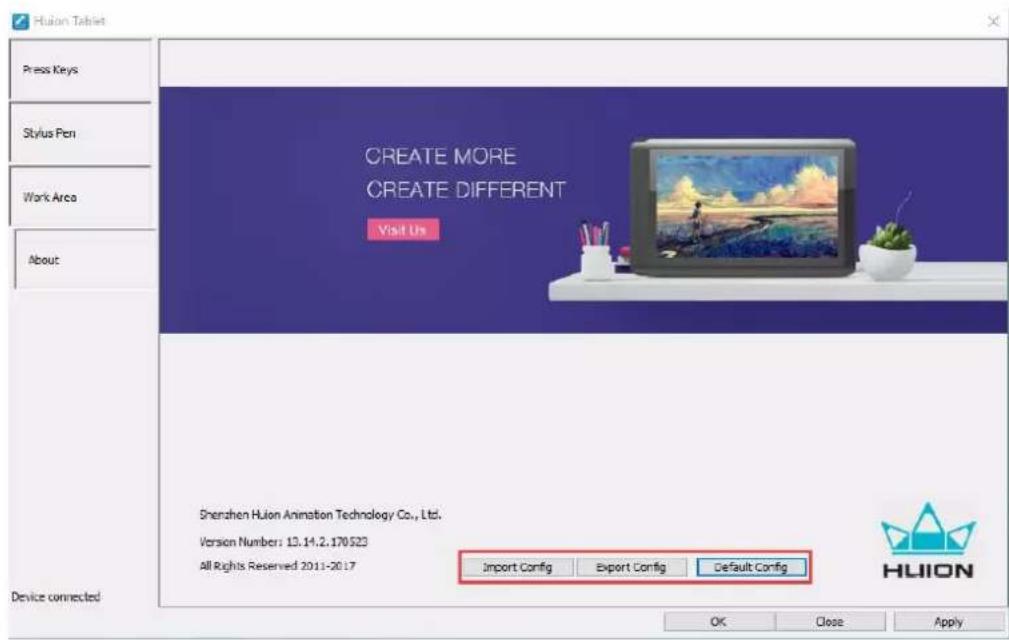
The driver supports exporting and importing your custom configuration data of the product, which is convenient for you to use different software and avoid the trouble of repeated settings.
text_image
Huion Tablet Press Keys Stylus Pen Work Area About CREATE MORE CREATE DIFFERENT Visit Us Shenzhen Huion Animation Technology Co., Ltd. Version Number: 13.14.2.170523 All Rights Reserved 2011-2017 Device connected Import Config Export Config Default Config OK Close Apply HLION4. Specifications
| Graphics Tablet | ||
| Model | H640P | H950P |
| Touch Technology | Battery-free Electromagnetic Resonance | |
| Working Area | 160 x 100mm(6.3 x 3.9in) | 221 x 138mm(8.7 x 5.4in) |
| Dimension | 260 x 147.7 x 8mm | 320.8 x 188.8 x 8mm |
| Net Weight | 277g | 497g |
| Touch Resolution | 5080LPI | 5080LPI |
| Report Rate | 233PPS | 233PPS |
| Pen Sensing Height | 10mm | 10mm |
| Interface | Micro USB | Micro USB |
| Press Keys | 6 Customized Press Keys | 8 Customized Press Keys |
| OS Support | Windows 7 or later,macOS 10.11 or later | Windows 7 or later,macOS 10.11 or later |
| Digital Pen | ||
| Model | PW100 | |
| Dimension | 163.6 x Φ14.5mm | |
| Weight | 13g | |
| Pressure | 8192Levels | |
| Accuracy | ±0.3mm | |
5. Trouble Shooting
5.1 Possible Breakdowns Related to TABLET
| Abnormal Phenomena | Possible Solutions |
| There is no pressure in the graphics software but the cursor moves | You may have installed other tablet drivers or opened the drawing software when installing the driver. Please uninstall all drivers and close the drawing software, then reinstall the Huion driver. It’s better to restart your computer after finishing the installation.’ |
| The pen does not work | 1. Make sure you are using the pen that originally came with your tablet.2. Make sure you installed the driver correctly. |
| Press Keys does not work | 1. Make sure the Press Keys function were enabled in the driver.2. Make sure you have correctly defined the Press Keys.3. Check if the press lock switch is on the unlock position. |
| The computer can’t enter sleep mode | When you are not using the tablet, please do not put the pen on the tablet surface, which will keep the computer awake. |
| The side button of the pen doesn’t work | When pressing the side button, please make sure that the nib didn’t touch the tablet surface and the distance between the nib and surface is within 10mm. |
5.2 Possible Breakdowns Related to SYSTEM
| Abnormal Phenomena | Possible Solutions |
| The computer can't recognize the tablet or the wireless receiver | Make sure the USB port is functional, if not, please change to another USB port. |
6. After-service Contact
SHENZHEN HUION ANIMATION TECHNOLOGY CO.,LTD.
Building 28, Quarter 4, HuaiDeCuiGang Industrial Park, Fuyong Street, Bao'an District, Shenzhen, 518106, China
Note: Information in this manual is subject to change without further notice.
For more information, please contact us with our email: service@huion.com
Or go to our website (www.huion.com) to get the latest driver and user manual.