Inspiroy HS611 - Graphic tablet Huion - Free user manual and instructions
Find the device manual for free Inspiroy HS611 Huion in PDF.


| Product Type | Graphics Tablet |
| Brand | Huion |
| Model | Inspiroy HS611 |
| Dimensions | 333.4 x 218.4 x 7.3 mm |
| Weight | 550 g |
| Working Area | 258.4 x 161.5 mm |
| Pen Technology | Battery-free electromagnetic resonance |
| Pen Model | PW500 |
| Pressure Sensitivity | 8192 Levels |
| Pen Resolution | 5080 LPI |
| Tilt Support | ±60° |
| Report Rate | >233 PPS |
| Accuracy | ±0.3 mm |
| Sensing Height | 10 mm |
| Programmable Press Keys | 10 (tablet) + 8 multimedia keys |
| Interface | USB-C |
| Power Source | Via USB connection |
| Operating Systems | Windows 7 or later, macOS 10.12 or later, Android 6.0 or later |
| Pen Nib Life | Replaceable; 8 spare nibs included |
| Maintenance | Clean with a soft, dry cloth; replace pen nib when worn |
| Accessories Included | Tablet, battery-free pen, pen holder with 8 replacement nibs, USB cable, quick start guide, warranty card |
Frequently Asked Questions - Inspiroy HS611 Huion
User questions about Inspiroy HS611 Huion
0 question about this device. Answer the ones you know or ask your own.
Ask a new question about this device
Download the instructions for your Graphic tablet in PDF format for free! Find your manual Inspiroy HS611 - Huion and take your electronic device back in hand. On this page are published all the documents necessary for the use of your device. Inspiroy HS611 by Huion.
USER MANUAL Inspiroy HS611 Huion
Product and Accessories 2
Product Connection 4
Driver and Setting 6
Install Driver 6
Driver Interface Preview 8
Pen Tablet Setting 9
Digital Pen Setting 16
Driver Setting 22
Digital Pen Basic Operation 26
Specifications 30
Troubleshooting Solutions 31
Product Overview
Tablet Introduction
natural_image
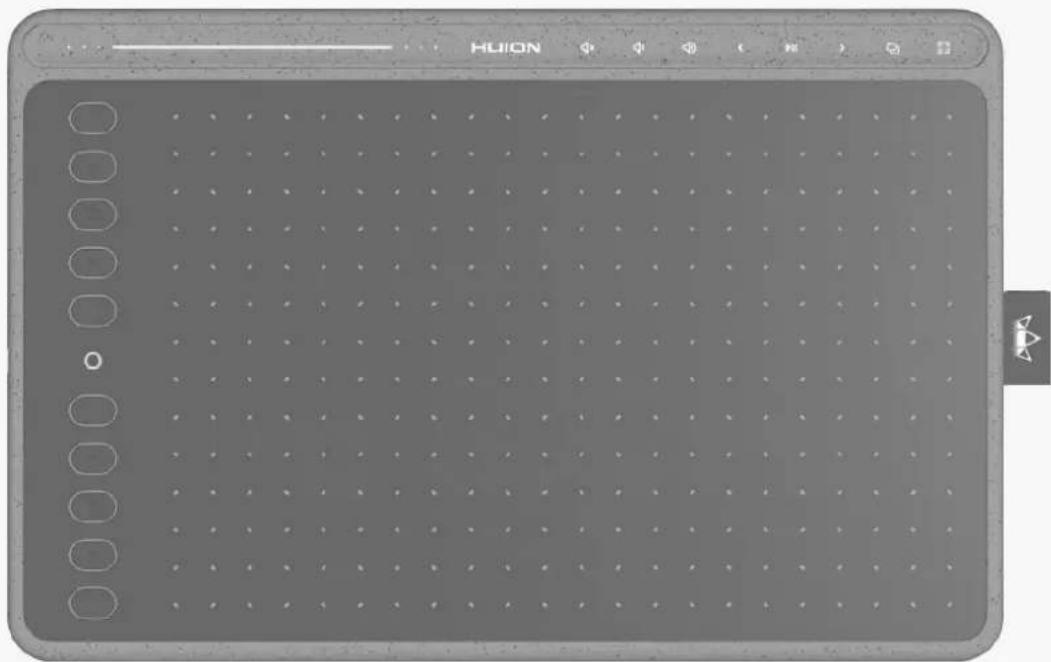
Front view of a digital drawing tablet with grid layout and control buttons (no readable text or symbols)Thanks for choosing HUION INSPIROY HS611 creative pen tablet. This is a new generation of professional battery-free drawing tablet, which can greatly improve your work efficiency of painting and creation, and full of fun. You can freely painting and writing, depicting different lines and colors, just as the pen writes on the paper, which brings you a real shock experience. To give you a better understanding and using of your tablet, please read this user manual carefully. The user manual only shows the information under Windows, unless otherwise specified, this information applies to both Windows and Mac systems.
Note: The pictures in the User Manual are for reference only.
Product and Accessories
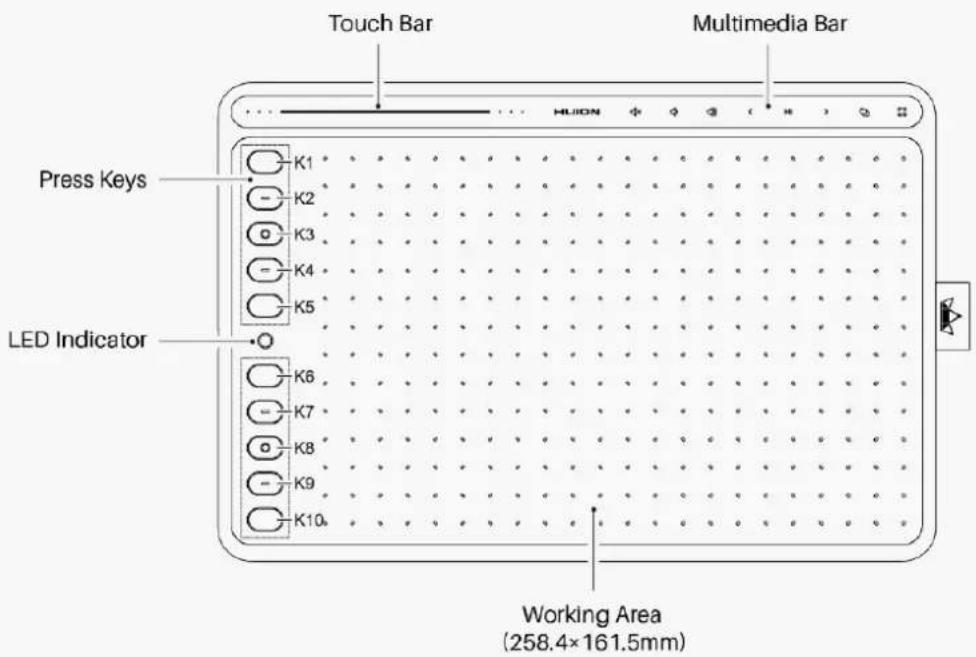
Please see the detailed product introduction.
text_image
Touch Bar Multimedia Bar Press Keys LED Indicator K1 K2 K3 K4 K5 K6 K7 K8 K9 K10. Working Area (258.4×161.5mm)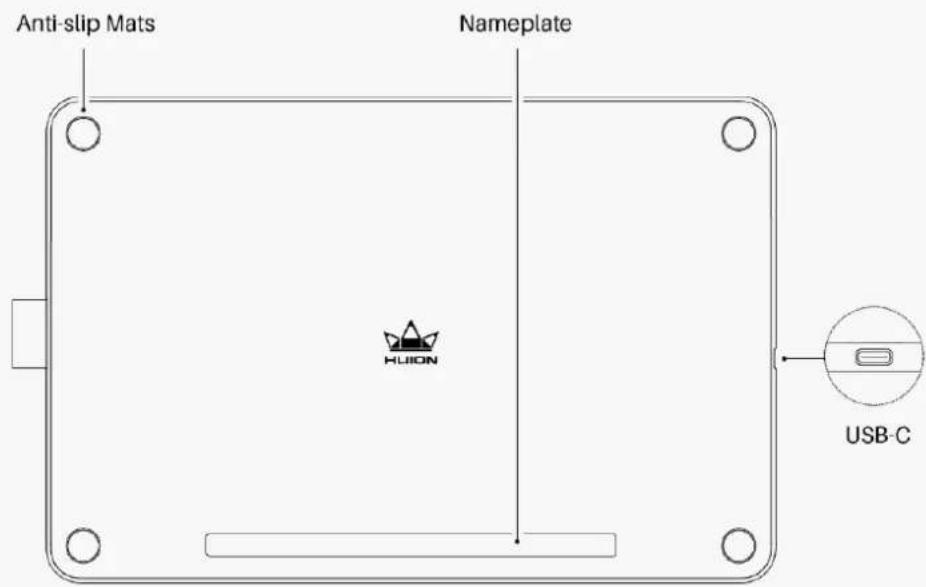
text_image
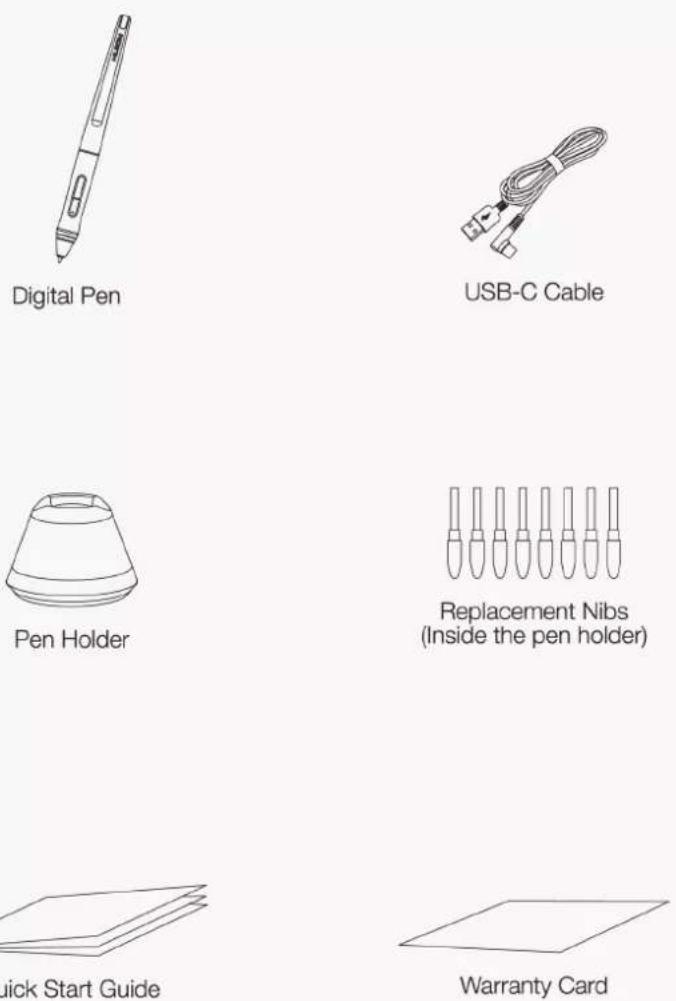
Anti-slip Mats Nameplate HLION USB-CAfter unboxing your package, make sure that you have the following items:
Tablet*1
Battery-free Pen*1
Pen Holder*1
Replacement Nibs(Inside the Pen Holder)*8
USB Cable*1
Quick Start Guide*1 Warranty Card*1
Quick Start Guide
Product Connection
The tablet supports the connection of a computer and a mobile phone, please refer to the following steps to connect.
Connecting to Computer
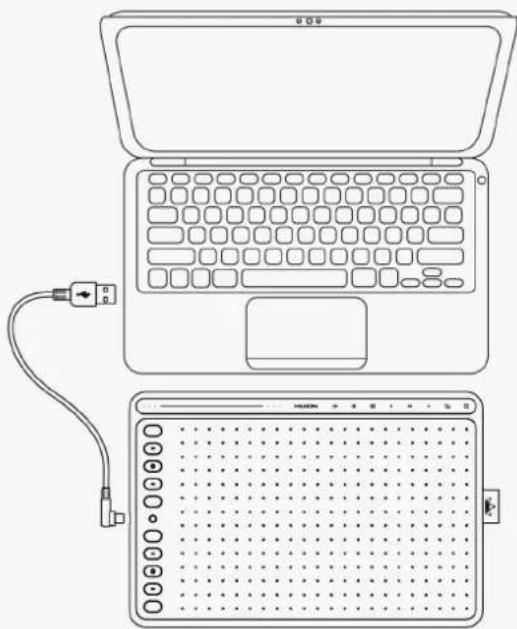
Connect the tablet to your computer with USB cable. Please follow the steps below:
- Take out the USB cable from the package, then connect tablet to your computer.
- Open the driver interface, the device picture will be displayed on the interface, indicating that the tablet is successfully connected to the computer. You can start use the tablet.
- Restart the computer after the driver is installed.
See Section
natural_image
Line drawing of a laptop and its corresponding electronic device grid layout (no text or symbols)Connecting to Android Phone
Please follow the steps below:
- Please make sure your phone & pad OS is as following: Android OS 6.0 or later.
- For some models, you need to go phone or pad "Settings" then enable "OTG" function.
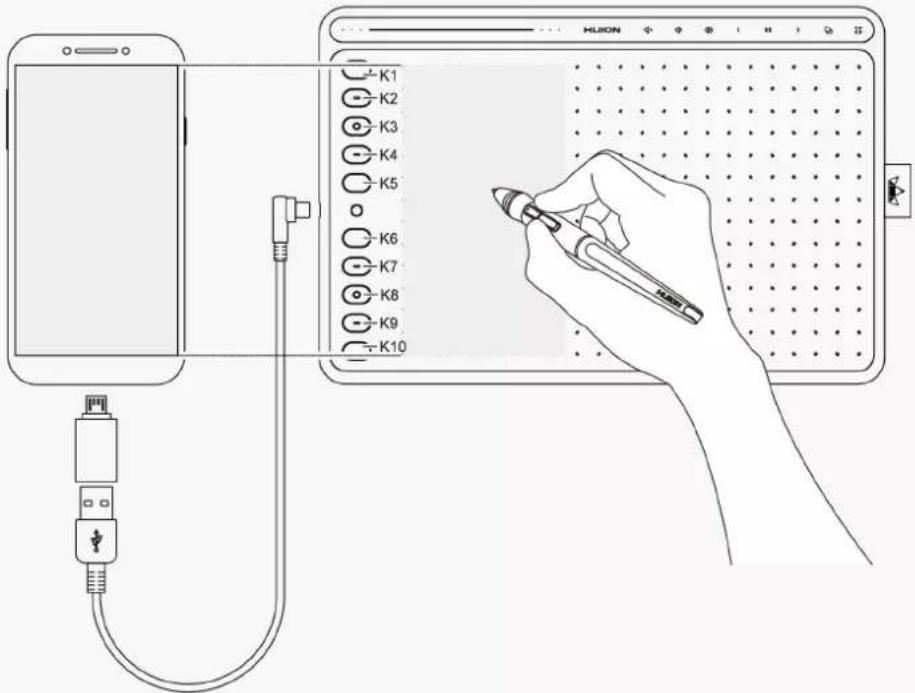
- Choose the right OTG Adapter from package, which depends on USB port type of your phone, then connect pen tablet to your phone following the illustrations below:
text_image
K1 K2 K3 K4 K5 K6 K7 K8 K9 K10Notes:
- The pen tablet can work without installing any driver into your phone.
- Once connected, the tablet will automatically enter phone mode, in which the pen can only work in the left gray area.
- Please note that the press keys of pen tablet and digital pen are not supported in phone mode, unless you are using Huion Sketch.
* Huion Sketch is an intuitive drawing app developed by Huion.
Driver and Setting
Install Driver
Please download the driver from our website: Driver-HS611
Note:
- Before installing driver, please close all graphic software and antivirus program.
- If you have installed other pen tablet driver, please uninstall it before you install this driver.
- Please make sure your computer OS are as following: Windows 7 or later, macOS 10.12 or later.
- Run the tablet driver program and complete the installation according to the instruction.
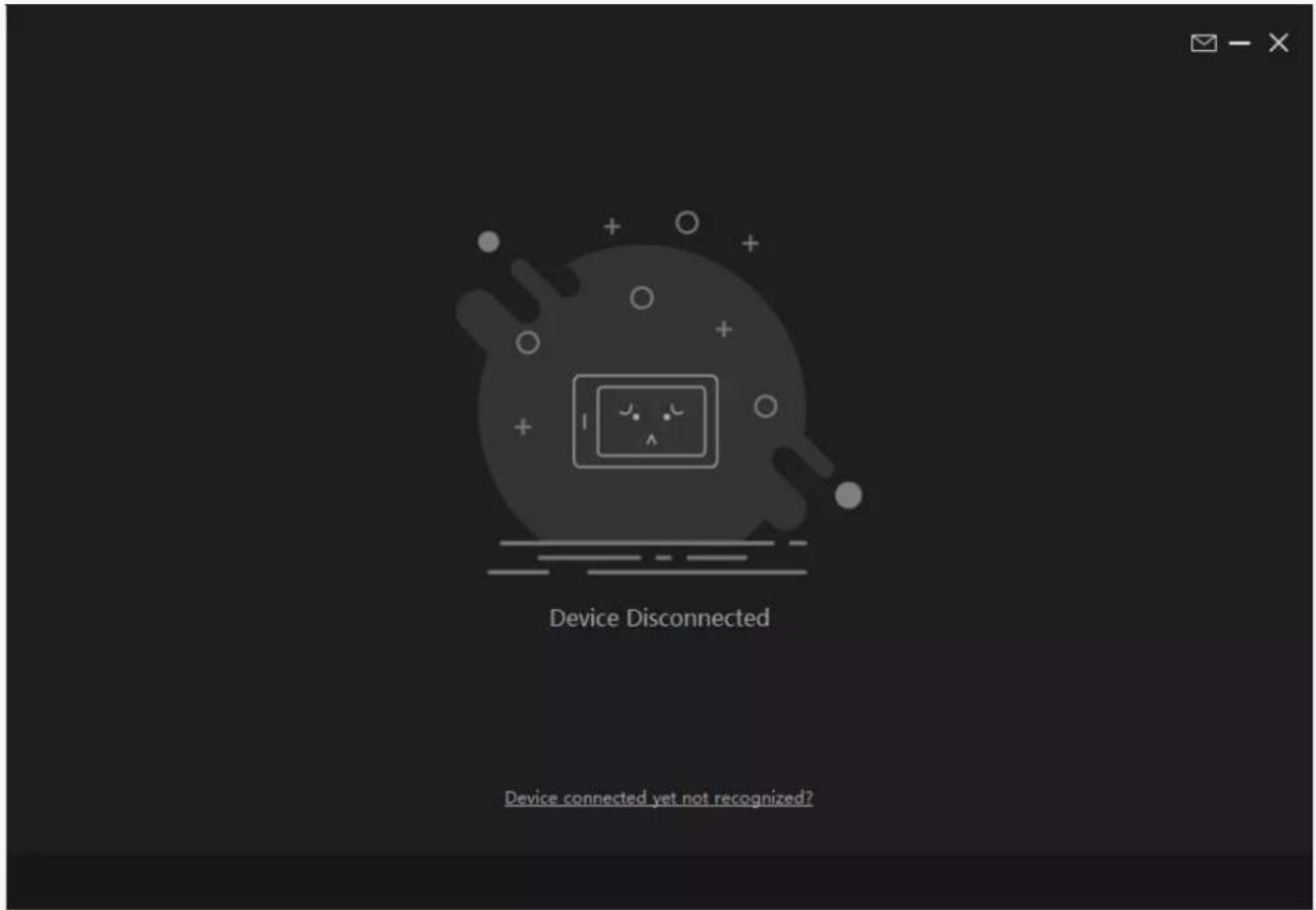
After the download is successful, double-click to open the driver, Connect the device to your computer.
If the connection fails, please reconnect the computer to the device, or restart the driver or computer.
HS611
text_image
Device Disconnected Device connected yet not recognized?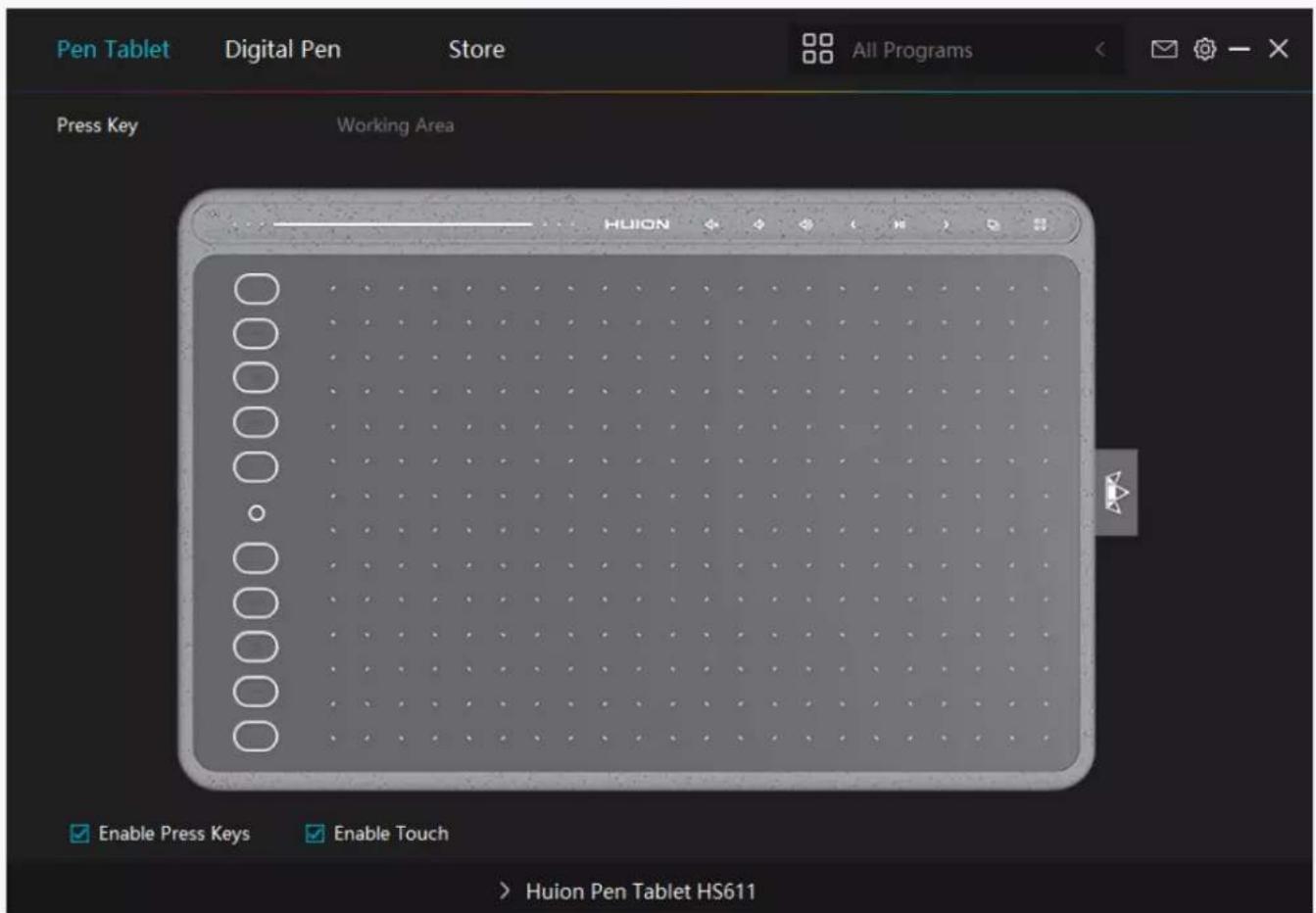
text_image
Pen Tablet Digital Pen Store All Programs Press Key Working Area HUION Enable Press Keys Enable Touch > Huion Pen Tablet HS611Driver Interface Preview

text_image
① Pen Tablet ② Digital Pen ③ Store ④ All Programs <5 Press Key Working Area HUION Enable Press Keys Enable Touch ⑥ > Huion Pen Tablet HS6111. Pen Tablet
Pen Tablet function setting interface, the users can set the tablet function on this interface, such as Press Key, Working Area.
See Section
2. Digital Pen
The users can set the Pen function on this interface. About Press Key, Mode selection, Pressure Sensitivity Adjustment and Pressure Test.
See Section
3. Store
Huion Store, where you can get the latest information about the product such as its FAQ or
sales promotion. Additionally, you can also purchase other products or accessories on Huion Store.
4. Add Programs
You can customize different functions on the current device for different programs.
When select All programs, the setting of the device is valid for every program.
By clicking Add a Program from the drop-down list, you can set the functions for a specific program and hence have unique settings for different programs. After that, when launching a specific program, the Driver will automatically recognize it and the setting features will change to its corresponding one.
5. Setting
The users can set the Driver function on this interface. About Device Information, Backup Setting, General Setting and Driver Update.
See Section
6. Switch between Devices
Driver can support the connection to two digital drawing devices at the same time. When these devices are sharing the same Driver with the current device, users can customize the settings of the devices by switching the Driver interface to the corresponding one. Pen Tablet Setting
Press Key
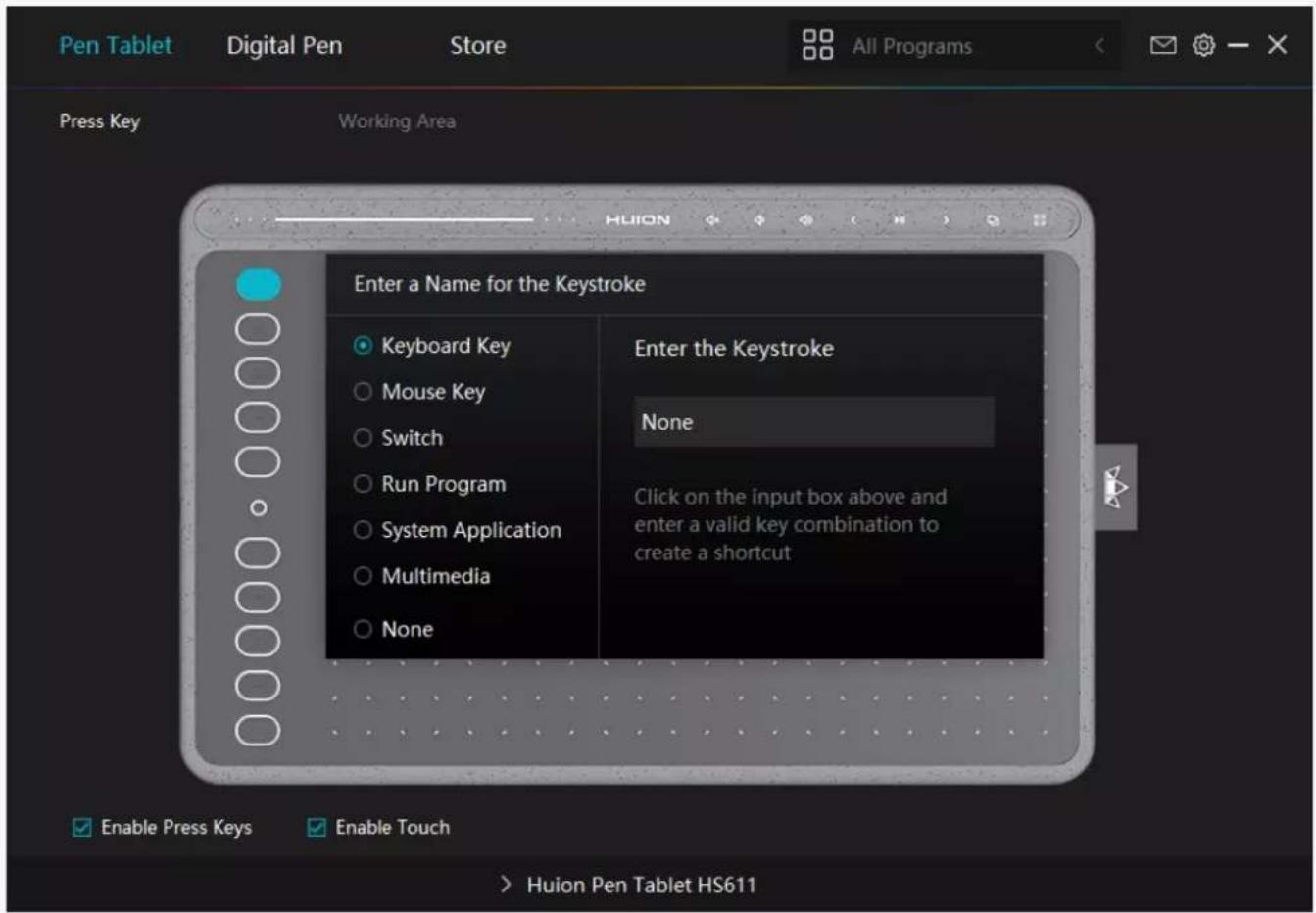
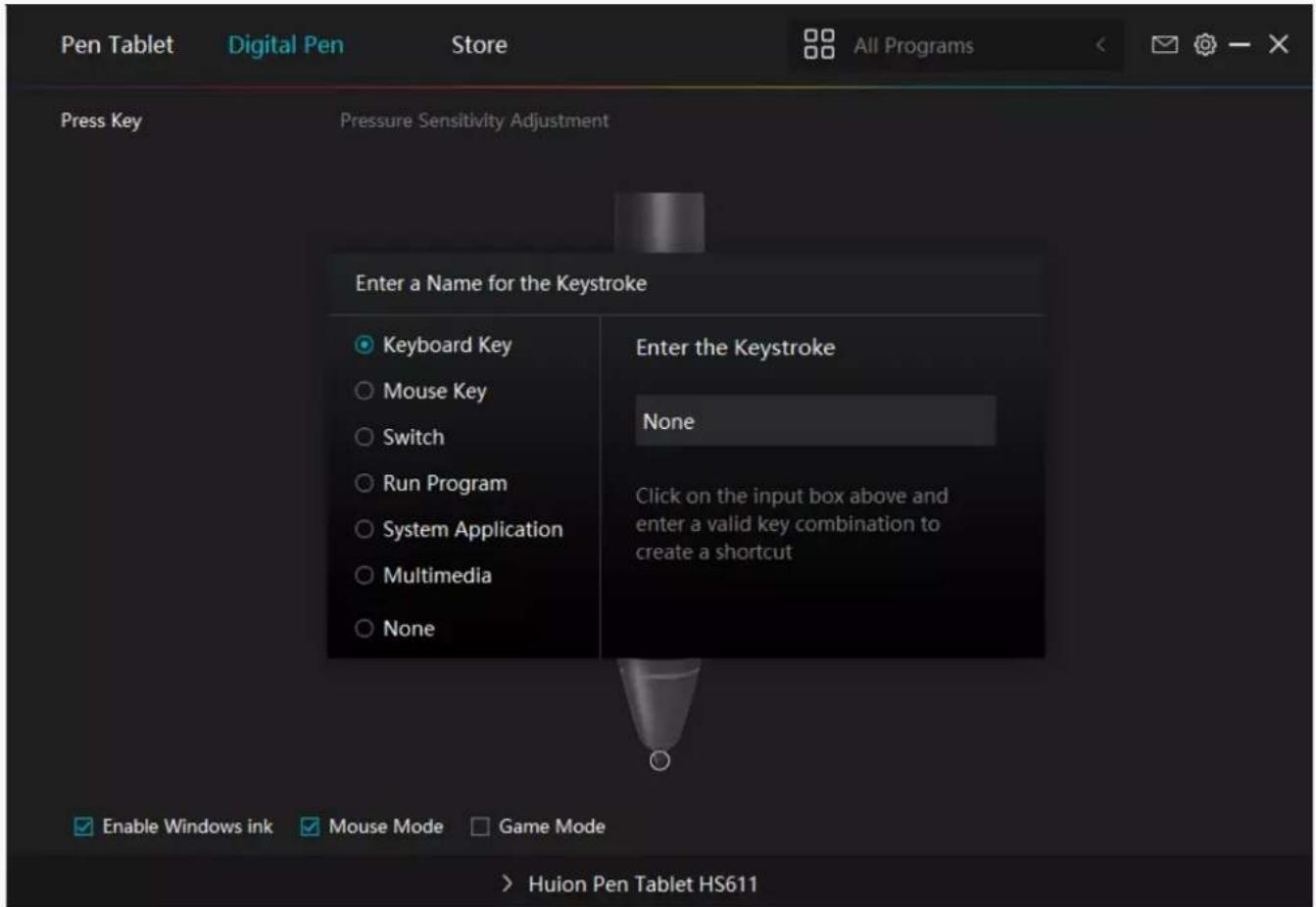
You can customize the functions of these buttons according to your own habits, and you can uncheck "Enable press keys" in the lower left corner to turn off the button function.
Place the cursor on a key to check its default value. Click the key for a pop-up dialog box and then set the function.
You can enter a name for the keystroke, then select the property of the keystroke and customize the function.
text_image
Pen Tablet Digital Pen Store All Programs Press Key Working Area Enter a Name for the Keystroke Keyboard Key Mouse Key Switch Run Program System Application Multimedia None Enter the Keystroke None Click on the input box above and enter a valid key combination to create a shortcut Enable Press Keys Enable Touch > Huion Pen Tablet HS6111. Keyboard Key
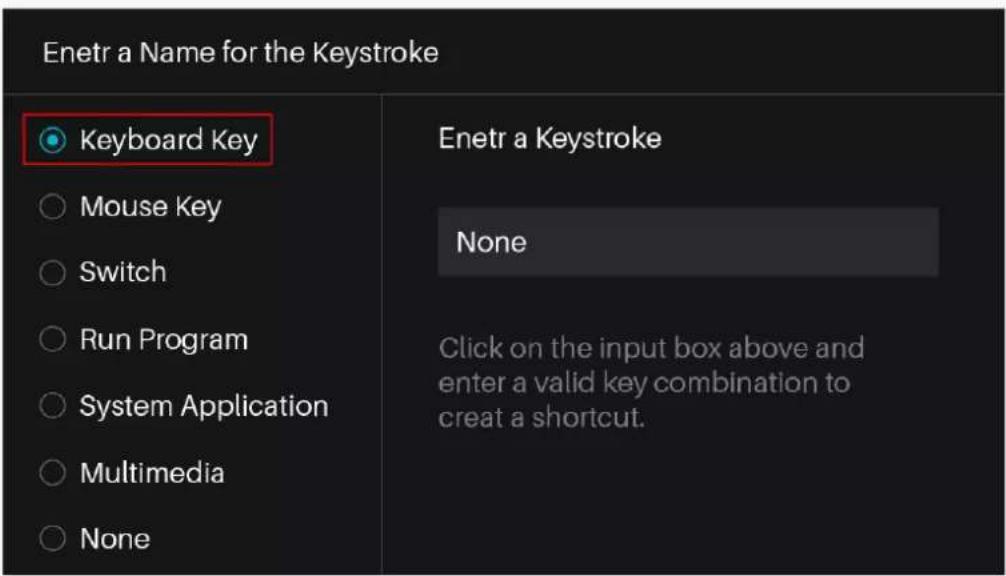
Click on the input box above and enter a valid key combination to create a shortcut. For example "Ctrl+A", "Ctrl+Z", and so on.
text_image
Enetr a Name for the Keystroke Keyboard Key Mouse Key Switch Run Program System Application Multimedia None Enetr a Keystroke None Click on the input box above and enter a valid key combination to creat a shortcut.2. Mouse Key
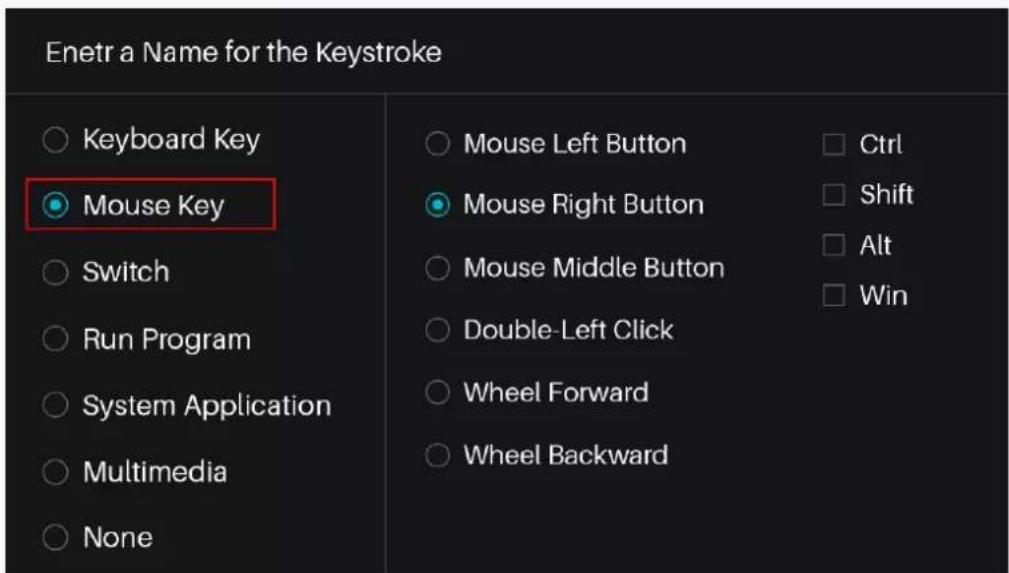
Select the function of a Mouse or Wheel. Please see the picture below for detailed functions.
Mouse: Left Button, Right Button, Middle Button.
Wheel: Wheel Forward, Wheel Backward.
Double-Left Click.
text_image
Enetr a Name for the Keystroke ○ Keyboard Key ● Mouse Key ○ Switch ○ Run Program ○ System Application ○ Multimedia ○ None ○ Mouse Left Button ○ Mouse Right Button ○ Mouse Middle Button ○ Double-Left Click ○ Wheel Forward ○ Wheel Backward □ Ctrl □ Shift □ Alt □ Win3. Switch
Select Switch Screen or Switch Brush.
Note: Some software does not support the "Switch Brush" function.
| Enetr a Name for the Keystroke | |
| ○ Keyboard Key ○ Mouse Key ● Switch ○ Run Program ○ System Application ○ Multimedia ○ None | ○ Switch Screen ● Switch Brush |
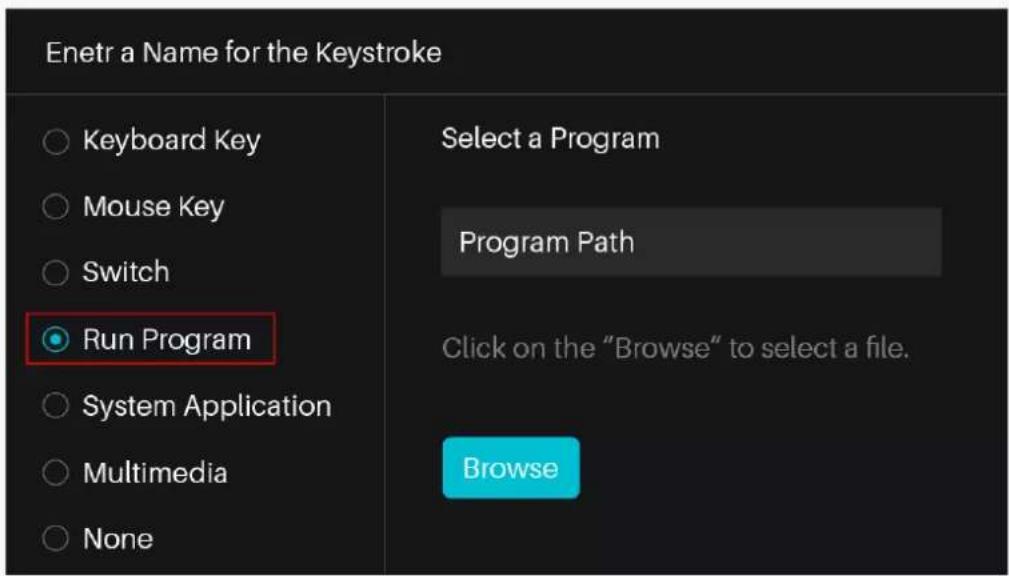
4. Run Program
Browse and select a program that you want to launch quickly. After the setting, you can launch that program with just a single press.
text_image
Enetr a Name for the Keystroke ○ Keyboard Key ○ Mouse Key ○ Switch ● Run Program ○ System Application ○ Multimedia ○ None Select a Program Program Path Click on the "Browse" to select a file. Browse5. System Application
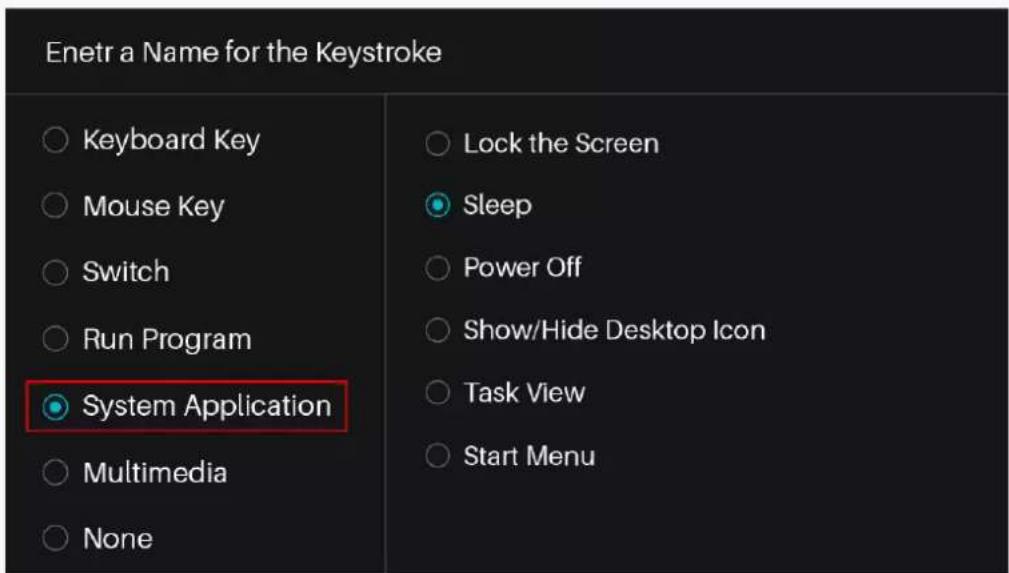
The table below are the functions of Windows and Mac Systems that can be customized on the Keys.
text_image
Enetr a Name for the Keystroke ○ Keyboard Key ○ Mouse Key ○ Switch ○ Run Program System Application ○ Multimedia ○ None ○ Lock the Screen Sleep ○ Power Off ○ Show/Hide Desktop Icon ○ Task View ○ Start Menu6. Multimedia
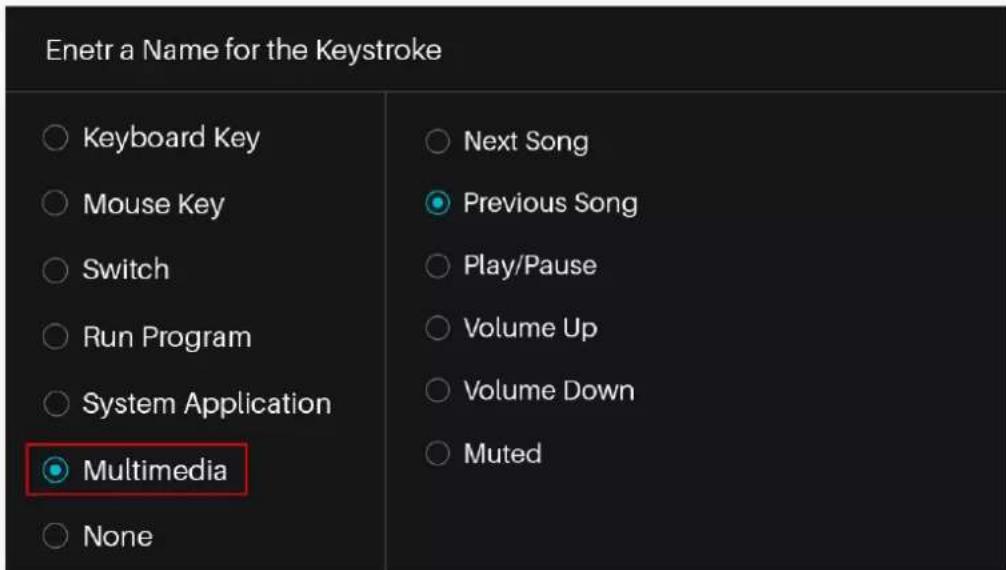
To realize the functions such as previous song, next song, play/pause, volume up, volume down.
text_image
Enetr a Name for the Keystroke ○ Keyboard Key ○ Mouse Key ○ Switch ○ Run Program ○ System Application ● Multimedia ○ None ○ Next Song ● Previous Song ○ Play/Pause ○ Volume Up ○ Volume Down ○ Muted7. None
When select None, the keys will have no function.
Working Area
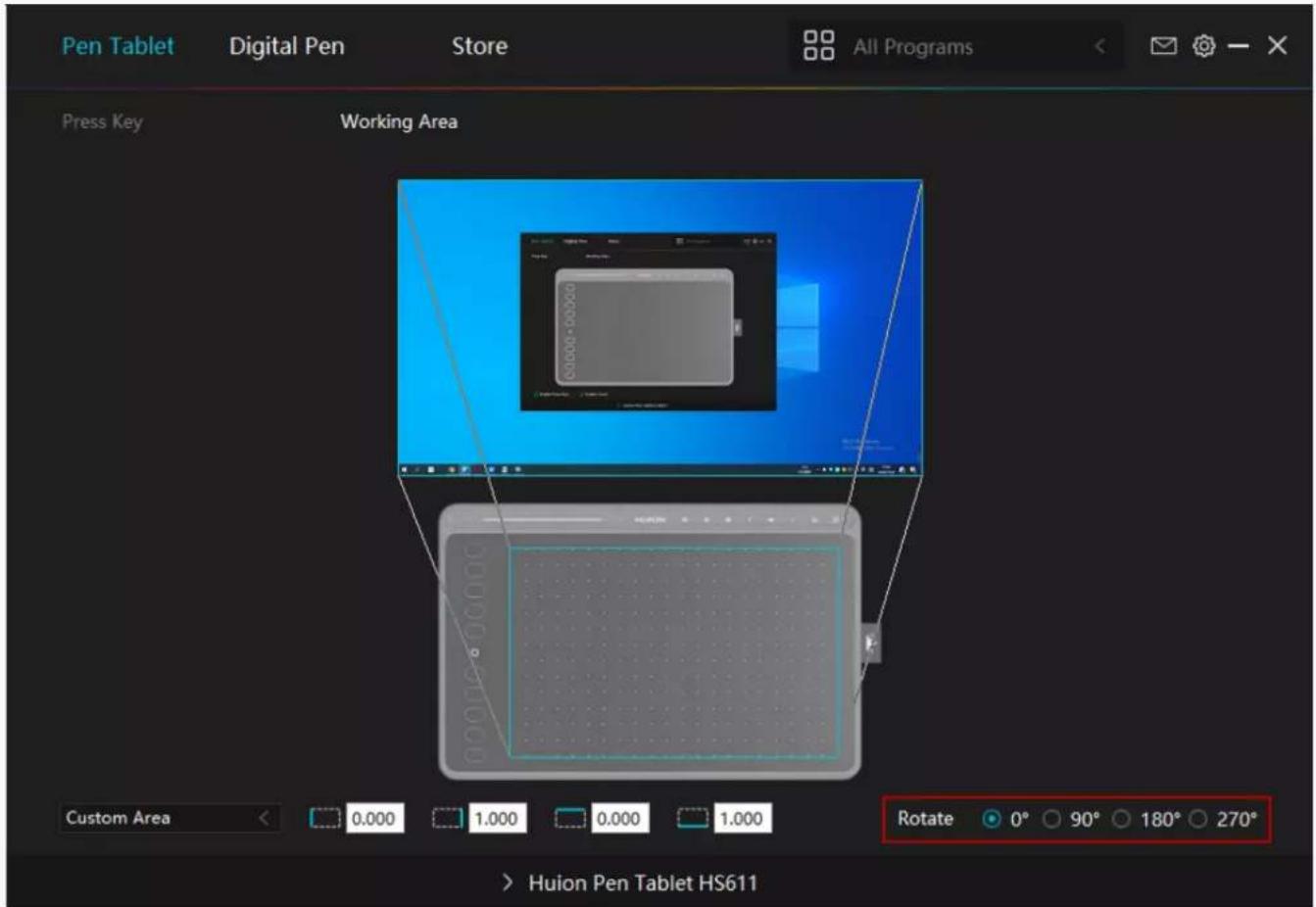
Select the Working Area tab to define the relationship between pen movement on the tablet and cursor movement on the monitor screen.
By default the entire active area of tablet maps to the entire monitor. If more than one monitor is in use and you are in extended mode, you need to choose the related monitor on the driver interface which you are going to map to.
If your monitors are in mirror mode (All monitors display the same content), the tablet maps to the entire space on each monitor and the screen cursor is displayed on each monitor simultaneously.
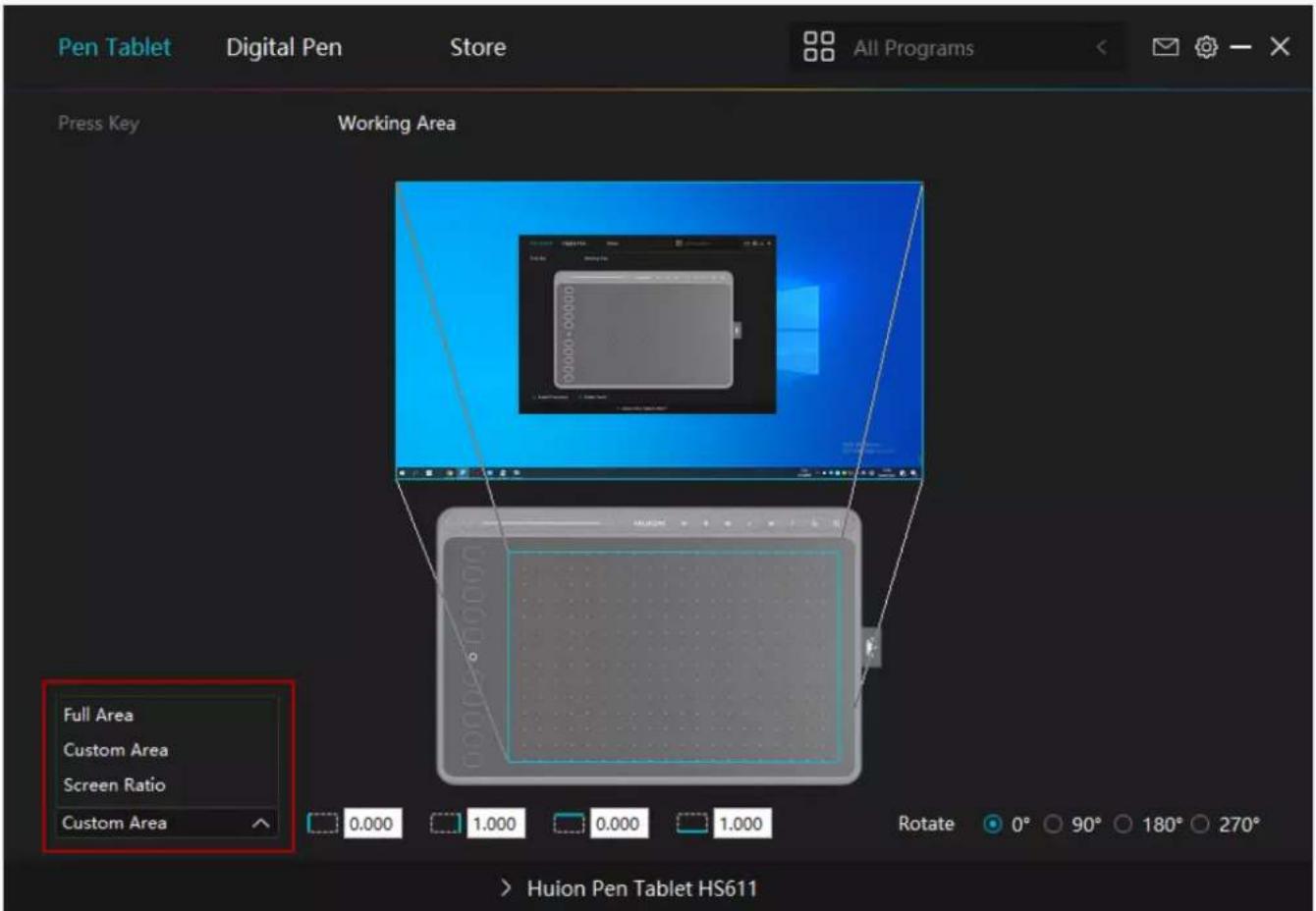
1. Working Area Setting
Define the tablet area that will be mapped to the screen area.
[1] Full Area: the entire active area of the tablet. This is the default setting.
[2] Screen Ratio: As a general rule, be 16:9.
[3] Customized Area:
1> Enter coordinate values.
2> Drag the corners of the foreground graphic to select the screen area.
text_image
Pen Tablet Digital Pen Store All Programs Press Key Working Area Full Area Custom Area Screen Ratio Custom Area 0.000 1.000 0.000 1.000 Rotate 0° 90° 180° 270° > Huion Pen Tablet HS6112. Rotate Working Area
By changing the direction of the tablet to adapt to the left and right hand operation. You can rotate the tablet by 0^, 90^, 180^ or 270^ .
HS611
text_image
Pen Tablet Digital Pen Store All Programs Press Key Working Area Custom Area 0.000 1.000 0.000 1.000 Rotate 0° 90° 180° 270° > Huion Pen Tablet HS611Digital Pen Setting
1. Press Key
The function setting is the same as the Press Key setting of the tablet. Please refer to it.
See Section.
HS611
text_image
Pen Tablet Digital Pen Store All Programs Press Key Pressure Sensitivity Adjustment Enter a Name for the Keystroke Keyboard Key Mouse Key Switch Run Program System Application Multimedia None Enter the Keystroke None Click on the input box above and enter a valid key combination to create a shortcut Enable Windows ink Mouse Mode Game Mode > Huion Pen Tablet HS6112. Pen Nib Activity
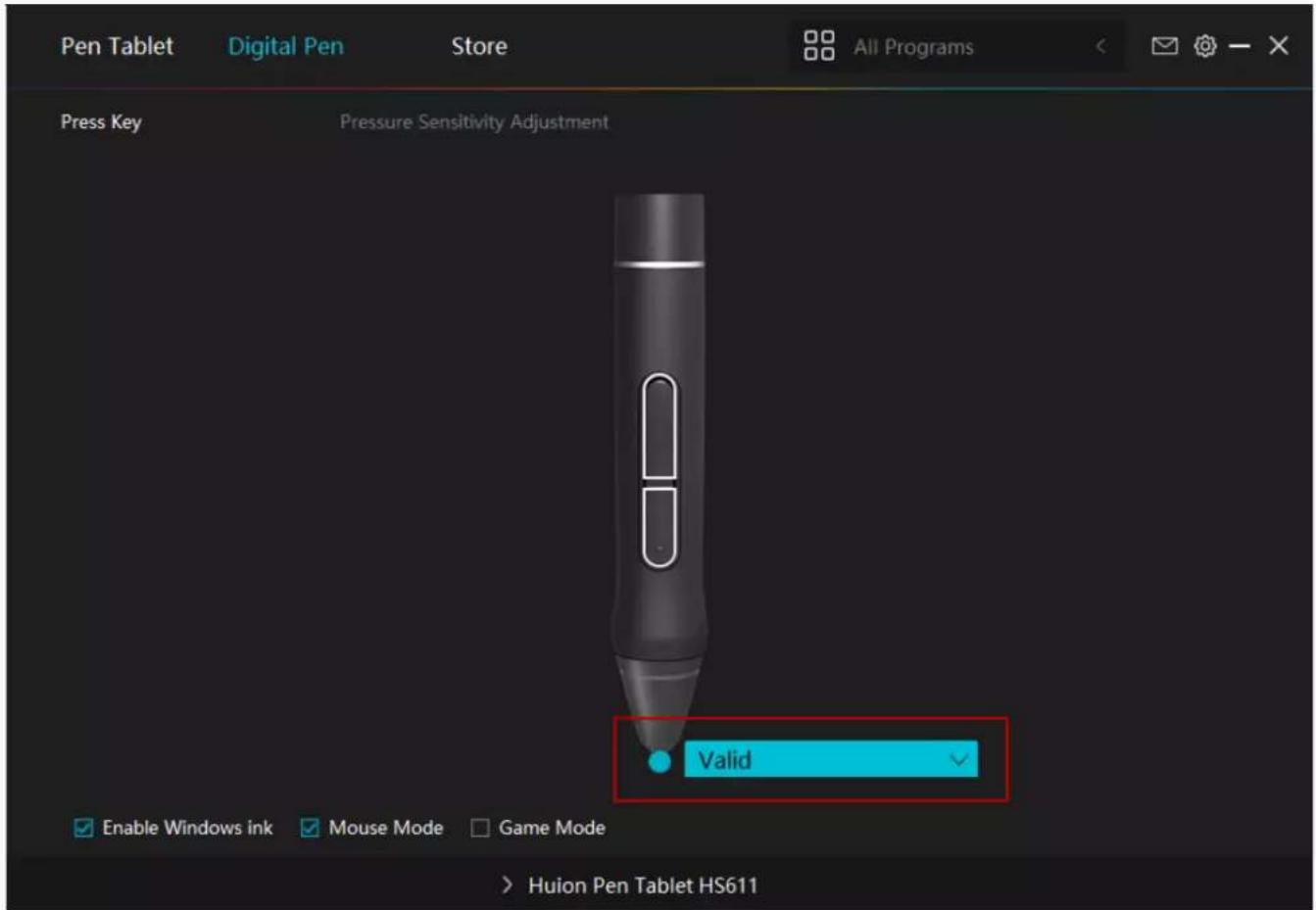
The pen nibs can be set to be Valid/Invalid as needed. Click the drop-down option to select. In Valid mode, the digital pen can be used normally. In Invalid mode, the digital pen has cursor movement, but cannot complete the specified action.
HS611
text_image
Pen Tablet Digital Pen Store All Programs Press Key Pressure Sensitivity Adjustment Valid Enable Windows ink Mouse Mode Game Mode > Huion Pen Tablet HS6113. Enable Windows ink
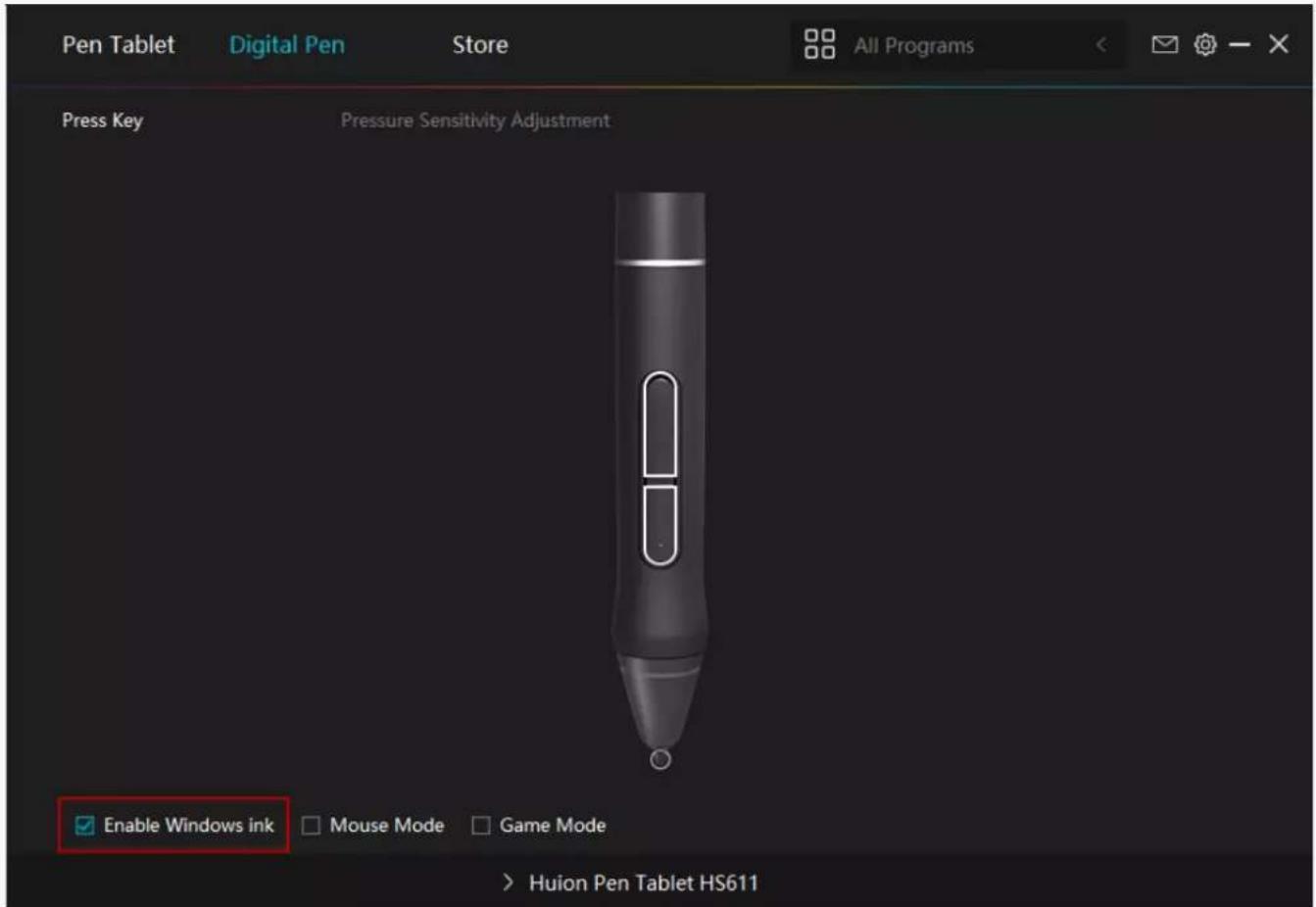
Microsoft Windows provides extensive support for pen input. Pen features are supported in such as Microsoft Office, Windows Whiteboard, Adobe Photoshop CC, SketchBook 6 and so on.
text_image
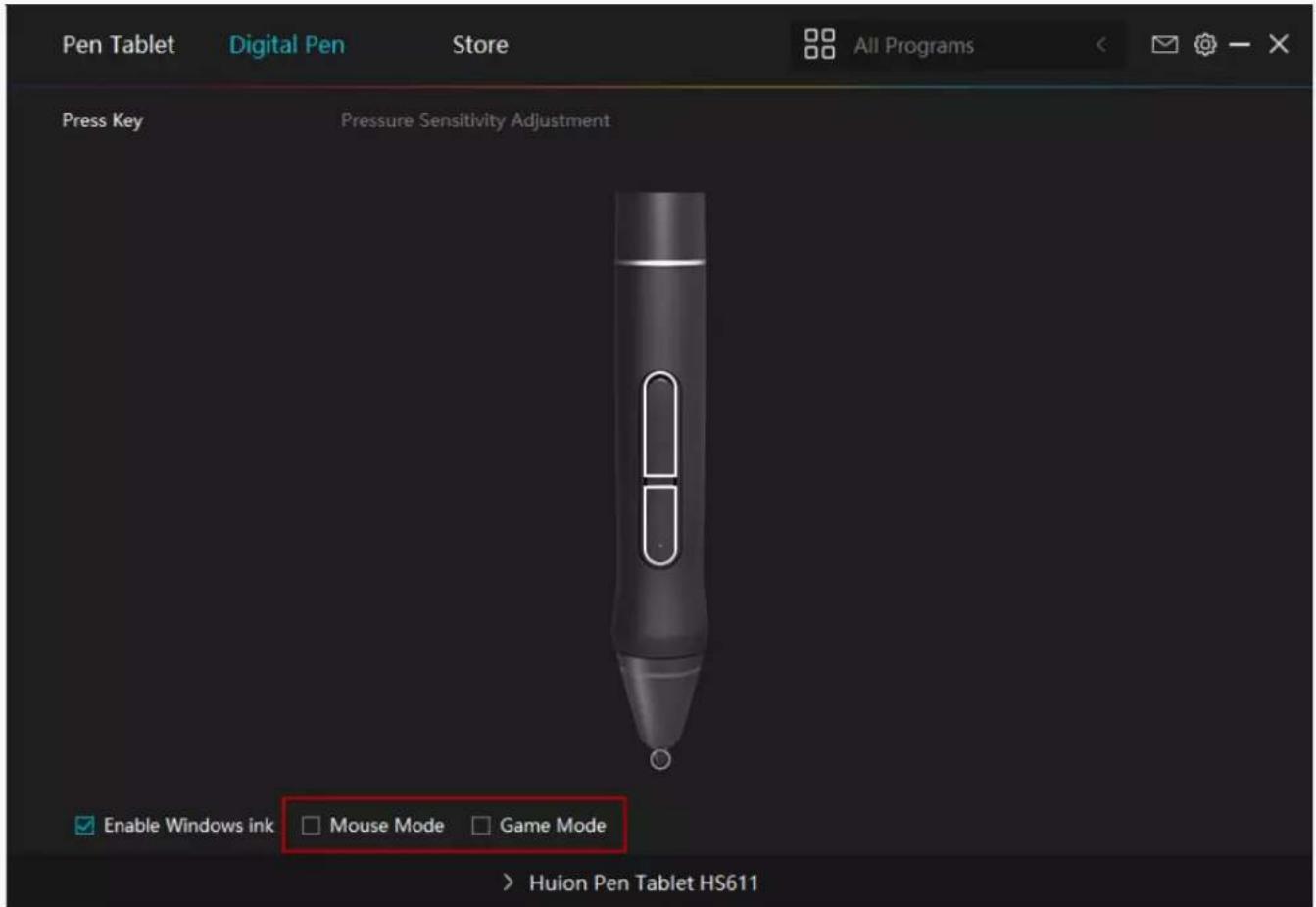
Pen Tablet Digital Pen Store All Programs Press Key Pressure Sensitivity Adjustment Enable Windows ink Mouse Mode Game Mode > Huion Pen Tablet HS6114. Mode Selection
Game Mode: This mode is specially designed for OSU games. OSU game users can turn on the "Game Mode" to increase the cursor's following speed when the pen tip moves quickly. It is not recommended for non-OSU game users.
Mouse Mode: When the digital pen moves on the tablet work area, the "absolute coordinate" mode is adopted by default. After selecting the "mouse mode", it will change to the "relative coordinate" mode. At this time, the user can use the digital pen like a mouse.
text_image
Pen Tablet Digital Pen Store All Programs Press Key Pressure Sensitivity Adjustment Enable Windows ink □ Mouse Mode □ Game Mode > Huion Pen Tablet HS6115. Pressure Sensitivity Adjustment
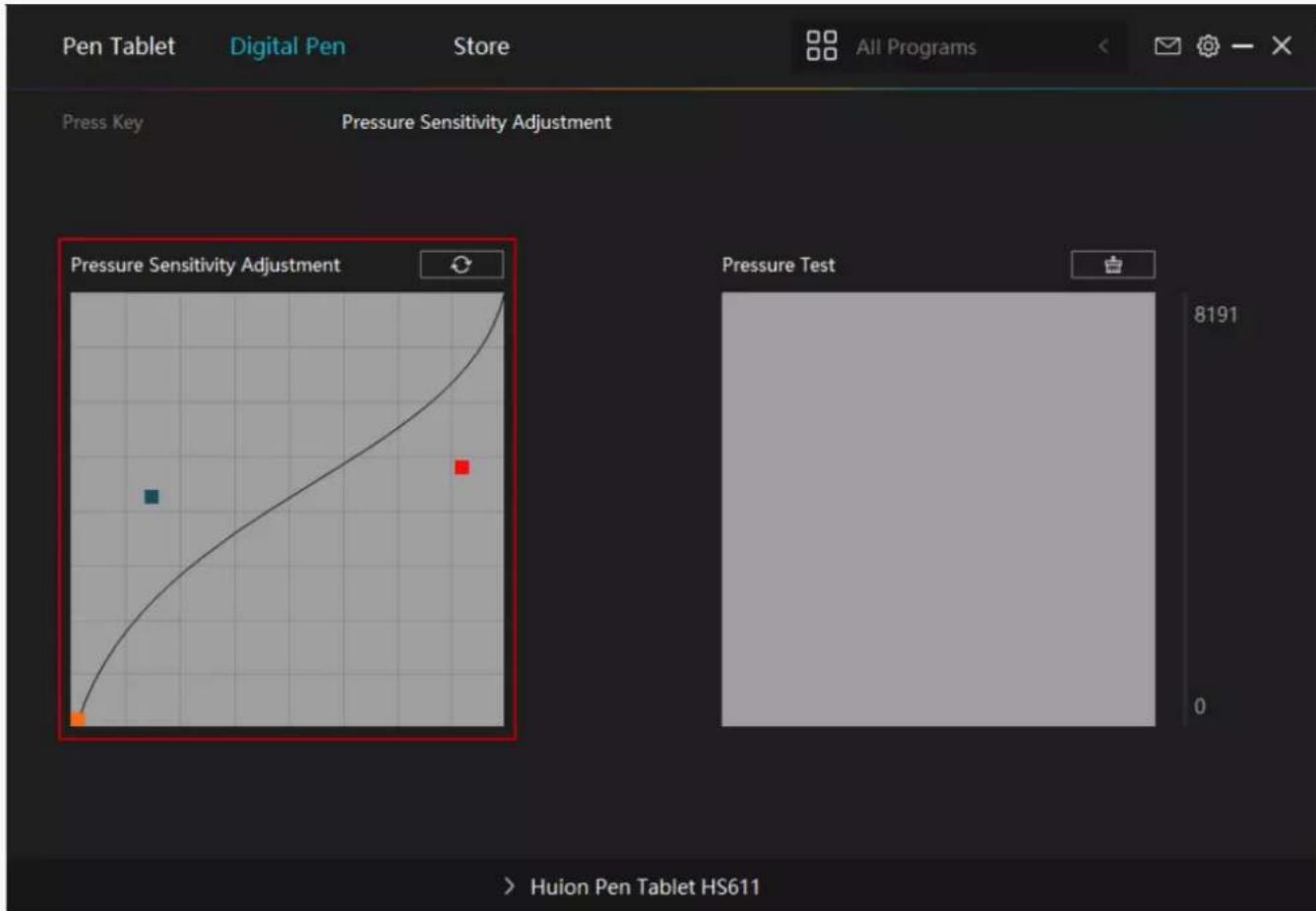
The pressure sensitivity will be changed by dragging the slider up and down, the smaller the value, the more pressure sensitive.
Click the Redo button at the top right of the Settings box to reset the pressure sensitivity to the default state.
HS611
text_image
Pen Tablet Digital Pen Store All Programs Press Key Pressure Sensitivity Adjustment Pressure Sensitivity Adjustment Pressure Test 8191 0 Huion Pen Tablet HS6116. Pressure Test
You can gradually apply pressure to the stylus on the screen to test the pressure level. Click the Clear button to clear all the ink.
HS611

text_image
Pen Tablet Digital Pen Store All Programs Press Key Pressure Sensitivity Adjustment Pressure Sensitivity Adjustment Pressure Test 8191 0 Huion Pen Tablet HS611Driver Setting
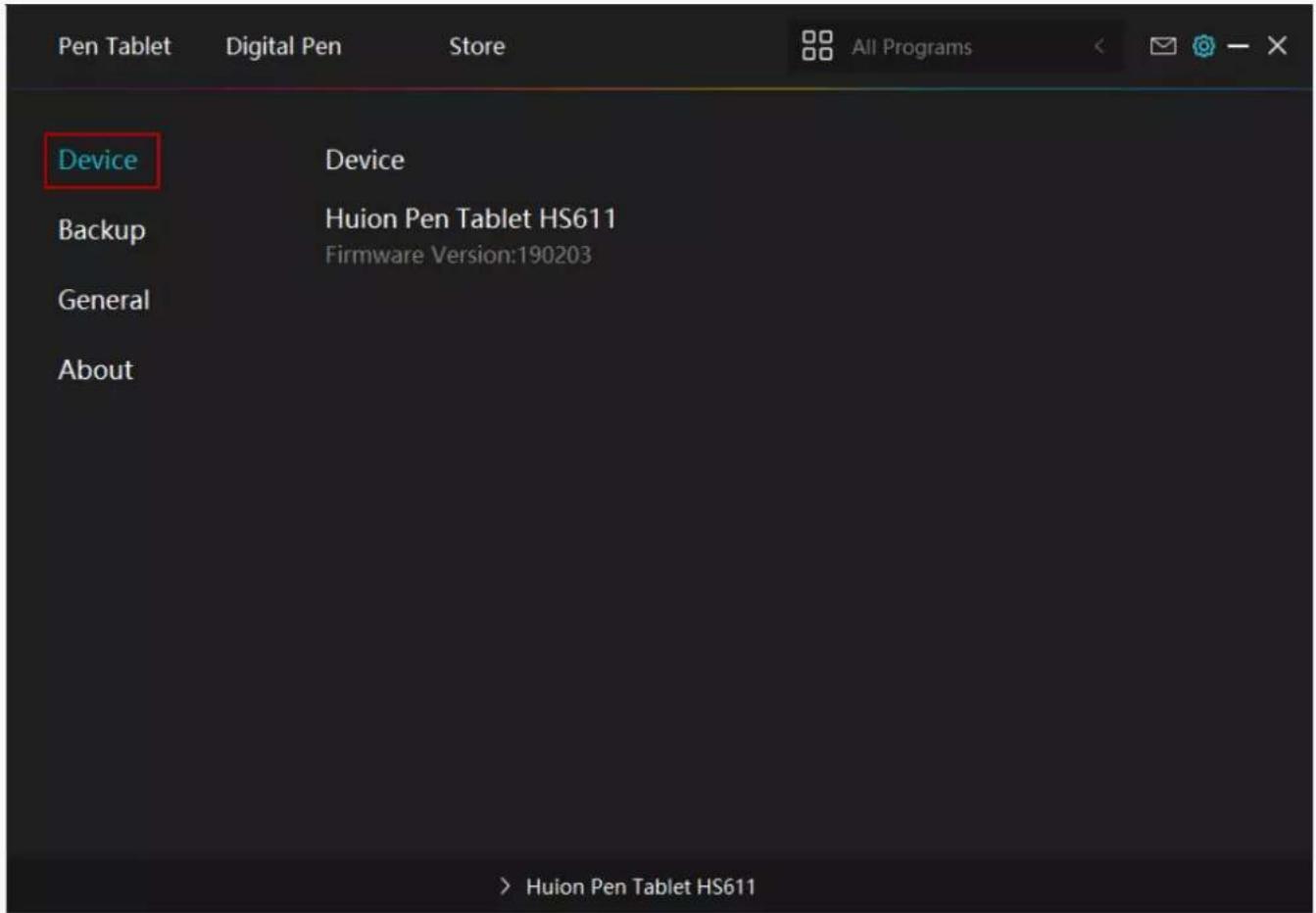
1. Device
You can view product information.
HS611
text_image
Pen Tablet Digital Pen Store All Programs Device Device Backup Huion Pen Tablet HS611 Firmware Version:190203 General About > Huion Pen Tablet HS6112. Backup
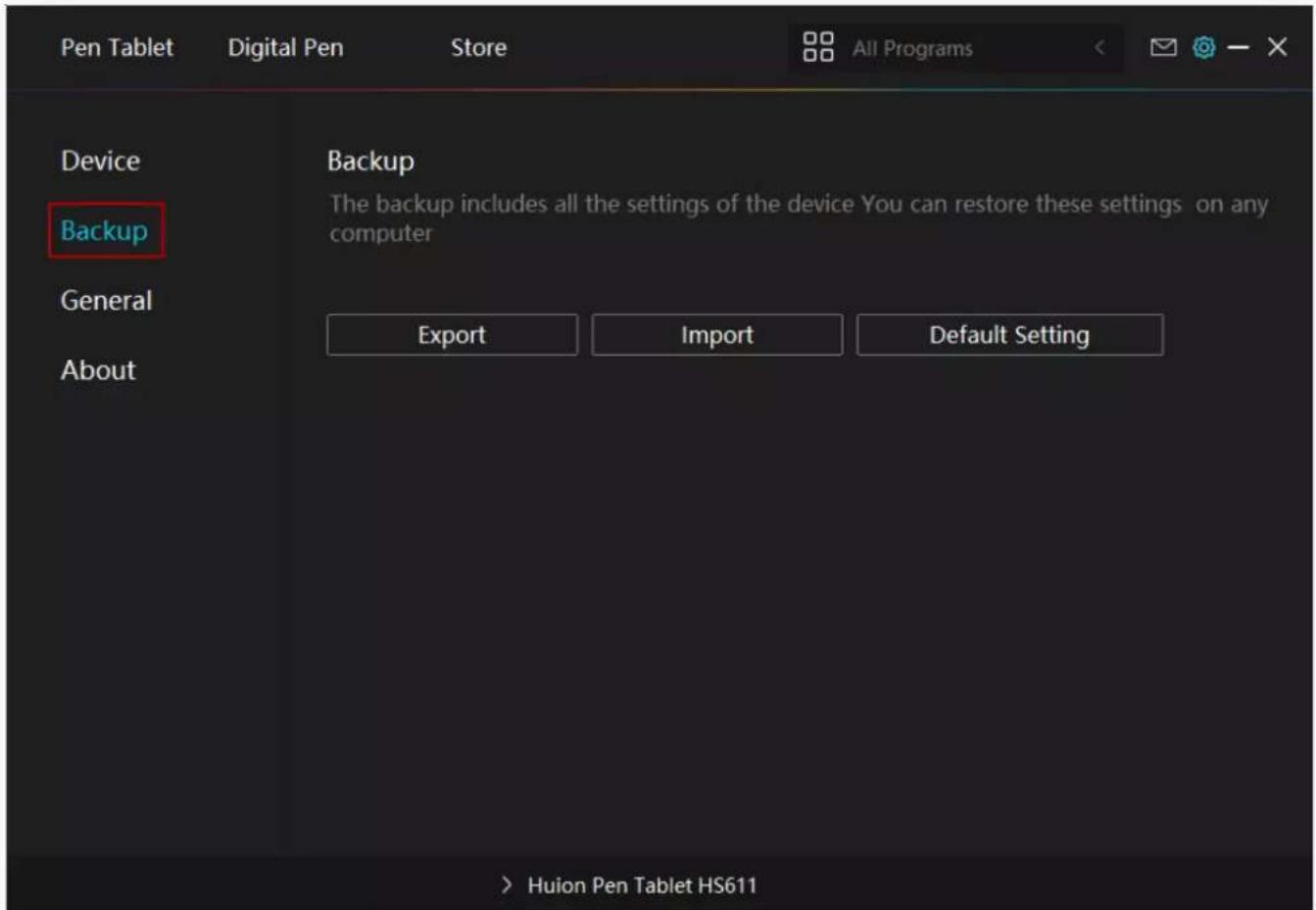
The Driver can import and export your custom settings, which helps to avoid repeated settings when launching a different program.
text_image
Pen Tablet Digital Pen Store All Programs Device Backup The backup includes all the settings of the device You can restore these settings on any computer General Export Import Default Setting About > Huion Pen Tablet HS6113. General Setting
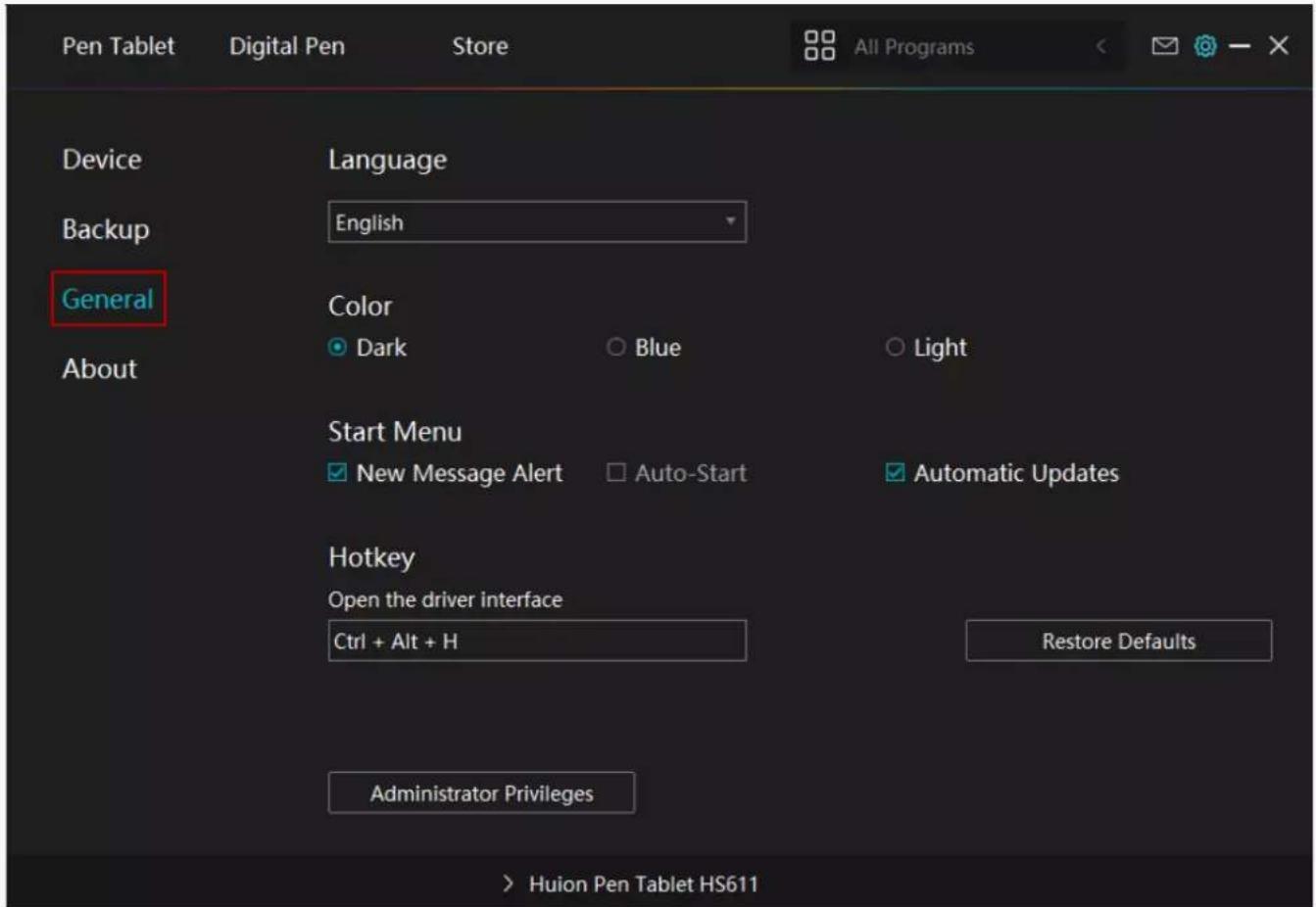
[1] Language: Click the drop down menu to select a language.
[2] Color: You can select the color of the Driver interface among Dark, Blue, and Light according to your preference.
[3] Start Menu: Click to enable or disable AutoStart, New Message Alert, Automatic Updates.
[4] Hotkey: A hotkey can be used to call out the Driver interface quickly, you can set one according to your usage habits.
HS611
text_image
Pen Tablet Digital Pen Store All Programs Device Language Backup English General Color About Dark Blue Light Start Menu New Message Alert Auto-Start Automatic Updates Hotkey Open the driver interface Ctrl + Alt + H Restore Defaults Administrator Privileges > Huion Pen Tablet HS6114. About
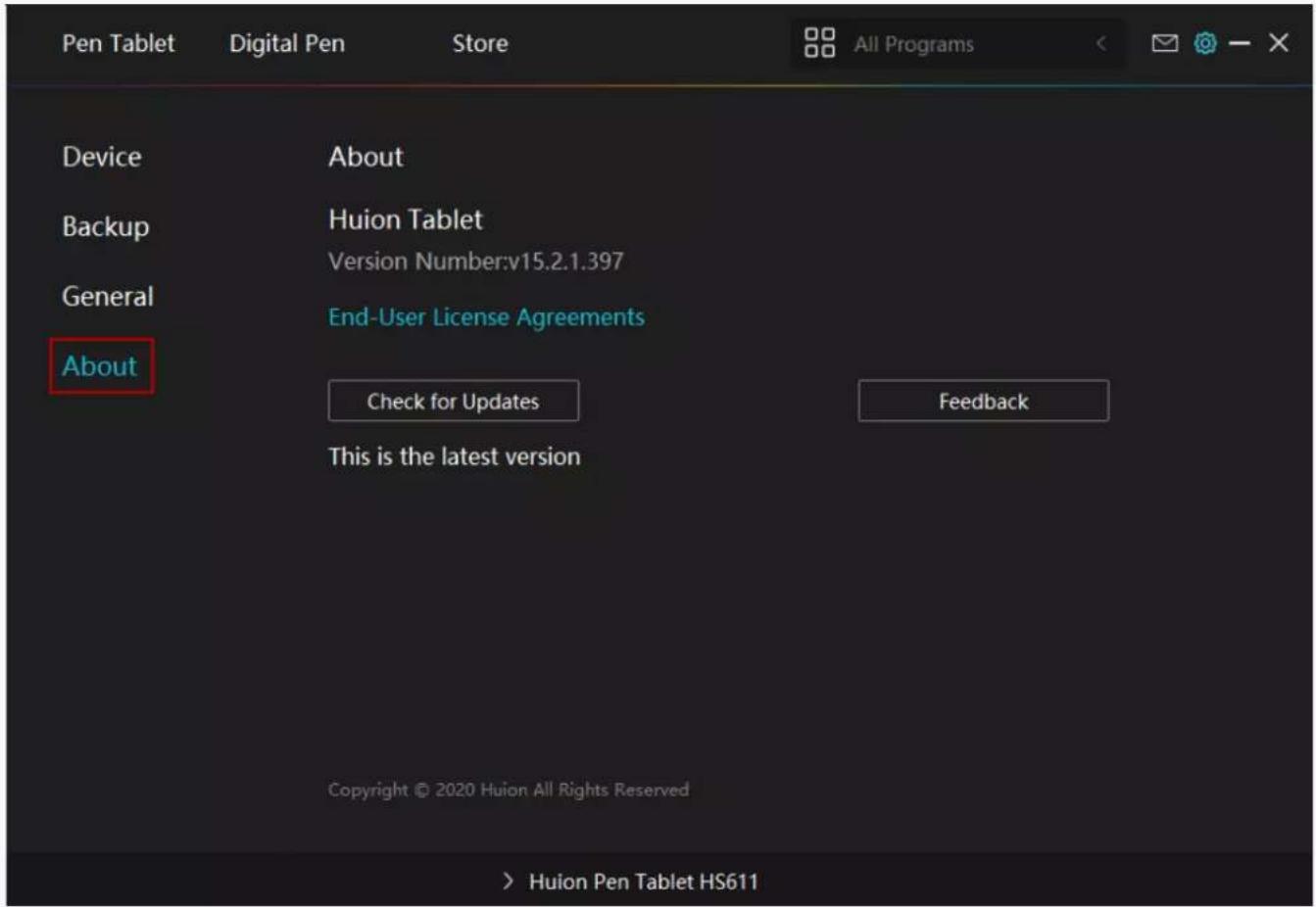
Users can check the Driver version number here. Click Check for Updates to view the latest Driver version and then follow the prompts to update the Driver if needed.
text_image
Pen Tablet Digital Pen Store All Programs Device About Backup Huion Tablet Version Number:v15.2.1.397 General End-User License Agreements About Check for Updates Feedback This is the latest version Copyright © 2020 Huion All Rights Reserved > Huion Pen Tablet HS611Digital Pen Basic Operation
Note: Picture shown is for illustration purposes only.
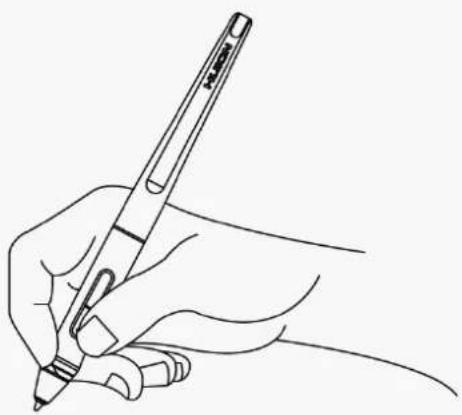
Hold the Pen
Hold the pen as you hold a normal pen or pencil. Adjust your grip so that you can toggle the side switch easily with your thumb or forefinger. Be careful not to accidentally press the switch while drawing or positioning with the pen.
Note:
When not in use, place the pen in the pen case or on the desk. Do not place the pen on the surface of screen, which may interfere with the use of other screen cursor positioning equipment, may also cause your computer can not enter the sleep mode.
natural_image
Line drawing of a hand holding a pen, writing (no text or symbols present)Position the cursor
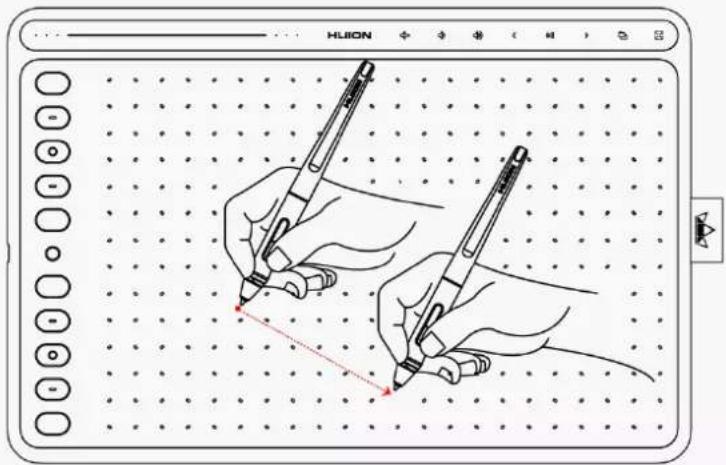
Move the pen slightly above the active area without touching the screen surface, the cursor will move to the new position accordingly.
Press the pen tip on the screen to make a selection. Tap the screen once with the pen tip, or touch it to the screen with enough pressure to register a click.
text_image
Illustration showing two hands drawing on a dotted grid paper with a red arrow indicating the point of writing or drawing.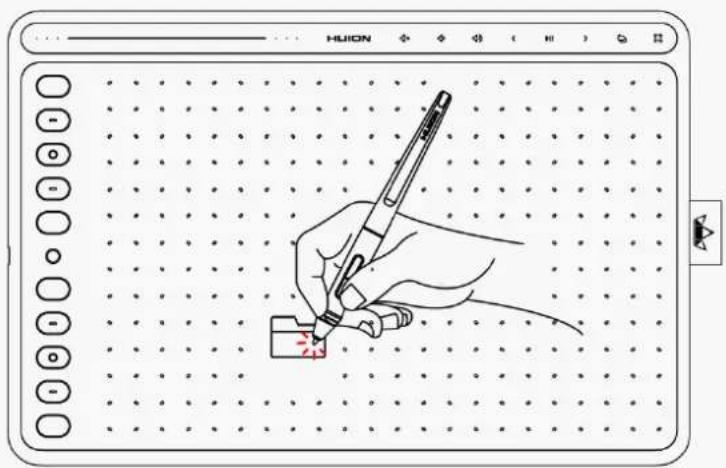
text_image
Illustration of a hand using a pen to write on a digital drawing tablet, with UI controls and dotted grid background.Click
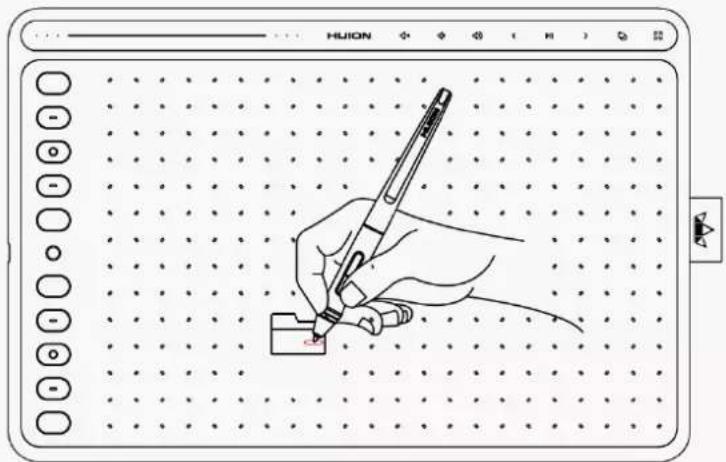
Use the pen tip to tap once on the screen to register a click. Tap to highlight or select an item on the screen and double-click to open it.
text_image
Illustration of a hand holding a pen writing on a digital grid tablet, with UI controls labeled 'HUION' and buttons at the top.Move
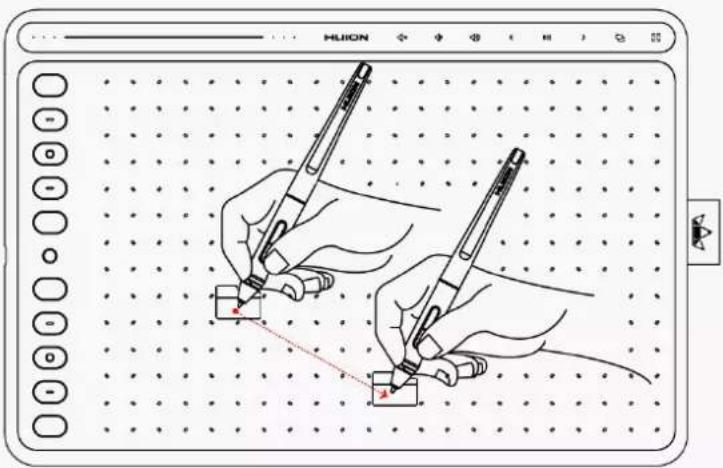
Select the object, then slide the pen tip across the screen to move it.
text_image
Illustration showing two hands using a pen on a dotted grid, with a red dotted line indicating the stroke direction.Use the side buttons
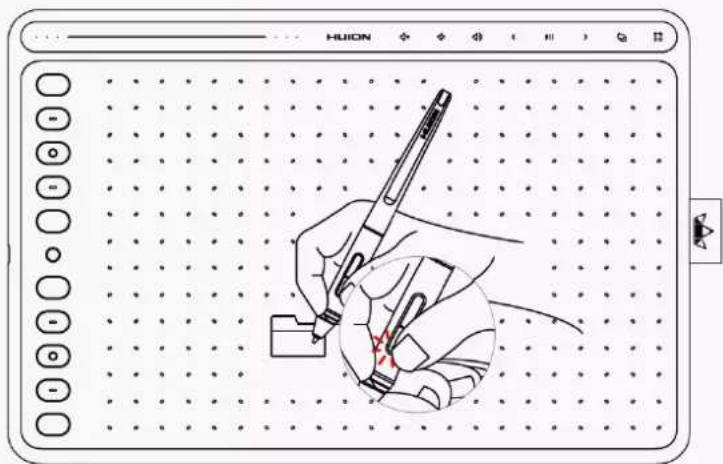
The buttons on the pen can be set to two different customizable functions. You can use the buttons whenever the pen tip is within 10mm of the tablet active area. You do not have to touch the pen tip to the tablet in order to use the switch.
text_image
Illustration of a hand holding a pen with a red mark, drawn on a dotted grid background, labeled 'HUION' in the top right corner.Pen Nib Replacement
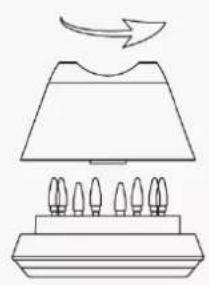
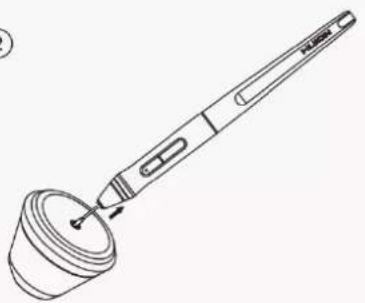
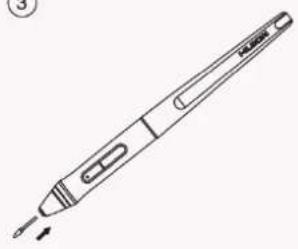
The nib will be wear off after using for a long time, then you need to replace a new nib.
- Anticlockwise rotate the pen holder to open the cover, take a new nib out.
- Insert the pen nib into the hole on the bottom of the holder and tilt the pen to pull out the old nib.
- Insert the new nib straight into the pen and push the nib slowly and firmly until it stops.
①
natural_image
Simple line drawing of a lamp with three flame-like lamps and an arrow indicating upward motion (no text or symbols)②
natural_image
Line drawing of a handheld electronic device with a cup and pointer (no text or symbols)③
natural_image
Line drawing of a pen-like tool with handle and spout, no text or symbols presentSpecifications
Here are the product specifications for you to learn more about the Tablet. If you have any questions, please feel free to contact us.
The following data will vary in different usage environments and are for reference only.
Appearance
| Color: Blue | Coral Red, Space Grey, Starry |
| Dimension: | 333.4 x 218.4 x 7.3mm |
| Workspace: | 258.4 x 161.5mm |
| Net Weight: | 550g |
| Touch: | Touch Strip |
| Interface: | USB-C |
Technical Specifications
| Digital Pen: | PW500 |
| Pen Technology: Resonance | Battery-Free Electromagnetic |
| Pen Resolution: | 5080 LPI |
| Pressure Sensitivity: | 8192 Levels |
| Tilt Support: | ±60° |
| Sensing Height: | 10mm |
| Report Rate: | >233PPS |
| Accuracy: | ±0.3mm |
| Press Keys: | 10 Programmable Press Keys and 8 Multimedia Keys |
OS Compatibility
Windows 7 or later
macOS 10.12 or later
Android 6.0 or later
Troubleshooting Solutions
There is no pressure in the graphics software but the cursor moves.
You may have installed other tablet drivers or opened the drawing software when installing the driver. Please uninstall all drivers and close the drawing software, then reinstall the Huion driver. It's better to restart your computer after finishing the installation.
The pen does not work.
- Make sure you are using the pen that originally came with your tablet.
- Make sure you installed the driver correctly.
Press Keys does not work.
- Make sure the Press Keys function were enabled in the driver.
- Make sure you have correctly defined the Press Keys.
- Check if the press lock switch is on the unlock position.
The side button of the pen doesn't work.
When pressing the side button, please make sure that the nib didn't touch the tablet surface and the distance between the nib and surface is within 10mm.
How to manually set your tablet to phone mode?
Click Here
How to turn off the HS611 Press keys?
Click Here
If your problem is not resolved, please clickFAQsto view more troubleshooting methods or email us(service@huion.com).