RFR900 - Uncategorized Bluebird - Free user manual and instructions
Find the device manual for free RFR900 Bluebird in PDF.


User questions about RFR900 Bluebird
0 question about this device. Answer the ones you know or ask your own.
Ask a new question about this device
Download the instructions for your Uncategorized in PDF format for free! Find your manual RFR900 - Bluebird and take your electronic device back in hand. On this page are published all the documents necessary for the use of your device. RFR900 by Bluebird.
USER MANUAL RFR900 Bluebird
natural_image
Black handheld device with a screen displaying a starry night sky, no visible text or symbols on the device body.This user manual is protected by copyright.
Copyright © 1995-2016 Bluebird Inc. All rights reserved.
Bluebird Inc. is the designer and manufacturer of Bluebird handheld mobiles.
This manual and the programs in this device are protected under international copyright laws, and may not be copied, distributed, translated, or removed by any means.
Registered Trademark

BLUEBIRD
BLUEBIRD is an emerging global brand, striving to lead the market in performance and mobility. Their products represent reliability, innovation, and innovative technology. Bluebird is a registered trademark from the global brand of Bluebird Inc. and is copyright protected.
- Bluebird and stylized Bluebird Logo are registered trademarks and symbols of Bluebird Inc.
- All other trademarks and copyrights are the property of their respective owners.
User's Guidance
| Device type User's guidance | |
| Class B Device (Household Information & Communication) | This device has qualified the electromagnetic wave suitable registration and can be used as a household device at a residential area as well as any other areas. |
| Type Registration | This wireless device may cause propagation interference, and so, it cannot be used for life-saving services. |
Revision History
Revised Version Revised Date Revised Details
1.0.0 5 Aug. 2016 First version released.
This user manual is protected by copyright.
Registered Trademark
User's Guidance
Revision History
Contents
1 About This Manual
2 Safety Information
2.1 Symbols....2
2.2 Device 2
2.3 Environment.... 3
2.4 Battery and Charging....3
2.5 Frequency Interference....3
3 Overview
3.1 Package Contents .... 4
3.2 Your Device....5
3.2.1 Side View (Left) 5
3.2.2 Side View (Right) 6
3.2.3 LEDs....7
4 Getting Started
4.1 Charging the Battery....8
4.1.1 Installing the Battery....8
4.1.2 Removing the Battery....9
4.1.3 Charging the Battery 9
4.2 Turning the Device On and Off.... 11
4.2.1 Resetting the Device 11
4.2.2 Updating the Firmware....12
4.3 Connecting with a Mobile Device 12
4.3.1 Attaching a Mobile Device....12
4.3.2 Connecting via Bluetooth....13
5 Using the Device
5.1 Reading Tags 15
5.2 Scanning Bar Codes....15
5.3 Using Batch mode.... 16
Appendix A Device Specification
Appendix B Accessories
Appendix C Troubleshooting
Appendix D Safety Regulatory
Appendix E Warranty and Support
The RFR900 provides high quality feature for Radio Frequency Identification (RFID) and bar code scanning. This user manual is designed to help users effectively operate the device paired with a Bluetooth® wireless technology enabled host device (such as a mobile computer and/or smartphone).
- Please read this manual carefully before using the device for safe and proper use.
- This device may only be used in countries where it is sold.
- The components and colors of this device in this manual may differ from the actual product.
- Features and specifications are subject to change without prior notice.
- Some screens or illustrations used in this manual may differ from the actual screens of the device.
- Except where noted, mobile device illustrations used in the manual are the EF400 model.
2.1 Symbols
This manual uses the following symbols to indicate hazards and additional information.
| Symbol Name Description | ||
 | Warning Indicates situations that could cause injury to yourself or others. | |
 | Caution | Indicates situations that could cause damage to your device or other equipment. |
 | Note | Indicates additional information that can help you get the most out of the device. |

Please read this safety precaution information carefully. Failure to follow the information provided may result in fire, electric shock, or other property damage or bodily injuries.
2.2 Device

- Do not press the Power button on the device if the device is wet or do not touch adapter or power cord with wet hands. There is risk of electric shock.
- Do not use your device in an explosive danger zone.
- If your device becomes wet, do not put your device in heaters, microwaves, etc. to dry it. There is a risk of explosion or malfunction.

- Although this device is very sturdy, do not drop, hit, bend, or sit on it on purpose. It can be broken.
- Do not modify, take apart, or repair the device. Contact to your customer service center. Failure to do so will void your warranty.
- Do not attempt to modify your hardware or software. It may cause device malfunction and void your warranty.
- Backup the data and information from your device. Your data may be erased during repairs or upgrades.
- Do not paint your device. It can damage your screen or your device's exterior.
- Avoid using or storing this device at extreme temperatures. This device is designed to work at temperatures between -20^ and 60^ (-4°F and 140°F), and humidity level between 5% and 95%.
2.3 Environment

- Do not use the device while driving or operating heavy machinery. Doing so may result in death or serious injury.
- Do not use the device in locations with combustible goods. Doing so may result in an explosion.

- Do not use the device in dusty or hot locations. Doing so may damage the device.
- Do not expose your device to direct sunlight such as on the dashboard of a car for extended periods of time.
- Do not use the device in humid locations. Doing so may damage the device and void the warranty.
- Do not keep the device close to air conditioner vents. Corrosion within the device may occur due to condensation from changes in temperature.
- Do not allow children to play with the device.
2.4 Battery and Charging

- Improper battery use may cause fire, explosion, or other hazard.
- If the battery is removed due to impact, heat, submersion, or other damage, there is a risk of explosion. Keep away from children and animals.
- Do not allow the battery's contacts to touch things like necklaces, coins, or electric conductors. Do not give any impact with sharp objects. There is a risk of explosion.

- Use only the approved battery and charger. Using an incompatible battery or charger may cause device malfunction or other damage, such as fire.
- When you are not using the device for a long period, take out the battery and keep the device and the battery in a dry, cool place. Also, charge the battery at least once a year. If you keep it without charging for a long time, it may cause device malfunction.
2.5 Frequency Interference

- This wireless device may cause radio frequency interference, so use Airplane mode or turn off the device when prohibited.
- The device emits an electromagnetic fields. It may interfere with your medical devices.
- Do not place credit cards, phone cards, bankbook, and tickets next to the device. The magnetic field of the device can damage their magnetic strips.
3.1 Package Contents
The package includes:
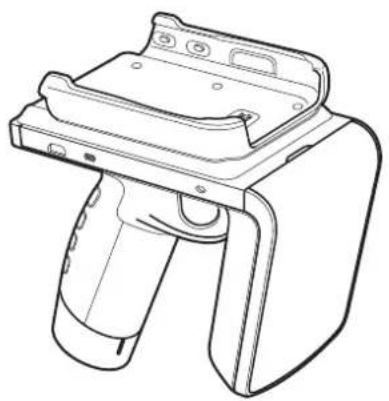
natural_image
Technical line drawing of a mechanical device with no visible text or symbolsRFR900 device Battery
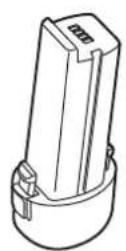
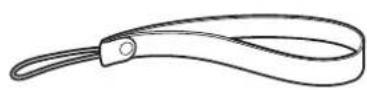
Wrist strap

• The illustrations may differ from your actual items.
• To purchase additional accessories, contact your sales representative.
- You can download the User Manual from www.mypidion.com. The paper version may be available in some regions.
3.2 Your Device
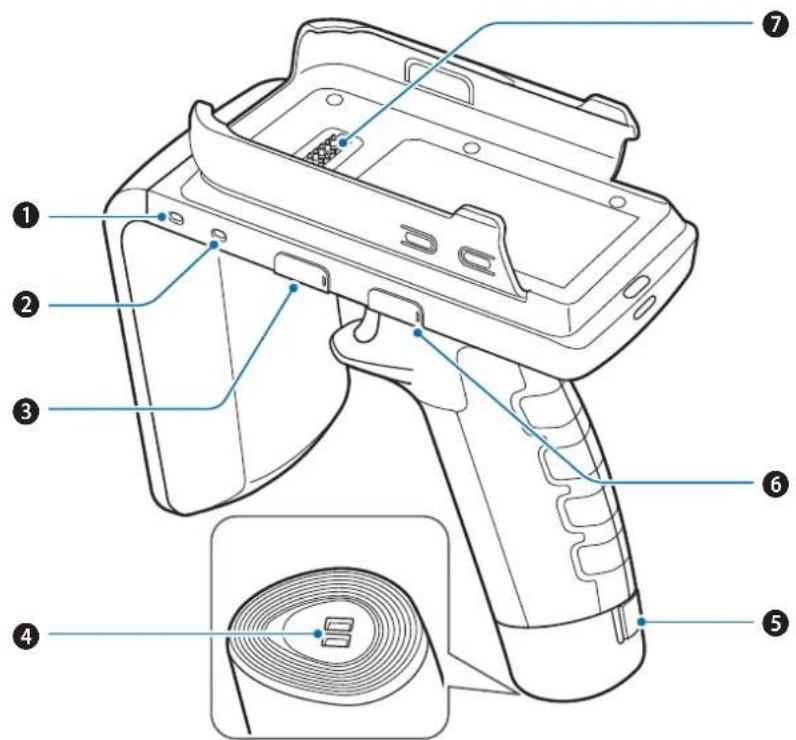
3.2.1 Side View (Left)
text_image
Labeled diagram of a handheld device with numbered parts for identification| No. | Name Description | |
| 1 | Transmit/read LED | Indicates the status of code reading and transmission. The transmit and read LED blinks green when data is being successfully transferred to the host device, or blinks red if any error occurs. |
| 2 | Battery LED | Indicates the battery status. The battery LED blinks orange when the battery is charging and turns green when the battery is fully charged. |
| 3 | RFID/barcode switch button Mode button | Switches between RFID mode and Barcode mode.RFID mode: Off, Barcode mode: GreenEnters Bluetooth pairing mode when pressed and held. |
| 4 | Charging contacts Connects to a charging source. | |
| 5 | Battery release button | Releases the battery from the handle. |
| 6 | Power button Turns the device on or off, or enters Sleep mode. | |
| 7 | Device connector Connects to a mobile device. | |
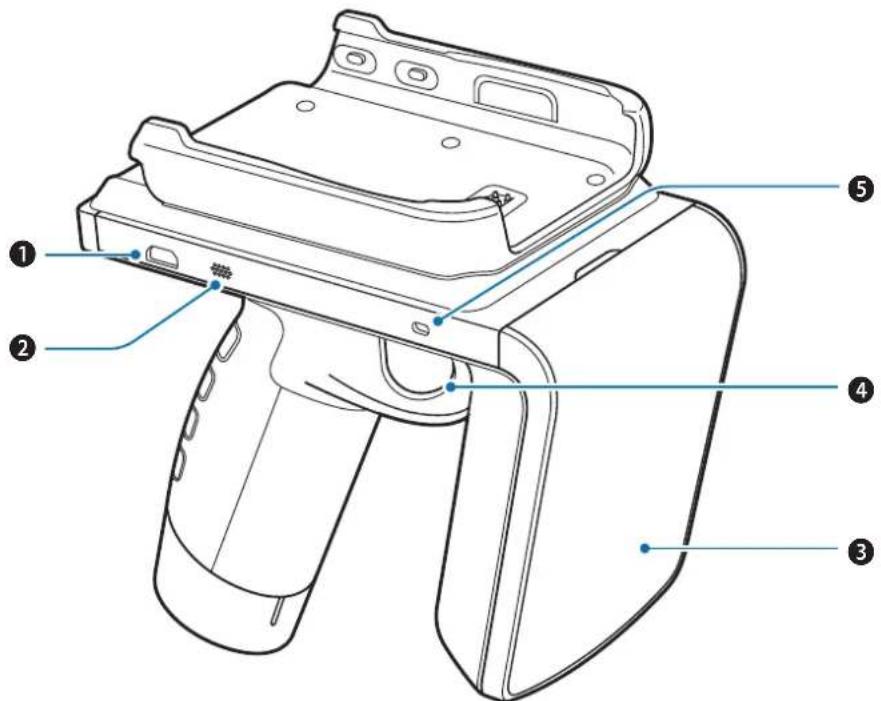
3.2.2 Side View (Right)
text_image
Technical diagram of a device casing with numbered parts labeled 1 to 5No. Name Description
| 1 | Micro USB port Allows a micro USB cable to connect to the device and charge it. | |
| 2 | Speaker Emits sounds. | |
| 3 | RFID antenna Receives RFID data. | |
| 4 | Trigger Scans bar codes or reads tags. | |
| 5 | Status LED | Indicates the device status. The status LED turns green when a device is not attached, or turns off when a device is attached. |
3.2.3 LEDs
| LED | Status | Description | |
| LED Beeper | |||
| Status | Green | 1 time Normal Mode | |
| Orange | 1 time Batch Mode | ||
| Battery | Orange Flashes continuously Blinks once every second | When the battery is charging | |
| Green - When the battery is fully charged | |||
| Orange - | Battery level is 10-20 % when power adapter is not connected | ||
| Red | Battery level is 5-10 % when power adapter is not connected | ||
| Red | Emits a descending beep | Battery level is 0-5 % when power adapter is not connected | |
| Red Flashes continuously | Cannot charge the battery | ||
| Transmit/read | Off - The trigger is not pressed | ||
| Green Blinks once | - Reading and transmission was successful | ||
| Red Flashes continuously Blinks once every second | Emits a descending beep | Reading and transmission failed | |
| RFID/barcode switch | Green - Barcode mode is active | ||
| Off - RFID mode is active | |||
| Power mode | Blue | 3 Times (Low-Mid-High) | Power On |
| Off Power Off | 3 Times (Low-Mid-High) | ||
| Off SleepNo Beep | |||
Follow the steps below to start using your RFR900 with a mobile device.
- Charge the battery. (see page 8.)
- Turn on the device. (see page 11.)
- Connect to a mobile device directly or via Bluetooth. (see page 13.)
• Install an essential app (For details, see the corresponding app for Windows or Android.)
4.1 Charging the Battery
The RFR900 uses a lithium-ion rechargeable battery. Insert the provided battery before charging the device.
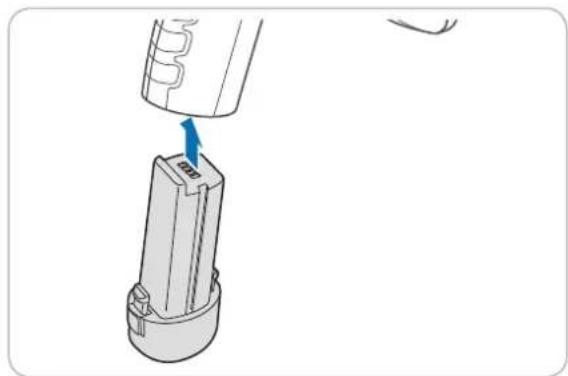
4.1.1 Installing the Battery
Insert the battery into the handle.

natural_image
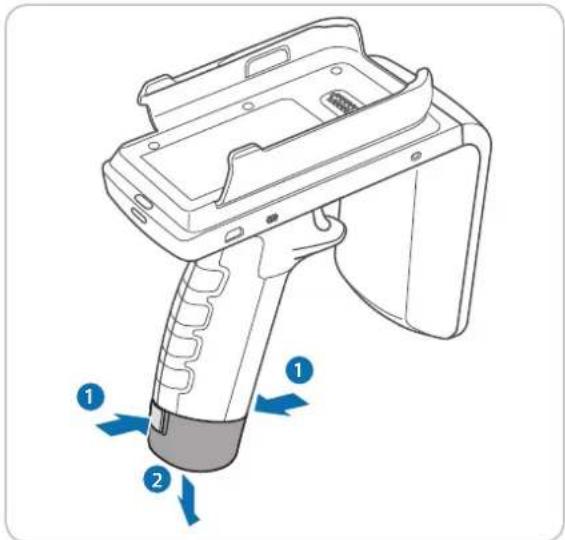
Line drawing of a handheld device with a highlighted internal component (no text or symbols)4.1.2 Removing the Battery
Press the battery release buttons on the lower part of the handle and pull the battery out.

natural_image
Line drawing of a handheld device with labeled parts (1 and 2), showing internal components and directional arrows indicating movement or force (no text or symbols beyond labels)
Before removing the battery, turn off the power. Failure to do so may cause damage to the device.
4.1.3 Charging the Battery
The device can be charged with a charger. You can also charge the battery by connecting it to your computer with the provided micro USB cable. Check the device's battery status on the installed app.
- When the battery level is low, the battery LED will be orange.
- When the battery level is extremely low, the battery LED will be red.
- When the battery level is charging, the battery LED will blink orange.
- When the battery level is fully charged, the battery LED will be green.

Charge the device before using it for the first time or after not using it for an extended period.
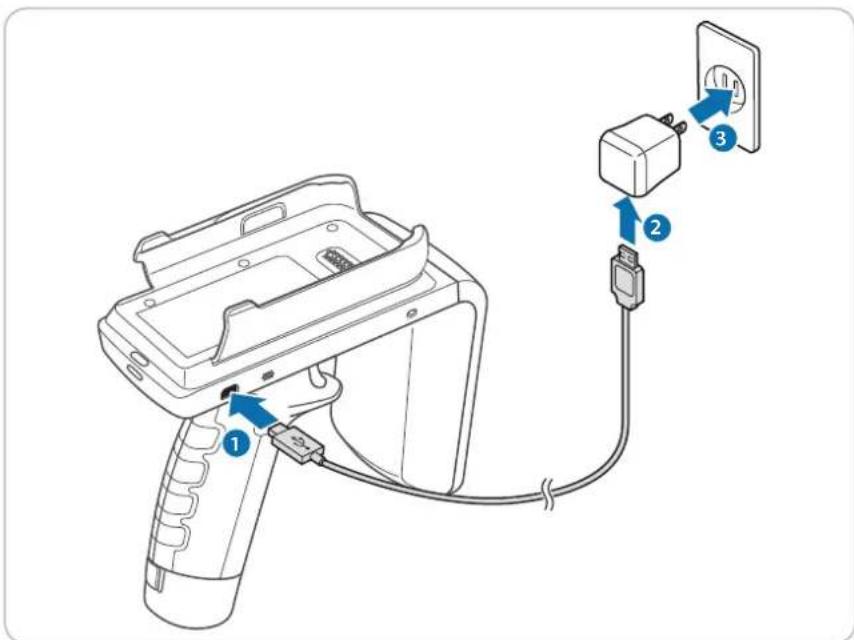
To charge with the charger
Plug the micro USB end of the cable into the device's micro USB port. Connect the other end of the USB cable to a power adapter. Plug the power adapter into a power outlet.
text_image
Diagram of an electric shock absorber with labeled components including plug, socket, and power outlet
When the battery level is extremely low, the device may not turn on. Charge the device and try to turn it on again. You can use the device while charging, but it may take longer to fully charge the device.

- Connect the charger properly. Failure to do so may cause damage to the device.
- The device may become hot when charging. If it becomes hotter than usual, disconnect the USB cable from the device.
- Do not remove the battery before disconnecting the charger. Doing so may cause damage to the device.
4.2 Turning the Device On and Off
To turn on the device, press the Power button.
• The Power LED will be blue.

natural_image
Line drawing of a handheld device with a blue arrow indicating the handle (no text or symbols present)To turn off the device, press and hold the Power button for a few seconds.

- To enter Sleep mode, press the Power button. If you do not use the device for 3 or more minutes, the device will enter Sleep mode automatically.
• To exit Sleep mode, quickly press the trigger.

Do not turn off the device by removing the battery, as this may damage the device.
4.2.1 Resetting the Device
If your device is not working properly or freezes due to unknown errors, you can manually restart the device.
1 Press the battery release buttons on the lower part of the handle and pull the battery out.
natural_image
Line drawing of a handheld device with labeled parts (1 and 2) and directional arrows indicating motion or movement (no text or symbols beyond labels)2 Reinsert the battery into the handle.
natural_image
Diagram of a battery component being inserted into a housing, showing internal structure and blue arrow indicating direction (no text or symbols)3 Press the Power button to turn on the device.

The device's data is saved when you perform a reset.
4.2.2 Updating the Firmware
If there is a new firmware version, you can download it to your device.
1 On your computer, launch an app to update the firmware.
2 Connect the USB cable to your computer.
3 Press and hold the trigger and plug the micro USB end of the cable into the device's micro USB port.
4.3 Connecting with a Mobile Device
To use the RFR900 with your device, attach it directly or connect via Bluetooth.
4.3.1 Attaching a Mobile Device
First, check that your mobile device is compatible with the RFR900.

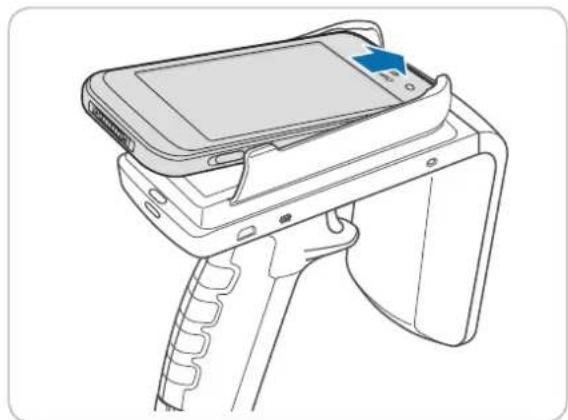
Do not slide the mobile device into the cradle.
1 Insert the upper part of the mobile device into the RFR900 with the screen facing up.
natural_image
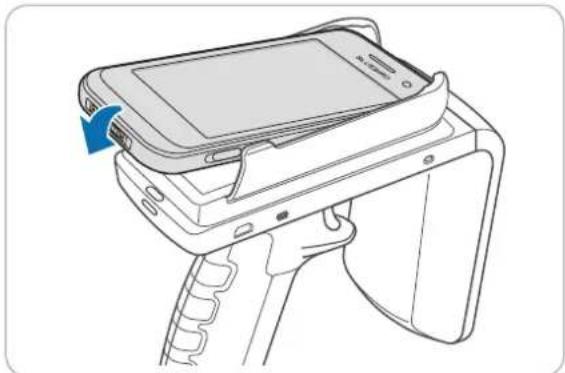
Line drawing of a handheld electronic device with a screen and handle (no text or symbols)2 Press the mobile device into the mount until you hear a click.
natural_image
Line drawing of a handheld device with a screen and lever mechanism (no text or symbols)- When the mobile device is properly attached, the status LED will turn off.
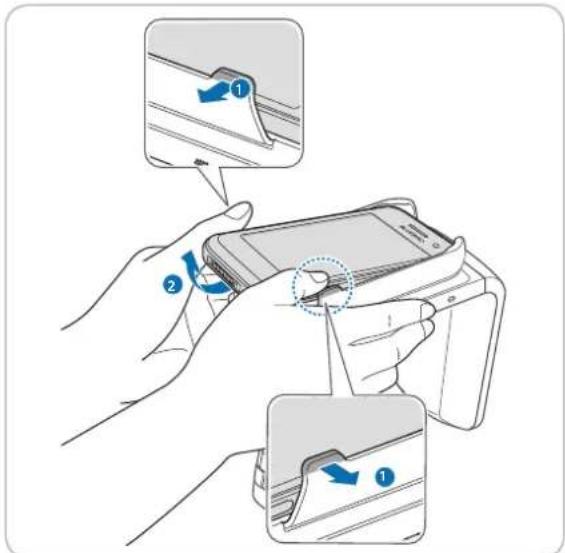
Removing the Installed Device
1 Spread the cradle by pulling the both sides of it.
2 Push upward on the lower part of the mobile device and remove it.
text_image
Diagram illustrating smartphone touch screen operation with labeled steps 1 and 2 showing finger movement and scroll transition.
The RFR900 is designed to prevent the mobile device from detaching from the RFR900, so removing the mobile device may be difficult.
4.3.2 Connecting via Bluetooth
You can wirelessly connect to a mobile device via Bluetooth. You can read and send data to the connected device via Bluetooth.
Because Bluetooth wireless technology uses radio waves to communicate, devices do not need to have a direct line of sight. However, they must be within 10 meters (33 feet) of each other, although the connection may be subject to interference from obstructions, such as walls or other electronic devices.
Pairing with an Android Device
To pair with an Android device,
1 On the mobile device, tap Settings > Bluetooth.
2 Turn on the Bluetooth feature.
3 On your RFR900, press and hold the Mode button for approximately 3 seconds to enter Bluetooth pairing mode.

Do not forcefully press and hold the Mode button. This can damage your device.

If your RFR900 does not pair with another device within 3 minutes, it will exit Bluetooth pairing mode.
4 On the mobile device, search for discoverable Bluetooth devices.
5 On the Bluetooth device list, tap the RFR900 to pair with it.
- Your RFR900 emits one short beep and the status LED blinks green fast.
6 Press the trigger once.
• The mobile device and RFR900 have paired successfully.

- Once your mobile device and the RFR900 have paired, they will remain paired until you unpair them.
• Supported Android environment: Android 5.0 or higher.
Pairing with a Windows Device
To pair with a Windows device,
1 On the mobile device, tap Settings > Bluetooth.
2 Turn on the Bluetooth feature.
3 On your RFR900, press and hold the Mode button for approximately 3 seconds to enter Bluetooth pairing mode.

Do not forcefully press and hold the Mode button. This can damage your device.

If your RFR900 does not pair with another device within 3 minutes, it will exit Bluetooth pairing mode.
4 On the mobile device, search for discoverable Bluetooth devices.
5 On the Bluetooth device list, tap the RFR900 to pair with it.
- Your RFR900 emits one short beep and the status LED blinks green fast.
6 Press the trigger once.
• The mobile device and RFR900 have paired successfully.

Once your mobile device and the RFR900 have paired, they will remain paired until you unpair them.
5.1 Reading Tags
When you turn on RFR900, it is in RFID mode by default.
1 Press the RFID/Barcode switch button.

The RFID/Barcode LED is off when RFID mode is active.
2 On the connected device, launch the app and start the connection.
3 Access the menu to view the scanned tag list.
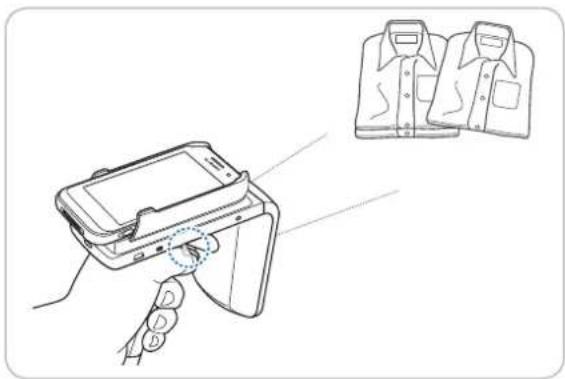
4 Press the trigger.
natural_image
Line drawing of a handheld device with a magnified inset showing two men in uniform (no text or symbols)5 Aim the laser at the tag you want to read.
- When the tag is scanned successfully, you will hear a beep sound and the results will appear on the mobile screen.
5.2 Scanning Bar Codes
To use the barcode scanning function,
1 Press the RFID/Barcode switch button.

The RFID/Barcode LED turns green when Barcode mode is active.
2 On the connected device, launch the app and start the connection.
3 Access the menu to view the scanned bar code list.
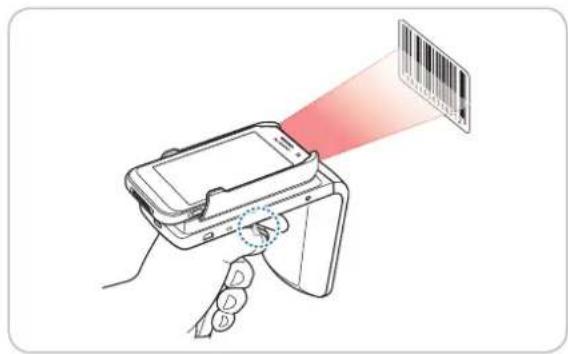
4 Press the trigger. The device will emit a red laser.
text_image
Diagram showing a handheld device scanning a barcode with a red light beam and a circular icon labeled 'D' pointing to it.5 Aim the laser at the barcode you want to scan.
- When the barcode is scanned successfully, you will hear a beep sound and the results will appear on the mobile screen.

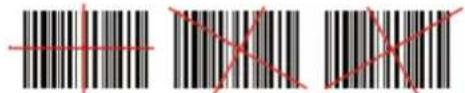
For the best results, maintain a distance of approximately 10 cm (4 in) when scanning. Aim the laser at an appropriate angle as shown the following image.
text_image
Three barcode images with red X marks overlaid on black bars, likely for identification or labeling purposes.
Do not stare into the laser. It may injure your eyes.
RISK GROUP 2
CAUTION
Possibly hazardous optical radiation emitted from this product

When the device is turned off and on again, the device switches to RFID mode automatically.
5.3 Using Batch mode
When you turn on RFR900, it is in Batch mode by default.
Batch mode allows you to scan barcodes or read tags consecutively without transferring data to a mobile device immediately. It is recommended to stop scanning and reading before transferring the data via Bluetooth, so this mode is useful for scanning or reading a large volume of barcodes or tags. You can then use the app to transfer data to the mobile device.
Physical Characteristics
| Dimensions (H x W x L) 146.2(H) x 70 (W) x 148.7(L) mm |
| Weight 328 g |
| Standard battery Rechargeable Li-ion, 3.64 V, 3,050 mAh |
| Interface USB |
| Key Power, Mode Change |
| LED 5ea |
RFID Characteristics
| Power Output | EU: 1/2W ERPJP1: 1W EIRP, JP2: 1/4W EIRPUS: 1W EIRPRussian Federation: 1/2W ERP |
| Antenna Type | |
| Freq. Range | EU: 865-868 MHzJP1: 916-921 MHz, JP2: 916-924 MHzUS: 902-928 MHzRussian Federation: 866-868 MHz |
| Standards Supported GEN2 V2 | |
User Environment Characteristics
| Operating temperature -20°C to 50°C (-4°F to 122°F) | |
| Storage temperature -30°C to 70°C (-22°F to 158°F) | |
| Humidity 5% to 95%, non-condensing | |
| Drop | 4 ft/1.2 m to concrete |
| Tumble | 250 1.6 ft/0.5 m tumbles500 at room temp. |
| ESD | 15KV air / 8KV contact |
Bluetooth
| Version | BT2.1 EDR supported |
Battery
• Standard battery: Rechargeable Li-ion, 3.64 V, 3,050 mAh
Carrying Accessories
- Wrist strap

If you want to purchase a handstrap, please ask a sales representative.
Other Accessories
- USB cable
- User manual
- Quick guide
The battery does not charge properly.
- Ensure that your device and the charging cable are connected and the battery LED is functioning correctly.
- If the battery does not charge completely, it may be dead or defective. Replace the battery with a new one. (The warranty period for battery replacement is six months.)
The battery life got shorter.
When you use Bluetooth that require more power, your device may use more battery than usual. If it happens for an extended period of time, your battery may be dead. Then replace it with a new battery.
I dropped the device in the water.
Turn off the device and take out the battery. Place the device and battery in a dry place. Let them dry completely for a considerable period of time, and then turn the device back on. If it does not turn back on, contact our service center.
My device gets too hot to touch.
It is normal for the device to warm up while it is performing an intense workload or charging. It should cool down if you stop using the device for a certain amount of time. If the problem continues, contact the manufacturer. It may result in a burst battery or fire.
How do I get the repair service?
You can contact your local sales representative or you can send the device via a delivery service to Bluebird's Korean headquarters. When sending the package, make sure you pay for the shipping fee in advance. When the repair is finished, Bluebird will cover the shipping cost.
FCC compliance information
This device complies with Part 15 of the FCC's Rules. Operation is subject to the following two Conditions:
• This device may not cause harmful interference, and
- This device must accept any interference received, including interference that may cause undesirable operation.
This device complies with part 15 of the FCC Rules. Operation is subject to the condition that this device does not cause harmful interference.
The antenna must be installed such that 20 cm is maintained between the antenna and users, and the transmitter module may not be co-located with any other transmitter or antenna.
End users cannot modify this transmitter device. Any Unauthorized modification could void the user's authority to operate this device.
Part 15.105 (B)
This equipment has been tested and found to comply with the limits for a Class B digital device, pursuant to part 15 of the FCC Rules. These limits are designed to provide reasonable protection against harmful interference in a residential installation. This equipment generates, uses and can radiate radio frequency energy and, if not installed and used in accordance with the instructions, may cause harmful interference to radio communications. However, there is no guarantee that interference will not occur in a particular installation. If this equipment does cause harmful interference to radio or television reception, which can be determined by turning the equipment off and on, the user is encouraged to try to correct the interference by one or more of the following measures:
- Reorient or relocate the receiving antenna.
- Increase the separation between the equipment and receiver.
- Connect the equipment into an outlet on a circuit different from that to which the receiver is connected.
- Consult the dealer or an experienced radio/TV technician for help.
Modifications not expressly approved by the manufacturer could void the user's authority to operate the equipment under FCC rules.
FCC 15.407 (g) states
Manufacturers of U-NII devices are responsible for ensuring frequency stability such that an emission is maintained within the band of operation under all conditions of normal operation as specified in the users manual.
Since this is an Indoor Only device (required for this band) you do not need to worry about the extreme frequency Stability over wide temperatures, but you can show that the frequency Generation portion of this device (from the schematic) has its own stated stability that would never allow the device to generate emissions or part of the spectrum outside of the authorized band (can be determined by looking at the Occupied BW plots to see how much margin to the band edge is available).
If the devices in the future use the other higher frequency UNII bands, and the devices can be used outdoors, you may need to provide details of stability over a much wider temperature range (depending on the use conditions stated in the manual).
Most compliance for this requirement is stated from the specification of the frequency generation portion of the device and not necessarily through additional testing.
IEC 60417-6044
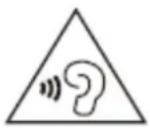
Do not listen to sound at high volume for long periods. It may cause hearing damage. Also, only use compatible receiver, headphones, or earpieces with your device.
CE
C€2200①
Hereby, Bluebird Inc. declares that this RFR900 is in compliance with the essential requirements and other relevant provisions of directive 1999/5/EC.
To comply with CE RF exposure requirements, the handset must be kept 0.59 inches (1.5cm) from the body without any reference to a particular side or edge.
Any beltclips, holsters, and similar accessories containing metallic components may not be used.
Body-worn accessories that cannot maintain 0.59 inches (1.5cm) separation distance between the user's body and the handset, and have not been tested for typical body-worn operations may not comply with CE RF exposure limits and should be avoided.
European Union (EU) Waste of Electrical and Electronic Equipment (WEEE) directive
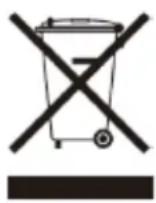
According to the European Union's WEEE directive, this symbol means that products sold into EU countries must dispose electrical device and/ or its battery separately from household waste. Disposing of the device separately will help conserve resources and energy and contribute to human health and environment protection.
Customers or end-users in EU countries should contact their local equipment supplier representative or service centre for information about the waste collection system in their country.
Warranty certificate
Thank you for purchasing a product from Bluebird Inc.
- In case of accessories such as batteries, only those that match the sales list managed by the Customer Service Center will be eligible for customer service.
- A repair or an exchange of batteries that does not match the sales list of the Customer Service Center due to the carelessness of the customer will be fully charged.
| Name of Product |
| Name of Model RFR900 |
| Date of Purchase |
| Manufacture Number |
| Place of Purchase |
| Term of Guarantee 1 year from purchase |
Warranty information
- Bluebird Inc. (hereinafter referred to as Bluebird) provides the warranty service for its products in compliance with the Bluebird's warranty program.
- Upon receiving a notification on a defect of its product within the range of warranty during the warranty period, Bluebird will repair or replace the defective product according to its warranty policy.
- If the defective product within the range of warranty is not repairable or replaceable, Bluebird shall refund the purchasing price within a designated period from the date of receiving a notice of defect.
- Bluebird assumes no responsibility for repairing, replacement or refund until it receives the defective product from the customer. The replacement shall be equivalent to a new product in the aspect of performance.
- Bluebird products may contain the recycled products, components or materials equivalent to new products in the aspect of performance.
- This warranty is applied to software products only when the programming commands are not executed. Bluebird does not guarantee interruption-free or error-free performance.
Customer support

Before asking for after-sales service, please back up the data on the device. We do not back up data from the products sent to the Customer Service Center. Therefore, we assume no responsibility for loss/deletion of data.
Customer Service Center
B 703, SSang-young IT twintower,
442-5 Sangdaewon-dong, Joongwon-gu,
Seongnam-si, Gyeonggi-do, Republic of Korea, 13216
• Fax: +82-2-548-0870
- Email: rma@bluebird.co.kr
• Hours: 9:30 a.m. - 6:30 p.m. (GMT Time: +9 Hours)

The center is closed on Saturdays, Sundays, and Korean national holidays
Registering for After-Sales Service
- We receive the products for our after-sales service through mail, delivery services and hand delivery only in principle.
- If you bought the product from a party other than Bluebird or an authorized Bluebird reseller, you need to register the product before using our after-sales service.
- Please enclose an evidence of purchase or the product receipt for our after-sales service.
- Please enclose your name, telephone number, address and details of the problem for a prompt service.
- You can ask for our after-sales service by contacting your authorized Bluebird dealer or the Customer Service Center in the head office.
- Do not intentionally damage the label on the product.
- A damaged label may result in a disadvantage to the customer.
- When you return the product to Bluebird for service, please put the product in a protective box.
- The warranty will not cover any damage which occurs during delivery. We advise you to use the box and protective cover supplied with the product.
- Make sure to deliver the product in a safe way. Bluebird assumes no responsibility for the loss of the product during delivery.
Charged services
- In the following cases, it will be charged when requesting for after-sales service.
– Service request due to inappropriate use of the device by the customer
- Loss of PIN number
- Use of programs that might affect the program (over-clock, forceful changes in the input of the system, personal developments)
- Faults caused by the customer.
- Defect due to inappropriate or careless use of the product (dropping, submersion under water, shock, damage, unreasonable operations, etc.)
- Defect due to a repair or unauthorized technician
- Defect caused intentionally or by the carelessness of the customer
- Defect due to the use of fraudulent parts or components
- Other cases
- Defect due to nature (damage caused by fire, wind, flooding, etc.)
- Accessories are out of warranty (accessories like battery/charger/cable/adapter, etc. have a warranty of 6 months)
• Regulations for repairs after charged services
If the same fault occurs in the part that has been repaired within a 1 month (30 days), the part will be repaired free of charge.

No refunds will be offered in the following situations:
- The product seal has been removed (if applicable).
- The product has been damaged due to careless use by the customer or due to a natural disaster (floods, rain, fire, etc.).
- Loss of product or other components (manual, connecting cables, etc).
• DOA (Dead on Arrival) policy
If your product is DOA (Dead on Arrival), or has malfunction within 30 days of purchase (DOA period), the product will either be exchanged or provided with after-sales service.

BLUEBIRD CUSTOMER SERVICE
Operating Hours Customers Service Center
Monday to Friday 9:30 A.M. - 6:30 P.M.
(GMT Time: +9 Hours)
The center is closed on Saturdays,
Sundays, and Korean national holidays.
B 703, SSang-young IT twintower,
442-5 Sangdaewon-dong, Joongwon-gu,
Seongnam-si, Gyeonggi-do, Republic of Korea,
13216
Bluebird constantly strives to bring utmost satisfaction to all our customers.