Power 2 - Luxmètre Lumu - Free user manual and instructions
Find the device manual for free Power 2 Lumu in PDF.


User questions about Power 2 Lumu
0 question about this device. Answer the ones you know or ask your own.
Ask a new question about this device
Download the instructions for your Luxmètre in PDF format for free! Find your manual Power 2 - Lumu and take your electronic device back in hand. On this page are published all the documents necessary for the use of your device. Power 2 by Lumu.
USER MANUAL Power 2 Lumu
The main motivation behind making Lumu Power was to help people create better still and moving images. To help them express themselves in new ways.
Until now, one had to use multiple tools. They have too many limitations, they are too complex, and take time and effort to use. Lumu Power is - on the other hand - only one device that has the power of many.
We accomplished our mission by creating two things, which have never been accomplished before in the light metering industry:
- First light metering hardware which combines Color Temperature, Illuminance, Spot, Ambient and Flash Exposure metering functionality.
- iOS companion app, which is constantly improved, new features added, removed or refined - everything based on the user feedback. It's the only way to create simple and meaningful user experience.
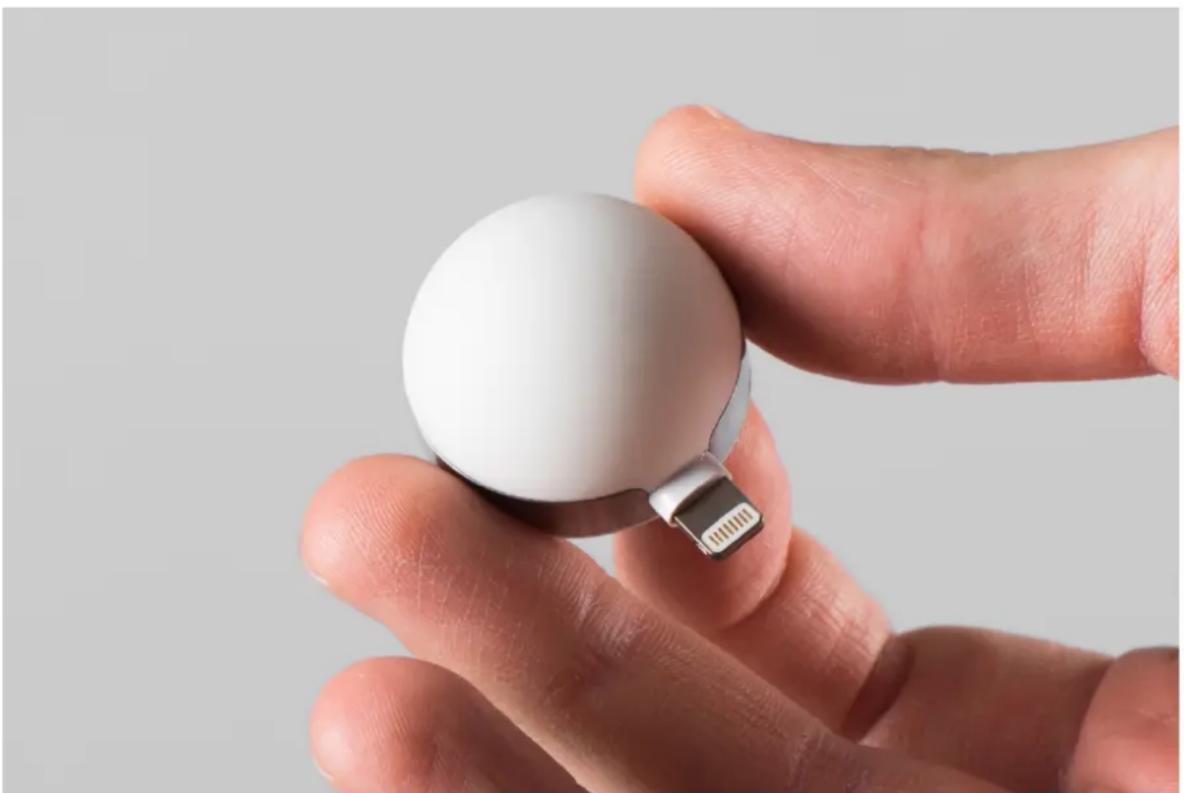
natural_image
Close-up of a hand holding a white cylindrical device with a small USB tag attached (no text or symbols visible)2 LIGHT METER iOS APP
Picked and promoted by the App Store team as the »photographers must have«: https://itunes.apple.com/us/app/lumu-light-meter/id730969737?mt=8. App is free.
Basic app logic:
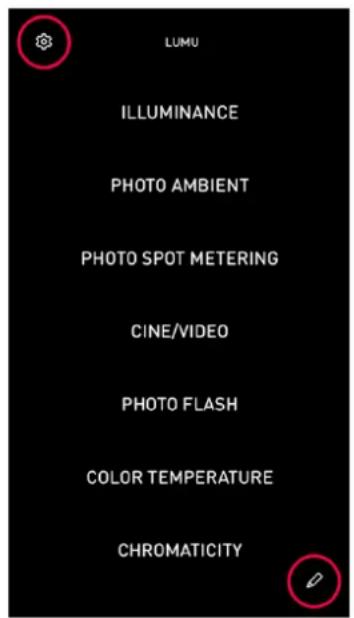
text_image
LUMU ILLUMINANCE PHOTO AMBIENT PHOTO SPOT METERING CINE/VIDEO PHOTO FLASH COLOR TEMPERATURE CHROMATICITYHome Screen:
Shows you all available Modes.
Gear icon in the top left corner: takes you to the app "General Settings". Here you can:
- Hide and rearrange Modes, visible on the Home Screen.
- Turn off "Auto app open" (= pop-up message when your Lumu Power is inserted into the iPhone)
- Set app to Dark Theme
- Set measuring button to "CONTINUOUS MEASURING" in all Modes.
Pencil icon in bottom right corner: takes you to all saved measurements.
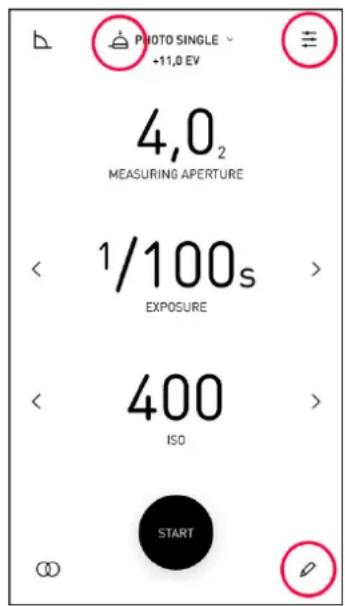
text_image
PHOTO SINGLE +11.0 EV 4,0₂ MEASURING APERTURE 1/100s EXPOSURE 400 ISO STARTEach Mode Screen:
- On top of the screen, you can see small pictogram - it tells you which side of the Lumu Power is measuring in this particular mode. You can of course plug your Lumu Power in your iOS device in either orientation.
- With the top right icon, you access Mode-specific Settings
- With bottom right Pencil icon, you save the last measurement.
- Bottom left icon is reserved for mode-specific special features.
Available modes are briefly explained in the following sections.
2.1 PHOTO SPOT METERING Mode
This mode transforms your iPhone into the spot meter. You don't need any Lumu hardware to enable it.
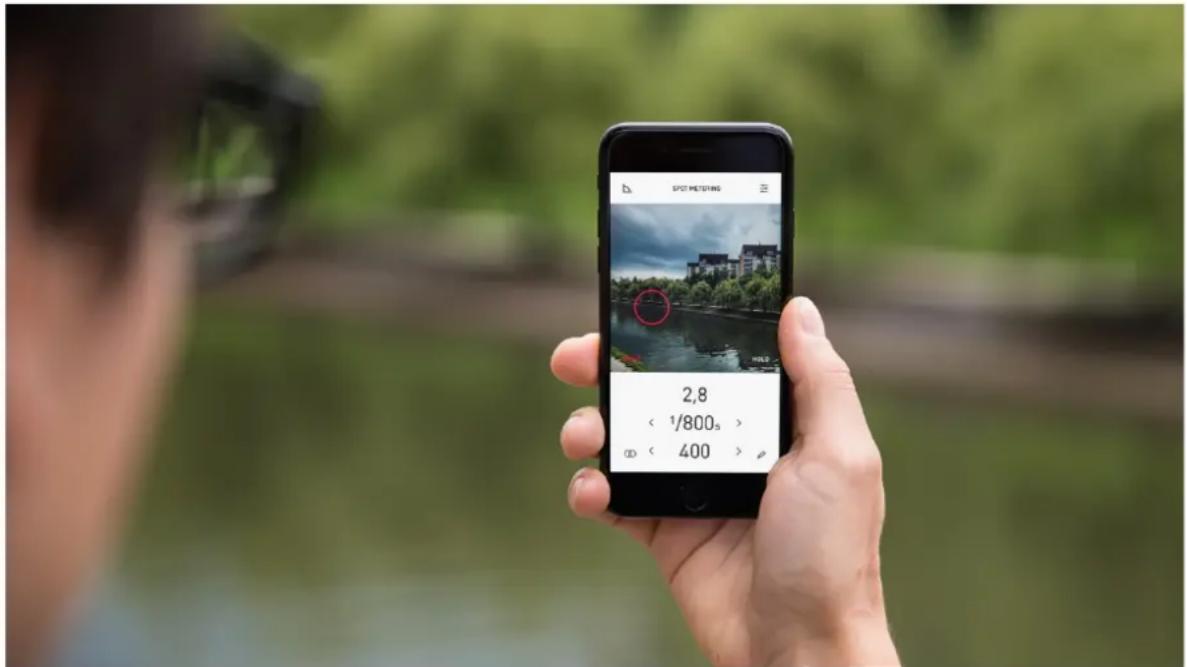
text_image
SPOT MEETING 2,8 < 1/800s > @ < 400 >You can measure the exposure of the whole visible frame or only of a small point. When »POINT« is selected, you only measure the exposure within it's area – roughly 10^ viewing angle.
Basic gestures, which are used in the PHOTO AMBIENT Mode as well:
- You have to tap on the photo parameter (APERTURE / EXPOSURE / ISO) to choose and measure it. The remaining two parameters are locked and you can adjust their value by swiping them left-right or tapping on the < > arrows.
- In the Mode settings, you can choose between different photo parameter steps, define max. Aperture or min. Exposure time, etc.
- Bottom icons reveal you Exposure/Filter compensation or Note saving.
New feature in the next app updates: An option for displaying Cine/Video measuring parameters.
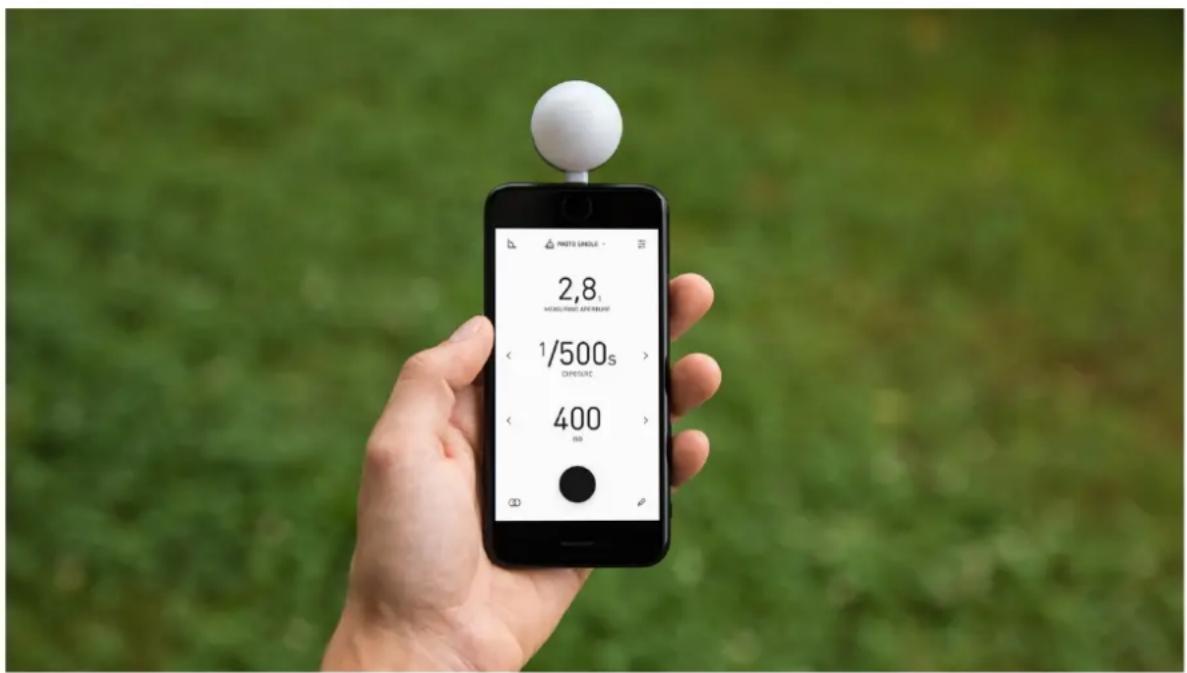
Lumu Power is an incident light meter, so when measuring Ambient or Flash Exposure you have to place it close to your subject and keep the Dome faced directly towards the camera lens.
text_image
PHOTO SINGLE 2,8t MASCULATED DENT ROLLING 1/500s DEESENCE 400 dBModes, which use Dome side:
PHOTO AMBIENT Mode
Drop down menu on top of the screen reveals additional "MULTI" and "PINHOLE" sub modes:
- "MULTI" will give you the average of multiple measurements or difference between them.
- "PINHOLE" sub mode has built-in reciprocity failure compensation. This is critical when shooting with analog film at longer exposure times. After measurement, you can start a Timer, which will remind you when to close the shutter on your pinhole camera – even if you close the app and put iPhone in the pocket.
PHOTO FLASH Mode
You operate it like the PHOTO AMBIENT Mode.
After you capture a flash, you can adjust parameter values with swiping. App will automatically recalculate all displayed info.
In addition to the standard photo parameters, this mode gives you two additional measurements:
- "% FLASH" - it tells you how much did light from your flash unit contribute to the total exposure.
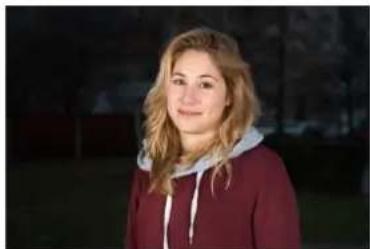
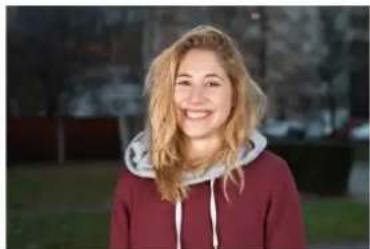
Example of the same scene with different Flash vs. Ambient ratio:
natural_image
Portrait of a young woman wearing a maroon hoodie and gray hood, standing outdoors with blurred background (no text or symbols visible)90% FLASH
natural_image
Portrait of a smiling woman in a maroon hoodie outdoors (no visible text or symbols)50% FLASH

natural_image
Portrait of a smiling woman with blonde hair wearing a maroon hoodie, outdoors with bare trees in the background (no text or symbols visible)10% FLASH
This ratio can be effectively controlled with changing Exposure Time duration or changing Flash power output.
- Flash curve graph – shows you the light from your flash. The number beneath it is the effective duration of the flash. If you tap on the graph, detailed view will open.
This info is useful if you do high speed photography (freezing motion, for instance of the water droplets). Some flash units have different effective duration at different power outputs.
New feature in the next app updates: Capability of metering HSS flash, more info in the "flash curve detailed view".
CINE/VIDEO Mode
In this Mode you always measure APERTURE.
If you want to use shutter angle instead of shutter time, you can change that in Mode Settings.
- AVG icon in the bottom left will plot the graph of the measurement and calculate average illuminance in real time. For this option to be visible, you have to set "CONTINUOUS MEASURING" to ON in the app General Settings.
- You can switch between lux and fc.
COLOR TEMPERATURE Mode
Currently showing GREEN/MAGENTA shift within standard colorimetric boundaries:
- If you want to use this measurement with Adobe Lightroom, you should set number of steps to 150, because it has +/-150 steps for Tint compensation.
- If you dial it directly in your camera, check first how many steps does your model have (for instance, Nikon D750 has Tint compensation scale from -21 to +21.
Drop down menu on top of the screen reveals "FILTERS" sub mode, where you can measure a color difference of two different lights.
• Color difference is expressed in standard color correction gels nomenclature.
- Both lights can be either measured or have Kelvin value manually inputted.
New features in the next app updates: Option to show GREEN/MAGENTA shift in other scales, such as Wratten numbers, plusgreen/minusgreen etc.
CHROMATICITY Mode
Currently only showing chromaticity coordinates in CIE 1931 color space, more will be added in the future app updates.
3 LUMU POWER DEVICE
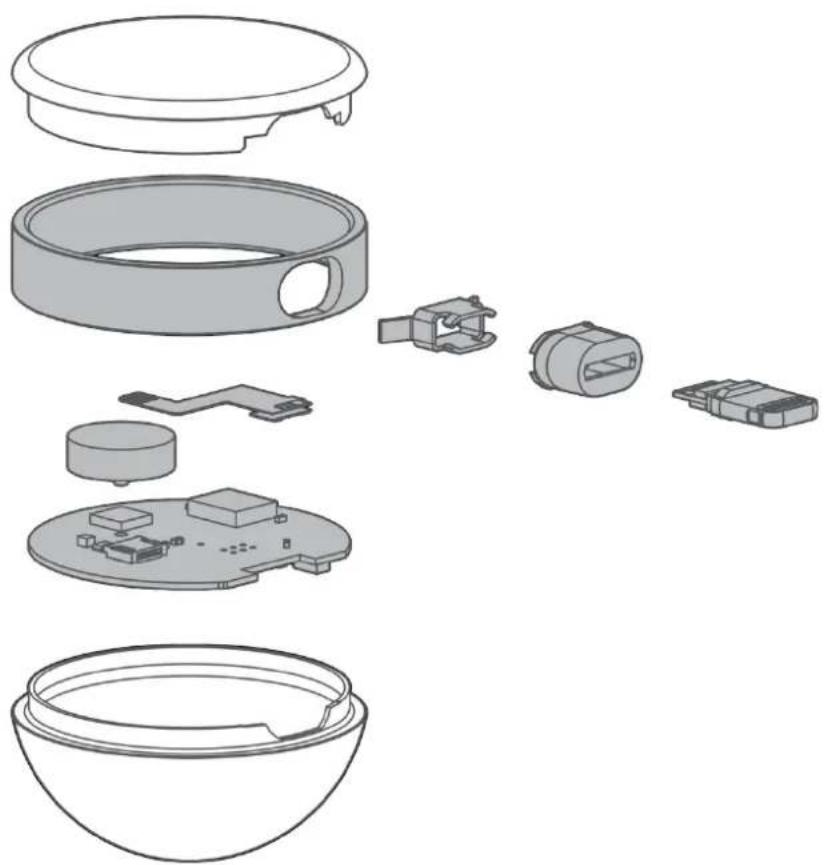
Lumu Power incorporates two state-of-the-art sensors. True Color sensor, based on the color standard CIE 1931/DIN 5033, and Fast Silicone Photodiode with CIE spectral luminous efficiency.
Shape of the Flat and Dome diffusers ensure the correct angular response, as specified in the ISO 2720-1974 (E) standard.
natural_image
Exploded view diagram of a smart home control panel showing internal components (no text or labels)Each light meter has color sensor calibrated with 7 different light sources and photodiode calibrated for response and offsets. Calibration is automatic, each device has its own serial number, all unique raw data along with the calculated calibration constants and matrices are stored securely on the cloud servers.
Firmware will be updated automatically through the iOS app. Our work on enhancing the capabilities or accuracy of your Lumu Power never stops.
Tech specs:
Color Temperature
- Sensitivity: Visible light
• Dynamic range: 1:1,000,000 - Accuracy: in Kelvin values: 1% at 2,000K, 10% at 20,000K
- Repeatabilityerror: < 1%
- Flat Diffuser, Cosine-type response
Exposure
• Measuring range: EV -4 to 20 at ISO 100
- Accuracy: +/- 0.1 EV
- Hemispherical Diffuser, Cardioid-type response
• Flash duration: 1/40,000 - 1/250 s
- Illuminance
• Range: 0.15 - 250,000 lux - Accuracy: +/- 3%
- Flat Diffuser, Cosine-type response
Other
• Power source: iOS device
• Materials: Housing: Stainless Steel
- Diffusers: Polycarbonate Lexan
Compatibility: iOS devices using Lightning connector, running iOS 8+
4 SUPPORT
Visit our support center at http://support.lu.mu/ or write us at support@lu.mu in case of any additional questions.
5 LUMULABS D.0.0.
Lumulabs d.o.o. revolutionized the personal light meter 3 years ago with the original Lumu light meter Kickstarter campaign. 2,622 backers pledged \$244,085 to help bring it to life.
https://www.kickstarter.com/projects/lumulabs/lumu-bringing-light-meter-to-the-21st-century/description
In December 2015, Lumulabs d.o.o. launched a new Kickstarter campaign for Lumu Power. 1,705 backers pledged \$318,877 to help bring it to life.
https://www.kickstarter.com/projects/lumulabs/lumu-power-a-light-meter-for-the-future/description
More than 20,000 people make better photos and movies with the help of the original Lumu Light Meter, the new Lumu Power or using just Spot Metering in the Lumu Light Meter app.
We design and manufacture our products in Slovenia, Europe.
Links
Twitter: @Lumu
Instagram: @Lumulightmeter
www.lu.mu
pr@lu.mu
Lumulabs d.o.o.
Grudnovo nabrezje 23
1000 Ljubljana
Slovenia