
sd Quattro - Camera SIGMA - Free user manual and instructions
Find the device manual for free sd Quattro SIGMA in PDF.


| Product Type | Interchangeable-lens Digital Camera |
| Brand | Sigma |
| Model | sd Quattro |
| Dimensions | 147mm (W) x 95.1mm (H) x 90.8mm (D) |
| Weight | 625g (without battery and card) |
| Power Source | Li-ion Battery BP-61; Optional AC Adapter SAC-7 |
| Battery Life | Approx. 235 shots (at +23°C) |
| Image Sensor | FOVEON X3 Direct Image Sensor (CMOS), 23.4 x 15.5mm |
| Effective Pixels | 29.5 MP (T:5440×3616, M:2720×1808, B:2720×1808) |
| Storage Media | SD, SDHC, SDXC (UHS-1 supported) |
| ISO Sensitivity | ISO 100-6400 (1/3 steps), Auto range settable |
| Shutter Speed | 1/4000 sec to 30 sec; Bulb up to 30 sec (120 sec with extended mode) |
| Viewfinder | Electronic viewfinder, approx. 2,360,000 pixels, 100% coverage |
| LCD Monitor | 3.0-inch TFT color LCD, approx. 1,620,000 pixels |
| Lens Mount | Sigma SA bayonet mount |
| Focus System | Phase detection + contrast detection; 9-point select/Free move; Face Detection AF |
| Exposure Modes | P (Program AE), A (Aperture Priority), S (Shutter Priority), M (Manual) |
| White Balance | 12 types (Auto, Daylight, Shade, Overcast, Incandescent, Fluorescent, Flash, Color Temperature, Custom 1-3, etc.) |
| Color Modes | 11 types (Standard, Vivid, Neutral, Portrait, Landscape, Cinema, etc.) |
| File Format | RAW (14-bit), JPEG, RAW+JPEG |
| Interface | USB 3.0 (micro B), HDMI (type C), Cable Release Terminal, Hotshoe, Sync Terminal |
| Included Accessories | Body cap, strap, Li-ion Battery BP-61, Battery Charger BC-61, Charger Cable, USB Cable, Instruction Manual |
Frequently Asked Questions - sd Quattro SIGMA
User questions about sd Quattro SIGMA
0 question about this device. Answer the ones you know or ask your own.
Ask a new question about this device
Download the instructions for your Camera in PDF format for free! Find your manual sd Quattro - SIGMA and take your electronic device back in hand. On this page are published all the documents necessary for the use of your device. sd Quattro by SIGMA.
USER MANUAL sd Quattro SIGMA
Thank you for purchasing the Sigma sd Quattro Digital Camera
You will get the greatest performance and enjoyment from your new sd Quattro camera's features by reading this instruction manual carefully before operating it. Enjoy your new Sigma camera!
- Please keep this instruction booklet handy for future reference. Doing so will allow you to understand and take advantage of the camera's unique features at any time.
- The warranty of this product is one year from the date of purchase. Warranty terms and warranty card are on a separate sheet, attached. Please refer to these materials for details.
NOTES ON COPYRIGHT
This camera is intended only for personal use and should never be used in a way that infringes upon or contravenes international or domestic copyright laws and regulations. In addition, although it is intended purely for personal use, some restrictions may be applied to the photographing of demonstrations, performances, shows, exhibitions, or commercial properties, etc. Copyright or other legal rights should not be contravened.
- FOVEON is a registered trademark of Foveon, Inc. X3, and the X3 Logos are trademarks of Foveon, Inc.
- The SD, SDHC, and SDXC logos are trademarks of the SD-3C, LLC.
- Microsoft and Windows are either registered trademarks or trademarks of Microsoft Corporation in the United States and/or other countries.
- Macintosh and MAC OS are registered trademarks or trademarks of Apple Inc. in the U.S.A. and /or other countries.
- HDMI, the HDMI logo and High-Definition Multimedia Interface are trademarks or registered trademarks of HDMI Licensing LLC.
- Eye-Fi, the Eye-Fi logo and Eye-Fi connected are trademarks of Eye-Fi, Inc.
- All other company or product names used in documents are trademarks or registered trademarks of their respective holders.
- Element font designed by Ricoh CO., Ltd. is used for the display of the menu window of this camera.
Disposal of Electric and Electronic Equipment in Private Households
Disposal of used Electrical & Electronic Equipment (Applicable in the European Union and other European countries with separate collection systems)
This symbol indicates that this product shall not be treated as household waste. Instead it shall be collected separately for the recycling of electrical and electronic equipment. If the new products are purchased, this product might be handed over to the distributor or the collection system of waste electrical and electronic equipment eventually. By ensuring this product is disposed of correctly, you will help prevent potential negative consequences for the environment and human health, which could otherwise be caused by inappropriate waste handling of this product or components of this product. If this product is disposed illegally, it might cause a possibility of penalties. For more detailed information about recycling of this product, please contact your local city office, your household waste disposal service or the shop where you have purchased the product.
PACKAGE CONTENTS / ACCESSORIES
Please make sure that following standard accessories are included with your camera. If any of them is missing, contact the retailer from which you purchased your camera immediately.
- Camera Body (sd Quattro)
- Body Cap (on the camera)
- Strap
- Li-ion Battery BP-61
- Battery Charger BC-61
- Battery Charger Cable
- USB Cable
- Instruction Manual
- Limited Warranty
- Warranty Sticker
- No memory card is included with this camera. Please purchase this separately.
TABLE OF CONTENTS
PACKAGE CONTENTS / ACCESSORIES ....3
TABLE OF CONTENTS......4
SAFETY PRECAUTIONS....7
HANDLING PRECAUTIONS ....10
DESCRIPTION OF THE PARTS 12
MONITOR DISPLAY DURING SHOOTING....14
BASIC OPERATION AND QUICK REFERENCE ....16
PREPARATION 19
LOADING THE BATTERY 21
MOUNTING AND REMOVING THE LENS....25
SETTING THE LANGUAGE 27
SETTING THE TIME AND DATE....28
CAMERA SET-UP MENU 30
QUICK SET MENU....38
SELECTING THE MONITOR 40
CHANGING THE DISPLAY MODE....41
INSERTING AND REMOVING THE CARD 43
FORMATTING THE CARD 45
DIOPTER ADJUSTMENT 46
SHUTTER BUTTON 46
QUICK PREVIEW....47
BASIC OPERATION 48
SELECTING THE EXPOSURE MODE....49
SELECTING THE EXPOSURE MODE 49
P PROGRAM AE 50
A APERTURE PRIORITY AE 51
S SHUTTER SPEED PRIORITY AE 52
M MANUAL EXPOSURE....53
BULB SETTING ....55
FOCUSING....56
HOW TO USE AUTOFOCUS....56
SELECTING THE AUTOFOCUS MODE....57
SETTING THE FOCUS FRAME 59
FOCUS LOCK....60
FACE DETECTION AF MODE....60
HALF-PRESSED AF-ON....62
MANUAL FOCUS 62
FOCUSING WITH MAGNIFICATION DISPLAY 63
CONTINUOUS SHOOTING 64
SELF TIMER 65
INTERVAL TIMER 66
SETTING A CUSTOM WHITE BALANCE 73
SETTING THE SENSITIVITY (ISO EQUIVALENCY)....75
IMAGE FILE SETTING 77
SELECTING THE METERING MODE 81
AF/AEL BUTTON 82
EXPOSURE COMPENSATION 84
AUTO BRACKETING 85
SFD MODE (SUPER FINE DETAIL) 88
COLOR MODE 90
CUSTOM BRACKETING 93
WHITE BALANCE BRACKETING 93
COLOR MODE BRACKETING....94
TONE CONTROL 96
COLOR SPACE 97
AUTO ROTATE 97
CUSTOM MODE....98
USING THE EXTERNAL FLASH 99
SETTING THE FLASH MODE 100
FLASH EXPOSURE COMPENSATION 101
USING EYE-FI CARD (EYE-FI CONNECTED) 102
REVIEWING AND DELETING IMAGES....105
REVIEWING IMAGES 106
VIEWING ONE IMAGE AT A TIME 107
MAGNIFYING IMAGES (ZOOMED-IN VIEW) 108
VIEWING NINE IMAGES AT A TIME (CONTACT SHEET VIEW).... 109
VIEWING IMAGE INFORMATION......110
HISTOGRAM....112
DELETING FILES....113
DELETE A FILE WITH THE DELETE BUTTON....113
DELETE FILES FROM THE DELETE MENU 114
OTHER REVIEWING FEATURES ....115
LOCKING FILES 116
MARKING IMAGES 118
ROTATING IMAGES....120
EXPOSURE WARNING....122
OK BUTTON SHORTCUT....123
SHOWING A SLIDESHOW....124
DPOF (DIGITAL PRINT ORDER FORMAT) 126
DEVELOPING RAW DATA INSIDE THE CAMERA 127
CHANGING OTHER SETTINGS 129
FILE NUMBERING SYSTEM 130
TO CHANGE FILE NAMES 131
ATTACH COPYRIGHT INFORMATION....131
CUSTOMIZE THE DISPLAY OF LCD MONITOR....133
CUSTOMIZING THE DIAL....137
LOCK SWITCH SETTING 139
LCD OFF AND AUTO POWER OFF....140
ECO MODE 141
ADJUSTING MONITOR BRIGHTNESS 141
SOUND SETTINGS....141
POWER GRIP PG-41 SETTINGS 142
RESET TO THE DEFAULTS....143
CONNECTING TO A COMPUTER OR TV 144
CONNECTING TO A COMPUTER 145
CONNECTING TO A TV 147
REFERENCE....148
OPTIONAL ACCESSORIES 149
USING A HOME POWER SUPPLY 150
MAINTENANCE 151
TROUBLESHOOTING....155
SPECIFICATIONS 158
To avoid causing damage or injury, please read this instruction manual carefully, before using the camera. Please take special note of the following two cautionary symbols.

Warning !!
Using the product and disregarding this warning sign may cause serious injury or other dangerous results.

Caution !!
Using the product disregarding this caution sign may cause injury or damage.

This symbol denotes a warning or point, where caution is required.
This Symbol contains information regarding the actions that must be avoided.

WARNING(BATTERY)

Keep batteries in a safe place out of children's reach. If a battery is swallowed, call for emergency medical aid immediately.

Do not use any battery other than the designated battery types. Doing so may cause battery explosion, battery leakage, camera damage, injury or fire.

Do not use any battery other than that specified in this booklet. Otherwise it might cause battery explosion, battery leakage, camera damage, injury or fire.

Avoid any shock, shake and drop. Ignoring this warning may cause battery explosion, or battery leakage, resulting in injury or fire.

Never disassemble, short circuit, heat, or put batteries into fire. Ignoring this warning may cause battery explosion, battery leakage, injury or fire.

Please only use charger with the dedicated battery. Charging other battery types causes battery explosion, battery leakage, camera damage, injury or fire.

If for some reason, the camera or batteries emit smoke, or if overheating or the smell of burning is detected, remove the batteries, taking care to avoid being burned. Take the camera to the retailer where you bought it, o to an authorized Sigma service station.

Please follow all guidelines, rules and regulations of your community regarding the disposal of batteries. If you do not use the camera for a long period of time, remove the battery.

Do not use any AC adapter other than the one provided with your camera. Using other brands may cause electrical shock and fire

Keep batteries in a safe place out of children's reach. If a battery is swallowed, call for emergency medical aid immediately.
WARNING (BATTERY CHARGER AND AC ADAPTER)

The battery charger is for indoor use only. Do not store the charger in humid or dusty locations.

Use it within the 0^ C - 40^ C temperature range only.

The AC Adapter is designed for use with this product only. Do not use it with any other appliance. Doing so may cause overheating, fire, electric shock or injury.

If the adapter is emitting smoke, generating a strange odor or making an abnormal noise, while in use, disconnect the power plug from the outlet immediately. Otherwise, fire or electric shock may result.

If water or a foreign object gets into the adapter, unplug from the AC outlet immediately. It could cause fire or electric shock.

Do not attempt to modify or disassemble this product. Doing so can cause fire or electric shock.

Do not place any heavy objects on the power cord, or pull it, bend it unduly, or heat it. It could damage the cord, and could cause fire or electric shock.

Do not use this product with AC voltage other than the specified power supply voltage AC110V - 240V (120V in U.S.A. and CANADA). Doing so could cause fire or electric shock.

Use a safety approved AC power cord as is specified by each country.
WARNING (CAMERA)

Never use your camera in an environment where flammable or burnable, gas, liquids or chemicals, such as Propane, Gasoline, etc., are present.

Keep the camera in a safe place that children cannot reach. Playing with the camera strap around one's neck can cause strangulation.

Do not disassemble the camera; Doing so can cause electric shocks and burns.

Do not touch internal parts of the camera that become exposed as a result of damage, it could cause fire or electric shock. Remove the batteries and contact an authorized Sigma service station.

Do not look at the sun with the lens of your camera; otherwise you could lose your eyesight.

Keep the camera away from moisture or water. If you drop your camera/lens in water, please contact the retailer where you purchased the camera, or a service station immediately. If you use the camera with this condition it can cause electric shock or fire.

Prevent water, or metallic and other conductive objects from coming into contact with the terminals of the camera body. This can result in electric shock, overheating and fire.

Do not fire the flash close to eyes, otherwise the bright light could damage the eye. Keep at least 1m/3feet distance between the face and the camera when taking a picture with flash.

Do not cover the flash with your finger or hand, it can cause skin burn.

CAUTION (BATTERY CHARGER AND AC ADAPTER)

Do not pull the Battery Charger or the AC power cord, when disconnecting the AC adapter from the AC outlet. It could cause fire or electric shock due to damaged cord. Always take hold of the molded AC plug, when unplugging it from the outlet.

Do not cover the Battery Charger or the AC adapter with cloth, cushions, etc. It could cause excessive heat, deform the case, and cause fire.

When Battery Charger is not used unplug it from the outlet.

CAUTION (CAMERA)

Do not leave the camera without the lens cap in place. Light entering through the lens for long periods of time could cause damage to the camera.

Do not expose the finder to direct sunlight. Otherwise, the internal display may get damaged.

Please do not carry your camera while a tripod is attached, as this could result in injury or a fall.

Please do not grasp the camera with wet hand, as it might cause electric shock

Do not leave the camera in a hot place or in a car parked in the sun. If the camera becomes hot, it might cause burns to the skin.

If the liquid crystal display (LCD) monitor becomes damaged, be careful of the fragments of glass, which can cause injury. If the liquid inside the LCD monitor leaks out, and you are faced with the following situations, please do as follows.
- If the liquid adheres to clothes or the skin, wash it away with soap immediately.
- If the liquid enters the eye, flush the affected eye with clean water immediately for 15 minutes, and seek medical assistance.
- If the liquid is swallowed, drink a large quantity of water, induce vomiting and seek medical assistance.
Please read this section before using the camera.
Study and familiarize yourself with the functions of your camera before using it. No compensation or guarantee is provided for unsatisfactory pictures or loss of profit, etc.
Carry spare batteries when you use the camera in a cold environment, on a field trip, or when taking many pictures at one time.
ENVIRONMENT
- Your camera is a precision instrument. Do not drop it or subject it to physical shock.
- This camera benefits from a dust and splash proof construction. Although this construction enables the lens to be used under light rain, it is not the same as being water proof. Please pay attention to prevent a large amount of water from splashing on the camera, especially when using it by a waterside. It is often impractical to repair the internal mechanism and electric components if damaged by water.
- Do not leave the camera in a dusty, hot, or highly humid environment for a long period of time.
- If the camera is moved from a cold place to a warm room, water droplets may appear on the camera. Please keep the camera in a bag until it is acclimatized to the ambient room temperature.
- The camera will work within a temperature range between 0°C/32°F and +40°C/104°F and humidity less than 85% (no condensation). However, in cold temperatures below 0°C, the power performance of the battery is reduced. Please carry a spare battery in these circumstances, and keep the batteries warm.
- Static electricity or magnetic fields may affect the operation of the camera. If such exposure occurs, please remove the battery from the camera and re-insert it, to reset the camera's microprocessors.
DURING PROLONGED USE
- Although there are cases where the surface of camera gets hot, this is not a malfunction.
- If you use the camera for an extended period of time, the camera may get hot and the warning mark (☐) will be displayed. If the camera gets too heat, a warning message will be displayed and the camera will turn off automatically.
- If the camera turns off, please leave it switched off for more than ten minutes to lower its temperature.
- Image quality may lower when the camera gets hot. If the warning mark (☐) is displayed, we recommend turning off the camera and wait until the temperature of the camera becomes lower.
SD MEMORY CARD
(sold separately)
The sd Quattro camera uses a SD memory card, SDHC memory card* and SDXC memory card*.
* UHS-1 standard memory card can also be used.
- In this instruction manual, SD memory card, SDHC memory card and SDXC memory card are referred to as the 'Card'.
- We recommend using the SDHC memory card or SDXC memory card to store images.
- SD memory card, SDHC memory card or SDXC memory card incorporate the write protection switch, which prevents writing or formatting the card accidentally. If the switch is placed in the 'LOCK' position, it is not possible to overwrite or erase your data accidentally.
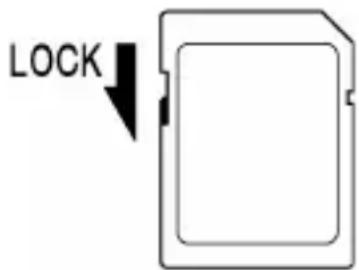
- It is also possible to use an Eye-Fi card that has a Wi-Fi communication function. (P.102)
- Do not leave the card in direct sunlight or near a heating device.
- Avoid storing cards in environments of high temperature and humidity or where static electricity or electromagnetic fields may be generated.
- For proper usage of the card, please refer to their instruction manuals.
- The “Delete” feature of the Camera and PC may not delete the data in the memory card completely. Some data might still remain. If you wish to remove all data from card securely, please use third party software.
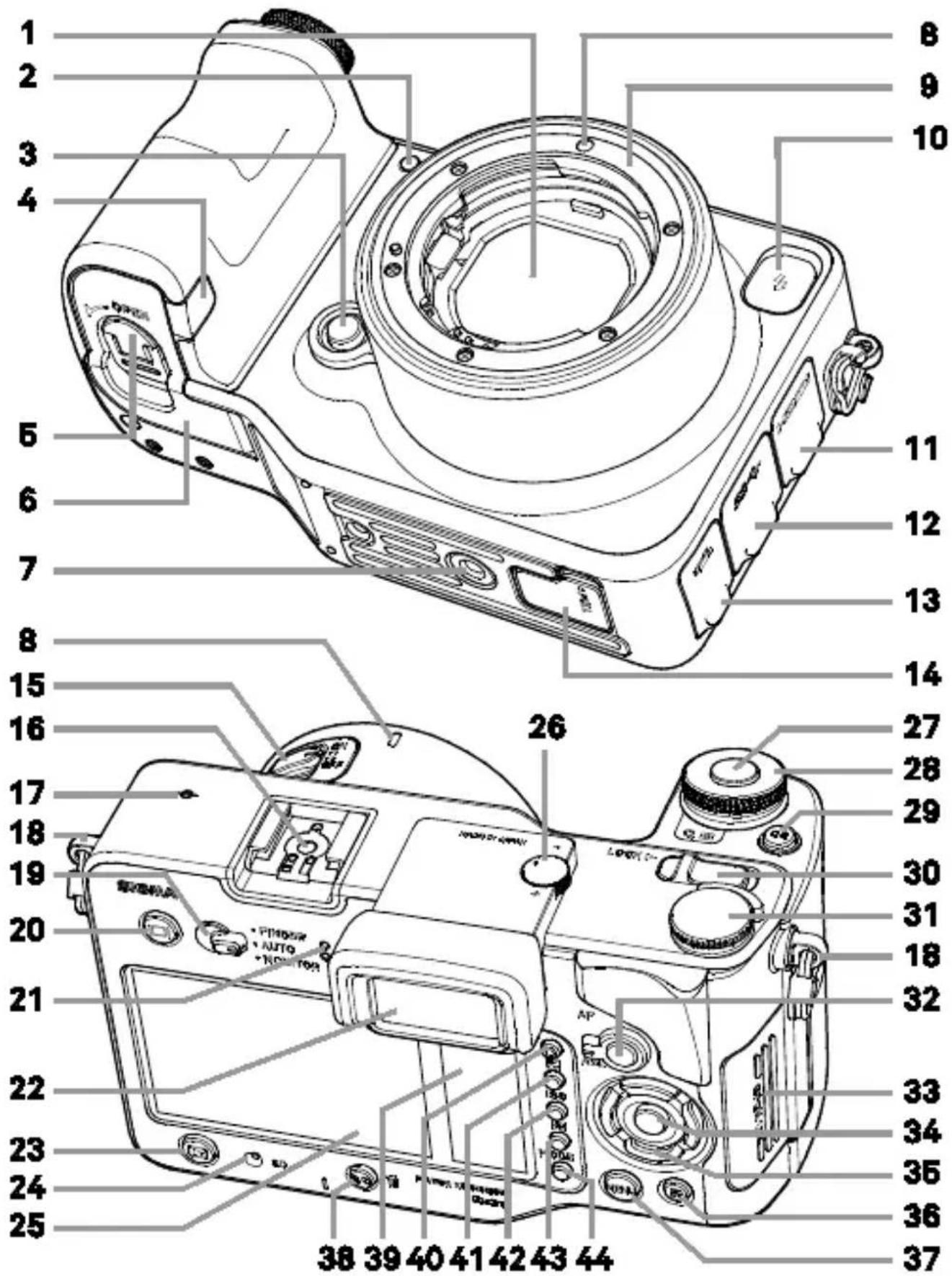
| 1 | Dust Protector |
| 2 | AF Assist Light |
| 3 | Lens Lock Button |
| 4 | DC Connector Cover |
| 5 | Battery Compartment Cover Latch |
| 6 | Battery Cover |
| 7 | Tripod Socket |
| 8 | Lens Mount Index |
| 9 | Lens Mount |
| 10 | Sync. Terminal |
| 11 | HDMI Mini Terminal (Type C) |
| 12 | USB Terminal (3.0 Micro B) |
| 13 | Cable Release Terminal |
| 14 | Power Grip Contact Cover |
| 15 | Power Switch |
| 16 | Hot Shoe |
| 17 | Focal Plane Mark |
| 18 | Camera Strap Eyelet |
| 19 | Monitor Selection Switch |
| 20 | ☐☐ (Display) Button |
| 21 | Speaker |
| 22 | Viewfinder |
| 23 | (View) Button |
| 24 | Busy Lamp |
| 25 | Main-Monitor |
| 26 | Diopter Adjuster |
| 27 | Shutter Button |
| 28 | Front Dial |
| 29 | QS(Quick Set) Button |
| 30 | Lock Switch |
| 31 | Rear Dial |
| 32 | AF/AEL Button · Switch |
| 33 | SD Card Cover |
| 34 | (OK) Button |
| 35 | Selector |
| 36 | (Focusing Point) Button |
| 37 | MENU(Menu) Button |
| 38 | S/C (AF Mode) Button /(Delete) Button |
| 39 | Sub-Monitor |
| 40 | Sub-Monitor Light On/Off Button |
| 41 | (Exposure Compensation) Button |
| 42 | ISO(ISO Sensitivity) Button |
| 43 | (Metering Mode) Button |
| 44 | MODE(Shooting Mode) Button |
In this instruction manual, each position of the selector is shown as ^/^.<>
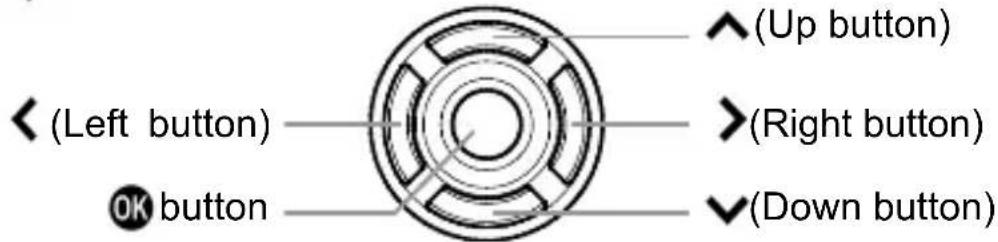
- The buttons are used as follows: To operate Up and Down buttons: ◇. To operate Left and Right buttons: ◀To operate both Up and Down, and Left and Right buttons: ◇
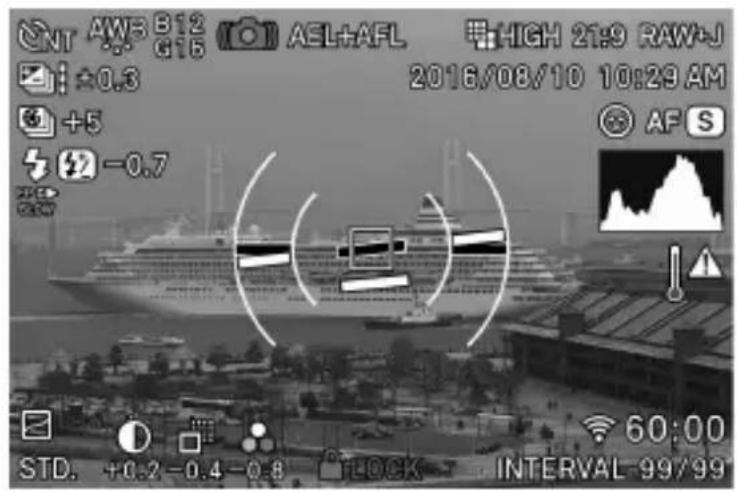
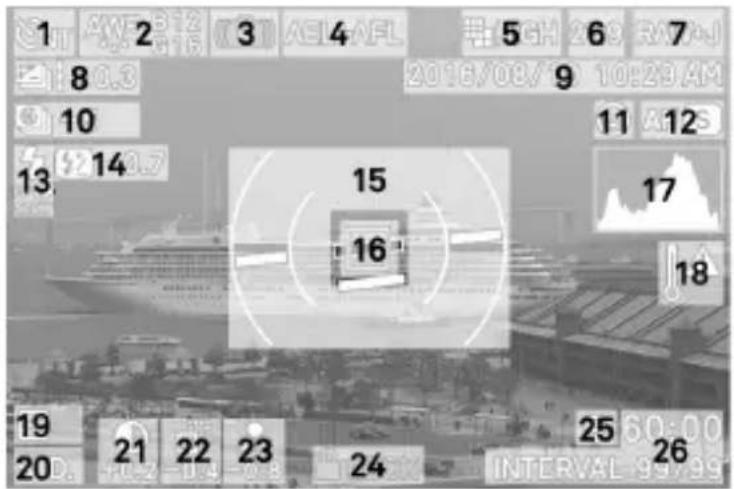
MONITOR DISPLAY DURING SHOOTING
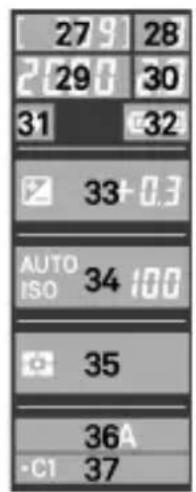
MAIN-MONITOR / SUB-MONITOR
![[ 399 ] 9 2000 2.8 • +0.3 AUTO ISO 100 A •C1](/content/2026/05/813117/images/7fb53ae3d5a5580a8f165b2b02d7b9529beea4b6d4766c17707512e00f951237.jpg)
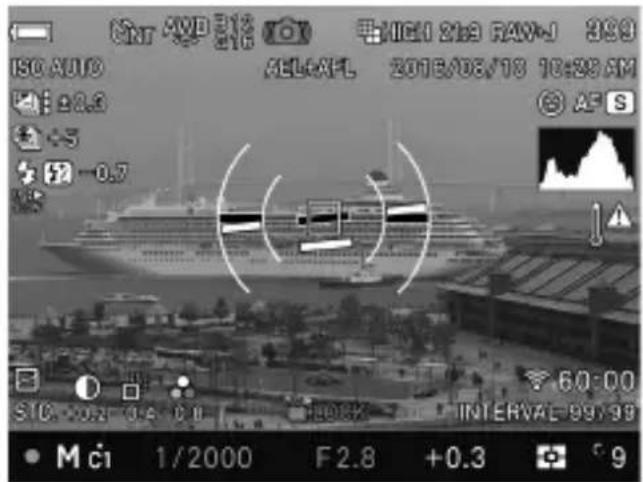
VIEWFINDER
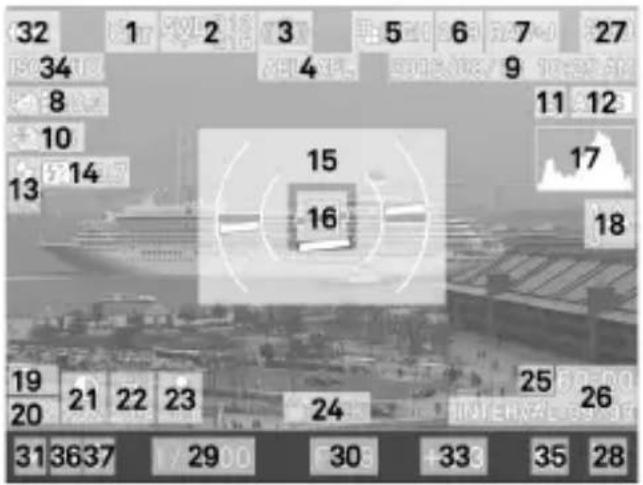
| 1 | Drive Mode |
| 2 | White Balance (Filtering Effect) |
| 3 | Camera Shake Warning |
| 4 | AE Lock / AF Lock * |
| 5 | Image Size |
| 6 | Aspect Ratio |
| 7 | Image Quality |
| 8 | Auto Bracketing / SFD Mode * |
| 9 | Date / Time * |
| 10 | Custom Bracketing * |
| 11 | Face Detection AF * |
| 12 | Focus Mode |
| 13 | Flash Mode * |
| 14 | Flash Exposure Compensation value * |
| 15 | Electronic Level * |
| 16 | Focusing Frame |
| 17 | Histogram * |
| 18 | Temperature rise caution mark |
| 19 | Tone Control |
| 20 | Color Mode (Toning Effect) |
| 21 | Contrast * |
| 22 | Sharpness * |
| 23 | Saturation * |
| 24 | Locked State Indicator * |
| 25 | Eye-Fi Communication Icon * |
| 26 | Interval timer * |
| 27 | Number of shots remaining |
| 28 | Number of shots remaining before memory buffer full |
| 29 | Shutter Speed |
| 30 | F Number |
| 31 | Focus Indicator |
| 32 | Battery Level Indicator |
| 33 | Exposure Compensation Value / Exposure Meter |
| 34 | ISO Sensitivity |
| 35 | Metering Mode |
| 36 | Exposure Mode |
| 37 | Custom Mode * |
* Displayed only during setting.
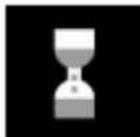
This mark shows that the image is being processed in camera after shooting. While this mark is displayed, it is not possible to operate the camera.
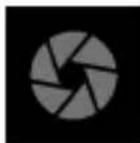
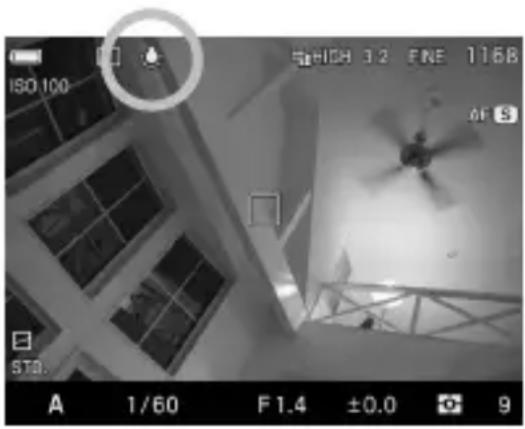
This mark shows that the camera is still shooting with a slow shutter speed.
The sd Quattro camera has many advanced features. This section, describes basic camera operation. You can find more details in later sections.
PREPARATION
natural_image
Line drawing of a mechanical device with directional arrows indicating movement or force (no text or symbols)Charging the battery (P.21)
Charge the supplied lithium-ion battery with the provided battery charger.
natural_image
Technical line drawing of a mechanical component with a black arrow indicating a downward motion (no text or symbols present)To insert the battery (P.23)
Mount the lens (P.25)
Set the language (P.27)
Set the date and time (P.28)
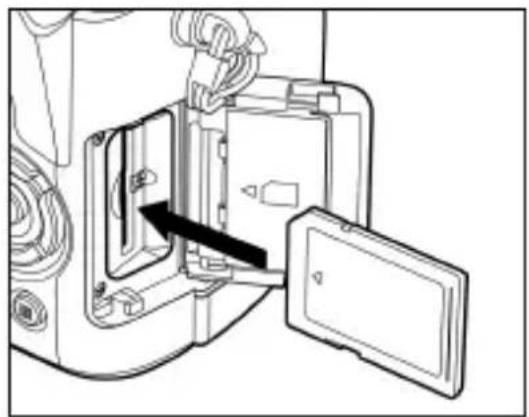
natural_image
Diagram of a device's internal structure showing a door opening and cable routing (no text or symbols)Loading the card (P.43)
TAKING THE PICTURE
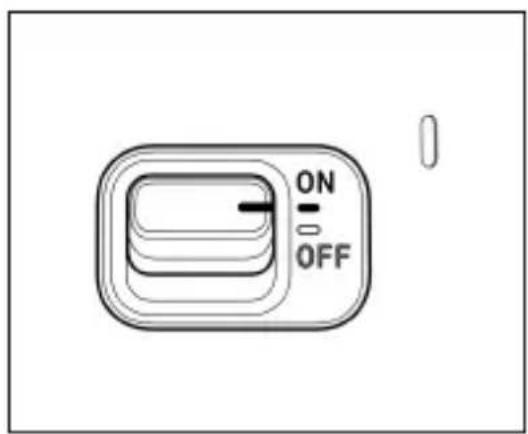
Turn the camera body on.
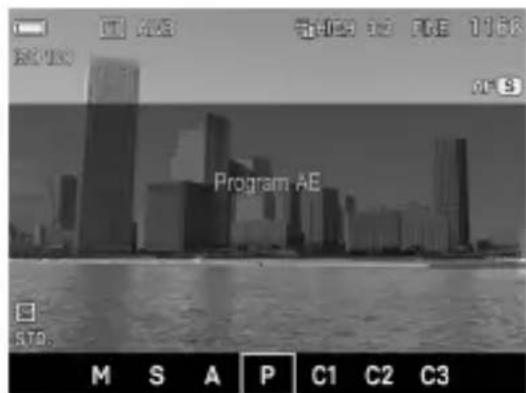
Select the exposure mode (P.49)
Press the 'Mode' button in P (Program AE) position
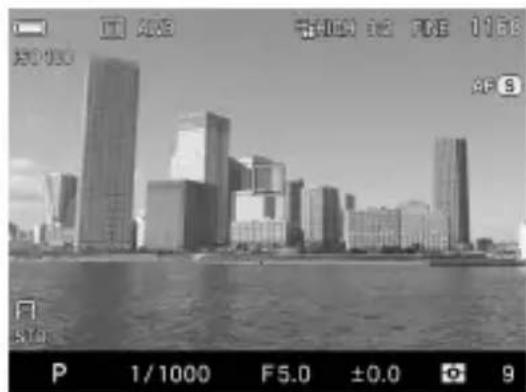
natural_image
Black-and-white cityscape photo of a modern skyline with skyscrapers and waterfront (no visible text or symbols)Focus (P.56)
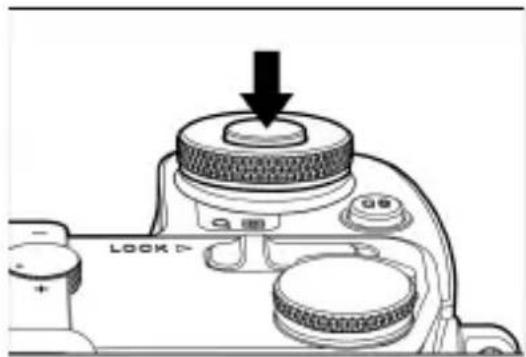
Compose your image with the color LCD monitor and press the shutter button "half-way" to activate exposure metering and autofocus.
natural_image
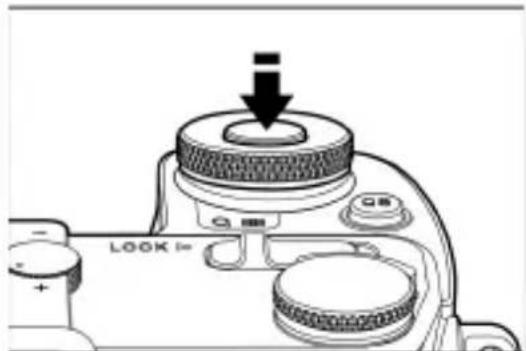
Close-up of a camera lens assembly with a black arrow pointing to the top component (no text or symbols visible)Take a picture
Fully press the shutter button to take the picture.
natural_image
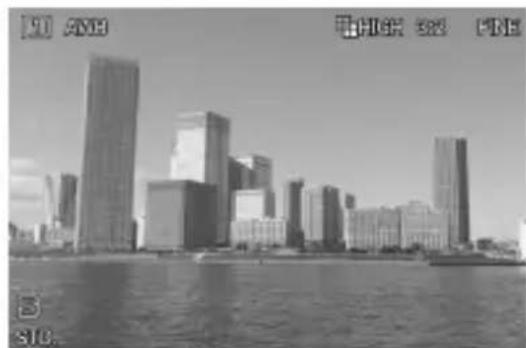
Black-and-white cityscape photo of a modern skyline with skyscrapers and waterfront (no visible text or signage)Review the image. (P.47)
The image is displayed for 2 seconds on the LCD monitor.
PREPARATION
This section describes necessary preparations before using the camera.
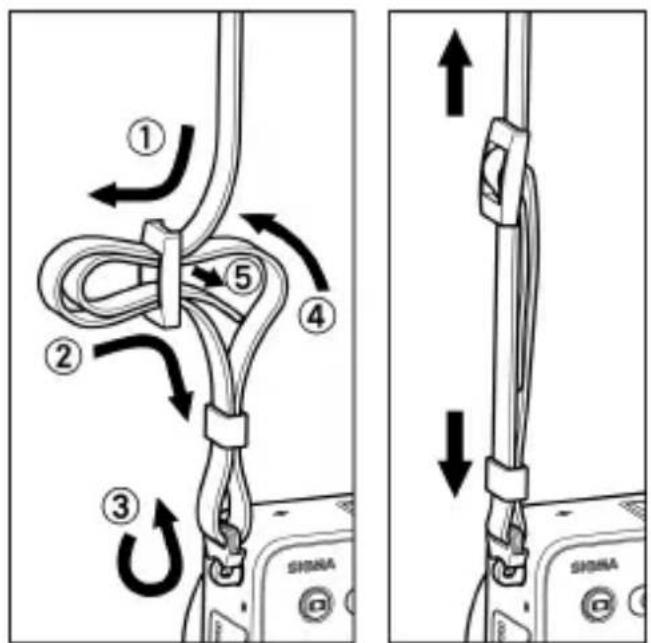
1
Undo the strap end.
2
Attach the carry strap as shown.
LOCK SWITCH
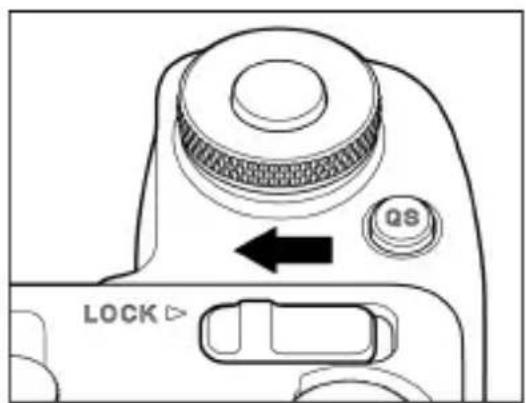
The LOCK switch is provided on the sd Quattro which locks button operations and allows the user to concentrate on shooting without being bothered by erroneous button operations. When setting the camera, release the LOCK switch.
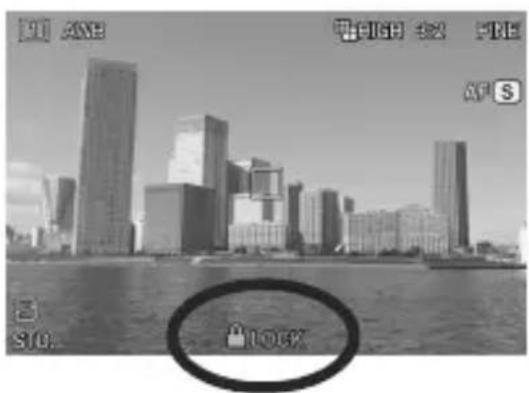
While the LOCK switch is active, the LOCK icon is displayed at the lower section of the screen.
- The items to be locked by the LOCK switch can be changed according to the user's needs. For details, please refer to [SETTING THE LOCK SWITCH] (P.139).
LOADING THE BATTERY
A lithium-ion battery, BP-61, is provided with the sd Quattro camera. Charge the battery before using the camera for the first time. Charge the battery by the supplied battery charger, BC-61, when the battery is empty.
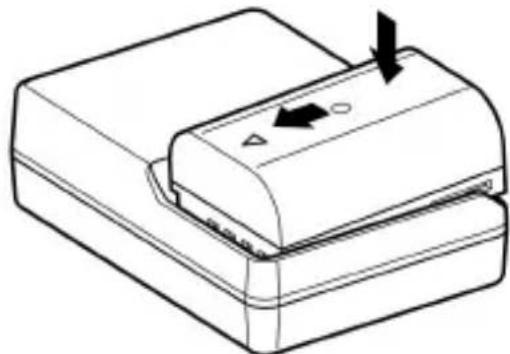
TO CHARGE THE BATTERY
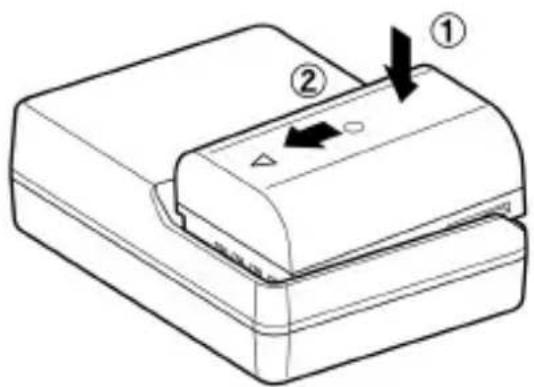
1
Attach the battery by sliding it in the direction of the arrow, as shown in the diagram.
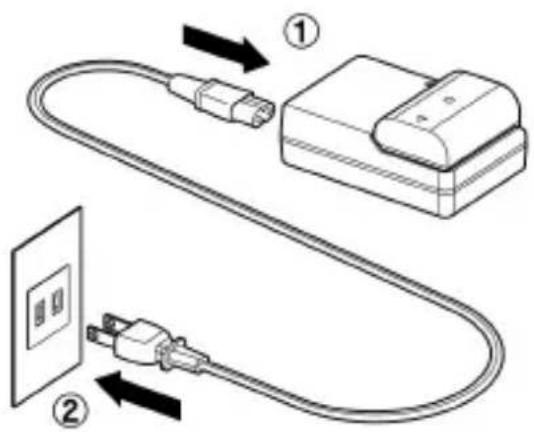
2
Connect the power cable to the charger and insert the plug into the wall outlet.
natural_image
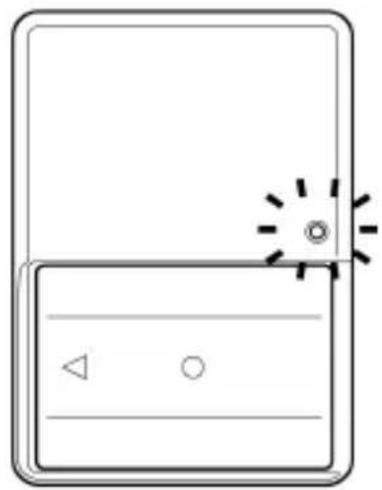
Simple line drawing of a closed book with a bookmark and decorative starburst (no text or symbols)- The charge lamp will be green whilst the battery is charging
- It takes about 220 minutes to recharge the battery.
- Required time for recharging the battery depends on the ambient temperature and status of recharge level.

When the charge lamp goes out, charging is completed. Remove the battery from the charger and remove the charger from the wall outlet.
CAUTION !!
- We recommend charging the battery before using the camera again. If it is not used for several days, the battery performance decreases.
- If the number of possible images from one charge of the battery considerably decreases, it may indicate the end of battery's life. In this case, please purchase a new battery.
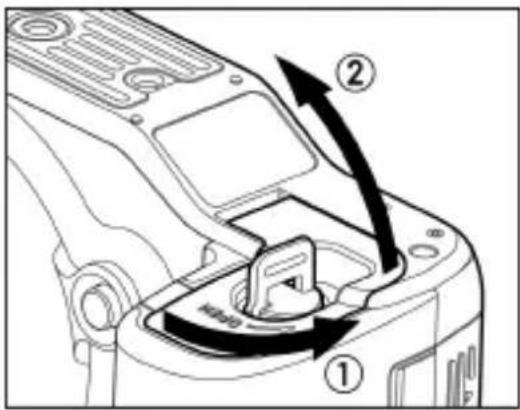

Confirm that the power switch is set to OFF and open the battery compartment cover by rotating the battery compartment cover latch, as shown in the illustration.
natural_image
Mechanical component diagram showing a piston and cylinder assembly with a black arrow indicating direction (no text or symbols)
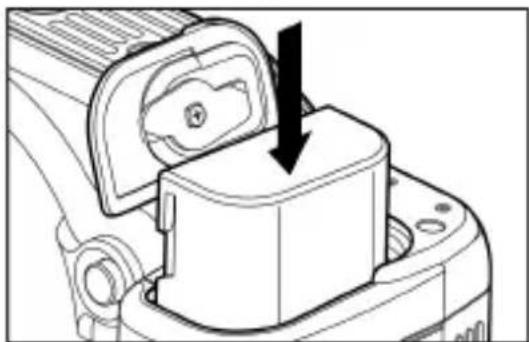
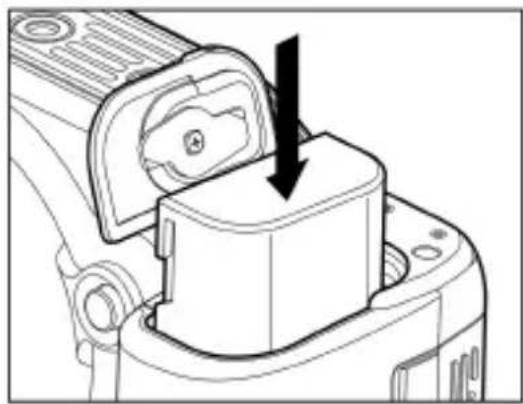
Insert the battery until it locks into place.
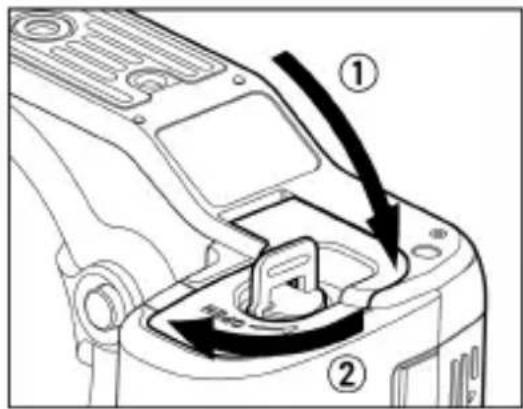

Close the battery compartment cover and lock the cover by rotating the battery compartment latch, as shown in the illustration.
CHECKING THE BATTERY STATUS
The battery icon, which shows the capacity of the battery, is shown on the sub monitor and the viewfinder. Please take notice of the battery status before and when in use.
Sub Monitor
Viewfinder

flowchart
graph LR
    A["Initial Charge"] --> B["Charging Path 1"]
    B --> C["Charging Path 2"]
    C --> D["Charging Path 3"]
| Sub Monitor | Viewfinder | |
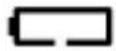 | 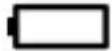 | The power of the battery is insufficient, replace or recharge the battery immediately. |
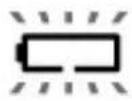 | 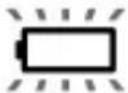 (Red) (Red) | The power of the battery is empty; the camera will no longer work. Replace or recharge the battery immediately. |
| — | 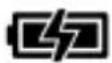 | The battery is working with the connected AC adapter. (P.150) |
TO REMOVE THE BATTERY
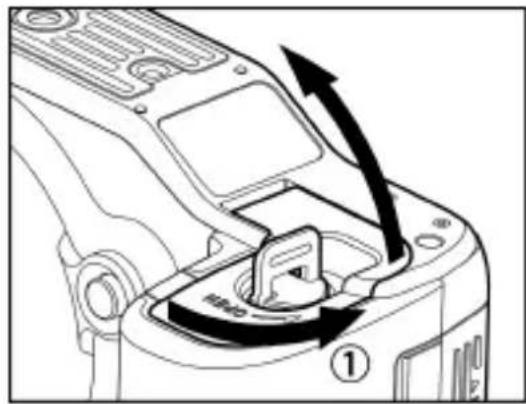
1
Confirm that the power switch is set to OFF and open the battery compartment cover by rotating the battery compartment cover latch, as shown in the illustration.
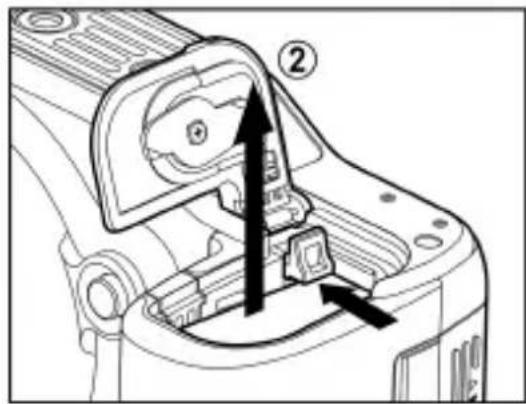
2
Eject the battery by sliding the battery compartment cover latch in the direction of the arrow, as shown in the illustration.
WARNING!!
- Busy Lamp is on or flashing, do not remove the battery or memory card. By doing so, it may result in data loss. This could also cause damage to the camera and/or memory card.
MOUNTING AND REMOVING THE LENS
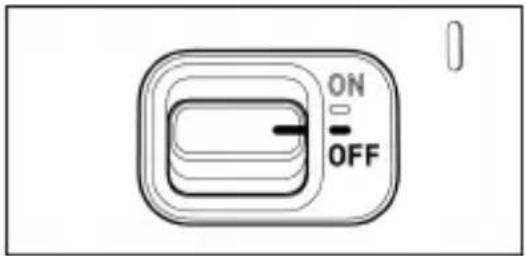

Turn the power switch to OFF.
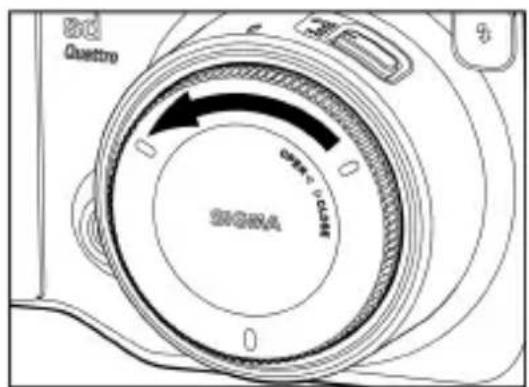

Remove the camera body cap and the rear cap of the lens.
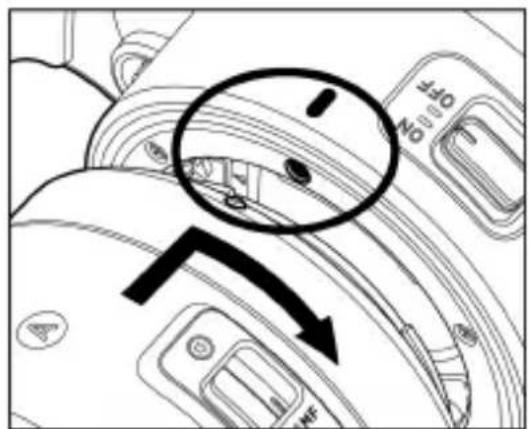

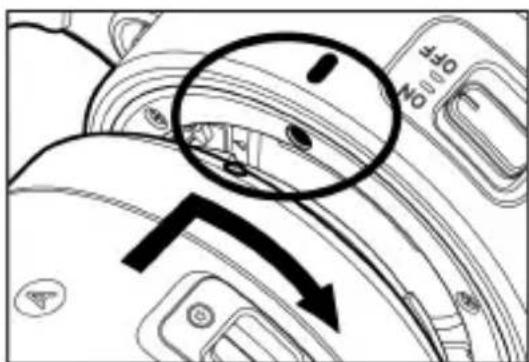
Align the lens mount index on the camera with the index on the lens. Insert the lens into the mount of the camera and rotate the lens clockwise until it clicks into the locked position.
CAUTION !!
- To ensure a proper connection, do not hold down the lens lock button while mounting the lens.
- The sd Quattro contains a dust protector, located inside the lens mount. The dust protector is a very delicate device. Take care not to scratch its surface. Touching or pushing it with your fingers can easily damage it. If there is dirt or dust on it, please refer to the Maintenance section of this manual (P.152).
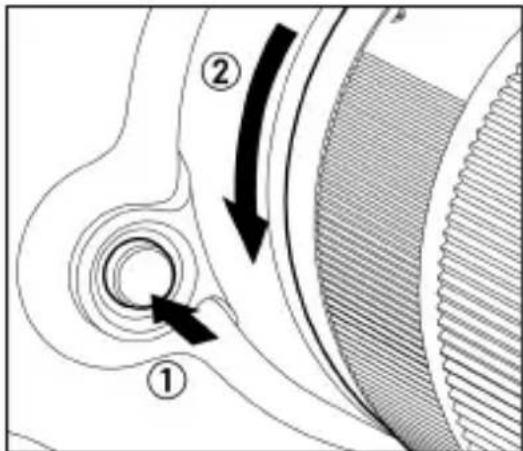
To remove the lens, press the lens lock button and turn the lens counterclockwise until it stops. Gently remove the lens from the camera body.
ABOUT THE LENSES
The sd Quattro uses SIGMA SA mount. The usable lenses are SIGMA SA mount interchangeable lenses.
- Depending on the release date of the lens, updating the lens firmware may be required. Updating the camera firmware may also be required. Please check our website for the latest information of the corresponding lens.
Web site address: http://www.sigma-global.com/
CAUTION !!
- On the mount surface of the lens, there are a number of electrical contacts. Keep them clean to ensure proper connection. To avoid damaging them, be sure to place the lens on its front end when it is off the camera.
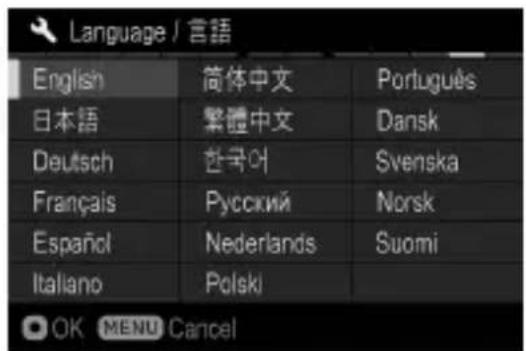
You should receive the sd Quattro camera pre-set to English, however, if necessary, you can change the camera language yourself.
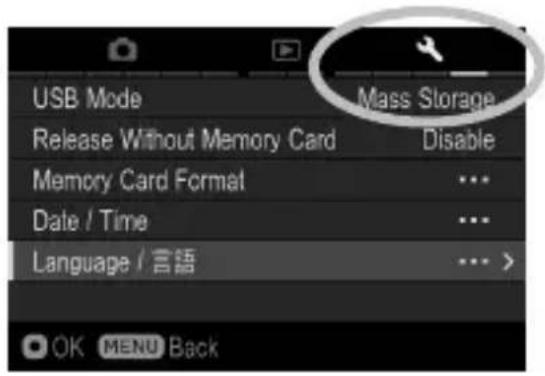
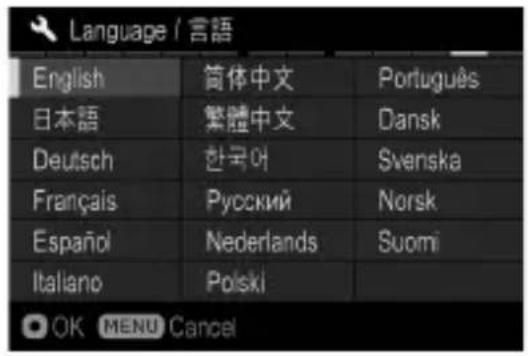
1
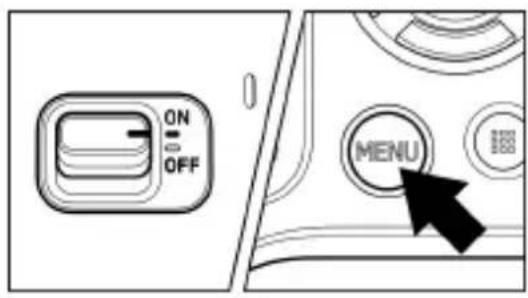
Turn the camera on.
2
Press the MEN on the back of the camera to display the Camera Set-up Menu. (See P30)
3
Select [Camera Settings (4)] by rotating the Front Dial or the Rear Dial.
4
Use the buttons to select [Language/言語].
5
Press the OKr button to open the language set-up page.
6
Use the <buttons to select the desired language.
7
Press the button to apply the setting or the MENU button to return to the language set-up page without making any changes.
Selectable languages
| English | English (Default) |
| 日本語 | Japanese |
| Deutsch | German |
| Français | French |
| Español | Spanish |
| Italiano | Italian |
| 简体中文 | Simplified Chinese |
| 繁體中文 | Traditional Chinese |
| 한국어 | Korean |
| Русский | Russian |
| Nederlands | Dutch |
| Polski | Polish |
| Português | Portuguese |
| Dansk | Danish |
| Svenska | Swedish |
| Norsk | Norwegian |
| Suomi | Finnish |
SETTING THE TIME AND DATE
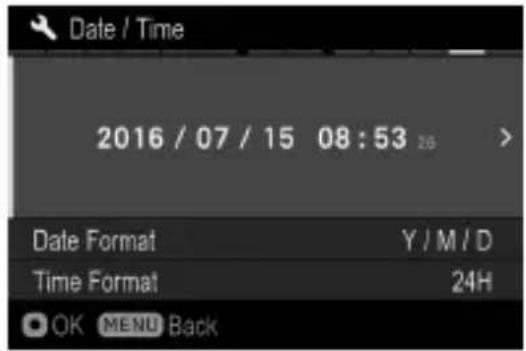
Please set the camera's internal clock, before using the camera for the first time or after extended periods of disuse.
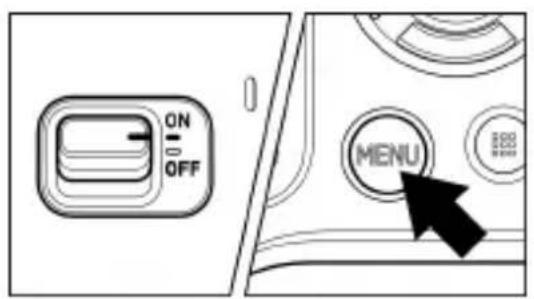

Turn the camera on.

Press the MENtion on the back of the camera to display the Camera Set-up Menu. (See P30)
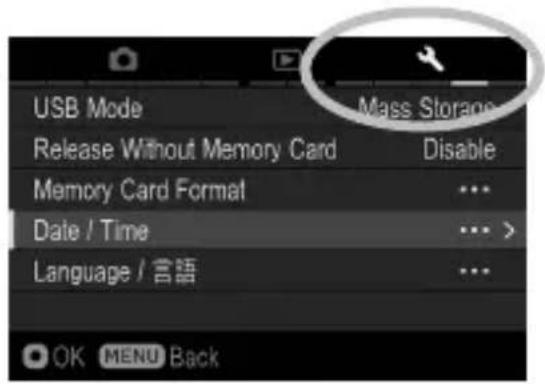

Select [Camera Settings (4)] by rotating the Front Dial or the Rear Dial.

Use the ◆ buttons to select [Date/Time].
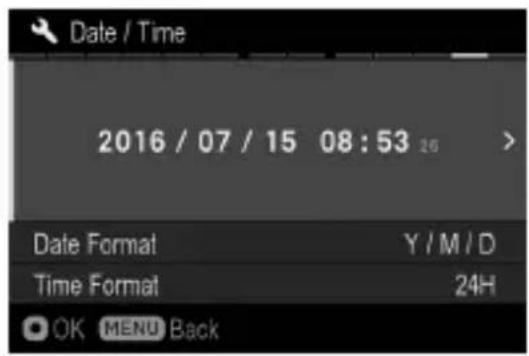

Press the okr button to open the date/time set-up page.

Press the OK button or the button again to set the Date / Time.
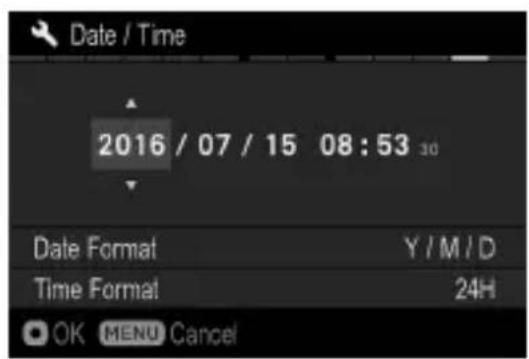

Press the button to select an item and change it by pressing the button.

Press the Chutton to apply the setting or the MENU to return to the date/time set-up page without making any changes.
CAUTION !!
- The camera's internal clock is powered by a capacitor that receives its charge from camera's battery. If the camera is without battery for an extended period of time, such as after prolonged storage, the internal clock will need to be reset.
TO CHANGE THE ORDER OF THE DATE
The date can be displayed in one of three formats: M/D/Y (month/day/year), D/M/Y (day/month/year), or Y/M/D (year/month/day).
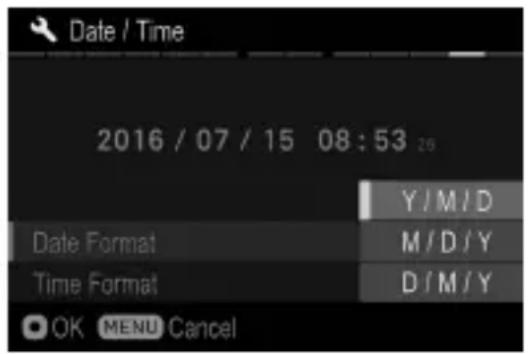
1
Use the ◆buttons to select [Date Format], and press the ◆okthe button to open the sub menu.
2
Use the ◆buttons to select your preferred format, and press the ⏻utton or the ▶button to confirm.
TO SWITCH 24 HOUR AND 12 HOUR (AM/PM) DISPLAY
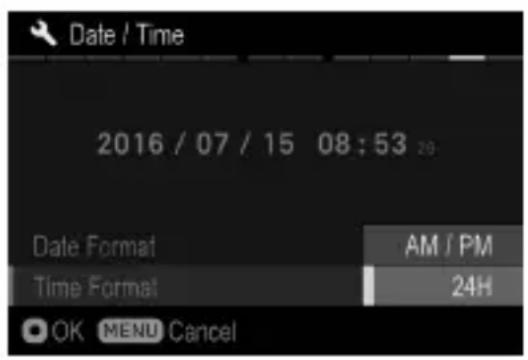
1
Use the ◆buttons to select [Time Format], and press the OK button or the >button to open the sub menu.
2
Use the ◆buttons to select your preferred format and press the ◆button or the ▶button to confirm.
This section describes the various settings in the Camera Set-up menu. It is possible to set the camera functions from the Camera Set-up menu display.
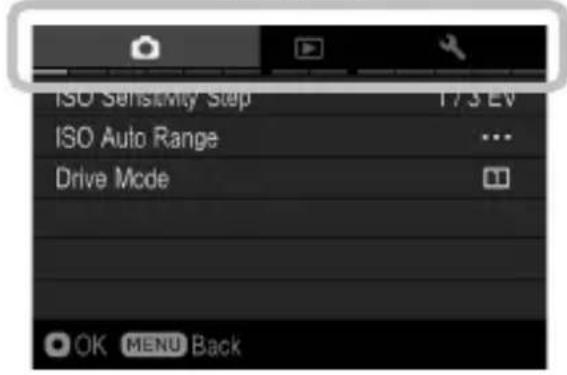
Tab area
TO DISPLAY THE SET-UP MENU
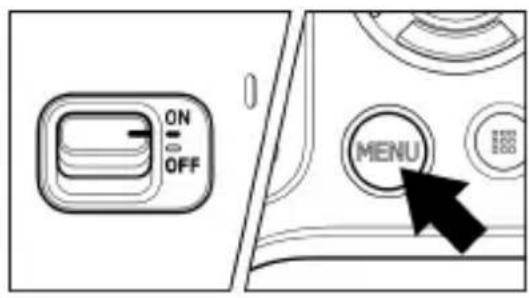
Press the MENU button on the back of the camera.
Press the MENU again to close the
Set-up Menu and the camera will be shooting mode. (If you reviewed images (P. 106), it will return to the last previewed image.)
Move to any other tab
Each time the Front Dial or the Rear Dial is rotated, it will move to the next tab.
(When the icon in the tab area is selected, it is possible to change the setting menu by pressing the buttons as well.)
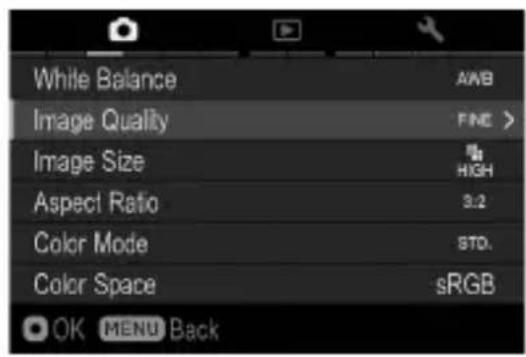
While in the Set-up Menu:
Use the buttons to select menu items.
Press the OK or > button to open sub-menus or dialogs.
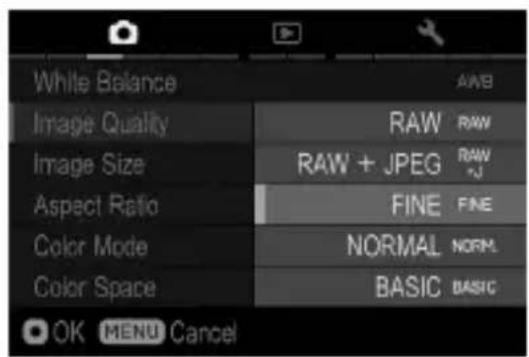
While in set-up sub-menus:
Use the ◆buttons to select setting options.
Press the OKr button to apply new settings.
Press the < button to close sub-menus without applying changes.
● The Camera Set-up menu is divided into three groups.
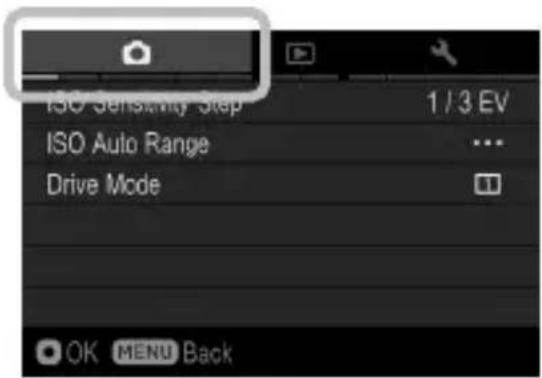
CAPTURE SETTINGS
(Blue Tab)
This menu relates to shooting settings. When an exposure mode is selected and the MENU is pressed [ Capture Settings] will be displayed.
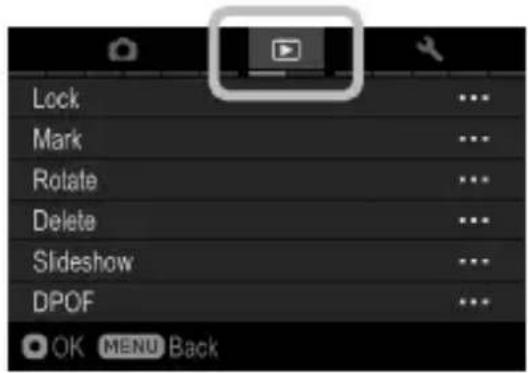
PLAYBACK MENU
(Red Tab)
This menu is for setting the playback related functions of the still images. The settings for printing, such as DPOF setting, is included in the Playback Settings menu.
If the MENlon is pressed during playback mode, [Playback Menu] will be displayed.
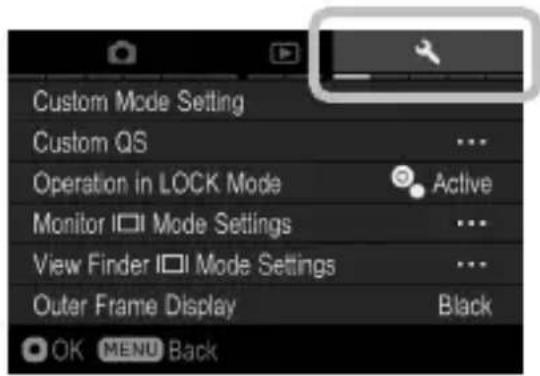
CAMERA SETTINGS
(Yellow Tab)
This menu is used for camera setup such as date and language selection. Open the Camera Set-up menu by pressing the MENU and move to the [Camera Settings] menu by rotating the Front Dial or the Rear Dial.
TIP
- Depending on the settings of the camera, some menu items and setting options cannot be selected. They will be displayed with a gray color.
LIST OF MENU FUNCTIONS
For more detailed information about each function, please refer to the individual pages.
CAPTURE SETTINGS
| Menu Item | Description | Page |
| ISO Sensitivity Step | Sets the ISO Sensitivity in steps of 1EV or 1/3EV. | 76 |
| (1) ISO Auto Range | It is possible to set the Lower limit and Upper limit of the ISO Sensitivity in ISO Auto mode. | 75 |
| Drive Mode | Selects the Drive Mode such as Self-Timer. | 64 |
| Menu Item | Description | Page |
| Auto Bracketing | Sets the steps and order of Auto Bracketing. | 85 |
| Custom Bracketing | Sets the bracket options with White Balance and Color Mode. | 93 |
| (2) SFD Mode | Sets the SFD Mode that can generate subtle pictures by compositing several captured pictures. | 88 |
| Flash | Sets the mode of flash setting and Flash Exposure Compensation. | 100 |
| Menu Item | Description | Page |
| White Balance | Selects the White Balance Mode depending on the shooting conditions. | 69 |
| (3) Image Quality | Selects the quality of image to record. | 77 |
| Image Size | Selects recording Image Size. | 78 |
| Aspect Ratio | Sets the aspect ratio of the image. | 79 |
| (3) | Menu Item | Description | Page |
| Color Mode | Selects the desired Color mode depending on the shooting conditions. | 90 | |
| Color space | Sets the color space to [sRGB] or [Adobe RGB]. | 97 |
| (4) | Menu Item | Description | Page |
| Tone Control | Sets or cancels the [Tone Control] (Strong / Mild) that achieves the natural rendering image. | 96 | |
| Auto Rotate | Sets or cancels to record the vertical image information. | 97 | |
| Quick Preview | Sets the duration of the Quick Preview image that is automatically displayed on the color LCD monitor after the image is captured. | 47 | |
| Preview Exposure in M Mode | It is possible to select if the LCD Display reflects the selected exposure on the screen. | 54 | |
| Dial Exposure Compensation | Sets whether or not the 📄 button is used when compensating the exposure. | 85 | |
| Switch Dial Functions | Sets the allocation of dials for exposure setting and exposure compensation in each shooting mode. | 137 |
| (5) | Menu Item | Description | Page |
| Dial Rotation | Sets whether or not the rotation direction of the Front and Rear Dials is reversed. | 138 | |
| AEL Button Settings | Sets the function that the AEL (when the switch is in the position) will perform. | 82 | |
| AF Button Settings | Sets the function that the AEL (when the switch is in the position) will perform. | 82 |
| (6) | Menu Item | Description | Page |
| Focus Peaking | Sets the indication that emphasizes the focused position. | 62 | |
| AF Priority | Sets whether the shutter is released immediately after the shutter button is pressed or after focusing. | 58 | |
| AF Priority | |||
| Built-in AF Assist Light | Sets whether or not the AF assist light is used in low light conditions. | 58 | |
| Face Detection AF | Select normal AF Mode or Face detection AF Mode. | 60 |
PLAYBACK MENU
| (1) | Menu Item | Description | Page |
| Lock | Lock the image, or unlock the locked image. | 116 | |
| Mark | Mark the image, or unmark the marked image. | 118 | |
| Rotate | Rotate the image to the desired position for display. | 120 | |
| Delete | Delete the image. | 113 | |
| Slideshow | Start the slideshow ( playback images automatically) or change the slideshow settings. | 124 | |
| DPOF | Select the images and set the quantity for printing. | 126 | |
| (2) | Menu Item | Description | Page |
| RAW Development | It develops JPEG format images from RAW files. | 127 | |
| Exposure Warning | Sets whether or not the over-exposure warning is shown on images. | 122 | |
| OK Button Settings | Sets the function that the OK button will perform during image review. | 122 | |
| Image Rotation | Sets whether or not vertically orientated images are automatically rotated and displayed vertically. | — |

CAMERA SETTINGS
| (1) | Menu Item | Description | Page |
| Custom Mode Setting | Register the setting of Custom Mode (C1 / C2 / C3). | 98 | |
| Custom QS | Selects which functions to allocate to the Quick Set menu. | 39 | |
| Operation in LOCK Mode | Enables users to change the contents to be locked with the LOCK switch. | 139 | |
| Monitor Mode Settings | Sets ON/OFF six Display Modes of the Main-Monitor and details of their contents. | 133 | |
| View Finder Mode Settings | Sets ON/OFF four Display Modes of the Viewfinder and details of their contents. | 133 | |
| Outer Frame Display | Enables to set the Outer Frame Display on the shooting screen (when the aspect ratio is set other than 3:2). | 79 | |
| (2) | Menu Item | Description | Page |
| Sound Settings | Sets whether or not to use electronic beeping sounds and adjusts their volumes. | 141 | |
| Adjust Electronic Level | Adjusts the Electronic Level. | 137 | |
| File Name | Sets the File Name for the image. | 131 | |
| File Numbering | Sets the file numbering system used when a new card is inserted in the camera. | 130 | |
| ECO Mode | Sets or cancels ECO Mode that saves battery usage. | 141 | |
| Extended Mode | Sets whether or not Extended Mode is used in the Bulb setting. | 56 |
| (3) | Menu Item | Description | Page |
| LCD Brightness | Sets the color LCD monitor brightness. | 141 | |
| LCD Off | Sets the delay before the backlight of the color LCD monitor turns off automatically if no operation has occurred. | 140 | |
| Auto Power Off | Sets the delay before the camera shuts down automatically if no operation has occurred. (Images will not be affected by this change.) | 140 | |
| Eye-Fi Settings | It is possible to change the settings of the Eye-Fi Card that has a Wi-Fi communication function. | 102 | |
| PG-41 Settings | Sets settings of the Power Grip PG-41 (sold separately) and allocations of the FUNC button functions. | 142 | |
| (4) | Menu Item | Description | Page |
| USB Mode | To transfer recorded images in the card from the camera to computers, select [Mass Storage]. To control the camera by using “SIGMA Capture Pro”, select [Camera Control]. | 145 | |
| Release Without Memory Card | Sets whether or not it is possible to release the shutter when the card is not inserted into the camera. | 46 | |
| Memory Card Format | Formats the card. (Formatting will erase all data on the card.) | 45 | |
| Date / Time | Sets the date and time in the camera's internal clock and the format in which the date and time will be displayed. | 28 | |
| Language / 言語 | Sets the language in which menus and messages will be displayed. | 27 |
| (5) | Menu Item | Description | Page |
| Copyright Information | Holds copyright information and selects whether or not to save the information in the Exif data. | 131 | |
| Information | Displays the camera's firmware version, model name, serial number information, and certification mark*. | — | |
| Firmware Update | Confirm current firmware version and update the latest firmware version from card. | — | |
| Reset Settings | Restores all menu options to their default settings. | 143 |
\* Certification Mark
Other Certification Marks that this camera supports are displayed at the bottom of the camera, on gift boxes, and in this instruction manual.
By pressing the QS button, it is possible to quickly access and change the settings of the following most commonly used camera functions.
Quick Set Menu (Default)
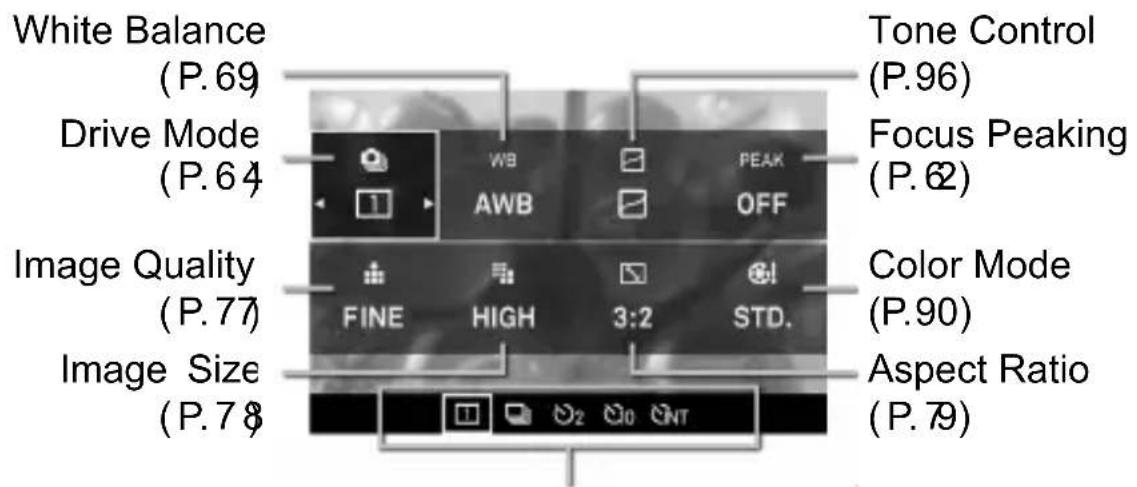
Option list display of the selected items
When the camera is in the Still Image Mode, the Quick Set Menu will be displayed by pressing the button.
For example, to change the quality of image to RAW
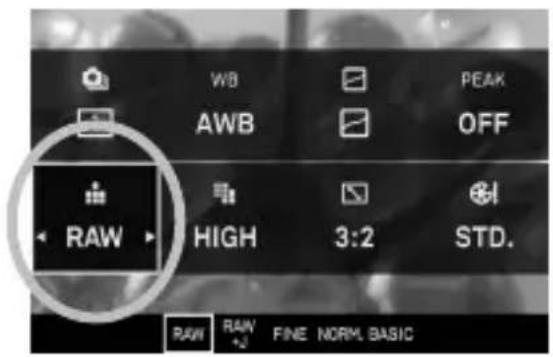
1
Press the QS button to display the Quick Set Menu.
2
Press the <buttons to select the section related to quality of image ( ).
3
Rotate the Front Dial or the Rear Dial to display [RAW].
4
By pressing ☐ the shutter button halfway, the settings will be applied and the camera will return to shooting mode.
CAUTION !!
- Items that you cannot set are displayed in gray, and the option cannot be changed by rotating the dials.
The functions allocated to the Quick Set menu can be changed.
Available functions to be allocated to the Quick Set menu
| Exposure Compensation (P.84)ISO Sensitivity (P.75)AE Metering Mode (P.81)Shooting Mode (P.49)Bracketing Amount (P.85)Custom Bracketing (P.93)Drive Mode (P.64)Flash Exposure Compensation (P.101)Red-eye (P.100)Rear Curtain Sync. (P.100)FP (P. 100) | Slow Sync. (P. 100)White Balance (P.69)Image Quality (P.77)Image Size (P.78)Aspect Ratio (P.79)Color Mode (P. 90)Tone Control (P. 96)Focus Peaking (P. 62)Main Monitor Brightness (P.141)Sub Monitor Brightness (P.141)View Finder Brightness (P. 141) |
The function of the Quick Set menu can be set from [Camera Settings] (P.30) → [Custom QS]
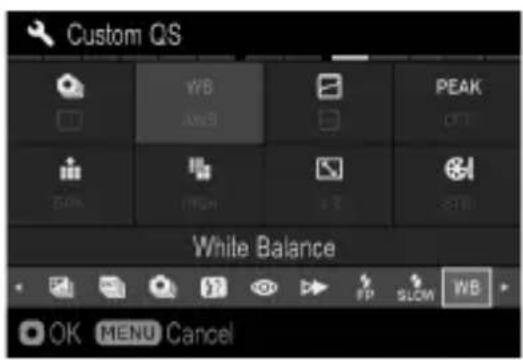
1
Press the
2
From the list at the bottom of the screen, use the <buttons to select the item to allocate position, and press the <button to confirm.
3
When you have finished setting the allocation, press the MENU to close the [Custom QS] menu.
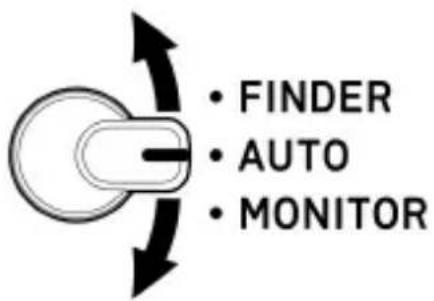
The SIGMA sd Quattro consists of a Finder (Electronic Viewfinder) and Main-Monitor.
The Monitor Select switch allows users to select which monitor is to be used.
| FINDER | Displays in the finder only. |
| AUTO | When looking into the finder, the main monitor display automatically changes to the finder display. |
| MONITOR | Only the main monitor is displayed.When looking into the finder, the LCD in the finder is not displayed. |
Sub Monitor
When the LCD in the finder is displayed, the sub monitor automatically turns off.
- The sub monitor can be turned on/off with the 🔍 button as needed. (It cannot be turned on when the LCD in the finder is displayed.)
WARNING!!
- There are cases that the sensor reacts to an object other than an eye and the LCD in the finder is displayed.
- The sensor may react with a strong light from the rear side, which leads an erroneous operation.

LCD Monitor Display can be changed by pressing the □□ button.
- When the □□ button is pressed while the finder is displayed, the display mode in the finder changes.
- When the □ button is pressed while the main monitor is displayed, the display mode in the main monitor changes.
VIEWFINDER (OPERATION) (Default)
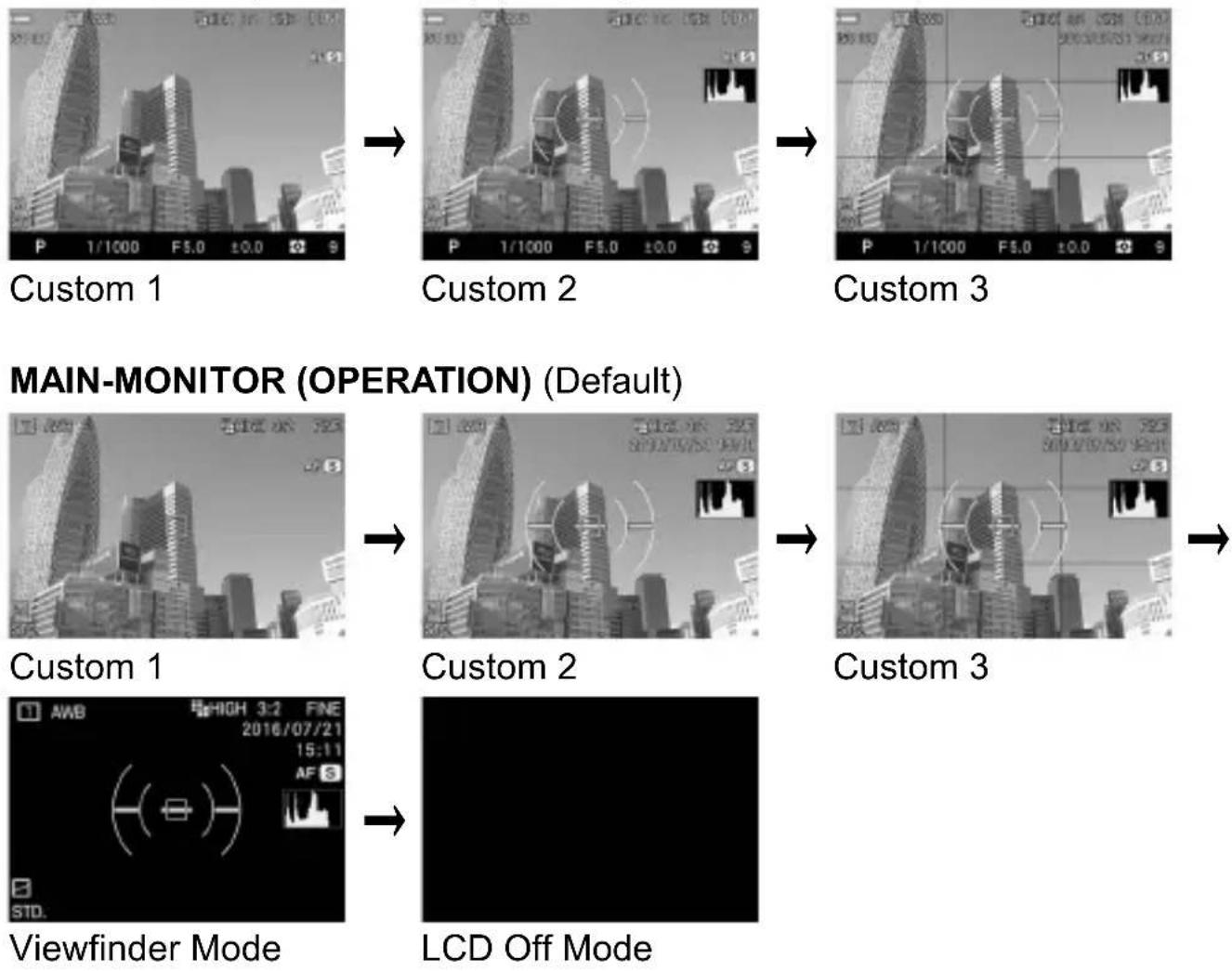
- Refer P.14 [MONITOR DISPLAY DURING SHOOTING] for the meaning of each icon.
- In the View Finder Mode, only Icons will be displayed.
- Information to display on [Custom] can be customized (Refer P.133).
- The size of the icon displayed during operation can be changed (Refer P.133).
(REVIEWING)
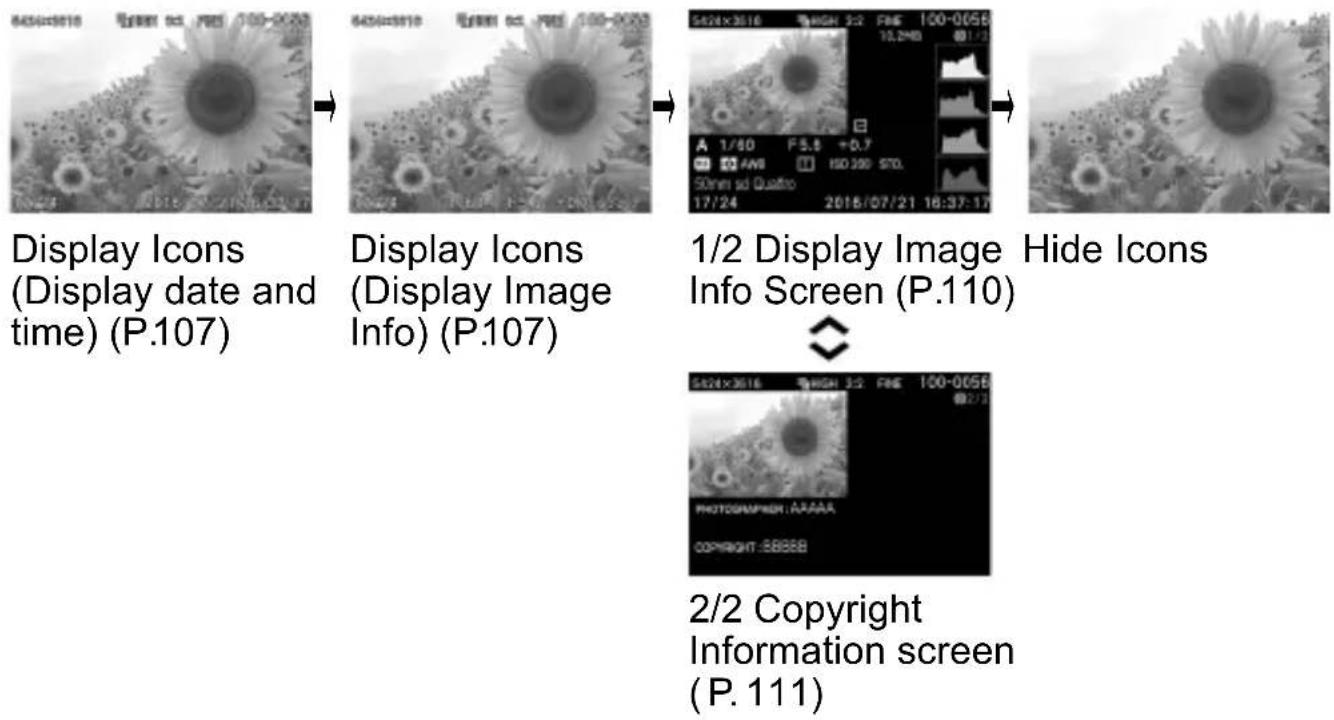
WARNING!!
- While in the reviewing mode, the display modes in the finder and the main monitor must be set the same.
INSERTING AND REMOVING THE CARD
The sd Quattro camera uses a SD memory card, SDHC memory card and SDXC memory card to store data.
TO INSERT THE CARD
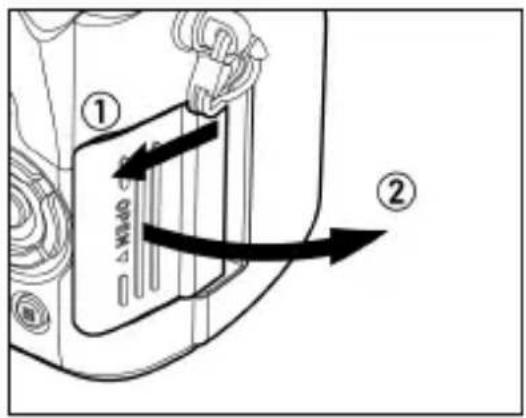
1
Turn off the camera and open the SD card cover as shown.
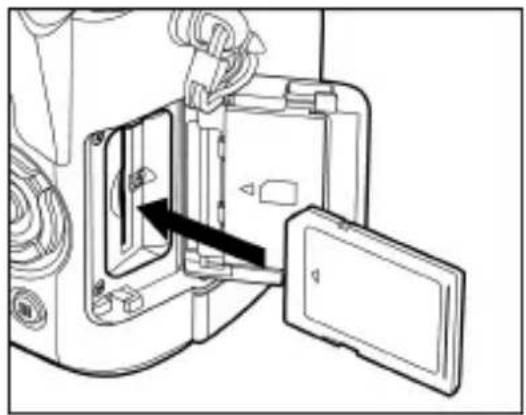
natural_image
Diagram of a device's internal structure showing a door opening and cable routing (no text or symbols)2
Insert the card as per the instruction displayed on the back of the SD card cover.
Insert the card until it clicks.
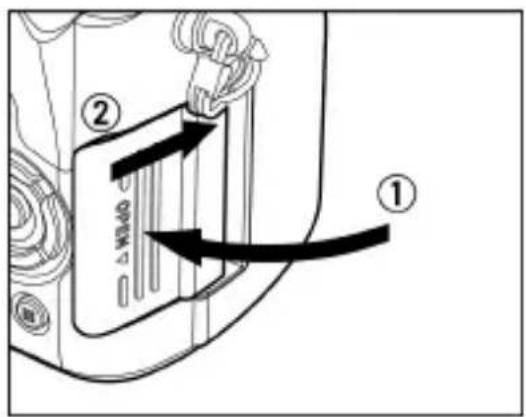
3
Close the SD card cover.
TIP
- It may be necessary to format the card before use. (See P.45)
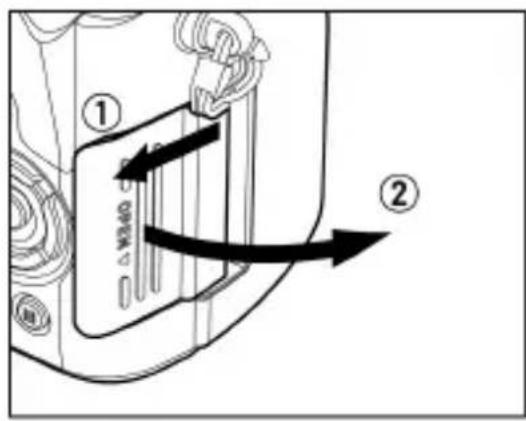
1
Turn off the camera and open the SD card cover as shown.
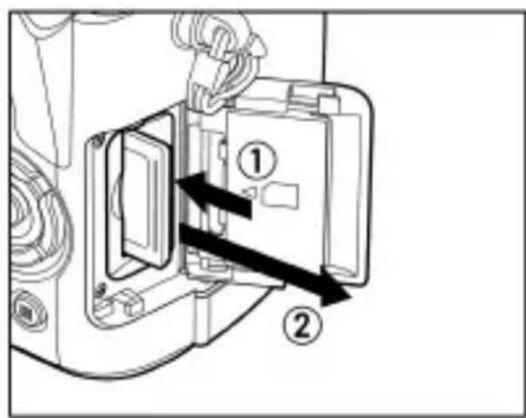
2
Push the card until it clicks and pull out it.
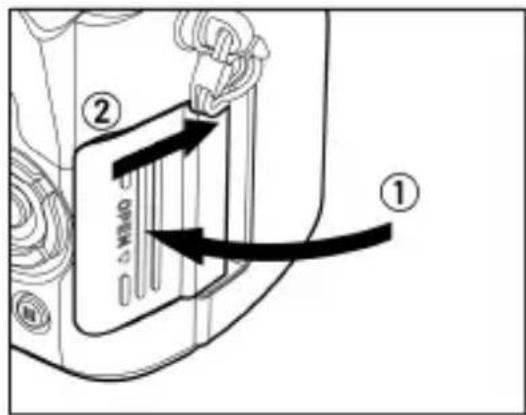
3
Close the SD card cover.
WARNING!!
- While the Busy Lamp is on or flashing, do not take out the battery or the card. By doing so, it may result in data loss. This could also cause damage to the camera and/or memory card.
TIP
- If the camera is turned off while the Busy Lamp is on or flashing, the camera will remain on until it has finished accessing the card.
FORMATTING THE CARD
New cards must be formatted before use. In addition, cards with corrupt or incompatible file systems may need to be formatted before use.

Camera Settings] (P.30) → Select [Format] and format the card.
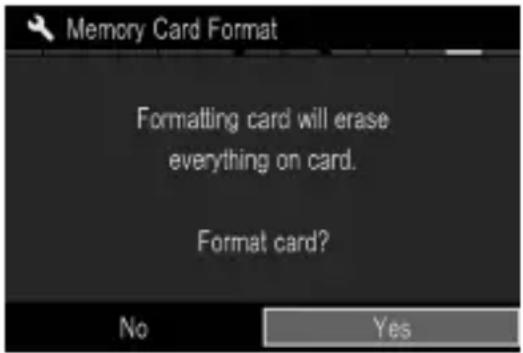
In [Format] menu, Select [Yes] by pressing the <button and press the OK button.
To cancel formatting, select [No] by using the <> button and press the OK button.
CAUTION !!
- Formatting erases all card contents, including locked sd Quattro files and all non-sd Quattro files.
TIP
- Cards formatted in other cameras or devices may not operate correctly in the sd Quattro camera or may have reduced capacity. To store the maximum number of sd Quattro files, format the card in the sd Quattro camera before use.
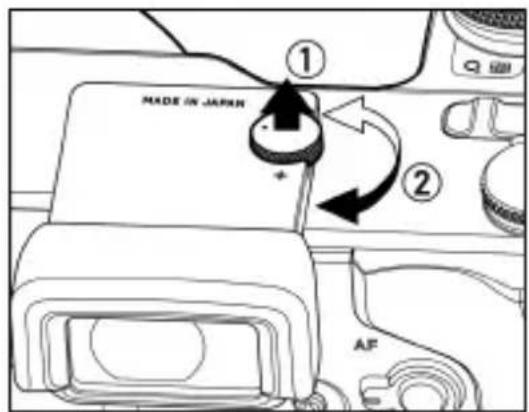
While looking into the finder, adjust by turning the Diopter Adjuster so the focus frame and letters can be seen clearly.
- The camera's adjustable diopter range is -4m^-1 to +2m^-1 .
SHUTTER BUTTON
The shutter button of the sd Quattro cameras has two positions. When you press the shutter button “halfway down”, the camera’s autofocus systems will activate. When pressing the button “all-the-way down”, the shutter will release to take a picture.

natural_image
Three diagrams showing a mechanical component being cut, with arrows indicating downward motion (no text or symbols present)TIP
- Before you start to take pictures, we recommend that you operate the camera, to become familiar with the “halfway down” position and other features of the camera.
- Normally, if the card is not inserted in to the camera body, it is not possible to release the shutter. If you would like to release the shutter without a card, please set from [Camera Settings] (P.30) → [Release without Card].
| Disable(Default) | When the card is not inserted in the camera body, it is not possible to release the shutter. |
| Enable | It is possible to release the shutter, even if the card is not inserted in the camera body. |
natural_image
Black-and-white cityscape photo of a modern skyline with skyscrapers and waterfront (no visible text or symbols)The sd Quattro camera can be set to automatically display a preview of each image immediately after it is taken. This is useful for instantly checking exposure and framing.
The Quick Preview Duration can be set from [Capture Settings] (P.30) → [Quick Preview].
| Off | No preview image is displayed. |
| 2 sec. (Default) | Preview image is displayed for 2 seconds. |
| 5 sec. | Preview image is displayed for 5 seconds. |
| 10 sec. | Preview image is displayed for 10 seconds. |
TIP
- To manually turn off the Quick Preview image, press the shutter button half-way.
CAUTION !!
- It will not be possible to zoom in to the preview image, or change to another image while the Quick Preview is up.
BASIC OPERATION
This section describes basic operations to start taking photography.
SELECTING THE EXPOSURE MODE
The features and the operation methods of the four different exposure modes of the camera are explained below.
WARNING !!
- In this section, the instruction is written on the assumption that DIAL EXPOSURE COMPENSATION and [SWITCH DIAL FUNCTIONS] (P.138) of [Capture Settings] (P.30) are in the initial setting. If the actual proceedings disagree with the description in this section, refer to the corresponding section for [DIAL EXPOSURE COMPENSATION] or [SWITCH DIAL FUNCTIONS] as needed.
SELECTING THE EXPOSURE MODE
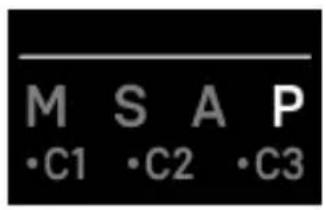
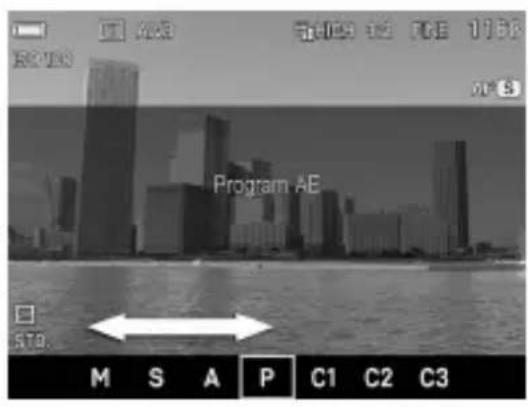
1
Press the MODE button.
(In the Viewfinder, the mode selection is displayed on the bottom of the LCD monitor.)
2
Select the desired exposure mode by using the Front and Rear Dials, or press the buttons.
3
Press the OK button or shutter button "half-way" to return to shooting mode.
P PROGRAM AE
To make picture taking easier, the camera will automatically select an appropriate combination of shutter speed and aperture value, according to the brightness of the subject.
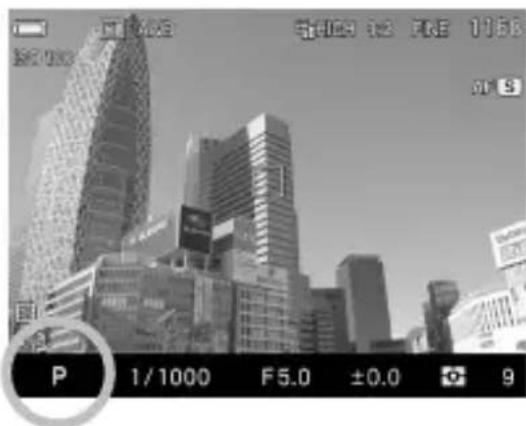
1
Set the Exposure Mode to the P position. (In the Viewfinder, the exposure indicator is illuminated in green.)
2
Press the shutter button "half-way" to verify the focus and take the picture.
WARNING !!
- When (☐) is shown on the color LCD monitor, camera shake may occur (a slow shutter speed is set). If this mark is displayed, please use the flash (P.99) or a tripod.
- If the subject is too bright or dark, both shutter speed and aperture value indicators will blink and will show the limit values. If you take a picture with these settings, the picture will be overexposed or underexposed.
PROGRAM SHIFT
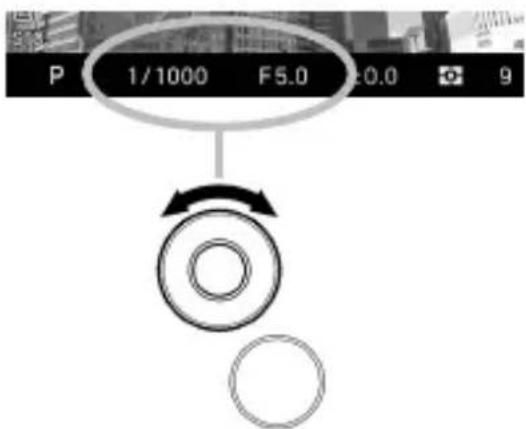
You can change the combination of shutter speed and aperture value, which were automatically selected by the camera. While turning the Front Dial, the combination of shutter speed and aperture value will change within the range of combinations that give the equivalent exposure.
- It will be canceled automatically, after taking the picture.
A APERTURE PRIORITY AE
After you set the aperture, the camera will determine the appropriate shutter speed. If you select smaller apertures, depth of field will be greater. Larger apertures tend to blur the background, as depth of field will be shallower.
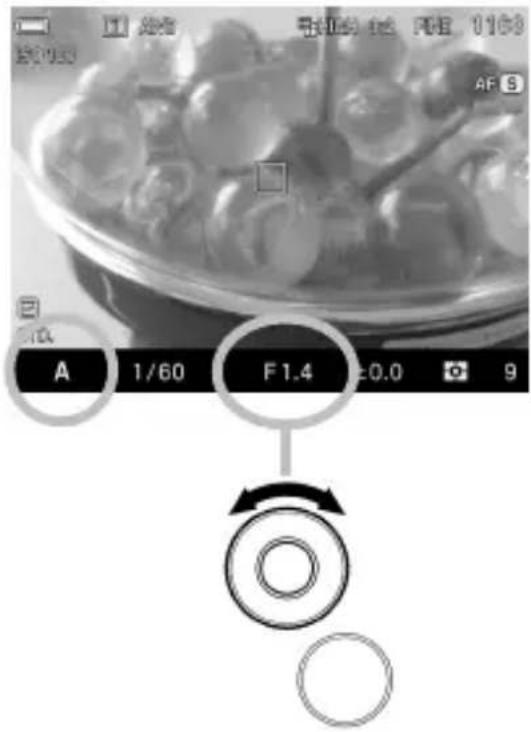
1
Set the Exposure Mode to the A position. (In the Viewfinder, the aperture value indicator is illuminated in green.)
2
Set the desired aperture value by rotating the Front Dial.
3
Press the shutter button "half-way" to verify the focus and take the picture.
WARNING !!
- When (☐) is shown on the color LCD monitor, camera shake may occur (a slow shutter speed is set). If this mark is displayed, please use the flash (P.99) or a tripod.
- If the appropriate shutter speed is outside the range of suitable combinations due to the subject being too bright or too dark, the shutter speed indicator will blink. If the subject is too bright, set the aperture value to a smaller one (larger F-number). If the subject is too dark, set the aperture value to a larger one (smaller F-number) until the indicator stops blinking.
S SHUTTER SPEED PRIORITY AE
When you set the desired shutter speed, the camera will select the appropriate aperture value for correct exposure. You can achieve stop action effects by selecting a fast shutter speed, or give the feeling of motion to a moving subject by selecting a slow shutter speed.
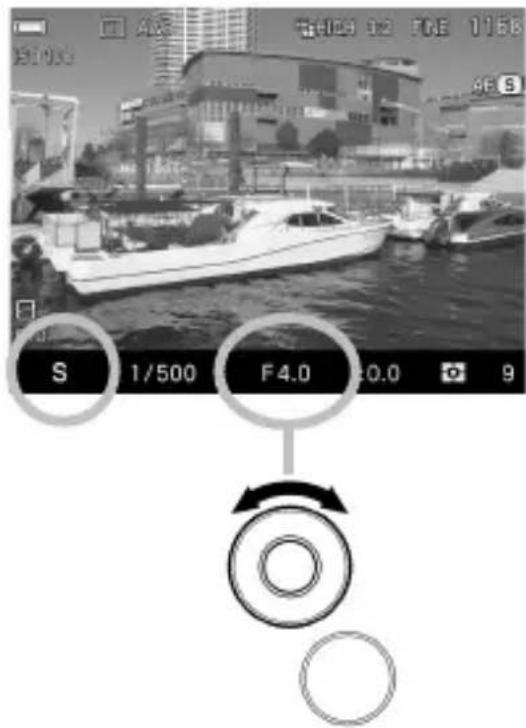
1
Set the Exposure Mode to the S position. (In the Viewfinder, the shutter speed value is illuminated in green.)
2
Set the desired shutter speed by rotating the Front Dial.
3
Press the shutter button "half-way" to verify the focus and take the picture.
WARNING !!
- If the appropriate aperture value is beyond the range of the lens in use, due to the subject being too bright or too dark, the aperture value indicator will blink. If the subject is too bright, set the shutter speed to a faster one, or if the subject is too dark, set the shutter speed to a slower one, until the indicator stops blinking.
M MANUAL EXPOSURE
Set both the shutter speed and aperture value according to the indication of the exposure meter. You can change the exposure, as you desire.
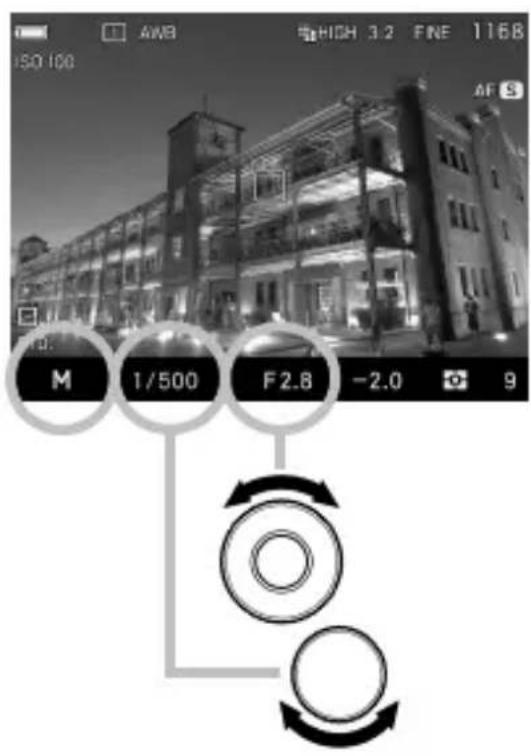
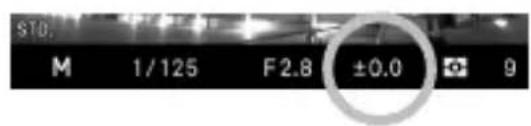
1
Set the Exposure Mode to the M position. (In the Viewfinder, the shutter speed is illuminated in orange. The aperture value indicator is illuminated in green.)
2
Set the desired aperture value by rotating the Front Dial.
3
Set the shutter speed by rotating the Rear Dial to adjust the value of the exposure meter to 0.0.
- The exposure meter can display an exposure error of up to ± 5 stops from the correct exposure in 1/3 steps. If the exposure error is more than three stops, the exposure meter will blink.
4
Press the shutter button "half-way" to verify the focus and take the picture.
When the exposure is set as M mode, the LCD Display reflects the selected exposure on the screen so that photographers can confirm how the actual image will look. When the exposure is under, it becomes darker, and when it is over, it becomes brighter.
When you shoot images in M mode while using the flashguns from other companies, the display would be dark, and make it difficult to check the details of the image, such as the focus point and composition. In this case, it is recommended to change the setting to [Off], and adjust the brightness of the image on screen.
Select from [Capture Settings] (P.30) → [Preview Exposure in M Mode].
| Off | Brightness of the LCD Display is automatically adjusted for better visibility. |
| On (Default) | The selected exposure value is reflected in the LCD Display. |
TIP
- When ELECTRONIC FLASH EF-630 (FOR SIGMA) is used with the camera, the brightness of the LCD Display is automatically adjusted for better visibility even when the function is [On].
BULB SETTING
When long time exposures are required (for shooting night scenes or very dark subjects) the use of the “Bulb” setting is recommended. Please use a tripod, when taking pictures with this setting.
1
Set the Exposure Mode to the M position.
2
Rotate the Rear dial until bulb is displayed.
3
Rotate the Front dial to select the desired aperture value.
4
Depress the shutter button fully to take the picture.
CAUTION !!
- It is not possible to use Bulb photography for more than 30 seconds. The shutter will automatically close about 30 seconds after the shutter button was pressed.
- It is possible to extend the Bulb time up to 120 seconds by setting the camera to Extended Mode.
Please set from [Camera Settings] (P.30) → [Extended Mode] and select [On].
CAUTION!!
- When using the extended Bulb time, the image quality may be reduced due to increased noise.
Adjustment of autofocus and manual focus operation are explained below.
HOW TO USE AUTOFOCUS
1
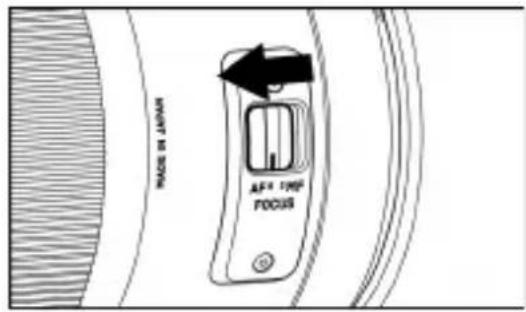
Set the focus mode switch of the lens to AF.
natural_image
Black-and-white cityscape photo of a waterfront with skyscrapers and water, no visible text or symbols2
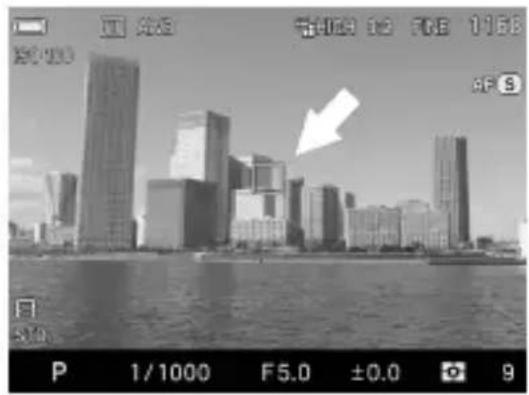
Position the photographic subject within the center of the composition and press the shutter button "half-way".
- If autofocus is selected, the focusing frame will be illuminated in green. (In the sub-monitor, the focus indicator turns on.)
- If autofocus cannot set correctly, the focusing frame will blink. (In the sub-monitor, the focus indicator blinks.)
Although your camera is equipped with highly precise AF system, in some cases autofocus cannot set correctly.
- Low-contrast subjects, such as blue sky or a blank wall, etc. or when the color of the subject is same as background
● The subject is located in a very low light environment
● Overlapping near and far objects, such as an animal behind a fence
● A subject, which moves at high speed
In such cases, please use one of the following focusing methods.
- Use the Focus Lock function to focus on another subject, which has a similar focusing distance as your subject.
- Set the lens to MF mode and focus manually.
Autofocus Mode can be selected according to the subject.
Press the S/C button and select the desired AF mode by using the Front and Rear dials, or by pressing the <> buttons.
| AF S SINGLE AF MODE (Default) | When the shutter button is half-pressed, the autofocus activates. The autofocus is then locked when it comes into focus (Focus Lock). In order to reset the focus, release the shutter button and half-press the shutter button again.Use your camera in this mode for regular photographyThe shutter cannot be released unless it comes into focus.The exposure is locked at the value when the shutter button is half-pressed.When Continuous Drive Mode is selected, continuous shooting is conducted at the focus position of the first frame.The focusing frame blinks if the subject is out of focus. (In the sub-monitor, the focus indicator blinks.)It is possible to turn the electronic sound off. Please set [Camera Settings](P.30) →[Sound Settings] →[0]. |
| AF C CONTINUOUS AF MODE | While the shutter button is half-pressed, the autofocus continues driving. When it comes into focus, the Focus Indicator opens, but the focus is not locked. The motion prediction function activates for moving objects, and the focus is adjusted to the timing of when the shutter is released.When it does not come into focus, the shutter cannot be released.The exposure is set when the shutter button is released.When Drive Mode is to Continuous, autofocusing and shooting are repeated. However, because Release is prioritized, the shutter may be released before it comes into focus.The AF may not be able to be followed or the focusing accuracy may be lowered depending on the conditions of the subject.The electronic beeping sound does not sound. |
Operation of each Autofocus mode can be changed as follows.
Set from [Capture Settings] (P.30) to [AF S Priority] or to [AF C Priority].
| Release | When the shutter button is fully pressed, the shutter can be released before focus locks on. |
| Focus(Default) | Even when the shutter button is fully pressed, the shutter cannot be released until it comes into focus. |
- In AF S, when Continuous Drive Mode is set, continuous shooting is conducted with the focus of the first frame in any settings.
- In AF C, when Continuous Drive Mode is set, Autofocus Drive and shooting are repeatedly continued. However, Release is prioritized in both settings. Therefore, the shutter may be released before focus locks on.
AF ASSIST LIGHT
The built-in AF assist light of the sd Quattro enables focusing in low light conditions. (AF)
- The effective distance of the AF assist light is 3m.
- The AF assist light can be turned off. Please set [Capture Settings] (P.30) → [Built-in AF Assist Light] → [Off].
CAUTION!!
- The lens hood must be removed when the AF auxiliary light is used. The AF Auxiliary Light may not work correctly if long and large diameter lenses are attached to the camera as they may interfere with the beam.
SETTING THE FOCUS FRAME
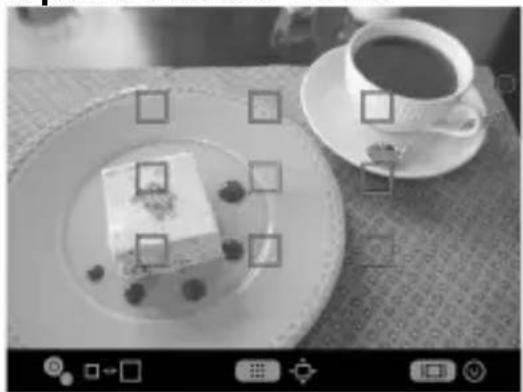
The sd Quattro is equipped with two focusing modes. When using the “9 points select mode” it is possible to choose the desired focusing point from 9 different frames. When using “Free move mode” it is possible to move the desired point as you like. In addition, you can choose the size of the Focus Frame from three types [Spot], [Regular], [Large].
9 points select mode
natural_image
Black-and-white photo of a breakfast scene with a slice of cake, a teacup, and a plate of coffee on a patterned tablecloth (no text or symbols visible)Free move mode
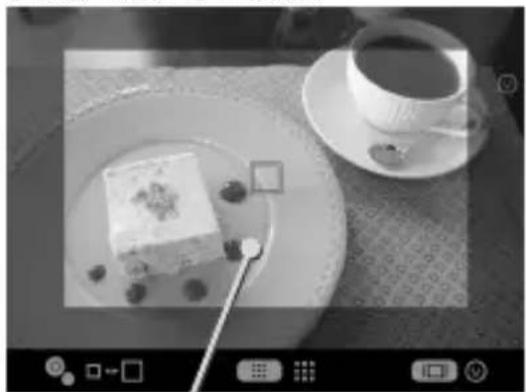
natural_image
Black-and-white photo of a breakfast scene with a slice of cake, a saucer of coffee, and a spoon on a plate (no visible text or symbols)Focusing point moving area
How to set :
Press the button.
- [9 points select mode] and [Free move mode] will be switched back and forth each time the button is pressed.
- When [9 points select mode] is selected, choose the desired focusing point by pressing the buttons.
- When [Free move mode] is selected, move the focusing point as you like by pressing the buttons (focusing points can be moved inside the focusing point moving area).
- When the Front Dial or the Rear Dial is rotated, you can change the size of the Focus Frame.
Confirm by pressing the 📄 button.
FOCUS LOCK
This photographic method is useful if the subject is not positioned within the selected focusing point.
1
Position the photographic subject into the selected focusing point, and focus by pressing the shutter button "half-way".
2
When the subject is in focus, the selected focusing point will be illuminated in green. Press the shutter button to take the picture.2
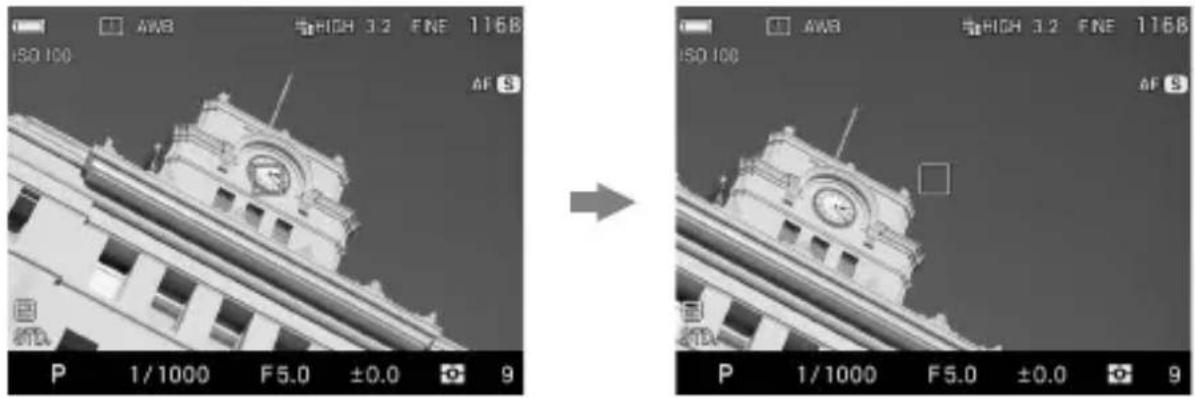
- Focus Lock shooting is available with the AF/AEL button. For details, please refer to the [AF/AEL BUTTON] item (P.82).
FACE DETECTION AF MODE
The sd Quattro offers Face Detection AF Mode that prioritizes to detect and focus on the faces in the image.
Normal AF mode can be switched to Face detection AF mode by selecting [Capture Settings] (P.30) → [Face detection AF] → [On].
OFF

ON
Press 🧑 button and 📄 button to set the Face Detection AF Mode ON/OFF.
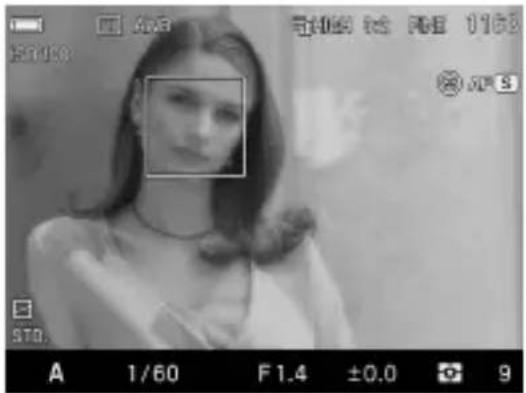
A Face Detection Frame will appear in orange once faces are detected in the display.
Press the shutter button halfway, and the Face Detection Frame will turn green once it is properly focused on the face.
- When the Face Detection Mode is in operation, AE Metering Mode will be set to "Measuring" and focus on the detected faces in the image.
- It is possible to detect up to 8 faces at one time in an image, and the Face Detection Frame will appear on the closest face in the display.
CAUTION !!
- Face Detection AF Mode is unavailable when it is set in MF Mode.
- Face Detection AF Mode may not work well in the following conditions;
- When a part of the face is covered by sunglasses, a hat, etc.
- When the person is facing away from the camera.
- When it is out of focus.
- When the object is either too close or too far.
- When it does not detect faces well, it will switch to focus by the selected Focus Frame.
- To return to normal AF mode, select [Capture Settings] (P.30) → [Face detection AF] → [Off].
HALF-PRESSED AF-ON
It is possible to select whether or not to operate the AF function when the shutter button is half-pressed.
The Half-pressed AF-ON can be set in [Capture Settings] (P.30) → [Half-pressed AF-ON].
| Off | AF function does not operate when the shutter button is half-pressed. |
| On(Default) | AF function operates when the shutter button is half-pressed. |
MANUAL FOCUS
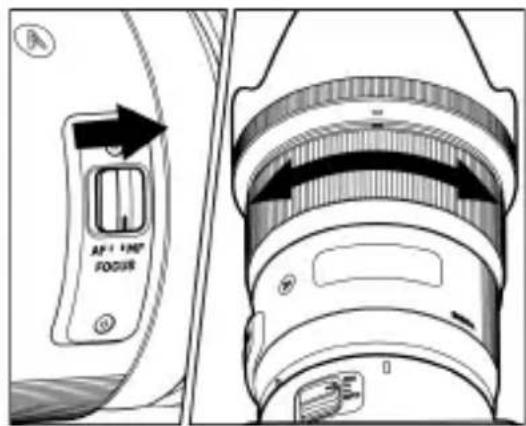
In situations where autofocus or focus lock is not effective, you can focus manually.
[Non-Text]
Set the focus mode switch, on the lens to the M position. ("MF" will be displayed in the LCD monitor)
2
While looking through the viewfinder, turn the focusing ring on the lens until you get a clear sharp image.
FOCUS PEAKING
The outline of the subject area in focus is emphasized in the display. It can be used to ease the focusing process. A desired color to indicate the peaking can be selected according to the subject.
Focus Peaking can be set in Quick Set Menu (P.38) or [Capture Settings] (P.30) → [Focus Peaking].
| Off (Default)OFF | BlackBK | YellowYE |
| WhiteWH | RedR |
- When the Peaking function is not necessary, select [OFF].
FOCUSING WITH MAGNIFICATION DISPLAY
It is possible to magnify the display by pressing the Ⓤ button while in MF mode. Press the ⏚ button again to change to the normal display.
- Whilst the display is enlarged, the 🔒 is displayed on the color LCD monitor. Press the shutter button “half-way” to return to the original display.
- The enlarged display will be magnified from the selected focusing point of the LCD monitor by pressing OKutton. It is possible to set the enlarged area to be the same as the focusing point selection. See P.59 for information regarding focusing point.
- Whilst the display is enlarged, it is possible to change the magnification ratio by rotating the Front Dial or the Rear Dial. (Normally the magnification ratio is x8.0, and it is possible to change to x4.0.)
In both MF and AF Modes, when the OK button is pressed with the shutter button being half-pressed, the image is zoomed. Adjusting the focus by looking into the magnified image is possible by rotating the focus ring with the shutter being half-pressed. (Focus adjustment in AF Mode is possible only when the lens incorporates full-time manual focus override when in AF Mode. For details, please refer to the manual of the lens.)
- It is possible to allocate the Zoomed-in View function to the AF/AEL button.
(Allocating to either position of AEL or AFL is possible. For details, please refer to [AF/AEL BUTTON] (P.82).)
natural_image
Close-up of a bowl containing food items, with no visible text or symbols in the main image area.Operation of the self-timer, and other functions of the camera are explained by the following:
Operation of The Drive Mode can be set in Quick Set Manu (P.38) or [Capture Settings] (P.30) → [Drive Mode].
| [xw82] | Single Capture(Default) | Self Timer 2 sec. | |
| Self Timer 10 sec. | |||
| [k6HT] | Continuous | Interval timer |
SINGLE FRAME SHOOTING
When you press the shutter button in the single frame-shooting mode, only one frame will be exposed. Then the camera will be ready for the next shot by advancing one frame. Single frame shooting mode is recommended for ordinary photography.
CONTINUOUS SHOOTING
In this mode, when you keep the shutter button fully depressed, the camera will take pictures continuously.
CAUTION !!
- When you use the continuous shooting mode with an external flash, the camera may be slow, because the camera will not take pictures, while the flash is re-charging.
- Images taken in rapid succession, such as during Continuous shooting, are initially stored in the camera's internal memory buffer. Once the memory buffer is full, the shutter will be disabled until some images have been processed in the camera.
natural_image
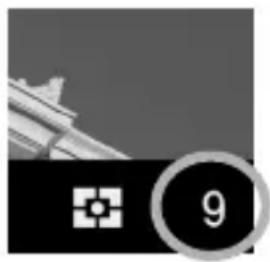
Abstract graphic with a building silhouette and a numbered circle containing the number 9 (no text or symbols)The number on the lower right of the color LCD monitor (upper right section on the sub-monitor) is the buffer capacity. It is the maximum number of frames for continuous shooting. (If the maximum number of frames for continuous shooting exceeds 9 frames, the display will not change from 9)
- The maximum number of frames and speed of continuous shooting are as follows:
| Image Size (Resolution mode) | |||||
| S-HI | HIGH | LOW | S-LO | ||
| Image Quality | JPEG | 12 | 12 | 24 | 24 |
| 3.7 | 3.7 | 4.3 | 4.3 | ||
| RAW | 12 | 24 | |||
| 3.7 | 4.3 | ||||
| RAW+JPEG | 12 | 24 | |||
| 3.7 | 4.3 | ||||
The upper rows show the maximum number of frames, the lower rows show the maximum shooting speed in continuous mode (frames per second).
SELF TIMER
When you want to include yourself in the picture or avoid camera shake, please use the self-timer.
Self Timer 2 sec
The shutter will be released 2 seconds after the shutter button is fully depressed.
Self Timer 10 sec
The shutter will be released 10 seconds after the shutter button is fully depressed.
After composing the picture, press the shutter button “half-way” and adjust the focusing. Then, press the shutter button the rest of the way and the self-timer will activate. During the self-timer operation you will hear an electronic beeping sound. The beeping sound will be much faster during the last two seconds, before the shutter is released.
- When Camera Settings → [Sound Settings] → [Timer Volume] menu is set to [0], the electronic sound will not beep even if the self-timer is operated.
- If you want to cancel the self-timer operation, please turn off the camera.
INTERVAL TIMER
It is possible to take pictures automatically at selected intervals.
1
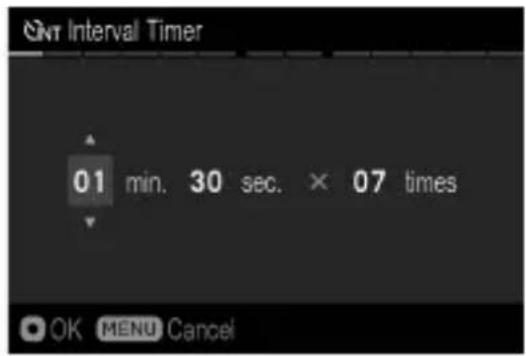
Select [Capture Settings] (P.30) → [Drive Mode] → [Interval timer], and press the button to move the interval timer setting screen. (When the OK button is pressed after selecting [Interval timer], the current setting will be applied.)
When the Interval timer shooting mode is set in the Quick Set menu (P.38), select [] and press the button to display the Interval timer setting screen (By pressing the okutton or the shutter bottom halfway after selecting [], the current setting will be applied.).
2
Set the desired interval and number of exposures by using the buttons.
(Interval can be set from 4 seconds to 60 minutes. The number of exposures can be set between 2\~99 times, or unlimited (∞).)
- Depending on the combination of Image Quality and Image Size, the shortest interval will vary.
| Image Size (Resolution mode) | |||||
| S-HI | HIGH | LOW | S-LO | ||
| Image Quality | RAW+J | 8sec. | 4sec. | ||
| RAW | 8sec. | 4sec. | |||
| FINE | 7sec. | 7sec. | 4sec. | 4sec. | |
| NORM. | 6sec. | 6sec. | 4sec. | 4sec. | |
| BASIC | 6sec. | 6sec. | 4sec. | 4sec. | |
3
Press the button to apply the setting, and press the button to go back to shooting mode.
4
Press the shutter button to start the interval timer shooting.
- During the interval timer shooting, the next exposure interval begins and the numbers of remaining exposures will be displayed.
- When the focus mode is set to AF, the AF will be locked at the first frame. From the second frame, pictures will be taken with the same focus position as the first frame.
- When the focus mode is set to MF, it is possible to change the focus during the interval timer shooting by turning the Focus ring.
(If you wish to keep the same focus position, ensure the Focus ring is not turned during the interval timer shooting.) - If the selected interval is short, the camera may start to take the next image before the display returns to the shooting mode.
- Exposure value is measured at each interval shooting. If you wish to take pictures with the same exposure value, set the Exposure Mode to Manual Exposure or fix the exposure value by pressing the AEL Button before shooting.
- To terminate the interval timer shooting, press the Shutter button.
- Interval timer shooting cannot be used with the Auto Bracketing function.
- Interval timer shooting cannot be used with Bulb shooting.
WARNING !!
- The interval timer shooting will be terminated automatically if the battery is empty. We recommend using the AC adapter “SAC-7” (sold separately).
- Once you set the Interval Timer, the camera will continuously hold that Interval Timer. To dismiss the Interval Timer, switch to another modes in [Drive Mode].
- Depending on the settings, it takes time process the image. It may make the actual interval time longer than the selected time.
ADVANCED OPERATION
This section explains the application of the more advanced functions of your camera, when composing the expressions of your picture.
SETTING THE WHITE BALANCE (WB)
The color of light reflected by an object can vary depending on the color of the light source illuminating it.
For example, a neutral colored object will reflect reddish light under incandescent lighting, and greenish light under fluorescent lighting. The human brain is able to compensate for differences in the color of a light source, allowing us to see white objects as white, independent of the lighting condition. Film cameras rely on special color-correcting filters and film types to adjust for these differences in lighting. Digital cameras, however, are able to use software to mimic the adjustments made by the brain, so that colors that appear white to the human eye also appear white in your photographs.
natural_image
Security camera view showing a building interior with a large fan and a helicopter in flight (no readable text or symbols)WHITE BALANCE OPTIONS
| OPTION | COLOR TEMP. | DESCRIPTION | |
| AWB | Auto (Default) | - | Select this setting to allow the camera to automatically determine the appropriate white balance adjustments. |
| AWB | Auto (Lighting Source Priority) | - | Select this setting to allow the camera to automatically determine the appropriate white balance while valuing the color and atmosphere of light source. |
| Daylight | Approx. 5400 K | Select this setting when taking pictures in full sunlight. | |
| Shade | Approx. 8000 K | Select this setting when taking pictures in the shade under sunny skies. | |
| Overcast | Approx. 6500 K | Select this setting when taking pictures under cloudy, overcast skies. | |
| Incandescent | Approx. 3000 K | Select this setting when taking pictures indoors under incandescent (tungsten) lighting. | |
| Fluorescent | Approx. 4100 K | Select this setting when taking pictures indoors under fluorescent lighting. | |
| WB | Flash | Approx. 7000 K | Select this setting when taking pictures with the Sigma EF-630 (FOR SIGMA) flash. |
| Color Temperature | - | Select this setting to adjust the white balance by setting color temperature in numerical value. | |
| 1-3 | Custom 1-3 | - | Select this setting to determine the white balance based on the image taken. (P.73) |
The White Balance can be set in Quick Set Menu (P.38) or [Capture Settings] (P.30) → [White Balance].
ADJUSTING WHITE BALANCE
Each White Balance Mode can be adjusted.
1
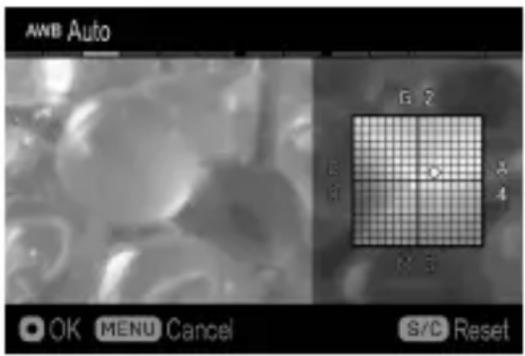
Select preferred White Balance Mode from [Capture Settings] (P.30) → [White Balance], and press the >button to display the White Balance Adjustment screen.
To set from Quick Set Menu (P.38), select preferred White Balance Mode, and press the button to display the White Balance Adjustment screen.
2
Press the buttons to adjust.
- B stands for Blue, A for Amber, M for Magenta, and G for Green. The image will be adjusted with colors in the moving direction.
- In each direction, adjustments can be made up to 8 steps.
3
To confirm, press the okutton. To return without making any changes, press the menu.
- To reset, press the S/C button.
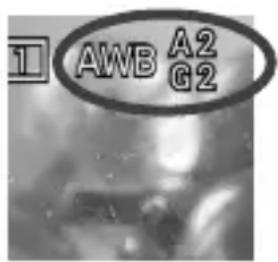
When an adjustment has been made, the adjustment value is displayed at the right side of the White Balance Icon.
SETTING THE VALUE OF COLOR TEMPERATURE
White Balance can be adjusted by setting the color temperature in numerical value.
1
Select [Capture Settings] (P.30) → [White Balance] → [Color Temperature] and press the button to display the Color Temperature setting screen.
To set from the Quick Set Menu (P.38), select [K], and press the button to display the Color Temperature setting screen. (After selecting K and pressing the OK button or the shutter button "half-way", images can be taken at the value set previously.)
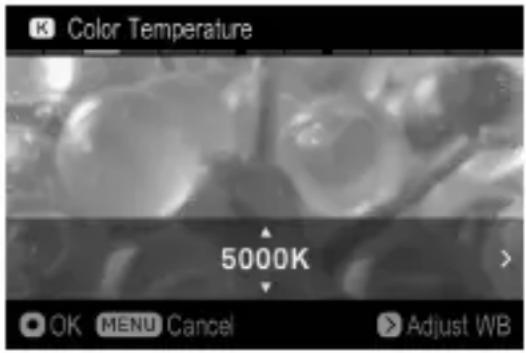
2
Press the buttons to set the value.
3
To confirm, press the button. To return without making any changes, press the MENU button.
White Balance can also be adjusted when setting the color temperature.
1
Press the > button to display the White Balance Adjustment screen on the Color Temperature Setting screen.
2
Follow the instruction 2 and onwards in [ADJUSTING WHITE BALANCE] in the previous page.
TIP
- Light source can be reddish or bluish, the color of light described as absolute temperature (K: Kelvin) is called “Color Temperature”. The lower the color temperature is, the more reddish the color of light turns out, and the higher, the more blueish. Please refer P.70 for the approximate color temperature of the light source.
SETTING A CUSTOM WHITE BALANCE
For more precise control of the white balance setting or when photographing under unusual lighting conditions, the "Set Custom WB" option can be used to capture a sample of neutral object in a scene to be used for color correction.
- Up to three Custom White Balances can be registered (Custom 1-3).
1
To capture a custom white balance image, please select [Capture Settings] (P.30) → [White Balance] → [Custom △1-3], then press the >button. (When the button is pressed after selecting [Custom △1-3], the current white balance setting will be set.)
When a custom white balance is set in the Quick Set menu (P.38), select [1-3] and press the button to display the custom white balance setting screen (By pressing the OKutton or the shutter button halfway after selecting [1-3], the current setting will be applied.).
2
Under the lighting conditions that will be used for the final photograph, frame a white colored object, such as a sheet of white paper or a white wall, so that it fills the frame in the center of the color LCD monitor. Then use the Manual focus function to adjust the focus point (the focus point does not have to be perfectly in position).
3
Press the AF/AEL button and import the custom white balance image. (The AF/AEL button switch can be at either position.)
If a valid white balance settings was captured, a message “White balance image captured successfully” will appear on the color LCD monitor that the white balance image was captured successfully.
If the capture was not successful, “Failed! Please retry the custom WB capture.” will be displayed on the color LCD monitor.
Press the AF/AEL button to capture a white balance image once again. To dismiss the capture, press the MENU button.
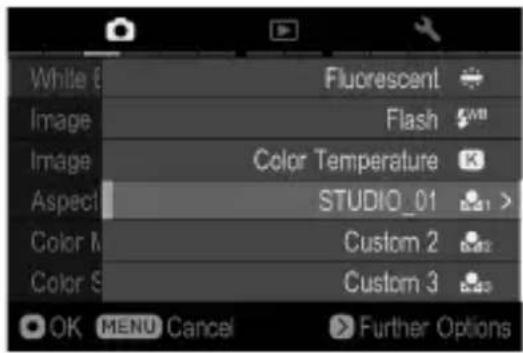
A note can be added to a Custom White Balance. The note is reflected in the "White Balance" sub menu and is useful when needing to use previously registered custom white balance.
- It is possible to enter up to 48 single-byte characters and symbols.
1
On the Custom White Balance Capture screen, pressing the ▼ button displays the Note Input screen.
2
Input the texts. For the procedure to input texts, please refer to [ENTERING INFORMATION] of [ATTACH COPYRIGHT INFORMATION] (P.132).
- When deleting a note attached to a Custom White Balance, delete all the text from the Note input screen.
CAUTION !!
- The note attached to the Custom White Balance is not recorded in the image information data.
SETTING THE SENSITIVITY (ISO EQUIVALENCY)
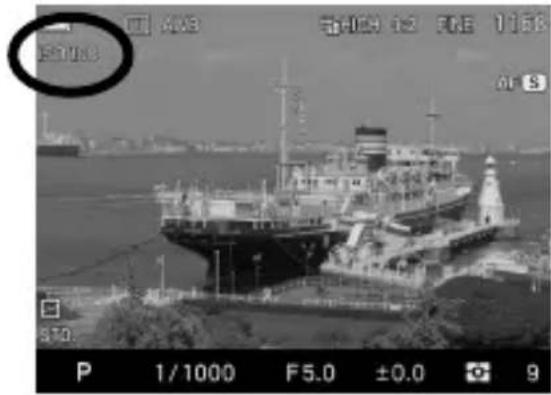
natural_image
Black-and-white photo of a large cargo ship docked at a port, with no visible text or symbols on the vessel or background.The photosensitivity of digital cameras is described in terms of "ISO equivalent" like silver-halide film cameras.
By pressing the ISO button, select the desired ISO Sensitivity by using the Front and Rear dials, or press the <> buttons.
| ISO Auto (Auto) (Default) | ISO 125 | ISO 500 | ISO 2000 |
| ISO 160 | ISO 640 | ISO 2500 | |
| ISO 200 | ISO 800 | ISO 3200 | |
| ISO 250 | ISO 1000 | ISO 4000 | |
| ISO 320 | ISO 1250 | ISO 5000 | |
| ISO 100 | ISO 400 | ISO 1600 | ISO 6400 |
CAUTION !!
- When Exposure Mode is set to M mode, it is not possible to select [ISO Auto]. When AUTO is selected in S, A, P mode and then changed to M mode, images are taken at the lower limit set in the next section [ISO AUTO RANGE].
ISO AUTO RANGE
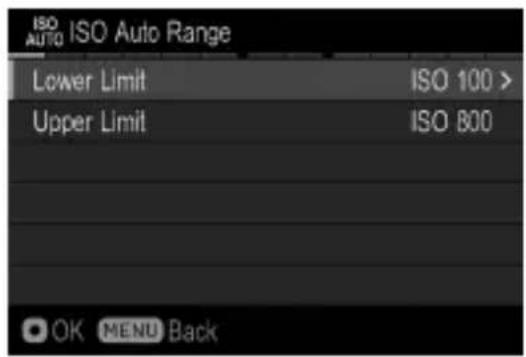
It is possible to set the Lower limit and Upper limit of the ISO Sensitivity in ISO Auto mode.

Select [ Capture Settings] (P.30)→ [ISO Auto Range], and press the >button to move to the ISO Auto Range setting screen.
2
Set [Lower limit] and [Upper limit].
Lower limit
| ISO 100(Default) | ISO 200 | ISO 640 | ISO 2000 |
| ISO 250 | ISO 800 | ISO 2500 | |
| ISO 320 | ISO 1000 | ISO 3200 | |
| ISO 125 | ISO 400 | ISO 1250 | ISO 4000 |
| ISO 160 | ISO 500 | ISO 1600 | ISO 5000 |
Upper limit
| ISO 125 | ISO 400 | ISO 1000 | ISO 3200 |
| ISO 160 | ISO 500 | ISO 1250 | ISO 4000 |
| ISO 200 | ISO 640 | ISO 1600 | ISO 5000 |
| ISO 250 | ISO 800(Default) | ISO 2000 | ISO 6400 |
| ISO 320 | ISO 2500 |
CAUTION !!
- It is not possible to set the same value to the Lower limit and Upper limit and reversed value.
- By default, the ISO sensitivity step setting is 1/3 EV. However, it is possible to select 1 EV.
It is possible to set the ISO sensitivity from [Capture Settings] (P.30) → [ISO Sensitivity Step].
| 1 EV | It is possible to set the ISO sensitivity step 1EV. |
| 1/3 EV (Default) | It is possible to set the ISO sensitivity step 1/3EV. |
When the 1EV is selected, the following ISO sensitivity can be set.
| ISO Auto (Auto)(Default) | ISO 200 | ISO 1600 |
| ISO 400 | ISO 3200 | |
| ISO 100 | ISO 800 | ISO 6400 |
TIP
- When Exposure Mode is set to [1/3 EV], Lower limit and Upper limit of ISO AUTO RANGE can be set in 1/3 steps.
IMAGE FILE SETTING
According to your preference, "Image Quality", "Image Size" and "Aspect Ratio" of recorded images can be changed.
IMAGE QUALITY SETTING
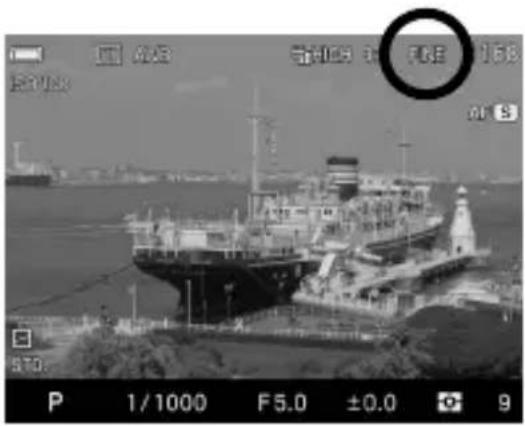
It is possible to record images in the widely used JPEG or RAW formats.
Image Quality Setting can be set in Quick Set Menu (P.38), or [Capture Settings] (P.30) → [Image Quality].
| RAW | RAW | RAW format |
| RAW+J | RAW+JPEG | RAW+FINE(JPEG) simultaneous |
| FINE | FINE (Default) | JPEG • High quality image |
| NORM. | NORMAL | JPEG • Standard quality image |
| BASIC | BASIC | JPEG • File size priority |
- RAW images are recorded without digital processing in the camera body and require post-processing with Sigma Photo Pro software which can convert RAW images to JPEG or TIFF format.
- SIGMA Photo Pro can be downloaded free of charge from the following website: http://www.sigma-global.com
- Without using a PC, it is possible for the sd Quattro to develop JPEG images from the RAW data (X3F file). Refer to P.127 [DEVELOP RAW DATA INSIDE THE CAMERA] for further information.
TIP
- When RAW+JPEG is selected, the Image Quality of JPEG will be FINE.
- When RAW+JPEG is selected, the selected Image Size will be applied to both the RAW and JPEG files.
IMAGE SIZE SETTING
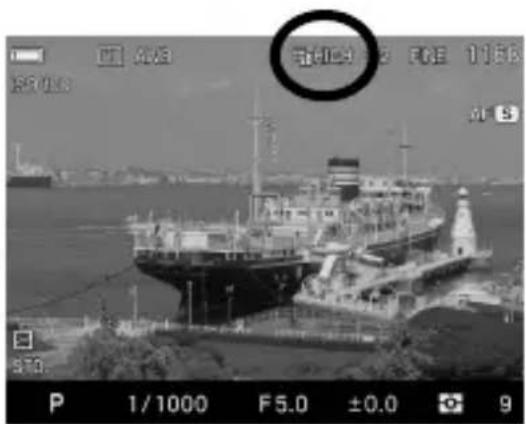
The number of record pixels (Image Size) can be set.
Image Size Setting can be set in Quick Set Menu (P.38) or [Capture Settings] (P.30) → [Image Size].
| S-HI | S-HI | 39.3M | 7,680×5,120 (When it is set as 3:2) |
| HIGH | HIGH (Default) | 19.6M | 5,424×3,616 (When it is set as 3:2) |
| LOW | LOW | 4.9M | 2,704×1,808 (When it is set as 3:2) |
| S-LO | S-LO | 2.5M | 1,920×1,280 (When it is set as 3:2) |
- [S-HI] and [S-LO] can be selected only when the image quality setting is set as JPEG (FINE, NORMAL, and BASIC).
Aspect Ratio of the image can be changed.
Aspect Ratio Setting can be set in Quick Set Menu (P.38) or [Capture Settings] (P.30) → [Aspect Ratio].
| 21:9 | Aspect Ratio similar to those of wide screens used in cinema. |
| 16:9 | Aspect Ratio the same as those of high vision TVs. |
| 3:2 (Default) | Aspect Ratio the same as those of 35mm film cameras. |
| 4:3 | Aspect Ratio the same as those of traditional TVs and PC screens. |
| 7:6 | Aspect Ratio is the same as those of 6x7 film cameras. |
| 1:1 | Aspect Ratio is the same as those of 6x6 film cameras. |
- Each image of Aspect Ratio is made by cutting images of this camera's standard Aspect Ratio 3:2.
TIP
- Images recorded as RAW format can be changed to different ratio in SIGMA Photo Pro.
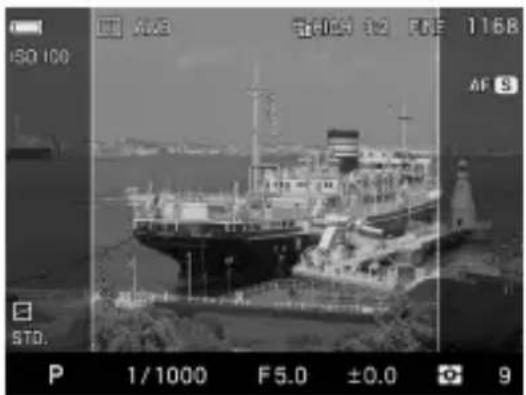
natural_image
Black-and-white photo of a large ship docked at a port, captured in an operating camera interface (no visible text or symbols on the image itself)When shooting with aspect ratio other than 3:2, the frame is normally displayed in black. By making it semi-transparent, it is possible to use it as a sports finder which allows users to check the surrounding areas of the image.
Select the setting from [Camera Settings] (P.30) → [Outer Frame Display].
| Black (Default) | Frame is displayed in black. |
| Semi-transparent | Frame is Semi-transparent. |
Combination of Image Quality • Image Size • Aspect Ratio results in approximate file size per image as follows.
When Image Size Setting is set to [S-H]
| Aspect Ratio | Image Size | Image Quality | ||
| FINE | NORM. | BASIC | ||
| 21:9 | 25M (7680×3296) | 18.1 MB | 9.7 MB | 7.4 MB |
| 16:9 | 33M (7680×4320) | 23.7 MB | 12.7 MB | 9.5 MB |
| 3:2 | 39M (7680×5120) | 28.1 MB | 15.0 MB | 11.3 MB |
| 4:3 | 35M (6816×5120) | 25.0 MB | 13.3 MB | 10.0 MB |
| 7:6 | 33M (6352×5120) | 23.3 MB | 12.4 MB | 9.3 MB |
| 1:1 | 26M (5120×5120) | 18.8 MB | 10.0 MB | 7.5 MB |
When Image Size Setting is set to [HIGH
| Aspect Ratio | Image Size | Image Quality | |||
| RAW | FINE | NORM. | BASIC | ||
| 21:9 | 13M (5424×2328) | 50.4 MB | 8.4 MB | 4.8 MB | 3.6 MB |
| 16:9 | 17M (5424×3048) | 53.0 MB | 11.0 MB | 6.3 MB | 4.7 MB |
| 3:2 | 20M (5424×3616) | 55.1 MB | 13.1 MB | 7.5 MB | 5.6 MB |
| 4:3 | 17M (4816×3616) | 53.6 MB | 11.6 MB | 6.6 MB | 5.0 MB |
| 7:6 | 16M (4480×3616) | 52.8 MB | 10.8 MB | 6.2 MB | 4.6 MB |
| 1:1 | 13M (3616×3616) | 50.7 MB | 8.7 MB | 5.0 MB | 3.7 MB |
When Image Size Setting is set to [ ]: LOW
| Aspect Ratio | Image Size | Image Quality | |||
| RAW | FINE | NORM. | BASIC | ||
| 21:9 | 3.1M (2704×1160) | 23.2 MB | 2.2 MB | 1.2 MB | 0.9 MB |
| 16:9 | 4.1M (2704×1520) | 23.9 MB | 2.9 MB | 1.6 MB | 1.2 MB |
| 3:2 | 4.9M (2704×1808) | 24.5 MB | 3.5 MB | 1.9 MB | 1.4 MB |
| 4:3 | 4.3M (2400×1808) | 24.1 MB | 3.1 MB | 1.7 MB | 1.2 MB |
| 7:6 | 4.0M (2224×1808) | 23.9 MB | 2.9 MB | 1.5 MB | 1.2 MB |
| 1:1 | 3.3M (1808×1808) | 23.3 MB | 2.3 MB | 1.3 MB | 0.9 MB |
When Image Size Setting is set to [ ]S-LO
| Aspect Ratio | Image Size | Image Quality | ||
| FINE | NORM. | BASIC | ||
| 21:9 | 1.6M (1920×816) | 1.1 MB | 0.6 MB | 0.5 MB |
| 16:9 | 2.0M (1920×1080) | 1.5 MB | 0.8 MB | 0.6 MB |
| 3:2 | 2.5M (1920×1280) | 1.8 MB | 0.9 MB | 0.7 MB |
| 4:3 | 2.2M (1696×1280) | 1.6 MB | 0.8 MB | 0.6 MB |
| 7:6 | 2.0M (1584×1280) | 1.5 MB | 0.8 MB | 0.6 MB |
| 1:1 | 1.7M (1280×1280) | 1.2 MB | 0.6 MB | 0.5 MB |
- The file sizes change depending on subjects.
SELECTING THE METERING MODE
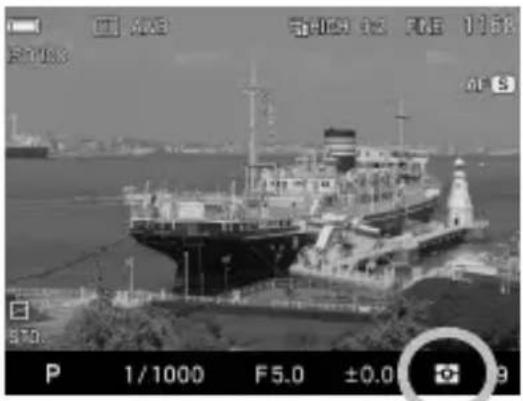
The camera has three advanced metering modes.
By pressing the 🎨 button, select the desired AE Metering Mode by using the Front and Rear dials, or press the <> buttons.
| Evaluative (Default) | [ ] | Center Weighted Average | |
| [•] | Spot |
EVALUATIVE METERING
The camera divides its screen into 256 and measures the brightness of the scene by independently measuring each segment of the focusing screen and analyzing the correct exposure for the main subject under any lighting situation. Even under strong back lighting or complex lighting situations, the camera will give you the correct exposure.
[ ] CENTER WEIGHTED AVERAGE METERING
The camera will measure the average brightness of the entire scene with additional emphasis on the center area. It will determine the most suitable exposure with respect to lighting conditions.
![SIGMA sd Quattro - [ ] CENTER WEIGHTED AVERAGE METERING - 1](/content/2026/05/813117/images/019ca5f9c70885e8dd2f7925c465d43a73e88f489679b2ab25e1e680fddf3646.jpg)
SPOT METERING
The camera will measure the brightness only inside of the selected focusing point on the color LCD monitor. This mode is suitable when you wish to set exposure for a portion of the scene and ignore the influence of rest of the scene.
AF/AEL BUTTON
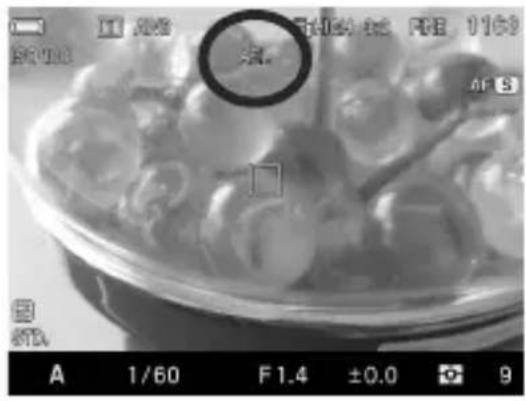
The sd Quattro has the AF/AEL button that enables Focus Lock shooting [AFL] and AE Lock shooting [AEL].
These functions can be used freely by using the switch. The initial setting at each position is as follows.
| AEL Position | AEL | The camera will fix and memorize the exposure value whilst the AFL/AEL is depressed.● It is possible to continue taking pictures with the memorized exposure value until this setting is disabled by pressing the AF/AEL button again. |
 | ||
| AF Position | AFL | Press the AFL/AEL to lock the focus.● Images will be taken with the same focusing point until the AFL/AEL is pressed again. (Exposure can be locked when pressing shutter “half-way”.) |
 |
SETTING THE AF/AEL BUTTON
In addition to the standard Focus Lock/AE Lock functions, the following functions can be allocated to the AF/AEL button.
Set the functions that can be allocated to the button while the switch is at the [AEL] position from [Capture Settings] (P.30) → [AEL Button Settings].
| AEL (Default) | AEL + AFL | LV Magnification |
| AEL (Pressed) | AEL+AFL (Pressed) |
Set the functions that can be allocated to the button while the switch is at the [AF] position from [Capture Settings] (P.30) → [AF Button Settings].
| AFL (Default) | AEL + AFL | AF-ON |
| AFL (Pressed) | AEL+AFL (Pressed) | LV Magnification |
| AEL | It is the normal operation of AE Lock. Refer to the table on the previous page. |
| AEL (Pressed) | The exposure is fixed only while the AF/AEL button is being pressed. |
| AFL | It is the normal operation of AF Lock.Refer to the table on the previous page. |
| AFL (Pressed) | The focus is locked only while the AF/AEL is being pressed. |
| AEL+AFL | Press the AF/AEL to lock both AE and Focus simultaneously.● Until pressing the AF/AEL again, ima ges are taken with the same exposure and focusing point. |
| AEL+AFL (Pressed) | Both AE and Focus are locked simultaneously only while the AF/AEL is being pressed. |
| AF-ON | The Autofocus activates when the AF/AEL button is being pressed.● The exposure is not fixed. |
| LV Magnification | The zoomed-in view is displayed when the AF/AEL button is pressed. The operation becomes the same as when the OK button is pressed during shooting. For details, please refer to [FOCUSING WITH MAGNIFICATION DISPLAY] (P.63). |
It is possible to set the exposure lock when the shutter button is pressed "half-way" or cancel the exposure lock.
The Half Pressed AEL mode can be set in [Capture Settings] (P.30) → [Half Pressed AEL].
| OFF | The exposure will not be locked while pressing the shutter button “half-way”. The exposure will be determined when depressing the shutter button. |
| ON | The exposure will be locked when the shutter button is pressed “half-way”. While pressing the shutter button is “half-way”, the exposure will not change. |
| AF Only (Default) | Only when Autofocus Mode is set to AF, the exposure is fixed when the button is half-pressed. While in AF, shooting is conducted with the exposure when the button is fully pressed. |
EXPOSURE COMPENSATION
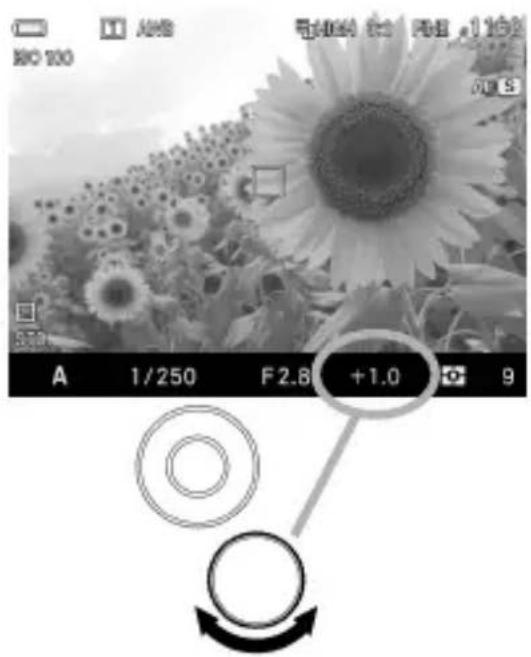
If you want to intentionally overexpose or underexpose the picture, use this function.
Select the desired compensation value by rotating the Rear Dial.
- The compensation amount can be set by pressing the ➕ button and the Front and Rear dials or the <> buttons.
- Exposure compensation can be set in 1/3 stop increments from +5.0 to -5.0 stops.
CAUTION !!
●The exposure compensation will not disable automatically. After taking the picture, set the compensation value to ±0.0 by rotating the Rear Dial.
- Exposure compensation function cannot be used with Manual Operation mode.
- Setting the compensation amount by using only Rear dial can be prohibited. Select [Off] from [Capture Settings] (P.30) → [Dial Exposure Compensation].
(By setting [Off] and rotating the Rear dial without pressing the 📋 button results in the same operation as the Front dial being rotated.)
AUTO BRACKETING
By setting the exposure judged as appropriate by the camera, it is possible to take pictures with a brighter exposure and a darker exposure in a series.
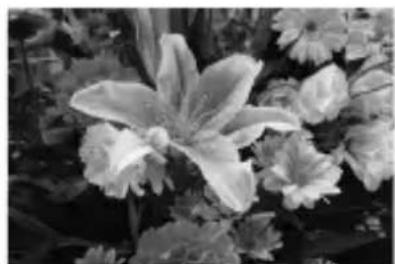
natural_image
Black-and-white close-up of a blooming flower with visible petals and dense foliage (no text or symbols)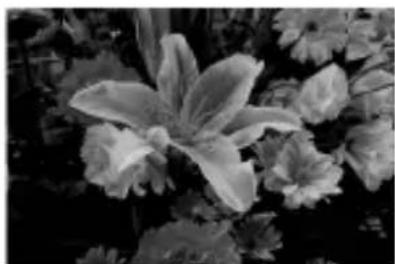
natural_image
Black-and-white close-up of a flower with detailed petals and dense foliage (no text or symbols visible)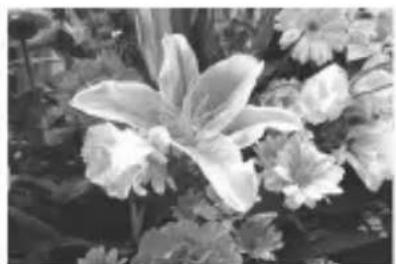
natural_image
Black-and-white close-up of a blooming flower with visible petals and surrounding foliage (no text or symbols)1
Select [Capture Settings] (P.30) → [Auto Bracketing], and press the > button or the OK button to move the Auto Bracketing setting screen.
2
Select an item to be changed by using the ◆ button. Then open the sub menu with the OK button or the > button.
| Bracketing Number | Select the number of pictures to be taken from three or five. |
| Bracketing Amount | Set the shifting amount of exposure from the appropriate exposure value.● It can be set in 1/3 stop increments up to ±3 |
| Bracketing Order | It is possible to change the Auto Bracketing Order.0 → - → + (Default)appropriate exposure → under exposure → over exposure- → 0 → +under exposure → appropriate exposure → over exposure+ → 0 → -over exposure → appropriate exposure → under exposure |
3
Select a desired value with the ◇ button. Finalize by using the OK button or the >button.
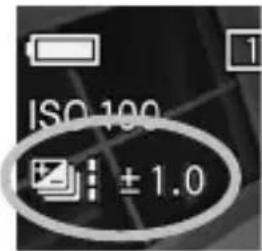
4
Press the shutter button “half-way” to return to the shooting mode. (The Auto Bracketing icon will be displayed on the color LCD monitor.)
- The operations in each Drive Mode are shown below.
| Single Capture | Each time the shutter button is pressed, an image will be taken one frame at a time. |
| Continuous | The set number of frames will be taken continuously by pressing and holding the shutter button. |
| Self Timer 2 sec. | Two seconds after pressing the shutter button, the set number of frames will be taken continuously. |
| Self Timer 10 sec. | Ten seconds after pressing the shutter button, the set number of frames will be taken continuously. |
CAUTION !!
- This function cannot be used with the interval timer shooting.
- The exposure bracketing can be used with 4 different modes.
| P Mode | Both shutter speed and aperture value will be changed. |
| A Mode | Only shutter speed will be changed. |
| S Mode | Only aperture value will be changed. |
| M Mode | Only shutter speed will be changed. |
WARNING !!
- Once you set the auto bracketing mode, the camera will continuously hold that auto bracketing mode until you set the bracketing amount to “±0.0”.
● Auto Bracketing cannot be used with a flashgun.
● Auto Bracketing cannot be used with Bulb shooting.
- Auto bracketing icon will change as follows depending on the frame number.
When three frames are taken
| 1st Frame | 2nd Frame | 3rd Frame | |||
 |  |  | |||
When five frames are taken
| 1st Frame | 2nd Frame | 3rd Frame | 4th Frame | 5th Frame |
 |  |  |  |  |
- At the Number of shots remaining section on the Sub-Monitor, the number of shots in Auto Bracketing is displayed in a reducing order (alternately displayed with the counter display).
When three frames are taken
| 1st Frame | 2nd Frame | 3rd Frame |
| [8b-3] | [8b-2] | [8b-1] |
When five frames are taken
| 1st Frame | 2nd Frame | 3rd Frame | 4th Frame | 5th Frame |
| [Ab-5] | [Ab-4] | [Ab-3] | [Ab-2] | [Ab-1] |
● Auto Bracketing mode can be used in combination with Exposure Compensation.
You can take pictures with Auto Bracketing mode based on a compensated exposure, which you set. To do so, please set both the Auto Bracketing mode and Exposure Compensation mode as desired. The combined value (Exposure Compensation and Auto Bracketing) will be indicated on the viewfinder display.
Example: When Exposure Compensation is +1.7 with Auto Bracketing amount of 1.0, and the number of frames is three:
| First Frame | +1.7 (Exposure compensation +1.7 & no shift value) |
| Second Frame | +0.7 (Exposure compensation +1.7 & shift value -1.0) |
| Third Frame | +2.7 (Exposure compensation +1.7 & shift value +1.0) |
SFD MODE (SUPER FINE DETAIL)
By recording several pictures with different exposures and combining them using SIGMA Photo Pro, delicate pictures with a wide dynamic range and low noise can be generated.
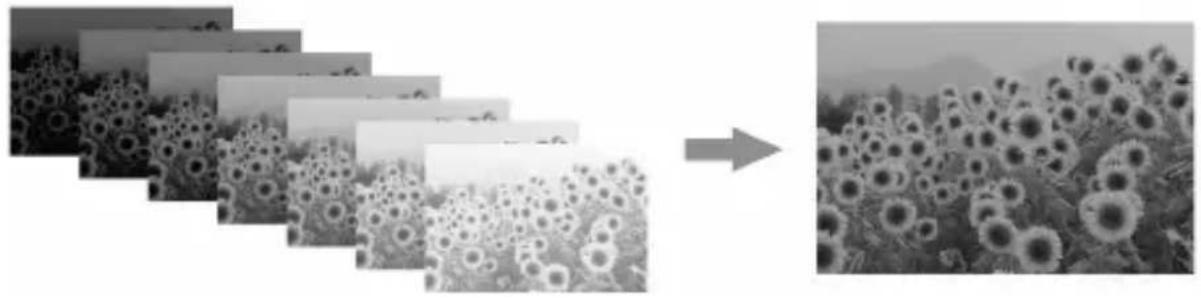
natural_image
Black-and-white photo sequence showing a row of sunflowers with a rightward arrow pointing to a dense field of sunflowers (no text or symbols)- When shooting in SFD Mode, fix the camera on a secure tripod. If the lens incorporates OS (Optical Stabilizer), turn off the OS.
- The composition result in SFD Mode cannot be checked in the camera.
- The file captured in the SFD mode will have an extension of .X3I.
1
Select [On] from [Capture Settings] (P.30) → [SFD Mode].
- When SFD Mode is on, the camera settings are fixed as follows, and the selection becomes limited.
| Exposure Mode | A, M mode | ISO Sensitivity | ISO100 |
| Drive Mode | Single CaptureSelf Timer 2 sec.Self Timer 10 sec. | Image Quality | RAW |
| Image Size HIGH |
2
Press the shutter button "half-way" to return to shooting mode. (The SFH icon will be displayed on the color LCD monitor.)
3
When the shutter is pressed, seven frames are taken automatically.
- The SFD frames can be generated in SIGMA Photo Pro. For details, please refer to HELP in SIGMA Photo Pro.
- In the file taken in SFD Mode, the original X3F files can be extracted with SIGMA Photo Pro. For details, refer to HELP in SIGMA Photo Pro.
CAUTION !!
- In SFD Mode, Auto Bracketing, Custom Bracketing, and Flash shooting cannot be used simultaneously.
When playing the file taken in SFD Mode in the camera...
The composition result in SFD Mode cannot be checked in the camera. The file is played as follows in the camera.
- During a standard single-frame view, frames are played in an order of under exposure to over exposure. The icon at the upper right section of the image indicates the sequential number of the image.

flowchart
graph LR
    A["1st Frame (under exposure)"] --> B["4th Frame (appropriate exposure)"]
    B --> C["7th Frame (over exposure)"]
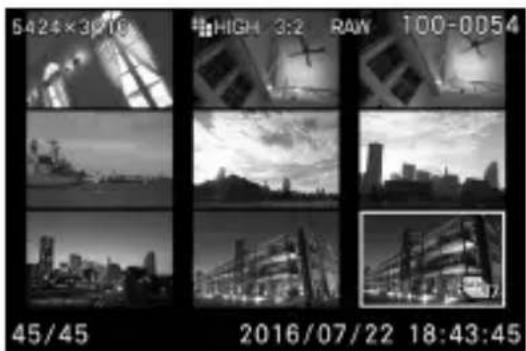
- On the contact sheet view, the images with the standard exposure are shown in the thumbnail. The icon is indicated in the thumbnail.
CAUTION !!
- When deleting files exposed in SFD Mode, it is not possible to delete files independently. Instead, all files are deleted.
It is possible to select the desired Color mode depending on the shooting conditions. In addition to the above settings, Monochrome photography mode can be selected.
The Color Mode can be set in the Quick Set Menu (P.38) or [Capture Settings] (P.30) → [Color Mode].
| STD.Standard(Default) | Standard color mode for various situations. |
| VIVID Vivid | Saturation and contrast are enhanced for making pictures appear vivid. |
| NTR.Neutral | Subdued saturation and contrast makes images natural. |
| PORT.Portrait | This color mode makes skin tone soft. It is ideal for portraits. |
| LANDLandscape | This mode makes blue and green more vivid and emphasizes pictures. |
| CINE Cinema | This mode reduces saturation and emphasizes shadows to recreate an image like in a cinema. |
| Sun R.Sunset Red | This mode emphasizes red color rendering, and expresses the scenes, such as sunsets, more impressively. |
| For G.Forest Green | This mode emphasizes green color rendering, and expresses greens, such as plants, more impressively. |
| Fov B.FOV Classic Blue | This mode recreates impressive blue sky, with the expression of rich blue tone. |
| Fov Y.FOV Classic Yellow | This mode recreates an impressive and rich color tone with the emphasis on yellow-like color. |
| MONO.Monochrome | It is possible to take Monochrome pictures. |
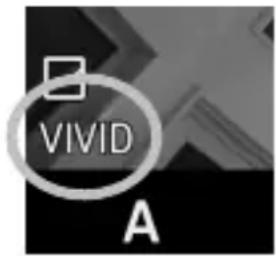
The selected color setting icon is displayed on the color LCD monitor.
TIP
- In Sigma Photo Pro, Monochrome mode is designed for RAW data capture using MONO. (Monochrome) mode. Sigma Photo Pro can convert Monochrome RAW images into color however it is not possible to convert Monochrome JPEG images into color.
COLOR MODE DETAILED SETTING
With each color mode, image parameters (Contrast, Sharpness, and Saturation) can be adjusted to create preferred images.

Contrast
Contrast can be increased by moving the cursor to + side, or decreased, preserving image detail, by moving the cursor to - side.

Sharpness
It is possible to make the pictures appear sharper, by moving the cursor to + side, or softer by moving the cursor to – side.

Saturation (Except Monochrome)
It is possible to increase saturation thus making pictures appear vivid, if the cursor is moved to + side. Moving the cursor to - side, decreases saturation and makes images less vivid.
Filtering Effect (Only with Monochrome)
Contrast can be changed on Monochrome images. To the color of filters, similar colors are expressed brighter, and complementary colors are expressed darker.
| OFFOff (Default) | YEYellow | OROrange |
| RRed | GGreen | BBlue |
- Normally, set it to [OFF] (Off).
Toning Effect (Only with Monochrome)
Monochrome images can be finished with preferred color tones.
| B/WB&W (Default) | RRed | WARMWarm Tone | SEPIASepia | GGreen |
| BGBlue Green | BBlue | COLDCold Tone | BPBlue Purple | PPurple |

Select your preferred Color Mode from [Capture Settings] (P.30) → [Color Mode], and press the >button to display Color Mode Detailed Setting screen.
To set from Quick Set Menu (P.38), select preferred Color Mode, and press the button to display Color Mode Detailed Setting screen.
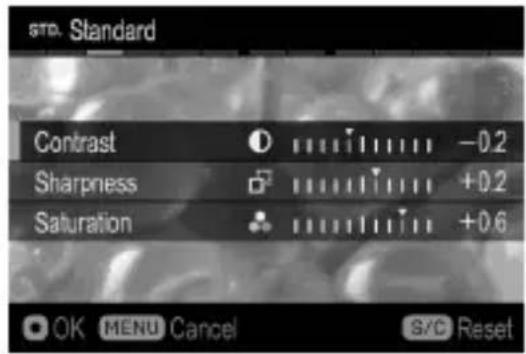

Press the ◆ buttons to select [Contrast], [Sharpness] or [Saturation] on the Color Mode Detailed Setting screen, and use the <> buttons to select adjustment value (Adjustable up to ±1.0 with 0.2 steps) or set the preferred option.

Press the OK button to apply the setting or the MENU button to close the sub-menu without making any changes.
- To reset, press the S/C button.
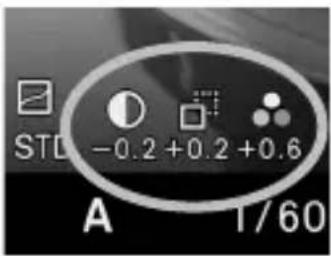
If you adjust image parameters, their icon is displayed on the left of the color LCD monitor.
TIP
- JPEG files are compressed after a parameter adjustment. In the case of the RAW format, parameter information is recorded without adjustment. It is possible to re-adjust RAW images using Sigma Photo Pro software.
Several images with different white balances and color modes can be captured in one sequence.
WHITE BALANCE BRACKETING
Several images with different white balance settings can be captured in one sequence.

Select [Capture Settings] (P.30) → [Custom Bracketing] → [White Balance WB] and press the >button to display the White Balance BKT setting screen. (After selecting [White Balance WB] and pressing the OK button, images can be taken at the value set previously.)
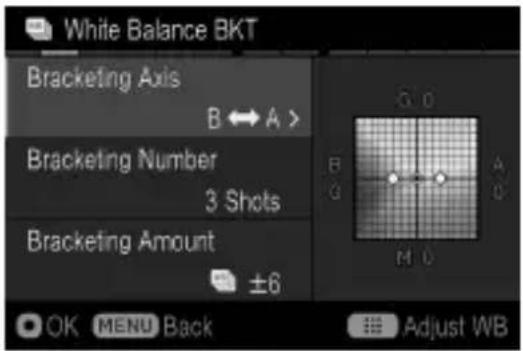
2
Select an item to be changed by using the ◆ buttons. Open the sub menu by pressing the OK button or the > button.
| Bracketing Axis | Select a shifting direction of the white balance from B↔A (Blue ↔ Amber) and M↔G (Magenta ↔ Green). |
| Bracketing Number | Select the number of images to be recorded from three or five. |
| Bracketing Amount | Select the shifting amount from the standard white balance to be saved. |

Select a desired value with the ◇ buttons and finalize with the OK button or the >button.
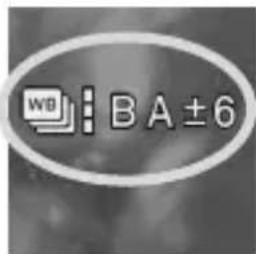

Press the shutter button “half-way” to return to shooting mode. (The White Balance BKT icon will be displayed on the color LCD monitor.)
ADJUSTING WHITE BALANCE
The standard value of the white balance can be finely adjusted.
1
On the White Balance Bracket Setting screen, press the button to display the White Balance Adjustment screen.
2
Press the ◀◀▶ buttons to adjust. If the current setting is used without changing the value, press the MENU button. The adjustment is canceled and the screen returns to the previous screen.
3
To confirm, press the OK button. After finalizing, pressing the OK button again returns the screen to the White Balance BKT Setting screen.
COLOR MODE BRACKETING
Several images with different color modes can be saved in one sequence.
1
Select [Capture Settings] (P.30) → [Custom Bracketing] → [Color Mode ] and press the > button to display the Color Mode BKT setting screen. (After selecting [Color Mode ] and pressing the OK button, images can be taken at the value set previously.)
 | Currently-set Color Mode. (This setting can be changed in the same procedure.) |
| BKT1 to BKT5 | Up to five Color Modes to be saved in a bracket can be selected. (Color Modes that are registered with the S/O button can be deleted.) |
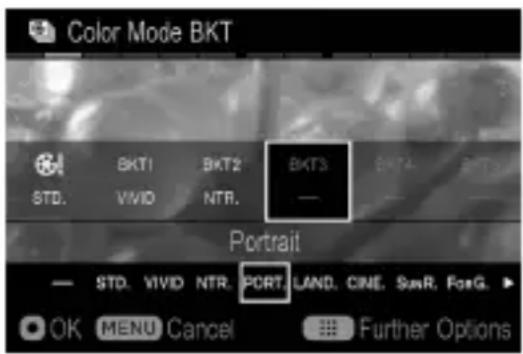
2
Select from BKT1 to BKT5 by using the <> buttons and press the OK button.
3
Select the Color Mode to be allocated from the list at the lower section of the screen by using the <> buttons. Finalize with the OK button.
- When cancelling the allocated Color Mode, select [-] (no allocation) from the list. Press the S/C button to finalize.
4
Press the shutter button “half-way” to return to shooting mode. (The Color Mode BKT icon will be displayed on the color LCD monitor.)
COLOR MODE DETAILED SETTING
Detailed settings are possible for each color mode.
1
When the color mode to be allocated is selected from the list in step 3 in the preceding item, press the button to display the Color Mode Detailed Setting screen.
2
Press the ◆ buttons to select [Contrast], [Sharpness] or [Saturation] on the Color Mode Detailed Setting screen, and use the ◆ buttons to select adjustment value (Adjustable up to ±1.0 with 0.2 steps) or set the preferred option.
3
Press the OK button to apply the setting. To go back without changing the setting, press the MENU button. When pressing the OK button again after finalization, the screen returns to the Color Mode BKT Setting screen.
4
Press the OK button again to finalize the allocation.
- Custom Bracketing can be used in combination with Auto Bracketing. The number of images that is set in Custom Bracketing can be recorded for one shooting of Auto Bracketing.
CAUTION !!
- Once you set the Custom Bracketing, the camera will continuously hold that Custom Bracketing. To cancel the Custom Bracketing, Select [Off] from [Capture Settings] (P.30) → [Custom Bracketing].
- The set number of images are processed based on one shot data. Therefore, the loading time becomes longer than with regular shooting. In addition, the possible number of images to be shot becomes fewer depending on the number of images to be recorded.
- White Balance Bracketing and Color Mode Bracketing cannot be used together in combination.
- Custom Bracketing cannot be used with the Interval timer.
TONE CONTROL
By automatically optimizing the tone curve according to the scene, even for the scene with high contrast, the image can have a natural tone.
Tone Control : Off
natural_image
Silhouette of industrial cranes and a large steel tower at dusk (no visible text or symbols)Tone Control : Strong
natural_image
Exterior view of a large industrial crane lifting equipment at an outdoor site (no visible text or symbols)The Tone Control can be set in the Quick Set Menu (P.38) or [Capture Settings] (P.30) → [Tone Control].
| OFF | Off | Set Tone Control function OFF. |
 | Mild (Default) | Mild effect can be achieved. |
 | Strong | Strong effect can be achieved. |
CAUTION !!
- Depending on the scene, noise may be visible due to the correction effect. In such case, set it to [Off].
It is possible to select sRGB, which is a common color space or Adobe RGB, which is mainly used for commercial printing, and other industrial purposes.
Color Space can be set in [Capture Settings] (P.30) → [Color Space].
| sRGB (Default) | Adobe RGB |
CAUTION !!
- Please set the color space to sRGB for regular usage. If you select Adobe RGB, please be sure to use the Sigma Photo Pro software or another image processing software supporting DCF 2.0.
AUTO ROTATE
It is possible to record the vertical image information to images.
The Auto Rotate can be set by [Capture Settings] (P.30) → [Auto Rotate].
| Off | The vertical image information will not be recorded. |
| On (Default) | The vertical image information will be recorded. |
- When vertically orientated images are reviewed, they will automatically rotate and be displayed vertically.
- When vertically orientated images are reviewed in Sigma Photo Pro, they will automatically rotate and be displayed vertically.
- When vertically orientated images are rotated by pressing [▶ Playback Menu] → [Rotate], this rotated orientation will be stored.
WARNING !!
- If the images are taken while the camera is pointed up or down, the vertical position information may not be recorded properly.
It is possible to customize the Custom Mode Setting. (Up to three patterns can be stored.)
The following settings are available.
- All items in [Capture Settings] (Blue Tab) (P.30)
- Exposure mode (M, S, A, P) (P.49)
- Setting Value for Aperture / Shutter
- Setting the focus frame (P.59)
- Exposure compensation (P.84)
• ISO Sensitivity (P.75)
• AE Metering Mode (P.81)
SAVE THE CUSTOM MODE SETTING
1
Set the above settings to your desired combination.
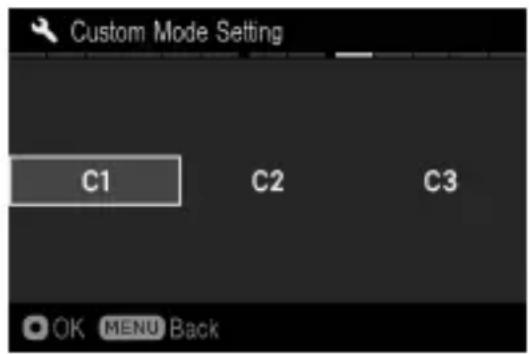
2
In [ ↘ Camera Settings] (P.30) → [Custom Mode Setting], select from C1, C2 or C3 by using <> buttons. After selecting, press the OK button. A confirmation dialog will appear.
3
Use the <> buttons to select [Yes], and press the OK button to confirm. To cancel, use the <> buttons to select [No] and press the OK button.
WARNING !!
- When the new setting is saved, the previous stored setting will be overwritten.
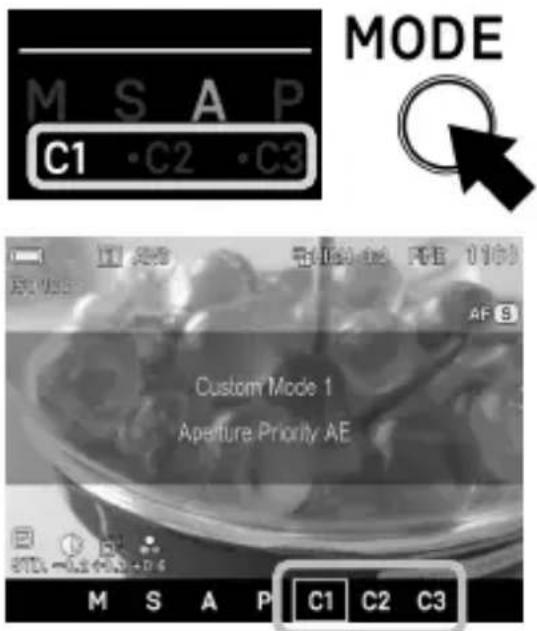
Press the Mode button and set to C1, C2 or C3.
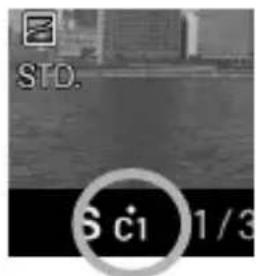
In custom mode, it is possible to change the above settings temporarily (except Exposure Mode).
If the setting is changed, ● mark will appear in Function Display.
Return to original registered setting by doing the following.
- Turn the camera off (this includes the camera turning off automatically with the Auto Power Off function)
- Press the Mode button and set to another position.
USING THE EXTERNAL FLASH
This section explains how to use external flashguns.
THE EXTERNAL FLASH
ELECTRONIC FLASH EF-630 (FOR SIGMA) (Sold separately)
Optional Sigma Electronic Flash EF-630 (FOR SIGMA) with the STTL system allows you to use features such as Auto Flash with the sd Quattro. The Electronic Flash EF-630 (FOR SIGMA) lets you do even more, such as use Multi Flash and other advanced features.
Some items of the external flash can be set from the camera side.
The Flash Mode can be set by [Capture Settings] (P.30) → [Flash].

RED-EYE REDUCTION FLASH (Red-eye)
When taking a picture with flash, sometimes the person's eyes reflects the flash light and the “redeye” phenomenon will appear in the picture. In order to avoid this effect, the light flashes for about one second before the picture is taken to reduce the effect of red-eye.
- Depending on the lighting and subject conditions, the Redeye Reduction flash may not completely eliminate the redeye in all cases.

REAR CURTAIN SYNCHRONIZATION (Rear Curtain Sync.)
When you use rear curtain synchronization, the flash will fire just before the rear curtain begins to close and the subject will be exposed by ambient light from the time the shutter opens until the flash fires. As a result the furrow of the subject will be recorded behind the subject. This gives a more natural effect.

FP FLASH FUNCTION (FP)
The FP flash keeps firing, while the shutter curtain is running. Thus you can use a shutter speed faster than the synchronized speed.

SLOW SYNCHRO MODE (Slow Sync.)
When using the flash with P/A mode, the shutter speed value, which will reduce camera shake, is set automatically. The slow synchro mode changes the shutter speed up to 30 second depending on light condition. This mode is suitable for a portrait in a nightscape.
AF ASSIST LIGHT (AF Assist Light)
Normally, the AF Assist Light integrated in the Flash, lights up during shootings with the flash. When the AF Assist Light prevents appropriate shooting, selecting [Off] from [AF Assist Light] can set the AF Assist Light to be turned off during shooting.
- When the [AF Assist Light] setting is set to [Off], the AF Assist Light integrated in the camera is activated. When neither assist light is used, also set the [Built-in AF Assist Light] setting to [Off] (P.58).
CAUTION!!
- The Flash Mode can not be set if the flashgun is not attached to the camera, or the flashgun is turned off.
FLASH EXPOSURE COMPENSATION
It is possible to compensate the flash output level without changing the background's exposure.
The Flash Exposure Compensation can be set from [Capture Settings] (P.30) → [Flash] → [Flash Exposure Compensation].
Select the desired compensation value by using the buttons.
- Flash Exposure compensation can be set in 1/3 stop increments from +3.0 to -3.0 stops.
When the Flash Exposure Compensation is set, the icon and compensation value will be displayed on the left of the LCD monitor.
CAUTION!!
- The flash exposure compensation can not be set if the flashgun is not attached to the camera, or the flashgun is turned off.
- The flash exposure compensation will not disable automatically. After taking the picture, set the compensation value to ± 0.0 by above procedure.
The sd Quattro is equipped with a Sync.Terminal (P.12-⑩), which accepts a cable connection fro external/studio flash units.
CAUTION!!
- S-TTL auto flash does not work, if Sync.Terminal is used.
- Set the camera's exposure mode to M and set to flash synchronized speed Sync (1/180) or a shutter speed of 1/160 or lower. See the instruction manual of the particular flash used for additional information.
- The sd Quattro's Sync.Terminal is compatible with plugs that have a positive (+) polarity on the central pin and a negative (-) polarity on the shield. If the plug has reverse polarity, use a commercially-available polarity conversion cord.
WARNING!!
- The Sync.Terminal cannot accept flashes that use a voltage of more than 250V. Higher voltage will damage the camera. Please ask the manufacturer of the flash about the voltage and compatibility with the Sync.Terminal.
USING Eye-Fi CARD (Eye-Fi Connected)

eyefi connected
By using Eye-Fi Card with Wi-Fi communication function (sold separately), it enables a camera to transfer the images to smartphones or a PC wirelessly.
- It is the Eye-Fi card that has the feature to transfer images. For the details of the usage of the card and how to set it up, please refer to the instruction manual of the Eye-Fi card.
- Depending on the specification of the Eye-Fi, it might be possible to transfer images in RAW format. For more information, please refer to the instruction manual of the Eye-Fi card.
Once you insert the Eye-Fi card into the camera, it is possible to configure [Eye-Fi Setting] → [Eye-Fi Transfer] in [Camera Settings] (P.30).
Eye-Fi Transfer
| Off | It disables the communication and image transfer functions of the card. Its function becomes as same as usual memory cards. |
| On (Default) | It automatically transfers the images, based on the settings of the Eye-Fi card. |
- It is possible to check the Wi-Fi connection with the 📤 icon on the display.
| — (No signal) | [Eye-Fi Transfer] is turned off. |
 (Gray) (Gray) | Not connected to other devices. |
 (White Blinking) (White Blinking) | Trying to connect to other devices. |
 (White) (White) | On standby for transferring images. |
 (Animation) (Animation) | Transferring images. |
 | Error in the communication of the Eye-Fi card. (Please reboot the camera. If the same icon keeps appearing, it might be the malfunction of the camera.) |
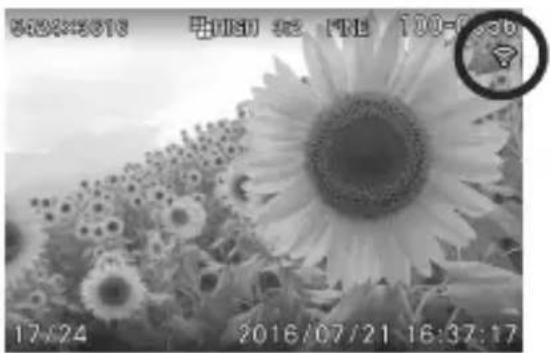
natural_image
Black-and-white photo of a sunflower field with no visible text or symbols- The images with 📤 icon have been transferred.
- It is possible to check the device information of the Eye-Fi card and the status of Wireless communication.
Information to check: Connected SSID
MAC address of the Eye-Fi card
Firmware version of the Eye-Fi card
It is possible to check the information from [Camera Settings] (P.30) → [Eye-Fi Settings] → [Connection Information].
CAUTION !!
- The communication is interrupted if the camera is turned off during the transfer. It resumes when the camera's power is switched on again.
- Please check that use of the Eye-Fi card is allowed in your country or region. Please use it only if it complies with the laws in the country or region.
- In some cases, it is possible that the Eye-Fi card keeps sending radio waves even when the function is set to [Off]. Please remove the card from the camera when emitting the radio wave is strictly prohibited, such as in hospitals or airplanes.
- Depending on the wireless connection, the transferring process might be slow or interrupted.
- In case images are taken during image transferring, it may pause the communication and transfer for a moment. Once the images are written to the memory card, it continues the transfer process.
- In case the image transfer does not operate well, please refer to the instruction manual of the card, and check the settings of both of the card and the computer.
- The communication and transfer of the Eye-Fi card requires higher consumption of the camera battery, so the battery will run out faster than usual.
REVIEWING AND DELETING IMAGES
This section explains how to review and delete images after they have been captured.
The pictures captured by the sd Quattro can be reviewed in various ways.
To review images captured by the sd Quattro camera press the ▶ button on the back of the camera. The last image recorded on the card will be displayed on the color LCD monitor.
natural_image
Icon showing a play button with a black cursor arrow, no text or symbols presentPress the button to display an image on the color LCD monitor.
Press the button again to change to shooting mode.
TIP
- If no new images have been captured, the last reviewed image will be displayed.
- If there are no images on the card, an error message “No images on Memory card” will be displayed.
- When reviewing images, if the ▶ button is pressed or the shutter button is pressed “half-way”, the sd Quattro will be changed back to shooting mode.
CAUTION!!
- The sd Quattro may not be able to display images captured by other cameras, or “sd Quattro” images that have been renamed or moved from the DCIM folder on the card.
Press the ▶ button on the back of the camera to see the recorded images in Single-Image View.
WHILE IN SINGLE-IMAGE VIEW:
- Rotate the Rear Dial to see the previous or next images.
- Press the > button to see the next image.
- Press the < button to see the previous image.
- Press the □ button to switch the information as follows (P.41).
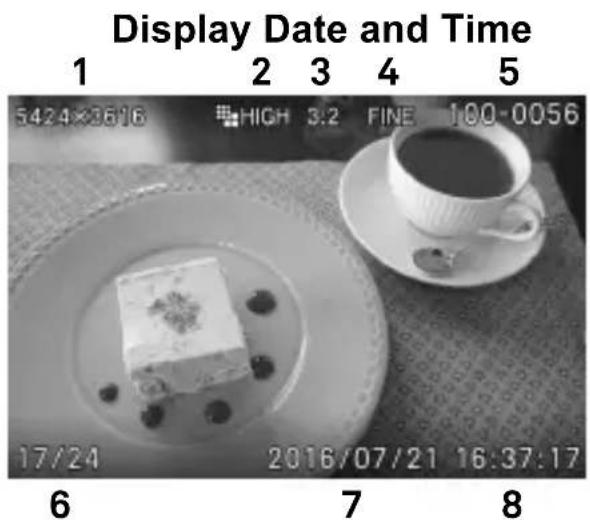
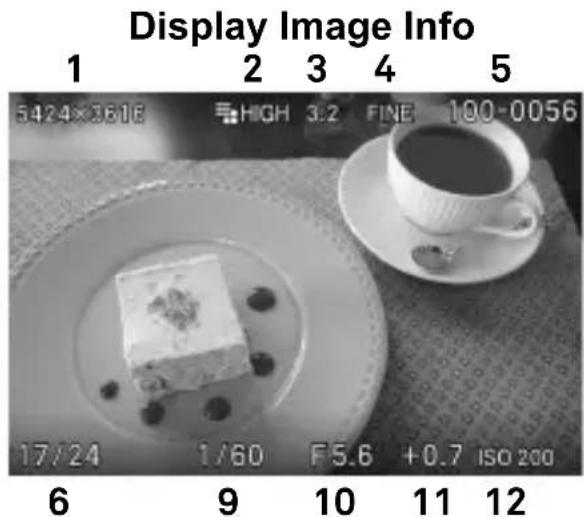
| 1 | Number of Pixels |
| 2 | Image Size |
| 3 | Aspect Ratio |
| 4 | Image Quality |
| 5 | Folder numbering - File numbering |
| 6 | File number / Total files recorded |
| 7 | Date |
| 8 | Time |
| 9 | Shutter Speed |
| 10 | F Number |
| 11 | Exposure Compensation Value |
| 12 | ISO Sensitivity |
TIP
- To scroll through images more quickly, press and hold the <> buttons. Images will advance automatically until the button is released.
- The first and last recorded images on the card are linked. Pressing the
Reviewed images can be magnified, making it possible to check image details and focusing.
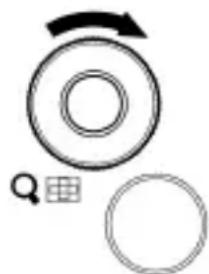
natural_image
Simple diagram with three concentric circles and a magnifying glass icon, no text or symbols present.While reviewing images, rotate the Front Dial to the position.
The magnification ratio will be changed as follows.
Original→X1.25→X1.6→X2.0→X2.5→X3.15→X4.0→X5.0→X6.3→X8.0 →X10.0
WHILE IN ZOOMED-IN VIEW:
- Rotate the Front Dial to the 🔒 position to increase magnification.
- Rotate the Front Dial to the ☐ position to decrease magnification.
- Press the ◇ buttons or the ◀ buttons to pan around the image.
- Press the OK button to return to the original ratio.
- Rotate the Rear Dial to see the previous or next images.
TIP
- Images are magfinied based on the position of the focus point during shooting.
VIEWING NINE IMAGES AT A TIME(CONTACT SHEET VIEW)
Images can be viewed in a "contact sheet" of nine thumbnail images.
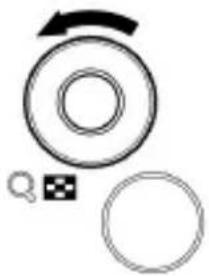
natural_image
Simple diagram with concentric circles, a question mark, and a circle (no text or symbols)While reviewing images, rotate the Front Dial to the position.
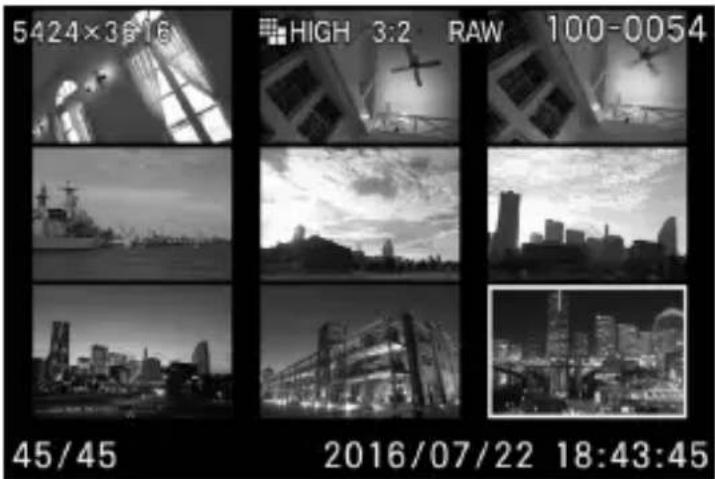
WHILE IN CONTACT SHEET VIEW:
- Press the ◀◀▶ buttons to change the thumbnail image selection.
- Rotate the Front Dial to the 🔒 position, the selected thumbnail image will be reviewed.
- Rotate the Rear Dial to see the previous or next pages.
TIP
- The first and last page are linked. The first page is displayed after the last page.
The Image Info Screen contains additional information about each image.
Press the □ button several times from the Single-Image or Zoomed-In View.
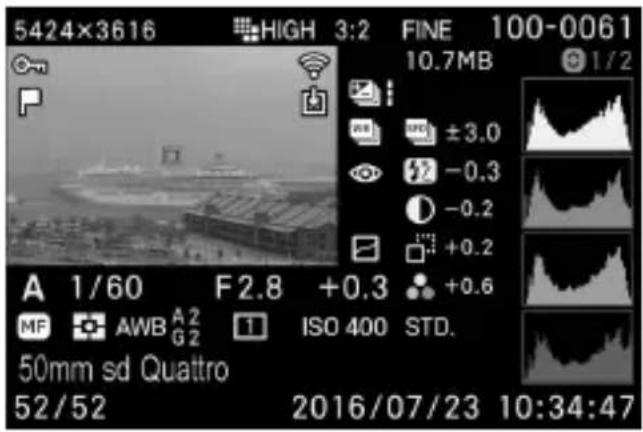
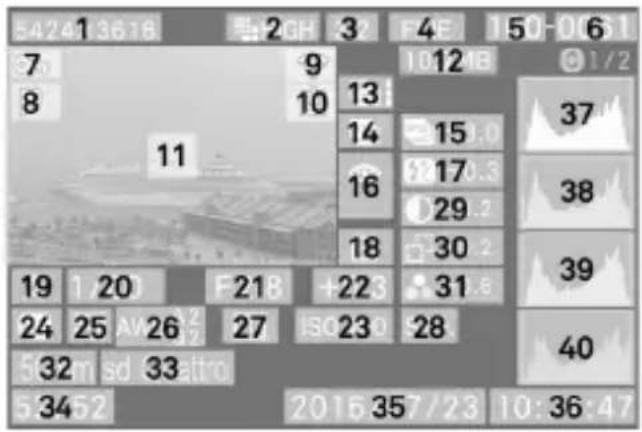
| 1 | Number of Pixels |
| 2 | Image Size |
| 3 | Aspect Ratio |
| 4 | Image Quality |
| 5 | Folder numbering |
| 6 | File numbering |
| 7 | Lock * |
| 8 | Mark * |
| 9 | Eye-Fi Transfer * |
| 10 | RAW Development |
| 11 | Focusing Frame |
| 12 | File Size |
| 13 | Auto Bracket * |
| 14 | Custom Bracketing * |
| 15 | SFD Mode * |
| 16 | Flash Mode * |
| 17 | Flash Exposure Compensation Value * |
| 18 | Tone Control |
| 19 | Exposure Mode |
| 20 | Shutter Speed |
| 21 | F Number |
| 22 | Exposure Compensation Value |
| 23 | ISO Sensitivity |
| 24 | Focus Mode * |
| 25 | Metering Mode |
| 26 | White Balance (Filtering Effect) |
| 27 | Drive Mode |
| 28 | Color Mode (Toning Effect) |
| 29 | Contrast * |
| 30 | Sharpness * |
| 31 | Saturation * |
| 32 | Focal Length |
| 33 | Camera name |
| 34 | File Number / total files recorded |
| 35 | Date |
| 36 | Time |
| 37 | Histogram (Brightness) |
| 38 | Histogram (Red) |
| 39 | Histogram (Green) |
| 40 | Histogram (Brue) |
*If these features are set, the icon will be displayed.
WHILE IN IMAGE INFO SCREEN:
- Press the □ button again to return to the original Single-Image View.
- Different images can be selected in Single-Image View by pressing <> .
- Rotate the Rear Dial to see the previous or next images.
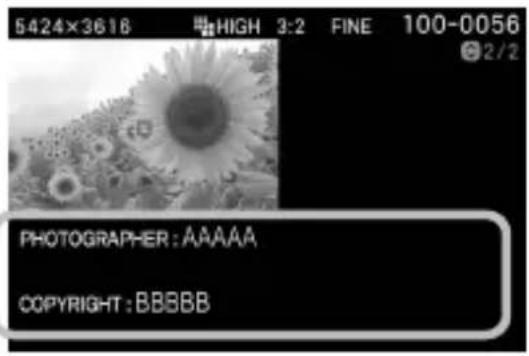
- It is possible to check Copyright Information (Photographer and Copyright) by pressing ◆ button and switching it to Copyright Information screen.
MAGNIFIED IMAGES IN IMAGE INFO SCREEN
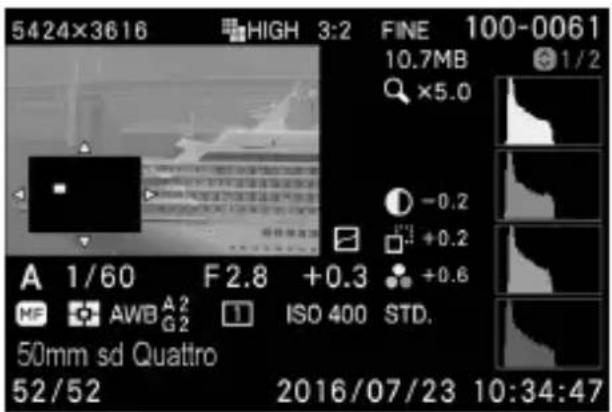
While the Image Info Screen is displayed, it is possible to magnify the image by rotating the Front Dial to the direction. It is possible to obtain detailed histogram information for a particular section of an image.
- For more information on the histogram see the next section.
While magnifying the image in the Image Info Screen:
- Press the ◇◀▶ buttons to pan to another part of the image. (Histogram will update automatically to reflect the new values.)
- Rotate the Front Dial to the position to increase magnification.
- Rotate the Front Dial to the ☐ position to decrease magnification.
- Press OK to cancel magnification and view the Image Info Screen for full image.
- Rotate the Rear Dial to see the previous or next pages.
HISTOGRAM
The histogram is a graph depicting the distribution of brightness values in the image for each of the three color channels (Red, Green, and Blue) (The histogram displayed in the Shooting Mode is the distribution of tones in the image). The horizontal axis shows the brightness level, with darker pixels towards the left side and brighter pixels toward the right. The vertical axis shows the proportion of pixels at each level of brightness.
By examining the histogram of the full image, you can gauge the overall exposure of that image. You can also use the histogram to determine if zoomed-in sections of an image are over or under exposed.
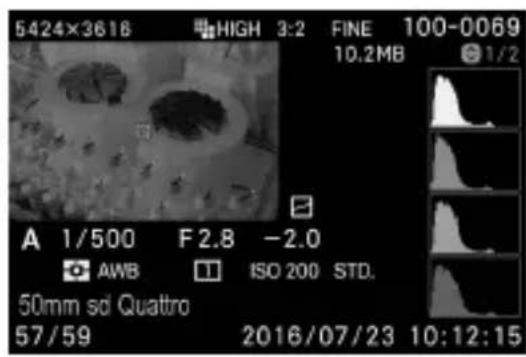
This histogram shows that the higher pixel values are never used in the image, indicating that the image is underexposed, and therefore will appear dark. In general, when the histogram is higher on the left side, the image is mostly composed of dark pixels, causing it to appear dark—either because the image is underexposed or because it is a dark scene such as night shot or sunset.
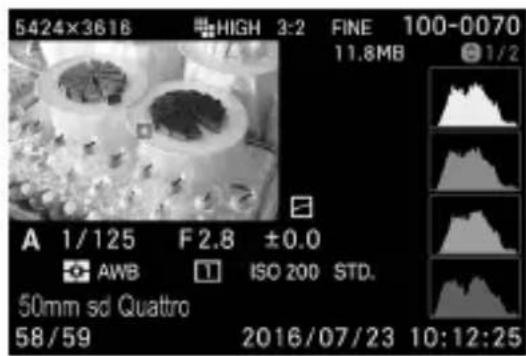
This histogram shows a fairly even distribution of pixel values, indicating that the image is well exposed, with good contrast. However, the histogram distribution of a well exposed image will vary greatly depending on the subject.
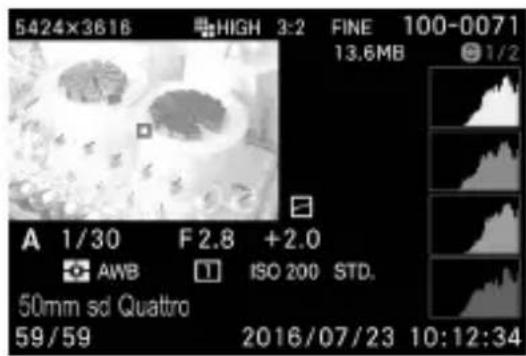
This histogram shows that many of the pixel values are at their brightness limit, indicating that some areas of the image may be blown out. In general, when the histogram runs off the right side, the image will have many white pixels—either because the image is overexposed or because it is a bright scene such as the beach or snow.
This section describes how to delete the files recorded on a card.
- In this chapter, "file" refers to still images.
DELETE A FILE WITH THE DELETE BUTTON


A single file that is displaying can be deleted by pressing the button.
1
Select the file that you wish to delete.
2
Press the 📋 and a confirmation dialog [Delete current file?] will be displayed.
3
To delete the file, select [Yes] by using the <buttons and press the OK button. If you don't delete the file, select [No] by using the <> buttons and press the OK button.
WARNING !!
- If the file is locked, a confirmation dialog [This file is locked.] will come up and protect from deletion. If you wish to delete the file, it is necessary to unlock it first. (See P.116-118 for information on locking and unlocking files.)
- Images stored as RAW+JPEG, both the RAW and JPEG files will be deleted.
DELETE FILES FROM THE DELETE MENU
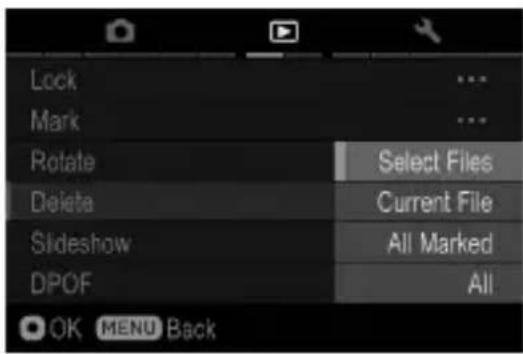
It is possible to delete a single file or multiple file from the Delete menu.

While the image is displayed, press the MENU button and open [ playback Menu] (P.30) to select [Delete].
2
Select from the following options from the sub-menu.
| Select Files | Select multiple files to delete. Use the ◆buttons to display the file to delete, and the ◇buttons to display 📄icon. Repeat the process to select files to delete. |
| Current File | Delete the currently selected file only. |
| All Marked | Delete all marked images on the card.(See P.118-120 for information on marking images.) |
| All | Delete all files on the card. |
3
Press the 📄 button to confirm your selection. A confirmation dialog will appear.
4
Select [Yes] by using the <> buttons and press the OK button to apply the setting. If you want to cancel to apply the setting, select [No] by using the <> buttons and press the OK button.
WARNING !!
- Locked files are not deleted. (See P.116-118 for information on locking files.)
- When [Select Files], [All Marked] or [All] is done, it may take time to finish them depending on the number of files in the card.
TIP
- Files except [Select Files] can be activated without viewing images.
OTHER REVIEWING FEATURES
This section explains how to use Slideshow, Lock, Mark, Rotate and so on.
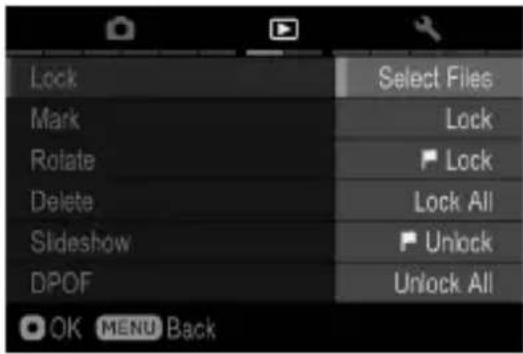
Locking protects files from being accidentally deleted.
CAUTION !!
- Locking does not prevent files from being erased when the card is formatted. Review card contents carefully before formatting.
TIP
- Locked files have a "read-only" status when viewed on a computer.
TO LOCK A SINGLE FILE
1
Display images to lock, press the MENU and open [Playlock Menu] (P.30) to select [Lock].
2
Select [Lock] from sub menu.
3
Press the button or button.
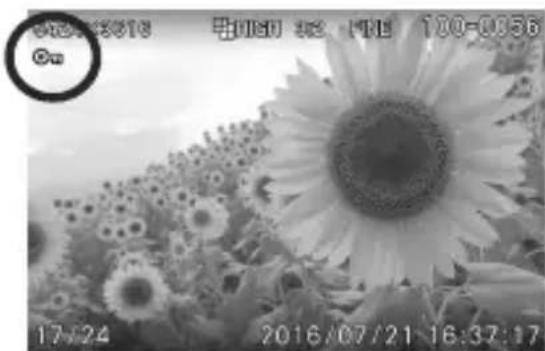
natural_image
Black-and-white photo of sunflowers in a field, no visible text or symbols- A key icon O_m will appear in the file indicating that the file is locked.
TIP
- If the file is already locked, the menu item changes to [Unlock].
- To unlock a locked file, select the locked file and follow the same steps as above.
- The OK button can be used as a shortcut key for locking files. (See P.123)
TO LOCK MULTIPLE FILES
1
Press the MENU button and open [▶ Playback Menu] (P.30) to select [Lock].
2
Select from the following options from the sub-menu.
| Select Files | Select multiple files to lock. Use the <buttons to display the file to lock, and the <buttons to display icon. Repeat the process to select files to lock. |
| Lock | Lock all marked images on the card.(See P.118-120 for information on marking images.) |
| Lock All | Lock all files on the card. |
3
A confirmation dialog will be displayed by pressing the OK or >button.
4
Select [Yes] by using the <> buttons and press the OK button to apply the setting. If you want to cancel to apply the setting, select [No] by using the <> buttons and press the OK button.
- A key icon O_ will appear in all locked files.
WARNING !!
- When [Select Files], [Lock] or [Unlock] is done, it may take time to complete this depending on the number of files in the card.
TIP
- To unlock multiple files, select the [Unlock All] or [ ] Unlock] in the Lock Menu.
MARKING IMAGES
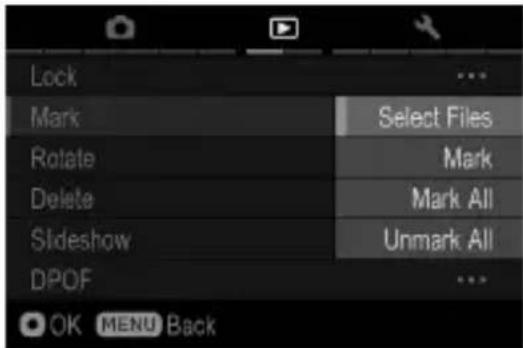
Images can be marked for various reasons, such as to identify favorites, to select images for a Slideshow, or to select images to be deleted with the "All marked" menu item in the Delete Menu (P.114).
TIP
- Images marked on the camera will retain their marked status when viewed in SIGMA Photo Pro.
TO MARK A SINGLE IMAGE
1
Display images to mark, press the MEN on and open [Playback Menu] (P.30) to select [Mark].
2
Select [Mark] from sub menu.

Press the OKr button.
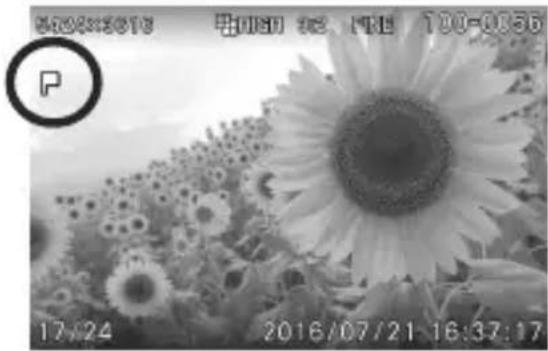
natural_image
Black-and-white photo of sunflowers and flowers in a field, no visible text or symbols- A flag icon 📁 will appear in the image indicating that the image is marked.
TIP
- If the image is already marked, the menu item changes to [Unmark].
- To unmark a marked image, select the marked image and follow the same steps as above.
- The OK button can be used as a shortcut key for marking images. (See P.123)
TO MARK MULTIPLE IMAGES
1
Press the MENU button and open [▶ Playback Menu] (P.30) to select [Mark].
2
Select from the following options from the sub-menu.
| Select Files | Select multiple files to mark. Use thebuttons to display the file to mark, and thebuttons to displayicon. Repeat the process to select files to mark. |
| Mark All | Mark all images on the card. |
3
A confirmation dialog will be displayed by pressing the OK or >button.
4
Select [Yes] by using the <> buttons to and press the OK button to apply the setting. If you want to cancel to apply the setting, please select [No] by using the buttons to and press the button.
- A flag icon 📁 will appear in all marked images.
WARNING !!
- When [Select Files], [Mark All] or [Unmark All] is done, it may take much time to finish them depending on the number of files in the card.
TIP
- Select [Unmark All] from the Mark Menu to unmark all marked images on the card.
ROTATING IMAGES
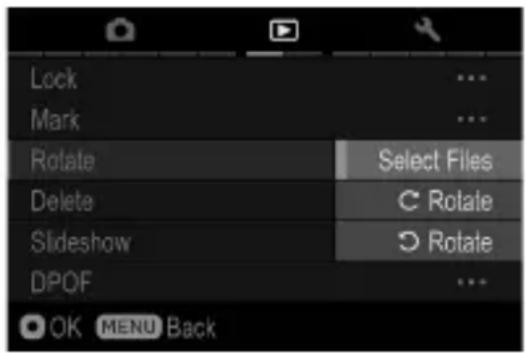
It is possible to rotate the displayed image.
TO ROTATE AN IMAGE
1
Display an image to rotate, press the MENton and open [Playback Menu] (P.30) to select [Rotate].

2
Select from the following options from the sub-menu.
| Rotate | Rotate the image 90 degrees to the right (clockwise). |
| Rotate | Rotate the image 90 degrees to the left (counterclockwise). |
WARNING !!
- When [Applied Rotate] in [▶ Playback Menu] (P.30) is set to [Off], it is not possible to select the Rotate Menu.
TIP
- To rotate an image 180 degrees, rotate it twice in the same direction.
- To get an image back into its original orientation, rotate it in the opposite direction.
- The OK button can be used as a shortcut key for rotating images. (See P.123)
- Images rotated on the camera will be displayed in their rotated orientation in SIGMA Photo Pro.
TO ROTATE MULTIPLE IMAGES
1
Press the MENU button to open [▶ Playback Menu] (P.30), and select [Rotate].
2
Select [Select Files] from sub menu.
3
Use the <> buttons to display the file to rotate, and the ^ button to rotate the image 90 degrees to the right, and the <buttons to rotate the image 90 degrees to the left. Repeat the process to select files to rotate.
4
A confirmation dialog will be displayed by pressing the OK or >button.
5
Select [Yes] by using the <> buttons and press the OK button to apply the setting. If you want to cancel to apply the setting, select [No] by using the <> buttons and press the OK button.
EXPOSURE WARNING
It is possible to indicate the over-exposed areas by highlighting them in red.
Set to [On] from [▶ Playback Menu] (P.30) → [Exposure Warning].
- The Exposure Warning is not indicated in the Quick Preview.
To dismiss the Exposure Warning, set to [Off] from [▶Playback Menu] (P.30) → [Exposure Warning].
TIP
- The OK button can be set as a shortcut button for Exposure Warning [On/Off] (Refer P.123).
natural_image
Circular diagram with concentric rings and a black arrow pointing to the center (no text or symbols)It is possible to allocate a function from the Playback Menu to the button. The allocated function can be changed by pressing the button.
The OK Button Shortcut can be set in [▶ Playback Menu] (P.30) → [OK Button Settings].
Available functions to allocate to the button.
| Lock | Lock the currently selected image by pressing the OK button. If the current image is already locked, the image will be unlocked. |
| Mark | Mark the currently selected image by pressing the OK button. If the current image is already marked, the image will be unmarked. |
| Exposure Warning | Each time the OK button is pressed, toggle the exposure warning on or off. |
| Rotate | Each time the OK button is pressed, rotate the currently selected image 90 degrees to the right (clockwise). |
| Rotate | Each time the OK button is pressed, rotate the currently selected image 90 degrees to the left (counterclockwise). |
| Image Magnification (Default) | Each time the button is pressed, toggle between zoomed-in view (10x) and original ratio. |
To dismiss the allocated function, set to [None] from [▶ Playback Menu] (P.30) → [OK Button Settings].
All images on the card, or only selected images, can be shown in an automatic playback mode using the sd Quattro camera's Slideshow feature.
SLIDESHOW MENU
| All Images | Start an automated slideshow of all images on the card. |
| Locked Images | Start an automated slideshow of all locked images on the card. |
| Marked Images | Start an automated slideshow of all marked images on the card. |
| Slideshow Settings | It is possible to set the length of time that each picture will be displayed and the availability of Repeat. |
TO START A SLIDESHOW
1
Press the MENU while displaying an image and open [Playback Menu] (P.30) to select [Slideshow].
2
Select [All Images], [Locked Images] or [Marked Images] in the sub-menu.
3
The Slideshow starts by pressing the OK or > button.
To terminate the slideshow, press the 📄 button.
WARNING !!
- When [Marked Images] is selected, it may take time to start the Slideshow depending on the number of files to be displayed.
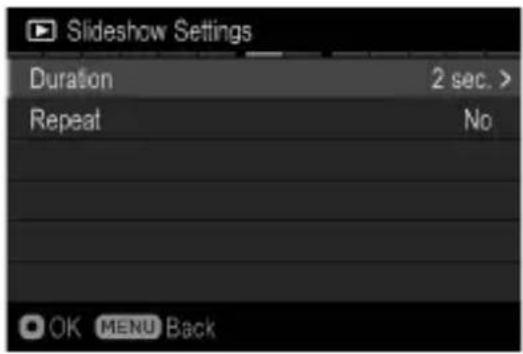
Select the [Slideshow Settings] in Slideshow Menu and then press the >button to open the setting display.
SLIDESHOW SETTING MENU
| Duration | 2 sec.5 sec.10 sec. | Set the length of time that each image in a slideshow is displayed. |
| Repeat | NoYes | Set whether the slideshow loops continuously or stops on the last image. |
Duration
Select [Duration] using the ◇ buttons, then select the desired number of seconds by pressing the buttons.
Repeat
Select [Repeat] using the ◆ buttons, then select [No] or [Yes] by pressing the buttons.
Press button to confirm the Slideshow settings or button to close the confirmation dialog without any change.
DPOF (DIGITAL PRINT ORDER FORMAT)
When printing images at a photo lab, it is possible to specify which photos and quantity to print in advance, using the DPOF menu. This is also available when making prints using a DPOF compatible printer.
WARNING !!
- In the case of RAW images (files with X3F extension), DPOF printing is not possible.
1
Press the MENU button to select [DPOF] in [▶Playback Menu] (P.30) while displaying an image.
2
Select the desired option using the OK or >button.
DPOF MENU
| Select Files | Set the print quantity by pressing thebuttons. To set number of copies from multiple images, select the image that you wish to print by pressing the<>buttons and then set the print quantity for each image by pressing thebuttons. |
| Select All | This option selects all still images on the card for printing. Set print quantity by pressing thebuttons. |
| Cancel AllSelections | Reset all print quantity settings. |
3
A confirmation dialog will be displayed by pressing the OK or >button.
4
Select [Yes] by using the <> buttons and press the OK button to apply the setting. If you want to cancel to apply the setting, select [No] by using the <> buttons and press the OK button.
DEVELOPING RAW DATA INSIDE THE CAMERA
It is possible to develop RAW data inside the camera, and create a JPEG format image.
RAW development setting screen
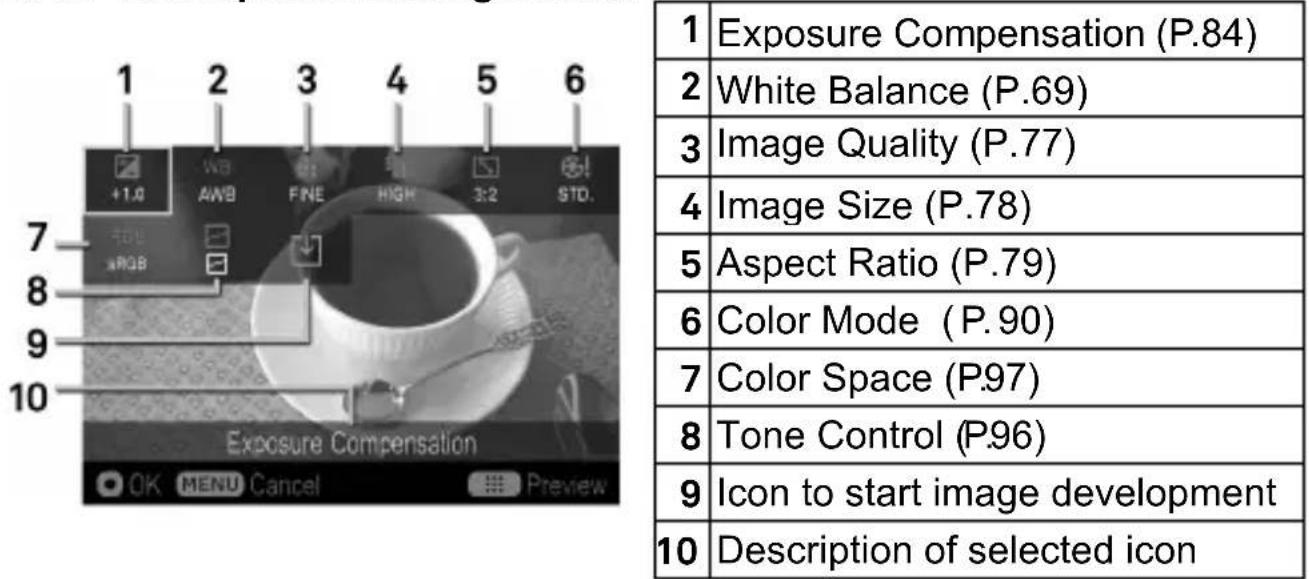
1
While displaying the RAW image, press the MENU and open [▶ Playback Menu] (P.30), then select [RAW Development].
2
In the sub menu, select the image to develop in RAW format from the following two methods;
| Select Files | Display the picture to develop by pressing the <> buttons (when it is displaying 9 pictures over the screen, the <> button will appear instead), and confirm it with the button.It is possible to process [Selecting File] even when an image is not displayed in Step1. |
| Current File | It displays the image selected at the Step1.It is not possible to select [Current File] when JPEG images are selected at the Step1. |
● After selecting the image, the message [Now Processing...] will appear until it displays the RAW development setting screen.
3
In the RAW development setting screen, press the <buttons to select an item, and confirm it by pressing the <button.
- It is possible to set details of each option in White Balance (P.69) and Color Mode (P.90). Press the button to display the setting page. For further information, refer to the related sections in this instruction manual.
4
While checking the image, use front/rear Dials or buttons to change the adjustment value (or option). Then, confirm it by pressing the button.
5
Repeat Step 3 and 4 in case there are multiple items to change.
6
After finalizing the setting, select ↓ (icon to start image development) and press the OKtton.
7
Select [Yes] by using the <> buttons, and confirm it by pressing the OK button.
In order to stop the process, select [No] by using the <> buttons, and press the OKton.
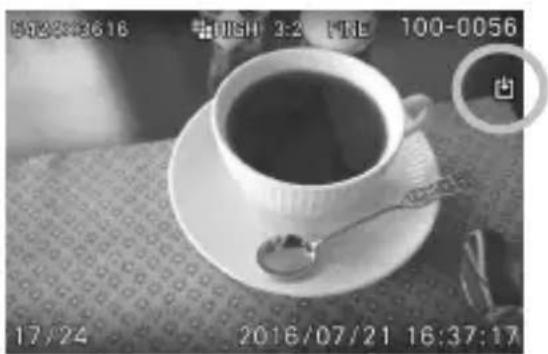
natural_image
Black-and-white photo of a teacup on a saucer with a spoon, placed on a patterned tablecloth (no visible text or symbols)- For the JPG images developed from RAW data, mark will appear in the image.
- The File Number of the JPEG image developed from RAW data will become the next number following the final recorded file in the memory card.
WARNING !!
- In case there is insufficient space in the memory card, there will be a warning message and it is not possible to develop RAW file.
- It is recommended to use SIGMA Photo Pro for further detailed adjustment and image editing.
CHANGING OTHER SETTINGS
This section explains how to change the setting of basic camera operation to your desired settings.
Stored data is automatically assigned file numbers from 0001 to 9999. When data is being reviewed, the file number of each image is displayed in the right corner on the color LCD monitor (see P.107, 110). The file number is also incorporated into the filename of the image. The filename consists of "SDIM" followed by the 4-digit file number and extension. For example: image number 0023 will be stored in the file SDIM0023.X3F. All sd Quattro image files will be stored to ###SIGMA folder of the DCIM folder in the card.
- When [Adobe RGB] is selected from [Capture Settings] (P.30) → [Color space], the filename will consist of “_SDI” instead of “SDIM”.
- File numbering can be continuous, or can be reset every time an empty card is detected. The File Numbering can be set from [Camera Settings] (P.30) → [File Numbering].
FILE NUMBERING OPTIONS
| Continuous(Default) | Numbering is continuous. The first file number assigned on an empty card will be one higher than the last assigned number. (If the inserted card contains sd Quattro images with file numbers greater than the last assigned number, file numbering will continue with one higher than the highest file number on the card.) |
| Auto Reset | Each time an empty card is inserted, or all images on the current card are deleted, the file number will reset to its default value of 0001. (If the inserted card already contains sd Quattro images, the file number will not be reset). |
WARNING !!
- When Folder numbering / File numbering is reached to “999-9999”, even if the card has the capacity, the message of [Cannot allocate file or folder number.] will be displayed and it is not possible to take pictures any more. In this case, replace it with a new card.
File name of images can be selected from either "SDIM" or "SDQ_".
Select the setting from [Camera Settings] (P.30) → [File Name].
| SDIM (Default) | File name will be “SDIMxxxx.xxx”. |
| SDQ_ | File name will be “SDQ_xxxx.xxx”. |
- The number in the file name will be continuous even after changing the setting from SDIM to SDQ or vice versa.
- When [Adobe RGB] is selected from [Capture Settings] (P.30) → [Color space], the file name will consist of “_SDI” instead of “SDIM”, and become “_DQ_” instead of “SDQ”.
ATTACH COPYRIGHT INFORMATION
It is possible to save the [Photographer] and [Copyright] information in the Exif data.
- [Photographer] [Copyright]: Respectively, it is possible to enter up to 48 single-byte characters and symbols.
1
Select from [Camera Settings] (P.30) → [Copyright Information].
2
In the Copyright Information screen, select either [Photographer] or [Copyright Owner] and follow the steps for [Entering Information] in the next page.
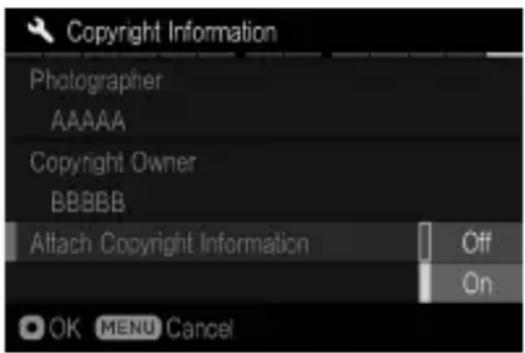
3
Once the relevant information has been entered, use the ◆ buttons to scroll to [Attach Copyright Information] and select [On]. Copyright information will embed in each image from then on.
TIP
- It is possible to check the attached information in the Copyright Information screen (P.111).
- It is possible to check the attached information in the [Image Information Window] in SIGMA Photo Pro and other software compatible with Exif data.
WARNING !!
- Make sure the [Attach Copyright Information] is set to [Off] if the camera is being used by another photographer. It is recommended that the information in [Photographer] and [Copyright Owner] is deleted in such cases.
- We assume no responsibility whatsoever for any difficulties and/or damages resulting from the usage of copyright information.
ENTERING INFORMATION
Screen to enter the Photographer and Copyright Owner information
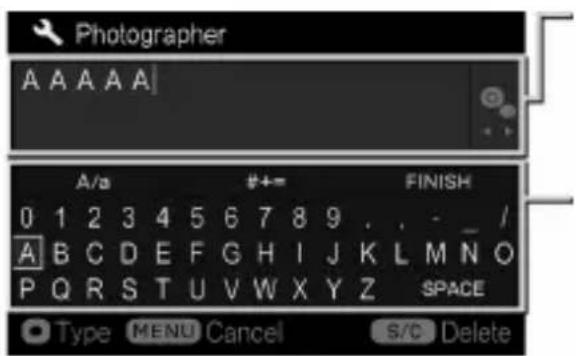
Entered information area
It is possible to move the cursor in the area using the front/rear dials.
Keyboard area
Move the cursor in this area using the <<>buttons.

Select the desired character in the Keyboard area, and press the OK button to enter it.
| A/a | Switch the keyboard to alphabet.When the alphabet is displayed, it is possible to select capital and lowercase letters. |
| #+= | Switch the keyboard to symbols. |
| SPACE | Insert a 1 character space. |
2
Select FINISH and OK to finalize the entered information. It will then go back to the previous screen.
- The MENU button will cancel the characters entered, and it goes back to the previous screen.
Deleting characters
Using the front/rear dials, place the cursor after the letters you wish to delete and press the \$/ton.
CUSTOMIZE THE DISPLAY OF LCD MONITOR
Size of icon displayed during shooting can be changed, or useful functions for photography can be added.
1
For the main-monitor settings, select a mode to be customized from [Camera Settings] (P.30)→ [Monitor □□ Mode Settings]. For the viewfinder settings, select a mode to be customized from Camera Settings→[View Finder □□ Mode Settings].
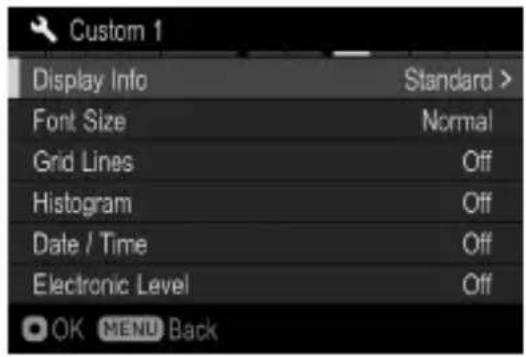
2
Select [On] and press the >button.
3
Select items to change and press the > button.
TIP
- Unrequired display mode can be set to hide. Select unrequired mode from [□ Mode Settings] and set them to [Off].
Shooting information to display can be selected.
| Off Minimum | Standard (Default) | ||
| Drive Mode | - | - | ○ |
| White Balance (Filtering Effect) | - | - | ○ |
| AE Lock / AF Lock *1 | - ○ ○ | ||
| Image Size, Aspect Ratio, Image Quality | - - ○ | ||
| Auto Bracketing / SFD Mode *1 | - ○ ○ | ||
| Date / Time *2 | ○ | ○ | ○ |
| Custom Bracketing *1 | - | ○ | ○ |
| Face Detection AF *1 | - | ○ | ○ |
| Focus Mode | - ○ ○ | ||
| Flash Mode, Flash Exposure Compensation value *1 | - ○ ○ | ||
| Electronic Level *2 | ○ | ○ | ○ |
| Focusing Frame | ○ ○ ○ | ||
| Histogram *2 | ○ ○ ○ | ||
| Tone Control | - - ○ | ||
| Color Mode (Toning Effect) | - - ○ | ||
| Contrast, Sharpness, Saturation 1* | - | - | ○ |
| Locked State Indicator *1 | - | ○ | ○ |
| Eye-Fi Communication Icon *1 | - | ○ | ○ |
| Interval timer *1 | - ○ ○ | ||
| Number of shots remaining *3 | - ○ ○ | ||
| Number of shots remaining before memory buffer full, Shutter Speed, F Number, Exposure Compensation Value / Exposure Meter, Metering Mode / Exposure Mode *3 | ○ ○ ○ | ||
| Custom Mode *3 | ○ | ○ | ○ |
| Focus Indicator *3 | ○ ○ ○ | ||
| Battery Level Indicator *3 | - ○ ○ | ||
| ISO Sensitivity *3 | - - ○ |
- In any setting, icons related to warnings are displayed.
*1 Displayed only during setting.
*2 It depends on the display mode setting.
*3 It is not displayed on the main monitor.
Font Size
Font Size for shooting information can be selected.
| Normal | Display in normal size. |
| Large | Display in large size. |
Grid Lines
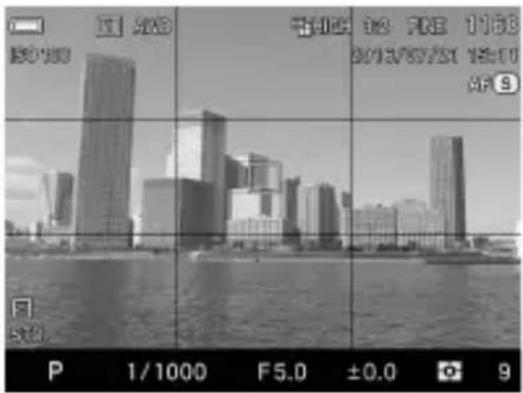
Grid Lines that is useful in determining composition can be displayed.
| Off | Grid Line Off |
| — 4 (Black) | 4 segments with a black line |
| — 9 (Black) | 9 segments with a black line |
| — 16 (Black) | 16 segments with a black line |
| — 4 (White) | 4 segments with a white line |
| — 9 (White) | 9 segments with a white line |
| — 16 (White) | 16 segments with a white line |
Histogram
Histogram that is useful in determining exposure can be displayed.
- Refer P.112 [Histogram] for further information on Histogram.
| Off | No display. |
| On | Display. |
Date and Time can be displayed.
| Off | No display. |
| Date | Display Date only. |
| Time | Display Time only. |
| Date + Time | Display both Date and Time. |
Electronic Level
An Electronic level that is useful in determining composition can be displayed.
| Off | No display. |
| On | Display. |
ELECTRONIC LEVEL
Camera's horizontal direction and vertical direction are displayed.
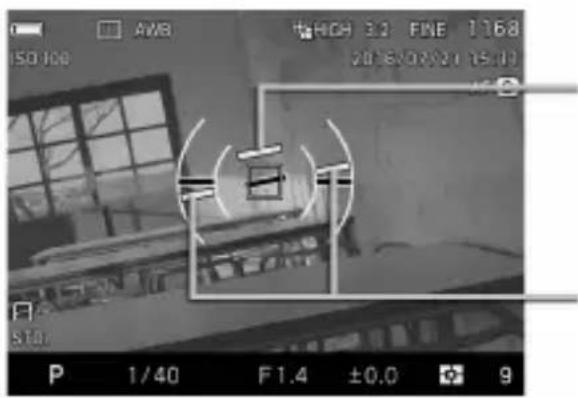
Vertical direction guide
Horizontal direction guide
- When the camera is horizontal or vertical, the guide becomes green.
- When shooting vertically, the display changes to one for vertical shooting.
WARNING !!
- Electronic level usually has error about ± 1^ . The more it is tilted, the larger the error becomes, and in such case it does not work properly.
- When the camera is facing down, the Electronic level does not work properly.
Electronic level's tilt can be adjusted.
1
Select from [Camera Settings] (P.30) → [Adjust Electronic Level].
2
Place the camera on a horizontal surface, and press the OK button.
The new adjustment value is recorded.
- To reset, press the S/C button. A confirmation dialog will appear. Use the <> buttons to select [Yes], and press the OK button to confirm. The adjustment value returns to factory default.
CUSTOMIZING THE DIAL
The dial's functions or operating directions to set exposure can be customized.
SWITCH DIAL FUNCTIONS
The Front Dial and the Rear Dial are used for changing the aperture value, shutter speed and exposure compensation. It is possible to change the function of them for each Exposure Mode.
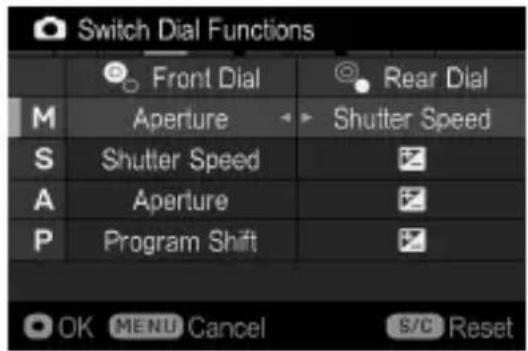
It is possible to set from Capture Settings→[Switch Dial Functions].
Select the desired Exposure Mode by pressing the button and change the function by using the button. To apply the setting, press the button.
- To reset to the default setting, please press the S/C button and then press the OKton.
It is possible to reverse the dial direction.
It is possible to set from [Capture Settings] (P.30) → [Dial Rotation].
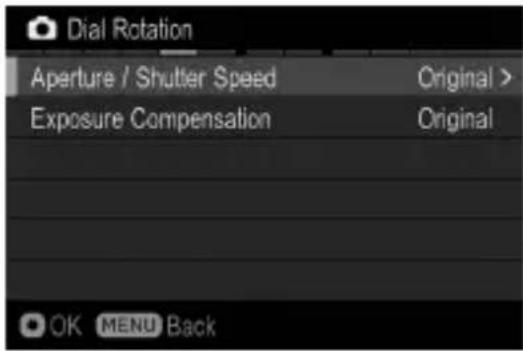
Select the option you want to change by using the ◆ buttons. Then select [Original] or [Reverse] and press the OK button to apply the setting.
Dial operation in each exposure mode
(when [Switch Dial Functions] is in an initial setting)
Aperture / Shutter speed
| Aperture Value | Shutter Speed | |||||
| Original (Default) | Open |  | Stop down Slow |  | Fast | |
| Reverse | Stop down |  | Open Fast |  | Slow | |
Exposure compensation
| Exposure Compensation Value | |||
| Original (Default) | Under Expose |  | Over Expose |
| Reverse | Over Expose |  | Under Expose |
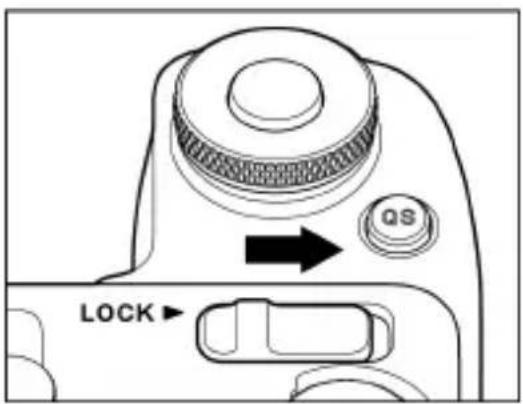
It is possible to customize the contents to be locked with the LOCK switch.
Select the setting from [Camera Settings] (P.30) → [Operation in LOCK Mode].
| Camera Sleep | All operations are prohibited whilst the camera is locked.● When the time set to Auto Power Off (P.140) elapses whilst the camera is locked, the camera will not ‘wake up’ if only the lock switch is moved. In this case, release the lock and half-press the shutter button. |
 Active Active | Whilst the camera is locked, only the shutter button and the monitor switching lever can be operated. Other buttons and operation of the Front and Rear dials is prohibited. |
 Active(Default) Active(Default) | Whilst the camera is locked, only the shutter button, Front and Rear dials, and the monitor switching lever can be operated. Operation of other buttons is prohibited. |
 | Whilst the camera is locked, the buttons next to the sub monitor ( ", and ) MODE can be operated as well as the shutter button, Front and Rear dials, and the monitor switching lever. Operation of other buttons is prohibited. |
The sd Quattro has [LCD Off] and [Auto Power Off] functions in order to conserve battery power. If not used for a predetermined amount of time, the color LCD monitor or power will be turned off automatically.
LCD Off
If not used for a predetermined amount of time, the backlight of the color LCD monitor will be turned off automatically. Although the color LCD monitor is turned off, the camera power remains ON, therefore, each button can be operated normally. It is possible to change to shooting mode, upon pressing the shutter button halfway.
Auto Power Off
If not used for a predetermined amount of time, the camera will be turned off automatically. While the camera is in Auto Power Off, each button will not function. It is necessary to press the shutter button halfway to terminate Auto Power off.
Set the Auto Power Off from [Camera Settings] (P.30) → [LCD Off] and [Auto Power Off].
LCD Off Option
| Off |
| 10 sec. |
| 30 sec. |
| 1 min. (Default) |
| 5 min. |
| 10 min. |
Auto Power Off Option
- To disable LCD Off, set [LCD Off] to [Off].
- To disable Auto Power Off, set [Auto Power Off] to [Off].
WARNING !!
- It is not possible to set [LCD Off] for a longer time than [Auto Power Off]. For example, when [LCD Off] is set to [5min.] and [Auto Power Off] is set to [1min.], the [LCD Off] setting will be changed to [1 min.] automatically.
ECO Mode saves battery usage by reducing the brightness of the LCD monitor and frame rate when the camera has not been used for 10 seconds.
Set to [On] from [Camera Settings] (P.30) → [ECO Mode].
| Off (Default) | Set to Standard Mode. |
| On | Set to ECO Mode. |
The brightness of the monitor can be adjusted according to the situation.

Select a monitor to change the setting from [Camera Settings] (P.30) to [LCD Brightness].
| Main Monitor Brightness |  | View Finder Brightness | FINDER |
| Sub Monitor Brightness |  |
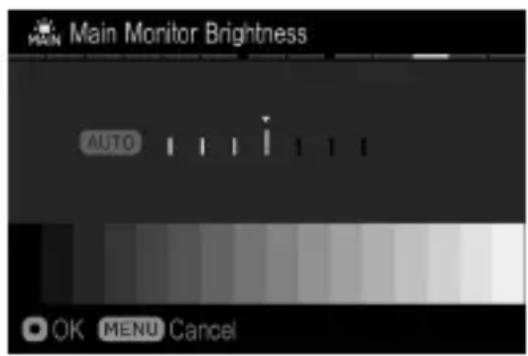

When the selected monitor is displayed, adjust the brightness to suit the condition with the <> buttons and finalize with the OK button.
- When SURElected, the monitor is automatically adjusted to an appropriate brightness according to the exposure data.
SOUND SETTINGS
The volume of the AF electronic beep sound and the self-timer can be adjusted.
Sound settings can be set from [Camera Settings] (P.30) →[Sound Settings].
| AF Volume | Timer Volume |
It is possible to reduce the volume using the < button and increase using the > button and press the OK button.
- It is possible to set the volume from 0 to 5 in six increments.
- Setting of 0 does not make sound.
- The default setting is 3.
POWER GRIP PG-41 SETTINGS
The settings related to the operation of the Power Grip PG-41 (sold separately) and the functions allocated to the FUNC button are described here.
FUNC BUTTON SETTINGS
Functions allocated to the FUNC buttons can be changed.
FUNC button settings can be set from [Camera Settings] (P.30) → [PG-41 Settings] → [FUNC Button Settings].
| Exposure Compensation (P.84) | AE Metering Mode (P. 81) |
| ISO Sensitivity (P.75) (Default) | Shooting Mode (P. 49) |
AUTO BUTTON LOCK IN HORIZONTAL POSITION
During horizontal position shooting, operations of the Power Grip PG-41's shutter button, other buttons, and Front and Rear dials can be automatically locked for the prevention of erroneous operation.
Select [On] from [Camera Settings] (P.30) →[PG-41 Settings] →[Auto Button Lock in Horizontal Position].
WARNING !!
- When the images are shot with the camera held in an inclined angle, setting upward or downward, the automatic locking function may not work properly.
RESET TO THE DEFAULTS
It is possible to reset the settings to the defaults.
It is possible to reset settings to defaults from [Camera Settings] (P.30) → [Reset Settings].
Reset all settings of [Capture Settings] (Blue tab) to the defaults.
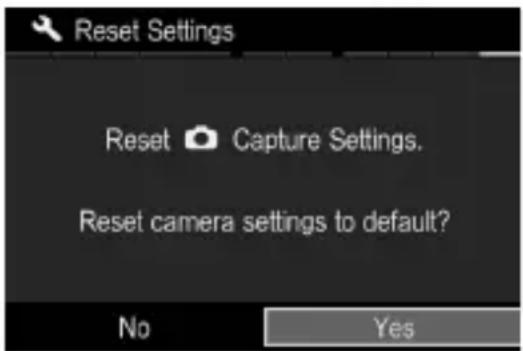
In [Reset Settings] menu, Select [Yes] by pressing the <button and press the OK button.
To cancel the reset settings, select [No] by pressing the <> button and press the OK button.
- If you want to reset all the camera settings, including other settings, you will have to reset the camera to factory defaults.
In [Reset Settings] menu, press 📋 to show the message [Reset all camera settings to factory defaults?].
To reset all camera settings to factory defaults, please select [Yes] by pressing the <> buttons and press the OK button.
To cancel the reset settings, select [No] by pressing the <> buttons and press the 🔊 button.
CONNECTING TO A COMPUTER OR TV
CONNECTING TO A COMPUTER
By connecting the camera to a PC using the USB cable, transferring images, remote imaging and setting changes from the computer are possible.
- Before connecting to the computer, change [USB Mode] of the camera according to the purposes.
| Mass Storage (Default) | When transferring images from the card in the camera, select [Mass Storage]. When the camera is connected to the computer, the camera is recognized as a removal disc (device). |
| Camera Control | When operating the camera from SIGMA Capture Pro installed in the computer, select [Camera Control]. |
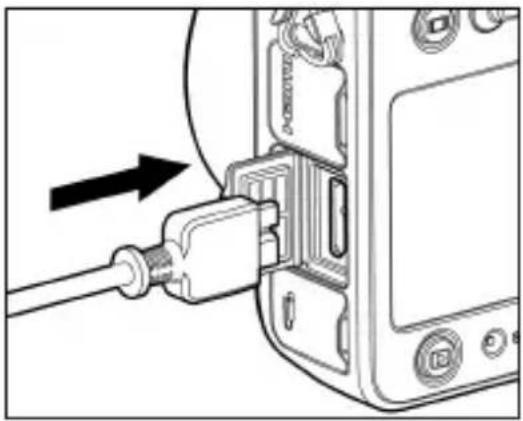
natural_image
Diagram of a cable inserted into a device component, showing a black arrow indicating direction (no text or symbols present)1
Set to either mode from [Camera Settings] (P.30) → [USB Mode] and turn off the camera.
2
Connect your camera to a computer with the provided USB cable, and turn on the power supply switch of the camera.
- If used for a long time, it is recommended to use the AC adapter (sold separately).
It is possible to transfer the images recorded on the card in the camera to a computer.
- Using SIGMA Photo Pro you can transfer the images. Please refer to the help in SIGMA Photo Pro for details of the transfer method.
- The camera is recognized as a removal disc (device) by the computer. Therefore, the images can be transferred in an accustomed way without using SIGMA Photo Pro.
WARNING!!
- Please ensure your computer is not in sleep mode whilst your camera connects to the computer. It may cause the data to be lost or damaged.
- Please use only the USB cable supplied with your camera.
- The shutter button and color LCD monitor will be disabled while the camera is connected to the computer via a USB cable.
- The Auto Power Off function does not work while connecting the USB cable.
TO OPERATE THE CAMERA IN YOUR COMPUTER
Using the camera control software SIGMA Capture Pro, you can remotely operate the camera in the following ways.
- It is possible to control cameras and take pictures from the computer.
- It is possible for images to be immediately transferred to a computer after shooting.
- It is possible to change the camera settings for shooting from a computer.
- For details and how to use SIGMA Capture Pro, please refer to the help in SIGMA Capture Pro.
- SIGMA Capture Pro can be downloaded free of charge from the following website: http://www.sigma-global.com
By connecting the camera to the television with a commercially available HDMI cable, the recorded images can be viewed on the television screen. Moreover, shooting while viewing the images displayed on the television is also possible.
- Prepare the commercially-available HDMI cable with the HDMI terminal (Type C) attached.
- The images displayed on the television screen are the same as the images displayed on the camera finder. The displayed icons are in accordance with the mode set in [Camera Settings] (P.30)→[View Finder Mode Settings].
1
Turn the power supplies of the camera and the television to OFF.
2
With the HDMI cable, connect the camera and the television. Then turn the power supplies of the camera and the television to ON.
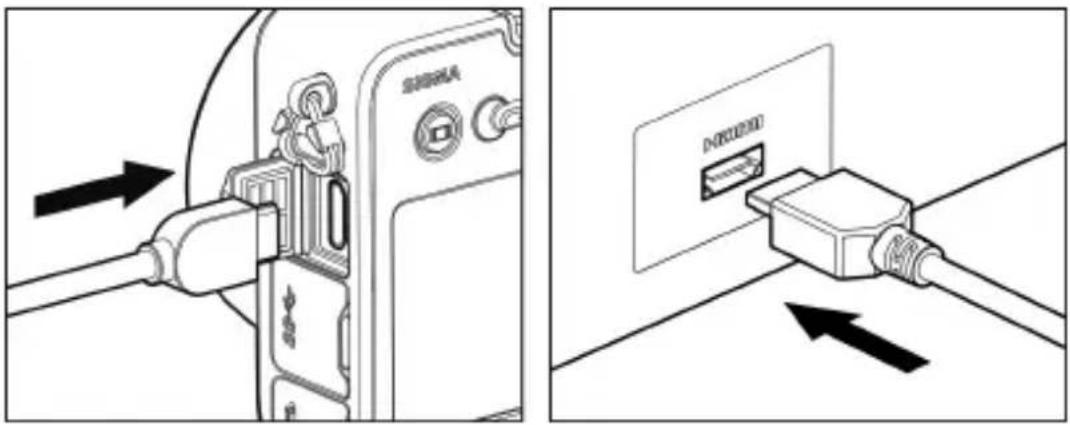
- If used for a long time, it is recommended to use the AC adapter (sold separately).
WARNING!!
- When switching the input signal of the television, refer to the operation manual of the television.
- On some television screens, part of an image may not be able to be seen.
REFERENCE
This section introduces optional accessories, and explains specifications of the camera.
POWER GRIP PG-41
This accessory boosts the battery capacity of the camera by holding up to two dedicated batteries. In combination with the battery inside the camera, this accessory makes it possible to enjoy up to 200% more shooting time. Offering outstanding usability in both the horizontal and vertical positions, the grip incorporates two command dials, an AF/AEL button, and a FUNC button.
ELECTRONIC FLASH EF-630 (FOR SIGMA)
Auto zoom flash with abundant light and STTL Automatic Exposure with the maximum guide number 63/m (207/ft) (ISO100). EF-630 (FOR SIGMA) allows you to use many advanced flash techniques such as “STTL system Auto Flash” or Multi Flash etc.
AC ADAPTER SAC-7
This is used to provide a constant electricity supply and is recommended when taking indoor shots or connecting the camera to your computer to transfer data. (DC Connector CN-31 is included with this camera to connect the AC adapter to the computer.) (P.150)
CABLE RELEASE SWITCH CR-31
This cable release allows you to release the shutter without touching the camera by connecting it to camera's cable release terminal. It is useful when attaching the camera to a tripod, and releasing the shutter from a distance, or slow shutter. (Cable length: Approximately 1m)
USING A HOME POWER SUPPLY
(sold separately)
You can power the camera from a wall outlet using the provided AC Adapter SAC-7 and DC Connector CN-31. When using your camera for an extended period of time, reviewing the pictures or connecting the camera to a computer, we recommend that you operate the camera from a household power outlet.
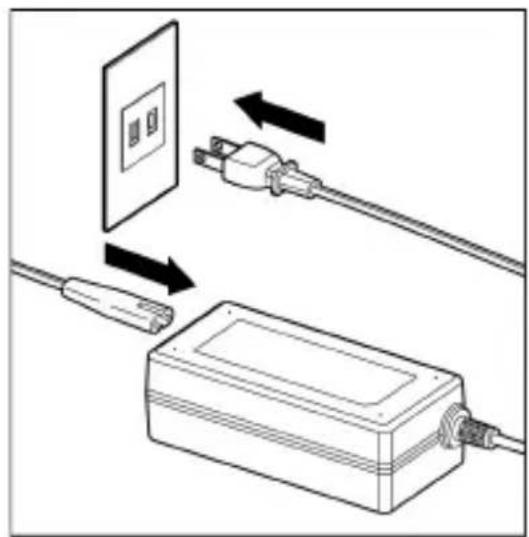
1
Connect the AC cable to the AC adapter.
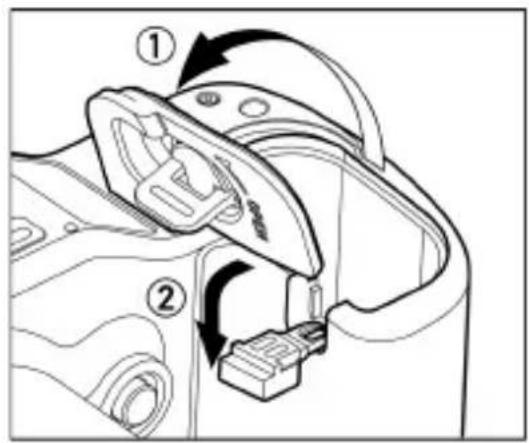
2
Open the Battery Cover, and open the DC connector cover as shown in the illustration.
Do not pull too hard on the DC connector cover as it may come away from camera body.
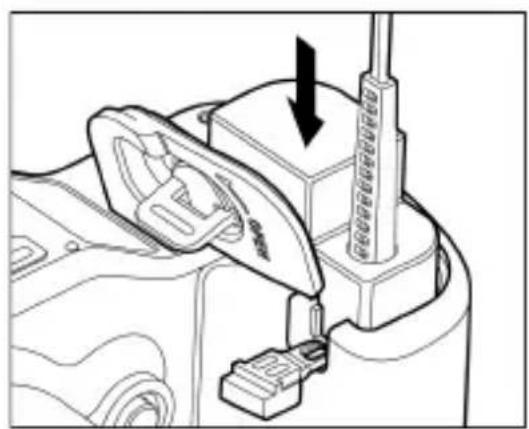
natural_image
Mechanical assembly diagram showing a lever mechanism with a black arrow indicating direction (no text or symbols present)3
Insert the DC connector as shown in the illustration until it is locks into place.
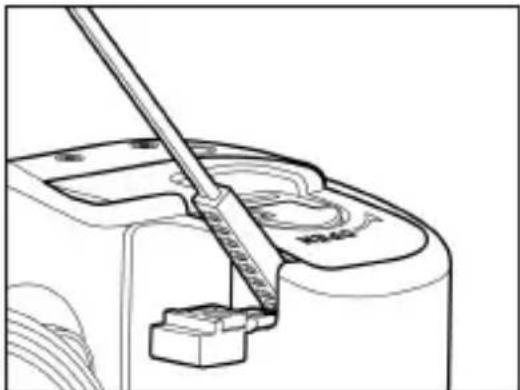
natural_image
Technical line drawing of a mechanical assembly with a tool inserted, no visible text or symbols
Close the Battery Cover carefully so as not to pinch the DC connector code.
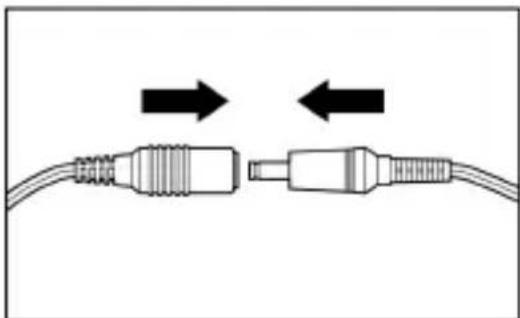
natural_image
Diagram of two connected audio/video cables with directional arrows indicating sound or signal flow (no text or symbols)
Connect the plug of the AC adapter and jack of the DC connector.
WARNING!!
- While the Busy Lamp is on, please do not open the Battery Cover or Card Cover. By doing so, the camera will turn off and result in data loss. This could also cause damage to the camera and/or memory card.
- When you have finished using the camera, please turn off the camera and disconnect the plug from the wall socket.
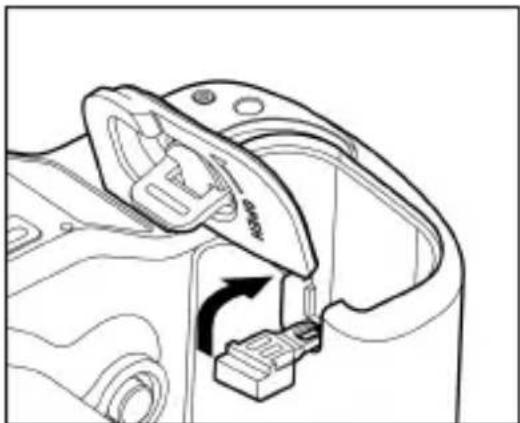
natural_image
Line drawing of a mechanical device with a clamped component and directional arrow indicating rotation (no text or symbols)After taking the DC connector off from the camera body, close the DC connector cover as shown in the illustration.
- The sd Quattro camera contains a dust protector located inside the lens mount. The dust protector is a very delicate device and care must be taken not to scratch its surface. Use a blower to remove dirt and dust from the dust protector. Do not use a blower brush, as the bristles could scratch the dust protector surface. To avoid damage, do not apply pressure to the dust protector.
- Do not use chemicals or other cleaning agents such as thinners or benzene for cleaning the camera and lens. Use a clean, soft cloth and blower to clean the camera and lens. Lens cleaners can be used for removing fingerprints.
- Do not lubricate the camera.
- Use a blower to remove dust and dirt from the color LCD monitor. To remove fingerprints or other stains from the LCD monitor, wipe the surface gently with a soft, clean cloth. Do not apply excessive force, as this could damage the LCD monitor.
HOW TO STORE THE CAMERA
- If you intend to store the camera for a long time, remove the battery.
- To avoid growth of fungus, store the camera and lens in a dry, cool and ventilated place, with a drying agent such as silica gel. Keep your equipment away from chemicals.
NOTE ON THE TFT COLOR LCD MONITOR
- A few pixels may always be lit or may never light on the LCD monitor. This is not a failure or malfunction. Images recorded with the camera will not be affected.
- Because of the normal physical characteristics of the liquid crystal, the reaction of the display may become slow at low temperatures. At high temperatures, the display may become dark, but it will return to normal at room temperature.
Although the sd Quattro is equipped with a dust protector to prevent dust or dirt entering the camera, in rare circumstances, dust or dirt may adhere to the image sensor, causing black spots to appear on images. If this occurs, it may be necessary to clean the image sensor.
- The image sensor is extremely delicate and can easily be damaged. We recommend that you contact an authorized Sigma Service Station to have the sensor cleaned. We do not advise attempting the procedure yourself, especially if you have no previous experience cleaning delicate optical components.
WARNING!!
- The image sensor is a very important part of your camera. Please take all necessary precautions to avoid damaging the sensor.
- Do not use an aerosol compressed air cleaner. Liquid may leak from the cleaner and damage the image sensor or other electronics inside the camera.
- After cleaning the image sensor, please ensure the dust protector is correctly attached. If the dust protector is not properly attached, it may move and damage the image sensor of the camera or the lens.
- Please do not use the blower with the brush for cleaning the image sensor. If the brush is attached, it may scratch the image sensor of the camera.
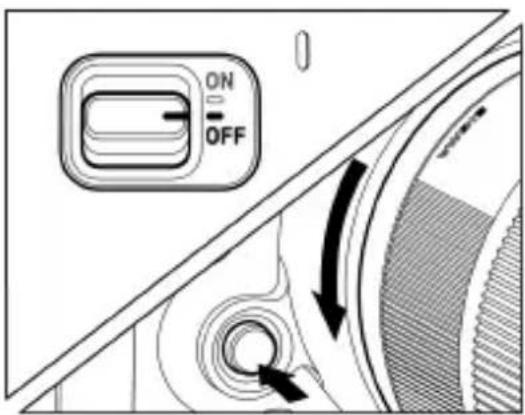

Check that the power supply switch is set to OFF. Then, remove the lens.
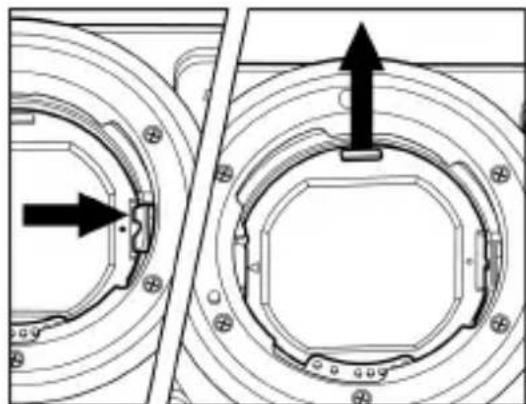
natural_image
Technical diagram showing two circular mechanical components with mounting holes and a central housing, no text or symbols present.2
Slide the dust protector attachment lever by using a commercially available tweezer. Remove the dust protector by catching the tab at the upper section.
(Be careful not to touch the glass on the dust protector.)
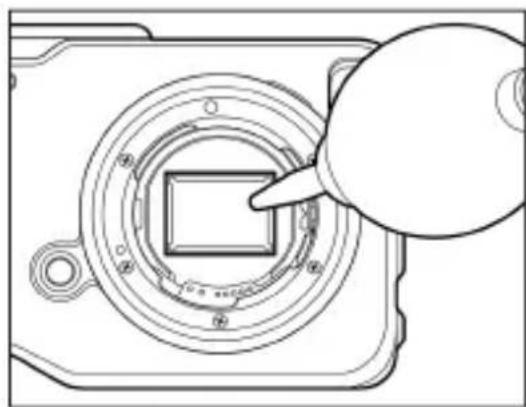
natural_image
Technical line drawing of a camera module with concentric rings and a pointer inserted (no text or symbols)3
Carefully blow away any dust from the image sensor using a blower.
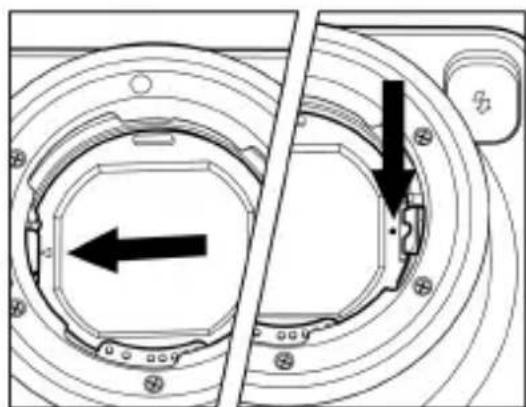
natural_image
Diagram showing two views of a camera aperture with arrows indicating direction (no text or symbols present)4
Check that there is no dust or dirt on the dust protector.
Attach the protector at the tab of the main body indicated by the ◀ mark. Then push the protector at the ● mark with a finger so the protector is fixed to the main body with a clicking sound.
- If the dust or dirt cannot be removed with the above-mentioned procedure, consult with Sigma authorized service personnel. If you see fingerprints on the glass portion of the dust protector, first use a blower to remove any dust, then gently wipe it with a soft, clean cloth.
If you have a problem with your camera or cannot take good pictures, consult the list below as you check the camera before requesting repairs.
Nothing is displayed on the color LCD monitor.
Battery is exhausted.
▶ Replace the battery. (P.21 - 24)
LCD Monitor is set to OFF mode.
▶ Press the □ button to display the color LCD monitor. (P.41)
Camera is in LCD Off mode.
▶ Press the shutter button "half-way" or any other button. (P.140)
The shutter does not release.
The camera is busy writing to the card.
▶ Please wait until the card busy light goes off.
Card is full.
▶ Insert a new card or delete unwanted images. (P.113 - 114)
Autofocus does not operate.
The AF/M switch on the lens body is set to M.
▶ Set the AF/M switch on the lens to AF. (P.56)
Lens is not properly mounted to the camera body.
▶ Mount the lens to the camera body correctly. (P.25)
When the [Half-pressed AF-ON] is set as [Off].
▶ Please select [On] in the [Half-pressed AF-ON] setting. (P.62)
The lens being used is not compatible with auto focusing.
▶ Check whether or not the lens is compatible on our website. (P.26)
The camera has turned off automatically.
Auto Power Off is activated.
▶ The Auto Power Off function is set in order to conserve battery power. If it is inconvenient, please set the Auto Power Off to "Off". (P.140)
Cannot shoot or store images.
Card is full
▶ Insert a new card or delete unwanted images. (P.113 - 114)
Battery is exhausted.
▶ Replace the battery. (P.21 - 24)
The write protection switch is in the 'LOCK' position.
▶ Please unlock the write protection switch on the card. (P.11)
Image data on the card is corrupted.
▶ If important data remains in the card after transferring it to your PC, please format the card. (P.45)
Difficulty seeing the images on the color LCD monitor.
Dust or dirt has adhered to the color LCD monitor.
▶ Clean the color LCD monitor with a blower or eyeglass cloth. (P.152)
The color LCD monitor is worn out.
▶ Please consult the retailer from which you purchased the camera or contact the nearest Sigma Service Center.
Pictures are coming out blurred
AF may not be activated when the shutter was pressed.
▶ Press the shutter button “half-way” and press it after the focusing point is illuminated in green. (P.56)
The AF/M switch on the lens body is set to M.
▶ Set the AF/M switch on the lens to AF. (P.56)
Camera shake is occurred.
▶ Use the flashguns or tripod. (P.99)
White or colored dots and haze appear on a part of the image.
Due to the camera facing a strong light source, ghosting and flare appear on the image.
▶ Strong light source may cause ghosting and flare. Changing the composition or aperture and additionally attaching the lens hood will help minimize the extraneous light from diagonal directions.
Cannot delete images.
Images may be locked.
▶ Unlock the images. (P.116 - 118)
The write protection switch is in the 'LOCK' position.
▶ Please unlock the write protection switch on the card. (P.11)
Incorrect date and time is shown.
Date and time setting may be incorrect.
▶ Enter the correct date and time in the Set-up Menu. (P.28)
| Camera Type | Interchangeable-lens Digital Camera |
| Lenses Used | SIGMA SA mount interchangeable lenses |
| Lens Mount | SIGMA SA bayonet mount |
| Picture Angle | Equivalent to approx.1.5 times the focal length of the lens (for 35mm cameras) |
| Image Sensor | FOVEON X3 Direct Image Sensor (CMOS) |
| Image Sensor Size | 23.4 × 15.5mm |
| Color Photo Detectors | Effective Pixels : 29.5MP(T:5440×3616, M:2720×1808, B:2720×1808)Total Pixels : 33.2MP |
| Storage Media | SD Card, SDHC Card, SDXC Card |
| Recording Format | Exif 2.3, DCF 2.0, DPOF |
| File Format | Lossless compression RAW Data (14-bit), JPEG (Exif 2.3), RAW+JPEG |
| Image size (3:2)(Number of Pixels) | S-HI(JPEG) : 7680 x 5120,HIGH : 5424 x 3616, LOW : 2704 x 1808S-LO(JPEG) : 1920 x 1280 |
| Image Quality | RAW, JPEG (Fine, Normal, Basic),RAW+JPEG(Fine) |
| White Balance | 12 types (Auto, Auto (Lighting Source Priority),Daylight, Shade, Overcast, Incandescent,Fluorescent, Color Temperature, Flash, Custom 1,Custom 2, Custom 3) |
| Color Mode | 11 types (Standard, Vivid, Neutral, Portrait,Landscape, Cinema, Sunset Red, Forest Green,FOV Classic Blue, FOV Classic Yellow,Monochrome) |
| ISO Sensitivity | ISO100~6400 (1/3 steps for appropriate sensitivity)AUTO: Upper limit, Lower limit setting is possible between ISO 100 ~ ISO 6400.(When using with flash, it changes depending on the low limit setting.) |
| Auto Focus Type | Phase difference detection system+ Contrast detection system |
| AF Point | 9 points select mode, Free move mode (It is possible to change the size of Focus Frame to Spot, Regular and Large.), Face Detection AF Mode |
| AF Operating Range | -1EV to 18EV (ISO100 F1.4) |
| Focus Modes | Single AF, Continuous AF (with AF motion prediction function), MF |
| Focus Lock | AF/AEL button is pressed or shutter release button is pressed halfway |
| Viewfinder Type | Electronic viewfinder (approx. 2,360,000 pixels, color LCD monitor) |
| Viewfinder Frame Coverage | 100% |
| Viewfinder Magnification | approx. 1.1x (-1m-1, 50mm F1.4 -∞) |
| Eyepoint | Approx. 21 mm (-1m-1) from the final surface of the lens |
| Diopter Adjustment Range | approx. -4m-1to +2m-1 |
| Metering System | Evaluative metering, Center-Weighted Average Metering, Spot metering |
| Metering Range | 0 to 17EV (50mm F1.4: ISO100) |
| Exposure Control System | (P) Program AE, (S) Shutter Priority AE,(A) Aperture Priority AE, (M) Manual |
| Exposure Compensation | ±5EV (1/3 stop increments) |
| AE Lock | AEL/AF button is pressed or shutter release button is pressed halfway |
| Auto Bracketing | Number of shots: 3 or 5 (Appropriate, under, over; 1/3EV steps up to ±3EV from appropriate exposure) |
| Shutter Type | Vertical-travel metal focal plane shutter, electronically controlled through entire speed range 1/4000sec to 30sec, Bulb up to 30 (120*) sec (*Extended Mode) |
| Shutter Speeds | Flash Synchronization at 1/180 sec. |
| External Flash Sync. | Hotshoe (X Sync. Contact) (with Sync. Terminal) |
| Drive Modes | Single, Continuous, Self Timer (2sec. /10sec.) Interval timer |
| LCD Monitor | approx. 1,620,000 pixels, 3.0 inches TFT color LCD monitor |
| LCD Monitor Language | English / Japanese / German / French / Spanish / Italian / Simplified Chinese / Traditional Chinese / Korean / Russian / Dutch / Polish / Portuguese / Danish / Swedish / Norwegian / Finnish |
| Interface | USB (USB3.0, micro B) / HDMI (type C) / Cable Release Switch |
| Power | Li-ion Battery BP-61, AC Adapter SAC-7 (with DC Connector CN-31) (Optional) |
| Battery Life | Approx. 235 (+23°C) |
| Dimensions | 147mm/5.79"(W) × 95.1mm/3.74"(H) × 90.8mm/3.57"(D) |
| Weight | 625g / 22oz (without battery and card) |
SIGMA CORPORATION OF AMERICA
15 Fleetwood Court, Ronkonkoma, NY 11779, U.S.A.
TEL: 631 585 1144
This device complies with Part 15 of the FCC Rules. Operation is subject to the following two conditions: (1) This device may not cause harmful interference, and (2) this device must accept any interference received, including interference that may cause undesired operation.
For customers in the U.S.A.
Federal Communications Commission (FCC) Radio Frequency Interference Statement This equipment has been tested and found to comply with the limits for class B digital devices, pursuant to Part 15 of the FCC Rules. These limits are designed to provide reasonable protection against harmful interference in a residential installation. This equipment generates, uses and can radiate radio frequency energy and, if not installed and used in accordance with the instructions, may cause harmful interference to radio communications. However, there is no guarantee that interference will not occur in a particular installation. If this equipment does cause harmful interference to radio or television reception, which can be determined by turning the equipment off and on, the user is encouraged to try to correct the interference by one or more of the following measures:
- Reorient or relocate the receiving antenna.
- Increase the separation between the equipment and receiver.
- Connect the equipment into an outlet on a circuit different from that to which the receiver is connected.
- Consult the dealer or an experienced radio/TV technician for help.
Use of interface cable is required to comply with class B limits in Subpart B of Part 15 of FCC Rules.
Any changes or modifications to this equipment not specified in this manual may void your warranty.
For customers in the Canada
The CE Mark is a Directive conformity mark of the European Community (EC).