
IVY Mini - Printer CANON - Free user manual and instructions
Find the device manual for free IVY Mini CANON in PDF.


| Product Type | Mini Photo Printer |
| Brand | Canon |
| Model | IVY Mini (PV-123) |
| Dimensions (L x W x H) | 4.7 x 3.2 x 0.7 inches (118.3 x 82.4 x 18.7 mm) |
| Weight | 5.4 oz (160 g) |
| Power Source | Internal rechargeable battery (500 mAh Li-Polymer 7.4 V) |
| Charging Speed | Approximately 90 minutes (full charge) |
| Connectivity | Bluetooth 4.0 |
| Compatible OS | iOS 9.0 or above, Android 4.4 or above |
| Print Technology | ZINK™ (Zero Ink) |
| Print Resolution | 314 x 400 dpi |
| Borderless Printing | Yes |
| Compatible Paper | Canon ZINK™ Photo Paper (ZP-2030-20, ZP-2030-50), 2x3 inches, peel-and-stick back, smudge-free, water & tear resistant |
| Paper Capacity | Up to 10 sheets + 1 SMART SHEET™ |
| Memory | 512 MB |
| Recommended Operating Temperature | 59° to 90° F (15° to 32° C) |
| Recommended Operating Humidity | 40-55% RH |
| Automatic Power-off | None / 3 min / 5 min / 10 min (selectable in app) |
| Power Adapter Output | 5V, 1A (min) |
| Key Features | Compact design, Bluetooth pairing, Canon Mini Print app, AR filters, collage & tile print, print directly from phone |
| Maintenance | Clean with soft dry cloth; keep cover closed; avoid dust; update firmware via app |
| Safety Precautions | Avoid direct sunlight, high humidity, static discharge; keep away from liquids; do not disassemble |
| Spare Parts / Repairability | Contact Canon support (1-800-652-2666) or dealer; do not disassemble; battery recyclable via 1-800-8-BATTERY |
Frequently Asked Questions - IVY Mini CANON
User questions about IVY Mini CANON
0 question about this device. Answer the ones you know or ask your own.
Ask a new question about this device
Download the instructions for your Printer in PDF format for free! Find your manual IVY Mini - CANON and take your electronic device back in hand. On this page are published all the documents necessary for the use of your device. IVY Mini by CANON.
USER MANUAL IVY Mini CANON
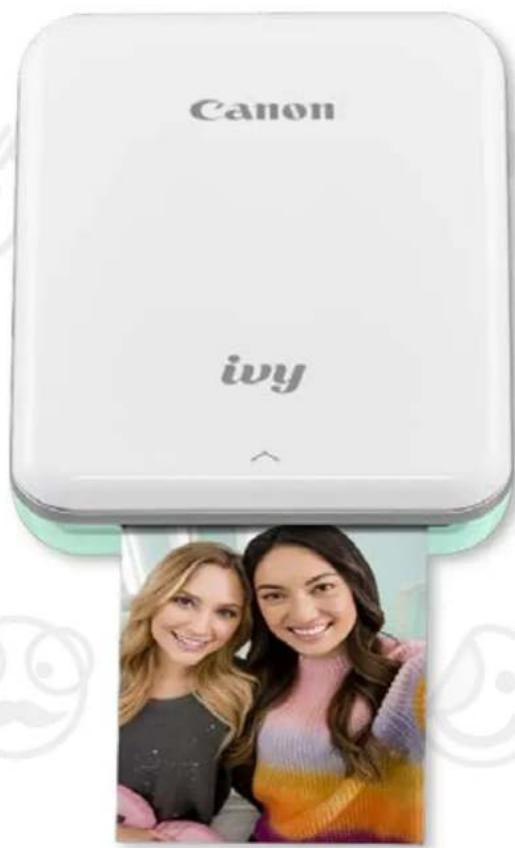
Mini Photo Printer User Manual
text_image
Canon ivyivy
SAFETY INFORMATION
PRINTER OVERVIEW
PRINTER SETUP
A) Charge Printer
B) Power On
C) Load Paper
INSTALLING APP
PAIRING DEVICE & PRINTER
USER INTERFACE
Home Screen / Main Menu
Camera Mode
Photo Gallery
Print Photos
Edit Photos
Using Tile Print
Using Collage Print
Share Photos
Save Photos
Send to Mini Print
SPECIFICATIONS

text_image
Canon iwy Canon iwy Canon iwySAFETY INFORMATION
READ BEFORE USE
Please read the following instructions and safety precautions before using the Printer.
For regulatory and additional safety information, refer to the Regulation and Warranty Information sheet included in your printer package contents.
ABOUT SYMBOLS

CAUTION
Indicates information that if ignored, could result in accidental injury caused by improper use of the equipment. These must be observed for safe operation.

NOTE
Instructions or content are important and must be followed accordingly.

NOTE
- Do not use or leave the product under direct sunlight. Also avoid areas subject to rapid temperature changes, high humidity, dust and dirt.
- When operating in extreme weather, the printer might not print. Let the printer temperature adjust to recommended operating temperature of 59^ to 90^ (15° to 32°C), before attempting to print again.
- When charging, please charge the printer in an environment with the recommended temperature of 59^ to 90^ (15° to 32°C).

CAUTION
- In areas with low humidity, the printer may build up a static electric charge. Take precautions before handling the printer.
- Keep the printer away from liquids or containers of liquids.
- Keep the ventilation openings clear of any objects that could block them.
- Do not under any circumstances dismantle the printer. If the product is not functioning properly, please contact the dealer you purchased this product from or Canon Service & Support at 1-800-652-2666.
- Do not improperly dispose of the product as it may cause personal injury or harm. Please dispose of the product in accordance with local regulations.
- Do not handle near Medical Electrical Equipment. Weak magnetism is emitted by this product. Do not stand near implanted electronic devices, such as a cardiac pacemaker. Please see your doctor if the printer does come close to such a device.
- Disassembling the battery may cause leakage, explosion, damage or personal injury.
- Do not use the printer if the battery or product has swelled.
- Never expose the battery to high temperature, direct heat, or dispose by incineration.
SUPPLIED ITEMS
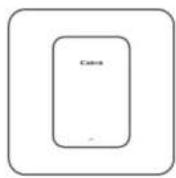
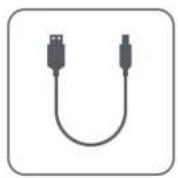
Quick Start GuideMini Photo Printer USB Cable Regulation and Warranty Information sheet
CANON ZINK™ Photo Paper (10 sheets)
PRODUCT FEATURES
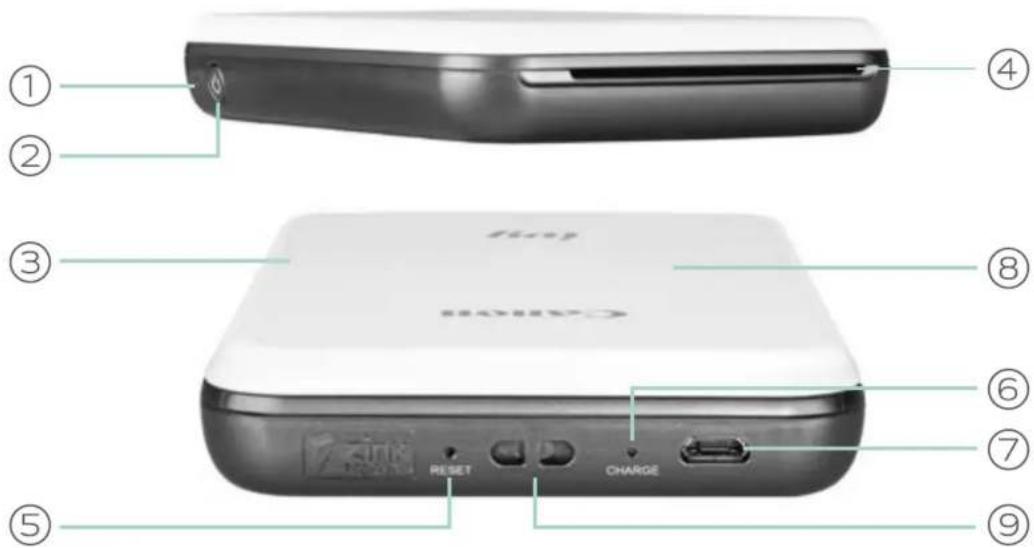
text_image
① ② ③ ④ ⑤ ⑥ ⑦ ⑧ CD489 RESET CHARGE ⑨
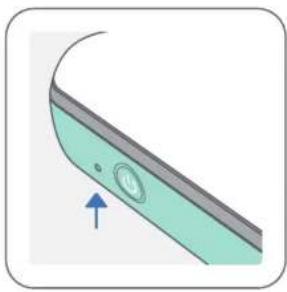
① Power LED light

② Power button
③ Top cover
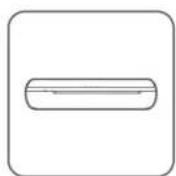
④ Paper output slot

⑤ Reset button
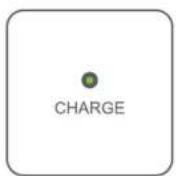
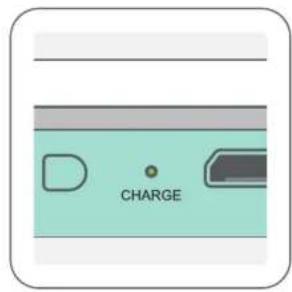
⑥ Charging LED light
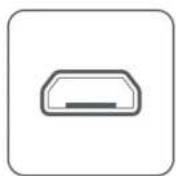
⑦ USB port (for charging)
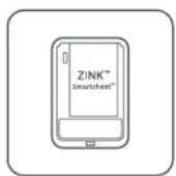
⑧ Paper tray (visible with top cover open)

⑨ Wristband eyelet
natural_image
Close-up of a curved electronic device with a circular button and an arrow pointing to it (no text or symbols visible)POWER CHARGING
○ White – Printer is powered on
White flashing - Printing/Processing/Cooling
Red flashing – No paper / Cover open / Paper jam / Low battery / storage full / other errors
Red - Firmware updating
text_image
CHARGERed - Charging
Green - Charge completed
Red & Green flashing alternatively - Charging error

NOTE
MAINTAINING YOUR CANON MINI PRINTER
- Use a soft, dry cloth to clean the product. Do not clean with a damp cloth or volatile liquids such as paint thinner.
- Keep the top cover closed to avoid dust and other particles from entering the inside of your printer.
- Use and keep your printer in the recommended environment of 59^ to 90^ (15° to 32°C) and 40-55% relative humidity.
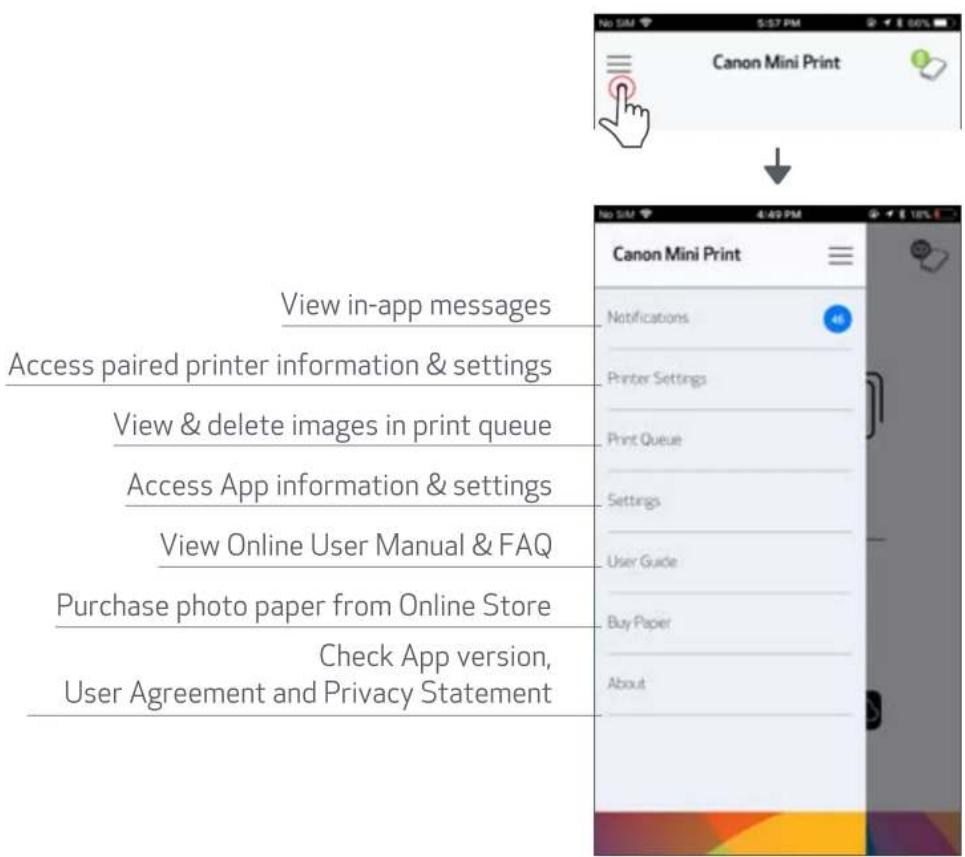
- Keep your printer firmware up-to-date. To check if your firmware needs to be upgraded, open the Canon Mini Print app, go to the Main Menu > Printer Settings > then tap "Upgrade Check".
-- Make sure your mobile device has a Internet connection before checking. If you need to upgrade/update the firmware, your printer must be charged to 50% or higher or connected to a power source. - Make sure you're using the latest Canon Mini Print app version. If your apps don't automatically update, go to your app store to check if you need to update.
A) CHARGE PRINTER
text_image
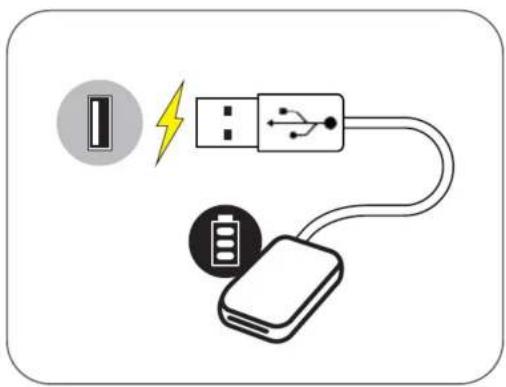
Diagram showing battery connection with resistor, battery symbol, and battery plug, illustrating charging/discharging processPrinter uses a built-in battery. Before using the printer, fully charge the battery using the USB cable provided.
① Insert the smaller end of the supplied USB cable into the Printer and the other end into a chargeable USB adapter.
② The charging LED light will turn red to indicate charging.
③ Once fully charged, the charging LED will turn green.
-- Operating time may vary depending on the battery status, operational status and environment conditions.

NOTE
Battery Status Icon (shown in App)



About USB Cable
HANDLE THE USB CABLE WITH CARE WHILE CHARGING
- Do not place any heavy objects on top of the cable.
- Do not place the USB cable near heat.
- Do not scratch, damage, twist or pull hard on the cable.
- Do not plug or unplug the cable with wet hands.
- Avoid too high/too low temperature or humid condition.
- Please unplug the USB cable from power source after charging.
- Please use supplied USB cable for charging.
B) POWER ON
natural_image
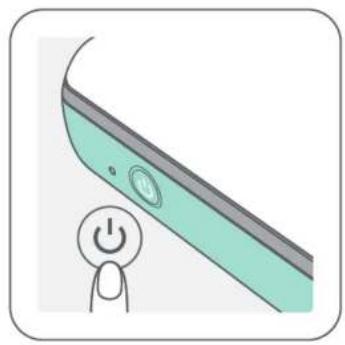
Illustration of a smartphone with a power button icon (no text or symbols)① Press and hold the Power button ( ⏻) until the LED indicator light turns on. -- The LED indicator will flash as the printer is powering on.
② When the LED indicator turns to a steady white light, the printer is ready to print.
C) LOAD PAPER
natural_image
Illustration of a rectangular electronic device with a blue arrow pointing to its side panel (no text or symbols)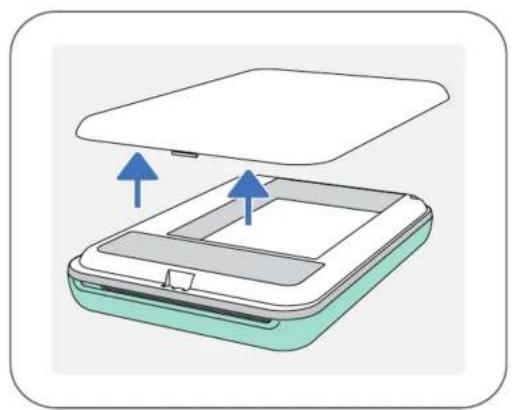
natural_image
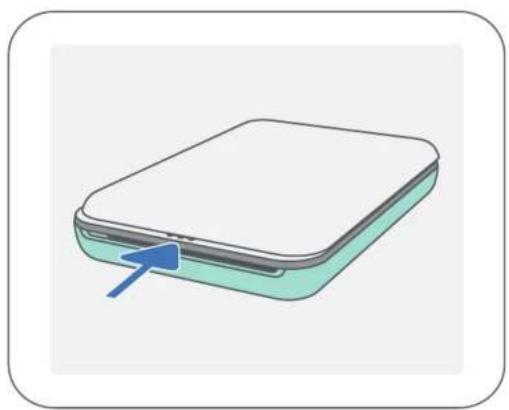
Illustration of a device with a lid and two blue arrows indicating upward motion (no text or symbols)① Remove the top cover by sliding it forward in the direction of the arrow.
② Open a single pouch of photo paper (10 sheets + blue SMART SHEET™).
text_image
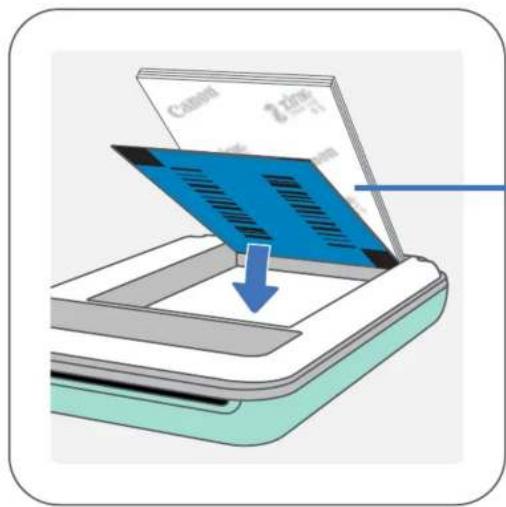
Cement 2-inch 1/1Blue SMART SHEET™ on bottom with photo papers on top. All logos facing down.
③ Place all 10 photo paper sheets and the one SMART SHEET™ into the photo paper compartment.
-- Stack the photo paper on top of the blue SMART SHEET™, making sure the blue barcode and the photo paper logos are facing down.
④ Place the top cover back onto the printer. It should click into place when closed properly.
-- The blue SMART SHEET™ will be sent through the printer automatically before the first print.
WHEN USING PAPER
- Only load 10 ZINK™ photo paper sheets and 1 SMART SHEET™. Do not load more as it can result in paper jams or printing errors.
- For optimal print results, use ZINK™ photo paper for Canon IVY printers.
--You may purchase additional photo paper within the Canon Mini Print App by tapping "Buy Paper" in the main menu. - If there is a paper jam, simply turn the printer OFF and ON to automatically clear the paper jam. Don't try to pull the paper out.
- While the printer is printing, don't pull or tug on the photo paper.
- Handle photo paper carefully to avoid damage or bending.
- Keep the paper clean when loading. If paper is dirty or damaged it may result in a paper jam or print error.
- Don't open a new pouch of paper until you are ready to load it into your printer.
- Don't expose photo paper to direct sunlight or moisture.
- Don't leave your photo paper in an area where the temperature or humidity is out of the suggested conditions indicated on the pouch. It may reduce the quality of the printed photo.
ABOUT THE SMART SHEET™
• Each pouch of photo paper contains 10 sheets of photo paper and 1 blue SMART SHEET™.
- Load the SMART SHEET™ and photo paper from within the same pouch for optimal print quality. Each SMART SHEET™ is specifically tuned for the pouch of paper it is contained in.
- The SMART SHEET™ will be sent through the printer automatically before the first print to clean and the printer and optimize print quality for that specific paper pouch (10 sheets).
- Keep the SMART SHEET™ and only discard after you have printed all 10 sheets of photo paper in the pouch. If print quality is not as expected, you can reuse the SMART SHEET™ if the paper is still from the same pouch. Simply slide the SMART SHEET™ with its barcode-side down underneath the remaining photo paper.
• Using a SMART SHEET™ from another pouch may result in reduced print quality.
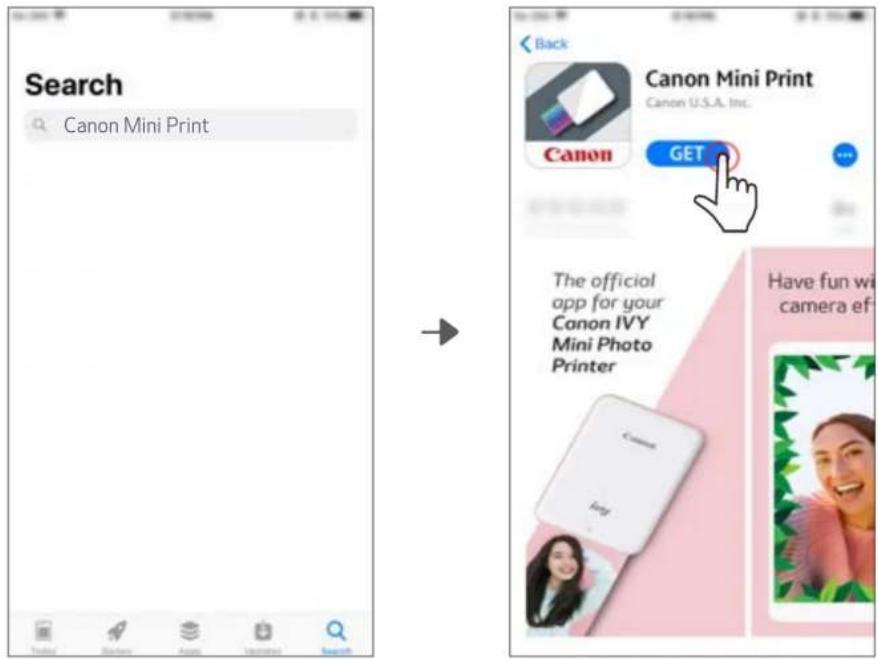
OPTION ①
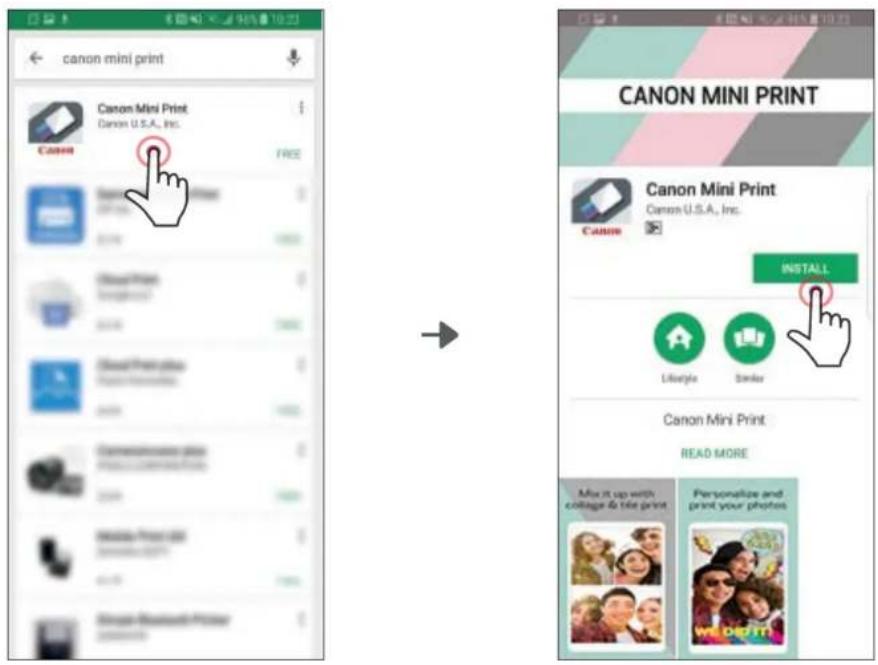
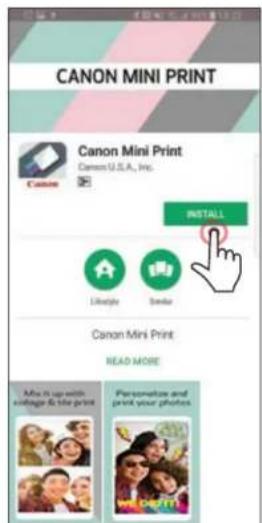
SEARCH FOR "Canon Mini Print" IN APP STORES
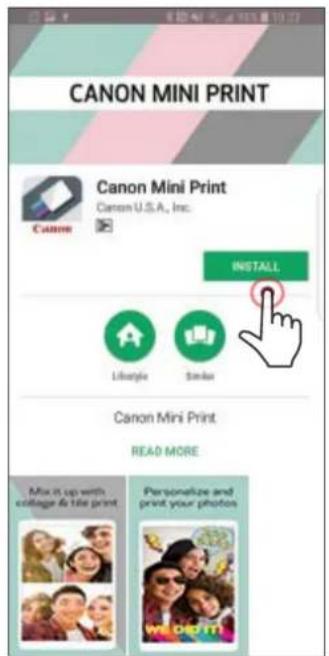
For Android ^TM - from Google Play ^TM
text_image
canon mini print Canon Mini Print Canon U.S.A., Inc. CANON FREE CANON MINI PRINT Canon Mini Print Canon U.S.A., Inc. CANON INSTALL Lifestyle Banker Canon Mini Print READ MORE Mix it up with college do the print Personalize and print your photosFor iOS ^® - from the App Store ^®
text_image
Search Canon Mini Print Back Canon Mini Print Canon U.S.A. Inc. Canon GET The official app for your Canon IVY Mini Photo Printer Have fun wi camera ef
OPTION ②
USING QR CODE - SCAN THE QR CODE ON THE "Quick Start Guide"
For Android For iOS
text_image
CANON MINI PRINT Canon Mini Print Canon U.S.A., Inc. INSTALL Liberty Strike Canon Mini Print READ MORE Mix it up with collage & tile print Personalize and print your photos
text_image
Back Canon Mini Print Canon U.S.A. Inc. Canon GET The official app for your Canon IVY Mini Photo Printer Have fun wi camera efOPTION ③
In your device browser GO TO https://app.canonminiprint.com/
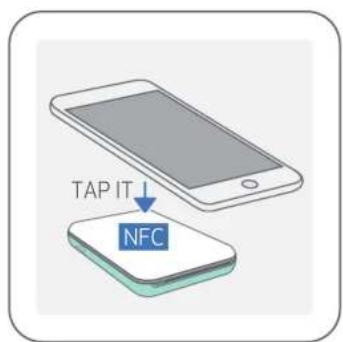
OPTION ④
USING NFC For Android
text_image
TAP IT NFC
text_image
CANON MINI PRINT Canon Mini Print Canon U.S.A., Inc. INSTALL Lifestyle Sendai Canon Mini Print READ MORE Mix it up with voltage & line print Personnel and print your photosAndroid Pairing
① Turn on the printer by pressing and holding the Power button until the LED indicator light turns on.
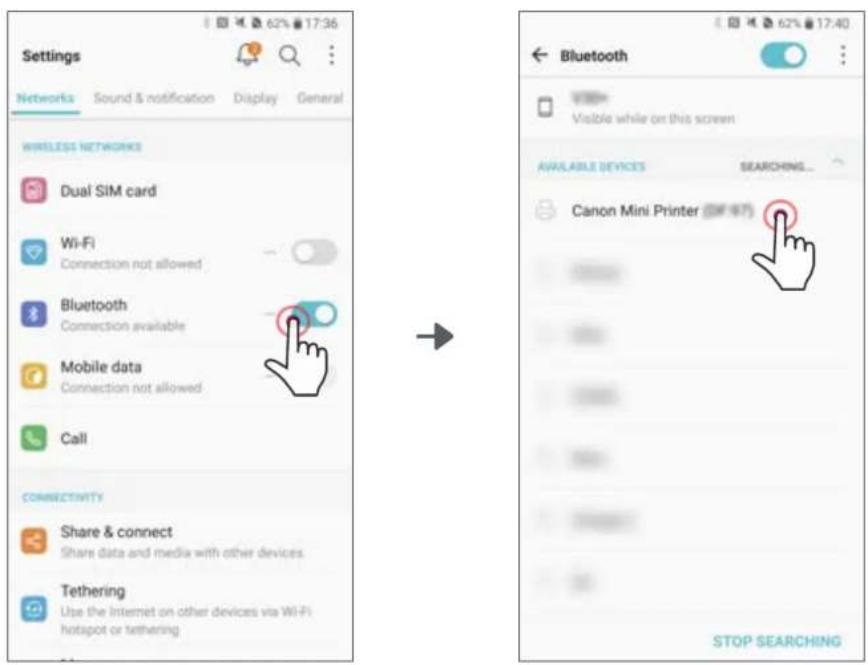
② Open mobile device "Settings" to enable Bluetooth and pair it with the printer.
text_image
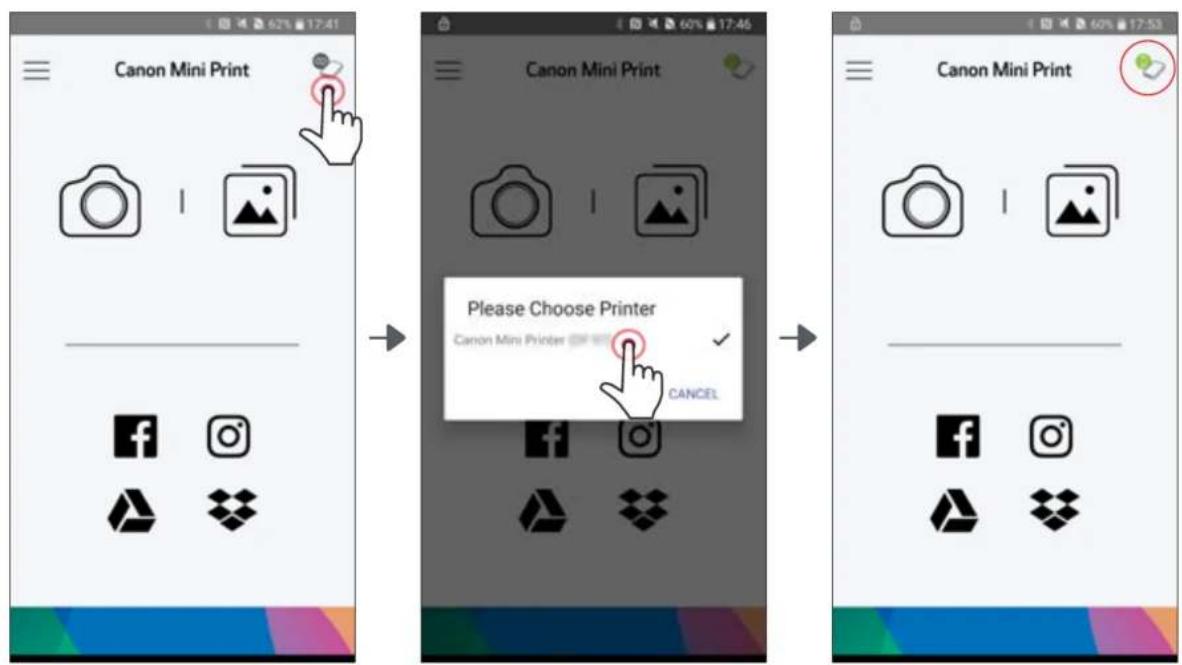
Settings Networks Sound & notification Display General WIRELESS NETWORKS Dual SIM card Wi-Fi Connection not allowed Bluetooth Connection available Mobile data Connection not allowed Call CONNECTIVITY Share & connect Share data and media with other devices. Tethering Use the Internet on other devices via Wi-Fi hotapot or tethering → Bluetooth Visible while on this screen AVAILABLE DEVICES SEARCHING... Canon Mini Printer (MF 47) STOP SEARCHING③ OPTION A - Add the printer to the app. Tap on the icon on the top right and choose your printer.
The icon will change to indicate battery level when connected.
text_image
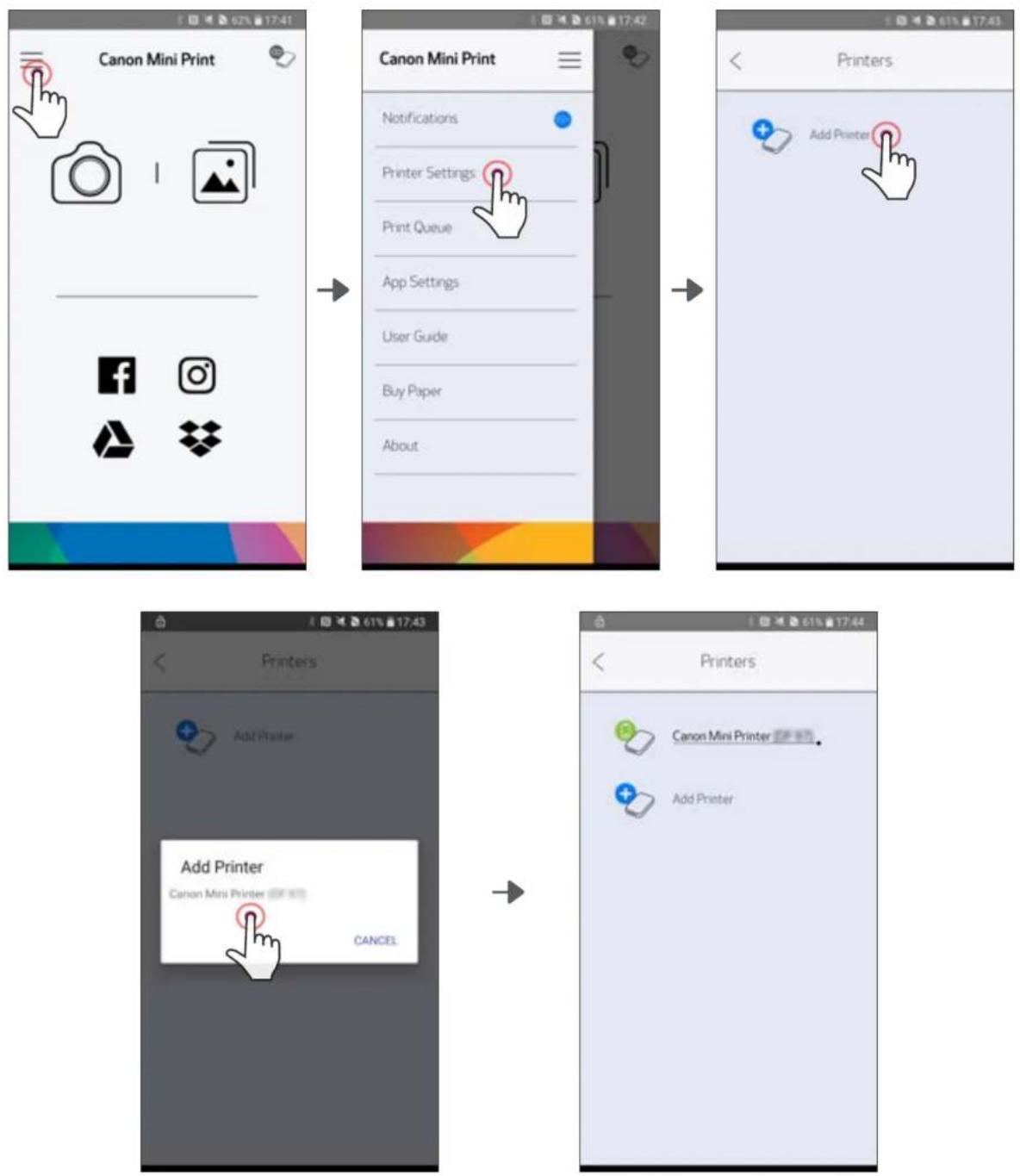
Canon Mini Print Canon Mini Print Please Choose Printer Canon Mini Printer ↕ CANCEL③ OPTION B - Add the printer to the app. Go to "Printer Settings" in the main menu, tap "Add Printer" and choose your printer.
Your printer will appear in the "Printers" list and the icon will change to indicate battery level when connected.
iOS Pairing
① Turn on the printer by pressing and holding the Power button until the LED indicator light turns on.
② Open mobile device "Settings" to enable Bluetooth and pair it with the printer.
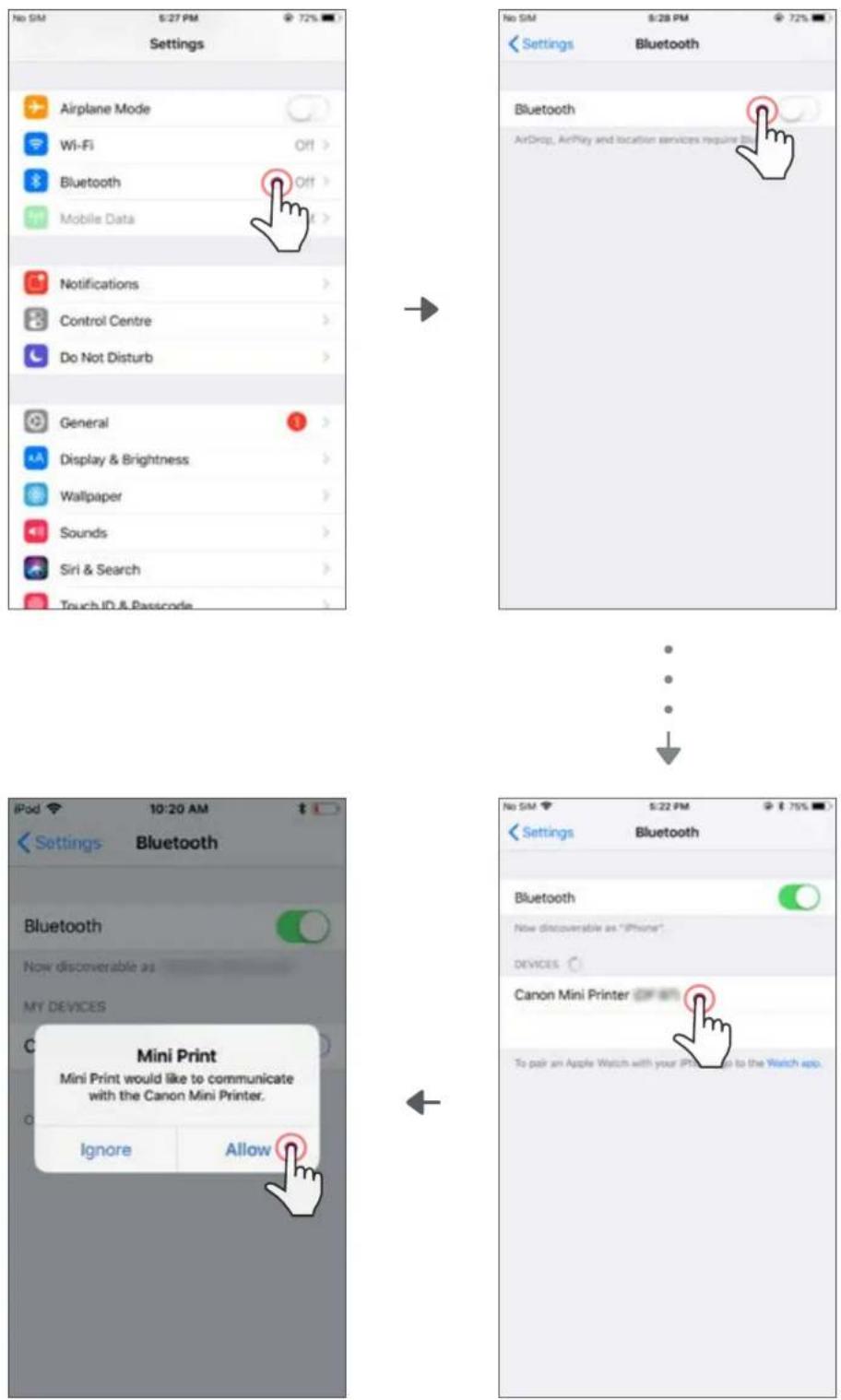
text_image
No SIM 8:27 PM 72% Settings Airplane Mode Wi-Fi Off > Bluetooth Off > Mobile Data Notifications Control Centre Do Not Disturb General Display & Brightness Wallpaper Sounds Siri & Search Touch ID & Passcode Bluetooth AirDrop, AirPlay and location services require BI Bluetooth AirDrop, AirPlay and location services require BI iPod 10:20 AM Settings Bluetooth Bluetooth Now discoverable as "iPhone" MY DEVICES Mini Print Mini Print would like to communicate with the Canon Mini Printer. Ignore Allow To pair an Apple Watch with your iPhone to the Watch app.
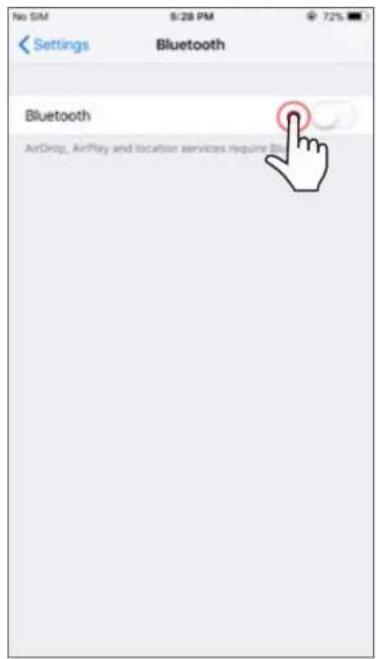
text_image
No SIM 9:28 PM 72% Settings Bluetooth Bluetooth AirDrop, AirPlay and location services require Data
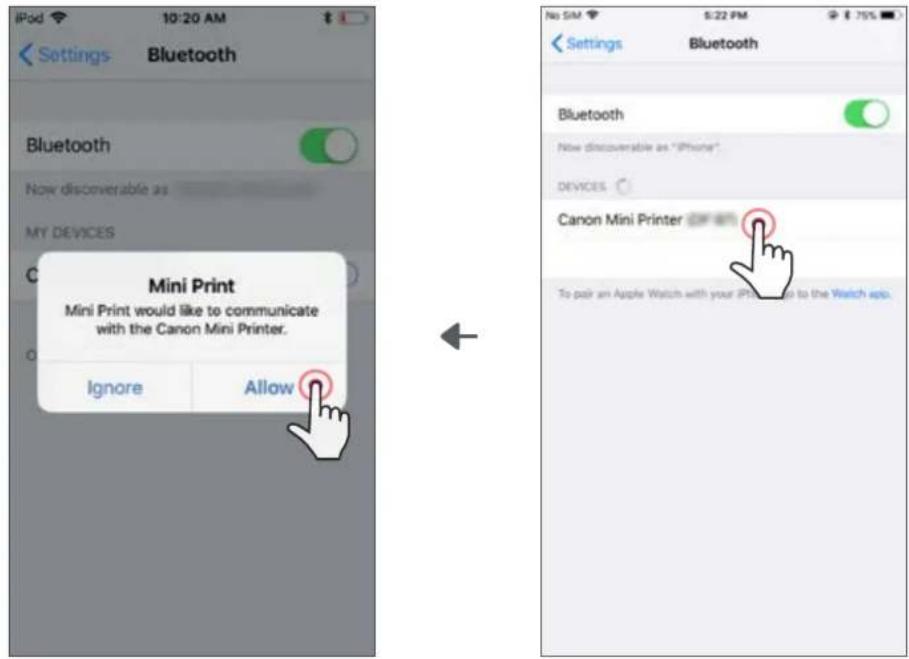
text_image
Settings Bluetooth Bluetooth Now discoverable as MY DEVICES Mini Print Mini Print would like to communicate with the Canon Mini Printer. Ignore Allow Settings Bluetooth Bluetooth Now discoverable as "iPhone" DEVICES Canon Mini Printer To pair an Apple Watch with your iPhone to the Watch app.
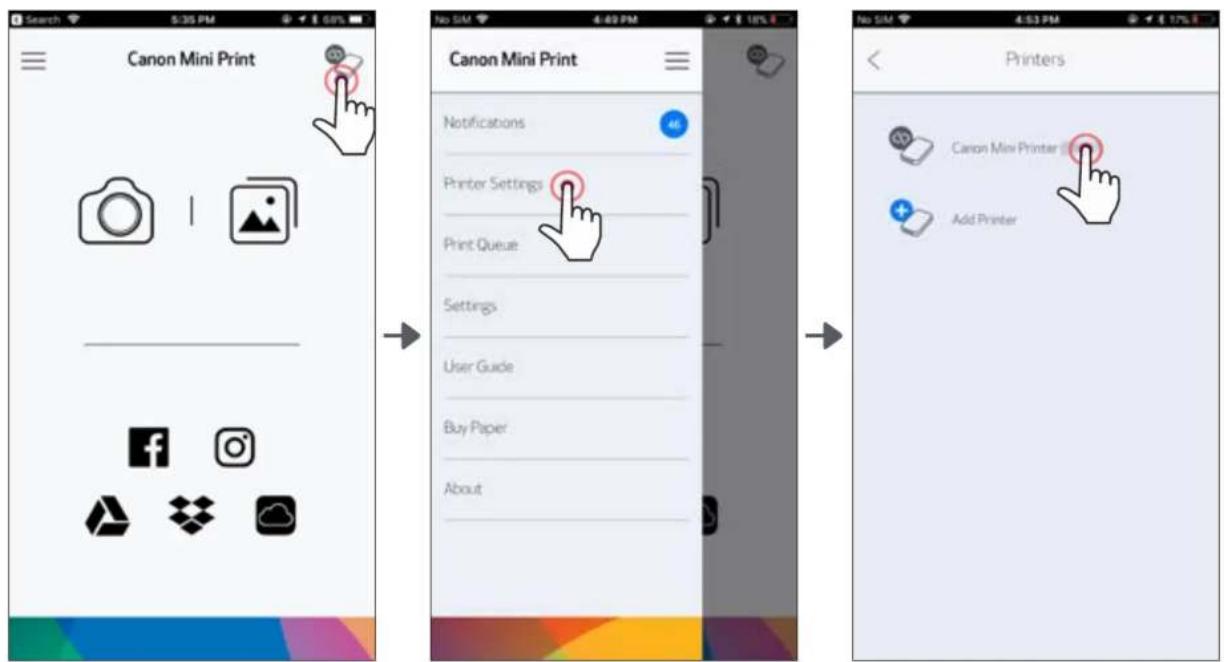
③ OPTION A - Add the printer to the app. Tap on the icon on the top right and choose your printer.
The icon will change to indicate battery level when connected.
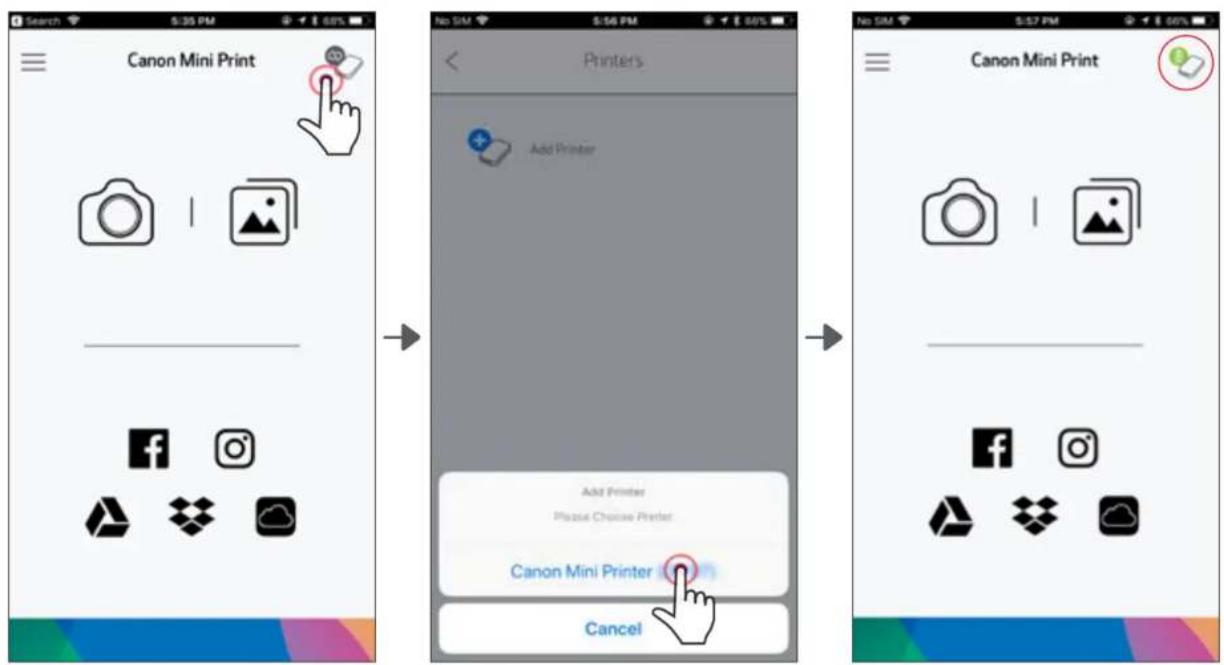
text_image
Canon Mini Print Add Printer Add Printer Please Choose Printer Canon Mini Printer Cancel—OR—
③ OPTION B - Add the printer to the app. Go to "Printer Settings" in the main menu, tap "Add Printer" and choose your printer.
Your printer will appear in the "Printers" list and the icon will change to indicate battery level when connected.
text_image
Canon Mini Print Notifications Printer Settings Print Queue Settings User Guide Buy Paper About Canon Mini Print Add Printer PrintersAndroid Pairing (with NFC)
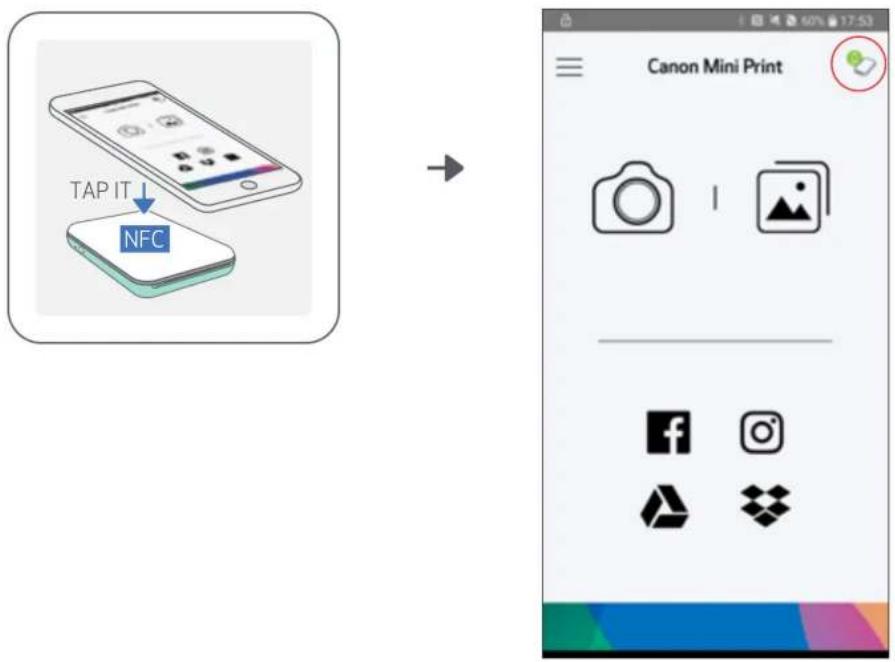
① On your mobile device, ensure that NFC and Bluetooth are enabled.
② Open the Canon Mini Print app.
③ Place your mobile device on top of the printer.
④ The printer will pair automatically with the mobile device.
text_image
TAP IT NFC Canon Mini Print
NOTE
Printer Status Icon (shown in App)

Add new printer

Printer
not connected
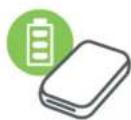
Printer connected (battery status shown)
About Pairing
• One printer can be paired with only one iOS/Android device.
- One iOS/Android device can be connected to multiple printers.
To pair an additional printer, go to Printer Settings in the Main Menu and tap "Add Printer"
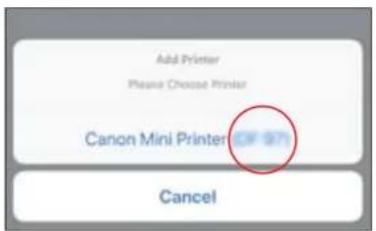
- Search for and pair a printer named "Canon Mini Printer (xx:xx)". Match the last 4 digits of the MACnumber (xx:xx) on the label inside the printer.
- Bluetooth searching and transferring may fail depending on the environment. Check the Bluetooth condition on your mobile device and try again.
text_image
Add Printer Please Choose Printer Canon Mini Printer OFF 97 Cancel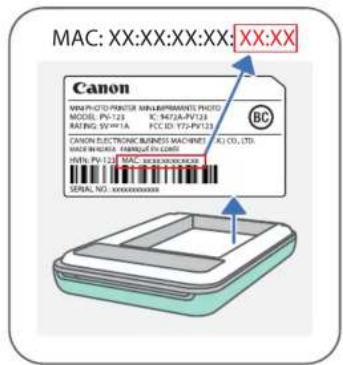
text_image
MAC: XX:XX:XX:XX: XX:XX Canon MINI-PV-CDI-PRINTER MINILIPRMANATE PHOZO MODEL PV-123 IC N47A-PU-PT25 RATING SP-VY-1A PCC CD 77/PU-PT25 CANON ELECTRONIC BUSINESS MACHINES BL CO., LTD. MADE IN CHINA PARANTIA CORN HIVN. PV-123 MAC-SOC-BACKBOX SERIAL NO.: XXXXXXXXXXXHOME SCREEN
text_image
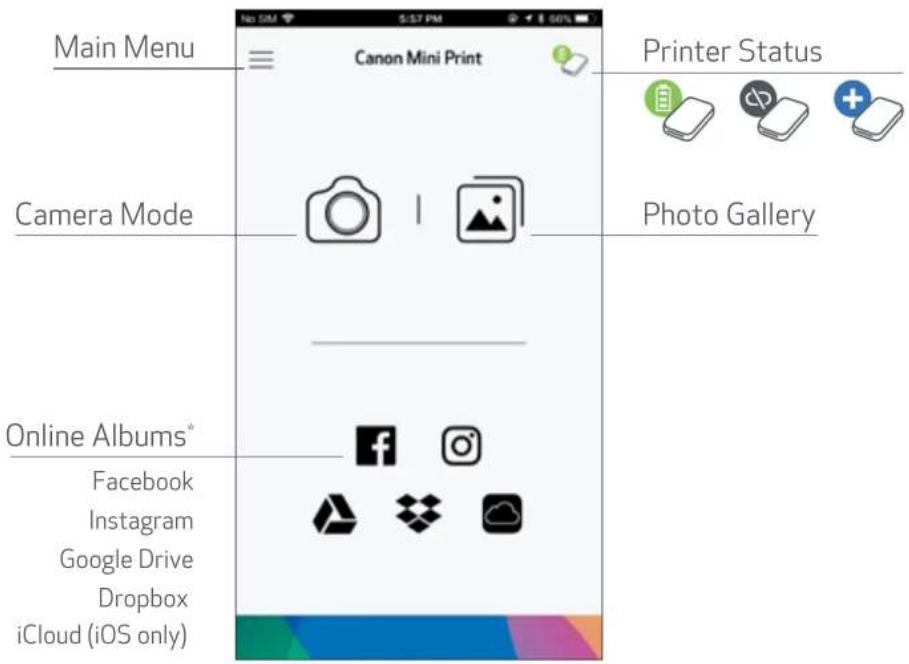
Main Menu Canon Mini Print Printer Status Camera Mode Photo Gallery Online Albums* Facebook Instagram Google Drive Dropbox iCloud (iOS only)MAIN MENU
text_image
View in-app messages Access paired printer information & settings View & delete images in print queue Access App information & settings View Online User Manual & FAQ Purchase photo paper from Online Store Check App version, User Agreement and Privacy Statement Canon Mini Print Notifications Printer Settings Print Queue Settings User Guide Buy Paper AboutApp experience, features, and available Online Albums may vary depending on your device and region.
CAMERA MODE
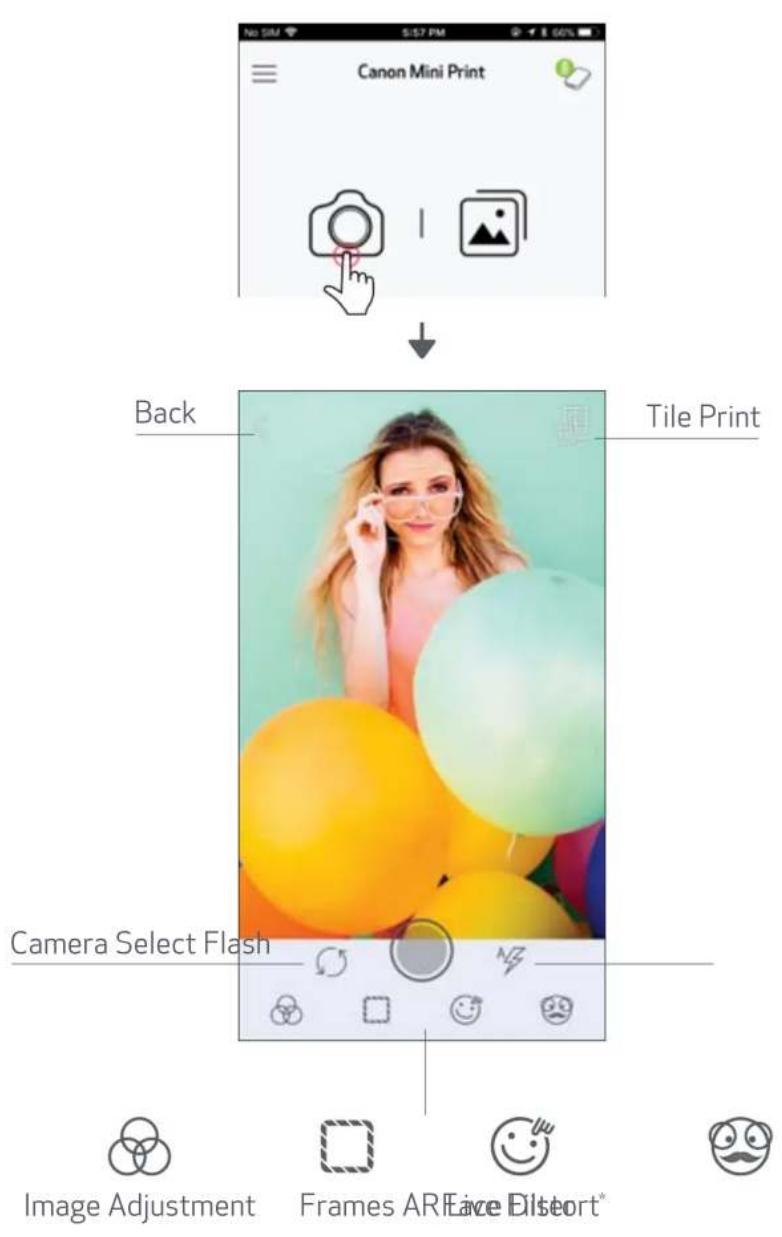
① On the Home Screen, tap [ ] to take a photo. (Optional, tap on the icons at the bottom to take a photo with effects.)
② Once you've taken a photo, you can Print, Edit, Share, or Save.
③ To print, tap [ ]
text_image
Canon Mini Print Back Tile Print Camera Select Flash Image Adjustment Frames AR Live DIsort*PHOTO GALLERY
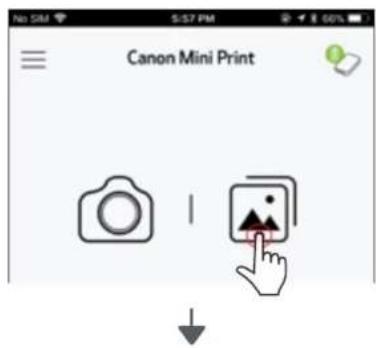
In the Photo Gallery you can browse photos in gallery view, by folders, or by calendar.
① On the Home Screen, tap [ ] to view the Photo Gallery.
② Once you've selected a photo, you can Print, Edit, Share, or Save.
③ To print, tap [ ]
text_image
Canon Mini Print No 5M S:57 PM 8.00% ↓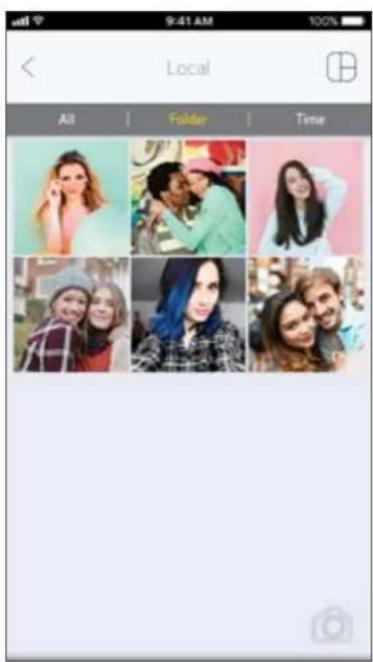
text_image
All 9:41 AM Local Folder Time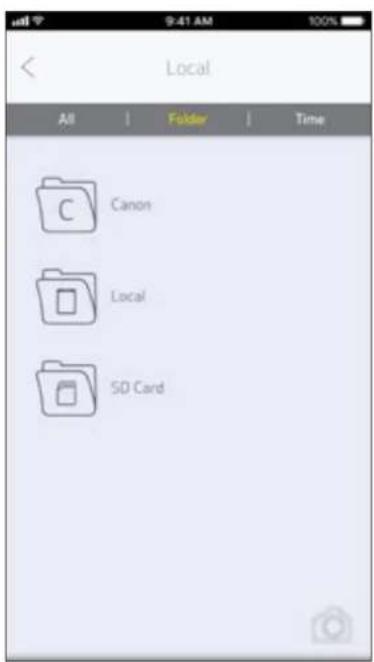
text_image
All | Folder | Time Canon Local SD Card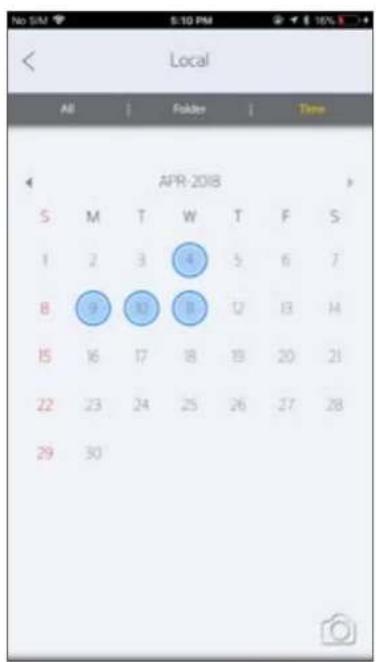
text_image
Local All | Folder | Time APR-2018 5 M T W T F S 1 2 3 4 5 6 7 8 9 10 11 12 13 14 15 16 17 18 19 20 21 22 23 24 25 26 27 28 29 30All Photos - Gallery Folder View Calendar View
natural_image
Woman posing with colorful balloons and a camera icon, no visible text or symbols on the main image① When you are ready, tap [ 📊 ] to print your photo.
Make sure that the printer is on and paired/connected.
② A progress screen will appear to show that your image is Sending to Printer and Printing.
The Power LED Light will flash white, don't exit or close the app until your print is complete.
Note about Print Queue: Your image will be stored in the Print Queue if your printer is not on and connected when you send a print. To release the print, simply turn your printer on and reconnect, you will be asked if you want to print the images in your queue. To view or delete images in the queue, go to the Main Menu > Print Queue.
natural_image
Three portrait photos of women in different settings, one with long blonde hair and glasses, the other with blue hair and a plaid shirt (no text or symbols visible)
natural_image
Three portrait photos of young people against a green background, no visible text or symbolsSending to Printer Printing

NOTE
- The printed image may differ from the original image because the "screen technology" used to display color on a mobile device is different than the "print technology" used to print color on paper (thermal transfer printing).
- Do not pull the paper out by force during printing or paper jam.
- Do not open the top cover during printing. It may affect print quality.
- If the printer is vibrated or shaken, photo print quality may be affected.
EDIT PHOTOS
You can customize your image with edits like filters, stickers, text, and more.
① Tap the icons on the bottom bar of your screen
② Customize as you wish!
③ Don't forget to Save, Share, or Print your changes before you exit the screen.

natural_image
Woman with blonde hair and glasses holding a phone, surrounded by colorful balloons (no text or symbols visible)

Image Adjustment

Frames Face DistText


AR Filter*


Stickers Image Filter Drawing


Brightness Contrast Saturation RGB RotateFlip Flip (vertical) (horizontal)
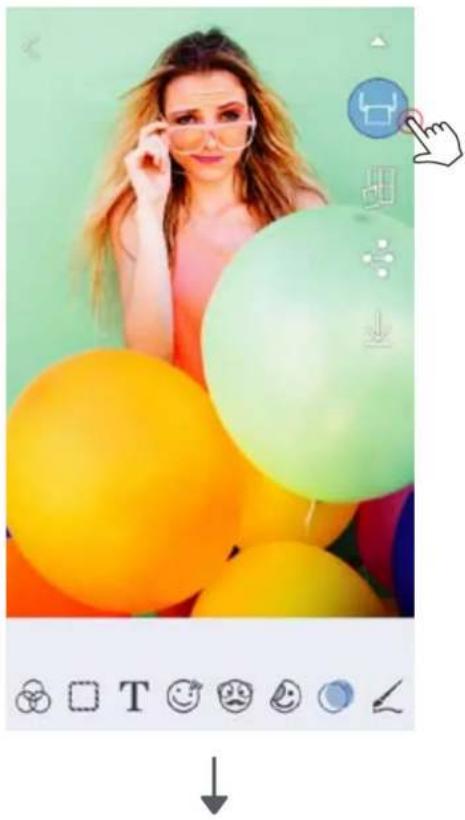
USING TILE PRINT
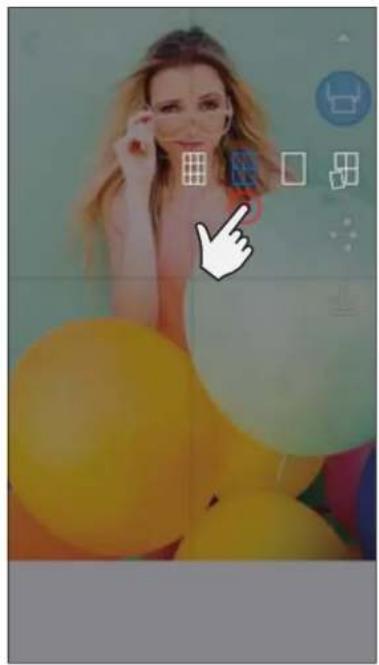
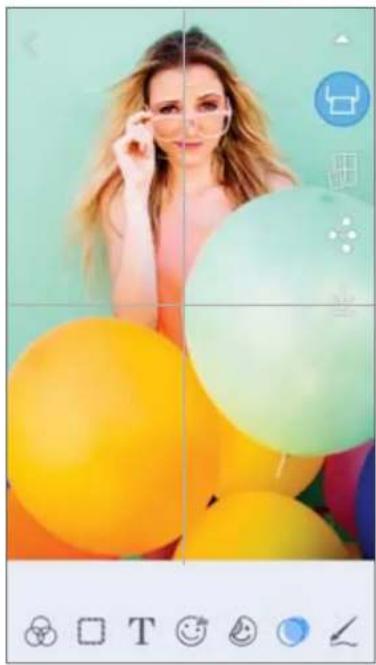
Use the Tile Print function to print a single photo onto multiple sheets so you can create a larger tiled print.
① When you're ready to print, tap [☐] and tap the tiled choice of 2 x 2 or 3 x 3 prints. (Lines will appear to show how your image will be split.)
② Tap [ ] to print your tiles and then put them together to create a larger tiled print.
natural_image
Woman holding phone with colorful balloons in background, no visible text or symbols
natural_image
Woman with blonde hair holding a phone, surrounded by colorful balloons (no text or symbols visible)Canon U.S.A., Inc. Canon is a registered trademark of Canon Inc. in the United States and may be a registered trademark, or trademark, in other countries. IVY is a trademark of Canon U.S.A., Inc. in the United States. SMART SHEET, the ZINK Technology and ZINK Trademarks are owned by ZINK Holdings LLC. Used under license. Apple, the Apple logo, iPad, iPad Air, iPad Pro, and iPhone are trademarks of Apple Inc., registered in the United States and other countries. App Store is a service mark of Apple Inc. iOS is a trademark or registered trademark of Cisco in the United States and other countries and is used under license. Android, Google Play and the Google Play logo are trademarks of Google LLC. Bluetooth is a registered trademark of Bluetooth SIG. Wi-Fi is a registered trademark of the Wi-Fi Alliance. All other third-party product names, brand names and logos are trademarks of their respective owners.
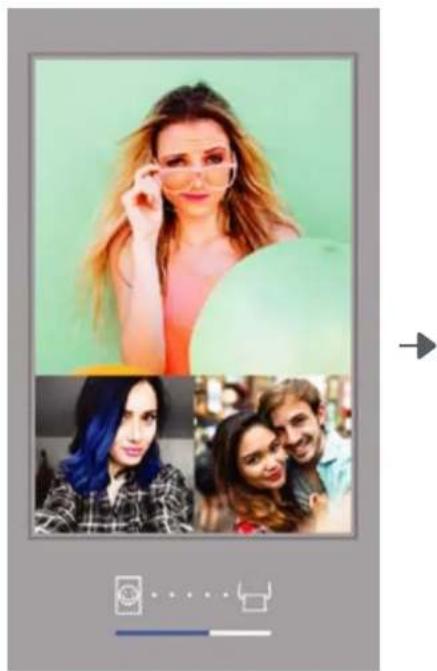
USING COLLAGE PRINT
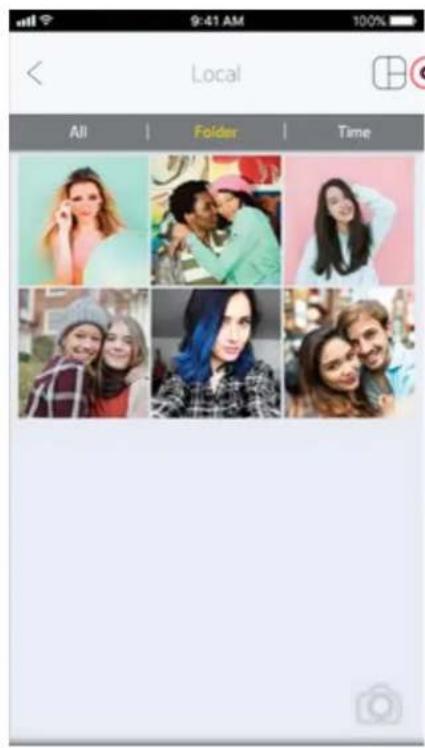
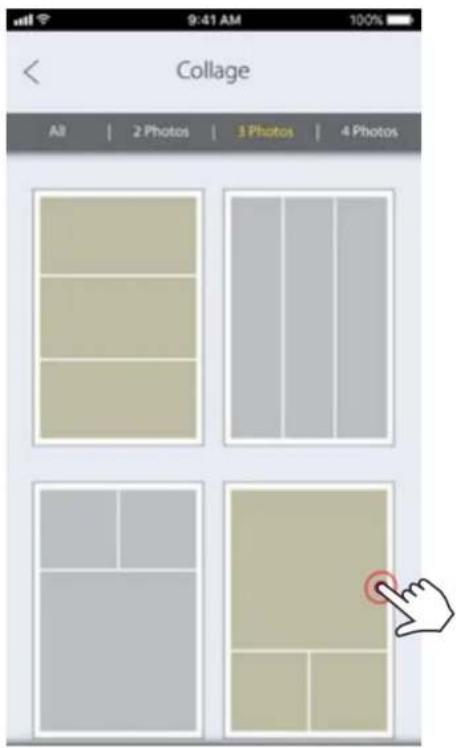
Use the Collage function to print up to 4 photos on one 2x3 sheet.
① Open your photos in the Photo Gallery or from Online Albums
② Tap [ ⊕ ] to view the collage template choices and select one you want to use (you can choose from 2, 3, or 4 photos in a template)
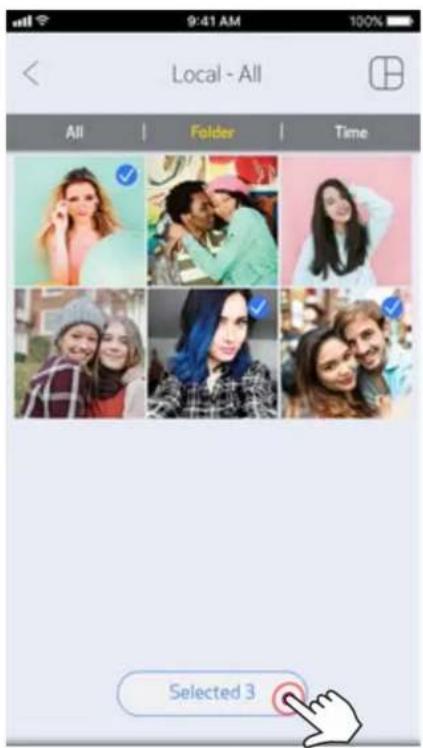
③ Check off the number of photos needed for the template and tap "Select"
④ Adjust the images in your collage as you'd like and then tap [💡] or share/save.
text_image
Local All | Folders | Time
text_image
Collage All | 2 Photos | 3 Photos | 4 Photos

natural_image
Composite image showing a woman adjusting glasses, with three close-up photos of young people (no visible text or symbols)
text_image
Local - All All | Folder | Time Selected 3SHARE PHOTOS
You can easily share or save your images and edits.
① When you're ready, tap [ ◆ ] to open the options on your device
② Share with a listed app, or save to your device's photo storage.

natural_image
Two young girls posing together outdoors, one wearing a knit hat and plaid sweater, the other in a red sweater with gloves (no visible text or symbols)iOS
Android

text_image
Select app to share image Save Image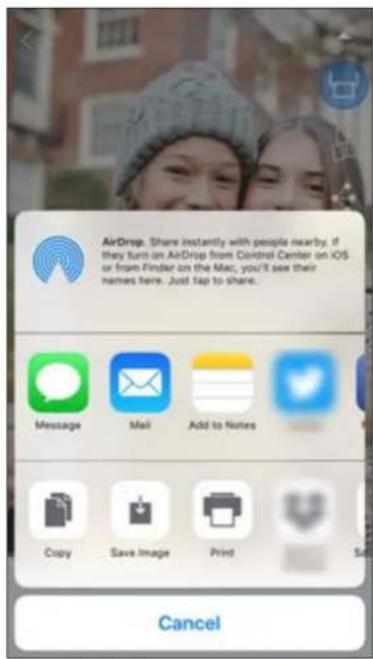
text_image
AirDrop. Share instantly with people nearby. If they turn on AirDrop from Control Center on iOS or from Finder on the Mac, you'll see their names here. Just Tap to share. Message Mail Add to Notes Copy Save Image Print CancelSAVE PHOTOS
You can easily save your images to the Canon folder in the app.
① When you're ready, tap [ ↓ ] save your image.
② To view your saved images, tap [ 🔊 ], then tap "Folder", and then "Local - Canon"

natural_image
Two smiling young women posing together outdoors, with a thumbs-down icon and social media interface elements (no readable text or symbols)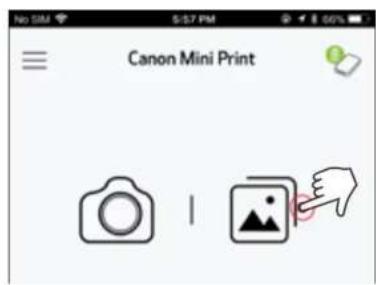
text_image
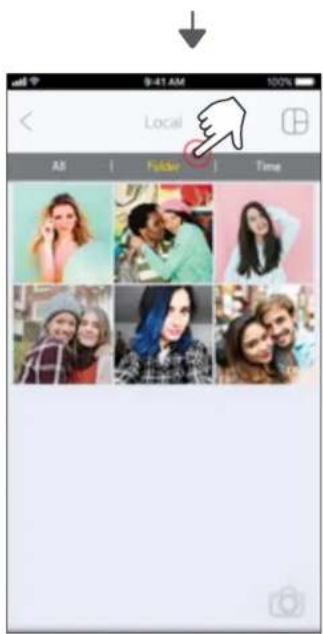
Canon Mini Print No 5M $57 PM $60L① To delete a photo from the Canon Folder in the app, tap [ ] to view the Photo Gallery
② Tap "Folder", then "Local - Canon"
③ Tap the trashcan, then select the photo(s) you wish to delete permanently.
text_image
Local All - ( Friday ) Time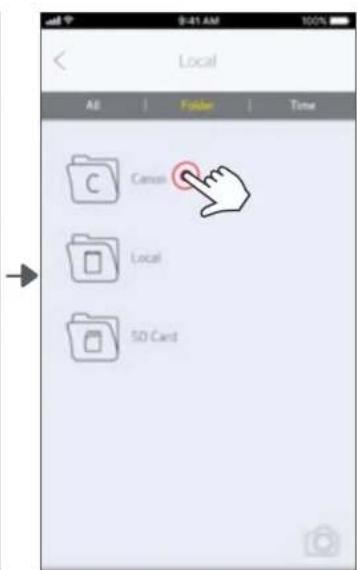
text_image
9:41 AM Local All | Folder | Time Canon Local 50 Card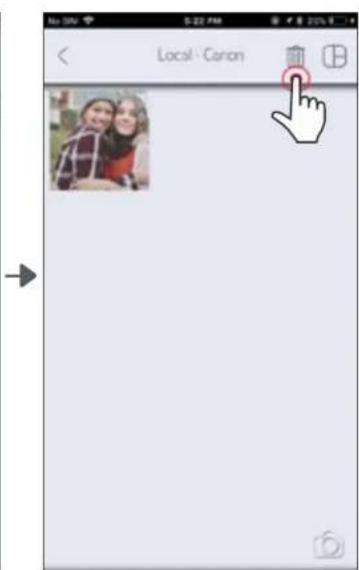
text_image
Local - CanonSEND TO MINI PRINT
Send a photo in your device's photo gallery or camera roll to the Canon Mini Print app.
For Android
① Find a photo in your device Gallery and tap the share button
② Tap the Mini Print Icon to send the photo to the app so you can edit and print.
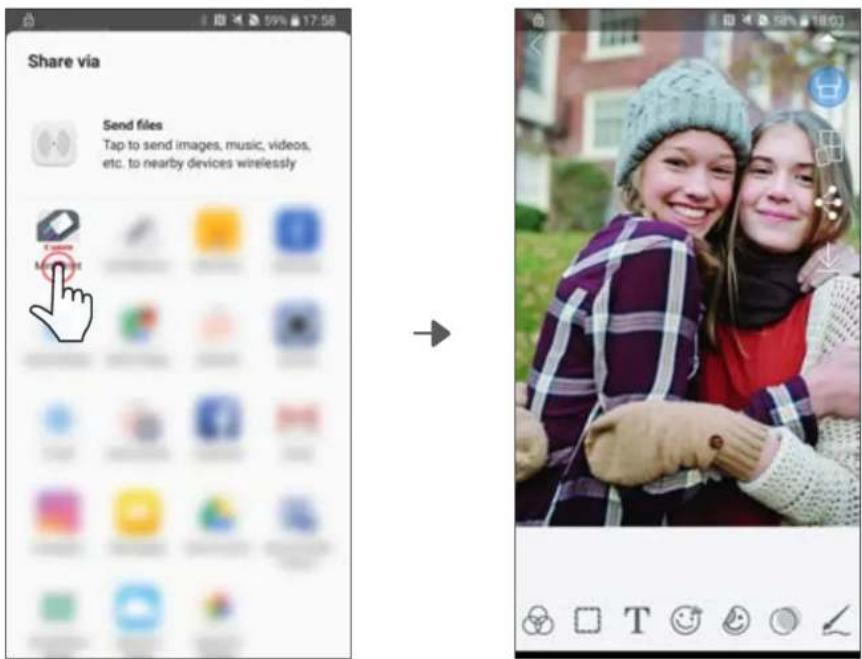
text_image
Share via Send files Tap to send images, music, videos, etc. to nearby devices wirelesslyFor iOS
① Find a photo in your device Gallery and tap the share button
② OPTION A - Tap "Open in Mini Print" to send the photo to the app editing screen where you can edit and print.
② OPTION B - Tap the "Print to Canon" to send the photo directly to the print queue.
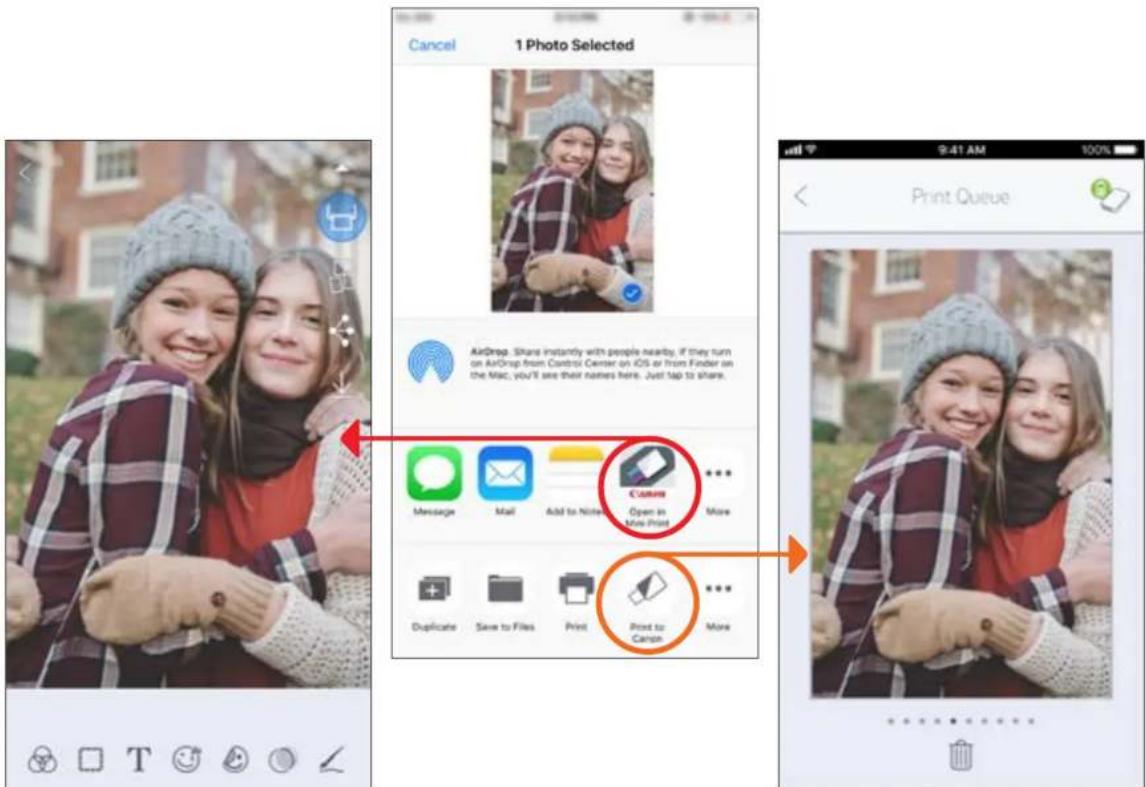
text_image
Cancel 1 Photo Selected AirDrop. Share instantly with people nearby. If they turn on AirDrop from Control Center on iOS or from Finder on the Mac, you'll see their names here. Just 5ap to share. Message Mail Add to None Canon Open in More Print Duplicate Save to Files Print Print to Canon More 9:41 AM Print QueueEditing Screen
Print Queue
Power Source Internal rechargeable battery 500 mAh Li-Polymer 7.4 V
Charging Speed Approximately 90 minutes (Full Charge)
Dimension 4.7"(L) × 3.2" (W) × 0.7" (H) / 118.3 mm (L) × 82.4 mm (W) × 18.7 mm (H)
Weight 5.4 oz (160 g)
Connectivity Bluetooth 4.0
Compatible OS iOS 9.0 or above & Android 4.4 or above
Print Technology ZINK™
Print Resolution 314 x 400 dpi (dots per inch)
Borderless Printing Yes
Compatible Paper Canon ZINK™ Photo Paper: ZP-2030-20 (20 sheets)
ZP-2030-50 (50 sheets)
2" x 3" / Peel-and-stick back / Smudge-free /
Water & tear resistant
Paper Capacity Up to 10 sheets of ZINK™ photo paper + 1 SMART SHEET™
Memory 512Mb
Environmental
Parameters
- Recommended Printer Operating, Charging, and Storage Temperature: 59^ to 90^ F (15° to 32° C)
- Recommended Printer Operating, Charging, and Storage Humidity: 40-55% RH
- Operating Temperature: 41^ to 104^ (5° to 40°C)
- Operating Humidity: <70% RH
Automatic Power-off None / 3 minutes / 5 minutes / 10 minutes (selectable in-app)
Power Adapter Output current: 1A (min) Voltage: 5V
* Subject to change without notice
BATTERY RECYCLE

The lithium ion/polymer battery is recyclable.
Please call 1-800-8-BATTERY for information on how to recycle this battery.