TWCS - Régulateur THRUSTMASTER - Free user manual and instructions
Find the device manual for free TWCS THRUSTMASTER in PDF.


| Product Type | Throttle Controller (TWCS Throttle Weapon Control System) |
| Dimensions (approx.) | 30 x 20 x 10 cm (11.8 x 7.9 x 3.9 inches) |
| Weight (approx.) | 500 g (1.1 lbs) |
| Power Source | USB bus-powered (5V, 500mA) |
| Cable Length | 2 meters (6.6 feet) |
| Primary Functions | Throttle axis, analog mini-stick, multiple buttons, hat switch, rotary encoders |
| Compatibility | PC (Windows 7/8/10/11) |
| Connection Interface | USB 2.0 |
| Material | Plastic body with rubberized grip |
| Maintenance & Cleaning | Wipe with a soft, dry cloth. Do not use solvents. |
| Safety Precautions | Keep away from liquids and extreme temperatures. Do not disassemble. |
| Spare Parts & Repairability | Contact Thrustmaster support for spare parts. Repair not recommended by user. |
| General Information | Designed for flight simulation and space sims. Features magnetic sensor for throttle precision. |
| Warranty | 2 years (varies by region) |
Frequently Asked Questions - TWCS THRUSTMASTER
User questions about TWCS THRUSTMASTER
0 question about this device. Answer the ones you know or ask your own.
Ask a new question about this device
Download the instructions for your Régulateur in PDF format for free! Find your manual TWCS - THRUSTMASTER and take your electronic device back in hand. On this page are published all the documents necessary for the use of your device. TWCS by THRUSTMASTER.
USER MANUAL TWCS THRUSTMASTER
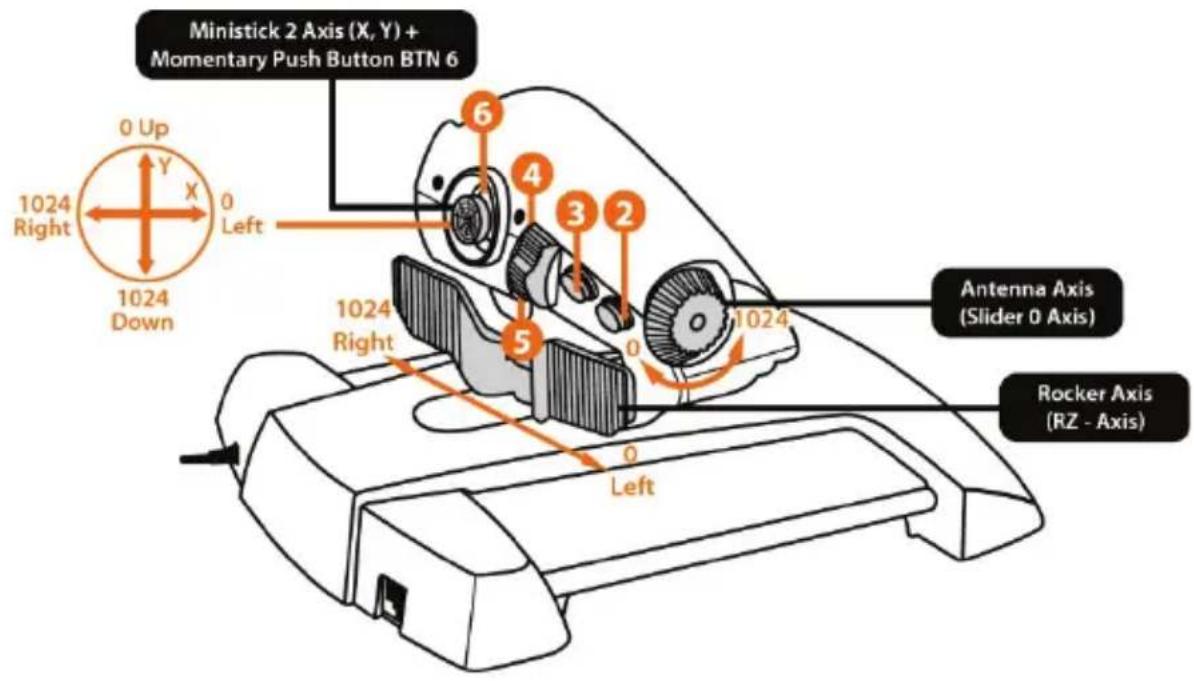
- Throttle axis
- Antenna axis
- Mini-stick with push-button axes
-
Rocker switch axes
-
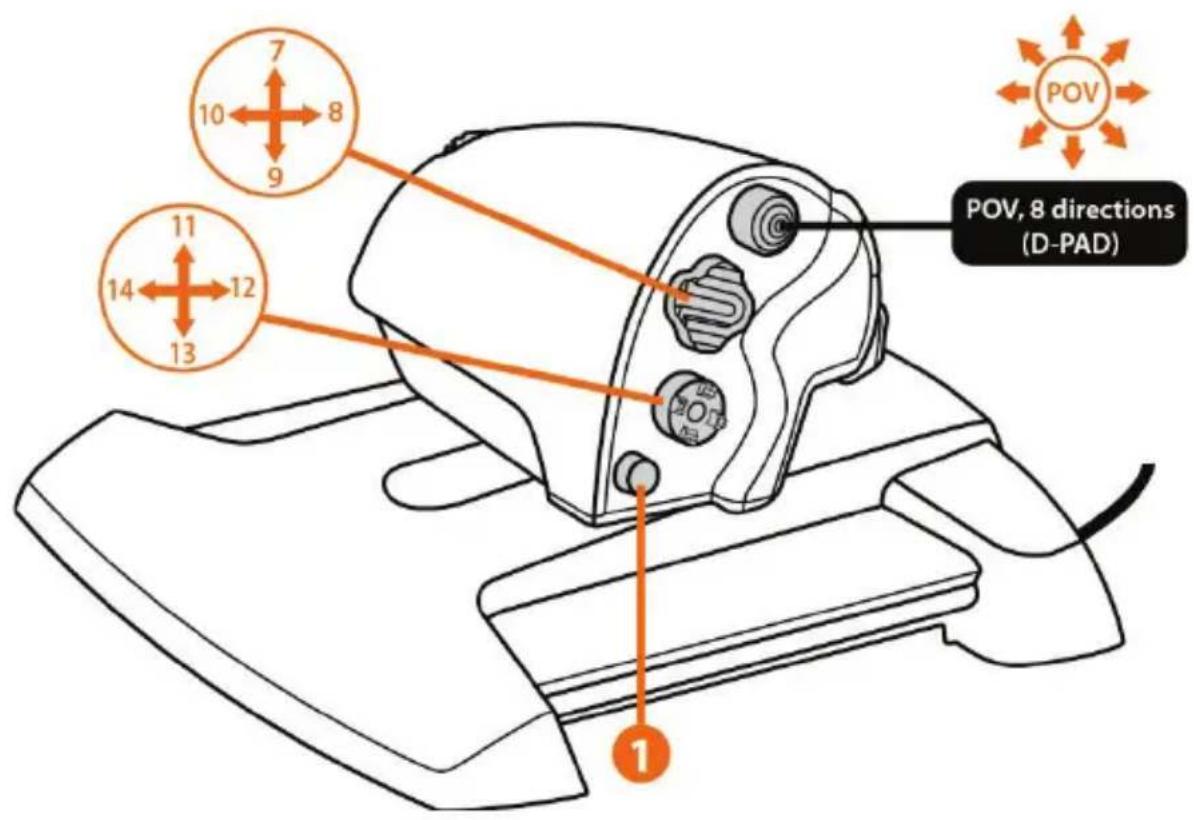
14 action buttons
- TFRP rudder connector
- Friction adjustment screw
- USB connector
SETUP INSTRUCTIONS FOR PC
- Go to https://support.thrustmaster.com/. Select Joysticks / TWCS Throttle, then select Drivers. Download and install the PC driver and its custom Windows Control Panel-based interface.
- After installing the PC driver, connect the USB connector to one of your PC's USB ports.
- To access the Control Panel, select:
- Start / Applications / Thrustmaster / Control Panel or Start / Control Panel (in Windows® 10 / 8.1 / 8)
- Start / All Programs / Thrustmaster / Control Panel or Start / Control Panel (in Windows® 7 / Vista)
The Game controllers dialog box is displayed.
The device appears under the name TWCS Throttle, with the status OK.
- In the Game Controllers dialog box, select Properties to test and view all functions.
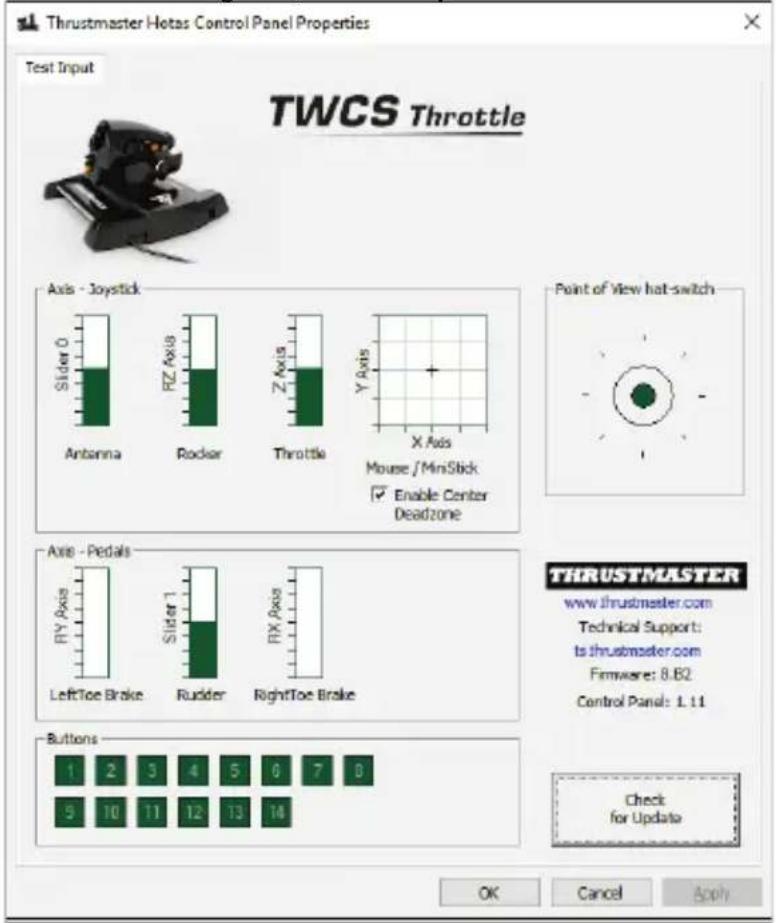
Note: The Enable Center Deadzone tab allows you to activate or deactivate the mini-stick's axes center dead zone. Your selection is automatically saved to the TWCS's internal memory.
You are now ready to play!
MAPPING OF THE 14 BUTTONS AND 8 AXES
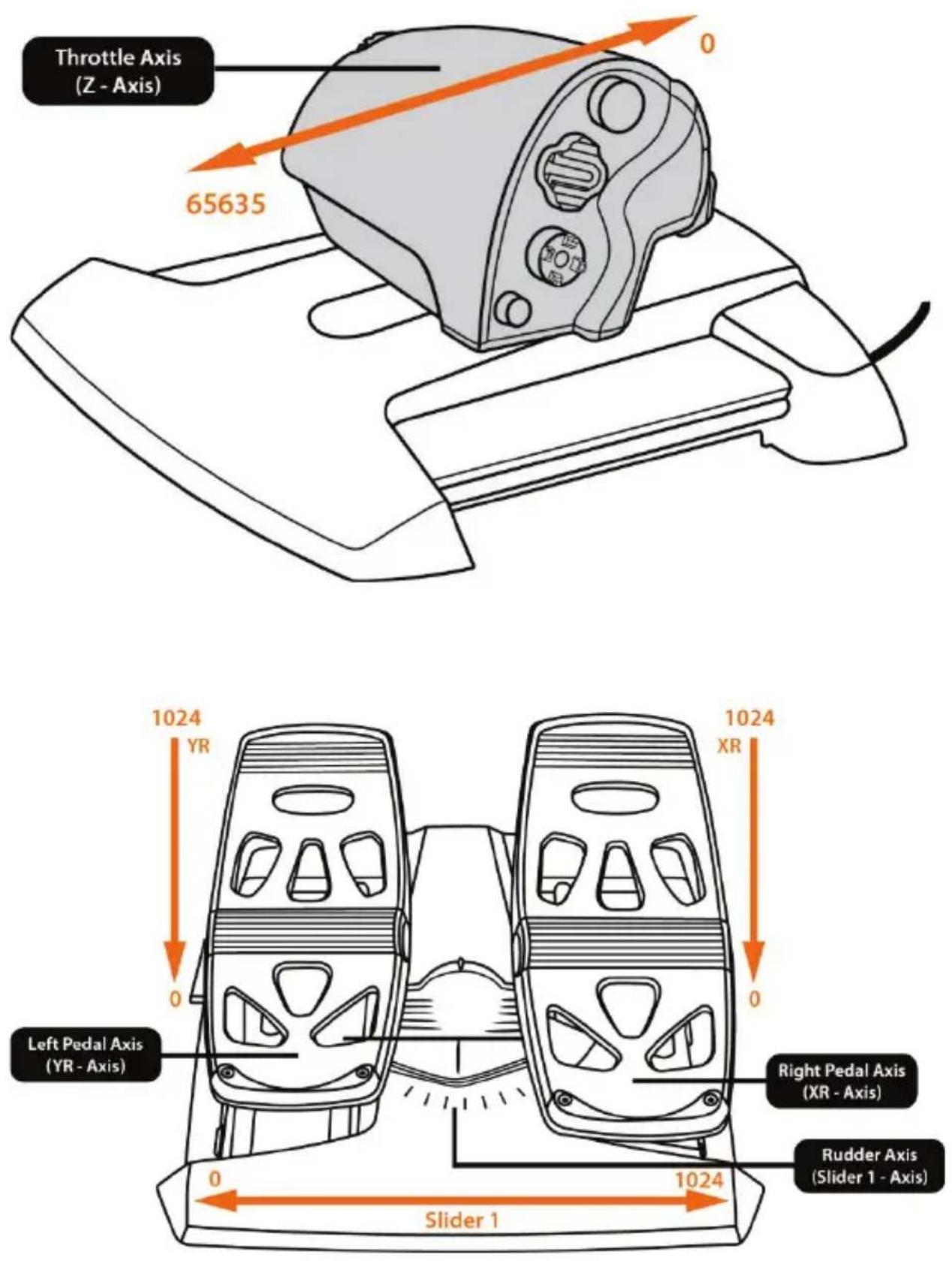
INSTALLING THE TFRP RUDDER ON THE TWCS THROTTLE
The TWCS throttle features 8 axes, including 3 axes dedicated to the TFRP rudder pedals.
The TFRP rudder pedals connect directly to the TWCS Throttle.
- Connect the rudder pedals' RJ12 male connector to the RJ12 female connector located at the back of the TWCS Throttle.
- Connect the TWCS Throttle's USB connector to one of your PC's USB ports.
Important notes regarding automatic axis calibration:
- Always leave the rudder axis centered when connecting the TFRP pedal set to the TWCS Throttle. Do not rest your feet on the pedals.
- The rudder pedals' 3 axes self-calibrate after a few movements and when the physical stops of the rudder's axis and the 2 differential brake axes are reached.
T.A.R.G.E.T ADVANCED PROGRAMMING SOFTWARE
(Thrustmaster Advanced pRogramming Graphical EdiTor)
Go to https://support.thrustmaster.com. Select Joysticks / TWCS Throttle, then select Software. Download and install the T.A.R.G.E.T advanced programming software.
T.A.R.G.E.T main specifications:
- Multiple axis configurations.
- Multiple programming levels: Basic, Advanced and Script.
- 'Drag and Drop' controls.
- Ability to combine the TWCS Throttle with other Thrustmaster joysticks (HOTAS Cougar, HOTAS Warthog, T.16000M, MFD Cougar Pack, also compatible with T.A.R.G.E.T), allowing controllers to be recognized as a single USB device.
- Access to advanced profiles created by the Thrustmaster community.
FRICTION ADJUSTMENT
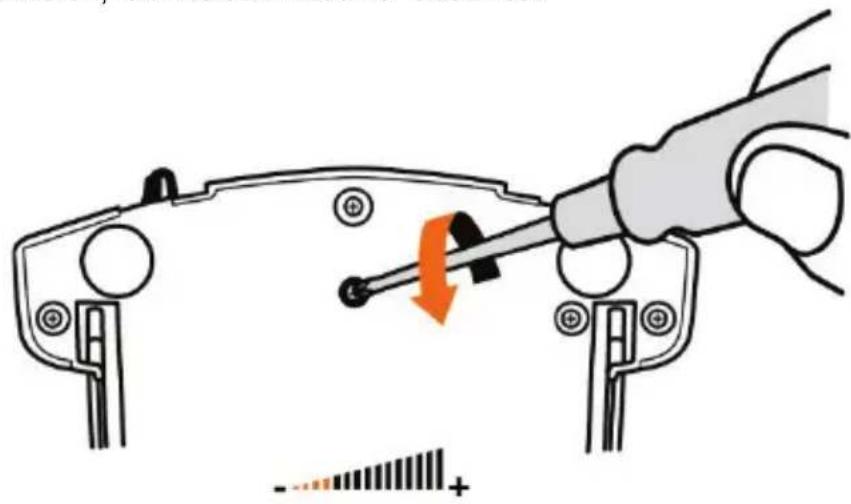
- Push the throttle's axis to the maximum position, then turn the TWCS Throttle over to access the friction adjustment screw.
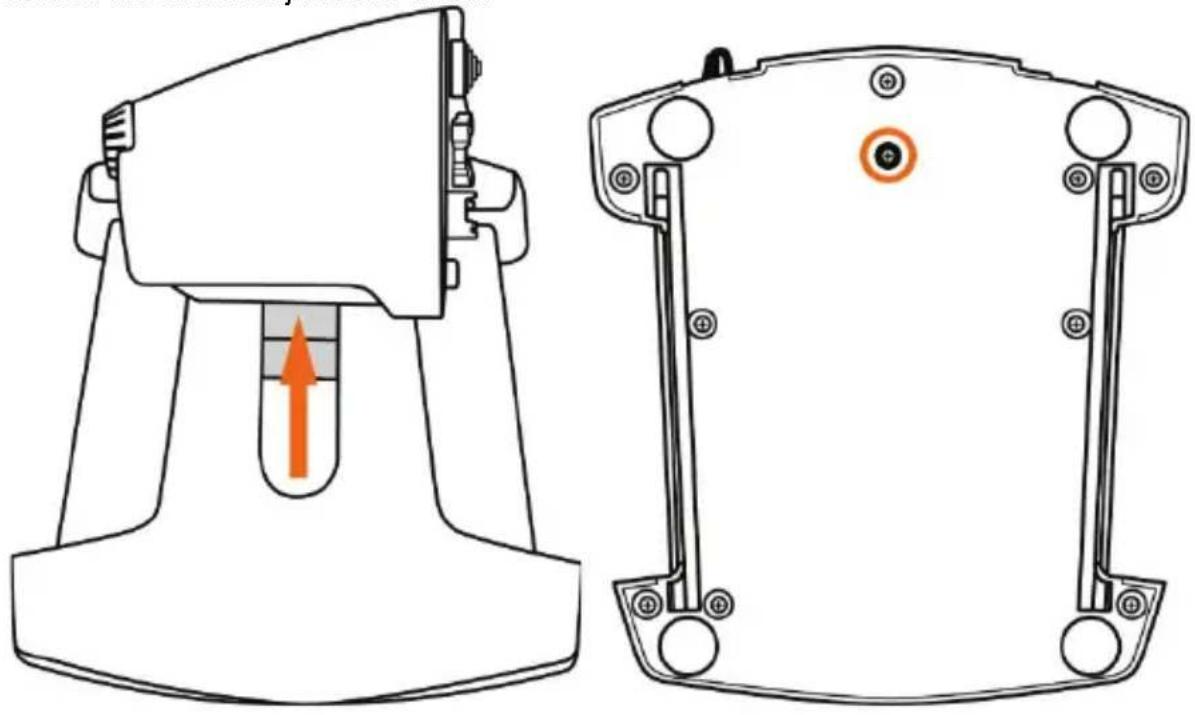
natural_image
Technical line drawing of a mechanical component with an arrow indicating a feature, shown from two orthographic views (no text or symbols present)• To increase friction, turn the screw clockwise.
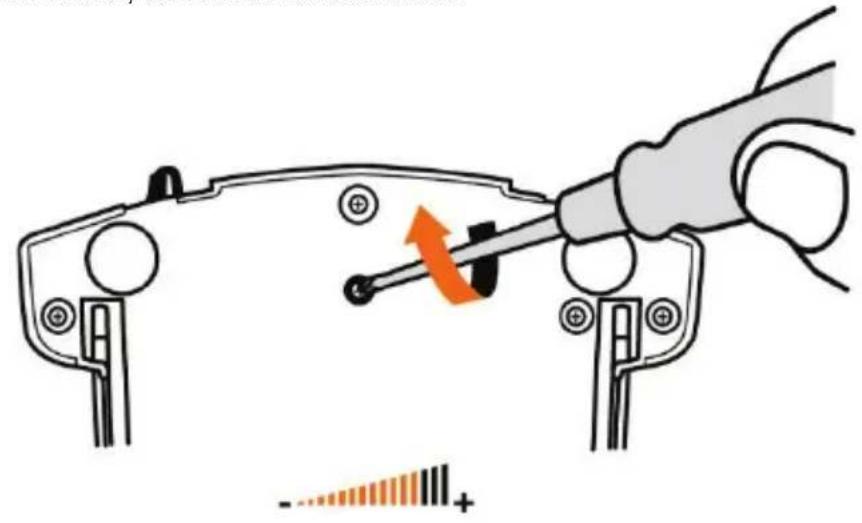
- To reduce friction, turn the screw counter-clockwise.
natural_image
Diagram of a hand holding a tool interacting with a mechanical component, showing a red arrow indicating direction (no text or symbols present)
- Do not over-tighten the adjustment screw, as this could cause damage to the friction system. Stop turning the screw as soon as any resistance is felt.
- Do not loosen the adjustment screw completely, as it could fall inside the TWCS Throttle's internal housing.
TROUBLESHOOTING AND WARNING
- My TWCS Throttle does not operate properly or seems incorrectly calibrated.
- Turn off your PC, unplug the TWCS Throttle's USB connector, then reconnect it; turn on your computer (or your games console), then restart the game.
- When connecting the TWCS Throttle's USB connector, always leave the rudder's axis in the center position. Do not rest your feet on the pedals.
- I can't configure my TWCS Throttle.
- In the game's Options / Controller / Throttle or Joystick menu, select the appropriate configuration or fully reconfigure the controller's options.
- Please refer to your game's user manual or online help for more information.
- Use the T.A.R.G.E.T (Thrustmaster Advanced pRogramming Graphical EdiTor) software.
• My TWCS Throttle is too sensitive or not sensitive enough.
- The TWCS Throttle's axes self-calibrate after a few movements and when the axes' physical stops are reached.
- In the game's Options / Controller / Throttle or Joystick menu, adjust your controller's sensitivity and dead zones, if available.
- Use the T.A.R.G.E.T (Thrustmaster Advanced pRogramming Graphical EdiTor) software.
CONSUMER WARRANTY INFORMATION
Worldwide, Guillemot Corporation S.A., whose registered office is located at Place du Granier, B.P. 97143, 35571 Chantepie, France (hereinafter "Guillemot") warrants to the consumer that this Thrustmaster product shall be free from defects in materials and workmanship, for a warranty period which corresponds to the time limit to bring an action for conformity with respect to this product. In the countries of the European Union, this corresponds to a period of two (2) years from delivery of the Thrustmaster product. In other countries, the warranty period corresponds to the time limit to bring an action for conformity with respect to the Thrustmaster product according to applicable laws of the country in which the consumer was domiciled on the date of purchase of the Thrustmaster product (if no such action exists in the corresponding country, then the warranty period shall be one (1) year from the original date of purchase of the Thrustmaster product).
Notwithstanding the above, rechargeable batteries are covered by a warranty period of six (6) months from the date of original purchase.
Should the product appear to be defective during the warranty period, immediately contact Technical Support, who will indicate the procedure to follow. If the defect is confirmed, the product must be returned to its place of purchase (or any other location indicated by Technical Support).
Within the context of this warranty, the consumer's defective product shall, at Technical Support's option, be either replaced or returned to working order. If, during the warranty period, the Thrustmaster product is subject to such reconditioning, any period of at least seven (7) days during which the product is out of use shall be added to the remaining warranty period (this period runs from the date of the consumer's request for intervention or from the date on which the product in question is made available for reconditioning, if the date on which the product is made available for reconditioning is subsequent to the date of the request for intervention). If permitted under applicable law, the full liability of Guillemot and its subsidiaries (including for consequential damages) is limited to the return to working order or the replacement of the Thrustmaster product. If permitted under applicable law, Guillemot disclaims all warranties of merchantability or fitness for a particular purpose.
This warranty shall not apply: (1) if the product has been modified, opened, altered, or has suffered damage as a result of inappropriate or abusive use, negligence, an accident, normal wear, or any other cause unrelated to a material or manufacturing defect (including, but not limited to, combining the Thrustmaster product with any unsuitable element, including in particular power supplies, rechargeable batteries, chargers, or any other elements not supplied by Guillemot for this product); (2) if the product has been used for any use other than home use, including for professional or commercial purposes (game rooms, training, competitions, for example); (3) in the event of failure to comply with the instructions provided by Technical Support; (4) to software, said software being subject to a specific warranty; (5) to consumables (elements to be replaced over the product's lifespan: disposable batteries, audio headset or headphone ear pads, for example); (6) to accessories (cables, cases, pouches, bags, wrist-straps, for example); (7) if the product was sold at public auction.
This warranty is nontransferable.
The consumer's legal rights with respect to laws applicable to the sale of consumer goods in his or her country are not affected by this warranty.
Additional warranty provisions
During the warranty period, Guillemot shall not provide, in principle, any spare parts, as Technical Support is the only party authorized to open and/or recondition any Thrustmaster product (with the exception of any reconditioning procedures which Technical Support may request that the consumer carry out, by way of written instructions – for example, due to the simplicity and the lack of confidentiality of the reconditioning process – and by providing the consumer with the required spare part(s), where applicable).
Given its innovation cycles and in order to protect its know-how and trade secrets, Guillemot shall not provide, in principle, any reconditioning notification or spare parts for any Thrustmaster product whose warranty period has expired.
In the United States of America and in Canada, this warranty is limited to the product's internal mechanism and external housing. In no event shall Guillemot or its affiliates be held liable to any third party for any consequential or incidental damages resulting from the breach of any express or implied warranties. Some States/Provinces do not allow limitation on how long an implied warranty lasts or exclusion or limitation of liability for consequential or incidental damages, so the above limitations or exclusions may not apply to you. This warranty gives you specific legal rights, and you may also have other rights which vary from State to State or Province to Province
Liability
If permitted under applicable law, Guillemot Corporation S.A. (hereinafter “Guillemot”) and its subsidiaries disclaim all liability for any damages caused by one or more of the following: (1) the product has been modified, opened or altered; (2) failure to comply with assembly instructions; (3) inappropriate or abusive use, negligence, an accident (an impact, for example); (4) normal wear; (5) the use of the product for any use other than home use, including for professional or commercial purposes (game rooms, training, competitions, for example). If permitted under applicable law, Guillemot and its subsidiaries disclaim all liability for any damages unrelated to a material or manufacturing defect with respect to the product (including, but not limited to, any damages caused directly or indirectly by any software, or by combining the Thrustmaster product with any unsuitable element, including in particular power supplies, rechargeable batteries, chargers, or any other elements not supplied by Guillemot for this product).
FCC STATEMENT
- This device complies with Part 15 of the FCC Rules. Operation is subject to the following two conditions:
(1) This device may not cause harmful interference, and
(2) This device must accept any interference received, including interference that may cause undesired operation.
2. Changes or modifications not expressly approved by the party responsible for compliance could void the user's authority to operate the equipment.
COPYRIGHT
© 2016 Guillemot Corporation S.A. All rights reserved. Thrustmaster® is a registered trademark of Guillemot Corporation S.A. Windows® is a registered trademark of Microsoft Corporation in the United States and/or other countries. All other trademarks are the property of their respective owners. Illustrations not binding. Contents, designs and specifications are subject to change without notice and may vary from one country to another. Made in China.
ENVIRONMENTAL PROTECTION RECOMMENDATION
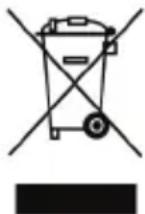
At the end of its working life, this product should not be disposed of with standard household waste, but rather dropped off at a collection point for the disposal of Waste Electrical and Electronic Equipment (WEEE) for recycling.
This is confirmed by the symbol found on the product, user manual or packaging. Depending on their characteristics, the materials may be recycled. Through recycling and other forms of processing Waste Electrical and Electronic Equipment, you can make a significant contribution towards helping to protect the environment.
Please contact your local authorities for information on the collection point nearest you.
Retain this information. Colors and decorations may vary.
This product conforms to all standards regarding children 14 years of age and older. This product is not suitable for use by children less than 14 years of age.
www.thrustmaster.com



THRUSTMASTER®
TECNICAL SUPPORT
https://support.thrustmaster.com