
Blackwire C225 - Headphones PLANTRONICS - Free user manual and instructions
Find the device manual for free Blackwire C225 PLANTRONICS in PDF.


User questions about Blackwire C225 PLANTRONICS
0 question about this device. Answer the ones you know or ask your own.
Ask a new question about this device
Download the instructions for your Headphones in PDF format for free! Find your manual Blackwire C225 - PLANTRONICS and take your electronic device back in hand. On this page are published all the documents necessary for the use of your device. Blackwire C225 by PLANTRONICS.
USER MANUAL Blackwire C225 PLANTRONICS
Analog Corded Headset
User Guide
Contents
Welcome 3
Need More Help? 3
What's in the Box 4
Inline Controls 5
Wearing Your Headset 6
Adjust the Headband 6
Position the Boom 6
Adjust the Boom 6
Daily Use 7
Headset Power 7
Inline call control 8
Adjust Your Headset Volume 8
Mute a Call 9
PC Configuration 10
Troubleshooting 11
Headset 11
Support 13
Welcome
Congratulations on purchasing your new Plantronics product. This guide contains instructions for setting up and using your Blackwire 215/225 analog corded headset.
Please refer to the safety instructions for important product safety information prior to installation or use of the product.
Need More Help?
Visit our website at plantronics.com/support for technical support including frequently asked questions, compatibility and accessibility information.
What's in the Box
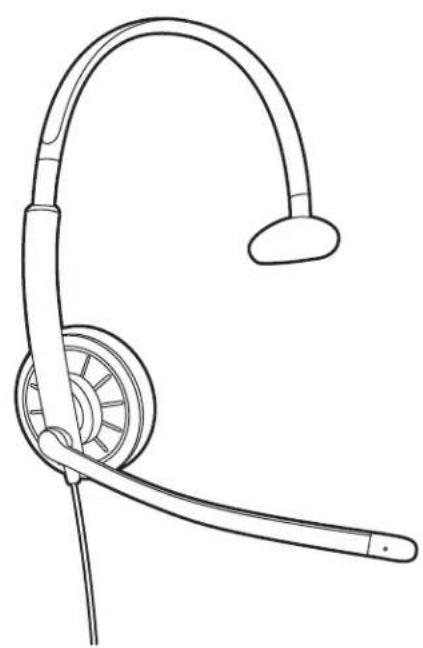
natural_image
Line drawing of a headset with ear and antenna (no text or symbols)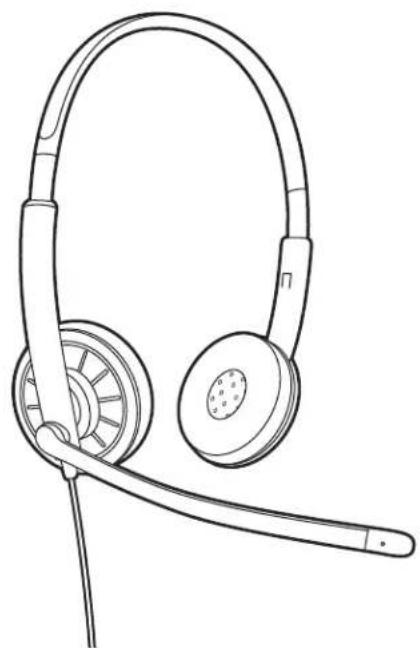
natural_image
Line drawing of a pair of耳机 headsets with earphones and a microphone (no text or symbols)Blackwire 215 Blackwire 225
Inline Controls
text_image
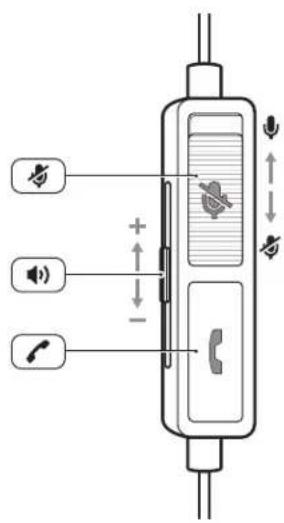
Diagram of a mobile phone interface with labeled buttons and signal icons for voice, audio, and phone connectionsHeadset inline control icons

Answer or end a call (mobile phone only)

Slider; Adjust volume

Toggle button; Mute or unmute (Red = Mute)
Wearing Your Headset
Adjust the Headband
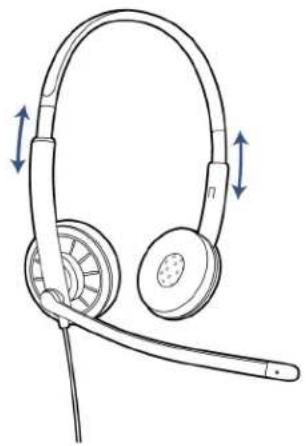
Lengthen or shorten the band until it fits comfortably. The cushions should sit comfortably over the center of your ears.
natural_image
Line drawing of a pair of耳机 headsets with adjustable arm and ear (no text or symbols)Position the Boom
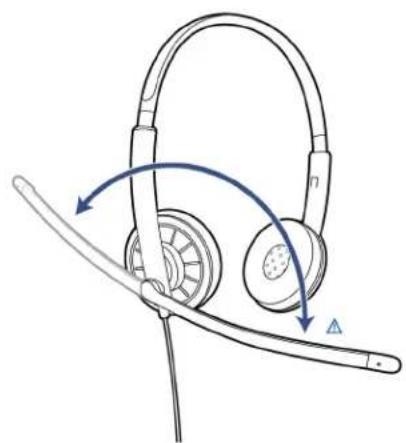
This headset can be worn on the left or right side. Rotate the boom to align with your mouth.
natural_image
Diagram of a headset with earbuds and a cable, showing motion arrows (no text or symbols)CAUTION To avoid breaking the boom, only rotate it up and over 180°.
Adjust the Boom
Gently bend the boom in or out so it is approximately two finger widths from the corner of your mouth.
Daily Use
Headset Power
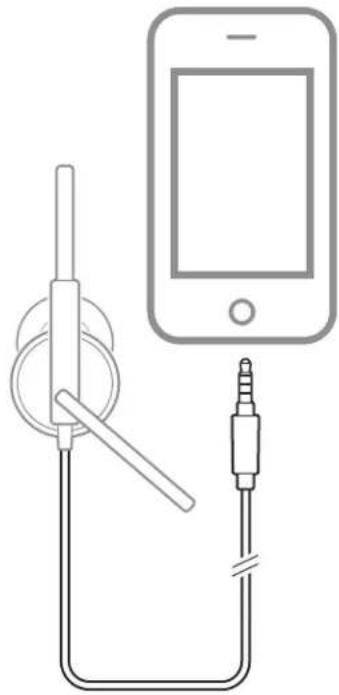
The analog headset is automatically powered on when it is plugged into the 3.5 mm jack of your computer, mobile phone or tablet.
natural_image
Diagram showing a smartphone connected to a plug and cable, with no text or symbols present.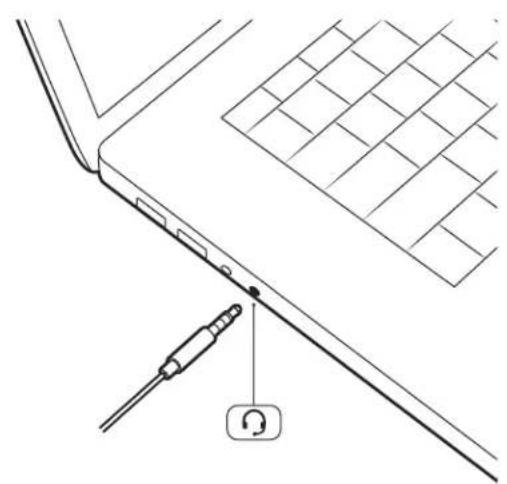
natural_image
Line drawing of a laptop keyboard with a connector inserted, showing no text or symbolsInline call control
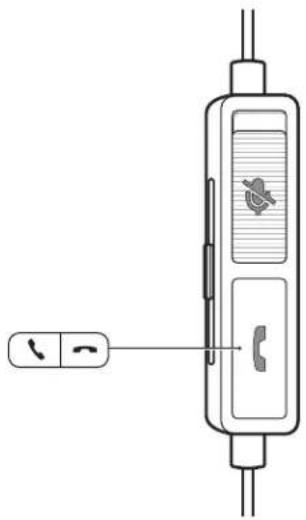
Press the answer/end button on the headset inline control to answer or end a call (mobile phone only).
natural_image
Diagram of a mobile phone with a connector and keypad (no text or symbols)Adjust Your Headset Volume
Slide the volume control up on the headset inline control to increase listening volume. Slide the volume control down on the headset inline control to decrease listening volume.
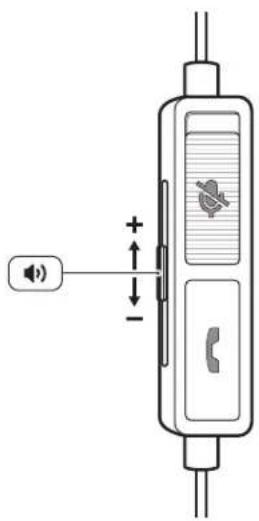
text_image
Diagram of a mobile phone interface showing signal input and sound output with polarity labelsMute a Call
During a call, slide the mute button down on the headset inline control to mute the microphone.
To turn mute off, slide the mute button back up.
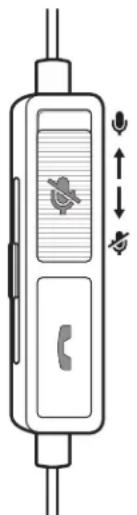
natural_image
Diagram of a mobile phone with control panel and keypad, showing signal icons and directional arrows (no text or labels)PC Configuration
Windows:
For some Windows computers, a window may pop up when you first plug in your headset. Please select "Headset" from the options provided.
Troubleshooting
| Headset | I cannot hear caller. | Listening volume is too low. Press the volume up button on the headset. and/or ensure that the volume setting on your computer is set accurately.The analog headset is not set as the default audio device. Use the audio settings in your sound control panel/preferences to select your headset as the default audio device.For Windows XP systemsGo to Control Panel > Sounds and Audio Devices > Audio tab.Select your headset as the "Sound playback" default device.Supported Operating Systems: Windows Vista, Windows 7, Windows 8, 8.1, 10Go to Control Panel > SoundHighlight the headset, select the Set Default > Default Communications Device from the drop-down list and click OK.For Mac OS XChoose Apple menu > System Preferences > Sound > Output tab.Select your headset in the "Select a device for sound output" window. |
| Callers cannot hear me. | Headset is muted. Slide the mute button up to unmute the microphone.Headset microphone boom aligned incorrectly. Align the headset boom with your mouth.The analog headset is not set as the default Voice device. Use the audio settings in your sound control panel/preferences to change the input device.For Windows XP systemsGo to Control Panel > Sounds and Audio Devices > Audio tab.Select your headset as the "Sound recording" default device.Supported Operating Systems: Windows Vista, Windows 7, Windows 8, 8.1, 10Go to Control Panel > Sound > Recording tab.Highlight the headset, select the Set Default button and click OK.For Mac OS XChoose Apple menu > System Preferences > Sound > Input tab.Select your headset in the "Select a device for sound input" window | |
| The sound in the headset is distorted.I can hear an echo in the headset. | Lower the listen volume on your softphone until the distortion disappears.Adjust volume on headset. | |
| The other headset I was using to listen to music does not work any more. | The analog headset will set itself as the default audio device in Windows. Use the audio settings in your sound control panel/ preferences to change the audio device.For Windows XP systemsGo to Control Panel > Sounds and Audio Devices > Audio tab. |
- Under "Sound Playback", change the default setting from your headset to your device choice.
Supported Operating Systems: Windows Vista, Windows 7, Windows 8, 8.1, 10
- Go to Control Panel > Sound > Recording tab.
- Highlight your device choice, select the Set Default button and click OK.
For Mac OS X
- Choose Apple menu > System Preferences and click Sound.
- Click Output, and then select "Internal Speakers" or your device choice.
My phone is not finding my headset during a call or while listening to music.
When on a call or listening to music, make sure that audio is routing to the desired headset by going to your settings and ensuring it is defaulted.
My headset does not show in my Playback devices list.
Supported Operating Systems: Windows Vista, Windows 7, Windows 8, 8.1, 10
- With the headset plugged in, go to Control Panel > Sound, under Playback tab, right click within frame, left click to check "Show Disabled Devices" pop-up menu.
| EN0800 410014 | FI0800 117095 | NO80011336 |
| AR+44 (0)1793 842443* | FR0800 945770 | PL+44 (0)1793 842443* |
| CS+44 (0)1793 842443* | GA1800 551 896 | PT800 84 45 17 |
| DA80 88 46 10 | HE+44 (0)1793 842443* | RO+44 (0)1793 842443* |
| DEDeutschland 0800 9323 400Österreich 0800 242 500Schweiz 0800 932 340 | HU+44 (0)1793 842443* | RU8-800-100-64-14+44 (0)1793 842443* |
| EL+44 (0)1793 842443* | IT800 950934 | SV0200 21 46 81 |
| ES900 803 666 | NLNL 0800 7526876BE 0800 39202LUX 800 24870 | TR+44 (0)1793 842443* |
*Support in English
For warranty details, go to plantronics.com/warranty.
NEED MORE HELP?
plantronics.com/support
plantronics®
Simply Smarter Communications™
Plantronics, Inc.
345 Encinal Street
Santa Cruz, CA 95060
United States
Plantronics BV
South Point Building C
Scorpius 140
2132 LR Hoofddorp, Netherlands
© 2016 Plantronics, Inc. Blackwire and Plantronics are trademarks of Plantronics, Inc. registered in the US and other countries. All other trademarks are the property of their respective owners.
Patents: US 8,504,115; D667,388; D666,993; BR 302012002248-7; CN ZL201230153667.7; EM 002033910; IN 245078; 245079; KR 30-0762376; 30-0762375; TW D154413; D154414.
206557-06 (02.16)