
TeraStation 3410RN - Server BUFFALO - Free user manual and instructions
Find the device manual for free TeraStation 3410RN BUFFALO in PDF.


| Product Type | Network Attached Storage (NAS) Server |
| Model | TeraStation 3410RN (TS3410RN) |
| Dimensions (W x H x D) | 430 x 44.3 x 430 mm (16.9 x 1.7 x 16.9 in) |
| Weight | Approx. 8.5 kg (18.7 lbs) |
| Power Supply | AC 100-240 V, 2.5-1.25 A, 50/60 Hz |
| Power Consumption | Max 100 W |
| LAN Interface | 2 x RJ-45, 10/100/1000 Mbps (auto MDI-X) |
| USB Ports | 3 x USB 3.0 Type A |
| Drive Bays | 4 x SATA 6 Gbps (internal) |
| RAID Modes | 0, 1, 5, 6, 10, JBOD |
| Supported Protocols | SMB/CIFS, AFP, FTP/SFTP, NFS, HTTP/HTTPS, SNMP, iSCSI |
| Maximum Users | 300 local users and groups |
| File Sharing | Windows, Mac, Linux, with access restrictions |
| Backup Features | Local backup, rsync, replication, failover, cloud sync (Amazon S3, Dropbox, Azure, OneDrive) |
| Security | AES 256-bit encryption, antivirus, boot authentication, SSL |
| Remote Access | WebAccess, FTP, VPN-ready |
| Management | Web-based Settings interface, NAS Navigator2 utility |
| Supported OS | Windows 10/8.1/7, Windows Server 2008-2019, macOS 10.9-10.14 |
| Operating Environment | Temperature: 0-40°C; Humidity: 10-85% non-condensing |
| Dust Filter | Removable front dust filter for cleaning |
| Warranty | Refer to warranty statement in package |
Frequently Asked Questions - TeraStation 3410RN BUFFALO
User questions about TeraStation 3410RN BUFFALO
0 question about this device. Answer the ones you know or ask your own.
Ask a new question about this device
Download the instructions for your Server in PDF format for free! Find your manual TeraStation 3410RN - BUFFALO and take your electronic device back in hand. On this page are published all the documents necessary for the use of your device. TeraStation 3410RN by BUFFALO.
USER MANUAL TeraStation 3410RN BUFFALO
Network Attached Storage
TeraStation 3010
User Manual
natural_image
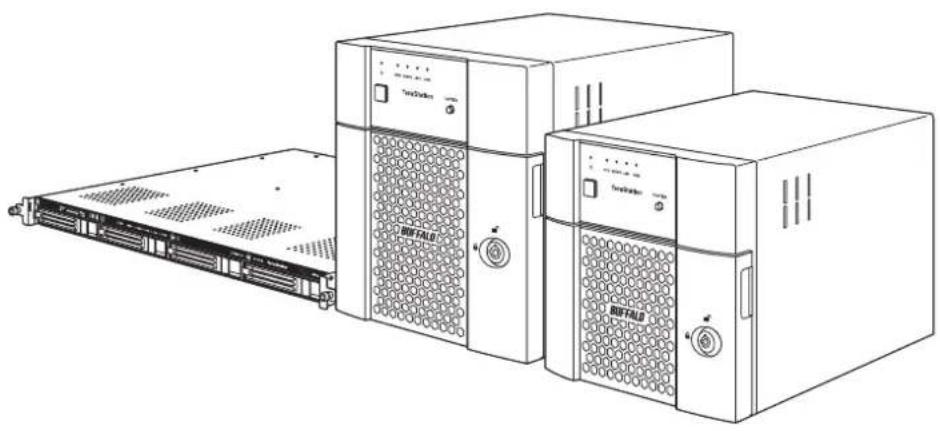
Line drawing of a Buffalo rack-mounted server unit with two main units and a separate rack unit (no text or symbols visible)Please make sure to read this manual before using and follow the procedures. If you have any inquiries about the product, contact the number on the warranty statement or the packing box. Do not discard the included documents, the warranty statement, or the packing box.
Americas: www.buffaloamericas.com
Europe: www.buffalo-technology.com
Asia Pacific: www.buffalo-asia.com
35021138-18
May, 2019
Contents
Chapter 1 Getting Started ......9
Diagrams....9
Turning the TeraStation On and Off.... 11
Creating an Initialization Drive....14
Chapter 2 Configuration ...... 15
Running the Setup Wizard....15
Setting Up Through Setup Wizard....15
Opening Setup Wizard 18
Opening Settings 19
Checking the Device Information from Dashboard 21
Chapter 3 File Sharing......22
Configuring Shared Folders 22
Adding a Shared Folder....22
Recycle Bin....24
Read-Only Shares....24
Hidden Shares 25
Configuring Users 25
Adding a User 25
Importing User Information....28
Adding a Group 28
Configuring Access Restrictions for Shared Folders .... 31
Local Users and Groups 31
Active Directory 32
Configuring Access Restrictions for Subfolders 35
Enabling Subfolders' Access Restrictions 35
Restoring Owner and Permission Settings....37
Chapter 4 Storage Management .... 40
RAID Modes 40
Working with RAID Arrays....41
Using JBOD 41
Changing RAID Mode 42
Shutting Down the TeraStation Automatically If Error Occurred.....43
Configuring Actions for If a Drive Used for the RAID Array Has Not Been
Discovered 45
Configuring a Hot Spare....47
Expanding RAID Capacity Without Deleting Data ....49
RAID Scanning....53
Adding an External Drive 54
Connecting an External Drive....54
Compatibility ....54
Dismounting Drives 55
Dismounting with the Function Button 55
Dismounting from Settings 55
Checking Drives 56
S.M.A.R.T. 57
Displaying S.M.A.R.T. Information ....57
Checking Drive Condition 58
Formatting Drives 59
Encrypting Drives.... 60
Erasing Data on the TeraStation Completely 60
Drive Quotas....61
Quotas for Users....61
Quotas for Groups 62
Size Limits....63
Using the TeraStation as an iSCSI Device 66
Introduction 66
Creating an iSCSI Volume....66
Connecting or Disconnecting Volumes....68
Using with Multiple Computers....70
Configuring Access Restrictions 70
Expanding Volume Sizes 73
Deleting Volumes....74
Advanced Settings....75
Chapter 5 Backup ...... 77
Backing Up Data on the TeraStation....77
Preparing a Backup Destination....78
Configuring a Backup Job 79
If Backing Up from rsync-Compatible Devices to the TeraStation......82
Backup Modes....83
Backup Logs When Backup Fails....83
Replication....86
Preparing a Replication Destination....87
Configuring a Replication Job 88
Synchronizing Between Source and Destination TeraStations
Periodically....91
Failover 92
Before Configuring Failover....92
Usage Restrictions 93
Configuring Failover 94
Replacing to the Backup TeraStation Manually 96
Reconfiguring After Failover Occurs 97
Synchronizing Between Main and Backup TeraStations Periodically .98
Backing Up Your Mac with Time Machine 100
Chapter 6 Remote Access....106
WebAccess 106
FTP....108
Synchronizing with Amazon S3 109
Preparing for Amazon S3 110
Uploading Files to Amazon S3....112
Synchronizing with Dropbox 116
Configuring a New Job 116
Changing Job Settings 118
Creating a Shared Link (Windows Only)....122
Using Microsoft Azure for Data Preservation 122
Creating a New Backup Job....122
Creating a New Restore Job 127
Changing Job Settings 131
Synchronizing with Microsoft OneDrive....133
Configuring a New Job 133
Changing Job Settings 140
Corrective Actions for in Case of Error 143
Chapter 7 Advanced Features .... 145
Antivirus Software 145
Activating Virus Scanning 145
Configuring Security Settings ....146
Licenses 148
Connecting Through a Proxy Server ....149
Updating Antivirus Pattern Files ....150
Configuring Folders as Virus Scanning Targets....151
Virus Scanning 152
Checking the Log 153
Online Help....154
Email Notification 155
Sleep Mode 157
Wake-on-LAN 159
UPS (Uninterruptible Power Supply)....160
Port Trunking.... 162
Offline Files for Windows....163
Accessing from an NFS Client....164
Encrypting Data Transmission 169
Encrypting Settings Data 169
Encrypting FTP Transfer Data 169
SSL Keys 169
SNMP 170
Saving and Applying Settings....171
Saving Settings 171
Applying Settings 172
Transferring Another TeraStation's Settings......173
Creating a Config File (.nas_config)....173
Transferring Settings....174
Restoring Factory Defaults....175
Initializing from Settings 175
Initializing with the USB Initialization Drive ....175
Resetting the Administrator Password 177
Logs 177
Displaying TeraStation's Logs 177
Transferring Logs to the Syslog Server 178
Creating a Link to the Logs in the Shared Folder ....179
Changing Archive Rules for File Access Logs....181
Updating the Firmware....182
Updating Manually....182
Updating Automatically....183
Configuring Update Notification....184
Name, Date, Time, and Language 186
Beep Alerts 188
LEDs....188
Proxy Server 189
Jumbo Frames 190
Changing the IP Address 192
Mapping IP Address and Hostname 194
Boot Authentication 196
Notes Before Use....196
Important Notice ....196
Setting Up the Authentication Server on a Windows PC....197
Configuring Boot Authentication on the TeraStation....197
If the TeraStation Cannot Be Accessed....199
Chapter 8 Drive Replacement....202
LEDs....202
Drive Replacement Procedure 202
Using JBOD or a Redundant RAID Mode and TeraStation Is On......202
Using JBOD or a Redundant RAID Mode and TeraStation Is Off .....205
Using RAID 0....206
Using a Hot Spare....207
Replacing a Non-Malfunctioning Drive....207
Chapter 9 Utilities....209
NAS Navigator2 for Windows....209
Mounting as a Network Drive 212
Changing the IP Address 212
NAS Navigator2 for macOS 213
Mounting as a Network Drive 214
Changing the IP Address 214
NovaBACKUP 215
Chapter 10 Appendix ...... 216
TeraStation Does Not Work Properly....216
Power LED Keeps Blinking 216
Booting the TeraStation in Emergency Mode......217
Cleaning the Dustproof Filter 218
Info and Error LEDs 220
Errors....220
Status 221
Default Settings 223
Specifications 224
Chapter 11 Regulatory Compliance Information....226
For Customers in the United States 226
For Customers in Europe 226
For Customers in Taiwan....229
Chapter 1 Getting Started
Diagrams
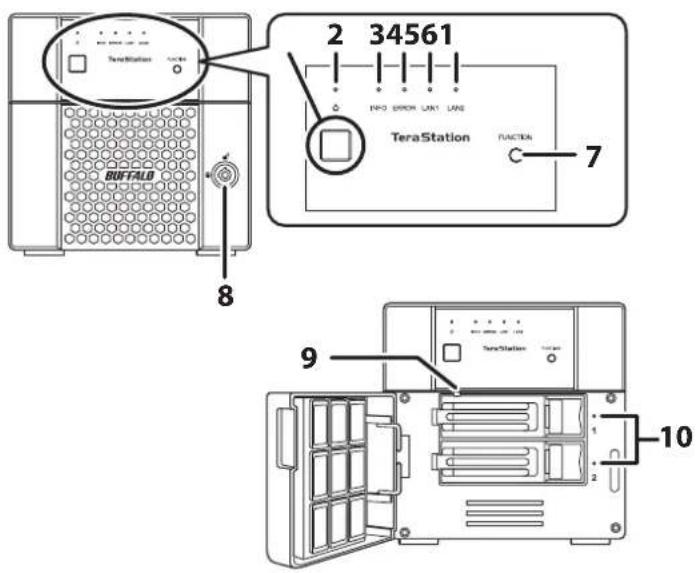
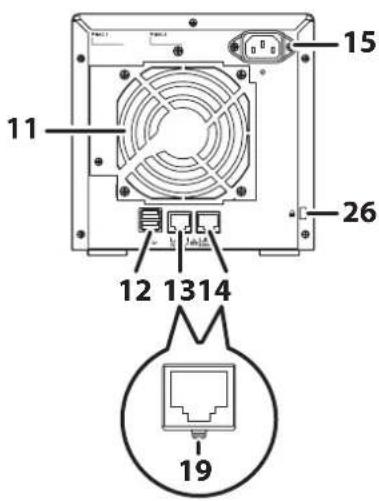
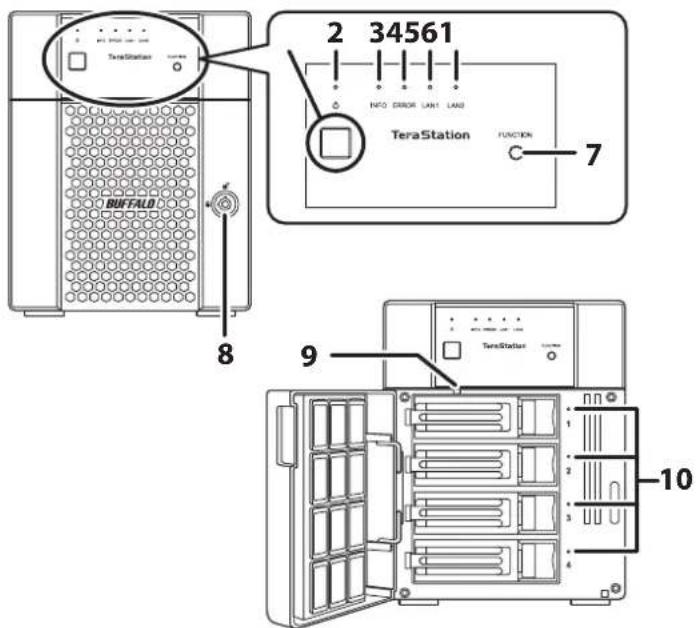
Depending on the number or type of drives in the unit, the model name will be different. Check the sticker on the packing box for your unit's model name.
TS3210DN
TS3410DN
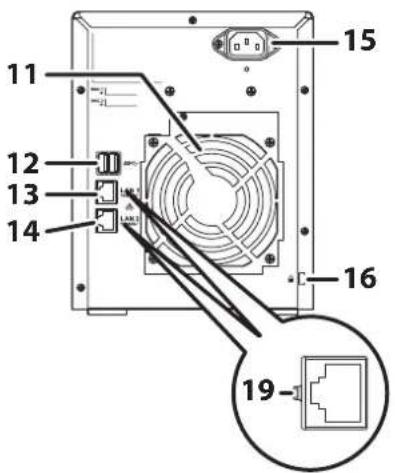
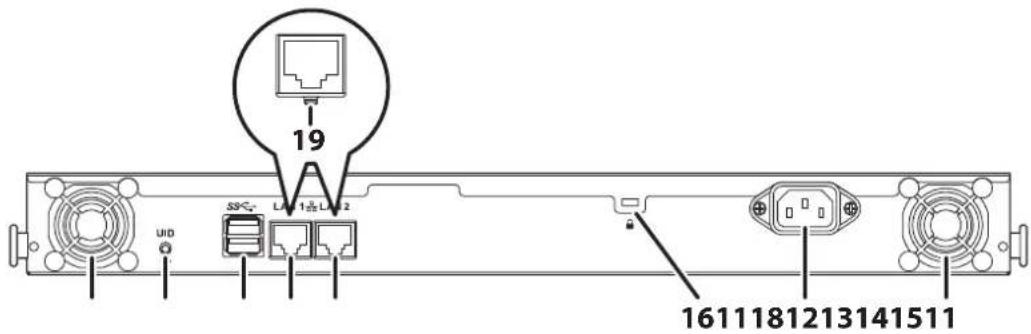
TS3410RN

1 Power Button (⏻)
To power on, connect the power cable and wait for 10 seconds, then press the power button. To power off, press and hold the power button for three seconds.
If the TeraStation beeps, pressing this button for a short period will stop the beeping.
2 Power LED
For TS3210DN series and TS3410DN series TeraStations, the LED glows green when the TeraStation is on. For TS3410RN series TeraStations, the LED glows white when the TeraStation is on.
3 Info LED
If there is a status message, the info LED will light up amber. Check the Settings interface or NAS Navigator2 to see the status message.
4 Error LED
If there is an error, the error LED will light up red. Check the Settings interface or NAS Navigator2 to see the error message.
5 LAN1 LED
When LAN port 1 is connected, this LED glows green. It blinks when the connection is active.
6 LAN2 LED
When LAN port 2 is connected, this LED glows green. It blinks when the connection is active.
7 Function Button
Use this button for dismounting USB devices, rebuilding RAID arrays, configuring failover, stopping the TeraStation's beeping, and initializing settings using a USB drive.
8 Drive Lock ( 🔍 🔍 )
Open the front panel with the key to replace drives or access the init button.
9 Init Button
Press and hold this button to initialize the TeraStation's admin username and password, IP settings, SSL, and service port restriction settings to their factory default values. The effects of this button can be changed in Settings.
Chapter 1 Getting Started
10 Status LEDs
Normally, these LEDs blink green when drives are accessed. If a drive fails, its LED will turn red.
11 Fan
Spins to prevent overheating inside. Do not block the fan.
12 USB 3.0 Port (SS)
Compatible Buffalo USB drives, USB memory devices, and USB UPS connections can be connected. USB hubs are not compatible.
13 LAN Port 1 (古)
Connect an Ethernet cable to use this port for your network. It is available for communicating at max. 1000 Mbps.
14 LAN Port 2 (古)
Connect an Ethernet cable to use this port for your network. It is available for communicating at max. 1000 Mbps.
15 Power Connector
Use the included power cable to connect to a UPS, surge protector, or outlet.
16 Anti-Theft Security Slot ( lock)
Use this slot to secure your TeraStation with a cable lock (not included).
17 Serial Number
This sticker shows the TeraStation's serial number.
18 UID Button
Press the UID button on the front or the back of the unit to cycle the blue LED on and off.
19 Link LED
Glows green when the TeraStation is connected to a network.
Turning the TeraStation On and Off
Note: Do not disconnect or reconnect the internal drives while turning on or off the TeraStation.
Press the power button on the TeraStation to turn it on.
To turn off the TeraStation, press and hold the power button for three seconds. Don't unplug the TeraStation without turning it off first. You can also shut it down and restart it remotely from Settings.
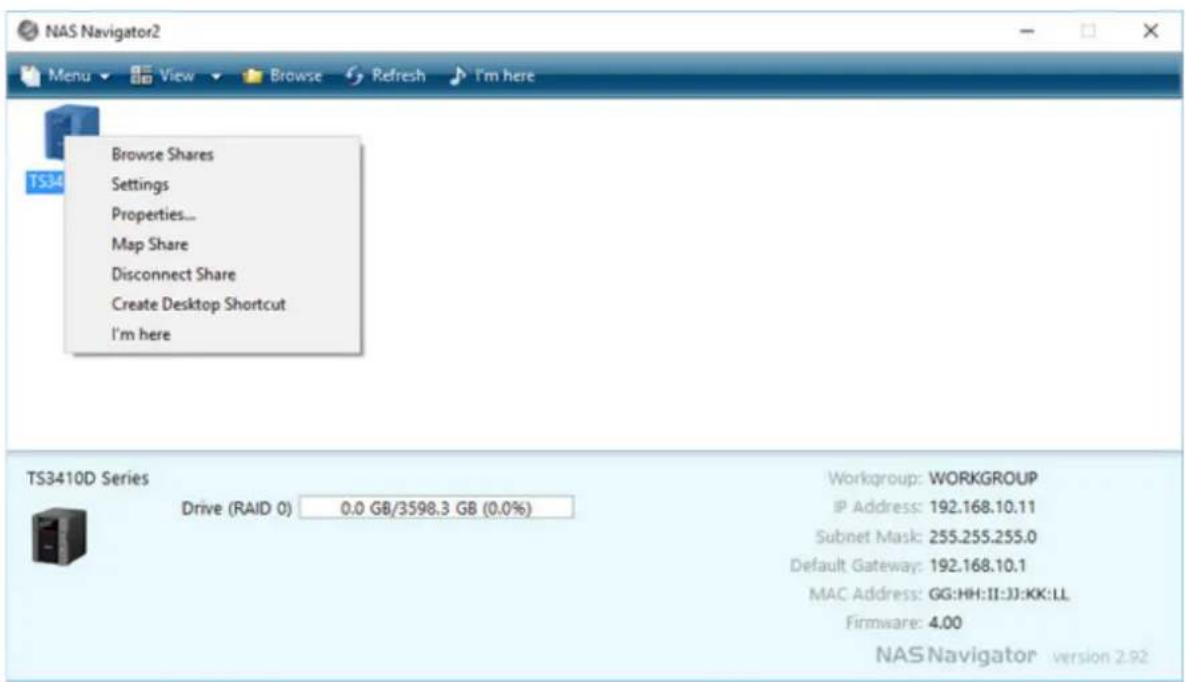
1 Double-click the NAS Navigator2 icon ( ) to start NAS Navigator2.
2 Right-click your TeraStation's icon and select Settings. For macOS, select the TeraStation's icon while holding down the control key, then select Settings.
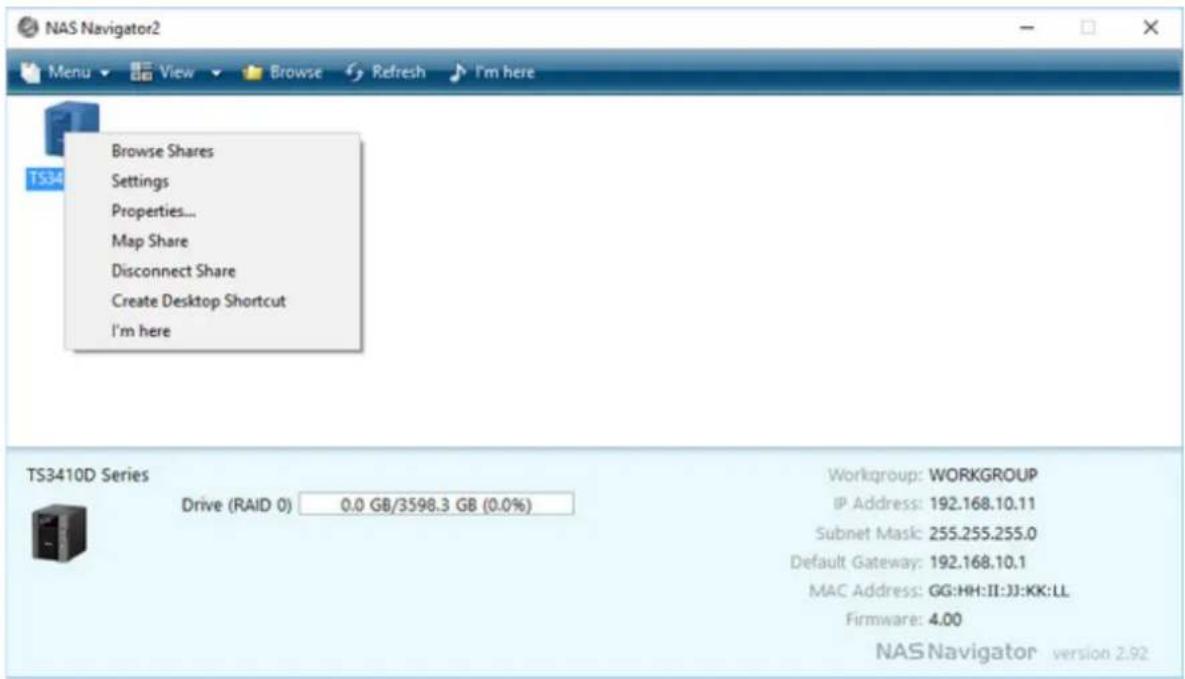
3 Enter the username and password, then click OK.
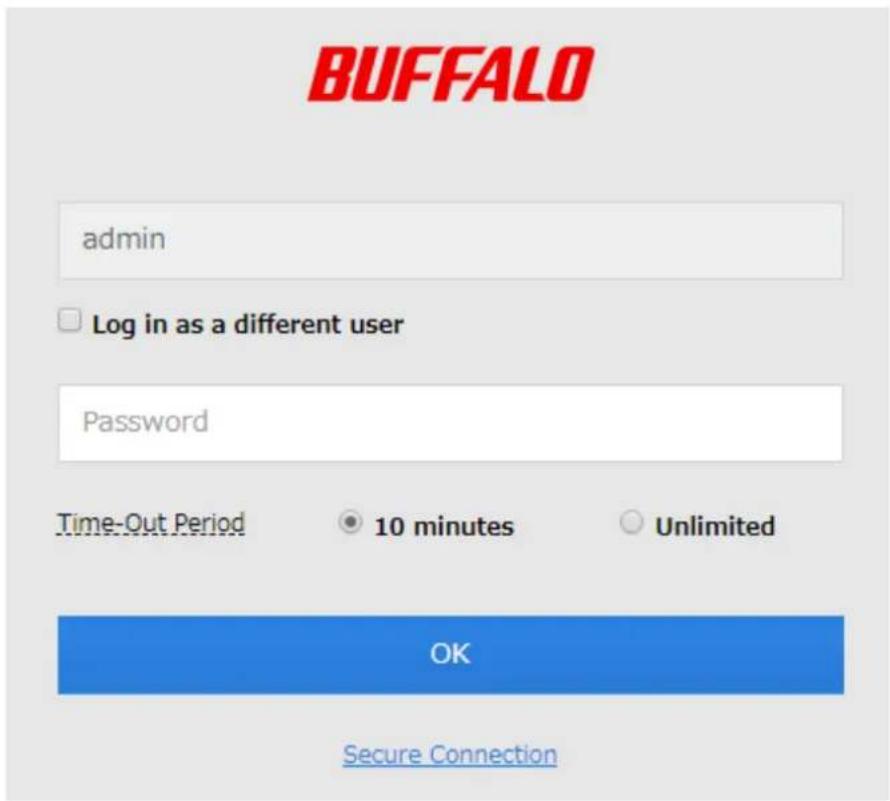
Note: The default username and password are "admin" and "password".
Chapter 1 Getting Started
4 Settings will open.
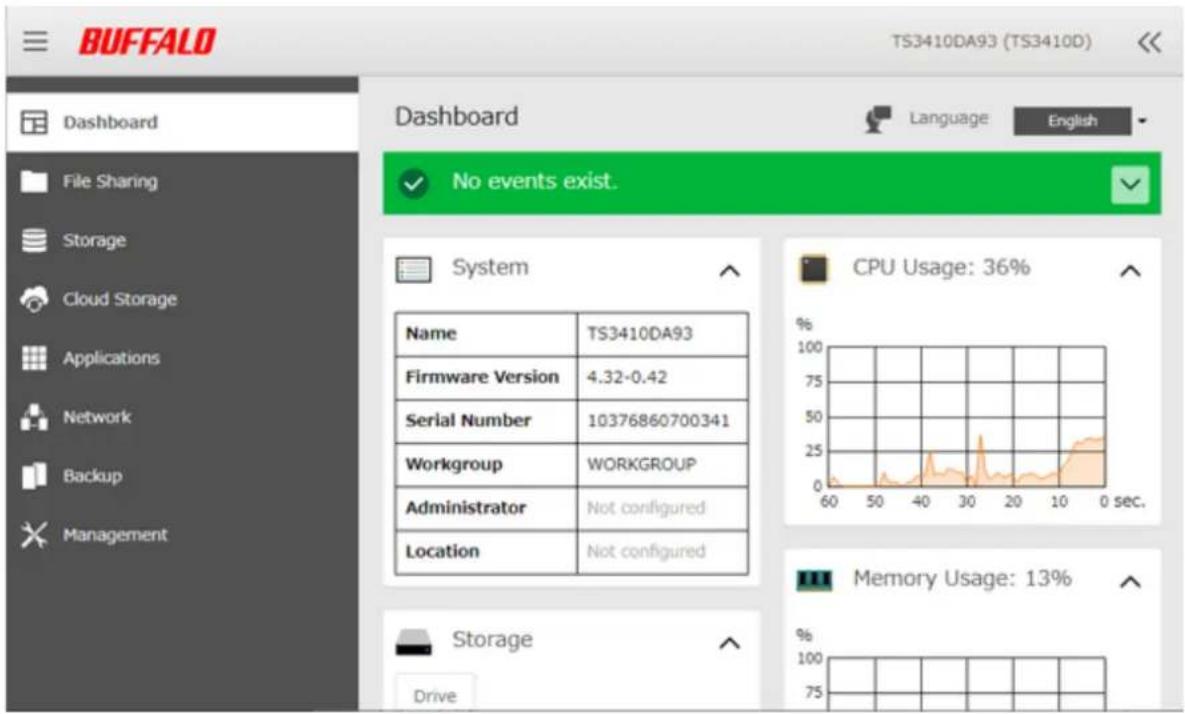
5 Click at the top-right of Settings and choose Shut Down.
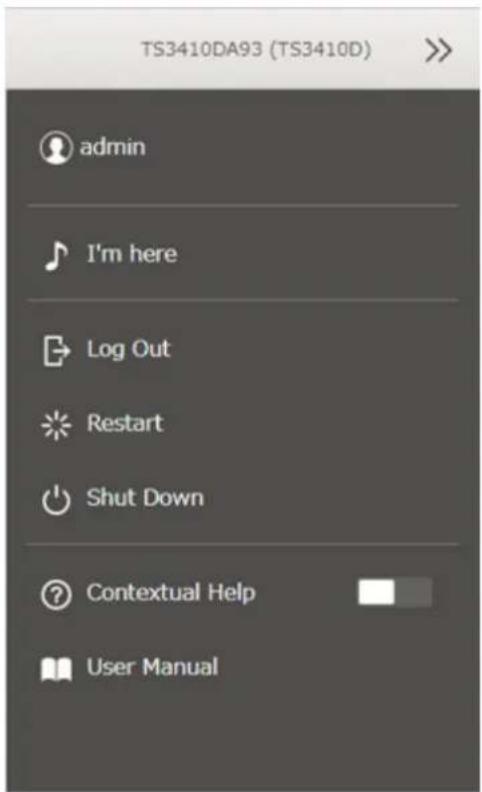
6 Click Yes.
7 The "Confirm Operation" screen will open. Enter the confirmation number, then click OK.
When the power LED on the front of the TeraStation turns off, the shutdown process is completed.
Creating an Initialization Drive
We recommend creating an initialization drive as soon as possible. This USB drive can be used to initialize the TeraStation's settings to its factory default values or recover the system if your TeraStation encounters an error that prevents the unit from booting. For the detailed procedure, refer to the "Creating an Initialization Drive" subsection in chapter 7.
Chapter 2 Configuration
Configure and manage your TeraStation using the Settings interface, accessible from a browser window. Open the interface using the procedure below or type the TeraStation's IP address into the URL field of your browser.
Note: Microsoft Edge, Firefox, Google Chrome, Internet Explorer 9 or later, and Safari 9 or later are supported. If you have difficulty viewing Settings, check the following:
- If there are a large number of registered users, groups, or shared folders, use another browser instead of Internet Explorer.
- If you have a proxy server enabled in the browser settings, configure the exception settings for Settings or disable the proxy server.
- With Internet Explorer, set security to Local intranet. On Windows Server operating systems, higher-level security is configured by default. Set the security to a lower level temporarily.
Running the Setup Wizard
Setting Up Through Setup Wizard
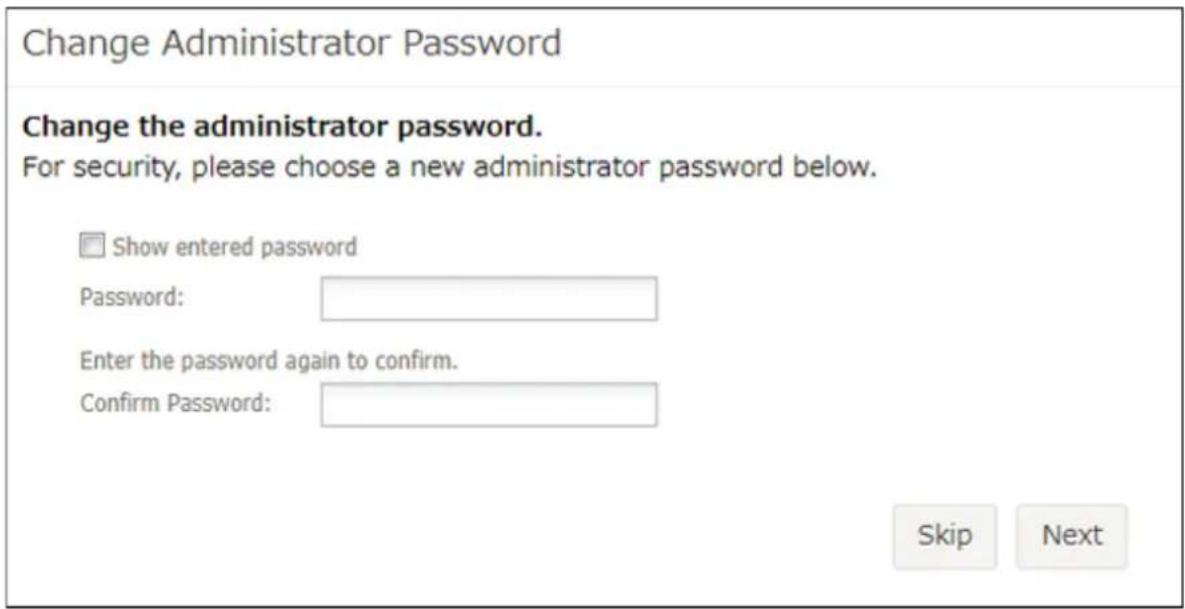
When you access Settings for the first time, or after initializing the TeraStation's settings, the setup wizard will automatically be displayed. To set up the TeraStation using the wizard, follow the procedure below.
1 Double-click the NAS Navigator2 icon ( ) to start NAS Navigator2.
2 Right-click your TeraStation's icon and select Settings. For macOS, select the TeraStation's icon while holding down the control key, then select Settings.
3 The password settings page will appear. Enter the desired new administrator password and click Next. If you click Skip, the administrator password will not change from the default value ("password").
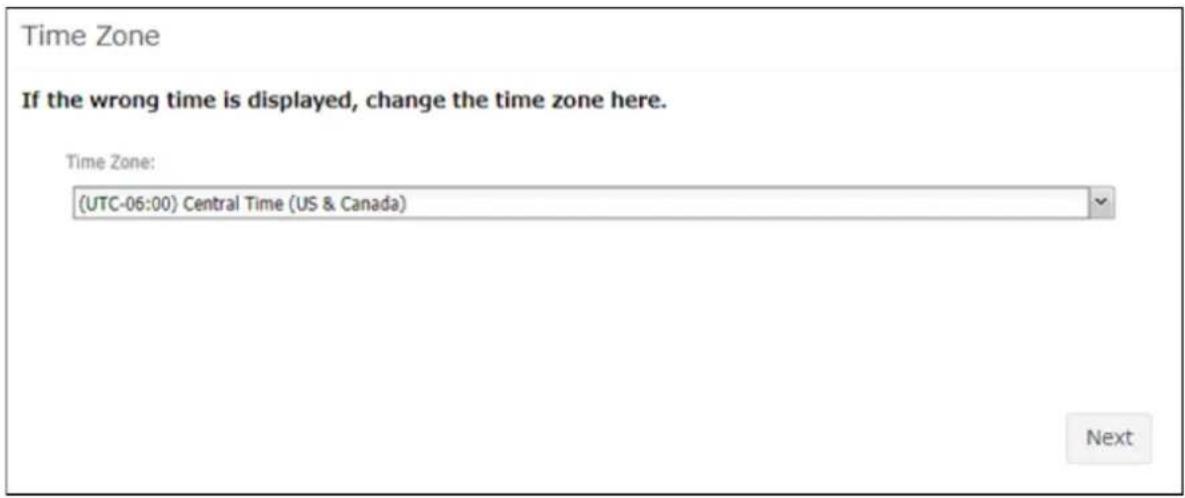
4 The time zone settings page will be displayed. If you need to change the time zone from that which is currently displayed on the page, select it from the drop-down list and click Next.
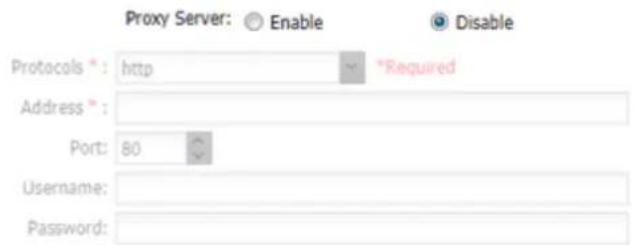
5 The proxy server settings page will be displayed. If you place the TeraStation under a proxy network, set your proxy settings. Click Next.
Proxy Server
If your TeraStation is located on the network through the proxy server, configure the proxy server settings to use for communication.
Firmware update using Settings will not work properly through a proxy server. Configure your proxy server settings if you update the firmware from Settings.
Next
6 The RAID settings page will be displayed. To change the RAID mode from the default mode, select the desired RAID mode and click Next, then click Start on the next page. The "Confirm Operation" screen will open so enter the confirmation number and click OK. Changing the RAID mode will begin.
If you want to keep the RAID mode as is, select "Keep current RAID mode" and click Next.
RAID Mode
Select your desired RAID mode.
To avoid removing any important data unexpectedly, it is recommended to use a RAID mode that offers redundancy and back up regularly. If a new drive is configured as a spare drive and an error occurs on another drive, the failed drive will be replaced with the new drive automatically to maintain redundancy. If you change the RAID mode, all data on the drives will be lost.
- Keep current RAID mode
Current RAID Mode: RAID 5 (Capacity: 2.7 TB, Drives Used for Array: 1, 2, 3, 4) The wizard will finish without changing the RAID mode.
© RAID 5
(Capacity: 2.70 TB, Drives Used for Array: 1, 2, 3, 4)
© RAID 5 + hot spare
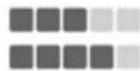
(Capacity: 1.80 TB, Drives Used for Array: 1, 2, 3 + Spare Drive: 4) Identical data will be written to multiple drives with parity, resulting in both faster performance and redundancy in case a single drive fails.
Redundancy:
Performance:
© RAID 6
(Capacity: 1.80 TB, Drives Used for Array: 1, 2, 3, 4)
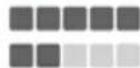
Identical data will be written to multiple drives with parity, resulting in redundancy in case up to two drives fail.
Redundancy:
Performance:
Next
Note: The RAID settings page will not be displayed if using the TS3210DN series and the two-drives included TS3410DN series TeraStations.
7 The folder path to access shared folders will be displayed and setup will finish.
Opening Setup Wizard
You may run the setup wizard even after the initial setup or initialization. To launch the setup wizard again, follow the procedure below.
1 From Settings, click Management.

Management
2 Click to the right of "Restore/Erase".

Restore/Erase

Chapter 2 Configuration
3 Click Execute Wizard.

4 The "Confirm Operation" screen will open. Enter the confirmation number, then click OK.
5 Follow the procedure on the screen and finish the setup wizard.
Opening Settings
1 Double-click the NAS Navigator2 icon ( ) to start NAS Navigator2.
2 Right-click your TeraStation's icon and select Settings. For macOS, select the TeraStation's icon while holding down the control key, then select Settings.
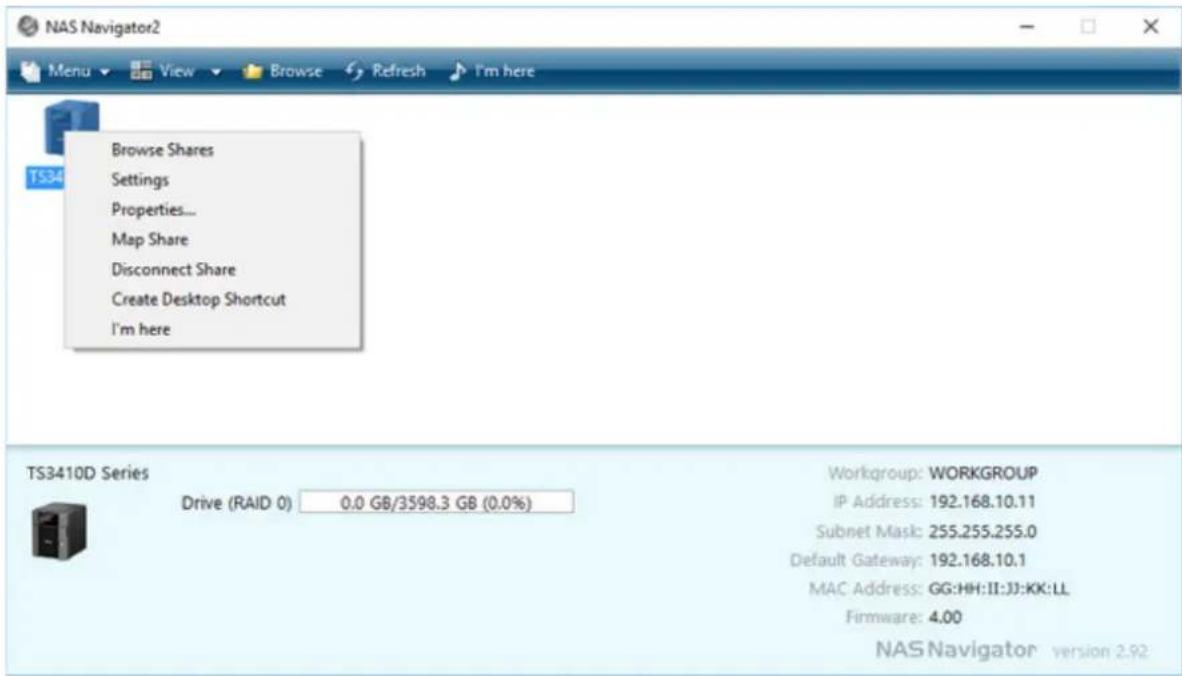
3 Enter the username and password, then click OK.
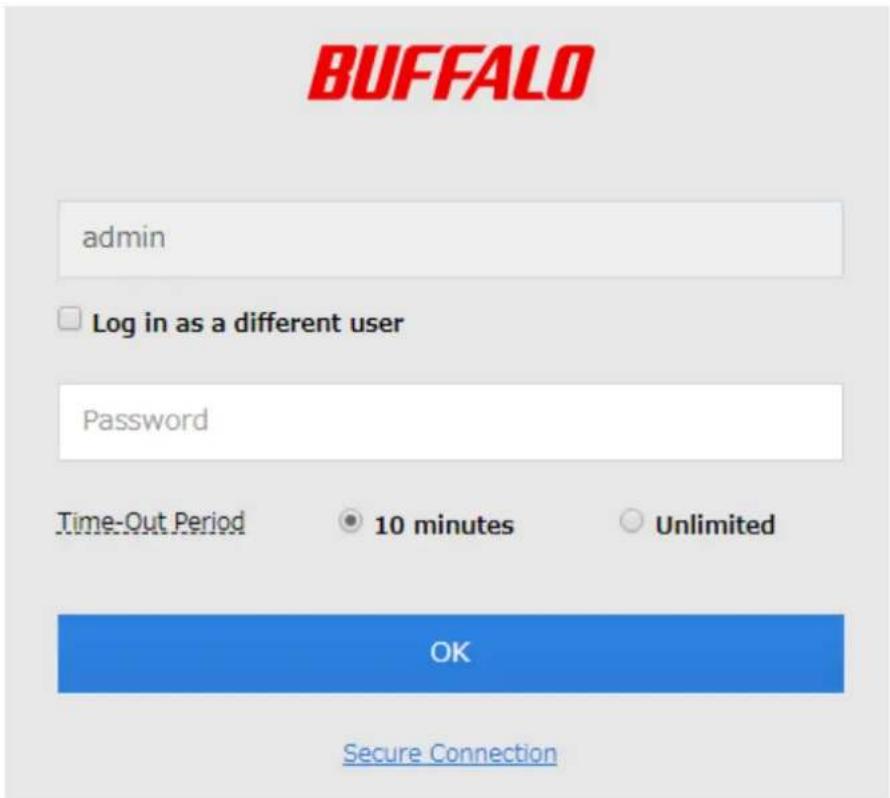
Notes:
- If the time-out period is set to "10 minutes", you will be logged out of Settings after 10 minutes of inactivity.
- Click Secure Connection to log in using an encrypted connection.
4 Settings will open.
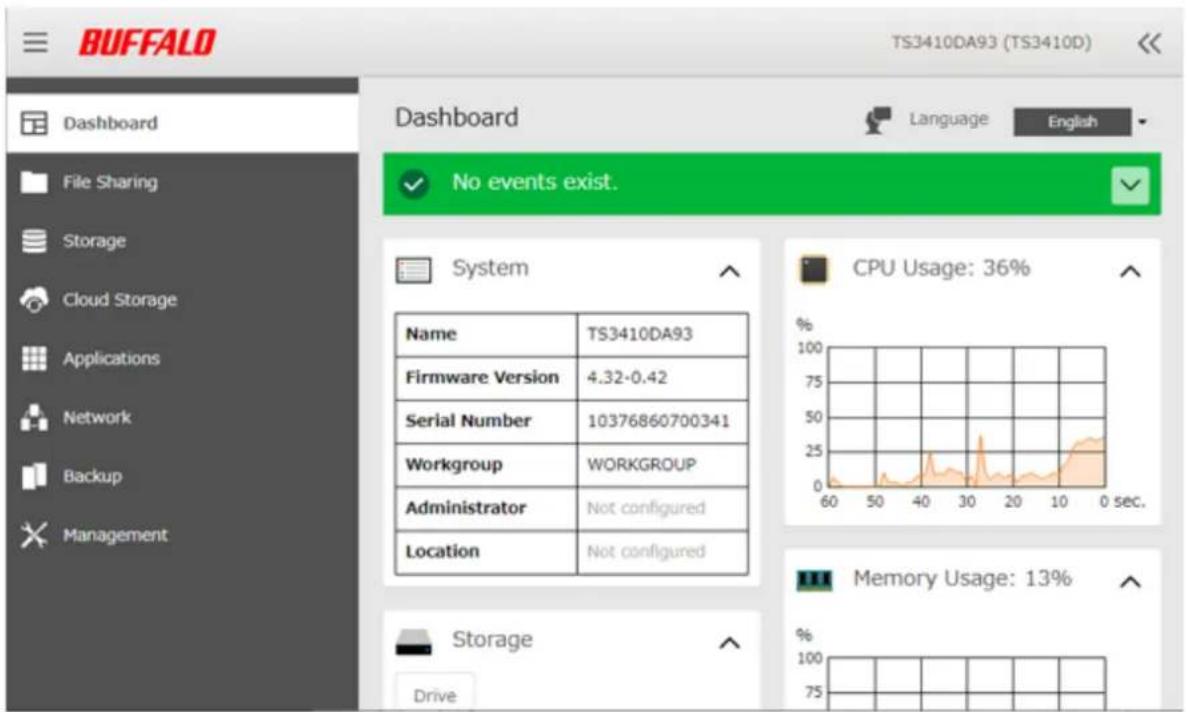
- Username/Password Combinations:
| Username Password Settings Available | |
| admin (default) password (default) All | |
| guest blank System information (read-only) | |
| Your username Your password | If a user is assigned as an administrator, all settings are available. If assigned to another group, only system information (read-only) is available. |
- Click << at the top-right of Settings and choose I'm here to play a tone from the TeraStation for easy location.
Checking the Device Information from Dashboard
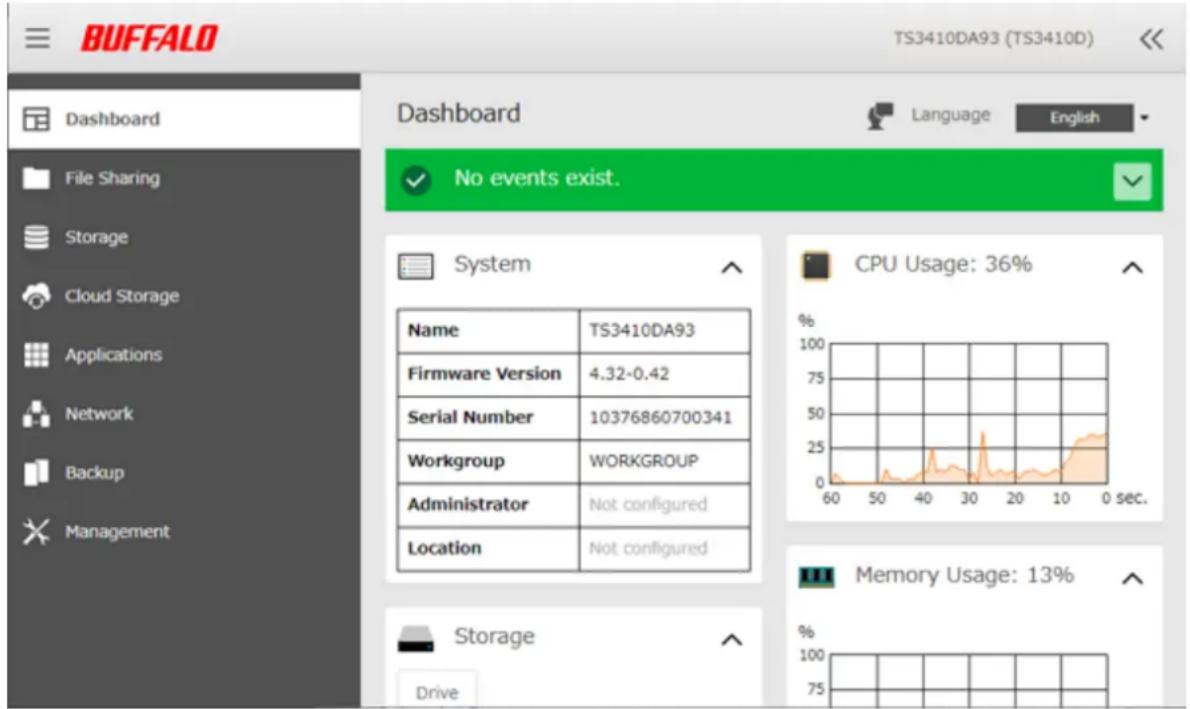
When opening the Settings interface, the Dashboard page will appear first. Dashboard will show the following device information:
- System information, such as hostname, firmware version, IP address etc.
- Drive information, such as used capacity of internal drives, LVM volumes, iSCSI volumes etc.
- CPU usage
- System memory usage
• Network information, such as IP address, link speed, sent and received rates etc.
- If increasing the number of files on the TeraStation, it will raise the memory usage of the TeraStation. This memory usage will decrease after the specific time passes. To reduce the memory usage immediately, try the following operations:
- Restarting the TeraStation.
- Dismounting the USB drive.
- If there is not enough free space on the TeraStation, it may cause abnormal system behavior. Make sure that there is always at least 1 GB or larger of free space on the TeraStation.
Chapter 3 File Sharing
Configuring Shared Folders
Adding a Shared Folder
1 From Settings, click File Sharing.

File Sharing
2 Click to the right of "Folder Setup".

Folder Setup

1 Folders
3 Click Create Folder.
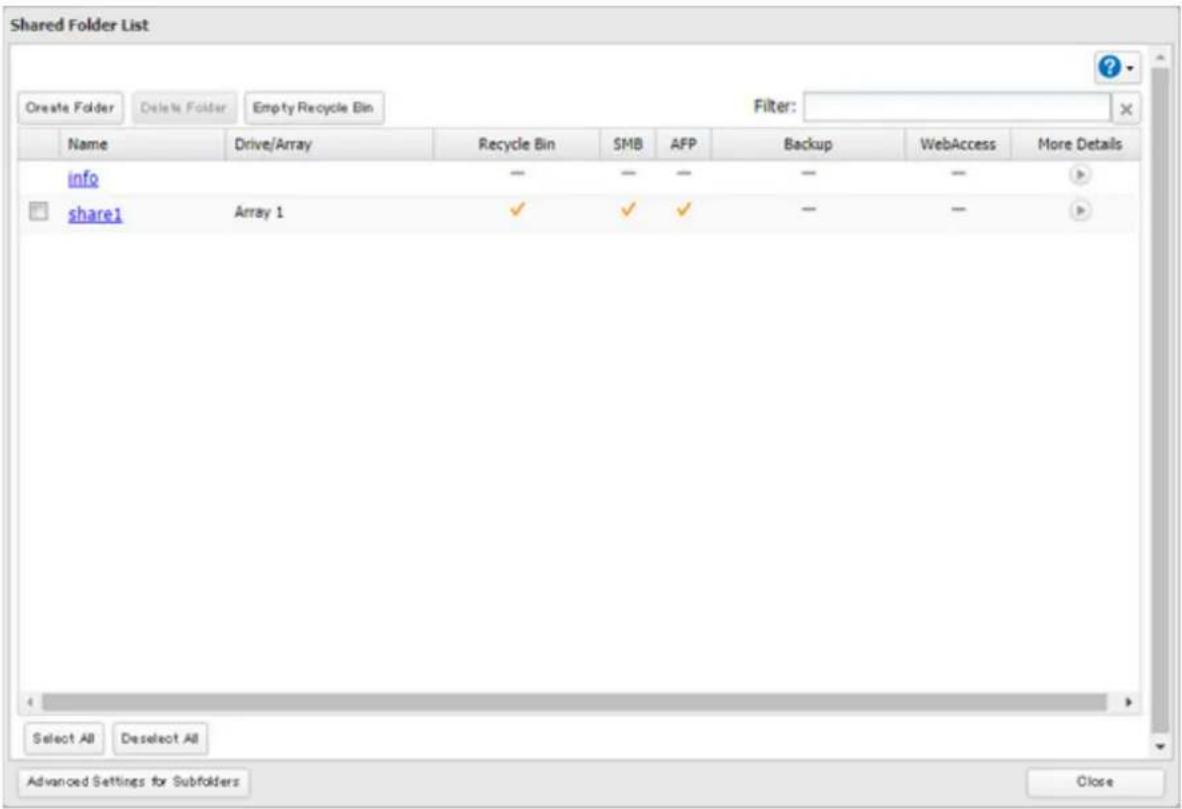
4 Configure the desired settings, then click OK.
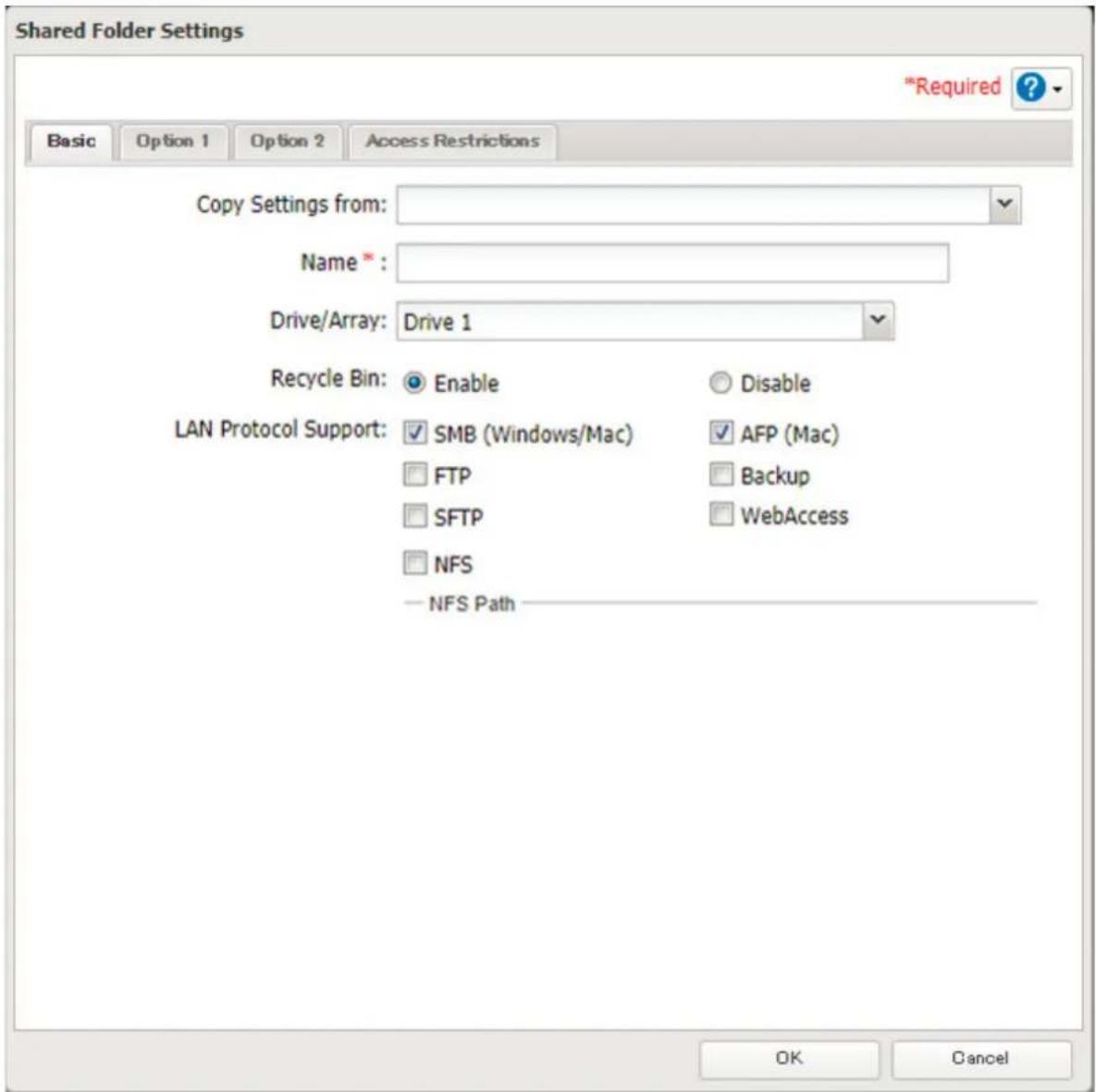
Notes:
- Names may contain up to 27 alphanumeric characters, hyphens (-), and underscores (_). Multibyte characters are supported. The first character should not be a symbol.
- When you click the Option 1 tab, you can enter the folder description. Descriptions may contain up to 75 alphanumeric characters, hyphens (-), underscores (_), and spaces. Multibyte characters are supported. The first character should not be a space.
- You may create up to 400 shared folders.
- If the names of shared folders accessed via AFP and FTP connections contain multibyte characters, configure the client language in Management > Name/Time/Language to match the characters. If the setting does not match, the shared folder name will not be displayed correctly.
- The following characters are handled differently by macOS and Windows. Avoid using these characters when sharing data between macOS and Windows:
- Windows does not support some characters that macOS and the TeraStation allow. If you create a filename on a Mac using any of the following symbols, it will not display correctly on a Windows computer. You may have to connect to the TeraStation via AFP in order to display or copy files that contain these symbols in their filenames.
$$ - \sim / / - \zeta £ \neg $$
Chapter 3 File Sharing
$$ ? ] [ / \backslash = + > < ;:", | * $$
- Do not use any of the following words for the name of a shared folder as these words are reserved for internal use by the TeraStation: authtest, global, homes, info, lost+found, lp, msdfs_root, mt-daapd, printers, ram, spool, usbdisk x (where "x" is a number, for example: usbdisk1)
- Don't use the following unsupported characters in shared folder names, workgroup names, or filenames:
①②③④⑤⑥⑦⑧⑨⑩⑪⑫⑬⑭⑮⑯⑰ⅱⅲⅳⅴⅵⅶⅷⅸⅹ
- File and folder names may contain up to 255 single-byte characters.
- Folder and workgroup names whose names contain non-Roman characters may not be displayed correctly.
- If shared folders are accessed from a Mac, information files for the Mac may be generated automatically. Do not delete these files. If they are deleted using Windows, this may prevent further access from a Mac.
- The TeraStation belongs to the default zone in AppleShare; the zone cannot be specified.
- When files are copied to the TeraStation or to a USB drive connected to the TeraStation, file information such as date created, date modified, and other date information may be updated or changed.
- During a file transfer, if settings are changed, the file transfer operation may be aborted.
- File copying to the TeraStation is protected by a journaling file system. If the Ethernet cable is disconnected or a power outage occurs while copying data, the following may occur:
- Preset data such as the TeraStation name, users, and groups may be erased.
- An incomplete file may be copied and the file can no longer be deleted. If this happens, restart the TeraStation, delete the file, and perform the copy operation again.
- If the Ethernet cable is disconnected from the LAN port during file copying, even if the cable is not in use, the copy operation will abort. Do not disconnect or reconnect the Ethernet cable to the LAN port during file copying.
Recycle Bin
To protect your data from accidental deletion, you may configure your TeraStation to use a recycle bin instead of deleting files immediately. The recycle bin will only work with SMB connections. To empty the recycle bin, click File Sharing > Folder Setup > Empty Recycle Bin in Settings. The recycle bins in all shared folders will be deleted.
Notes:
- You can prevent guests and other users from emptying the trash by navigating to File Sharing > SMB and select "Administrator only" for the "Recycle Bin Permissions" option.
- If you use macOS, select "Keep when original file is deleted" for the "macOS Temp Files" option by navigating to File Sharing > SMB. If this setting is changed, files in the recycle bin may be corrupted.
Read-Only Shares
By default, new shares are set with read and write access, but you may change the attribute to Read only at Attribute on the Option 2 tab. Read-only shares and HFS Plus-formatted USB drives will have "(Read Only)" added to comments in File Explorer.
Note: Configure read-only file attribute in Settings. Configuring them from within Windows is not supported and may cause unexpected behavior.
Hidden Shares
If hidden shares are enabled, shared SMB folders will not be displayed in Network, and only certain users are allowed to access them. To hide a shared SMB folder, follow the procedure below.
1 From Settings, navigate to File Sharing > Folder Setup and choose a shared folder or a USB drive to configure hidden shares.
2 Click the Option 2 tab and select the "Hidden share (SMB only)" checkbox, then click OK.
Notes:
- If protocols other than "SMB (Windows/Mac)" or "Backup" under "LAN Protocol Support" on the Basic tab are enabled, the hidden shares option will be grayed out and cannot be selected.
- Configure hidden share attribute in Settings. Configuring them from within Windows is not supported and may cause unexpected behavior.
To access a hidden folder, open File Explorer in your computer and enter "\TeraStation name\shared folder name\" into the address bar. For example, if the TeraStation name is "TSXXX001" and the shared folder name is "share", enter "001\" to open it.
Configuring Users
Adding a User
Note: The TeraStation can register a maximum 300 of users, which include the default users "admin" and "guest".
1 From Settings, click File Sharing.

2 Click to the right of "Users".

Chapter 3 File Sharing
3 Click Create User.
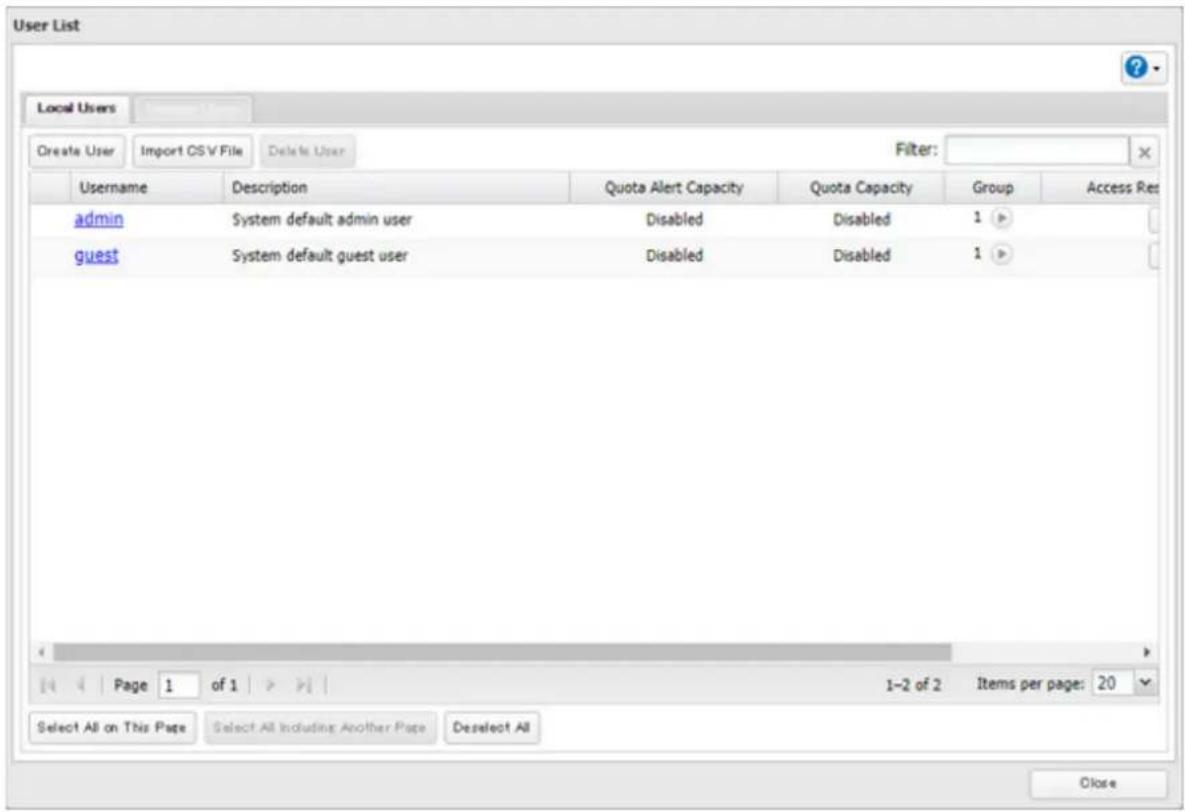
4 Enter the desired settings, then click OK.
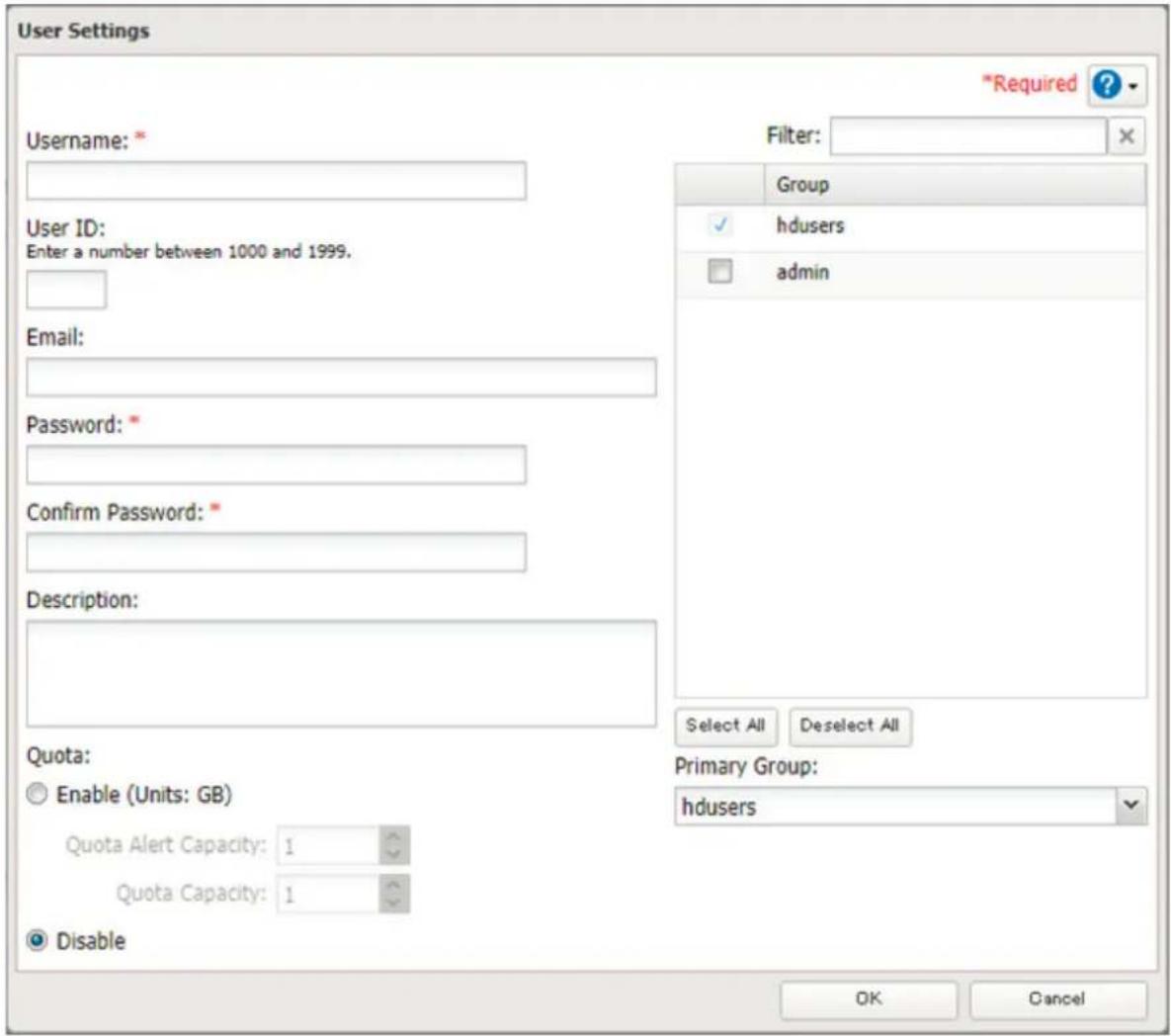
Notes:
- Usernames may contain up to 128 alphanumeric characters, hyphens (-), underscores (_), periods (.), and the symbols! # & @ \$ * ^ %. The first character should not be a symbol.
- The user ID should be a number from 1000 to 1999. Each user ID should be unique. If this field is left blank, a user ID is assigned automatically.
- Do not duplicate user IDs, group IDs, usernames, or group names. Each should be distinct and unique.
- User descriptions may contain up to 75 alphanumeric characters, hyphens (-), underscores ( _ ), and spaces. Multibyte characters are supported. The first character should not be a symbol or space.
- Passwords may contain up to 20 alphanumeric characters, hyphens (-), underscores (_), spaces, commas (,), periods (.), semicolons (;), tildes (\~), and the symbols @! \$ & * + := ? ] [ ^ } { . The first character should not be a symbol unless it is an underscore.
- Use the same username and password for both Windows and the TeraStation or you may be unable to access shared folders.
- Do not use a name already in use as a group; do not use any of the following words as a username as these words are reserved for internal use by the TeraStation: _Ildpd, adm, admin, administrator, admins, all, apache, avahi, avahi-autoipd, backup, bin, crontab, daemon, dialout, dip, disk, ftp, ftpuser, fuse, gnats, guest, guests, halt, hdusers, irc, kmem, libuuid, list, lp, mail, man, messagebus, mysql, netdev, news, nobody, nogroup, none, ntp, openldap, operator, plugdev, proftpd, proxy, puppet, root, rpc, rpcuser, sambashare, sasl, shadow, shutdown, snmp, splx, src, ssh, sshd, staff, statd, sudo, sync, syslog, tmhttpd, tty, users, utmp, uucp, winbindd_priv, www, www-data
Importing User Information
You can import users in File Sharing > Users by clicking Import CSV File.
An example format for user data: Username (required), password (required), and user description (optional).
Example 1: Importing usernames, passwords, and comments
username1, password1, comment1
username2, password2, comment2
username3, password3, comment3
Example 2: Importing usernames and passwords
username1, password1,
username2, password2,
username3, password3,
Guidelines:
- Use commas (,) as separators. Do not put spaces before or after commas. If you don't want user descriptions, use a comma after the password at the end.
- If a line is in an incorrect format, the username entered on that line will not be registered.
- If an unavailable name is used by a user or if the username already exists, an error will occur and cancel the import process. User whose usernames were entered during or after the error occurs will not be imported.
- Do not use commas (,) in the username, password, or user description.
Note: Imported users are added to the "hdusers" group automatically.
Adding a Group
1 From Settings, click File Sharing.

2 Click to the right of "Groups".

Chapter 3 File Sharing
3 Click Add Group.
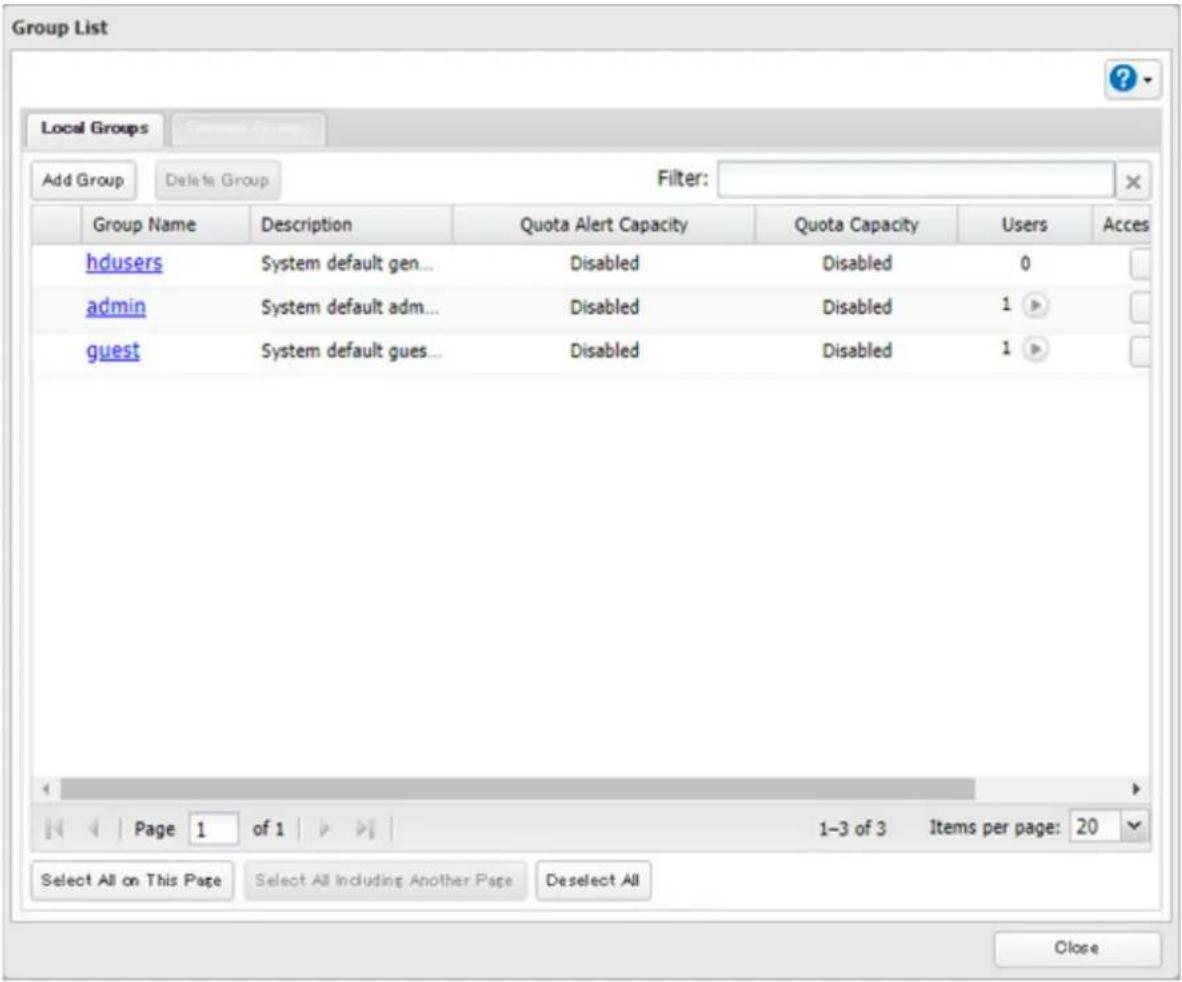
4 Enter the desired settings, then click OK.
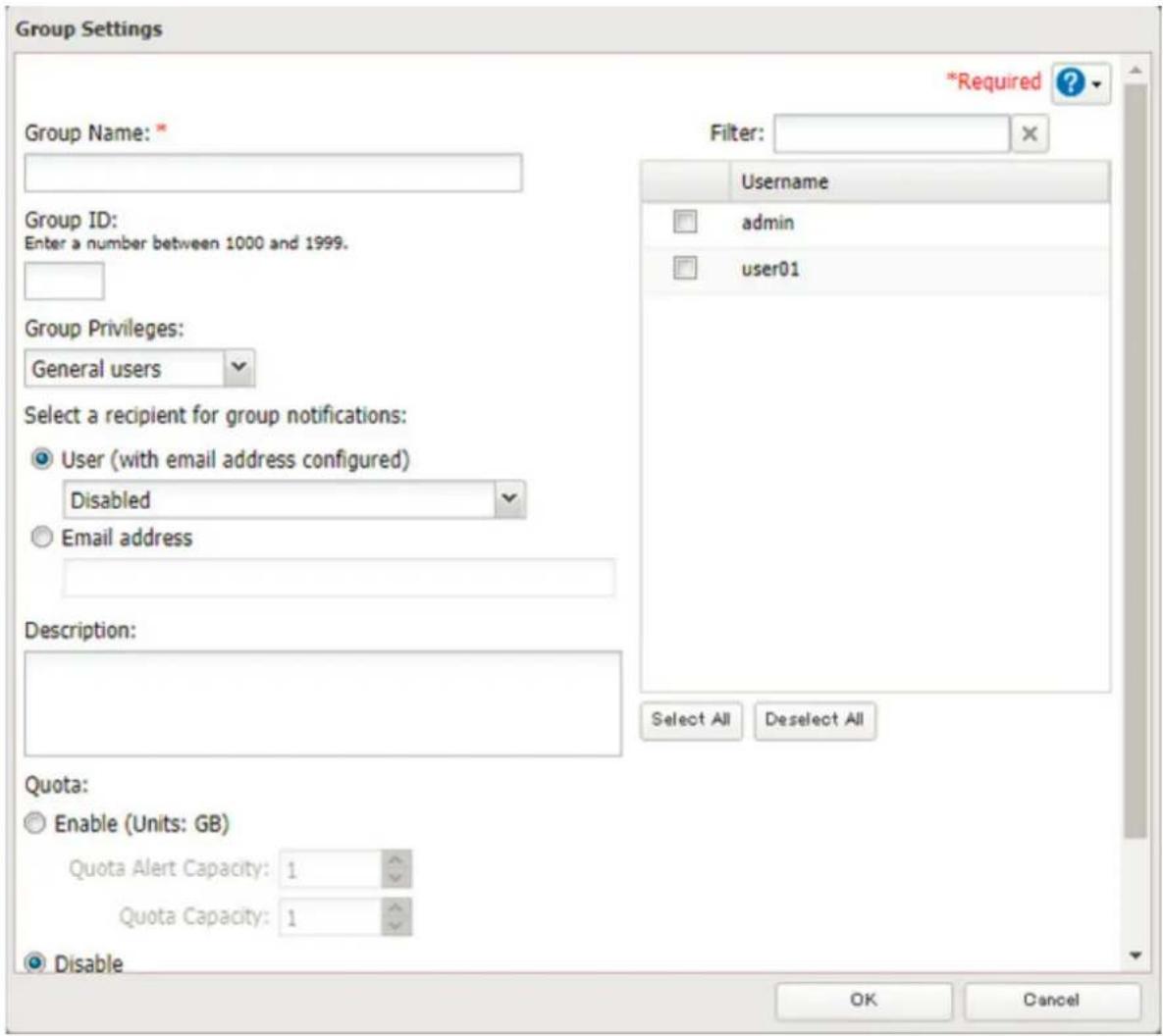
Notes:
- Group names may contain up to 20 alphanumeric characters, hyphens (-), underscores ( _ ), and periods (.). The first character should not be a symbol.
- Group descriptions may contain up to 75 alphanumeric characters, hyphens (-), underscores (_), and spaces. Multibyte characters are supported. The first character should not be a symbol or space.
- If the group ID field is left blank, a group ID is automatically assigned. Use numbers between 1000 and 1999 to set a group ID manually. Don't use duplicate group IDs.
- You may register up to 300 groups with the TeraStation.
- If you are logged in as a member of the general users group, you can change only your own password. If you're logged in as an administrator, you can change any setting, including other users' passwords. If you are logged in as a member of the power users group, you can create and edit shared folders, users, and groups.
- Do not use a name in use as a user; do not use any of the following words as a group name as these words are reserved for internal use by the TeraStation: _lldpd, adm, admin, administrator, admins, all, apache, avahi, avahi-autoipd, backup, bin, crontab, daemon, dialout, dip, disk, ftp, ftpuser, fuse, gnats, guest, guests, halt, hdusers, irc, kmem, libuuid, list, lp, mail, man, messagebus, mysql, netdev, news, nobody, nogroup, none, ntp, openldap, operator, plugdev, proftpd, proxy, puppet, root, rpc, rpcuser, sambashare, sasl, shadow, shutdown, snmp, splx, src, ssh, sshd, staff, statd, sudo, sync, syslog, tmhttpd, tty, users, utmp, uucp, winbindd_priv, www, www-data
Configuring Access Restrictions for Shared Folders
You may restrict access to specific shared folders, including external USB drives.
Notes:
- Configure access restrictions through Settings. Configuring access restrictions through Windows is not supported and may cause unexpected behavior.
- Shared folders with limited access can still be used as backup destinations.
- If you change access restrictions for a user or group while they are accessing files, unexpected behavior may result.
Local Users and Groups
1 From Settings, click File Sharing.

2 Click to the right of "Folder Setup".

3 Click the shared folder that you want to set access restrictions for.
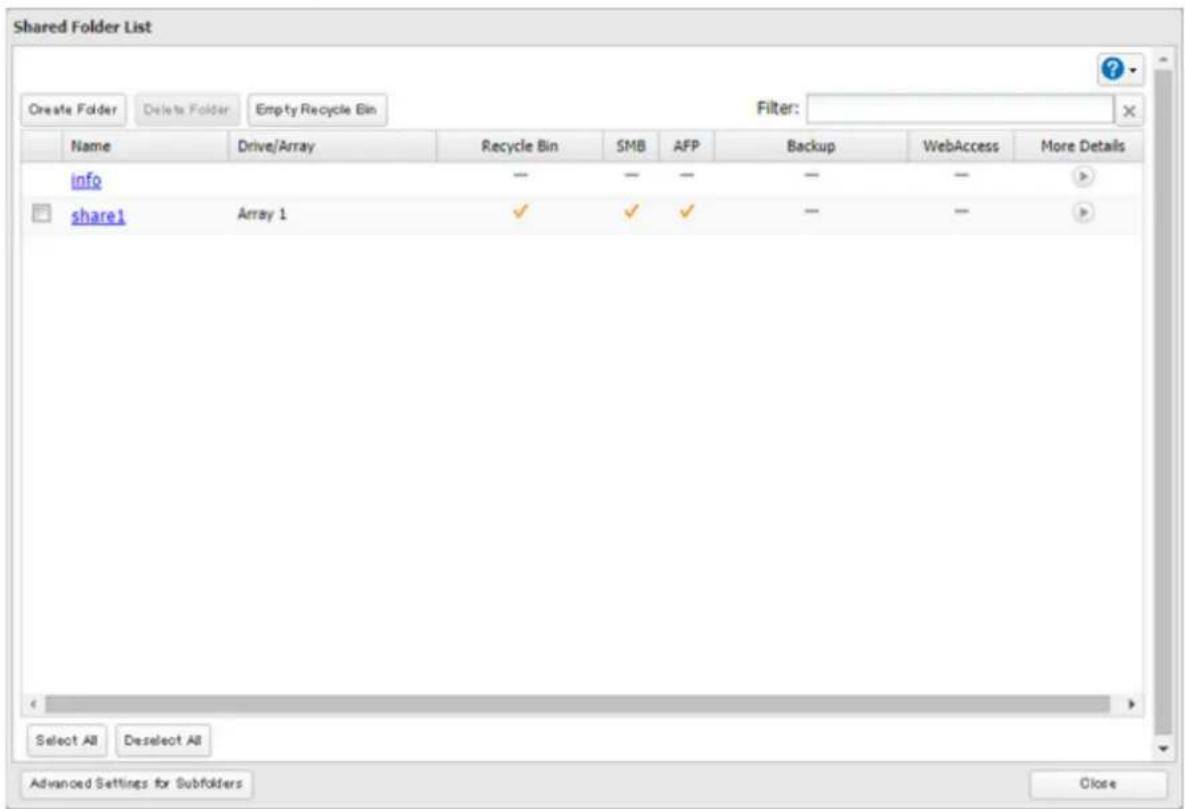
4 Click the Access Restrictions tab.
Chapter 3 File Sharing
5 Enable "Access Restrictions for Shared Folders".
Access Restrictions for Shared Folders: ☐ Enable
Disable
6 Select the level of access for the user or group.
W: Read and write access allowed : Read access allowed : Access prohibited
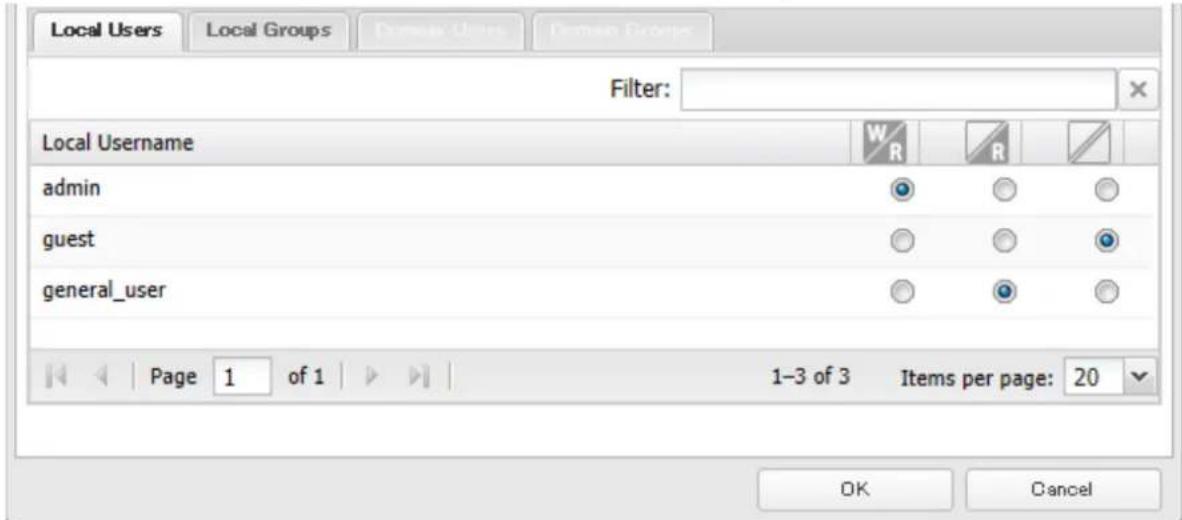
7 Click OK.
Notes:
-
The example above shows access restriction by a user. To restrict access by group, click the Local Groups tab and select group permissions.
• Under the following settings, read-only permission always applies: -
A user joins multiple groups for which either read-only or write permissions are given.
- A write-permitted user joins groups for which read-only permissions are given.
- A read-only user joins groups for which write permissions are given.
- For an access-restricted shared folder, if you change the access restrictions of all users and groups from read and write or read-only to access prohibited from the user or group list page in Settings, that shared folder can only be accessed by admin users and groups.
Active Directory
If there is an Active Directory environment, the TeraStation will use account information from the Active Directory domain controller to set access restrictions for TeraStation's shared folders. There is no need to perform individual account management for the TeraStation. If multiple TeraStations are installed on the network, the account information is centrally managed in Active Directory, greatly reducing the operations required for installation and management.
Notes:
- If usernames or group names from Active Directory include multibyte characters, you will not be able to configure access restrictions for them.
- The TeraStation supports a domain environment with a maximum of 10,000 users and groups.
Chapter 3 File Sharing
1 From Settings, click Network.

Network
2 Click to the right of "Workgroup/Domain".

Workgroup/Domain

Workgroup
3 Click Edit.
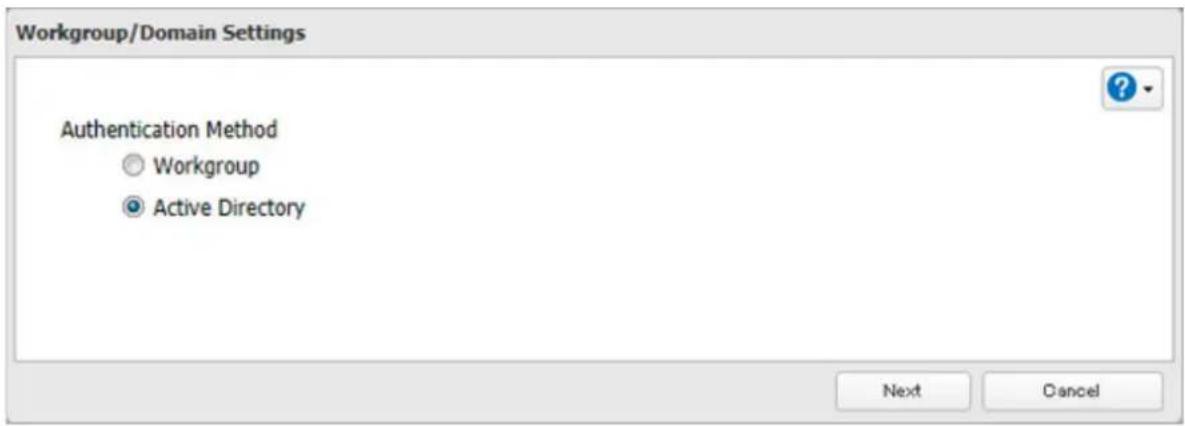
4 Select "Active Directory", then click Next.
5 Enter the domain controller information and click Search. The domain controller on the same network will be detected and required settings will be entered into each field automatically. Or, enter the settings manually.
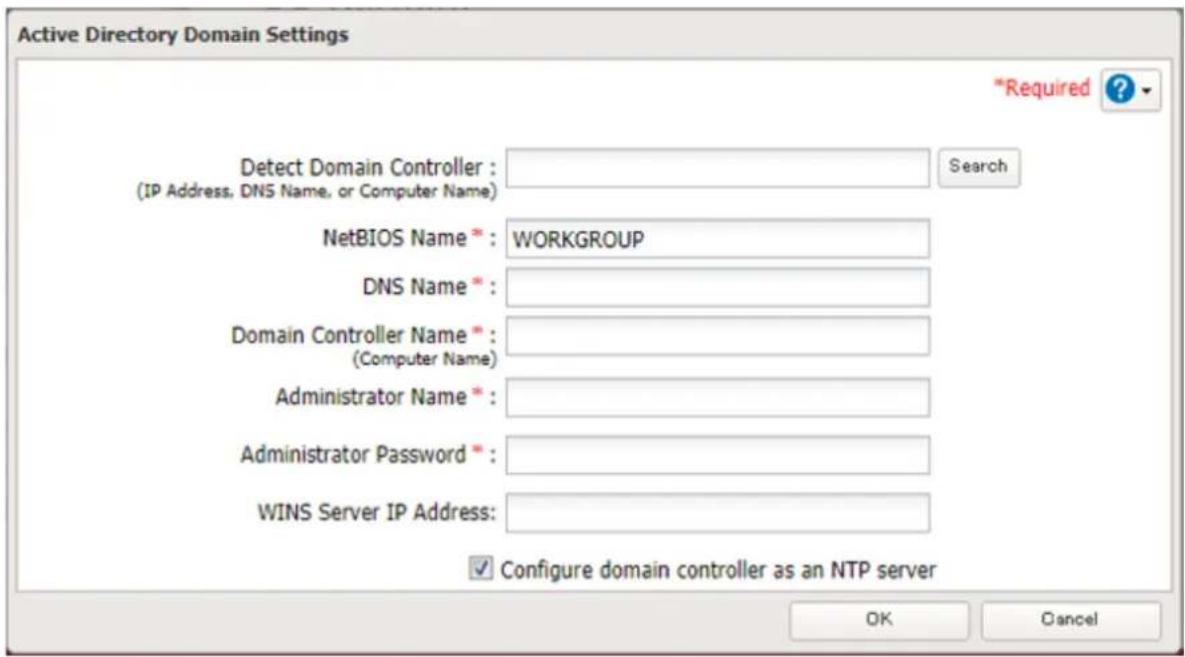
6 If there is a difference of more than five minutes between the TeraStation's clock and the domain controller's clock, joining the domain or authenticating domain users and groups may fail. For best results, select "Configure domain controller as an NTP server" if the domain controller can function as the NTP server.
7 Click OK.
8 Click to the right of "Folder Setup".

9 Click the shared folder that you want to set access restrictions for.
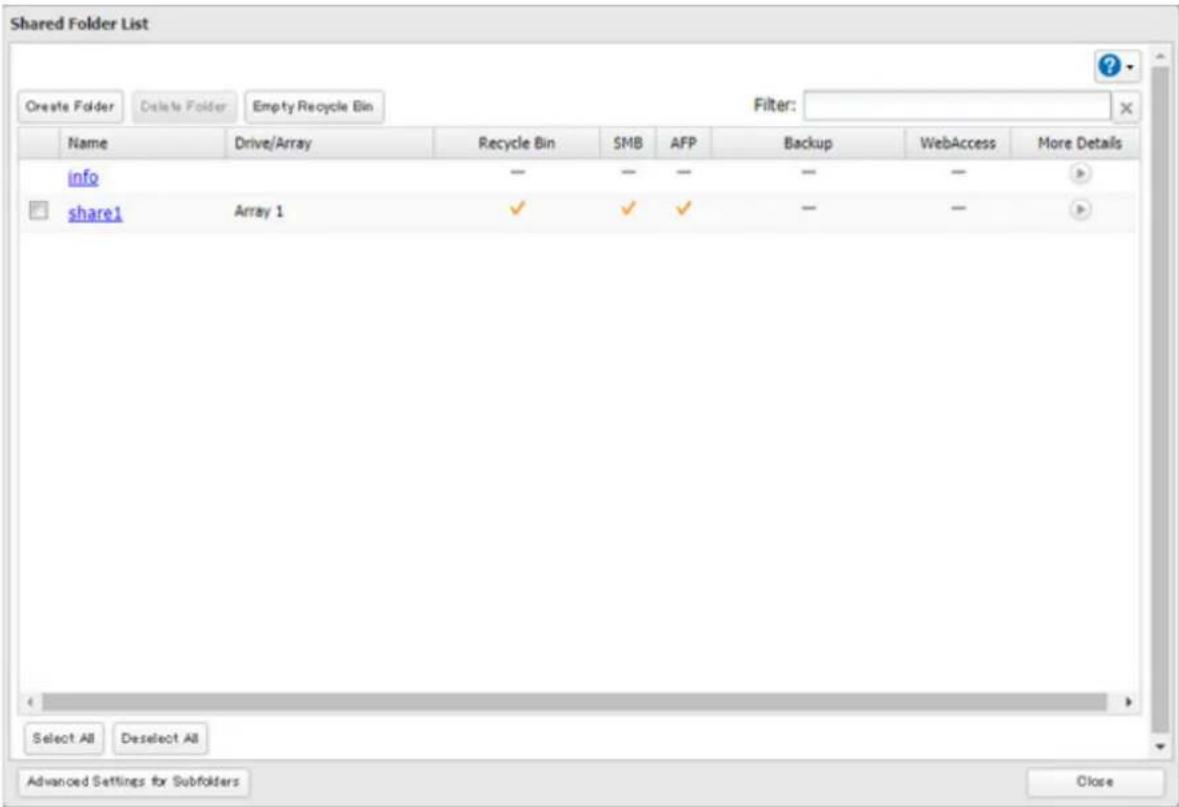
10 Click the Access Restrictions tab.
11 Enable "Access Restrictions for Shared Folders".

12 Select the level of access for the user or group.

13 Click OK.
Notes:
- To have the TeraStation join an Active Directory domain, configure it to use a DNS server that can resolve names for the Active Directory domain.
- After building an Active Directory domain, the administrator password for joining the domain must be changed at least once, or joining the Active Directory domain will fail.
- The DNS name and NetBIOS name of Active Directory domains should be identical.
• Under the following settings, read-only permission always applies:
- A user joins multiple groups for which either read-only or write permissions are given.
- A write-permitted user joins groups for which read-only permissions are given.
- A read-only user joins groups for which write permissions are given.
- To use the TeraStation as a member server in an Active Directory domain, the TeraStation should be logged in to the domain and accessed from a computer that is not a member of the domain with a valid domain account.
- If the TeraStation is a member server of an Active Directory domain, you cannot connect as a guest user via AFP.
- If your TeraStation is a member server in an Active Directory domain and you change the authentication method to "Workgroup", the account on the domain controller will not be deleted automatically.
- If FTP is enabled, local and domain group access restrictions from the AD network do not work. Use user access restrictions instead.
- For an access-restricted shared folder, if you change the access restrictions of all users and groups from read and write or read-only to access prohibited from the user or group list page in Settings, that shared folder can only be accessed by admin users and groups.
- If you allow read and write or read-only access for most users, group access restrictions are recommended.
- Depending on the domain controller's policy settings, the domain controller may make the TeraStation leave the Active Directory domain. If so, the TeraStation will lose the domain users and groups so if you have configured access restrictions using the domain accounts, these users will no longer be able to access shared folders. In such a case, change the policy settings on the domain controller or let the TeraStation join the Active Directory domain again.
Configuring Access Restrictions for Subfolders
You may restrict access to subfolders in shared folders by configuring access permissions from your computer using Windows File Explorer.
Notes:
- Depending on the environment, the function may not work properly even if it's enabled. We recommend verifying the functionality before using.
- Access permissions configuring from File Explorer is available up to 18 files and 24 folders. This number of available access permissions may vary if access permissions are inherited from the parent object. The number of available access permissions are not many so using group access permissions is recommended if the permission level is the same to the multiple users; it will save spending the number of available access permissions.
Enabling Subfolders' Access Restrictions
1 From Settings, click File Sharing.

2 Click to the right of "Folder Setup".

Folder Setup

1 Folders
3 Click the shared folder that you want to set access restrictions for.
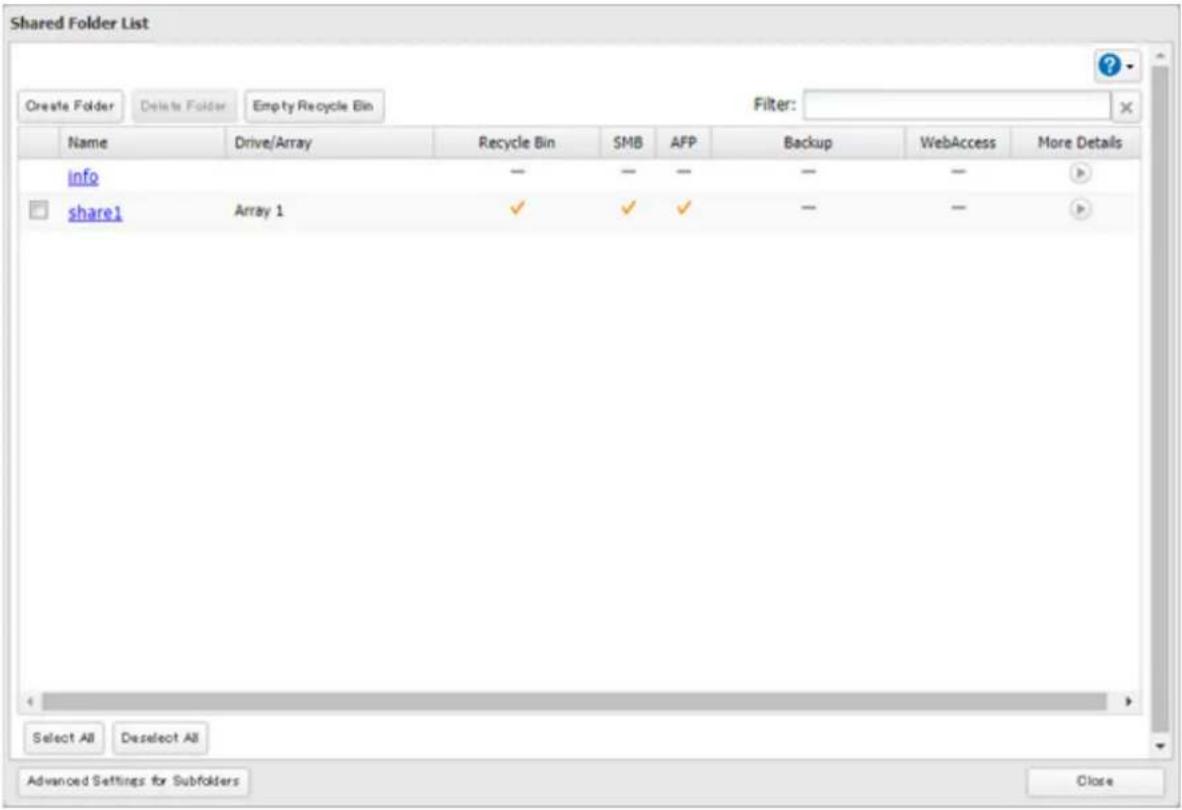
4 Clear all checkboxes for "LAN Protocol Support" other than "SMB (Windows/Mac)", "Backup", and "NFS".
5 Click the Option 2 tab.
6 Enable "Access Restrictions for Subfolders".

Note: If "Hide Non-Access Permitted Files and Folders" is enabled, non-access permitted sub-files and folders will not be displayed in shared folders.
7 Click OK.
Enabling subfolders' access restrictions finished. Next, configure access permissions for each user or group to files and folders in subfolders from File Explorer.
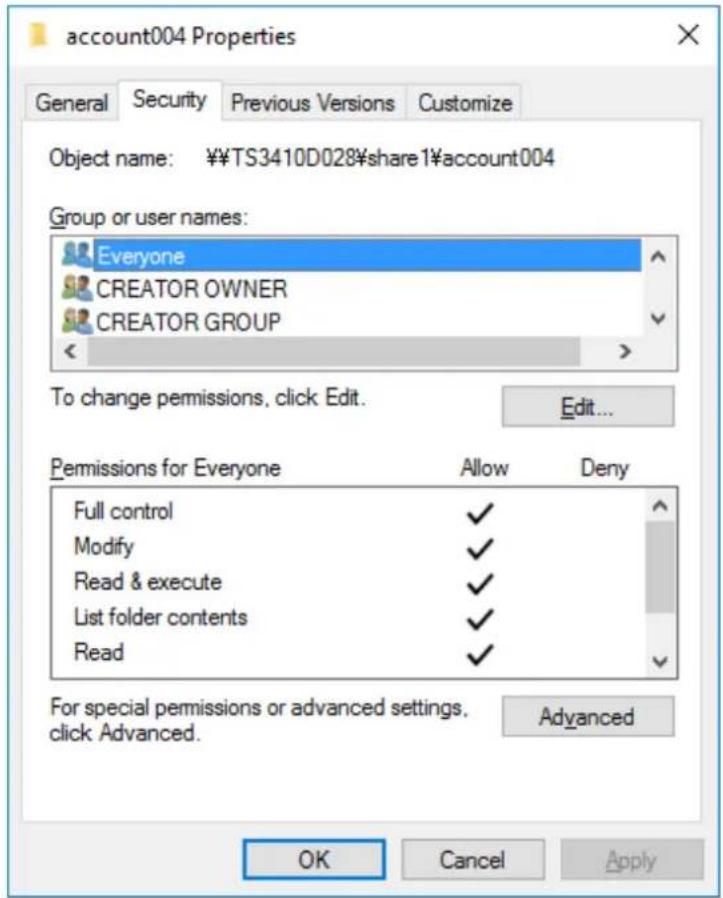
You may also configure access permissions for domain users and groups. You should have the TeraStation join your Active Directory domain before configuring access permissions from File Explorer.
Notes:
- If enabling subfolders' access restrictions for a USB drive, the drive should be formatted using XFS or ext3.
- The UID and GID of domain accounts should be updated before using the subfolders' access restrictions if the TeraStation joined the AD network while running firmware version 3.00 or earlier and has since updated to version 3.00. To update the UID and GID, navigate to File Sharing > SMB > Edit in Settings and click Update.
- To back up or replicate files to backup or replication destinations with access permission settings of files and folders in subfolders unchanged, make sure that the same workgroup name, user IDs, and group IDs are configured between backup or replication sources and destinations.
- If you clear the "Read & execute" checkbox under "Allow" (as shown on the image above) and disable the subfolders' access restrictions, these users and groups will have read and write permission.
- If the TeraStation's settings have been initialized but you configure the same UID and GID for new users and groups, access permissions to files and folders in subfolders may be inherited.
Restoring Owner and Permission Settings
If you changed the owner to an unexpected user or accidentally lost permissions to a specific folder, restore them by following the procedure below.
1 From Settings, click File Sharing.

2 Click to the right of "Folder Setup".

3 Click Advanced Settings for Subfolders.
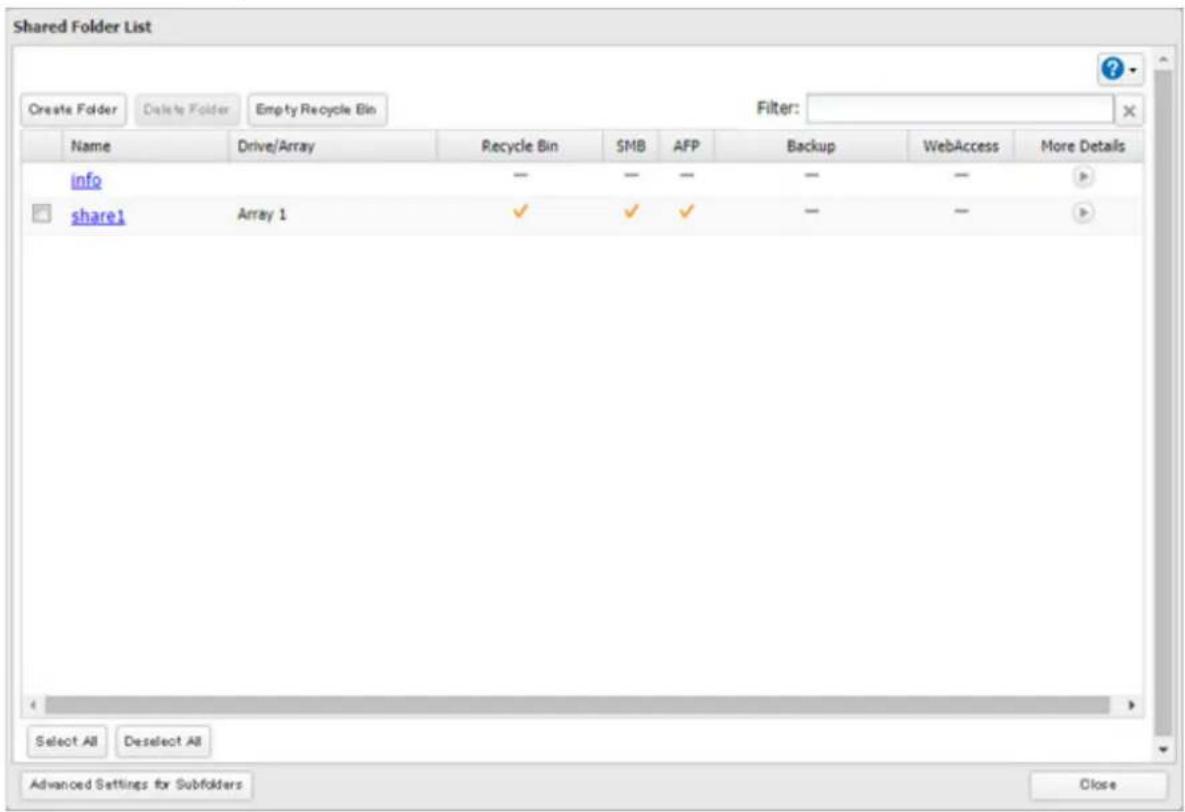
4 Select a folder to restore permissions from the tree.
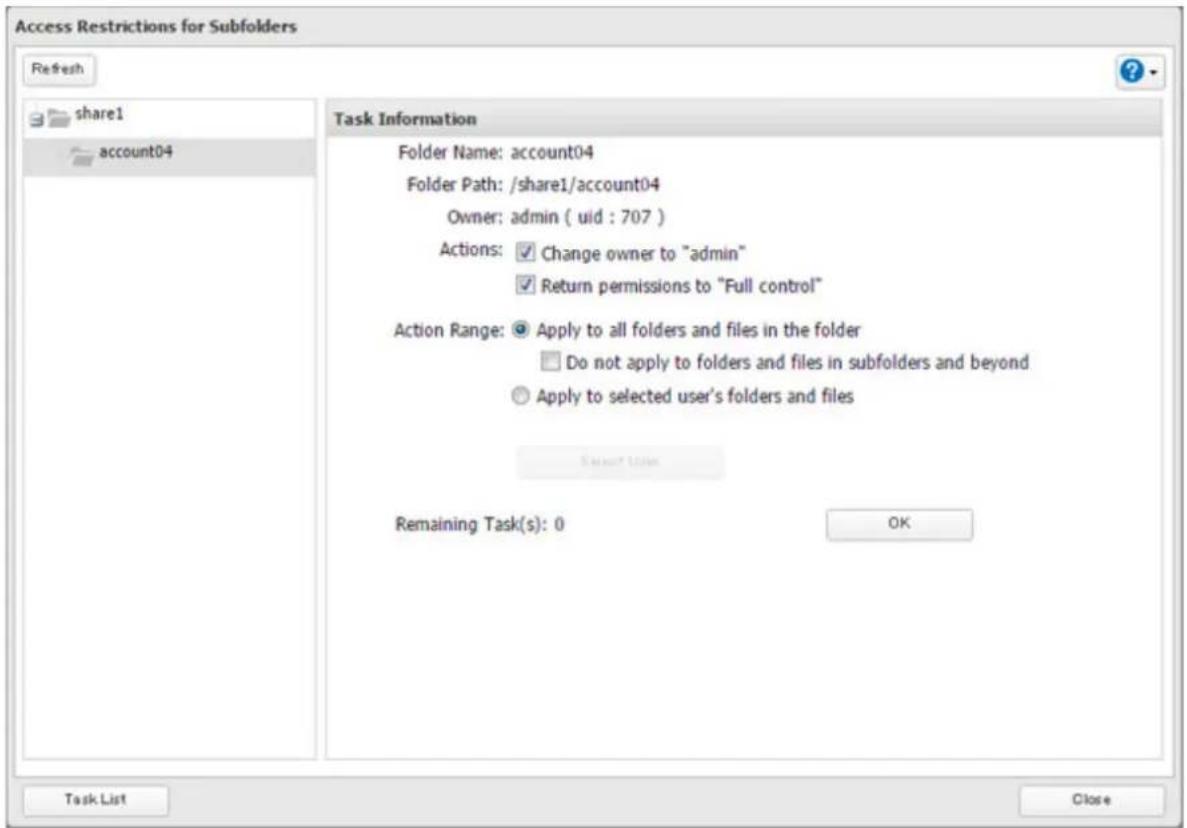
Note: If you select a root shared folder from the tree, the action will not be run to the recycle bin. To run the action, select the recycle bin instead.
5 Select actions and action range to run, then click OK.
6 The "Confirm Operation" screen will open. Enter the confirmation number, then click OK.
Chapter 4 Storage Management
RAID Modes
TeraStations support many types of RAID. The type of RAID arrays available for use depends on how many drives are installed in your TeraStation.
Notes:
- If you change the RAID mode, all data on the array is deleted. This is true for every procedure in this chapter. Always back up any important data before performing actions that affect your RAID array.
- Some RAID arrays allow you to change the RAID mode without losing data by adding drives. To change a RAID mode by adding drives to the existing array, refer to the "Expanding RAID Capacity Without Deleting Data" section below.
- Drive capacity is displayed in Settings in actual gigabytes. The Properties window in Windows may show GiB instead, which will be a smaller number.
- If the TeraStation is restarted or shut down while changing the RAID mode, the message that appears in Settings or NAS Navigator2 will change from I46 or I47 to I18.
- RAID 5, 6, or 10 are only available for TeraStations with three or more drives inserted. Please check Settings on your model before changing the RAID mode.
RAID 6
RAID 6 arrays are available for TeraStations with four drives. RAID 6 combines four drives into a single array. The usable space is equal to the sum of the capacity of all drives minus the capacity of two drives. For example, if four drives are combined into a RAID 6 array, the usable space is the sum of the capacity of two drives. If two drives in the array are damaged, you can recover data by replacing them. If three or more drives are damaged, your data is lost.
RAID 5
RAID 5 arrays are available for TeraStations with three or more drives. RAID 5 combines three or more drives into a single array. The usable space is equal to the sum of the capacity of the drives minus the capacity of one drive. For example, if four drives are combined into a RAID 5 array, the usable space is the sum of three drives. If one drive in the array is damaged, you can recover data by replacing the damaged drive. If two or more drives are damaged at the same time, your data is lost.
RAID 10
RAID 10 arrays are available for TeraStations with four drives. In this mode, mirrored pairs of drives in RAID 1 arrays are combined into a RAID 0 array. The usable space is equal to the capacity of the smallest drive multiplied by the number of drives divided by two.
RAID 1
Combines two or more drives into a mirrored array. The available space in the array is the capacity of a single drive. Identical data is written to each drive. If a drive is damaged, data can be recovered by replacing the damaged drive. As long as one drive in the array remains undamaged, all data in the array can be recovered.
RAID 0
Combines two or more drives into a single array. The usable drive space is the total space of all drives used. This simple RAID mode offers faster performance than RAID modes that include parity. If a single drive in the array fails, then all data in the array is lost.
JBOD
This mode uses the drives inside the TeraStation as individual drives. The drive space you can use is the total capacity of all drives in the TeraStation. If any drives are damaged, then the data on that drive is lost.
Working with RAID Arrays
To change RAID settings, navigate to Storage > RAID in Settings.
Using JBOD
With JBOD, each drive in the TeraStation is addressed separately. To put drives from an array into JBOD, follow the procedure below.
1 From Settings, click Storage.

2 Click to the right of "RAID".

3 Click the array to delete.
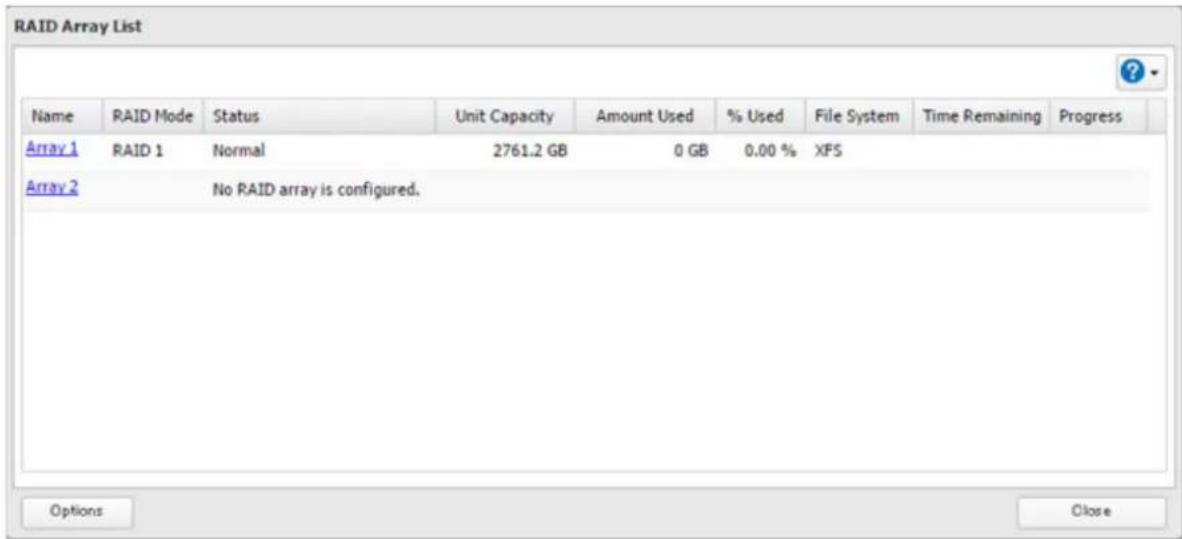
4 Click Delete RAID Array.
5 The "Confirm Operation" screen will open. Enter the confirmation number, then click OK.
6 Click OK when completed.
Once JBOD is configured, create shared folders on each drive to use them.
Changing RAID Mode
To change the RAID mode, first put the drives in JBOD.
1 From Settings, click Storage.

2 Click to the right of "RAID".

3 Click the array to delete.
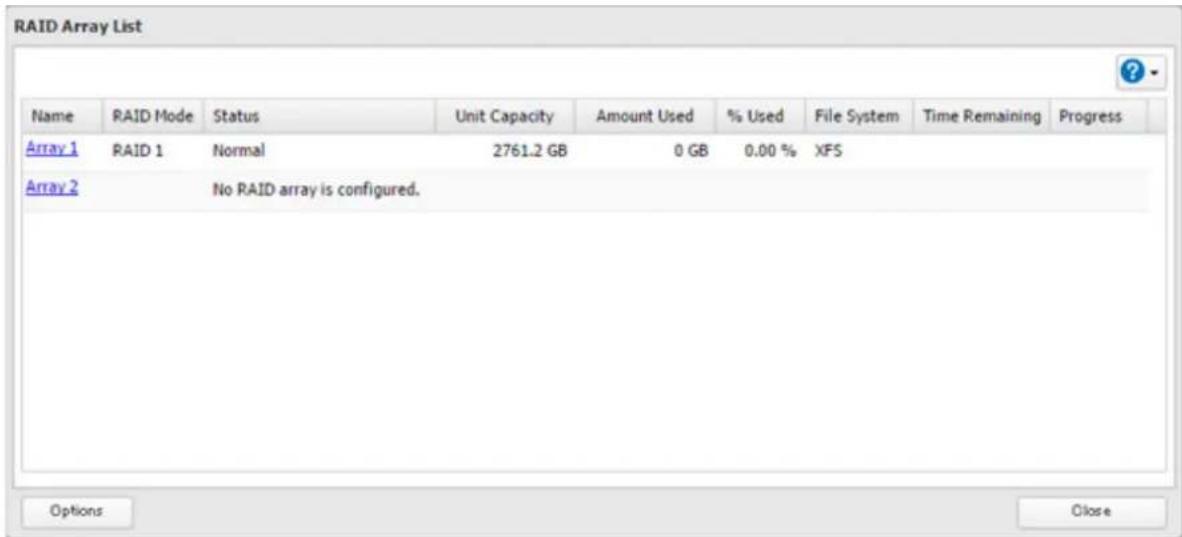
4 Click Delete RAID Array.
5 The "Confirm Operation" screen will open. Enter the confirmation number, then click OK.
6 Click OK.
Chapter 4 Storage Management
7 Choose a RAID array.
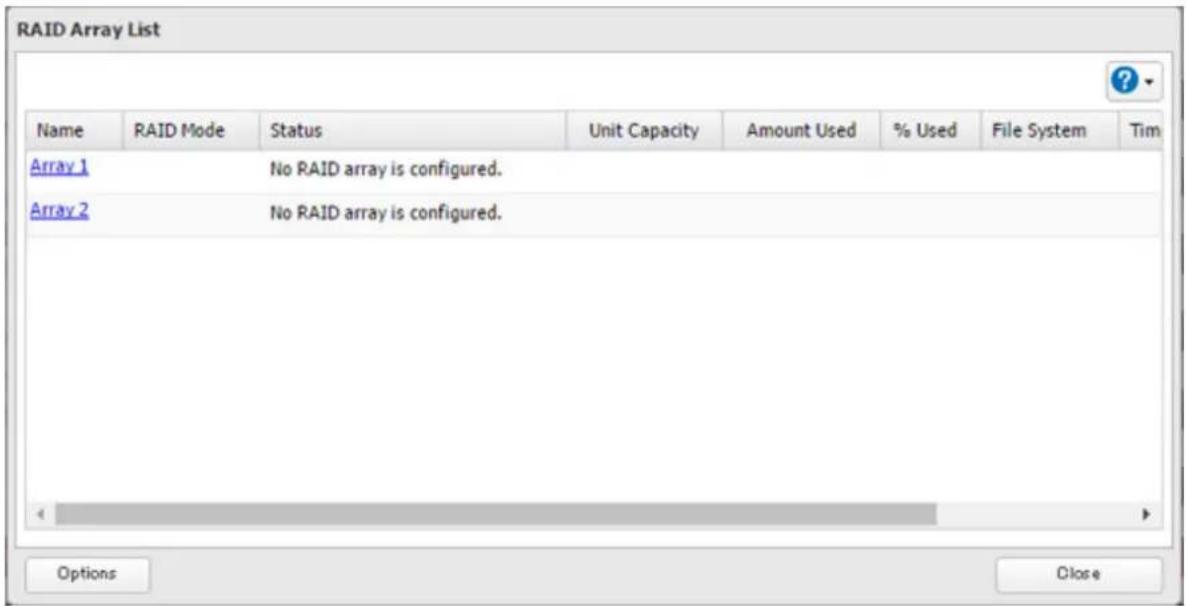
8 Select a RAID mode and the drives to be used, then click Create RAID Array.
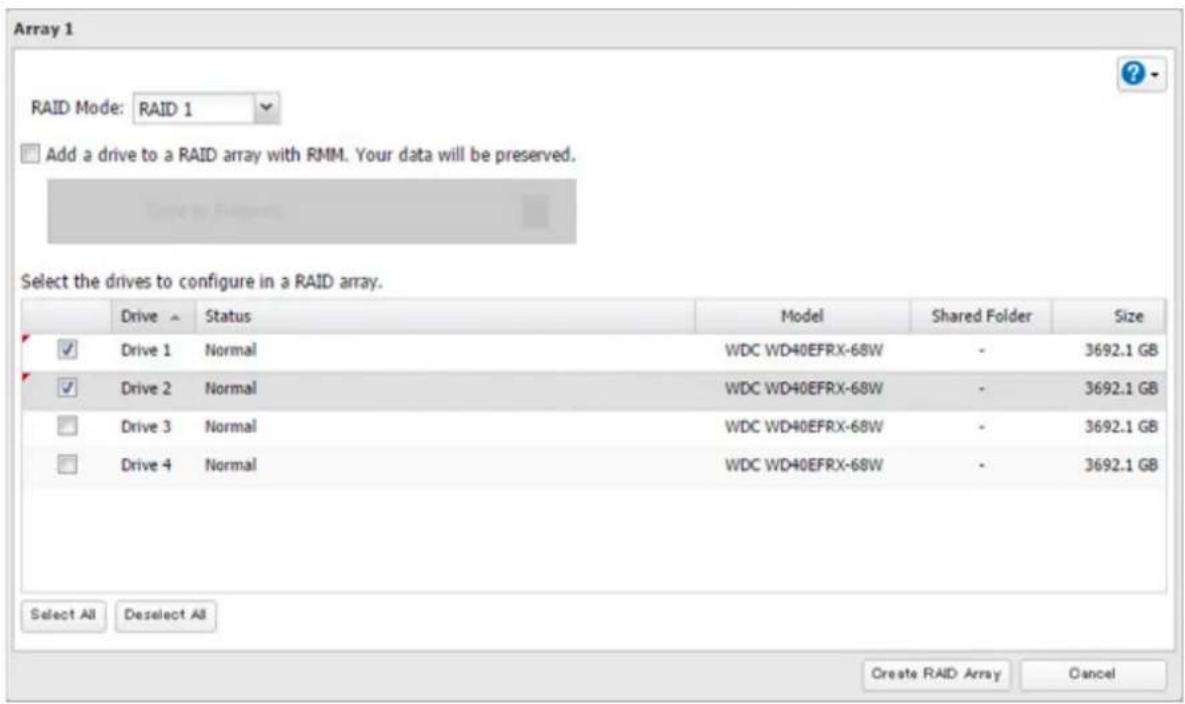
9 The "Confirm Operation" screen will open. Enter the confirmation number, then click OK.
10 Click OK when completed.
Note: After changing the RAID mode, create a shared folder.
Shutting Down the TeraStation Automatically If Error Occurred
This function will shut down the TeraStation automatically if an error occurs on a drive that is used in a redundant RAID array. To configure auto shutdown, follow the procedure below.
Chapter 4 Storage Management
1 From Settings, click Storage.

Storage
2 Click to the right of "RAID".

RAID

3 Click Options.
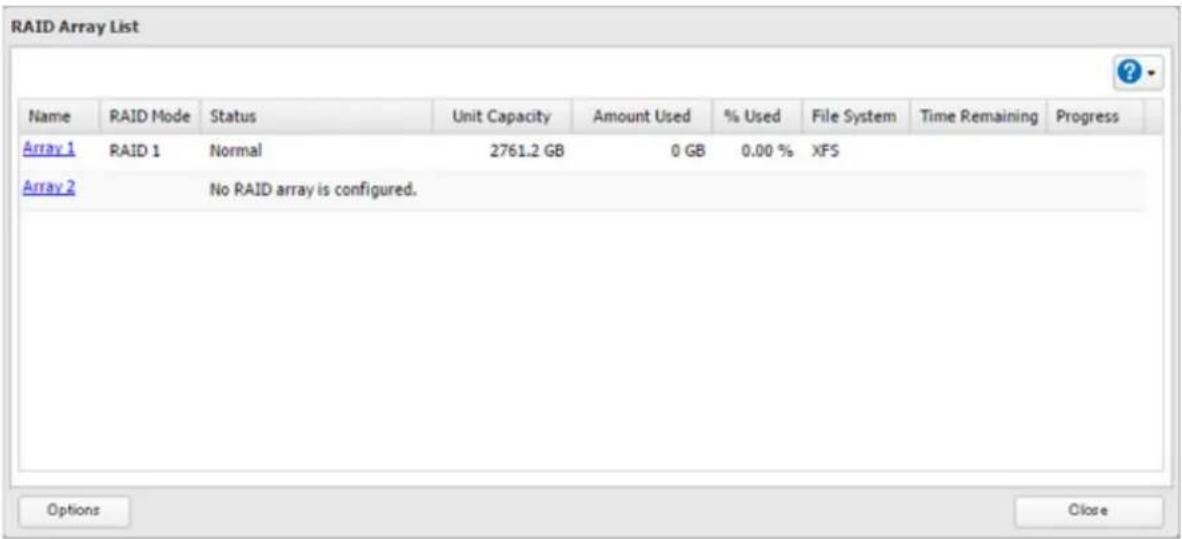
4 Click Edit.
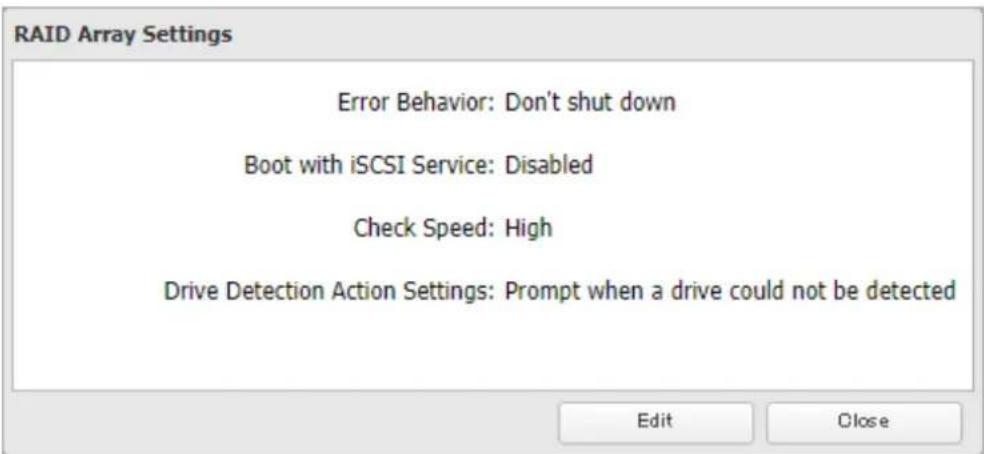
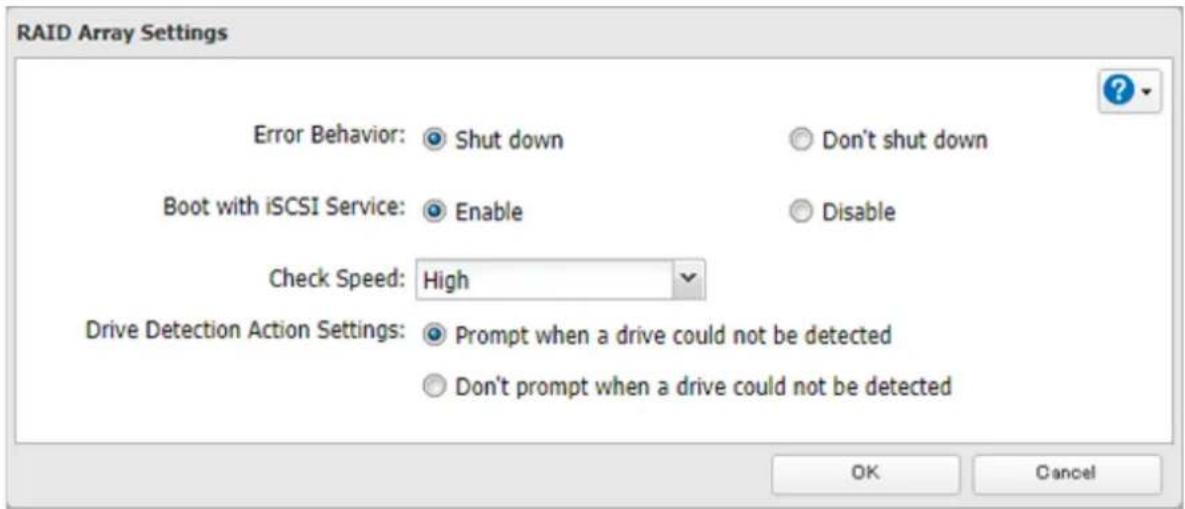
5 Select "Shut down" for "Error Behavior" and click OK.
Configuring Actions for If a Drive Used for the RAID Array Has Not Been Discovered
The TeraStation can configure actions for if a drive used for the RAID array cannot be mounted when booting.
Displaying or Hiding the Confirmation Screen
Configure to display or hide the confirmation screen for selecting actions for if a drive used for the RAID array cannot be mounted when booting. It is configured to display the confirmation screen by default. To hide the screen, follow the procedure below.
1 From Settings, click Storage.

2 Click to the right of "RAID".

Chapter 4 Storage Management
3 Click Options.
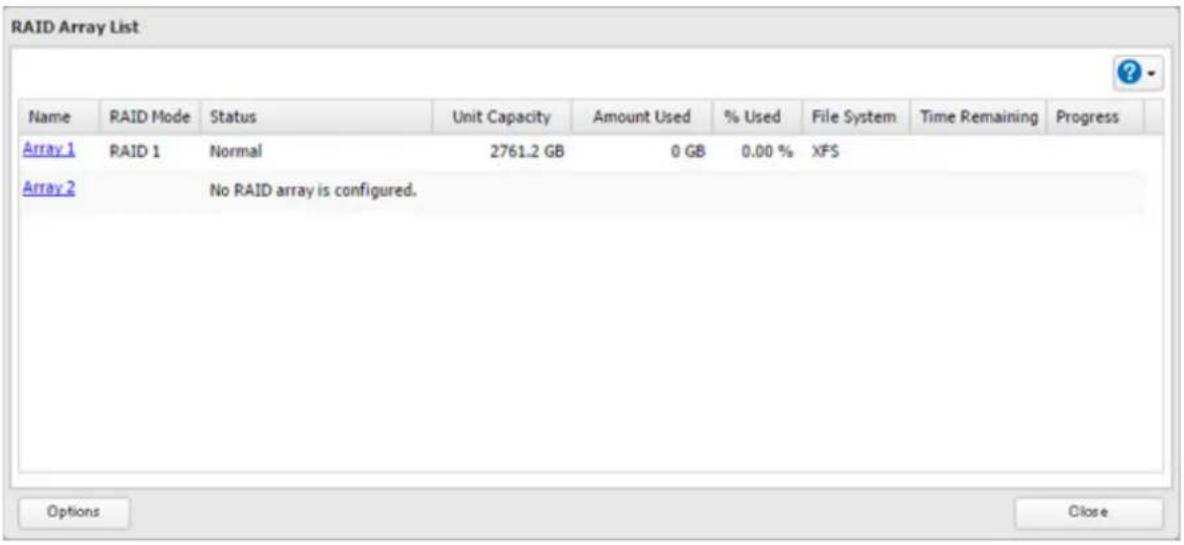
4 Click Edit.
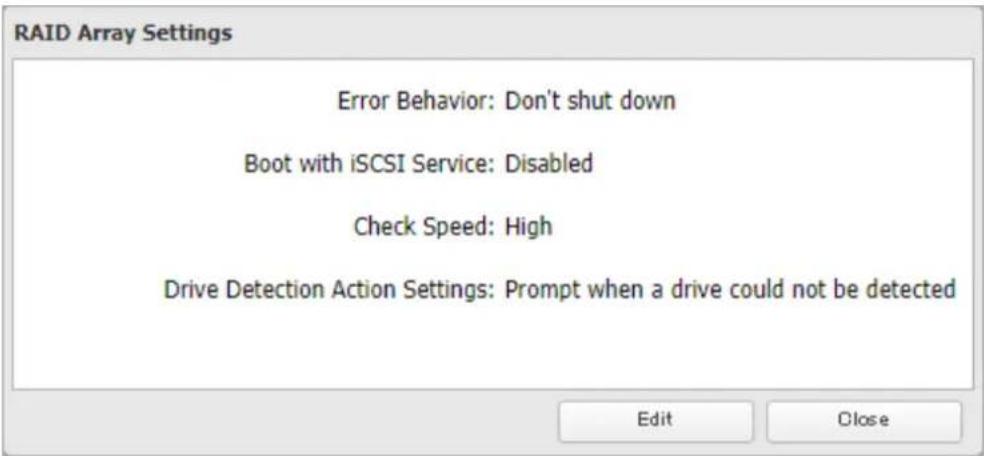
5 Select the "Don't prompt when a drive could not be detected" option to the right of "Drive Detection Action Settings" and click OK.
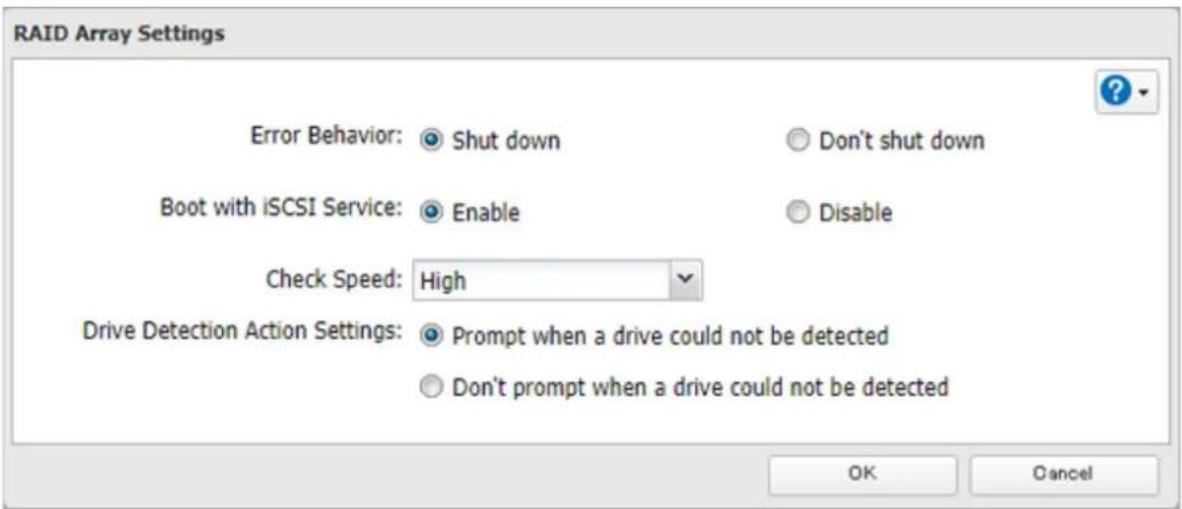
When the confirmation screen is hidden, an undetected drive will automatically be dismounted from the TeraStation and the TeraStation will be in degraded mode if a redundant RAID mode is configured. If RAID 0 is configured, the
RAID array will be corrupted so that data will be lost. It is recommended to proceed without changing settings that the confirmation screen appears.
Selecting the Action on the Confirmation Screen
When the confirmation screen is displayed, the following screen will appear after logging in to Settings if the drive used for the RAID array could not be mounted. Select the action to run when the screen appears.
Note
Drives currently in use in RAID array 1 could not be detected.
Undetected Drives: 2
Note: Depending on the RAID array configuration, undetected drives may not fully be listed. Before selecting the action to run, refer to the user manual whether your RAID array configuration does not match the situation.
Select the action to perform.
○ Restart the TeraStation and rediscover the drives
Shut down the TeraStation and reconnect the drives
○ Dismount the undetected drives and turn on the TeraStation
Warning: This action will put the RAID array into degraded mode or have it become corrupted. Because of this, it will take time for the array to recover from degraded mode, otherwise data may be lost. We strongly recommend selecting another action before trying this one.
Execute
Conditions and Corrective Actions If Undetected Drives Aren't Displayed Properly
Even though you have configured to show the confirmation screen if a drive using for the RAID array cannot be mounted, the undetected drives cannot be displayed properly under the following conditions. If you have configured the RAID array as below, follow the procedure below for sure.
| Conditions Corrective Actions | |
| RAID 10 has been configured. | 1 Select “Shut down the TeraStation and reconnect the drives” and click Execute.2 Confirm all drives have been inserted properly.3 Press the power button and power on the TeraStation.4 Log in to Settings and make sure the confirmation screen doesn’t appear. |
| Multiple arrays have been configured. |
Configuring a Hot Spare
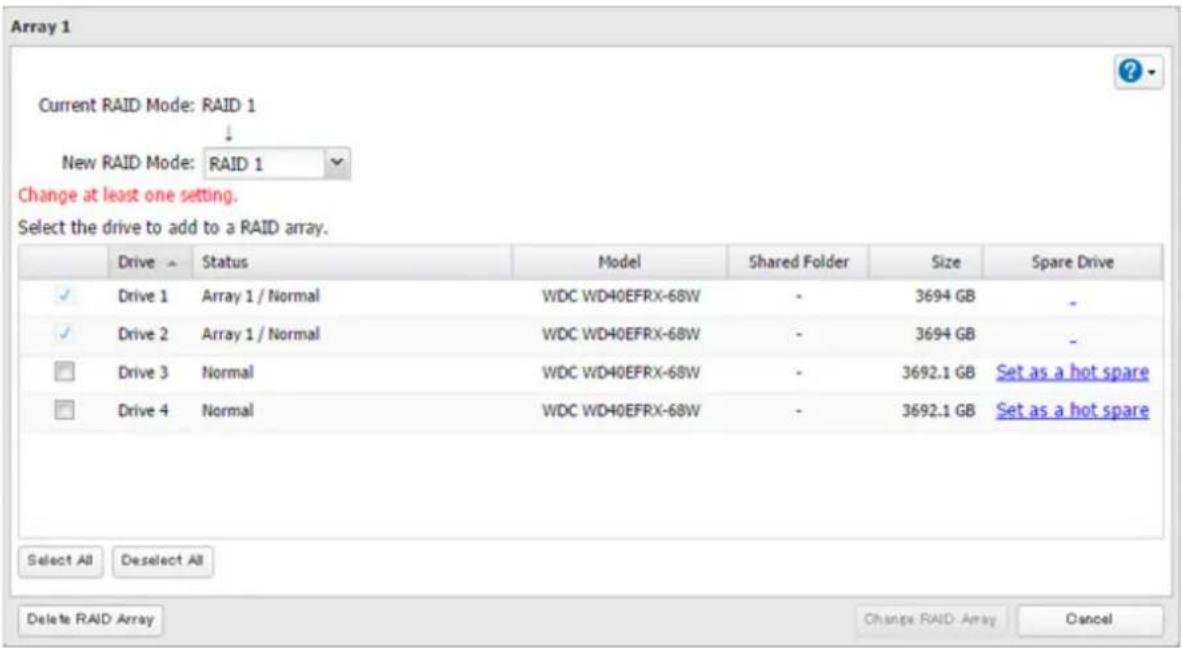
If you have a hot spare configured and an array fails, the TeraStation immediately switches over to the hot spare. To use a hot spare, you need an extra drive that's not part of any array and a RAID 1 or RAID 5 array.
Chapter 4 Storage Management
Notes:
- All data on the hot spare drive is deleted when it is configured as a hot spare and again when it changes from a spare to a drive in the array.
- A hot spare cannot be configured for TeraStation models with only two drives inserted.
1 From Settings, click Storage.

Storage
2 Click to the right of "RAID".

RAID

3 Choose a RAID array.
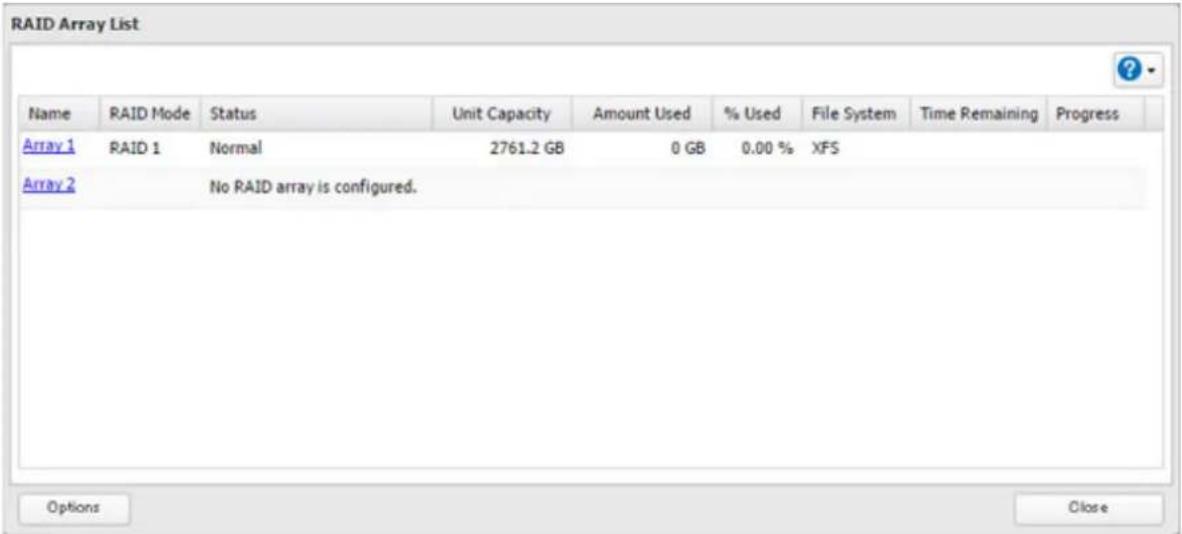
4 Click Set as a hot spare.
Chapter 4 Storage Management
5 Click Yes.
6 The "Confirm Operation" screen will open. Enter the confirmation number, then click OK.
7 Click OK when completed.
Note: To turn the hot spare back to a normal drive, choose Set as a normal drive.
Expanding RAID Capacity Without Deleting Data
You can create or expand a RAID array without erasing data on the drive by using RMM (RAID Mode Manager). If using a TeraStation model whose drives are not fully installed into the slots, such as the two-drives included TS3410DN series, follow the procedure to add a new drive first. Otherwise, refer to the procedures in this section to configure the RAID array.
Adding a Drive
1 Open the front cover with the included key.
2 Push the drive's unlock button for the empty slot and swing the lock mechanism out, then pull out the drive cartridge.
3 Insert the new drive (sold separately). Slide the drive in with the locking mechanism open and swing the lock back down until it clicks into place.
4 Close the front cover.
5 When the drive is recognized, the status LED will flash red and the I32 message will appear in Settings or NAS Navigator2.
6 From Settings, click Storage.

Storage
7 Click to the right of "Drives".

Drives

8 Select the inserted new drive and click Format Drive.
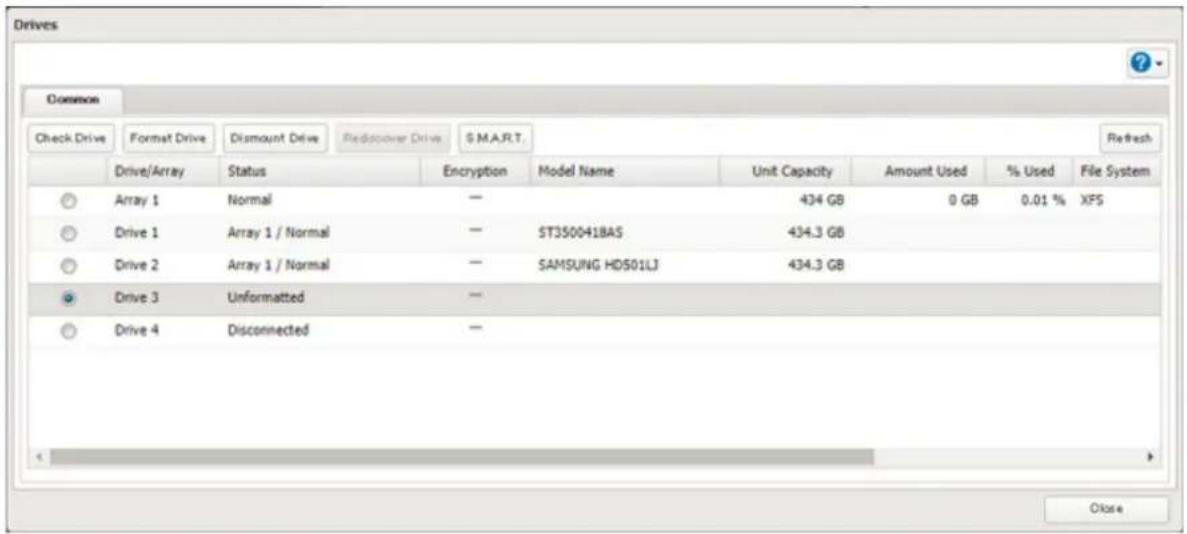
9 Select a format type and click Format.
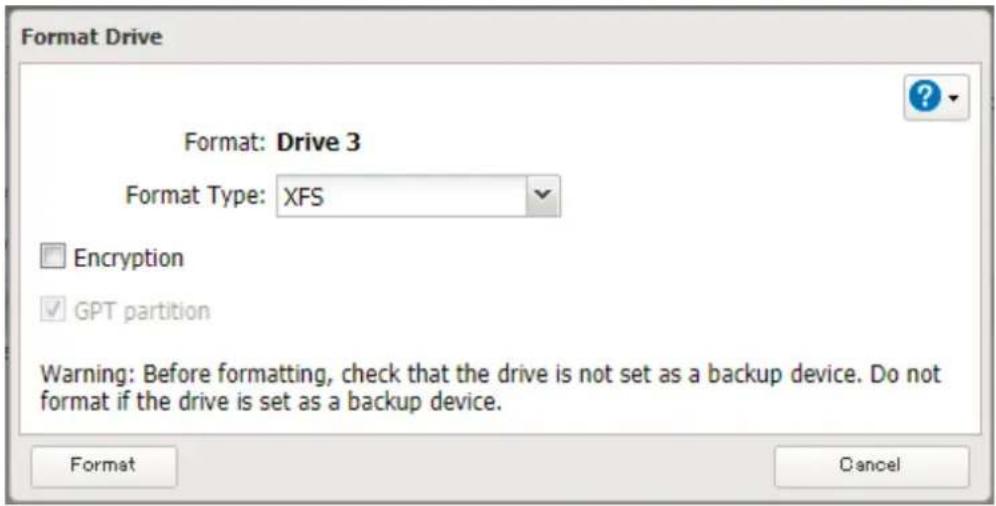
10 The "Confirm Operation" screen will open. Enter the confirmation number, then click OK.
11 Click OK when completed.
Drives Are Currently in JBOD
If the drives are currently in JBOD (not in a RAID array), you may change it to a RAID 1 array. To create the RAID 1 array using RMM, you must have at least two drives available in JBOD.
1 From Settings, click Storage.

2 Click to the right of "RAID".

Chapter 4 Storage Management
3 Choose a RAID array.
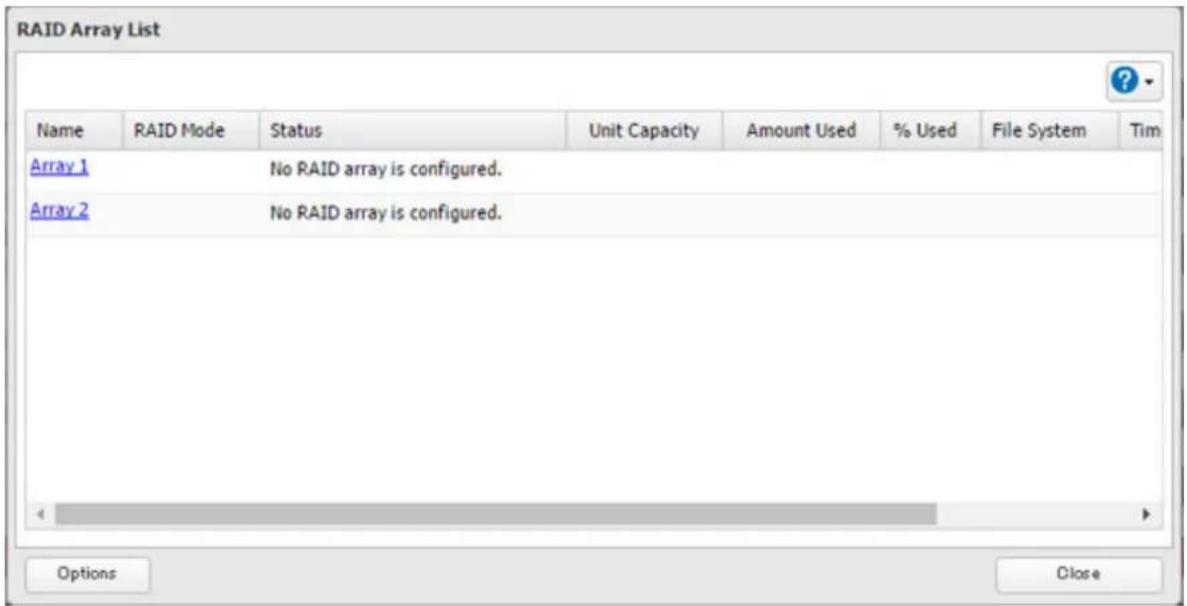
4 Set the RAID mode to "RAID 1".
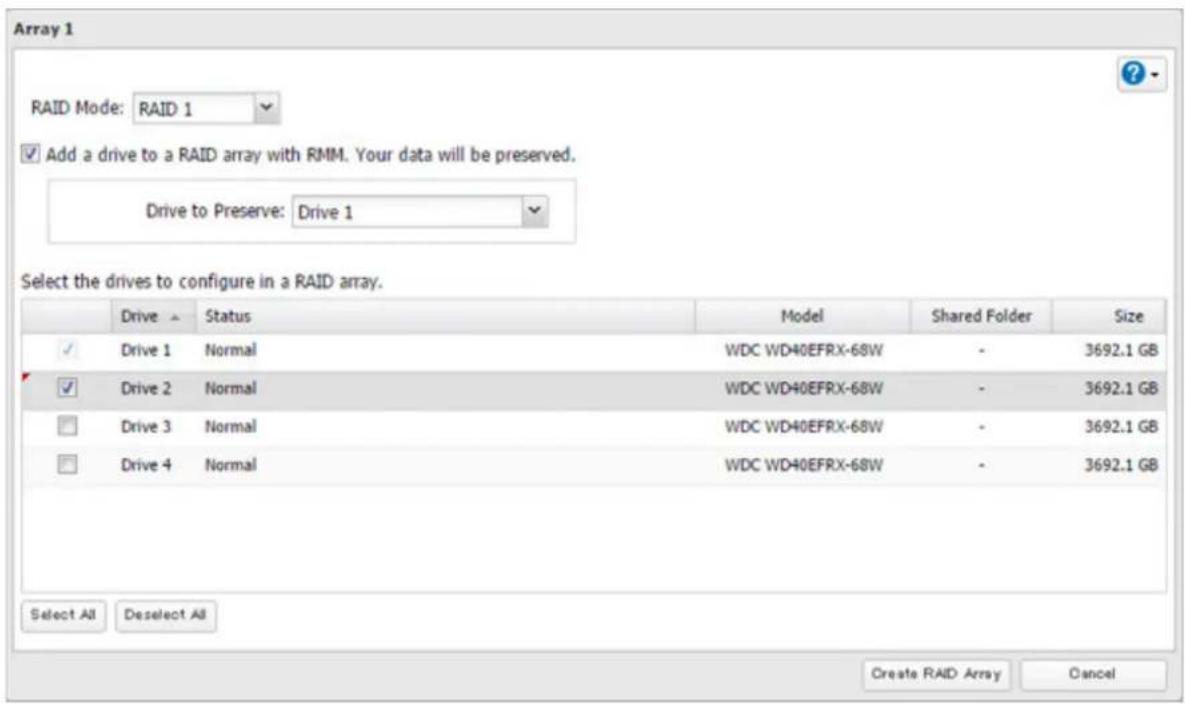
5 Select the "Add a drive to a RAID array with RMM. Your data will be preserved." checkbox.
6 Select the drive whose data will be saved from the drop-down list.
7 Select the drive to add to the RAID array.
8 Click Create RAID Array.
9 The "Confirm Operation" screen will open. Enter the confirmation number, then click OK.
10 Click OK when completed.
Drives Are Currently in RAID 1 or RAID 5
If the drives are currently in a RAID 1 or a RAID 5 array, you can use RMM to add drives to the RAID array, then change the RAID mode.
Note: RMM can be used to expand an array by only one drive per operation. To expand by two or more drives, RMM must be activated multiple times. For example, if you want to create a RAID 6 array by adding two drives, change the RAID mode to RAID 5 first using one drive, then change it to RAID 6 using another drive.
1 From Settings, click Storage.

2 Click to the right of "RAID".

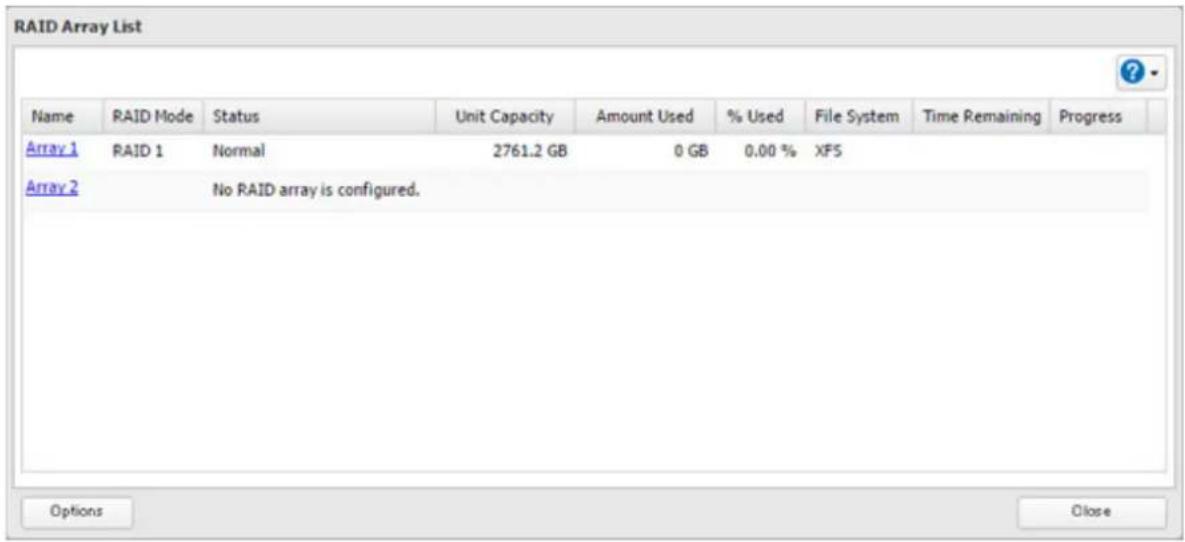
3 Choose a RAID array.
Chapter 4 Storage Management
4 Select one drive to add to the RAID array. If changing the RAID mode, choose the desired mode for the array from the drop-down list. If not, keep the current RAID mode as is.
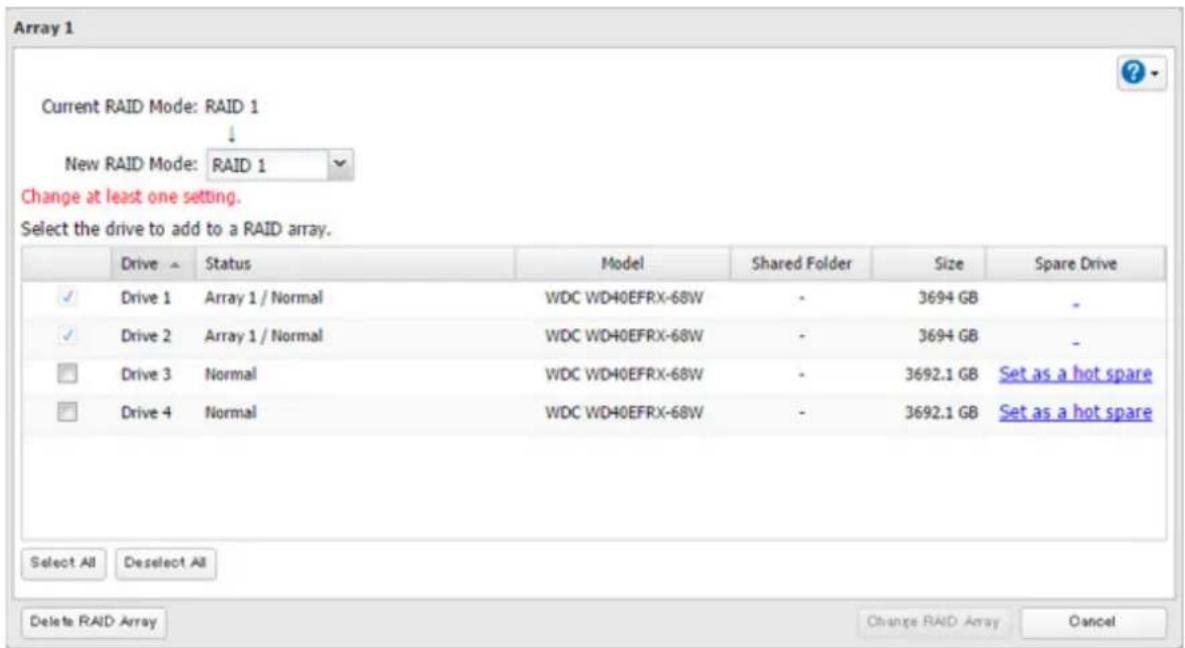
5 Click Change RAID Array.
6 The "Confirm Operation" screen will open. Enter the confirmation number, then click OK.
7 Click OK when completed.
RAID Scanning
A RAID scan checks your RAID array for bad sectors and if it finds any, it automatically repairs them. Arrays other than RAID 0 are supported. For best results, run a RAID scan regularly.
1 From Settings, click Storage.

2 Move the RAID scanning switch to the position to enable RAID scanning.

3 Click to the right of "RAID Scanning".
4 Click Edit.
5 Select when to run the scan and click OK.
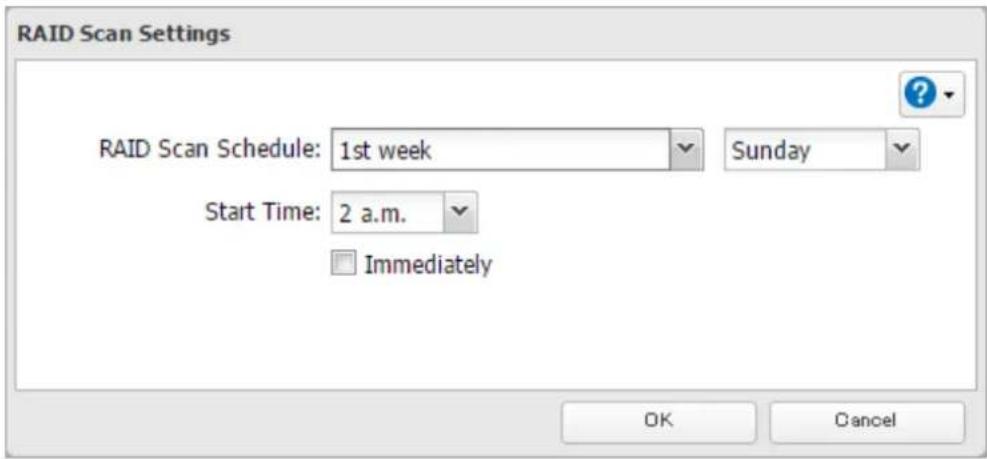
Notes:
- Select the "Immediately" checkbox to run a RAID scan immediately.
• To stop a RAID scan, click Cancel RAID Scan.
Adding an External Drive
Connecting an External Drive
Your TeraStation includes USB ports (the number of ports depends on your model), and you can connect external drives to these ports. Once connected, they appear as shared folders on the TeraStation. Formatted drives are detected automatically. Unformatted drives should be formatted in Settings.
After a USB drive is recognized, the TeraStation adds "usbdisk x" to the shared folder list, where "x" is the USB port to which the drive is connected.
Compatibility
Supported file systems for external USB drives are below:
| File Systems Recommended Situation | |
| XFS Connecting to another Buffalo NAS device. | |
| Ext3 Connecting to another Buffalo NAS device that is a TS-X or older model. | |
| NTFS* | Connecting to Windows computers. The NTFS-formatted drive can use many more functions of the operating system than an exFAT drive. |
| HFS Plus*,** | Connecting to Mac computers. The HFS Plus-formatted drive can use many more functions of the operating system than an exFAT drive. |
| exFAT* | Connecting to both Windows and Mac computers. |
| FAT32 Connecting to both Windows and Mac computers. | |
*This cannot be formatted from Settings.
**This is read-only from the TeraStation. Files on the USB drive can be copied to the TeraStation.
Connect only one device to each USB port of the TeraStation. Note that only the first partition of a connected USB drive is mounted. Additional partitions are not recognized.
Notes:
- If your USB 3.0 drive is not reconfigured after rebooting the TeraStation, unplug and reconnect it.
- When copying a file that is over 100 MB to a FAT32-formatted USB drive using File Explorer, an error message may appear. In such a case, use an FTP or SFTP connection to copy the file.
- When copying files from a shared folder to a FAT32-formatted USB drive, the progress bar may not be displayed or the file copying may fail. Using a file system other than FAT32 is recommended for the USB drive.
Dismounting Drives
If the TeraStation is powered on, dismount drives (internal and external) before unplugging them. You may dismount external drives using the function button, or dismount any drive from Settings. If the TeraStation is off, then all drives are already dismounted and may be unplugged safely.
Note: Do not dismount internal drives while a RAID array is rebuilding or RMM is being configured. If you do, data on the drives may be lost.
Dismounting with the Function Button
When you press the function button, the TeraStation will beep once. Press and hold the button until the TeraStation beeps again and the button starts blinking blue. It will take about six seconds. When the dismount is completed, the function button will stop blinking and return to glowing. You may now unplug any USB drives safely.
After 60 seconds, the function button will go out and any drives that have not yet been unplugged will be remounted.
Dismounting from Settings
1 From Settings, click Storage.

2 Click Drives to dismount an internal drive or USB Drives to dismount an external drive.

3 Select the drive to dismount and click Dismount Drive.
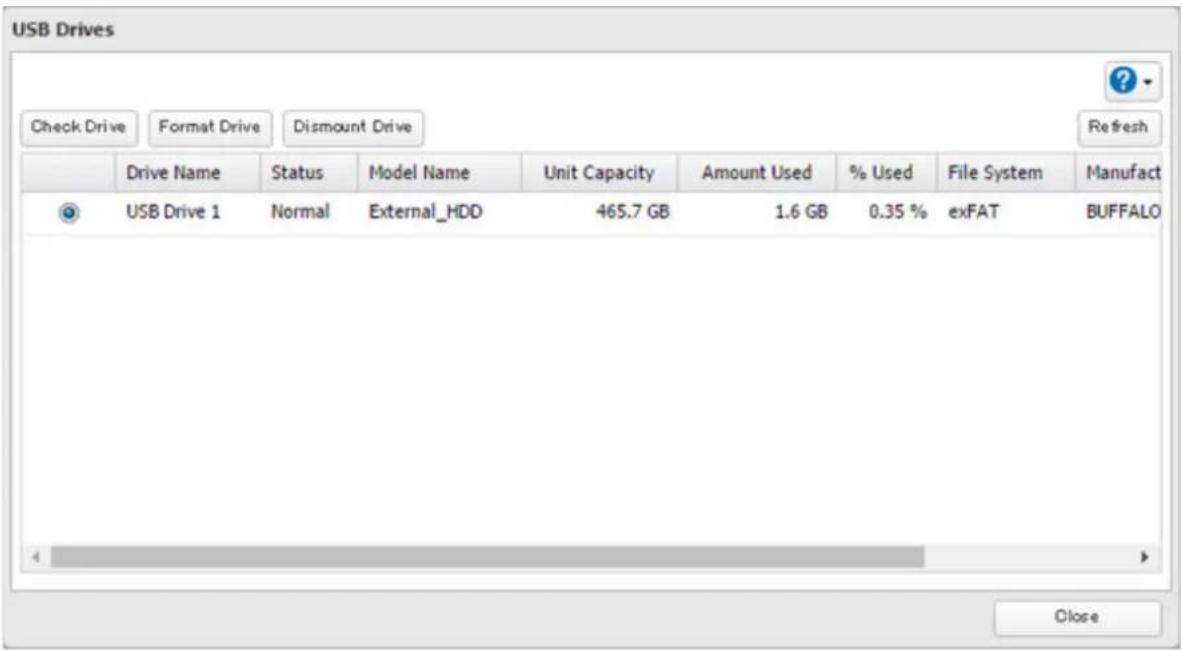
4 The "Confirm Operation" screen will open. Enter the confirmation number, then click OK.
5 When the dismounting process is completed, it is safe to unplug the drive. Disconnect the drive from the TeraStation.
Note: To remount the drive, unplug it and then plug it back in.
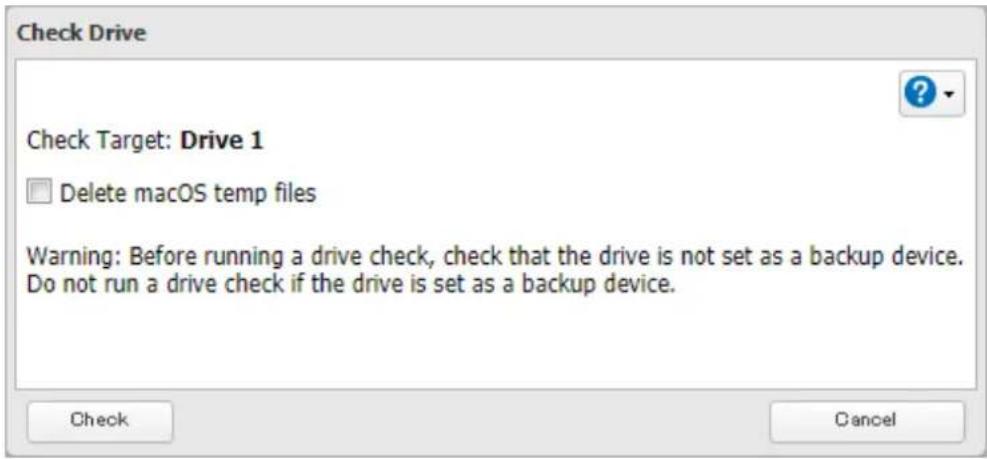
Checking Drives
A drive check tests the data on a drive in the TeraStation or one that is connected via USB for integrity. Errors are fixed automatically. With large drives, a drive check may run for many hours. Shared folders cannot be accessed during a drive check. Do not turn off the TeraStation until the drive check is finished. Use the procedure below to run a drive check.
1 From Settings, click Storage.

2 Select Drives to check an internal drive or USB Drives to check an external drive.

3 Select the drive or array to test, then click Check Drive.
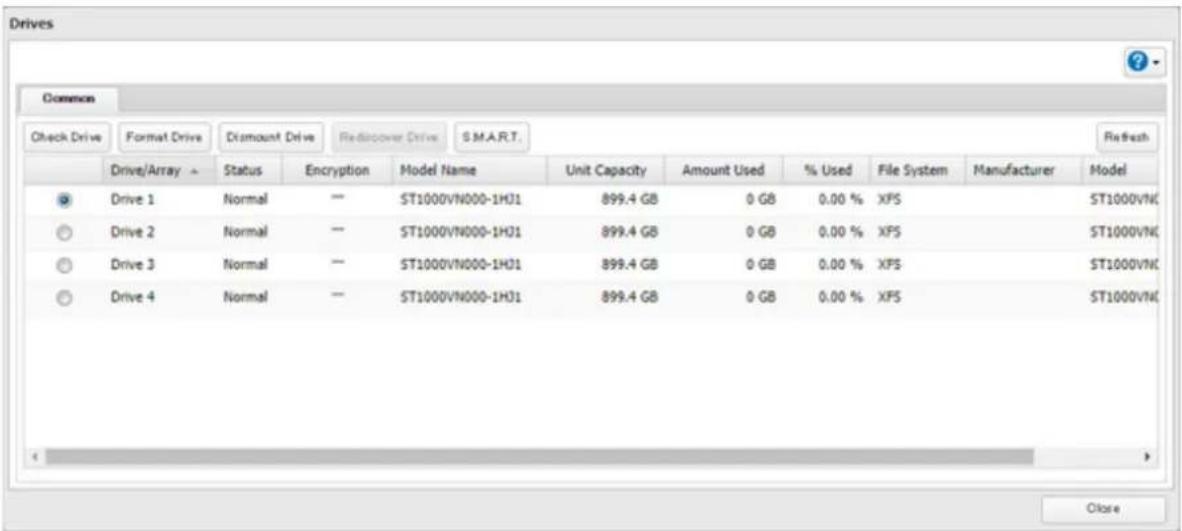
4 Click Check. You have the option of deleting information files from macOS during the check if desired.
S.M.A.R.T.
S.M.A.R.T. (Self-Monitoring, Analysis, and Reporting Technology) monitors internal drives to detect and report various indicators of reliability, in the hope of anticipating failures. When a failure is anticipated by S.M.A.R.T., the user may choose to replace the drive to avoid outages and data loss. Follow the procedure below to check S.M.A.R.T. information for the TeraStation's internal drives.
Note: S.M.A.R.T. information is only available for internal drives.
Displaying S.M.A.R.T. Information
1 From Settings, click Storage.

2 Click to the right of "Drives".

3 Select a drive to check and click S.M.A.R.T.
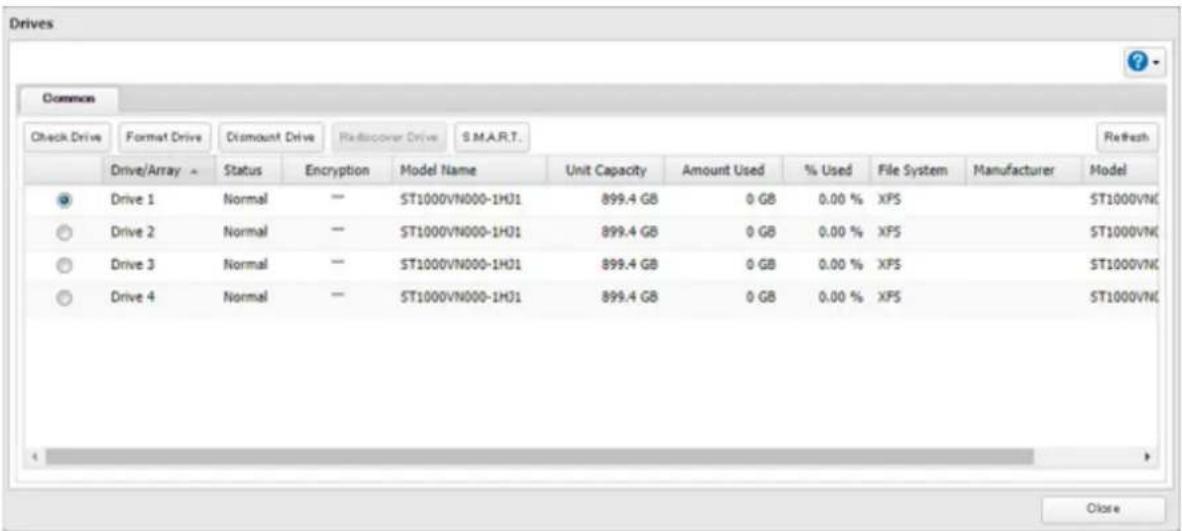
4 The S.M.A.R.T. information for the drive will be displayed. Different information may be displayed depending on the brand of drives in your TeraStation. Critical attributes are displayed in bold.
![S.M.A.R.T. Drive 1 Model: ST1000VN000-1HJ162 Serial Number: W513BYVB Capacity: 1,000,204,886,016 bytes [1.00 TB] Firmware Version: SC60 Filter: ID Attribute Status Current Value Worst Value Threshold Value Raw Value 1 Raw_Read_Error_Rate OK 117 100 6 123486608 3 Spin_Up_Time OK 96 96 0 0 4 Start_Stop_Count OK 100 100 20 147 5 Reallocated_Sector_Ct OK 100 100 10 0 7 Seek_Error_Rate OK 71 60 30 13087519 9 Power_On_Hours OK 96 96 0 3742 10 Spin_Retry_Count OK 100 100 97 0 12 Power_Cycle_Count OK 100 100 20 147 184 End-to-End_Error OK 100 100 99 0 187 Reported_Uncorrect OK 100 100 0 0 188 Command_Timeout OK 100 100 0 0 Close](/content/2026/05/811647/images/61aa67500f619d394f05eddb69052fe747f81b7e9a510b354a5918eb63197804.jpg)
Checking Drive Condition
Attributes with the worst value that is equal to or less than the threshold value may be significant. If an attribute reports a failure, or has had one in the past, it will be displayed in the status column. In such a case, replacing that drive is recommended.
Formatting Drives
Note: Under some circumstances, data deleted when a drive is formatted can be recovered. To ensure that data is "gone forever", a format might not be sufficient. Refer to the "Erasing Data on the TeraStation Completely" section below.
1 From Settings, click Storage.

Storage
2 Select Drives to format an internal drive or USB Drives to format an external drive.

3 Select the drive or array to format, then click Format Drive.
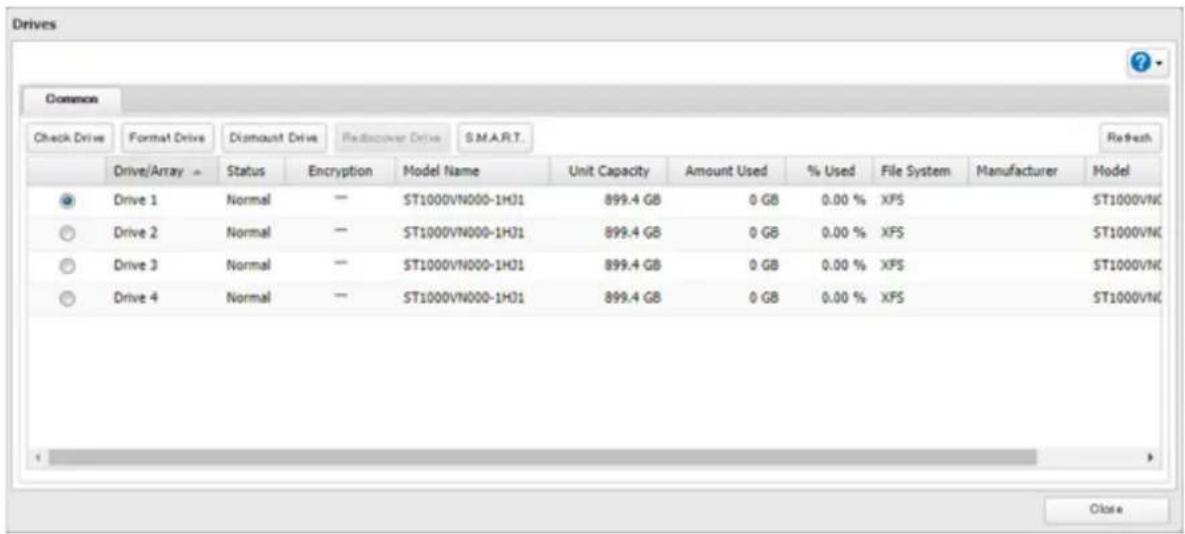
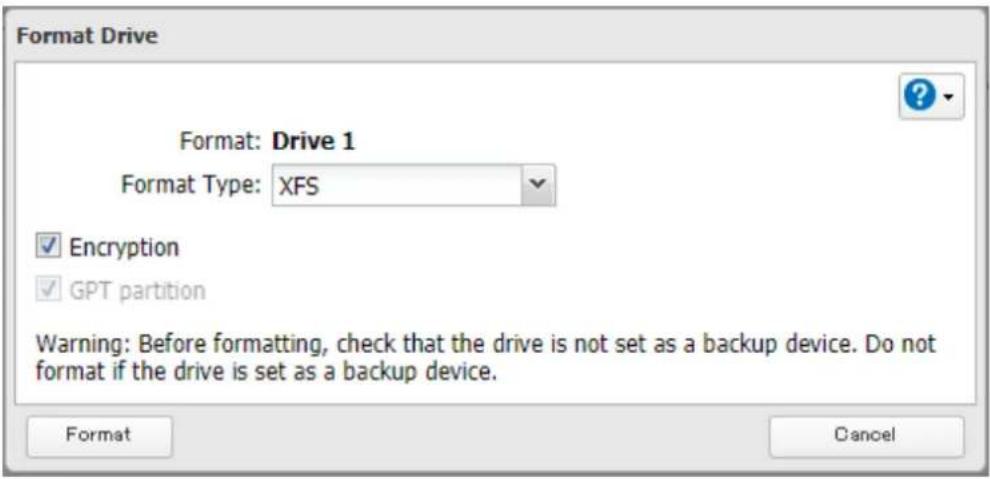
4 Select a format type, then click Format.
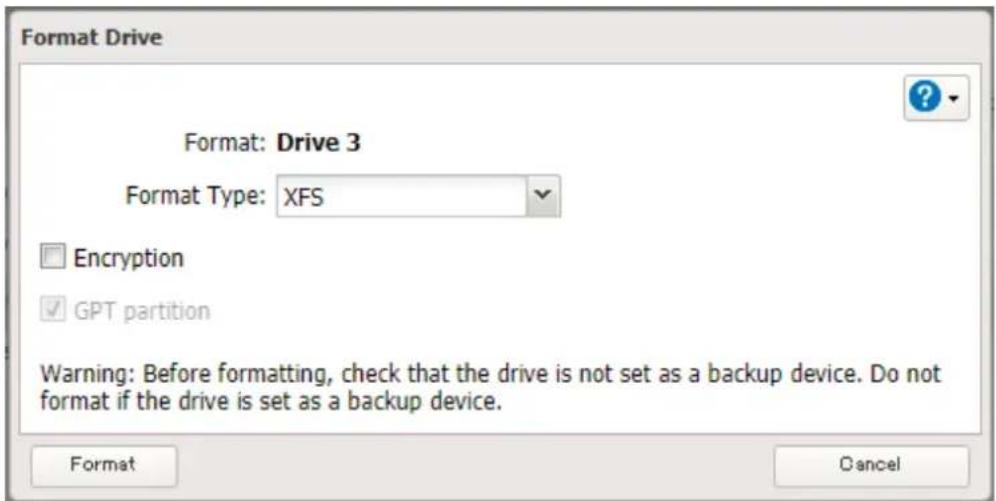
5 The "Confirm Operation" screen will open. Enter the confirmation number, then click OK.
Chapter 4 Storage Management
6 Depending on the size and the formatted file system of your drive, the format may take several minutes or several hours to complete. "Formatting" will be displayed in Settings or NAS Navigator2 until the format is completed. Click OK when completed.
Notes:
- Do not turn off or disconnect power to the TeraStation while formatting a drive.
- For drives of 2.2 TB or larger, make sure that the "GPT partition" checkbox is selected.
Encrypting Drives
Internal drives (and arrays) can be encrypted with 256-bit AES during formatting. Encrypted drives and arrays are then readable only from that specific TeraStation. To decrypt a drive or array, clear the "Encryption" checkbox and format it again.
Erasing Data on the TeraStation Completely
Under some circumstances, data from formatted drives can be recovered. The drive erasure process in this section does a much more thorough job of erasing data. This procedure is recommended for removing all data from a drive in a way that makes it nearly impossible to recover with current tools. The TeraStation will then be in the following state:
• All drives in JBOD
• An empty shared folder on each drive
- All settings returned to their default values
- All logs deleted
If you remove a drive and then erase all data on the TeraStation, Settings or NAS Navigator2 will show the E22 message and the number of the removed drive. You can still use the TeraStation.
Follow the procedure below to completely and permanently erase all data from your TeraStation.
1 From Settings, click Management.

Management
2 Click to the right of "Restore/Erase".

Restore/Erase

3 Click Erase TeraStation.
Erase
This will erase all data and settings and return the TeraStation to its factory defaults. Erased data cannot be restored. Several hours will be required for this process.
Erase TeraStation
4 The "Confirm Operation" screen will open. Enter the confirmation number, then click OK.
5 All data on the TeraStation will be permanently erased.
Drive Quotas
You can set a drive quota to limit drive space for each user or group. You can also set a threshold. If the drive space exceeds the configured threshold, an email notification will be sent. To configure email notifications for the drive quota, refer to the "Email Notification" section in chapter 7.
Notes:
- When using quotas, disable the recycle bin or empty the trash folder often. The limited space includes the space used for trash.
- Quotas apply per drive or per array. If a quota is set to 1 GB, each array or drive can use a maximum of 1 GB.
- Quotas cannot be set for external drives connected to the TeraStation.
- If both user and group quotas are configured for a user, the most restrictive quota will always apply.
- When joined to a domain, only local users and groups will be able to set quotas. Domain users and groups will be able to configure access restrictions for shares but cannot set quotas.
Quotas for Users
Follow this procedure to limit the shared folder drive space available for a user.
1 From Settings, click File Sharing.

File Sharing
2 Click to the right of "Users".

Users

2 Local Users
3 Select the user that will be given a quota and click Edit. If you want to set a quota for a new user, create a user by referring to the "Adding a User" section in chapter 3.
Chapter 4 Storage Management
4 Enable quotas, choose the alert and the maximum amount of space the user will be allowed to use, and click OK.
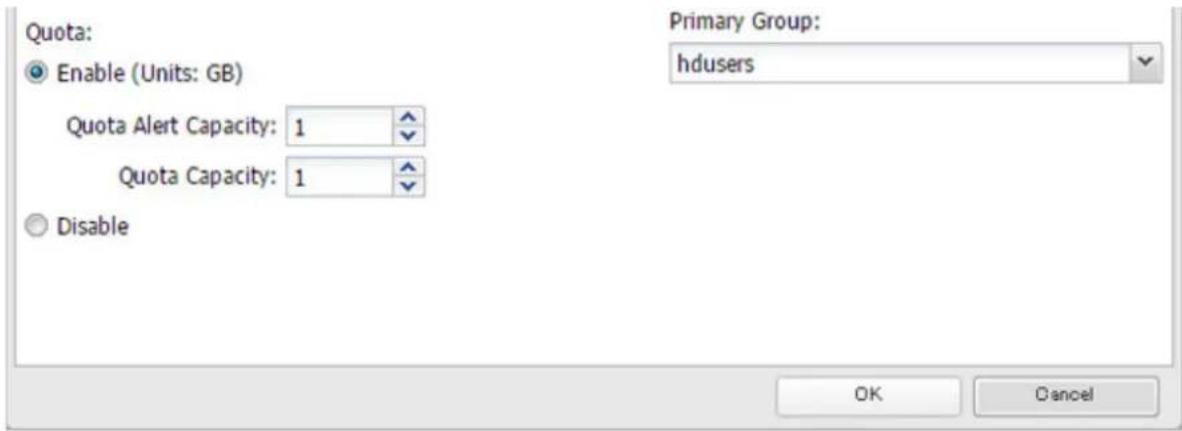
Note: If you change the primary group, restart the TeraStation to apply the quota settings.
Quotas for Groups
Follow the procedure below to limit the space for shared folders that each group can use.
1 From Settings, click File Sharing.

2 Click to the right of "Groups".

3 Select the group that will be given a quota and click Edit. If you want to set a quota for a new group, create a group by referring to the "Adding a Group" section in chapter 3.
4 Enable quotas, choose the alert and the maximum amount of space the group will be allowed to use, and click OK.
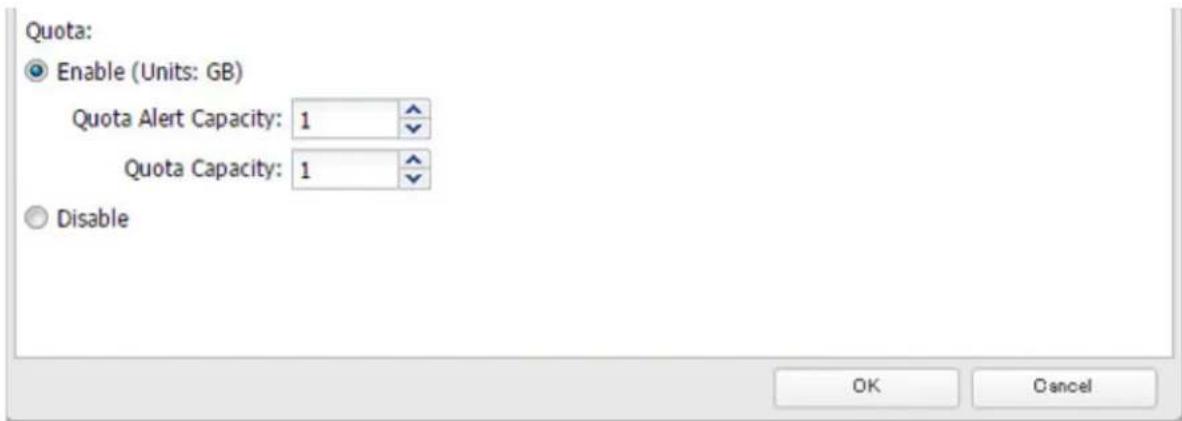
5 Click Close.
6 Click to the right of "Users".

Users

2 Local Users
7 Select the user that will inherit the group quota settings and click Edit. If you want to add a new user to a group with a quota, create a user by referring to the "Adding a User" section in chapter 3.
8 Select the group's checkbox to join and change the user's primary group to the group with the quota, then click OK.
9 Click Close.
10 Click at the top-right of Settings and select Restart.
Size Limits
If LVM is enabled, volumes can be created with maximum size limits.
Notes:
- When creating an LVM volume, all data in the area where you specified for the LVM volume will be erased. Before changing any settings, back up any important data.
- Do not use any of the following words for the name of a volume as these words are reserved for internal use by the TeraStation: array x, authtest, disk x, global, homes, info, lost+found, lp, mediacartridge x, msdfs_root, mt-daapd, printers, ram, spool, usbdisk x. Any instances of "x" denote a number (for example: array1 or disk3)
1 From Settings, click Storage.

Storage
2 Click to the right of "LVM".

LVM

3 Select the drive or array where the volume will be located and click Enable LVM.
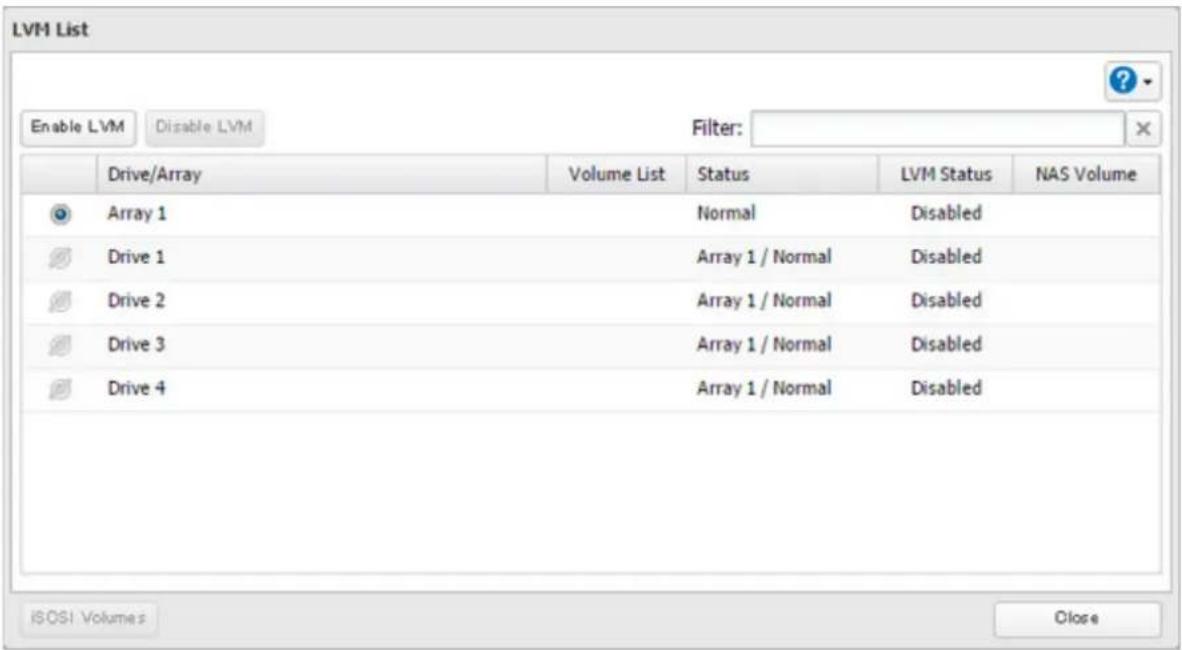
4 The "Confirm Operation" screen will open. Enter the confirmation number, then click OK.
5 Click OK.
6 Click Edit under "NAS Volume".
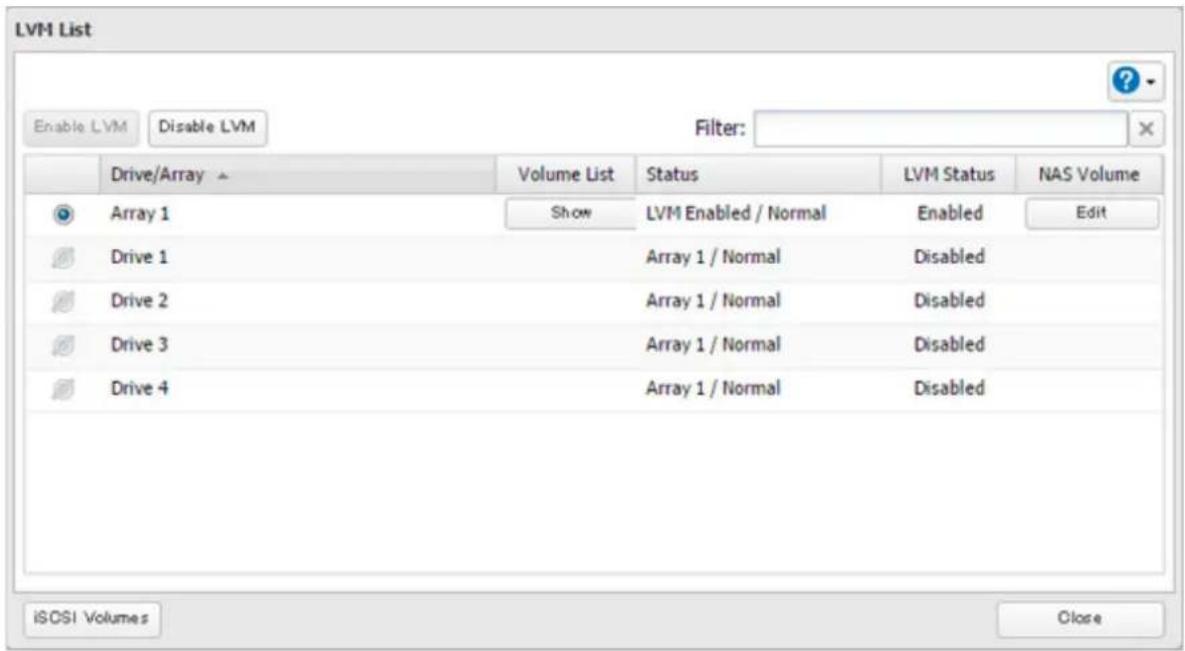
Chapter 4 Storage Management
7 Click Create Volume.
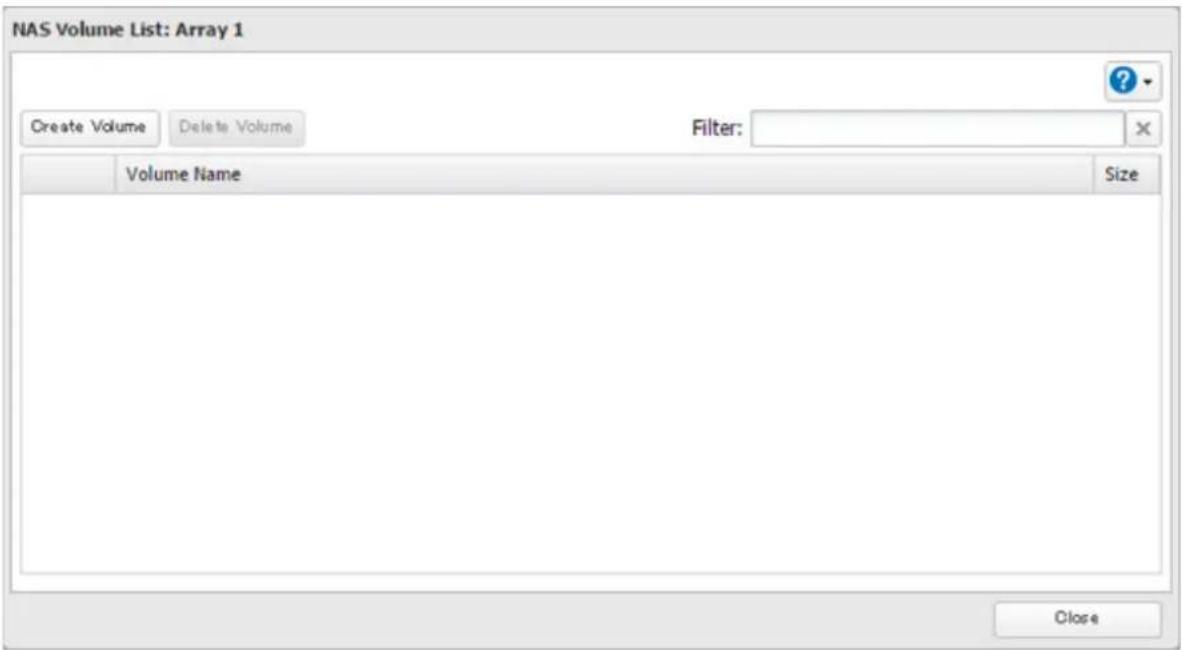
8 Configure the desired settings, then click OK.
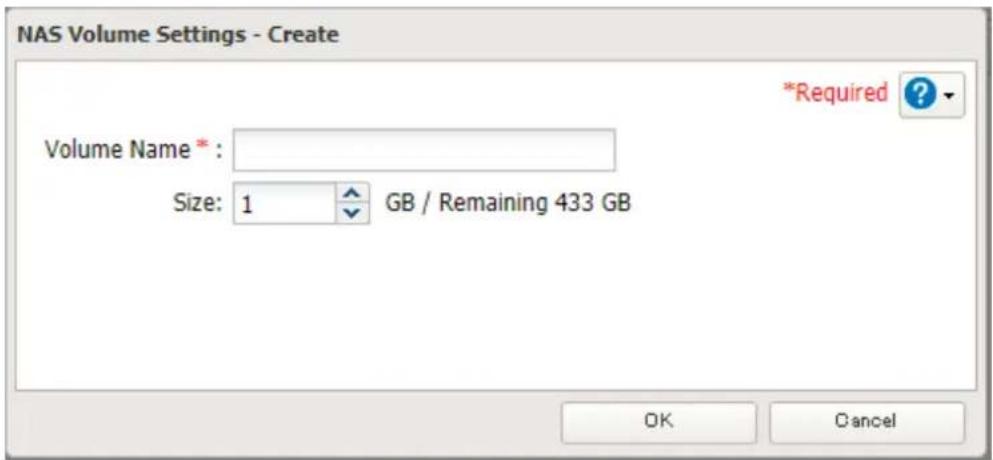
9 Click OK.
10 Click Close, then click Close again.
11 Navigate to File Sharing > Folder Setup.

12 Click Create Folder.
13 Configure the settings.
14 Select the volume that you created for "Drive/Array" on the Basic tab and click OK.
Notes:
- If you click Show under "Volume List", the volumes will be listed on the screen and you can see if these volumes are being used as iSCSI or NAS.
- If an LVM volume could not be mounted, try restarting the TeraStation. If an issue still exists, delete and recreate the LVM volume. Deleting the LVM volume will erase data on the volume.
Using the TeraStation as an iSCSI Device
Introduction
iSCSI is a protocol for carrying SCSI commands over IP networks. Unlike traditional SAN protocols such as Fibre Channel, which requires special-purpose cabling, iSCSI can be run over long distances using existing network infrastructure. Normal Windows formatting such as NTFS is supported.
Differences Between NAS and iSCSI
With iSCSI, the TeraStation is connected to a single computer, such as a server. Other computers on the network access files on the TeraStation through the computer it's connected to. The TeraStation can be used as a local drive from Windows Server. Features of Windows Server such as Active Directory can be used normally.
As a NAS, the TeraStation is a server, and computers (including other servers) on the network can access shared folders on it directly. A separate server is not required, and features such as backup are built-in.
Network Configuration
Use gigabit or faster network equipment with iSCSI. For best results, a dedicated network for iSCSI is recommended, separate from the regular network. By default, the IP address of the TeraStation is automatically assigned from a DHCP server. However, in this case, if you turn off and restart the TeraStation, the IP address may be changed and the volumes on the TeraStation may not be accessible. To avoid changing the IP address unexpectedly, using a static IP address for the TeraStation is recommended.
Connection Tool
The Microsoft iSCSI Software Initiator is already installed on your computer. You don't need to download and install it.
Creating an iSCSI Volume
To use the TeraStation as an iSCSI drive, create a volume first. Configure the TeraStation as described below.
Notes:
- If the volume settings are changed, all data on the volume will be erased. Before changing any settings, back up any important data.
- The TeraStation can have up to 255 volumes, but we recommend creating no more than 32. Exceeding this volume amount may cause irreparable damage to the unit.
- Do not use any of the following words for the name of a volume as these words are reserved for internal use by the TeraStation: array x, authtest, disk x, global, homes, info, lost+found, lp, mediacartridge x, msdfs_root, mt-daapd, printers, ram, spool, usbdisk x. Any instances of "x" denote a number (for example: array1 or disk3)
Chapter 4 Storage Management
1 From Settings, click Storage.

Storage
2 Move the iSCSI switch to the position to enable iSCSI.

iSCSI


3 Click to the right of "iSCSI".
4 Click Create Volume.
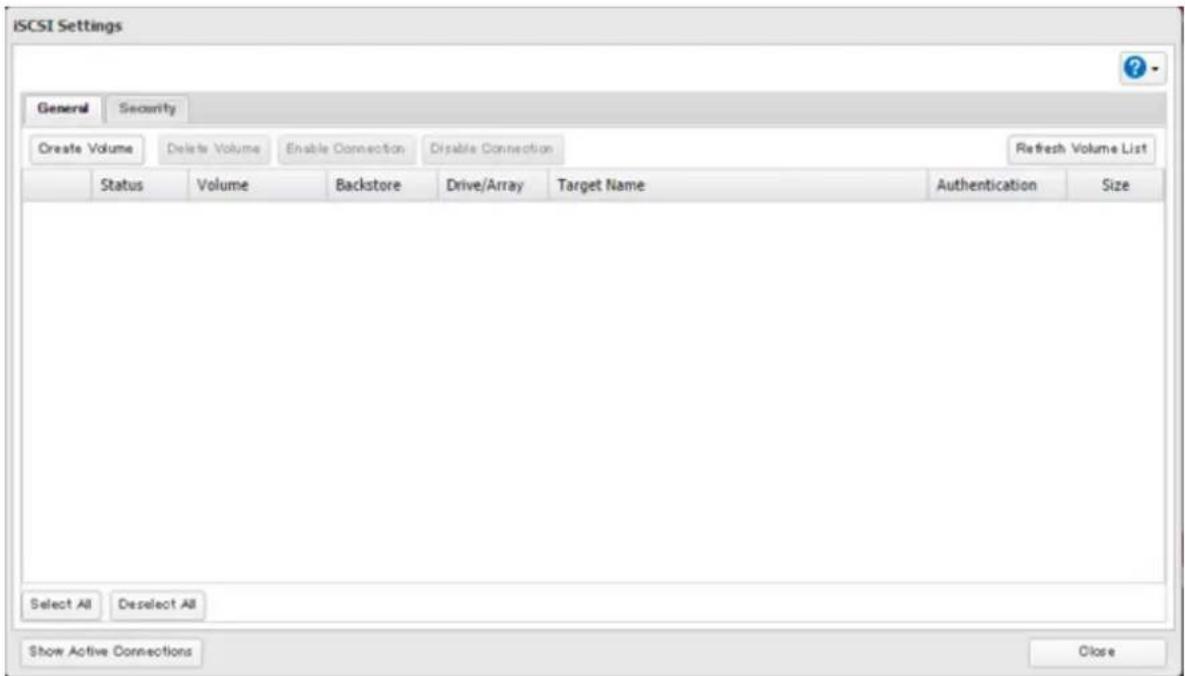
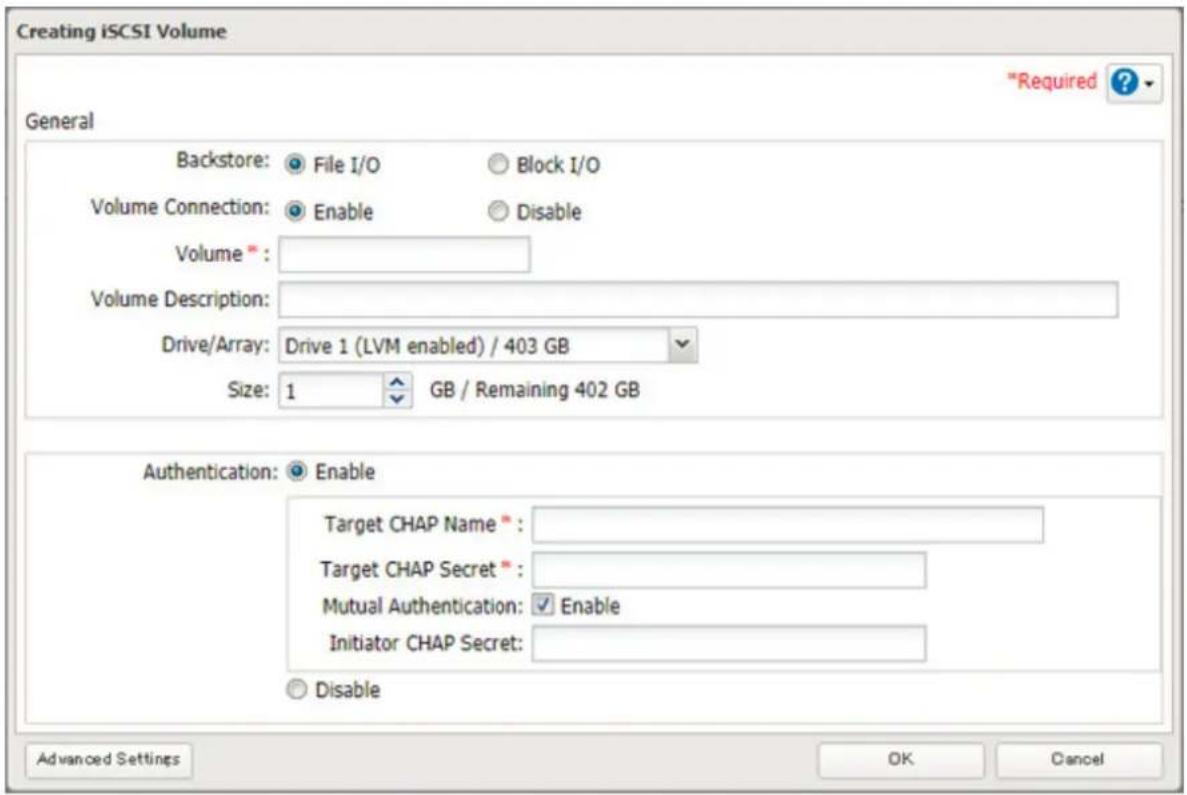
5 Enter a volume name, volume description, drive or array where a volume will be created, and volume size. Click OK when completed.
If you enabled LVM for the target drive or array, or selected "File I/O" for the "Backstore" option, the volume size that you specify here can be changed later. To change the volume size, refer to the "Expanding Volume Sizes" section below.
6 Click OK, then click OK again.
Notes:
- If you click Disable Connection for the selected volume in Storage > iSCSI in Settings, the selected iSCSI volume can no longer be accessed. If you click Enable Connection, the volume will become accessible from the iSCSI initiator software.
- If you selected "Block I/O" for the "Backstore" option, write cache (WCE) cannot be configured from the "Advanced Settings" page.
Connecting or Disconnecting Volumes
Connecting Volumes
To connect a volume, follow the procedure below.
Note: Do not shut down the TeraStation while connecting to an iSCSI volume. It may cause unexpected data erasure. Make sure all connections are disconnected before shutdown.
1 From Windows, navigate to Control Panel > System and Security > Administrative Tools > iSCSI Initiator.
2 Enter the IP address of the TeraStation into the "Target" field and click Quick Connect.
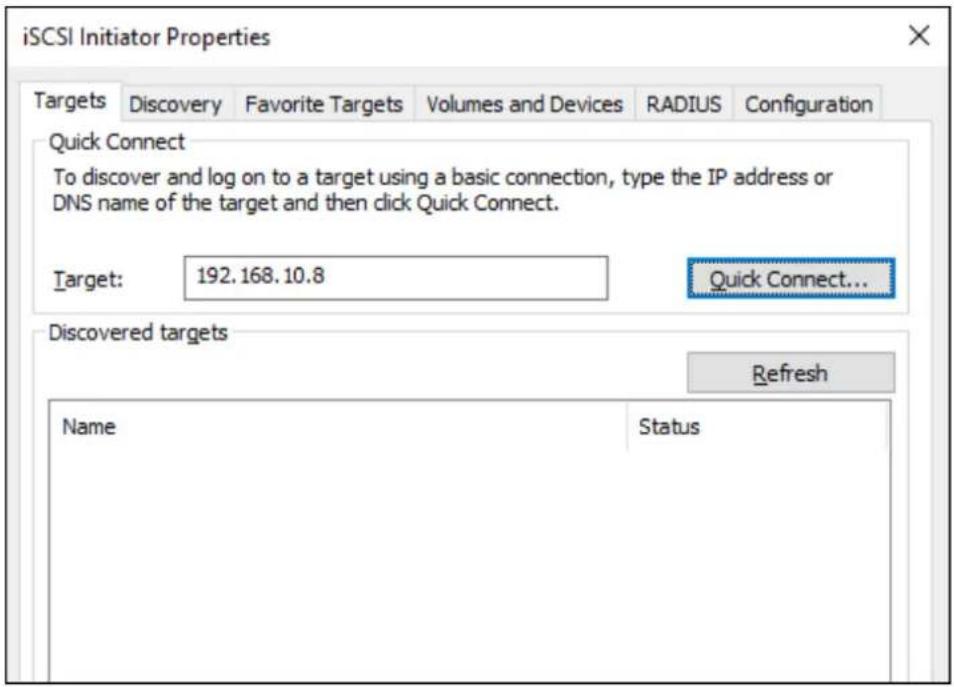
3 Confirm if the connection is established and click Done.
Formatting Volumes
If using the connected volume for the first time, the volume should be formatted to be used as a local drive. Follow the procedure below for formatting.
1 From Windows, navigate to Control Panel > System and Security > Administrative Tools > Computer Management.
2 Click Disk Management.
When the "Initialize Disk" screen appears, click OK without changing any settings.
3 Right-click the drive volume that shows the status "Unallocated" and click New Simple Volume from the displayed menu. Follow the screen to finish formatting.
When the formatting process is completed, the drive will be visible as an icon in Computer or This PC and can be used as a normal drive on the computer.
Disconnecting a Volume
1 From Windows, navigate to Control Panel > System and Security > Administrative Tools > iSCSI Initiator. The status of the connecting volume will be displayed as "Connected" under "Discovered targets".
2 Select a volume to disconnect and click Disconnect.
3 Click Yes.
4 When the volume status is displayed as "Inactive", the disconnection was carried out properly.
Using with Multiple Computers
If the TeraStation is divided into multiple volumes (or drives), it can be used with multiple computers. However, it is not recommended to access a single volume or a drive from multiple computers at the same time for security reasons.
When using the TeraStation as an iSCSI device, it should only connect to a single initiator unless the computer running the initiator also has clustering enabled and configured on its operating system. To avoid using multiple initiators for access, enable mutual authentication.
Checking Whether iSCSI Volume Is Connected
To check whether an iSCSI volume is connected, navigate to Storage > iSCSI. Current volumes will be listed. If "Connected" is displayed under "Status", the volume is currently connected to the client.
Configuring Access Restrictions
A CHAP name and secret can be configured for the entire iSCSI volume or each existing volume. Access restrictions can be configured so that entering a target CHAP name and secret is required for each connection.
The TeraStation can perform mutual authentication (two-way authentication). Dual passwords ensure that only authorized client computers can access the volume on the TeraStation.
Follow the procedure below to enable access restrictions.
Configuring Access Restrictions for the Entire TeraStation
1 From Settings, click Storage.

2 Click to the right of "iSCSI".

3 Click the Security tab.
4 Click Edit under "Access Control (Target Discovery)".
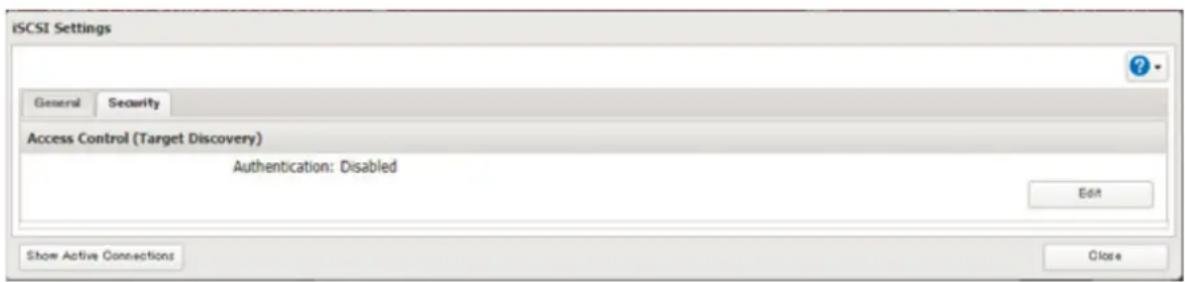
5 Enable authentication, enter the target CHAP name and secret, and click OK.
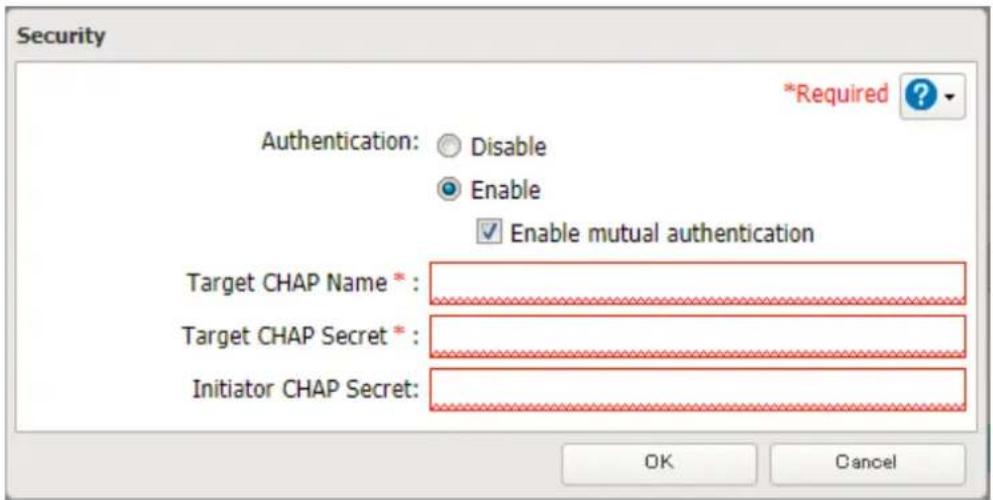
Note: To enable mutual authentication in addition to target CHAP name and secret authentication, select the "Enable mutual authentication" checkbox and enter the initiator CHAP secret.
To search or connect the volume which has mutual authentication enabled from Microsoft iSCSI Initiator, initiator CHAP secret settings should be configured.
6 Click OK when completed.
Connecting Volumes on the Access-Restricted TeraStation
If access restrictions are configured for the entire iSCSI volume, that volume will not be detected by Microsoft iSCSI Initiator. To connect that volume, the target CHAP name and secret should be authenticated.
1 Open the Microsoft iSCSI Initiator.
2 Register the initiator CHAP secret to your computer first. If you didn't enable mutual authentication, skip this step.
Click CHAP on the Configuration tab. Enter the configured initiator CHAP secret into the "Initiator CHAP secret" field and click OK.
3 From the Discovery tab, click Discover Portal.
4 Enter the TeraStation's IP address into the "IP address or DNS name" field and click Advanced.
5 Select the "Enable CHAP log on" checkbox and enter the target CHAP name into the "Name" field and the target CHAP secret into the "Target secret" field.
If mutual authentication is enabled, select the "Perform mutual authentication" checkbox.
6 Click OK, then click OK again.
7 The iSCSI volumes on the TeraStation will be listed under "Discovered targets" on the Targets tab. Select the desired volume to connect and click Connect.
8 Click OK.
9 When the status of the selected volume is displayed as "Connected", the connection is established properly.
Configuring Access Restrictions for Individual Volumes
If access restrictions are configured for a volume, that volume cannot be accessed unless the target CHAP name and secret are authenticated.
1 From Settings, click Storage.

2 Click to the right of "iSCSI".

3 Click the volume to enable access restrictions.
4 Enable authentication, enter the target CHAP name and secret, and click OK.
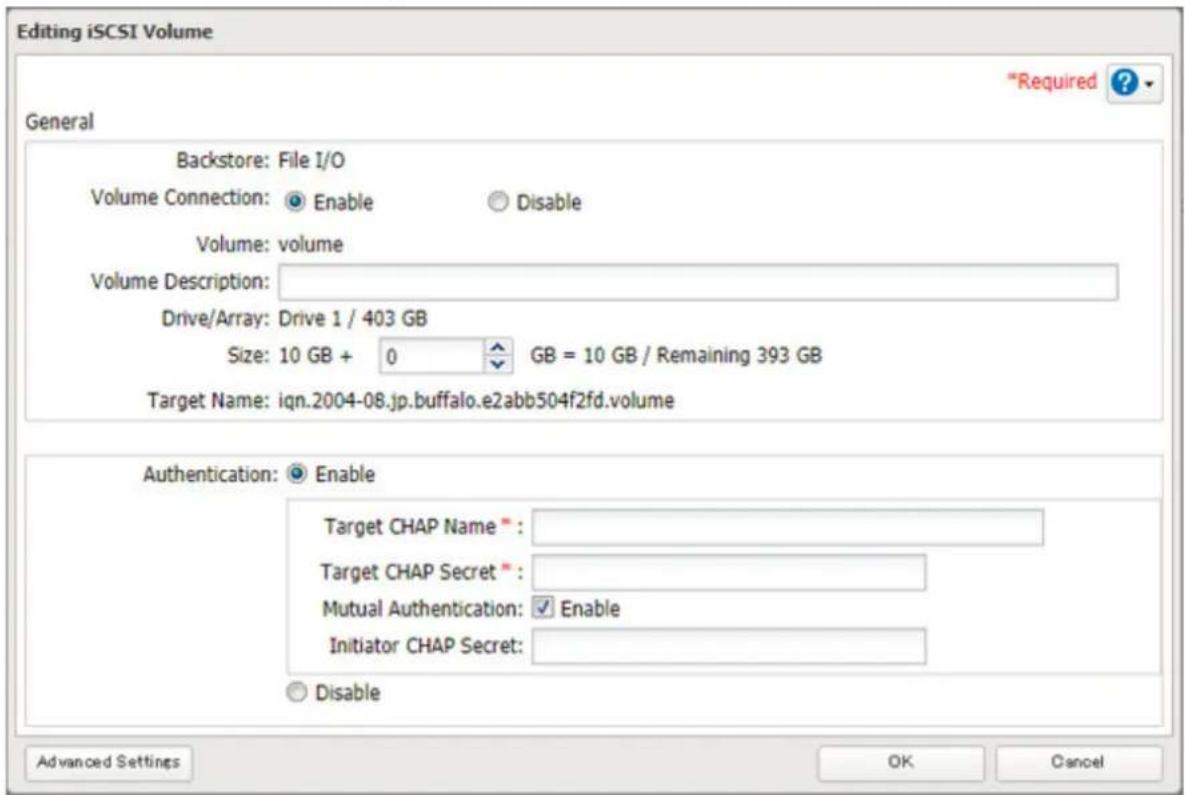
Note: To enable mutual authentication, select the "Enable" checkbox to the right of "Mutual Authentication" and enter the initiator CHAP secret.
5 Click OK when completed.
Connecting to Individual Volumes that Are Access-Restricted
1 Open the Microsoft iSCSI Initiator.
2 Register the initiator CHAP secret to your computer first. If you didn't enable mutual authentication, skip this step.
Click CHAP on the Configuration tab. Enter the configured initiator CHAP secret into the "Initiator CHAP secret" field and click OK.
3 From the Discovery tab, click Discover Portal.
4 Enter the TeraStation's IP address into the "IP address or DNS name" field and click OK.
5 The iSCSI volumes on the TeraStation will be listed under "Discovered targets" on the Targets tab. Select the desired volume to connect and click Connect.
6 Click Advanced.
7 Select the "Enable CHAP log on" checkbox and enter the target CHAP name into the "Name" field and the target CHAP secret into the "Target secret" field.
If mutual authentication is enabled, select the "Perform mutual authentication" checkbox.
8 Click OK, then click OK again.
9 When the status of the selected volume is displayed as "Connected", the connection is established properly.
Expanding Volume Sizes
The volume size of the existing volumes can be expanded after they are created.
Notes:
- Expanding the volume size may erase all data on the volume depending on the formatting type. Backing up the data before expanding the volume size is recommended.
- To expand the volume size, the volume should have "File I/O" selected for the "Backstore" option, or the volume needs to have been created in a drive or array with LVM enabled.
1 From Settings, click Storage.

2 Click to the right of "iSCSI".

3 Select the volume to expand.
4 Enter the desired volume size to add and click OK.
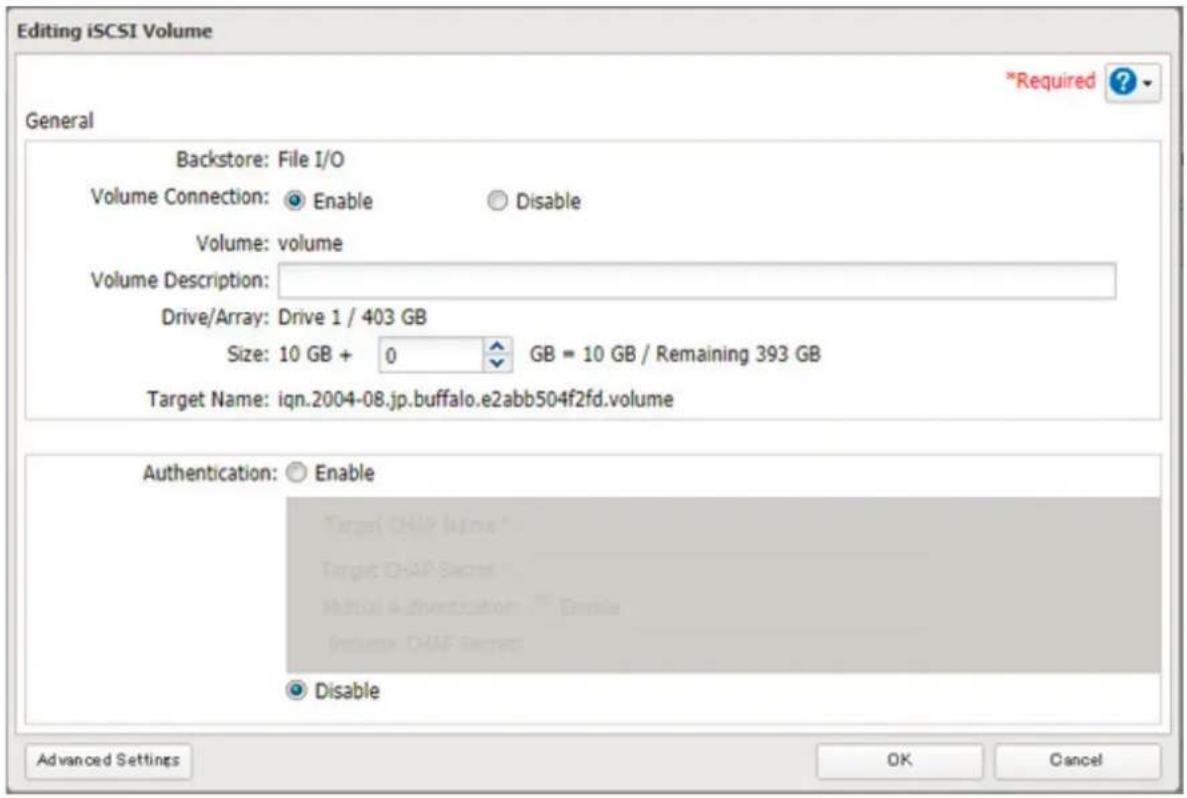
5 Click OK.
Deleting Volumes
To delete an existing volume, follow the procedure below.
Note: Deleting a volume will erase all data on the volume. Back up the data before deleting the volume.
1 From Settings, click Storage.

2 Click to the right of "iSCSI".

3 Select the volume to delete and click Delete Volume.
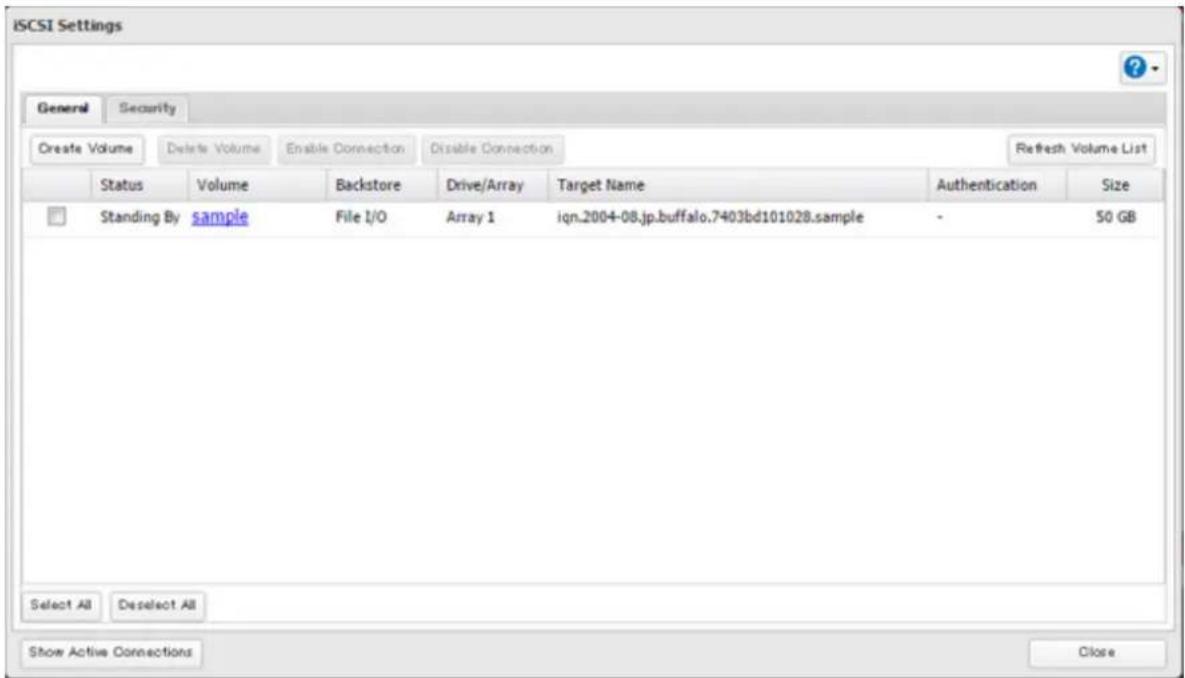
4 Confirm that the volume is correctly selected on the screen and click OK.
5 The "Confirm Operation" screen will open. Enter the confirmation number, then click OK.
6 Click OK.
Advanced Settings
You can configure the following advanced parameters for each iSCSI volume.
| Advanced Parameter Description | |
| HeaderDigest Controls the Header | erDigest usage by the iSCSI target portal group endpoint. |
| DataDigest Controls the DataDig | est usage by the iSCSI target portal group (TPG) endpoint. |
| MaxConnections | Controls the usage of Multiple Connections per Session (MC/S). Initiator and target negotiate the maximum number of connections requested and/or acceptable. |
| InitialR2T | Turns on or off the default use of R2T (Ready to Transfer) for unidirectional and the output part of bidirectional commands. |
| ImmediateData | Indicates whether the initiator and target have agreed to support immediate data on this session. |
| MaxRecvDataSegmentLength | Maximum data segment length in bytes the initiator and target can receive in an iSCSI Protocol Data Unit (PDU). |
| MaxXmitDataSegmentLength M | Maximum data segment length in bytes that can be sent. |
| MaxBurstLength | Maximum iSCSI data payload in a Data-In or a solicited Data-Out iSCSI sequence, in bytes. |
| FirstBurstLength | Maximum amount in bytes of unsolicited data an iSCSI initiator can send to the target during the execution of a single SCSI command. |
| MaxOutstandingR2T The R2T PD | Us that can be in transition before an acknowledge PDU is received. |
| QueuedCommands Maximum n | number of commands queued to any session of this target. |
| File I/O Write Sync | Synchronous file I/O provides reliability but slower performance. Asynchronous writes are faster, but buffered data will be lost if a power outage occurs. |
Chapter 4 Storage Management
| Advanced Parameter Description |
| Write Cache (WCE) Increases performance. This cannot be used when block I/O is selected. |
| LUN Number used to identify a local unit. |
Backing Up Data on the TeraStation
You can back up the TeraStation folders to another shared folder on the same TeraStation, a connected USB drive, or a shared folder on another Buffalo NAS device, either on the same network or on another network.
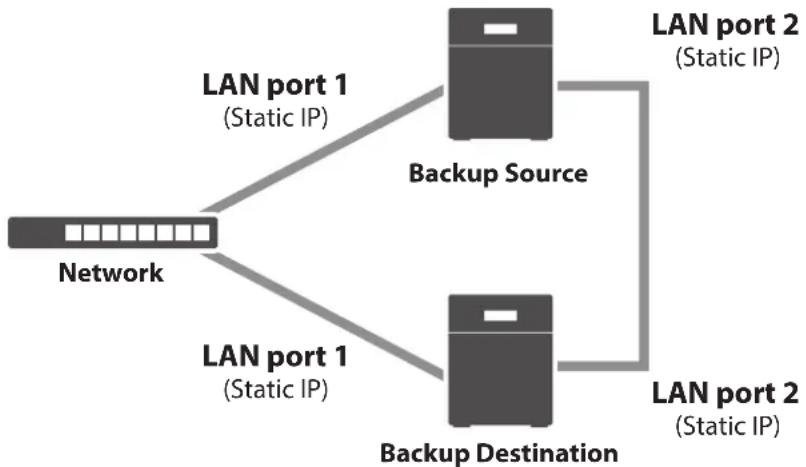
flowchart
graph TD
    A["Network"] -->|LAN port 1 (Static IP)| B["Backup Source"]
    A -->|LAN port 1 (Static IP)| C["Backup Destination"]
    B -->|LAN port 2 (Static IP)| C
The following describes what can be configured as backup sources and backup destinations.
Folders Available as Backup Sources
- Shared folders on this TeraStation (excluding the "info" folder) ^*1
• USB drives connected to this TeraStation - Shared folders on another Buffalo NAS device ^2
- Shared folders on an rsync-compatible device
Folders Available as Backup Destinations
For normal and overwrite backups:
- Shared folders on this TeraStation (excluding the "info" folder) ^2
- USB drives connected to this TeraStation ^2,3
- Shared folders on another Buffalo NAS device *2,4
- Shared folders on an rsync-compatible device
For management backup:
- Shared folders on this TeraStation (excluding the "info" folder)
• USB drives connected to this TeraStation
*1 You can select up to the second level of folders. However, if the folder name of second level folders will become 80 bytes or more in total, that folder may not appear as the target folder.
*2 The "Backup" checkbox under "LAN Protocol Support" on the shared folder settings should be selected for the folder.
Chapter 5 Backup
*3 If the "Inherit subfolders' access restrictions" option is selected when creating a backup job, use XFS or ext3 file systems.
*4 If the "Inherit subfolders' access restrictions" option is selected when creating a backup job, the device should be a Buffalo NAS device whose subfolders' access restrictions is available.
Preparing a Backup Destination
First, configure a shared folder on a Buffalo NAS device or connected USB device as a backup destination. The following procedure explains using another shared folder on a TeraStation as a backup destination. The procedure may vary depending on which Buffalo NAS device is selected as a destination.
Note: If you want to set this TeraStation as the backup destination for an rsync-compatible device, refer to the "If Backing Up from rsync-Compatible Devices to the TeraStation" section instead of following the procedure below.
1 From Settings, click File Sharing.

File Sharing
2 Click to the right of "Folder Setup".

Folder Setup

1 Folders
3 Choose the folder to set as a backup destination.
4 Under "LAN Protocol Support", select the "Backup" checkbox on the Basic tab.
LAN Protocol Support:
SMB (Windows/Mac)
√ AFP (Mac)
FTP
Backup
SFTP
WebAccess
NFS
5 Click OK and proceed to the next step to create a backup device access key.
Note

The backup device access key is blank.
It is recommended that you set an access key for security. In order for another device to use this folder as a replication destination or backup source or destination, you must enter the access key under the setup for that function.
OK
6 Enter the desired characters into the backup device access key field and click OK.
Backup Device Access Key:
●●●●●●
Note: You may leave this field blank if you do not want a backup device access key, but for security reasons we highly recommend entering one for the shared folder. If a backup device access key is configured for the
shared folder, that folder will not show up as a target for the backup source or destination when configuring a backup job on another Buffalo NAS device unless it's entered. You may create multiple folders using different backup device access keys for backup and replication, but only one access key can be used on the TeraStation. Folders that are configured with a different access key cannot be used.
Configuring a Backup Job
You can configure backup jobs by using another shared folder on the Buffalo NAS device or a USB drive connected to the TeraStation as a destination. You can also back up to a Buffalo NAS device on another network as long as the two networks are connected by a VPN or the route is configured properly.
1 From Settings, click Backup.

2 Click to the right of "Backup".

3 If you had configured a backup device access key for the backup source folder on another Buffalo NAS device or the backup destination folder, click Set. If you hadn't, skip to step 5.
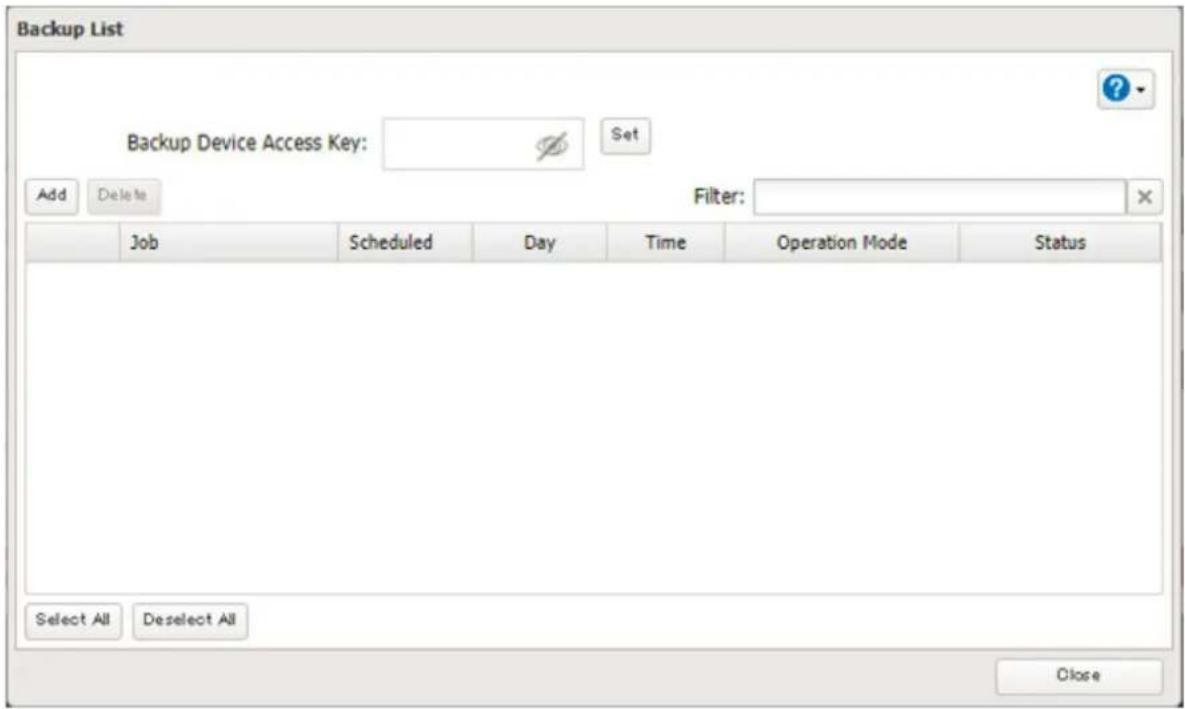
4 Enter the backup device access key and click OK.
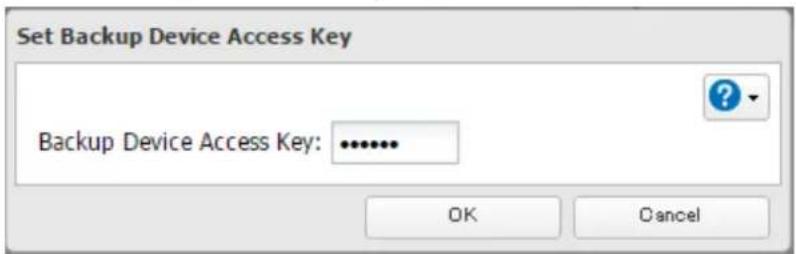
Chapter 5 Backup
5 Click Add.
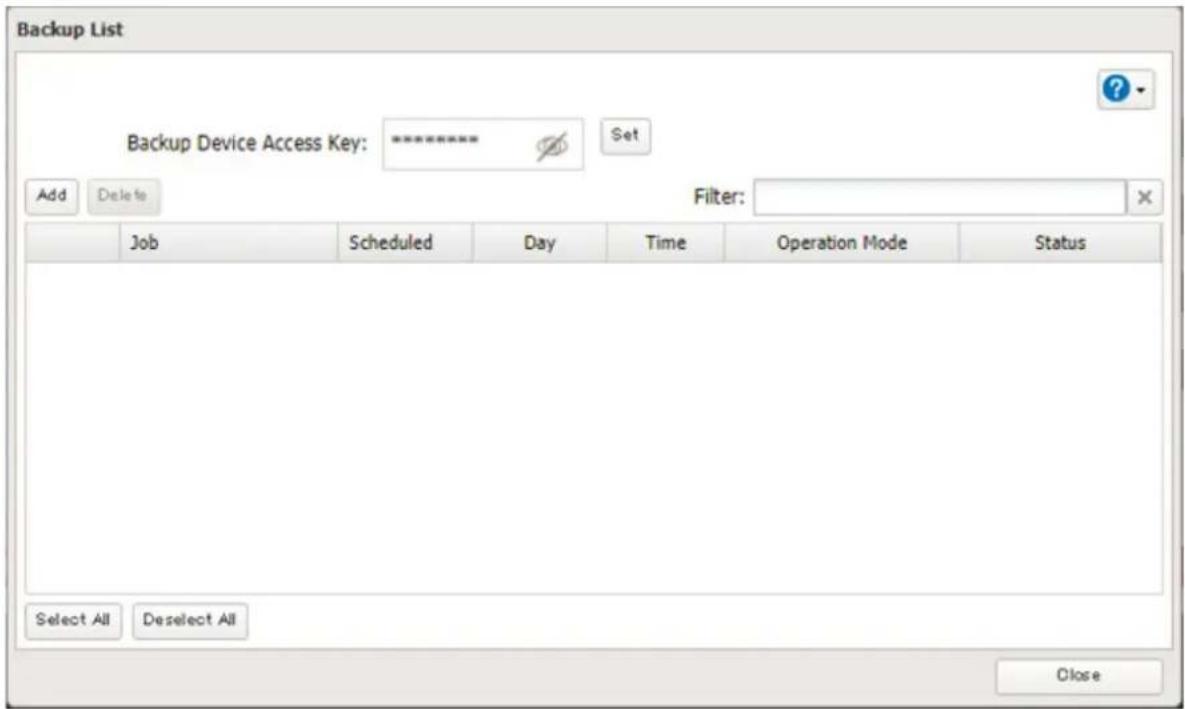
6 Select backup settings such as date and time to run. Refer to the differences between the backup modes in the following "Backup Modes" section.
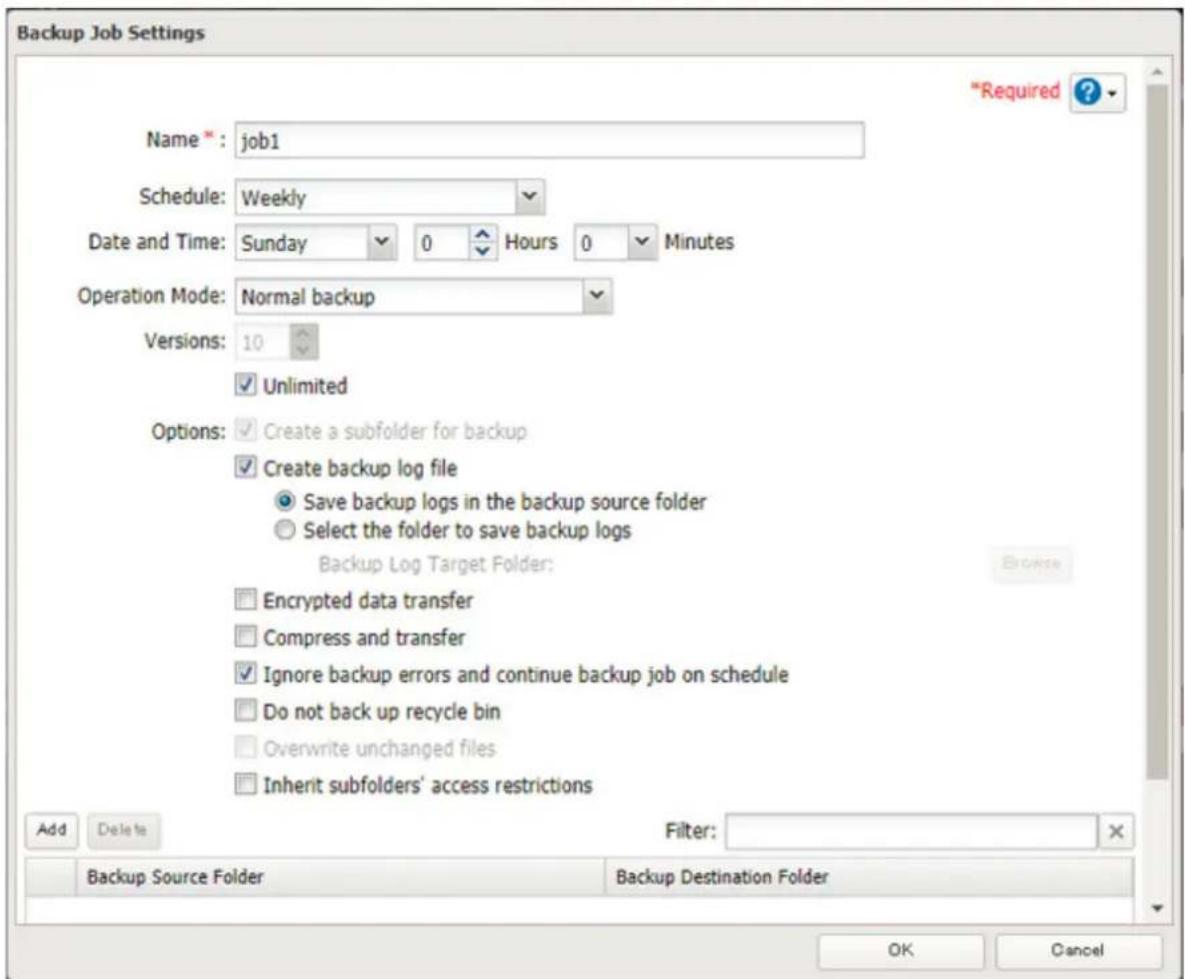
7 Click Add.
8 Select the shared folder that will be the backup source and destination.
Notes:
- If you want to back up to a Buffalo NAS device on another network, follow the procedure below to add the Buffalo NAS device on another network before selecting the backup folders.
a. Click List of Servers.
b. Click Add; select the "Add Buffalo NAS device" option, enter the IP address or hostname of the destination Buffalo NAS device, then click OK.
c. Click Close when completed.
d. Click Refresh and make sure the desired Buffalo NAS device has been added to the list.
- If you want to back up to an rsync-compatible device, follow the procedure below to add the rsync-compatible device before selecting the backup folders.
a. Click List of Servers.
b. Click Add; select the "Add rsync-compatible device" option, enter the IP address or hostname of the destination device, then click OK. If you want to encrypt the rsync access, enable rsync over SSH and enter the rsync account settings.
c. Click Close when completed.
d. Click Refresh and make sure the desired rsync-compatible device has been added to the list.
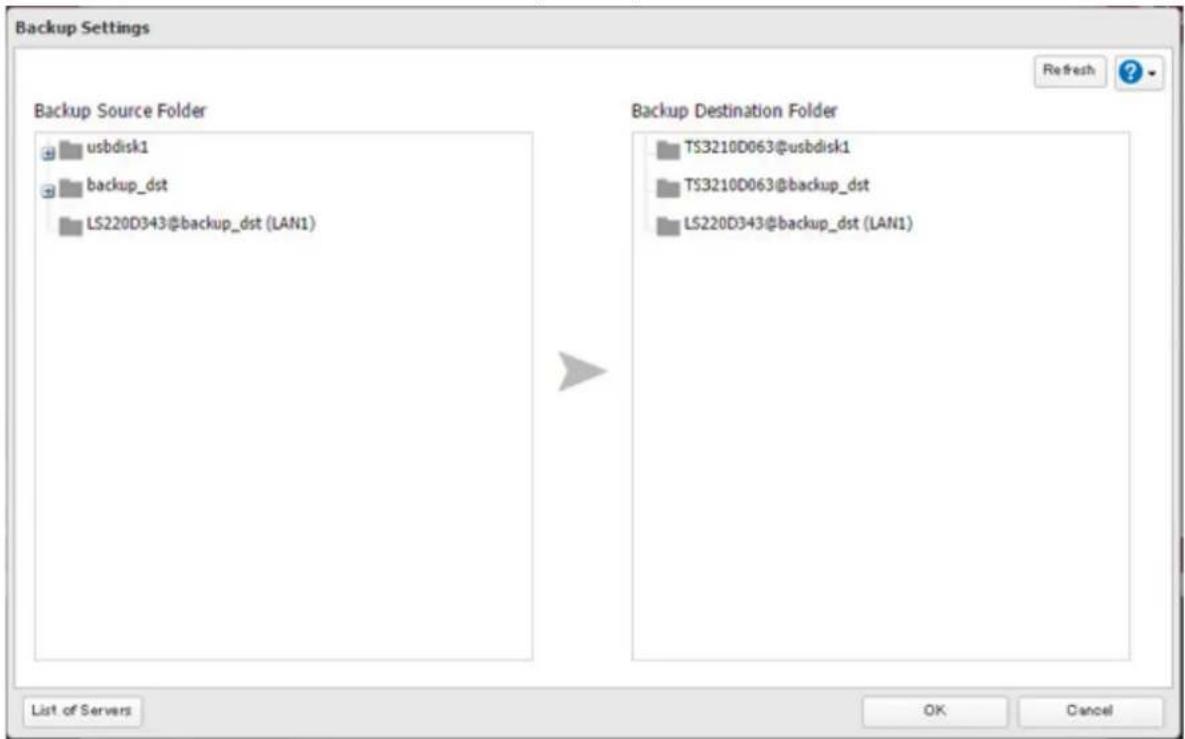
9 Click OK, then click OK again. Jobs will be added to the backup list.
Notes:
- Up to eight backup jobs can be configured at a time, and 25 backup source and destination folder pairs can be used in one backup job.
- To inherit the subfolders' access restriction settings to the backup destination, the backup destination should also support the subfolders' access restrictions. Check it before creating a backup job.
Chapter 5 Backup
- To back up data between Buffalo NAS devices on a network using jumbo frames, make sure that both devices are configured to use identical (or similar) MTU sizes. If MTU sizes are significantly different, the backup job may not be properly performed. In such a case, select the default MTU size (1500 bytes) for both devices.
- You can also specify a hostname by a fully qualified domain name (FQDN).
- Windows-based TeraStations with multibyte characters in the hostname may not be detected as a backup destination, and folders in these devices cannot be used as backup destination folders.
- Backup data, such as ".DS_Store" files, from macOS may include characters that cannot be read on FAT32-formatted drives in its filename. For best results, reformat the drive before using it as a backup destination.
If Backing Up from rsync-Compatible Devices to the TeraStation
If you want to set an rsync-compatible device as the backup source and back up data on it to the TeraStation, you will need to enable rsync access on the TeraStation.
1 From Settings, click File Sharing.

2 Click to the right of "rsync".

3 Enter this TeraStation's admin password into the "Password" field and click OK.
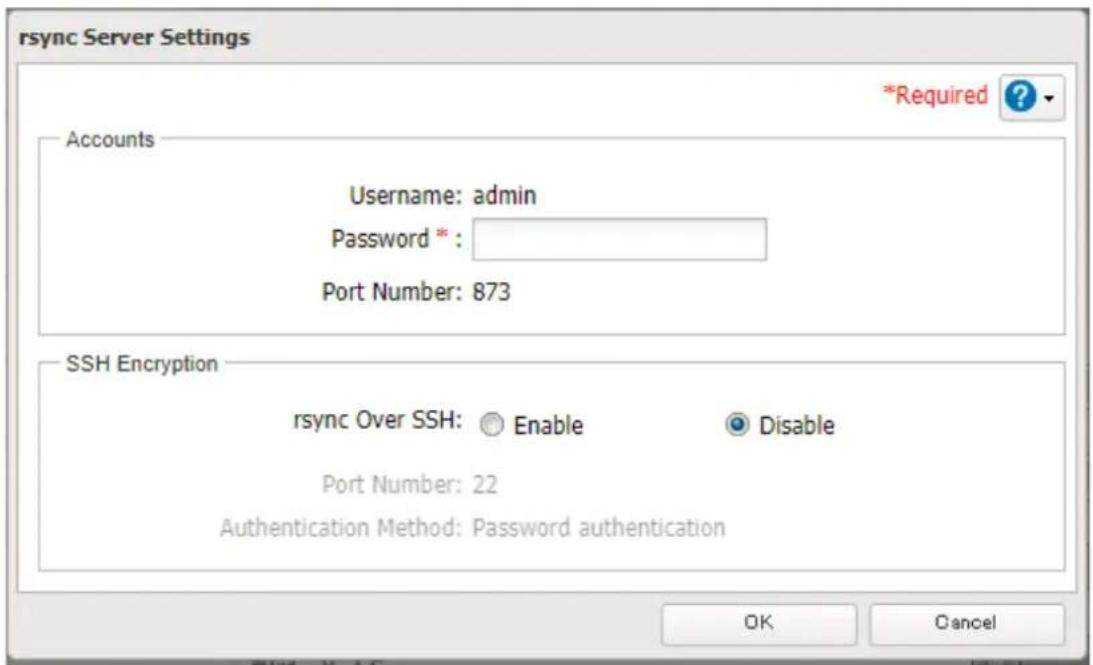
Note: If you want to encrypt the rsync access, enable rsync over SSH.
4 Move the rsync switch to the position to enable rsync.

rsync


Backup Modes
The following types of backup jobs may be selected:
| Type Files included | |
| Normal backup | All files in the source will be backed up to the destination. You can specify how many backup versions to keep from 1–400, or select “Unlimited” to keep all backups until the drive is full. If a specific number of backup versions is specified, the backup destination folder should be on the same TeraStation that the backup job is configured from, or on an external USB drive attached to that TeraStation. |
| Overwrite (incremental) | The first backup job runs like a normal backup. In subsequent backups, files added to the source as well as files deleted from the source are kept in the backup folder. |
| Overwrite (differential) | The first backup job runs like a normal backup. As each additional backup job runs, files will be added to and deleted from the backup folder. The backup destination folder is always the same size as the backup source folder. |
| Management backup | Each time a backup is executed, management information is stored, and only files that have changed are copied or deleted. Data is retrieved from the previous backup file for files that were not changed. This is useful for making backups with limited space or for referencing status at a particular point in time (for data snapshot applications). The destination folder for a management backup should be a local folder on this TeraStation or on a USB drive attached to it. The destination folder will be set to read-only. Do not use folders from drives formatted with FAT.You can specify how many backup versions to keep from 1–400, or select “Unlimited” to keep all backups until the drive is full. The backup destination folder should be on the same TeraStation that the backup job is configured from, or on an external USB drive attached to that TeraStation. |
Backup Logs When Backup Fails
When backup fails, the I54 message appears on the LCD panel and the following backup error codes may be displayed in the "Status" field. Read the description and try the respective corrective actions for each error to resolve it.
| Code Description Corrective Action Log Example | |||
| Code 3 | The backup destination USB drive could not be found. | Check that the backup destination USB drive is connected to the TeraStation properly. | rsync error: errors selecting input/output files, dirs (code 3) at main.c(634)[Receiver=3.1.0] |
| Can't write to backup destination(target disk is broken?). | |||
| Code 5 | The backup destination shared folder could not be found. | Check that the Ethernet cable is securely connected and that the hub or other devices on the network are turned on. | rsync error: error starting client-server protocol (code 5) at main.c(1504) |
| Authentication failed. | Try adding the rsync-compatible NAS device from the server list again. | @ERROR: auth failed on module | |
| A registered user does not have permission to run. | Check the settings of the rsync-compatible NAS device. | @ERROR: permission denied | |
| Code Description | Corrective Action Log Example | ||
| Code 10 | The Ethernet cable was disconnected from the backup source TeraStation when the backup job started. | Reconnect the Ethernet cable. | rsync error: error in socket IO (code 10) at clientserver.c(128) [sender=3.1.0pre1] |
| A backup destination doesn't support the subfolders' access restrictions. | Select another backup destination or remove the subfolders' access restrictions. | ||
| Code 11 | The drive capacity of the backup destination TeraStation became full. | Delete unnecessary files and folders. | rsync error: error in file IO (code 11) at receiver.c(389) [receiver=3.1.0] |
| Files larger than 4 GB were backed up to the FAT32-formatted USB drive. | Reduce the file size to 4 GB or less, or change the file system to one other than FAT32. Refer to the "Adding an External Drive" section in chapter 4 for compatible file systems. | rsync: write failed on "filename": File too large (27) | |
| Code 12 | Could not communicate between backup source and destination TeraStations. | Check that the Ethernet cable is securely connected and that the hub or other devices on the network are turned on. | rsync error: error in rsync protocol data stream (code 12) at io.c(515) |
| The settings of the TeraStation were changed while the backup job was running. | Do not change the settings while the backup job is running. If changed, the connection is temporarily terminated and the backup job will fail. | ||
| Code 14 | Insufficient memory on the TeraStation was not enough so that the backup job did not run. | Reduce the number of backup destination files or disable any other functions running at the same time. | ERROR: out of memory in flist_expand |
| rsync error: error in IPC code (code 14) at main.c(655) [receiver=2.6.8] | |||
| Code 22 | rsync: fork failed in do_recv: Cannot allocate memory (12) | ||
| rsync error: error allocating core memory buffers (code 22) at util.c(120) [sender=2.6.8] | |||
| Code 20 | The connection was disconnected while the backup job was running. | Do not change the settings while the backup job is running. If changed, the connection is temporarily terminated and the backup job will fail. | rsync error: received SIGINT, SIGTERM, or SIGHUP (code 20) at rsync.c(242) |
| Code Description | Correction Corrective Action Log Example | ||
| Code 23 | Invalid characters were used in the filename or folder name of the backup destinations. | Change the filename or folder name using compatible characters. Available characters are described in the "Adding a Shared Folder" section in chapter 3. | rsync error: some files could not be transferred (code 23) at main.c(702) |
| The backup destination files were updated while the backup job was running. | Do not overwrite the backup destination files while the backup job is running. If updated, the backup destination files will not be backed up and the backup job will fail. | ||
| The TeraStation backed up the data to the FAT32-formatted USB drive, then the capitalization of letters in the filenames or folder names on the backup source TeraStation was changed. | Do not change the capitalization of letters in the filenames and folder names on the backup source TeraStation if the backup destination USB drive is formatted to FAT32. Linux on the TeraStation is case-sensitive but FAT isn't, so the same filename and folder name that only differs in the capitalization of letters will not be identified and treated as the same file or folder. To back up properly, using XFS or ext3 is recommended. | ||
| Code 24 | The backup destination files were updated while the backup job was running. | Do not overwrite the backup destination files while the backup job is running. If updated, the backup destination files will not be backed up and the backup job will fail. | rsync warning: some files vanished before they could be transferred (code 24) at main.c |
| Code 30 | The Ethernet cable was disconnected from the backup source or destination TeraStations while the backup job was running. | Reconnect the Ethernet cable. | rsync error: timeout in data send/receive (code 30) at io.c(195) [sender=3.1.0] |
| B14 | Insufficient TeraStation memory. | Restart the TeraStation and try again. - | |
| B101 | The backup destination TeraStation does not exist. | Check that the backup destination TeraStation is turned on, the Ethernet cables are securely connected, and the hostname of the backup destination TeraStation is not changed. | - |
| B102 | Check that the backup destination folders on the backup destination TeraStation exist in the shared folder list and the backup destination folders are configured for backup in Settings. | - | |
| B103 | The backup source folders on the backup source TeraStation do not exist. | Check that the backup source folders on the backup source TeraStation exist in the shared folder list. | - |
| Code Description Corrective Action Log Example | |||
| B104 | The backup destination folders on the backup destination TeraStation do not exist. | Check that the backup destination folders on the backup destination TeraStation exist in the shared folder list. | - |
| B105 | The drives were not recognized. | Check that the drives are recognized properly in Settings. If you configure the “usbdisk” folders for the backup source or destinations, confirm if these folders exist in the shared folder list. | - |
| B106 | The file systems of the USB drive are not supported. | Check that the USB drive is formatted to the compatible file systems. If you configure the management backup in the backup job, FAT format cannot be used for the backup destination. | - |
| B107 | The device files such as "/dev/null" etc. does not exist. | Restart the TeraStation and try again. - | |
| B108 | Credentials to access a shared folder on the rsync-compatible NAS device were not found. | Try adding the rsync-compatible NAS device from the server list again. | - |
Replication
Replication copies all data from a share to a share on a different TeraStation. This is an easy way to configure a reliable system to provide data protection in the event your main TeraStation fails. To configure replication, connect an Ethernet cable to the LAN port of each TeraStation and follow the procedure below. For best results, use static IP addresses for connecting both replication TeraStations (source and destination).
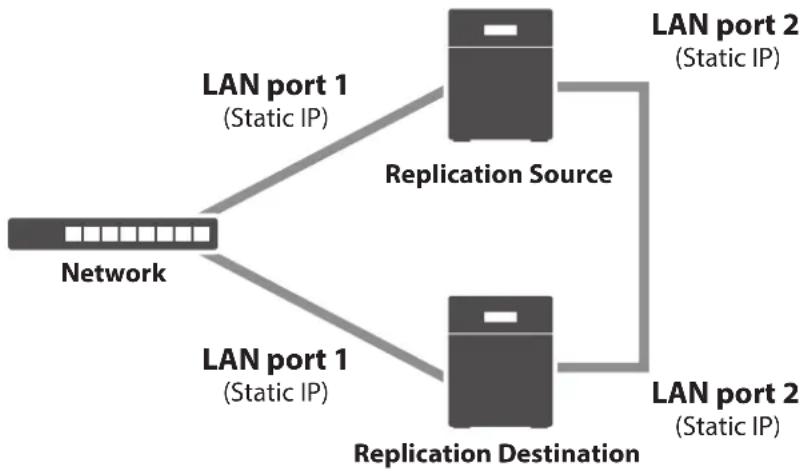
flowchart
graph TD
    A["Network"] -->|LAN port 1 (Static IP)| B["Replication Source"]
    A -->|LAN port 1 (Static IP)| C["Replication Destination"]
    B -->|LAN port 2 (Static IP)| D["Replication Source"]
    C -->|LAN port 2 (Static IP)| E["Replication Destination"]
Note: Replication source data is copied to the replication destination folder with a differential overwrite. Any data that is not in the replication source will be overwritten.
The following describes what can be configured as replication sources and replication destinations.
Folders Available as Replication Sources
- Shared folders on this TeraStation (excluding the "info" folder) ^1
Chapter 5 Backup
• USB drives connected to this TeraStation
Folders Available as Replication Destinations ^2
- Shared folders on this TeraStation (excluding the "info" folder)
- USB drives connected to this TeraStation ^4
- Shared folders on another Buffalo NAS device *4
*1 You can select up to the second level of folders. However, if the folder name of second level folders will become 80 bytes or more in total, that folder may not appear as the target folder.
*2 The "Backup" checkbox under "LAN Protocol Support" on the shared folder settings should be selected for the folder.
*3 If the "Inherit subfolders' access restrictions" option is selected when creating a replication job, use XFS or ext3 file systems.
*4 If the "Inherit subfolders' access restrictions" option is selected when creating a replication job, the device should be a Buffalo NAS device whose subfolders' access restrictions is available.
Preparing a Replication Destination
First, configure a folder as a replication destination. Follow the procedure below to prepare a replication destination.
1 From Settings, click File Sharing.

2 Click to the right of "Folder Setup".

3 Choose the folder to set as a replication destination.
4 Under "LAN Protocol Support", select the "Backup" checkbox on the Basic tab.
LAN Protocol Support:
SMB (Windows/Mac)
√ AFP (Mac)
FTP
Backup
SFTP
WebAccess
NFS
5 Click OK and proceed to the next step to create a backup device access key.
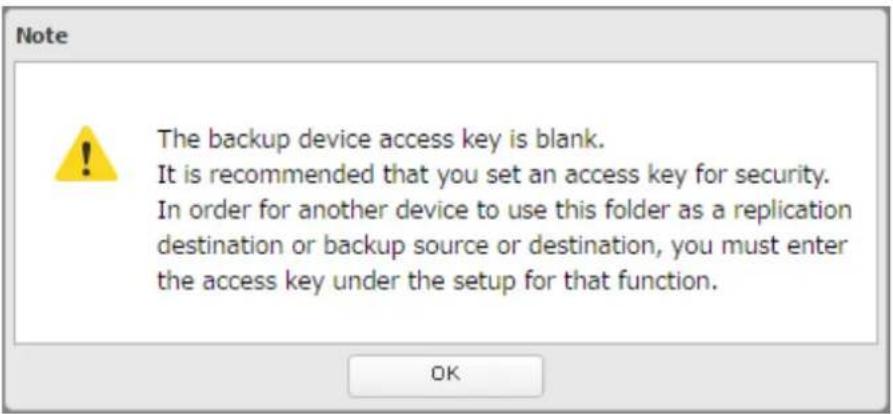
6 Enter the desired characters into the backup device access key field and click OK.
Backup Device Access Key:
Note: You may leave this field blank if you do not want a backup device access key, but for security reasons we highly recommend entering one for the shared folder. If a backup device access key is configured for the shared folder, that folder will not show up as the replication destination when configuring a replication job on another Buffalo NAS device unless it's entered. You may create multiple folders using different backup device access keys for backup and replication, but only one access key can be used on the TeraStation. Folders that are configured with a different access key cannot be used.
Configuring a Replication Job
Note: To replicate the subfolders' access restriction settings, the USB drive should be formatted using ext3 or XFS.
1 From Settings, click Backup.

2 Click to the right of "Replication".

3 Click Edit.
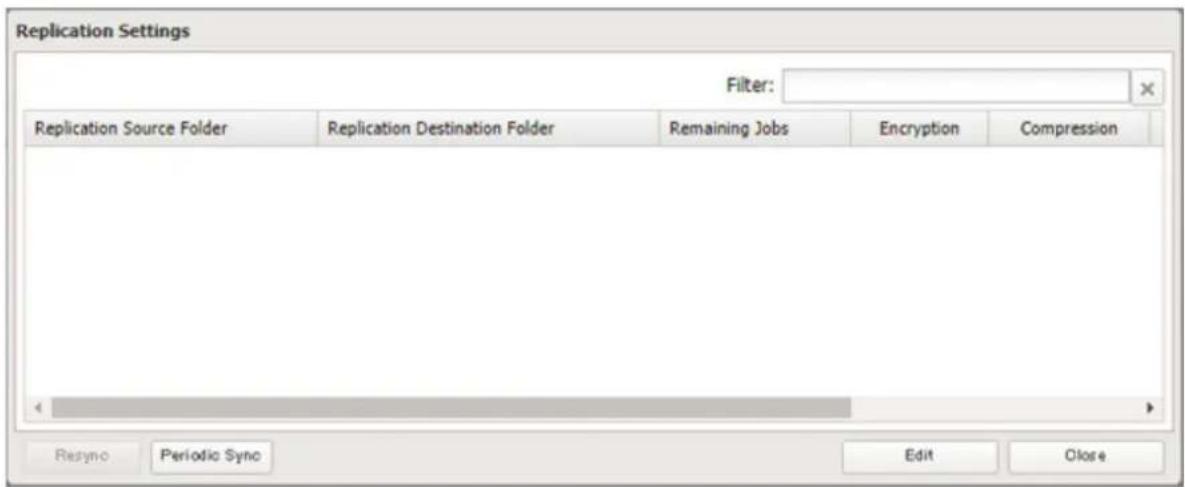
Chapter 5 Backup
4 If you had configured a backup device access key for the replication destination folder, click Set. If you hadn't, skip to step 6.
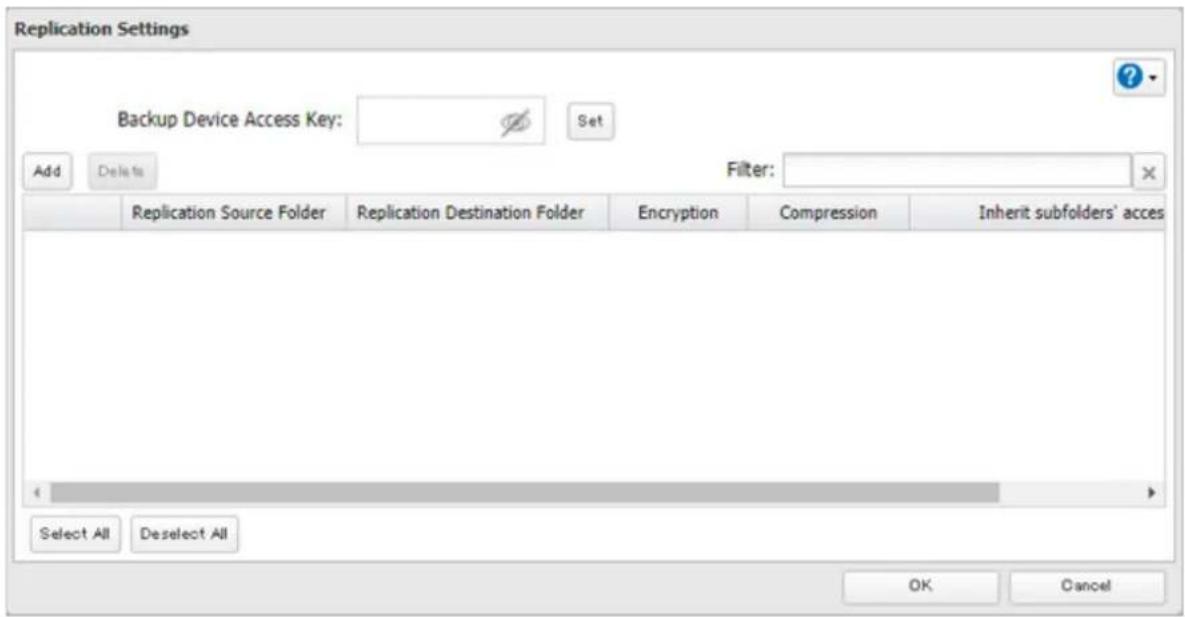
5 Enter the backup device access key and click OK.
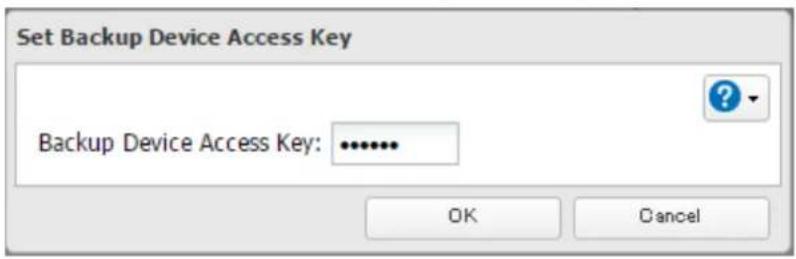
6 Click Add.
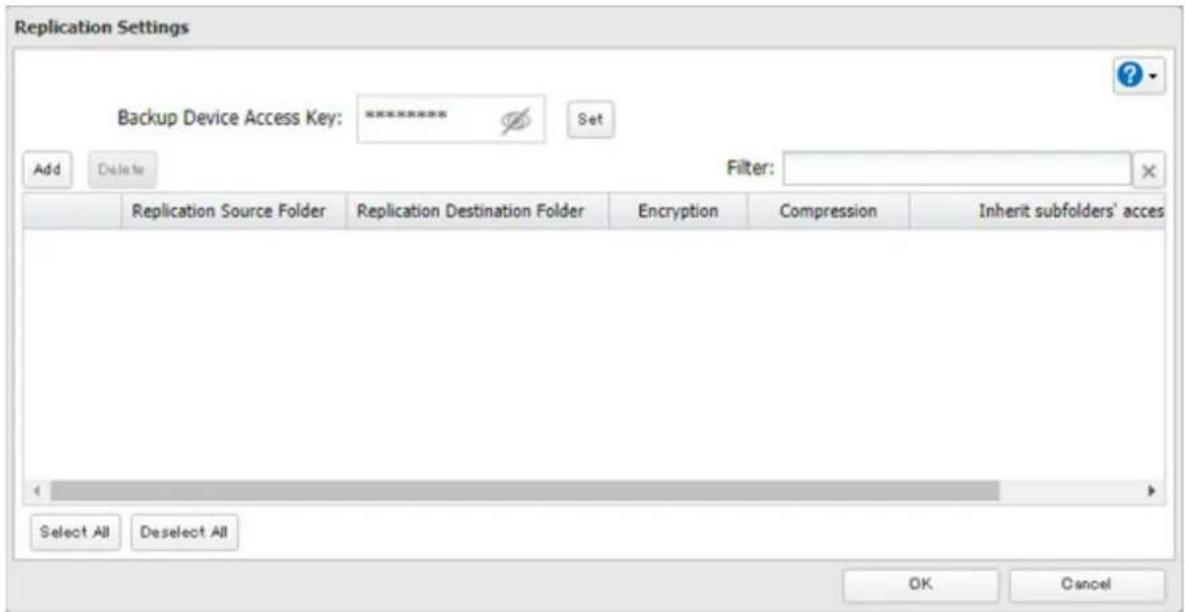
7 Select the shared folder that will be the replication source and destination, then click OK.
Note: If you want to back up to a Buffalo NAS device on another network, follow the procedure below to add the Buffalo NAS device on another network before selecting the backup folders.
Chapter 5 Backup
a. Click List of Servers.
b. Click Add; select the "Add Buffalo NAS device" option, enter the IP address or hostname of the destination Buffalo NAS device, then click OK.
c. Click Close when completed.
d. Click Refresh and make sure the desired Buffalo NAS device has been added to the list.
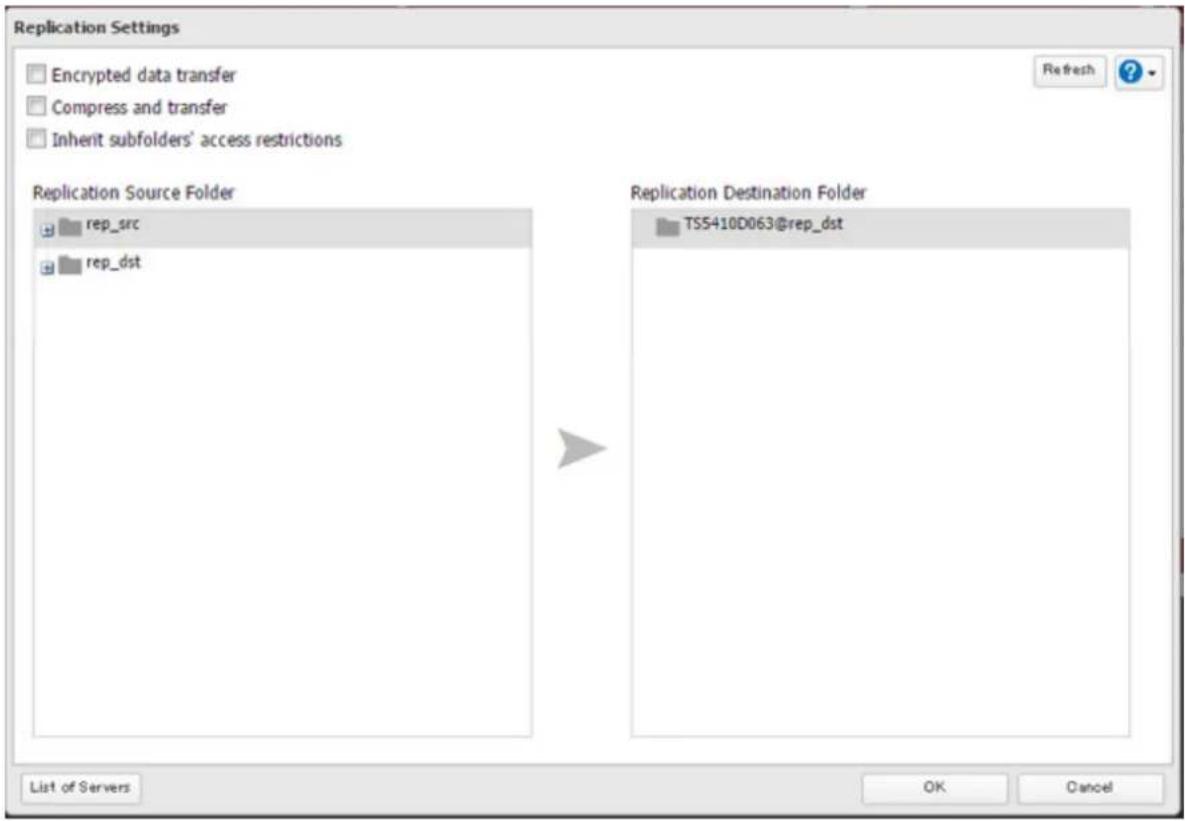
8 Click OK, then Yes.
Notes:
- During setup, you may choose to encrypt and/or compress replication data. Encrypted data will be transferred securely on the network. Compressed data will ease network loading and is recommended for slow or heavily loaded network connections. Either will increase the CPU load on the source TeraStation. Encrypted or compressed data will be decrypted or decompressed on the destination TeraStation.
- A maximum of 32 shared folders can be configured for replication.
- Replication can also be used to copy all data from a share to a share on an attached external USB drive. Format the drive with ext3 or XFS before using it for replication. Drives with FAT32 partitions are not supported with replication.
- You can select the first and second levels of shared folders and USB drives connected to the TeraStation as the replication source. Folders whose names contain more than 80 alphanumeric characters or "@" cannot be selected.
As the replication destination, you can select the first level of shared folders, USB drives, and on/off-subnet NAS devices' shared folders.
- Don't use the same TeraStation for both failover and replication, or replication and Time Machine.
- Don't configure replication from one source folder to multiple destination folders.
- If a network problem causes a replication error, unsynced data may be shown as "0" even though replication is incomplete. Click Resync to recover from the replication error. All files from the source folder will be copied to the destination folder.
- To inherit the subfolders' access restriction settings to the replication destination, the replication destination should also support the subfolders' access restrictions. Verify it before creating a replication job.
Synchronizing Between Source and Destination TeraStations Periodically
To copy files that are saved via other file sharing protocols such as AFP or FTP to the replication destination regularly, configure "Periodic Sync" in Settings. Follow the procedure below.
1 From Settings, click Backup.

2 Click to the right of "Replication".

3 Click Periodic Sync.
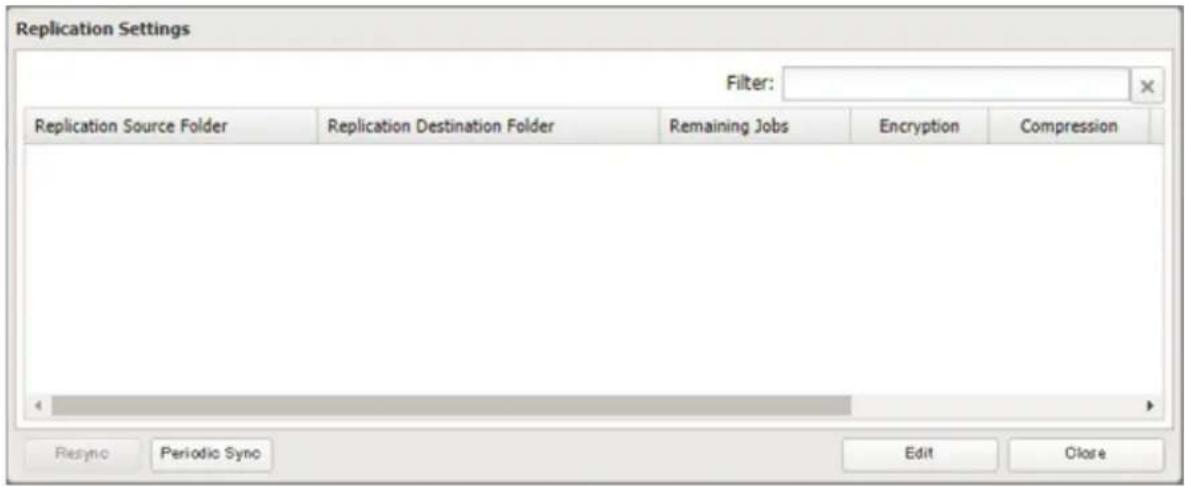
4 Select "Daily" or "Weekly" from the "Schedule" drop-down list. If "Daily" is selected, configure the sync period. If "Weekly" is selected, specify the weekdays and the sync period.
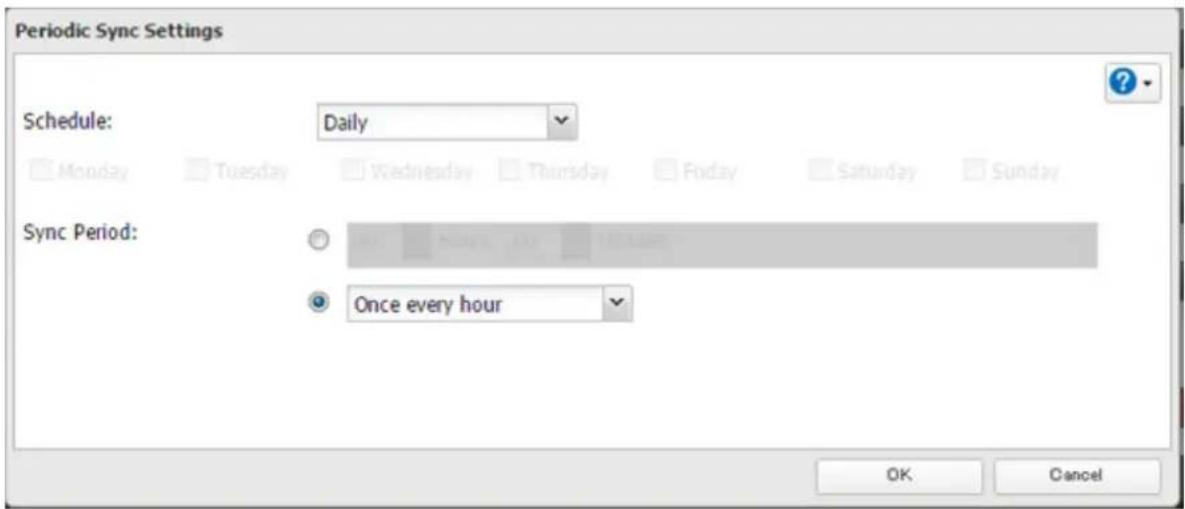
5 When the configuration is completed, click OK.
Failover
With failover, two TeraStations are connected to the network for redundancy. If an issue renders the main TeraStation inaccessible, operation automatically switches to the backup TeraStation.
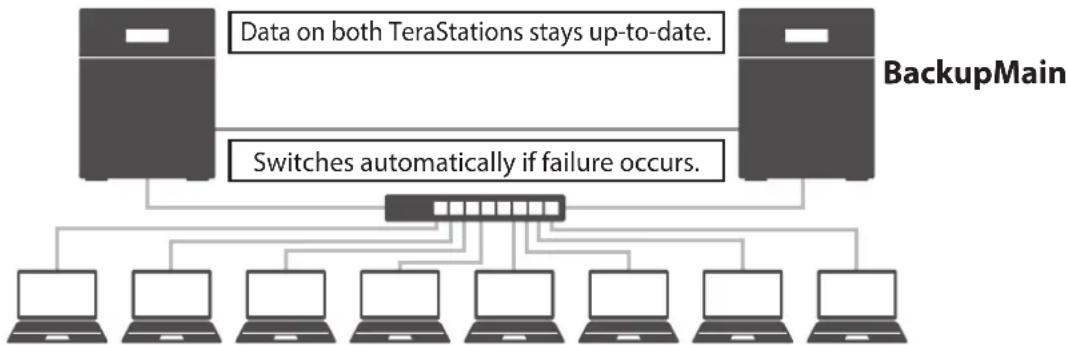
flowchart
graph TD
    A["Data on both TeraStations stays up-to-date."] --> B["Switches automatically if failure occurs."]
    C["BackupMain"] --> B
    B --> D["Laptop 1"]
    B --> E["Laptop 2"]
    B --> F["Laptop 3"]
    B --> G["Laptop 4"]
    B --> H["Laptop 5"]
    B --> I["Laptop 6"]
    B --> J["Laptop 7"]
    B --> K["Laptop 8"]
    B --> L["Laptop 9"]
    B --> M["Laptop 10"]
Failover will activate during any of the following situations:
- The backup TeraStation cannot detect the main TeraStation within a specified time
If the backup TeraStation has not received a packet from the main TeraStation within a specified time, the backup TeraStation considers the main TeraStation to have failed. By default, it will try five times and wait 60 seconds. If this is triggered by accident, reconfigure failover from the main TeraStation.
- Errors
Failover will occur if any of the following errors occur:
E12 (cooling failure), E14 (cannot mount RAID array), E16* (drive not found), E22* (cannot mount drive), E30* (drive failure)
*This triggers when the drive is configured in JBOD.
Notes:
- Only use identical model and capacity TeraStations for failover. If the capacity of the main TeraStation is larger than that of the backup TeraStation, an I33 replication error will occur.
- All drive bays of a TeraStation should be occupied if it will be used for failover. Failover will not work if a drive is missing from any bay.
Before Configuring Failover
Use the same LAN ports for transferring data and it is recommended that both TeraStations are configured with static IP addresses for the purposes of failover.
Using the Same LAN Port for Both File Sharing and Failover
Using this setup, if the main TeraStation fails, the backup TeraStation will replace it completely. The backup TeraStation will be updated over normal network traffic.
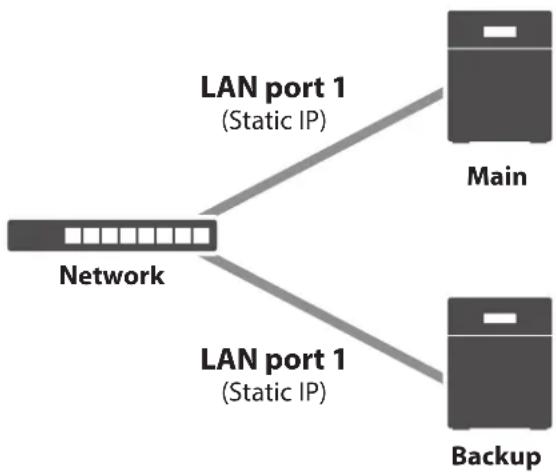
flowchart
graph TD
    A["Network"] -->|LAN port 1 (Static IP)| B["Main"]
    A -->|LAN port 1 (Static IP)| C["Backup"]
Using Different LAN Ports Between File Sharing and Failover
With this setup, the backup TeraStation and main TeraStation are connected by a second Ethernet cable connecting their LAN port 2. Updating is done over this dedicated network path, so updates are quicker and don't interfere with normal network traffic.
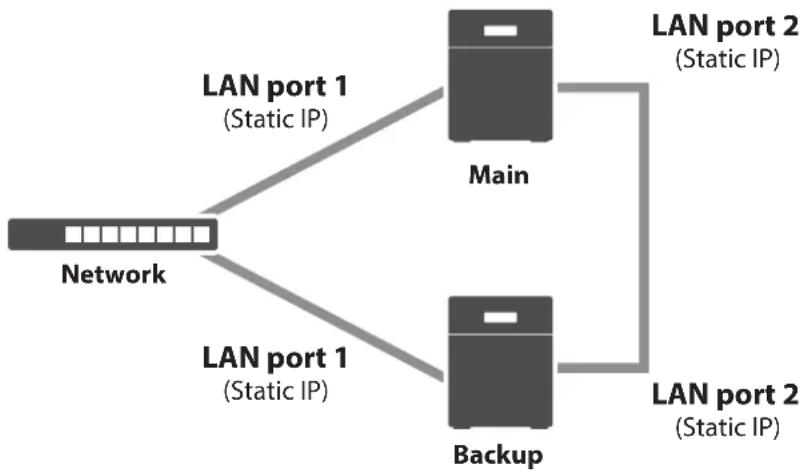
flowchart
graph TD
    A["Network"] -->|LAN port 1 (Static IP)| B["Main"]
    A -->|LAN port 1 (Static IP)| C["Backup"]
    B -->|LAN port 2 (Static IP)| D["Main"]
    C -->|LAN port 2 (Static IP)| E["Backup"]
Usage Restrictions
Functional Restrictions
Failover is not available when any of the following functions are enabled:
Replication, sleep mode, encrypted drive volume, LVM volume, iSCSI volume, port trunking, Amazon S3 ^2 , Dropbox Sync, Microsoft Azure Storage Sync, Microsoft OneDrive Sync, hot spare, access restrictions by Active Directory domain
*Even if the function is disabled, the settings may remain if the settings were configured beforehand. Initialize all settings before configuring failover.
Setting Restrictions
The following functions will not be available while failover is enabled:
Initializing settings, changing the RAID settings, formatting drives, iSCSI volume, changing the backup TeraStation's settings, turning the TeraStation on and off, updating the firmware
While failover is enabled, shutdown, power-on, and firmware update operations can be made available by temporarily changing the TeraStation to maintenance mode. Maintenance mode can be enabled or disabled at Backup > Failover in the main TeraStation's Settings. Click Maintenance mode to enable maintenance mode, or click Cancel maintenance mode to disable maintenance mode.
To update the firmware while in maintenance mode, the main TeraStation can be updated from Settings, but the backup TeraStation cannot. Download the firmware updater from the Buffalo website for the backup TeraStation and try updating the firmware on it.
Non-Transferable Settings
The settings below are not copied from the main TeraStation to the backup TeraStation. Make a note of the original settings so that they can be configured manually if a failover error occurs.
WebAccess*, UPS synchronization, antivirus**, the backup job settings either if specifying shared folders on the backup TeraStation or USB drives as the backup destination, and USB drives' shared folder settings
*If the backup TeraStation took over the main TeraStation's IP address after failover, the WebAccess settings will not be copied. Re-register your BuffaloNAS.com account for WebAccess. If the backup TeraStation kept its IP address, the settings will be copied from the main TeraStation.
**The settings configured on the Trend Micro NAS Security settings page will not be copied to the backup TeraStation. The settings configured on the main TeraStation's Settings page will be copied. Only if the antivirus is activated on the TeraStation.
Using with UPS
Once failover is configured, you cannot set up a UPS for the backup TeraStation. Configure your UPS before configuring failover. UPS recovery can be configured for both the main and backup TeraStations.
Configuring Failover
1 From Settings for the main TeraStation, click Backup.

2 Click to the right of "Failover".

3 Click Configure Failover.
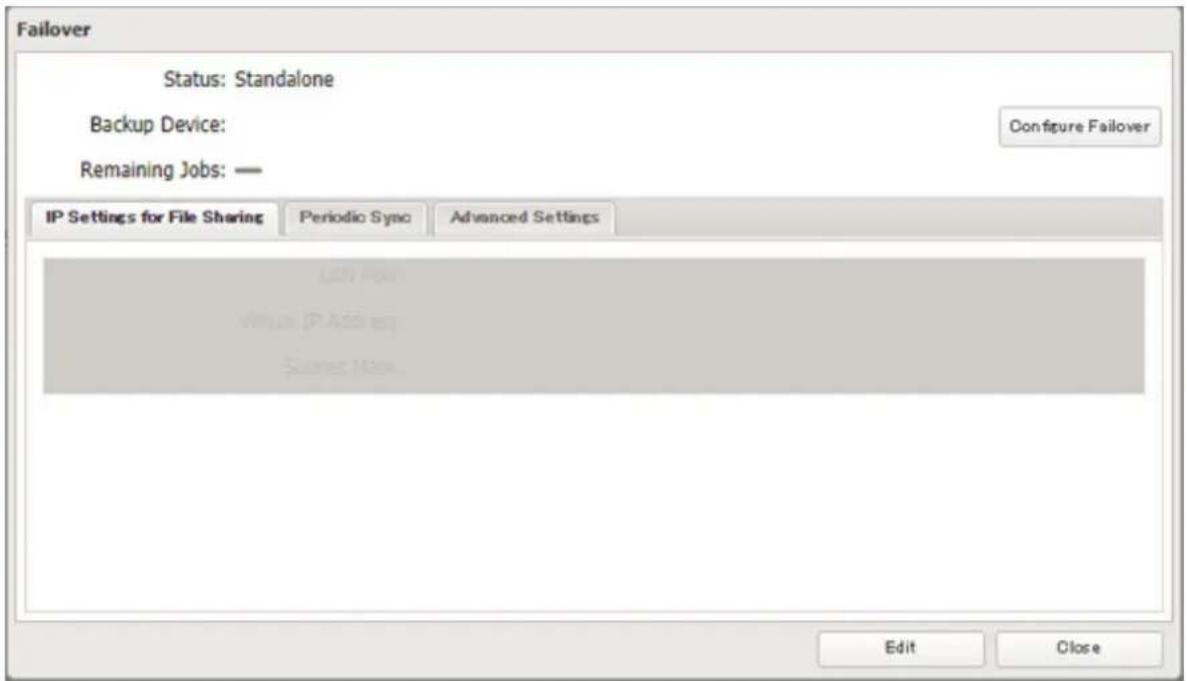
4 Select a TeraStation to be the backup destination device and enter its administrator username and password (by default, the username is "admin" and the password is "password").
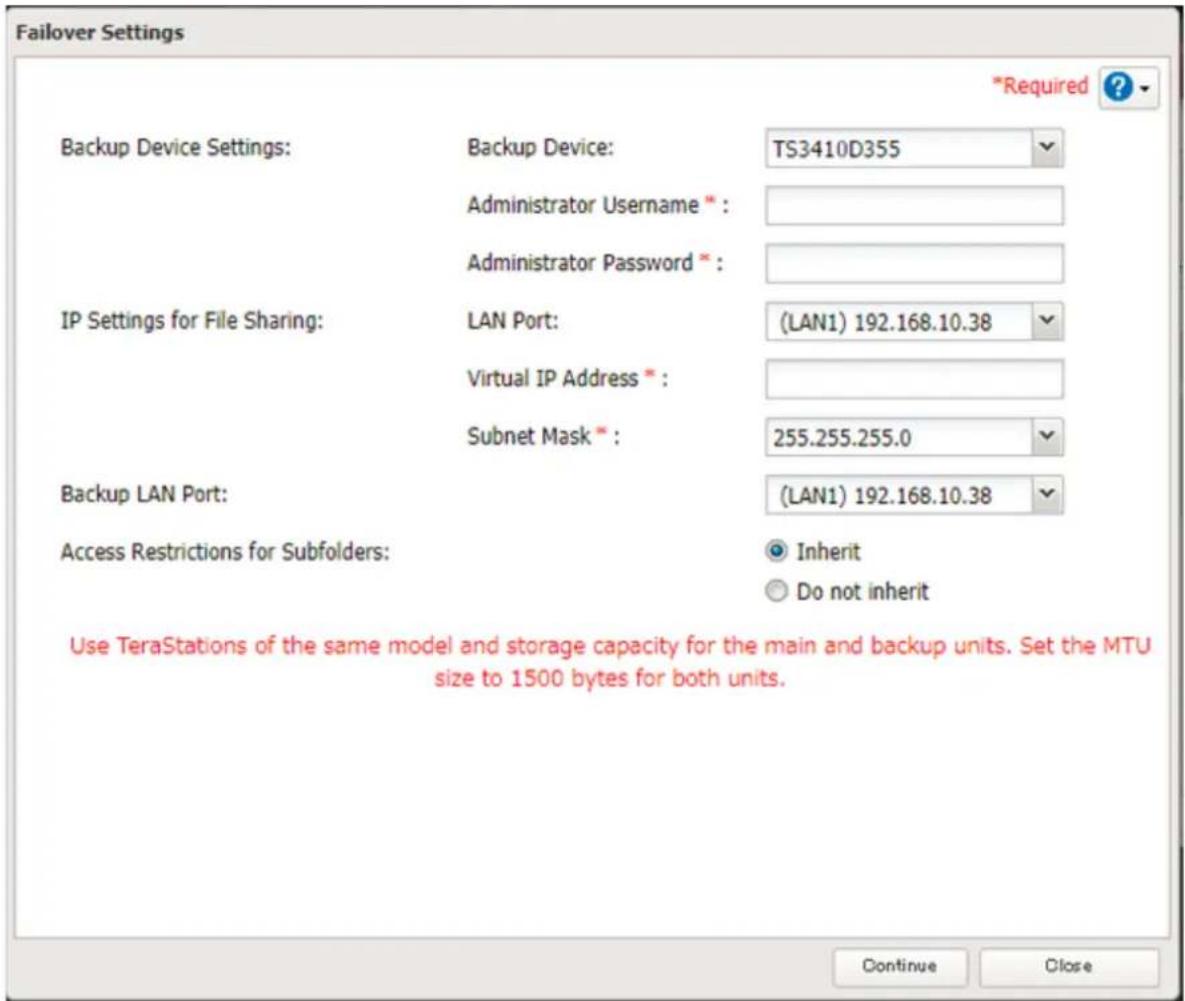
5 Select the LAN port to be used for sharing files and enter a virtual IP address and subnet mask. The LAN port you have selected here will also be used for pinging. If you select the same LAN port as the backup LAN port, the backup TeraStation will replace the main TeraStation even if just a network error occurs.
About virtual IP addresses: A virtual IP address is an IP address that will be used for file sharing while failover is configured. By assigning a different IP address from the one to be assigned to the LAN port, you can access the TeraStation for sharing files, as well as open Settings using the virtual IP address. This IP address will be inherited to the backup TeraStation when failover occurs, so you can access the backup TeraStation even if you don't know the backup TeraStation's static IP address.
Configure an unused IP address for the virtual IP; make sure it uses the same segment as the main and backup TeraStations.
6 Select the LAN port to be used for transferring data via failover.
7 Configure whether or not to inherit the settings of subfolders' access restrictions to the backup TeraStation, then click Continue.
8 If the administrator username and password is correct, the backup TeraStation will beep. Press and hold the function button to accept the settings from the main TeraStation. When you press the function button, the backup TeraStation will stop beeping.
9 Hold it down until the backup TeraStation beeps again.
10 The I51 message will appear in Settings and NAS Navigator2 for both TeraStations. Wait until initialization finishes. Failover is configured after it finishes and the I51 message disappears.
Notes:
- If you want to cancel the failover settings while both the main and backup TeraStations are working properly, click Force Failover to Stop on both TeraStations and restart them. After the TeraStations are restarted, make sure that all settings such as IP address and files on the shared folders are correct. When you cancel failover settings, attributes of the shared folders on the backup TeraStation will become read-only. Change the attribute settings to the desired options if necessary.
- If replication is configured for more than one folder, initialize the TeraStation before configuring failover.
- The main TeraStation cannot be used as the backup location for Time Machine.
- Do not use the same TeraStation for both failover and replication, or failover and Time Machine.
- If email notification is enabled and failover occurs, navigate to Management > Email Notification > Edit in the main TeraStation's Settings and click OK.
- MTU size settings for main and backup TeraStations should be 1500 bytes. To change the MTU size, navigate to Network > IP Address > Edit, and change the MTU size to "1500" bytes.
- Files whose filenames contain more than 80 alphanumeric characters will not be backed up.
- If the I33 message appears in Settings or NAS Navigator2, navigate to Backup > Replication and click Resync.
- The RAID array on the backup TeraStation may be reconfigured and resynchronized as part of the failover configuration process. This is expected behavior and not an error.
Replacing to the Backup TeraStation Manually
If "Switch to backup unit manually" is selected on the Advanced Settings tab in the main TeraStation's Settings, the backup TeraStation will not replace the main TeraStation if the main TeraStation fails. To have the backup TeraStation replace the main TeraStation, you can either:
- Log in to Settings for the backup TeraStation and click Set as Main Unit.
- Or, press and hold the function button on the backup TeraStation.
Note: If the main TeraStation fails but both LAN ports' link on the backup TeraStation is up, the backup TeraStation cannot replace to the main TeraStation from Settings. In such a case, use the function button instead.
Reconfiguring After Failover Occurs
When the backup TeraStation replaces the main TeraStation, the I49 message may appear on NAS Navigator2. To configure failover again, follow the procedure below using the new TeraStation unit. The following procedure is an example using the replaced backup TeraStation ("main TeraStation") and the new TeraStation ("backup TeraStation"). If you don't want to configure failover with the new TeraStation, cancel the failover settings by following the steps 1–5 below and restart both TeraStations. The I49 message will disappear.
Note: The following procedure will also work if failover occurs unexpectedly.
1 After failover occurs, log in to Settings for the main TeraStation.
If you have configured to synchronize with the UPS device connected to the failed TeraStation, the E10 message will be displayed on the main TeraStation. In such a case, follow the procedure below to change the UPS settings on the main TeraStation. If you hadn't, skip to the next step.
a. Disconnect the UPS cable from the failed TeraStation and connect it to the main TeraStation.
b. Click Management.
c. Click to the right of "Power Management".
d. Click Edit.
e. Select "Sync with UPS connected to this TeraStation" and reconfigure the desired UPS settings.
f. Click OK when completed.
2 Click Backup.

3 Click to the right of "Failover".

4 Click Configure Failover.
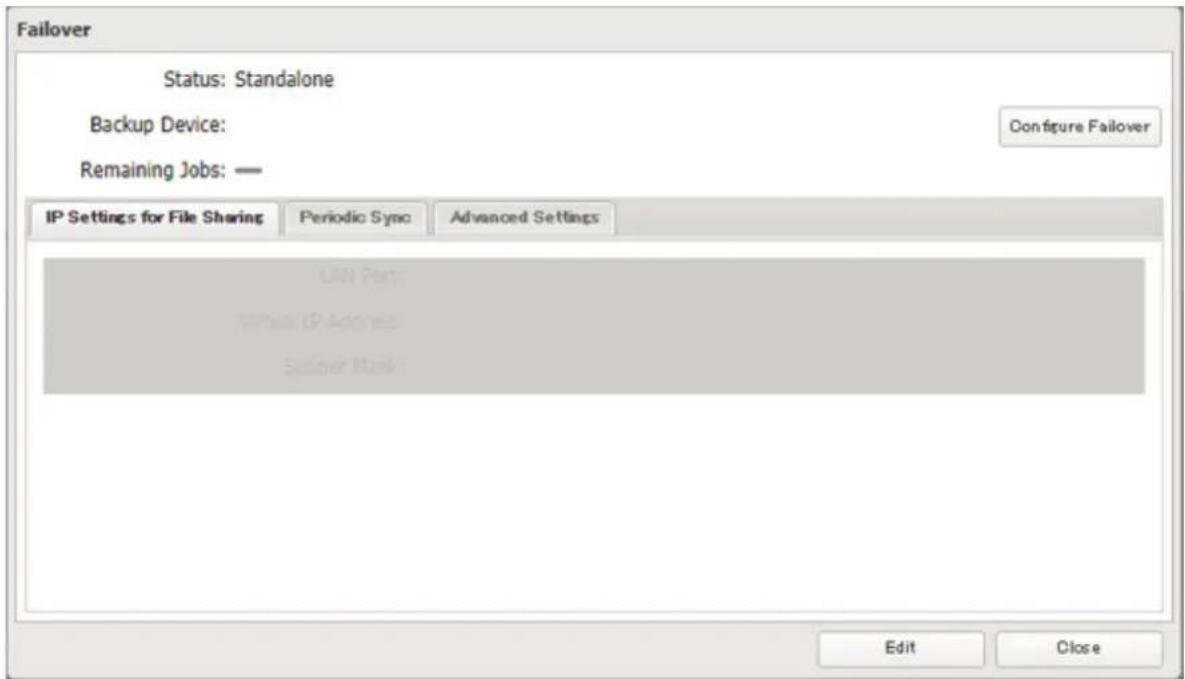
Chapter 5 Backup
5 Click Force Failover to Stop to cancel the failover settings.
6 Shut down this main TeraStation.
7 Turn the backup TeraStation on.
8 Log in to Settings for the backup TeraStation, then rename the TeraStation's hostname and configure the IP address so that it has a new static IP address.
9 Power on the main TeraStation. To configure the UPS sync on the backup TeraStation, configure the settings here. Otherwise, skip to the next step.
To synchronize with the UPS device connected to the main TeraStation, follow the procedure below on the backup TeraStation.
a. Click Management.
b. Click to the right of "Power Management".
c. Click Edit.
d. Select "Sync with UPS connected to another Buffalo NAS device on the same network" and configure the main TeraStation as a sync source.
e. Click OK when completed.
10 Reconfigure failover by referring to the "Configuring Failover" section above.
Synchronizing Between Main and Backup TeraStations Periodically
To copy files that are saved via other file sharing protocols such as AFP or FTP to the backup TeraStation regularly, configure "Periodic Sync" in Settings. Follow the procedure below.
1 From Settings for the main TeraStation, click Backup.

2 Click to the right of "Failover".

Failover

Standalone
Chapter 5 Backup
3 Click the Periodic Sync tab.
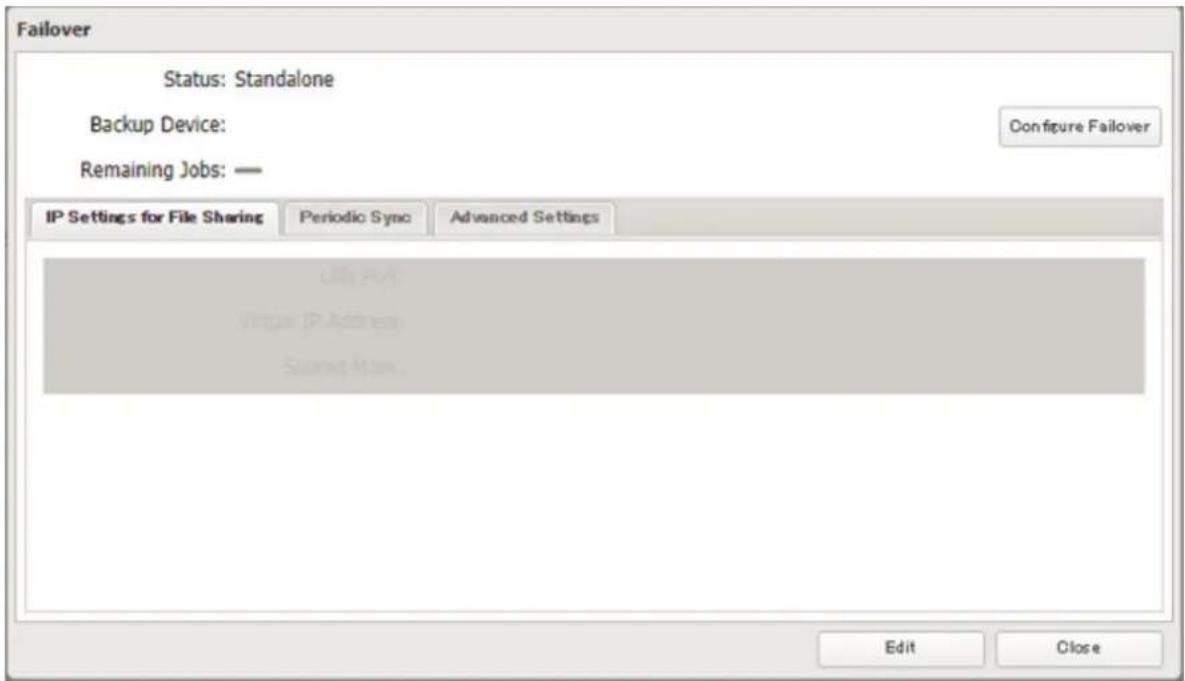
4 Click Edit.
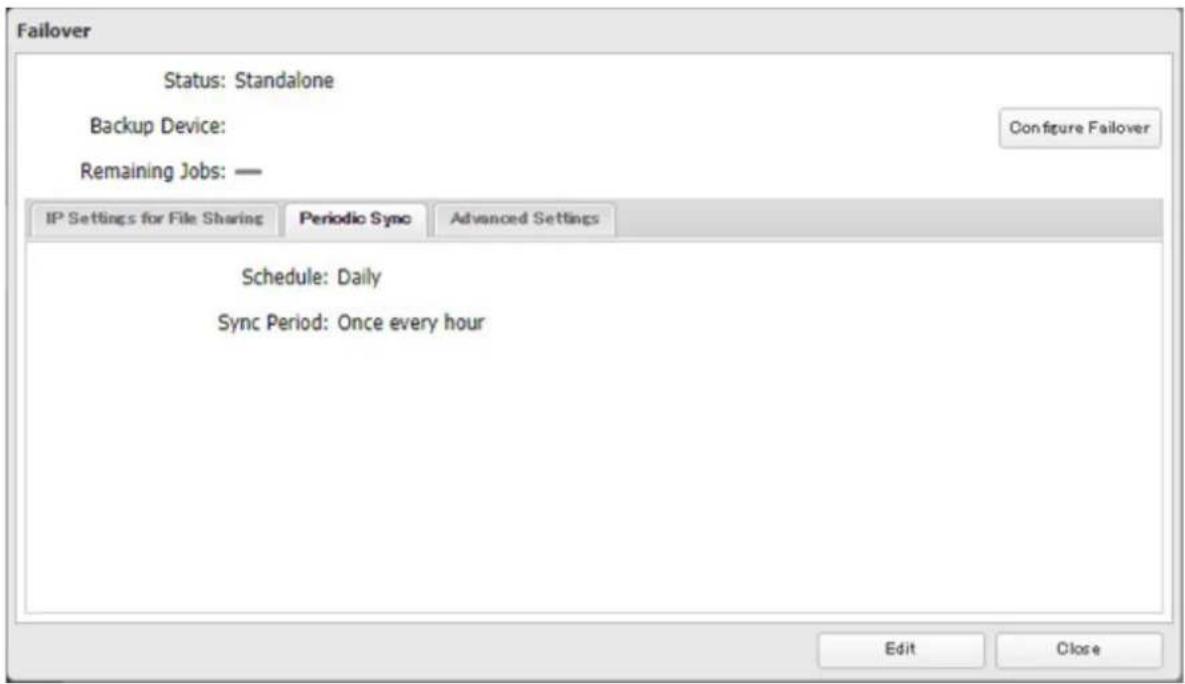
Chapter 5 Backup
5 Select "Daily" or "Weekly" from the "Schedule" drop-down list. If "Daily" is selected, configure the sync period. If "Weekly" is selected, specify the weekdays and the sync period.
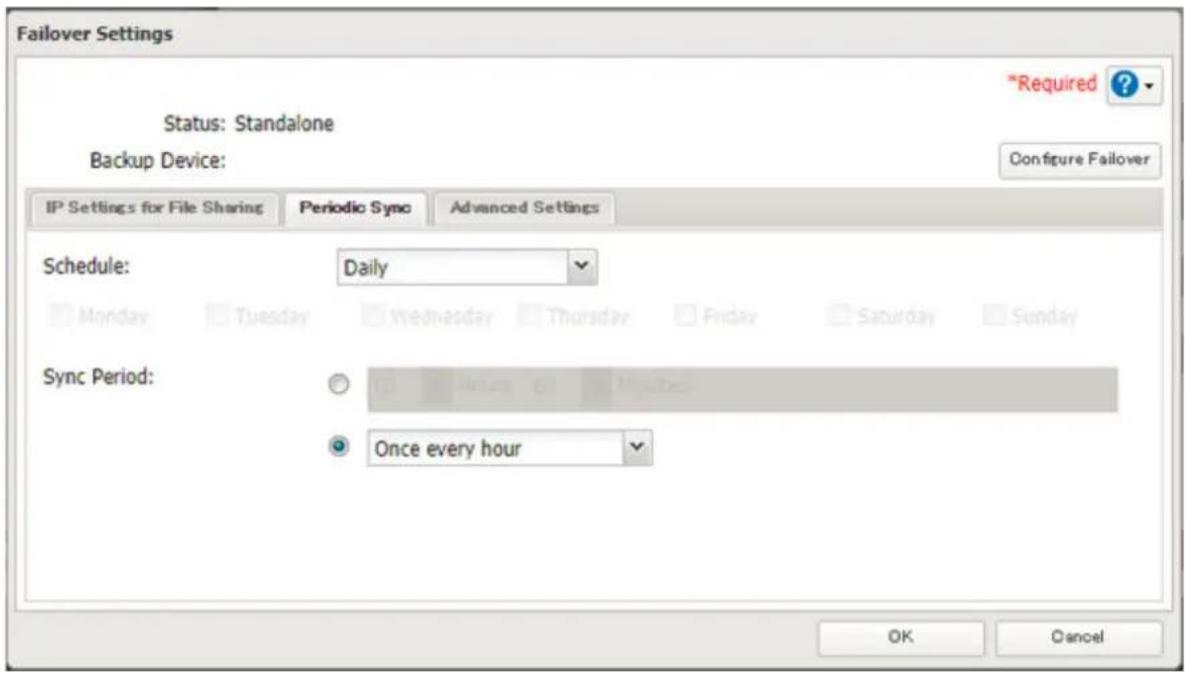
6 When the configuration is completed, click OK.
Backing Up Your Mac with Time Machine
Time Machine is a backup program included with macOS. Configure your TeraStation as shown below to use Time Machine.
1. Preparing a Shared Folder for Time Machine
1 From Settings, click File Sharing.

2 Move the AFP switch to the position to enable AFP.

3 Click to the right of "Folder Setup".

4 Choose a shared folder as your backup destination for Time Machine.
5 Under "LAN Protocol Support", select the "AFP (Mac)" checkbox on the Basic tab and click OK.
6 Click Close.
2. Configuring a Shared Folder as a Backup Destination
1 From Settings, click Backup.

2 Click to the right of "Time Machine".

3 Click Edit.
4 Click Browse.
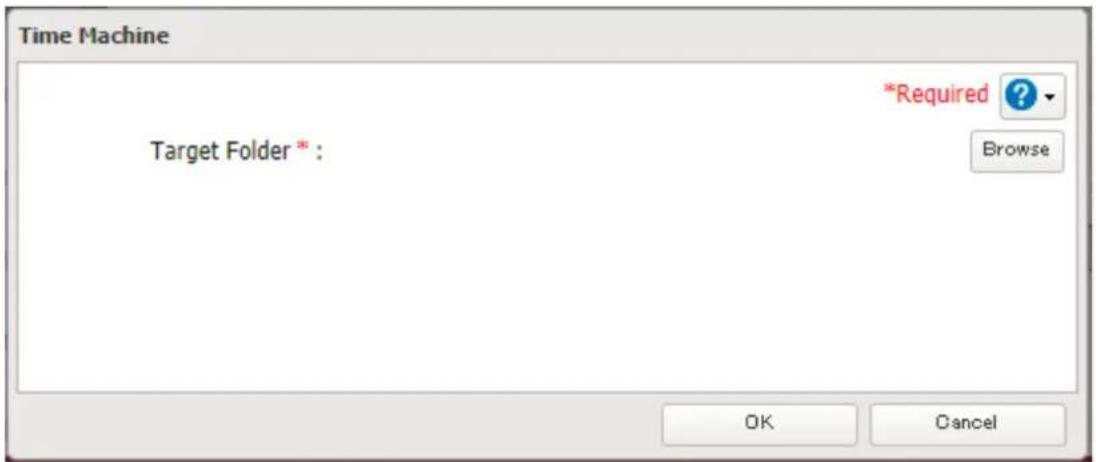
5 Select the shared folder that you enabled AFP for in the previous steps, then click OK.
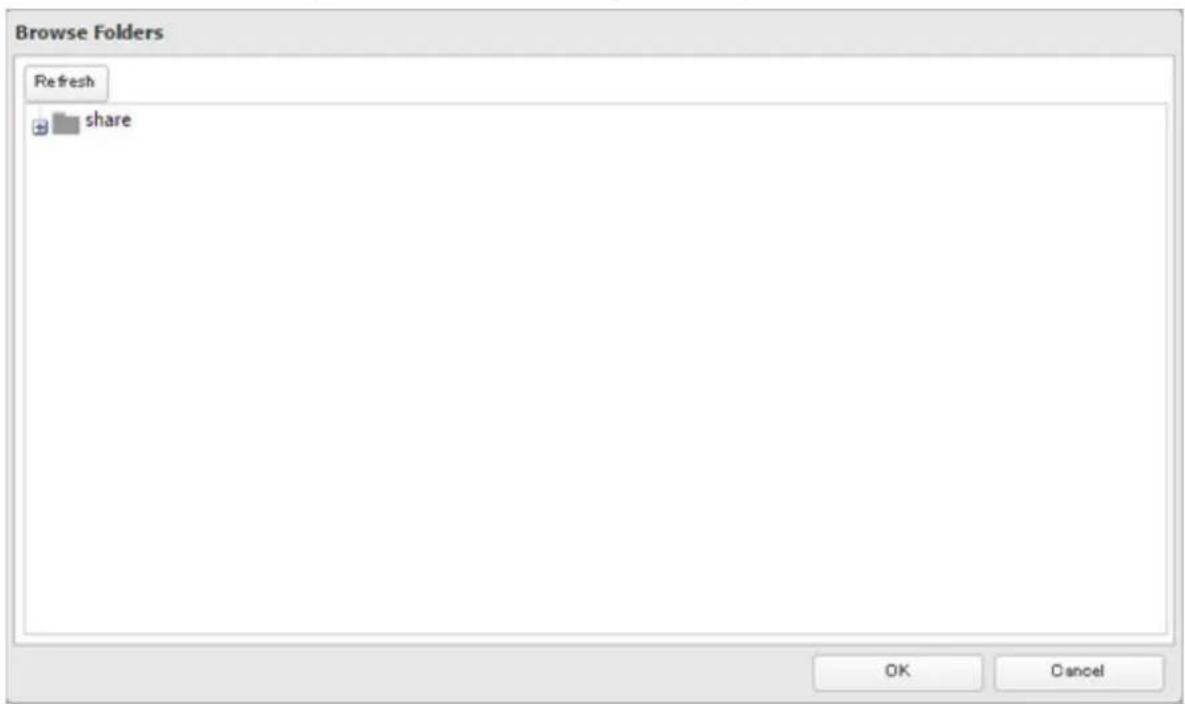
6 Click OK, then click OK again.
7 Move the Time Machine switch to the position to enable Time Machine.

Time Machine


3. Configuring Time Machine on macOS
1 From the Apple menu, open System Preferences.
2 Click Time Machine.
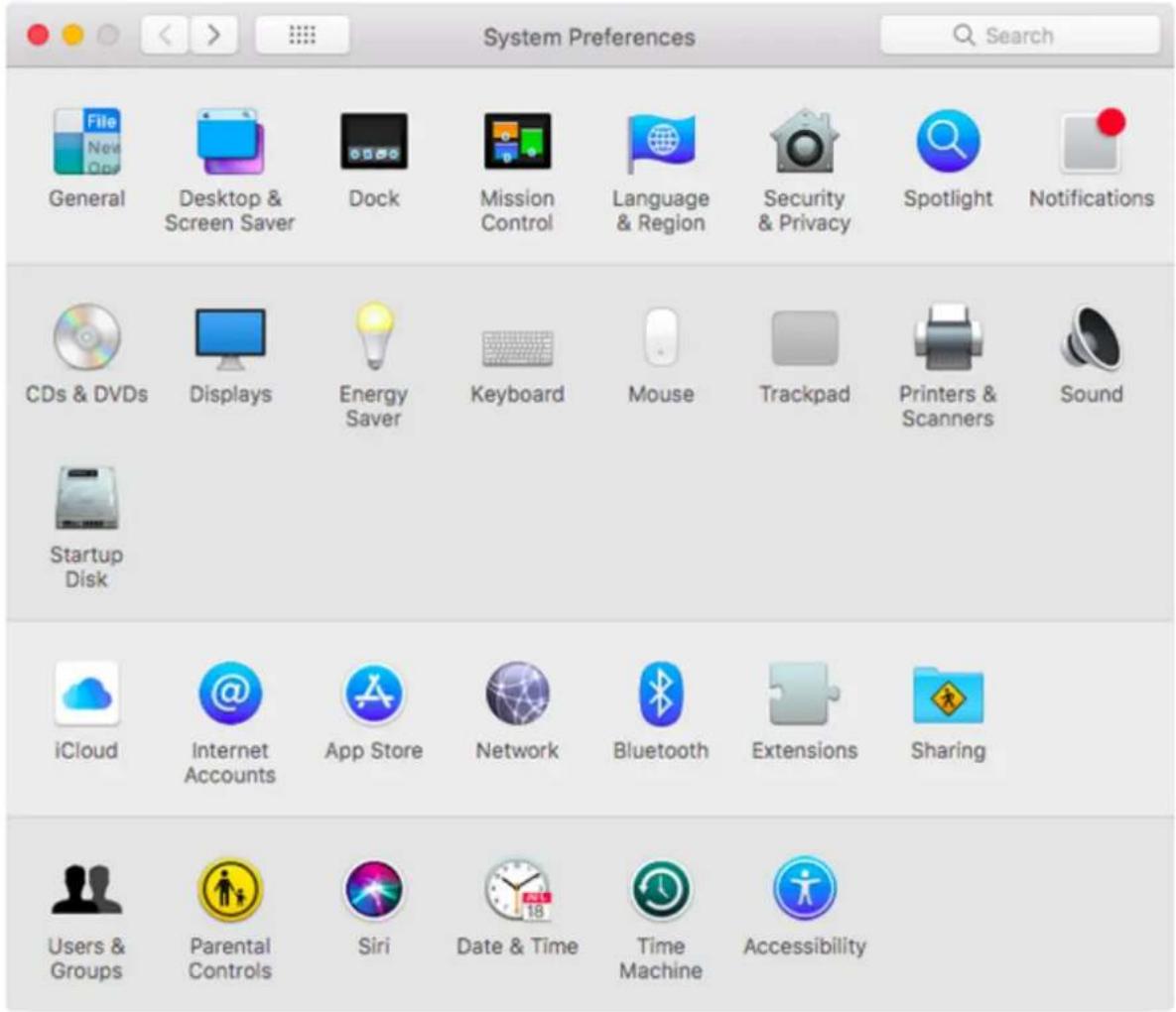
Chapter 5 Backup
3 Click Select Backup Disk.
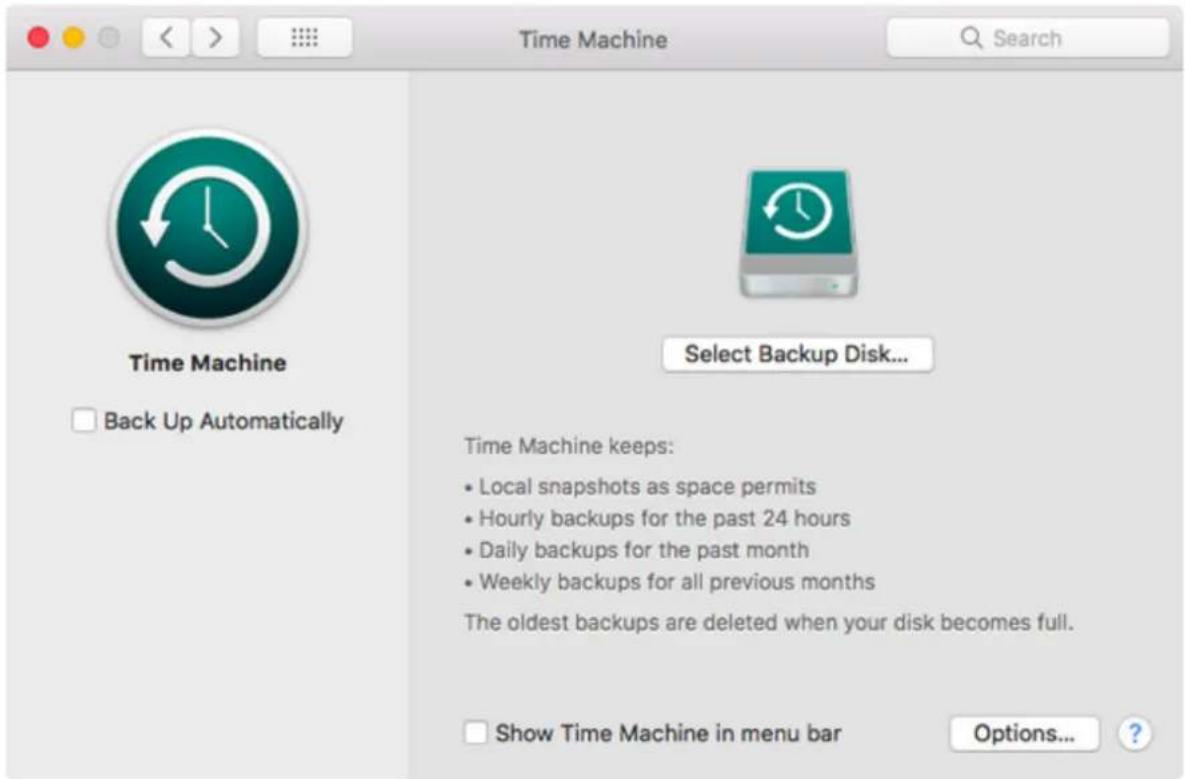
4 Select the TeraStation, then click Use Disk.
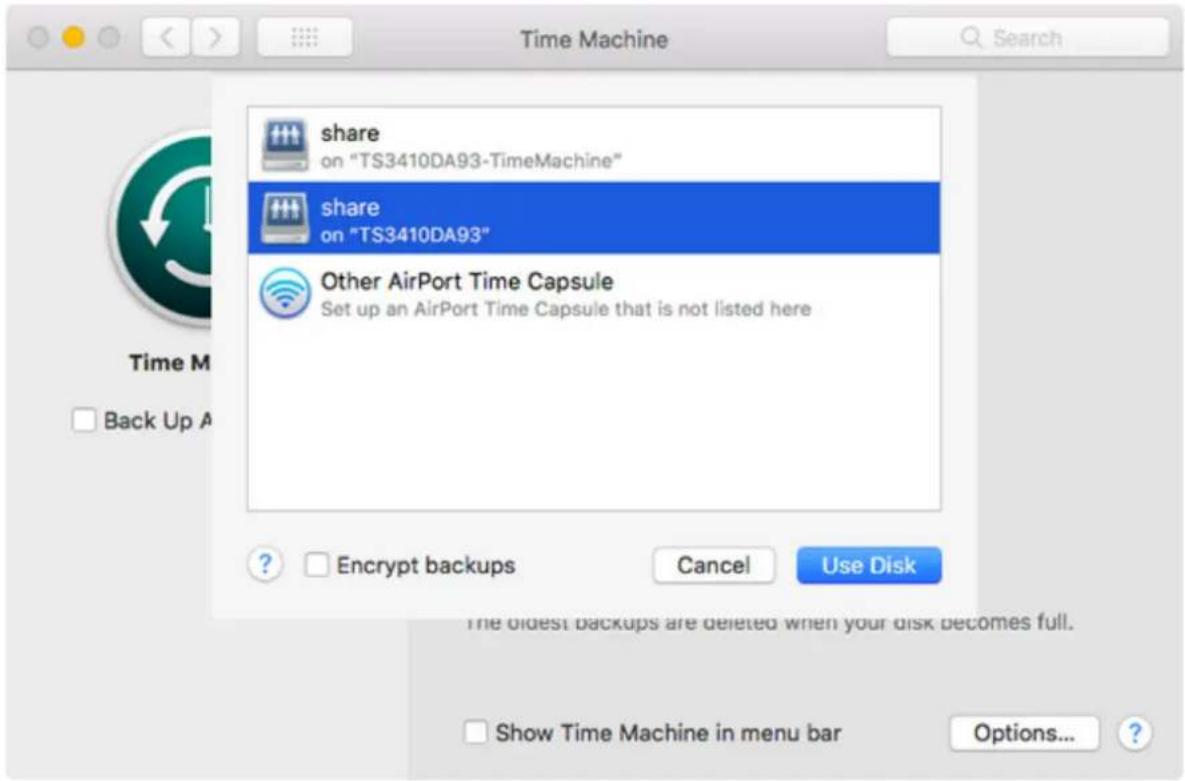
Chapter 5 Backup
5 Click Connect.
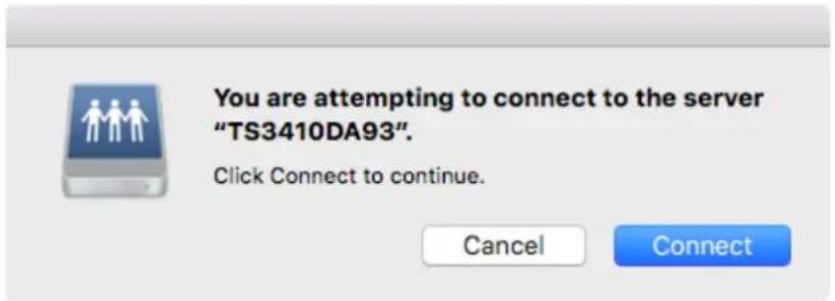
6 Enter a username and password to be used for accessing the shared folder and click Connect.
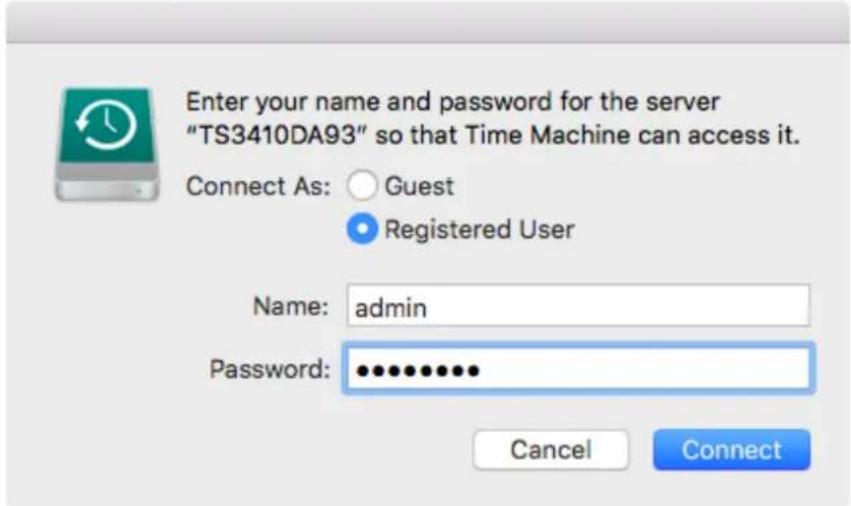
Note: If access restrictions are not configured on the destination share, log in with the administrator account. The default username and password for the administrator account are "admin" and "password". If access restrictions are configured, log in with an account with write privileges.
7 Time Machine will count down from 120 seconds, then backup will begin.
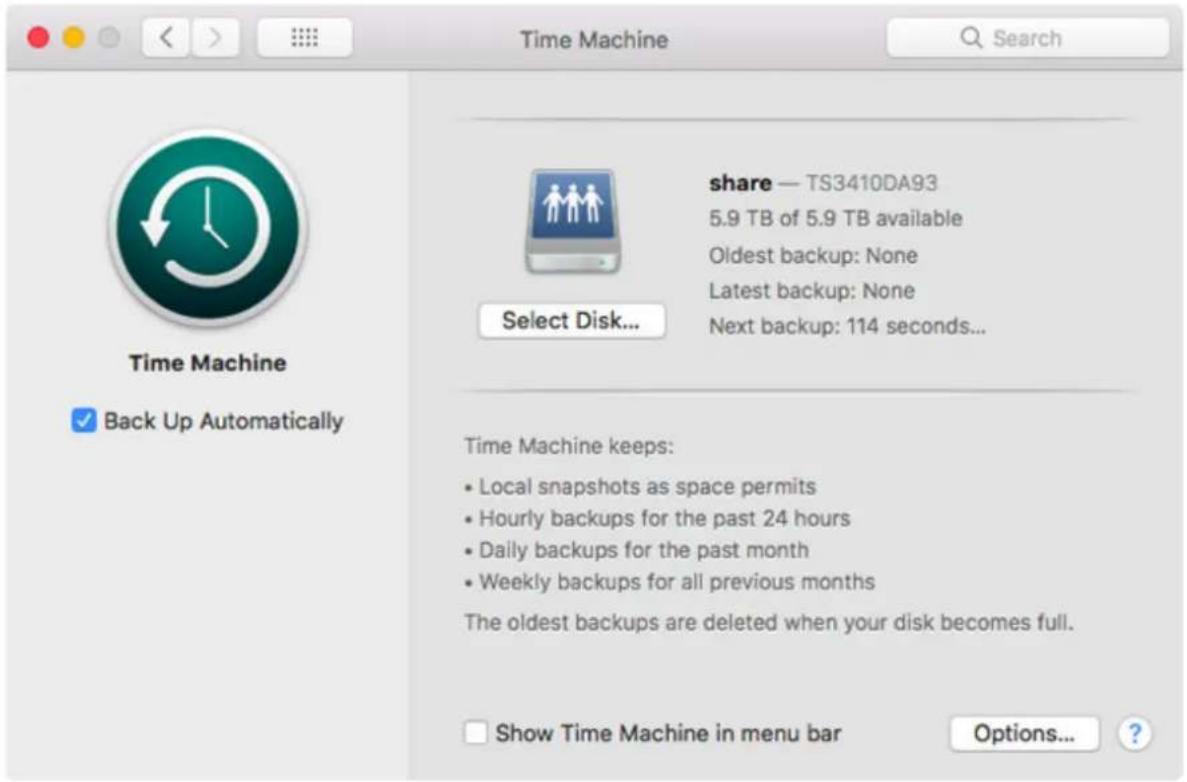
Chapter 6 Remote Access
WebAccess
WebAccess is a software utility for accessing the files in the shared folder of your TeraStation from your computer or mobile devices through the Internet. Be careful when configuring WebAccess. Certain settings can make the files in the shared folder available to anyone on the Internet, without any access restrictions.
Note: WebAccess supports downloading up to 60,000 files at a time. Attempting to download 60,000 or more files at a time may result in unexpected behavior.
1 From Settings, click File Sharing.

2 Click to the right of "WebAccess".

3 Click Edit.
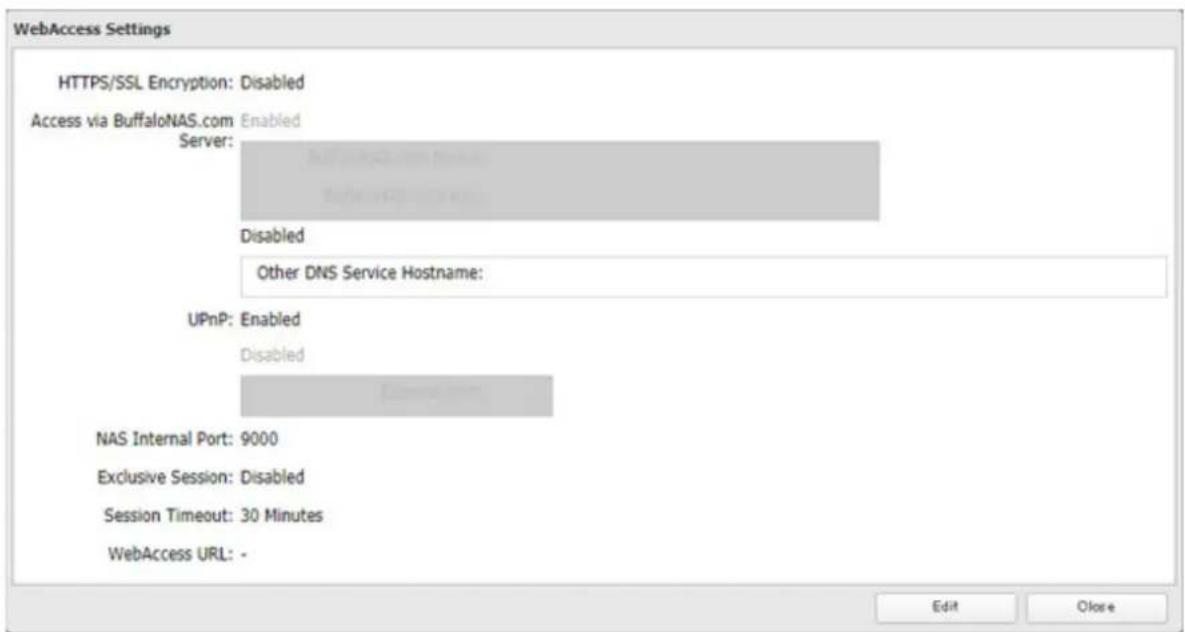
4 Configure the desired settings, then click OK.
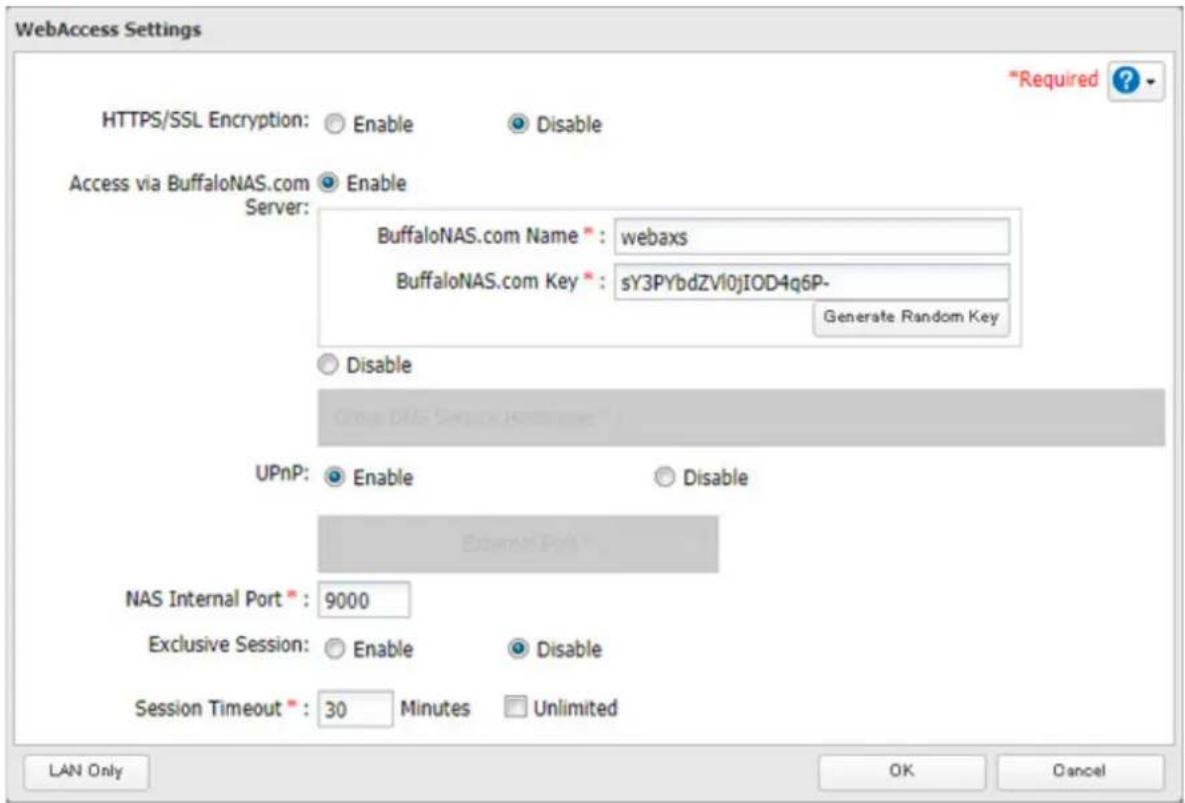
- To use SSL encryption for more secure data transfers, enable "HTTPS/SSL Encryption".
- You may use the BuffaloNAS.com server as a DNS server, or disable it to use a different DNS server.
- Choose a "BuffaloNAS.com Name" and "BuffaloNAS.com Key" for your WebAccess account. Names and keys may contain between 3 and 20 alphanumeric characters, underscores (_), and hyphens (-).
- If "Exclusive Session" is enabled, multiple users cannot be logged in to WebAccess at the same time. Only the last login will be active.
- Enter a time in minutes (1 to 120, or "Unlimited") before inactive users are logged out of WebAccess.
5 Move the WebAccess switch to the position to enable WebAccess.

6 Click to the right of "Folder Setup".

7 Select a shared folder to publish.
Notes:
- For best results, create a new dedicated share for WebAccess.
- When accessing shared folders through WebAccess from a remote location, a username and password may be required for certain operations. For best results, create a user account with permissions on the WebAccess share before using WebAccess.
8 Under "LAN Protocol Support", select the "WebAccess" checkbox on the Basic tab.
9 Click the Option 2 tab.
10 Select the desired WebAccess security level for "WebAccess Permissions".
Allow anonymous: Anyone can access (view) shared folders. (Access restrictions configured for shared folders will not work.)
Allow all groups and users: All groups and users registered on the Buffalo NAS device can use WebAccess. (Access restrictions configured for shared folders will not work.)
Use inherited folder permissions: Users and groups have the same access permissions with WebAccess that they do locally. If access restrictions are not set for the shared folder, then this option will not be shown.
Whether a user or group can access a folder through WebAccess depends on a combination of WebAccess settings and the shared folder's settings.
| Not logged in | Access restrictions for the logged-in users | ||||
| No access Read | only Read and write | ||||
| WebAccess permissions | Allow anonymous R R/W R/W R/W | ||||
| Allow all groups and users | - R/W R/W R/W | ||||
| Use inherited folder permissions | -- R R/W | ||||
R/W: Read and write, R: Read-only, -: No access
11 Click OK.
There are many ways to access WebAccess folders depending on your device:
- From a computer, supported browsers include Microsoft Edge, Firefox, Google Chrome, Internet Explorer 9 or later, Safari 9 or later. Refer to the help guide at the BuffaloNAS.com website after connecting with your BuffaloNAS.com name for more detailed information.
- To access from an iOS device, install the "WebAccess i" application from the App Store. Refer to the help guide for the app for more detailed information.
- To access from an Android device, install the "WebAccess A" application from Google Play. Refer to the help guide for the app for more detailed information.
FTP
By default, the TeraStation's shares are only accessible by users connected to the same network or router as the TeraStation. The optional FTP server allows users outside the local network to access the TeraStation.
Note: FTP is intended for users who already have FTP client software and have experience with it.
1 From Settings, click File Sharing.

2 Move the FTP switch to the position to enable FTP.

3 Click to the right of "Folder Setup".

Folder Setup

1 Folders
4 Choose a folder to enable remote FTP access on.
5 Under "LAN Protocol Support", select the "FTP" checkbox on the Basic tab; select read-only or read and write for the shared folder's attribute on the Option 2 tab and click OK.
Accessing the TeraStation with an FTP Client
To access the TeraStation via FTP, configure your FTP client software with the following settings:
- Hostname: IP address of the TeraStation
- Username: The TeraStation's username
- Password: The TeraStation's password
- Port: 21
Accessing the TeraStation with an Anonymous User
To allow anonymous access to your FTP share, disable access restrictions. Configure your FTP client software with the following settings for anonymous FTP access:
- Hostname: IP address of the TeraStation
- Username: Anonymous
- Password: Any character string
- Port: 21
Notes:
- If the TeraStation joins a domain, domain and anonymous users cannot remote access via FTP. Domain users will be able to access remotely using SFTP.
- Shared folders connected by FTP are available from the "/mnt" folder. The examples of default locations are: /mnt/array1/share /mnt/disk1/share /mnt/usbdisk1
- If a file was created or copied using AFP, you may be unable to delete it using an FTP connection. If this occurs, use an SMB or AFP connection instead to delete the file.
- For FTP connections, make sure that the total filename including the folder path is 250 single-byte characters or less.
Synchronizing with Amazon S3
The TeraStation supports Amazon S3, a fee-based online storage service provided by Amazon, and other cloud storage services that share the Amazon S3 API. Follow the procedure below to configure your TeraStation for use with Amazon S3.
Notes:
- Depending on the services you have purchased, prices for operations and amount of data will vary. To avoid being charged unexpectedly expensive fees, we recommend staying aware of the price structure for data storage and operations and regularly checking how much have been charged.
- Set the TeraStation's time settings to the correct time. Using NTP is recommended. To configure NTP settings on the TeraStation, refer to the "Name, Date, Time, and Language" section in chapter 7.
Preparing for Amazon S3
1 From Settings, click Cloud Storage.

Cloud Storage
2 Click to the right of "Amazon S3".

Amazon S3


3 Click Add.
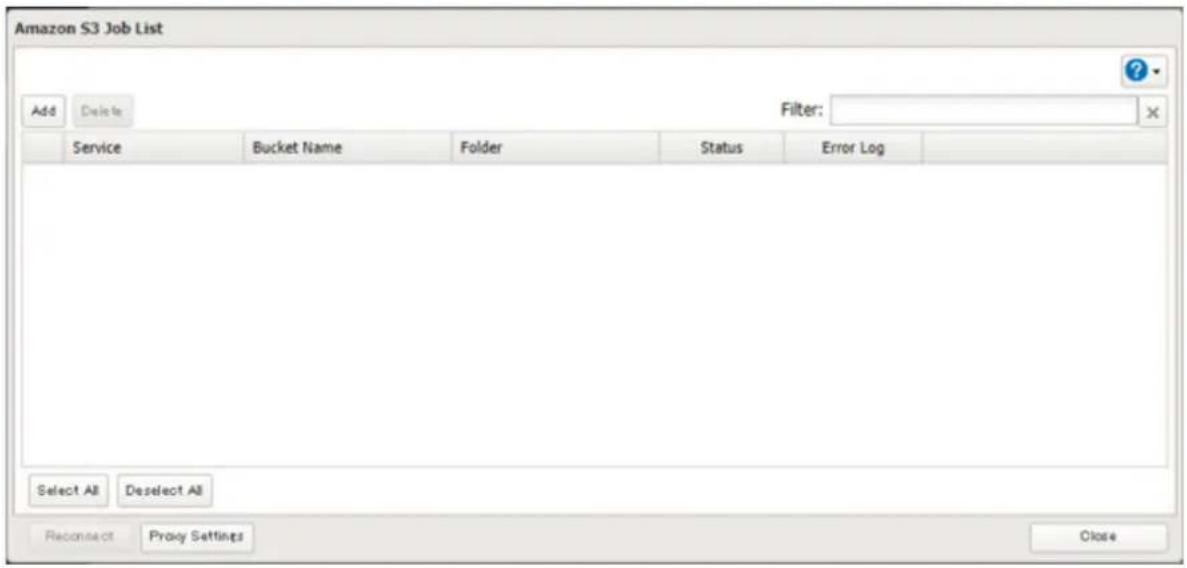
4 Select the service name and region name that you have selected when creating the bucket from the dropdown list. Enter the bucket name, access key ID, and secret access key; select the storage class and the connection protocol, then click OK.
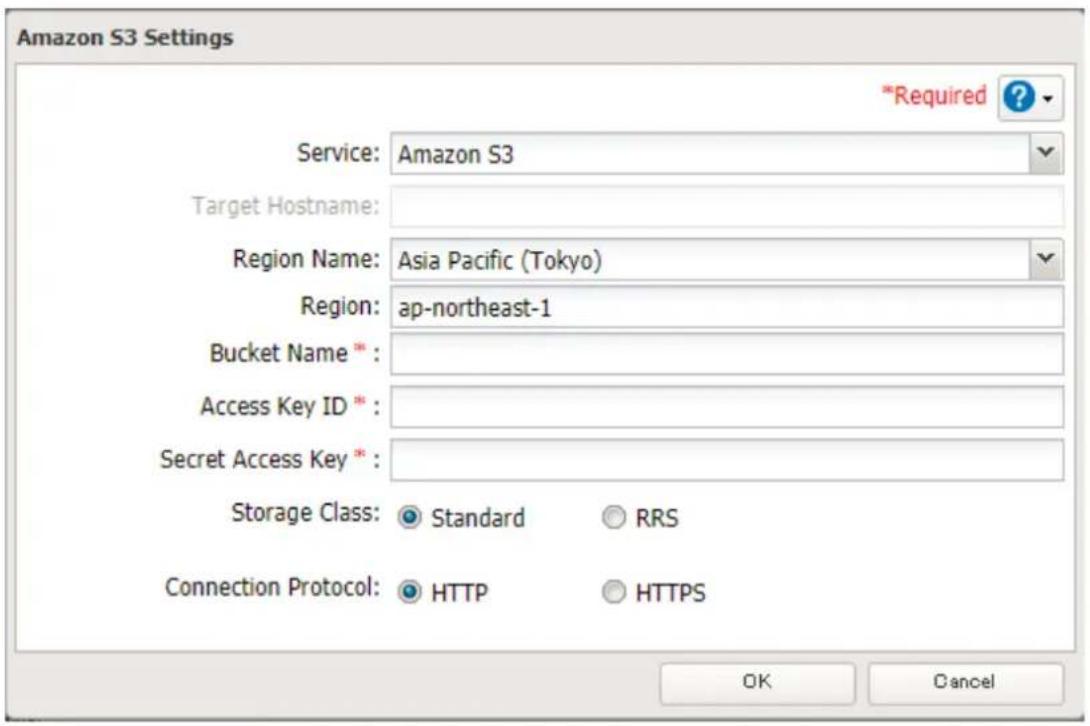
5 Enter a remote folder name to use with Amazon S3 and click OK.
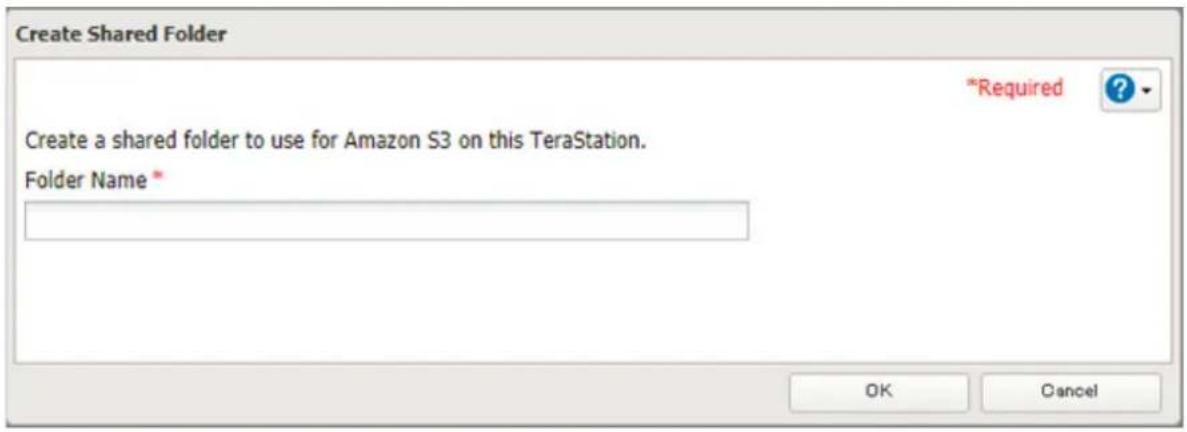
6 Under "LAN Protocol Support", select the "Backup" checkbox on the Basic tab.

7 Click OK.
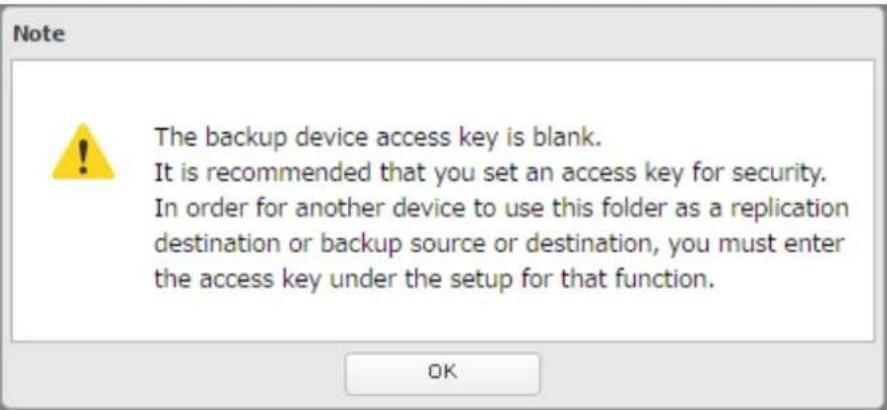
8 Enter the desired characters into the backup device access key field.

9 Configure the desired shared folder settings, then click OK.
Notes:
- If a remote folder created through this process is configured to use NFS, it cannot be mounted from an NFS client.
- Files cannot be uploaded to this remote folder using WebAccess.
- If using Amazon S3 through a proxy server, click Proxy Settings. From the displayed page, you can select whether to use the configured settings or configure an identical proxy server. If using the identical proxy server, select "New settings" and enter the proxy server name, port number, username, and password. Consult your network administrator for detailed proxy server settings.
- If you enter an incorrect bucket name and then cancel editing the Amazon S3 settings, that wrong bucket name may still accidentally be registered. If this happens, reconfigure the Amazon S3 settings correctly starting from step 4.
- Do not configure a folder that is created through the procedure above as replication destination folder.
Uploading Files to Amazon S3
To upload files to Amazon S3 buckets, using backup job is recommended.
1 From Settings, click Backup.

2 Click to the right of "Backup".

Chapter 6 Remote Access
3 If you had configured a backup device access key to the remote folder that was created through the "Preparing for Amazon S3" section above, click Set. If you hadn't, skip to step 5.
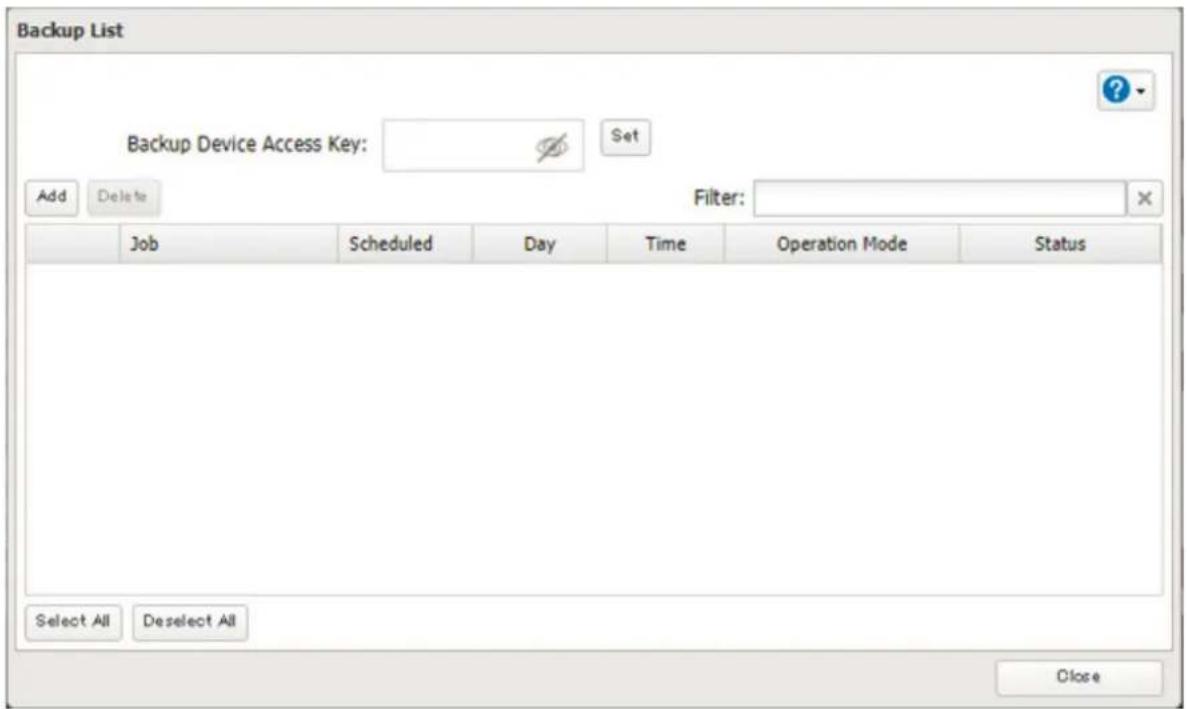
4 Enter the backup device access key and click OK.
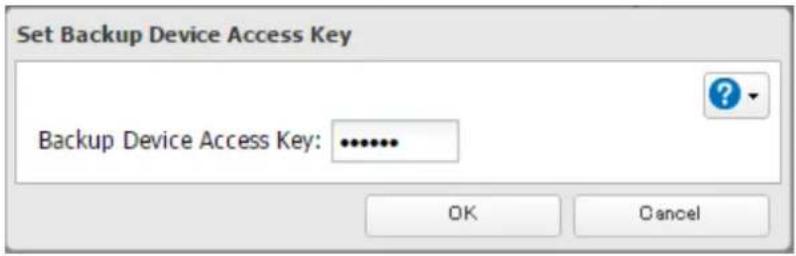
Chapter 6 Remote Access
5 Click Add.
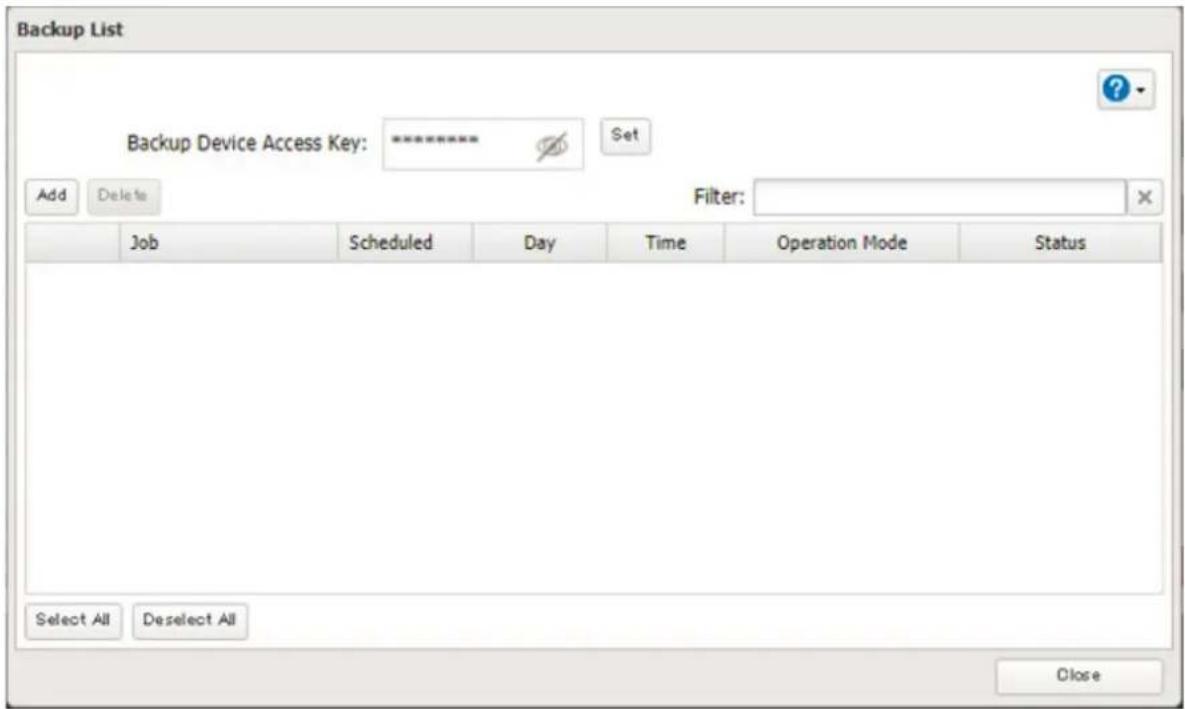
6 Select backup settings such as date and time to run. It is recommended to configure a job to run periodically. If you create a differential backup job and there are files that only exist in the destination folder, these files will be deleted when the job runs. Make sure that files are not saved when creating a backup job.
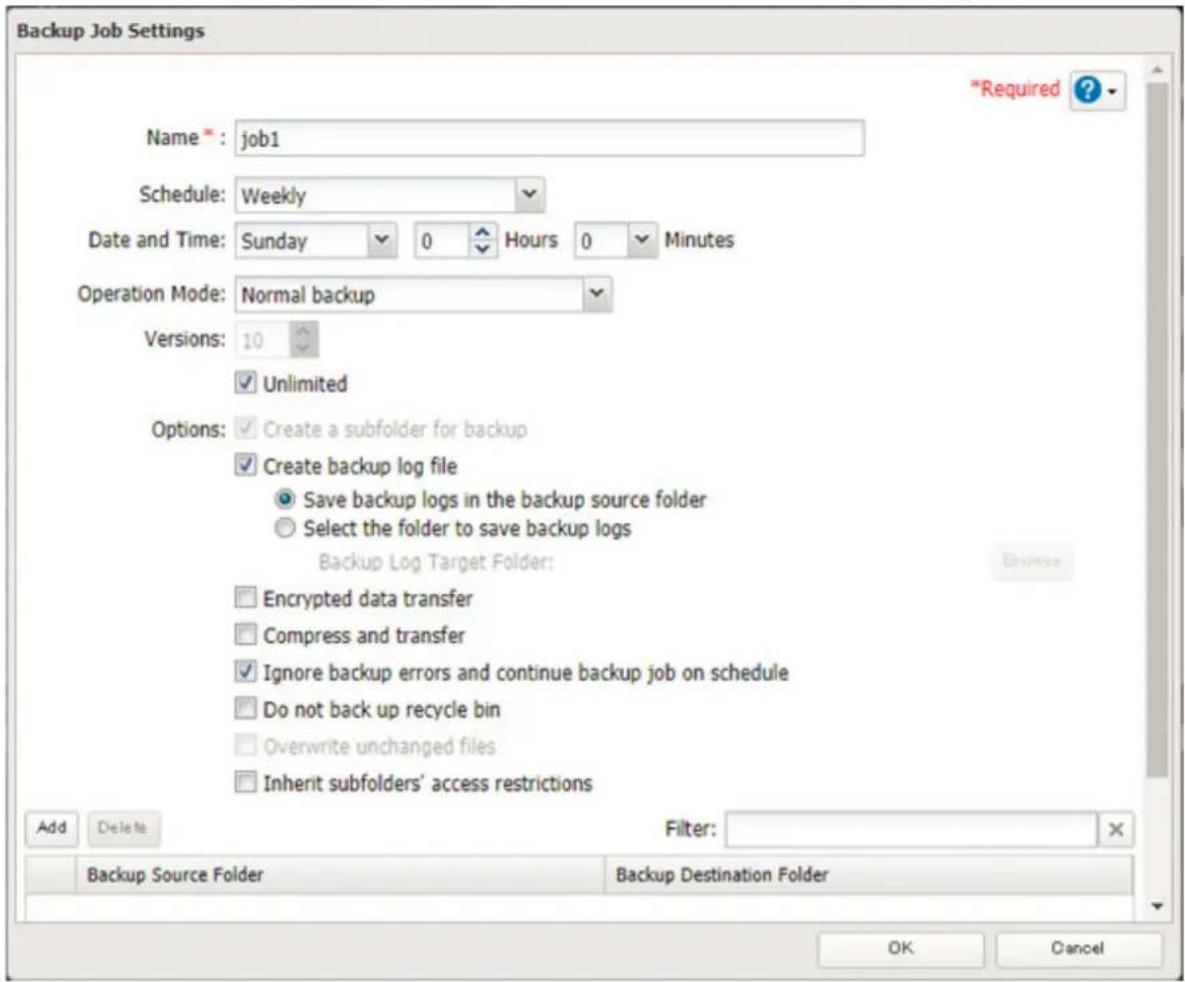
7 Click Add.
8 Select the shared folder that files will be saved to as a source, and the remote folder created through the "Preparing for Amazon S3" section above as a destination.
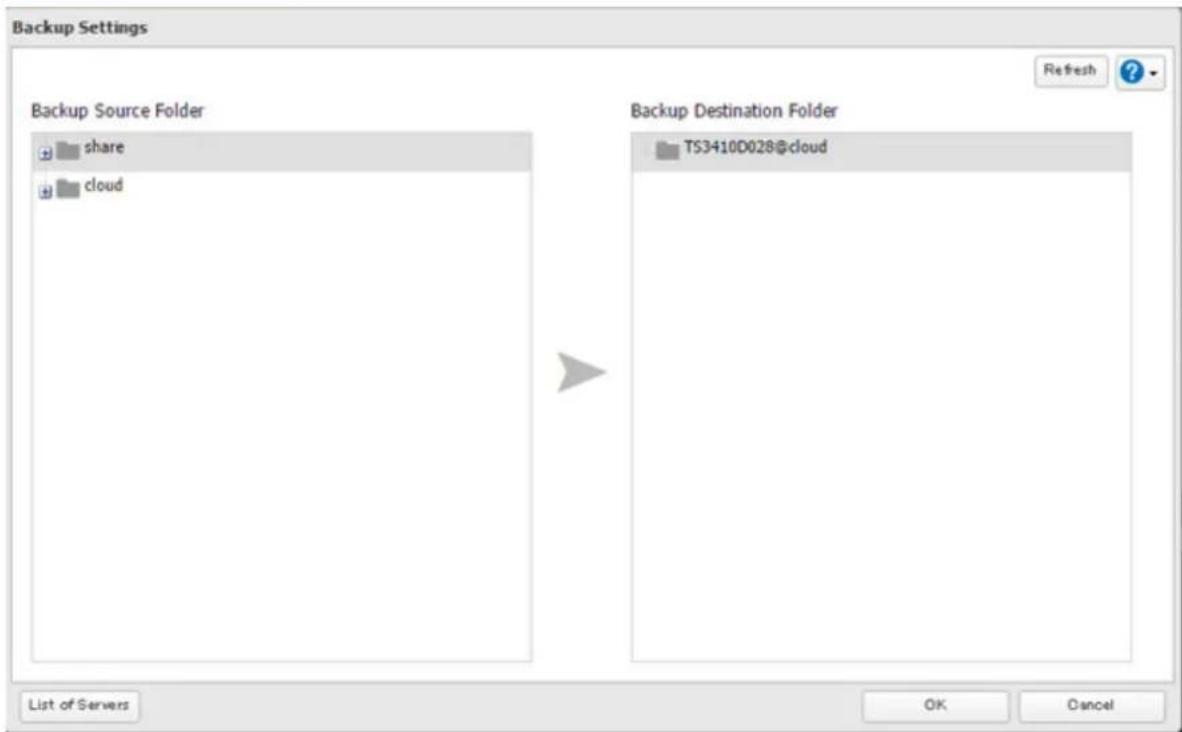
9 Click OK. Jobs will be added to the backup list.
Notes:
• To use after the network was temporarily disconnected, click Reconnect.
- If a file is directly added to the Amazon S3 bucket, the file will not be replicated to the remote folder.
- Do not copy 100,000 or more files to the backup source folder at once. If you do and uploading fails, check the network environment speed and try again with fewer files.
- Be careful with existing files in the remote folder, as files with the same name will be overwritten even if copied files are older.
- If you copy a file to the shared folder using File Explorer or a backup process, the file will also be uploaded sequentially to the Amazon S3 bucket. This second uploading process will start in the background during the first copying process and will not be visible. If the TeraStation is shut down or restarted immediately after copying a file to the shared folder, changing the settings, or disconnecting and reconnecting the Ethernet cable, the file may not be uploaded to the bucket. Try copying the file again if this occurs.
- If you encounter any upload or download errors, click Error Log. The log will display the filename and operation during which the error occurred.
- If uploading fails, try copying the file again. If it still fails, click Reconnect or set the Amazon S3 switch to off and on again, then restart the function service.
- If transferring or accessing 1 TB or more files to the Amazon S3 bucket, make sure there is enough free space on the TeraStation for temporary file caching. For example, when uploading 1 TB of files to the bucket, it is recommended to keep at least 2 TB of free space available.
Synchronizing with Dropbox
The TeraStation supports synchronizing with Dropbox, the online cloud service. Once linked, you can share TeraStation files via Dropbox (or Dropbox files via TeraStation). To link your TeraStation with your Dropbox account, follow the procedure below.
Note: To use Dropbox Sync, you will need a Dropbox account and an available empty Dropbox folder. If you don't have a Dropbox account, or if you need to create a new empty Dropbox folder, refer to the Dropbox website.
Configuring a New Job
1 From Settings, click Cloud Storage.

2 Move the Dropbox Sync switch to the position to enable Dropbox Sync.

Dropbox Sync


3 Click to the right of "Dropbox Sync".

Dropbox Sync


4 Click Add.
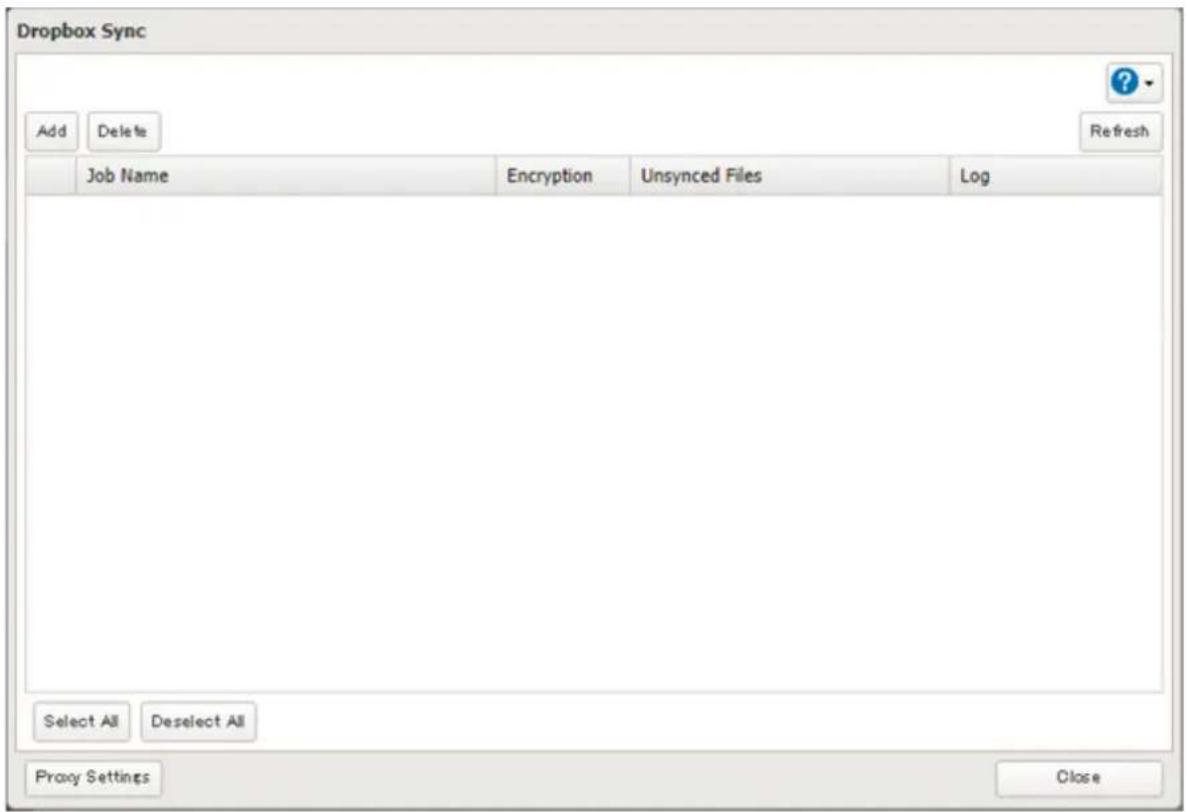
5 Click View Dropbox Authentication Page.
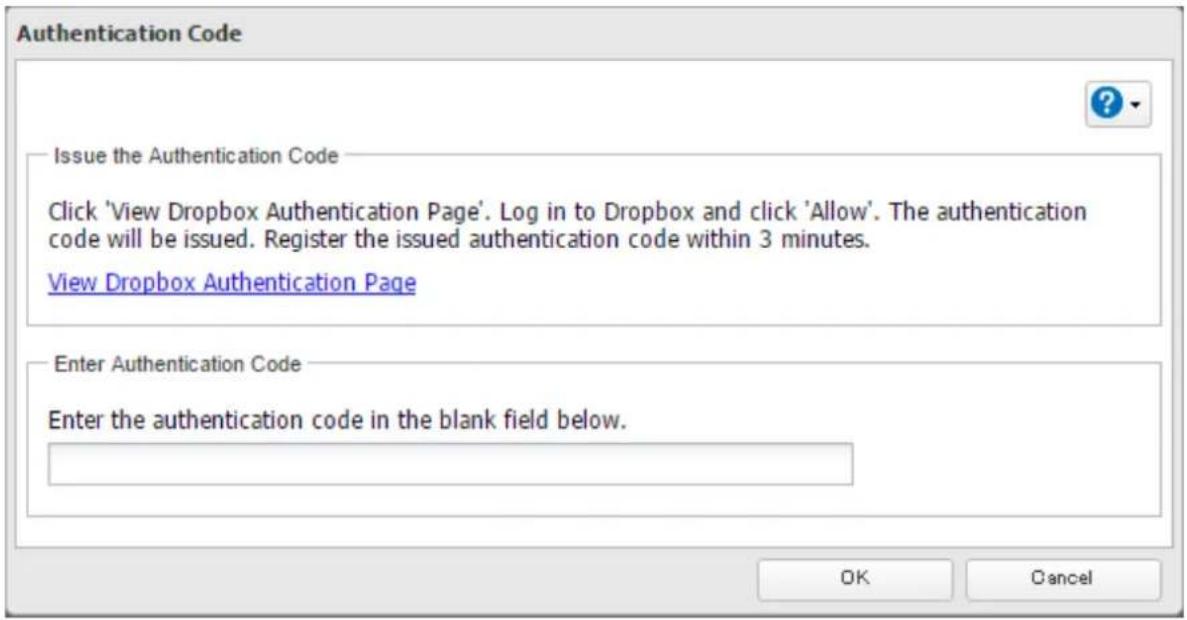
6 The authentication site that is offered by Dropbox will be displayed. Log in to the website with your Dropbox account, then click Allow.
7 The authentication code will be displayed. Copy the authentication code and return to Settings. Authentication code reregistration should be finished within three minutes.
8 Paste the authentication code and click OK.
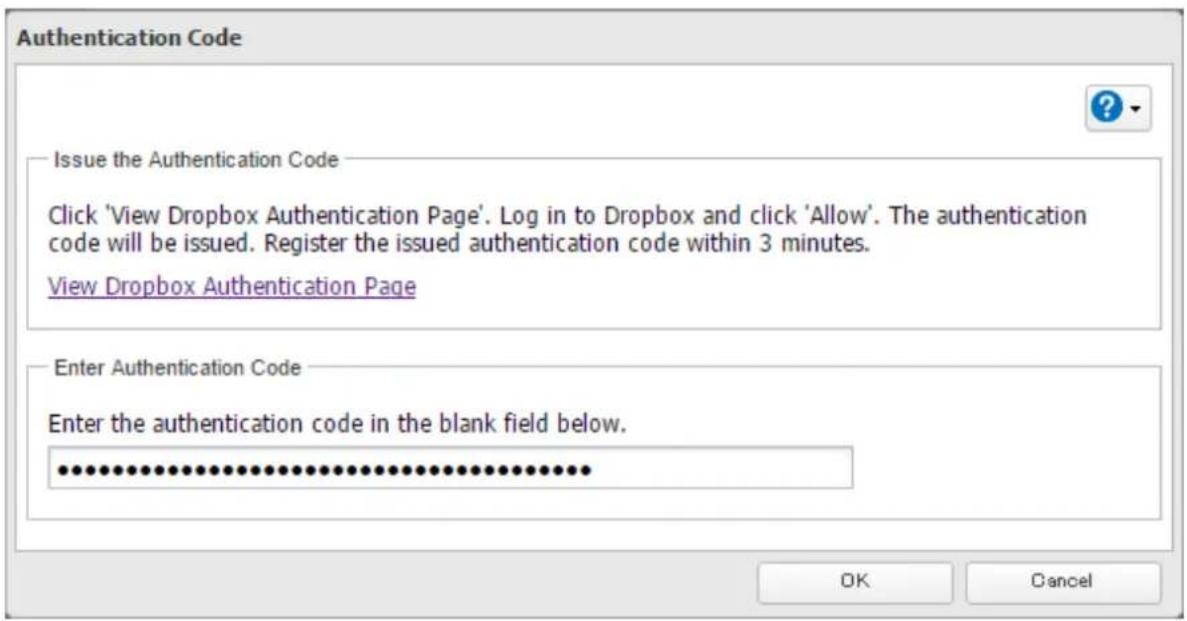
9 Enter the desired job name; select the TeraStation and Dropbox folders, and configure encryption. Click OK.
If you enable encryption, you will need to set an encryption password. The password cannot be changed once you configure it. Please take note of the password and keep it secure. If you forget the password, create a new job using the same Dropbox account. The old job can then be deleted.

10 Click OK.
Note: Up to eight Dropbox jobs can be configured at a time.
Changing Job Settings
Follow the procedure below to change any job settings you have already configured.
1 From Settings, click Cloud Storage.

2 Click to the right of "Dropbox Sync".

3 From the job list, click the job whose settings you want to change.
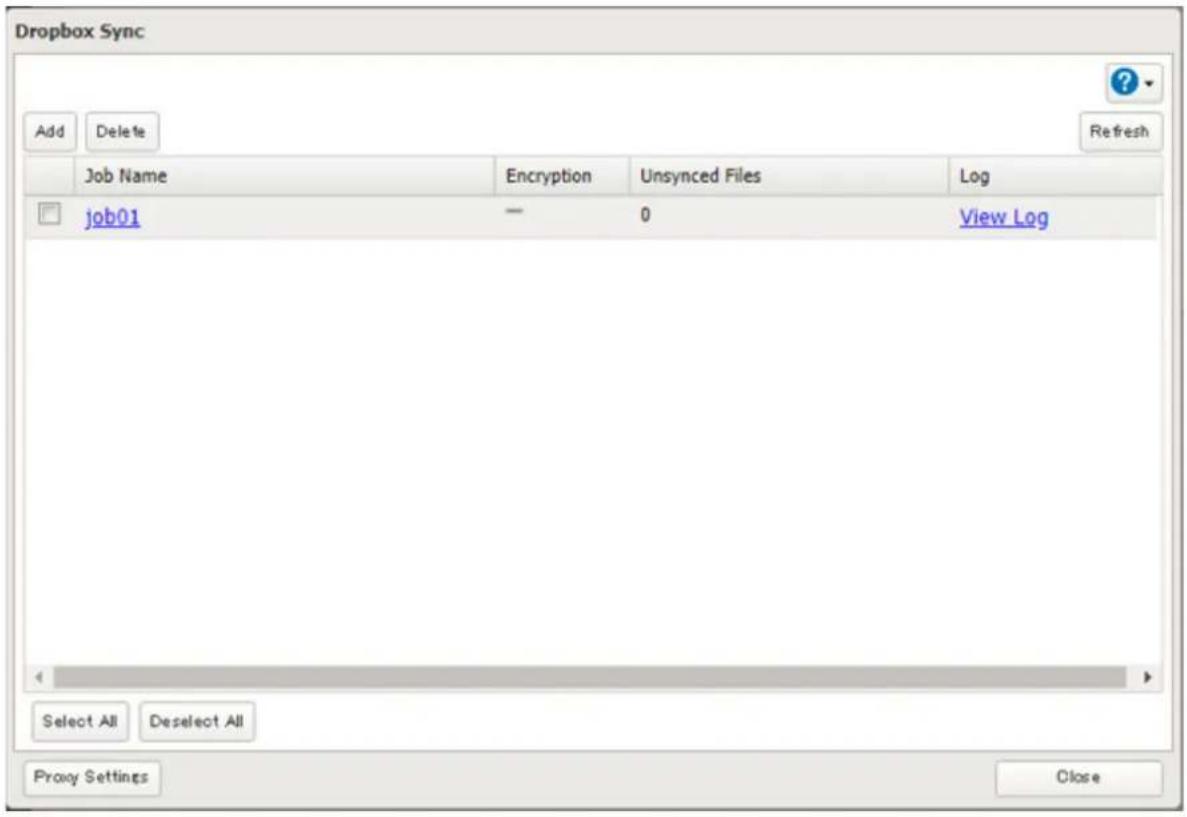
4 Click the Options tab.
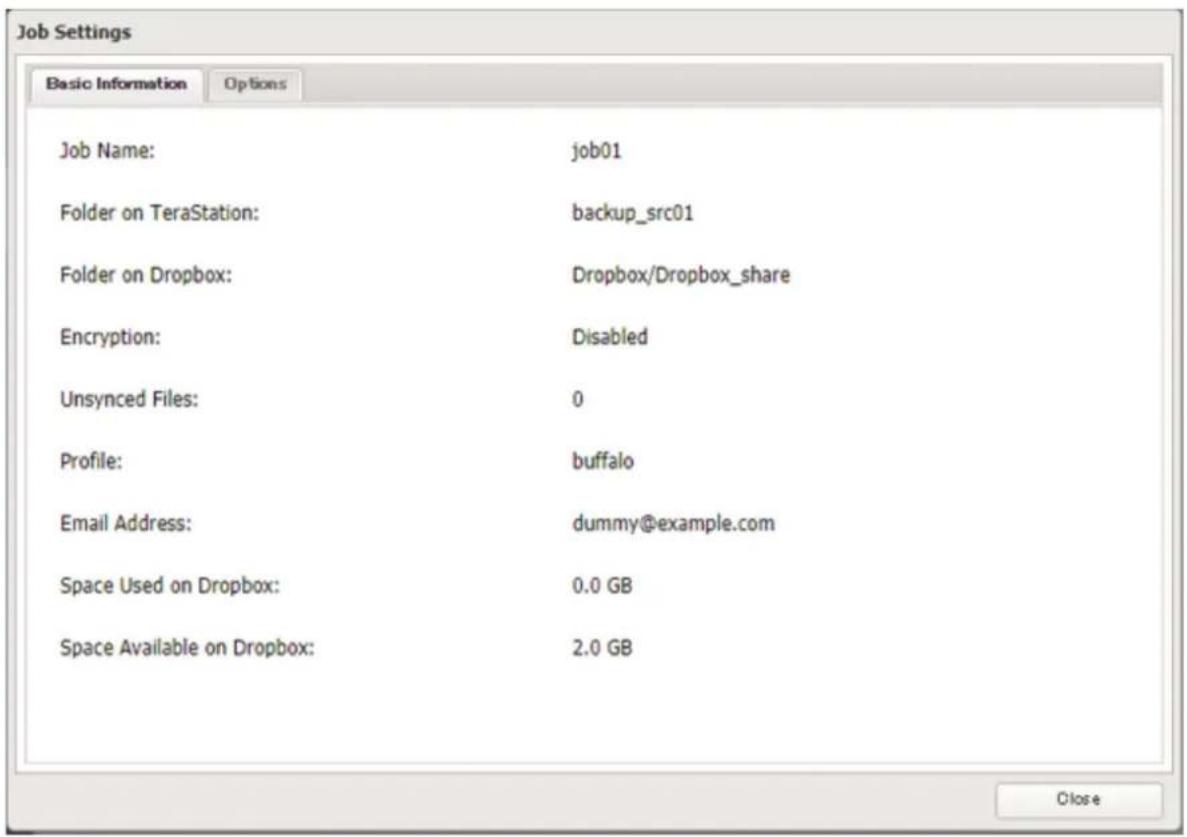
Chapter 6 Remote Access
5 Click Edit.
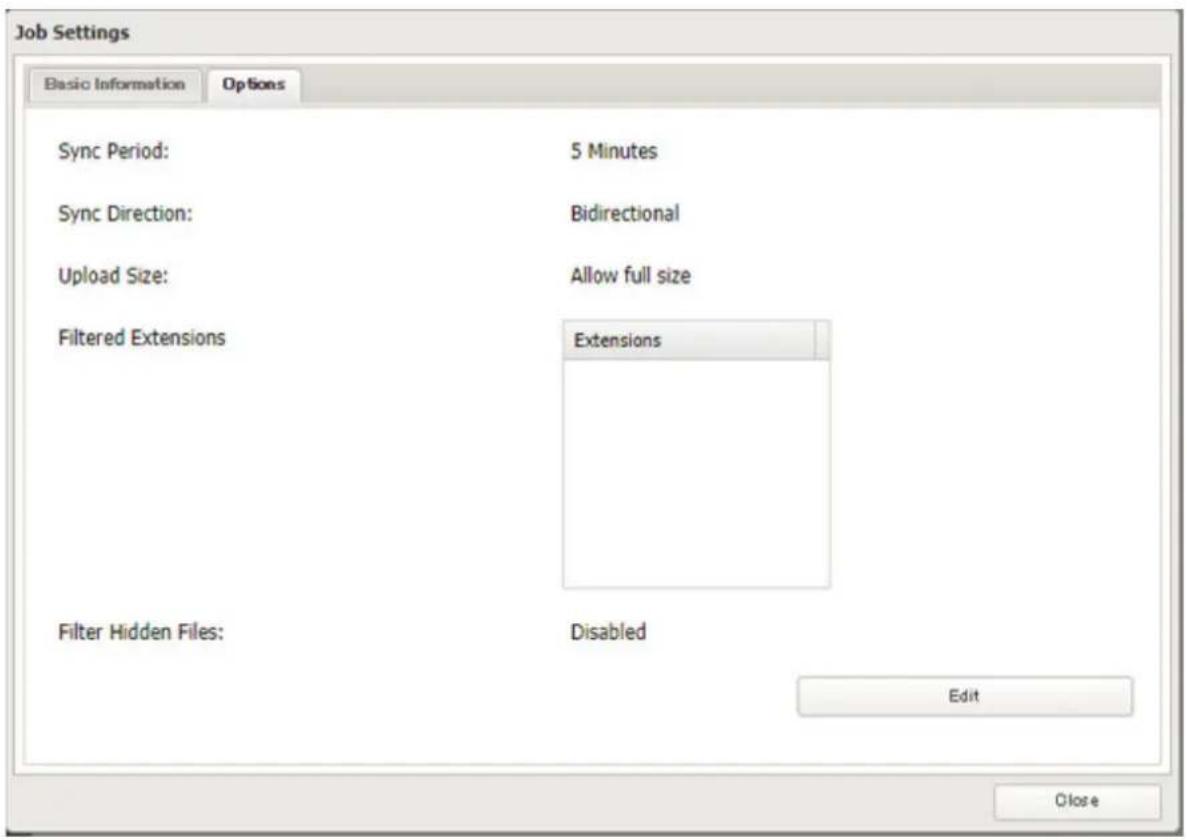
6 Configure the desired settings and click OK.
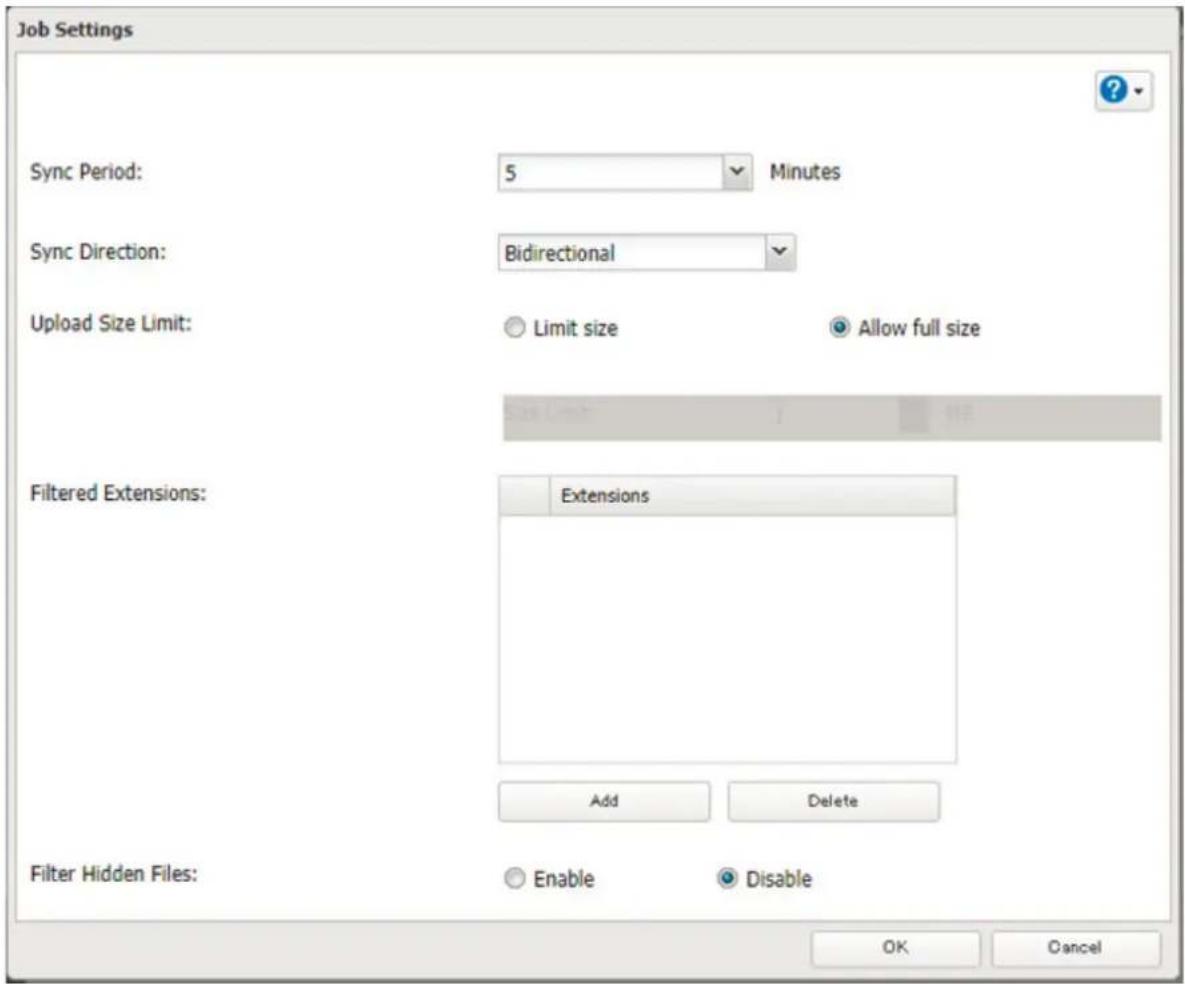
Notes:
- When encryption is enabled, files uploaded to Dropbox not using Dropbox Sync will not be downloaded to the TeraStation even if the sync direction is configured to "Bidirectional" or "Download only".
- Refer to the following website for synchronization restrictions between the TeraStation and Dropbox: https://www.dropbox.com/help/145
- Folders that are configured for Dropbox Sync cannot be renamed or used for replication.
-
When specific settings are changed, the changes will not be applied and the files on Dropbox may not be synchronized to the TeraStation. In such a case, delete the target files to be synchronized and upload them to Dropbox again or delete the job and recreate it again. The following are the specific circumstances when files may not be synchronized:
-
Uploading or downloading fails.
- File extensions are removed from filtering.
-
The sync direction is changed.
-
If using Dropbox through a proxy server, click Proxy Settings. From the displayed page, you can select whether to use the configured settings or configure an identical proxy server. If using the identical proxy server, select "New settings" and enter the proxy server name, port number, username, and password. Ask your network administrator for detailed proxy server settings.
- Files that are 900 MB or larger cannot be downloaded using Dropbox Sync. However, even if the file size is smaller than 900 MB, downloading may fail when multiple processes are running at the same time.
- Regardless of whether file filtering was configured, the following files will not be uploaded to Dropbox:
- desktop.ini
- thumbs.db
- Files whose filename contains the symbols / \ > < : " | ? *
- Files whose filename ends with either a space or period
- Files whose filename starts with either \~\$ or .\~
- Files whose filename starts with \~ and have the file extension .tmp
Creating a Shared Link (Windows Only)
Buffalo offers a Windows application, "B-Sync", that can create shared links for the files stored in the TeraStation folders. You can download the application from the Buffalo website. Refer to the application help for the usage procedure.
Using Microsoft Azure for Data Preservation
The TeraStation supports synchronizing with Microsoft Azure, the online cloud storage service. Once linked, you can back up data on the TeraStation to Azure Storage, or restore data from Azure Storage to the TeraStation.
Microsoft Azure offers multiple types of storage and the TeraStation is compatible with Blob Storage. There are three types of blobs: block blobs, page blobs, and append blobs. The TeraStation only works with block blobs to store your data.
This feature is meant for situations such as disaster recovery and not a catch-all backup function. After linking the TeraStation and Microsoft Azure, data on the TeraStation will not be bidirectionally synchronized between the TeraStation and an Azure container.
Notes:
- Depending on the services you have purchased, prices for operations and amount of data will vary. To avoid being charged unexpectedly expensive fees, we recommend staying aware of the price structure for data storage and operations and regularly checking how much have been charged.
- To access data that have been backed up to the container, use "Microsoft Azure Storage Explorer".
- If using Azure Storage through a proxy server, click Proxy Settings. From the displayed page, you can select whether to use the configured settings or configure an identical proxy server. If using the identical proxy server, select "New settings" and enter the proxy server name, port number, username, and password. Ask your network administrator for detailed proxy server settings.
To link your TeraStation with a Microsoft Azure Storage account, follow the procedure below.
Creating a New Backup Job
1 From the Azure portal, create your Azure Storage account and a container before proceeding with the procedure.
2 From Settings, click Cloud Storage.

Cloud Storage
3 Move the Microsoft Azure Storage Sync switch to the □ position to enable Microsoft Azure Storage Sync.

Microsoft Azure Storage Sync


4 Click to the right of "Microsoft Azure Storage Sync".

Microsoft Azure Storage Sync


5 Click Add.
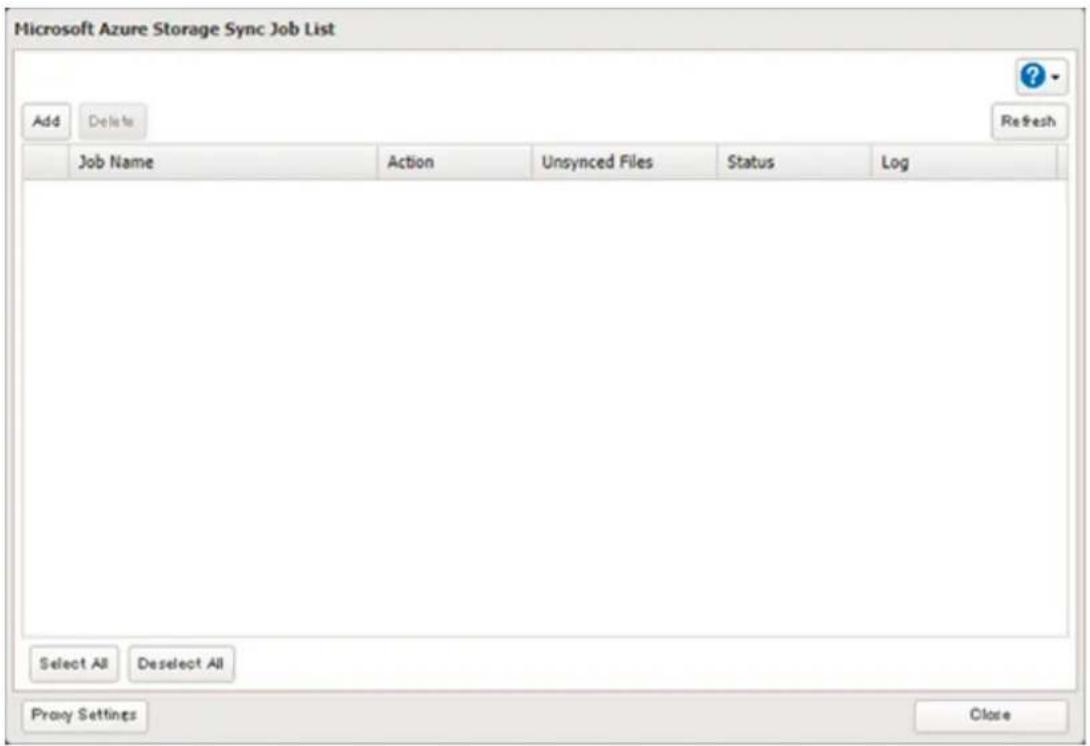
6 The job setup wizard will open. Enter your Azure Storage account name and access key, then click Next.
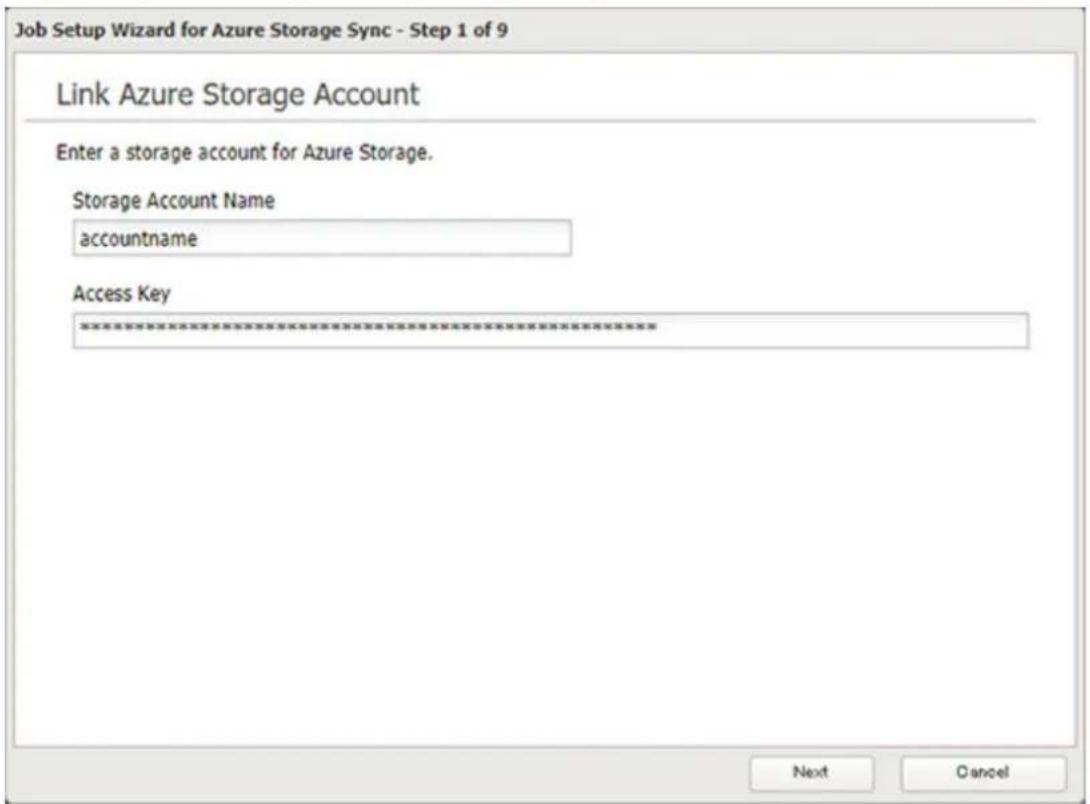
7 Enter the desired job name and click Next.
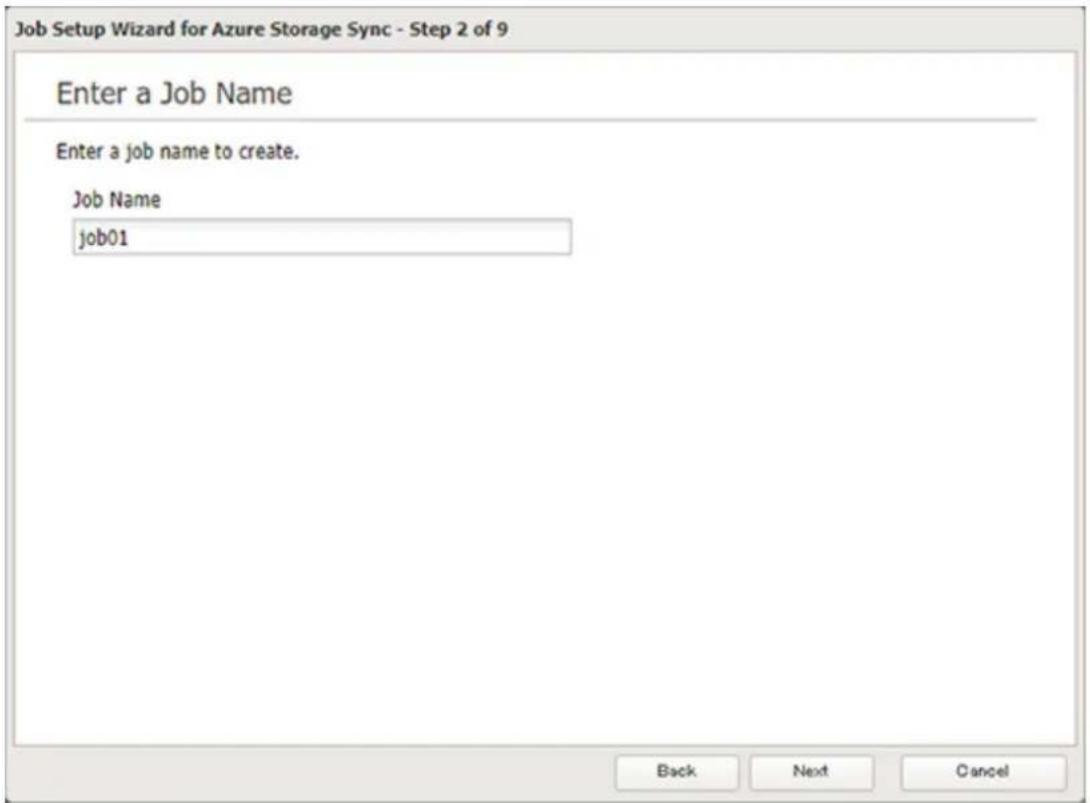
8 Select "Backup" and click Next.
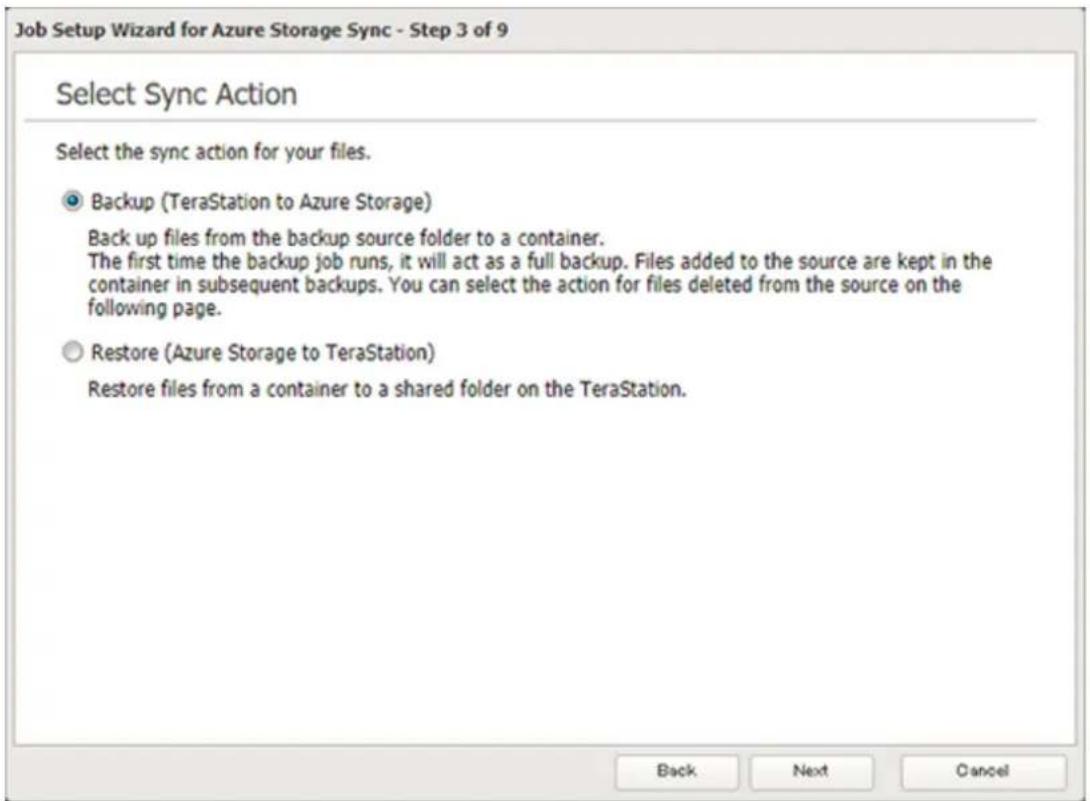
9 Select the desired shared folder on the TeraStation as the backup source folder and enter the container name for the backup destination, then click Next.
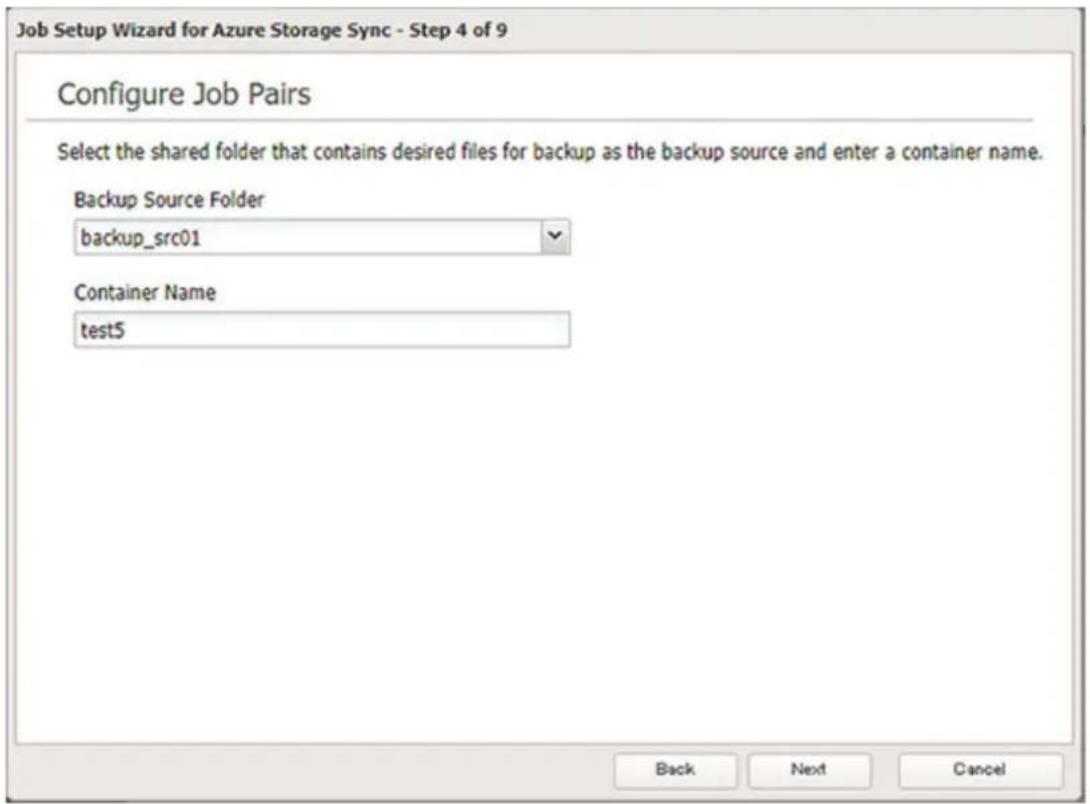
10 Specify the sync period and click Next.
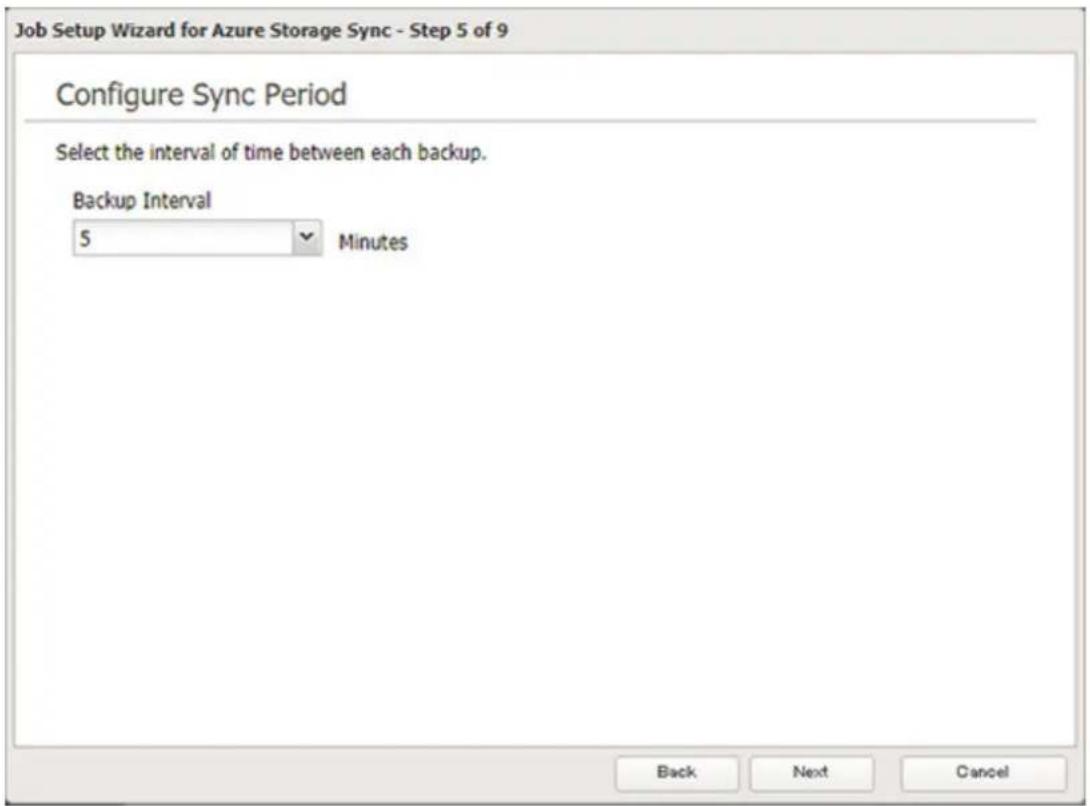
11 Select the desired action to take for files in the container that share the same name as files in the backup source after they are deleted, then click Next.
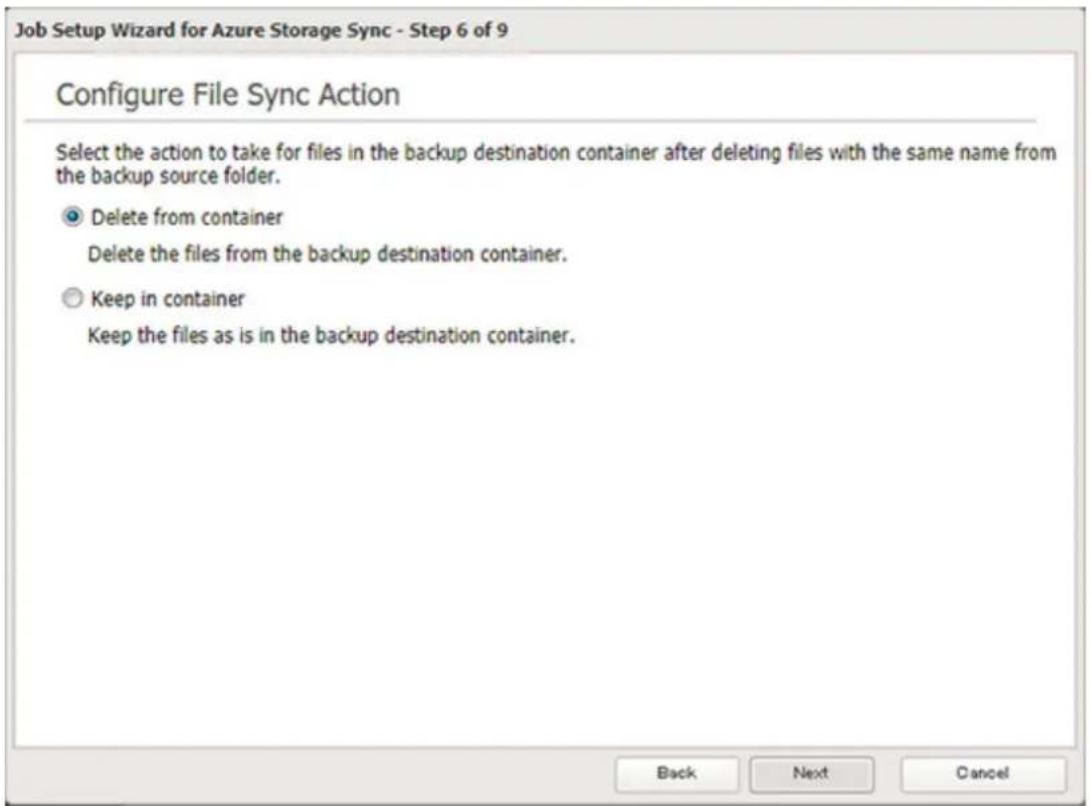
12 Configure whether to filter the backup target files. The following screen is available to configure file filtering by file size and whether they're hidden. Configure the desired filtering settings and click Next.
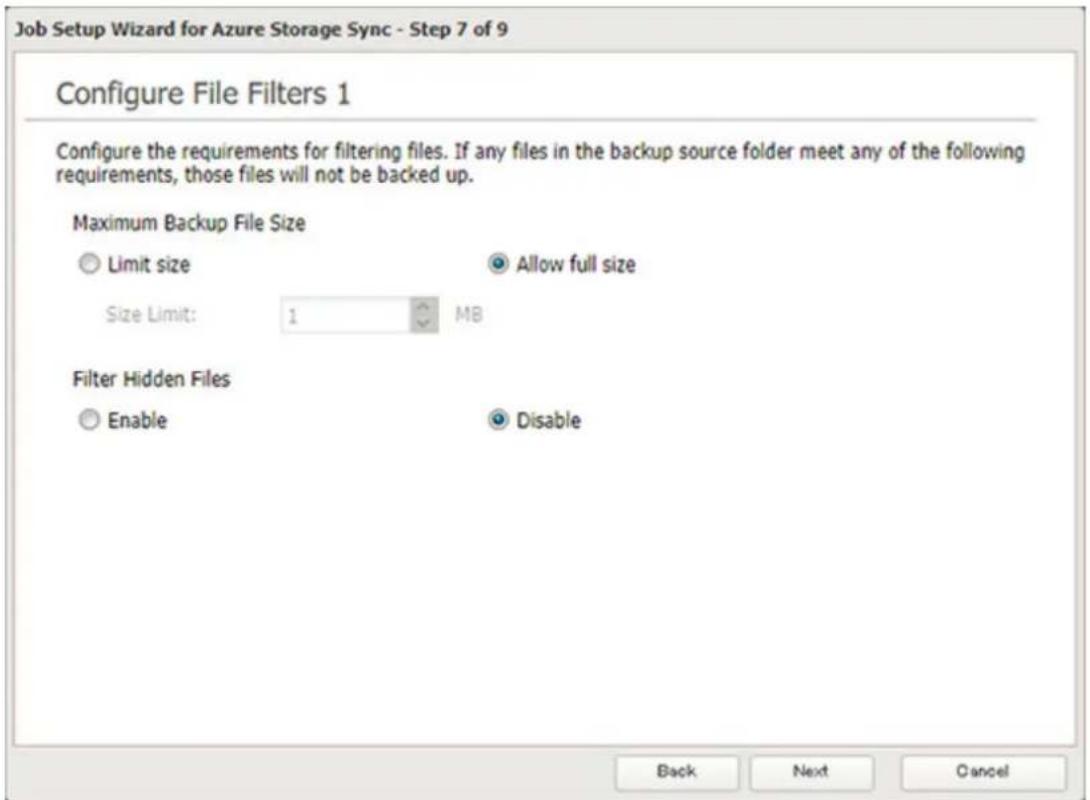
13 The following screen is available to configure file filtering by extensions. Configure the desired filtering settings and click Next.
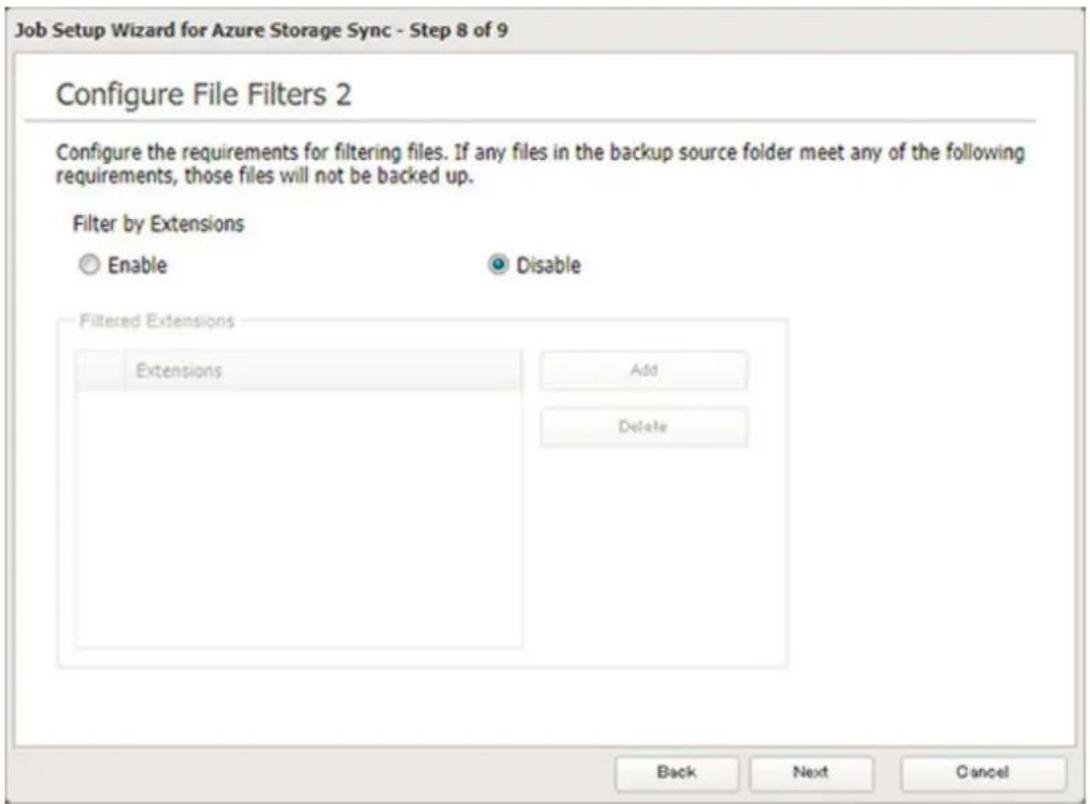
14 Confirm that all settings are properly configured and click OK.
Notes:
- Regardless of whether file filtering was configured, the following files will not be backed up to an Azure Storage container:
- desktop.ini
- thumbs.db
- Files whose filename contains the symbols / \ > < : " | ? *
- Files whose filename ends with either a space or period
- Files whose filename starts with either \~\$ or .\~
- Files whose filename starts with \~ and have the file extension .tmp
- Do not copy files that are 10 GB or larger, and do not copy 100,000 or more files to the backup source folder at once. If you do and backup fails, check the network environment speed and try again with fewer files.
Creating a New Restore Job
1 From the Azure portal, create your Azure Storage account and a container before beginning the following procedure.
2 From Settings, click Cloud Storage.

Cloud Storage
Chapter 6 Remote Access
3 Move the Microsoft Azure Storage Sync switch to the position to enable Microsoft Azure Storage Sync.

Microsoft Azure Storage Sync


4 Click to the right of "Microsoft Azure Storage Sync".

Microsoft Azure Storage Sync


5 Click Add.
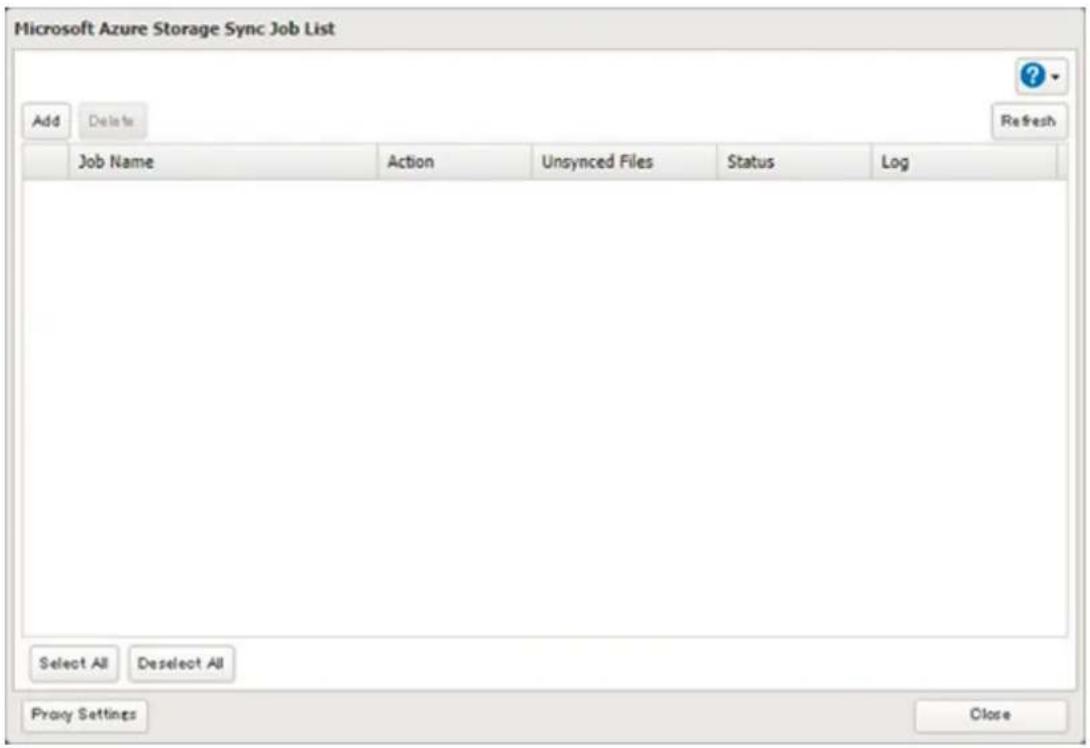
6 The job setup wizard will open. Enter your Azure Storage account name and access key, then click Next.
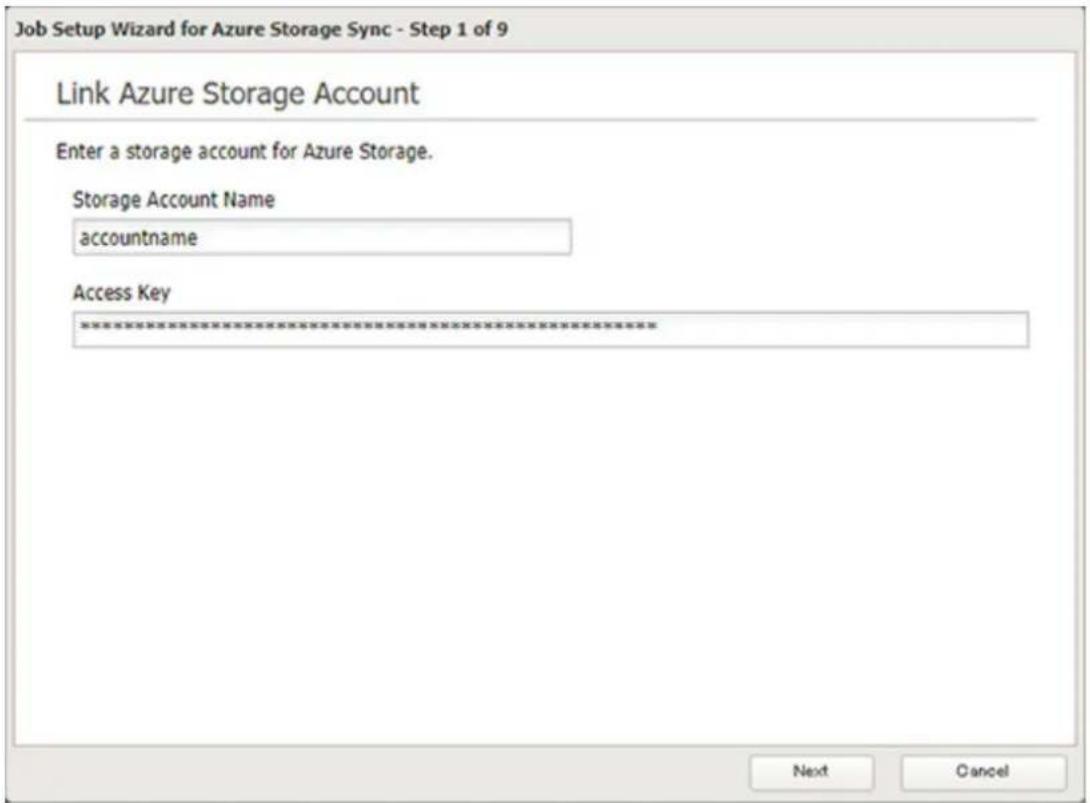
7 Enter the desired job name and click Next.
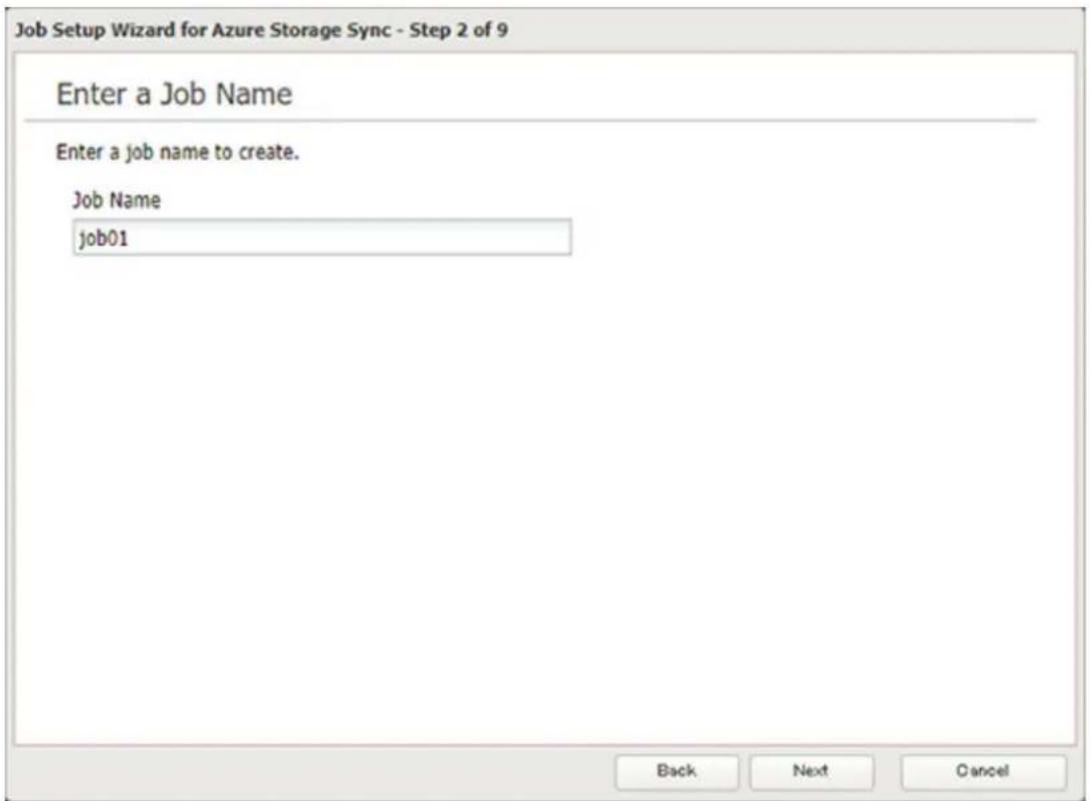
8 Select "Restore" and click Next.
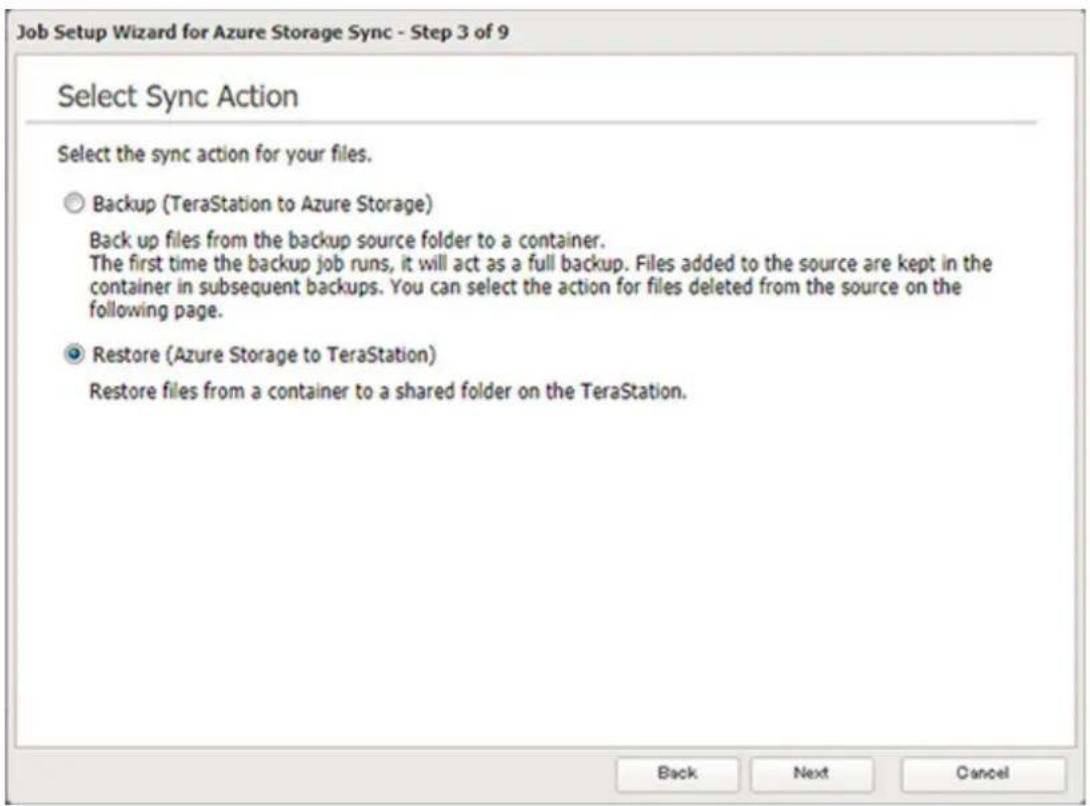
9 Enter the container name for the restore source and select the desired shared folder on the TeraStation as the restore destination, then click Next.
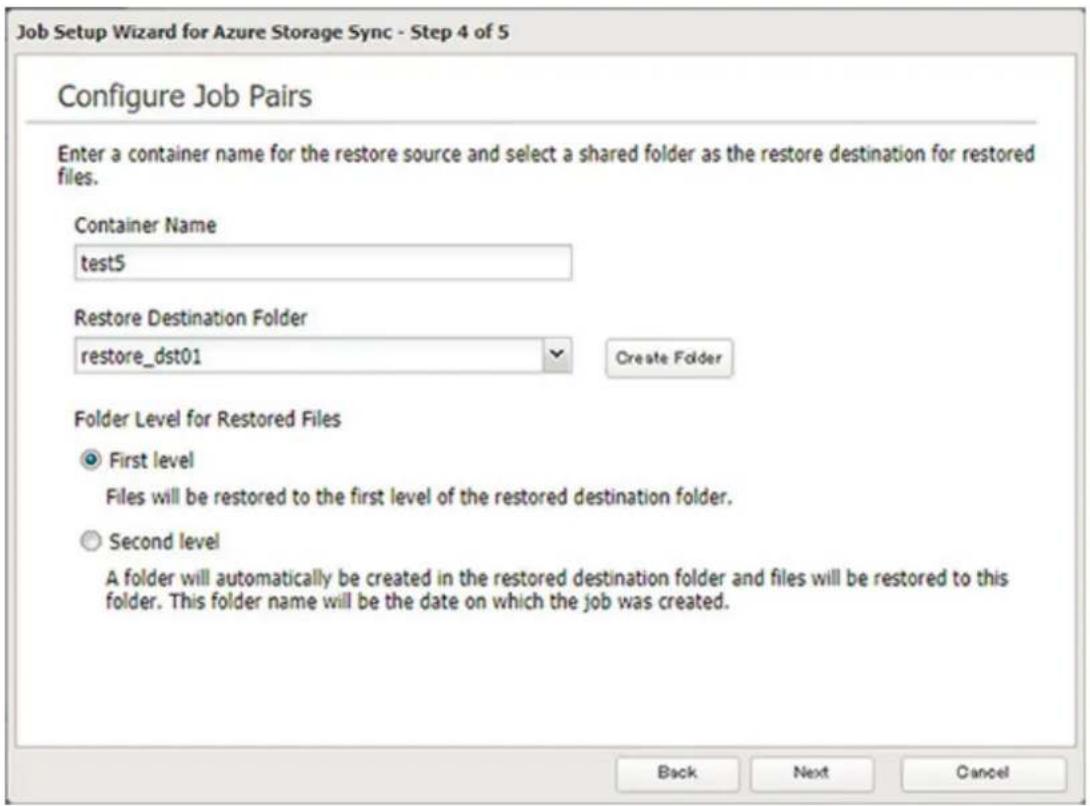
10 Select either to restore data into the first level folder (root folder) or the second level (subfolder) of the restore destination folder, then click Next.
11 Confirm that all settings are properly configured and click OK.
Note: When deleting a completed restored job, it can be converted to a backup job. If that restore job had been configured to restore to the second level on the shared folder, restored data will automatically move to the first level. If there are files with the same filename in the first level folder, those files will be overwritten.
Changing Job Settings
Follow the procedure below to change any job settings you have already configured.
1 From Settings, click Cloud Storage.

2 Click to the right of "Microsoft Azure Storage Sync".

Microsoft Azure Storage Sync


3 From the job list, click the job whose settings you want to change.
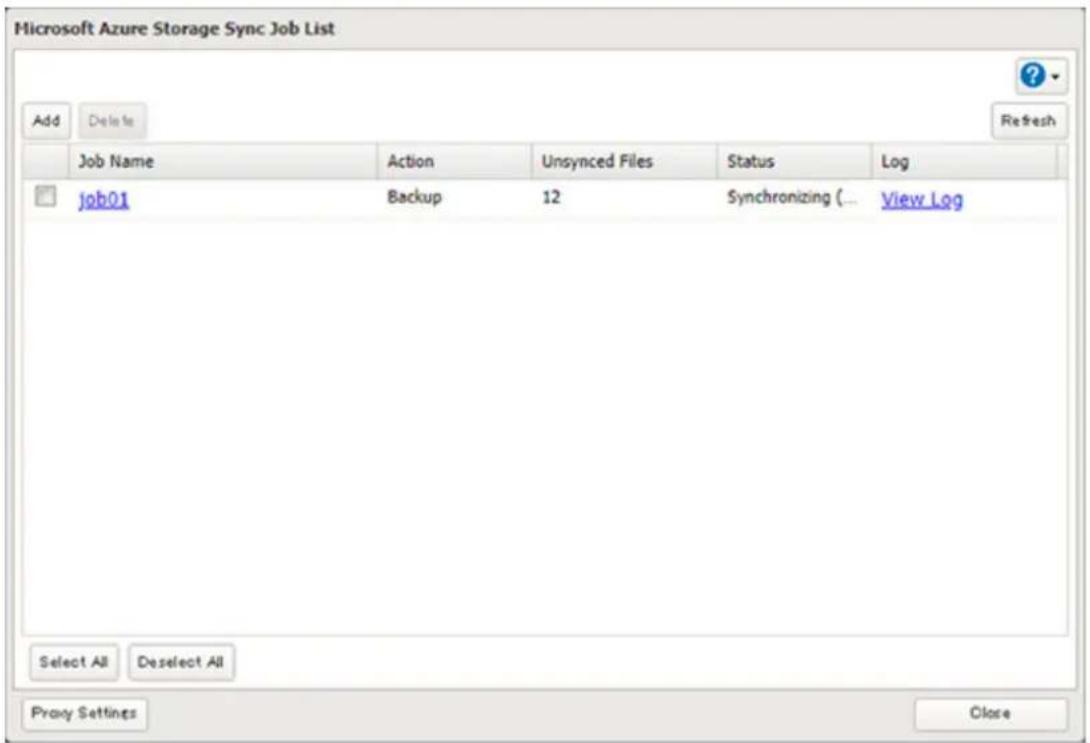
Chapter 6 Remote Access
4 Click the Options tab.
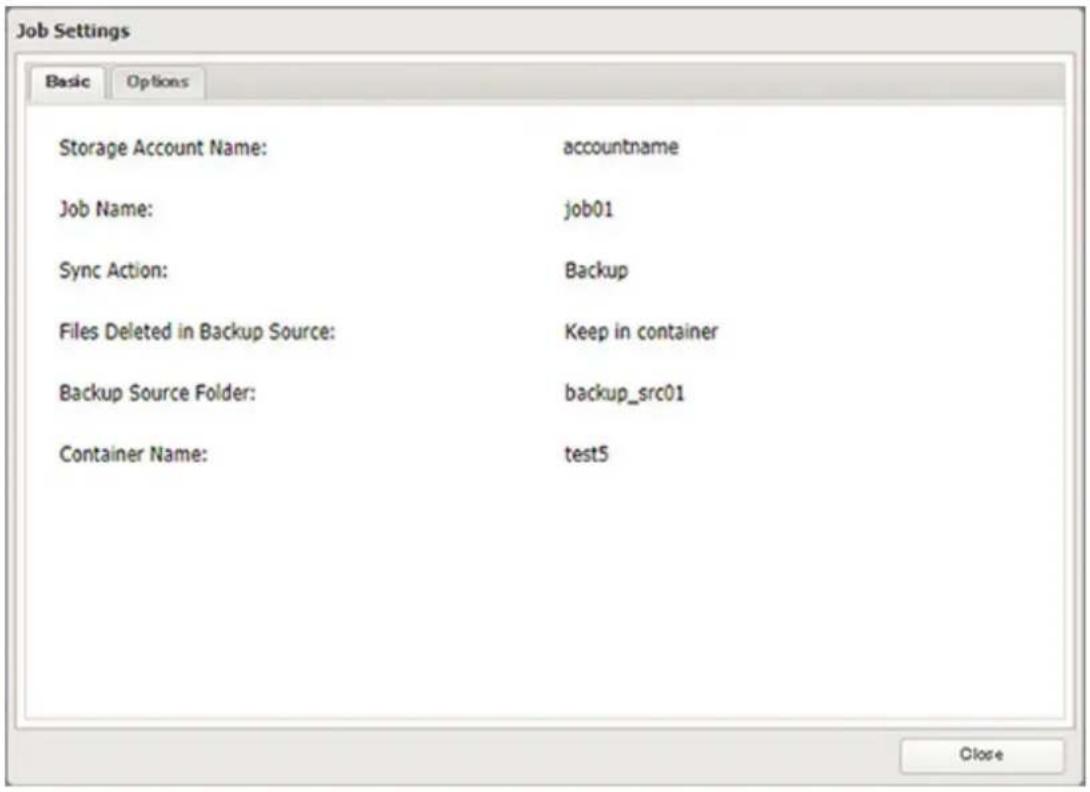
5 Click Edit.
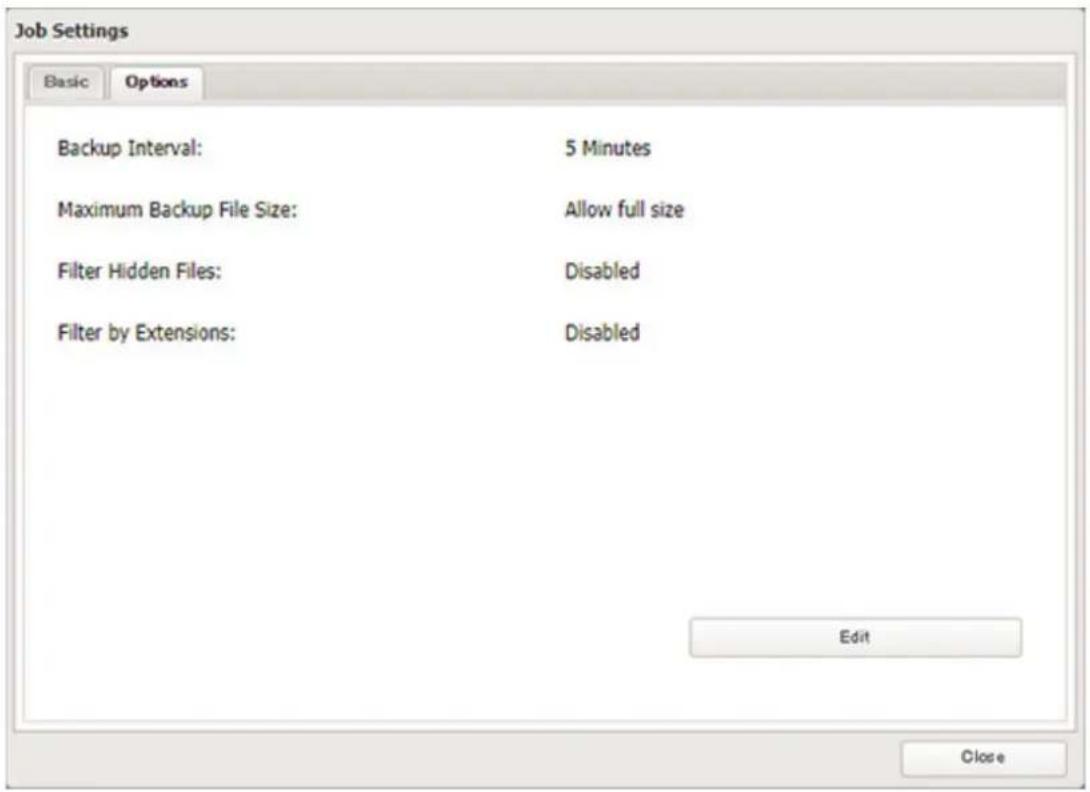
6 Configure the desired settings and click OK.
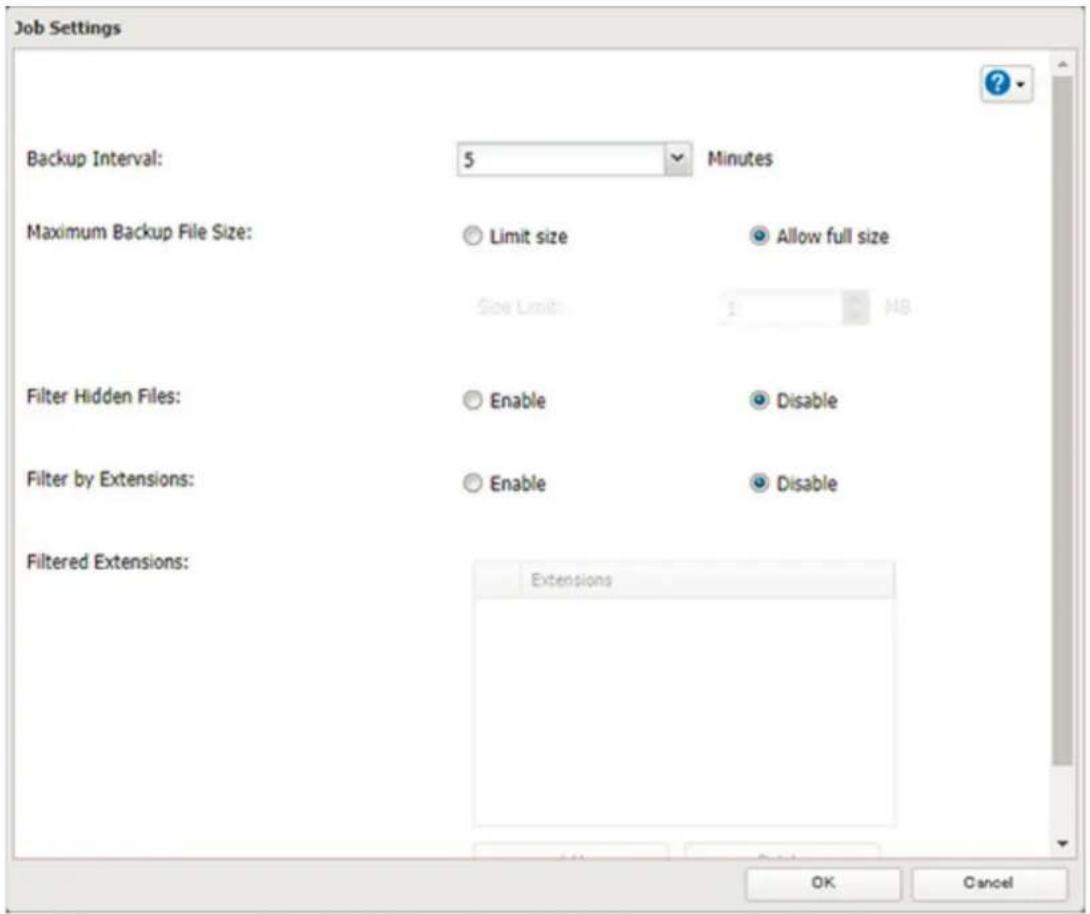
Synchronizing with Microsoft OneDrive
The TeraStation supports synchronizing with Microsoft OneDrive, the online cloud storage. Once linked, you can share the TeraStation files via OneDrive (or OneDrive files via the TeraStation). To link your TeraStation with your Microsoft account, follow the procedure below.
Note: To use Microsoft OneDrive Sync, you need a Microsoft account and an available empty OneDrive folder. If you don't have a Microsoft account, or if you need to create a OneDrive folder, refer to the Microsoft website.
Configuring a New Job
1 From Settings, click Cloud Storage.

2 Move the OneDrive Sync switch to the position to enable OneDrive Sync.

Microsoft OneDrive Sync


3 Click to the right of "Microsoft OneDrive Sync".

Microsoft OneDrive Sync


4 Click Add.
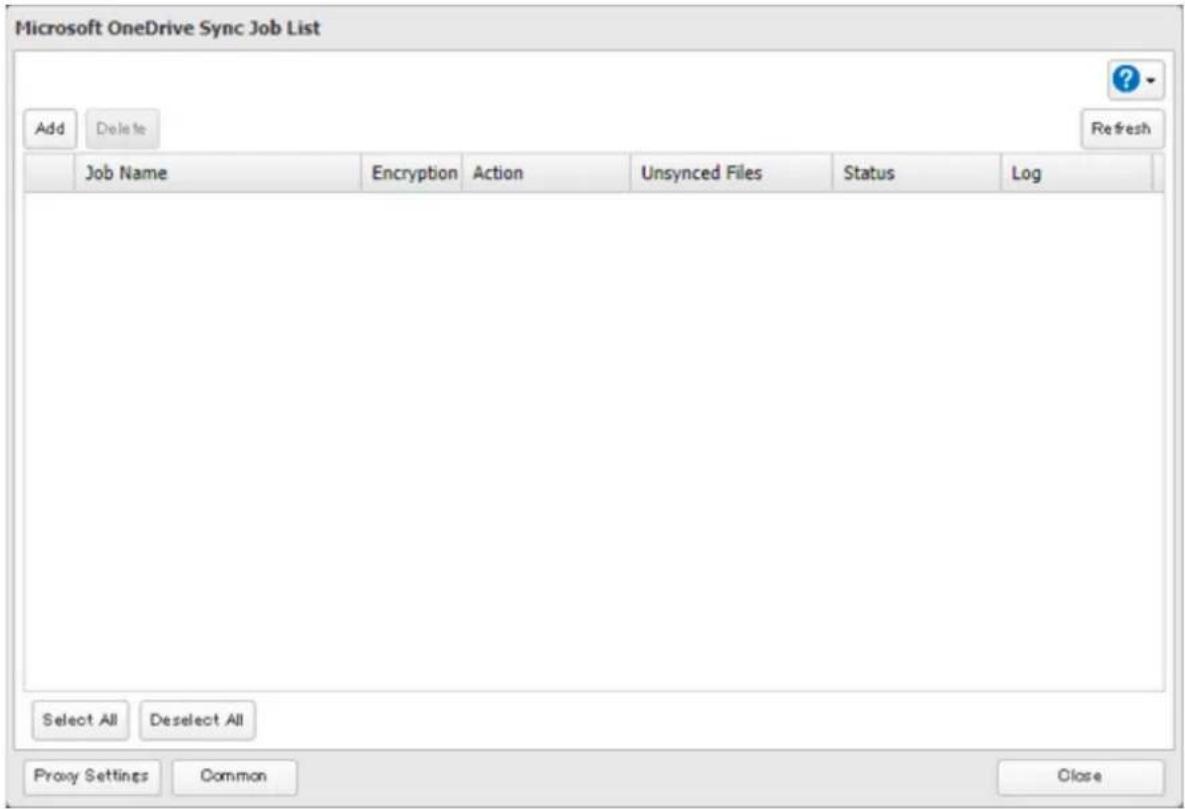
5 The sign-in window will open. Enter the username and password of your Microsoft account, then sign in.
6 Enter the desired job name and click Next.
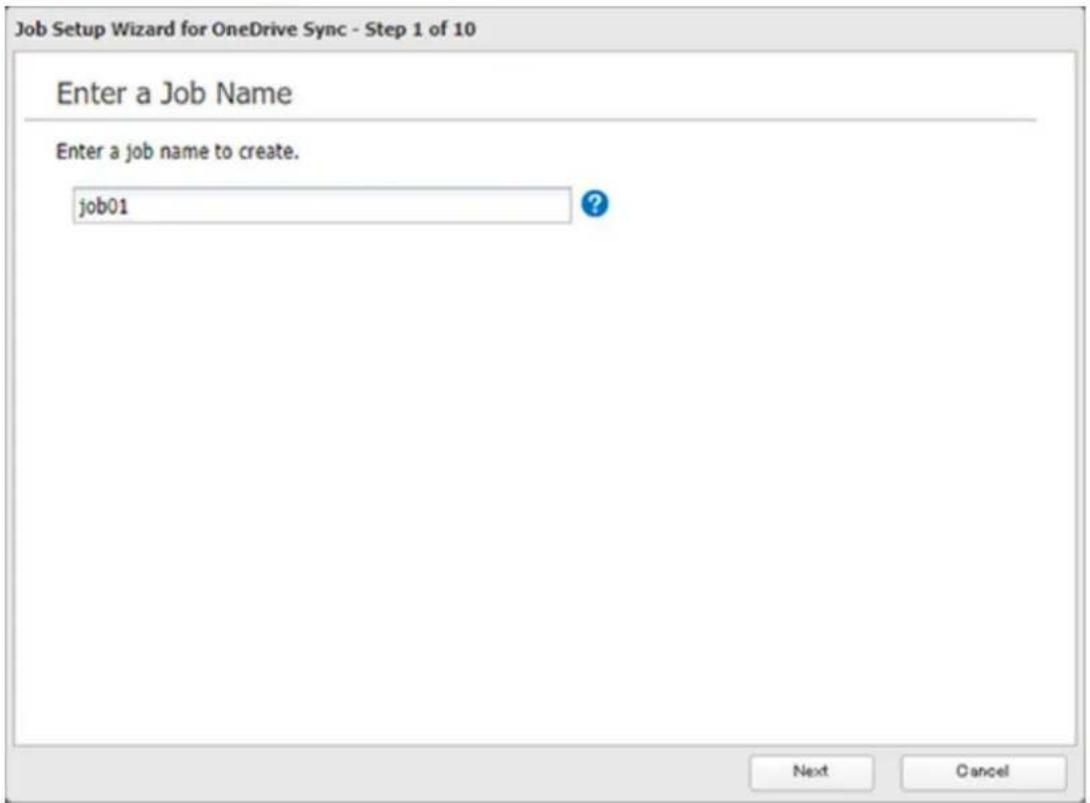
7 Select the sync action and behavior for when files with the same name are already in the target folder. The behavior for when files with the same name already exist will work when the files that have the same name on both the TeraStation and OneDrive are changed. Click Next after configuring.
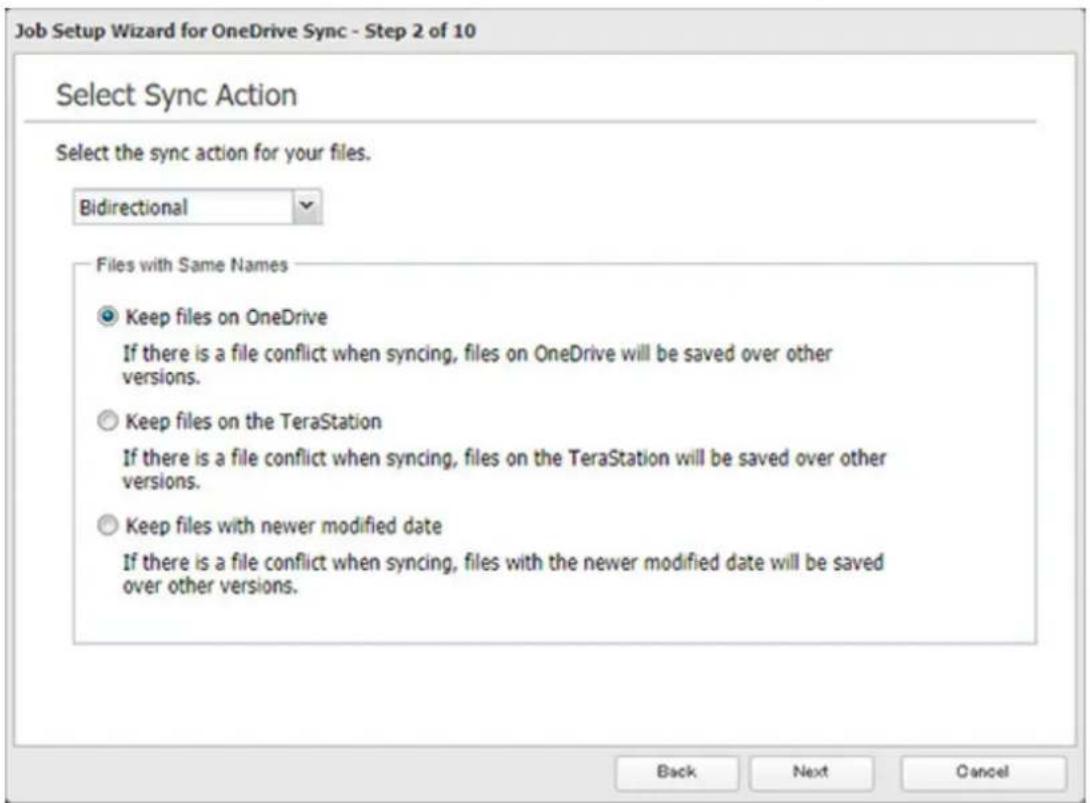
8 Select the desired TeraStation and OneDrive folders. If you want to create an empty folder first, click Browse under "Folder on TeraStation", then click Create Folder on the selecting folder window that appears. Click Next after selecting the folders.
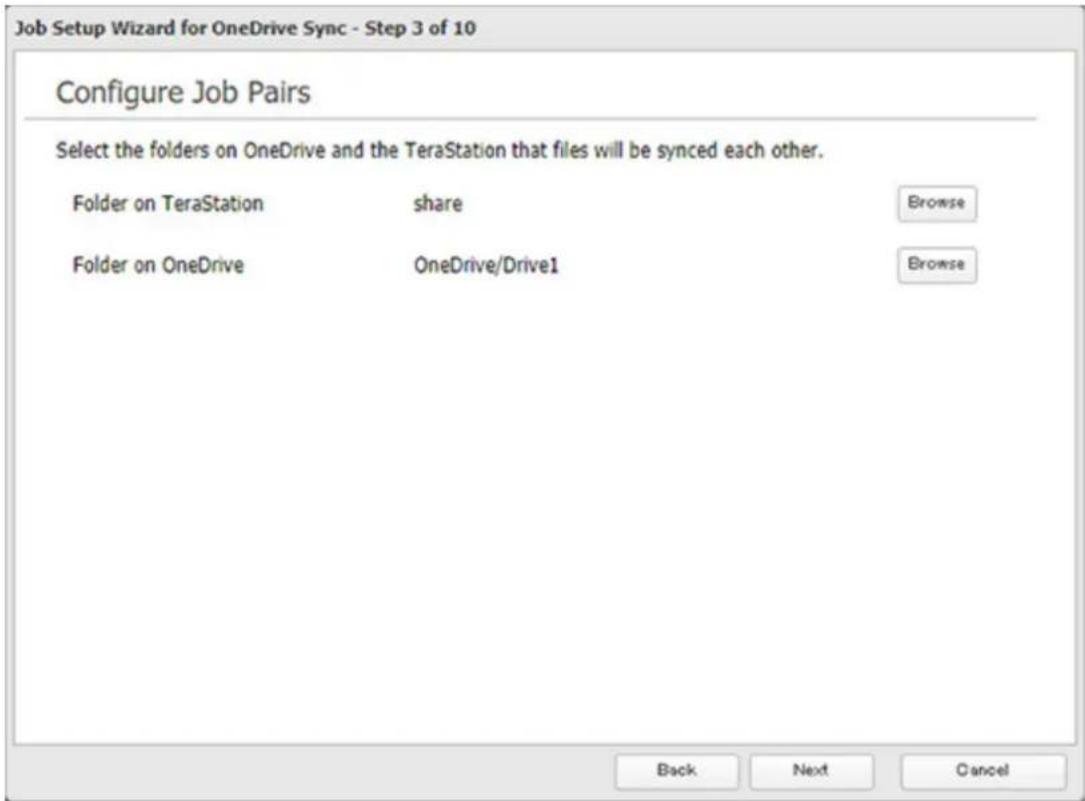
Notes:
- It is not recommended to configure the "TMNAS" folder or the specified quarantine folder as the sync source folder.
- The 6th level and deeper of shared and OneDrive folders cannot be selected.
9 Specify the sync period and click Next.
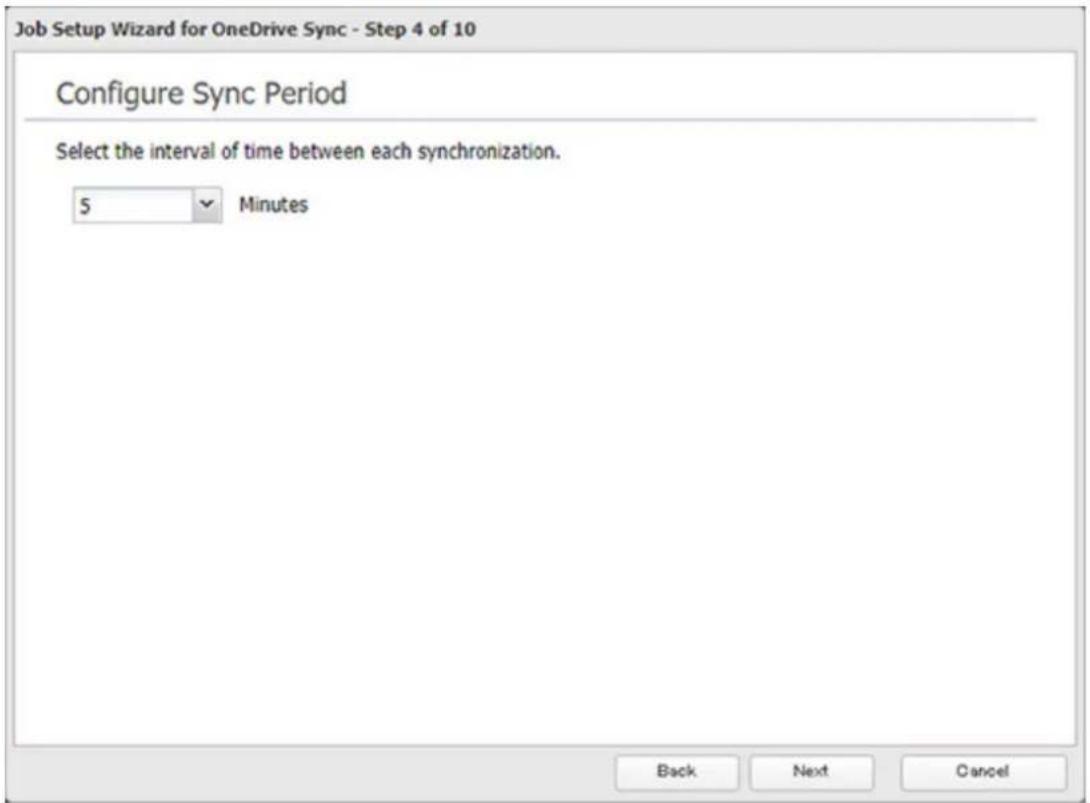
10 Files will be uploaded during the start and end time of the period configured in step 9 above. If you want to always upload files during the configured sync period, select "Always sync within the sync period" for "Frequency". Click Next after configuring.
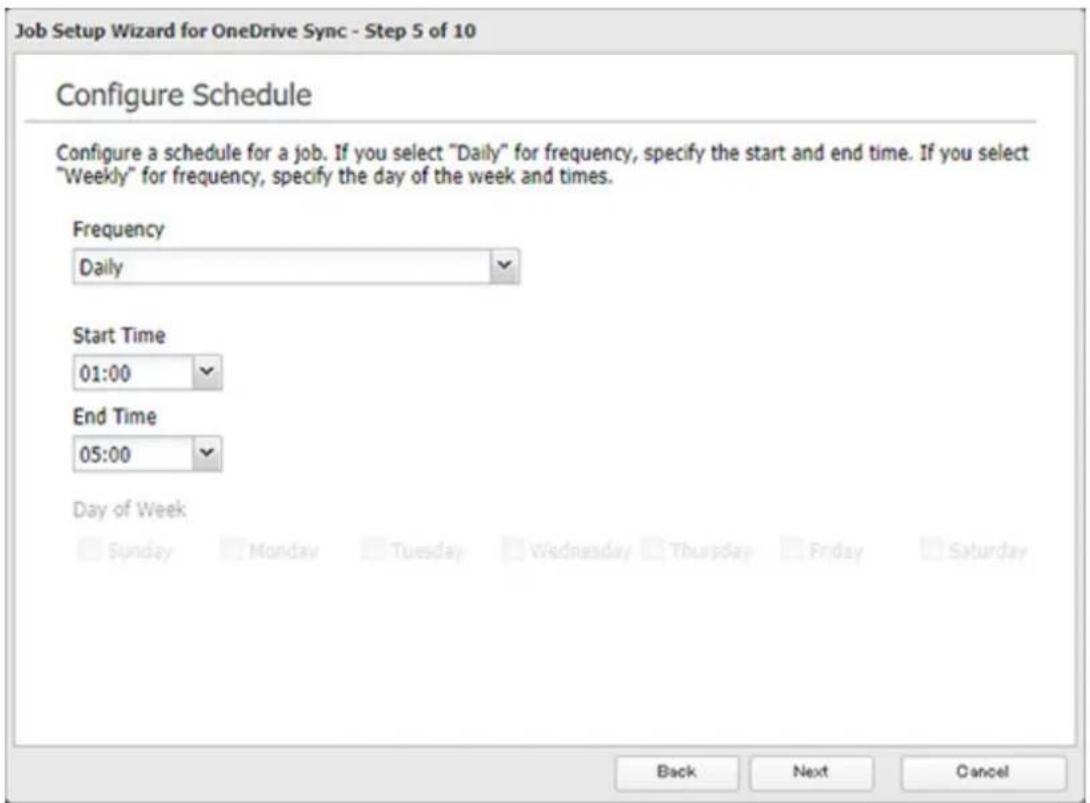
11 Select whether to encrypt the files using a password. When encryption is enabled, uploaded files will be archived in zip format and encrypted using the entered encryption password. Click Next after selecting.
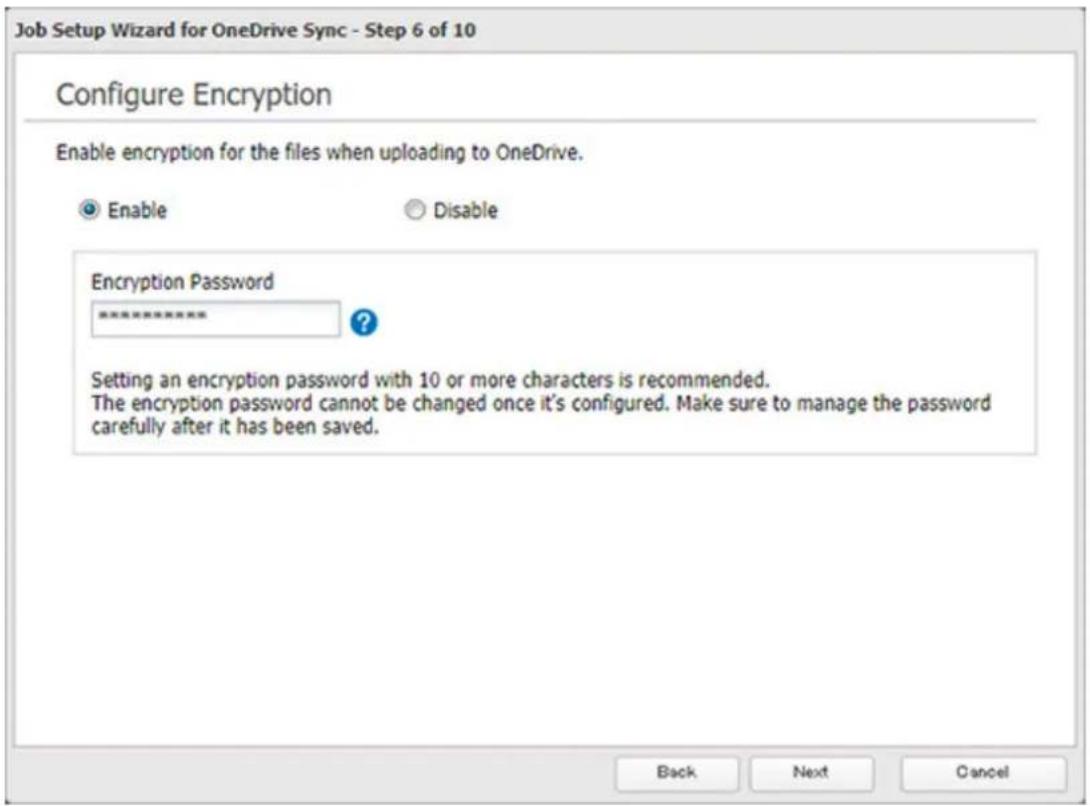
12 Select whether to check for file consistency. If an inconsistency occurs with a file between the TeraStation and OneDrive, that file will be updated using the latest file version even if it hasn't been changed. Click Next after selecting.
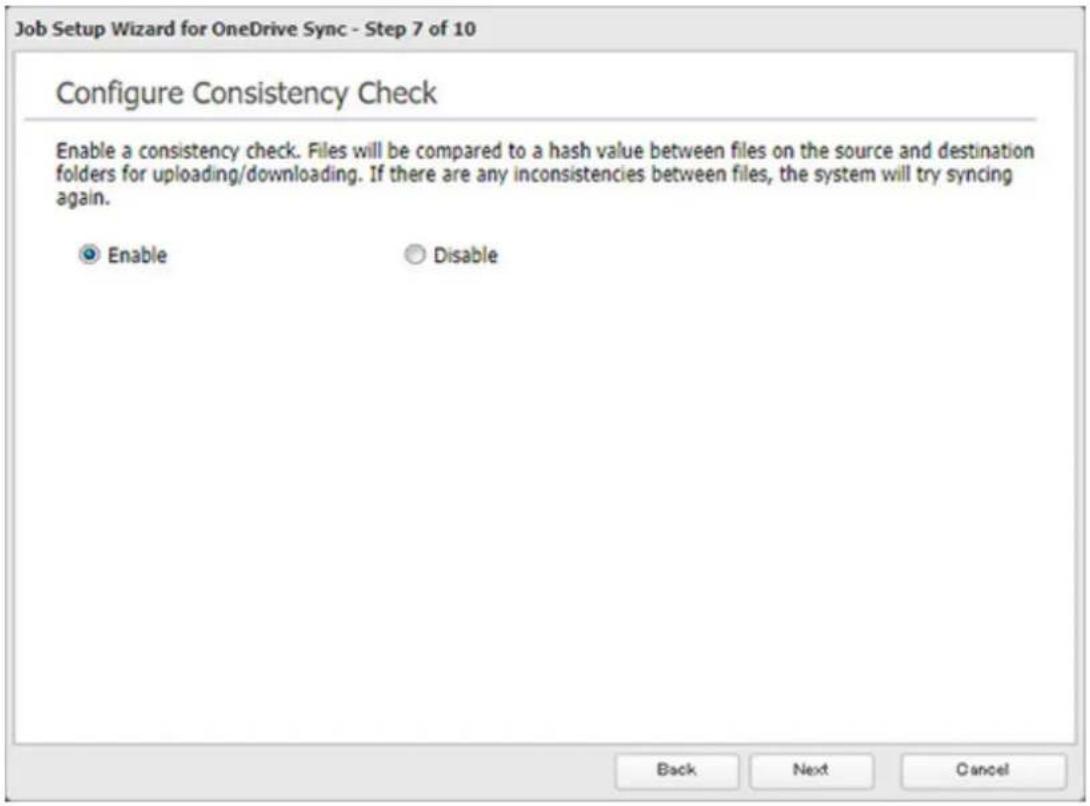
13 Configure whether to filter the target files. The following screen is available to configure file filtering by file sizes and whether they're hidden. The file size filtering will work only for the upload process. The available maximum size is up to 15360 MB (15 GB). "Hidden files" refer to files whose filename starts with a period. Configure the desired filtering settings and click Next.
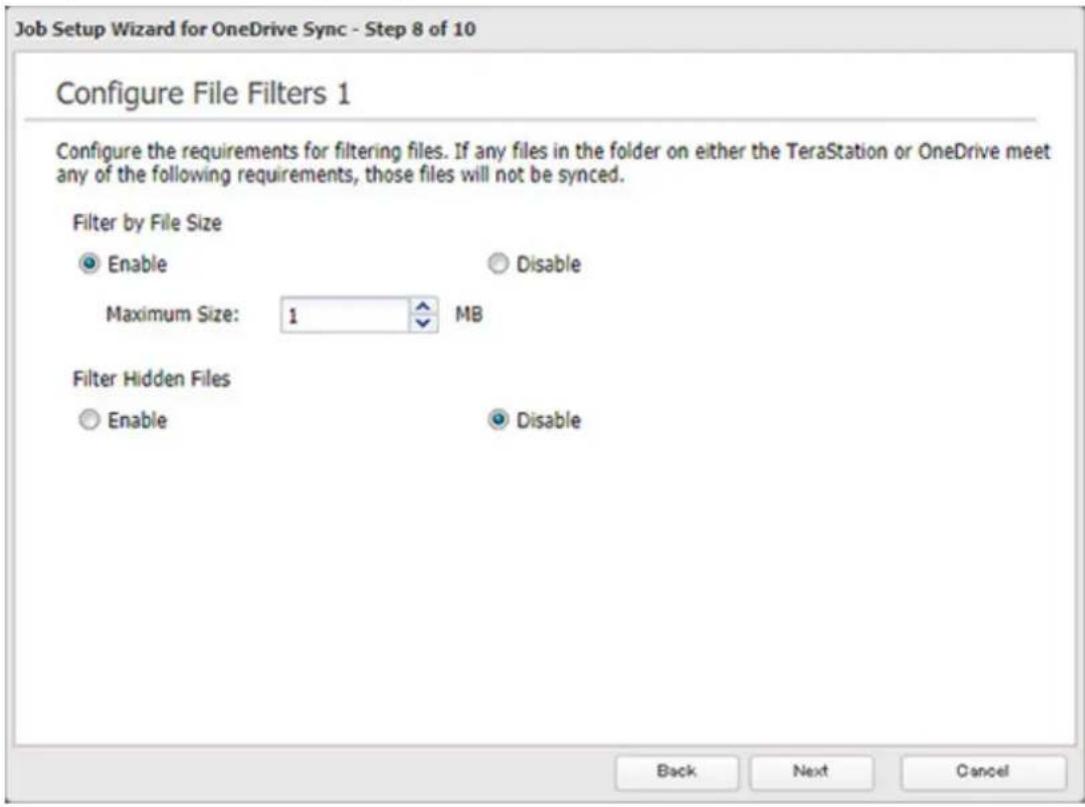
14 The following screen is available to configure file filtering by extensions. Configure the desired filtering settings and click Next.
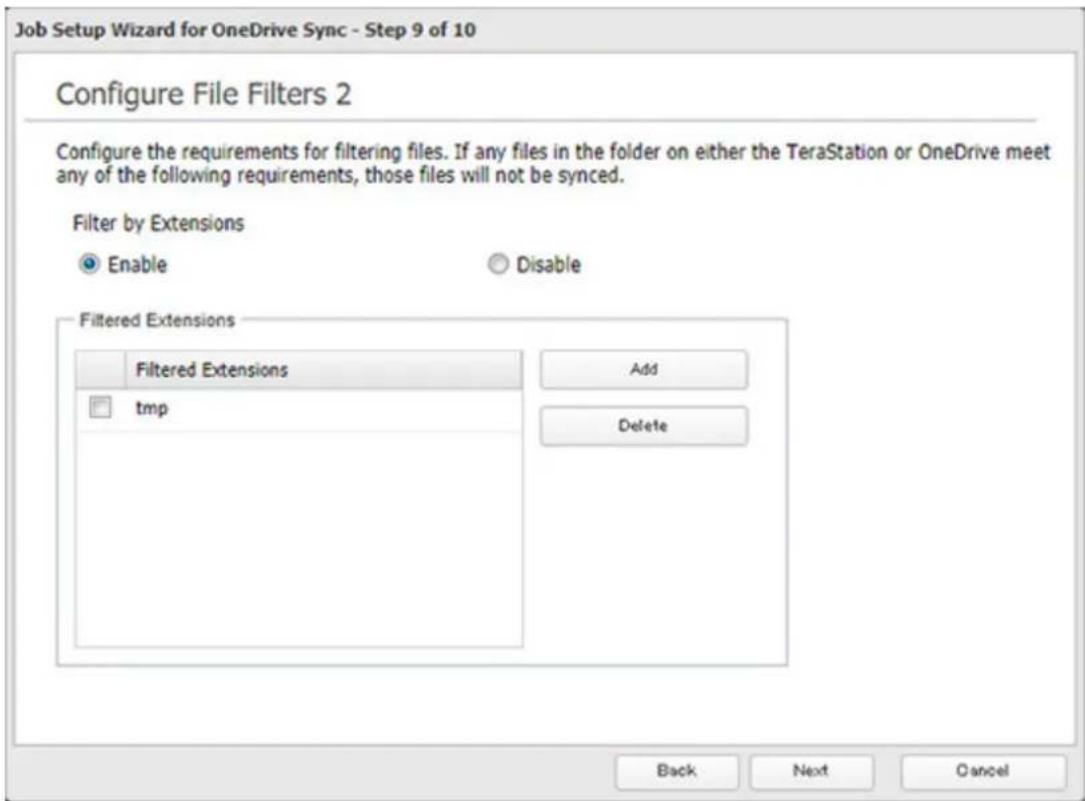
15 Confirm that all settings are properly configured and click OK.
Notes:
- Files whose filename contains the symbols " # % & * / : > < ? \ } { \~ cannot be synchronized. This symbol limitation is based on "Normalization Form Canonical Composition (NFC)". If you copy files that contain these symbols to the TeraStation folder from macOS, the filenames may be converted to different ones that don't contain these symbols.
- Depending on your network environment, you may fail to download larger files. To prevent this issue, divide the file into smaller files or compress the files to a smaller size before uploading them to OneDrive.
Changing Job Settings
Follow the procedure below to change any job settings you have already configured.
1 From Settings, click Cloud Storage.

2 Click to the right of "Microsoft OneDrive Sync".

Microsoft OneDrive Sync


3 From the job list, click the job whose settings you want to change.
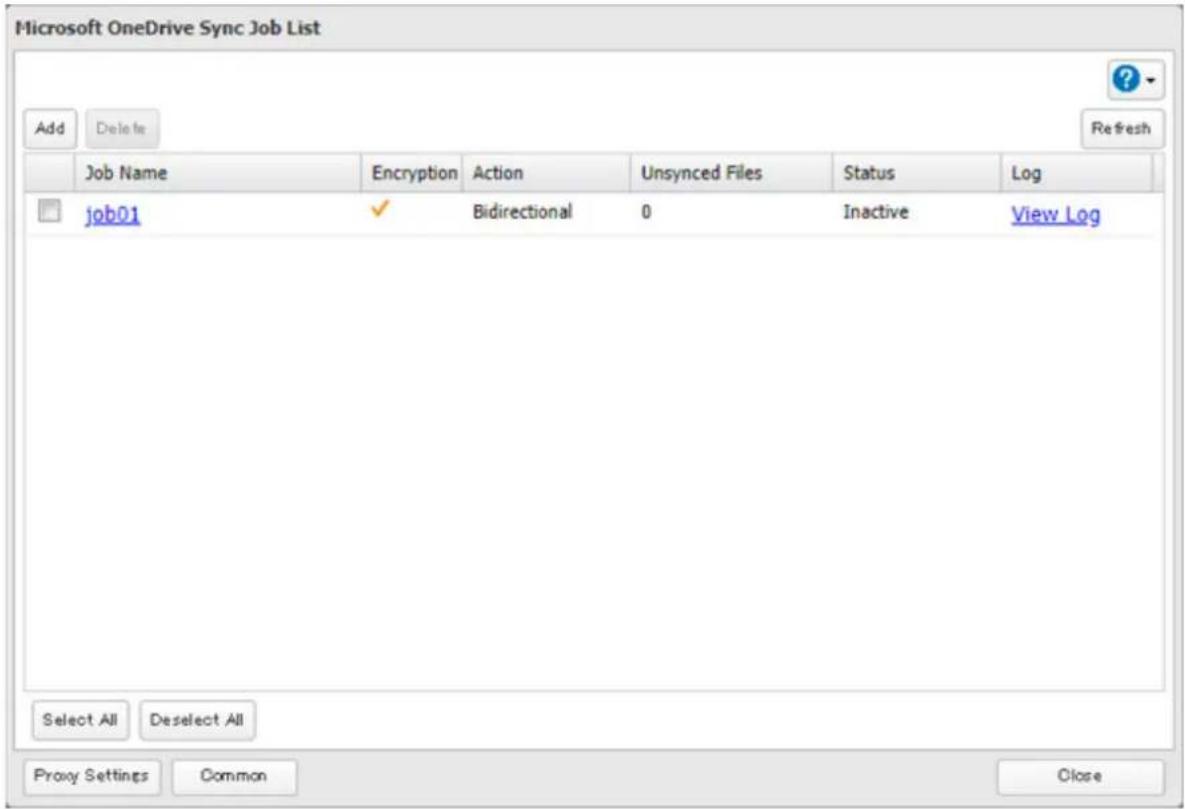
4 Click the Options tab.
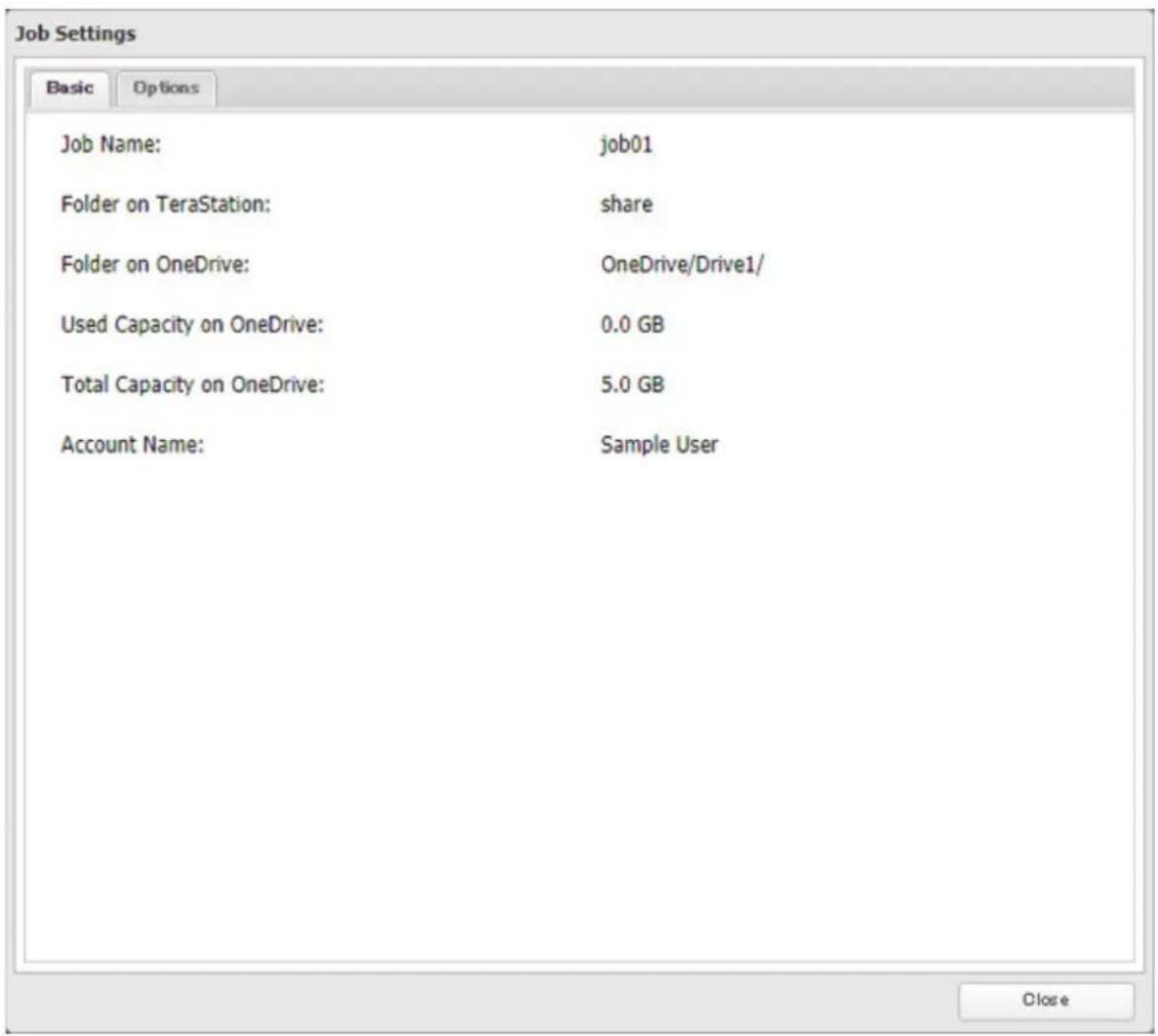
5 Click Edit.
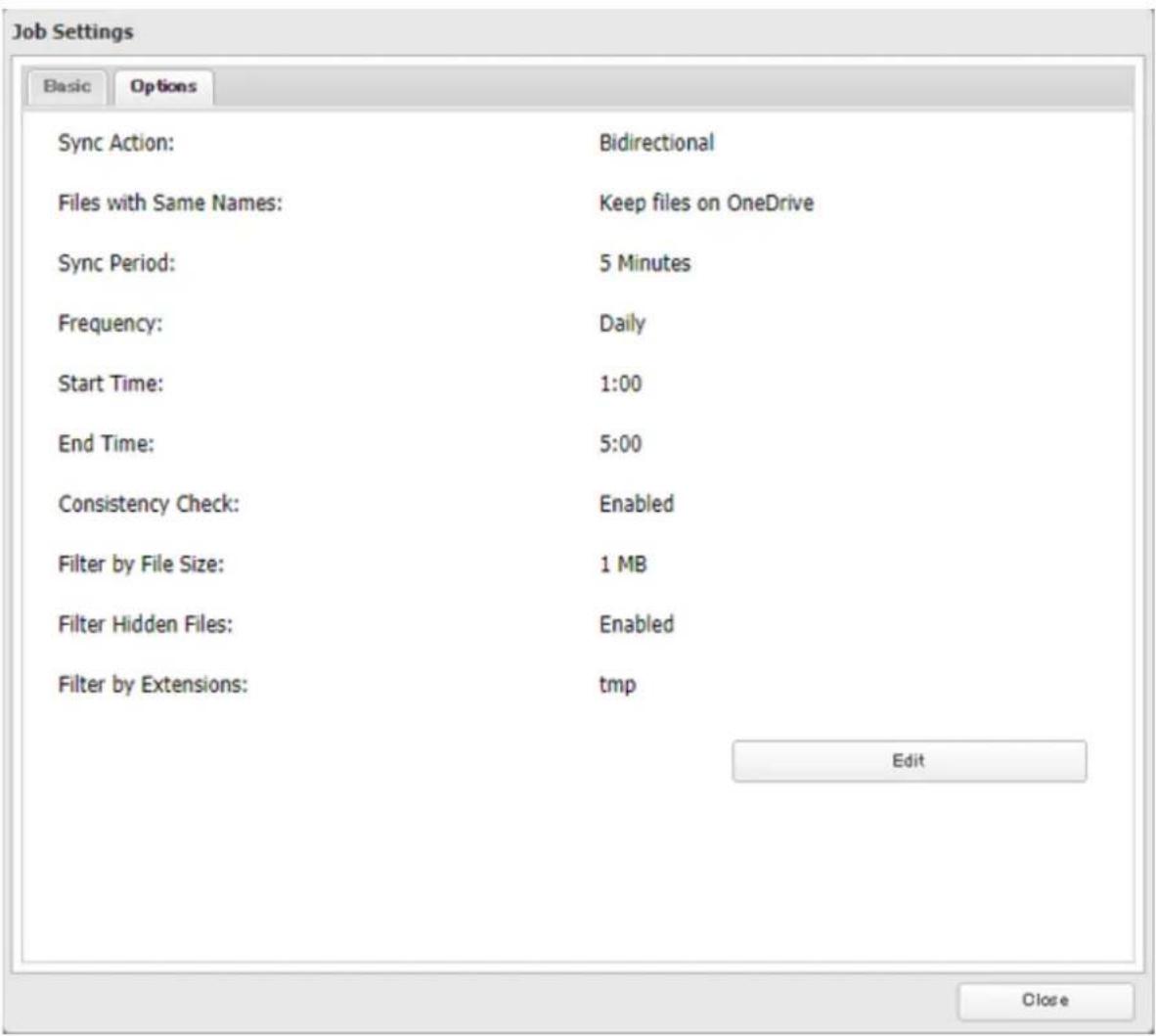
6 Configure the desired settings and click OK.
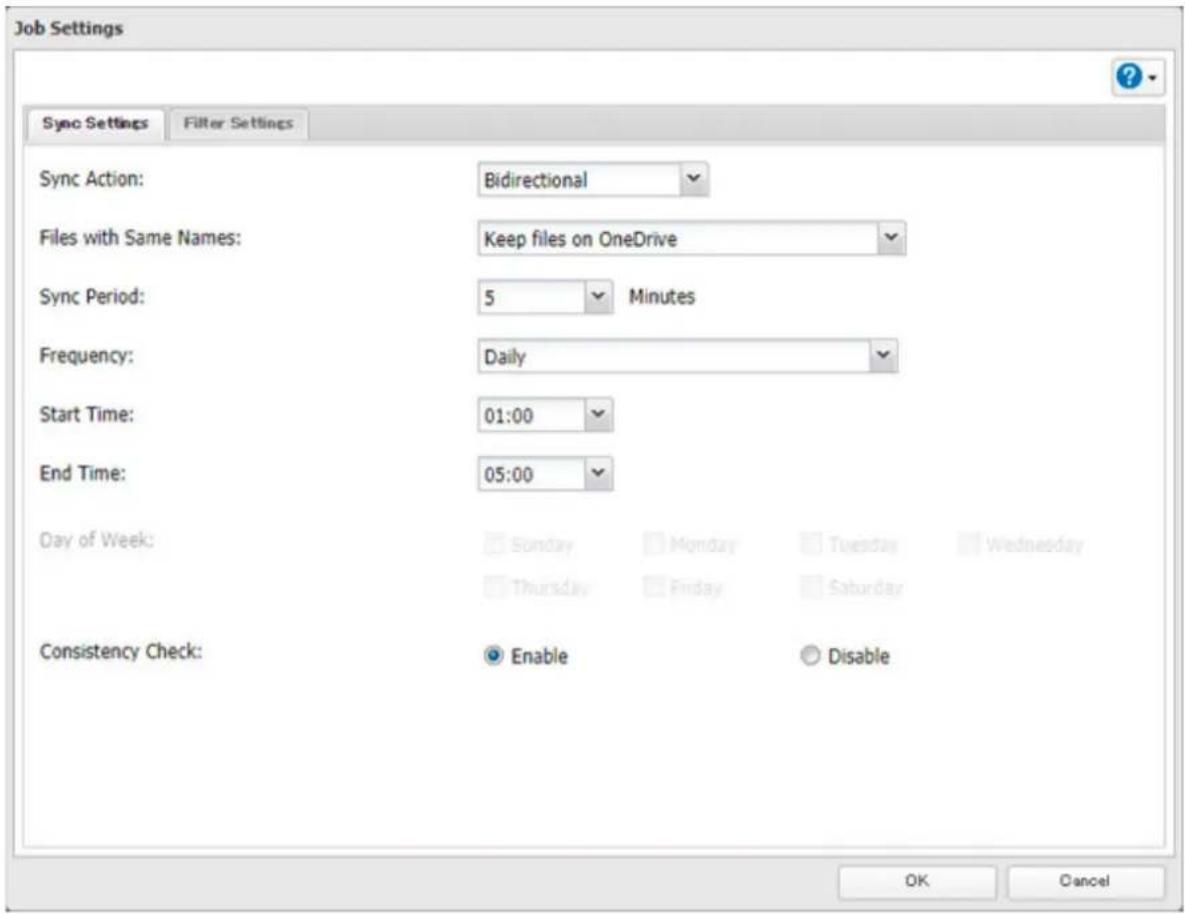
Corrective Actions for in Case of Error
You may encounter error messages that contain the following error codes when creating OneDrive Sync jobs, or the error log may contain the following error codes as well. If you encounter one of the following error codes, refer to the table below and try the respective corrective action. If the error code is not listed on the table, please refer to the Microsoft website instead; https://docs.microsoft.com/en-us/onedrive/developer/rest-api/concepts/errors?view=odsp-graph-online.
| Code Description Corrective Action | ||
| access_denied | Access denied for the requested information. | To link with OneDrive, please consent the request from OneDrive. |
| server_error | The authentication server encountered a temporary error. | Please try again later. |
| temporarily_unavailable | The authentication server is too busy. | Please try again later. |
| authcode_notfound | The authentication server is too busy. | Please wait for about 10 minutes and try again. |
| auth_server_error | The authentication server encountered a temporary error. | The authentication server will recover within UTC 12:00 midnight-8:45 a.m. (Mon-Fri). Please wait until it recovers. |
| auth_server_maintenance | The authentication server is currently undergoing maintenance. | The maintenance will finish within UTC 12:00 midnight-8:45 a.m. (Mon-Fri). Please wait until the maintenance finishes. |
| activityLimitReached | There are too many requests so data could not be synchronized. | Check that the same Microsoft account is used on another TeraStation or Microsoft applications. This error may be resolved by reducing the maximum number of threads per job on the window that appears by navigating to the job list and then clicking Common. |
| network_error | Could not register the authentication code. | Check that the network or proxy server settings are correct. |
| Unexpected error Unknown error. Please try again later. | ||
Antivirus Software
Trend Micro NAS Security can protect your network and data from software viruses, malware, and spyware. Virus scan by Trend Micro NAS Security is available for files in the TeraStation's shared folders, except for the "usbdisk" folder.
To use Trend Micro NAS software, purchase an OP-TSVC license pack (sold separately). If your TeraStation is already running an activated antivirus software, no license registration is necessary.
Notes:
- If LVM is enabled on the TeraStation, the antivirus software may not work properly. For best results, disable LVM before use.
- To use the antivirus software effectively, the TeraStation should be connected to the Internet. The connection can be routed through a proxy server if the appropriate settings are configured in Administration > Proxy Settings from the left-side menu of the Trend Micro NAS Security settings page.
- Trend Micro is a trademark of Trend Micro Incorporated.
Activating Virus Scanning
Follow the procedure below to activate virus scanning.
1 From Settings, click Applications.

2 Move the antivirus switch to the position to enable antivirus.

A quarantine folder named "TMNAS" is automatically created on the TeraStation. If a virus is detected, it is moved to this folder.
If you want to configure a specific shared folder as a quarantine folder, follow the procedure below.
1 Create a new shared folder by referring to the "Adding a Shared Folder" section in chapter 3.
2 From Settings, click Applications.

3 Click to the right of "Antivirus".

Antivirus


4 Click Edit.
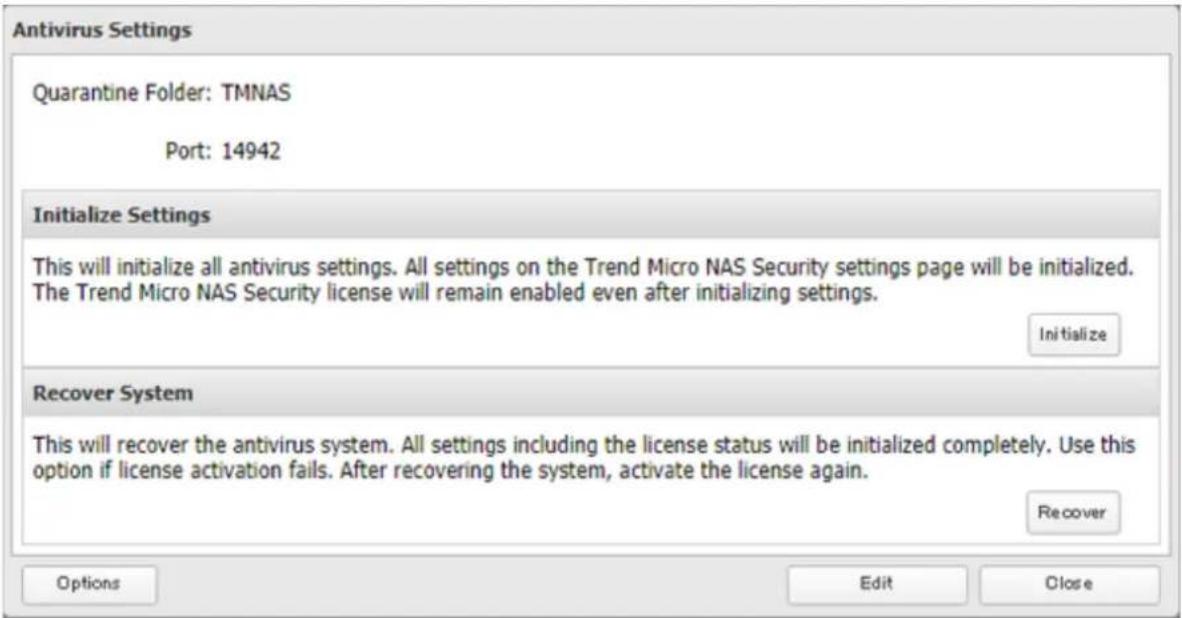
5 Click Browse and select the quarantine folder.
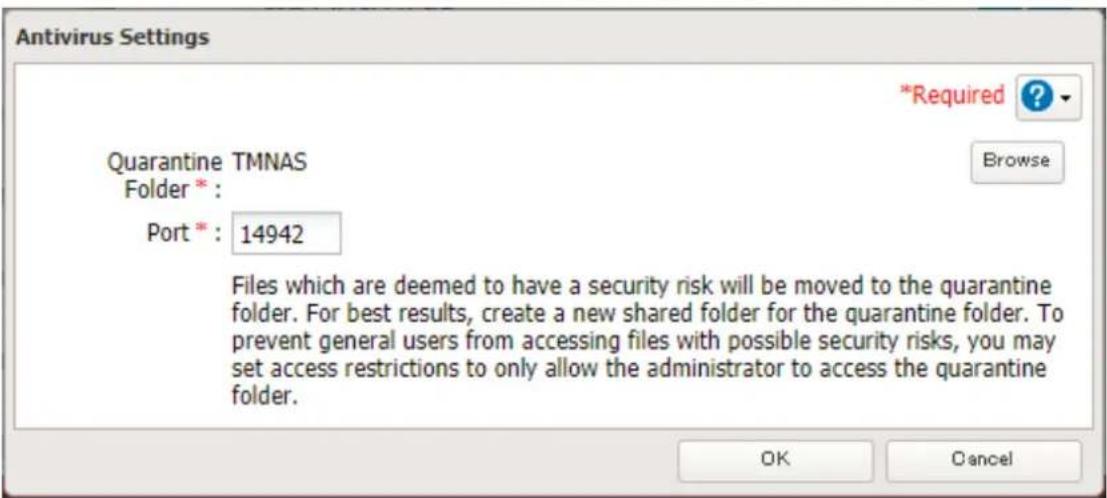
6 Click OK.
Configuring Security Settings
Use the Trend Micro NAS Security settings page to configure security settings such as updating pattern files, configuring scan schedules, and activating or expanding the license. To open the settings page, follow the procedure below.
1 From Settings, click Applications.

Applications
2 Click to the right of "Antivirus".

Antivirus


3 Click Options.
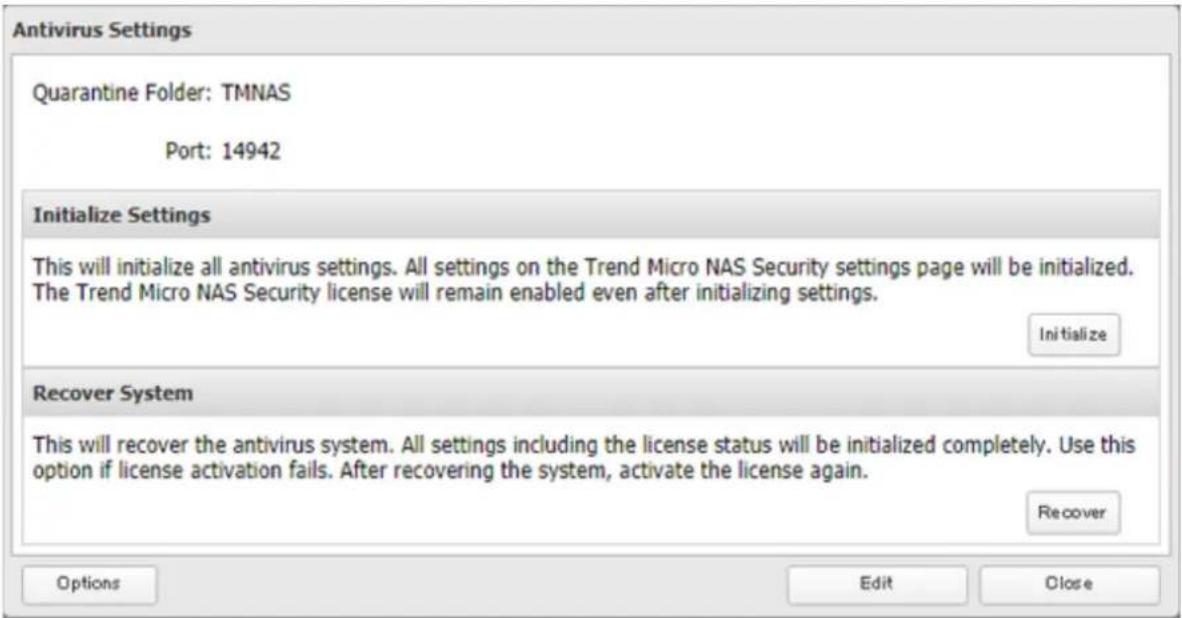
4 Enter your username and password, then click Log On.

TREND MICRO
Trend Micro NAS Security™
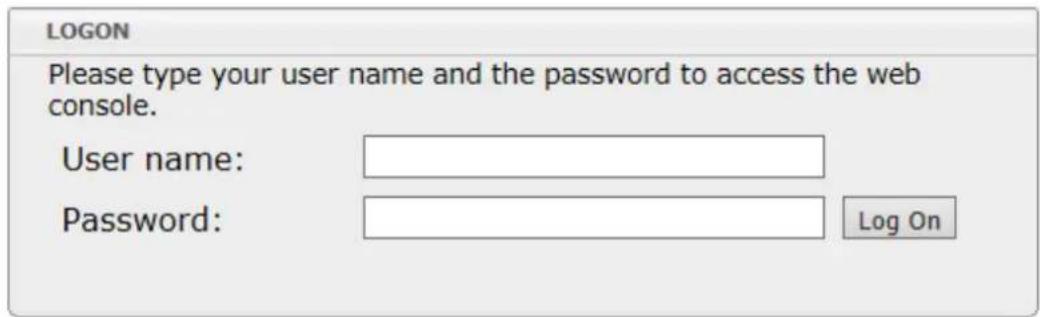
You can log on with the TeraStation's admin account. The default username and password are "admin" and "password".
5 The Trend Micro NAS Security settings page will open.
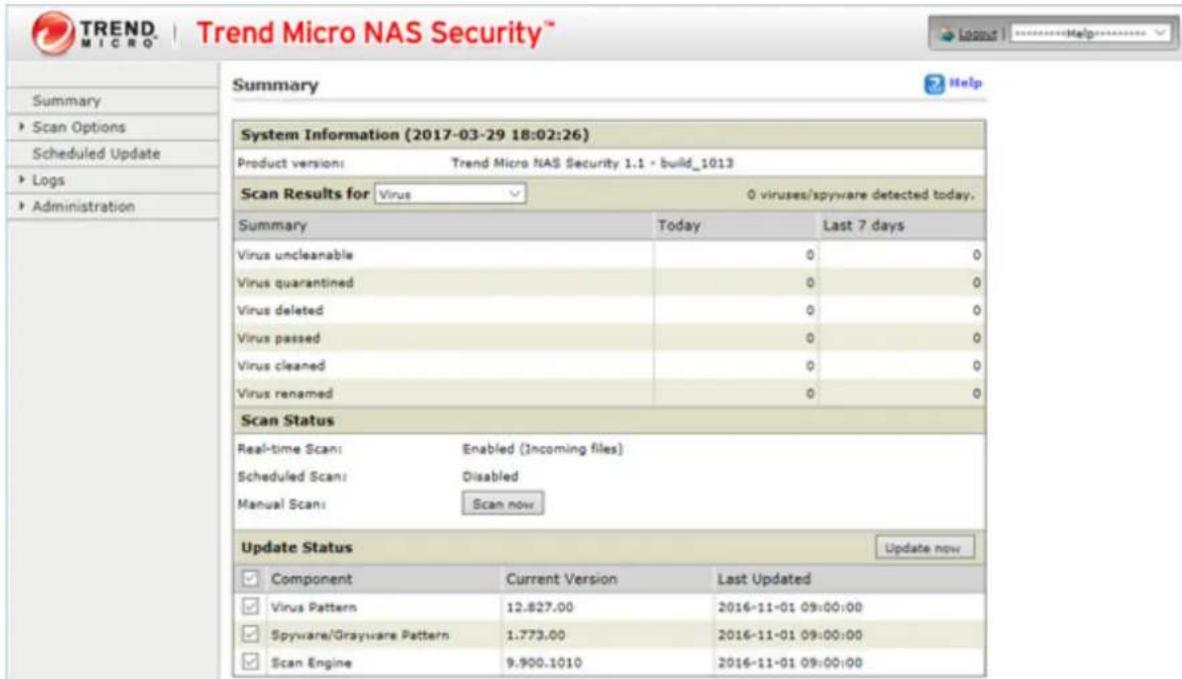
Notes:
- The Trend Micro NAS Security settings page is compatible with IE 6.0 SP2 or later (Windows) and Firefox 1.5 or later (Windows or Mac).
- To change the display language of the Trend Micro NAS Security settings page, change the system language to the desired settings by referring to the "Name, Date, Time, and Language" section below.
Licenses
If the antivirus software on your TeraStation is not activated or has expired, please purchase an OP-TSVC license pack (sold separately). If your TeraStation includes activated antivirus software, no license registration is required. The total period for antivirus software updates may be extended up to five years.
This example shows an initial one-year period for updates extended by an additional year.
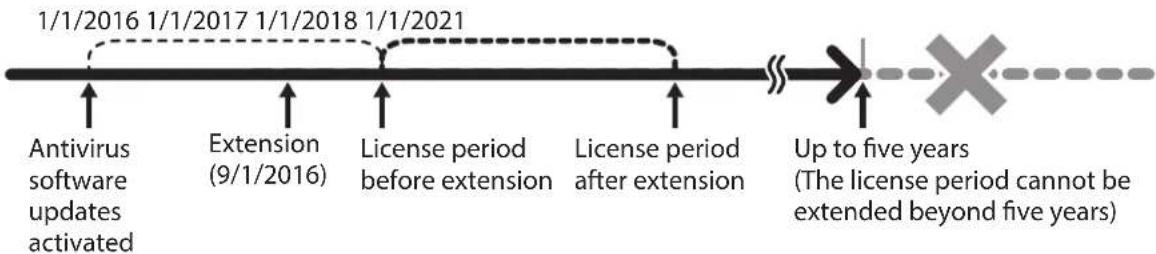
flowchart
graph LR
    A["1/1/2016 Antivirus software updates activated"] --> B["1/1/2017 Extension (9/1/2016)"]
    B --> C["1/1/2018 License period before extension"]
    C --> D["1/1/2021 License period after extension"]
    D --> E["Up to five years (The license period cannot be extended beyond five years)"]
Note: It's not possible to register a serial number that would extend the total license period beyond five years, such as a second three-year license after three years.
1 From the left-side menu of the Trend Micro NAS Security settings page, click Administration > Product License.
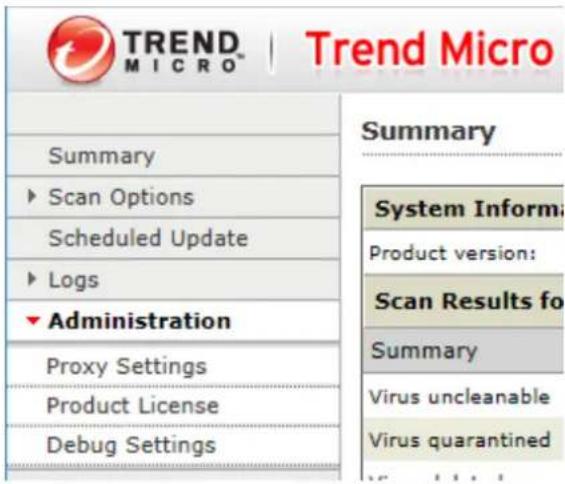
2 Enter the serial number from the "Trend Micro NAS Security License Pack Guide", included in your package. Click Activate.
Product License

The product has not been activated.
Product Activation
You must activate your product to enable scanning and security updates.
Serial number:

(Code format: XXXX-XXXX-XXXX-XXXX-XXXX)
Activate
Cancel
The new license is now registered.
To check the status of the current license, open the Trend Micro NAS Security settings page and navigate to Administration > Product License on the left-side menu.
Connecting Through a Proxy Server
If you must pass through a proxy server to connect to the Internet in your network environment, follow this procedure to set the IP address of the proxy server and other settings.
1 From the left-side menu of the Trend Micro NAS Security settings page, click Administration > Proxy Settings.
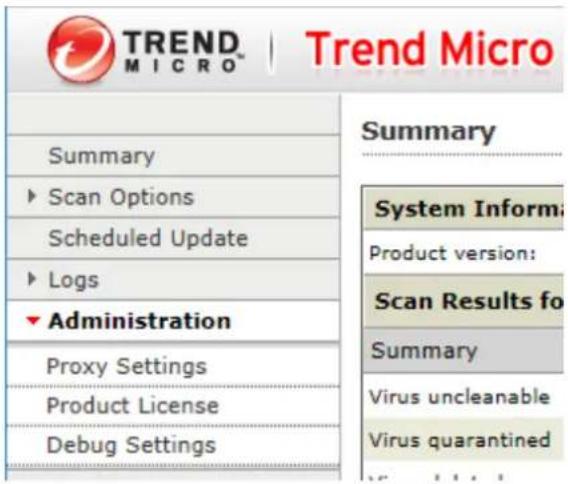
2 Select the "Use a proxy server to access the Internet (License update)" checkbox. Enter the IP address and port of the proxy server, then click Save.
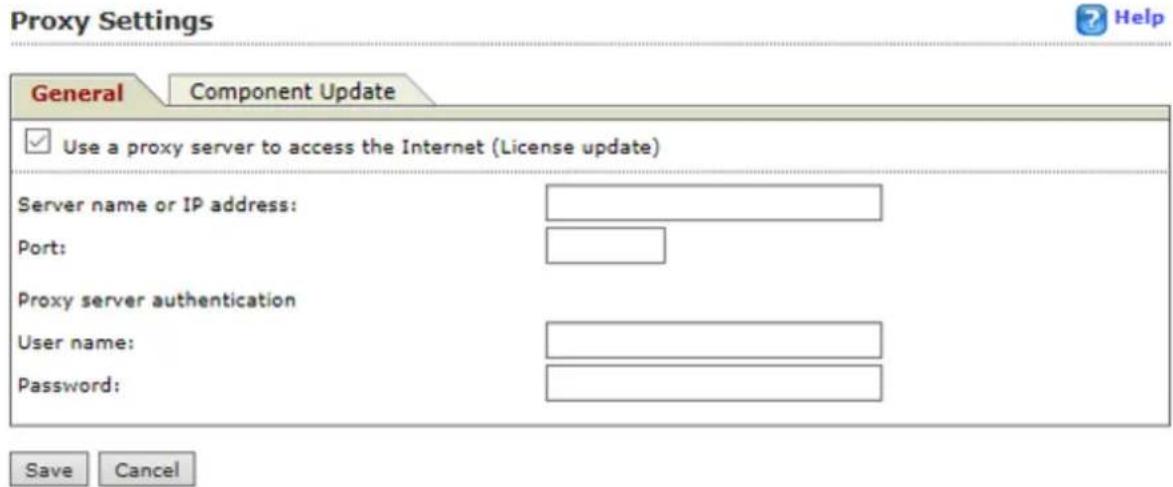
The antivirus software is now configured to use a proxy server.
Updating Antivirus Pattern Files
For best results, configure your antivirus software to update the antivirus pattern files automatically as described below.
1 From the left-side menu of the Trend Micro NAS Security settings page, choose Scheduled Updates.
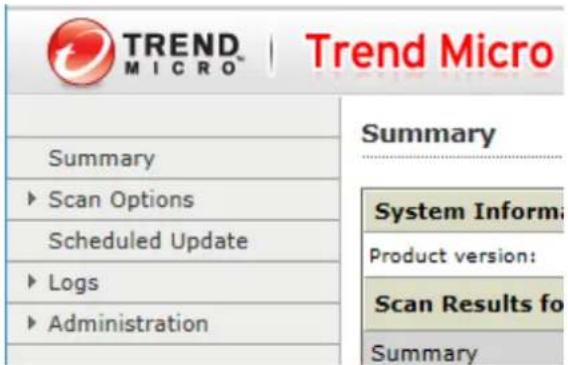
Chapter 7 Advanced Features
2 Check "Enable Scheduled Update".
Scheduled Update

Enable Scheduled Update
Update Frequency
Start time:
Repeat interval:

○ Hourly
Daily, update for
2 hours
3 Select a time for updates to begin, an interval for updates, and an amount of time for updates to continue. Select the components to update. Click Save.
Scheduled Update

Enable Scheduled Update
Update Frequency
Start time:
Repeat interval:

○ Hourly
○ Daily, update for
2 hours
Weekly, every Monday

update for: 4 hours
Components to Update
| √ Component | Current Version | Last Updated |
| √ Virus Pattern | 12.827.00 | 2016-11-01 09:00:00 |
| √ Spyware/Grayware Pattern | 1.773.00 | 2016-11-01 09:00:00 |
| √ Scan Engine | 9.900.1010 | 2016-11-01 09:00:00 |
Save
Cancel
The antivirus software is now configured to update automatically at the scheduled time. Updates will not be downloaded if the TeraStation is turned off, in standby mode, or disconnected from the Internet.
Configuring Folders as Virus Scanning Targets
By default, all folders on the TeraStation (including attached USB drives) will be scanned. Follow the procedure below to block specific shared folders from being scanned.
1 From Settings, click File Sharing.

File Sharing
2 Click to the right of "Folder Setup".

Folder Setup

1 Folders
3 Click the shared folder that you want to exclude from the scan.
4 If the options' checkboxes are selected on the Option 1 tab, it means the shared folder will be scanned by those scan options. To exclude from the scan, clear the options' checkboxes.

5 Click OK.
Note: Even if the scan options are selected in the quarantine folder settings, the quarantine folder will be excluded from the virus scan.
Virus Scanning
Three types of virus scans are available:
• Real-time scan
The virus scan runs in the background, scanning every file that you read or write. This is the default type of scanning. Your TeraStation may run slower if real-time scanning is enabled.
- Scheduled scan
A scheduled scan is executed at specific regular intervals, such as every Tuesday at 3 a.m.
- Manual scan
A manual scan runs once when initiated. Initiate a manual scan as described below.
1 From the left-side menu of the Trend Micro NAS Security settings page, choose Scan Options > Manual Scan.
2 Click Scan now. This starts the virus scan.
If the scan finds a virus, the user can be notified in two ways:
- The I34 virus alert message is normally shown in Settings or NAS Navigator2. Once the virus is removed from the quarantine folder, the message is no longer displayed. If the antivirus software is configured to delete viruses from the quarantine folder automatically, then the I34 virus alert message will not be displayed.
- If email notification is enabled in Settings, then the antivirus software notifies the user by email if a virus is found. Enabling email notifications is recommended.
Depending on how many files are on your TeraStation, a virus scan may take several hours. Estimated scanning times are shown below.
10,000 files: \~ 30 minutes
100,000 files: \~ 5 hours
1,000,000 files: \~ 50 hours
Notes:
- If the quarantine folder doesn't have enough space, the infected files may be unable to be moved to the quarantine folder. The Trend Micro NAS security scan log may identify any infected files as quarantined even if the quarantine did not actually occur. In such a case, remove non-essential files from the quarantine folder and try the virus scan again.
- If the size of the infected file is large, it may be unable to be moved to the quarantine folder. In such a case, check the scan log to see whether the quarantine succeeds, and move the infected file to the quarantine folder manually.
Checking the Log
Follow the procedure below to check the virus scan log.
1 From the left-side menu of the Trend Micro NAS Security settings page, choose Logs.
Chapter 7 Advanced Features
2 Click the log item that you want to check.
| TREND MICRO | Trend Micro | |
| Summary | |
| Summary | |
| ▶ Scan Options | System Inform |
| Scheduled Update | Product version: |
| ▼ Logs | Scan Results fo |
| Virus Logs | Summary |
| Spyware Logs | Virus uncleanable |
| Scan Logs | Virus quarantined |
| System Logs | Virus deleted |
| Manual Delete | Virus passed |
| Automatic Delete | Virus cleaned |
| ▶ Administration | |
3 Click Display Log.
System Logs
This completes the procedure for checking the log.
Online Help
For more information on the antivirus software, refer to the online help. Follow the procedure below to access the online help.
1 From the right-top menu of the Trend Micro NAS Security settings page, choose Help > Contents and Index.
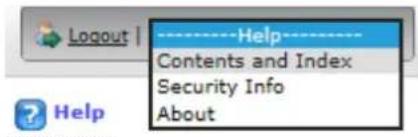
2 Online help will open.
Online help is now ready to use.
Email Notification
Your TeraStation can send you email reports daily, or when settings are changed or an error occurs. You can configure the events that will trigger notifications from any of the following functions: drive quota, drives (internal, external, or RAID array), fan, backup, replication, failover, antivirus, system alert.
Refer to the contextual help in Settings for more detailed information such as when the notification email will be sent or the differences between the notification categories.
1 From Settings, click Management.

2 Move the email notification switch to the position to enable email notification.

3 Click to the right of "Email Notification".
4 Click Edit.
5 Enter your email server settings, notification email's default subject, then configure recipients and the time when email reports will be sent. Click OK to send a test email.
If you select an authentication type other than "Disable" from the drop-down list, you can enter the sender email address and credentials of the email server.
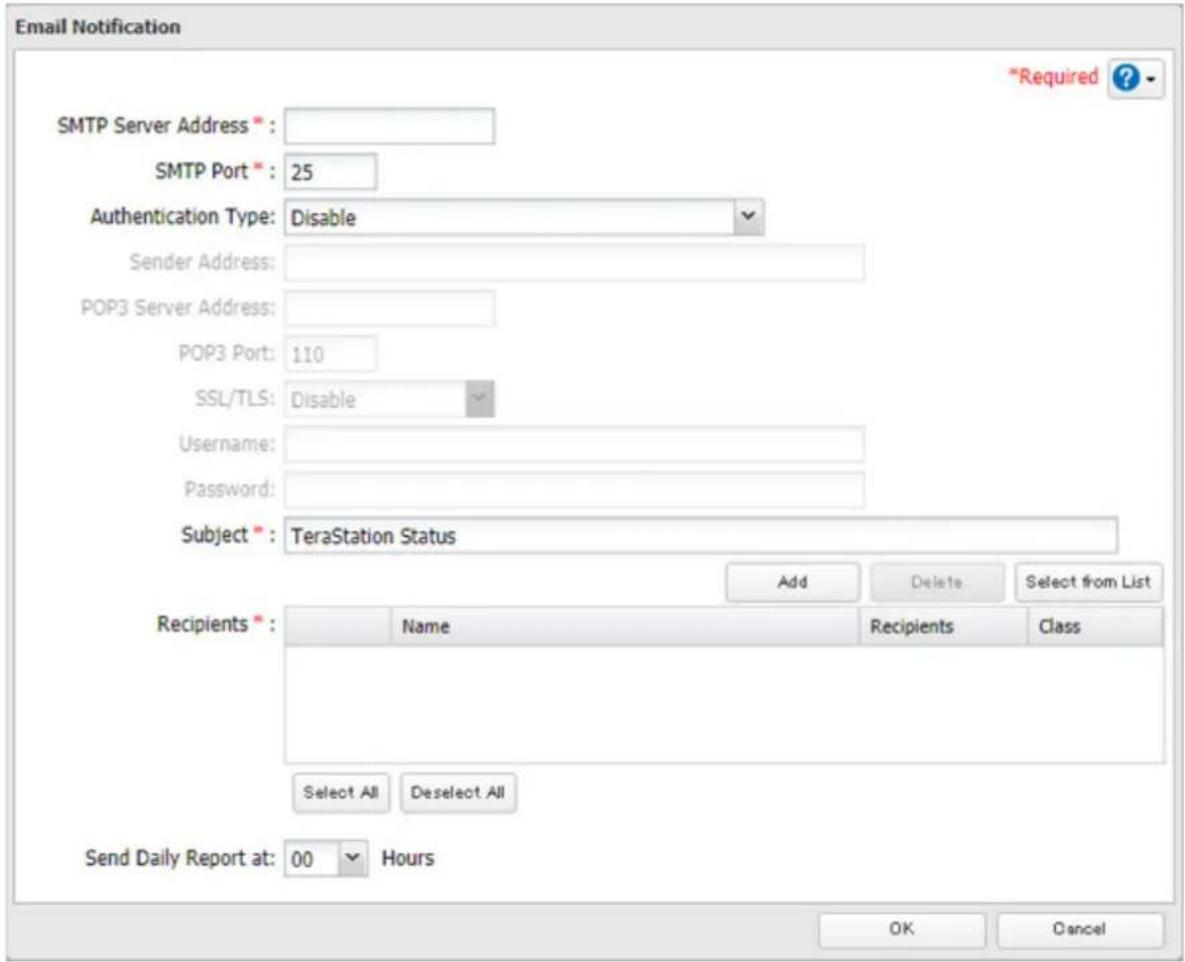
6 To change the events of email reports, click Advanced Report Settings. On the displayed screen, select or clear the category's checkboxes.
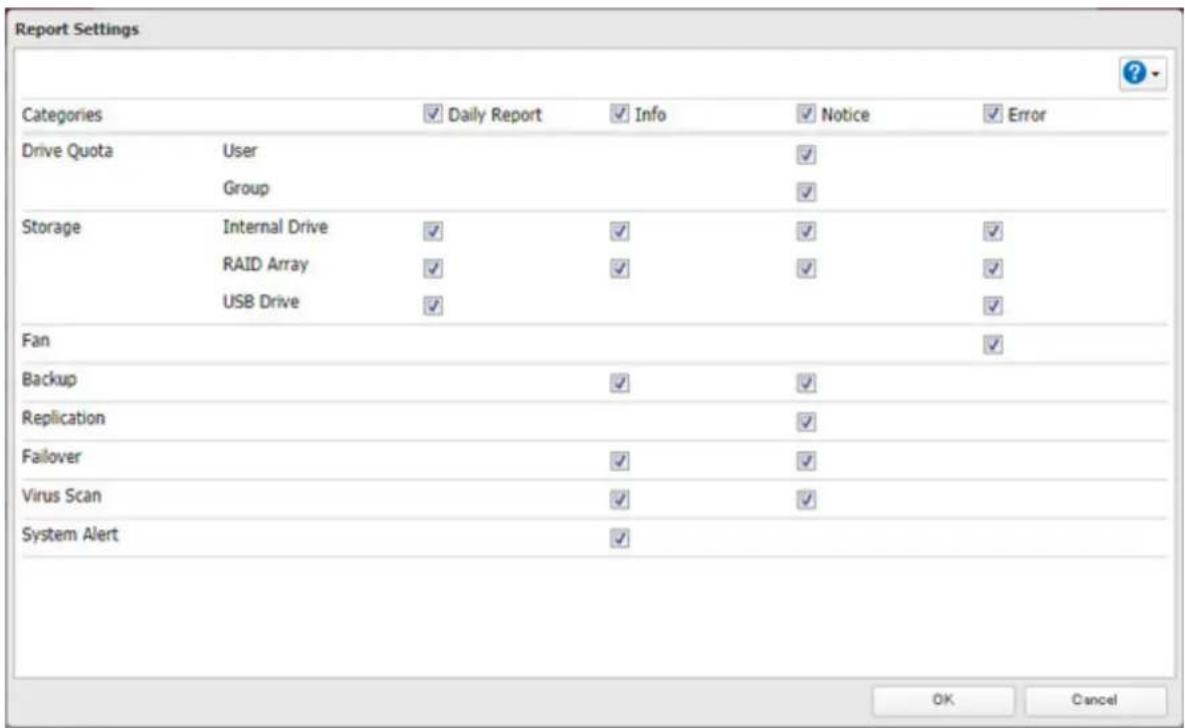
The notification emails will be categorized into the following importance levels:
| Levels Details | |
| Daily Report Describes the status of the TeraStation in a daily report email. | |
| Info | Sends a notification email if an event occurs. Info reports will contain just information such as capacity information, job starts/completes, etc. |
| Notice | Sends a notification email if a non-critical error occurs. Notice reports will contain warnings such as something has failed, but the function or unit can continue operating as usual. It is recommended to do the corrective action for the notice as soon as possible. |
| Error | Sends a notification email if a critical error occurs. Error reports will describe critical failure which prevents a function or unit from operating. It is recommended to do the corrective action to for the error immediately. |
Sleep Mode
To save energy, you can specify times to put the TeraStation into sleep (standby) mode, during which the drive and LEDs are turned off.
1 From Settings, click Management.

Management
2 Click to the right of "Sleep Timer".

Sleep Timer

3 Click Edit.
4 Specify the timer interval, wake-up time, and time to go into sleep mode, then click OK.
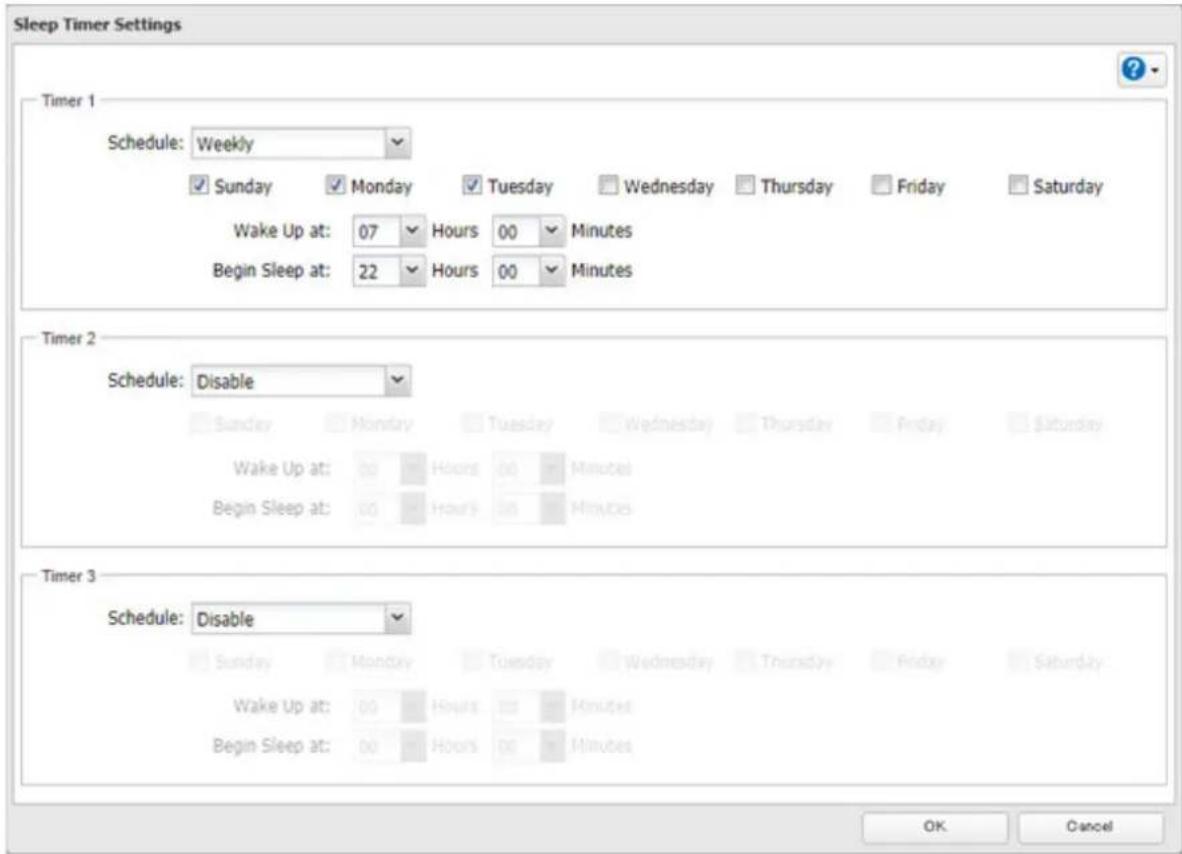
Notes:
- Up to three timers can be set.
- The time to enter sleep mode can be set from 12:00 a.m. to 3:45 a.m. of the next day. The time to wake from sleep mode can be set from 12:00 a.m. to 11:45 p.m. If the time to enter sleep mode is after 12:00 a.m., the wake-up time setting may be from 4:00 a.m. to 11:45 p.m.
- The time to enter sleep mode should not be set to the same time as or earlier than the start time.
- If a timer is scheduled during a drive check, drive format, backup process, and backup job, or within five minutes of the current time, the TeraStation will not change to standby mode when the configured time is reached.
- If scheduled times in the timer overlap, the operation is performed using the widest time interval.
• Examples of timer settings are shown below:
Example 1:
If running at a current time of 10:00 a.m. Wednesday
Timer 1: Daily 12:00–24:00
Timer 2: Not used
Timer 3: Not used
No operation is performed at 12:00 p.m. and the unit goes into sleep mode at 12:00 a.m.
Example 2:
If running at a current time of 10:00 a.m. Wednesday
Timer 1: Daily 9:00–18:00
Timer 2: Wednesday 10:00–20:00
Timer 3: Not used
On days other than Wednesday, normal operation begins at 9:00 a.m. and the unit goes into sleep mode at 6:00 p.m. On Wednesday, the unit goes into sleep mode at 8:00 p.m.
Example 3:
If running at a current time of 10:00 a.m. Wednesday
Timer 1: Daily 9:00–18:00
Timer 2: Wednesday 10:00–1:00 a.m. of the next day
Timer 3: Not used
On days other than Wednesday, normal operation begins at 9:00 a.m. and the unit goes into sleep mode at 6:00 p.m. On Wednesday, normal operation begins at 10:00 a.m. and the unit goes into sleep mode at 1:00 a.m. of the next day.
Example 4:
If running at a current time of 10:00 a.m. Wednesday
Timer 1: Daily 9:00–18:00
Timer 2: Wednesday 7:30–22:00
Timer 3: Not used
On days other than Wednesday, normal operation begins at 9:00 a.m. and the unit goes into sleep mode at 6:00 p.m. On Wednesday, normal operation begins at 7:30 a.m. and the unit goes into sleep mode at 10:00 p.m.
- To wake the TeraStation from sleep mode manually, press and hold the power button for three seconds.
Wake-on-LAN
The TeraStation supports Wake-on-LAN, which allows it to be turned on remotely.
1 From Settings, click Network.

Network
2 Click to the right of "IP Address".

IP Address

LAN Port 1 192.168.10.9
3 Click Edit.
4 Enable "Wake-on-LAN", then click OK.
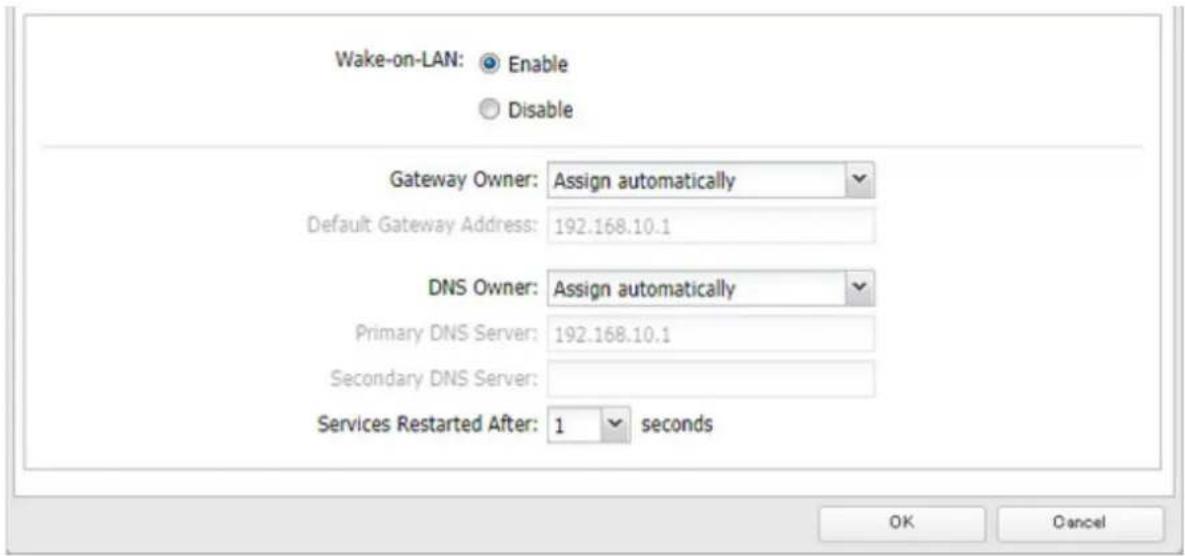
Wake-on-LAN is now enabled. As long as the TeraStation is connected to a power source and the network, you can turn it on remotely.
Notes:
• After receiving the Wake-on-LAN packet, the TeraStation may take approximately five minutes to be ready to use.
- If a power outage occurs while Wake-on-LAN is enabled, the TeraStation will automatically start up after power is restored.
- To use Wake-on-LAN, you'll need Wake-on-LAN software that sends magic packets. The TeraStation does not include Wake-on-LAN software.
- The TeraStation does not support using Wake-on-LAN and port trunking at the same time. You may use either feature, but not both at the same time.
- If the TeraStation is connected to a Buffalo wireless router configured for remote access, then it may be turned on from outside the local network (from the WAN side). To use this feature, connect the router to LAN port 1 or 2 on the TeraStation.
UPS (Uninterruptible Power Supply)
If a UPS (sold separately) is attached, the TeraStation can be automatically shut down to protect data in the event of a power outage.
1 Plug the power cable of the UPS to a wall socket.
2 Connect the power cable of the TeraStation to the UPS.
3 Connect the UPS and TeraStation.
4 Turn on the UPS, then the TeraStation.
5 From Settings, click Management.

Management
6 Click to the right of "Power Management".

Power Management

UPS not synced.
7 Click Edit.
8 Configure the desired settings, then click OK.
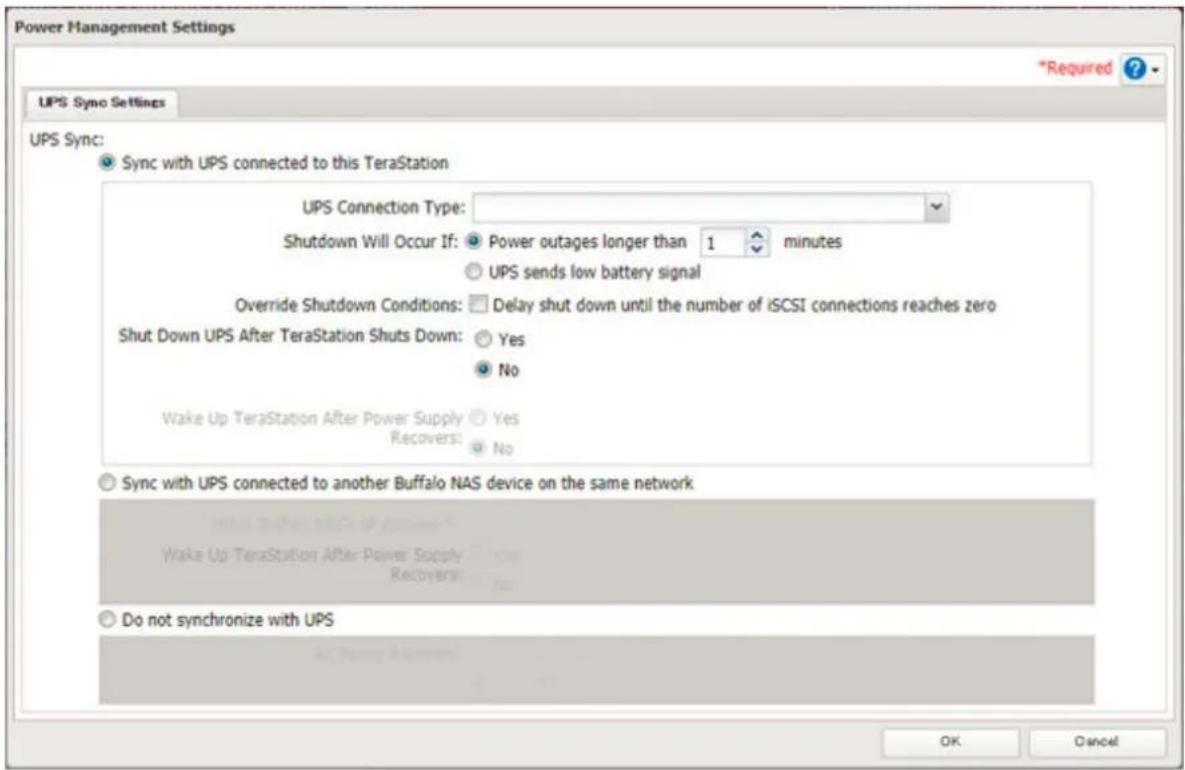
Notes:
- If the TeraStation is connected directly to a UPS, select "Sync with UPS connected to this TeraStation". If a different Buffalo NAS device is connected to the UPS, select "Sync with UPS connected to another Buffalo NAS device on the same network". After making this selection, enter the IP address of the Buffalo NAS device that will be the sync source into "Other Buffalo NAS's IP Address".
- If you don't want to connect any UPS devices, select "Do not synchronize with UPS" and the operation for if a power supply failure occurs. If "Use last state" at "AC Power Recovery" is selected, the TeraStation will revert to the state before the power supply failure occurs. If "Stay off" is selected, the TeraStation will remain off even after the TeraStation shuts down due to the power supply failure.
- When the TeraStation restarts after an automatic shutdown such as from a power outage or power supply issue, verify that external power has been restored. If the TeraStation is turned on while it is still running on the UPS and external power has not been restored, the automatic shutdown will not be performed, even after the specified time elapses.
- If the power supply from the UPS to the TeraStation stops and restarts when UPS recovery is enabled, the TeraStation will automatically restart.
Port Trunking
Two Ethernet cables can be used to establish two separate communication routes, providing LAN port redundancy and improving communication reliability. The use of two Ethernet cables enables access to the TeraStation even if one of the cables is disconnected.
The port trunking modes that can be set in the TeraStation are shown below:
| Trunking Mode Characteristics | |
| Active-backup | Only one NIC slave in the bond is active. A different slave becomes active if and only if the active slave fails. |
| Dynamic link aggregation | Creates aggregation groups that share the network speed and duplex settings. Utilizes all slave network interfaces in the active aggregator group according to the 802.3ad specification.Note: To use this mode, a separate intelligent switch that supports IEEE 802.3ad is required. Configure LACP on the switch first. |
| TLB | The outgoing network packet traffic is distributed according to the current load (relative to the speed) on each network interface slave. |
| ALB | The incoming and outgoing network packet traffic is distributed according to the current load on each network interface slave. The receive load balancing is achieved by ARP negotiation. |
Note: If the TeraStation is being used as an iSCSI drive, disable iSCSI before changing network settings such as port trunking. Navigate to Storage > iSCSI in Settings and move the iSCSI switch to the off position temporarily.
1 Use an Ethernet cable to connect the hub LAN port and TeraStation LAN port.
Notes:
- Do not connect the second Ethernet cable to the TeraStation yet.
- If using an intelligent switch, configure the LAN ports on the switch first, before connecting to the TeraStation.
2 From Settings, click Network.

Network
3 Click to the right of "Port Trunking".

Port Trunking

4 Select the LAN port that will be used and choose a port trunking bond.
5 Select the port trunking mode and click OK.
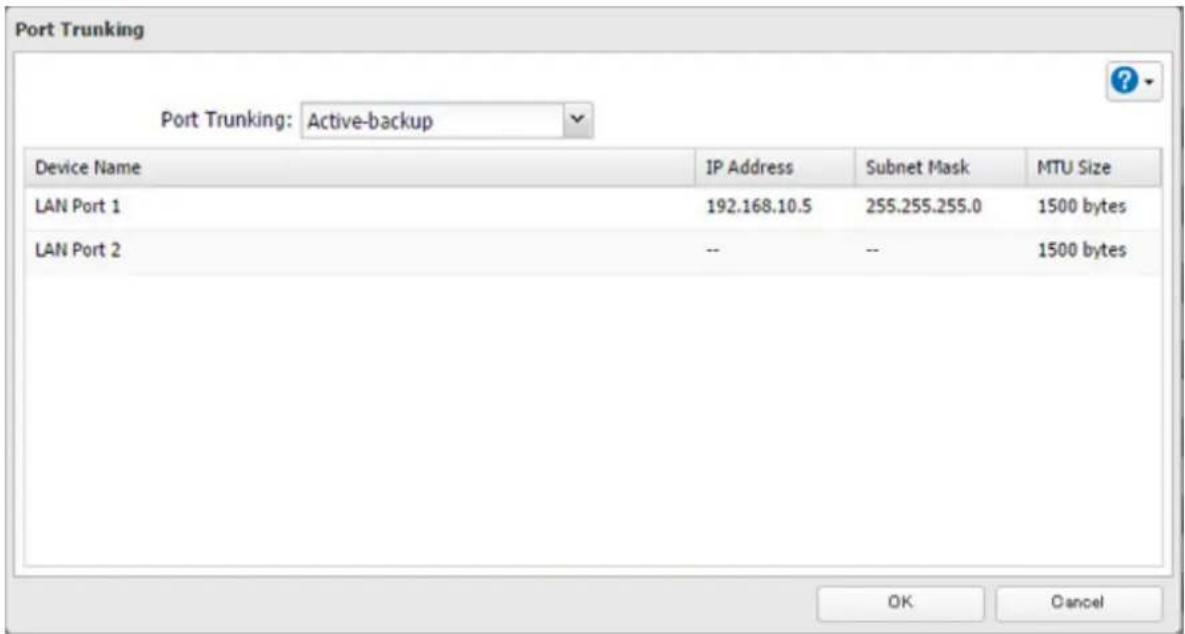
6 Connect the hub's LAN port and TeraStation's LAN port using the second LAN cable. If you are using an intelligent switch, connect to the LAN port that was previously configured for port trunking.
7 Follow the procedure on the screen to restart the TeraStation.
Offline Files for Windows
The "offline files" feature that is included with many versions of Windows can be used with files on the TeraStation. You will be able to work on files stored on the TeraStation even when your PC is disconnected from the network. When you next connect to the network, the updated files are written and synchronized. Follow the procedure below to configure offline files.
1 From Settings, click File Sharing.

2 Click to the right of "Folder Setup".

3 Click the shared folder for offline files.
4 Choose either "Manual caching of documents", "Automatic caching of documents", or "Automatic caching of programs and documents" on the Option 1 tab, then click OK.
Manual caching of documents: User selects files that are cached.
Automatic caching of documents: Opened files can be cached locally for offline use. Previous versions of files that are not synchronized are automatically replaced by the latest versions.
Automatic caching of programs and documents: Opened files can be cached locally for use offline. Previous versions of files and applications executed on the network that are not synchronized are automatically replaced by the latest version of the files and applications.
5 From File Explorer, right-click the icon of the shared folder on the TeraStation for which you have set the offline feature, then click Always available offline. If the offline file wizard opens, follow the procedure on the screen.
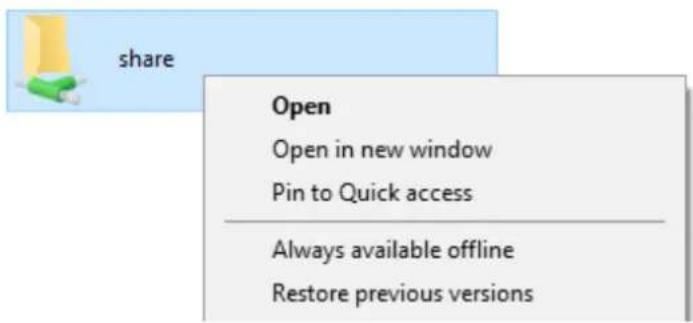
6 When the offline settings and synchronization settings are completed, the files and folders set appear as shown:

offline_test
7 If the computer is disconnected from the network after synchronization is completed, the offline file function can be used.
Offline files can be accessed by the original Universal Naming Convention (UNC) where the data was saved.
Notes:
- If you cannot access offline files, try the following procedure:
(1) Reconnect the computer to the network.
(2) From Control Panel, change the view to the icon view and click Sync Center. Click Sync All to synchronize all offline files.
(3) Disconnect the computer from the network and verify that you can access offline files.
- If you have configured the recycle bin for the shared folder, temp files may be created in the recycle bin.
Accessing from an NFS Client
Note: (US customers only) Buffalo's customer support will help configure the NFS settings on your TeraStation, and will support VMware and Windows clients but will not provide support for configuring your Linux or other UNIX clients. There are various types of UNIX and the procedures for configuring NFS with them will vary considerably. For help configuring your NetWare, Linux, or other UNIX clients for NFS support, please consult each client's own documentation and support.
1 From Settings, click File Sharing.

File Sharing
2 Click to the right of "Folder Setup".

Folder Setup

1 Folders
3 Choose the shared folder that will be accessible from the NFS client.
4 Under "LAN Protocol Support", select the "NFS" checkbox on the Basic tab and click OK. Note the NFS path. It will be used later for accessing data from an NFS client.
5 Click Close.
6 Move the NFS switch to the position to enable NFS.

NFS


7 Click to the right of "NFS".
8 Click the Client Settings tab.
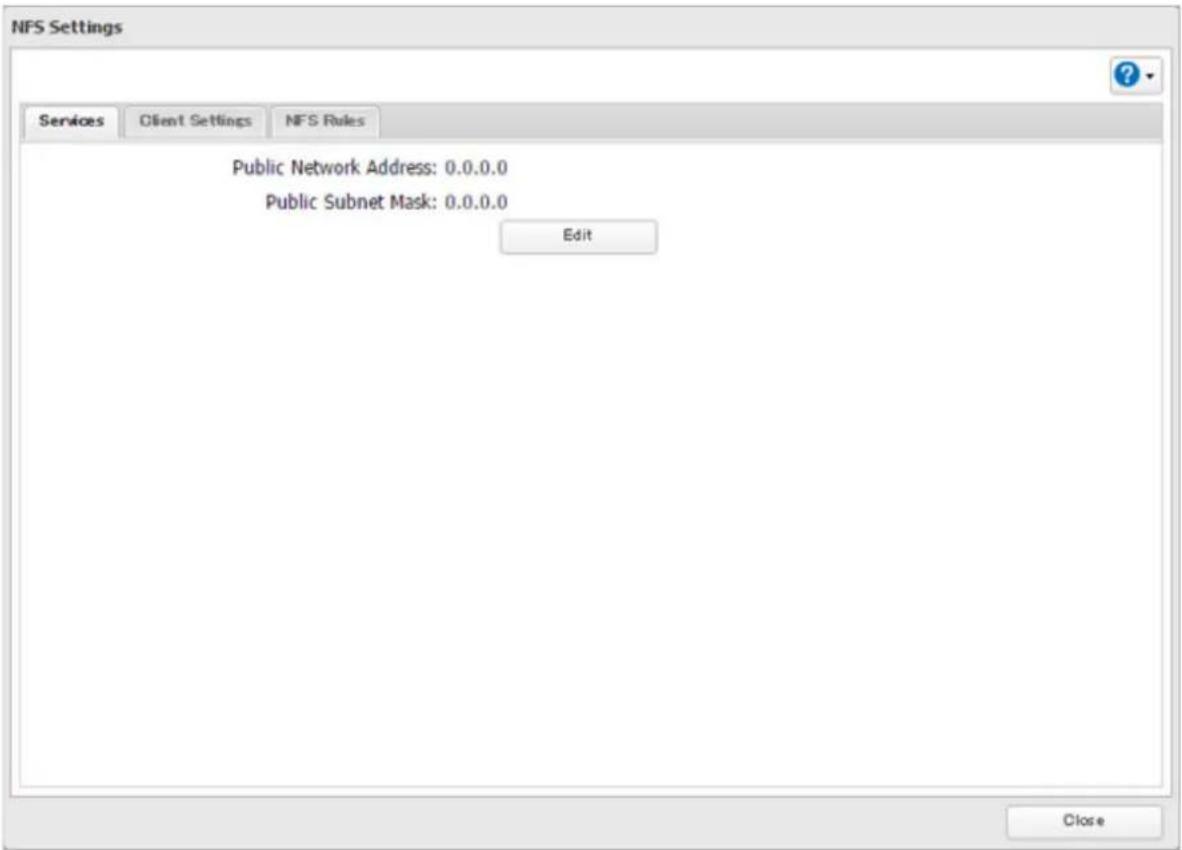
Chapter 7 Advanced Features
9 Click Add.
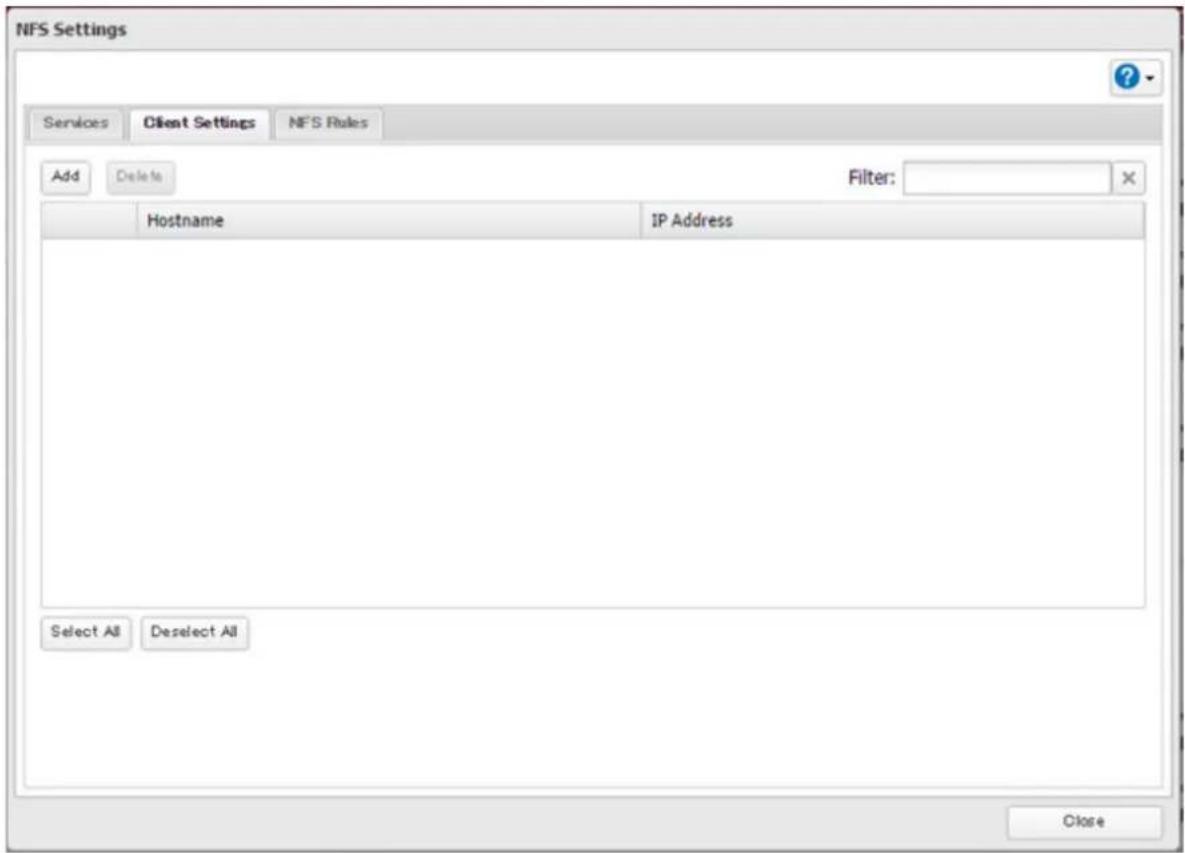
Note: To delete a client, select the checkboxes of the clients from the lists and click Delete.
10 Enter the hostname and IP address of the NFS client, then click OK. You should add all NFS clients to access the shared folder.
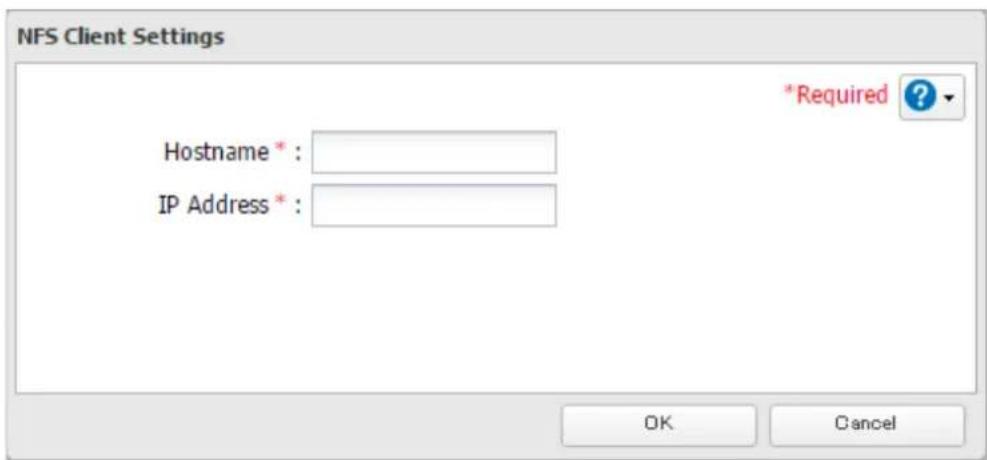
Chapter 7 Advanced Features
11 Click the NFS Rules tab.
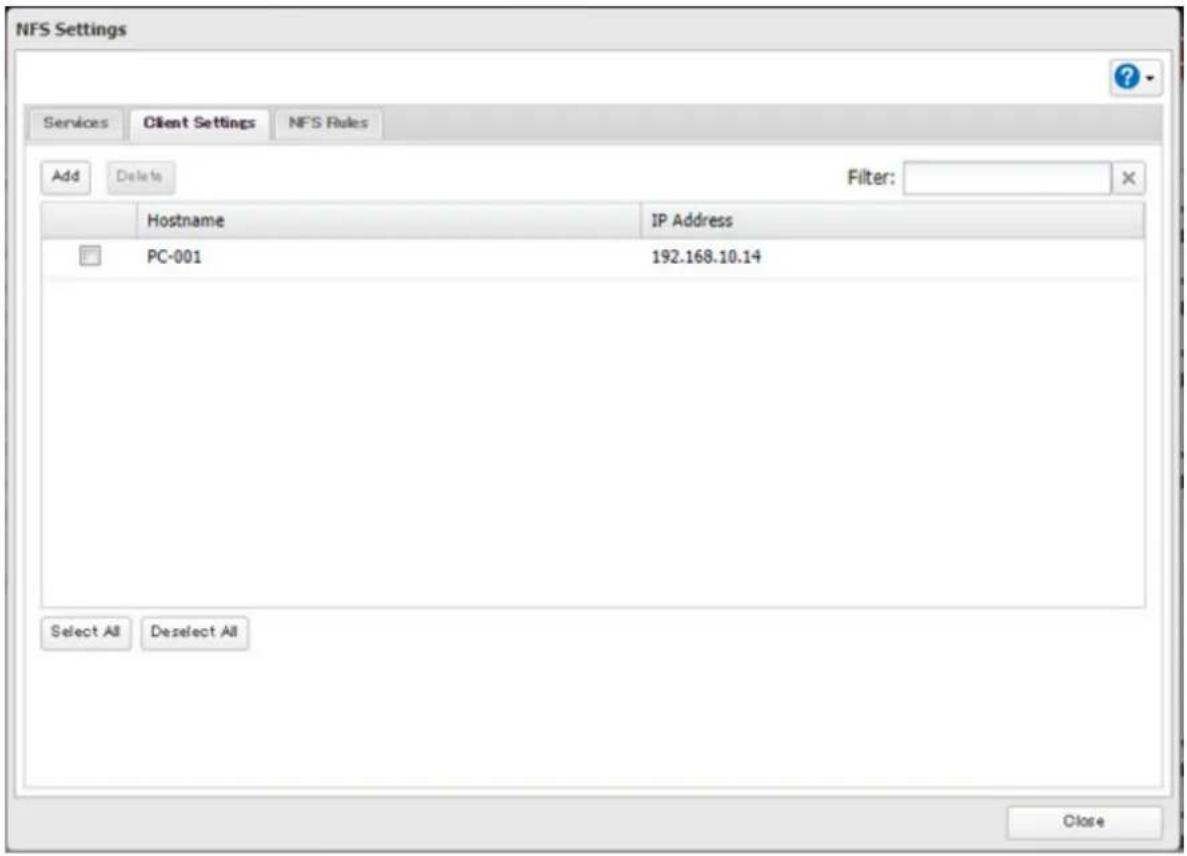
12 Click Add.
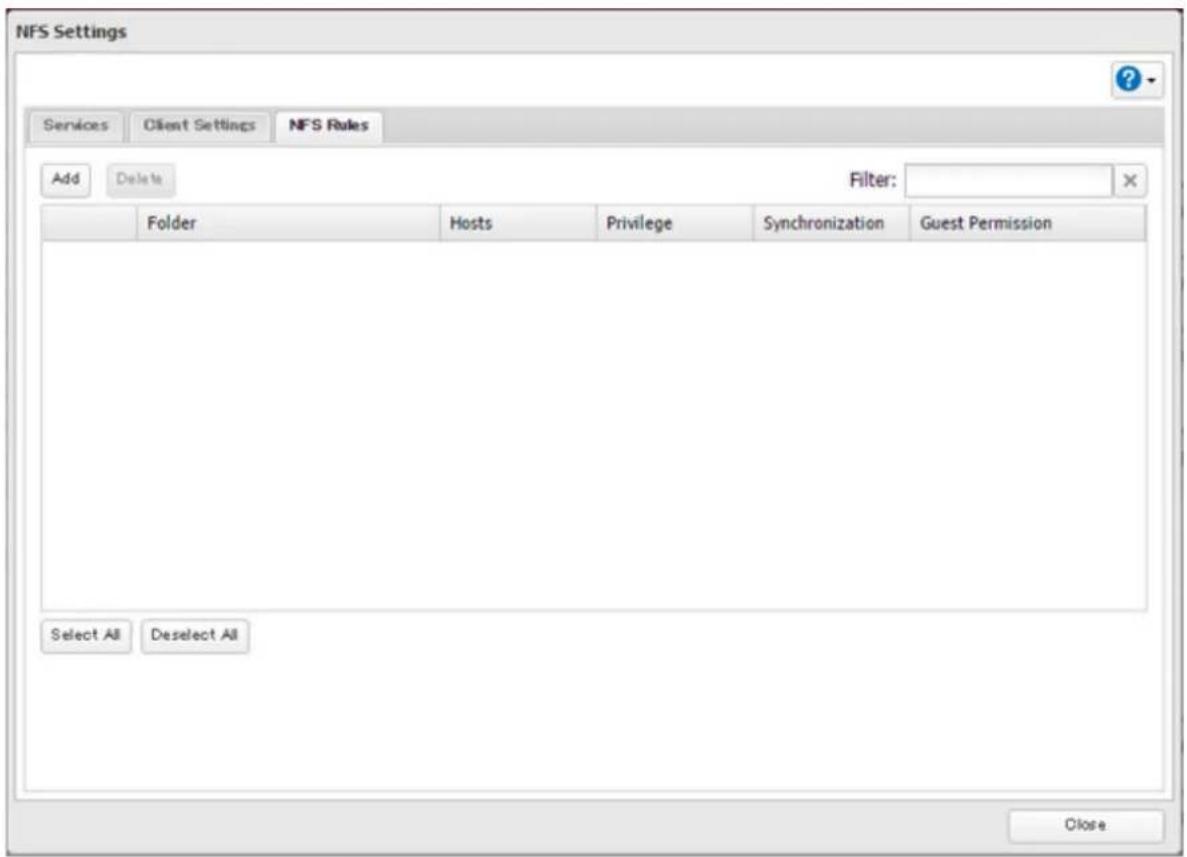
13 Choose the folder to restrict access to, and enter the clients that will have restricted access into the "Hosts" field. Clients may be entered by hostname, IP address, or IP address range. Wildcards are supported. Separate multiple entries with commas. You may assign read-only or read and write access to the listed clients. Rules override any settings made from the Services tab.
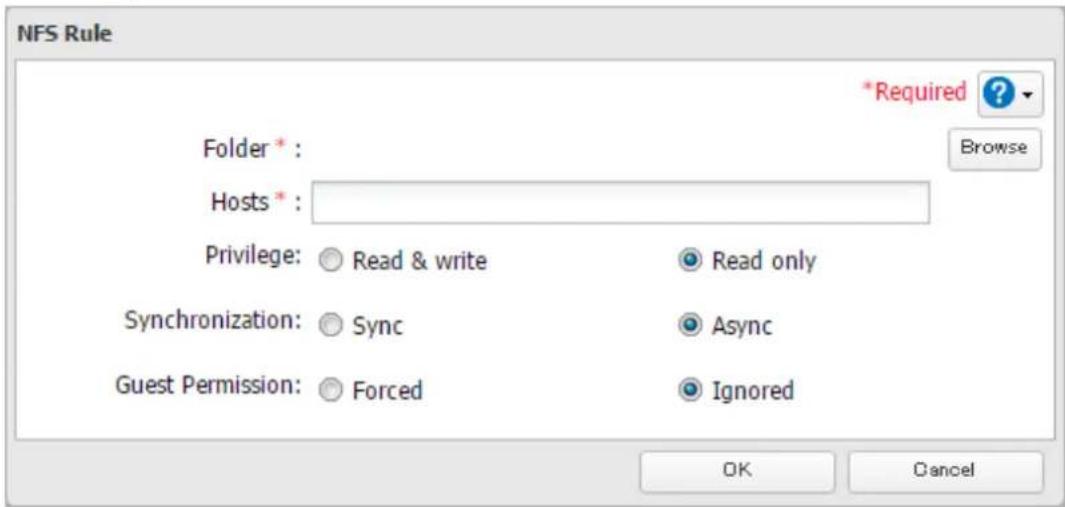
14 Click OK.
Notes:
- To restrict NFS access to a specific network or client, navigate to File Sharing > NFS > Services and click Edit. Enter the address of the network. For example, if your local network subnet has a router at 192.168.1.1 and clients with IP addresses in the range from 192.168.1.2 through 192.168.1.48 with subnet mask 255.255.255.0, then the "Public Network Address" would be 192.168.1.0 and the "Public Subnet Mask" would be 255.255.255.0. This would mean that only clients on this local network would be able to access the NFS share. If the default settings are used (0.0.0.0 for both the public network address and the public subnet mask), then access to the NFS share will not be restricted.
- If you configure "Guest Permission" to "Forced" on the screen navigating to NFS Rules > Add, user ID and group ID should be 65534 when the data is written from NFS clients; this is recommended for SMB or other protocols as well. Use "Ignored" if the TeraStation only enables NFS connection.
- Be aware that some NFS clients may be able to access via NFS although the clients do not exist in the allowed NFS client list.
NFS Mount Commands
Enter the mount command to access the shared folder from the NFS client. The mount command depends on your operating system. The examples below assume that IP address of your TeraStation is 192.168.11.10, "/mnt/array1/share" is the desired NFS path, and "/mnt/nas" or drive letter "z" is the mount point.
For Linux:
mount -t nfs 192.168.11.10:/mnt/array1/share /mnt/nas
For Windows Service for Unix 3.5:
mount 192.168.11.10:/mnt/array1/share z:
Note: A shared folder whose folder name contains multibyte characters cannot be accessed.
For Solaris 10:
mount -F nfs 192.168.11.10:/mnt/array1/share /mnt/nas
For macOS:
mount -t nfs -o resvport 192.168.11.10:/mnt/array1/share /mnt/nas
Encrypting Data Transmission
Encrypting Settings Data
All communication with Settings can use SSL encryption if you access the Settings page by changing "http://" to "https://" in the browser address bar or click Secure Connection from the login window. Once you are logged in using the HTTPS connection and wish to disable SSL encryption, click Normal Connection from the login window.
Encrypting FTP Transfer Data
You can encrypt passwords using SSH for secure FTP communication. First, open a shared folder's settings; under "LAN Protocol Support", select the "SFTP" checkbox on the Basic tab and click OK. Also, you have to enable the SFTP service by moving the SFTP switch to the on position on "File Sharing".
SSL Keys
SSL keys are used during setup screen operations and FTP communication. SSL (Secure Socket Layer) is a type of encryption system called public key encryption. Generally, SSL is managed by the two files below.
server.crt (SSL Certificates)
The TeraStation sends the file to a computer, and the computer uses it to perform encryption. The TeraStation receives the encrypted data and uses server.key (the private key) to decrypt the data.
In SSL, this key contains the server certificate, and depending on your computer environment, a check may be performed to determine the trustworthiness of the certificate. The server certificate included in the TeraStation's default settings was created by Buffalo, and in some cases, the security certificate warning message may appear in your browser or another security software. Disregard this message and continue.
server.key (SSL Private Key)
This file is used as a pair with server.crt (server certificate). This is required for decrypting the data that was encrypted by the server certificate, and this is normally not revealed.
Note: The passphrase for the private key must be removed before importing to the TeraStation.
Updating SSL Key Files
To update a server certificate and a private key for SSL, follow this procedure.
1 From Settings, click Management.
2 Click SSL.
3 Register "server.key" for "Secret Key" and "server.crt" for "Server Certificate (.crt)", then click Import.
Notes:
- Place the SSL key files (server.key, server.crt) directly below the C root drive. The SSL key files may be unable to be updated if it is placed in folders or paths that contain multibyte characters.
- If Settings cannot be displayed after updating, initialize the TeraStation settings.
- Updating the firmware initializes an SSL key.
SNMP
If SNMP is enabled, you can browse your TeraStation from SNMP-compatible network management software.
1 From Settings, click Network.

2 Click to the right of "SNMP".

3 Click Edit.
4 Select whether to use SNMP version 2 or version 3.

5 Configure the desired settings, then click OK.
6 Move the SNMP switch to the position to enable SNMP.

7 SNMP has been configured for the TeraStation. For further use, configure your SNMP-compatible network management software using the Buffalo-specific MIB (management information base) file. The MIB file is available from the Buffalo website.
Depending on which SNMP client software you use, the procedure for configuring the software will differ. For more detailed information on configuring the client software, refer to its help or included manual.
Saving and Applying Settings
The TeraStation's settings can be saved to a USB drive and restored to another TeraStation of the same series. Use this feature to back up and copy settings to a new TeraStation.
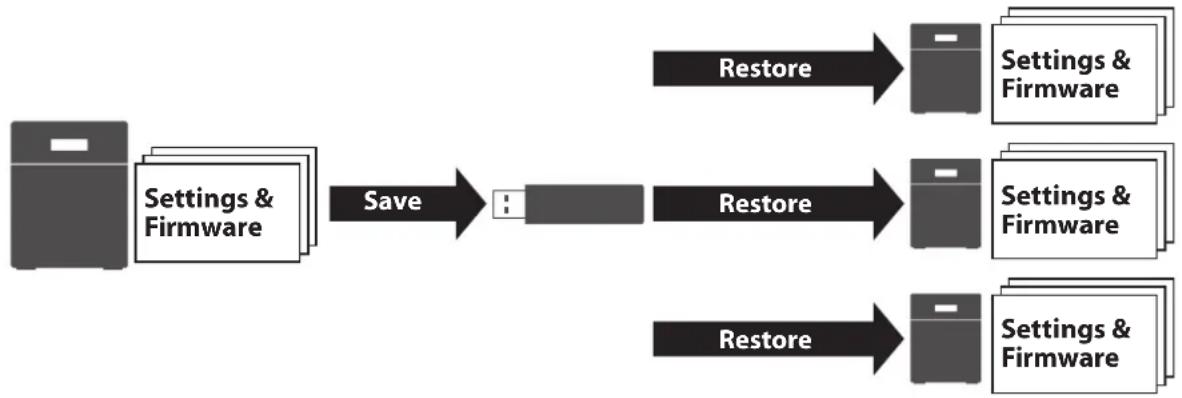
flowchart
graph LR
    A["Storage Unit"] -->|Save| B["User"]
    B --> C["Settings & Firmware"]
    B --> D["Settings & Firmware"]
    B --> E["Settings & Firmware"]
    C --> F["Restore"]
    D --> G["Restore"]
    E --> H["Restore"]
Write down the drive configuration (number of drives, RAID, LVM, etc.) of the TeraStation whose settings were saved. Make sure that any TeraStations that you apply these settings to have exactly the same drive configuration before you apply the settings. If the drive configuration is different, you may get unexpected results.
The following settings are not saved or restored:
| Category Settings | |
| File Sharing | Subfolders' access restriction settings in the shared folders |
| All settings for USB drives | |
| Storage | All settings in “Drives” |
| All settings in “LVM” | |
| All settings in “iSCSI” | |
| USB drive information | |
| Cloud Storage | Job settings of Dropbox Sync |
| Job settings of Microsoft OneDrive Sync | |
| Network | All settings except for service port restrictions, Wake-on-LAN, and MTU size settings in “IP Address” |
| All settings in “Port Trunking” | |
| Backup All settings in “Failover” | |
| Management | The TeraStation's hostname |
| All settings in “Power Management” | |
| All settings in “SSL” | |
| Display language in Settings | |
Saving Settings
1 Insert a 1 GB or larger USB drive (not included) into a USB port on the TeraStation.
Note: All data on the USB drive will be erased!
2 From Settings, click Management.

Management
3 Click to the right of "Configuration Management".

Configuration Management

4 Select "Save current configuration to a USB drive".
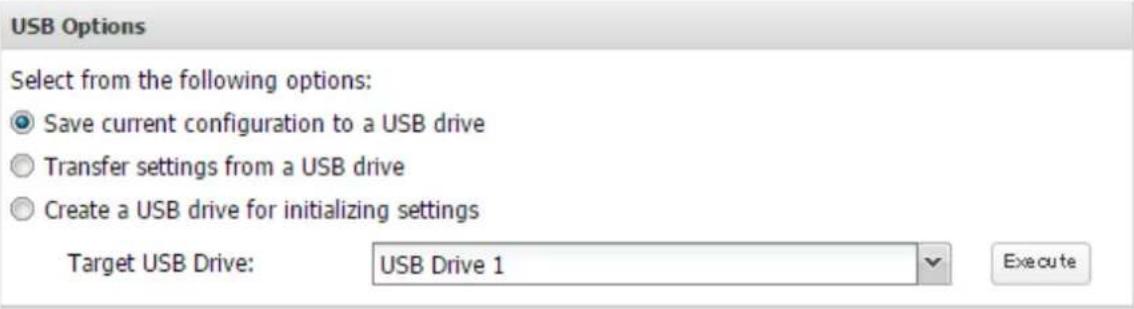
5 From "Target USB Drive", select the USB drive that is connected to the USB port on the TeraStation, then click Execute.
6 The "Confirm Operation" screen will open. Enter the confirmation number, then click OK.
7 The TeraStation will save the settings. When saving settings is completed, click OK.
Troubleshooting:
If the settings are not saved to the USB drive successfully, you may receive an error message such as "The specified operation cannot be executed.". Verify:
• The USB drive has a capacity of 1 GB or larger.
• The USB drive is not write-protected.
- Failover is configured on the TeraStation.
Applying Settings
The saved settings can be applied to a different TeraStation of the same series. If applying settings to another TeraStation, the unit's current firmware version will be changed to the version used to save the settings.
Note: Since firmware version 4.34, saved settings cannot be applied from a USB drive that contains saved settings from a unit that was running firmware version 4.32 or earlier. In such a case, create the settings restoration USB drive again using a unit running firmware version 4.34 or later.
1 Insert the USB drive with the saved settings into a USB port on the TeraStation.
2 From Settings, click Management.

Management
3 Click to the right of "Configuration Management".

Configuration Management

4 Select "Transfer settings from a USB drive".
USB Options
Select from the following options:
Save current configuration to a USB drive
Transfer settings from a USB drive
○ Create a USB drive for initializing settings
Target USB Drive:
USB Drive 1

Execute
5 From "Target USB Drive", select the USB drive that is connected to the USB port on the TeraStation, then click Execute.
6 The "Confirm Operation" screen will open. Enter the confirmation number, then click OK.
7 The TeraStation will apply the settings. When applying settings is completed, click OK.
Transferring Another TeraStation's Settings
You can transfer saved settings from another series TeraStation to your TeraStation. The following settings can be transferred:
- Shared folders which are created from "File Sharing" > "Folder Setup"
- Access restrictions
- Users
- Groups
Note: This feature currently supports the following TeraStation series as of August 2016. The latest compatibility information will be on the Buffalo website.
• TS-X series firmware version 1.58 or later
- TS3000 series
- TS4000 series
- TS5000 series
- TS3010 series
- TS5010 series
Creating a Config File (.nas config)
Procedure for TS-X Series
To transfer settings from TS-X series TeraStations, it will use the "NS-SHFT" software to create a config file. The NS-SHFT can be downloaded from the Buffalo website.
For the procedure on creating the config file, refer to the NS-SHFT user guide.
Procedure for TeraStations Other Than TS-X Series
Follow the procedure below to create a config file on a TeraStation that is not a TS-X series.
1 Refer to the user manual of the TeraStation that you want to transfer settings for saving settings to a USB drive.
2 Access the "usbdisk x" shared folder while connecting the USB drive to the TeraStation whose settings were saved in the previous step. The "x" in the folder name represents the USB port number you connected the drive to.
3 Copy and paste the .nas_config file to the desired location on your computer.
Transferring Settings
Follow the procedure below to transfer settings from another series TeraStation.
1 Before transferring access restrictions with Active Directory domain users, make sure the migration target TeraStations are joined to the same domain controller. To have the unit join the domain network, refer to the procedure on the "Active Directory" section in chapter 3.
If you didn't configure access restrictions with Active Directory domain users, skip to the next step.
2 From Settings, click Management.

Management
3 Click to the right of "Configuration Management".

Configuration Management

4 Click Browse and choose the config file (.nas_config) that was created with the migration source TeraStation. If the config file was created with a password, enter it into the "Password" field.
Configuration Migration
Migrate another TeraStation's users, groups, shared folders, and access restriction settings. Select the config file (.nas_config) that was saved on the other TeraStation. Note: If the migration source TeraStation is configured with Active Directory, this TeraStation should also have the same configuration, or else migration will not work.
For detailed information about compatible products for migration or the procedure to save the config file, refer to the user manual.
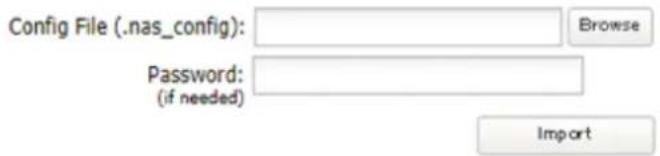
5 Click Import.
6 The "Confirm Operation" screen will open. Enter the confirmation number, then click OK.
7 The TeraStation will transfer the settings. When transferring settings is completed, click OK.
Notes:
- If the migration target TeraStation contains shared folders, users, and groups that share the same name as the transferred settings, the existing settings will be overwritten.
- If the migration target TeraStations have already added some shared folders, users, and groups, the transferred settings may exceed the maximum number of allowed shared folders, users, or groups. After migration finishes, open Settings and verify that all settings were properly transferred.
Restoring Factory Defaults
Initializing from Settings
To initialize the TeraStation to its factory defaults from Settings, follow this procedure.
1 From Settings, click Management.

Management
2 Click to the right of "Restore/Erase".

Restore/Erase

3 Click Initialize TeraStation.
Restore
This initializes the TeraStation's settings. All settings are restored to their factory defaults. Saved data is not erased.
Initialize TeraStation
4 The "Confirm Operation" screen will open. Enter the confirmation number, then click OK.
5 The TeraStation will restore its factory default settings. Close the browser and wait until the initialization is finished.
Initializing with the USB Initialization Drive
An initialization drive will restore the settings on your TeraStation to their factory defaults. You can initialize them without logging in to Settings. Follow the procedure below to create an initialization drive.
Notes:
- Initializing settings with the USB drive is available for the same TeraStation unit that created the initialization drive.
- Normally, making and using an initialization drive will not affect data on the TeraStation. However, always back up your data regularly!
- This USB drive can be used to recover the system if your TeraStation doesn't boot at all. In this case, if the data partition is damaged, then all your data will be deleted by the recovery process.
Creating an Initialization Drive
1 Insert a 1 GB or larger USB drive (not included) into a USB port on the TeraStation.
Note: All data on the USB drive will be erased!
2 From Settings, click Management.

Management
3 Click to the right of "Configuration Management".

Configuration Management

4 Select "Create a USB drive for initializing settings".
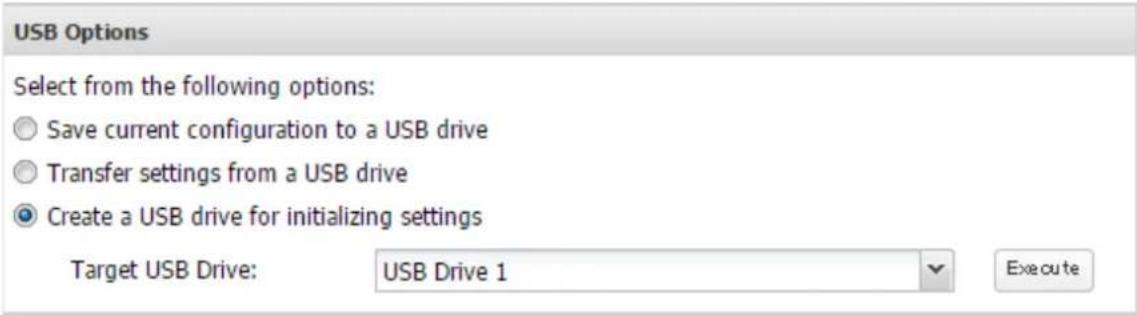
5 From "Target USB Drive", select the USB drive that is connected to the USB port on the TeraStation, then click Execute.
6 The "Confirm Operation" screen will open. Enter the confirmation number, then click OK.
7 The TeraStation will create the initialization drive. This will take about a minute. When creating the USB initialization drive is completed, refresh the browser and log in to Settings again.
Initializing with the USB Drive
To initialize the settings on your TeraStation with the USB drive as created above, follow the procedure below. Note: If using the initialization drive to initialize, the unit's current firmware version will be changed to the version used to create the initialization drive.
1 Turn off the TeraStation by pressing and holding the power button for three seconds.
2 Insert the USB drive into a USB port on the TeraStation. Make sure that no other USB drives are currently connected to any USB ports on the TeraStation.
3 Power on the TeraStation while holding down the function button.
4 When the info LED on the front of TeraStation glows, press the function button. The I41 message will appear on NAS Navigator2 at this time.
5 It will take several minutes for initializing the settings. The TeraStation will restart when it's finished.
Dismount the USB drive before unplugging it. Refer to the "Dismounting Drives" section in chapter 4 for the procedure on dismounting drives.
Resetting the Administrator Password
If you forget the admin username or password and cannot log in to Settings, or wrong network settings are configured and Settings becomes inaccessible, initialize these settings by holding down the init button (refer to the TeraStation diagram in chapter 1) on the front panel for three seconds. Normally this will reset the admin username and password, network configuration, SSL, and security port settings to their factory default values.
This button can be disabled in Settings; to do so, navigate to Management >Restore/Erase >Edit under "Init Button Settings", then select "Keep current admin username and password" and click OK.
Logs
Displaying TeraStation's Logs
Follow the procedure to check the TeraStation's logs.
1 From Settings, click Management.

Management
2 Click to the right of "Logs".

Logs

3 Select a log to view.
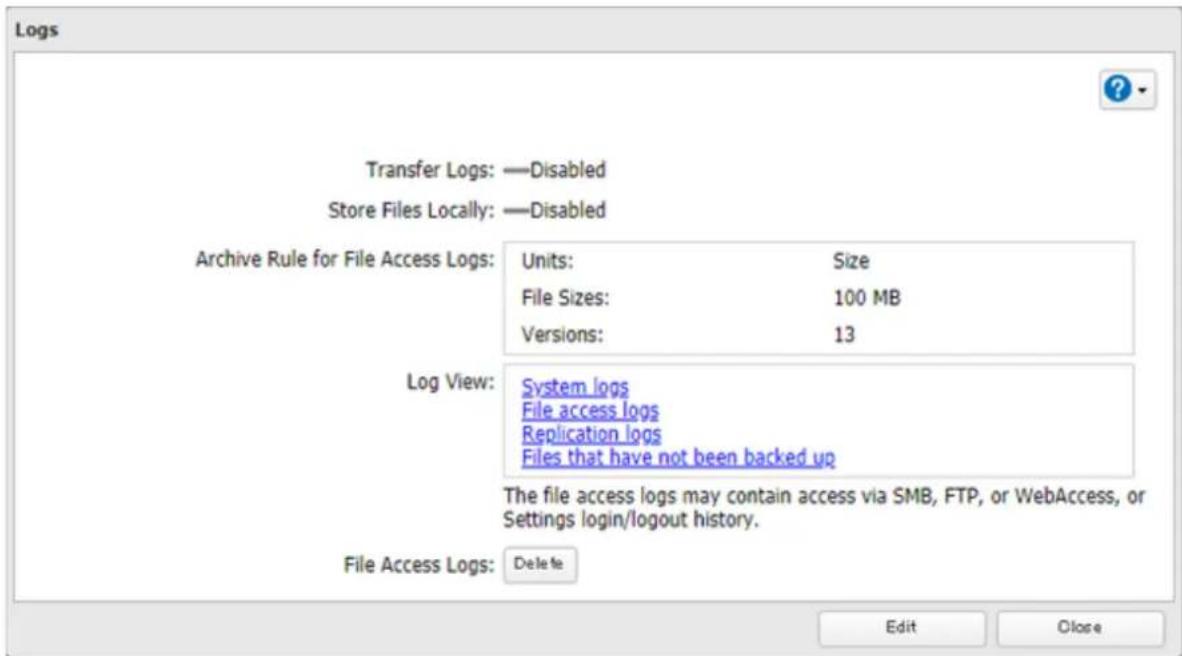
The file access log stores file access events that occurred on the internal drives. File access on USB drives are not logged.
Note: All logs are encoded in UTF-8 format. To show them correctly, change the software encoding to "UTF-8".
Transferring Logs to the Syslog Server
1 From Settings, click Management.

Management
2 Click to the right of "Logs".

Logs

3 Click Edit.

4 Enable "Syslog Transfer".
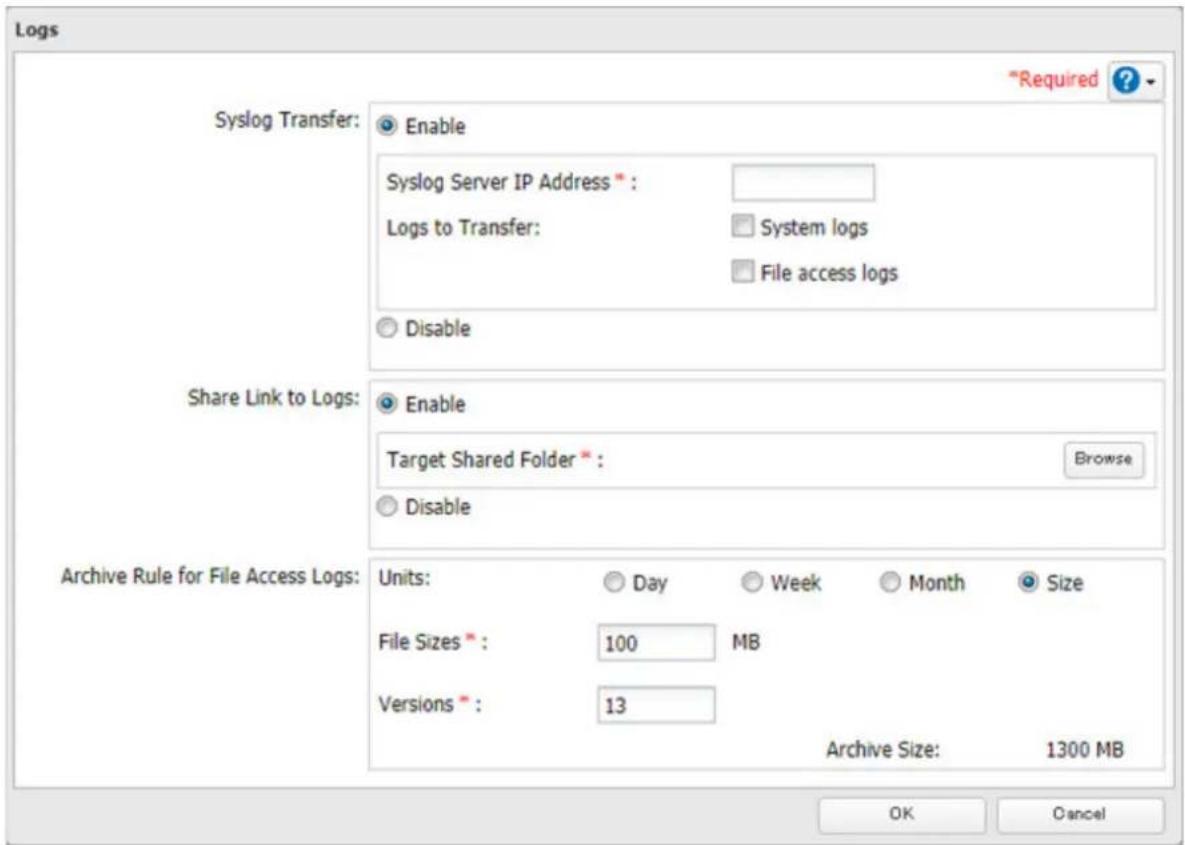
5 Enter the IP address of the syslog server where you want to transfer the logs to.
6 Select the type of log that you want to transfer from "Logs to Transfer".
7 Click OK.
Creating a Link to the Logs in the Shared Folder
1 From Settings, click Management.

Management
2 Click to the right of "Logs".

Logs

Chapter 7 Advanced Features
3 Click Edit.
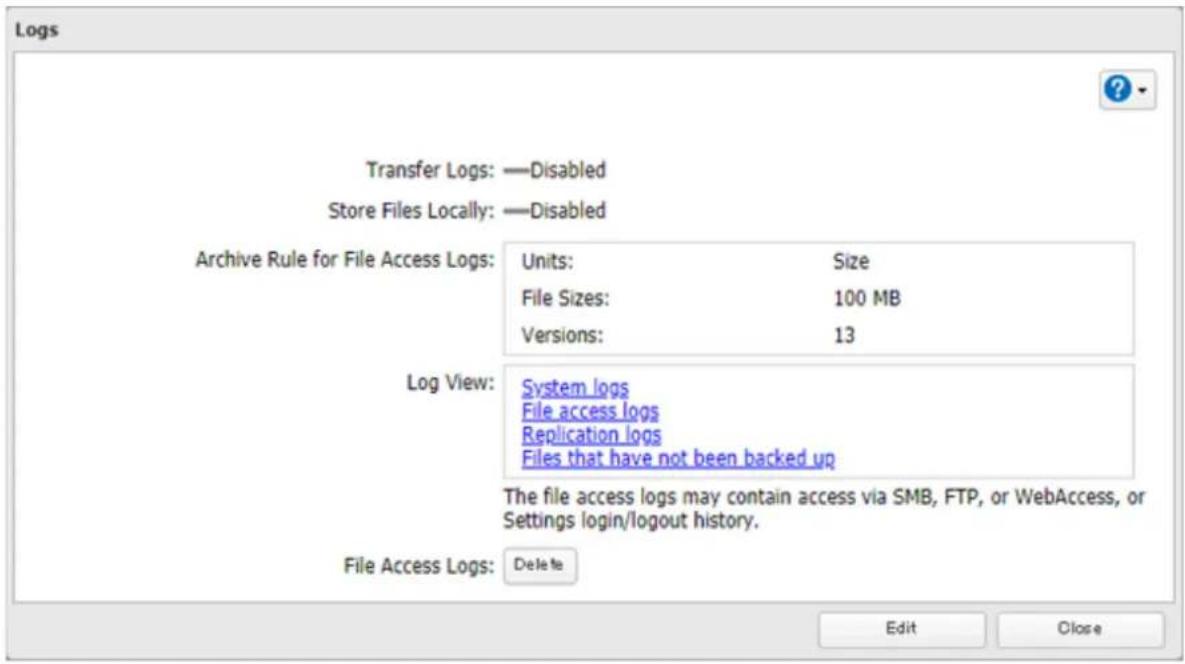
4 Enable "Share Link to Logs".
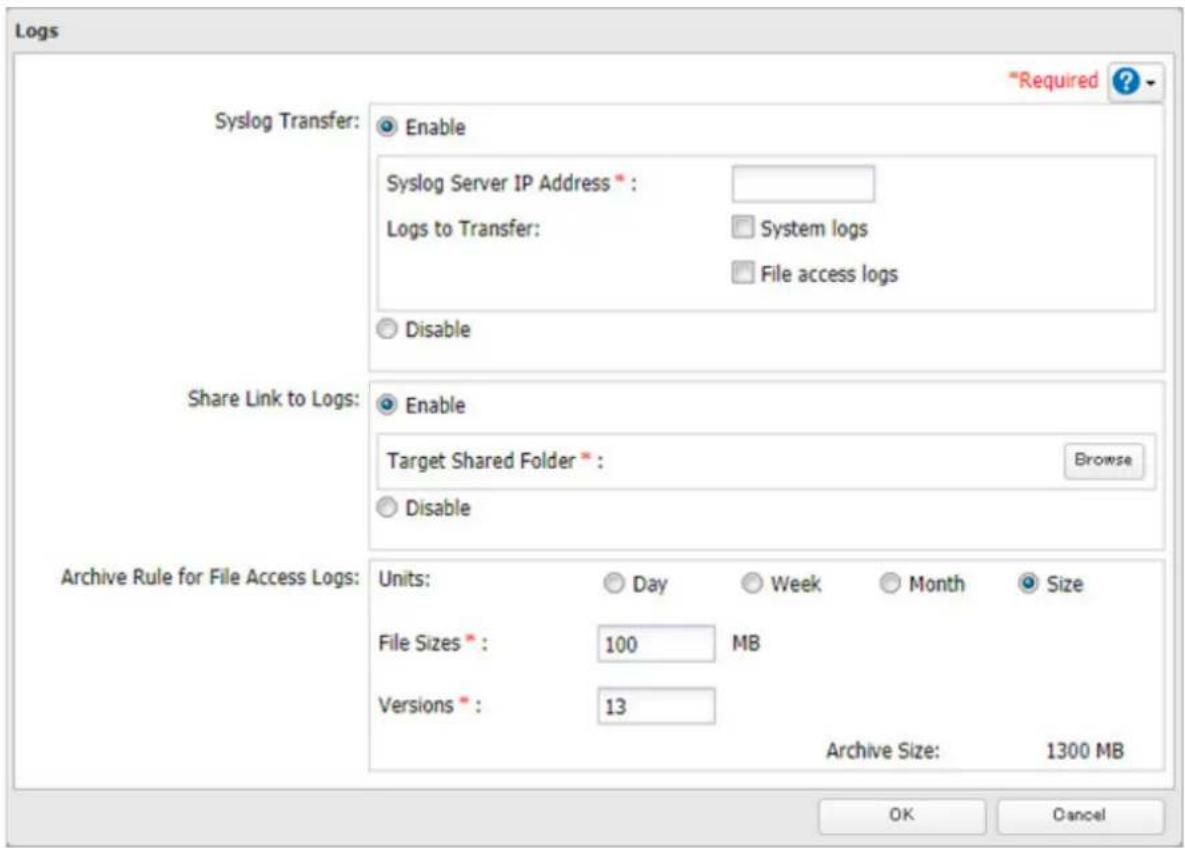
5 Click Browse and select the shared folder where the link will be created in "Target Shared Folder". Click OK.
Under the selected shared folder, a folder named "system_log" will now contain the logs.
Changing Archive Rules for File Access Logs
You can configure how many logs are kept or how long each log will be kept on the TeraStation.
1 From Settings, click Management.

Management
2 Click to the right of "Logs".

Logs

3 Click Edit.
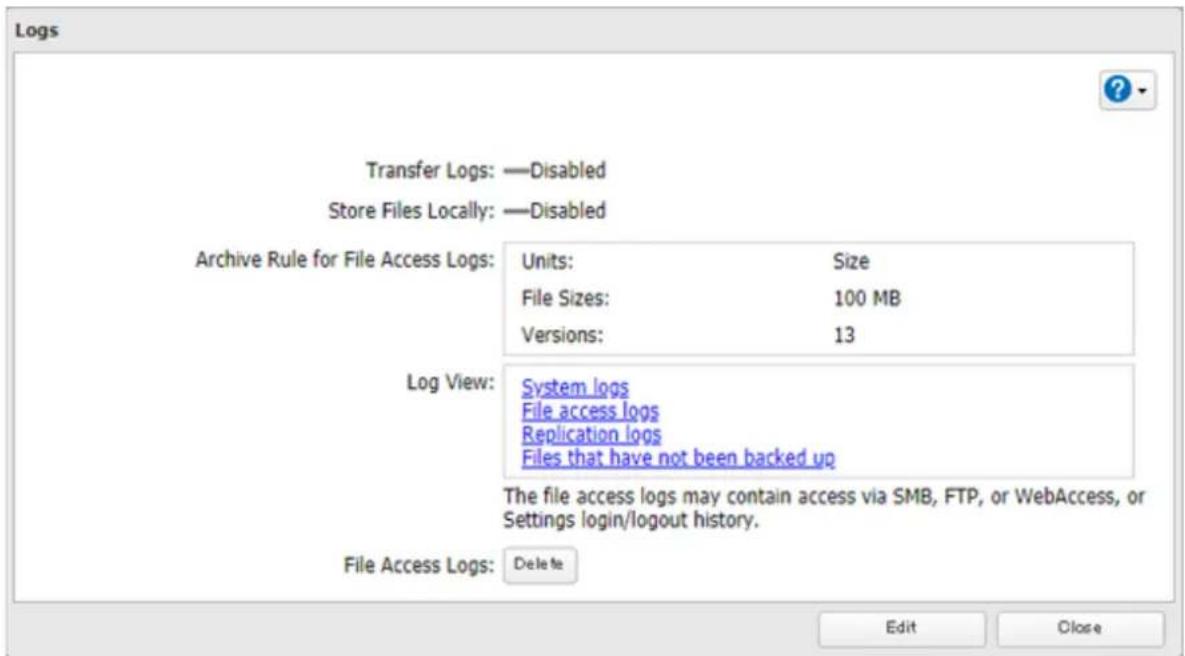
4 Select the unit and version to save logs to the right of "Archive Rule for File Access Logs". For example, if you select "Month" for the unit and enter "7" for the version, the file access logs for the next 7 months will be saved on the TeraStation.
Available duration and capacity to save logs will vary depending on the unit. The following values are available:
• Unit (Day): 1–367 for all versions
- Unit (Week): 1–53 for all versions
- Unit (Month): 1–13 for all versions
- Unit (Size): 1–100 for file sizes and 1–13 for all versions
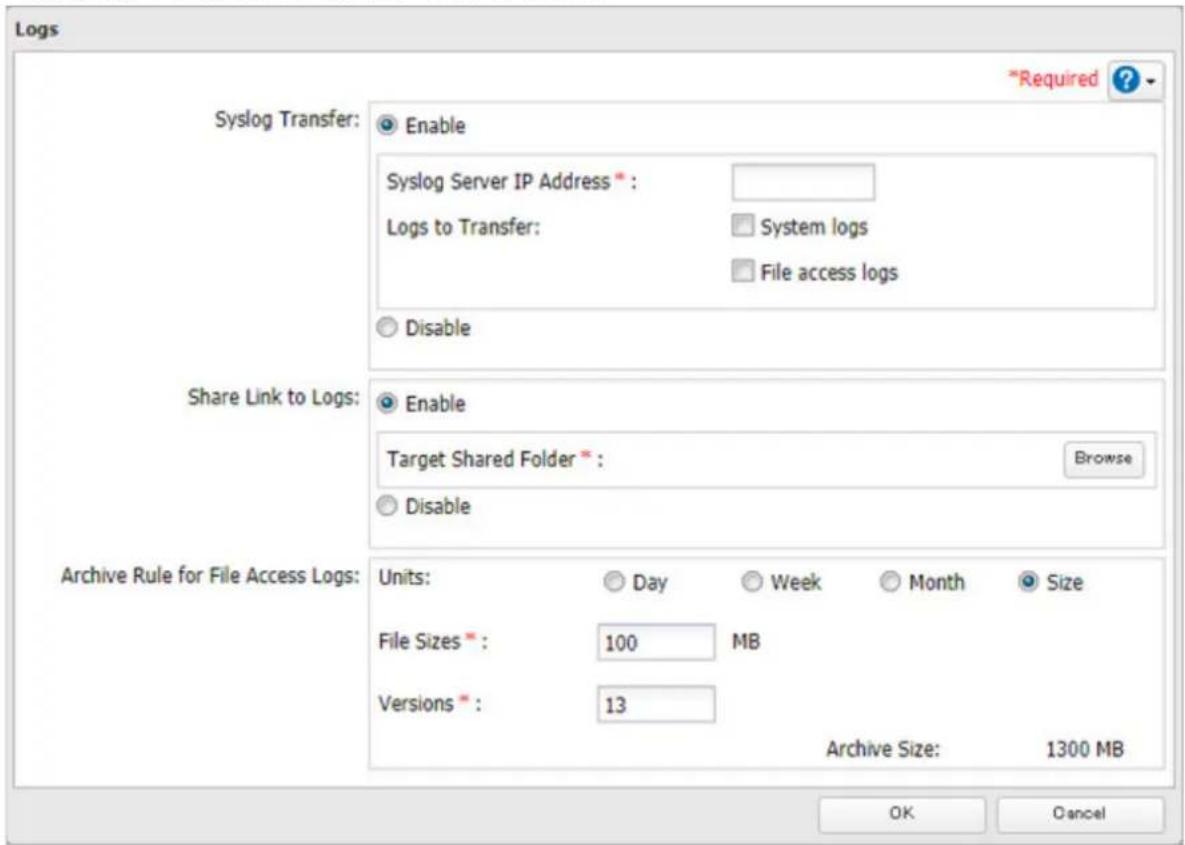
5 Click OK.
Notes:
- To delete the saved logs, click Delete at the window in step 3.
- If there is not enough space to save logs, the I70 message will appear in Settings or NAS Navigator2. When it appears, delete unnecessary logs or move them to another device from the TeraStation. If no free space is available elsewhere, older logs will automatically be deleted.
Updating the Firmware
If new firmware is available, a message is displayed when the TeraStation boots. You can update the firmware either manually or automatically.
Notes:
- If all drives and RAID arrays on the TeraStation have LVM enabled but no LVM volumes have been created, you will not able to update the firmware from Settings.
- Settings will not be available while the firmware is updating. Don't try to access Settings from another computer until the update is completed.
Updating Manually
1 From Settings, click Management.

Management
2 Click to the right of "Update".

Update

A firmware update is available.
3 Click Install Update.
4 When updating the firmware is completed, refresh the browser and log in to Settings again.
You can also download the latest firmware from the Buffalo website.
Updating Automatically
1 From Settings, click Management.

Management
2 Click to the right of "Update".

Update

This TeraStation is using the latest firmware.
3 Click Edit.
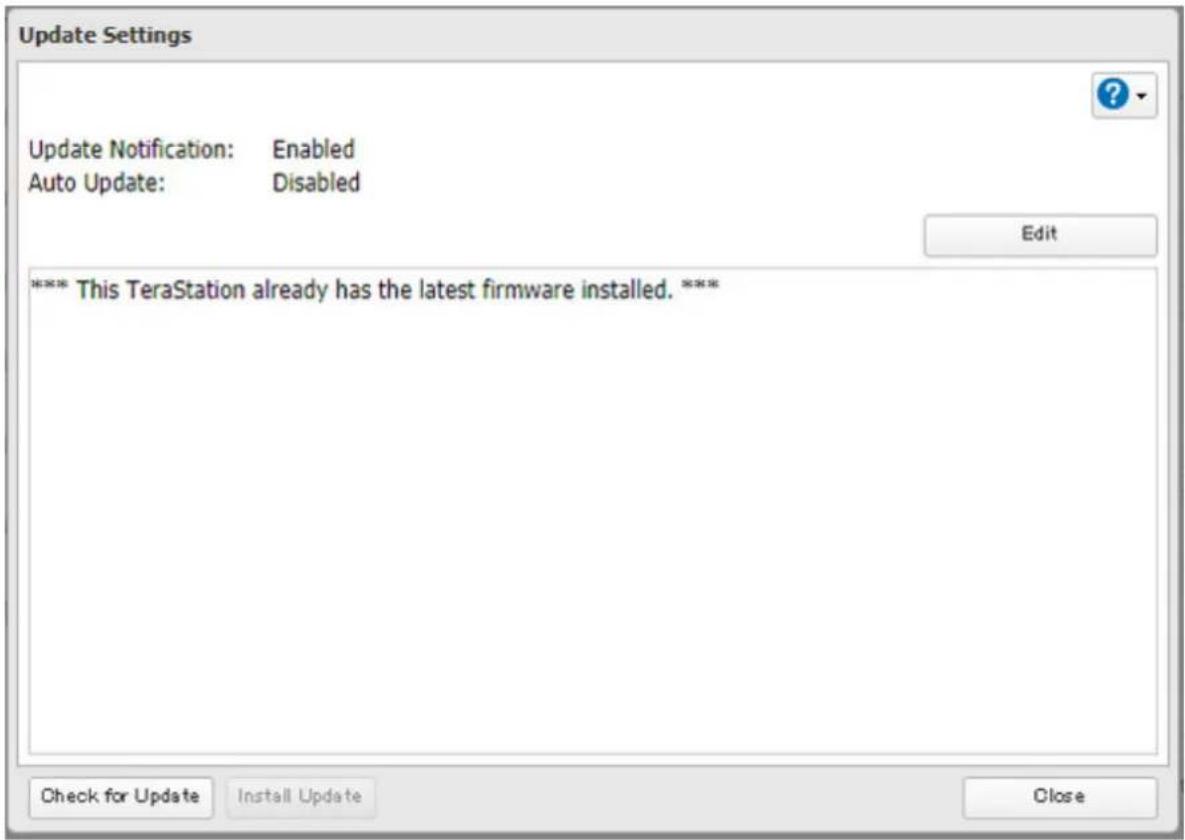
Chapter 7 Advanced Features
4 Select "Update the firmware automatically" and click OK.
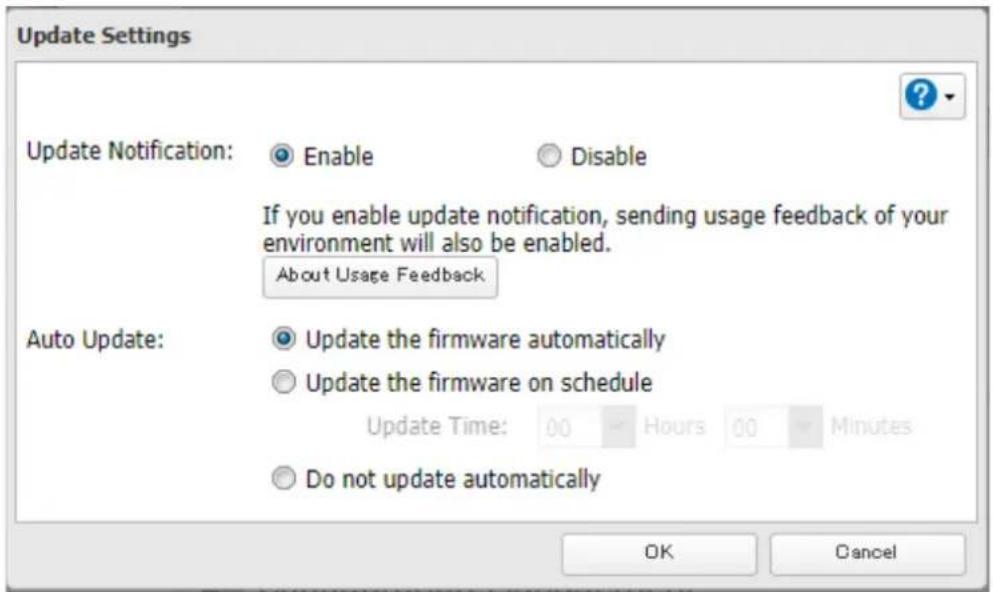
Alternately, you may choose to schedule updates for a specific time of day.
Configuring Update Notification
Configure whether or not to receive a notification when new firmware becomes available.
1 From Settings, click Management.

Management
2 Click to the right of "Update".

Update

This TeraStation is using the latest firmware.
Chapter 7 Advanced Features
3 Click Edit.
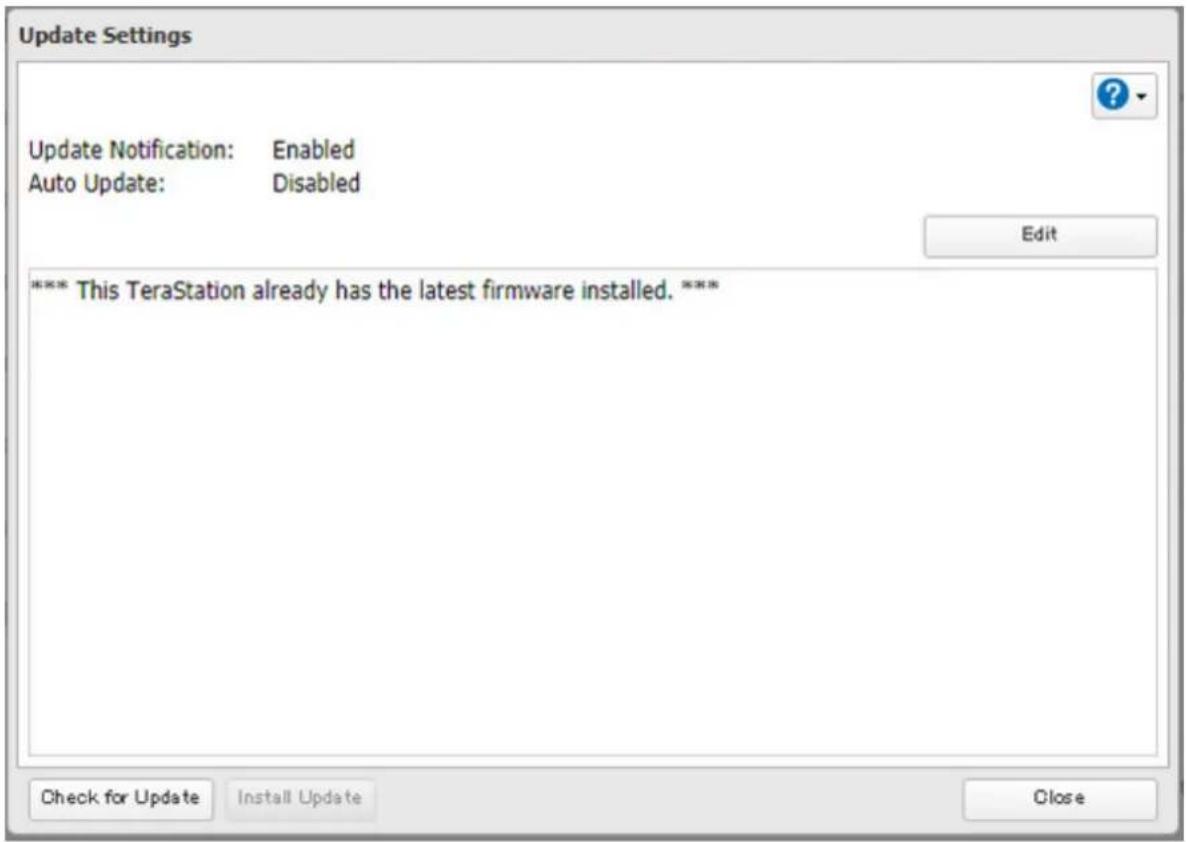
4 Select to enable or disable update notification and click OK.
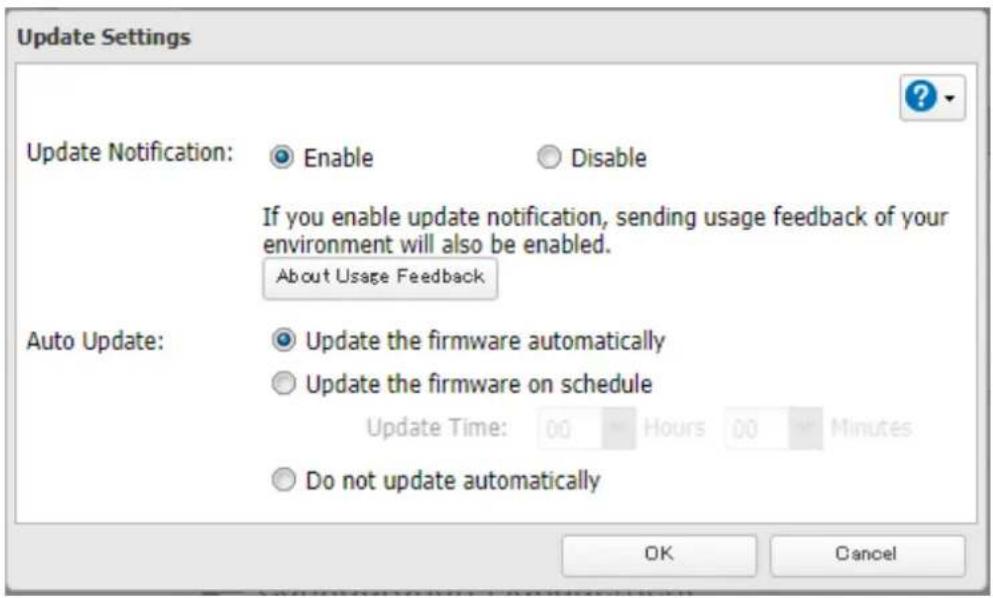
For further optimized firmware updates and product usability improvements, Buffalo may ask you to send your usage and environment information, such as a number of shared folders and client computers, and/or S.M.A.R.T. information. The collected information will only be used for improving future firmware stability and product development and no other purpose.
If update notification is enabled, it will also automatically enable sending usage feedback to Buffalo. If you don't want to send this information to us, disable update notification.
Name, Date, Time, and Language
Configure the TeraStation's hostname, date, time, and language as shown below.
Note: If the TeraStation is being used as an iSCSI drive, to change the settings, navigate to Storage > iSCSI in Settings and move the iSCSI switch to the off position temporarily before changing settings.
1 From Settings, click Management.

Management
2 Click to the right of "Name/Time/Language".

Name/Time/Language

3 Click Edit.
4 Click the Name tab, then configure the TeraStation's name and description.
The name will be used for identifying your TeraStation on the network. When your TeraStation is detected, the name will be used as the hostname. The hostname may contain up to 15 alphanumeric characters and hyphens (-). The first and last characters should not be a hyphen.
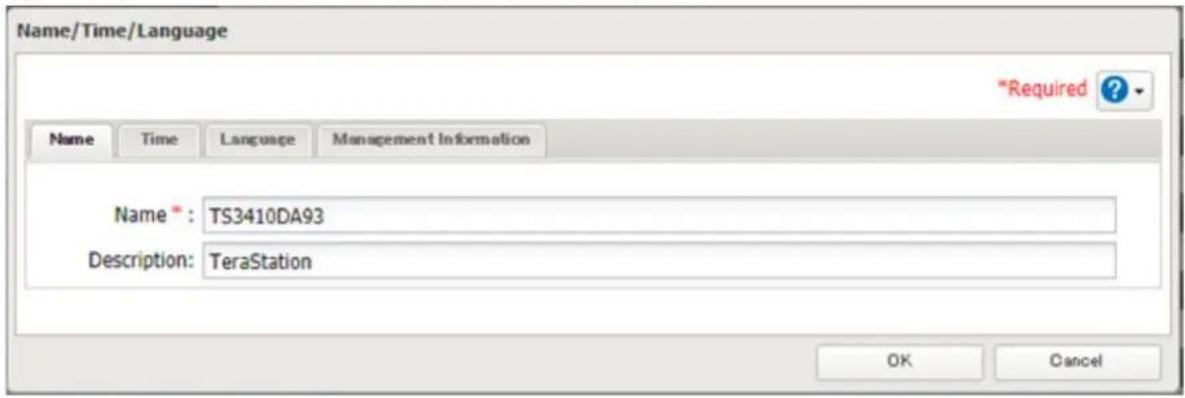
5 Click the Time tab. Enable the NTP server and select the "Use default NTP server" checkbox. If you disable the NTP function, click Use Local Date/Time to use your computer's time settings for the TeraStation.
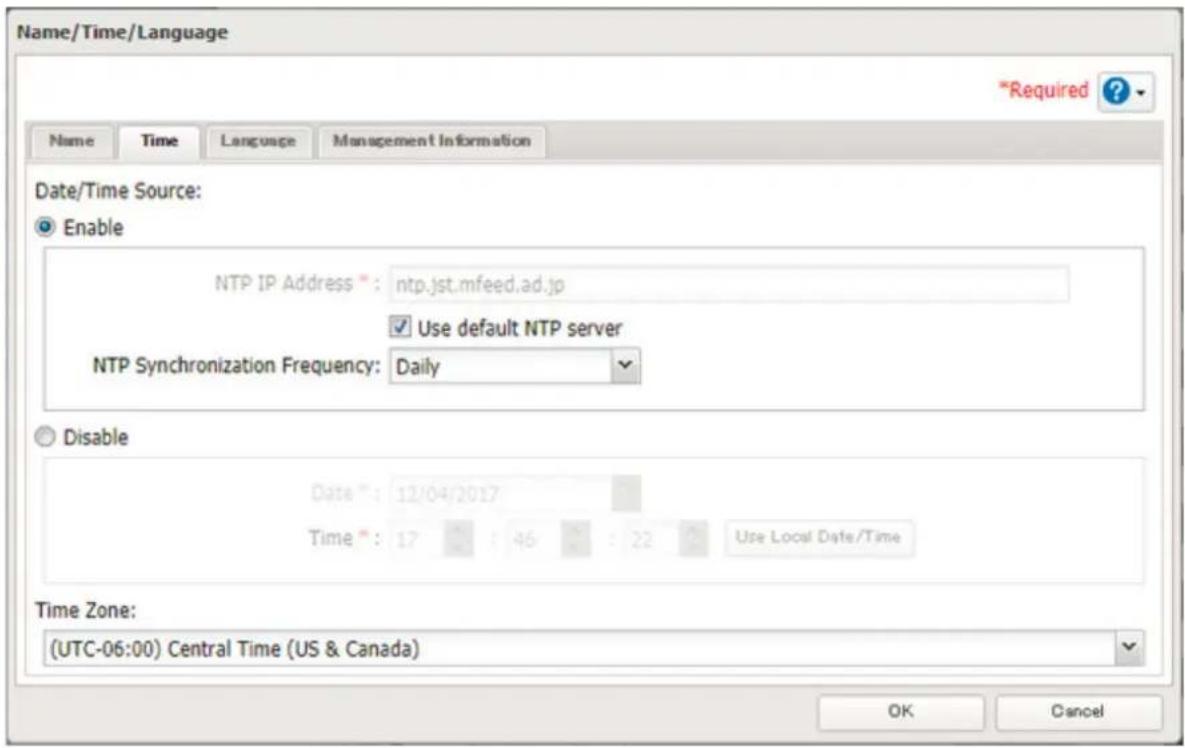
By default, the TeraStation adjusts its clock automatically by using a default NTP server. This NTP server belongs to Internet Multi Feed Inc. For more information, visit http://www.jst.mfeed.ad.jp.
To use a different NTP server, clear the "Use default NTP server" checkbox and enter a new NTP IP address or its hostname, then click OK. If an NTP server is specified by name instead of IP address, make sure that a DNS server is configured for the TeraStation.
Note: The internal clocks of the TeraStation and other devices on your network may run at slightly different speeds. Over a long period of time, your network devices may show somewhat different times, which can cause network problems. If clocks on your network vary by more than five minutes it may cause unexpected behavior. For best results, keep all clocks on the network set to the same time by adjusting them regularly, or use an NTP server to correct them all automatically.
6 Click the Language tab. Select the language to be used and click OK.
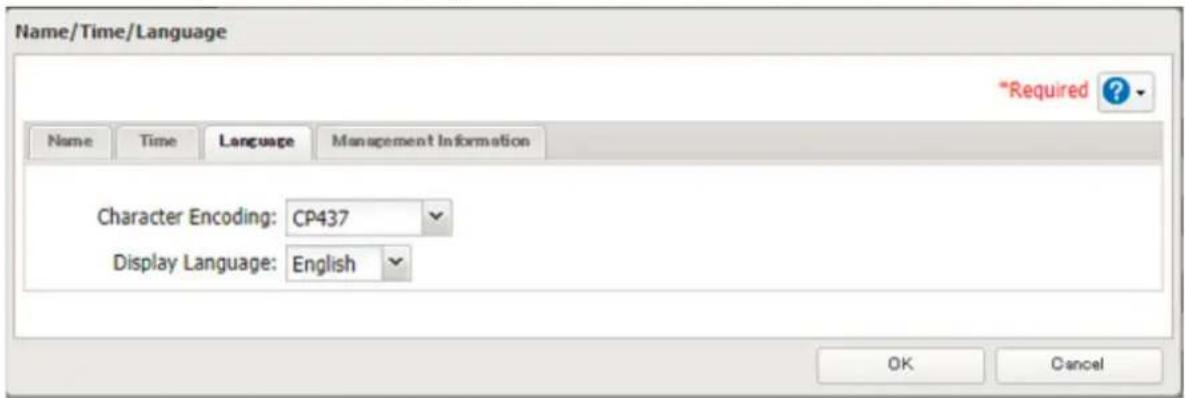
Note: This tab changes the language used by the TeraStation for email notifications and other functions. To change the language displayed in Settings, go to Settings and click Language from the menu bar. Choose your desired language from the drop-down list.
Beep Alerts
You can set the TeraStation to beep if certain errors occur.
1 From Settings, click Management.

Management
2 Click to the right of "Notifications".

Notifications

3 Click Edit.
4 Click the Alert Sound tab.
5 Select the triggers to make the alert beep, then click OK.
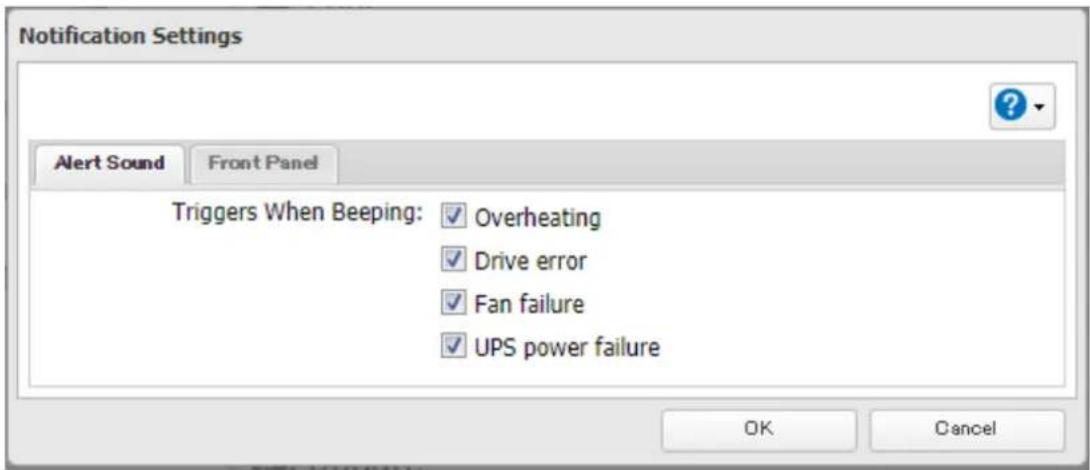
LEDs
You may adjust the brightness of the LEDs on the TeraStation.
1 From Settings, click Management.

Management
2 Click to the right of "Notifications".

Notifications

3 Click Edit.
4 Click the Front Panel tab.
Chapter 7 Advanced Features
5 Configure your settings, then click OK.
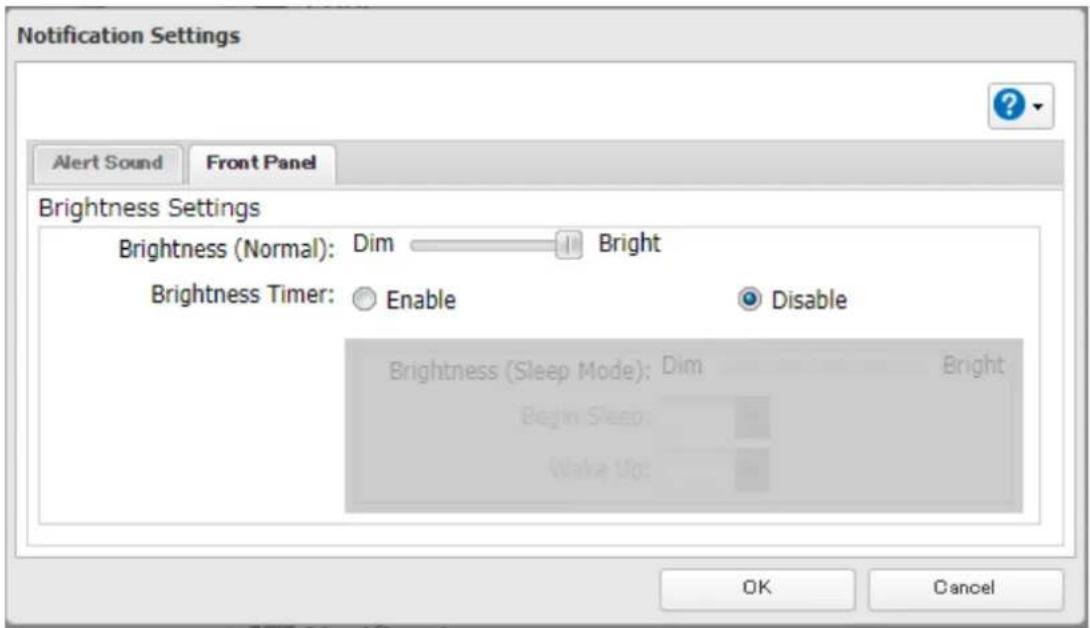
Proxy Server
If you place the TeraStation on a network that passes through a proxy server, configuring the proxy server settings is recommended. Unless you configure the proxy settings, firmware updates in Settings will not work. To configure the settings, follow the procedure below.
1 From Settings, click Network.

2 Click to the right of "Proxy Server".

Chapter 7 Advanced Features
3 Enable "Proxy Server".
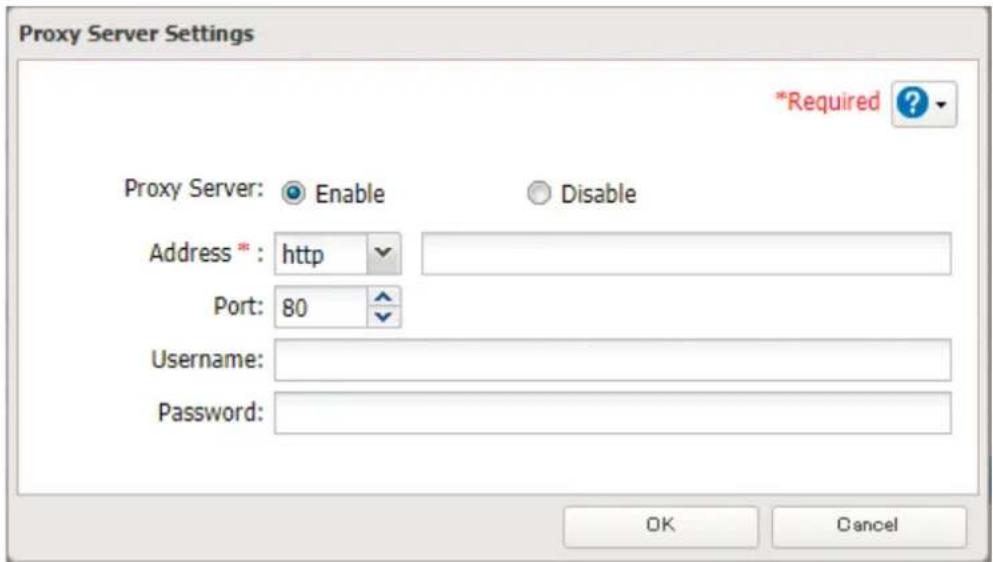
4 Enter the proxy server IP address or hostname, port number, username and password, then click OK.
Once you configure the proxy server settings, you may use the settings for other cloud storage services such as Amazon S3 or Dropbox by selecting the "Configured settings" option on each settings page.
Jumbo Frames
If your other network devices support jumbo frames, you may be able to increase network performance.
1 From Settings, click Network.

2 Click to the right of "IP Address".

3 Click Edit.
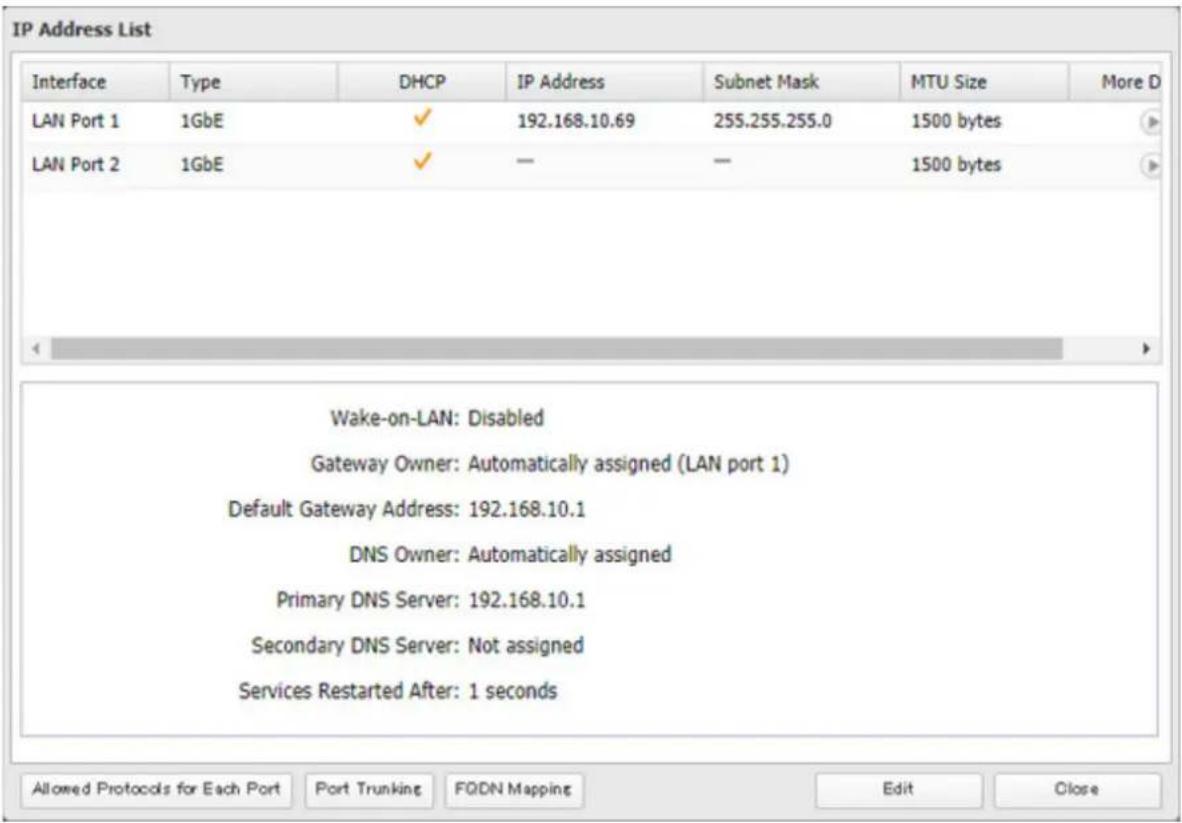
4 Select or enter the desired MTU size and click OK.
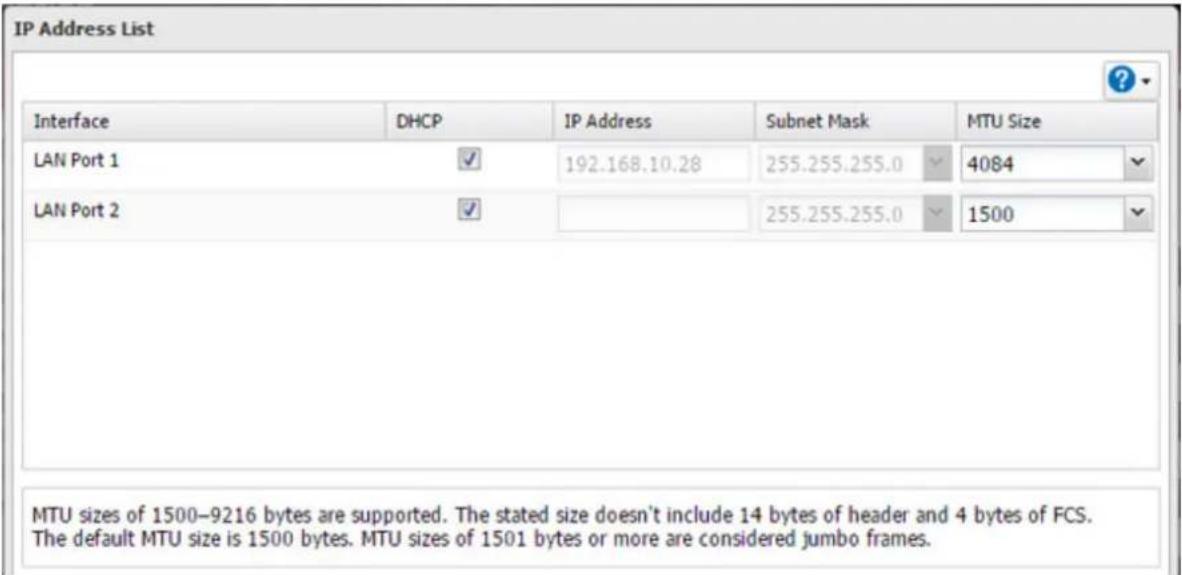
| Connection Transmission | ||||
 Jumbo Frame Jumbo Frame |  Jumbo FrameCompatible Switch Jumbo FrameCompatible Switch |  Jumbo Frame Compatible PC Jumbo Frame Compatible PC |  | Transfer data in jumbo frames. |
 Jumbo Frame Jumbo Frame |  Jumbo Frame Compatible Switch Jumbo Frame Compatible Switch |  Jumbo Frame Incompatible PC Jumbo Frame Incompatible PC |  | Transfer data not using jumbo frames. |
 Jumbo Frame Jumbo Frame |  Jumbo Frame Incompatible Switch Jumbo Frame Incompatible Switch |  Jumbo Frame Incompatible PC Jumbo Frame Incompatible PC |  | Transfer data not using jumbo frames. |
 Jumbo Frame Jumbo Frame |  Jumbo Frame Incompatible Switch Jumbo Frame Incompatible Switch |  Jumbo Frame Compatible PC Jumbo Frame Compatible PC |  | Any data cannot be transferred. |
Note: Make sure the TeraStation's MTU size is smaller than the hub or router's. Larger MTU sizes may not transfer the data to the TeraStation correctly.
Changing the IP Address
Normally, the TeraStation's IP address is set automatically from a DHCP server on your network. If you prefer, you can set it manually. An easy way to do this is to change it on NAS Navigator2 running on a computer connected to the same router (subnet) as the TeraStation. The procedure to change the IP address in Settings is below.
Note: If the TeraStation is being used as an iSCSI drive, to change the settings, navigate to Storage > iSCSI in Settings and move the iSCSI switch to the off position temporarily before changing settings.
1 From Settings, click Network.

2 Click to the right of "IP Address".

IP Address

LAN Port 1 192.168.10.9
3 Click Edit.
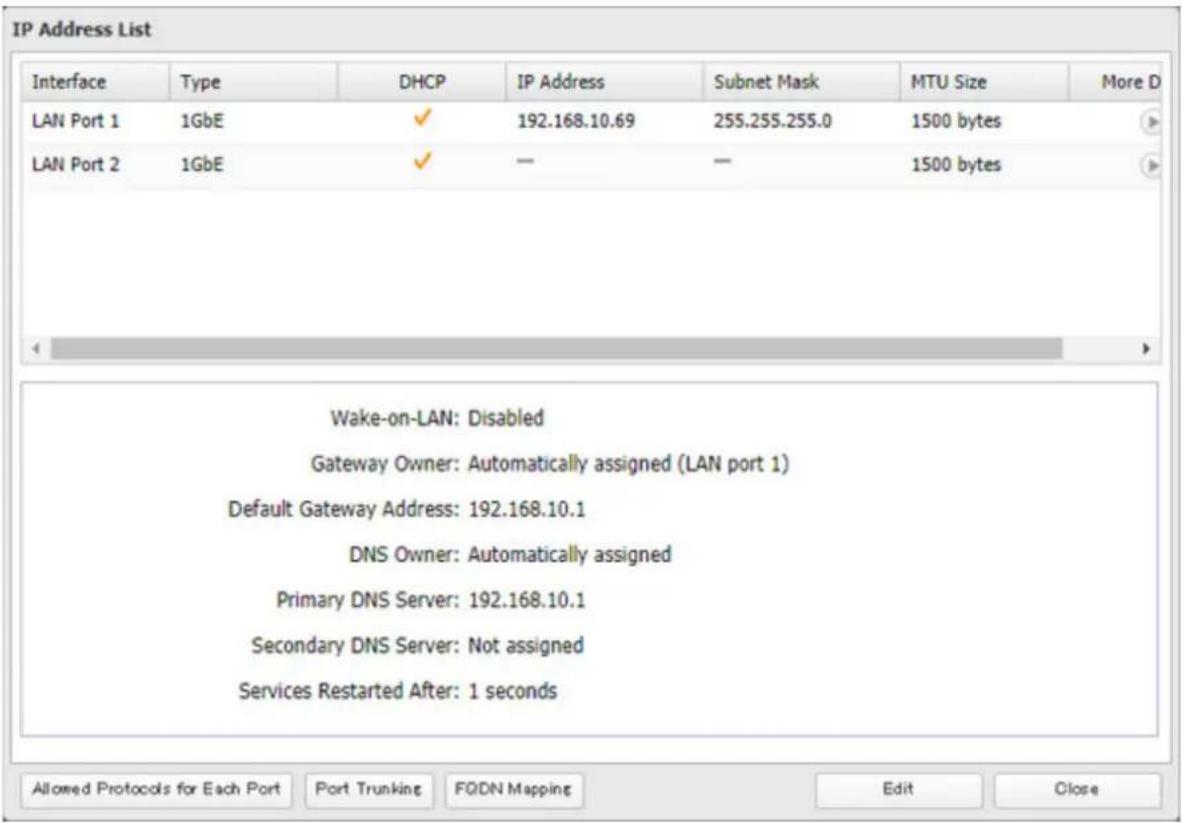
4 Clear the "DHCP" checkbox and enter the desired IP address and its subnet mask.
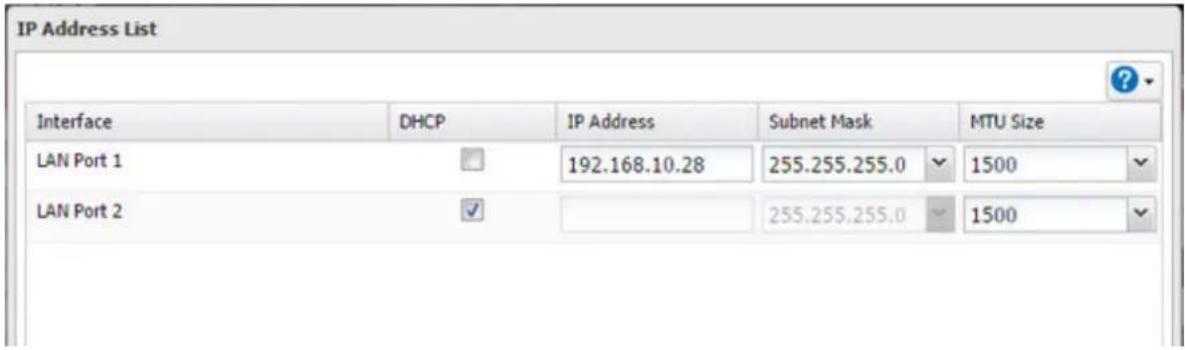
5 Select "User (static)" for both "Gateway Owner" and "DNS Owner" options from the drop-down list, then enter the desired default gateway address and DNS server addresses.
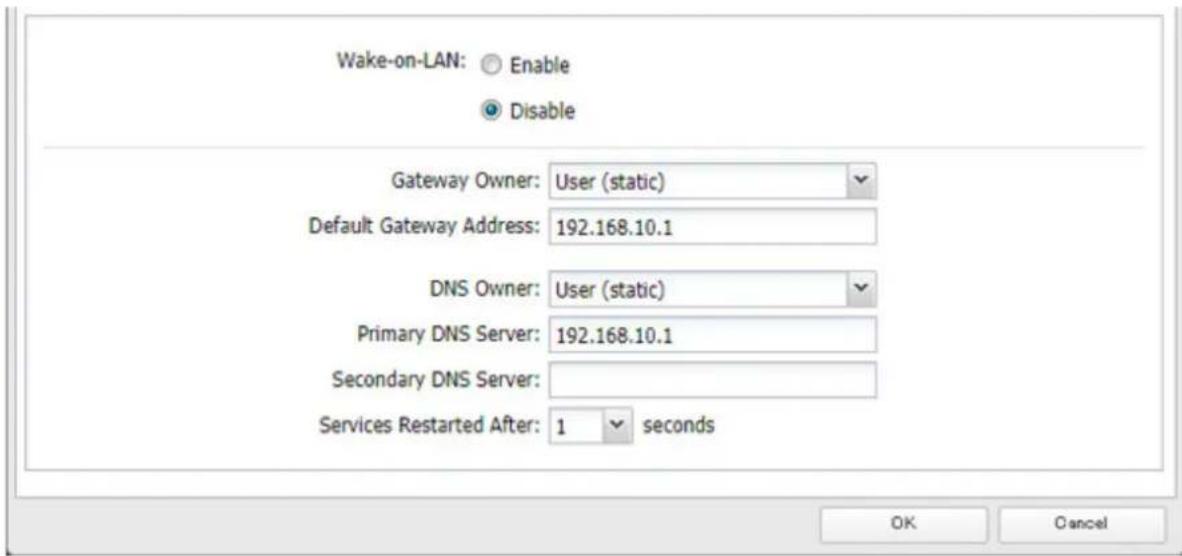
6 Click OK.
Notes:
- Only one default gateway and DNS address can be configured for all LAN ports. Different network addresses cannot be assigned to the LAN ports.
- Do not set the IP address of the same segment for all LAN ports. This may cause unstable network communication.
- Network services such as SMB or AFP will restart when the Ethernet cable is disconnected/reconnected or if a network issue occurs. You can specify the time to delay the restart at the "Services Restarted After" option.
Mapping IP Address and Hostname
The TeraStation allows you to map an IP address and a hostname (FQDN) of another host you would like the TeraStation to communicate with, such as the domain controller. If you configure the mapping pair, the TeraStation can be accessed using the configured pair when name resolution is needed. Follow the procedure below to configure FQDN mapping.
1 From Settings, click Network.

2 Click to the right of "IP Address".

IP Address

LAN Port 1 192.168.10.9
Chapter 7 Advanced Features
4 Click Add.
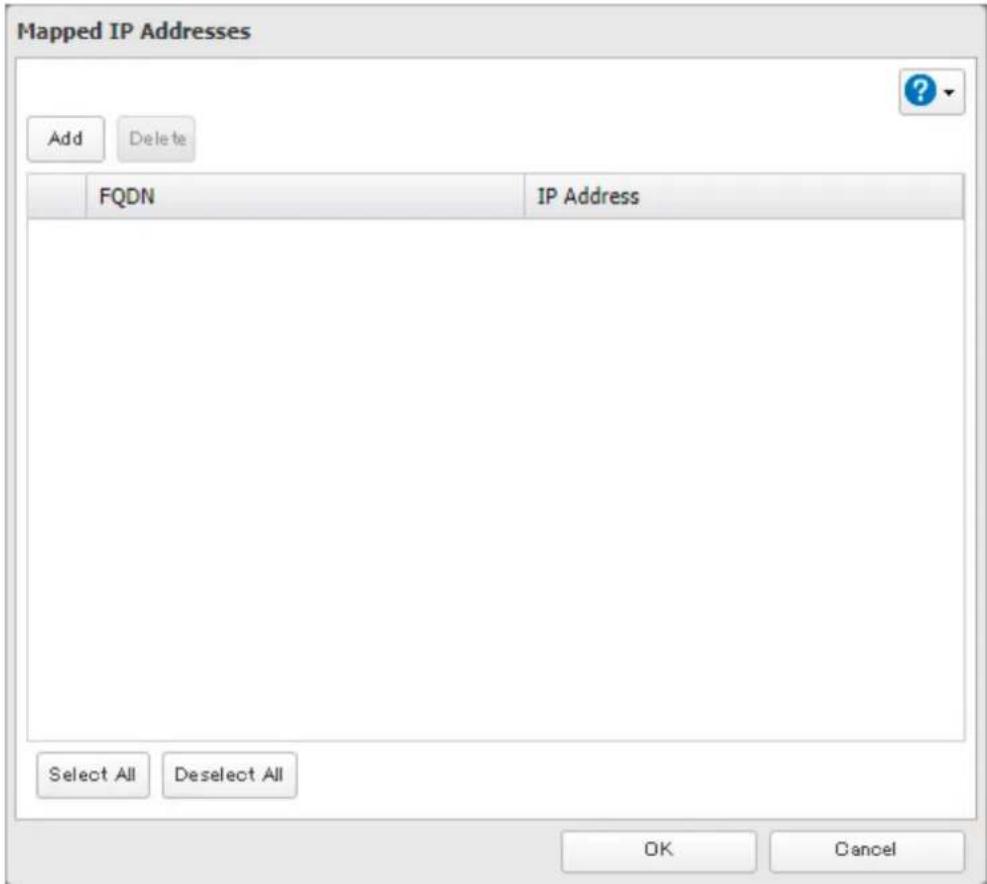
5 Enter the hostname (FQDN) and the IP address that you want to map, then click OK.
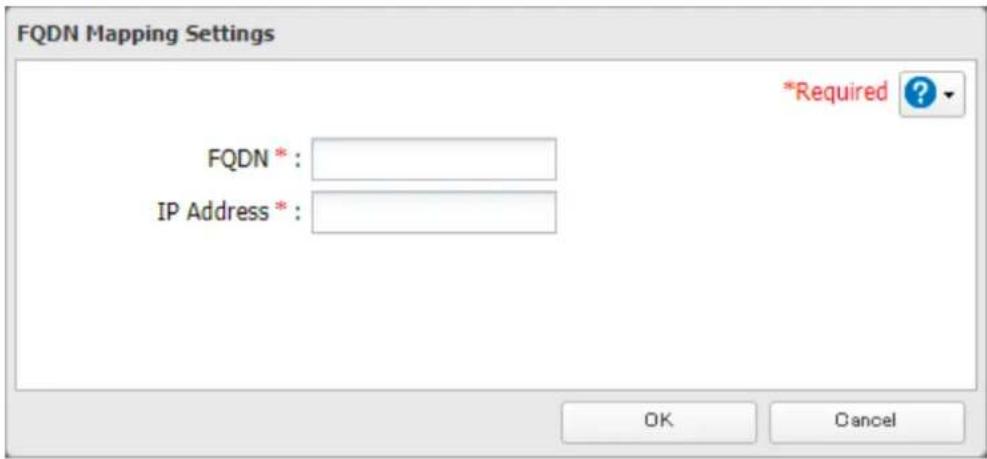
6 Click OK again to apply settings.
Boot Authentication
Boot authentication allows you to authenticate the TeraStation while it's booting, and also prevents the TeraStation from being used in an unauthorized or unexpected manner, such as in cases of theft.
If authentication fails, the TeraStation will stay on, but all functions and services are stopped. Users will not be able to log in to Settings to make changes or access any shares.
Notes Before Use
- To use boot authentication, a Windows PC is necessary to serve as the authentication server.
- When activating boot authentication, the drives on the TeraStation will be formatted and all data on the drives will be erased. Back up any important data to another device. Even though the data is deleted, the RAID array will be kept as is.
- Assigning the TeraStation a fixed IP address is recommended for boot authentication.
- When boot authentication settings finish, export the configuration file for backup. Refer to the "Exporting Managed TeraStations to a File" section in the Boot Authentication Tool help for the procedure.
- Boot authentication cannot be enabled if any of the following functions are enabled: drive encryption, LVM, iSCSI, and failover. Conversely, these functions cannot be enabled while boot authentication is enabled.
Important Notice
This feature was developed with the intention of preventing critical data leakage by rendering the TeraStation unusable in cases of misoperation or missing important setting files. Before configuring boot authentication, back up the data on the TeraStation by referring to the "Backing Up Data on the TeraStation" section in chapter 5, and then create a settings initialization drive by referring to the "Creating an Initialization Drive" subsection above. With these preparations, a TeraStation that is unusable may be initialized and reverted to a usable state.
If any of the situations below occur, the TeraStation will stop booting and become inaccessible.
- The TeraStation is unable to communicate with the authentication server due to the server crashing or it being on another network.
- The TeraStation unit has been deleted from Boot Authentication Tool or the Boot Authentication Tool database has been erased.
- Security level is configured to "High" and the wrong passcode is entered three times.
Setting Up the Authentication Server on a Windows PC
To set up the authentication server, follow the procedure below. The authentication server must be placed on the local network or VPN.
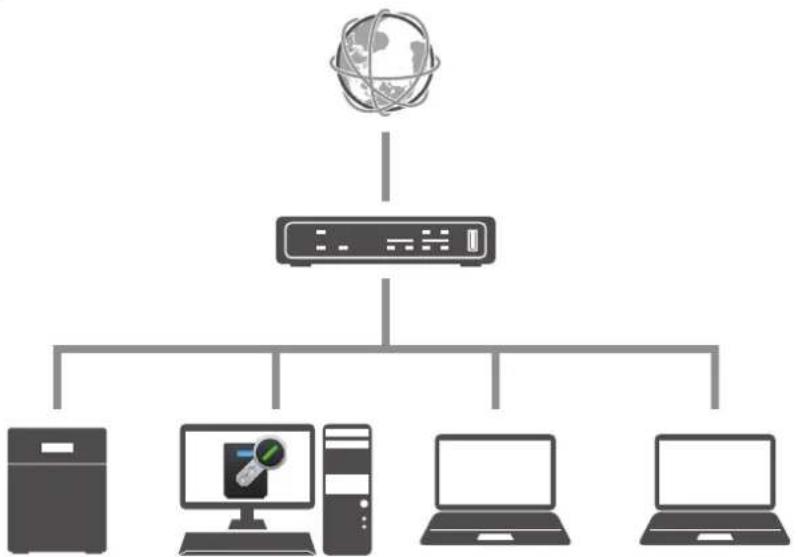
flowchart
graph TD
    A[" globe"] --> B[" Control Panel"]
    B --> C[" Server 1 "]
    B --> D[" Server 2 "]
    B --> E[" Server 3 "]
    B --> F[" Server 4 "]
Note: For proper operation, make sure that the TeraStation and the authentication server are on a network with only one router. If there are two or more routers on the network, the authentication server may not acquire the correct TeraStation status. For example, if the TeraStation's IP address has been changed, its status does not change to "Warning".
1 Download the application for the authentication server, "Boot Authentication Tool", from the Buffalo website and install it onto the Windows PC.
2 Register the specific port number that is used on the application as a firewall exception rule. Navigate to Control Panel > System and Security > Windows Firewall on the authentication server.
3 Click Advanced settings.
4 Click and right-click Inbound Rules, then click New Rule.
5 Select "Port" and click Next.
6 Select "TCP", enter the port number that is used on the application to the right of "Specific local ports", and click Next. The default port number on the application is "7010". The port number can be confirmed on the Options tab of the application.
7 Click Next, then click Next again.
8 Enter a desired name for the setting and click Finish to complete.
Configuring Boot Authentication on the TeraStation
1 From Settings, click Management.

2 Click to the right of "Boot Authentication".

Boot Authentication


3 Click Edit.
4 Enter the authentication server's IP address or hostname and port number, specify the security level and communication time settings, then click Activate.
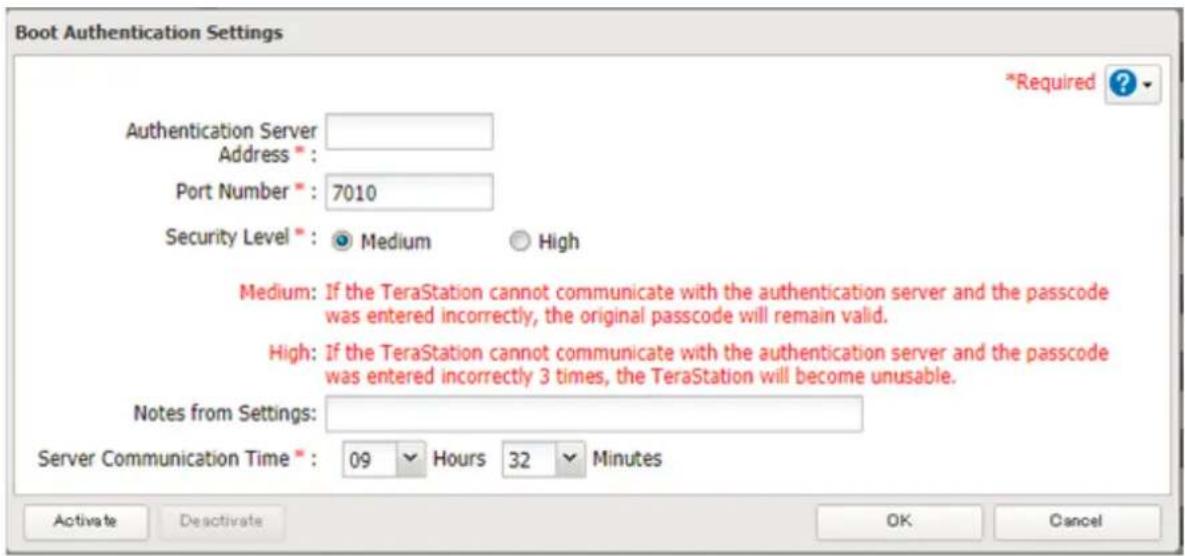
5 The drive formatting process will start. Click Yes.
6 The "Confirm Operation" screen will open. Enter the confirmation number, then click OK.
7 The format will begin. Wait until it finishes. When formatting finishes and the TeraStation is added to Boot Authentication Tool, boot authentication setting is completed.
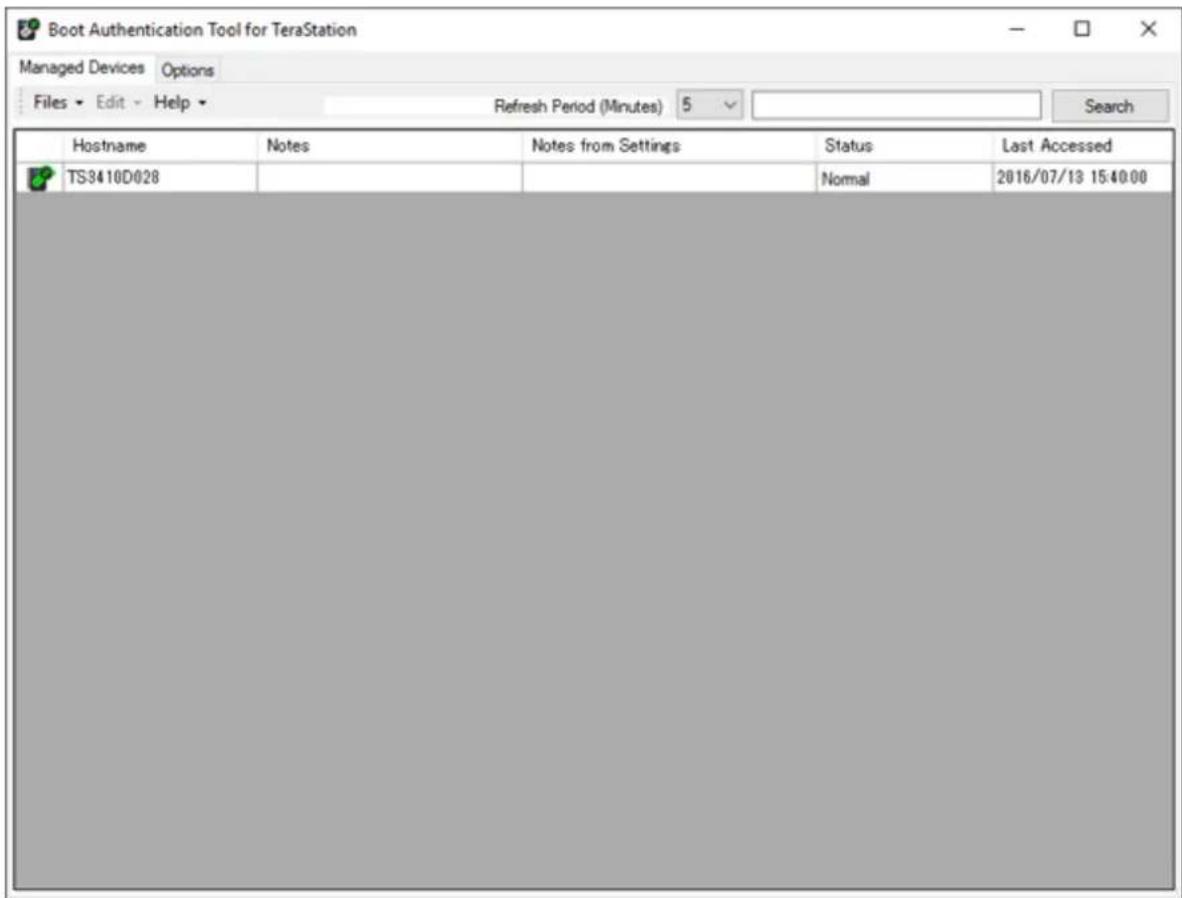
Note: To activate, deactivate, or change the boot authentication settings, the TeraStation must be communicating with the authentication server.
If the TeraStation Cannot Be Accessed
If the TeraStation cannot communicate with the authentication server or vice versa, such as in a case of network failure, the TeraStation will not be accessible. If the TeraStation is not accessible, manually authenticate the TeraStation by following the procedure below.
Note: The procedure defines an "authentication server administrator" as someone who manages the authentication server using Boot Authentication Tool, and a "user" as one attempting to access the TeraStation from a remote location.
1 When the user tries to access the TeraStation's Settings and the TeraStation is not available, the screen below will be displayed. Have the user forward the decryption key to the authentication server administrator.
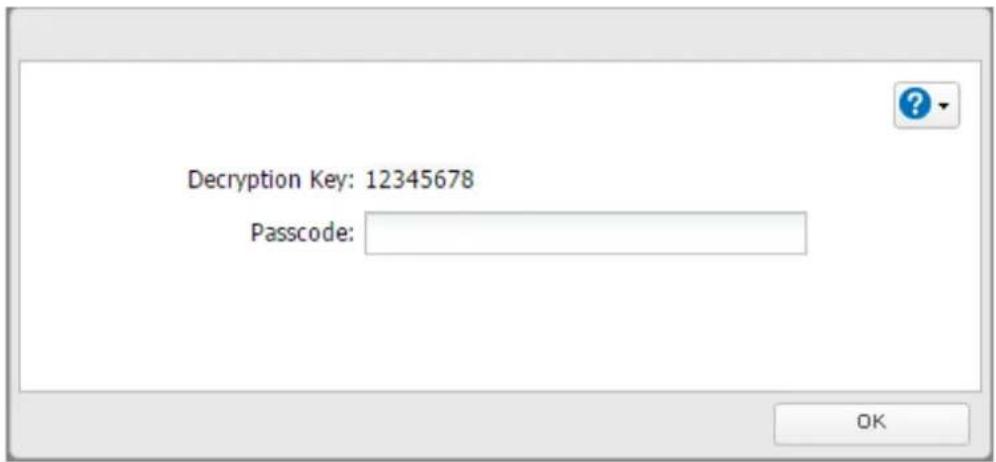
2 Open Boot Authentication Tool on the authentication server.
3 From Boot Authentication Tool, right-click the target TeraStation from the list and click Decrypt Passcode.
4 Enter the decryption key received from the user and click Decrypt.
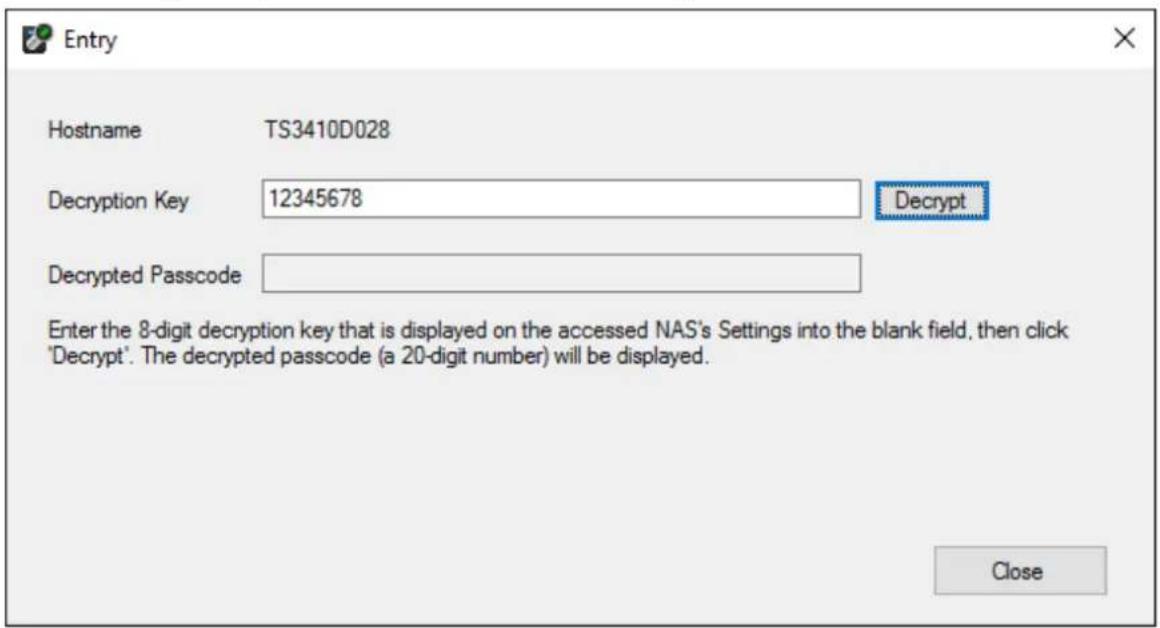
Chapter 7 Advanced Features
5 The decrypted 20-digit passcode will be displayed. Send the passcode to the user.
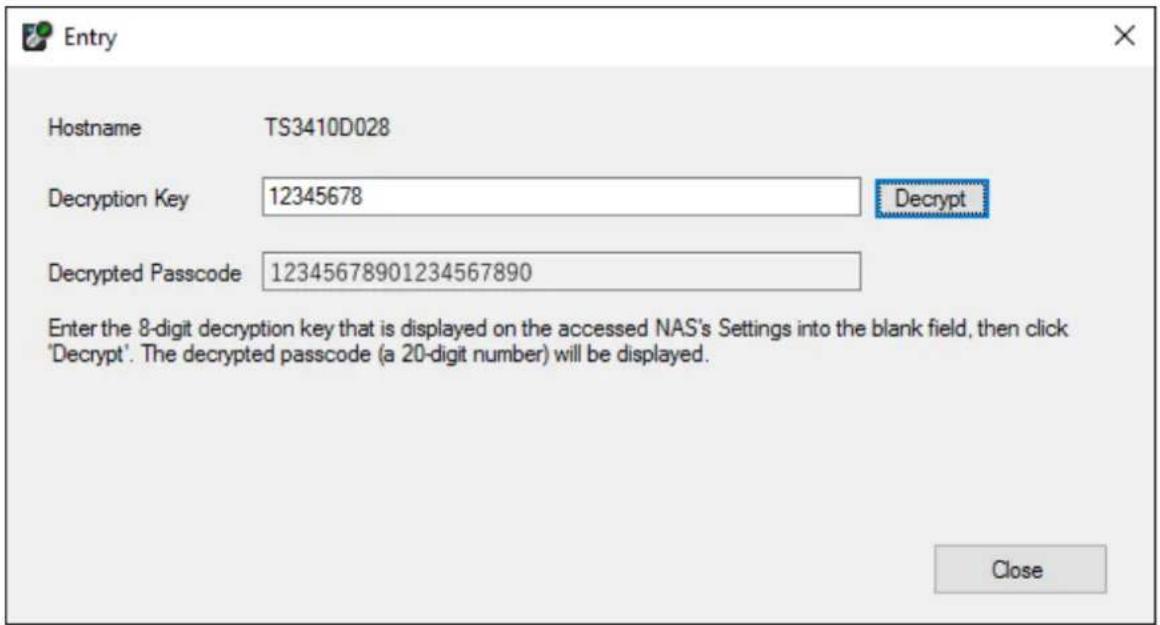
6 The user can then enter the 20-digit passcode into Settings and click OK.
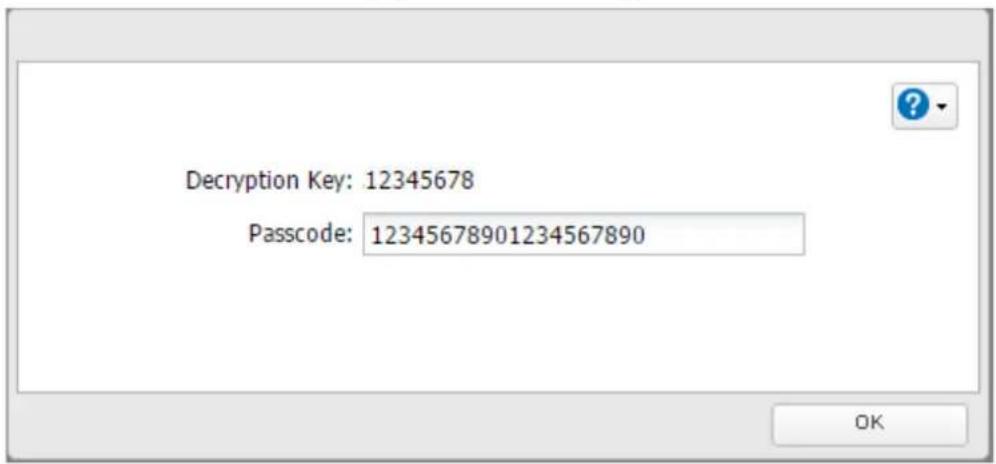
If the passcode is authenticated, the TeraStation will become available. The user can click OK to log in to Settings.
LEDs
Drives in the TeraStation show a green status LED during normal operation. If a drive fails, its error LED will glow red. The following drive replacement examples use the case of the TS3410DN series.
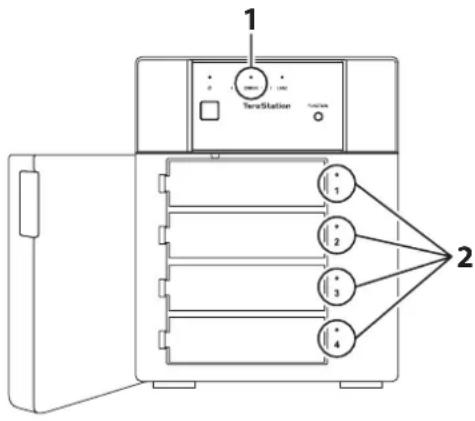
1 Error LED
Glows red if a drive has failed.
2 Status LEDs
The failed drive's status LED will be glowing a steady red. A drive with a red status LED is ready to hot-swap.
Notes:
- Do not unplug a drive whose status LED is green instead of red. Dismount it first or shut down the TeraStation before swapping a working drive. If you remove the drive without properly dismounting it, data may be lost or the TeraStation may malfunction.
- For the replacement drive, use a Buffalo OP-HDN series drive. The replacement drive should be the same size or larger as the original drive. If a larger drive is used, the extra space will not be usable in a RAID array.
- To avoid damaging the TeraStation with static electricity, ground yourself by touching something made of metal before handling any sensitive electronic parts.
- After a drive is replaced, it will take about 30 minutes before normal file reading and writing operations are restored. Settings may not be accessible during this period.
- Do not change the order of the drives in the TeraStation. For example, pulling out drive 1 and replacing it with drive 2 may cause data to be corrupted or lost.
- If the status LEDs do not change after a new drive is installed, click Rediscover Drive in Settings.
Drive Replacement Procedure
Using JBOD or a Redundant RAID Mode and TeraStation Is On
Back up the saved data to another location before replacing the failed drive. If one or more drives fail during the drive replacement, data can no longer be retrieved from the TeraStation.
1 Open the front cover with the included key.
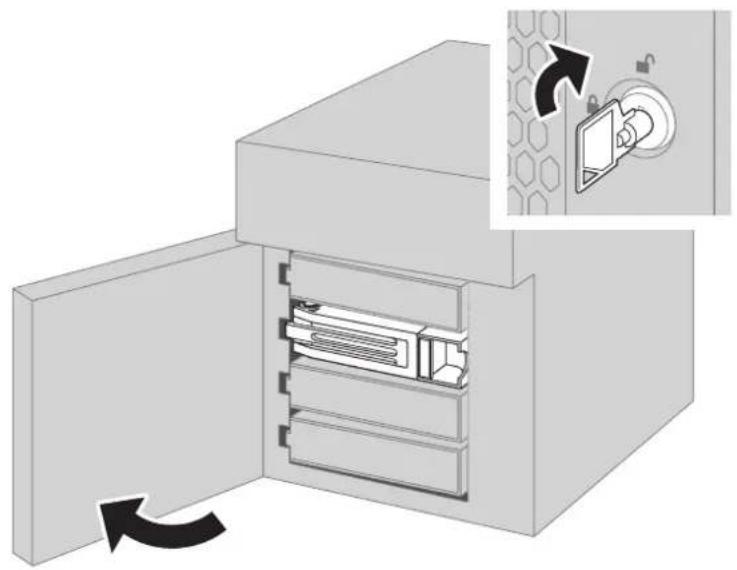
natural_image
Diagram of a storage cabinet with internal compartments and an inset showing a close-up of the component (no text or symbols present)2 The failed drive's status LED will be glowing red. Push its unlock button and swing the lock mechanism out.
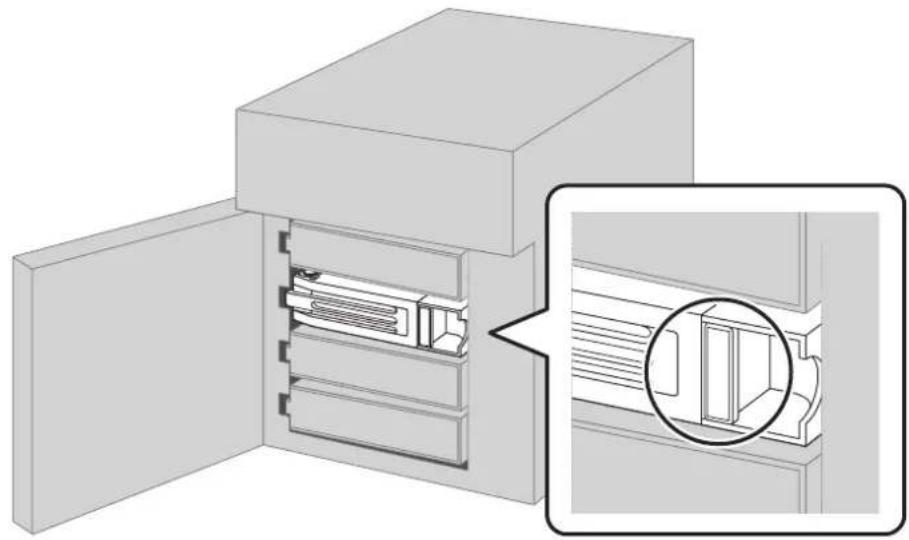
natural_image
Diagram of a mechanical or electronic device with an open door and internal structure, showing a magnified inset (no text or symbols)Drives without red status LEDs lit are still on. Do not unplug or remove them.
3 Pull out the drive cartridge and remove it from the TeraStation.
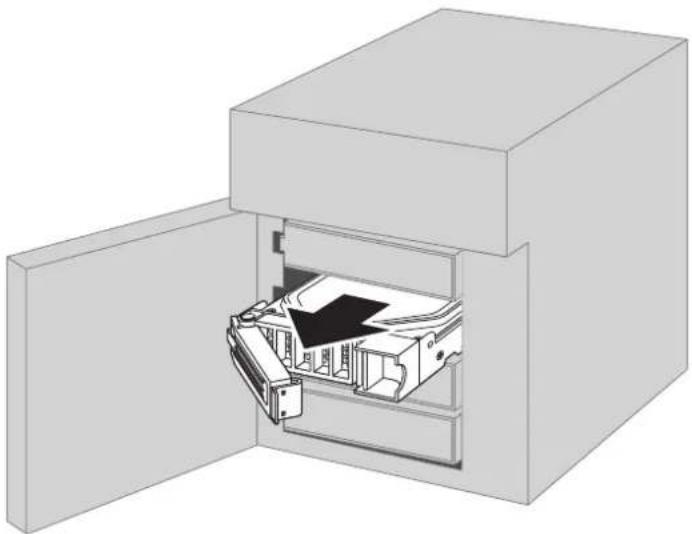
natural_image
3D diagram of a mechanical device inside a rectangular housing, showing internal components and no text or symbols.4 Insert the new drive into the empty slot. Slide the drive in with the locking mechanism open.
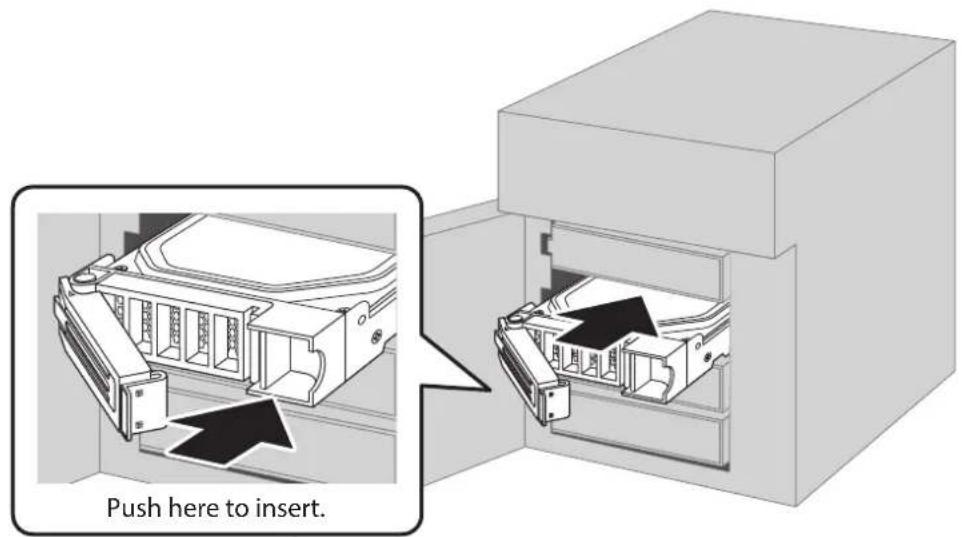
5 Swing the lock back down until it clicks into place.
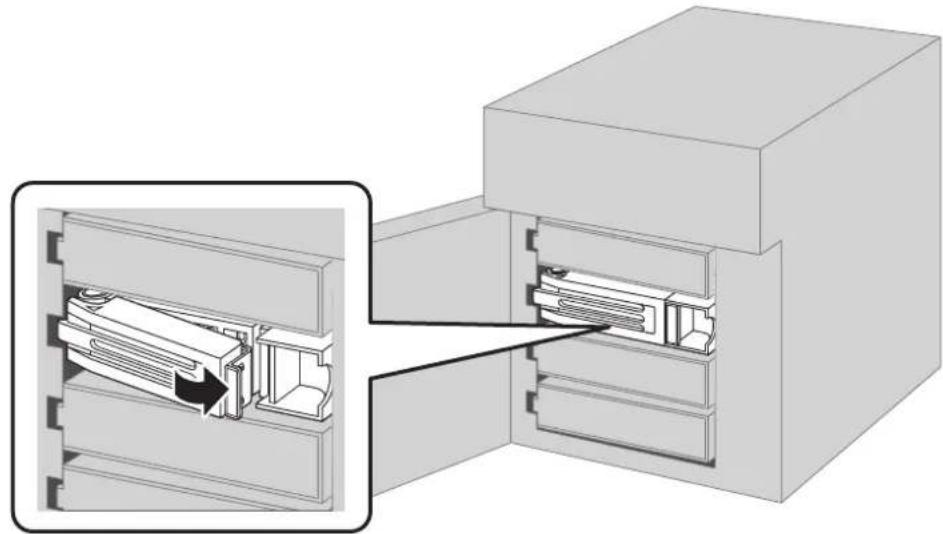
natural_image
Technical diagram of a mechanical assembly showing internal components and a close-up view of a component (no text or symbols present)6 Close the front cover.
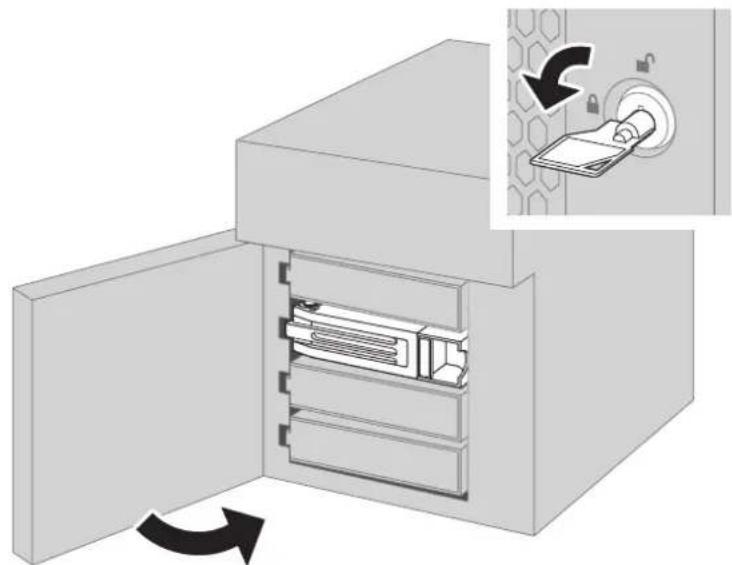
natural_image
Diagram of a storage unit with internal compartments and a close-up view showing a mechanical switch (no text or symbols)7 When the replaced drive is recognized, the status LED will flash red and the I31 message will appear in Settings or NAS Navigator2.
8 Press the function button on the front of the TeraStation. The TeraStation will beep. If replacing multiple malfunctioning drives at once, select the replaced drives on Settings and click Recover RAID Array.
For a redundant RAID mode:
The TeraStation will start rebuilding the RAID array automatically. After a few minutes, the I18 message will be displayed until the array is rebuilt.
For JBOD:
The drive will be formatted as an individual drive. Create a shared folder before using.
Using JBOD or a Redundant RAID Mode and TeraStation Is Off
Back up the saved data to another location before replacing the failed drive. If one or more drives fail during the drive replacement, data can no longer be retrieved from the TeraStation.
1 Open the front cover with the included key.
Chapter 8 Drive Replacement
2 The failed drive's status LED will be glowing red. Push its unlock button and swing the lock mechanism out.
3 Pull out the drive cartridge and remove it from the TeraStation.
4 Insert the new drive into the empty slot. Slide the drive in with the locking mechanism open.
5 Swing the lock back down until it clicks into place.
6 Close the front cover.
7 Press the power button on the TeraStation.
8 When the replaced drive is recognized, the status LED will flash red and the I32 message will appear in Settings or NAS Navigator2.
For a redundant RAID mode:
From Settings, navigate to Storage > RAID. Select the replaced drive and click Recover RAID Array. Enter the confirmation number, then click OK.
For JBOD:
From Settings, navigate to Storage > Drives. Click Format Drive and enter the confirmation number, then click OK. Create a shared folder before using.
Using RAID 0
Drives in a RAID 0 array do not automatically turn off in the event of a malfunction. Shut down the TeraStation before replacing the failed drive.
This section describes the process of replacing a drive with the TeraStation off.
Note: If a drive malfunctions in RAID 0, all data on the RAID array will be lost. All of the settings for the shared folders (such as access restrictions) are erased after replacing a drive from a RAID 0 array.
1 Turn off the TeraStation.
2 Open the front cover with the included key.
3 The failed drive's status LED will be blinking red. Push its unlock button and swing the lock mechanism out.
4 Pull out the drive cartridge and remove it from the TeraStation.
5 Insert the new drive into the empty slot. Slide the drive in with the locking mechanism open.
6 Swing the lock back down until it clicks into place.
7 Close the front cover.
8 Press the power button on the TeraStation.
9 When the replaced drive is recognized, the status LED will flash red and the I32 message will appear in Settings or NAS Navigator2.
10 From Settings, click Storage.
11 Click to the right of "RAID".
12 Select the RAID array for which the failed drive was being used and click Delete RAID Array.
Chapter 8 Drive Replacement
13 The "Confirm Operation" screen will open. Enter the confirmation number, then click OK.
14 From Storage > Drives, click Format Drive to format the new drive.
15 The "Confirm Operation" screen will open. Enter the confirmation number, then click OK.
16 From Storage > RAID, choose "RAID 0" from the RAID mode drop-down list and click Create RAID Array.
17 The "Confirm Operation" screen will open. Enter the confirmation number, then click OK.
18 After a new RAID 0 array is created, create a shared folder before using.
Using a Hot Spare
If your TeraStation's drives are in a redundant RAID mode and you have a hot spare enabled, a malfunctioning drive in the array is replaced to the hot spare and the RAID array is rebuilt automatically. The status LED will continue to glow red for the failed drive even after the RAID array is rebuilt with the hot spare. After you replace the failed drive with a new drive, follow the procedure below to configure a hot spare as a new drive.
1 Open the front cover with the included key.
2 The failed drive's status LED will be glowing red. Push its unlock button and swing the lock mechanism out.
3 Pull out the drive cartridge and remove it from the TeraStation.
4 Insert the new drive into the empty slot. Slide the drive in with the locking mechanism open.
5 Swing the lock back down until it clicks into place.
6 Close the front cover.
7 When the replaced drive is recognized, the status LED will flash red and the I31 message will appear in Settings or NAS Navigator2.
8 Press the function button on the front of the TeraStation. The TeraStation will beep. The replaced drive is automatically registered as a hot spare.
To use the replaced drive as a normal drive rather than a hot spare, navigate to Storage > RAID and click the RAID array, select the new drive, and click Set as a normal drive.
Replacing a Non-Malfunctioning Drive
Do not replace a drive that is not malfunctioning.
If you must change a drive that is not malfunctioning, either first dismount it in Settings, referring to the "Dismounting Drives" section in chapter 4, or shut down the TeraStation before replacing the drive. If you need to replace more than one drive at the same time, replace the drives one at a time to preserve your data. When replacing the non-malfunctioning drive, the RAID array will function as below:
Operating in RAID 0 Mode
All data on the RAID array will be deleted after replacing the drive. You will not be able to use the TeraStation until you delete and rebuild the RAID array with the new drive.
Operating in JBOD
All data on that drive will be deleted after replacing the drive. You will not be able to use the TeraStation until you format the new drive.
Operating in a Redundant RAID Mode
If you are using a redundant RAID mode such as RAID 1, 5, or 6, the RAID array will be in degraded mode after replacing the drive. You will not be able to use the TeraStation until you rebuild the RAID array with the new drive.
Chapter 9 Utilities
NAS Navigator2 for Windows
NAS Navigator2 is a utility program that makes it easy to display Settings, change the Buffalo NAS device's IP address, or check its drive. To install NAS Navigator2, download the installer from http://d.buffalo.jp/TS3010/. NAS Navigator2 will run in the system tray when the computer is on.
Double-click the NAS Navigator2 icon ( ) to start NAS Navigator2.
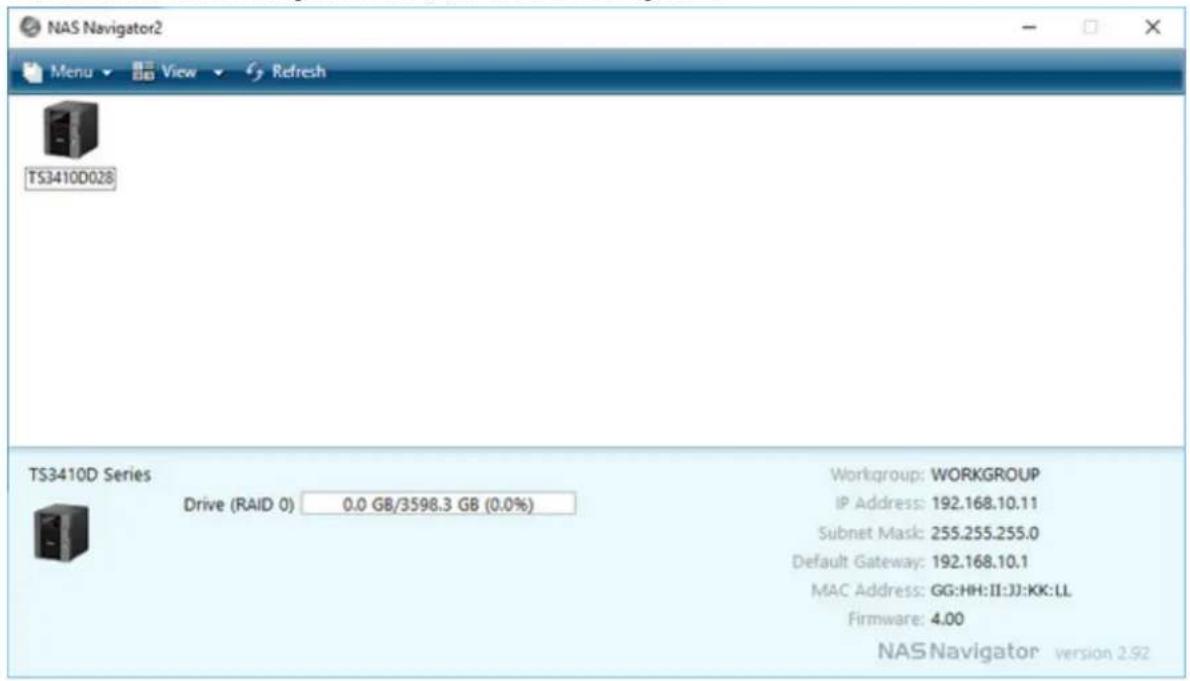
Click a Buffalo NAS device's icon to display total capacity, used capacity, workgroup name, IP address, subnet mask, default gateway, MAC address, and firmware version.
Double-click the icon to open a shared folder on the Buffalo NAS device.
| Name Description | ||
| Menu | Map Share* | Assigns the Buffalo NAS device's shared folder as a network drive. |
| Disconnect Share* | Unmaps the network drive. | |
| Map All Remote Shares to Drive Letters | Assigns all Buffalo NAS devices' shared folders as network drives. This is available only when a shared folder has been created. | |
| Create Desktop Shortcut* | Creates a desktop shortcut to the Buffalo NAS device's shared folders. | |
| Launch NAS Navigator2 on Startup | Launches NAS Navigator2 in the system tray when Windows boots. | |
| Display Errors | If an error occurs, an error message will appear from the NAS Navigator2 icon in the system tray. | |
| Properties* | Opens the properties page that lets you configure the Buffalo NAS device's IP address or open Settings. | |
| Close Closes NAS Navigator2. | ||
| View | View | Icons: Displays icons.Details: Displays the hostname, product name, workgroup, IP address, subnet mask, and default gateway. |
| Sort by | If you have multiple Buffalo NAS devices on the network, you may choose to display them in order of hostname, product name, workgroup, IP address, subnet mask, or default gateway. | |
| Browse* | Opens the Buffalo NAS device's shared folders. | |
| Refresh Searches for the Buffalo NAS devices on the network again. | ||
| I'm here* | Causes your Buffalo NAS device to beep. | |
| Right-click your device's icon to show these menus. | Browse Shares Opens the Buffalo NAS device's shared folders. | |
| Settings Opens Settings for the Buffalo NAS device. | ||
| Properties | Opens the properties page that lets you configure the Buffalo NAS device's IP address or open Settings. | |
| Map Share | Assigns the Buffalo NAS device's shared folder as a network drive. | |
| Disconnect Share Unmaps the network drive. | ||
| Create Desktop Shortcut | Creates a desktop shortcut to the Buffalo NAS device's shared folders. | |
| I'm here Causes your Buffalo NAS device to beep. | ||
*Click on the Buffalo NAS device's icon to display these options.
When NAS Navigator2 is closed, right-click the NAS Navigator2 icon in the system tray for the following options.
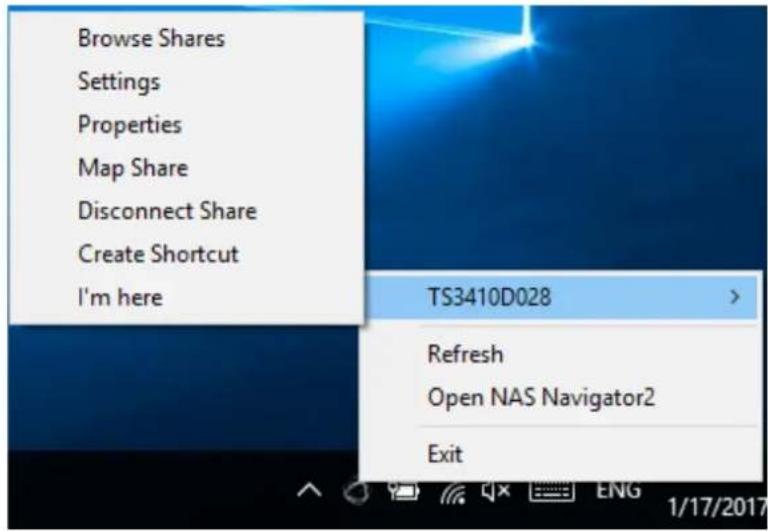
| Name Description | ||
| Buffalo NAS device name | Browse Shares Opens the Buffalo NAS device's shared folders. | |
| Settings Opens Settings for the Buffalo NAS device. | ||
| Properties | Opens the properties page that lets you configure the Buffalo NAS device's IP address or open Settings. | |
| Map Share | Assigns the Buffalo NAS device's shared folder as a network drive. | |
| Disconnect Share Unmaps the network drive. | ||
| Create Shortcut | Creates a desktop shortcut to the Buffalo NAS device's shared folders. | |
| I'm here Causes your Buffalo NAS device to beep. | ||
| Refresh Searches for the Buffalo NAS devices on the network again. | ||
| Open NAS Navigator2 Opens the NAS Navigator2 window. | ||
| Exit Exits NAS Navigator2. | ||
The following menus may be accessed from the Buffalo NAS device's properties page.
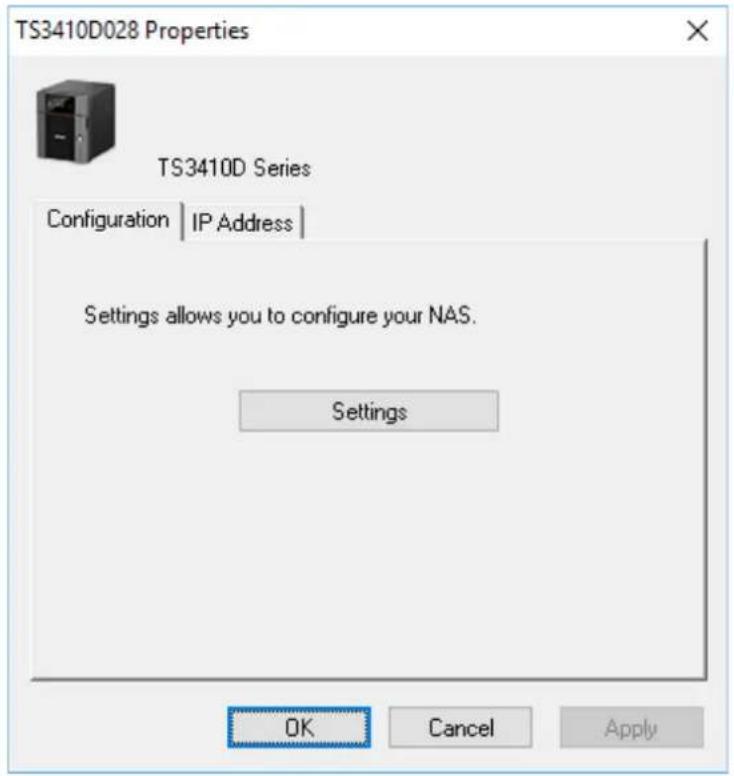
| Name Description | |
| Configuration Click Settings | to open the configuration interface. |
| IP Address | Select the “Use DHCP” checkbox to assign an IP address from the DHCP server automatically. If there is no DHCP server on the network, you cannot use this function. Select the “Renew IP address” checkbox to obtain an IP address from the DHCP server. You can manually enter a static IP address, subnet mask, and default gateway. |
Mounting as a Network Drive
You can easily assign a shared folder as a network drive using NAS Navigator2.
1 Double-click the NAS Navigator2 icon ( ) to start NAS Navigator2.
2 Right-click your Buffalo NAS device's icon and select Map Share.
3 An icon for the mapped share will appear in Computer or This PC. You can use this network drive just like any other drive.
Changing the IP Address
1 Double-click the NAS Navigator2 icon ( ) to start NAS Navigator2.
2 Right-click your Buffalo NAS device's icon and select Properties > IP Address.
3 Clear the "Use DHCP" checkbox and enter the desired settings, then click OK. If the username and password prompt appears, enter the admin username and password.
NAS Navigator2 for macOS
NAS Navigator2 is a utility program that makes it easy to display Settings, change the Buffalo NAS device's IP address, or check its drive. To install NAS Navigator2, download the installer from http://d.buffalo.jp/TS3010/. Click the NAS Navigator2 icon ( ) in the Dock to start NAS Navigator2.
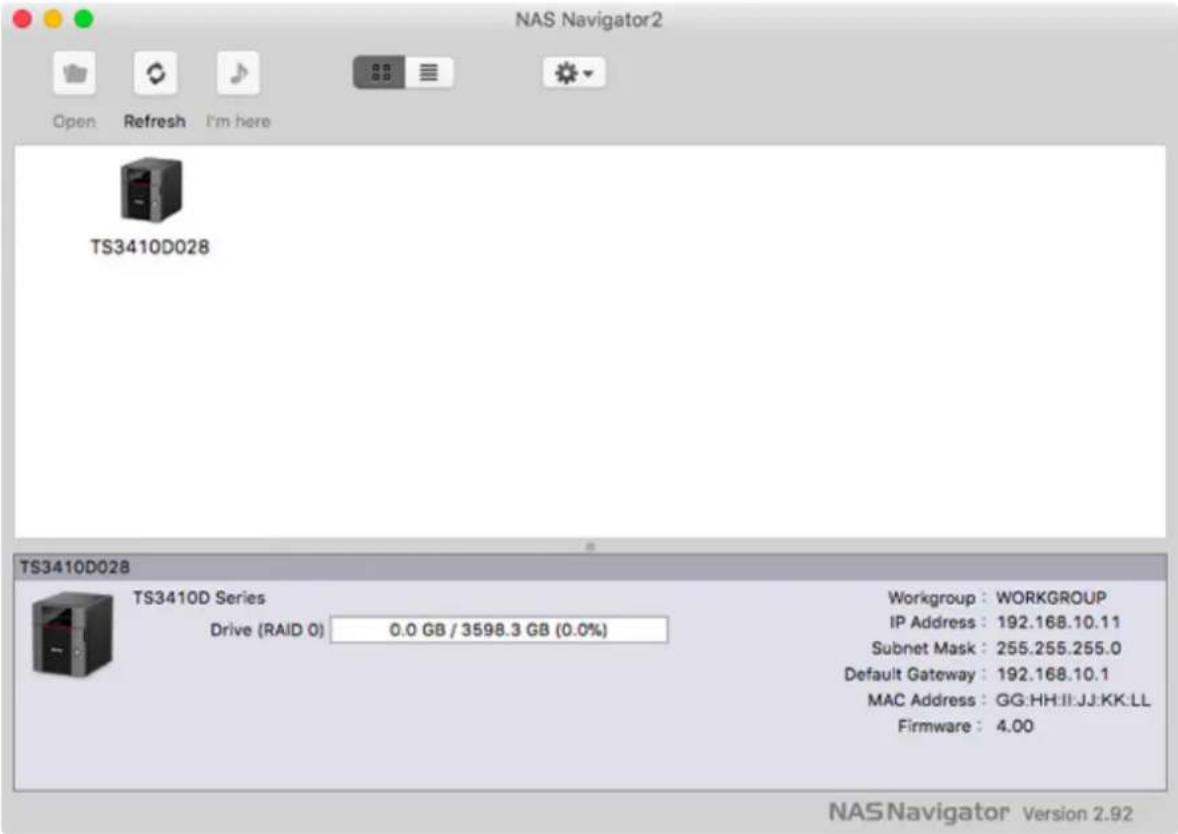
Click a Buffalo NAS device's icon to display total capacity, used capacity, workgroup name, IP address, subnet mask, default gateway, MAC address, and firmware version.
Double-click the icon to open a shared folder on the Buffalo NAS device.
| Name Description | ||
| Open Opens the Buffalo NAS device's shared folders. | ||
| Refresh Searches for the Buffalo NAS devices on the network again. | ||
| I'm here Causes your Buffalo NAS device to beep. | ||
| Settings Opens Settings for the Buffalo NAS device. | ||
| Configure | Opens the properties page that lets you configure the Buffalo NAS device's IP address or open Settings. | |
| Label Color Selects the color of the name displayed below the icon. | ||
| View Options Lets you choose the icon size, position, and view mode. | ||
| Auto Power Mode | Auto power mode can turn supported Buffalo NAS devices on the network on and off automatically. | |
| To display these options, hold down the control key and click your device's icon. | Open Folder Opens the Buffalo NAS device's shared folders. | |
| Settings Opens Settings for the Buffalo NAS device. | ||
| Configure | Opens the properties page that lets you configure the Buffalo NAS device's IP address or open Settings. | |
| I'm here Causes your Buffalo NAS device to beep. | ||
| Label Color Selects the color of the name displayed below the icon. | ||
The following menus may be accessed from the Buffalo NAS device's properties page.
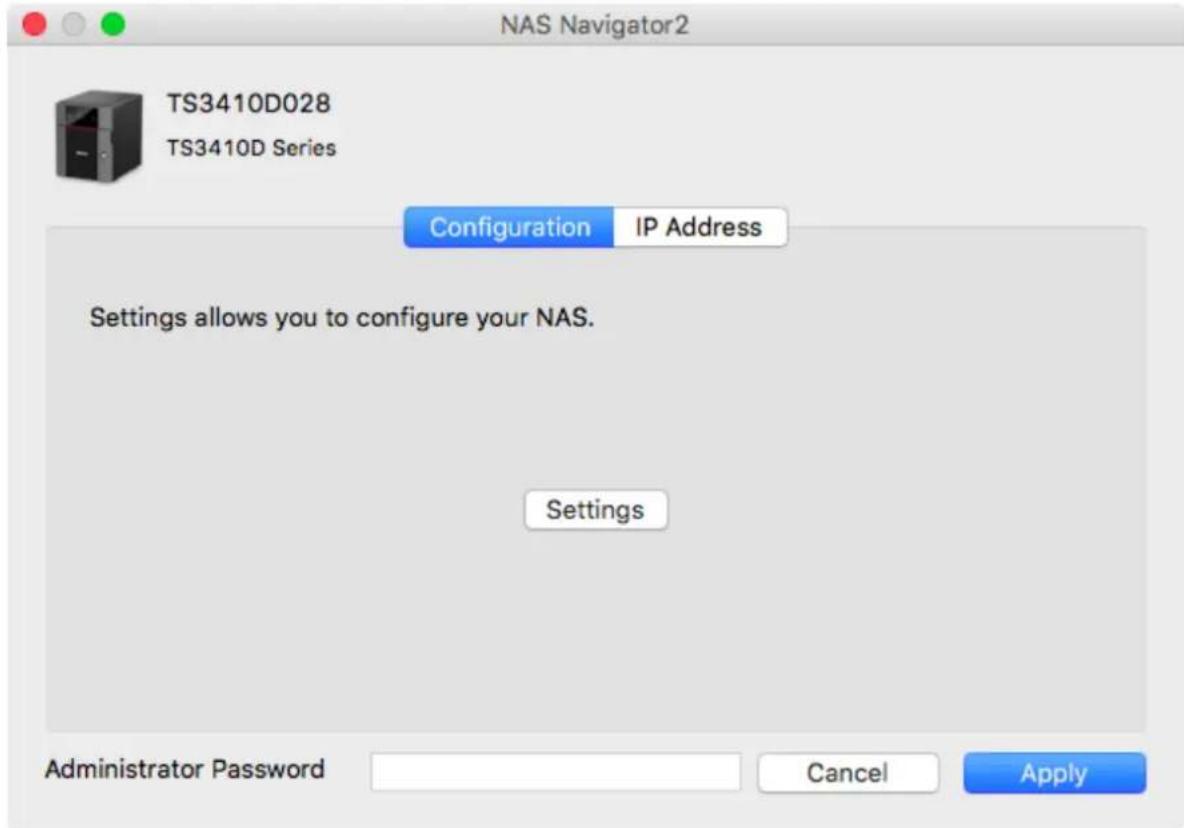
| Name Description | |
| Configuration Click Settings | to open the configuration interface. |
| IP Address | Select the “Use DHCP” checkbox to assign an IP address from the DHCP server automatically. If there is no DHCP server on the network, you cannot use this function. Select the “Renew IP address” checkbox to obtain an IP address from the DHCP server. You can manually enter a static IP address, subnet mask, and default gateway. |
Mounting as a Network Drive
You can map a shared folder as a network drive using NAS Navigator2 on macOS.
1 Click the NAS Navigator2 icon ( ) in the Dock to start NAS Navigator2.
2 Double-click the Buffalo NAS device's icon or click the Buffalo NAS device's icon while holding down the control key, then select Open Folder. Enter a username and password with the rights to access the shared folder.
3 Select the shared folder that you want to mount, then click OK.
4 The shared folder is now mounted as a network drive.
Changing the IP Address
1 Click the NAS Navigator2 icon (✗) in the Dock to start NAS Navigator2.
2 Click the Buffalo NAS device's icon while holding down the control key, then select Configure > IP Address.
3 Clear the "Use DHCP" checkbox; enter the desired settings and the administrator password, then click Apply.
NovaBACKUP
NovaBACKUP is a Windows utility that lets you back up data on your computer.
The NovaBACKUP installer is available from http://d.buffalo.jp/TS3010/. Select the region and model to go to your specific model's d.buffalo website. Download the NovaBACKUP installer and install it onto your computer.
To download the installer, you will need the serial number of your TeraStation. The serial number is printed on the label on the back or top of the unit. For TS3410RN series TeraStations, the serial number is located on the front as well. Refer to the "Diagrams" section in chapter 1 for information on where to find the serial number.
TeraStation Does Not Work Properly
If an error occurs that prevents the TeraStation from booting up properly, one or more of the following symptoms may occur:
- The power LED keeps blinking instead of turning into a solid glow; follow the procedure at the "Power LED Keeps Blinking" section below.
- An "i" symbol is displayed with the TeraStation icon and the I61 message appears on NAS Navigator2; follow step 3 or later at the "Power LED Keeps Blinking" section below.
- An "i" symbol is displayed with the TeraStation icon and "EM" is added to your TeraStation's hostname on NAS Navigator2; follow the procedure at the "Booting the TeraStation in Emergency Mode" section below.
If one or the above occurs, follow the appropriate procedures below to recover from the error.
Power LED Keeps Blinking
While the TeraStation's power LED keeps blinking, you may see the I61 message on NAS Navigator2. In such a case, follow the procedure below to recover from the message.
1 Press and hold the power button for three seconds to turn off the TeraStation.
2 Turn it on while holding down the function button. You should hold down the function button for at least 10 seconds after pressing the power button.
3 When the power LED changes from blinking to glowing, let go of the function button and open Settings from NAS Navigator2.
4 Make sure that "Recover firmware" is selected from the drop-down list under "Action", then click OK.
| Drive | Status | Info | Version | Model Name | Capacity | Primary Drive | Action |
| Drive 1 | Recognized | System#1_(D:1/4) | 4.32-0.27 | WDC WD40EFRX-68W | 3726 GB | ● | Recover firmware ▼ |
| Drive 2 | Recognized | System#1_(D:2/4) | 4.32-0.27 | WDC WD40EFRX-68W | 3726 GB | Recover firmware | |
| Drive 3 | Recognized | System#1_(D:3/4) | 4.32-0.27 | WDC WD40EFRX-68W | 3726 GB | Recover firmware | |
| Drive 4 | Recognized | System#1_(D:4/4) | 4.32-0.27 | WDC WD40EFRX-68W | 3726 GB | Recover firmware | |
| Select the action to take when recovering the firmware. ● Revert settings to those of the last shutdown This will revert settings to those that were saved before the last shutdown. ○ Revert settings to those of the last boot (Time When Boot Occurred: 03/22/2019 10:08:33) This will revert settings to those that were saved during the last boot. | |||||||
| No operations are required for the connected drives. Restart the TeraStation using the power button. However, if the TeraStation boots up in drive setup mode again, select "Recover firmware" under "Action". To shut down the TeraStation, press and hold the power button for 3 seconds.Turn off the TeraStation before disconnecting any drives.Some settings may not work correctly when using drives that were used with other series units without formatting them. For more detailed information, refer to the user manual. | |||||||
Note: There are two more options for "Action" other than "Recover firmware". The details for all options are below:
- Use the drive's firmware: The TeraStation will be recovered using the firmware on the drive.
• Recover firmware: The TeraStation will be recovered using the firmware on the NAND flash. - Format drive: The drive will be formatted.
5 The "Confirm Operation" screen will open. Enter the confirmation number, then click OK.
6 Reinstalling the firmware will start. When the firmware is reinstalled, the TeraStation will shut down automatically. Press the power button to turn it on.
If the error was not recovered from after trying the procedure above, try again from the first step. This time, make sure you select the checkbox for "Revert settings to those of the last boot" and click OK. This will reinstall the firmware by reverting settings to those from the last boot.
Booting the TeraStation in Emergency Mode
If the TeraStation boots up in emergency mode, depending on your TeraStation model, an "i" symbol is displayed with the TeraStation icon and "EM" is added to your TeraStation's hostname.
Chapter 10 Appendix
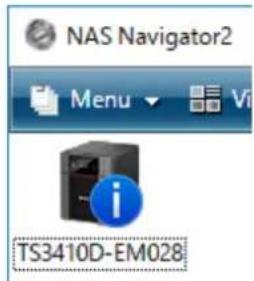
To recover from emergency mode, follow the procedure below.
1 Download the firmware updater from the Buffalo website.
2 Extract the downloaded file by double-clicking it and launch the updater.
3 Update the firmware for the TeraStation unit that is currently in emergency mode.
When the "i" symbol and "EM" disappear from the icon and the hostname on NAS Navigator2, the TeraStation is no longer in emergency mode.
Note: If the TeraStation does not shut down properly due to a power outage or the power cable getting disconnected while the TeraStation is on, data on the TeraStation may be corrupted when the TeraStation boots in emergency mode. In such a case, the corrupted data may not be recoverable even if you try the procedure above.
Cleaning the Dustproof Filter
If your TeraStation has a front cover and you are trying to clean the dustproof filter on the front cover, follow the procedure below.
1 Open the front cover with the included key.
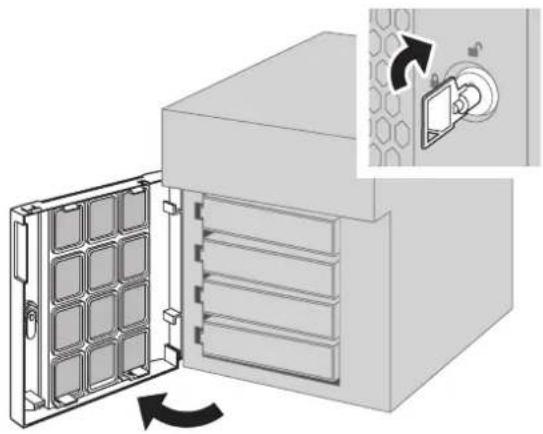
natural_image
Diagram of a server rack with a door open, showing internal structure and a close-up view of the rack's socket (no text or symbols present)2 Remove the front cover while holding the hook downward.
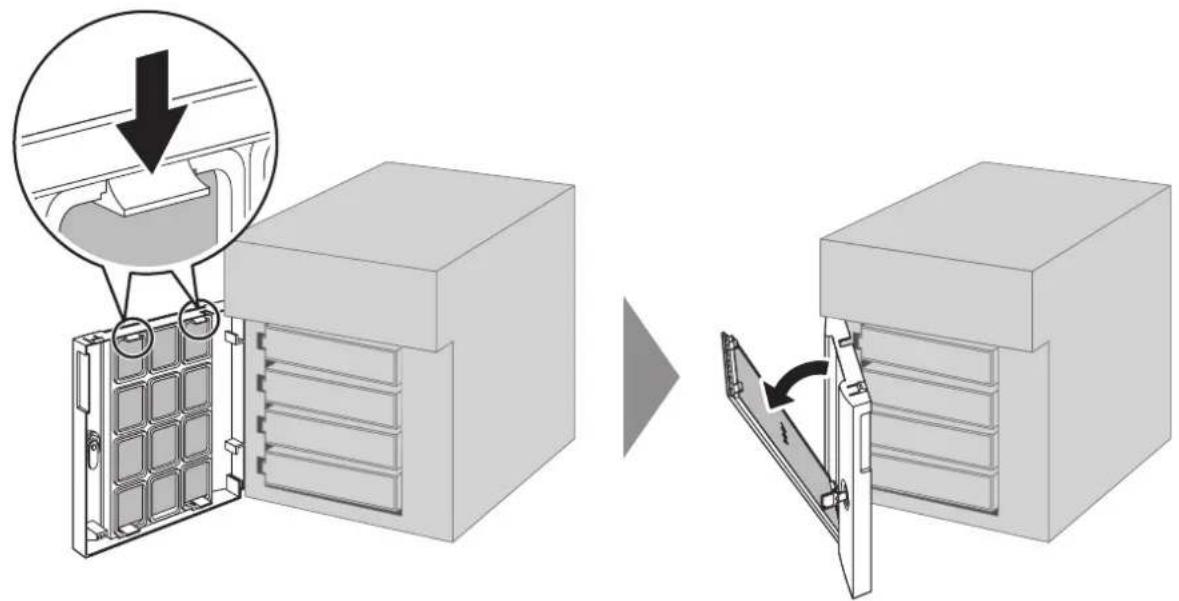
3 Remove the dustproof filter from the front cover and clear any dust, such as by using a vacuum cleaner.
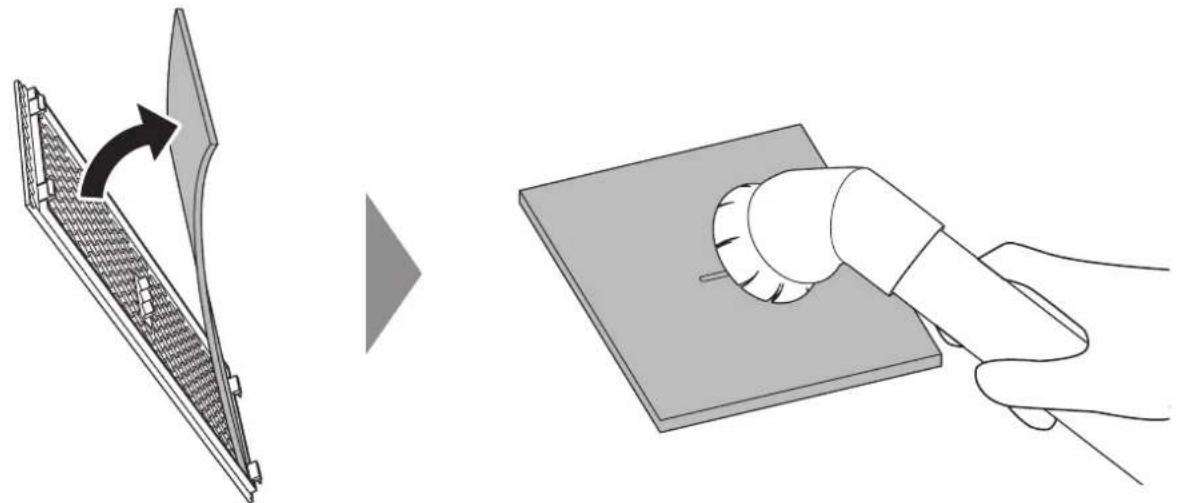
natural_image
Diagram showing a device being processed from a slide to a handheld device (no text or symbols present)4 When cleaning is completed, return the filter and the front cover.
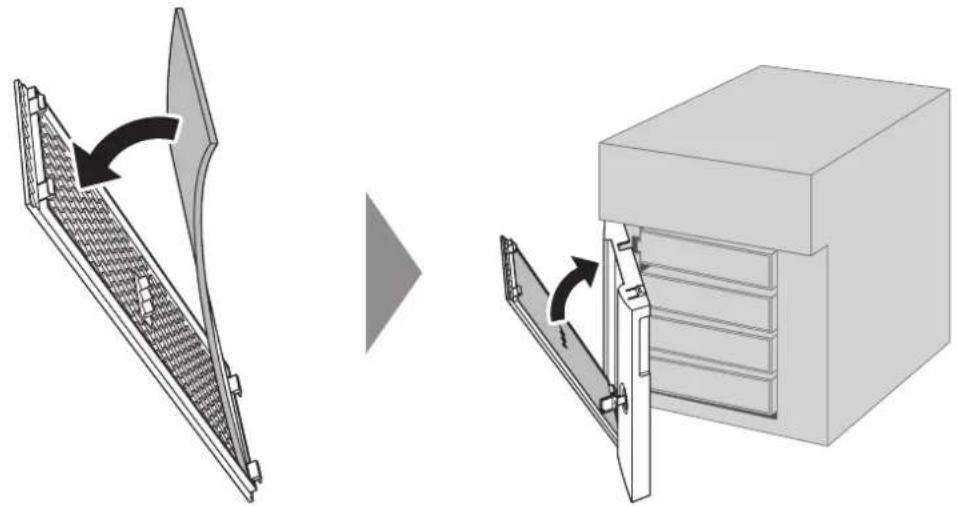
natural_image
Diagram showing a mechanical device with a side panel and its internal structure, both without any text or symbols.5 Close the front cover.
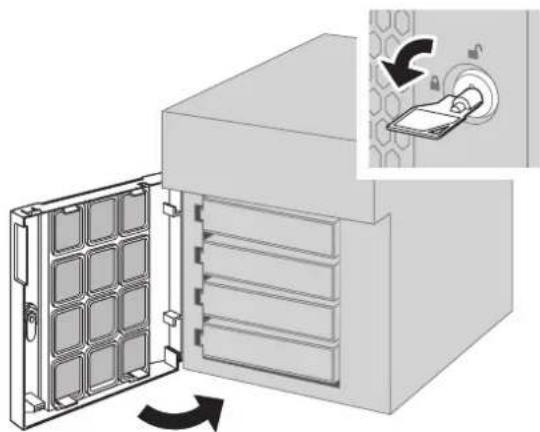
natural_image
Diagram of a server rack with heat exchanger and door panel, showing internal structure and control panel (no text or symbols)Info and Error LEDs
Errors
If an error occurs, the error LED will glow red. You can also confirm the current status from Settings or using NAS Navigator2. However, NAS Navigator2 may show the error as an unknown error. In such a case, check Settings for the error details.
| Code Description Corrective Action | ||
| E10 | The TeraStation is running on the UPS battery due to a power outage. | Shut down the TeraStation safely and wait until the power outage ends. If certain settings are configured, the TeraStation may shut down automatically when the error is detected. |
| If the setting to use the UPS connected to this TeraStation has been configured, the UPS cable may be disconnected. | Verify that the UPS cable or LAN cable is connected properly. | |
| If the setting to use the UPS connected to another TeraStation on the same network has been configured, the LAN cable of this TeraStation may be disconnected. | ||
| E11 An error occurred in the fan speed. | Check that no foreign objects or dust are clogging the fan. If any foreign objects or dust are found, use a pair of tweezers, air duster, or other tools to remove them. If the error is displayed again, contact Buffalo technical support for assistance. | |
| E12 | A rise in the system temperature may have exceeded the allowable safety value. | Do not place objects in the area around the TeraStation. Also, move the TeraStation to a cool location. |
| E14 The RAID array cannot be mounted. | Run the drive check on the RAID array by referring to the “Checking Drives” section in chapter 4. | |
| E16 Unable to find the drive. | The drive may be disconnected or may have failed. After shutting down, reinstall the drive. | |
| E22 Unable to mount the drive. | Format the drive. After formatting, if the error still appears after rebooting, replace the drive. If the error is displayed again, contact Buffalo technical support for assistance. | |
| E27 Unable to find the backup TeraStation. | Reconfigure the backup TeraStation for failover by referring to the “Configuring Failover” section in chapter 5. | |
| E30 | An error occurred, so the drive was removed from the RAID array. | Replace the drive by referring to the drive replacement sections in chapter 8. |
Status
After you change settings, the info LED will glow amber. You can also confirm the current status from Settings or using NAS Navigator2. However, NAS Navigator2 may show the status as an unknown error. In such a case, check Settings for the status details.
| Code Description Corrective Action | ||
| I01 Checking the system area. - | ||
| I10 | A rise in the system temperature may have exceeded the allowable safety value. | Move the TeraStation to a cool location. Do not place objects in the area around the TeraStation. |
| I11 The drive has too many bad sectors. | Replace the drive by referring to the drive replacement sections in chapter 8. | |
| I12 Operating in degraded mode. | Check if the E30 message is also displayed. In such a case, refer to the corrective action for the E30 message. | |
| I13 Formatting the RAID array. - | ||
| I14 Checking the RAID array. - | ||
| I15 | Examining the error status of the RAID array.Note: Transfer speeds are slower during the examination process. | - |
| I16 Creating the RAID array. - | ||
| I18 | Rebuilding the RAID array.Note: Transfer speeds are slower during the rebuilding process. | - |
| I19 Rewriting the RAID array. - | ||
| I20 Formatting the drive. - | ||
| I21 Checking the drive. - | ||
| I22 Rewriting the drive. - | ||
| I25 | Updating the TeraStation firmware.Note: Do not turn off the TeraStation's power. | - |
| I26 Initializing all settings. - | ||
| I27 Checking the USB drive. - | ||
| I28 Formatting the USB drive. - | ||
| I31 | Displays when pressing the function button to rebuild the RAID array after replacing the drive. | Press the function button to rebuild the RAID array. |
| I32 | Displays after replacing the drive when the RAID array needs to be rebuilt in Settings or formatting is necessary. | From Settings, either rebuild the RAID array or format the drive. |
| I33 | An error occurred in replication, or synchronization between the main TeraStation and the backup TeraStation failed during failover configuration. | From Settings, navigate to Backup >Replication and click Resync to execute resynchronization.If you configured the subfolders' access restrictions to be inherited to the replication or failover destinations, disable them or change the destinations.If the error is displayed again, contact Buffalo technical support for assistance. |
| I34 A virus scan found a virus. | Once the virus is removed from the quarantine folder, the message is no longer displayed. If the antivirus software is configured to delete viruses from the quarantine folder automatically, then the message will not be displayed. | |
| I37 Settings initialization in progress. - | ||
| I38 Settings initialization is completed. - | ||
| I40 | Beginning settings initialization. All data on the drive 1 will be deleted. | - |
| I41 | Press the function button on the front to start the settings initialization process. | - |
| I42 | Preparing to start the settings initialization process. | - |
| I43 | The TeraStation was started from the USB initialization device, but the settings cannot be initialized from this USB initialization device. | - |
| I44 | Initialization from the USB initialization device was initiated, but drive 1 was not detected. | Make sure that drive 1 is present and fully inserted in its slot. |
| I45 Initialization failed. - | ||
| I46 | Data migration or conversion (RAID migration) is in progress.Note: Do not turn off the TeraStation's power. | - |
| I47 | Data migration or conversion (RAID migration) is in progress.Note: Do not turn off the TeraStation's power. | - |
| I48 | This TeraStation is ready to become the failover backup for the main TeraStation. | Press and hold the function button on the front of the target TeraStation until it stops beeping to accept failover backup status. |
| I49 | The main TeraStation in the failover configuration cannot be found. | Make sure that the main TeraStation is on, working, and connected to the network. |
| I50 | Failover maintenance is in progress.Note: Do not turn off the TeraStation's power. | - |
| I51 | Initializing the failover configuration. Note: Do not turn off the TeraStation's power. | - |
| I52 A new firmware version has been released. | Update the firmware by referring to the "Updating the Firmware" section in chapter 7. | |
| I54 The backup job failed. | Refer to the "Backup Logs When Backup Fails" section in chapter 5 and try the respective corrective actions. | |
| I55 | Authentication during initialization of settings failed. | Settings can only be restored for the TeraStation whose settings were originally saved. |
| I59 Boot authentication failed. | Try the manual authentication by referring to the "If the TeraStation Cannot Be Accessed" section in chapter 7. | |
| I61 The unit is in drive setup mode. | Recover from drive setup mode by referring to the "Power LED Keeps Blinking" section. | |
| I64 | Connecting to the cloud storage service failed. | Open Settings and check the job status for which the cloud storage service failed. Refer to the error log on the job list of the specific cloud storage service and check the cause of the error. |
| I70 | There is not enough space to save file access logs. | Delete unnecessary logs or move them to another place. |
| I71 | The space is occupied so older logs were removed. | Delete unnecessary logs or move them to another place. |
Default Settings
| Administrator's Name admin | ||
| Password password | ||
| Shared Folders | “share”* and “info”** for both Windows and Mac computers.*The recycle bin is enabled by default.**It is a read-only share. | |
| IP Address | The TeraStation will get its IP address automatically from a DHCP server on the network. If no DHCP server is available, then an IP address will be assigned as follows:IP address: 169.254.xxx.xxx (“xxx” is assigned randomly when booting the TeraStation.)Subnet mask: 255.255.0.0 | |
| Registered Groups | “hdusers”, “admin”, and “guest”You cannot edit or delete these default groups. | |
| Microsoft Network Group Settings WORKGROUP | ||
| MTU Size 1500 bytes | ||
| SMB | Enabled | |
| SMB Protocol Auto | ||
| Recycle Bin Permissions | All users | |
| macOS Temp Files Keep when original file is deleted | ||
| AFP Enabled | ||
| FTP Disabled | ||
| SFTP Disabled | ||
| WebAccess Disabled | ||
| NFS Disabled | ||
| rsync Disabled | ||
| RAID Scanning Disabled | ||
| iSCSI Disabled | ||
| Amazon S3 Disabled | ||
| Dropbox Sync Disabled | ||
| Microsoft Azure Storage Sync Disabled | ||
| Microsoft OneDrive Sync Disabled | ||
| Antivirus Disabled | ||
| SNMP | Disabled | |
| Time Machine Disabled | ||
| NTP | Enabled | |
| Email Notification | Disabled | |
| Init Button Settings | Restore admin username and password to factory defaults | |
| Boot Authentication | Disabled | |
| RAID Mode | TS3210DN, TS3410DN (two-drives included): RAID 1TS3410DN, TS3410RN: RAID 5 | |
Specifications
Check the Buffalo website for the latest product information and specifications.
| LAN Interface | Standards Compliance | IEEE 802.3ab (1000BASE-T), IEEE 802.3u (100BASE-TX), IEEE 802.3 (10BASE-T) |
| Data Transfer Rates | 10/100/1000 Mbps (auto sensing) | |
| Number of Ports | 2 | |
| Connector Type | RJ-45 8-pin (auto MDI-X) | |
| Supported Protocols | TCP/IP | |
| Network File Services | SMB/CIFS, AFP, FTP/SFTP, NFS, HTTP/HTTPS, SNMP | |
| MTU Sizes | 1500–9216 bytes | |
| USB Interface | Standards Compliance | USB 3.0 |
| Data Transfer Rates | Max. 5 Gbps | |
| Number of Ports | TS3210DN, TS3410DN: 2 × USB 3.0TS3410RN: 3 × USB 3.0 | |
| Connector Type | Type A | |
| Internal Hard Drives | Number of Drive Bays | TS3210DN: 2TS3410DN, TS3410RN: 4 |
| Drive Interface SATA 6 Gbps | ||
| Supported RAID | TS3210DN: 0, 1, JBOD (individual drives)TS3410DN, TS3410RN: 0, 1, 5, 6, 10, JBOD (individual drives) | |
| Replacement Drive | Buffalo OP-HDN series driveNote:The replacement drive should be the same size or larger as the original drive. The drives listed above are available from the Buffalo website. | |
| Other | Power Supply | TS3210DN, TS3410DN: AC 100–240 V, 1.5 A, 50/60 HzTS3410RN: AC 100–240 V, 2.5–1.25 A, 50/60 Hz |
| Dimensions (W × H × D, excluding protruding parts) | TS3210DN: 170 × 170 × 230 mm; 6.7 × 6.7 × 9.1 in.TS3410DN: 170 × 215 × 230 mm; 6.7 × 8.5 × 9.1 in.TS3410RN: 430 × 44.3 × 430 mm; 16.9 × 1.7 × 16.9 in. | |
| Weight | TS3210DN: approx. 4.8 kg; 10.6 lbsTS3410DN: approx. 7.0 kg; 15.4 lbsTS3410DN (two-drives included): approx. 5.6 kg; 12.3 lbsTS3410RN: approx. 8.5 kg; 18.7 lbs | |
| Power Consumption | TS3210DN, TS3410DN: max. 85 WTS3410RN: max. 100 W | |
| Operating Environment | Temperature: 0–40°C; 32–104°FHumidity: 10–85% non-condensing | |
| Compatible Devices | Windows PCs, tablets, and Intel Mac computers with wired or wireless Ethernet connection. | |
| Supported OS | Windows 10, 8.1, 7 SP1 or laterWindows Server 2019, 2016, 2012 R2, 2012, 2008 R2, 2008macOS 10.14, 10.13, 10.12, 10.11, 10.10, 10.9 |
Chapter 11 Regulatory Compliance Information
For Customers in the United States
FCC Statement
This equipment has been tested and found to comply with the limits for a Class A digital device, pursuant to part 15 of the FCC Rules. These limits are designed to provide reasonable protection against harmful interference when the equipment is operated in a commercial environment. This equipment generates, uses, and can radiate radio frequency energy and, if not installed and used in accordance with the instruction manual, may cause harmful interference to radio communications. Operation of this equipment in a residential area is likely to cause harmful interference in which case the user will be required to correct the interference at his own expense.
This device complies with Part 15 of the FCC Rules. Operation is subject to the following two conditions: (1) This device may not cause harmful interference, and (2) this device must accept any interference received, including interference that may cause undesired operation.
Only use the cables and accessories that are included in the package. Don't use other accessories or cables unless specifically instructed to in the documentation.
UL and MET
The socket-outlet shall be installed near the equipment and shall be easily accessible.
Proposition 65
WARNING:
This product and its components contain chemicals known to the State of California to cause cancer and birth defects, or reproductive harm. Wash hands after handling.
For Customers in Europe
CE
Dansk
This is a class A product. In a domestic environment, this product may cause radio interference, in which case the user may be required to take adequate measures.
This product may cause interference if used in residential areas. Such use must be avoided unless the user takes special measures to reduce electromagnetic emissions to prevent interference to the reception of radio and television broadcasts.
Only use the cables and accessories that are included in the package. Don't use other accessories or cables unless specifically instructed to in the documentation.
Do not use USB cables that are 3 meters or longer to connect USB devices to this TeraStation series.
Español
The socket-outlet shall be installed near the equipment and shall be easily accessible.
Norsk
For Customers in Taiwan
BSMI
警告使用者:

- User Manual
- Contents
- Chapter 1 Getting Started ......9
- Chapter 2 Configuration ...... 15
- Chapter 3 File Sharing......22
- Configuring Access Restrictions for Subfolders 35
- Chapter 4 Storage Management .... 40
- Working with RAID Arrays....41
- Adding an External Drive 54
- Dismounting Drives 55
- Checking Drives 56
- S.M.A.R.T. 57
- Formatting Drives 59
- Encrypting Drives.... 60
- Erasing Data on the TeraStation Completely 60
- Drive Quotas....61
- Using the TeraStation as an iSCSI Device 66
- Chapter 5 Backup ...... 77
- Backing Up Data on the TeraStation....77
- Replication....86
- Failover 92
- Chapter 6 Remote Access....106
- Chapter 7 Advanced Features .... 145
- Restoring Factory Defaults....175
- Resetting the Administrator Password 177
- Logs 177
- Updating the Firmware....182
- Configuring Update Notification....184
- Name, Date, Time, and Language 186
- Beep Alerts 188
- LEDs....188
- Proxy Server 189
- Jumbo Frames 190
- Changing the IP Address 192
- Mapping IP Address and Hostname 194
- Boot Authentication 196
- Chapter 8 Drive Replacement....202
- Chapter 9 Utilities....209
- Chapter 10 Appendix ...... 216
- Chapter 11 Regulatory Compliance Information....226
- Chapter 1 Getting Started
- Diagrams
- TS3410RN
- Power Button (⏻)
- Power LED
- Info LED
- Error LED
- LAN1 LED
- LAN2 LED
- Function Button
- Drive Lock ( 🔍 🔍 )
- Init Button
- Status LEDs
- Fan
- USB 3.0 Port (SS)
- LAN Port 1 (古)
- LAN Port 2 (古)
- Power Connector
- Anti-Theft Security Slot ( lock)
- Serial Number
- UID Button
- Link LED
- Turning the TeraStation On and Off
- Settings will open.
- Click at the top-right of Settings and choose Shut Down.
- Click Yes.
- The "Confirm Operation" screen will open. Enter the confirmation number, then click OK.
- Creating an Initialization Drive
- Chapter 2 Configuration
- Running the Setup Wizard
- Setting Up Through Setup Wizard
- Proxy Server
- RAID Mode
- Select your desired RAID mode.
- - Keep current RAID mode
- © RAID 5
- © RAID 5 + hot spare
- © RAID 6
- Opening Setup Wizard
- Click Execute Wizard.
- Opening Settings
- Enter the username and password, then click OK.
- Notes:
- Checking the Device Information from Dashboard
- Chapter 3 File Sharing
- Configuring Shared Folders
- Adding a Shared Folder
- Configure the desired settings, then click OK.
- Recycle Bin
- Read-Only Shares
- Hidden Shares
- Configuring Users
- Adding a User
- Click Create User.
- Enter the desired settings, then click OK.
- Importing User Information
- Guidelines:
- Adding a Group
- Click Add Group.
- Configuring Access Restrictions for Shared Folders
- Local Users and Groups
- From Settings, click File Sharing.
- Click to the right of "Folder Setup".
- Click the shared folder that you want to set access restrictions for.
- Click the Access Restrictions tab.
- Enable "Access Restrictions for Shared Folders".
- Select the level of access for the user or group.
- Click OK.
- Active Directory
- Network
- Click to the right of "Folder Setup".
- Click the shared folder that you want to set access restrictions for.
- Click the Access Restrictions tab.
- Enable "Access Restrictions for Shared Folders".
- Select the level of access for the user or group.
- Click OK.
- Configuring Access Restrictions for Subfolders
- Enabling Subfolders' Access Restrictions
- Restoring Owner and Permission Settings
- Click Advanced Settings for Subfolders.
- Chapter 4 Storage Management
- RAID Modes
- RAID 6
- RAID 5
- RAID 10
- RAID 1
- RAID 0
- JBOD
- Working with RAID Arrays
- Using JBOD
- Changing RAID Mode
- Choose a RAID array.
- Select a RAID mode and the drives to be used, then click Create RAID Array.
- The "Confirm Operation" screen will open. Enter the confirmation number, then click OK.
- Click OK when completed.
- Shutting Down the TeraStation Automatically If Error Occurred
- Storage
- Configuring Actions for If a Drive Used for the RAID Array Has Not Been Discovered
- Displaying or Hiding the Confirmation Screen
- Click Options.
- Click Edit.
- Select the "Don't prompt when a drive could not be detected" option to the right of "Drive Detection Action Settings" and click OK.
- Selecting the Action on the Confirmation Screen
- Note
- Conditions and Corrective Actions If Undetected Drives Aren't Displayed Properly
- Configuring a Hot Spare
- Expanding RAID Capacity Without Deleting Data
- Adding a Drive
- Drives
- Select the inserted new drive and click Format Drive.
- Select a format type and click Format.
- The "Confirm Operation" screen will open. Enter the confirmation number, then click OK.
- Click OK when completed.
- Drives Are Currently in JBOD
- From Settings, click Storage.
- Click to the right of "RAID".
- Choose a RAID array.
- Set the RAID mode to "RAID 1".
- Drives Are Currently in RAID 1 or RAID 5
- RAID Scanning
- Adding an External Drive
- Connecting an External Drive
- Compatibility
- Dismounting Drives
- Dismounting with the Function Button
- Dismounting from Settings
- Select the drive to dismount and click Dismount Drive.
- Checking Drives
- Select the drive or array to test, then click Check Drive.
- Click Check. You have the option of deleting information files from macOS during the check if desired.
- S.M.A.R.T.
- Displaying S.M.A.R.T. Information
- Click to the right of "Drives".
- Select a drive to check and click S.M.A.R.T.
- The S.M.A.R.T. information for the drive will be displayed. Different information may be displayed depending on the brand of drives in your TeraStation. Critical attributes are displayed in bold.
- Checking Drive Condition
- Formatting Drives
- Encrypting Drives
- Erasing Data on the TeraStation Completely
- Erase
- Drive Quotas
- Quotas for Users
- Quotas for Groups
- Size Limits
- Click Create Volume.
- Configure the desired settings, then click OK.
- Click OK.
- Click Close, then click Close again.
- Navigate to File Sharing > Folder Setup.
- Click Create Folder.
- Configure the settings.
- Select the volume that you created for "Drive/Array" on the Basic tab and click OK.
- Using the TeraStation as an iSCSI Device
- Introduction
- Differences Between NAS and iSCSI
- Network Configuration
- Connection Tool
- Creating an iSCSI Volume
- Click OK, then click OK again.
- Connecting or Disconnecting Volumes
- Connecting Volumes
- Formatting Volumes
- Disconnecting a Volume
- Using with Multiple Computers
- Checking Whether iSCSI Volume Is Connected
- Configuring Access Restrictions
- Configuring Access Restrictions for the Entire TeraStation
- Connecting Volumes on the Access-Restricted TeraStation
- Configuring Access Restrictions for Individual Volumes
- Connecting to Individual Volumes that Are Access-Restricted
- Expanding Volume Sizes
- Enter the desired volume size to add and click OK.
- Click OK.
- Deleting Volumes
- Click to the right of "iSCSI".
- Advanced Settings
- Backing Up Data on the TeraStation
- Folders Available as Backup Sources
- Folders Available as Backup Destinations
- For normal and overwrite backups:
- For management backup:
- Chapter 5 Backup
- Preparing a Backup Destination
- File Sharing
- Configuring a Backup Job
- Click Add.
- Click Add.
- If Backing Up from rsync-Compatible Devices to the TeraStation
- Click to the right of "rsync".
- Enter this TeraStation's admin password into the "Password" field and click OK.
- Move the rsync switch to the position to enable rsync.
- Backup Modes
- Backup Logs When Backup Fails
- Replication
- Folders Available as Replication Sources
- Folders Available as Replication Destinations 2
- Preparing a Replication Destination
- Configuring a Replication Job
- Click OK, then Yes.
- Synchronizing Between Source and Destination TeraStations Periodically
- Failover
- Before Configuring Failover
- Using the Same LAN Port for Both File Sharing and Failover
- Using Different LAN Ports Between File Sharing and Failover
- Usage Restrictions
- Functional Restrictions
- Setting Restrictions
- Non-Transferable Settings
- Using with UPS
- Configuring Failover
- Click Configure Failover.
- Select a TeraStation to be the backup destination device and enter its administrator username and password (by default, the username is "admin" and the password is "password").
- Replacing to the Backup TeraStation Manually
- Reconfiguring After Failover Occurs
- Synchronizing Between Main and Backup TeraStations Periodically
- Click the Periodic Sync tab.
- Backing Up Your Mac with Time Machine
- Preparing a Shared Folder for Time Machine
- Configuring a Shared Folder as a Backup Destination
- Configuring Time Machine on macOS
- Click Select Backup Disk.
- Select the TeraStation, then click Use Disk.
- Click Connect.
- Enter a username and password to be used for accessing the shared folder and click Connect.
- Chapter 6 Remote Access
- WebAccess
- Move the WebAccess switch to the position to enable WebAccess.
- Click to the right of "Folder Setup".
- Select a shared folder to publish.
- Under "LAN Protocol Support", select the "WebAccess" checkbox on the Basic tab.
- Click the Option 2 tab.
- Select the desired WebAccess security level for "WebAccess Permissions".
- Click OK.
- FTP
- Accessing the TeraStation with an FTP Client
- Accessing the TeraStation with an Anonymous User
- Synchronizing with Amazon S3
- Preparing for Amazon S3
- Enter the desired characters into the backup device access key field.
- Configure the desired shared folder settings, then click OK.
- Uploading Files to Amazon S3
- From Settings, click Backup.
- Click to the right of "Backup".
- Synchronizing with Dropbox
- Configuring a New Job
- Click View Dropbox Authentication Page.
- Click OK.
- Changing Job Settings
- From the job list, click the job whose settings you want to change.
- Click the Options tab.
- Click Edit.
- Configure the desired settings and click OK.
- Creating a Shared Link (Windows Only)
- Using Microsoft Azure for Data Preservation
- Creating a New Backup Job
- Cloud Storage
- Enter the desired job name and click Next.
- Select "Backup" and click Next.
- Creating a New Restore Job
- Select "Restore" and click Next.
- Enter the container name for the restore source and select the desired shared folder on the TeraStation as the restore destination, then click Next.
- Select either to restore data into the first level folder (root folder) or the second level (subfolder) of the restore destination folder, then click Next.
- Confirm that all settings are properly configured and click OK.
- From Settings, click Cloud Storage.
- Click to the right of "Microsoft Azure Storage Sync".
- Synchronizing with Microsoft OneDrive
- Move the OneDrive Sync switch to the position to enable OneDrive Sync.
- Click to the right of "Microsoft OneDrive Sync".
- Click Add.
- Enter the desired job name and click Next.
- Select the sync action and behavior for when files with the same name are already in the target folder. The behavior for when files with the same name already exist will work when the files that have the same name on both the TeraStation and OneDrive are changed. Click Next after configuring.
- Specify the sync period and click Next.
- Files will be uploaded during the start and end time of the period configured in step 9 above. If you want to always upload files during the configured sync period, select "Always sync within the sync period" for "Frequency". Click Next after configuring.
- Confirm that all settings are properly configured and click OK.
- Corrective Actions for in Case of Error
- Antivirus Software
- Activating Virus Scanning
- Click to the right of "Antivirus".
- Click Browse and select the quarantine folder.
- Click OK.
- Configuring Security Settings
- From Settings, click Applications.
- Click to the right of "Antivirus".
- Enter your username and password, then click Log On.
- Trend Micro NAS Security™
- The Trend Micro NAS Security settings page will open.
- Licenses
- Product License
- Product Activation
- Connecting Through a Proxy Server
- Updating Antivirus Pattern Files
- Check "Enable Scheduled Update".
- Scheduled Update
- Update Frequency
- Select a time for updates to begin, an interval for updates, and an amount of time for updates to continue. Select the components to update. Click Save.
- Components to Update
- Configuring Folders as Virus Scanning Targets
- Virus Scanning
- Checking the Log
- Click the log item that you want to check.
- Click Display Log.
- System Logs
- Online Help
- From the right-top menu of the Trend Micro NAS Security settings page, choose Help > Contents and Index.
- Online help will open.
- Email Notification
- Sleep Mode
- Management
- Example 1:
- Example 2:
- Example 3:
- Example 4:
- Wake-on-LAN
- Enable "Wake-on-LAN", then click OK.
- UPS (Uninterruptible Power Supply)
- Port Trunking
- Select the port trunking mode and click OK.
- Offline Files for Windows
- Click the shared folder for offline files.
- Choose either "Manual caching of documents", "Automatic caching of documents", or "Automatic caching of programs and documents" on the Option 1 tab, then click OK.
- Accessing from an NFS Client
- Click Add.
- Enter the hostname and IP address of the NFS client, then click OK. You should add all NFS clients to access the shared folder.
- Click the NFS Rules tab.
- Click Add.
- Click OK.
- NFS Mount Commands
- For Linux:
- For Windows Service for Unix 3.5:
- For Solaris 10:
- For macOS:
- Encrypting Data Transmission
- Encrypting Settings Data
- Encrypting FTP Transfer Data
- SSL Keys
- server.crt (SSL Certificates)
- server.key (SSL Private Key)
- Updating SSL Key Files
- SNMP
- Saving and Applying Settings
- Saving Settings
- Troubleshooting:
- Applying Settings
- USB Options
- Transferring Another TeraStation's Settings
- Creating a Config File (.nas config)
- Procedure for TS-X Series
- Procedure for TeraStations Other Than TS-X Series
- Transferring Settings
- Configuration Management
- Configuration Migration
- Restoring Factory Defaults
- Initializing from Settings
- Restore
- Initializing with the USB Initialization Drive
- Initializing with the USB Drive
- Resetting the Administrator Password
- Logs
- Displaying TeraStation's Logs
- Transferring Logs to the Syslog Server
- From Settings, click Management.
- Click to the right of "Logs".
- Click Edit.
- Enable "Syslog Transfer".
- Creating a Link to the Logs in the Shared Folder
- Enable "Share Link to Logs".
- Click Browse and select the shared folder where the link will be created in "Target Shared Folder". Click OK.
- Changing Archive Rules for File Access Logs
- Updating the Firmware
- Updating Manually
- Click to the right of "Update".
- Click Install Update.
- When updating the firmware is completed, refresh the browser and log in to Settings again.
- Updating Automatically
- Configuring Update Notification
- Select to enable or disable update notification and click OK.
- Name, Date, Time, and Language
- Beep Alerts
- LEDs
- Configure your settings, then click OK.
- From Settings, click Network.
- Click to the right of "Proxy Server".
- Enable "Proxy Server".
- Enter the proxy server IP address or hostname, port number, username and password, then click OK.
- Jumbo Frames
- Click to the right of "IP Address".
- Select or enter the desired MTU size and click OK.
- Changing the IP Address
- Clear the "DHCP" checkbox and enter the desired IP address and its subnet mask.
- Mapping IP Address and Hostname
- Boot Authentication
- Notes Before Use
- Important Notice
- Setting Up the Authentication Server on a Windows PC
- Configuring Boot Authentication on the TeraStation
- If the TeraStation Cannot Be Accessed
- Error LED
- Status LEDs
- Drive Replacement Procedure
- Using JBOD or a Redundant RAID Mode and TeraStation Is On
- Using JBOD or a Redundant RAID Mode and TeraStation Is Off
- Chapter 8 Drive Replacement
- For a redundant RAID mode:
- For JBOD:
- Using RAID 0
- Using a Hot Spare
- Replacing a Non-Malfunctioning Drive
- Do not replace a drive that is not malfunctioning.
- Operating in RAID 0 Mode
- Operating in JBOD
- Operating in a Redundant RAID Mode
- Chapter 9 Utilities
- NAS Navigator2 for Windows
- Mounting as a Network Drive
- NAS Navigator2 for macOS
- NovaBACKUP
- TeraStation Does Not Work Properly
- Power LED Keeps Blinking
- Booting the TeraStation in Emergency Mode
- Cleaning the Dustproof Filter
- Close the front cover.
- Info and Error LEDs
- Errors
- Status
- Specifications
- Chapter 11 Regulatory Compliance Information
- For Customers in the United States
- FCC Statement
- UL and MET
- Proposition 65
- WARNING:
- For Customers in Europe
- CE
- Dansk
- Español
- Norsk
- For Customers in Taiwan
- BSMI
Brand : BUFFALO
Model : TeraStation 3410RN
Category : Server