
DIGITAL PEN SU-27W - Digital pen NOKIA - Free user manual and instructions
Find the device manual for free DIGITAL PEN SU-27W NOKIA in PDF.


| Product type | Digital pen |
| Brand | Nokia |
| Model | SU-27W |
| Wireless technology | Bluetooth 1.2 |
| Bluetooth range | Up to 10 meters |
| Bluetooth profiles | Object Push, Generic Object Exchange, Serial Port |
| Power supply | Internal rechargeable battery, charging via USB cradle (PC or power adapter) |
| Compatible chargers | Nokia AC-3, AC-4, DC-4 |
| Charging time | Approximately 2 hours |
| Battery indicator | LED: green (charged), yellow (50%), red (low), red flashing (critical) |
| Memory | Internal storage for notes (transfer required before full) |
| Mobile compatibility | Bluetooth-compatible devices (requires Nokia Digital Pen Suite software) |
| PC compatibility | Windows XP/2000 (requires Logitech io2 software) |
| Ink type | ISO 12757-1 D1 cartridge, blue ink |
| Cartridge replacement | Yes, through the hole under the cap |
| Digital paper | A5 and B7 paper pads included, available separately |
| Included accessories | USB cradle, AD-48 power adapter, USB cable, CD-ROM, 2 paper pads |
| Maintenance | Keep dry, clean, and free from dust. Do not open. Use only approved chargers. |
| Safety | Do not expose to extreme temperatures. Do not dispose in fire. Non-removable battery. |
| Recommended operating temperature | 15°C to 25°C for battery |
Frequently Asked Questions - DIGITAL PEN SU-27W NOKIA
User questions about DIGITAL PEN SU-27W NOKIA
0 question about this device. Answer the ones you know or ask your own.
Ask a new question about this device
Download the instructions for your Digital pen in PDF format for free! Find your manual DIGITAL PEN SU-27W - NOKIA and take your electronic device back in hand. On this page are published all the documents necessary for the use of your device. DIGITAL PEN SU-27W by NOKIA.
USER MANUAL DIGITAL PEN SU-27W NOKIA
Nokia Digital Pen (SU-27W)
User Guide
DECLARATION OF CONFORMITY
Hereby, NOKIA CORPORATION declares that this SU-27W product is in compliance with the essential requirements and other relevant provisions of Directive 1999/5/EC. A copy of the Declaration of Conformity can be found at http://www.nokia.com/phones/declaration_of_conformity/.
C€0682
© 2006 Nokia. All rights reserved.
Reproduction, transfer, distribution or storage of part or all of the contents in this document in any form without the prior written permission of Nokia is prohibited.
Nokia and Nokia Connecting People are registered trademarks of Nokia Corporation. Other product and company names mentioned herein may be trademarks or tradenames of their respective owners.
Bluetooth is a registered trademark of Bluetooth SIG, Inc.
Nokia operates a policy of continuous development. Nokia reserves the right to make changes and improvements to any of the products described in this document without prior notice.
Under no circumstances shall Nokia be responsible for any loss of data or income or any special, incidental, consequential or indirect damages howsoever caused.
The contents of this document are provided "as is". Except as required by applicable law, no warranties of any kind, either express or implied, including, but not limited to, the implied warranties of merchantability and fitness for a particular purpose, are made in relation to the accuracy, reliability or contents of this document. Nokia reserves the right to revise this document or withdraw it at any time without prior notice.
The availability of particular products may vary by region. Please check with the Nokia dealer nearest to you.
Unauthorized changes or modifications to this device may void the user's authority to operate the equipment.
Export Controls
This device may contain commodities, technology or software subject to export laws and regulations from the US and other countries. Diversion contrary to law is prohibited.
9250690 / Issue 1 EN
Contents
- Introduction ...... 4
Bluetooth wireless technology ...... 4
- Getting started.... 5
Chargers 5
Open and close the USB cradle...... 6
Charge the battery 6
Charge from a PC.... 6
Charge from a wall outlet...... 7
Battery level indication...... 8
Switch the pen on or off 8
Pair the pen.... 9
Pair from a mobile device.... 9
Pair from the pen 10
Change the ink cartridge.... 10
Reset the pen.... 11
- Basic use 12
Notepads.... 12
Ink color and line thickness.... 12
Create and manage notes.... 13
Create and send messages...... 13
Full memory 14
- PC connectivity...... 15
Install Logitech io2 Software...... 15
Manage notes on a PC.... 15
- Battery information ...... 16
Care and maintenance 17
1. Introduction
The Nokia Digital Pen allows you to write notes on compatible digital paper and transfer the notes to a compatible mobile device over a Bluetooth connection.
You can also transfer the notes to a PC over a Bluetooth connection or by placing the pen in the USB cradle that is connected to the USB port of the PC.
Read this user guide carefully before using the digital pen. Also read the user guide for your mobile device, which provides important safety and maintenance information, and the user guide for your PC. Keep the digital pen and its accessories out of reach of small children.
Bluetooth wireless technology
Bluetooth wireless technology makes it possible to connect compatible devices without cables. A Bluetooth connection does not require that the mobile device and the digital pen be in line of sight, but both devices should be within 10 meters (30 feet) of each other. Connections may be subject to interference from obstructions, such as walls, or other electronic devices.
The digital pen is compliant with Bluetooth Specification 1.2 that supports the following profiles: Object Push Profile 1.2, Generic Object Exchange Profile 1.2, and Serial Port Profile 1.2. Check with the manufacturers of other devices to determine their compatibility with this device.
There may be restrictions on using Bluetooth technology in some locations. Check with your local authorities or service provider.
2. Getting started
The digital pen contains the following parts:
- Pen cap (1)
- Ink cartridge (2)
- Battery indicator (3)
• Page indicator (4)
• Ink cartridge removal hole (5) - Reset button (6)
Before using the digital pen, you must charge its battery and pair the pen with a compatible mobile device.
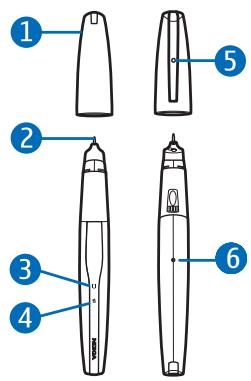
To use the pen with a compatible Nokia S60 or Series 80 mobile device, you must install the Nokia Digital Pen Suite software from the supplied CD-ROM to your mobile device.
To use the pen with your PC or modify the pen settings, you must install the Logitech io2 Software from the CD-ROM to your PC. The software can be used with the Microsoft Windows XP or 2000 operating system. The CD-ROM also contains the Nokia Digital Pen SU-1B File Converter application that allows you to convert notes created with the Nokia Digital Pen SU-1B into the format supported by the Nokia Digital Pen SU-27W.
The software may not be available in your language.
Chargers
Check the model number of any charger before using it with this device. The digital pen is intended for use with the AC-3, AC-4, and DC-4 chargers.

Warning: Use only chargers approved by Nokia for use with this particular enhancement. The use of any other types may invalidate any approval or warranty, and may be dangerous.
For availability of approved enhancements, please check with your dealer. When you disconnect the power cord of any enhancement, grasp and pull the plug, not the cord.
■ Open and close the USB cradle
The pen is supplied with a USB cradle that you need when you charge the battery inside the pen.
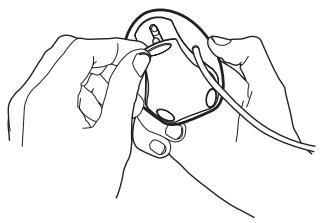
To open the USB cradle, pull the top of the cradle away from its bottom.
natural_image
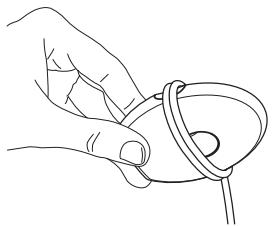
Line drawing of hands holding a medical device (no text or symbols)To close the cradle, push the button on the side of the cradle. When you do not use the cradle, you can wrap the USB cable around the indents on both sides of the cradle.
natural_image
Line drawing of a hand holding a small object with a looped handle (no text or symbols)Charge the battery
The digital pen has an internal,
nonremovable, rechargeable battery. Do not attempt to remove the battery from the pen as you may damage the pen.
You can charge the pen from your PC using the supplied USB cradle or from a wall outlet using the supplied charger adapter and a compatible charger.
Charging the battery fully takes up to 2 hours depending on the charger. If the battery is empty, it may take up to 10 minutes before the battery indicator starts to flash and the battery starts to charge.
Charge from a PC
To charge the pen battery from a PC, do the following:
-
Open the USB cradle, and place it on a flat surface.
-
Switch on the PC, and plug the USB connector of the cradle to the USB port on the PC.
-
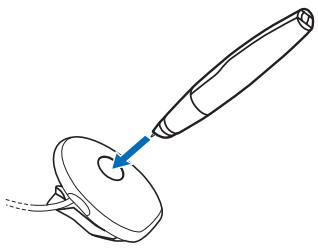
To start charging, remove the pen cap, and insert the pen into the USB cradle so that the connectors on the pen are facing the connectors on the cradle.
If you use a laptop PC that is not plugged into a wall outlet, charging the pen battery from the PC increases the demand on the PC battery and reduces battery life.
natural_image
Line drawing of a mechanical component with a blue arrow pointing to a circular feature (no text or symbols)When you connect the cradle to your PC for the first time and the PC is running the Microsoft Windows XP or 2000 operating system, the pen is detected as new hardware and you are asked whether you want to install the digital pen drivers. If you want to only charge the pen battery and do not intend to transfer data from the pen to the PC, you do not need to install the pen drivers, and you can exit the dialog box.
While the battery is charging, the battery indicator slowly flashes red, yellow, or green depending on the charge level of the battery.
- When the battery is fully charged, the battery indicator turns solid green. Remove the pen from the cradle by lifting it, or unplug the USB connector from the PC.
Charge from a wall outlet
To charge the pen from a wall outlet, do the following:
- Open the USB cradle, and place it on a flat surface.
-
Remove the pen cap, and insert the pen into the USB cradle so that the connectors on the pen are facing the connectors on the cradle.
-
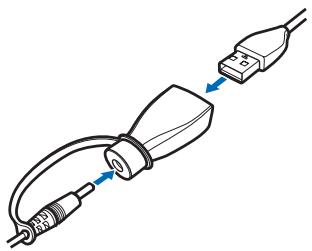
Plug the USB connector of the cradle to the AD-48 charger adapter that is supplied with the pen.
- Plug the charger into a wall outlet, and connect the charger cable into the adapter.
While the battery is charging, the battery indicator slowly flashes red, yellow, or green depending on the charge level of the battery.
natural_image
Diagram showing two USB connectors connected via a cable, with no text or symbols present.- When the battery is fully charged, the battery indicator turns green. Disconnect the charger cable from the adapter, unplug the charger from the wall outlet, disconnect the USB connector from the adapter, and remove the pen from the cradle.
Battery level indication
The battery indicator shows how much charge is left in the pen battery.
When the battery indicator is green, the pen is sufficiently charged. When the battery indicator is yellow, the battery is less than 50% charged.
When the battery indicator is red, battery power is low; when the indicator flashes red, battery power is too low for operation. Recharge the battery.
You can also check the battery level using the charge meter in the Battery level indication section at the back of a supplied notepad. Move the pen tip from left to right. The pen indicates the current charge level by vibrating.
■ Switch the pen on or off
To switch on the pen, take off the pen cap. The pen vibrates once, and the battery and page indicators turn on. When the page indicator is green, the pen is ready to writing. The pen is automatically switched on when you insert it into the USB cradle that is connected to a powered USB port or to the AD-48 charger adapter.
To switch off the pen, replace the pen cap. The battery and page indicators turn off. The pen is automatically switched off when you detach the USB cradle from the PC while the pen is placed in the cradle. To save power and protect the lens inside the pen from dirt, always keep the cap on when you are not using the pen.
Pair the pen
You must pair the pen with a compatible mobile device to transfer data from the pen. The pen can be paired with one mobile device at a time. To use the pen with another mobile device, you must pair the pen with it first.
The Bluetooth passcode that you need for pairing is printed on the card that comes in the sales package. You can change this preset passcode with the Logitech io2 Software that can be found on the supplied CD-ROM.
Pair from a mobile device
- Take the cap off the pen or remove the pen from the USB cradle, and ensure that the pen and your compatible mobile device are switched on.
The page indicator slowly flashes blue to show that the pen can be paired with a compatible device within 2 minutes.
You can prevent other Bluetooth devices from discovering your digital pen with the Logitech io2 Software that is supplied on the CD-ROM in the sales package. For details, see the Logitech io2 Software documentation.
-
Activate the Bluetooth feature on your mobile device, and set the mobile device to search for Bluetooth devices. See the user guide of your mobile device for instructions.
-
Select the digital pen from the list of found devices.
-
Enter the Bluetooth passcode on the mobile device.
In some mobile devices you may need to make the Bluetooth connection separately after pairing. You only need to pair the digital pen with your mobile device once.
If the pairing is successful, the pen vibrates three times, and the page indicator turns green and is shown for 2 seconds. The pen is now ready for use.
If the pairing or connection fails, the page indicator briefly flashes red twice and is shown for 2 seconds. Check that the pen and the mobile device are switched on, and carefully enter the correct Bluetooth passcode.
You can set the pen to connect with your mobile device automatically when the pen is switched on. To do this in Nokia devices, change your paired device settings in the Bluetooth menu.
The Bluetooth connection between the digital pen and the compatible mobile device is active only when the pen sends notes to the mobile device.
Pair from the pen
- Activate the Bluetooth feature on your mobile device as instructed in its user guide.
- Use the pen to tap the Pairing box box that can be found at the end of the notepad.
The page indicator flashes blue to show that the pen can be paired with a compatible device within 2 minutes. - Select the digital pen from the list of found devices on your mobile device, and enter the Bluetooth passcode.
Change the ink cartridge
When the ink cartridge of the pen runs out, replace it with a new cartridge. You can buy ink cartridges refills at local office supply retailers. Use only ink refills that are ISO 12757-1 D1 compliant and use blue ink.
Only replace the ink cartridge when it is empty. Removing the cartridge can damage its tip. If you attempt to reuse a cartridge with a damaged tip, it may leak.
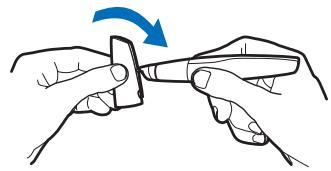
- Take off the pen cap.
- Insert the ink cartridge tip into the hole in the cap clip.
natural_image
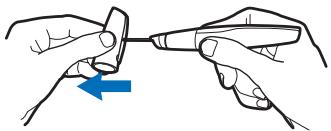
Illustration of two hands holding a small object with a blue arrow indicating rotation (no text or symbols)- Tilt the cap slightly clockwise, and pull the cap clip to take out the ink cartridge.
Dispose of the ink cartridge properly.
natural_image
Illustration of two hands holding a tool with a blue arrow indicating direction (no text or symbols)- Insert a new cartridge into the pen, and gently press the cartridge tip against a supplied notepad to secure it in place.
Reset the pen
To reset the pen if it stops functioning, although it is charged, take off the pen cap, and push the reset button with a paper clip. After the pen restarts, you can continue using it in the normal way. This reset does not clear the pen settings, including pairing information, and the notes saved in the pen memory.
To clear the pen memory and pen settings, including pairing information, take off the pen cap, push the reset button with a paper clip, and at the same time, press the pen tip against a surface. Remove the paper clip from the reset button. Hold the pen tip to the surface until the battery and page indicators stop flashing red. Lift the pen from the surface. The pen restarts and vibrates to indicate that you can use it again. To use the pen, you must pair it with your mobile device.
3. Basic use

Note: Do not point the IR (infrared) beam at anyone's eye or allow it to interfere with other IR devices. This device is a Class 1M LED laser product.
Notepads
The pen is delivered with two types of notepads: a small notepad (B7 size) and a large notepad (A5 size). The notepads contain digital paper that you can use with the digital pen.
Use the small notepad to create short notes that you want to transfer to your mobile device over a Bluetooth connection and send as messages.
Use the large notepad to create longer notes that you want to process and manage on your PC or mobile device.
Before using a new notepad, tap the New notepad box on the first page of the notepad. Start using a new notepad of the same type only after you have finished the old notepad.
When you run out of digital paper, you can buy it from authorized Nokia dealers. For details, see the Nokia Web site www.nokia.com/support.
Ink color and line thickness
Before you write a note with the digital pen, you can select the ink color and line thickness in the Setting boxes section at the back of a supplied notepad. The ink color and line thickness that you select are not shown on digital paper but become visible after you transfer the note to a mobile device or PC.
To change the ink color or line thickness, use the pen to tap the respective box. The pen vibrates briefly to confirm your selection.
The selected ink color and line thickness are used until you replace the pen cap.
■ Create and manage notes
You can use the pen to write notes that you want save and manage with your PC or mobile device.
- Open a large notepad that was supplied with the pen.
- Tap the New notepad box on the first page of the notepad.
- Write a note. You can also draw pictures.
- To select the target device, tap the box indicated with a phone icon and a letter to transfer the note to a mobile device, or tap the box indicated with a desktop PC to download the note to a PC.
- To transfer the note to your mobile device, tap the Send box. To download the note to your PC, place the pen in the USB cradle connected to the PC.
The page indicator rapidly flashes blue during transfer.
If the note was sent successfully, the page indicator is blue for 2 seconds, and the pen vibrates three times. If the sending failed, the page indicator briefly flashes red twice and is shown for 2 seconds.
- To manage the notes in your mobile device, use the PenPAL and Penmail applications. Refer to the Nokia Digital Pen Suite guide that can be found on the CD-ROM delivered with the pen.
To manage the notes in your PC, use the Logitech io2 Software. For more information, see PC connectivity, p. 15.
■ Create and send messages

Note: Only devices that have compatible features can receive and display multimedia messages. The appearance of a message may vary depending on the receiving device. Multimedia message objects may contain malicious software or otherwise be harmful to your device or PC.
You can use the pen to write notes that you want to send as e-mail or multimedia messages from your compatible mobile device. To send messages, you must define the correct settings in your mobile device. Refer to the user guide of your mobile device. For availability and pricing
of these messaging services, contact your network operator or service provider.
- Open a small notepad that was supplied with the pen.
- Tap the New notepad box on the first page of the notepad.
- Ensure that the Bluetooth feature is active in your mobile device and that the pen is connected to the device.
- Write a note that you want to transfer to your mobile device. You can also draw pictures.
- To send the note as a small image, tap the box indicated with a large and a small phone icon. To send the note as a large image, tap the box indicated with two large phone icons.
- To transfer the note to the mobile device, tap the Send box. The page indicator rapidly flashes blue during transfer.
If the note is sent successfully, the page indicator is blue for 2 seconds, and the pen vibrates three times. - To send the note as an e-mail or multimedia message, use the Penmail application supplied with the pen and the respective messaging application in your mobile device.
Full memory
When the pen memory becomes full, the pen vibrates continuously. Before you can create and save new notes, you need to transfer the existing notes to the PC. Start the Logitech io2 Software, and place the pen in the USB cradle connected to your PC. For more information, see PC connectivity, p. 15.
4. PC connectivity
■ Install Logitech io2 Software
To use the digital pen with your PC, you need to install the Logitech io2 Software from the supplied CD-ROM. The software can be used with the Microsoft Windows XP or 2000 operating system.
- Insert the CD-ROM in the CD drive of your PC, and follow the instructions on the screen.
- Plug the supplied USB cradle into the USB port of your PC.
- Take off the pen cap, and place the pen in the cradle.
If you connect the pen to the PC for the first time and you have a compatible version of the Microsoft Windows operating system, the operating system detects the pen as new hardware and installs the appropriate drivers automatically.
Your PC is now ready to receive and save notes from the digital pen. Refer to the Logitech io2 Software documentation for details. The software may not be available in your language.
■ Manage notes on a PC
- Use the pen to write a note using a supplied notepad. You can also draw pictures.
- To transfer the note, place the pen in the USB cradle.
Alternatively, to transfer the note over a Bluetooth connection, ensure that the pen is paired and connected with a compatible PC supporting Bluetooth wireless technology, and use the pen to tap the PC box and the Send box at the bottom of the notepad page. - To view, edit, or send the note, or to convert it to another format, in Windows, select Start > Programs > Logitech > io2 Pen Software. Refer to the Logitech io2 Software documentation for details.
5. Battery information
Your device is powered by a rechargeable battery. The battery can be charged and discharged hundreds of times, but it will eventually wear out. Recharge your battery only with Nokia approved chargers designated for this device.
Unplug the charger from the electrical plug and the device when not in use. Do not leave a fully charged battery connected to a charger, since overcharging may shorten its lifetime. If left unused, a fully charged battery will lose its charge over time.
Never use any charger that is damaged.
Leaving the battery in hot or cold places, such as in a closed car in summer or winter conditions, will reduce the capacity and lifetime of the battery. Always try to keep the battery between 15°C and 25°C (59°F and 77°F). A device with a hot or cold battery may not work temporarily, even when the battery is fully charged. Battery performance is particularly limited in temperatures well below freezing.
Do not dispose of batteries in a fire as they may explode. Batteries may also explode if damaged. Dispose of batteries according to local regulations. Please recycle when possible. Do not dispose as household waste.
Care and maintenance
Your device is a product of superior design and craftsmanship and should be treated with care. The suggestions below will help you protect your warranty coverage.
- Keep all accessories and enhancements out of the reach of small children.
- Keep the device dry. Precipitation, humidity, and all types of liquids or moisture can contain minerals that will corrode electronic circuits. If your device does get wet, allow it to dry completely.
- Do not use or store the device in dusty, dirty areas. Its moving parts and electronic components can be damaged. Always keep the cap on when you are not using the pen.
- Do not store the device in hot areas. High temperatures can shorten the life of electronic devices, damage batteries, and warp or melt certain plastics.
- Do not store the device in cold areas. When the device returns to its normal temperature, moisture can form inside the device and damage electronic circuit boards.
- Do not attempt to open the device.
- Do not drop, knock, or shake the device. Rough handling can break internal circuit boards and fine mechanics.
- Do not use harsh chemicals, cleaning solvents, or strong detergents to clean the device.
- Do not paint the device. Paint can clog the moving parts and prevent proper operation.
All of the above suggestions apply equally to your device, battery, charger, or any enhancement. If any device is not working properly, take it to the nearest authorized service facility for service.
- Nokia Digital Pen (SU-27W)
- User Guide
- DECLARATION OF CONFORMITY
- C€0682
- Export Controls
- Contents
- Introduction
- Bluetooth wireless technology
- Getting started
- Chargers
- ■ Open and close the USB cradle
- Charge the battery
- Charge from a PC
- Charge from a wall outlet
- Battery level indication
- ■ Switch the pen on or off
- Pair the pen
- Pair from a mobile device
- Pair from the pen
- Change the ink cartridge
- Reset the pen
- Basic use
- Notepads
- Ink color and line thickness
- ■ Create and manage notes
- ■ Create and send messages
- Full memory
- PC connectivity
- ■ Install Logitech io2 Software
- ■ Manage notes on a PC
- Battery information
- Care and maintenance
Brand : NOKIA
Model : DIGITAL PEN SU-27W
Category : Digital pen