
770 INTERNET TABLET - Tablet NOKIA - Free user manual and instructions
Find the device manual for free 770 INTERNET TABLET NOKIA in PDF.

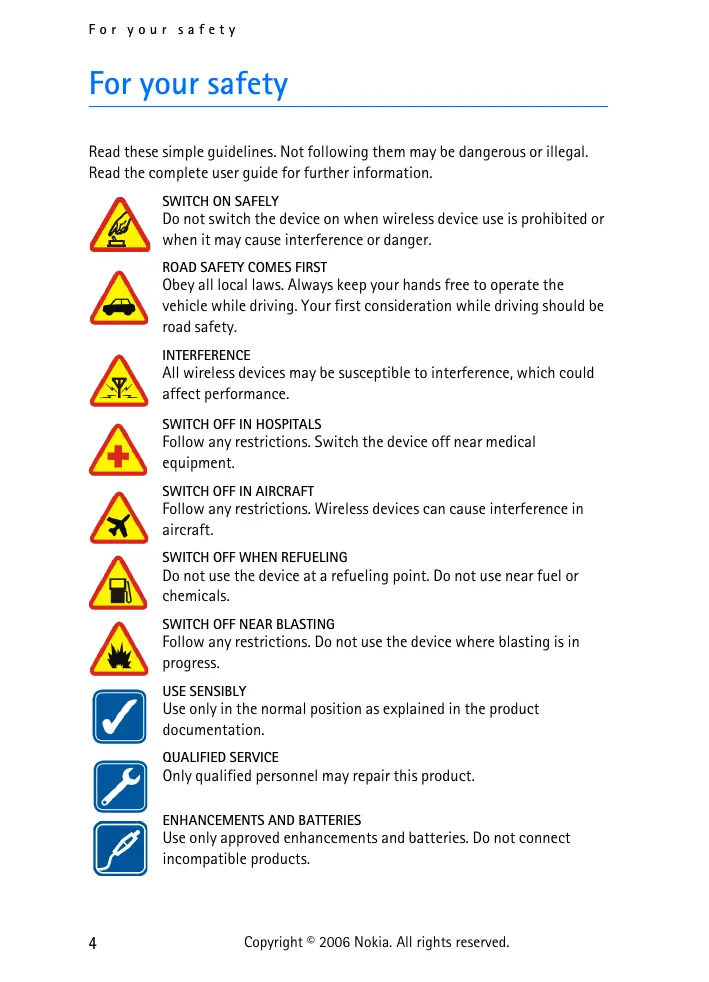

| Product Type | Internet Tablet |
| Brand | Nokia |
| Model | 770 Internet Tablet |
| Operating System | Internet Tablet OS 2006 |
| Display | Touch screen, 800 x 480 pixels |
| Wireless Connectivity | WLAN (IEEE 802.11b/g), Bluetooth 1.2 |
| Wired Connectivity | USB (Nokia DKE-2 cable) |
| Storage | Internal memory, MMC memory card (FAT16/32) |
| Battery | Rechargeable Li-Ion, charge via Nokia adapter |
| Battery Life | Varies by usage; new battery reaches full performance after 2-3 cycles |
| Supported Audio Formats | AAC, AMR, AWB, M3U, MP2, MP3, PLS, WAV, WMA |
| Supported Video Formats | 3GP, AVI, MPE, MPEG, MPG, RA, RM, RV, etc. |
| Supported Image Formats | BMP, GIF, ICO, JPEG, PNG, SVG Tiny, TIF, WBMP |
| Audio Player | Yes, with playlist creation |
| Internet Radio | Yes, supports MP3 and M3U/PLS playlists |
| Video Player | Yes, supports streaming and local files |
| Web Browsing | Integrated browser with bookmark management |
| Messaging | Email (POP3/IMAP4), instant messaging (Jabber/Google Talk) |
| Internet Calls (VoIP) | Yes, via SIP account |
| Presence Sensor | Yes, online/offline/away/invisible status |
| Tools | Calculator, clock, notes, PDF reader, sketch, games |
| Connection Management | Connection manager, WLAN and cellular access point |
| Security | Device lock, PIN code, WEP/WPA encryption |
| Maintenance | Keep dry, avoid dust and extreme temperatures, clean with soft cloth |
| Included Accessories | USB DKE-2 cable, power adapter (not detailed) |
Frequently Asked Questions - 770 INTERNET TABLET NOKIA
User questions about 770 INTERNET TABLET NOKIA
0 question about this device. Answer the ones you know or ask your own.
Ask a new question about this device
Download the instructions for your Tablet in PDF format for free! Find your manual 770 INTERNET TABLET - NOKIA and take your electronic device back in hand. On this page are published all the documents necessary for the use of your device. 770 INTERNET TABLET by NOKIA.
USER MANUAL 770 INTERNET TABLET NOKIA
Internet Tablet OS 2006 edition User Guide
9249449
ISSUE 3 EN
DECLARATION OF CONFORMITY
We, NOKIA CORPORATION, declare under our sole responsibility that the product SU-18 is in conformity with the provisions of the following Council Directive: 1999/5/EC. A copy of the Declaration of Conformity can be found at http://www.nokia.com/phones/declaration_of_conformity/.
C€0434 ⏻

The crossed-out wheeled bin means that within the European Union the product must be taken to separate collection at the product end-of-life. This applies to your device but also to any enhancements marked with this symbol. Do not dispose of these products as unsorted municipal waste.
Copyright © 2006 Nokia. All rights reserved.
Reproduction, transfer, distribution or storage of part or all of the contents in this document in any form without the prior written permission of Nokia is prohibited.
Nokia and Nokia Connecting People are trademarks of Nokia Corporation. Other product and company names mentioned herein may be trademarks or tradenames of their respective owners.
Nokia tune is a sound mark of Nokia Corporation.
This product is licensed under the MPEG-4 Visual Patent Portfolio License (i) for personal and noncommercial use in connection with information which has been encoded in compliance with the MPEG-4 Visual Standard by a consumer engaged in a personal and noncommercial activity and (ii) for use in connection with MPEG-4 video provided by a licensed video provider. No license is granted or shall be implied for any other use. Additional information, including that related to promotional, internal, and commercial uses, may be obtained from MPEG LA, LLC. See http://www.mpegla.com.
Nokia operates a policy of ongoing development. Nokia reserves the right to make changes and improvements to any of the products described in this document without prior notice.
Under no circumstances shall Nokia be responsible for any loss of data or income or any special, incidental, consequential or indirect damages howsoever caused.
The contents of this document are provided 'as is'. Except as required by applicable law, no warranties of any kind, either express or implied, including, but not limited to, the implied warranties of merchantability and fitness for a particular purpose, are made in relation to the accuracy, reliability or contents of this document. Nokia reserves the right to revise this document or withdraw it at any time without prior notice
The availability of particular products may vary by region. Please check with the Nokia dealer nearest to you.
There may be restrictions on using Bluetooth technology in some locations. Check with your local authorities or service provider.
This device may contain commodities, technology or software subject to export laws and regulations from the US and other countries. Diversion contrary to law is prohibited.
9249449/ISSUE 3 EN
For your safety 4
1. Overview...... 6
Nokia support on the Web...... 6
Touch screen 7
Task navigator.... 7
Application title area 8
Status indicator area 8
Minimize and close buttons 9
Application area.... 9
Toolbar 9
Calibrate the touch screen.... 9
Home view.... 10
Device control.... 11
Stylus.... 11
Hardware keys 11
Text input methods.... 12
On-screen keyboard 13
Full-screen finger keyboard 14
Handwriting recognition 14
Text input settings 15
Volume control.... 15
Device lock 15
Change the lock code 15
Lock touch screen and keys...... 16
Memory management...... 16
Memory card 17
Back up and restore data 17
Help 18
Search for information 19
2. Define Internet connections .... 19
WLAN connection.... 20
Cellular connection.... 21
Bluetooth wireless technology ..... 22
Pair a phone with your device ...... 23
Create a cellular connection ..... 23
Connectivity settings.... 24
Disable Internet connections...... 25
3. Browse the Web...... 26
Open and browse Web pages...... 26
Manage bookmarks.... 27
4. Communicate over the Web .... 27
Accounts 28
Presence 29
Contacts 29
Instant messaging 30
Internet call.... 31
E-mail 32
Retrieve and read e-mail.... 33
Create and send e-mail 34
Inbox folder 34
Outbox folder.... 34
Sent folder 35
Drafts folder 35
5. Media players and viewers..... 35
Audio player 35
Internet radio.... 36
Video player 36
RSS feed reader.... 37
Images 37
6. Tools.... 38
Application manager 38
Connection manager 38
Control panel 38
File manager 40
7. Utilities and games...... 40
Calculator 40
Clock 40
Notes...... 40
PDF reader 40
Sketch 41
Games 41
8. PC connectivity 41
Software update 42
9. Battery information...... 42
Charging and discharging...... 42
Nokia battery authentication guidelines.... 43
Care and maintenance 45
Additional safety information..... 46
Open source software notice...... 48
For your safety
Read these simple guidelines. Not following them may be dangerous or illegal. Read the complete user guide for further information.

SWITCH ON SAFELY
Do not switch the device on when wireless device use is prohibited or when it may cause interference or danger.

ROAD SAFETY COMES FIRST
Obey all local laws. Always keep your hands free to operate the vehicle while driving. Your first consideration while driving should be road safety.

INTERFERENCE
All wireless devices may be susceptible to interference, which could affect performance.

SWITCH OFF IN HOSPITALS
Follow any restrictions. Switch the device off near medical equipment.

SWITCH OFF IN AIRCRAFT
Follow any restrictions. Wireless devices can cause interference in aircraft.

SWITCH OFF WHEN REFUELING
Do not use the device at a refueling point. Do not use near fuel or chemicals.

SWITCH OFF NEAR BLASTING
Follow any restrictions. Do not use the device where blasting is in progress.

USE SENSIBLY
Use only in the normal position as explained in the product documentation.

QUALIFIED SERVICE
Only qualified personnel may repair this product.

ENHANCEMENTS AND BATTERIES
Use only approved enhancements and batteries. Do not connect incompatible products.

WATER-RESISTANCE
Your device is not water-resistant. Keep it dry.

BACK-UP COPIES
Remember to make back-up copies or keep a written record of all important information.

CONNECTING TO OTHER DEVICES
When connecting to any other device, read its user guide for detailed safety instructions. Do not connect incompatible products.
About your device
When using the features in this device, obey all laws and respect privacy and legitimate rights of others.

Warning: To use any features in this device, the device must be switched on. Do not switch the device on when wireless device use may cause interference or danger.
Network services
Contact your service provider for additional instructions for the use of network services and information on what charges will apply. Some networks may have limitations that affect how you can use network services.
Your service provider may have requested that certain features be disabled or not activated in your device. Your device may also have been specially configured.
Shared memory
The following features in this device may share memory: bookmarks; image, audio, and video files; notes, sketch, and other files; contacts; e-mail messages; and applications. Use of one or more of these features may reduce the memory available for the remaining features sharing memory. For example, saving many images may use all of the available memory. Your device may display a message that the memory is full when you try to use a shared memory feature. In this case, delete some of the information or entries stored in the shared memory features before continuing.
1. Overview
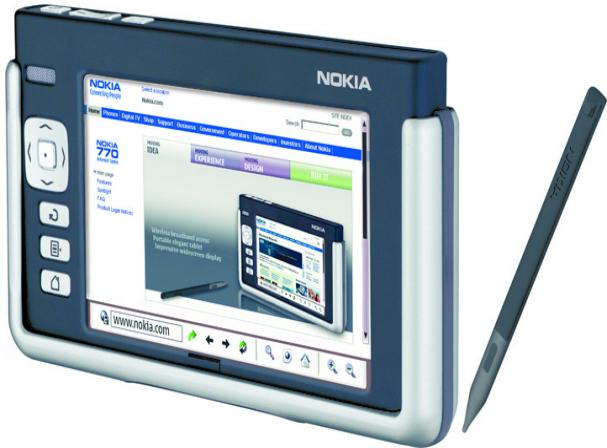
The Nokia 770 Internet Tablet provides easy broadband access to the Internet through a WLAN/Wi-Fi or Bluetooth connection with compatible mobile phones. Its wide screen and portable size make it optimal for enjoying the Web and Internet communications away from your laptop or desktop.
Your compatible WLAN access point must be compliant with the IEEE 802.11b or 802.11g standard.
Read this user guide carefully before using your device. Read also the quick start guide provided with the device and the user guide of your compatible Nokia phone, which provides important safety and maintenance information.
Nokia support on the Web
Check www.nokia.com/support or your local Nokia Web site for the latest version of this guide, additional information, downloads, and services related to your Nokia product.
Check also www.nokia.com/770 to explore the Internet Tablet online features.
Touch screen
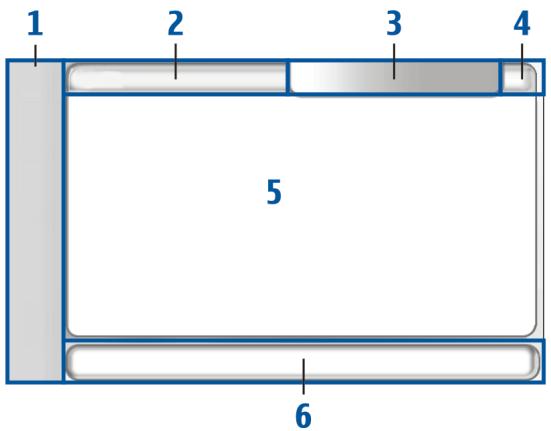
The touch screen consists of the task navigator (1), the application title area (2), the status indicator area (3), the minimize and close buttons (4), the application area (5), and the toolbar (6).
Task navigator
The task navigator (1) includes icons that you can tap to open different applications, start new tasks, and access bookmarks.
To select an option, tap it with the stylus. Alternatively, scroll to the desired option in a menu, and press the center of the scroll key to open it. To close the menu, press the escape key, or tap another area of the screen.
The task navigator contains the following plug-ins by default:
1st plug-in: Web browser — Tap 🔒 to access Internet functions such as Open new browser window and Bookmarks. To change the first plug-in, tap ☐, and select Tools > Control panel > Task navigator.
2nd plug-in: Contacts – Tap 📋 to access functions such as View contacts, View inbox, New e-mail, New call, New chat, and Set presence. The information at the bottom of the menu changes automatically. The plug-in icon is highlighted and the menu is updated
whenever you receive new chat messages, authorization requests and responses, or group chat invitations. You cannot change the plug-in.
Applications — Tap ☐ for access to all installed applications. To change the structure of the menu, select Tools > Control panel >
Task navigator.
Application switcher – The task navigator also contains icons related to the applications that are open. The icons of the top four applications are shown on the task navigator; the rest are listed in a separate menu.
To restore one of the four applications, tap the icon of the application. If you hold the stylus down on an icon for half a second, a tool tip is shown.
To access the menu of all open applications, tap ▶▶, or press and hold the home key. To open an application, tap the name. To return to the home view of the device, select Home.
Application title area
The application title area (2) displays the name of the active application and the name of the currently open file. To open the application menu, tap the title, or press the menu key.
Status indicator area
Tap the icons in the status indicator area to get more information or perform tasks related to a specific function. The status indicator area (3) may contain the following icons:
indicates that you have set an alarm in the Clock application.
indicates that the device is connected to a PC through a USB cable.
The presence icon indicates your presence status and allows you to adjust the presence settings. The icon is visible only after you have created an account for Internet call and instant messaging service.
indicates that you are online, that you are away, that you are invisible, or that you are offline.
indicates the level of display brightness and allows you to adjust the display settings.
indicates the volume level and allows you to adjust the master volume and other sound settings. The more bars the icon contains, the higher the volume. When the sounds are muted, the icon is ☐.
The Internet connection icon indicates the status and type of the Internet connection and allows you to open and close an Internet connection. 📋 indicates that a WLAN connection is active, 📋 that a packet data connection (for example, GPRS) is active, 📋 that a data call connection (for example, GSM data call) is active, 📋 that there is no Internet connection, or 🏠 that the device is in the offline mode where no connections are allowed.
indicates how much charge is left in the battery. The more bars the icon contains, the more charge is left.
Minimize and close buttons
Every application has the minimize and close buttons (4).
If you tap ☐, the current application is hidden and the underlying application is shown. To bring the minimized application back to the top, tap its icon in the application switcher.
If you tap ✗, the current application view closes. To close an application, you can also select Close from the application menu or press the escape key for a second.
Application area
The application area (5) shows the applets you selected in the Home menu. To add or remove applets from the application area, select Home > Select applets..., and mark or unmark the desired applet. If you open an application from the task navigator, the application is displayed in the application area.
Toolbar
The toolbar (6) contains the command buttons of the active application.
Calibrate the touch screen
If the touch screen of the device responds inaccurately, you may need to calibrate it. Press the home key, select Home > Tools >
Screen calibration, and follow the instructions on the screen.

Note: A small number of missing, discolored, or bright dots may appear on the screen. This is a characteristic of this type of display. Some displays may contain pixels or dots that remain on or off. This is normal, not a fault.
Home view
When you switch on the device, the home view is displayed. The home view contains various applets that you can open, close, and rearrange. You can also install new applets using the Application manager.
The following applets are available in your device:
Clock — Displays the time in digital or analog format. The date format depends on the regional settings. To set the time and date, tap the clock, and select Clock > Tools > Date and time settings....
Internet radio — Select an Internet radio channel from the playlist. The content of the playlist comes from your favorite playlist, which you can edit in the Audio player application.
RSS feed reader — Shows the number of unread news articles and lists the latest headlines when you subscribe to a news service. To view an article, tap its headline. To refresh the article list from the Web, tap 📋. To stop the refresh, tap ✗.
Speed contacts – Allows you to quickly get in contact with a selected group of people. To select the contacts to be displayed on the applet, select Home > Applet settings > Speed contacts.
Web shortcut — To set the Web page that opens when you tap the shortcut image, select Home > Applet settings > Web shortcut. The functions of this feature may vary depending on the product package.
To set the background image for the home view, select Home > Tools > Set background image.... The background may display a solid color, an image, or both.
To personalize the look and feel of your device, select Home > Tools > Personalisation....
Device control
You can control the device in two ways: tap the screen with the stylus, or press the scroll key and other keys on the device.
Stylus
To open an application, tap an icon in the task navigator. Select the desired function from the menu next to the icon.
To close an application, tap ✗ in the top-right corner of the screen.
- Single tap – To activate controls and other interactive interface components, tap them once with the stylus (stylus down and up on the same object). A single tap may open a list, activate a button in a dialog or a link on a Web page, select a check box, and activate a text input method from a text field.
- Highlight and activate — To highlight an item, tap it once with the stylus. To activate or open the item, tap it again. Highlight and activate items in list and grid views, for example, to copy, move, or delete files and folders.
- Continuous multiple selection – To select consecutive items, place the stylus on a non-focused item, and drag the stylus over the items.
- Drag and drop — To drag an item, hold the stylus down on a highlighted item, drag the item to its new location, and release the stylus. To drag and drop multiple items, perform a continuous multiple selection, and start the drag from the highlighted item.
- Context-sensitive menus — To activate a context-sensitive menu, hold the stylus down on an item for a second.
Hardware keys
A keypress refers to the press and release of a key. Some actions depend on the length of the keypress.
- Power key — A short keypress opens the Device mode dialog. A long keypress turns the device on or off.
-
Zoom key – A short keypress changes the zoom level of the current view, and adjusts the volume in audio applications.
-
Full-screen key — A short keypress switches between full screen and normal screen modes.
- Scroll key — A short keypress moves the focus from one item to another in the respective direction. A long keypress in the Web browser scrolls the content of the active page or frame. Press the center of the scroll key to activate the highlighted item, and to accept confirmation notes.
- Escape key — A short keypress removes the cursor from text fields, cancels menus and dialogs, and rejects confirmation notes. A long keypress closes the topmost dialog or application view. In the Web browser this key acts as a back button.
- Menu key – A short keypress opens and closes the application menu.
- Home key – A short keypress opens the home view of the device. A long keypress activates the application switcher.
■ Text input methods
You can enter letters, numbers, and special characters in two ways. The keyboards allow you to tap characters with the stylus or your fingers. Handwriting recognition allows you to write characters directly onto the screen using the stylus as a pen.
To begin text input, tap any text field with the stylus or your fingers. The text input area appears on the touch screen and displays one of the keyboards or the handwriting recognition area, depending on the previously used text input method.
To switch between text input methods, tap 📋 on the keyboards or handwriting recognition view, and select Input method and the desired option. Start writing.
Your device can complete words based on the built-in dictionary for the selected text input language. The device also learns new words from your input.
On-screen keyboard
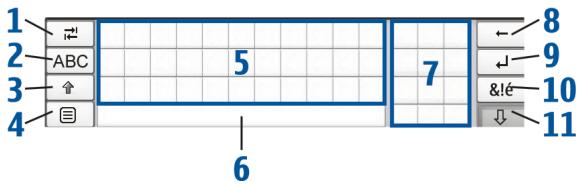
- Tabulator key (1) – Adds a tabulator space or moves the cursor to the next available text input field.
- [ABC] (2) — Locks the uppercase characters of the keyboard. In the handwriting recognition mode, switches between the normal and special character recognition modes.
- Shift key (3) — Enters an uppercase character in the on-screen keyboard mode when you write in lowercase. When you tap this key in the handwriting recognition mode, the last lowercase character switches to uppercase, and vice versa.
- Input menu key (4) – Opens the text input menu, which includes commands such as Edit > Copy, Cut, and Paste.
- On-screen keyboard (5)
• Space bar (6) — Inserts a space. - Numeric keyboard (7)
- Backspace key (8) – Deletes the character to the left of the cursor.
- Enter key (9) — Moves the cursor to the next row or text input field. Additional functions are based on the current context (for example, in the Web address field of the Web browser, it acts as a go button).
- Special character key (10) — Opens a view, in which you can select from commonly used special characters, symbols, and language character accents.
- Close (11) – Closes the on-screen keyboard and handwriting recognition input area, and saves changes.
Full-screen finger keyboard
To begin text input with the finger keyboard, tap the text input field with your fingers. The finger keyboard opens in the full screen mode.
The finger keyboard displays buttons and functions similar to the other text input methods; however, not all of the special characters are available.
To close the finger keyboard, tap X in the upper right corner of the keyboard.
To change the finger keyboard settings, tap ☐, and select Tools > Control panel > Text input settings > Finger.
When using the finger keyboard, use only clean hands and regularly clean the touch screen by wiping the screen gently with a dry, soft cloth.
Handwriting recognition
You can use the stylus as a pen to write text. Write legible, upright characters on the text input area, and leave a small horizontal gap between each character. Do not use cursive writing.
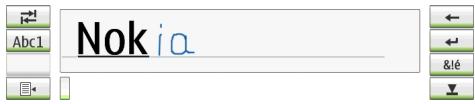
To write common characters and numbers (default mode), write words as you normally write them.
To write special characters, tap [Abc1] in the left pane of the input area, and write the characters as you normally write them.
To insert new characters in and after words, draw them in the intended positions.
To teach the device your handwriting style, tap 📋 on the on-screen keyboard, and select Tools > Teach.
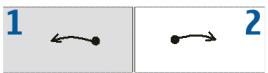
To use handwriting gestures, see the figure. Draw gesture 1 for a backspace or gesture 2 for a space.
■ Text input settings
To define the text input settings, tap ☐, and select Tools > Control panel > Text input settings.
Word completion: is turned on by default. To turn word completion off, clear the selection. When word completion is on, the device displays word candidates that match the first characters of the word that you enter with the on-screen keyboard or write by hand.
Volume control
To adjust the master volume, tap 📋 to access the sound settings. To decrease or increase the volume, drag the volume slider to the desired position. The master volume overrides all other volume settings in the device.

Warning: Listen to music at a moderate level. Continuous exposure to high volume may damage your hearing. Do not hold the device near your ear when the loudspeaker is in use, because the volume may be extremely loud.
Device lock
To prevent unauthorized use of your device, change the lock code, and set the device to automatically lock after a certain time-out period.
To lock the device, briefly press the power key, select Lock device, and tap OK. If you have not set the lock code, you are asked to do so.
To unlock the device, enter the lock code, and tap OK.
To edit the device lock settings, tap ☐, and select Tools > Control panel > Device lock.
To set the time-out period, tap Lock device after, and select the desired time.
Change the lock code
To change the lock code, do the following:
-
Tap ☐, and select Tools > Control panel > Device lock > Change lock code.
-
Enter the current lock code (the default code is 12345), and tap OK.
- Enter the new code, and tap OK.
- Enter the new code again, and tap OK.
If you tap Cancel in any of these dialogs, the device lock code is not changed.
Keep the new code secret and in a safe place separate from your device.

Note: If you lose the device lock code, you must take the device to a Nokia authorized service facility. To unlock the device, the software must be reloaded, and all data you have saved in the device may be lost.
Lock touch screen and keys
To lock the touch screen and keys, briefly press the power key, and select Lock touch screen and keys > OK. To unlock the touch screen and keys, press the power key and the center of the scroll key.
■ Memory management
To view current memory consumption, tap ☐, and select Tools > Control panel > Memory.
To view the amount of free and used memory, and the memory consumption of different items on your device or memory card, select the Device or Memory card page.
To use the memory card as additional virtual memory for running applications, open the Virtual page, and select Extend virtual memory. Additional virtual memory is always tied to the memory card that you are currently using.

Important: Do not remove the MMC card in the middle of an operation when the card is being accessed. Removing the card in the middle of an operation may damage the memory card as well as the device, and data stored on the card may be corrupted.
To free memory, delete data in File manager or other applications. To find and delete files of a certain size, use the Search application.
The applications display error messages when you try to move, copy, or save files, and when there is not enough memory on the device or the memory card.
Memory card
You can only use FAT 16/32 formatted memory cards with this device.
To view and manage the contents of the memory card, tap ☐, select File manager, and tap the memory card icon in the folder list.
To rename a memory card, select File manager > Memory card > Rename....
To format a memory card, select File manager > Memory card > Format.... All data is permanently deleted from the memory card. Tap Format.
Back up and restore data
You can back up data to a memory card and restore it, if necessary. The backup appears as a folder on the memory card. You can also secure the backups with a password.
To back up data, do the following:
-
Tap ☐, and select Tools > Control panel > Backup/Restore > Backup.
-
In the Backup selection dialog, change the name of the backup; tap the name, and enter a new one.
-
In the Data selection dialog, select whether you want to back up all data or only the specified data types. You cannot make back-up copies of applications you have installed.
To protect the backup with a password, tap Protect with password, enter twice the password you want to use, and tap OK.
To restore data, do the following:
- Tap ☐, and select Tools > Control panel > Backup/Restore > Restore.
- In the Restore selection dialog, select the backup on the memory card that you want to restore. Tap OK and Restore.
If you have protected the backup with a password, the Password needed dialog is displayed. Enter the password, and tap OK.

Important: Always back up both e-mail settings and messages. To ensure that the E-mail application works as it should, restore its backup when no settings or e-mail messages are present in the application, for example, directly after updating the software on your device.
Help
Your Nokia 770 Internet Tablet offers device help, which provides additional information on the features, applications, and dialogs of the device.
To access help from the task navigator, tap ☐, and select Help.
To access help from an application, tap the application title, and select the help command from the menu (usually under the Tools menu).
To browse help topics, tap the following:
← or → to see other help topics if you have recently viewed several help topics.
to see a list of recently viewed help topics.
to search for the text that you have entered in the search field.
To access help related to the contents of a dialog (context-sensitive help), tap the [?] button on the dialog.
■ Search for information
To search for items you created or downloaded on your device, do the following:
- Tap 📋, and select Search.
- Enter a search word or multiple search words. The more search words you use, the more accurate the search results.
- If needed, limit the search to e-mail messages, contacts, or bookmarks; or select all items on your device. To set additional search options, tap Options.
- To start the search, tap OK. Results appear in the Search results window.
To stop the search at any time, tap ✗ on the toolbar.
The search function in your device operates with Boolean AND logic. The more search words and options you set, the more accurate the search results. If you get too few results, limit the number of search words and options. The search function is not case-sensitive.
2. Define Internet connections
Your device allows you to access the Internet by two different means: through a wireless local area network (WLAN), or a cellular phone that supports Bluetooth wireless technology.
To define Internet connections, tap ☐, and select Tools > Control panel > Connectivity > Connections > New. The welcome page of the Internet setup wizard is displayed. Tap Next to proceed to the Connection setup: Name and type dialog.
WLAN connection
To set up a WLAN connection, do the following:
- In the Connection setup: Name and type dialog, define the following settings:
Connection name — Enter a descriptive name for the connection.
Connection type: — Select WLAN.
- Tap Next. The device asks whether you want to scan for available WLAN networks. Tap Yes to start the scan, or No to skip it.
If you select Yes, all available WLAN networks are shown after the scan with information about each WLAN connection:
• Security level of WLAN connection:
- No security (for example, a public access point in an airport)
- Medium security (wired equivalent privacy (WEP) authentication)
- High security (Wi-Fi protected access (WPA) authentication, including WPA1 and WPA2).
The security level of the network affects the settings that are shown when you tap Next.
• Name of the WLAN network
- WLAN signal strength
- if the WLAN network is already defined for an Internet connection setup that you have saved in the device
- Tap Finish to save the settings. To define advanced settings, tap Advanced.

Tip: You may need to define advanced settings, for example, if your Internet access point requires the use of proxies.
The following settings are shown when you edit and existing WLAN connection, or when you skip the scan for WLAN networks in step 2:
Network name (SSID) — Enter the name of the WLAN network. If you are the administrator of the network, ensure that the name of the network
is unique. When you connect to the Internet over WLAN, the connection is based on this information. If the field is dimmed and cannot be edited, the scanned SSID contains characters entered in an unknown character set, and not UTF-8 as the device expects.
Network is hidden — You must select this option if the name of your WLAN network is hidden. When this option is selected, your device actively searches for the hidden WLAN network when you establish an Internet connection.
Network mode – Select the Infrastructure or Ad hoc mode. The infrastructure mode is used with the Internet connections.
Security method – Select None (no security), WEP (medium security), WPA pre-shared key (high security), or WPA with EAP (high security).

Important: Always enable one of the available encryption methods to increase the security of your wireless LAN connection. Using encryption reduces the risk of unauthorized access to your data.

Tip: The device supports wired equivalent privacy (WEP) with key lengths of 40 or 104 bits (equal to 64 and 128 bits depending on the WLAN access point manufacturer).
For example, in the access point, select ASCII 40/64 bits and enter 5 characters. In the device, select correspondingly 40 bits and enter the same 5 characters.
Some places, like France, have restrictions on the use of wireless LAN. Check with your local authorities for more information.
Cellular connection
Before you can connect to the Internet over a cellular network, you must do the following:
- Subscribe to the desired data service with your cellular service provider
• Acquire proper Internet settings from your cellular service provider

Tip: Your device includes a settings database with predefined settings of some cellular operators. Select your operator from the list, and the settings are installed on your device. To access the database, tap ☐, and select Tools > Control panel > Control panel > Tools > Mobile operator setup wizard....

Note: All cellular operators and settings are not listed, and some settings may also be out of date.
- Pair a compatible mobile phone with your device. Your device needs an external modem (phone), which is connected to your device with Bluetooth wireless technology.
Bluetooth wireless technology
This device is compliant with Bluetooth Specification 1.2 supporting the following profiles: Dial-Up Networking, File Transfer/Object Exchange, Generic Access, SIM Access, and Serial Port.
There may be restrictions on using Bluetooth technology in some locations. Check with your local authorities or service provider.
Features that use Bluetooth technology, or allowing such features to run in the background while using other features, increase the demand on battery power and reduce the battery life.
A Bluetooth connection does not require that the compatible phone and the Nokia 770 Internet Tablet be in line of sight, but both devices should be within 10 meters (32 feet) of each other. Connections can be subject to interference from obstructions, such as walls or other electronic devices.
Your device always operates in nondiscoverable and nonconnectable mode, and is not visible to other devices through the Bluetooth connection, unless you create such connection. Do not create connections to Bluetooth devices you do not trust.
Pair a phone with your device
You must always start the pairing of devices from your Nokia 770 Internet Tablet. Although you can only use one phone at a time, you can pair several phones with your device.
To pair a phone with your device, do the following:
- Activate Bluetooth connection on your mobile phone.
- Tap ☐, and select Tools > Control panel > Phone > New. The Select phone dialog opens, and your device begins to search for compatible Bluetooth devices.
- Select the desired phone from the list of found devices, and tap Select. Your device generates a passcode.
- In the Pair with phone dialog, use the generated passcode or replace it with a passcode of your own. Tap OK, and enter the same passcode on your phone.
- Tap Finish to save the settings.

Tip: Set your Nokia 770 Internet Tablet as a trusted device from the Bluetooth menu of your phone. This way you allow your device to access your phone, and you do not have to confirm the connection every time you activate it. For more information, refer to the user guide of your phone.
If you change the Bluetooth name of your phone, it is not updated to your device automatically. To update the name, pair the device with your phone again.
Create a cellular connection
- In the Connection setup: Name and type dialog, define the following settings:
Connection name — Enter a descriptive name for the connection.
Connection type: — Select the type of network service over which you want to access the Internet. To use a packet-switched data service in a cellular network, such as GPRS (network service), select Packet data. To use a circuit-switched data service in a cellular
network, such as HSCSD (high-speed circuit-switched data; network service), select Data call.
-
In the Cellular network dialog, select the type of cellular network over which the Internet connection takes place: GSM/UMTS or CDMA. You must select the network manually if you have not paired a mobile phone with your device.
-
In the connection setup dialog, define the following settings:

Tip: It is common in GPRS packet data networks that the access point name is Internet or it is left blank, the dial-up number is *99#, and the user name and password may be left blank. For CDMA packet data network settings, contact your service provider.
Access point name — Enter the name of the Internet access point. Obtain the name from your Internet service provider. This setting is only shown if you selected packet-switched data connection (such as GPRS) and your phone uses a GSM cellular network.
Dial-up number — Enter the modem telephone number of the Internet access point.
User name — Enter a user name, if required. The user name is usually provided by the Internet service provider.
Password — Enter a password, if required. The password is usually provided by the Internet service provider.
Prompt password at every login — Select this option if you want to enter your password every time you log on to an Internet server, or if you do not want to save your password in the device.
- When you are finished, tap Advanced in the Connection setup: Complete dialog to define advanced settings, if necessary. For more information, see the help of the application.
Connectivity settings
When you access an application that requires an Internet connection, the device uses the WLAN connections you have saved by default. If you
have not saved any connections or they are unavailable, you are asked to select the connection (Internet access point) you want to use.
In the Select connection dialog, select a connection from the list, and tap Connect. Only available connections are shown, and the connections you have saved in your device appear at the top of the list.
To define the settings of Internet connections and access points, tap ☐, and select Tools > Control panel > Connectivity.
On the General page, define the following settings:
Connect without asking — Select which connections are used without asking when connection is needed. This setting applies only to networks and connections you have saved in your device.
On the Idle times page, select the time after which the Internet connection ends automatically if the connection is not used. Use Packet data idle time for packet-switched data connections (such as GPRS), Data call idle time for circuit-switched data calls (such as GSM data call), and WLAN idle time for connections created through a WLAN access point.

Note: Time-based charges may apply to the Internet connections. Check with your service provider, and adjust the idle times accordingly.

Note: The network may also have idle timers that may cause the Internet connection to break, regardless of the idle timers of the device.
Disable Internet connections
To disable WLAN and Bluetooth connections, briefly press the power key, select Offline mode, and tap OK. To enable connections, briefly press the power key, select Normal mode, and tap OK.

Note: In the offline mode, you cannot use features that require network or Bluetooth connection. To use the features, you must first set the device back to normal mode. If the device has been locked, enter the lock code.
3. Browse the Web
To open the browser, tap 📋, and select Open new browser window or a bookmark.
Before you can connect to the Internet, you must define the proper Internet connection settings. For detailed instructions, see "Define Internet connections," p. 19.

Important: Use only services that you trust and that offer adequate security and protection against harmful software.
■ Open and browse Web pages
To open a Web page, tap the address field at the bottom of the screen, enter the address with the on-screen keyboard, and tap ↗.
If you saved a bookmark of a Web page that you want to visit, tap 📄, and select the desired bookmark.
To reload the page, tap ↻. To stop loading the page, tap ✗.
To browse and scroll a Web page, drag a page in the desired direction with the stylus, use the scroll keys, or drag the scroll bars on the right side and bottom of the screen.
To browse recently visited pages, tap ← or →.

Note: A cache is a memory location that is used to store data temporarily. If you have tried to access or have accessed confidential information requiring passwords, empty the cache after each use. The information or services you have accessed are stored in the cache. To empty the cache, select Web > Tools > Clear > Cache. The cache memory is also cleared automatically whenever you close the Web browser.
To view a page in a larger or smaller size, tap the zoom key. To select a predefined zoom level from the application menu, select Web > View > Zoom and the desired zoom level.
To view the Web page in full screen size, press the full screen key. To return to normal view, press the full screen key again.
To view the Web page in optimized size, select Web > View > Optimised view. The Web page is fit to the width of the screen; text and images are zoomed and scaled differently, if necessary.
To change the Web browser settings, select Web > Tools > Settings. For more information, see the help of the application.
Manage bookmarks
To manage the bookmarks you saved in the device, tap 📋, and select Bookmarks. The bookmark folders are shown on the left, and the bookmarks in the selected folder on the right.

Note: Your device may have some bookmarks loaded for sites not affiliated with Nokia. Nokia does not warrant or endorse these sites. If you choose to access them, you should take the same precautions, for security and content, as you would with any Internet site.
You may not be able to edit or manage the contents of the Internet service provider's bookmarks.
To open a folder and a bookmark contained in it, tap the folder, and tap the bookmark twice.
To add a bookmark to the current Web page, hold the stylus down on the Web page, and select Add bookmark... from the context-sensitive menu.
To save a link as a bookmark, hold the stylus down on the link for a second, and select Add link to Bookmarks...
4. Communicate over the Web
To be able to communicate over the Web, you must have an active network connection and registered user accounts and passwords for Internet call, instant messaging and e-mail services with service providers outside Nokia.
You can have multiple accounts for Internet call and instant messaging services. By default, your device supports the Jabber and Google Talk services.

Note: It is recommended to use WLAN connection for Internet calls, because cellular connection is dependent on networks.
Accounts
To access the account setup wizard, tap ☐, and select Tools > Control panel > Accounts > New.
To complete and save the account settings, do the following:
- Account setup: Welcome — Tap Next to begin the account setup.
- Account setup: Service — Select the desired service from the list, and tap Next.
-
Account setup: Select — When you select the Jabber or Google Talk service, you are asked to confirm whether you want to start using an existing Jabber or Google Talk account with this device, or create a new account. If you select to create a new Jabber or Google Talk account, you need an active Internet connection, because you register the new account online.
-
Account setup - User name, define the following settings:
User name — Enter the user name for the account. If you are defining a Google Talk user name, enter the full Gmail user name (everything before @gmail.com).
Password — Enter a password for the account.
Verify password — Enter the password again. This option is only available if you selected to create a new Jabber account.
To define the advanced settings for the selected account, tap Advanced. This option is not available for all accounts. For more information on the accounts, see the help of the application.
To save the account settings, tap Finish.
To edit the settings of an account, set your presence status to Off, select the account, and tap Edit. To delete an account, select the account, and tap Delete.
Presence
Presence is a network service that allows you to share your presence status with those who have access to the service and request it.
When you create and register an account for Internet call and instant messaging service, your presence status is connected to that account. Your presence status can be On, Away, Invisible, or Off.
To change your presence status, tap ● on the status indicator area.
To define your presence settings, tap ☐, and select Tools > Control panel > Presence.
Contacts
Use Contacts to manage contact information and start communications with your contacts. Tap 📁, and select View contacts.
The main view of Contacts displays the contact information in two panes. The group pane on the left lists available groups, and the content pane on the right shows the contacts of a selected group and the presence status of the contacts.
To add a contact, select Contacts > Contact > New contact....
To group contacts, drag them into the desired groups. You can assign a contact to many groups, and a group can contain many contacts.
To create a new group of contacts, select Contacts > Group > New group.
To search for a contact, tap 🔒 in the lower right corner of the screen. Enter the search words, and tap ↗.
To start communicating with a contact, select a contact from the list, and tap it with the stylus. In the Contact dialog, tap an available channel for communication:
to give a call to the contact

to chat with the contact

send an e-mail message to the contact

Tip: To be able to make contact, you must define account settings for the Internet call and instant messaging services. For more information, see "Accounts," p. 28.
■ Instant messaging
Instant messaging application allows you to instantly communicate with people over the Internet. To be able to use this feature, you must have and active network connection, a registered instant messaging account with a service provider, and a presence status that allows sending and receiving messages. By default, your device supports the Jabber and Google Talk services.
To access the Instant messaging application, tap 🔍, and select New chat.
To create an account for instant messaging services, tap the application menu title, and select Tools > Accounts.... Follow the instructions on the screen to complete and save the account settings.
To enter a chat room, tap the application menu title, and select Chat > Enter chat room.... In the Enter chat room dialog, enter the name of the chat room in the Room name field, or select the room from the list. To join the chat room, tap OK.
If the chat room is protected by a password, the Enter password dialog is displayed. To join the protected chat, enter the correct password, and tap OK.
To write and send a chat message, tap the text field in the chat toolbar, enter the message, and tap ↗.
To add smileys to your messages, tap 😂.
To view other messages, scroll the list with the stylus. The most recent message is always displayed at the bottom of the list.
To end the chat, tap ✗ in the upper right corner of the screen.
Internet call
Internet call is based on the voice over Internet protocol (VoIP) that allows you to make and receive calls over the Internet. To be able to use this feature, you must have an active network connection, a registered Internet call account with a service provider, and a presence status that allows receiving calls (On or Away).

Important: Emergency calls are not supported.
To access the Internet call application, tap 🔍, and select New call.
To create an account for Internet call service, select Internet call > Tools > Edit accounts.... Follow the instructions on the screen to complete and save the account settings.
To make a Internet call, select Internet call > Internet call > New.... After you select a contact and start the call, a call request is sent to the call recipient. If the recipient accepts the call request, the call is activated.
You can only have one Internet call at a time. No group or conference calls are possible.
The Incoming call dialog is displayed when you receive a notification of an incoming Internet call. To answer the call, tap 📄. To reject the call, tap 🔒. To silence the call, tap 🔒. To block the call, tap >>, and select Block caller. All incoming call requests from that caller are rejected, and you receive no indication of them.
To adjust the volume of an Internet call, drag the volume slider with the stylus. To mute a call, tap 📋 below the volume slider. When the call is muted, you can listen to what the other person is saying, but that person cannot hear your voice. To unmute the call, tap the icon again.

Warning: Do not hold the device near your ear when the loudspeaker is in use, because the volume may be extremely loud.
To end an Internet net call, tap 📄. When you end a call, a call summary is displayed, and you are given some options.
All incoming calls you miss are registered in a log. The log remains in the device as long as the device is powered on. If the device is rebooted, the log is deleted.
To be able to send and receive e-mail messages, you must have an active Internet connection and a registered e-mail account with a service provider. For appropriate settings, contact the service provider that offers the e-mail service.
To create a new mailbox, do the following:
- Tap 📁, and select View inbox. The mailbox setup wizard opens.
If you already saved settings for a remote mailbox, select E-mail > Tools > New account... to create a new mailbox.
- In Account setup 1/4, define the following settings:
Account name — Enter a descriptive name for your mailbox.
Account type — Select the e-mail protocol that your e-mail service provider recommends. This setting can be selected only once and cannot be changed after you save the mailbox settings or exit the wizard. Tap Next.
- In Account setup 2/4, define the following settings:
Name — Enter your name. The name is shown in the sender field of the messages that you send.
User name — Enter your user name given to you by your e-mail service provider. The user name is needed when you log in to your mailbox.
Password — Enter your password. The password is needed when you log in to your mailbox. If you leave this field empty, you are prompted for a password when you try to connect to your mailbox on the e-mail server.
E-mail address — Enter the e-mail address given to you by your e-mail service provider. The address must contain the @ character. Replies to your messages are sent to this address. Tap Next.
- Account setup 3/4 – Define the following settings:
Incoming server — Enter the host name or IP address of the POP3 or IMAP4 server that receives your e-mail.
Outgoing server (SMTP) — Enter the host name or IP address of the server through which your e-mail is sent. Tap Next.
Simple mail transfer protocol (SMTP) servers are used when sending e-mail. To be able to send e-mail, you must define the SMTP host name or IP address, which you obtain from the service provider of the connection you use.
Use connection-specific SMTP servers: — Select this option if you want to use connection specific SMTP servers for sending e-mail messages.

Tip: The SMTP host name or IP address may be different from the host name or IP address of the incoming server (POP3 or IMAP4). For example, when you access your Internet service provider e-mail over a cellular network, you may need to utilize the SMTP server of the cellular network. Thus, you may need to configure as many mailboxes as you have Internet access networks, each mailbox having a different SMTP host name or IP address.
- In Account setup 4/4, tap Finish to complete the mailbox setup, or Advanced to define optional e-mail settings.
Retrieve and read e-mail
E-mail sent to you is not automatically received by your device, but by your remote mailbox on the e-mail server. To read your e-mail, you must first connect to the mailbox and retrieve the e-mail messages to your device.
To retrieve e-mail from a remote mailbox, select E-mail > E-mail > Send & receive. Select to retrieve e-mail from all mailboxes or from a selected mailbox. If you have e-mail in the Outbox folder, these messages are sent simultaneously.
To open a message, tap twice the header of the message you want to read.

Important: Exercise caution when opening messages. E-mail messages may contain malicious software or otherwise be harmful to your device.
Create and send e-mail
To create a new e-mail message, do the following:
- Tap 🔘, and select New e-mail.
- Write the recipient's e-mail address. Add a semicolon (;) to separate multiple recipients. If the recipients are in Contacts, tap 📷, and select the recipients from the list.
- Fill in the subject, and write the message. To send the message, tap 📋.
Inbox folder
The Inbox folder contains received messages. The headers of unread messages are shown in bold.
To send a new message, tap 📋. To reply to a message, tap 📋. To send a reply to the sender of a message and to the recipients in the CC field, tap 📋. To forward a message, tap 📋. To delete a message, tap 📋. To send all unsent messages and receive all new messages, tap 📋.
To search for a message, select E-mail > Tools > Search e-mails...
Outbox folder
Messages waiting to be sent are saved temporarily in the Outbox folder. The status of each message is shown next to the message header:
On request — The message is sent only if you tap the message and ↗.
Suspended — The sending of the message was canceled using the Cancel sending function.
Failed – The message could not be sent.
Waiting – The message will be sent the next time you connect to your mailbox.
To send the selected message again, tap the selected message, tap ✗.
To cancel the sending of
Sent folder
After a message is sent, it is moved to the Sent folder.
To specify the settings of the Sent folder, select E-mail > Folders > Folder settings.... Define the following:
Sent folder clean-up on: — Select this option to allow automatic deletion of sent messages.
Remove messages older than: — Select how often the sent messages are deleted.
Select time: — Select how the interval for deletion is measured: in days, weeks, or months.
Drafts folder
In the Drafts folder, you can save unfinished messages or messages that you want to send later.
5. Media players and viewers
When you listen to audio files and streams, or view videos, the master volume settings override all other volume settings in the device.
Audio player
You can listen to music and other audio files stored on your device or memory card, and listen to audio streams from the Internet. You can also create and manage playlists. Tap ☐, and select Audio player.
The audio player supports the following file formats: AAC, AMR, AWB, M3U, MP2, MP3, PLS, WAV, and WMA. The player does not necessarily support all the variations of a file format.
The supported audio stream formats are: AAC, AMR, AMRWB, MP2, MP3, and WAV. Streaming performance depends on the bandwidth availability.
Internet radio
With Internet radio you can listen to Internet radio channels or any other compatible audio streams. The Internet radio supports MP3 file format, and M3U, PLS, RAM, and RPM playlists.
To add a radio channel to the playlist, do the following:
- In the Web browser, search for the desired radio channel stream, and use the context-sensitive menu to copy the address of that stream. Hold the stylus down on the link for a second, and select Copy link location.
- In the home view of the device, tap 📋 in the Internet radio dialog. The Audio player application opens.
- Select Audio player > Playlist > Add stream....
- Tap the Web address field, and paste the link of the radio channel stream. Tap OK.
- Select Audio player > Playlist > Save.
To listen to a radio channel, select the desired channel from the playlist in the Internet radio dialog, and tap ▶.
To stop listening, tap ■.
To adjust the volume, tap 🔒, and drag the slider with the stylus. To close the volume control dialog, tap anywhere outside it.
Video player
To watch video clips stored on your device or memory card, or watch streaming videos from the Internet, tap ☐, and select Video player.
The video player supports the following file formats: MPE, MPEG, MPG, RA, RAM, RM, RMJ, RMVB, RPM, RV, AVI (containing MPEG4 or H.263 video and MP3 audio), and 3GP/3GPP (containing MPEG4 or H.263 video and AMR or AAC audio). The video player does not necessarily support all the variations of a file format.
The supported video stream formats are: MPE, MPEG, MPG, RA, RM, RMJ, RMVB, RV, AVI, and 3GP/3GPP. Streaming performance depends on the bandwidth availability.
■ RSS feed reader
You can receive and read RSS news feeds from service providers. The service provider may be a news agency, entertainment site, or an individual who writes an online diary or journal.
Tap ☐, and select RSS feed reader. The news folders and feeds you have created are shown on the left. There may also be predefined folders and feeds.
To subscribe to a news feed, do the following:
- In the Web browser, search for a link labeled XML or RSS, and use the context-sensitive menu to copy the address of that link. Hold the stylus down on the link for a second, and select Copy link location.
- In RSS feed reader, tap 📋 on the application toolbar, and paste the address of the news feed to the Add feed dialog.
The RSS feed reader supports the following file formats: Rich Site Summary, RDF Site Summary, Really Simple Syndication (all are also known as RSS), and Atom.
Images
To view images stored on your device, compatible mobile phone, or memory card, tap ☐, and select Utilities > Images.
The image viewer supports the following file formats: BMP, GIF, ICO, JPE, JPEG, JPG, PNG, SVG Tiny, TIF, TIFF, and WBMP. The image viewer does not necessarily support all variations of a file format.
6. Tools
Application manager
With Application manager you can install new applications, plug-ins, and other extensions from the application download storages (repositories) on the Internet and from the inbox, Web links, or the File manager. You can also view and update installed packages and uninstall them.
Tap ☐, and select Tools > Application manager.

Important: Only install and use applications and other software from sources that offer adequate security and protection against harmful software.
■ Connection manager
To monitor and manage connections established with the device, tap ☐, and select Tools > Connection manager.
Control panel
To perform configuration and customization tasks, tap ☐, and select Tools > Control panel. Select from the following functions and settings:
Accounts – Define account settings for Internet call and instant messaging services.
Backup/Restore — Copy information to a memory card, and restore it to your device. You cannot make back-up copies of applications you have installed.
Certificate manager – View and manage digital certificates on your device.
Connectivity — Define which Internet connections are used automatically. Set idle times for all connection types. Create and edit Internet access points.
Date and time — Select the home city, date, time, and daylight savings zone.
Device — Change the name of your device, and view information about your device and end-user licenses.
Device lock — Turn on the automatic device lock, set the time-out period, and change the device lock code.
Display — Change the brightness of the display, set the automatic lock for touch screen and keys, and define how soon the display brightness decreases to save power, and how soon the display is turned off.
Language & region — Select your region and device language.
Memory — View the memory status of the device and the inserted memory card.
Personalisation – Customize the look and feel of your device.
Phone — Pair a phone with your device.
Presence — Select your presence status, and set the auto-away period.
Screen calibration — Calibrate the touch screen.
Sounds — Set the master volume, or mute all device sounds. Select the level of system alerts, key sounds, and touch screen sounds.
Task navigator — Customize the content of the task navigator area, and modify the ☐ menu.
Text input settings — Teach the device your handwriting style, set default and alternative text input languages, set character recognition speed, and turn word completion on or off.
To open a function or a group of settings, tap it once with the stylus.
To restore original factory settings, select Control panel > Tools > Restore original settings... This function does not affect content you have created, security codes, passwords, the device language, or game scores.
To clear user data from the device, select Control panel > Tools > Clear user data.... This function does not affect applications you have installed.
To install connection settings from the cellular operator database, select Control panel > Tools > Mobile operator setup wizard....
File manager
In File manager, you can move, copy, rename, delete, and open files and folders available in the device, compatible mobile phone, or memory cards inserted in them.
Tap ☐, and select File manager. The main folders are shown on the left and the subfolders and files on the right.
7. Utilities and games
Calculator

Note: This calculator has limited accuracy and is designed for simple calculations.
To access the calculator, tap ☐, and select Utilities > Calculator.
Clock
To set the date and time, select an analog or digital clock, and access language and regional settings, tap ☐, and select Utilities > Clock, or tap the date and time on the right of the screen.
Notes
To create and save text notes, and send them through e-mail, tap ☐, and select Utilities > Notes.
The notes application supports the following file formats: ascii (plain text with no formatting) and .note.html (formatted text). The application does not support the full .html file format.
PDF reader
To view documents in portable document format (PDF), tap ☐, and select Utilities > PDF reader.
Sketch
To draw simple images and send them through e-mail, tap 📋, and select Utilities > Sketch. All sketches are saved in .png format.
Games
Your device has a set of games.
To start a game, tap ☐, and select Games and the desired game. In the game start-up screen, tap Play.
For more information on how to use the tools, utilities, and games in your device, see the help of each individual application.
8. PC connectivity
You can connect your device to a compatible PC with the supplied Nokia Connectivity Cable DKE-2 (USB). Use the USB data cable to transfer files to the memory card and to update the latest software on your device.
When the USB cable is connected, the memory card of your Nokia 770 Internet Tablet is listed as a mass storage device on your PC, and 📋 is displayed on your device. To be able to transfer files from the PC to the device, you must have a compatible memory card installed in the device.
When the USB cable is connected, you cannot access the information on the memory card with your device. However, you can transfer files from your PC to the memory card, and view the contents of the memory card on your PC.

Important: Do not remove the USB cable in the middle of an operation when the device is being accessed. Removing the cable in the middle of an operation may damage the memory card as well as the device, and data stored may be corrupted.
When you are finished with file transfer, do not just pull the USB cable from the PC, but follow the proper procedures to disconnect your device from the PC. For more information, see the user guide of your PC.
Software update
To be able to update the software on your device, you must first install the Nokia 770 software update wizard on your PC. You must also have the USB cable, fully charged battery for your device, and the latest software update file available.
For more information on the software update, check www.nokia.com/770.

Tip: To check the version number of the current software on your device, tap ☐, and select Tools > Control panel > Device > About product.
9. Battery information
- Charging and discharging
Your device is powered by a rechargeable battery. The full performance of a new battery is achieved only after two or three complete charge and discharge cycles. The battery can be charged and discharged hundreds of times, but it will eventually wear out. When the operating and standby times are noticeably shorter than normal, replace the battery. Use only Nokia approved batteries, and recharge your battery only with Nokia approved chargers designated for this device.
If a replacement battery is being used for the first time or if the battery has not been used for a prolonged period, it may be necessary to connect the charger then disconnect and reconnect it to begin charging the battery.
Unplug the charger from the electrical plug and the device when not in use. Do not leave a fully charged battery connected to a charger, since overcharging may shorten its lifetime. If left unused, a fully charged battery will lose its charge over time.
If the battery is completely discharged, it may take a few minutes before the charging indicator appears on the display.
Use the battery only for its intended purpose. Never use any charger or battery that is damaged.
Do not short-circuit the battery. Accidental short-circuiting can occur when a metallic object such as a coin, clip, or pen causes direct connection of the positive (+) and negative (−) terminals of the battery. (These look like metal strips on the battery.) This might happen, for example, when you carry a spare battery in your pocket or purse. Short-circuiting the terminals may damage the battery or the connecting object.
Leaving the battery in hot or cold places, such as in a closed car in summer or winter conditions, will reduce the capacity and lifetime of the battery. Always try to keep the battery between 15^ C and 25^ C ( 59^ F and 77^ F). A device with a hot or cold battery may not work temporarily, even when the battery is fully charged. Battery performance is particularly limited in temperatures well below freezing.
Do not dispose of batteries in a fire as they may explode. Batteries may also explode if damaged. Dispose of batteries according to local regulations. Please recycle when possible. Do not dispose as household waste.
Nokia battery authentication guidelines
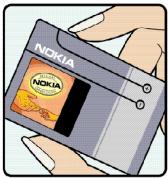
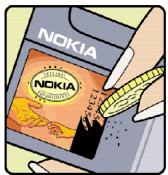
Always use original Nokia batteries for your safety. To check that you are getting an original Nokia battery, purchase it from an authorized Nokia dealer, look for the Nokia Original Enhancements logo on the packaging, and inspect the hologram label using the following steps:
Successful completion of the four steps is not a total assurance of the authenticity of the battery. If you have any reason to believe that your battery is not an authentic original Nokia battery, you should refrain from using it, and take it to the nearest authorized Nokia service point or dealer for assistance. Your authorized Nokia service point or dealer will inspect the battery for authenticity. If authenticity cannot be verified, return the battery to the place of purchase.
Authenticate hologram
- When looking at the hologram on the label, you should see the Nokia connecting hands symbol from one angle and the Nokia Original Enhancements logo when looking from another angle.
- When you angle the hologram left, right, down, and up, you should see 1, 2, 3, and 4 dots on each side respectively.
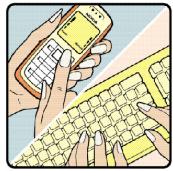
- Scratch the side of the label to reveal a 20-digit code, for example, 12345678919876543210. Turn the battery so that the numbers are facing upwards. The 20-digit code reads starting from the number at the top row followed by the bottom row.
- Confirm that the 20-digit code is valid by following the instructions at www.nokia.com/batterycheck.
natural_image
Illustration of a Nokia 3.024 NOKIA flash drive with a hand holding it (no text or symbols on the device itself)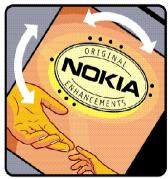
natural_image
Illustration of hands using a mobile phone and keyboard (no text or symbols visible)To create a text message enter the 20-digit code, for example, 12345678919876543210, and send to +44 7786 200276.
To create a text message,
- For countries in Asia Pacific, excluding India: Enter the 20-digit code, for example, 12345678919876543210, and send to +61 427151515.
- For India only: Enter Battery followed by the 20-digit battery code, for example, Battery 12345678919876543210, and send to 5555.
National and international operator charges will apply.
You should receive a message indicating whether the code can be authenticated.
What if your battery is not authentic?
If you cannot confirm that your Nokia battery with the hologram on the label is an authentic Nokia battery, please do not use the battery. Take it to the nearest authorized Nokia service point or dealer for assistance. The use of a battery that is not approved by the manufacturer may be dangerous and may result in poor performance and damage to your device and its enhancements. It may also invalidate any approval or warranty applying to the device.
To find out more about original Nokia batteries, visit www.nokia.com/battery.
Care and maintenance
Your device is a product of superior design and craftsmanship and should be treated with care. The suggestions below will help you protect your warranty coverage.
- Keep the device dry. Precipitation, humidity, and all types of liquids or moisture can contain minerals that will corrode electronic circuits. If your device does get wet, remove the battery and allow the device to dry completely before replacing it.
- Do not use or store the device in dusty, dirty areas. Its moving parts and electronic components can be damaged.
- Do not store the device in hot areas. High temperatures can shorten the life of electronic devices, damage batteries, and warp or melt certain plastics.
- Do not store the device in cold areas. When the device returns to its normal temperature, moisture can form inside the device and damage electronic circuit boards.
-
Do not attempt to open the device other than as instructed in this guide.
-
Do not drop, knock, or shake the device. Rough handling can break internal circuit boards and fine mechanics.
- Do not use harsh chemicals, cleaning solvents, or strong detergents to clean the device.
- Do not paint the device. Paint can clog the moving parts and prevent proper operation.
- Use chargers indoors.
- Always create a backup of data you want to keep (such as contacts and e-mail messages) before sending your device to a service facility.
All of the above suggestions apply equally to your device, battery, charger, or any enhancement. If any device is not working properly, take it to the nearest authorized service facility for service.
Additional safety information
Your device and its enhancements may contain small parts. Keep them out of the reach of small children.
Operating environment
Remember to follow any special regulations in force in any area, and always switch off your device when its use is prohibited or when it may cause interference or danger.
Use the device only in its normal operating positions. This device meets RF exposure guidelines when used either in the normal use position or when positioned at least 1.0 centimeters (3/8 inches) away from the body. When a carry case, belt clip, or holder is used for body-worn operation, it should not contain metal and should position the device the above-stated distance from your body.
To transmit data files or messages, this device requires a quality connection to the network. In some cases, transmission of data files or messages may be delayed until such a connection is available. Ensure the above separation distance instructions are followed until the transmission is completed.
Parts of the device are magnetic. Metallic materials may be attracted to the device, and persons with a hearing aid should not hold the device to the ear with the hearing aid. Do not place credit cards or other magnetic storage media near the device, because information stored on them may be erased.
The product is compliant with the following standards:
EN 300328-2, Harmonised standard for Data Transmission Equipment Operating in the 2.4 GHz Band.
EN 50360, Product Standard to demonstrate the Compliance of Mobile Phones with the Basic Restrictions related to Human Exposure to Electromagnetic Fields.
EN 301 489-01, Electro Magnetic Compatibility Standard for Radio Equipment and Services.
EN 301 489-17, Specific (EMC) Conditions for Wideband Data and Hiperlan Equipment.
EN 60950/IEC950, Safety of Information Technology Equipment.
1999/5/EC, Council Recommendation on the Limitation of Exposure of the General Public to Electromagnetic Fields.
Please check compliance with other standards separately.
Open source software notice
This product includes certain software originating from third parties that is subject to 1. the GNU Library/Lesser General Public License (LGPL), 2. the GNU General Public License (GPL), and 3. different and/or additional copyright licenses, disclaimers, acknowledgements, and notices. The LGPL, GPL and said certain other licenses are available at www.nokia.com/support/770. You may obtain a complete corresponding machine-readable copy of the source code of such software under the LGPL and the GPL at www.nokia.com/support/770. Alternatively, Nokia offers to provide such source code to you on CD-ROM for a charge covering the cost of performing such distribution, such as the cost of media, shipping, and handling, upon written request to Nokia at:
Source Code Requests Multimedia Nokia Corporation P.O.Box 407 FIN-00045 Nokia Group FINLAND
This offer is valid for a period of three (3) years from the date of the distribution of this product by Nokia. Please refer to the exact terms of the LGPL and the GPL regarding your rights under said licenses.
This software is based in part on the work of the Independent JPEG Group. The Graphics Interchange Format ^© is the Copyright property of CompuServe Incorporated. GIF ^SM is a Service Mark property of CompuServe Incorporated.
This product includes software developed by:
- Computing Services at Carnegie Mellon University (http://www.cmu.edu/computing/)
- Tommi Komulainen Tommi.Komulainen@iki.fi
• The Australian National University - The OpenSSL Project for use in the OpenSSL Toolkit (http://www.openssl.org/)
• Gregory M. Christy - Pedro Roque Marques
• Eric Rosenquist, Strata Software Limited
• The XFree86 Project, Inc (http://www.xfree86.org/) and its contributors - The FreeType Team
- Internet Tablet OS 2006 edition User Guide
- DECLARATION OF CONFORMITY
- C€0434 ⏻
- For your safety 4
- Overview...... 6
- Nokia support on the Web...... 6
- Touch screen 7
- Home view.... 10
- Device control.... 11
- Text input methods.... 12
- Text input settings 15
- Volume control.... 15
- Device lock 15
- Memory management...... 16
- Help 18
- Search for information 19
- Define Internet connections .... 19
- WLAN connection.... 20
- Cellular connection.... 21
- Connectivity settings.... 24
- Browse the Web...... 26
- Open and browse Web pages...... 26
- Manage bookmarks.... 27
- Communicate over the Web .... 27
- Accounts 28
- Presence 29
- Contacts 29
- Instant messaging 30
- Internet call.... 31
- E-mail 32
- Media players and viewers..... 35
- Audio player 35
- Internet radio.... 36
- Video player 36
- RSS feed reader.... 37
- Images 37
- Tools.... 38
- Application manager 38
- Connection manager 38
- Control panel 38
- File manager 40
- Utilities and games...... 40
- Calculator 40
- Clock 40
- Notes...... 40
- PDF reader 40
- Sketch 41
- Games 41
- PC connectivity 41
- Software update 42
- Battery information...... 42
- Charging and discharging...... 42
- Nokia battery authentication guidelines.... 43
- Care and maintenance 45
- Additional safety information..... 46
- Open source software notice...... 48
- For your safety
- SWITCH ON SAFELY
- ROAD SAFETY COMES FIRST
- INTERFERENCE
- SWITCH OFF IN HOSPITALS
- SWITCH OFF IN AIRCRAFT
- SWITCH OFF WHEN REFUELING
- SWITCH OFF NEAR BLASTING
- USE SENSIBLY
- QUALIFIED SERVICE
- ENHANCEMENTS AND BATTERIES
- WATER-RESISTANCE
- BACK-UP COPIES
- CONNECTING TO OTHER DEVICES
- About your device
- Network services
- Shared memory
- Overview
- Nokia support on the Web
- Touch screen
- Task navigator
- Application title area
- Status indicator area
- Minimize and close buttons
- Application area
- Toolbar
- Calibrate the touch screen
- Home view
- Device control
- Stylus
- Hardware keys
- ■ Text input methods
- On-screen keyboard
- Full-screen finger keyboard
- Handwriting recognition
- ■ Text input settings
- Volume control
- Device lock
- Change the lock code
- Lock touch screen and keys
- ■ Memory management
- Memory card
- Back up and restore data
- Help
- ■ Search for information
- Define Internet connections
- WLAN connection
- Cellular connection
- Bluetooth wireless technology
- Pair a phone with your device
- Create a cellular connection
- Connectivity settings
- Disable Internet connections
- Browse the Web
- ■ Open and browse Web pages
- Manage bookmarks
- Communicate over the Web
- Accounts
- Presence
- Contacts
- ■ Instant messaging
- Internet call
- Retrieve and read e-mail
- Create and send e-mail
- Inbox folder
- Outbox folder
- Sent folder
- Drafts folder
- Media players and viewers
- Audio player
- Internet radio
- Video player
- ■ RSS feed reader
- Images
- Tools
- Application manager
- ■ Connection manager
- Control panel
- File manager
- Utilities and games
- Calculator
- Clock
- Notes
- PDF reader
- Sketch
- Games
- PC connectivity
- Software update
- Battery information
- - Charging and discharging
- Nokia battery authentication guidelines
- Authenticate hologram
- What if your battery is not authentic?
- Care and maintenance
- Additional safety information
- Operating environment
- Open source software notice
Brand : NOKIA
Model : 770 INTERNET TABLET
Category : Tablet