Card reader - Card Reader Nordea - Free user manual and instructions
Find the device manual for free Card reader Nordea in PDF.


User questions about Card reader Nordea
0 question about this device. Answer the ones you know or ask your own.
Ask a new question about this device
Download the instructions for your Card Reader in PDF format for free! Find your manual Card reader - Nordea and take your electronic device back in hand. On this page are published all the documents necessary for the use of your device. Card reader by Nordea.
USER MANUAL Card reader Nordea
text_image
Nordea Quick guide to your card reader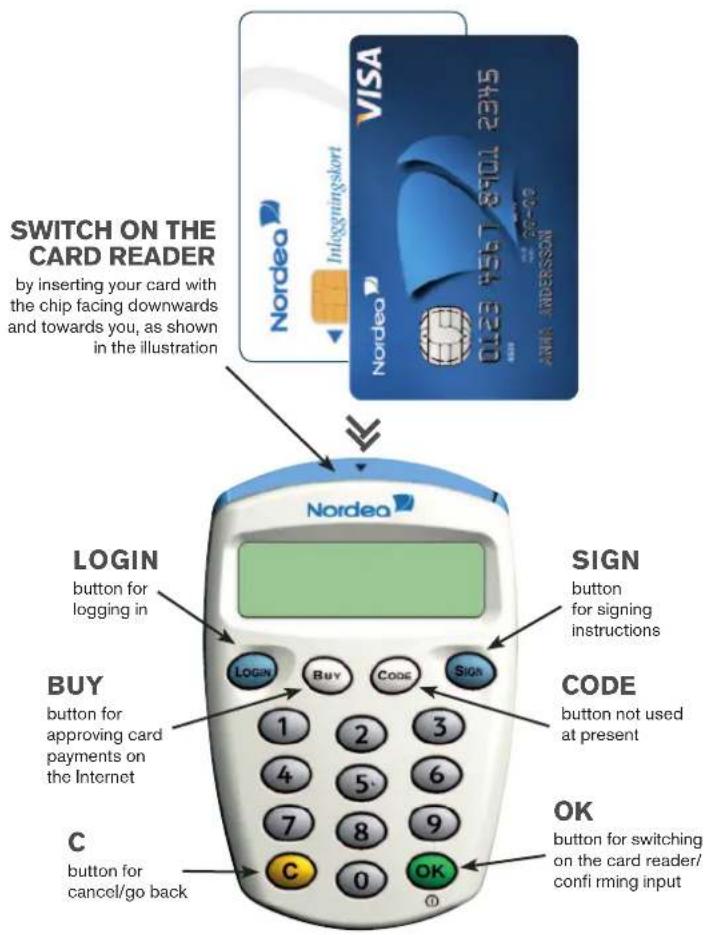
text_image
SWITCH ON THE CARD READER by inserting your card with the chip facing downwards and towards you, as shown in the illustration LOGIN button for logging in BUY button for approving card payments on the Internet C button for cancel/go back SIGN button for signing instructions CODE button not used at present OK button for switching on the card reader/ confi ming inputHow to use the Card reader
- to create response codes for logging in and signing banking transactions via our Internet and telephone services - e-identification on cards (for more information on services, go to www.nordoa.sc/o-logilimation) - approving card payments on the Internet
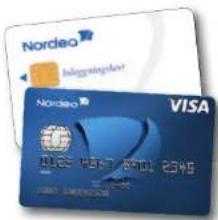
Which cards can be used in conjunction with the card reader? - Private bank- or credit card issued by Nordea - Nordea login card
text_image
Nordea Nordagatoglar Nordagat VISAHow to log in
How to log In with e-code
Do NOT use the cable when logging in with e-code.
1. Select the "e-kod" tab on the service log in page and enter your personal identification number
2. Switch on the card reader by inserting your card – as shown in the illustration – or by pressing OK if the card is already inserted (do not use the cable).
3. The text "Välj funktion" (Select function) appears on the card reader screen. Press the LOGIN button on the card reader.
4. A challenge code (six digits) is shown on the log in page. Enter that code into the card reader. Press OK on the card reader.
5. The text "KortPIN:" (Card PIN) appears on the card reader screen. Enter the PIN code you use for your card (Master Card, VISA card or log in card). Press OK on the card reader
6. The card reader generates a response code (nine digits). Enter this code in the field marked svarskod (response code) on the log in page.
7. Click on Logga in (log in).
How to sign
How to sign your instructions
- Switch on the card reader by Inserting your card – as shown in the Illustration – or by pressing OK if the card is already inserted (do not use the cable).
- The text "Välj funktion" (Select function) appears on the card reader screen. Press the SIGN button on the card reader.
- A challenge code (six digits) is shown on the website where you sign. Enter that code into the card reader. Press OK on the card reader:
- The text "KortPIN:" (Card PIN) appears on the card reader screen. Enter the PIN code you use for your card (MasterCard, VISA card or log in card). Press OK on the card reader
- The card reader generates a response code (nine digits). Enter that code in the field marked svarskod (response code) on the website.
- Click on Signera (Sign) on the website to confirm the instruction.
How to use the telephone services
How to sign your Instruction in Interactive voice response or personal service
-
Switch on the card reader by inserting your card – as shown in the illustration – or by pressing OK if the card is already inserted (do not use the cable).
-
The text "Välj funktion" (Select function) appears on the card reader screen. Press the SIGN button on the card reader.
-
Press # on the telephone.
-
The telephone voice will give you a challenge code (two digits). Enter that code into the card reader. Press OK on the card reader.
-
The text "KortPIN:" (Card PIN) appears on the card reader screen. Enter the PIN code you use for your card (MasterCard, VISA card or log in card). Press OK on the card reader.
-
The card reader generates a response code (nine digits). Enter that code into the telephone, followed by #.
How to use e-identification on a card
What is e-identification on a card?
e-identification is a form of electronic ID used on the Internet to verify a person's identity or approve instructions. The e-identification is free of charge and is available in the chip on your log in card. You also need a card reader with a cable.
Using e-Identification
In several of Nordea's business services, you can log in with the e-identification. Connect the card reader to your computer with the supplied cable, plug in your login card and click "Loggs in" at the login page. Before you can use e-identification, you may need to install some software on your computer. For further instructions and information please visit: nordea.se/card reader
In this services you can use BankID on card:
• Nordea Corporate Services via Internet
• e-services in municipalities, county councils, government agencies and businesses
When can I use BankID on card?
- When logging in and signing banking transactions in our Corporate Services.
- When providing proof of your identity and approving instructions, e.g. with authorities and municipalities.
For information visit nordease/cardreader
How to shop more safely on-line
Use the card reader without the cable in conjunction with your card when you make on-line purchases. When approving your purchases, you will be asked to create a response code using your card reader.
How to approve a card purchase
-
Switch on the card reader by inserting your card – as shown in the illustration – or by pressing OK if the card is already inserted (do not use the cable).
-
The text "Välj funktion" (Select function) appears on the card reader screen. Press the BUY button on the card reader.
-
A challenge code (six digits) is shown on the website where you sign. Enter that code into the card reader. Press OK on the card reader.
-
The text "KortPIN:" (Card PIN) appears on the card reader screen. Enter the PIN code you use for your card (MasterCard or VISA card). Press OK on the card reader.
-
The card reader generates a response code (nine digits). Enter that code in the field marked svarskod (response code) on the website.
-
Click on Fortsätt (Continue) on the website.
-
You are returned to the website's check-out page, where the purchase is completed.