
Y Gaming Mechanical - Keyboard LENOVO - Free user manual and instructions
Find the device manual for free Y Gaming Mechanical LENOVO in PDF.


| Brand | Lenovo |
| Model | Y Gaming Mechanical |
| Product Type | Mechanical Gaming Keyboard |
| Form Factor | Full-Size (104 keys) |
| Switch Type | Mechanical (Red / Blue / Brown options) |
| Backlighting | Per-key RGB with presets |
| Connection | USB 2.0 Type-A, Wired |
| Cable Length | 1.8 m braided cable |
| Dimensions (W x D x H) | 445 x 135 x 38 mm |
| Weight | 950 g |
| Power Supply | USB bus-powered (5V, 500 mA) |
| Polling Rate | 1000 Hz |
| Anti-Ghosting | Supports N-key rollover |
| Onboard Memory | Built-in for profiles (4 profiles) |
| Operating System Support | Windows 10 / 11, Mac OS (partial) |
| Additional Features | Detachable wrist rest, multimedia keys |
| Cleaning and Maintenance | Wipe with soft dry cloth; remove keycaps for deep cleaning |
| Safety Precautions | Avoid liquids, do not disassemble |
| Spare Parts / Repairability | Keycaps available; switches not replaceable |
Frequently Asked Questions - Y Gaming Mechanical LENOVO
User questions about Y Gaming Mechanical LENOVO
0 question about this device. Answer the ones you know or ask your own.
Ask a new question about this device
Download the instructions for your Keyboard in PDF format for free! Find your manual Y Gaming Mechanical - LENOVO and take your electronic device back in hand. On this page are published all the documents necessary for the use of your device. Y Gaming Mechanical by LENOVO.
USER MANUAL Y Gaming Mechanical LENOVO
Set up and get started....2
Prepare for setup....2
Initial setup....2
Learn about gestures ....4
Basic gestures....4
More gestures....5
Customize your home screen....6
Home settings....6
Widgets....7
Wallpaper....7
Use your apps....8
Search for an app 8
Move an app to another screen 8
Manage the open apps....8
Uninstall an app....8
Entertainment Space....9
Open the Entertainment Space 9
Disable the Entertainment Space....9
Notifications and Quick settings....9
Control center style....9
Notifications panel....9
Quick settings panel....10
Factory reset, update and force shutdown ....10
Factory reset 10
System update....10
Force shutdown....11
Settings 12
WLAN 12
VPN....12
Bluetooth....13
Display....13
Brightness....13
Reading mode....13
Eye protection and safety information....13
Biometrics and Passwords 14
One Vision....14
Floating Window 14
Split Screen....15
Digital Wellbeing & parental controls 16
Digital Wellbeing....16
Parental controls....16
Battery....17
Battery Saver....17
Charge optimization....17
Show battery percentage....17
Detect battery drain....17
Overdischarge protection....17
Permission management....18
Language 18
Apps 19
Camera....19
Open Camera....19
Camera settings 19
Switch camera modes....20
View photos and videos....20
Files 20
Browse files....21
Clean files 21
Google apps....21
Advanced features....22
Smart Connect....22
Prepare for setup....22
Connection settings....23
Application....23
More help 24
Legion Space 24
Multiple users....25
Multi-User Preferences ....25
Creating new user accounts....25
Switching between user accounts....25
Deleting a user account 26
PC mode....26
Key Mapping....26
Lab features 26
Accessories (optional) 27
Lenovo Tab Pen Plus....27
Keyboard 29
Appendix 30
Important safety and handling information ....30
Electronic emission notices ....34
Environmental, recycling, and disposal information....36
ENERGY STAR model information....38
Export classification notice....39
Dolby certification....39
HEVC Standard 40
Welcome
Before using your device, be sure to read the following:
- Quick Start Guide
• Safety and Warranty Guide
• Regulatory Notice
To get more information and download the above documents, please go to https://support.lenovo.com.

All pictures and illustrations in this guide are for your reference only. The actual product may vary.
Icons

Instruction, reminder, or suggestion.

Attention or caution.

Danger or warning.
Basics
Set up and get started
Prepare for setup
To make setup as smooth as possible, please prepare the following:
- An internet connection through a Wi-Fi network. You may need the name and password of the Wi-Fi network.
- Your previous device or a backup of your device, if you're transferring your data to your new device.
Initial setup
This device has an easy setup process to help you get going when you first turn on your device. You can follow the onscreen setup instructions manually.
After the initial setup, additional changes can be made in Settings.
-
Press and hold the Power button until you see the Lenovo logo. You will see Hi there on the screen.
-
Choose your language: Tap and select your language from the language list.
-
Vision settings: Tap Ⓞ to customize the size of the display and text, and enable Magnification to improve screen visibility.
-
Tap Start.
- Read and accept the service agreements, then tap Next.
- Connect to Wi-Fi network or mobile network (if your device supports it).
- Tap a network, and enter a password if required.
- Tap Add new network, then type a Wi-Fi network name manually and enter a password if required.
If you set up offline, you need to manually set the time and date in the next step.
-
Copy apps and data, and follow the onscreen instructions.
-
Manage Google services.
-
Check privacy settings.
-
Learn about Legion Game Assistant.
-
Select one of the following screen unlock methods to increase your device security. Follow the onscreen instructions to set a screen unlock method.
-
Password
- Face recognition

Before enabling face-recognition, you need to create a pattern, PIN, or password. You can also tap Skip to set up later in Settings > Biometrics & passwords.
- Select your preferred navigation mode.
- Gesture navigation
Operate your device by gestures. Refer to “Learn about gestures” for details.
- 3-button navigation
Three buttons will appear on the navigation bar at the bottom of the screen.
| Button Description | |
| < | Go backReturning to the previous menu or exiting an app. |
| ○ | HomeReturning to the home screen. |
| ≡ | Switch appsViewing the open apps. |
- Tap Get started, you can get started on your device.
Learn about gestures
Basic gestures
 | TapSelectingor opening an item. |
 | Press and holdAccessing frequently used functions of the app.Customizing your home screen. |
 | SwipeSwiping up to open the list of all apps.Swiping down to open the Notifications panel.Swiping down twice to open the Quick settings panel. |
 | Hold and dragMoving an app to where you want to place it. |
 | Spread and pinchZooming in and out on websites, photos, maps, or other items. |
More gestures
The following gestures are only available for the Gesture navigation style. To change the navigation style, go to Settings > General settings > System navigation.
 | Swipe up from the bottom edge. · Returning to the home screen. |
 | Swipe from the left or right edge. · Switching to the previous page. |
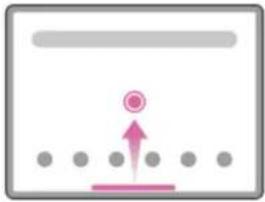 | Swipe up from the bottom edge and hold. · Viewing the open apps. |
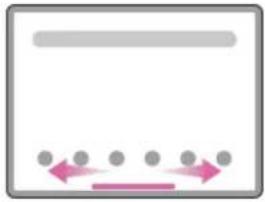 | Swipe left or right at the bottom edge. · Switching between open apps. |
Customize your home screen
The home screen is the starting point for using your device. For your convenience, the home screen is already set up with some useful apps and widgets.
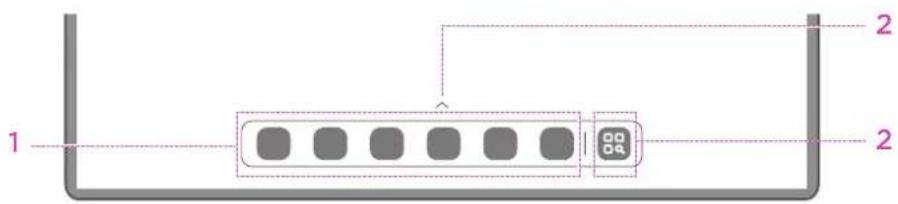
| No. | Function Description | |
| 1 | Taskbar Add apps to the taskbar. | |
| 2 | All applications | • ↗Swipe up to view all apps.• □□Tap to view all apps. |
You can customize your home screen in the following ways.
Home settings
Press and hold anywhere on the home screen except the icons, and tap Home settings to customize your device in the following ways.
- Swipe right to open Entertainment Space from the home screen.
- Select a preferred desktop style.
- Select a preferred home screen layout.
• Show notification dots on app icons.
• Show tips near the app name after updating. - Recommend system apps in drawer.
Widgets
You can add a widget on your home screen. Widgets provide you with quick-views of the calendar events information, mails, maps, and more.
- Press and hold anywhere on the home screen except the icons, tap Widgets, and select a widget you want to add.
- Press and drag the widget to where you want to place it.
- Tap Done.
Wallpaper
To set your wallpaper, do the following:
- Press and hold anywhere on the home screen except the icons, tap Personal customization.
- Select to set wallpaper.
- Dynamic wallpaper
Select an available dynamic wallpaper.
- Local albums
Select a photo. Tap : > Use as to set it as your wallpaper.
- Battery wallpaper
Set a Battery wallpaper on the lock screen displaying the power status: Full, Average, Low, or Charging.
- Exquisite wallpaper
Select an available high quality wallpaper for the screen and/or desktop.

You can also go to Settings > Personal customization to set your wallpaper.
Use your apps
Search for an app
- Tap on the home screen or swipe up from the home screen to see a list of all apps.
- Find an app directly or enter keywords in the search bar to search for an app.
Move an app to another screen
Press and hold the app that you want to move, drag it to where you want to place it, and then release it.
Manage the open apps
-
View a list of open apps using either of the following ways:
-
Swipe up from the bottom of the screen and hold.
-
Tap at the bottom of the screen.
-
On the open app list screen, you can do the following:
-
Tap an app window to access the app.
- Swipe an app window up to close the app.
- Swipe an app window down to lock or unlock the app.
- Press and hold an app window to view more actions.
- Tap Clear all to stop all the apps.
Uninstall an app
- Press and hold an app icon.
- Tap 画
- Tap OK.
Some system apps are required by the device and cannot be uninstalled.
Entertainment Space
Entertainment Space is a one-stop, personalized screen for all your favorite movies, shows, videos, games, and books.
Open the Entertainment Space
Swipe right from the home screen or tap ✦ on the left side of the home screen.

Internet connection and Google account sign-in are necessary for using the Entertainment Space.
Disable the Entertainment Space
Entertainment Space is enabled by default. Go to Home settings and disable Swipe to access Entertainment Space.
Notifications and Quick settings
Control center style
Go to Settings > Notifications & control center > Control center style, to set the style of the Notifications and Quick settings panels.
Notifications panel
The Notifications panel informs you of new messages, USB connections, activities in progress such as file downloading, and more.
- To see notifications, swipe down from the top of the screen.
- To close the Notifications panel, swipe up from the bottom of the screen.
- To dismiss a notification, swipe left or right across the notification.
- To dismiss all notifications, tap ⊗ at the bottom of the Notifications panel.
- To manage notifications, tap Manage at the bottom of the Notifications panel, or go to Settings > Notifications & control center.
Quick settings panel
The Quick settings panel provides quick access to device functions. Icons change colors when corresponding functions are enabled and disabled.
- To open the Quick settings panel, swipe down from the top of the screen twice.
- To close the Quick settings panel, swipe up from the bottom of the screen.
- To enable or disable a function, tap the function icon.
- Press and hold a function icon to open the function's setting screen (if provided).
- Tap to switch accounts.
- Tap to edit the Quick settings panel.
- Tapto open Settings.
- Tap! to power off or restart your device.
Factory reset, update and force shutdown
Factory reset
Factory reset will erase all data from your device's internal storage. Please back up important data on the device before resetting your device.
- Go to Settings > General settings > Reset options > Erase all data (factory reset).
- Tap Erase all data to reset the manufacturer's default settings.
System update
Your device will prompt you to download and install updates when a new system version is available. You can also manually check for updates and set update methods.
- Go to Settings > About tablet > System update, and tap Check for updates.
- Tap · at the top right of the screen to enable or disable the automatic download and overnight upgrade features as needed.
Download and install system updates from official sources only.
Force shutdown
Press and hold the Power and Volume down buttons for about 8 seconds until the device turns off.
Settings
WLAN
Connect your device to the internet by using an available Wi-Fi network.
- Go to Settings > WLAN, and turn on WLAN to display a list of available networks.
- Tap a network, and enter a password if required.
- Tap Connect.
After the device is connected to a network, will be displayed at the top of the screen.
VPN
VPNs are used within organizations to allow you to communicate private information securely over a non-private network. You may need to configure a VPN, for example, to access your work email. Ask the network administrator for the settings necessary to configure a VPN for your network.
- Go to Settings > More connections > VPN.
- Tap to edit the VPN profile.
- Tap Save.
- Tap ① to edit or forget the VPN.
Bluetooth
You can pair your device to other Bluetooth-enabled devices, like Bluetooth headphones.
- Go to Settings > Bluetooth, and enable Bluetooth.
- Select a device name to match and connect.
After the device is connected to a Bluetooth device, will be displayed at the top of the screen.
Display
Brightness
- Manual adjustment
Go to Settings > Display, and move the Brightness slider to adjust the screen brightness manually.
• Automatic adjustment
Go to Settings > Display, and enable Adaptive brightness to allow the screen to change brightness as lighting changes automatically.
Reading mode
- Go to Settings > Display > Reading mode, and turn on Reading mode.
- Select a reading mode display effect.
Eye protection and safety information
When eye protection is enabled, the screen will have an amber tint, which reduces blue light. This allows you to read or view the screen more comfortably in dimly lit environments.
- Go to Settings > Display > Eye protection mode, and enable Eye protection.
- Tap Turn on at custom time to customize your eye protection mode time.
- Slide the Intensity slider to adjust the light as needed.
Please use the device in a well-lit area, and when using the device, keep it at a suitable distance from your eyes. To avoid eyestrain, take a break from looking at the screen after a period of time.
While concentrating on the performance capabilities of its screens, Lenovo also places importance on users' eye health. This product has received TÜV Rheinland's "Low Blue Light" certification and can be used with confidence. For further information, please visit https://support.lenovo.com.
Biometrics and Passwords
Setting a lock screen is an effective way to increase device security.
- Go to Settings > Biometrics & passwords.
- To set screen lock, do any of the following:
- Passwords
Select Pattern, PIN or Password to increase your device security.
- Facial recognition
Face-recognition is set in combination with the pattern, PIN, or password as an alternate screen unlock method.
- Follow the onscreen instructions to set up your device.
One Vision
Floating Window
The Floating window feature is used for handling temporary tasks without having to switch between apps.
To open Floating Window, do one of the following:
- Press and hold an app icon, then tap
- Open an app. At the bottom of the app, press and drag the page to ☐ at the top of the screen, then release the page.
- Open an app, then tap • .
Go to Settings > One Vision > Floating Window to view more gestures to operate floating window.
Split Screen
Split screen mode enables you to open apps on the screen and use them at the same time.
Enable split screen mode
To open split screen, do one of the following:
- Method one:
- In full-screen mode of the app, open the list of all apps.
- Select the app you want to split, press and drag the app icon to the edge of the screen.
- Method two:
In full-screen mode of the app, tap dots > ☐.
- Method three:
- Open the list of the open apps.
- Press and hold an app window, and then tap
Not all applications support split screen mode.
Manage the split screen
In split screen mode, you can do the following:
- Adjust the split screen size
Slide the in the middle of the screens to adjust the split screen size.
- Replace the second app
Press and drag the app to the edge of the screen until the screen color turns grey.
- Switch split screen to floating window
Tap • at the top of the app and then tap.
Exit split screen mode
- Slide the edge to the edge of the screen.
- Tap ... at the top of the app and then tap
Digital Wellbeing & parental controls
With Digital Wellbeing & parental controls, you can access real-time reports showing how much time you spend on your device. You can also set limits for what you want to manage.
Go to Settings > Digital Wellbeing & parental controls, and then set the related functions.
Digital Wellbeing
- Dashboard
- View your screen time, notifications received and times opened.
- Set daily timers for most apps.
- Bedtime mode
- Customize the start and end times of bedtime mode.
- Set the time period during which the device will automatically activate Bedtime mode while charging.
- Focus mode
Select distracting apps, then tap Turn on now to pause distracting apps and hide their notifications.
- Manage notifications
Disable or enable notifications for specific apps.
- Do Not Disturb
Block notifications and avoid interruption when you need to concentrate.
- Heads Up
Remind you to stop using your phone while walking.
• Show icon in the app list
Display the digital wellbeing icon in the list of all apps.
Parental controls
- Tap Set up parental controls and follow the on screen instructions. You can connect your parent's device or your child's device using Google Family Link.
- After connecting the devices, a parent can manage mature content, website access, location services, and other settings on a child's device.
Battery
Go to Settings > Battery, and you can check the battery usage and manage the battery.
Battery Saver
Reduce power consumption by limiting background activity, visual effects, certain features, and some network connections.
Charge optimization
Enable Charging Protection and Battery Maintenance mode to extend battery life.
Charging Protection prevents charging for extended periods, which exposes the battery to high temperatures and high voltage that may cause it to age faster. When the mode is enabled, power will eventually be maintained at 40% to 60% to extend battery life.
Show battery percentage
Show or hide the battery percentage in the status bar.
Detect battery drain
Smart detect the software and hardware that consume abnormal power.
Tap Optimize All to optimize battery consumption.
Overdischarge protection
Switch off the device if it is under low battery condition and has not been used for a long time for better performance.
Permission management
Some apps may require your permission for location or privacy data access to provide corresponding services. To manage app permissions, do any of the following methods:
- Manage an individual app's permissions
Press and hold an app, tap ⓘ to go to App info > Permissions. Check the permissions granted or denied to the app, and tap to modify the permission.
- Manage permissions by category
- Location: Go to Settings > Location, check the apps that access location, and tap an app to modify the permission.
- Privacy: Go to Settings > Security & privacy > Privacy > Permission manager, select a capability, check the apps that access the capability, and tap an app to modify the permission.
Language
You can add frequently-used languages to your list and set your system language.
-
Go to Settings > General settings > Languages & input > Languages.
-
Tap Add a language and select the language that you want to add.
-
Tap Change.

Set the system language by dragging to the top of the list.
Apps
Camera
Open Camera
Tap on the home screen to open Camera.
On some models, the app may not appear on the home screen. You can open the list of all apps and find the app.
Camera settings
Use the icons on the main camera screen and the settings menu to configure your camera's settings.
| Icon Description | |
 | Switch to front camera or rear camera |
 | Take a photo |
 | Select photo size |
 | Set flash settings |
 | Turn HDR on and off |
 | Blur the background |
 | Apply beauty effects |
 | Select a filter and preview the effect |
 | Turn AI photo assistant on and off |
| ≡ | Configure other camera settings |
 | Open Google Lens to identify what your camera captures. |
 | Record a videoTapVideoto switch to the video mode before you can see this icon. |
Switch camera modes
• Video
Record videos.
• Photo
Take photos.
- Macro
Take close shots of small objects such as insects, flowers, and birds.
- Documents
Position the document in view of the camera and tap ●The scanned document can be saved as PDF or JPG.
View photos and videos
Photos and videos are stored in your device's internal storage. You can view your photos and videos by using the following methods.
- Tap the thumbnail when using the Camera app.
- Go to Photos.
- Go to Files.
Files
Open the list of all apps. Tap to open Files. You can view and manage files stored on your device, including images, videos, audio, and more.
Browse files
Go to Files, and you can do the following:
• View recently stored files.
• View files by category.
- Tap Internal storage and view files by storage path.
- Tap 🔒 at the top left of the screen, and type in keywords to search for a file.
Clean files
Go to Files > ≡ > Clean, check the internal storage space and clean junk files.
Google apps
Google apps are preinstalled on your device. You can visit support.google.com to learn more about Google apps. The apps can be also obtained from Google Play Store.
Advanced features
Smart Connect
Smart Connect allows you to easily connect and manage various Lenovo devices, enabling cross-device collaboration.

flowchart
graph TD
    A["Central Platform"] --> B["Monitor"]
    A --> C["Laptop"]
    A --> D["Smartphone"]
    A --> E["Tablet"]
Prepare for setup
On your tablet and other devices, do the following:
- On your computer: Download and install Smart Connect through the Lenovo App Store or Microsoft Store.
- On your tablet or smartphone: Ensure Smart Connect is pre-installed, or download and install it through the Lenovo App Store.
- Supported system versions: Lenovo tablet or smartphone with ZUI 13 or later, and computer with Windows 10 or later.
• See "More help" for details on supported devices.
Connection settings
natural_image
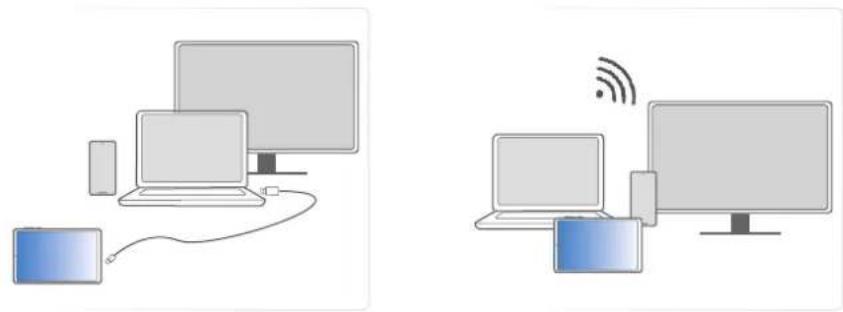
Two diagrams showing connected devices: one with a laptop and USB cable, the other with a network icon (no text or symbols)-
USB cable: Use a USB cable to connect your tablet, smartphone, and computer, and then follow the onscreen instructions.
-
Wireless connections:
-
Network interconnection: Devices access the same wireless network, scan the QR code to pair.
- Hotspot interconnection: After connecting one device to another device's hotspot, scan the QR code to pair.
- Account synchronization: Devices access the same wireless network and log in to the same Lenovo account for pairing.

Once paired, devices can be reconnected by connecting with a USB cable or by accessing the same network. Then, tap to reconnect.
Application
After connecting devices through Smart Connect, you can do the following:
- App streaming
Project the tablet or smartphone app onto the computer and run the mobile app directly on the computer.
Click or drag with the mouse to complete the corresponding operation on the mobile device.
- Webcam
Use your tablet or smartphone as a computer's external webcam for high portability, clear video quality, and special effects, solving the problem of a poor built-in webcam.
Webcam offers convenience for office meetings and live streaming.
- Files
View and manage files across connected devices using your computer, tablet, or smartphone, facilitating multi-device file sharing.
- PC lock
Lock your computer remotely from your tablet or smartphone. To unlock, you need to unlock it on the computer. PC lock is only available on mobile devices.
- Smart clipboard
Copy and paste text and images seamlessly across devices for enhanced portability.
- Cross control
- Use a single set of keyboard and mouse to seamlessly switch between your computer, tablet, and smartphone, easily managing multiple devices.
-
Expand your workspace by using the tablet as an extended display for your computer.
-
Extended mode: Acting as a second screen, the tablet or smartphone independently displays different content, allowing you to manage multiple tasks simultaneously.
- Mirror mode: Serving as a mirrored display of the computer, the tablet or smartphone shows identical content. This mode is ideal for meeting presentations or screen sharing.
- Share hub
Drag files to the share hub to sync and access them across devices.
More help
Tap > ≡ > Help for more details about Smart Connect.
Legion Space
Legion Space is an app developed specifically to help you manage your game resources and experience the game's atmosphere.
In this app, you can:
• View all games and the recently played games.
- Turn on Competition atmosphere.
- Adjust performance settings by clearing the cache and freeing ROM.
Multiple users
Multi-User Preferences
There are three user types:
- Owner: An owner has full control over all user permissions and manages all user accounts.
- Guest: There is only one guest account. A guest has restricted access to the device.
- New user: There can be multiple standard user accounts.
Creating new user accounts
Swipe down from the top right corner of the screen.
Tap Add user to create a standard user account.
Or go to Settings > General settings > Multiple users.
- Tap Add guest to create a guest account.
- Tap Add user, and then enter User info to create a standard user account.
Switching between user accounts
- On the home screen, swipe down from the top right corner of the screen, and then tap to switch between different user accounts.
- On the lock screen interface, tap then select the user you want to switch to.
- Go to Settings > General settings > Multiple users, then select the user account you want to switch to.
Deleting a user account
Swipe down from the top right corner of the screen. Tap MORE SETTINGS, select the account you want to delete, then tap Delete user to delete accounts. You can also go to Settings > General settings > Multiple users to delete accounts.
PC mode
PC mode brings the classic PC desktop experience to your tablet and supports open applications in multi-windows. This mode makes your operation more intuitive and helps you multitask more efficiently.
Go to Settings > Advanced features > PC mode and enable PC mode.
Key Mapping
Key Mapping allows you to operate applications by using multiple peripherals such as a keyboard, mouse, and controller.
Go to Settings > Advanced features > Key Mapping and enable Key Mapping. You can use Bluetooth to connect to your mouse, keyboard or controller.
Lab features
Go to Settings > Advanced features > Lab features to explore a variety of features.
• Video Call Assistant
Video Call Assistant provides additional functions in your commonly-used video applications. These functions include: beautifying background, virtual background, and screen sharing.
• In-application blocking notification
You can select the applications you don't want to receive notifications from. And if you use any of the applications on the list, you won't be bothered.
Accessories (optional)
The accessories do not come with all models, and are sold separately.
Lenovo Tab Pen Plus
This device supports Bluetooth connection to the pen. Before using the pen for the first time, please charge the pen for pairing.
- Go to Settings > Bluetooth, and enabled Bluetooth.
- Press and hold the pen button for 8 seconds to enter pairing mode.
- Tap Connect > Complete on your tablet.
- Go to Settings > Pen & keyboard > Pen.
- Follow the onscreen instructions to set functions as needed.
- Stylus tool box
Display a Stylus tool box containing frequently used functions at the edge of the screen.
| Icon Description | |
 | Annotate directly on any application |
 | Open Google Lens |
 | Take a screenshot |
 | Create a note |
 | Show the pen track Only supports pen operation |
 | Magnify the area you tap with the pen Only supports pen operation |
 | Enable the remote control |
 | Settings |
- Handwrite
Use the pen to write within any text area and convert the content to text.
- Quick notes
Hold down the pen button while tapping the screen to create a note.

You can also tap Create quick notes when the screen is off to create a note when the screen is off.
- Press the stylus button
Select Show or hide the stylus menu or Do nothing when the pen button is pressed.
- Remote control
Remote control supported media or apps by using the stylus button.

The functions of the pen button may vary across different apps. For details, refer to the onscreen instructions.
- Swipe at the lower left corner and Swipe at the lower right corner
Select Easy Jot, Screenshot, Quick notes or None when using the pen to swipe at the lower left or right corners.
- Accidental touch protection
You can enable or disable Accidental touch protection for applications you want.

Accidental touch protection cannot be disabled in some applications.
- Anti-lost alert
The system will alert you if you left your pen behind.
- Show pointer when hovering
When you hover the pen over the screen, the pointer is displayed to help you better locate the pen tip's position.
- Handwriting Sound
Play sound while writing on the screen to simulate the real writing experience.
- Firmware update
Check the current version of the pen and manually check for updates.
Keyboard
You can work more efficiently by using a keyboard. To view more features, go to Settings > Pen & keyboard > Physical keyboard.
- Keyboard shortcuts
Keyboard shortcuts are available for performing functions quickly. Go to Settings > Pen & keyboard > Physical keyboard > Keyboard shortcuts to view all keyboard shortcuts.
Press and hold Ctrl for 3 seconds to view keyboard shortcuts at any time.
- Use on-screen keyboard
Keep virtual keyboard on screen while physical keyboard is active.
- Modifier keys
Go to Settings > Pen & keyboard > Physical keyboard > Modifier keys to change the behavior of keys.
- Set up system mode when a keyboard is connected
When connected a physical keyboard, you can switch to the PC mode. And you can enable the Automatically exit PC mode when the keyboard is disconnected.
For more information about PC mode, refer to "PC mode".
Appendix
Important safety and handling information
To avoid personal injury, property damage, or accidental damage to the product, read all of the information in this section before using the product. For additional tips to help you operate your device safely, go to http://www.lenovo.com/safety.
Handle your device with care
Do not drop, bend, or puncture your device; do not insert foreign objects into or place heavy objects on your device. Sensitive components inside might become damaged.
Your device screen is made of glass. The glass might break if the device is dropped on a hard surface, is subjected to a high impact, or is crushed by a heavy object. If the glass chips or cracks, do not touch the broken glass or attempt to remove it from the device. Stop using the device immediately and contact Lenovo technical support for repair, replacement, or disposal information.
When using your device, keep it away from hot or high-voltage environments, such as electrical appliances, electrical heating equipment, or electrical cooking equipment. Use your device only in the temperature range of 0irc C ( 32irc F) to 40irc C ( 104irc F) (storage -20irc C ( -4irc F) to 60irc C ( 140irc F)) to avoid damage.
Don't expose your device to water, rain, extreme humidity, sweat or other liquids.
Do not disassemble or modify your device
Your device is a sealed unit. There are no end-user serviceable parts inside. All internal repairs must be done by a Lenovo-authorized repair facility or a Lenovo-authorized technician. Attempting to open or modify your device will void the warranty.
Built-in rechargeable battery notice
Do not attempt to replace the internal rechargeable lithium ion battery. There is a risk of explosion if the battery is replaced with an incorrect type. Contact Lenovo Support for replacement.
Plastic bag notice

DANGER
Plastic bags can be dangerous. Keep plastic bags away from babies and children to avoid danger of suffocation.
Adapter information
- Prevent your device and AC adapter from getting wet.
Do not immerse your device in water or leave your device in a location where it can come into contact with water or other liquids.
- Use approved charging methods only.
Please only use standard Lenovo power adapters. The use of third-party power adapters will affect the charging speed, resulting in abnormal charging and potential damage to the equipment.
- Connect a standard power adapter to a suitable power outlet.
- Use a standard data cable to connect the device to a PC or a device that complies with USB 2.0 or higher.
Charging devices might become warm during normal use. Ensure that you have adequate ventilation around the charging device. Unplug the charging device if any of the following occurs:
- The charging device has been exposed to rain, liquid, or excessive moisture.
- The charging device shows signs of physical damage.
- You want to clean the charging device.

WARNING
Lenovo is not responsible for the performance or safety of products not manufactured or approved by Lenovo. Use only approved Lenovo ac adapters and batteries.
EU ErP (EcoDesign) Directive (2009/125/EC) - external power adapters (Regulation (EU) 2019/1782)
Ecodesign for Energy-Related Products Regulations 2010 - UK SI 2010 No. 2617 (Ext PSU), SI 2020 No. 485 (Ntwk Standby), SI 2014 No. 1290 as amended
Lenovo products are in compliance with the EU EcoDesign (ErP) Directive & UK EcoDesign for Energy-related Products Regulations. Refer to the following for details:
For EU, refer to the system declaration
https://www.lenovo.com/us/en/compliance/eu-doc, and for UK refer to the system declaration https://www.lenovo.com/us/en/compliance/uk-doc.
Caution about high volume usage

WARNING
Exposure to loud noise from any source for extended periods of time may affect your hearing. The louder the sound, the less time is required before your hearing could be affected.
To protect your hearing:
- Limit the amount of time you use headsets or headphones at high volume.
- Avoid turning up the volume to block out noisy surroundings.
- Turn the volume down if you can't hear people speaking near you.
If you experience hearing discomfort, including the sensation of pressure or fullness in your ears, ringing in your ears or muffled speech, you should stop listening to the device through your headset or headphones and have your hearing checked.

To prevent possible hearing damage, do not listen at high volume levels for long periods.
Take care when using your device in a motor vehicle or on a bicycle
Always prioritize your safety and the safety of others. Follow the law. Local laws and regulations might govern how you can use mobile electronic devices, such as your device, while you drive a motor vehicle or ride a bicycle.
Dispose according to local laws and regulations
When your device reaches the end of its useful life, do not crush, incinerate, immerse in water, or dispose of your device in any manner contrary to local laws and regulations. Some internal parts contain substances that can explode, leak, or have adverse environmental effects if disposed of incorrectly.
See “Environmental, recycling, and disposal information” for additional information.
Keep your device and accessories away from small children
Your device contains small parts that can be a choking hazard to small children. Additionally, the glass screen can break or crack if dropped on or thrown against a hard surface.
Protect your data and software
Do not delete unknown files or change the name of files or directories that were not created by you. Otherwise, your device software might fail to work.
Be aware that accessing network resources can leave your device vulnerable to computer viruses, hackers, spyware, and other malicious activities that might damage your device, software, or data. It is your responsibility to ensure that you have adequate protection in the form of firewalls, antivirus software, and anti-spyware software and keep such software up to date.
Keep electrical appliances away from your device. These include electric fans, radios, high-powered speakers, air-conditioners, and microwave ovens. The strong magnetic fields generated by electrical appliances can damage the screen and the data on the device.
Be aware of heat generated by your device
When your device is turned on or the battery is charging, some parts might become hot. The temperature that they reach depends on the amount of system activity and the battery charge level. Extended contact with your body, even through clothing, could cause discomfort or even a skin burn. Avoid keeping your hands, your lap, or any other part of your body in contact with a hot section of the device for any extended time.
Electronic emission notices
FCC Compliance Statement
This equipment has been tested and found to comply with the limits for a Class B digital device, pursuant to Part 15 of the FCC Rules. These limits are designed to provide reasonable protection against harmful interference in a residential installation. This equipment generates, uses, and can radiate radio frequency energy and, if not installed and used in accordance with the instructions, may cause harmful interference to radio communications. However, there is no guarantee that interference will not occur in a particular installation. If this equipment does cause harmful interference to radio or television reception, which can be determined by turning the equipment off and on, the user is encouraged to try to correct the interference by one or more of the following measures:
- Reorient or relocate the receiving antenna.
- Increase the separation between the equipment and receiver.
- Connect the equipment to an outlet on a circuit different from that to which the receiver is connected.
- Consult an authorized dealer or service representative for help.
Lenovo is not responsible for any radio or television interference caused by unauthorized changes or modifications to this equipment. Unauthorized changes or modifications could void the user's authority to operate the equipment.
This device complies with Part 15 of the FCC Rules. Operation is subject to the following two conditions: (1) this device may not cause harmful interference, and (2) this device must accept any interference received, including interference that may cause undesired operation.
Responsible Party:
Lenovo (United States) Incorporated
1009 Think Place - Building One
Morrisville, NC 27560
Telephone: 1-919-294-5900
ISED Caution
This device complies with Innovation, Science and Economic Development Canada license-exempt RSS standard(s). Operation is subject to the following two conditions:
(1) This device may not cause interference, and (2) this device must accept any interference, including interference that may cause undesired operation of the device.
Japanese VCCI Class B statement
Japan compliance statement for products that connect to power mains rated at less than or equal to 20A per phase
Environmental, recycling, and disposal information
General recycling statement
Lenovo encourages owners of information technology (IT) equipment to responsibly recycle their equipment when it is no longer needed. Lenovo offers a variety of programs and services to assist equipment owners in recycling their IT products. For information on recycling Lenovo products, go to http://www.lenovo.com/recycling.
Important battery and WEEE information
Take back and recycling information for WEEE and batteries/accumulators in the European Union and the United Kingdom

The crossed-out wheeled bin marking applies only to countries with WEEE and batteries waste regulations within the European Union (EU), and United Kingdom (UK).
Appliances and batteries/accumulators are labeled in accordance with local regulations concerning waste electrical and electronic equipment (WEEE) and waste batteries and waste accumulators. These regulations determine the framework for the return and recycling of used appliances and used batteries/accumulators as applicable within each geography. This label is applied to various products to indicate that the product is not to be thrown away, but rather put in the established collection systems for reclaiming these end of life products.
The label on the battery may also include a chemical symbol for the metal concerned in the battery (Pb for lead, Hg for mercury, and Cd for cadmium).
Users of electrical and electronic equipment (EEE) and users of batteries/accumulators with the crossed-out wheeled bin marking must not dispose of end of life products as unsorted municipal waste, but use the collection framework available to them for the return, recycle, and recovery of WEEE and waste batteries/accumulators and to minimize any potential effects of EEE and batteries on the environment and human health due to the presence of hazardous substances.
Lenovo electrical and electronic equipment (EEE) may contain parts and components, which at end-of-life might qualify as hazardous waste.
EEE and waste electrical and electronic equipment (WEEE) can be delivered free of charge to the place of sale or any distributor that sells electrical and electronic equipment of the same nature and function as the used EEE or WEEE.
Before placing electrical and electronic equipment (EEE) in the waste collection stream or in waste collection facilities, the end user of equipment containing batteries and/or accumulators must remove those batteries and accumulators for separate collection.
Dispose of lithium batteries and battery packs from Lenovo products:
A coin-cell type lithium battery might be installed inside your Lenovo product. You can find details about the battery in the product documentation. If the battery needs to be replaced, contact your place of purchase or contact Lenovo for service. If you need to dispose of a lithium battery, insulate it with vinyl tape, contact your place of purchase or a waste-disposal operator, and follow their instructions.
Your Lenovo device might contain a lithium-ion battery pack or a nickel metal hydride battery pack. You can find details on the battery pack in the product documentation. If you need to dispose of a battery pack, insulate it with vinyl tape, contact Lenovo sales, service, or your place of purchase, or a waste-disposal operator, and follow their instructions. You also can refer to the instructions provided in the user guide for your product.
For proper collection and treatment, go to:
https://www.lenovo.com/environment.
For additional WEEE information, go to: https://www.lenovo.com/recycling.
Battery recycling information for Brazil
Recycling information for Japan
Recycling and disposal information for Japan is available at
http://www.lenovo.com/recycling/japan.
Recycling information for India
Recycling and disposal information for India is available at
https://www.lenovo.com/in/en/social_responsibility/sustainability/ptb_india.html.
Battery recycling marks
• The battery recycling information of Taiwan
- Battery recycling information for the United States and Canada

US & Canada Only
ENERGY STAR model information
ENERGY STAR ® is a joint program of the U.S. Environmental Protection Agency and the U.S. Department of Energy aimed at saving money and protecting the environment through energy efficient products and practices.
Lenovo is proud to offer our customers products with the ENERGY STAR qualified designation. You might find an ENERGY STAR mark affixed on the
computer or displayed on the power settings interface. Lenovo tablets of the following model name, if carry an ENERGY STAR mark, have been designed and tested to conform to the ENERGY STAR program requirements for tablets.
TB321FU
By using ENERGY STAR qualified products and taking advantage of the power-management features of the tablet, you can help reduce the consumption of electricity. Reduced electrical consumption can contribute to potential financial savings, a cleaner environment, and the reduction of greenhouse gas emissions.
For more information about ENERGY STAR, go to http://www.energystar.gov.
Lenovo encourages you to make efficient use of energy an integral part of your day-to-day operations. To help in this endeavor, Lenovo has preset the following power-management features to take effect when the computer has been inactive for a specified length of time:
Power plan: Default
Turn off the display: After 30 seconds.
Press the power button to turn on the display.
The Wake on LAN function: NA
Export classification notice
This product is subject to the United States Export Administration Regulations (EAR) and has an Export Classification Control Number (ECCN) of 5A992.c. It can be re-exported except to any of the embargoed countries in the EAR E1 country list.
Dolby certification
Dolby, Dolby Atmos, and the double-D symbol are registered trademarks of Dolby Laboratories Licensing Corporation. Manufactured under license from Dolby Laboratories. Confidential unpublished works. Copyright © 2012-2024 Dolby Laboratories. All rights reserved.
HEVC Standard
This product supports digital video coding under certain versions of HEVC standard and is covered by patents at patentlist.accessadvance.com.
HENC Advance®
Lenovo



- Settings 12
- Apps 19
- Advanced features....22
- Accessories (optional) 27
- Appendix 30
- Welcome
- Icons
- Basics
- Set up and get started
- Prepare for setup
- Initial setup
- - Gesture navigation
- - 3-button navigation
- Learn about gestures
- Basic gestures
- More gestures
- Customize your home screen
- Home settings
- Widgets
- Wallpaper
- Use your apps
- Search for an app
- Move an app to another screen
- Manage the open apps
- Uninstall an app
- Entertainment Space
- Open the Entertainment Space
- Disable the Entertainment Space
- Notifications and Quick settings
- Control center style
- Notifications panel
- Quick settings panel
- Factory reset, update and force shutdown
- Factory reset
- System update
- Force shutdown
- Settings
- WLAN
- VPN
- Bluetooth
- Display
- Brightness
- Reading mode
- Eye protection and safety information
- Biometrics and Passwords
- One Vision
- Floating Window
- Split Screen
- Enable split screen mode
- - Method one:
- - Method two:
- - Method three:
- Manage the split screen
- Exit split screen mode
- Digital Wellbeing & parental controls
- Digital Wellbeing
- - Dashboard
- - Bedtime mode
- - Focus mode
- - Manage notifications
- - Do Not Disturb
- - Heads Up
- • Show icon in the app list
- Parental controls
- Battery
- Battery Saver
- Charge optimization
- Show battery percentage
- Detect battery drain
- Overdischarge protection
- Permission management
- Language
- Apps
- Camera
- Open Camera
- Camera settings
- Switch camera modes
- View photos and videos
- Files
- Browse files
- Clean files
- Google apps
- Advanced features
- Smart Connect
- Connection settings
- Application
- - Files
- - PC lock
- - Smart clipboard
- - Cross control
- - Share hub
- More help
- Legion Space
- Multiple users
- Multi-User Preferences
- Creating new user accounts
- Switching between user accounts
- Deleting a user account
- PC mode
- Key Mapping
- Lab features
- Accessories (optional)
- Lenovo Tab Pen Plus
- - Stylus tool box
- - Handwrite
- - Quick notes
- - Press the stylus button
- - Remote control
- - Swipe at the lower left corner and Swipe at the lower right corner
- - Accidental touch protection
- - Anti-lost alert
- - Show pointer when hovering
- Keyboard
- Appendix
- Important safety and handling information
- Handle your device with care
- Do not disassemble or modify your device
- Built-in rechargeable battery notice
- Plastic bag notice
- DANGER
- Adapter information
- WARNING
- EU ErP (EcoDesign) Directive (2009/125/EC) - external power adapters (Regulation (EU) 2019/1782)
- Ecodesign for Energy-Related Products Regulations 2010 - UK SI 2010 No. 2617 (Ext PSU), SI 2020 No. 485 (Ntwk Standby), SI 2014 No. 1290 as amended
- Caution about high volume usage
- Take care when using your device in a motor vehicle or on a bicycle
- Dispose according to local laws and regulations
- Keep your device and accessories away from small children
- Protect your data and software
- Be aware of heat generated by your device
- Electronic emission notices
- FCC Compliance Statement
- ISED Caution
- Japanese VCCI Class B statement
- Japan compliance statement for products that connect to power mains rated at less than or equal to 20A per phase
- Environmental, recycling, and disposal information
- General recycling statement
- Important battery and WEEE information
- Battery recycling information for Brazil
- Recycling information for Japan
- Recycling information for India
- Battery recycling marks
- ENERGY STAR model information
- TB321FU
- Export classification notice
- Dolby certification
- HEVC Standard
- Lenovo
Brand : LENOVO
Model : Y Gaming Mechanical
Category : Keyboard