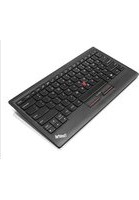
4X30E51025 - Keyboard LENOVO - Free user manual and instructions
Find the device manual for free 4X30E51025 LENOVO in PDF.


Pick your language and provide your email: we'll send you a specifically translated version.
| Product Type | Wireless Keyboard |
| Interface | 2.4 GHz Wireless via USB Nano Receiver |
| Keyboard Layout | QWERTY with Numeric Keypad |
| Number of Keys | 104 |
| Multimedia Keys | 12 Dedicated Quick Access and Media Keys |
| Battery Type | 2 x AAA Alkaline (included) |
| Battery Life | Up to 24 Months (depending on usage) |
| Dimensions (W x H x D) | 450.5 x 157.9 x 32.5 mm |
| Weight | 497 g |
| Spill Resistance | Up to 60 ml Liquid (tested under controlled conditions) |
| Compatible Operating Systems | Windows 7/8/10/11, macOS, Chrome OS |
| Power Source | Battery Powered - 2 x AAA |
| Special Features | Adjustable Tilt Stand, Low-Profile Keys, Plug and Play Connectivity |
| Maintenance and Cleaning | Disconnect Receiver, Remove Batteries, Wipe with Soft Dry Cloth |
| Safety Precautions | Do Not Expose to Liquids, Avoid Direct Sunlight, Keep Away from Fire |
| Spare Parts and Repairability | No User-Serviceable Parts - Contact Lenovo Authorized Service for Repairs |
| General Information | User Manual Available for Free Download in PDF |
Frequently Asked Questions - 4X30E51025 LENOVO
How do I connect the Lenovo 510 wireless keyboard to my computer?
Plug the USB Nano receiver into an available USB port on your computer. Insert two AAA batteries into the keyboard, then turn the keyboard on using the power switch. The keyboard should be automatically recognized and ready to use without additional software.
What type of batteries does the keyboard use and how long do they last?
The keyboard uses two AAA batteries. Depending on usage, the batteries can last up to 24 months. To preserve battery life, use the power switch to turn off the keyboard when not in use.
Can I use this keyboard with a Mac or Chromebook?
Yes, the keyboard is compatible with Windows, macOS, and Chrome OS. Some multimedia keys may have limited functionality depending on the operating system.
Is the keyboard spill-resistant?
Yes, the keyboard is designed to be spill-resistant against up to 60 ml of liquid. However, this is not a guarantee against all spills. If liquid spills, disconnect the keyboard, remove batteries, and dry it immediately.
How do I clean my keyboard?
Before cleaning, turn off the keyboard, remove the batteries, and disconnect the receiver. Use a soft, dry cloth to wipe the keys and surfaces. Do not use water, cleaning solvents, or abrasive materials.
What are the multimedia keys on this keyboard?
The keyboard features 12 dedicated multimedia keys for quick access to common functions such as volume control, play/pause, mute, email, web browser, and calculator. These keys can be used with your current application or system shortcuts.
Why is my wireless keyboard not responding?
First, check that the USB receiver is firmly connected to your computer. Ensure the keyboard power switch is in the ON position. Replace the batteries if the low-battery indicator lights. If the issue persists, try reconnecting the receiver to a different USB port or re-syncing the keyboard by pressing the connect button (if available).
Can I use the same USB receiver for both the keyboard and the mouse in the combo?
If you have the Lenovo 510 wireless combo, the single USB receiver is designed to work with both the keyboard and mouse. Simply plug the receiver in and both devices will operate simultaneously.
How do I adjust the keyboard stand?
The keyboard has an adjustable tilt stand on the bottom. Flip the stand to raise the keyboard angle for a more comfortable typing position. There are usually two positions to choose from.
Is there a warranty for this Lenovo keyboard?
Lenovo provides a limited warranty for this product, typically one year from the purchase date. Check your local Lenovo support website for warranty terms and conditions.
User questions about 4X30E51025 LENOVO
0 question about this device. Answer the ones you know or ask your own.
Ask a new question about this device
No questions yet. Be the first to ask one.
Download the instructions for your Keyboard in PDF format for free! Find your manual 4X30E51025 - LENOVO and take your electronic device back in hand. On this page are published all the documents necessary for the use of your device. 4X30E51025 by LENOVO.
USER MANUAL 4X30E51025 LENOVO



Manual assistant
Powered by Anthropic
Waiting for your message
Product information
Brand : LENOVO
Model : 4X30E51025
Category : Keyboard