KANN Cube - Hi-Fi Astell&Kern - Free user manual and instructions
Find the device manual for free KANN Cube Astell&Kern in PDF.


| Type de produit | Lecteur audio numérique Hi-Fi portable |
| Dimensions | 87.75 x 140 x 31.5 mm (3.45 x 5.51 x 1.24 in) |
| Poids | 493 g (17.3 oz) |
| Alimentation | Batterie Li-Po 7 400 mAh 3,8 V ; charge via USB-C (9 V 1,67 A ou 5 V 2 A) |
| Autonomie | Environ 9 heures (FLAC 16 bit 44,1 kHz, débloqué, volume 80, EQ désactivé, écran éteint, gain faible) |
| Affichage | Écran tactile 5,0 pouces 720 x 1280 |
| Processeur/DAC | Dual DAC ESS ES9038PRO SABRE 8 canaux |
| Formats audio supportés | WAV, FLAC, WMA, MP3, OGG, APE, AAC, ALAC, AIFF, DFF, DSF, MQA |
| Résolution audio | PCM : 8 kHz-384 kHz (8/16/24/32 bits) ; DSD Natif : DSD64, DSD128, DSD256 (stéréo) |
| Sorties casque | 3,5 mm asymétrique (avec optique S/PDIF), 2,5 mm symétrique, XLR mini 5 broches |
| Niveau de sortie casque | Asymétrique : 2 Vrms (Low), 4 Vrms (Mid), 6 Vrms (High) ; Symétrique : 4 Vrms (Low), 8 Vrms (Mid), 12 Vrms (High) |
| Sortie XLR | 4 Vrms (sans charge) |
| Rapport signal/bruit | 117 dB (casque asymétrique/symétrique) ; 128 dB (XLR) |
| Distorsion THD+N | 0,0004 % (1 kHz, casque asymétrique ou XLR) ; 0,0005 % (1 kHz, symétrique) |
| Connectivité | Wi-Fi 802.11 b/g/n (2,4 GHz), Bluetooth 4.2 (A2DP, AVRCP, aptX HD) |
| Stockage interne | 128 Go (NAND) |
| Stockage externe | 1 x microSD (max 512 Go) |
| Système d'exploitation supporté | Windows 7/8/10 (32/64 bits), macOS 10.7 ou ultérieur |
| Fonctions principales | Lecture audio, AK Connect (streaming réseau), USB DAC, extraction CD (via AK CD-Ripper), égaliseur paramétrique, car mode |
| Entretien et nettoyage | Nettoyer avec un chiffon doux et sec ; éviter tout liquide et produit chimique |
| Sécurité | Ne pas exposer à l'eau, ne pas ouvrir, éviter les températures extrêmes, utiliser à au moins 5 mm du corps |
| Pièces détachées et réparabilité | Pièces disponibles auprès du fabricant ; réparation par centre agréé recommandée |
| Informations générales | Couleur : Wolf Gray ; Matériau : Aluminium ; Garantie : voir carte de garantie |
Frequently Asked Questions - KANN Cube Astell&Kern
User questions about KANN Cube Astell&Kern
0 question about this device. Answer the ones you know or ask your own.
Ask a new question about this device
Download the instructions for your Hi-Fi in PDF format for free! Find your manual KANN Cube - Astell&Kern and take your electronic device back in hand. On this page are published all the documents necessary for the use of your device. KANN Cube by Astell&Kern.
USER MANUAL KANN Cube Astell&Kern
Getting Started \_01
Package Contents 02
Product Overview 03
Power Management 05
Charging 06
Connections 07
Firmware Updates 13
Using the Device _-02
Basic Operations 14
Home Screen 18
Notification Bar 20
Using Open APP Service 23
AK CONNECT 24
Listening to Music 30
Playlist Management 33
USB DAC Installation 36
How to Use USB Audio 37
CD Ripping 38
AK CD-Player 39
Car Mode 40
Settings 41
Connecting to Wi-Fi 48
Using Bluetooth 49
Equalizer Setup 51
Miscellaneous \_03
Safety Pre-Cautions 54
Troubleshooting 56
Copyright 57
Certifications 58
Registered Trademarks 59
Disclaimers 60
Specifications 61
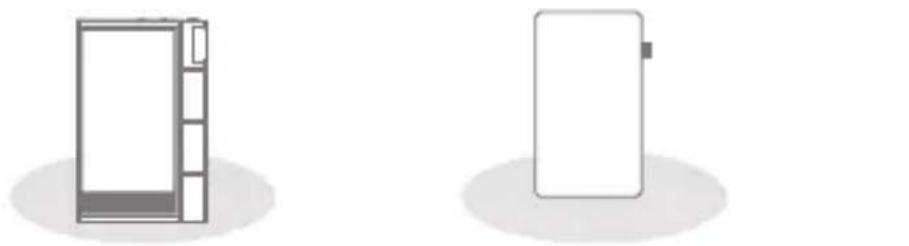
Package Contents
Contents may be changed without prior notice to improve the performance or quality of the product.
natural_image
Two simple line drawings of refrigerators, one open and one closed, both casting shadows on a plain background (no text or symbols)Protective FilmKANN CUBE
natural_image
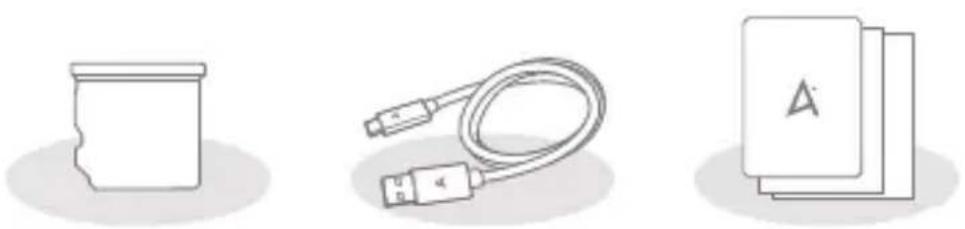
Three abstract line drawings: a cylindrical container, a USB cable with connector, and a closed book with a triangle symbol (no text or labels)USB Type-C Cablemicro & Cart Guide & Warranty Card
Protective Film: Offers screen protection.
microSD Card Slot Cover: The cover is used to protect the microSD card slot when not in use. It is installed in the product by default.
USB Type-C Cable: For charging and data transfer.
Quick Start Guide: Basic overview of device functionality.
Warranty Card: Provides warranty details for your device. Maintain a copy of this card since it may be required for future technical support requests.
User Guide: The User Guide can be downloaded from the Astell&Kern website.
[http://www.astellnkern.com Support > Download].
Product Overview
The appearance of the product, as well as the printed and engraved information, may vary depending on the model.
3.5mm Unbalanced Port / Optical Out Terminal
text_image
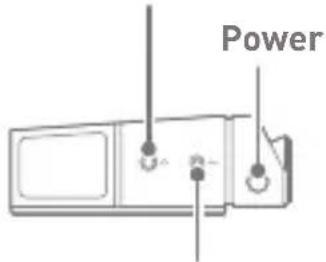
PowerXLR Out Terminal VolumeLCD Touchscreen
text_image
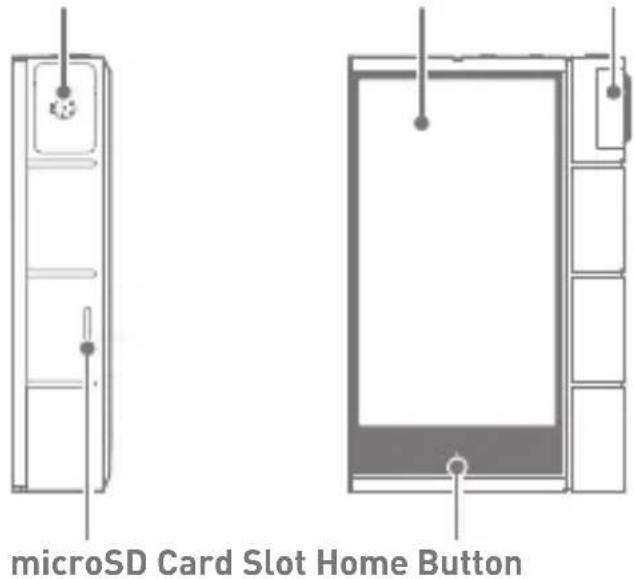
microSD Card Slot Home ButtonPrevious/Rewind2.5mm Ba
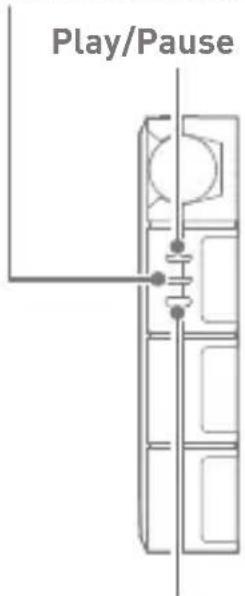
text_image
Play/PauseNext/Fast-Forward

text_image
USB Type-C Port3.5mm Unbalanced Port / Optical Out Terminal:
- 3.5mm Unbalanced / S/PDIF Port symbol.
For audio output, connect earphones or headphones that utilize a 3.5mm jack. Music can be played back on a S/PDIF-capable external device via an optical cable.
Power: ⏻ - Power symbol.
Short press - Turns the screen on or off.
Press and hold - Turns the device on or off.
2.5mm Balanced Port: BAL. - 2.5mm Balanced Port symbol.
For audio output, connect earphones or headphones that utilize a 2.5mm jack.
XLR Out Terminal : For audio output, connect to a XLR-In capable external device with XLR cables.
microSD Card Slot: - microSD Card Slot symbol.
Insert a microSD card to access its files.
LCD Touchscreen: Display screen with touch control features.
Volume: Turn the wheel to adjust the playback output volume level.
Home Button: Press to return to the Home Screen.
Play/Pause: Play or pause the current song.
Previous/Rewind:
Short press - Play the previous song or restart the current song.
Press and hold - Rewind the current song.
Next/Fast-Forward: Short press - Play the next song.
Press and hold - Fast-forward the current song.
USB Type-C Port: 9V=1.67A - DC Power symbol.
For charging and data transfer.
Power Management
Powering the Device On/Off
- Press and hold the [Power] button to turn on the device.
- While the device is on, press and hold the [Power] button to shut down the device. A confirmation message will appear.
- Press [OK] to turn off the device.

This device has an automatic shutdown feature to save battery power. The device will turn off if there is no user input during the period defined in [Menu - Settings - Timer Settings - Auto Power Off] (See Page 46)
Turning the Screen On/Off
- While the screen is on, press the [Power] button to turn off the screen.
- Press [Power] button again to turn it on.

This device has an automatic timeout feature to save battery power. The screen will turn off if there is no user input during the period defined in [Menu - Settings - Timer Settings - Screen Timeout]. (See Page 46)
Reset Function
- In case of unexpected device failure or freeze, press and hold [Power] for 7 seconds to force a shutdown. The device can then be restarted after the shutdown is complete.

Resetting the device will not affect stored data or time settings. Do not use the reset function while the product is in use. Doing so may corrupt the data on the device.
Charging
Charging via USB Wall Adapter
- Commercially available 9V 1.67A output adapters may be used for charging.

Fast charging time: Approx. 4 hours (Fully discharged, Power-off, 9V 1.67A adapter) / Normal charging: Approx. 5 hours 30 minutes (Fully discharged, Power-off, 5V 2A adapter)
A fast charger of 9V 1.67A may be used. Using a 12V adapter will not charge the device and may cause malfunctions.
The manufacturer shall not be responsible for problems caused by the use of adapters that do not adhere to the recommended specifications.
Connec- tions
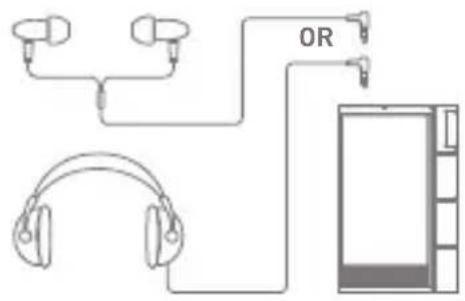
3.5mm Unbalanced Port
- Connect earphones or headphones to the 3.5mm unbalanced port.
text_image
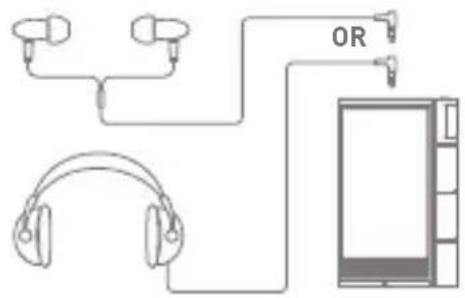
OR2.5mm Balanced Port
- Connect earphones or headphones to the 2.5mm balanced port.
text_image
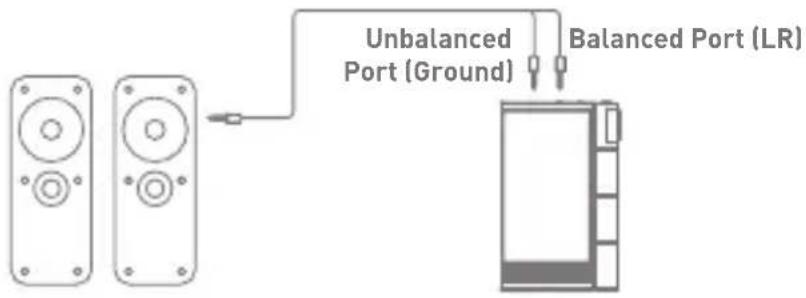
ORConnecting a to Balanced Audio Device
- Connect to an external audio device by using the 3.5mm unbalanced port and 2.5mm balanced port.
text_image
Unbalanced Port (Ground) Balanced Port (LR)Connecting to S/PDIF OUT
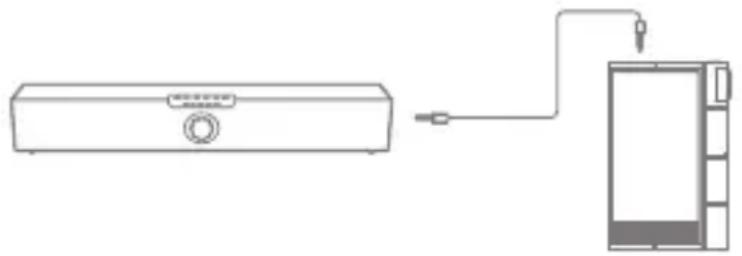
- Using an optical cable, connect the KANN CUBE to a S/PDIF-capable external device to output music through the external device. Enable output format conversion from [Menu > Settings > S/PDIF Conversion] to convert the output to a predefined format upon S/PDIF connection.
natural_image
Line drawing of a washing machine connected to a device via cable (no text or symbols)
DSD format is converted to PCM when using S/PDIF OUT. With PCM, the output bit (16/24-bit) and sample (48/96/192 kHz) rates can be selected.
The volume will be fixed at the maximum level. Audio may not be reproduced if the specifications of the external device and output format are incompatible. Refer to the respective instruction manual of each device before use.
Connecting to XLR OUT
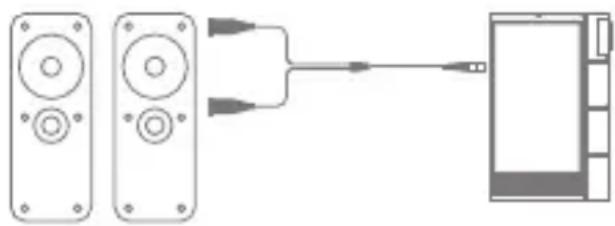
- Music can be played back on an XLR-capable external device via an XLR cable. To activate XLR audio output, enable the function in the Settings Menu [Menu > Settings > XLR]. or from the quick settings menu, active the XLR icon in the notification panel.
natural_image
Diagram showing two remote control devices connected to a device via an input line (no text or symbols)
XLR cable is not included in the product package.
Connecting to a Computer
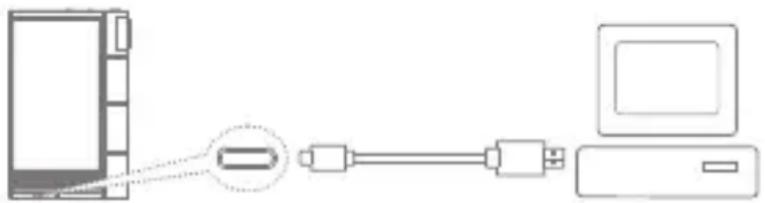
- Turn on the device and your computer.
- Use the USB Type-C cable to connect the device to a computer in accordance with settings in [Menu - Settings - USB Mode].
[Default] Media Device (USB Drive): Transfer files from a computer to the device.
DAC Input: Listen to music on a connected computer through the device. (See Page 37)
natural_image
Diagram showing connection between a computer monitor, cable, and USB cable (no text or symbols)
Mac users need to download and install Android File Transfer from the Astell&Kern website. [http://www.astellnkern.com > Support > Download]
For an optimal connection, quit any unnecessary programs before connecting the device to the computer.
Do not use cables other than the USB Type-C cable provided with the device. Doing so may cause malfunctions.
Use USB 2.0 only on Mac.
Type-C-to-Type-C cable is recommended when connecting with a MAC that supports Type-C port.
Copy Files (Folders) to the Device
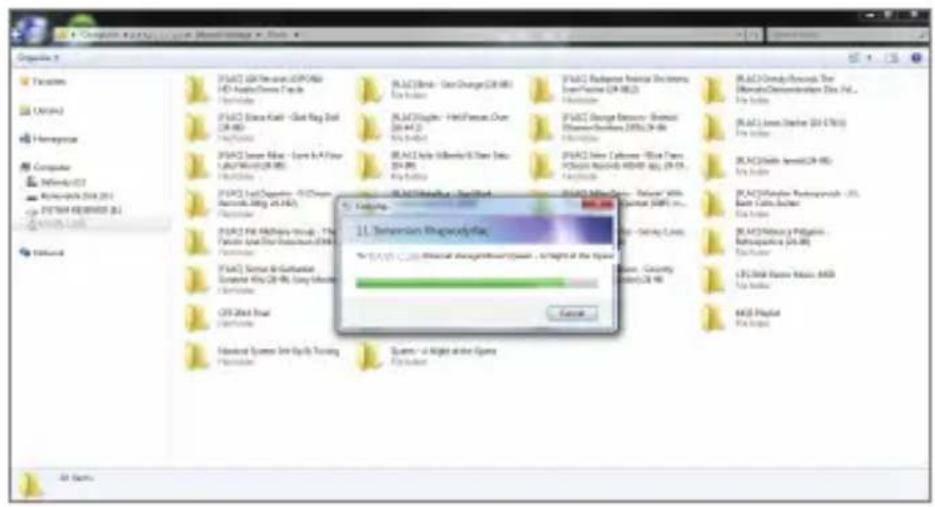
- To copy files/folders from your computer, select the desired files/folders and drag & drop them into the device folder.
text_image
Organise 5 Facilities 100%3 Homework Computer Windows NT Ratiosci DIA (2.0) PROM RECORD (6.0) COS: 1.0 TOMO F:\ACI\B2\Devon - CPO\Mio HD Aplicator Devices Track Provision F:\ACI\Boxa Kool - Card Flag Ball DR-80 F:\ACI\Boxa Kool - Lava & A Power LAD/PMW-20 DR-80 F:\ACI\Boxa Kool - Lava & A Power LAD/PMW-20 DR-80 F:\ACI\Boxa Kool - Lava & A Power F:\ACI\Boxa Kool - Lava & A Power F:\ACI\Boxa Kool - Lava & A Power F:\ACI\Boxa Kool - Lava & A Power F:\ACI\Boxa Kool - Lava & A Power F:\ACI\Boxa Kool - Lava & A Power F:\ACI\Boxa Kool - Lava & A Power F:\AACI\Boxa Kool - Lava & A Power F:\ACI\Boxa Kool - Lava & A Power F:\ACI\Boxa Kool - Lava & A Power F:\ACI\Boxa Kool - Lava & A Power F:\ACI\Boxa Kool - Lava & A Power F:\ACI\Boxa Kool - Lava & A Power F:\ACI\Boxo Kool - Lava & A Power F:\ACI\Boxo Kool - Lava & A Power F:\ACI\Boxo Kool - Lava & A Power F:\ACI\Boxo Kool - Lava & A Power F:\ACI\Boxo Kool - Lava & A Power F:\ACI\Boxo Kool - Lava & A Power F:\ACI\Boxo Kool -Lava & A Power F:\ACI\Boxo Kool - Lava & A Power F:\ACI\Boxo Kool - Lava & A Power F:\ACI\Boxo Kool - Lava & A Power F:\ACI\Boxo Kool - Lava & A Power F:\ACI\Boxo Kool - Lava & A Power F:\ACI\Boxo Kool - Lava & APower F:\ACI\Boxo Kool - Lava & A Power F:\ACI\Boxo Kool - Lava & A Power F:\ACI\Boxo Kool - Lava & A Power F:\ACI\Boxo Kool - Lava & A Power F:\ACI\Boxo Kool - Lava & A Power F:\ACI\Boxo Kool - Lava & A Power F:\AACI\Boxo Kool - Lava & A Power F:\ACI\Boxo Kool - Lava & A Power F:\ACI\Boxo Kool - Lava & A Power F:\ACI\Boxo Kool - Lava & A Power F:\ACI\Boxo Kool - Lava & A Power F:\ACI\Boxo Kool - Lava & A Power F:\ACI\Boxu Kool - Lava & A Power F:\ACI\Boxu Kool - Lava & A Power F:\ACI\Boxu Kool - Lava & A Power F:\ACI\Boxu Kool - Lava & A Power F:\ACI\Boxu Kool - Lava & A Power F:\ACI\Boxu Kool - Lava & A Power F:\ACI\Boxu Kool -Lava & A Power F:\ACI\Boxu Kool -Lava & A Power F:\ACI\Boxu Kool -Lava & A Power F:\ACI\Boxu Kool -Lava & A Power F:\ACI\Boxu Kool -Lava & A Power F:\ACI\Boxu Kool -Lava & A Power F:\ACI\Boxu Kool -Lava & APower F:\ACI\Boxu Kool -Lava & APower F:\ACI\Boxu Kool -Lava & APower F:\ACI\Boxu Kool -Lava &APower F:\ACI\Boxu Kool -Lava &APower F:\ACI\Boxu Kool -Lava &APower F:\ACI\Boxu Kool -Lava &APower F:\ACI\Boxu Kool -Lava &APower F:\ACI\Boxu Kool -Lava &APower F:\ACi \Boxu Kool -Lava &APower F:\ACi \Boxu Kool -Lava &APower F:\ACi \Boxu Kool -Lava &APower F:\ACi \Boxu Kool -Lava &APower F:\ACi \Boxu Kool -Lava &APower F:\ACi \Boxu Kool -Lava &APower F:\ACi \Boxu Koll -Lava &APower F:\ACi \Boxu Koll -Lava &APower F:\ACi \Boxu Koll -Lava &APower F:\ACi \Boxu Koll -Lava &APower F:\ACi \Boxu Koll -Lava &APower F:\ACi \Boxu Koll -Lava &APower F:\ACi \Boxu Koll -Lava&APower F:\ACi \Boxu Koll -Lava&APower F:\ACi \Boxu Koll -Lava&APower F:\ACi \Boxu Koll -Lava&APower F:\ACi \Boxu Koll -Lava&APower F:\ACi \Boxu Koll -Lava&APower F:\ACi \Boxu Koll -Lava&APower G: Expansion Privacy File: For the 1997-2001 Annual Management Review, Chapter 4 of the Open. Name: Country Editor: C21.10.1998
Ensure the USB Type-C cable is properly connected.
Turning off the device, computer or disconnecting the USB Type-C cable while copying or moving files/folders may corrupt files or device memory.
File transfer speeds may be affected by the computer and/or the OS environment.
Delete Files (or Folders) from the Device
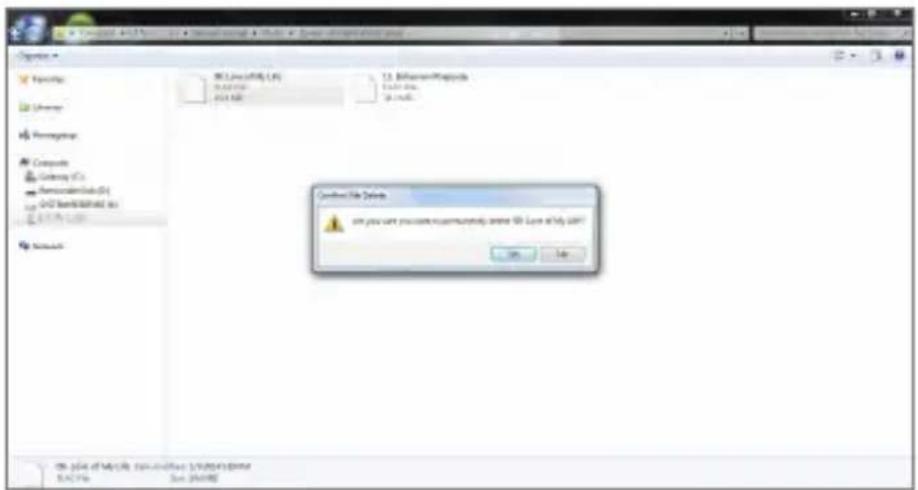
- Select the file/folder to delete, right-click the mouse, and then select [Delete].
- Select [Yes] in the [Confirm File/Folder Deletion] window to delete the selected files/folders.
text_image
C:\Users\My Documents\My Documents\My Documents\My Documents C:\Users\My Documents\My Documents\My Documents\My Documents\My Documents\My Documents\My Documents\My Documents\My Documents\My Documents\My Documents\My Documents\My Documents\My Documents\My Documents\My Documents\My Documents\My Documents\My Documents\My Documents\My Documents\My Documents\My Documents\My Documents\My Documents\My Documents\My Documents\My Documents\My Documents\My Documents\My Documents\My Documents\My Documents\My Documents\nC:\Users\My Documents\My Documents\My Documents\My Documents\My Documents\My Documents\My Documents\My Documents\My Documents\My Documents\My Documents\My Documents\My Documents\My Documents\My Documents\My Documents\My Documents\My Documents\My Documents\My Documents\My Documents\My Documents\My Documents\My Documents\My Documents\My Documents\My Documents\My Documents\My Documents\My Documents\My Documents\My Documents\nC:\user1234567890000000000000000000000000000000000000000000000000000000000000000000000000000000000000000000000000000Disconnecting from the Computer
- Disconnect the USB Type-C cable after the transfer between the device and computer is complete.

Disconnecting the device from the computer during a file transfer may corrupt data on the device.
Insert/Remove a microSD Card
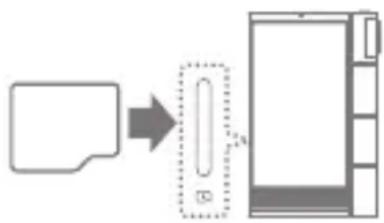
- Refer to the diagram and gently insert a microSD card into the microSD card slot.
-
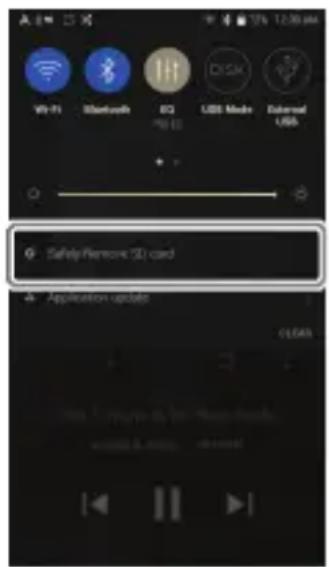
To safely remove a microSD card, on the Home Screen, select [Safely remove SD card] from the Notification Bar or select [Unmount SD card] from [Menu - Settings - System Information].
-
Gently press the microSD card in to unlock and release it from the slot.
flowchart
graph LR
    A["Input"] --> B{Error Message}
    B --> C["Device"]
    C --> D["Output"]
text_image
Wi-Fi Bluetooth EQ PS ID USB Media External USB Safety Remove 3D card Application updateRecommended microSD Cards
SanDisk, Transcend

Maximum Capacity: 512GB
Notes on Inserting a microSD Card
- Do not force the microSD card into the slot. Doing so may cause malfunction of the product and damage to the card.
- Do not repeatedly insert/remove the microSD card.
- If not inserted properly, the microSD card may cause product malfunctions and may become lodged in the product.
Notes on Removing a microSD Card
- Be sure to safely remove the microSD card from the device. Not following the proper procedure may corrupt data and cause serious damage to the both the card and device.
- Do not remove the microSD card during use. Doing so may cause malfunction, delete data and damage the microSD card.
Notes on Using a microSD Card
- If the microSD card is not recognized or functions improperly, format the card, preferably in the FAT32 system.
- Using cards other than the recommended microSD card types may cause malfunctions.
- A microSD card is not included in the product package. Please purchase separately.
Firmware Updates
Wi-Fi Update / OTA (Over-the-Air)
- Connect to a wireless network.
- If a new firmware update is available, the screen will display a Firmware Update Guide window.
- Select [Update].
- Follow the on-screen instructions to proceed with the firmware update.

For Wi-Fi connections, see Page 48.
The firmware update may not start if the battery level is too low. (A minimum battery level of 20% is required.)
Do not disconnect from the wireless network while downloading the update file. Doing so may cause data corruption and/or damage to the system.
If an error occurs or the notice in the Notification Bar disappears during an update, download the firmware update again through [Menu - Settings - Update - System].
Moving to another screen during a file download will cancel the download.
Basic Operations
LCD Touchscreen
- This device features a LCD touchscreen that allows you to perform operations by touch.
Use the touchscreen to access various features on the device.

To prevent damage to the screen, do not use a sharp object or excessive force.
Return to the Home Screen
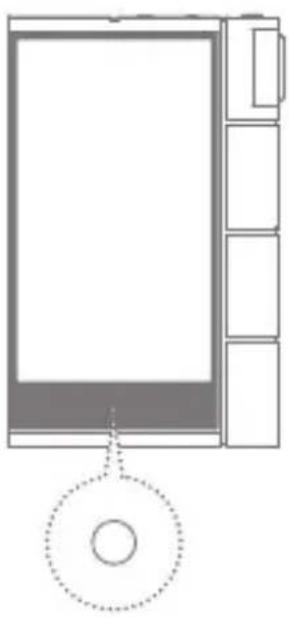
- Press [○] at any time to return to the Home Screen.
natural_image
Diagram of a device with a circular button and rectangular panel, no text or symbols present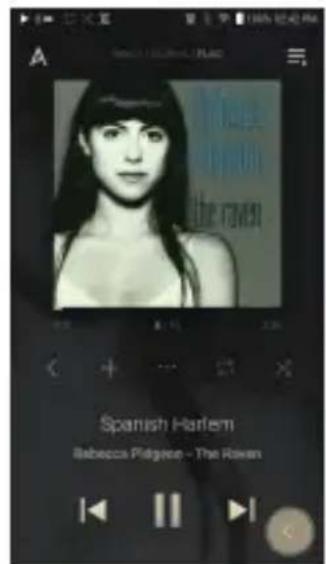
text_image
A Spanish Harlem Rebecca Pdgano - The RowanHome Screen
From the Home Screen, swipe your finger to the left, right, up or down from any edge of the touchscreen to access display menus. Each side of the Home Screen will activate a different display menu.
Main Menu
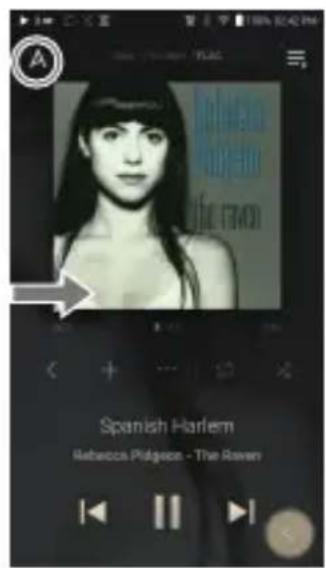
- From the left edge of the touchscreen, swipe your finger right to display the Main Menu, or tap the "A" icon in the upper left corner of the screen.
text_image
Spanish Harlem Rebecca Pdgson - The Rawen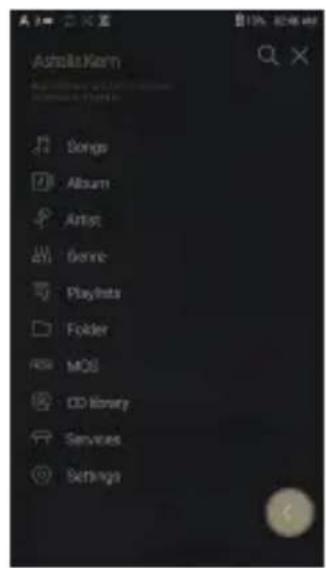
text_image
Adobe After Songs Album Artist Genre Playlists Folder MOS CD Money Services Settings
Music files extracted using the AK CD-Ripper accessory that are stored in the Ripping folder of the internal memory will be displayed in the CD library menu.
Notification Bar
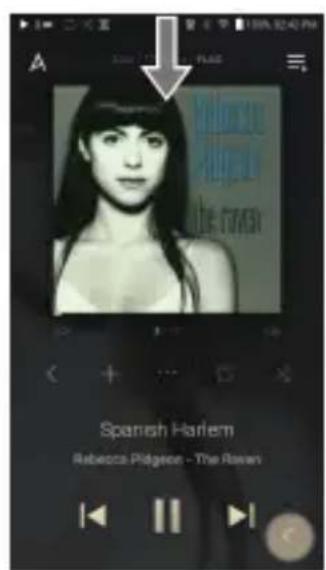
- From the top edge of the touchscreen, swipe your finger down to display the Notification Bar.
text_image
Spanish Harlem Rebecca Pilgeon - The Rawen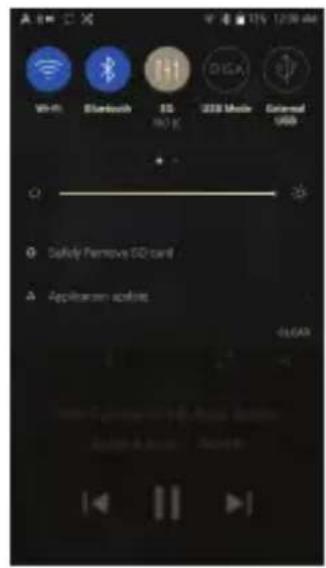
text_image
Wi-Fi Bluetooth SD 80% 100% 2000 Music External USB + - Safety Remove ISO card Applicator online 66/64/9View Current Playlist
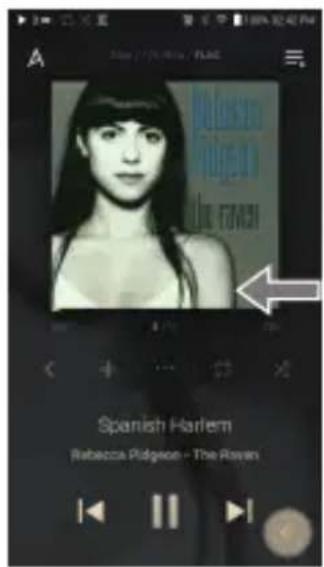
- From the right edge of the touchscreen, swipe your finger left to display the Now Playing menu.
text_image
A Movie / 175.000 / 17:42 MILKON LIFE LIFE TOWN Spanish Harlem Rebecca Pdgson - The Rawn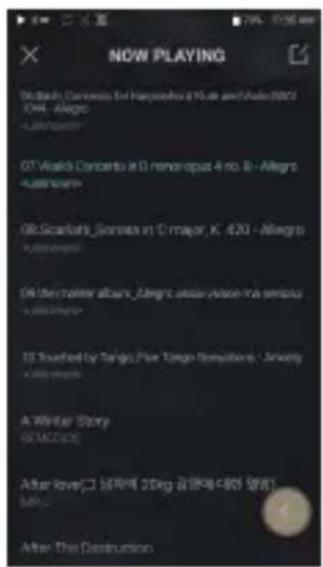
text_image
NOW PLAYING 07. Beach Concerto in Hangzhou 15.46 and Auto 2003 KIA - Allegro A-888/2003 07. Outlook Concerto in D. menoraput 4 no. B - Allegro A-888/2003 OR: Scarfark_Siemata in C major, K 420 - Allegro A-888/2003 OR: the mother album_Aleight under Action Kit series A-888/2003 13. Touched by Tango Pine Tango Remissions - Anxiety A-888/2003 A Winter Story GEMEDD After Love(□) 56%에 20kg 전용에 기술(주) After The DestructionView Play History
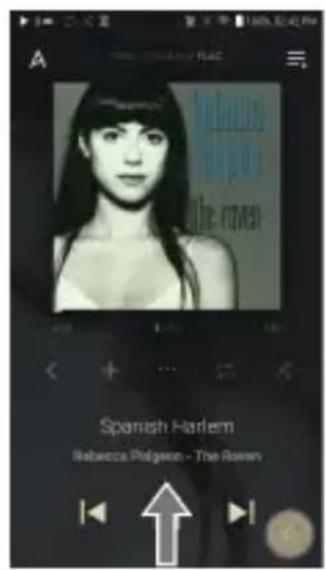
- From the bottom edge of the touchscreen, swipe your finger up to display the Play History menu.
text_image
Spanish Harlem Rebecca Pdgreen - The Raven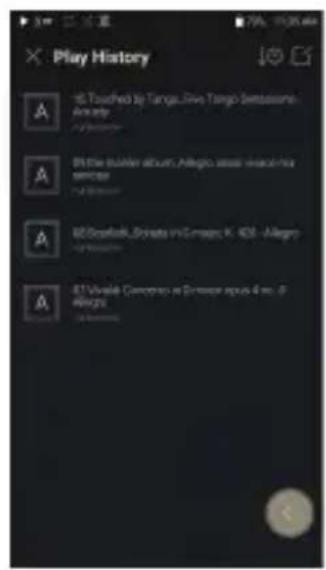
text_image
Play History A: 5. Touched by Tango, Give Tango Simultaneous Activity B: The builder album, Allegro, audio, audio in the studio C: 80. Booklet, Disney and Games, K. KDS - Allegro D: 87. Vivale Concerto is a Deseran space 4 ms. 9 Allegro E: 12. ViciousMoving Up/Down on a List
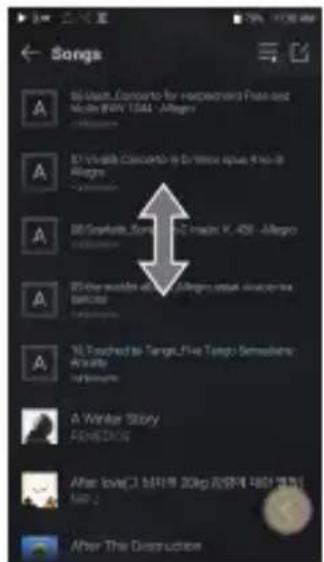
- Scroll through a list by dragging your finger up or down.
text_image
Songs A B: Usual, Concerto for Hapechard Press and Noble BMW USA - Allegro A B: Vishil Concerto is Dr. Wixi spue 4 No. 8 Allergy A B: Swarkets, Sonakos, PC Major X, 426 - Allegro Allergy A B: The most popular music will be used in the Sanskos Allergy A: Touched to Target Five Tempo Semestern Activity Allergy A: Winter Story POMEDION After love! This is like 20kg (即要加速度) 500 J After The ConstructionHome Screen
text_image
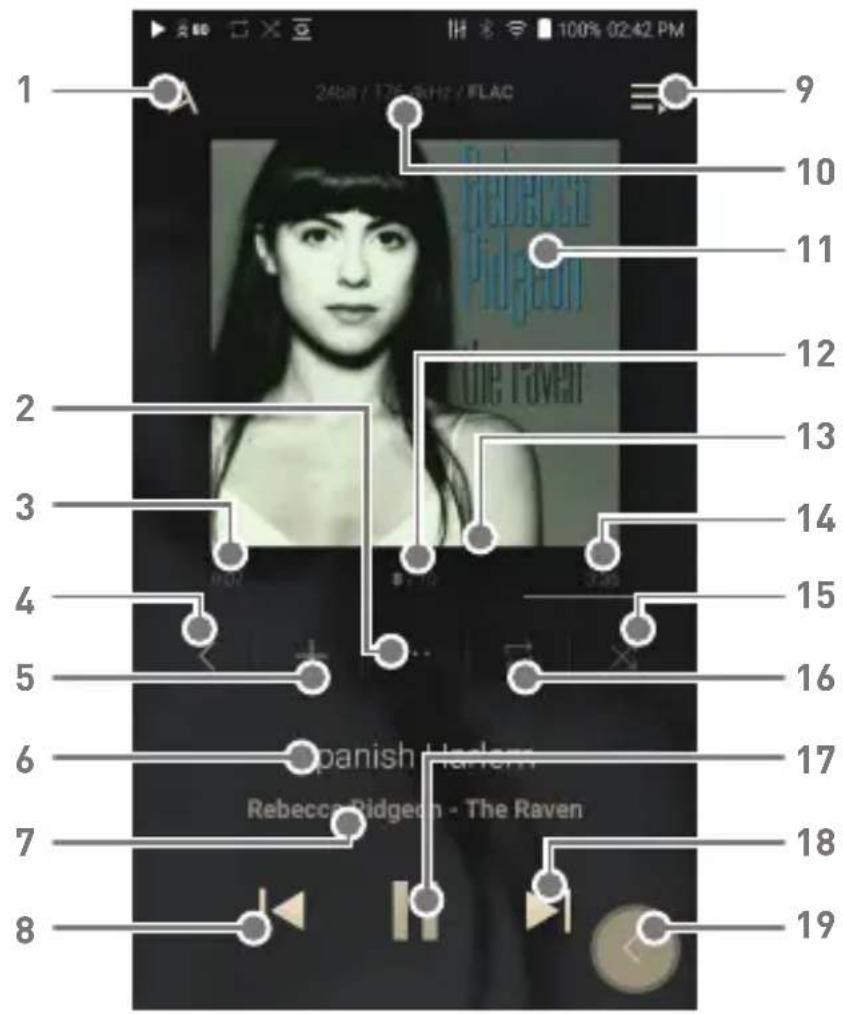
1 24bit / 170/8Hz / FLAC 9 10 11 12 13 14 15 16 17 Spanish Harlow Rebecca Ridgeon - The Raven 18 19| 1 | A | Menu | Displays the Main Menu. |
| 2 | ... | Details | Displays current song information. |
| 3 | Song Progress | Indicates song duration. | |
| 4 | < | Recent Menu List | Go to the last displayed menu list. |
| 5 | + | Add to Playlist | Add the current song to a playlist. |
| 6 | Title | Song title information.File name is displayed when the title is unavailable. | |
| 7 | Artist/Album | Displays the artist and album info. |
| 8 | Previous/Rewind | Short press: Play the previous song or restart the current song. Press and hold: Rewind the current song. |
| 9 | Playlist | Display current playlist. |
| 10 | Format Information | Displays the bit rate and sampling frequency data. |
| 11 | Album Cover | Displays album cover of current song. Tap image to view the song lyrics. |
| 12 | Now Playing Song Count | Displays the current song number playing/total number of songs in Now Playing. |
| 13 | Playback Progress Bar | Shows the current track playback progress. Drag the Playback Progress Bar to move to the desired track time. |
| 14 | Song Duration | Indicates the song's total duration. Press to switch from elapsed time to remaining time. |
| 15 | Shuffle Mode | Press [ ] to set track sequence for playback. : Shuffle mode on. : Shuffle mode off. |
| 16 | Repeat Mode | Press [ ] to set the Repeat mode. : Repeat entire playlist. : Repeat current track. : Repeat mode off. |
| 17 | Play/Pause | Play or pause the current song. |
| 18 | Next/FF | Short press: Play the next song. Press and hold: Fast-forward the current song. |
| 19 | Back button | Press the floating back button to return to a previous menu/screen. |
Notification Bar
text_image
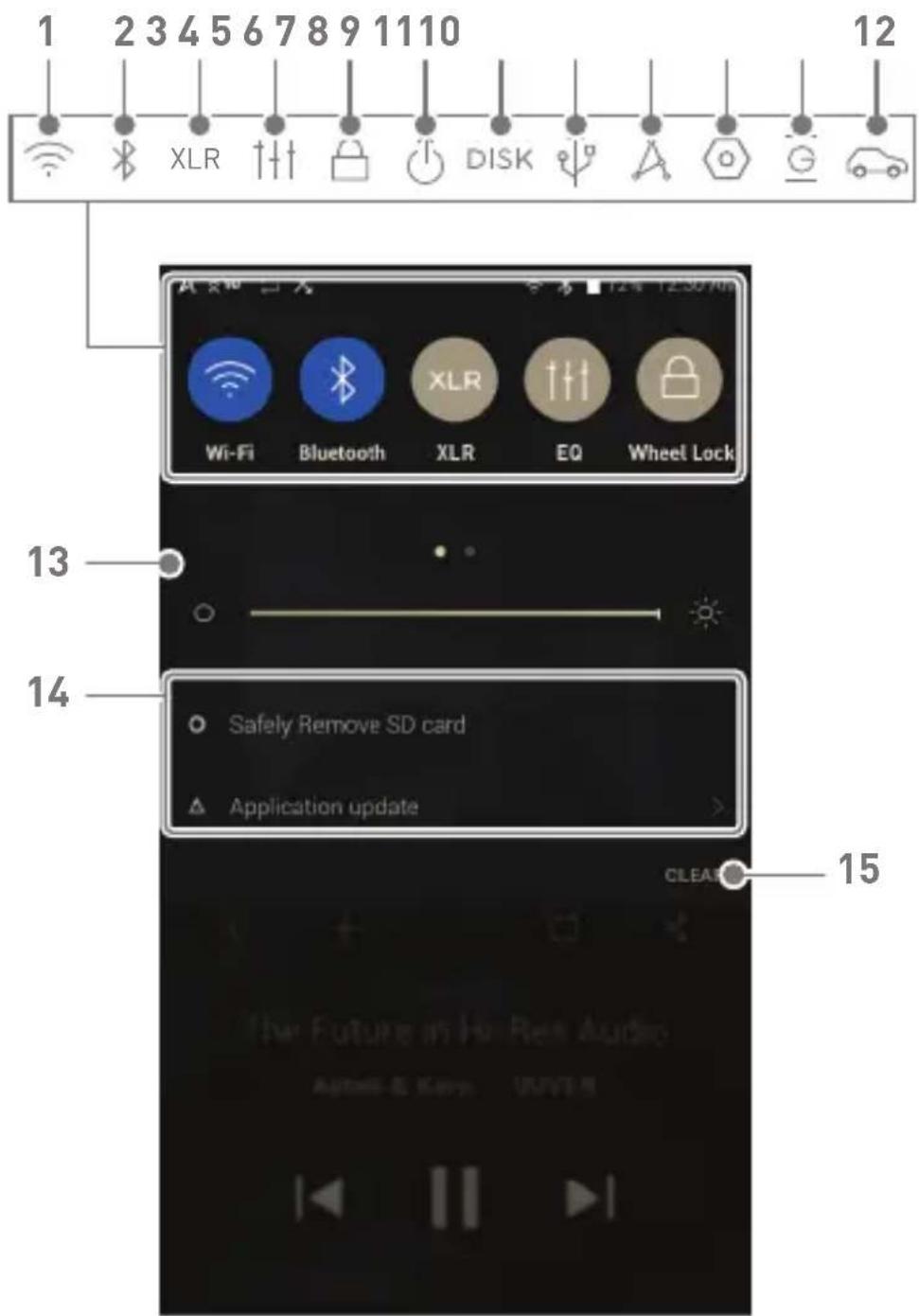
1 2 3 4 5 6 7 8 9 11 10 XLR DISK Wi-Fi Bluetooth XLR EQ Wheel Lock 12 13 14 Safely Remove SD card Application update CLEA 15| 1 | Wi-Fi | Press [ ] to turn Wi-Fi on/off. | |
| 2 | Bluetooth | Press [ ] to turn Bluetooth on/off. | |
| 3 | XLR | XLR | Press [ XLR] to enable / disable XLR audio output. |
| 4 | ††† | EQ | Press [ †††] to turn the EQ on/off. The most recent EQ settings are applied by default. |
| 5 | Wheel Lock | Press [ ] to turn Wheel lock on/off. When turned on, the volume wheel will be disabled when the screen is locked. | |
| 6 | Line-out | Press [ ↑] to turn line-out on/off. | |
| 7 | DISK | Computer Connection Mode | Select the mode to use when connected to a computer.[Default] Enables transfer of media files.DAC: Listen to music on a connected computer through the device. |
| 8 | USB Audio | After connecting the device to a portable USB DAC, press [ ↑] to connect or disconnect the device. Turn CD ripping function on/off. | |
| CD Ripping | |||
| 9 | AK CONNECT | Press [ A] to turn AK Connect on/off. | |
| 10 | Settings | Press [ ] to display the full settings menu. |
| 11 | Gapless Playback | Press [ ] to turn Gapless Playback on/off. |
| 12 | Car Mode | Press [ ] to turn Car Mode on/off. |
| 13 | Brightness | Use the adjustment bar to control the display brightness. |
| 14 | Notifications Display | Device notifications are displayed in this area. |
| 15 | Clear Notifications | Clear notifications. |

Long-press an icon [ 📞 / ✉ / ↑↑ / A / ⏻ ] to navigate to the corresponding full settings menu screen.
Using Open APP Service
The Open APP Service enables the user to install specific APK music streaming apps to the device. Copy the desired APK into the Open Service folder of the product and install the relevant App in the [Menu-Service] of the product.

The source of the app you are trying to install is unknown. Be aware that if the app is installed, the device may be damaged and personal data compromised. Depending on the APP, some functions may not work. If you install an app from an unknown source, despite this warning, the company is not responsible for any damages to the device and data resulting from the app's installation, and downloading and installing such apps may limit the scope of after-sales services provided under the manufacturer warranty.
AK CONNECT
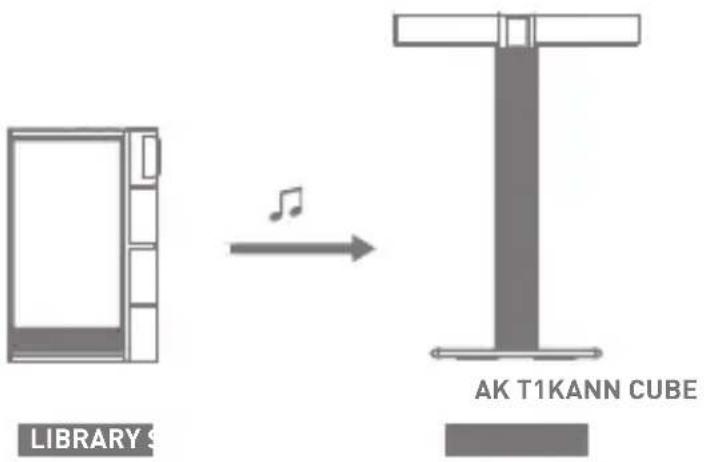
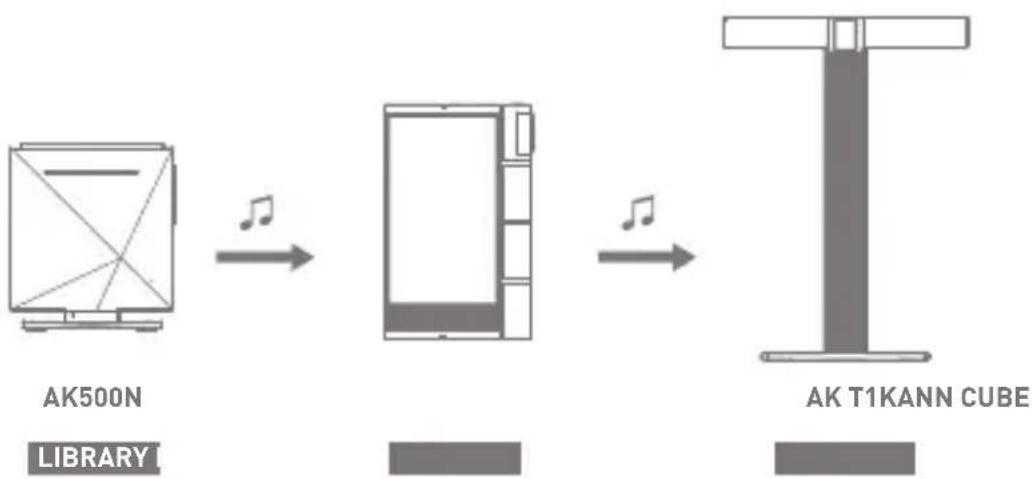
Access and play back music files stored on a computer, NAS drive or AK Device on the same network, as well as output sound through compatible speakers with AK Connect.
AK Connect is available on your AK device and also available as an app for your smartphone or tablet via Apple's App store or Google Play Store.
MQS Streaming Server for your Computer
- In order for your computer to be visible by AK Connect, on your computer, visit the Astell&Kern website and download the MQS Streaming Server installer that corresponds to your operating system. [http://www.astellnkern.com > Support > Download].
- Run the downloaded installer and follow the on-screen instructions.
- Check the User Guide within the program for detailed information on using the MQS Streaming Server.

Please refer to the following computer minimum system requirements.
Minimum Computer Requirements
OS: Windows 7/8/10 (32 & 64-bit)
Mac Requirements
OS X 10.7 (Lion) or later
Using AK Connect to Link Music Libraries/Speakers
- Turn on the music library device and/or speaker and AK player.
To access the music library on your computer, you must also open and run the MQS Streaming Server on your computer. - Connect all devices to the same Wi-Fi network.
-
Turn on the AK CONNECT feature by pressing and holding [ ] in the Notification Bar or selecting [Menu-Settings-AK CONNECT].
-
Press [AK CONNECT] on the Main Menu.
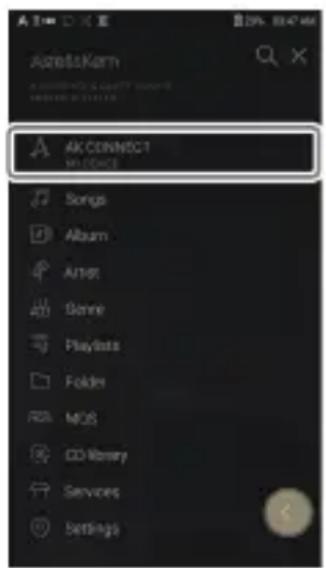
text_image
AK CONNECT IMPORTS Songs Album Artist Genre Playlists Folders MOS CD Money Services Settings- A list of libraries / speakers that are on the same network with the AK player will be displayed.
- Select a library / speaker to connect.
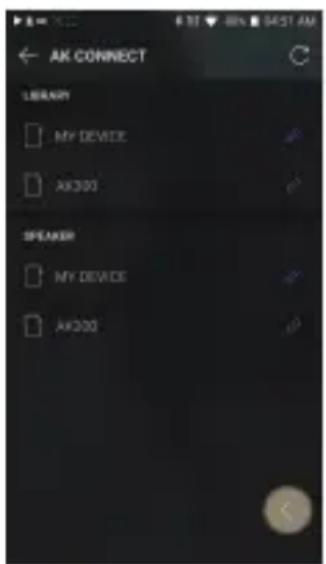
text_image
AK CONNECT LIBRARY MY DEVICE AX300 SPAKER MY DEVICE AX300- After selecting a library / speaker, select a category from the menu to display the corresponding music list.
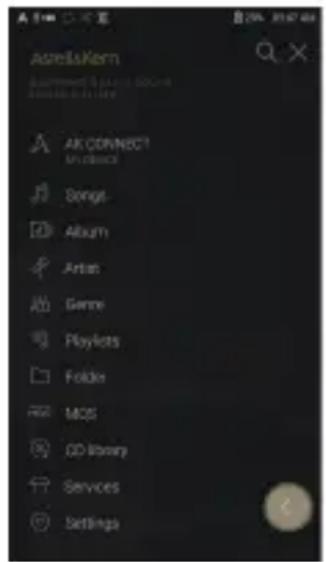
text_image
Asella Kern asella.kern comment & audio track asella.kern AK CONNECT My Object Songs Album Artan Genre Playlists Folders MOS CD library Services Settings
For Wi-Fi connections, see Page 48.
Streaming Music from Your Library
- Select a category from the library menu to see your list of music.
- Select a song to begin streaming.
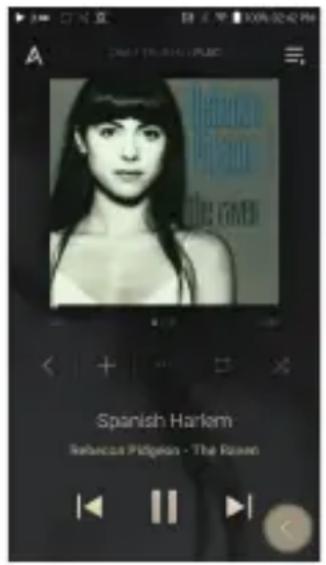
text_image
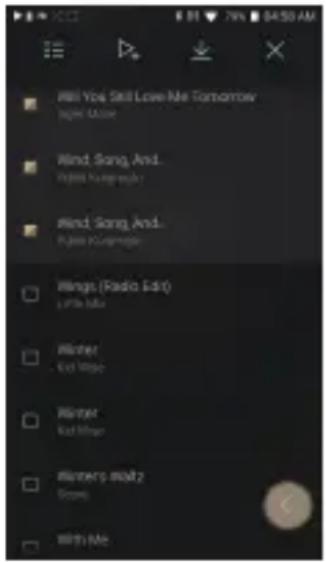
A The Room the room Spanish Harlem Rebecca Pdggeon - The RavenDownloading Music from Your Library
- Select a category from the library menu to see your list of music.
- Press [ ] button at the upper-right corner of the music list.
- Select the desired music and press [ ↓] to initiate the download.
A message on the Notification Bar will indicate when the download is complete.
text_image
Will You Still Love Me Tomorrow night out Wind Song And... Wind Song And... Wings (Radio Edit) Little Mike Mister Kad Winge Mister Kad Winge Winners Walkt Gross With Me
Depending on network conditions, song loading may be slow and streaming may stutter.
Performing other operations on the linked computer may cause slower response time.
If you stream and download at the same time, it may slow the device's response time depending on the speed of the Wi-Fi network or server.
To stop a download in progress, tap the notification in the Notification Bar to go to the download screen. Then, select the items to pause or delete.
AK Connect Usage Examples
Case 1
text_image
LIBRARY S AK T1KANN CUBECase 2
flowchart
graph LR
    A["AK500N"] -->|Muscle| B["Block"]
    B -->|Muscle| C["AK T1KANN CUBE"]
Case 3
natural_image
Simple line drawing of a smartphone with front panel and side shelves (no text or symbols)KANN CUBE
REMOTE & LIBRARY
AK500N
SPEAKER
Case 4
natural_image
Simple line drawing of a door with a side panel (no text or symbols)LIBRARY
AK500N
REMOTE
natural_image
Pure structural diagram of a T-shaped beam (no text or symbols)AK T1KANN CUBE
Case 5
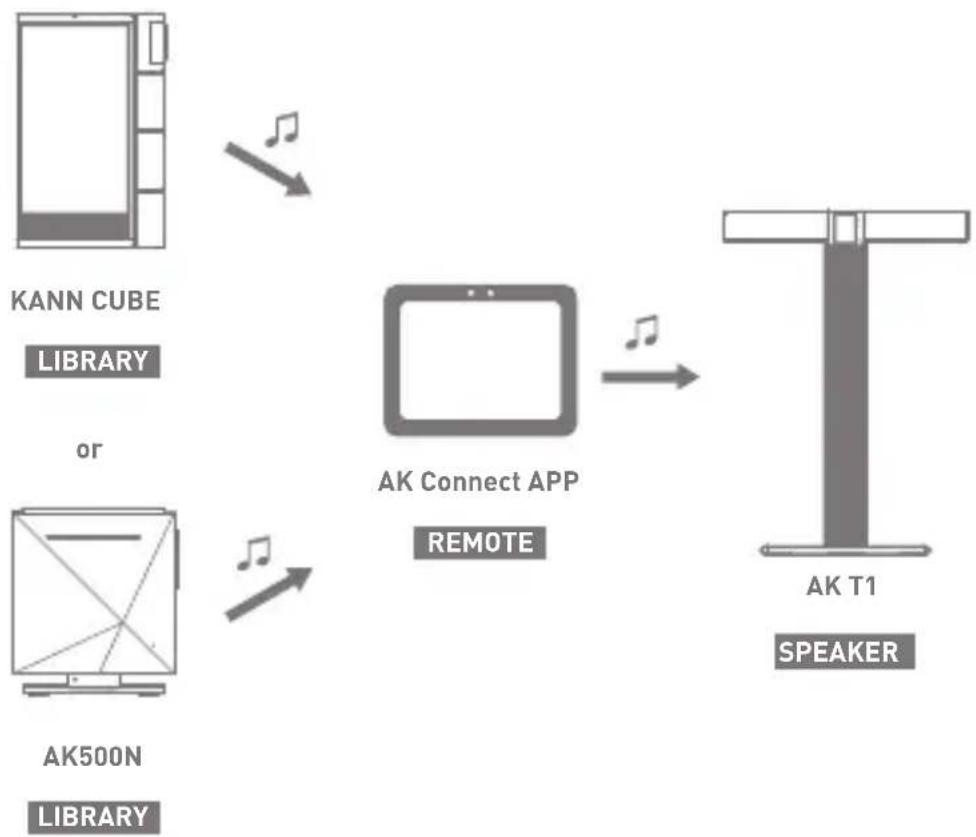
flowchart
graph LR
    A["KANN CUBE LIBRARY"] --> B["AK Connect APP REMOTE"]
    C["AK500N LIBRARY"] --> B
    B --> D["AK T1 SPEAKER"]
Listening to Music
Selecting Music
-
Select a category from the Main Menu to display the corresponding music list.
-
Select a song from the list to begin playback.

Select [Folder] to search music by folder. Continuous Playing Time: Approx. 9 hours (Music: FLAC,16bit, 44.1kHz, Unbalanced, Volume 80, EQ Off, LCD Off, LOW GAIN) Supported Formats: PCM [8\~384kHz(8/16/24/32bit)] DSD [2.8/5.6/11.2MHz]
Listening to Music
- To search, press [ 🔒 ] on the menu list and enter the title. The search result will be displayed.
- At the top of the Play History menu, press [ ↓/ ↓] to sort the music list in order of most recently played/most played.
- After selecting the [MQS] category, from the Main Menu press [↓≡/↓^2] at the top to sort the music list in order of high quality / alphabetical order.
- In the [MQS] category, the MQS tab shows MQA files and PCM files of 24 bits or more, and the DSD tab shows DSD files.
- MQS:MQA[44.1-384kHz(16/24bit)]
- MQS: PCM [8-384kHz(24/32bit)]
DSD: DSD [2.8/5.6/11.2MHz]
- Select the [Folder] category to check the internal / external memory capacity and number of files / folders, and copy / move music.
- Press [ ⟩ ] on the music list to add all music to the current playlist.
- Press [ ] on top of the music list to view the options:
三: Select / deselect entire list
_+ Add the selected list at the top / bottom / after the current song of Now Playing
≡: Add selected list to a playlist
Delete selected list
X: Exit
- Turn the [Volume] wheel to adjust the volume.
- Press [Ⅱ] during playback to pause and [▶] to resume playback.
- Press [ |◀/▶] during playback for the previous/next track.
- Press and hold [|◀/▶] to rewind/fast-forward the track.
- Drag the indicator on the Playback Progress Bar to a desired location of a track during playback.
- Press the album art on the Home Screen to display the song lyrics.
- Press the [ ○ ] to go to Home Screen.
- Press [X] at the top of the menu list to hide the menu list.
- After selecting [ALBUM] or [CD LIBRARY] category, press [☐/ :≡/ ☐] at the top to sort by different viewing options.
Playlist Screen
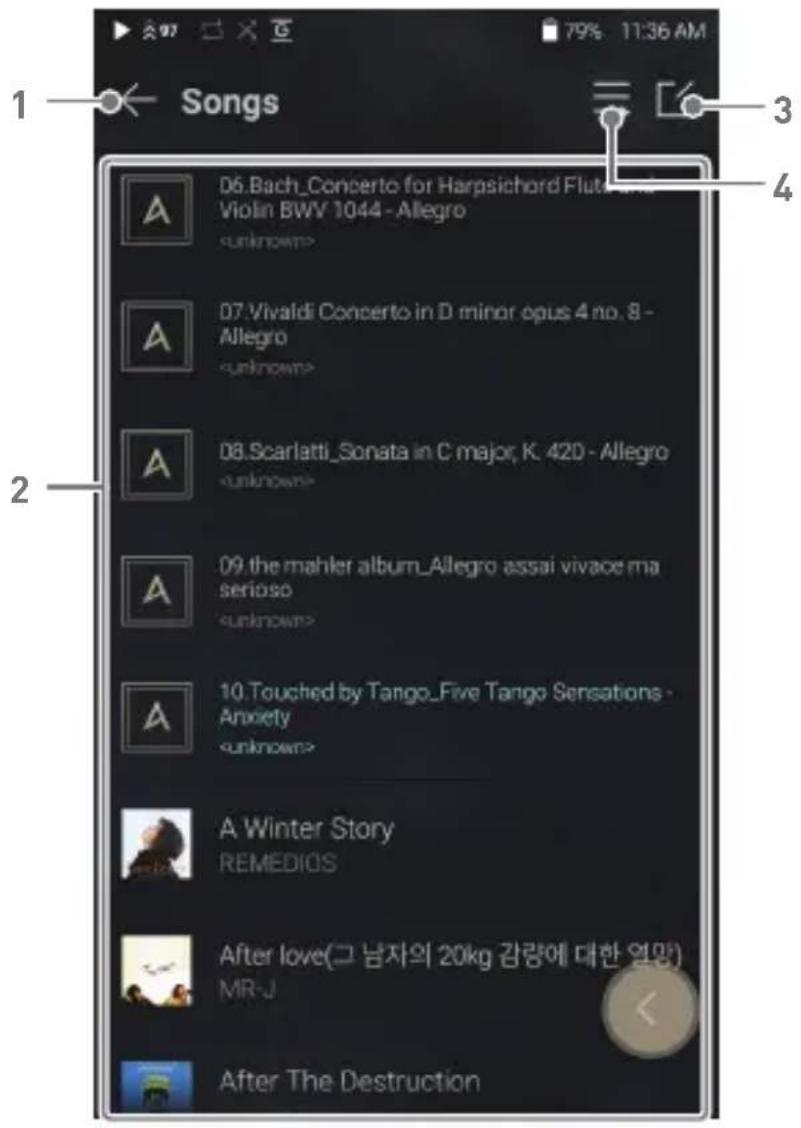
text_image
Songs D6.Bach_Concerto for Harpsichord Flut Violin BWV 1044 - Allegro unknown> D7.Vivaldi Concerto in D minor opus 4 no. 8 - Allegro unknown> D8.Scarlatti_Sonata in C major, K. 42D - Allegro unknown> D9.the mahler album_Allegro assai vivace ma seriouso unknown> A Touched by Tango_Five Tango Sensations - Anxiety unknown> A Winter Story REMEDIOS After love(그 남자의 20kg 감량에 대한 열망) MR-J After The Destruction| 1 | Previous | Return to the previous screen. |
| 2 | Playlist | Display the current playlist. |
| 3 | Edit mode | Display the editing options for the music list. |
| 4 | Play All | Play all songs in the current list. |
Playlist Manage- ment
Creating a Playlist
- Press [Playlists] on the menu to view the playlists.
- Select [ + ] in the upper right corner of the screen.
- Enter a name for the playlist and then press [Add] to create a new playlist.
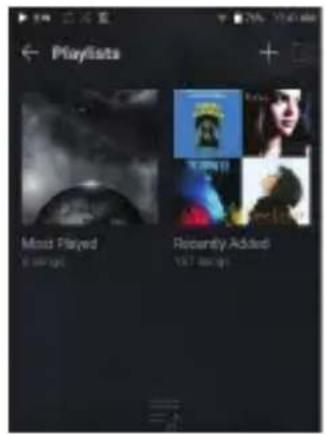
text_image
Playlists Most Played 8 seconds Recently Added 1x7 design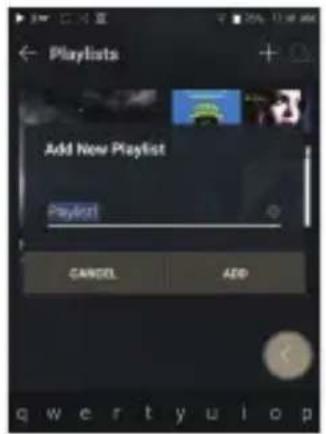
text_image
Playlists Add New Playlist Playlist CANCEL ADD qw er ty ui opAdding a Song to a Playlist
- Press [Playlists] to display the list of playlists.
- Select a playlist and press [+ Add Song] to display a list of songs by album.
- Select a song and press [Add] to add the song to the selected playlist.
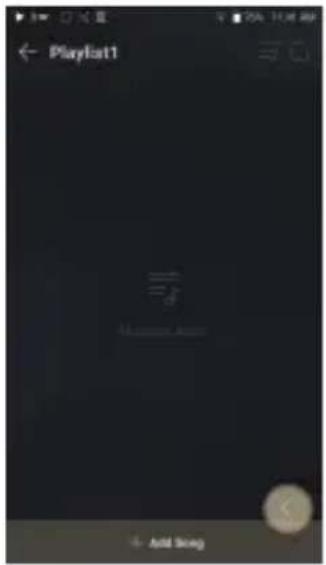
text_image
Playfirst1 Add SongRemoving a Song from a Playlist
- Press [Playlists] to display the list of playlists.
- Select the playlist to edit.
- Press [ ] at the top, then select the song you want to delete from the playlist.
- Press [ ] on top of the screen.
- Press [DELETE] to remove the song from the selected playlist.
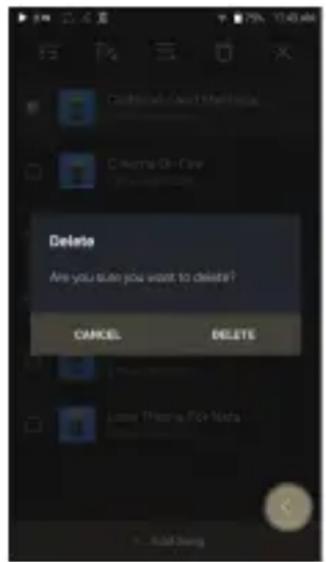
text_image
Delete Are you suit you want to delete? CANCEL DELETE Lemon Thems Pick Nuts ... Add Back
This action will only remove the song from the selected playlist, not the memory.
Playing a Playlist
- Select the desired playlist for playback.
- Press [≡] at the top right of the screen to play the entire playlist.
- To playback part of the playlist or add it to a current Now Playing playlist, press [ ] at the top of the playlist, select the music you want to play and press [ ] to add the selected list to the top / bottom / after the current song of Now Playing.
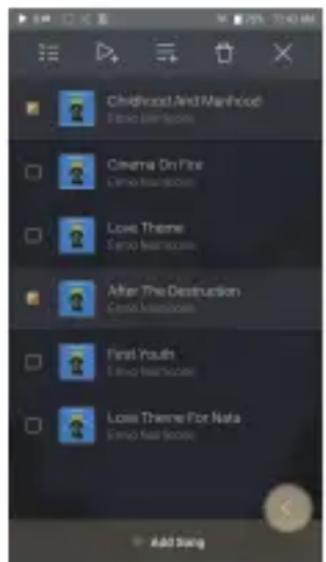
text_image
Childhood And Manhood Erao Science Cinema On Fire Crime Showsc杀 Love Theme Erao Science After The Destruction Crea Science First Youth Erao Science Love Theme For Nata Erao Science Add SongRenaming a Playlist
- Press [Playlists] to view the playlists, then press [ ]
- Select a playlist to be renamed.
- Press [T] at the top of the screen to display the RENAME window.
- Enter a name for the playlist and then press [RENAME] to confirm the change.
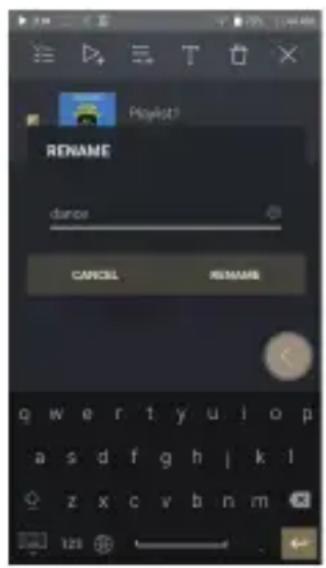
text_image
RENAME dance CANCEL RENAMEDeleting a Playlist
- Press [Playlists] to view the playlists, then press [ ]
- Select the playlist to be deleted.
- Press [☐] at the top of the screen.
- Press [DELETE] to delete the selected playlist.
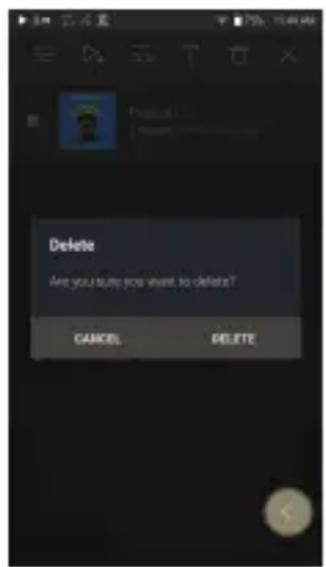
text_image
Delete Are you auto you want to delete? CANCEL DELETEUSB DAC Installation
The USB DAC function allows the device to be recognized as a sound card on a computer. Music from the computer is played through the device's headphone port for an enhanced listening experience.
USB DAC Specifications
• Supported OS
Windows 7(32bit/64bit) / Windows 8(32bit/64bit) /
Windows 10(32/64bit)
MAC OS 10.7(Lion) or later
•USB DAC Support Specifications
Supported Formats: PCM [8\~384kHz(8/16/24/32bit)]
DSD [2.8/5.6/11.2MHz]
- Control the volume with the AK device's volume wheel.

Playback is unavailable when settings exceed the supported formats.
The Previous, Play, and Next buttons are unavailable when connected as a USB DAC.
Playback may stutter when computer performance is slow or the USB connection is experiencing heavy usage.
There may be issues with audio-to-video synchronization during video playback depending on the sound quality and operating environment.
Even while the USB DAC is in operation, XLR audio output is enabled by pressing the [XLR] on the screen.
Optical output (S/PDIF) is unavailable when using the device as a USB DAC.
Volume cannot be adjusted via the Windows volume control. The volume wheel on the device or volume control on the appropriate program must be used to adjust the volume.
Install a dedicated driver to use the AK device as a USB DAC.
The driver file is located in KANN CUBE\Internal_Storage\KANN CUBE_ Contents\Driver. Before installing the driver, set device to USB DAC mode and connect to the computer.
How to Use USB Audio
Connect the device to a portable amp or DAC using USB Audio Out.
How to Connect a Portable USB DAC
- Connect the portable USB DAC to the AK device's USB Type-C port with a dedicated cable.
- Press [💡] in the Notification Bar.
- Once [ ] is activated, you can enjoy music stored on the device through the connected portable USB DAC.

The USB Type-C cable that comes packaged with the device is only to be used for computer data transfer or to charge the device.
The type of dedicated cable needed to connect to the portable DAC varies; please refer to USB DAC manufacturer instructions for correct cable type.
A USB DAC cable is not included with the device and must be purchased separately.
Depending on the OTG cable used, the connection may be unstable.
How to Change USB Audio DSD Output Type
You can change the type of DSD data that is outputted through the USB audio out.
- Select a DSD output type in [Menu - Settings - USB Audio].
PCM : DSD audio is converted into PCM before being outputted through the USB audio out.
DoP : DSD audio is converted into DoP before being outputted through the USB audio out.

The portable USB DAC must be able to receive digital input through the micro-USB's OTG.
Audio output may vary widely depending on the digital input specs of the portable USB DAC used. This is not a defect in the device output and not a reason for exchange or refund.
When using DoP as a DSD output type, no sound may be outputted except noise depending on the portable USB DAC.
CD Ripping
CDs can be ripped directly to the device using the AK CD-RIPPER (sold separately).
Connecting AK CD-Ripper
- Connect the AK CD-Ripper to KANN CUBE using a dedicated USB Type-C to micro USB cable.
- After inserting the CD, swipe down on the screen to open the notification bar and press [CD Ripper] to select the desired function.
- Start ripping by pressing [CD Ripping] in the Select Function menu.

The USB Type-C cable provided with the device is to be used to connect to the computer or to charge the product. Depending on the CD-Ripper model the dedicated USB Type-C OTG cable may not be provided in the product package. Depending on the OTG cable used, the connection may be unstable.
CD Ripping Results
- Indicates that CD ripping is complete, or that CD ripping was successfully completed after correcting an error via error correction.
- ✗Indicates that the song currently being ripped can be canceled by user.
- ! Indicates that CD ripping failed due to an error that can't be corrected, such as a scratched CD, or that CD ripping was canceled by user.
To search the Gracenote database, the device must be connected to Wi-Fi. Database access time may vary depending on the network environment. Please note that metadata for certain CDs may not be available on the Gracenote database. You cannot access the Home Screen while CD ripping is in progress. The AK Connect service will be disabled during CD ripping. The service will automatically restart when CD ripping is completed. Music playback is disabled during ripping. You can set the desired file format and ripping speed from the [Menu - Settings - CD Ripping] menu. Several attempts at correction will be made for data with errors when the feature is enabled under [Menu - Settings - CD Ripping - Error Correction]. Please note that the CD ripping speed will be affected when this feature is enabled.
AK CD-Player
Using the AK CD-Player Function
- Connect the AK CD-Ripper to KANN CUBE using a dedicated USB Type-C to micro USB cable.
- After inserting the CD, swipe down on the screen to open the notification bar and press [CD Ripper] to select the desired function.
- Select Function menu. The CD player app will initiate and CD will automatically begin to play.
The USB Type-C cable provided with the device is to be used to connect to the computer or to charge the product. Depending on the CD-Ripper model the dedicated USB Type-C OTG cable may not be provided in the product package. Depending on the OTG cable used, the connection may be unstable. To search the Gracenote database, the device must be connected to Wi-Fi. Database access time may vary depending on the network environment. Please note that metadata for certain CDs may not be available on the Gracenote database. General audio CD and MQA-CD playback is supported, but MP3-CD won't play.
Car Mode
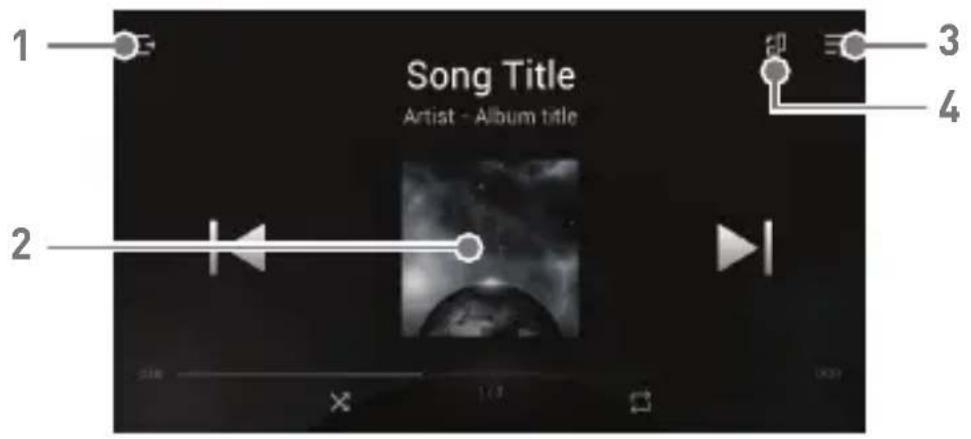
text_image
Song Title Artist - Album title 1 2 3 4| 1 | Exit | Exit car mode. |
| 2 | Play/Pause | Play or pause music. |
| 3 | Playlist | Display current playlist. |
| 4 | Screen Rotation | Switch the screen orientation to horizontal mode/vertical mode. |
Settings
The settings menu allows users to customize the device. The settings menu may vary depending on the firmware version.
Setup
- Select [Main Menu - Settings] or select [ ◎ ] from the Notification Bar menu.
- Select the feature to view setting options.
Wi-Fi
- Change wireless network settings and turn Wi-Fi on/off

See page 48 for more information on connecting to Wi-Fi.
Bluetooth
- Connect a Bluetooth device to listen to music wirelessly.

See page 49 for more information on using Bluetooth.
AK CONNECT
- Turn AK Connect on/off and set AK Connect options.
Equalizer
- Set the equalizer according to the user's preferences.
USER EQ: Adjust the frequencies according to the user's preferences.

Supported Formats for EQ: PCM [8 \~ 192kHz(8/16/24bit)] Using the equalizer may negatively affect device performance. See pages 51 - 53 for more information on using the equalizer.
EQ Sync
- Share or receive Custom User EQ files.
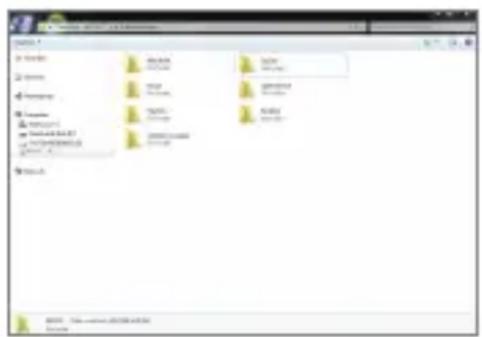
To access custom EQ files, connect the device to the computer. Internal Storage -> EqLists -> "User EQ.dat"
text_image
File 1 File 2 File 3 File 4 File 5 File 6 File 7 File 8 File 9 File 10 File 11 File 12 File 13 File 14 File 15 File 16 File 17 File 18 File 19 File 20 File 21 File 22 File 23 File 24 File 25 File 26 File 27 File 28 File 29 File 30 File 31 File 32 File 33 File 34 File 35 File 36 File 37 File 38 File 39 File 40 File 41 File 42 File 43 File 44 File 45 File 46 File 47 File 48 File 49 File 50 File 51 File 52 File 53 File 54 File 55 File 56 File 57 File 58 File 59 File 60 File 61 File 62 File 63 File 64 File 65 File 66 File 67 File 68 File 69 File 70 File 71 File 72 File 73 File 74 File 75 File 76 File 77 File 78 File 79 File 80 File 81 File 82 File 83 File 84 File 85 File 86 File 87 File 88 File 89 File 90 File 91 File 92 File 93 File 94 File 95 File 96 File 97 File 98 File 99 File 100
Shared User EQ files can only be shared between the same model. If the User EQ file is modified or changed externally it will no longer be recognized.
User EQ.dat will not display in the KANN CUBE, however it can be viewed when connected to the computer. Up to 20 User EQs can be displayed.
Gapless
- Plays the next song without any interruption.
Gapless playback is only supported between two files with identical bit rates, sample rates, and channels.
LR Balance
- Adjust the left-right balance for earphones/headphones.
Playback Settings
- Set how to add a song to Now Playing when a song is selected from a music list.
AMP
•The AMP output can be set to LOW, MID, or HIGH.

The amplifier supports 3.5 mm and 2.5 mm connections.
The battery can drain quickly when set to high gain. Be sure to connect the charging cable when using high gain.
CD Ripper
- Set the automatic CD ripping function as well as the file format and ripping speed.
Line Out
- Set the voltage value generated when Line Out is activated.

Do not use earphones with the Line Out feature enabled. Doing so may cause permanent hearing loss.
Line-out is supported when the amplifier is set to low gain.
XLR
- Enable/disable XLR output.
USB mode
●Media Device (USB Drive): When connected to a computer, device appears as a removable drive.
- DAC Input: Output sound from a connected computer to the device.
USB Audio
- Select the type of DSD sound being outputted through USB Audio Out to a connected portable DAC. Enable/Disable MQA decoding software.
S/PDIF Conversion
- Set the appropriate output format for the S/PDIF-connected external device.

Output format may differ depending on the connected external device. Please refer to the specifications of each device.
Car mode
•Turn the car mode on/off.
•Double Tap Wake function
If the screen is off, tap the screen twice to turn it back on.
When the device is connected to a charger, the screen will remain on.
If the power button is used to turn off the screen, the Double Tap Wake function will remain enabled.
Notification Panel
- Add, delete, or reorganize Quick Settings buttons on the notification bar. Drag and drop icons to add quick settings buttons or change the preferred order.
Screen Brightness
- Adjust screen brightness settings.
Date & Time
- Set the current date and time.
Device Name
- Set the name of the device. - The maximum name length is 50 characters.
Language
- Select the display language. - Supported languages are English, Korean, Japanese, French, Russian, German, and Spanish.
Input Method
- Back Button: the Floating Back Button will be displayed on the screen.
Move the Back Button to the desired position by dragging and dropping the icon with your finger.
Move the button to the center of the screen to deactivate it. To reactivate the button, turn it on from [Menu-Settings-Input Method]
- Keyboard: Select a language for the keyboard.
- Supported languages are English, Korean, Japanese, Chinese (Simplified/Traditional), French, Russian, German, and Spanish.

Supported languages may vary depending on your location.
Timer Settings
• Auto Power Off: The device will automatically power off after the selected amount of time of no user and device activity.
- Screen Timeout: The screen will turn off after the selected amount of time of no user activity.
- Sleep Timer: Music playback will stop and the device will turn off after the selected amount of time.
Downloads
- Select a folder for downloaded files to be saved by default.

When using AK Connect to download music, if the [Default folder] is selected in Settings, downloading will automatically begin to the pre-set Downloads folder.
When [Select Folder] is selected, the user is prompted to choose a download folder each time a file is downloaded.
Update
- System Update: Update the device when a new firmware version is available.
- Application Update: Update the default applications when new versions are available.
System Information
- System Information: View model number, firmware version, MAC address and memory usage information. The microSD card can be mounted/dismounted and data can be deleted.
- Legal information: Check open source licenses and regulations.

Formatting the microSD card will delete all data on the memory card. Be sure to backup any important files before formatting. When formatting the microSD card on a computer, use of the FAT32 system is recommended.
System Reset
- Initialize Media Scan: Resets and rescans the internal database. Database initialization time may vary depending on the number of files stored on the device.
- Settings Reset: Resets all user settings back to the default settings.
- Factory Data Reset: Deletes all user data and resets all user settings back to the default setting.
Connecting to Wi-Fi
Connecting to a Wi-Fi Network
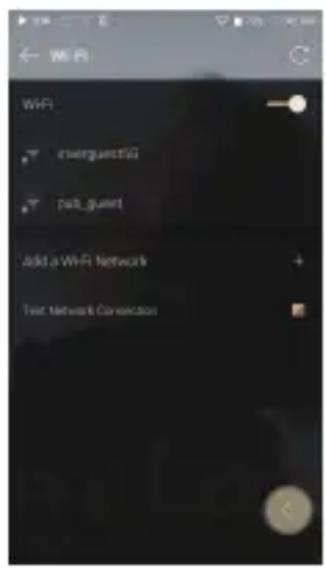
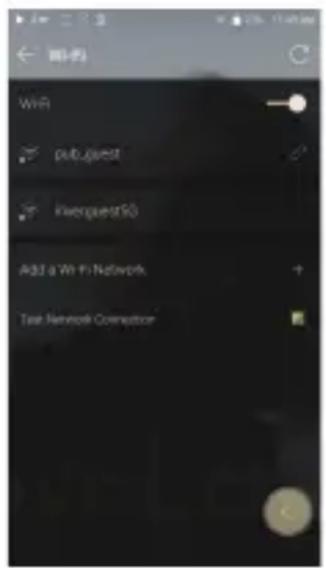
- Press and hold [💡] from the Notification Bar or select [Menu - Settings - Wi-Fi] to display a list of available Wi-Fi networks.
text_image
WiFi emerguestSU pub_guert Add a WiFi Network Text Network Connection- Select the desired AP to connect to the wireless network.
Additional information such as Wi-Fi password may be required depending on Wi-Fi settings.
text_image
WtR pub guest Riverquest50 Add a Wi-Fi Network Test Network Connection
Networks requiring browser or other additional certifications are not supported.
Wi-Fi Channels 1 through 13 are supported (but channels 12 and 13 are disabled for use in USA.).
Using Bluetooth
Connect a Bluetooth device to listen to music wirelessly.
Turning Bluetooth On/Off
A Bluetooth device must be paired with the device prior to use. Refer to the Bluetooth device's instruction manual for details.
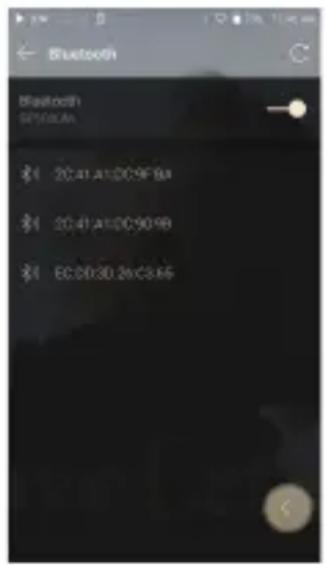
- Select [✗] from the Notification Bar menu or select [On/Off] from [Menu - Settings - Bluetooth].
text_image
Bluetooth IP:100A IP: 20.41.A1:00:9F:84 IP: 20.41.A1:00:90:98 IP: EC:00:30.26/03:45Bluetooth Pairing
- In the Settings Menu, select the appropriate Bluetooth device from the list of available devices.
Disconnect a Bluetooth Device
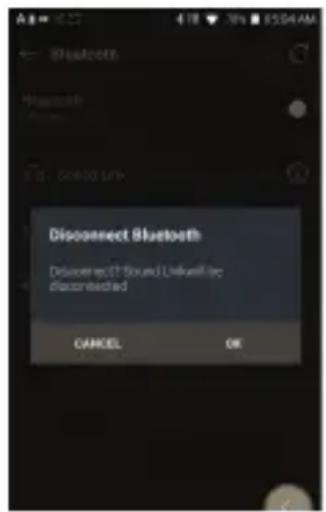
- Press the connected Bluetooth device and confirm the message prompt to disconnect the device.
text_image
Disconnect Bluetooth Disconnect OT Sound Unleveling disconnected CANCEL OKRemoving a Bluetooth Pairing
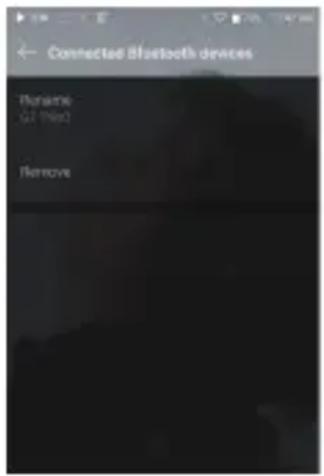
- Press [ ⓘ ] to the right of the paired device to go to settings.
- Select [Remove] to complete the process.
text_image
Connected Bluetooth devices Rename GO Next Remove
Bluetooth Support Specifications
•Profile: A2DP, AVRCP, aptX™HD
•Device performance may be affected during Hi-Res playback. Do not turn off the device while connected to Bluetooth.
Turn the Bluetooth device off then on in case of issue.
Pairing methods may differ for each individual Bluetooth device. Always refer to the respective instruction manual for details.
When connecting the product to a Bluetooth device, the distance between the two must be within 20 cm.
Audio quality will degrade with longer distances and the pairing may disconnect at a distance of 2 m (6.5 ft.) or more. (Distances may vary depending on device and environment.)
Crosstalk may be heard while using Bluetooth.
For multipoint devices, make the necessary connections prior to use.
Car audio Bluetooth connections may not be fully compatible. Some features may not be supported and quality of playback may vary.
Malfunction, noise, and other undesirable effects may occur due to the device's battery level and the environment.
- If signal interference affects data transmission. (e.g., holding the device while wearing a Bluetooth device, holding the device while holding another electronic device, etc.)
- If the device or Bluetooth headset's radio transmitters are touching parts of the body.
- If the transmission strength is affected by walls, corners, partitions, etc.
- If devices using the same frequencies cause interference. (e.g., medical devices, microwave ovens, Wi-Fi, etc.)
- Areas with an excessive amount of interference or weak signals. (e.g., elevators, underground, etc.)
Equalizer Setup
Equalizer Setup
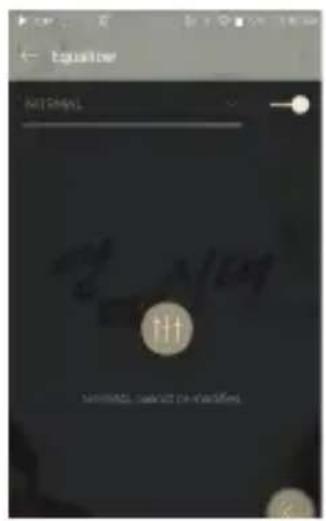
- Press and hold [ ↑] on the Notification Bar or turn on [Menu - Settings - Equalizer].
text_image
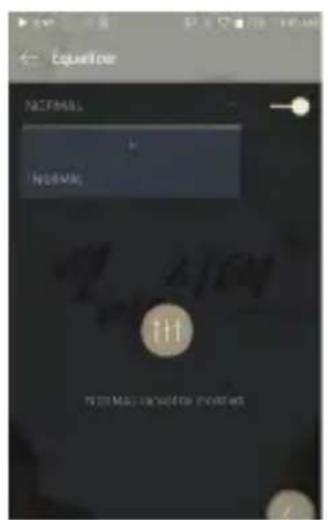
Equalizer NET CHAPL 111- Press [NORMAL], then select [+].
text_image
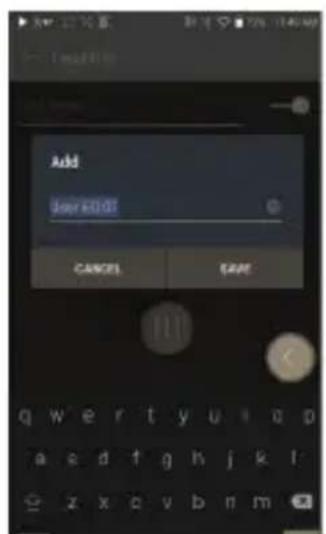
EqualTree NORMAL NORMAL 111 NORMAL RESORT FOR NORMAL- Enter a name for the custom EQ settings and select [SAVE].
text_image
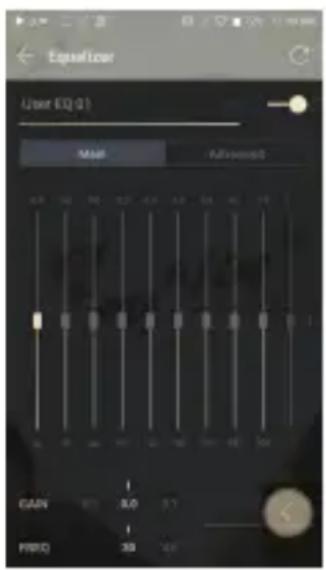
Add User kID CANCEL SAVE-
Adjust the frequencies up and down according to the user's preferences.
-
The number values at the lower-left corner of the screen can be adjusted for fine-tuning.
-
Press the [Advanced] tab on the top to display PEQ settings screen. Adjust Freq/Gain/Q.
text_image
Especialer User EQ (Q) Mail Advanced CAN 3.0 5.7 PBO 39 2.0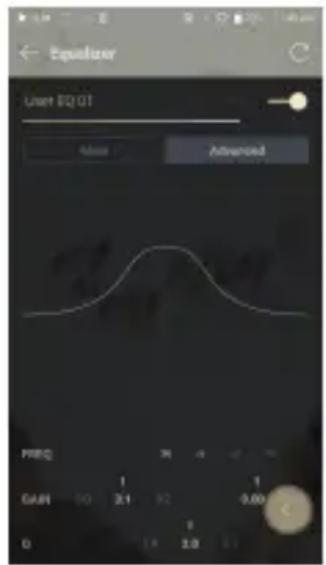
text_image
Equidizer User EQ 01 Status Advanced PRET: 1 2 3 4 5 6 7 8 9 10 11 12 13 14 15 16 17 18 19 20 21 22 23 24 25 26 27 28 29 30 31 32 33 34 35 36 37 38 39 40 41 42 43 44 45 46 47 48 49 50 51 52 53 54 55 56 57 58 59 60 61 62 63 64 65 66 67 68 69 70 71 72 73 74 75 76 77 78 79 80 81 82 83 84 85 86 87 88 89 90 91 92 93 94 95 96 97 98 99 100Deleting a Custom Equalizer Setting
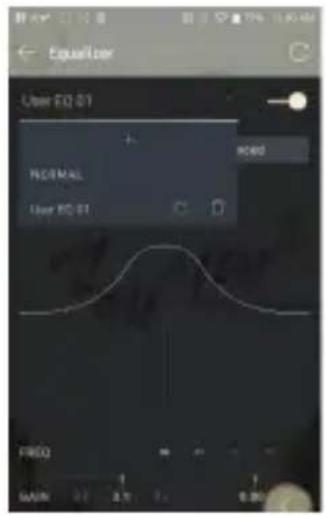
- Press [NORMAL] in the upper left of the equalizer.
- Press [ ] next to the EQ name to be deleted.
- Press [OK] to delete the selected EQ setting.
text_image
EqualUser User EQ 01 NORMAL User EQ 01 READ FINDO MAIN 3.7 0.90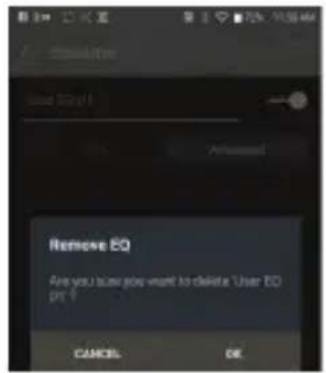
text_image
Remove EQ Are you to save you want to delete "User EQ" pr ? CANCEL OKRenaming a Custom Equalizer Setting
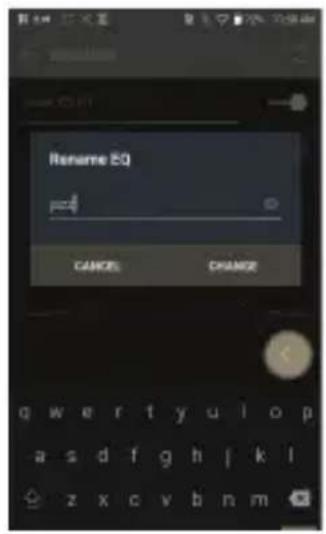
- Press [NORMAL] in the upper left of the equalizer.
- Press [ ] next to the EQ setting name you wish to change and enter a new name for the selected EQ.
- Press [CHANGE] to save.
text_image
Rename EQ pz4 CANCEL CHANGESafety Pre- Cautions
Device
- When a plug is inserted into the 3.5mm unbalanced, 2.5mm balanced, or USB port, do not apply any force or impact to the plug.
- Do not insert any metal objects (coins, hairpins, etc.) or flammable debris into the device.
- Do not put heavy objects on the device.
- If the device gets wet (rain, water, chemicals, medicine, cosmetics, sweat, moisture, etc.), allow the device to dry thoroughly before powering on. (Damage may not be repairable, however if deemed repairable, any damage due to liquid exposure will be repaired for an additional fee even if the device is under warranty.)
- Avoid exposing the device to direct sunlight or extreme temperatures (0°C - +40°C) such as the inside of a car during the summer.
- Do not store or use in hot and humid places such as saunas.
- Avoid places with excessive dust or smoke.
- Do not use for extended periods on blankets, electric blankets, or carpet.
- Do not place near a fire or in a microwave.
- Never disassemble, repair, or alter the product.
- Do not store for extended periods in a confined space with the power on.
- Do not place the device near magnetic objects (magnets, televisions, monitors, speakers, etc.).
- Do not let chemicals or detergents come in contact with the product since they may damage the surface and paint.
- Do not drop or expose the product to strong impacts (places where there is strong vibration, etc.).
- Do not press multiple buttons simultaneously.
- Do not disconnect the USB Type-C cable during data transfer.
-
When connecting the device to a computer with the USB Type-C cable, use a USB port on the back of the computer for best results.
-
Connecting the cable to a defective or damaged USB port on a computer may damage the device.
- Displaying one image for an extended period may cause screen burn-in (afterimage).
- Using poor quality protective films or adhesive stickers on the screen may cause damage.
- Do not insert any foreign objects into the device ports.
- The device may become warm while playing and charging, so handle it carefully.
- Product's corners may be sharp, so handle carefully.
Other
- Do not use earphones/headphones or use the device while operating any type of vehicle. It is not only dangerous, but may be a violation of the law in certain regions.
- Do not use the product during physical activities (driving, walking, hiking, etc.).
- Always use in a safe environment to avoid the risk of an accident.
- When using the device while moving, make sure the area is free of obstacles.
- Avoid using the device during thunderstorms to reduce the possibility of electric shock.
- If there is a ringing in the ears, reduce the volume or stop using the device.
- Do not listen to music at excessive volumes for extended periods.
- Do not use earphones/headphones at excessive volumes.
- Make sure that the headphone/earphone does not get stuck in another object or get caught between other objects.
- Do not sleep with earphones in your ears or leave them in for extended periods.
Trouble-shooting
Solutions to Common Issues
- The device won't turn on.
The battery may need to be recharged. Charge the device for at least one hour and try again.
Reset the device. (See Page 5)
- The device will not charge when connected to a computer via USB cable.
Connect to the computer using the provided USB Type-C cable. Charging may not occur depending on the condition and specifications of your computer.
(In this case, charging via computer is not recommended.)
- Connect the device to a USB wall adapter using the provided USB Type-C cable to charge directly from a wall outlet.
- The computer won't recognize the device or an error occurs when connected.
Use a USB port on the back of the computer.
Check if the USB Type-C cable is connected correctly.
For Mac, check to ensure the MTP program is installed properly.
- Check if the device connects properly on a different computer.
- The screen turns off repeatedly.
The screen turns off automatically after a defined period to reduce battery consumption. Set the time at [Menu-Settings - Timer Settings - Screen Timeout].
- The screen does not display images properly.
Check the screen for debris.
- There is no sound or there is static/interference.
Check that the volume setting is above [0].
Check that the earphones are plugged in properly and make sure nothing is obstructing the port connection.
Verify that the music file is not corrupt.
- Verify that the audio settings have been set properly. (Balanced out, line out, etc.)
- A file does not play or the product becomes unstable when a certain file is played.
File may be damaged or corrupt if the following occurs:
Playback stops or freezes.
Device may act erratically or freeze.
File may sound different on another device.
There may be a difference in the performance of playback or other functions.
There may be differences in the file specs.
- Converting the file to a different format or use of a different file is recommended.
Copyright
Dreamus Company retains the rights to patents, trademarks, copyrights, and other intellectual property rights related to this manual. No contents of this user manual may be duplicated or reproduced in any format or by any means without the prior approval of Dreamus Company.
Using or reproducing, in whole or part, the contents of this document is subject to penalties. Software, audio, video, and any other copyrighted contents are protected in accordance with relevant copyright laws.
The user accepts all legal responsibility for the unauthorized reproduction or distribution of the copyrighted contents from this product.
Companies, organizations, products, people, and events used in the examples are fictional. Dreamus Company has no intention to be associated with any company, institution, product, person, or incident through this instruction book, and no such inference should be made. It is the responsibility of the user to comply with applicable copyright laws.
©1999\~2019 Dreamus Company. All rights reserved.
Certifications
KC / FCC / CE / TELEC
Class B Device (Communication equipment for residential use): This is a Class B Device and is registered for EMC requirements for residential use. This device can be used in residential areas and all other areas.

FCC ID: QDMPPM42
This device complies with Part 15 of the FCC Rules, Operation is subject to the following two conditions: (1) this device may not cause harmful interference, and (2) this device must accept any interference received, including interference that may cause undesired operation.
FCC Caution: Any changes or modifications not expressly approved by the party responsible for compliance could void the user's authority to operate this equipment.
(b) For a Class B digital device or peripheral, the instructions furnished to the user shall include the following or similar statement, placed in a prominent location in the text of the manual: NOTE: This equipment has been tested and found to comply with the limits for a Class B digital device, pursuant to part 15 of the FCC Rules. These limits are designed to provide reasonable protection against harmful interference in a residential installation.
This equipment generates, uses and can radiate radio frequency energy and, if not installed and used in accordance with the instructions, may cause harmful interference to radio communications. However, there is no guarantee that interference will not occur in a particular installation. If this equipment does cause harmful interference to radio or television reception, which can be determined by turning the equipment off and on, the user is encouraged to try to correct the interference by one or more of the following measures:
- Reorient or relocate the receiving antenna.
- Increase the separation between the equipment and receiver.
- Connect the equipment into an outlet on a circuit different from that to which the receiver is connected.
- Consult the dealer or an experienced radio/TV technician for help.
Body-Worn Operation
This device was tested for typical body-worn operations with the back of the portable music player kept 5mm from the body. To maintain compliance requirements, use only belt-clips, holsters or similar accessories that maintain a 5mm separation distance between the user's body and the back of the portable music player, including the antenna. The use of belt-clips, holsters and similar accessories should not contain metallic components in its assembly. The use of accessories that do not satisfy these requirements may not comply with CE RF exposure requirements and should be avoided. Body-worn accessory exposure conditions "Specific information must be included in the operating manuals to enable users to select body-worn accessories that meet the minimum test separation distance requirements. Users must be fully informed of the operating requirements and restrictions, to the extent that the typical user can easily understand the information, to acquire the required body-worn accessories to maintain compliance. Instructions on how to place and orient a device in body-worn accessories, in accordance with the test results, should also be included in the user instructions. All supported body-worn accessory operating configurations must be clearly disclosed to users through conspicuous instructions in the user guide and user manual to ensure unsupported operations are avoided. All body-worn accessories containing metallic components must be tested for compliance and clearly identified in the operating manual. The instruction must inform users to avoid using other body-worn accessories containing metallic components to ensure RF exposure compliance."
Registered Trademarks
Windows 7, Windows 8, Windows 10, and Windows Media Player are registered trademarks of Microsoft Corp.

Qualcomm aptX\~HD
MQA
MQA (Master Quality Authenticated) is an award-winning British technology that delivers the sound of the original master recording. The master MQA file is fully authenticated and is small enough to stream or download. Visit mqa.co.uk for more information.
Astell&Kern KANN CUBE includes MQA technology, which enables you to play back MQA audio files and streams, delivering the sound of the original master recording.
The KANN CUBE Now Playing status shows a green or blue light to indicate that the unit is decoding and playing a MQA stream or file, and denotes provenance to ensure that the sound is identical to that of the source material. A blue light indicates it is playing a MQA Studio file, which has either been approved in the studio by the artist/producer or has been verified by the copyright owner.
The MQA logo is a trademark of MQA Limited. © MQA Limited 2019
text_image
Eigat Performance to AI AI Project Results - The Spatial Environment
text_image
LIVING Jar Reason! Roll: 100%Disclaimers
The manufacturer, importer, and distributor shall not be liable for damages including accidental and personal injury due to the improper use or operation of this product. The information in this user manual was written based on current product specifications. The manufacturer, Dreamus Company, regularly adds new features via OTA updates and will continue to apply new technologies in the future. Product specifications may be changed without prior notice. There is no warranty against data loss due to the use of this product.
The device must be used a minimum of 5mm away from the body in normal use conditions.
CAUTION
RISK OF EXPLOSION IF BATTERY IS REPLACED
BY AN INCORRECT TYPE.
DISPOSE OF USED BATTERIES ACCORDING
TO THE INSTRUCTIONS
The excessive sound pressure from earphones and headphones can cause hearing loss.
Specifications
General Specifications
| Product Name | KANN CUBE |
| Model | PPM42 |
| Body Color | Wolf Gray |
| Body Material | Aluminum |
| Display | 5.0inch 720x1280 touch display |
| Supported Audio Formats | WAV, FLAC, WMA, MP3, OGG, APE, AAC, ALAC, AIFF,DFF, DSF, MQA |
| MQA Playback | Services (Tidal Masters), Local files, External USB,MQA-CD(ripped) |
| Sample Rate | PCM: 8kHz ~ 384kHz (8/16/24/32bits per Sample)DSD Native: DSD64(1bit 2.8MHz), Stereo /DSD128(1bit 5.6MHz), Stereo / DSD256(1bit 11.2MHz), Stereo |
| Output Level | Phone Out: [Low] Unbalanced 2Vrms / Balanced 4Vrms, (Condition No Load),[Mid] Unbalanced 4Vrms / Balanced 8Vrms, (Condition No Load),[High] Unbalanced 6Vrms / Balanced 12Vrms, (Condition No Load)XLR Out: 4Vrms (Condition No Load) |
| DAC | ESS ES9038PRO SABRE x2 (8ch Dual DAC) |
| Decoding | Support up to 32bit / 384kHz Bit-to-Bit playback |
| Input | USB Type-C input (for PC & MAC) |
| Outputs | PHONES (3.5mm) / Balanced Out (2.5mm, only 4-pole supported)Optical Out (3.5mm) / XLR Out (Mini 5pin) |
| Charging | 9V=1.67A / 5V=2A |
| Wi-Fi | 802.11 b/g/n (2.4GHz) |
| Bluetooth | V4.2 (A2DP, AVRCP, aptXTM HD) |
| Dimensions | 3.45"(87.75mm)[W] x 5.51"(140mm)[H] x 1.24"(31.5mm)[D] |
| Weight | 17.3oz (493g) |
| Feature Enhancements | Firmware upgrade supported(OTA) |
| Audio Specifications | |
| Frequency Response | Phone Out: ±0.027dB (Condition: 20Hz~20kHz) Unbalanced /±0.025dB (Condition: 20Hz~20kHz) Balanced±0.07dB (Condition: 10Hz~70kHz) Unbalanced /±0.087dB (Condition: 10Hz~70kHz) BalancedXLR Out: ±0.025dB (Condition: 20Hz~20kHz) /±0.032dB (Condition: 10Hz~70kHz) |
| S/N | Phone Out: 117dB @ 1kHz, Unbalanced / 117dB @ 1kHz, BalancedXLR Out: 128dB @ 1kHz |
| Crosstalk | Phone Out: 129dB @ 1kHz, Unbalanced / 136dB @ 1kHz, BalancedXLR Out: 146dB @ 1kHz |
| THD+N | Phone Out: 0.0004% @ 1kHz, Unbalanced / 0.0005% @ 1kHz, BalancedXLR Out: 0.0004% @ 1kHz |
| IMD SMPTE | Phone Out: 0.0005% 800Hz 10kHz(4:1) Unbalanced / 0.0006% 800Hz 10kHz(4:1) BalancedXLR Out: 0.0006% 800Hz 10kHz(4:1) |
| Output Impedence | Phones 3.5mm (1.2ohm) / Balanced out (1.6ohm) |
| Reference Clock Jitter | 250 Femto Seconds |
| Memory | |
| Built-in Memory | 128GB[NAND] |
| External Memory | microSD(Max. 512GB) x 1 |
| Battery | |
| Capacity | 7,400mAh 3.8V Li-polymer Battery |
| Supported OS | |
| Supported OS | Windows 7,8,10(32/64bit) Mac OS X 10.7 and up |