
Neon II - Smartphone LG - Free user manual and instructions
Find the device manual for free Neon II LG in PDF.


User questions about Neon II LG
0 question about this device. Answer the ones you know or ask your own.
Ask a new question about this device
Download the instructions for your Smartphone in PDF format for free! Find your manual Neon II - LG and take your electronic device back in hand. On this page are published all the documents necessary for the use of your device. Neon II by LG.
USER MANUAL Neon II LG
text_image
at&t Mobile Email Messaging Social Net Mobile Web AT&T GPS Address Book iPhone My Stuff AT&T Music Settings OK LGLG NEON™ II
Quick Start Guide
Use your phone for more than just talking.
• Text and Picture Messaging
- Mobile Email
- AT&T Music
- AT&T Navigator
- Multitasking
Actual color of the phone may vary.
See User Manual for Spanish instructions.
Additional charges may apply. Visit att.com for more details. Phone features subject to change without prior notice. All phone screens are simulated. Services may not be available in all markets.
Service provided by AT&T Mobility. © 2010 AT&T Intellectual Property. All rights reserved. AT&T, AT&T logo and all other marks contained herein are trademarks of AT&T Intellectual Property and/or AT&T affiliated companies. All other marks are proprietary to their respective owners.
Getting to Know Your Phone
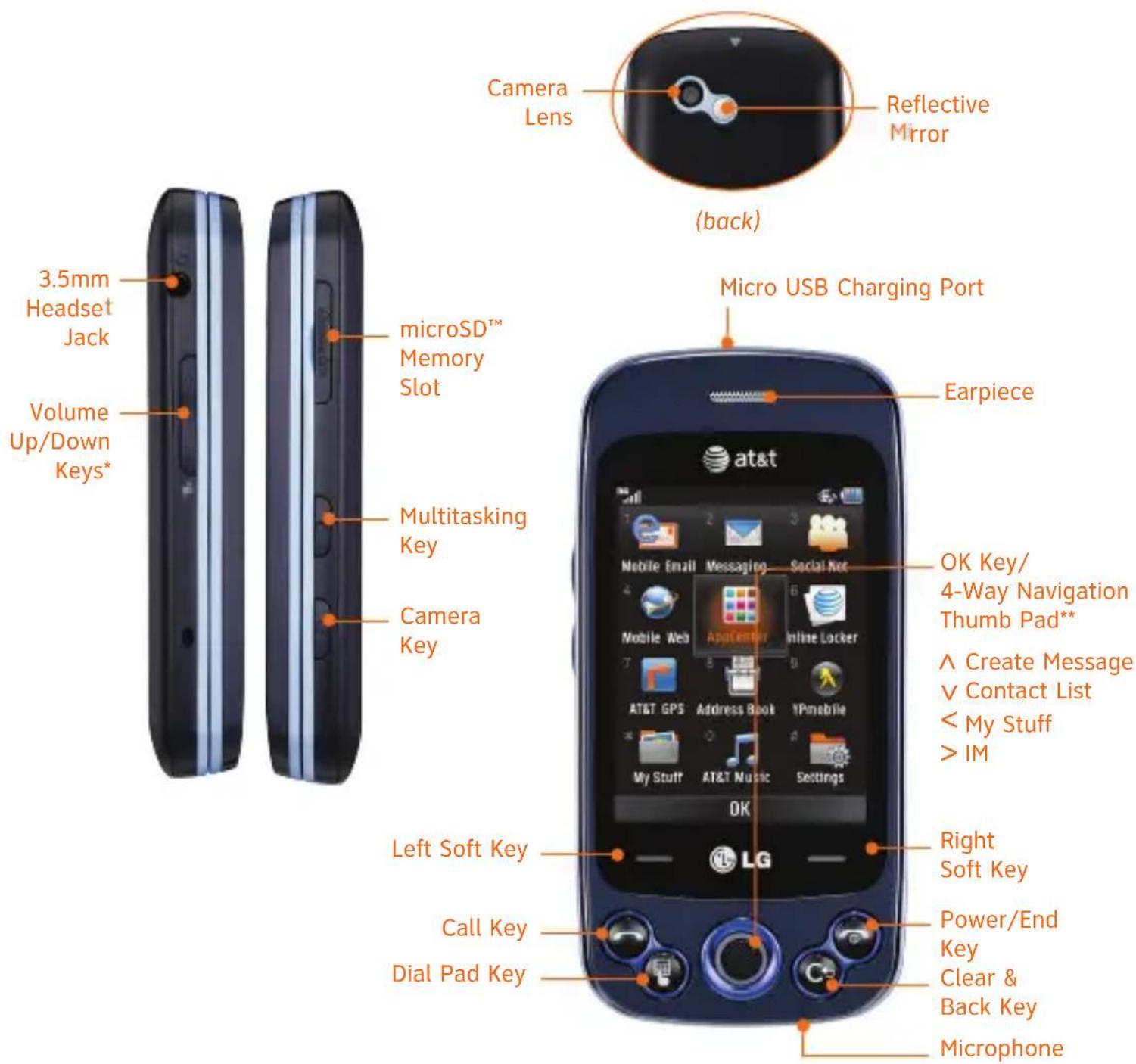
text_image
Camera Lens Reflective Mirror (back) 3.5mm Headset Jack Micro USB Charging Port Volume Up/Down Keys* microSD™ Memory Slot Multitasking Key Camera Key at&t Earpiece OK Key/ 4-Way Navigation Thumb Pad** ^ Create Message ∨ Contact List < My Stuff > IM Left Soft Key Call Key Dial Pad Key Right Soft Key Power/End Key Clear & Back Key Microphone* Press and hold the Volume Down Key to toggle Vibration Mode on and off.
**Customizable
For more information, visit att.com/devicesupport.
QWERTY Keyboard
Browse the web, take notes, and send messages with the slide-out QWERTY keyboard! Access your favorite features from standby mode with the shortcut keys on the left or the arrow keys on the right.
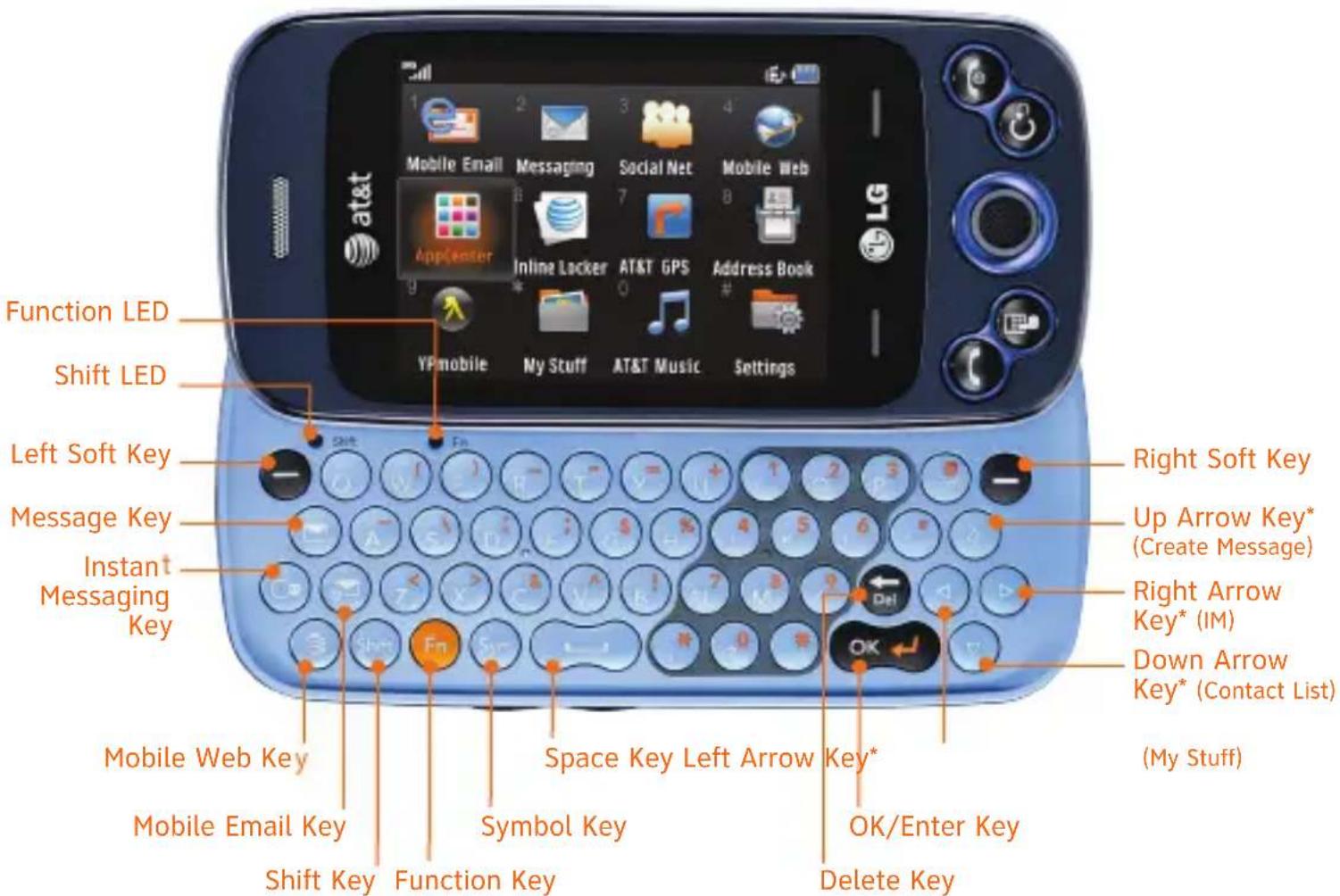
text_image
Function LED Shift LED Left Soft Key Message Key Instant Messaging Key Mobile Web Key Mobile Email Key Shift Key Function Key Right Soft Key Up Arrow Key* (Create Message) Right Arrow Key* (IM) Down Arrow Key* (Contact List) (My Stuff) Space Key Left Arrow Key* Symbol Key OK/Enter Key Delete Key*Customizable
text_image
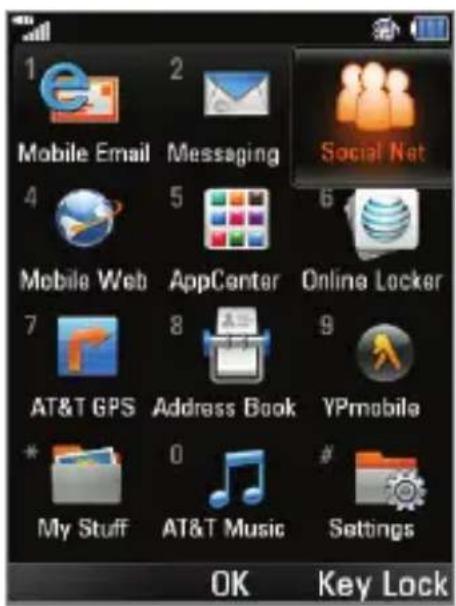
1 Mobile Email 2 Messaging Social Net 4 5 6 Mobile Web AppCenter Online Locker 7 8 9 AT&T GPS Address Book YPmobile * 0 # My Stuff AT&T Music Settings OK Key Lock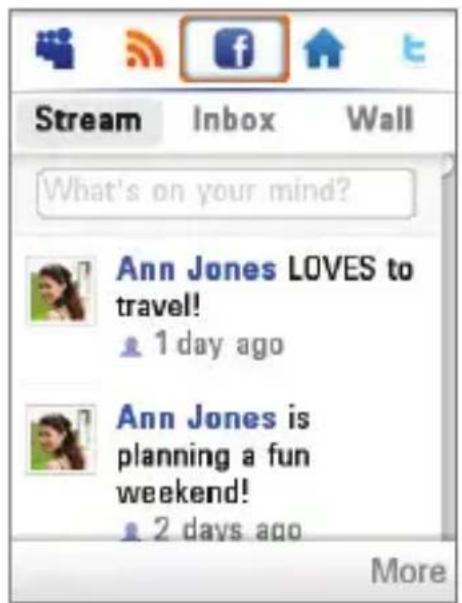
text_image
Stream Inbox Wall What's on your mind? Ann Jones LOVES to travel! 1 day ago Ann Jones is planning a fun weekend! 2 days ago MoreAT&T Social Net
Keep on top of your world with AT&T Social Net, which allows you to access the latest news as well as popular social networks all in one place.
Access AT&T Social Net
- From standby mode, tap the Right Soft Key to access the main menu and select Social Net (3) with the ●Key.
- To accept data charges if asked, tap the Left Soft Key for Continue. To accept the End User License Agreement, tap the Left Soft Key for Accept.
- You may need to enter your phone number. When you're finished, tap the Left Soft Key for Done.
- Push left or right on 🙏 to access Facebook, Twitter, MySpace, and more.
Use AT&T Social Net
- Select , for to quickly update your status.
- Select 📋 for the latest news and information.
- Select 📋 for a snapshot of all your status updates.
text_image
Message 16/160 abc Hi! How are you? Options Send To Insert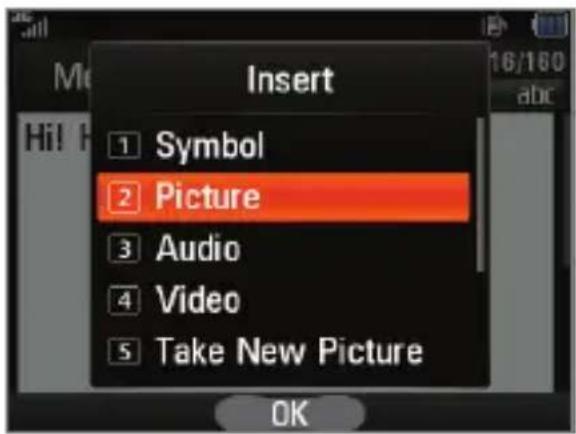
text_image
Insert 1 Symbol 2 Picture 3 Audio 4 Video 5 Take New Picture OKText and Picture Messaging
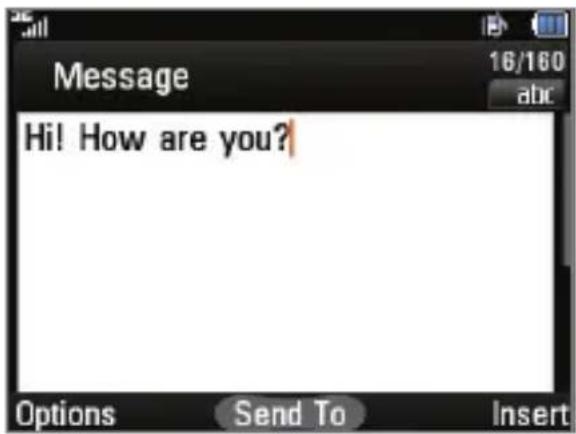
When you need to communicate privately and quickly, use text messaging. Send text messages to other wireless phones and email addresses.
- With the phone horizontal and the slide open, press the Key.
- Enter your message with the keyboard and press the OK Key for Send To.
- Select a contact by highlighting it with the arrow keys and pressing the Key. To enter a number or email address or to adjust other options, press the Left Soft Key for Options and select Enter Number (1). When you are ready, press the Right Soft Key for Send.
Insert a Picture
- Once you have created a message, press the Right Soft Key for Insert.
- Press the 2 Key for Picture, and then press the OK Key for Insert to attach the highlighted thumbnail.
- Press the OK Key for Send To and follow the instructions from Step 3 above.
Please don't text and drive.
text_image
Phone Update Do you want to synchronize this phone with the contacts in your online AT&T Address Book?AT&T Address Book
Store phone numbers, email addresses, company names, and more! You can even back up your contact information for safe keeping with the Address Book feature!
text_image
New Contact Display Name Ann First Name Last Name Options SaveTo Activate Address Book
- With the phone horizontal and the slide open, press the Down Arrow Key to access the Contact List.
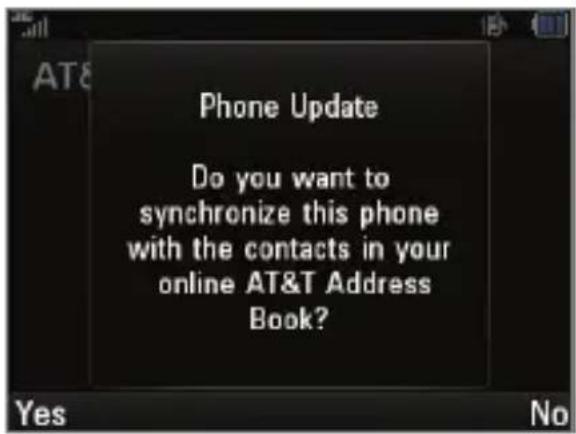
- Press the Left Soft Key for Options and select AT&T Address Book (0).
- Press the Left Soft Key for Yes to sync your contacts.
- Once synced, you may merge your phone's contact list with AT&T Address Book or replace all of your phone contacts with the backup list.
To Add Contacts
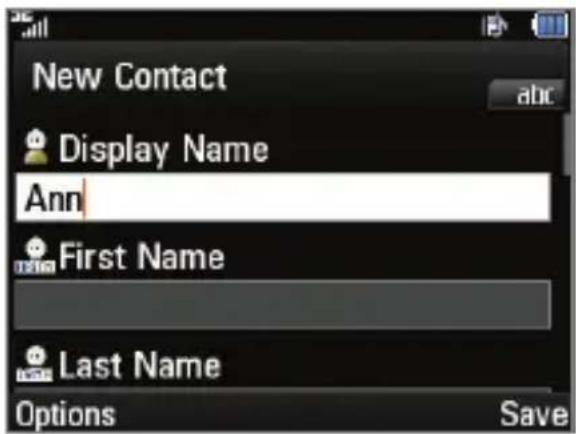
- From the Contact List, press the Right Soft Key for New.
- Enter the contact information and press the Right Soft Key for Save.
text_image
Yahoo! Mail Aol.AOL Mail AIM Mail Windows Live Hotmail AT&T Mail Gmail Other Providers Help Select Exit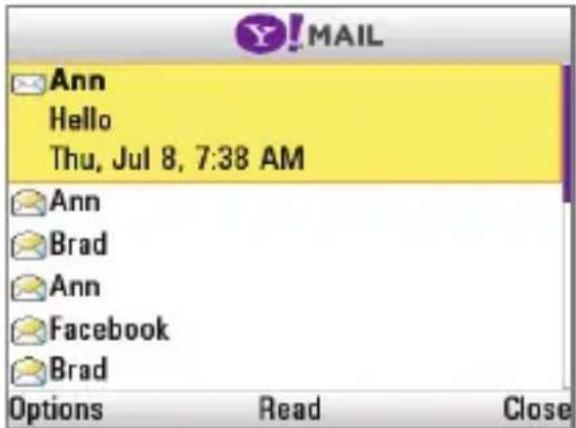
text_image
Y!MAIL Ann Hello Thu, Jul 8, 7:38 AM Ann Brad Ann Facebook Brad Options Read CloseMobile Email
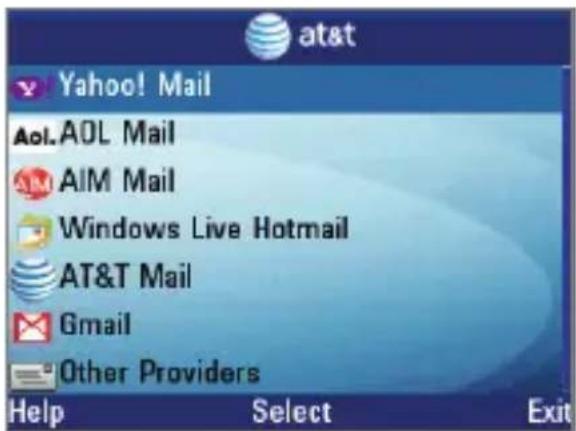
Carry your email inbox in your pocket! With Mobile Email 3.0,* you can access numerous providers, including AT&T, AOL®, Yahoo!®, Gmail™, and Windows Live™ Hotmail.
- With the phone horizontal and the slide open, press the ⓄKey.
- Select an email provider from the list. The steps that follow will vary depending on your provider.
- You may be asked to accept terms of service and/or to select your email domain. Follow the on-screen instructions.
- Enter your email address and password with the QWERTY keyboard.
- Press the OK Key for Sign In.
*Mobile email requires a subscription to a monthly service plan.

at&t
AOL.

YAHOO! MAIL

Windows Live-Mail
Gmail
All providers may not be available on all devices. Yahoo! and the Yahoo! logo are trademarks and/or registered trademarks of Yahoo! Inc. AOL, America Online, and the Triangle Logo are registered trademarks of America Online. Windows Live and the Windows logo are either registered trademarks or trademarks of Microsoft Corporation in the United States and/or other countries. Gmail is a trademark of Google Inc.
text_image
AT&T Music My Stuff Settings 1 Music Player 2 Shop Music 3 MusicID2 4 AT&T Radio 5 Music Videos 6 Community OK Key Lock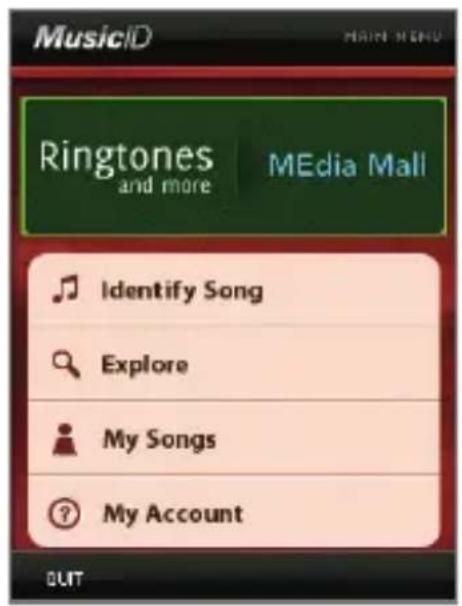
text_image
MusicID MAIN MENU Ringtones and more MEdia Mall Identify Song Explore My Songs My Account OUTAT&T Music
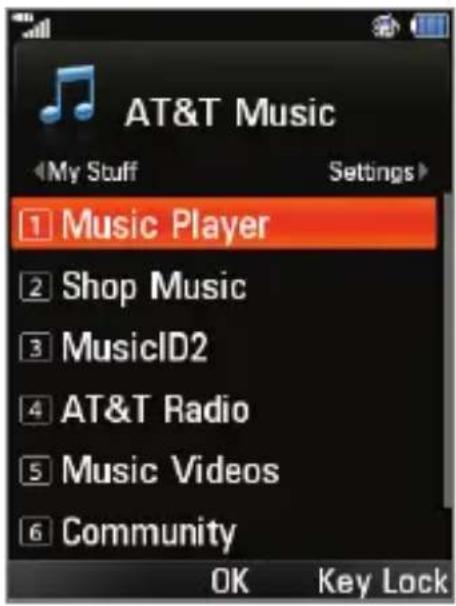
AT&T Music provides the ultimate music experience. Download your favorite songs from the music store, watch the latest music videos, and stay in the know with music news and more.
- From standby mode, tap the Right Soft Key to access the main menu.
- Select AT&T Music (0).
Listen to your music with the integrated Music Player. Access your music by artist, album, genre, or playlist.
Personalize your phone by browsing and downloading select music from digital music stores with Shop Music.
Instantly find out the artist's name and the title of a song with MusicID2.
Get unlimited access to commercial-free music and the latest hip-hop, R&B, rock, jazz, and country anywhere you go with AT&T Radio.
Access music videos from the latest artists with Music Videos.
Visit one or more hot user communities by going to Community. Interact with friends and the community as well as review artist fan sites.
Purchase additional fun music applications by going to Music Apps.
text_image
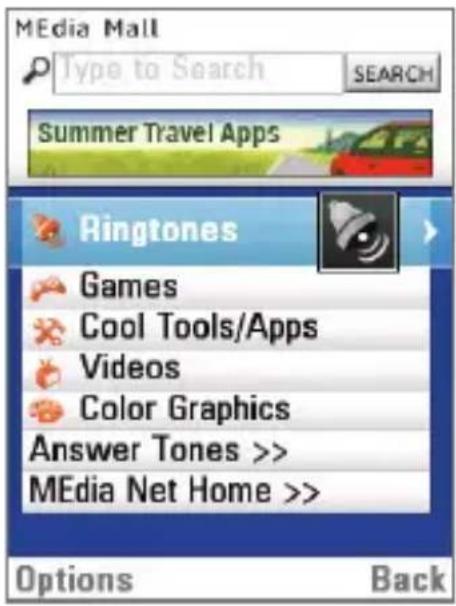
MEdia Mall Type to Search SEARCH Summer Travel Apps Ringtones Games Cool Tools/Apps Videos Color Graphics Answer Tones >> MEdia Net Home >> Options Back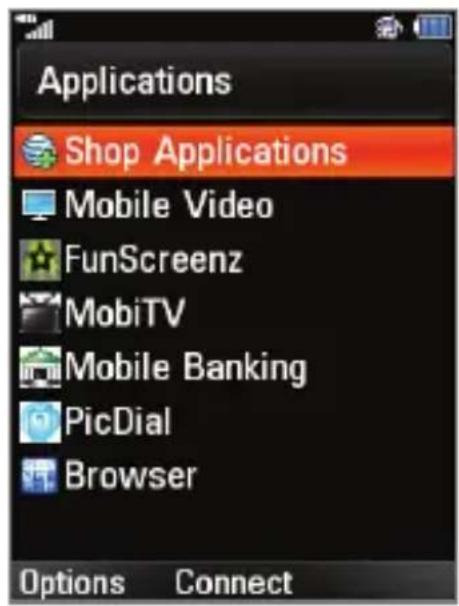
text_image
Applications Shop Applications Mobile Video FunScreenz MobiTV Mobile Banking PicDial Browser Options ConnectAppCenter
Whether you're into the latest hits or the classics, let your phone reflect your style with downloadable ringtones, Answer Tones, and graphics. Or entertain yourself with the most popular downloadable games and applications—all from the AppCenter.
Access AppCenter
-
From standby mode, tap the Right Soft Key to access the main menu and select AppCenter (5).
-
Once connected, select the category you want to view to browse content. Follow instructions to purchase the desired item.
Access Applications
-
From the home screen, push left on to access the My Stuff menu and select Applications (6).
-
From here, you may access applications or select Shop Applications to purchase new ones from the AppCenter.

text_image
AT&T Navigator Drive To Search Maps & Traffic Tools & Extras GO EXIT
text_image
Dominio Dr 215ft ETA 4:33PM VIEW HOMEAT&T Navigator
AT&T Navigator will help you reach your destination with GPS-enabled directions. Get where you're going, whether it's across town or across the country.
To Start AT&T Navigator
- From standby mode, tap the Right Soft Key to access the main menu and select AT&T GPS (7) > AT&T Navigator (1).
- Read the warning and tap the Left Soft Key for Agree to continue. You may then choose to view a tour of the AT&T Navigator features.
Navigator Options
- Drive To – Select your destination.
- Search – Find your favorite location.
- Maps & Traffic – Get the latest local traffic and map information.
- Tools & Extras – Learn more about Navigator and set your profile preferences.
text_image
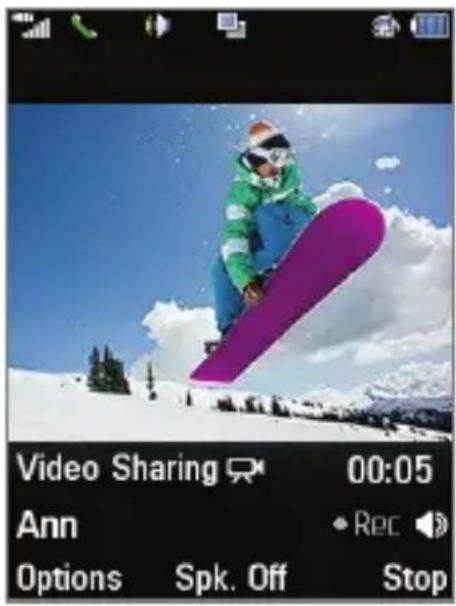
Video Sharing 00:05 Ann Rec Options Spk. Off Stop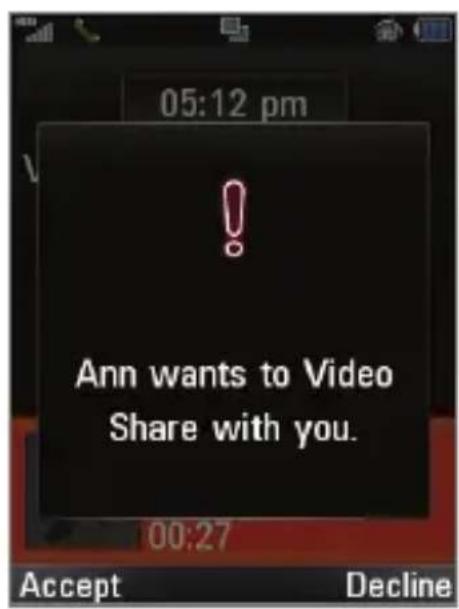
text_image
05:12 pm Ann wants to Video Share with you. 00:27 Accept DeclineVideo Share™
Share special moments as they happen—Video Share lets you stream live video directly to loved ones.
Making a Video Share Call
- From the home screen, press the key and dial the 10-digit number of another 3G Video Share capable device.*
- Once the call is answered, tap the Right Soft Key for Video. This option will not appear until the screen displays the message Video Share Ready.
- You may share live or recorded video. Press the ● Key for Live (1).
Accepting a Video Share Call
- When a caller initiates Video Share, their name or number will appear in an invitation on your screen.
- Tap the Left Soft Key for Accept, and the Video Share session will begin automatically.
To End a Video Share Session, tap the Right Soft Key for Stop.
*Video Share is not available in all markets. Both parties must be in a 3G service area—a 3G icon must appear by the signal bars prior to a call being placed, and both parties must remain in the 3G coverage area for the duration of the Video Share session.
text_image
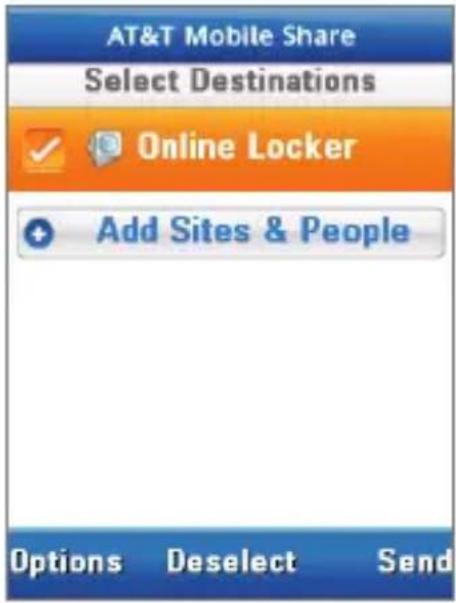
AT&T Mobile Share Select Destinations ✓ Online Locker + Add Sites & People Options Deselect Send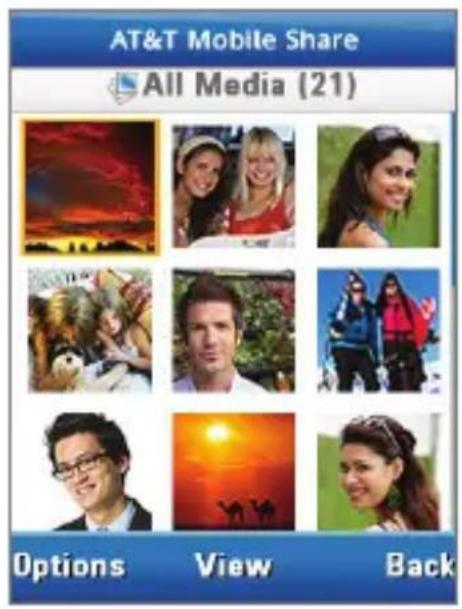
text_image
AT&T Mobile Share All Media (21) Options View BackMobile Share
Upload photos and videos to your AT&T Online Locker to store them and to share them with friends and family.
Upload Photos to Your Online Locker
- From the home screen and with pictures already on your phone, push left on to access the My Stuff menu and select Picture (4).
- Highlight a thumbnail and tap the Left Soft Key for Options, and then select Send Via (2) > Mobile Share (2).
- With Online Locker checked on the Select Destinations screen, tap the Right Soft Key for Send.
Browse Your Online Locker
- From the home screen and with pictures already on your phone, tap the Right Soft Key to access the main menu and select Online Locker (6).
- Press the ● Key for View to select All Media. Press the ● Key again to view the image.
text_image
att.net LOCAL WEB POPULAR www. ! Search the Internet My Shortcuts Options 411 PM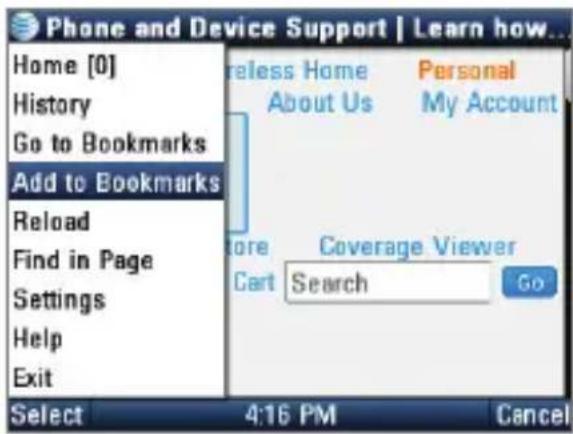
text_image
Phone and Device Support | Learn how... Home [0] History Go to Bookmarks Add to Bookmarks Reload Find in Page Settings Help Exit Reless Home About Us Personal My Account Store Coverage Viewer Cart Search Go Select 4:16 PM CancelMobile Web
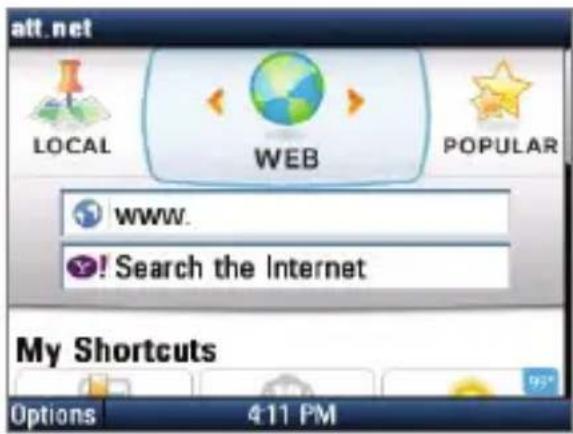
Browse the web directly from your mobile phone! Check the weather, visit your favorite websites, and enjoy access to the Internet on the go!
- With the phone horizontal and the slide open, press the Key.
- Scroll down to the address bar and press the Key. Enter the web address with the QWERTY keyboard and press the Key.
- Press the Left Soft Key for Options and select Go to Bookmarks to access your list of favorite sites. To add a site to the list, press the Left Soft Key for Options and select Add to Bookmarks.
text_image
1 of 10 MINT JULEP Always Here Mint Julep Mint Julen Music Player 2/2 Menu OK Options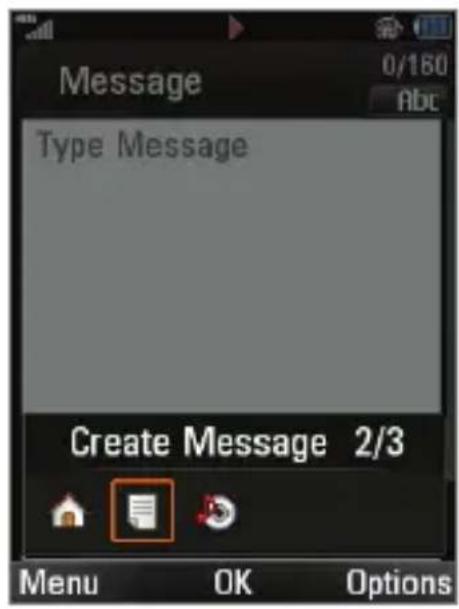
text_image
Message 0/160 Abc Type Message Create Message 2/3 Menu OK OptionsMultitasking
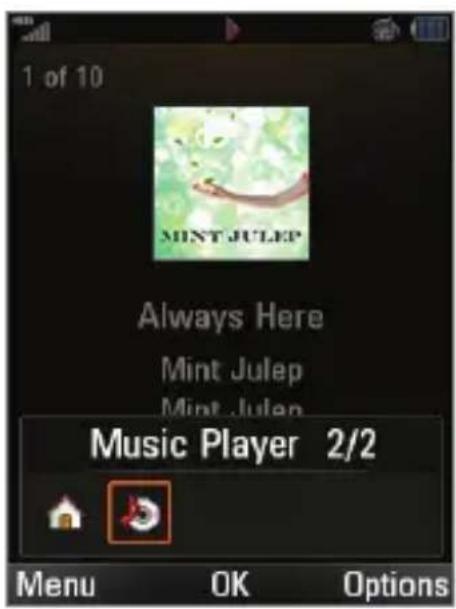
Multitask simultaneously with voice and data—browse the web, play games, send and receive messages, and listen to music, all at once.*
-
If you're involved in one task and want to launch another, press the Key, scroll left with to highlight Home, and press the Key. From the home screen, you can initiate another task without closing your current one.
-
To switch among multiple tasks, press the ☐ Key. You can then scroll to an open task and press the ⚡ Key to select it or tap the Left Soft Key while highlighting a task to access the main menu.
*Not all applications may be able to run at the same time.
text_image
Bluetooth 1 Turn On 2 My Visibility On 3 Search New Device 4 My Devices 5 My Bluetooth Info OK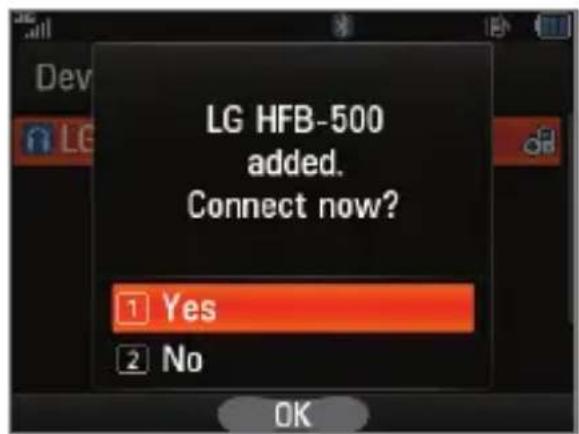
text_image
LG HFB-500 added. Connect now? 1 Yes 2 No OKBluetooth® Wireless Technology
Take advantage of Bluetooth wireless technology to pair your phone with headsets, speakers, computers, and more!
-
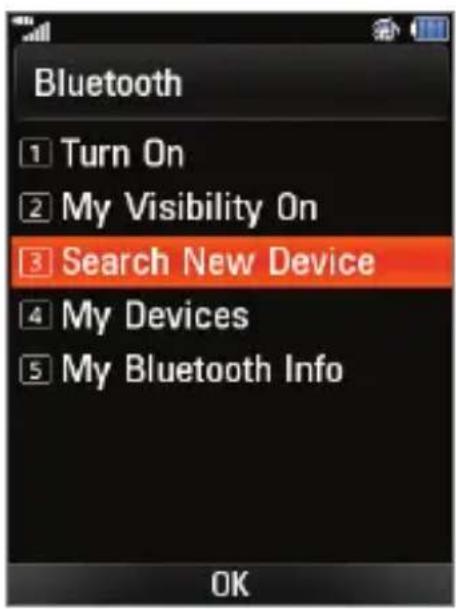
Before you begin, place your Bluetooth device into pairing mode.* From the home screen, tap the Right Soft Key to access the main menu and then select Settings (#) > Connection (6) > Bluetooth (1).
-
Select Search New Device (3). If prompted, turn on Bluetooth wireless technology by selecting Yes (1).
-
Highlight the device you wish to pair with and press the ● Key for Add.
-
If prompted for a passcode*, slide open the phone and enter the passcode with the keyboard, and then press the Key.
-
Press the Key for Yes (1) to connect to the device.
*Please consult the documentation included with the Bluetooth device for information on placing the device into pairing mode and entering the passcode (typically 0 0 0 0 - four zeroes).
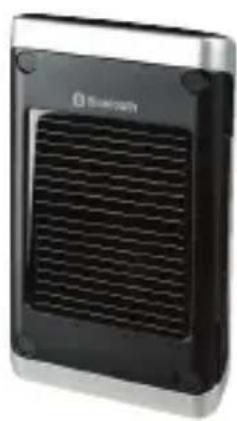
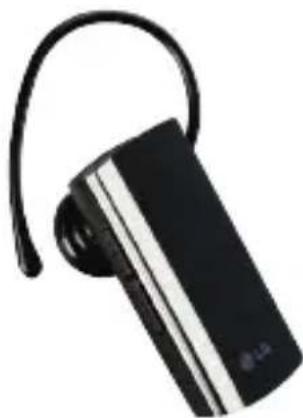
Optional Accessories
Accessories for productivity, convenience, and fashion are available at att.com/wireless.
natural_image
Exterior view of a black and silver portable electronic device with a mesh grille (no visible text or symbols)Bluetooth® Solar Speakerphone
natural_image
Black and white striped Bluetooth headset with earbuds (no visible text or symbols)Bluetooth® Headset

natural_image
Black handheld device with coiled cable and connector, isolated on white background (no text or symbols)Vehicle Power Charger

text_image
SanDisk 16GB micro S2 HCmicroSD Card
LG is a registered trademark of LG Electronics, Inc. microSD™ is a trademark of SanDisk. The Bluetooth® word mark and logos are registered trademarks owned by Bluetooth SIG, Inc. and any use of such marks by LG Electronics MobileComm, U.S.A., Inc. is under license. Service provided by AT&T Mobility. © 2010 AT&T Intellectual Property. All rights reserved. AT&T, AT&T logo and all other marks contained herein are trademarks of AT&T Intellectual Property and/or AT&T affiliated companies. All other marks are proprietary to their respective owners. Unless otherwise specified herein, all accessories referenced herein are sold separately.