Shift Red - Drone T.I.E. - Free user manual and instructions
Find the device manual for free Shift Red T.I.E. in PDF.


User questions about Shift Red T.I.E.
0 question about this device. Answer the ones you know or ask your own.
Ask a new question about this device
Download the instructions for your Drone in PDF format for free! Find your manual Shift Red - T.I.E. and take your electronic device back in hand. On this page are published all the documents necessary for the use of your device. Shift Red by T.I.E..
USER MANUAL Shift Red T.I.E.
- Charge batteries of the aircraft and controller for first usage.
- Read the user manual carefully.
- Check your firmware version. Latest version of firmware for aircraft and controller is available at SHIFT website below.
For more information : https://www.thisiseng.com/supports/download
Fly responsibly on the basis of regulations and safety rules for flying in each territory
SHIFT RED is a trademark of this is engineering Inc.
© this is engineering Inc. All rights reserved.
Power On / Off
Aircraft Controller
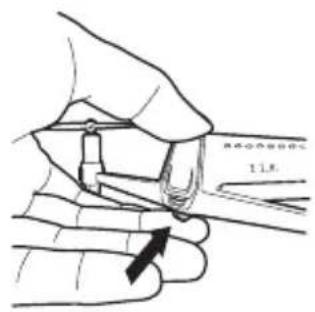
Press the power button for 2 sec for on/off the aircraft.
text_image
1.1kgPress the power button for 2 sec for on/off the aircraft.
text_image
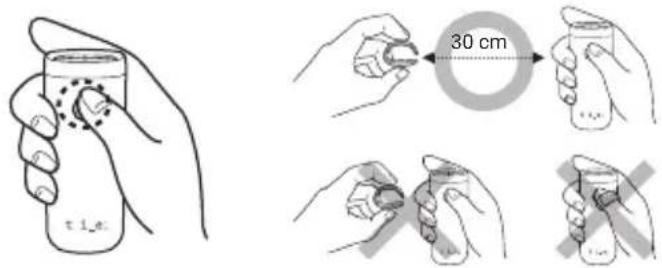
30 cmNote.
When it is turned on, place the controller ring at least 30 cm (1.0ft) away from the controller.
Pairing
Aircraft and controller are auto-paired after they are powered on.
Speed Setting
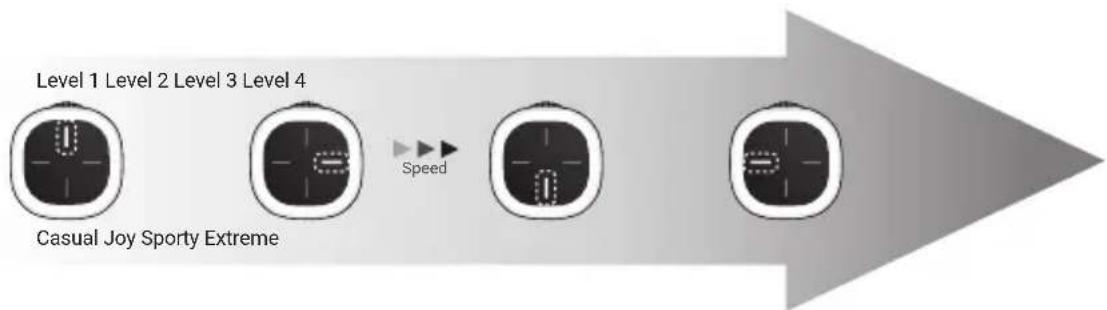
SHIFT drone supports 4-speed level modes.
To change the speed, briefly press the controller's power button once.
Current mode appears on pad of the controller.
flowchart
graph LR
    A["Casual Joy Sporty Extreme"] --> B["Level 1"]
    B --> C["Level 2"]
    C --> D["Level 3"]
    D --> E["Level 4"]
    style A fill:#f9f,stroke:#333
    style B fill:#ccf,stroke:#333
    style C fill:#cfc,stroke:#333
    style D fill:#fcc,stroke:#333
    style E fill:#cff,stroke:#333
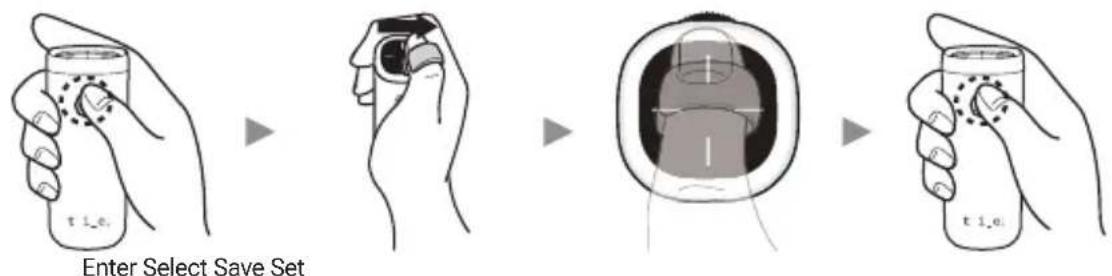
Place your thumb with the ring on the mode you want. Then, touch the center of the pad to save your setting. To release from the setting function, press the power button briefly.
text_image
t i.e. Enter Select Save Set t i.e.Don't forget. Level 4 is high-speed. Please be careful to flight.
Take-off Landing
Touch the center of the pad with the ring for 1 sec for take-off.
While the drone is hovering, touch the center of the pad with the ring for 1 sec.(Refer to below for hovering)
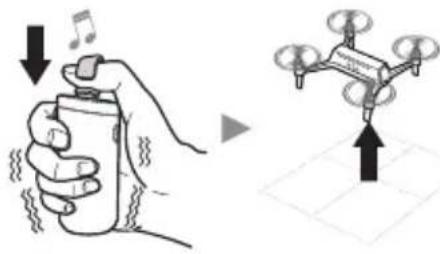
text_image
Diagram illustrating the use of a hand to interact with a drone, showing sound recording and movement direction.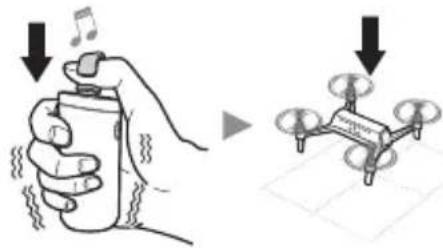
text_image
Diagram showing hand holding a spray can with musical notes and falling arrows, alongside a drone demonstrating the same motion.Hovering
For safe flying, aircraft is automatically hovering after take-off.
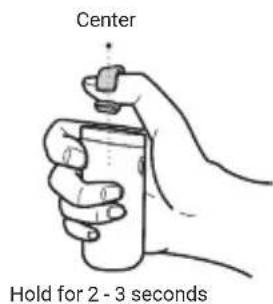
For operating manually, refer to the below way for hovering and its release.(Same way for both)
text_image
Center Hold for 2 - 3 secondsPlace and hold your thumb into center of the pad for 3 sec. (No touch on the pad)
When the ring goes out of range, the drone will enter the hovering mode and need to be released once again.
Switching Shooting Mode
You can switch between stable shooting mode and free flight mode.
To change the flight mode holding the jog during flight for 1 sec.
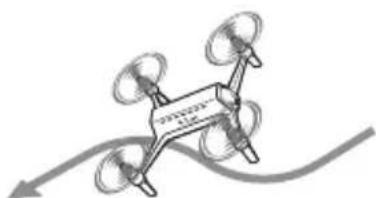
Free Flight Mode Stable Shooting Mode
Dynamic

Stability Stability ☆☆
Dynamic


natural_image
Illustration of a drone with four propellers flying above a curved path (no text or symbols)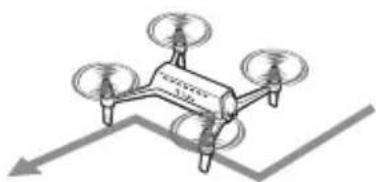
natural_image
Illustration of a drone with three propellers and a central body, shown in flight (no text or symbols)Aircraft flies according to control/movement by the ring very dynamically. Recommend this mode to pro and thrill-seeker.
Aircraft flies very stably by fixed speed and altitude. (Flying at a right angle). Recommend this mode to beginner and stable shootings of videos and pictures.
SHIFT Drone App.
SHIFT Drone app allows you to see the real-time camera view and to shot video with the various camera works.
Download and Connect
- Search "SHIFT Drone" on Google Play or App Store, and download it to your device.
- Before starting app, Turn on the drone and connect your device's Wi-Fi network to 'SHIFT-DRONE-XXXX'. (Password: 1234567890)
App Interface
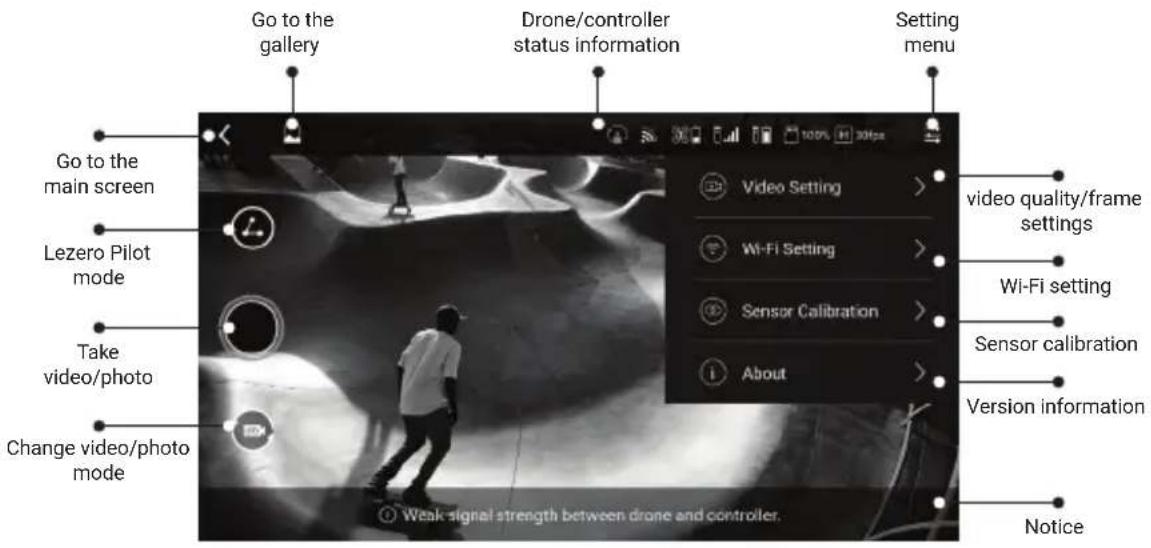
text_image
Go to the gallery Drone/controller status information Setting menu Go to the main screen Lezero Pilot mode Take video/photo Change video/photo mode Video Setting > Wi-Fi Setting > Sensor Calibration > About > Video quality/frame settings Wi-Fi setting Sensor calibration Version information Notice Weak signal strength between drone and controller.Lezero Pilot Modes
To use the Lezero Pilot Mode, Touch ⏻ in the SHIFT DRONE app, then select the mode like below.
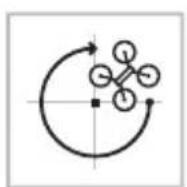
Orbit Dolly Dolly in Dolly out
The drone flies in orbit round and round.

The drone flies steadily from right to left.
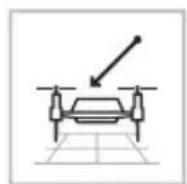
The drone moves near from far.
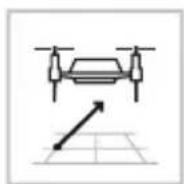
The drone moves far away.
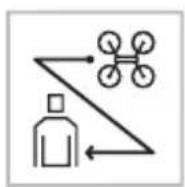
Following Horizontal tracking Yaw tracking Hero
The drone flies to follow an objected input.
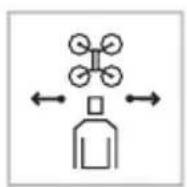
The drone tracks an object input in horizontal flying
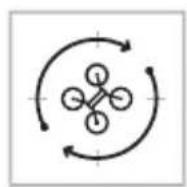
The drone performs a yaw rotation toward the target while flying in position.
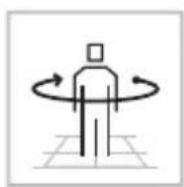
The drone flies while tracking an object input, and orbits once when the object stops.