PT-TOOL-500 - Uncategorized PureTools - Free user manual and instructions
Find the device manual for free PT-TOOL-500 PureTools in PDF.


User questions about PT-TOOL-500 PureTools
0 question about this device. Answer the ones you know or ask your own.
Ask a new question about this device
Download the instructions for your Uncategorized in PDF format for free! Find your manual PT-TOOL-500 - PureTools and take your electronic device back in hand. On this page are published all the documents necessary for the use of your device. PT-TOOL-500 by PureTools.
USER MANUAL PT-TOOL-500 PureTools
natural_image
3D model of a yellow Pure2Tools device with labeled ports and components (no readable text beyond branding)User Manual
HDMI 2.0 LCD Test Pattern Monitor
Model PT-TOOL-500
Designed in Germany
© 2016 PureLink GmbH All rights reserved.
Table of Contents
- Safety and Notice 2
- Introduction 3
- Features....3
- Package Contents 3
- Specification 4
- Connection Diagram 5
- Panel Description 6
- Menu Operation....7
- Generator 8
- Receiver 9
- HDCP Test 10
- EDID Analysis 11
- LOOP Test 12
- Ethernet Control (Tcp/lp) 13
- Upgrade PT-TOOL-500 17
- EYE Pattern 20
- Warranty 22
The PT-TOOL-500 HDMI 2.0 LCD Test Pattern Monitor has been tested for conformance to safety regulations and requirements, and has been certified for international use. However, like all electronic equipments, the PT-TOOL-500 should be used with care. Please read and follow the safety instructions to protect yourself from possible injury and to minimize the risk of damage to the unit.
- Follow all instructions and warnings marked on this unit.
- Do not attempt to service this unit yourself, except where explained in this manual.
- Provide proper ventilation and air circulation and do not use near water.
- Keep objects that might damage the device and assure that the placement of this unit is on a stable surface.
- Use only the power adapter and power cords and connection cables designed for this unit.
- Do not use liquid or aerosol cleaners to clean this unit. Always unplug the power to the device before cleaning.

text_image
ESD CAUTION2. Introduction
The PT-TOOL-500 HDMI 2.0 LCD Test Pattern Monitor is a versatile HDMI 2.0 toolbox with full bandwidth and HDCP 2.2 support. For ease of HDMI 2.0 installations, PT-TOOL-500 is equipped with both HDMI 2.0 pattern generator and analyzer. With this handy and portable gadget, users will appreciate at the built-in long hour operation chargeable battery, video patterns, touch panel control, cloud based firmware upgrade access and many other features such as HDCP analyzer or loop test in single piece of device. In the meantime, PT-TOOL-500 can support 8 channel LPCM audio with selectable sample rate. One more attractive feature of PT-TOOL-500 comes from bypassing HDMI input to the connected display or built-in 4.3" touch panel to allow users to verify HDMI sources instantly.
PT-TOOL-500 is the most cost effective HDMI 2.0 tool in the market to make HDMI installation much easier than ever.
3. Features
• 4K2K60 4:4:4 8bit, 4K2K60 4:2:0 16bit HDR pattern generator
- 4.3" touch panel
• Supports mouse control
• Supports user control device through Ethernet
- Firmware update through USB Flash Drive
• Supports user defined pattern up to 2GB
- Embedded LINUX KERNAL system with limitless extension
- Scrambler supported for videos over 340MHz output wise
- Loop test capability to provide statistics analysis for connection stability
• Supports HDMI loop through function
• HDCP test allow verify HDCP of HDMI source and transmit HDCP encrypted video
• Qualified physical layer performance to ensure the best compatibility
- Battery powered for portability, it can extend operation time with full load up to 4 hours
- Rechargeable battery design with short charging time about 2 hours.

- Before using the PT-TOOL-500, please plugging the power adapter to switch off the shipping mode.
4. Package Contents
- 1x PT-TOOL-500
• 1x IR blaster 1x IR receiver - 2x DC 24V
- 1x User Manual
5. Specifications
| Technical | ||
| Role of usage Generator / Analyzer | ||
| Video bandwidth Single link 600MHz [18Gbps] | ||
| HDMI compliance HDMI 2.0 and below | ||
| HDCP compliance HDCP 2.2 and below | ||
| Video Support Up to 4K2K60 4:4:4 8bit, 4K2K60 4:2:0 16bit (HDR) | ||
| Video Format Support HDMI | ||
| Audio support | 8ch LPCM up to 192K | |
| Control | USB mouse / touch panel / Ethernet | |
| ESD protection Human body model — ±15kV [air-gap discharge] & ±8kV [contact discharge] | ||
| Input 1x HDMI + 1xUSB + 1x RJ-45(Ethernet) | ||
| Output | 1x HDMI + 1x 3.5mm(Stereo) | |
| USB Support USB 2.0 | ||
| HDMI connector Type A [19-pin female] | ||
| USB Connector Type A | ||
| RJ-45 connector WE/SS 8P8C with 2 LED indicators | ||
| Mechanical | ||
| Housing Metal enclosure | ||
| Dimensions[L x D x H] | Model | 105 x 166 x 42mm[4.1" x 6.6" x 1.7"] |
| Package | 371 x 170 x 77mm[1'5" x 6.7" x 3"] | |
| Carton | 410 x 368 x 393mm[1'3" x 1'4" x 1'5"] | |
| Weight | Model | 765g [27oz] |
| Package | 1294g [2.8 lbs] | |
| Power supply | 12V 5A DC / Battrery | |
| Power consumption | 15 Watts | |
| Operation temperature | 0~40°C [32~104°F] | |
| Storage temperature | -20~60°C [-4~140°F] | |
| Relative humidity | 20~90% RH [no condensation] | |
6. Connection Diagram
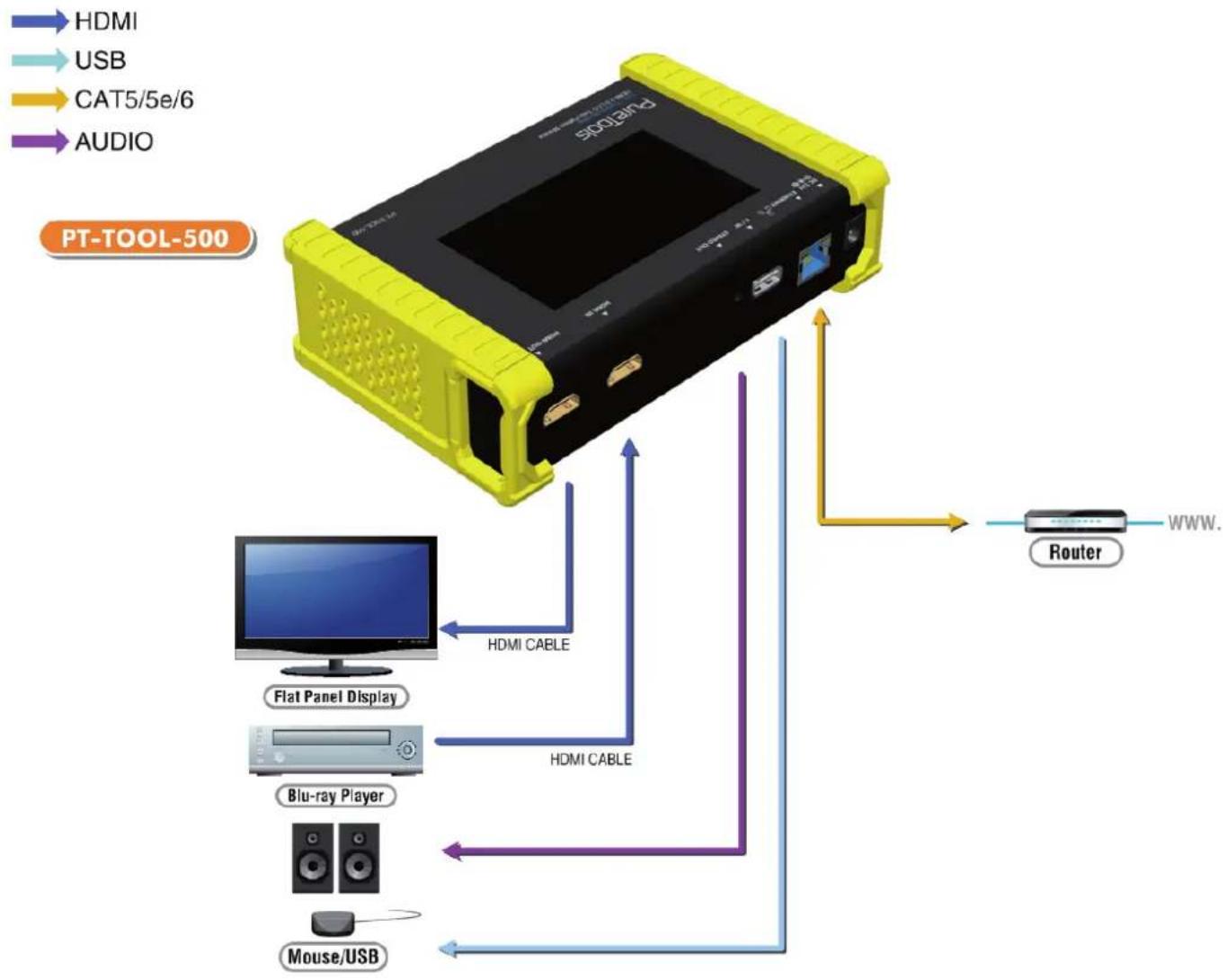
flowchart
graph TD
    A["PT-TOOL-500"] --> B["HDMI"]
    A --> C["USB"]
    A --> D["CAT5/5e/6"]
    A --> E["AUDIO"]
    B --> F["Flat Panel Display"]
    C --> G["Blu-ray Player"]
    D --> H["Mouse/USB"]
    E --> I["HDMI CABLE"]
    I --> J["HDMI"]
    J --> K["Router"]
    K --> L["WWW."]
7. Panel Description
Front Panel
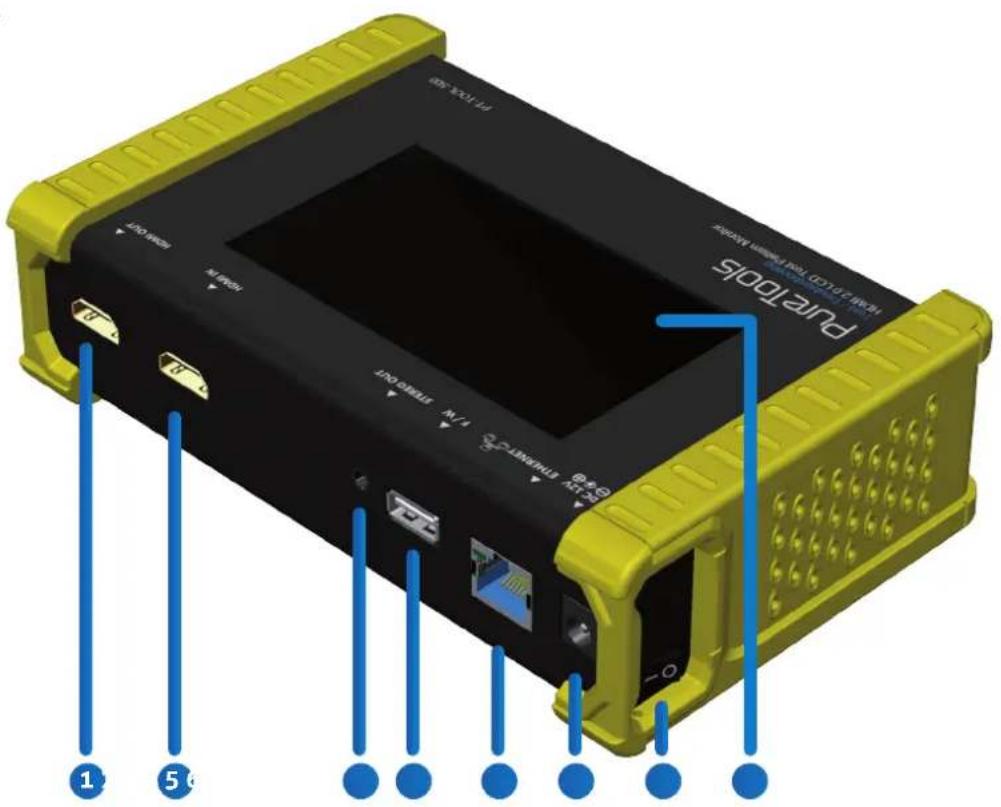
text_image
PURITOBOS PT-102.430 PT-102.430 PT-102.430 PT-102.430 PT-102.430 PT-102.430 PT-102.430 PT-102.430 PT-102.430 PT-102.430 PT-102.43 PT-102.43 PT-102.43 PT-102.43 PT-102.43 PT-102.43 PT-102.43 PT-102.43 PT-102.43 PT-102.43 PT-102.43 PT-102.43- OUTPUT: HDMI output
- INPUT: HDMI input
- Stereo Out: Analog audio output
- USB: Connect to USB device for control or firmware update
- Ethernet: Ethernet control
- +12V DC: 12V 5A DC power jack
- Power Switch: Power ON/OFF switch
- Touch Panel: Touch screen for control
8. Menu Operation
The major functions of the device are listed below
▶ HDMI Generator
▶ HDMI Receiver
▶ HDCP Test
▶ EDID Test
▶ Loop Test
Please refer the table below and the following section to know how to operate these functions.
OUTPUT SETTING
| Menu Items Remark | ||
| Signal Format | TYPE select the HDMI/DVI signal type information (color space and color depth) | |
| RESOLUTION setting the TV/PC resolution and frequency | ||
| VIDEO Pattern | DEFAULT | multiple patterns to test HDMI device, it also provides user to set the timer and moving squares |
| ALBUM | ||
| PCM Audio Tone | MUTE mute / unmute the PCM audio | |
| TONE for user setting the audio information to test audio on HDTV or other A/V receivers | ||
| Setting SCRAMBLER for user to understand the signal encode a message situation | ||
TEST SETTING
| Menu Items Remark | ||
| Source | Format read format | information from source |
| Video | provide small screen for user to check the video information and also provide video pass through to the display | |
| Audio read audio information | ||
| Packet read packet | ||
| HDCP enable HDCP function (1.4/2.0) | ||
| Sink | EDID EDID analyzer | or learn EDID from RX |
| HDCP HDCP test | ||
| Loop evaluate the quality of cables or EUT | ||
SYSTEM SETTING
*MEMU ITEMS SUBJECT TO CHANGE WITHOUT NOTIFICATION.
| Menu Items Remark | ||
| Preference Screen | Brightness adjust the screen brightness | |
| BEEP ON/OFF system sound | ||
| Ethernet | DHCP | |
| Static IP | ||
| Firmware | upgrade the firmware | |
| Battery | battery status | |
9. Generator
PT-TOOL-500 as HDMI Generator
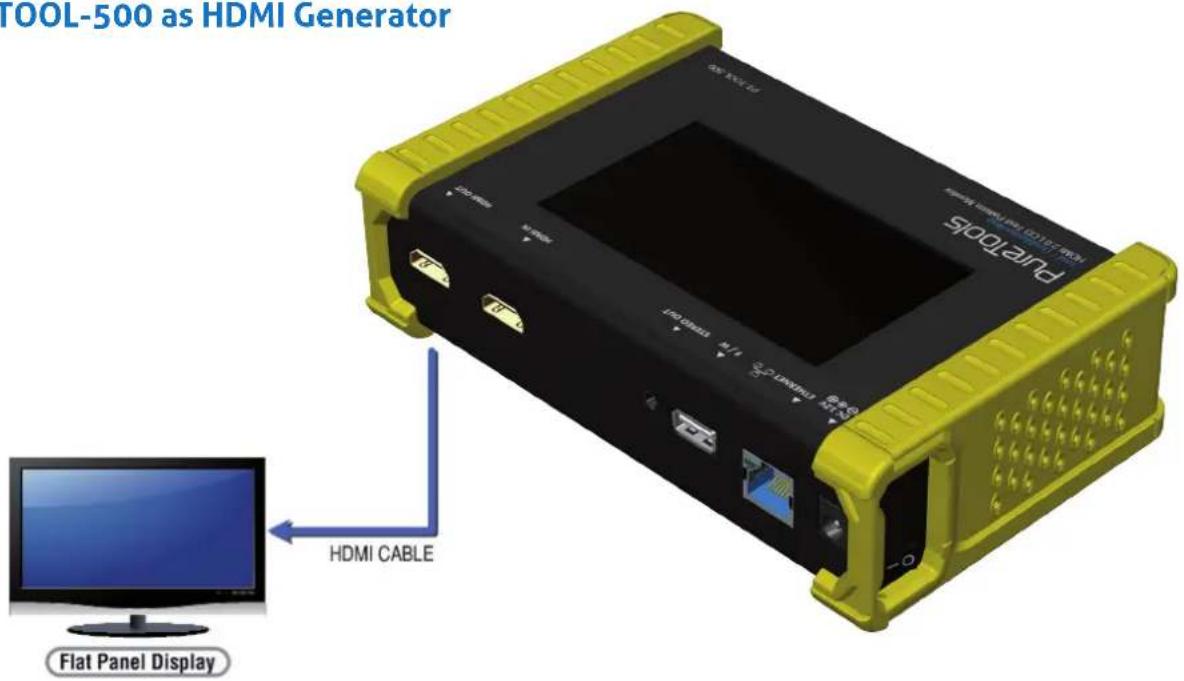
text_image
TOOL-500 as HDMI Generator Puzitops HDMI CABLE Flat Panel DisplayAfter making the physical connections between PT-TOOL-500 and the display device. User can select different generator function to display on the sink device under test.
1. Selecting the Signal Format
PT-TOOL-500 provides different signal resolution and signal types for user to select. User can touch the Signal Format Tab to select the signal type (HDMI / DVI) and signal resolution (HDTV / PC).
The HDTV resolution is up to 4K2K 60Hz and PC resolution is up to 1920x1200 60Hz.
2. Rendering Test Patterns on an HDTV
PT-TOOL-500 provides multiple test patterns for user select to test HDTV. User can select the desired test pattern from the video pattern menu.
3. User Defined Pattern
Besides the embedded test patterns, PT-TOOL-500 also provides user defined patterns function for user to use custom test image. More details please see the Upgrade PT-TOOL-500 section.
4. Testing Digital Audio on an HDTV or A/V Receiver
The PCM Audio Tone menu provides user for test audio on HDTV or other A/V receivers. In the PCM SINE WAVE menu, user can set up the bits per sample, sample rate, level and audio channel.
5. Testing HDCP on an HDMI TV or HDMI device
PT-TOOL-500 provides user to test HDCP on an HDMI equipped HDTV. For more details please see the HDCP test section.
10. Receiver
PT-TOOL-500 as HDMI Analyzer
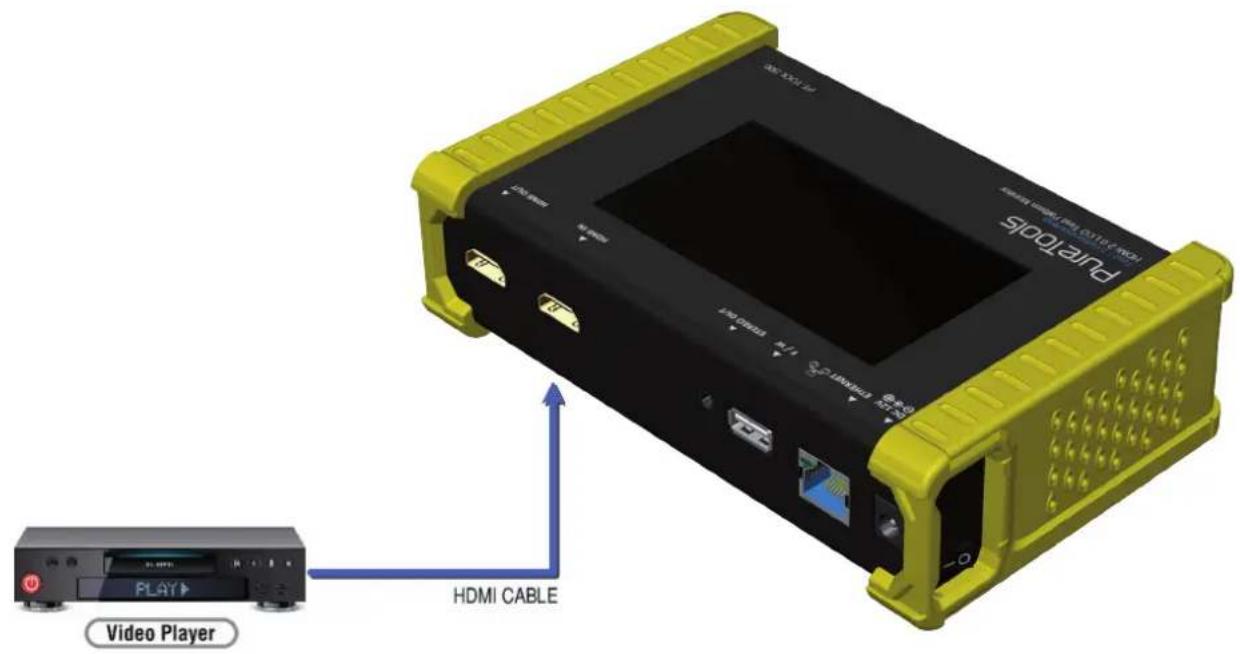
text_image
PURITODS HDMI CABLE VIDEO PLAYER PLAY HDMI CABLE1. Source Information from the HDMI source
In the Test/Source menu, user can touch the read/refresh button to get the video format, source audio and packet information from the HDMI source device.
2. Testing the Video from the HDMI source
PT-TOOL-500 supports the incoming video from HDMI source/device to ensure user is receiving a valid video signal by displaying the information of incoming signal. The video information also will inform user whether the HDCP is encrypted or not. Return to Video menu by touching the touch panel (please stay at least 5 seconds).
11. HDCP Test
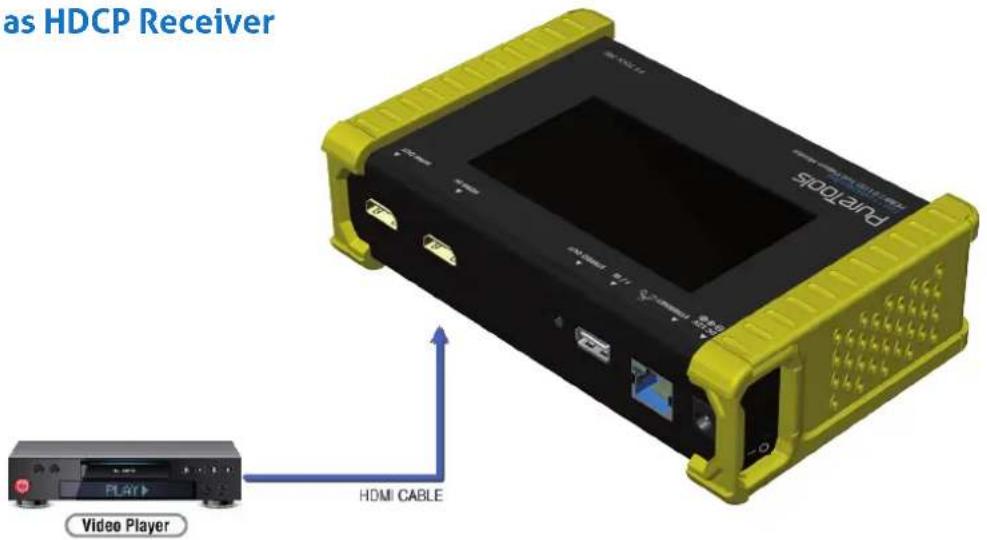
PT-TOOL-500 as HDCP Receiver
text_image
as HDCP Receiver PURISFTS PLAY HDMI CABLE Video PlayerWhen PT-TOOL-500 set as receiver, it can verify HDCP of video player or other DUT (Device Under Test). PT-TOOL-500 provides three options (HDCP 1.4 / HDCP 2.2 / no HDCP) for users to select and confirm the HDCP authentication of DUT.
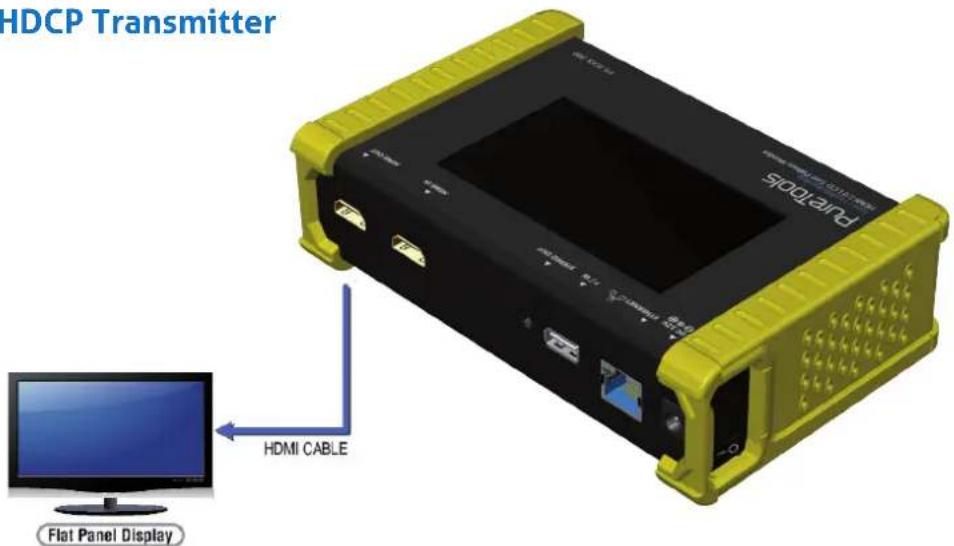
PT-TOOL-500 as HDCP Transmitter
text_image
HDCP Transmitter puritops HDMI CABLE Flat Panel DisplayWhen PT-TOOL-500 set as transmitter, it can transmit HDCP encrypted video. PT-TOOL-500 also provides three modes (HDCP 1.4 / HDCP 2.2 / no HDCP) for you to select. If user wants to transmit HDCP encrypted video again, please select the Auto-Restart button.
Procedure for Testing HDCP:
▶ Make the connection between the PT-TOOL-500 HDMI output port and the display.
▶ Select HDCP Test from the Sink Test Menu.
▶ Touch Enable HDCP 1.4 or Enable HDCP 2.2 button.
12. EDID Analysis
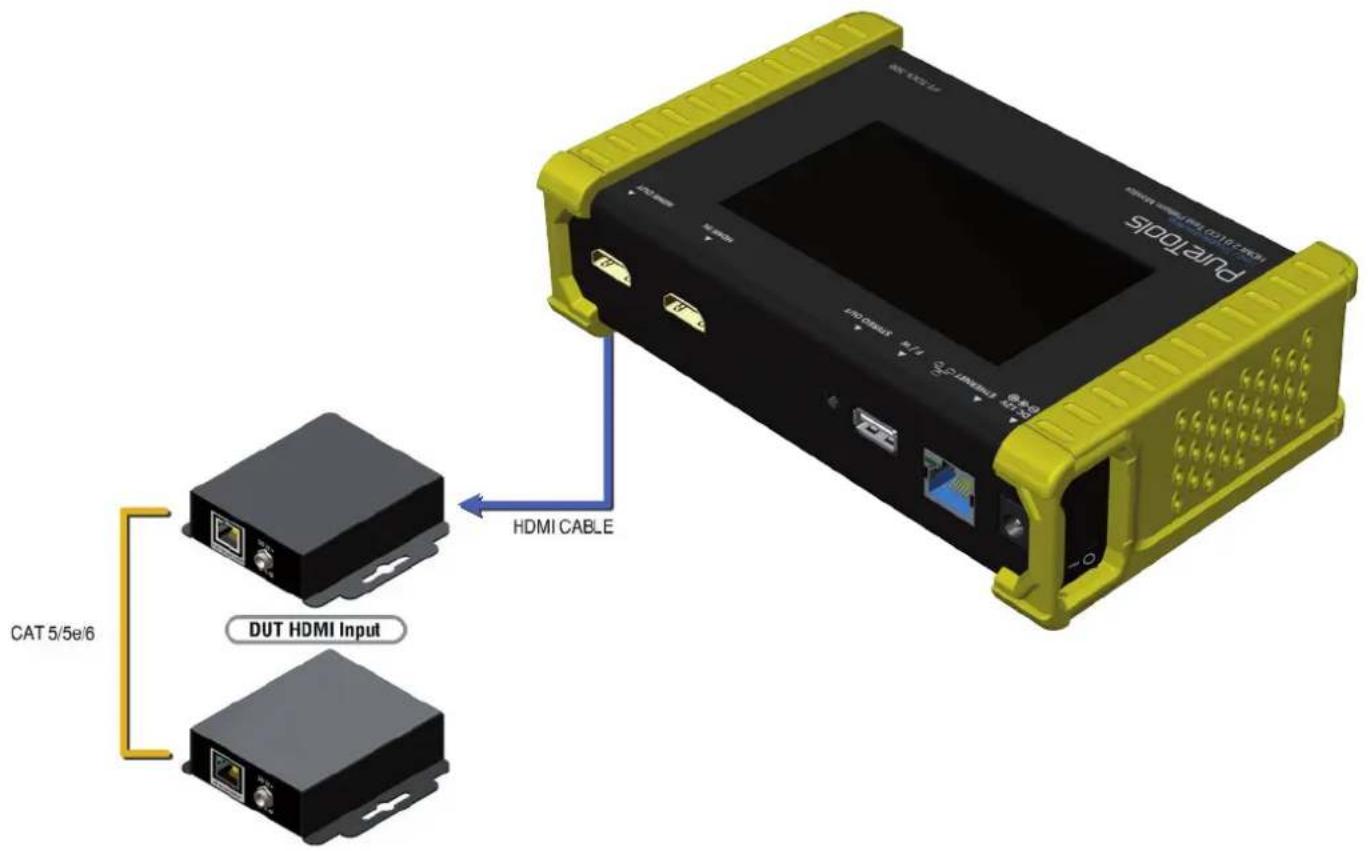
PT-TOOL-500 offers the most convenient way for user to analyze the EDID. You can verify, view and learn the EDID of an HDMI HDTV or other devices.
text_image
PURUS CAT 5/5e/6 DUT HDMI Input HDMI CABLEProcedure of EDID Analyze:
▶ Make sure the connections between the PT-TOOL-500 HDMI output port and the device.
▶ Select EDID Analyze from the Sink Test Menu.
▶ Touch the Read button to get the EDID information of DUT.
Procedure of learning EDID from RX:
▶ Make sure the connections between the PT-TOOL-500 HDMI output port and the device.
▶ Select EDID Analyze from the Sink Test Menu.
13. LOOP Test
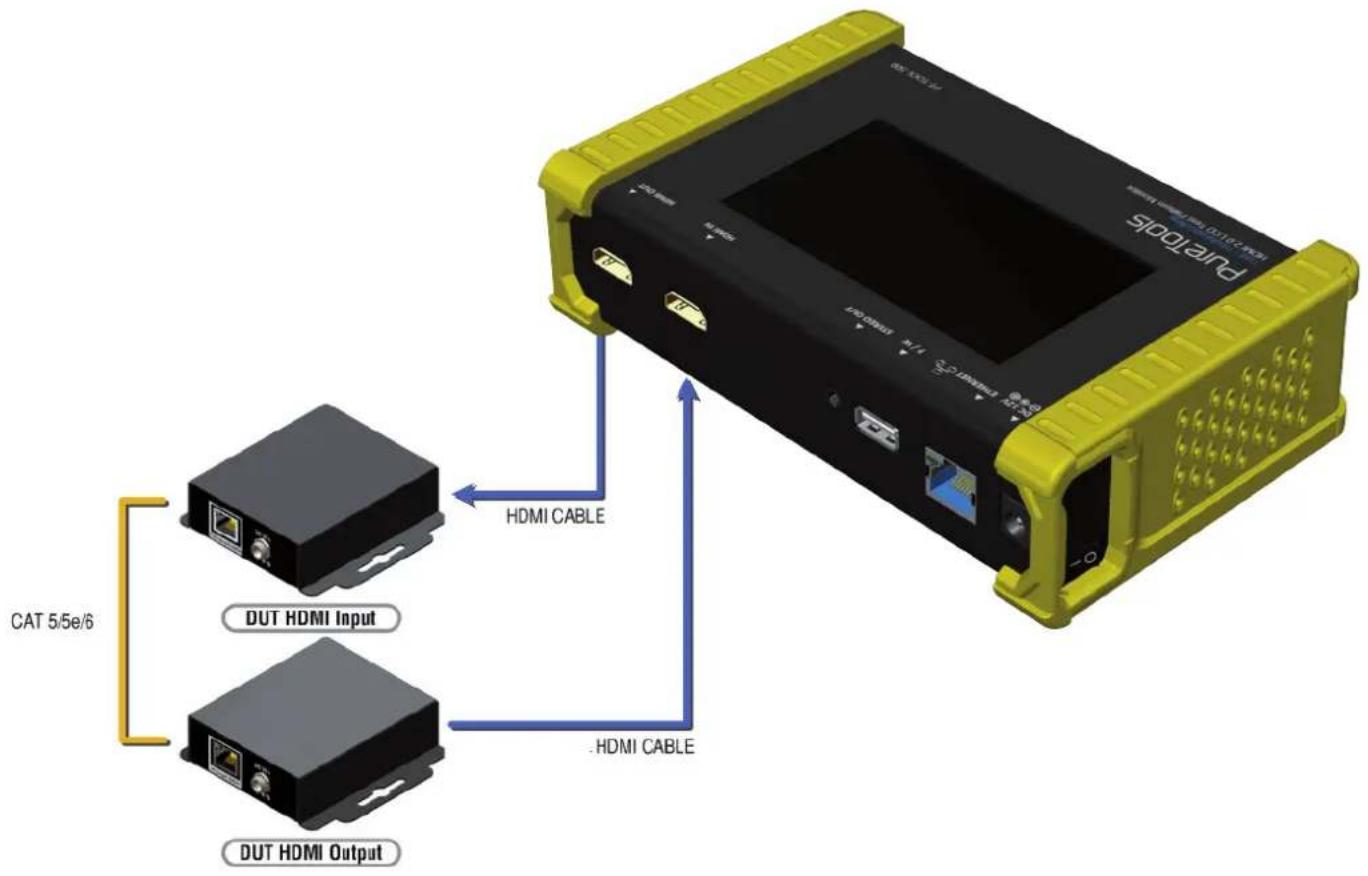
PT-TOOL-500 offers the unique estimator for evaluating the quality of cables or DUT. Users can simply connect the cable or DUT to PT-TOOL-500 to form a loop, the monitor will examine the HDMI bitstream pixel by pixel. The measurement statistics will be displayed on screen and offer useful information for building up robust A/V system.
text_image
CAT 5/5e/6 DUT HDMI Input DUT HDMI Output HDMI CABLE HDMI CABLEProcedure of Loop Test: \*only support 1080p@60, 4K2K 30Hz and 4K2K 60Hz resolution
▶ Make sure the connection between the PT-TOOL-500 and the DUT or cables.
▶ Select Loop Test from the Loop Test Menu.
▶ Set the test time and touch the START button. The PT-TOOL-500 will capture the signal from its transmitter through the loop and evaluate the transmission quality.
The user interface of PT-TOOL-500 will be locked until testing terminated. Unless user wants to break off the test.
| Test Result Definition | |
| Pass The value of Bit Error Rate is less than 1 | |
| Fail The Bit Error Rate is more than 1 |
* Plugging Hdmi Cable Will Influence The Testing Result, So Please Settle Down The Connection Before Starting Running Test.
14. Ethernet Control (Tcp/lp)
PT-TOOL-500 also provides user control through Ethernet. The Ethernet control includes many major functions, it can offer user develop software to do advance setting. (TCP Port: 6133)
Reply Format:
Received = ACK + Feedback Date
ACK: 0xaa 0xbb 0xcc
Feedback Date: Data0 Data1 Data2....
Command Set:
* Bold word part please refer to corresponding table
| COMMAND ACTION RAMARK | ||
| 0x4d 0x53 0x5 0x0 0x0 0x5 0x1 Res Set output resolution Hexadecimal | ||
| 0x4d 0x53 0x5 0x0 0x0 0x5 0x2 Get output resolution | ||
| 0x4d 0x53 0x5 0x0 0x0 0x5 0x3 Mode Set output mode | ||
| 0x4d 0x53 0x5 0x0 0x0 0x5 0x4 Get output mode | ||
| 0x4d 0x53 0x5 0x0 0x0 0x5 0x5 Depth Set output color depth | ||
| 0x4d 0x53 0x5 0x0 0x0 0x5 0x6 Get output color depth | ||
| 0x4d 0x53 0x5 0x0 0x0 0x5 0x7 Pattern Set default pattern Hexadecimal | ||
| 0x4d 0x53 0x5 0x0 0x0 0x5 0x8 Pattern Set user pattern Hexadecimal | ||
| 0x4d 0x53 0x5 0x0 0x0 0x5 0x9 Mute Set audio mute | ||
| 0x4d 0x53 0x5 0x0 0x0 0x5 0xa Get audio mute status | ||
| 0x4d 0x53 0x5 0x0 0x0 0x5 0xb Length Set audio length | ||
| 0x4d 0x53 0x5 0x0 0x0 0x5 0xc Get audio length | ||
| 0x4d 0x53 0x5 0x0 0x0 0x5 0xd Level | Set audio level | |
| 0x4d 0x53 0x5 0x0 0x0 0x5 0xe | Get audio level | |
| 0x4d 0x53 0x5 0x0 0x0 0x5 0xf Rate | Set audio sample rate | |
| 0x4d 0x53 0x5 0x0 0x0 0x5 0x10 | Get audio sample rate | |
| 0x4d 0x53 0x5 0x0 0x0 0x5 0x11 Number | Set audio channel number | |
| 0x4d 0x53 0x5 0x0 0x0 0x5 0x12 | Get audio channel number | |
| 0x4d 0x53 0x5 0x0 0x0 0x5 0x13 HDCP | Set TX HDCP on/off | |
| 0x4d 0x53 0x5 0x0 0x0 0x5 0x14 | Get TX HDCP on/off | |
| 0x4d 0x53 0x5 0x0 0x0 0x5 0x15 HDCP | Set RX HDCP on/off | |
| 0x4d 0x53 0x5 0x0 0x0 0x5 0x16 | Get RX HDCP on/off |
Command Set:
| Index Resolution | Index Resolution | Index Resolution | ||
| 0x0 720x480i@60 | 0x13 1920x1080p@24 | 0x26 1920x1200pRB | ||
| 0x1 720x576i@50 | 0x14 1920x1080p@23.976 | 0x27 3840x2160p@60 | ||
| 0x2 720x480p@60 | 0x15 640x480p@60 | 0x28 3840x2160p@59.94 | ||
| 0x3 720x576p@50 | 0x16 640x480p@75 | 0x29 3840x2160p@50 | ||
| 0x4 1280x720p@60 | 0x17 800x600p@60 | 0x2a | 3840x2160p@30 | |
| 0x5 1280x720p@59.94 | 0x18 800x600p@75 | 0x2b 3840x2160p@29.97 | ||
| 0x6 1280x720p@50 | 0x19 1024x768p@60 | 0x2c | 3840x2160p@25 | |
| 0x7 1280x720p@30 | 0x1a | 1024x768p@75 | 0x2d 3840x2160p@24 | |
| 0x8 1280x720p@29.97 | 0x1b 1280x1024p@60 | 0x2e | 3840x2160p@23.976 | |
| 0x9 1280x720p@25 | 0x1c | 1280x1024p@75 | 0x2f | 1920x1080p@60 |
| 0xa 1920x1080i@60 | 0x1d 1360x768p@60 | 0x30 4096x2160p@60 | ||
| 0xb 1920x1080i@59.94 | 0x1e | 1366x768p@60 | 0x31 4096x2160p@59.94 | |
| 0xc 1920x1080i@50 | 0x1f | 1400x1050p@60 | 0x32 4096x2160p@50 | |
| 0xd N/a | 0x20 1600x1200p@60 | 0x33 4096x2160p@30 | ||
| 0xe 1920x1080p@59.94 | 0x21 1440x900p@60 | 0x34 4096x2160p@29.97 | ||
| 0xf 1920x1080p@50 | 0x22 1440x900p@75 | 0x35 4096x2160p@25 | ||
| 0x10 1920x1080p@30 | 0x23 1680x1050p@60 | 0x36 4096x2160p@24 | ||
| 0x11 1920x1080p@29.97 | 0x24 1680x1050pRB | 0x37 4096x2160p@23.976 | ||
| 0x12 1920x1080p@25 | 0x25 1920x1080pRB | |||
Mode
| Index 0x0 0x1 0x2 0x3 0x4 | |||||
| Mode | DVI | RGB | YCbCr444 | YCbCr422 | YCbCr420 |
Depth
| Index 0x0 0x1 0x2 0x3 | ||||
| Depth | 8 Bit | 10 Bit | 12 Bit | 16 Bit |
| Index Default Pattern | Index Default Pattern | Index Default Pattern |
| 0x0 SMPTE BAR | 0x10 Ramp Green V 2 | 0x20 Black |
| 0x1 TV Bar 100% | 0x11 Ramp Blue V 2 | 0x21 Noise |
| 0x2 TV Bar 75% | 0x12 Stair Red 1 | 0x22 Circle 1 |
| 0x3 Checkfield | 0x13 Stair Red 2 | 0x23 Circle 2 |
| 0x4 EQ | 0x14 Stair Green 1 | 0x24 Moire |
| 0x5 PLL | 0x15 Stair Green 2 | 0x25 V Stripe Red |
| 0x6 Ramp Red H 1 | 0x16 Stair Blue 1 | 0x26 V Stripe Green |
| 0x7 Ramp Green H 1 | 0x17 Stair Blue 2 | 0x27 V Stripe Blue |
| 0x8 Ramp Blue H 1 | 0x18 Stair White 1 | 0x28 H Stripe Red |
| 0x9 Ramp Red H 2 | 0x19 Stair White 2 | 0x29 H Stripe Green |
| 0xa Ramp Green H 2 | 0x1a Red 100 | 0x2a H Stripe Blue |
| 0xb Ramp Blue H 2 | 0x1b Green 100 | 0x2b Chess 1 |
| 0xc Ramp Black to Red V | 0x1c Blue 100 | 0x2c Chess 2 |
| 0xd Ramp Green V 1 | 0x1d White 100 | 0x2d Multi Burst |
| 0xe Ramp Blue V 1 | 0x1e Gray 70 | 0x2e CZP |
| 0xf Ramp Red V 2 | 0x1f Gray 40 | 0x2f Overscan |
User Pattern:
| Index Default Pattern | Index Default Pattern | Index Default Pattern |
| 0x0 Philips | 0xa Ramp W-4 | 0x14 Graybar64 G-1 |
| 0x1 Checker 3x3 | 0xb Graybar32 R-1 | 0x15 Graybar64 B-1 |
| 0x2 Checker 6x6-1 | 0xc Graybar32 G-1 | 0x16 Graybar64 W-1 |
| 0x3 Checker 6x6-2 | 0xd Graybar32 B-1 | 0x17 Graybar64 R-2 |
| 0x4 White 75 | 0xe Graybar32 W-1 | 0x18 Graybar64 G-2 |
| 0x5 White 50 | 0xf Graybar32 R-2 | 0x19 Graybar64 B-2 |
| 0x6 White 25 | 0x10 Graybar32 G-2 | 0x1a Graybar64 W-2 |
| 0x7 Ramp W-1 | 0x11 Graybar32 B-2 | 0x1b User Add.. |
| 0x8 Ramp W-2 | 0x12 Graybar32 W-2 | 0x1c User Add.. |
| 0x9 Ramp W-3 | 0x13 Graybar64 R-1 | 0x1d .... |
Mute
| Index 0X0 0X1 | ||
| Mute | OFF | ON |
Length
| Index 0x0 | 0x1 | 0x2 | |
| Length | 24 bits | 20 bits | 16 bits |
Level
| Index | 0x0 | 0x1 | 0x2 | 0x3 | 0x4 | 0x5 | 0x6 | 0x7 |
| Level | Level 0 | Level 1 | Level 2 | Level 3 | Level 4 | Level 5 | Level 6 | Level 7 |
Rate
| Index 0x0 0x1 0x2 0x3 0x4 | ||||
| Rate 48 KHz 96 KHz 192 KHz 32 KHz 44.1 KHz |
Number
| Index 0x0 0x1 0x2 0x3 0x4 | ||||
| Number 2 Ch 2.1 Ch 5.1 Ch 6.1 Ch 7.1 Ch |
TX HDCP
| Index 0x0 0x1 0x2 0x3 | ||||
| TX HDCP | off | HDCP 1.4 | HDCP 2.2 Type0 | HDCP 2.2 Type 1 |
RX HDCP
| Index 0x0 0x1 0x2 0x3 | ||||
| RX HDCP | off | HDCP 1.4 | HDCP 2.2 | HDCP 1.4 & HDCP 2.2 |
15. Upgrade PT-TOOL-500
User can upgrade the firmware and pattern on the PT-TOOL-500 through the USB interface. If user encounters a problem with the upgrade, please contact the supplier of PT-TOOL-500.
Procedure of Firmware Upgrade:
*Before updating the firmware of PT-TOOL-500, please ensure the file of new firmware files are in the root directory of USB Flash Drive. The file suffix is .dat.
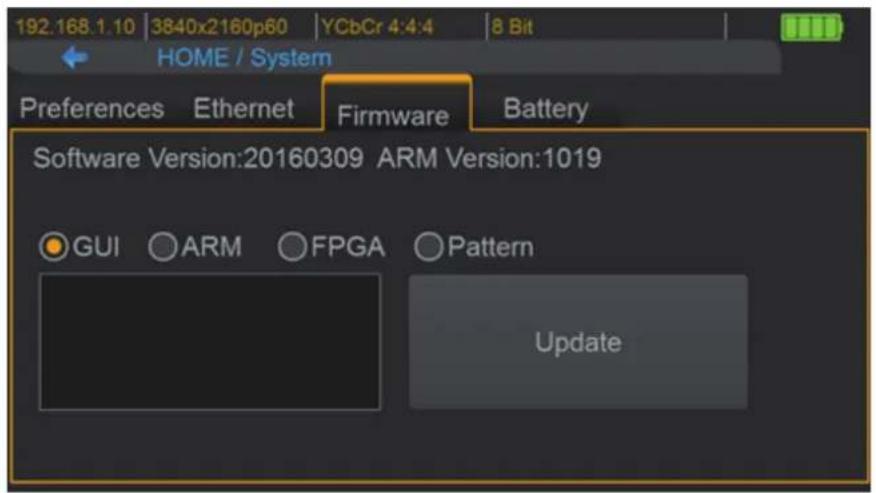
▶ System
text_image
192.168.1.10 | 3840x2160p60 | YCbCr 4:4:4 | 8 Bit HOME / System Preferences Ethernet Firmware Battery Software Version:20160309 ARM Version:1019 GUI ARM FPGA Pattern Update• Make sure the gui.dat and sysyem.dat files are in the root directory of USB.
- Connect the USB Flash Drive on PT-TOOL-500 USB interface.
- Select Firmware button from the System Menu and choose the GUI button.
- Touch the Update button to do firmware update. The process of firmware update will take about 3\~5 seconds. While updating, please do not remove the USB Flash Drive.
• After completing the firmware update, please reboot the PT-TOOL-500.
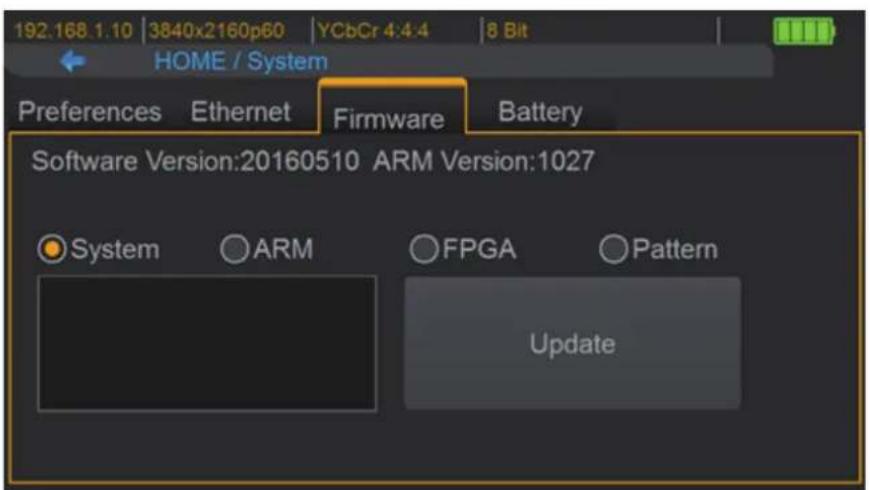
- Select Firmware from the system Menu and choose the System button.
text_image
192.168.1.10 3840x2160p60 YCbCr 4:4:4 8 Bit HOME / System Preferences Ethernet Firmware Battery Software Version:20160510 ARM Version:1027 System ARM FPGA Pattern Update- Touch the Update button to do firmware update. The process of firmware update will take about 3\~5 seconds. While updating, please do not remove the USB Flash Drive.
• After completing the firmware update, please reboot the PT-TOOL-500.
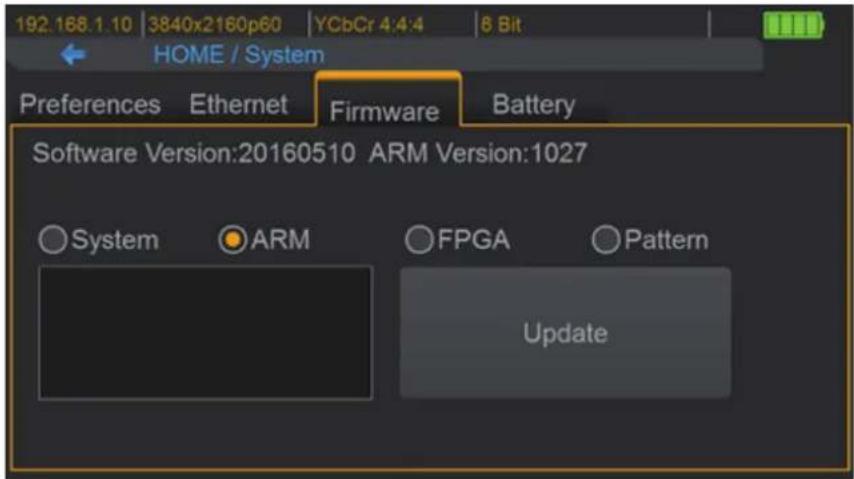
ARM
text_image
192.168.1.10 | 3840x2160p60 | YCbCr 4:4:4 | 8 Bit HOME / System Preferences Ethernet Firmware Battery Software Version:20160510 ARM Version:1027 System ARM FPGA Pattern Update• Make sure the arm.dat file is in the root directory of USB.
- Connect the USB Flash Drive on PT-TOOL-500 USB interface.
- Select Firmware from the System Menu and choose the ARM button.
- Touch the Update button to do firmware update. The process of firmware update will take
- about 5\~10 seconds. While updating, please do not remove the USB Flash Drive.
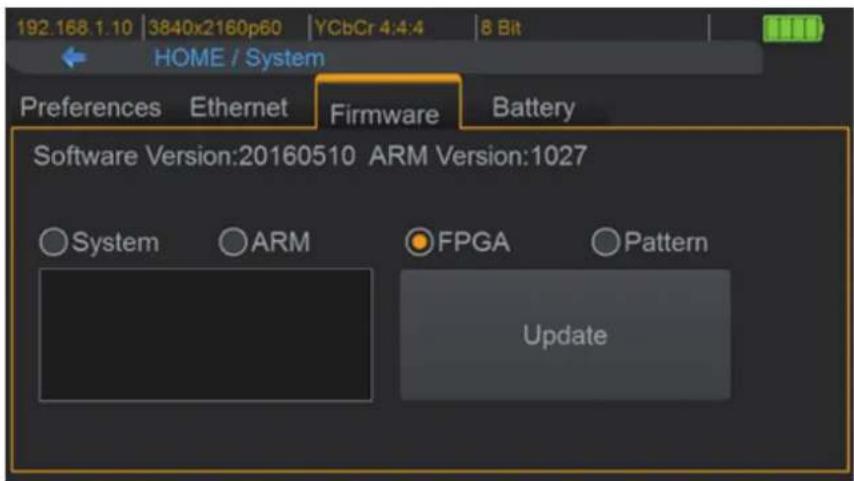
▶ FPGA
text_image
192.168.1.10 | 3840x2160p60 | YCbCr 4:4:4 | 8 Bit HOME / System Preferences Ethernet Firmware Battery Software Version:20160510 ARM Version:1027 System ARM FPGA Pattern Update• Make sure the fpga.dat file is in the root directory of USB.
- Connect the USB Flash Drive on PT-TOOL-500 USB interface.
- Select Firmware from the System Menu and choose the FPGA button.
- Touch the Update button to do firmware update. The process of firmware update will take
- about 5\~10 seconds. While updating, please do not remove the USB Flash Drive
▶ Pattern
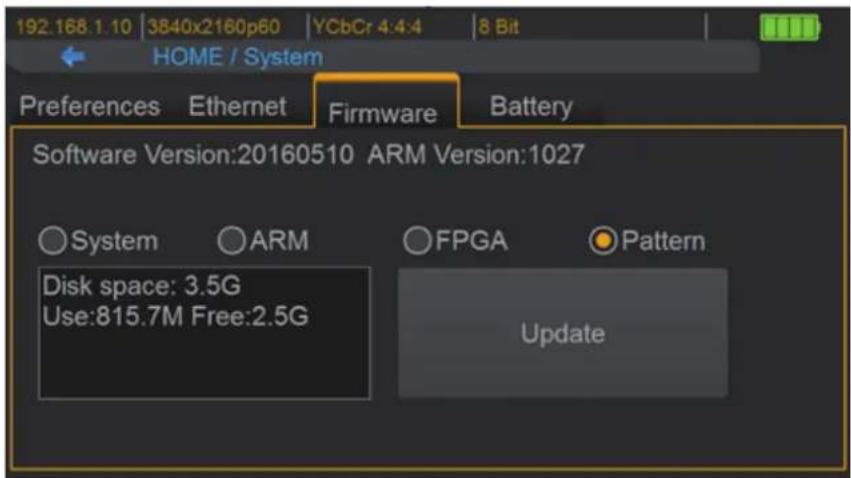
text_image
192.168.1.10 3840x2160p60 YCbCr 4:4:4 8 Bit HOME / System Preferences Ethernet Firmware Battery Software Version:20160510 ARM Version:1027 System ARM FPGA Pattern Disk space: 3.5G Use:815.7M Free:2.5G Update- Create a folder (folder name is usr_pic) on USB Flash Drive.
- Ensure the file of pattern which user desire to update on the PT-TOOL-500 is in the usr_pic directory of USB Flash Drive. The file suffix is .jpg.
- Before updating the user defined pattern, please confirm the capacity of the PT-TOOL-500.
- Select Firmware from the System Menu and choose the Pattern button.
- Touch the Update button to upgrade the user defined pattern. The process running time will depend on the file size, please wait patiently.
16. EYE Pattern
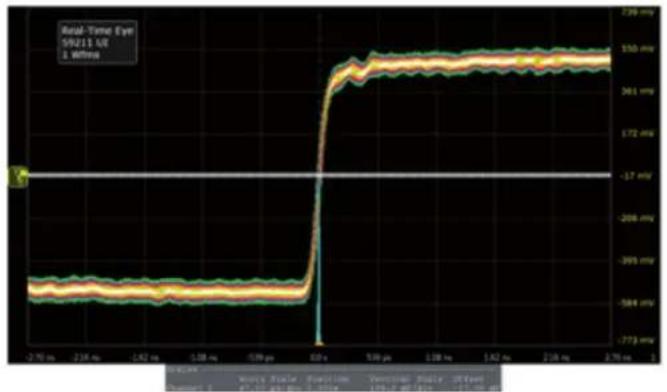
The device had been approved and supported by high performance oscilloscope (MSOX92004A) to make sure quality. The test result of this device (with Simplo battery) is shown as below:
*This result is representative of the PT-TOOL-500. Each PT-TOOL-500's performance is closed to these results but not exactly the same.
▶ Summary of Results
| Test Statistics | |
| Failed | 0 |
| Passed | 29 |
| Total | 29 |
| Margin Thresholds | |
| Warning | ≤ 2% |
| Critical | ≤ 0% |
| Pass | # Failed | # Trials | Test Name | Actual Value | Margin | Pass Limits |
| √ | 0 | 1 | HF1-2: Clock Rise Time | 105.981 ps | 41.3 % | VALUE >= 75.000 ps |
| √ | 0 | 1 | HF1-2: Clock Fall Time | 98.823 ps | 31.8 % | VALUE >= 75.000 ps |
| √ | 0 | 1 | HF1-6: Clock Duty Cycle(Minimum) | 49.870 | 24.7 % | >=40% |
| √ | 0 | 1 | HF1-6: Clock Duty Cycle(Maximum) | 50.300 | 16.2 % | <=60% |
| √ | 0 | 1 | HF1-6: Clock Rate | 148.427200000 MHz | 2.4 % | 85.000000000 MHz <= VALUE <= 150.000000000 MHz |
| √ | 0 | 1 | HF1-7: Differential Clock Voltage Swing, Vs (TP1) | 1.023 V | 22.1 % | 400 mV < VALUE < 1.200 V |
| √ | 0 | 1 | HF1-7: Clock Jitter (TP2 EQ with Worst Case Positive Skew) | 175 mTbit | 41.7 % | VALUE <= 300 mTbit |
| √ | 0 | 1 | HF1-7: Clock Jitter (TP2 EQ with Worst Case Negative Skew) | 200 mTbit | 33.3 % | VALUE <= 300 mTbit |
| √ | 0 | 1 | HF1-5: D0 Maximum Differential Voltage | 558 m | 28.5 % | VALUE <= 780 m |
| √ | 0 | 1 | HF1-5: D0 Minimum Differential Voltage | -623 m | 20.1 % | VALUE >= -780 m |
| √ | 0 | 1 | HF1-2: D0 Rise Time | 91.503 ps | 115.3 % | VALUE >= 42.500 ps |
| √ | 0 | 1 | HF1-2: D0 Fall Time | 92.436 ps | 117.5 % | VALUE >= 42.500 ps |
| √ | 0 | 1 | HF1-8: D0 Mask Test (TP2 EQ with Worst Case Positive Skew) | 0.000 | 50.0 % | No Mask Failures |
| √ | 0 | 1 | HF1-8: D0 Mask Test (TP2 EQ with Worst Case Negative Skew) | 0.000 | 50.0 % | No Mask Failures |
| √ | 0 | 1 | HF1-5: D1 Maximum Differential Voltage | 593 m | 24.0 % | VALUE <= 780 m |
| √ | 0 | 1 | HF1-5: D1 Minimum Differential Voltage | -597 m | 23.5 % | VALUE >= -780 m |
| √ | 0 | 1 | HF1-2: D1 Rise Time | 102.347 ps | 140.8 % | VALUE >= 42.500 ps |
| √ | 0 | 1 | HF1-2: D1 Fall Time | 100.664 ps | 136.9 % | VALUE >= 42.500 ps |
| √ | 0 | 1 | HF1-8: D1 Mask Test (TP2 EQ with Worst Case Positive Skew) | 0.000 | 50.0 % | No Mask Failures |
| √ | 0 | 1 | HF1-8: D1 Mask Test (TP2 EQ with Worst Case Negative Skew) | 0.000 | 50.0 % | No Mask Failures |
| √ | 0 | 1 | HF1-5: D2 Maximum Differential Voltage | 586 m | 24.9 % | VALUE <= 780 m |
| √ | 0 | 1 | HF1-5: D2 Minimum Differential Voltage | -603 m | 22.7 % | VALUE >= -780 m |
| √ | 0 | 1 | HF1-2: D2 Rise Time | 93.095 ps | 119.0 % | VALUE >= 42.500 ps |
| √ | 0 | 1 | HF1-2: D2 Fall Time | 92.460 ps | 117.6 % | VALUE >= 42.500 ps |
| √ | 0 | 1 | HF1-8: D2 Mask Test (TP2 EQ with Worst Case Positive Skew) | 0.000 | 50.0 % | No Mask Failures |
| √ | 0 | 1 | HF1-8: D2 Mask Test (TP2 EQ with Worst Case Negative Skew) | 0.000 | 50.0 % | No Mask Failures |
| √ | 0 | 1 | HF1-3: Inter-Pair Skew - D0/D1 | 1 mTpixel | 49.8 % | -200 mTpixel <= VALUE <= 200 mTpixel |
| √ | 0 | 1 | HF1-3: Inter-Pair Skew - D1/D2 | 31 mTpixel | 42.3 % | -200 mTpixel <= VALUE <= 200 mTpixel |
| √ | 0 | 1 | HF1-3: Inter-Pair Skew - D0/D2 | 28 mTpixel | 43.0 % | -200 mTpixel <= VALUE <= 200 mTpixel |
▶ Clock Jitter and eye pattern
line
| Time (μs) | Velocity (m/s) | | --------- | -------------- | | 0 | -773 | | 1.0 | -584 | | 2.0 | -395 | | 3.0 | -208 | | 4.0 | -172 | | 5.0 | -150 | | 6.0 | -150 | | 7.0 | -150 | | 8.0 | -150 | | 9.0 | -150 | | 10.0 | -150 | | 11.0 | -150 | | 12.0 | -150 | | 13.0 | -150 | | 14.0 | -150 | | 15.0 | -150 | | 16.0 | -150 | | 17.0 | -150 | | 18.0 | -150 | | 19.0 | -150 | | 20.0 | -150 | | 21.0 | -150 | | 22.0 | -150 | | 23.0 | -150 | | 24.0 | -150 | | 25.0 | -150 | | 26.0 | -150 | | 27.0 | -150 | | 28.0 | -150 | | 29.0 | -150 | | 30.0 | -150 |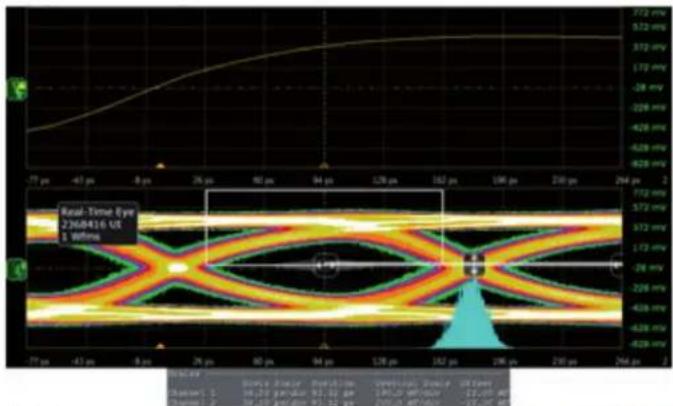
text_image
Real-Time Eye 2368416 U 1 W/Hz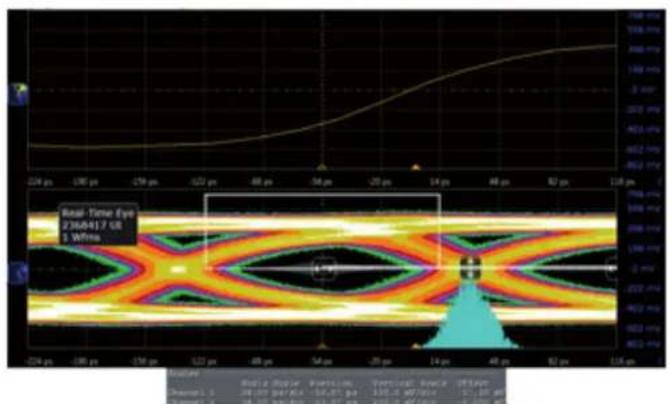
text_image
Real-Time Eye 236A417 GB 1 White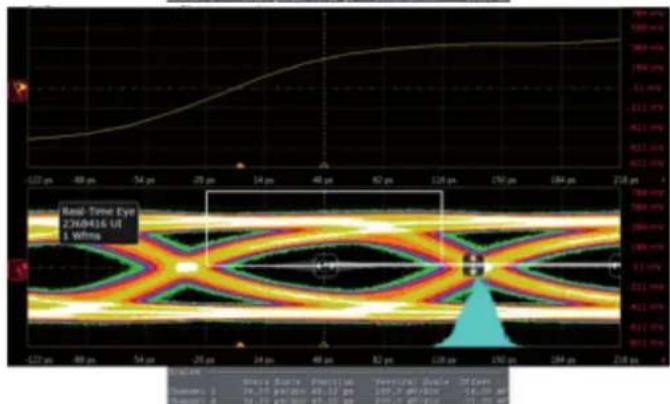
text_image
Real-Time Eye 2360416 UI 1 W/mHz17. Limited Warranty
The SELLER warrants the PT-TOOL-500 HDMI 2.0 LCD Test Pattern Monitor to be free from defects in the material and workmanship for 1 year from the date of purchase from the SELLER or an authorized dealer. Should this product fail to be in good working order within 1 year warranty period, The SELLER, at its option, repair or replace the unit, provided that the unit has not been subjected to accident, disaster, abuse or any unauthorized modifications including static discharge and power surges.
Unit that fails under conditions other than those covered will be repaired at the current price of parts and labor in effect at the time of repair. Such repairs are warranted for 90 days from the day of reshipment to the BUYER. If the unit is delivered by mail, customers agree to insure the unit or assume the risk of loss or damage in transit. Under no circumstances will a unit be accepted without a return authorization number.
The warranty is in lieu of all other warranties expressed or implied, including without limitations, any other implied warranty or fitness or merchantability for any particular purpose, all of which are expressly disclaimed.
Proof of sale may be required in order to claim warranty. Customers outside Taiwan are responsible for shipping charges to and from the SELLER. Cables are limited to a 30 day warranty and cable must be free from any markings, scratches, and neatly coiled.
The content of this manual has been carefully checked and is believed to be accurate. However, The SELLER assumes no responsibility for any inaccuracies that may be contained in this manual. The SELLER will NOT be liable for direct, indirect, incidental, special, or consequential damages resulting from any defect or omission in this manual, even if advised of the possibility of such damages. Also, the technical information contained herein regarding the PT-TOOL-500 features and specifications is subject to change without further notice.
Asking for Assistance
Technical Support:
Phone: +49 5971 800299 - 0
Fax: +49 5971 800299 - 99
Technical Support Hours:
8:30 AM to 5:00 PM Monday thru Thursday
8:30 AM to 4:00 PM Friday
Write To:
PureLink GmbH