
Hearphones - Headphones BOSE - Free user manual and instructions
Find the device manual for free Hearphones BOSE in PDF.


| Product type | Wireless in-ear headphones with conversation enhancement |
| Brand | Bose |
| Model | Hearphones |
| Power input | 5V 1A (USB charging) |
| Battery life | Up to 10 hours (full charge) |
| Charging time | Up to 3 hours |
| Wireless connectivity | Bluetooth® (streaming from mobile devices) |
| NFC support | Yes (tap to pair) |
| World Volume | Adjustable noise cancellation to amplify or reduce environmental sounds |
| Directivity modes | Everywhere, Front, Focused (adjustable via button press) |
| Microphone directivity | Adjustable microphone arrays for focusing on sounds from specific directions |
| Fit system | StayHear®+ tips (three sizes: small, medium, large) |
| App support | Bose® Hear app (iOS and Android) for personalized settings |
| Included accessories | Carry case, USB cable, StayHear®+ tips (large, small), medium pre-installed |
| Safety certifications | FCC Class B, Industry Canada, CE |
| Water resistance | Not waterproof; avoid submersion and water sports |
| Operating temperature | 50°F to 104°F (10°C to 40°C) for charging |
| Weight | Approx. 1.5 oz (42 g) – estimated |
| Dimensions | Neckband: approx. 6 x 0.5 x 6 in (15 x 1.3 x 15 cm) – estimated |
| Warranty | Limited warranty (details at global.Bose.com/Support/Hearphones) |
Frequently Asked Questions - Hearphones BOSE
User questions about Hearphones BOSE
0 question about this device. Answer the ones you know or ask your own.
Ask a new question about this device
Download the instructions for your Headphones in PDF format for free! Find your manual Hearphones - BOSE and take your electronic device back in hand. On this page are published all the documents necessary for the use of your device. Hearphones by BOSE.
USER MANUAL Hearphones BOSE
Please read and keep all safety and use instructions.
- Use caution and follow applicable laws regarding mobile phone and headphone use if using the headphones for calls while driving. Some jurisdictions impose specific limitations, such as single earpiece configuration, on the use of such products while driving. Do NOT use the headphones for any other purpose while driving.
- Do NOT use the headphones with World Volume below 0 or with “Focused” or “Front” microphone directivity selected whenever the inability to hear surrounding sounds may present a danger to yourself or others (for example, while riding a bicycle or walking in or near traffic, a construction site or railroad tracks).
-Where appropriate, adjust the headphones to ensure you can hear surrounding sounds, including alarms and warning signals.
-Be aware of how sounds that you rely on as reminders or warnings may vary in character when using the headphones.
- Be aware that it may be more difficult to identify where a sound is coming from when using the headphones, particularly in “Focused” or “Front” directivity.
- Do NOT use the headphones at a high volume for any extended period.
-To avoid hearing damage, use your headphones at a comfortable, moderate volume level.
-Turn the volume down on your device before placing the headphones in/on your ears, then turn the volume up gradually until you reach a comfortable listening level.
- Do NOT use the headphones if they emit any loud unusual noise. If this happens, turn the headphones off and contact Bose® customer service.
- Do NOT submerge or expose the headphones for extended period to water, or wear while participating in water sports, e.g., swimming, waterskiing, surfing, etc.
- Remove headphones immediately if you experience a warming sensation or loss of audio.

Contains small parts which may be a choking hazard. Not suitable for children under age 3.

This product contains magnetic material. Consult your physician on whether this might affect your implantable medical device.
- Do NOT make unauthorized alterations to this product.
- Use this product only with an agency approved power supply which meets local regulatory requirements (e.g., UL, CSA, VDE, CCC).
- Do NOT expose products containing batteries to excessive heat (e.g. from storage in direct sunlight, fire or the like).
This is not a hearing instrument or hearing aid as defined in the Hearing Instrument Consumer Protection Act of Illinois, but a personal amplifier and not intended to replace a properly fitted and calibrated hearing instrument.
Note: This equipment has been tested and found to comply with the limits for a Class B digital device, pursuant to Part 15 of the FCC Rules. These limits are designed to provide reasonable protection against harmful interference in a residential installation. This equipment generates, uses, and can radiate radio frequency energy and, if not installed and used in accordance with the instructions, may cause harmful interference to radio communications. However, there is no guarantee that interference will not occur in a particular installation. If this equipment does cause harmful interference to radio or television reception, which can be determined by turning the equipment off and on, the user is encouraged to try to correct the interference by one or more of the following measures:
- Reorient or relocate the receiving antenna.
- Increase the separation between the equipment and receiver.
- Connect the equipment into an outlet on a circuit different from that to which the receiver is connected.
- Consult the dealer or an experienced radio/TV technician for help.
Changes or modifications not expressly approved by Bose Corporation could void the user's authority to operate this equipment.
This device complies with part 15 of the FCC Rules. Operation is subject to the following two conditions: (1) This device may not cause harmful interference, and (2) this device must accept any interference received, including interference that may cause undesired operation.
This device complies with FCC and Industry exposure limits set forth for general population. This transmitter must not be co-located or operating in conjunction with any other antenna or transmitter.
Input Rating: 5V 1A

Date of Manufacture: The eighth digit in the serial number indicates the year of manufacture; "7" is 2007 or 2017.
Android, Google Play and the Google Play logo are trademarks of Google Inc.
Apple, the Apple logo, iPad, iPhone, and iPod are trademarks of Apple Inc., registered in the U.S. and other countries. App Store is a service mark of Apple Inc. The trademark “iPhone” is used with a license from Aiphone K.K.
The Bluetooth ^® word mark and logos are registered trademarks owned by Bluetooth SIG, Inc. and any use of such marks by Bose Corporation is under license.
The N-Mark is a trademark or registered trademark of NFC Forum, Inc. in the United States and in other countries.
"Made for iPod," "Made for iPhone," and "Made for iPad" mean that an electronic accessory has been designed to connect specifically to iPod, iPhone, or iPad, respectively, and has been certified by the developer to meet Apple performance standards. Apple is not responsible for the operation of this device or its compliance with safety and regulatory standards. Please note that the use of this accessory with iPod, iPhone or iPad may affect wireless performance.
©2017 Bose Corporation. No part of this work may be reproduced, modified, distributed or otherwise used without prior written permission.
Getting Started
Unpacking.... 6
Headphone components 7
Powering on/off.... 8
Bose® Hear App
Features....9
Headphone Controls
World Volume functions.... 10
Directivity functions.... 10
Media playback and volume functions.... 11
Call functions.... 11
Charging the Battery
Connecting the USB cable 12
Checking the battery.... 13
Status Indicators
Battery indicator 14
Bluetooth ^® indicator.... 15
Battery indicator and Bluetooth indicator 15
Adjusting for Comfort
Choosing the correct StayHear ^® + tip.... 16
Fitting the earbuds to your ear 16
Changing the StayHear®+ tips 17
World Volume
How World Volume works.... 18
Using the headphones for World Volume only.... 18
Getting used to new sounds 18
Directivity
Adjusting sound direction.... 19
Bluetooth Technology
Pairing your mobile device using the Bose® Hear app (recommended) ..... 20
Choosing an alternative pairing method.... 20
What is NFC? 20
Pairing your mobile device using the Bluetooth menu.... 21
Pairing your mobile device using NFC 23
Disconnecting a device 24
Reconnecting a device 24
Managing Multiple Connections
Identifying connected mobile devices 25
Switching between two connected devices.... 25
Reconnecting a previously paired device 25
Clearing the headphone pairing list 25
Care and Maintenance
Storing 26
Cleaning.... 27
Replacement parts and accessories.... 27
Limited warranty 27
Technical information.... 27
Troubleshooting
Common solutions 28
Unpacking
Carefully unpack the carton and confirm the following parts are included:
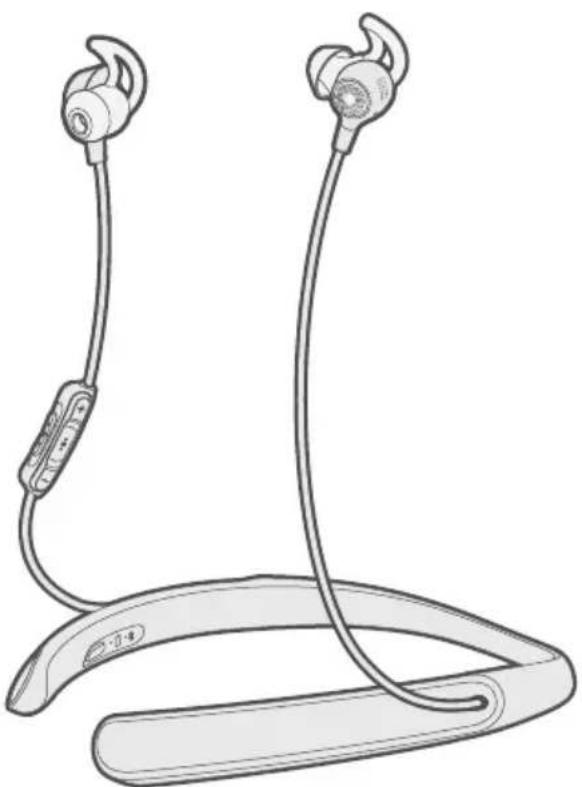
natural_image
Line drawing of two wireless earbuds with attached straps, no text or symbols presentBose ^® Hearphones ^TM
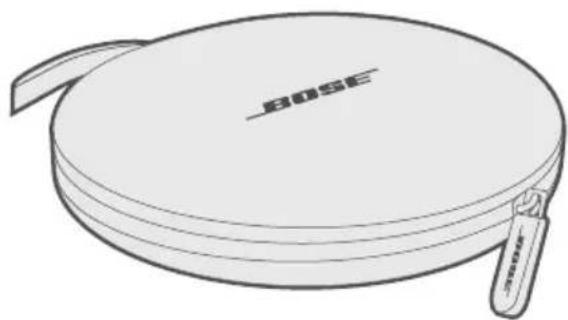
natural_image
Line drawing of a BOSE-branded cassette cream case with a strap (no text or symbols)Carry case
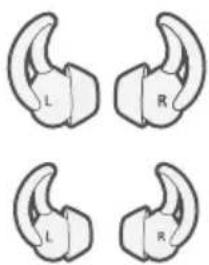
StayHear ^® + tips: Large (black) and Small (white)
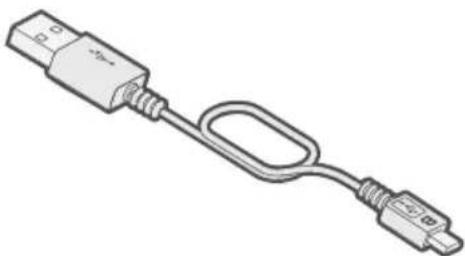
natural_image
Illustration of a USB cable with connector port (no text or symbols)USB cable
Note: Medium (gray) tips are attached to the earbuds.
Note: If any part of your product is damaged, do not use it. Contact your authorized Bose dealer or Bose customer service. Visit: global.Bose.com/Support/Hearphones
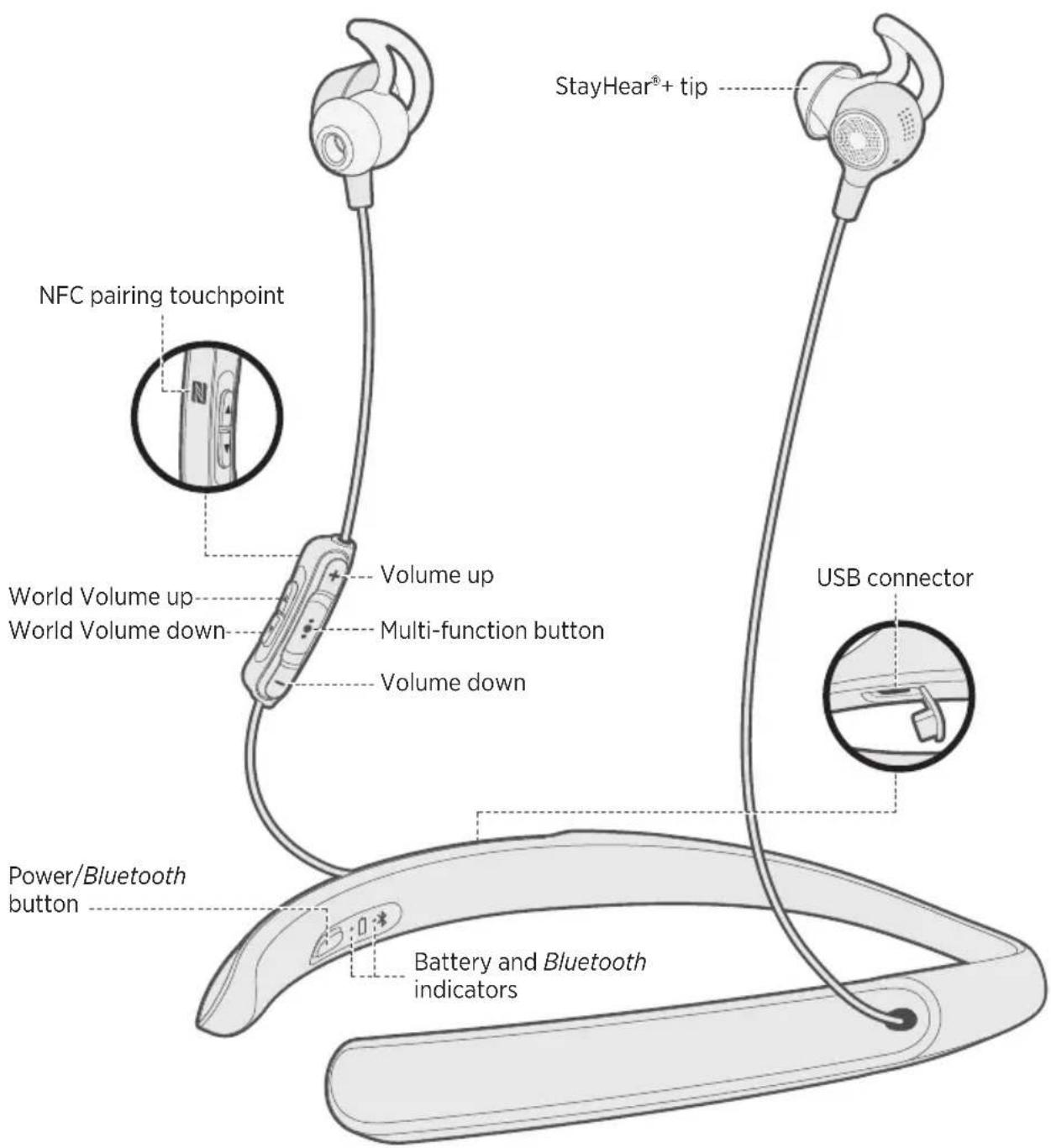
Headphone components
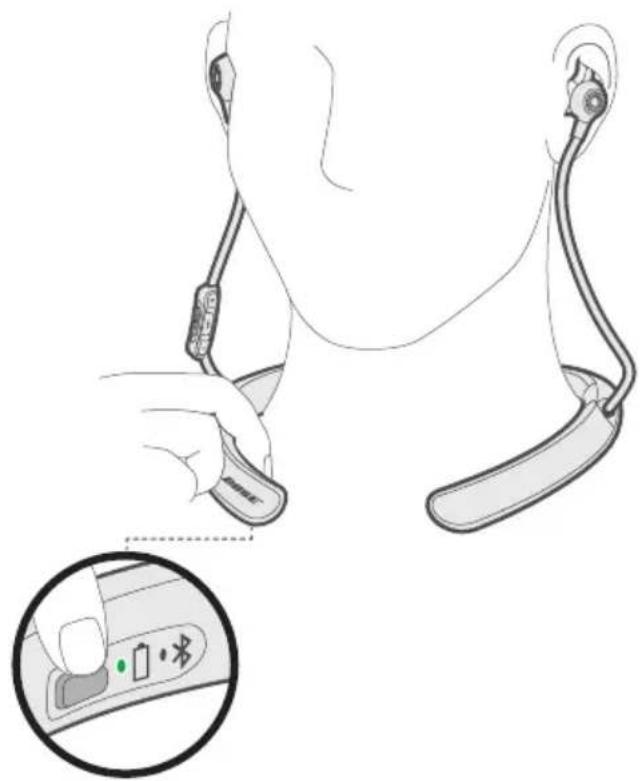
Powering on/off
To power on: Press the Power/Bluetooth button.
If wearing the headphones, you hear "Battery
If holding the headphones, you see the battery indicator glow green, amber or red (see page 14).
natural_image
Illustration of a person's ear with attached earbuds and a hand adjusting the ear (no text or symbols present)To power off: Press and hold the Power/Bluetooth button until you hear the power-down tones (if wearing the headphones) or see the battery indicator blink two times (if holding the headphones).
Download the free Bose® Hear app to personalize your conversation-enhancement settings and complete your headphone experience.
Features
- Pair your mobile device.
- Control World Volume to amplify and reduce environmental sounds.
- Adjust base and treble to fine tune live sounds.
- Adjust directivity settings to change the direction from which you hear sounds:
- Everywhere: Hear sounds from all directions. Use this setting when crossing the street, watching television or listening to music.
- Front: Concentrate on a conversation with people in front of you and reduce noise from behind.
-
Focused: Focus on a conversation with someone in a noisy setting.
-
Adjust balance between left and right ears.
- Mute sounds in both ears or in one ear for single earbud use.
- Increase the high frequency emphasis with various “Boost” settings for listening to phone calls, podcasts or music.
- Define, select and save modes for easy access to useful combinations of settings.
- Disable voice prompts.
- Enable device auto-off after specified time interval.
- Compatible with most Apple and Android™ devices.
- Keep your headphones up-to-date with the latest software.

Download on the
App Store

GETITON
Google Play
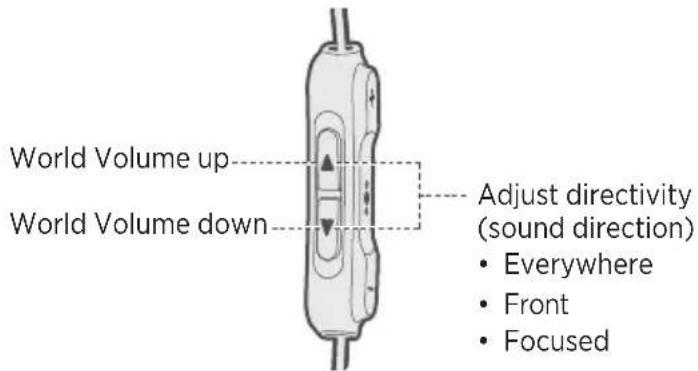
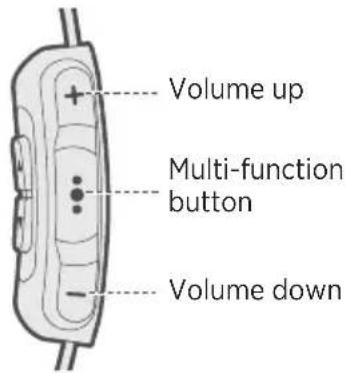
The headphone controls are located on the inline remote below the right earbud.
World Volume functions
Use the World Volume buttons ▲ and to control the level of environmental sound you hear.
Note: For more information on how World Volume works, see page 18.
| Function What to do | |
| Increase World Volume (amplify environmental sounds) | Press ▲until the desired setting is reached. |
| Decrease World Volume (reduce environmental sounds) | Press ▼ until the desired setting is reached. |
| Note: You hear a tone when you can no longer increase or decrease World Volume. | |
Directivity functions
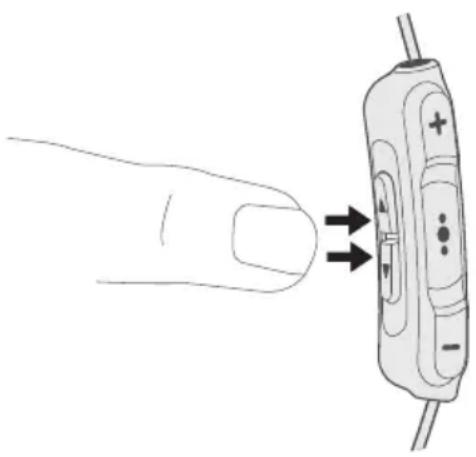
To focus on sounds coming from a particular area, press the World Volume buttons ▲ and ▼simultaneously. You hear a tone representing the new directivity setting. Repeat to cycle through directivity settings until you hear the tone for your preferred setting.
Note: For more information on how directivity works, see page 19.
| Function What to do | |
| Listen to sounds from all directions | Press ▲ and ▼multaneously. Repeat until you hear a low-frequency tone. |
| Concentrate on a conversation with people in front of you and reduce noise from behind | Press ▲ and ▼simultaneously. Repeat until you hear a medium-frequencytone. |
| Focus on a conversation with someone in a noisy setting | Press ▲ and ▼simultaneously. Repeat until you hear a high-frequencytone. |
Media playback and volume functions
| Function What to do | |
| Play/pause | Press ●●●. |
| Skip forward | Press ●●● twice quickly. |
| Skip backward | Press ●●● three times quickly. |
| Fast forward | Press ●●● twice quickly and hold the second press. |
| Rewind | Press ●●● three times quickly and hold the third press. |
| Volume up Press + . | |
| Volume down Press - . |
Call functions
| Function What to do | |
| Answer a call | Press ●●●.Note: When you answer a call using your phone's touch screen, you hear the call through the phone, not the headphones. |
| End a call | Press ●●●. |
| Decline an incoming call | Press and hold ●●●. |
| Answer a second incoming call and put the current call on hold | While on a call, press ●●● once. |
| Decline a second incoming call and stay on current call | While on a call, press and hold ●●● for one second. |
| Switch between two calls | With two active calls, press ●●● twice quickly. |
| Create a conference call | With two active calls, press and hold ●●● for one second. |
| Activate voice control | While not on a call, press and hold ●●● one second.Refer to your device owner's guide for compatibility and information on using this feature. |
| Mute/unmute a call While on a call | press + and - simultaneously. |
Connecting the USB cable
CAUTION: Use this product only with an agency-approved power supply that meets local regulatory requirements (for example: UL, CSA, VDE, CCC).
- Open the hinged door on the inside right neckband.
- Plug the small end of the USB cable into the USB connector.
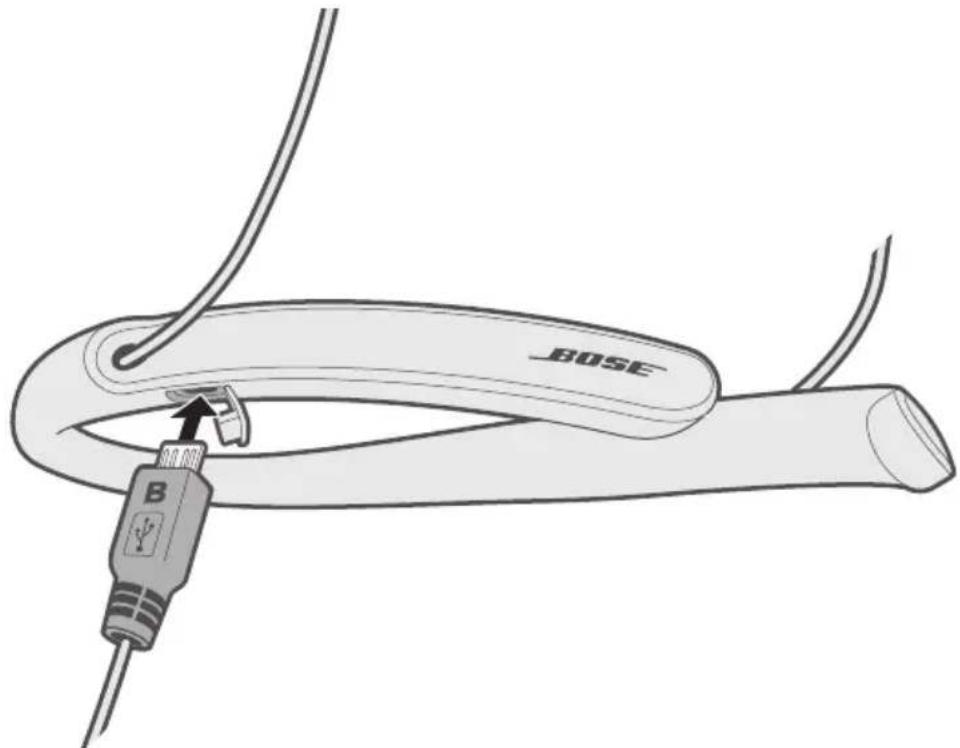
- Plug the other end of the USB cable into a wall charger or computer that is powered on.
While charging, the battery indicator blinks amber. Allow up to three hours to fully charge the battery. When the battery is fully charged, the battery indicator glows green. A full charge powers the headphones for up to 10 hours.
Note: The headphones do not play while charging.
Checking the battery
• Each time you power on the headphones, the voice prompt announces the headphone battery charge level.
- To visually check the battery charge level, press the Power/Bluetooth button and check the battery indicator.
- The battery indicator blinks red when the battery needs charging (see page 14).
- If you are connected to an Apple device, the device displays the headphone battery charge level near the upper right corner of the screen.
The Battery and Bluetooth indicators are located on the inside right neckband.
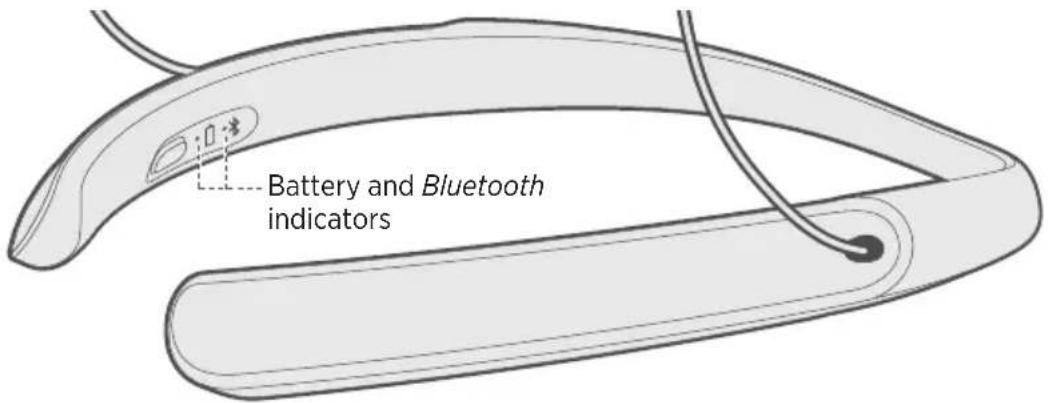
Battery indicator
Shows the battery charge level.
| Indicator activity System | state |
| Green Medium to full charge. | |
| Solid amber Low charge. | |
| Blinking red Need to charge. | |
| Blinking amber Charging. | |
| Solid red Charging error. Contact | Bose customer service. |
| Green while Bluetooth indicator simultaneously glows red | Updating headphone software.Note: The update may take 10 or more minutes. |
Bluetooth indicator
Shows the connection status of a mobile device.
| Indicator activity System | state |
| Blinking blue Ready to pair. | |
| Blinking white Connecting. | |
| Solid white Connected. | |
| Red while battery indicator simultaneously glows green | Updating headphone software.Note: The update may take 10 or more minutes. |
Battery indicator and Bluetooth indicator
Shows the status of the headphone software update.
| Indicator activity System | state |
| Battery indicator glows green while theBluetooth indicator simultaneously glows red | Updating headphone software.Note:The update may take 10 or more minutes. |
Choosing the correct StayHear®+ tip
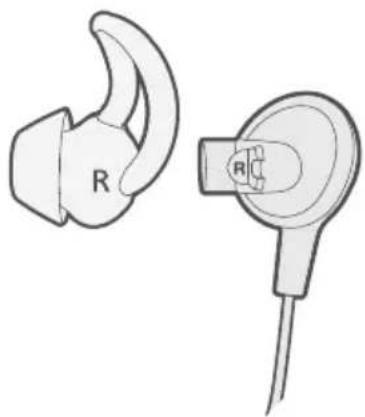
For optimal audio performance, it is important to choose the correct size StayHear®+ tip. Select the size that gives you the best comfort and fit in each ear. To determine the best fit, you may need to try all three sizes. You may need a different size for each ear.
Note: Make sure your tips fit properly to avoid the earbuds whistling.
Each tip and earbud is marked with either an L or an R. Be sure to attach the left tip to the left earbud and the right tip to the right earbud.
natural_image
Illustration of two earbuds with labeled 'R' and a connector pin (no text or symbols beyond labels)Fitting the earbuds to your ear
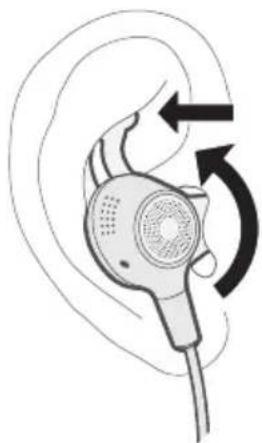
The tip allows the earbud to rest comfortably and securely in your ear. The tip wing fits just under your ear ridge.
- Insert the earbud so the tip gently rests in the opening of the ear canal.
- Tilt the earbud back and tuck the tip wing under the ear ridge until it is secure.
natural_image
Illustration of an ear with a speaker emitting sound waves, showing ear and ear anatomy (no text or symbols)Changing the StayHear®+ tips
- Holding the earbud by the stem, gently grasp the attached StayHear®+ tip and peel it away from the earbud.
CAUTION: To prevent tearing, grasp the tip by its base. Do not pull on the tip wing.
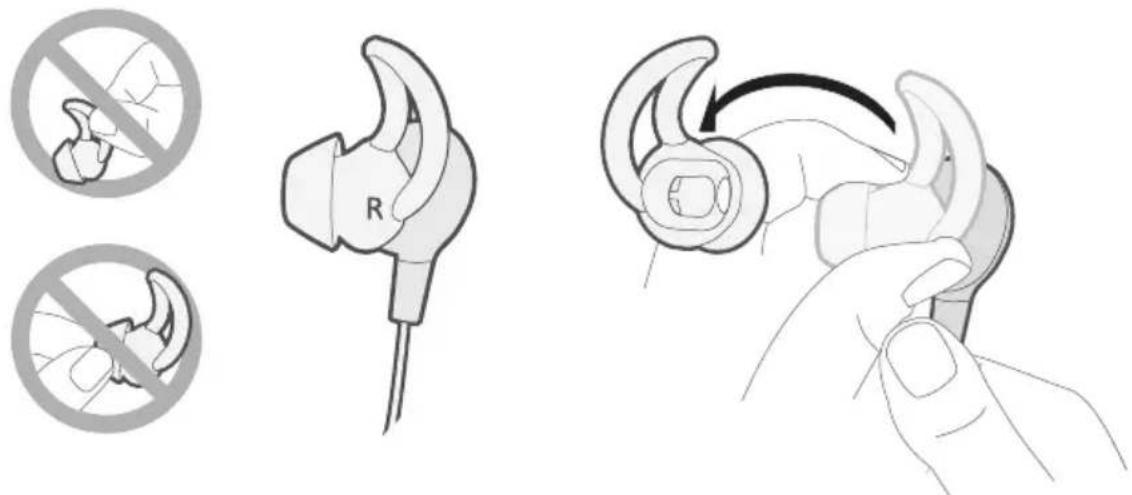
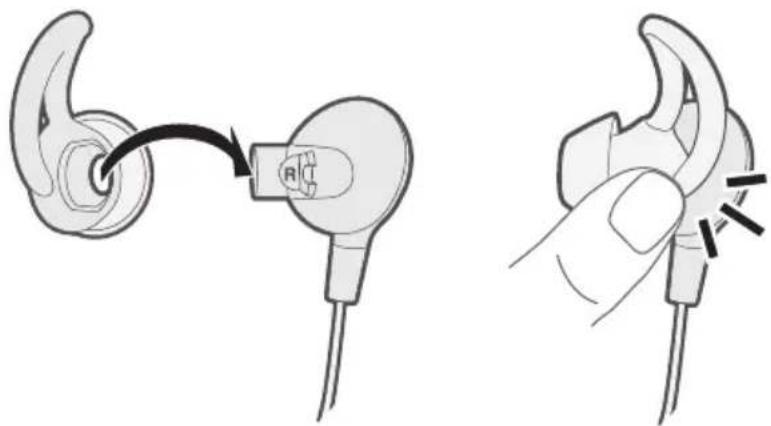
- Align the opening of the new tip with the earbud nozzle and rotate the tip onto the nozzle. Press the base of the tip until it clicks securely into place.
natural_image
Illustration of ear ear ear being adjusted for a specific part, showing the ear being held and then being held (no text or symbols present)World Volume uses adjustable noise cancelling to control the loudness of live voices, television, movies and other environmental sounds. You can adjust World Volume so it is at the right level for your current activity.
How World Volume works
- As you increase World Volume, quiet sounds in the environment are amplified more than loud sounds so that all sounds can be heard comfortably.
- As you decrease World Volume, sounds in the environment are reduced, enabling you to focus on your activity, for example, listening to music or podcasts, reading or using your mobile device.
Using the headphones for World Volume only
If you want to use the headphones for World Volume only, do one of the following:
- Pause or stop audio (see page 11).
- Disconnect your mobile device (see page 24). You may want to do this if you prefer to keep your mobile device in another room or powered off while using the headphones.
Note: Certain conversation-enhancement settings are only available in the Bose® Hear app. While your device is disconnected, you won't be able to adjust these settings. However, you can still adjust World Volume and directivity by using the headphone controls (see page 10).
Getting used to new sounds
Bose® Hearphones™ may require you to get used to new, higher-frequency sounds and your voice sounding different. When powering on your headphones for the first time, World Volume is set so that sounds are amplified at a slightly higher level than if you were not using the headphones.
In some cases, you may experience the perception that a loud environment is quiet and your voice is loud, which may cause you to lower your voice. Practice listening to new sounds and talking on your own or with a trusted partner in a familiar environment, before you use your headphones for conversation.
Tip: If you want to use just one earbud while getting used to new sounds, you can mute the other earbud with the Bose® Hear app (see page 9).
Adjusting sound direction
You can adjust the microphone arrays on the earbuds to focus on sounds coming from different areas in your environment.
To focus on sounds coming from a particular area, press the World Volume buttons ▲ and ▼simultaneously. You hear a tone representing the new directivity setting. Repeat to cycle through directivity settings until you hear the tone for your preferred setting.
natural_image
Line drawing of a finger pressing a device with arrows indicating direction (no text or symbols)- Everywhere (low-frequency tone): Hear sounds from all directions. Use this setting when crossing the street, watching television or listening to music.
- Front (medium-frequency tone): Concentrate on sounds coming from a wide area in front of you and reduce noise from behind. Use this setting when having a conversation with more than one person.
- Focused (high-frequency tone): Focus on sounds coming from a narrow area in front of you. Use this setting when having a conversation with someone in a noisy setting.
Bluetooth wireless technology lets you stream music from mobile devices such as smartphones, tablets and laptop computers. Before you can stream music from a mobile device, you must pair the device with your headphones.
Pairing your mobile device using the Bose® Hear app (recommended)
- Power on your headphones (see page 8).
- Download the Bose® Hear app, and follow the on-screen instructions.
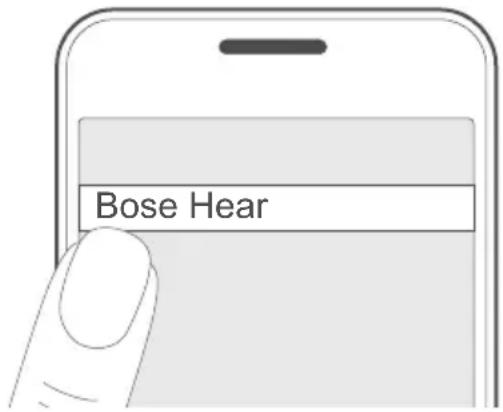
Once paired, if wearing the headphones, you hear "Connected to
Choosing an alternative pairing method
If you are unable to pair your mobile device using the Bose® Hear app, you can pair using the Bluetooth settings menu or Near Field Communication (NFC).
What is NFC?
NFC enables a Bluetooth connection by simply tapping two devices together. Refer to your device owner's guide to see if your model supports NFC.
| If your device does not supportBluetooth pairing via NFC or if you are unsure: | Follow the instructions for “Pairing your mobile device using theBluetooth menu” on page 21. |
| If your device supportsBluetooth pairing using NFC: | Follow the instructions for “Pairing your mobile device using NFC” on page 23. |
Note: If your device supports Bluetooth pairing via NFC, you can use either pairing method.
Pairing your mobile device using the Bluetooth menu
- With your headphones powered on, press and hold the Power/Bluetooth button until you hear "Ready to pair," (if wearing the headphones) or you see the Bluetooth indicator blink blue (if holding the headphones).
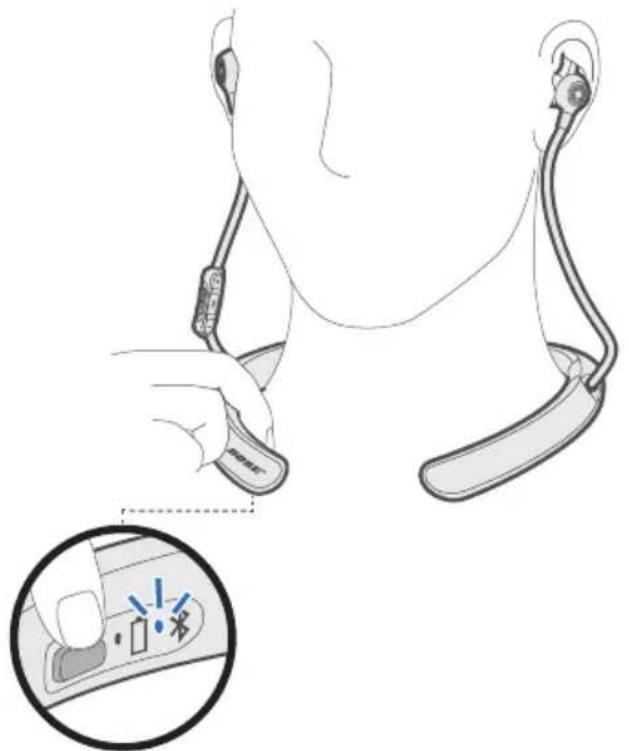
natural_image
Illustration of a person's ear with attached earbuds and a hand holding the ear, showing a close-up of the ear's finger pointing to a device (no text or symbols present)- On your mobile device, turn on the Bluetooth feature.
Tip: The Bluetooth feature is usually found in the Settings menu.
- Select your Bose® Hearphones™ from the device list.
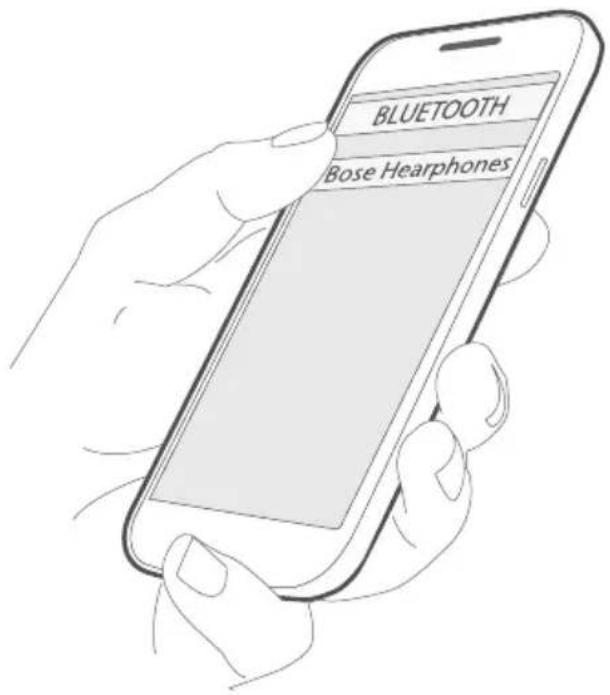
Once paired, if wearing the headphones, you hear "Connected to
Pairing your mobile device using NFC
- With your headphones powered on, unlock your mobile device and turn on the Bluetooth and NFC features. Refer to your device owner's guide to learn more about these features.
- Tap the NFC touchpoint on your device to the back of the inline remote.
Your device may prompt you to accept pairing.
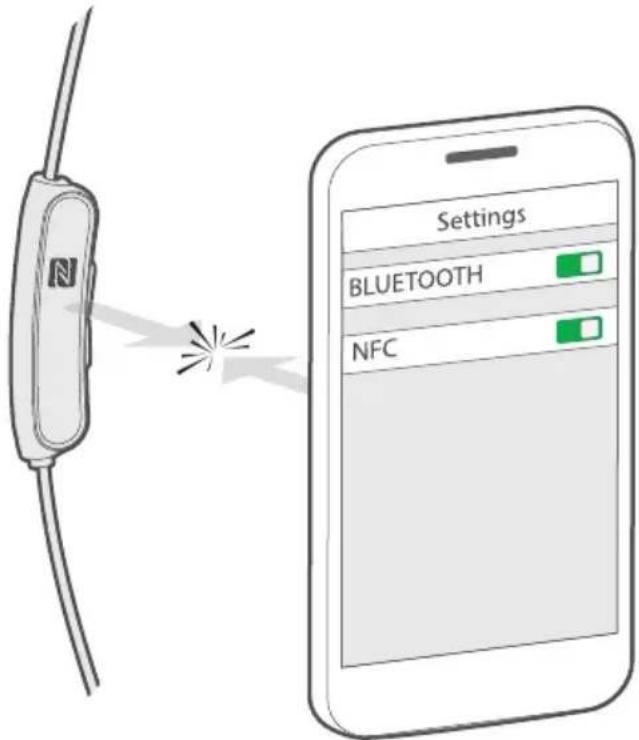
Once paired, if wearing the headphones, you hear "Connected to
Disconnecting a device
- Turn off the Bluetooth feature on your device.
- If your device supports NFC, tap the NFC touchpoint on your device to the back of the inline remote.
Reconnecting a device
- When powered on, the headphones try to reconnect with the two most recently connected devices.
Note: The devices must be within range and powered on.
- If your device supports NFC, tap the NFC touchpoint on your device to the back of the inline remote.
You can store up to eight paired mobile devices in the headphone pairing list, and your headphones can be actively connected to two devices at a time.
Note: You can only play audio from one device at a time.
Identifying connected mobile devices
Press the Power/Bluetooth button to hear which devices are currently connected.
Switching between two connected devices
- Pause audio on your first device.
- Play audio on your second device.
Reconnecting a previously paired device
- Press the Power/Bluetooth button to hear which device is connected.
- Press the Power/Bluetooth button again within three seconds to connect to the next device in the headphone pairing list.
- Repeat until you hear the correct device name.
- Play audio on the connected device.
Clearing the headphone pairing list
- Press and hold the Power/Bluetooth button for 10 seconds until you hear “Bluetooth device list cleared.”
- Delete your headphones from the Bluetooth list on your mobile device.
All devices are cleared and the headphones are ready to pair a new device.
Storing
- Turn off the headphones when not in use.
- Before storing the headphones for more than a few months, fully charge the battery.
- Place the headphones in the carry case for storage.
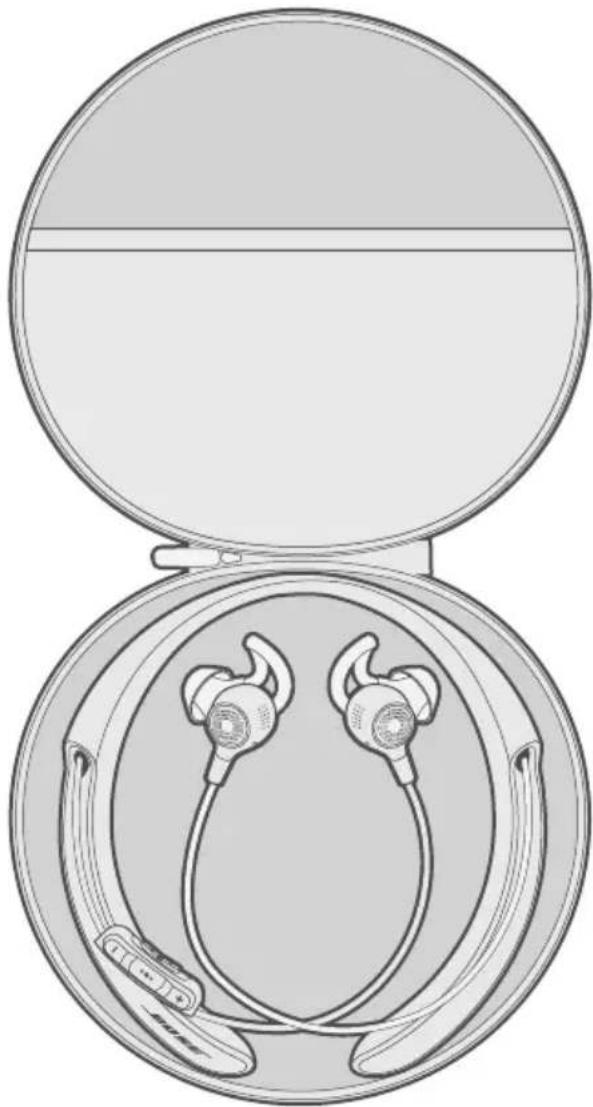
natural_image
Illustration of an open circular device with two internal earphones and a strap, showing no text or symbols.Cleaning
Your headphones may require periodic cleaning.
- StayHear®+ tips: Remove the tips from the earbuds and wash them with a mild detergent and water. Make sure you thoroughly rinse and dry the tips before attaching them to the earbuds.
- Earbud nozzles: Clean only with a dry, soft cotton swab or equivalent. Never insert any cleaning tool into the nozzle.
- Cleaning the neckband: Clean only with a soft, dry cloth. Do not use cleaning solvents or detergents.
Replacement parts and accessories
Replacement parts and accessories can be ordered through Bose customer service.
- Visit: global.Bose.com/Support/Hearphones
- Contact Bose customer service: 800-761-2673
Limited warranty
Your Bose ^® Hearphones ^™ wireless headphones are covered by a limited warranty. Visit global.Bose.com/Support/Hearphones for details about the Bose ^® Hearphones limited warranty and instructions on how to register. Failure to register will not affect your limited warranty rights.
Technical information
Input Rating: 5V 1A-
If you experience problems with your headphones:
- Check the state of status indicators (see page 14).
- Make sure your mobile device supports Bluetooth or pairing via NFC technology (see page 20).
If you could not resolve your issue, see the table below to identify symptoms and solutions to common problems. If you are unable to resolve your issue, contact Bose customer service.
Common solutions
The following table lists symptoms and possible solutions to common problems.
| Symptom Solution | |
| Headphones don’t power on | Power on the headphones (see page 8).Charge the battery. |
| Headphones don’t pair with mobile device | On your device:- Turn theBluetoothfeature off and then on.- Delete your headphones from theBluetoothlist on your device. Pair again (see page 20).Move your device closer to the headphones and away from any interference or obstructions.Pair a different device (see page 20).Visit: global.Bose.com/Support/Hearphones to see how-to videos.Clear the headphone pairing list (see page 25). Pair again. |
| Headphones don’t pair with NFC-enabled device | Make sure your device supports NFC.Unlock your device and turn on theBluetoothand NFC features.Tap the NFC touchpoint on the back of your device to the back of the inline remote. |
| No sound when playing audio from mobile device | Power on the headphones (see page 8).Charge the battery.Increase the volume on your headphones and device.Press the Power/Bluetooth button to hear the connected device. Make sure you are using the correct device.Move your device closer to the headphones and away from any interference or obstruction.Use a different music source.Pair a different device (see page 20).If two devices are connected, pause the first device and play the other device.If two devices are connected, move the devices within range of the headphones (30 ft. or 9 m). |
| Poor sound quality when playing audio from device | Use a different music source.Pair a different mobile device (see page 20).Disconnect the second device.Move the device closer to the headphones and away from any interference or obstructions.Clear any debris or wax buildup from the earbuds and headphone nozzles. |
| No World Volume• Make sure the headphones are powered on and the battery indicator glows solid green. | |
| World Volume won't adjust | Power off the headphones and then power on.Charge the battery. |
| Headphones don't charge | Open the hinged door on the inside right neckband and securely connect the small end of the USB cable to the USB connector. Make sure the connector on the cable is correctly aligned with the connector on the headphones.Secure both ends of the USB cable.Make sure the headphones are at room temperature, between 50^ F ( 10^ C) and 104^ F ( 40^ C). If your headphones have been exposed to high or low temperatures, let the headphones return to room temperature and then try charging again. |
| StayHear®+ tips falling off | Securely attach the tips to the earbuds (see page 17). |
| Lost StayHear®+ tips | Contact Bose customer service for replacement tips (see page 27). |
| Earbuds whistle Decrease | World Volume. Make sure your StayHear®+ tips fit properly (see page 16). |
| Sound of own voice is too loud | Practice listening to new sounds and talking on your own or with a trusted partner in a familiar environment before you use your headphones for conversation. |

- Please read and keep all safety and use instructions.
- Getting Started
- Bose® Hear App
- Headphone Controls
- Charging the Battery
- Status Indicators
- Adjusting for Comfort
- World Volume
- Directivity
- Bluetooth Technology
- Managing Multiple Connections
- Care and Maintenance
- Troubleshooting
- Unpacking
- Headphone components
- Powering on/off
- Features
- World Volume functions
- Directivity functions
- Media playback and volume functions
- Call functions
- Connecting the USB cable
- Checking the battery
- Battery indicator
- Bluetooth indicator
- Battery indicator and Bluetooth indicator
- Choosing the correct StayHear®+ tip
- Fitting the earbuds to your ear
- Changing the StayHear®+ tips
- How World Volume works
- Using the headphones for World Volume only
- Getting used to new sounds
- Adjusting sound direction
- Pairing your mobile device using the Bose® Hear app (recommended)
- Choosing an alternative pairing method
- What is NFC?
- Pairing your mobile device using the Bluetooth menu
- Pairing your mobile device using NFC
- Disconnecting a device
- Reconnecting a device
- Identifying connected mobile devices
- Switching between two connected devices
- Reconnecting a previously paired device
- Clearing the headphone pairing list
- Storing
- Cleaning
- Replacement parts and accessories
- Limited warranty
- Technical information
- Common solutions
Brand : BOSE
Model : Hearphones
Category : Headphones