
LC-49UI7552K - TV SHARP - Free user manual and instructions
Find the device manual for free LC-49UI7552K SHARP in PDF.


| Product Type | Smart UHD LED TV with Freeview HD |
| Screen Size | 49 inches (diagonal) |
| Resolution | 3840 x 2160 (4K UHD) |
| Smart Platform | Aquos Net+ with apps (Netflix, YouTube, BBC iPlayer, etc.) |
| Audio Technology | DTS Studio Sound, Dolby Audio |
| Audio Output Power | 2 x 8W (typical) |
| Connectivity | 3x HDMI (1 with ARC), 2x USB, SCART, Component, Composite AV, Ethernet, Wi-Fi, Optical Digital Audio Out, 3.5mm Headphone |
| USB Recording (PVR) | Yes, via USB port (FAT32 format, requires high-speed USB stick) |
| TV Tuner | Freeview HD (UK), Saorview (ROI), Analogue |
| Screen Mirroring | Miracast (compatible with Android and Windows devices) |
| Energy Efficiency Class | A+ (estimated) |
| Power Consumption | Typical 100W, Standby <0.5W |
| Power Supply | 220-240V AC, 50Hz |
| Dimensions (with stand) | Approx. 1103 x 698 x 250 mm |
| Weight (with stand) | Approx. 12.5 kg |
| VESA Wall Mount Pattern | 200 x 200 mm (estimated) |
| Safety Features | Anti-tip strap ready, secure wall mount instructions |
| Cleaning | Soft dry cloth; mild detergent if needed; no alcohol or solvents |
Frequently Asked Questions - LC-49UI7552K SHARP
User questions about LC-49UI7552K SHARP
0 question about this device. Answer the ones you know or ask your own.
Ask a new question about this device
Download the instructions for your TV in PDF format for free! Find your manual LC-49UI7552K - SHARP and take your electronic device back in hand. On this page are published all the documents necessary for the use of your device. LC-49UI7552K by SHARP.
USER MANUAL LC-49UI7552K SHARP
natural_image
Front view of a flat-screen TV displaying a hexagonal grid pattern on the screen (no text or symbols visible)Operating Instructions
Smart UHD LED TV with Freeview HD
Important Safety Instructions

CAUTION
RISK OF ELECTRIC SHOCK DO NOT OPEN

Please read these instructions. All of the safety and operating instructions should be read before the appliance is operated.
Warnings
- Television sets with 40" screens or larger must be lifted and carried by at least 2 people.
- This television does not contain any parts that are serviceable by the user. In the event of a fault, contact the manufacturer or authorised service department.
- Exposing the internal parts of the TV may endanger your life. The manufacturers guarantee does not extend to faults caused by repairs carried out by unauthorised third parties.

To prevent spread of fi re, keep candles or other open fl ames away from this product at all times
- Do not use the TV set immediately after unpacking. Wait until the TV warms up to room temperature before using it.
- To reduce the risk of fi re, electric shock or damage to the TV, do not expose it to dust, rain or moisture. Never expose the TV to dripping or splashing and do not place objects fi lled with liquids on or near the TV.
- Do not connect any external devices (DVD player, games console etc) when the TV is switched on. Disconnect both the TV and device from the mains before connecting. Only switch appliances on when the connection process is complete.
- Do not place the television in a confined space. Allow at least 5cm around the TV and do not obstruct the ventilation openings at the rear of the television.
- When installing on a wall, ensure the TV is at least 5cm from the wall for ventilation.
- Always ensure that the TV's ventilation openings are not covered with items such as newspapers, tablecloths, curtains, etc.
- Dispose of this television and any components including batteries in an environmentally friendly manner. If in doubt, please contact your local authority for details of recycling.
- Ensure this TV is used in moderate climates only.
- In case of electrostatic discharge (ESD) the TV may operate incorrectly. If this happens, turn the set off at the mains and then turn back on again after 30 seconds. The set should now work normally.
WARNING: Never place a television set on an unstable location. The TV set may fall causing serious personal injury or death. Many injuries, particularly to children, can be avoided by taking simple precautions such as:
- Use cabinets or stands recommended by the manufacturer of the television set.
- Only use furniture that can safely support the television set.
- Ensure the television set is not overhanging the edge of the supporting furniture.
- Do not place the television set on tall furniture (for example, cupboards or bookcases) without anchoring both the furniture and the television set to a suitable support.
- Do not place the television set on cloth or other materials that may be located between the television set and supporting furniture.
- Please educate children about the dangers of climbing on furniture to reach the television set or its controls.
- If your existing television set is being retained and relocated, the same considerations as above should be applied.
Safety
- For your safety, this appliance is fitted with a fused 3 pin mains plug. Should the fuse need to be replaced, ensure that any replacement is of the same amperage and approved with the BSI mark.
- Never try and replace the mains plug unless you have adequate qualifications and are legally authorised to do so. In the event that a replacement mains cable is required, contact the manufacturer for a suitable replacement.
- Never use the television if it is damaged in any way.
- Always place the television on a fl at level surface avoiding anywhere which may be subject to strong vibration.
- The ideal distance to watch the television is approximately five times the length of the diagonal measurements of the TV screen.
- Ensure the television is not placed on top of the power cable as the weight of the television may damage the cable and cause a safety hazard.
- Never place mobile phones, speakers or any other device which may cause magnetic or radio interference, near the television. If interference is apparent, move the device causing the interference away from the television.
- To disconnect the set from the mains, remove the mains plug from the socket.
- Ensure that the mains plug is always easily accessible.
- When handling the set do not grip the LCD Panel.
- Do not pull the set when mounted on a bracket. If using a moveable bracket, adjust via the bracket and not the TV set.
- Do not place this set above a heat source.
WARNING: Excessive volume when using earphones and headphones can cause loss of hearing.
Important Safety Instructions

CAUTION
RISK OF ELECTRIC SHOCK DO NOT OPEN

Maintenance
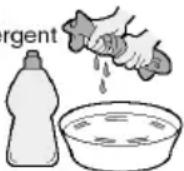
- To clean your TV, wipe with a soft, dry cloth. If the surfaces are extremely dirty, use a soft cloth dipped in a soap and water solution or a weak detergent solution.
- Never use alcohol, paint thinner or benzene to clean this unit.
- Before using a chemically treated cloth, read the instructions that came with the cloth carefully.
CAUTION: If water or other liquid enters the television through the display panel surface, a malfunction may occur.
Mild
detergent
Packaging
- The safest way to transport your item is in the original box/packaging - please save your packaging for this.
- You will need the original box/packaging in the event of warranty/service repair or support. We are unable to carry out warranty/service if you are unable to package the item correctly.
Important information regarding use of video games, computers, captions or other fixed image displays
The extended use of fi xed image program material can cause a permanent "shadow image" on the LCD/LED panel, also known as "screen burn".
This “shadow image” can appear in the background during normal viewing. This type of irreversible LCD/LED panel deterioration can be limited by observing the following steps:
- Reduce the brightness/contrast setting to a minimum suitable viewing level.
- Do not display the fixed image for extended periods of time.
-
Turn the power off when not in use.
Examples of images that are more likely to cause "screen burn" are as follows (this is not an exhaustive list): -
TV channel logos: e.g. shopping channel logos and pricing displays - especially if they are bright and stationary. Moving or low-contrast graphics are less likely to cause ageing of the screen.
- Time displays.
- Teletext: Do not view a static page for a long period of time
• TV/DVD menus: e.g. listings of DVD disc content. - Pause mode: Do not leave the TV in pause mode for long periods of time, e.g. when watching DVDs or videos.
Important: Once 'shadow image/screen burn'
occurs, it will never disappear and is not
repairable under warranty.
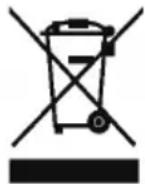
How do I dispose of this product?
UK: Waste electrical products should not be disposed of with household waste. Please dispose of the product at a designated collection point for recycling of WEEE. For your nearest facilities, please see www.recycle-more.co.uk or in store for details.
Cd
ROI: Waste electrical products should not be disposed of with household waste. Separate disposal facilities exist. Check with your local authority or retailer for recycling advice.
Batteries
- Do not expose batteries to high temperatures, excessive heat, prolonged sunshine or fire as this may cause leakage, explosion or ignition.
Observe the correct polarity when inserting batteries. - Do not use different types of batteries together or mix old and new batteries.
- Dispose of batteries in an environmentally friendly way.
- Certain regions may regulate the disposal of batteries. Please consult your local authority.
CE Statement:
Hereby, UMC Poland Sp. z o.o. declares that this LED TV is in compliance with the essential requirements and other relevant provisions of RED Directive 2014/53/EU.
http://www.sharp.eu/av/documents-of-conformity
Trademarks
HDMI
The terms HDMI and HDMI High-Definition Multimedia Interface, and the HDMI Logo are trademarks or registered trademarks of HDMI Licensing, LLC in the United States and other countries.

The Ultra HD Display logo is registered trademark of DIGITAL-EUROPE

Bluetooth
The Bluetooth word mark and logos are registered trademarks owned by Bluetooth SIG, Inc.

Digital Video Broadcasting
The DVB logo is the registered trademark of the Digital Video Broadcasting (DVB) project.

FreeviewHD
The FREEVIEW text and logos are trademarks of DTV Services LTD. © DTV Services Ltd

SAORVIEW
SAORVIEW is a registered trademark owned by RTÉ.

DOLBY AUDIO
Manufactured under license from Dolby Laboratories. Dolby, Dolby Audio and the double-D symbol are trademarks of Dolby Laboratories.

The "CI plus" Logo is a trademark of CI Plus LLP.

YouTube
YouTube and the YouTube logo are trademarks of Google Inc.

The Wi-Fi CERTIFIED Logo and Miracast ^® are registered trademarks of Wi-Fi Alliance. Wi-Fi CERTIFIED Miracast ^™ is a trademark of Wi-Fi Alliance.

dlna CENTINLED
DLNA, the DLNA Logo and DLNA CERTIFIED are trademarks, service marks, or certification marks of the Digital Living Network Alliance.

dts Studio Sound
For DTS patents, see http://patents.dts.com. Manufactured under license from DTS Licensing Limited. DTS, the Symbol, & DTS and the Symbol together are registered trademarks, DTS Studio Sound is a trademarks of DTS, Inc. © DTS, Inc. All Rights Reserved.
CONTENTS
Manufacturers Guarantee Information .... 3
Important Safety Instructions 4-5
Trademarks 6
Securing the TV to a Wall/Wall Mounting 8-9
TV Buttons and Input Source Menu 10
TV Control Stick and Input Source Menu....11
Connections 12-16
Connecting the TV to the Internet 17
7 Day TV Guide and Channel List 18
TV Menu Operation....19-29
Picture Menu....19-21
Sound Menu 22-23
Settings Menu....24-30
Channel Menu....24-25
Network Menu....26
Time Menu....27
Lock Menu....28
Setup Menu 29-30
More Apps Menu....31-32
Media Menu....33-34
USB Record/PVR-Freeview/Saorview Mode. 35-36
General Information 37-40
Frequently Asked Questions 37-39
Compatible file types for USB/DLNA....40
SECURING THE TV TO A WALL
Securing the TV to a wall with anti-tip straps
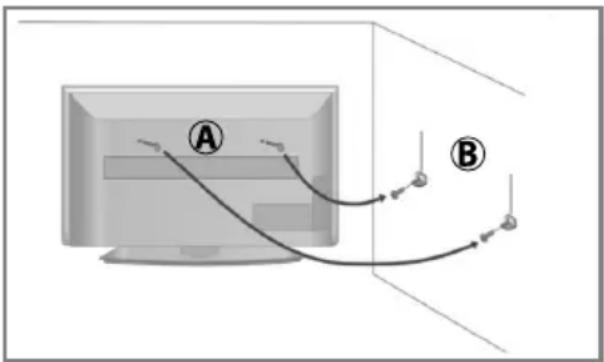
For maximum security in the home, when using a TV with its stand, anti-tip straps should be fitted. These are available from major retailers & websites and are an easy, inexpensive and effective way of ensuring your TV stays safely upright. Straps are designed to be attached to the rear of the TV and then tethered to the wall or the furniture the TV is stood on, these are fitted as follows.
A) Using one or both of the top wall-mounting holes and screws fasten one end of the fastening cord/s to the TV. (the screws are already supplied in the wall mounting holes)
B) Secure the other end of the fastening cord/s to your wall. (you will need screws/fi xings suitable for your wall type - available separately from most DIY stores).
text_image
Diagram showing two labeled points (A and B) connected by curved lines, possibly indicating a path or connection between them.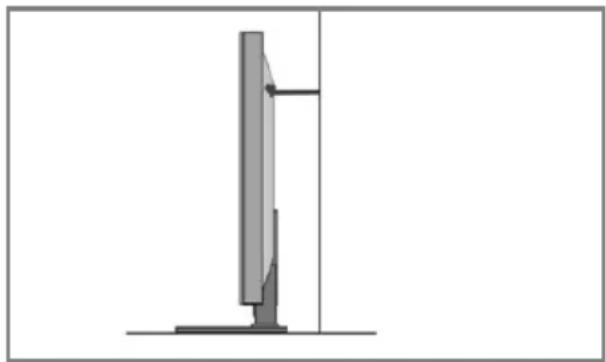
natural_image
Diagram of a vertical screen mounted on a stand, showing structural components and a vertical line (no text or symbols)Note: Please ensure that children do not climb on the TV set.
Note: When handling the set do not grip the LCD Panel.
Note: Do not pull the set when mounted on a bracket. If using a moveable bracket, adjust via the bracket and not the set.
The Royal Society for the Prevention of Accidents is urging people to take care with flat-screen televisions.
RoSPA stated in 2010 that "Toddlers are particularly at risk of pulling flat-screen televisions on to themselves. They are unsteady on their feet and are attracted by colourful television images."
The risk is increased as televisions become lighter.
Wall mounting
IMPORTANT - Before drilling any holes in the wall ensure you are not drilling where there
could be any electrical wires, water or gas pipes.
natural_image
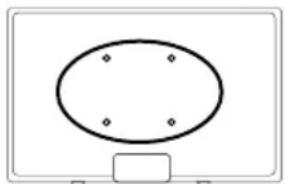
Simple diagram of an oval shape with four dots at the center, mounted on a rectangular base (no text or symbols)1) Remove the four screws located at the back of the TV set.
2) The wall mount can now be easily attached to the mounting holes, located on the back of the TV, using the same four screws removed.
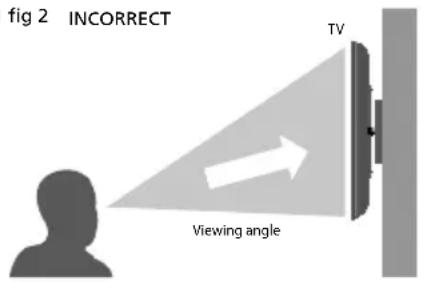
For optimum viewing, if wall mounting the TV higher than eye level, the TV should be tilted downwards so that the TV's screen is 'face on'. See fig 1 and 2.
fig 1 fig 2 INCORRECT
text_image
fig 2 INCORRECT TV Viewing angle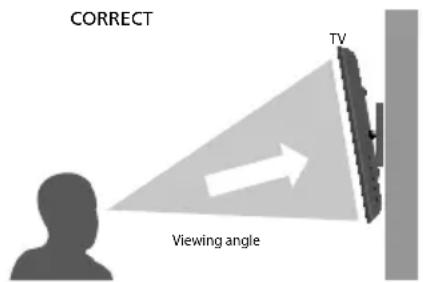
text_image
CORRECT TV Viewing angleSECURING THE TV TO A WALL
When mounting your set onto a wall bracket and installing a set with rear pointing connectors, it may be necessary to stand the set off the wall to allow any leads connected to the rear of the set to fit correctly. To facilitate this, spacers and longer screws are included in the accessory pack to increase the gap between the wall bracket and set. These parts are as shown below:
4 x Screw including washer
4 x Spacer

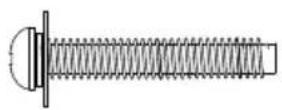
These should be used as indicated in the picture below. Ensure that the screws are not overtightened as this may cause damage to the set.
Note: the wall bracket type shown in the diagram is for illustration purposes only, other brackets may be used and it is recommended that the spacers and screws are tested to see if they fi t correctly before fi nal assembly.

natural_image
Diagram of a wall-mounted device with multiple sensors and connectors, showing light path through components (no text or symbols)Important – Only use the screws provided to mount the set onto a wall bracket. When using a wall bracket, please ensure the screws in the back of the TV set are not over tightened. Failure to use the correct screws may lead to damage.
TV BUTTONS AND INPUT SOURCE MENU
For models with buttons on the side/underside/rear of the TV
Button layout and shape may vary.
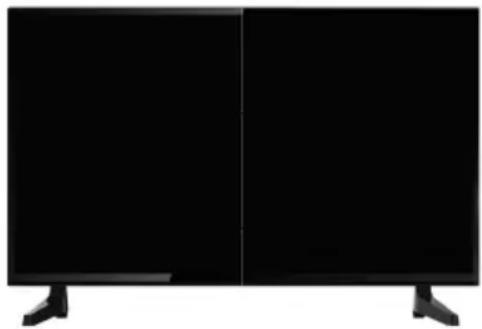
natural_image
Front view of a black rectangular TV with two side panels and three legs (no text or symbols visible)| Standby Power On/Off |
| Source Input source menu |
| Menu Menu/OSD |
| CH- Programme/Channel down and menu down |
| CH+ Programme/Channel up and menu up |
| Vol- Volume down and menu left |
| Vol+ Volume up and menu right |
Models with built in DVD players will include additional buttons:
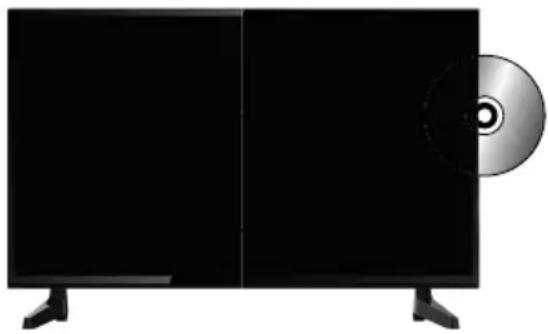
natural_image
Illustration of a flat-screen TV with a CD on the right side (no text or symbols visible)| ▶II | Play/Pause Disc |
| ▲ | Stop/Eject Disc |
Choosing Mode Input/Source
To switch between the different inputs or connections.
For further information on inputs and connections refer to the 'Connections' pages.
A) Using the buttons on the remote control:
1) Press [SOURCE] - The source menu will appear.
2) Press [<] or [>] to select the input you require.
3) Press [OK].
B) Using the buttons on the Television:
1) Press [SOURCE].
2) Scroll up/down using VOL+/VOL- buttons to the input/source you require.
3) Press [SOURCE] to change input/source to the one selected.
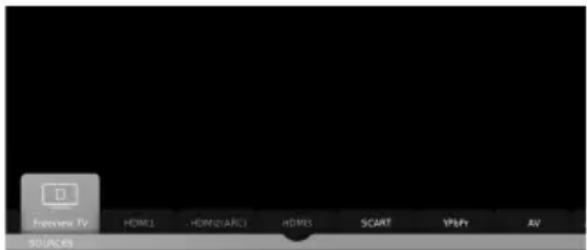
text_image
Playtime TikTok TV HDM1 HDM2AIC1 HDMS SCART V3PY AV SOUNCAn example of the 'Input Source' menu (will vary by model)
TV CONTROL STICK AND INPUT SOURCE MENU
For models with the joystick type controller.
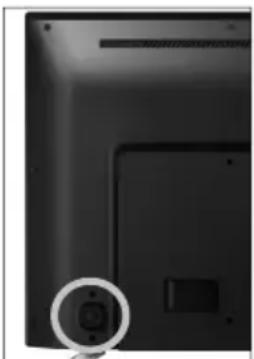
natural_image
Close-up of a black electronic device back panel with a circular button highlighting a small component (no text or symbols visible)Control Stick
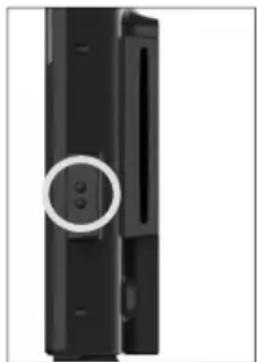
natural_image
Close-up of a black rectangular electronic device with three circular buttons on its side (no text or symbols visible)DVD Buttons
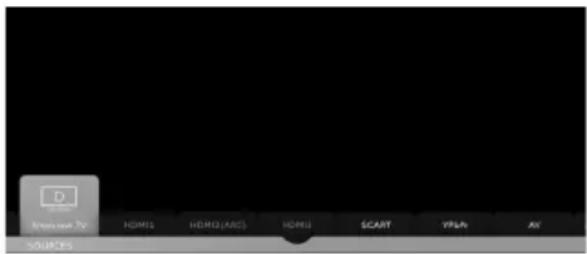
text_image
Export D Export (ARC) HDMI1 HDMI2 (ARC) HDMI1 SCART YPLR AY SOURCESAn example of the 'Input Source' menu (will vary by model)
TV Control Stick
The TV control stick is located on the back of the TV. The control stick can be used to control many of the TV functions. The shape of the TV's control stick may vary by model.
While TV is in standby mode:
- Press the centre of the control stick once - Power on the TV set
While watching TV:
• RIGHT/LEFT – volume up/volume down
- UP/DOWN – changes channel up/down
- Press the centre of the control stick once – displays the menu
- Press and hold the centre of the control stick – Standby/Power Off
While in menu:
- RIGHT/LEFT/UP/DOWN – navigation of cursor in on-screen menus
- Press the centre of the control stick once – OK/Confir rm selected item
- Press and hold the centre of the control stick – back to previous menu
DVD Buttons (Only applies if the TV has an in-built DVD player)
The DVD buttons are located on the side of the TV near the DVD Slot.
- TOP BUTTON – STOP/EJECT (Hold down for 4 seconds to eject a DVD).
- BOTTOM BUTTON – PLAY/PAUSE.
Choosing Mode Input/Source
Use the source menu to switch between input/connections.
A) Using the buttons on the remote control:
- Press [SOURCE] - The source menu will appear.
- Press [<] or [>] to select the input you require.
- Press [OK].
B) Using the TV control stick:
- Press the centre of the control stick once to enter the TV menu.
- Press the control stick left/right and navigate through to SOURCE menu.
- Press the centre of the control stick to enter the SOURCE menu.
- Press the control stick left/right to scroll through and select the input/source you require.
- Press the centre of the control stick to select the chosen input/source option highlighted.
For further information on input/connections please view the 'Connections' pages
CONNECTIONS
Note: The TV input/output connections and connecting cables on these pages are shown for reference. Cables are available separately from your retailer. Not all connections are available on all TV models.
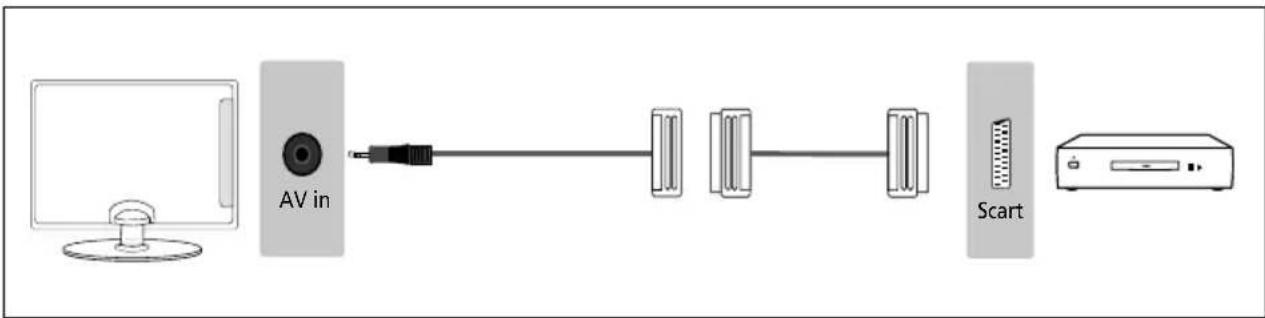
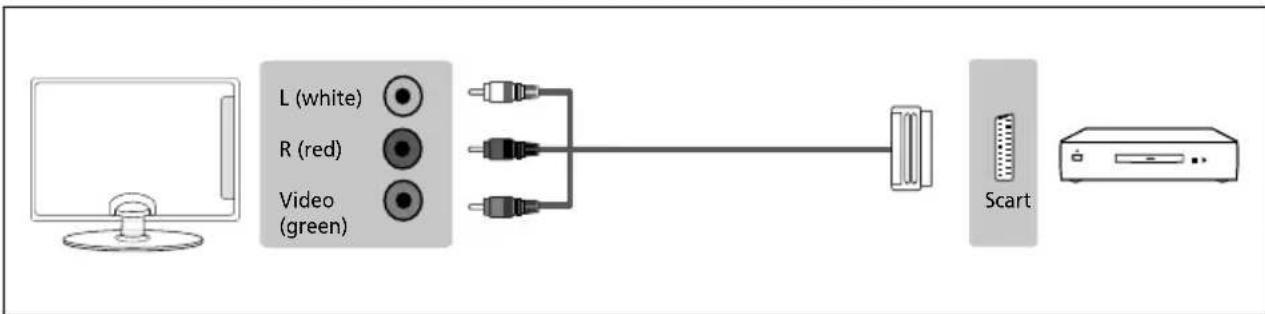
Connecting to a device with a Composite AV/Video output
TV source should be set to Composite/AV
Connection example for TV models with Mini-AV input
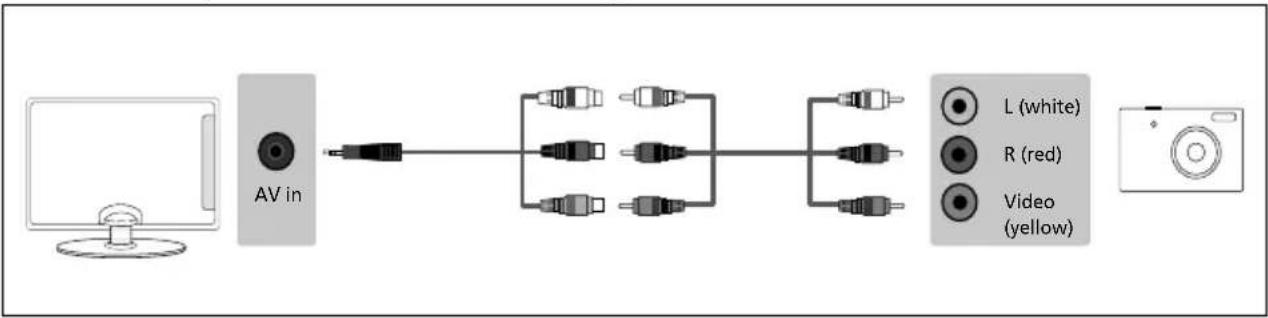
flowchart
graph LR
    A["Computer"] --> B["AV in"]
    B --> C["Connector"]
    C --> D["Connector"]
    D --> E["Connector"]
    E --> F["Connector"]
    F --> G["L (white)"]
    F --> H["R (red)"]
    F --> I["Video (yellow)"]
Connection example for TV models with AV input
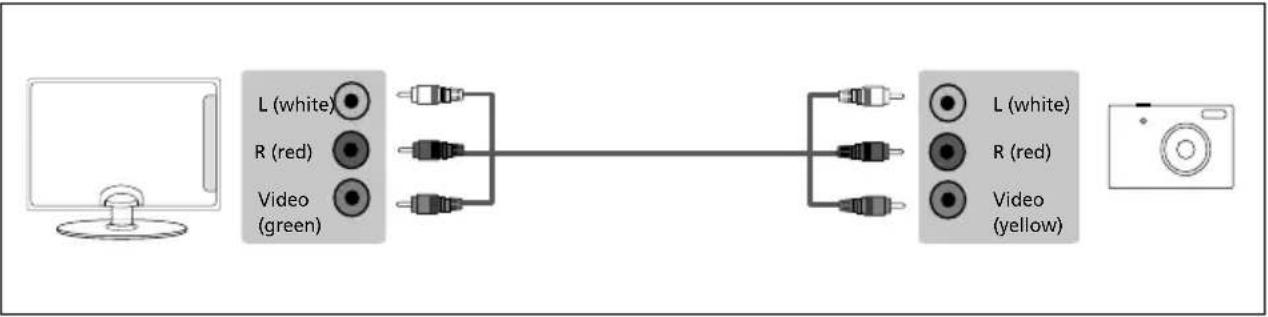
flowchart
graph LR
    A["Computer monitor"] --> B["L (white)"]
    A --> C["R (red)"]
    A --> D["Video (green)"]
    B --> E["Audio"]
    C --> F["Audio"]
    D --> G["Audio"]
    E --> H["L (white)"]
    E --> I["R (red)"]
    E --> J["Video (yellow)"]
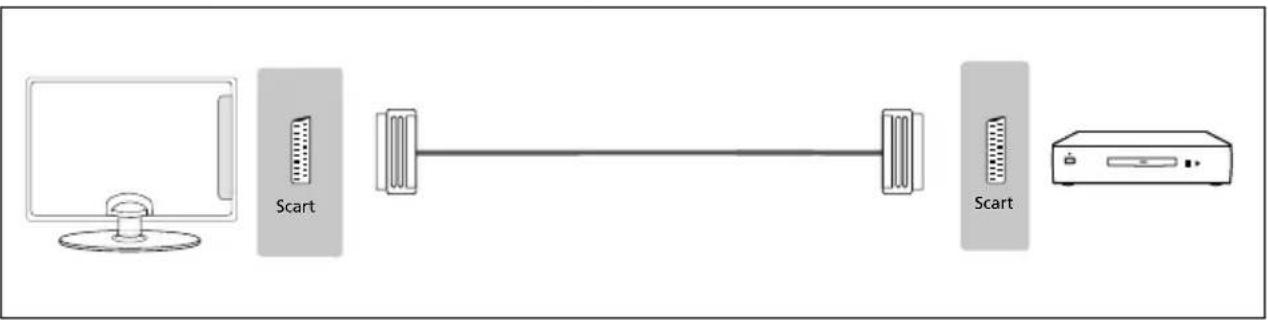
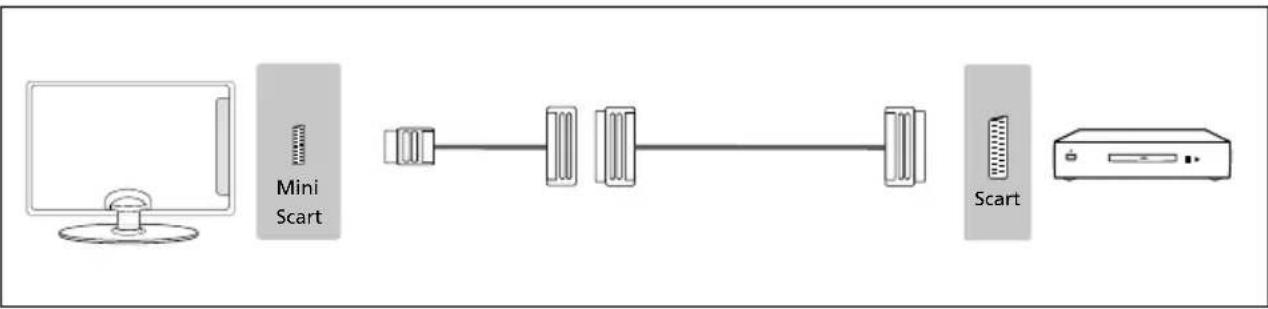
Connecting to a device with SCART output
TV source should be set to SCART
Connection example for TV models with SCART input
Connection example for TV models with Mini-SCART input
flowchart
graph LR
    A["Desktop Computer"] --> B["Mini Scart"]
    B --> C["Data Transfer Unit"]
    C --> D["Scart Device"]
    D --> E["Server"]
CONNECTIONS
Connection example for TV models with Mini-AV input (1)
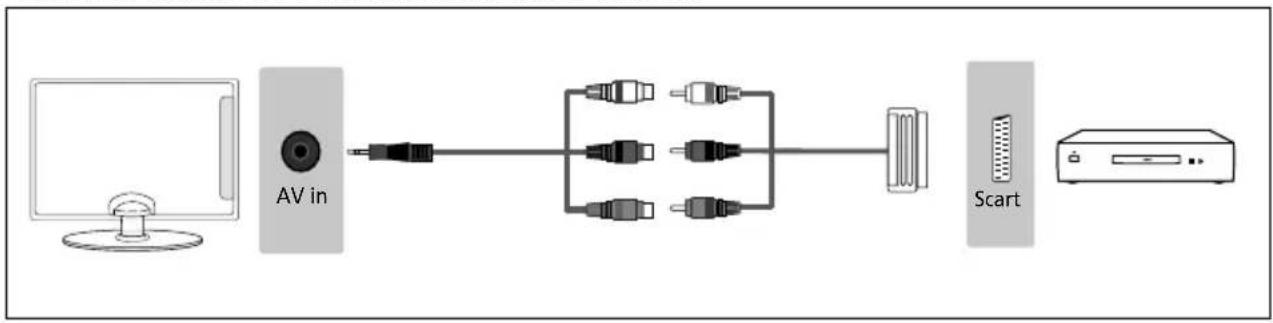
flowchart
graph LR
    A["Computer"] --> B["AV in"]
    B --> C["Network Switch"]
    C --> D["Scart"]
    D --> E["Output Device"]
Connection example for TV models with Mini-AV input (2)
flowchart
graph LR
    A["Computer"] --> B["AV in"]
    B --> C["Device 1"]
    C --> D["Device 2"]
    D --> E["Scart"]
    E --> F["Device 3"]
Connection example below for TV models with L/R Audio and Video inputs
flowchart
graph LR
    A["Computer monitor"] --> B["L (white)"]
    A --> C["R (red)"]
    A --> D["Video (green)"]
    B --> E["Switch"]
    C --> E
    D --> E
    E --> F["Scart"]
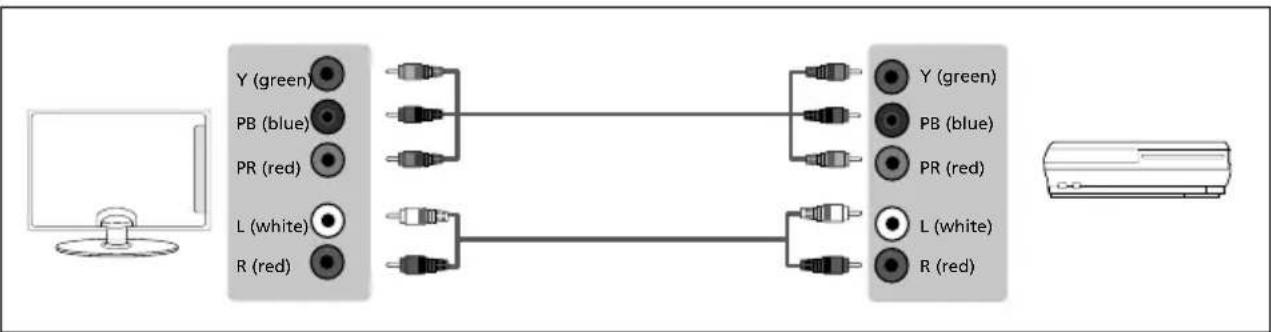
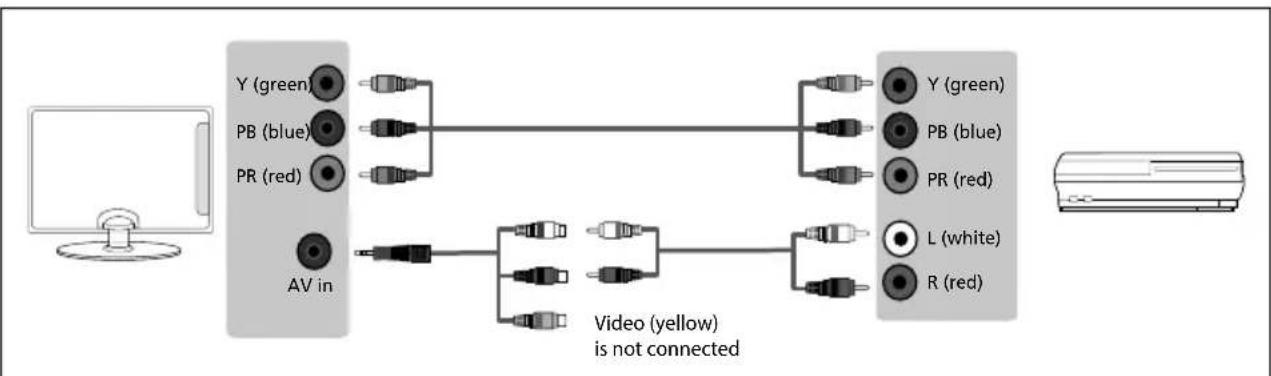
Connecting to a device with Component/YPbPr output
If you are supplied with a cable from the device which has RED, GREEN, BLUE, RED & WHITE connectors you must connect via Component (for picture) and by phono cable (for sound). TV source should be set to Component/YPbPr
Connection example for TV models with Mini-YPbPr and Mini-AV inputs

flowchart
graph LR
    A["Computer"] --> B["YPbPr"]
    A --> C["AV in"]
    B --> D["Video (yellow) is not connected"]
    C --> D
    D --> E["Y (green)"]
    D --> F["PB (blue)"]
    D --> G["PR (red)"]
    D --> H["L (white)"]
    D --> I["R (red)"]
CONNECTIONS
Connection example for TV models with Mini-YPbPr and L/R audio inputs

flowchart
graph LR
    A["Computer"] --> B["YPbPr"]
    B --> C["L white R red"]
    B --> D["Y (green) PB blue PR red"]
    C --> E["L white R red"]
    D --> F["Y (green) PB blue PR red"]
    D --> G["Y (green) PB red"]
Connection example for TV models with YPbPr and L/R Audio inputs
flowchart
graph LR
    A["Computer"] --> B["Y (green)"]
    A --> C["PB (blue)"]
    A --> D["PR (red)"]
    A --> E["L (white)"]
    A --> F["R (red)"]
    B --> G["Switch"]
    C --> G
    D --> G
    E --> H["Switch"]
    F --> I["Switch"]
    G --> J["Switch"]
    H --> K["Switch"]
    I --> L["Switch"]
    J --> M["Switch"]
    K --> N["Switch"]
    L --> O["Switch"]
    M --> P["Switch"]
    N --> Q["Switch"]
    O --> R["Switch"]
    P --> S["Switch"]
    Q --> T["Switch"]
    R --> U["Switch"]
    S --> V["Switch"]
    T --> W["Switch"]
Connection example for TV models with YPbPr and Mini-AV inputs
flowchart
graph LR
    A["Computer"] --> B["AV in"]
    B --> C["Video (yellow) is not connected"]
    C --> D["Radio"]
    C --> E["Video"]
    D --> F["Gray Cable"]
    D --> G["Blue Cable"]
    D --> H["Red Cable"]
    E --> I["Gray Cable"]
    E --> J["Blue Cable"]
    E --> K["Red Cable"]
    F --> L["Gray Cable"]
    G --> M["Blue Cable"]
    H --> N["Red Cable"]
    I --> O["Gray Cable"]
    J --> P["Blue Cable"]
    K --> Q["Red Cable"]
Connecting to an external audio device (Amplifi er, Surround Sound, Sound Bars etc)
When connecting via the TV's 3.5mm earphone output, this will disable the TV speakers.
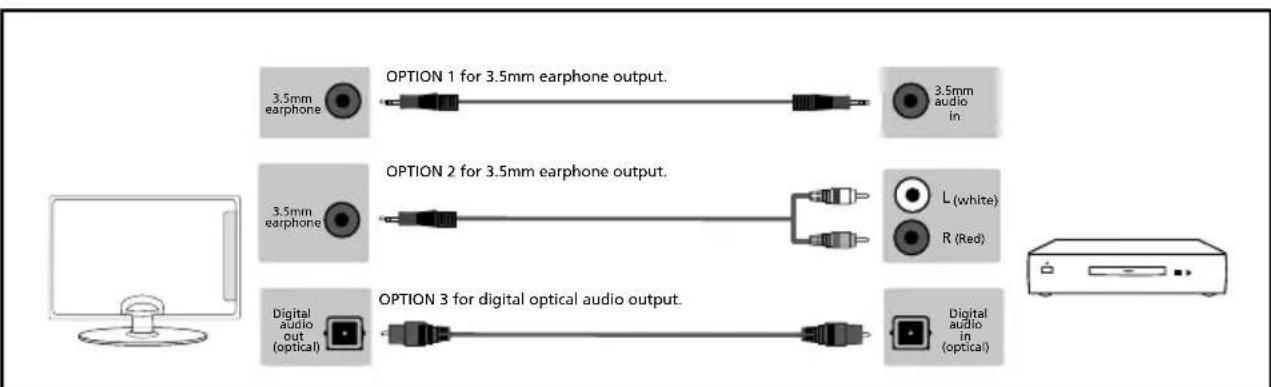
flowchart
graph LR
    A["3.5mm earphone"] --> B["OPTION 1 for 3.5mm earphone output."]
    C["3.5mm earphone"] --> D["OPTION 2 for 3.5mm earphone output."]
    E["Digital audio out (optical)"] --> F["OPTION 3 for digital optical audio output."]
    G["3.5mm audio in."] --> H["L (white)"]
    G --> I["R (Red)"]
    J["Digital audio in (optical)"] --> K["Digital audio in (optical)"]
Note: When connecting an external audio device to the TV, set the TV volume to a higher than normal level, you will then be able to use your device remote control to adjust the volume of the connected device to suit your requirements.
CONNECTIONS
Connecting to a device with HDMI output
An HDMI cable can output both video and audio and enables you to enjoy digital-quality video and audio with minimal loss of quality.
TV source should be set to the corresponding HDMI port (HDMI 1, HDMI 2 etc)
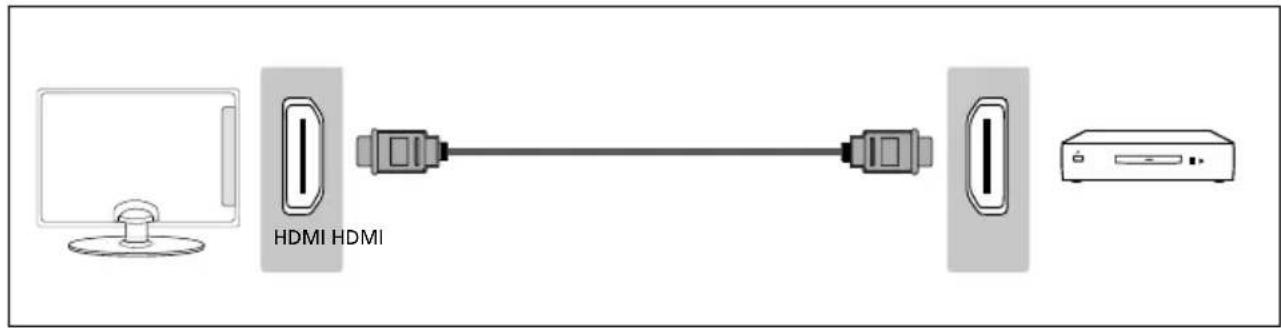
text_image
HDMI HDMIConnecting to a device with RF output (CCTV or other Analogue devices)
TV source should be set to ATV/Analogue TV.
Note: You will need to manually tune your device into an analogue channel.
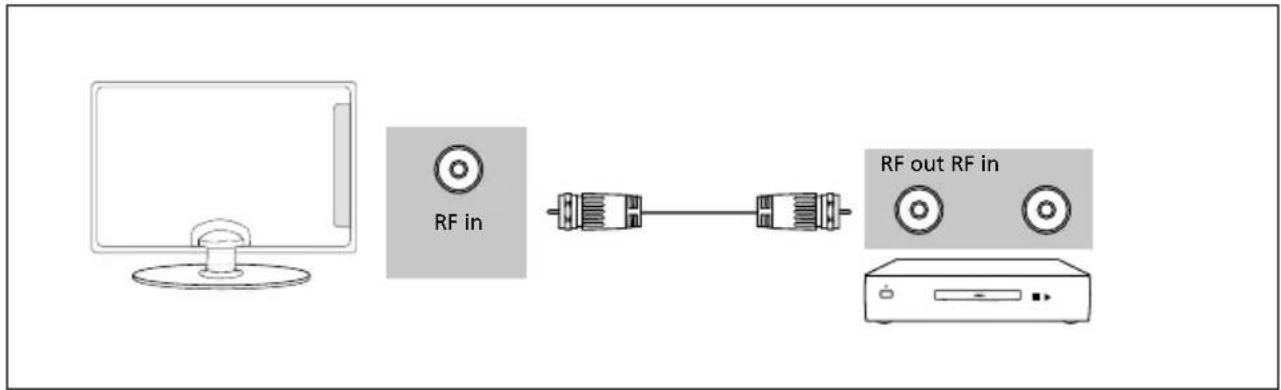
flowchart
graph LR
    A["Computer monitor"] --> B["RF in"]
    B --> C["Serial interface"]
    C --> D["RF out RF in"]
CONNECTIONS
Connecting an Ethernet/Network cable
The Ethernet port is used for Smart connectivity, Pay TV Services and Freeview HD (Freeview services are only available in the UK).
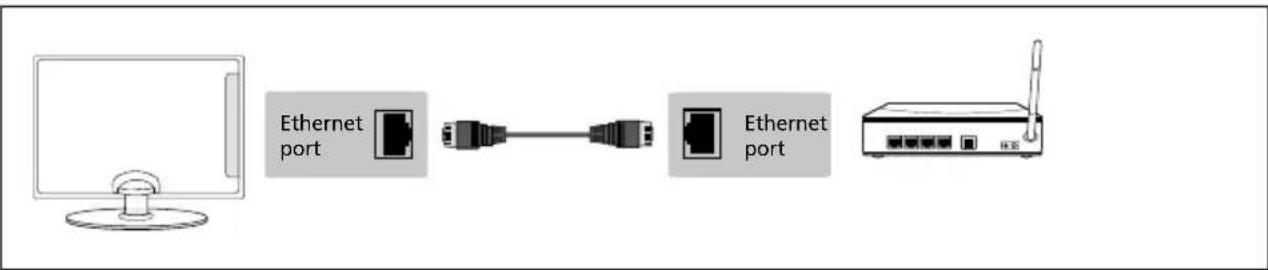
flowchart
graph LR
    A["Computer monitor"] --> B["Ethernet port"]
    B --> C["Switch"]
    C --> D["Ethernet port"]
    D --> E["Router"]
Connecting to a USB device
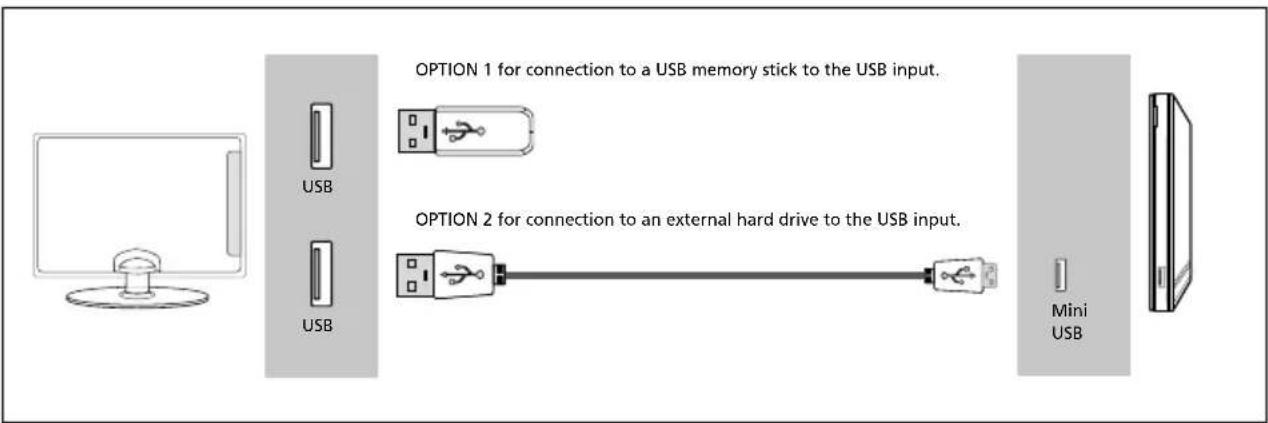
To use the USB input, TV source should be set to USB Media. Tablets and/or phones can be charged via the USB port but cannot be used to playback media content. TV source should be set to USB Media.
text_image
OPTION 1 for connection to a USB memory stick to the USB input. OPTION 2 for connection to an external hard drive to the USB input. Mini USBNote: Tablets and/or phones can be charged via the USB port, however, it is not possible to play back media from these devices.
Note: Some USB devices may need to be connected to an external power supply before being used with this input, i.e. powered hard drive.
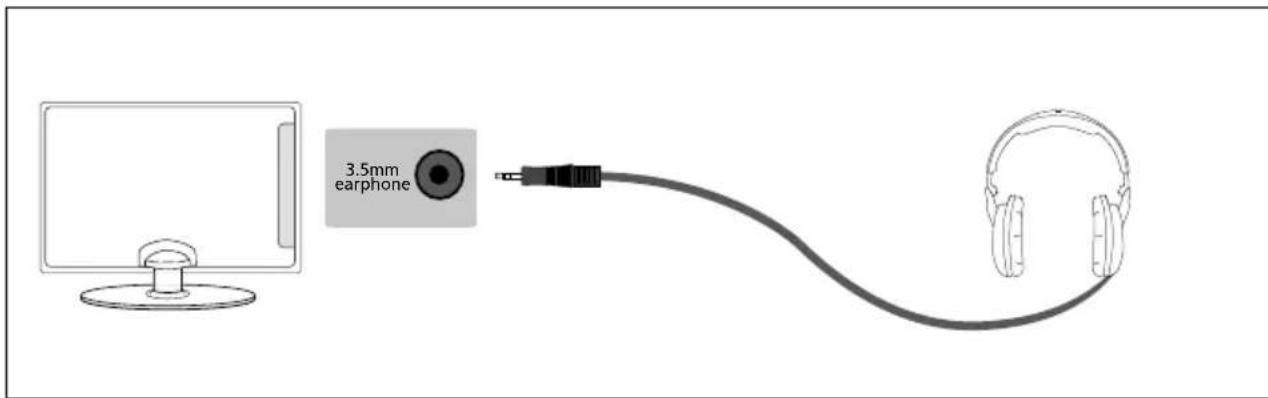
Connecting the TV to Earphones
When connecting via the TV's 3.5mm earphone output, this will disable the TV speakers.
text_image
3.5mm earphoneCONNECTING THE TV TO THE INTERNET
When you first power on your new SMART TV there will be an option to follow various on-screen set up instructions. These instructions will enable you to connect to the internet via your home network.
You can connect to your home network either wirelessly or with an Ethernet cable.
If you decide not to follow the initial set up instructions and need to connect at a later date please follow these simple steps below:
Connecting your TV with a wireless connection
1) Press [MENU] on the remote control.
2) Scroll through the menu, select 'Settings' then enter the 'Network' menu.
3) Ensure 'Network Configuration' is set to Wi-Fi and scroll down and select 'Wi-Fi Config'.
4) Within the 'Wi-Fi config' options, highlight and select 'Wi-Fi Auto Search'.
5) The TV will then automatically search for networks.
6) Select the preferred type of network connection then enter the network.
If a password is required:
- A padlock is shown next to a Wi-Fi service, this indicates that it is a secured network and will require a password to log in.
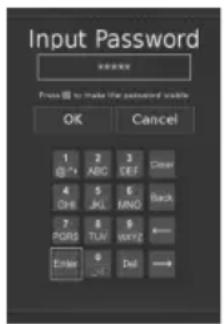
- When entering the Wi-Fi password, we recommend using the 'Password Visible' feature. To make the password visible select the 'Password Visible' box on screen, the password will then be displayed in full. Refer to fig 1. Network passwords are case sensitive, please ensure the entered text matches the password exactly for a successful connection.
- Use the remote control arrow buttons to select the character required. Press the [OK] button repeatedly until the character you want is displayed. To move onto the next letter, wait for a few seconds before selecting. When the password has been entered, select the 'Enter' button on the on-screen keypad and press [OK] on the Remote Control.
7) The TV will then establish a connection.
Note: An icon will appear in the top right hand side of the 'Application' menu to confirm the TV is connected to the internet.
Connecting your TV with an Ethernet/LAN cable:
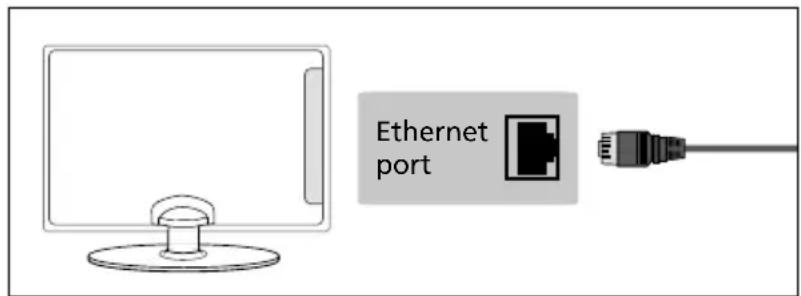
1) Plug in your Ethernet cable into the RJ45 (Ethernet) socket located at the rear of the television.
text_image
Ethernet port2) Press [MENU] on the remote control. Please refer to the Quick Start Guide for remote control information.
3) Scroll through the menu, select 'Settings' then enter the 'Network' menu.
4) In 'Network Configuration', select 'Cable'.(fi g.2).
5) TV set will automatically confi gure itself.
6) Exit the menu by pressing [EXIT] on the remote control.
fi g.1
text_image
Input Password Press to make the password viable OK Cancel 1 2 3 Clear @+ ABC DEF Clear 4 5 6 Black ONEJK MINO 7 8 9 Back WORD TUN WEZH Enter Delfi g.2
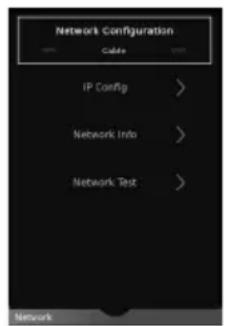
text_image
Network Configuration Cable IP Config > Network Info > Network Test >7 DAY TV GUIDE AND CHANNEL LIST
TV Guide is available in Saorview/Freeview TV mode. It provides information about forthcoming programmes (where supported by the Saorview/Freeview channel). You can view the start and end time of all programmes and on all channels for the next 7 days and set reminders.
1) Press the [TV GUIDE] button on the remote control and the following 7 Day TV Guide will appear:
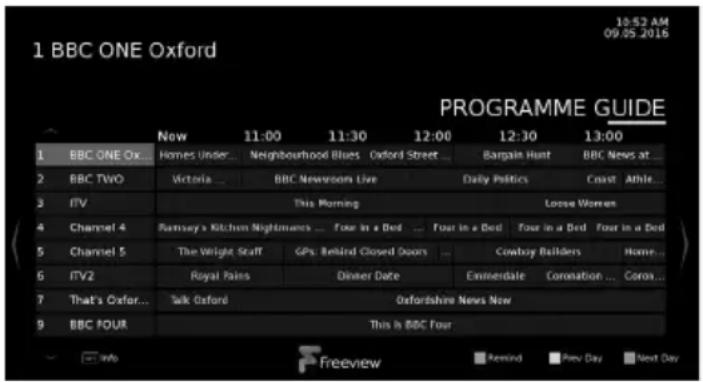
text_image
1 18:52 AM 09.05.2016 1 BBC ONE Oxford PROGRAMME GUIDE Now 11:00 11:30 12:00 12:30 13:00 1 BBC ONE Ox... Homes Under... Neighbourhood Blues Oxford Street... Bargain Hunt BBC News at... 2 BBC TWO Victoria ... BBC Newveors Live Daily Politics Ceast Athle... 3 ITV "This Morning Loose Women 4 Channel 4 Ramsey's Kitchen Nightmances ... Four in a Bed ... Four in a Bed Four in a Bed Four in a Bed 5 Channel 5 The Wright Staff GPs: Behind Closed Doors ... Cowboy Builders Home... 6 ITV2 Royal Pains Dinner Date Emmerdale Coronation ... Coron... 7 That's Oxford... Talk Oxford Oxfordshire News Now 9 BBC FOUR "This Is BBC Four Info Freeview Remind Prev Day Next DayNote: Freeview HD channels found during tuning will be placed in channel positions above 100, for example, 101 - BBC 1 HD, 102 - BBC 2 HD etc.
2) Navigate through the menu using ▲▼▶◀
You can now:
Press [GREEN] on a highlighted programme to set a reminder:
- Select Remind Once ⏻ - reminder will only occur for this one programme at the time selected.
- Select Daily Reminder Ⓓ reminder will occur every day at this time
- Select Weekly Reminder Ⓦ reminder will happen every week, on this day and at this time.
Press [YELLOW] to view a previous day's list of programmes.
Press [BLUE] to view the next day's list of programmes.
Press [RED] on a highlighted programme to use the record function. (Function for USB Record/PVR models only, USB device must be connected):
- Record a programme once Ⓡ - press the [RED] button once.
- Set up a daily recording Ⓓ - press the [RED] button twice, a recording will occur daily at this time.
- Set up a weekly recording ⓦ - press the [RED] button three times, recording will happen every week, on this day and at this time.
Press [INFO] to view further information about the programme highlighted.
3) Press [EXIT] to exit the 7 day TV Guide
Note: Record functions are only applicable to sets with a built in USB Record/PVR function.
Note: When the TV set is on, a reminder message will be displayed informing you that a programme is about to start. If the set is in standby, then it will turn on at the reminder time.
Note: When recording in standby mode, the set will not turn on. While recording in standby, the light on the front of the set will flash.
Channel List
To view the channel list, please ensure that the TV is set to either the analogue or digital source and no menus or TV notifications are displayed.
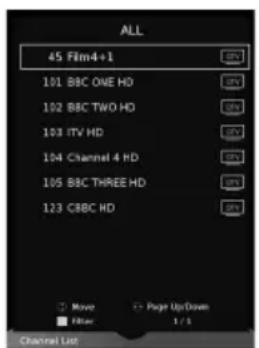
text_image
ALL 45 Film4+1 101 BBC ONE HD 102 BBC TWO HD 103 ITV HD 104 Channel 4 HD 105 BBC THREE HD 123 CBBC HD More Page Up/Down Filter 1/3 Channel List1) Press [OK] on the remote control and the channel list menu will appear.
2) Press [LEFT] or [RIGHT] arrow to fi Iter desired channel types (Digital TV, HD channels, Radio, Data, All).
3) Scroll through the channel list by using ▲buttons then press [OK] to view the channel that is currently highlighted.
4) Press [EXIT] to exit the channel list.
PICTURE MENU
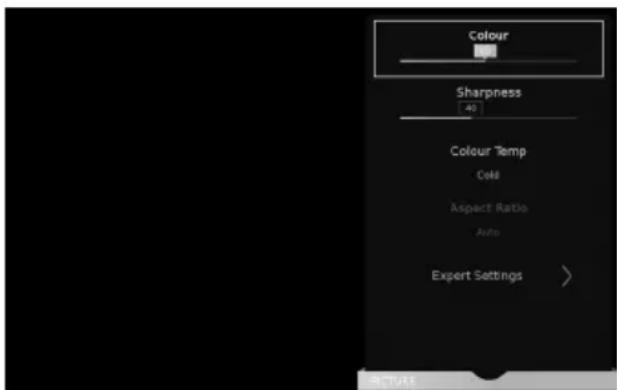
text_image
Colour Sharpness 40 Colour Temp Cold Aspect Ratio Auto Expert Settings >To access this menu, press [MENU] button on the remote control. To select a sub menu press [OK]
If you wish to make changes to any of the default settings, use the scroll buttons. To confirm any settings press [OK] button. To exit this menu at anytime, press [EXIT] button.
Picture Mode - Choose from the following presets:
| Dynamic Recommended settings for fast moving pictures | |
| Standard Standard settings | |
| Movie Picture has less colour and is darker. | |
| Personal Allows you to change the picture settings to your personal preference. These settings are saved automatically. | |
| Economy Power saving mode which reduces the energy used by up to 25% (by reducing the power to the LED/LCD panel). In Economy mode, the TV will switch itself to Standby mode after 3-5 hours in the event that the TV buttons or remote control buttons are not pressed (change the picture mode to another setting to de-activate this function) | |
| Game* This mode disables all picture post-processing to reduce user input lag. | |
| PC* Ensures a sharper, dynamic picture when used with a PC input. | |
| Cinema 24p* Makes the picture brighter with a high contrast range and reduces the colour content. |
You can make the following adjustments in Personal mode:
Contrast - Switch the balance between black and white.
Brightness - Increase or decrease the brightness of the picture.
Colour - Changes the picture between colour and black and white.
Sharpness - Increase or decrease the sharpness of the picture.
Colour Temperature - Choose from the following presets:
| Normal Default settings | |
| Warm Increases red within the picture | |
| Cold Increases blue within the picture |
*These settings are only applicable for sets with Active Motion Rates of 600 and 800.
PICTURE MENUPICTURE MENU
Aspect Ratio - Within the UK the picture format varies depending on the channel/broadcast. There are a number of different options to best meet your needs
Auto
Automatically displays the best picture format so the picture is in the correct position. Black lines may appear at the top/bottom and/or sides.
Dot by Dot
Will display the picture in its original resolution without any change, only available in HDMI input source.
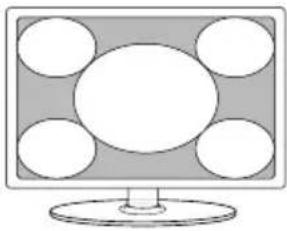
Full Screen
natural_image
Illustration of a computer monitor with five circular windows on the screen (no text or symbols)Displays a picture in the full screen mode without overscan. 16:9 signal will be displayed in original proportion. Other picture format will be stretched to fill the screen
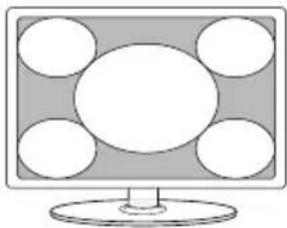
16:9
natural_image
Illustration of a computer monitor with five circular windows on the screen (no text or symbols)Fills the screen with a regular 16:9 signal and 4:3 picture format will be stretched to fill the screen
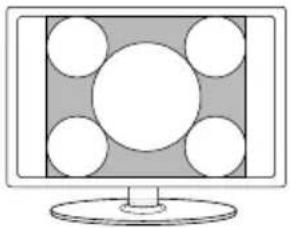
4:3
natural_image
Illustration of a computer monitor with a central screen and surrounding circular elements (no text or symbols)Displays the 4:3 picture in its original size. Side bars are shown to fill the 16:9 screen
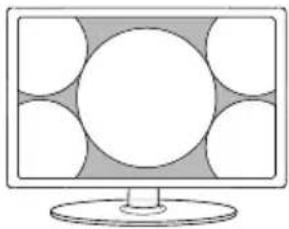
Zoom1 and Zoom2
natural_image
Illustration of a computer monitor with a blank screen and abstract circular patterns on the sides (no text or symbols)The picture is the correct proportion but zoomed in to fill the screen
HDR (High Dynamic Range)
HDR video removes some of the limitations of a standard video signal and shows the image built from a wider gamut of colour and brightness.
Notes:
- HDR function will activate automatically if an HDR signal is detected, provided that HDMI EDID has been set to "Enhancement" in the 'SET UP' menu.
- This television can display HDR content via the HDMI or USB inputs.
- If you are connecting via one of the HDMI ports, the external device must also support HDR, HDMI2.0 and be playing HDR mastered content.
- This device does not support HDR content from in-built apps such as Netflix or YouTube.
PICTURE MENU
Expert settings - These will vary depending on the set. They are different for Active Motion 400, Active Motion 600 and Active Motion 800 sets as detailed below:
| Active Motion 400 Sets | ||
| Expert Setting | Range | Description |
| Noise Reduction | Off/Middle/High/Low/Auto | Reduces the noise in the picture |
| Active Contrast | On or Off | Automatically optimises the backlight and contrast of the picture according to the brightness of the screen |
| Gamma Medium/Low/High | Changes the contrast range of the picture depending on the input signal | |
| R/G/B Controls 0 to 100 | Controls the level of each colour in the picture | |
| Backlight Mode Scanning/Standard | Sets the processing mode of the backlight | |
| Backlight 0 to 100 | Changes the light level of the backlight | |
| Active Motion 600 Sets | ||
| Expert Setting | Range | Description |
| Noise Reduction | Off/Middle/High/Low/Auto | Reduces the noise in the picture |
| Active Contrast | On or Off | Automatically optimises the backlight and contrast of the picture according to the brightness of the screen |
| Gamma Medium/Low/High | Changes the contrast range of the picture depending on the input signal | |
| R/G/B Controls 0 to 100 | Controls the level of each colour in the picture | |
| Backlight Mode Scanning/Standard | Sets the processing mode of the backlight | |
| Backlight 0 to 100 | Changes the light level of the backlight | |
| Motion Enhancement | On or Off | Improves the motion effects |
| Active Motion 800 Sets | ||
| Expert Setting | Range | Description |
| Noise Reduction | Off/Middle/High/Low/Auto | Reduces the noise in the picture |
| Active Contrast | On or Off | Automatically optimises the backlight and contrast of the picture according to the brightness of the screen |
| Gamma Medium/Low/High | Changes the contrast range of the picture depending on the input signal | |
| R/G/B Controls 0 to 100 | Controls the level of each colour in the picture | |
| Backlight Mode Scanning/Standard | Sets the processing mode of the backlight | |
| Backlight 0 to 100 | Changes the light level of the backlight | |
| Motion Enhancement | On or Off | Improves the motion effects |
| CMS Hue controls 0 to 63 | Changes the hue of the picture | |
| CMS Value controls 0 to 63 | Changes the intensity of the colour | |
| CMS Saturation Controls | 0 to 15 | Changes the colour saturation of the picture |
SOUND MENU
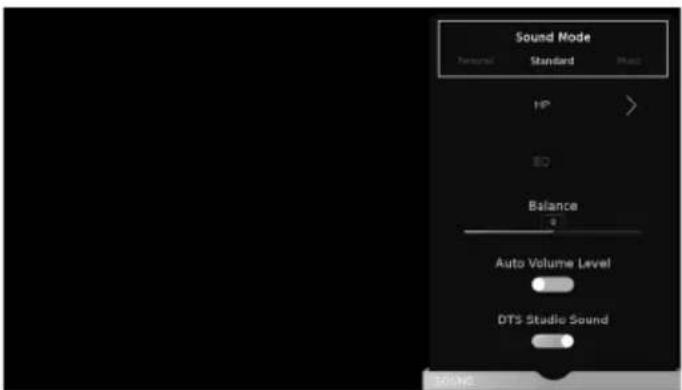
text_image
Sound Mode Personal Standard Mode HP > ISO Balance g Auto Volume Level DTS Studio Sound SOMETo access this menu, press [MENU] button on the remote control and scroll right. To select a sub menu press [OK]
If you wish to make changes to any of the default settings, use the scroll ▲▼▶◀ buttons. To confirm any settings press [OK] button. To exit this menu at anytime, press [EXIT] button.
Sound Mode - Choose from the following presets:
| Standard Default settings | |
| Music Emphasises | music over voices |
| Movie Provides live and full sound for movies | |
| Sports Emphasises | sound for sports |
| Personal Allows you to change the sound settings to your personal preference. These settings are saved automatically | |
HP - When headphones are connected, you can use the HP (Headphone) menu to choose from the following options:
| Switch | Choose 'HP' to play the audio through the connected headphones only. Choose 'HP+TV' if you want the audio to play through both the headphones and TV speakers. |
| HP Volume Adjust | the headphone's Audio |
EQ - Adjust the audio level of separate frequencies via the band equaliser. Equaliser settings can only be adjusted when the sound mode 'Personal' is selected.
Balance - To switch the sound between the left and right speakers.
DTS TruVolume - When 'ON' is selected, the volume will attempt to stay at a constant level regardless of the TV programme and advertisements.
| Note: Equaliser settings can only be adjusted when the sound mode 'Personal' is selected. |
DTS Studio Sound - Choose from the following options:
| OFF Disables the DTS Studio Sound audio feature | |
| ON Studio Sound | TM creates an immersive, feature-rich surround sound experience from two speakers, complete with rich bass, high frequency detail and clear dialog. |

dts®
Studio Sound
For DTS patents, see http://patents.dts.com. Manufactured under license from DTS Licensing Limited. DTS, the Symbol, & DTS and the Symbol together are registered trademarks. DTS Studio Sound is a trademark of DTS, Inc. © DTS, Inc. All Rights Reserved.
SOUND MENU
Digital Output - This is the digital audio output. Choose from the following options:
| Off To turn off Digital Output |
| Auto Selects the best settings automatically |
| PCM Select this option if you are connecting to a Stereo Hi-fi via a digital audio cable(Pulse-code modulation (PCM) is a digital representation of an analogue signal) |
Audio Description - Allows you to switch 'ON' or 'OFF' Audio Description. This provides a description of what is happening during the selected programme for a person who is visually impaired. This feature is not available on all programmes.
AD Volume - This allows you to increase and decrease the AD (Audio Description) volume level.
Audio Track - Allows you to choose between the audio channels being transmitted on Digital Television.
Currently for Freeview only normal sound or the Audio Description audio channels can be selected.
Audio Delay - Enables you to adjust setting to sync picture and audio.
SPDIF Delay - Enables you to adjust sound setting to sync picture and audio for external speakers connected via digital audio output.
SETTINGS - CHANNEL MENU
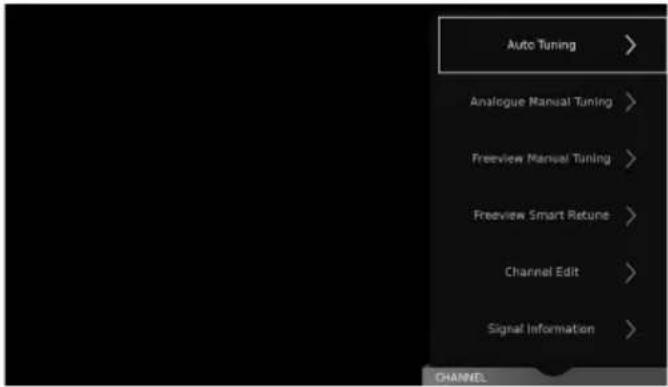
text_image
Auto Tuning > Analogue Manual Tuning > Freeview Manual Tuning > Freeview Smart Return > Channel Edit > Signal Information > CHANNELTo access this menu, press [MENU] button on the remote control and scroll right. To select a sub menu press [OK]
If you wish to make changes to any of the default settings, use the scroll ▲▼▶◀ buttons. To confirm any settings press [OK] button. To exit this menu at anytime, press [EXIT] button.
Auto Tuning - Allows you to retune the television for all digital channels, digital radio stations and analogue devices.
Analogue Manual Tuning - Allows you to manually tune your analogue signal.
Freeview/Saorview Manual Tuning* - Allows you to manually tune your digital signal.
Channel Edit - Allows you to delete, move, skip and add programs to a favourite channels list. You can add a favourite channel list which can be accessed by pressing the favourite button on your remote control. This will enable you to select your preferred channels quickly and easily. To add a channel to the favourite list go to; Menu > Settings > Channel > Channel Edit. Select the channel which you would like to add to the favourite list and press the favourite button on the remote control. A heart symbol will appear next to the channel name. Repeat for another channel or press [EXIT] to leave the menu. If you now press the favourite button on the remote control your favourite channels will be listed, select your desired channel and press the [OK] button to watch.
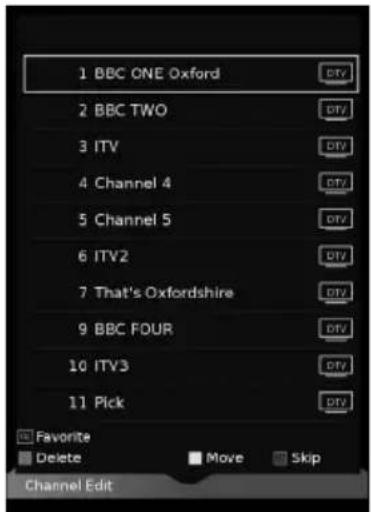
text_image
1 BBC ONE Oxford 2 BBC TWO 3 ITV 4 Channel 4 5 Channel 5 6 ITV2 7 That's Oxfordshire 9 BBC FOUR 10 ITV3 11 Pick Favorite Delete Move Skip Channel EditImportant: To receive Freeview/Saorview channels, in particular HD channels, you will need a Digital TV aerial and be in a good Freeview/Saorview coverage area. You can check the coverage for your area at www.freeview.co.uk or www.saorview.ie
Please note that any Freeview HD channels found during tuning will be placed in channel positions above 100. For example, 101 (BBC1 HD) 102 (BBC2 HD) etc.
*Freeview channels are only available in the UK, Saorview channels are only available in the ROI.
SETTINGS - CHANNEL MENU
Signal Information - Allows you to view signal frequency, signal quality and signal strength.
CI Information - Pay per view services require a 'Smartcard' to be inserted into the TV. If you subscribe to a pay per view service the provider will issue you with a 'CAM' and a 'Smartcard'. The 'CAM' can then be inserted into the COMMON INTERFACE PORT (CI Card In).
Sorting By LCN - Displays the channels in the correct order as specified by the broadcaster.
Channel List Auto Update - This feature allows you to scan for Freeview channels. When new channels are found they are automatically added to your channel list without removing any channels or affecting your favourites list. This operation can only be performed when the set is switched on.
Schedule List - The schedule list allows you to view your reminders and recordings. It can be accessed by going to the 'Channel Menu' then selecting 'Schedule List' or by pressing the blue button while in the 'Record List'.
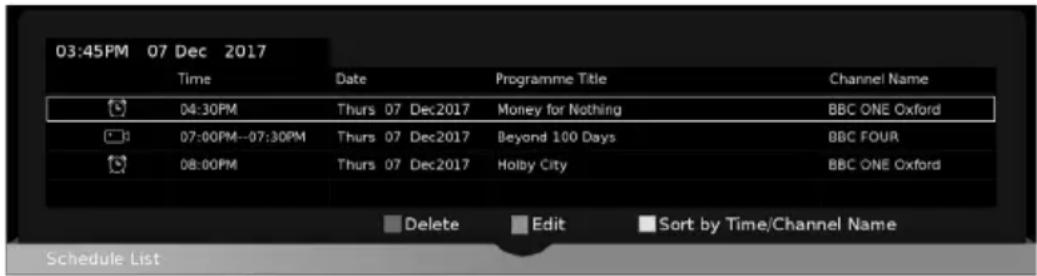
text_image
03:45PM 07 Dec 2017 Time Date Programme Title Channel Name 04:30PM Thurs 07 Dec2017 Money for Nothing BBC ONE Oxford 07:00PM--07:30PM Thurs 07 Dec2017 Beyond 100 Days BBC FOUR 08:00PM Thurs 07 Dec2017 Holby City BBC ONE Oxford Delete Edit Sort by Time/Channel Name Schedule ListThere are two icons, the clock symbol denotes a reminder, the camera indicates a recording. To select use the up and down arrow buttons.
- Press the [RED] button to delete the reminder or recording
- Press the [GREEN] button to edit the reminder or recording
- Press the [YELLOW] button to sort the reminder or recording
Note: Record functions are only applicable to sets with a built in USB Record/PVR function.
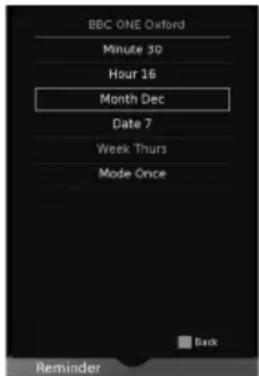
Edit Menu - To edit use the up and down buttons on the remote control to select the function, then use
text_image
BBC ONE Oxford Minute 30 Hour 16 Month Dec Date 7 Week Thurs Mode Once Back Reminderthe left and right buttons to change. Press the [OK] button to store and return to the schedule list.
Recorded List - Shows a list of recorded TV programmes via a connected USB memory stick or USB hard drive. While in the 'Recorded List', press the [BLUE] button to access the 'Schedule List'. Please see the 'USB RECORD' page for further information.
OAD Scan - Switch 'ON' or 'OFF' OAD updates.
SETTINGS - NETWORK MENU

text_image
Network Configuration IP Config > Network Info > Network Test >To access this menu, press [MENU] button on the remote control and scroll right. To select a sub menu press [OK]
If you wish to make changes to any of the default settings, use the scroll buttons. To confirm any settings press [OK] button. To exit this menu at anytime, press [EXIT] button.
The network connection enables you to update the TV software and a number of Smart TV functions.
For the network configuration to work the TV will need to be connected to your home network via an Ethernet cable, with these requirements in place the TV will connect to the network automatically.
Network Config (Cable selected)
IP Config - Allows you to access LAN network connection settings via the TV's LAN Cable socket. Choose from the following options:
| Auto Will automatically connect the TV to your home network (this is the default setting and is highly recommended). |
| Manual Allows you to manually change the IP, Netmask, Gateway and DNS information. |
Network Config (Wi-Fi selected)
Wi-Fi Config - Allows you to access LAN network connection via the TV's built in Wi-Fi (no extra hardware required). Choose from the following option:
| Wi-FI Auto Search | Will automatically search for nearby routers. Select the desired router and enter its password, following the on screen instructions will result in a successfully connection. |
Network Info - Allows you to view Information about network settings.
Network Test - Allows you to test the network connection.
Netflix Setting - Allows you to view Netflix information for technical assistance and deactivate your account.
Wi-Fi Status - Allows you to view the routers name (SSID), if the TV is connected via Wi-Fi.
SETTINGS - TIME MENU
text_image
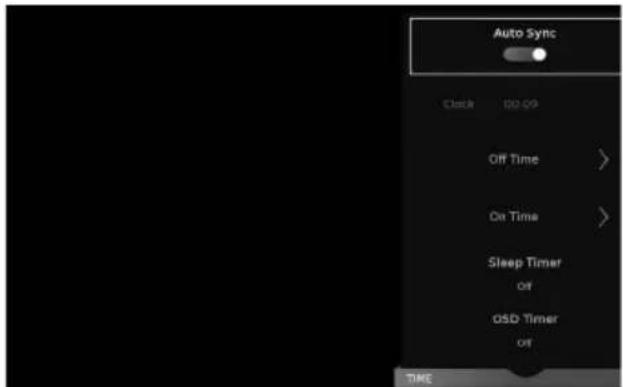
Auto Sync Clock 00:09 Off Time > On Time > Sleep Timer off OSD Timer off TIMETo access this menu, press [MENU] button on the remote control and scroll right. To select a sub menu press [OK]
If you wish to make changes to any of the default settings, use the scroll ▲▼▶◀ buttons. To confi rm any settings press [OK] button. To exit this menu at anytime, press [EXIT] button.
Auto Sync - The time is synchronised with the Internet clock. If there is no internet connection, the time is synchronised with the Digital Television signal.
Clock - Shows the date and time.
Off Time - Allows you to set a specific time for your TV to turn off.
On Time - Allows you to set a specific time for your TV to turn on, the channel it will then display, the source it will be on and also the volume. This function can then be toggled to repeat every day or a certain day. If your set is in standby and the on time is reached, it will turn on.
Sleep Timer - Lets you set the sleep timer so the television automatically switches off after a set amount of time. Off -> 10min -> 20min -> 30min -> 60min -> 90min -> 120min -> 180min -> 240min.
OSD Timer - Lets you adjust the amount of time the 'On Screen Menu' stays on the screen before disappearing.
Auto standby - Set 'Auto standby' between Off, 3 hours, 4 hours and 5 hours.
Time Zone - Change your current time zone.
Note: If you do not press any buttons for 30 seconds, the menu will automatically exit. You can change the length of time before the menu exits automatically - see 'OSD Timer' in the Time Menu.
SETTINGS - LOCK MENU
text_image
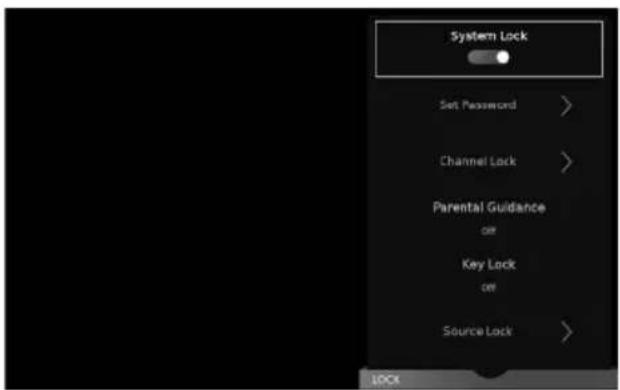
System Lock Set Password > Channel Lock > Parental Guidance on Key Lock on Source Lock > LOCKTo access this menu, press [MENU] button on the remote control and scroll right. To select a sub menu press [OK]
If you wish to make changes to any of the default settings, use the scroll ▲▼▶◀ buttons. To confirm any settings press [OK] button. To exit this menu at anytime, press [EXIT] button.
System Lock - Allows you to lock or unlock the menu. You will be asked to enter a 4 digit password Use the ◀ button to quit the password input or use the ▶ button to clear. Default password is 0000.
Set Password - Allows you to change the password.
Channel Lock - Allows you to lock certain channels manually.
Parental Guidance - Allows you to set the rating to block certain content based on age information.
Key Lock - Allows you to lock the buttons on the side of the TV set.
Source Lock - Allows you to lock the source menu.
Hotel Mode - Additional settings.
Note: To enable controls within the lock menu, the function needs to be enabled by entering the password and then turn the 'System Lock' on.
Note: If you change and forget the password, you will need to use the master reset password of 4711.
SETTINGS - SETUP MENU
text_image
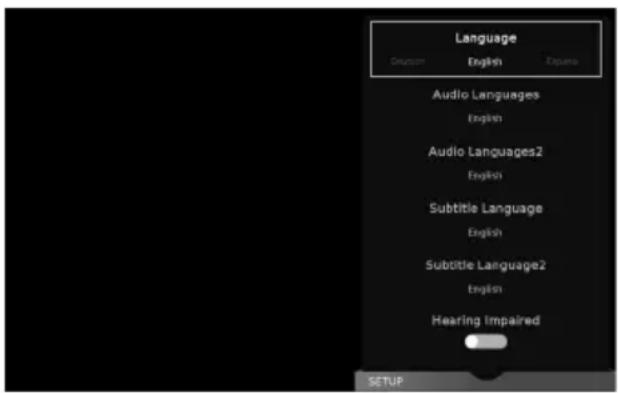
Language English Audio Languages English Audio Languages2 English Subtitle Language English Subtitle Language2 English Hearing Impaired SETUPTo access this menu, press [MENU] button on the remote control and scroll right. To select a sub menu press [OK]
If you wish to make changes to any of the default settings, use the scroll ▲▼▶◀ buttons. To confirm any settings press [OK] button. To exit this menu at anytime, press [EXIT] button.
Set Up - Choose from the following options:
Language - Allows you to change the language of the menu.
Audio Languages - Select your preferred primary audio language.
Audio Languages 2 - Select your preferred secondary audio language.
Subtitle Language - Select your preferred primary subtitle language.
Subtitle Language 2 - Select your preferred secondary subtitle language.
Hearing Impaired - This allows you to turn on the Hearing Impaired function, this produces subtitles on the screen which provide a description of what is happening during the selected programme.
Blue Screen - Changes the background when there is no input between clear and a blue background (only available on some sources).
PVR File System - Allows you to access 'PVR File System' settings. Choose from the following options:
| Select Disc Allows | you to select the device which is being analysed/set up should your set have more than one USB port/connected device. |
| Timeshift Size Max | maximum amount of storage space allocated to time shifting on the selected USB device. Select from 512MB, 1GB, 2GB or 4GB. Maximum memory allocation is dependant upon connected memory capacity. |
| Format: Start Select | this option to reformat the connected USB device. Note that all data will be lost when performing this action. |
| Speed: Check Checks | the speed of your memory device and displays the result in Kb/s |
Note: When a USB memory device is connected to the set, this function will be active. If no USB device is connected, the function cannot be selected.
SETTINGS - SETUP MENU
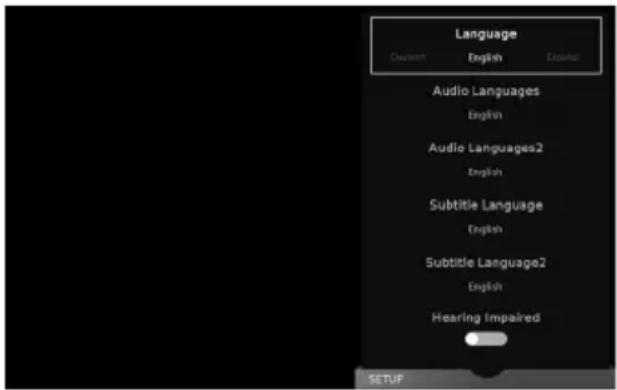
text_image
Language Deutsch English Essential Audio Languages English Audio Languages2 English Subtitle Language English Subtitle Language2 English Hearing Impaired SETUPTo access this menu, press [MENU] button on the remote control and scroll right. To select a sub menu press [OK]
If you wish to make changes to any of the default settings, use the scroll ▲▼▶◀ buttons. To confirm any settings press [OK] button. To exit this menu at anytime, press [EXIT] button.
First Time Installation - Allows you to access the 'First Time Installation' menu and retune the TV set. Software Update (USB) - Allows you to update your TV with the newest software using a USB memory stick. Software and instructions are available on our website.
Software Update (NET) - Allows you to update your TV with the newest software via your internet connection.
Reset TV - This resets the menus to factory settings and clears all the TV channels from the television. HDMI CEC (Consumer Electronic Control) - Allows HDMI devices to control each other and allows you to operate multiple devices with one remote control (only available with compatible devices).
HDMI EDID - Transmits the TV set's capabilities (sound, resolution, etc,) directly to the devices connected via HDMI. This setting allows you to change the selected HDMI input to HDMI 1.4 or HDMI2.0 mode.
- Standard - Recommended if the TV is connected to a device with a HDMI 1.4 output or lower, for example Full HD Blu-Ray player, DVD player or gaming console.
- Enhancement - Recommended if the TV is connected to a device with a HDMI 2.0 output, for example 4K Blu-ray player or modern PC, in order to display a UHD HDR signal of up to 60Hz Bluetooth - Allows you to pair your TV with a compatible Bluetooth audio device (for example: headphones, soundbars, etc.) Once in the Bluetooth menu you can turn Bluetooth ON/OFF and/or select 'Device List' to search for compatible Bluetooth devices. (Only applicable to Bluetooth enabled models) LED Status - LED Status - Allows you to switch the LED power indicator light 'ON' or 'OFF' when the TV is being operated.(When this option is set to 'OFF' the LED power indicator light will flash when the remote control is used and will flash red during the normal start up process).
Version Info - Allows you to view the version/information of the software installed on the TV set.
Source Edit - Allows you to edit the name of an Input Source.
MORE APPS MENU
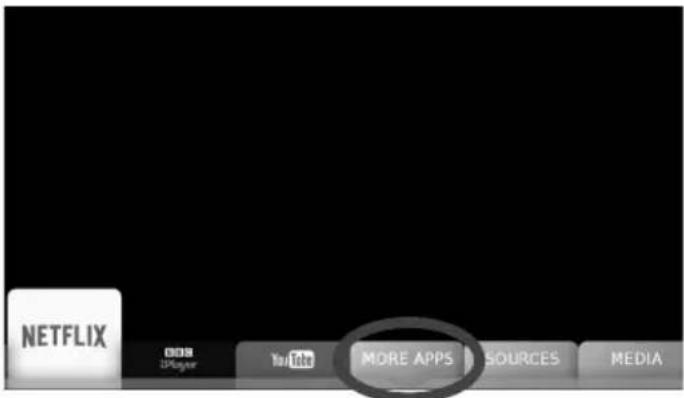
text_image
NETFLIX 038 2Player YouTube MORE APPS SOURCES MEDIATo access this menu, press [MENU] button on the remote control and scroll right. To select a sub menu press [OK].
If you wish to make changes to any of the default settings, use the scroll ▲▼▶◀ buttons. To confirm any settings press [OK] button.
To exit this menu at anytime, press the [MENU], [EXIT] or [BACK] button on the remote control.
As well as the Netflix, BBC iPlayer and YouTube apps included in the main menu, the 'More Apps' menu, located at the bottom of the screen, allows you to access more of the TV set's 'SMART' features such as Web Browser, BBC News, BBC Sport etc.
Aquos Net+
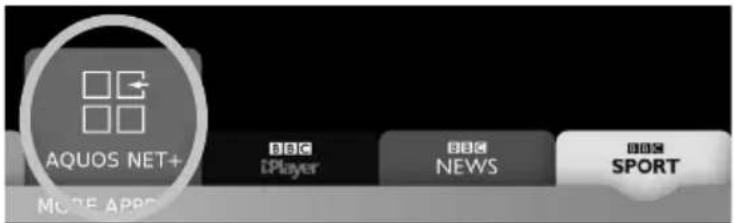
text_image
AQUOS NET+ BBC #Player BBC NEWS BBS SPORT MODE APPSAquos Net+ is a portal to a variety of Apps and multimedia which the TV accesses via the internet. To enter Aquos Net+ you will be prompted to enter a language and accept terms and conditions. Once the relevant information has been entered you will be able to access a range of additional Apps. Content is updated and managed from a central source, so look out for new Apps and updates.
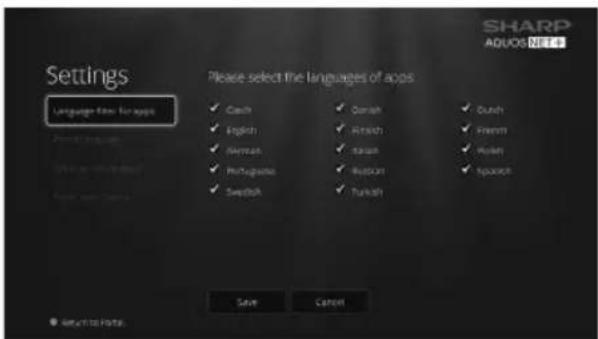
text_image
SHARP AQUOS NIE4 Settings Language filter for apps Please select the languages of apps ✓ Czech ✓ English ✓ German ✓ Portuguese ✓ Swedish ✓ Danish ✓ Finnish ✓ Korean ✓ Spanish ✓ Turkish ✓ Dutch ✓ Finnish ✓ Polish ✓ Spanish Save Cancel ● Return to Hotel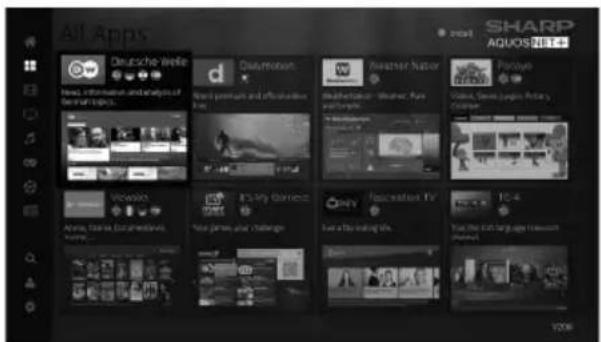
text_image
All Apps Deutsche Birlle Davonsson Astermar Nixor Paroye Head, information and analysis of German topics. Basilan Weschen Güttel Kurz Südeng Vivorkeln Alvin, Tatska, Dourwalska, Hörsen... It's my Gärnnos Perry Rusiksson TV Tc-4 You're the most popular in our own home.Note: If you wish to reset the settings for AQUOS NET+ Smart Portal back to the default settings, you will need to access the AQUOS NET+ Smart Portal and enter the settings menu. In the settings menu scroll down and select 'Reset your device', you will then be asked 'Yes' or 'No' to confirm your decision, highlight 'Yes' and press [OK] on the remote control to complete the reset process.
MORE APPS MENU
Applications
text_image
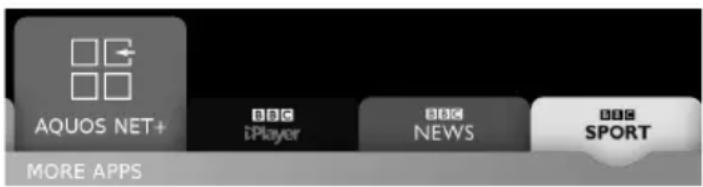
AQUOS NET+ BBC iPlayer BBC NEWS BBC SPORT MORE APPSBBC iPlayer - Catch up on your favourite BBC TV programmes and view exclusive content.
BBC News - Access the BBC News app for up-to-the-minute and breaking news reports.
BBC Sport - The BBC Sport app offers the latest sports news, live action, scores and highlights.
Web Browser - Application for accessing websites via the internet. Use the following buttons for navigation in the browser:
| CH+ Scroll page up | |
| CH- Scroll page down | |
| Red Button Show/hide browser menu bar | |
| Yellow Button Zoom in | |
| Blue Button Zoom out |
Note: The Netflix and YouTube apps are included within the main menu for quicker access, they are not included in the 'More Apps'menu.
Note: Some Apps, such as Netflix, require a monthly subscription. This is not included with the purchase of your TV set.
MEDIA MENU
Miracast (Screen mirroring)
text_image
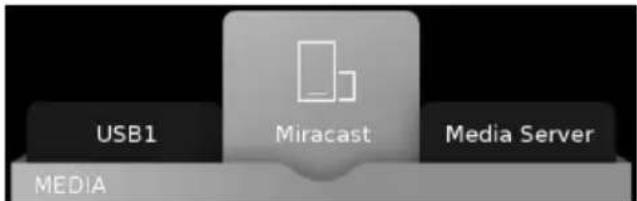
USB1 Miracast Media Server MEDIATo access this menu, press [MENU] button on the remote control and scroll right. To select a sub menu press [OK]
If you wish to make changes to any of the default settings, use the scroll buttons. To confirm any settings press [OK] button. To exit this menu at any time, press [EXIT] button.
Although the TV has many of the most popular Apps preinstalled, the Miracast function allows almost unlimited Apps to be shown on the TV screen including many on demand videos, subscription based services and your favourite applications such as Amazon TV, Emails, Facebook, etc.
The Miracast (screen mirroring) feature allows you to connect to a compatible Smartphone, Tablet, PC or Laptop wirelessly and 'mirror' what is on your device onto the TV's screen.
text_image
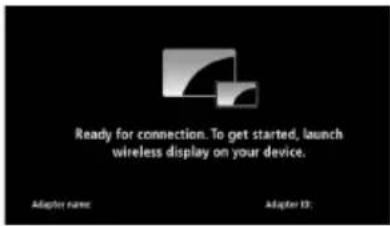
Ready for connection. To get started, launch wireless display on your device. Adapter name: Adapter ID:See below an example of a connection to a Laptop PC running Windows 10 that has built in Wireless Display.
For connection to other types of devices please refer to the instruction manual that came with your device.
Click on the monitor icon (circled below) to access this feature.
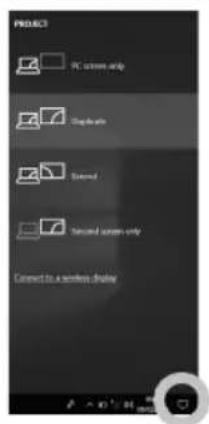
text_image
PRODUCT PC screen setup Capacitor Temperature Temperature screen unit Connect to a wireless displayOnce you're connected, you will see this screen on your Laptop/PC.
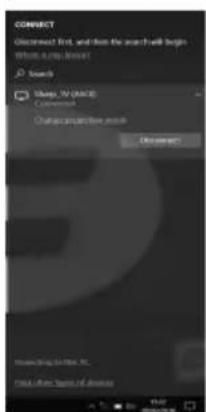
text_image
CONJECT Closest List, and then the search will begin Where a copy lesson Search Make TV (VAC) Conversion Change proportion result OK Closest Showing to: 10.000x. Show the same of the sourceOnce a successful connection is made, your TV will display this screen.
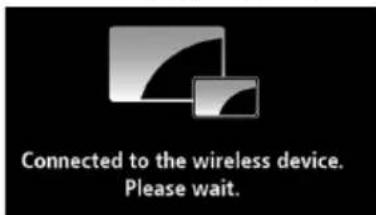
text_image
Connected to the wireless device. Please wait.Note: Many Android and Windows devices support screen mirroring. For Apple devices, you need a separate Apple TV box to allow screen mirroring onto non Apple products.
Note: If your smartphone or tablet does not include mirroring, it may be possible to connect a suitable cable from your device directly to one of the HDMI inputs on the rear of the TV. Suitable cables for your device should be available from a local electronics retailer.
MEDIA MENU
USB mode and media server
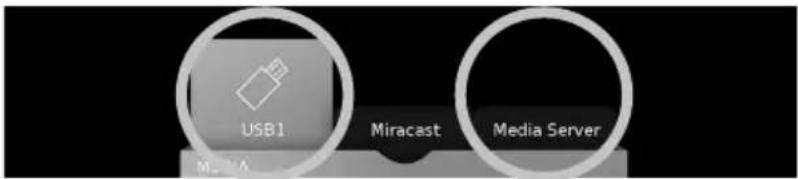
text_image
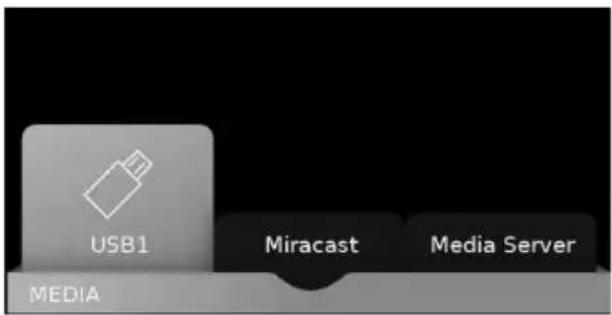
USB1 Miracast Media ServerThe USB media and the Media Server offer the playback of various different types of content that is either saved on your USB memory stick or external media server. (USB mode allows you to view/playback fi les from an external USB device and Media Server connects to your home network and can view/playback fi les from your compatible laptop, PC, tablets and smart phones).
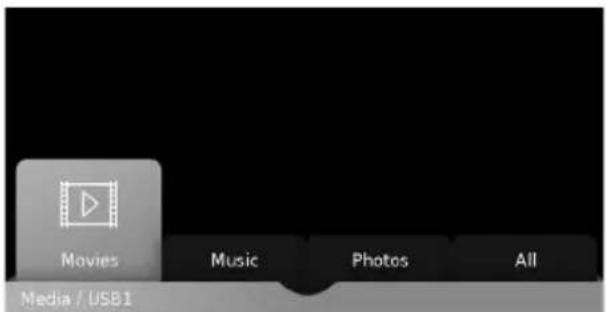
When accessing the USB media or media server features the below menu screen will appear. The content will be divided into Photo, Music, Movie and All.
text_image
USB1 Miracast Media Server MEDIA1) You can navigate through the menus using the scroll ▲▼▶◀buttons on the remote control, to confirm the item you wish to play/view press the [OK] button (the USB1 and USB2 options will only show when a USB stick is connected).
text_image
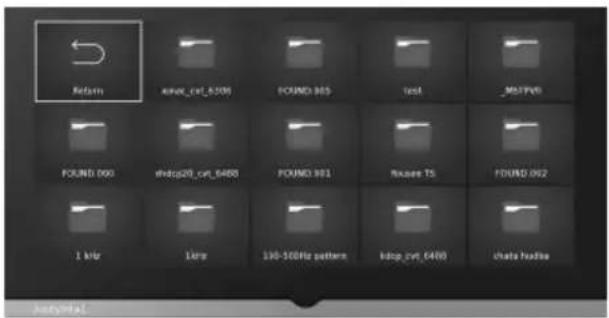
Movies Music Photos All Media / USB12) USB mode - Select the USB drive (If your drive only has 1 partition you will only see 1 item). Media Server - Select the external device that you would like to access.
text_image
Reform xmac_rvt_6306 FOUND 063 test _MSPWR FOUND 060 shdp20_rvt_6488 FOUND 061 fixeres TS FOUND 062 1 hr 1 hr 130-50Hz pattern lsbp_rvt_6488 chata hadda3) You can now access the item. Press [OK] to view.
text_image
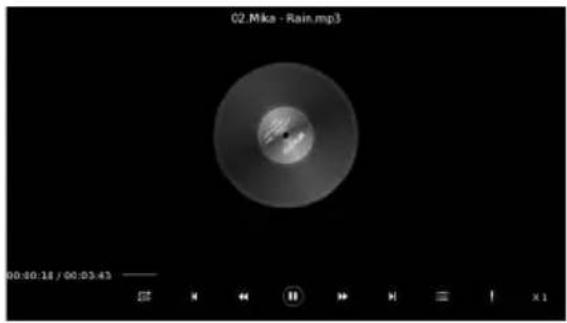
C2.Mka - Rain.mp3 00:00:18 / 00:03:434) Whilst viewing your media, you can control the item by using the remote control playback buttons or by pressing [INFO] you can access the on-screen playback menu, you can now make your selection by using the ▲▼▶◀ and [OK] buttons on the remote control.
Note: If you experience a playback issue, please ensure the files being used are the correct format (example - the picture plays but no sound) See compatible fi le types for USB/DLNA page for compatible fi le types.
Note: USB extension cables are not recommended as they can cause a reduction in picture/audio quality and stoppages during play back of USB content.
USB RECORD - FREEVIEW/SAORVIEW MODE
The USB Record/PVR function is only available in Freeview/Saorview mode and only when used in conjunction with a compatible USB memory stick or USB hard drive. The benefits of this are as follows:
- Pause live TV and then playback, rewind and fast forward (up to live TV).
- One button record, if you decide you want to record the current programme.
- Easy recording from the 7 Day TV Guide.
Due to the nature of the product, it is necessary to use a high speed USB memory stick (as the TV reads from and writes to the memory stick at the same time, some memory sticks may not be suitable).
You can purchase high speed memory sticks from some computer stores, alternatively, we have a selection of tested and compatible memory sticks available to purchase directly from the Helpline/website.
Recommended Minimum Specification - USB Memory Stick:
| Read Speed 20 Mb/s (Megabits Per Second) | If you wish to use a USB portable hard drive larger than 32GB, please refer to the FAQ section at the rear of this user guide. | |
| Write Speed 6 Mb/s | (Megabits Per Second) | |
Pause Live TV (Time Shift)
A USB memory stick/hard drive must be connected to the TV in order to use this feature.
- Press the play/pause button and the television will pause and the live content will be recorded. To resume watching press play/pause again.
- Press fast forward to go forward in a recording.
- Press fast rewind to go back in a recording.
Note: When you switch the TV to standby or change channel the 'Time Shift' memory is wiped. To restart time shift you must press play/pause button.
Note: If channels are moved or deleted, then the USB Record/PVR will not function correctly.
Note: This television contains one TV tuner, therefore it can only record the channel you are watching or record one channel while the television is in standby mode.
Note: USB Record/PVR function is only available in Digital/Freeview TV mode. Due to copyright laws and illegal copying/recording it is not possible to record to/from any other input/output source.
Note: Recorded content can only be played back on the device that recorded it. It is not permitted (or possible) to watch content recorded on the TV from Freeview/Saorview on another device.
USB RECORD - FREEVIEW/SAORVIEW MODE
One Button Record
At any point in time you may decide to record the current programme that you are watching. To do this you need to press the red record button on the remote control.
Playback fi les from Record list
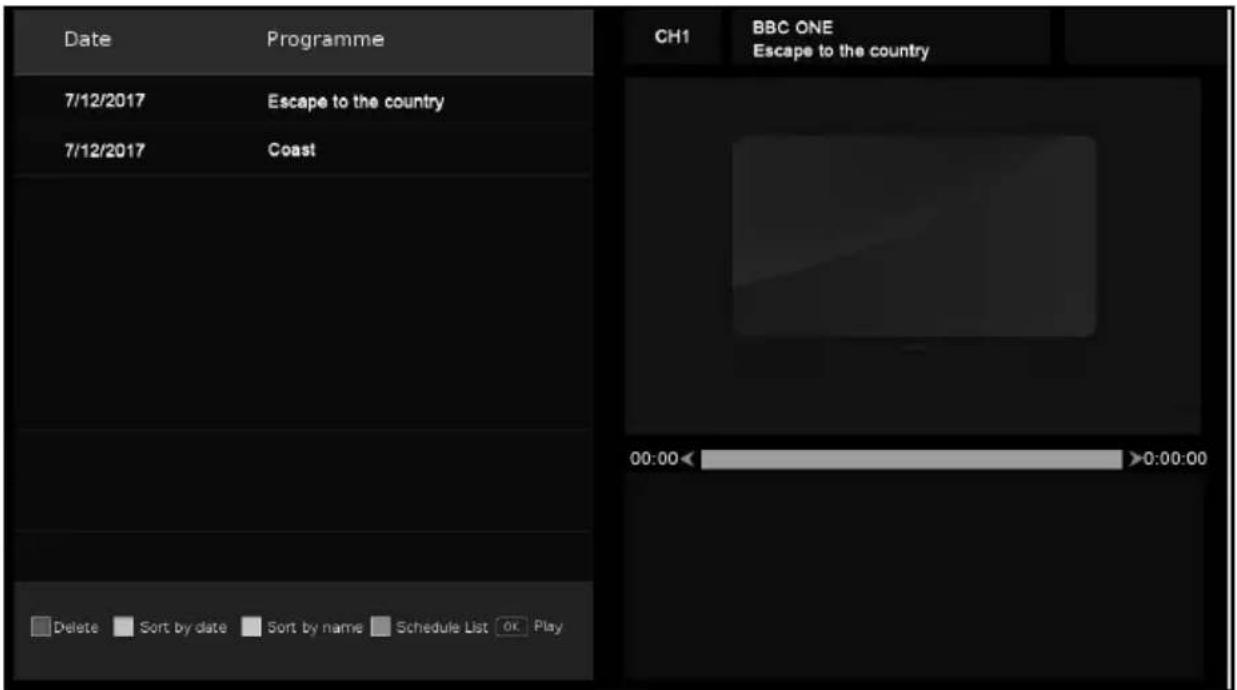
To playback recorded fi les you will be required to have the TV set to the Freeview/Saorview source mode. Once set to the correct source, access the recorded list by pressing the [REC LIST] (Recorded List) button on the remote control, the recorded list should now appear on the screen. Use the arrow buttons on the remote control to navigate to the recording you wish to playback and then press [OK] on the chosen file to start playback.
text_image
Date Programme 7/12/2017 Escape to the country 7/12/2017 Coast CH1 BBC ONE Escape to the country 00:00← >0:00:00 Delete Sort by date Sort by name Schedule List Or PlayUse the coloured buttons on the remote control for the following options:
- Press [RED] to delete a selected recording.
- Press [GREEN] to sort the items in the record list by date.
- Press [YELLOW] to sort the items in the record list by name.
- Press [BLUE] to enter the schedule list.
Note: Record functions are only applicable to sets with the built in USB Record/PVR function.
FREQUENTLY ASKED QUESTIONS
| General I would like to | have louder sound by connecting additional speakers or a Soundbar. | 1) Use either the 3.5mm headphone output on the TV and a 3.5mm to phono cable (available separately) to connect to an amplifi er/surround sound/soundbar. Please note this will deactivate the TV's built in speakers. or:2) Connect a digital optical audio cable from the TV's digital optical audio output to your amplifi er/surround sound/soundbar digital optical audio input. |
| General Why are some | options in the menu unavailable and greyed out. | Some options are only available in certain inputs/sources, i.e. HDMI. They are unavailable in the other sources where they have no effect. |
| General Can I stop my TV | automatically turning off after 4hrs? | Yes, in the 'Time' menu settings, scroll down to Auto standby and select 'OFF'. |
| TV I have tuned in Digital TV but I am not receiving any or all of the channels and/or the channels I receive are breaking up. | 1) Check you are in an area that can receive Freeview/Saorview, visit www.freeview.co.uk or www.saorview.ie2) Check you are using an aerial that is able to receive a good digital signal. In most cases, you will need an outdoor digital hi-gain/wideband aerial. In areas that have excellent digital coverage, you may be able to use a loft type aerial but it is highly likely that you will also need to connect a booster between the back of the TV and the TV aerial wall socket. Unfortunately, to receive a good enough digital signal, it is not possible to use a portable/indoor type aerial. | |
| TV I have re-tuned my television but when I switch it off it is not storing the channels. | If the TV does not save the channels when you power it off, it's likely the channel database has become corrupt.1) Turn off the TV.2) Remove the RF/Aerial cable from the rear of the TV and then turn the TV back on again.3) Using the remote control, press Menu followed by 8-8-8-8 to enter the initial setup/fi rst time installation menu.4) Press OK (let the TV run the full tuning process).5) Once completed, turn off the TV, reconnect the RF/Aerial cable then turn the TV back on again.6) Repeat steps 3 & 4. | |
| VCR/DVD Recorder | I have connected the TV to my VCR or DVD Recorder via SCART but it is not recording. | In addition to connecting via SCART, you should connect the aerial cable from the wall socket to your VCR/DVD Recorder and another aerial cable from the VCR/DVD Recorder to the TV. |
| Game Consoles I have | connected my Playstation/Xbox to the TV via HDMI, but I am not receiving any pictures or sound on my Television. | 1) Ensure the TVs' source is set to HDMI.2) Check your settings on your Playstation/Xbox are as per the Playstation/Xbox instruction manual. |
| Game Consoles I have | connected my Playstation/Xbox to the TV via Component cables (red, green & blue) but I am not receiving any sound. | Component cables only provide HD pictures. For the sound you will need to connect the red & white audio cables on the Playstation/Xbox to the red & white phono inputs (or mini AV input where fitted) on the rear of the TV. Please refer to the 'Connections' pages. |
| System Lock I have changed the password on the television and now forgotten it. | There is a master password of 4711, to gain access to the TV menu and reset the normal password. | |
| USB Mode I have inserted a USB Memory Key, but the TV does not recognise it. | Ensure the USB Memory Key is formatted to type FAT32. | |
FREQUENTLY ASKED QUESTIONS
| USB Mode Using a USB | portable hard drive/larger than 32GB. | If you wish to use a portable hard drive larger than 32GB, please note that it must be formatted to the FAT32 fi le system in order to operate on this TV. Windows XP/Vista computers are only capable of formatting up to 32GB, therefore, you will need a software programme/utility to format larger hard drives.Please refer to the website, www.umc-uk.co.uk, for more information. |
| DVD (For TV models with DVD only) | I have inserted a disc but it is not playing. | 1) Ensure you have inserted the disc facing the correct way.2) Ensure the disc is clean and is not scratched.3) Some copied discs will not play.4) Check the DVD is a region 2 disc – to change the region of the DVD player, refer to www.umc-uk.co.uk, select ‘Changing DVD Region’ in the ‘Product Support’ section |
| DVD (For TV models with DVD only) | I have pressed the eject button but the disc is not coming out. | To eject the disc hold the stop/eject button for 4 seconds. |
| USB Record/PVR(For TV models with USB record only) | I cannot change the channel, access the menu or use the red button. | During time shift you cannot change the channel, access the menu or use the red button. |
| USB Record/PVR(For TV models with USB record only) | When using the USB to record the picture ‘breaks up’ or experience loss of sound. | Check the USB memory stick meets the minimum read speed requirements. Standard definition channels require a read speed of 20 Mb/s (Megabits per second) and a write Speed of 6 Mb/s (Megabits per second) HD channels require the read speed of 80 Mb/s (Megabits per second) and a write speed of 40 Mb/s (Megabits per second). USB 3.0 sticks should be used where possible. |
| Freeview HD I cannot | access all Freeview channels. | Some data channels for Freeview can only be obtained when the TV’s ethernet port is connected to your router. |
| Freeview HD I cannot | find the Freeview HD channels. | Freeview HD channels found during tuning will be placed in channel positions above 100. For example, 101 (BBC1 HD), 102 (BBC2 HD) etc. |
FREQUENTLY ASKED QUESTIONS
| Smart I cannot access Smart apps on my Smart TV | Check your TV is connected to the internet and there is suitable signal strength.You can carry out a Network Test as follows:1) Press Menu on the remote control.2) Select 'Network' Menu then 'Network Test'.3) This will show the status of the internet connection.If you have no internet connection you must re-connect your TV as follows:1) Press Menu on the remote control.2) Select 'Network' Menu then 'Wi-fi config'.3) Then 'Wifi Auto Search'.4) The TV will then automatically search for Networks.5) Select the desired network then enter the Network password.6) The TV will then connect.Note: An icon will appear in the top right hand side of the Application page to show you if the TV is connected to the internet. |
| Smart I cannot access content through the Media Server settings | Check your TV is connected to your local network and there is suitable signal strength. Check the server devices you are trying to connect with are also on the Network and are set to share content. |
| Smart I cannot access content through the Wireless Connection settings | Ensure the device you are trying to mirror onto the TV is correctly paired with the TV. Check the settings on the device, move your device closer to the TV set, check you guide of the device to ensure it is compatible with this function. |
| Smart While using Media Server, access is not possible or connection is slow | If the folder you are attempting to view contains a large amount of fi les, it may take a little while to load, this is normal, content may be blocked on the host PC. Reconfi gure the host PC to allow external access.Note: Host may not be connected to your network. |
| Smart The YouTube app does not work and/or is erratic | The Youtube app requires the TV to be set with the correct date and time, please see the 'Time Menu' page for further instructions. Ensure your network is not blocking access to YouTube and the speed of your internet connection is fast enough for viewing YouTube content. |
COMPATIBLE FILE TYPES FOR USB/DLNA
| Media | Codec | Resolution | Data Rate | File Extension |
| Movie | MPEG1/2 | 1080Px2@30fps1080P@60fps | 80Mbps | .DAT, .VOB, .MPG, .MPEG, .ts, .trp, .tp, .mp4, .mov, .3gpp, .3gp, .avi, .mkv, .asf |
| MPEG4 | 1080Px2@30fps1080P@60fps | 40Mbps | .MPG, .MPEG, .mp4, .mov, .3gpp, .3gp, .avi | |
| XviD | 1080Px2@30fps1080P@60fps | 40Mbps .divx, .mp4, .mov, .avi, .mkv, .asf | ||
| H.263 | 1080Px2@30fps1080P@60fps | 40Mbps | .mp4, .mov, .3gpp, .3gp, .av, .mkv | |
| H.264 | 3840x2160@30fps1080P@60fps | 135Mbps | .flv, .mp4, .mov, .3gpp, .3gp, .ts, .trp, .tp, .asf, .wmv, .avi, .mkv | |
| Motion JPEG | 720P@30fps1080P@30fps | 10Mbps | .avi, .3gpp, .3gp, .mp4, .mov, .mkv, .asf | |
| VP8 20Mbps .mkv, .webm | ||||
| HEVC 4K2K@60fps 100Mbps .mp4, .mov, .mkv, .ts, .trp, .tp | ||||
| VP9 4K2K@30fps 100Mbps .mkv, .webm | ||||
| Media | Codec Sample rate | Data Rate File Ext. | ||
| Audio | MPEG1/2 Layer1, 2, 3 16KHz ~ 48KHz 32Kbps ~ 320Kbps | .mp3, .avi, .as, .divx, .mkv, .ts, .trp, .tp, .DAT, .VOB, .MPG, .MPEG, .wav | ||
| AC3 | 32KHz, 44.1KHz, 48KHz | 32Kbps ~ 640Kbps | .ac3, .avi, .mkv, .divx, .3gpp, .3gp, .mp4, .mov, m4a, .ts, .trp, .tp, .DAT, .VOB, .MPG, .MPEG, .rm, .rmvb | |
| EAC3 | 32KHz, 44.1KHz, 48KHz | 32Kbps ~ 6Mbps | .ec3, .3gpp, .3gp, .mp4, .mov, m4a, .ts, .trp, .tp, .DAT, .VOB, .MPG, .MPEG | |
| AAC, HEAAC 8KHz ~ 48KHz 128bps ~ 320Kbps | .aac, .avi, .mkv, .divx, .3gpp, .3gp, .mp4, .mov, m4a, .ts, .trp, .tp, .DAT, .VOB, .MPG, .MPEG, .flv, .rm, .rmvb | |||
| VORBIS | Up to 48KHz | .mkv, .webm, .3gpp, .3gp, .mp4, .mov, m4a, .ogg | ||
| Media | File | Resolution | File Ext. | |
| Photo | JPEG | 15360x8640, (1920x8 x 1080x8) | Base-line | .jpg/.jpeg |
| 1024x768 | Progressive | |||
| PNG | 9600x6400 | Non-interlace | .png | |
| 1200x800 | Interlace | |||
| BMP | 9600x6400 | .bmp | ||
| MPO | 15360x8640, (1920x8 x 1080x8) | Base-line | .mpo | |
| 1024x768 | Progressive | |||