
FOCUS66-B2 - Webcam MOTOROLA - Free user manual and instructions
Find the device manual for free FOCUS66-B2 MOTOROLA in PDF.


| Product Type | Webcam / Home Security Camera |
| Brand | Motorola |
| Model | FOCUS66-B2 |
| Resolution | 1080p Full HD (1920 x 1080) |
| Field of View | 110 degrees (diagonal) |
| Night Vision | Up to 10 meters with infrared LEDs |
| Motion Detection | Yes, with push notifications |
| Audio | Built-in microphone and speaker for two-way talk |
| Connectivity | Wi-Fi 802.11 b/g/n (2.4 GHz) |
| Power Supply | 5V DC via micro USB cable (included) |
| Dimensions | 9.5 x 6.5 x 8 cm (3.7 x 2.6 x 3.1 in) |
| Weight | 200 g (7 oz) |
| Storage | MicroSD card slot (up to 128 GB, not included) |
| Compatibility | iOS and Android apps; works with Amazon Alexa and Google Assistant |
| Mounting | Desk stand and wall mount bracket included |
| Care Instructions | Clean lens with a soft, dry cloth. Do not use harsh chemicals. |
| Safety Precautions | Avoid exposure to water or extreme temperatures. Use only the provided power adapter. |
| Repairability | No user-serviceable parts. Refer to Motorola support for repairs. |
Frequently Asked Questions - FOCUS66-B2 MOTOROLA
User questions about FOCUS66-B2 MOTOROLA
0 question about this device. Answer the ones you know or ask your own.
Ask a new question about this device
Download the instructions for your Webcam in PDF format for free! Find your manual FOCUS66-B2 - MOTOROLA and take your electronic device back in hand. On this page are published all the documents necessary for the use of your device. FOCUS66-B2 by MOTOROLA.
USER MANUAL FOCUS66-B2 MOTOROLA
natural_image
Abstract black circular logo with white stylized letter M (no text or symbols)motorola
natural_image
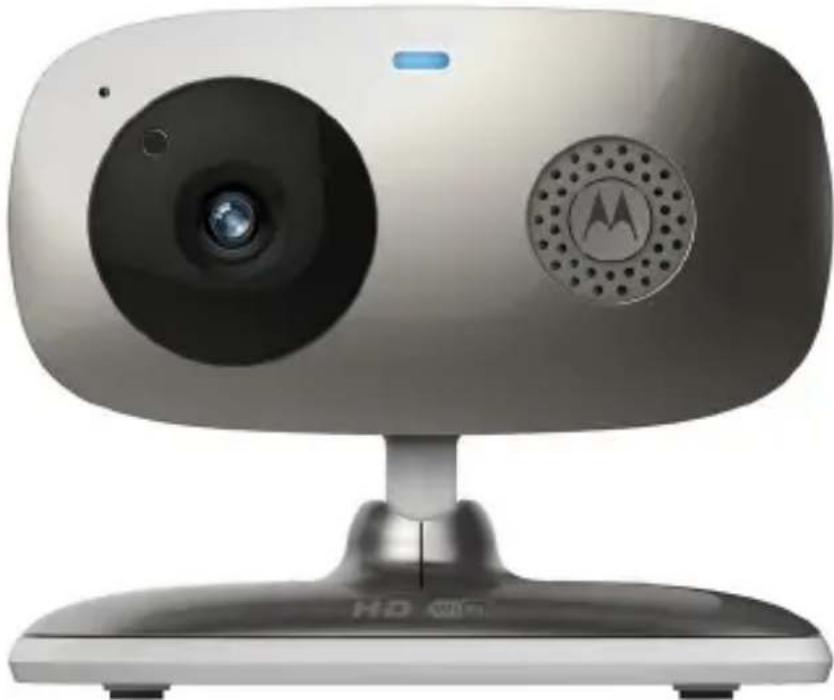
Exterior view of a silver-framed wireless webcam with a black camera lens and a Huawei logo (no text or symbols on the device body)USER'S GUIDE
Wi-Fi® Home Video Camera
Models: FOCUS66-B, FOCUS66-B2, FOCUS66-S, FOCUS66-S2, FOCUS66-W, FOCUS66-W2
Welcome...
to your new Motorola Wi-Fi® Home Video Camera!
Thank you for purchasing your new Motorola Wi-Fi® Home Video Camera. If you have always wondered what happens when you are away, wonder no more. Now you can monitor your children, pets or property with this easy to use system. You can install the Camera only from your iPhone®/iPad® or devices for Android™ and view the Camera video from your PC or Notebook, as well as devices for Android™ or iPhone®/iPad®.
Please keep your original dated sales receipt for your records. For warranty service of your Motorola product, you will need to provide a copy of your dated sales receipt to confirm warranty status. Registration is not required for warranty coverage.
For product related questions, please call:
+49 (0) 1805 938 802 in Europe
Email: motorola-mbp@tdm.de
This User's Guide has all the information you need to make the most out of your product.
Please read the Safety Instructions on pages 5 - 6 before you install the unit.
Inside the Box
- 1 x Wi-Fi ^® Camera Unit
- 1 x Power Adapter
- 1 x Quick Start Guide
- 1 x User Guide
Overview of your Camera
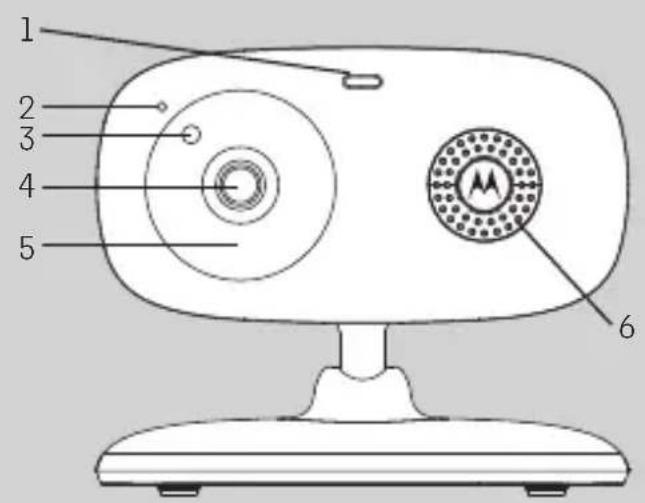
- Power / Status indicator
- Microphone
- Light Sensor (for night mode detection)
- Camera Lens
- Infrared LEDs (for night vision)
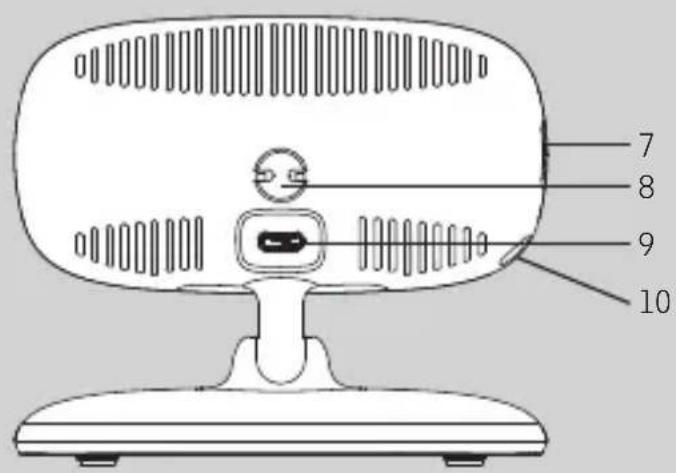
- Speaker
- ON/OFF Switch
- Temperature Sensor
- Micro USB socket
- PAIR Button
Important guidelines for installing your Wi-Fi® Camera Unit
- Use of other 2.4 GHz products, such as other wireless networks, Bluetooth ^® systems or microwave ovens may cause interference with this product. Keep the Wi-Fi ^® Camera Unit away from these types of products, or turn them off if they appear to be causing interference.
• Always ensure that you have a good Wi-Fi ^® connection available.
Table of contents
- Safety Instructions....5
- System Requirements .... 7
- Getting Started - Connecting Devices 8
3.1 Setup....8
3.2 User Account and Camera Setup on Android™ Devices......9
3.2.1 Power ON and connect the FOCUS66 camera 9
3.2.2 Download the Hubble for Motorola Monitors application ..... 9
3.2.3 Run Hubble for Motorola Monitors App on Android™ device 10
3.2.4 Add FOCUS66 Camera to your account 11
3.3 User Account and Camera Setup:
Working with iPhone ^® /iPad ^® 15
3.3.1 Power ON and Connect FOCUS66 camera 15
3.3.2 Download the Hubble for Motorola Monitors App 15
3.3.3 Run Hubble for Motorola Monitors on your iPhone ^ /iPad ^ ... 16
3.3.4 Add FOCUS66 Camera to your account 17
- Camera 21
4.1 Connecting the Camera to Power....21
4.2 Camera Functions:
Working with Android™ devices 21
4.2.1 Add more cameras 21
4.2.2 Remove a camera 23
4.2.3 Change your Account Information 24
4.2.4 Camera settings 25
4.2.5 General Settings 26
4.2.6 Features of the Hubble for Motorola Monitors Application .... 27
4.3 Camera Functions:
Working with devices for iPhone ^® /iPad ^® 30
4.3.1 Add more cameras 30
4.3.2 Remove a Camera 31
4.3.3 Change your Account Information 32
4.3.4 Camera Settings 33
4.3.5 General settings 33
4.3.6 Hubble for Motorola Monitors Settings 35
4.3.7 Features of the Hubble for Motorola Monitors Application .... 36
4.4 Camera Functions:
Working with PC/Notebook 38
- Procedure for resetting the Camera.... 39
- Help.... 40
- General Information 47
- Technical Specifications ....52
1. Safety Instructions
WARNING:
STRANGULATION HAZARD - In case this unit is being used to monitor infants or children, keep the unit and adapter cord more than 1 metre from the cot and out of their reach. Never place camera or cords within a cot or near a bed. Secure the cord away from children's reach. Never use extension cords with AC Adapters. Only use the AC Adapters provided.
As with any electrical device, supervision of your pet's usage should be exercised until your pet is acclimated to the product. If your pet is prone to chewing, we strongly recommend you keep this and all other electrical devices out of its reach.
Wi-Fi® CAMERA UNIT SET UP & USE:
- Determine a location for the Wi-Fi® Camera Unit that will provide the best view of your baby in the cot.
- Place the Wi-Fi® Camera Unit on a flat surface, such as a chest of drawers, desk, shelf or wall-mount it using the keyhole slot in the camera base.
- NEVER place the Wi-Fi® Camera Unit or cords within the cot.
WARNING
This Wi-Fi® Camera Unit is compliant with all relevant electromagnetic field standards and is, when handled as described in the User's Guide, safe to use. Therefore, always read the instructions in this User's Guide carefully before using the device.
- Adult assembly is required due to small parts. Keep all small parts away from children.
- This product is not a toy. Do not allow children to play with it.
- This Wi-Fi Camera Unit is not a substitute for responsible adult supervision.
- Keep this User's Guide for future reference.
- Do not place the Wi-Fi ^® Camera Unit or cords in the cot or within reach of the baby (the unit should be at least 1 metre away).
- Keep the cords out of reach of children.
- Do not cover the Wi-Fi ^® Camera Unit with a towel or blanket.
- Test the Wi-Fi ^ Camera Unit and all its functions so that you are familiar with it prior to use.
- Do not use the Wi-Fi ^® Camera Unit near water.
- Do not install the Wi-Fi ^ Camera Unit near a heat source.
- Only use the Power Adapter provided. Do not use other power adapters as this may damage the device.
- Never use extension cords with Power Adapters.
- Do not touch the plug contacts with sharp or metal objects.
2. System Requirements
Web Portal
- Windows® systems, 7 or 8 (Java browser plug-in needed)
• Mac OS® version 10.7 or above - Internet Explore® version 8.0 or above
- Firefox® version 11.0 or above
- Chrome™ version 18.0 or above
- Safari®version 5.1 or above
- Java™ version 7 or above
Android ^TM System
- Version 4.0 or above
iPhone ^® /iPad ^® iOS
- Version 7.0 or above
3. Getting Started - Connecting Devices
How does it work?
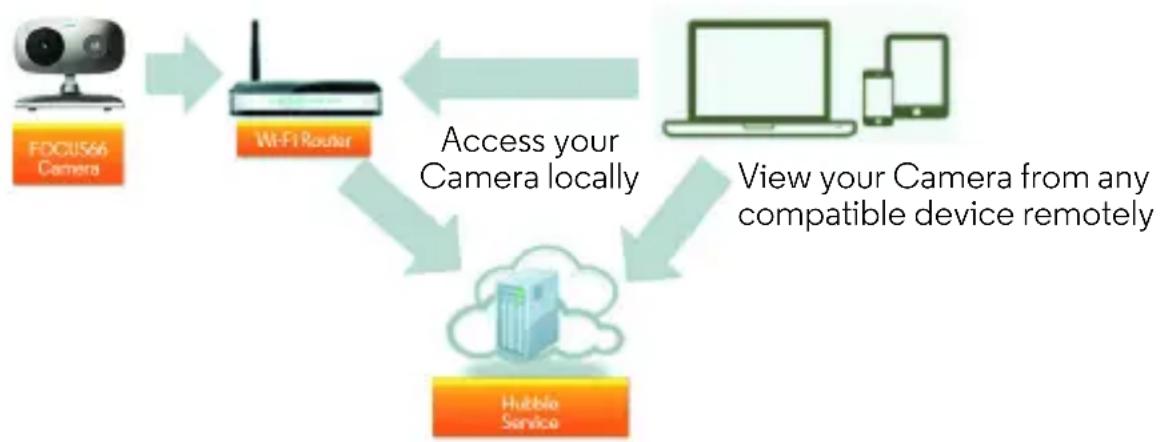
flowchart
graph TD
    A["FOCUS66 Camera"] --> B["Wi-Fi Router"]
    B <--> C["Access your Camera locally"]
    B <--> D["View your Camera from any compatible device remotely"]
    B --> E["Hubble Service"]
When a user tries to access the Camera, our secure server authenticates the user's identity and permits access to the Camera.
3.1 Setup
Connect the Camera to the Power Adapter, then plug into a suitable mains power socket and make sure the ON/OFF Switch is in the ON position. The Camera must be within range of the Wi-Fi ^® router with which you want to connect. Make sure the password of the router is available for entering during the in-app setup process.
Status of LED Indication:
- Pair / Setup state: LED is red and blue and slowly flashing
- Unconnected state: LED is red and slowly flashing
- Connected state: LED is blue and always on
- Ready for connection state: LED is blue and slow flashing
Note: You can only setup via a compatible smartphone or tablet and not via a PC.
3.2 User Account and Camera Setup on Android™ Devices
What you need
- FOCUS66 camera
• FOCUS66 camera power adapter
• Device with Android™ system version 4.0 or above
3.2.1 Power ON and connect the FOCUS66 camera
- Connect the FOCUS66 adapter to a suitable mains power socket, insert the Power Adapter plug into the micro USB socket at the back of the FOCUS66 camera.
- Make sure that the ON/OFF switch is in the ON position.
- The camera's Red LED flashes after the camera has finished booting. When you hear two beeps, this means the camera is ready for setup.
3.2.2 Download the Hubble for Motorola Monitors application
- Go to the Google Play™ Store to search for “Hubble for Motorola Monitors”.
- Download the Hubble for Motorola Monitors application from the Google Play™ Store and install it onto your Android™ device.
3.2.3 Run Hubble for Motorola Monitors App on Android™ device
- Ensure your Android™ device is connected to your Wi-Fi ^® router.
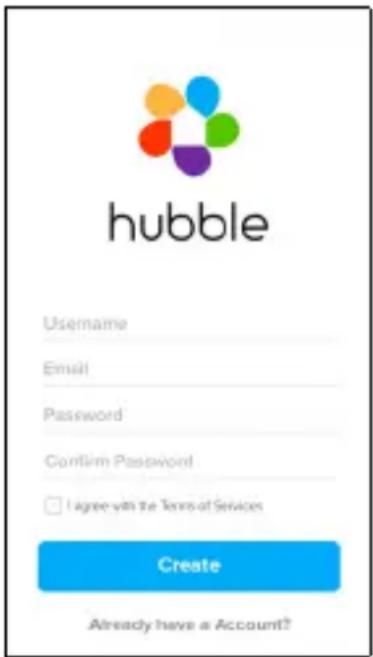
- Run the Hubble for Motorola Monitors application and key in your Hubble for Motorola Monitors account information, read through the Terms of Service then select “I agree to the Terms of Use” before you tap on Create. (Picture A1)
Note: If you already have a Hubble for Motorola Monitors account, please select Already have a Account? to go to the next step.
A1
3.2.4 Add FOCUS66 Camera to your account
- Create a new account and Login.
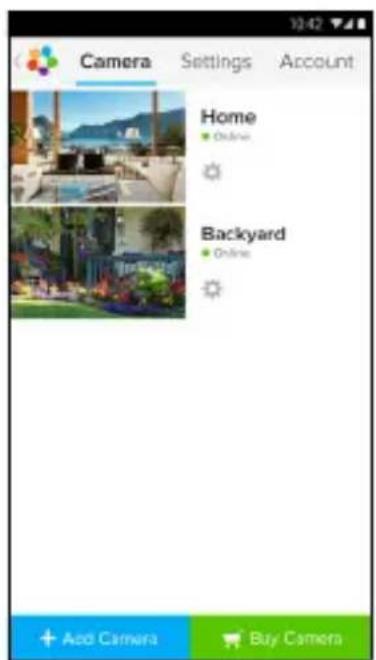
- Tap on Add Camera. (Picture A2)
- Tap on Continue. (Picture A3)
A2 A3
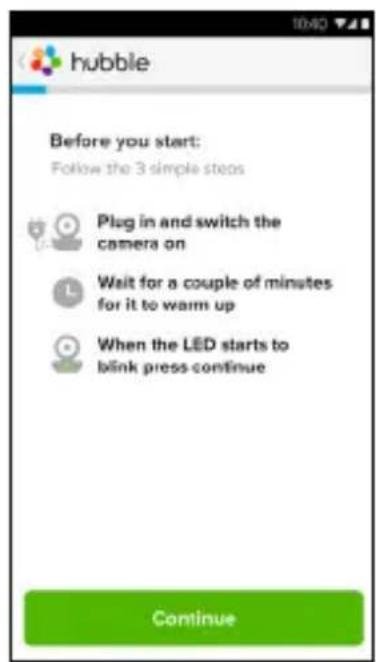
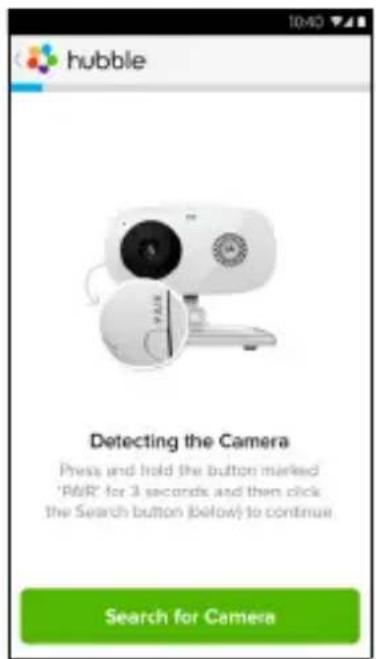
- The setup instructions will appear on the following screen. (Picture A4)
A4
- Press and hold the PAIR button for 3 seconds at the side of the FOCUS66 camera, you will then hear a beep tone and a voice saying “Ready to start pairing” from the Camera Unit. Tap on Search for Camera.
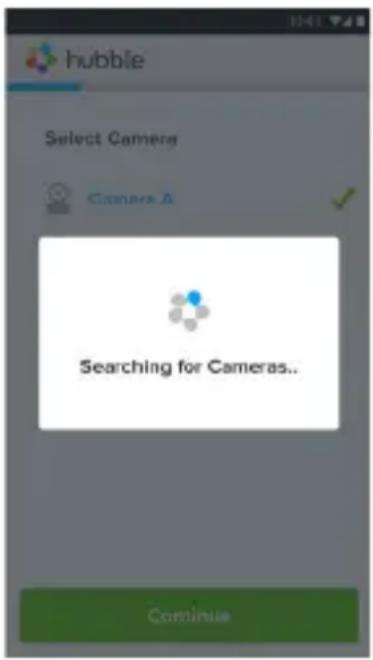
- The App will automatically search for and connect to your Camera as shown in the pictures below (A5 & A6) and the blue/red colour LED on the camera will flash.
A5 A6
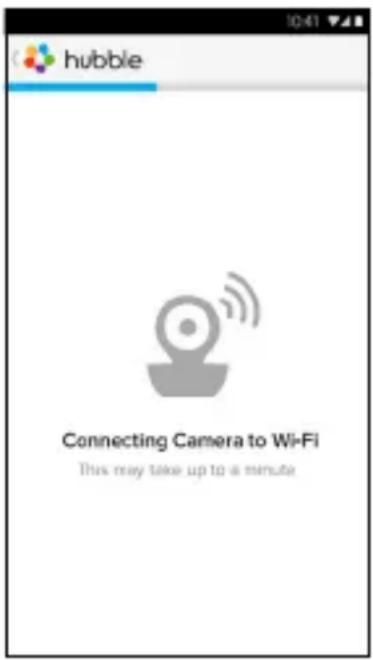
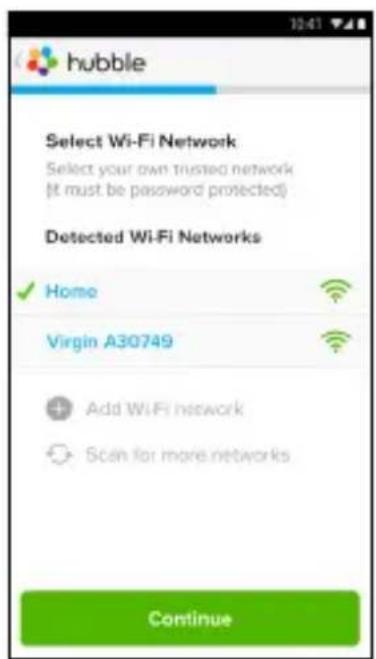
- Select your Wi-Fi ^ Network and tap Continue, enter your password and then tap on Connect. (Picture A7, A8)
A7 A8
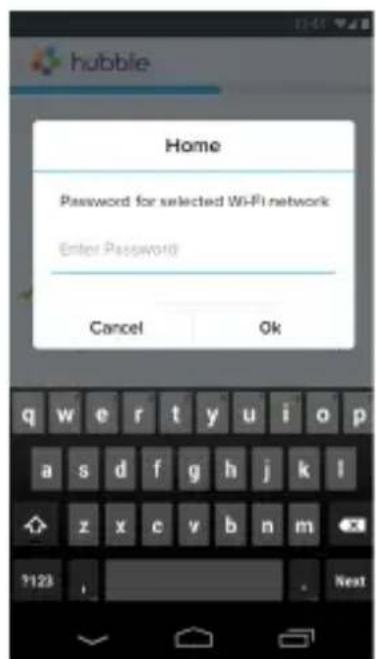
- It will take a few minutes for the Camera to connect to the Wi-Fi ^® network before showing the connection status (Picture A9, A10). If connection fails, please tap on the Retry button and repeat the steps starting from 3.2.4.
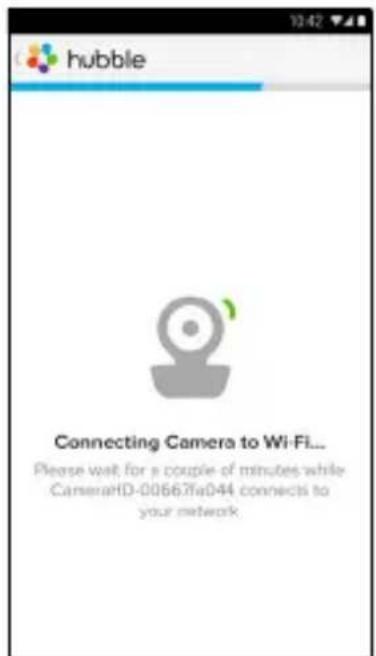
A9 A10
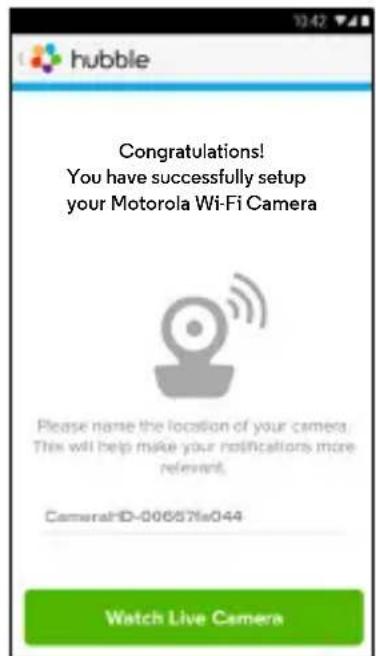
- Tap on Watch Live Camera to view the camera video. The Camera's Blue LED will flash. (Picture A11)
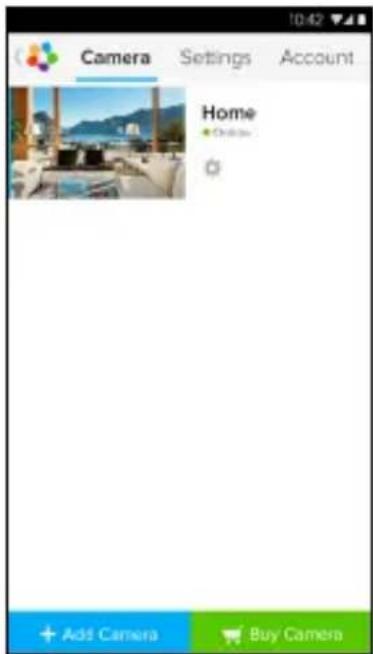
- Tap on the Hubble logo and go back to the Camera list. (Picture A12)
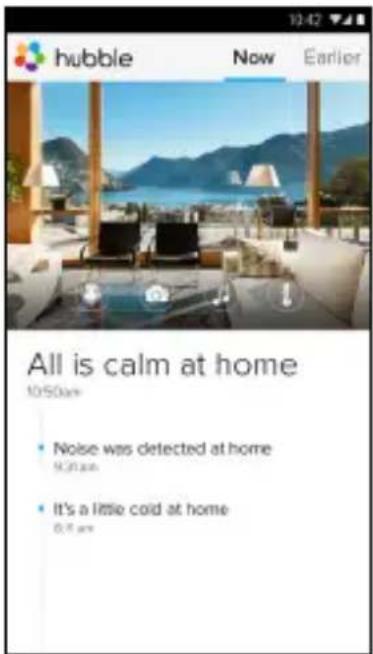
A11 A12
3.3 User Account and Camera Setup: Working with iPhone®/iPad®
What you need
- FOCUS66 camera
• FOCUS66 camera power adapter - iPhone® / iPad® with iOS version 7.0 or up
3.3.1 Power ON and Connect FOCUS66 camera
- Connect the FOCUS66 adapter to a suitable mains power socket, insert the plug into the micro USB socket at the back of the FOCUS66 camera.
- Make sure that the ON/OFF switch is in the ON position.
- The camera's red LED flashes after the camera has finished booting. When you hear two beeps, this means the camera is ready for setup.
3.3.2 Download the Hubble for Motorola Monitors App
- Go to the App Store to search for “Hubble for Motorola Monitors”.
- Download the Hubble for Motorola Monitors App and install it on your iPhone®/iPad®.
3.3.3 Run Hubble for Motorola Monitors on your iPhone ^ /iPad ^
- Ensure your iPhone ^ /iPad ^ is connected to your Wi-Fi ^ Router.
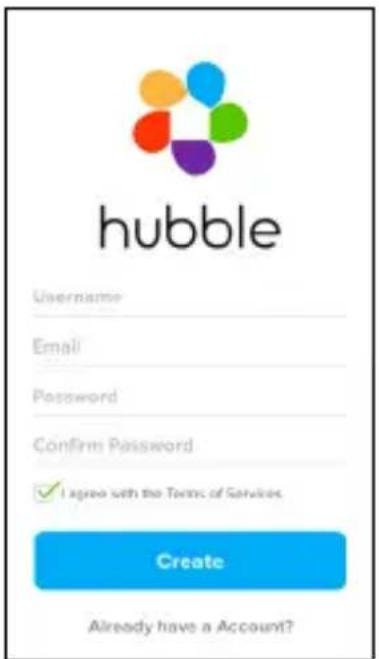
- Run the Hubble for Motorola Monitors application and key in your Hubble for Motorola Monitors account information, read through the Terms of Service then select “I agree to the Terms of Service” before you tap on Create. (Picture i1)
Note: If you already have a Hubble for Motorola Monitors account, please select Already have a Account? to go to the next step.
il
3.3.4 Add FOCUS66 Camera to your account
- Create a new account and Login.
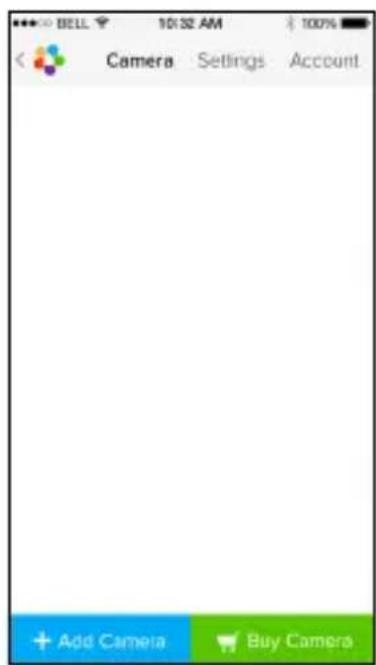
- Tap on Add Camera. (Picture i2)
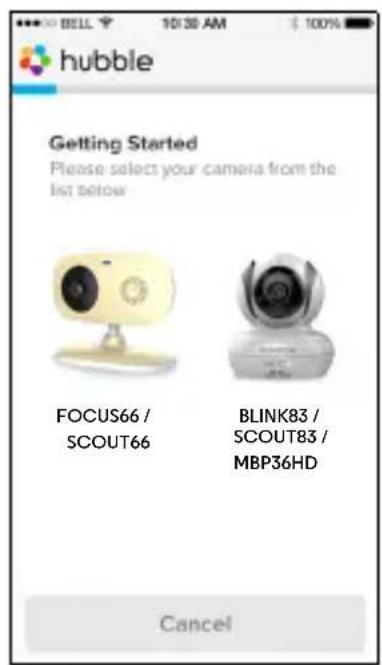
- Tap on "FOCUS66". (Picture i3)
i2 i3
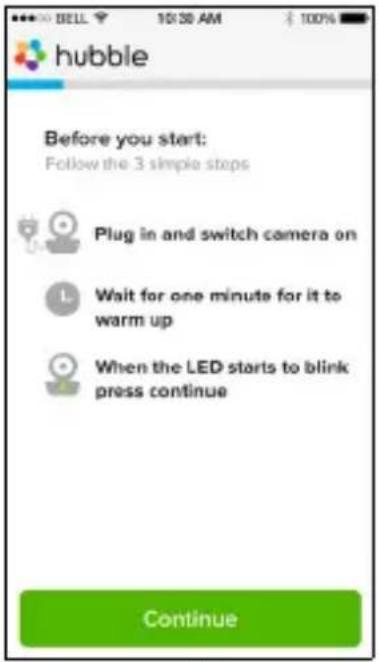
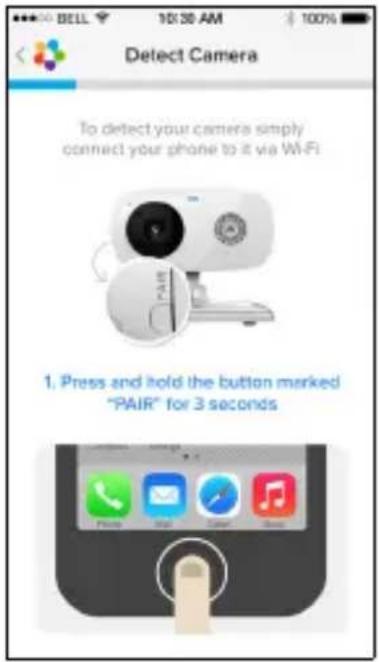
- Tap on Continue and follow the instructions (5 steps) below. (Pictures i4-i7)
i4 i5
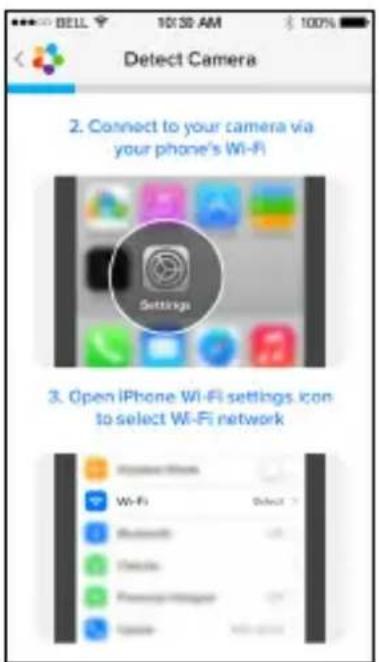
i6 i7
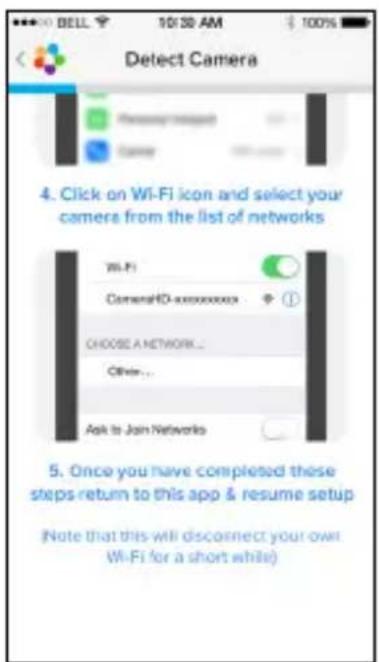
- Follow the steps above to locate the Camera with identification number "CameraHD-xxxxxxxxxx" then tap on Continue. (Picture i8)
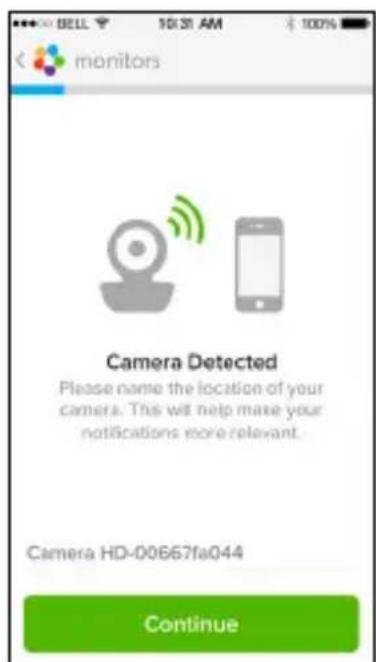
i8
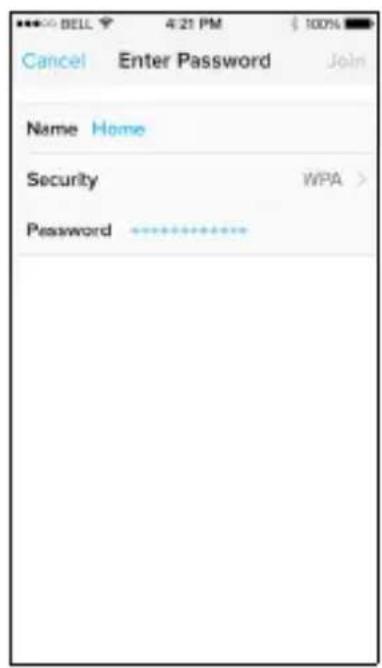
- Select your Wi-Fi Network and tap Continue, enter your password and then tap Next. (Pictures i9, i10)
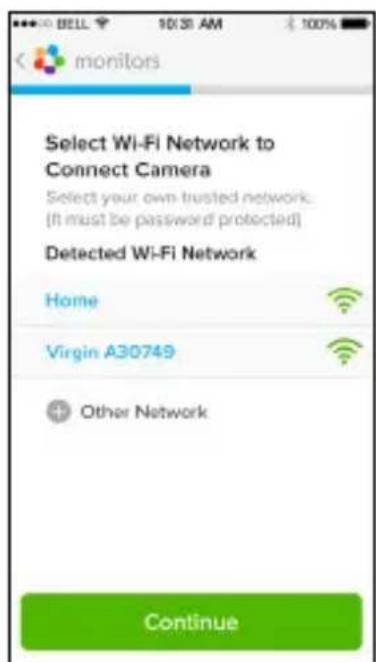
i9 i10
- It will take a few minutes for the Camera to connect to the Wi-Fi ^ network before showing the connection status (Pictures i11, i12). If connection fails, please tap on the Retry button and repeat Step 3.3.4 as instructed above.
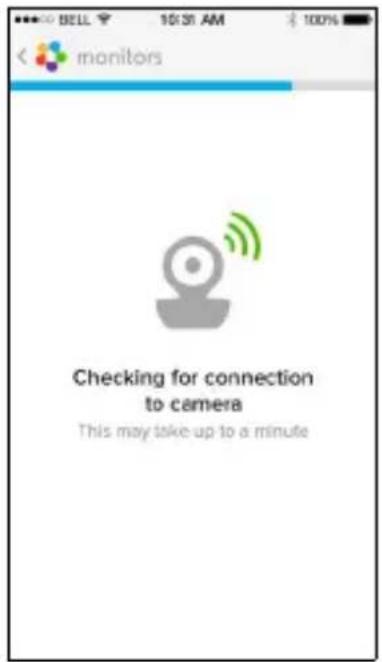
i11 i12
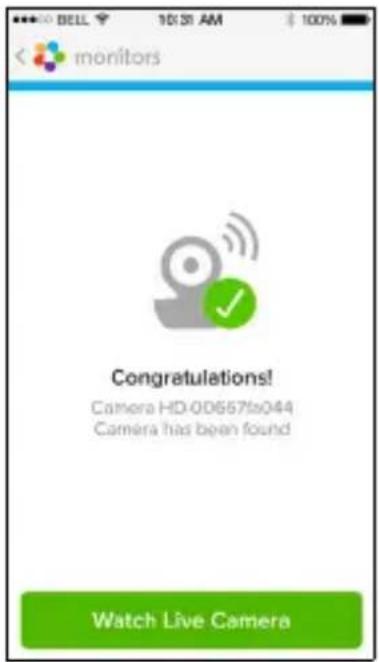
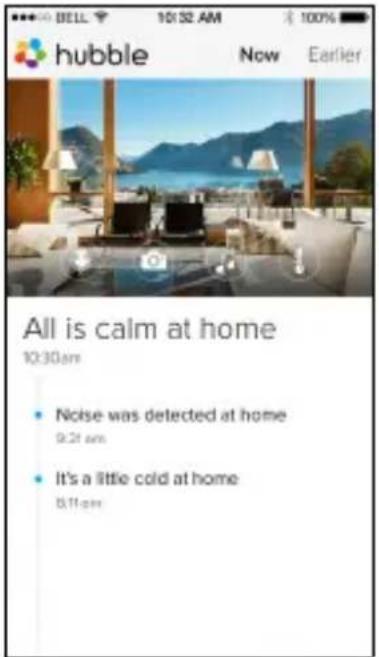
- Tap on Watch Live Camera to view the Camera video. (Picture i13)
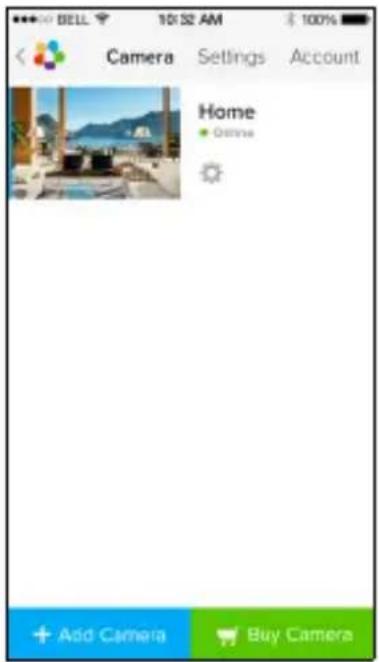
- Tap on Hubble logo to go back to the Camera list. (Picture i14)
i13 i14
4. Camera
4.1 Connecting the Camera to Power
- Insert the small end of the Power Adapter into the Power Adapter Connector and plug the Power Adapter into a suitable mains power socket.
- Slide the ON/OFF switch to ON, the blue Power LED will light up. (Note: to switch the device off, slide the ON/OFF switch to OFF.)
4.2 Camera Functions:
Working with Android™ devices
- Run the Hubble for Motorola Monitors application on your Android™ device.
- The Camera view appears on the screen.
4.2.1 Add more cameras
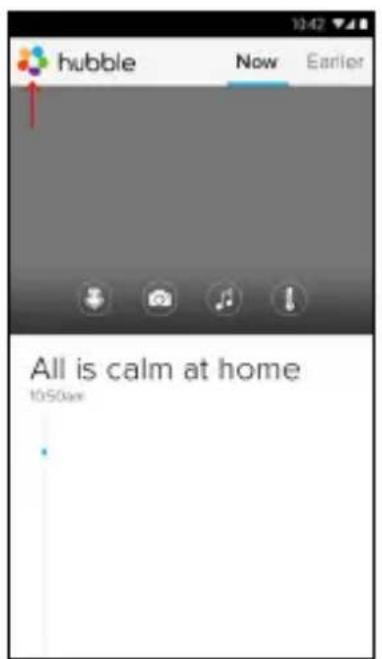
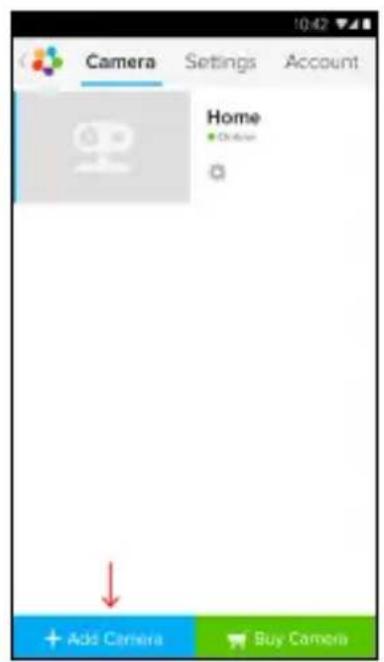
- On Camera view, tap on the Hubble logo to go back to the Add Camera page. (Picture A13)
- Tap on Add Camera to add one more camera by following the steps for Android™ device setup in Step 3.2.4. (Picture A14)
- Once the Camera has been added, the Camera view will automatically be displayed.
A13 A14

4.2.2 Remove a camera
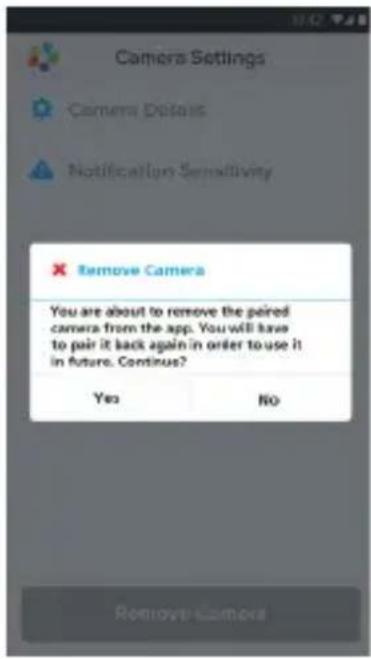
You can remove a camera from your account by following these steps:
- Tap the Settings icon 📋 on the General page, then tap on Remove Camera. (Picture A15)
- Select Remove to delete the unit from the camera list. (Picture A16)
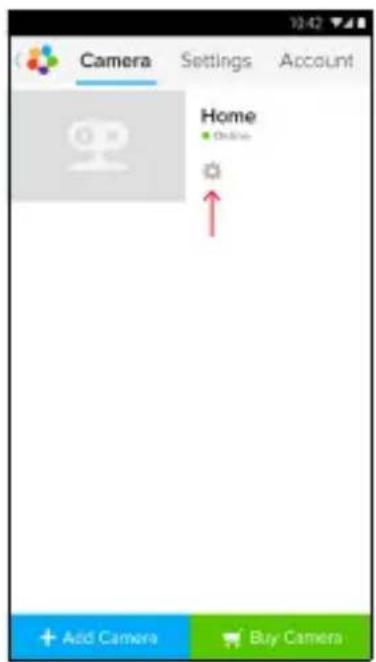
A15 A16

4.2.3 Change your Account Information
You can change the account information using your Android ^TM device.
- Tap Account on the General page, the Account Settings appear on screen. (Picture A17)
- Tap on Change Password to change your password by following the instructions.
- Tap on Log Out to leave the account.
- Tap on Freemium plan and it will proceed to link to the Cloud Video Recording Service. To obtain more information, please visit our website http://www.hubbleconnected.com.
- Tap on Use to access Remote Connection Setting, use Remote Only by Selecting Yes.
- Enable Disconnect Alert provides a beep alert when there is a disconnection. Enable the disconnect Alert by selecting Yes.
- Tap on Send Log to send your Hubble for Motorola Monitors Android App report to our server via e-mail; this should be sent if requested by a customer service agent.
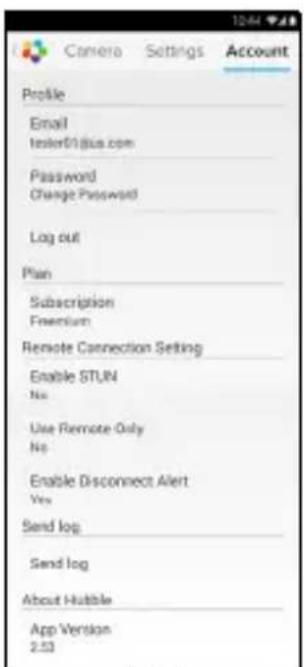
A17
4.2.4 Camera settings
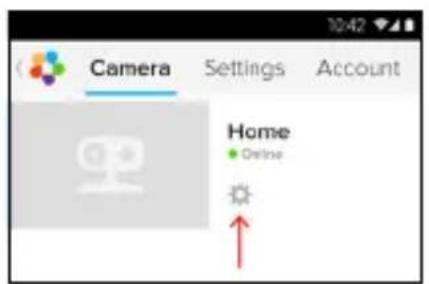
You can change the Camera settings by tapping the Settings icon on the Camera page. (Picture A18)
- Tap on Camera Details to review Camera Name, Change Image & Firmware version. (Picture A19)
A18 A19
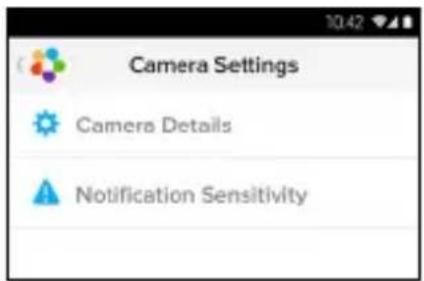
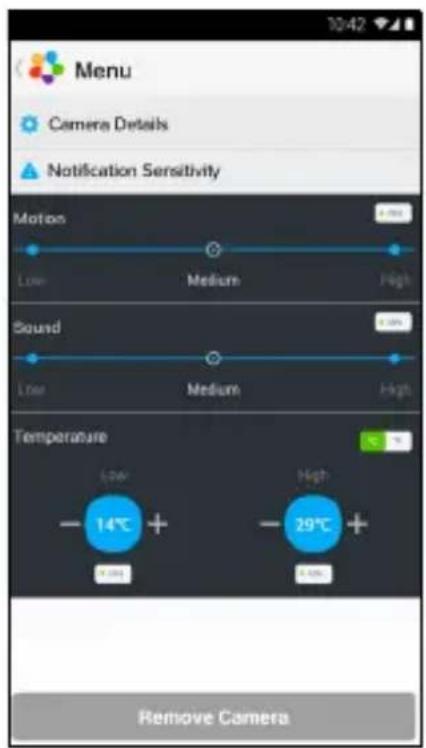
- Tap on Notification Sensitivity to set the sensitivity of sound & motion detection, and to set an Alert for High/Low temperature. (Picture A20)
A20
4.2.5 General Settings
- Tap Settings on the General page.
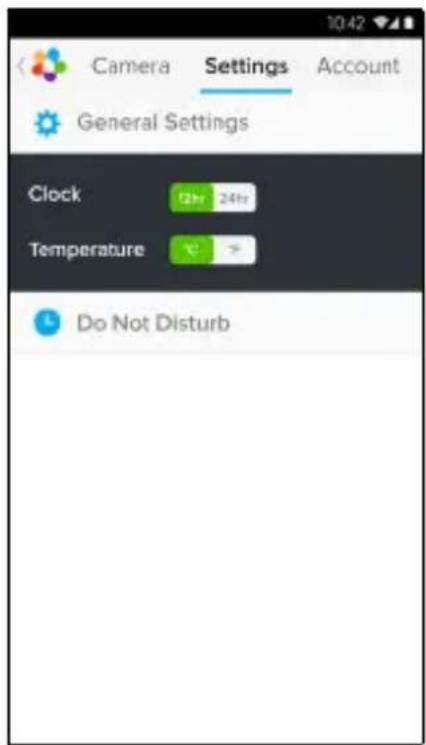
- Tap on General Settings to shift the format of the Clock (12hr/24hr) & the Temperature (°C / °F). (Picture A21)
A21 A22
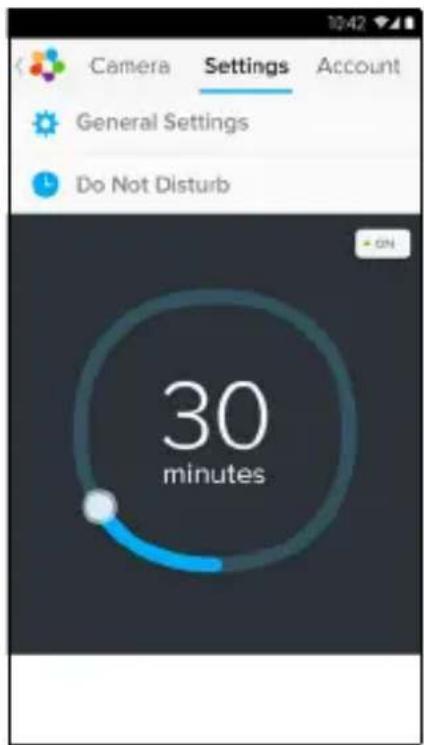
- Tap on Do Not Disturb, set the timer to the desired time and select ON, the Camera will not send any sound or alert to your Android™ device for the duration of your setting. (Picture A22)
4.2.6 Features of the Hubble for Motorola Monitors Application
Tap on the viewing area and the function icons will appear as shown below.
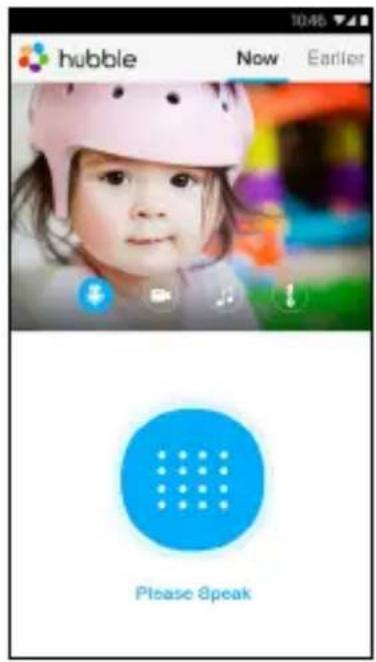
Two Way Talk – Tap on 🎨 to activate the function. Press the round button once to speak through the Camera. Toggle the button again to listen to the audio feedback from the Camera. (Pictures A23, A24)
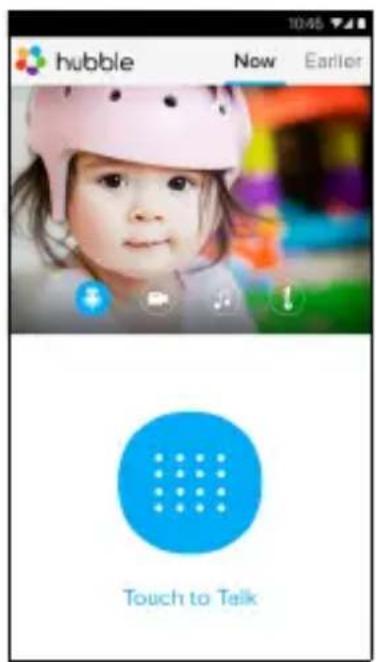
A23 A24
Photo/Video - Take a photo or record a video from your Camera.
Tap the Video icon to activate the Video function and press the red button to start and release to stop recording. (Pictures A25, A26)
Tap the Camera icon to switch to Camera mode, you can capture photos from Camera view. (Picture A27)
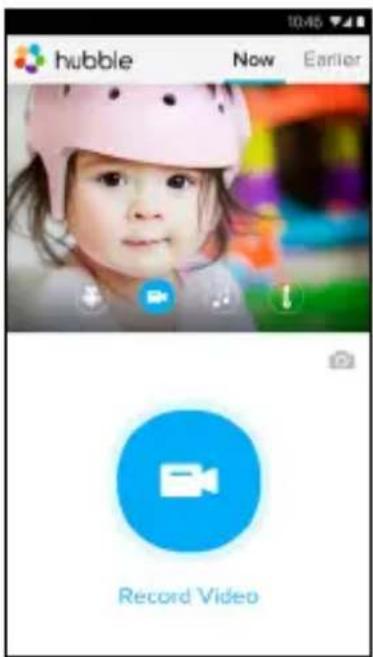
A25 A26
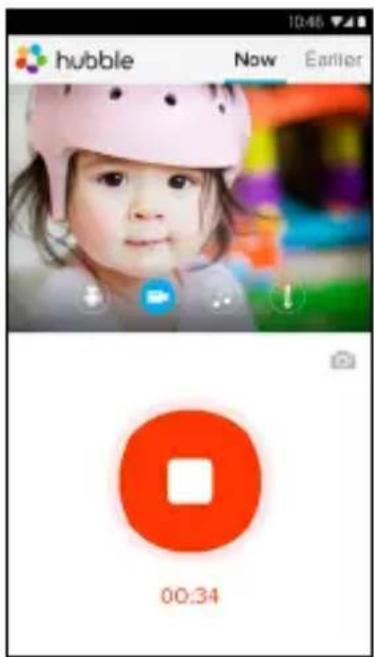
Note :
Photos and videos will be stored in the internal flash memory of your Android ^TM device, they can be accessed from the Gallery or Media Player. To play videos, please use the Hubble for Motorola Monitors application or a 3rd party application, such as MX player (found in the Google Play ^TM Store), which is able to play MJPG (Motionjpeg) files.
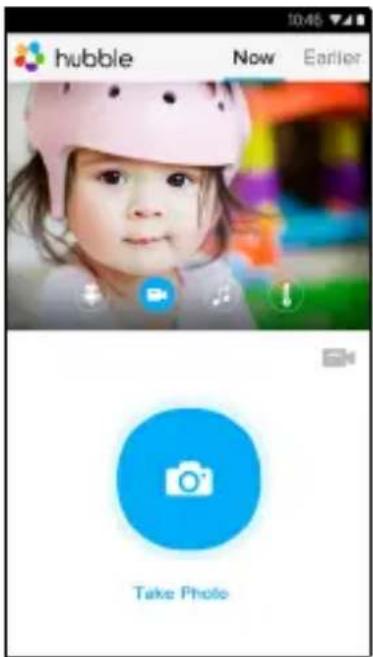
A27
Melody – To play one of the pre-set 5 melodies, tap on Melody to show the Melody menu and select the one you prefer to play on your Camera. (Picture A28)
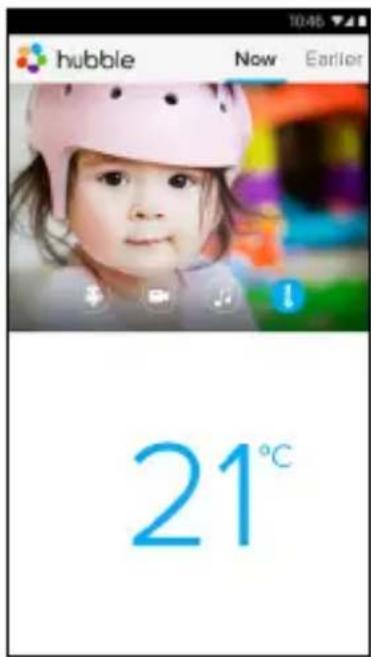
Temperature Measure – The temperature reading from the temperature sensor at the back of the Camera will display on your Android™ device screen (Picture A29). The reading will turn RED if the temperature goes beyond the High/Low Temperature range as set in your Account. (see section 4.2.4)
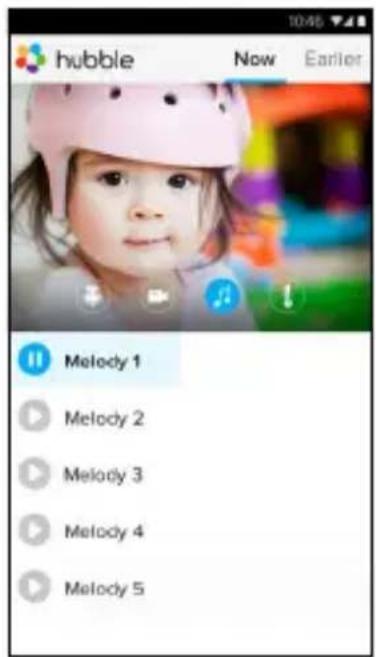
A28 A29
4.3 Camera Functions:
Working with devices for iPhone ^® /iPad ^®
- Run the Hubble for Motorola Monitors application on your iPhone ^ /iPad ^ .
• The Camera view appears on the screen.
4.3.1 Add more cameras
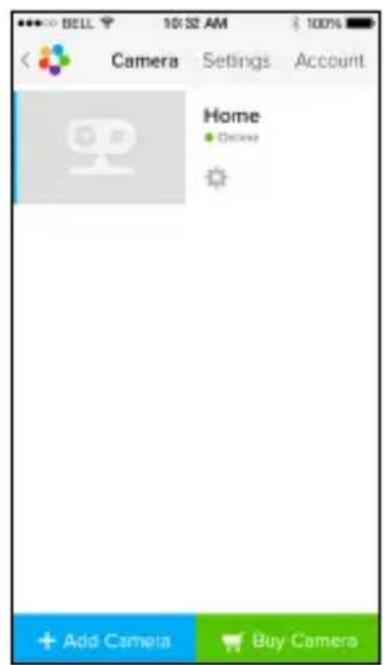
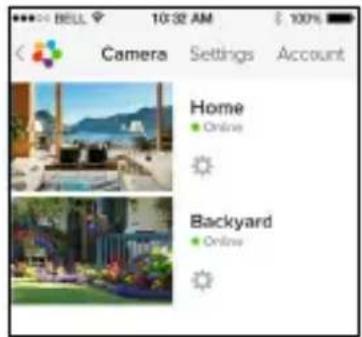
- I on Camera view, tap on the Motorola logo to go back to the Add Camera page. (Picture i15)
- Tap on Add Camera to add another camera (follow steps for iPhone®/iPad® setup 3.3.4.) (Picture i16)
- Once the Camera has been added, the Camera view will automatically be displayed.
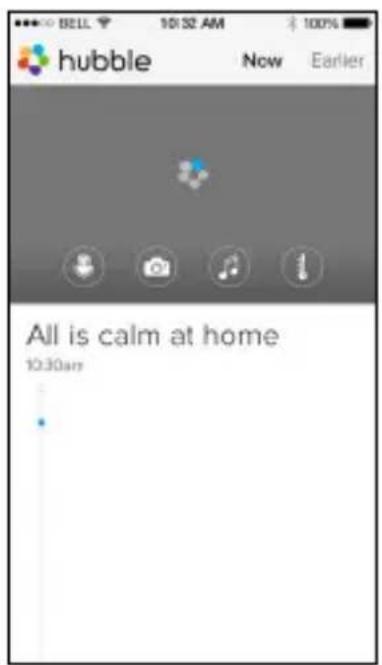
i15 i16

Note :
You can ONLY add up to 4 cameras on one account.
4.3.2 Remove a Camera
You can remove a Camera from your Account by following these steps:
- Tap the Settings icon (Picture i17)
on General page, then tap on Remove Camera. - Select Remove to delete the unit from Camera list. (Picture i18)

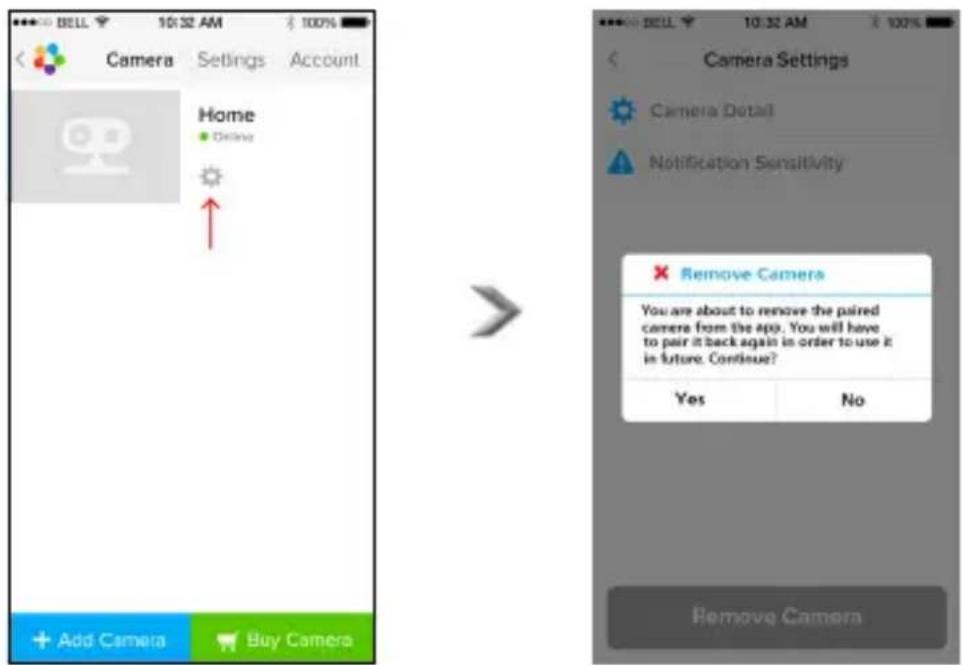
i17 i18
4.3.3 Change your Account Information
You can change your account information using your iPhone ^® /iPad ^® .
- Tap Account on the General page and the Account settings will appear on screen. (Picture i19)
- Tap on Change Password to change your password by following the instructions.
- Tap on Log Out to leave the account.
- Tap on Current plan and it will proceed to the to the Cloud Video Recording Service. To obtain more information, please visit our website www.hubbleconnected.com/motorola/plans.
- Tap on Send app log to send your Hubble for Motorola Monitors App report to our server via e-mail; this should be sent if requested by a customer service agent.
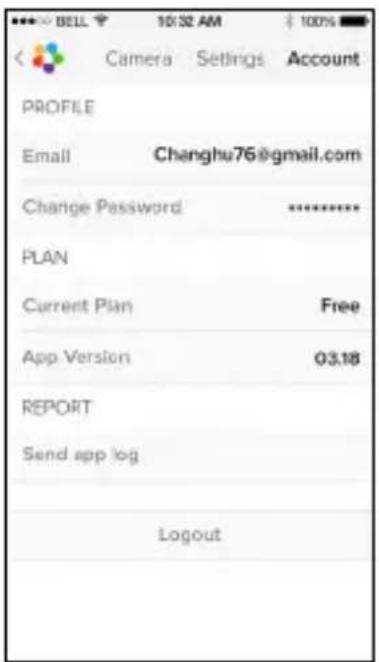
i19
4.3.4 Camera Settings
You can change the Camera settings by tapping on the Settings icon on the General page (Picture i20). You can review the Camera Name and Firmware version (Picture i21) and are allowed to change the camera name by tapping on the existing name and following the instructions.
i20
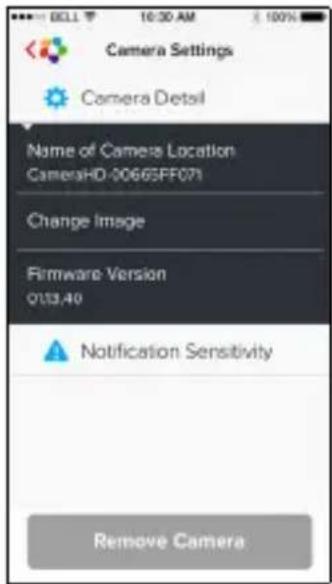
i21
4.3.5 General settings
- Tap on Settings on the General page. (Picture i22)
- Tap on General Settings to change the format for Clock (12hr/24hr) & Temperature (°C / °F). (Picture i23)
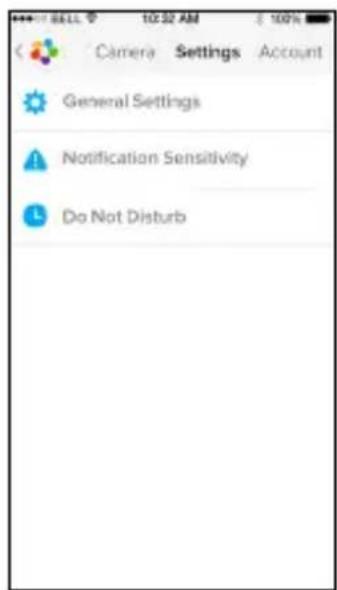
i22 i23
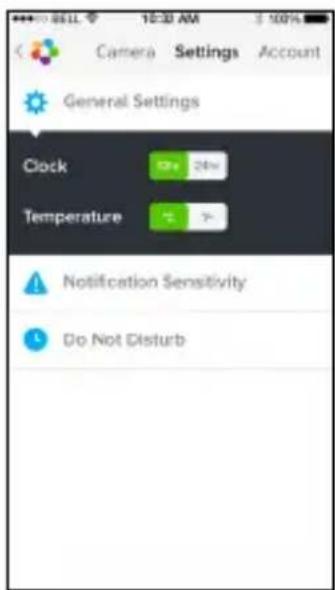
- Tap on Notification Sensitivity to set the sensitivity of sound & motion detection, and set an Alert for High/Low temperature. (Picture i24)
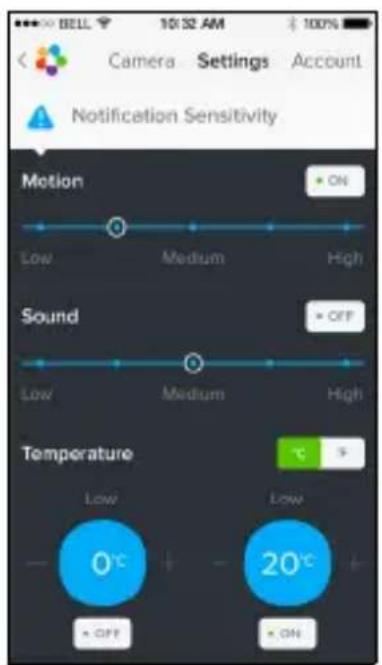
i24 i25
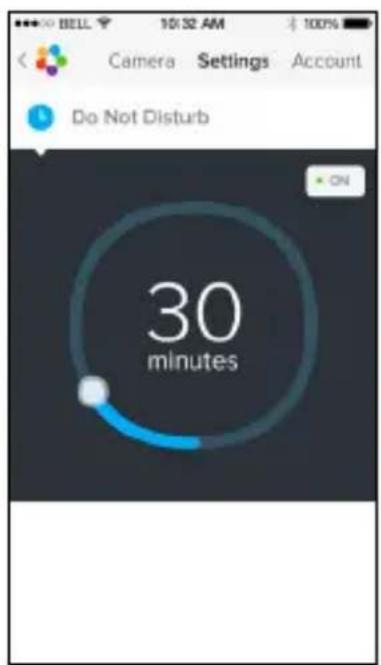
- Tap on Do Not Disturb, set the timer to the desired time and select ON, the Camera will not send any sound or alert to your iPhone®/iPad® for the duration of your setting. (Picture i25)
4.3.6 Hubble for Motorola Monitors Settings
- Tap on Settings on your iPhone/iPad® and a list of applications will appear, tap on Hubble for Motorola Monitors App and the settings for the Hubble for Motorola Monitors app will be shown on screen. (Picture i26)
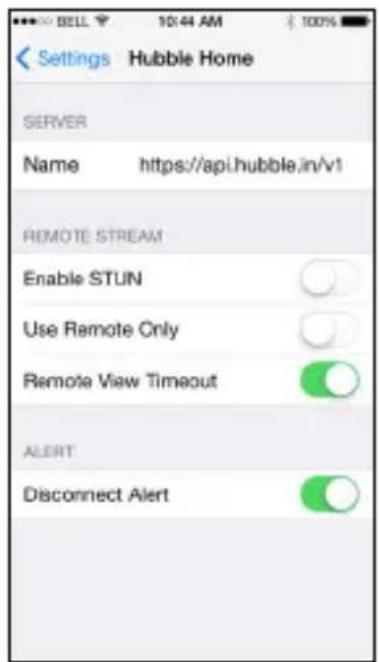
i26
4.3.7 Features of the Hubble for Motorola Monitors Application
On Camera view, tap the viewing area and Function Icons will appear as follows.
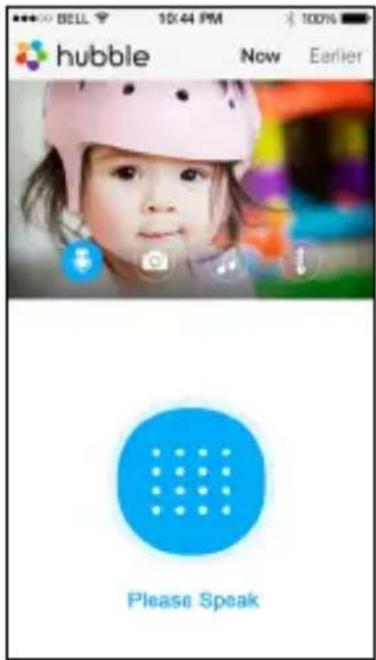
Two Way Talk – Tap on 📋 to activate the function. Press the round button once to speak through the camera. Toggle the button again to listen to the audio feedback from the Camera. (Pictures i27, i28)
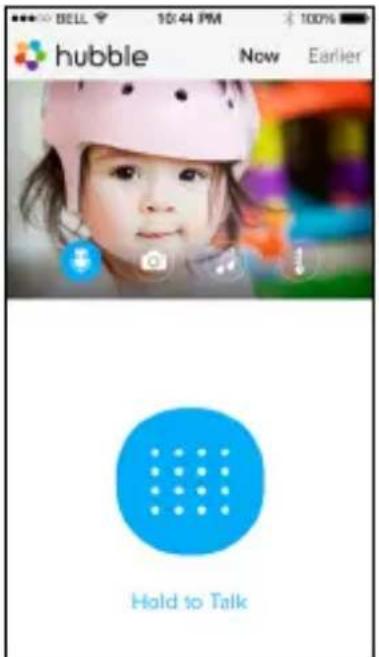
i27 i28
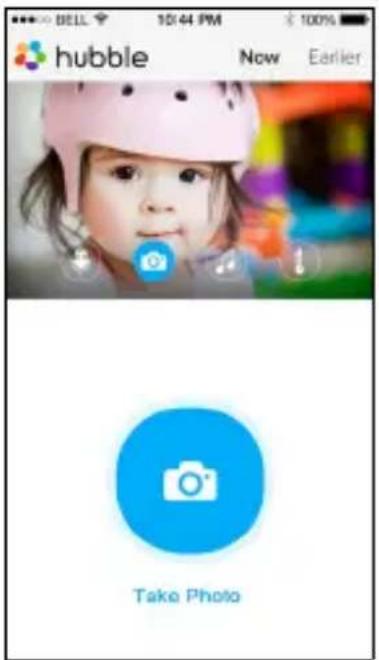
Take Picture - Tap on the Camera icon to capture photos from Camera view. (Picture i29)
i29
Note :
Photos will be stored in the internal flash memory of your iPhone ^® /iPad ^® .
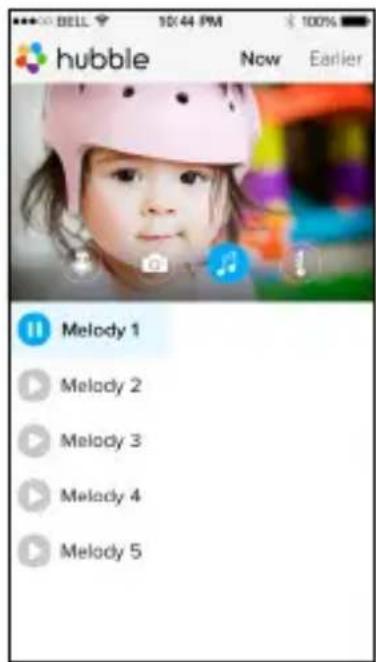
Melody – To play one of the pre-set 5 melodies, tap on Melody to show the Melody menu and select the one you prefer to play on your Camera. (Picture i30)
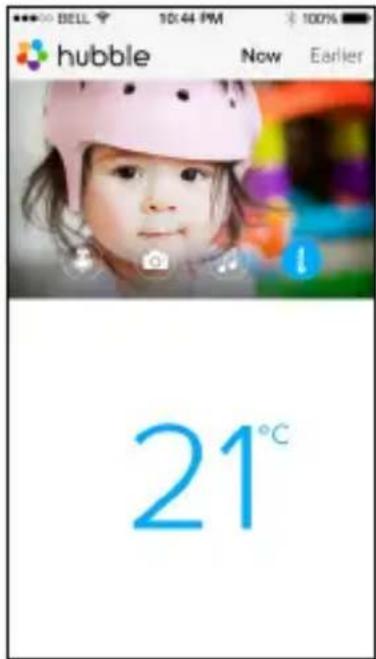
! Temperature Measure – The temperature reading from the temperature sensor at the back of the Camera will display on your iPhone ^® /iPad ^® screen (Picture i31). The reading will turn RED if the temperature goes beyond the High/Low Temperature range as set in your Account. (See section 4.3.5)
i30 i31
4.4 Camera Functions:
Working with PC/Notebook
- Go to http://www.hubbleconnected.com/motorola/login/
- Enter your User Name and Password and then click Login if you have already created an account.
- Click on the Camera list paired in your account via Android™ device or iPhone®/iPad®, select a Camera and the Camera view will appear on screen. You can easily stay connected with your favorite people, places and pets with live video streaming.
- On the website, you can change the Settings by following the Menu instructions.
5. Procedure for resetting the Camera
Note: If your Camera is moved from one router (e.g. home) to another router (e.g. office) or you have Camera setup issues, then the Camera has to be reset. Please reset the Camera with the following procedure:
- Slide the ON/OFF switch to OFF.
- Press and hold the PAIR button then slide the ON/OFF switch to ON.
- Release the PAIR button when you hear a confirmation beep and see the RED LED slowly flashing.
- You can add your Camera again by following steps 3.2.4 for Android devices or 3.3.4 for iOS devices.
6. Help
Noise interference
To avoid background noise or echoes, ensure that there is enough distance between your device and the Wi-Fi ^® Camera Unit.
Use of other 2.4 GHz products, such as Bluetooth ^® systems or microwave ovens, may cause interference with this product. Keep the Wi-Fi ^® Camera Unit at least 1.5m away from these types of products, or turn them off if they appear to be causing interference.
Lost connection
Check your Wi-Fi ^® settings. If necessary reconnect your Wi-Fi ^® . Ensure the Wi-Fi ^® Camera Unit is switched ON. Wait a few minutes to connect to the Wi-Fi ^® system.
If you forget your password
If you do not remember your password, tap Forgot password and submit your e-mail address. A new password will be sent to your e-mail address immediately.
| Category Problem Description / Error | Solution |
| Account I am unable to login even after registration. | Please check your user name and password. |
| Account I receive an error message saying: "Email ID is not registered". | Please ensure that you have registered with us. Tap Create Account to create an account to be able to use the Wi-Fi® Home Video Baby Monitor Camera. |
| Account What | do I do if I forget my password? | Click on the "Forgot Password" link on the http://www.hubbleconnected.com/motorola/login/ website OR on your AndroidTM or iOS application. An email will be sent to your registered email address. |
| Account I am un | unable to receive a new password although I have used the "Forgot password" option. | 1. The e-mail might have been sent to your Junk Mail Folder. Please check your Junk Mail Folder.2. There might be a delay in getting your e-mail. Please wait a few minutes and refresh your email account. |
| Connectivity Issues | I get a message: We are having problems accessing your camera. This could be due to the lack of an internet connection. Please wait and try again later. | 1. Please try again in a few minutes. This could be because of any issue with your internet connection.2. If the problem remains, please restart your Camera to check if this fixes the problem.3. Please restart your Wireless Router. |
| Viewing Camera | When I am in "remote mode", the video stops after 5 minutes. How do I view for longer? | When you are accessing your Camera via a network different from your home network (over the internet) your video times out after 5 minutes.You can click on the Camera again from the AndroidTM/iOS application to start streaming again.If you are accessing from your web-browser, then you can press on the Reload button to start viewing your Camera video stream again. |
| Features The sound alert setting threshold is not right. | You can Adjust Sound Sensitivity to trigger notifications under Camera Setting menu. | |
| Connectivity Issues | My Phone application displays the following message: "Unable to connect to BMS server". | 1. Check the Wi-Fi®network strength.2. Check if you are connected to the internet by starting the phone browser and going to a website like www.google.com.3. Try again if you are successful connecting to the internet. |
| Setting Up While I am adding a new camera to my account, I am not able to find any Cameras to add. | If you are trying to add a Camera which has previously been added into your account or another account, you will first have to reset the Camera. This can be done by pressing and holding the PAIR button at the bottom of the Camera for 5 seconds. | |
| General What are the supported browsers for accessing from my PC/Mac®? | On PC and Mac®, we recommend using Google Chrome. However the following browsers are also supported: PC: Internet Explorer 8 and above. Mac® Safari. | |
| General What | is the significance of LED flashing? | A flashing LED indicates the following status:Slow flashing: 1. Your Camera is in setup mode. You can add the Camera to your account in this mode. Out of the box, the Camera is in Setup mode. To reset to Setup mode, press and hold the PAIR button on the bottom of the Camera until you hear a beep.Slow flashing: 2. The Camera is either connecting to the router or has lost the link to the router. Please ensure that the Camera is in the Wi-Fi®signal range.LED is stable: The Camera is connected to the Wi-Fi®network. |
| Connectivity Issues | I am not able to access my Camera. | Please check if the Camera is within Wi-Fi®range. If the LED on your Camera is flashing slowly, please try to move the Camera closer to the router for better Wi-Fi®connectivity and try again. |
| Setting Up During setup on devices for AndroidTM and iOS, I am not able to find my Camera during the last step and the setup fails. | Please reset the Camera to setup mode and try again. Press and hold the PAIR button on the bottom of the Camera until you hear a beep. Wait for a minute for the Camera to restart. When the Camera LED is flashing, this indicates that it is in setup mode. Now restart the setup from your smartphone again. | |
| Connectivity Issues | Even though I am accessing my Camera from the same Wi-Fi® network, I still find my Camera is shown as remote. I can only access it for 5 minutes at a time. | Please check your wireless router settings. For example, for Buffalo brand routers there is an option called Wireless Isolation. Please disable this option. |
| Camera When | I try to view the Camera, I get a prompt for Camera firmware upgrade. What should I do? | Please upgrade your firmware. This takes around 5 minutes. We push upgrades from time to time to improve Camera features. |
| General Which | platforms are supported for accessing my Camera? | Windows®7*, Windows ®**Java browser plug-in needed Mac iOS version 10.7 or above Internet Explorer®version 8.0 or above Firefox®version 11.0 or above ChromeTM version 18.0 or above Safari®version 5.1 or above JavaTM version 7 or above AndroidTM version 4.0 or above iPhone®iPad iOS version 7.0 or above. |
| General I do not | hear any sound when I am accessing a remote Camera. | You can tap on the speaker icon in the video stream screen to hear audio. By default the audio is not ON when you are accessing a remote Camera. |
| General What is the meaning of "Local Camera" and "Remote Camera"? | When you are accessing your Camera from the same wireless network (Home) in which it is configured, it is a Local Camera. When you are accessing your Camera away from your home it is a Remote Camera. You may be using 3G, 4G or 4G LTE or a Wi-Fi®connection outside of your home. |
| General How do I download the App for AndroidTM and iOS devices? | AndroidTM:- Open the Google Play Store on your AndroidTM device- Select Search- Type in "Hubble for Motorola Monitors"- The results will have Hubble for Motorola Monitors Application by Binatone- Select to install itiOS Device:- Open iOS App Store SM- Select Search- Type in "Hubble for Motorola Monitors"- The results will have Hubble for Motorola Monitors Application by Binatone- Select to install it |
| Setting up When the video is cut off, the application attempts to reconnect and this results in lost sound and choppy video. | You will need to turn off the Auto Lock function of your device to ensure continuous video/audio streaming. |
| Features How many users can access the Camera at one time? | If you are accessing in Local Mode, two users are supported, after two users all streaming will go through the remote server. This allows for unlimited user access to a single Camera at one time. |
| Connectivity issues I found interference caused by my other webcam devices. | Video streaming performance is related to internet bandwidth, especially if you have 2 or more video streaming devices that are working through the same router. |
7. General Information
If your product is not working properly....
- Read this User's Guide.
- Contact Customer Service at:
+49 (0) 1805 938 802 in Europe
Email: motorola-mbp@tdm.de
Consumer Products and Accessories Limited Warranty ("Warranty")
Thank you for purchasing this Motorola branded product manufactured under license by Binatone Electronics International Ltd ("BINATONE").
What Does this Warranty Cover?
Subject to the exclusions contained below, BINATONE warrants that this Motorola branded product ("Product") or certified accessory ("Accessory") sold for use with this product is manufactured to be free from defects in materials and workmanship under normal consumer usage for the period outlined below. This Warranty is your exclusive warranty and is not transferable.
Who is covered?
This Warranty extends only to the first consumer purchaser, and is not transferable.
What will BINATONE do?
BINATONE or its authorised distributor at its option and within a commercially reasonable time, will at no charge repair or replace any Products or Accessories that does not conform to this Warranty. We may use functionally equivalent reconditioned/ refurbished/ pre-owned or new Products, Accessories or parts.
What Other Limitations Are There?
ANY IMPLIED WARRANTIES, INCLUDING WITHOUT LIMITATION THE IMPLIED WARRANTIES OF MERCHANTABILITY AND FITNESS FOR A PARTICULAR PURPOSE, SHALL BE LIMITED TO THE DURATION OF THIS LIMITED WARRANTY, OTHERWISE THE REPAIR OR REPLACEMENT PROVIDED UNDER THIS EXPRESS LIMITED WARRANTY IS THE EXCLUSIVE REMEDY OF THE CONSUMER, AND IS PROVIDED IN LIEU OF ALL OTHER WARRANTIES, EXPRESS OR IMPLIED. IN NO EVENT SHALL MOTOROLA OR BINATONE BE LIABLE, WHETHER IN CONTRACT OR TORT (INCLUDING NEGLIGENCE) FOR DAMAGES IN EXCESS OF THE PURCHASE PRICE OF THE PRODUCT OR ACCESSORY, OR FOR ANY INDIRECT, INCIDENTAL, SPECIAL OR CONSEQUENTIAL DAMAGES OF ANY KIND, OR LOSS OF REVENUE OR PROFITS, LOSS OF BUSINESS, LOSS OF INFORMATION OR OTHER FINANCIAL LOSS ARISING OUT OF OR IN CONNECTION WITH THE ABILITY OR INABILITY TO USE THE PRODUCTS OR ACCESSORIES TO THE FULL EXTENT THESE DAMAGES MAY BE DISCLAIMED BY LAW.
Some jurisdictions do not allow the limitation or exclusion of incidental or consequential damages, or limitation on the length of an implied warranty, so the above limitations or exclusions may not apply to you. This Warranty gives you specific legal rights, and you may also have other rights that vary from one jurisdiction to another.
| Products Covered Length of Coverage | |
| Consumer Products | Two (2) years from the date of the Products, original purchase by the first consumer purchaser of the product. |
| Consumer Accessories | Ninety (90) days from the date of the Accessories, original purchase by the first consumer purchaser of the product. |
| Consumer Products and Accessories that are Repaired or Replaced | The balance of the original warranty or for Ninety (90) days from the date returned to the consumer, whichever is longer. |
Exclusions
Normal Wear and Tear. Periodic maintenance, repair and replacement of parts due to normal wear and tear are excluded from coverage.
Batteries. Only batteries whose fully charged capacity falls below 80% of their rated capacity and batteries that leak are covered by this Warranty.
Abuse & Misuse. Defects or damage that result from: (a) improper operation, storage, misuse or abuse, accident or neglect, such as physical damage (cracks, scratches, etc.) to the surface of the product resulting from misuse; (b) contact with liquid, water, rain, extreme humidity or heavy perspiration, sand, dirt or the like, extreme heat, or food; (c) use of the Products or Accessories for commercial purposes or subjecting the Product or Accessory to abnormal usage or conditions; or (d) other acts which are not the fault of MOTOROLA or BINATONE, are excluded from coverage.
Use of Non-Motorola branded Products and Accessories. Defects or damage that result from the use of Non-Motorola branded or certified Products or Accessories or other peripheral equipment are excluded from coverage.
Unauthorised Service or Modification. Defects or damages resulting from service, testing, adjustment, installation, maintenance, alteration, or modification in any way by someone other than MOTOROLA, BINATONE or its authorised service centres, are excluded from coverage.
Altered Products. Products or Accessories with (a) serial numbers or date tags that have been removed, altered or obliterated; (b) broken seals or that show evidence of tampering; (c) mismatched board serial numbers; or (d) nonconforming or non-Motorola branded housings, or parts, are excluded from coverage.
Communication Services. Defects, damages, or the failure of Products or Accessories due to any communication service or signal you may subscribe to or use with the Products or Accessories is excluded from coverage.
How to Obtain Warranty Service or Other Information?
To obtain service or information, please call:
+49 (0) 1805 938 802 in Europe
Email: motorola-mbp@tdm.de
You will receive instructions on how to ship the Products or Accessories at your expense and risk, to a BINATONE Authorised Repair Centre.
To obtain service, you must include: (a) the Product or Accessory; (b) the original proof of purchase (receipt) which includes the date, place and seller of the Product; (c) if a warranty card was included in your box, a completed warranty card showing the serial number of the Product; (d) a written description of the problem; and, most importantly; (e) your address and telephone number.
These terms and conditions constitute the complete warranty agreement between you and BINATONE regarding the Products or Accessories purchased by you, and supersede any prior agreement or representations, including representations made in any literature publications or promotional materials issued by BINATONE or representations made by any agent employee or staff of BINATONE, that may have been made in connection with the said purchase.
BINATONE TELECOM PLC
1 Apsley Way London NW2 7HF, United Kingdom.
Tel: +44(0) 20 8955 2700 Fax: +44(0) 20 8344 8877
e-mail: binatoneuk@binatonetelecom.co.uk
Binatone
EC Declaration of Conformity
We the manufacturer / Importer : Binatone Telecom Plc
1 Apsley Way London
NW2 7HF, United Kingdom.
Declare under our sole responsibility that the following products
Type of equipment:
Model Name:
Wi-Fi Video Camera
FOCUS66-B,FOCUS66-B2,FOCUS66-S,FOCUS66-S2
FOCUS66-W, FOCUS66-W2, SCOUT66
Country of Origin:
Brand:
China
Motorola
complies with the essential protection requirements of R&TTE Directive 1999/5/EC on the approximation of the laws of the Member States relating to Radio Spectrum Matters, the Council Directive 2004/108/EC on the approximation of the laws of the Member States relating to electromagnetic compatibility (EMC) and the European Community Directive 2006/95/EC relating to Electrical Safety. Directive 2011/65/EC on the restriction of use of hazardous substances (RoHS) and 2009/125/EC relating to ecodesign requirement for Energy-Related Products (ErP).
Assessment of compliance of the product with the requirements relating to the essential requirements according to Article 3 R&TTE was based on Annex III of the Directive 1999/5/EC and the following standard:
Radio Spectrum: EN300328 V1.8.1:2012
EMC: EN301489-17 V2.2.1:2011
EN301489-1 V1.9.2:2011
Electrical Safety: EN60950-1:2005(Second Edition) +Am 1:2009
RF Safety: EN62479:2010
The product is labelled with the European Approval Marking CE as show. Any Unauthorised modification of the product voids this Declaration.

Manufacturer / Importer
(Signature of authorised person)
London, 30 May, 2014
Karl Heinz Mueller / Chief Technical Officer Place & Date
8. Technical Specifications
Camera Unit
Wi-Fi®02.11 b/g/n
Image sensor Colour CMOS 1M Pixels
Lens f = 2.3 mm, F = 2.4
IR LED 7 pcs
Power Adapter: Ten Pao International Ltd.
Input: 100-240Vac, 50/60Hz, 300mA
Output: 5Vdc, 1000mA

motorola
Manufactured, distributed or sold by Binatone Electronics International LTD., official licensee for this product. MOTOROLA and the Stylized M logo are trademarks or registered trademarks of Motorola Trademark Holdings, LLC. and are used under license. Mac, Mac OS, iPhone, iPad and Safari are the trademarks of Apple Inc., registered in the U.S. and other countries. Android, Google Play and Chrome are trademarks of Google Inc. Wi-Fi is a trademark of the Wi-Fi Alliance. Windows XP and Internet Explorer are trademarks of the Microsoft group of companies. Oracle and Java are registered trademarks of Oracle and /or its affiliates. All other trademarks are the property of their respective owners.
© 2014 Motorola Mobility LLC. All rights reserved.


EU_EN Version 6.0
Printed in China
- motorola
- USER'S GUIDE
- Welcome...
- to your new Motorola Wi-Fi® Home Video Camera!
- Inside the Box
- Overview of your Camera
- Important guidelines for installing your Wi-Fi® Camera Unit
- Table of contents
- Safety Instructions
- WARNING:
- Wi-Fi® CAMERA UNIT SET UP & USE:
- WARNING
- System Requirements
- Web Portal
- Android TM System
- iPhone ® /iPad ® iOS
- Getting Started - Connecting Devices
- Setup
- Status of LED Indication:
- User Account and Camera Setup on Android™ Devices
- What you need
- Power ON and connect the FOCUS66 camera
- Download the Hubble for Motorola Monitors application
- Run Hubble for Motorola Monitors App on Android™ device
- Add FOCUS66 Camera to your account
- User Account and Camera Setup: Working with iPhone®/iPad®
- Power ON and Connect FOCUS66 camera
- Download the Hubble for Motorola Monitors App
- Run Hubble for Motorola Monitors on your iPhone ^ /iPad ^
- Add FOCUS66 Camera to your account
- Camera
- Connecting the Camera to Power
- Camera Functions:
- Working with Android™ devices
- Add more cameras
- Remove a camera
- Change your Account Information
- Camera settings
- General Settings
- Features of the Hubble for Motorola Monitors Application
- Note :
- Camera Functions:
- Working with devices for iPhone ® /iPad ®
- Add more cameras
- Remove a Camera
- Change your Account Information
- Camera Settings
- General settings
- Hubble for Motorola Monitors Settings
- Features of the Hubble for Motorola Monitors Application
- Camera Functions:
- Working with PC/Notebook
- Procedure for resetting the Camera
- Help
- Noise interference
- Lost connection
- If you forget your password
- General Information
- Consumer Products and Accessories Limited Warranty ("Warranty")
- What Does this Warranty Cover?
- Who is covered?
- What will BINATONE do?
- What Other Limitations Are There?
- Exclusions
- How to Obtain Warranty Service or Other Information?
- Binatone
- EC Declaration of Conformity
- Technical Specifications
- Camera Unit
Brand : MOTOROLA
Model : FOCUS66-B2
Category : Webcam