
27EB22PY-W - Screen LG - Free user manual and instructions
Find the device manual for free 27EB22PY-W LG in PDF.


User questions about 27EB22PY-W LG
0 question about this device. Answer the ones you know or ask your own.
Ask a new question about this device
Download the instructions for your Screen in PDF format for free! Find your manual 27EB22PY-W - LG and take your electronic device back in hand. On this page are published all the documents necessary for the use of your device. 27EB22PY-W by LG.
USER MANUAL 27EB22PY-W LG
Please read this manual carefully before operating your set and retain it for future reference.
IPS LED MONITOR MODEL
27EB22PY
!!! Thank for selecting LGE products !!!
- Please make sure the following items are included with your monitor. If any items are missing, contact your dealer.

User's Guide/Cards
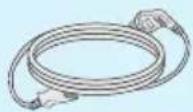
Power Cord
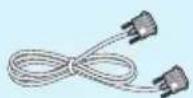
DVI-D Signal Cable
(This feature is not available in all countries.)
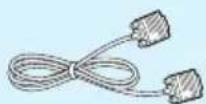
15-pin D-Sub Signal Cable
(To set it up, this signal cable may be attached to this product before shipping out.)
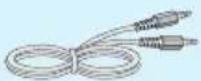
Audio Cable
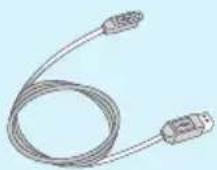
USB Cable
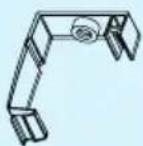
Cable Holder
NOTE
■ This accessories may look different from those shown here.
- User must use shielded signal interface cables (D-sub 15 pin cable, DVI-D cable) with ferrite cores (core in the connector) to maintain standard compliance for the product.
■ Before setting up the monitor, ensure that the power to the monitor, the computer system, and other attached devices are turned off.
Connecting the stand base
-
Place the monitor with its front facing downward on a cushion or soft cloth.
-
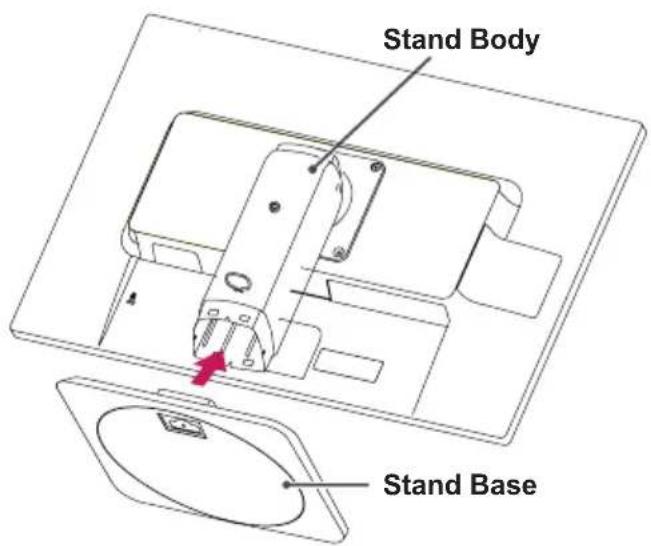
Assemble the Stand Base into the Stand Body. Be sure don't pull out the Stop Pin and make the Stand Base direction as shown.
text_image
Stand Body Stand BaseWARNING
- The tape and locking pin may only be removed from those monitors equipped with a standing base when the base is pulled up. Otherwise, you may be injured by the protruding sections of the stand.
-
Product Handling with Care: When you lift up or move the product, Do Not hold or touch the front part of LCD panel. It will damage the panel. (Please hold the Stand Body or plastic cover of the product.)
-
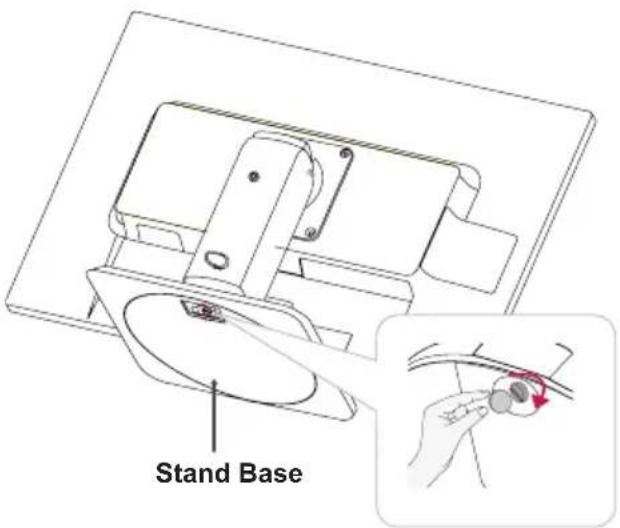
Use a coin on the back of the stand base and turn the screw clockwise to tighten.
text_image
Stand Base- Lift and turn the monitor to face towards the front after the connection is made to the female part of the cable you're attaching.
Removing the stand base
- Place the monitor with its front facing downward on a cushion or soft cloth.
- When you desire to disintegrate the monitor from the stand base, use a coin to turn the screw counterclockwise.
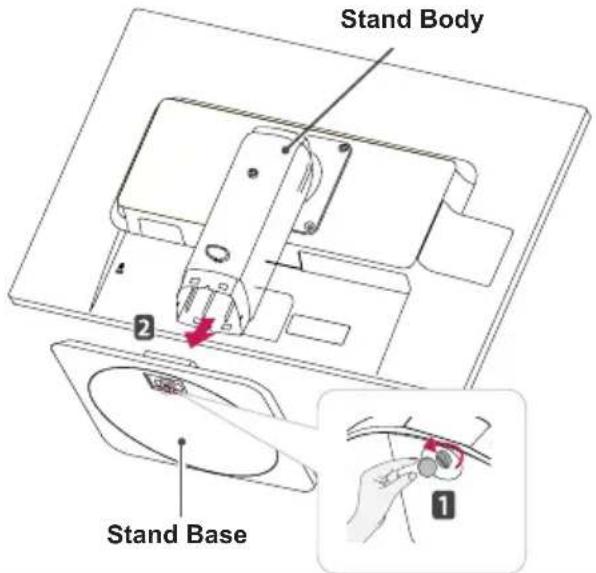
text_image
Stand Body Stand BaseIMPORTANT
■ This illustration depicts the general model of connection. Your monitor may differ from the items shown in the picture.
- Do not carry the product upside down holding only the stand base. The product may fall and get damaged or injure your foot.
Positioning your display
After installation, adjust the angle as shown below.
- Adjust the position of the panel in various ways for maximum comfort.
■ Tilt Range
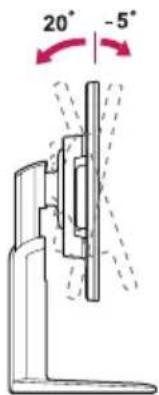
text_image
20° -5°natural_image
Diagram of a computer monitor with arrows indicating rotation or orientation, no text or symbols present■ Height Range : maximum 5.12 inches (130.0 mm)
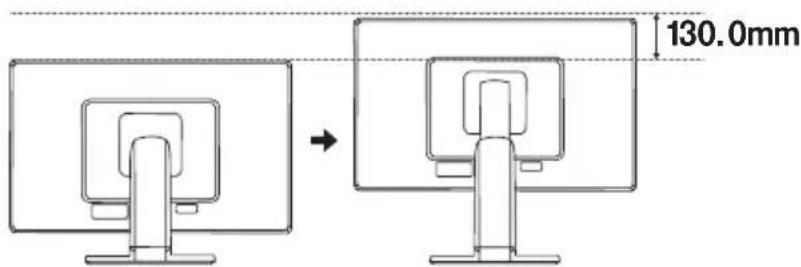
text_image
130.0mm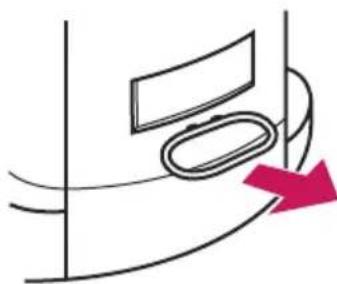
natural_image
Simple line drawing of a curved object with a pink arrow pointing to it, no text or symbols present.* Please be sure to remove the Locking pin to adjust the height.

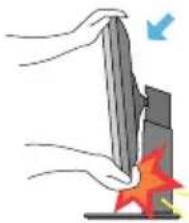
natural_image
Illustration of hands holding a flat object with a red starburst effect, no text or symbols present■ When adjusting the angle of the screen, do not put your finger(s) in between the head of the monitor and the stand body. You can hurt your finger(s).
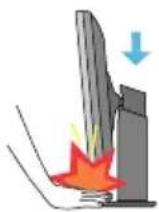
- When adjusting the height of the screen, do not put your finger(s) in between the head of the monitor and the stand base. You can hurt your finger(s).
WARNING
■ You do not need to replace the Locking pin after it is removed, to adjust its height.
ERGONOMIC
- It is recommended that in order to maintain an ergonomic and comfortable viewing position, the forward tilt angle of the monitor should not exceed 5 degrees.
Using the Pivot function
-The pivot function allows you to rotate the screen 90 degrees clockwise.
- Lift the monitor to its highest height to utilize the Pivot function.
- Landscape & Portrait: You can rotate the panel 90° clockwise. Please be cautious and avoid contact between the monitor head and the Stand Base when rotating the screen to access the Pivot function. If the monitor head touches the Stand Base, then the Stand Base could crack.
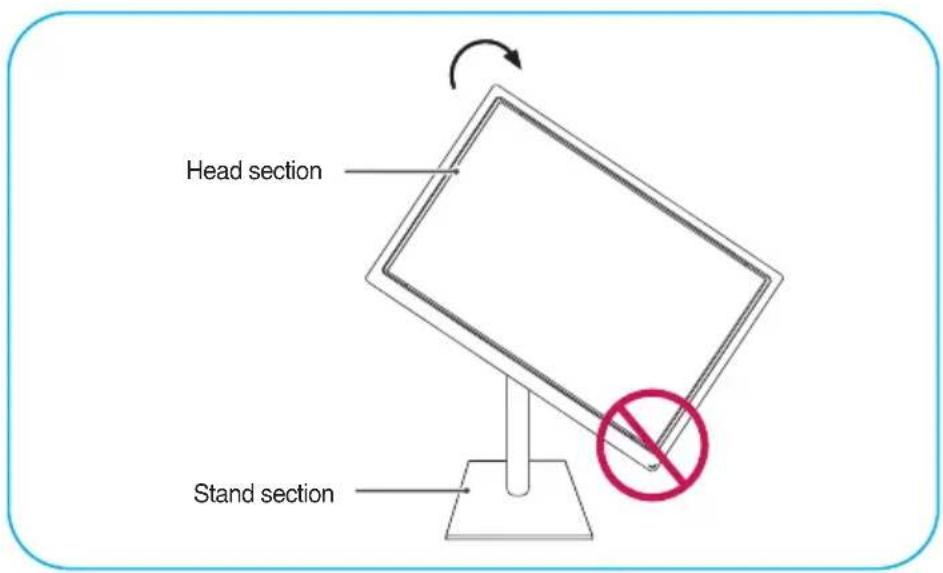
text_image
Head section Stand section- Be careful with the cables when rotating the screen.
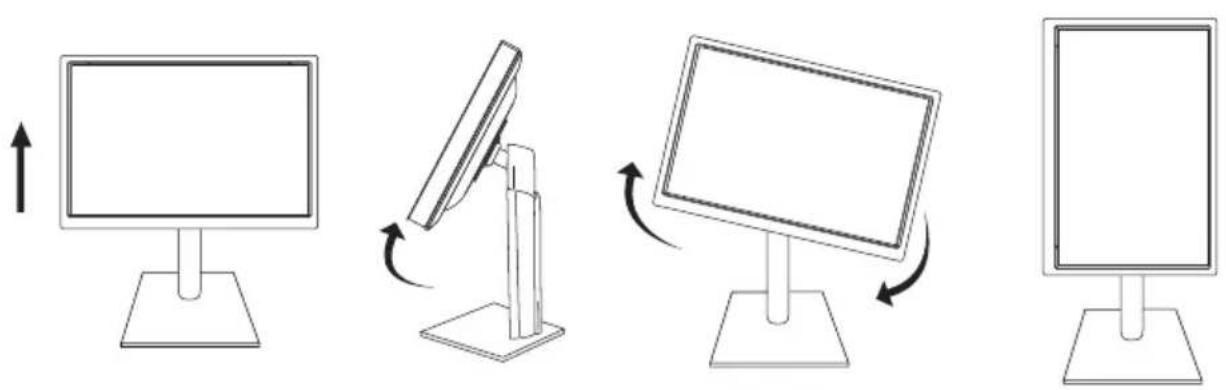
natural_image
Four sequential diagrams showing a computer monitor with an upward arrow, rotating its screen, and rotating its stand (no text or symbols)Connecting with the PC
- Before setting up the monitor, ensure that the power to the monitor, the computer system, and other attached devices is turned off.
- Connect signal input cable ① and power cord ② in order, then tighten the screw of the signal cable.
A Connect DVI-D(Digital signal) Cable
B Connect D-sub(Analog signal) Cable
© Connect Audio Cable
D Connect DisplayPort Cable (Separate purchase)
NOTE
■ This is a simplified representation of the rear view.
■ This rear view represents a general model; your display may differ from the view as shown.
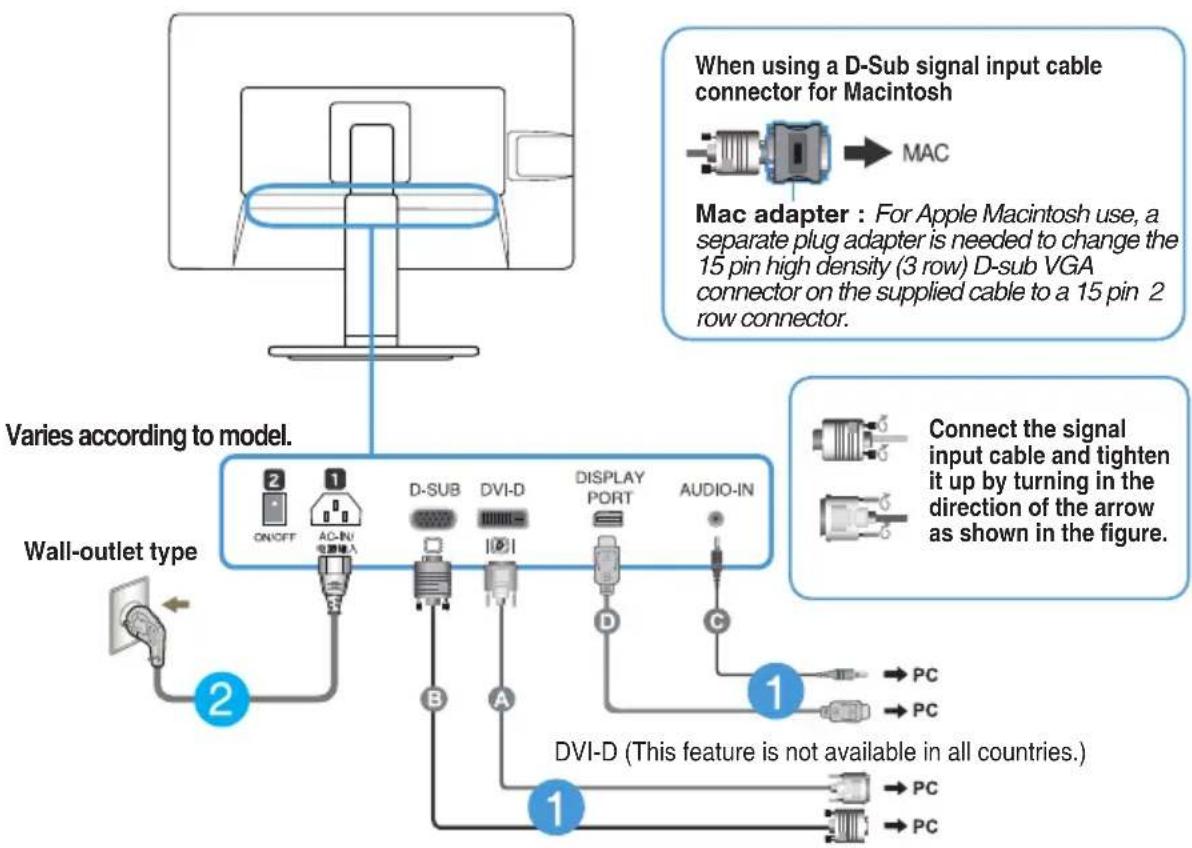
flowchart
graph TD
    A["Wall-outlet type"] -->|2| B["ON/OFF"]
    A -->|1| C["AC-IN"]
    A -->|2| D["D-SUB"]
    A -->|B| E["DVI-D"]
    A -->|A| F["DISPLAY PORT"]
    A -->|C| G["AUDIO-IN"]
    H["When using a D-Sub signal input cable connector for Macintosh"] --> I["MAC"]
    J["Mac adapter: For Apple Macintosh use, a separate plug adapter is needed to change the 15 pin high density (3 row) D-sub VGA connector on the supplied cable to a 15 pin 2 row connector."] --> K["Connect the signal input cable and tighten it up by turning in the direction of the arrow as shown in the figure."]
    L["DVI-D (This feature is not available in all countries.)"] --> M["PC"]
    L --> N["PC"]
Warning
- Please pull the DVI cable first, then pull DisplayPort cable, for protect your finger.
- Put the power cord and cables into the cable holder.
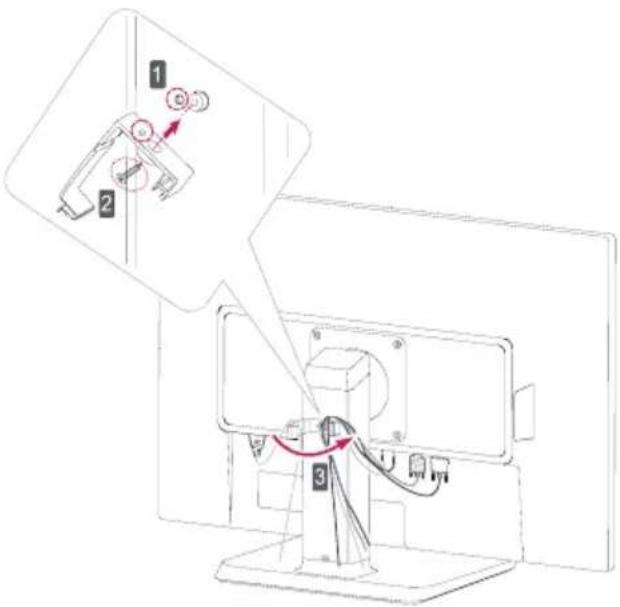
text_image
Diagram showing cable connection to a monitor with labeled parts and directional arrows indicating motion- Press the power button on the front panel to turn the power on. When monitor power is turned on, the 'Self Image Setting Function' is executed automatically. (Only Analog Mode)

text_image
Power Button → PROCESSING SELF IMAGE SETTINGNOTE
‘Self Image Setting Function’? This function provides the user with optimal display settings. When the user connects the monitor for the first time, this function automatically adjusts the display to optimal settings for individual input signals.
'AUTO' Function? When you encounter problems such as blurry screen, blurred letters, screen flicker or tilted screen while using the device or after changing screen resolution, press the AUTO function button to improve resolution.
Connecting the USB(Universal Serial Bus) Cable
- You can use the USB port at the back of the monitor to connect peripherals (USB mouse, USB keyboard, etc.) to the monitor, not to the computer.
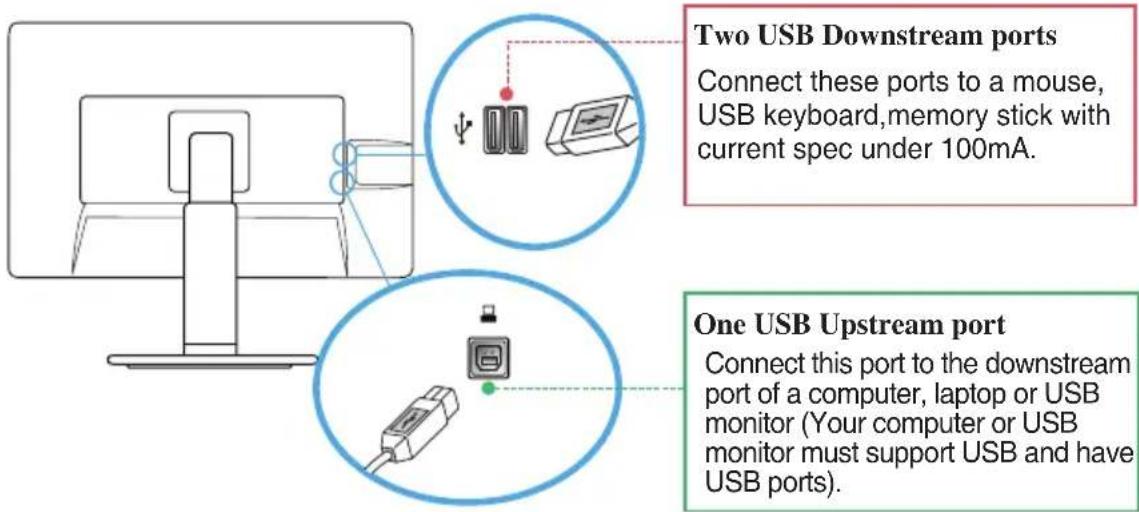
text_image
Two USB Downstream ports Connect these ports to a mouse, USB keyboard, memory stick with current spec under 100mA. One USB Upstream port Connect this port to the downstream port of a computer, laptop or USB monitor (Your computer or USB monitor must support USB and have USB ports).- The monitor's USB terminal supports USB 2.0 and High Speed cables.
NOTE
■ This is a simplified representation of the rear view.
■ This rear view represents a general model; your display may differ from the view as shown.
Front Panel Controls

text_image
MONITOR SETUP MENU SUPER ENERGY SAVING AUTO INPUT EXIT 1 2 3 4 5 6
MENU Button
text_image
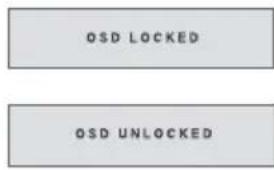
OSD LOCKED OSD UNLOCKEDOSD LOCKED/UNLOCKED
This function allows you to lock the current control settings, so that they cannot be inadvertently changed. Press and hold the MENU button for several seconds. The message "OSD LOCKED" should appear.
You can unlock the OSD controls at any time by pushing the MENU button for several seconds. The message "OSD UNLOCKED" should appear.

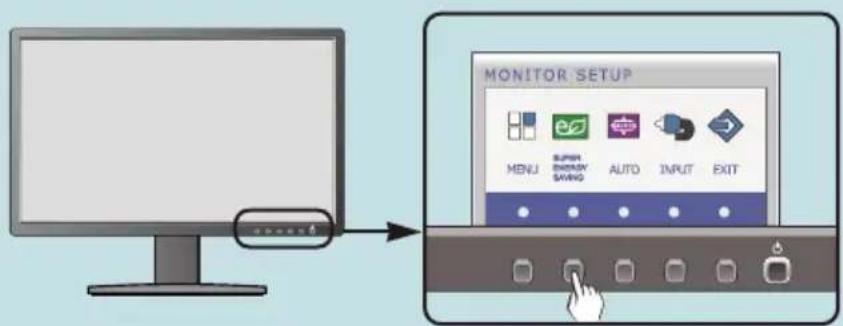
SUPER ENERGY SAVING Button
Use this button to enter SUPER ENERGY SAVING menu. For more information, refer to page 17.

AUTO Button
AUTO IMAGE ADJUSTMENT
When adjusting your display settings, always press the AUTO button before entering the On Screen Display(OSD). (Only Analog Mode)
PROCESSING AUTO IMAGE ADJUSTMENT
This will automatically adjust your display image to the ideal settings for the current screen resolution size (display mode).
The best display mode is 27EB22PY : 1920 x 1080

INPUT Button (SOURCE Hot key)
When two input signals are connected, you can select the input signal (D-SUB/DVI/DP) you want. When only one signal is connected, it is automatically detected. The default setting is D-Sub.

EXIT Button
Exit the OSD(On Screen Display).

Power Button & Power Indicator
Use this button to turn the display on or off.
The power indicator stays white if the display is running properly (On Mode). If the display is in Sleep Mode (Energy Saving), the power indicator is blinking white.
Screen Adjustment
Making adjustments to the image size, position and operating parameters of the display is quick and easy with the On Screen Display Control system.
A short example is given below to familiarize you with the use of the controls. The following section is an outline of the available adjustments and selections you can make using the OSD.
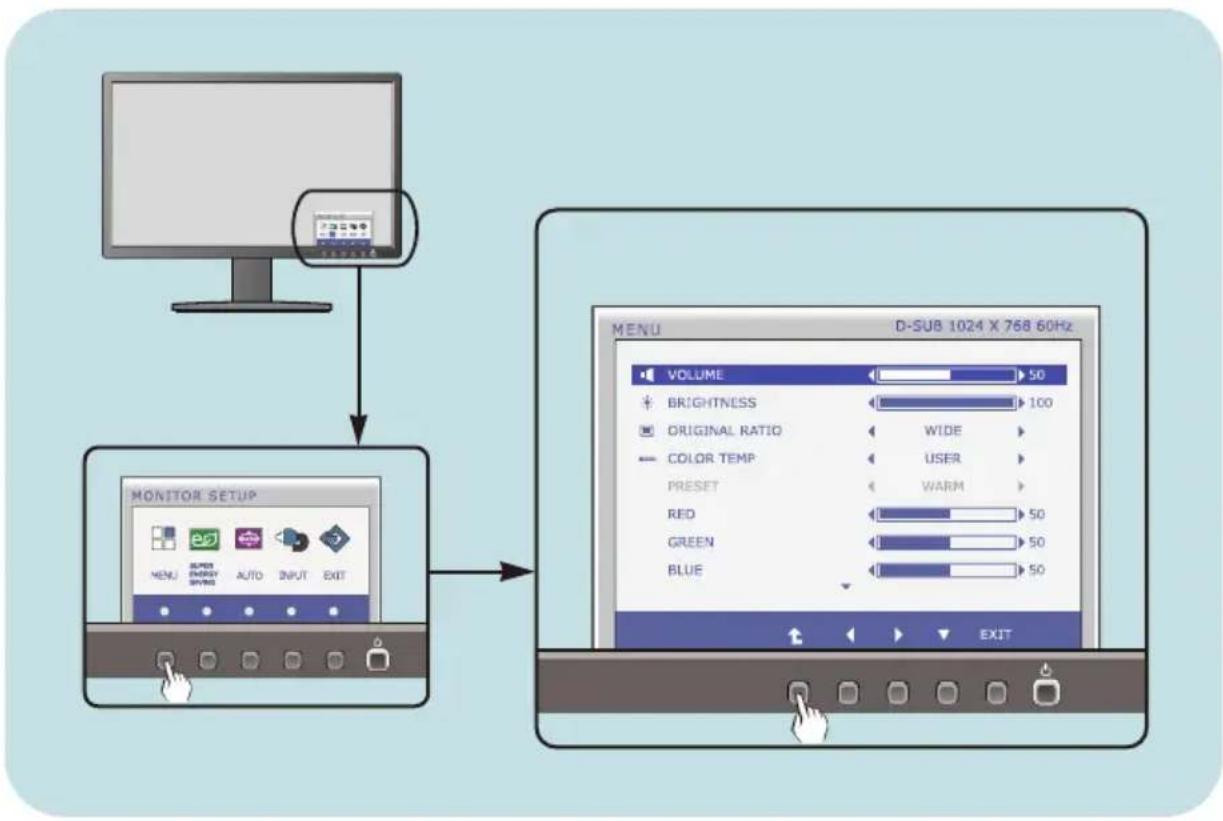
To make adjustments in the On Screen Display, follow these steps:
flowchart
graph TD
    A["Monitor Setup"] --> B["MONITOR SETUP"]
    B --> C["D-SUB 1024 X 768 60Hz"]
    C --> D["MENU: VOLUME 50"]
    C --> E["BRIGHTNESS 100"]
    C --> F["ORIGINAL RATIO WIDE"]
    C --> G["COLOR TEMP USER"]
    C --> H["PRESSET WARM"]
    C --> I["RED 50"]
    C --> J["GREEN 50"]
    C --> K["BLUE 50"]
    C --> L["EXIT"]
1 Press the discretionary Button, then the main menu of the OSD appears.
2 To access a control, use the corresponding Buttons.
Use the ◀/► Buttons to adjust the image to the desired level.
Use the ↑ Button to select other sub-menu items.
4 Press the EXIT Button to exit from the OSD.
On Screen Display(OSD) Selection and Adjustment
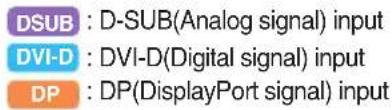
The following table indicates all the On Screen Display control, adjustment, and setting menus.
text_image
DSUB : D-SUB(Analog signal) input DVI-D : DVI-D(Digital signal) input DP : DP(DisplayPort signal) input| Main menu Sub-menu | Supported input | Description | |
| MENU | VOLUME | DSUBDVI-DDP | To adjust the volume |
| BRIGHTNESS | To adjust the brightness of the screen | ||
| ORIGINAL RATIO | To adjust the image size | ||
| COLOR TEMP (USER / PRESET) | To customize the color of the screen | ||
| CONTRAST | To adjust the contrast of the screen | ||
| BLACK LEVEL | DP | To set offset level | |
| LANGUAGE | DSUBDVI-DDP | To customize the screen status for a user's operating environment | |
| FACTORY RESET | |||
| SUPER ENERGY SAVING | ON | DSUBDVI-DDP | Turn on the SUPER ENERGY SAVING function. |
| OFF | Turn off the SUPER ENERGY SAVING function. | ||
| RESET | Initialize the SUPER ENERGY SAVING and set to "OFF" mode. | ||
NOTE
■ The order of icons may differ depending on the model (13\~19).
On Screen Display(OSD) Selection and Adjustment
■■■ You were introduced to the procedure of selecting and adjusting an item using the OSD system. Listed below are the icons, icon names, and icon descriptions of the all items shown on the Menu.
text_image
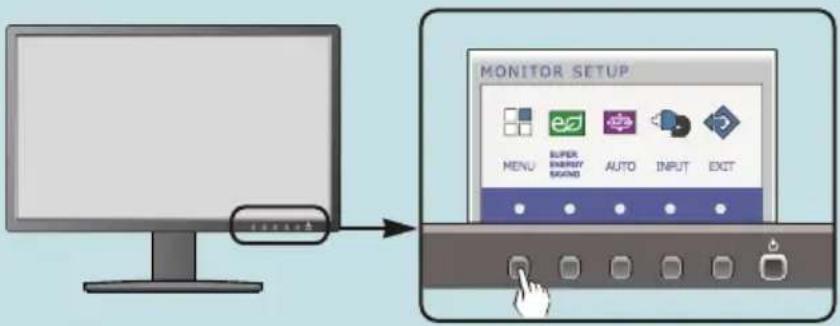
MONITOR SETUP MENU SUPER ENERGY SOUND AUTO INPUT EXITPress the MENU Button, then the main menu of the OSD appears.
text_image
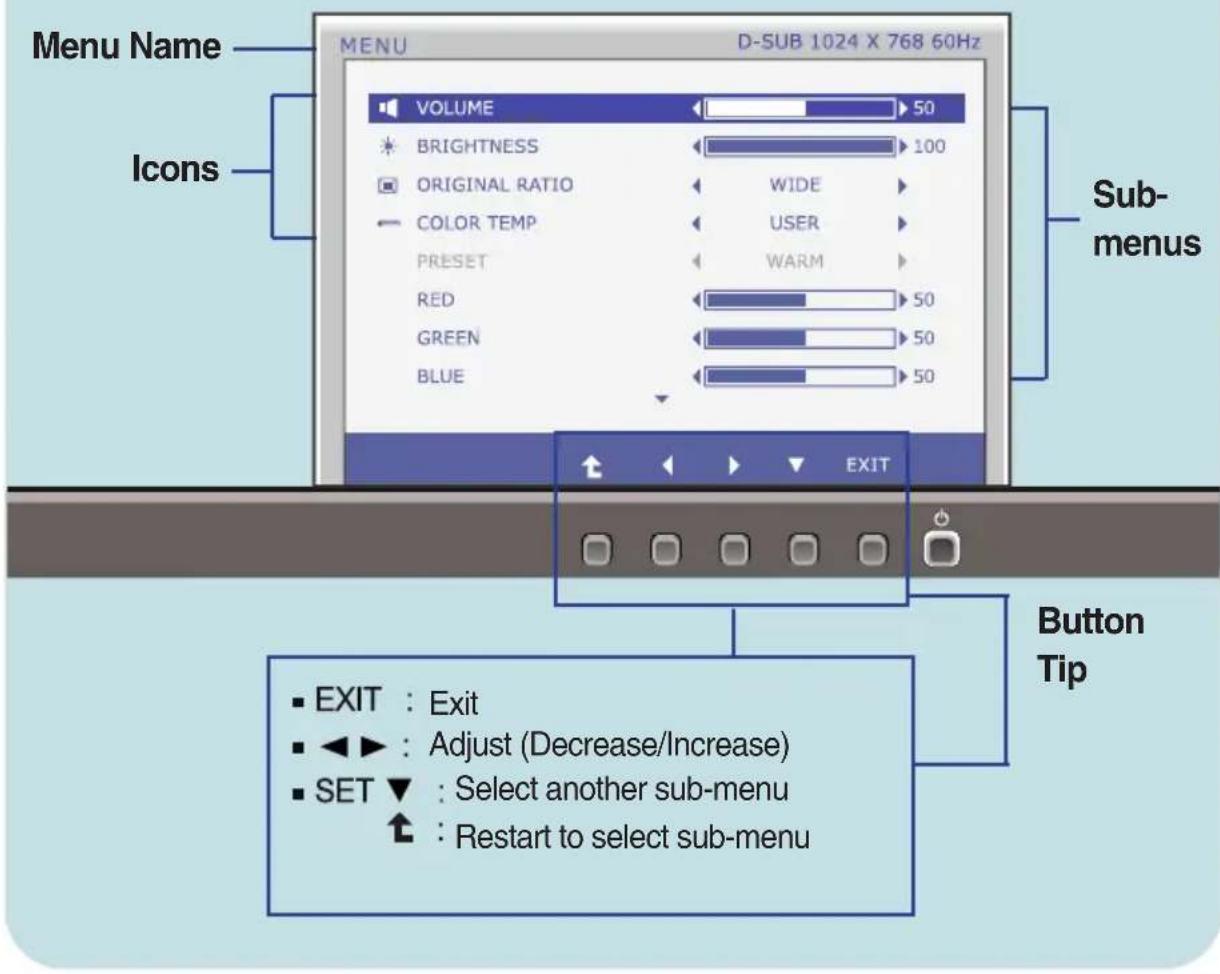
Menu Name Icons VOLUME 50 BRIGHTNESS 100 ORIGINAL RATIO WIDE COLOR TEMP USER Preset WARM RED 50 GREEN 50 BLUE 50 Sub-menus EXIT Button Tip EXIT : Exit ◄► : Adjust (Decrease/Increase) SET ▼ : Select another sub-menu ↑ : Restart to select sub-menuNOTE
- OSD (On Screen Display) menu languages on the monitor may differ from the manual.
Main menu Sub menu Description
VOLUME
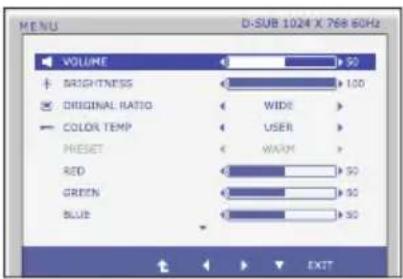
text_image
MENU D-SUB 1024 X 768 60Hz VOLUME 50 BRIGHTNESS 100 ORIGINAL RATIO WIDE COLOR TEMP USER Preset WARM RED 50 GREEN 50 BLUE 50 EXITTo adjust the volume of headphone/Speaker.
BRIGHTNESS
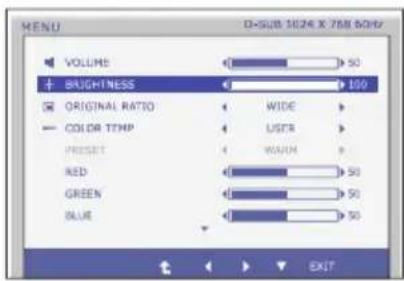
text_image
MENU VOLUME 50 BLIGHTNESS 100 ORIGINAL RATIO WIDE COLOR TEMP USER PRESSET WALUM RED 50 GREEN 50 BLUE 50 EXITTo adjust the brightness of the screen.
ORIGINAL RATIO
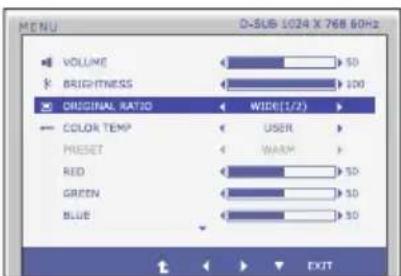
text_image
MENU D-SUS 1024 X 768 60Hz VOLUME BRIGHTNESS ORIGINAL RATIO WIDE(1/2) COLOR TEMP Preset RED GREEN BLUE USER WARM EXITWIDE
Switch to full screen mode according to input image signal.
ORIGINAL
Change the input image signal ratio to original.
* This function works only if input resolution is lower than monitor ratio (16:9).
COLOR TEMP
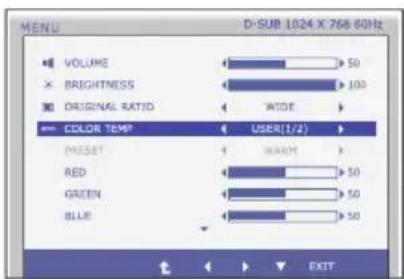
text_image
MENU D-SUB 1024 X 768.60Hz VOLUME 50 BRIGHTNESS 100 ORIGINAL RATIO WIDE COLOR TEMP USER(1/2) Preset RAWAY RED 50 GREEN 50 BLUE 50 EXITUSER
RED
Set your own red color levels.
GREEN
Set your own green color levels.
BLUE
Set your own blue color levels.
PRESET
Select the screen color.
-
WARM: Set the screen to warm color temperature.
• MEDIUM: Set the screen to medium color temperature.
• COOL: Set the screen to cool color temperature. -
Exit : Exit
■ ◀, ▶, ▼ : Move - ↑ : Select another sub-menu
Main menu Description
CONTRAST
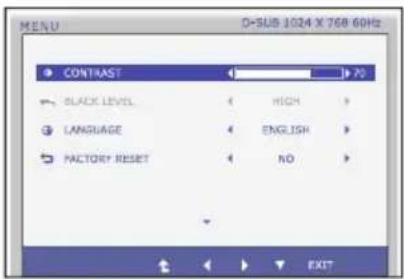
text_image
MENU D-SUS 1024 X 768 60Hz CONTRAST BLACK LEVEL LANGUAGE FACTORY RESET HIGH ENGLISH NO EXITTo adjust the contrast of the screen.
BLACK LEVEL (only for DP input)
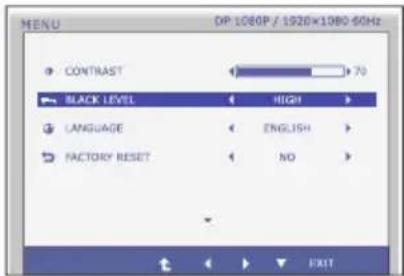
text_image
MENU DP:1080P / 1920×1080-60Hz CONTRAST 70 BLACK LEVEL HIGH LANGUAGE ENGLISH FACTORY RESET NO EXITYou can set the offset level. If you select 'HIGH', the screen will be bright and if you select 'LOW', the screen will be dark.
* Offset? As the criteria for video signal, it is the darkest screen the monitor can show.
LANGUAGE
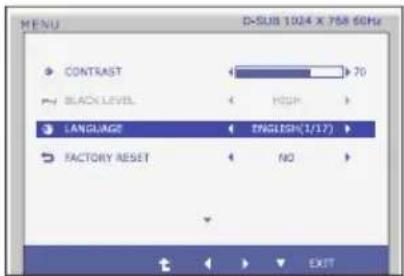
text_image
MENU CONTRAST 70 BLACK LEVEL HOLD LANGUAGE ENGLISH(1/17) FACTORY RESET NO EXITTo choose the language in which the control names are displayed.
FACTORY RESET
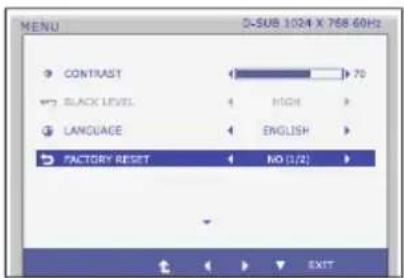
text_image
MENU CONTRAST 70 BLACK LEVEL HIGH LANGUAGE ENGLISH FACTORY RESET NO (1/2) EXITRestore all factory default settings except "LANGUAGE."
Press the ◀,▶ buttons to reset immediately.
- Exit : Exit
■ ◀, ▶, ▼ : Move - ↑ : Select another sub-menu
On Screen Display(OSD) Selection and Adjustment
- ■■■ You were introduced to the procedure of selecting and adjusting an item using the OSD system. Listed below are the icons, icon names, and icon descriptions of the all items shown on the Menu.
text_image
MONITOR SETUP MENU SUPER ENVADY SANSO AUTO INPUT EXITPress the SUPER ENERGY SAVING Button, then the main menu of the OSD appears.
text_image
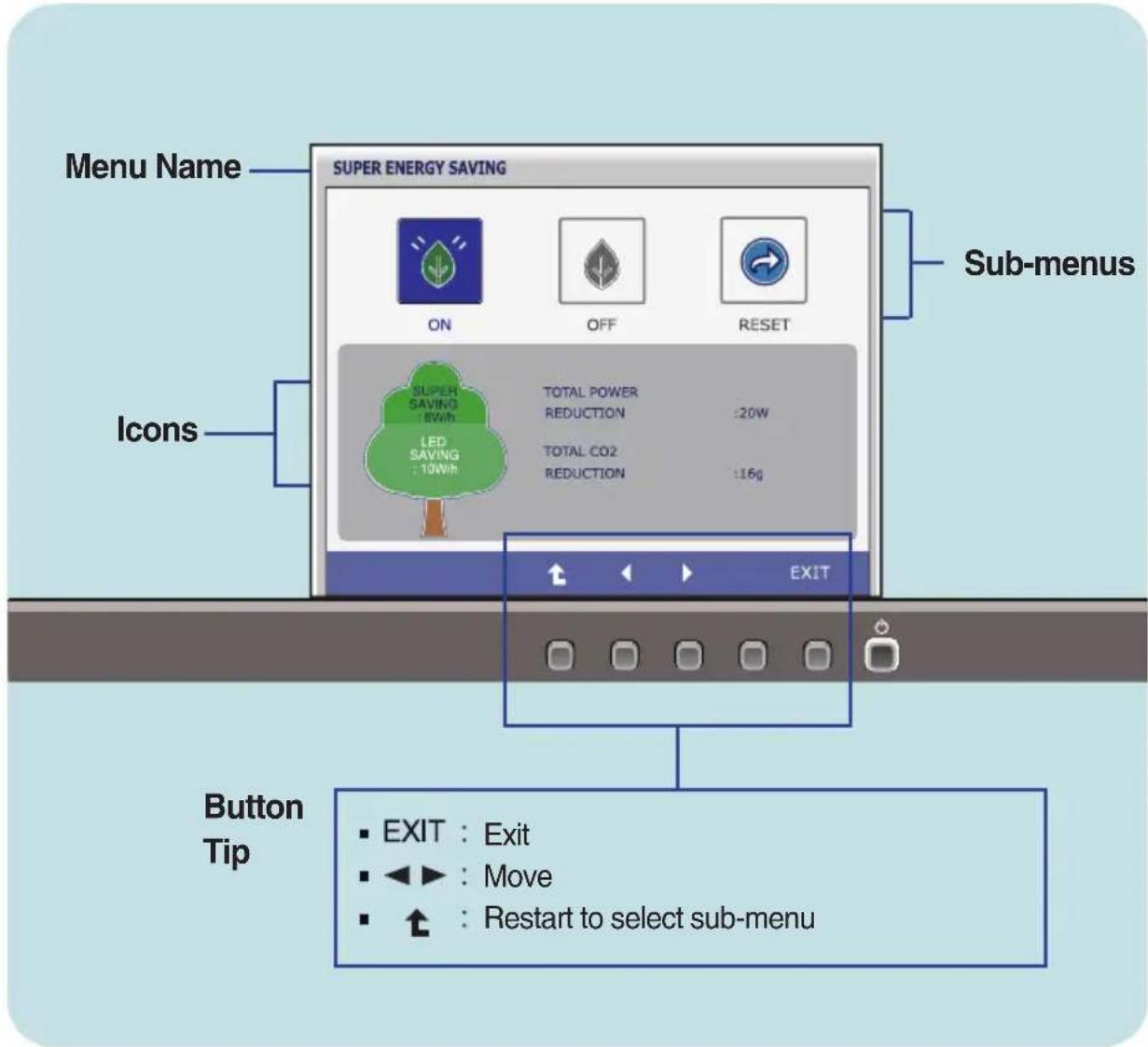
Menu Name SUPER ENERGY SAVING ON OFF RESET Sub-menus Icons SUPER SAVING : 8Wh LED SAVING : 10Wh TOTAL POWER REDUCTION :20W TOTAL CO2 REDUCTION :16g EXIT Button Tip EXIT : Exit ◄► : Move ↑ : Restart to select sub-menuNOTE
- OSD (On Screen Display) menu languages on the monitor may differ from the manual.
Main menu Sub menu Description
text_image
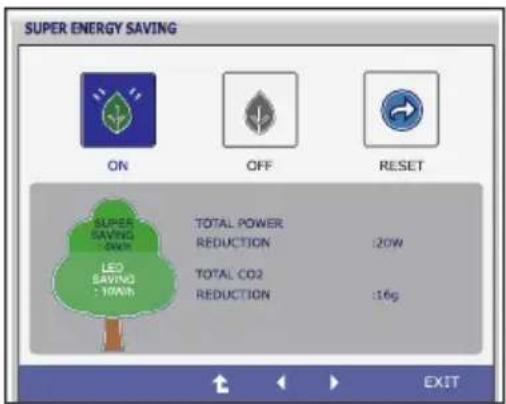
SUPER ENERGY SAVING ON OFF RESET SUPER SAVING :0kWh TOTAL POWER REDUCTION :20W LED SAVING :10kWh TOTAL CO2 REDUCTION :16g EXITON
Turn on the SUPER ENERGY SAVING fuction.
When current setting value is ON, the SUPER SAVING color is green.
text_image
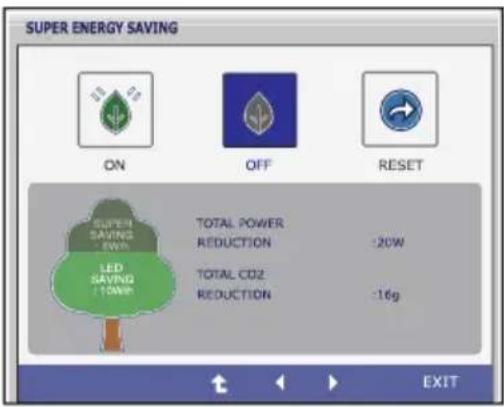
SUPER ENERGY SAVING ON OFF RESET SUPER SAVING -50W LED SAVING -10W TOTAL POWER REDUCTION -20W TOTAL CD2 REDUCTION -16g EXITOFF
Turn off the SUPER ENERGY SAVING function.Now the monitor is LED SAVING function.
When current setting value is OFF, the SUPER SAVING color is gray.
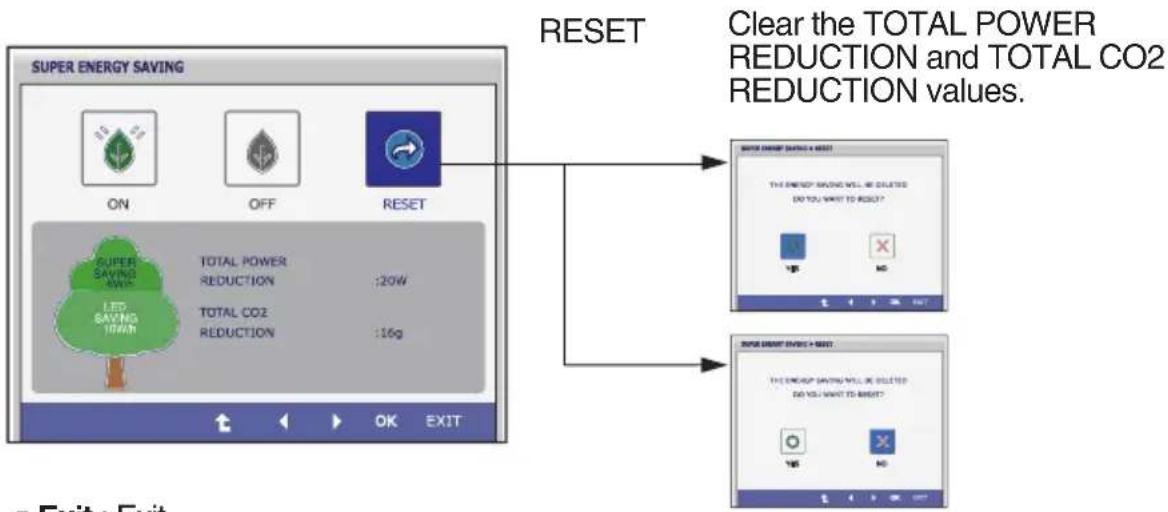
flowchart
graph TD
    A["SUPER ENERGY SAVING"] --> B["ON"]
    A --> C["OFF"]
    A --> D["RESET"]
    D --> E["SUPER SAVING RATE: TOTAL POWER REDUCTION :20W"]
    D --> F["SUPER SAVING RATE: TOTAL CO2 REDUCTION :16g"]
    E --> G["OK"]
    F --> H["EXIT"]
    I["Clear the TOTAL POWER REDUCTION and TOTAL CO2 REDUCTION values."] --> J["SUPER ENERGY SAVING & RESET"]
    K["TOTAL CO2 REDUCTION"] --> L["OK"]
    M["TOTAL CO2 REDUCTION"] --> N["EXIT"]
- Exit : Exit
- ◀, ▶: Move
- ↑ : Select another sub-menu
■ OK : Select - TOTAL POWER REDUCTION : How much power is saved during using the monitor.
- TOTAL CO2 REDUCTION : Change the TOTAL POWER REDUCTION to CO2.
NOTE
SAVING DATA(W/h):
| 27 inch | |
| SUPER SAVING | 6 |
| LED SAVING | 10 |
- Saving Data depends on the Panel. So, those values should be different from each panel and panel vendor.
■ LG accumulate those values using integrated function with 10 minutes broadcast video signal. - LED Saving means that how much power can be saved using WLED Panel instead of CCFL panel.
- SUPER Saving means that how much power can be more saved using SUPER ENERGY SAVING function.
Check the following before calling for service.
| No image appears | |
| ●Is the power cord of the display connected? | ●Check and see if the power cord is connected properly to the power outlet. |
| ●Is the power indicator light on? | ●Press the Power button. |
| ●Is the power indicator flickering? | ●If the display is in power saving mode, try moving the mouse or pressing any key on the keyboard to bring up the screen.●Try to turn on the PC. |
| ●Do you see an "OUT OF RANGE" message on the screen? | ●This message appears when the signal from the PC (video card) is out of horizontal or vertical frequency range of the display. See the 'Specifications' section of this manual and configure your display again. |
| ●Do you see a "CHECK SIGNAL CABLE" message on the screen? | ●This message appears when the signal cable between your PC and your display is not connected. Check the signal cable and try again. |
| Do you see a "OSD LOCKED" message on the screen? | |
| ● Do you see “OSD LOCKED” when you push MENU button? | ● You can secure the current control settings, so that they cannot be inadvertently changed. You can unlock the OSD controls at any time by pushing the MENU button for several seconds: the message “OSD UNLOCKED” will appear. |
| Display image is incorrect | |
| ●The screen color is mono or abnormal. | ●Check if the signal cable is properly connected and use a screwdriver to fasten if necessary.●Make sure the video card is properly inserted in the slot.●Set the color setting higher than 24 bits (true color) at Control Panel - Settings. |
| ●The screen blinks. | ●Check if the screen is set to interlace mode and if yes, change it to the recommend resolution. |
IMPORTANT
- Check Control Panel --> Display --> Settings and see if the frequency or the resolution were changed. If yes, readjust the video card to the recommend resolution.
- If the recommended resolution (optimal resolution) is not selected, letters may be blurred and the screen may be dimmed, truncated or biased. Make sure to select the recommend resolution.
- The setting method can differ by computer and O/S (Operation System), and resolution mentioned above may not be supported by the video card performance. In this case, please ask to the computer or the video card manufacturer.
| Do you see an "Unrecognized monitor, Plug&Play (VESA DDC) monitor found" message? | ||
| ● Have you installed the display driver? | ● Be sure to install the display driver from the display driver CD (or diskette) that comes with your display. Or, you can also download the driver from our web site: http://www.lg.com.● Make sure to check if the video card supports Plug&Play function. | |
| Display | 68.6 cm (27 inch) Flat Panel Active matrix-TFT LCDAnti-Glare coatingVisible diagonal size : 68.6 cm0.3114 x 0.3114 mm (Pixel pitch) | |
| Sync Input | Horizontal Freq. 30 kHz to 83 kHz (Automatic)Vertical Freq. Analog,Digital:56 Hz to 75 Hz (Automatic)DisplayPort:56 Hz to 61 Hz (Automatic)Input Form Separate Sync.Digital | |
| Video Input | Signal Input 15 pin D-Sub ConnectorDVI-D Connector (Digital)20 pin DisplayPort ConnectorInput Form RGB Analog (0.7 Vp-p/ 75 ohm), DigitalDisplayPort | |
| Resolution | Max VESA 1920 x 1080 @60 HzRecommend VESA 1920x 1080 @60 Hz | |
| Plug&Play | DDC 2B(Digital,DisplayPort),DDC2AB(Anlaog) | |
| USB | USB2.0 | |
| Power Consumption | On Mode : 27W(Typ.)Sleep Mode ≤0.3 WOff Mode ≤0.3 W | |
| Dimensions & Weight | With StandWidth 64.4 cm (25.35 inch)Height 41.0 cm (16.14 inch) (Min.)54.0 cm (21.26 inch)(Max.)Depth 25.9 cm (10.20 inch) | Without StandWidth 64.4 cm (25.35 inch)Height 38.7 cm (15.24 inch)Depth 6.4 cm (2.52 inch) |
| Weight(excl. packing) 6.5 kg (14.44 lb) | ||
| Range | Tilt -5° to 20°Swivel 355°Height 130 mm / 5.12 inch | |
| Power Input | AC 100 - 240 V~ 50 / 60 Hz 1.5 A | |
| Environmental Conditions | Operating ConditionsTemperature 10 °C to 35 °CHumidity 10 % to 80 % non-CondensingStorage ConditionsTemperature -20 °C to 60 °CHumidity 5 % to 90 % non-Condensing | |
| Stand Base | Attached ( ), Detached ( O ) | |
| Power cord | Wall-outlet type | |
NOTE
■ Information in this document is subject to change without notice.
Preset Modes (Resolution)
27EB22PY
Display Modes (Resolution) Horizontal Freq. (kHz) Vertical Freq. (Hz)
| 1 | 720 x 400 | 31.468 | 70 |
| 2 | 640 x 480 | 31.469 | 60 |
| 3 | 640 x 480 | 37.500 | 75 |
| 4 | 800 x 600 | 37.879 | 60 |
| 5 | 800 x 600 | 46.875 | 75 |
| 6 | 1024 x 768 | 48.363 | 60 |
| 7 | 1024 x 768 | 60.023 | 75 |
| 8 | 1152 x 864 | 67.500 | 75 |
| 9 | 1280 x 1024 | 63.981 | 60 |
| 10 | 1280 x 1024 | 79.976 | 75 |
| 11 | 1680 x 1050 | 65.290 | 60 |
| *12 | 1920 x 1080 | 67.500 | 60 |
*Recommend Mode
Indicator
| MODE | LED Color |
| On Mode | White |
| Sleep Mode | White Blinking |
| Off Mode | Off |
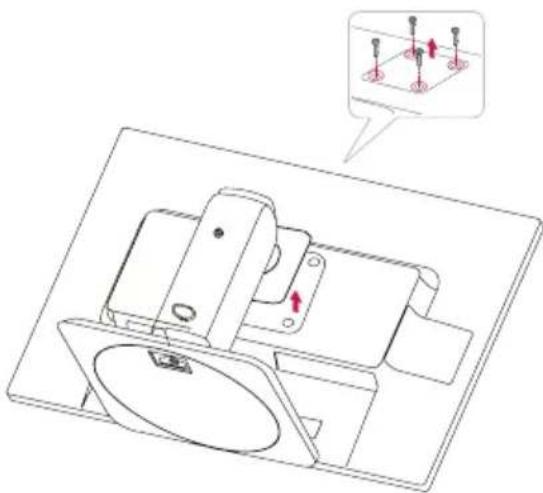
This monitor satisfies the specifications of the Wall mount plate or the interchange device.
- After moving the product to face downward, make sure to place it on a soft cloth or a cushion to avoid surface damage.
- Separate the head and the stand with the use of a screwdriver.
natural_image
Technical line drawing of a mechanical assembly with a magnified inset showing red arrows indicating force or movement (no text or symbols present)3. Install the Wall mount plate.
Wall mount plate(Separate purchase)
This is stand-type or wall mount type and is connectable with Wall mount plate.
Please refer to the installation guide for more details, which is provided when Wall mount plate is purchased.

text_image
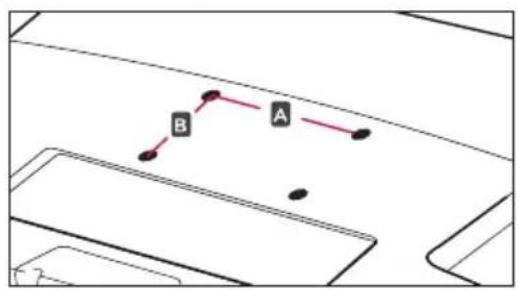
Wall Mount pad A x B)- VESA (A × B)
flowchart
graph TD
    A["A"] --> B["B"]
    B --> A
Hole spacing : 200 mm x 100 mm.
Kensington Security Slot
Connected to a locking cable that can be purchased separately at most computer stores.
NOTE
■ VESA compatible only with respect to screw mounting interface dimensions and mounting screw specifications
■ Please use VESA standard as below.
* 784.8 mm and under (30.9 inch)
- Wall Mount Pad Thickness : 2.6 mm
- Screw : 4.0 mm x Pitch 0.7 mm x Length 10 mm
* 787.4 mm and above (31.0 inch) - Please use VESA standard wall mount pad and screws.

text_image
LG Life's GoodDeclaration of Conformity
Trade Name: LG
Model : 27EB22PYC
Responsible Party: LG Electronics Inc.
Address : 1000 Sylvan Ave. Englewood Cliffs NJ 07632 U.S.A
TEL: 201-266-2534
*above information is only for USA FCC Regulatory
Make sure to read the Safety Precautions before using the product.
Keep the OWNER'S MANUAL(CD) in an accessible place for furture reference.
The model and serial number of the SET is located on the back or one side of the SET. Record it below should you ever need service.
MODEL
SERIAL
ENERGY STAR is a set of power-saving guidelines issued by the U.S.Environmental Protection Agency(EPA).

As an ENERGY STAR Partner LGE U. S. A., Inc. has determined that this product meets the ENERGY STAR guidelines for energy efficiency.