
RP-HTX90 - Headphones PANASONIC - Free user manual and instructions
Find the device manual for free RP-HTX90 PANASONIC in PDF.


| Product Type | Over-ear headphones |
| Brand | Panasonic |
| Model | RP-HTX90 |
| Driver Size | 40 mm |
| Impedance | 32 ohms |
| Sensitivity | 100 dB/mW |
| Frequency Response | 20 Hz - 20 kHz |
| Cable Length | 1.2 m |
| Plug Type | 3.5 mm gold-plated stereo jack |
| Weight | 180 g |
| Dimensions (W x H x D) | 200 x 180 x 80 mm |
| Ear Pad Material | Synthetic leather |
| Headband Material | Plastic with padding |
| Adjustable Headband | Yes |
| Folding Design | No |
| Color Options | Black, White, Red, Blue |
| Warranty | 2 years (may vary by region) |
| Included Accessories | Detachable cable (if applicable) |
Frequently Asked Questions - RP-HTX90 PANASONIC
User questions about RP-HTX90 PANASONIC
0 question about this device. Answer the ones you know or ask your own.
Ask a new question about this device
Download the instructions for your Headphones in PDF format for free! Find your manual RP-HTX90 - PANASONIC and take your electronic device back in hand. On this page are published all the documents necessary for the use of your device. RP-HTX90 by PANASONIC.
USER MANUAL RP-HTX90 PANASONIC
Digital Wireless Stereo Headphones
Model No. RP-HTX90N


Bluetooth®
Thank you for purchasing this product.
Please read these instructions carefully before using this product, and save this manual for future use.
Register online at http://shop.panasonic.com/support (U.S. customers only)
If you have any questions, visit:
In the U.S.A.:
http://shop.panasonic.com/support
In Canada:
www.panasonic.ca/english/support
IMPORTANT SAFETY INSTRUCTIONS
Read these operating instructions carefully before using the unit. Follow the safety instructions on the unit and the applicable safety instructions listed below. Keep these operating instructions handy for future reference.
1 Read these instructions.
2 Keep these instructions.
3 Heed all warnings.
4 Follow all instructions.
5 Do not use this apparatus near water.
6 Clean only with dry cloth.
7 Do not block any ventilation openings. Install in accordance with the manufacturer's instructions.
8 Do not install near any heat sources such as radiators, heat registers, stoves, or other apparatus (including amplifiers) that produce heat.
9 Do not defeat the safety purpose of the polarized or grounding-type plug. A polarized plug has two blades with one wider than the other. A grounding-type plug has two blades and a third grounding prong. The wide blade or the third prong are provided for your safety. If the provided plug does not fit into your outlet, consult an electrician for replacement of the obsolete outlet.
10 Protect the power cord from being walked on or pinched particularly at plugs, convenience receptacles, and the point where they exit from the apparatus.
11 Only use attachments/accessories specified by the manufacturer.
12 Use only with the cart, stand, tripod, bracket, or table specified by the manufacturer, or sold with the apparatus. When a cart is used, use caution when moving the cart/ apparatus combination to avoid injury from tip-over.

13 Unplug this apparatus during lightning storms or when unused for long periods of time.
14 Refer all servicing to qualified service personnel. Servicing is required when the apparatus has been damaged in any way, such as power-supply cord or plug is damaged, liquid has been spilled or objects have fallen into the apparatus, the apparatus has been exposed to rain or moisture, does not operate normally, or has been dropped.
Safety precautions
For the U.S.A. and Canada only

A lithium ion battery that is recyclable powers the product you have purchased.
Please call 1-800-8-BATTERY for information on how to recycle this battery.
THE FOLLOWING APPLIES ONLY IN THE U.S.A. AND CANADA.
This device complies with Part 15 of FCC Rules and Industry Canada's licence-exempt RSSs. Operation is subject to the following two conditions:
(1) this device may not cause interference, and
(2) this device must accept any interference, including interference that may cause undesired operation of this device.
FCC ID: ACJ-RP-HTX90N
Model: RP-HTX90N
IC: 216A-RPHTX90N
This transmitter must not be co-located or operated in conjunction with any other antenna or transmitter.
This equipment complies with FCC/IC radiation exposure limits set forth for an uncontrolled environment and meets the FCC radio frequency (RF) Exposure Guidelines and RSS-102 of the IC radio frequency (RF)
Exposure rules. This equipment has very low levels of RF energy that is deemed to comply without testing of specific absorption ratio (SAR).
THE FOLLOWING APPLIES ONLY IN THE U.S.A.
FCC Note:
This equipment has been tested and found to comply with the limits for a Class B digital device, pursuant to Part 15 of the FCC Rules.
These limits are designed to provide reasonable protection against harmful interference in a residential installation. This equipment generates, uses, and can radiate radio frequency energy and, if not installed and used in accordance with the instructions, may cause harmful interference to radio communications.
However, there is no guarantee that interference will not occur in a particular installation. If this equipment does cause harmful interference to radio or television reception, which can be determined by turning the equipment off and on, the user is encouraged to try to correct the interference by one or more of the following measures:
- Reorient or relocate the receiving antenna.
- Increase the separation between the equipment and receiver.
- Connect the equipment into an outlet on a circuit different from that to which the receiver is connected.
- Consult the dealer or an experienced radio/TV technician for help.
Any unauthorized changes or modifications to this equipment would void the user's authority to operate this device.
This device complies with Part 15 of the FCC Rules. Operation is subject to the following two conditions: (1) This device may not cause harmful interference, and (2) this device must accept any interference received, including interference that may cause undesired operation.
Suppliers Declaration of Conformity
Trade Name: Panasonic
Model No.: RP-HTX90N
Responsible Party: Panasonic Corporation of North America
Two Riverfront Plaza, Newark, NJ 07102-5490
Support Contact: http://shop.panasonic.com/support
THE FOLLOWING APPLIES ONLY IN CANADA.
CAN ICES-3(B)/NMB-3(B)
Unit
WARNING:
To reduce the risk of fire, electric shock or product damage,
- Do not expose this unit to rain, moisture, dripping or splashing.
- Do not place objects filled with liquids, such as vases, on this unit.
- Use the recommended accessories.
- Do not remove covers.
-
Do not repair this unit by yourself. Refer servicing to qualified service personnel.
-
Avoid using or placing this unit near sources of heat.
- Do not use while operating a motorized vehicle. It may create a traffic hazard and is illegal in many areas.
- Do not listen with this unit at high volume in places where you need to hear sounds from the surrounding environment for safety, such as at railroad crossings, and construction sites.
Allergies
- Discontinue use if you experience discomfort with the ear pads or any other parts that directly contact your skin.
- Continued use may cause rashes or other allergic reactions.
This unit may receive radio interference caused by mobile telephones during use. If such interference occurs, please increase separation between this unit and the mobile telephone.
Use only the supplied USB charging cord when connecting to a computer.
This unit is intended for use in moderate and tropical climates.

Intertek
3123480
CONFORMS TO
UL STD. 60065
CERTIFIED TO CSA STD.
C22.2 NO. 60065
CONFORME À LA NORME CAN/CSA
C22.2 NO. 60065
About Bluetooth®
Panasonic bears no responsibility for data and/or information that is compromised during a wireless transmission.
■Frequency band used
This unit uses the 2.4 GHz frequency band.
■Certification of this unit
- This unit conforms to frequency restrictions and has received certification based on frequency laws. Thus, a wireless permit is not necessary.
- The actions below are punishable by law in some countries:
– Taking apart/modifying this unit.
– Removing specification indications.
■Restrictions of use
- Wireless transmission and/or usage with all Bluetooth® equipped devices is not guaranteed.
- All devices must conform to standards set by Bluetooth SIG, Inc.
- Depending on the specifications and settings of a device, it can fail to connect or some operations can be different.
- This unit supports Bluetooth® security features. But depending on the operating environment and/or settings, this security may not be sufficient. Transmit data wirelessly to this unit with caution.
- This unit cannot transmit data to a Bluetooth® device.
■Range of use
Use this unit at a maximum range of 10 m (33 ft.).
The range can decrease depending on the environment, obstacles or interference.
■Interference from other devices
- This unit may not function properly and troubles such as noise and sound jumps may arise due to radio wave interference if this unit is located too close to other Bluetooth® devices or the devices that use the 2.4 GHz band.
- This unit may not function properly if radio waves from a nearby broadcasting station, etc. is too strong.
■Intended usage
- This unit is for normal, general use only.
- Do not use this system near an equipment or in an environment that is sensitive to radio frequency interference (example: airports, hospitals, laboratories, etc.).
Table of contents
IMPORTANT SAFETY INSTRUCTIONS 2
Safety precautions 3
About Bluetooth ® 5
Before use
Accessories....7
Maintenance....7
Part names....8
Regarding the availability of operations by connection type.... 9
Preparation
Charging....10
Operation
Using noise cancelling 11
Using Bluetooth ® 12
- Turning the power on/off.... 12
- Connecting a Bluetooth® device 13
Pairing (Registration) this unit with the Bluetooth® device for connection 13
Connecting a paired Bluetooth ® device 14
- Listening to music.... 15
Remote controlling.... 15
Enhancing the bass (Bass enhancer).... 16
- Making a phone call .... 17
- Useful functions.... 18
Activating voice functions 18
Guidance messages.... 18
Battery level notification.... 18
Auto power off 18
Resetting the unit.... 18
Using the detachable cord (supplied).... 19
Other
Restoring to the factory settings.... 20
Copyright, etc. 20
Troubleshooting.... 21
- Sound and audio volume.... 21
- Bluetooth® device connection.... 21
- Phone Calls 21
- General....22
• Power supply and charging 22
• Guidance messages.... 22
Specifications 23
To remove the battery when disposing of this unit 24
Useful information
(Only for Latin American countries).... 25
Expressions used in this document
- Pages to be referred to are indicated as “→ ○○”.
- The product illustrations may differ from the actual product.
Accessories
Please check and identify the supplied accessories.
Only for U.S.A.:
To order accessories, refer to "Limited Warranty (ONLY FOR U.S.A.)" on "Basic Owner's Manual".
Only for Canada:
To order accessories, contact the dealer from whom you have made your purchase.
1 x USB charging cord
1 x Detachable cord
Maintenance
Clean this unit with a dry and soft cloth.
- Do not use solvents including benzine, thinner, alcohol, kitchen detergent, a chemical wiper, etc. This might cause the exterior case to be deformed or the coating to come off.
Keeping the battery performance
- During the long period of disuse, full charge this unit once every 6 months to keep the battery performance.
Part names

1 Audio input terminal
2 [- (◀◀) ] button
3 [ ▶/▼] button
4 [ + (▶▶) ] button
5 [BASS] button
6 [NC] (Noise cancelling) switch ( → 11)
7 Noise cancelling LED *1
8 Ear pads
9 Charging terminal (DC IN)
- Connect the USB charging cord (supplied) to this terminal when charging. (→ 10)
10 Power/pairing LED *2
11 [⏻/l ( )] button *3
12 Microphone
A Raised dot indicating the left side
B This allows you to adjust the housing position of the headphones.
*1 Lighting (green): Noise cancelling is ON
*2 Examples of lighting/blinking patterns
| Lighting (red): Charging is in progress | |
| Blinking alternately in blue and red: Bluetooth® pairing (registration) standby | |
| Blinking slowly (blue)*4: Bluetooth® connection standby | |
| Blinking twice about every 2 seconds (blue)*4: | A Bluetooth® pairing (registration) has been established or a call is in progress |
| Blinking (blue)*4: A call is being received | |
*3 ⏻/l: Standby/ON
*4 The battery is low when it is blinking in red. ( → 18, "Battery level notification")
Regarding the availability of operations by connection type
(○: Available, —: Not available)
| Connection method | Power | Operation | ||
| Noise cancellingNCONOF | Bass enhancerBASS | Play / Pause / Volume / Forward to the start of next track / Return to the start of current track | ||
| Connecting via Bluetooth® | ON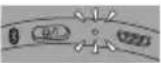 | ○ | ○ | ○ |
OFF | ○ — | — | ||
| Connecting with the detachable cord | OFF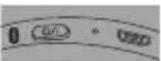 | ○ — | — | |
Charging
The rechargeable battery (installed in the unit) is not charged initially. Charge the battery before using the unit.
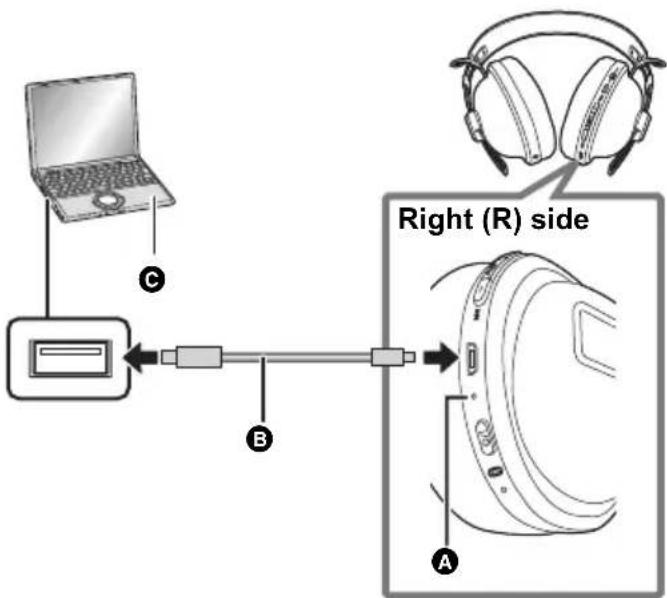
Connect this unit to a computer using the USB charging cord.
A: Power/pairing LED
B: USB charging cord (supplied)
- Check the direction of the terminals and plug in/out straight holding onto the plug. (It may result in malfunction by the deforming of the terminal if it is plugged in obliquely or in wrong direction.)
©: Computer
- Turn on the computer in advance.
- The power/pairing LED lights in red when charging is in progress. When charging is completed, the power/pairing LED will go out.
- It takes approx. 4 hours to charge the battery from empty to full.
Note
- Charge in a room temperature between 10°C and 35°C (50°F and 95°F). Outside of this temperature range, charging may stop and the power/pairing LED may go out.
- It is not possible to turn the power on or connect to Bluetooth® devices during charging. In addition, the noise cancelling function cannot be used.
- Do not use any other USB charging cords except the supplied one. Doing so may cause malfunction.
- Charging may not be performed or may stop if the computer is in or switched to standby or sleep mode.
Using noise cancelling
Setting noise cancelling to ON changes the volume and sound quality.
1 Set the [NC] switch to ON.
- When noise cancelling is set to ON, the noise cancelling LED (green) lights.
2 Adjust the volume of the playback device.

Note
- It is possible to use noise cancelling even with the unit powered off.
- Battery power is consumed even if the unit is powered off when the [NC] switch is ON. We recommend setting the [NC] switch to OFF when not using noise cancelling.
- While using the noise cancelling function, a very small amount of noise which is generated from the circuit that reduces noise may be heard, but this is normal and not indicative of any trouble. (This very-low-level noise may be heard in quiet places or in the blank parts between tracks.)
Using Bluetooth®
Turning the power on/off
In the power-off state, press and hold [⏻/l (❄)] of this unit for approx. 3 seconds until the power/pairing LED (blue) blinks.
- A beep will sound, and the power/pairing LED (blue) will blink slowly.
- The power cannot be turned on when the detachable cord (supplied) is connected.
■ To turn the power off
Press and hold [⏻/I (❄)] for approximately 3 seconds. An English guidance message will be heard, and the power will be turned off.
- It is possible to switch the audio guidance between English and French. (→ 18)

Note
- Battery power is consumed even if the unit is powered off when the [NC] switch is ON.
- If the unit is not connected to a Bluetooth device, an English guidance message will be heard and turn off the unit automatically approximately 5 minutes after you have stopped using it. (→ 18, “Auto power off”)
- It is possible to switch the audio guidance between English and French. (→ 18)
Connecting a Bluetooth® device
Preparation
- Place the Bluetooth® device within approx. 1 m (3.3 ft.) from the unit.
- Check the device operation using its operation instructions as required.
Pairing (Registration) this unit with the Bluetooth® device for connection
1 In the power-off state, press and hold [⏻/l (❄)] of this unit until the power/pairing LED blinks.
When pairing a device for the first time: approx. 3 seconds
When pairing a second or subsequent devices: approx. 5 seconds
- The unit starts to search for the Bluetooth® device for connection, and the power/pairing LED will blink in blue and red alternately.
2 Turn on the power of the Bluetooth ® device, and enable the Bluetooth ® function.
3 Select "RP-HTX90N" from the Bluetooth ® device's menu.
- A MAC address (an alphanumeric character string that is displayed by and unique to the device) may be displayed before "RP-HTX90N" is displayed.
- If prompted for a passkey, input the passkey "0000 (four zeros)" of this unit.
e.g.

4 Check the connection with the Bluetooth device on the unit.
- The power/pairing LED will blink in blue and red alternately until the connection with the device is completed. When the power/pairing LED (blue) blinks twice every approx. 2 seconds, pairing (registration) is completed. (Connection established)
Note
- If connection to a device is not established within approximately 5 minutes, the unit will be turned off. Perform pairing again.
- You can pair up to 8 Bluetooth® devices with this unit. If a 9th device is paired, the device with the oldest connection will be replaced. To use it, perform pairing again.
Connecting a paired Bluetooth ® device
1 Turn on this unit.
- Press and hold [⏻/l ( ⓤ) ] of this unit for approx. 3 seconds until the power/pairing LED (blue) blinks.
- A beep will sound, and the power/pairing LED (blue) will blink slowly.
2 Perform steps 2 and 3 of "Pairing (Registration) this unit with the Bluetooth® device for connection". (→ 13)
- When the power/pairing LED (blue) blinks twice every approx. 2 seconds, pairing (registration) is completed. (Connection established)
Note
- This unit remembers the device lastly connected. Connection may be automatically established after step 1 (see above).
- If connection to a device is not established within approximately 5 minutes, the unit will be turned off. Turn on the unit again.
Listening to music
If the Bluetooth ® compatible device supports the “A2DP” and “AVRCP” Bluetooth ® profiles, music can be played back with remote control operations on the unit.
• A2DP (Advanced Audio Distribution Profile): Transmits audio to the unit.
- AVRCP (Audio/Video Remote Control Profile): Allows remote control of the device using the unit.
1 Connect the Bluetooth device and the unit. (→ 13, “Connecting a Bluetooth device”)
2 Select and play the music on the Bluetooth ® device.
- The unit's headphones will output the music or the audio of the video being played back.
- Operating time:
The maximum playback time is approximately 24 hours. (It may become shorter depending on the usage conditions.)
■ Attention
- The unit might leak sound depending on the volume level.
- When the volume is increased to near maximum level, music may sound distorted. Decrease the volume until the distortion is cleared.
Remote controlling
You can control the Bluetooth ® device using the unit.
- Depending on the Bluetooth® device or the app, even if you press buttons on the unit, some functions may not respond or may operate differently from the descriptions below.
(Operation example)
Right (R) side

| Function Operation | |
| Play / Pause | Press [▶/■/↘]. |
| Increase the volume | Press [+ (▶▶]). |
| Decrease the volume | Press [− (◀◀)]. |
| Forward to the start of next track | Press and hold [+ (▶▶)] for approximately 2 seconds. |
| Return to the start of current track | Press and hold [− (◀◀)] for approximately 2 seconds. |
Note
- The volume can be adjusted in 16 levels. When the maximum or minimum volume is reached, a beep will sound.
Enhancing the bass (Bass enhancer)
You can enjoy music with enhanced bass.
Press [BASS].
■ To turn off the bass enhancer function
When [BASS] is pressed and held, a beep sound will be heard and the bass enhancer function will turn off.
- Even when the power is turned off, the setting before turning it off will be stored to memory.
Note
- A notification beep sound will be heard when [BASS] is switched on/off.
- The effect may not be clear, depending on the music you are listening to.
Making a phone call
With Bluetooth ® enabled phones (cell phones or smartphones) that support the “HSP” or “HFP” Bluetooth ® profile, you can use the unit for phone calls.
• HSP (Headset Profile):
This profile can be used to receive monaural sounds and establish two-way communication using the microphone on the unit.
• HFP (Hands-Free Profile):
In addition to the HSP functions, this profile has the incoming and outgoing calls function.
(This unit does not have a function that allows you to make phone calls independently of a Bluetooth ® enabled phone.)
1 Connect the Bluetooth device and the unit. (→ 13, “Connecting a Bluetooth device”)
2 Press [▶/■/] on the unit and answer the incoming call.
- During an incoming call, ringtone will sound from the unit and the power/pairing LED will blink.
- (HFP only) To reject the incoming call, press [▶/■/ ] twice quickly.
![[▶/■/ ]](/content/2026/05/802097/images/1c4528e4450a49d6ded33a96ec0690ad7908c03523cc6c69d1b63f3bfdb6d8e4.jpg)
3 Start talking.
- The power/pairing LED will repeatedly blink 2 times during a call.
- The volume can be adjusted during a phone call. For setting instructions, see page 15.
4 Press [▶/■/] to end the phone call.
- A beep will sound.
Note
- There may be instances when hands free setting needs to be done on the Bluetooth® enabled phone.
- Depending on the Bluetooth® enabled phone, you may hear incoming and outgoing call ringtones of the phone from the unit.
- (HFP only) It may be difficult to hear phone conversations when the unit is used in locations with loud ambient noise or in outdoor or other locations exposed to powerful winds. In that case, change the calling location or switch the calling device to the Bluetooth® enabled phone to continue the call. (Press [▶/■/ ] on the unit twice quickly to switch.)
- You can have the Bluetooth enabled phone make phone calls by using the microphone of the unit and an app of the Bluetooth enabled phone. (→ 18, “Activating voice functions”)
Useful functions
Activating voice functions
You can activate Siri or other voice functions with a button on the unit.
1 Connect the Bluetooth device and the unit. (→ 13, “Connecting a Bluetooth device”)
2 Press and hold [▶/■/] on this unit until the voice function is activated.
Note
- For details about voice function commands, refer to the operating instructions for the Bluetooth® device.
- The voice function may not work depending on the smartphone specifications and the app version.
Guidance messages
The unit is equipped with an a function that provides an audio notification when you turn off the unit, connect a Bluetooth ® device or change a setting, for example.
- This unit has English and French messages for the audio guidance.
- The audio guidance function cannot be disabled.
- The audio guidance volume cannot be adjusted.
■ Switching the audio guidance language
Press and hold [-(◀◀)] and [⏻/l(✗)] for at least 5 seconds.
Battery level notification
- When the unit is turned off, an English guidance message will be heard indicating the battery level.
- When the battery starts running low during use of the unit, the blinking power/pairing LED will turn from blue to red. A beep will sound every 1 minute.* When the battery runs out, an English guidance message will be heard and the power will turn off.
* If you press [⏻/l ( ⚙) ] twice quickly, an English guidance message will be heard and you can check the battery level. - It is possible to switch the audio guidance between English and French. (→ above)
Auto power off
If the unit is not connected to a Bluetooth ® device, an English guidance message will be heard and turn off the unit automatically approximately 5 minutes after you have stopped using it.
- It is possible to switch the audio guidance between English and French. (→ above)
Resetting the unit
This unit can be reset when all operations are rejected. To reset the unit, press and hold [☐/I (☐)] for 10 seconds or more. All the previous operations will be canceled. (The pairing device information will not be deleted.)
Using the detachable cord (supplied)
While the unit is turned off, it can be used as normal headphones by connecting the detachable cord (supplied).
- If you connect the detachable cord (supplied) during Bluetooth® connection, the power will turn off.
- Controls other than the [NC] switch do not work when the detachable cord (supplied) is connected.
- Do not use any other detachable cords except the supplied one.
Left (L) side

Restoring to the factory settings
When you want to delete all pairing device information, etc., you can restore the unit to the factory settings (original settings upon purchase). Charge the battery before restoring the unit.
1 While the unit is turned off, press and hold [⏻/l (❄)] for at least 5 seconds until the power/pairing LED starts blinking alternately in blue and red.
2 While the power/pairing LED is blinking alternately in blue and red, press and hold [+ (|)] and [- () ] at the same time for at least 5 seconds.
- The default settings will be restored after the power/pairing LED (blue) blinks fast and the unit turns off.
■ Attention
- When pairing a device again, delete the registering information (Device: "RP-HTX90N") from the Bluetooth® device's menu, and register this unit with the Bluetooth® device again. (→ 13)
Copyright, etc.
The Bluetooth® word mark and logos are registered trademarks owned by Bluetooth SIG, Inc. and any use of such marks by Panasonic Corporation is under license.
Other trademarks and trade names are those of their respective owners.
Siri is a trademark of Apple Inc., registered in the U.S. and other countries.
Other system names and product names appearing in this document are in general the registered trademarks or trademarks of the respective developer companies.
Note that the TM mark and mark do not appear in this document.
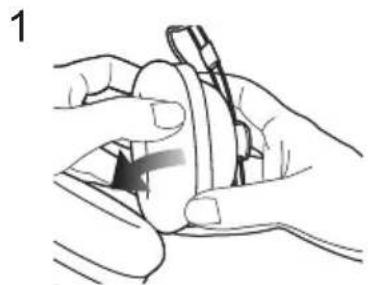
Remove the right ear pad to view authentication information. (1)
Authentication information (A) is indicated on the speaker plate portion (B), which becomes visible when the right ear pad (R side) is removed. (2)
To attach the ear pad, fit the part D of the ear pad into the part C. (3)
Do not pull the ear pad with force when attaching.


Troubleshooting
Before requesting service, make the following checks. If you are in doubt about some of the check points, or if the remedies indicated in the chart do not solve the problem, refer to “Customer Services Directory” on “Basic Owner’s Manual” if you reside in the U.S.A., or refer to “CONTACT INFORMATION” on “Basic Owner’s Manual” if you reside in Canada.
Sound and audio volume
No sound.
- Make sure that the unit and the Bluetooth® device are connected correctly. (→ 13)
- Check if music is playing on the Bluetooth® device.
- Make sure that the unit is turned on and the volume is not set too low.
- Pair and connect the Bluetooth® device and the unit again. (→ 13)
- Check if the Bluetooth® compatible device supports "A2DP" profile. For details on profiles, see "Listening to music" (→ 15). Also refer to the operating manual for the Bluetooth® compatible device.
Low volume.
- Increase the volume of the unit. (→ 15)
- Increase the volume on the Bluetooth® device.
Sound from the device is cut off. / Too much noise. / Sound quality is bad.
- Sound may be disrupted if signals are blocked. Do not fully cover this unit with the palm of your hand, etc.
- The device may be out of the 10 m (33 ft.) communication range. Move the device closer to this unit.
- Remove any obstacle between this unit and the device.
- Switch off any wireless LAN device when not in use.
Bluetooth® device connection
The device cannot be connected.
- You can pair up to 8 Bluetooth® devices with this unit. If a 9th device is paired, the device with the oldest connection will be replaced.
- Delete the pairing information for this unit from the Bluetooth® device, then pair them again. (→ 13)
Phone Calls
You cannot hear the other person.
- Make sure that the unit and the Bluetooth® enabled phone are turned on.
- Check if the unit and the Bluetooth® enabled phone are connected. (→ 13)
- Check the audio settings of the Bluetooth enabled phone. Switch the calling device to the unit if it is set to the Bluetooth enabled phone. (→ 13)
- If the volume of the other person's voice is too low, increase the volume of both the unit and the Bluetooth® enabled phone.
Cannot make a phone call.
- Check if the Bluetooth® compatible device supports "HSP" or "HFP" profile. For details on profiles, see "Listening to music" (→ 15) and "Making a phone call" (→ 17). Also refer to the operating manual for the Bluetooth® enabled phone.
General
The unit does not respond.
- This unit can be reset when all operations are rejected. To reset the unit, press and hold [⏻/l ( ⓤ) ] for 10 seconds or more. (→ 18)
- The power cannot be turned on when the detachable cord (supplied) is connected. ⇔ 19)
Power supply and charging
Cannot charge the unit. / The power/pairing LED does not light or flashes during charging. / Charging takes longer.
- Is the USB charging cord connected firmly to the USB terminal of the computer? (→ 10)
- Make sure to charge in a room temperature between 10°C and 35°C (50°F and 95°F).
- Make sure the computer is turned on and is not on standby or sleep mode.
- Is the USB port you are currently using working properly? If your computer has other USB ports, unplug the connector from its current port and plug it into one of the other ports.
- If the measures mentioned above are not applicable, unplug the USB charging cord and plug it in again.
- It takes approx. 4 hours to charge the battery from empty to full.
- If the charge time and operating time become shortened, the battery may have run down. (Number of charging times of the installed battery: Approximately 300)
- The power/pairing LED lights in red when charging is in progress. When charging is completed, the power/pairing LED will go out.
The power does not turn on. / The power turns off.
- Is the unit being charged? The power cannot be turned ON during charging. (→ 10)
- The power cannot be turned on when the detachable cord (supplied) is connected. ⇔ 19)
- The battery is low when the power/pairing LED is blinking in red. Charge the unit.
• Is auto power off active? ( → 18)
Noise cancelling can be activated, but the power does not turn on.
- Charge the unit. (→ 10)
Guidance messages
The audio guidance language has changed.
• The audio guidance language can be switched. (→ 18)
Specifications
General
| Power supply DC 5 V, 500 mA | (Internal battery: 3.7 V (Li-polymer 800 mAh)) |
| Operating time*1 | Approx. 24 hours (Noise cancelling: ON, SBC) |
| Charging time*2 (25 °C (77 °F)) | Approx. 4 hours |
| Charging temperature range | 10 °C to 35 °C (50 °F to 95 °F) |
| Operating temperature range | 0 °C to 40 °C (32 °F to 104 °F) |
| Operating humidity range | 35 %RH to 80 %RH (no condensation) |
| Mass (Weight) | Approx. 208 g (7.3 oz) (without cord) |
*1 It may be shorter depending on the operating conditions.
*2 The time required to charge the battery from empty to full.
Bluetooth section
| Bluetooth® system specification Ver. 4.2 | |
| Wireless equipment classification | Class 2 (2.5 mW) |
| Frequency band | 2402 MHz to 2480 MHz |
| Max RF power | 4 dBm |
| Supported profiles | A2DP, AVRCP, HSP, HFP |
| Supported codec | SBC |
| Operating distance | Up to 10 m (33 ft.) |
■ Headphone section
| Impedance | 35 Ω (Power off, with cord) |
| Frequency response | 8 Hz to 25000 Hz (with cord) |
■ Speaker section
| Driver units | 40 mm (1 - 9/16 inch) |
■ Terminal section
| DC IN | DC 5 V, 500 mA |
■ Microphone section
| Type | Mono |
■ Accessory section
| USB charging cord | Approx. 0.5 m (1.6 ft.) |
| Detachable cord | Approx. 1.2 m (3.9 ft.) |
- Specifications are subject to change without notice.
To remove the battery when disposing of this unit
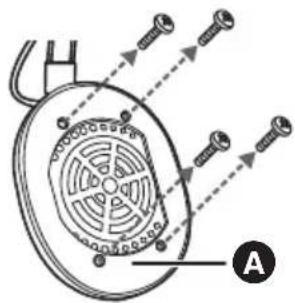
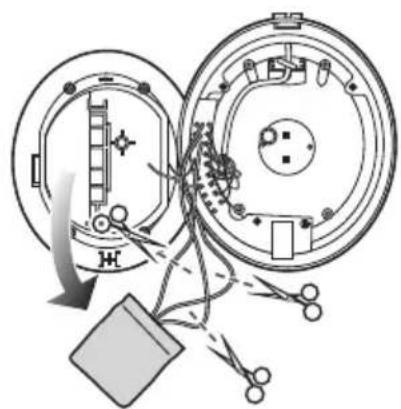
The following instructions are not intended for repairing purposes but for the disposal of this unit. This unit is not restorable once disassembled.
- When disposing of this unit, take out the battery installed in this unit and recycle it.
• Disassemble after the battery runs out.
- Keep disassembled parts out of reach of children.
Regarding the handling of used batteries
• Insulate the terminals with adhesive tape or similar material.
- Do not disassemble.
Batteries
- Do not heat or expose to flame.
- Do not leave the battery(ies) in a car exposed to direct sunlight for a long period of time with doors and windows closed.
- Battery mishandling can cause electrolyte leakage which can damage items the leaked fluid comes into contact with. If electrolyte leaks from the battery, consult your dealer. Wash thoroughly with water if electrolyte comes in contact with any part of your body.
- When disposing of the batteries, please contact your local authorities or dealer and ask for the correct method of disposal.
1

2
3
1 Remove the left ear pad.
2 Remove the 4 screws, and lift and flip the part A.
3 Cut off the wires one by one with scissors, and remove the battery.
Useful information
(Only for Latin American countries)
Customer Service
Customer Service Directory
Obtain products information and operative assistant; localize the closer distributor or Service Center; buy spare parts and accessories by our Web Site to Latin American:
| COUNTRY WEB SITE CONTACT CENTER | |
| Panama www.panasonic.com/pa/soporte/ 800-7262 | |
| Colombia | www.panasonic.com/co/soporte/ 01-8000-947262 |
| Ecuador www.panasonic.com/ec/soporte/ 1-800-726276 | |
| Costa Rica www.panasonic.com/cr/soporte/ 800-7262737 | |
| El Salvador www.panasonic.com/sv/soporte/ 800-7262 | |
| Guatemala | www.panasonic.com/gt/soporte/ 1-801-811-7262 |
| Uruguay www.panasonic.com/uy/soporte/ 0-800-7262 | |
| Paraguay www.panasonic.com/uy/soporte/ 0-800-11-7262 | |
| Chile www.panasonic.com/cl/soporte/ 800-390-602 | 022-797-5000 |
| Peru www.panasonic.com/pe/soporte/ 0800-00726 | |
| Venezuela www.panasonic.com/ve/soporte/ 800-7262-800 | |
| Mexico | www.panasonic.com/mx/soporte/ 01800-847-726255-5000-1200 |
| Argentina | www.panasonic.com/ar/soporte/ 0800-333-72620810-321-7262 |
| Dominican Republic | www.panasonic.com/do/soporte/ 809-200-8000 |
Panasonic Corporation of North America
Two Riverfront Plaza, Newark, NJ 07102-5490
http://shop.panasonic.com
Panasonic Canada Inc.
5770 Ambler Drive, Mississauga, Ontario L4W 2T3
www.panasonic.com
© Panasonic Corporation 2018
Panasonic Corporation
http://www.panasonic.com

TQBM0331
F1118QKC
- DIGITAL WIRELESS STEREO HEADPHONES
- MODEL NO. RP-HTX90N
- BLUETOOTH®
- IMPORTANT SAFETY INSTRUCTIONS
- SAFETY PRECAUTIONS
- FOR THE U.S.A. AND CANADA ONLY
- THE FOLLOWING APPLIES ONLY IN THE U.S.A. AND CANADA
- THE FOLLOWING APPLIES ONLY IN THE U.S.A
- FCC NOTE
- THE FOLLOWING APPLIES ONLY IN CANADA
- UNIT
- WARNING
- ALLERGIES
- ABOUT BLUETOOTH®
- FREQUENCY BAND USED
- CERTIFICATION OF THIS UNIT
- RESTRICTIONS OF USE
- RANGE OF USE
- INTERFERENCE FROM OTHER DEVICES
- INTENDED USAGE
- TABLE OF CONTENTS
- BEFORE USE
- PREPARATION
- OPERATION
- OTHER
- EXPRESSIONS USED IN THIS DOCUMENT
- ACCESSORIES
- MAINTENANCE
- PART NAMES
- REGARDING THE AVAILABILITY OF OPERATIONS BY CONNECTION TYPE
- CHARGING
- CONNECT THIS UNIT TO A COMPUTER USING THE USB CHARGING CORD
- NOTE
- USING NOISE CANCELLING
- 1 SET THE [NC] SWITCH TO ON
- USING BLUETOOTH®
- TURNING THE POWER ON/OFF
- IN THE POWER-OFF STATE, PRESS AND HOLD [⏻/L (❄)] OF THIS UNIT FOR APPROX. 3 SECONDS UNTIL THE POWER/PAIRING LED (BLUE) BLINKS
- TO TURN THE POWER OFF
- CONNECTING A BLUETOOTH® DEVICE
- PAIRING (REGISTRATION) THIS UNIT WITH THE BLUETOOTH® DEVICE FOR CONNECTION
- 1 IN THE POWER-OFF STATE, PRESS AND HOLD [⏻/L (❄)] OF THIS UNIT UNTIL THE POWER/PAIRING LED BLINKS
- 2 TURN ON THE POWER OF THE BLUETOOTH ® DEVICE, AND ENABLE THE BLUETOOTH ® FUNCTION
- 3 SELECT "RP-HTX90N" FROM THE BLUETOOTH ® DEVICE'S MENU
- 4 CHECK THE CONNECTION WITH THE BLUETOOTH DEVICE ON THE UNIT
- CONNECTING A PAIRED BLUETOOTH ® DEVICE
- 1 TURN ON THIS UNIT
- 2 PERFORM STEPS 2 AND 3 OF "PAIRING (REGISTRATION) THIS UNIT WITH THE BLUETOOTH® DEVICE FOR CONNECTION". (→ 13)
- LISTENING TO MUSIC
- 1 CONNECT THE BLUETOOTH DEVICE AND THE UNIT. (→ 13, “CONNECTING A BLUETOOTH DEVICE”)
- 2 SELECT AND PLAY THE MUSIC ON THE BLUETOOTH ® DEVICE
- ATTENTION
- REMOTE CONTROLLING
- (OPERATION EXAMPLE)
- ENHANCING THE BASS (BASS ENHANCER)
- PRESS [BASS]
- TO TURN OFF THE BASS ENHANCER FUNCTION
- MAKING A PHONE CALL
- 2 PRESS [▶/■/] ON THE UNIT AND ANSWER THE INCOMING CALL
- 3 START TALKING
- 4 PRESS [▶/■/] TO END THE PHONE CALL
- USEFUL FUNCTIONS
- ACTIVATING VOICE FUNCTIONS
- GUIDANCE MESSAGES
- BATTERY LEVEL NOTIFICATION
- AUTO POWER OFF
- RESETTING THE UNIT
- USING THE DETACHABLE CORD (SUPPLIED)
- RESTORING TO THE FACTORY SETTINGS
- COPYRIGHT, ETC
- TROUBLESHOOTING
- SOUND AND AUDIO VOLUME
- NO SOUND
- LOW VOLUME
- SOUND FROM THE DEVICE IS CUT OFF. / TOO MUCH NOISE. / SOUND QUALITY IS BAD
- BLUETOOTH® DEVICE CONNECTION
- THE DEVICE CANNOT BE CONNECTED
- PHONE CALLS
- YOU CANNOT HEAR THE OTHER PERSON
- CANNOT MAKE A PHONE CALL
- GENERAL
- THE UNIT DOES NOT RESPOND
- POWER SUPPLY AND CHARGING
- CANNOT CHARGE THE UNIT. / THE POWER/PAIRING LED DOES NOT LIGHT OR FLASHES DURING CHARGING. / CHARGING TAKES LONGER
- THE POWER DOES NOT TURN ON. / THE POWER TURNS OFF
- NOISE CANCELLING CAN BE ACTIVATED, BUT THE POWER DOES NOT TURN ON
- THE AUDIO GUIDANCE LANGUAGE HAS CHANGED
- SPECIFICATIONS
- TO REMOVE THE BATTERY WHEN DISPOSING OF THIS UNIT
- REGARDING THE HANDLING OF USED BATTERIES
- BATTERIES
- USEFUL INFORMATION
- (ONLY FOR LATIN AMERICAN COUNTRIES)
- CUSTOMER SERVICE
- CUSTOMER SERVICE DIRECTORY
Brand : PANASONIC
Model : RP-HTX90
Category : Headphones