MP7008 - Tablet MPMAN - Free user manual and instructions
Find the device manual for free MP7008 MPMAN in PDF.


User questions about MP7008 MPMAN
0 question about this device. Answer the ones you know or ask your own.
Ask a new question about this device
Download the instructions for your Tablet in PDF format for free! Find your manual MP7008 - MPMAN and take your electronic device back in hand. On this page are published all the documents necessary for the use of your device. MP7008 by MPMAN.
USER MANUAL MP7008 MPMAN
text_image
Google Browser Mouse Super 100 Playt Camera Settings File Manager Email CalculatorUser Manual
EN

text_image
mp man®For Model No. MP7007
This manual contains important safety precautions and information of correct use. Please be sure to read this manual carefully before use so as to avoid any accidents
Do not place the product in hot, wet or dusty environment, especially in summer, do not leave the product inside a car with all windows closed.
Avoid dropping, impacting or shaking the product violently, otherwise it may cause damages or malfunctions.
Select a proper volume to avoid ear problem when using earphones.
Do not cross the road or drive vehicles, using headphones to avoid traffic accidents.
Be sure to use the provided chargers and accessories in the package.
Be sure to charge the product when the following situations take place,
- The battery icon shows lower or empty.
- System automatically shut down and it turns off soon after restart.
- Operation keys do not respond properly.
- The device shows 📋 on the top right corner.
specification
Hardware
Software
| Google browser |
| Wi-Fi connection |
| e-Book function (all e-book formats supported by application) |
| 1080p HD file playback |
| VoIP phone function with Wi-Fi connection |
| Possible to view/edit MS office files by application |
| Video: AVI, RM/ RMVB, FLV, MPG4 – 1, MPEG – 2 etc. |
| Audio: MP3, WMA, AAC, WAV etc. |
| Photo: JPEG, BMP, GIF, PNG, TIFF |
| 7.0" High Definition TFT LCD Touch Screen (800x480 pixel) |
| Capacitive multi-touch (5 touch) point function |
| Wi-Fi (IEEE802.11 b/g/n) for internet connection |
| USB host for OTG function |
| G-sensor |
| Micro SD card slot recognizing up to 32GB |
| Built-in speaker & Built-in MIC |
| 5V DC power adapter |
| Compatible with keyboard, mouse |
Name
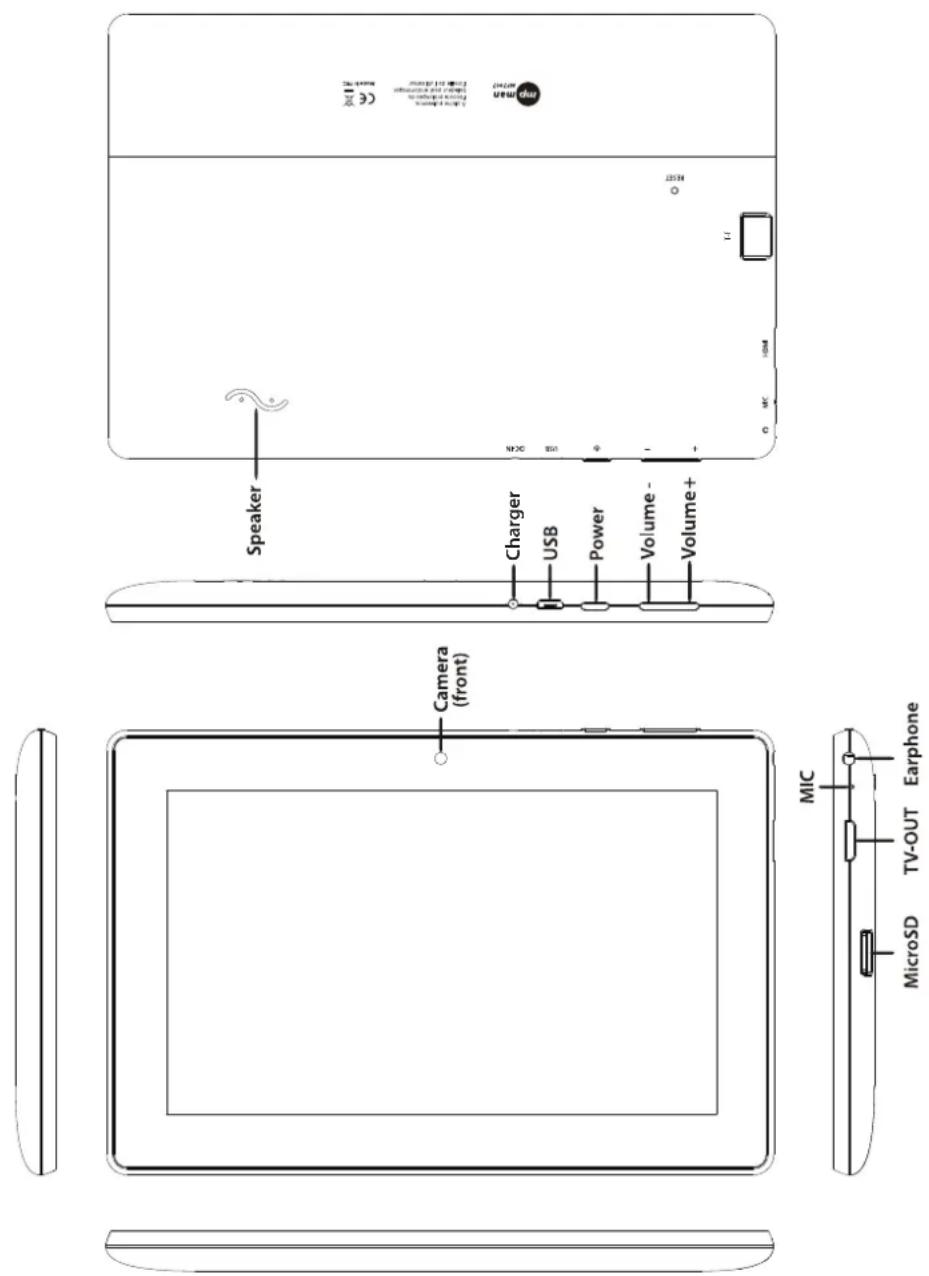
Important Notice
- If the device is freezing or stuck, press the
reset button(a small hole) or long press
power button for 10 seconds.
- When the performance is slow after using
some applications, it is recommended to
close running application in setting menu.
- For charging, be sure to use the power
adapter(DC5V) that is provided in the package,
otherwise, the device may be damaged
and does not work.
- The device is equipped with high performance
processor. It may heat in case of using long or
while charging.
Caution
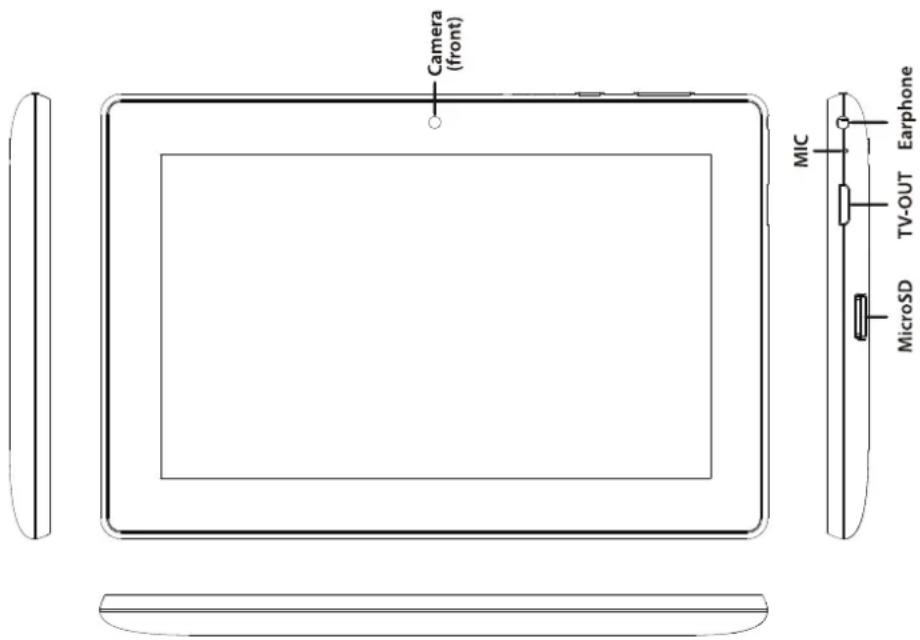
1. Power On/Off
Long press power button to turn on/off the device. It may take a minute to boot the device. Short press power button to turn on/off the screen.(Standby mode. Refer to 3. below)
After turning on the device, desktop displays with shortcut icons and arrow panel at the right side
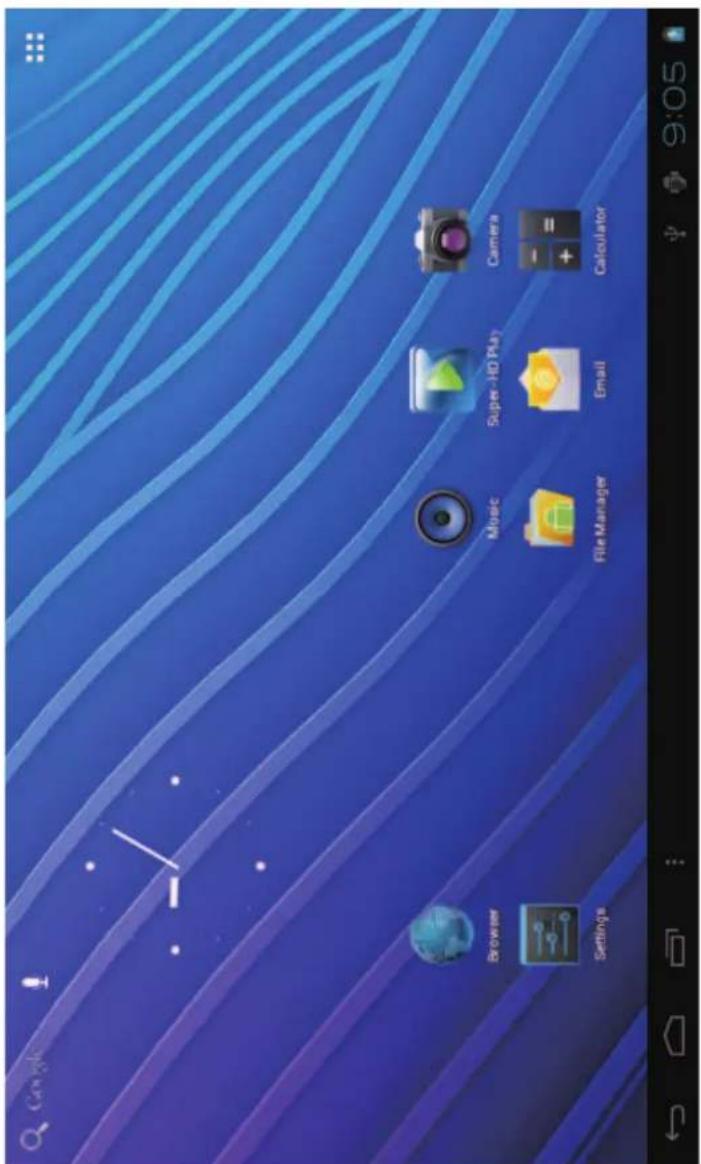
text_image
Google Browser Settings Music Super-HO Play Camera File Manager Email CalculatorUnlock the screen
Short press the power button to turn on/off the screen (standby mode on/off). After standby mode off, slide the lock icon in order to unlock the screen.
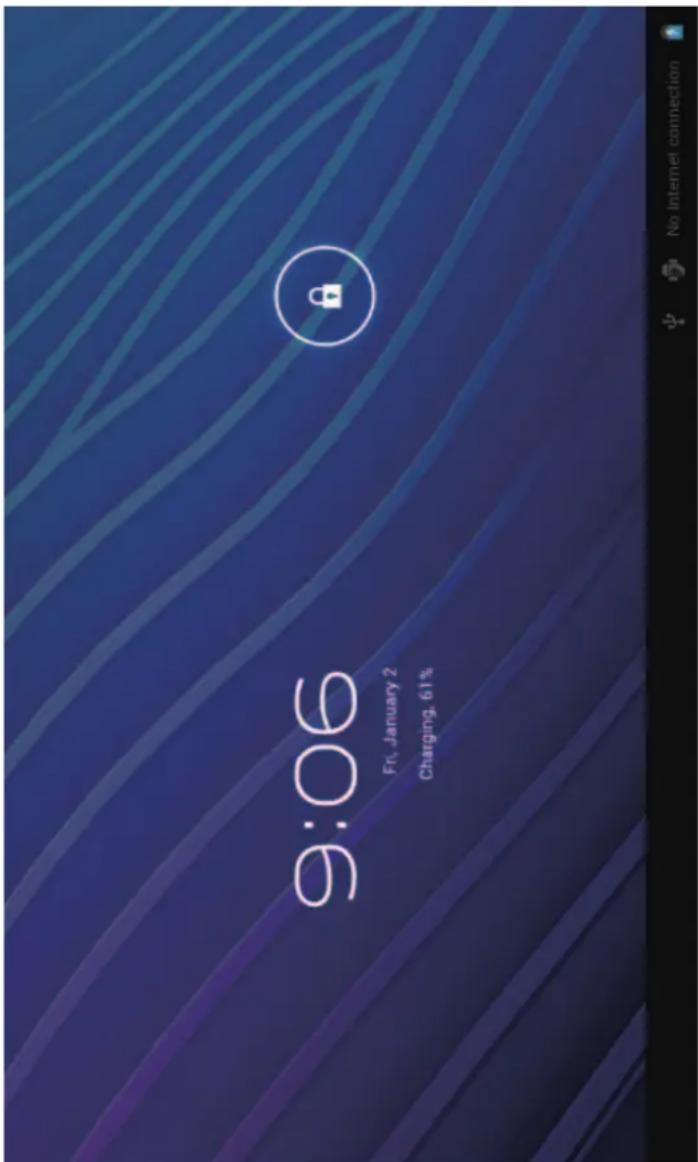
text_image
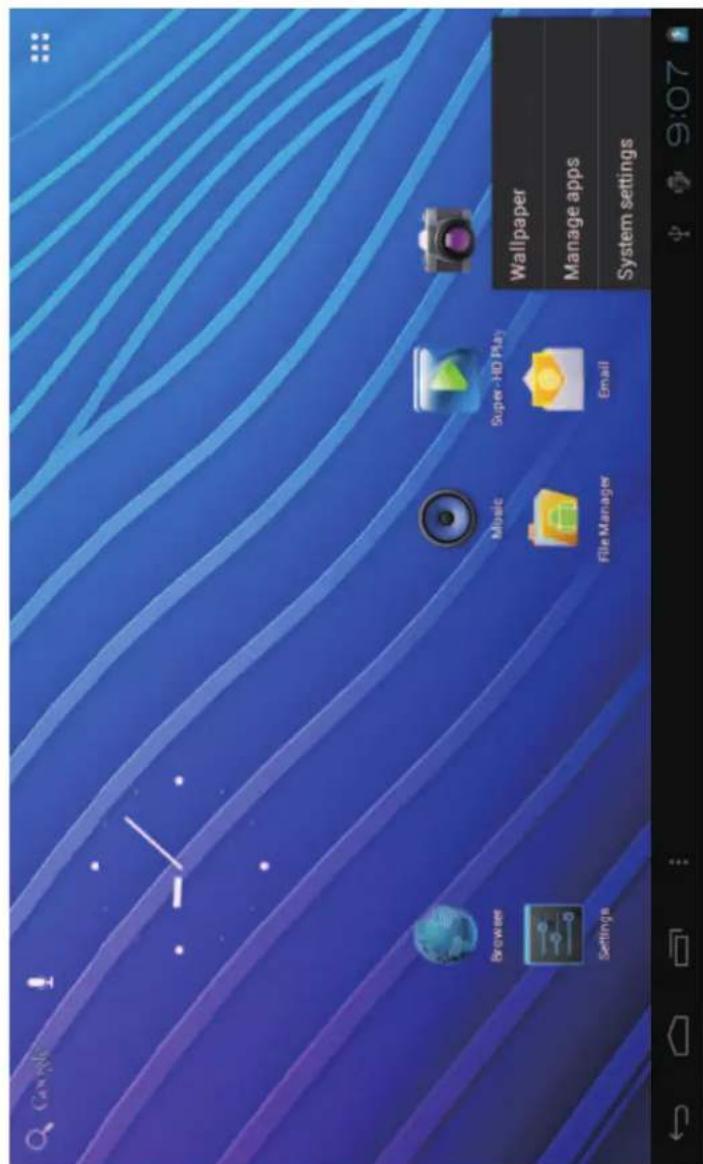
9:06 Fri, January 2 Charging, 61%On the desktop, press menu button and select system settings.
text_image
Google Browser Settings Music Super-HD Play File Manager Email Wallpaper Manage apps System settingsPress System Settings
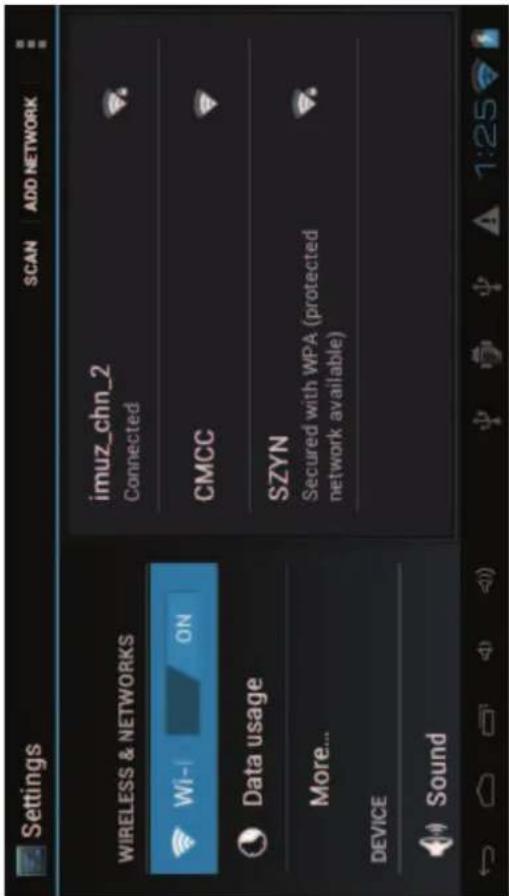
1.Wireless & networks
- Sound
text_image
Settings SCAN ADD NETWORK WIRELESS & NETWORKS Wi-1 ON Data usage More... DEVICE Sound imuz_chn_2 Connected CMCC SZYN Secured with WPA (protected network available)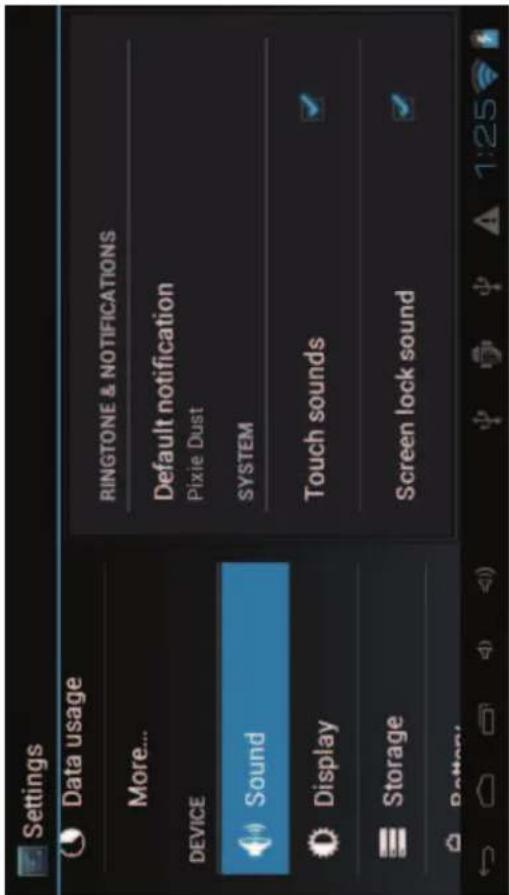
text_image
Settings Data usage More... DEVICE Sound Display Storage Battery RINGTONE & NOTIFICATIONS Default notification Pixie Dust SYSTEM Touch sounds Screen lock soundWi-Fi – Press Wi-Fi to turn on/off
Wi-Fi settings - Press Wi-Fi settings, then the device will automatically search the available Wi-Fi signals. Select the network you want to connect with.
Set up each setting as you like.
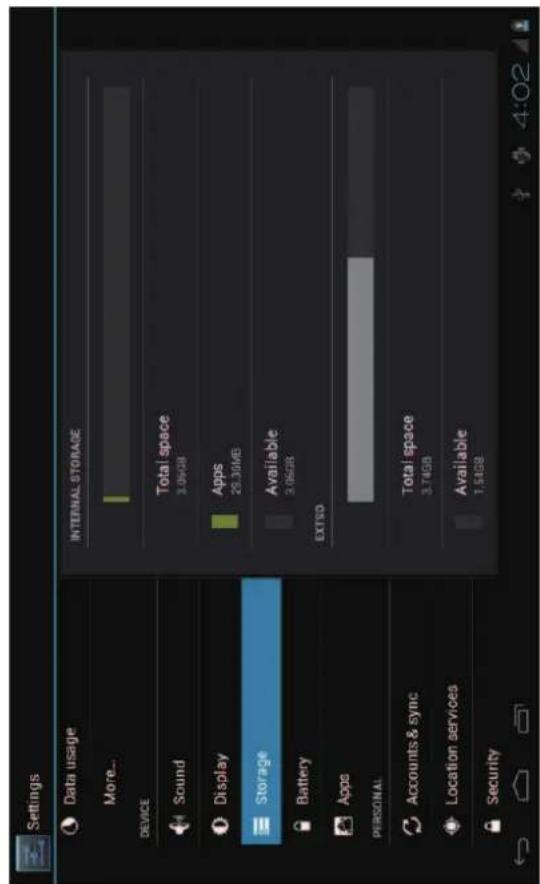
- Storage
text_image
Settings Data usage More... DEVICE Sound Display Storage Battery Apps PERSONAL Accounts & sync Location services Security INTERNAL STORAGE Total space 3.05GB Apps 28.36MB Available 3.05GB EXTSD Total space 3.74GB Available 1.54GBCheck device memory and microSD card status. Unmount SD card – Unmount the SD card for safe removal.
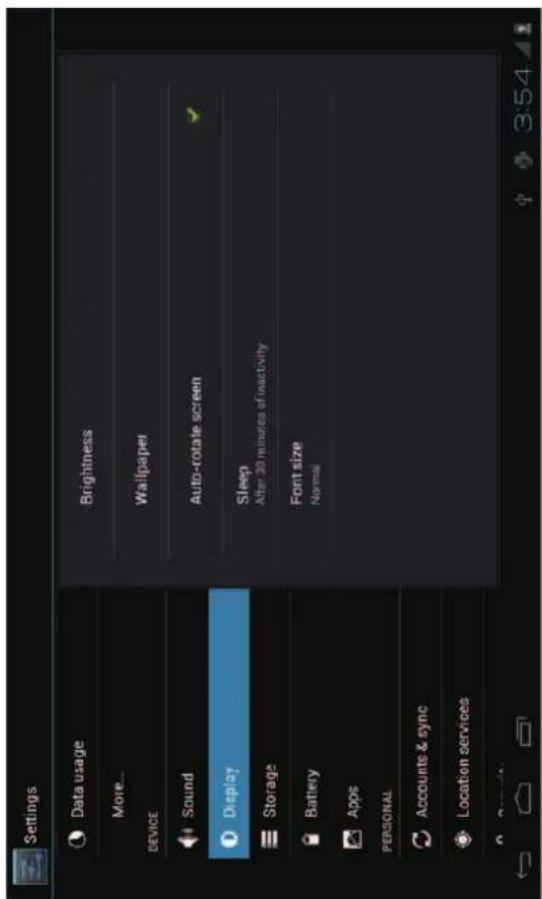
- Display
text_image
Settings Data usage More... DEVICE Sound Display Storage Battery Apps PERSONAL Accounts & sync Location services Brightness Wallpaper Auto-rotate screen Sleep After 30 minutes of inactivity Font size NormalSet up each setting as you like.
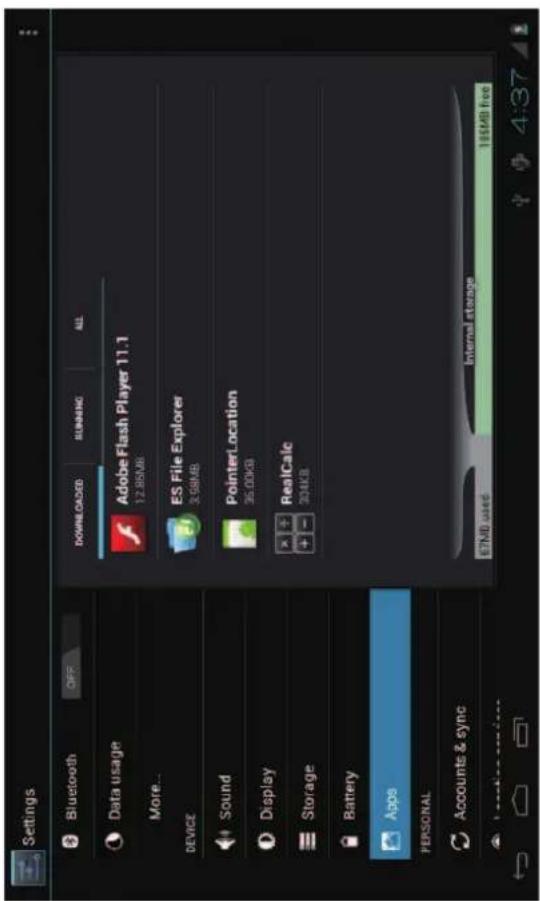
6. Apps
Manage downloaded or running applications.
text_image
Settings Bluetooth OFF Data usage More... DEVICE Sound Display Storage Battery Apps PERSONAL Accounts & sync Location service DOWNLOADS RUNNING ALL Adobe Flash Player 11.1 12.85MB ES File Explorer 3.98MB PointerLocation 35.00KB RealCalc 304KB 67MB used Internal storage 105MB freeDownloaded
All installed application are listing.
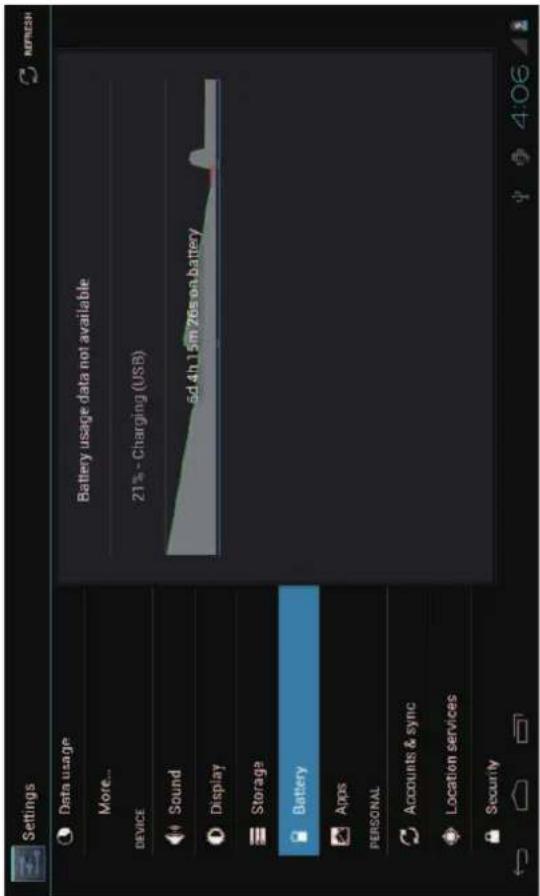
5. Battery
Check battery usage status.
text_image
Settings Data usage More... DEVICE Sound Display Storage Battery Apps PERSONAL Accounts & sync Location services Security Battery usage data not available 21% - Charging (USB) 5d 4h 15m 76s on battery 4:06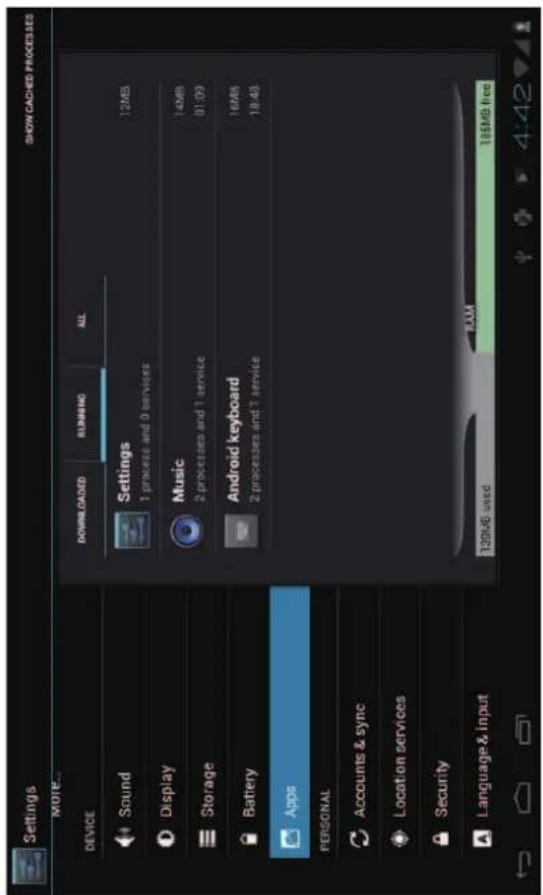
text_image
Settings MORE... DEVICE Sound Display Storage Battery Apps PERSONAL Accounts & sync Location services Security Language & input DOWNLOADING RUNNING ALL Settings 1 process and 9 services Music 2 processes and 1 service Android keyboard 2 processes and 1 service 12MB 14MB 01:09 16MB 18:43 139MB used RAM 185MB freeRunning services
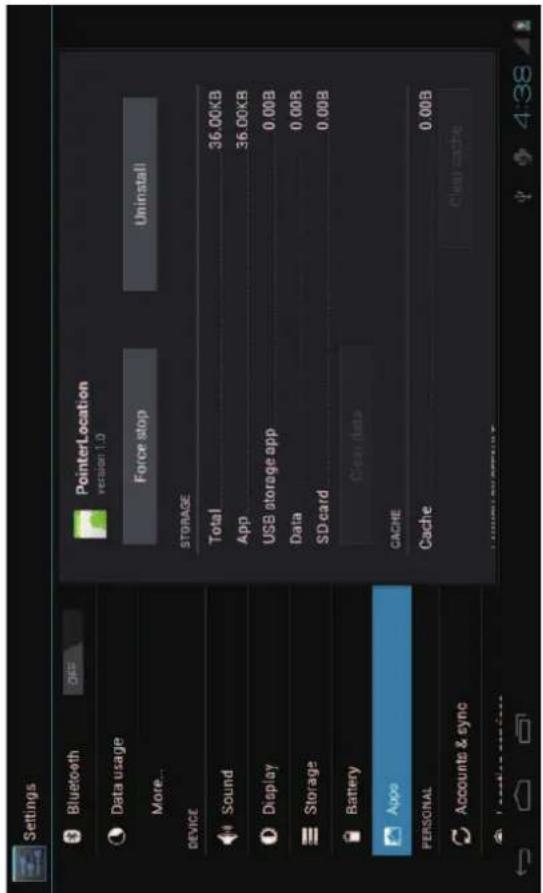
Press Uninstall to uninstall the selected application. View and control currently running services.
text_image
Settings Bluetooth OFF Data usage More... DEVICE Sound Display Storage Battery Aupo PERSONAL Accounts & sync PointerLocation version 1.0 Force stop Uninstall STORAGE Total 36.00KB App 36.00KB USB storage app 0.00B Data 0.00B SD card 0.00B Clear data CACHE Cache 0.00B Clear cacheKeep pressing an application to manage.
7. Account & sync
Create your account. After connecting Wi-Fi network, the e-mailing system synchronizes your account with the device. Emails are automatically downloaded into the device.
8. Location services
Google's location service - Let apps use data from sources such as WiFi and mobile networks to determine your approximate location
9. Security
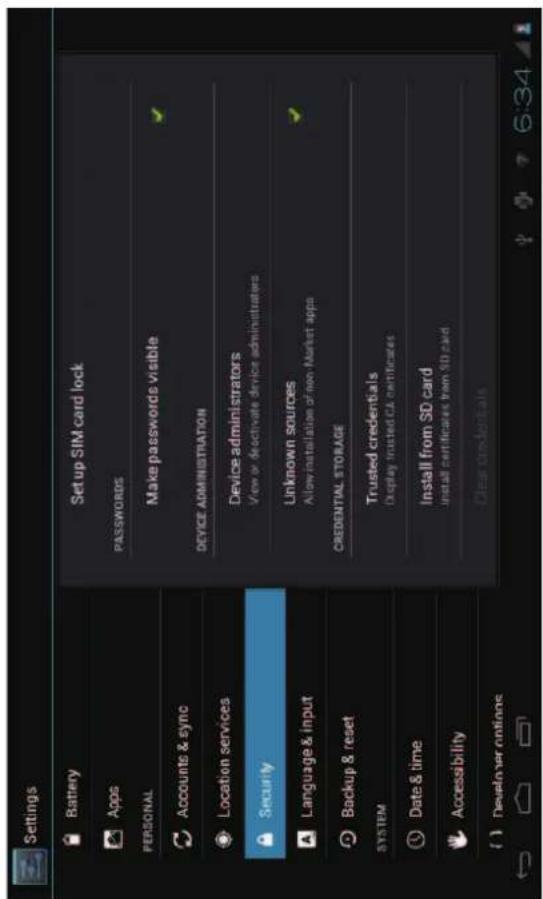
Screen lock – Protect your device from unauthorized use by creating a personal screen unlock pattern. Make passwords visible – Show password as you type.
Unknown sources - If you want to allow installation of non-Market Applications,
Press Unknown sources and presses OK.
text_image
Settings Battery Apps PERSONAL Accounts & sync Location services Security Language & input Backup & reset SYSTEM Date & time Accessibility Developer options Set up SIM card lock PASSWORDS Make passwords visible DEVICE ADMINISTRATION Device administrators View or deactivate device administrators Unknown sources Allow installation of non-Market apps CREDENTIAL STORAGE Trusted credentials Display trusted CA certificates Install from SD card Install certificates from SD card Clear credentialsInstall from SD card – Install encrypted certificates from SD card.
10. Language & input
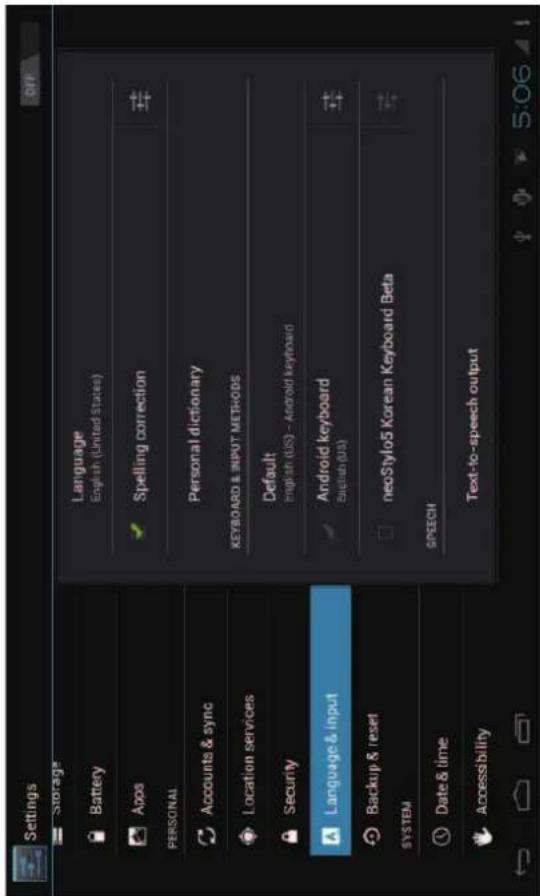
Language – Choose your preferable language. Keyboard & input method – Change keyboard & keyboard settings. On Language & input settings, if you need other languages besides English on keyboard, press the relevant keyboard and enter the chosen Keyboard settings, select Keyboards, press the language you need.
text_image
Settings Storage Battery Apps PERSONAL Accounts & sync Location services Security Language & input Backup & reset SYSTEM Date & time Accessibility Language English (United States) Spelling correction Personal dictionary KEYBOARD & INPUT METHODS Default English (US) - Android keyboard Android keyboard English (US) neoStylo5 Korean Keyboard Beta SPEECH Text-to-speech output11. Date & time
Set date & time and format
12. Developer options
Set options for application development
13. About tablet
See status, legal information, ETC
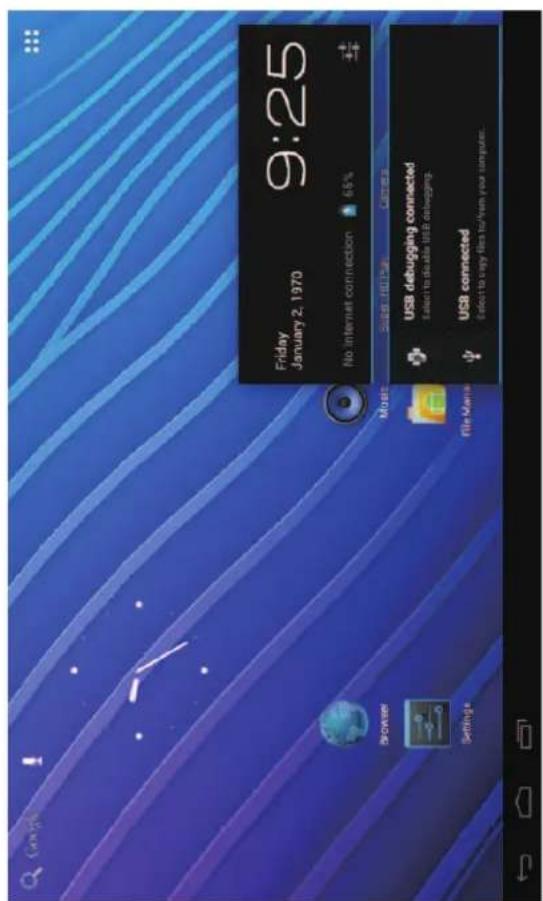
How to connect/disconnect the device with/from the computer
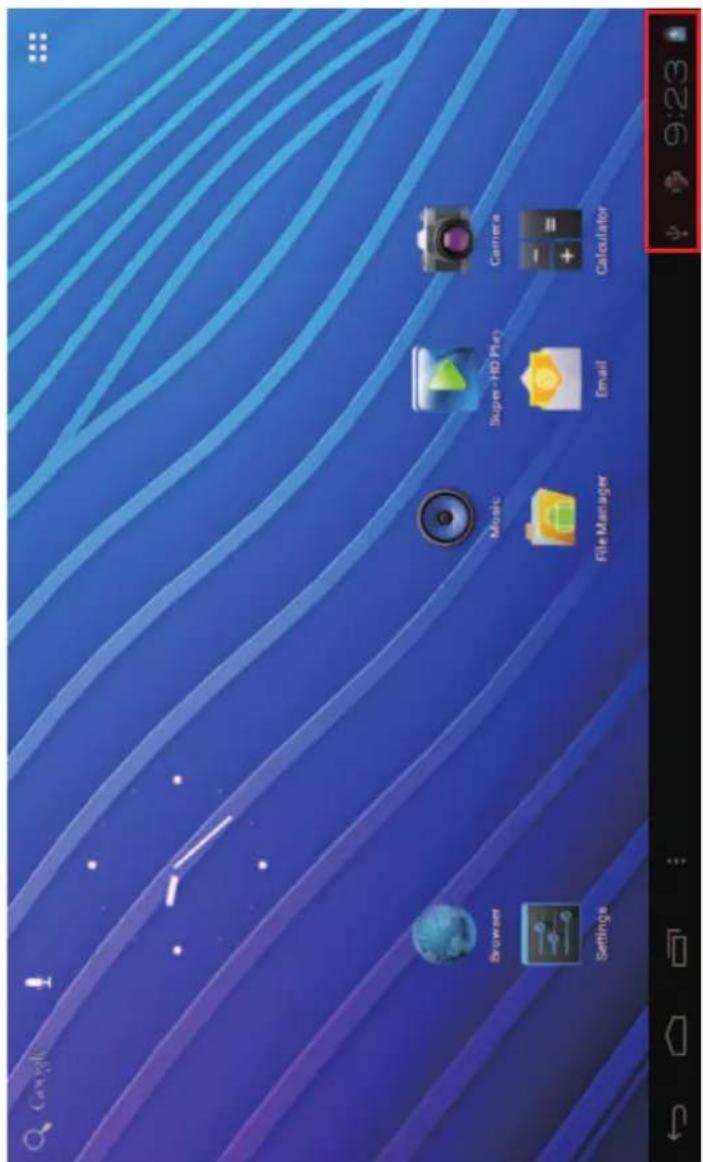
On main desktop, connect the device with the PC,
touch right side of the status bar on the bottom of desktop
text_image
Browse Settings Music Super-HD Play Camera File Manager Email Calculator 9:23Press "USB connected", select "Turn on USB storage". The device is recognized at Explorer of the computer. Now you can use it as an external storage.
After finishing your work, Press "Turn off USB storage" to unmount it.
text_image
Google Friday January 2, 1970 9:25 No internet connection 65% Browse Moste Super Hi/Hi+4 Camera USB debugging connected Select to disable USB debugging. USB connected Select to copy files to/from your computer.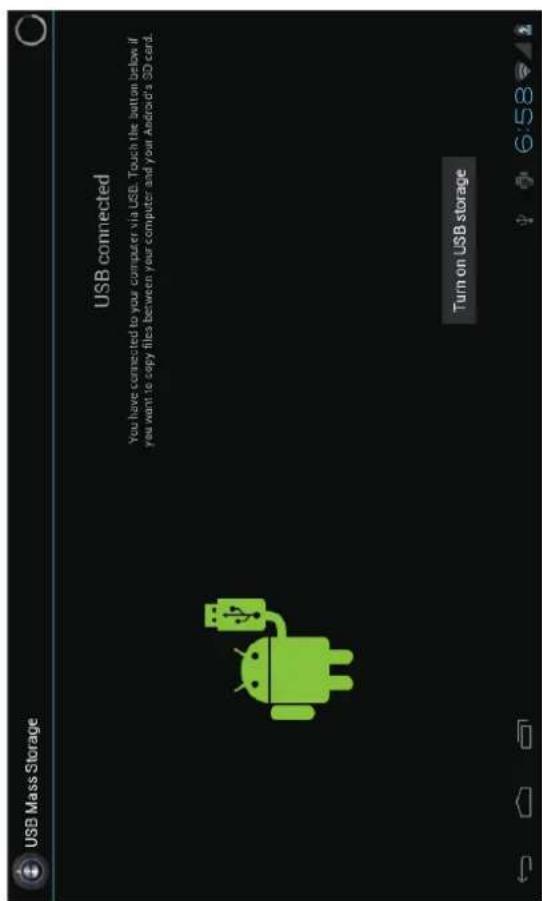
text_image
USB Mass Storage USB connected You have connected to your computer via USB. Touch the button below if you want to copy files between your computer and your Android's SD card. Turn on USB storageHow to install Applications(.apk file) into the device
Method 1.
- Connect the device with internet. See above [1.Wireless & networks] in order to connect internet.
- Run “ Opera” and search the applications you want to install.
- Follow the instruction on the screen for installation.
Method 2.
- With your computer, search application file(.apk) that you want to install into the device.
- Download the file(.apk) into your computer.
- Connect the device with your computer.
See above [How to connect/disconnect the device with/from the computer.] 4. Copy and paste .apk file into the device and disconnect it from your computer. 5. Run "File browser" and find .apk file that was copied into the device. 6. Press the file to install and follow the instruction on the screen.
Note
You may only download adult applications if you are at least 18 years of age, or at least the age of majority in the jurisdiction where you reside or from which you download adult applications. If you do not meet these requirements, then you do not have permission to download adult applications. In case of any problems including legal issues from the breach by end-user's own decision, the manufacturer shall not be responsible.
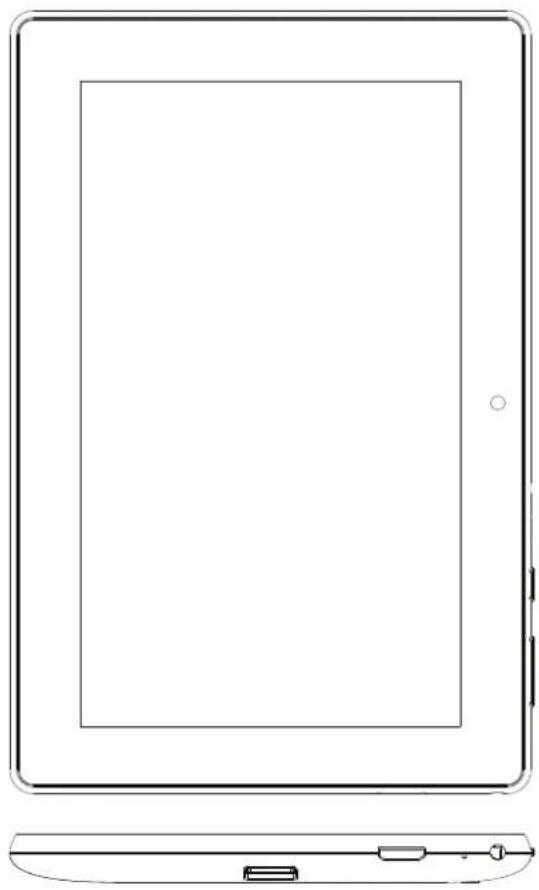
HDMI connection with TV
Turn on the device and TV
Connect the device with TV using HDMI cable.
natural_image
Line drawing of a tablet device with front panel and side view (no text or symbols)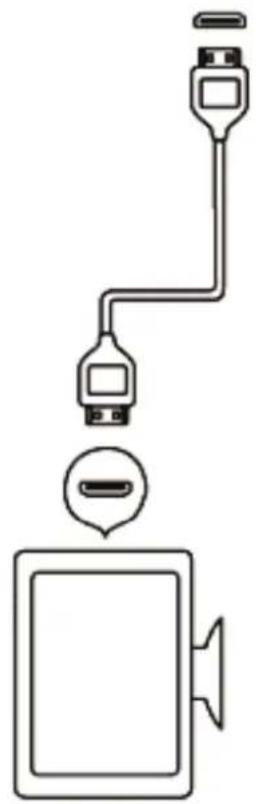
natural_image
Diagram showing a computer monitor connected to two USB cable connectors (no text or symbols present)How to make desktop icons
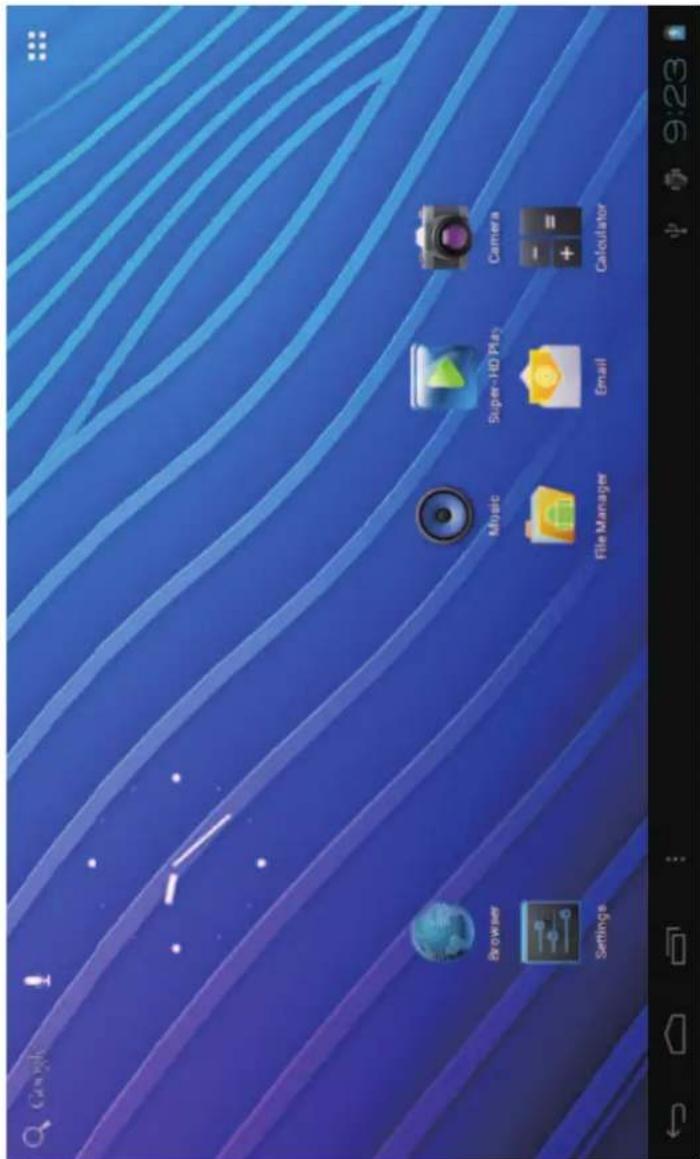
Press the upper right side icon of desktop, the pop-up displays.
text_image
Browser Settings Music Super-HO Play Camera File Manager Email Calculator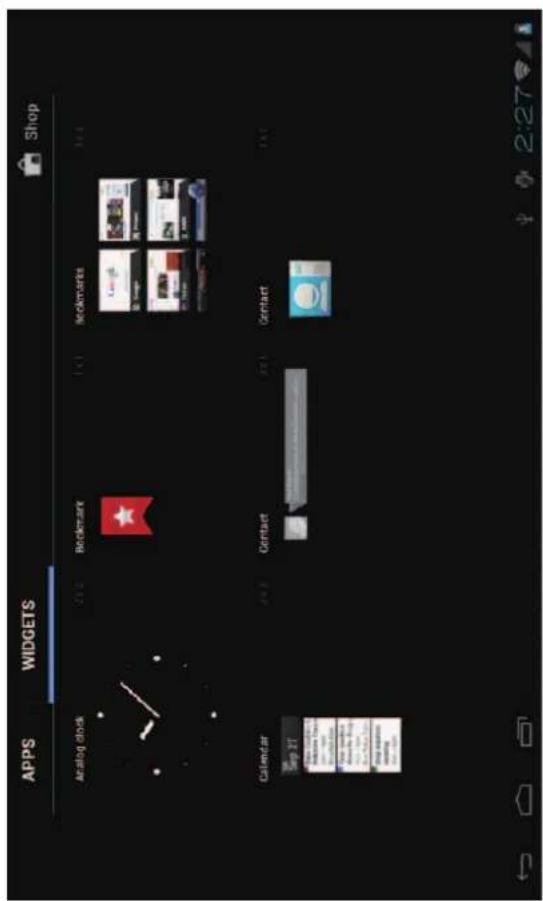
text_image
APPS WIDGETS Shop Analog clock 2023 Bookmark 1:1 Bookmarks 1:14 Calendar 2023 Contact 2023 Contact 1:14 Sep 17 New Computer Tools New Computer Tools New Computer Tools New Computer Tools New Computer Tools New Computer Tools New Computer Tools New Computer Tools New Computer Tools New Computer Tools New Computer Tools New Computer Tools New Computer Tools New Computer Tools New Computer Tools New Computer Tools New Computer Tools New Computer Tools New Computer Tools New Computer Tools New Computer Tools New Computer Tools New Computer Tools New Computer Tools New Computer Tools New Computer Tots 2:27Shortcuts
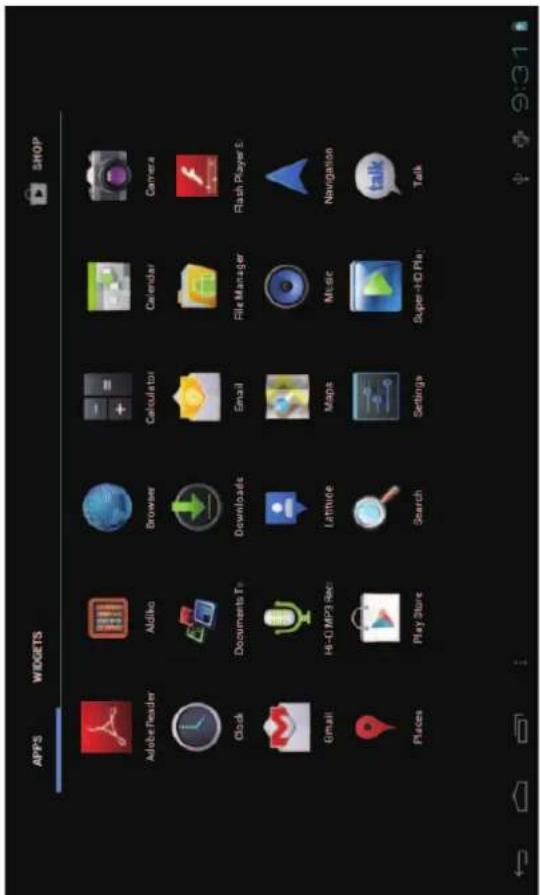
Long press your desired APK icon and put it on the desktop.
Wallpaper Long press the desktop, press Wallpapers and select one of categories of wallpaper. Select one you desire and press Set wallpaper.
text_image
APPS WIDGETS SHOP Adobe Reader Aldiko Browser Calculator Calendar Camera Clock Documents To Downloads Email File Manager Flash Player S Email Hi-Fi MP3 Rec Latitude Maps Music Navigation Places Play Store Search Settings Super-HD Play TalkChange Input Method
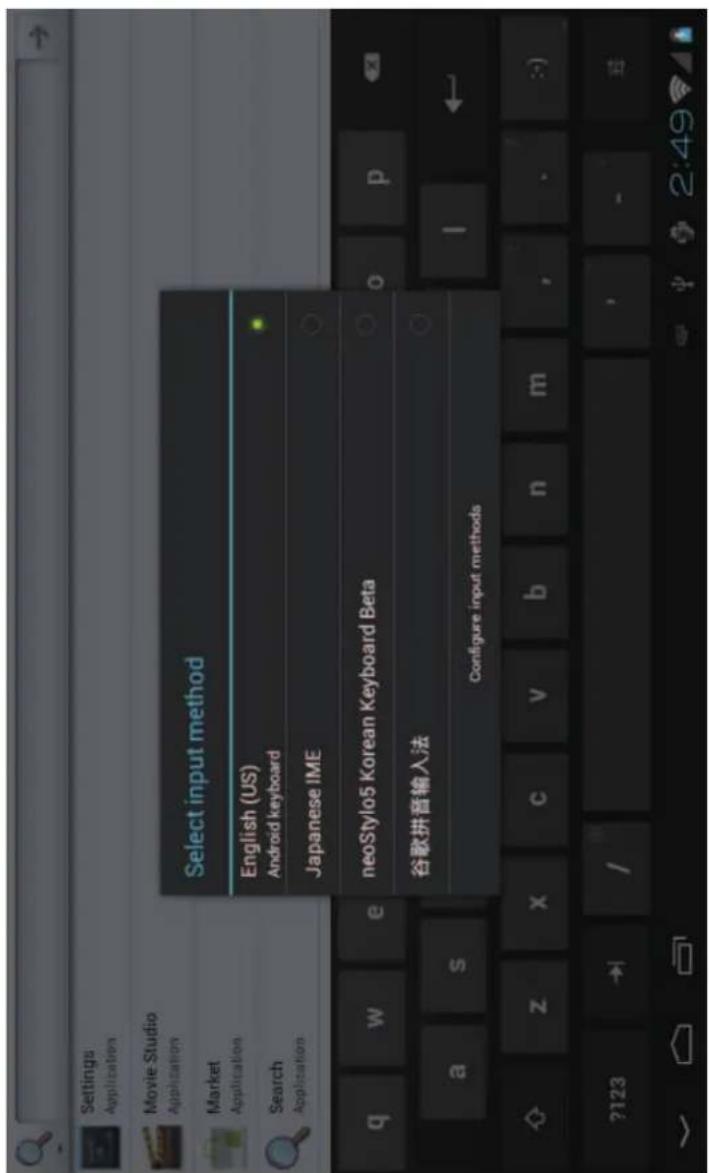
If your device was installed with other more input method, long press setting icon of keyboard, and the pop-up displays.
text_image
Settings Applications Movie Studio Application Market Application Search Application Select input method English (US) Android keyboard Japanese IME neoStylo5 Korean Keyboard Beta 谷歌拼音输入法 Configure input methodsSelect the installed keyboard, then the keyboard will appear with your desired language you installed.
Specification
| OS | ||
| CPU | ||
| SDRAM | ||
| Display | 7" TFT 800*480 Capacitive touch panel | |
| Multi-touch screen | Yes: 5 point multi-touch | |
| Built-in flash memory | 2 / 4 / 8 / 16GB | |
| IO PORTS | Audio port | 3.5ø earphones |
| USB port | 1 x 5pin micro USB port (support USB host and OTG) | |
| DC port | 5V, 2A | |
| Micro SD | Micro SD card | |
| OTG port | Same with USB port | |
| Button | Power, VOL-, VOL+, reset, | |
| Speaker | 1.5W, Frequency response: 20Hz – 20k Hz, N/S: >85% | |
| G-sensor | Yes | |
| Camera | 0.3M pixel (front) | |
| Wi-Fi | 802.11b/g/n | |
| Power | Adaptor 5V -2A | |
| Battery | 3.7V Li-Polymer | |
| Dimension | ||
| Charging time | by charger | approx. 3~4hours |
For more information please check our website
www.mpmaneurope.com