
Xperia Tablet S SGPT13 - Tablet SONY - Free user manual and instructions
Find the device manual for free Xperia Tablet S SGPT13 SONY in PDF.


| Product Type | Tablet |
| Brand | Sony |
| Model | Xperia Tablet S SGPT13 |
| Operating System | Android 4.0.3 (Ice Cream Sandwich) |
| Processor | NVIDIA Tegra 3 (max 1.4 GHz single core, 1.3 GHz multi-core) |
| RAM | 1 GB |
| Storage Capacity | 16/32/64 GB (depending on model) |
| Display Size | 9.4 inches |
| Display Resolution | 1280 x 800 pixels (WXGA) |
| Display Type | TFT Color LCD |
| Front Camera | 1 MP |
| Rear Camera | 8 MP |
| Wi-Fi | IEEE 802.11a/b/g/n |
| Bluetooth | Version 3.0 |
| GPS | Yes |
| Infrared Remote Control | Yes |
| Dimensions (W x D x H) | 239.8 x 174.4 x 8.8-11.85 mm |
| Weight (SGPT13) | 585 g |
| Storage Expansion | SD/SDHC/SDHC UHS-I card slot |
| Headphone Jack | Stereo mini jack (also mono microphone) |
| Multi Port | Yes (charging, USB host, HDMI adapter) |
| Splash-Proof | IPX4 equivalent (with all covers closed) |
| Supplied Accessories | USB Cable, AC adapter, AC power cord (varies by region) |
Frequently Asked Questions - Xperia Tablet S SGPT13 SONY
User questions about Xperia Tablet S SGPT13 SONY
0 question about this device. Answer the ones you know or ask your own.
Ask a new question about this device
Download the instructions for your Tablet in PDF format for free! Find your manual Xperia Tablet S SGPT13 - SONY and take your electronic device back in hand. On this page are published all the documents necessary for the use of your device. Xperia Tablet S SGPT13 by SONY.
USER MANUAL Xperia Tablet S SGPT13 SONY
- Read This First
• Downloading the Help guide
• Turning On or Shutting Down Your Tablet Device
• Turning the Screen On/Off (Sleep Mode) - Setting the Time that Elapses Before the Screen Turns Off (Goes to Sleep)
• Notes on Using the AC Adapter
- Charging the Battery
- Notes on Charging
- Touch Screen Operations
• Notes on the Screen
• Turning On/Off the Wi-Fi Function
- Connecting to Wi-Fi
- Connecting by Pressing the WPS Button on the Wi-Fi Router
• Connecting from the Wi-Fi Network List
• Notes on Using the Wi-Fi Function
• Turning On/Off the Bluetooth Function
• Paring with a Bluetooth Device
• Notes on Using the Bluetooth Function
• Enabling Mobile Communications (SGPT13)
• Disabling Mobile Communications (SGPT13)
- Inserting/Removing a SIM Card (SGPT13)
• Notes on the SIM Card (SGPT13)
• Setting Up an Access Point (SGPT13)
• Using Location Services
• Notes on GPS Function
- Inserting/Removing an SD Memory Card
• Notes on SD Memory Cards
• Compatibility of SD Memory Cards
• Connecting a USB Compatible Device
• Connecting to a Computer
• Connecting to an HDMI Compatible Device
- Parts and Controls
• Checking the Supplied Items
• Notes on Holding Your Tablet Device
Resetting Your Tablet Device
- Reverting to Factory Default (Initializing Data)
• How to Maintain Battery Life
• Adjusting the Screen Brightness
• Notes on Using Voice Communications Apps (SGPT13) - Notes on Use
- Splash-proof Performance
- Checking the Android Version
- Updating Android to the Latest Version
• Using the Home Screen
• Sharing the Tablet Device with Family or Friends (Guest Mode)
- Switching to Guest Mode
- Adding Apps or Widgets to the Home Screen
• Using the Apps & Widgets List
• Using "Small Apps"
- Searching with Google
• Confirming Download or Update Information on the Status Bar
- Configuring Screen Rotation
- Configuring to Lock the Screen
- Entering Text
- Selecting Text
- Configuring a Google Account
• Backing Up Data on Your Tablet Device
- Importing Content from Your Computer
• Supported Formats
- Changing the Settings
-
Checking the Free Space
• Synchronizing the Account -
List of Apps
• Using the Calendar
• Shooting Photos/Movies
• Notes on Recorded Photos/Movies - Configuring an E-mail Account
• Composing/Sending an E-mail
• Receiving/Deleting E-mails - Browsing Websites
- Adding Bookmarks - Accessing Sites from Bookmarks/Access History
• Using the Calculator
- Registering Contacts
• Grouping/Joining Contacts
- Displaying the Clock
- Importing/Exporting Contents from an SD Memory Card
• Using Your Tablet Device as a Remote Control
• Registering the Remote Control
• Programming Operations in the Remote Control (Macro Function)
- Setting the Audio Output Sound
• Using Sony Select
- Playing Photos/Videos
• Sharing Photos/Videos
- Editing Photos
- Checking the Wi-Fi Connection
- Reading Digital Books
- Registration
• Registering Your Tablet Device
• Using the "Video Unlimited" Video Delivery Service
• Using the “Music Unlimited” Music Delivery Service
- Using Gmail
- Searching for Apps
• Using "MediaRemote"
• Using Media Go
Zinio
• Evernote
- Crackle
• Top HD Games - Gameloft
- PlayMemories Online
- Xperia Link
- Xperia Games
- Skype
- OfficeSuite Viewer
- AccuWeather
- Netflix
- Hulu Plus
- Totalmovie
- NetMovies
Trademarks
- Specifications
• The tablet device does not turn on.
• The tablet device starts up slowly.
• The battery does not charge.
• The charge indicator does not appear.
• Battery consumption increases.
• The charge indicator blinks.
- Heat builds up in the tablet device and the AC adapter while the tablet device is in use or being charged.
• The screen is dark.
• Some points on the screen are not displayed properly.
• A Bluetooth(R) device was not found.
- Your tablet device becomes slow or is not performing as expected.
- Your tablet device does not work.
- Your tablet device needs to be reset.
• The sound from the speaker is distorted.
• The screen brightness is not stable.
• The screen brightness cannot be adjusted.
- The screen brightness does not adjust automatically as expected.
• The screen disappears/darkens unexpectedly.
- The touch screen does not work as expected.
• The date and time are reset.
- You want to turn off the tap sound (operation sound).
- The screen does not rotate when you turn your tablet device.
• You want to turn off screen rotation.
- You want to deactivate the lock screen function/use your tablet device without locking the screen.
- The sound from the built-in speaker is interrupted when the screen is rotated.
• A file cannot be displayed or does not play.
- The video is interrupted/is jumpy/is not synchronized with the audio.
- Your tablet device cannot receive GPS signals or takes a long time for positioning.
• The results of GPS positioning are different from the actual location.
- The photos and movies taken with the camera are blurry.
- The Remote control app will not learn certain operations.
• Some applications are not displayed in the selected language.
• Some applications cannot be uninstalled.
• A website for mobile phones or smartphones is displayed.
• You cannot use Internet telephone or voice chat.
- Your tablet device cannot connect to a Wi-Fi network.
Read This First
This Help guide is for Android version 4.0.3 (release4).
Congratulations on your purchase of a Xperia(TM) Tablet S.
Before you start using your tablet device, read the supplied Important Information (safety instructions). This Help guide explains how to operate your tablet device and apps. You can download the Help guide (PDF file) to the tablet device [Details].
Charging the battery
The battery charge level may be low when you purchase your tablet device. Charge the battery before you start using your tablet device [Details].
About software (Android version) updates
When you update the software (Android version), be sure to install the latest version of each app. Otherwise, some apps may not start. To find a newer version of apps, check Play Store [Details].
About Google account
Having a Google account enables you to use Google services such as Google Play Store (free registration).
Using a Google account, you can sync Google services you use on your computer, or other devices with apps on the tablet device such as mail, calendar and user applications [Details].
Note
- Some models are not available in some countries/regions.
Related Topic
Downloading the Help guide
Charging the Battery
Configuring a Google Account
Checking the Android Version
Searching for Apps
Downloading the Help guide
You can download the PDF Help guide to your tablet device.
Install the Reader by Sony app or another PDF reader app to view the PDF file on your tablet device.
- Tap "Download Help guide (PDF file)" from the top page of the Help guide.
- After downloading the Help guide has finished and ↓ appears on the status bar at the bottom right of the screen, tap the status bar.

The notification panel is displayed.
- Tap "helpguide_pdf.pdf."
Select and tap an application with which to view the PDF file, and the Help guide will be displayed.
Hint
- You can also display the Help guide by tapping [Apps & Widgets] - [DownPADs] and selecting "helpguide_pdf.pdf."
Related Topic
Searching for Apps
Confirming Download or Update Information on the Status Bar
Turning On or Shutting Down Your Tablet Device
Turning on your tablet device
- Charge the tablet device.
- Press and hold the power button for three seconds.
When you use the tablet device for the first time, set up the tablet device by following the on-screen instructions.
Note
- In the default setting, if you do not operate the tablet device for a certain period of time, the screen turns off and becomes locked. Press the power button again to display the screen, and then unlock it.
Shutting down your tablet device
It is recommended that you turn off (shut down) the tablet device if you will not use it for a long time.
- Press and hold the power button until a confirmation screen appears.
- Tap [OK].
The tablet device will automatically turn off in a few seconds.
Note
- If you turn off the tablet device while downloading or transferring data, that data may be damaged.
- If you cannot shut down your tablet device, please reset it.
Related Topic
Parts and Controls
Charging the Battery
Turning the Screen On/Off (Sleep Mode)
Setting the Time that Elapses Before the Screen Turns Off (Goes to Sleep)
Resetting Your Tablet Device
Turning the Screen On/Off (Sleep Mode)
In the default setting, if you do not operate the tablet device for a certain period of time, the screen turns off and becomes locked. To turn on the screen, press the power button to display the screen, and then unlock it.
When you are not using the tablet device, you can turn off the screen (switch to sleep mode) manually.
- Press the power button.
The screen goes to sleep. The power is not completely turned off. To deactivate sleep mode and turn on the screen, press the power button again, then unlock the screen.
Hint
- You can change the time that elapses before the screen turns off (goes to sleep). You can prevent the screen from becoming locked and also change the pattern for the screen lock.
Related Topic
Setting the Time that Elapses Before the Screen Turns Off (Goes to Sleep)
Configuring to Lock the Screen
Setting the Time that Elapses Before the Screen Turns Off (Goes to Sleep)
In the default setting, the screen automatically goes to sleep if the tablet device has not been operated for a certain period. You can change the time that elapses before the screen turns off.
- Tap [ : Apps & Widgets] - [ Settings] - [Display] - [Sleep].
- Select and tap the time that elapses before your tablet device goes to sleep.
Hint
- You can set the screen to not turn off even after the set time elapses only when charging. Tap [Appos & Widgets] - [Settings] - [Developer options], and then add a check mark on [Stay awake].
Related Topic
Changing the Settings
Notes on Using the AC Adapter
- Use the AC adapter supplied with your tablet device or a genuine Sony AC adapter. Do not use any other AC adapter as it may cause malfunctions.
- Do not connect the AC adapter to a power conversion device such as a travel power converter. Doing so may cause overheating or a malfunction.
- Do not use a damaged AC power cord (mains lead)* or USB cable for Multi Port to connect your tablet device with the AC adapter.
* You do not need an AC power cord (mains lead) in some countries.
Related Topic
Notes on Charging
Charging the Battery
The battery charges while your tablet device is plugged in. Charging time will vary depending on how you use your tablet device.
- Plug the supplied USB cable for Multi Port into the AC adapter.
- Plug an AC power cord (mains lead) into the AC adapter.
Note
- AC power cord (mains lead) is not supplied in some countries/regions.
- Plug the AC adapter or an AC power cord (mains lead) to the AC outlet (wall socket).
- Turn over your tablet device, and then remove the cover for the Multi Port.
Note
- The Multi Port cover is necessary to utilize the splash-proof feature. Keep the Multi Port cover in a safe place.
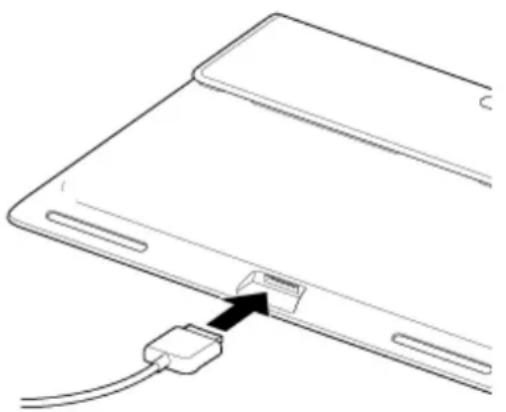
- Plug the USB cable for Multi Port into the Multi Port of your tablet device in the direction shown below. The charge indicator shows the battery charging status.
Hint
- Using the designated Sony cradle (SGPDS2, sold separately) for your tablet device allows you to charge the battery easier.
Checking the remaining battery level/charging status
You can check the remaining battery level with the icon displayed on the status bar on the Home screen.
The charge indicator tells you the charging status. The charge indicator lights up in different colors, depending on the remaining battery level.
| Charging status Remaining battery level Display status | ||
| With the AC adapter | Low (0 - 15 %) Red | |
| Mid (16 - 89 %) Orange | ||
| Full (90 - 100 %) Green | ||
| Low (0 - 15 %) Red flashing | ||
| Without the AC adapter Mid (16 - 89 %) Off | |
| Full (90 - 100 %) Off |
Note
- The charge indicator flashes in red when the battery level becomes low and the tablet device requires charging to continue operation.
Related Topic
Parts and Controls
Specifications
Confirming Download or Update Information on the Status Bar
Notes on Using the AC Adapter
Notes on Charging
Notes on Charging
Charging the battery
- For your safety, use only the supplied AC power cord (mains lead)* to charge the battery.
- Performance and safety are not guaranteed if you charge using anything other than the USB cable and AC adapter designed for the tablet device or a designated Sony AC adapter.
- Depending on the ambient temperature or how you use your tablet device, the battery may not charge or it may take a long time to charge the battery.
- Do not charge the battery near fire or in direct sunlight.
- The tablet device is not fully charged when shipped.
- Heat builds up in the battery while it is in use or being charged. This is normal and is not cause concern. If your tablet device or the AC adapter becomes abnormally hot, shut down your tablet device and stop using the AC adapter and tablet device.
- You may not be able to charge the battery depending on the computer used or the connector of the USB compatible device.
* You do not need an AC power cord (mains lead) in some countries. - You may not be able to charge the tablet device depending on the USB jack of the computer or USB device.
Battery discharge
- After charging, the battery gradually loses its charge even if it is not used. If it is left unused for a long time, the battery charge may be depleted. We recommend recharging the battery before use.
- If you do not use your tablet device for an extended period of time, fully charge the battery every six months.
Battery life
- Battery life varies depending on usage, settings, and temperatures.
Battery deterioration
- Battery capacity gradually declines through repeated recharging and discharging. As a result, the battery life may become short or the battery may not perform optimally even when fully charged.
Touch Screen Operations
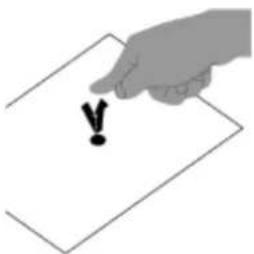
Tap
Selects an icon or option.
Tapping quickly twice allows you to zoom in or out on images or other on-screen items.
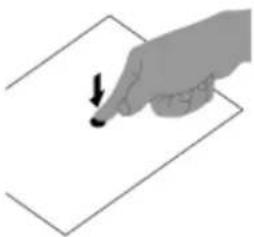
Tap & hold
Opens an option menu.
Drag
Moves an item or scrolls a page slowly.
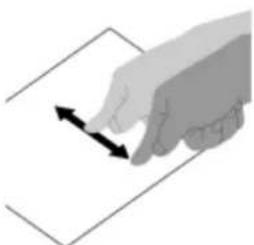
Flick
Scrolls a page quickly.
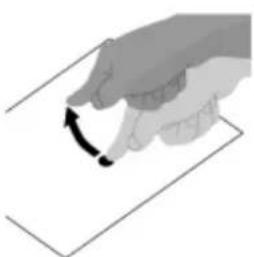
Pinch
Zooms in or out.
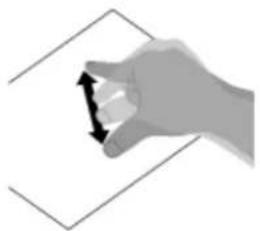
Related Topic
Notes on the Screen
Notes on the Screen
Notes on the touch screen
- Your tablet device uses a capacitive touch screen. Tap the screen directly with your fingertip. Do not scratch it or tap it with a sharp object such as a needle, pen, or fingernails. You cannot operate the touch screen with a stylus.
- If you tap the touch screen with gloved fingers, the touch screen may operate incorrectly or may not operate at all.
- Do not operate your tablet device with objects on the touch screen.
- If the touch screen is touched by anything other than your fingertip, it may not react correctly.
- Do not put the touch screen close to other electrical devices. Electrostatic discharges may cause the touch screen to malfunction.
- If there are water droplets on the touch screen, or if you touch it with wet fingertips, the touch screen may not react correctly.
- Do not put the touch screen in humid places. The touch screen may malfunction in humid conditions or when exposed to water.
Notes on the LCD screen
- Do not leave the LCD screen facing the sun. Be sure to block direct sunlight when using your tablet device near a window.
- Using your tablet device in low temperature conditions may produce a residual image on the LCD screen. This does not indicate a malfunction. The screen will return to normal when the tablet device returns to normal temperature.
- The LCD screen may become warm during operation. This is normal and does not indicate a malfunction.
- The LCD screen is manufactured using high-precision technology. You may, however, see tiny black points and/or bright points (red, blue, or green) on the LCD screen. This is a normal result of the manufacturing process and does not indicate a malfunction.
- The LCD screen is made of glass. If the glass is damaged (cracked, etc.), do not touch the touch screen or try to repair it yourself. Handle the LCD screen carefully as it is vulnerable to damage from dropping or mechanical shock. We cannot provide warranty for any damages caused by customers due to incorrect handling.
Turning On/Off the Wi-Fi Function
To download apps or enjoy Internet content, connect the tablet device to a Wi-Fi network (access point). To set the Wi-Fi connection, turn on the Wi-Fi function of the tablet device.
To turn on the Wi-Fi function
- Tap [Apps & Widgets] - [Settings] - [Wi-Fi].
- Set [Wi-Fi] to [ON].
Note
- The Wi-Fi antenna is built in to your tablet device. If you cover the antenna with your hands or other objects while connected to the Internet using the Wi-Fi function, the communications quality may deteriorate.
To turn off the Wi-Fi function
When you are not using Internet, you can save power by turning off the Wi-Fi function.
- Tap [■: Apps & Widgets] - [ Settings] - [Wi-Fi].
- Set [Wi-Fi] to [OFF].
Hint
- To disconnect the Wi-Fi function temporarily in an area where Wi-Fi communications is restricted, turn on [Airplane mode] on the control panel displayed from the status bar. - The screen of your tablet device will be off (in sleep mode) when apps are running, such as when the music player app is playing back content, but the tablet device will still be operating. You can choose whether to keep the Wi-Fi connection active or not when the screen is off (in sleep mode).
Tap ☐ (Option menu) - [Advanced] - [Wi-Fi disconnect policy], and then select the desired item on the [Wi-Fi disconnect policy] screen.
Note
- Regardless of the setting in [Wi-Fi disconnect policy], the Wi-Fi connection is disconnected if no app is running during sleep mode. When the screen turns on from the screen off mode (sleep mode), the Internet connection is off.
Related Topic
Connecting to Wi-Fi
Connecting by Pressing the WPS Button on the Wi-Fi Router
Connecting from the Wi-Fi Network List
Notes on Using the Wi-Fi Function
Confirming Download or Update Information on the Status Bar Notes on Holding Your Tablet Device
Connecting to Wi-Fi
Set the Wi-Fi connection on the tablet device to connect to the Internet. Connect the tablet device to the Wi-Fi router (access point) in a manner suitable for the situation: at home or the office or using a public wireless service, etc.
- Tap [■: Apps & Widgets] - [ Settings] - [Wi-Fi].
Detected Wi-Fi networks are listed on the right side of the screen.
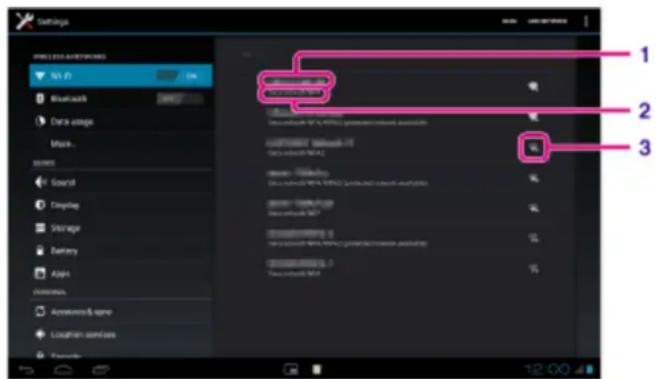
| Display on the screen | Description | |
| 1 | Network SSID The name of a wireless network. | |
| 2 | Security The security protocol of the Wi-Fi router. | |
| 3 | Security availability | When using a security-enabled Wi-Fi router, the lock icon will appear at the bottom right of the icon. |
- Configure the Wi-Fi setting in one of the following ways.
- Establish a connection by pressing the WPS button on the Wi-Fi router:
If you use a Wi-Fi router compatible with WPS, press the WPS button, and the connection settings and security settings will be configured automatically.
- Connect from the Wi-Fi network list:
If you are at home or using a public wireless service, connect the tablet device to a network available from the Wi-Fi network list.
Hint
- If no network is displayed in step 1, tap [SCAN] on the top right of the screen.
- If the Wi-Fi function is turned on where a Wi-Fi network connection is available, the tablet device will automatically reconnect if it had made a connection to that network previously.
Note
- Any communications and connection charges that apply for the use of the Wi-Fi router are the responsibility of the customer.
- For details on the network SSID and security format, refer to the operating instructions supplied with the Wi-Fi router.
- When connecting to a public wireless service, refer to the provider's website, etc. for instructions.
Related Topic
Turning On/Off the Wi-Fi Function
Connecting by Pressing the WPS Button on the Wi-Fi Router
Connecting from the Wi-Fi Network List
Checking the Wi-Fi Connection
Notes on Using the Wi-Fi Function
Notes on Holding Your Tablet Device
Connecting by Pressing the WPS Button on the Wi-Fi Router
If you use a Wi-Fi router compatible with WPS, press the WPS button to automatically configure the connection settings and security settings.
- Tap [Apps & Widgets] - [Settings] - [Wi-Fi].
- Tap the network to connect to from those on the Wi-Fi network list.
- Tap [Show advanced options].
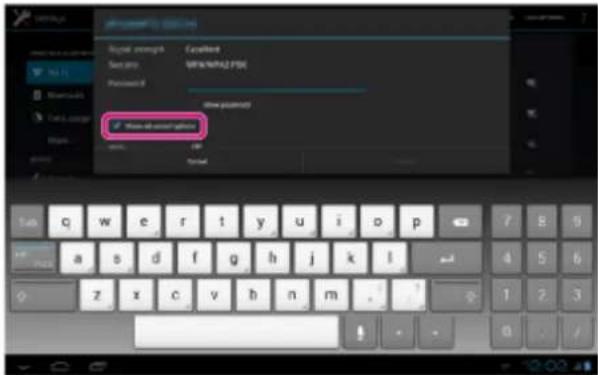
A check mark is put in the box.
-
Tap ▼ on the bottom left of the screen.
The keyboard disappears. -
Tap [Off] for [WPS], and then tap [Push button].
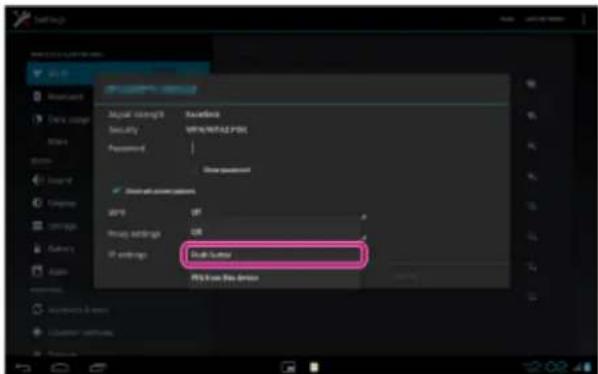
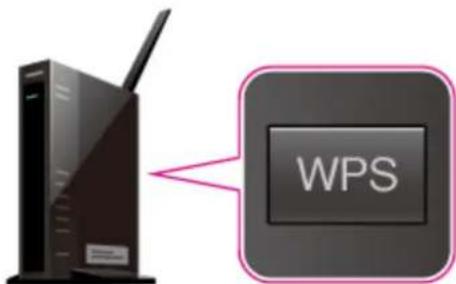
- Press the WPS button on the Wi-Fi router (access point). The Wi-Fi settings of the tablet device are automatically configured.
Hint
- For details on how to use the WPS button, refer to the operating instructions supplied with the Wi-Fi
router.
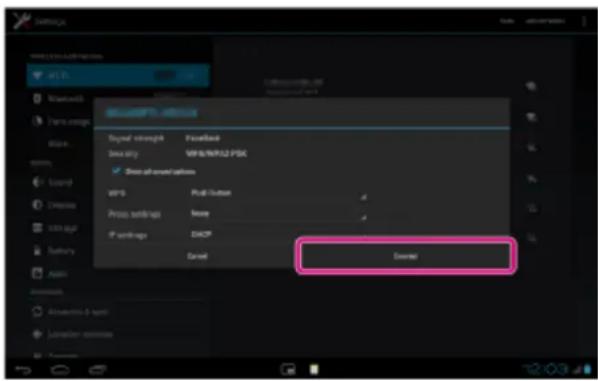
7. Tap [Connect] on the tablet device.
When a connection is established, [Connected] appears under the SSID of the network the tablet device is connected to.
Hint
- When the tablet device connects using Wi-Fi, the Wi-Fi icon is displayed on the status bar at the bottom right of the screen.
Related Topic
Turning On/Off the Wi-Fi Function
Connecting to Wi-Fi
Connecting from the Wi-Fi Network List
Confirming Download or Update Information on the Status Bar
Notes on Using the Wi-Fi Function
Checking the Wi-Fi Connection
Connecting from the Wi-Fi Network List
If you are at home or using a public wireless service, connect the tablet device to an available network on the Wi-Fi network list. Some Wi-Fi routers (access points) require you to enter a password.
-
Tap [Apps & Widgets] - [Settings] - [Wi-Fi].
-
Tap the network to connect to from those on the Wi-Fi network list.
-
Enter the password if required.
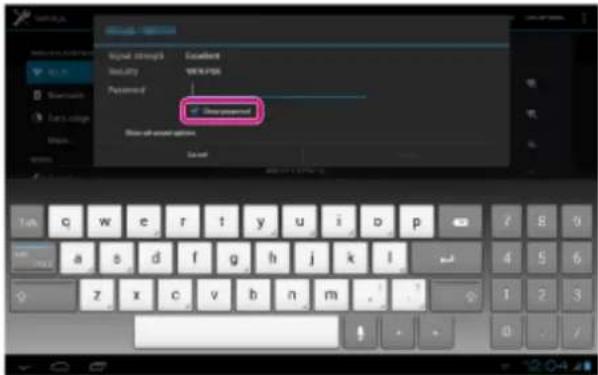
Hint
- You can check the password you entered by tapping [Show password].
-
Some Wi-Fi routers call a password a "PIN CODE," "WEP key," "KEY," etc.
-
Tap [Connect].
When a connection is established, [Connected] appears under the SSID of the network the tablet device is connected to.
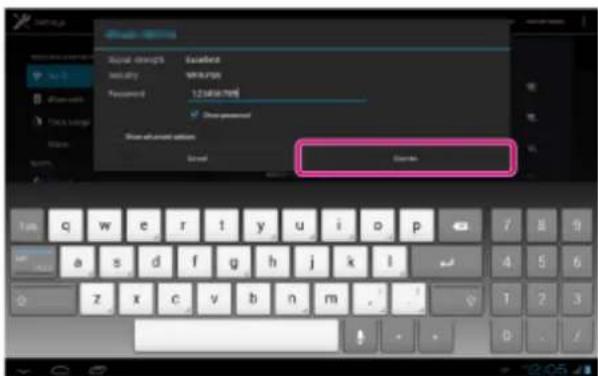
Hint
- When the tablet device connects using Wi-Fi, the Wi-Fi icon is displayed on the status bar at the bottom right of the screen.
- For proxy and IP settings, tap [Show advanced options] in step 4.
Note
- When connecting to a public wireless service, you are sometimes required to enter a user name and password in the browser. For details, refer to the provider's website.
Turning On/Off the Wi-Fi Function
Connecting to Wi-Fi
Connecting by Pressing the WPS Button on the Wi-Fi Router
Confirming Download or Update Information on the Status Bar
Notes on Using the Wi-Fi Function
Checking the Wi-Fi Connection
Notes on Using the Wi-Fi Function
- Use of Wi-Fi devices may be restricted by local regulations in some countries or regions.
- Wi-Fi devices work on the 2.4 GHz band, which is used by a variety of devices. Wi-Fi devices therefore use technology to minimize radio interference from other devices that use the same band. However, radio interference may still cause slower data transfer speeds, reduce communications range or cause communications failure.
- If both the Bluetooth function and the 2.4 GHz Wi-Fi function of your tablet device are enabled, interference may occur and cause slower data transfer speeds or other problems.
• To communicate via Wi-Fi while traveling, you may need to contract with a Wi-Fi connection service provider.
• Data transfer speed and communications range may vary depending on the following conditions:
Distance between devices Presence of obstacles between devices Device configuration Signal conditions Surrounding environment (wall material, etc.) Software in use
- Communications failure may occur in some signal conditions.
- The data transfer rate noted in the specifications is the theoretical maximum, and it may not reflect actual data transfer rate.
- Actual data transfer speed may not be as fast as the speed displayed on your tablet device.
• Communications is not available between the 2.4 GHz and 5 GHz Wi-Fi frequency bands. - The data transfer rate for IEEE 802.11g and IEEE 802.11n (2.4 GHz) devices may be affected by interference when those protocols are used with IEEE 802.11b products. Also, products using IEEE 802.11g and IEEE 802.11n automatically lower the transfer rate to maintain compatibility with IEEE 802.11b products.
- When the data transfer speed is not as fast as expected, changing the wireless channel on the Wi-Fi router may increase the speed.
- Only use Wi-Fi indoors when using it with IEEE 802.11a/n (5 GHz).
Related Topic
Specifications
Turning On/Off the Bluetooth Function
You can establish wireless connections and communications between your tablet device and other Bluetooth devices such as a computer, mobile phone, headset, headphones or wireless keyboard. Data can be transferred between these devices without cables at a range of up to 33 feet / 10 meters in an open area.
To turn on the Bluetooth function
Turn on the Bluetooth function when paring or connecting with a Bluetooth device.
- Tap [ : Apps & Widgets] - [ Settings] - [Bluetooth].
- Set [Bluetooth] to [ON].
Hint
- When the Bluetooth function is turned on, the Bluetooth icon is displayed on the status bar at the bottom right of the screen.
Note
- The Bluetooth antenna is built in to your tablet device. If you cover the antenna with your hands or other objects while using the Bluetooth function, the communications quality may deteriorate.
To turn off the Bluetooth function
To reduce battery consumption, turn off the Bluetooth function when not in use.
- Tap [■: Apps & Widgets] - [ Settings] - [Bluetooth].
- Set [Bluetooth] to [OFF].
Related Topic
Paring with a Bluetooth Device
Notes on Using the Bluetooth Function
Confirming Download or Update Information on the Status Bar
Notes on Holding Your Tablet Device
Paring with a Bluetooth Device
To connect with a Bluetooth device, pair the tablet device and Bluetooth device. Once you pair them, your tablet device automatically connects to the Bluetooth device by just turning on both devices the next time.
- Make sure the setting of the Bluetooth device pairing with the tablet device is in a detectable mode.
- Tap [■: Apps & Widgets] - [ Settings] - [Bluetooth].
- Tap [SEARCH FOR DEVICES] at the top right of the screen. The [AVAILABLE DEVICES] list is displayed.
- Tap the name of the device you want to connect to.
- Tap [Pair], and enter the device passkey (e.g. 0000) if necessary to connect to the Bluetooth device.
Hint
- To make the Bluetooth device settings detectable, refer to the operating instructions supplied with the Bluetooth device.
- To set the tablet device so that it can be detected by the Bluetooth device, tap the model name of your tablet device in the list displayed on the right side of the screen in step 3.
• To connect to the paired device again, tap the device name in the [Paired devices] list.
To unpair a device
You can unpair paired devices from the tablet device.
- Tap of the device you want to unpair from your tablet device in the [Paired devices] list.
- Tap [Unpair].
Related Topic
Turning On/Off the Bluetooth Function
Notes on Using the Bluetooth Function
Notes on Using the Bluetooth Function
- Use of Bluetooth function may be restricted by local regulations in some countries or regions.
- The Bluetooth function may not work with some devices, depending on the manufacturer or the software version employed by the manufacturer. Check the system requirements of the Bluetooth device before purchasing.
Some Bluetooth devices require authentication (pairing) before establishing a connection with another device. Perform the authentication process before connecting to such a device.
- Bluetooth devices work on the 2.4 GHz band, which is used by a variety of devices. Bluetooth devices use technology to minimize radio interference from other devices that use the same band. However, radio interference may still cause slower data transfer speeds, reduce communications range or cause communications failure.
• Data transfer speed and communications range may vary depending on the following conditions:
Distance between communicating devices
Presence of obstacles between devices
Surrounding environment (wall material, etc.)
Device configuration
Software in use
Signal conditions
- Communications failure may occur in some signal conditions.
- Interference may occur if both the Bluetooth function and the 2.4 GHz Wi-Fi function are enabled. That will result in slower data transfer speeds or other problems.
- Large files may occasionally be corrupted during continuous transfer due to limitations of the Bluetooth standard and due to signal conditions.
- Connecting multiple Bluetooth devices to your tablet device may cause channel congestion, resulting in poor device performance. This is normal with Bluetooth technology and does not indicate a malfunction.
- Video and audio may not be synchronized if you play videos on your tablet device with audio output from a connected Bluetooth device. This is a frequent occurrence with Bluetooth technology and does not indicate a malfunction.
- All Bluetooth devices must be certified through procedures stipulated by Bluetooth SIG to ensure that they comply with the Bluetooth standard. Even if the Bluetooth standard is complied with, operation procedures may differ or you may not be able to transfer data depending on characteristics and specifications of the individual device.
- Output sound may not be switched between a Bluetooth audio device and the built-in speaker when you connect or disconnect the device while an app such as game is running. If that occurs, exit the app and restart the device. You can avoid this problem by switching the sound before starting the app.
- Sound of apps such as games may be delayed when heard from Bluetooth audio devices connected to your tablet device. If that occurs, output sound from the built-in speaker or connect an audio device to the headphone jack of your tablet device to hear the sound.
- If you turn off a Bluetooth audio device connected to your tablet device while an app such as a game is running, the app may no longer work properly. If that occurs, exit the app and restart your tablet device.
Bluetooth security
Bluetooth wireless technology has an authentication function that allows you to determine with whom you choose
to communicate. With the authentication function, you can prevent any anonymous Bluetooth devices from accessing your tablet device. The first time two Bluetooth devices communicate, a common passkey (a password required for authentication) should be determined for both devices to be registered. Once a device is registered, there is no need to re-enter the passkey.
Your tablet device will be detected by other Bluetooth devices only when it is set to allow detection by such devices. You can set how long your tablet device is detectable or whether or not to allow reception after a connection is established.
Related Topic
Specifications
Enabling Mobile Communications (SGPT13)
- Tap [:: Apps & Widgets] - [✗ Settings] - [More...] - [Mobile networks] - [Data enabled].
A check mark is put in the box for that setting.
Note
- Make sure a SIM card is inserted before using the mobile communications function.
- The mobile communications antenna is built in to your tablet device. If you cover the antenna with your hands or other objects while connected to the Internet using the mobile communications function, the communications quality may deteriorate.
- When you are outside a mobile communications area, you cannot connect to the Internet using the mobile communications function. Check the communications conditions, and move to an area with mobile communications reception.
- When you are outside a mobile communications area with the mobile communications function activated, battery consumption is greater than when you are inside a mobile communications area.
Related Topic
Inserting/Removing a SIM Card (SGPT13)
Setting Up an Access Point (SGPT13)
Disabling Mobile Communications (SGPT13)
Notes on the SIM Card (SGPT13)
Notes on Holding Your Tablet Device
Disabling Mobile Communications (SGPT13)
- Tap [■ Apps & Widgets] - [✗ Settings] - [More...] - [Mobile networks] - [Data enabled].
The check mark is removed from the box for that setting.
Hint
- To temporarily turn off functions that use mobile networks in an area where wireless communications is restricted, turn on [Airplane mode] on the control panel displayed from the status bar.
Related Topic
Enabling Mobile Communications (SGPT13)
Confirming Download or Update Information on the Status Bar
Inserting/Removing a SIM Card (SGPT13)
To insert a SIM card
-
Make sure all the cables are unplugged from your tablet device, and then shut down the tablet device.
-
Open the SIM card cover.
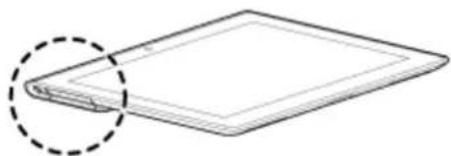
- Insert a pin or small paper clip (not supplied) into the SIM card eject hole.
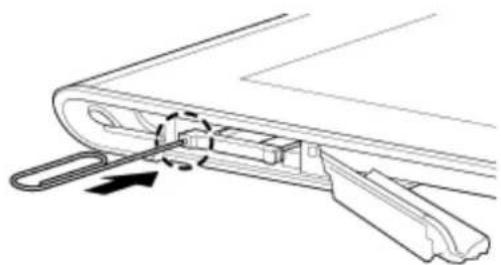
Hint
- When you purchase your tablet device, a label is attached to the SIM tray. Pull the label to pull out the SIM tray. Remove the label when you insert the SIM card.
- Eject the SIM tray.
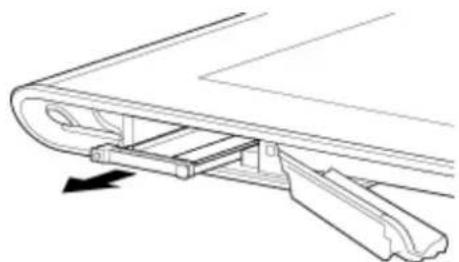
Note
• Make sure to handle the SIM tray gently.
- Place a SIM card on the SIM tray so that the cutout of the SIM card fits that of the SIM tray.
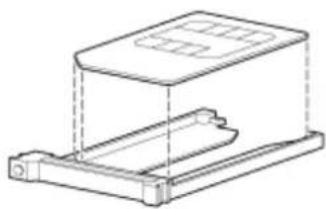
Note
- Make sure there are no protrusions on the cutting surface after detaching the SIM card from its plastic package. Protrusions will prevent the SIM card from fitting in the SIM tray.
- Insert the SIM tray.
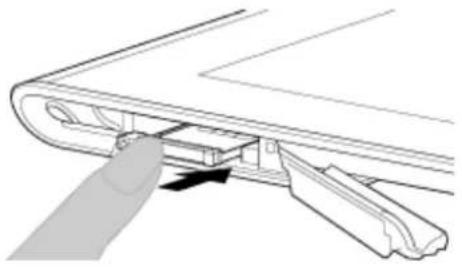
Note
• Make sure not to insert the SIM tray in the reverse direction.
To remove a SIM card
- Follow the procedures up to step 4 of "To insert a SIM card," then remove the SIM card from the tray.
Related Topic
Enabling Mobile Communications (SGPT13)
Turning On or Shutting Down Your Tablet Device
Setting Up an Access Point (SGPT13)
Notes on the SIM Card (SGPT13)
Notes on the SIM Card (SGPT13)
• Make sure the power of your tablet device is turned off before inserting or removing the SIM card.
- Do not press the SIM card more than necessary when inserting or removing a SIM card.
- If you remove the SIM card right after using your tablet device, the SIM card may be warm. This is normal and does not indicate a malfunction.
- Avoid exposing the SIM card to very cold, hot, or humid places.
- Do not touch the contacts or terminals with your fingers or metal objects. If dirty, wipe the card with a soft cloth and keep it clean.
- Do not drop, press, or bend the SIM card.
- Do not insert the SIM card with labels or stickers in place.
- Xperia(TM) Tablet S does not support the use of mini-UICC SIM cards (micro-SIM cards). Using a micro-SIM card or one with an adapter may damage the SIM card slot.
Setting Up an Access Point (SGPT13)
To confirm the current access point
- Tap [■: Apps & Widgets] - [✗ Settings] - [More...] - [Mobile networks] - [Access Point Names].
To add an access point
- Tap [■: Apps & Widgets] - [✗ Settings] - [More...] - [Mobile networks] - [Access Point Names].
- Tap ☐ (Option menu) - [New APN].
- Tap [Name], and enter the profile name of the network you want to add.
- Tap [APN], and enter an access point name.
- Enter all the items required by the carrier.
- Tap
The settings are saved.
To reset the access point
- Tap [■: Apps & Widgets] - [✗ Settings] - [More...] - [Mobile networks] - [Access Point Names].
- Tap ☐ (Option menu) - [Reset to default].
Related Topic
Enabling Mobile Communications (SGPT13)
Inserting/Removing a SIM Card (SGPT13)
Using Location Services
You can enable apps to use location information using GPS satellites or wireless networks. That enables you to search your present location and routes to a destination.
Enabling location information
- Tap [■ Apps & Widgets] - [✗ Settings] - [Location services].
- To enable reception of location information via wireless communications, tap [Google's location service]. To enable reception of location information via GPS satellites, tap [GPS satellites]. A check mark is put in the box for that setting.
Disabling location information
- Tap [Apps & Widgets] - [Settings] - [Location services].
- Tap [Google's location service] or [GPS satellites]. The check mark is removed from the box for that setting, and location information is disabled.
Hint
- The GPS (Global Positioning System) function provides location information by receiving signals from GPS satellites. You can see the location where you are with your tablet device by using an app that supports the GPS function.
- The GPS antenna is built in to your tablet device. If you cover the antenna with your hands or other objects while using the GPS function, the positioning accuracy may deteriorate.
Related Topic
Notes on GPS Function
Notes on Holding Your Tablet Device
Notes on GPS Function
- Move your tablet device as little as possible in an area with a clear view of the sky until the present location is displayed by the GPS function. The present location can be displayed quicker when stationary than while moving. If the present location is not displayed or if the wrong location is displayed, move to an area with a clear view of the sky.
- Direction may not be measured correctly due to the surrounding environment.
- When other electronic devices are near your tablet device, electromagnetic waves or magnetic interference from those may prevent your tablet device from providing accurate location information. Keep electronic devices away from your tablet device.
- When your tablet device is in an area with poor reception of GPS signals, you may encounter positioning errors. To receive more accurate information, avoid using your tablet device in the following locations.
Inside buildings or vehicles
In tunnels or underground
Under elevated tracks
Between tall buildings
In dense trees
In valleys
Inserting/Removing an SD Memory Card
Your tablet device is equipped with an SD memory card slot. You can use this slot to transfer data to and from digital cameras, camcorders, music players, and other audio/video devices.
To insert an SD memory card
- Open the cover of the SD memory card slot.
- Locate the SD memory card slot.
- Hold the SD memory card with the contacts facing down and the arrow pointing toward the SD memory card slot.
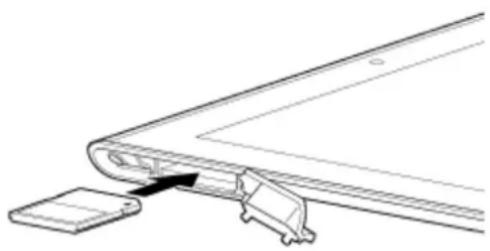
- Carefully slide the SD memory card into the slot until it clicks into place.
Note
- Be careful not to insert an SD memory card at the wrong orientation. If you force it into the slot upside down, the slot may be damaged. For details, refer to the manual of the SD memory card.
To remove an SD memory card
- Make sure files are not being transferred.
- Locate the SD memory card slot.
- Push in the SD memory card all the way and release.
The SD memory card is ejected. - Hold the SD memory card, and pull it out of the slot.
Related Topic
Compatibility of SD Memory Cards
Notes on SD Memory Cards
Importing/Exporting Contents from an SD Memory Card
Notes on SD Memory Cards
- Keep away from infants. SD memory cards are harmful if swallowed.
- Do not touch the contacts with fingers or metal objects.
- SD memory cards contain delicate electronic components. Do not subject them to excessive force, bend or drop them.
- Do not disassemble or modify.
- Avoid moisture.
- Do not use or store in the following locations:
- Places with high temperature, such as inside a closed car in the sunshine
- Places exposed to direct sunlight
- Humid or corrosive environments
- Excessively dusty places
- Be sure to use SD memory cards that are compliant with the standards supported by your tablet device. A card of the wrong size may become jammed in the slot, causing damage to your tablet device.
- You cannot write data to an SD memory card that is write-protected.
- It is recommended that you make a backup copy of important data.
- To avoid losing stored data, keep SD memory cards away from static electricity or electrical noise that may interfere with the card.
- When carrying SD memory cards, be sure to put them in their case to avoid static electricity damage.
- Before using an SD memory card with a device other than a tablet device, such as a digital camera or a portable audio player, format (initialize) the SD memory card using that device.
Some devices may not support the file format for tablet devices and show you a message that recommends you to format the card. If you encounter such a message, copy data from the card to your tablet device (or to other devices via the network) and format the card using a device other than the tablet. Note that formatting a card will delete all current data contained on it. For more details, refer to the manual of the device you are using.
- Do not insert foreign objects into the SD memory card slot.
- The SD memory card slot can be used for reading/writing supported cards only, and it cannot be used for other purposes.
Compatibility of SD Memory Cards
SD memory cards (up to 2 GB), SDHC memory cards (up to 32 GB), and SDHC UHS-I memory cards (up to 32 GB) available as of August 2012 have been tested and found compatible with your tablet device.
However, this does not guarantee that all SD memory cards, SDHC memory cards, or SDHC UHS-I memory cards will be compatible with your tablet device.
Connecting a USB Compatible Device
Your tablet device can be connected to a USB device by using the Multi Port of the tablet device.
- Turn over your tablet device, and then remove the cover for Multi Port.
- Connect a USB device to your tablet device using a designated USB host adapter cable (SGPUC3, sold separately) and a commercially available USB cable.
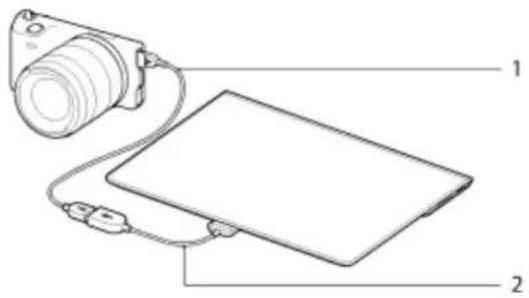
- Commercially available USB cable
- Designated USB host adapter cable (SGPUC3, sold separately)
Hint
- Your tablet device supplies up to 500 mA of power to a connected USB device.
Note
- Do not turn off your tablet device while reading and writing data via USB.
- Do not disconnect the cable while writing and reading data. Doing so may result in loss of that data.
Related Topic
Connecting to a Computer
Connecting to an HDMI Compatible Device
Supported Formats
Connecting to a Computer
You can connect your tablet device to a computer by using the Multi Port of the tablet device.
- Turn over your tablet device, and then remove the cover for Multi Port.
- Connect your tablet device to a computer using the supplied USB cable for Multi Port (SGPUC2).
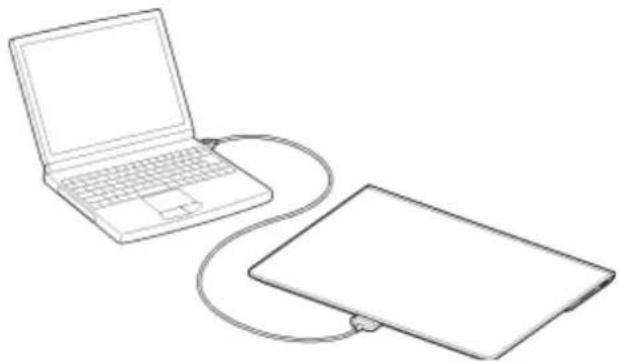
Note
- Do not turn off your tablet device while reading and writing data.
- Your tablet device does not support charging the battery via USB connection from a computer or a commercially available charger not designated by Sony.
- Do not disconnect the USB cable for Multi Port while writing and reading data. Doing so may result in loss of that data.
Related Topic
Supported Formats
Connecting a USB Compatible Device
Connecting to an HDMI Compatible Device
Importing Content from Your Computer
Connecting to an HDMI Compatible Device
Your tablet device can output data to HDMI compatible devices such as a TV or projector. An HDMI adapter cable (sold separately) is necessary for this connection.
- Turn over your tablet device, and then remove the Multi Port cover.
- Connect the HDMI adapter cable (SGPHC1, sold separately) to the Multi Port.
- Connect a commercially available HDMI cable to the HDMI adapter cable, and then connect to a TV or projector.
- Connect the supplied USB cable for Multi Port (SGPUC2) to the HDMI adapter cable, and then connect to the AC adapter.
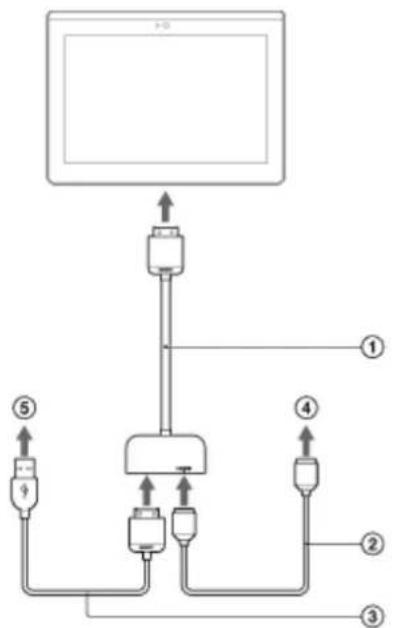
① HDMI Adapter Cable (SGPTHC1, sold separately)
② Commercially available HDMI cable
③ Supplied USB cable for Multi Port (SGPUC2)
④ To TV or projector
⑤ To AC adapter
Hint
- For details on the HDMI adapter cable, see the operating instructions supplied with the HDMI adapter cable.
Related Topic
Supported Formats
Connecting to a Computer
Connecting a USB Compatible Device
Parts and Controls
Front
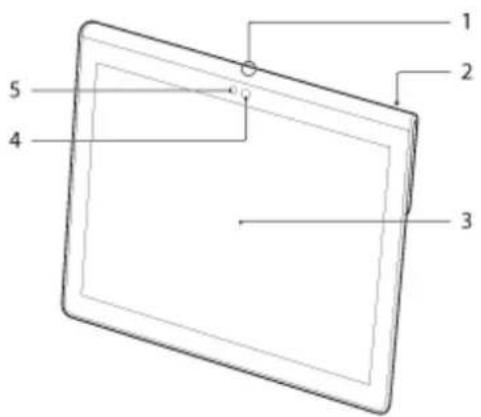
- Microphone
- IR data port
- Touch screen
- Front camera lens
- Ambient light sensor
Side
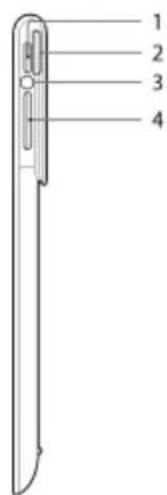
- (Power) button
- Notification LED
- Charge indicator
- VOL + / - (Volume) button
The VOL + button has a tactile dot to help you find the button easily.
Rear
SGPT12
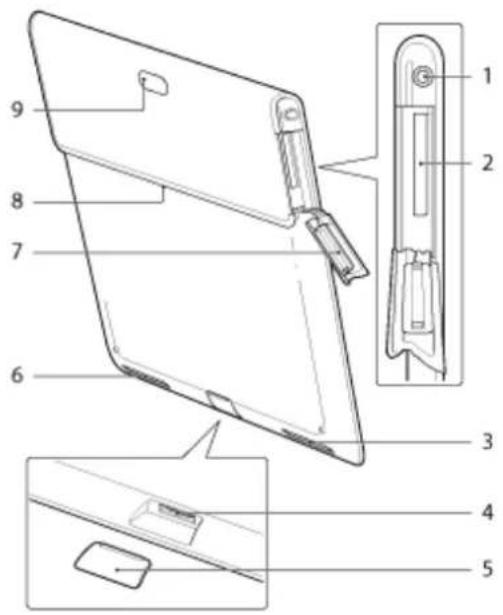
- (Headset) jack
- SD memory card slot
- Built-in speaker (L)
- Multi Port
- Multi Port cover
- Built-in speaker (R)
- SD Memory card slot cover
- Accessory attachment slot
- Rear camera lens
SGPT13
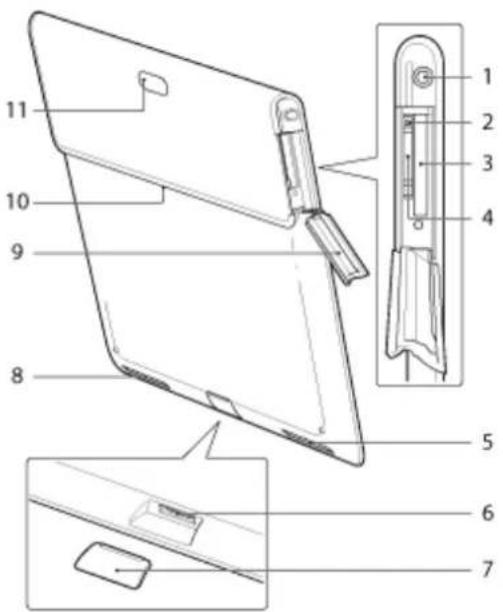
- (Headset) jack
-
SIM card eject hole
-
SD memory card slot
- SIM card slot
- Built-in speaker (L)
- Multi Port
- Multi Port cover
- Built-in speaker (R)
- SD Memory card slot cover
- Accessory attachment slot
- Rear camera lens
Some models are not available in some countries/regions.
Related Topic
Turning On or Shutting Down Your Tablet Device
Charging the Battery
Using the Home Screen
Checking the Supplied Items
• USB Cable for Multi Port
- AC adapter
• AC power cord (mains lead) (not supplied in some countries/regions)
- Quick Setup Guide
- Important Information
Notes on Holding Your Tablet Device
- Some apps may not support screen rotation. Some apps may rotate the screen in reverse.
- Be careful not to hold or cover the antennas shown in the figure below while using the Wi-Fi, Bluetooth, GPS, or mobile communications functions.
SGPT12
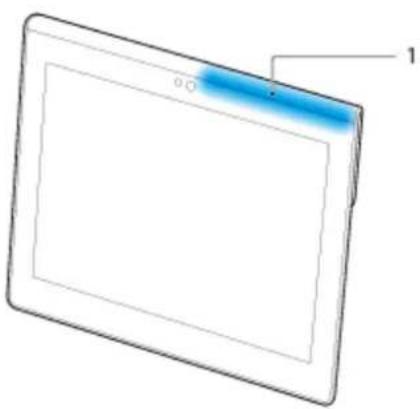
- Wi-Fi / Bluetooth / GPS
SGPT13
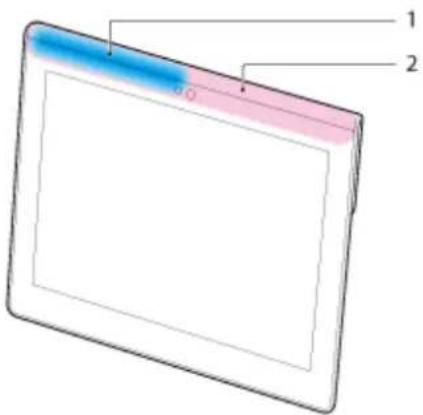
- Wi-Fi / Bluetooth / GPS
- Mobile communications
- Do not put your fingernails in the accessory attachment slot or in the groove (shown below) when holding the tablet device.
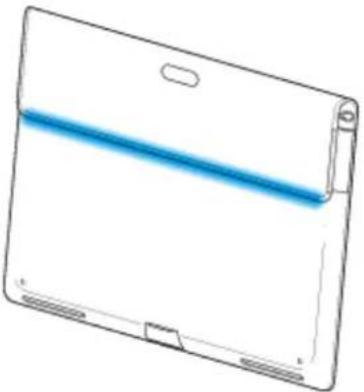
Note
• Some models are not available in some countries/regions.
Resetting Your Tablet Device
If your tablet device is not performing as expected, press and hold the power button for about 10 seconds.
Note
- Resetting the tablet device does not revert the settings to factory default, but unsaved data or settings may be lost.
- Reset the tablet device only when you cannot turn it off.
Reverting to Factory Default (Initializing Data)
By reverting the tablet device factory default, all installed apps and settings will be deleted to give you a “clean” tablet.
- Tap [■ Apps & Widgets] - [ Settings] - [Backup & reset] - [Factory data reset].
- Tap [Reset tablet] at the bottom of the menu on the right. All data is initialized and the tablet device automatically restarts.
Note
- It is recommended that you make a backup copy before deleting data in the internal memory [Details].
- All data in the data storage area is deleted, including the Google account information, the system data and settings, and any application data you have downloaded.
- User data such as music, photos, and eBooks imported from an SD memory card or a device connected via USB are not deleted.
Related Topic
Changing the Settings
How to Maintain Battery Life
Using your tablet device as described below will reduce battery consumption.
Reduce the screen brightness.
Set a short period of inactivity before the screen turns off (switches to sleep mode) automatically.
Turn the screen off (switch to sleep mode) when you will not be using your tablet device.
Shut down your tablet device when you do not use it for a long time.
Turn on airplane mode to turn off the Wi-Fi, mobile communications or Bluetooth function [Details].
Disconnect USB compatible devices.
Turn on the power save mode for the screen [Details].
Related Topic
Adjusting the Screen Brightness
Turning the Screen On/Off (Sleep Mode)
Setting the Time that Elapses Before the Screen Turns Off (Goes to Sleep)
Turning On or Shutting Down Your Tablet Device
Adjusting the Screen Brightness
You can set the screen brightness manually, or set the automatic brightness setting to let the tablet device adjust the brightness automatically.
- Tap [ ] Apps & Widgets] - [ Settings] - [Display] - [Brightness].
-
To adjust the brightness manually, tap or drag the brightness adjustment bar. To adjust the brightness automatically, Tap [Automatic brightness].
A check mark is put in the box for that setting. -
Tap [OK].
Hint
- When a check mark is put in the [Automatic brightness] box, the screen may automatically become brighter but not darken. To darken the screen, adjust manually.
- You can also adjust the screen brightness on the control panel displayed by tapping the status bar.
Related Topic
Confirming Download or Update Information on the Status Bar
Notes on Using Voice Communications Apps (SGPT13)
- When you attempt to use Internet telephone or voice chat with 3G, you may not be able to establish a connection. Use Wi-Fi instead.
Notes on Use
Cover
- Close the SD memory card slot cover securely.
- Do not open/close the Multi Port cover when using the tablet device outdoors or with wet, sweaty, or sand-covered hands. Getting water or sand inside the tablet device may cause malfunctions.
- Keep the Multi Port cover out of reach of small children to prevent it from being accidentally swallowed.
- The tablet device has a splash-proof feature* 1 equivalent to IPX4 (Protected against water splashing from any direction) of IEC 60529 (Degrees of protection provided by enclosures (IP code)) but is not completely waterproof. Do not use the tablet device in water or splash a lot of water on the tablet device. If used improperly, water may get inside the tablet device and cause fire, electric shock or malfunctions [Details].
*1 The splash-proof feature applies to pure water and tap water. The splash-proof feature works with your tablet device on a stand, such as Sony Tablet Stand (SGPDS4, sold separately, not available in some countries/regions) and with all covers closed completely.
Caring for your tablet device
- Clean the cabinet with a soft, dry cloth or one slightly moistened with a mild detergent solution. Do not use a detergent solution for cleaning the touch screen. Do not use an abrasive pad, scouring powder, or solvent such as alcohol or benzine, as these may damage the finish of your tablet device.
- If your tablet device is exposed to moisture such as rain or extreme humidity, wipe your tablet device with a soft dry cloth. Do not dry with an oven or dryer.
- Clean the lens of the built-in camera with a blower brush or a soft brush. If the lens is extremely dirty, wipe it off with a soft dry cloth. Do not rub the lens, as it is sensitive to pressure.
Usage environment
- Do not use or leave the tablet device where the temperature is extremely high (about 35 °C (95 °F) or higher) or low (about 5 °C (41 °F) or lower), or in a humid place such as a bathroom or sauna. If you use or leave the tablet device out of the range stated, the tablet device may stop automatically to protect the internal circuitry.
- Do not take your tablet device directly from a cold place to a warm place. A sudden change of the temperature causes moisture condensation, and moisture may condense inside the tablet device. If this happens, leave the tablet device at room temperature until it dries before using.
Sample data
- Sample data is installed on your tablet device at the factory for a trial of music, videos, photos, and books. Once you delete the sample data, you cannot restore it. Please note that Sony will not provide replacement sample data if deleted.
Splash-proof Performance
Splash-proof feature of the tablet device
The tablet device has a splash-proof feature * 1 equivalent to IPX4 (Protected against water splashing from any direction) of IEC 60529 (Degrees of protection provided by enclosures (IP code)) but is not completely waterproof. Do not use the tablet device in water or splash a lot of water on the tablet device.
If used improperly, water may get inside the tablet device and cause fire, electric shock or malfunction.
Please understand the following cautions before using your tablet device.
*1 The splash-proof feature works with your tablet device on a stand, such as Sony Tablet Stand (SGPDS4, sold separately, not available in some countries/regions) and with all covers closed completely.
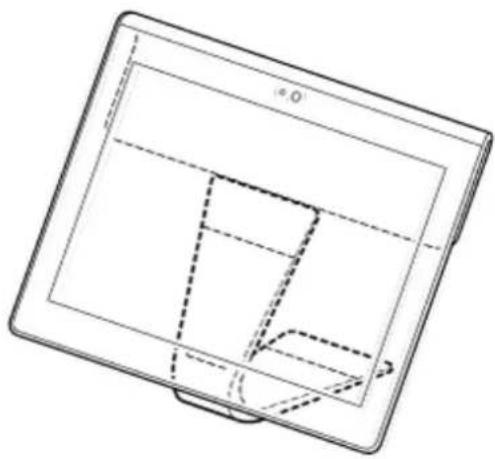
Applicable liquids
• Protected against pure water and tap water
- Not protected against liquids other than those specified above (soap water, water containing detergents or bath salt, shampoo, hot spring water, pool water, seawater, etc.)
Performance of the splash-proof feature is based on measurements performed by Sony under the conditions stated above.
Please note that malfunctions caused by water exposure due to misuse are not covered under warranty.
Notes on charging
The supplied AC adapter and USB cable for Multi Port (SGPUC2) are not equipped with a splash-proof feature.
Make sure not to splash water on the AC adapter.
Do not use the AC adapter with wet hands or when the tablet device is wet. Doing so may cause danger of electric shock.
Please note the following cautions when charging the tablet device.
• Make sure the place you use the AC adapter is not wet.
- Make sure the tablet device is not wet before charging. If the tablet device becomes damp with water droplets, wipe the droplets completely with a dry cloth, and then leave the tablet device at room temperature until it is dry before charging.
Cautions when using the tablet device in the kitchen or other places with risk of splashing
Do not use the tablet device while connected to the AC adapter.
Make sure to use the tablet device with power from the internal battery pack.
Handling the AC adapter with wet hands or when the tablet is wet may cause danger of electric shock.
The splash-proof feature is only effective with all covers closed completely.
When closing covers, make sure small foreign objects (such as hair and sand) are not trapped in the covers. If water gets in the ⚙ (headset) jack, wipe off the water and leave the tablet device in a well-ventilated shady place until it is completely dry before attempting to use.
Do not use or leave the tablet device in a humid place such as a bathroom or sauna.
Do not use the tablet device with the headphones or headset connected.
Do not use the tablet device in water or splash a lot of water on it.
If the tablet device becomes wet, wipe it dry with a soft dry cloth, etc.
Do not let liquid such as soap water, shampoo, water containing detergents or bath salt, hot spring water, pool water or seawater get on or in your tablet device. Do not let foreign objects such as sand or mud get on the tablet device.
If something accidentally gets on the tablet device, wipe your tablet device with a soft dry cloth. Do not use detergents, chemicals or moist towelettes, etc. Do not dry the tablet device by blowing hot air using a hair dryer, putting the tablet device in the oven, etc.
Do not use the tablet device where water may splash on the tablet device strongly.
The tablet device is not resistant to water pressure. Exposing the tablet device to high water pressure such as that from a tap or shower may cause malfunctions.
Do not expose the tablet device to heat such as that from a hot shower, hair dryer, or a hot place such as near a stove.
The tablet device is not heat-resistant. Use the tablet device at temperature in the range of 5\ °C ( 41\ °F ) to 35\ °C ( 95\ °F ).
Note
- The Multi Port cover is necessary to make the use of the splash-proof feature. Keep the Multi Port cover in a safe place.
- Use the tablet device with the Multi Port cover and SD memory card slot cover attached. Otherwise, you will not be able to make the use of the splash-proof feature of the tablet device.
Related Topic
Parts and Controls
Checking the Android Version
You can confirm the version of the Android operating system running on your tablet device.
- Tap [ : Apps & Widgets] - [ Settings] - [About tablet].
You can check the version of Android running on your tablet device in [Android version].
Related Topic
Updating Android to the Latest Version
Updating Android to the Latest Version
Update your tablet device to the latest version of Android when updates become available.
Note
- Once you have updated, you cannot return your tablet device to an older version of Android. Updating requires the remaining battery level to be at 50% or greater and use of the AC adapter. Your tablet device may no longer turn on if the battery is depleted while updating.
- The data stored on the internal storage (memory space in your tablet device) will not be erased by updating.
- There must be enough free space on the internal storage to download the update files when updating.
- Some applications may not be compatible with the updated version of Android, and they may no longer run after updating.
- Be sure to check the Android version that each application is compatible with before updating.
-
Updating may take longer if you connect to the Internet using the mobile communications function. In addition, large data charges may be incurred depending on the service you subscribe to.
-
Tap [■■■ Apps & Widgets] - [ Settings] - [About tablet].
- Tap [System updates].
The screen to start updating is displayed when an update is available. Start updating by following the instructions on the screen.
Related Topic
Checking the Android Version
Using the Home Screen
The Home screen consists of five separate screens. You can customize screens to fit your needs by placing your favorite apps and widgets on the screens.
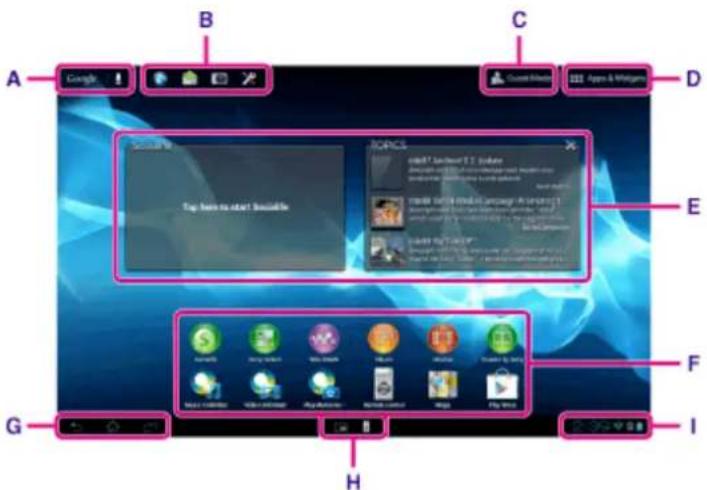
A: Google search
Tap the box to easily search with Google.
B: Quick launcher
The Quick launcher is displayed on every page of the Home screen, so registering apps you use often gives you quick access to them.
- Tap and hold an icon on the Home screen, and then drag it into the Quick launcher.
Hint
- You can move icons within Quick launcher, and move them out of the Quick launcher.
C: Guest Mode
Tap this to use Guest Mode for sharing the tablet device with other users such as your family or friends.
D: 🎯 Apps & Widgets
Tap this to display the apps list and the widgets list.
E: Widgets
Widgets are simple apps running on the Home screen. You can choose your favorite widgets from the widgets list and place them on the Home screen.
F: Apps
You can choose your favorite apps from the apps list and place them on the Home screen.
G: Basic operation buttons
• (Back): Tap this to return to the previous screen.
• (Home): Tap this to display the Home screen.
• (Recent Apps): Tap this to display the apps used recently.
• Tap this to hide the keyboard when the keyboard is displayed.
H: Small Apps
You can open small versions of certain apps, such as the browser, calculator, and remote control, even while another app is in use.
I: Status bar
The status bar displays the remaining battery level and Wi-Fi connection icons. Notification icons are also displayed to tell you that downloading is complete, you have e-mails, or updates are available. By tapping the status bar, you can display the notification panel and control panel.
Related Topic
Searching with Google
Sharing the Tablet Device with Family or Friends (Guest Mode)
Using the Apps & Widgets List
Confirming Download or Update Information on the Status Bar
Using "Small Apps"
Sharing the Tablet Device with Family or Friends (Guest Mode)
If you share your tablet device with other users, registering Guest Mode enables you to make a Home screen for the guest. On the Home screen for the guest, only apps the guest is allowed to use are displayed, and you can set what wallpaper is displayed according to the mode.
To register a Guest Mode
- Tap [Guest Mode] on the Home screen.
- Tap [Start].
- Enter a name for the Guest Mode by following the on-screen instructions, and then tap [Next].
- Select whether to restrict the use of apps, and then tap [Next].
- If you select [Limited applications], tap apps you will allow the guest to use on the app selection screen, and then tap [SAVE] at the top right of the screen.
- Select whether to set an unlock code, and then tap [Next].
To set an unlock code, select [Set code].
- If you select [Set code], set a cancellation code by following the on-screen instructions.
- Check the registration information for the Guest Mode, and then tap [Done].
Related Topic
Using the Home Screen
Switching to Guest Mode
Switching to Guest Mode
- Tap [Guest Mode] on the Home screen.
- Select the desired mode.
The Home screen switches to the selected Guest Mode.
- Tap [Exit] on the Home screen.
- If an unlock code is set, enter the unlock code, and then tap [OK].
Hint
- To change the wallpaper in Guest Mode, tap and hold the Home screen to display the wallpaper selection screen, and then select a desired wallpaper.
- To edit or delete a Guest Mode, tap and hold the thumbnail of a Guest Mode on the mode selection screen, and then tap [Edit] or [Delete].
- To add a new Guest Mode, tap [ New mode] on the mode selection screen.
Note
- The Guest Mode function is not for security purposes. It is for restraining the restricted applications from being displayed.
- The Guest Mode function does not allow each user to store and protect personal data.
- Some apps may be accessible through other apps even if you restrict them using Guest Mode.
- Make sure not to forget the unlock code and secret answer you set. If you do forget them, you will need to reset tablet device settings factory default.
If you forget the unlock code, entering the secret answer correctly will allow you to reset the unlock code. - You may not be able to switch to Guest Mode if you installed home application made by a company other than Sony.
- You cannot update the system software during Guest Mode.
- Even if you switch to Guest Mode, apps used recently and notifications will remain. Apps running in the background such as apps playing music in the background also will not stop.
- Since some tablet device functions are restricted in Guest Mode, Small Apps and the Quick launcher will not be available.
Related Topic
Sharing the Tablet Device with Family or Friends (Guest Mode)
Adding Apps or Widgets to the Home Screen
You can flick the Home screen right/left to scroll between up to five screens. Adding app icons or widgets to your favorite location allows you to start apps easily.
- Flick to display the Home screen on which you want to place apps icons or widgets, and then tap [■■■ Apps & Widgets] at the top right of the screen.
- Select the item you want to add to the Home screen from [Apps] or [Widgets].
- Tap and hold the icon of the app or widget, then drop it when the Home screen is displayed. The icon or widget is added to the page you drop the icon or widget onto.
To delete an icon from the Home screen
Tap and hold the icon, and drag and drop it to ✗ (Remove).
To organize icons using folders
You can use folders to organize icons on the Home screen.
- Tap and hold an icon, then drag it on top of another icon. The two icons are then combined into a folder.
- Tap the combined icon folder, then tap [Unnamed Folder].
- Enter a new folder name, and then tap ←.
The folder is shown with the new folder name.
Hint
- To add an app to a folder, tap and hold the icon, then drag and drop it into the folder.
- To remove an app from a folder, tap to open the folder, then drag the icon out of the folder. When all apps are removed from the folder, the folder is deleted automatically.
Related Topic
Using the Home Screen
Using the Apps & Widgets List
Using the Apps & Widgets List
When you tap [Apps & Widgets] on the Home screen, the apps and widgets list is displayed.
The apps list displays the icons of all available apps. The widgets list displays widgets that you can place on the Home screen. If an app is supplied with a widget, place the widget on the Home screen so that you can operate the app from the Home screen easily.
Switching between the apps and widgets list
- Tap [Apps] or [Widgets] at the top left of the screen.
Hint
- The apps and widgets list contains multiple pages. Flick left and right to move between pages. The apps list is displayed before the list of widgets.
Sorting apps and widgets
- Tap ↓ at the top right of the screen and select a sorting method.
[A to Z]: Sort by name.
[Newest first] : Sort by date of update.
Uninstalling (Deleting) an application
- Tap and hold the icon of the app you want to uninstall from the apps list.
- While holding the icon, drag and drop it to [ Uninstall] displayed on the Home screen.
Note
- Some applications cannot be uninstalled (deleted). This does not indicate a malfunction of the tablet device or a bug in the application.
Displaying the app information
- Tap and hold the icon of the app you want to check information of.
- While holding the icon, drag and drop it to [ i App info] displayed on the Home screen.
Hint
- If the Play Store app is installed, is displayed to the left of . You can start the Play Store app by tapping.
Using the Home Screen
Adding Apps or Widgets to the Home Screen
List of Apps
Using "Small Apps"
There are a number of apps installed on the tablet device called Small Apps. Small Apps give you the flexibility to open certain apps without closing other apps. For example, you may have an app such as the Email app open and want to open another app such as the Browser app. Instead of closing the Email app and opening the Browser app, you can keep the Email app open and start the Browser Small App. The Small App (Browser) is then displayed over the existing app (Email).
To start Small Apps
- Tap on the Home screen.
The Small Apps launcher appears.
- Tap the app you want to start.
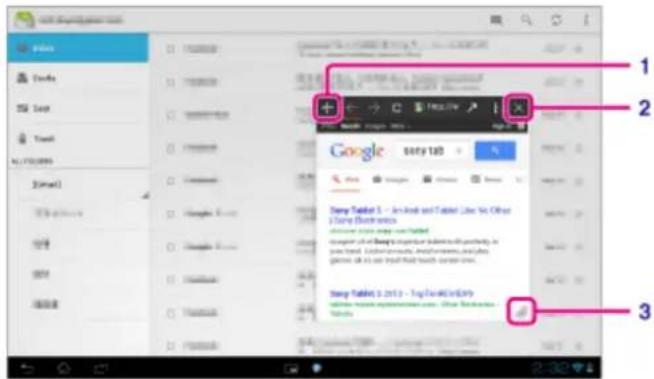
| Display on the screen | Description | |
| 1 | Move | Dragging this moves the Small Apps window. Double tap to resize the window to a size appropriate for the screen (Unavailable in some apps that cannot resize the window.). |
| 2 | Close Closes Small Apps. | |
| 3 | Expand/Contract the window | Drag to expand/contract the window (Unavailable in some apps that cannot resize the window.). |
To set a shortcut
You can create shortcuts for Small Apps you often use.
-
On the Small Apps launcher, tap and hold the app you want to set. The menu appears.
-
Tap [Create shortcut to this item].
A shortcut is created to the right of

Hint
- By tapping on the Small Apps launcher and then tapping [Clear shortcut], you can delete the shortcut you
set.
To use a widget
You can display a widget while another app is in use.
To add a widget
- Tap [+ Add] on the Small Apps launcher.
- Tap the widget you want to add.
- Enter a label name, and then tap [OK]. The widget is added to the Small Apps launcher.
To delete a widget
- On the Small Apps launcher, tap and hold the widget you want to delete. The menu appears.
- Tap [Remove from screen].
Hint
- Only widgets can be deleted from the Small Apps launcher. Apps cannot be deleted from the launcher.
Related Topic
Using the Home Screen
Registering the Remote Control
Using the Calculator
Browsing Websites
Searching with Google
You can search websites, apps downloaded to the tablet device or data using Google Search.
To search by text
- Tap [Google] on the top left of the Home screen, and enter keywords.
- Tap an item on the search result list.
By tapping ← on the keyboard, you can start the Browser app and also display the search results.
To search by voice
- On the top left of the Home screen tap 🖼, or [Google] and then tap 🖼
- Speak keywords by following the on-screen instructions.
The Browser app starts and displays the search results.
Related Topic
Entering Text
Confirming Download or Update Information on the Status Bar
The notification icons tell you that downloading is complete, you have e-mails, or updates are available. By tapping the status bar, you can display the notification panel. You can display the control panel and open downloaded files directly from the notification panel.
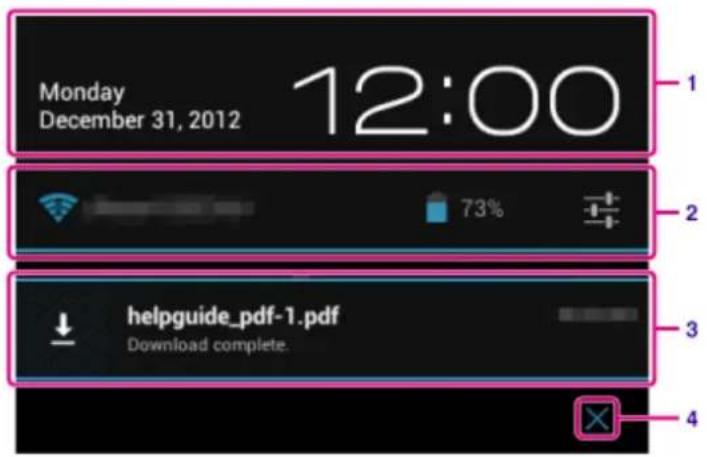
| Description | |
| 1 | Tap to display the control panel. |
| 2 | Displays the status of the battery and Wi-Fi connection. |
| 3 | Tap to open items you are notified about and related apps directly. |
| 4 | Closes the notification panel. |
Note
- If you close the notification panel, the notification will be deleted. You can display the downloaded content from the [Downloads] app.
You can control the following items from the control panel.
- Airplane mode: Turns on/off airplane mode. When this mode is turned on, wireless communications are turned off.
• Wi-Fi: Displays the Wi-Fi setting screen [Details]. - Auto-rotate screen: Locks the screen so it does not rotate automatically [Details].
- Brightness: Adjusts the screen brightness [Details].
- Notifications: Turns on/off notifications. If you turn this off, the notification icons will not appear on the status bar.
- Settings: Displays the settings screen.
Configuring Screen Rotation
The screen rotates when you turn your tablet device sideways as shown below.
![graph TD A[" "] --> B[" "] B --> C[" "] C --> D[" "] D --> A style A fill:#fff,stroke:#000 style B fill:#fff,stroke:#000 style C fill:#fff,stroke:#000 style D fill:#fff,stroke:#000](/content/2026/05/800748/images/904d571942d5b6c2455f26fa05bf08df04e79fb510ec8f4cc6c014da03ab3172.jpg)
Note
- Depending on the application, the screen may rotate regardless of the direction your tablet device is held.
- Some apps may not support screen rotation. Some apps may rotate the screen in reverse.
- Screen rotation is not available when the HDMI adapter cable is attached to your tablet device.
Setting the screen to not rotate
- Tap [Apps & Widgets] - [Settings] - [Display] - [Auto-rotate screen] in that order to remove the check mark and disable screen rotation.
To set the screen to rotate again
Tap [Auto-rotate screen] again to add a check mark and enable screen rotation.
You can also turn on/off the screen rotation on the control panel displayed from the status bar.
Related Topic
Confirming Download or Update Information on the Status Bar
Changing the Settings
Configuring to Lock the Screen
If you set the lock function, the screen is automatically locked for security purposes when turning the screen on (deactivating sleep mode).
To configure the lock function
- Tap [Apps & Widgets] - [Settings] - [Security] - [Screen lock] in that order.
- Tap the desired setting from the following items.
[None]: Lock function not used.
[Slide]: Default setting. Tap 🔒, then tap to unlock.
[Pattern]: Trace nine pass points with a finger. If you fail to unlock five times, the entry screen for the Google account will appear. Enter your account name, and you will receive the procedure to unlock by e-mail.
[PIN]: Set a code of your choice consisting of four or more numbers.
[Passwords]: Set a password consisting of four or more numbers/letters.
Hint
- Make sure to write down the PIN number or password you set and keep it in a safe place.
- Follow the on-screen instructions.
Related Topic
Changing the Settings
Entering Text
You can enter text using the keyboard displayed on the screen.
| Display on the screen | Description | |
 | Switches between letters, numbers and symbols. | |
 | *1 | Enters capital letters. |
 | *2 | Enters other symbols. |
 | Switches the input language. | |
 | Deletes text. | |
 | Enters or adds linefeeds. | |
*1 Capital-letter entry will deactivate after you enter one letter. Tap this key every time you enter a capital letter. To input capital letters continuously (caps lock), double-tap the key. To cancel the caps lock, press this key again.
*2 This appears when you enter numbers or symbols.
*3 This appears when you have selected multiple languages to use for input. Every time you tap the key, the input mode switches between the modes you have set. Tap and hold to display the input mode switching screen.
Hint
- Pressing and holding a key with a triangle mark on the bottom right corner allows you to enter letters or symbols, etc. related to the letter of the key.
• To enter a URL or letters, tap the area where you want to enter text to display the on-screen keyboard.
- A numerical keyboard can also be displayed. Tap [Apps & Widgets] - [Settings] - [Language & input]. Then tap next to [Standard keyboard] followed by [Number keys] to add a check mark.
To set the input language
Tap [■ Apps & Widgets] - [ Settings] - [ Language & input]. Then tap next to Standard keyboard] followed by [Input languages], and then put a check mark on the languages to use.
To hide the on-screen keyboard
Tap ▼ on the bottom left of the screen.
Related Topic
Changing the Settings
Selecting Text
You can copy or search text from the menu that is displayed by selecting text on a website or URL.
- Tap and hold the text.
The selected text will be highlighted.
- Tap the desired item from the menu at the top right of the screen.
Hint
- You can change the range of text selected by dragging the cursor that appears in step 1 across the text.
To paste text
- Tap and hold the location to paste the text, and then tap [PASTE] or [Clipboard].
Hint
- Tap [Clipboard] to display in a list the history of text that has been copied. Text that is frequently used can also be added to Favorites.
- You can change the location to paste the text by dragging the cursor to a new location.
Configuring a Google Account
You must sign up for a Google account to use services provided by Google, such as Google Play Store (free registration).
With a Google account, you can sync apps such as Email, Calendar and People on your tablet device with other devices that also support Google services.
Use your current Google account
If you already have a Google account that you use with a computer or smartphone, you can use that account with your tablet device too. Input your account name and password in the login screen displayed for Google service apps.
Note
- Make sure that your tablet device is connected to the Internet when you sign up for a new Google account or log in.
Sign up for a new Google account on your tablet device
You can sign up for a Google account when you use your tablet device for the first time or start a Google service app for the first time.
Hint
- You do not have to sign up for another Google account if you already have one.
- You can sign up for a Google account by tapping [Apps & Widgets] - [Settings] - [Accounts & sync] - [Add account] (at the top right of the screen) - [Google] in that order.
- You can also sign up for a Google account by accessing Google (https://www.google.com/accounts/) directly.
Related Topic
Entering Text
Synchronizing the Account
Changing the Settings
Backing Up Data on Your Tablet Device
You should copy the data in your tablet device and store it on another storage device (backup). Various data such as recorded images, downloaded music and video content will be accumulate in your tablet device as you use them. If unexpected problems occur with your tablet device, that data may be damaged or lost. As a preventive measure in case of such accidents, you should make frequent backups so you will be able to restore your important data.
Note
- Some data on your tablet device cannot be backed up.
- Some settings and applications may not have any backup method. Make written notes and keep them in a safe place.
Data you can back up
You can copy and store the following data with your tablet device for backup.
• Music/movie/eBook files without copyright protection
- Pictures/wallpapers
That data is stored in the following folders.
• Music files: \Music
- Wallpaper files: \Pictures
- Movie files: \Movie
• Picture files: \DCIM
- eBook files: \Reader
Backing up data (copying)
Use the File transfer app to store the data on a commercially available SD memory card.
- Tap [■■■ Apps & Widgets] followed by [■ File transfer] to start the File transfer app.
- Insert the SD memory card into the SD card slot.
- Select the file/folder you want to copy from your tablet device.
- Tap ←.
A folder called “\transferred” is created on the SD memory card, and the data is copied to that folder.
Note
- Since video content purchased at Video Unlimited* 1 is copyrighted, you cannot back it up by the above mentioned method. Copy it on a computer using “Media Go” computer software. Go here to learn more about the Media Go application. http://mediago.sony.com/enu/introduction/
*1 Video Unlimited is a video service available on Sony Entertainment Network.
Checking the Free Space
Importing/Exporting Contents from an SD Memory Card
Importing Content from Your Computer
If you connect a computer to your tablet device using the supplied USB cable for Multi Port (SGPUC2), you can copy data on the computer to your tablet device. The copied data can then be played back on your tablet device.
- Connect the tablet device to your computer using the supplied USB cable for Multi Port (SGPUC2).
- On the computer, open a folder that includes the file you want to export to the tablet device.
- Click the [Start] button on your computer.
- Click [Computer].
- Double-click the model name of your tablet device.
- Double-click the destination to save the data.
- Drag and drop the file you want to copy onto this screen.
Note
- The menu name displayed in the procedure above varies depending on your computer operating system, computer environment or the Android operating system of the tablet device.
- Do not turn off the tablet device or remove the USB cable for Multi Port (SGPUC2) while copying data. That may cause the data to be damaged.
- Your tablet device does not support charging the battery via USB connection from a computer or a commercially available charger not designated by Sony.
- Only copied data in supported file formats can be played back on your tablet device.
- Check the free space of your tablet device when you import data from the computer.
Related Topic
Connecting to a Computer
Checking the Free Space
Supported Formats
Supported Formats
playable formats vary depending on the app or content used.
Note
- Some files may not be playable on your tablet device.
Videos
| Format/ Codec | Profile | Maximum resolution | Maximum bit rate (Mbps) | Gallery |
| Extension | ||||
| H.263 Profile0 | 704 × 576 (4CIF) | 4 | .mp4 .3gp | |
| H.264 / AVC | Baseline Profile / Main Profile / High Profile 1920 × 1080 40 | .mp4 .m4v .3gp | ||
| MPEG-4 Simple | Profile / Advanced Simple Profile 1920 × 1080 10 | .mp4 .3gp | ||
| WMV Simple | Profile / Main Profile 1920 × 1080 10 - |
Music
| Format/ Codec | Sampling rate (kHz) | Maximum bit rate (kbps) | Play Music |
| Extension | |||
| AAC Up to | 48 320 | .m4a.mp4.3gp | |
| MP3 Up to | 48 320 .mp3 | ||
| WAV 44.1 | - .wav | ||
| WMA | 44.1 320 - | ||
| WMA Pro | 44.1 192 - | ||
| FLAC | Up to 48 - .flac | ||
| MIDI | - | - | .mid.xmf |
| Vorbis | Up to 48 256 .ogg |
| Format/ Codec | Maximum resolution (pixels) |  Gallery Gallery |
| Extension | ||
| JPEG 60 | 48 × 4032 .jpg | |
| GIF 2000 | × 2000 .gif | |
| PNG 200 | 0 × 2000 .png | |
| BMP 200 | 0 × 2000 .bmp | |
| WBMP 20 | 000 × 2000 .wbmp | |
| WEBP 20 | 000 × 2000 .webp |
Related Topic
Importing Content from Your Computer
Connecting a USB Compatible Device
Importing/Exporting Contents from an SD Memory Card
Changing the Settings
Various settings of your tablet device can be configured in the settings menu.
- Tap [■: Apps & Widgets] - [ Settings] and the desired items.
- Tap the individual menu items to configure settings.
The menu items are as follows:
More...: Setting Airplane mode, VPN, etc.
- DEVICE
Sound: Setting the notification sound, tap sound (operation sound), etc.
Display: Settings such as screen brightness [Details], power save mode, Auto HDMI output, time that elapses before the screen turns off (goes to sleep) [Details], and font size.
Storage: Checking the capacity of the internal memory of the tablet device or SD memory card.
Battery: Checking the remaining battery level and operating time.
Apps: Checking the installed app information.
PERSONAL
Accounts & sync: Settings for synchronization of accounts such as e-mail [Details].
Location services: Settings to identify your present location [Details].
Security: Security settings such as the Screen lock function [Details].
Language & input: Settings for the language used in menus and the keyboard [Details].
Backup & reset: Making a backup copy of data and initializing [Details].
- SYSTEM
Date & time: Setting the date & time and display.
Accessibility: Setting the text-to-speech function, etc.
About tablet: Checking the Android version.
Note
- Display may be distorted with some apps if you set [Font size] to [Large] or [Huge] in [Display]. If that occurs, set [Font size] to [Normal].
Checking the Free Space
When you install apps or import data from other devices, etc., you can check the free space of the tablet device.
- Tap [■: Apps & Widgets] - [Settings] - [Storage].
Related Topic
Backing Up Data on Your Tablet Device
Importing Content from Your Computer
Synchronizing the Account
Synchronizing with the account enables you to check variety of information set on the tablet device online.
- Tap [■: Apps & Widgets] - [ Settings] - [Accounts & sync].
- Set the switch at the top right of the screen to [ON].
- Tap [ADD ACCOUNT], and then select the account you want to synchronize.
- Tap the account you added, and then select the item you want to synchronize.
- Tap 5, and then go back to the account list.
To delete an account
- Tap the account you want to delete on the account list.
- Tap ☐ (Option menu) - [Remove account].
Note
- The account is removed from the tablet device, but the account itself is not deleted.
Related Topic
Configuring a Google Account
List of Apps
The following apps are preinstalled on your tablet device. You can start each app by tapping its icon.
Hint
- When ☐ (Option menu) appears at the top right of the screen, you can tap it to display the option menu.

Calendar
Manage your schedule and synchronize the schedule with Google Calendar [Details].

Browser
Browse Internet websites [Details].

Camera
Shoot photos or movies [Details].

People
Manage contacts for your friends or colleagues [Details].

Desk clock
Display the current time [Details].

Send or receive PC e-mail messages [Details].

Movies
Play back movie files.
See the help for this app to find out how to use the app.
Open the help for the app

WALKMAN
Play back music files.
See the help for this app to find out how to use the app.
Open the help for the app

Album
View photos.
See the help for this app to find out how to use the app.
Open the help for the app

Gallery
Browse or edit photos [Details].

File transfer
Import/export data between SD memory card/USB storage and the internal memory of the tablet device [Details].

Remote control
Use your tablet device as a remote control [Details].

Socialife
Check the latest news, blogs and posts on Facebook and Twitter all in one app.
See the help for this app to find out how to use the app.
Open the help for the app

Wi-Fi checker
Check the connection status and hints for troubleshooting Wi-Fi (wireless LAN) [Details].

Reader by Sony
Purchase and browse eBooks [Details].

Help guide
Display this Help guide online. You can download it to the tablet device [Details].

Start Up Guide
Instructions for basic operations of the tablet device, how to connect to Internet, etc.
Access the Sony customer support website.

Sony Select
Access a website that introduces Sony-recommended apps [Details].

Registration *1
Register your tablet device with Sony [Details].

Product registration *1
Register your tablet device with Sony [Details].

Video Unlimited *1
Access Sony's premium video delivery service [Details].

Music Unlimited *1
Access Sony's cloud music delivery service [Details].

PlayMemories Online *1
Enjoy your photos and videos across your favorite devices, instantly! [Details]

Xperia Link
Internet connection from your tablet by using smartphone [Details].

MediaRemote
Control Sony devices supporting the MediaRemote app via the Wi-Fi network [Details].

Settings
Change various settings of your tablet device [Details].

Messaging (SGPT13)
Send or receive SMS (short messages).
Play back music.

Calculator
Make basic calculations [Details].

Gmail
Send or receive Gmail [Details].

Google Search
Make Google searches [Details].

Google+
Access the Google+ social networking service provided by Google.

Messenger
Exchange instant messages with other Google+ users.

Play Movies *1
Play back movies you have rented from Google Play.

Maps
Find your location and search destinations/routes (Google Maps).

Local
Use this service to find information on shops and places.

Navigation
Use this Internet-aided GPS navigation system that includes a voice guidance function.

Latitude
Find out where your friends are on a map.
Chat by text/voice and make video calls (Google Talk).

Play Store
Download or purchase new apps and update apps [Details].

YouTube
Video sharing service.

Play Books *1
Search and preview a wide range of books from libraries and publishers all over the world.

Downloads
Use the download manager to display or manage Internet content downloads.

Translate
Use a free translation service widely employed around the world that enables you to translate many languages instantly.

Drive
Store and sync files to access your data from anywhere using various devices.

Movie Studio
Easily edit/store movies from your movies and photos.

Crackle *1
View full-length and full-size Hollywood movies and TV programs [Details].

Zinio
Zinio is the premier app for magazines on your tablet, giving readers immediate access to thousands of global titles [Details].

Evernote
Evernote turns your tablet into an extension of your brain. Evernote is a free app that helps you remember everything across all of your tablet [Details].

Skype
Make free voice and video calls to anyone else on Skype, whether they're on an Android or PC, as well as IMs to your friends and family [Details].

OfficeSuite
View and share Microsoft Word, Excel, and PowerPoint and PDF files and attachments on your tablet with a single complete feature-rich mobile Office solution [Details].

AccuWeather
AccuWeather forecasts for 2.7 million locations, supports 27 languages, and has descriptive weather graphics that will appeal to your tablet [Details].

HD Games
Download high quality games to your Android tablet from the Top HD Games at Gameloft's online store [Details].

XPERIA Games
The Xperia Games blog is your source for all the latest games news on your Xperia(TM) Phone or Xperia(TM) Tablet S [Details].

Netflix *1
Netflix is the world's leading subscription service for watching TV episodes and movies on your tablet. The Netflix application is designed to deliver the best experience on your tablet anywhere, anytime [Details].

Hulu Plus *1
Hulu Plus. Unlimited Instant Streaming (Subscription Required).
Download the app to enjoy unlimited instant streaming of current hit TV shows with your Hulu Plus subscription. New to Hulu Plus? Try it FREE [Details].

Totalmovie *1
Totalmovie is the first service of streaming in Latin America. With Totalmovie you can watch full-length Movies, TV Series and much more [Details].
Watch movies as many times as you want and when you want. Download the NetMovies app for FREE [Details].
*1 Apps or services may not be available in some countries/regions.
Using the Calendar
You can manage your schedule on your tablet device. By registering your Google account, you can sync your Google Calendar and your schedule data.
- Tap [■: Apps & Widgets] - [Calendar].
The calendar is displayed.
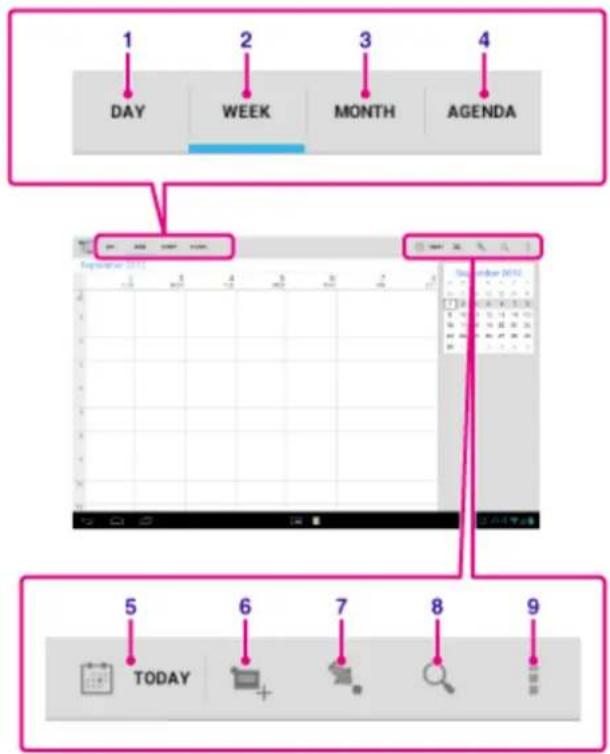
| Display on the screen | Description | |
| 1 DAY | Displays the events for one day. | |
| 2 WEEK | Displays the calendar by week. | |
| 3 MONTH | Displays the calendar by month. | |
| 4 AGENDA | Displays the list of scheduled items. | |
| 5 TODAY | Displays today's schedule. | |
| 6 New | event Adds events. | |
| 7 Set date | Sets a date to be displayed. | |
| 8 Search | Searches for an event. | |
| 9 Option menu | Makes detailed settings such as refreshing the display or configuring general settings for Calendar. | |
Hint
- You can flick up/down/right/left on the schedule list or mini-calendar to browse through months or dates and times to find events.
Adding an event
- Tap and hold the date and time you want to add an event for, and then tap [New event]. Or, tap
- Input the starting date and time and details of the schedule, and then tap [√ DONE] at the top right of the screen.
Hint
- You can have your tablet device notify you when close to the scheduled date and time.
Changing an event
- Tap the event you want to change.
- Tap 📋, input the item to be changed, and then tap [DONE] at the top right of the screen.
Deleting an event
- Tap the event you want to delete.
- Tap followed by [OK].
Note
- When you share the schedule on Google Calendar, choose the people with whom you share it very carefully to prevent your schedule from being disclosed to undesired users.
- If your calendar is not synced with Google Calendar automatically, tap [ Settings] followed by [Accounts & sync], and make sure the switch at the top right of the screen is set to [ON].
- If your calendar is set to sync with Google Calendar automatically and you change the schedule on a computer or other devices, your tablet device will connect with Google Calendar automatically. This may cause unexpected communications charges.
Shooting Photos/Movies
You can shoot photos and movies using the built-in front and rear cameras. Various shooting settings such as image size are also available. Location information also can be added to photos.
- Tap [Apps & Widgets] - [Camera].
The Camera app starts.
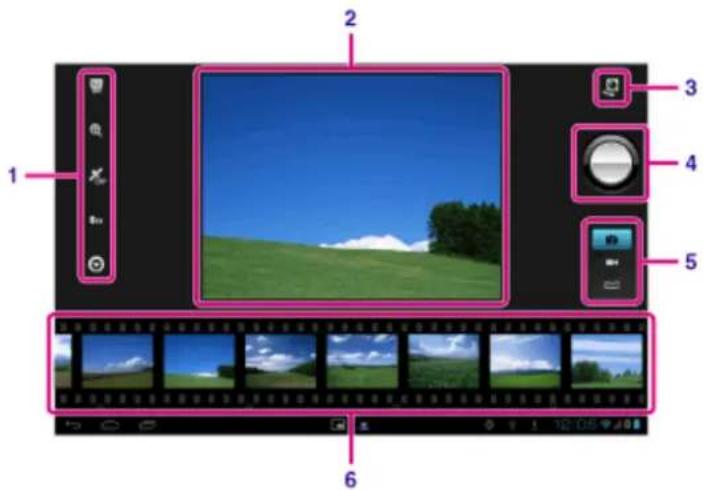
| Display on the screen Description | |
| 1 | Detailed settings Makes detailed settings for recording photos or movies. |
| 2 | Preview screen Previews the subject you are aimed at. |
| 3 | Camera switching Switches between the front camera and rear camera. |
| 4 | Recording button Starts recording a photo or movie. |
| 5 | Switch recording mode switches the recording mode among photo, movie, and panoramic photo. |
| 6 | Recording history Displays thumbnails of recorded photos or movies. |
- Aim the camera to your subject, and tap 📋 to shoot a photo or 📍 to shoot a movie.
For photos: A photo is taken.
For movies: Movie recording starts. Tapping 📄 again stops recording.
Note
- Do not touch the lenses of the built-in cameras. If the lenses become dirty or scratched, image quality may be affected.
- Do not let direct sunlight enter the lenses of the built-in cameras regardless of whether your tablet device is turned on or off. Doing so may cause the camera to malfunction.
Hint
- The rear camera is equipped with an auto-focus function. After you tap a photo is shot when the subject
comes into focus.
- In order to add location information to the photos, GPS must be enabled or your tablet device must be connected to the network when you take photos [Details].
- You can also view pictures you took and media from apps you play back.
- The focus function allows you to focus the part you tap on the touch panel and select a mode.
- You can also take a picture while taking a movie by tapping

Shooting Panoramic Photos
- Start the Camera app.
-
Tap ☐ at the right side of the screen.
-
Point the camera at the edge of the subject, and tap
Panoramic photo recording starts. Pan or tilt the camera to the opposite end of the subject, and tap again to stop recording.

Hint
- When you hold your tablet device sideways, you can shoot landscape panoramic photos. When you hold your tablet device upright, you can shoot portrait panoramic photos.
Ending the Camera app
Tap 📋 displayed on the status bar at the bottom left of the screen. If the status bar is not displayed, tap the bottom left of the screen once.
Related Topic
Notes on Recorded Photos/Movies
Notes on Recorded Photos/Movies
Copyright and portrait rights
The images and sounds you record on your tablet device may be copyrighted. Unauthorized use of such materials other than for personal use may violate copyright laws. Using or modifying images or names of other people without their permission may violate portrait rights. You should thus take into account copyright and portrait rights when putting recorded images on Internet websites. Some performances, shows and exhibits may restrict recording, even if it is for personal use. Unauthorized recording of such materials may be contrary to copyright laws.
Configuring an E-mail Account
The e-mail account you usually use on your computer can be used on the tablet device. If you register multiple e-mail accounts, you can handle e-mails of all the accounts at the same time. You can also search or sort received e-mail messages.
- Tap [ : Apps & Widgets] - [ Email].
The Email app starts and the screen to set an account is displayed.
-
Input your e-mail address and password, and tap [Next].
-
Follow the on-screen instructions to set the e-mail account.
When setting is complete, the e-mail list screen is displayed.
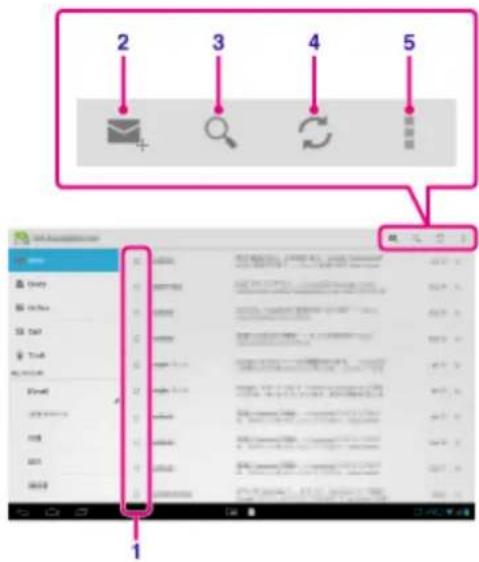
| Display on the screen | Description | |
| 1 | Selection | Allows you to select e-mails by tapping check boxes to move e-mails to another folder or delete them together. |
| 2 | Compose an e-mail Composes and sends an e-mail [Details]. | |
| 3 | Search Searches for e-mails from the e-mail list. | |
| 4 | Refresh Receives e-mails. | |
| 5 | Option menu Sorts e-mails, adds/removes accounts, etc. | |
Hint
- You can set for each account the number of received e-mails to be put in a folder by tapping (Option menu) - [Settings] - [Messages per folder] on the e-mail list screen.
• Searches cover the subject, sender, and e-mail body of all the e-mails saved on the server. -
Results are displayed 10 at a time from the latest e-mails. To search for older e-mails, tap [Load more messages].
-
Ask your network administrator, etc. about how to connect to Microsoft Exchange Server.
- For details on setting an e-mail address supplied by an Internet provider, refer to the provider's website, support center, etc.
Related Topic
Composing/Sending an E-mail
Receiving/Deleting E-mails
Composing/Sending an E-mail
- On the e-mail list screen, tap 📋 at the top right of the screen.
The e-mail composing screen is displayed. - Tap [To], and then input the recipient's e-mail address.
- Input the subject at [Subject].
- Input the message at [Compose email].
- Tap [▶ SEND].
Your e-mail is sent.
Hint
- Tapping In step 2 allows you to get the address from the [ People] app.
- Tapping in step 3 allows you to attach a file to your e-mail.
- Tapping [Save draft] while composing allows you to save the draft.
Related Topic
Receiving/Deleting E-mails
Receiving/Deleting E-mails
- On the e-mail list screen, tap ⬆ at the top right of the screen.
New messages are displayed in the inbox. Tap on the e-mails to open them.
To reply to an e-mail
Tap ← (Reply) or ← (Reply to all), compose your message, and tap [SEND].
To forward an e-mail
Tap (Forward), compose your forwarding message, and tap [SEND].
Deleting an e-mail
- Tap the e-mail you want to delete on the e-mail list screen, or open the e-mail and tap 🔒 at the top right of the screen.
- Tap [OK]. The e-mail is deleted.
Related Topic
Composing/Sending an E-mail
Browsing Websites
The Browser app lets you access and browse websites on the Internet. You can display/switch between multiple websites by using tabs.
- Tap [■: Apps & Widgets] - [Browser].
The Browser app starts.
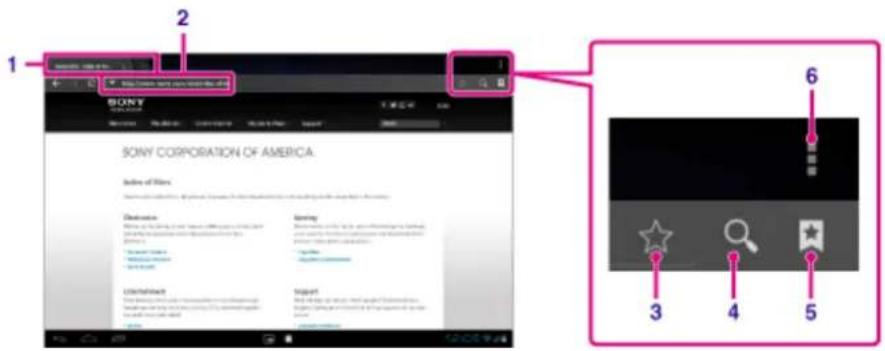
| Display on the screen | Description | |
| 1 | Tab Allows you to add | a tab to browse multiple websites by switching between tabs. |
| 2 | Address bar | Allows you to input the address (URL) of the desired website. The on-screen keyboard is displayed when you tap the address bar. |
| 3 | Add bookmark Adds the | e website that you are browsing to the bookmarks. |
| 4 | Search | Allows you to input a keyword to search for on the web. The on-screen keyboard is displayed when you tap the search button. |
| 5 | Bookmark/History | Allows you to input select a website to browse from the bookmarks or access the access history. |
| 6 | Option menu Makes de | detailed settings such as switching to the Browser in Small Apps, etc. |
- Tap the address bar on the browser.
The on-screen keyboard is displayed.
- Input the address (URL) of the desired website, and tap the ← key.
Note
- If the content does not display correctly, tap [Settings] followed by [Advanced] in the (Option menu), then tap [Enable Quick view] to remove the check mark.
- Certain websites may not be displayed because the browser does not support the photo/movie formats or plug-ins used by the website.
- You can launch the browser using the Small Apps feature. In this case, the following functions are not supported.
Playing back flash content
Browsing websites by using tabs
Bookmarks and access histories
Hint
- You can search the Internet by inputting a keyword or phrase instead of the address (URL) in step 3.
- If the address bar is not displayed at the top of the screen, tap the tab.
- You can copy or search text from the menu that is displayed by selecting text on a website or URL.
- If the website is displayed differently from when browsed on a computer, tap (Option menu) at the top right of the screen and put a check mark in [Request desktop site] in the menu. You can then browse the website as on a computer.
- You can set whether to view as a desktop or mobile site for each tab.
To add/delete a tab
To add a tab, tap + at the right end of the tabs list.
To delete a tab, tap ✗ at the right end inside the tab.
Related Topic
Selecting Text
Adding Bookmarks
Accessing Sites from Bookmarks/Access History
Adding Bookmarks
The bookmark function allows you to record addresses (URLs) of websites you visit frequently, allowing you to access those sites quickly. You can also add shortcuts to these URLs on the Home screen.
To add a bookmark for an address (URL)
Tap ☆ at the right of the address bar to check the detailed information, and then tap [OK].
To make a shortcut on the Home screen for an address (URL)
Tap ☆ at the right of the address bar, select [ home screen] as the destination, and then tap [OK].
To access a website from its bookmark
Tap 📂 to bring up the list of registered bookmarks. Tap the desired website from the list.
Related Topic
Accessing Sites from Bookmarks/Access History
Accessing Sites from Bookmarks/Access History
You can access a website from a registered bookmark or the access history.
- Tap

- Tap [BOOKMARKS] or [HISTORY].
• [BOOKMARKS]: Displays the list of registered bookmarks.
• [HISTORY]: Displays the list of websites you accessed previously.
- Tap the item you want to display.
To delete the access history
Tap ✗ while the access history is up.
Using the Calculator
You can use your tablet device as a calculator. In addition to the four arithmetic operations of addition, subtraction, multiplication and division, trigonometric function, exponent function, logarithm, etc. are available.
- Tap [Apps & Widgets] - [Calculator].
The Calculator app starts.
Hint
• This app can use as Small Apps.
Related Topic
Using "Small Apps"
Registering Contacts
You can register names, phone numbers, addresses, etc. as frequently used contacts. By registering your Google account, you can sync People with Gmail Contacts, making your contacts even more handy.
If using Microsoft Exchange Server, you can manage your work contacts by connecting to Microsoft Exchange Server.
- Tap [■: Apps & Widgets] - [ People].
The People app starts.
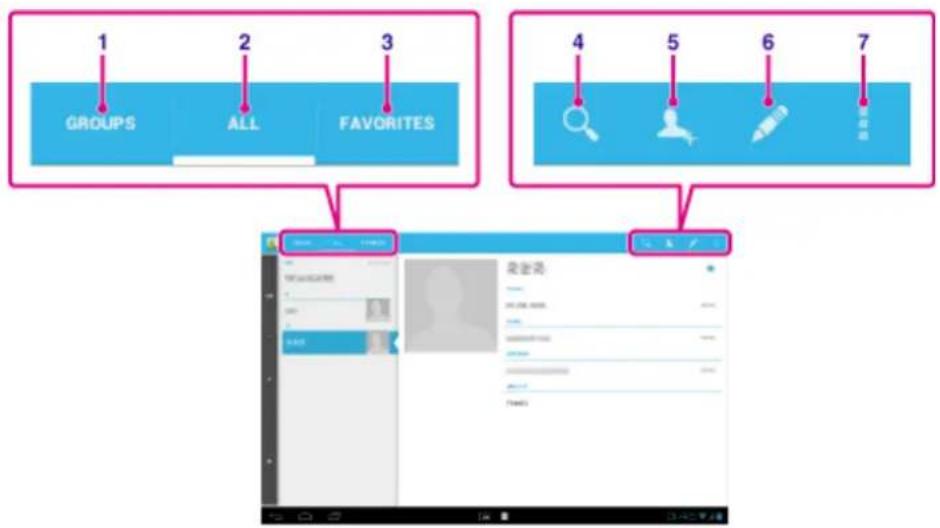
| Display on the screen | Description | |
| 1 G | ROUPS Displays the | groups of contacts. |
| 2 A | LL Displays all contacts. | |
| 3 F | AVORITES Displays | the contacts you registered as FAVORITES. |
| 4 S | Search Searches for a | contact. |
| 5 N | New contact Registers | a new contact. |
| 6 E | dit contact Edits a se | ected contact. |
| 7 O | Option menu | Makes detailed settings such as sharing contacts with other apps or deleting the contacts. |
-
Tap [ALL] at the top left of the screen.
-
Tap

- Input the data, and tap [ √ DONE].
The contact is registered.
Hint
- The contact can also be registered by tapping (Back) at the bottom left of the Home screen in step 3. When you tap [× DISCARD], the data you are editing is discarded.
To edit contacts
Tap the contact you want to edit, and then tap at the top right of the displayed screen.
To delete contacts
Tap the contact you want to delete, and then tap ☐ (Option menu) - [Delete].
To switch what contacts are displayed
Tap ☐ (Option menu) - [Contacts to display] - (the account), and you can switch between the contacts lists of individual accounts. You can also specify all accounts or multiple accounts.
Note
- If your contacts are not synced with Google contacts automatically, tap [ Settings] followed by [Accounts & sync], and check that the switch at the top right of the screen is set to [ON].
Related Topic
Grouping/Joining Contacts
Grouping/Joining Contacts
Registering groups
- Tap [GROUPS] at the top left of the screen, and then tap
If you have multiple accounts, tap the account you want to register the group to. - Input the group's name, and then type the name of the person you want to be included.
- Tap [√ DONE].
The group is registered.
Joining contacts
You can join the contacts of a person who has two or more e-mail address, etc. and has been registered to separate contacts.
- Tap [ALL] at the top left of the screen.
-
Tap one of his/her contacts, and then tap at the top right of the displayed screen.
-
Tap ☐ (Option menu) - [Join].
-
Tap the contact you wish to join with. The contact selected in step 4 is joined with the contact selected in step 2. The contact name after joining the contacts will be that of the contact selected in step 2.
Displaying the Clock
The clock is easy to see even from a distance, and it has a background that changes according to the time.
- Tap [■: Apps & Widgets] - [Desk clock].
The Desk clock app starts and the digital clock is displayed.
Tapping the icons allows you to do the following operations.

: Sets the alarm.

: Plays slide show.

: Plays back music.

: Returns to the Home screen.
Hint
- The time set for the alarm is displayed on the screen.
- Tap anywhere on the screen to change the screen brightness between two levels.
Importing/Exporting Contents from an SD Memory Card
The File transfer app enables you to import/export data between the internal memory of the tablet device and an SD memory card.
To import/export data between the internal memory of the tablet device and an SD memory card
- Insert an SD memory card into the SD memory card slot.
- Tap [■: Apps & Widgets] - [ ← File transfer].
The File transfer app starts.
-
Tap the file or folder you want to transfer to add a check mark to it.
-
Tapping the recording media icon switches between the screens for importing and exporting.
-
To move to a folder, tap the icon of the folder in the list. To display detailed information about the folder, tap and hold the icon of the folder.
-
To select a destination folder, tap 📋 in [Import to] or [Export to].
If you do not select a folder, the file is transferred to the [transferred] folder on the media.
- Tap ← or →
File transfer starts.
Note
- Do not remove the media during data transfer.
Related Topic
Checking the Free Space
Supported Formats
Inserting/Removing an SD Memory Card
Using Your Tablet Device as a Remote Control
You can switch between two types of remote controls on the remote control screen.
- "Full" remote control
You can operate the remote control function by tapping buttons, just like with an ordinary IR remote control. - "Gesture" remote control
This gives a new feel to remote control operations. The remote control function reacts when the tablet device senses movement of your fingers such as tapping and flicking on the touch screen, no matter where on the screen you touch. That way, you can operate the remote control instinctively, without looking at the screen of your tablet device.
Related Topic
Registering the Remote Control
Using "MediaRemote"
Registering the Remote Control
The tablet device can be used as a remote control by using the infrared remote (IR) control feature.
By registering multiple remote control codes, you can operate multiple devices with one tablet device.
Frequently used operations such as changing the volume or channels can be performed by intuitive gestures.
- Tap [■: Apps & Widgets] - [ Remote control].
The Remote control app starts.
- Tap [Register device] or [ + Register device].
- Tap [Easy registration].
- Register your tablet device as a remote control by following the on-screen instructions.
Execute [Remote control test] if needed.
When you finished setting, the device list screen is displayed. Tap the name of registered device.
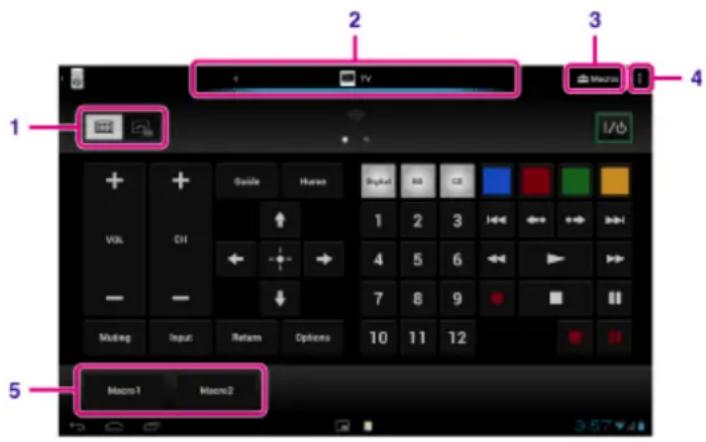
| Display on the screen Description | ||
| 1 | Switch between full or gesture remote control feature | Switches the remote control feature between the “gesture” remote control feature operated by gestures such as flicking or sliding and the “full” remote control feature operated by tapping [Details]. |
| 2 | Switch the registered remote controls | Switches the registered remote control by tapping the icon at the left and right of the currently controlled device. |
| 3 | Configure macro | Registers the macro that allows you to perform multiple device commands in succession just by tapping the button. |
| 4 | Option menu Sets detailed settings such as editing or deleting the registered devices. | |
| 5 | Registered macro Tap to run the registered macro. | |
Hint
• This app can use as Small Apps.
- You can configure the skin setting by tapping [Change skin] on the (Motion menu). You can configure the skin separately for each registered device.
- If the category or manufacturer is not displayed, allow your tablet device to learn the remote control signal then register it.
- Two or more devices may be displayed depending on the category or manufacturer. If more than one device is displayed, test the remote control operation with each of remote control displayed and select the one that works correctly.
To register as a remote control for another device
Tap 📋 (Back), and then tap [ Register device] on the device list screen.
Learning the remote control signal and registering it
If the category or manufacturer of the device is not displayed at [Easy registration], register the remote control as follows.
- Start the Remote control app.
- Tap [ Register device] or [Register device].
- Tap [Learn from a remote control].
- Select the category.
A remote control image is displayed on the screen.
- Tap the button you want to assign the signal to.
- When the menu screen is displayed, tap [Learn remote command].
- Bring the remote control to be registered close to the IR data port of your tablet device, tap [Start], and press the button to be learned on the remote control.
When the button is registered, the screen returns to the remote control display.
Hint
• To learn more buttons, repeat steps 4 to 7.
Related Topic
Using "Small Apps"
Programming Operations in the Remote Control (Macro Function)
Programming Operations in the Remote Control (Macro Function)
With the macro function, you can register multiple operations of devices registered to the remote control app in succession, allowing you to perform the operations in the order registered just by tapping a button.
- Start the Remote control app.
- Select and tap the desired device.
- Tap [图标] Macros].
- Tap [New macro].
Register a macro in the following order.
- Select a button.
- Check the operation (register the timing of the operation).
- Input a name for the macro.
Tap [OK], and then follow the on-screen instructions.
If the registration completes, a button with a macro name will appear at the bottom of the remote control screen. By tapping the button, you can run the registered macro.
Setting the Audio Output Sound
You can set the audio output sound to better enjoy music, videos, games, and more.
Sound settings include Sony-recommended [ClearAudio+], [Sound enhancements] that you can adjust as you would like, and [Dynamic normalizer].
-
Tap [ : Apps & Widgets] - [ Settings] - [Sound].
-
Tap the desired setting from the following items.
-
[ClearAudio+]: Sony recommended sound settings for music optimize the settings of digital signal processing technology with just one touch.
- [Sound enhancements]: Set the audio technologies your tablet device is equipped with or check which of those are being used. Those settings are not available when [ClearAudio+] is on. The items you can configure from the settings are as follows.
[Equalizer]: Set the sound quality suited for the genre of music.
[Clear Phase(TM)]: Set the sound quality suited for the built-in speakers.
[xLOUD(TM)]: Reproduce dynamic sound from the built-in speakers. This setting is not available when [S-Force Front Surround 3D] is on.
[S-Force Front Surround 3D]: Re-create a surround 3D sound field virtually.
- [Dynamic normalizer]: Minimize volume differences between content. For example, this setting can prevent songs from playing back too loud or too quiet when you play back songs at random from multiple albums with different recording volumes.
Note
- [S-Force Front Surround 3D], [xLOUD(TM)], and [Dynamic normalizer] are not available while using some voice communications apps.
- [ClearAudio+], [Sound enhancements], and [Dynamic normalizer] are not supported with devices connected via Bluetooth or Multi Port.
Related Topic
Changing the Settings
Using Sony Select
Sony Select allows you to access a website that introduces a select range of apps appropriate for use with your tablet device.
- Tap [■: Apps & Widgets] - [ Sony Select].
The browser starts and displays the website.
Note
• To download apps, Google account settings are required.
• Charges apply for some apps.
- A large volume of data is transferred when downloading and updating apps.
Playing Photos/Videos
The Gallery app allows you to show or play photos and video on your tablet device or Picasa web albums. You can also easily post photos to online services to share them.
You can display detailed information as well as sort or filter your photos and videos.
- Tap [■■■ Apps & Widgets] - [Gallery].
The Gallery app starts.
- Tap albums or thumbnails to select the photos or videos you want to play back. The selected photos or videos are played back on the playback screen.
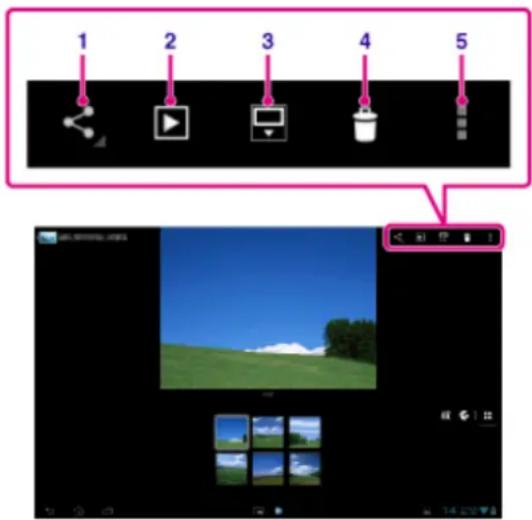
| Display on the screen Description | ||
| 1 | Share | Selects the service you want to use to share photos or movies and posts them. |
| 2 | Slide show Starts slide show playback. | |
| 3 | Switch display area of photos | Switches the display area of photos. |
| 4 | Delete Deletes the selected photo. | |
| 5 | Option menu Sets or adjusts settings such as editing photos. | |
Hint
- You can play photos or videos stored in Picasa web albums. If you set to sync with Picasa web albums available with the Google account that you set with the Settings app, the Picasa web albums will appear in your album list.
- Using the menu at the top right of the screen, you can sort photos or videos by details such as the time or place they were taken.
- By tapping and holding thumbnails in succession, you can select multiple photos or videos.
- You can control playback on the playback screen.
To display photos full-screen
Tap [Fill display area] from the option menu of the photo playback screen. To cancel full-screen view, tap [Fit to display area].
To display shooting location
Tap 📄 or 📌 with the display area not expanded. If the photo has information on where it was shot, a map appears with the location indicated on the map. To return to the thumbnails, tap 📋.
Hint
- You can shoot photos that include location information using the built-in cameras.
Playing back photos automatically (slide show)
- Select albums or thumbnails for photos you want to play back as a slide show, and then tap 📋. Slide show playback starts.
Related Topic
Sharing Photos/Videos
Editing Photos
Sharing Photos/Videos
- Tap and hold the album or thumbnail for photos you want to share, and then tap 📋, or tap 📋 on the playback screen.
- Tap on the name of the service you want to use to share photos or videos.
- Post the photos or videos by following the on-screen instructions.
Hint
- You can select multiple photos or videos by tapping and holding thumbnails in succession.
Related Topic
Editing Photos
Editing Photos
- On the playback screen, tap Option menu) - [Edit].
- Tap [Photo editor].
- Tap the edit icon at the bottom of the screen. You can add various effects to your photos.
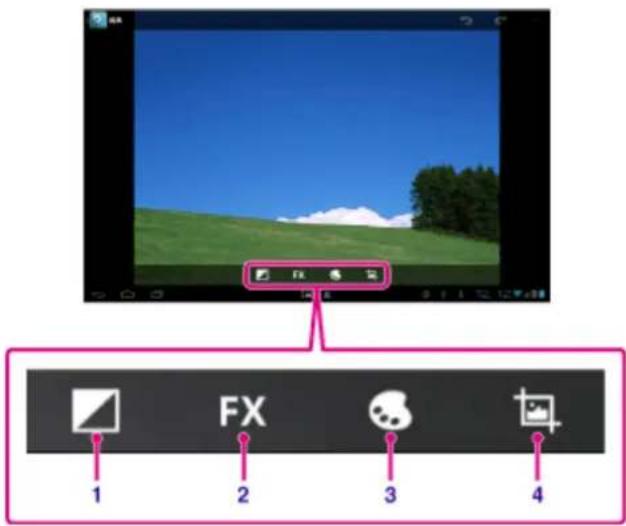
| Display on the screen | Description |
| 1 Brightness Sets photo | brightness settings such as for highlights. |
| 2 Effects Sets photo effect | ct settings such as for posterization. |
| 3 Color Sets color settings | such as for saturation. |
| 4 Edit Sets photo edits | such as cropping. |
- When you are finished editing, tap [SAVE].
Related Topic
Sharing Photos/Videos
Checking the Wi-Fi Connection
The Wi-Fi checker app enables you to check the Wi-Fi connection of your tablet device when a connection problem occurs.
- Tap [■ Apps & Widgets] - [■ Wi-Fi checker].
Wi-Fi checker app starts.
- Tap [Test] at the top right of the screen to start checking the connection. Items are checked in succession, and assumed causes and remedies are displayed.
Hint
- If you tap [SETTINGS] at the top right of the screen, you can display the settings screen for Wi-Fi connection. Use 📋 to return to the Wi-Fi checker app. If you tap 🔒 display the Home screen, the settings screen appears when you start the Wi-Fi checker app the next time.
Related Topic
Connecting to Wi-Fi
Reading Digital Books
Carry your favorite digital books on your tablet device. The intuitive design is ideal for on-the-go reading, allowing you to bookmark, highlight and adjust font size as you read. You can even sync bookmarks and highlighted items with other compatible devices. Purchasing content is made easy by the online Reader(TM) Store. In countries where you cannot purchase from the Reader(TM) Store, you can still enjoy books on your tablet device by loading them from a memory card (books without copy-protection only).
• Bookmarking and highlighting
- Adjustable font sizes
- Intuitive navigation
• Synching with other compatible devices
- Tap [■■■ Apps & Widgets] -[ Reader by Sony].
The Reader by Sony app starts.
Note
- Reader (TM) Store may not be available in some countries/regions.
- Reader (TM) Store uses Adobe DRM, and an Adobe ID is required to authorize your tablet for viewing protected content.
- If you do not have an Adobe ID already, Reader (TM) Store will create one using the same email address and password you used to create a Reader (TM) Store account.
- If you already have an Adobe ID, you may be prompted to provide the appropriate email and password to authorize your tablet.
- eBooks purchased at Reader (TM) Store will automatically be displayed in your library.
- With the Reader by Sony app on your tablet, you can enjoy books other than those from the Reader (TM) Store EPUB or PDF eBooks by loading them via USB or SD card or by downloading the content directly from your tablet's browser.
Support information
For customers in the U.S. and Canada only
http://ebookstore.sony.com/help
Related Topic
Confirming Download or Update Information on the Status Bar
Importing/Exporting Contents from an SD Memory Card
Registration
The Registration app allows you to register your tablet device with Sony. Registering your tablet device allows us to maintain a record of your purchase in case of loss or theft and to inform you of important product updates and promotions. It will also help us design products that meet your specific needs.
- Tap [■: Apps & Widgets] - [Registration].
The Registration app starts.
- Read the End User License Agreement, and tap [Accept] to continue if you accept the agreement. Otherwise, tap [Decline] to exit the app.
- Enter your personal information.
Hint
- Only the fields with * are required. All other information is optional.
- By default, "Yes, I would like to receive information from Sony Electronics on products, services and special offers that may be of interest to me." is checked. If you prefer not to receive future information from Sony Electronics, tap the box to remove the check mark.
- Tap [Submit] to submit your registration information to Sony.
Note
• This app is available in the United States only.
- If you would like to read additional information regarding Sony's privacy policy, please tap on [Privacy Policy].
Registering Your Tablet Device
Sony recommends you register your tablet so we can provide better customer support.
- Tap [■■■ Apps & Widgets] - [ Product registration].
The browser starts and Sony product registration site appears.
- Register your tablet device by following the on-screen instructions.
Hint
- In some countries/regions, you will be asked to present information such as leaflets supplied with the tablet device, the warrantee or a receipt issued at the store where you purchased the tablet device. Please keep these documents handy.
Note
- This app or service may not be available in some countries/regions.
Using the "Video Unlimited" Video Delivery Service
Video Unlimited brings you a new world of entertainment on your tablet. Now you can download your favorite videos to your tablet device and watch them anytime, anywhere.
Note
- This app or service may not be available in some countries/regions.
- Internet usage fees may apply to use of this service. You are responsible for all applicable Internet fees. Contact the carrier you have a subscription with for more information.
- You can browse the content without signing in, however please make sure that you have a registered account to purchase and download contents.
- Your tablet device must be connected to a network using Wi-Fi or mobile communications to use the preview feature.
- Your tablet device must be connected to a network using Wi-Fi to download the content you have purchased. Content you have purchased can be downloaded from [Download List].
• To download content, your current location must be the same as the country/region for your account. - Check that there is enough free space to download the content.
Support information
United States
http://us.support.sonyentertainmentnetwork.com/app/home/?locale=en_US
Canada (Français)
http://qriocity-fr-ca.custhelp.com/app/home
Canada (Anglais)
http://qriocity-en-us.custhelp.com/app/home/?locale=en_CA
Using the “Music Unlimited” Music Delivery Service
Music Unlimited is a music service available on Sony Entertainment Network. You can choose your favorite music from a variety of music content and listen to it whenever you want. Upload your personal library to access it anytime, anywhere as well as to discover new favorites from automatic recommendations based on your unique listening habits. Automatic recommendations allow you to broaden your musical interests.
• Millions of songs, from the latest hits to classic favorites
• Radio channels that span genres, moods, and eras
• No ads and unlimited skips
- Ability to sync and play from your personal collection
- Access from a variety of devices
- Music on Demand – Listen to any song you want, when you want it
- Tap [Apps & Widgets] - [Music Unlimited].
Note
- This app or service may not be available in some countries/regions.
Support information
United States
http://us.support.sonyentertainmentnetwork.com/app/home/?locale=en_US
Canada (Français)
http://qriocity-fr-ca.custhelp.com/app/home
Canada (Anglais)
http://qriocity-en-us.custhelp.com/app/home/?locale=en_CA
Using Gmail
You can use Gmail on your tablet device if you register your Google account on your tablet device.
- Tap [ 🎯 Apps & Widgets] - [ Gmail].
Gmail starts.
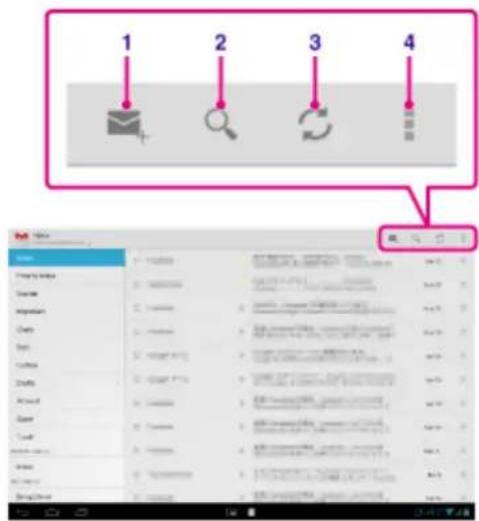
| Display on the screen | Description | |
| 1 | Compose an e-mail Composes and sends an e-mail. | |
| 2 | Search Searches for e-mails from e-mail list. | |
| 3 | Refresh Check for new e-mails. | |
| 4 | Option menu | Sets detailed settings such as managing labels or configuring general settings for Gmail. |
Note
• To see details on how to use Gmail, tap (Option menu) - [Help].
Searching for Apps
Apps such as helpful tools and games can be downloaded to your tablet device from Google Play provided by Google. You can also check for app updates and update apps to the latest version.
Tap [■: Apps & Widgets] at the top right of the Home screen, followed by [Play Store] on the apps list.
You can also use Google Play from your computer.
http://play.google.com/
This site displays Google Play and allows you to manage apps you downloaded from Google Play and installed on your tablet device.
To use Play Store, you need to sign-in your Google account [Details].
Using "MediaRemote"
MediaRemote is a Wi-Fi remote control app that can be used with devices such as Sony BRAVIA TVs and Blu-ray disc players. Enabling more than just conventional remote control operations, MediaRemote has various functions such as keyboard entry and content information display, giving you greater utility and enjoyment with Sony devices.
Note
- Be careful of home network security when you enter personal information.
Preparing MediaRemote
- Connect the Sony device to your home network. For details on how to connect, see the operating instructions supplied with the device and Wi-Fi router.
- Connect your tablet device to the same home network that the Sony device is connected to.
- Register your tablet device on the Sony device. For details on settings, see the operating instructions supplied with the device.
See the Help in the MediaRemote app to find out how to use that app.
Using Media Go
Media Go is computer software that supports content management and transfers content between your tablet device and computer. By installing Media Go in your computer, you can transfer music, photos, and videos to your tablet device.
Note
- For details on how to use Media Go, refer to the help in the main menu of Media Go.
Installing Media Go on your computer
- Access http://www.sony.com/mediago/Tablet from your computer and download Media Go.
- Double-click the downloaded file.
- Install Media Go by following the instructions on the screen.
If you are prompted to install additional software components during installation, download and install them as instructed.
Transferring content to your tablet device using Media Go
- Connect your computer to your tablet device with the supplied USB cable for Multi Port.
- Start Media Go by selecting it from the start menu of your computer.
You can now transfer content between your tablet device and computer.
Note
- If [the model name of your tablet device] is not displayed on the left of the Media Go screen, this means that your tablet device is not recognized by the computer. Check whether or not the device driver is installed correctly.
- For details on using Media Go on a computer, refer to http://www.sony.com/mediago/Tablet.
Related Topic
Connecting to a Computer
Zinio
Zinio is the premier app for magazines on your tablet, giving readers immediate access to thousands of global titles. Read and download single issues or subscriptions of your favorite magazines and sync your library to your home computer, smart phone and tablet seamlessly. Keep up with trending topics and stories from magazines like Rolling Stone, The Economist, Hello!, US Weekly, T3, Macworld, Travel + Leisure and many more.
Key features
- Thousands of top magazines in the world's largest newsstand.
• Full-color pages or text-only mode. - Interactive features, rich media, and exclusive multimedia content in select magazines.
• Full subscriptions or single issues available so you can choose what you want. - Sync your library instantly to your other mobile devices or your home computer.
Read what you like, anytime and anywhere.
Find us on Twitter (@zinio) or Facebook (/zinio), or check out the Zinio blog at blog.zinio.com.
Support information
help@zinio.com
http://www.zinio.com/help
Evernote
Evernote turns your tablet into an extension of your brain.
Evernote is an easy-to-use, free app that helps you remember everything across all of your tablet. Stay organized, save your ideas and improve productivity. Evernote lets you take notes, capture photos, create to-do lists, record voice reminders--and makes these notes completely searchable, whether you are at home, at work, or on the go.
Key features
- Sync all of your notes across the computers and devices you use
• Create and edit text notes, to-dos and task lists - Save, sync and share files
• Search for text inside images - Organize notes by notebooks and tags
- Email notes and save tweets to your Evernote account
- Connect Evernote to other apps and products you use
- Share notes with friends and colleagues via Facebook and Twitter
Premium features
• Take notebooks offline to access them anytime
- Allow others to edit your notebooks
- Add a PIN lock to your Evernote app
Support information
http://evernote.com/contact/support/
Crackle
Watch full-length uncut Hollywood movies & TV shows on your tablet device.
250 movies and over 1,000 TV episodes are available on your tablet device, all on demand.
Note
- This app or service may not be available in some countries/regions.
Support information
http://www.crackle.com/support/help.aspx
android@crackle.com
Top HD Games - Gameloft
Download high quality games to your tablet device from the top HD Games at Gameloft's online store. Choose from hit titles such as Asphalt 6, Real Football 2011, and N.O.V.A. 2 - Near Orbit Vanguard Alliance.
Support information
http://support.gameloft.com/
support@gameloft.com
• U.S.A.
1-800-910-3186, 1-800-913-6828, 1-800-961-6744 (09:00-18:00 Monday-Friday)
• Canada
1-800-910-3186, 1-800-913-6828, 1-800-961-6744 (09:00-18:00 Monday-Friday)
• Mexico
1-800-681-9573, 1-800-681-9272 (09:00-18:00 Monday-Friday)
- Chile
2-570-8607 (09:00-18:00 Monday-Friday)
• Colombia
1-800-710-2071 (09:00-18:00 Monday-Friday)
• Panama
e-mail support only
• Argentina
0800-222-1416 (09:00-18:00 Monday-Friday)
- Brazil
55-2139560516, 0800-885-5607 (09:00-18:00 Monday-Friday)
• Venezuela
58-2123357899 (09:00-18:00 Monday-Friday)
• Peru
e-mail support only
PlayMemories Online
Your Memories, at your Fingertips.
Enjoy your photos and videos across your favorite devices, instantly!
Features
• Works with Multiple Devices
Enjoy your favorite memories across your smartphone, tablet, computer, "BRAVIA", and "S-Frame".
- Easy to Upload
Effortlessly upload photos and videos to your PlayMemories Online account and enjoy them on your favorite devices, instantly!
- Works with Video
Supports videos too! Videos are automatically converted for seamless viewing across your favorite devices.
- Simple to Use
Your photos and videos are automatically prepared for your favorite devices. No hassle, just simple.
- Share Privately
Privately share your favorite memories with friends and family using Albums and Postcards.
Note
- This app or service may not be available in some countries/regions.
- “PlayMemories Online” service offering 5GB of FREE storage for photos and videos.
Support information
- United States
1-877-428-5608
http://esupport.sony.com/US/perl/support-info.pl?template_id=1&info_id=984 - Canada(English)
1-877-428-5608
http://esupport.sony.com/CA/perl/support-info.pl?template_id=1&info_id=984 - Canada(French)
1-877-428-5608
http://esupport.sony.com/CA/perl/support-info.pl?template_id=1&info_id=985
Xperia Link
You can connect your tablet to internet by using tethering function of Xperia(TM) smartphone*. Tethering settings of smartphone can be controlled from tablet by remote control, so you can connect your tablet to internet with your smartphone in bag or pocket.
* You need Xperia(TM) smartphone with tethering capability and "Xperia Link" application.
Xperia Games
The Xperia Games blog is your source for all the latest games news on your Xperia(TM) Phone or Xperia(TM) Tablet S. Every week we scour the charts to find the best in gaming, bringing you news, reviews and interviews to help you find the titles you'll love. So whether you are into killing aliens or just killing time, non-stop adrenaline-charged action or maybe just a bit of casual fun you can enjoy with your friends - check out Xperia Games!
Support information
http://www.sonymobile.com/global-en/support/contact-us/
• United States
+1 866 766 9374
- Puerto Rico
web support only
- Canada
+1 1 866 766 9374
Mexico
+1 800 000 4722
• Colombia
+57 1800 0966 080
• Panama
web support only
• Peru
0800 532 38
• Venezuela
0 800 100 2250
• Argentina
+54 0800 333 7427
- Chile
+56 800 646 425
• Brazil
+55 4001 0444
Skype
Make free Skype-to-Skype video calls, and call phones at Skype rates on the move.
Make free voice and video calls to anyone else on Skype, whether they're on an Android or PC, as well as IMs to your friends and family.
Features
- Skype to Skype IMs, video and voice calls are free* over mobile network or Wi-Fi.
- Make low-cost calls and SMS to mobiles or landlines from your Android.
- Send pictures, videos and files to any of your contacts.
- Enjoy high-quality sound when you call anyone else on Skype.
- Talk face to face or show what you're seeing with front and rear-facing cameras.
* Operator data charges may apply. We recommend using an unlimited data plan or WiFi connection.
Support information
http://support.skype.com/
OfficeSuite Viewer
View and share Microsoft Word, Excel, and PowerPoint and PDF files and attachments on your tablet with a single complete feature-rich mobile Office solution. The software utilizes the most commonly used desktop document formats and also includes a File Browser and integration with Google Docs, Dropbox, Box and SugarSync to help you manage your local, remote files and email attachments. OfficeSuite Pro is an essential productivity application offering greater office efficiency than ever anywhere, anytime.
Support information
http://www.mobisystems.com/support.html
support@mobisystems.com
AccuWeather
AccuWeather forecasts for 2.7 million locations, supports 27 languages, and has descriptive weather graphics that will appeal to your tablet. With GPS and interactive Google Maps, this free weather app makes it easy to get detailed and current forecasts and news from the most trusted name in weather.
Features include severe weather notices, home screen widgets, animated radar, satellite, special lifestyle and health forecasts, display options, and much more:
- Animated radar for North America, satellite and interactive Google Maps for locations worldwide, and current, broadcast-quality weather videos.
- Severe weather notices for events such as, snow, ice, rain, wind, and thunderstorms.
• Hourly forecasts for the next 24 hours, plus day and night forecasts for the next fifteen days. - Details including, humidity percentages, visibility, pressure, dew point, precipitation and amounts, UV index, wind and wind gust speed, wind direction, and AM and PM times for sunrise and sunset.
- RealFeel - AccuWeather's proprietary weather forecasting system that takes into account multiple weather conditions to determine how the local temperature actually feels, which may be warmer or colder than the temperature depending on these conditions.
- Special lifestyle weather and health forecasts, as well as conditions for specific outdoor activities and sports, such as golfing, fishing, and jogging, and health-related weather forecasts, such as flu and migraine headache forecasts.
- AccuWeather widgets for your tablet's home screen that link directly to the full app.
Note
- AccuWeather Application Permissions http://www.accuweather.com/en/privacy http://www.accuweather.com/en/legal
Support information
(814) 235-8650
http://www.accuweather.com/en/contact
support@accuweather.com
Netflix
Netflix is the world's leading subscription service for watching TV episodes and movies on your tablet. The Netflix application is designed to deliver the best experience on your tablet anywhere, anytime.
Get the free app as a part of your Netflix membership and you can instantly watch thousands of TV episodes & movies on your tablet.
If you are not a Netflix member then sign up for Netflix and start enjoying immediately on your tablet with our one-month free trial.
How does Netflix work?
- Netflix membership gives you access to unlimited TV shows and movies for one low monthly price.
- With the Netflix app you can instantly watch as many TV episodes & movies as you want, as often as you want, anytime you want.
- You can browse a growing selection of thousands of titles, and new episodes that are added regularly.
- Search for titles and watch immediately on your phone or on an ever expanding list of supported device.
- Rate your favorite shows and movies and tell us what you like so Netflix can help suggest the best titles for you.
- Start watching on one device, and resume watching on another. Check out netflix.com for all the TVs, game consoles, tablets, phones, Blu-ray players and set top boxes on which you can watch Netflix.
Note
- This app or service may not be available in some countries/regions.
- By downloading this application you agree to the Netflix Terms of Use and Privacy Policy, located at www.netflix.com
1-month free Netflix membership offer is available to first time and certain former members and cannot be combined with any other offer. Internet access and valid payment method are required to redeem offer. Netflix will begin to bill your payment method for the Netflix membership fee at the end of the free month unless you cancel prior to the end of the first month. Your Netflix membership is a month-to-month subscription that you can cancel at any time. Go to "Your Account" on the Netflix website for cancellation instructions. No refund or credit for partial monthly subscription periods. The Netflix service is only available in the country where you originally signed up. A device that streams from Netflix (manufactured and sold separately) and broadband Internet connection are required to watch instantly. For complete terms and conditions, please visit http://www.netflix.com/TermsOfUse.
Support information
www.netflix.com/support
Hulu Plus
Hulu Plus. Unlimited Instant Streaming (Subscription Required).
Download the app to enjoy unlimited instant streaming of current hit TV shows with your Hulu Plus subscription. New to Hulu Plus? Try it FREE.
Hulu Plus supports select phones running Android 2.2+ and select tablets running Android 3.0+ in the United States. See below for a complete list of supported devices.
- Watch the full current season of popular shows including Modern Family, The Office, Family Guy, and many others
- Enjoy classic series including Lost and Battlestar Galactica
- Resume watching from where you left off on your TV or other supported device
• Watch over Wi-Fi and mobile network
• Available for \$7.99/month with limited advertising
Use of Hulu Plus is subject to the Hulu Plus Terms of Service: hulu.com/terms
Note
- This app or service may not be available in some countries/regions.
Support information
http://www.hulu.com/support/
support@hulu.com
Totalmovie
Totalmovie is the first service of streaming in Latin America. With Totalmovie you can watch full-length Movies, TV Series and much more.
Download the free Totalmovie App to instantly watch content.
With your subscription, you can enjoy unlimited content in Spanish, English and Portuguese language. The Totalmovie service is now available in more than 40 countries in Latin America.
Not a Totalmovie member? Subscribe and start your free trial.
Totalmovie Watch whatever you want to watch, whenever you want to, wherever you might be.
Note
- This app or service may not be available in some countries/regions.
- Terms and Conditions http://www.totalmovie.com/page.php?id/terms_and_conditions
- Privacy Policy http://www.totalmovie.com/page.php?id=privacy_policy
Support information
http://www.totalmovie.com/page.php?id=contact_us atencion@totalmovie.com
• Mexico City: 8421.2005
• Mexico:
01800.333.4444
• Argentina:
0800.333.0108
• Brazil:
0800.892.1309
• Chile:
1230.020.8949
• Peru:
0800.55076
• Puerto Rico: 1.888.793.0351
• Venezuela: 0800.100.9196
NetMovies
Watch movies as many times as you want and when you want. Download the NetMovies app for FREE. 1st month is FREE.
- Browse by genre, new releases or search by the content that you want to watch.
• More than 5000 titles available
Note
- This app or service may not be available in some countries/regions.
- To participate, your registration and payment data will be required. At the end of the promotional period, the subscription will be activated automatically. The subscription will be renewed automatically every month although it is cancelled in the website or through the Customer Service 5 days before its automatic renewal. A unique subscriber has access only to a unique promotion. The promotion is limited only for new subscribers. By downloading the application, you accept the terms of use which can be read in the following URL: www.netmovies.com.br/termos-uso.html
Support information
- "Xperia" and "Xperia Tablet" are trademarks of Sony Mobile Communications AB.
- “Clear Phase,” “Clear Bass” and “xLOUD” are trademarks of Sony Corporation.
- “Reader” and the “Reader” logo are trademarks of Sony Corporation.
- Sony Electronics Inc., Sony and the Sony logo are trademarks of Sony Corporation. All other trademarks are the property of their respective owners. All rights reserved.
- “PlayMemories Online” and “Sony Select” are trademarks of Sony Corporation.
- “Sony Entertainment Network logo” and “Sony Entertainment Network” are trademarks of Sony Corporation.
- Google, Android platform, Gmail webmail service, Google+, Google Latitude location service, Google Maps mapping service, Google Places business listings, Google Search, Google Talk instant messaging service, Google Translate translation service, Google Drive online storage service, Google Books service and YouTube video community are trademarks of Google Inc.
- Adobe Flash Player Copyright(C) 1996-2011 Adobe Systems Incorporated. All rights reserved. Adobe and Flash are either registered trademarks or trademarks of Adobe Systems Incorporated in the United States and/or other countries.
- THIS PRODUCT IS LICENSED UNDER THE AVC PATENT PORTFOLIO LICENSE FOR THE PERSONAL AND NON-COMMERCIAL USE OF A CONSUMER TO
(i) ENCODE VIDEO IN COMPLIANCE WITH THE AVC STANDARD ("AVC VIDEO") AND/OR
(ii) DECODE AVC VIDEO THAT WAS ENCODED BY A CONSUMER ENGAGED IN A PERSONAL AND NON-COMMERCIAL ACTIVITY AND/OR WAS OBTAINED FROM A
VIDEO PROVIDER LICENSED TO PROVIDE AVC VIDEO. NO LICENSE IS GRANTED OR SHALL BE IMPLIED FOR ANY OTHER USE. ADDITIONAL INFORMATION MAY BE OBTAINED FROM MPEG LA, L.L.C. SEE HTTP://MPEGLA.COM - Bluetooth is a trademark or a registered trademark of Bluetooth SIG Inc. and any use of such mark by Sony is under license.
- “Crackle” and the Crackle logo are trademarks of Crackle, Inc.
• Evernote and the Evernote elephant logo are the trademarks of Evernote Corporation.
• Facebook, the Facebook logo, and the F logo are trademarks or registered trademarks of Facebook, Inc. - (C) 2011 Gameloft. All rights reserved. Gameloft and the Gameloft logo are trademarks of Gameloft in the U.S. and/or other countries.
- iWnn (C) OMRON SOFTWARE Co., Ltd. 2008-2011 All Reserved.
- This software is based in part on the work of the Independent JPEG Group.
- MPEG Layer-3 audio coding technology and patents licensed from Fraunhofer IIS and Thomson.
-
THIS PRODUCT IS LICENSED UNDER THE MPEG4 PATENT PORTFOLIO LICENSE FOR THE PERSONAL AND NON-COMMERCIAL USE OF A CONSUMER TO
(i) ENCODE VIDEO IN COMPLIANCE WITH THE MPEG4 STANDARD ("MPEG4 VIDEO") AND/OR
(ii) DECODE MPEG4 VIDEO THAT WAS ENCODED BY A CONSUMER ENGAGED IN A PERSONAL AND NON-COMMERCIAL ACTIVITY AND/OR WAS OBTAINED FROM A
VIDEO PROVIDER LICENSED TO PROVIDE MPEG4 VIDEO. NO LICENSE IS GRANTED OR SHALL BE IMPLIED FOR ANY OTHER USE. ADDITIONAL INFORMATION MAY BE OBTAINED FROM MPEG LA, L.L.C. SEE HTTP://MPEGLA.COM
• (C) 2012 NVIDIA Corporation. All rights reserved. NVIDIA, the NVIDIA logo and Tegra are trademarks and/or registered trademarks of NVIDIA Corporation in the U.S. and other countries.
• SD and SDHC Logos are trademarks of SD-3C, LLC. -
TinyURL is a trademark or registered trademark of TinyURL, LLC.
• Twitpic is a trademark or registered trademark of Twitpic, Inc. - The Twitter name, logo, Twitter T, Tweet, and Twitter bird are trademarks of Twitter, Inc. in the United States and other countries.
- THIS PRODUCT IS LICENSED UNDER THE VC-1 PATENT PORTFOLIO LICENSE FOR THE PERSONAL AND NON-COMMERCIAL USE OF A CONSUMER TO
(i) ENCODE VIDEO IN COMPLIANCE WITH THE VC-1 STANDARD ("VC-1 VIDEO") AND/OR (ii) DECODE VC-1 VIDEO THAT WAS ENCODED BY A CONSUMER ENGAGED IN A PERSONAL AND NON-COMMERCIAL ACTIVITY AND/OR WAS OBTAINED FROM A VIDEO PROVIDER LICENSED TO PROVIDE VC-1 VIDEO.
NO LICENSE IS GRANTED OR SHALL BE IMPLIED FOR ANY OTHER USE. ADDITIONAL INFORMATION MAY BE OBTAINED FROM MPEG LA, L.L.C. SEE HTTP://WWW.MPEGLA.COM
- Wi-Fi, the Wi-Fi CERTIFIED logo, WPA, WPA2 and Wi-Fi Protected Setup are trademarks or registered trademarks of Wi-Fi Alliance.
- Windows Media is either a registered trademark or trademark of Microsoft Corporation in the United States and/or other countries.
- Yfrog is a trademark or registered trademark of ImageShack Corp.
• (C) 2001-2011 Zinio LLC. - San Francisco - New York - London - Barcelona - Taipei - All rights reserved. - Microsoft, Outlook, Exchange and ActiveSync are registered trademarks or trademarks of Microsoft Corporation in the United States and/or other countries.
"Microsoft Exchange ActiveSync" in the Implementation user interface where appropriate "Microsoft(R) Exchange ActiveSync(R)" for any printed material (including packaging, literature, marketing materials and advertising)
• (C) 2012 Anne Gutman & Georg Hallensleben / Hachette Livre
- TrackID(TM) is powered by Gracenote(TM) Mobile MusicID(TM). Gracenote, Mobile MusicID, and Video Explore are trademarks or registered trademarks of Gracenote, Inc.
- The product utilizes Japanese handwriting recognition technology, LaLaStroke provided by TOSHIBA Corporation.
LaLaStroke is a trademark of TOSHIBA Corporation.
• (R) MobiSystems 2012
- RealFeel(R) - AccuWeather's proprietary weather forecasting system that takes into account multiple weather conditions to determine how the local temperature actually feels, which may be warmer or colder than the temperature depending on these conditions.
- The Skype name, associated trade marks and logos and the “S” logo are trade marks of Skype or related entities.
- Hulu, the Hulu logo, www.hulu.com, and other Hulu marks, graphics, logos, scripts, and sounds are trademarks of Hulu. None of the Hulu trademarks may be copied, downloaded, or otherwise exploited.
• Netflix is a trademark or a registered trademark of Netflix, Inc.
- The terms HDMI and HDMI High-Definition Multimedia Interface, and the HDMI Logo are trademarks or registered trademarks of HDMI Licensing LLC in the United States and other countries.
All other names of systems, products, and services are trademarks or registered trademarks of their respective owners. In this manual, the (TM) or (R) marks are not specified.
Specifications
| Operating System Android (TM) | ||
| Processor | NVIDIA(R) Tegra(R) 3 mobile Processor | |
| Operating frequency | Maximum 1.4 GHz (1 core operation), Maximum 1.3 GHz (MultiCore operation) | |
| Main Memory | Memory size (installed) | 1 GB |
| Display | Screen size/resolution | 23.8 cm (9.4") WXGA (1280 × 800) |
| Type TFT Color LCD | ||
| Storage Total capacity | SGPT121*1: 16 GBSGPT122*1: 32 GBSGPT123*1: 64 GBSGPT131*1: 16 GBSGPT132*1: 32 GBSGPT133*1: 64 GB | |
| Inputs and Outputs | Multi Port Yes | |
| Headphone jack S | tereo mini jack × 1 (works as a monaural microphone jack) | |
| Wireless LAN IEEE 802.11a/b/g/n | ||
| GPS Function Yes | ||
| Bluetooth(R) Technology Bluetooth(R) standard Ver. 3.0 | ||
| IR Remote Control Function Yes | ||
| Expansion Slots SD memory card slot × 1 | ||
| Supported SD memory card SD, SDHC, SDHC UHS-I | ||
| Speaker Built-in stereo speakers | ||
| Microphone Built-in monaural microphone | ||
| Camera (Front) 1 M pixels | ||
| Camera (Rear) 8 M pixels | ||
| Supplied Accessories | USB Cable for Multi Port, AC adapter, AC power cord (mains lead)*2 | |
| Main Unit Dimensions | Width (mm) | 239.8 mm |
| Width (in) | 9.45 in | |
| Height (H1) (mm) | 8.8 mm | |
| Height (H1) (in) | 0.35 in | |
| Height (H2) (mm) | 11.85 mm | |
| Height (H2) (in) | 0.47 in | |
| Depth (D1) (mm) | 174.4 mm | |
| Depth (D1) (in) | 6.87 in | |
| Main Unit Weight | Main Unit Weight (g) | SGPT12*1: 570 gSGPT13*1: 585 g |
| Main Unit Weight (lb) | SGPT12*1: 1.26 lb | |
| SGPT13*1: 1.29 lb | ||
*1 Some models are not available in some countries/regions.
*2 The item is not supplied in some countries/regions.
Features and specifications are subject to change without notice.
The tablet device does not turn on.
The battery may be extremely low on power.
- Connect your tablet device to an AC outlet (wall socket), and charge the battery.
Your tablet device may be turned off completely.
- Press and hold the power button for three seconds to turn on your tablet device.
When your tablet device is using power supplied from the outlet, make sure you have securely connected the tablet device with the USB cable for Multi Port, the USB cable for Multi Port with the AC adapter, the AC adapter with an AC power cord (mains lead) * , and an AC power cord (mains lead) with an AC outlet (wall socket).
- When your tablet device is sitting in the cradle (sold separately), make sure you have securely connected the tablet device with the cradle, the cradle with the USB cable for Multi Port, the USB cable for Multi Port with the AC adapter, the AC adapter and an AC power cord (mains lead)*, and an AC power cord (mains lead) with an AC outlet (wall socket).
If you have not turned off your tablet device properly, the power supply controller may have stopped due to a program failure. Reset the tablet device by pressing and holding the power button for about 10 seconds, and then turn on the tablet device again [Details].
* You do not need an AC power cord (mains lead) in some countries.
SONY
The tablet device starts up slowly.
When you boot your tablet device with the power turned off, it may take some time to boot up.
The battery does not charge.
Make sure you have securely connected the tablet device with the USB cable for Multi Port, the USB cable for Multi Port with the AC adapter, the AC adapter with an AC power cord (mains lead), and an AC power cord (mains lead) with an AC outlet (wall socket).
* You do not need an AC power cord (mains lead) in some countries.
If the temperature of the tablet device rises in situations such as while using apps (Browser, Email, Camera, or playing videos/music), the battery may not be charged. If the temperature rises, shut down the running apps.
The battery will begin to charge when the tablet device returns to normal temperature.
Your tablet device does not support charging the battery via USB connection to a computer or a charger.
The charge indicator does not appear.
Make sure you have securely connected the tablet device with the USB cable for Multi Port, the USB cable for Multi Port with the AC adapter, the AC adapter with an AC power cord (mains lead), and an AC power cord (mains lead) with an AC outlet (wall socket).
* You do not need an AC power cord (mains lead) in some countries.
Your tablet device does not support charging the battery via USB connection from a computer or a commercially available charger not designated by Sony. Charge the battery using the supplied AC adapter or designated Sony AC adapter.
Battery consumption increases.
The battery may be deteriorated.
- Contact the service/support center named in the warranty to replace the battery.
The charge indicator blinks.
The charge indicator blinks slowly (every 3 seconds) when the remaining battery level is 15% or less. Plug in your tablet device and charge the battery [Details].
- The charge indicator does not blink while your tablet device is turned off, even if the remaining battery level is 15% or less.
When the charge indicator blinks fast (every 0.5 seconds), your tablet device may be in need of repair. Stop using the tablet device and contact the service/support center named in the warranty.
Heat builds up in the tablet device and the AC adapter while the tablet device is in use or being charged.
Heat buildup while the tablet device is in use or being charged is normal and should not affect the performance of your tablet device.
The tablet device may shut down for safety when overheated. If this happens, use the tablet device in a cool area until it cools down.
If your tablet device becomes abnormally hot, it may be in need of repair. Turn off your tablet device, and stop using the the AC adapter and tablet device. Contact the service/support center named in the warranty.
The screen is dark.
Make sure the screen brightness of your tablet device is not set at the lowest level.
Make sure the remaining battery level is sufficient.
Be careful not to cover the ambient light sensor.
The screen may seem dark if used outdoors on a clear day.
If you have the automatic brightness setting enabled, the brightness of the screen is adjusted automatically according to the surrounding brightness.
- Tap [ :Apps & Widgets] - [ Settings] - [Display] - [Brightness] - [Automatic brightness] to remove the check mark and disable the automatic brightness setting.
Some points on the screen are not displayed properly.
You may see tiny black points on the LCD screen on rare occasions. This does not indicate a malfunction [Details].
A Bluetooth(R) device was not found.
Make sure the Bluetooth function of your tablet device is turned on.
- Tap [Apps & Widgets] - [Settings] - [Bluetooth], and then set [Bluetooth] to [ON].
Make sure the Bluetooth device you are pairing with is turned on.
When you tap [■■■ Apps & Widgets] - [Settings] - [Bluetooth] and then tap [SEARCH FOR DEVICES] at the top right of the screen, a Bluetooth device may not be found immediately. Possible reasons are the number of devices around your tablet device, the distance from the device, the environment, and signal conditions.
- Bring the Bluetooth device you are pairing with as close to your tablet device as possible, and try again.
Make sure the Bluetooth device your are pairing with is in discoverable mode.
- The Bluetooth function of the commercially available Bluetooth device you are pairing with should be turned on and should be in discoverable mode.
- When you reconnect a disconnected Bluetooth device that was previously connected to your tablet device, connect the Bluetooth device again after deleting registration by both the Bluetooth device and the tablet device.
Your tablet device becomes slow or is not performing as expected.
Your tablet device may slow down when you use it in a hot or cold environment. Use the tablet device in a place with a suitable temperature as much as possible.
If your tablet device becomes slow or is not performing as expected, it may perform better if you turn it off once and then turn it back on.
If your tablet device's data storage area is full, this may cause your tablet device not to perform as expected.
- Uninstall any unnecessary applications.
SONY
Your tablet device does not work.
Press and hold the power button for about 10 seconds to force it to turn off, and then turn it on again [Details].
Contact the service/support center named in the warranty if this does not solve the problem.
Your tablet device needs to be reset.
Tap [:Apps & Widgets] - [ Settings] - [Backup & reset] - [Factory data reset], and then tap [Reset tablet] at the bottom of the menu on the right.
- All data in the data storage area is deleted, including the Google account information, the system data and settings, and any application data you have downloaded.
- It is recommended that you make a backup copy of important data because the user data cannot be restored after being deleted.
- The tablet device restarts automatically.
The sound from the speaker is distorted.
Adjust the playback volume.
Make sure the tablet device is sufficiently charged.
If the sound effects are turned off, the sound might improve.
Tap [■■■ Apps & Widgets] - [Settings] - [Sound] - [xLOUD(TM)] or [Clear Phase(TM)] to remove the check mark from the box for that setting.
The screen brightness is not stable.
When you set the screen brightness to adjust automatically, the screen brightness will adjust according to the surrounding light.
- Tap [ :apps & Widgets] - [ Settings] - [Display] - [Brightness] - [Automatic brightness] to remove the check mark and disable the automatic brightness setting.
The screen brightness cannot be adjusted.
When the screen brightness is set to adjust automatically, you cannot adjust the screen brightness manually.
- Tap [ :Apps & Widgets] - [ Settings] - [Display] - [Brightness] - [Automatic brightness] to remove the check mark and disable the automatic brightness setting.
The screen brightness does not adjust automatically as expected.
When you set the screen brightness to adjust automatically, the screen will not darken once it gets brighter. This does not indicate a malfunction. Brightness returns to normal when you press the power button to turn off the screen (switch to sleep mode) and press it again to turn the screen back on.
The screen disappears/darkens unexpectedly.
The screen goes to sleep automatically after a certain period of time to reduce battery consumption.
- The screen turns on again when you push the power button.
- When you want to change the time before the screen goes to sleep, tap [ Appos & Widgets] - [ Settings] - [Display] - [Sleep] in that order to set the time.
- If you set the time to a longer interval before going to sleep, the battery will be consumed faster.

The touch screen does not work as expected.
Make sure you are using the touch screen correctly [Details].
If the touch screen is damaged (scratched, etc.), contact the service/support center named in the warranty.
If the touch screen does not work, turn off your tablet device, and then turn it on again.
- If you cannot turn off your tablet device, press and hold the power button for about 10 seconds to force it to turn off, and then turn it on again [Details].
The date and time are reset.
When the remaining battery power is extremely low, the date and time might be reset.
- Charge the battery, and then set the date and time again.
You want to turn off the tap sound (operation sound).
Tap [:Apps & Widgets] - [ Settings] - [Sound] - [Touch sounds] to remove the check mark and disable the tap sound.
Press and hold the VOL – (Volume) button of your tablet device until the volume indicator displayed on the screen minimizes and the icon reverses.
The screen does not rotate when you turn your tablet device.
Some applications may not support screen rotation. This does not indicate a malfunction.
You want to turn off screen rotation.
Tap [:Apps & Widgets] - [ Settings] - [Display] - [Auto-rotate screen] to remove the check mark and turn off screen rotation.
You want to deactivate the lock screen function/use your tablet device without locking the screen.
Tap [■Apps & Widgets] - [ Settings] - [Security] - [Screen lock], then tap [None] to deactivate the lock function.
The sound from the built-in speaker is interrupted when the screen is rotated.
The sound may be interrupted when the screen is rotated while using the built-in speaker. This does not indicate a malfunction.
A file cannot be displayed or does not play.
The data may be damaged.
Make sure the file format of the data is supported by your tablet device [Details].
Make sure the file is of a format supported by the application.
The video is interrupted/is jumpy/is not synchronized with the audio.
Make sure the file is of a format supported by the application [Details].
Turn off your tablet device, and then turn it on again.
The data may be damaged.
Make sure that other apps are not doing processor intensive tasks in the background.
Your tablet device cannot receive GPS signals or takes a long time for positioning.
Move to an area with good reception of GPS signals and with a clear view of the sky [Details].
The results of GPS positioning are different from the actual location.
Move to an area with good reception of GPS signals and with a clear view of the sky [Details].
The photos and movies taken with the camera are blurry.
Make sure any condensation or dirt is removed from the lens or the cover of the camera.
The Remote control app will not learn certain operations.
Your tablet device may not be able to learn some remote control operations depending on the remote control. This does not indicate a malfunction.
The IR data port of your tablet device may not be facing that of the remote control. Check the position of the IR data port of your tablet device [Details], then try again to match the IR data ports of the tablet device and remote control at a distance of about 1 centimeter.
Some applications are not displayed in the selected language.
Some applications do not accommodate the language selected in the language settings of your tablet device and are displayed in a different language.
SONY
Some applications cannot be uninstalled.
Some applications cannot be uninstalled (deleted). This does not indicate a malfunction of the tablet device or a bug in the application.
A website for mobile phones or smartphones is displayed.
Some websites may be displayed in a layout for mobile phones or smartphones layout.
You cannot use Internet telephone or voice chat.
Use Internet telephone or voice chat with Wi-Fi.
Your tablet device cannot connect to a Wi-Fi network.
Make sure the Wi-Fi function is turned on.
- Tap [:Apps & Widgets] - [ Settings] - [Wi-Fi] in that order, and then set [Wi-Fi] to [ON].
Make sure there is not anything blocking the signal between devices and that the devices are not too far away from each other [Details].
Check the Wi-Fi connection by using the Wi-Fi checker app [Details].
You may be able to make a connection by changing the channel settings of your access point.
Make sure the [Network SSID] and the [Security] of your access point are set correctly.

- RESETTING YOUR TABLET DEVICE
- READ THIS FIRST
- CHARGING THE BATTERY
- ABOUT SOFTWARE (ANDROID VERSION) UPDATES
- ABOUT GOOGLE ACCOUNT
- NOTE
- RELATED TOPIC
- DOWNLOADING THE HELP GUIDE
- HINT
- TURNING ON OR SHUTTING DOWN YOUR TABLET DEVICE
- TURNING ON YOUR TABLET DEVICE
- SHUTTING DOWN YOUR TABLET DEVICE
- TURNING THE SCREEN ON/OFF (SLEEP MODE)
- SETTING THE TIME THAT ELAPSES BEFORE THE SCREEN TURNS OFF (GOES TO SLEEP)
- NOTES ON USING THE AC ADAPTER
- CHECKING THE REMAINING BATTERY LEVEL/CHARGING STATUS
- NOTES ON CHARGING
- BATTERY DISCHARGE
- BATTERY LIFE
- BATTERY DETERIORATION
- TOUCH SCREEN OPERATIONS
- TAP
- TAP & HOLD
- DRAG
- FLICK
- PINCH
- NOTES ON THE SCREEN
- NOTES ON THE TOUCH SCREEN
- NOTES ON THE LCD SCREEN
- TURNING ON/OFF THE WI-FI FUNCTION
- TO TURN ON THE WI-FI FUNCTION
- TO TURN OFF THE WI-FI FUNCTION
- CONNECTING TO WI-FI
- CONNECTING BY PRESSING THE WPS BUTTON ON THE WI-FI ROUTER
- TAP [CONNECT] ON THE TABLET DEVICE
- CONNECTING FROM THE WI-FI NETWORK LIST
- NOTES ON USING THE WI-FI FUNCTION
- TURNING ON/OFF THE BLUETOOTH FUNCTION
- TO TURN ON THE BLUETOOTH FUNCTION
- TO TURN OFF THE BLUETOOTH FUNCTION
- PARING WITH A BLUETOOTH DEVICE
- TO UNPAIR A DEVICE
- NOTES ON USING THE BLUETOOTH FUNCTION
- BLUETOOTH SECURITY
- ENABLING MOBILE COMMUNICATIONS (SGPT13)
- DISABLING MOBILE COMMUNICATIONS (SGPT13)
- INSERTING/REMOVING A SIM CARD (SGPT13)
- TO INSERT A SIM CARD
- TO REMOVE A SIM CARD
- NOTES ON THE SIM CARD (SGPT13)
- SETTING UP AN ACCESS POINT (SGPT13)
- TO CONFIRM THE CURRENT ACCESS POINT
- TO ADD AN ACCESS POINT
- TO RESET THE ACCESS POINT
- USING LOCATION SERVICES
- ENABLING LOCATION INFORMATION
- DISABLING LOCATION INFORMATION
- NOTES ON GPS FUNCTION
- INSERTING/REMOVING AN SD MEMORY CARD
- TO INSERT AN SD MEMORY CARD
- TO REMOVE AN SD MEMORY CARD
- NOTES ON SD MEMORY CARDS
- COMPATIBILITY OF SD MEMORY CARDS
- CONNECTING A USB COMPATIBLE DEVICE
- CONNECTING TO A COMPUTER
- CONNECTING TO AN HDMI COMPATIBLE DEVICE
- PARTS AND CONTROLS
- FRONT
- SIDE
- REAR
- SGPT
- CHECKING THE SUPPLIED ITEMS
- NOTES ON HOLDING YOUR TABLET DEVICE
- REVERTING TO FACTORY DEFAULT (INITIALIZING DATA)
- HOW TO MAINTAIN BATTERY LIFE
- ADJUSTING THE SCREEN BRIGHTNESS
- NOTES ON USING VOICE COMMUNICATIONS APPS (SGPT13)
- NOTES ON USE
- COVER
- CARING FOR YOUR TABLET DEVICE
- USAGE ENVIRONMENT
- SAMPLE DATA
- SPLASH-PROOF PERFORMANCE
- SPLASH-PROOF FEATURE OF THE TABLET DEVICE
- APPLICABLE LIQUIDS
- THE SUPPLIED AC ADAPTER AND USB CABLE FOR MULTI PORT (SGPUC2) ARE NOT EQUIPPED WITH A SPLASH-PROOF FEATURE
- CAUTIONS WHEN USING THE TABLET DEVICE IN THE KITCHEN OR OTHER PLACES WITH RISK OF SPLASHING
- DO NOT USE THE TABLET DEVICE WHILE CONNECTED TO THE AC ADAPTER
- THE SPLASH-PROOF FEATURE IS ONLY EFFECTIVE WITH ALL COVERS CLOSED COMPLETELY
- DO NOT USE THE TABLET DEVICE WITH THE HEADPHONES OR HEADSET CONNECTED
- DO NOT USE THE TABLET DEVICE IN WATER OR SPLASH A LOT OF WATER ON IT
- DO NOT LET LIQUID SUCH AS SOAP WATER, SHAMPOO, WATER CONTAINING DETERGENTS OR BATH SALT, HOT SPRING WATER, POOL WATER OR SEAWATER GET ON OR IN YOUR TABLET DEVICE. DO NOT LET FOREIGN OBJECTS SUCH AS SAND OR MUD GET ON THE TABLET DEVICE
- DO NOT USE THE TABLET DEVICE WHERE WATER MAY SPLASH ON THE TABLET DEVICE STRONGLY
- DO NOT EXPOSE THE TABLET DEVICE TO HEAT SUCH AS THAT FROM A HOT SHOWER, HAIR DRYER, OR A HOT PLACE SUCH AS NEAR A STOVE
- CHECKING THE ANDROID VERSION
- UPDATING ANDROID TO THE LATEST VERSION
- USING THE HOME SCREEN
- A: GOOGLE SEARCH
- B: QUICK LAUNCHER
- C: GUEST MODE
- D: 🎯 APPS & WIDGETS
- E: WIDGETS
- F: APPS
- G: BASIC OPERATION BUTTONS
- H: SMALL APPS
- I: STATUS BAR
- SHARING THE TABLET DEVICE WITH FAMILY OR FRIENDS (GUEST MODE)
- TO REGISTER A GUEST MODE
- SWITCHING TO GUEST MODE
- ADDING APPS OR WIDGETS TO THE HOME SCREEN
- TO DELETE AN ICON FROM THE HOME SCREEN
- TO ORGANIZE ICONS USING FOLDERS
- USING THE APPS & WIDGETS LIST
- SWITCHING BETWEEN THE APPS AND WIDGETS LIST
- SORTING APPS AND WIDGETS
- UNINSTALLING (DELETING) AN APPLICATION
- DISPLAYING THE APP INFORMATION
- USING "SMALL APPS
- TO START SMALL APPS
- TO SET A SHORTCUT
- TO USE A WIDGET
- TO ADD A WIDGET
- TO DELETE A WIDGET
- SEARCHING WITH GOOGLE
- TO SEARCH BY TEXT
- TO SEARCH BY VOICE
- CONFIRMING DOWNLOAD OR UPDATE INFORMATION ON THE STATUS BAR
- CONFIGURING SCREEN ROTATION
- SETTING THE SCREEN TO NOT ROTATE
- TO SET THE SCREEN TO ROTATE AGAIN
- CONFIGURING TO LOCK THE SCREEN
- TO CONFIGURE THE LOCK FUNCTION
- ENTERING TEXT
- TO SET THE INPUT LANGUAGE
- TO HIDE THE ON-SCREEN KEYBOARD
- SELECTING TEXT
- TO PASTE TEXT
- CONFIGURING A GOOGLE ACCOUNT
- USE YOUR CURRENT GOOGLE ACCOUNT
- SIGN UP FOR A NEW GOOGLE ACCOUNT ON YOUR TABLET DEVICE
- BACKING UP DATA ON YOUR TABLET DEVICE
- DATA YOU CAN BACK UP
- BACKING UP DATA (COPYING)
- IMPORTING CONTENT FROM YOUR COMPUTER
- SUPPORTED FORMATS
- CHANGING THE SETTINGS
- CHECKING THE FREE SPACE
- SYNCHRONIZING THE ACCOUNT
- TO DELETE AN ACCOUNT
- LIST OF APPS
- CALENDAR
- BROWSER
- CAMERA
- PEOPLE
- DESK CLOCK
- MOVIES
- WALKMAN
- ALBUM
- GALLERY
- FILE TRANSFER
- REMOTE CONTROL
- SOCIALIFE
- WI-FI CHECKER
- READER BY SONY
- HELP GUIDE
- START UP GUIDE
- SONY SELECT
- REGISTRATION
- PRODUCT REGISTRATION
- VIDEO UNLIMITED
- MUSIC UNLIMITED
- PLAYMEMORIES ONLINE
- XPERIA LINK
- MEDIAREMOTE
- SETTINGS
- MESSAGING (SGPT13)
- CALCULATOR
- GMAIL
- GOOGLE SEARCH
- MESSENGER
- PLAY MOVIES
- MAPS
- LOCAL
- NAVIGATION
- LATITUDE
- PLAY STORE
- YOUTUBE
- PLAY BOOKS
- DOWNLOADS
- TRANSLATE
- DRIVE
- MOVIE STUDIO
- CRACKLE
- ZINIO
- EVERNOTE
- SKYPE
- OFFICESUITE
- ACCUWEATHER
- HD GAMES
- XPERIA GAMES
- NETFLIX
- HULU PLUS
- TOTALMOVIE
- USING THE CALENDAR
- ADDING AN EVENT
- CHANGING AN EVENT
- DELETING AN EVENT
- SHOOTING PHOTOS/MOVIES
- SHOOTING PANORAMIC PHOTOS
- ENDING THE CAMERA APP
- NOTES ON RECORDED PHOTOS/MOVIES
- COPYRIGHT AND PORTRAIT RIGHTS
- CONFIGURING AN E-MAIL ACCOUNT
- COMPOSING/SENDING AN E-MAIL
- RECEIVING/DELETING E-MAILS
- TO REPLY TO AN E-MAIL
- TO FORWARD AN E-MAIL
- DELETING AN E-MAIL
- BROWSING WEBSITES
- TO ADD/DELETE A TAB
- ADDING BOOKMARKS
- TO ADD A BOOKMARK FOR AN ADDRESS (URL)
- TO MAKE A SHORTCUT ON THE HOME SCREEN FOR AN ADDRESS (URL)
- TO ACCESS A WEBSITE FROM ITS BOOKMARK
- ACCESSING SITES FROM BOOKMARKS/ACCESS HISTORY
- TO DELETE THE ACCESS HISTORY
- USING THE CALCULATOR
- REGISTERING CONTACTS
- TO EDIT CONTACTS
- TO DELETE CONTACTS
- TO SWITCH WHAT CONTACTS ARE DISPLAYED
- GROUPING/JOINING CONTACTS
- REGISTERING GROUPS
- JOINING CONTACTS
- DISPLAYING THE CLOCK
- IMPORTING/EXPORTING CONTENTS FROM AN SD MEMORY CARD
- TO IMPORT/EXPORT DATA BETWEEN THE INTERNAL MEMORY OF THE TABLET DEVICE AND AN SD MEMORY CARD
- USING YOUR TABLET DEVICE AS A REMOTE CONTROL
- REGISTERING THE REMOTE CONTROL
- TO REGISTER AS A REMOTE CONTROL FOR ANOTHER DEVICE
- LEARNING THE REMOTE CONTROL SIGNAL AND REGISTERING IT
- PROGRAMMING OPERATIONS IN THE REMOTE CONTROL (MACRO FUNCTION)
- SETTING THE AUDIO OUTPUT SOUND
- USING SONY SELECT
- PLAYING PHOTOS/VIDEOS
- TO DISPLAY PHOTOS FULL-SCREEN
- TO DISPLAY SHOOTING LOCATION
- PLAYING BACK PHOTOS AUTOMATICALLY (SLIDE SHOW)
- SHARING PHOTOS/VIDEOS
- EDITING PHOTOS
- CHECKING THE WI-FI CONNECTION
- READING DIGITAL BOOKS
- SUPPORT INFORMATION
- REGISTERING YOUR TABLET DEVICE
- USING THE "VIDEO UNLIMITED" VIDEO DELIVERY SERVICE
- USING THE “MUSIC UNLIMITED” MUSIC DELIVERY SERVICE
- USING GMAIL
- SEARCHING FOR APPS
- USING "MEDIAREMOTE
- PREPARING MEDIAREMOTE
- USING MEDIA GO
- INSTALLING MEDIA GO ON YOUR COMPUTER
- TRANSFERRING CONTENT TO YOUR TABLET DEVICE USING MEDIA GO
- KEY FEATURES
- PREMIUM FEATURES
- TOP HD GAMES - GAMELOFT
- FEATURES
- OFFICESUITE VIEWER
- HOW DOES NETFLIX WORK
- NETMOVIES
- SPECIFICATIONS
- THE TABLET DEVICE DOES NOT TURN ON
- SONY
- THE TABLET DEVICE STARTS UP SLOWLY
- THE BATTERY DOES NOT CHARGE
- THE CHARGE INDICATOR DOES NOT APPEAR
- BATTERY CONSUMPTION INCREASES
- THE CHARGE INDICATOR BLINKS
- HEAT BUILDS UP IN THE TABLET DEVICE AND THE AC ADAPTER WHILE THE TABLET DEVICE IS IN USE OR BEING CHARGED
- THE SCREEN IS DARK
- SOME POINTS ON THE SCREEN ARE NOT DISPLAYED PROPERLY
- A BLUETOOTH(R) DEVICE WAS NOT FOUND
- YOUR TABLET DEVICE BECOMES SLOW OR IS NOT PERFORMING AS EXPECTED
- YOUR TABLET DEVICE DOES NOT WORK
- YOUR TABLET DEVICE NEEDS TO BE RESET
- THE SOUND FROM THE SPEAKER IS DISTORTED
- THE SCREEN BRIGHTNESS IS NOT STABLE
- THE SCREEN BRIGHTNESS CANNOT BE ADJUSTED
- THE SCREEN BRIGHTNESS DOES NOT ADJUST AUTOMATICALLY AS EXPECTED
- THE SCREEN DISAPPEARS/DARKENS UNEXPECTEDLY
- THE TOUCH SCREEN DOES NOT WORK AS EXPECTED
- THE DATE AND TIME ARE RESET
- YOU WANT TO TURN OFF THE TAP SOUND (OPERATION SOUND)
- THE SCREEN DOES NOT ROTATE WHEN YOU TURN YOUR TABLET DEVICE
- YOU WANT TO TURN OFF SCREEN ROTATION
- YOU WANT TO DEACTIVATE THE LOCK SCREEN FUNCTION/USE YOUR TABLET DEVICE WITHOUT LOCKING THE SCREEN
- THE SOUND FROM THE BUILT-IN SPEAKER IS INTERRUPTED WHEN THE SCREEN IS ROTATED
- A FILE CANNOT BE DISPLAYED OR DOES NOT PLAY
- THE VIDEO IS INTERRUPTED/IS JUMPY/IS NOT SYNCHRONIZED WITH THE AUDIO
- YOUR TABLET DEVICE CANNOT RECEIVE GPS SIGNALS OR TAKES A LONG TIME FOR POSITIONING
- THE RESULTS OF GPS POSITIONING ARE DIFFERENT FROM THE ACTUAL LOCATION
- THE PHOTOS AND MOVIES TAKEN WITH THE CAMERA ARE BLURRY
- THE REMOTE CONTROL APP WILL NOT LEARN CERTAIN OPERATIONS
- SOME APPLICATIONS ARE NOT DISPLAYED IN THE SELECTED LANGUAGE
- SOME APPLICATIONS CANNOT BE UNINSTALLED
- A WEBSITE FOR MOBILE PHONES OR SMARTPHONES IS DISPLAYED
- YOU CANNOT USE INTERNET TELEPHONE OR VOICE CHAT
- YOUR TABLET DEVICE CANNOT CONNECT TO A WI-FI NETWORK
Brand : SONY
Model : Xperia Tablet S SGPT13
Category : Tablet