
VAIO Tap 21 SVT2122 - Tablet SONY - Free user manual and instructions
Find the device manual for free VAIO Tap 21 SVT2122 SONY in PDF.
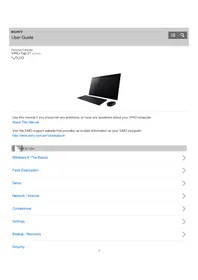


| Product Type | All-in-One Tablet |
| Brand | Sony |
| Model | VAIO Tap 21 SVT2122 |
| Display Size | 21.5 inches |
| Display Resolution | 1920 x 1080 (Full HD) |
| Touchscreen | Yes, capacitive multi-touch |
| Processor | Intel Core i5-3317U (1.7 GHz, up to 2.6 GHz) |
| RAM | 4 GB or 8 GB DDR3 |
| Storage | 128 GB or 256 GB SSD |
| Graphics | Intel HD Graphics 4000 |
| Operating System | Windows 8 (upgradable) |
| Battery Type | Lithium-ion (built-in) |
| Battery Life | Up to 3 hours |
| Weight | Approx. 2.6 kg (5.73 lbs) |
| Dimensions (W x D x H) | 530 x 350 x 15 mm (20.9 x 13.8 x 0.6 in) |
| Connectivity | Wi-Fi 802.11 b/g/n, Bluetooth 4.0, USB 3.0 (x2), HDMI, Ethernet |
| Cameras | Front: 2 MP, Rear: 8 MP with LED flash |
| Audio | Built-in stereo speakers, microphone, headphone jack |
| Power Adapter | 19.5 V DC, 4.7 A |
| Accessories Included | Keyboard (wireless), stylus pen, power adapter |
| Repairability Index | Moderate (battery and storage replaceable) |
Frequently Asked Questions - VAIO Tap 21 SVT2122 SONY
User questions about VAIO Tap 21 SVT2122 SONY
0 question about this device. Answer the ones you know or ask your own.
Ask a new question about this device
Download the instructions for your Tablet in PDF format for free! Find your manual VAIO Tap 21 SVT2122 - SONY and take your electronic device back in hand. On this page are published all the documents necessary for the use of your device. VAIO Tap 21 SVT2122 by SONY.
USER MANUAL VAIO Tap 21 SVT2122 SONY
Use this manual if you encounter any problems, or have any questions about your VAIO computer.
About This Manual
Visit the VAIO support website that provides up-to-date information on your VAIO computer.
http://www.sony.com/am/vaiosupport/
How to Use
Windows 8: The Basics
Parts Description
Setup
Network / Internet
Connections
Settings
Backup / Recovery
Security
Other Operations
Notifications
Troubleshooting
Hardware
Apps
Network / Internet
Backup / Recovery
Security
Peripheral Devices
List of Topics
How to Use
Troubleshooting
Notes on use
Copyright 2013 Sony Corporation
SONY
User Guide


Personal Computer
VAIO Tap 21 SVT2122
Windows 8: The Basics
User account
Power
Display
Internet
Password
Apps
Windows
Menu
Windows 8
Store
Help and Support
Notes on use
Copyright 2013 Sony Corporation
SONY
User Guide


Personal Computer
VAIO Tap 21 SVT2122
Parts Description
VAIO computer
Keyboard
Mouse
Notes on use
Copyright 2013 Sony Corporation
SONY
User Guide


Personal Computer
VAIO Tap 21 SVT2122
Setup
VAIO computer
Power
Battery
Display
Keyboard
Memory module
Supplied items
Mouse
Windows 8
Notes on use
Copyright 2013 Sony Corporation
SONY
User Guide


Personal Computer
VAIO Tap 21 SVT2122
Network / Internet
Internet
LAN
Wi-Fi
Apps
Store
Notes on use
Copyright 2013 Sony Corporation
SONY
User Guide


Personal Computer
VAIO Tap 21 SVT2122
Connections
Power
Display
HDMI
Peripheral device
CD/DVD/BD
Audio
Speakers
Headphones
Optical digital output
Keyboard
Internet
LAN
Wi-Fi
BLUETOOTH
USB
Mouse


Notes on use
Copyright 2013 Sony Corporation
SONY
User Guide


Personal Computer
VAIO Tap 21 SVT2122
Settings
User account
VAIO computer
Power
Display
HDMI
Peripheral device
CD/DVD/BD
Audio
Speakers
Microphone
Optical digital output
Button
Recovery
Camera
| Internet | > |
| Password | > |
| Memory module | > |
| BIOS | > |
| Service and support | > |
| Touch panel | > |
| Security | > |
| Menu | > |
| Windows 8 | > |
Notes on use
Copyright 2013 Sony Corporation
SONY
User Guide


Personal Computer
VAIO Tap 21 SVT2122
Backup / Recovery
VAIO computer
CD/DVD/BD
Button
Recovery
BIOS
Backup
Service and support
Built-in storage device
Partition
Refresh
Notes on use
Copyright 2013 Sony Corporation
SONY
User Guide


Personal Computer
VAIO Tap 21 SVT2122
Security
VAIO computer
Internet
Password
BIOS
Service and support
Notes on use
Copyright 2013 Sony Corporation
About This Manual
Congratulations on your purchase of this VAIO(R) computer.
About your VAIO computer's configuration
To find out about the configuration of your VAIO computer, visit the Sony online support website. See About Online Support Website for more information.
Some features, options, and supplied items may not be available on your VAIO computer.
Features
Available features vary depending on the model or options you selected. Not all features described in this manual are available depending on your model.
Illustrations
Illustrations, photos, or screenshots in this manual may look slightly different depending on the model or options you selected.
Apps
The preinstalled apps may vary depending on the model or options you selected. The apps described in this manual may not be preinstalled on your VAIO computer.
Supplied manuals
The following manuals are supplied with your VAIO computer.
On-screen documentation
- User Guide - Introduction Version (Welcome)
A preinstalled manual with limited information of your VAIO computer, focused on support and Internet connection. The User Guide - Introduction Version is replaced with a complete version of the User Guide (this manual), after update.
• User Guide (this manual)
General information and operation instructions about your VAIO computer including support and troubleshooting information
Select the item you want to check from the navigation pane on the left, then the keyword from the right pane. The list of topics relating to the keyword will be displayed. If you cannot find the topic you are looking for, select List of Topics to display all of the topics in this User Guide, or enter the keyword in the search box at the top of each page.
Printed documentation
- Quick Start Guide
An overview of how to set up and get started with your VAIO computer
• Recovery, Backup and Troubleshooting Guide
Information on how to recover and back up your VAIO computer, as well as troubleshooting information
Safety Regulations
Read carefully before activating the wireless functions such as the wireless LAN and BLUETOOTH technology.
Other references
• Windows Help and Support
A comprehensive resource for practical advice, tutorials, and demonstrations to help you learn to use your VAIO computer.
To open Windows Help and Support, see Opening Windows Help and Support.
- App help files
App help files may be included with the preinstalled apps on your VAIO computer. You may be able to access the help files from the help menu.
Notice
• Copyright 2013 Sony Corporation. All rights reserved. - This manual and the software described herein, in whole or in part, may not be reproduced, translated, or reduced to any machine-readable form without prior written approval. - Sony Corporation provides no warranty with regard to this manual, the software, or other information contained herein and hereby expressly disclaims any implied warranties or merchantability or fitness for any particular purpose with regard to this manual, the software, or such other information. In no event shall Sony Corporation be liable for any incidental, consequential, or special damages, whether based on tort, contract, or otherwise, arising out of or in connection with this manual, the software, or other information contained herein or the use thereof. - In the manual, the (TM) or (R) marks are not specified. - Sony Corporation reserves the right to make any modification to this manual or the information contained herein at any time without notice. - The software described herein is governed by the terms of a separate user license agreement. - Sony Corporation is not liable and will not compensate for any lost recordings made to your VAIO computer, external recording media, or recording devices or any relevant losses, including when recordings are not made due to reasons including the computer failure, or when the contents of a recording are lost or damaged as a result of the computer failure or repair undertaken to the computer. Sony Corporation will not restore, recover, or replicate the recorded contents made to the computer, external recording media, or recording devices under any circumstances. - Features and specifications are subject to change without notice.
Related Topic
About Online Support Website
Notes on use
Copyright 2013 Sony Corporation
SONY
User Guide


Personal Computer
VAIO Tap 21 SVT2122
Other Operations
VAIO computer
Power
Battery
Display
Keyboard
Camera
Memory module
USB
Memory card
Built-in storage device
Mouse
Touch panel
Partition
NFC/One-touch functions
Windows

Windows 8

Help and Support

Pen

Notes on use
Copyright 2013 Sony Corporation
SONY
User Guide


Personal Computer
VAIO Tap 21 SVT2122
Notifications
Read this first
VAIO computer
Care and maintenance
Important notice
Service and support
Product registration
Supplied items
Security
Notes on use
Copyright 2013 Sony Corporation
SONY
User Guide

Troubleshooting
Personal Computer
VAIO Tap 21 SVT2122
Hardware
Power
Battery
Display
HDMI
Audio
Microphone
Keyboard
Camera
LAN
Wi-Fi
BLUETOOTH
Password
BIOS
USB
| Memory card | > |
| Software | > |
| Computer | > |
| Mouse | > |
| Touch panel | > |
| NFC/One-touch functions | > |
Notes on use
Copyright 2013 Sony Corporation
SONY
User Guide

Troubleshooting
Personal Computer
VAIO Tap 21 SVT2122
Apps
Display
Software
Notes on use
Copyright 2013 Sony Corporation
SONY
User Guide

Troubleshooting
Personal Computer
VAIO Tap 21 SVT2122
Network / Internet
LAN
Wi-Fi
BLUETOOTH


Notes on use
Copyright 2013 Sony Corporation
SONY
User Guide

Troubleshooting
Personal Computer
VAIO Tap 21 SVT2122
Backup / Recovery
Recovery
Notes on use
Copyright 2013 Sony Corporation
SONY
User Guide

Troubleshooting
Personal Computer
VAIO Tap 21 SVT2122
Security
Password
BIOS
Notes on use
Copyright 2013 Sony Corporation
SONY
User Guide

Troubleshooting
Personal Computer
VAIO Tap 21 SVT2122
Peripheral Devices
USB
Printer


Notes on use
Copyright 2013 Sony Corporation
SONY
User Guide


Personal Computer
VAIO Tap 21 SVT2122
How to Use
Windows 8: The Basics
User account
- Switching from a Local Account to a Microsoft Account • About User Account Types
- Entering Sleep Mode, Shutting Down, or Restarting • Using Sleep Mode • Restarting Your VAIO Computer • Controlling the Power State of Your VAIO Computer (Sleep Mode/Shutdown)
Power
Display
- Opening the Desktop
- Searching Content
- Opening the App List • About the Start Screen and Menu
Internet
• Installing Apps from Windows Store
Password
- Switching from a Local Account to a Microsoft Account • About User Account Types
Apps
• Switching User Accounts - Switching Apps • Viewing Running Apps - Closing Apps - Starting Apps • Installing Apps from Windows Store - Opening the App Menu
Windows
- Opening Windows Help and Support
- Starting Help+Tips
Menu
- Opening Control Panel
- Opening the Charms
- Opening the Desktop
- Searching Content
- Opening the App List • About the Start Screen and Menu
Windows 8
• Using Sleep Mode - Restarting Your VAIO Computer • Controlling the Power State of Your VAIO Computer (Sleep Mode/Shutdown)
Store
- Switching User Accounts • Installing Apps from Windows Store
Help and Support
- Opening Windows Help and Support
- Starting Help+Tips
Parts Description
VAIO computer
• Parts and Controls on the Back • Parts and Controls on the Front • Parts and Controls on the Sides
Keyboard
• Parts and Controls of the Keyboard
Mouse
• Parts and Controls of the Mouse
Setup
VAIO computer
- Checking Supplied Items • Propping Up Your VAIO Computer • About Adding Memory Modules
- Setting Up an Appropriate Work Environment
Power
• Charging the Battery Pack • Turning On Your VAIO Computer - Connecting a Power Source • Controlling the Power State of Your VAIO Computer (Sleep Mode/Shutdown)
Battery
• Notes on Using the Battery Pack • Charging the Battery Pack
Display
• Adjusting the Angle of Your VAIO Computer
Keyboard
• Replacing the AA Battery of the Keyboard - About the Usage Environment for the Keyboard
Memory module
• About Adding Memory Modules
Supplied items
- Checking Supplied Items
Mouse
• Replacing the AA Battery of the Mouse - About the Usage Environment for the Mouse
Windows 8
• Controlling the Power State of Your VAIO Computer (Sleep Mode/Shutdown)
Network / Internet
Internet
- Stopping Wi-Fi(R) (Wireless LAN) Communications • Notes on Using the Wi-Fi(R) (Wireless LAN) Function
- About the Wi-Fi(R) (Wireless LAN) Standards
- Connecting to the Internet with a Wired Connection (LAN port equipped models) • About the Internet Connection Services • Installing Apps from Windows Store • Starting Wi-Fi(R) (Wireless LAN) Communications • Using the Antivirus App for Your VAIO Computer • About the Network (LAN) • About a Security Key for Wi-Fi(R) (Wireless LAN) • Disabling the Wi-Fi(R) (Wireless LAN) Function
LAN
- About the Wi-Fi(R) (Wireless LAN) Standards
- Connecting to the Internet with a Wired Connection (LAN port equipped models) • About the Internet Connection Services • About the Network (LAN)
- About a Security Key for Wi-Fi(R) (Wireless LAN)
Wi-Fi
- Stopping Wi-Fi(R) (Wireless LAN) Communications • Notes on Using the Wi-Fi(R) (Wireless LAN) Function
- About the Wi-Fi(R) (Wireless LAN) Standards • About the Internet Connection Services • Starting Wi-Fi(R) (Wireless LAN) Communications
- About a Security Key for Wi-Fi(R) (Wireless LAN)
• Disabling the Wi-Fi(R) (Wireless LAN) Function
Apps
• Installing Apps from Windows Store
Store
• Installing Apps from Windows Store
Connections
Power
• Connecting a Power Source
Display
- Changing the Resolution (Size) of the Screen Image on an HDMI-Connected Device
- Selecting Display Modes • Using the Multiple Monitors Function • Connecting a TV with an HDMI Input Port • Notes on the LCD screen
HDMI
- Changing the Resolution (Size) of the Screen Image on an HDMI-Connected Device • Connecting a TV with an HDMI Input Port
Peripheral device
- Selecting Display Modes • Using the Multiple Monitors Function • Connecting a TV with an HDMI Input Port • Notes on the LCD screen • Changing the Sound Output Device
- Connecting a High-Quality Digital Sound Output Device between Your VAIO Computer and a TV
CD/DVD/BD
• Connecting an External Drive
Audio
- Connecting External Speakers/Headphones/Headset • Changing the Sound Output Device
- Connecting a High-Quality Digital Sound Output Device between Your VAIO Computer and a TV
Speakers
- Connecting External Speakers/Headphones/Headset
Headphones
- Connecting External Speakers/Headphones/Headset
Optical digital output
- Connecting a High-Quality Digital Sound Output Device between Your VAIO Computer and a TV
Keyboard
• Connecting the Wireless Keyboard - About the Usage Environment for the Keyboard
Internet
- Stopping Wi-Fi(R) (Wireless LAN) Communications • Notes on Using the Wi-Fi(R) (Wireless LAN) Function
- About the Wi-Fi(R) (Wireless LAN) Standards
- Connecting to the Internet with a Wired Connection (LAN port equipped models) • About the Internet Connection Services • Starting Wi-Fi(R) (Wireless LAN) Communications • About the Network (LAN)
- About a Security Key for Wi-Fi(R) (Wireless LAN) • Disabling the Wi-Fi(R) (Wireless LAN) Function
LAN
• About the Wi-Fi(R) (Wireless LAN) Standards - Connecting to the Internet with a Wired Connection (LAN port equipped models) • About the Internet Connection Services • About the Network (LAN) - About a Security Key for Wi-Fi(R) (Wireless LAN)
Wi-Fi
• Stopping Wi-Fi(R) (Wireless LAN) Communications • Notes on Using the Wi-Fi(R) (Wireless LAN) Function • About the Wi-Fi(R) (Wireless LAN) Standards • About the Internet Connection Services • Starting Wi-Fi(R) (Wireless LAN) Communications - About a Security Key for Wi-Fi(R) (Wireless LAN) • Disabling the Wi-Fi(R) (Wireless LAN) Function
BLUETOOTH
• About BLUETOOTH(R) Security • Notes on Using the BLUETOOTH(R) Function • About the BLUETOOTH(R) Function • Communicating with Another BLUETOOTH(R) Device such as a Mouse - Stopping BLUETOOTH(R) Communications
USB
- Charging a USB Device • Connecting a USB Device
Mouse
• Connecting the Wireless Mouse - About the Usage Environment for the Mouse
Settings
User account
- Switching from a Local Account to a Microsoft Account
VAIO computer
• About the ASSIST Button • Viewing the System Information - Customizing Your VAIO Computer • Booting Your VAIO Computer from External Devices • Using VAIO Update - Keeping Your VAIO Computer in Optimum Condition (VAIO Care) - Updating Your VAIO Computer
Power
• Notes on Sleep Mode - Selecting a Power Plan • Notes on Using the Power Source • Using Sleep Mode
Display
- Displaying Clear and Vivid Images (X-Reality for mobile installed models) • Changing the LCD Brightness
- Changing the Resolution (Size) of the Screen Image on an HDMI-Connected Device
- Selecting Display Modes • Using the Multiple Monitors Function • Connecting a TV with an HDMI Input Port • Notes on the LCD screen
- Changing the Resolution (Size) of the Screen Image • Notes on Using the Touch Screen (Touch screen equipped models)
- Enlarging the Text Size (DPI) (Touch screen equipped models) • How to Use the Touch Screen (Touch screen equipped models)
HDMI
- Changing the Resolution (Size) of the Screen Image on an HDMI-Connected Device
- Connecting a TV with an HDMI Input Port
Peripheral device
- Selecting Display Modes • Using the Multiple Monitors Function • Connecting a TV with an HDMI Input Port • Notes on the LCD screen • Changing the Sound Output Device
- Connecting a High-Quality Digital Sound Output Device between Your VAIO Computer and a TV
CD/DVD/BD
• Booting Your VAIO Computer from External Devices
Audio
• Using Automatic Sound Field Adjustment to Optimize the Sound Field • Adjusting the Volume in Windows • Changing the Sound Output Device • Adjusting the Microphone Volume
Connecting a High-Quality Digital Sound Output Device between Your VAIO Computer and a TV
• Adjusting the Speakers Volume - Playing Optimized Sound for Your VAIO Computer Using ClearAudio+
Speakers
• Using Automatic Sound Field Adjustment to Optimize the Sound Field • Adjusting the Speakers Volume - Playing Optimized Sound for Your VAIO Computer Using ClearAudio+
Microphone
• Adjusting the Microphone Volume
Optical digital output
- Connecting a High-Quality Digital Sound Output Device between Your VAIO Computer and a TV
Button
• About the ASSIST Button
Recovery
• About the ASSIST Button
Camera
• Using the Built-in Camera
Internet
• Using the Antivirus App for Your VAIO Computer
Password
- Switching from a Local Account to a Microsoft Account
- Creating/Changing/Removing Your Windows Password
- Setting/Changing the Power-on Password
- Removing the Power-on Password
Memory module
• Viewing the System Information
BIOS
• About the ASSIST Button • Booting Your VAIO Computer from External Devices - Setting/Changing the Power-on Password - Removing the Power-on Password
Service and support
• Using VAIO Update - Keeping Your VAIO Computer in Optimum Condition (VAIO Care) - Updating Your VAIO Computer
Touch panel
• Notes on Using the Touch Screen (Touch screen equipped models) - Enlarging the Text Size (DPI) (Touch screen equipped models) • How to Use the Touch Screen (Touch screen equipped models)
Security
Updating Your VAIO Computer
Menu
- Opening Control Panel
Windows 8
• Using Sleep Mode
Backup / Recovery
VAIO computer
• About the ASSIST Button • Booting Your VAIO Computer from External Devices - Keeping Your VAIO Computer in Optimum Condition (VAIO Care)
CD/DVD/BD
• Booting Your VAIO Computer from External Devices
Button
• About the ASSIST Button
Recovery
• About the ASSIST Button • Recovering from the Recovery Area - Refreshing Your VAIO Computer (Refresh function supported models) - Removing Recovery Content to Free up Disk Space • Recovering from Recovery Media - Checking the Volume of the Recovery Area - About Recovery - Creating Recovery Media - Notes on Recovery
BIOS
• About the ASSIST Button • Booting Your VAIO Computer from External Devices
Backup
- Restoring System Files Using the Restore Point when You cannot Start Windows
- About Backup • About Types of Backup
- Creating a Restore Point
- Backing Up Your Data when You cannot Start Windows • Restoring Your Data with VAIO Data Restore Tool
Service and support
- Keeping Your VAIO Computer in Optimum Condition (VAIO Care)
Built-in storage device
- Removing Recovery Content to Free up Disk Space
- Creating Other Drives (Modifying Partitions)
- Creating Partitions
- Checking the Volume of the Recovery Area
Partition
- Creating Other Drives (Modifying Partitions)
- Creating Partitions
Refresh
- Refreshing Your VAIO Computer (Refresh function supported models)
- About Recovery
Security
VAIO computer
• Using VAIO Update - Keeping Your VAIO Computer in Optimum Condition (VAIO Care)
Internet
• Using the Antivirus App for Your VAIO Computer
Password
- Creating/Changing/Removing Your Windows Password
- Setting/Changing the Power-on Password
- Removing the Power-on Password
BIOS
- Setting/Changing the Power-on Password
- Removing the Power-on Password
Service and support
• Using VAIO Update - Keeping Your VAIO Computer in Optimum Condition (VAIO Care)
Other Operations
VAIO computer
• About Adding Memory Modules
Power
• Using Sleep Mode • Charging the Battery Pack • Turning On Your VAIO Computer • Charge Indicator Status List • Restarting Your VAIO Computer • Controlling the Power State of Your VAIO Computer (Sleep Mode/Shutdown) • Changing the Low Battery Hibernation Settings - Changing the Intel Smart Connect Technology (Sleep Mode) Settings - About Sleep Mode
Battery
- Checking the Battery Charge Capacity • Charging the Battery Pack
• Charge Indicator Status List • Prolonging the Battery Lifespan • Extending the Battery Life - Changing the Low Battery Hibernation Settings - Changing the Intel Smart Connect Technology (Sleep Mode) Settings - About Sleep Mode
Display
- About the Touch Screen (Touch screen equipped models) • Notes on Using the Touch Screen (Touch screen equipped models) • How to Use the Touch Screen (Touch screen equipped models) • Adjusting the Angle of Your VAIO Computer
Keyboard
- Checking the Caps Lock / Num Lock / Scroll Lock States • Combinations and Functions with the Fn Key
- Entering Characters with Touch Screen Operations (Touch screen equipped models) • Replacing the AA Battery of the Keyboard
- Checking the Remaining Battery Power of the Keyboard
Camera
• Notes on the Built-in Camera • Using the Built-in Camera • Scanning Content (VAIO Scan)
Memory module
• About Adding Memory Modules
USB
- Charging a USB Device
- Connecting a USB Device
Memory card
• Notes on Using SD Memory Cards - About "Memory Stick" - Formatting "Memory Stick" - Removing "Memory Stick" • Notes on Using "Memory Stick" - Removing SD Memory Cards - Inserting SD Memory Cards • Compatible "Memory Stick" - Inserting "Memory Stick"
Built-in storage device
- Creating Other Drives (Modifying Partitions)
- Creating Partitions
Mouse
- Checking the Remaining Battery Power of the Mouse
Replacing the AA Battery of the Mouse
Touch panel
- Entering Characters with Touch Screen Operations (Touch screen equipped models)
- About the Touch Screen (Touch screen equipped models) • Notes on Using the Touch Screen (Touch screen equipped models) • How to Use the Touch Screen (Touch screen equipped models)
Partition
- Creating Other Drives (Modifying Partitions)
- Creating Partitions
NFC/One-touch functions
• Notes on NFC/One-touch functions (NFC supported models) • About NFC (NFC supported models) - About One-touch functions (NFC supported models) - Disabling NFC/One-touch functions (NFC supported models) • Using NFC/One-touch functions (NFC supported models) - Playing Music by Touching an NFC/One-touch functions Supported Device to Your VAIO Computer (One-touch listening) (NFC supported models) - Stopping the One-touch listening Connection (One-touch listening) (NFC supported models)
Windows
- Opening Windows Help and Support
- Starting Help+Tips
Windows 8
• Using Sleep Mode • Restarting Your VAIO Computer • Controlling the Power State of Your VAIO Computer (Sleep Mode/Shutdown)
Help and Support
- Opening Windows Help and Support
- Starting Help+Tips
Pen
- Clipping an Image Displayed on the Computer Screen (VAIO Clip) • Starting the Note Taking App (VAIO Paper)
Notifications
Read this first
- About This Manual
VAIO computer
- Checking Supplied Items
- Setting Up an Appropriate Work Environment
- Updating Your VAIO Computer
Care and maintenance
• Cleaning Your VAIO computer/LCD screen
Important notice
• Handling the Built-in Storage Device • About the International ENERGY STAR(R) Program • About the Software License - Trademarks - Safety Information
Service and support
- Solving Common Problems with Your VAIO Computer • About Online Support Website
- Updating Your VAIO Computer
Product registration
• About Online Support Website
Supplied items
- Checking Supplied Items
Security
• Updating Your VAIO Computer
Notes on use
Copyright 2013 Sony Corporation
Troubleshooting
Hardware
Power
• Why does my VAIO computer automatically turn off? • Why does a message appear and Windows fail to start when I turn on my VAIO computer? • What should I do if I cannot turn off my VAIO computer? • What should I do if the power indicator light turns on in green when I press the power button but the screen remains blank? • What should I do if my VAIO computer does not turn on or the power button does not work (the charge indicator light blinks fast)? • What should I do if my VAIO computer does not turn on (the power indicator light does not turn on in green)? • What should I do if my VAIO computer does not return to Normal mode with keyboard or mouse operations during Sleep mode? • What should I do if the VAIO Care (Rescue Mode) screen appears when I turn on my VAIO computer? • Why does the disc drive indicator light blink during Sleep mode? • What should I do if Hibernate mode is not available or my VAIO computer does not enter Hibernate mode?
Battery
• Why is my VAIO computer running slowly and the CPU clock frequency low while the computer is running on battery power? • What should I do if my battery pack is not fully charged? • What should I do if my battery pack does not work properly?
Display
• What should I do if videos are not displayed on the computer screen? • What should I do if videos are not displayed smoothly? • What should I do if no image is displayed on my TV screen or external display connected to the HDMI output port? • How do I change the LCD brightness? • What should I do if some items do not fit on the computer screen? • What should I do if no image is displayed on my external display or TV screen? • Why do sound interruptions and/or dropped frames occur when I play high-definition videos, such as those recorded with the AVCHD digital video camcorder? • What should I do if my computer screen goes blank? • Why does the viewfinder show no images or poor-quality images? • What should I do if captured images contain dropped frames and audio interruptions? • What should I do if captured images flicker? • What should I do if my computer screen flickers or fades to white? (Intel graphics accelerator installed models)
• What should I do if the touch screen does not work correctly? (Touch screen equipped models)
HDMI
• What should I do if no image is displayed on my TV screen or external display connected to the HDMI output port?
Audio
• What should I do if I do not hear sound from speakers or headphones? • What should I do if my microphone does not work? • What should I do if I hear microphone feedback from speakers when using my microphone? • What should I do if sound interruptions occur during video or audio playback? • What should I do if I do not hear sound from a digital audio device connected to the digital output port, such as the HDMI output port?
Microphone
• What should I do if my microphone does not work? • What should I do if I hear microphone feedback from speakers when using my microphone?
Keyboard
• What should I do if the keyboard does not work? • What should I do if the connect indicator on the keyboard is blinking? • What should I do if I cannot enter numbers with the numeric keypad? • What should I do if I cannot enter certain characters with my keyboard? • What should I do if my keyboard configuration is wrong?
Camera
- Why does the viewfinder show no images or poor-quality images?
- What should I do if captured images contain dropped frames and audio interruptions? • Why are captured images poor in quality?
- Why is the video input from the built-in camera suspended momentarily? • What should I do if captured images flicker?
LAN
• What should I do if I do not know the SSID or security key for the access point? • What should I do if I cannot play back movies or audio tracks received via Wi-Fi(R) (Wireless LAN), or their playback is interrupted? Why is the data transfer speed slow? • How can I find the physical address (MAC address) of the built-in wireless network interface of my VAIO computer? • What should I do if I cannot connect my VAIO computer to an access point (or the Internet)? • What should I do if I cannot use the Wi-Fi(R) (Wireless LAN) function?
Wi-Fi
• What should I do if I do not know the SSID or security key for the access point? • What should I do if I cannot play back movies or audio tracks received via Wi-Fi(R) (Wireless LAN), or their playback is interrupted? Why is the data transfer speed slow? • How can I find the physical address (MAC address) of the built-in wireless network interface of my VAIO computer? • What should I do if I cannot connect my VAIO computer to an access point (or the Internet)? • What should I do if I cannot use the Wi-Fi(R) (Wireless LAN) function?
BLUETOOTH
• What should I do if other BLUETOOTH(R) devices cannot connect to my VAIO computer?
What should I do if I cannot find the BLUETOOTH(R) device I want to communicate with?
• Why is my BLUETOOTH(R) connection slow? • Why can't I use the BLUETOOTH(R) function when I sign in to my VAIO computer as a user with a standard user account? • Why can't I use BLUETOOTH(R) devices when I switch users? • What should I do if I cannot use the BLUETOOTH(R) function? • What should I do if the BLUETOOTH(R) icon is not displayed in the desktop notification area?
Password
• What should I do if I forget the Windows password? • What should I do if the Enter Onetime Password message appears and Windows does not start after I enter a wrong power-on password three times consecutively? • What should I do if I forget the power-on password to start my VAIO computer?
BIOS
• What should I do if I forget the power-on password to start my VAIO computer?
USB
• What should I do if I cannot charge the device connected to the USB port that supports USB charging?
Memory card
• Why can't I write data to a memory card?
Software
- Why do sound interruptions and/or dropped frames occur when I play high-definition videos, such as those recorded with the AVCHD digital video camcorder?
Computer
- Why is my VAIO computer running slowly and the CPU clock frequency low while the computer is running on battery power?
Mouse
• What should I do if the mouse pointer does not move? • What should I do if the mouse does not work? • What should I do if the mouse pointer jumps or moves slowly? • What should I do if the battery charge of the mouse becomes low quickly?
Touch panel
• What should I do if the touch screen does not work correctly? (Touch screen equipped models)
NFC/One-touch functions
• What should I do if I cannot use NFC/One-touch functions?
Apps
Display
Why do sound interruptions and/or dropped frames occur when I play high-definition videos, such as those recorded with the AVCHD digital video camcorder?
Software
- Why do sound interruptions and/or dropped frames occur when I play high-definition videos, such as those recorded with the AVCHD digital video camcorder? • What should I do if my game app does not work or it keeps crashing?
Network / Internet
LAN
• What should I do if I do not know the SSID or security key for the access point? - What should I do if I cannot play back movies or audio tracks received via Wi-Fi(R) (Wireless LAN), or their playback is interrupted? Why is the data transfer speed slow? • How can I find the physical address (MAC address) of the built-in wireless network interface of my VAIO computer? - What should I do if I cannot connect my VAIO computer to an access point (or the Internet)? • What should I do if I cannot use the Wi-Fi(R) (Wireless LAN) function?
Wi-Fi
- What should I do if I do not know the SSID or security key for the access point?
- What should I do if I cannot play back movies or audio tracks received via Wi-Fi(R) (Wireless LAN), or their playback is interrupted? Why is the data transfer speed slow? • How can I find the physical address (MAC address) of the built-in wireless network interface of my VAIO computer?
- What should I do if I cannot connect my VAIO computer to an access point (or the Internet)? • What should I do if I cannot use the Wi-Fi(R) (Wireless LAN) function?
BLUETOOTH
- What should I do if other BLUETOOTH(R) devices cannot connect to my VAIO computer?
- What should I do if I cannot find the BLUETOOTH(R) device I want to communicate with? • Why is my BLUETOOTH(R) connection slow?
- Why can't I use the BLUETOOTH(R) function when I sign in to my VAIO computer as a user with a standard user account? • Why can't I use BLUETOOTH(R) devices when I switch users? • What should I do if I cannot use the BLUETOOTH(R) function?
- What should I do if the BLUETOOTH(R) icon is not displayed in the desktop notification area?
Backup / Recovery
Recovery
• How can I reinstall the original apps and drivers? • What should I do if I cannot recover my VAIO computer from the recovery area? • How can I restore my VAIO computer system to its factory default settings? • How do I create Recovery Media? • What should I do if I cannot start/complete the recovery process? • What should I do if I cannot create Recovery Media? • What should I do if my VAIO computer becomes unstable (Windows starts)? - What should I do if my VAIO computer becomes unstable (Windows does not start)?
Security
Password
• What should I do if I forget the Windows password? - What should I do if the Enter Onetime Password message appears and Windows does not start after I enter a wrong power-on password three times consecutively? • What should I do if I forget the power-on password to start my VAIO computer?
BIOS
- What should I do if I forget the power-on password to start my VAIO computer?
Peripheral Devices
USB
• What should I do if I cannot print a document? • What should I do if my VAIO computer does not recognize the USB device?
Printer
• What should I do if I cannot print a document? • What should I do if my VAIO computer does not recognize the USB device?
Notes on use
Copyright 2013 Sony Corporation
Notes on use
Before use
To make full use of this content, please read the following notes thoroughly. Please note that they are subject to change without prior notice.
June 2013
Recommended system environment
The following system environments are recommended for displaying this content. You may not be able to view the content on other system environments.
• For viewing on a computer
Recommended browser
_With Microsoft Windows _Microsoft Internet Explorer 8 or later _Mozilla Firefox: latest version _Google Chrome™: latest version
_With Apple Mac OS
_Apple Safari Ver. 5 or later
—Mozilla Firefox: latest version
_Google Chrome : latest version
- For viewing on a smartphone or tablet
Basic operation has been confirmed on the standard browser for the noted devices running the following operating systems.
Android™ 2.3 or later: Xperia series, Walkman running Android; iOS 4 or later: iPhone, iPod touch, iPad
- JavaScript
JavaScript is used with this content for viewing convenience. If JavaScript is disabled in your web browser settings, the content may not operate properly or it may not be displayed correctly.
- Style Sheets
Cascading Style Sheets are used in designing this content. Page layout may not be as intended if you view the content with style sheets disabled or on a web browser that is not compatible with style sheets. However, operation will not be affected.
- Cookies
This content uses cookies. To use services incorporating cookies, you need to set your browser to allow cookies.
Handling of personal information obtained from websites
Sony may use cookies, web beacons or similar technologies to make statistical analysis of customers' usage of this content while preserving anonymity.
Notes on use
Copyright 2013 Sony Corporation
SONY
User Guide


Personal Computer
VAIO Tap 21 SVT2122
User account
Switching from a Local Account to a Microsoft Account
In Windows 8, you can switch between a local account and a Microsoft account.
About User Account Types
There are two types of user accounts available in Windows 8: a local account and a Microsoft account.
Notes on use
Copyright 2013 Sony Corporation
Power
Entering Sleep Mode, Shutting Down, or Restarting
You can place your VAIO computer into Sleep mode or shut down/restart the computer by following these steps.
Using Sleep Mode
In Sleep mode, you can step away from your VAIO computer while retaining the computer's state including data you are working on.
Restarting Your VAIO Computer
After changing the settings or installing an app on your VAIO computer, you may be required to restart the computer.
Controlling the Power State of Your VAIO Computer (Sleep Mode/Shutdown)
By default, your VAIO computer automatically enters Sleep mode after a certain period of inactivity.
You might be looking for the following topics:
Charging the Battery Pack
Turning On Your VAIO Computer
Connecting a Power Source
Notes on Sleep Mode
Selecting a Power Plan
Notes on Using the Power Source
Charge Indicator Status List
Changing the Low Battery Hibernation Settings
Changing the Intel Smart Connect Technology (Sleep Mode) Settings
About Sleep Mode
Why does my VAIO computer automatically turn off?
Why does a message appear and Windows fail to start when I turn on my VAIO computer?
What should I do if I cannot turn off my VAIO computer? What should I do if the power indicator light turns on in green when I press the power button but the screen remains blank? What should I do if my VAIO computer does not turn on or the power button does not work (the charge indicator light blinks fast)? What should I do if my VAIO computer does not turn on (the power indicator light does not turn on in green)? What should I do if my VAIO computer does not return to Normal mode with keyboard or mouse operations during Sleep mode? What should I do if the VAIO Care (Rescue Mode) screen appears when I turn on my VAIO computer? Why does the disc drive indicator light blink during Sleep mode? What should I do if Hibernate mode is not available or my VAIO computer does not enter Hibernate mode?
Notes on use
Copyright 2013 Sony Corporation
SONY
User Guide


Personal Computer
VAIO Tap 21 SVT2122
Display
Opening the Desktop
You can access the desktop from a tile, just like an app. Open the desktop by following the instruction below.
Searching Content
With the Search charm, you can search files, settings, or web content.
Opening the App List
You can open the list of the installed apps (the Apps screen) on your VAIO computer.
About the Start Screen and Menu
You can add shortcuts to apps, the desktop, and websites that you use the most.
You might be looking for the following topics:
• Adjusting the Angle of Your VAIO Computer
Changing the Resolution (Size) of the Screen Image on an HDMI-Connected Device
Selecting Display Modes
Using the Multiple Monitors Function
Connecting a TV with an HDMI Input Port
Notes on the LCD screen
- Displaying Clear and Vivid Images (X-Reality for mobile installed models)
Changing the LCD Brightness
Changing the Resolution (Size) of the Screen Image
Notes on Using the Touch Screen (Touch screen equipped models)
Enlarging the Text Size (DPI) (Touch screen equipped models)
How to Use the Touch Screen (Touch screen equipped models)
• About the Touch Screen (Touch screen equipped models)
What should I do if videos are not displayed on the computer screen?
What should I do if videos are not displayed smoothly?
What should I do if no image is displayed on my TV screen or external display connected to the HDMI output port?
How do I change the LCD brightness?
What should I do if some items do not fit on the computer screen?
What should I do if no image is displayed on my external display or TV screen?
Why do sound interruptions and/or dropped frames occur when I play high-definition videos, such as those recorded with the AVCHD digital video camcorder?
What should I do if my computer screen goes blank?
Why does the viewfinder show no images or poor-quality images?
What should I do if captured images contain dropped frames and audio interruptions?
What should I do if captured images flicker?
What should I do if my computer screen flickers or fades to white? (Intel graphics accelerator installed models)
What should I do if the touch screen does not work correctly? (Touch screen equipped models)
Notes on use
Copyright 2013 Sony Corporation
Internet
Installing Apps from Windows Store
You can install apps from Windows Store.
You might be looking for the following topics:
- Stopping Wi-Fi(R) (Wireless LAN) Communications Notes on Using the Wi-Fi(R) (Wireless LAN) Function About the Wi-Fi(R) (Wireless LAN) Standards Connecting to the Internet with a Wired Connection (LAN port equipped models) About the Internet Connection Services Starting Wi-Fi(R) (Wireless LAN) Communications • Using the Antivirus App for Your VAIO Computer About the Network (LAN) About a Security Key for Wi-Fi(R) (Wireless LAN)
- Disabling the Wi-Fi(R) (Wireless LAN) Function
Notes on use
Copyright 2013 Sony Corporation
SONY
User Guide


Personal Computer
VAIO Tap 21 SVT2122
Password
Switching from a Local Account to a Microsoft Account
In Windows 8, you can switch between a local account and a Microsoft account.
About User Account Types
There are two types of user accounts available in Windows 8: a local account and a Microsoft account.
You might be looking for the following topics:
- Creating/Changing/Removing Your Windows Password
Setting/Changing the Power-on Password
Removing the Power-on Password
What should I do if I forget the Windows password?
What should I do if the Enter Onetime Password message appears and Windows does not start after I enter a wrong power-on password three times consecutively?
What should I do if I forget the power-on password to start my VAIO computer?
Notes on use
Copyright 2013 Sony Corporation
SONY
User Guide


Personal Computer
VAIO Tap 21 SVT2122
Apps
Switching User Accounts
You can switch to another user account by following these steps.
Switching Apps
You can switch between apps that are currently running.
Viewing Running Apps
You can view running apps by displaying the list on the Start screen.
Closing Apps
You can close currently running apps by following the instruction below.
Starting Apps
You can start apps by following these steps.
Installing Apps from Windows Store
You can install apps from Windows Store.
Opening the App Menu
Many apps have app menus that you can use to control your app. Follow the instructions below to open the app menu.
Notes on use


Opening Windows Help and Support
You can open Windows Help and Support by following these steps.
Starting Help+Tips
You can start Help+Tips that explains the Windows 8 basic operations.
Notes on use


VAIO Tap 21 SVT2122
Menu
Opening Control Panel
You can open Control Panel by following these steps.
Opening the Charms
You can open the charms to search for apps and files, share content, play content on other devices or print, and set up your VAIO computer.
Opening the Desktop
You can access the desktop from a tile, just like an app. Open the desktop by following the instruction below.
Searching Content
With the Search charm, you can search files, settings, or web content.
Opening the App List
You can open the list of the installed apps (the Apps screen) on your VAIO computer.
About the Start Screen and Menu
You can add shortcuts to apps, the desktop, and websites that you use the most.
Notes on use
SONY
User Guide


Personal Computer
VAIO Tap 21 SVT2122
Windows 8
Using Sleep Mode
In Sleep mode, you can step away from your VAIO computer while retaining the computer's state including data you are working on.
Restarting Your VAIO Computer
After changing the settings or installing an app on your VAIO computer, you may be required to restart the computer.
Controlling the Power State of Your VAIO Computer (Sleep Mode/Shutdown)
By default, your VAIO computer automatically enters Sleep mode after a certain period of inactivity.
Notes on use
SONY
User Guide


Personal Computer
VAIO Tap 21 SVT2122
Store
Switching User Accounts
You can switch to another user account by following these steps.
Installing Apps from Windows Store
You can install apps from Windows Store.
Notes on use
Copyright 2013 Sony Corporation
SONY
User Guide


Personal Computer
VAIO Tap 21 SVT2122
Help and Support
Opening Windows Help and Support
You can open Windows Help and Support by following these steps.
Starting Help+Tips
You can start Help+Tips that explains the Windows 8 basic operations.
Notes on use
Copyright 2013 Sony Corporation
How to Use
Personal Computer
VAIO Tap 21 SVT2122
VAIO computer
Parts and Controls on the Back
Describes the features on the back of the VAIO computer, such as connection ports.
Parts and Controls on the Front
Describes the features on the front of the VAIO computer, such as buttons and indicator lights.
Parts and Controls on the Sides
Describes the features on the sides of the VAIO computer, such as connection ports.
You might be looking for the following topics:
- Checking Supplied Items
Setting Up an Appropriate Work Environment
- Propping Up Your VAIO Computer
About Adding Memory Modules
About the ASSIST Button
- Viewing the System Information
Customizing Your VAIO Computer
- Booting Your VAIO Computer from External Devices
Using VAIO Update
- Keeping Your VAIO Computer in Optimum Condition (VAIO Care)
- Updating Your VAIO Computer
Keyboard
Parts and Controls of the Keyboard
Describes the features of the keyboard, such as keys, buttons, and indicator lights.
You might be looking for the following topics:
• Replacing the AA Battery of the Keyboard • About the Usage Environment for the Keyboard • Connecting the Wireless Keyboard • Checking the Caps Lock / Num Lock / Scroll Lock States • Combinations and Functions with the Fn Key • Entering Characters with Touch Screen Operations (Touch screen equipped models) • Checking the Remaining Battery Power of the Keyboard • What should I do if the keyboard does not work? • What should I do if the connect indicator on the keyboard is blinking? • What should I do if I cannot enter numbers with the numeric keypad? • What should I do if I cannot enter certain characters with my keyboard? • What should I do if my keyboard configuration is wrong?
Notes on use
Copyright 2013 Sony Corporation
Mouse
Parts and Controls of the Mouse
Describes the features of the mouse, such as buttons.
You might be looking for the following topics:
• Replacing the AA Battery of the Mouse • About the Usage Environment for the Mouse • Connecting the Wireless Mouse • Checking the Remaining Battery Power of the Mouse • What should I do if the mouse pointer does not move? • What should I do if the mouse does not work? • What should I do if the mouse pointer jumps or moves slowly? • What should I do if the battery charge of the mouse becomes low quickly?
Notes on use
Copyright 2013 Sony Corporation
SONY
User Guide

How to Use
Personal Computer
VAIO Tap 21 SVT2122
VAIO computer
Checking Supplied Items
Check all items packed with the product before use.
Setting Up an Appropriate Work Environment
This topic describes where to or not to place your VAIO computer and ergonomic instructions.
Propping Up Your VAIO Computer
When propping up your VAIO computer, follow these steps.
About Adding Memory Modules
You might be looking for the following topics:
Parts and Controls on the Back, Parts and Controls on the Front, Parts and Controls on the Sides, About the ASSIST Button, Viewing the System Information, Customizing Your VAIO Computer - Booting Your VAIO Computer from External Devices, Using VAIO Update - Keeping Your VAIO Computer in Optimum Condition (VAIO Care) - Updating Your VAIO Computer
Power
Charging the Battery Pack
The battery pack can be charged even while you are using your VAIO computer when the computer is connected to a power source. The charging time may vary depending on operating conditions.
Turning On Your VAIO Computer
Turn on your VAIO computer to start Windows.
Connecting a Power Source
Connect your VAIO computer to an AC power source.
Controlling the Power State of Your VAIO Computer (Sleep Mode/Shutdown)
By default, your VAIO computer automatically enters Sleep mode after a certain period of inactivity.
You might be looking for the following topics:
- Entering Sleep Mode, Shutting Down, or Restarting
Using Sleep Mode
Restarting Your VAIO Computer
Notes on Sleep Mode
- Selecting a Power Plan
Notes on Using the Power Source
Charge Indicator Status List
Changing the Low Battery Hibernation Settings
Changing the Intel Smart Connect Technology (Sleep Mode) Settings
About Sleep Mode
Why does my VAIO computer automatically turn off?
Why does a message appear and Windows fail to start when I turn on my VAIO computer?
What should I do if I cannot turn off my VAIO computer? What should I do if the power indicator light turns on in green when I press the power button but the screen remains blank? What should I do if my VAIO computer does not turn on or the power button does not work (the charge indicator light blinks fast)? What should I do if my VAIO computer does not turn on (the power indicator light does not turn on in green)? What should I do if my VAIO computer does not return to Normal mode with keyboard or mouse operations during Sleep mode? What should I do if the VAIO Care (Rescue Mode) screen appears when I turn on my VAIO computer? Why does the disc drive indicator light blink during Sleep mode? What should I do if Hibernate mode is not available or my VAIO computer does not enter Hibernate mode?
Notes on use
Copyright 2013 Sony Corporation
Battery
Notes on Using the Battery Pack
Before using the battery pack, read the following precautions for correct use.
Charging the Battery Pack
The battery pack can be charged even while you are using your VAIO computer when the computer is connected to a power source. The charging time may vary depending on operating conditions.
You might be looking for the following topics:
- Checking the Battery Charge Capacity
Charge Indicator Status List
Prolonging the Battery Lifespan
• Extending the Battery Life
Changing the Low Battery Hibernation Settings
Changing the Intel Smart Connect Technology (Sleep Mode) Settings
About Sleep Mode
Why is my VAIO computer running slowly and the CPU clock frequency low while the computer is running on battery power?
What should I do if my battery pack is not fully charged?
What should I do if my battery pack does not work properly?
Notes on use
Copyright 2013 Sony Corporation
Display
Adjusting the Angle of Your VAIO Computer
Choose which angle to position your computer.
You might be looking for the following topics:
Opening the Desktop
Searching Content
- Opening the App List
About the Start Screen and Menu
Changing the Resolution (Size) of the Screen Image on an HDMI-Connected Device
- Selecting Display Modes
Using the Multiple Monitors Function
Connecting a TV with an HDMI Input Port
Notes on the LCD screen
- Displaying Clear and Vivid Images (X-Reality for mobile installed models)
Changing the LCD Brightness
Changing the Resolution (Size) of the Screen Image
Notes on Using the Touch Screen (Touch screen equipped models)
Enlarging the Text Size (DPI) (Touch screen equipped models)
How to Use the Touch Screen (Touch screen equipped models)
About the Touch Screen (Touch screen equipped models)
What should I do if videos are not displayed on the computer screen?
What should I do if videos are not displayed smoothly?
What should I do if no image is displayed on my TV screen or external display connected to the HDMI output port?
How do I change the LCD brightness? What should I do if some items do not fit on the computer screen? What should I do if no image is displayed on my external display or TV screen? Why do sound interruptions and/or dropped frames occur when I play high-definition videos, such as those recorded with the AVCHD digital video camcorder? What should I do if my computer screen goes blank? Why does the viewfinder show no images or poor-quality images? What should I do if captured images contain dropped frames and audio interruptions? What should I do if captured images flicker? What should I do if my computer screen flickers or fades to white? (Intel graphics accelerator installed models) What should I do if the touch screen does not work correctly? (Touch screen equipped models)
Notes on use
Copyright 2013 Sony Corporation
How to Use
Personal Computer
VAIO Tap 21 SVT2122
Keyboard
Replacing the AA Battery of the Keyboard
Change the AA battery in the keyboard when the battery power becomes low.
About the Usage Environment for the Keyboard
This section explains how to use the wireless keyboard.
You might be looking for the following topics:
Parts and Controls of the Keyboard
Connecting the Wireless Keyboard
Checking the Caps Lock / Num Lock / Scroll Lock States
Combinations and Functions with the Fn Key
- Entering Characters with Touch Screen Operations (Touch screen equipped models)
- Checking the Remaining Battery Power of the Keyboard
What should I do if the keyboard does not work?
What should I do if the connect indicator on the keyboard is blinking?
What should I do if I cannot enter numbers with the numeric keypad?
What should I do if I cannot enter certain characters with my keyboard?
What should I do if my keyboard configuration is wrong?
Notes on use
SONY
User Guide


Personal Computer
VAIO Tap 21 SVT2122
Memory module
About Adding Memory Modules
You might be looking for the following topics:
• Viewing the System Information
Notes on use
Copyright 2013 Sony Corporation
SONY
User Guide


Personal Computer
VAIO Tap 21 SVT2122
Supplied items
Checking Supplied Items
Check all items packed with the product before use.
Notes on use
Copyright 2013 Sony Corporation
SONY
User Guide


Personal Computer
VAIO Tap 21 SVT2122
Mouse
Replacing the AA Battery of the Mouse
Change the AA battery in the mouse when the battery power becomes low.
About the Usage Environment for the Mouse
This section explains how to use the wireless mouse.
You might be looking for the following topics:
Parts and Controls of the Mouse
Connecting the Wireless Mouse
Checking the Remaining Battery Power of the Mouse
What should I do if the mouse pointer does not move?
What should I do if the mouse does not work?
What should I do if the mouse pointer jumps or moves slowly?
What should I do if the battery charge of the mouse becomes low quickly?
Notes on use
Copyright 2013 Sony Corporation
SONY
User Guide


Personal Computer
VAIO Tap 21 SVT2122
Windows 8
Controlling the Power State of Your VAIO Computer (Sleep Mode/Shutdown)
By default, your VAIO computer automatically enters Sleep mode after a certain period of inactivity.
You might be looking for the following topics:
Using Sleep Mode
• Restarting Your VAIO Computer
Notes on use
Copyright 2013 Sony Corporation
SONY
User Guide


Personal Computer
VAIO Tap 21 SVT2122
Internet
Stopping Wi-Fi(R) (Wireless LAN) Communications
You can stop Wi-Fi communications by following these steps.
Notes on Using the Wi-Fi(R) (Wireless LAN) Function
Before using the Wi-Fi function, read the following precautions for correct use.
About the Wi-Fi(R) (Wireless LAN) Standards
Wi-Fi allows your VAIO computer to connect to a network through a wireless connection.
Connecting to the Internet with a Wired Connection (LAN port equipped models)
Before using the Internet, you need to sign up with an Internet Service Provider (ISP) and set up devices required for connecting your VAIO computer to the Internet.
About the Internet Connection Services
The following types of Internet connection services are available.
Installing Apps from Windows Store
You can install apps from Windows Store.
Starting Wi-Fi(R) (Wireless LAN) Communications
You can establish Wi-Fi communications between your VAIO computer and an access point (not supplied).
Using the Antivirus App for Your VAIO Computer
Protect your VAIO computer against computer viruses by using the antivirus app.
About the Network (LAN)
The network (LAN) enables you to connect your VAIO computer to the Internet and transfer data between the computer and other devices.
About a Security Key for Wi-Fi(R) (Wireless LAN)
A security key is a security protocol for Wi-Fi that encrypts data transmitted on Wi-Fi. It is also referred to as an encryption key
or a WEP (Wired Equivalent Privacy) key.
Disabling the Wi-Fi(R) (Wireless LAN) Function
You can disable the Wi-Fi function by following these steps.
Notes on use
Copyright 2013 Sony Corporation
LAN
About the Wi-Fi(R) (Wireless LAN) Standards
Wi-Fi allows your VAIO computer to connect to a network through a wireless connection.
Connecting to the Internet with a Wired Connection (LAN port equipped models)
Before using the Internet, you need to sign up with an Internet Service Provider (ISP) and set up devices required for connecting your VAIO computer to the Internet.
About the Internet Connection Services
The following types of Internet connection services are available.
About the Network (LAN)
The network (LAN) enables you to connect your VAIO computer to the Internet and transfer data between the computer and other devices.
About a Security Key for Wi-Fi(R) (Wireless LAN)
A security key is a security protocol for Wi-Fi that encrypts data transmitted on Wi-Fi. It is also referred to as an encryption key or a WEP (Wired Equivalent Privacy) key.
You might be looking for the following topics:
What should I do if I do not know the SSID or security key for the access point? What should I do if I cannot play back movies or audio tracks received via Wi-Fi(R) (Wireless LAN), or their playback is interrupted? Why is the data transfer speed slow? How can I find the physical address (MAC address) of the built-in wireless network interface of my VAIO computer? What should I do if I cannot connect my VAIO computer to an access point (or the Internet)? What should I do if I cannot use the Wi-Fi(R) (Wireless LAN) function?
SONY
User Guide


Personal Computer
VAIO Tap 21 SVT2122
Wi-Fi
Stopping Wi-Fi(R) (Wireless LAN) Communications
You can stop Wi-Fi communications by following these steps.
Notes on Using the Wi-Fi(R) (Wireless LAN) Function
Before using the Wi-Fi function, read the following precautions for correct use.
About the Wi-Fi(R) (Wireless LAN) Standards
Wi-Fi allows your VAIO computer to connect to a network through a wireless connection.
About the Internet Connection Services
The following types of Internet connection services are available.
Starting Wi-Fi(R) (Wireless LAN) Communications
You can establish Wi-Fi communications between your VAIO computer and an access point (not supplied).
About a Security Key for Wi-Fi(R) (Wireless LAN)
A security key is a security protocol for Wi-Fi that encrypts data transmitted on Wi-Fi. It is also referred to as an encryption key or a WEP (Wired Equivalent Privacy) key.
Disabling the Wi-Fi(R) (Wireless LAN) Function
You can disable the Wi-Fi function by following these steps.
You might be looking for the following topics:
What should I do if I do not know the SSID or security key for the access point? What should I do if I cannot play back movies or audio tracks received via Wi-Fi(R) (Wireless LAN), or their playback is interrupted? Why is the data transfer speed slow? How can I find the physical address (MAC address) of the built-in wireless network interface of my VAIO computer? What should I do if I cannot connect my VAIO computer to an access point (or the Internet)?
Notes on use
Copyright 2013 Sony Corporation
SONY
User Guide


Personal Computer
VAIO Tap 21 SVT2122
Apps
Installing Apps from Windows Store
You can install apps from Windows Store.
You might be looking for the following topics:
Switching User Accounts, Switching Apps, Viewing Running Apps, Closing Apps, Starting Apps - Opening the App Menu
Notes on use
Copyright 2013 Sony Corporation
SONY
User Guide


Personal Computer
VAIO Tap 21 SVT2122
Store
Installing Apps from Windows Store
You can install apps from Windows Store.
You might be looking for the following topics:
Switching User Accounts
Notes on use
Copyright 2013 Sony Corporation
How to Use
Personal Computer
VAIO Tap 21 SVT2122
Power
Connecting a Power Source
Connect your VAIO computer to an AC power source.
You might be looking for the following topics:
- Entering Sleep Mode, Shutting Down, or Restarting
Using Sleep Mode
- Restarting Your VAIO Computer
• Controlling the Power State of Your VAIO Computer (Sleep Mode/Shutdown)
Charging the Battery Pack
● Turning On Your VAIO Computer
Notes on Sleep Mode
Selecting a Power Plan
Notes on Using the Power Source
Charge Indicator Status List
Changing the Low Battery Hibernation Settings
Changing the Intel Smart Connect Technology (Sleep Mode) Settings
About Sleep Mode
Why does my VAIO computer automatically turn off?
Why does a message appear and Windows fail to start when I turn on my VAIO computer?
What should I do if I cannot turn off my VAIO computer?
What should I do if the power indicator light turns on in green when I press the power button but the screen remains blank?
What should I do if my VAIO computer does not turn on or the power button does not work (the charge indicator light blinks fast)?
What should I do if my VAIO computer does not turn on (the power indicator light does not turn on in green)? - What should I do if my VAIO computer does not return to Normal mode with keyboard or mouse operations during Sleep mode? What should I do if the VAIO Care (Rescue Mode) screen appears when I turn on my VAIO computer? Why does the disc drive indicator light blink during Sleep mode? What should I do if Hibernate mode is not available or my VAIO computer does not enter Hibernate mode?
Notes on use
Copyright 2013 Sony Corporation
Display
Changing the Resolution (Size) of the Screen Image on an HDMI-Connected Device
You can change the screen resolution or size of your VAIO computer's screen image displayed on an external display, such as a TV, connected to the computer with an HDMI cable (not supplied).
Selecting Display Modes
You can switch the display output between the computer screen and an external display connected to your VAIO computer.
Using the Multiple Monitors Function
The Multiple Monitors function allows you to distribute portions of your desktop across separate displays.
Connecting a TV with an HDMI Input Port
You can connect a TV with an HDMI input port to your VAIO computer with an HDMI cable (not supplied).
Notes on the LCD screen
Read the following precautions for correct use of the LCD screen.
You might be looking for the following topics:
- Opening the Desktop, Searching Content, Opening the App List, About the Start Screen and Menu
- Adjusting the Angle of Your VAIO Computer • Displaying Clear and Vivid Images (X-Reality for mobile installed models) Changing the LCD Brightness Changing the Resolution (Size) of the Screen Image Notes on Using the Touch Screen (Touch screen equipped models)
Enlarging the Text Size (DPI) (Touch screen equipped models)
How to Use the Touch Screen (Touch screen equipped models)
- About the Touch Screen (Touch screen equipped models)
What should I do if videos are not displayed on the computer screen?
What should I do if videos are not displayed smoothly?
What should I do if no image is displayed on my TV screen or external display connected to the HDMI output port?
How do I change the LCD brightness?
What should I do if some items do not fit on the computer screen?
What should I do if no image is displayed on my external display or TV screen?
Why do sound interruptions and/or dropped frames occur when I play high-definition videos, such as those recorded with the AVCHD digital video camcorder?
What should I do if my computer screen goes blank?
Why does the viewfinder show no images or poor-quality images?
What should I do if captured images contain dropped frames and audio interruptions?
What should I do if captured images flicker?
What should I do if my computer screen flickers or fades to white? (Intel graphics accelerator installed models)
What should I do if the touch screen does not work correctly? (Touch screen equipped models)
Notes on use
Copyright 2013 Sony Corporation
SONY
User Guide


Personal Computer
VAIO Tap 21 SVT2122
HDMI
Changing the Resolution (Size) of the Screen Image on an HDMI-Connected Device
You can change the screen resolution or size of your VAIO computer's screen image displayed on an external display, such as a TV, connected to the computer with an HDMI cable (not supplied).
Connecting a TV with an HDMI Input Port
You can connect a TV with an HDMI input port to your VAIO computer with an HDMI cable (not supplied).
You might be looking for the following topics:
What should I do if no image is displayed on my TV screen or external display connected to the HDMI output port?
Notes on use
Copyright 2013 Sony Corporation
SONY
User Guide


Personal Computer
VAIO Tap 21 SVT2122
Peripheral device
Selecting Display Modes
You can switch the display output between the computer screen and an external display connected to your VAIO computer.
Using the Multiple Monitors Function
The Multiple Monitors function allows you to distribute portions of your desktop across separate displays.
Connecting a TV with an HDMI Input Port
You can connect a TV with an HDMI input port to your VAIO computer with an HDMI cable (not supplied).
Notes on the LCD screen
Read the following precautions for correct use of the LCD screen.
Changing the Sound Output Device
If there is no sound coming from an external device connected to your VAIO computer, you need to change the device for sound output.
Connecting a High-Quality Digital Sound Output Device between Your VAIO Computer and a TV
You can connect a high-quality home theater receiver or other surround sound decoder devices between your VAIO computer and a TV using an HDMI connection.
Notes on use
Copyright 2013 Sony Corporation
SONY
User Guide


Personal Computer
VAIO Tap 21 SVT2122
CD/DVD/BD
Connecting an External Drive
Connect an external disc drive or hard disk drive to a USB port on your VAIO computer.
You might be looking for the following topics:
- Booting Your VAIO Computer from External Devices
Notes on use
Copyright 2013 Sony Corporation
Audio
Connecting External Speakers/Headphones/Headset
You can connect external sound output devices (such as speakers, headphones, or a headset) to your VAIO computer.
Changing the Sound Output Device
If there is no sound coming from an external device connected to your VAIO computer, you need to change the device for sound output.
Connecting a High-Quality Digital Sound Output Device between Your VAIO Computer and a TV
You can connect a high-quality home theater receiver or other surround sound decoder devices between your VAIO computer and a TV using an HDMI connection.
You might be looking for the following topics:
Using Automatic Sound Field Adjustment to Optimize the Sound Field
• Adjusting the Volume in Windows
• Adjusting the Microphone Volume
• Adjusting the Speakers Volume
• Playing Optimized Sound for Your VAIO Computer Using ClearAudio+
What should I do if I do not hear sound from speakers or headphones?
What should I do if my microphone does not work?
What should I do if I hear microphone feedback from speakers when using my microphone?
What should I do if sound interruptions occur during video or audio playback?
What should I do if I do not hear sound from a digital audio device connected to the digital output port, such as the HDMI output port?
Speakers
Connecting External Speakers/Headphones/Headset
You can connect external sound output devices (such as speakers, headphones, or a headset) to your VAIO computer.
You might be looking for the following topics:
Using Automatic Sound Field Adjustment to Optimize the Sound Field • Adjusting the Speakers Volume - Playing Optimized Sound for Your VAIO Computer Using ClearAudio+
Notes on use
Copyright 2013 Sony Corporation
SONY
User Guide


Personal Computer
VAIO Tap 21 SVT2122
Headphones
Connecting External Speakers/Headphones/Headset
You can connect external sound output devices (such as speakers, headphones, or a headset) to your VAIO computer.
Notes on use
Copyright 2013 Sony Corporation
SONY
User Guide


Personal Computer
VAIO Tap 21 SVT2122
Optical digital output
Connecting a High-Quality Digital Sound Output Device between Your VAIO Computer and a TV
You can connect a high-quality home theater receiver or other surround sound decoder devices between your VAIO computer and a TV using an HDMI connection.
Notes on use
Copyright 2013 Sony Corporation
Keyboard
Connecting the Wireless Keyboard
If you cannot use the wireless keyboard supplied with the computer, it is likely that wireless connection setup is required between the wireless keyboard and your VAIO computer.
About the Usage Environment for the Keyboard
This section explains how to use the wireless keyboard.
You might be looking for the following topics:
Parts and Controls of the Keyboard • Replacing the AA Battery of the Keyboard Checking the Caps Lock / Num Lock / Scroll Lock States Combinations and Functions with the Fn Key - Entering Characters with Touch Screen Operations (Touch screen equipped models) - Checking the Remaining Battery Power of the Keyboard What should I do if the keyboard does not work? What should I do if the connect indicator on the keyboard is blinking? What should I do if I cannot enter numbers with the numeric keypad? What should I do if I cannot enter certain characters with my keyboard? What should I do if my keyboard configuration is wrong?


Stopping Wi-Fi(R) (Wireless LAN) Communications
You can stop Wi-Fi communications by following these steps.
Notes on Using the Wi-Fi(R) (Wireless LAN) Function
Before using the Wi-Fi function, read the following precautions for correct use.
About the Wi-Fi(R) (Wireless LAN) Standards
Wi-Fi allows your VAIO computer to connect to a network through a wireless connection.
Connecting to the Internet with a Wired Connection (LAN port equipped models)
Before using the Internet, you need to sign up with an Internet Service Provider (ISP) and set up devices required for connecting your VAIO computer to the Internet.
About the Internet Connection Services
The following types of Internet connection services are available.
Starting Wi-Fi(R) (Wireless LAN) Communications
You can establish Wi-Fi communications between your VAIO computer and an access point (not supplied).
About the Network (LAN)
The network (LAN) enables you to connect your VAIO computer to the Internet and transfer data between the computer and other devices.
About a Security Key for Wi-Fi(R) (Wireless LAN)
A security key is a security protocol for Wi-Fi that encrypts data transmitted on Wi-Fi. It is also referred to as an encryption key or a WEP (Wired Equivalent Privacy) key.
Disabling the Wi-Fi(R) (Wireless LAN) Function
You can disable the Wi-Fi function by following these steps.
You might be looking for the following topics:
•Installing Apps from Windows Store Using the Antivirus App for Your VAIO Computer
Notes on use
Copyright 2013 Sony Corporation
LAN
About the Wi-Fi(R) (Wireless LAN) Standards
Wi-Fi allows your VAIO computer to connect to a network through a wireless connection.
Connecting to the Internet with a Wired Connection (LAN port equipped models)
Before using the Internet, you need to sign up with an Internet Service Provider (ISP) and set up devices required for connecting your VAIO computer to the Internet.
About the Internet Connection Services
The following types of Internet connection services are available.
About the Network (LAN)
The network (LAN) enables you to connect your VAIO computer to the Internet and transfer data between the computer and other devices.
About a Security Key for Wi-Fi(R) (Wireless LAN)
A security key is a security protocol for Wi-Fi that encrypts data transmitted on Wi-Fi. It is also referred to as an encryption key or a WEP (Wired Equivalent Privacy) key.
You might be looking for the following topics:
What should I do if I do not know the SSID or security key for the access point? What should I do if I cannot play back movies or audio tracks received via Wi-Fi(R) (Wireless LAN), or their playback is interrupted? Why is the data transfer speed slow? How can I find the physical address (MAC address) of the built-in wireless network interface of my VAIO computer? What should I do if I cannot connect my VAIO computer to an access point (or the Internet)? What should I do if I cannot use the Wi-Fi(R) (Wireless LAN) function?


Personal Computer
VAIO Tap 21 SVT2122
Wi-Fi
Stopping Wi-Fi(R) (Wireless LAN) Communications
You can stop Wi-Fi communications by following these steps.
Notes on Using the Wi-Fi(R) (Wireless LAN) Function
Before using the Wi-Fi function, read the following precautions for correct use.
About the Wi-Fi(R) (Wireless LAN) Standards
Wi-Fi allows your VAIO computer to connect to a network through a wireless connection.
About the Internet Connection Services
The following types of Internet connection services are available.
Starting Wi-Fi(R) (Wireless LAN) Communications
You can establish Wi-Fi communications between your VAIO computer and an access point (not supplied).
About a Security Key for Wi-Fi(R) (Wireless LAN)
A security key is a security protocol for Wi-Fi that encrypts data transmitted on Wi-Fi. It is also referred to as an encryption key or a WEP (Wired Equivalent Privacy) key.
Disabling the Wi-Fi(R) (Wireless LAN) Function
You can disable the Wi-Fi function by following these steps.
You might be looking for the following topics:
What should I do if I do not know the SSID or security key for the access point? What should I do if I cannot play back movies or audio tracks received via Wi-Fi(R) (Wireless LAN), or their playback is interrupted? Why is the data transfer speed slow? How can I find the physical address (MAC address) of the built-in wireless network interface of my VAIO computer? What should I do if I cannot connect my VAIO computer to an access point (or the Internet)?
Notes on use
Copyright 2013 Sony Corporation
BLUETOOTH
About BLUETOOTH(R) Security
The BLUETOOTH wireless technology has an authentication function, which allows you to control communication with other devices.
Notes on Using the BLUETOOTH(R) Function
Before using the BLUETOOTH function, read the following precautions for correct use.
About the BLUETOOTH(R) Function
You can establish wireless communications between your VAIO computer and other BLUETOOTH devices, such as another computer, a smartphone, a mobile phone, a headset, or a mouse.
Communicating with Another BLUETOOTH(R) Device such as a Mouse
You can connect BLUETOOTH devices to your VAIO computer.
Stopping BLUETOOTH(R) Communications
You can stop BLUETOOTH communications by following these steps.
You might be looking for the following topics:
What should I do if other BLUETOOTH(R) devices cannot connect to my VAIO computer? What should I do if I cannot find the BLUETOOTH(R) device I want to communicate with? Why is my BLUETOOTH(R) connection slow? Why can't I use the BLUETOOTH(R) function when I sign in to my VAIO computer as a user with a standard user account? Why can't I use BLUETOOTH(R) devices when I switch users? What should I do if I cannot use the BLUETOOTH(R) function? What should I do if the BLUETOOTH(R) icon is not displayed in the desktop notification area?
USB
Charging a USB Device
You can charge a USB device even while your VAIO computer is off, in Hibernate mode, or Sleep mode by enabling the USB charging settings.
Connecting a USB Device
You can connect a Universal Serial Bus (USB) device such as a mouse, floppy disk drive, speaker or printer to your VAIO computer.
You might be looking for the following topics:
What should I do if I cannot charge the device connected to the USB port that supports USB charging?
What should I do if I cannot print a document?
What should I do if my VAIO computer does not recognize the USB device?
Notes on use
Copyright 2013 Sony Corporation
Mouse
Connecting the Wireless Mouse
If you cannot use the wireless mouse supplied with your VAIO computer, it is likely that wireless connection setup is required between the wireless mouse and the computer.
About the Usage Environment for the Mouse
This section explains how to use the wireless mouse.
You might be looking for the following topics:
Parts and Controls of the Mouse • Replacing the AA Battery of the Mouse - Checking the Remaining Battery Power of the Mouse What should I do if the mouse pointer does not move? What should I do if the mouse does not work? What should I do if the mouse pointer jumps or moves slowly? What should I do if the battery charge of the mouse becomes low quickly?
Notes on use
Copyright 2013 Sony Corporation
SONY
User Guide


Personal Computer
VAIO Tap 21 SVT2122
User account
Switching from a Local Account to a Microsoft Account
In Windows 8, you can switch between a local account and a Microsoft account.
You might be looking for the following topics:
About User Account Types
Notes on use


VAIO computer
About the ASSIST Button
Press the ASSIST button to perform regular maintenance of your VAIO computer or to solve problems you might encounter when using the computer.
Viewing the System Information
You can view the system information of your VAIO computer.
Customizing Your VAIO Computer
VAIO Control Center allows you to change settings of various kinds of functions such as display and sounds.
Booting Your VAIO Computer from External Devices
You can boot your VAIO computer from external devices, such as an optical disc drive, a USB floppy disk drive, or a USB flash drive by using the BIOS function.
Using VAIO Update
VAIO Update provides a service that informs you of available update information, such as important notices or update programs, to keep your VAIO computer up to date.
Keeping Your VAIO Computer in Optimum Condition (VAIO Care)
With VAIO Care, you can perform the following operations to keep your VAIO computer running at an optimum level.
Updating Your VAIO Computer
Be sure to update your VAIO computer by installing the following apps to enhance its efficiency, security and functionality.
You might be looking for the following topics:
Parts and Controls on the Back • Parts and Controls on the Front Parts and Controls on the Sides Checking Supplied Items
Setting Up an Appropriate Work Environment • Propping Up Your VAIO Computer About Adding Memory Modules
Notes on use
Copyright 2013 Sony Corporation
SONY
User Guide


Personal Computer
VAIO Tap 21 SVT2122
Power
Notes on Sleep Mode
Read the following precautions before using Sleep mode.
Selecting a Power Plan
Power management helps you set up power plans to suit your requirements for power consumption.
Notes on Using the Power Source
Read the following precautions before using the power source.
Using Sleep Mode
In Sleep mode, you can step away from your VAIO computer while retaining the computer's state including data you are working on.
You might be looking for the following topics:
- Entering Sleep Mode, Shutting Down, or Restarting
Restarting Your VAIO Computer
• Controlling the Power State of Your VAIO Computer (Sleep Mode/Shutdown)
Charging the Battery Pack
Turning On Your VAIO Computer
Connecting a Power Source
Charge Indicator Status List
Changing the Low Battery Hibernation Settings
Changing the Intel Smart Connect Technology (Sleep Mode) Settings
About Sleep Mode
Why does my VAIO computer automatically turn off?
Why does a message appear and Windows fail to start when I turn on my VAIO computer?
What should I do if I cannot turn off my VAIO computer? What should I do if the power indicator light turns on in green when I press the power button but the screen remains blank? What should I do if my VAIO computer does not turn on or the power button does not work (the charge indicator light blinks fast)? What should I do if my VAIO computer does not turn on (the power indicator light does not turn on in green)? What should I do if my VAIO computer does not return to Normal mode with keyboard or mouse operations during Sleep mode? What should I do if the VAIO Care (Rescue Mode) screen appears when I turn on my VAIO computer? Why does the disc drive indicator light blink during Sleep mode? What should I do if Hibernate mode is not available or my VAIO computer does not enter Hibernate mode?
Notes on use
Copyright 2013 Sony Corporation
SONY
User Guide


Personal Computer
VAIO Tap 21 SVT2122
Display
Displaying Clear and Vivid Images (X-Reality for mobile installed models)
You can display clear and vivid images using the X-Reality for mobile engine that is high-quality image technology.
Changing the LCD Brightness
You can adjust the LCD brightness.
Changing the Resolution (Size) of the Screen Image on an HDMI-Connected Device
You can change the screen resolution or size of your VAIO computer's screen image displayed on an external display, such as a TV, connected to the computer with an HDMI cable (not supplied).
Selecting Display Modes
You can switch the display output between the computer screen and an external display connected to your VAIO computer.
Using the Multiple Monitors Function
The Multiple Monitors function allows you to distribute portions of your desktop across separate displays.
Connecting a TV with an HDMI Input Port
You can connect a TV with an HDMI input port to your VAIO computer with an HDMI cable (not supplied).
Notes on the LCD screen
Read the following precautions for correct use of the LCD screen.
Changing the Resolution (Size) of the Screen Image
You can change the screen resolution to adjust the size of the characters and images on the computer screen.
Notes on Using the Touch Screen (Touch screen equipped models)
Before using the touch screen, read the following precautions for correct use.
Enlarging the Text Size (DPI) (Touch screen equipped models)
Changing the DPI to enlarge the text and icon size enables you to operate the touch screen easier.
You might be looking for the following topics:
Opening the Desktop
Searching Content
- Opening the App List
About the Start Screen and Menu
• Adjusting the Angle of Your VAIO Computer
About the Touch Screen (Touch screen equipped models)
What should I do if videos are not displayed on the computer screen?
What should I do if videos are not displayed smoothly?
What should I do if no image is displayed on my TV screen or external display connected to the HDMI output port?
How do I change the LCD brightness?
What should I do if some items do not fit on the computer screen?
What should I do if no image is displayed on my external display or TV screen?
Why do sound interruptions and/or dropped frames occur when I play high-definition videos, such as those recorded with the AVCHD digital video camcorder?
What should I do if my computer screen goes blank?
Why does the viewfinder show no images or poor-quality images?
What should I do if captured images contain dropped frames and audio interruptions?
What should I do if captured images flicker?
What should I do if my computer screen flickers or fades to white? (Intel graphics accelerator installed models)
What should I do if the touch screen does not work correctly? (Touch screen equipped models)
Notes on use
Copyright 2013 Sony Corporation
SONY
User Guide


Personal Computer
VAIO Tap 21 SVT2122
HDMI
Changing the Resolution (Size) of the Screen Image on an HDMI-Connected Device
You can change the screen resolution or size of your VAIO computer's screen image displayed on an external display, such as a TV, connected to the computer with an HDMI cable (not supplied).
Connecting a TV with an HDMI Input Port
You can connect a TV with an HDMI input port to your VAIO computer with an HDMI cable (not supplied).
You might be looking for the following topics:
What should I do if no image is displayed on my TV screen or external display connected to the HDMI output port?
Notes on use
Copyright 2013 Sony Corporation
SONY
User Guide


Personal Computer
VAIO Tap 21 SVT2122
Peripheral device
Selecting Display Modes
You can switch the display output between the computer screen and an external display connected to your VAIO computer.
Using the Multiple Monitors Function
The Multiple Monitors function allows you to distribute portions of your desktop across separate displays.
Connecting a TV with an HDMI Input Port
You can connect a TV with an HDMI input port to your VAIO computer with an HDMI cable (not supplied).
Notes on the LCD screen
Read the following precautions for correct use of the LCD screen.
Changing the Sound Output Device
If there is no sound coming from an external device connected to your VAIO computer, you need to change the device for sound output.
Connecting a High-Quality Digital Sound Output Device between Your VAIO Computer and a TV
You can connect a high-quality home theater receiver or other surround sound decoder devices between your VAIO computer and a TV using an HDMI connection.
Notes on use
Copyright 2013 Sony Corporation
SONY
User Guide


Personal Computer
VAIO Tap 21 SVT2122
CD/DVD/BD
Booting Your VAIO Computer from External Devices
You can boot your VAIO computer from external devices, such as an optical disc drive, a USB floppy disk drive, or a USB flash drive by using the BIOS function.
You might be looking for the following topics:
Connecting an External Drive
Notes on use
Copyright 2013 Sony Corporation
Audio
Using Automatic Sound Field Adjustment to Optimize the Sound Field
Automatic Sound Field Adjustment automatically optimizes the sound field according to the angle of your VAIO computer.
Adjusting the Volume in Windows
You can adjust the volume on each device and app from Control Panel.
Changing the Sound Output Device
If there is no sound coming from an external device connected to your VAIO computer, you need to change the device for sound output.
Adjusting the Microphone Volume
You can adjust the volume level of the microphone.
Connecting a High-Quality Digital Sound Output Device between Your VAIO Computer and a TV
You can connect a high-quality home theater receiver or other surround sound decoder devices between your VAIO computer and a TV using an HDMI connection.
Adjusting the Speakers Volume
You can change the volume level of the speakers and headphones.
Playing Optimized Sound for Your VAIO Computer Using ClearAudio+
ClearAudio+ enables high quality sound that is optimized for your VAIO computer using digital signal processing technologies originally developed by Sony.
You might be looking for the following topics:
Connecting External Speakers/Headphones/Headset
What should I do if I do not hear sound from speakers or headphones?
What should I do if my microphone does not work?
What should I do if I hear microphone feedback from speakers when using my microphone?
What should I do if sound interruptions occur during video or audio playback? What should I do if I do not hear sound from a digital audio device connected to the digital output port, such as the HDMI output port?
Notes on use
Copyright 2013 Sony Corporation
SONY
User Guide


Personal Computer
VAIO Tap 21 SVT2122
Speakers
Using Automatic Sound Field Adjustment to Optimize the Sound Field
Automatic Sound Field Adjustment automatically optimizes the sound field according to the angle of your VAIO computer.
Adjusting the Speakers Volume
You can change the volume level of the speakers and headphones.
Playing Optimized Sound for Your VAIO Computer Using ClearAudio+
ClearAudio+ enables high quality sound that is optimized for your VAIO computer using digital signal processing technologies originally developed by Sony.
You might be looking for the following topics:
Connecting External Speakers/Headphones/Headset
Notes on use
Copyright 2013 Sony Corporation
SONY
User Guide


Personal Computer
VAIO Tap 21 SVT2122
Microphone
Adjusting the Microphone Volume
You can adjust the volume level of the microphone.
You might be looking for the following topics:
What should I do if my microphone does not work?
What should I do if I hear microphone feedback from speakers when using my microphone?
Notes on use
Copyright 2013 Sony Corporation
SONY
User Guide


Personal Computer
VAIO Tap 21 SVT2122
Optical digital output
Connecting a High-Quality Digital Sound Output Device between Your VAIO Computer and a TV
You can connect a high-quality home theater receiver or other surround sound decoder devices between your VAIO computer and a TV using an HDMI connection.
Notes on use
Copyright 2013 Sony Corporation
SONY
User Guide


Personal Computer
VAIO Tap 21 SVT2122
Button
About the ASSIST Button
Press the ASSIST button to perform regular maintenance of your VAIO computer or to solve problems you might encounter when using the computer.
Notes on use
Copyright 2013 Sony Corporation
How to Use
Personal Computer
VAIO Tap 21 SVT2122
Recovery
About the ASSIST Button
Press the ASSIST button to perform regular maintenance of your VAIO computer or to solve problems you might encounter when using the computer.
You might be looking for the following topics:
• Recovering from the Recovery Area
- Refreshing Your VAIO Computer (Refresh function supported models)
Removing Recovery Content to Free up Disk Space
• Recovering from Recovery Media
- Checking the Volume of the Recovery Area
About Recovery
Creating Recovery Media
Notes on Recovery
How can I reinstall the original apps and drivers?
What should I do if I cannot recover my VAIO computer from the recovery area?
How can I restore my VAIO computer system to its factory default settings?
How do I create Recovery Media?
What should I do if I cannot start/complete the recovery process?
What should I do if I cannot create Recovery Media?
What should I do if my VAIO computer becomes unstable (Windows starts)?
What should I do if my VAIO computer becomes unstable (Windows does not start)?
Camera
Using the Built-in Camera
You can make a video call through the Internet using the built-in camera and communication apps.
You might be looking for the following topics:
Notes on the Built-in Camera Scanning Content (VAIO Scan) Why does the viewfinder show no images or poor-quality images? What should I do if captured images contain dropped frames and audio interruptions? Why are captured images poor in quality? Why is the video input from the built-in camera suspended momentarily? What should I do if captured images flicker?
Notes on use
Copyright 2013 Sony Corporation
Internet
Using the Antivirus App for Your VAIO Computer
Protect your VAIO computer against computer viruses by using the antivirus app.
You might be looking for the following topics:
• Installing Apps from Windows Store - Stopping Wi-Fi(R) (Wireless LAN) Communications Notes on Using the Wi-Fi(R) (Wireless LAN) Function About the Wi-Fi(R) (Wireless LAN) Standards Connecting to the Internet with a Wired Connection (LAN port equipped models) • About the Internet Connection Services Starting Wi-Fi(R) (Wireless LAN) Communications About the Network (LAN) About a Security Key for Wi-Fi(R) (Wireless LAN) •Disabling the Wi-Fi(R) (Wireless LAN) Function
Notes on use
Copyright 2013 Sony Corporation
SONY
User Guide


Personal Computer
VAIO Tap 21 SVT2122
Password
Switching from a Local Account to a Microsoft Account
In Windows 8, you can switch between a local account and a Microsoft account.
Creating/Changing/Removing Your Windows Password
Setting a Windows password allows you to protect your VAIO computer from unauthorized access by requiring password entry when the computer is turned on or returns from power saving mode to Normal mode.
Setting/Changing the Power-on Password
You can set a password (power-on password) for booting up your VAIO computer, using the BIOS function. Entry of the power-on password will be prompted after the VAIO logo appears to start the computer.
Removing the Power-on Password
If power-on password input for booting up your VAIO computer is no longer necessary, follow these steps to remove the machine password and user password.
You might be looking for the following topics:
About User Account Types
What should I do if I forget the Windows password?
What should I do if the Enter Onetime Password message appears and Windows does not start after I enter a wrong power-on password three times consecutively?
What should I do if I forget the power-on password to start my VAIO computer?
Notes on use
Copyright 2013 Sony Corporation
SONY
User Guide


Personal Computer
VAIO Tap 21 SVT2122
Memory module
Viewing the System Information
You can view the system information of your VAIO computer.
You might be looking for the following topics:
About Adding Memory Modules
Notes on use
Copyright 2013 Sony Corporation
SONY
User Guide


Personal Computer
VAIO Tap 21 SVT2122
BIOS
About the ASSIST Button
Press the ASSIST button to perform regular maintenance of your VAIO computer or to solve problems you might encounter when using the computer.
Booting Your VAIO Computer from External Devices
You can boot your VAIO computer from external devices, such as an optical disc drive, a USB floppy disk drive, or a USB flash drive by using the BIOS function.
Setting/Changing the Power-on Password
You can set a password (power-on password) for booting up your VAIO computer, using the BIOS function. Entry of the power-on password will be prompted after the VAIO logo appears to start the computer.
Removing the Power-on Password
If power-on password input for booting up your VAIO computer is no longer necessary, follow these steps to remove the machine password and user password.
You might be looking for the following topics:
What should I do if I forget the power-on password to start my VAIO computer?
Notes on use
SONY
User Guide


Personal Computer
VAIO Tap 21 SVT2122
Service and support
Using VAIO Update
VAIO Update provides a service that informs you of available update information, such as important notices or update programs, to keep your VAIO computer up to date.
Keeping Your VAIO Computer in Optimum Condition (VAIO Care)
With VAIO Care, you can perform the following operations to keep your VAIO computer running at an optimum level.
Updating Your VAIO Computer
Be sure to update your VAIO computer by installing the following apps to enhance its efficiency, security and functionality.
You might be looking for the following topics:
Solving Common Problems with Your VAIO Computer About Online Support Website
Notes on use
Copyright 2013 Sony Corporation
SONY
User Guide


Personal Computer
VAIO Tap 21 SVT2122
Touch panel
Notes on Using the Touch Screen (Touch screen equipped models)
Before using the touch screen, read the following precautions for correct use.
Enlarging the Text Size (DPI) (Touch screen equipped models)
Changing the DPI to enlarge the text and icon size enables you to operate the touch screen easier.
How to Use the Touch Screen (Touch screen equipped models)
You can tap the touch screen or make a simple motion with your fingers to operate your VAIO computer.
You might be looking for the following topics:
- Entering Characters with Touch Screen Operations (Touch screen equipped models)
About the Touch Screen (Touch screen equipped models)
What should I do if the touch screen does not work correctly? (Touch screen equipped models)
Notes on use
Copyright 2013 Sony Corporation
SONY
User Guide


Personal Computer
VAIO Tap 21 SVT2122
Security
Updating Your VAIO Computer
Be sure to update your VAIO computer by installing the following apps to enhance its efficiency, security and functionality.
Notes on use
Copyright 2013 Sony Corporation
SONY
User Guide


Personal Computer
VAIO Tap 21 SVT2122
Menu
Opening Control Panel
You can open Control Panel by following these steps.
You might be looking for the following topics:
Opening the Charms - Opening the Desktop Searching Content Opening the App List About the Start Screen and Menu
Notes on use
Copyright 2013 Sony Corporation
SONY
User Guide


Personal Computer
VAIO Tap 21 SVT2122
Windows 8
Using Sleep Mode
In Sleep mode, you can step away from your VAIO computer while retaining the computer's state including data you are working on.
You might be looking for the following topics:
- Restarting Your VAIO Computer
- Controlling the Power State of Your VAIO Computer (Sleep Mode/Shutdown)
Notes on use
Copyright 2013 Sony Corporation
How to Use
Personal Computer
VAIO Tap 21 SVT2122
VAIO computer
About the ASSIST Button
Press the ASSIST button to perform regular maintenance of your VAIO computer or to solve problems you might encounter when using the computer.
Booting Your VAIO Computer from External Devices
You can boot your VAIO computer from external devices, such as an optical disc drive, a USB floppy disk drive, or a USB flash drive by using the BIOS function.
Keeping Your VAIO Computer in Optimum Condition (VAIO Care)
With VAIO Care, you can perform the following operations to keep your VAIO computer running at an optimum level.
You might be looking for the following topics:
Parts and Controls on the Back, Parts and Controls on the Front, Parts and Controls on the Sides, Checking Supplied Items, Setting Up an Appropriate Work Environment, Propping Up Your VAIO Computer, About Adding Memory Modules, Viewing the System Information, Customizing Your VAIO Computer, Using VAIO Update - Updating Your VAIO Computer
SONY
User Guide


Personal Computer
VAIO Tap 21 SVT2122
CD/DVD/BD
Booting Your VAIO Computer from External Devices
You can boot your VAIO computer from external devices, such as an optical disc drive, a USB floppy disk drive, or a USB flash drive by using the BIOS function.
You might be looking for the following topics:
Connecting an External Drive
Notes on use
Copyright 2013 Sony Corporation
SONY
User Guide


Personal Computer
VAIO Tap 21 SVT2122
Button
About the ASSIST Button
Press the ASSIST button to perform regular maintenance of your VAIO computer or to solve problems you might encounter when using the computer.
Notes on use
Copyright 2013 Sony Corporation
Recovery
About the ASSIST Button
Press the ASSIST button to perform regular maintenance of your VAIO computer or to solve problems you might encounter when using the computer.
Recovering from the Recovery Area
You can recover your VAIO computer from the recovery area on the built-in storage device. This recovery method is faster than using Recovery Media.
Refreshing Your VAIO Computer (Refresh function supported models)
If your VAIO computer has become unstable, it is recommended that you use the refresh function provided by Windows. Refresh the computer by following these steps.
Removing Recovery Content to Free up Disk Space
Your built-in storage device contains the recovery area where the data for system recovery is stored. If your VAIO computer includes a solid state drive (SSD), you might want to minimize the recovery area by removing such data to free up disk space on the C: drive (or the last drive in your drive list, for example D: drive).
Recovering from Recovery Media
If the recovery area data has been corrupted or erased, you can use Recovery Media to recover your VAIO computer.
Checking the Volume of the Recovery Area
Your built-in storage device contains the recovery area where the data for the system recovery is stored.
About Recovery
Recovery is the process of restoring the built-in storage device back to its original factory condition. Refresh is the process of reinstalling the operating system with the main settings and personal data retained.
Creating Recovery Media
Follow the instructions below to create Recovery Media.
Notes on Recovery
Read the following notes thoroughly before recovering your VAIO computer.
You might be looking for the following topics:
How can I reinstall the original apps and drivers? What should I do if I cannot recover my VAIO computer from the recovery area? How can I restore my VAIO computer system to its factory default settings? How do I create Recovery Media? What should I do if I cannot start/complete the recovery process? What should I do if I cannot create Recovery Media? What should I do if my VAIO computer becomes unstable (Windows starts)? What should I do if my VAIO computer becomes unstable (Windows does not start)?
Notes on use
Copyright 2013 Sony Corporation
BIOS
About the ASSIST Button
Press the ASSIST button to perform regular maintenance of your VAIO computer or to solve problems you might encounter when using the computer.
Booting Your VAIO Computer from External Devices
You can boot your VAIO computer from external devices, such as an optical disc drive, a USB floppy disk drive, or a USB flash drive by using the BIOS function.
You might be looking for the following topics:
- Setting/Changing the Power-on Password
Removing the Power-on Password
What should I do if I forget the power-on password to start my VAIO computer?
Notes on use
Copyright 2013 Sony Corporation
SONY
User Guide


Personal Computer
VAIO Tap 21 SVT2122
Backup
Restoring System Files Using the Restore Point when You cannot Start Windows
When you cannot start Windows, follow these steps to restore computer system files.
About Backup
The backup process creates a backup copy of your data stored on the built-in storage device and saves it to another location.
About Types of Backup
You can use the Windows Backup and Restore feature to back up your valuable data.
Creating a Restore Point
A restore point enables you to restore your computer system files to a previous state, depending on when the restore point was created.
Backing Up Your Data when You cannot Start Windows
If you cannot start Windows, back up your data with VAIO Care (Rescue Mode): VAIO recovery solutions.
Restoring Your Data with VAIO Data Restore Tool
You can use VAIO Data Restore Tool to restore files previously backed up using VAIO Care (Rescue Mode): VAIO recovery solutions.
Notes on use
Copyright 2013 Sony Corporation
Service and support
Keeping Your VAIO Computer in Optimum Condition (VAIO Care)
With VAIO Care, you can perform the following operations to keep your VAIO computer running at an optimum level.
You might be looking for the following topics:
Using VAIO Update - Updating Your VAIO Computer Solving Common Problems with Your VAIO Computer About Online Support Website
Notes on use
Copyright 2013 Sony Corporation
SONY
User Guide


Personal Computer
VAIO Tap 21 SVT2122
Built-in storage device
Removing Recovery Content to Free up Disk Space
Your built-in storage device contains the recovery area where the data for system recovery is stored. If your VAIO computer includes a solid state drive (SSD), you might want to minimize the recovery area by removing such data to free up disk space on the C: drive (or the last drive in your drive list, for example D: drive).
Creating Other Drives (Modifying Partitions)
Partitions are divided areas on your built-in storage device. Dividing the built-in storage device into more than one partition may have various advantages, such as separating the system files from your data files.
Creating Partitions
This topic describes how to create partitions.
Checking the Volume of the Recovery Area
Your built-in storage device contains the recovery area where the data for the system recovery is stored.
Notes on use
Copyright 2013 Sony Corporation
SONY
User Guide


Personal Computer
VAIO Tap 21 SVT2122
Partition
Creating Other Drives (Modifying Partitions)
Partitions are divided areas on your built-in storage device. Dividing the built-in storage device into more than one partition may have various advantages, such as separating the system files from your data files.
Creating Partitions
This topic describes how to create partitions.
Notes on use


Refresh
Refreshing Your VAIO Computer (Refresh function supported models)
If your VAIO computer has become unstable, it is recommended that you use the refresh function provided by Windows. Refresh the computer by following these steps.
About Recovery
Recovery is the process of restoring the built-in storage device back to its original factory condition. Refresh is the process of reinstalling the operating system with the main settings and personal data retained.
Notes on use
Using VAIO Update
VAIO Update provides a service that informs you of available update information, such as important notices or update programs, to keep your VAIO computer up to date.
Keeping Your VAIO Computer in Optimum Condition (VAIO Care)
With VAIO Care, you can perform the following operations to keep your VAIO computer running at an optimum level.
You might be looking for the following topics:
Parts and Controls on the Back, Parts and Controls on the Front, Parts and Controls on the Sides, Checking Supplied Items, Setting Up an Appropriate Work Environment, Propping Up Your VAIO Computer, About Adding Memory Modules, About the ASSIST Button, Viewing the System Information, Customizing Your VAIO Computer, Booting Your VAIO Computer from External Devices, Updating Your VAIO Computer
Internet
Using the Antivirus App for Your VAIO Computer
Protect your VAIO computer against computer viruses by using the antivirus app.
You might be looking for the following topics:
Installing Apps from Windows Store, Stopping Wi-Fi(R) (Wireless LAN) Communications, Notes on Using the Wi-Fi(R) (Wireless LAN) Function, About the Wi-Fi(R) (Wireless LAN) Standards, Connecting to the Internet with a Wired Connection (LAN port equipped models), About the Internet Connection Services, Starting Wi-Fi(R) (Wireless LAN) Communications, About the Network (LAN), About a Security Key for Wi-Fi(R) (Wireless LAN), Disabling the Wi-Fi(R) (Wireless LAN) Function
Notes on use
Copyright 2013 Sony Corporation
Password
Creating/Changing/Removing Your Windows Password
Setting a Windows password allows you to protect your VAIO computer from unauthorized access by requiring password entry when the computer is turned on or returns from power saving mode to Normal mode.
Setting/Changing the Power-on Password
You can set a password (power-on password) for booting up your VAIO computer, using the BIOS function. Entry of the power-on password will be prompted after the VAIO logo appears to start the computer.
Removing the Power-on Password
If power-on password input for booting up your VAIO computer is no longer necessary, follow these steps to remove the machine password and user password.
You might be looking for the following topics:
Switching from a Local Account to a Microsoft Account About User Account Types What should I do if I forget the Windows password? What should I do if the Enter Onetime Password message appears and Windows does not start after I enter a wrong power-on password three times consecutively? What should I do if I forget the power-on password to start my VAIO computer?
Notes on use
Copyright 2013 Sony Corporation
BIOS
Setting/Changing the Power-on Password
You can set a password (power-on password) for booting up your VAIO computer, using the BIOS function. Entry of the power-on password will be prompted after the VAIO logo appears to start the computer.
Removing the Power-on Password
If power-on password input for booting up your VAIO computer is no longer necessary, follow these steps to remove the machine password and user password.
You might be looking for the following topics:
About the ASSIST Button - Booting Your VAIO Computer from External Devices What should I do if I forget the power-on password to start my VAIO computer?
Notes on use
Copyright 2013 Sony Corporation
SONY
User Guide


Personal Computer
VAIO Tap 21 SVT2122
Service and support
Using VAIO Update
VAIO Update provides a service that informs you of available update information, such as important notices or update programs, to keep your VAIO computer up to date.
Keeping Your VAIO Computer in Optimum Condition (VAIO Care)
With VAIO Care, you can perform the following operations to keep your VAIO computer running at an optimum level.
You might be looking for the following topics:
- Updating Your VAIO Computer
Solving Common Problems with Your VAIO Computer
About Online Support Website
Notes on use
Copyright 2013 Sony Corporation
About Online Support Website
The online support website provides information concerning your VAIO computer, as well as a selection of frequently asked questions.
Sony online support website
http://www.sony.com/am/vaiosupport/
Hint
- If you experience any problem or have a technical question about your VAIO computer, launch VAIO Care first, which offers you various options to help you solve the problem. See Keeping Your VAIO Computer in Optimum Condition (VAIO Care) for more information.
- When you contact VAIO support, you may be asked for the serial number and the model number of your VAIO computer. The serial number is a 15-digit number that can be found:
- in the VAIO Care window;
- on the bottom, on the back panel of the computer, inside the back panel or inside the battery compartment; - on the original VAIO box.
The model number is located at the lower right corner of the display on the VAIO computer.
Other websites
You can also find useful information at the following Web sites.
Sony products
http://www.sony.net/
http://www.sony.net/electronics/
Operating system online support website
For Microsoft Windows operating system support, visit the Microsoft customer support site.
http://support.microsoft.com/
In Store Service & Support (available in USA only)
Make an appointment with a Sony certified technician at a U.S. Sony Store and get personalized service and support for your VAIO computer. Sony Technicians can assist with the setup of your new VAIO computer, system optimization, data rescue, and any repair service you might need.
http://www.sony.com/store/
Sony Community
Visit our community support site to ask for help and share your knowledge.
http://community.sony.com/
Environmental sustainability
For Sony's environmental initiatives and recycling of your products, visit our sustainability site.
http://www.sony.com/green/
Hint
- You can find a link to register your computer online in VAIO Care. To start VAIO Care, see Starting Apps.
Related Topic
About This Manual
Keeping Your VAIO Computer in Optimum Condition (VAIO Care)
Notes on use
Copyright 2013 Sony Corporation
notnavigate
Personal Computer
VAIO Tap 21 SVT2122
Welcome
Congratulations on the purchase of this VAIO computer.
This User Guide - Introduction Version provides you with limited information about your VAIO computer.
To update this file to the complete version of the User Guide, see Updating the User Guide to the Latest
Version for more information.
Your VAIO computer may not support touch screen operations depending on the model you purchased. In such a case, use a mouse or a touch pad for computer operations.
Content in this guide is subject to change without notice.
Read This First
Updating the User Guide to the Latest Version
By updating this User Guide - Introduction Version through the Internet, you can get the complete version of the User Guide with detailed information on your VAIO computer.
Once the User Guide is updated to the complete version, you can access it anytime even if you are offline.
With the complete version of the User Guide, you can view information about:
- Parts description • Feature and operating instructions
- Precautions
- Troubleshooting information • Windows basic operations
To update the User Guide to the complete version
- Connect your VAIO computer to the Internet.
- Exit this User Guide - Introduction Version. After a while, the User Guide - Introduction Version will be updated to the latest complete version of the User Guide automatically.
Hint
- It may take some time to complete the update.
- If the User Guide - Introduction Version is not updated, start VAIO Update and find the User Guide to download it manually. • The User Guide is displayed on VAIO Care.
To view help files for Windows OS and app operations
When you have trouble operating your VAIO computer, try referring to Windows Help and Support or help files included with your apps.
To access Windows Help and Support, open the charms and enter "Help and Support" in the search box.
Connecting to the Internet
You will need to connect your VAIO computer to the Internet before updating to the complete version of the User Guide.
Before connecting to the Internet
Before using the Internet, you will need to sign up with an Internet Service Provider (ISP) and set up devices required for connecting your VAIO computer to the Internet.
The following types of Internet connection services may be available from your ISP:
• Fiber to the Home (FTTH) • Digital Subscriber Line (DSL) - Cable modem - Satellite - Dial-up
For more information on devices required for Internet access and how to connect your VAIO computer to the Internet, ask your ISP.
The following is one of the Internet connection methods as an example.
![graph TD 1["1"] --> 2["2"] 2 --> 3["3"] 3 --> 4["4"] 4 --> 5["5"] 5 --> 6["Sensor Output"] style 1 fill:#f9f,stroke:#333 style 2 fill:#ccf,stroke:#333 style 3 fill:#ccf,stroke:#333 style 4 fill:#cfc,stroke:#333 style 5 fill:#fcc,stroke:#333 style 6 stroke-dasharray: 5 5](/content/2026/05/1074846/images/cdec1ffca81eae81dada45bb4a84f5a5bc8edab8a8ea4135997629f396bfbccd.jpg)
1 Internet 2 Modem 3 Router/access point 4 LAN cable (not supplied) 5 Wi-Fi(R) (Wireless LAN)
To use the Wi-Fi network
- Open the charms and select the Settings charm.
- Select the network icon).
- Select your desired network (SSID) from the list and Connect.
Note
- For detailed information on network settings and devices, refer to the information from your Internet Service Provider (ISP) or the manuals that came with your network devices.
To use the network (LAN) (LAN port equipped models)
You can connect your VAIO computer to networks with a LAN cable. Connect one end of a LAN cable to the LAN port on the computer and the other end to your network. For detailed settings and devices required for LAN access, ask your network administrator.
Note
- The connection, setting method, or required devices may vary depending on your network environment.
Updating Your VAIO Computer
Be sure to update your VAIO computer to enhance the computer's efficiency, security, and functionality.
Note
- Your VAIO computer must be connected to the Internet to download the updates.
To use Windows Update
Windows Update enables you to make your VAIO computer more stable.
- Open the charms and select the Search charm.
- Enter "Windows Update" in the search box to search for Windows Update.
- Select Windows Update from the list.
- Follow the on-screen instructions to complete the updates.
To use VAIO Update
VAIO Update automatically notifies you of new updates available on the Internet, then downloads and installs them on your VAIO computer.
- Open the charms and select the Search charm.
- Enter "VAIO Update" in the search box to search for VAIO Update.
- Select VAIO Update from the list.
- Follow the on-screen instructions to complete the updates.
To update the antivirus app
The antivirus app helps protect your VAIO computer against security threats by keeping the app current with the latest updates. You can download and install the updates from the manufacturer's website.
- Open the charms and select the Search charm.
- Enter the antivirus app name in the search box to search for the app.
- Select the antivirus app from the list.
- Follow the on-screen instructions to complete the updates.
Solving Problems on Your VAIO Computer Using VAIO Care
With VAIO Care, you can regularly conduct performance checks and system tune-ups on your VAIO computer to keep it running at an optimum level. Start VAIO Care whenever a problem arises. VAIO Care will provide appropriate measures and support information to solve the problem.
To start VAIO Care
Press the ASSIST button while Windows is running.
Below is an example of a screenshot in English.

* Design and content of the screen are subject to change.
Hint
• Alternatively, search for VAIO Care (Desktop) on the Search charm to start VAIO Care. • Refer to the help file included with VAIO Care for more information. - Pressing the ASSIST button while your VAIO computer is off displays the VAIO Care (Rescue Mode) screen. In this screen, you can start the recovery process of the computer in case of emergency, for example, when Windows does not start.
Finding Support Information
The Sony online support website provides instant access to information on commonly encountered problems. You can find support information such as the support website URL in Contact & Support on VAIO Care or the supplied Quick Start Guide.
Windows: How to Start
About the Start Screen and Menu
You can add shortcuts to apps, the desktop, and websites that you use the most.
Overview

1 Tiles
Select a tile to start an app and personalize the Start screen by adding and rearranging tiles.
2 Charms
Search for apps and files, share content, play content on other devices or print, and set up your VAIO computer.
To open the Start screen
Touch operation (Touch screen equipped models)
Open the charms, then tap the Start charm.
Mouse/Touch pad operation
Open the charms, then click the Start charm.
Keyboard operation
Press the (windows) key.
Hint
- On the desktop, you can open the Start screen by selecting 📋 (Start) in the lower left corner.
Opening the Charms
You can open the charms to search for apps and files, share content, play content on other devices or print, and set up your VAIO computer.
Touch operation (Touch screen equipped models)
Swipe in from the right edge.

Mouse/Touch pad operation
Point to the upper-right corner ( ), then move downward ( ). 2 With a touch pad, you can also swipe in from the right edge.

Keyboard operation
Press the (Windows) key and the C key at the same time.

Opening the App List
You can open the list of the installed apps (the Apps screen) on your VAIO computer.
Touch operation (Touch screen equipped models)
Swipe up on the Start screen.

Mouse/Touch pad operation
Click the icon at the lower-left of the Start screen.
Hint
- It is useful to pin the apps that you use the most to the Start screen. To pin the apps, right-click an app icon on the Apps screen and select the pin icon on the menu that appears on the bottom of the screen.
- You can search apps from the search box on the upper-right corner of the Apps screen. When you have installed many apps, it is useful to search from the search box.
Starting Apps
You can start apps by following these steps.
- Open the Start screen or the Apps screen.
- Select your desired app.

Hint
- It is useful to pin the apps that you use the most to the Start screen. To pin the apps, right-click an app icon on the Apps screen and select the pin icon on the menu that appears on the bottom of the screen.
- You can search apps from the search box on the upper-right corner of the Apps screen. When you have installed many apps, it is useful to search from the search box.
Searching Content
With the search charm, you can search files, settings, or web content.
To open the charms, see Opening the Charms.
- Enter a keyword (e.g. Windows) in the search box.

- Select your desired icon or file from the search result.
Hint
- You can select the search target to narrow the search result.
Viewing Running Apps
You can view running apps by displaying the list on the Start screen.

Touch operation (Touch screen equipped models)
Swipe in from the left edge until a small app icon appears, then drag the icon back towards the left edge.

Mouse/Touch pad operation
Point to the upper-left corner ( ).1 then move downward ( ). 2

Keyboard operation
Press the (windows) key and the Tab key at the same time.

Switching Apps
You can switch between apps that are currently running.
Touch operation (Touch screen equipped models)
Display currently running apps, touch and swipe in your desired app icon from the left edge.
Mouse/Touch pad operation
Display currently running apps and drag your desired app icon from the left edge to the center.

Opening the App Menu
Many apps have app menus that you can use to control your app. Follow the instructions below to open the app menu.
Touch operation (Touch screen equipped models)
Swipe up from the bottom edge.

Mouse/Touch pad operation
When an app is open, right-click anywhere on the screen. On a touch pad, click the bottom-right corner.

Keyboard operation
Press the (windows) key and the Z key at the same time.

Hint
- Open the app menu when an app is displayed on the computer screen.
- App commands vary depending on the app that is currently displayed on the computer screen.
Closing Apps
You can close currently running apps by following the instruction below.
Touch operation (Touch screen equipped models)
- When an app is open, point to the top-center of the screen.
- Drag the app to the bottom of the screen until the app disappears from the screen.
Mouse/Touch pad operation
- When an app is open, move the cursor to the top-center of the screen until the hand icon appears.
- Drag the app to the bottom of the screen until the app disappears from the screen.

Keyboard operation
Press the Alt key and the F4 key at the same time.
Alt + F4
Installing Apps from Windows Store
You can install apps from Windows Store.
You will need a Microsoft account to use certain apps or services, including Windows Store.
On how to create and what you can do with the Microsoft account, refer to Windows Help and Support.
- Connect to the Internet.
- Open the Start screen and select the Store tile.

- Find an app to install.
- Follow the on-screen instructions to install the app.
After the installation is complete, the app icon appears on the Apps screen. To open the Apps screen, see Opening the App List.
Hint
- It is useful to pin the apps that you use the most to the Start screen. To pin the apps, right-click an app icon on the Apps screen and select the pin icon on the menu that appears on the bottom of the screen.
Opening Control Panel
You can open Control Panel by following these steps.
- Open the Apps screen.
- Select Control Panel.

Opening Windows Help and Support
You can open Windows Help and Support by following these steps.
- Open the Apps screen.
- Select Help and Support.

Starting Help+Tips
You can start Help+Tips that explains the Windows 8 basic operations.
- Open the Apps screen.
- Select Help+Tips.

Entering Sleep Mode, Shutting Down, or Restarting
You can place your VAIO computer into Sleep mode or shut down/restart the computer by following these steps.
- Open the charms and select the ⚙️ Settings charm.
- Select Power and Sleep, Shut down, or Restart.

Switching User Accounts
You can switch to another user account by following these steps.
- Open the Start screen and select an account name at the upper-right corner of the computer screen.
- Select your desired account name.
Hint
- To create a new user account, you need to sign in as an administrator. Then, open the charms and select the Settings charm. Select Change PC settings in the lower right corner, and select Accounts and Other accounts in the left pane.
Opening the Desktop
You can access the desktop from a tile, just like an app. Open the desktop by following the instruction below.
- Open the Start screen and select the Desktop tile.
About User Account Types
There are two types of user accounts available in Windows 8: a local account and a Microsoft account.
Local account
A local account is a user name and password that you set on your VAIO computer. Because one local account is expected to be used for a single computer, you cannot share the same account on multiple computers.
Hint
- Setting a local account password is optional. If you forget your local account password, recover your VAIO computer.
Microsoft account
A Microsoft account is an email address and password that you use to sign in to Microsoft services. Because a Microsoft account can be set for each user, you can share the same account on multiple computers. To download apps from Windows Store, you need to switch from a local account to a Microsoft account.
Hint
- Setting a Microsoft account password is required. If you forget your Microsoft account password, contact Microsoft support services.
Switching from a Local Account to a Microsoft Account
In Windows 8, you can switch between a local account and a Microsoft account.
By switching from a local account to a Microsoft account, you can download apps from Windows Store.
To create or switch to a Microsoft account, follow these steps.
- Open the charms and select the Settings charm.
- Select Change PC settings in the lower right corner.
- Select Accounts and Your account in the left pane of the PC settings screen.
- Select Connect to a Microsoft account.
- Follow the on-screen instructions.
Hint
- To switch to a local account, select Disconnect in step 4 instead of Connect to a Microsoft account.
- If you forget your Microsoft account password, contact Microsoft support services.
Trademarks
- SONY and the SONY logo are registered trademarks of Sony Corporation.
- VAIO, the VAIO logo, and other Sony product or service names are trademarks or registered trademarks of Sony Corporation or any of its affiliates.
- Windows and the Windows logo are either registered trademarks or trademarks of Microsoft Corporation in the United States and/or other countries. Wi-Fi is a trademark or registered trademark of Wi-Fi Alliance.
- All other names of system, products, and services are trademarks of their respective owners.
- In the manual, the TM or (R) marks are not specified.
About the International ENERGY STAR(R) Program

The following information is applicable to ENERGY STAR qualified/certified products only.
ENERGY STAR logos are attached or electronically displayed on the following locations of ENERGY STAR qualified/certified products.
- The top or the front of the product or Control Panel • The product packaging
To confirm the ENERGY STAR logo on the computer screen, open Control Panel, select System and Security and System. To open Control Panel, see Opening Control Panel.
As an ENERGY STAR Partner, Sony confirmed that this product meets the ENERGY STAR standards for energy efficiency.
The International ENERGY STAR Office Equipment Program is an international program that promotes energy saving through the use of energy efficient computers and office equipment. The program supports the development and dissemination of products with functions that effectively reduce energy consumption to contribute to cost savings and reduction of environmental burdens.
For detailed information on the ENERGY STAR Program, visit the following websites:
- http://www.energystar.gov/ (USA)
- http://www.eu-energystar.org/ (Europe)
This computer is designed in compliance with the ENERGY STAR standards and delivered with the following power saving settings that apply to the computer running on AC power:
- The LCD backlight is turned off automatically after no more than 15 minutes of inactivity.
- The computer enters Sleep mode automatically after no more than 30 minutes of inactivity.
Press the ⏻ (Power) button to bring the computer back into Normal mode.
Notes on use
Copyright 2013 Sony Corporation
Opening Windows Help and Support
You can open Windows Help and Support by following these steps.
- Open the Apps screen. (See Opening the App List to open the Apps screen.)
- Select Help and Support.

Related Topic
Starting Help+Tips
Notes on use
Copyright 2013 Sony Corporation
How to Use
Personal Computer
VAIO Tap 21 SVT2122
VAIO computer
About Adding Memory Modules
You might be looking for the following topics:
Parts and Controls on the Back, Parts and Controls on the Front, Parts and Controls on the Sides, Checking Supplied Items, Setting Up an Appropriate Work Environment, Propping Up Your VAIO Computer, About the ASSIST Button, Viewing the System Information, Customizing Your VAIO Computer, Booting Your VAIO Computer from External Devices, Using VAIO Update, Updating Your VAIO Computer
Keeping Your VAIO Computer in Optimum Condition (VAIO Care)
SONY
User Guide


Personal Computer
VAIO Tap 21 SVT2122
Power
Using Sleep Mode
In Sleep mode, you can step away from your VAIO computer while retaining the computer's state, including the data you are working on.
Charging the Battery Pack
The battery pack can be charged even while you are using your VAIO computer when the computer is connected to a power source. The charging time may vary depending on operating conditions.
Turning On Your VAIO Computer
Turn on your VAIO computer to start Windows.
Charge Indicator Status List
The charge indicator light turns on or blinks differently according to conditions.
Restarting Your VAIO Computer
After changing the settings or installing an app on your VAIO computer, you may be required to restart the computer.
Controlling the Power State of Your VAIO Computer (Sleep Mode/Shutdown)
By default, your VAIO computer automatically enters Sleep mode after a certain period of inactivity.
Changing the Low Battery Hibernation Settings
You can change the Low Battery Hibernation settings in VAIO Control Center.
Changing the Intel Smart Connect Technology (Sleep Mode) Settings
You can change the Intel Smart Connect Technology settings in VAIO Control Center.
About Sleep Mode
Sleep mode enables you to take a break and retain the computer's state, including data you are working on.
You might be looking for the following topics:
- Entering Sleep Mode, Shutting Down, or Restarting
• Connecting a Power Source
Notes on Sleep Mode
- Selecting a Power Plan
Notes on Using the Power Source
Why does my VAIO computer automatically turn off?
Why does a message appear and Windows fail to start when I turn on my VAIO computer?
What should I do if I cannot turn off my VAIO computer?
What should I do if the power indicator light turns on in green when I press the power button but the screen remains blank?
What should I do if my VAIO computer does not turn on or the power button does not work (the charge indicator light blinks fast)?
What should I do if my VAIO computer does not turn on (the power indicator light does not turn on in green)?
What should I do if my VAIO computer does not return to Normal mode with keyboard or mouse operations during Sleep mode?
What should I do if the VAIO Care (Rescue Mode) screen appears when I turn on my VAIO computer?
Why does the disc drive indicator light blink during Sleep mode?
What should I do if Hibernate mode is not available or my VAIO computer does not enter Hibernate mode?
Notes on use
Copyright 2013 Sony Corporation
Battery
Checking the Battery Charge Capacity
The battery pack is consumable. The capacity gradually declines through repeated cycles of recharging and discharging. As a result, the battery life becomes short even if it is fully charged and eventually the battery pack reaches the end of its life.
Charging the Battery Pack
The battery pack can be charged even while you are using your VAIO computer when the computer is connected to a power source. The charging time may vary depending on operating conditions.
Charge Indicator Status List
The charge indicator light turns on or blinks differently according to conditions.
Prolonging the Battery Lifespan
Enable the battery care function to prolong the battery lifespan. With this function, you can reduce battery degradation by limiting the charging capacity or adjusting the charging time.
Extending the Battery Life
When your VAIO computer is running on battery power, you can extend the battery life using the following methods.
Changing the Low Battery Hibernation Settings
You can change the Low Battery Hibernation settings in VAIO Control Center.
Changing the Intel Smart Connect Technology (Sleep Mode) Settings
You can change the Intel Smart Connect Technology settings in VAIO Control Center.
About Sleep Mode
Sleep mode enables you to take a break and retain the computer's state, including data you are working on.
You might be looking for the following topics:
Notes on Using the Battery Pack
Why is my VAIO computer running slowly and the CPU clock frequency low while the computer is running on battery power?
What should I do if my battery pack is not fully charged? What should I do if my battery pack does not work properly?
Notes on use
Display
About the Touch Screen (Touch screen equipped models)
The touch screen enables direct interaction with your VAIO computer using your finger(s). You can perform various gestures on the touch screen.
Notes on Using the Touch Screen (Touch screen equipped models)
Before using the touch screen, read the following precautions for correct use.
How to Use the Touch Screen (Touch screen equipped models)
You can tap the touch screen or make a simple motion with your fingers to operate your VAIO computer.
Adjusting the Angle of Your VAIO Computer
Choose which angle to position your computer.
You might be looking for the following topics:
Opening the Desktop
Searching Content
Opening the App List
About the Start Screen and Menu
Changing the Resolution (Size) of the Screen Image on an HDMI-Connected Device
Selecting Display Modes
• Using the Multiple Monitors Function
Connecting a TV with an HDMI Input Port
Notes on the LCD screen
• Displaying Clear and Vivid Images (X-Reality for mobile installed models)
Changing the LCD Brightness
Changing the Resolution (Size) of the Screen Image
Enlarging the Text Size (DPI) (Touch screen equipped models)
What should I do if videos are not displayed on the computer screen?
What should I do if videos are not displayed smoothly?
What should I do if no image is displayed on my TV screen or external display connected to the HDMI output port?
How do I change the LCD brightness?
What should I do if some items do not fit on the computer screen?
What should I do if no image is displayed on my external display or TV screen?
Why do sound interruptions and/or dropped frames occur when I play high-definition videos, such as those recorded with the AVCHD digital video camcorder?
What should I do if my computer screen goes blank?
Why does the viewfinder show no images or poor-quality images?
What should I do if captured images contain dropped frames and audio interruptions?
What should I do if captured images flicker?
What should I do if my computer screen flickers or fades to white? (Intel graphics accelerator installed models)
What should I do if the touch screen does not work correctly? (Touch screen equipped models)
Notes on use
Copyright 2013 Sony Corporation
Keyboard
Checking the Caps Lock / Num Lock / Scroll Lock States
You can check if the keyboard is in the Caps Lock/Num Lock/Scroll Lock states by the indicator light of the keyboard and the icons in the notification area.
Combinations and Functions with the Fn Key
Press and hold down the Fn key and another key simultaneously to perform a keyboard shortcut action.
Entering Characters with Touch Screen Operations (Touch screen equipped models)
You can operate the on-screen Touch Keyboard with touch screen operations for text entry.
Replacing the AA Battery of the Keyboard
Change the AA battery in the keyboard when the battery power becomes low.
Checking the Remaining Battery Power of the Keyboard
The remaining battery power of the keyboard can be checked by the battery indicator.
You might be looking for the following topics:
Parts and Controls of the Keyboard About the Usage Environment for the Keyboard Connecting the Wireless Keyboard What should I do if the keyboard does not work? What should I do if the connect indicator on the keyboard is blinking? What should I do if I cannot enter numbers with the numeric keypad? What should I do if I cannot enter certain characters with my keyboard? What should I do if my keyboard configuration is wrong?


Camera
Notes on the Built-in Camera
Using the Built-in Camera
You can make a video call through the Internet using the built-in camera and communication apps.
Scanning Content (VAIO Scan)
You can use VAIO Scan instead of a scanner. Shooting a document or whiteboard with VAIO Scan enables you to save images with less distortion.
You might be looking for the following topics:
Why does the viewfinder show no images or poor-quality images? What should I do if captured images contain dropped frames and audio interruptions? Why are captured images poor in quality? Why is the video input from the built-in camera suspended momentarily? What should I do if captured images flicker?
Notes on use
Copyright 2013 Sony Corporation
SONY
User Guide


Personal Computer
VAIO Tap 21 SVT2122
Memory module
About Adding Memory Modules

You might be looking for the following topics:
•Viewing the System Information
Notes on use
Copyright 2013 Sony Corporation
USB
Charging a USB Device
You can charge a USB device even while your VAIO computer is off, in Hibernate mode, or Sleep mode by enabling the USB charging settings.
Connecting a USB Device
You can connect a Universal Serial Bus (USB) device such as a mouse, floppy disk drive, speaker or printer to your VAIO computer.
You might be looking for the following topics:
What should I do if I cannot charge the device connected to the USB port that supports USB charging?
What should I do if I cannot print a document?
What should I do if my VAIO computer does not recognize the USB device?
Notes on use
Copyright 2013 Sony Corporation
SONY
User Guide


Personal Computer
VAIO Tap 21 SVT2122
Memory card
Notes on Using SD Memory Cards
Before using SD memory cards, read the following precautions for correct use.
About "Memory Stick"
"Memory Stick" is a compact, portable, and versatile IC recording media especially designed for exchanging and sharing digital data with compatible products, such as digital cameras and other devices. Because it is removable, it can be used for external data storage.
Formatting "Memory Stick"
"Memory Stick" is formatted in the specific FAT format by default and is ready for use.
Removing "Memory Stick"
This topic explains how to remove "Memory Stick".
Notes on Using "Memory Stick"
Before using "Memory Stick", read the following precautions for correct use.
Removing SD Memory Cards
This topic explains how to remove an SD memory card.
Inserting SD Memory Cards
Your VAIO computer is equipped with an SD memory card slot. You can use this slot to transfer data among digital cameras, camcorders, music players, and other audio/video devices.
Compatible "Memory Stick"
The "Memory Stick" slot on your VAIO computer can accommodate the following sizes and types of media:
Inserting "Memory Stick"
This topic explains how to insert "Memory Stick".
You might be looking for the following topics:
Why can't I write data to a memory card?
Notes on use
Built-in storage device
Creating Other Drives (Modifying Partitions)
Partitions are divided areas on your built-in storage device. Dividing the built-in storage device into more than one partition may have various advantages, such as separating the system files from your data files.
Creating Partitions
This topic describes how to create partitions.
You might be looking for the following topics:
•Removing Recovery Content to Free up Disk Space - Checking the Volume of the Recovery Area
Notes on use
Copyright 2013 Sony Corporation
SONY
User Guide


Personal Computer
VAIO Tap 21 SVT2122
Mouse
Checking the Remaining Battery Power of the Mouse
The remaining battery power of the mouse can be checked by the status light.
Replacing the AA Battery of the Mouse
Change the AA battery in the mouse when the battery power becomes low.
You might be looking for the following topics:
Parts and Controls of the Mouse About the Usage Environment for the Mouse Connecting the Wireless Mouse What should I do if the mouse pointer does not move? What should I do if the mouse does not work? What should I do if the mouse pointer jumps or moves slowly? What should I do if the battery charge of the mouse becomes low quickly?
Notes on use
Copyright 2013 Sony Corporation
SONY
User Guide


Personal Computer
VAIO Tap 21 SVT2122
Touch panel
Entering Characters with Touch Screen Operations (Touch screen equipped models)
You can operate the on-screen Touch Keyboard with touch screen operations for text entry.
About the Touch Screen (Touch screen equipped models)
The touch screen enables direct interaction with your VAIO computer using your finger(s). You can perform various gestures on the touch screen.
Notes on Using the Touch Screen (Touch screen equipped models)
Before using the touch screen, read the following precautions for correct use.
How to Use the Touch Screen (Touch screen equipped models)
You can tap the touch screen or make a simple motion with your fingers to operate your VAIO computer.
You might be looking for the following topics:
Enlarging the Text Size (DPI) (Touch screen equipped models)
What should I do if the touch screen does not work correctly? (Touch screen equipped models)
Notes on use
Copyright 2013 Sony Corporation
SONY
User Guide


Personal Computer
VAIO Tap 21 SVT2122
Partition
Creating Other Drives (Modifying Partitions)
Partitions are divided areas on your built-in storage device. Dividing the built-in storage device into more than one partition may have various advantages, such as separating the system files from your data files.
Creating Partitions
This topic describes how to create partitions.
Notes on use
Copyright 2013 Sony Corporation
SONY
User Guide


Personal Computer
VAIO Tap 21 SVT2122
NFC/One-touch functions
Notes on NFC/One-touch functions (NFC supported models)
Before using the NFC/One-touch functions, read the following precautions for correct use.
About NFC (NFC supported models)
Near Field Communication (NFC) is a short-range wireless technology.
About One-touch functions (NFC supported models)
One-touch functions are Sony original functions which use NFC.
Disabling NFC/One-touch functions (NFC supported models)
You can disable NFC/One-touch functions by following these steps.
Using NFC/One-touch functions (NFC supported models)
Easily connect an NFC/One-touch functions supported device to your VAIO computer by simply touching the computer with the device.
Playing Music by Touching an NFC/One-touch functions Supported Device to Your VAIO Computer (One-touch listening) (NFC supported models)
One-touch listening enables your VAIO computer to pair (register) with an NFC/One-touch functions supported device (speakers, headphones, etc.) through BLUETOOTH communications. To pair them, simply touch the device to the computer.
Stopping the One-touch Listening Connection (One-touch Listening) (NFC supported models)
You can stop the One-touch Listening connection.
You might be looking for the following topics:
What should I do if I cannot use NFC/One-touch functions?
SONY
User Guide


Personal Computer
VAIO Tap 21 SVT2122
Windows
Opening Windows Help and Support
You can open Windows Help and Support by following these steps.
Starting Help+Tips
You can start Help+Tips that explains the Windows 8 basic operations.
Notes on use
Copyright 2013 Sony Corporation
SONY
User Guide


Personal Computer
VAIO Tap 21 SVT2122
Windows 8
Using Sleep Mode
In Sleep mode, you can step away from your VAIO computer while retaining the computer's state including data you are working on.
Restarting Your VAIO Computer
After changing the settings or installing an app on your VAIO computer, you may be required to restart the computer.
Controlling the Power State of Your VAIO Computer (Sleep Mode/Shutdown)
By default, your VAIO computer automatically enters Sleep mode after a certain period of inactivity.
Notes on use
Copyright 2013 Sony Corporation
SONY
User Guide


Personal Computer
VAIO Tap 21 SVT2122
Help and Support
Opening Windows Help and Support
You can open Windows Help and Support by following these steps.
Starting Help+Tips
You can start Help+Tips that explains the Windows 8 basic operations.
Notes on use
Copyright 2013 Sony Corporation
SONY
User Guide


Personal Computer
VAIO Tap 21 SVT2122
Pen
Clipping an Image Displayed on the Computer Screen (VAIO Clip)
With VAIO Clip, you can easily clip an image displayed on the computer screen.
Starting the Note Taking App (VAIO Paper)
You can use VAIO Paper in substitution for real notebooks. With VAIO Paper, you can take notes easily on your VAIO computer and share the notes with others.
Notes on use
Copyright 2013 Sony Corporation
SONY
User Guide


Personal Computer
VAIO Tap 21 SVT2122
Read this first
About This Manual
Congratulations on your purchase of this VAIO(R) computer.
Notes on use
Copyright 2013 Sony Corporation
How to Use
Personal Computer
VAIO Tap 21 SVT2122
VAIO computer
Checking Supplied Items
Check all items packed with the product before use.
Setting Up an Appropriate Work Environment
This topic describes where to or not to place your VAIO computer and ergonomic instructions.
Updating Your VAIO Computer
Be sure to update your VAIO computer by installing the following apps to enhance its efficiency, security and functionality.
You might be looking for the following topics:
Parts and Controls on the Back, Parts and Controls on the Front, Parts and Controls on the Sides, Propping Up Your VAIO Computer, About Adding Memory Modules, About the ASSIST Button, Viewing the System Information, Customizing Your VAIO Computer, Using VAIO Update
Booting Your VAIO Computer from External Devices
Keeping Your VAIO Computer in Optimum Condition (VAIO Care)
SONY
User Guide


Personal Computer
VAIO Tap 21 SVT2122
Care and maintenance
Cleaning Your VAIO computer/LCD screen
Before cleaning your VAIO computer, read the following precautions for the correct cleaning procedure.
Notes on use
Copyright 2013 Sony Corporation
Important notice
Handling the Built-in Storage Device
The built-in storage device (hard disk drive or solid state drive) has a high storage density and reads or writes data in a short time. However, it can be easily damaged if improperly used.
About the International ENERGY STAR(R) Program
About the Software License
This product contains software owned by Sony and licensed by third parties. Use of such software is subject to the terms and conditions of license agreements enclosed with this product.
Trademarks
Safety Information
Refer to the supplied safety manual for detailed safety information.
Notes on use
Copyright 2013 Sony Corporation
SONY
User Guide


Personal Computer
VAIO Tap 21 SVT2122
Service and support
Solving Common Problems with Your VAIO Computer
If you have any problem operating your VAIO computer, try these suggestions before contacting an authorized Sony service/support center or your local Sony dealer directly.
About Online Support Website
The online support website provides information concerning your VAIO computer, as well as a selection of frequently asked questions.
Updating Your VAIO Computer
Be sure to update your VAIO computer by installing the following apps to enhance its efficiency, security and functionality.
You might be looking for the following topics:
Using VAIO Update
- Keeping Your VAIO Computer in Optimum Condition (VAIO Care)
Notes on use
Copyright 2013 Sony Corporation
SONY
User Guide


Personal Computer
VAIO Tap 21 SVT2122
Product registration
About Online Support Website
The online support website provides information concerning your VAIO computer, as well as a selection of frequently asked questions.
Notes on use
Copyright 2013 Sony Corporation
SONY
User Guide


Personal Computer
VAIO Tap 21 SVT2122
Supplied items
Checking Supplied Items
Check all items packed with the product before use.
Notes on use
Copyright 2013 Sony Corporation
SONY
User Guide


Personal Computer
VAIO Tap 21 SVT2122
Security
Updating Your VAIO Computer
Be sure to update your VAIO computer by installing the following apps to enhance its efficiency, security and functionality.
Notes on use
Copyright 2013 Sony Corporation
SONY
User Guide
Troubleshooting
Personal Computer
VAIO Tap 21 SVT2122
Power
Why does my VAIO computer automatically turn off?
Why does a message appear and Windows fail to start when I turn on my VAIO computer?
What should I do if I cannot turn off my VAIO computer?
What should I do if the power indicator light turns on in green when I press the power button but the screen remains blank?
What should I do if my VAIO computer does not turn on or the power button does not work (the charge indicator light blinks fast)?
What should I do if my VAIO computer does not turn on (the power indicator light does not turn on in green)?
What should I do if my VAIO computer does not return to Normal mode with keyboard or mouse operations during Sleep mode?
What should I do if the VAIO Care (Rescue Mode) screen appears when I turn on my VAIO computer?
Why does the disc drive indicator light blink during Sleep mode?
What should I do if Hibernate mode is not available or my VAIO computer does not enter Hibernate mode?
You might be looking for the following topics:
- Entering Sleep Mode, Shutting Down, or Restarting
Using Sleep Mode
Restarting Your VAIO Computer • Controlling the Power State of Your VAIO Computer (Sleep Mode/Shutdown) Charging the Battery Pack Turning On Your VAIO Computer Connecting a Power Source Notes on Sleep Mode Selecting a Power Plan Notes on Using the Power Source Charge Indicator Status List Changing the Low Battery Hibernation Settings Changing the Intel Smart Connect Technology (Sleep Mode) Settings About Sleep Mode
Notes on use
Copyright 2013 Sony Corporation
SONY
User Guide

Troubleshooting
Personal Computer
VAIO Tap 21 SVT2122
Battery
Why is my VAIO computer running slowly and the CPU clock frequency low while the computer is running on battery power?
What should I do if my battery pack is not fully charged?
What should I do if my battery pack does not work properly?
You might be looking for the following topics:
Notes on Using the Battery Pack Charging the Battery Pack - Checking the Battery Charge Capacity Charge Indicator Status List Prolonging the Battery Lifespan • Extending the Battery Life Changing the Low Battery Hibernation Settings Changing the Intel Smart Connect Technology (Sleep Mode) Settings About Sleep Mode
Notes on use
Copyright 2013 Sony Corporation
SONY
User Guide
Troubleshooting
Personal Computer
VAIO Tap 21 SVT2122
Display
What should I do if videos are not displayed on the computer screen?
What should I do if videos are not displayed smoothly?
What should I do if no image is displayed on my TV screen or external display connected to the HDMI output port?
How do I change the LCD brightness?
What should I do if some items do not fit on the computer screen?
What should I do if no image is displayed on my external display or TV screen?
Why do sound interruptions and/or dropped frames occur when I play high-definition videos, such as those recorded with the AVCHD digital video camcorder?
What should I do if my computer screen goes blank?
Why does the viewfinder show no images or poor-quality images?
What should I do if captured images contain dropped frames and audio interruptions?
What should I do if captured images flicker?
What should I do if my computer screen flickers or fades to white? (Intel graphics accelerator installed models)
What should I do if the touch screen does not work correctly? (Touch screen equipped models)
You might be looking for the following topics:
Opening the Desktop
Searching Content
Opening the App List
About the Start Screen and Menu
Adjusting the Angle of Your VAIO Computer
Changing the Resolution (Size) of the Screen Image on an HDMI-Connected Device
Selecting Display Modes
Using the Multiple Monitors Function
Connecting a TV with an HDMI Input Port
Notes on the LCD screen
• Displaying Clear and Vivid Images (X-Reality for mobile installed models)
Changing the LCD Brightness
Changing the Resolution (Size) of the Screen Image
Notes on Using the Touch Screen (Touch screen equipped models)
Enlarging the Text Size (DPI) (Touch screen equipped models)
How to Use the Touch Screen (Touch screen equipped models)
About the Touch Screen (Touch screen equipped models)
Notes on use
Copyright 2013 Sony Corporation
SONY
User Guide

Troubleshooting
Personal Computer
VAIO Tap 21 SVT2122
HDMI
What should I do if no image is displayed on my TV screen or external display connected to the HDMI output port?
You might be looking for the following topics:
Changing the Resolution (Size) of the Screen Image on an HDMI-Connected Device Connecting a TV with an HDMI Input Port
Notes on use
Copyright 2013 Sony Corporation
SONY
User Guide

Troubleshooting
Personal Computer
VAIO Tap 21 SVT2122
Audio
What should I do if I do not hear sound from speakers or headphones?
What should I do if my microphone does not work?
What should I do if I hear microphone feedback from speakers when using my microphone?
What should I do if sound interruptions occur during video or audio playback?
What should I do if I do not hear sound from a digital audio device connected to the digital output port, such as the HDMI output port?
You might be looking for the following topics:
Connecting External Speakers/Headphones/Headset
Changing the Sound Output Device
Connecting a High-Quality Digital Sound Output Device between Your VAIO Computer and a TV
Using Automatic Sound Field Adjustment to Optimize the Sound Field
- Adjusting the Volume in Windows
• Adjusting the Microphone Volume
• Adjusting the Speakers Volume
Playing Optimized Sound for Your VAIO Computer Using ClearAudio+
Notes on use
Copyright 2013 Sony Corporation
SONY
User Guide

Troubleshooting
Personal Computer
VAIO Tap 21 SVT2122
Microphone
What should I do if my microphone does not work?
What should I do if I hear microphone feedback from speakers when using my microphone?
You might be looking for the following topics:
• Adjusting the Microphone Volume
Notes on use
Copyright 2013 Sony Corporation
SONY
User Guide

Troubleshooting
Personal Computer
VAIO Tap 21 SVT2122
Keyboard
What should I do if the keyboard does not work?
What should I do if the connect indicator on the keyboard is blinking?
What should I do if I cannot enter numbers with the numeric keypad?
What should I do if I cannot enter certain characters with my keyboard?
What should I do if my keyboard configuration is wrong?
You might be looking for the following topics:
Parts and Controls of the Keyboard
Replacing the AA Battery of the Keyboard
About the Usage Environment for the Keyboard
Connecting the Wireless Keyboard
Checking the Caps Lock / Num Lock / Scroll Lock States
Combinations and Functions with the Fn Key
Entering Characters with Touch Screen Operations (Touch screen equipped models)
Checking the Remaining Battery Power of the Keyboard
Notes on use
Copyright 2013 Sony Corporation
SONY
User Guide

Troubleshooting
Personal Computer
VAIO Tap 21 SVT2122
Camera
Why does the viewfinder show no images or poor-quality images?
What should I do if captured images contain dropped frames and audio interruptions?
Why are captured images poor in quality?
Why is the video input from the built-in camera suspended momentarily?
What should I do if captured images flicker?
You might be looking for the following topics:
Using the Built-in Camera
Notes on the Built-in Camera
Scanning Content (VAIO Scan)
Notes on use

What should I do if I do not know the SSID or security key for the access point?
What should I do if I cannot play back movies or audio tracks received via Wi-Fi(R) (Wireless LAN), or if their playback is interrupted? Why is the data transfer speed slow?
How can I find the physical address (MAC address) of the built-in wireless network interface of my VAIO computer?
What should I do if I cannot connect my VAIO computer to an access point (or the Internet)?
What should I do if I cannot use the Wi-Fi(R) (Wireless LAN) function?
You might be looking for the following topics:
About the Wi-Fi(R) (Wireless LAN) Standards
- Connecting to the Internet with a Wired Connection (LAN port equipped models)
• About the Internet Connection Services
About the Network (LAN)
About a Security Key for Wi-Fi(R) (Wireless LAN)
Notes on use

Troubleshooting
Personal Computer
VAIO Tap 21 SVT2122
Wi-Fi
What should I do if I do not know the SSID or security key for the access point?
What should I do if I cannot play back movies or audio tracks received via Wi-Fi(R) (Wireless LAN), or their playback is interrupted? Why is the data transfer speed slow?
How can I find the physical address (MAC address) of the built-in wireless network interface of my VAIO computer?
What should I do if I cannot connect my VAIO computer to an access point (or the Internet)?
What should I do if I cannot use the Wi-Fi(R) (Wireless LAN) function?
You might be looking for the following topics:
- Stopping Wi-Fi(R) (Wireless LAN) Communications Notes on Using the Wi-Fi(R) (Wireless LAN) Function About the Wi-Fi(R) (Wireless LAN) Standards • About the Internet Connection Services Starting Wi-Fi(R) (Wireless LAN) Communications About a Security Key for Wi-Fi(R) (Wireless LAN)
- Disabling the Wi-Fi(R) (Wireless LAN) Function
Notes on use
Copyright 2013 Sony Corporation
SONY
User Guide

Troubleshooting
Personal Computer
VAIO Tap 21 SVT2122
BLUETOOTH
What should I do if other BLUETOOTH(R) devices cannot connect to my VAIO computer?
What should I do if I cannot find the BLUETOOTH(R) device I want to communicate with?
Why is my BLUETOOTH(R) connection slow?
Why can't I use the BLUETOOTH(R) function when I sign in to my VAIO computer as a user with a standard user account?
Why can't I use BLUETOOTH(R) devices when I switch users?
What should I do if I cannot use the BLUETOOTH(R) function?
What should I do if the BLUETOOTH(R) icon is not displayed in the desktop notification area?
You might be looking for the following topics:
About BLUETOOTH(R) Security
Notes on Using the BLUETOOTH(R) Function
About the BLUETOOTH(R) Function
Communicating with Another BLUETOOTH(R) Device such as a Mouse
- Stopping BLUETOOTH(R) Communications
Notes on use
Copyright 2013 Sony Corporation
SONY
User Guide

Troubleshooting
Personal Computer
VAIO Tap 21 SVT2122
Password
What should I do if I forget the Windows password?
What should I do if the Enter Onetime Password message appears and Windows does not start after I enter a wrong power-on password three times consecutively?
What should I do if I forget the power-on password to start my VAIO computer?
You might be looking for the following topics:
Switching from a Local Account to a Microsoft Account About User Account Types Creating/Changing/Removing Your Windows Password Setting/Changing the Power-on Password Removing the Power-on Password
Notes on use
Copyright 2013 Sony Corporation
SONY
User Guide

Troubleshooting
Personal Computer
VAIO Tap 21 SVT2122
BIOS
What should I do if I forget the power-on password to start my VAIO computer?

You might be looking for the following topics:
About the ASSIST Button - Booting Your VAIO Computer from External Devices Setting/Changing the Power-on Password Removing the Power-on Password
Notes on use
Copyright 2013 Sony Corporation
SONY
User Guide

Troubleshooting
Personal Computer
VAIO Tap 21 SVT2122
USB
What should I do if I cannot charge the device connected to the USB port that supports USB charging?

You might be looking for the following topics:
Charging a USB Device Connecting a USB Device What should I do if I cannot print a document? What should I do if my VAIO computer does not recognize the USB device?
Notes on use
Copyright 2013 Sony Corporation
SONY
User Guide

Troubleshooting
Personal Computer
VAIO Tap 21 SVT2122
Memory card
Why can't I write data to a memory card?

You might be looking for the following topics:
Notes on Using SD Memory Cards, About "Memory Stick" Formatting, "Memory Stick" Removing, "Memory Stick" Notes on Using, "Memory Stick" Removing SD Memory Cards, Inserting SD Memory Cards, Compatible "Memory Stick", Inserting "Memory Stick"
Notes on use
Copyright 2013 Sony Corporation
SONY
User Guide

Troubleshooting
Personal Computer
VAIO Tap 21 SVT2122
Software
Why do sound interruptions and/or dropped frames occur when I play high-definition videos, such as those recorded with the AVCHD digital video camcorder?
You might be looking for the following topics:
What should I do if my game app does not work or it keeps crashing?
Notes on use
Copyright 2013 Sony Corporation
SONY
User Guide

Troubleshooting
Personal Computer
VAIO Tap 21 SVT2122
Computer
Why is my VAIO computer running slowly and the CPU clock frequency low while the computer is running on battery power?
Notes on use
Copyright 2013 Sony Corporation
SONY
User Guide

Troubleshooting
Personal Computer
VAIO Tap 21 SVT2122
Mouse
What should I do if the mouse pointer does not move?
What should I do if the mouse does not work?
What should I do if the mouse pointer jumps or moves slowly?
What should I do if the battery charge of the mouse becomes low quickly?
You might be looking for the following topics:
Parts and Controls of the Mouse
• Replacing the AA Battery of the Mouse
About the Usage Environment for the Mouse
• Connecting the Wireless Mouse
Checking the Remaining Battery Power of the Mouse
Notes on use
Copyright 2013 Sony Corporation
SONY
User Guide

Troubleshooting
Personal Computer
VAIO Tap 21 SVT2122
Touch panel
What should I do if the touch screen does not work correctly? (Touch screen equipped models)
You might be looking for the following topics:
Notes on Using the Touch Screen (Touch screen equipped models) Enlarging the Text Size (DPI) (Touch screen equipped models) How to Use the Touch Screen (Touch screen equipped models) - Entering Characters with Touch Screen Operations (Touch screen equipped models) About the Touch Screen (Touch screen equipped models)
Notes on use
Copyright 2013 Sony Corporation
SONY
User Guide

Troubleshooting
Personal Computer
VAIO Tap 21 SVT2122
NFC/One-touch functions
What should I do if I cannot use NFC/One-touch functions?

You might be looking for the following topics:
Notes on NFC/One-touch functions (NFC supported models) About NFC (NFC supported models) About One-touch functions (NFC supported models) ●Disabling NFC/One-touch functions (NFC supported models) • Using NFC/One-touch functions (NFC supported models) - Playing Music by Touching an NFC/One-touch functions Supported Device to Your VAIO Computer (One-touch listening) (NFC supported models) - Stopping the One-touch listening Connection (One-touch listening) (NFC supported models)
Notes on use
Display
Why do sound interruptions and/or dropped frames occur when I play high-definition videos, such as those recorded with the AVCHD digital video camcorder?
You might be looking for the following topics:
Opening the Desktop
Searching Content
- Opening the App List
About the Start Screen and Menu
Adjusting the Angle of Your VAIO Computer
Changing the Resolution (Size) of the Screen Image on an HDMI-Connected Device
Selecting Display Modes
Using the Multiple Monitors Function
Connecting a TV with an HDMI Input Port
Notes on the LCD screen
- Displaying Clear and Vivid Images (X-Reality for mobile installed models)
Changing the LCD Brightness
Changing the Resolution (Size) of the Screen Image
Notes on Using the Touch Screen (Touch screen equipped models)
Enlarging the Text Size (DPI) (Touch screen equipped models)
How to Use the Touch Screen (Touch screen equipped models)
About the Touch Screen (Touch screen equipped models)
What should I do if videos are not displayed on the computer screen?
What should I do if videos are not displayed smoothly?
What should I do if no image is displayed on my TV screen or external display connected to the HDMI output port? How do I change the LCD brightness? What should I do if some items do not fit on the computer screen? What should I do if no image is displayed on my external display or TV screen? What should I do if my computer screen goes blank? Why does the viewfinder show no images or poor-quality images? What should I do if captured images contain dropped frames and audio interruptions? What should I do if captured images flicker? What should I do if my computer screen flickers or fades to white? (Intel graphics accelerator installed models) What should I do if the touch screen does not work correctly? (Touch screen equipped models)
Notes on use
Copyright 2013 Sony Corporation
SONY
User Guide

Troubleshooting
Personal Computer
VAIO Tap 21 SVT2122
Software
Why do sound interruptions and/or dropped frames occur when I play high-definition videos, such as those recorded with the AVCHD digital video camcorder?
What should I do if my game app does not work or it keeps crashing?
Notes on use
Copyright 2013 Sony Corporation
SONY
User Guide

Troubleshooting
Personal Computer
VAIO Tap 21 SVT2122
LAN
What should I do if I do not know the SSID or security key for the access point?
What should I do if I cannot play back movies or audio tracks received via Wi-Fi(R) (Wireless LAN), or if their playback is interrupted? Why is the data transfer speed slow?
How can I find the physical address (MAC address) of the built-in wireless network interface of my VAIO computer?
What should I do if I cannot connect my VAIO computer to an access point (or the Internet)?
What should I do if I cannot use the Wi-Fi(R) (Wireless LAN) function?
You might be looking for the following topics:
About the Wi-Fi(R) (Wireless LAN) Standards - Connecting to the Internet with a Wired Connection (LAN port equipped models) • About the Internet Connection Services About the Network (LAN) About a Security Key for Wi-Fi(R) (Wireless LAN)
Notes on use
Copyright 2013 Sony Corporation
SONY
User Guide

Troubleshooting
Personal Computer
VAIO Tap 21 SVT2122
Wi-Fi
What should I do if I do not know the SSID or security key for the access point?
What should I do if I cannot play back movies or audio tracks received via Wi-Fi (Wireless LAN), or if their playback is interrupted? Why is the data transfer speed slow?
How can I find the physical address (MAC address) of the built-in wireless network interface of my VAIO computer?
What should I do if I cannot connect my VAIO computer to an access point (or the Internet)?
What should I do if I cannot use the Wi-Fi (Wireless LAN) function?
You might be looking for the following topics:
- Stopping Wi-Fi (Wireless LAN) Communications, Notes on Using the Wi-Fi (Wireless LAN) Function, About the Wi-Fi (Wireless LAN) Standards, About the Internet Connection Services, Starting Wi-Fi (Wireless LAN) Communications, About a Security Key for Wi-Fi (Wireless LAN), Disabling the Wi-Fi (Wireless LAN) Function
Notes on use
Copyright 2013 Sony Corporation
SONY
User Guide

Troubleshooting
Personal Computer
VAIO Tap 21 SVT2122
BLUETOOTH
What should I do if other BLUETOOTH(R) devices cannot connect to my VAIO computer?
What should I do if I cannot find the BLUETOOTH(R) device I want to communicate with?
Why is my BLUETOOTH(R) connection slow?
Why can't I use the BLUETOOTH(R) function when I sign in to my VAIO computer as a user with a standard user account?
Why can't I use BLUETOOTH(R) devices when I switch users?
What should I do if I cannot use the BLUETOOTH(R) function?
What should I do if the BLUETOOTH(R) icon is not displayed in the desktop notification area?
You might be looking for the following topics:
About BLUETOOTH(R) Security
Notes on Using the BLUETOOTH(R) Function
About the BLUETOOTH(R) Function
Communicating with Another BLUETOOTH(R) Device such as a Mouse
- Stopping BLUETOOTH(R) Communications
Notes on use
Copyright 2013 Sony Corporation
SONY
User Guide

Troubleshooting
Personal Computer
VAIO Tap 21 SVT2122
Recovery
How can I reinstall the original apps and drivers?
What should I do if I cannot recover my VAIO computer from the recovery area?
How can I restore my VAIO computer system to its factory default settings?
How do I create Recovery Media?
What should I do if I cannot start/complete the recovery process?
What should I do if I cannot create Recovery Media?
What should I do if my VAIO computer becomes unstable (Windows starts)?
What should I do if my VAIO computer becomes unstable (Windows does not start)?
You might be looking for the following topics:
About the ASSIST Button
Recovering from the Recovery Area
- Refreshing Your VAIO Computer (Refresh function supported models)
Removing Recovery Content to Free up Disk Space
Recovering from Recovery Media
Checking the Volume of the Recovery Area
About Recovery
Creating Recovery Media
Notes on use

Personal Computer
VAIO Tap 21 SVT2122
Password
What should I do if I forget the Windows password?
What should I do if the Enter Onetime Password message appears and Windows does not start after I enter a wrong power-on password three times consecutively?
What should I do if I forget the power-on password to start my VAIO computer?
You might be looking for the following topics:
Switching from a Local Account to a Microsoft Account About User Account Types Creating/Changing/Removing Your Windows Password Setting/Changing the Power-on Password Removing the Power-on Password
Notes on use
Copyright 2013 Sony Corporation
SONY
User Guide

Troubleshooting
Personal Computer
VAIO Tap 21 SVT2122
BIOS
What should I do if I forget the power-on password to start my VAIO computer?

You might be looking for the following topics:
About the ASSIST Button - Booting Your VAIO Computer from External Devices Setting/Changing the Power-on Password Removing the Power-on Password
Notes on use
Copyright 2013 Sony Corporation
SONY
User Guide

Troubleshooting
Personal Computer
VAIO Tap 21 SVT2122
USB
What should I do if I cannot print a document?
What should I do if my VAIO computer does not recognize the USB device?
You might be looking for the following topics:
Charging a USB Device
Connecting a USB Device
What should I do if I cannot charge the device connected to the USB port that supports USB charging?
Notes on use
Copyright 2013 Sony Corporation
SONY
User Guide

Troubleshooting
Personal Computer
VAIO Tap 21 SVT2122
Printer
What should I do if I cannot print a document?
What should I do if my VAIO computer does not recognize the USB device?
Notes on use
Copyright 2013 Sony Corporation
Switching from a Local Account to a Microsoft Account
In Windows 8, you can switch between a local account and a Microsoft account.
By switching from a local account to a Microsoft account, you can download apps from Windows Store.
To create or switch to a Microsoft account, follow these steps.
- Open the charms and select the Settings charm. (See Opening the Charms to open the charms.)
- Select Change PC settings in the lower right corner.
- Select Accounts and Your account in the left pane of the PC settings screen.
- Select Connect to a Microsoft account.
- Follow the on-screen instructions.
Hint
• To switch to a local account, select Disconnect in step 4 instead of Connect to a Microsoft account. - If you forget your Microsoft account password, contact Microsoft support services.
Related Topic
About User Account Types
Installing Apps from Windows Store
Notes on use
Copyright 2013 Sony Corporation
About User Account Types
There are two types of user accounts available in Windows 8: a local account and a Microsoft account.
Local account
A local account is a user name and password that you set on your VAIO computer. Because one local account is expected to be used for a single computer, you cannot share the same account on multiple computers.
Hint
- Setting a local account password is optional. If you forget your local account password, recover your VAIO computer.
Microsoft account
A Microsoft account is an email address and password that you use to sign in to Microsoft services. Because a Microsoft account can be set for each user, you can share the same account on multiple computers. To download apps from Windows Store, you need to switch from a local account to a Microsoft account.
Hint
- Setting a Microsoft account password is required. If you forget your Microsoft account password, contact Microsoft support services.
Related Topic
Switching from a Local Account to a Microsoft Account
Notes on use
Copyright 2013 Sony Corporation
Entering Sleep Mode, Shutting Down, or Restarting
You can place your VAIO computer into Sleep mode or shut down/restart the computer by following these steps.
- Open the charms and select the Settings charm. (See Opening the Charms to open the charms.)
- Select Power and then Sleep, Shut down, or Restart.

Notes on use
Copyright 2013 Sony Corporation
Using Sleep Mode
In Sleep mode, you can step away from your VAIO computer while retaining the computer's state, including data you are working on.
To activate Sleep mode
- Open the charms and select the Settings charm. (See Opening the Charms to open the charms.)
- Select Power and then Sleep.
If your VAIO computer is equipped with the power indicator, it turns off when the computer enters Sleep mode (with the default setting).
To return to Normal mode
- Press the (Power) button.
Note
- If you press and hold down the (Power) button for more than 4 or 10 seconds, your VAIO computer will turn off automatically. Doing this will erase all unsaved data.
- By default, your VAIO computer automatically enters Hibernate mode when the battery pack is running out of power. However, depending on the operating conditions, the computer may fail to enter Hibernate mode. If this occurs and the battery pack is running out of power, the computer will be turned off, resulting in loss of unsaved data. While the computer is running on battery power, save data frequently.
- Before moving your VAIO computer, make sure that the computer is off to avoid impact or vibration to the running hard disk drive. If the computer is equipped with the power indicator, make sure that it is completely off.
Hint
- By default, your VAIO computer enters Sleep mode automatically after a certain period of inactivity while running on AC power.
- The operations below also place your VAIO computer into Sleep mode.
- Press the (Power) button (with the default setting).
Related Topic
Notes on Using the Power Source Notes on Sleep Mode Extending the Battery Life
Changing the Intel Smart Connect Technology (Sleep Mode) Settings Changing the Low Battery Hibernation Settings
Notes on use
Copyright 2013 Sony Corporation
Restarting Your VAIO Computer
After changing the settings or installing an app on your VAIO computer, you may be required to restart the computer.
- Save your data and close all running apps.
- Open the charms and select the Settings charm. (See Opening the Charms to open the charms.)
- Select Power and Restart.
Your VAIO computer will restart.
Related Topic
Turning On Your VAIO Computer Controlling the Power State of Your VAIO Computer (Sleep Mode/Shutdown)
Notes on use
Copyright 2013 Sony Corporation
Controlling the Power State of Your VAIO Computer (Sleep Mode/Shutdown)
By default, your VAIO computer automatically enters Sleep mode after a certain period of inactivity.
In Sleep mode, the computer will retain its current state, including data you are working on, while you take a break.
See Using Sleep Mode for more information on Sleep mode.
When you do not use your VAIO computer for a while
To avoid losing unsaved data, follow these steps to shut down your VAIO computer.
- Save your data and close all running apps.
- Turn off any peripherals connected to your VAIO computer.
- Open the charms, and then select the ⚙️ Settings charm. (See Opening the Charms to open the charms.)
- Select Power and Shut down.
After a short time, your VAIO computer automatically turns off. If the computer is equipped with the power indicator, the green power indicator light turns off.
Note
- An improper shutdown may cause loss of unsaved data or cause your VAIO computer to malfunction.
- To disconnect your VAIO computer completely from an AC power source, turn off the computer, and then unplug the power cord from the AC outlet.
Hint
- If you select Shut down while holding down the Shift key in step 4, you can place your VAIO computer into the minimum power consumption state (ACPI S5 mode). In this case, the fast boot function is temporarily disabled on the next start-up.
Related Topic
Turning On Your VAIO Computer Restarting Your VAIO Computer Notes on Using the Power Source
Opening the Desktop
You can access the desktop from a tile, just like an app. Open the desktop by following the instruction below.
- Open the Start screen and select the Desktop tile. (See About the Start Screen and Menu to open the Start screen.)
Related Topic
About the Start Screen and Menu
Notes on use
Copyright 2013 Sony Corporation
Searching Content
With the search charm, you can search files, settings, or web content.
To open the charms, see Opening the Charms.
- Enter a keyword (e.g. Windows) in the search box.

- Select your desired icon or file from the search result.
Hint
- You can select the search target to narrow the search result.
Related Topic
Opening the App List
Notes on use
Copyright 2013 Sony Corporation
Opening the App List
You can open the list of the installed apps (the Apps screen) on your VAIO computer.
Touch operation (Touch screen equipped models)
Swipe up on the Start screen.

Mouse/Touch pad operation
Click the icon at the lower-left of the Start screen.
Hint
- It is useful to pin the apps that you use the most to the Start screen. To pin the apps, right-click an app icon on the Apps screen and select the pin icon on the menu that appears on the bottom of the screen.
- You can search apps from the search box on the upper-right corner of the Apps screen. When you have installed many apps, it is useful to search from the search box.
Related Topic
Searching Content
Notes on use
Copyright 2013 Sony Corporation
About the Start Screen and Menu
You can add shortcuts to apps, the desktop, and websites that you use the most.
Overview

1 Tiles
Select a tile to start an app and personalize the Start screen by adding and rearranging tiles.
2 Charms
Search for apps and files, share content, play content on other devices or print, and set up your VAIO computer.
To open the Start screen
Touch operation (Touch screen equipped models)
Open the charms, then tap the Start charm. (See Opening the Charms to open the charms.)
Mouse/Touch pad operation
Open the charms, then click the Start charm. (See Opening the Charms to open the charms.)
Keyboard operation
Press the (windows) key.
Hint
- On the desktop, you can open the Start screen by selecting 📋 (Start) in the lower left corner.
Related Topic
Opening the Charms Opening the Desktop
Notes on use
Installing Apps from Windows Store
You can install apps from Windows Store.
You will need a Microsoft account to use certain apps or services, including Windows Store.
For information on how to create a Microsoft account and what you can do with it, refer to Windows Help and Support (Opening Windows Help and Support).
- Connect to the Internet.
See Connecting to the Internet with a Wired Connection (LAN port equipped models) for more information on how to connect to the Internet.
- Open the Start screen and select the Store tile. (See About the Start Screen and Menu to open the Start screen.)

- Find an app to install.
- Follow the on-screen instructions to install the app.
After the installation is complete, the app icon appears on the Apps screen. To open the Apps screen, see Opening the App List.
Hint
- It is useful to pin the apps that you use the most to the Start screen. To pin the apps, right-click an app icon on the Apps screen and select the pin icon on the menu that appears at the bottom of the screen.
Related Topic
Starting Apps Searching Content Opening the App Menu Closing Apps Switching Apps
Notes on use
Copyright 2013 Sony Corporation
Switching User Accounts
You can switch to another user account by following these steps.
- Open the Start screen and select an account name at the upper-right corner of the computer screen. (See About the Start Screen and Menu to open the Start screen.)
- Select your desired account name.
Hint
• To create a new user account, you need to sign in as an administrator. Then, open the charms and select the

Settings charm. Select Change PC settings in the lower right corner, and select Accounts and Other accounts in the left pane.
To open the charms, see Opening the Charms.
Notes on use
Copyright 2013 Sony Corporation
Switching Apps
You can switch between apps that are currently running.
Touch operation (Touch screen equipped models)
Display currently running apps, touch and swipe in your desired app icon from the left edge. To display the currently running apps, see Viewing Running Apps.
Mouse/Touch pad operation
Display currently running apps and drag your desired app icon from the left edge to the center. To display the currently running apps, see Viewing Running Apps.

Related Topic
Starting Apps Searching Content Opening the App Menu Viewing Running Apps Closing Apps
Notes on use
Copyright 2013 Sony Corporation
SONY
User Guide


Personal Computer
VAIO Tap 21 SVT2122
Viewing Running Apps
You can view running apps by displaying the list on the Start screen. See About the Start Screen and Menu for more information.

Touch operation (Touch screen equipped models)
Swipe in from the left edge until a small app icon appears, then drag the icon back towards the left edge.

Mouse/Touch pad operation
Point to the upper-left corner ( )1 then move downward ( ). 2

Keyboard operation
Press the (windows) key and the Tab key at the same time.

Related Topic
Starting Apps Searching Content Opening the App Menu Closing Apps Switching Apps • Installing Apps from Windows Store
Notes on use
Copyright 2013 Sony Corporation
Closing Apps
You can close currently running apps by following the instruction below.
Touch operation (Touch screen equipped models)
- When an app is open, point to the top-center of the screen.
- Drag the app to the bottom of the screen until the app disappears from the screen.
Mouse/Touch pad operation
- When an app is open, move the cursor to the top-center of the screen until the hand icon appears.
- Drag the app to the bottom of the screen until the app disappears from the screen.

Keyboard operation
Press the Alt key and the F4 key at the same time.

Related Topic
Starting Apps Searching Content Viewing Running Apps Opening the App Menu Switching Apps Installing Apps from Windows Store
Notes on use
Copyright 2013 Sony Corporation
Starting Apps
You can start apps by following these steps.
- Open the Start screen or the Apps screen. (See About the Start Screen and Menu to open the Start screen or Opening the App List to open the Apps screen.)
- Select your desired app.

Hint
- It is useful to pin the apps that you use the most to the Start screen. To pin the apps, right-click an app icon on the Apps screen and select the pin icon on the menu that appears on the bottom of the screen.
- You can search apps from the search box on the upper-right corner of the Apps screen. When you have installed many apps, it is useful to search from the search box.
Related Topic
- Opening the App Menu Opening the Charms Closing Apps Viewing Running Apps Switching Apps Installing Apps from Windows Store
Opening the App Menu
Many apps have app menus that you can use to control your app. Follow the instructions below to open the app menu.
Touch operation (Touch screen equipped models)
Swipe up from the bottom edge.

Mouse/Touch pad operation
When an app is open, right-click anywhere on the screen. On a touch pad, click the bottom-right corner.

Keyboard operation
Press the (windows) key and the Z key at the same time.

Hint
- Open the app menu when an app is displayed on the computer screen.
- App commands vary depending on the app that is currently displayed on the computer screen.
Related Topic
Starting Apps
Searching Content
Viewing Running Apps
Closing Apps
Switching Apps
Installing Apps from Windows Store
Notes on use
Copyright 2013 Sony Corporation
Starting Help+Tips
You can start Help+Tips that explains the Windows 8 basic operations.
- Open the Apps screen. (See Opening the App List to open the Apps screen.)
- Select Help+Tips.

Related Topic
- Opening Windows Help and Support
Notes on use
Copyright 2013 Sony Corporation
Opening Control Panel
You can open Control Panel by following these steps.
- Open the Apps screen. (See Opening the App List to open the Apps screen.)
- Select Control Panel.

Notes on use
Copyright 2013 Sony Corporation
Opening the Charms
You can open the charms to search for apps and files, share content, play content on other devices or print, and set up your VAIO computer.
Touch operation (Touch screen equipped models)
Swipe in from the right edge.

Mouse/Touch pad operation
Point to the upper-right corner ( ), then move downward ( ). 2
With a touch pad, you can also swipe in from the right edge.

Keyboard operation
Press the (windows) key and the C key at the same time.

Related Topic
About the Start Screen and Menu
Starting Apps
Notes on use
Copyright 2013 Sony Corporation
Parts and Controls on the Back
Describes the features on the back of the VAIO computer, such as connection ports.
![graph TD A["1"] --> B["VAIO"] C["2"] --> B D["1"] --> B E["3"] --> F["VAIO"] G["4"] --> F H["5"] --> F I["6"] --> F J["5"] --> F K["7"] --> F](/content/2026/05/1074846/images/f9493e16263b2d8e97644ce4c9bb68f8c246f0e354350bb961ba637d148f707c.jpg)
1 Built-in stereo speakers 2 Air exhaust vent 3 Stand 4 Rating plate
There is a rating plate on the stand.
5 Built-in dual microphones (Using the Built-in Camera) Do not push either of the microphones with any object, such as a pin. Take care not to mistake a microphone for the Battery off button. 6 Battery off button 7 Air intake vent
Note
• The air exhaust vent may get hot during use. Take care when touching it. - Do not install your VAIO computer where the air intake vent or air exhaust vent may be blocked. - Do not carry your VAIO computer by its stand; hold the sides.
Related Topic
Parts and Controls on the Front
Notes on use
Copyright 2013 Sony Corporation
Parts and Controls on the Front
Describes the features on the front of the VAIO computer, such as buttons and indicator lights.
![graph TD A["Component 1"] --> B["Switch 2"] C["Component 2"] --> D["Switch 3"] E["Component 3"] --> F["Switch 4"] G["Component 4"] --> H["Switch 5"] I["Component 5"] --> J["Switch 6"] K["Component 6"] --> L["Switch 7"] M["Component 7"] --> N["Switch 8"] O["Component 8"] --> P["Switch 9"] Q["Componen…](/content/2026/05/1074846/images/bd7a36f3ba2988bdaee133754b9adf333ffb7968c0fde0087fecda1dc4ebf3f1.jpg)
1 Disc drive indicator 2 → Charge indicator (Charge Indicator Status List) 3 Power indicator (Turning On Your VAIO Computer) 4 ASSIST button (About the ASSIST Button) 5 VOL (Volume) buttons 6 ⏻ Power button (Turning On Your VAIO Computer) 7 Built-in camera (Using the Built-in Camera) 8 Built-in camera indicator (Using the Built-in Camera) 9 Touch screen (How to Use the Touch Screen (Touch screen equipped models)) 10 N Touch mark (Using NFC/One-touch functions (NFC supported models)) 11 Windows button
Notes on the LCD screen
The LCD screen is manufactured using high-precision technology. You may, however, see tiny black points and/or bright points (red, blue, or green) that continuously appear on the LCD screen. The ratio of defective pixels to all available
pixels of the LCD screen is less than 0.0006 %. Also, depending on the viewing angle, uneven stripes of changes in color and luminance may appear. These are normal results of the LCD screen construction and do not indicate a malfunction. Take note that returns and replacements are not accepted.
Related Topic
Parts and Controls on the Sides
Parts and Controls on the Back
Notes on use
Copyright 2013 Sony Corporation
Parts and Controls on the Sides
Describes the features on the sides of the VAIO computer, such as connection ports.

1 "Memory Stick Duo" / SD memory card combined slot (Inserting SD Memory Cards) "Memory Stick Duo" and an SD memory card cannot be inserted into the slot simultaneously. 2 HDMI output port (Connecting a TV with an HDMI Input Port) 3 USB port (Connecting a USB Device) 4 USB port (Connecting a USB Device) This USB port supports USB charging. See Charging a USB Device for more information. 5 Headset compatible headphone jack (Connecting External Speakers/Headphones/Headset) 6 LAN port (Connecting to the Internet with a Wired Connection (LAN port equipped models)) Do not connect the AC adapter to the LAN port. It may cause a malfunction. 7 DC IN port (Connecting a Power Source)
Related Topic
Parts and Controls on the Front
Parts and Controls on the Back
Parts and Controls of the Keyboard
Describes the features of the keyboard, such as keys, buttons and indicator lights.

1 Caps Lock key (Checking the Caps Lock / Num Lock / Scroll Lock States) 2 Esc key 3 Function keys (Combinations and Functions with the Fn Key) 4 Prt Sc key 5 Pause / Break key 6 Insert key 7 Delete key 8 Num Lk / Scr Lk key (Checking the Caps Lock / Num Lock / Scroll Lock States) 9 Home key 10 Power switch of the keyboard 11 End key 12 Page Up key 13 Page Down key
| 14 | WEB button |
| 15 | Clip button (Clipping an Image Displayed on the Computer Screen (VAIO Clip)) |
| 16 | Sleep button (Using Sleep Mode) |
| 17 | VOL (Volume) buttons (Adjusting the Speakers Volume) |
| 18 | Muting button (Adjusting the Speakers Volume) |
| 19 | Shift key |
| 20 | Ctrl key |
| 21 | Fn key (Combinations and Functions with the Fn Key) |
| 22 | (Windows) key (About the Start Screen and Menu) |
| 23 | Alt key |
| 24 | Space key |
| 25 | Backspace key |
| 26 | Applications key |
| 27 | Directional arrow keys |
| 28 | Numeric keypad |
| 29 | Connect indicator (Connecting the Wireless Keyboard) |
| 30 | Battery indicator (Checking the Remaining Battery Power of the Keyboard) |
| 31 | Caps lock indicator (Checking the Caps Lock / Num Lock / Scroll Lock States) |
Note
- If the keyboard or mouse is not used for about 10 seconds, the connect indicator blinks.
Hint
• There is a raised dot on the F, J and 5 keys. • After 10 minutes of idle time, the keyboard enters the power saving mode and all indicator lights turn off. - For details on the keyboard shortcut keys, refer to Windows Help and Support (Opening Windows Help and Support).
Related Topic
• Replacing the AA Battery of the Keyboard Checking the Remaining Battery Power of the Keyboard About the Usage Environment for the Keyboard Connecting the Wireless Keyboard


Parts and Controls of the Mouse
Describes the features of the mouse, such as buttons.
Top
1 Right button 2 Central wheel 3 Left button
Bottom
1 Status light (Checking the Remaining Battery Power of the Mouse) 2 Power switch of the mouse
Related Topic
• Replacing the AA Battery of the Mouse Checking the Remaining Battery Power of the Mouse About the Usage Environment for the Mouse Connecting the Wireless Mouse
SONY
User Guide


Personal Computer
VAIO Tap 21 SVT2122
Checking Supplied Items
Check all items packed with the product before use.
Wireless keyboard
Wireless mouse
AA batteries
- Alkaline batteries for the keyboard and mouse (2)
AC adapter
Power cord
Hint
- No Recovery Media is included because your VAIO computer can be recovered using data stored in the hard disk drive or SSD. See Recovering from the Recovery Area for more information.
Notes on use
Copyright 2013 Sony Corporation
Setting Up an Appropriate Work Environment
This topic describes where to or not to place your VAIO computer and ergonomic instructions.
Where to place your VAIO computer
When placing your VAIO computer, ensure that:
- You have easy access to a power source and necessary ports. • You leave enough space around the computer.
- The computer is placed on a flat surface that is wide enough and you can face the computer screen as you operate it.
- You can place the computer in front of you where you can sit upright and keep your forearms parallel to the floor.
Where not to place your VAIO computer
Placing your VAIO computer in an inappropriate location may cause damage or a malfunction. Do not place the computer in a location subject to:
- Direct sunlight • Magnetic items or sources • Heat sources, such as residential heating equipment
- Excessive dust
- High humidity
- Poor ventilation
Note
- The area around the air exhaust vent may become extremely hot while your VAIO computer is on. Be careful before touching the area.
- Do not place any object near the air exhaust vent that may block the vent.
Hint
- Your VAIO computer uses high-frequency radio signals and may cause interference to radio or TV reception. If this occurs, move the computer a suitable distance away from the radio or TV.
Ergonomic considerations
Whenever possible, you should attempt to take account of the following ergonomic considerations.
Furniture and posture
Sit in a chair with good back support. Adjust the level of the chair so your feet are flat on the floor. A footrest may make you more comfortable.
Sit in a relaxed, upright posture and avoid slouching forward or leaning far backwards.
Viewing angle of the computer screen
Use the screen tilting feature to find the best position. Make sure the computer screen is at or slightly below eye level when you are sitting in front of your VAIO computer. Adjust the brightness level of the display as well.
You can reduce eye strain and muscle fatigue by adjusting the tilt and brightness level of the computer screen to the proper position.
Lighting
Choose a location where windows and lights do not cause glare and reflection on the computer screen. Use indirect lighting to avoid bright spots on the computer screen. Proper lighting adds to your comfort and work efficiency.
Note
- While adjusting the viewing angle, do not exert excessive pressure on your VAIO computer to eliminate a risk of mechanical damage.
Hint
- The same considerations apply when you use an external display.
Notes on handling your VAIO computer
Observe the following to avoid malfunctions and damage to your VAIO computer.
- Place your VAIO computer gently on a flat surface to avoid a mechanical shock.

- Do not grasp the foot stand to move your VAIO computer as it may cause damage to the computer.
- Be careful not to exert pressure on the LCD screen when moving your VAIO computer.
- Be careful not to scratch the LCD screen with your clothing or waist belt buckle when moving your VAIO computer.
- Be sure to grasp both sides of your VAIO computer when moving the computer, and lay the computer with the LCD screen up.
If not, you may lose your balance and fall down.
- Be sure to turn off your VAIO computer before moving the computer. Moving the computer that is turned on may cause a hard disk malfunction. Be sure to disconnect all cables connected to the computer before moving it.
- Do not drop or hit your VAIO computer. Even a slight shock or vibration may cause a hard disk malfunction.
- Do not place your VAIO computer in an unstable position.
Notes on use
Copyright 2013 Sony Corporation
Propping Up Your VAIO Computer
When propping up your VAIO computer, follow these steps.
- Place your computer face up on a flat surface.

- Peel off the tape that secures the stand during shipment.

- Hold the screen as shown in the illustration, then prop up your computer.

- Release your hands, and the angle of your computer becomes stable.

Notes on using the stand
Do not place the screen face down or pull the stand out.

Do not use the stand as a handle.

Note
- Do not use your computer in an unstable position, such as standing on end.
- Do not allow the stand to hit anything as it swings out automatically.
Related Topic
Adjusting the Angle of Your VAIO Computer
Notes on use
Copyright 2013 Sony Corporation
About Adding Memory Modules
- Your VAIO computer and memory modules use high precision components and electronic connectors technology.
- To avoid invalidation of the warranty during your product warranty period, we recommend that you contact an authorized Sony repair center to install a new memory module.
- A flat fee will be charged to repair any damage resulting from your performing a memory upgrade, even within the warranty period.
Notes on use
Charging the Battery Pack
The battery pack can be charged even while you are using your VAIO computer when the computer is connected to a power source. The charging time may vary depending on operating conditions.
- Plug your VAIO computer into an AC outlet. (See Connecting a Power Source.)
Hint
- The charging time varies depending on ambient temperature. Note that at a low ambient temperature, it takes longer time to charge the battery pack.
- Open the desktop and select the battery icon, such as (on battery) or (plugged in), in the desktop notification area to check the built-in battery status of your VAIO computer. To open the desktop, see Opening the Desktop.
Related Topic
Charge Indicator Status List Checking the Battery Charge Capacity Extending the Battery Life
Notes on use
Turning On Your VAIO Computer
Turn on your VAIO computer to start Windows.
Carefully read the precautions in Notes on Using the Power Source before turning on.
- Connect your VAIO computer to an AC outlet. (See Connecting a Power Source.)
- Press the (Power) button. If your VAIO computer is equipped with the power indicator, it turns on in green. The computer is turned on, and Windows starts after a while.
Note
- If you press and hold down the (Power) button for more than four seconds, your VAIO computer will not turn on.
- Do not touch the touch screen when turning on your VAIO computer as it may cause the computer to malfunction. (Touch screen equipped models)
Hint
- By default, your VAIO computer automatically enters Sleep mode after a certain period of inactivity while the computer is connected to an AC outlet. See Using Sleep Mode for more information.
Related Topic
Charging the Battery Pack Notes on Using the Battery Pack Connecting a Power Source Controlling the Power State of Your VAIO Computer (Sleep Mode/Shutdown) Restarting Your VAIO Computer Notes on Using the Power Source
Connecting a Power Source
Connect your VAIO computer to an AC power source.
Carefully read the precautions in Notes on Using the Power Source before connection.
- Plug one end of the power cord () into the AC adapter (). 3
- Plug the other end of the power cord into an AC outlet ( ). 2
- Plug the cable from the AC adapter (3) into the DC IN port (4) on your VAIO computer.
![graph LR A["Step 4"] --> B["Step 3"] B --> C["Step 1"] C --> D["Step 2"]](/content/2026/05/1074846/images/e4e5a74268dfa9b3da020cc4596d76d3163528594a687030cd480d512a440869.jpg)
Note
- Do not plug more than one device into the same AC outlet.
- The shape of the AC adapter varies depending on the model you purchased.
- Make sure that the power plug is firmly plugged into your VAIO computer.
Hint
- You can purchase a power strip with a surge protector to help prevent damage to your VAIO computer caused by sudden power surges (in an electrical storm, for example).
Related Topic
Charging the Battery Pack
Notes on Using the Battery Pack
Turning On Your VAIO Computer
• Controlling the Power State of Your VAIO Computer (Sleep Mode/Shutdown)
Notes on Using the Power Source
Notes on Using the Battery Pack
Before using the battery pack, read the following precautions for correct use.
About the battery pack
- The battery pack built in your VAIO computer is not removable.
- For safety reasons, battery charging may be suspended at higher or lower temperatures.
- The battery pack is not fully charged at the time of delivery.
- While the battery pack is in use or being charged, heat builds up in the battery pack. This is normal and is not cause for concern.
About battery discharge
After battery charge, the battery pack will gradually discharge over time even while not in use. If it is left unused for an extended period of time, the battery power may be depleted. It is recommended that you recharge the battery pack before use.
About battery life
Battery life varies depending on usage and settings.
About battery deterioration and replacement
- The battery pack is consumable. The capacity gradually declines through repeated cycles of recharging and discharging, and depending on the ambient temperature during use or storage. As a result, the battery life becomes short even if it is fully charged and eventually the battery pack reaches the end of its life.
- If the battery pack quickly runs out of power after being fully charged or it has reached the end of its life, replace it with a new one.
Contact an authorized Sony service/support center and replace the battery pack with a new one specified by Sony.
When the battery pack is running out of power
If the battery pack runs out and your VAIO computer is not plugged in, power will be cut off and any data you are working on will be lost.
While your VAIO computer is running on battery power, save data frequently.
Related Topic
Notes on Using the Power Source
Prolonging the Battery Lifespan
Adjusting the Angle of Your VAIO Computer
Choose which angle to position your computer.
Adjust the angle by holding the top of the screen.
The angle of your VAIO computer can be adjusted from approximately 15 to 90 degrees.

When you use your computer laid flat, push down completely.
Note
- Do not exert excessive pressure on your VAIO computer while adjusting the angle, as this may result in damage to your computer.
- Ensure that there are no cables, or any other items between the back of the computer and the stand when it is laid flat.
Notes on use
Copyright 2013 Sony Corporation
Replacing the AA Battery of the Keyboard
Change the AA battery in the keyboard when the battery power becomes low.
- Set the power switch of the keyboard to OFF.

- Turn over the keyboard, and then push the center of the cover in the direction shown in the illustration below.

- Remove the old battery and insert a new AA alkaline battery (minus (-) end first), then close the cover.

- Set the power switch of the keyboard to ON.

Note
• Use a new AA alkaline replacement battery. - If you do not intend to use the keyboard for a while, set the power switch of the keyboard to OFF. If you do not intend to use the keyboard for an extended period of time, remove its AA battery. - When the battery power becomes low, replace with a new AA battery promptly. Keeping a depleted battery in the keyboard may cause battery leakage. - Since the keyboard cannot be used with a commercially available rechargeable battery, use a non-rechargeable AA battery. If you use a rechargeable battery, battery leakage may occur, resulting in a malfunction. - Do not recharge a dry cell AA battery. • Refer to the supplied safety information manual.
Related Topic
Parts and Controls of the Keyboard
Checking the Remaining Battery Power of the Keyboard
Notes on use
Copyright 2013 Sony Corporation
About the Usage Environment for the Keyboard
This section explains how to use the wireless keyboard.
You can use the wireless keyboard up to 33 ft. / 10 m away from your VAIO computer.

Note
- Do not allow water to enter the wireless keyboard as malfunction may result.
- Depending on the usage environment, the communication range between the wireless keyboard and your VAIO computer may be less than 33 ft. / 10 m.
- If you use the wireless keyboard too close to your VAIO computer (within 4 inches / 10 cm), wireless communication may be affected and keyboard input may become unstable. We recommend that you use the wireless keyboard at least 6 inches / 15 cm away from metal objects and your VAIO computer.
Related Topic
Connecting the Wireless Keyboard
Replacing the AA Battery of the Mouse
Change the AA battery in the mouse when the battery power becomes low.
- Set the power switch of the mouse to OFF.

- Turn the mouse upside down. Hold the center of the cover and slide the battery cover in the direction of the arrow.

- Remove the old battery and insert a new AA alkaline battery (minus (-) end first), then close the cover.

- Set the power switch of the mouse to ON.

Note
• Use a new AA alkaline replacement battery. - If you do not intend to use the mouse for a while, set the power switch of the mouse to OFF. If you do not intend to use the mouse for an extended period of time, remove its AA battery. - When the battery power becomes low, replace with the battery promptly. Keeping a depleted battery in the mouse may cause battery leakage. - Since the mouse cannot be used with a commercially available rechargeable battery, use a non-rechargeable AA battery. If you use a rechargeable battery, battery leakage may occur, resulting in a malfunction.
- Do not recharge a dry cell AA battery. • Refer to the supplied safety information manual.
Related Topic
Parts and Controls of the Mouse
Checking the Remaining Battery Power of the Mouse
Notes on use
Copyright 2013 Sony Corporation
About the Usage Environment for the Mouse
This section explains how to use the wireless mouse.
You can use the wireless mouse up to 33 ft. / 10 m away from your VAIO computer.

Note
- The wireless mouse supplied with your VAIO computer uses a laser sensor. Mouse operation may become unstable depending on the usage environment.
- Depending on the usage environment, the communication range between the wireless mouse and your VAIO computer may be less than 33 ft. / 10 m.
- If you use the wireless mouse too close to your VAIO computer (within 4 inches / 10 cm), wireless communication may be affected and mouse operation may become unstable. We recommend that you use the wireless mouse at least 6 inches / 15 cm away from metal objects and your VAIO computer.
Related Topic
Connecting the Wireless Mouse
Notes on use
Copyright 2013 Sony Corporation
Stopping Wi-Fi(R) (Wireless LAN) Communications
You can stop Wi-Fi communications by following these steps.
- Open the charms and select the ⚙️ Settings charm. (See Opening the Charms to open the charms.)
- Select the network icon.
- Select the desired access point and Disconnect.
Note
- Do not disable the Wi-Fi function while accessing remote documents, files, or resources, as it may result in data loss.
Related Topic
About the Wi-Fi(R) (Wireless LAN) Standards Starting Wi-Fi(R) (Wireless LAN) Communications Notes on Using the Wi-Fi(R) (Wireless LAN) Function Disabling the Wi-Fi(R) (Wireless LAN) Function
Notes on use
Copyright 2013 Sony Corporation
Notes on Using the Wi-Fi(R) (Wireless LAN) Function
Before using the Wi-Fi function, read the following precautions for correct use.
- In some countries or regions, using the Wi-Fi products may be restricted by the local regulations.
- Wi-Fi devices work on the 2.4 GHz band, which is used by a variety of devices. They use the technology to minimize radio interference from other devices that use the same band; however, radio interference may still slow communication speeds, reduce communication range, or cause communication failure.
- If both the BLUETOOTH function and the 2.4 GHz Wi-Fi function of your VAIO computer are enabled, interference may occur and cause slower communication speeds or other problems.
- To communicate via Wi-Fi while you are on the road, you may need to contract with a Wi-Fi connection service provider.
- The communication speed and range may vary depending on the following conditions:
- Distance between devices - Existence of obstacles between devices - Device configuration - Radio conditions - Ambient environment (including wall material, etc.) - Apps in use
Communications may be cut off depending on radio conditions.
- The data transfer rate specified in the specification is the theoretical maximum, and may not reflect actual data transfer rate.
- Actual communication speed may not be as fast as the one displayed on your VAIO computer.
- The 2.4 GHz and 5 GHz Wi-Fi frequency bands are not communicable with one another.
- The data transfer rate of IEEE 802.11g and IEEE 802.11n (2.4 GHz) may be affected by interference when used with an IEEE 802.11b product. Also, IEEE 802.11g and IEEE 802.11n automatically lower the transfer rate to maintain compatibility with an IEEE 802.11b product. The transfer rate may be regained by changing the channel settings of your access point.
- To stop the Wi-Fi function abruptly, turn off your VAIO computer and the wireless devices (if any).
- The WLAN standard includes the encryption methods: Wired Equivalent Privacy (WEP), which is a security protocol, Wi-Fi Protected Access 2 (WPA2), and Wi-Fi Protected Access (WPA). Proposed jointly by the IEEE and Wi-Fi Alliance, both WPA2 and WPA are specifications of standards based on interoperable security enhancements that increase the level of data protection and access control for existing Wi-Fi networks. WPA is designed to be forward compatible with the IEEE 802.11i specification. It utilizes the enhanced data encryption Temporal Key Integrity Protocol (TKIP) in addition to user authentication using 802.1X and Extensible Authentication Protocol (EAP). Data encryption protects the vulnerable wireless link between clients and access points. Besides that, there are other typical LAN security mechanisms to ensure privacy, such as: password protection, end-to-end encryption, virtual private networks, and authentication. WPA2, the second generation of WPA, provides stronger data protection and
network access control and is also designed to secure all versions of 802.11 devices, including 802.11b, 802.11a, 802.11g, 802.11n, and 802.11ac (draft) standards, multi-band and multi-mode. In addition, based on the ratified IEEE 802.11i standard, WPA2 provides government grade security by implementing the National Institute of Standards and Technology (NIST) FIPS 140-2 compliant AES encryption algorithm and 802.1X-based authentication. WPA2 is backward compatible with WPA.
Related Topic
About the Wi-Fi(R) (Wireless LAN) Standards Starting Wi-Fi(R) (Wireless LAN) Communications Stopping Wi-Fi(R) (Wireless LAN) Communications Notes on Using the BLUETOOTH(R) Function
Notes on use
Copyright 2013 Sony Corporation
About the Wi-Fi(R) (Wireless LAN) Standards
Wi-Fi allows your VAIO computer to connect to a network through a wireless connection.
Wi-Fi uses the following IEEE 802.11a/b/g/n/ac (draft) standard, which specifies the type of technology used. Refer to the specifications to find out about the configuration of the computer.
IEEE 802.11a (Frequency band: 5 GHz)
Exclusive to models compliant with the IEEE 802.11a/b/g/n/ac (draft) standard.
IEEE 802.11b/g (Frequency band: 2.4 GHz)
The IEEE 802.11g standard provides higher-speed communications than the IEEE 802.11b.
IEEE 802.11n (Frequency band: 2.4 GHz/5 GHz)
For models compliant with the IEEE 802.11b/g/n standard, only 2.4 GHz band can be used.
IEEE 802.11ac (draft) (Frequency band: 5 GHz)
Exclusive to models compliant with the IEEE 802.11a/b/g/n/ac (draft) standard.
Related Topic
Starting Wi-Fi(R) (Wireless LAN) Communications
Stopping Wi-Fi(R) (Wireless LAN) Communications
Notes on Using the Wi-Fi(R) (Wireless LAN) Function
Notes on use
Copyright 2013 Sony Corporation
Connecting to the Internet with a Wired Connection (LAN port equipped models)
Before using the Internet, you need to sign up with an Internet Service Provider (ISP) and set up devices required for connecting your VAIO computer to the Internet.
Connect one end of a LAN cable (not supplied) to the LAN port on your VAIO computer and the other end to your network.
![graph TD A["Client"] --> B["Server"] B --> C["Server"] C --> D["Computer"] C --> E["Computer"] C --> F["Computer"] C --> G["Printer"] style A fill:#f9f,stroke:#333 style B fill:#ccf,stroke:#333 style C fill:#cfc,stroke:#333 style D fill:#fcc,stroke:#333 style E fill:#cff,stroke:#333 style F fill:#ff…](/content/2026/05/1074846/images/89af0db572e2c9ad9802f209aa8adb7055b4b30f52922f5242ecc3e07ba0c65e.jpg)
Note
- For detailed information on devices required for Internet access and how to connect your VAIO computer to the Internet, ask your ISP.
- When connecting your VAIO computer to the Internet, be sure to use a cable with "Network" or "Ethernet" writing on it.
- Do not plug a telephone cable into the LAN port on your VAIO computer.
If the LAN port is connected to the following networks or telephone lines, high electric current to the port may cause damage, overheating, or fire.
- Any network, except 1000BASE-T/100BASE-TX/10BASE-T type networks
- Public telephone subscriber line
- Private branch exchange (PBX)
- Home (intercom speakerphone) or business-use telephone lines (multi-line business telephone)
Hint
- To connect your VAIO computer to the Internet using the Wi-Fi(R) (Wireless LAN) function, you need to set up the Wi-Fi settings. See Starting Wi-Fi(R) (Wireless LAN) Communications for more information.
Related Topic
About the Internet Connection Services
About the Network (LAN)
Starting Wi-Fi(R) (Wireless LAN) Communications
About the Internet Connection Services
The following types of Internet connection services are available.
You can select from among the services according to your preference, for example, communication speed or a usage fee. For detailed information on a variety of connection services, contact Internet Service Providers (ISPs).
• Fiber to the Home (FTTH) - Cable modem • Digital Subscriber Line (DSL) - Satellite - Dial-up
Related Topic
Connecting to the Internet with a Wired Connection (LAN port equipped models) Starting Wi-Fi(R) (Wireless LAN) Communications
Notes on use
Copyright 2013 Sony Corporation
Starting Wi-Fi(R) (Wireless LAN) Communications
You can establish Wi-Fi communications between your VAIO computer and an access point (not supplied). Before using Wi-Fi, make sure a Wi-Fi access point is on and operating.
- Connect an access point to your VAIO computer. Refer to Windows Help and Support (Opening Windows Help and Support) and the manual that came with the access point for more information.
- Open the charms and select the ⚙️ Settings charm. (See Opening the Charms to open the charms.)
- Select the network icon).
- Change the Wi-Fi setting to On.
- Select the desired access point and Connect. After the connection is established, Connected appears in the selected wireless access point field. If a security key entry window appears, enter the security key as required and select OK. See About a Security Key for Wi-Fi(R) (Wireless LAN) for more information. Note that security keys are case-sensitive.
To check Wi-Fi connection status
Open the desktop and move the mouse pointer over (the Network icon) in the desktop notification area to check the Wi-Fi connection status, such as the access point currently connected to your VAIO computer.
To open the desktop, see Opening the Desktop.
Note
- On IEEE 802.11a/b/g/n/ac (draft) equipped models, when only the 2.4 GHz Wi-Fi function is enabled, your VAIO computer cannot connect to a 5 GHz Wi-Fi access point. Also, when only the 5 GHz Wi-Fi function is enabled, the computer cannot connect to a 2.4 GHz Wi-Fi access point. On IEEE 802.11b/g/n equipped models, when the 2.4 GHz Wi-Fi function is disabled, the computer cannot connect to an access point. Also, the computer cannot connect to a 5 GHz Wi-Fi access point.
- It may take some time to find and connect to a Wi-Fi access point before starting communications via Wi-Fi.
Hint
- Refer to Windows Help and Support (Opening Windows Help and Support) for more information on Airplane mode.
- Once you connect your VAIO computer to the access point by entering the security key, the access point will be registered in the computer. You do not have to enter the security key for subsequent connections.
Related Topic
About the Wi-Fi(R) (Wireless LAN) Standards, Stopping Wi-Fi(R) (Wireless LAN) Communications, Notes on Using the Wi-Fi(R) (Wireless LAN) Function, About a Security Key for Wi-Fi(R) (Wireless LAN)
Notes on use
Copyright 2013 Sony Corporation
Using the Antivirus App for Your VAIO Computer
Protect your VAIO computer against computer viruses by using the antivirus app.
You can keep the antivirus app current with the latest updates by downloading and installing the updates from the website of the app publisher. To update the antivirus app, find the antivirus app installed on your VAIO computer from the following and follow these steps.
- Make sure your VAIO computer is connected to the Internet.
- Perform any of these operations according to the preinstalled antivirus app.
For Trend Micro:
Start Trend Micro Titanium Maximum Security.
For McAfee:
Start McAfee LiveSafe - Internet Security, McAfee Internet Security, or McAfee Total Protection.
For Windows Defender:
Start Windows Defender.
For Kaspersky Internet Security:
Start Kaspersky Internet Security.
- Follow the on-screen instructions.
Note
- The actual procedure may be different from the above depending on the version of the app installed on your VAIO computer. In such a case, follow the on-screen instructions.
Hint
• To start the antivirus app, see Starting Apps. • Refer to the help file included with your app for more information.
Notes on use
Copyright 2013 Sony Corporation
About the Network (LAN)
The network (LAN) enables you to connect your VAIO computer to the Internet and transfer data between the computer and other devices.
You can connect your VAIO computer to 1000BASE-T/100BASE-TX/10BASE-T type networks with a LAN cable (not supplied). Connect one end of a LAN cable to the LAN port on the computer and the other end to your network. (LAN port equipped models)
You can also connect your VAIO computer to a network using the Wi-Fi(R) (Wireless LAN) function.
For information on peripheral devices required for LAN access, ask your Internet Service Provider (ISP) or refer to the manual that came with your modem.
For information on how to connect your VAIO computer to the network, refer to your ISP's instructions or the manual that came with the modem and other peripheral devices. If you require information on the network settings at your workplace, ask the network administrator.
Related Topic
About the Internet Connection Services
Starting Wi-Fi(R) (Wireless LAN) Communications
Notes on use
Copyright 2013 Sony Corporation
About a Security Key for Wi-Fi(R) (Wireless LAN)
A security key is a security protocol for Wi-Fi that encrypts data transmitted on Wi-Fi. It is also referred to as an encryption key or a WEP (Wired Equivalent Privacy) key.
The security key allows wireless devices that have the same key, such as a Wi-Fi access point and a computer, to communicate with each other on Wi-Fi.
The security key is assigned to each access point by default. (Make sure the default security key has been changed to protect data from unauthorized use.) If you cannot find the default security key, refer to the manual that came with your access point.
If you enter a wrong security key and your VAIO computer fails to connect to an access point, follow these steps to establish the connection.
- Open the charms and select the ⚙️ Settings charm. (See Opening the Charms to open the charms.)
- Select the network icon).
- Change the Wi-Fi setting to On.
- Select the desired Wi-Fi access point and Connect.
Related Topic
About the Wi-Fi(R) (Wireless LAN) Standards Starting Wi-Fi(R) (Wireless LAN) Communications Notes on Using the Wi-Fi(R) (Wireless LAN) Function
Notes on use
Copyright 2013 Sony Corporation
Disabling the Wi-Fi(R) (Wireless LAN) Function
You can disable the Wi-Fi function by following these steps.
- Open the charms and select the ⚙️ Settings charm. (See Opening the Charms to open the charms.)
- Select the network icon).
- Change the Wi-Fi setting to Off.
Hint
• To disable all wireless functions, turn on Airplane mode. - Refer to Windows Help and Support (Opening Windows Help and Support) for more information on Airplane mode.
Related Topic
About the Wi-Fi(R) (Wireless LAN) Standards Starting Wi-Fi(R) (Wireless LAN) Communications Notes on Using the Wi-Fi(R) (Wireless LAN) Function
Notes on use
Copyright 2013 Sony Corporation
Changing the Resolution (Size) of the Screen Image on an HDMI-Connected Device
You can change the screen resolution or size of your VAIO computer's screen image displayed on an external display, such as a TV, connected to the computer with an HDMI cable (not supplied).
- Connect your VAIO computer to an HDMI equipped TV with an HDMI cable. (See Connecting a TV with an HDMI Input Port for more information.)
- Turn on the TV.
- Start VAIO Control Center and select Image Quality. (See Starting Apps to start VAIO Control Center.)
- Select Details in External Display Resolution.
- On the Select Resolution tab, select the desired resolution. After a few seconds, the selected resolution is applied.
- If the computer image does not fit the displayable region of the TV, select the Adjust Resolution tab to adjust the display size.
Note
- Some resolution options may not be available, depending on the model or the HDMI-connected device.
- The function to adjust the screen resolution may be disabled depending on the selected resolution.
Related Topic
Connecting a TV with an HDMI Input Port
Selecting Display Modes
Notes on use
Copyright 2013 Sony Corporation
Selecting Display Modes
You can switch the display output between the computer screen and an external display connected to your VAIO computer.
- Turn on an external display.
- Press and hold down the Windows key and press the P key several times to select your desired display output, and then press the Enter key.
Note
- If you disconnect a display cable (not supplied) while only an external display is selected as the display output, it is hard to operate your VAIO computer because the computer screen is blank. To switch the display output to the computer screen, press and hold down the Windows key and press the P key twice, and then press the Enter key.
- The display switch may become unavailable or your VAIO computer may become unstable during video playback. Exit the video playback app before switching the display output.
- The display switch may not be available depending on the type of external display or projector.
Related Topic
Using the Multiple Monitors Function Connecting a TV with an HDMI Input Port
Notes on use
Copyright 2013 Sony Corporation
Using the Multiple Monitors Function
The Multiple Monitors function allows you to distribute portions of your desktop across separate displays.
For example, if you have an external display connected to the monitor port, the computer screen and the external display can function as a single desktop.
- Right-click on the desktop and select Screen resolution. (See Opening the Desktop to open the desktop.)
- Select Extend these displays from the drop-down list next to Multiple Displays and click OK. The setting options vary depending on the number of connected external displays.
Note
- Your external display may not support the Multiple Monitors function.
- Certain apps may not be compatible with the Multiple Monitors settings.
- Do not change the display settings while using video/image apps or playing DVDs, as it may cause unsuccessful playback/display or unstable system operations.
Change the display settings after you exit the video/image app.
Hint
- You can set the screen resolution for each display used for the Multiple Monitors function.
Related Topic
Changing the Resolution (Size) of the Screen Image Selecting Display Modes Connecting a TV with an HDMI Input Port
Notes on use
Copyright 2013 Sony Corporation
Connecting a TV with an HDMI Input Port
You can connect a TV with an HDMI input port to your VAIO computer with an HDMI cable (not supplied). Refer to the manual that came with your TV for more information on installation and use.
- Plug the power cord of your TV into an AC outlet and turn it on.
- Connect one end of an HDMI cable to the HDMI output port (Parts and Controls on the Sides) on your VAIO computer and the other end to the TV.
- Set the TV input to the external input. The screen image of your VAIO computer is displayed on the TV.

Note
- The shape of the HDMI output port varies depending on the model you purchased. Be sure to use an HDMI cable that is compatible with the HDMI output port on your VAIO computer.
- If a device driver other than the one provided by Sony is used, the image will not be displayed and audio will not be heard. Always use the device driver provided by Sony for updates.
- To hear sound from a device connected to the HDMI output port, you need to change the sound output device. For detailed instructions, see Changing the Sound Output Device.
Hint
- The HDMI output port on your VAIO computer is compliant with the High-bandwidth Digital Content Protection (HDCP) standard and capable of encrypting the transmission channel of digital video signals for the purpose of copyright protection, which enables you to view a wide variety of copyright protected and high-quality content.
Related Topic
Selecting Display Modes
Using the Multiple Monitors Function Changing the Resolution (Size) of the Screen Image Changing the Resolution (Size) of the Screen Image on an HDMI-Connected Device
Notes on use
Copyright 2013 Sony Corporation
Notes on the LCD screen
Read the following precautions for correct use of the LCD screen.
- The LCD screen is manufactured using high-precision technology. You may, however, see tiny black points and/or bright points (red, blue, or green) that continuously appear on the LCD screen. This is a normal result of the manufacturing process and does not indicate a malfunction.
- Do not scratch the surface of the LCD screen or exert pressure on it. This could cause damage.
- The LCD screen may become warm during operation. This is normal and does not indicate a malfunction.
- Due to the mechanical design of your VAIO computer's LCD screen/touch screen, the screen surface may become warm while you are using the computer for an extended period of time. This is normal and does not indicate a malfunction. (Touch screen equipped models)
- The LCD screen/touch screen is made of reinforced glass to implement high durability, however, treat the screen with care as it is not 100% unbreakable. In case the screen breaks into small pieces, be careful not to cut yourself on the pieces of broken glass. (Touch screen equipped models)
- Do not leave the LCD screen facing the sun. This could damage the LCD screen. Be sure to block direct sunlight when using your VAIO computer near a window.
- Do not exert pressure on the LCD screen or its edges. The LCD screen may be sensitive to pressure or added stress, and exerting pressure may damage the screen or cause it to malfunction.
- Using your VAIO computer in low temperature conditions may produce a residual image on the LCD screen. This does not indicate a malfunction. When the computer returns to normal temperature, the screen returns to normal.
- A residual image may appear on the LCD screen if the same image is displayed for an extended period of time. The residual image disappears after a while. You can use a screen saver to prevent residual images.
Notes on use
Copyright 2013 Sony Corporation
Changing the Sound Output Device
If there is no sound coming from an external device connected to your VAIO computer, you need to change the device for sound output.
- Open Control Panel and select Hardware and Sound. (See Opening Control Panel to open Control Panel.)
- Select Sound.
- Select the Playback tab.
- Ensure there is a check mark next to the icon of the device you intend to output computer sound from. If there is no check mark next to the icon, select it and Set Default.
- Select OK.
To change the sound rate and bit depth
The sound rate and bit depth of the digital audio output signal should be set according to your digital audio device. Follow the above steps 1 to 3, and then select the HDMI device icon and Properties. On the Advanced tab, select the sample rate and bit depth (for example, 16 bit, 48000 Hz (DVD quality)) which the device supports, and then OK.
Related Topic
Connecting External Speakers/Headphones/Headset
Connecting a High-Quality Digital Sound Output Device between Your VAIO Computer and a TV
Notes on use
Copyright 2013 Sony Corporation
Connecting a High-Quality Digital Sound Output Device between Your VAIO Computer and a TV
You can connect a high-quality home theater receiver or other surround sound decoder devices between your VAIO computer and a TV using an HDMI connection.
- Make sure the HDMI connection has been set up between the TV and the home theater receiver or surround sound decoder device.
- Change the device for sound output to the HDMI output. (See Changing the Sound Output Device for more information.)
- Turn on the TV and set its input to the HDMI input.
- Turn on the home theater receiver or surround sound decoder device and set its input to the HDMI input.
- Plug one end of an HDMI cable to the HDMI input port on the home theater receiver or surround sound decoder device and the other end to the HDMI output port on your VAIO computer.
Hint
- You can adjust the screen resolution of the connected TV with your VAIO computer. See Changing the Resolution (Size) of the Screen Image on an HDMI-Connected Device for more information.
- With the HDMI connection, the volume can be adjusted by the connected audio device only. Your VAIO computer has no control over the output volume of any connected devices.
Related Topic
Changing the Sound Output Device
Changing the Resolution (Size) of the Screen Image
Connecting a TV with an HDMI Input Port
Connecting an External Drive
Connect an external disc drive or hard disk drive to a USB port on your VAIO computer.
- Plug the power cord of your external drive into an AC outlet (☐).
- Plug one end of a USB cable (3) (not supplied) into the USB port (2), and the other end to the external drive.
![graph TD A["ψ"] --> B["2"] B --> C["3"] C --> D["1"]](/content/2026/05/1074846/images/d8af36c270adb9ae39263d637bf3d2d3dfc5641f5dabdee7b3ab801bb7a43e31.jpg)
See Connecting a USB Device for information on the USB connection.
Note
- Be sure to connect an external drive to a power source with an AC adapter (if supplied).
Hint
- You may need to install a driver depending on the external drive you use. In addition, procedures to connect and use an external drive vary depending on the drive you use. Refer to the manual that came with your external drive for more information.
Related Topic
Connecting a USB Device
Notes on use
Copyright 2013 Sony Corporation
Connecting External Speakers/Headphones/Headset
You can connect external sound output devices (such as speakers, headphones, or a headset) to your VAIO computer. Use a Sony smartphone compatible headset (not supplied) to make an Internet call and voice chat.
- Connect external speakers, headphones, or a headset to the headset compatible headphone jack (Parts and Controls on the Sides).

Note
- Turn down the volume of the speakers before turning them on.
- Your headset may not work correctly with your VAIO computer.
- An external microphone does not work if you connect it to the headset compatible headphone jack.
- The remote of your headset does not work with your VAIO computer.
Hint
• Refer to the manual that came with your speakers, headphones, or headset.
Related Topic
Adjusting the Speakers Volume Changing the Sound Output Device Adjusting the Volume in Windows
Connecting the Wireless Keyboard
If you cannot use the wireless keyboard supplied with the computer, it is likely that wireless connection setup is required between the wireless keyboard and your VAIO computer.
- Check that an AA battery is inserted in the wireless keyboard you want to connect, and then slide the keyboard's power switch to OFF.
- While pressing and holding the right Ctrl key of the keyboard, slide the keyboard's power switch to ON. The connect indicator turns on. Keep the Ctrl key pressed.
- Turn on your VAIO computer. While the VAIO logo is displayed, press and hold the right Ctrl key and put the keyboard immediately in front of your computer's screen. The connect indicator turns off and the connection is then established. About turning on your VAIO computer, see Turning On Your VAIO Computer for more information.
Note
- The connection procedure is not usually required to use the wireless keyboard with your VAIO computer.
- Do not perform the connection procedure if you can use the wireless keyboard normally. Doing so may cause computer malfunction.
Related Topic
About the Usage Environment for the Keyboard
Notes on use
About BLUETOOTH(R) Security
The BLUETOOTH wireless technology has an authentication function, which allows you to control communication with other devices.
The authentication function helps you prevent unwanted anonymous BLUETOOTH devices from accessing your VAIO computer. The first time two BLUETOOTH devices communicate, a common passcode (a password required for authentication) should be identified to register both devices. Once a device is registered, there is no need to re-enter the passcode.
For details, open Windows Help and Support (Opening Windows Help and Support), and enter "BLUETOOTH" in the search box.
Related Topic
About the BLUETOOTH(R) Function Communicating with Another BLUETOOTH(R) Device such as a Mouse Stopping BLUETOOTH(R) Communications Notes on Using the BLUETOOTH(R) Function
Notes on use
Notes on Using the BLUETOOTH(R) Function
Before using the BLUETOOTH function, read the following precautions for correct use.
- In some countries or regions, using the BLUETOOTH function may be restricted by the local regulations.
- The BLUETOOTH function may not work with some devices, depending on the manufacturer or the app version employed by the manufacturer. Check the system requirements of the BLUETOOTH device before purchasing. For information on BLUETOOTH devices, visit the VAIO Support website.
Some BLUETOOTH devices require authentication (pairing) before establishing connection with another device. Perform the authentication process before connecting to such devices.
- BLUETOOTH devices work on the 2.4 GHz band, which is used by a variety of devices. BLUETOOTH devices use the technology to minimize radio interference from other devices that use the same band; however, radio interference may still cause slower communication speeds, reduce communication range, or in some cases, cause communication failure.
- Communication speed and range may vary depending on the following conditions:
Distance between communication devices, existence of obstacles between devices, ambient environment that includes existence of walls and materials of such walls, device configuration, apps in use, radio conditions.
Communications may be cut off depending on radio conditions.
- If your VAIO computer is compliant with BLUETOOTH high speed technology and you intend to use it for high-speed communications, enable both the wireless LAN and BLUETOOTH functions on the computer.
- Large files may occasionally be corrupted during continuous transfer due to limitations of the BLUETOOTH standard and electromagnetic interference in the environment.
- Connecting multiple BLUETOOTH devices to your VAIO computer may cause channel congestion, resulting in poor device performance. This is normal with BLUETOOTH technology and does not indicate a malfunction.
- Video and audio may not be synchronized if you play videos on your VAIO computer with audio output from a connected BLUETOOTH device. This is a frequent occurrence with BLUETOOTH technology and does not indicate a malfunction.
- All BLUETOOTH devices must be certified through the procedure stipulated by Bluetooth SIG to ensure that they are compliant with the BLUETOOTH standard.
Even if the BLUETOOTH devices are compliant with the BLUETOOTH standard, individual device performance, specifications, and operation procedures may vary. Data exchange may not be possible in all situations.
- Not all BLUETOOTH devices are guaranteed of compatibility with your VAIO computer.
- If you urgently need to disable the BLUETOOTH function, turn off your VAIO computer.
Related Topic
About the BLUETOOTH(R) Function Communicating with Another BLUETOOTH(R) Device such as a Mouse Stopping BLUETOOTH(R) Communications About BLUETOOTH(R) Security Notes on Using the Wi-Fi(R) (Wireless LAN) Function
Notes on use
Copyright 2013 Sony Corporation
About the BLUETOOTH(R) Function
You can establish wireless communications between your VAIO computer and other BLUETOOTH devices, such as another computer, a smartphone, a mobile phone, a headset, or a mouse.
You can transfer data between these devices without cables at a range of up to 33 feet / 10 meters in an open area.

One BLUETOOTH device can connect with up to seven devices via wireless network to exchange data.
When a device requires connection to another device, it sends out an inquiry to neighboring BLUETOOTH devices. If any device responds to the inquiry, the two devices can connect with each other.
Related Topic
Communicating with Another BLUETOOTH(R) Device such as a Mouse Stopping BLUETOOTH(R) Communications Notes on Using the BLUETOOTH(R) Function About BLUETOOTH(R) Security
Communicating with Another BLUETOOTH(R) Device such as a Mouse
You can connect BLUETOOTH devices to your VAIO computer.
For details on BLUETOOTH communication, see About the BLUETOOTH(R) Function.
- Open the charms and select the ⚙️ Settings charm. (See Opening the Charms to open the charms.)
- Select Change PC settings in the lower right corner.
- Select PC and devices and Bluetooth in the left pane of the PC settings screen.
- Change the Bluetooth settings to On.
Your VAIO computer searches for devices and displays a device list.
- When connecting a BLUETOOTH mouse, turn it on and press the button to connect the mouse.
Refer to the manual that came with your BLUETOOTH device for the procedure to ready the device for connection.
- Select the desired device and Pair.
Follow the on-screen instructions to register your device.
Note
- Depending on the BLUETOOTH device, it may take some time for your VAIO computer to find the device. If your device does not appear in the list, repeat the procedure to ready the device for connection (for example, pressing the button for connection).
- Depending on the BLUETOOTH device, the procedure to establish connection may vary. Refer to the manual that came with the device for the procedure.
Hint
- If your VAIO computer is compliant with BLUETOOTH high speed technology and you intend to use it for high-speed communications, enable the Wi-Fi setting. See Starting Wi-Fi(R) (Wireless LAN) Communications for more information on how to enable the setting.
- A window appears for passcode input if a BLUETOOTH device is requesting authentication to establish connection. Follow the on-screen instructions to share the passcode between the BLUETOOTH device and your VAIO computer. If you do not wish to connect, select the Cancel button in the window.
- A passcode is a secret number that is entered by a user to use for the authentication process to allow two BLUETOOTH devices to communicate with each other. Enter the same alphanumeric string (case-sensitive) for both devices to allow them to communicate with each other. You can change the passcode every time you perform authentication, providing you enter the same passcode for both devices during the authentication process. For details on the passcode of a BLUETOOTH device, refer to the manual that came with the device. If no BLUETOOTH passcode is entered for a certain
time, the connection process will be terminated for security. In this case, try again.
- For details on the operations, open Windows Help and Support (Opening Windows Help and Support), and enter "BLUETOOTH" in the search box.
Related Topic
About the BLUETOOTH(R) Function
Stopping BLUETOOTH(R) Communications
Notes on Using the BLUETOOTH(R) Function
About BLUETOOTH(R) Security
Notes on use
Copyright 2013 Sony Corporation
Stopping BLUETOOTH(R) Communications
You can stop BLUETOOTH communications by following these steps.
- Open the charms and select the Settings charm. (See Opening the Charms to open the charms.)
- Select Change PC settings in the lower right corner.
- Select PC and devices and Bluetooth in the left pane of the PC settings screen.
- Change the Bluetooth setting to Off.
Related Topic
About the BLUETOOTH(R) Function
Communicating with Another BLUETOOTH(R) Device such as a Mouse
Notes on Using the BLUETOOTH(R) Function
Notes on use
Copyright 2013 Sony Corporation
Charging a USB Device
You can charge a USB device even while your VAIO computer is off, in Hibernate mode, or in Sleep mode by enabling the USB charging settings.
Change the settings while the USB device is disconnected from the USB port that supports USB charging.
- Start VAIO Control Center and select Hardware. (See Starting Apps to start VAIO Control Center.)
- Enable the USB Charging setting.
- Connect a USB device to the USB port with the ♦ mark printed around it.
If charging does not start even when you connect a USB device to the USB port that supports USB charging, disconnect and reconnect the device.
Note
- With the USB charging settings enabled, power consumption when your VAIO computer is off or in Hibernate mode or Sleep mode increases because the computer supplies power to the USB port even when a USB device is not connected to the port.
- When the USB charging settings are enabled, you cannot use the remote wake-up function on the USB device connected to the USB port that supports USB charging.
Hint
- The USB charging settings are disabled by default.
Notes on use
Copyright 2013 Sony Corporation
Connecting a USB Device
You can connect a Universal Serial Bus (USB) device such as a mouse, floppy disk drive, speaker or printer to your VAIO computer.
Installation of the device driver supplied with the USB device may be required when connecting.
Refer to the manual that came with the device for more information.
- Choose the USB port ( ) you prefer to use.
- Plug the USB device cable (2) (not supplied) into the USB port.

Note
- You may need to install the driver supplied with your USB device before use. Refer to the manual that came with the USB device for more information.
- In order to print documents, be sure the USB printer is compatible with your version of Windows.
- Before disconnecting USB speakers from your VAIO computer, stop DVD or music playback or turn off the computer. If you disconnect the USB speakers during playback, it may cause a malfunction.
For information on how to remove a USB device, refer to the manual that came with the device.
• To protect your VAIO computer and/or USB devices from damage, observe the following:
- When moving your VAIO computer with USB devices connected, avoid exposing the USB ports to shock or impact. - Do not put your VAIO computer in a bag or carrying case with USB devices connected.
Hint
- The USB ports on your VAIO computer are compliant with the USB 2.0 standard and/or USB 3.0 standard. USB ports that are compliant with the USB 3.0 standard are identifiable by their blue color.
- In addition to the USB 2.0 standard transfer modes, the USB 3.0 standard specifies the following transfer mode: _ SuperSpeed: Transfer rate of 5 Gbps.
Related Topic
Connecting an External Drive
Charging a USB Device
Notes on use
Copyright 2013 Sony Corporation
Connecting the Wireless Mouse
If you cannot use the wireless mouse supplied with your VAIO computer, it is likely that wireless connection setup is required between the wireless mouse and the computer.
- Check that an AA battery is inserted in the wireless mouse you want to connect, and then slide the mouse's power switch to OFF.
- While pressing and holding the central wheel of the mouse, slide the mouse's power switch to ON. The status light turns on. Keep the central wheel pressed.
- Turn on your VAIO computer. While the VAIO logo is displayed, press and hold the central wheel of the mouse and put the mouse immediately in front of your computer's screen. The status light turns off and the connection is then established. About turning on your VAIO computer, see Turning On Your VAIO Computer for more information.
Note
- The connection procedure is not usually required to use the wireless mouse with your VAIO computer.
- Do not perform the connection procedure if you can use the wireless mouse normally. Doing so may cause computer malfunction.
Related Topic
About the Usage Environment for the Mouse
Notes on use
Copyright 2013 Sony Corporation
About the ASSIST Button
Press the ASSIST button to perform regular maintenance of your VAIO computer or to solve problems you might encounter when using the computer.
While the computer is on, the ASSIST button starts VAIO Care.
While the computer is off, the ASSIST button displays the VAIO Care (Rescue Mode) screen.
VAIO Care (Rescue Mode): VAIO recovery solutions can be used to recover the computer in case of emergency, for example, when Windows does not start.
Note
- If the VAIO Care (Rescue Mode) screen is displayed and five minutes pass without any operation, your VAIO computer automatically turns off.
Related Topic
Keeping Your VAIO Computer in Optimum Condition (VAIO Care) Recovering from the Recovery Area Backing Up Your Data when You cannot Start Windows Restoring Your Data with VAIO Data Restore Tool
Notes on use
Copyright 2013 Sony Corporation
Viewing the System Information
You can view the system information of your VAIO computer.
- Start VAIO Care (Desktop). (See Starting Apps to start VAIO Care (Desktop).)
- Select About Your VAIO and System information.
The system information of your VAIO computer is displayed.
Related Topic
Keeping Your VAIO Computer in Optimum Condition (VAIO Care)
Notes on use
Copyright 2013 Sony Corporation
Customizing Your VAIO Computer
VAIO Control Center allows you to change settings of various kinds of functions such as display and sounds.
- Start VAIO Control Center. (See Starting Apps to start VAIO Control Center.)
- Select your desired item and change the settings.
Hint
- Some of the items will not be visible if you sign in as a user without administrative rights.
Notes on use
Copyright 2013 Sony Corporation
Booting Your VAIO Computer from External Devices
You can boot your VAIO computer from external devices, such as an optical disc drive, a USB floppy disk drive, or a USB flash drive by using the BIOS function.
- Connect an external device to your VAIO computer.
- Press the ASSIST button while your VAIO computer is off. The VAIO Care (Rescue Mode) screen appears.
- Select Start from media (USB device/optical disc). The booting process from the external device starts.
Note
- Disconnect all devices from your VAIO computer except for the external device from which you intend to boot up. Some devices cannot be used to boot the computer, or cannot be used with the computer.
- If an AC adapter is supplied with the external device, be sure to connect it to an AC power source in advance.
Notes on use
Copyright 2013 Sony Corporation
Using VAIO Update
VAIO Update provides a service that informs you of available update information, such as important notices or update programs, to keep your VAIO computer up to date.
Through the Internet, VAIO Update automatically detects the update programs that are necessary for enhancing your computer's performance or new apps that are available, and let you download and install with simple steps.
- Start VAIO Update and follow the on-screen instructions. (See Starting Apps to start VAIO Update.)
Hint
- You can also start VAIO Update from VAIO Care (Desktop).
Related Topic
Keeping Your VAIO Computer in Optimum Condition (VAIO Care)
Notes on use
Copyright 2013 Sony Corporation
Keeping Your VAIO Computer in Optimum Condition (VAIO Care)
With VAIO Care, you can perform the following operations to keep your VAIO computer running at an optimum level.
- Conduct regular performance checks and tune-ups.
- Find support information (the support website URL and the contact information).
- Start VAIO Care just by pressing the ASSIST button and search for appropriate measures if you have any problem.
- Press the ASSIST button while your VAIO computer is on.
VAIO Care starts.
Refer to the help file included with VAIO Care for more information.
Hint
- Pressing the ASSIST button while your VAIO computer is off displays the VAIO Care (Rescue Mode) screen. VAIO Care (Rescue Mode): VAIO recovery solutions can be used to recover the computer in case of emergency, for example, if Windows does not start. • Alternatively, open the Apps screen and select VAIO Care. To open the Apps screen, see Opening the App List.
Related Topic
Recovering from the Recovery Area Backing Up Your Data when You cannot Start Windows Restoring Your Data with VAIO Data Restore Tool
Notes on use
Copyright 2013 Sony Corporation
Updating Your VAIO Computer
Be sure to update your VAIO computer by installing the following apps to enhance its efficiency, security and functionality.
Note
• To perform the update settings below, your VAIO computer must be connected to the Internet.
Windows Update
Windows Update enables you to make your VAIO computer more stable.
- Open the charms and select the Search charm. (See Opening the Charms to open the charms.)
- Enter "Windows Update" in the search box.
- Select Windows Update from the list and follow the on-screen instructions to complete the updates.
VAIO Update
VAIO Update automatically notifies you of new updates available on the Internet, and downloads and installs them on your VAIO computer.
- Start VAIO Update and follow the on-screen instructions. (See Starting Apps to start VAIO Update.)
To update Windows Store apps
Be sure to update the Windows Store app. If an update is required, a number will appear in the Store tile of the Start screen.
- Open the Start screen and select the Store tile. (See About the Start Screen and Menu to open the Start screen.)
- Select Updates in the upper right of the screen. The number in the bracket shows the number of programs you can use.
- Set a check mark for the apps you want to update, then select Install. To update the apps later, remove the check mark.
Related Topic
Using VAIO Update
Installing Apps from Windows Store
Notes on Sleep Mode
Read the following precautions before using Sleep mode.
- Some USB devices may not support Sleep mode. When your VAIO computer resumes from Sleep mode, the computer may not recognize such USB devices, depending on the type and number of connected USB devices. If you cannot place the computer into Sleep mode, disconnect all USB devices and try again.
- If you use the supplied wireless mouse during Sleep mode, your VAIO computer returns to Normal mode on rare occasions.
- If your VAIO computer enters Sleep mode when the computer is unstable, it may not resume from Sleep mode. The following operations are recommended:
- Before placing your VAIO computer into Sleep mode, save your files and exit all running apps.
- Shut down your VAIO computer periodically.
- Depending on the current state of Windows, your VAIO computer might not be able to enter Sleep mode.
- If your VAIO computer enters Sleep mode while running a task, such as DVD writing, the task may be suspended.
- When your VAIO computer is not connected to the Internet, you cannot obtain the latest updates on email, Social Networking Services (SNSs), etc.
- Your VAIO computer may become warm during Sleep mode. • Even when your VAIO computer is in Sleep mode, the disc drive indicator light may blink. • The cooling fan may run during Sleep mode.
Related Topic
Using Sleep Mode
Notes on Using the Power Source
Notes on Using the Battery Pack
Notes on use
Copyright 2013 Sony Corporation
Selecting a Power Plan
Power management helps you set up power plans to suit your requirements for power consumption.
- Open Control Panel. (See Opening Control Panel.)
- Select Hardware and Sound and Power Options.
- Select your desired power plan.
- If you want to change the power plan settings, select Change plan settings on the right of your desired power plan in the Power Options window.
By selecting Change advanced power settings, you can change the advanced settings.
Refer to Windows Help and Support (Opening Windows Help and Support) for more information on the power plan settings.
Hint
- The power status icon indicates what kind of power source your VAIO computer is currently using, and you can see the computer's power status by selecting this icon.
Notes on use
Copyright 2013 Sony Corporation
Notes on Using the Power Source
Read the following precautions before using the power source.
Notes on the AC adapter
- Use the AC adapter supplied with your VAIO computer or with genuine Sony products. Do not use any other AC adapter as it may cause a malfunction.
- Do not connect the AC adapter to a power conversion device such as a travel power converter. It may cause overheating or a malfunction.
- If the AC adapter cable becomes damaged or broken, do not use it.
Notes on turning on your VAIO computer
- Because your VAIO computer contains magnetic components, keep magnetic storage media away from the computer, as it may cause data corruption.
- Keep magnetic devices away from your VAIO computer.
Related Topic
Connecting a Power Source Turning On Your VAIO Computer Controlling the Power State of Your VAIO Computer (Sleep Mode/Shutdown) Restarting Your VAIO Computer
Notes on use
Copyright 2013 Sony Corporation
Displaying Clear and Vivid Images (X-Reality for mobile installed models)
You can display clear and vivid images using the X-Reality for mobile engine that is high-quality image technology.
- Start VAIO Control Center and select Image Quality. (See Starting Apps to start VAIO Control Center.)
- Set the X-Reality for mobile setting to On.
Note
- The setting does not change between on and off while images are displayed.
Notes on use
Copyright 2013 Sony Corporation
Changing the LCD Brightness
You can adjust the LCD brightness.
- Press the Fn+F5 keys or Fn+F6 keys.
To decrease lighting intensity, keep pressing the Fn+F5 keys. To increase lighting intensity, keep pressing the Fn+F6 keys.
Hint
- The LCD brightness setting is retained even after your VAIO computer is turned off and restarted.
Related Topic
Combinations and Functions with the Fn Key
Notes on use
Copyright 2013 Sony Corporation
Changing the Resolution (Size) of the Screen Image
You can change the screen resolution to adjust the size of the characters and images on the computer screen. Refer to Windows Help and Support (Opening Windows Help and Support) for more information.
- Right-click on the desktop and select Screen resolution. (See Opening the Desktop to open the desktop.)
- Select the current screen resolution next to Resolution and move the slider to change the screen resolution.
Note
- You may not be able to play high-resolution videos depending on the amount of video memory on your VAIO computer. In such a case, lower the screen resolution.
- Do not change the display resolution while using video/image apps or playing DVDs, as it may cause unsuccessful playback/display or unstable system operations.
Related Topic
Connecting a TV with an HDMI Input Port Notes on the LCD screen
Notes on use
Copyright 2013 Sony Corporation
Notes on Using the Touch Screen (Touch screen equipped models)
Before using the touch screen, read the following precautions for correct use.
- Do not push the touch screen roughly. Gentle touches always work as your VAIO computer is equipped with a capacitive touch screen.
- Do not use an object other than your finger to use the touch screen. The touch screen may be damaged or a malfunction may occur. Be sure to touch the screen only with your finger.
- The touch screen may not work properly if you turn on your VAIO computer while touching the screen or if the computer is affected by electromagnetic waves during the start-up process. In such a case, restart the computer.
- The touch screen may not work for several seconds after your VAIO computer returns to Normal mode from Sleep mode. In such a case, wait for a while before using the touch screen.
- Keep the touch screen clean for good touch sensitivity. Dirt may cause damage or a malfunction.
- When you touch your VAIO computer with an NFC/One-touch functions supported device, the touch screen may respond to the touch. This does not indicate a malfunction.
Notes on use
Enlarging the Text Size (DPI) (Touch screen equipped models)
Changing the DPI to enlarge the text and icon size enables you to operate the touch screen easier.
- Open Control Panel and select Appearance and Personalization and Make text and other items larger or smaller. (See Opening Control Panel to open Control Panel.)
- Select the desired settings from the options on the screen and Apply.
- If a message appears and recommends signing out, select Sign out now.
- Sign in again. The text font size for Windows changes.
Notes on use
How to Use the Touch Screen (Touch screen equipped models)
You can tap the touch screen or make a simple motion with your fingers to operate your VAIO computer.
Basic operations
To click (tap)
Tap on the touch screen once with a finger. You can select a button, such as OK and Cancel, or an item in a menu by tapping it.
To double-click (double-tap)
Tap on the touch screen twice in quick succession with a finger.
You can start an app, such as a word processor or a spreadsheet program, or open a file by double-tapping its icon.
To drag
Put a finger on the desired point on the touch screen and slide the finger. You can move a file or change the window size with this motion.
To drag and drop
Touch the desired file icon, slide to another folder, window or app icon, and then lift your finger off the screen. You can move or copy a file with this motion.
Advanced operations
You can make a simple motion (gesture) with your fingers on the touch screen to operate your VAIO computer. The response to a gesture varies depending on the apps.
To right-click (touch and hold)
Touch and hold the desired point on the touch screen for a few seconds and lift your finger off the screen. Depending on the point you touch, you can display various menus.
To scroll
Touch and slide a scrollable area of a window, such as an Internet Explorer window. You can also drag the slider on the vertical scroll bar of the selected window to scroll the window.
To zoom in or out on an image such as a photo (zoom)
Pinch on the touch screen with two fingers for zooming on an image, such as a photo on Photos. Pinch open to zoom in or pinch close to zoom out.

To rotate an image such as a photo (rotate)
Put two fingers on the touch screen and slide them in circles to rotate an image, such as a photo. You cannot rotate images depending on the apps you are using.

To select by swiping
Slide your finger in short distance in the direction that the screen does not scroll. You can select an item, such as an app tile or a picture.

Notes on use
Copyright 2013 Sony Corporation
Using Automatic Sound Field Adjustment to Optimize the Sound Field
Automatic Sound Field Adjustment automatically optimizes the sound field according to the angle of your VAIO computer.
- Start VAIO Control Center and select Sound Quality. (See Starting Apps to start VAIO Control Center.)
- Enable the Automatic Sound Field Adjustment setting.
Note
- This function works only when ClearAudio+ is enabled. Sound interruptions may occur during the optimization process after you change the angle of your VAIO computer.
Related Topic
Adjusting the Speakers Volume - Adjusting the Volume in Windows Playing Optimized Sound for Your VAIO Computer Using ClearAudio+
Notes on use
Copyright 2013 Sony Corporation
How to Use
Personal Computer
VAIO Tap 21 SVT2122
Adjusting the Volume in Windows
You can adjust the volume on each device and app from Control Panel.
- Open Control Panel and select Hardware and Sound. (See Opening Control Panel to open Control Panel.)
- Select Adjust system volume under Sound.
- Move the slider under Device or Applications up and down to your desired volume level. When the volume is turned off ( ), select (Deactivate muting) to turn on the volume ( ). When the volume is low, turn the volume up with the slider.
Related Topic
Adjusting the Speakers Volume Adjusting the Microphone Volume Connecting External Speakers/Headphones/Headset
Notes on use
Copyright 2013 Sony Corporation
Adjusting the Microphone Volume
You can adjust the volume level of the microphone.
- Open Control Panel and select Hardware and Sound. (See Opening Control Panel to open Control Panel.)
- Select Sound.
- Select the Recording tab.
- Double-click the microphone icon.
- Select the Levels tab in the Microphone Properties window.
- Move the slider under Microphone right and left to your desired volume level. If the microphone volume is still not loud enough even at the maximum volume level, move the slider under Microphone Boost right and left to adjust the volume level.
- Select OK.
Related Topic
Adjusting the Speakers Volume
Adjusting the Volume in Windows
Notes on use
Adjusting the Speakers Volume
You can change the volume level of the speakers and headphones.
To adjust the volume using the VOL (Volume) buttons on the keyboard
Press the + button of the VOL (Volume) buttons (Parts and Controls of the Keyboard) on the keyboard to turn up the volume. Press the - button on the keyboard to turn down the volume.
Alternatively, press the VOL (Volume) buttons (Parts and Controls on the Front) on your VAIO computer to adjust the volume.
You can press one of the VOL (Volume) buttons to turn on the volume when the volume is turned off.
To turn off the volume using the muting button on the keyboard
Press ☐ (the muting button)(Parts and Controls of the Keyboard) on the keyboard to turn off the volume of the speakers and headphones.
Press the button again to turn on the volume.
Related Topic
Adjusting the Volume in Windows
Adjusting the Microphone Volume
Connecting External Speakers/Headphones/Headset
Notes on use
Playing Optimized Sound for Your VAIO Computer Using ClearAudio+
ClearAudio+ enables high quality sound that is optimized for your VAIO computer using digital signal processing technologies originally developed by Sony.
With a simple operation, you can enjoy rich sound with clear highs and deep lows.
- Start VAIO Control Center and select Sound Quality. (See Starting Apps to start VAIO Control Center.)
- Select the audio mode in Sound Effects.
The optimized sound is reproduced when you select ClearAudio+ that matches your audio source.
Hint
- You can also adjust the sound effects to suit your preferences in Details under Sound Effects.
Related Topic
Adjusting the Speakers Volume Adjusting the Volume in Windows Using Automatic Sound Field Adjustment to Optimize the Sound Field
Notes on use


Personal Computer
VAIO Tap 21 SVT2122
Using the Built-in Camera
You can make a video call through the Internet using the built-in camera and communication apps.
To change the built-in camera angle, adjust the angle of your VAIO computer. See Adjusting the Angle of Your VAIO Computer for more information.
The built-in camera indicator light is on while the built-in camera is in use.
Front

1 Built-in camera 2 Built-in camera indicator
Back

1 Built-in dual microphones
Hint
- The apps installed on your VAIO computer vary depending on the computer's configurations.
- Some apps may not support all the resolution settings of the built-in camera.
Related Topic
Notes on the Built-in Camera
Notes on use
Copyright 2013 Sony Corporation
Creating/Changing/Removing Your Windows Password
Setting a Windows password allows you to protect your VAIO computer from unauthorized access by requiring password entry when the computer is turned on or returns from power saving mode to Normal mode.
Refer to Windows Help and Support (Opening Windows Help and Support) for more information on the Windows password.
- Open the charms and select the ⚙️ Settings charm. (See Opening the Charms to open the charms.)
- Select Change PC settings in the lower right corner.
- Select Accounts and Sign-in options in the left pane of the PC settings screen.
- Select Add or Change under Password.
- Follow the on-screen instructions to enter your password.
Note
- Do not forget your password. Write down the password and keep it in a secure place.
Hint
- You can enter a hint in order to recall your password if you forget it. You can also create a password reset disc that can be used to create a new password. Refer to Windows Help and Support (Opening Windows Help and Support) for more information on the Windows password.
Related Topic
Setting/Changing the Power-on Password
Notes on use
Copyright 2013 Sony Corporation
Setting/Changing the Power-on Password
You can set a password (power-on password) for booting up your VAIO computer, using the BIOS function. Entry of the power-on password will be prompted after the VAIO logo appears to start the computer.
There are two types of passwords. Set the machine password first.
• Machine password (for administrators): Allows users with administrative rights to change all the setup options in the BIOS setup screen, as well as to start your VAIO computer. - User password (for users without administrative rights): Allows standard users to change some of the BIOS setup options, as well as to start your VAIO computer. To set the user password, you must first set the machine password.
- Press the ASSIST button while your VAIO computer is off. The VAIO Care (Rescue Mode) screen appears.
- Select Start BIOS setup.
Enter a password if it has already been set.
The BIOS setup screen appears.
- Press the left or right arrow key to select the Security tab, select Set Machine Password or Set User Password, and then press the Enter key. The password entry screen appears.
- Enter the password and press the Enter key.
To change the password, enter the current password and a new password. The password can be set up to 32 alphanumeric characters long (including spaces) and it is case-sensitive.
- Press the ↑ or ↓ key to select Password when Power On, press the Enter key, and select Enabled.
- Press the ← or → key to select the Exit tab, select Exit Setup, and then press the Enter key.
- At the confirmation prompt, press the Enter key.
Note
- Be sure to write down the password to avoid forgetting it.
- If you forget the password, you cannot boot up your VAIO computer.
- You can reset the user password at the BIOS setup screen by entering the machine password.
- If you forget the machine password, the password must be reset by authorized Sony service/support center. (The
reset fee will be charged.)
Related Topic
Removing the Power-on Password
Creating/Changing/Removing Your Windows Password
What should I do if I forget the power-on password to start my VAIO computer?
Notes on use
Copyright 2013 Sony Corporation
Removing the Power-on Password
If power-on password input for booting up your VAIO computer is no longer necessary, follow these steps to remove the machine password and user password.
- Press the ASSIST button while your VAIO computer is off. The VAIO Care (Rescue Mode) screen appears.
- Select Start BIOS setup. Enter a password if it has already been set. The BIOS setup screen appears.
- Press the left or right arrow key to select the Security tab, select Set Machine Password or Set User Password, and then press the Enter key. The password entry screen appears.
- Leave the Enter New Password and Confirm New Password fields blank and press the Enter key.
- Press the left or right arrow key to select the Exit tab, select Exit Setup, and then press the Enter key. At the confirmation prompt, press the Enter key.
Related Topic
Setting/Changing the Power-on Password
What should I do if I forget the power-on password to start my VAIO computer?
Notes on use
Recovering from the Recovery Area
You can recover your VAIO computer from the recovery area on the built-in storage device. This recovery method is faster than using Recovery Media.
See Notes on Recovery before recovering the computer.
- Press the ASSIST button while your VAIO computer is off. The VAIO Care (Rescue Mode) screen appears.
- Select Start troubleshooting (recovery). Follow the on-screen instructions until the Choose an option screen appears. It takes some time before the Choose an option screen appears, so wait for a while.
- Select Troubleshoot and VAIO recovery solutions. Follow the on-screen instructions until the VAIO Care (Rescue Mode): VAIO recovery solutions screen appears.
- Select Start recovery wizard.
- Follow the on-screen instructions.
Hint
- If the display language selection window appears, select your desired language, then OK. • To perform custom recovery, select Tools and Start advanced recovery wizard.
Related Topic
About Recovery
Creating Recovery Media
Recovering from Recovery Media
Notes on Recovery
Refreshing Your VAIO Computer (Refresh function supported models)
If your VAIO computer has become unstable, it is recommended that you use the refresh function provided by Windows. Refresh the computer by following these steps.
- Open the charms and select the ⚙️ Settings charm. (See Opening the Charms to open the charms.)
- Select Power, press and hold down the Shift key, and select Shut down. Your VAIO computer fully shuts down.
- Press the ASSIST button while your VAIO computer is off. The VAIO Care (Rescue Mode) screen appears.
- Select Start troubleshooting (recovery). Follow the on-screen instructions until the Choose an option screen appears. It takes some time before the Choose an option screen appears, so wait for a while.
- Select Troubleshoot and Refresh your PC.
Most user data saved on your built-in storage device, some Windows settings and all apps downloaded from Windows Store will be retained even after you refresh your VAIO computer. However, some app settings or files in the specific folders may not be retained.
Confirm the following list for details of which settings are retained, and which data is erased after you refresh the computer.
Settings retained after you refresh your VAIO computer
The following settings will be retained after you refresh your VAIO computer.
- Library settings
- Domain settings • Windows Update settings
- Start screen and lock screen background
- Desktop themes • International settings • Wireless network profiles
- Settings configured in Windows Welcome
- User accounts (local, domain, Microsoft account), and group memberships
Data erased after you refresh your VAIO computer
The data in the folders specified below will be erased after you refresh your VAIO computer.
- \Windows
- \Program Files
- \Program Files(x86)
- \ProgramData
Note
- Save important data in advance.
- Copyright protected data, such as digital broadcast data or music files organized by digital media playback apps may not be available, even if the data is retained in the same location after you refresh your VAIO computer. Refer to the help file included with the app you are using for instructions.
Hint
- The apps installed at the time of delivery and installed from Windows Store are retained, whereas all Desktop apps that you installed after the purchase will be erased.
Related Topic

Notes on use
Removing Recovery Content to Free up Disk Space
Your built-in storage device contains the recovery area where the data for system recovery is stored. If your VAIO computer includes a solid state drive (SSD), you might want to minimize the recovery area by removing such data to free up disk space on the C: drive (or the last drive in your drive list, for example D: drive).
You need Recovery Media to remove the data for system recovery or to recover the computer after you remove the data.
Note that removing recovery content makes it impossible to use the refresh function.
If you use Recovery Media (optical discs) on the model without a built-in optical disc drive, connect an external optical disc drive (not supplied) to the computer. See Connecting an External Drive for more information on how to connect the external optical disc drive.
If an AC adapter or a power cable is supplied, plug it into a power source.
- Create Recovery Media if you have not yet created it. See Creating Recovery Media for more information on how to create Recovery Media.
- Insert the Recovery Media into the optical disc drive or connect a USB flash drive (not supplied) to the USB port on your VAIO computer while the computer is in Normal mode.
- Turn off your VAIO computer.
- Press the ASSIST button to display the VAIO Care (Rescue Mode) screen and select Start from media (USB device/optical disc).
Follow the on-screen instructions until the VAIO Care (Rescue Mode): VAIO recovery solutions screen appears.
- Select Tools and Remove recovery partition.
- Follow the on-screen instructions.
Related Topic
Creating Other Drives (Modifying Partitions) Creating Partitions
Recovering from Recovery Media
If the recovery area data has been corrupted or erased, you can use Recovery Media to recover your VAIO computer.
However, recovering the computer using the Recovery Media will take longer than using the recovery area.
If you use Recovery Media (optical discs) on the model without a built-in optical disc drive, connect an external optical disc drive (not supplied) to the computer. See Connecting an External Drive for more information on how to connect the external optical disc drive.
If an AC adapter or a power cable is supplied, plug it into a power source.
- Insert Recovery Media (optical discs) into the optical disc drive or connect a USB flash drive to the USB port on your VAIO computer while the computer is in Normal mode.
- Turn off your VAIO computer.
- Press the ASSIST button to display the VAIO Care (Rescue Mode) screen and select Start from media (USB device/optical disc). Follow the on-screen instructions until the VAIO Care (Rescue Mode): VAIO recovery solutions screen appears.
- Select Start recovery wizard.
- Follow the on-screen instructions.
Hint
- If the display language selection window appears, select your desired language, then OK. • To perform custom recovery, select Tools and Start advanced recovery wizard.
- If you cannot recover your VAIO computer using the USB flash drive, connect the drive to another USB port on the computer, and then try recovering the computer again.
Related Topic
About Recovery
Creating Recovery Media
Recovering from the Recovery Area
Notes on Recovery
Checking the Volume of the Recovery Area
Your built-in storage device contains the recovery area where the data for the system recovery is stored. To check the volume of the recovery area, follow these steps:
- Open the Apps screen. (See Opening the App List to open the Apps screen.)
- Select This PC.
- Select Computer on the menu bar and then Manage.
- Select Disk Management under Storage in the left pane.
The volume of the recovery area and the total volume of the C: drive are displayed in the Disk 0 row in the center pane.
Notes on use
Copyright 2013 Sony Corporation
About Recovery
Recovery is the process of restoring the built-in storage device back to its original factory condition. Refresh is the process of reinstalling the operating system with the main settings and personal data retained.
Refresh your VAIO computer first if the computer becomes unstable. If the problem persists, recover the computer.
There are two ways to recover the computer:
• From Recovery Media • From the recovery area
When do I have to perform recovery or refresh?
• If your VAIO computer has become unstable • If your VAIO computer has been infected with a computer virus • If your VAIO computer is experiencing problems which cannot be solved through troubleshooting • If you have formatted the C: drive by mistake
Which apps should I use to recover or refresh my VAIO computer or create Recovery Media?
Use the following apps.
VAIO Care
- Creating Recovery Media
- Checking your computer hardware
VAIO Care (Rescue Mode): VAIO recovery solutions
• Recovering your VAIO computer • Rescuing (backing up) your data - Erasing all the data on your built-in storage device
Windows Recovery Environment (Windows RE)
- Refresh
Hint
- Refer to the help file included with VAIO Care and VAIO Care (Rescue Mode): VAIO recovery solutions for more information.
- You can also recover your VAIO computer from Windows Recovery Environment (Windows RE).
What is a recovery area?
The recovery area on the built-in storage device contains data for system and app recovery. Typically, you cannot
modify or delete data in this area, however, there are commercially available apps designed for this purpose.
Why do I have to create Recovery Media?
Recovery Media are used to restore your VAIO computer back to its original factory condition. If Windows does not start and you have deleted the recovery area, you will need the Recovery Media to perform recovery.
Create the Recovery Media immediately after the computer is ready for use.
Related Topic
Creating Recovery Media
Refreshing Your VAIO Computer (Refresh function supported models)
Recovering from the Recovery Area
Recovering from Recovery Media
Notes on Recovery
Notes on use
Copyright 2013 Sony Corporation
Creating Recovery Media
Follow the instructions below to create Recovery Media.
You can use DVDs, Blu-ray Disc, or a USB flash drive as Recovery Media.
- On the model without a built-in optical disc drive:
Use a USB flash drive.
- On the model with a built-in optical disc drive:
It is recommended that you use DVD-R media, because data can be accidentally deleted from a USB flash drive. You can also use BD-R/BD-R DL/DVD-R DL/DVD+R/DVD+R DL media; however, the type of media your VAIO computer supports and the number of discs you need vary depending on the model you purchased. You will be notified of such information during the creation process.
Note
- USB ports that are compliant with the USB 3.0 standard do not support recovery with a USB flash drive that is compliant with the USB 3.0 standard. On models without the USB ports that are compliant with only the USB 2.0 standard, be sure to create Recovery Media using the USB flash drive that is not compliant with the USB 3.0 standard.
- Connect your VAIO computer to the Internet and download and install the latest updates using VAIO Update.
- If you create Recovery Media (optical discs) on the model without a built-in optical disc drive, connect an external optical disc drive (not supplied) to your VAIO computer. (See Connecting an External Drive for more information on how to connect the external optical disc drive.)
If an AC adapter or a power cable is supplied, plug it into a power source.
- Press the ASSIST button while your VAIO computer is on to start VAIO Care.
If the User Account Control window appears, select Yes.
The VAIO Care window appears.
- Select Advanced Tools, Restore and recovery, and Create Recovery Media.
- Read the on-screen instructions carefully, and then select Next.
- Follow the on-screen instructions.
Note
- It may take some time for the current status of the process to display.
- Do not eject or disconnect the media while creating Recovery Media, as doing so may result in a failure.
- Keep Recovery Media in a secure place.
Hint
- If you are signed in to your VAIO computer as a standard user, you may be prompted to enter an administrator name and a password.
Notes on creating Recovery Media
- When you create Recovery Media, use VAIO Care. If you create the Recovery Media in any other way and perform recovery, your VAIO computer may not be restored to its factory condition. Sony does not guarantee the compatibility of the computer with such Recovery Media. - Recovery Media is specific to your VAIO computer of which it was created. - You cannot refresh your VAIO computer using Recovery Media. - Create Recovery Media immediately after your VAIO computer is ready for use. In the following cases, you may not be able to recover the computer from the recovery area and Recovery Media will be necessary:
- You have modified the recovery area with apps designed for data modification. - You have installed an operating system different from the preinstalled operating system on the computer. - You have formatted your built-in storage device without using VAIO Care (Rescue Mode): VAIO recovery solutions.
- Do not touch or allow the surface of the discs to become dirty. Fingerprints or dust on the surface may cause read/write errors.
- To create Recovery Media, you may need to use the free space on your C: drive more than double capacity of media you use. Depending on your model, you cannot create Recovery Media even at the time of purchase due to the shortage of free space, regardless if the optical disc drive supports Blu-ray Disc or Double/Dual Layer DVD media.
• Refer to the help file included with VAIO Care before using a USB flash drive as Recovery Media.
Related Topic
About Recovery
Recovering from the Recovery Area
Recovering from Recovery Media
Notes on Recovery
Notes on use
Copyright 2013 Sony Corporation
Notes on Recovery
Read the following notes thoroughly before recovering your VAIO computer.
Important notes on recovery
- Recovering your VAIO computer will delete all the data on the built-in storage device and restore all the settings to the original factory settings. Make sure you have a backup copy of your valuable data. If you want to retain the main settings and personal data, refresh the computer. See Refreshing Your VAIO Computer (Refresh function supported models) for more information.
- Disconnect all peripherals from your VAIO computer except the power cord, the AC adapter, or devices required for recovery before recovering the computer.
- Keep the power cord or the AC adapter connected to your VAIO computer during the recovery process.
- Do not stop the recovery process until the process is complete.
- If you have forgotten the password and cannot start the recovery process, contact an authorized Sony service/support center to reset it. A reset fee will be charged.
Notes on apps
- Recovering your VAIO computer can restore only the preinstalled apps. The app(s) that have been installed on your own or the data you have created since purchase cannot be restored. In addition, you cannot restore only Windows.
- Certain preinstalled apps include options that allow the apps to uninstall or install themselves. However, the apps may not work properly on your VAIO computer if such options are used.
- Installing apps to modify partition sizes may disable recovery or Recovery Media creation. To avoid this, create the Recovery Media immediately after your VAIO computer is ready for use. See Creating Recovery Media for more information.
Related Topic
About Recovery
Creating Recovery Media
Recovering from the Recovery Area
Recovering from Recovery Media
Restoring System Files Using the Restore Point when You cannot Start Windows
When you cannot start Windows, follow these steps to restore computer system files.
- Turn off your VAIO computer.
- Press the ASSIST button to display the VAIO Care (Rescue Mode) screen and select Start troubleshooting (recovery). Follow the on-screen instructions until the Choose an option screen appears. It takes some time before the Choose an option screen appears, so wait for a while.
- Select Troubleshoot, Advanced options, and System Restore. Follow the on-screen instructions until the System Restore window appears.
- Select Next.
- Select a restore point and Next. The confirmation window of the selected restore point appears.
- Select Finish to confirm the restore point. Your VAIO computer restarts after system files are restored.
Related Topic
About Backup
About Types of Backup
Backing Up Your Data when You cannot Start Windows
Restoring Your Data with VAIO Data Restore Tool
Creating a Restore Point
About Backup
The backup process creates a backup copy of your data stored on the built-in storage device and saves it to another location.
Due to unexpected events or computer viruses, you might lose various data stored on your built-in storage device. To restore the lost data, its backup copy is needed.
It is strongly recommended that you back up your data regularly.
If you can start Windows, back up and restore your data with the Windows feature.
To use the feature, open Control Panel and select System and Security and File History.
Related Topic
About Types of Backup
Backing Up Your Data When You Cannot Start Windows
Restoring Your Data with VAIO Data Restore Tool
Creating a Restore Point
Restoring System Files Using the Restore Point When You Cannot Start Windows
Notes on Use
Copyright 2013 Sony Corporation
About Types of Backup
You can use the Windows Backup and Restore feature to back up your valuable data. There are several types of backup to meet your needs, as described below.
Backing Up Files
You can select and back up folders and files stored on your VAIO computer to an external hard disk drive.
For details on how to back up data, refer to Windows Help and Support (Opening Windows Help and Support).
Backing Up System Images
You can create a backup copy of the whole system of your VAIO computer. If the built-in storage device or the computer ever stops working, you can use the system image to restore the computer as it was when backed up.
To create a system image, you need an optional hard disk drive formatted in NTFS format. You can also back up a system image to optical discs such as Blu-ray Disc or DVD disc.
For details on how to create a system image, refer to Windows Help and Support (Opening Windows Help and Support).
Note
- We will not restore or compensate for any lost or damaged data under any circumstances, including failure of your VAIO computer.
- Create Recovery Media soon after purchasing your VAIO computer. In the event that you cannot make a backup copy of your data with the Windows feature due to computer malfunctions, you can use the backup tool included in the Recovery Media to back up your data.
For information on how to create the Recovery Media, see Creating Recovery Media.
Hint
- If your VAIO computer is equipped with no disc drive, you need to connect an external device, such as an external hard disk drive or DVD drive, to the computer before backup, or you need to resize the partition of your C: drive and create another partition before backup. See Creating Partitions for more information.
Related Topic
About Backup
Backing Up Your Data when You cannot Start Windows
Restoring Your Data with VAIO Data Restore Tool
Restoring System Files Using the Restore Point when You cannot Start Windows
Creating a Restore Point
A restore point enables you to restore your computer system files to a previous state, depending on when the restore point was created.
Typically, restore points are created automatically, for example when you install a driver. However, we recommend that you create a new restore point manually before installing any apps or drivers on your VAIO computer.
Refer to Windows Help and Support (Opening Windows Help and Support) for information on creating a restore point.
Related Topic
Restoring Your Data with VAIO Data Restore Tool
Restoring System Files Using the Restore Point when You cannot Start Windows
Notes on use
Copyright 2013 Sony Corporation
Backing Up Your Data when You cannot Start Windows
If you cannot start Windows, back up your data with VAIO Care (Rescue Mode): VAIO recovery solutions.
- Press the ASSIST button while your VAIO computer is off.
The VAIO Care (Rescue Mode) screen appears.
- Select Start troubleshooting (recovery).
Follow the on-screen instructions until the Choose an option screen appears.
It takes some time before the Choose an option screen appears, so wait for a while.
- Select Troubleshoot and VAIO recovery solutions.
Follow the on-screen instructions until the VAIO Care (Rescue Mode): VAIO recovery solutions screen appears.
- Select Tools and Rescue Data.
- Follow the on-screen instructions.
Hint
- If the display language selection window appears in step 3, select your desired language, then OK.
- Alternatively, you can start VAIO Care (Rescue Mode): VAIO recovery solutions with Recovery Media. See Recovering from Recovery Media for more information.
- It is recommended that you select an external hard disk drive as a location to save rescued files if you select Custom rescue.
Notes on using VAIO Care (Rescue Mode): VAIO recovery solutions
- Handle rescued files with care to protect from unauthorized access.
- Disable the Windows hard disk drive encryption feature before using VAIO Care (Rescue Mode): VAIO recovery solutions to back up and restore your data. However, rescued files which are not encrypted on the built-in storage device can be easily accessed by unauthorized users using Recovery Media and this app. Therefore, after using the app, be sure to set the power-on or hard disk password, enable the Windows hard disk drive encryption feature, and keep the Recovery Media in a secure place to protect rescued files from unauthorized access.
- To restore copyright protected data, such as music files organized by digital media playback apps, use a backup tool specified by the app you used to import such data. Sony does not guarantee the playback compatibility of data which is not restored with the specified backup tool. • VAIO Care (Rescue Mode): VAIO recovery solutions does not support backup of a file whose name
including the path is over 260 characters.
- Using VAIO Care (Rescue Mode): VAIO recovery solutions does not guarantee backup of all the data on your built-in storage device. Sony assumes no liabilities for any loss of your data arising out of the backup process.
- Use the power cord or the AC adapter to power your VAIO computer while using VAIO Care (Rescue Mode): VAIO recovery solutions.
- Your VAIO computer automatically restarts 72 hours after VAIO Care (Rescue Mode): VAIO recovery solutions starts. If 72 hours have passed during the backup process, the process will be stopped and the computer will restart. There is no way to resume the process.
- Rescued files may be divided into two or more files and saved in a specified location or renamed, depending on the location you select. Use VAIO Data Restore Tool to restore the rescued files. See Restoring Your Data with VAIO Data Restore Tool for more information.
- If an external hard disk drive or optical disc drive does not support the USB connection, you need to install a driver.
Related Topic
About Backup
About Types of Backup
Restoring Your Data with VAIO Data Restore Tool
Creating a Restore Point
Restoring System Files Using the Restore Point when You cannot Start Windows
Notes on use
Restoring Your Data with VAIO Data Restore Tool
You can use VAIO Data Restore Tool to restore files previously backed up using VAIO Care (Rescue Mode): VAIO recovery solutions.
For instructions on how to use the app, refer to the help file included with the app.
- Open the Apps screen. (See Opening the App List to open the Apps screen.)
- Select VAIO Data Restore Tool.
The VAIO Data Restore Tool window appears.
- Select Next.
If the User Account Control window appears, select Yes.
- Follow the on-screen instructions.
Note
- To restore copyright protected data, such as music files organized by digital media playback apps, use a backup tool specified by the app you used to import such data. Sony does not guarantee the playback compatibility of data which is not restored with the specified backup tool.
Hint
- If you are signed in to your VAIO computer as a standard user, you may be prompted to enter an administrator name and password.
- If necessary, move the restored files to the original location.
Related Topic
About Backup About Types of Backup Backing Up Your Data when You cannot Start Windows Creating a Restore Point Restoring System Files Using the Restore Point when You cannot Start Windows
Creating Other Drives (Modifying Partitions)
Partitions are divided areas on your built-in storage device. Dividing the built-in storage device into more than one partition may have various advantages, such as separating the system files from your data files.
Your VAIO computer has only one partition (C: drive) as the factory default setting.
If you want to store data in another partition, such as D: drive, change the partition size and create a new partition.
For more information on how to create partitions, see Creating Partitions.
Hint
• Some models may have D: drive as the factory default setting.
Related Topic
Creating Partitions
Removing Recovery Content to Free up Disk Space
Notes on use
Copyright 2013 Sony Corporation
Creating Partitions
This topic describes how to create partitions.
Note
- If you reduce the volume of the C: drive partition, you may not create Recovery Media or complete the recovery process successfully because the free space on the built-in storage device is not sufficient.
- Open Control Panel, select System and Security, and select Create and format hard disk partitions under Administrative Tools. (See Opening Control Panel to open Control Panel.) If the User Account Control window appears, select Yes.
- Right-click the C: drive and select Shrink Volume.
- Enter the size of the partition to be created in Enter the amount of space to shrink in MB and select Shrink.
- Right-click Unallocated and select New Simple Volume.
- Follow the on-screen instructions.
Hint
- If you are signed in to your VAIO computer as a standard user, you may be prompted to enter an administrator name and password.
Related Topic
Creating Other Drives (Modifying Partitions) Removing Recovery Content to Free up Disk Space
Notes on use
Copyright 2013 Sony Corporation
Charge Indicator Status List
The charge indicator light turns on or blinks differently according to conditions.
Lit in orange
The battery pack is charging. (Turns off when charging is completed.)
Blinks in orange
The battery pack is running out of power. (Normal mode)
If your VAIO computer is equipped with the power indicator, it blinks along with the charge indicator.
Blinks fast in orange
A battery error has occurred due to a failed battery pack, an unlocked battery pack (Removable battery pack supplied models), etc.
Related Topic
Charging the Battery Pack
Checking the Battery Charge Capacity
Extending the Battery Life
Notes on use
Copyright 2013 Sony Corporation
Changing the Low Battery Hibernation Settings
You can change the Low Battery Hibernation settings in VAIO Control Center.
Low Battery Hibernation is enabled by default. With this function, your VAIO computer automatically enters Hibernate mode and your working data is saved on the built-in storage device when the battery pack runs out of power.
- Start VAIO Control Center and select Power and Battery. (See Starting Apps to start VAIO Control Center.)
- Enable/disable the setting in Action When Battery Power Low.
Note
- With Low Battery Hibernation disabled:
- Your working data will be lost if your VAIO computer is turned off because, for example, the battery pack runs out of power or the computer is disconnected from an AC power source. To avoid data loss, be sure to save the data before the computer enters Sleep mode.
- If your VAIO computer is equipped with the power indicator, it blinks slowly in orange during Sleep mode. When the battery pack runs out of power during Sleep mode, the charge indicator light blinks. If the computer is equipped with the power indicator, it blinks along with the charge indicator.
Related Topic
Using Sleep Mode
Notes on Sleep Mode
Notes on use
Copyright 2013 Sony Corporation
Changing the Intel Smart Connect Technology (Sleep Mode) Settings
You can change the Intel Smart Connect Technology settings in VAIO Control Center.
With this function, your VAIO computer connects to the Internet regularly and enables you to obtain the latest updates on email, Social Networking Services (SNSs), etc. even if the computer is in Sleep mode.
- Start VAIO Control Center and select Power and Battery. (See Starting Apps to start VAIO Control Center.)
- Select Details in Intel Smart Connect Technology.
- Select Open settings screen in Basic settings. The Intel Smart Connect Technology settings screen appears.
- Enable/disable the setting in Keep Data Fresh.
Hint
- If apps are running when your VAIO computer enters Sleep mode, you can obtain the latest updates on the running apps during Sleep mode.
Related Topic
Using Sleep Mode
Notes on Sleep Mode
Notes on use
Copyright 2013 Sony Corporation
About Sleep Mode
Sleep mode enables you to take a break and retain the computer's state, including data you are working on.
When Intel Smart Connect Technology is enabled, your VAIO computer connects to the Internet regularly and enables you to obtain the latest updates on email, Social Networking Services (SNSs), etc. even if the computer is in Sleep mode. See Changing the Intel Smart Connect Technology (Sleep Mode) Settings for more information on Intel Smart Connect Technology.
Related Topic
• Controlling the Power State of Your VAIO Computer (Sleep Mode/Shutdown) Using Sleep Mode Notes on Sleep Mode Changing the Intel Smart Connect Technology (Sleep Mode) Settings
Notes on use
Copyright 2013 Sony Corporation
Checking the Battery Charge Capacity
The battery pack is consumable. The capacity gradually declines through repeated cycles of recharging and discharging. As a result, the battery life becomes short even if it is fully charged and eventually the battery pack reaches the end of its life.
If the battery life has become short, replace the battery pack with a new one specified by Sony. Refer to the help file for more information on battery charge status and capacity decrease.
- Start VAIO Control Center and select Power and Battery. (See Starting Apps to start VAIO Control Center.)
- Select Details in Battery or Battery Care Function.
Detailed battery pack information, such as charging capacity, is displayed.
Hint
- Enable the battery care function to maximize the battery lifespan. With this function, you can reduce battery degradation by limiting the charging capacity or adjusting the charging time.
Related Topic
Extending the Battery Life Notes on Using the Battery Pack Charging the Battery Pack
Notes on use
Copyright 2013 Sony Corporation
Prolonging the Battery Lifespan
Enable the battery care function to prolong the battery lifespan. With this function, you can reduce battery degradation by limiting the charging capacity or adjusting the charging time.
- Start VAIO Control Center and select Power and Battery. (See Starting Apps to start VAIO Control Center.)
- Select Details in Battery Care Function.
Hint
- Depending on your operating conditions, you can select the following settings to prolong the battery lifespan effectively.
- 80%/50% Charging
If you tend to use your VAIO computer while connecting it to an AC power source, it is recommended that you select 80%/50% Charging to limit the charging capacity to 80% or 50% of the total.
- Overnight Charging
If you tend to use your VAIO computer outdoors, it is recommended that you select Overnight Charging and set a time period for battery charging to the period in which you do not intend to use the computer, such as nighttime, to limit the charging capacity.
With Overnight Charging, the battery pack charges to 100% when the time period is close to the end.
- VAIO Care (Desktop) analyzes the battery status of your VAIO computer and displays tips with which you can prolong the battery lifespan depending on your operating conditions. To start VAIO Care (Desktop), see Keeping Your VAIO Computer in Optimum Condition (VAIO Care).
Related Topic
Charging the Battery Pack
Checking the Battery Charge Capacity
Extending the Battery Life
Extending the Battery Life
When your VAIO computer is running on battery power, you can extend the battery life using the following methods.
- Use Sleep mode. When you do not need to use your VAIO computer temporarily, you can use Sleep mode. To extend the battery life, use Sleep mode frequently. If you do not intend to use the computer for an extended period of time, turn off the computer. Resuming the computer from Sleep mode is faster than from booting up the computer. See Using Sleep Mode for more information. • Decrease the LCD brightness of the computer screen. See Changing the LCD Brightness for more information.
- Turn down the volume of the speakers and headphones. See Adjusting the Speakers Volume for more information.
- Disconnect peripheral devices that are not in use.
Related Topic
Checking the Battery Charge Capacity, Charging the Battery Pack, Notes on Using the Battery Pack, Using Sleep Mode
Notes on use
Copyright 2013 Sony Corporation
About the Touch Screen (Touch screen equipped models)
The touch screen enables direct interaction with your VAIO computer using your finger(s). You can perform various gestures on the touch screen.
Your VAIO computer supports multi-touch input.
Note
- Your VAIO computer is equipped with a capacitive touch screen. When using it, note the following characteristics of the capacitive touch screen.
- The touch screen will not work if you touch it with fingernails, or if you wear gloves. - If tapping triggers an unintentional operation, make sure that no other parts of your body are in contact with the touch screen. - The surface of the touch screen may get hot. This is normal and does not indicate a malfunction. - Even though the surface of the touch screen is tempered glass, it could still become damaged. Treat it with adequate care. If it breaks, small granular shards may scatter and cause injury.
Do not drop the touch screen or subject it to a strong impact. Do not scratch the surface. A surface flaw may cause the glass to break.
- A protection sheet may be attached to the LCD screen frame at the factory. Remove the sheet before use; otherwise the touch screen may not work correctly.
- Some apps do not accept touch screen operations.
Related Topic
How to Use the Touch Screen (Touch screen equipped models)
Notes on use
Checking the Caps Lock / Num Lock / Scroll Lock States
You can check if the keyboard is in the Caps Lock/Num Lock/Scroll Lock states by the indicator light of the keyboard and the icons in the notification area.
To check if the keyboard is in the Caps Lock state
- Check if the Caps lock indicator light is on.
To check if the keyboard is in the Num Lock/Scroll Lock state
- Check if the ☐ Num lock icon or ⏻ Scroll lock icon in the notification area is green.
Hint
- To make the Num lock icon and Scroll lock icon always visible in the notification area of the desktop, select in the notification area, select Customize, and then change the behavior of the icons to Show icon and notifications.

Related Topic
Parts and Controls of the Keyboard
Notes on use
Combinations and Functions with the Fn Key
Press and hold down the Fn key and another key simultaneously to perform a keyboard shortcut action.
For example, to adjust the LCD brightness: Fn + F5 → Press and hold down the Fn key, then press the F5 key. Some keyboard functions can only be used while Windows is running.
Fn + F5/F6
Press the button repeatedly to adjust the LCD brightness of your computer screen. See Changing the LCD Brightness for more information.
To decrease lighting intensity, press the Fn+F5 keys.
To increase lighting intensity, press the Fn+F6 keys.
Fn + 1
Starts VAIO Clip. See Clipping an Image Displayed on the Computer Screen (VAIO Clip) for more information.
Fn + Scr Lk (Scroll Lock)
Works differently depending on the apps you use. Refer to the help file included with the app for more information.
Hint
- For information on shortcut keys combined with the (Windows) key, etc., refer to Windows Help and Support (Opening Windows Help and Support).
Notes on use
Copyright 2013 Sony Corporation
Entering Characters with Touch Screen Operations (Touch screen equipped models)
You can operate the on-screen Touch Keyboard with touch screen operations for text entry.
- Open the desktop and select 📄 (the Touch Keyboard icon) in the desktop notification area. (See Opening the Desktop to open the desktop.)
Notes on use
Copyright 2013 Sony Corporation
Checking the Remaining Battery Power of the Keyboard
The remaining battery power of the keyboard can be checked by the battery indicator.
- Check the battery indicator of the keyboard.

It blinks when the battery is running out of power.
The indicator is only a guide and may not show the remaining battery power accurately, depending on the AA battery.
Hint
- If you intend not to use the keyboard for a long time, slide the power switch to OFF to extend battery life.
Related Topic
Parts and Controls of the Keyboard
• Replacing the AA Battery of the Keyboard
Notes on use
Copyright 2013 Sony Corporation
Notes on the Built-in Camera
- Do not scratch or soil the area on and around the built-in camera, as it may cause poor-quality images.
- Do not let direct sunlight enter the lens of the built-in camera regardless of your VAIO computer's power state, as it may cause the camera to malfunction.
Care and cleaning of the built-in camera
If the area on and around the built-in camera is soiled, gently wipe it with a soft cloth, such as a lens cleaning cloth. Do not rub the area too hard, as it can be easily scratched.
Related Topic
Using the Built-in Camera
Notes on use
Copyright 2013 Sony Corporation
Scanning Content (VAIO Scan)
You can use VAIO Scan instead of a scanner. Shooting a document or whiteboard with VAIO Scan enables you to save images with less distortion.
You can also import the images saved on your VAIO computer or the clipboard and compensate for the distortion in the images.
1. Start VAIO Scan. (See Starting Apps to start VAIO Scan.)
Hint
- With the Share charm, you can import the scanned content to VAIO Paper or VAIO Tabletop.
Related Topic
Starting the Note Taking App (VAIO Paper)
Notes on use
Copyright 2013 Sony Corporation
Notes on Using SD Memory Cards
Before using SD memory cards, read the following precautions for correct use.
- Keep an SD memory card out of reach of children. There is a risk of swallowing it.
- Do not touch the SD memory card connector with your finger or metal objects.
- An SD memory card contains delicate electronic components. Do not impact, bend or drop it.
- Do not disassemble or modify an SD memory card.
- Do not wet an SD memory card.
- Do not use or store in a location subject to:
- Extremely high temperature, such as in a car parked in the sun
- Direct sunlight
- High humidity or corrosive substances
- Excessive dust
- Do not attempt to insert a memory card or memory card adaptor of a different type into the SD memory card slot. Incompatible cards and adaptors may get stuck in the slot, causing damage to your VAIO computer.
- You cannot write data to an SD memory card that is write-protected.
- It is recommended that you make a backup copy of important data.
- Stored data may be lost or corrupted if:
- You remove an SD memory card or turn off your VAIO computer while data is being read from or written to the SD memory card.
- You use an SD memory card at a place where static electricity or electrical noise may disturb the card.
- When carrying an SD memory card, be sure to put it in its case to avoid static electricity.
- Before using an SD memory card with a device other than a computer, such as a digital camera or a portable audio, format (initialize) the SD memory card using the device.
Some devices may not support the file format for computers and show you a message that recommends you to format the SD memory card. In this case, copy data from the card to your VAIO computer and format the card using the device. All data in the SD memory card will be deleted when you format it.
Refer to the manual that came with the device for more information.
- Do not insert foreign objects into the SD memory card slot.
- The SD memory card slot can be used for reading/writing supported memory cards only, and cannot be used for other purposes.
- SD memory cards (up to 2 GB), SDHC memory cards (up to 32 GB) and SDXC memory cards (up to 128 GB) available as of August 2013 have been tested and found compatible with your VAIO computer. However, it is not guaranteed that all SD memory cards, SDHC memory cards or SDXC memory cards will be compatible with the computer.
- Some types of SD memory cards, for example ones with the UHS (Ultra High Speed data transfer feature), may
become extremely hot due to continuous access to the memory cards. In such a case, wait for a while before removing the memory card until it cools down.
Related Topic
- Inserting SD Memory Cards
Removing SD Memory Cards
Notes on use
Copyright 2013 Sony Corporation
How to Use
Personal Computer
VAIO Tap 21 SVT2122
About "Memory Stick"
"Memory Stick" is a compact, portable, and versatile IC recording media especially designed for exchanging and sharing digital data with compatible products, such as digital cameras and other devices. Because it is removable, it can be used for external data storage.
For the latest information about "Memory Stick", visit http://www.sony.net/memorycard/.
Related Topic
Compatible "Memory Stick"
- Inserting "Memory Stick"
Removing "Memory Stick"
- Formatting "Memory Stick"
Notes on Using "Memory Stick"
Notes on use
Copyright 2013 Sony Corporation
Formatting "Memory Stick"
"Memory Stick" is formatted in the specific FAT format by default and is ready for use.
Be sure to use the device that is designed to format the media and supports "Memory Stick" when formatting the media. If you want to reformat the media with your VAIO computer, follow these steps.
Note
- Formatting "Memory Stick" erases the entire data stored on the media. Be sure to make a backup copy of important data to avoid erasing it.
- Do not remove "Memory Stick" from the slot while formatting. This could cause a malfunction.
- Locate the "Memory Stick" slot.
- Carefully slide "Memory Stick" into the slot until it clicks into place. See Inserting "Memory Stick" for more information.
- Open This PC.
To open This PC, see Starting Apps.
- Right-click the "Memory Stick" icon and select Format.
- Select Restore device defaults.
The size of the allocation unit and file system will change to default settings. (Do not select NTFS from the File system drop-down list as it may cause a malfunction.)
The formatting process will be completed more quickly if you select Quick Format in Format options.
- Select Start.
Follow the on-screen instructions.
Hint
- The "Memory Stick" slot on your computer also works as an SD memory card slot.
- It may take time to format "Memory Stick" depending on the media type.
Related Topic
About "Memory Stick"
Compatible "Memory Stick"
Inserting "Memory Stick" Removing "Memory Stick" Notes on Using "Memory Stick"
Notes on use
Copyright 2013 Sony Corporation
How to Use
Personal Computer
VAIO Tap 21 SVT2122
Removing "Memory Stick"
This topic explains how to remove "Memory Stick".
- Locate the "Memory Stick" slot.
- Open This PC.
To open This PC, see Starting Apps.
- Right-click the "Memory Stick" icon and select Eject.
- Push in "Memory Stick" toward your VAIO computer and release.
- Pull "Memory Stick" out of the slot.
Note
- Do not remove "Memory Stick" while data is being read from or written to "Memory Stick". If you do, you may lose data. Large volumes of data may take time to load, so be sure to remove "Memory Stick" after the loading is complete.
- Be sure to remove "Memory Stick" gently, or it may pop out unexpectedly.
Hint
- The "Memory Stick" slot on your computer also works as an SD memory card slot.
Related Topic
About "Memory Stick" Compatible "Memory Stick" - Inserting "Memory Stick" Formatting "Memory Stick" Notes on Using "Memory Stick"
Notes on Using "Memory Stick"
Before using "Memory Stick", read the following precautions for correct use.
- Keep "Memory Stick" out of reach of children. There is a risk of swallowing it.
- Do not touch the "Memory Stick" connector with your finger or metal objects.

- "Memory Stick" contains delicate electronic components. Do not impact, bend or drop it.
- Do not disassemble or modify "Memory Stick".
- Do not wet "Memory Stick".
- Do not use or store in a location subject to:
- Extremely high temperature, such as in a car parked in the sun
- Direct sunlight – High humidity or corrosive substances
- Excessive dust
- Be sure to use "Memory Stick" and adaptors that are compliant with the standards supported by your VAIO computer. Incompatible cards and adaptors may get stuck in the slot, causing damage to the computer.
- You cannot write data to "Memory Stick" that is write-protected.
- It is recommended that you make a backup copy of important data.
- Stored data may be lost or corrupted if:
- You remove "Memory Stick" or turn off your VAIO computer while data is being read from or written to "Memory Stick".
- You use "Memory Stick" at a place where static electricity or electrical noise may disturb the card.
- When carrying "Memory Stick", be sure to put it in its case to avoid static electricity.
- Before using "Memory Stick" with a device other than a computer, such as a digital camera or a portable audio, format (initialize) "Memory Stick" using the device.
Some devices may not support the file format for computers and show you a message that recommends you to format "Memory Stick". In this case, copy data from "Memory Stick" to your VAIO computer and format "Memory Stick" using the device. All data in "Memory Stick" will be deleted when you format it.
Refer to the manual that came with the device for more information.
- Do not insert foreign objects into the "Memory Stick" slot.
- The "Memory Stick" slot can be used for reading/writing supported "Memory Stick" only, and cannot be used for other purposes.
Notes on Using "Memory Stick Duo"
When using "Memory Stick Duo", do not use a fine-tipped pen to write on the label adhered to "Memory Stick Duo". Exerting pressure on the media may damage internal components.
Notes on Using "Memory Stick Micro"
- Before using "Memory Stick Micro" ("M2"), be sure to insert it into an "M2" Duo adaptor. If you insert the media directly into the "Memory Stick Duo" slot without the adaptor, you may not be able to remove it from the slot.
- Keep "Memory Stick Micro" and "M2" Duo adaptors away from children. They are harmful if swallowed.
Related Topic
About "Memory Stick" Compatible "Memory Stick" Inserting "Memory Stick" Removing "Memory Stick" Formatting "Memory Stick"
Notes on use
Copyright 2013 Sony Corporation
How to Use
Personal Computer
VAIO Tap 21 SVT2122
Removing SD Memory Cards
This topic explains how to remove an SD memory card.
- Locate the SD memory card slot.
- Open This PC. To open This PC, see Starting Apps.
- Right-click the SD memory card icon and select Eject.
- Push in the SD memory card toward your VAIO computer and release.
- Pull the SD memory card out of the slot.
Hint
- The SD slot on your computer also works as a "Memory Stick" slot.
Related Topic

Notes on use
Copyright 2013 Sony Corporation
Inserting SD Memory Cards
Your VAIO computer is equipped with an SD memory card slot. You can use this slot to transfer data among digital cameras, camcorders, music players, and other audio/video devices.
The SD memory card slot on the computer can accommodate the following memory cards:
- SD memory card
- SDHC memory card
- SDXC memory card
To insert an SD memory card, follow these steps.
- Locate the SD memory card slot.
- Hold the SD memory card with the arrow pointing toward the slot, and carefully slide it into the slot until it clicks into place.

The SD memory card icon will appear in the This PC window after you insert the card into the slot.
Note
- Be careful not to insert an SD memory card in the wrong orientation. If you force it into the slot upside down, the slot may be damaged. Refer to the manual that came with the SD memory card for more information.
- The SD memory card icon will not appear in the This PC window until you insert the card into the slot.
Hint
• To open the This PC window, see Starting Apps. - The SD slot on your computer also works as a "Memory Stick" slot. - When you insert the SD memory card into the slot for the first time, you may be prompted to install a driver. If prompted, follow the on-screen instructions to install the driver.
Related Topic
Removing SD Memory Cards
Notes on Using SD Memory Cards
Compatible "Memory Stick"
The "Memory Stick" slot on your VAIO computer can accommodate the following sizes and types of media:
- "Memory Stick Duo"
- "Memory Stick PRO Duo" • "Memory Stick PRO-HG Duo"
- "Memory Stick Micro"
About "MagicGate"
"MagicGate" refers to copyright protection technology developed by Sony. An authentication process is performed between the "MagicGate" compatible device and "Memory Stick" to check whether they can correctly store and play back data, and the data will be encrypted. The authentication is also performed before the data is played back, and only when they are properly authenticated, the data is decrypted and played back. The copyright protected data can be played back by authenticated devices only.
Note
- Your VAIO computer supports only Duo-size "Memory Stick", and does not support standard-size "Memory Stick".
- Before using "Memory Stick Micro" ("M2"), be sure to insert it into an "M2" Duo adaptor. If you insert the media directly into the "Memory Stick Duo" slot without the adaptor, you may not be able to remove it from the slot.
- Your VAIO computer has been tested and found compatible with any Sony branded "Memory Stick" of up to 32 GB, available as of January 2013. However, "Memory Stick" compatibility is not guaranteed in all cases.
- Except for personal use, it is against copyright law to use any audio and/or image data you record without prior consent from the respective copyright holder(s). Accordingly, "Memory Stick" with such copyrighted data can be used only within the law.
- Use "Memory Stick" with the "MagicGate" logo to take advantage of this technology.
- The "Memory Stick" slot on your VAIO computer does not support "MagicGate" technology of "Memory Stick" with capacity of up to 256 MB.
- If you use "Memory Stick" in a place subject to static electricity or electrical noise, stored data may be lost.
- The maximum possible size for a file on "Memory Stick PRO Duo" or "Memory Stick PRO-HG Duo" is less than 4 GB, as defined in the file system specification.
Related Topic
About "Memory Stick"
- Inserting "Memory Stick"
Removing "Memory Stick"
Formatting "Memory Stick" Notes on Using "Memory Stick"
Notes on use
Copyright 2013 Sony Corporation
How to Use
Personal Computer
VAIO Tap 21 SVT2122
Inserting "Memory Stick"
This topic explains how to insert "Memory Stick".
- Locate the "Memory Stick" slot.
- Hold "Memory Stick" with the arrow pointing toward the slot, and carefully slide it into the slot until it clicks into place.

"Memory Stick" is automatically detected by your system and the contents of "Memory Stick" are displayed*. If nothing appears on the desktop, open This PC and double-click the "Memory Stick" icon*.
* The drive letter for the "Memory Stick" slot, such as "E:", may vary depending on the system configuration of your VAIO computer.
Note
- If "Memory Stick" cannot be inserted easily, remove it gently, and verify you are inserting it in the proper direction. Be sure to hold "Memory Stick" with the arrow pointing in the correct direction as you insert it into the slot. To avoid damaging your VAIO computer or the media, do not force "Memory Stick" into the slot if you cannot insert it smoothly.
- The "Memory Stick" icon will not appear in the This PC window until you insert "Memory Stick" into the slot.
Hint
• To open the This PC window, see Starting Apps. - The "Memory Stick" slot on your computer also works as an SD memory card slot. - When you insert "Memory Stick" into the slot for the first time, you may be prompted to install a driver. If prompted, follow the on-screen instructions to install the driver.
Related Topic
About "Memory Stick"
Compatible "Memory Stick"
Removing "Memory Stick"
Formatting "Memory Stick"
Notes on Using "Memory Stick"
Checking the Remaining Battery Power of the Mouse
The remaining battery power of the mouse can be checked by the status light.
- Check the status light of the mouse.

The status light flashes orange when the remaining power of the AA battery is low.
The status light is only a guide and may not show the remaining battery power accurately, depending on the AA battery.
Hint
- If you do not intend to use the mouse for a long time, set the power switch to OFF to extend battery life.
Related Topic
Parts and Controls of the Mouse
• Replacing the AA Battery of the Mouse
Notes on use
Copyright 2013 Sony Corporation
Notes on NFC/One-touch functions (NFC supported models)
Before using the NFC/One-touch functions, read the following precautions for correct use.
- In some countries or regions, using NFC/One-touch functions may be restricted by local regulations.
- If you urgently need to disable NFC/One-touch functions, turn off your VAIO computer.
- When you touch your VAIO computer with an NFC/One-touch functions supported device, the touch screen may respond to the touch. This does not indicate a malfunction.
Related Topic
About NFC (NFC supported models)
About One-touch functions (NFC supported models)
Using NFC/One-touch functions (NFC supported models)
- Playing Music by Touching an NFC/One-touch functions Supported Device to Your VAIO Computer (One-touch listening) (NFC supported models)
Stopping the One-touch listening Connection (One-touch listening) (NFC supported models)
Disabling NFC/One-touch functions (NFC supported models)
Notes on use
Copyright 2013 Sony Corporation
About NFC (NFC supported models)
Near Field Communication (NFC) is a short-range wireless technology. The communication distance of NFC is approximately 4 inches / 10 cm.
Related Topic
About One-touch functions (NFC supported models) Using NFC/One-touch functions (NFC supported models) Playing Music by Touching an NFC/One-touch functions Supported Device to Your VAIO Computer (One-touch listening) (NFC supported models) Stopping the One-touch listening Connection (One-touch listening) (NFC supported models) Disabling NFC/One-touch functions (NFC supported models) Notes on NFC/One-touch functions (NFC supported models)
Notes on use
Copyright 2013 Sony Corporation
How to Use
Personal Computer
VAIO Tap 21 SVT2122
About One-touch functions (NFC supported models)
One-touch functions are Sony original functions which use NFC.
Simply touch two One-touch functions supported devices to easily establish communication, without complicated settings.
Related Topic
About NFC (NFC supported models) Using NFC/One-touch functions (NFC supported models) - Playing Music by Touching an NFC/One-touch functions Supported Device to Your VAIO Computer (One-touch listening) (NFC supported models) - Stopping the One-touch listening Connection (One-touch listening) (NFC supported models) Disabling NFC/One-touch functions (NFC supported models) Notes on NFC/One-touch functions (NFC supported models)
Notes on use
Copyright 2013 Sony Corporation
How to Use
Personal Computer
VAIO Tap 21 SVT2122
Disabling NFC/One-touch functions (NFC supported models)
You can disable NFC/One-touch functions by following these steps.
- Open the charms and select the ⚙️ Settings charm. (See Opening the Charms to open the charms.)
- Select Change PC settings in the lower right corner.
- Select Network and Airplane mode in the left pane of the PC settings screen.
- Change the NFC setting under Wireless devices to Off.
Hint
- To use NFC/One-touch functions, change Airplane mode to Off and the NFC setting under Wireless devices to On.
- When Airplane mode is Off, the wireless function setting is enabled.
- Refer to Windows Help and Support (Opening Windows Help and Support) for more information on Airplane mode.
Related Topic
About NFC (NFC supported models)
About One-touch functions (NFC supported models)
Using NFC/One-touch functions (NFC supported models)
- Playing Music by Touching an NFC/One-touch functions Supported Device to Your VAIO Computer (One-touch listening) (NFC supported models)
- Stopping the One-touch listening Connection (One-touch listening) (NFC supported models)
Notes on NFC/One-touch functions (NFC supported models)
Using NFC/One-touch functions (NFC supported models)
Easily connect an NFC/One-touch functions supported device to your VAIO computer by simply touching the computer with the device.
- Open the charms and select the ⚙️ Settings charm. (See Opening the Charms to open the charms.)
- Select Change PC settings in the lower right corner.
- Select Network and Airplane mode in the left pane of the PC settings screen.
- Change Airplane mode to Off and the NFC setting under Wireless devices to On.
- When touching your VAIO computer (Parts and Controls on the Front) with an NFC/One-touch functions supported device, ensure that the touch mark on each device faces each other.

A message will appear the moment the device is recognized.
Follow the on-screen instructions.
Hint
- Refer to Windows Help and Support (Opening Windows Help and Support) for more information on Airplane mode.
- You may need to change the device settings depending on the NFC/One-touch functions supported device you use. For detailed information, refer to the manual that came with your device.
Related Topic
About NFC (NFC supported models) About One-touch functions (NFC supported models) - Playing Music by Touching an NFC/One-touch functions Supported Device to Your VAIO Computer (One-touch listening) (NFC supported models) - Stopping the One-touch listening Connection (One-touch listening) (NFC supported models) Disabling NFC/One-touch functions (NFC supported models)
Notes on use
Copyright 2013 Sony Corporation
How to Use
Personal Computer
VAIO Tap 21 SVT2122
Playing Music by Touching an NFC/One-touch functions Supported Device to Your VAIO Computer (One-touch listening) (NFC supported models)
One-touch listening enables your VAIO computer to pair (register) with an NFC/One-touch functions supported device (speakers, headphones, etc.) through BLUETOOTH communications. To pair them, simply touch the device to the computer.
Also refer to the manual that came with the device for information on NFC pairing.
- Enable NFC/One-touch functions on your VAIO computer and touch an NFC/One-touch functions supported device to the N (touch mark) on the computer. (See Using NFC/One-touch functions (NFC supported models).)
- Follow the on-screen instructions to pair the computer and the device.
- Start a music app and then play music.
Note
- Depending on your network environment and device, it may take about a minute to establish a connection. • The procedure may vary depending on your device.
Hint
- The connected device is displayed on the device list after the connection is established. To display the device list, open the charms and select the Settings charm, Change PC settings in the lower right corner, PC and devices, and Bluetooth.
To open the charms, see Opening the Charms.
- You can check the connection status on the connected device.
- You can disconnect your VAIO computer from the connected device and connect to another NFC/One-touch functions supported device by touching the new device to the computer.
Related Topic
About NFC (NFC supported models)
About One-touch functions (NFC supported models)
Using NFC/One-touch functions (NFC supported models)
- Stopping the One-touch listening Connection (One-touch listening) (NFC supported models)
Disabling NFC/One-touch functions (NFC supported models)
Notes on use
Copyright 2013 Sony Corporation
Stopping the One-touch listening Connection (One-touch listening) (NFC supported models)
You can stop the One-touch listening connection.
- Turn off the NFC/One-touch functions supported device connected to your VAIO computer.
Hint
- The procedure may vary depending on your device. Also refer to the manual that came with the device for information on how to stop the connection.
Related Topic
About NFC (NFC supported models) About One-touch functions (NFC supported models) Using NFC/One-touch functions (NFC supported models) - Playing Music by Touching an NFC/One-touch functions Supported Device to Your VAIO Computer (One-touch listening) (NFC supported models) • Disabling NFC/One-touch functions (NFC supported models) Notes on NFC/One-touch functions (NFC supported models)
Notes on use
Copyright 2013 Sony Corporation
Clipping an Image Displayed on the Computer Screen (VAIO Clip)
With VAIO Clip, you can easily clip an image displayed on the computer screen.
You can save the image you clipped and use it in a document in another app such as VAIO Paper.
- Press and hold down the Fn key and press the 1 key.
Hint
• Alternatively, press the clip button on the keyboard to start VAIO Clip. - When you start VAIO Clip from the app list or the tile on the Start screen, the list of the clipped images is displayed. You can select your preferred image from the list of the images and edit the image. To start VAIO Clip from the app list, see Opening the App List.
Related Topic
Starting the Note Taking App (VAIO Paper)
Notes on use
Copyright 2013 Sony Corporation
Starting the Note Taking App (VAIO Paper)
You can use VAIO Paper in substitution for real notebooks. With VAIO Paper, you can take notes easily on your VAIO computer and share the notes with others.
1. Start VAIO Paper. (See Starting Apps to start VAIO Paper.)
Related Topic
Clipping an Image Displayed on the Computer Screen (VAIO Clip)
Scanning Content (VAIO Scan)
Notes on use
Copyright 2013 Sony Corporation
Cleaning Your VAIO computer/LCD screen
Before cleaning your VAIO computer, read the following precautions for the correct cleaning procedure.
When cleaning your VAIO computer
- Turn off your VAIO computer and unplug the AC adapter before cleaning the computer.
- Use a soft, dry cloth to wipe debris and dust off your VAIO computer.
- Be sure to use a soft, dry cloth when cleaning your VAIO computer. If the computer is badly soiled, fog the surface of the computer with your breath and wipe off the dirt, or clean off with a lightly wet cloth and then wipe remaining moisture away with a dry cloth.
- Do not use solvents such as benzine, acetone, alcohol, thinner, or commercially available cleaners, as these may cause damage to the surface or coating of your VAIO computer.
- Use a blower to blow off debris and dust underneath the keys (keycaps). Do not remove any keycap from the keyboard.
Do not use a vacuum cleaner, as it may cause a malfunction.
Note
- Do not rub your VAIO computer when cleaning the computer, as it can be easily scratched.
When cleaning your LCD screen
- Be sure to use a soft, dry cloth when cleaning your VAIO computer. If the LCD screen is badly soiled, fog the surface of the LCD screen with your breath and wipe off the dirt, or clean off with a lightly wet cloth and then wipe remaining moisture away with a dry cloth.
- Do not use solvents such as benzine, acetone, alcohol, thinner, or commercially available cleaners, as these may cause damage to the LCD screen.
Notes on use
Copyright 2013 Sony Corporation
Handling the Built-in Storage Device
The built-in storage device (hard disk drive or solid state drive) has a high storage density and reads or writes data in a short time. However, it can be easily damaged if improperly used.
If the built-in storage device is damaged, the data cannot be restored. To prevent losing data, you should be careful when handling your VAIO computer.
To avoid damaging your built-in storage device
- Do not subject your VAIO computer to sudden movements.
- Keep your VAIO computer away from magnets.
- Do not place your VAIO computer in a location subject to mechanical vibration or in an unstable position.
- Do not turn off the power or restart your VAIO computer while reading or writing data to the storage device.
- Do not use your VAIO computer in a place subject to extreme changes in temperature.
- Do not remove the storage device from your VAIO computer.
Notes on use
Copyright 2013 Sony Corporation
About the International ENERGY STAR(R) Program

The following information is applicable to ENERGY STAR qualified/certified products only.
ENERGY STAR logos are attached or electronically displayed on the following locations of ENERGY STAR qualified/certified products.
• The top or the front of the product or Control Panel • The product packaging
To confirm the ENERGY STAR logo on the computer screen, open Control Panel, select System and Security and System. To open Control Panel, see Opening Control Panel.
As an ENERGY STAR Partner, Sony confirmed that this product meets the ENERGY STAR standards for energy efficiency.
The International ENERGY STAR Office Equipment Program is an international program that promotes energy saving through the use of energy efficient computers and office equipment. The program supports the development and dissemination of products with functions that effectively reduce energy consumption to contribute to cost savings and reduction of environmental burdens.
For detailed information on the ENERGY STAR Program, visit the following websites:
- http://www.energystar.gov/ (USA)
- http://www.eu-energystar.org/ (Europe)
This computer is designed in compliance with the ENERGY STAR standards and delivered with the following power saving settings that apply to the computer running on AC power:
- The LCD backlight is turned off automatically after no more than 15 minutes of inactivity.
- The computer enters Sleep mode automatically after no more than 30 minutes of inactivity.
Press the ⏻ (Power) button to bring the computer back into Normal mode.
Notes on use
Copyright 2013 Sony Corporation
SONY
User Guide


Personal Computer
VAIO Tap 21 SVT2122
About the Software License
This product contains software owned by Sony and licensed by third parties. Use of such software is subject to the terms and conditions of license agreements enclosed with this product.
Related Topic
About This Manual
Notes on use
Copyright 2013 Sony Corporation
Trademarks
- © 2013 Sony Electronics Inc. All rights reserved. Reproduction in whole or in part without written permission is prohibited.
- Sony and the Sony logo are trademarks or registered trademarks of Sony Corporation.
- VAIO, the VAIO logo and other Sony product or service names are trademarks or registered trademarks of Sony Corporation or any of its affiliates. • i.LINK is a name to denote IEEE 1394.
- Intel, Intel Inside, Intel Core, Pentium, Intel SpeedStep, and Atom are trademarks or registered trademarks of Intel Corporation in the United States and/or other countries.
- Windows and the Windows logo are either registered trademarks or trademarks of Microsoft Corporation in the United States and/or other countries.
- Blu-ray Disc™, Blu-ray™, Blu-ray 3D™, the Blu-ray Disc logo, and the Blu-ray 3D logo are trademarks of the Blu-ray Disc Association.
- The BLUETOOTH word mark and logos are registered trademarks owned by Bluetooth SIG, Inc. and any use of such marks by Sony Corporation is under license. Other trademarks and trade names are those of their respective owners. • Power2Go is a trademark of CyberLink Inc. • PowerDVD is a trademark of CyberLink Inc.
- NVIDIA and 3D Vision are registered trademarks and/or trademarks of NVIDIA Corporation in the United States and other countries.
- ArcSoft and the ArcSoft logo are registered trademarks of ArcSoft, Inc. ArcSoft WebCam Companion is a trademark of ArcSoft, Inc.
- AMD, the AMD Arrow logo, ATI, and combinations thereof, Radeon, AMD Phenom, AMD Turion, AMD Athlon, AMD Virtualization, AMD-V are trademarks of Advanced Micro Devices, Inc. • SD Logo is a trademark. • SDHC Logo is a trademark.
- SDXC Logo is a trademark.
- microSD Logo is a trademark. microSD
- microSDHC Logo is a trademark.
- microSDXC Logo is a trademark.
- The ExpressCard word mark and logos are owned by the PCMCIA and any use of such marks by Sony Corporation is under license. Other trademarks and trade names are those of their respective owners.
- The terms HDMI and HDMI High-Definition Multimedia Interface, and the HDMI Logo are trademarks or registered trademarks of HDMI Licensing LLC in the United States and other countries.
- CompactFlash® is a trademark of SanDisk Corporation.
- "PlaceEngine" is a registered trademark of Koozyt, Inc. "PlaceEngine" was developed by Sony Computer Science Laboratories, Inc. and is licensed by Koozyt, Inc.
- "AVCHD" is a trademark of Panasonic Corporation and Sony Corporation.
- Manufactured under license from Dolby Laboratories. Dolby and the double-D symbol are trademarks of Dolby Laboratories. • ENERGY STAR and the ENERGY STAR mark are registered U.S. marks. • The N Mark is a trademark or registered trademark of NFC Forum, Inc. in the United States and in other countries.
N
• Wi-Fi is a trademark or registered trademark of Wi-Fi Alliance.
All other names of systems, products, and services are trademarks of their respective owners. In the manual, the ™ or ® marks are not specified.
Features and specifications are subject to change without notice.
All other trademarks are trademarks of their respective owners.
Not all the software listed above may be delivered with your model.
Notes on use
Copyright 2013 Sony Corporation
Safety Information
Refer to the supplied safety manual for detailed safety information.
Computer
- If you drop a solid object or any liquid onto your VAIO computer, shut down the computer, unplug it, and remove the battery pack if it is removable. You may want to have the computer checked by qualified personnel before operating it again.
- Use only specified peripheral equipment and interface cables.
- Keep small parts such as memory cards and memory card adaptors out of reach of children. There is a risk of swallowing them.
- The temperature of the surface and the bottom of your VAIO computer, the AC adapter, and the battery may rise due to the CPU load or an electric current generated while the battery is being charged. This is normal and does not indicate a malfunction. The amount of heat generation varies depending on external devices or apps in use.
- If your VAIO computer or the AC adapter becomes extraordinarily hot, turn off the computer, unplug the AC adapter, remove the battery pack if it is removable, and then contact an authorized Sony service/support center.
Power source
- Do not place heavy objects on the power cord, or this could cause a fire.
- To disconnect the power cord, pull it out by holding the plug. Never pull the cord itself.
- Do not use cut or damaged connection cables.
- Unplug your VAIO computer from the AC outlet if you are not planning to use the computer for an extended period of time.
Mouse
- Do not look directly at the red light from the bottom of the optical mouse. Doing so could cause eye injuries.
- Do not look directly into the lens at the bottom of the laser mouse. Doing so could cause eye injuries. The laser light is invisible.
Headphones
- Avoid using headphones at high volume. Hearing experts advise against continuous, loud and extended play. If you experience a ringing in your ears, reduce the volume or discontinue use.
How to Use
Personal Computer
VAIO Tap 21 SVT2122
Solving Common Problems with Your VAIO Computer
If you have any problem operating your VAIO computer, try these suggestions before contacting an authorized Sony service/support center or your local Sony dealer directly.
- See other sections in this on-screen manual.
- Start VAIO Care (Desktop) and perform necessary operations. (See Starting Apps to start VAIO Care (Desktop).)
- Visit the VAIO online support website and find necessary information.
Related Topic
Keeping Your VAIO Computer in Optimum Condition (VAIO Care) About This Manual About Online Support Website
Notes on use
Copyright 2013 Sony Corporation
SONY
User Guide

Troubleshooting
Personal Computer
VAIO Tap 21 SVT2122
Why does my VAIO computer automatically turn off?
- When the battery pack is running out of power, your VAIO computer automatically enters Hibernate mode and eventually turns off. Connect the AC adapter to the computer or charge the battery pack.
Notes on use
Copyright 2013 Sony Corporation
Why does a message appear and Windows fail to start when I turn on my VAIO computer?
- If another message on how to solve the problem appears after the first message, follow the on-screen instructions.
- The BIOS boot options may have been incorrectly configured.
Press the ASSIST button while your VAIO computer is off to display the VAIO Care (Rescue Mode) screen, select Start BIOS setup, and change the Boot Mode setting, then restart the computer.
Notes on use
Copyright 2013 Sony Corporation
What should I do if I cannot turn off my VAIO computer?
- Follow any of these procedures to exit all running apps and then turn off your VAIO computer again.
- Drag the app from the top center of the screen to the bottom center. See Closing Apps for more information.
- Press the Alt+F4 keys.
If there is unsaved data, save it at the confirmation prompt.
- If you have installed a new app on your VAIO computer, check if the app is working properly, its data is normal, and you have operated it correctly.
- Contact the app publisher or designated provider for technical support.
- If you connect peripheral devices, such as a printer or a USB device, to your VAIO computer or connect the computer to your network, disconnect all peripheral devices or the computer's network connection and then turn off the computer.
While the computer is communicating with a peripheral device or the network, Windows does not allow you to turn off the computer. In addition, some peripheral device drivers for the peripheral devices do not support the feature to force the computer to shut down.
- If the computer screen freezes, press the Ctrl+Alt+Delete keys, select ⏻ (Shut down) in the lower right corner of the computer screen, and then select Shut down.
- If your VAIO computer freezes with a message indicating the settings are being saved or the computer is shutting down displayed, follow these procedures in order.
- Press the Enter key. Wait for a while.
- If the problem persists, press the Ctrl+Alt+Delete keys.
Wait for a while.
- If you still cannot turn off your VAIO computer even after you follow all the above procedures in this topic, perform the following operations.
Note that performing these operations may cause working data to become corrupted. Be sure to disconnect the computer from the network before performing the following operations.
- Press the Ctrl+Alt+Delete keys, select 🔒 (Shut down) in the lower right corner of the computer screen, and then select Shut down.
- Press and hold down the ⏻ (Power) button for more than 4 or 10 seconds.
- Unplug the AC adapter, and push and hold the battery off button for three to five seconds with a thin, straight object (such as a paper clip).
What should I do if the power indicator light turns on in green when I press the power button but the screen remains blank?
- Make sure the brightness and contrast controls are adjusted correctly.
- The display output may be set to an external display.
Press and hold down the Windows key and press the P key several times to select your desired display output, and then press the Enter key.
- If you are using an external display, make sure it is plugged into an AC outlet and is on. Make sure the brightness and contrast controls are adjusted correctly. Refer to the manual that came with your display for information on how to change the settings.
- Press the Alt+F4 keys several times to close the app window.
An app error may have occurred.
- If you wait for a while and the computer screen remains blank, restart your VAIO computer by following the procedures below in order. Note that following these procedures may cause working data to become corrupted.
- Disconnect all peripheral devices, such as a printer or a USB device, and your VAIO computer from the network, if any.
- Press and hold down the Power button for more than 4 or 10 seconds and make sure the power indicator light is off. Then, turn on your VAIO computer again.
- If the problem persists, reset the battery pack.
Press and hold down the Power button for more than 4 or 10 seconds and make sure the power indicator light is off. Disconnect all cables connected to your VAIO computer, such as the AC adapter, and push and hold the battery off button for three to five seconds with a thin, straight object (such as a paper clip).
Wait about five minutes and then put all cables back in place and turn on the computer again.
If you bring your VAIO computer directly from a cold location to a warm one, or use it in a high humidity location, moisture may condense inside the computer.
In such a case, allow at least one hour before turning on the computer.
Do not use the computer in a high humidity location (a relative humidity of more than 80%), as it may cause the computer to malfunction.
Notes on use

What should I do if my VAIO computer does not turn on or the power button does not work (the charge indicator light blinks fast)?
Your VAIO computer may not recognize the battery pack.
In this case, push and hold the battery off button for three to five seconds with a thin, straight object (such as a paper clip).
If the problem persists, contact an authorized Sony service/support center and replace the battery pack with a new one specified by Sony.
Notes on use
Copyright 2013 Sony Corporation
What should I do if my VAIO computer does not turn on (the power indicator light does not turn on in green)?
- Make sure all cables are securely connected to devices, such as between your VAIO computer and the AC adapter; the AC adapter and the power cord; and the power cord and an AC outlet. See Connecting a Power Source.
- If you plug the power cord of your VAIO computer into a power strip with a switch, make sure the switch is turned on and the power cord of the power strip is securely plugged into an AC outlet.
- If you do not turn off your VAIO computer through the normal procedure, the power controller may be suspended due to a program error.
Disconnect all cables and peripheral devices, such as the power cord and the USB device, and push and hold the battery off button for three to five seconds with a thin, straight object (such as a paper clip).
Wait about five minutes and then put all cables and devices back in place and turn on the computer again.
- Before using your VAIO computer for the first time, you need to connect the computer to a power source with the AC adapter.
- Check that you are using the supplied Sony AC adapter.
For your safety, use only the genuine Sony AC adapter, which is supplied by Sony for your VAIO computer.
• The battery pack may have run out of power. - Note that if you press and hold down the (Power) button for more than 4 or 10 seconds, the computer will turn off. - If you bring your VAIO computer directly from a cold location to a warm one, or use it in a high humidity location, moisture may condense inside the computer.
In such a case, allow at least one hour before turning on the computer.
Do not use the computer in a high humidity location (a relative humidity of more than 80%), as it may cause the computer to malfunction.
Notes on use
Copyright 2013 Sony Corporation
SONY
User Guide

Troubleshooting
Personal Computer
VAIO Tap 21 SVT2122
What should I do if my VAIO computer does not return to Normal mode with keyboard or mouse operations during Sleep mode?
- To restore your VAIO computer from Sleep mode to Normal mode, press the (Power) button.
Notes on use
Copyright 2013 Sony Corporation
SONY
User Guide

Troubleshooting
Personal Computer
VAIO Tap 21 SVT2122
What should I do if the VAIO Care (Rescue Mode) screen appears when I turn on my VAIO computer?
- You may have accidentally pressed the ASSIST button rather than the (Power) button.
Close the VAIO Care (Rescue Mode) screen and locate the ⏻ (Power) button on your VAIO computer.
Notes on use
Copyright 2013 Sony Corporation
SONY
User Guide

Troubleshooting
Personal Computer
VAIO Tap 21 SVT2122
Why does the disc drive indicator light blink during Sleep mode?
- This is due to the Intel Smart Connect Technology setting and does not indicate a malfunction. You can disable the setting in Intel Smart Connect Technology. See Changing the Intel Smart Connect Technology (Sleep Mode) Settings for more information.
Notes on use
Copyright 2013 Sony Corporation
What should I do if Hibernate mode is not available or my VAIO computer does not enter Hibernate mode?
- Select Choose what the power button does in the Power Options window. Select Change settings that are currently unavailable, check the Hibernate check box, and then select Save changes. To open the Power Options window, see Selecting a Power Plan.
- Your VAIO computer may not enter Hibernate mode if you execute a task before the computer completely enters Hibernate mode.
Notes on use
Copyright 2013 Sony Corporation
SONY
User Guide

Troubleshooting
Personal Computer
VAIO Tap 21 SVT2122
Why is my VAIO computer running slowly and the CPU clock frequency low while the computer is running on battery power?
While your VAIO computer is running on battery power, the CPU clock frequency is reduced for power conserving purposes, which causes the computer to run slowly. This is normal and does not indicate a malfunction.
Notes on use
Copyright 2013 Sony Corporation
What should I do if my battery pack is not fully charged?
- Check the battery care function settings. Start VAIO Control Center and check the settings in the Power and Battery window. To start VAIO Control Center, see Starting Apps.
- If ambient temperature is outside the specified range or the power consumption of your VAIO computer is high when you charge the battery pack, the charge current may be reduced.
Notes on use

What should I do if my battery pack does not work properly?
- Start VAIO Care to check the status of your battery pack. See Keeping Your VAIO Computer in Optimum Condition (VAIO Care) for more information.
Notes on use
What should I do if videos are not displayed on the computer screen?
- Your VAIO computer may not have sufficient video memory to display high resolution videos. In such a case, lower the resolution of the LCD screen. See Changing the Resolution (Size) of the Screen Image for more information.
- If you have selected to use an external display using the (Windows) and P keys and the external display is disconnected from your VAIO computer, the computer screen may be unable to display the video. In such a case, stop video playback, press and hold down the ☐ (Windows) key and press the P key several times to select the computer screen as the display output, and then press the Enter key. Then, restart video playback.
Notes on use
Copyright 2013 Sony Corporation
What should I do if videos are not displayed smoothly?
- It is recommended you disable your screen saver. If the screen saver is enabled, it may be activated during DVD playback and prevent the playback from running successfully.
- If you have set the display output to both the computer screen and an external display, change the display output to either of them.
- Some videos may not be displayed smoothly depending on the type or bit rate of videos. Lowering the screen resolution may improve video playback performance. See Changing the Resolution (Size) of the Screen Image for more information.
- If data access to a memory card is in progress, wait until the data access ends and then start playback again.
- If you are playing a video stored on the memory card, copy it to the built-in storage device and then play the copied video.
- If the CPU and cooling fan settings are configurable with VAIO Control Center, changing the settings may improve the performance. To start VAIO Control Center, see Starting Apps.
- On models with the X-Reality for mobile engine, disable the X-Reality for mobile setting in VAIO Control Center. This may improve video playback performance. See Displaying Clear and Vivid Images (X-Reality for mobile installed models) for more information.
Notes on use
Copyright 2013 Sony Corporation
What should I do if no image is displayed on my TV screen or external display connected to the HDMI output port?
- Reconnect the HDMI cable (not supplied). See Connecting a TV with an HDMI Input Port for more information.
- Make sure you are using an HDCP-compliant display. The copyright protected content is not displayed on a non-HDCP compliant display.
- Change the screen resolution of the connected TV or external display. Images may appear on the screen. See Changing the Resolution (Size) of the Screen Image for more information.
Notes on use
Copyright 2013 Sony Corporation
How do I change the LCD brightness?
- Press the Fn+F5 or Fn+F6 keys to adjust the LCD brightness of your VAIO computer. See Changing the LCD Brightness for more information.
- To adjust the LCD brightness of the connected external display, such as a computer display or a TV, use the brightness control on the external display.
Notes on use
Copyright 2013 Sony Corporation
What should I do if some items do not fit on the computer screen?
- Check the font size settings in Windows.
Due to the font size settings, some items, for example an app menu, may not be displayed correctly, depending on the apps you are using. In such a case, move the slider to adjust the settings.
Notes on use
Copyright 2013 Sony Corporation
SONY
User Guide

Troubleshooting
Personal Computer
VAIO Tap 21 SVT2122
What should I do if no image is displayed on my external display or TV screen?
- Press and hold down the Windows key and press the P key several times to select your desired display output, and then press the Enter key. See Selecting Display Modes for more information.
Notes on use
Copyright 2013 Sony Corporation
SONY
User Guide

Troubleshooting
Personal Computer
VAIO Tap 21 SVT2122
Why do sound interruptions and/or dropped frames occur when I play high-definition videos, such as those recorded with the AVCHD digital video camcorder?
- Playing high-definition videos requires substantial hardware resources, such as CPU, GPU, or system memory performance on your VAIO computer. During the video playback, some operations and/or functions may become unavailable, and sound interruptions, dropped frames, and playback failure may occur depending on the configuration of the computer.
Notes on use
What should I do if my computer screen goes blank?
• Make sure your VAIO computer is on and not in a power saving mode. See Using Sleep Mode for more information. - Make sure your VAIO computer is securely plugged into an AC outlet. If the computer is equipped with the power indicator, make sure it is on. See Connecting a Power Source for more information. • The computer screen may be off.
Press any key on the keyboard.
- The display output may be set to an external display.
Press and hold down the ☐ (Windows) key and press the P key several times to select your desired display output, and then press the Enter key. See Selecting Display Modes for more information.
- If you wait for a while and the computer screen remains blank, follow the procedures below:
- Press and hold down the (Power) button for more than 4 or 10 seconds. If your VAIO computer is equipped with the power indicator, check that it is off, and then turn on the computer.
- If the problem persists, press and hold down the ⏻ (Power) button for more than 4 or 10 seconds. If your VAIO computer is equipped with the power indicator, check that it is off. Disconnect all cables and peripheral devices, such as the power cord and the USB device, and wait about five minutes. Then, put them back in place and turn on the computer again.
Notes on use

VAIO Tap 21 SVT2122
Why does the viewfinder show no images or poor-quality images?
- Some camera apps may not work correctly when another camera app is running. Exit the current app before starting another.
- You may not be able to use another camera app that uses the built-in camera while using the gesture function.
- The viewfinder may show some noise, for example horizontal streaks, when you are viewing a rapid-moving object. This is normal and does not indicate a malfunction. If the problem persists, restart your VAIO computer.
Notes on use
Copyright 2013 Sony Corporation
What should I do if captured images contain dropped frames and audio interruptions?
- The effect settings on your app may cause dropped frames. Refer to the help file included with the app for more information.
- There may be more apps running than your VAIO computer can handle. Exit the apps that you are not currently using.
- This problem may occur while your VAIO computer is running on the power saving plan, which reduces the CPU performance. See Selecting a Power Plan to check the current power plan.
Notes on use
Copyright 2013 Sony Corporation
What should I do if captured images flicker?
This problem occurs when you use the built-in camera under fluorescent lights and is due to a mismatch between the lighting output frequency and the shutter speed. To reduce flicker noise, change the direction of your VAIO computer so that you can adjust the direction of the built-in camera. Some apps offer adjustable parameters, such as brightness or power frequencies, to eliminate flicker noise.
Notes on use
Copyright 2013 Sony Corporation
What should I do if my computer screen flickers or fades to white? (Intel graphics accelerator installed models)
Depending on the model you purchased, the computer screen may flicker or fade to white when the power saving function is enabled and the computer screen switches.
To avoid this, right-click on the desktop and select Graphics Properties to display the Intel graphics control panel, and then disable Display Power Saving Technology under Power. If you select On battery, the setting screen may appear.
Note that the battery life becomes short if you disable this setting.
Notes on use
Copyright 2013 Sony Corporation
What should I do if the touch screen does not work correctly? (Touch screen equipped models)
- Turn off your VAIO computer, and then turn it on again. Electromagnetic waves may cause the touch screen to work incorrectly. Try these suggestions.
- Move your VAIO computer away from a fluorescent light or a motor that emits electromagnetic waves.
- Connect the AC adapter directly to an AC outlet or use other outlets if you are using a power strip.
- Remove any USB device or cable connected to your VAIO computer, if any.
- If your AC adapter has a 3-pin plug, make sure it is properly grounded.
Notes on use
Copyright 2013 Sony Corporation
What should I do if I do not hear sound from speakers or headphones?
- Check if the volume from speakers or headphones is not minimized.
- Press the + button of the VOL (Volume) buttons (Parts and Controls of the Keyboard) on the keyboard to turn up the volume loud enough to hear sound.
- Check if the volume in Windows is not turned off or minimized. See Adjusting the Volume in Windows for more information.
When the volume is turned off ( ), select (Deactivate muting) to turn on the volume ( ). When the volume is minimized, turn up the volume.
- When connecting external speakers or headphones, check the following:
- Make sure external speakers or headphones are properly connected to your VAIO computer. See Connecting External Speakers/Headphones/Headset for more information. If external speakers require external power, make sure the speakers are securely connected to an AC outlet.
- Make sure external speakers are turned on.
- Make sure the volume from external speakers is not minimized.
- Make sure the sound output device is correctly selected. See Changing the Sound Output Device for more information.
- Check the volume on the playback app you are using.
Notes on use
Copyright 2013 Sony Corporation
SONY
User Guide

Troubleshooting
Personal Computer
VAIO Tap 21 SVT2122
What should I do if my microphone does not work?
- Check if your microphone is selected as a recording device.
Open Control Panel and select Hardware and Sound. (To open Control Panel, see Opening Control Panel.)
Select Sound and check if there is a check mark on your desired microphone icon on the Recording tab.
If not, select the icon and Set Default.
If the icon is not displayed, make sure the microphone is properly connected to your VAIO computer.
- An external microphone with a 3-pole mini plug does not work with the headset compatible headphone jack.
- The microphone of your headset may not work with your VAIO computer. Use a Sony smartphone compatible headset.
Notes on use
What should I do if I hear microphone feedback from speakers when using my microphone?
Microphone feedback may occur when your microphone receives the sound from a sound output device, such as speakers.
Keep the microphone away from a sound output device.
Turn down the volume of the speakers and the microphone.
Notes on use
What should I do if sound interruptions occur during video or audio playback?
Sound interruptions may occur when the CPU load is high. In this case, reduce the CPU load by exiting all running apps other than a playback app, or by disabling unnecessary audio effects applied to playback.
Notes on use

VAIO Tap 21 SVT2122
What should I do if I do not hear sound from a digital audio device connected to the digital output port, such as the HDMI output port?
- To output sound from a digital audio device connected to the digital output port on your VAIO computer, you need to change the sound output to the digital audio device. See Changing the Sound Output Device for more information.
Notes on use
Copyright 2013 Sony Corporation
What should I do if the keyboard does not work?
Check the following:
- Use the keyboard within about 33 ft. / 10 m of your VAIO computer. See About the Usage Environment for the Keyboard for more information.
- Set the power switch of the keyboard to ON. See Parts and Controls of the Keyboard for more information. The keyboard supplied with your VAIO computer has a power switch to save the AA battery power.
- Insert new dry cell AA battery. See Replacing the AA Battery of the Keyboard for more information.
- If the battery indicator light of the keyboard is blinking, the battery is getting low. Replace it with a new one. See Replacing the AA Battery of the Keyboard for more information.
- Make sure the keyboard is properly connected to your VAIO computer. See Connecting the Wireless Keyboard for more information.
Notes on use
Copyright 2013 Sony Corporation
SONY
User Guide

Troubleshooting
Personal Computer
VAIO Tap 21 SVT2122
What should I do if the connect indicator on the keyboard is blinking?
- If the keyboard or mouse is not used for about 10 seconds, the connect indicator blinks. The indicator will turn off if any keyboard operation is performed, or after 10 minutes.
Notes on use
Copyright 2013 Sony Corporation
What should I do if I cannot enter numbers with the numeric keypad?
- Check if the Num lock icon in the desktop notification area is green or gray. When the icon is grayed out, the numeric keypad works as the directional arrow keys and the Home, Page Up, Page Down and End keys. Press the Num Lk key to change the Num lock icon to green before entering numbers.
Notes on use
Copyright 2013 Sony Corporation
What should I do if I cannot enter certain characters with my keyboard?
- If you cannot enter numbers on the numeric keypad, check if the Num lock icon in the desktop notification area is green or gray. When the icon is grayed out, the numeric keypad works as the directional arrow keys and the Home, Page Up, Page Down and End keys. Press the Num Lk key to change the Num lock icon to green before entering numbers.
- Check if the Caps Lock indicator light is on or off.
When the indicator light is on, characters typed will appear in uppercase (or lowercase if you also hold down the Shift key).
Press the Caps Lock key to turn the Caps Lock indicator light on or off. See Parts and Controls of the Keyboard for the location.
Notes on use
Copyright 2013 Sony Corporation
SONY
User Guide

Troubleshooting
Personal Computer
VAIO Tap 21 SVT2122
What should I do if my keyboard configuration is wrong?
- The language layout of your keyboard is labeled on the packaging box. If you choose a different regional keyboard when you complete the Windows setup, the key configuration will be mismatched. To change the keyboard configuration, refer to Windows Help and Support (Opening Windows Help and Support).
Notes on use
Copyright 2013 Sony Corporation
SONY
User Guide

Troubleshooting
Personal Computer
VAIO Tap 21 SVT2122
Why are captured images poor in quality?
- Images captured under fluorescent light may contain light reflections.
- A dark portion in captured images may contain noise.
- The area on and around the built-in camera is soiled. Clean the area. See Notes on the Built-in Camera for more information on how to clean the camera.
Notes on use
Copyright 2013 Sony Corporation
SONY
User Guide


Personal Computer
VAIO Tap 21 SVT2122
Why is the video input from the built-in camera suspended momentarily?
- The video input may be suspended momentarily if:
A shortcut key with the Fn key is used.
The CPU load increases.
Notes on use
Copyright 2013 Sony Corporation
SONY
User Guide

Troubleshooting
Personal Computer
VAIO Tap 21 SVT2122
What should I do if I do not know the SSID or security key for the access point?
You can find the key in the setting screen of your access point. Refer to the manual that came with your access point for more information.
Notes on use
Copyright 2013 Sony Corporation
What should I do if I cannot play back movies or audio tracks received via Wi-Fi(R) (Wireless LAN), or their playback is interrupted? Why is the data transfer speed slow?
- Move your VAIO computer away from obstructions, or closer to any access point you may be using. Connection capability is affected by distance, obstructions, device configuration, radio wave strength/interference, wall materials, running apps, etc.
- If you are using an access point, the device may be temporarily overloaded depending on how many other devices are communicating via the access point. Wait for a while and try again.
- Change the channel setting of your access point. By changing the channel, interference on your wireless network may be reduced and data transfer speed may improve. If access point channel interference occurs, data transfer speed may be reduced.
- If your access point interferes with other access points, change the access point channel. Refer to the manual that came with your access point for more information.
- Make sure that a microwave oven is not operating near your Wi-Fi devices.
The 2.4 GHz frequency band, on which Wi-Fi operates, is used by various devices and apparatus. If you use a microwave oven while communicating via Wi-Fi, data transfer rate may slow down, communication range may narrow, or communication may be interrupted.
Notes on use
Copyright 2013 Sony Corporation
SONY
User Guide

Troubleshooting
Personal Computer
VAIO Tap 21 SVT2122
How can I find the physical address (MAC address) of the built-in wireless network interface of my VAIO computer?
- If MAC address filtering of your access point is enabled, register the MAC address of your VAIO computer in the setup screen of the access point. Otherwise, the computer cannot connect to the access point. Open Command Prompt, enter "ipconfig /all", and then press the Enter key. You can find the physical address (MAC address) in the Physical Address field under Wireless LAN adapter Wi-Fi. To open Command Prompt, see Starting Apps.
Notes on use
What should I do if I cannot connect my VAIO computer to an access point (or the Internet)?
• See What should I do if I cannot use the Wi-Fi(R) (Wireless LAN) function? • Make sure the access point is on. - Check the access point settings.
In the following settings, your VAIO computer may fail to connect to an access point, or the connection may be unstable.
- When the access point is set to refuse communication with a device whose SSID is set to "ANY," and the SSID of your VAIO computer or the access point is set to "ANY."
- When the access point is in stealth mode.
For more information, refer to the manual that came with your access point, or consult your Wi-Fi service provider.
- Make sure your VAIO computer and access point are connected to one another. See Starting Wi-Fi(R) (Wireless LAN) Communications for more information.
- Connection capability is affected by distance, obstructions, device configuration, radio wave strength/interference, wall materials, running apps, etc.
Move your VAIO computer away from obstructions or closer to any access point you may be using.
- Open the charms and select the Settings charm and (the network icon).
Check that your access point is displayed.
To open the charms, see Opening the Charms.
Notes on use
What should I do if I cannot use the Wi-Fi (Wireless LAN) function?
- Enable the Wi-Fi function.
Open the charms and select the Settings charm.
Select (the network icon) and change the Wi-Fi setting to On.
To open the charms, see Opening the Charms.
- To use the Wi-Fi function on your VAIO computer, you need to configure the Wi-Fi settings.
Check the Wi-Fi settings of the computer. See Starting Wi-Fi (Wireless LAN) Communications for more information.
- If a connection utility app supplied with a third-party Wi-Fi product is installed, uninstall it.
If a connection utility app is installed, Windows may fail to configure the Wi-Fi settings. Be sure to take a note of your settings (such as security keys) before uninstalling.
Notes on use
Copyright 2013 Sony Corporation
What should I do if other BLUETOOTH devices cannot connect to my VAIO computer?
• See What should I do if I cannot find the BLUETOOTH device I want to communicate with? - Make sure that the authentication (pairing) between the device and your VAIO computer has been properly performed.
Some BLUETOOTH devices require authentication (pairing) before establishing connection with another device.
Perform the authentication process before connecting to such devices.
• Make sure that your VAIO computer allows BLUETOOTH devices to find the computer.
Select ▲ (arrow) in the desktop notification area, right-click Ⓧ (the BLUETOOTH icon), and select Open Settings to open the settings window.
Select the Options tab and make sure that the Allow Bluetooth devices to find this computer check box is selected.
To open the desktop, see Opening the Desktop.
Notes on use
Copyright 2013 Sony Corporation
What should I do if I cannot find the BLUETOOTH(R) device I want to communicate with?
- Shorten the distance between your VAIO computer and the BLUETOOTH device within 33 feet/10 meters. If the computer is more than 33 feet/10 meters away from the BLUETOOTH device, communication will not be possible. The computer may not be able to communicate with the BLUETOOTH device even within 33 feet/10 meters due to obstacles between the devices, radio wave quality, ambient environment that includes existence of walls and materials of such walls, or apps in use. In such a case, move the computer away from obstructions or closer to the device.
- Check that the BLUETOOTH function of the device you want to communicate with is on, and the device is not in the power saving mode.
- Check that the BLUETOOTH function of the device you want to communicate with is enabled. Refer to the manual that came with the device for more information.
- If the device you want to communicate with is already communicating with another BLUETOOTH device, it may not be found or it may not be able to communicate with your VAIO computer.
Notes on use
Copyright 2013 Sony Corporation
Why is my BLUETOOTH(R) connection slow?
- Data transfer speed depends on obstructions and/or the distance between the two devices, radio wave quality, and the device configuration or apps in use. Move your VAIO computer and BLUETOOTH device closer to each other.
- If a version of a BLUETOOTH standard employed on the BLUETOOTH device with which you want to communicate is not the same version as the one employed on your VAIO computer, the communication speed may become slower.
- If your VAIO computer is compliant with BLUETOOTH high speed technology and the following two conditions are met, high-speed communications are available. However, some BLUETOOTH profiles do not support high-speed communications.
_The BLUETOOTH device with which you want to communicate supports BLUETOOTH high speed technology.
_Both the Wi-Fi(R) (Wireless LAN) and BLUETOOTH functions on the computer are enabled.
Notes on use


Why can't I use the BLUETOOTH(R) function when I sign in to my VAIO computer as a user with a standard user account?
- The BLUETOOTH function may not be available to a user with a standard user account on your VAIO computer. Sign in to the computer as a user with administrative rights.
Notes on use
User Guide

Troubleshooting
Personal Computer
VAIO Tap 21 SVT2122
Why can't I use BLUETOOTH(R) devices when I switch users?
- If you switch users without signing out from your system, BLUETOOTH devices will not work. Be sure to sign out before switching users.
Notes on use
Copyright 2013 Sony Corporation
SONY
User Guide

Troubleshooting
Personal Computer
VAIO Tap 21 SVT2122
What should I do if I cannot use the BLUETOOTH(R) function?
• Make sure the BLUETOOTH function is enabled.
Open the charms and select the Settings charm.
Select Change PC settings in the lower right corner, then select PC and devices and Bluetooth in the left pane.
Change the Bluetooth setting to On.
To open the charms, see Opening the Charms.
Notes on use
Copyright 2013 Sony Corporation
SONY
User Guide

Troubleshooting
Personal Computer
VAIO Tap 21 SVT2122
What should I do if the BLUETOOTH(R) icon is not displayed in the desktop notification area?
• Make sure the BLUETOOTH function is enabled.
Open the charms and select the Settings charm.
Select Change PC settings in the lower right corner, then select PC and devices and Bluetooth in the left pane.
Change the Bluetooth setting to On.
To open the charms, see Opening the Charms.
- Check the BLUETOOTH settings.
Open Control Panel and select Hardware and Sound and Devices and Printers.
Right-click the computer icon and select Bluetooth settings and the Show the Bluetooth icon in the notification area check box.
To open Control Panel, see Opening Control Panel.
Notes on use
Copyright 2013 Sony Corporation
What should I do if I forget the Windows password?
- The Windows password is case-sensitive. Check your password and enter again.
- Sign in using a user account that has system administrator privileges to reset your password.
- If you forget all passwords for system administrator accounts, you cannot reset any Windows passwords. You need to perform system recovery. See About Recovery for more information.
Notes on use
Copyright 2013 Sony Corporation
SONY
User Guide

Troubleshooting
Personal Computer
VAIO Tap 21 SVT2122
What should I do if the Enter Onetime Password message appears and Windows does not start after I enter a wrong power-on password three times consecutively?
- Press and hold down the (Power) button for more than 4 or 10 seconds. If your VAIO computer is equipped with the power indicator, check that it is off. Then, restart the computer and enter the correct password. The password is case-sensitive, so be sure to check letters for the current case before you enter the password.
- If you forget the power-on password, you cannot start your VAIO computer. See What should I do if I forget the power-on password to start my VAIO computer? for more information.
Notes on use
Copyright 2013 Sony Corporation
What should I do if I forget the power-on password to start my VAIO computer?
- If you forget the password (Setting/Changing the Power-on Password), you cannot start your VAIO computer.
- When you forget your user password:
Enter the machine password to reset the user password at the BIOS setup screen.
_When you forget your machine password:
The password needs to be reset and a fee will be charged. To reset the password, contact an authorized Sony service/support center.
Notes on use
Copyright 2013 Sony Corporation
SONY
User Guide

Troubleshooting
Personal Computer
VAIO Tap 21 SVT2122
What should I do if I cannot charge the device connected to the USB port that supports USB charging?
• Make sure that the USB Charging setting is enabled. See Charging a USB Device for more information.
Notes on use
Copyright 2013 Sony Corporation
SONY
User Guide

Troubleshooting
Personal Computer
VAIO Tap 21 SVT2122
Why can't I write data to a memory card?
Some types of memory cards are equipped with an erasure prevention switch to protect data from unintentional erasure or overwriting. Make sure the erasure prevention switch is off.
Notes on use
Copyright 2013 Sony Corporation
What should I do if the mouse pointer does not move?
- If the pointer does not move while an app is running, press the Alt+F4 keys to close the app.
- If you cannot close the app using Alt+F4, press the Windows key and I key, then select Power and Restart to restart your VAIO computer.
- If your VAIO computer does not restart, press the Ctrl+Alt+Delete keys, select Shut down in the lower right corner of the computer screen, and then select Restart to restart your computer.
- If the problem persists, press and hold down the Power button for more than 4 or 10 seconds to turn off the computer. Performing this procedure may cause loss of unsaved data.
- Avoid using any wireless devices that exchange radio signals on the 2.4 GHz band near your wireless mouse. These devices may create radio interference, causing the mouse to stop working properly.
- Do not place metal furniture or objects near your VAIO computer or wireless mouse, as this may create radio interference, causing the mouse to stop working properly.
Notes on use
Copyright 2013 Sony Corporation
What should I do if the mouse does not work?
Check the following:
- Use the mouse within 33 ft. / 10 m of your VAIO computer. See About the Usage Environment for the Mouse for more information. • Make sure another mouse is not connected.
- Set the power switch of the mouse to ON. See Parts and Controls of the Mouse for more information. The mouse supplied with your VAIO computer has a power switch to save the AA battery power.
- Insert a new dry cell AA battery. See Replacing the AA Battery of the Mouse for more information.
- When the status indicator of the mouse flashes orange, the remaining battery power is low. Replace the old AA battery with a new one. See Replacing the AA Battery of the Mouse for more information.
- Make sure the mouse is properly connected to your VAIO computer. See Connecting the Wireless Mouse for more information.
Notes on use

What should I do if the mouse pointer jumps or moves slowly?
If the mouse pointer does not move as intended, make sure the mouse is placed on a lusterless surface (printing paper, etc.), or a mouse pad for an optical mouse, etc.
The mouse pointer may not move as intended on the following surfaces:
• Light-transmissive material (glass, etc.) • Light-reflecting material (glossy vinyl, mirror, etc.) • Consistent pattern surface, such as a half-tone print (photograph in magazine or newspaper, etc.) • Stripe or other pattern with sharp contrast • Gloss finish mouse pad or desk, etc.
Notes on use
Copyright 2013 Sony Corporation
What should I do if the battery charge of the mouse becomes low quickly?
- Avoid tilting the mouse when its power switch is ON. Otherwise, the mouse sensor will react and the battery charge will become low quickly.
- If you do not intend to use the mouse for a while, set the power switch of the mouse to OFF. If you do not intend to use the mouse for an extended period of time, remove its AA battery.
Notes on use
Copyright 2013 Sony Corporation
What should I do if I cannot use NFC/One-touch functions?
- Bring your NFC/One-touch functions supported device toward your VAIO computer as close as possible. If the NFC/One-touch functions still do not work, slightly move the device up or down, or separate the device from the computer for about 10 seconds, and then touch the computer with the device again.
- Make sure that NFC/One-touch functions are enabled on the supported device.
You may need to change the device settings depending on the device you use. For detailed information, refer to the manual that came with your device.
- Enable NFC/One-touch functions.
Open the charms and select the Settings charm.
Select Change PC settings in the lower-right corner, and select Network and Airplane mode in the left pane. Turn off Airplane mode and change the NFC setting under Wireless devices to On.
To open the charms, see Opening the Charms.
- Do not bring metal objects other than devices supported with the NFC/One-touch functions close to your VAIO computer.
- Do not touch your VAIO computer with more than one device supported with the NFC/One-touch functions at a time.
- If NFC/One-touch functions still do not work after you perform the above operations, restart your VAIO computer.
Notes on use
Copyright 2013 Sony Corporation
What should I do if my game app does not work or it keeps crashing?
- Check the website of the game if there are any patches or updates to download. • Make sure you have installed the latest video driver.
- On some VAIO computer models, the graphics memory is shared with the system. The optimal graphics performance in such a case is not guaranteed.
Notes on use
Copyright 2013 Sony Corporation
How can I reinstall the original apps and drivers?
- You can restore the preinstalled apps and drivers using VAIO Care. To restore them, start VAIO Care (Keeping Your VAIO Computer in Optimum Condition (VAIO Care)) and then select Advanced Tools, Restore and recovery, and Reinstall Applications and Drivers.
Refer to the help file included with VAIO Care for more information.
Notes on use
Copyright 2013 Sony Corporation
What should I do if I cannot recover my VAIO computer from the recovery area?
- Recover your VAIO computer from Recovery Media if you have used apps to modify the recovery area, installed a different operating system from the preinstalled one, or formatted the built-in storage device without using VAIO Care (Rescue Mode): VAIO recovery solutions.
- If the problem persists, visit the VAIO online support website for further assistance.
Notes on use
Copyright 2013 Sony Corporation
SONY
User Guide

Troubleshooting
Personal Computer
VAIO Tap 21 SVT2122
How can I restore my VAIO computer system to its factory default settings?
- There are two ways to recover your VAIO computer system: Recovering from Recovery Media and Recovering from the Recovery Area.
Notes on use
Copyright 2013 Sony Corporation
SONY
User Guide

Troubleshooting
Personal Computer
VAIO Tap 21 SVT2122
How do I create Recovery Media?
You can create Recovery Media using VAIO Care. See Creating Recovery Media for more information.
Notes on use
Copyright 2013 Sony Corporation
What should I do if I cannot start/complete the recovery process?
- Disconnect all unnecessary external devices from your VAIO computer. Try the suggestions below:
- Check the condition of Recovery Media. If you are using optical discs, check the discs for dirt or damage. If the discs are not clean, clean them and try recovering your VAIO computer again.
- If you cannot recover your VAIO computer from the recovery area, restart the computer and recover the computer from the recovery area again, or use Recovery Media.
- If you cannot recover your VAIO computer using a USB optical drive or USB flash drive, connect the drive to another USB port or to the USB port that is compliant with the USB 2.0 standard (if any). Then, turn off the computer and try recovering it again. See Recovering from the Recovery Area for more information.
- If the problem persists, visit the VAIO online support website for further assistance.
Notes on use
Copyright 2013 Sony Corporation
What should I do if I cannot create Recovery Media?
• Try the suggestions below:
- Download and install the latest updates using VAIO Update. See Using VAIO Update for more information. - Restart your VAIO computer. And then, try to create Recovery Media again. - If an AC adapter is supplied with an external optical disc drive, plug the AC adapter into a power source.
• Try other reliable media.
- If the problem persists, visit the VAIO online support website for further assistance.
Notes on use
Copyright 2013 Sony Corporation
What should I do if my VAIO computer becomes unstable (Windows starts)?
• Try the suggestions below:
- Start VAIO Care to search for a solution. See Keeping Your VAIO Computer in Optimum Condition (VAIO Care) for more information. - Restore computer system files.
Use the restore point that you created before your VAIO computer becomes unstable. See Restoring System Files Using the Restore Point when You cannot Start Windows for more information.
Uninstall an app or a driver if your VAIO computer has become unstable after you installed the app or the driver. Reinstall the preinstalled apps or drivers on your VAIO computer if such apps or drivers have not been working properly.
See How can I reinstall the original apps and drivers? for more information.
Restore your VAIO computer from a system image backup if you have created the backup. Refer to Windows Help and Support (Opening Windows Help and Support) for more information.
If the problem persists, follow the instructions in Refreshing Your VAIO Computer (Refresh function supported models) to reinstall the operating system.
If the problem persists after you refresh your VAIO computer, follow the instructions in Recovering from the Recovery Area to recover the computer.
The computer may not support the refresh function depending on the model you purchased.
If you have not yet created Recovery Media, create the Recovery Media. See Creating Recovery Media. Be sure to make a backup copy of your valuable data before recovering your VAIO computer. Refer to Windows Help and Support (Opening Windows Help and Support) for more information.
Note
Recovering your VAIO computer will delete all the data on the built-in storage device.
Notes on use
Copyright 2013 Sony Corporation
What should I do if my VAIO computer becomes unstable (Windows does not start)?
Try the suggestions below:
Restore computer system files.
Use the restore point that you created before your VAIO computer becomes unstable. See Restoring System Files Using the Restore Point when You cannot Start Windows for more information.
Restore your VAIO computer from a system image backup if you have created the backup. Refer to Windows Help and Support (Opening Windows Help and Support) for more information.
Any file you have created or changed after you created the system image backup will not be restored.
You need to back up such a file with VAIO Care (Rescue Mode): VAIO recovery solutions. See Backing Up Your Data when You cannot Start Windows for more information.
Use VAIO Hardware Diagnostics to identify problems on your VAIO computer.
With the app, you can check if the computer hardware (a CPU, a memory module, and a built-in storage device) needs to be replaced.
To start VAIO Hardware Diagnostics, select Tools and VAIO Hardware Diagnostics in VAIO Care (Rescue Mode): VAIO recovery solutions.
Follow the instructions in Recovering from the Recovery Area to recover your VAIO computer.
If you have not backed up your data, be sure to make a backup copy of your valuable data using VAIO Care (Rescue Mode): VAIO recovery solutions before recovering your VAIO computer. See Backing Up Your Data when You cannot Start Windows for more information.
If you have a backup created with the Windows backup feature before your VAIO computer becomes unstable, but you have created or changed the file after that, back up such a file with VAIO Care (Rescue Mode): VAIO recovery solutions.
Note
Recovering your VAIO computer will delete all the data on the built-in storage device.
Notes on use
Copyright 2013 Sony Corporation
What should I do if I cannot print a document?
- Make sure your printer is compatible with Windows installed on your VAIO computer.
- When you connect a new printer, you first need to set up the printer driver.
For information on how to set up the printer driver, visit the website of the manufacturer, or refer to the manual that came with your printer.
- Make sure the printer settings are correctly configured.
For information on the printer settings, refer to the manual that came with your printer.
• Make sure your printer is on.
Refer to the manual that came with your printer for more information.
- Make sure the connections between the printer's power cord and AC adapter and between the AC adapter and an AC outlet are securely made.
- Make sure the status of your printer is displayed as online or ready.
Then, make sure the printer settings are correctly configured as instructed in the manual that came with the printer.
• Make sure your printer is set to Set as Default Printer.
Refer to Windows Help and Support (Opening Windows Help and Support) for more information.
- Make sure your printer is connected to your network (LAN).
If the printer is directly connected to the network (LAN), make sure a router or a hub is on.
If the printer is connected to a printer server, make sure an error message is not displayed on the printer server.
• Make sure your app is working properly.
The app may not support your document format. In such a case, your document will not be printed properly.
Contact the app publisher or the manufacturer of your printer.
• Make sure the correct printer port for your printer is selected.
For more information on the printer port settings, refer to the manual that came with the printer, or contact the manufacturer.
Notes on use
Copyright 2013 Sony Corporation
What should I do if my VAIO computer does not recognize the USB device?
- Check if the USB device is on and using its own power supply.
- If you are using a digital camera, check if the battery is charged.
- If you are using a printer, check if the power cable is connected properly to an AC outlet.
- You may need to install a USB driver for the USB device before connecting the device. Refer to the manual that came with the USB device for more information.
- Try using another USB port on your VAIO computer. The USB driver could be installed to the specific port you used the first time you connected the device.
- USB hubs may prevent the USB device from working because of a power distribution failure. We recommend you connect the device directly to your VAIO computer without a hub.
Notes on use
Copyright 2013 Sony Corporation

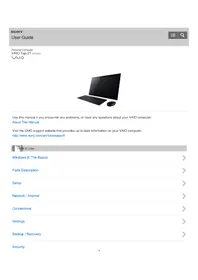
- TROUBLESHOOTING
- LIST OF TOPICS
- SONY
- USER GUIDE
- WINDOWS 8: THE BASICS
- PARTS DESCRIPTION
- SETUP
- CONNECTIONS
- SETTINGS
- NOTES ON USE
- BACKUP / RECOVERY
- SECURITY
- ABOUT THIS MANUAL
- ABOUT YOUR VAIO COMPUTER'S CONFIGURATION
- FEATURES
- ILLUSTRATIONS
- APPS
- SUPPLIED MANUALS
- ON-SCREEN DOCUMENTATION
- PRINTED DOCUMENTATION
- OTHER REFERENCES
- NOTICE
- OTHER OPERATIONS
- NOTIFICATIONS
- HARDWARE
- USER ACCOUNT
- POWER
- DISPLAY
- INTERNET
- PASSWORD
- WINDOWS
- MENU
- STORE
- HELP AND SUPPORT
- VAIO COMPUTER
- KEYBOARD
- MOUSE
- BATTERY
- MEMORY MODULE
- SUPPLIED ITEMS
- NETWORK / INTERNET
- LAN
- WI-FI
- HDMI
- PERIPHERAL DEVICE
- CD/DVD/BD
- AUDIO
- SPEAKERS
- HEADPHONES
- OPTICAL DIGITAL OUTPUT
- BLUETOOTH
- USB
- MICROPHONE
- BUTTON
- RECOVERY
- CAMERA
- BIOS
- SERVICE AND SUPPORT
- TOUCH PANEL
- BACKUP
- BUILT-IN STORAGE DEVICE
- PARTITION
- REFRESH
- MEMORY CARD
- NFC/ONE-TOUCH FUNCTIONS
- PEN
- READ THIS FIRST
- CARE AND MAINTENANCE
- IMPORTANT NOTICE
- PRODUCT REGISTRATION
- SOFTWARE
- COMPUTER
- PERIPHERAL DEVICES
- PRINTER
- BEFORE USE
- RECOMMENDED SYSTEM ENVIRONMENT
- FOR VIEWING ON A COMPUTER
- FOR VIEWING ON A SMARTPHONE OR TABLET
- JAVASCRIPT
- STYLE SHEETS
- COOKIES
- HANDLING OF PERSONAL INFORMATION OBTAINED FROM WEBSITES
- ENTERING SLEEP MODE, SHUTTING DOWN, OR RESTARTING
- USING SLEEP MODE
- RESTARTING YOUR VAIO COMPUTER
- CONTROLLING THE POWER STATE OF YOUR VAIO COMPUTER (SLEEP MODE/SHUTDOWN)
- YOU MIGHT BE LOOKING FOR THE FOLLOWING TOPICS
- OPENING THE DESKTOP
- SEARCHING CONTENT
- OPENING THE APP LIST
- ABOUT THE START SCREEN AND MENU
- SWITCHING USER ACCOUNTS
- SWITCHING APPS
- VIEWING RUNNING APPS
- CLOSING APPS
- STARTING APPS
- INSTALLING APPS FROM WINDOWS STORE
- OPENING THE APP MENU
- OPENING WINDOWS HELP AND SUPPORT
- STARTING HELP+TIPS
- OPENING CONTROL PANEL
- OPENING THE CHARMS
- PARTS AND CONTROLS ON THE BACK
- PARTS AND CONTROLS ON THE FRONT
- PARTS AND CONTROLS ON THE SIDES
- PARTS AND CONTROLS OF THE KEYBOARD
- PARTS AND CONTROLS OF THE MOUSE
- CHECKING SUPPLIED ITEMS
- SETTING UP AN APPROPRIATE WORK ENVIRONMENT
- PROPPING UP YOUR VAIO COMPUTER
- ABOUT ADDING MEMORY MODULES
- CHARGING THE BATTERY PACK
- TURNING ON YOUR VAIO COMPUTER
- CONNECTING A POWER SOURCE
- NOTES ON USING THE BATTERY PACK
- ABOUT THE WI-FI(R) (WIRELESS LAN) STANDARDS
- CONNECTING TO THE INTERNET WITH A WIRED CONNECTION (LAN PORT EQUIPPED MODELS)
- ABOUT THE INTERNET CONNECTION SERVICES
- ABOUT THE NETWORK (LAN)
- ABOUT A SECURITY KEY FOR WI-FI(R) (WIRELESS LAN)
- CHANGING THE RESOLUTION (SIZE) OF THE SCREEN IMAGE ON AN HDMI-CONNECTED DEVICE
- SELECTING DISPLAY MODES
- USING THE MULTIPLE MONITORS FUNCTION
- CONNECTING A TV WITH AN HDMI INPUT PORT
- NOTES ON THE LCD SCREEN
- CHANGING THE SOUND OUTPUT DEVICE
- CONNECTING A HIGH-QUALITY DIGITAL SOUND OUTPUT DEVICE BETWEEN YOUR VAIO COMPUTER AND A TV
- CONNECTING EXTERNAL SPEAKERS/HEADPHONES/HEADSET
- CONNECTING THE WIRELESS KEYBOARD
- ABOUT THE USAGE ENVIRONMENT FOR THE KEYBOARD
- ABOUT BLUETOOTH(R) SECURITY
- NOTES ON USING THE BLUETOOTH(R) FUNCTION
- ABOUT THE BLUETOOTH(R) FUNCTION
- COMMUNICATING WITH ANOTHER BLUETOOTH(R) DEVICE SUCH AS A MOUSE
- STOPPING BLUETOOTH(R) COMMUNICATIONS
- CHARGING A USB DEVICE
- CONNECTING A USB DEVICE
- CONNECTING THE WIRELESS MOUSE
- ABOUT THE USAGE ENVIRONMENT FOR THE MOUSE
- ABOUT THE ASSIST BUTTON
- VIEWING THE SYSTEM INFORMATION
- CUSTOMIZING YOUR VAIO COMPUTER
- BOOTING YOUR VAIO COMPUTER FROM EXTERNAL DEVICES
- USING VAIO UPDATE
- KEEPING YOUR VAIO COMPUTER IN OPTIMUM CONDITION (VAIO CARE)
- UPDATING YOUR VAIO COMPUTER
- NOTES ON SLEEP MODE
- SELECTING A POWER PLAN
- NOTES ON USING THE POWER SOURCE
- USING AUTOMATIC SOUND FIELD ADJUSTMENT TO OPTIMIZE THE SOUND FIELD
- ADJUSTING THE VOLUME IN WINDOWS
- ADJUSTING THE MICROPHONE VOLUME
- ADJUSTING THE SPEAKERS VOLUME
- PLAYING OPTIMIZED SOUND FOR YOUR VAIO COMPUTER USING CLEARAUDIO
- USING THE BUILT-IN CAMERA
- SETTING/CHANGING THE POWER-ON PASSWORD
- REMOVING THE POWER-ON PASSWORD
- RECOVERING FROM THE RECOVERY AREA
- REFRESHING YOUR VAIO COMPUTER (REFRESH FUNCTION SUPPORTED MODELS)
- REMOVING RECOVERY CONTENT TO FREE UP DISK SPACE
- RECOVERING FROM RECOVERY MEDIA
- CHECKING THE VOLUME OF THE RECOVERY AREA
- ABOUT RECOVERY
- CREATING RECOVERY MEDIA
- NOTES ON RECOVERY
- ABOUT BACKUP
- ABOUT TYPES OF BACKUP
- CREATING A RESTORE POINT
- BACKING UP YOUR DATA WHEN YOU CANNOT START WINDOWS
- RESTORING YOUR DATA WITH VAIO DATA RESTORE TOOL
- CREATING OTHER DRIVES (MODIFYING PARTITIONS)
- CREATING PARTITIONS
- CREATING/CHANGING/REMOVING YOUR WINDOWS PASSWORD
- ABOUT ONLINE SUPPORT WEBSITE
- SONY ONLINE SUPPORT WEBSITE
- HINT
- OTHER WEBSITES
- SONY PRODUCTS
- OPERATING SYSTEM ONLINE SUPPORT WEBSITE
- IN STORE SERVICE & SUPPORT (AVAILABLE IN USA ONLY)
- SONY COMMUNITY
- ENVIRONMENTAL SUSTAINABILITY
- RELATED TOPIC
- WELCOME
- UPDATING THE USER GUIDE TO THE LATEST VERSION
- TO UPDATE THE USER GUIDE TO THE COMPLETE VERSION
- TO VIEW HELP FILES FOR WINDOWS OS AND APP OPERATIONS
- CONNECTING TO THE INTERNET
- BEFORE CONNECTING TO THE INTERNET
- TO USE THE WI-FI NETWORK
- NOTE
- TO USE THE NETWORK (LAN) (LAN PORT EQUIPPED MODELS)
- TO USE WINDOWS UPDATE
- TO USE VAIO UPDATE
- TO UPDATE THE ANTIVIRUS APP
- SOLVING PROBLEMS ON YOUR VAIO COMPUTER USING VAIO CARE
- TO START VAIO CARE
- FINDING SUPPORT INFORMATION
- WINDOWS: HOW TO START
- OVERVIEW
- TILES
- CHARMS
- TO OPEN THE START SCREEN
- TOUCH OPERATION (TOUCH SCREEN EQUIPPED MODELS)
- MOUSE/TOUCH PAD OPERATION
- KEYBOARD OPERATION
- ABOUT USER ACCOUNT TYPES
- LOCAL ACCOUNT
- MICROSOFT ACCOUNT
- SWITCHING FROM A LOCAL ACCOUNT TO A MICROSOFT ACCOUNT
- TRADEMARKS
- ABOUT THE INTERNATIONAL ENERGY STAR(R) PROGRAM
- CHARGE INDICATOR STATUS LIST
- CHANGING THE LOW BATTERY HIBERNATION SETTINGS
- CHANGING THE INTEL SMART CONNECT TECHNOLOGY (SLEEP MODE) SETTINGS
- ABOUT SLEEP MODE
- CHECKING THE BATTERY CHARGE CAPACITY
- PROLONGING THE BATTERY LIFESPAN
- EXTENDING THE BATTERY LIFE
- ABOUT THE TOUCH SCREEN (TOUCH SCREEN EQUIPPED MODELS)
- NOTES ON USING THE TOUCH SCREEN (TOUCH SCREEN EQUIPPED MODELS)
- HOW TO USE THE TOUCH SCREEN (TOUCH SCREEN EQUIPPED MODELS)
- ADJUSTING THE ANGLE OF YOUR VAIO COMPUTER
- CHECKING THE CAPS LOCK / NUM LOCK / SCROLL LOCK STATES
- COMBINATIONS AND FUNCTIONS WITH THE FN KEY
- ENTERING CHARACTERS WITH TOUCH SCREEN OPERATIONS (TOUCH SCREEN EQUIPPED MODELS)
- REPLACING THE AA BATTERY OF THE KEYBOARD
- CHECKING THE REMAINING BATTERY POWER OF THE KEYBOARD
- NOTES ON THE BUILT-IN CAMERA
- SCANNING CONTENT (VAIO SCAN)
- NOTES ON USING SD MEMORY CARDS
- ABOUT "MEMORY STICK
- FORMATTING "MEMORY STICK
- REMOVING "MEMORY STICK
- NOTES ON USING "MEMORY STICK
- REMOVING SD MEMORY CARDS
- INSERTING SD MEMORY CARDS
- COMPATIBLE "MEMORY STICK
- INSERTING "MEMORY STICK
- CHECKING THE REMAINING BATTERY POWER OF THE MOUSE
- REPLACING THE AA BATTERY OF THE MOUSE
- HANDLING THE BUILT-IN STORAGE DEVICE
- ABOUT THE SOFTWARE LICENSE
- SAFETY INFORMATION
- SOLVING COMMON PROBLEMS WITH YOUR VAIO COMPUTER
- TO ACTIVATE SLEEP MODE
- TO RETURN TO NORMAL MODE
- WHEN YOU DO NOT USE YOUR VAIO COMPUTER FOR A WHILE
- WHERE TO PLACE YOUR VAIO COMPUTER
- WHERE NOT TO PLACE YOUR VAIO COMPUTER
- ERGONOMIC CONSIDERATIONS
- FURNITURE AND POSTURE
- VIEWING ANGLE OF THE COMPUTER SCREEN
- LIGHTING
- NOTES ON HANDLING YOUR VAIO COMPUTER
- NOTES ON USING THE STAND
- ABOUT THE BATTERY PACK
- ABOUT BATTERY DISCHARGE
- ABOUT BATTERY LIFE
- ABOUT BATTERY DETERIORATION AND REPLACEMENT
- WHEN THE BATTERY PACK IS RUNNING OUT OF POWER
- STOPPING WI-FI(R) (WIRELESS LAN) COMMUNICATIONS
- NOTES ON USING THE WI-FI(R) (WIRELESS LAN) FUNCTION
- IEEE 802.11A (FREQUENCY BAND: 5 GHZ)
- IEEE 802.11B/G (FREQUENCY BAND: 2.4 GHZ)
- IEEE 802.11N (FREQUENCY BAND: 2.4 GHZ/5 GHZ)
- IEEE 802.11AC (DRAFT) (FREQUENCY BAND: 5 GHZ)
- STARTING WI-FI(R) (WIRELESS LAN) COMMUNICATIONS
- TO CHECK WI-FI CONNECTION STATUS
- USING THE ANTIVIRUS APP FOR YOUR VAIO COMPUTER
- DISABLING THE WI-FI(R) (WIRELESS LAN) FUNCTION
- TO CHANGE THE SOUND RATE AND BIT DEPTH
- CONNECTING AN EXTERNAL DRIVE
- WINDOWS UPDATE
- VAIO UPDATE
- TO UPDATE WINDOWS STORE APPS
- NOTES ON THE AC ADAPTER
- NOTES ON TURNING ON YOUR VAIO COMPUTER
- CHANGING THE LCD BRIGHTNESS
- CHANGING THE RESOLUTION (SIZE) OF THE SCREEN IMAGE
- BASIC OPERATIONS
- TO CLICK (TAP)
- TO DOUBLE-CLICK (DOUBLE-TAP)
- TO DRAG
- TO DRAG AND DROP
- ADVANCED OPERATIONS
- TO RIGHT-CLICK (TOUCH AND HOLD)
- TO SCROLL
- TO ZOOM IN OR OUT ON AN IMAGE SUCH AS A PHOTO (ZOOM)
- TO ROTATE AN IMAGE SUCH AS A PHOTO (ROTATE)
- TO SELECT BY SWIPING
- TO ADJUST THE VOLUME USING THE VOL (VOLUME) BUTTONS ON THE KEYBOARD
- TO TURN OFF THE VOLUME USING THE MUTING BUTTON ON THE KEYBOARD
- FRONT
- BACK
- BUILT-IN DUAL MICROPHONES
- SETTINGS RETAINED AFTER YOU REFRESH YOUR VAIO COMPUTER
- DATA ERASED AFTER YOU REFRESH YOUR VAIO COMPUTER
- WHEN DO I HAVE TO PERFORM RECOVERY OR REFRESH
- WHICH APPS SHOULD I USE TO RECOVER OR REFRESH MY VAIO COMPUTER OR CREATE RECOVERY MEDIA
- VAIO CARE
- VAIO CARE (RESCUE MODE): VAIO RECOVERY SOLUTIONS
- WINDOWS RECOVERY ENVIRONMENT (WINDOWS RE)
- WHAT IS A RECOVERY AREA
- WHY DO I HAVE TO CREATE RECOVERY MEDIA
- NOTES ON CREATING RECOVERY MEDIA
- IMPORTANT NOTES ON RECOVERY
- NOTES ON APPS
- BACKING UP FILES
- BACKING UP SYSTEM IMAGES
- NOTES ON USING VAIO CARE (RESCUE MODE): VAIO RECOVERY SOLUTIONS
- LIT IN ORANGE
- BLINKS IN ORANGE
- BLINKS FAST IN ORANGE
- TO CHECK IF THE KEYBOARD IS IN THE CAPS LOCK STATE
- TO CHECK IF THE KEYBOARD IS IN THE NUM LOCK/SCROLL LOCK STATE
- CARE AND CLEANING OF THE BUILT-IN CAMERA
- START VAIO SCAN. (SEE STARTING APPS TO START VAIO SCAN.)
- NOTES ON USING "MEMORY STICK DUO
- NOTES ON USING "MEMORY STICK MICRO
- ABOUT "MAGICGATE
- NOTES ON NFC/ONE-TOUCH FUNCTIONS (NFC SUPPORTED MODELS)
- ABOUT NFC (NFC SUPPORTED MODELS)
- ABOUT ONE-TOUCH FUNCTIONS (NFC SUPPORTED MODELS)
- STARTING THE NOTE TAKING APP (VAIO PAPER)
- START VAIO PAPER. (SEE STARTING APPS TO START VAIO PAPER.)
- WHEN CLEANING YOUR VAIO COMPUTER
- WHEN CLEANING YOUR LCD SCREEN
- TO AVOID DAMAGING YOUR BUILT-IN STORAGE DEVICE
- N
- POWER SOURCE
- CHECK THE FOLLOWING
Brand : SONY
Model : VAIO Tap 21 SVT2122
Category : Tablet