
39LY541H - TV LG - Free user manual and instructions
Find the device manual for free 39LY541H LG in PDF.


User questions about 39LY541H LG
0 question about this device. Answer the ones you know or ask your own.
Ask a new question about this device
Download the instructions for your TV in PDF format for free! Find your manual 39LY541H - LG and take your electronic device back in hand. On this page are published all the documents necessary for the use of your device. 39LY541H by LG.
USER MANUAL 39LY541H LG
*LG LED TVs are LCD TVs with LED backlighting.
Please read this manual carefully before operating your set and retain it for future reference.
LY31**
LY33**
LY34**
LY54**
LY53**
TABLE OF CONTENTS
3 LICENSES
3 OPEN SOURCE SOFTWARE NOTICE
4 ASSEMBLING AND PREPARING
4 Unpacking
7 Separate Purchase
8 Parts and Button
9 - Using the Joystick button
10 Lifting and Moving the TV
11 Setting up the TV
11 - Attaching the stand
14 Mounting on a table
17 Mounting on a wall
19 How to use Dual Lock™
21 MAKING CONNECTIONS
22 Antenna Connection
22 Satellite Dish Connection
23AdapterConnection
23 Euro Scart Connection
24 Network Setup
24 - Wired network connection
24 - Network setting
26 Other Connections
40 REMOTE CONTROL
45 MAINTENANCE
45 Cleaning your TV
45 - Screen, frame, cabinet and stand
45 - Power cord
46 TROUBLESHOOTING
47 SPECIFICATIONS
56 IR CODES
57 EXTERNAL CONTROL DEVICE SETUP
57 RS-232C Setup
57 Type of Connector: D-Sub 9-Pin Male
58 RS-232C Configurations
59 Communication Parameters
59 Command Reference List
60 Transmission / Receiving Protocol

WARNING
- If you ignore the warning message, you may be seriously injured or there is a possibility of accident or death.

CAUTION
- If you ignore the caution message, you may be slightly injured or the product may be damaged.

NOTE
- The note helps you understand and use the product safely. Please read the note carefully before using the product.
LICENSES

Supported licenses may differ by model. For more information about licenses, visit www.lg.com.

DOLBY. DIGITAL PLUS
Manufactured under license from Dolby Laboratories. Dolby and the double-D symbol are trademarks of Dolby Laboratories.

The terms HDMI and HDMI High-Definition Multimedia Interface, and the HDMI logo are trademarks or registered trademarks of HDMI Licensing LLC in the United States and other countries.

ABOUT DIVX VIDEO: DivX ^® is a digital video format created by DivX, LLC, a subsidiary of Rovi Corporation. This is an official DivX Certified ^® device that has passed rigorous testing to verify that it plays DivX video. Visit divx.com for more information and software tools to convert your files into DivX videos.
ABOUT DIVX VIDEO-ON-DEMAND: This DivX Certified ^® device must be registered in order to play purchased DivX Video-on-Demand (VOD) movies. To obtain your registration code, locate the DivX VOD section in your device setup menu. Go to vod.divx.com for more information on how to complete your registration.
"DivX Certified® to play DivX® video up to HD 1080p, including premium content."
"DivX®, DivX Certified® and associated logos are trademarks of Rovi Corporation or its subsidiaries and are used under license."
"Covered by one or more of the following U.S. patents : 7,295,673; 7,460,668; 7,515,710; 7,519,274"
OPEN SOURCE SOFTWARE NOTICE
To obtain the source code under GPL, LGPL, MPL and other open source licenses, that is contained in this product, please visit http://opensource.lge.com.
In addition to the source code, all referred license terms, warranty disclaimers and copyright notices are available for download.
LG Electronics will also provide open source code to you on CD-ROM for a charge covering the cost of performing such distribution (such as the cost of media, shipping and handling) upon email request to opensource@lge.com. This offer is valid for three (3) years from the date on which you purchased the product.

NOTE
• Image shown may differ from your TV.
- Your TV's OSD (On Screen Display) may differ slightly from that shown in this manual.
- The available menus and options may differ from the input source or product model that you are using.
- New features may be added to this TV in the future.
- The TV can be placed in standby mode in order to reduce the power consumption. And the TV should be turned off if it will not be watched for some time, as this will reduce energy consumption.
- The energy consumed during use can be significantly reduced if the level of brightness of the picture is reduced, and this will reduce the overall running cost.
ASSEMBLING AND PREPARING
Unpacking
Check your product box for the following items. If there are any missing accessories, contact the local dealer where you purchased your product. The illustrations in this manual may differ from the actual product and item.

CAUTION
- Do not use any unapproved items to ensure the safety and product life span.
- Any damages or injuries by using unapproved items are not covered by the warranty.
- Some models have a thin film attached on to the screen and this must not be removed.

NOTE
- The items supplied with your product may vary depending on the model.
- Product specifications or contents of this manual may be changed without prior notice due to upgrade of product functions.
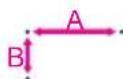
- For an optimal connection, HDMI cables and USB devices should have bezels less than 10 mm thick and 18 mm width. Use an extension cable that supports USB 2.0 if the USB cable or USB memory stick does not fit into your TV's USB port.
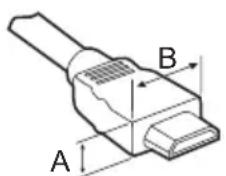
text_image
A B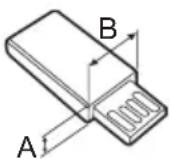
$$ ^ {*} A \leqq 1 0 m m $$
$$ ^ {*} \mathrm{B} \leq 1 8 \mathrm{mm} $$
- Use a certified cable with the HDMI logo attached.
- If you do not use a certified HDMI cable, the screen may not display or a connection error may occur. (Recommended HDMI Cable Types)
- High-Speed HDMI®/TM Cable
- High-Speed HDMI ^® / ^TM Cable with Ethernet
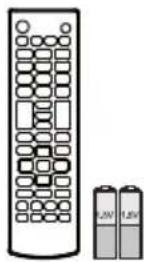
Remote control,
batteries (AAA)
(See p.40, 41, 42, 43, 44)
Owner's manual Cable Holder
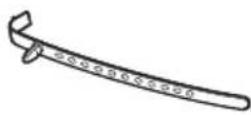
(Depending on model)
(See p.20)
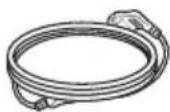
Power cord
(Depending on model)
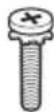
Stand Screws
4EA, M4 x L14
(Only 42/49LY31**,
39/42/47/55/60LY330*,
39/42/47/55/60LY340*,
39/42/47/55/60LY345*,
39/42/47/55/60LY540*,
42/55LY530*,
42/47/55LY541*,
42/47/55LY341*,
42/47/55LY331*)
(See p.11, 13)
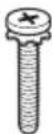
Stand Screws
4EA, M4 × L20
(Only 32LY31**, 32LY330*,
32LY340*, 32LY345*,
32LY540*, 32LY530*,
42/47/55LY541*,
42/47/55LY341*,
42/47/55LY331*)
6EA, M4 x L20
(Only 32/39LY541*,
32/39LY341*, 32/39LY331*)
(See p.11, 12, 13)
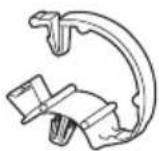
Cable Managements
2EA
(Only 32/42/49LY31**,
32/39/42/47/55/60LY330*,
32/39/42/47/55/60LY340*,
32/39/42/47/55/60LY345*,
32/39/42/47/55/60LY540*,
32/42/55LY530*)
(See p.20)
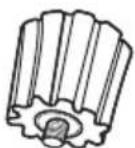
Wall Mount Spacers
2EA
(Only 42LY31**, 42LY33**,
42LY34**, 42LY54**,
42LY53**)
(See p.18)
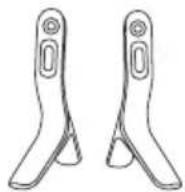
Stand Bases
(Only 32/42/49LY31**,
32/39/42/47/55/60LY330*,
32/39/42/47/55/60LY340*,
32/39/42/47/55/60LY345*,
32/39/42/47/55/60LY540*,
32/42/55LY530*)
(See p.11)
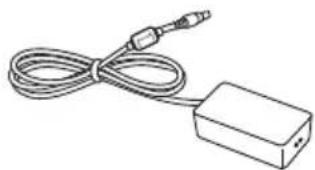
natural_image
Line drawing of a cable and rectangular device connected by a connector (no text or symbols)AC-DC Adaptor
(Only 28LY31**, 22/28LY33**, 22/28LY34**, 22/28LY54**)
(Depending on model)
(See p.23)
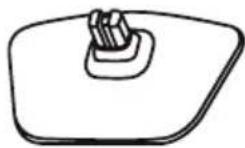
Stand Base
(Only 28LY31**, 22/28LY33**, 22/28LY34**, 22/28LY54**) (See p.11)
Dual Lock™
(Only LY540H, LY541H, LY540M, LY530H) (See p.19)
natural_image
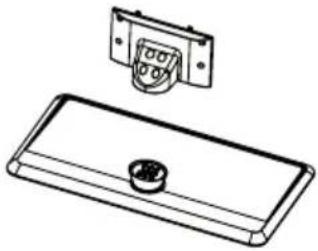
Technical line drawing of a rectangular electronic component with a circular knob and a separate mounting bracket (no text or symbols)Stand Base/Stand Body
(Only LY541*, LY331*, LY341*) (See p.12, 13)
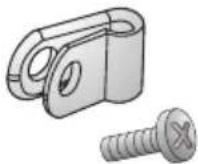
Power Cord Holder/Screw 1EA
(Only 39/42/47/55LY541 ^ , 39/42/47/55LY341 ^ , 39/42/47/55LY331 ^* ) (See p.20)
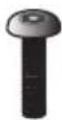
Torx Plus Star-Head Screws
2EA (Only LY541*, LY331*, LY341*) (See p.12, 13)
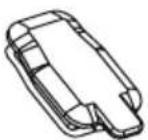
Rubbers
2EA (Only LY541*, LY331*, LY341*) (See p.14)
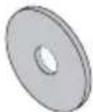
Washers for Stand Fixing 2EA
(Depending on model) (See p.16)
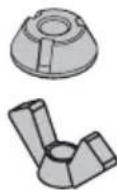
Nuts for Stand Fixing 2EA
(Depending on model) (See p.16)
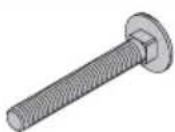
Screws for Stand Fixing
2EA (Depending on model) (See p.16)
Separate Purchase
Separate purchase items can be changed or modified for quality improvement without any notification. Contact your dealer to buy these items.
These devices only work with certain models.
The model name or design may be changed depending on the upgrade of product functions, manufacturer's circumstances or policies.
LG Audio Device LED Clock
LEC-003
(Only 32/39/42/47/55LY540H,
32/39/42/47/55LY541H,
32/42/55LY530H)
Parts and Button
A type : 32/42/49LY31**, 32/39/42/47/55/60LY330*, 32/39/42/47/55/60LY340*, 32/39/42/47/55/60LY345*, 32/39/42/47/55/60LY540*, 32/42/55LY530*
B type : 28LY31**, 22/28LY33**, 22/28LY34**, 22/28LY54**
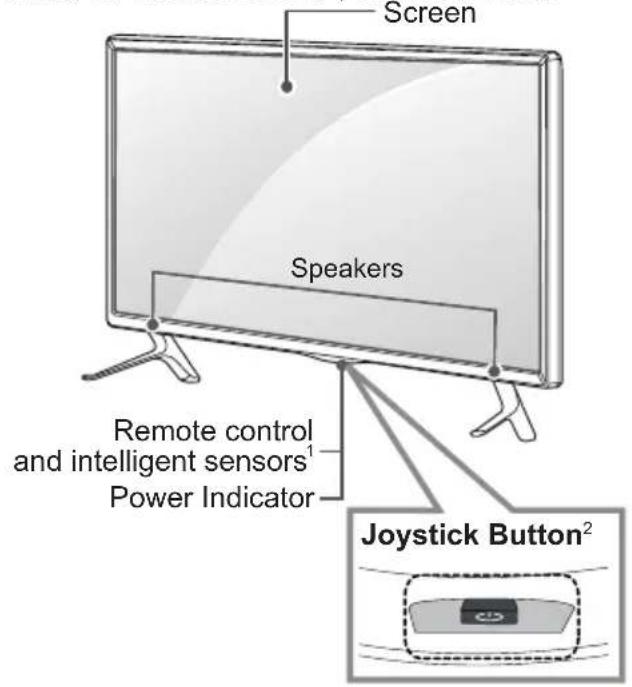
text_image
Screen Speakers Remote control and intelligent sensors¹ Power Indicator Joystick Button²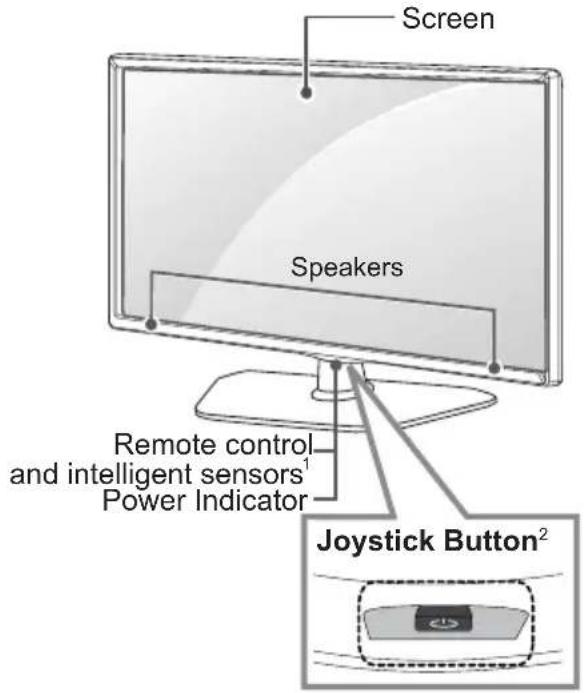
text_image
Screen Speakers Remote control and intelligent sensors¹ Power Indicator Joystick Button²C type : 32/39/42/47/55LY331*, 32/39/42/47/55LY541*, 32/39/42/47/55LY341*
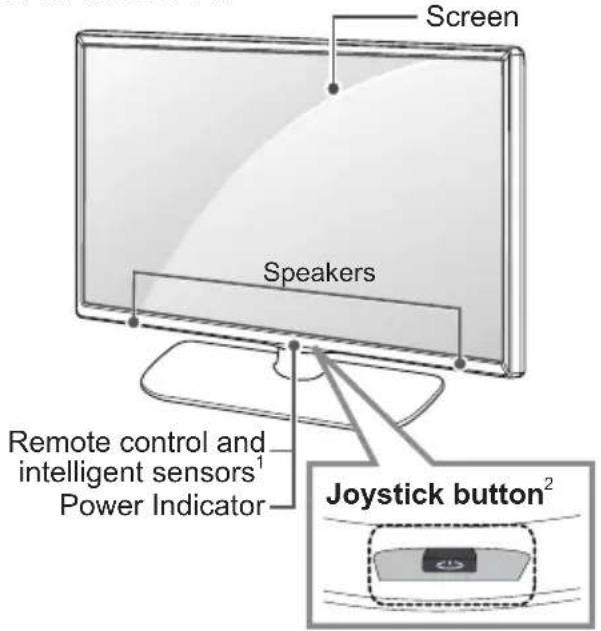
text_image
Screen Speakers Remote control and intelligent sensors¹ Power Indicator Joystick button²1 Intelligent sensor - Adjusts the image quality and brightness based on the surrounding environment.
2 Joystick Button - This button is located below the TV screen.

- You can set the power indicator light to on or off by selecting OPTION in the main menus.
Using the Joystick button
You can simply operate the TV functions, pressing or moving the joystick button up, down, left or right.
Basic Functions
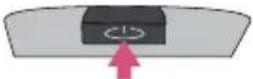 | Power On | When the TV is turned off, place your finger on the joystick button and press it once and release it. |
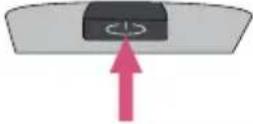 | Power Off | When the TV is turned on, place your finger on the joystick button and press it once for a few seconds and release it.(However, if the Menu button is on the screen, pressing and holding the joystick button will let you exit the Menu.) |
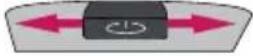 | Volume Control | If you place your finger over the joystick button and move it left or right, you can adjust the volume level you want. |
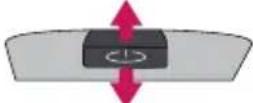 | Programmes Control | If you place your finger over the joystick button and move it up or down, you can scrolls through the saved programmes you want. |

NOTE
- When your finger over the joystick button and push it to the up, down, left or right, be careful not to press the joystick button. If you press the joystick button first, you may not be able to adjust the volume level and saved programmes.
Adjusting the Menu
When the TV is turned on, press the joystick button one time.
You can adjust the Menu items (○, ⚙, ✕) moving the joystick button up, down, left or right.
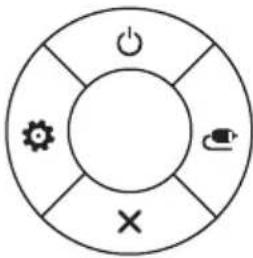 | TV off Turns the power off. | |
| Settings Accesses the main menu. | ||
| Close Clears on-screen displays and returns to TV viewing. | ||
| Input List Changes the input source. |
Lifting and Moving the TV
When moving or lifting the TV, read the following to prevent the TV from being scratched or damaged and for safe transportation regardless of its type and size.

CAUTION
- Avoid touching the screen at all times, as this may result in damage to the screen.
- It is recommended to move the TV in the box or packing material that the TV originally came in.
- Before moving or lifting the TV, disconnect the power cord and all cables.
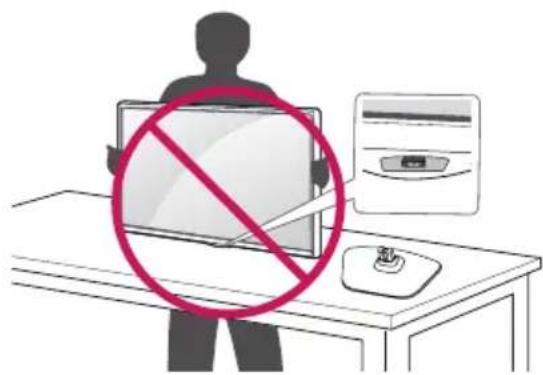
- When holding the TV, the screen should face away from you to avoid damage.
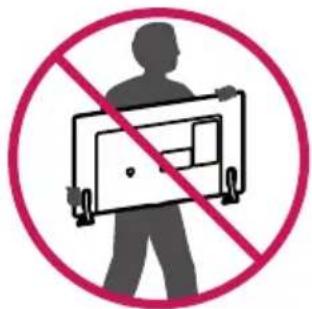
text_image
Prohibition sign with silhouette of person holding a device, crossed out by red prohibition symbol- Hold the top and bottom of the TV frame firmly. Make sure not to hold the transparent part, speaker, or speaker grill area.
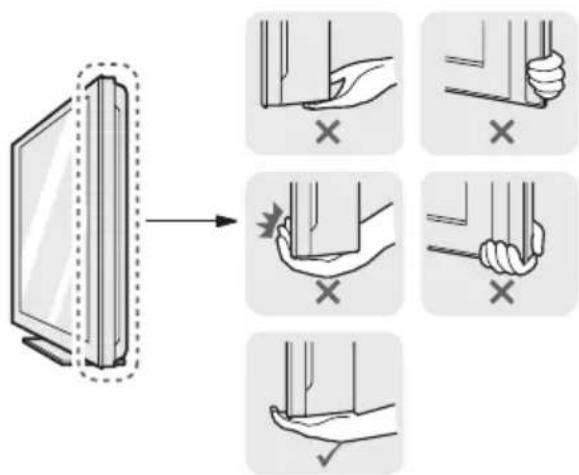
text_image
Diagram illustrating hand positioning and stress application on a device, with labeled correct and incorrect states.- When transporting a large TV, there should be at least 2 people.
- When transporting the TV by hand, hold the TV as shown in the following illustration.
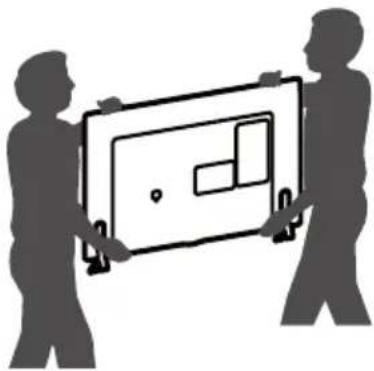
natural_image
Silhouette of two people holding a large rectangular object, no text or symbols visible- When transporting the TV, do not expose the TV to jolts or excessive vibration.
- When transporting the TV, keep the TV upright, never turn the TV on its side or tilt towards the left or right.
- Do not apply excessive pressure to cause flexing /bending of frame chassis as it may damage screen.

CAUTION
- When handling the TV, be careful not to damage the protruding joystick button. (Depending on model)
text_image
Illustration showing a person using a computer with a prohibition symbol overlaid, indicating no restrictions on the device.Setting up the TV
Image shown may differ from your TV.
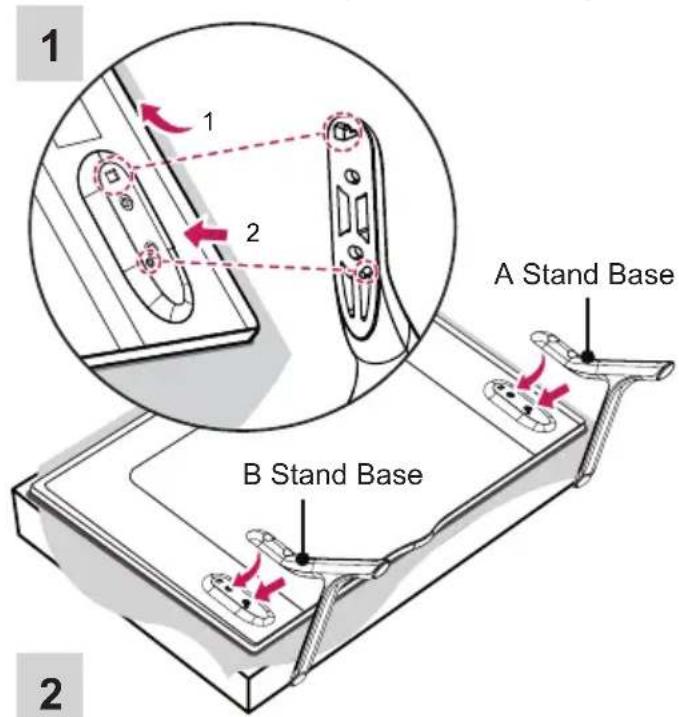
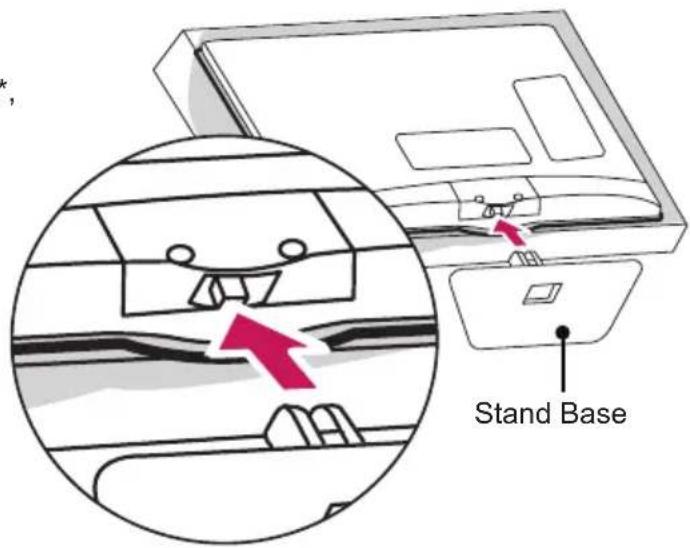
Attaching the stand
(Only 32/42/49LY31**, 32/39/42/47/55/60LY330*, 32/39/42/47/55/60LY340*, 32/39/42/47/55/60LY345*, 32/39/42/47/55/60LY540*, 32/42/55LY530*)
text_image
1 2 A Stand Base B Stand Base 2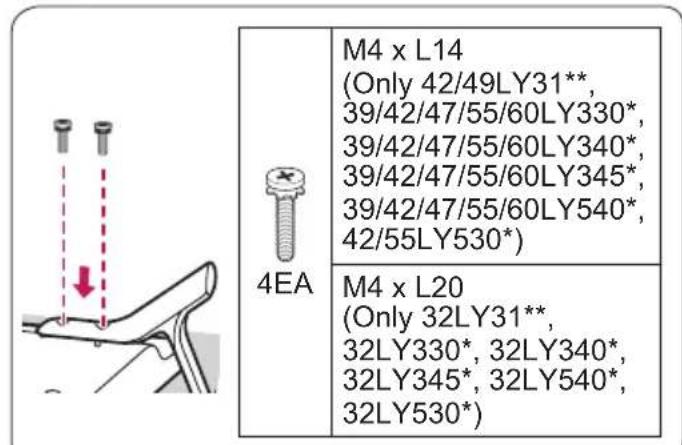
text_image
M4 x L14 (Only 42/49LY31**, 39/42/47/55/60LY330*, 39/42/47/55/60LY340*, 39/42/47/55/60LY345*, 39/42/47/55/60LY540*, 42/55LY530*) 4EA M4 x L20 (Only 32LY31**, 32LY330*, 32LY340*, 32LY345*, 32LY540*, 32LY530*)
natural_image
Technical line drawing of a mechanical assembly with two bolt holes and red arrows indicating force or movement (no text or symbols)(Only 28LY31**, 22/28LY33**, 22/28LY34**, 22/28LY54**)
1
text_image
Stand Base2
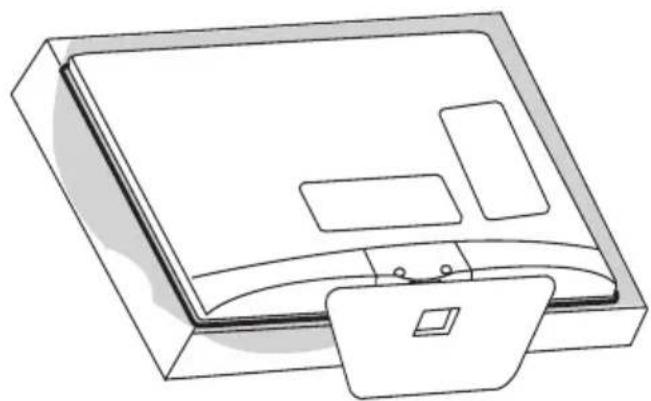
natural_image
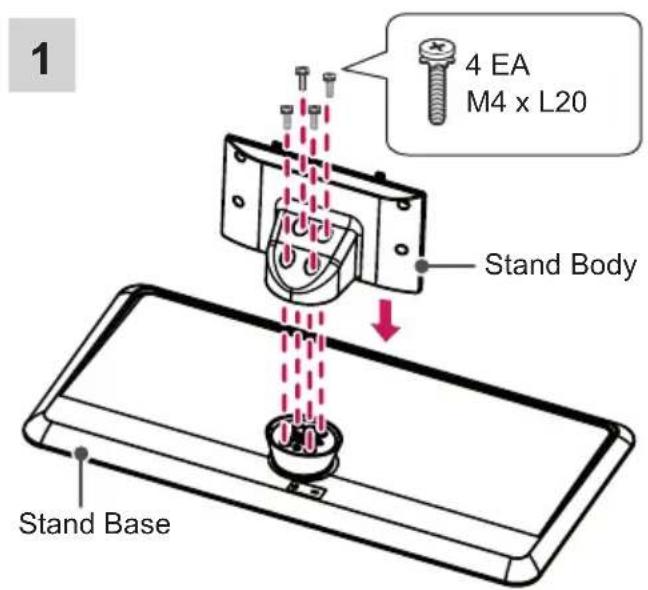
Line drawing of a 3D printer or scanner device with no visible text, numbers, or symbols(Only 32/39LY541*, 32/39LY331*, 32/39LY341*)
1
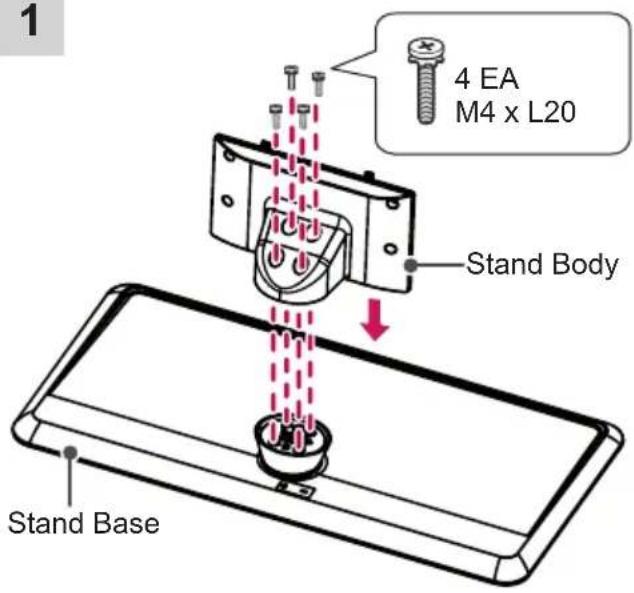
text_image
1 4 EA M4 x L20 Stand Body Stand Base2
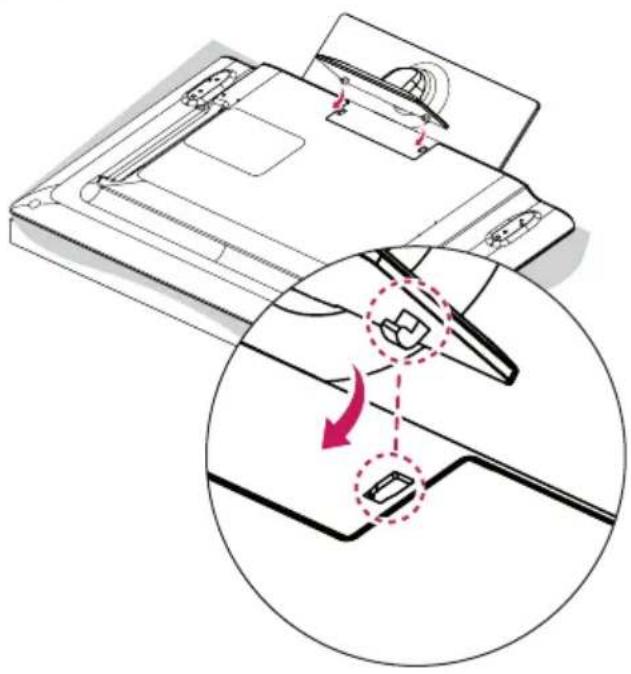
natural_image
Diagram of a device with a magnified inset showing a tool interacting with a component, no text or symbols present.3

M4 x L20 2EA
or

Torx Plus Star-Head Screws 2EA
Tighten the two Torx head screws (supplied with TV) with a Torx Bit Driver (not supplied with TV).
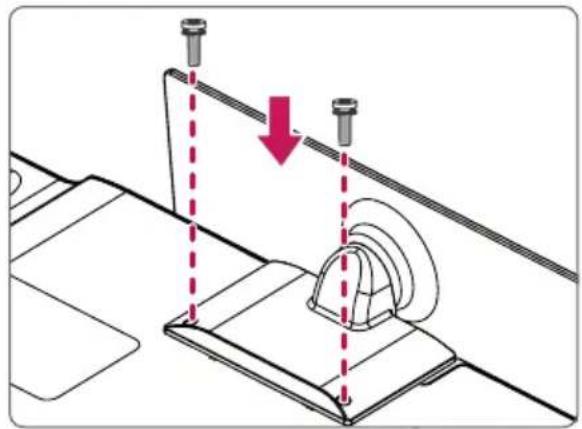
natural_image
Technical diagram showing a mechanical assembly with two bolted components and a red downward arrow indicating motion (no text or symbols)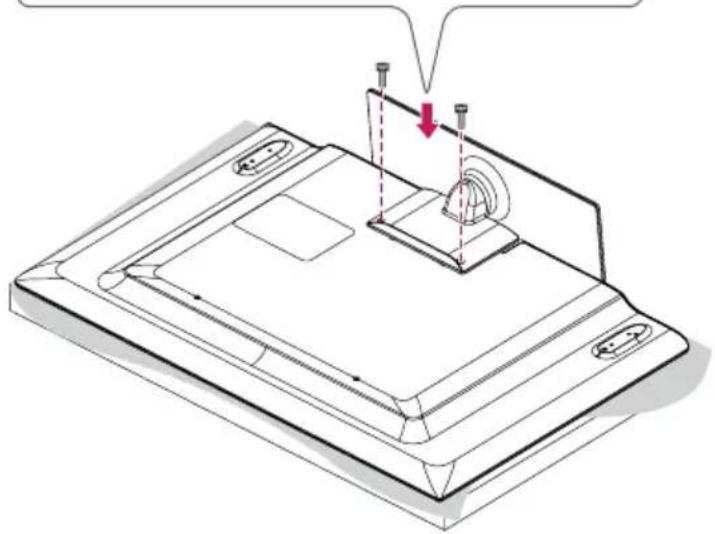
natural_image
Isometric technical diagram of a device with a component and mounting features, showing no text or symbols.(Only 42/47/55LY541*, 42/47/55LY331*, 42/47/55LY341*)
text_image
1 4 EA M4 x L20 Stand Body Stand Base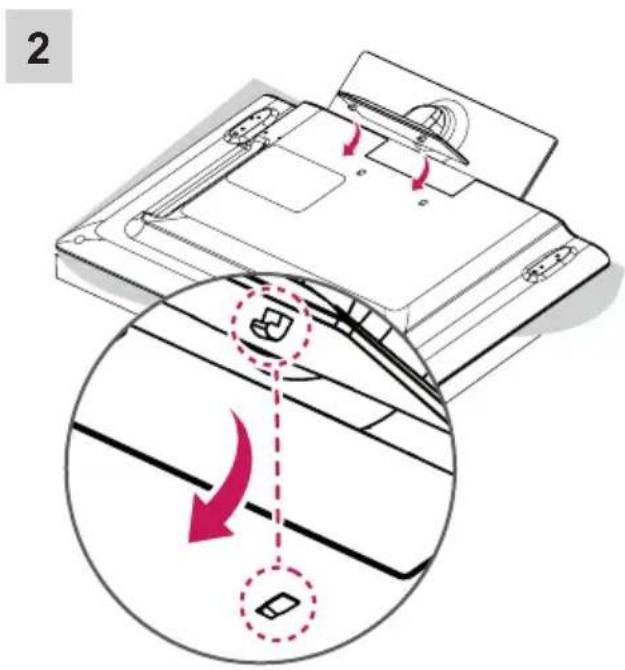
text_image
23

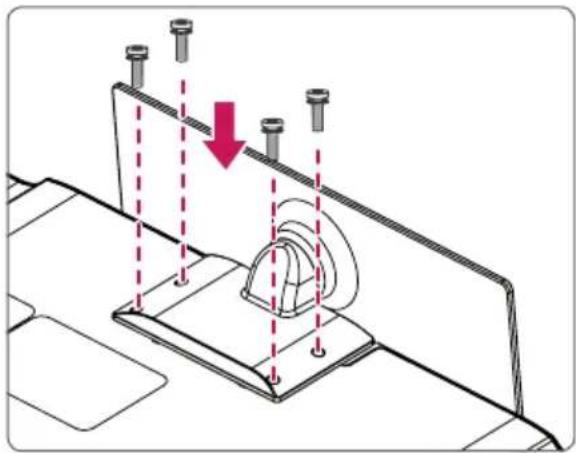
M4 x L14 4EA
or

M4 x L14 2EA

Torx Plus Star-Head Screws 2EA
Tighten the two of these four screws and the two Torx screws (supplied with TV) to secure the TV. Tighten the two Torx screws with a Torx Bit Driver (not supplied with TV).
natural_image
Technical diagram showing a mechanical assembly with a downward arrow indicating motion or force, no text or symbols present.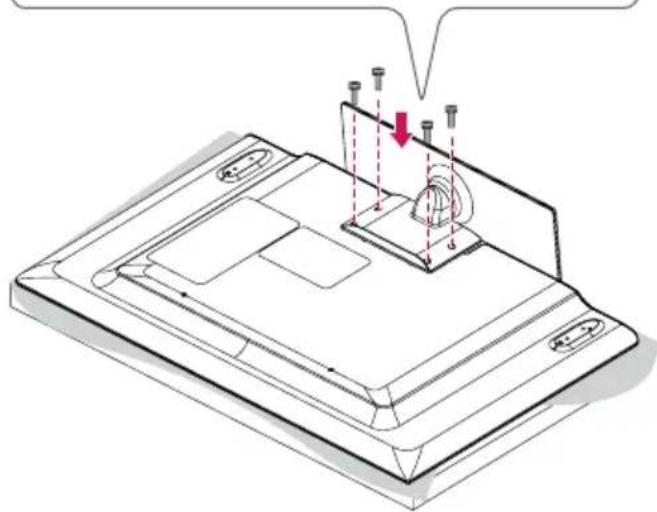
natural_image
Isometric technical diagram of a device with mounting holes and a central component, showing no text or symbols.
CAUTION
- When attaching the stand to the TV set, place the screen facing down on a cushioned table or flat surface to protect the screen from scratches.
- Make sure that the screws are fastened completely. (If they are not fastened securely enough, the TV may tilt forward after being installed.) Do not use too much force and over tighten the screws; otherwise screw may be damaged and not tighten correctly.

NOTE
- Remove the stand before installing the TV on a wall mount by performing the stand attachment in reverse.
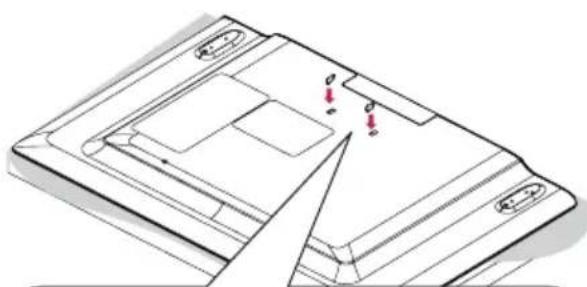
- The Rubber will protect the opening from accumulating dust and dirt. When installing the wall mounting bracket, use the Rubber. (Only LY541*, LY331*, LY341*)
natural_image
Technical line drawing of a mechanical component with mounting holes and internal compartments (no text or symbols)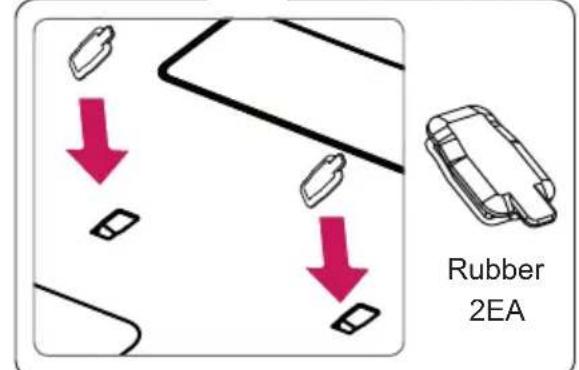
text_image
Rubber 2EAMounting on a table
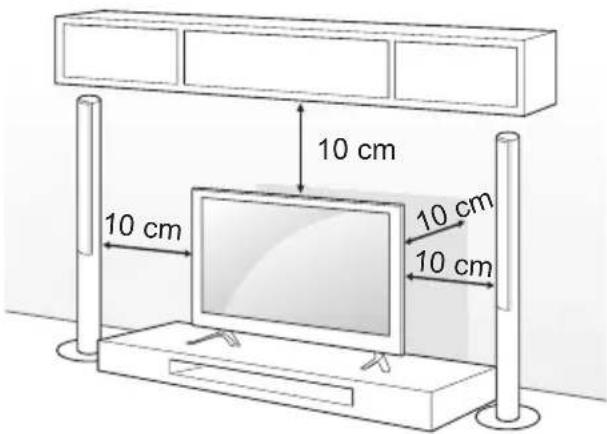
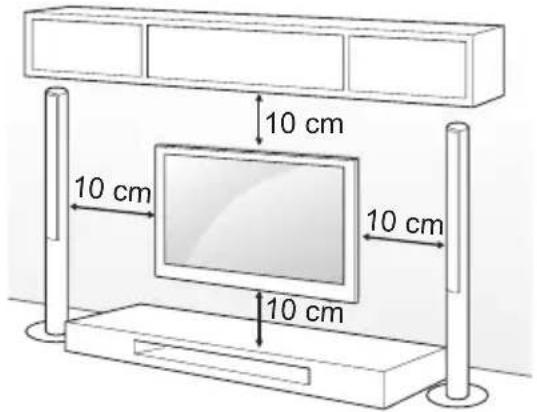
1 Lift and tilt the TV into its upright position on a table.
- Leave a 10 cm (minimum) space from the wall for proper ventilation.
text_image
10 cm 10 cm 10 cm 10 cm2 Connect the power cord to a wall outlet.

CAUTION
- Do not place the TV near or on sources of heat, as this may result in fire or other damage.
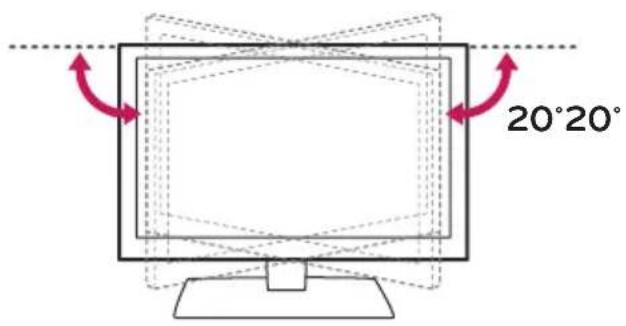
Adjusting the angle of the TV to suit view
(Only LY541*, LY331*, LY341*)
Swivel 20 degrees to the left or right and adjust the angle of the TV to suit your view.
text_image
20°20°
CAUTION
- When adjusting the angle of the product, watch out for your fingers.
» Personal injury may occur if hands or fingers are pinched. If the product is tilted too much, it may fall, causing damage or injury.
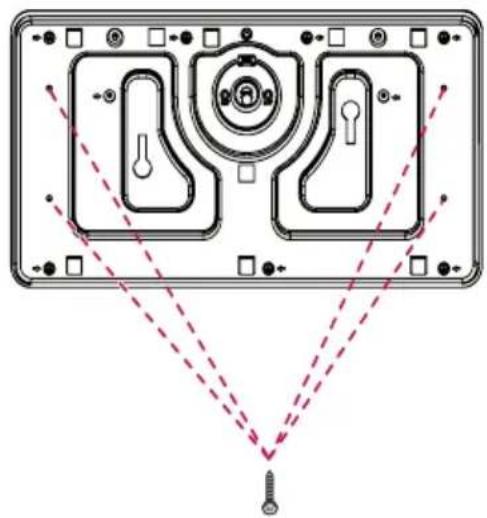
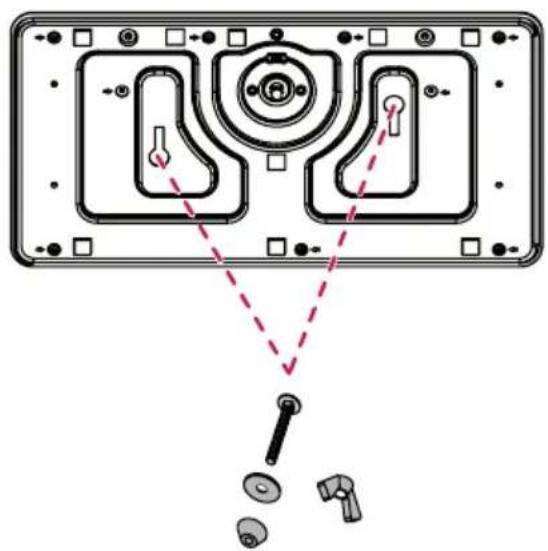
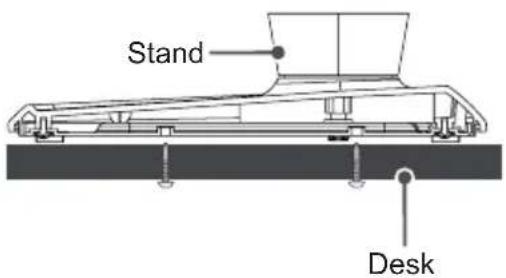
Attaching the TV to a desk
(Depending on model)
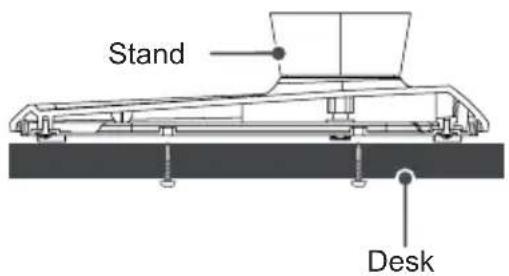
The TV should be attached to a desk so it cannot be pulled in a forward/backward direction, potentially causing injury or damaging the product.
A type )
natural_image
Technical diagram of a device rear panel with internal components and alignment lines (no text or symbols)4-Screws (Not supplied with TV)
text_image
Stand Desk
NOTE
- Screw : M5 x L (*L: Table depth + 8\~10 mm) ex) Table depth: 15 mm, Screw: M5 x 25
B type )
natural_image
Diagram of a device rear panel with internal components and a close-up view of a tool (no text or labels)2-Screws for Stand Fixing, 2-Washers for Stand Fixing, 2-Nuts for Stand Fixing (Supplied with TV)
text_image
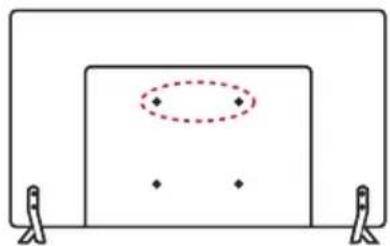
Stand DeskSecuring the TV to a wall
(This feature is not available for all models.)
natural_image
Simple line drawing of a rectangular frame with two side supports and a dotted oval on the top wall (no text or symbols)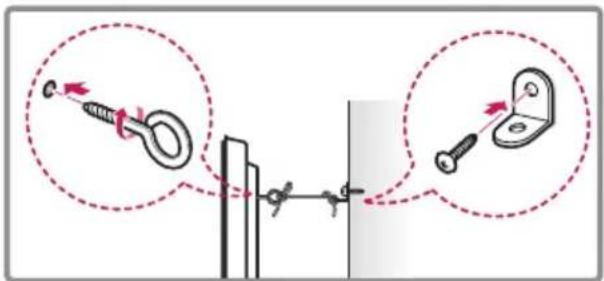
text_image
Diagram showing two mechanical components with arrows indicating motion, one attached to a spring and the other to a bracket.1 Insert and tighten the eye-bolts, or TV brackets and bolts on the back of the TV.
- If there are bolts inserted at the eye-bolts position, remove the bolts first.
2 Mount the wall brackets with the bolts to the wall.
Match the location of the wall bracket and the eye-bolts on the rear of the TV.
3 Connect the eye-bolts and wall brackets tightly with a sturdy rope.
Make sure to keep the rope horizontal with the flat surface.

CAUTION
• Make sure that children do not climb on or hang on the TV.

NOTE
- Use a platform or cabinet that is strong and large enough to support the TV securely.
- Brackets, bolts and ropes are not provided. You can obtain additional accessories from your local dealer.
Mounting on a wall
Attach an optional wall mount bracket at the rear of the TV carefully and install the wall mount bracket on a solid wall perpendicular to the floor. When you attach the TV to other building materials, please contact qualified personnel. LG recommends that wall mounting be performed by a qualified professional installer. We recommend the use of LG's wall mount bracket.
When you do not use LG's wall mount bracket, please use a wall mount bracket where the device is adequately secured to the wall with enough space to allow connectivity to external devices.
text_image
10 cm 10 cm 10 cm 10 cmMake sure to use screws and wall mount bracket that meet the VESA standard. Standard dimensions for the wall mount kits are described in the following table.
Separate purchase(Wall Mounting Bracket)
| Model | 22LY33**22LY34**22LY54** | 28LY31**28LY33**28LY34**28LY54** |
| VESA (A x B) 75 x 75 100 x | 100 | |
| Standard screw | M4 X L10 M4 X L10 | |
| Number of screws | 4 | 4 |
| Wall mount bracket | LSW140B LSW140B | |
| Model | 32LY31**32/39LY33**32/39LY34**32/39LY54**32LY53** | 42/49LY31**42/47/55LY33**42/47/55LY34**42/47/55LY54**42/55LY53** |
| VESA (A x B) 200 x 200 400 x | 400 | |
| Standard screw | M6 M6 | |
| Number of screws | 4 | 4 |
| Wall mount bracket | LSW240BMSW240 | LSW440BMSW240 |
| Model | 60LY33**60LY34**60LY54** | |
| VESA (A x B) 400 x 400 | ||
| Standard screw | M6 | |
| Number of screws | 4 | |
| Wall mount bracket | LSW440B | |

CAUTION
- Disconnect the power first, and then move or install the TV. Otherwise electric shock may occur.
- If you install the TV on a ceiling or slanted wall, it may fall and result in severe injury. Use an authorized LG wall mount and contact the local dealer or qualified personnel.
- Do not over tighten the screws as this may cause damage to the TV and void your warranty.
- Use the screws and wall mounts that meet the VESA standard. Any damages or injuries by misuse or using an improper accessory are not covered by the warranty.
- Screw length from outer surface of back cover should be under 8 mm. (Only 28LY31**, 22/28LY33**, 22/28LY34**, 22/28LY54**)
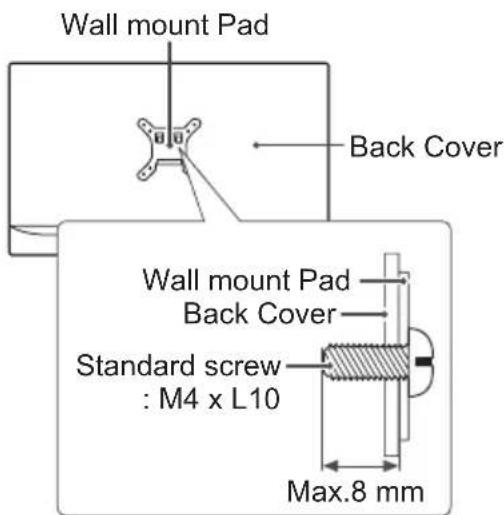
text_image
Wall mount Pad Back Cover Wall mount Pad Back Cover Standard screw : M4 x L10 Max.8 mm
NOTE
- Use the screws that are listed on the VESA standard screw specifications.
- The wall mount kit includes an installation manual and necessary parts.
- The wall mount bracket is not provided. You can obtain additional accessories from your local dealer.
- The length of screws may differ depending on the wall mount. Make sure to use the proper length.
- For more information, refer to the manual supplied with the wall mount.
- When attaching a wall mounting bracket to the TV, insert the wall mount spacers into the TV wall mount holes to adjust the vertical angle of the TV.
(Only 42LY31**, 42LY33**, 42LY34**, 42LY54**, 42LY53**)
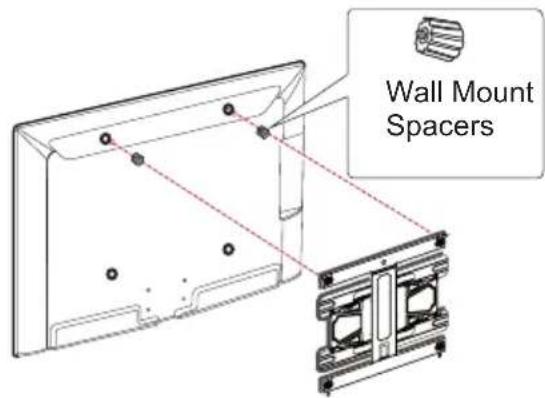
text_image
Wall Mount SpacersHow to use Dual Lock™
(Only LY540H, LY541H, LY540M, LY530H)
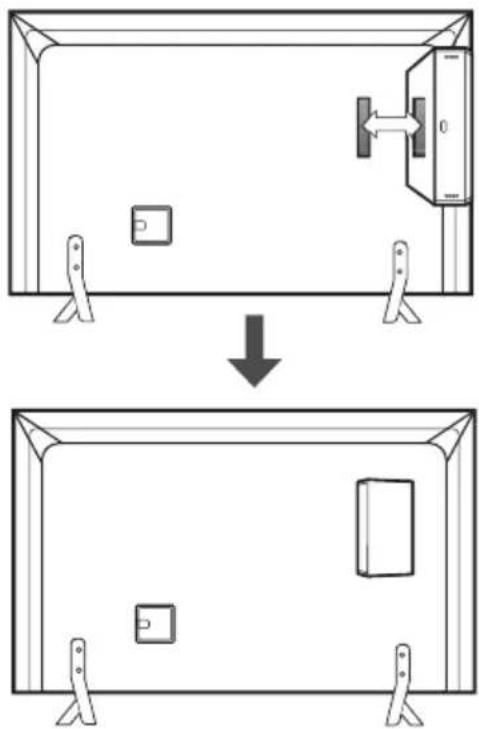
Fix the set-top box to the TV and use it when you want to.
1 After removing the protection paper from the Dual Lock, stick it to the TV and the set-top box as shown.
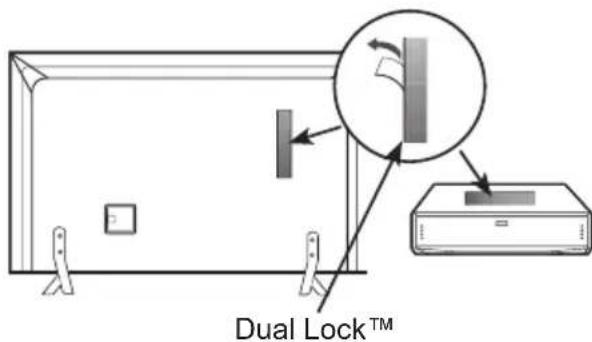
text_image
Dual Lock™2 Attach the set-top box to the TV by pressing the Velcro strips together.
natural_image
Diagram showing a device with a door and lock being installed, before and after a change (no text or symbols present)
NOTE
- Please make sure no foreign substances exist on the surface of the product, and then firmly attach the Dual Lock™.
- Before attaching the set-top box to the TV set, let the attached Dual Lock™ dry for at least three days.
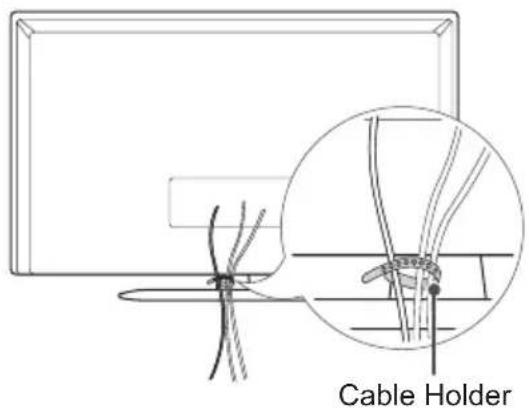
Tidying cables
Image shown may differ from your TV.
(Only 22/28LY33**, 22/28LY34**, 22/28LY54**, 28LY31**)
1 Gather and bind the cables with the cable holder.
text_image
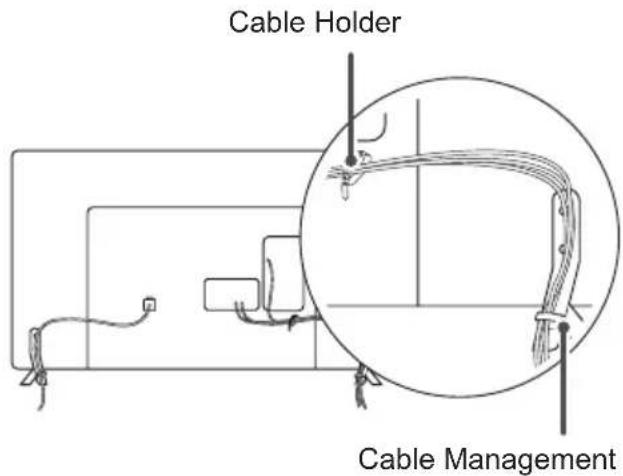
Cable Holder(Only 32/39/42/47/55/60LY540 ^ , 32/39/42/47/55/60LY330 ^ , 32/39/42/47/55/60LY340 ^ , 32/39/42/47/55/60LY345 ^ , 32/42/49LY31 ^* , 32/42/55LY530 ^ )
1 Gather and bind the cables with the cable holder.
2 Fix the Cable Management firmly to the TV.
text_image
Cable Holder Cable Management(Only 32LY541*, 32LY331*, 32LY341*)
1 Gather and bind the cables with the cable holder.
text_image
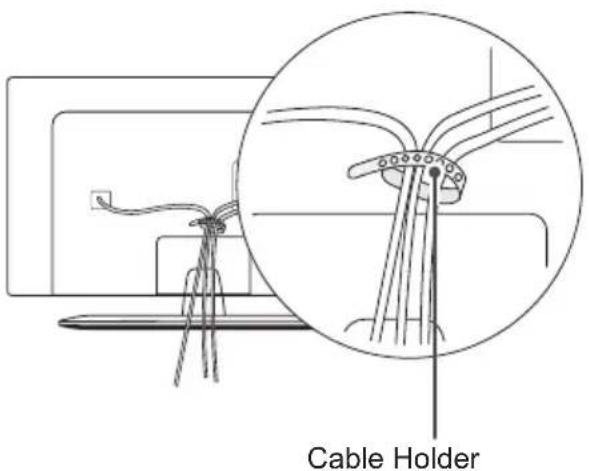
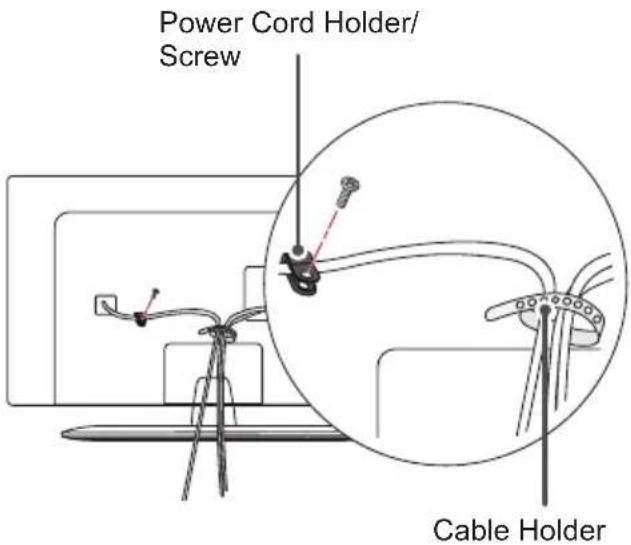
Cable Holder(Only 39/42/47/55LY541*, 39/42/47/55LY331*, 39/42/47/55LY341*)
1 Install the power cord holder and power cord. It will help prevent the power cable from being removed by accident. 2 Gather and bind the cables with the cable holder.
text_image
Power Cord Holder/ Screw Cable Holder
CAUTION
- Do not move the TV by holding the cable holder, as the cable holder may break, and injuries and damage to the TV may occur.
MAKING CONNECTIONS
• Image shown may differ from your TV.
- Any separate cable is not provided.
This section on MAKING CONNECTIONS mainly uses diagrams for the 32LY330* models.
Connect various external devices to the TV and switch input modes to select an external device. For more information of external device's connection, refer to the manual provided with each device.
Available external devices are: HD receivers, DVD players, VCRs, audio systems, USB storage devices, PC, gaming devices, and other external devices.

NOTE
- The external device connection may differ from the model.
- Connect external devices to the TV regardless of the order of the TV port.
- If you record a TV program on a DVD recorder or VCR, make sure to connect the TV signal input cable to the TV through a DVD recorder or VCR. For more information on recording, refer to the manual provided with the connected device.
- Refer to the external equipment's manual for operating instructions.
- If you connect a gaming device to the TV, use the cable supplied with the gaming device.
- In PC mode, there may be noise associated with the resolution, vertical pattern, contrast or brightness. If noise is present, change the PC output to another resolution, change the refresh rate to another rate or adjust the brightness and contrast on the PICTURE menu until the picture is clear.
- In PC mode, some resolution settings may not work properly depending on the graphics card.
- Only a USB storage device is recognizable.
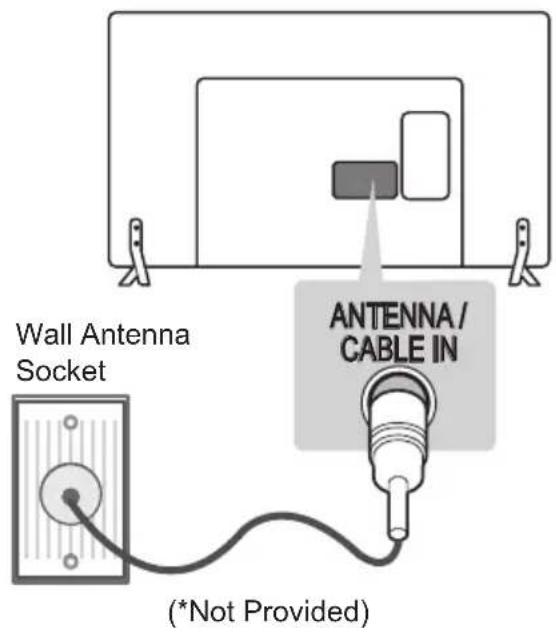
Antenna Connection
Connect the TV to a wall antenna socket with an RF cable (75 Ω).
text_image
Wall Antenna Socket ANTENNA/ CABLE IN (*Not Provided)
NOTE
- Use a signal splitter to use more than 2 TVs.
- If the image quality is poor, install a signal amplifier properly to improve the image quality.
- If the image quality is poor with an antenna connected, try to realign the antenna in the correct direction.
- An antenna cable and converter are not supplied.
• Supported DTV Audio: MPEG, Dolby Digital, Dolby Digital Plus, HE-AAC
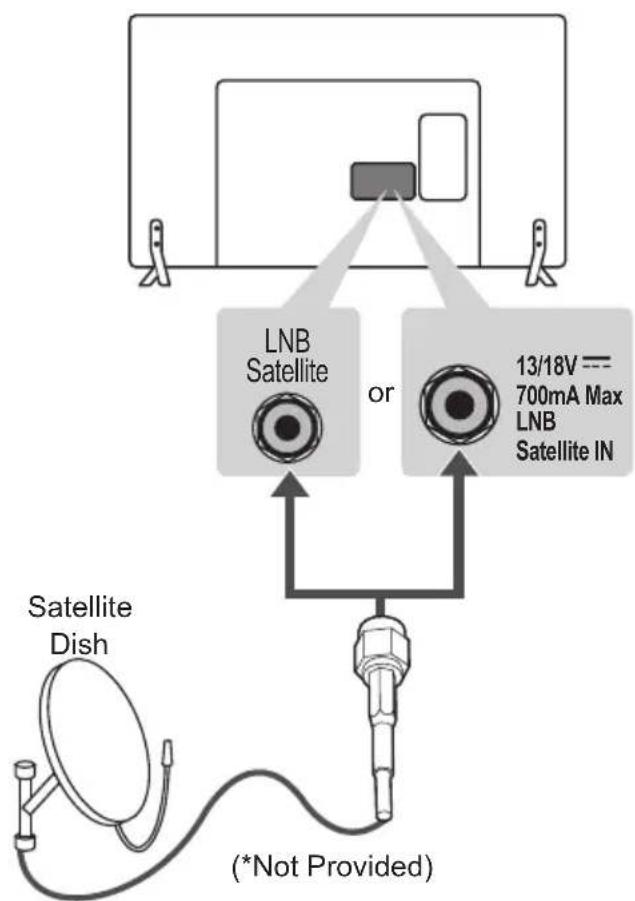
Satellite Dish Connection
(Only satellite models)
Connect the TV to a satellite dish to a satellite socket with a satellite RF cable (75 Ω).
text_image
LNB Satellite or 13/18V --- 700mA Max LNB Satellite IN Satellite Dish (*Not Provided)AdapterConnection
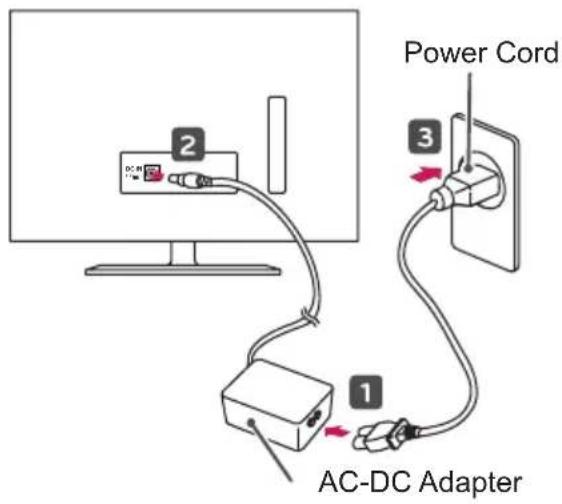
(Only 28LY31**, 22/28LY33**, 22/28LY34**, 22/28LY54**)
(Depending on model)
text_image
Power Cord AC-DC Adapter
CAUTION
- Please be sure to connect the TV to the AC-DC power adapter before connecting the TV's power plug to a wall power outlet.
Euro Scart Connection
Transmits the video and audio signals from an external device to the TV set. Connect the external device and the TV set with the euro scart cable as shown.
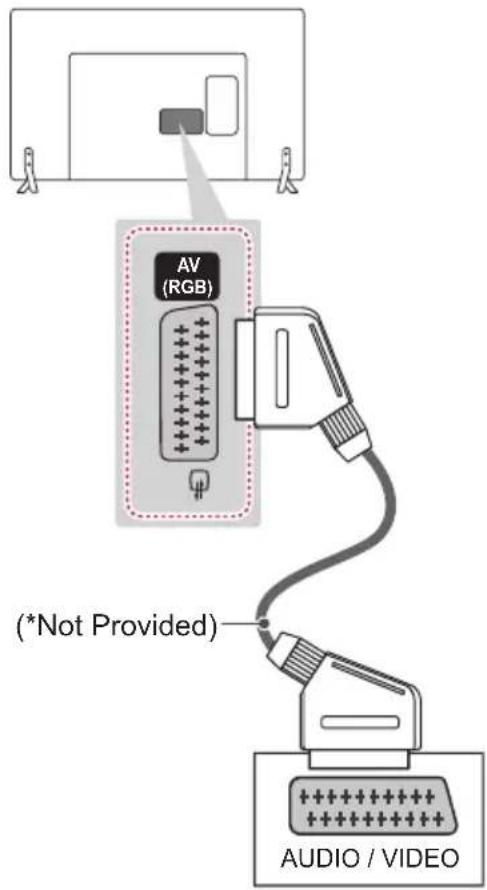
text_image
AV (RGB) (*Not Provided) AUDIO / VIDEO| Current input mode\Output Type | AV1(TV Out ^1 ) |
| Digital TV Digital TV | |
| Analogue TV, AV | Analogue TVComponent |
| HDMI |
1 TV Out : Outputs Analogue TV or Digital TV signals.

NOTE
- Any Euro scart cable used must be signal shielded.
Network Setup
Wired network connection
This TV can be connected to a Pro:Centric server via the LAN port. After making the physical connection, the TV needs to be set up for network communication.
Connect the LAN port of the Modem or Router from Pro:Centric server to the LAN port on the TV.
(Only LY540H, LY541H, LY540M, LY530H)

flowchart
graph TD
    A["Pro:CentricServer"] --> B["Broadband Modem"]
    B --> C["Router"]
    C --> D["Pro:CentricServer"]
    D --> E["Broadband Modem"]
    E --> F["LAN"]
    E --> G["LAN (WHEC & SERVICE)"]
    G --> H["Pro:CentricServer"]
    H --> I["Broadband Modem"]
    I --> J["LAN"]
    I --> K["LAN (WHEC & SERVICE)"]
    K --> L["Pro:CentricServer"]
    L --> M["Broadband Modem"]
    M --> N["LAN"]
    M --> O["LAN (WHEC & SERVICE)"]
    O --> P["Pro:CentricServer"]
    P --> Q["Broadband Modem"]
    Q --> R["LAN"]
    Q --> S["LAN (WHEC & SERVICE)"]
    S --> T["Pro:CentricServer"]

CAUTION
- Do not connect a modular phone cable to the LAN port.
- Since there are various connection methods, please follow the specifications of your telecommunication carrier or internet service provider.
Network setting
(Depending on model)
Image shown may differ from your TV.
1 Press the SETTINGS button to access the main menu.
2 Select the NETWORK → Network Setting menu.
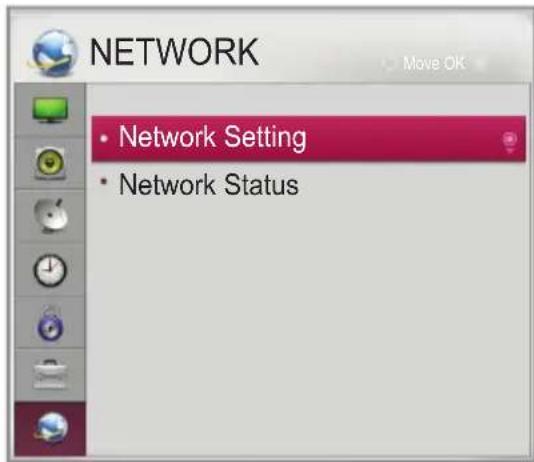
text_image
NETWORK • Network Setting • Network Status3 Select the Start Connection.
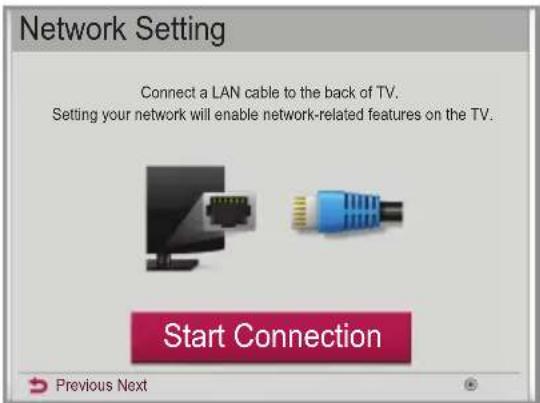
text_image
Network Setting Connect a LAN cable to the back of TV. Setting your network will enable network-related features on the TV. Start Connection Previous Next4 The device automatically tries to connect to the network.
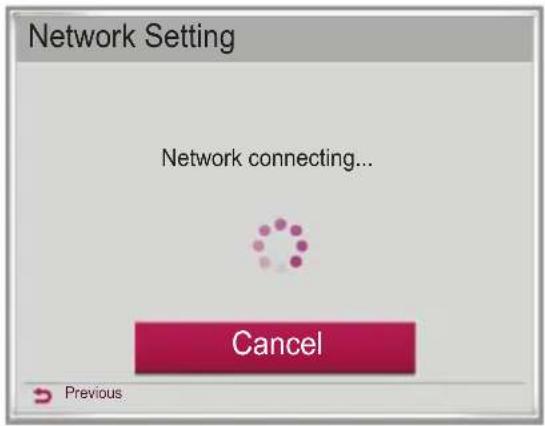
text_image
Network Setting Network connecting... Cancel Previous5 The connected network is displayed.
Select the Complete to confirm the network connection.
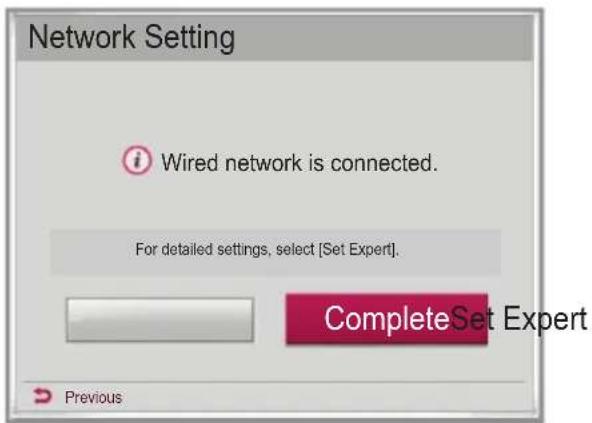
text_image
Network Setting Wired network is connected. For detailed settings, select [Set Expert]. CompleteSet Expert PreviousOther Connections
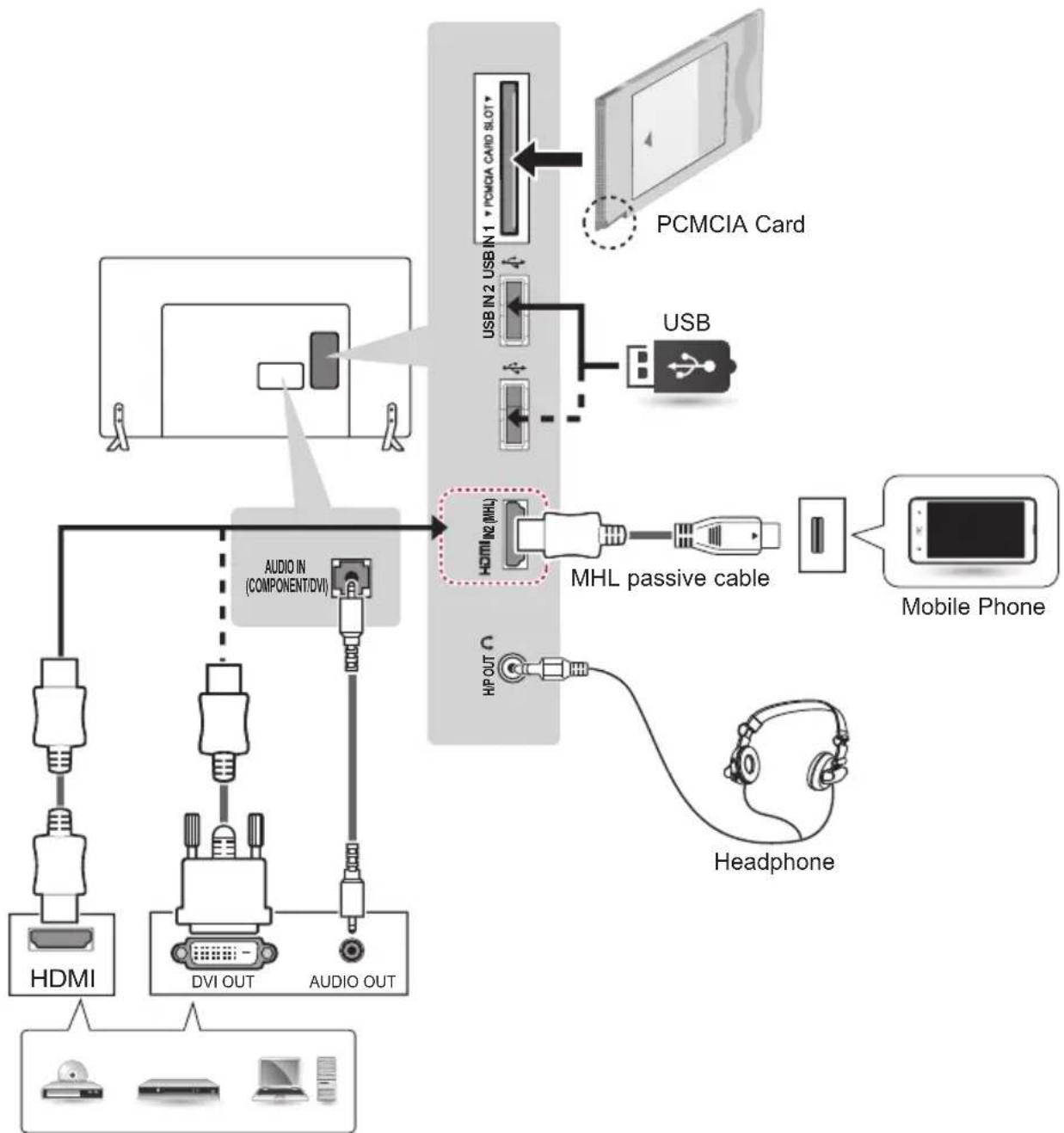
Connect your TV to external devices. For the best picture and audio quality, connect the external device and the TV with the HDMI cable as shown. Some separate cable is not provided.
(Only 32/39/42/47/55LY540H, 32/39/42/47/55LY541H, 32/42/55LY530H)
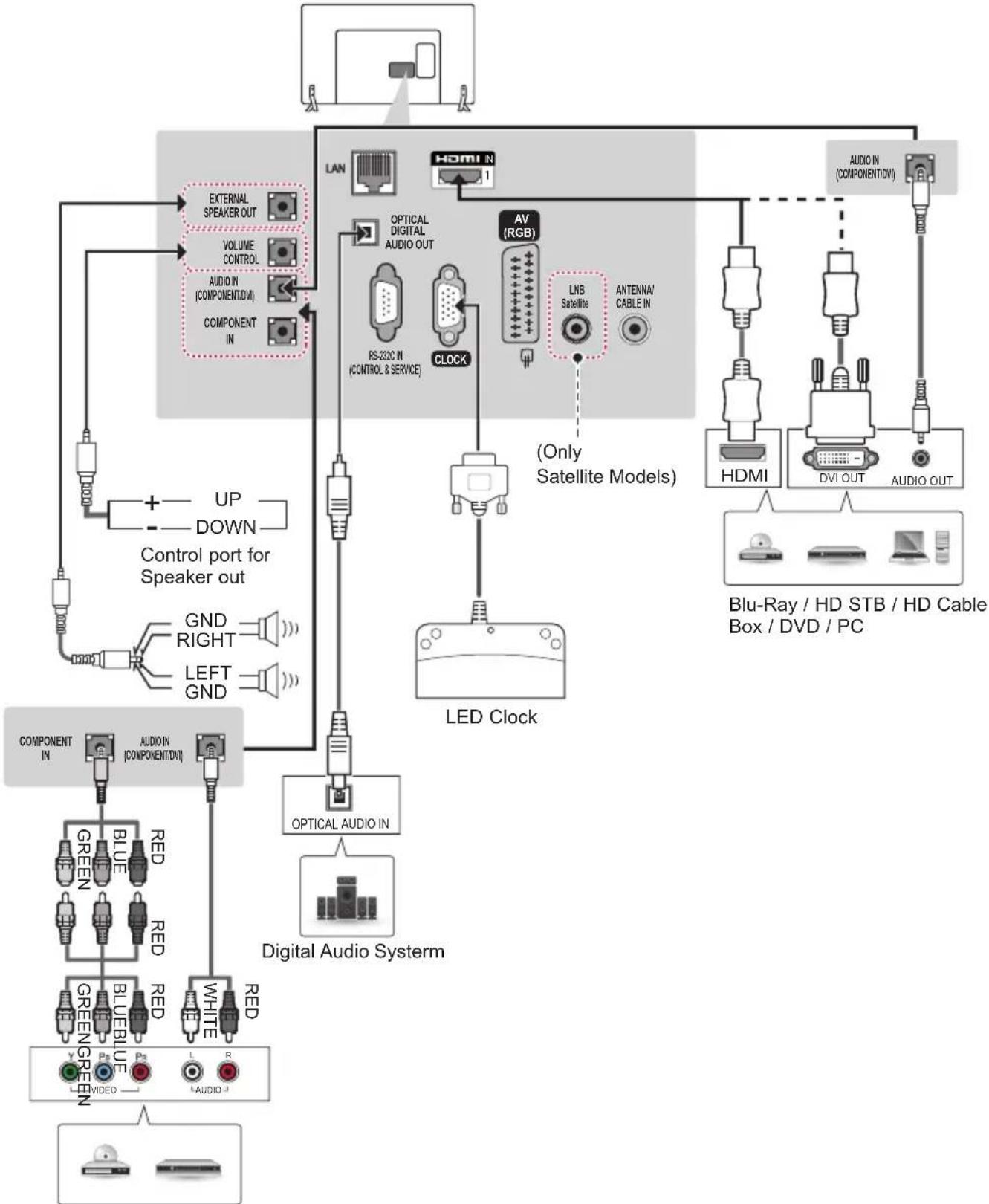
flowchart
graph TD
    A["Speaker Port"] --> B["Control port for Speaker out"]
    B --> C["Component IN"]
    B --> D["Component IN (COMPONENT/DVI)"]
    B --> E["Component IN"]
    B --> F["LED Clock"]
    B --> G["Digital Audio System"]
    B --> H["Digital Audio IN"]
    B --> I["OPTICAL AUDIO IN"]
    B --> J["OPTICAL DIGITAL AUDIO OUT"]
    B --> K["RS-232C IN (CONTROL & SERVICE)"]
    B --> L["CLOCK"]
    B --> M["LNB Satellite"]
    B --> N["ANTenna/CABLE IN"]
    B --> O["AV (RGB)"]
    B --> P["HDMI"]
    B --> Q["DVI OUT"]
    B --> R["AUDIO OUT"]
    B --> S["Blu-Ray / HD STB / HD Cable Box / DVD / PC"]
    A --> T["External Speaker Out"]
    A --> U["Volume Control"]
    A --> V["AUDIO IN (COMPONENT/DVI)"]
    A --> W["COMPONENT IN"]
    A --> X["UP DOWN"]
    A --> Y["DOWN"]
    A --> Z["Red RED"]
    A --> AA["Green Blue Red"]
    A --> AB["Blue Blue Red"]
    A --> AC["Green Blue Red"]
    A --> AD["White Red"]
    A --> AE["Video L R"]
    A --> AF[N
Blu-Ray / HD Cable Box / DVD
(Only 32/39/42/47/55LY540H, 32/39/42/47/55LY541H, 32/42/55LY530H)
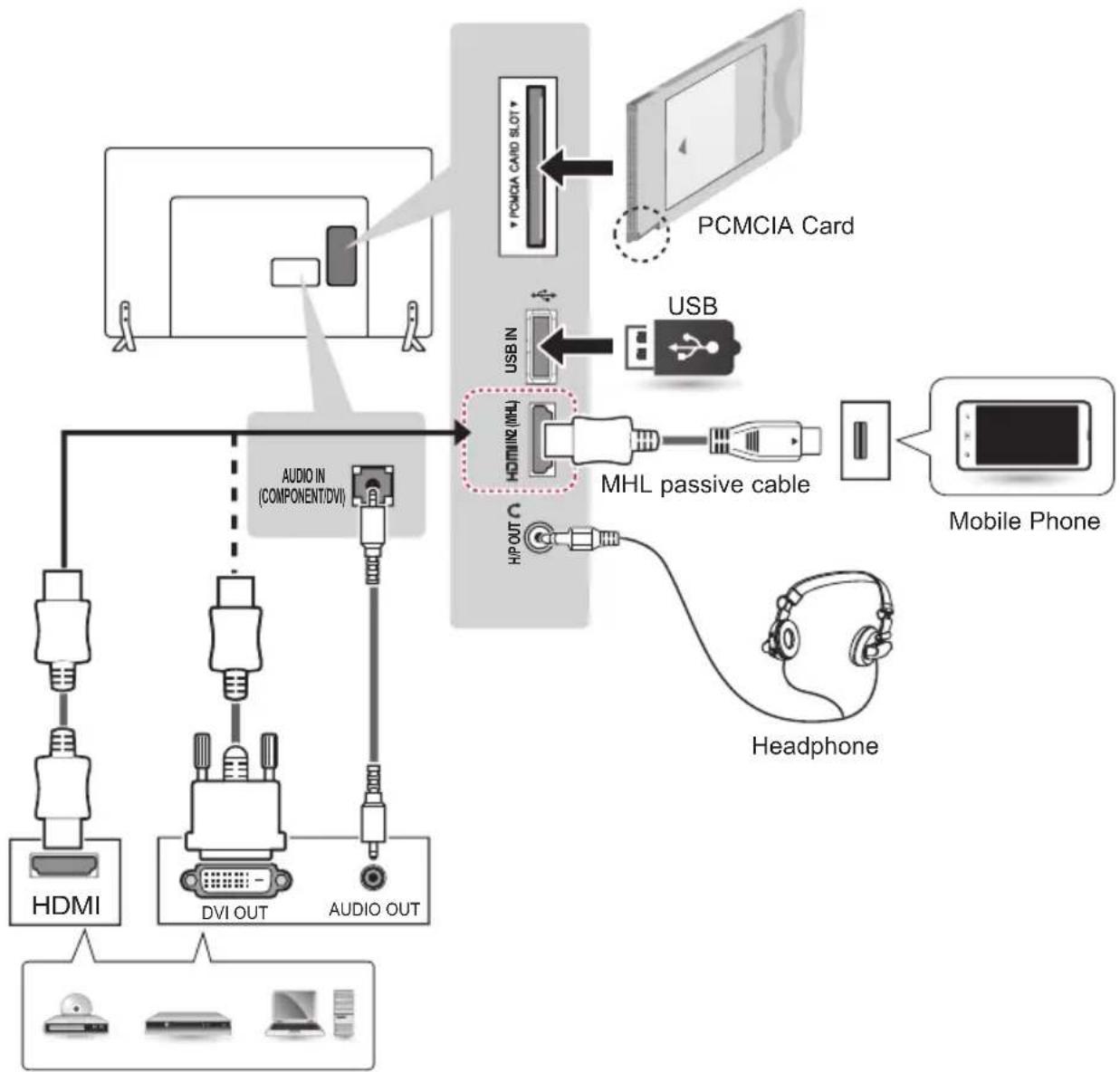
flowchart
graph TD
    A["AC System"] --> B["PCMCIA Card"]
    B --> C["USB"]
    C --> D["MHL passive cable"]
    D --> E["Mobile Phone"]
    D --> F["Headphone"]
    A --> G["HDMI"]
    A --> H["DVI OUT"]
    A --> I["AUDIO OUT"]
    G --> J["HDMI (COMPONENT/DVI)"]
    H --> K["DVI OUT"]
    I --> L["AUDIO IN (COMPONENT/DVI)"]
    style A fill:#f9f,stroke:#333
    style B fill:#ccf,stroke:#333
    style C fill:#cfc,stroke:#333
    style D fill:#fcc,stroke:#333
    style E fill:#ffc,stroke:#333
    style F fill:#fcc,stroke:#333
    style G fill:#cff,stroke:#333
    style H fill:#cff,stroke:#333
    style I fill:#cff,stroke:#333
    style J fill:#ffc,stroke:#333
    style K fill:#ffc,stroke:#333
    style L fill:#ffc,stroke:#333
Blu-Ray / HD STB / HD Cable Box / DVD / PC
(Only 32/39/42/47/55/60LY540S)
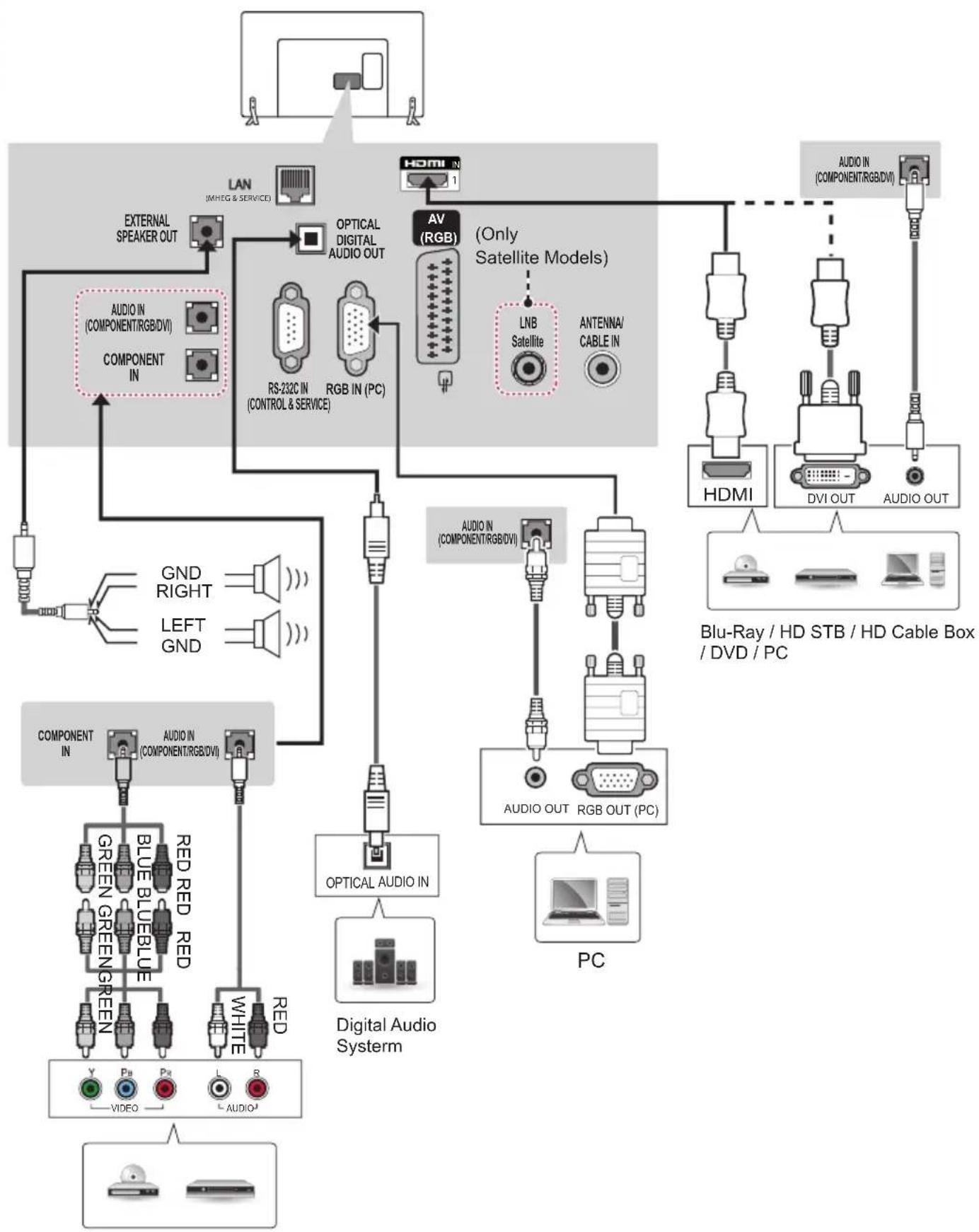
flowchart
graph TD
    subgraph HDMI
        A["1"] --> B["AV (RGB)"]
        B --> C["RS-232C IN (CONTROL & SERVICE)"]
        B --> D["LNB Satellite"]
        B --> E["ANTenna/CABLE IN"]
    end

    subgraph Audio IN
        F["1"] --> G["Digital Audio System"]
        H["2"] --> I["PC"]
        J["3"] --> K["Blu-Ray / HD STB / HD Cable Box / DVD / PC"]
    end

    L["External Speaker Out"] --> M["AUDIO IN (COMPONENT/RGB/DVI)"]
    M --> N["COMPONENT IN"]
    O["LED Light"] --> P["GND RIGHT"]
    Q["LED Sound"] --> R["LEFT GND"]
    S["LED Medium"] --> T["COMPONENT IN"]
    U["Digital Audio System"] --> V["OPTICAL AUDIO IN"]
    W["Digital Audio System"] --> X["OPTICAL AUDIO IN"]
    Y["Digital Audio System"] --> Z["Digital Audio System"]
    AA["Digital Audio System"] --> AB["Digital Audio System"]
    AC["Digital Audio System"] --> AD["Digital Audio System"]
    AE["Digital Audio System"] --> AF["Digital Audio System"]
    AG["Digital Audio System"] --> AH["Digital Audio System"]
    AI["Digital Audio System"] --> AJ["Digital Audio System"]
    AK["Digital Audio System"] --> AL["Digital Audio System"]
    AM["Digital Audio System"] --> AN["Digital Audio System"]
    AO["Digital Audio System"] --> AP["Digital Audio System"]
    AQ["Digital Audio System"] --> AR["Digital Audio System"]
    AS["Digital Audio System"] --> AT["Digital Audio System"]
    AU["Digital Audio System"] --> AV["Digital Audio System"]
    AW["Digital Audio System"] --> AX["Digital Audio System"]
    AY["LAN (MHEG & SERVICE)"] --> AZ["External Speaker Out"]
    AZ --> BA["AUDIO IN (COMPONENT/RGB/DVI)"]
    BA --> BB["COMPONENT IN"]
    BC["Optical Digital Audio Out"] --> BD["RS-232C IN (CONTROL & SERVICE)"]
    BD --> BE["RGB IN (PC)"]
    BE --> BF["RS-232C IN (CONTROL & SERVICE)"]
    BG["(Only Satellite Models)"] --> BH["LNB Satellite"]
    BH --> BI["Antenna/CABLE IN"]
    BJ["Audio IN (COMPONENT/RGB/DVI)"] --> BK["HDMI"]
    BK --> BL["DVI OUT"]
    BL --> BM["AUDIO OUT"]
    BN["Audio IN (COMPONENT/RGB/DVI)"] --> BO["HDMI"]
    BO --> BP["DVI OUT"]
    BP --> BQ["AUDIO OUT"]
Blu-Ray / HD Cable Box / DVD
(Only 32/39/42/47/55/60LY540S)
flowchart
graph TD
    A["HDMI"] --> B["Audio IN (COMPONENT/DVI)"]
    C["DVI OUT"] --> B
    D["AUDIO OUT"] --> B
    B --> E["USB IN 2 USB IN 1 PCMCIA CARD SLOT"]
    E --> F["PCMCIA Card"]
    G["USB"] --> H["USB"]
    I["MHL passive cable"] --> J["MHL"]
    K["Headphone"] --> L["Headphone"]
Blu-Ray / HD STB / HD Cable Box / DVD / PC
(Only 32/39/42/47/55/60LY34**)
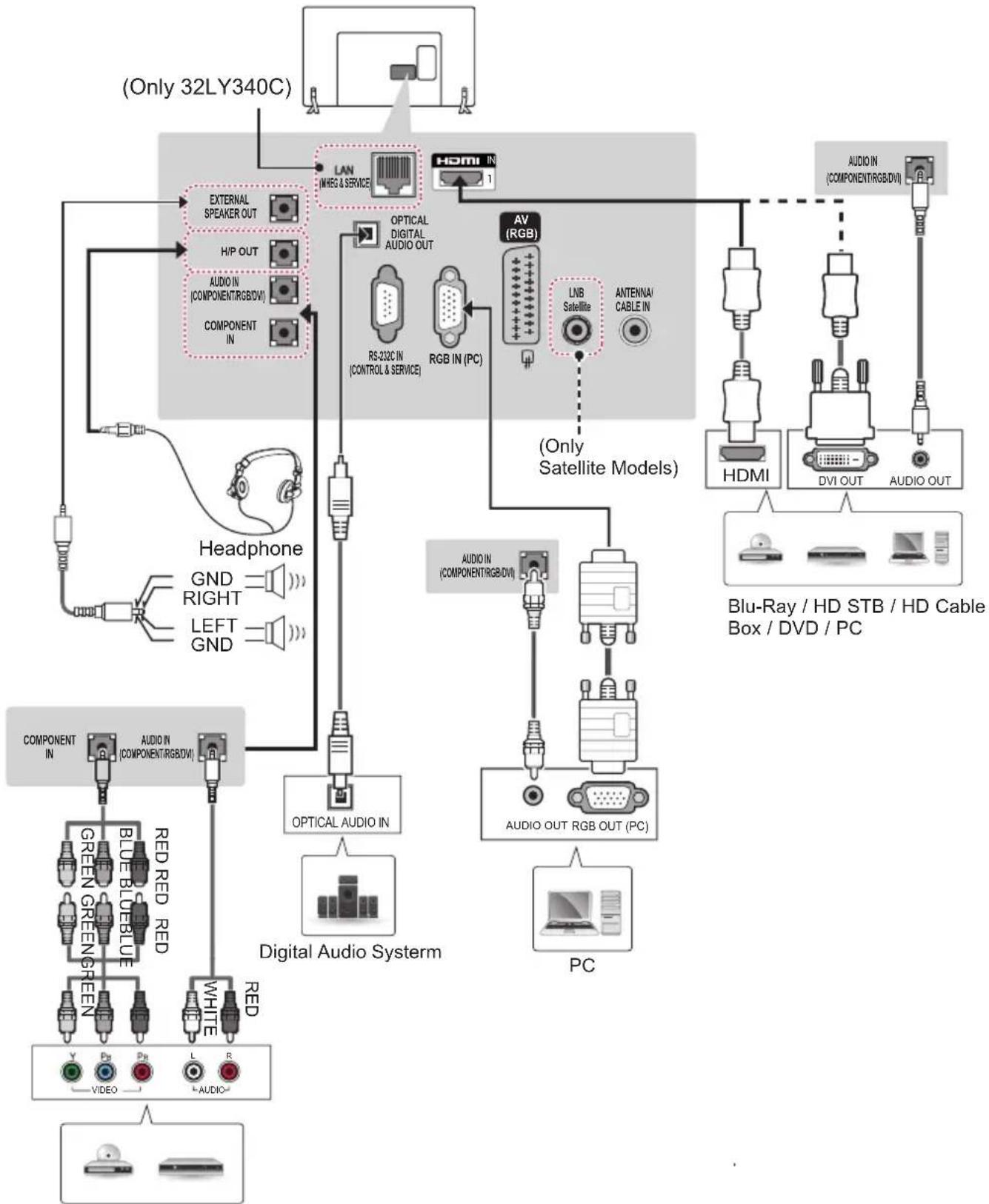
flowchart
graph TD
    A["Headphone"] --> B["External Speaker Out"]
    A --> C["H/P OUT"]
    A --> D["AUDIO IN (COMPONENT/RGBDV)"]
    A --> E["COMPONENT IN"]
    A --> F["Digital Audio System"]
    G["Component IN"] --> H["RED RED RED"]
    G --> I["WHITE RED"]
    G --> J["VIDEO"]
    K["Digital Audio System"] --> L["OPTICAL AUDIO IN"]
    K --> M["OPTICAL DIGITAL AUDIO OUT"]
    K --> N["RS-232C IN (CONTROL & SERVICE)"]
    K --> O["RGB IN (PC)"]
    P["Digital Audio System"] --> Q["OPTICAL AUDIO IN"]
    P --> R["AUDIO OUT RGB OUT (PC)"]
    P --> S["PC"]
    T["Audio IN (COMPONENT/RGBDV)"] --> U["Blu-Ray / HD STB / HD Cable Box / DVD / PC"]
    T --> V["HDMI"]
    T --> W["DVI OUT"]
    T --> X["AUDIO OUT"]
    Y["AV (RGB)"] --> Z["LNB Satellite"]
    Y --> AA["ANTENNAI CABLE IN"]
    AB["LAN (INHCG & SERVICE)"] --> AC["1"]
    AD["BMW IN"] --> AE["1"]
    AF["Audio IN (COMPONENT/RGBDV)"] --> AG["1"]
    AH["ACV"] --> AI["(Only Satellite Models)"]
    AJ["ACV"] --> AK["ACV"]
    AL["ACV"] --> AM["ACV"]
Blu-Ray / HD Cable Box / DVD
(Only 32/39/42/47/55/60LY33**)
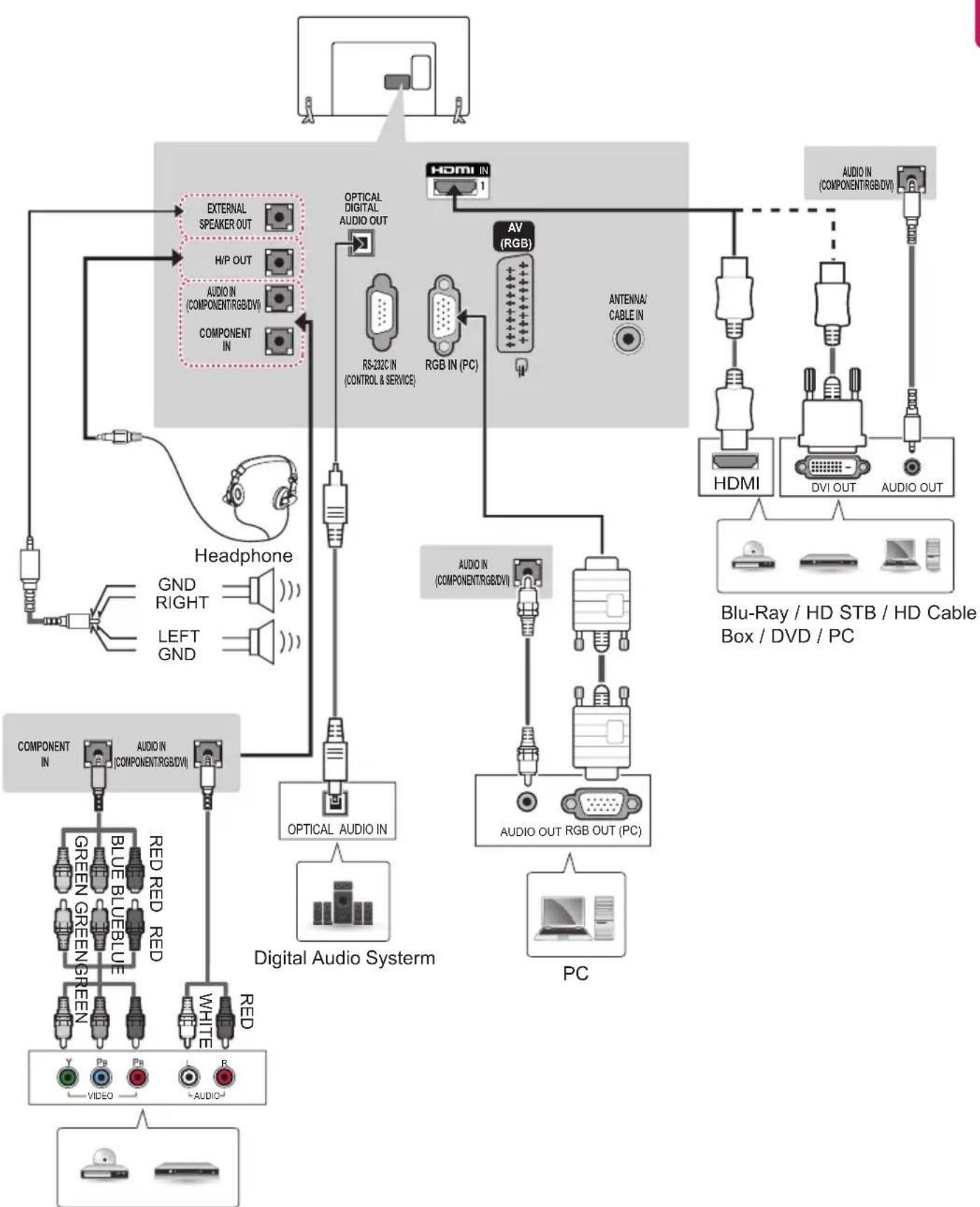
flowchart
graph TD
    A["External Speaker Out"] --> B["Optical Digital Audio Out"]
    C["Headphone"] --> D["RS-232C IN (CONTROL & SERVICE)"]
    D --> E["RGB IN (PC)"]
    E --> F["AV (RGB)"]
    F --> G["Antenna/Cable In"]
    G --> H["HDMI"]
    H --> I["DVI OUT"]
    I --> J["AUDIO OUT"]
    J --> K["Blu-Ray / HD STB / HD Cable Box / DVD / PC"]
    L["Digital Audio System"] --> M["OPTICAL AUDIO IN"]
    N["Composite In"] --> O["GREEN GREEN RED RED"]
    P["Audio IN (COMPONENT/RGB/DVI)"] --> Q["WHITE RED RED"]
    R["Video"] --> S["Video"]
    T["Audio OUT RGB OUT (PC)"] --> U["PC"]
    V["GND RIGHT"] --> W["LEFT GND"]
    X["H/P OUT"] --> Y["COMPONENT IN"]
    Z["OUTPUT OUT"] --> AA["COMPONENT/RGB/DVI"]
Blu-Ray / HD Cable Box / DVD
(Only 32/39/42/47/55/60LY34**, 32/39/42/47/55/60LY33**)
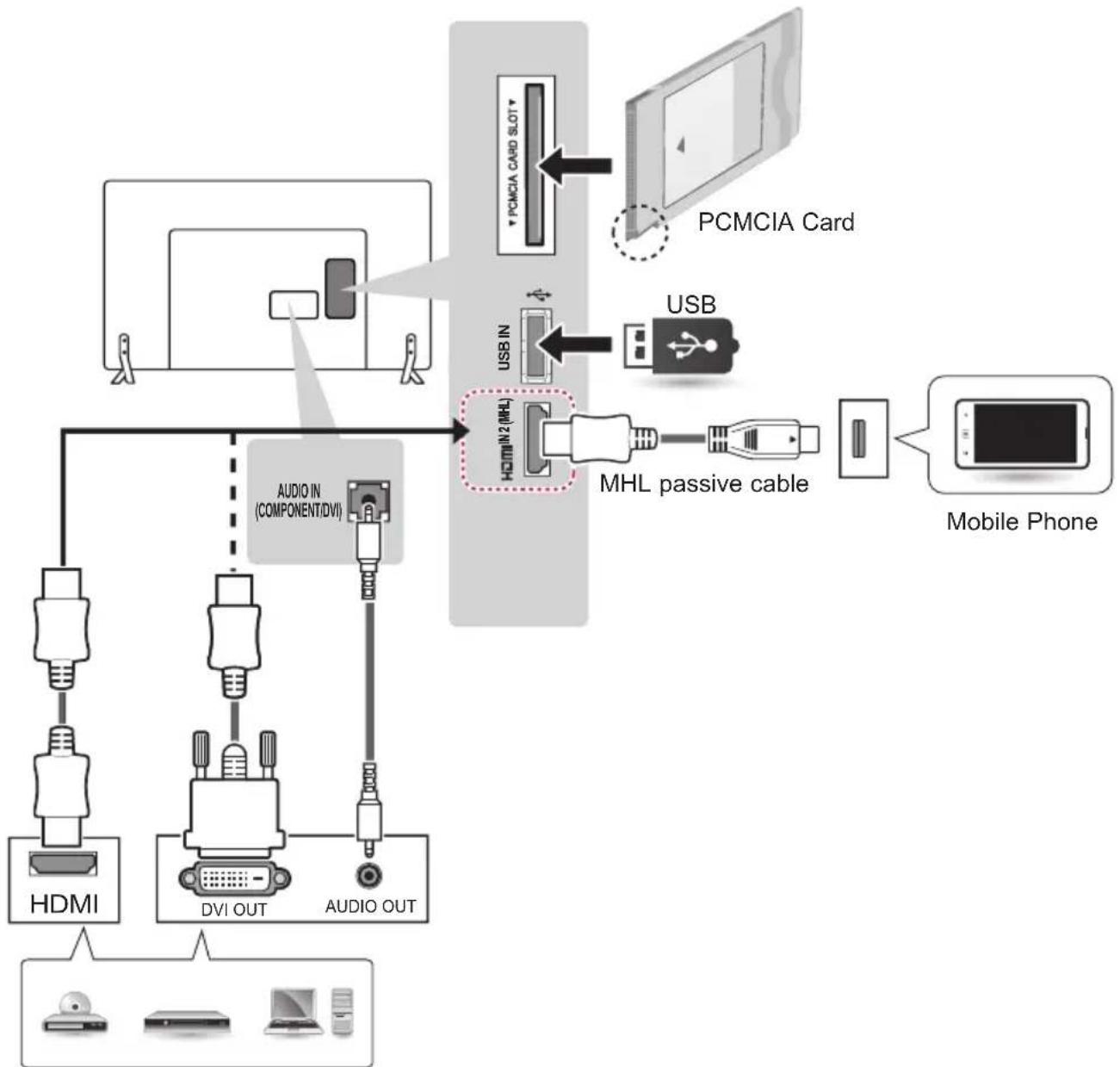
flowchart
graph TD
    A["PCMCIA Card"] --> B["USB"]
    B --> C["MHL passive cable"]
    C --> D["Mobile Phone"]
    E["HDMI"] --> F["AUDIO OUT"]
    G["DVI OUT"] --> H["AUDIO IN (COMPONENT/DVI)"]
    I["PCMCIA CARD Slot"] --> J["USB IN"]
    K["Mobile Phone"] --> L["Mobile Phone"]
Blu-Ray / HD STB / HD Cable Box / DVD / PC
(Only 32/42/49LY31**)
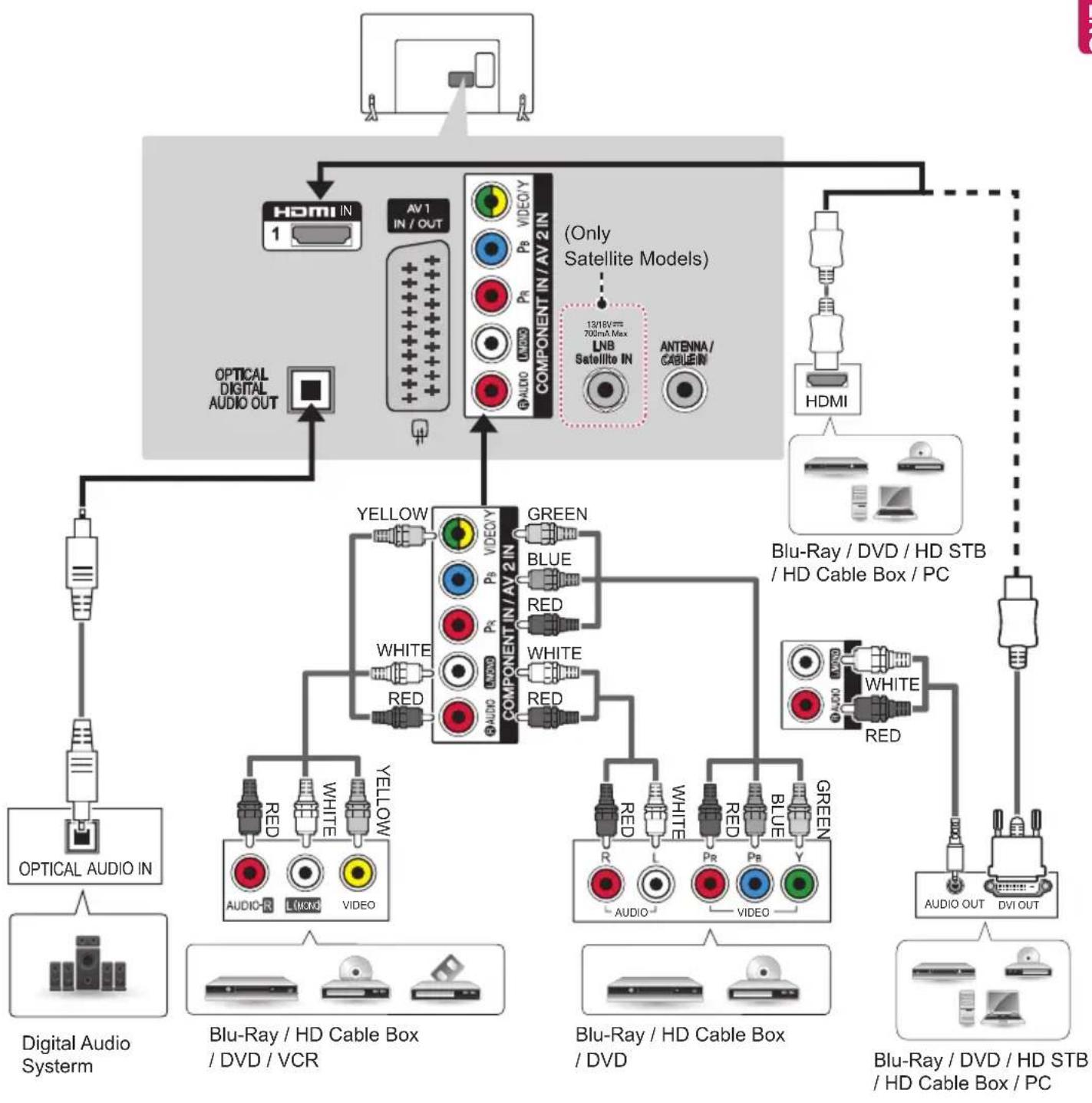
flowchart
graph TD
    A["Optical Audio IN"] --> B["Digital Audio System"]
    B --> C["Blu-Ray / HD Cable Box / DVD / VCR"]
    C --> D["Component IN / AV 2IN"]
    D --> E["AV 1 IN / OUT"]
    E --> F["COMPONENT IN / AV 2IN"]
    F --> G["13/18V 700mA Max LNB Satellite IN ANTENNA/CABLEIN"]
    G --> H["HDMI"]
    H --> I["Blu-Ray / DVD / HD STB / HD Cable Box / PC"]
    I --> J["Audio OUT DVI OUT"]
    J --> K["Blu-Ray / HD Cable Box / DVD"]
    K --> L["Component IN / AV 2IN"]
    L --> M["Yellow RED"]
    L --> N["WHITE RED"]
    L --> O["GREEN RED"]
    L --> P["PB VIDEOY"]
    L --> Q["PB VIDEOY"]
    L --> R["PROVIDEO"]
    L --> S["PROVIDEO"]
    L --> T["PROVIDEO"]
    L --> U["PROVIDEO"]
    L --> V["PROVIDEO"]
    L --> W["PROVIDEO"]
    L --> X["PROVIDEO"]
    L --> Y["PROVIDEO"]
    L --> Z["PROVIDEO"]
    L --> AA["PROVIDEO"]
    L --> AB["PROVIDEO"]
    L --> AC["PROVIDEO"]
    L --> AD["PROVIDEO"]
(Only 32/42/49LY31**)
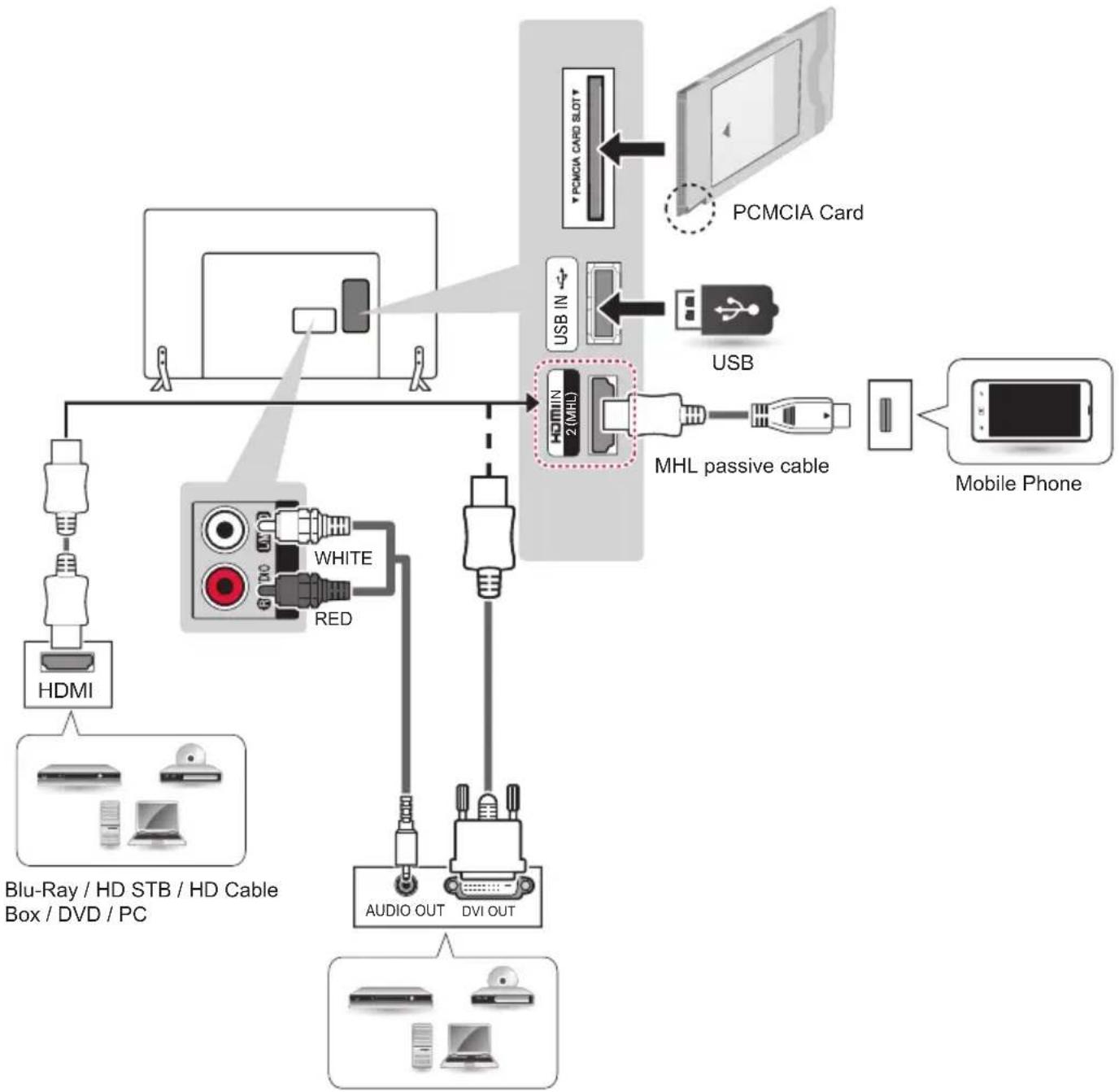
flowchart
graph TD
    A["Blu-Ray / HD STB / HD Cable Box / DVD / PC"] --> B["HDMI"]
    B --> C["White"]
    B --> D["RED"]
    C --> E["AUDIO OUT"]
    D --> F["DVI OUT"]
    G["PCMCIA Card"] --> H["USB IN 2 (MHL)"]
    I["USB"] --> J["MHL passive cable"]
    K["Mobile Phone"] --> L["Smartphone"]
Blu-Ray / HD STB / HD Cable Box / DVD / PC
(Only 22/28LY33**, 22/28LY34**)
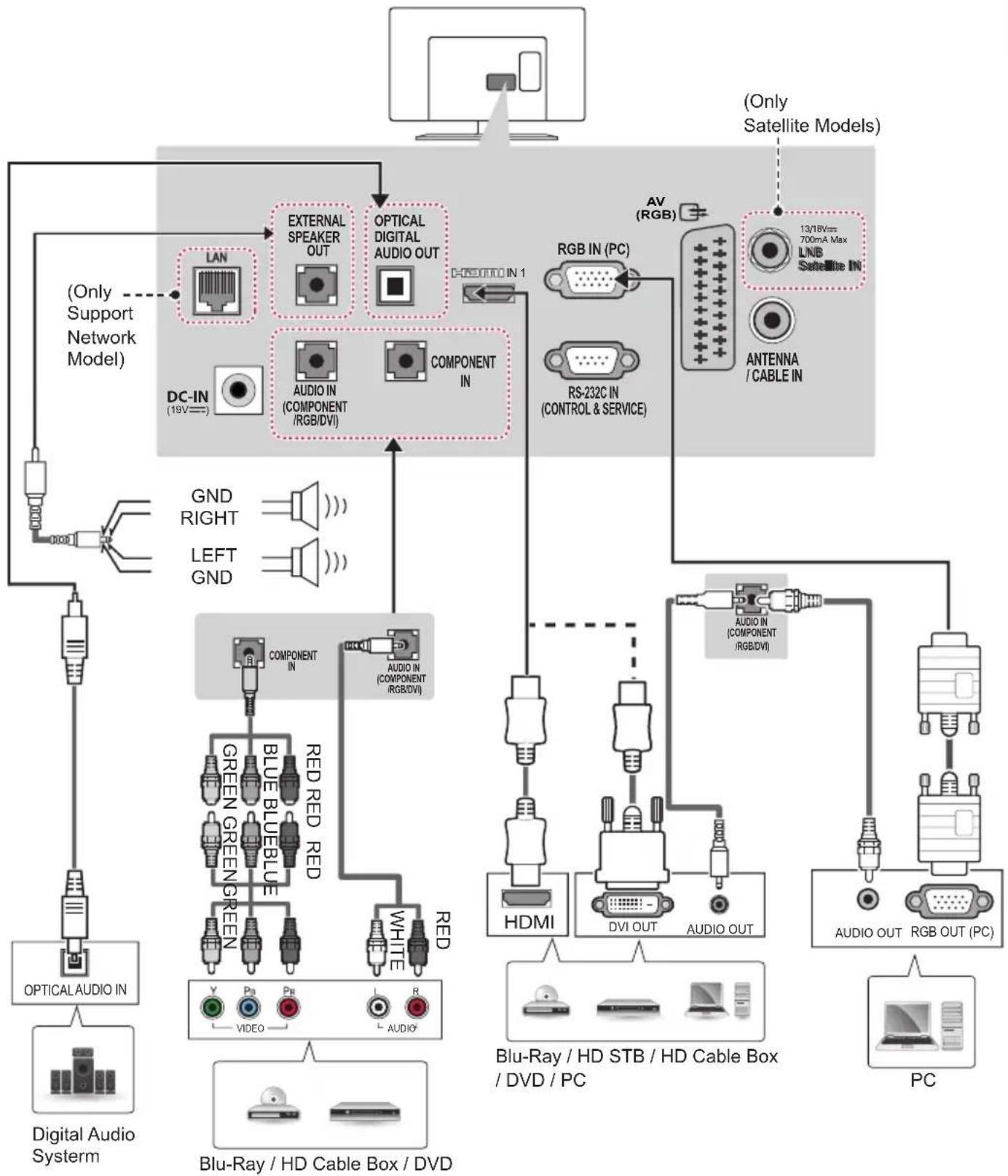
flowchart
graph TD
    A["Only Satellite Models"] --> B["DC-IN (19V)"]
    A --> C["RS-232C IN (CONTROL & SERVICE)"]
    A --> D["ANTenna / CABLE IN"]
    B --> E["External Speaker OUT"]
    B --> F["AUDIO IN (COMPONENT /RGB/DVI)"]
    B --> G["COMPONENT IN"]
    C --> H["RGB IN (PC)"]
    C --> I["RS-232C IN (CONTROL & SERVICE)"]
    D --> J["Audio IN (COMPONENT /RGB/DVI)"]
    D --> K["Audio IN (COMPONENT /RGB/DVI)"]
    D --> L["HDMI"]
    D --> M["DVI OUT"]
    D --> N["AUDIO OUT"]
    D --> O["Audio OUT"]
    D --> P["RGB OUT (PC)"]
    D --> Q["Blu-Ray / HD STB / HD Cable Box / DVD / PC"]
    D --> R["Blu-Ray / HD Cable Box / DVD"]
    E --> S["Digital Audio System"]
    F --> T["GND RIGHT"]
    F --> U["LEFT GND"]
    E --> V["OPTICAL AUDIO IN"]
    F --> W["Computer In"]
    G --> X["Red RED RED"]
    G --> Y["RED RED RED"]
    G --> Z["WHITE RED"]
    G --> AA["Video"]
    G --> AB["Pa"]
    G --> AC["Pb"]
    G --> AD["L"]
    G --> AE["R"]
    G --> AF["AUDIO"]
(Only 22/28LY54**)
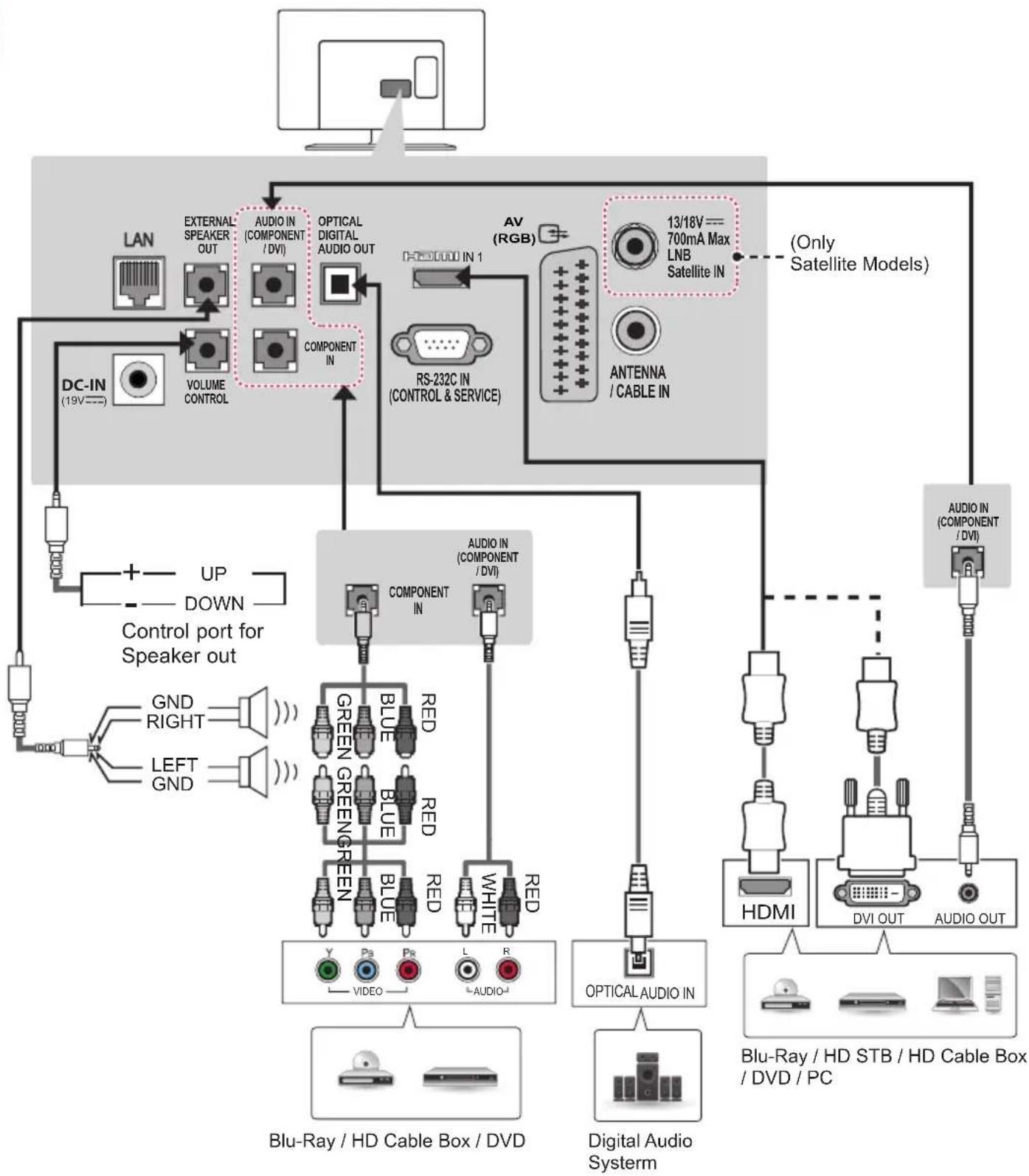
flowchart
graph TD
    A["Computer"] --> B["LAN"]
    B --> C["DC-IN (19V)"]
    C --> D["VOLUME CONTROL"]
    D --> E["External Speaker OUT"]
    E --> F["AUDIO IN (COMPONENT / DVI)"]
    F --> G["OPTICAL DIGITAL AUDIO OUT"]
    G --> H["RS-232C IN (CONTROL & SERVICE)"]
    H --> I["AV (RGB)"]
    I --> J["13/18V == 700mA Max LNB Satellite IN"]
    J --> K["ANTENNA / CABLE IN"]
    K --> L["(Only Satellite Models)"]
    L --> M["AUDIO IN (COMPONENT / DVI)"]
    M --> N["HDMI"]
    N --> O["DVI OUT"]
    O --> P["AUDIO OUT"]
    P --> Q["Blu-Ray / HD STB / HD Cable Box / DVD / PC"]
    Q --> R["Digital Audio Systemm"]
    R --> S["Optical Audio IN"]
    S --> T["Blu-Ray / HD Cable Box / DVD"]
    T --> U["Blu-Ray / HD Cable Box / DVD"]
    U --> V["GND RIGHT"]
    U --> W["LEFT GND"]
    T --> X["UP DOWN Control port for Speaker out"]
(Only 22/28LY33**, 22/28LY34**, 22/28LY54**)
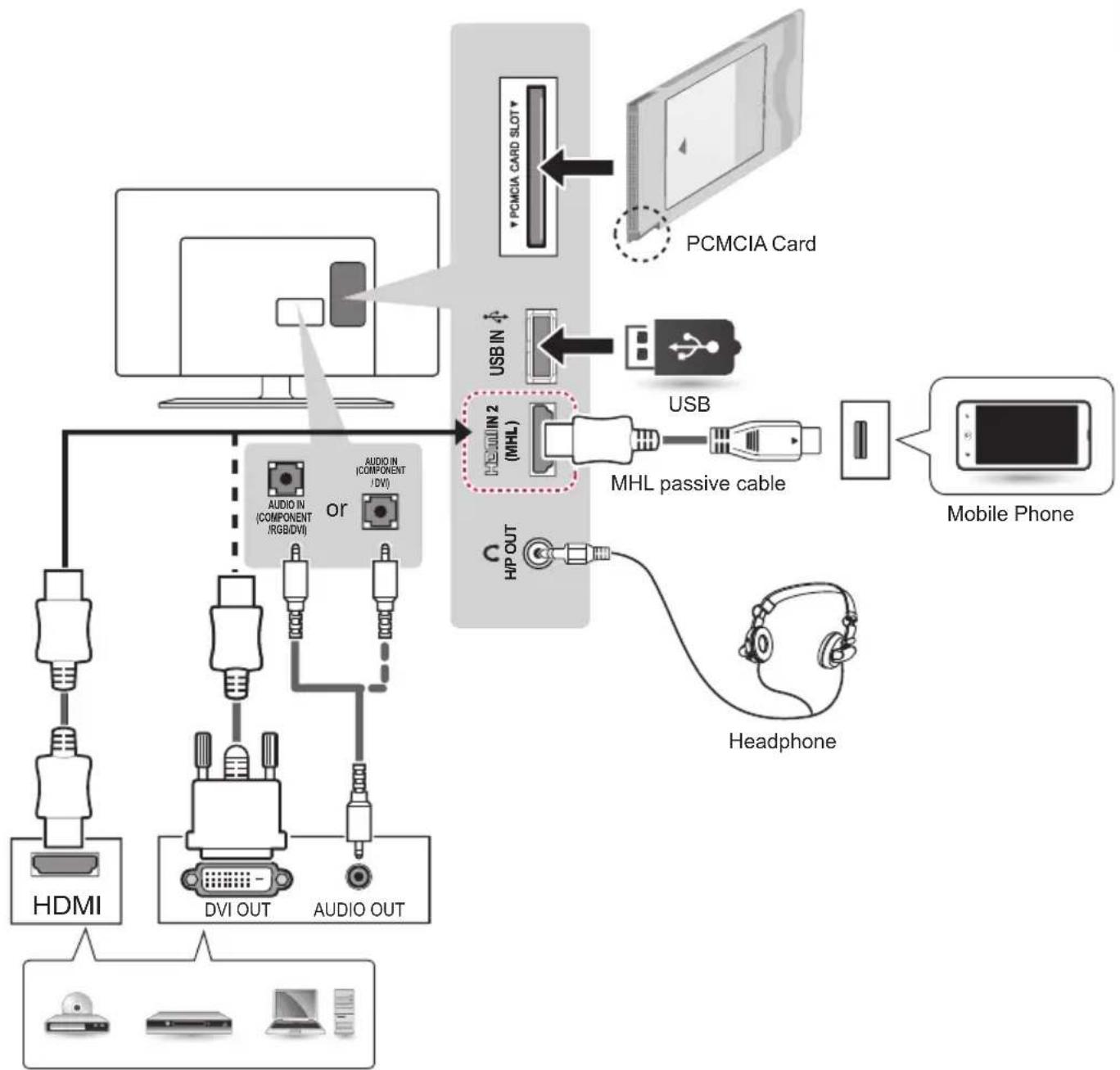
flowchart
graph TD
    A["HDMI"] --> B["or"]
    C["DVI OUT"] --> B
    D["AUDIO OUT"] --> B
    B --> E["USB"]
    E --> F["MHL passive cable"]
    F --> G["Mobile Phone"]
    H["PCMCIA Card"] --> I["USB"]
    I --> J["MHL passive cable"]
    J --> K["Headphone"]
    L["HP OUT"] --> M["Headphone"]
Blu-Ray / HD STB / HD Cable Box / DVD / PC
(Only 28LY31**)
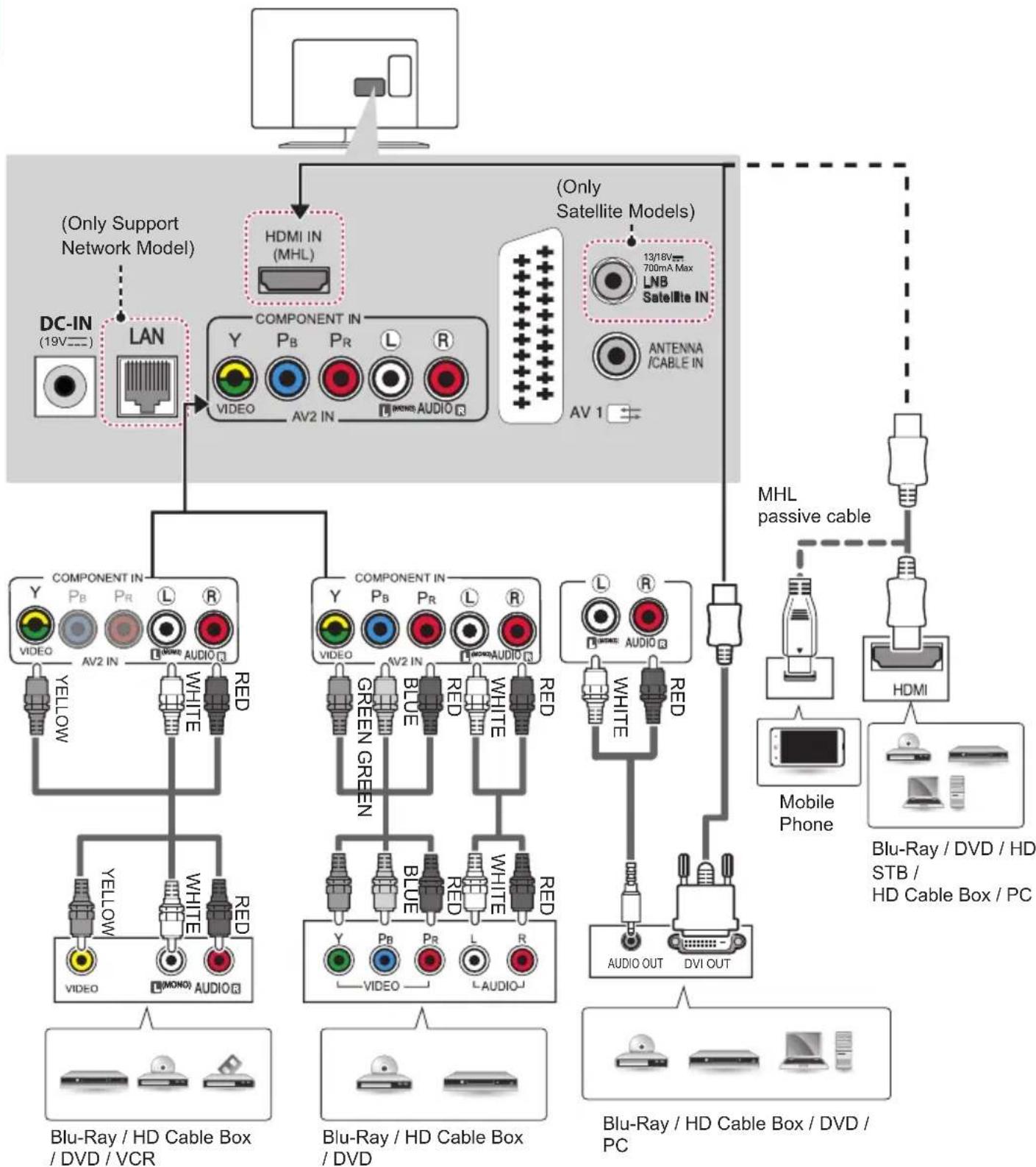
flowchart
graph TD
    A["Computer"] --> B["DC-IN (19V)"]
    A --> C["LAN"]
    A --> D["COMPONENT IN (MHL)"]
    A --> E["COMPONENT IN (AV2 IN)"]
    A --> F["COMPONENT IN (AV2 IN)"]
    A --> G["COMPONENT IN (AV2 IN)"]
    A --> H["COMPONENT IN (AV2 IN)"]
    A --> I["COMPONENT IN (AV2 IN)"]
    A --> J["COMPONENT IN (AV2 IN)"]
    A --> K["COMPONENT IN (AV2 IN)"]
    A --> L["COMPONENT IN (AV2 IN)"]
    A --> M["COMPONENT IN (AV2 IN)"]
    A --> N["COMPONENT IN (AV2 IN)"]
    A --> O["COMPONENT IN (AV2 IN)"]
    A --> P["COMPONENT IN (AV2 IN)"]
    A --> Q["COMPONENT IN (AV2 IN)"]
    A --> R["COMPONENT IN (AV2 IN)"]
    A --> S["COMPONENT IN (AV2 IN)"]
    A --> T["COMPONENT IN (AV2 IN)"]
    A --> U["COMPONENT IN (AV2 IN)"]
    A --> V["COMPONENT IN (AV2 IN)"]
    A --> W["COMPONENT IN (AV2 IN)"]
    A --> X["COMPONENT IN (AV2 IN)"]
    A --> Y["COMPONENT IN (AV2 IN)"]
    A --> Z["COMPONENT IN (AV2 IN)"]
    A --> AA["COMPONENT IN (AV2 IN)"]
    A --> AB["COMPONENT IN (AV2 IN)"]
    A --> AC["COMPONENT IN (AV2 IN)"]
    A --> AD["COMPONENT IN (AV2 IN)"]
    A --> AE["COMPONENT IN (AV2 IN)"]
    A --> AF["COMPONENT IN (AV2 IN)"]
    A --> AG["COMPONENT IN (AV2 IN)"]
    A --> AH["COMPONENT IN (AV2 IN)"]
    A --> AI["COMPONENT IN (AV2 IN)"]
    A --> AJ["COMPONENT IN (AV2 IN)"]
    A --> AK["COMPONENT IN (AV2 IN)"]
    A --> AL["COMPONENT IN (AV2 IN)"]
    A --> AM["COMPONENT IN (AV2 IN)"]
    A --> AN["COMPONENT IN (AV2 IN)"]
    A --> AO["COMPONENT IN (AV2 IN)"]
    A --> AP["COMPONENT IN (AV2 IN)"]
    A --> AQ["COMPONENT IN (AV2 IN)"]
    A --> AR["COMPONENT IN (AV2 IN)"]
    A --> AS["COMPONENT IN (AV2 IN)"]
    A --> AT["COMPONENT IN (AV2 IN)"]
    A --> AU["COMPONENT IN (AV2 IN)"]
    A --> AV["COMPONENT IN (AV2 IN)"]
    A --> AW["COMPONENT IN (AV2 IN)"]
    A --> AX["COMPONENT IN (AV2 IN)"]
    A --> AY["COMPONENT IN (AV2 IN)"]
    A --> AZ["COMPONENT IN (AV2 IN)"]
    A --> BA["COMPONENT IN (AV2 IN)"]
    A --> BB["COMPONENT IN (AV2 IN)"]
    A --> BC["COMPONENT IN (AV2 IN)"]
    A --> BD["COMPONENT IN (AV2 IN)"]
    A --> BE["COMPONENT IN (AV2 IN)"]
    A --> BF["COMPONENT IN (AV2 IN)"]
    A --> BG["COMPONENT IN (AV2 IN)"]
    A --> BH["COMPONENT IN (AV2 IN)"]
    A --> BI["COMPONENT IN (AV2 IN)"]
    A --> BJ["COMPONENT IN (AV2 IN)"]
    A --> BK["COMPONENT IN (AV2 IN)"]
    A --> BL["COMPONENT IN (AV2 IN)"]
    A --> BM["COMPONENT IN (AV2 IN)"]
    A --> BN["COMPONENT IN (AV2 IN)"]
    A --> BO["COMPONENT IN (AV2 IN)"]
    A --> BP["COMPONENT IN (AV2 IN)"]
    A --> BQ["COMPONENT IN (AV2 IN)"]
    A --> BR["COMPONENT IN (AV2 IN)"]
    A --> BS["COMPONENT IN (AV2 IN)"]
    A --> BT["COMPONENT IN (AV2 IN)"]
    A --> BU["COMPONENT IN (AV2 IN)"]
    A --> BV["COMPONENT IN (AV2 IN)"]
    A --> BW["COMPONENT IN (AV2 IN)"]
    A --> BX["COMPONENT IN (AV2 IN)"]
    A --> BY["COMPONENT IN (AV2 IN)"]
    A --> BZ["COMPONENT IN (AV2 IN)"]
    A --> CA["COMPONENT IN (AV2 IN)"]
    A --> CB["COMPONENT IN (AV2 IN)"]
    A --> CC["COMPONENT IN (AV2 IN)"]
    A --> CD["COMPONENT IN (AV2 IN)"]
    A --> CE["COMPONENT IN (AV2 IN)"]
    A --> CF["COMPONENT IN (AV2 IN)"]
    A --> CG["COMPONENT IN (AV2 IN)"]
    A --> CH["COMPONENT IN (AV2 IN)"]
    A --> CI["COMPONENT IN (AV2 IN)"]
    A --> CJ["COMPONENT IN (AV2 IN)"]
    A --> CK["COMPONENT IN (AV2 IN)"]
    A --> CR["COMPONENT IN (AV2 In)"]
(Only 28LY31**)
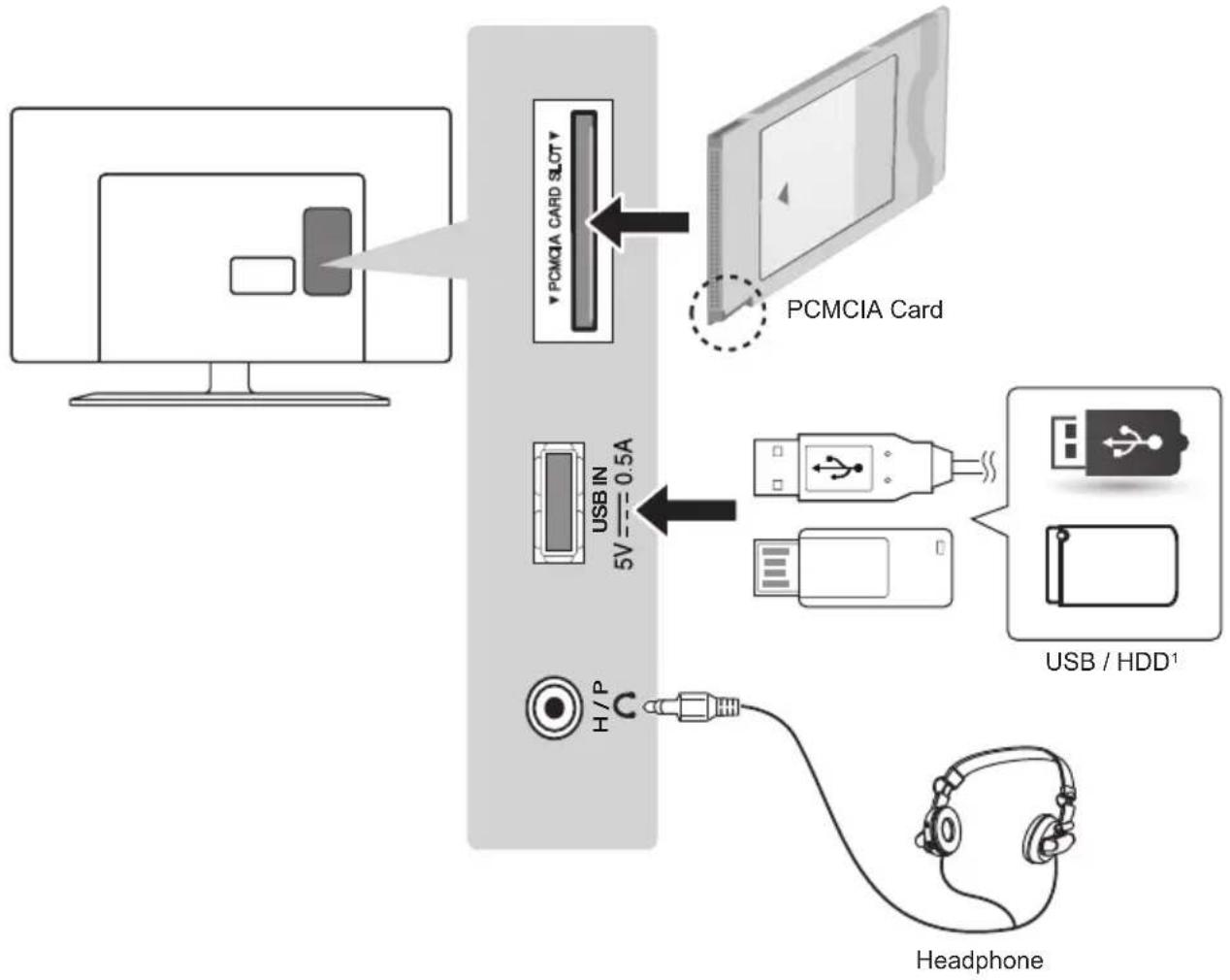
flowchart
graph TD
    A["Computer monitor"] --> B["PCMCIA CARD Slot"]
    B --> C["PCMCIA Card"]
    C --> D["USB IN 5V 0.5A"]
    D --> E["USB / HDD¹"]
    E --> F["Headphone"]
1 USB port supports 0.5A electric current. If you need more electric current in case of HDD, use the separate power adaptor.
REMOTE CONTROL
The descriptions in this manual are based on the buttons on the remote control.
Please read this manual carefully and use the TV correctly.
To replace batteries, open the battery cover, replace batteries (1.5 V AAA) matching the ⊕ and Ⓤ ends to the label inside the compartment, and close the battery cover.
To remove the batteries, perform the installation actions in reverse.
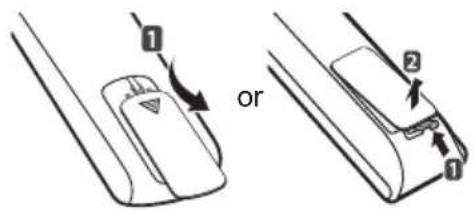
text_image
1 or 2 1
CAUTION
- Do not mix old and new batteries, as this may damage the remote control.
Make sure to point the remote control toward the remote control sensor on the TV.
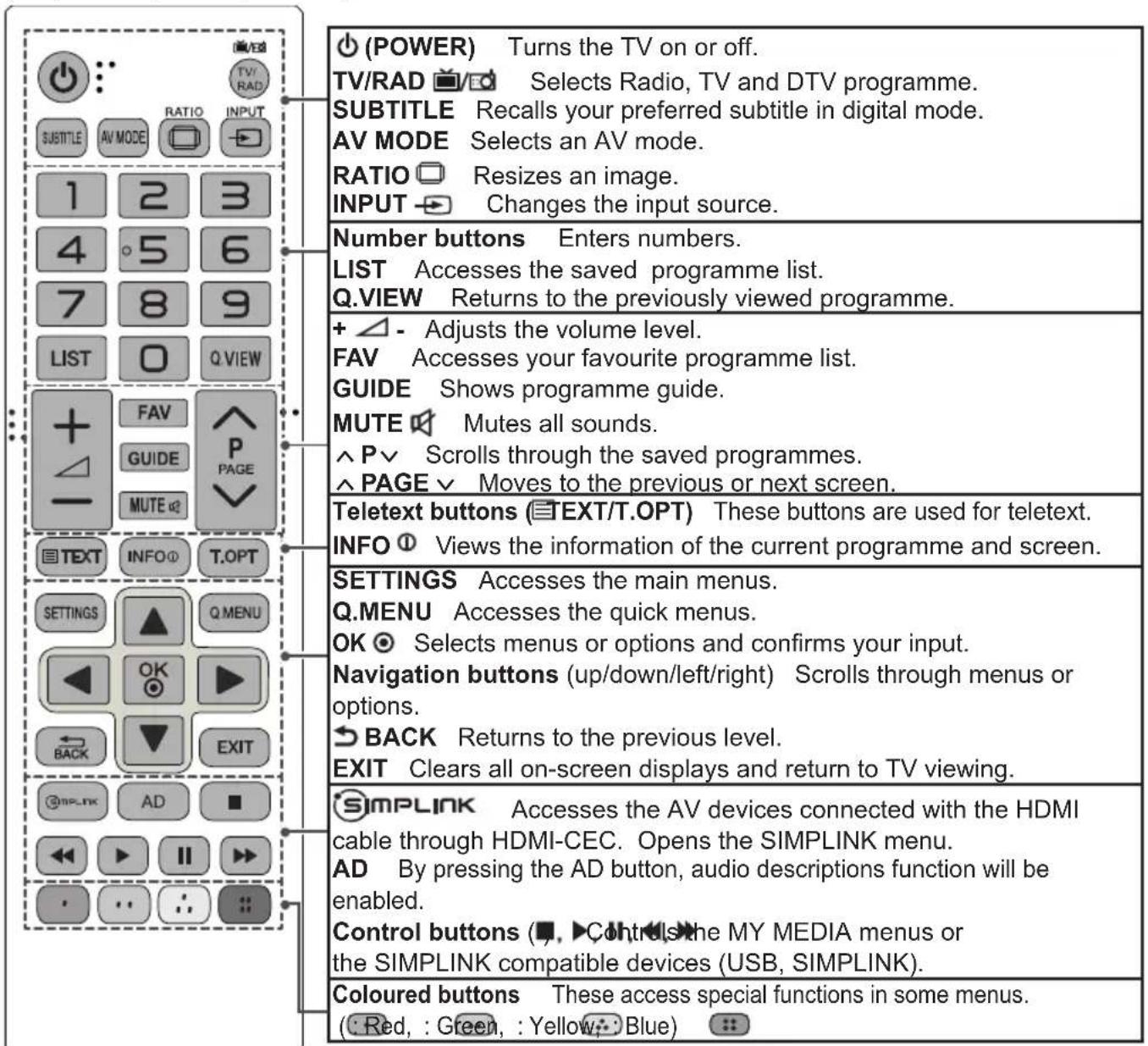
(Only LY33**, LY34**, LY540S)
text_image
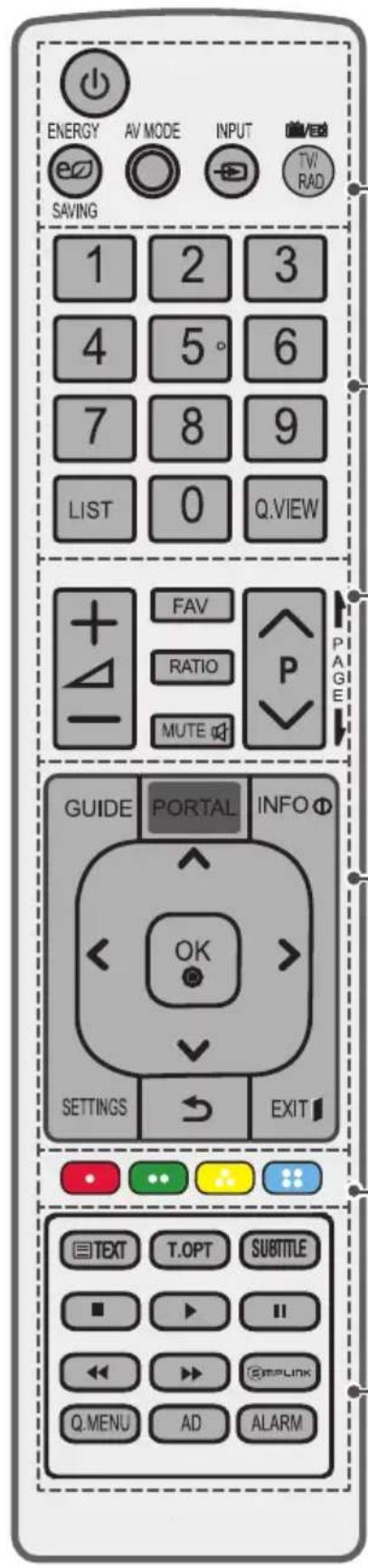
(POWER) Turns the TV on or off. TV/RAD Selects Radio, TV and DTV programme. SUBTITLE Recalls your preferred subtitle in digital mode. AV MODE Selects an AV mode. RATIO Resizes an image. INPUT Changes the input source. Number buttons Enters numbers. LIST Accesses the saved programme list. Q.VIEW Returns to the previously viewed programme. + △ - Adjusts the volume level. FAV Accesses your favourite programme list. GUIDE Shows programme guide. MUTE Mutes all sounds. ^ P √ Scrolls through the saved programmes. ^ PAGE √ Moves to the previous or next screen. Teletext buttons (TEXT/T.OPT) These buttons are used for teletext. INFO Views the information of the current programme and screen. SETTINGS Accesses the main menus. Q.MENU Accesses the quick menus. OK Selects menus or options and confirms your input. Navigation buttons (up/down/left/right) Scrolls through menus or options. BACK Returns to the previous level. EXIT Clears all on-screen displays and return to TV viewing. SIMPLINK Accesses the AV devices connected with the HDMI cable through HDMI-CEC. Opens the SIMPLINK menu. AD By pressing the AD button, audio descriptions function will be enabled. Control buttons (■, ▶ Controls the MY MEDIA menus or the SIMPLINK compatible devices (USB, SIMPLINK). Coloured buttons These access special functions in some menus. ( Red, : Green, : Yellow, Blue)(Only LY540H, LY541H, LY530H)
text_image
ENERGY AV MODE INPUT T/W RAD SAVING 1 2 3 4 5° 6 7 8 9 LIST 0 Q.VIEW FAV RATIO MUTE P PAGE GUIDE PORTAL INFO OK SETTINGS EXIT TEXT T.OPT SUBTITLE Q.MENU AD ALARM| (Power) Turns the TV on or off.ENERGY SAVING Adjusts the brightness of the screen to reduce energy consumption.AV MODE Selects an AV mode.INPUT Changes the input source.TV/RAD Selects Radio, TV and DTV programme. |
| Number buttons Enters numbers.LIST Accesses the saved programme list.Q.VIEW Returns to the previously viewed programme. |
| + △ - Adjusts the volume level.FAV Accesses your favourite programme list.RATIO Resizes an image.MUTE Mutes all sounds.^P√ Scrolls through the saved programmes.PAGE Moves to the previous or next screen. |
| GUIDE Shows programme guide.PORTAL Displays and removes hotel interactive menu.INFO Views the information of the current programme and screen.Navigation buttons (up/down/left/right) Scrolls through menus or options.OK Selects menus or options and confirms your input.SETTINGS Selects a menu. Clears all on-screen displays and returns to TV viewing from any menu.(BACK) Returns to the previous level.EXIT Clears on-screen displays and return to TV viewing. |
| Coloured buttons These access special functions in some menus. (Red, : Green, : Yellow, Blue) |
| Teletext buttons (TEXT/T.OPT) These buttons are used for teletext.SUBTITLE Recalls your preferred subtitle in digital mode.Control buttons (■), ▶ditr▲sthe MY MEDIA menus, or the SIMPLINK compatible devices (USB,SIMPLINK).SIMPLINK Accesses the AV devices connected with the HDMI cable through HDMI-CEC. Opens the SIMPLINK menu.Q.MENU Accesses the Quick menus.AD By pressing the AD button, audio descriptions function will be enabled.ALARM Sets the alarm function. (depending on model) |
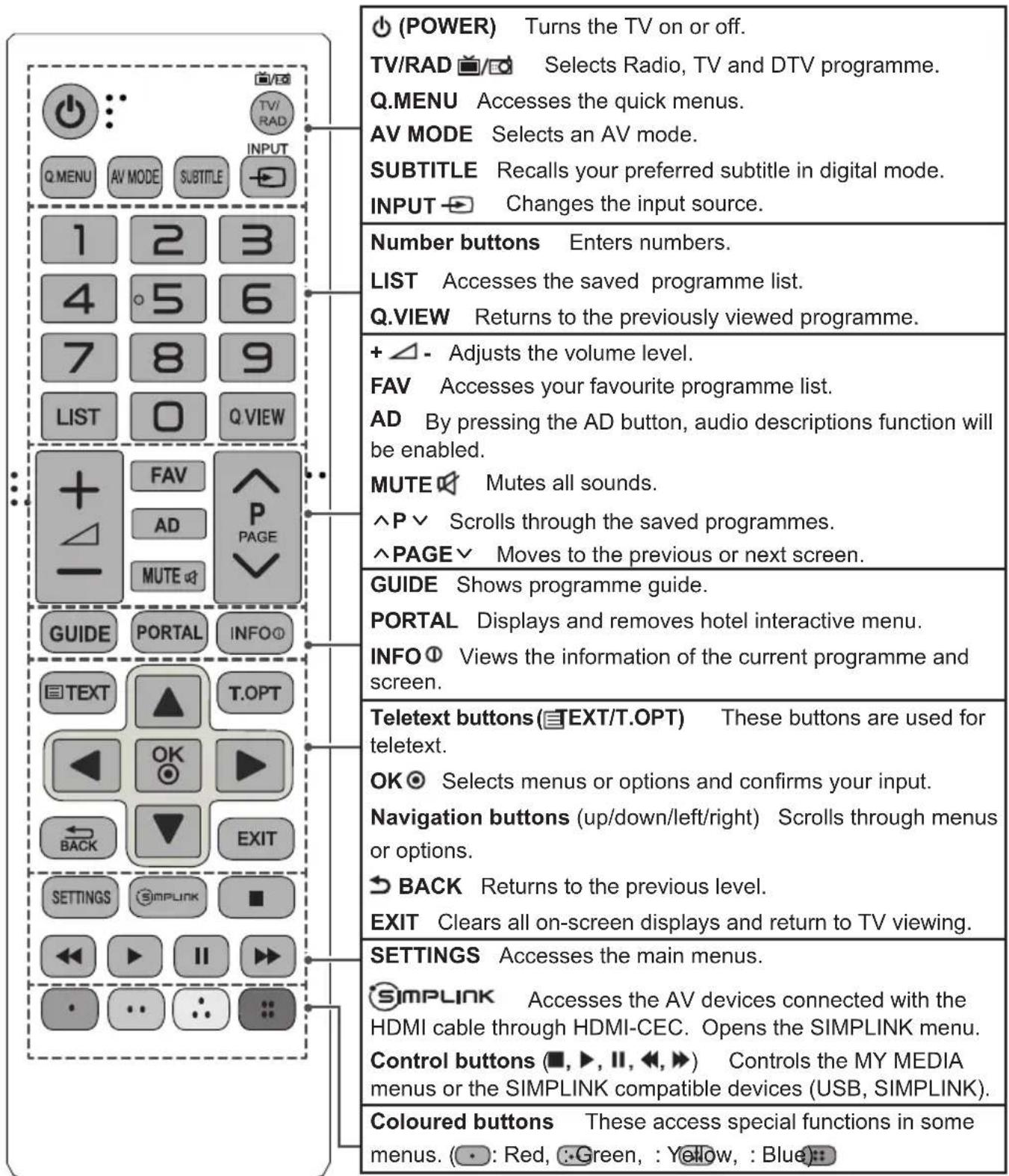
(Only LY540M)
text_image
POWER Turns the TV on or off. TV/RAD Selects Radio, TV and DTV programme. Q.MENU Accesses the quick menus. AV MODE Selects an AV mode. SUBTITLE Recalls your preferred subtitle in digital mode. INPUT Changes the input source. Number buttons Enters numbers. LIST Accesses the saved programme list. Q.VIEW Returns to the previously viewed programme. + △ - Adjusts the volume level. FAV Accesses your favourite programme list. AD By pressing the AD button, audio descriptions function will be enabled. MUTE Mutes all sounds. ^P √ Scrolls through the saved programmes. ^PAGE √ Moves to the previous or next screen. GUIDE Shows programme guide. PORTAL Displays and removes hotel interactive menu. INFO Views the information of the current programme and screen. Teletext buttons (EXT/T.OPT) These buttons are used for teletext. OK Selects menus or options and confirms your input. Navigation buttons (up/down/left/right) Scrolls through menus or options. BACK Returns to the previous level. EXIT Clears all on-screen displays and return to TV viewing. SETTINGS Accesses the main menus. SIMPLINK Accesses the AV devices connected with the HDMI cable through HDMI-CEC. Opens the SIMPLINK menu. Control buttons (■, ▶, □, ◀, ▶) Controls the MY MEDIA menus or the SIMPLINK compatible devices (USB, SIMPLINK). Coloured buttons These access special functions in some menus. (●: Red, Green, : Yellow, : Blue)(Only 28LY31**)
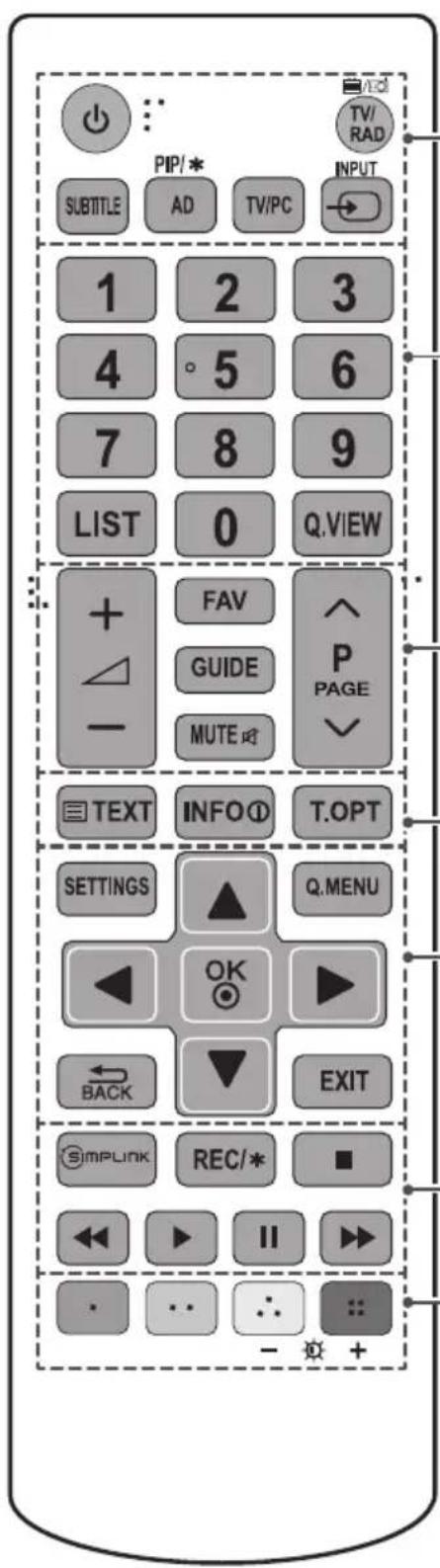
(POWER) Turns the TV on or off.
TV/RAD Selects Radio, TV and DTV programme.
SUBTITLE Recalls your preferred subtitle in digital mode.
PIP/* Turns the PIP mode on or off. (Depending on model)
AD By pressing the AD button, audio descriptions function will be enabled.
TV/PC Selects TV or PC mode.
INPUT → Changes the input source.
Number buttons Enters numbers.
LIST Accesses the saved programme list.
Q.VIEW Returns to the previously viewed programme.
+ △ - Adjusts the volume level.
FAV Accesses your favourite programme list.
GUIDE Shows programme guide.
MUTE 📋 Mutes all sounds.
^P ∨ Scrolls through the saved programmes.
^PAGE√ Moves to the previous or next screen.
Teletext buttons (TEXT/T.OPT) These buttons are used for teletext.
INFO① Views the information of the current programme and screen.
SETTINGS Accesses the main menus.
Q.MENU Accesses the quick menus.
OK Selects menus or options and confirms your input.
Navigation buttons (up/down/left/right) Scrolls through menus or options.
→ BACK Returns to the previous level.
EXIT Clears all on-screen displays and return to TV viewing.
SIMPLINK
Accesses the AV devices connected with the ough HDMI-CEC. Opens the SIMPLINK menu.
REC/* Start to record and display record menu. (Depending on model)
Control buttons (■, ▶, Ⅱ, ◀, ▶) Controls the MY MEDIA menus or the SIMPLINK compatible devices (USB, SIMPLINK).
Coloured buttons These access special functions in some menus. (●: Red, □: Green, : Yellow, : Blue)
- ✅ + (Backlight) Adjusts the brightness of the screen by controlling the screen backlight.
NOTE
- On MHEG channel, you cannot adjust the backlight with the yellow or blue key.
(Only 32/42/49LY31**)
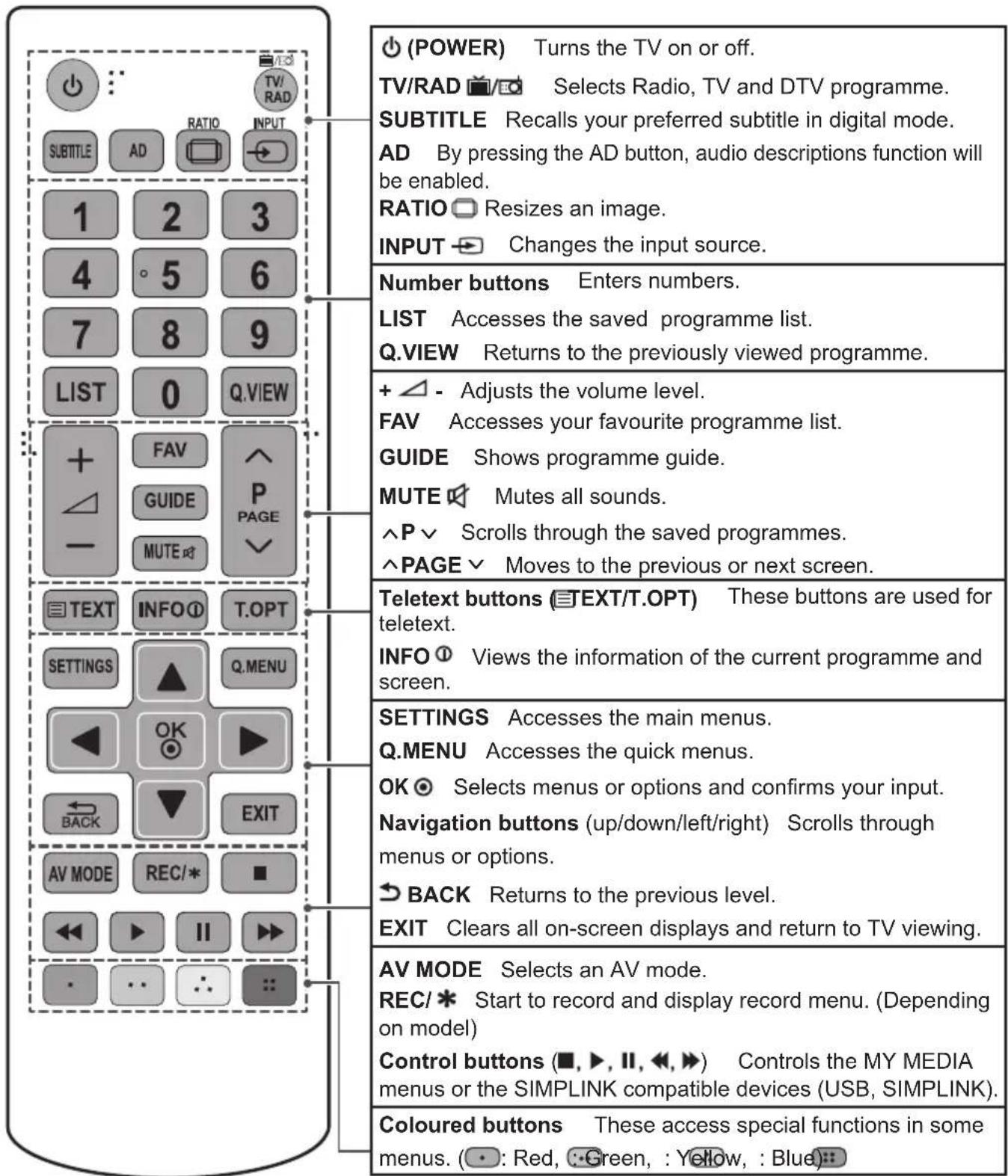
text_image
(POWER) Turns the TV on or off. TV/RAD Selects Radio, TV and DTV programme. SUBTITLE Recalls your preferred subtitle in digital mode. AD By pressing the AD button, audio descriptions function will be enabled. RATIO Resizes an image. INPUT Changes the input source. Number buttons Enters numbers. LIST Accesses the saved programme list. Q.VIEW Returns to the previously viewed programme. + △ - Adjusts the volume level. FAV Accesses your favourite programme list. GUIDE Shows programme guide. MUTE Mutes all sounds. ^P √ Scrolls through the saved programmes. ^PAGE √ Moves to the previous or next screen. Teletext buttons (TEXT/T.OPT) These buttons are used for teletext. INFO Views the information of the current programme and screen. SETTINGS Accesses the main menus. Q.MENU Accesses the quick menus. OK Selects menus or options and confirms your input. Navigation buttons (up/down/left/right) Scrolls through menus or options. BACK Returns to the previous level. EXIT Clears all on-screen displays and return to TV viewing. AV MODE Selects an AV mode. REC/ * Start to record and display record menu. (Depending on model) Control buttons (■, ▶, □, ◀, ▶) Controls the MY MEDIA menus or the SIMPLINK compatible devices (USB, SIMPLINK). Coloured buttons These access special functions in some menus. (●: Red, Green, : Yellow, : Blue)MAINTENANCE
Cleaning your TV
Clean your TV regularly to keep the best performance and to extend the product lifespan.

CAUTION
- Make sure to turn the power off and disconnect the power cord and all other cables first.
- When the TV is left unattended and unused for a long time, disconnect the power cord from the wall outlet to prevent possible damage from lightning or power surges.
Screen, frame, cabinet and stand
• To remove dust or light dirt, wipe the surface with a dry, clean, and soft cloth.
- To remove major dirt, wipe the surface with a soft cloth dampened in clean water or a diluted mild detergent. Then wipe immediately with a dry cloth.

CAUTION
- Avoid touching the screen at all times, as this may result in damage to the screen.
- Do not push, rub, or hit the screen surface with your fingernail or a sharp object, as this may result in scratches and image distortions.
- Do not use any chemicals as this may damage the product.
- Do not spray liquid onto the surface. If water enters the TV, it may result in fire, electric shock, or malfunction.
Power cord
Remove the accumulated dust or dirt on the power cord regularly.
TROUBLESHOOTING
The software version can be updated for improvement in performance. Customer needs to ensure the compatibility of customer's equipment with LGE software. If needed, please consult with LGE and upload revised software version according to the guidance provided by LGE.
| Problem Solution | |
| Cannot control the TV with the remote control. | Check the remote control sensor on the product and try again.Check if there is any obstacle between the product and the remote control.Check if the batteries are still working and properly installed (⊕ to ⊕ to). |
| No image display and no sound is produced. | Check if the product is turned on.Check if the power cord is connected to a wall outlet.Check if there is a problem in the wall outlet by connecting other products. |
| The TV turns off suddenly. | Check the power control settings. The power supply may be interrupted.Check if the Automatic Standby (Depending on model) / Sleep Timer / Off Time feature is activated in the TIME settings. |
| When connecting to the PC (RGB/HDMI/ DVI), ‘No signal’ or ‘Invalid Format’ is displayed. | Turn the TV off/on using the remote control.Reconnect the RGB/HDMI cable.Restart the PC with the TV on. |
SPECIFICATIONS
Product specifications may be changed without prior notice due to upgrade of product functions.
| MODELS | 22LY33** | 28LY33** | |
| 22LY330C-ZA | 28LY330C-ZA | ||
| Dimensions(W x H x D) | With stand (mm) | 507.6 x 355.9 x 140.6 | 641.5 x 432 x 175 |
| Without stand(mm) | 507.6 x 315.7 x 53.1 | 641.5 x 395.8 x 57.6 | |
| Weight | With stand (kg) | 3.1 | 4.6 |
| Without stand (kg) | 2.9 | 4.4 | |
| Power requirement | 19 V --- 2.0 A | 19 V --- 2.0 A | |
| Power consumption | 35 W | 40 W | |
| MODELS | 32LY330* | 39LY330* | |
| 32LY330C-ZA | 39LY330C-ZA | ||
| Dimensions(W x H x D) | With stand (mm) | 732 x 481 x 207 | 885 x 567 x 218 |
| Without stand(mm) | 732 x 437 x 55.5 | 885 x 524 x 55.5 | |
| Weight | With stand (kg) | 6.2 | 8.3 |
| Without stand (kg) | 6.0 | 8 | |
| Power requirement | AC 100-240 V~ 50 / 60 Hz | AC 100-240 V~ 50 / 60 Hz | |
| Power consumption | 65 W | 90 W | |
| MODELS | 42LY330* | 47LY330* | |
| 42LY330C-ZA | 47LY330C-ZA | ||
| Dimensions(W x H x D) | With stand (mm) | 961 x 612 x 218 | 1073 x 676 x 247 |
| Without stand (mm) | 961 x 567 x 55.5 | 1073 x 629 x 55.8 | |
| Weight | With stand (kg) | 9.5 | 12.7 |
| Without stand (kg) | 9.2 | 12.3 | |
| Power requirement | AC 100-240 V~ 50 / 60 Hz | AC 100-240 V~ 50 / 60 Hz | |
| Power consumption | 100 W | 110 W | |
| MODELS | 55LY330* 60LY330* | ||
| 55LY330C-ZA 60LY330C-ZA | |||
| Dimensions(W x H x D) | With stand (mm) | 1243 x 772 x 247 | 1373 x 851 x 283 |
| Without stand (mm) | 1243 x 725 x 56.8 | 1373 x 801 x 58.8 | |
| Weight | With stand (kg) 17.7 | 23.5 | |
| Without stand (kg) | 17.3 | 23.0 | |
| Power requirement | AC 100-240 V~ 50 / 60 Hz | AC 100-240 V~ 50 / 60 Hz | |
| Power consumption | 130 W | 130 W | |
| MODELS | 22LY34** | 28LY34** | |
| 22LY340C-ZA | 28LY340C-ZA | ||
| Dimensions(W x H x D) | With stand (mm) | 507.6 x 355.9 x 140.6 | 641.5 x 432 x 175 |
| Without stand(mm) | 507.6 x 315.7 x 53.1 | 641.5 x 395.8 x 57.6 | |
| Weight | With stand (kg) | 3.1 | 4.6 |
| Without stand (kg) | 2.9 | 4.4 | |
| Power requirement | 19 V --- 2.0 A | 19 V --- 2.0 A | |
| Power consumption | 35 W | 40 W | |
| MODELS | 32LY340* | 32LY345* | |
| 32LY340C-ZA | 32LY345C-ZA | ||
| Dimensions(W x H x D) | With stand (mm) | 732 x 481 x 207 | |
| Without stand(mm) | 732 x 437 x 55.5 | ||
| Weight | With stand (kg) | 6.2 | |
| Without stand (kg) | 6.0 | ||
| Power requirement | AC 100-240 V~ 50 / 60 Hz | ||
| Power consumption | 65 W | ||
| MODELS | 39LY340* | 39LY345* | |
| 39LY340C-ZA | 39LY345C-ZA | ||
| Dimensions(W x H x D) | With stand (mm) | 885 x 567 x 218 | |
| Without stand(mm) | 885 x 524 x 55.5 | ||
| Weight | With stand (kg) | 8.3 | |
| Without stand (kg) | 8 | ||
| Power requirement | AC 100-240 V~ 50 / 60 Hz | ||
| Power consumption | 90 W | ||
| MODELS | 42LY340* | 42LY345* | |
| 42LY340C-ZA | 42LY345C-ZA | ||
| Dimensions(W x H x D) | With stand (mm) | 961 x 612 x 218 | |
| Without stand(mm) | 961 x 567 x 55.5 | ||
| Weight | With stand (kg) | 9.5 | |
| Without stand (kg) | 9.2 | ||
| Power requirement AC 100-240 V~ 50 / 60 Hz | |||
| Power consumption | 100 W | ||
| MODELS | 47LY340* | 47LY345* | |
| 47LY340C-ZA | 47LY345C-ZA | ||
| Dimensions(W x H x D) | With stand (mm) | 1073 x 676 x 247 | |
| Without stand (mm) | 1073 x 629 x 55.8 | ||
| Weight | With stand (kg) | 12.7 | |
| Without stand (kg) | 12.3 | ||
| Power requirement | AC 100-240 V~ 50 / 60 Hz | ||
| Power consumption | 110 W | ||
| MODELS | 55LY340* | 55LY345* | |
| 55LY340C-ZA | 55LY345C-ZA | ||
| Dimensions(W x H x D) | With stand (mm) | 1243 x 772 x 247 | |
| Without stand (mm) | 1243 x 725 x 56.8 | ||
| Weight | With stand (kg) | 17.7 | |
| Without stand (kg) | 17.3 | ||
| Power requirement | AC 100-240 V~ 50 / 60 Hz | ||
| Power consumption | 130 W | ||
| MODELS | 60LY340* | 60LY345* | |
| 60LY340C-ZA | 60LY345C-ZA | ||
| Dimensions(W x H x D) | With stand (mm) | 1373 x 851 x 283 | |
| Without stand (mm) | 1373 x 801 x 58.8 | ||
| Weight | With stand (kg) | 23.5 | |
| Without stand (kg) | 23.0 | ||
| Power requirement | AC 100-240 V~ 50 / 60 Hz | ||
| Power consumption | 130 W | ||
| MODELS | 22LY54** | 28LY54** | |
| 22LY540H-ZA22LY540M-ZA | 28LY540H-ZA28LY540M-ZA | ||
| Dimensions(W x H x D) | With stand (mm) 507.6 x 355.9 x 140.6 641.5 x 432 x 175 | ||
| Without stand (mm) 507.6 x 315.7 x 53.1 641.5 x 395.8 x 57.6 | |||
| Weight | With stand (kg) 3.1 | 4.6 | |
| Without stand (kg) | 2.9 | 4.4 | |
| Power requirement | 19 V--- 2.0 A | 19 V--- 2.0 A | |
| Power consumption | 35 W 40 W | ||
| MODELS | 32LY540* | 39LY540* | |
| 32LY540H-ZA32LY540S-ZA | 39LY540H-ZA39LY540S-ZA | ||
| Dimensions(W x H x D) | With stand (mm) | 732 x 481 x 207 | 885 x 567 x 218 |
| Without stand (mm) | 732 x 437 x 55.5 | 885 x 524 x 55.5 | |
| Weight | With stand (kg) | 6.2 | 8.3 |
| Without stand (kg) | 6.0 | 8 | |
| Power requirement | AC 100-240 V~ 50 / 60 Hz | AC 100-240 V~ 50 / 60 Hz | |
| Power consumption | 65 W | 90 W | |
| MODELS | 42LY540* | 47LY540* | |
| 42LY540H-ZA42LY540S-ZA | 47LY540H-ZA47LY540S-ZA | ||
| Dimensions(W x H x D) | With stand (mm) | 961 x 612 x 218 | 1073 x 676 x 247 |
| Without stand (mm) | 961 x 567 x 55.5 | 1073 x 629 x 55.8 | |
| Weight | With stand (kg) | 9.5 | 12.7 |
| Without stand (kg) | 12.3 9.2 | ||
| Power requirement AC 100-240 V~ 50 / 60 Hz AC 100-240 V~ 50 / 60 Hz | |||
| Power consumption | 100 W 110 W | ||
| MODELS | 55LY540* 60LY540* | ||
| 55LY540H-ZA55LY540S-ZA | 60LY540S-ZA | ||
| Dimensions(W x H x D) | With stand (mm) | 1243 x 772 x 247 1373 x | 851 x 283 |
| Without stand (mm) | 1243 x 725 x 56.8 | 1373 x 801 x 58.8 | |
| Weight | With stand (kg) 17.7 | 23.5 | |
| Without stand (kg) | 17.3 | 23.0 | |
| Power requirement AC 100-240 V~ 50 / 60 Hz AC 100-240 V~ 50 / 60 Hz | |||
| Power consumption | 130 W | 130 W | |
| MODELS | 32LY541*39LY541* | ||
| 32LY541H-ZA | 39LY541H-ZA | ||
| Dimensions(W x H x D) | With stand (mm) 732 x | 482 x 282 885 x 572 x 282 | |
| Without stand (mm) 732 x | 437 x 55.5 885 x 524 x 55.5 | ||
| Weight | With stand (kg) 8.9 10.9 | ||
| Without stand (kg) 6.0 8 | |||
| Power requirement AC 100-240 V~ 50 / 60 Hz AC 100-240 V~ 50 / 60 Hz | |||
| Power consumption | 65 W 90 W | ||
| MODELS | 42LY541* | 47LY541* | |
| 42LY541H-ZA | 47LY541H-ZA | ||
| Dimensions(W x H x D) | With stand (mm) | 961 x 617 x 325 | 1073 x 680 x 325 |
| Without stand (mm) | 961 x 567 x 55.5 | 1073 x 629 x 55.8 | |
| Weight | With stand (kg) | 12.6 | 15.7 |
| Without stand (kg) | 9.2 | 12.3 | |
| Power requirement | AC 100-240 V~ 50 / 60 Hz | AC 100-240 V~ 50 / 60 Hz | |
| Power consumption | 100 W | 110 W | |
| MODELS | 55LY541* | 28LY31** | |
| 55LY541H-ZA | 28LY310C-ZA | ||
| Dimensions(W x H x D) | With stand (mm) | 1243 x 771 x 325 | 641.5 x 432 x 175 |
| Without stand (mm) | 1243 x 725 x 56.8 | 641.5 x 395.8 x 57.6 | |
| Weight | With stand (kg) | 20.7 | 4.6 |
| Without stand (kg) | 17.3 | 4.4 | |
| Power requirement | AC 100-240 V~ 50 / 60 Hz | 19 V --- 2.0 A | |
| Power consumption | 130 W | 40 W | |
| MODELS | 32LY31** | 42LY31** | |
| 32LY310C-ZA | 42LY310C-ZA | ||
| Dimensions(W x H x D) | With stand (mm) | 731 x 480 x 208 | 959 x 611 x 218 |
| Without stand (mm) | 731 x 437 x 56.5 | 959 x 570 x 56.2 | |
| Weight | With stand (kg) | 5.9 | 9.5 |
| Without stand (kg) | 5.7 | 9.2 | |
| Power requirement | AC 100-240 V~ 50 / 60 Hz | AC 100-240 V~ 50 / 60 Hz | |
| Power consumption | 65 W | 100 W | |
| MODELS | 49LY31** | 32LY331* | |
| 49LY310C-ZA | 32LY331C-ZA | ||
| Dimensions(W x H x D) | With stand (mm) | 1105 x 694 x 247 732 x 482 x 282 | |
| Without stand (mm) | 1105 x 652 x 56.5 | 732 x 437 x 55.5 | |
| Weight | With stand (kg) 13.6 8.9 | ||
| Without stand (kg) | 13.2 6.0 | ||
| Power requirement | AC 100-240 V~ 50 / 60 Hz | AC 100-240 V~ 50 / 60 Hz | |
| Power consumption | 110 W | 65 W | |
| MODELS | 39LY331* | 42LY331* | |
| 39LY331C-ZA | 42LY331C-ZA | ||
| Dimensions(W x H x D) | With stand (mm) | 885 x 572 x 282 | 961 x 617 x 325 |
| Without stand (mm) | 885 x 524 x 55.5 | 961 x 567 x 55.5 | |
| Weight | With stand (kg) | 10.9 | 12.6 |
| Without stand (kg) | 8 | 9.2 | |
| Power requirement | AC 100-240 V~ 50 / 60 Hz | AC 100-240 V~ 50 / 60 Hz | |
| Power consumption | 90 W | 100 W | |
| MODELS | 47LY331* | 55LY331* | |
| 47LY331C-ZA | 55LY331C-ZA | ||
| Dimensions(W x H x D) | With stand (mm) | 1073 x 680 x 325 | 1243 x 771 x 325 |
| Without stand (mm) | 1073 x 629 x 55.8 | 1243 x 725 x 56.8 | |
| Weight | With stand (kg) | 15.7 | 20.7 |
| Without stand (kg) | 12.3 | 17.3 | |
| Power requirement | AC 100-240 V~ 50 / 60 Hz | AC 100-240 V~ 50 / 60 Hz | |
| Power consumption | 110 W | 130 W | |
| MODELS | 32LY341* | 39LY341* | |
| 32LY341C-ZA | 39LY341C-ZA | ||
| Dimensions(W x H x D) | With stand (mm) | 732 x 482 x 282 | 885 x 572 x 282 |
| Without stand (mm) | 732 x 437 x 55.5 | 885 x 524 x 55.5 | |
| Weight | With stand (kg) | 8.9 | 10.9 |
| Without stand (kg) | 6.0 | 8 | |
| Power requirement | AC 100-240 V~ 50 / 60 Hz | AC 100-240 V~ 50 / 60 Hz | |
| Power consumption | 65 W | 90 W | |
| MODELS | 42LY341* | 47LY341* | |
| 42LY341C-ZA | 47LY341C-ZA | ||
| Dimensions(W x H x D) | With stand (mm) | 961 x 617 x 325 | 1073 x 680 x 325 |
| Without stand (mm) | 961 x 567 x 55.5 | 1073 x 629 x 55.8 | |
| Weight | With stand (kg) | 12.6 | 15.7 |
| Without stand (kg) | 9.2 | 12.3 | |
| Power requirement AC 100-240 V~ 50 / 60 Hz AC 100-240 V~ 50 / 60 Hz | |||
| Power consumption | 100 W | 110 W | |
| MODELS | 55LY341* | 32LY530* | |
| 55LY341C-ZA | 32LY530H-ZA | ||
| Dimensions(W x H x D) | With stand (mm) | 1243 x 771 x 325 | 732 x 481 x 207 |
| Without stand (mm) | 1243 x 725 x 56.8 | 732 x 437 x 55.5 | |
| Weight | With stand (kg) | 20.7 | 6.2 |
| Without stand (kg) | 17.3 | 6.0 | |
| Power requirement | AC 100-240 V~ 50 / 60 Hz | AC 100-240 V~ 50 / 60 Hz | |
| Power consumption | 130 W | 65 W | |
| MODELS | 42LY530* | 55LY530* | |
| 42LY530H-ZA | 55LY530H-ZA | ||
| Dimensions(W x H x D) | With stand (mm) | 961 x 612 x 218 | 1243 x 772 x 247 |
| Without stand (mm) | 961 x 567 x 55.5 | 1243 x 725 x 56.8 | |
| Weight | With stand (kg) | 9.5 | 17.7 |
| Without stand (kg) | 9.2 | 17.3 | |
| Power requirement | AC 100-240 V~ 50 / 60 Hz | AC 100-240 V~ 50 / 60 Hz | |
| Power consumption | 100 W | 130 W | |
| AC/DC Adapter(Only 22/28LY33**, 22/28LY34**, 22/28LY54**) | Manufacturer : APDModel : DA-48F19, DA-40I19Manufacturer : Lien changModel : LCAP35 |
| AC/DC Adapter(Only 28LY31**) | Manufacturer : Lien ChangModel : LCAP25BManufacturer : LG InnotekModel : PSABL-204B |
| CI Module Size (W x H x D) | 100.0 mm x 55.0 mm x 5.0 mm | |
| Environment condition | Operating Temperature 0 | °C to 40 °C |
| Operating Humidity Less than 80 % | ||
| Storage Temperature -20 | °C to 60 °C | |
| Storage Humidity Less than 85 % | ||
| Satellite Digital TV1 | Digital TV Analogue TV | ||
| Television system | DVB-T/T2DVB-CDVB-S/S2 | DVB-TDVB-C | PAL/SECAM B/G/D/K,PAL I/I',SECAM L/L2 |
| Programme coverage | VHF, UHFC-Band, Ku-Band | VHF, UHF | VHF: E2 to E12,UHF : E21 to E69,CATV: S1 to S20,HYPER: S21 to S47 |
| Maximum number of storable programmes | 6,000 1,500 | ||
| External antenna impedance | 75 Ω | ||
1 Satellite and DVB-T2 support models
2 Except for DVB-T2 support models
Component port connecting information
| Component ports on the TV | Y | P_B | P_R |
| Video output ports on DVD player | Y | P_B | P_R |
| Y B- | Y R-Y | ||
| Y Cb | Cr | ||
| Y Pb | Pr | ||
| Signal Component | |||
| 480i / 576i O | |||
| 480p / 576p O | |||
| 720p / 1080i O | |||
| 1080p | O(50 Hz / 60 Hz only) | ||
HDMI/DVI-DTV Supported Mode
| Resolution | Horizontal Frequency (kHz) | Vertical Frequency (Hz) |
| 720 x 480 | 31.469 | 59.94 |
| 31.5 | 60 | |
| 720 x 576 31 | .25 50 | |
| 1280 x 720 | 37.5 | 50 |
| 44.96 | 59.94 | |
| 45 | 60 | |
| 1920 x 1080i | 33.72 | 59.94 |
| 33.75 | 60 | |
| 28.125 | 50 | |
| 1920 x 1080p | 26.97 | 23.97 |
| 27 | 24 | |
| 33.716 | 29.976 | |
| 33.75 | 30.00 | |
| 56.25 | 50 | |
| 67.43 | 59.94 | |
| 67.5 | 60 |
RGB-PC, HDMI/DVI-PC Supported Mode
(Use HDMI IN 1 for PC mode)
(Only 22/28/32/39/42/47/55/60LY33**,
22/28/32/39/42/47/55/60LY34**)
| Resolution | Horizontal Frequency (kHz) | Vertical Frequency (Hz) |
| 640 x 350 31 | .468 70.09 | |
| 720 x 400 31 | .469 70.08 | |
| 640 x 480 31 | .469 59.94 | |
| 800 x 600 37 | .879 60.31 | |
| 1024 x 768 48 | .363 60.00 | |
| 1152 x 864 54 | .348 60.053 | |
| 1360 x 768 47 | .712 60.015 | |
| 1280 x 1024 | 63.981 | 60.020 |
| 1920 x 1080 (RGB-PC) | 66.587 59.934 | |
| 1920 x 1080 (FHD only) | 67.50 60.00 | |
(Except for 22/28LY33**, 22/28LY34**, 32LY330C, 32LY340C, 32LY331C, 32LY341C)
HDMI/DVI-PC Supported Mode
(Use HDMI IN 1 for PC mode)
(Only 22/28/32/39/42/47/55/60LY54**,
32/42/55LY53**, 32/42/49LY31**)
| Resolution | Horizontal Frequency (kHz) | Vertical Frequency (Hz) |
| 640 x 350 31 | .468 70.09 | |
| 720 x 400 31 | .469 70.08 | |
| 640 x 480 31 | .469 59.94 | |
| 800 x 600 37 | .879 60.31 | |
| 1024 x 768 48 | .363 60.00 | |
| 1152 x 864 54 | .348 60.053 | |
| 1360 x 768 47 | .712 60.015 | |
| 1280 x 1024 63 | .981 60.020 | |
| 1920 x 1080 67 | .50 60.00 |
(Except for 22/28LY54**)
HDMI (PC) supported mode
(Only 28LY31**)
| Resolution | Horizontal Frequency (kHz) | Vertical Frequency (Hz) |
| 720 x 400 31 | .468 70.080 | |
| 640 x 480 | 31.46937.500 | 59.94075.000 |
| 800 x 600 | 37.87946.875 | 60.31775.000 |
| 1024 x 768 | 48.36360.023 | 60.00475.029 |
| 1280 x 800 49 | 7.702 59.810 | |
| 1366 x 768 47 | 7.717 59.79 |

NOTE
• The optimal display resolution - 1366 X 768 @60Hz
- The optimal timing in each mode is vertical frequency 60Hz.
IR CODES
- This feature is not available for all models.
| Code (Hexa) | Function Note | Code (Hexa) | Function Note | |
| 08 | (O)(POWER) | Remote control Button (Power On/Off) | 44 OK R | Remote control Button |
| F0 TV/R | AD Remote control | Button 40 | ^ | |
| 39 SUBTITLE | Remote control Button 41 | v | ||
| 91 AD | Remote control Button | 07 | < | |
| 79 RATIO | Remote control Button | 06 | > | |
| 0B INPUT | Remote control Button | 72 RED Remote control Button | ||
| 10-19 | Number Key 0-9 | Remote control Button 71 GREEN Remote control Button | ||
| 53 LIST | Remote control Button | 63 | YELLOW / - * | |
| 1A Q.VIEW | Remote control Button | 61 | BLUE / * + | |
| 02 | Δ + | Remote control Button B1 | ■ | |
| 03 | Δ - | Remote control Button B0 | ▶ | |
| 1E FAV | Remote control Button BA | II | ||
| AB | GUIDE | Remote control Button 8E | ▶▶ | |
| 09 MUTE | Remote control Button 8F | ◀◀ | ||
| 00 | P ^ / PAGE ^ | Remote control Button 7E | SIMPLINK Remote control Button | |
| 01 | P v / PAGE v | Remote control Button 30 | AV MODE Remote control Button | |
| 20 TEXT | Remote control Button E8 | ALARM | Remote control Button | |
| 21 T.OPT(T.Option) | Remote control Button | 0C | PORTAL | |
| 43 | SETTINGS | Remote control Button 95 | ENERGY SAVING | |
| 45 Q.MENU | Remote control Button 60 | PIP/* | ||
| AA | INFO | Remote control Button 9B | TV/PC | |
| 28 | BACK ➔ | Remote control Button BD | REC/* | |
| 5B EXIT | Remote control Button | |||
EXTERNAL CONTROL DEVICE SETUP
RS-232C Setup
• Image shown may differ from your TV.
Connect the RS-232C (serial port) input jack to an external control device (such as a computer or an A/V control system) to control the product's functions externally.
Connect the serial port of the control device to the RS-232C jack on the product back panel.

NOTE
- RS-232C connection cables are not supplied with the product.
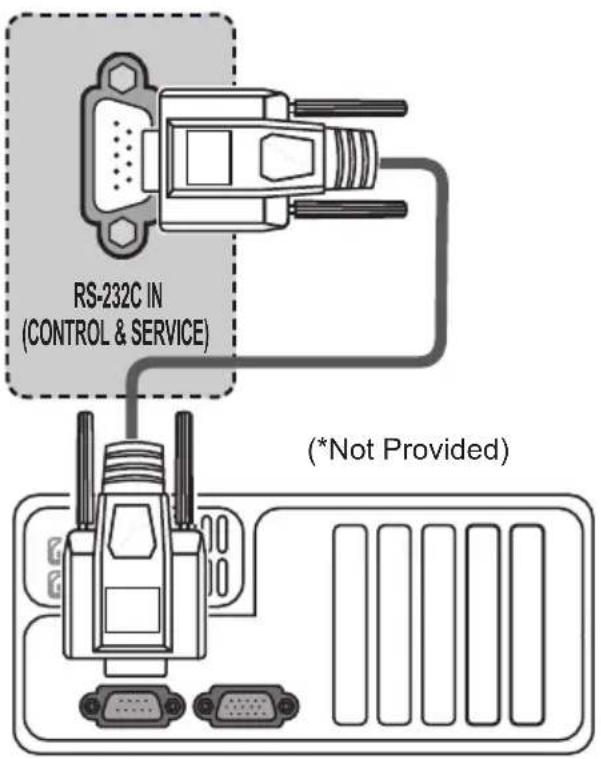
text_image
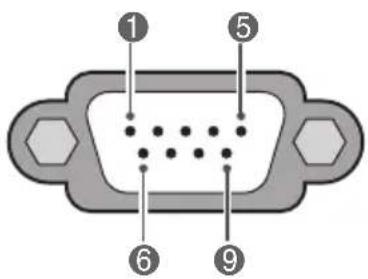
RS-232C IN (CONTROL & SERVICE) (*Not Provided)Type of Connector: D-Sub 9-Pin Male
text_image
① ⑤ ⑥ ⑨| No. | Pin name |
| 1 | 3.5 V |
| 2 | RXD (Receive data) |
| 3 | TXD (Transmit data) |
| 4 | IR OUT from TV |
| 5 | GND |
| 6 | No Connection |
| 7 | No Connection (5 V available in LY54**, LY53**) |
| 8 | No Connection |
| 9 | No Connection (12 V available in LY54**, LY53**) |
RS-232C Configurations
7-Wire Configurations (Standard RS-232C cable)
| PC | TV | ||
| 2 3 RXD | TXD | ||
| TXD | 3 | 2 | RXD |
| GND | 5 | 5 | GND |
| DTR | 4 | 6 | DSR |
| DSR | 6 | 4 | DTR |
| RTS | 7 | 8 | CTS |
| CTS | 8 | 7 | RTS |
D-Sub 9 D-Sub 9
3-Wire Configurations (Not standard)
| PC TV | ||
| 2 3RXD | TXD | |
| TXD | 3 | RXD |
| GND | 5 | GND |
| DTR | 4 | DTR |
| DSR | 6 | DSR |
| RTS | 7 | RTS |
| CTS | 8 | CTS |
D-Sub 9 D-Sub 9
Set ID
Set ID number. "Real Data Mapping".
1 Press SETTINGS or HOME to access the main menus.
2 Press the Navigation buttons to scroll to OPTION and press OK.
3 Press the Navigation buttons to scroll to Set ID and press OK.
4 Scroll left or right to select a set ID number and select Close. The adjustment range is 1-99.
5 When you are finished, press EXIT.
Communication Parameters
• Baud rate: 9600 bps (UART)
• Data length: 8 bits
- Parity : None
- Stop bit: 1 bit
- Communication code: ASCII code
- Use a crossed (reverse) cable.
Command Reference List
(Depending on Model)
| COM-MAND1 | COM-MAND2 | DATA (Hexa-decimal) | COM-MAND1 | COM-MAND2 | DATA (Hexa-decimal) | ||
| 01. Power k a 00 to 01 | 12. Remote Control Lock Mode | k m 00 to 01 | |||||
| 02. Aspect Ratio | k | c | (See p.61) | 13. Balance | k | t | 00 to 64 |
| 03. Screen Mute k d (See p.61) | 14. Colour Temperature | x | u | 00 to 64 | |||
| 04. Volume Mute | k e 00 | to 01 | 15. Energy Saving | j q | 00 to 05 | ||
| 05. Volume Control | k | f | 00 to 64 | 16. Auto Configuration | j u 01 | ||
| 06. Contrast | k | g | 00 to 64 | 17. Equalize | j | v | (See p.63) |
| 07. Brightness | k h 00 | to 64 | 18. Tune Command | m | a | (See p.63) | |
| 08. Colour | k | i | 00 to 64 | 19. Programme Add/Skip | m b 00 to 01 | ||
| 09. Tint | k | j | 00 to 64 | 20. Key | m | c | (See p.64) |
| 10. Sharpness | k k | 00 to 32 | 21. Control Back Light | m g 00 to 64 | |||
| 11. OSD Select | k | l | 00 to 01 | 22. Input select (Main) | x | b | (See p.64) |

NOTE
- During USB operations such as DivX or EMF, all commands except Power(ka) and Key(mc) are not executed and treated as NG.
Transmission / Receiving Protocol
Transmission
[Command1][Command2][ ][Set ID][ ][Data][Cr]
[Command 1] : First command to control the TV.(j, k, m or x)
[Command 2] : Second command to control the TV.
[Set ID] : You can adjust the set ID to choose desired monitor ID number in option menu.
Adjustment range is 1 to 99. When selecting Set ID '0', every connected set is controlled.
Set ID is indicated as decimal (1 to 99) on menu and as Hexa decimal (0x0 to 0x63) on transmission/receiving protocol.
[DATA] : To transmit command data. Transmit 'FF' data to read status of command.
[Cr] : Carriage Return
ASCII code '0x0D'
[ ] : ASCII code 'space (0x20)'
OK Acknowledgement
[Command2][ ][Set ID][ ][OK][Data][x]
* The set transmits ACK (acknowledgement) based on this format when receiving normal data. At this time, if the data is data read mode, it indicates present status data. If the data is data write mode, it returns the data of the PC computer.
Error Acknowledgement
[Command2][ ][Set ID][ ][NG][Data][x]
* The set transmits ACK (acknowledgement) based on this format when receiving abnormal data from non-viable functions or communication errors.
Data 00: Illegal Code
- Power (Command: k a)
▶ To control Power On/Off of the set. Transmission[k][a][ ][Set ID][ ][Data][Cr]
Data 00 : Power Off 01 : Power On
Ack [a][ ][Set ID][ ][OK/NG][Data][x]
▶ To Show TV is Power On/Off. Transmission [k][a][ ][Set ID][ ][FF][Cr] Ack [a][ ][Set ID][ ][OK/NG][Data][x]
* Similarly, if other functions transmit '0xFF' data based on this format, Acknowledgement data feed back presents status about each function.
* OK Ack., Error Ack. and other message may display on the screen when TV is power On.
- Aspect Ratio (Command: k c) (Main Picture Size)
▶ To adjust the screen format. (Main picture format) You can also adjust the screen format using the Aspect Ratio in the Q.MENU. or PICTURE menu.
Transmission [k][c][ ][Set ID][ ][Data][Cr]
| Data 01 : Normal screen(4:3) | 07 : 14:909 : Just Scan |
| 02 : Wide screen(16:9) | 0B : Full Wide10 to 1F : Cinema Zoom |
| 04 : Zoom | 1 to 16 |
| 06 : Original |
Ack [c][ ][Set ID][ ][OK/NG][Data][x]
* Using the PC input, you select either 16:9 or 4:3 screen aspect ratio.
* In DTV/HDMI (1080i 50 Hz / 60 Hz, 720p 50Hz / 60 Hz, 1080p 24 Hz / 30 Hz / 50 Hz / 60 Hz), Component( 720p, 1080i, 1080p 50 Hz / 60 Hz) mode, Just Scan is available.
* Full Wide is supported only for Digital, Analogue, AV.
- Screen Mute (Command: k d)
▶ To select screen mute on/off. Transmission [k][d][ ][Set ID][ ][Data][Cr]
Data 00 : Screen mute off (Picture on) Video mute off
01 : Screen mute on (Picture off)
10 : Video mute on
Ack [d][ ][Set ID][ ][OK/NG][Data][x]
* In case of video mute on only, TV will display On Screen Display(OSD). But, in case of Screen mute on, TV will not display OSD.
- Volume Mute (Command: k e)
▶ To control volume mute on/off. You can also adjust mute using the MUTE button on remote control.
Transmission [k][e][ ][Set ID][ ][Data][Cr]
Data 00 : Volume mute on (Volume off) 01 : Volume mute off (Volume on)
Ack [e][ ][Set ID][ ][OK/NG][Data][x]
- Volume Control (Command: k f)
▶ To adjust volume. You can also adjust volume with the volume buttons on remote control.
Transmission [k][f][ ][Set ID][ ][Data][Cr]
Data Min : 00 to Max : 64
* Refer to 'Real data mapping'. See p.64. Ack [f][ ][Set ID][ ][OK/NG][Data][x]
▶ To adjust screen contrast. You can also adjust contrast in the PICTURE menu.
Transmission [k][g][ ][Set ID][ ][Data][Cr]
Data Min : 00 to Max : 64
* Refer to 'Real data mapping'. See p.64. Ack [g][ ][Set ID][ ][OK/NG][Data][x]
- Brightness (Command: k h)
▶ To adjust screen brightness. You can also adjust brightness in the PICTURE menu.
Transmission [k][h][ ][Set ID][ ][Data][Cr]
Data Min : 00 to Max : 64
* Refer to 'Real data mapping'. See p.64.
Ack [h][ ][Set ID][ ][OK/NG][Data][x]
- Colour (Command: k i)
▶ To adjust the screen Colour. You can also adjust colour in the PICTURE menu.
Transmission [k][i][ ][Set ID][ ][Data][Cr]
Data Min : 00 to Max : 64
* Refer to 'Real data mapping'. See p.64.
Ack [i][ ][Set ID][ ][OK/NG][Data][x]
- Tint (Command: k j)
▶ To adjust the screen tint. You can also adjust tint in the PICTURE menu.
Transmission [k][j][ ][Set ID][ ][Data][Cr]
Data Red : 00 to Green : 64
* Refer to 'Real data mapping'. See p.64.
Ack [j][ ][Set ID][ ][OK/NG][Data][x]
- Sharpness (Command: k k)
▶ To adjust the screen sharpness. You can also adjust sharpness in the PICTURE menu.
Transmission [k][k][ ][Set ID][ ][Data][Cr]
Data Min : 00 to Max : 32
* Refer to 'Real data mapping'. See p.64.
Ack [k][ ][Set ID][ ][OK/NG][Data][x]
- OSD Select (Command: k l)
▶ To select OSD (On Screen Display) on/off when controlling remotely.
Transmission [k][l][ ][Set ID][ ][Data][Cr]
Data 00 : OSD off 01 : OSD on
Ack [I][ ][Set ID][ ][OK/NG][Data][x]
- Remote control lock mode (Command: k m)
▶ To lock the front panel controls on the monitor and remote control.
Transmission [k][m][ ][Set ID][ ][Data][Cr]
Data 00 : Lock off 01 : Lock on
Ack [m][ ][Set ID][ ][OK/NG][Data][x]
* If you are not using the remote control, use this mode. When main power is on/off, external control lock is released.
* In the standby mode, if key lock is on, TV will not turn on by power on key of IR & Local Key.
- Balance (Command: k t)
▶ To adjust balance. You can also adjust balance in the AUDIO menu.
Transmission [k][t][ ][Set ID][ ][Data][Cr]
Data L : 00 to R : 64
* Refer to 'Real data mapping'. See p.64.
Ack [t][ ][Set ID][ ][OK/NG][Data][x]
- Colour Temperature (Command: x u)
▶ To adjust colour temperature. You can also adjust Colour Temperature in the PICTURE menu.
Transmission [x][u][ ][Set ID][ ][Data][Cr]
Data Warm: 00 to Cool:64
* Refer to 'Real data mapping'. See p.64.
Ack [u][ ][Set ID][ ][OK/NG][Data][x]
- Energy Saving (Command: j q)
▶ To reduce the power consumption of the TV. You can also adjust Energy Saving in PICTURE menu.
Transmission [j][q][ ][Set ID][ ][Data][Cr]
| Power Saving Function | Level | Description | ||||||||
| 7 | 6 | 5 | 4 | 3 | 2 | 1 | 0 | |||
| 0 | 0 | 0 | 0 | Low Power | 0 | 0 | 0 Off | |||
| 0 | 0 | 0 | 0 | Low Power | 0 | 0 | 0 1 Minimum | |||
| 0 | 0 | 0 | 0 | Low Power | 0 | 0 | 1 0 Medium | |||
| 0 | 0 | 0 | 0 | Low Power | 0 | 0 | 1 1 Maximum | |||
| 0 | 0 | 0 | 0 | Low Power | 0 | 1 | 0 1 Screen Off | |||
| 0 | 0 | 0 | 0 | Low Power | 0 | 1 | 0 0 Auto | |||
▶ 'Auto' is available in TV that supports 'Intelligent Sensor'.
Ack [q][ ][Set ID][ ][OK/NG][Data][x]
- Auto Configure (Command: j u) (Only RGB support model)
▶ To adjust picture position and minimize image shaking automatically. It works only in RGB (PC) mode.
Transmission [j][u][ ][Set ID][ ][Data][Cr]
Data 01 : To set
Ack [u][ ][Set ID][ ][OK/NG][Data][x]
- Equalizer (Command : j v)
▶ To adjust equalize.
Transmission [j][v][ ][Set ID][ ][Data][Cr]
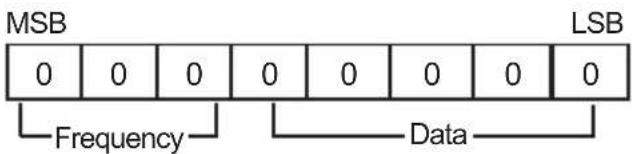
text_image
MSB 0 0 0 0 0 0 0 0 0 LSB Frequency Data| 7 | 6 | 5 | Frequency | 4 | 3 | 2 | 1 | 0 | Step |
| 0 | 0 | 0 | 1st Band | 0 | 0 | 0 | 0 | 0 | 0(decimal) |
| 0 | 0 | 1 | 2nd Band | 0 | 0 | 0 | 0 | 1 | 1(decimal) |
| 0 | 1 | 0 | 3rd Band | ... | ... | ... | ... | ... | ... |
| 0 | 1 | 1 | 4th Band | 1 | 0 | 0 | 1 | 1 | 19(decimal) |
| 1 | 0 | 0 | 5th Band | 1 | 0 | 1 | 0 | 0 | 20(decimal) |
Ack [v][ ][Set ID][ ][OK/NG][Data][x]
- Tune Command (Command: m a)
▶ Select channel to following physical number.
Transmission [m][a][ ][Set ID][ ][Data 00][ ] [Data 01][ ][Data 02][Cr]
Data 00 : High channel data
Data 01 : Low channel data ex. No. 47 -> 00 2F (2FH)
No. 394 -> 01 8A (18AH),
DTV No. 0 -> Don't care
Data02 : [Antena] 0x00 : Analog Main 0x10 : DTV Main 0x20 : Radio
[Cable] 0x80 : Analog Main 0x90 : DTV Main 0xA0 : Radio
[Satellite] 0x40 : DTV Main 0x50 : Radio Main
Channel data range
Min: 00 Max: 270F (0 to 9999)
Ack [a][ ][Set ID][ ][OK/NG][Data][x]
Data Min: 00 to Max: 7DH
- Programme Add/Skip (Command: m b)
▶ To set skip status for the current Programme.
Transmission [m][b][ ][Set ID][ ][Data][Cr]
▶ To send IR remote key code.
Transmission [m][c][ ][Set ID][ ][Data][Cr]
Data Key code - See p.56.
Ack [c][ ][Set ID][ ][OK/NG][Data][x]
- Control Backlight (Command: m g)
▶ To control the backlight.
Transmission [m][g][ ][Set ID][ ][Data][Cr]
Data Min : 00 to Max : 64
Ack [g][ ][Set ID][ ][OK/NG][Data][x]
- Input select (Command: x b)
(Main Picture Input)
▶ To select input source for main picture.
Transmission [x][b][ ][Set ID][ ][Data][Cr]
Data Structure
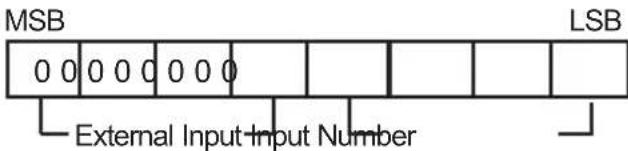
text_image
MSB 0 0 0 0 0 0 0 External Input Input Number LSB| External Input Data | ||||
| 0 | 0 | 0 | 0 DTV | |
| 0 | 0 | 0 | 1 | Analogue |
| 0 | 0 | 1 | 0 | AV |
| 0 | 1 | 0 | 0 | Component |
| 0 | 1 | 1 | 0 | RGB |
| 0 | 1 | 1 | 1 | HDMI |
| 1 | 0 | 0 | 0 | |
| 1 | 0 | 0 | 1 | |
| 1 | 0 | 1 | 0 |
| Input Number | Data | |||
| 0 | 0 | 0 | 0 | Input1 |
| 0 | 0 | 0 | 1 | Input2 |
| 0 | 0 | 1 | 0 | Input3 |
| 0 | 0 | 1 | 1 | Input4 |
Ack [b][ ][Set ID][ ][OK/NG][Data][x]
* Real data mapping
00: Step 0
:
A: Step 10 (Set ID 10)
:
F : Step 15 (Set ID 15)
10 : Step 16 (Set ID 16)
•
64: Step 100
•
6E: Step 110
:
73: Step 115
74: Step 116
:
CF: Step 199
:
FE: Step 254
FF: Step 255

LG
Life's Good
Record the model number and serial number of the TV.
Refer to the label on the back cover and quote this information to your dealer when requiring any service.
MODEL ____
SERIAL
DVB®
Digital Video
Broadcasting