
HXDD2535 - Support voiture Hamlet - Free user manual and instructions
Find the device manual for free HXDD2535 Hamlet in PDF.


| Product Type | USB 3.0 Docking Station for 2.5" and 3.5" SATA HDD/SSD |
| Supported Drives | 2.5" or 3.5" SATA I/II/III Hard Disk Drive or SSD up to 4TB |
| Interface | SuperSpeed USB 3.0 (up to 5 Gbps), backward compatible with USB 2.0/1.1 |
| Data Transfer Rate | Up to 5 Gbps via USB 3.0; SATA III up to 6 Gbps |
| Features | Plug & Play, Hot-Swap, One Touch Backup (OTB) button |
| LED Indicators | Activity LED indicators |
| Power Supply | External: Input AC 100-240V, 50-60Hz, 0.8A; Output DC 12V, 2A |
| Dimensions (W × D × H) | 142 × 103 × 83 mm |
| Weight | 320 g |
| Material | Solid aluminum and plastic body |
| Compatibility | Windows XP/Vista/7/8, Mac OS 10.4 or above, Linux |
| Included in Box | Docking station, USB 3.0 cable, power supply, user manual |
| Backup Software | OTB backup software (Windows only, downloadable from www.hamletcom.com) |
| Certifications | RoHS, WEEE, CE compliant |
| Operating Temperature | No specific data; typical operating range 0°C to 40°C (estimated) |
| Storage Temperature | No specific data; typical storage range -20°C to 60°C (estimated) |
| Warranty | Standard manufacturer warranty (details in manual or website) |
Frequently Asked Questions - HXDD2535 Hamlet
User questions about HXDD2535 Hamlet
0 question about this device. Answer the ones you know or ask your own.
Ask a new question about this device
Download the instructions for your Support voiture in PDF format for free! Find your manual HXDD2535 - Hamlet and take your electronic device back in hand. On this page are published all the documents necessary for the use of your device. HXDD2535 by Hamlet.
USER MANUAL HXDD2535 Hamlet
natural_image
Black Hamlet brand toaster with control knob and brand name visible (no additional text or symbols)Manuale Utente
HXDD2535
www.hamletcom.com
Gentile Cliente,
natural_image
Diagram of a device interior with a rectangular slot and a horizontal bar, enclosed in a rounded rectangle (no text or symbols)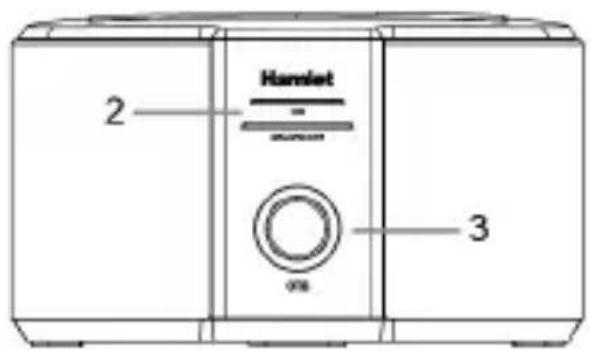
natural_image
Black Hamlet brand toaster with control knob and brand name visible (no additional text or symbols)User Manual
HXDD2535
Dear Customer,
Thanks for choosing a Hamlet product. Please carefully follow the instructions for its use and maintenance and, once this item has run its life span, we kindly ask You to dispose of it in an environmentally friendly way, by putting it in the separate bins for electrical/electronic waste, or to bring it back to your retailer who will collect it for free.
We inform You this product is manufactured with materials and components in compliance with RoHS Directive 2011/65/EU; with WEEE Directive 2002/96/CE, 2003/108/CE Italian Legislative Decree 2005/151 and EMC 2014/30/EU Directive for the following standards:
EN 55022: 2010, EN 61000-3-2: 2014, EN 61000-3-3: 2013, EN 55024: 2010, EN 61000-4-2: 2009, EN 61000-4-3: 2006 + A1: 2008 + A2: 2010, EN 61000-4-4: 2012, EN 61000-4-5: 2014, EN 61000-4-6: 2014, EN 61000-4-8: 2010, EN 61000-4-11: 2004.

The complete CE declaration of conformity of the product can be obtained by contacting Hamlet at info@hamletcom.com.
The information on the importer for your country can be found in the “About Us” section of the Hamlet website at www.hamletcom.com.
Trademarks and changes
All trademarks and company names mentioned in this manual are used for description purpose only and remain property of their respective owners.
The material in this document is for information only. Contents, specifications and appearance of the product are indicative and may change without notice.
Important information
Any loss, corruption or destruction of data while using a Hamlet drive is the sole responsibility of the user, and under no circumstances will Hamlet be held liable for the recovery or restoration of this data. To help prevent the loss of your data, it is highly recommended that you keep TWO copies of your data; one copy on your external hard drive, for instance, and a second copy either on your internal hard drive, another external hard drive or some other form of removable storage media.
Description
Hamlet USB 3.0 Docking Station offers a quick and easy solution to connect a SATA 2.5" or 3.5" to the USB port of your computer without having to install the disk in the PC or inside an external box. Thanks to Plug and Play and Hot-Swap function, you only need to insert the hard drive into the docking station for quick access to data or to increase the storage capacity of your computer. The USB 3.0 connection provides a data transfer rate of up to 5Gpbs and the OTB (One Touch Backup) allows you to start data backup just by pressing a button.
Features
- Docking station for 2.5" or 3.5" SATA I/II/III Hard Disk Drive
• Supports HDD or SSD up to 4TB - SATA III interface with data transfer rate up to 6 Gbps
• Solid aluminum and plastic body
• OTB (One Touch Backup) button for easy backup - Backup software with support for OTB function included (Windows only) *
- SuperSpeed USB 3.0 interface with data transfer rate up to 5 Gbps
- Backward compatible with USB 2.0 and USB 1.1
• Activity LED indicators - Plug & Play and Hot-Swap support
• USB 3.0 cable included - External power supply:
Input: AC 100\~240V, 50\~60Hz 0.8A
Output: DC 12V, 2A
• Dimensions: 142 × 103 × 83 mm - Weight: 320 g
- Compatible with Windows XP/Vista/7/8, Mac OS 10.4 or above and Linux
Package content
• USB 3.0 Docking Station
- USB 3.0 cable
- Power supply
- User's manual
* The software is available for download at www.hamletcom.com.
Product overview
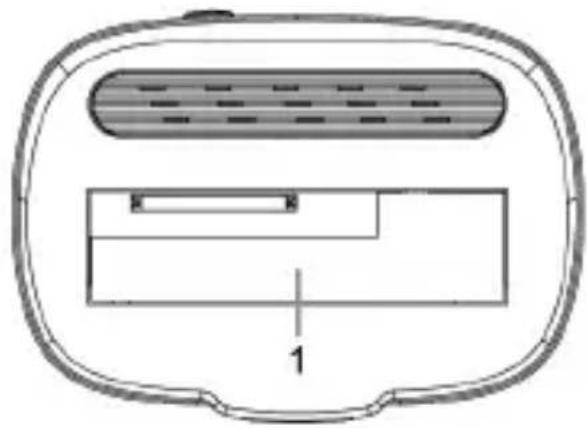
- Hard Disk slot
- LED indicators
- OTB button
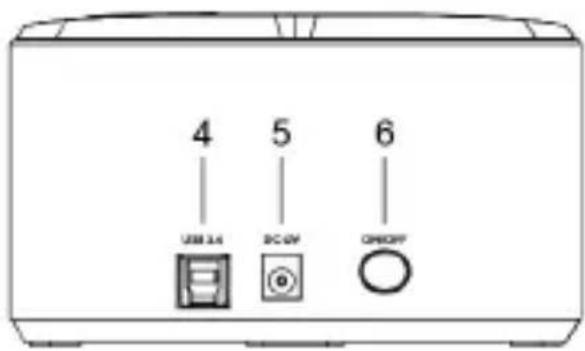
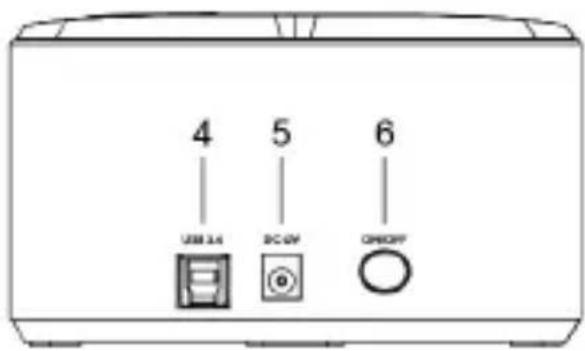
- USB 3.0 port
- Power input
- On/Off power button
natural_image
Diagram of a device interior with a rectangular slot and a horizontal bar, enclosed in a rounded rectangle (no text or symbols)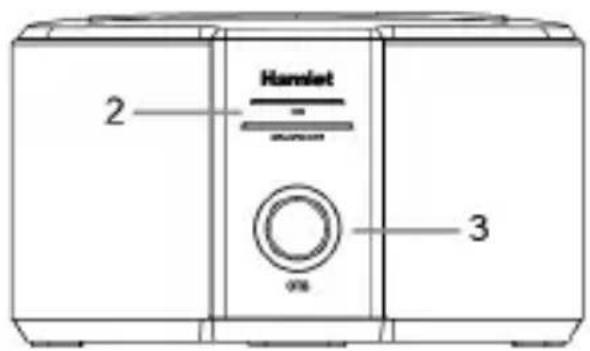
Device installation
- Insert the hard drive into the docking station, making sure to place it in the correct direction.
- Make sure the HDD is firmly connected to the SATA connector on the docking station.
- Connect the USB cable to the matching port on the back of the docking station and to an available USB port of your computer.
- Connect the power cable to DC input on the back of the docking station and to an electrical power outlet.
- Turn on the docking station pressing the power button.
- The computer will automatically detect the new hardware and the hard disk will be visible and accessible by the operating system as a standard external drive.
IMPORTANT NOTE
If the hard drive installed in the docking station is not formatted, you need to format it before use. Please refer to your operating system manual for the correct formatting procedure.
OTB (One Touch Backup) function
The One Touch Backup (OTB) function allows you to back up data on external hard drive by pressing a single button on the device.
To use this function you must install and configure the backup software (Windows only) available for download on the product's page at Hamlet website.
Connecting and disconnecting USB devices
Most USB devices can be removed and unplugged at will. When unplugging storage devices, such as USB flash drives, you should be sure that the computer has finished saving any information to the device before removing it. If the device has an activity light, wait for a few seconds after the light has finished flashing before unplugging it.
Windows Users
If you see the “Safely Remove Hardware” icon in the notification area at the far right of the taskbar, you can use this to ensure that devices have finished all operations in progress and are ready to remove.
- Click the "Safely Remove Hardware" icon.
- You'll see a list of connected devices.
- Click the device you want to remove.
Mac Users
To eject a disk or volume, do one of the following:
- Select the item to eject, and choose File > Eject.
- Drag the item to the Trash icon in the Dock (While you drag, the Trash icon changes to an Eject icon).
Brand : Hamlet
Model : HXDD2535
Category : Support voiture