
ModelSmart 250S - 3D Printer POLAROID - Free user manual and instructions
Find the device manual for free ModelSmart 250S POLAROID in PDF.


| Product Type | 3D Printer (FDM) |
| Brand | Polaroid |
| Model | ModelSmart 250S |
| Technology | Fused Deposition Modeling (FDM) |
| Build Volume | 250 x 150 x 150 mm (W x H x D) |
| Layer Resolution | 50–350 microns |
| Print Speed | 20–100 mm/s |
| Filament Diameter | 1.75 mm |
| Supported Materials | PLA, Wood |
| Extruder | Single extruder |
| Connectivity | USB 3.0, SD card slot |
| Display | Touchscreen LCD |
| Auto-Leveling | Yes (auto calibration) |
| Camera | Built-in Wi-Fi camera (DOG-1W) for remote monitoring |
| Power Input | 100–240 V AC, 50–60 Hz |
| Power Adapter Output | 24 V DC, 5 A |
| Print Bed | Removable glass bed with magnetic attachment |
| Z-Axis Sheets | Included (15 adhesive sheets for better adhesion) |
| Accessories Included | Glass bed, 750g PLA filament cartridge, filament cartridge holder, power cable, USB cable, screws, filament tube, Z-Axis sheets, Quick Start Guide |
| Safety Features | Hot surface warning, moving parts caution, automatic shutdown, child supervision required (under 16) |
| Cleaning | Clean exterior with damp cloth; glass bed with warm water; extruder nozzle regularly for residue |
| Warranty | 12 months manufacturer’s guarantee (valid with registration) |
Frequently Asked Questions - ModelSmart 250S POLAROID
User questions about ModelSmart 250S POLAROID
0 question about this device. Answer the ones you know or ask your own.
Ask a new question about this device
Download the instructions for your 3D Printer in PDF format for free! Find your manual ModelSmart 250S - POLAROID and take your electronic device back in hand. On this page are published all the documents necessary for the use of your device. ModelSmart 250S by POLAROID.
USER MANUAL ModelSmart 250S POLAROID
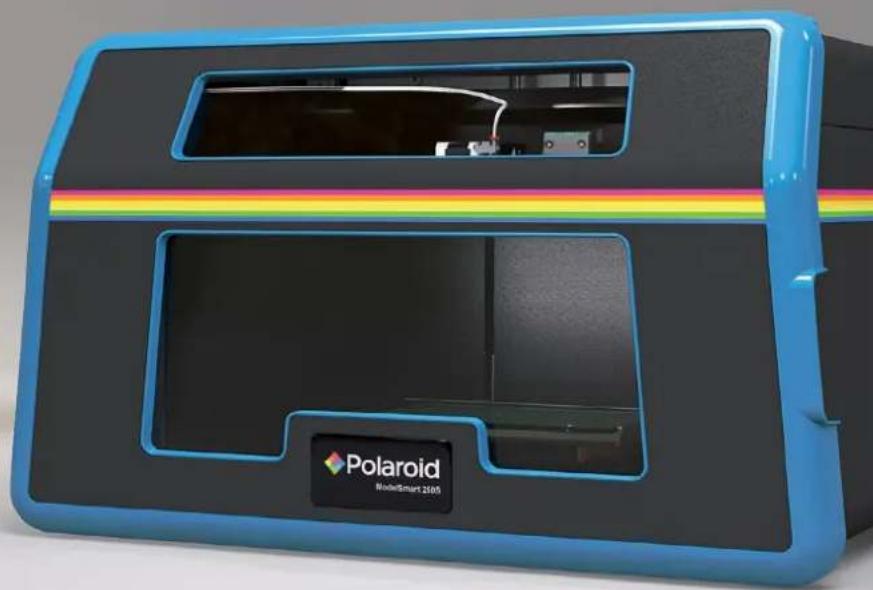
natural_image
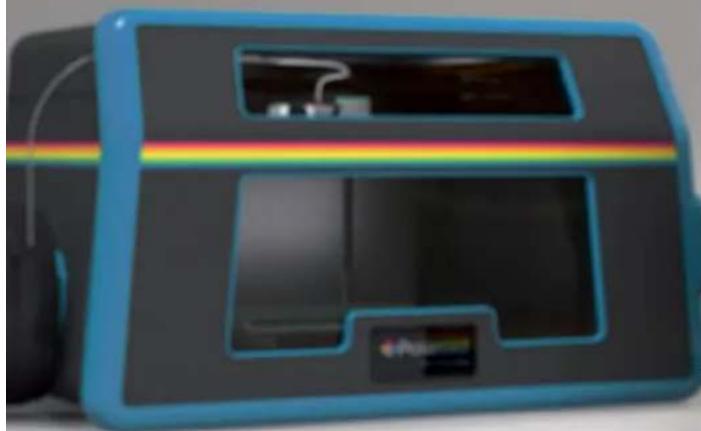
3D rendering of a Polaroid NodeSmart 2160 device with blue frame and black casing (no visible text or symbols on body)
natural_image
Colorful diamond-shaped grid pattern with no text or symbolsPolaroid
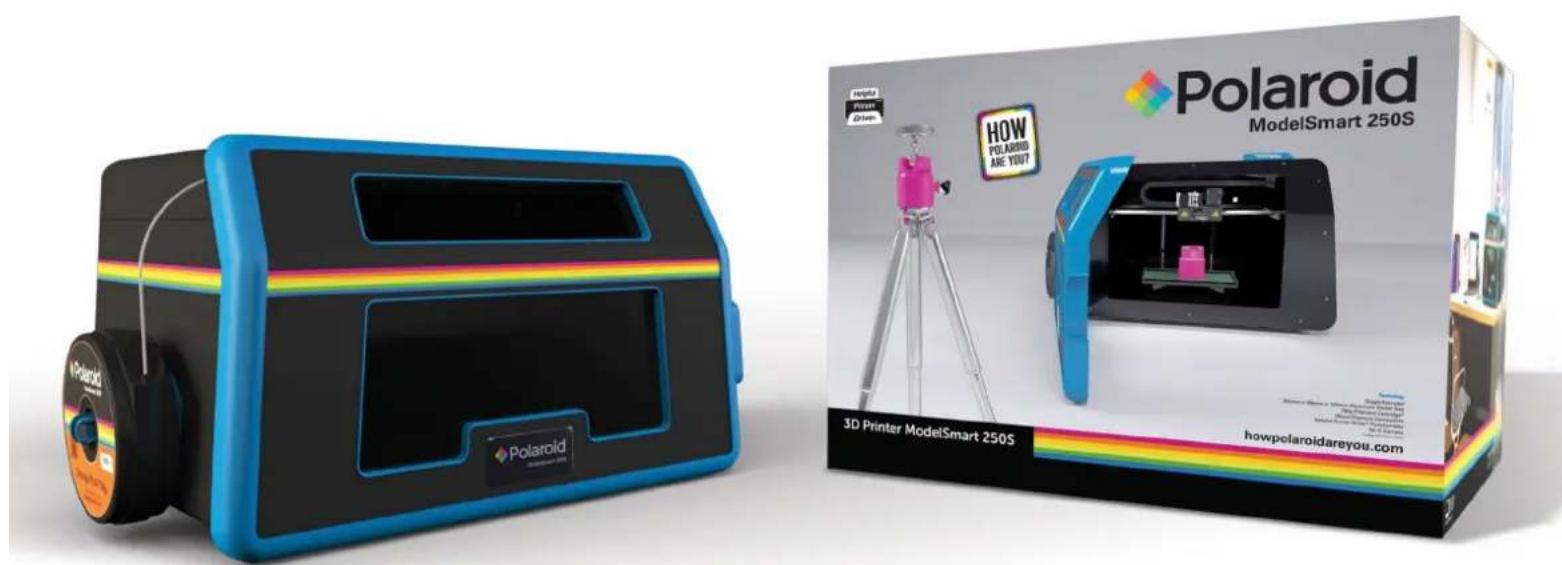
ModelSmart 250S
User Guide
CONTENTS
■ Introduction .... 3
Safety Instructions 4
Box Contents 5
Printer Set Up 6
Windows Operating System 9
- Installing Cartridges....10
Z-Axis Sheets 13
■ Camera Set Up 14
How to Print 15
- Printing via your Polaroid 3D Printer 25
Other LCD functionality 26
■ Technical Specifications 27
- Cleaning and Maintenance 28
■ Manufacturer's Guarantee 29
■ Certifications and Compliance 30
Troubleshooting 31
Contact Details 35
INTRODUCTION
The following User Guide provides you with all of the information you need to get started printing with your Polaroid ModelSmart 250S.
It will guide you through the simple installation of your printer starting with getting it out of the box, right through to each of the fantastic features of the Polaroid Prep printing software and the easy-to-use touch screen LCD on the printer itself.
The Polaroid 3D team hope that you have many happy hours printing with your new ModelSmart 250S 3D printer, but if you have any questions at all, please don't hesitate in contacting the team via our online Contact Form.
SAFETY INSTRUCTIONS

WARNING
(Heated surface)

WARNING
(Electrical component)

CAUTION

Whilst in operation, the extruder on your Polaroid 3D printer becomes very hot. Always allow time for the extruder to cool down before you reach inside the printer.

This product is not to be serviced by anyone other than a Polaroid 3D approved engineer. Any unapproved servicing will also void your guarantee.

The Polaroid 3D printers include moving parts, which may cause injury if interfered with whilst in use. Never reach inside your Polaroid 3D printer whilst it is in use.

Never leave your Polaroid 3D printer unattended during operation.

Please ensure that the printer is located in an area that is:
- close to the intended power supply and that the socket is easily accessible
- well ventilated
- clean and dry
- a consistent and stable temperature and humidity
- positioned away from any object that may cover the ventilation holes on the printer
- positioned away from any flammable items
- positioned away from any liquids
• a flat and stable surface

Any damage caused by improper use of the printer or its component and consumable parts, which is in contradiction with this User Guide becomes the full responsibility of the user and will void your guarantee.

This printer is not suitable for children. Anyone under the age of 16 must be supervised by an adult.

Never turn off your Polaroid 3D printer during printing; please wait until the job has completed and the print bed and extruder have returned to the Home Position before turning off the power.

Due to the weight of this product, two people are required to remove the printer from the outer box packaging and onto a suitable surface.
BOX CONTENTS
A
natural_image
Front view of a Polaroid printer device with blue and black casing (no visible text or symbols)Polaroid ModelSmart 250S
natural_image
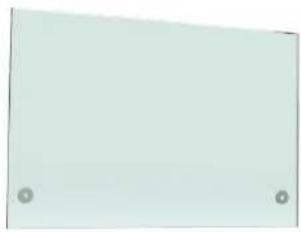
Plain light green rectangular panel with two small circular holes at the bottom (no text or symbols)Glass bed
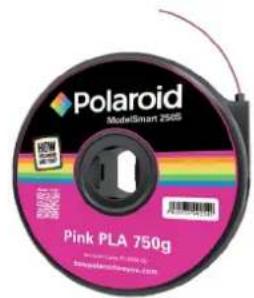
Filament cartridge 750g PLA
D
natural_image
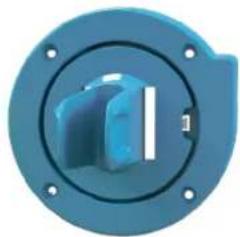
Blue circular mechanical component with internal blue structure and mounting holes (no text or symbols)Cartridge filament holder
natural_image
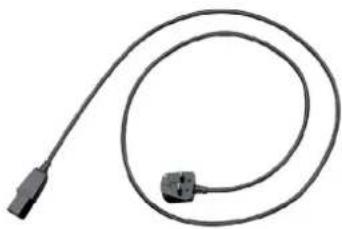
Coiled black cable with two connectors, no text or symbols visible2m power cable
natural_image
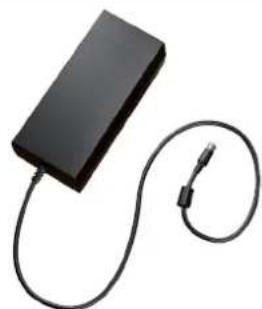
Black rectangular electronic device with coiled cable and connector (no visible text or symbols)24v power adapter
G
natural_image
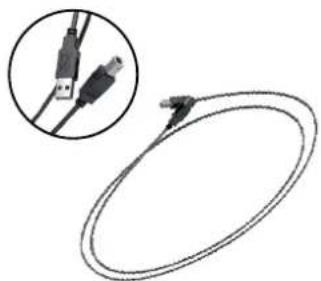
Close-up of a USB cable with connector, shown in an inset (no text or symbols)Extra long 3m USB Cable
natural_image
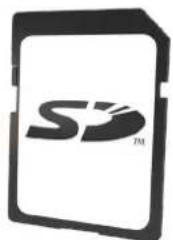
Black and white icon of a 3.5-inch SDRAM chip with 'SD' branding and 'TM' text (no additional symbols or text)512MB SD Card
natural_image
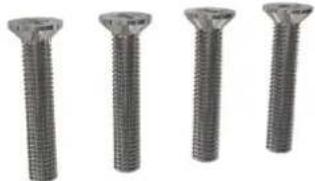
Four metallic screw-like components arranged in a row (no text or symbols visible)Four screws for the filament cartridge holder
J
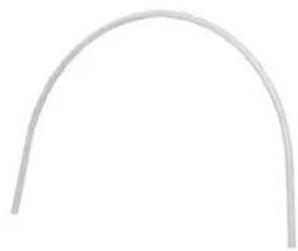
natural_image
Simple curved line drawing with no text or symbolsFilament tube
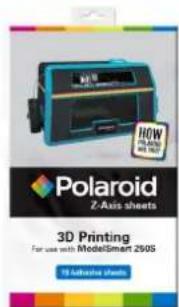
Z-Axis sheets
Quick Start Guide
PRINTER SET UP
Please follow the steps below to get your Polaroid 3D printer ready for printing. Before you start, please note that two people are required to remove the printer from the box. Once removed from the box please ensure that your printer is positioned on a flat and stable surface, this helps to minimise vibration and produce more accurate prints.

1 Remove the printer from the double lined box. Please note that two people are required to remove the printer from the box.
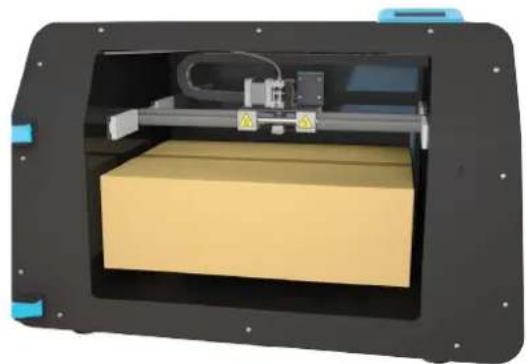
natural_image
3D rendering of a beige rectangular device with a transparent internal frame, no visible text or symbols2 Open the printer door and remove the following items from the box that you find inside the printer:
a. Glass bed
b. Filament cartridge
c. Filament cartridge holder
d. 2m Power cable
e. 24V power adapter
f. Extra long 3m USB cable
g. Four screws for the filament holder
h. Filament tube
i. 1x pack of Z-Axis sheets
natural_image
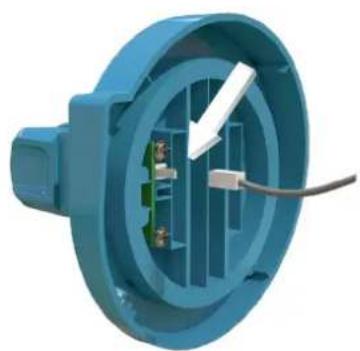
3D rendering of a blue industrial component with internal structure and wiring (no text or symbols visible)3 Set up the filament holder cable:
Connect the cable connector to the rear of the filament cartridge holder. Please refer to the illustration for details and correct orientation.
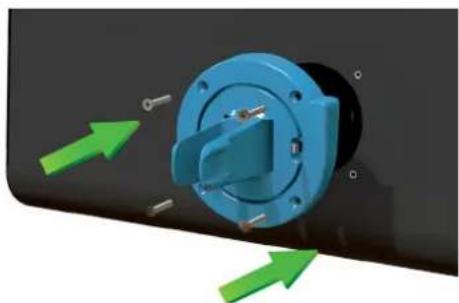
natural_image
Close-up of a blue mechanical component with green directional arrows indicating motion or flow (no text or symbols)4 With the four screws provided attach the filament cartridge holder to the printer. Important note: hand tighten only.
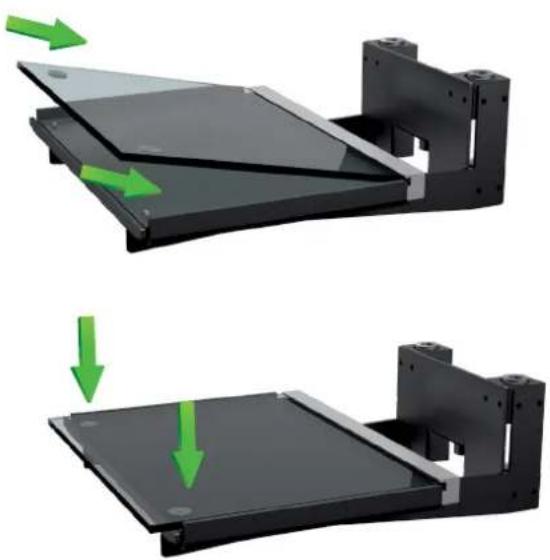
natural_image
Two views of a black metal frame structure with green directional arrows indicating movement or force (no text or symbols)5 Insert the glass bed onto the print bed area at an angle to ensure it fits underneath the metal ridge at the back, then lower it onto the magnets at the front to secure it in place.
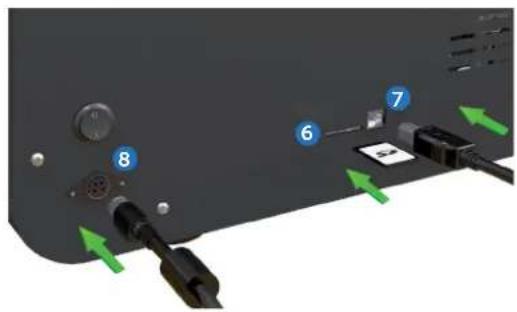
6 An SD card must always be inserted to print whether by computer or via LCD.
7 Connect the USB cable.
8 Connect the power cable and turn on the printer. Be careful not to damage the cables.
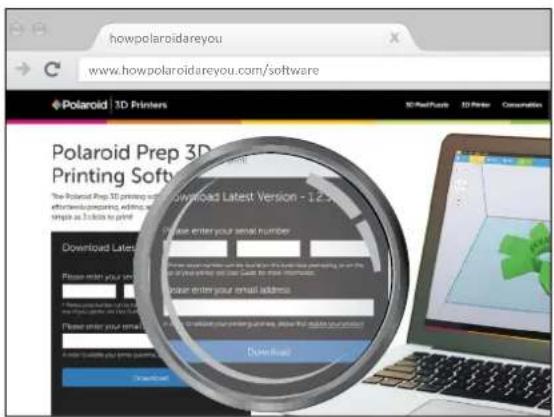
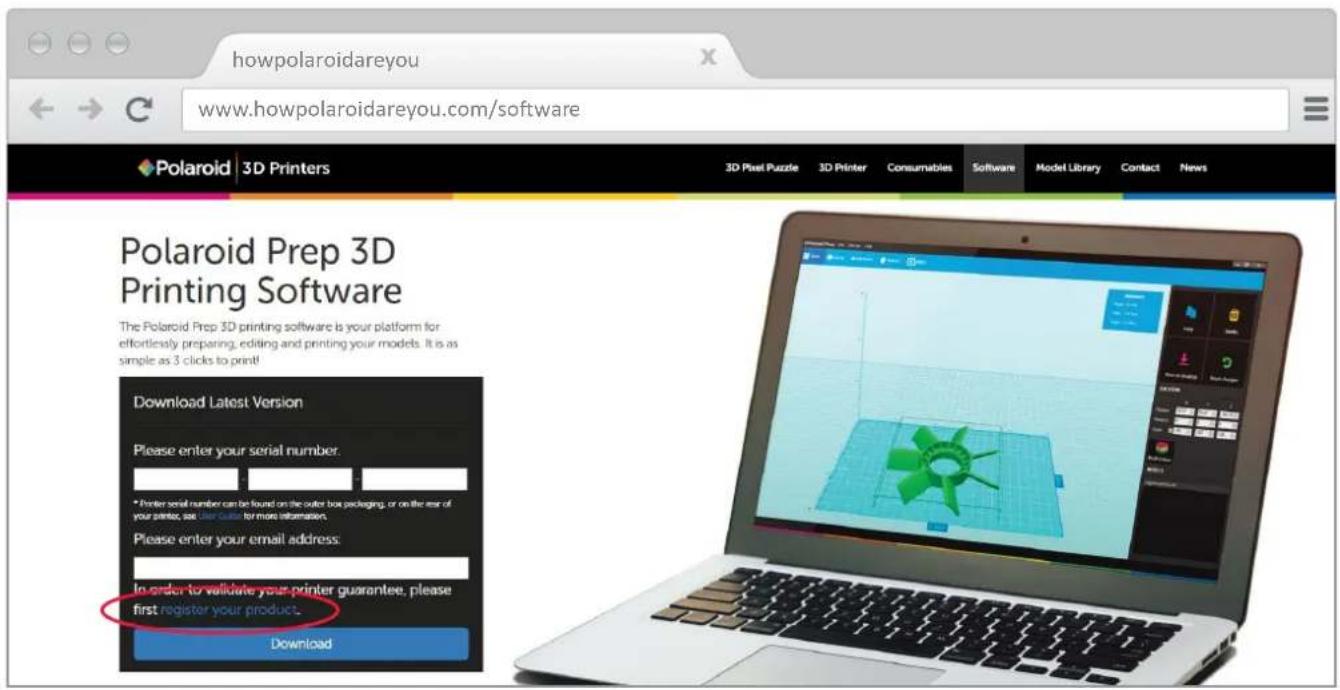
9 Download and install the Polaroid Prep Software from howpolaroidareyou.com/software
Firstly, please insert your serial number and email address to download the software.
| PolaroidModelSmart 250S | MODEL:ModelSmart 250S | 100-240V AC;24V 5A DC;50-60Hz | CE RoHSWEEE |
| howpolaroidareyou.com | Serial No. PL-250-18679-12NSJ | ||
| MADE IN THE UNITED KINGDOM BY: Environmental Business Products Ltd. 26 Chase Road, London, NW10 6BB | |||
Your serial number can be found on the outer box/packaging, or on the rear of your printer.
In order to validate your printer guarantee, please click on the link above the download button "register your product" and then enter your details.
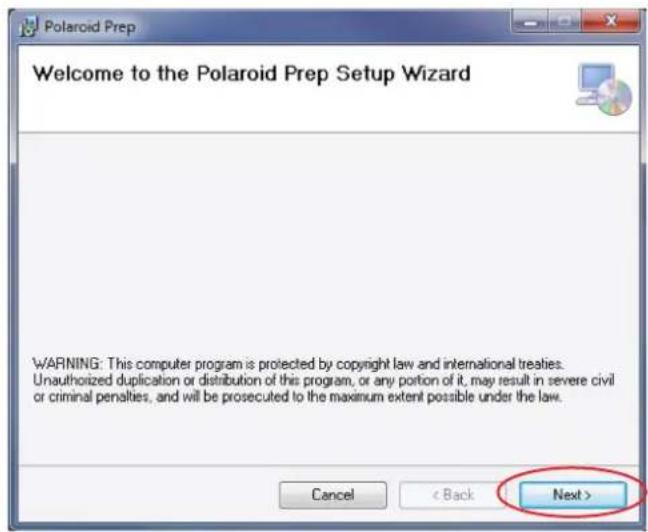
Once you have downloaded the software and double clicked on the installer, the installation process will then begin.
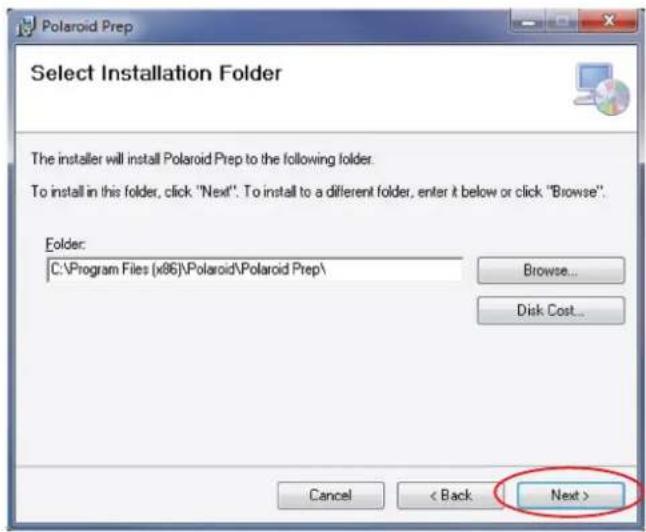
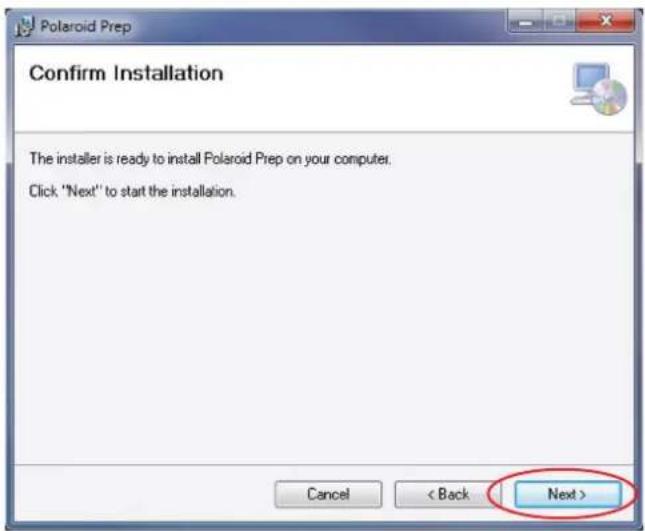
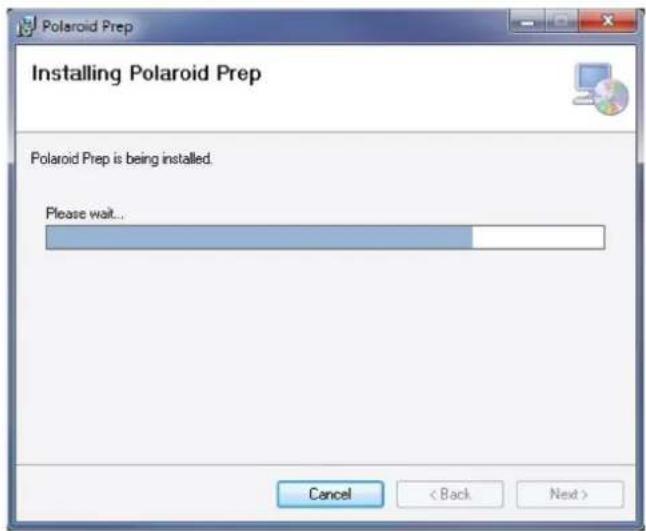
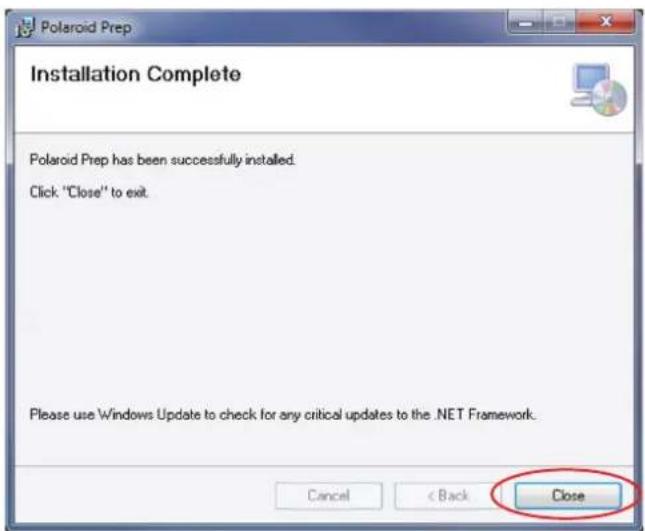
Please follow the on-screen pop-up messages to install the Polaroid Prep software as below:
INSTALLING CARTRIDGES
Before you can print you must install a filament cartridge.
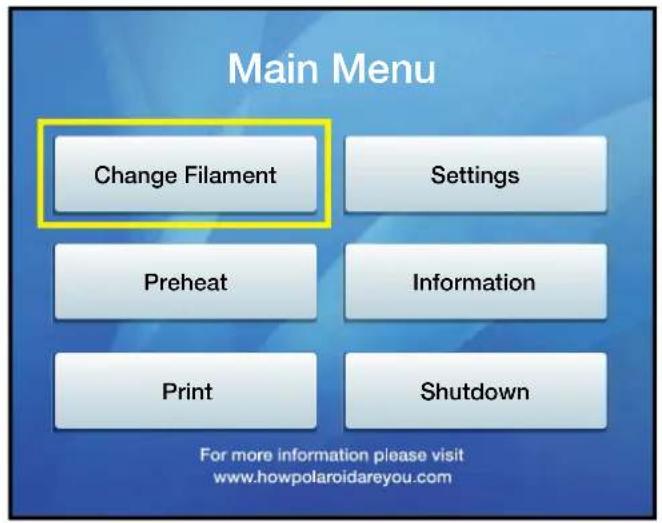
In order to do this you must use the menu on the touchscreen LCD on the top of the printer. Please follow the process below:
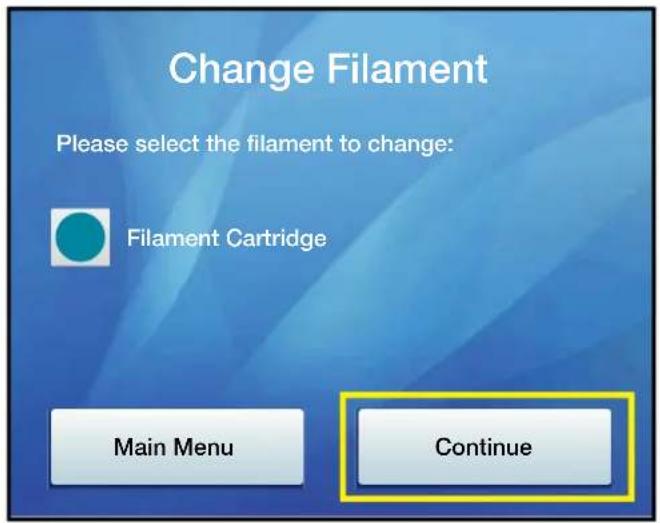
From the Main Menu please select 'Change Filament'
1
The filament cartridge is already pre-selected so please press continue.
2
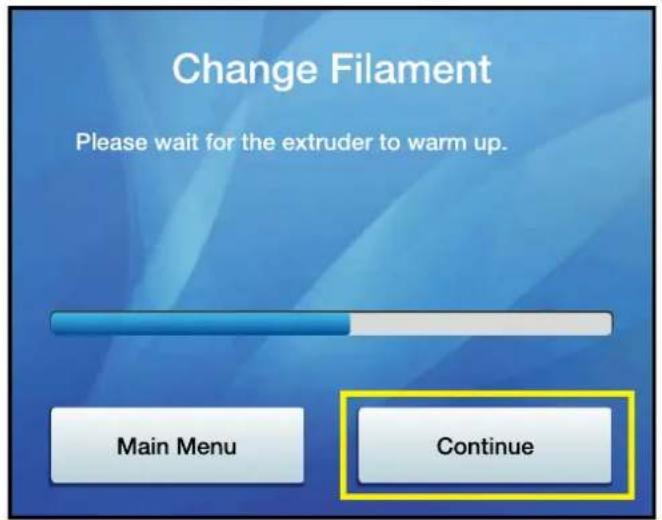
Please then wait a few moments for the selected extruder to warm up. This is necessary because in order to successfully load a cartridge a small amount of material needs to be extruded through the nozzle. The 'Continue' button will remain inactive until the extruder is warmed to the correct temperature.
3
4
5
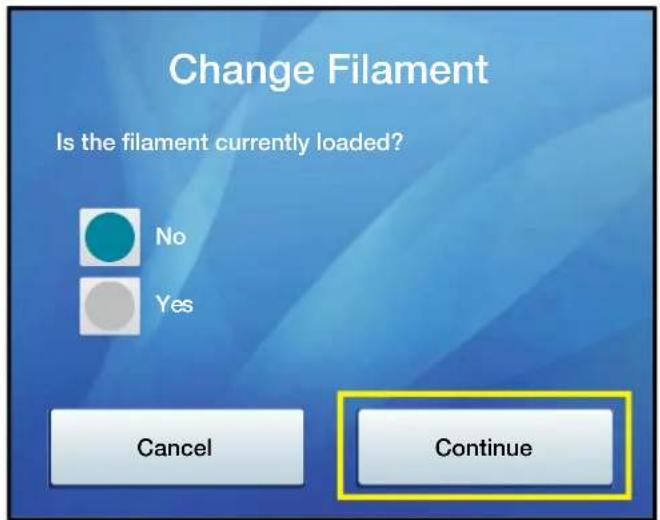
You will then be asked if a filament cartridge is already installed. Initially this will be 'No' as this is the first time a filament cartridge has been loaded; but when changing a cartridge in future you will select 'Yes'. Selecting 'Yes' will uninstall the existing filament before allowing you to load a new filament.
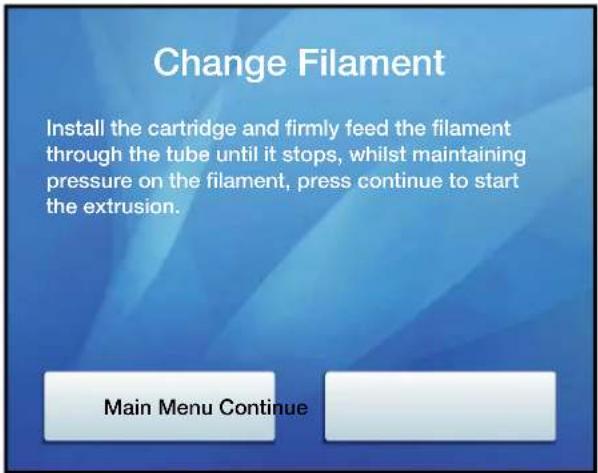
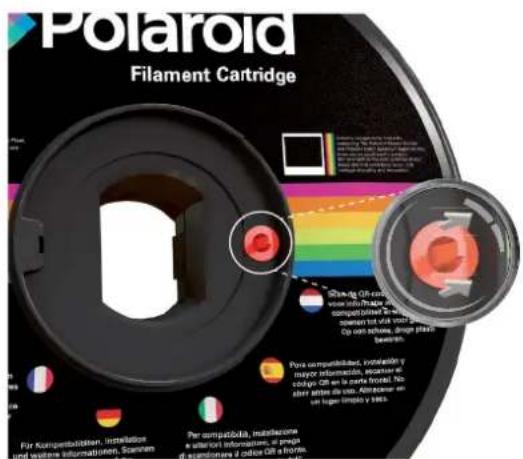
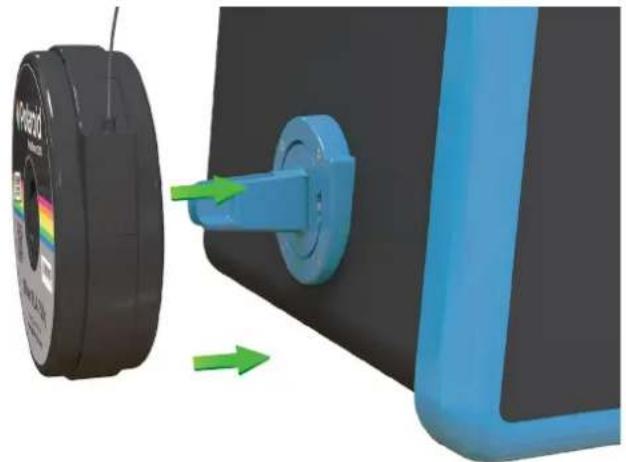
You then need to install the cartridge onto the side of the printer. Firstly, remove the filament cartridge from the outer packaging and take out the red plug from the side of the cartridge casing. Slide the cartridge onto the filament holder on the side of the printer and gently push until you hear it click into place.
natural_image
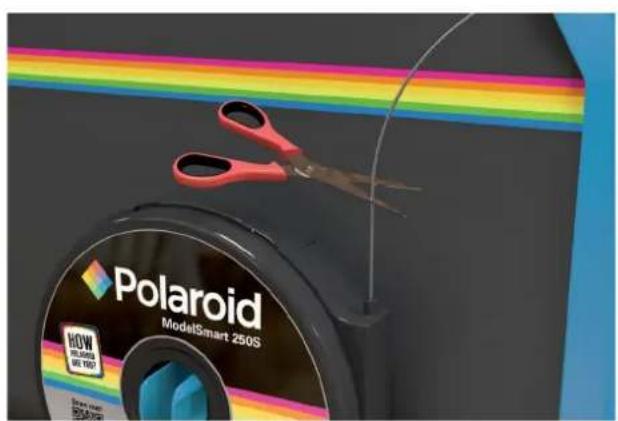
Close-up of a car tire being adjusted to a blue circular component with green arrows indicating motion (no text or symbols)Next, gently pull out sufficient filament from the cartridge (5cm to 15cm). Cut off the first 5cm of the filament and discard (this is to ensure that any previously exposed filament does not enter the printer as it may have some dirt on it). Then push the filament coming from the cartridge through the filament tube (item J). Feed the filament through the filament tube into the corresponding fitting on the side of the printer.
natural_image
Close-up of a Polaroid ModelSmart 250S printer with scissors and cable, against a rainbow striped background (no readable text or symbols on the device itself)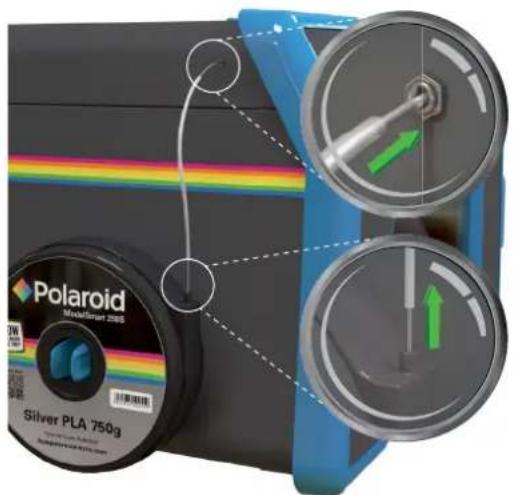
Continue feeding the filament into the printer until it you feel it stops. Approximately 30cm of filament will be required.
Whilst maintaining gentle pressure (to ensure that the filament has been fed all the way through correctly), please press the on-screen 'Continue' button which will start the extrusion process.
You should then feel the filament being pulled through the printer and see filament being extruded through the nozzle. When this is complete the 'Continue' button will become active and you can complete the process.
If no filament is extruded, ensure that the filament has been pushed all the way through and whilst maintaining gentle pressure please push the 'Repeat Process' button.
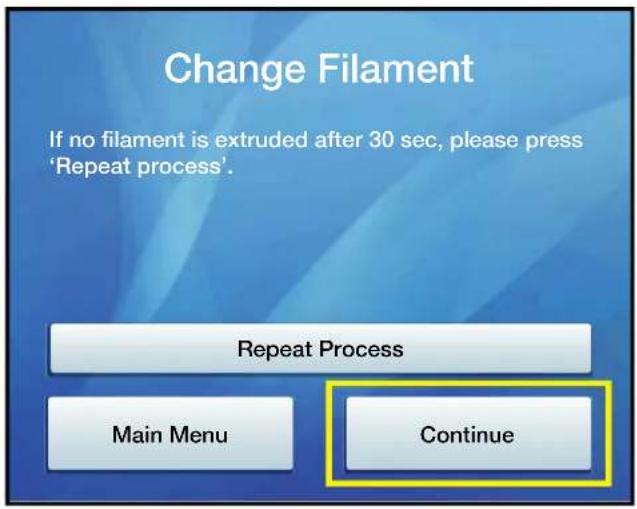
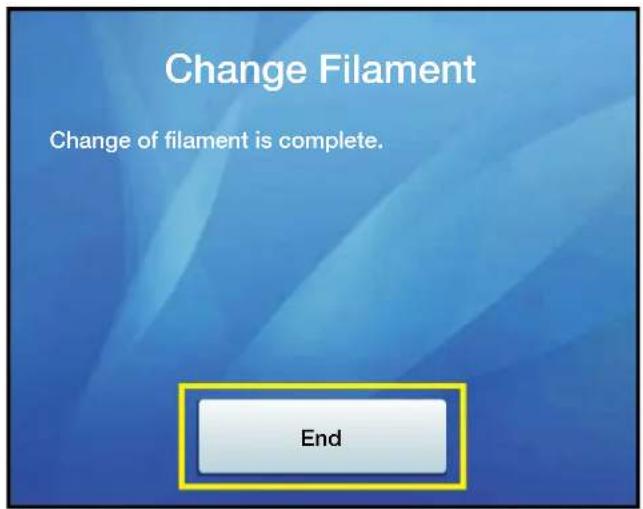
Once the filament has been installed, push the end of the filament tube onto the top of the cartridge and into the fitting on the side of the printer, ensuring that no filament is left exposed.
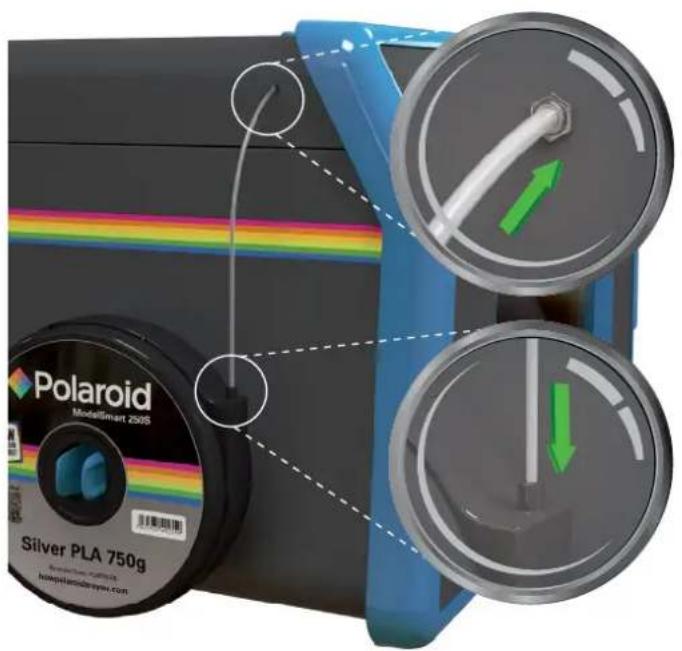

If removing a part-used filament, please ensure that you do not push the end of the filament back into the cartridge casing as this means that you will then not be able to attach this cartridge to the printer again for printing.
Part-used cartridges should be stored in a cool and dry environment whilst not in use.
Z-AXIS SHEETS
When printing on a 3D printer, the first layer of the print is all-important. It must adhere to the print bed to ensure that the subsequent layers sit directly on top of each other and aren't out of alignment. Any small movement or imperfection could cause your print to not re-produce correctly.
To ensure this adhesion is secure, the Polaroid 3D printers use a revolutionary product called the Z-Axis sheets. These are transparent adhesive sheets that are easy to apply to the print bed before each print. Your model then prints on top and when finished you simply remove the glass bed from the printer and peel off the Z-Axis sheet. The model then peels from the sheet.
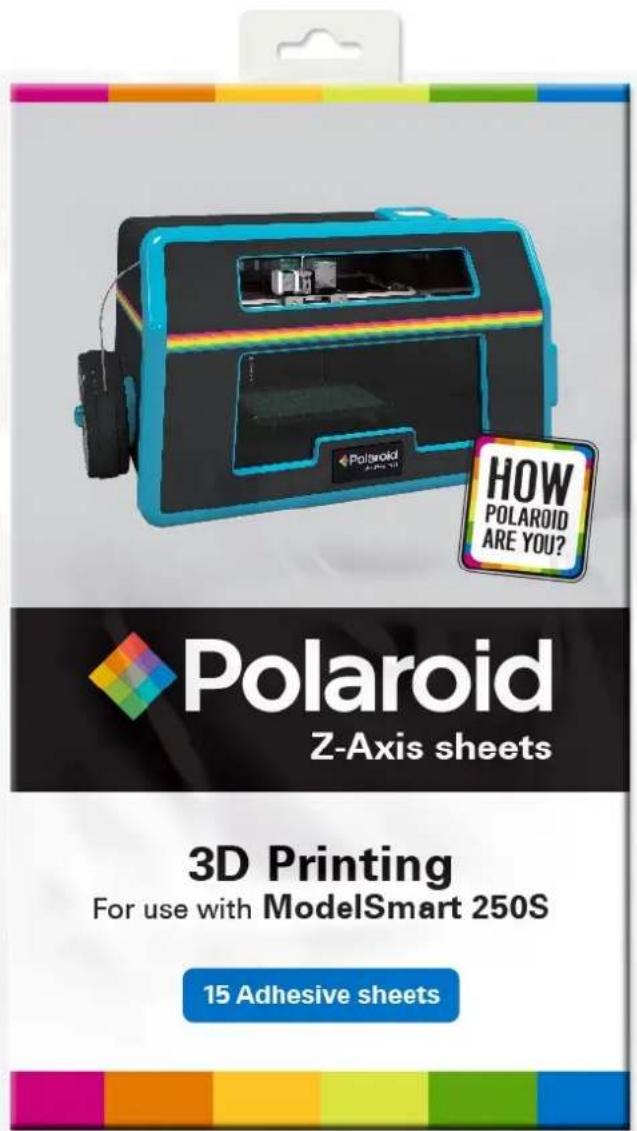
Applying the Z-Axis sheet for PLA and Wood
-
Before applying the Z-Axis sheet, ensure the glass bed is clean.
-
Remove the backing sheet (clearly labelled this side down) and apply the revealed adhesive side to the print bed.
-
Take it slow from one edge to the other and take care to minimise air bubbles.
-
Once fully applied remove the top sheet, leaving the adhesive layer exposed.
-
You are now ready to print.
-
For best results print within 15 minutes of removing the first backing sheet.
CAMERA SET UP
Please download the 'Doby - Smart Camera' App from Google Play or Apple Store onto your smart phone or tablet.
3 SIGN UP AND SIGN IN
Open the App and click on 'Sign Up' to register.
4 ADD DEVICE
a) Once you have successfully logged in, you will be directed to the Home screen. Click the icon at the bottom right of your screen and then choose the 'camera' option.
b) Please make sure that the blue WiFi indicator light is flashing on the camera. If not, please press and hold the WiFi button for a few seconds until the blue WiFi indicator light is flashing and then click on 'yes' on the screen. Click ① icon to view the description of all LED indicator light states.
c) Add device
- Android: on the search page, choose the new device you want to add. The camera ID number is located on the camera, which is mounted inside the printer door.
- iPhone: come out of the app and go to 'Settings > WiFi' on your iPhone and connect to 'DOG-00***' and use the password shown on the screen. Once you have connected come back to the App and click 'next'.
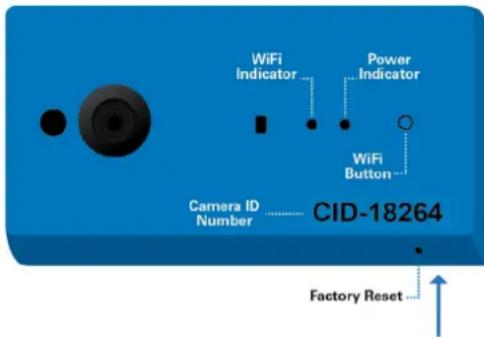
Note: If after pressing the WiFi button, the WiFi indicator light does not flash blue, please perform a factory reset as follows: using a pin, please press and hold the reset button for approx. 5 sec or until the WiFi indicator turns off. The reset button can be found on the underneath of the camera housing.
d) On the 'Set Wifi' page, both Android and iPhone, select a network to connect to enter the password and click 'next'.
Note: the automatic switching of network is normal during the connection process.
e) Once added successfully click on 'Done' and start using.
5 WATCHING VIDEO
a) On the App home page, click on the camera you have added from the list.
b) Click on the play button to watch real-time video. Click on the video to bring up the pause button and press the pause button to stop the video.
c) Click on the ⏻ icon on the top right corner of the screen to change the camera settings.
6 SMART CAMERA DOG-1W INDICATOR STATE
| DOG-1W (WiFi) | State | Instruction |
| The power light is on Be connected to power supply | ||
| WiFi indicator is blue blinking | Be ready to connect with a mobile device | |
| WiFi indicator is red blinking slowly | Fail to connect to a WiFi | |
| WiFi indicator is blue all the time | Connected to WiFi successfully | |
| WiFi indicator is flashing red and blue | System upgrading | |
7 PARAMETERS
| SpecificationItems | |
| Product Model | DOG-1W |
| Lens | HD camera, support videoing day and night |
| Video | H.264 (CODEC), 720*576@15fps (resolution) |
| Voice | Microphone |
| Night Vision | Automatically enable infrared induction under low illumination |
| WiFi | IEEE802.11b, IEEE802.11g |
HOW TO PRINT
Printing in 2 easy steps:
1 ADD MODEL
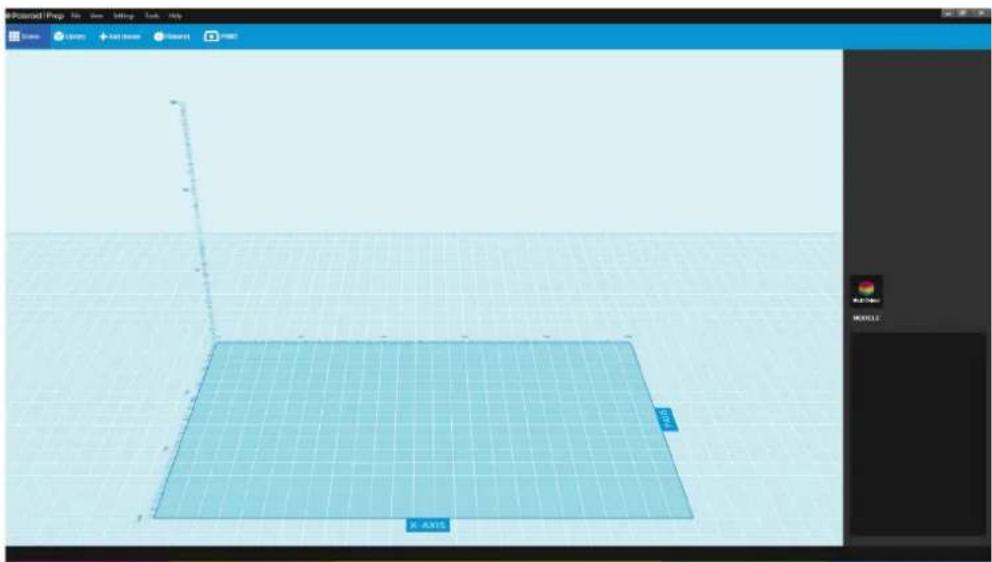
natural_image
3D modeling software interface showing a grid plane with X, Y, Z axis labels and tool icons (no readable text or symbols on the grid)Open the Polaroid Prep Software
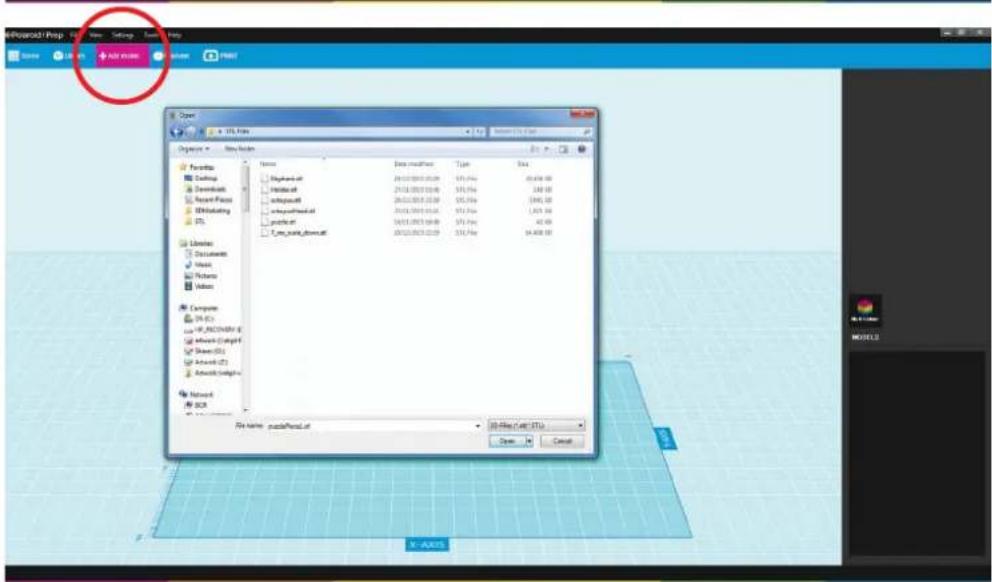
Select 'Add model' at the top of the screen and locate your .stl file within you computer.
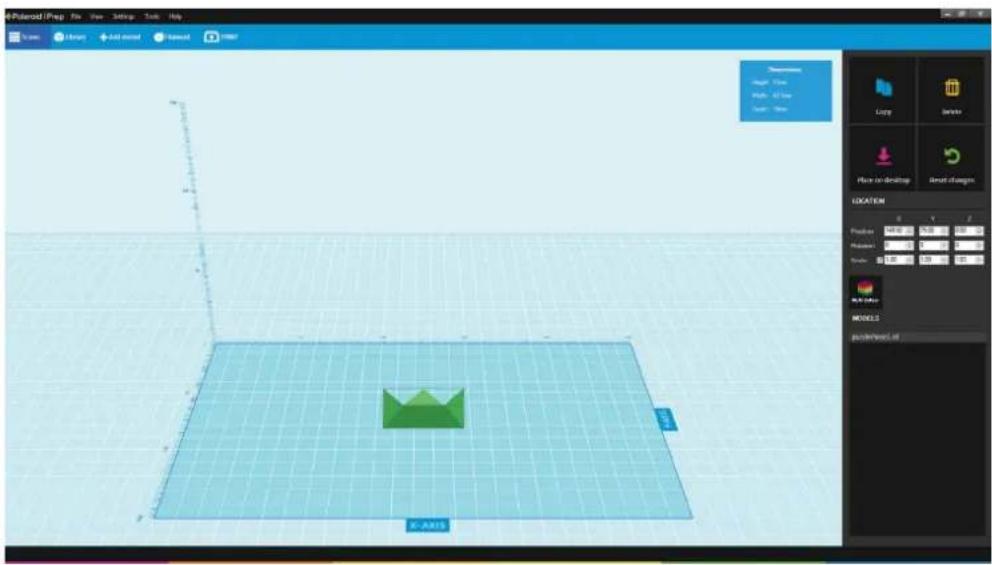
Your model is then loaded onto the print bed area.

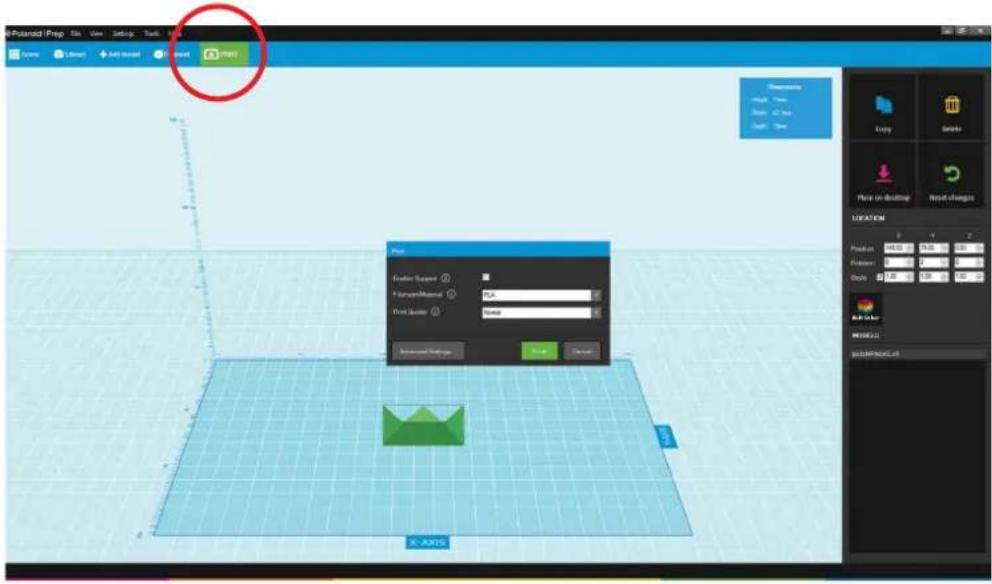
Select 'Print' at the top of the screen
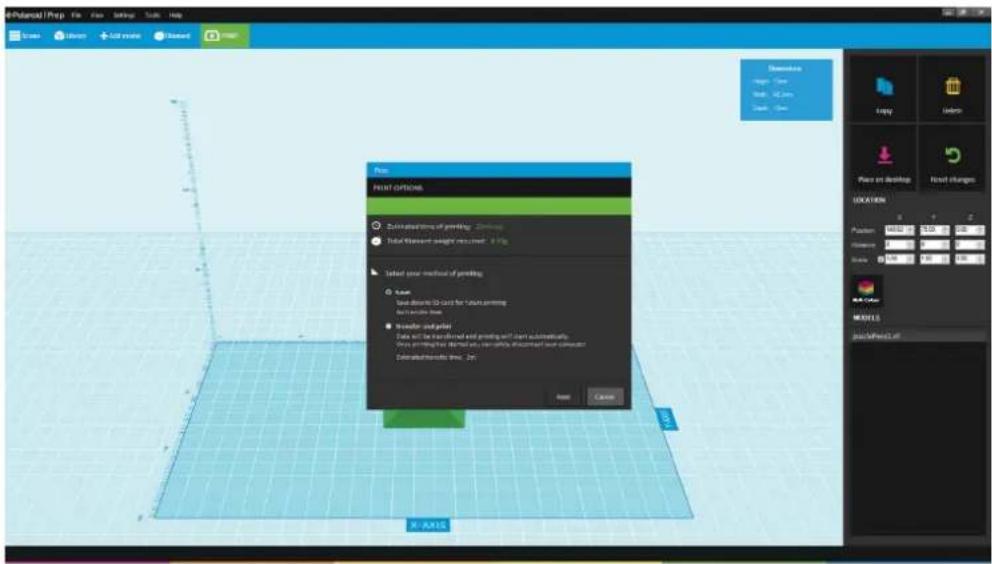
Select to save your file for printing via SD card or transfer and print via USB.
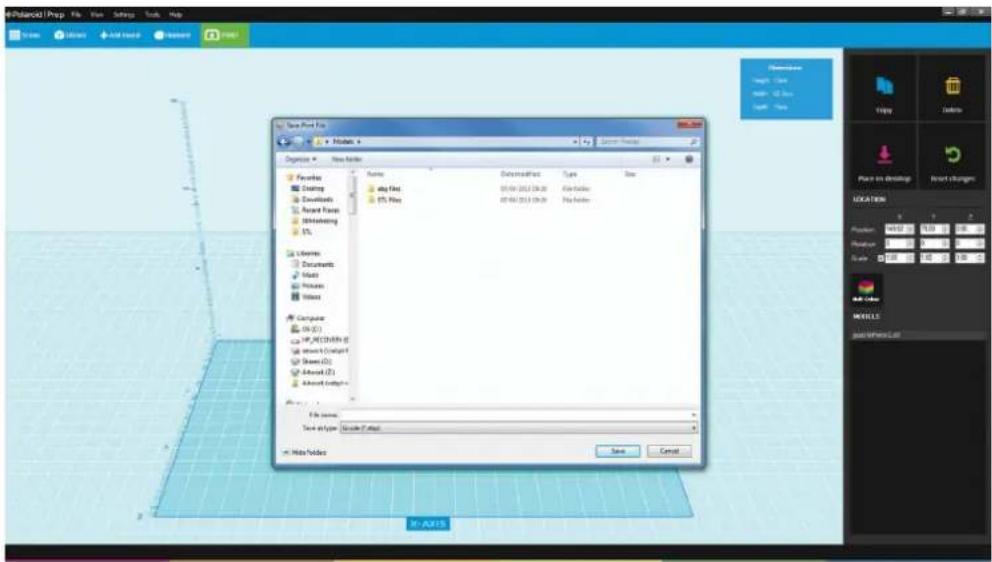
If saving your file, select your SD card a location on your computer and click save.
DESKTOP FUNCTIONS
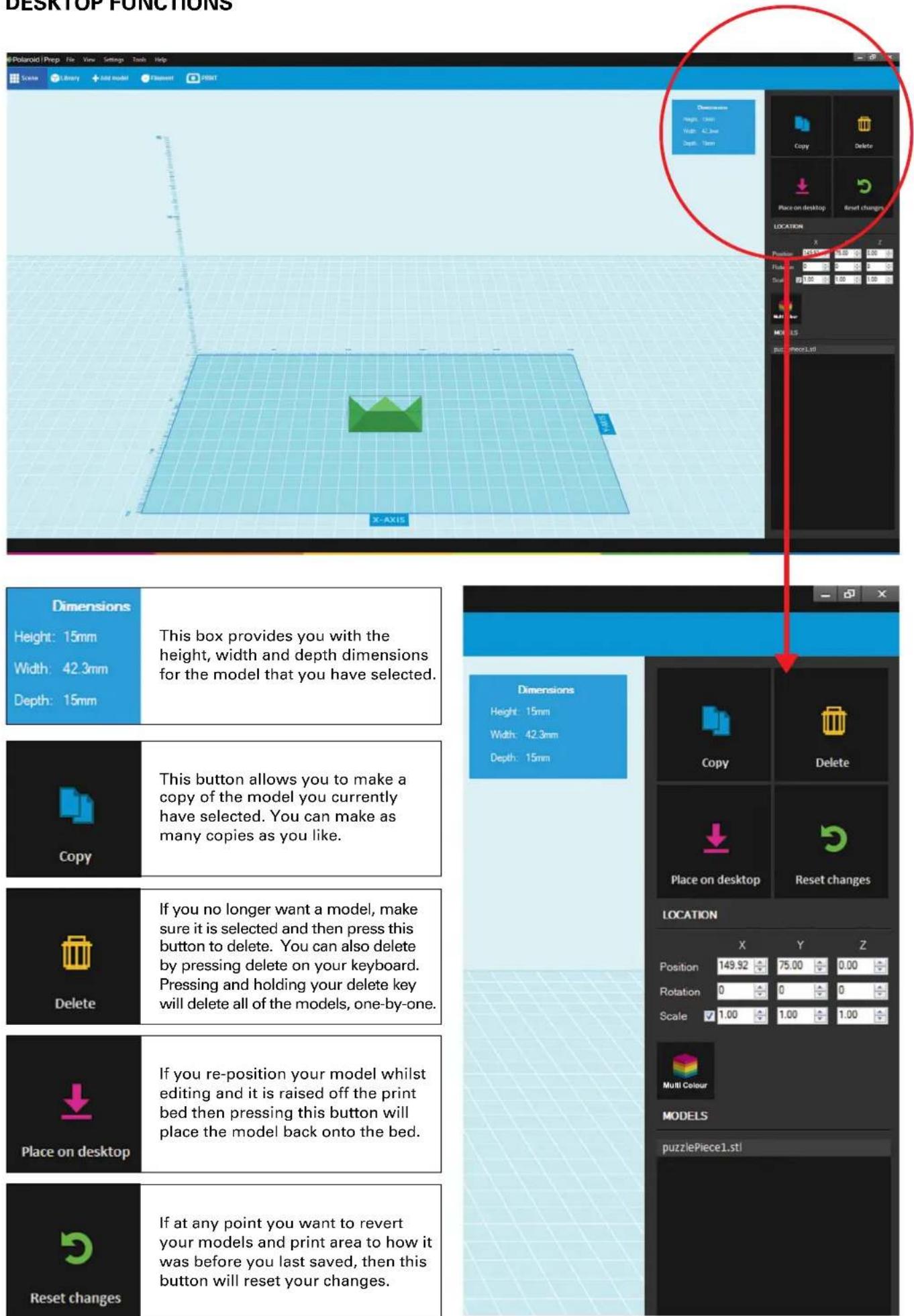
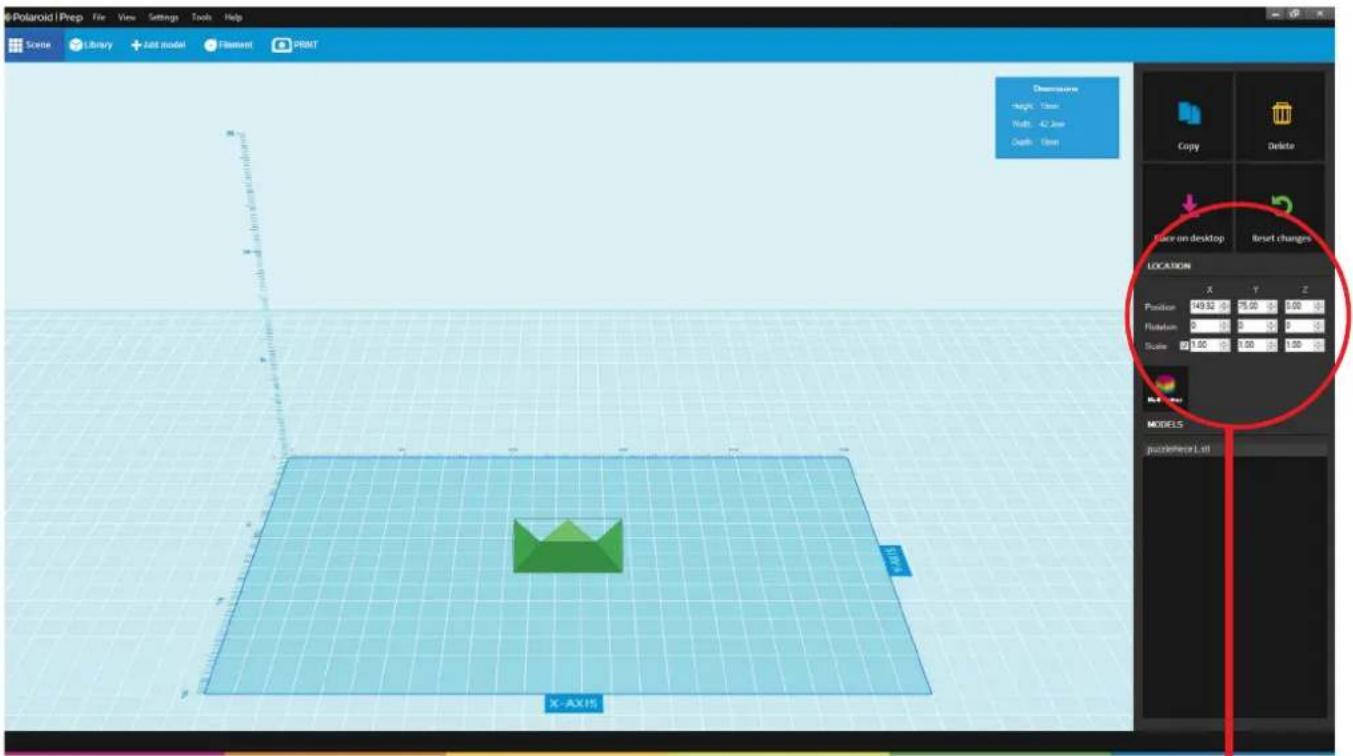

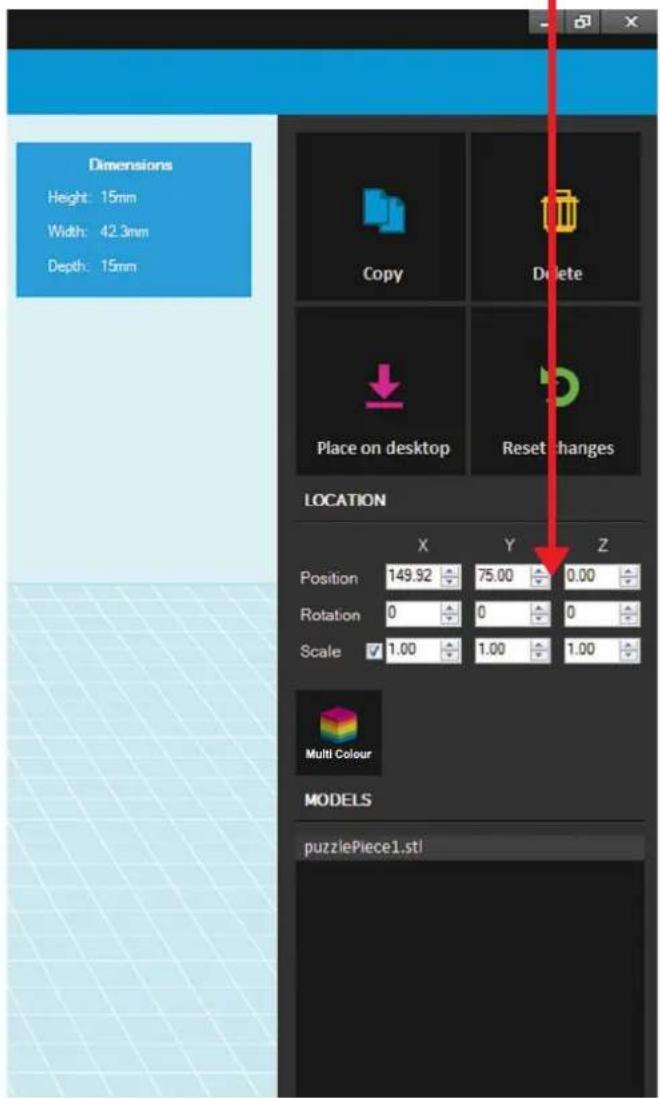
These boxes provide you with the X, Y and Z position of the selected model on the print bed area. To adjust the model position using these boxes you can either use the arrow buttons, manually type in a new position, or click into the box where the numbers are and use the scroll button on your mouse. Alternatively models can be moved with the mouse by clicking and dragging within the print bed area.

These boxes provide you with the angle of the selected model on the print bed area, starting at a zero position when first imported. This then allows you to rotate the position on the bed. To adjust the angle of the selected model using these boxes you can either use the arrow buttons, manually type in a new angle (in degrees), or click into the box where the numbers are and use the scroll button on your mouse.

These boxes allow you to adjust the size of your models. Starting at a scale of 1, you can then scale up or down in multiples (i.e. 2 would be twice the size). To adjust the scale of the selected model using these boxes you can either use the arrow buttons, manually type in a new scale, or click into the box where the numbers are and use the scroll button on your mouse. With a tick in the left hand box you can scale your model proportionally; unticking this will allow you to scale along one axis individually.
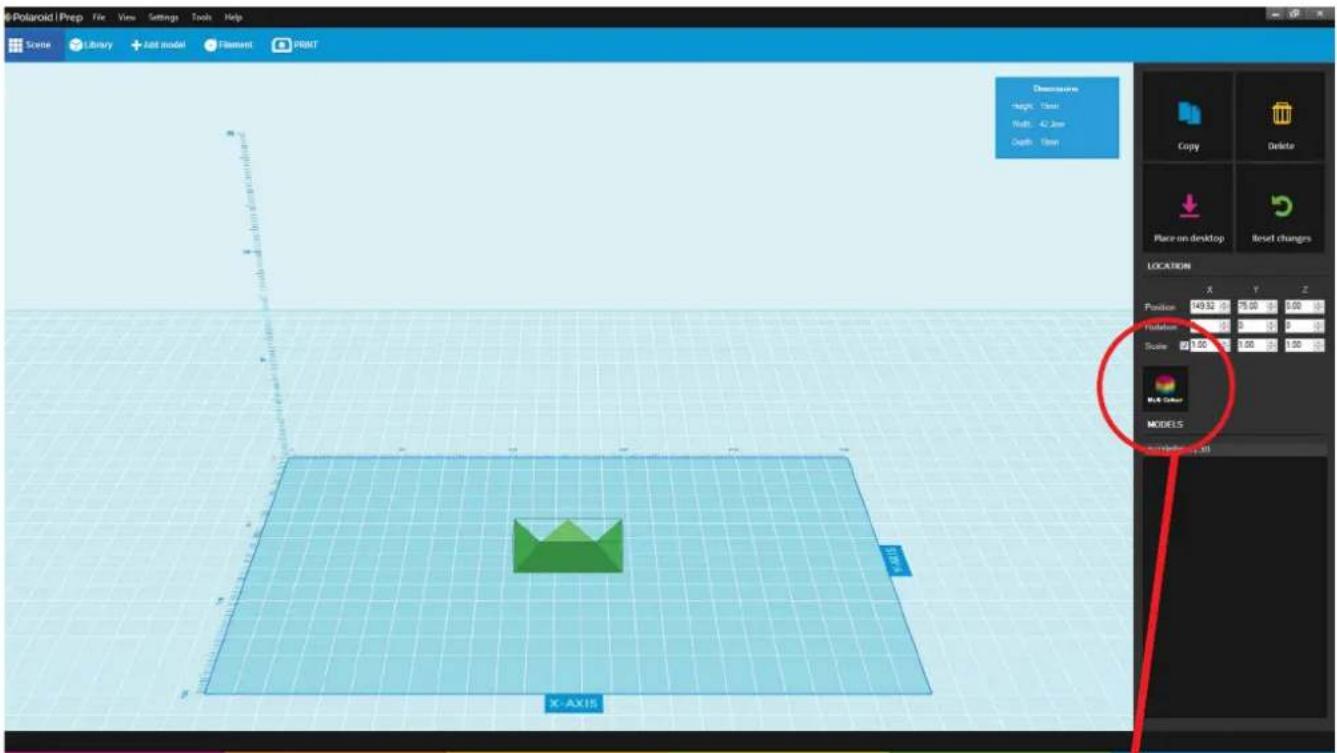
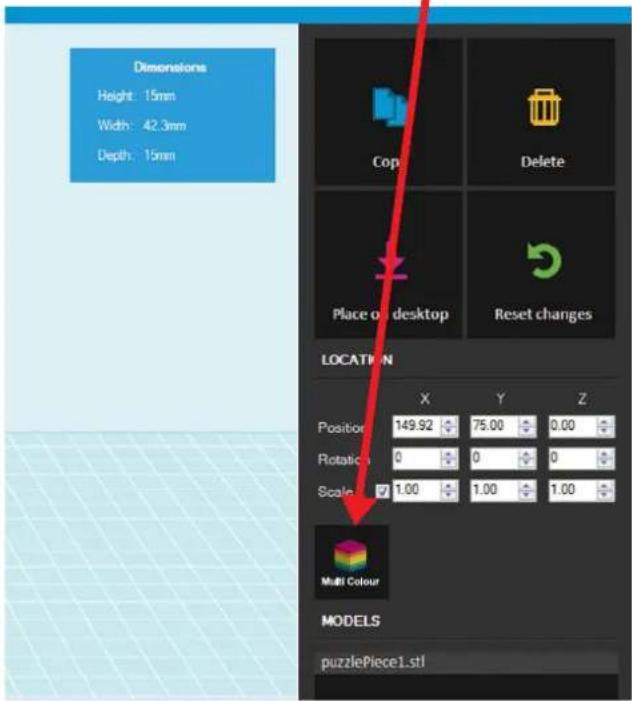
Although the Polaroid ModelSmart 250S 3D printer has only one extruder, you can easily print models in multiple colours.
By selecting Multi Colour in Polaroid Prep or opening the door mid-print, the print will pause. At which point there is an option on the LCD screen to change your cartridge, this allowing you to change colour.
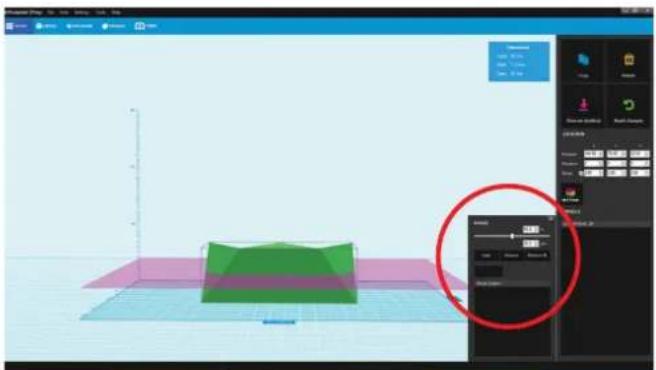
Alternatively, if you want to be specific about where your new colour starts on your print, you can pre-set the printer to pause. You can do this by pressing the Multi Colour button in Polaroid Prep; this inserts a 'pause' onto your bed (seen as a pink layer). You can then move this to where you want it on your model, either by using the slider, or by typing in a position in millimetres (working from the bottom of your model upwards) or even a percentage point. You can set as many pauses in your print as you like. You can also easily space these equally by clicking the Auto-Arrange button.
natural_image
3D modeling software interface showing a green pyramid model on a grid plane with tool panels (no readable text or symbols)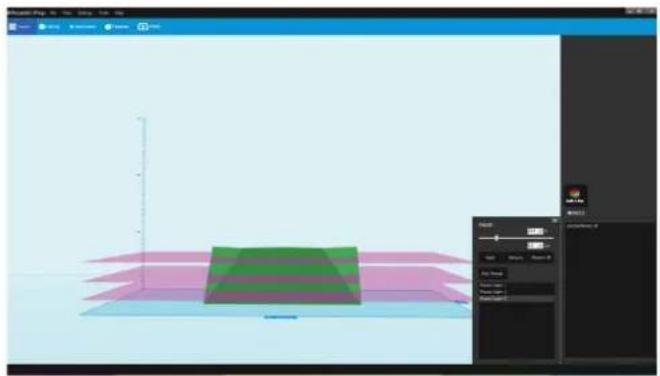
natural_image
3D modeling software interface showing a green pyramid model on a blue platform, with no visible text or symbols on the model itself.ADVANCED SETTINGS
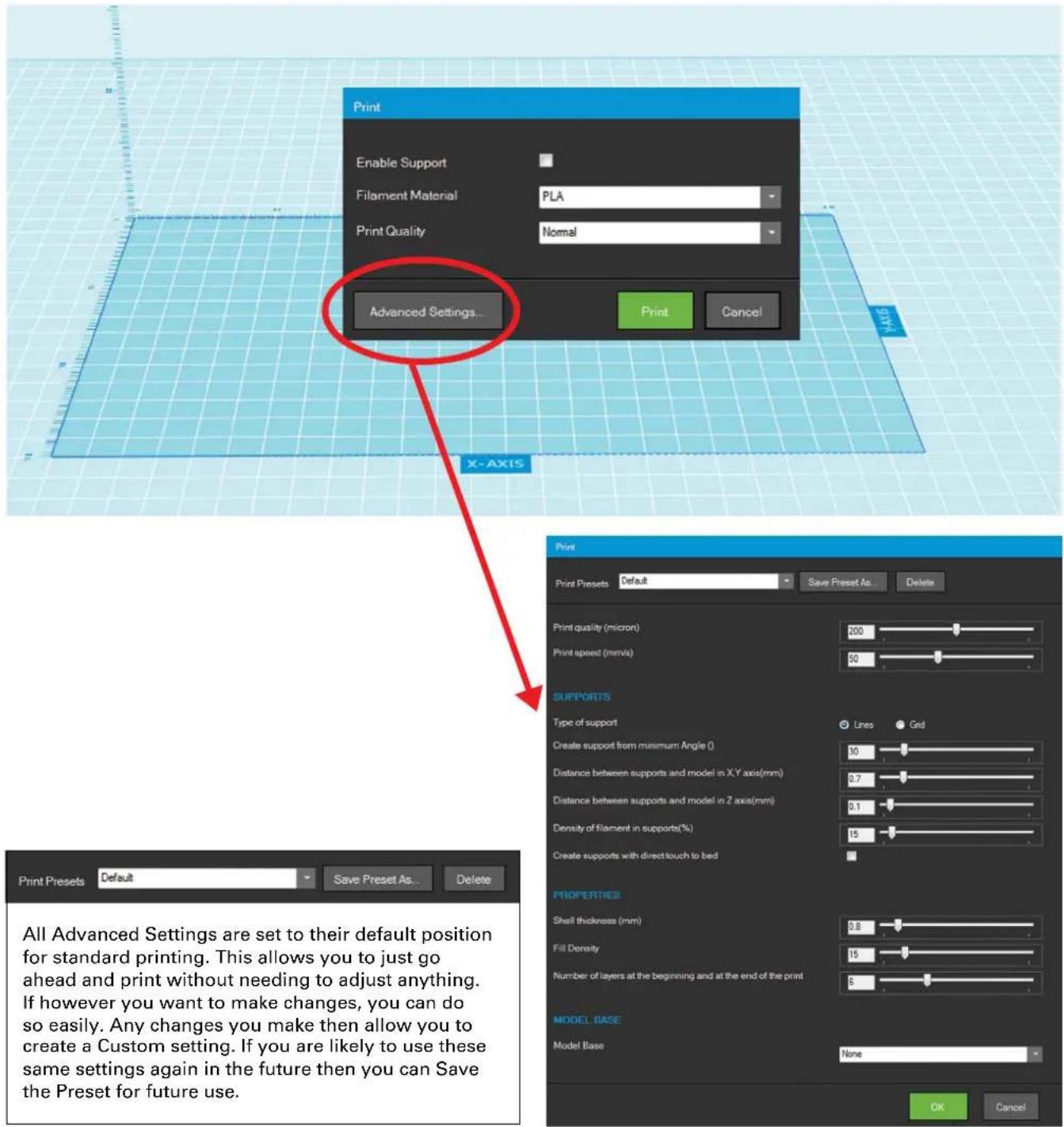

There are two main things that can affect the quality of your print; one is the layer height (measured in microns) and the other is print speed (measured in millimetres per second). Using these sliders here you can adjust both settings. The quality ranges from 50 to 350 microns (0.05mm to 0.35mm) with a default of 200 (0.2mm). The speed ranges from 20mm/s to 100mm/s with a default of 50mm/s. Note: the smaller the micron number, the finer the print detail (as you are printing more layers) and the lower the speed, the better quality of print (as there is less vibration whilst printing).
SUPPORTS
Type of support
Create support from minimum Angle ()
Distance between supports and model in X,Y axis(mm)
Distance between supports and model in Z axis(mm)
Density of filament in supports(%)
Create supports with direct touch to bed
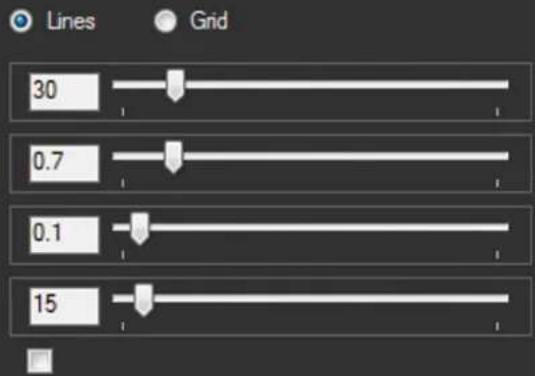
Support structures can be important in 3D printing as the method of printing one layer on top of another means that if there is an overhang within the model (where the layer being printed has nothing underneath to rest on) then this can cause a print to fail.
To print with supports on the Polaroid ModelSmart 250S is easy; you simply tick the box that says 'Enable Supports' when you click Print. This will turn on the default supports, which places them anywhere on your model that has an overhang that is more than 30^ from the vertical.
If you wish to adjust some of the support settings yourself then you can do so under the Advanced Settings. These include being able to adjust the type of support (default is a line support, or if more support is needed you can change to a grid structure), and also adjusting what angle the supports will initially be applied from, as well as other more advanced settings.
PROPERTIES
Shell thickness (mm)
Fill Density
Number of layers at the beginning and at the end of the print
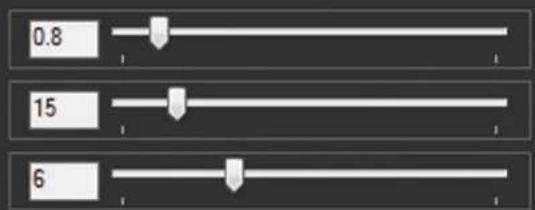
Under the Advanced Settings you can also adjust the way that your model is printed.
With this form of 3D printing, models are printed with a solid outer wall, surface and base and then a grid infill (i.e. it isn't solid throughout). Under the Properties section of the Advanced Settings you can adjust some of these features.
Shell thickness allows you to adjust how thick the outer walls of your model are in millimetres.
The fill density adjusts the grid inside the model. The default is set to 15% but if you wanted a completely hollow object you can slide this down to 0%, or for a more solid object simply slide the scale up towards 100%.
The other Properties setting is to adjust the number of layers at the beginning and end of each print. This is default at 6 layers but can be adjusted up or down accordingly.
FILAMENT LEVELS
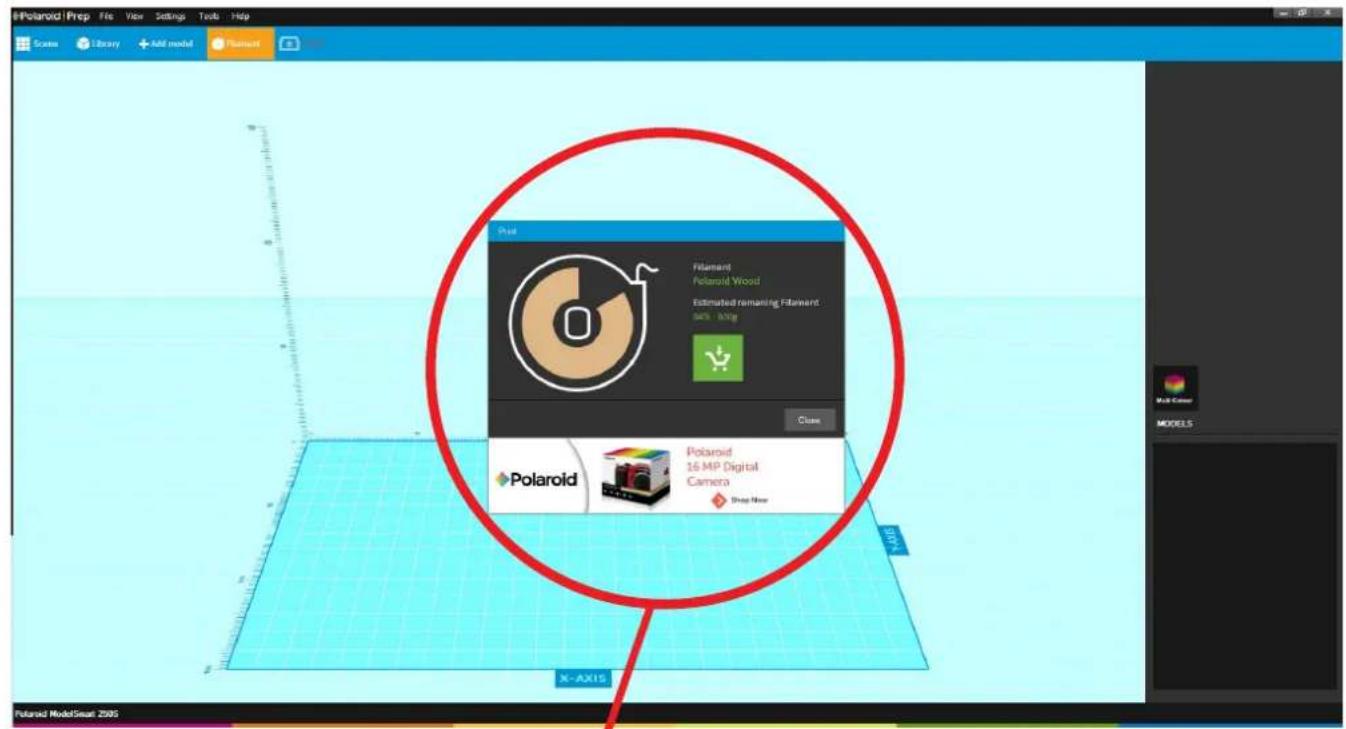
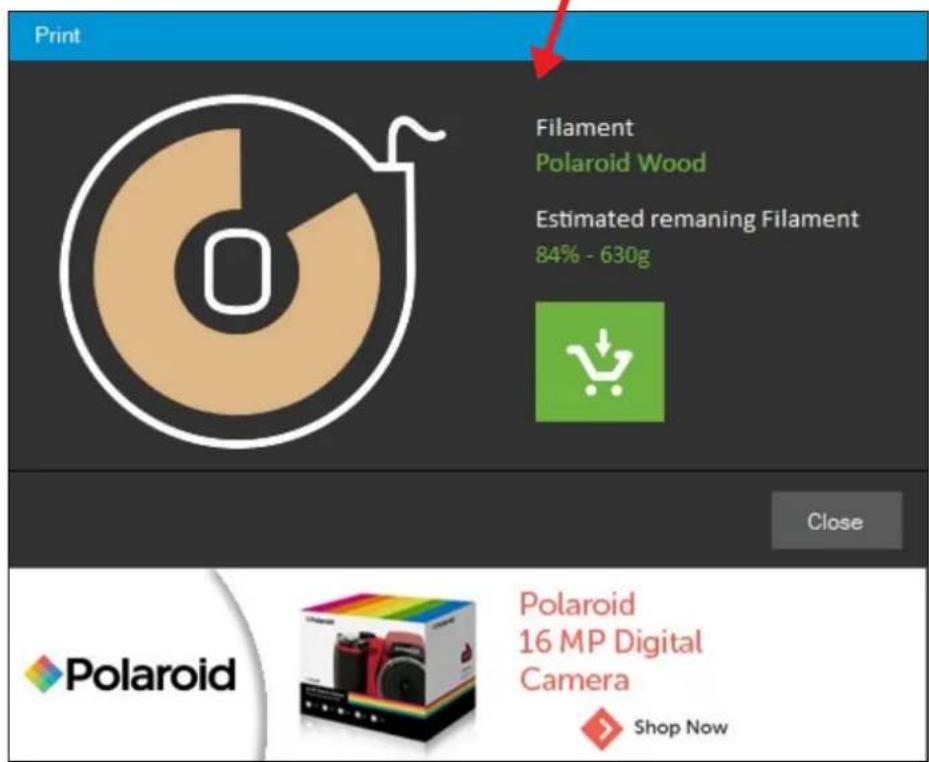
At any time whilst in Polaroid Prep you can check the filament levels of the cartridge you have connected to the printer. Please note that the printer and your computer must be connected via the USB cable provided in order to read the cartridge level information from the bidirectional smartchip on the cartridge. This will tell you the colour and material of the current cartridge and how much filament is remaining (in % and in grams).
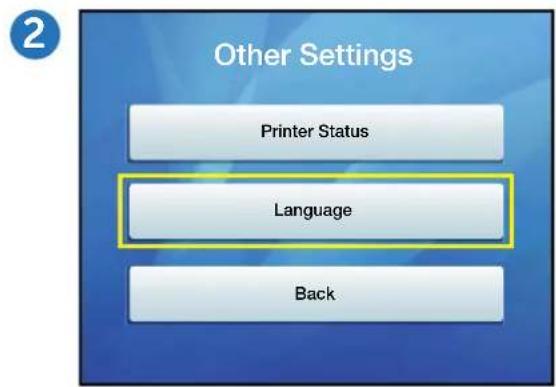
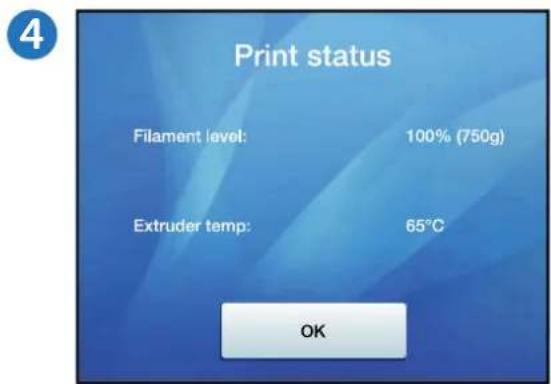
Note: when not connected to a PC you can check your filament levels via the LCD on the printer by selecting Settings, then Other Settings, then Printer Status.
When you are running low there will be a warning sign pop up on this filament level to let you know. At this point (or any point), you can click on the shopping basket
button and this will take you to a web page identifying places you can purchase a replacement cartridge from.
You will also see rotating adverts at the bottom of the filament level box. These will advertise a variety of items and services which if you click on will take you direct to the applicable website page.
MODEL LIBRARY
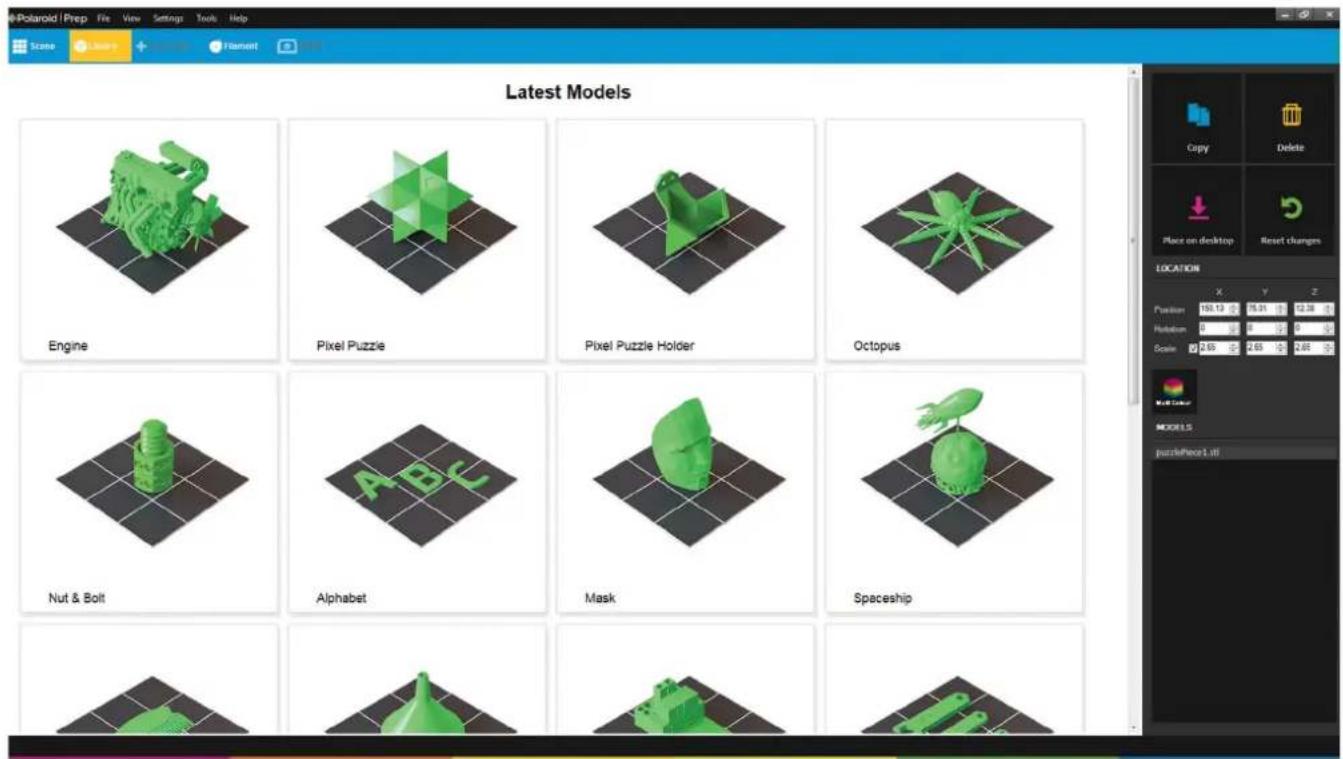
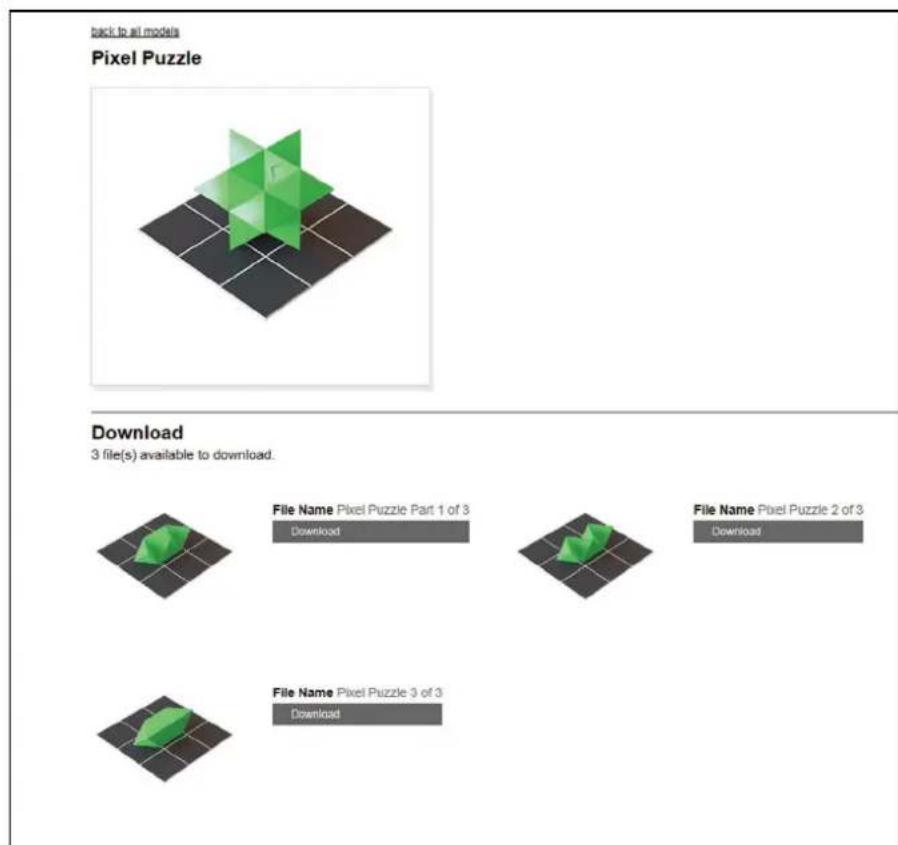
The Polaroid ModelSmart 250S 3D printer prints .stl file types; .stl being the industry standard format for 3D printable models.
To print a model you can either design it yourself and import into Polaroid Prep, or download from one of the many existing online model libraries already available (free of charge). Alternatively you can download from the Polaroid Model Library that is built into the Polaroid Prep Software.
By clicking on the Model Library button at the top of the screen, it brings up the available models.
Selecting a model will then open up a new screen that provides you with a download button. Once downloaded you will see the file name of that model appear in the model list on the right hand side of Polaroid Prep. Clicking on Scene in the top left of the screen will then take you back to your print area ready for printing.
If the model you have selected has multiple parts to it then you will see each of the individual components and can download all of the parts that you need and then click Scene to return to your print area.
PREPARING, PRINTING AND SAVING YOUR SCENE
natural_image
3D rendered green geometric object on a grid background, no text or symbols visible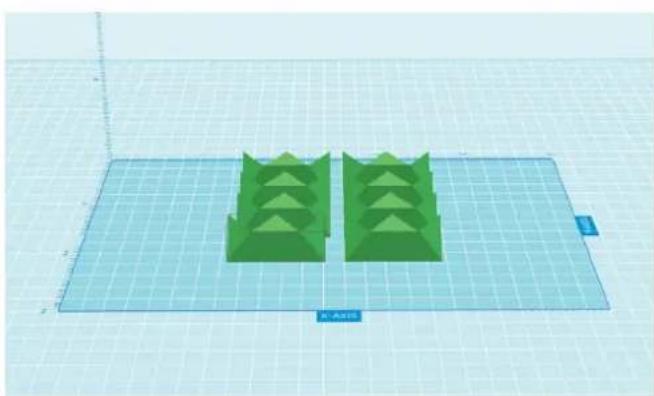
natural_image
3D model of two green geometric shapes on a grid background, no text or symbols present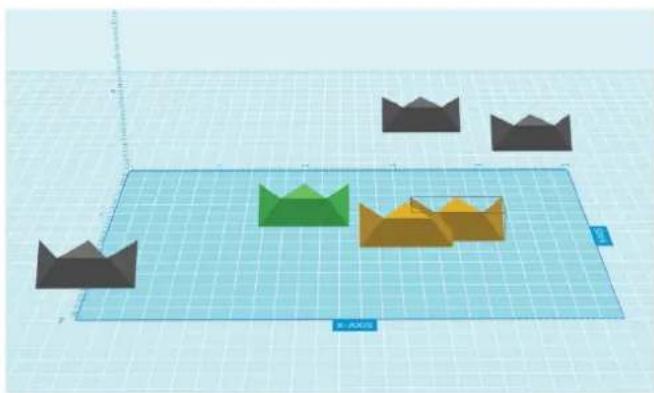
natural_image
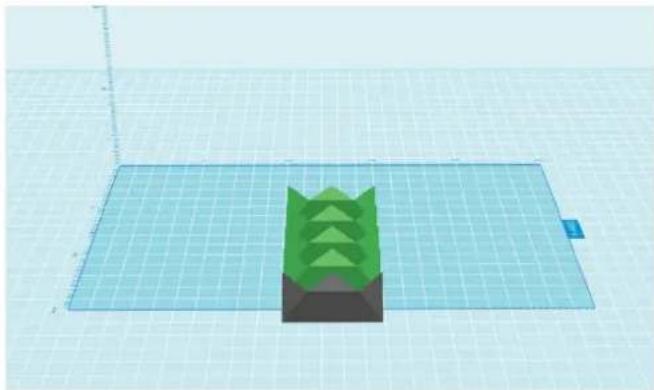
3D coordinate system with geometric shapes (green, yellow, black) plotted on a grid plane, no text or symbols presentIf copying an object when you first open Polaroid Prep, it will copy one object behind another (as show in the first image), allowing you to arrange the items on the print bed as you wish. You will notice that this even keeps copying objects outside of the print bed area (the model shown in grey).
Alternatively, if you click on Settings at the top left of the screen, you will be able to select Auto Arrange. This will then place objects into the optimum print position (to minimise the movement of the printhead) when copying objects (as shown in the second image).
If you see an image in grey within your workspace, it means that it is partially or wholly off the print bed area. If you choose to print at this point, the object in grey will simply be ignored.
If you happen to overlap one model with another, you will see that they turn orange (as seen in the third image). This is to identify to you that they have overlapped, however the software will allow you to continue printing and the overlapped objects will print as they appear, i.e. merged into one new model.
If you have multiple objects to print but not all at one time, then you can simply place the models you want to print later off the print bed but within the workspace area (shown in light blue) and then select File and Save Scene from the headers at the top left corner of the screen. You can then return to this scene at any point in the future to continue printing the other models from the workspace area.
This process is carried out using the touchscreen LCD on the printer. Please ensure you have an SD card loaded into the slot on the back of the printer before you start; and that the model you wish to print is saved on that card.
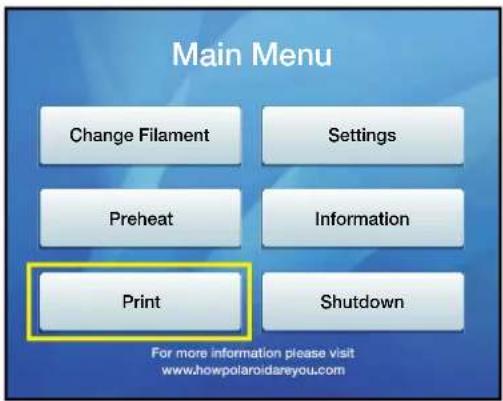
1 Please select 'Print' from the Main Menu
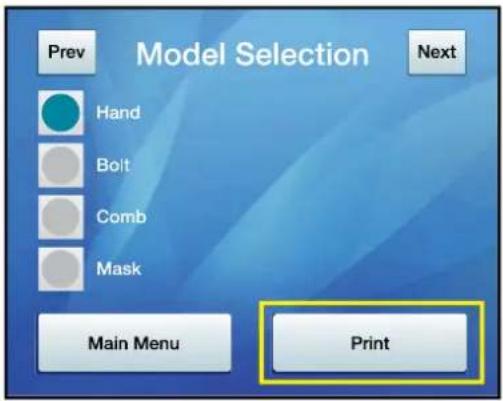
2 Select the model you wish to print from the list of models that are shown (i.e. the models that you have saved on your SD card). Please note that this screen has an eight character limit for file names; please bear this in mind when saving models in order to ensure that you can locate them easily on the SD card when printing via the LCD.
Once you have selected the correct model, please press 'Print'.
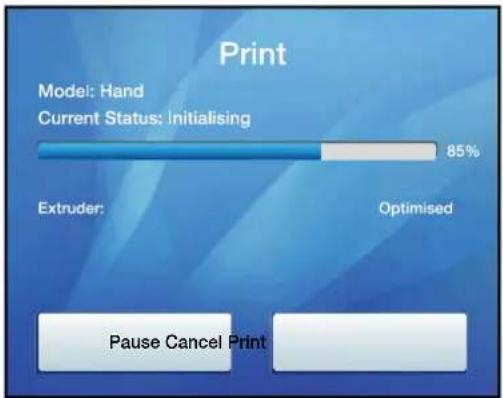
3 The on-screen display will then confirm the model selection, the status of print (initialising, printing or complete), as well the percentage of printing complete.
At any time during printing you are able to pause or cancel your print via the LCD.
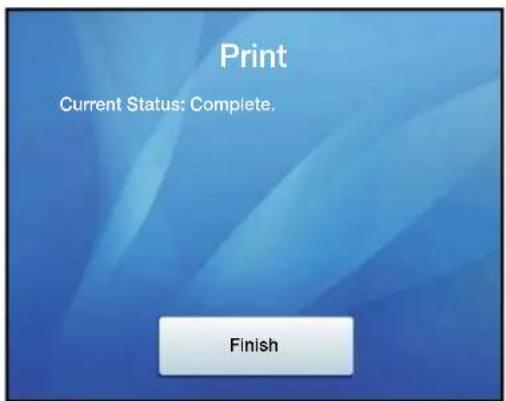
Once your print is completed this on-screen message will be displayed.
OTHER LCD FUNCTIONALITY
PREHEAT
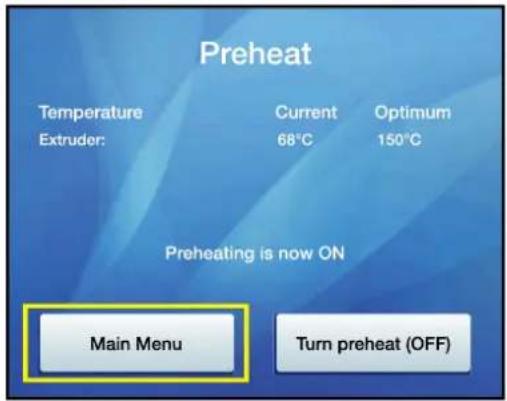
The Preheat functionality allows you to warm up the extruder prior to starting the printing process. This is not an essential part of the process but will allow faster printing because the printer can be carrying out this process whilst you prepare your Scene and print file.
If you select 'Preheat' the on-screen display will inform you of the current and optimum temperatures. When the two temperatures display the same number then the printer is ready for printing.
You can turn preheating on or off via the LCD at any time.
SETTINGS
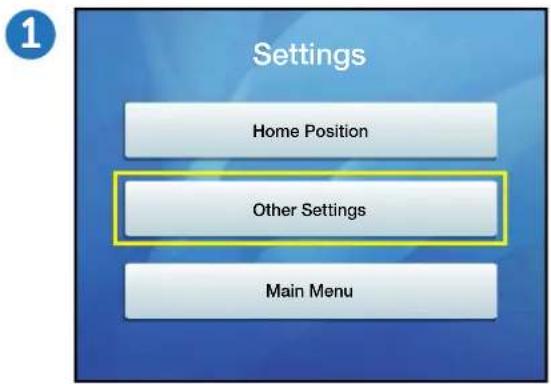
Under 'Settings' you have two further options (excluding returning to the Main Menu).
'Home Position' returns the extruder and the print bed to their default position: the extruder to the rear right-hand corner of the printer, and the print bed being reset to its lowest position.
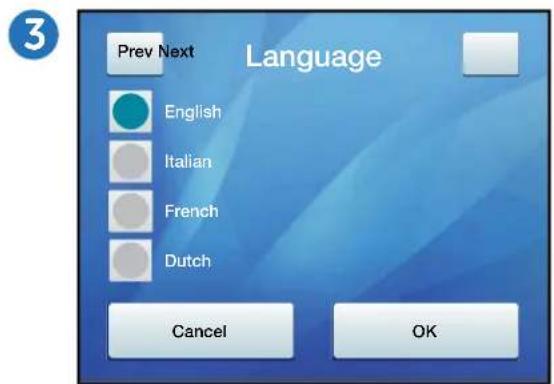
'Other Settings' provides you with two further options; selecting and changing the language of the LCD, or displaying current Print Status information as shown on the images below:
INFORMATION
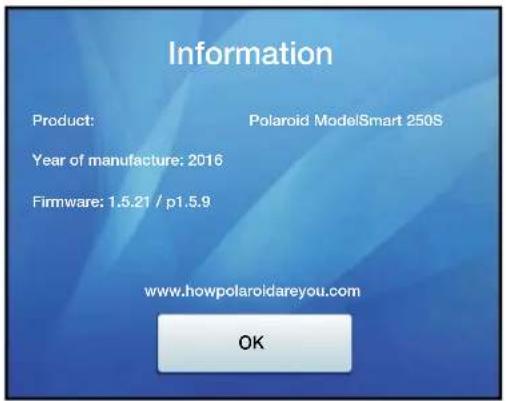
The 'Information' button will provide you with manufacturer details as well as confirming which version of the Firmware you currently have installed.
SHUTDOWN
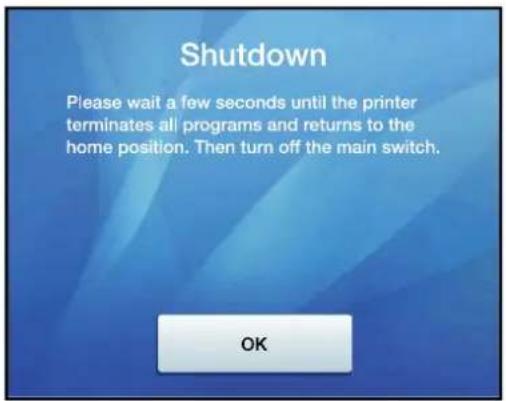
The 'Shutdown' button informs you that you should wait until all programs are terminated and the printer has returned the extruder and the print bed to their Home Position before turning the printer off at the main switch.
TECHNICAL SPECIFICATIONS
| Polaroid ModelSmart 250S | |
| Extruder 1 | |
| Resolution 50-350 microns | |
| Auto Calibration | √ |
| Max. Model Size 250(w) x 150(h) x 150(d) mm | |
| PLA | √ |
| Wood | √ |
| Filament Size 1.75mm | |
| Z-Axis Sheets | √ |
| Wi-Fi Camera | √ |
| Auto Support Generation | √ |
| Polaroid Helpful Printer Driver® | √ |
| Speed (mm/s) 20 - 100 mm/s | |
| Guarantee 12 month manufacturer's guarantee* | |
* This may offer by country according to minimum statutory requirements
CLEANING AND MAINTENANCE
It is important that your Polaroid 3D printer is kept clean at all times in order to ensure continued consistency in your prints. Please follow the simple points below to help maintain your printer.

Keep the exterior of your printer clean by using a damp cloth to remove any dust or dirt. Ensure that the printer is switched off before you clean and be careful not to get water near any of the electrical components. Please take extra care if wiping down the LCD screen as too much pressure or water in the display could cause damage to the touchscreen functionality.
It is important to ensure that the extruder remains clean and free from any residual filament prior to each print otherwise the nozzle could get blocked and the print may not be successful.
Please ensure that you do not leave any item, model or residual material underneath or around the print bed, or anywhere inside the printer when printing as these could obstruct the movement of the extruder and print bed which could possibly result in an unsuccessful print.

To clean the glass print bed, please remove carefully after each print. Ensure that your model and any remnants of filament material have been removed, and then carefully wipe the bed with a clean cloth and warm water or specific glass cleaning solution. This should remove any residual adhesive left behind from the Z-Axis sheets. Please then ensure that the bed is dry before applying a new Z-Axis sheet prior to printing. For how to apply and remove please see our instructional video.
The manufacturer guarantees this printer against any defects in both material and workmanship for a period of 12 months (unless minimum statutory requirements otherwise) from the date of purchase. It does not include wear and tear, and is based on fair use with regular maintenance.
In order to validate this guarantee you must provide your details at the point of downloading the Polaroid Prep Software.
Should any defect(s) be discovered, please first visit our online troubleshooting support page at howpolaroidareyou.com/support. However, if a problem occurs during the 12 month period that cannot be rectified remotely or on site by the manufacturer's technical team then you may be requested to return the printer. The information overleaf outlines the process you must follow in order to return your printer for repair.
Your serial number and proof of purchase will be required in order to process your claim.
Please ensure you include a copy of your sales receipt when you return the product.
A SIMPLE RETURN PROCESS
- Contact the manufacturer's customer service team Monday to Friday between 8:30-17:30 (GMT) by emailing support@howpolaroidareyou.com. You will be provided with a Returns Transfer Number (RTN).
- Clearly write the RTN on the outside of the box or packaging, next to the shipping label. The manufacturer will not be responsible for non-traceable packages or packages sent without a valid RTN on the outside of the packaging.
This guarantee is not valid if the product has been damaged by accident, electrical fault, through misuse, abuse, or failure to provide reasonable care as outlined within the User Guide. If the product has been altered without written authorisation from the technical team then the guarantee will not be valid.
All implied guarantees, including any implied guarantee of fitness for any particular purpose, are limited in duration to 12 months from the date of original purchase. In no event will the manufacturer be responsible for consequential damages resulting from the use of this product.
The above limitation or exclusion may not apply to you to the extent that applicable law may not allow the limitation or exclusion of liability for incidental or consequential damages.
Using third party software applications or using non-Polaroid filament may invalidate this guarantee in the event of damage subsequently being caused to the printer.
Tampering with the printer in any way may invalidate the guarantee. Please contact the manufacturer team if you have any technical enquiries.
AFTER SALES SUPPORT: The manufacturer have a dedicated team of 3D printing specialists that are available to help with any problem or question you may have regarding your 3D printer. Please contact our team via the contact form on our howpolaroidareyou.com/support.
MAINTENANCE: It is important that your Polaroid 3D printer is kept clean at all times. For best print output it is recommended to keep the extruder nozzle clean and check regularly for any residual filament build up, as these may cause subsequent unsuccessful prints. Please contact support@howpolaroidareyou.com for guidance on how to remove any such build up.
CERTIFICATIONS AND COMPLIANCE
CERTIFICATION
The Polaroid ModelSmart 250S printer is compliant under the following applicable EU certifications:
WEEE Directive: As both manufacturer and distributor the Polaroid 3D printer team is WEEE compliant in all applicable EU countries in which the product is supplied. This ensures that our responsibilities are fulfilled in regards to the electronic waste that is generated through the sale of the Polaroid 3D printers and consumables.
Low Voltage Directive 2006/95/EC: This Directive allows electrical equipment to be approved by any EU member country, by provision of a set of common broad objectives, covering safety regulations that the product is tested against. The Polaroid ModelSmart 250S printers are tested and approved under this Directive.
EMC Directive 2004/108/EEC: This is a Directive that all electronic items must be tested against. It aims to minimise the side effects that can sometimes be seen when electrical devices are interconnected or close to each other; e.g. the interference that you sometimes hear when your mobile phone is near your TV or radio. The Polaroid ModelSmart 250S printers are tested and approved under this Directive.
RoHS Directive 2011/65/EU: This is the Restriction of Hazardous Substances Directive. Its purpose is to restrict the use of six hazardous materials in the manufacture of various types of electronic and electrical equipment. Each individual component of the equipment has been tested in order to ensure that the Polaroid ModelSmart 250S printers are approved under this Directive.
Green Dot Packaging Waste Directive - 94/62/EC: This directive ensures that manufacturers whose products use packaging are responsible for either recovering their own packaging waste, or contributing to the cost of recovery and recycling of such waste. The Polaroid 3D team is registered and compliant against this directive across the applicable European countries.
CE Marking: Following all of the above required legislation and certification enables each of the Polaroid ModelSmart 250S printers to proudly carry the CE Mark which confirms that they have been approved under each of these Directives.

RoHS C€ WEEE

TROUBLESHOOTING
We hope that you have happy and trouble-free printing. But should you have any questions about anything, take a look at our FAQs and Troubleshooting questions below or to our website howpolaroidareyou.com/support to see if we can help. If you still do not find a solution, please feel free to contact our team via our Contact Form.
Question 1. I can't unload the filament from the extruder
To unload the filament from the printer please follow the 'Change Filament' process via the LCD main menu.
If this does not successfully unload the cartridge, please wait until the nozzle has fully cooled before carefully reaching inside the printer to remove the plastic tubing from the top of the orange push-fitting for the nozzle.
Once the plastic tubing has been removed, please follow the 'Change Filament' process again to retract the filament, whilst gently pulling the filament (by hand) from the top of the printhead. Try this process a maximum of two times should the first time be unsuccessful.
If the second retraction still hasn't freed the filament, please follow the 'Change Filament' process again, but when asked if filament is currently loaded, select 'No'. This will start the extrusion process (rather than retraction) which will hopefully loosen and free the filament.
Once you see filament being extruded (please only try this process a maximum of two times), please try the retraction process once again. The filament should now be loose and unload successfully.
If the above process is not successful please contact us via our online Contact Form and one of our customer service team will guide you through a resolution.
Please remember to re-attach the plastic tubing into the orange push-fitting before commencing your next print.
Question 2. I can't get the printer to extrude any filament
If you are trying to print but no filament is being extruded, please follow the 'Change Filament' process via the LCD screen, selecting 'No' when asked if a cartridge is already installed. This will start the extrusion process. You have the option of repeating this process if the first time is unsuccessful.
Should this not resolve the problem, please carefully reach inside the printer (once completely cooled) to remove the plastic tubing from the top of the orange push-fitting for the corresponding nozzle that you are trying to extrude.
Please then repeat the extrusion process as above, but this time gently apply pressure by pushing the filament downwards into the top of the printhead. This should then allow the filament to free-flow and extrude correctly.
Should the above process not resolve the problem please contact our team via the online Contact Form.
Question 3. I can't read my full file name from the LCD
The LCD screen is limited to 8 characters for each file name. Therefore in order to easily locate the file you require please save your model files with a name that meets this criteria.
Question 4. I am having problems removing my model from the print bed
Please ensure that you are using the Polaroid Z-Axis sheets when printing with a Polaroid 3D printer.
These should be applied to the bed by removing the backing sheet (clearly labelled this side down) and apply the revealed adhesive side to the print bed. Then remove the top sheet, leaving the adhesive layer exposed.
This will mean that when your model is completed it will be affixed to the bed.
In order to remove the Z-Axis sheet and therefore your model, please start by removing all 4 corners of the sheet from the bed, leaving it remaining stuck just underneath your model. Then simply take hold of all four corners and firmly pull away from the glass bed. This will remove both the sheet and the model.
All you then need to do is peel off the sheet from your model.
You may find that a small amount of adhesive residue is left on your model from the Z-Axis sheet. You can easily remove this by using any general purpose household cleaner.
Question 5. I have a filament jam. My printer is printing air, no filament is being extruded
Firstly please try to unload the filament from the printer using the 'Change Filament' process via the LCD main menu for the cartridge that you wish to unload.
If this does not successfully release the filament jam, please wait until the nozzle has fully cooled before carefully reaching inside the printer to remove the plastic tubing from the top of the orange push-fitting for the corresponding nozzle that you are trying to unload.
Once the plastic tubing has been removed, please follow the 'Change Filament' process again to retract the filament, whilst gently pulling the filament (by hand) from the top of the printhead. Try this process a maximum of two times.
If the second retraction still hasn't freed the filament, please follow the 'Change Filament' process again, but when asked if filament is currently loaded, select 'No'. This will start the extrusion process (rather than retraction) which will hopefully loosen and free the filament.
Once you see filament being extruded (please only try this process a maximum of two times), please try the retraction process once again. The filament should now be loose and unload successfully.
If the above process is not successful please contact us via our online Contact Form and one of our customer service team will guide you through a resolution.
Please remember to re-attach the plastic tubing into the orange push-fitting before commencing your next print.
Question 6. I have items missing/damaged when unpacking my printer for the first time
Please get in touch with one of our team via the online Contact Form and let us know what is missing or damaged. Please note that you will need to provide us with your serial number and a proof of purchase for the printer so that we can follow this up for you.
Question 7. I only want to print a small object, why do I have to use a full size Z-Axis sheet?
At the start of each print, the printer performs an auto-calibration process to ensure that the bed is level and that the extruder is perfectly positioned to print your model successfully. This requires a small switch to be lowered to each of the four corners of the bed to measure the exact location and for printing to begin at the correct position. The height of the Z-Axis sheet plays an important point in this measurement; as if the bed isn't calibrated to include this height then the print could possibly fail. Therefore each of the 4 touch-points need to measure the same height as the central area where the print itself will take place. In order to achieve this, the Z-Axis sheet needs to cover not only the central print area, but the 4 corners as well.
Question 8. Why did the printhead extrude a different colour filament from what is installed on the very first extrusion?
Before the Polaroid 3D printers are despatched to you, they undergo quality control testing to ensure that they are performing perfectly for you. Part of this test is to print a test model on the printer to confirm that the quality output matches our pre-determined standard.
If you are seeing a small amount of a different colour filament extruded on the very first time you print with your printer it is because a different colour filament was used during this testing phase.
Please follow the 'Change Filament' process before printing and select 'No' when asked if a cartridge is already installed. This will extrude a small amount of filament and confirm that the printer is ready to print. Please repeat this process until the filament that you see extruded is the correct filament for the cartridge that you have installed. This should happen on the second extrusion, i.e. you only need to press the 'repeat process' button once.
Question 9. My prints are warped across the base
If you are seeing a slight warping across the base of your model when completed, (meaning that the model you have printed does not sit flat) please firstly ensure that you have a Z-Axis sheet applied to the bed in order for the model to adhere during the first layers of printing.
If you have a Z-Axis sheet applied and you still have some warping then please double check your settings when saving your print file. Please ensure that you have selected the correct print material when saving the file as this will ensure that the extruder is heated as it should be.
If you have confirmed that your settings are correct, you have the Z-Axis sheet applied and you are still experiencing some warping then please use the 'brim' function within the Advanced Settings. This will print a small amount of filament as a 'brim' around the external diameter of your model. The purpose of this is to retain heat within the area between the brim and the model itself to allow the filament to adhere to the bed and remain at a temperature that will help it to not contract (which causes the warping) while the remaining print is completed.
Question 10. I am trying to print a model that is the maximum size of the print area, with a brim, but it isn't printing successfully
If printing with a brim, the brim must be included within the maximum print area. This will mean that your model must be slightly smaller than the print area to allow for the brim.
Please note that the brim itself needs 5mm around the entire perimeter of your model so please reduce any model that is the maximum print size by this amount on each side.
Question 11. I am seeing a Windows Error message when connecting the printer to my PC
When connecting the printer to a Windows PC, upon connection Windows will automatically search your PC for a hardware device driver that is required in order to install the printer. If it is unable to locate and install this device driver automatically, Windows will notify you, with this message. In this instance please follow this link to download the hardware device driver onto your PC. Once downloaded, please double click the file to begin the installation. This is a simple and straightforward process and will then allow you to successfully use your Polaroid ModelSmart 250S 3D printer.
Question 12. I am trying to download Polaroid Prep Software but it is not recognising my serial number
Firstly, please double check that you have entered the serial number correctly.
If you have confirmed this and you are still experiencing problems then please get in touch with one of our team via the online Contact Form and we will rectify the problem for you or alternatively provide you with a temporary serial number as an alternative. Please do note however that you will need to provide us with a proof of purchase for the printer relating to the serial number that you are experiencing difficulties with.
Question 13. If I pause my print why does it carry on printing for a few seconds after I have opened the door?
The printer will continue printing until it has finished the last command it has received, which may include several movements of the printhead. Once it has completed this set of commands the printhead will stop and the bed will lower slightly and the head will move to the front right corner of the printer. Please do not reach inside the printer until the head and bed have finished moving. Even then please be aware that the nozzle on the printhead will still be very hot.
Question 14. After uninstalling a cartridge I placed the new cartridge on the holder as requested but the message for the next step disappeared from the LCD screen and was replaced by a 'New Cartridge' message. How should I proceed?
If you were in the process of installing a new cartridge and the message that you were following was replaced with a 'New Cartridge' screen please click the 'OK' button. This will then take you to the Main Menu.
From here please follow the 'Change Filament' process but this time please select 'No' when it asks if there is already a cartridge installed. This will ensure that it will not uninstall the filament you have just attached.
After feeding the filament into the printer as instructed you should see the filament extruding. This means you are ready to print.
Question 15. I am trying to install a cartridge but it doesn't seem to be feeding through and I can hear a knocking sound from the printer
Should you hear a gentle knocking sound when trying to feed through a new filament it means that the filament hasn't reached the printhead correctly.
Please follow the 'Change Filament' process from the Main Menu and select 'Yes' when asked if a cartridge is already installed. This will retract the filament from the printhead. If you pull on the filament gently as you do this you should feel this retraction.
This will free the filament from the printhead to allow you to reinstall. To do this, simply continue following the installation process by feeding the filament through once again. This time the filament should successfully feed through and extrude.
If you have tried this and are still hearing the same noise, please contact our team via the online Contact Form and they will guide you through a solution.
CONTACT DETAILS
EBP Group Ltd. (Polaroid 3D Printers)
26 Chase Road
Park Royal
London
NW10 6BB
Sales
enquiries@howpolaroidareyou.com
Support
howpolaroidareyou.com/support
support@howpolaroidareyou.com
Customer Service
+44 (0)20 8838 6888
natural_image
Exterior view of a modern office building (no signage)

Instantly recognizable. Instantly reassuring, The Polaroid Classic Border and Polaroid Color Spectrum logo let you know you've purchased a product that exemplifies the best qualities of our brand and that contributes to our rich heritage of quality and innovation.

Polaroid
ModelSmart 250S
This product is manufactured, distributed and sold by Environmental Business Products Ltd. Polaroid, Polaroid & Pixel, Polaroid Color Spectrum, and Polaroid Classic Border Logo are trademarks of PLR IP Holdings, LLC, used under license. PLR IP Holdings, LLC does not manufacture this product or provide any Manufacturer's Warranty or support. ©2015 All Rights Reserved.