Onyx 527 - Tablet Point of View - Free user manual and instructions
Find the device manual for free Onyx 527 Point of View in PDF.


| Product Type | Tablet |
| Brand | Point of View |
| Model | Onyx 527 |
| Display Size | 7 inches (estimated) |
| Dimensions | Approx. 190 x 110 x 10 mm |
| Weight | Approx. 350 g |
| Power Supply | Rechargeable Li-ion battery, 5V DC via USB |
| Battery Capacity | 4000 mAh (estimated) |
| Operating System | Android (version unknown) |
| Processor | Quad-core (estimated) |
| RAM | 2 GB (estimated) |
| Storage | 32 GB (estimated), expandable via microSD |
| Connectivity | Wi-Fi 802.11 b/g/n, Bluetooth 4.0 |
| Camera | Rear: 5 MP, Front: 2 MP (estimated) |
| Audio | Built-in speaker, 3.5 mm headphone jack |
| Sensors | Accelerometer, G-sensor |
| Main Functions | Web browsing, email, video playback, gaming, apps |
| Maintenance & Cleaning | Wipe with a soft, dry cloth. Do not use liquids or abrasives. |
| Safety Precautions | Avoid exposure to water, extreme temperatures, and dropping. Use only supplied charger. |
| Spare Parts & Repairability | Spare parts not specified. Contact Point of View support. |
| General Information | Designed for everyday use. Refer to user manual for detailed instructions. |
Frequently Asked Questions - Onyx 527 Point of View
User questions about Onyx 527 Point of View
0 question about this device. Answer the ones you know or ask your own.
Ask a new question about this device
Download the instructions for your Tablet in PDF format for free! Find your manual Onyx 527 - Point of View and take your electronic device back in hand. On this page are published all the documents necessary for the use of your device. Onyx 527 by Point of View.
USER MANUAL Onyx 527 Point of View
General notices for use....2
Disclaimer....2
Box Contents....2
1.0 Product basics....3
1.1 Buttons and connections.... 3
1.2 Start up and shut down 3
2.0 Introduction to Google Android 4.0....4
2.1 The Desktop 4
2.2 The App drawer – right top corner.... 5
2.3 Google Search / Voice search – left top corner 5
2.4 Navigation icons – bottom left of the screen.... 6
2.5 Status information area – right bottom of the screen 6
3.0 General operation....7
3.1 Battery status / Charging your tablet 7
3.2 Installing Apps 7
3.3 Administer / remove apps 7
3.4 Add an account 8
4.0 Basic setup....9
4.1 Changing operating language 9
4.2 WiFi settings 9
4.3 Connecting the tablet to your PC 10
4.4 Inserting SIM 1 and SIM 2....11
4.5 Calling, SMS and phonebook....12
4.6 Enabling GPS on your tablet....13
5.0 Frequently Asked Questions....14
General notices for use
- This product is a highly advanced electronics device, disassembly, customization or repairs without the appropriate knowledge and pre-cautions can lead to dangerous situations with chance on damaging the product and serious injuries.
- Avoid use in extreme conditions such as high and low temperatures, high humidity or moist environments and around magnetic fields. Also avoid long-time exposure to sunlight.
- Only use by the manufacturer permitted accessories to avoid damages to the product with possibly warranty loss.
- Please follow the relevant local environmental regulations to deal with obsolete machines and accessories.
- Use a protective folder to avoid extreme physical shocks to the device (i.e. of dropping).
Disclaimer
- The screenshots are for Android reference only. They may be made on a device with a different resolution or hardware configuration than yours and therefore can be slightly different that the final product.
- The manufacturer takes no responsibility for loss of information or data caused by hardware or software failure. The user is responsible for performing timely backups of important data.
- All information and images used in this user manual are provided 'as is' and are subject to change without notice.
- The manufacturer accepts no liability for the information offered in this document.
Box Contents
- Android Tablet PC
- Device charger (DC / 5V - 2A)
- Instruction manual
- USB Cable
- Headphone (optional)
- MicroSD Card (optional)
Dear customer,
Thank you very much for your purchase of a POINT Of VIEW product.
This product comes with 2 year hardware warranty. Exception is the battery; it comes with 6 months warranty.
Please register your purchase product within 30 days on our website. By means of this registration, we can bring you the best technical support.
On this website you can also obtain more information about the warranty.
www.pointofview-online.com/club
If you have further questions, please contact with Point of View Service Center, through the e-mail address:
rma@pointofview.eu
1.0 Product basics
1.1 Buttons and connections
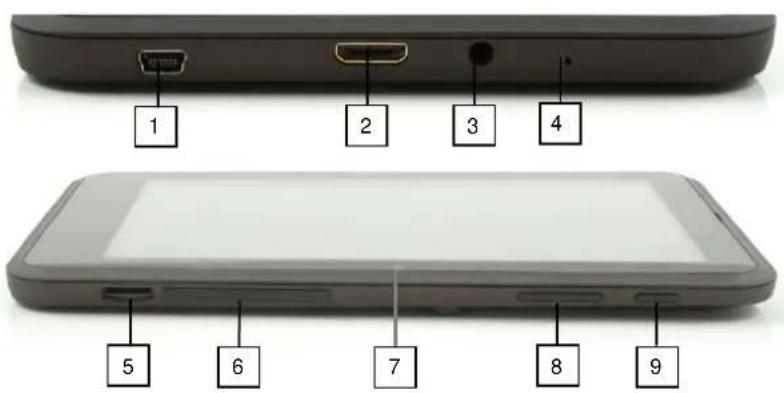
text_image
1 2 3 4 5 6 7 8 9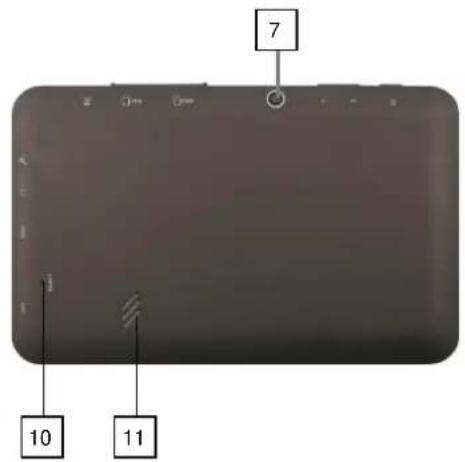
text_image
7 10 11| 1 | Mini USB |
| 2 | Mini HDMI |
| 3 | Headphone |
| 4 | Microphone |
| 5 | Micro SD card reader |
| 6 | SIM 1 + SIM 2 |
| 7 | Webcam |
| 8 | Volume +/- |
| 9 | Power on/off |
| 10 | Reset |
| 11 | Speaker |
1.2 Start up and shut down
To start your device, press and hold the 'Power button' until the screen lights up.
To shut down your device, press and hold the 'Power button' until the following dialog popup appears.
| Power off | |
| Would you like to shut down? | |
| Cancel | OK |
2.0 Introduction to Google Android 4.0
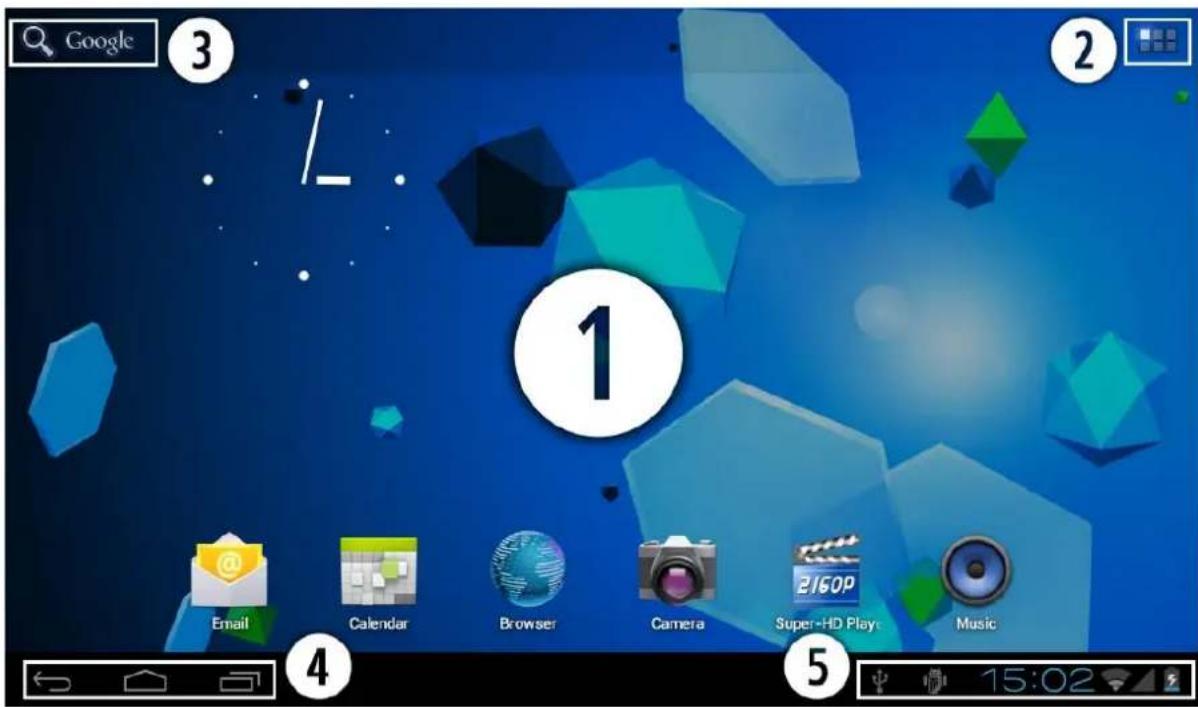
text_image
Google 3 1 2 Email Calendar Browser Camera Super-HD Play. Music 4 5 15:022.1 The Desktop
The main area of interest will be the desktop itself. Here you will place shortcuts to Apps or widgets – a visual application that can display real-time information. There may be some pre-installed icons and widgets on your tablet.
To change the desktop background image of your tablet return to your desktop by pressing the 'HOME' icon. Press and hold an open space on the desktop (don't press an icon) - until a popup appears named 'Select wallpaper from'. In the list may appear multiple options to select an image or animated image of choice. The option 'Live Wallpapers' will show the pre-installed animated desktop images. Other options such as a 'Super-HD Player', 'Gallery' or 'Wallpapers' allow you to select (widescreen) photos, downloaded images or other images; depending on the features of that specific application.
To place a widget or app shortcut on the desktop, touch and hold the icon until the App drawer fades and the desktop appears. Move your finger to the location where you want to place the icon and release your touch to place the icon.
To move or delete icons and widgets from your desktop, touch and hold the icon until a grid appears. Move the icon to the new location or drag it to the 'Remove' bar on the top of the screen to remove it. Releasing the touch screen will confirm your action.
2.2 The App drawer – right top corner
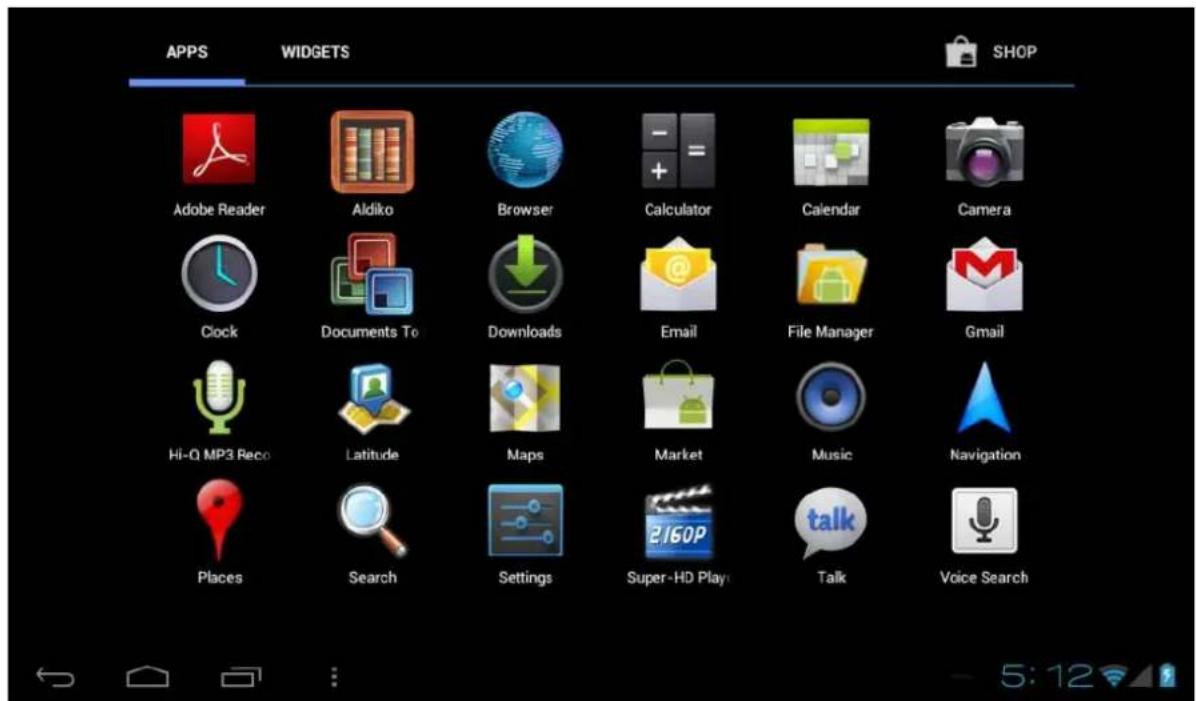
Press the icon in the top right of the screen to open the App drawer. Here you have access to two tabs; 'APPS' and 'WIDGETS'. The 'APPS' tab displays all applications that are available on the tablet. The 'WIDGET' tablet contains the optional widgets that can be added to the desktop.
To place a widget or app shortcut on the desktop, touch and hold the icon until the App drawer fades and the desktop appears. Move your finger to the location where you want to place the icon and release your touch to place the icon.
When using apps or other parts of the operating system you often will see the 'Extra options' icon
Pressing this icon will open a secondary menu with more options. Functions like opening an advanced settings menu, switching to a different account or refreshing the displayed information are often 'hidden' behind this icon.
text_image
APPS WIDGETS SHOP Adobe Reader Aldiko Browser Calculator Calendar Camera Clock Documents To Downloads Email File Manager Gmail Hi-0 MP3 Reco Latitude Maps Market Music Navigation Places Search Settings Super-HD Play Talk Voice Search2.3 Google Search / Voice search – left top corner
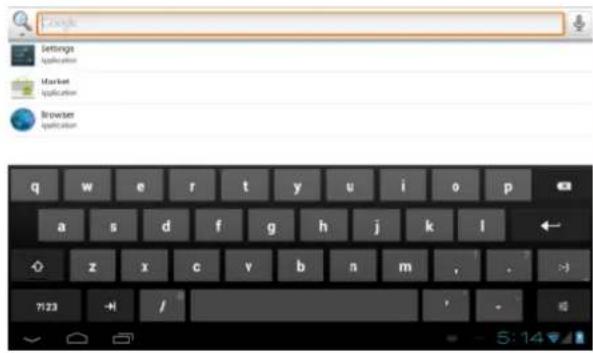
By clicking the 'Google search' / microphone button you can quickly type or speak keywords of your search. The search application will automatically determine whether the keyword(s) apply to an application or a web search. In the latter case a web browser will be opened and the results of your query will be displayed on the Google search engine.
Note that both the 'Google search' function as well as the 'Voice search' requires the tablet to have access to the internet (by WiFi).
text_image
Settings Application Market Application Browser Application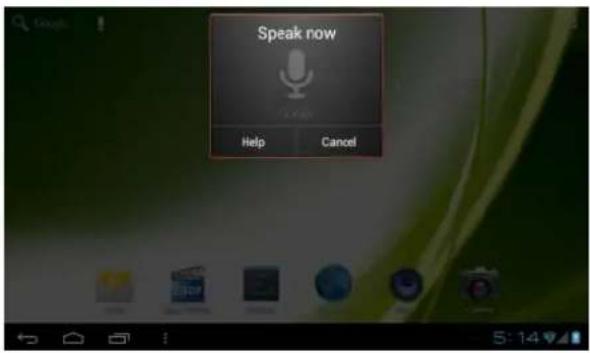
text_image
Speak now Help Cancel2.4 Navigation icons – bottom left of the screen
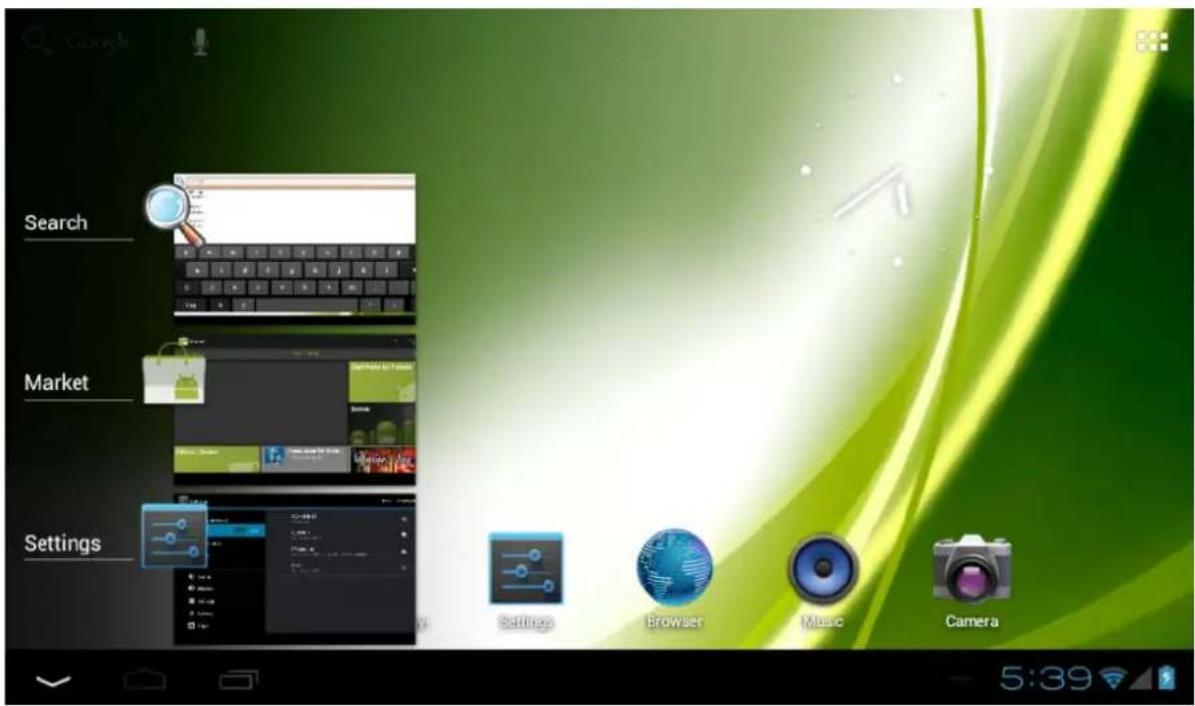
On the left side you will find three icons: use the navigation icons 'HOME' or RETURN' to close the App drawer and return to your desktop. The 'RECENT ACTIVITY' icon will show an overview of the active and recently opened applications. Click on the small displayed preview to open that application.
text_image
Search Market Settings Settings Browser Music Camera 5:39recent activity preview
2.5 Status information area – right bottom of the screen
The bottom icon bar will show the some system information (i.e. in the bottom right corner. The contents of this area can change if installed applications place additional information here. Pressing it will open a small overlay menu displaying the date/time information, the tablet's current network status, the battery status and a shortcut icon to another quick menu where some things like 'Airplane mode', 'Wifi On/Off', the screen brightness and other options can be set or toggled. Also this quick menu contains a shortcut to the 'Settings' menu. Simply clicking elsewhere on the screen will close this menu.
3.0 General operation
3.1 Battery status / Charging your tablet
The current battery status will be always displayed in the lower right of the screen in the system information bar. The battery icon 📋will change accordingly to the battery status. When connected to the DC charger, the status area on the bottom bar will display the charging icon. Note the lightning symbol inside the battery icon.
3.2 Installing Apps
You can install your own Apps by opening the Apps shop. This button can be found in the 'App drawer'. The Apps shop is located on the top right of the screen. Note that not all applications may function properly for your tablet. Some are made especially for small screen devices such as phones.
3.3 Administer / remove apps
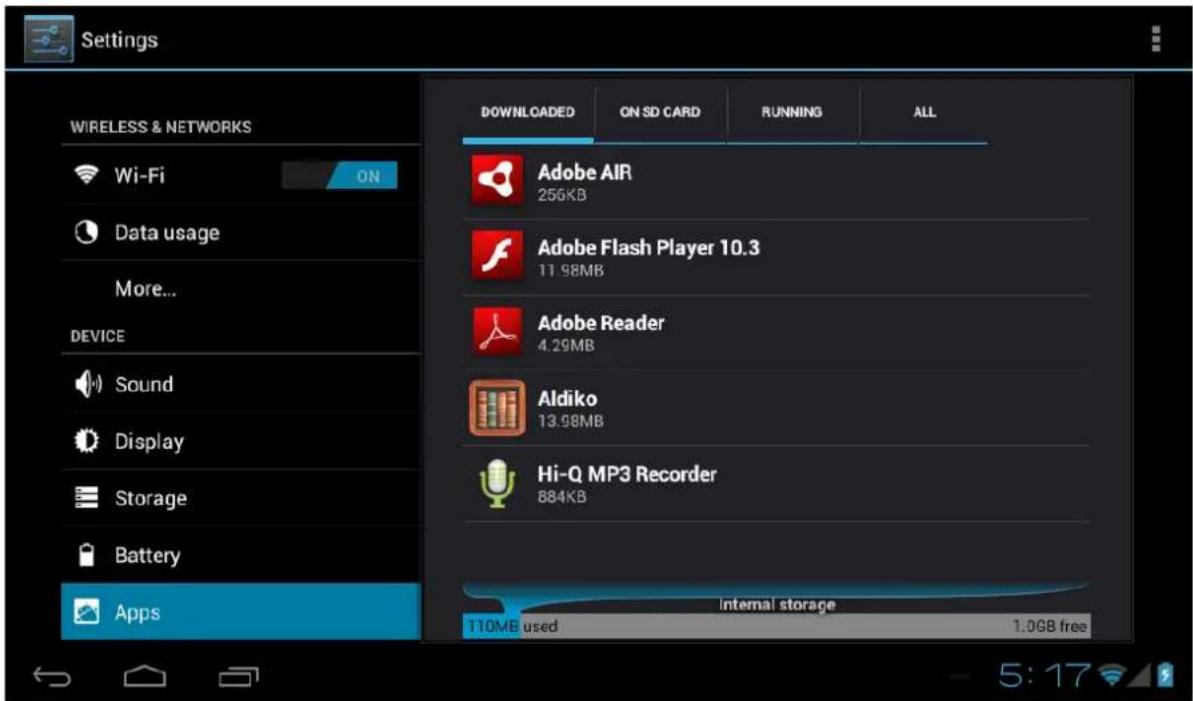
The ‘Apps’ item in the ‘Settings’ menu will display an overview of the installed apps. There are four tabs available which filter the displayed app list. Select an app to view its detailed information. In the detailed information you also have the options ‘Force Stop’, ‘Uninstall’, ‘Clear data’ and ‘Move to SD card’. Moving apps to your SD card can save you some internal storage memory on the tablet.
The ‘Clear cache’ and ‘Clear defaults’ can be used when you are experiencing issues with a specific app. Clearing cached information and (possible wrong) default settings may solve the problem. Clearing this information will also wipe any stored login information. i.e. clearing the cache of your social media app will also force you to re-login afterwards.
Apps may also be removed in the apps content page of the market / shop application.
text_image
Settings WIRELESS & NETWORKS Wi-Fi ON Data usage More... DEVICE Sound Display Storage Battery Apps DOWNLOADED ON SD CARD RUNNING ALL Adobe AIR 256KB Adobe Flash Player 10.3 11.98MB Adobe Reader 4.29MB Aldiko 13.98MB Hi-Q MP3 Recorder 884KB Internal storage 110ME used 1.0GB free 5:173.4 Add an account
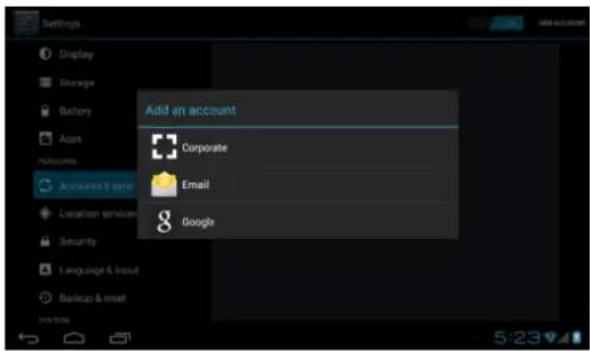
The best way to fully make use of your Android tablet is by linking your Google / Gmail account to your device. Open the 'Settings' menu and choose the ⏻ 'Accounts & sync' item. Without any added accounts the right pane will display nothing. Instead select the option 'Add account' in the top right corner. To add a Google / Gmail account please select 'Google' in the pop-up and follow the instructions on the screen. After entering your Google username and password you have the option to automatically back-up your apps, settings (i.e. bookmarks and WiFi passwords) and other data.
text_image
Add an account Corporate Email Google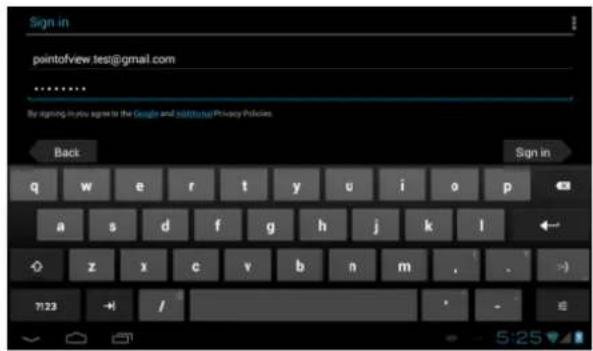
text_image
Sign in pointofview.tes@gmail.com By signing in you agree to the Google and Microsoft Privacy Policies. Back Sign in q w e r t y u i o p a s d f g h j k l z x c v b n m . 7:23 -/ -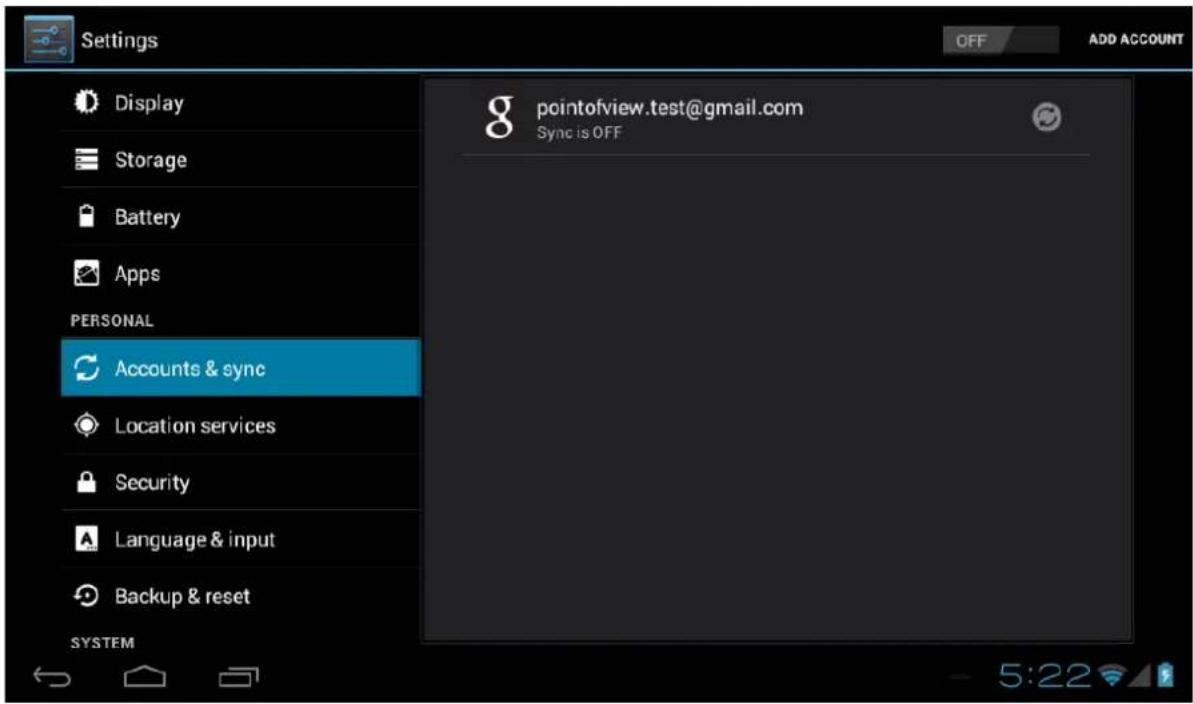
text_image
Settings Display Storage Battery Apps PERSONAL Accounts & sync Location services Security Language & input Backup & reset SYSTEM OFF ADD ACCOUNT pointofview.test@gmail.com Sync is OFF 5:22You can also add a POP3, IMAP or Exchange email account by selecting 'Email'. The pop-up option 'Corporate' will setup a 'Microsoft Exchange' link.
Your system or network administrator can supply you with the server information and login credentials. Follow the steps displayed on-screen to complete the account linking process. After you successfully linked your account(s) with the tablet you can toggle the automatic synchronisation on and off by using the OFF ON switch next to the 'Add account' option.
4.0 Basic setup
4.1 Changing operating language
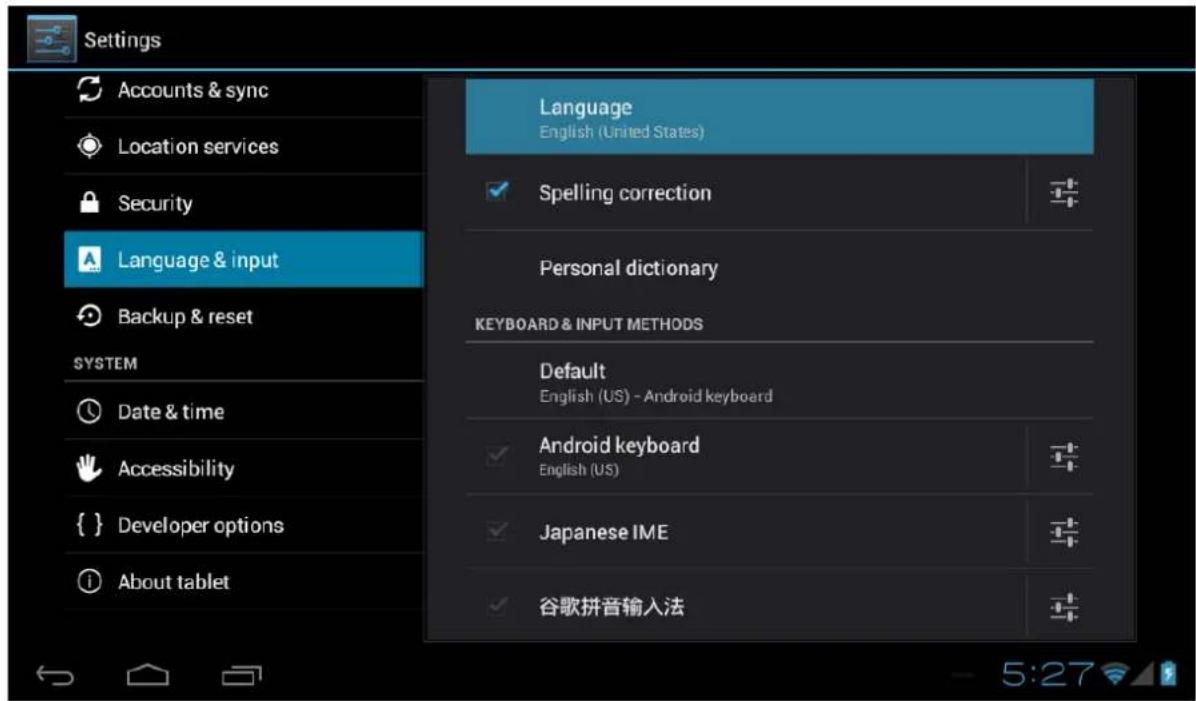
Press the icon in the top right of the screen to open the App drawer. Select the 'Settings' option to open the Android settings menu.
When selecting the option 'Language & input' the contents will be displayed in the right pane. Now open the option 'Language' and choose a language for your tablet to operate in. This pane also displays the keyboard settings which you can customize, enable or disable.
text_image
Settings Accounts & sync Location services Security Language & input Backup & reset SYSTEM Date & time Accessibility { } Developer options About tablet Language English (United States) Spelling correction Personal dictionary KEYBOARD & INPUT METHODS Default English (US) - Android keyboard Android keyboard English (US) Japanese IME 谷歌拼音输入法 5:274.2 WiFi settings
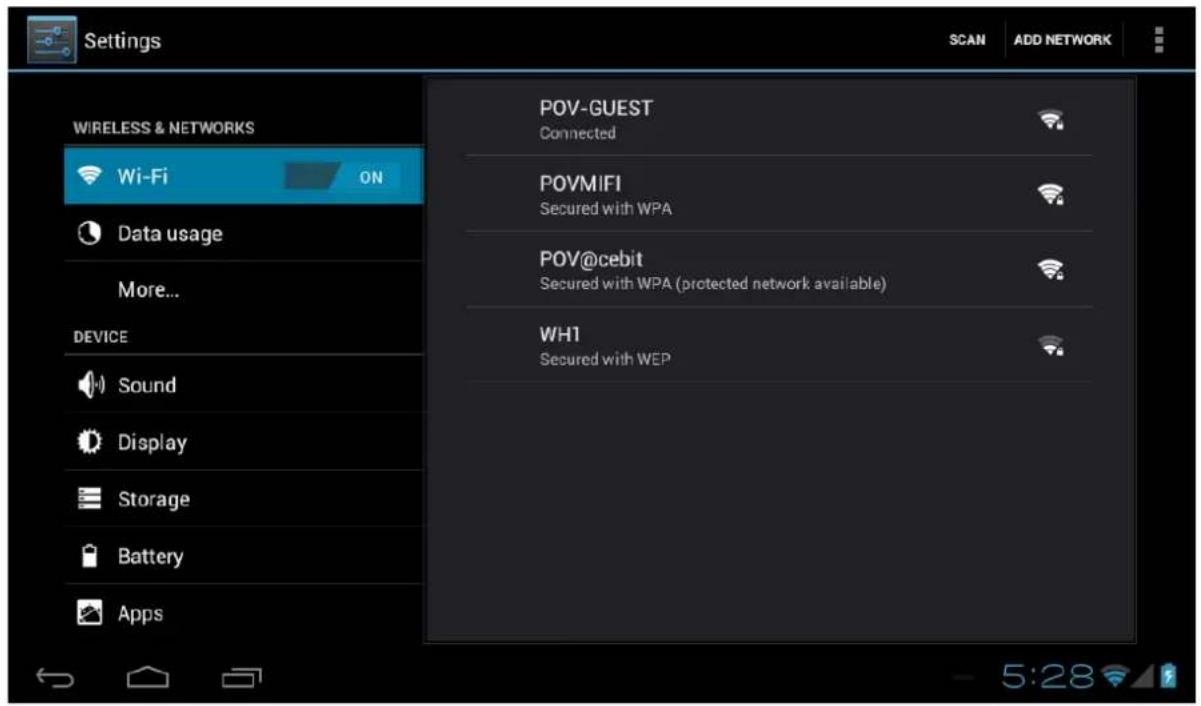
Press the icon in the top right of the screen to open the App drawer. Select the 'Settings' option to open the Android settings menu. When selecting the option WiFi' the contents will be displayed in the right pane. The switch allows you to quickly toggle WiFi on and off.
In the 'WiFi' content panel you can view the formerly used WiFi networks and the WiFi networks that have been detected by the tablet. To research for new available networks; please press 'SCAN' located in the right top corner. The option 'ADD NETWORK' allows you to add a network by manually inputting the SSID network and security method.
Whether manually added or automatically detected, you may need to fill in a password to be accepted on the network. Please contact your system or network administrator for the correct information.
Advanced network settings can be found by clicking the options icon
text_image
Settings WIRELESS & NETWORKS Wi-Fi ON Data usage More... DEVICE Sound Display Storage Battery Apps POV-GUEST Connected POVMIFI Secured with WPA POV@cebit Secured with WPA (protected network available) WH1 Secured with WEP 5:284.3 Connecting the tablet to your PC
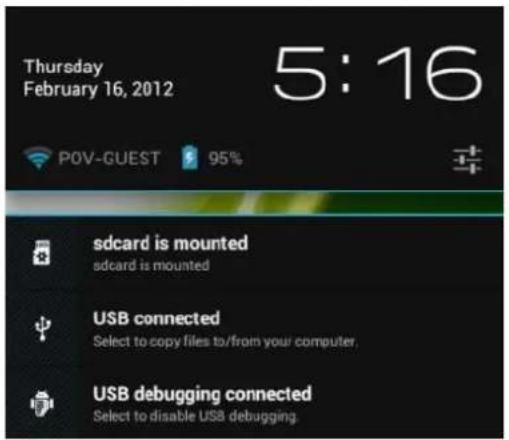
When connecting the tablet to your PC through USB, no drivers are needed to access the tablet's internal memory or inserted microSD card. However, you do need to confirm the USB connection: click the notification area in the system information bar at the bottom of the screen 15:02. Now select the option 'Select to copy files to/from your computer'.
If your PC still asks for the device drivers, it may be that the tablet is Android debugging mode. To change this, please go to the 'Settings' menu and open the {} 'Developers options' item. In the right pane you can (un)check 'USB debugging'.
text_image
Thursday February 16, 2012 5:16 POV-GUEST 95% sdcard is mounted sdcard is mounted USB connected Select to copy files to/from your computer. USB debugging connected Select to disable USB debugging.4.4 Inserting SIM 1 and SIM 2
Turn off your device before inserting the SIM cards in your tablet. Please look at the SIM symbols on the back of the tablet and insert the SIM cards accordingly. SIM 1 is used for a ‘calling’ SIM card and SIM 2 accepts ‘calling + data’ SIM card.
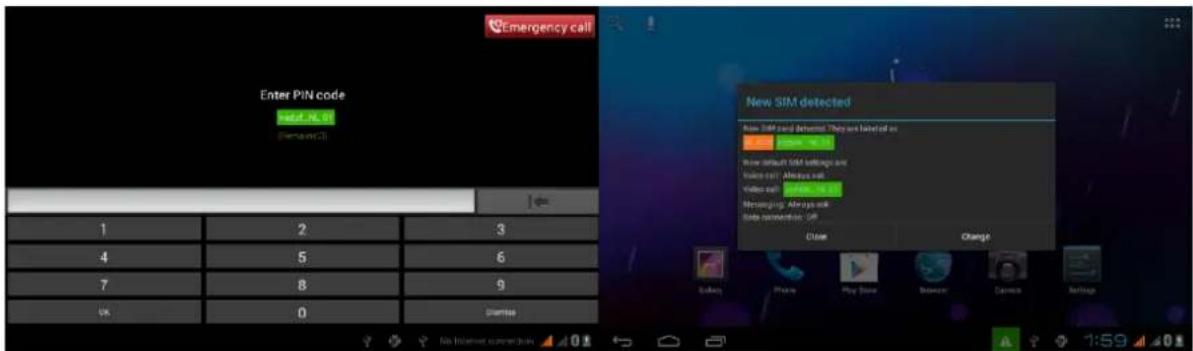
Now turn on your tablet and wait until Android has fully started. If a PIN code has been enabled on the SIM card(s) the device will ask to enter the PIN code.
The system will also ask which SIM card to use for either voice or data. Please make sure you select the correct SIM card for each function to avoid extra charges by your network provider. This SIM setting and others settings can be found and changed afterwards in "Settings / Wireless & networks / SIM Management". Also in this screen, make sure that "Data enabled" is checked to allow internet over 3G. Also when you are on a roaming network (contact your mobile provider for information), check "Data roaming" as well. Settings regarding the network provider are located in:
"Settings / Wireless & networks / More ... / Mobile networks".
Once you are connected you should see a 'mobile network icon' in the bottom right corner. Depending on your type of connection, this icon may display an H (HSDPA), G (GPRS), E (Edge) or simply R (roaming) or 3G. Note that 3G communication will automatically be disabled when a Wi-Fi network is connected. If you want to use 3G network, please turn off the Wi-Fi network first
text_image
Emergency call Enter PIN code set at: No. 07 (please call) 1 2 3 4 5 6 7 8 9 OK 0 Dismiss New SIM detected Use SIM card Detrusted They are listed on: OK Yes: No 07 Now default SIM settings and Value call: Always call Value call: Yes: No 07 Messaging: Always call Data conversion: OK Close Change Solutions Phone Play Store Balance Balance Balance 1:59 401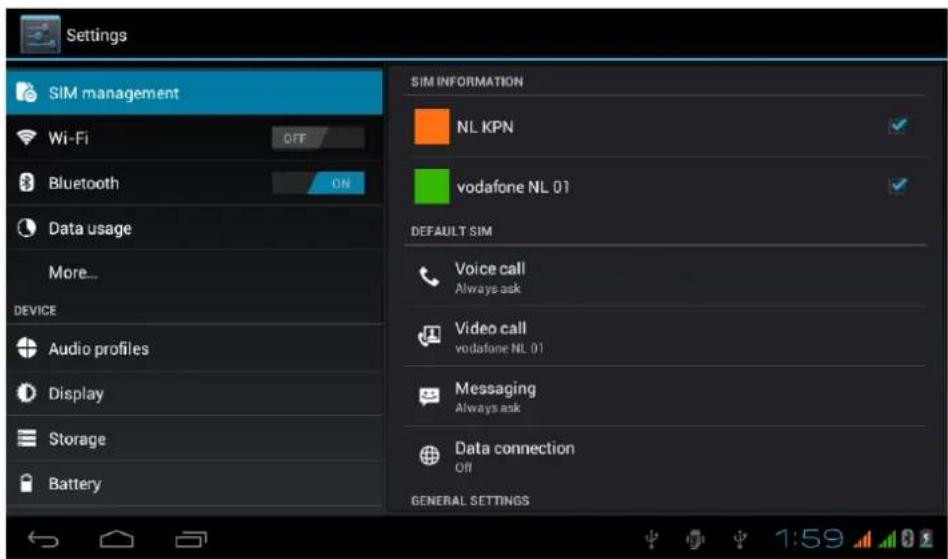
text_image
Settings SIM management Wi-Fi OFF Bluetooth ON Data usage More... DEVICE Audio profiles Display Storage Battery SIM INFORMATION NL KPN vodafone NL 01 DEFAULT SIM Voice call Always ask Video call vodafone NL 01 Messaging Always ask Data connection Off GENERAL SETTINGS4.5 Calling, SMS and phonebook
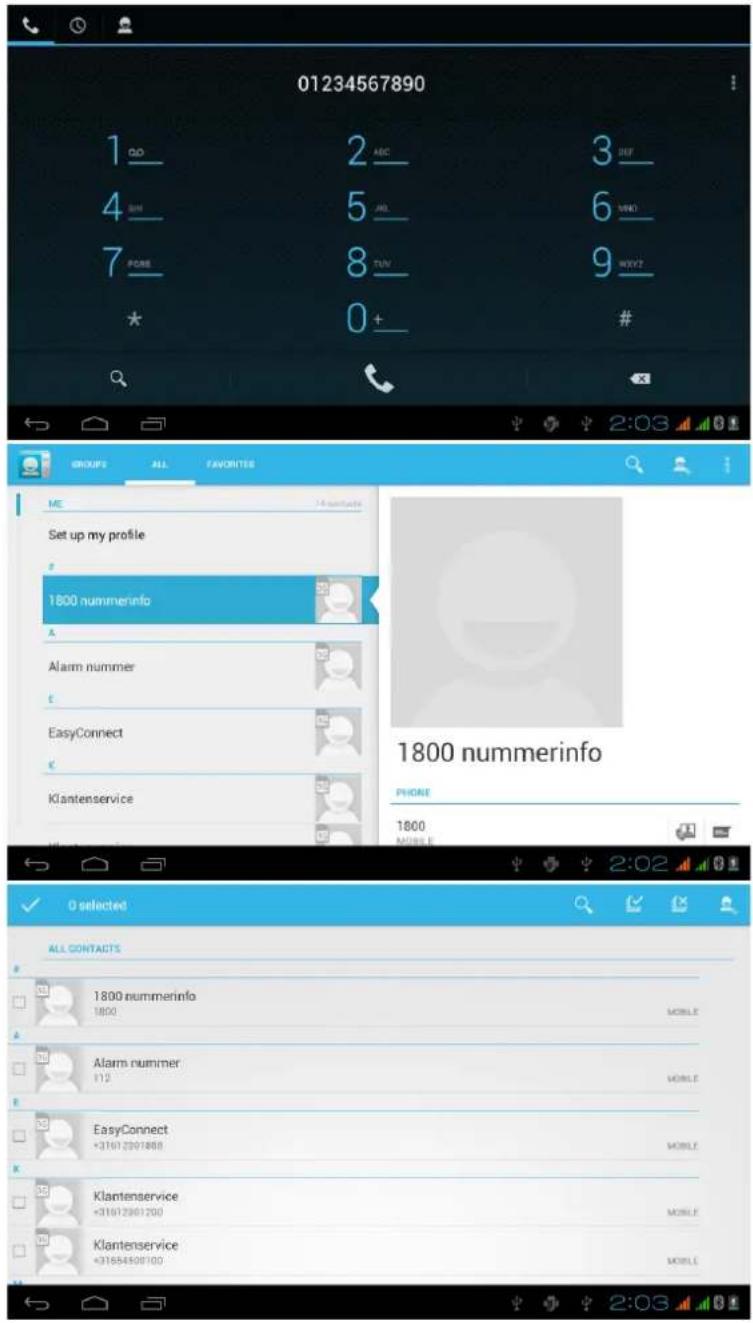
This device can be used to make phone calls and send Text SMS. By default an icon to each of these Apps are located on the desktop but they can also be found in the app drawer. Open the "App drawer" and locate the following icons:
Phone dialer :

Phone book :

SMS :

These apps will use the SIM you selected in “Settings / Wireless & networks / SIM Management” to make a call, send text etc. To change to the other SIM card you MUST change this in “Settings / Wireless & networks / SIM Management”.
text_image
01234567890 1 DD 2 ABC 3 DEF 4 SH 5 AD 6 VNO 7 PCRE 8 TVV 9 WXY? * 0+ #2:03
GROUPS ALL FAVORITES ME Set up my profile # 1800 nummerinfo A Alarm nummer E EasyConnect Klantenservice 1800 PHONE 1800 MOBILE E 1800 nummerinfo PHONE 1800 MOBILE E 2:02 O selected ALL CONTACTS 1800 nummerinfo 1800 MOBILE Alarm nummer 112 MOBILE EasyConnect <31612301888 MOBILE Klantenservice <31612301200 MOBILE Klantenservice <31654508100 MOBILE4.6 Enabling GPS on your tablet
This device has a built-in GPS receiver but does require specific maps, navigation or other application which use its signal. Google's own applications such as Maps, StreetView and Navigation are location in Google's Play Store.
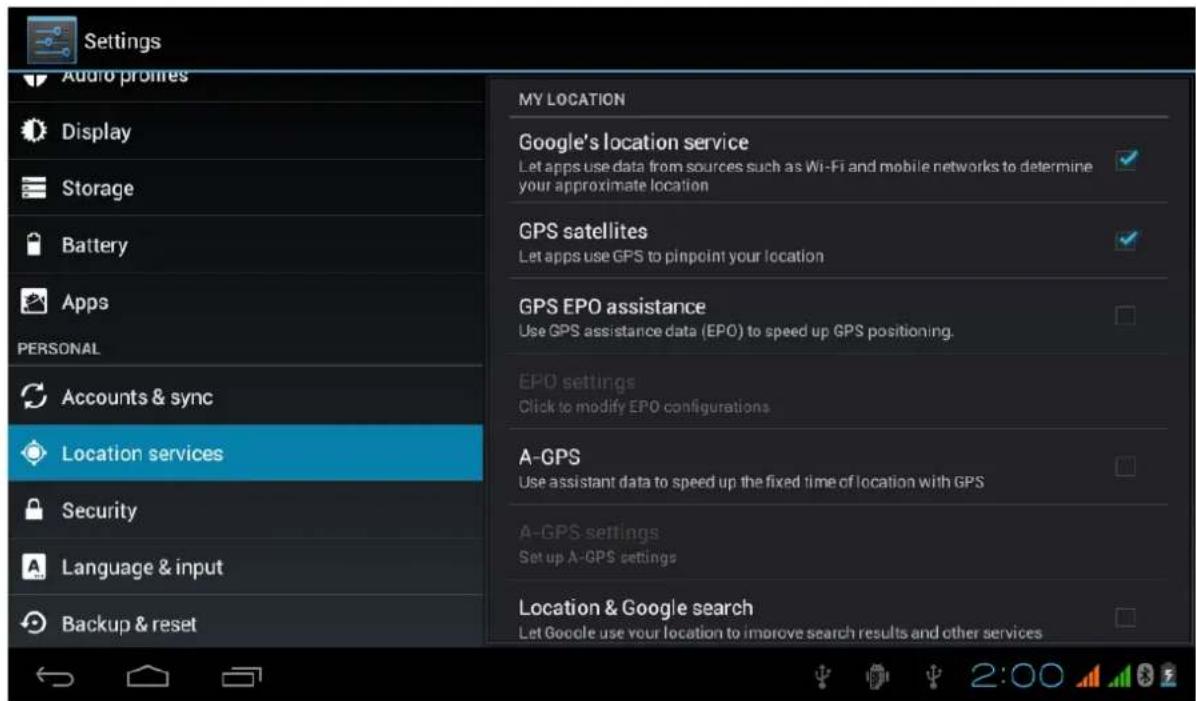
To enable your GPS, please go to:
Settings / Location services and enable the setting: GPS satellites
You can also enable the setting "Google's location service" to speed up your GPS location and use mobile and WiFi networks to indicate your location.
Note that the GPS function can drain a battery very fast. Disabling GPS after use will allow your device to work longer on a single battery charge.
text_image
Settings Audio profiles Display Storage Battery Apps PERSONAL Accounts & sync Location services Security Language & input Backup & reset MY LOCATION Google's location service Let apps use data from sources such as Wi-Fi and mobile networks to determine your approximate location GPS satellites Let apps use GPS to pinpoint your location GPS EPO assistance Use GPS assistance data (EPO) to speed up GPS positioning. EPO settings Click to modify EPO configurations A-GPS Use assistant data to speed up the fixed time of location with GPS A-GPS settings Set up A-GPS settings Location & Google search Let Google use your location to improve search results and other services5.0 Frequently Asked Questions
1) Is there a software update available for my tablet?
All tablet firm wares are posted on http://downloads.pointofview-online.com
2) I downloaded [app name] and now it doesn't work (properly)?
Android software was initially developed for mobile phones and some have no support for Android devices with larger screens. Try to update the software or find a compatible alternative app. This incompatibility also sometimes occurs with software written for previous Android versions.
3) How can I manually install an APK file?
By default, it is not possible to manually install APK files. To enable this you have to enable the setting 'Unknown sources'. This can be found in the settings menu -> Security.
4) My battery is only lasting xx hours!
The operating time of the tablet on one battery load depends very much on the specific tasks that is has to perform. WiFi, Bluetooth and other wireless communication technologies are known to consume a lot of energy. Also CPU intensive applications such as games and HD video clips can use up the energy of the battery fast.
To maximize the duration of your battery, you can optimize the following settings:
- Choose a low or dynamic screen brightness
- A short press on the power button will directly place the tablet in standby mode
- Download an 'App killer' to clear the memory from previous started apps
- Disable Wireless devices when not using them
- Remove USB devices (these use power as well)
- Avoid use/charging extremely hot or cold environments
5) Can the tablet charge through USB?
Yes, however it will charge quite slow due to the limited power the USB port (500mAh) can supply. The charger can supply up to 2A and will charge much faster.