
DLP1000S - Power bank PHILIPS - Free user manual and instructions
Find the device manual for free DLP1000S PHILIPS in PDF.


| Product Type | Portable Power Bank |
| Brand | Philips |
| Model | DLP1000S |
| Battery Capacity | 10000 mAh |
| Input Port | Micro USB (5V/2A) |
| Output Port | USB-A (5V/2.1A) |
| Number of Output Ports | 1 |
| Charging Time | Approximately 5-6 hours |
| Dimensions | 140 x 70 x 15 mm |
| Weight | 200 g |
| LED Indicator | 4-level battery status |
| Safety Features | Overcharge, over-discharge, overcurrent, short circuit protection |
| Cable Included | Micro USB cable |
| Compatible Devices | Smartphones, tablets, Bluetooth headphones, and other USB devices |
| Maintenance | Wipe with a dry, soft cloth; avoid liquids |
| Operating Temperature | 0°C to 45°C (charging), -10°C to 60°C (storage) |
| Repairability | Non-user-serviceable; contact certified service center |
Frequently Asked Questions - DLP1000S PHILIPS
User questions about DLP1000S PHILIPS
0 question about this device. Answer the ones you know or ask your own.
Ask a new question about this device
Download the instructions for your Power bank in PDF format for free! Find your manual DLP1000S - PHILIPS and take your electronic device back in hand. On this page are published all the documents necessary for the use of your device. DLP1000S by PHILIPS.
USER MANUAL DLP1000S PHILIPS
Register your product and get support at
www.philips.com/welcome
DCD2030
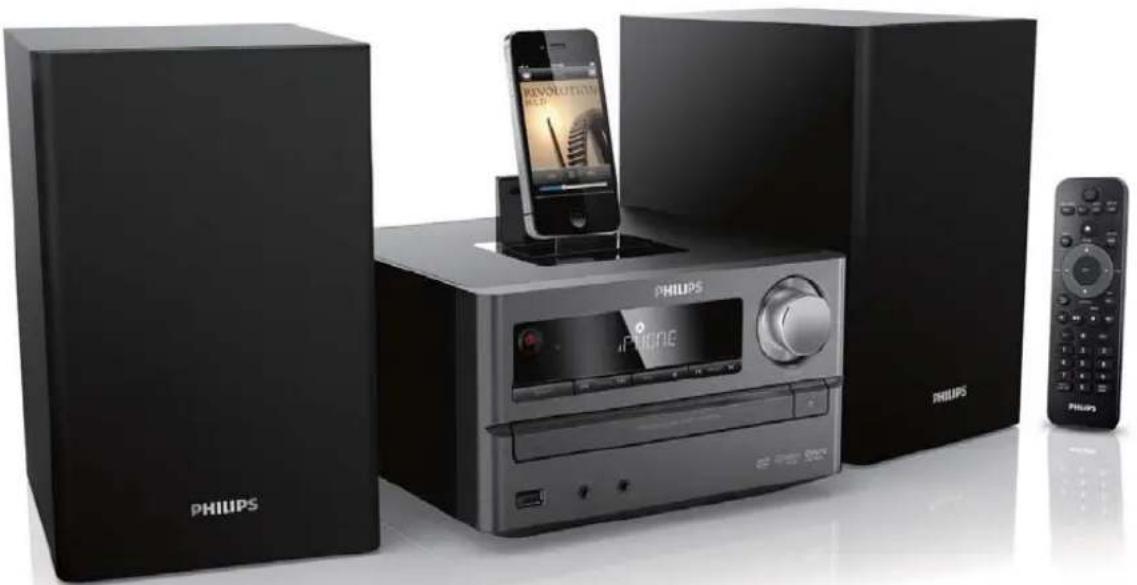
EN User manual 3
ZH-HK 使用手册 31
Contents
1 Important 4
Know these safety symbols 4
Important Safety Instructions 4
Hearing safety 4
Notice 5
2 Congratulations 7
Feature introduction 7
What's in the box 7
Overview of the main unit 8
3 Before use 11
Place the unit 11
Connect 12
Install/replace the battery of remote control 13
4 Get started 14
Turn on 14
Store radio stations automatically 14
Find the correct video input channel 14
Select the correct TV system 15
Select a language for on-screen display 15
5 Play disc/USB 15
Basic operation 15
Play a disc 15
Play recorded files 16
Control the play 17
Picture view options 18
Play slideshow and music simultaneously 18
Adjust sound 19
6 Play iPod/iPhone/iPad 19
iPod/iPhone/iPad compatible 19
Load the iPod/iPhone/iPad 20
Listen to the iPod/iPhone/iPad 21
Charge the iPod/iPhone/iPad 21
Remove the iPod/iPhone/iPad 21
7 Listen to FM radio 21
Tune to FM radio stations 21
Program radio stations automatically 21
Program radio stations manually 22
Tune to a preset radio station 22
8 Setup 22
General setup 22
Audio Setup 23
Video Setup 23
Preference setup 23
9 Other features 24
Set alarm timer 24
Set sleep timer 24
Listen through headphone 24
Listen to external audio device 24
10 Product information 25
Region Code 25
Specifications 25
Supported disc formats 26
Supported audio 26
USB playability information 26
11 Troubleshooting 27
1 Important
Know these safety symbols
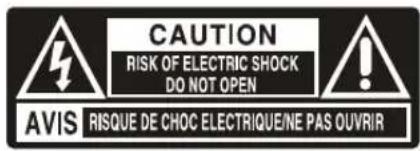
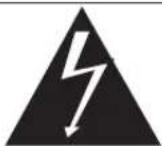
This 'bolt of lightning' indicates uninsulated material within your unit may cause an electrical shock. For the safety of everyone in your household, please do not remove product covering.
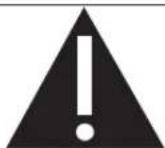
The 'exclamation point' calls attention to features for which you should read the enclosed literature closely to prevent operating and maintenance problems.
WARNING: To reduce the risk of fire or electric shock, this apparatus should not be exposed to rain or moisture and objects filled with liquids, such as vases, should not be placed on this apparatus.
CAUTION: To prevent electric shock, match wide blade of plug to wide slot, fully insert.
Important Safety Instructions
- Only use attachments/accessories specified by the manufacturer.
- Keep this unit away from direct sunlight, naked flames, or heat. • Apparatus shall not be exposed to dripping or splashing.
- Do not place any sources of danger on the apparatus (e.g. liquid filled objects, lighted candles).
- Where the MAINS plug or an appliance coupler is used as the disconnect device, the disconnect device shall remain readily operable.

Warning
• Never remove the casing of this unit. • Never lubricate any part of this unit. - Place this unit on a flat, hard and stable surface. - Never place this unit on other electrical equipment. - Only use this unit indoors. Keep this unit away from water, moisture and liquid-filled objects. - Keep this unit away from direct sunlight, naked flames or heat. - Never look into the laser beam inside the unit.

Caution
- Use of controls or adjustments or performance of procedures other than herein may result in hazardous radiation exposure or other unsafe operation.
Hearing safety
Listen at a moderate volume.
• Using headphones at a high volume can impair your hearing. This product can produce sounds in decibel ranges that may cause hearing loss for a normal person, even for exposure less than a minute. The higher decibel ranges are offered for those that may have already experienced some hearing loss.
- Sound can be deceiving. Over time your hearing 'comfort level' adapts to higher volumes of sound. So after prolonged listening, what sounds 'normal' can actually be loud and harmful to your hearing. To guard against this, set your volume to a safe level before your hearing adapts and leave it there.
To establish a safe volume level:
- Set your volume control at a low setting.
- Slowly increase the sound until you can hear it comfortably and clearly, without distortion.
Listen for reasonable periods of time:
- Prolonged exposure to sound, even at normally 'safe' levels, can also cause hearing loss.
- Be sure to use your equipment reasonably and take appropriate breaks.
Be sure to observe the following guidelines when using your headphones.
- Listen at reasonable volumes for reasonable periods of time.
- Be careful not to adjust the volume as your hearing adapts.
- Do not turn up the volume so high that you can't hear what's around you.
- You should use caution or temporarily discontinue use in potentially hazardous situations. Do not use headphones while operating a motorized vehicle, cycling, skateboarding, etc.; it may create a traffic hazard and is illegal in many areas.
Notice
Any changes or modifications made to this device that are not expressly approved by Philips Consumer Lifestyle may void the user's authority to operate the equipment.
Disposal of your old product and batteries
Your product is designed and manufactured with high quality materials and components, which can be recycled and reused. Never dispose of your product with other household waste. Please inform yourself about the local rules on the separate collection of electrical and electronic products and batteries. The correct disposal of these products helps prevent potentially negative consequences on the environment and human health.
Your product contains batteries, which cannot be disposed of with normal household waste. Please inform yourself about the local rules on separate collection of batteries. The correct disposal of batteries helps prevent potentially negative consequences on the environment and human health.
Please visit www.recycle.philips.com for additional information on a recycling center in your area.

Caution
- Removal of the built-in battery invalidates the warranty and may destroy the product.
Environmental information
All unnecessary packaging has been omitted. We have tried to make the packaging easy to separate into three materials: cardboard (box), polystyrene foam (buffer) and polyethylene (bags, protective foam sheet.) Your system consists of materials which can be recycled and reused if disassembled by a specialized company. Please observe the local regulations regarding the disposal of packaging materials, exhausted batteries and old equipment.
Copyright notice

Be responsible Respect copyrights
This item incorporates copy protection technology that is protected by U.S. patents and other intellectual property rights of Rovi Corporation. Reverse engineering and disassembly are prohibited.
Trademark notice
DOLBY.
DIGITAL
Manufactured under license from Dolby Laboratories. Dolby and the double-D symbol are trademarks of Dolby Laboratories.

VIDEO
'DVD Video' is a trademark of DVD Format/Logo Licensing Corporation.
DIVX™
ULTRA
ABOUT DIVX VIDEO: DivX® is a digital video format created by DivX, Inc. This is an official DivX Certified device that plays DivX video. Visit www.divx.com for more information and software tools to convert your files into DivX video.
ABOUT DIVX VIDEO-ON-DEMAND: This DivX Certified® device must be registered in order to play DivX Video-on-Demand (VOD) content. To generate the registration code, locate the DivX VOD section in the device setup menu. Go to vod.divx.com with this code to complete the registration process and learn more about DivX VOD.
DivX®, DivX Certified® and associated logos are registered trademarks of DivX, Inc. and are used under license.

Note
- The type plate is located on the bottom of the unit.
2 Congratulations
Congratulations on your purchase, and welcome to Philips! To fully benefit from the support that Philips offers, register your product at www.philips.com/welcome.
If you contact Philips, you will be asked for the model and serial number of this product. The model number and serial number are on the back of the main unit. Write the numbers here: Model No. ____ Serial No. ____
Feature introduction
This unit can
• play videos, audios, and display pictures from discs and USB storage devices • play audios from iPod/iPhone/iPad
For the details of supported media, refer to "Specifications".
What's in the box
Check and identify the contents of your package:
- Main unit
- 2 X speakers
- Remote control
- Video cable
- Power cord
- FM antenna aerial
- User manual
- Rubber pad
- Quick start Guide
Overview of the main unit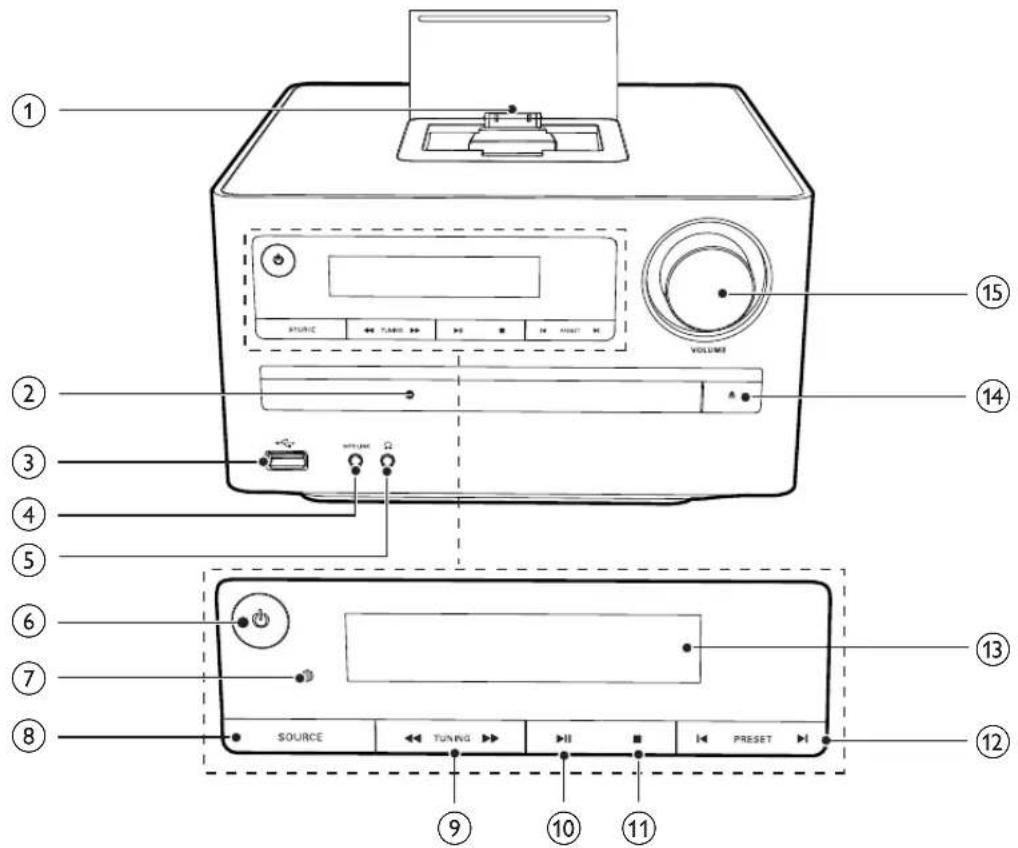
① Dock for iPod/iPhone/iPad ② Disc compartment
- Hold the disc.
③ - USB socket.
④ MP3 LINK
- Connect external audio device.
5 - Headphone socket. ⑥ - Turn on the apparatus, switch to standby mode, or Eco Power standby mode.
⑦ IR sensor
- Detect signals from the remote control. Always point the remote control at the IR sensor.
⑧ SOURCE
- Select a source.
⑨ TUNING

- Rotate a photo.
- Fast backward or forward.
10 ▶ II
Start or pause play.
11
- Stop play.
- Erase a program.
12 PRESET
- Skip to the previous/next track, title, or file.
- Select a programmed radio station.
⑬ Display panel
• Show current status.
14
- Open or close the disc tray.
⑮ VOLUME
- Adjust volume.
- Adjust time.
Back view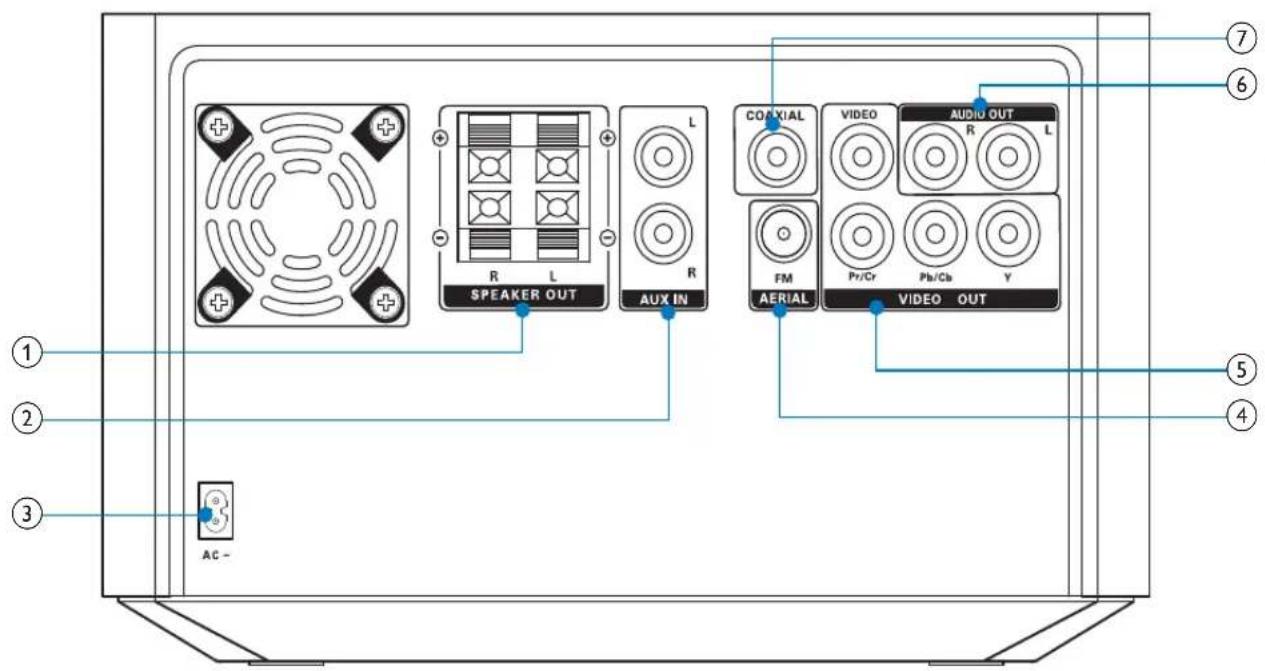
English
① SPEAKER OUT
- Connect the speakers.
② AUX-IN
- Connect an external audio device.
③ AC MAIN~
• Connected with AC power cord.
④ FM AERIAL
- Improve FM reception.
⑤ VIDEO OUT
- Video output jack.
⑥ AUDIO OUT L/R
- Audio output jack.
⑦ COAXIAL
- Coaxial jack.
Overview of remote control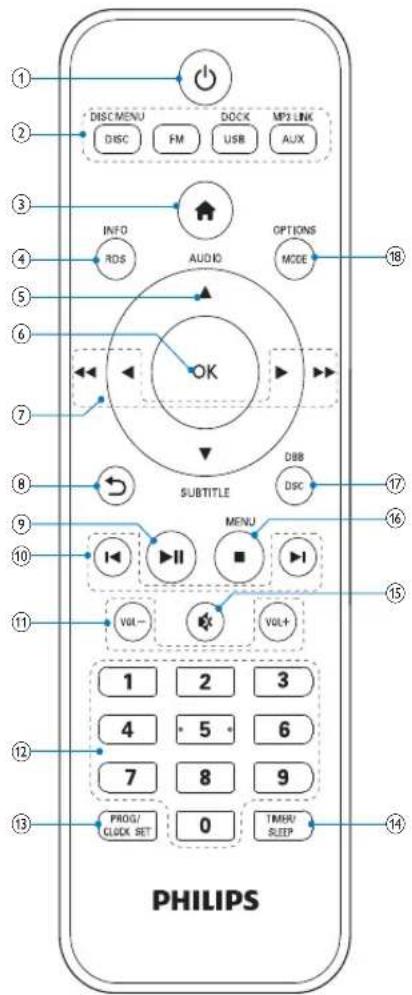
①
- Switch the micro system on/off.
② DISC/DISC MENU/FM/USB/DOCK/AUX/MP3 LINK
- Select the source.
③
- Access the home menu.
④ RDS/INFO
• Show the disk information such as title, chapter, time elapsed, total time etc.
• Show the information of RDS stations (if available).
⑤ ▲AUDIO / ▼UBTITLE
• For menus: navigate up/down. - Invert a picture. • ▲AUDIO: Toggle between stereo and mono. - SUBTITLE: Select a subtitle language for a video.
⑥ OK
- Confirm a selection.
⑦ ◀◀ / ◀◀◀
• Search in a track or disc. - Fast backward or forward. • For menus, navigate left/right. - Rotate a picture.
- Return to a previous display menu.
⑨ ▶ II
- Start, pause or resume play.
⑩ |◀/▶|
- Skip to the previous/next track, title, or file.
- Select a programmed radio station.
⑪ VOL +/-
- Adjust the volume.
⑫ Numeric buttons
- Select a title/chapter/track to play.
⑬ PROG/CLOCK SET
- Program radio stations.
- Set clock.
⑭ TIMER/SLEEP
- Set sleep timer.
- Set alarm timer.
⑮
- Mute.
16
- Stop play.
- Erase a programmed radio station.
- Activate/deactivate the demonstration mode.
⑰ DSC/DBB
- Select a preset sound setting.
- Turn on or off dynamic bass enhancement.
⑱ MODE/OPTIONS
- Select repeat play or random play.
- Accesses options relating to the current activity or selection.
3 Before use
Place the unit

Note
- Risk of overheating! Never install this apparatus in a confined space. Always leave a space of at least 4 inches around this apparatus for ventilation. Ensure curtains or other objects never cover the ventilation slots on this apparatus.
- Place this unit on a flat, hard, and stable surface.
- Never place this unit in an enclosed cabinet, nor on any other electrical equipment.
- Do not insert any object other than indicated into ventilation openings nor other openings. • Install this unit near the AC outlet where the AC power plug can be easily reached. • To avoid magnetic interference or unwanted noise, never place the main unit and speakers too close to any radiation devices.
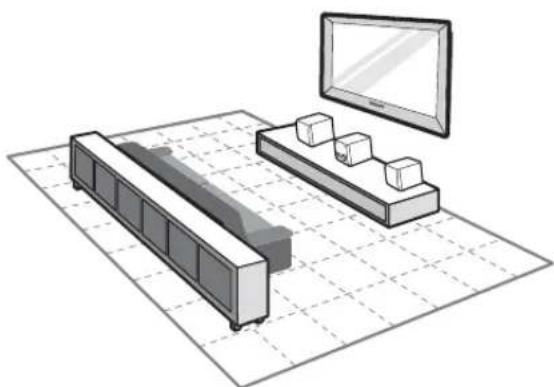
1 Place the unit near to the TV. 2 Place the speakers at a suitable distance from the TV and at an angle of approximately 45 degrees from the listening position.
Connect
Connect speakers
1 Insert the speaker wires completely into the speaker input sockets on the back of the unit.
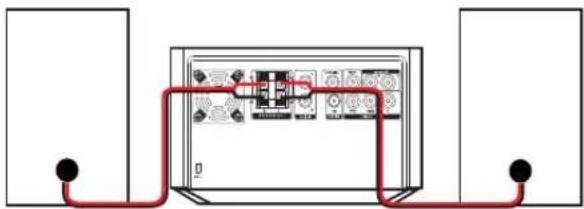

Note
- For optimal sound, use the supplied speakers only.
- Connect only speakers with impedance that is the same or higher than the supplied speakers. Refer to the Specifications section of this manual.
Connect TV
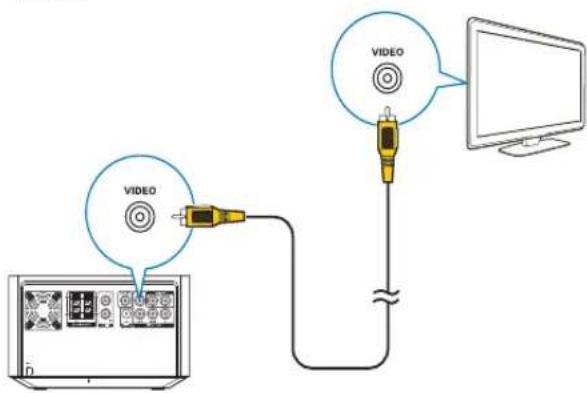
Connect the audio and video cables to the output sockets on the unit and the corresponding input sockets on your TV. Select the best video connection that your TV supports.
Option 1: Connect through a composite video cable
Option 2: Connect through component video cables
![graph TD A["Power Supply Panel"] --> B["Analogoupler"] B --> C["Computer Monitor"] C --> D["Analogoupler with Red, Blue, Green, Green Colors"] D --> E["Analogoupler connected to PC"]](/content/2026/05/797392/images/e1d21254365a0449e36f2bc2bbaf6788a38a1bdd852afa3600d790a9ce08dae3.jpg)
Connect a progressive scan TV through component video cables for higher quality video.
Connect power

Caution
- Risk of product damage! Ensure that the power supply voltage corresponds to the voltage printed on the back or the underside of the unit.
- Risk of electric shock! When you unplug the AC power cord, always pull the plug from the socket. Never pull the cord.
- Before you connect the AC power cord, ensure that you have completed all other connections.
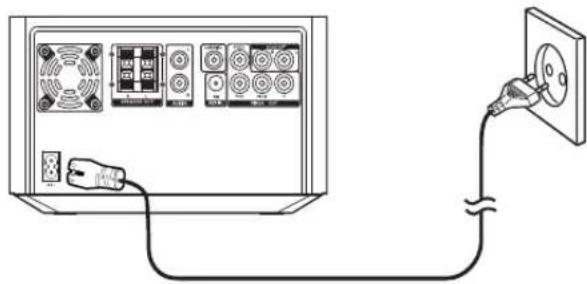
1 Connect the power cable to the wall socket.
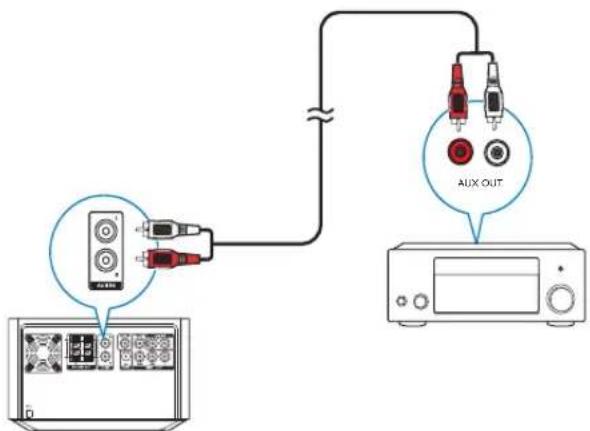
Play from external device
Connect an audio cable to:
• the AUX IN L/R sockets on this product. - the audio output sockets on the external device (for example, audio player).
Connect FM aerial

Tip
- For optimal reception, fully extend and adjust the position of the antenna.
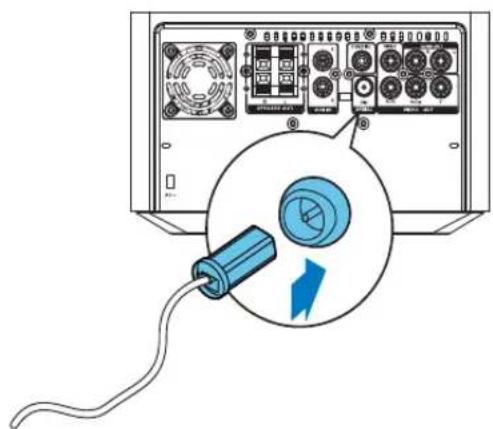
- For better FM stereo reception, connect an outdoor FM antenna to the FM AERIAL socket. • The unit does not support MW radio reception.
1 Connect the supplied FM antenna to the FM AERIAL socket on the main unit.
Install/replace the battery of remote control

Caution
- Risk of explosion! Keep batteries away from heat, sunshine or fire. Never discard batteries in fire.
- Do not mix batteries (old and new or carbon and alkaline, etc).
- Remove the battery if the remote control is not to be used for an extended period of time.
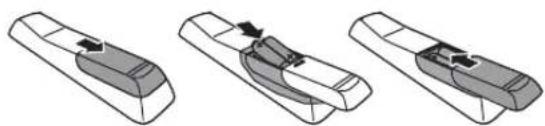
1 Push to open the battery compartment cover. 2 Insert 2 AAA batteries with correct polarity (+/-) as indicated. 3 Close the cover.
4 Get started
Turn on
1 Press ⏻.
→The unit switches to the last selected source.

Note
- If no source is played within 15 minutes, the unit switches to standby mode.
- If no operation is performed within 15 minutes in standby mode, the unit switches to Eco-power standby mode.
- Press to switch the unit to the last source when it was turned off.
Demonstrate the unit's features
- In the standby mode, press ■ until "DEMO ON" is displayed.
→This system's features are displayed one by one.
• To turn off the demonstration, press again.
Set the clock
The unit uses the 24-hour or 12-hour time format.
1 In standby mode, press and hold PROG/CLOCK SET for three seconds. →"CLOCK SET" scrolls on the display. Then the time format [24H] or [12H] is displayed.
2 Press ▲ / ▼ to select a time format. Press PROG/CLOCK SET to store the setting. →The hour digits blink.
3 Press ▲ / ▼ to set the hour. Press PROG/CLOCK SET to store the setting. →The minute digits blink.
4 Press PROG/CLOCK SET to confirm the setup.

Note
- The number key on the remote control is deactivated in this mode.
Store radio stations automatically
If no radio stations are stored, the unit can store radio stations automatically.
1 Turn on the unit. 2 Press FM.
→[AUTO INSTALL -- PRESS PLAY -- STOP CANCEL] (press ▶■ to start automatic installation, or press ■ to cancel) is displayed.
3 Press ▶ II .
→The unit automatically stores radio stations with sufficient signal strength. →After all available radio stations are stored, the first stored radio station is broadcast automatically.
Find the correct video input channel
1 Turn on your unit. 2 Press DISC to select the disc source.
- Turn on the TV and switch to the correct video-in channel.

Note
• See the user manual of your TV for how to switch between video-in channels.
Select the correct TV system
This unit is compatible with both NTSC and PAL. If the picture is abnormally displayed with the default setting, select a TV system that matches your TV. (Refer to "Setup" > "Video Setup" > for [TV System] details)
Select a language for on-screen display
English is the default language options for this setting. (See "Setup" > "General Setup" > [OSD LANGUAGE] for details)
5 Play disc/USB

Caution
- Risk of damage to the unit! During play, never move the unit.
- Never put any object other than a disc into the disc compartment.
- Never look at the laser beam inside the unit.
- Never play discs with accessories such as disc stabilizer rings or disc treatment sheets.
Basic operation
The listed operations are applicable for all supported media.
Function Action
| Stop play Press | ■. |
| Pause or resume play Press | ▶II. |
| Skip to the previous/next title, chapter, track, or file | Press ◀/ ▶I |
Play a disc
1 Press DISC to select the disc source. 2 Press ▲ on the main unit to eject the disc tray. 3 Place a disc onto the disc tray with the printed side upward, and then press ▲. 4 The unit starts playing automatically. • To start the play manually, press ▶II. - To play a DVD that has a rating level higher than your setting, enter the 6-digit password (136900) first.
Select a subtitle language
You can select a subtitle language for a DVD or DivX (Ultra) video.
1 During play, press SUBTITLE repeatedly.

Note
- For some DVDs, the language can only be changed from the disc menu. Press DISC MENU to access the menu.
Play recorded files
You can play DivX/MP3/WMA/JPEG files that are copied onto a CD-R/RW, recordable DVD, or USB storage device.

Note
- You can only play DivX videos that are rented or purchased with the DivX® registration code of this unit. (See "Setup" > "General setup" > [DivX(R) VOD Code])
- Subtitle files with the following file extensions (.srt, .smi, .sub, .ssa, .ass) are supported but not displayed in the file list.
- The subtitle filename has to be the same as the filename of the DivX video (excluding the file extension).
- The DivX video file and the subtitle files must be saved under the same directory.
Connect a USB storage device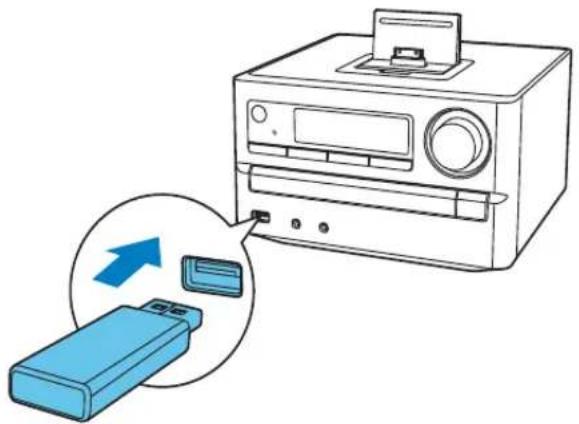
1 Press USB to select the source for USB storage device. 2 Insert the USB storage device. →The unit starts playing automatically. →The user interface is displayed.
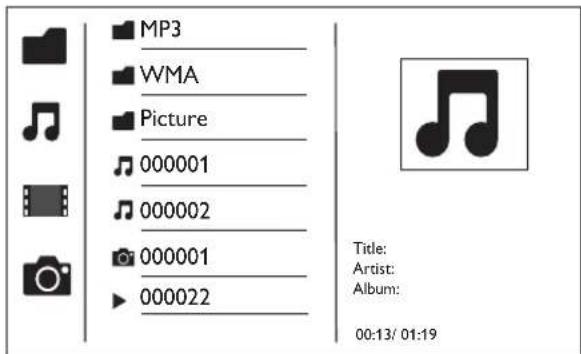
- On the left: the information source. • In the middle: the folder and file list.
- On the right: the detailed file information, time elapsed, total time for the audio/video.
Access a folder
1 Press ▲/▼ to highlight the selected folder name. 2 Highlight [Previous] and press OK to go back to the last-level menu.
Play a file
1 Access the selected folder. 2 Press ▲ / ▼ to highlight the selected file name. 3 Press OK to confirm. →The selected file starts playing. →The unit stops playing automatically at the end of the last file of the same category.
Control the play
Display play information
1 During play, press INFO/RDS to display play information on the TV.
Search forward/backward
1 During video/audio play, press repeatedly to select a search speed. To resume play at normal speed, press
PBC menu
1 During video playback, press OPTIONS to access PBC menu.
| PBC |
| Aspect Ratio |
| Zoom |
| Angle |
| Repeat |
| Goto |
| Slow Forward |
| Slow Backword |
2 Use ▼▲ to highlight desired option.
- [Aspect Ratio] • [Zoom] • [Angle] • [Repeat] • [Goto]
- [Slow Forward]
- [Slow Backward]
3 Press ▶ to access sub options, and use ▼ / ▲ to select the right sub option.
4 Press OK button to confirm the selection.
Slow forward/backward play
1 During video play, press OPTIONS to access PBC menu. 2 Use ▲ / ▼ to highlight the slow forward/backward option. 3 Press ▶, and use ▲ / ▼ to select the right ratio. 4 Press OK button to confirm the selection.
Select repeat/shuffle play options
1 During play, press MODE repeatedly to select a play option. • To resume normal play, press MODE repeatedly until no option is displayed.
Search by time or title/chapter/track number
1 During play, press OPTIONS to access PBC menu. 2 Use ▲ / ▼ to highlight [Goto]. 3 Press ▶ to access menu. 4 Use ▲ / ▼ to highlight the title number, chapter number, track number, or time field. 5 Press OK to confirm. →the selected segment is displayed. →Play starts automatically.
Picture view options
Image playback control
1 Press OPTIONS to access image options.
Color
Zoom
Photo Preview
2 Use ▲▼to highlight the desired option.
• [Color] • [Zoom] - [Photo Preview]
3 Press ▶, and use ▲ ▼ to select the sub options.
4 Press OK button to confirm the selection.
Rotate picture
During play, press ↕ or ↗ to rotate the picture anti-clockwise or clockwise.
Play slideshow and music simultaneously

Note
Make sure that the USB storage device or the disc contains both WMA/MP3 files and JPEG photos.
1. Play a WMA/MP3 file. 2. Access a photo folder.
3. Select a photo file. 4. Press OK to start the slideshow.
- The slideshow stops after all photos are displayed once. To stop the slideshow, press

Note
- This function is only available when you select the folder as the play source.
- This unit can only display digital camera pictures with JPEG-EXIF format, which is widely used in digital cameras. It cannot display Motion JPEG, nor pictures in formats other than JPEG. Sound clips associated with pictures cannot be displayed either.
- If the JPEG photo is not recorded with an "exif" type file, it is displayed as a "blue mountain" thumbnail picture.
Adjust sound
During play, you can adjust volume through the following operations.
| Key Function | |
| VOL +/- | To increase/decrease the volume. |
| ※ | To mute/restore sound. |
| DBB/DSC | To select your desired sound effect:[POP] (pop)[JAZZ] (jazz)[ROCK] (rock)[CLASSIC] (classic)[DBB] (DBB)[FLAT] (flat) |
6 Play iPod/iPhone/iPad
This system is equipped with a dock for iPod/iPhone/iPad. You can enjoy audio from the docked system through the powerful speakers.
iPod/iPhone/iPad compatible
The unit supports these iPod, iPhone and iPad models:
Made for:
- iPod touch (1st, 2nd, 3rd, and 4th generation)
- iPod classic
- iPod with video
- iPod nano (1st, 2nd, 3rd, 4th, 5th, and 6th generation)
- iPod with color display
- iPod mini
- iPhone 3GS
- iPhone 3G
- iPhone
- iPhone 4
- iPad
- iPad 2

Note
- iPod with color display, iPod classic, and iPod with video are not compatible with dock charging.
Load the iPod/iPhone/iPad
1 Push the lock key to open the lid of the dock. 2 Load the iPod/iPhone/iPad onto the dock.
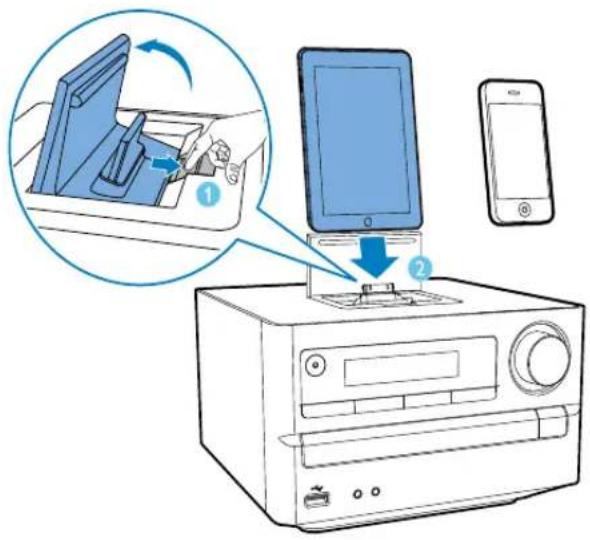
Install the rubber pad

Note
- For iPad 2, you need to use the supplied rubber pad to keep it stable.
1 Open the dock, and place the rubber pad onto the dock compartment as indicated. 2 Load your iPad 2.
1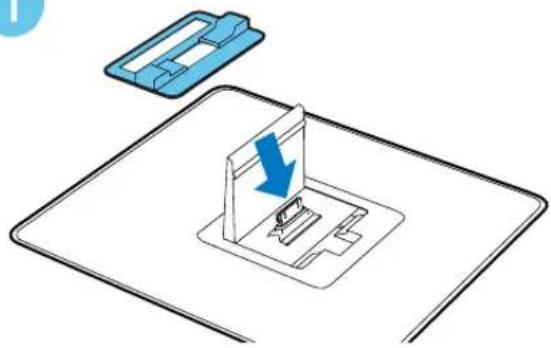
2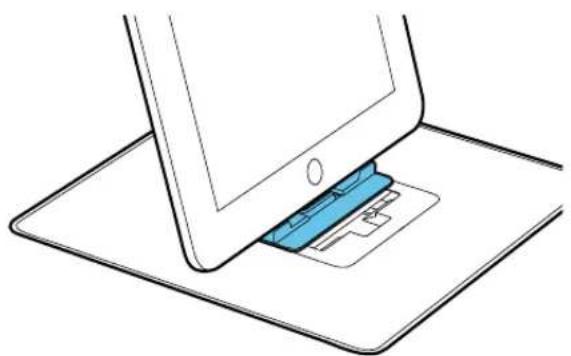
Listen to the iPod/iPhone/iPad
1 Load your iPod/iPhone/iPad. 2 Press the button DOCK on your RC. 3 Play the selected track on your iPod/iPhone/iPad. • To pause/resume the play, press - To skip to the previous/next audio track, press ◀◀ / ▶. - To select a track: press ▲/▼ to highlight a track, and then press OK to confirm.

Charge the iPod/iPhone/iPad
When the unit is connected to power, the docked iPod/iPhone/iPad starts charging.

Tip
- For certain iPod models, it may take up to a minute before the charging indication appears.
Remove the iPod/iPhone/iPad
1 Unload the iPod/iPhone/iPad from the dock. 2 Flip down the lid to hide the dock.
7 Listen to FM radio
Tune to FM radio stations

Note
- Ensure that you have connected and fully extended the supplied FM antenna.
1 Press FM. 2 Press and hold ◀◀ to ▶▶ to a radio station. 3 When the frequency starts to change, release the button. →The FM tuner tunes to a station with strong reception automatically. 4 Repeat steps 2-3 to tune to more stations.
To tune to a weak station:
Press ◀◀/▶▶ repeatedly until you find optimal reception.
Program radio stations automatically

Note
- You can program a maximum of 20 preset radio stations.
1 In FM tuner mode, press PROG/CLOCK SET for 3 seconds to activate automatic programming.
→[AUTO] (auto) is displayed.
The unit stores all the FM radio stations automatically and then broadcasts the first preset radio station.
Program radio stations manually

Note
- You can program a maximum of 20 preset radio stations.
1 Tune to a radio station. 2 Press PROG/CLOCK SET to activate programming mode. 3 Press ◀ /▶ to select a number from 1–20 for this radio station, then press PROG/CLOCK SET to program the current radio station.
The preset number and the frequency of the preset station are displayed.
4 Repeat steps 2-3 to program other stations.

Note
• To overwrite a programmed station, store another station in its place.
Tune to a preset radio station
1 Press FM. 2 Press ◀ /▶ to select a preset number.
8 Setup
1 After you press the button, the home menu appears.
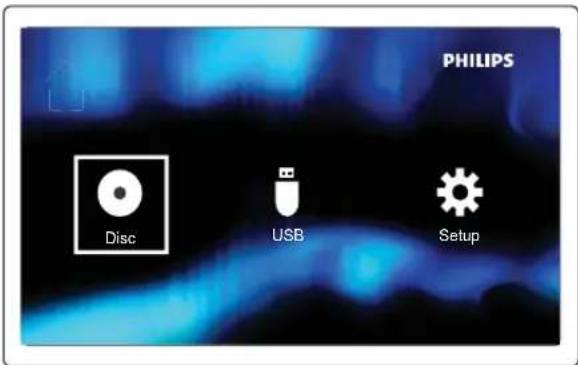
2 Select ✪ to access the system menu.
| General | Disc Lock | |
| OSD Language | • English | |
| Video | Sleep | • Off |
| DivX(R) VOD Code | • Register | |
| Audio | ||
| Preference | ||

Note
- You cannot change a menu option that is grayed out. • To return to the previous menu, press. To exit the menu, press again.
General setup
1 Press ↑ button. 2 Select ✪ to access the setup menu. 3 Select ⚙ to access the [General Setup] options.
• [Disc Lock]: Turn Disc lock. • [OSD Language]: Select an on-screen display menu language.
- [Sleep Timer]: Sets a sleep timer to switch the home theater to standby after a specific time. • [DivX(R) VOD Code]: Get registration code of DivX Video On Demand Registration.

Note
- If you select a language which is not available on a disc, this unit uses the default language of the disc.
Audio Setup
1 Press ↑ button. 2 Select ✪ to access the setup menu. 3 Select 🔔 to access the [Audio Setup] options.
- [Analogue Output]: Selects the analog audio setting based on the audio device that is connected through the analog audio jacks.
• [Digital Audio]: Select audio formats supported by the connected device.
• [Sound Mode]: Selects a preset sound effect to enhance the audio output.
- [Night Mode]: Select quiet or full dynamic sound. Night mode decreases the volume of loud sound and increases the volume of soft sound (such as speech).
Video Setup
1 Press ↑ button. 2 Select ✪ to access the setup menu. 3 Select to access the [Video Setup] options.
• [TV System]: Selects a TV system that is compatible with the TV.
- [Aspect Ratio]: Set screen display format (Pan Scan, Letter Box or Wide Screen).
• [Progressive]: Enables or disables progressive scan mode. • [Picture Settings]: Select a predefined color setting or set the color manually.
Preference setup
1 Press ↑ button. 2 Select ⚙ to access the setup menu. 3 Select ⬆ to access the [Preference Setup] options.
• [Audio]: Select an audio language for video.
- [Subtitle]: Select a subtitle language for video.
• [Disc Menu]: Select a menu language for a video disc.
- [Parental Control]: Set the rating level to a disc. Restrict access to discs that are encoded with ratings. These discs must be recorded with rating levels.
• [PBC]: Display or skip the content menu for VCD and SVCD.
- [Password]: Set or change a password to play a restricted disc.
- [DivX Subtitle]: Select the language of the DivX.
• [Version Info.]: Display the software version for the .
- [Default]: Reset the home theater to the default settings programmed at the factory.

Note
- Ensure that the subtitle file has the exact same file name as the movie file. If for example the file name of the movie is 'Movie.avi', then you need to name the text file 'Movie.sub' or 'Movie.srt'.
9 Other features
Set alarm timer
This unit can be used as an alarm clock. You can select DISC, iPod/iPhone/iPad, playlist, TUNER or USB as alarm source.

Note
• Make sure that you have set the time correctly.
1 In standby mode, press and hold SLEEP/TIMER for three seconds.
→ TIMER SET scrolls on the display. →[SELECT SOURCE] (select source) scrolls on the screen.
2 Press SOURCE repeatedly to select a source: DISC, USB, TUNER. 3 Press SLEEP/TIMER to confirm.
→The hour digits are displayed and begin to blink.
4 Press ▲ /▼repeatedly to set hour, then press SLEEP/TIMER again to confirm. →The minute digits are displayed and begin to blink.
5 Press ▲ / ▼ to set minute, then press SLEEP/TIMER to confirm.
→VOL (volume) is displayed and begins to blink.
6 Press ▲ / ▼ to adjust volume, then press SLEEP/TIMER to confirm.
is displayed. →To deactivate alarm timer, press SLEEP/TIMER again.

Note
- Alarm timer is not available in MP3 LINK mode.
- If DISC/USB source is selected and the track cannot be played, tuner is activated automatically.
Set sleep timer
1 When the unit is turned on, press SLEEP/TIMER repeatedly to select a time period (in minutes).
→When sleep timer is activated, z is displayed. →To deactivate sleep timer, press SLEEP/TIMER again until zz disappears.
Listen through headphone
Plug a headphone into the socket.
Listen to external audio device
You can listen to an external audio device such as MP3 player through this unit.
1 Connect the MP3 link cable to:
- the MP3 LINK socket
- the audio output jack (usually headphone jack) of the external device.
2 Select MP3 LINK source. 3 Play the device.
10 Product information

Note
- Product information is subject to change without prior notice.
Region Code
You can play DVD discs marked with the following region code.
| DVD region code | Countries |
 | Aisa pacific, taiwan |
Specifications
| Amplifier | |
| Rated Output Power | 2 × 10 W RMS |
| Frequency Response | 40-20000 Hz, ±3 dB |
| Signal to Noise Ratio | >82 dB |
| Aux Input | 1000 mV RMS 22kohm |
Disc
| Laser Type Semiconductor | |
| Disc Diameter 12 cm/8 cm | |
| Video Decoding MPEG-1 / MPEG-2 / DivX | |
| Video DAC 12 Bits | |
| Signal System PAL / NTSC | |
| Video Format 4:3 / 16:9 | |
| Video S/N > 57 dB | |
| Audio DAC 24 Bits / 96 kHz | |
| Total Harmonic Distortion | < 1% (1 kHz) |
| Frequency | 4 Hz - 20 kHz (44.1 kHz) |
| Response | 4 Hz - 22 kHz (48 kHz) |
| 4 Hz - 24 kHz (96 kHz) | |
| S/N Ratio > 82 dBA | |
Tuner (FM)
| Tuning Range 87.5 - 108MHz | |
| Tuning grid | 50KHz |
| Sensitivity - Mono, 26dB S/N Ratio | <22 dBf |
| Sensitivity - Stereo, 46dB S/N Ratio | <43 dBf |
| Search Selectivity | <28dBf |
| Total Harmonic Distortion | <2% |
| Signal to Noise Ratio | >55dB |
Speakers
| Speaker | 6 ohm |
| Impedance | |
| Sensitivity 85 dB/m/W ±2dB/m/W | |
General information
| AC power 110-240V~50/60Hz | |
| Operation Power Consumption | 28 W |
| Eco Standby Power Consumption | 0.5 W |
| Headphone output 2 X 15 mW, 6 ohm | |
| USB Direct Version 2.0 | |
| Composite Video Output | 1.0 Vp-p, 75 ohm |
| Coaxial Output 0.5 Vpp±0.1Vpp, 75 ohm | |
| Dimensions | |
| - Main Unit (W x H x D) | 200 X 118 X 210 mm |
| - Speaker Box (W x H x D) | 140 X 224 X 144 mm |
| Weight | |
| - Main Unit | 1.3 kg |
| - Speaker Box | 1.05 kg |
Supported disc formats
• Supported video media: - DivX Ultra • Digital Video Discs (DVDs) - Picture CD • Video CDs (VCDs) • Super Video CDs (SVCDs) - DVD-R/-RW - MP3-CD - CD-R/CD-RW - DVD+R/+RW - Compact Discs (CDs)
Supported compression formats:
- MPEG1, MPEG2, DivX(DivX Ultra+addendum 1.0), XivD, AVI(MPG), MPEG4, ASF
- JPEG file
Supported audio
• Supported audio media: CD, CD-R/RW, MP3-CD, WMA-CD
Supported audio formats:
• Dolby Digital Plus/5.1, PCM Audio, MP3 (with ID3 tags), WMA (with tags). The following formats are not supported: files like *.VMA, *.DLF, *.M3U, *.PLS, *.WAV; discs recorded in Joliet format; MP3 Pro.
USB playability information
Compatible USB devices:
• USB flash memory (USB 2.0 or USB 1.1) • USB flash players (USB 2.0 or USB 1.1). Memory cards are not compatible with this set.
Supported formats:
- USB host shall support FAT16 and FAT32 file systems. Audio playback: MP3, WMA. Video playback: MPEG4, AVI, DivX 5.0, DivX Ultra+addendum 1.0. Photo playback: JPEG.
Unsupported formats:
• Empty albums: An empty album is an album that does not contain MP3/WMA files. Unsupported file formats are skipped. For example, Word documents (.doc) or MP3 files with extension .dlf are ignored and not played. • AAC, WAV, DTS, PCM audio files; Dolby True HD files; DRM protected WMA files (.wav, .m4a, .m4p, .aac); WMA files in Lossless format.
11 Troubleshooting

Caution
- Never remove the casing of this apparatus.
To keep the warranty valid, never try to repair the system yourself.
If you encounter problems when using this apparatus, check the following points before requesting service. If the problem remains unsolved, go to the Philips website (www.philips.com/support). When you contact Philips, ensure that your apparatus is nearby and the model number and serial number are available.
No power
- Ensure that the AC cord of the apparatus is connected properly.
- Ensure that there is power at the AC outlet.
- As a power-saving feature, the system switches off automatically 15 minutes after track play reaches the end and no control is operated.
No disc detected
- Insert a disc.
- Check if the disc is inserted upside down.
- Wait until the moisture condensation at the lens has cleared.
- Replace or clean the disc.
- Use a finalized CD or correct format disc.
No picture
- Check the video connection.
- Turn on the TV to the correct Video-In channel.
Black and white or distorted picture
- The disc does not match the TV color system standard (PAL/NTSC).
- Sometimes a slight picture distortion may appear. This is not a malfunction.
- Clean the disc.
The aspect ratio of the TV screen cannot be changed even though you have set the Aspect Ratio format.
- The aspect ratio is fixed on the loaded DVD disc.
- The aspect ratio may not be changed for some TV systems.
No sound or poor sound
- Adjust the volume.
- Disconnect the headphones.
- Check that the speakers are connected correctly.
- Check if the stripped speaker wires are clamped.
Remote control does not work
- Before you press any function button, first select the correct source with the remote control instead of the main unit.
- Reduce the distance between the remote control and the unit.
- Insert the battery with its polarities (+/- signs) aligned as indicated.
- Replace the battery.
- Aim the remote control directly at the sensor on the front of the unit.
Disc does not play
- Insert a readable disc with the label side facing you.
- Check the disc type, color system and regional code. Check for any scratches or smudges on the disc.
- Press ↑ to exit the system setup menu.
- Disable the password for parental control or change the rating level.
- Moisture has condensed inside the system. Remove the disc and leave the system turned on for about an hour. Disconnect and reconnect the AC power plug, and then turn on the system again.
- As a power-saving feature, the system turns off automatically 15 minutes after disc play reaches the end and no control is operated.
DivX video files cannot be played.
- Ensure that the DivX video file is complete.
- Ensure that the file extension is correct.
- Due to Digital Rights issue, the DRM-protected video files cannot be played through an analog video connection (e.g. composite, component and scart). Transfer the video content onto the Disc Media and play these files.
Poor radio reception
- Increase the distance between the apparatus and your TV or VCR. • Fully extend the FM antenna.
- Connect an outdoor FM antenna instead.
Audio or subtitle languages cannot be set
- The disc is not recorded with sound or subtitles in multiple languages.
- The audio or subtitle language setting is prohibited on the disc.
Cannot display some files in USB device
- The number of folders or files in the USB device has exceeded a certain limit. This phenomenon is not a malfunction.
- The formats of these files are not supported.
USB device not supported
- The USB device is incompatible with the unit. Try another one.
Timer does not work
- Set the clock correctly.
- Switch on the timer.
Clock/timer setting erased
- Power has been interrupted or the power cord has been disconnected.
- Reset the clock/timer.



- CONTENTS
- IMPORTANT
- CONGRATULATIONS
- BEFORE USE
- GET STARTED
- PLAY DISC/USB
- PLAY IPOD/IPHONE/IPAD
- LISTEN TO FM RADIO
- SETUP
- OTHER FEATURES
- PRODUCT INFORMATION
- TROUBLESHOOTING
- KNOW THESE SAFETY SYMBOLS
- IMPORTANT SAFETY INSTRUCTIONS
- WARNING
- CAUTION
- HEARING SAFETY
- LISTEN AT A MODERATE VOLUME
- TO ESTABLISH A SAFE VOLUME LEVEL
- LISTEN FOR REASONABLE PERIODS OF TIME
- BE SURE TO OBSERVE THE FOLLOWING GUIDELINES WHEN USING YOUR HEADPHONES
- NOTICE
- DISPOSAL OF YOUR OLD PRODUCT AND BATTERIES
- ENVIRONMENTAL INFORMATION
- COPYRIGHT NOTICE
- BE RESPONSIBLE RESPECT COPYRIGHTS
- TRADEMARK NOTICE
- DOLBY
- DIGITAL
- VIDEO
- DIVX™
- ULTRA
- NOTE
- FEATURE INTRODUCTION
- WHAT'S IN THE BOX
- ⑰ DSC/DBB
- ⑱ MODE/OPTIONS
- PLACE THE UNIT
- CONNECT
- CONNECT SPEAKERS
- CONNECT TV
- OPTION 1: CONNECT THROUGH A COMPOSITE VIDEO CABLE
- OPTION 2: CONNECT THROUGH COMPONENT VIDEO CABLES
- CONNECT POWER
- CONNECT THE POWER CABLE TO THE WALL SOCKET
- PLAY FROM EXTERNAL DEVICE
- CONNECT FM AERIAL
- TIP
- INSTALL/REPLACE THE BATTERY OF REMOTE CONTROL
- TURN ON
- PRESS ⏻
- DEMONSTRATE THE UNIT'S FEATURES
- SET THE CLOCK
- STORE RADIO STATIONS AUTOMATICALLY
- FIND THE CORRECT VIDEO INPUT CHANNEL
- SELECT THE CORRECT TV SYSTEM
- SELECT A LANGUAGE FOR ON-SCREEN DISPLAY
- BASIC OPERATION
- PLAY A DISC
- SELECT A SUBTITLE LANGUAGE
- PLAY RECORDED FILES
- ACCESS A FOLDER
- PLAY A FILE
- CONTROL THE PLAY
- DISPLAY PLAY INFORMATION
- SEARCH FORWARD/BACKWARD
- PBC MENU
- SLOW FORWARD/BACKWARD PLAY
- SELECT REPEAT/SHUFFLE PLAY OPTIONS
- SEARCH BY TIME OR TITLE/CHAPTER/TRACK NUMBER
- PICTURE VIEW OPTIONS
- IMAGE PLAYBACK CONTROL
- ROTATE PICTURE
- PLAY SLIDESHOW AND MUSIC SIMULTANEOUSLY
- ADJUST SOUND
- IPOD/IPHONE/IPAD COMPATIBLE
- MADE FOR
- LOAD THE IPOD/IPHONE/IPAD
- INSTALL THE RUBBER PAD
- LISTEN TO THE IPOD/IPHONE/IPAD
- CHARGE THE IPOD/IPHONE/IPAD
- REMOVE THE IPOD/IPHONE/IPAD
- TUNE TO FM RADIO STATIONS
- PROGRAM RADIO STATIONS AUTOMATICALLY
- PROGRAM RADIO STATIONS MANUALLY
- TUNE TO A PRESET RADIO STATION
- GENERAL SETUP
- AUDIO SETUP
- VIDEO SETUP
- PREFERENCE SETUP
- SET ALARM TIMER
- SET SLEEP TIMER
- LISTEN THROUGH HEADPHONE
- LISTEN TO EXTERNAL AUDIO DEVICE
- REGION CODE
- SPECIFICATIONS
- SUPPORTED DISC FORMATS
- SUPPORTED COMPRESSION FORMATS
- SUPPORTED AUDIO
- SUPPORTED AUDIO FORMATS
- USB PLAYABILITY INFORMATION
- COMPATIBLE USB DEVICES
- SUPPORTED FORMATS
- UNSUPPORTED FORMATS
- NO POWER
- NO DISC DETECTED
- NO PICTURE
- BLACK AND WHITE OR DISTORTED PICTURE
- THE ASPECT RATIO OF THE TV SCREEN CANNOT BE CHANGED EVEN THOUGH YOU HAVE SET THE ASPECT RATIO FORMAT
- NO SOUND OR POOR SOUND
- REMOTE CONTROL DOES NOT WORK
- DISC DOES NOT PLAY
- DIVX VIDEO FILES CANNOT BE PLAYED
- POOR RADIO RECEPTION
- AUDIO OR SUBTITLE LANGUAGES CANNOT BE SET
- CANNOT DISPLAY SOME FILES IN USB DEVICE
- USB DEVICE NOT SUPPORTED
- TIMER DOES NOT WORK
- CLOCK/TIMER SETTING ERASED
Brand : PHILIPS
Model : DLP1000S
Category : Power bank