
AIM-65 - Tablet Advantech - Free user manual and instructions
Find the device manual for free AIM-65 Advantech in PDF.


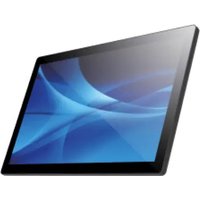
| Product Type | Tablet |
| Brand | Advantech |
| Model | AIM-65 |
| Display Size | 10.4 inches |
| Display Type | TFT LCD with capacitive touch |
| Dimensions (W x H x D) | 300 x 200 x 25 mm |
| Weight | 1.5 kg |
| Battery Type | Li-ion rechargeable, 7.4V 6000mAh |
| Operating System | Windows 10 IoT Enterprise |
| Processor | Intel Atom x7 or Celeron N3350 |
| RAM | 4 GB DDR3L |
| Storage | 64 GB eMMC |
| Connectivity | Wi-Fi 802.11ac, Bluetooth 4.0, GPS |
| Ports | USB 2.0, USB 3.0, HDMI, RS-232, audio jack |
| IP Rating | IP65 (dust and water resistant) |
| Power Input | DC 12V, 3A |
| Main Functions | Field data collection, industrial computing, navigation |
| Maintenance | Clean with a soft, lint-free cloth; avoid solvents |
| Safety | Do not disassemble; keep away from liquids and extreme temperatures |
| Spare Parts & Repairability | Battery, screen, and internal components available through Advantech support |
| Certifications | CE, FCC, RoHS |
Frequently Asked Questions - AIM-65 Advantech
User questions about AIM-65 Advantech
0 question about this device. Answer the ones you know or ask your own.
Ask a new question about this device
Download the instructions for your Tablet in PDF format for free! Find your manual AIM-65 - Advantech and take your electronic device back in hand. On this page are published all the documents necessary for the use of your device. AIM-65 by Advantech.
USER MANUAL AIM-65 Advantech
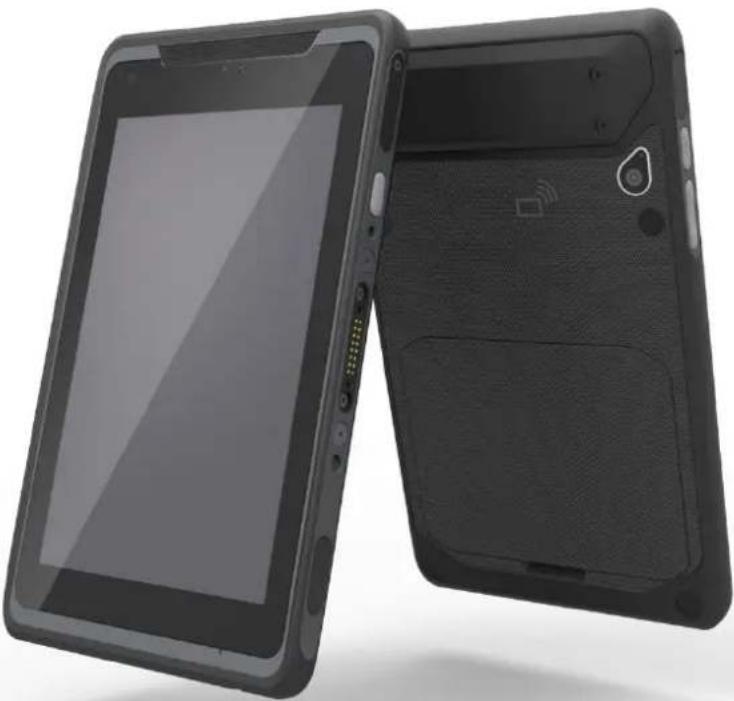
AIM8I/AIM8Q Computer
natural_image
Exterior view of a black tablet device with visible display screen and back panel (no text or symbols)User Manual
ADVANTECH
研華科技
Copyright
The documentation and the software included with this product are copyrighted 2017 by Advantech Co., Ltd. All rights are reserved. Advantech Co., Ltd. reserves the right to make improvements in the products described in this manual at any time without notice. No part of this manual may be reproduced, copied, translated or transmitted in any form or by any means without the prior written permission of Advantech Co., Ltd. Information provided in this manual is intended to be accurate and reliable. However, Advantech Co., Ltd. assumes no responsibility for its use, nor for any infringements of the rights of third parties, which may result from its use.
Acknowledgements
All other product names or trademarks are properties of their respective owners.
Declaration of Conformity
CE Conformity Statement
Radio products with the CE alert marking comply with the R&TTE Directive (1999/5/EC) issued by the Commission of the European Community. Compliance with this directive implies conformity to the following European Norms (in brackets are the equivalent international standards).
• EN 60950-1 (IEC60950-1) - Product Safety
• EN 300 328 Technical requirement for radio equipment
• ET S301 489 General EMC requirements for radio equipment
Products that contain the radio transmitter are labeled with CE alert marking and may also carry the CE logo.
FCC Compliance Statement
This equipment generates, uses and can radiate radio frequency energy and, if not installed and used in accordance with the instructions, may cause harmful interference to radio communications. However, there is no guarantee that interference will not occur in a particular installation. If this equipment does cause harmful interference to radio or television reception, which can be determined by turning the equipment off and on, the user is encouraged to try to correct the interference by one of the following measures:
- Reorient or relocate the receiving antenna.
- Increase the separation between the equipment and receiver.
- Connect the equipment into an outlet on a circuit different from that to which the receiver is connected.
- Consult the dealer or an experienced radio/TV technician for help.
To assure continued compliance, any changes or modifications not expressly approved by the party responsible for compliance could void the user's authority to operate this equipment. (Example: use only shielded interface cables when connecting to computer or peripheral devices).
This device complies with Part 15 of the FCC Rules. Operation is subject to the following two conditions:
1) This device may not cause harmful interference, and
2) This device must accept any interference received, including interference that may cause undesired operation.
15.21
Any changes or modifications not expressly approved by the party responsible for compliance could void the authority to operate equipment.
This device and its antenna must not be co-located or operating in conjunction with any other antenna or transmitter.
End-users and installers must be provided with antenna installation instructions and transmitter operating conditions for satisfying RF exposure compliance.
For product available in the USA/Canada market, only channel 1\~11 can be operated. Selection of other channels is not possible.
FCC Radiation Exposure Statement
This equipment complies with FCC RF radiation exposure limits set forth for an uncontrolled environment for body-worn configuration in direct contact to the phantom.
This device complies with FCC radiation exposure limits set forth for an uncontrolled environment.
This equipment complies with FCC radiation exposure limits set forth for an uncontrolled environment. End user must follow the specific operating instructions for satisfying RF exposure compliance. This transmitter must not be co-located or operating in conjunction with any other antenna or transmitter.
The portable device is designed to meet the requirements for
exposure to radio waves established by the Federal Communications
Commission (USA). These requirements set a SAR limit of 1.6 W/kg
averaged over one gram of tissue. The highest SAR value reported under this standard during product certification for use when properly worn on the body
IC warning statement
This device complies with Industry Canada's licence-exempt RSSs. Operaon is subject to the following two conditions: (1) This device may not cause interference; and (2) This device must accept any interference, including interference that may cause undesired operaon of the device.
This radio transmier has been approved by Industry Canada to operate with the antenna types listed below with the maximum permissible gain and required antenna impedance are strictly prohibited for use with this device.
(i) the device for operation in the band 5150-5250 MHz is only for indoor use to reduce the potential for harmful interference to co-channel mobile satellite systems; (For devices installed in vehicles point i. is not required.)
Users should also be advised that high-power radars are allocated as primary users (i.e. priority users) of the bands 5250-5350 MHz and 5650-5850 MHz and that these radars could cause interference and/or damage to LE-LAN devices.
This EUT is compliance with SAR for general population/uncontrolled exposure limits in IC RSS-102. This equipment should be installed and operated with minimum distance 0 cm between the radiator & your body.
This equipment complies with ISED radiation exposure limits set forth for an uncontrolled environment. End user must follow the specific operating instructions for satisfying RF exposure compliance. This transmitter must not be co-located or operating in conjunction with any other antenna or transmitter.
NCC Warning Statement
Article 12
Without permission, any company, firm or user shall not alter the frequency, increase the power, or change the characteristics and functions of the original design of the certified lower power frequency electric machinery.
Article 14
The application of low power frequency electric machineries shall not affect the navigation safety nor interfere a legal communication, if an interference is found, the service will be suspended until improvement is made and the interference no longer exists.
Safety Instructions
- Read these safety instructions carefully.
- Keep this user manual for later reference.
- Disconnect this equipment from AC outlet before cleaning. Do not use liquid or spray detergents for cleaning.
- Keep this equipment away from hazard locations.
- Put this equipment on a reliable surface during installation. Dropping it or letting it fall could cause damage.
- Do not leave this equipment in an environment unconditioned where the storage temperature under -20^ or above 60^ , it may damage the equipment.
- Make sure the voltage of the power source is correct before connecting the equipment to the power outlet.
- Place the AC power adapter such a way that people cannot step on it. Do not place anything over the power adapter.
- All cautions and warnings on the equipment should be noted.
- If the equipment is not used for long time, disconnect it from the power source to avoid being damaged by transient over-voltage.
- Never pour any liquid into slots of the AIM8I and AIM8Q Series. This could cause fire or electrical shock.
- Never open or disassemble the equipment. For safety reasons, the equipment should be opened only by qualified service personnel.
-
If any of the following situations arises, get the equipment checked by service personnel:
a. The power adapter plug is damaged.
b. Liquid has penetrated into the equipment.
c. The equipment has been exposed to moisture.
d. The equipment does not work well or you cannot get it to work according to user manual.
e. The equipment has obvious signs of breakage. -
This product is intended to be supplied by a UL Listed Power Adapter or DC power source, rated 5.0 - 5.15 Vdc, 3A min. for model AIM8I, rated 9.0 - 9.1 Vdc, 2A min for model AIM8Q and Tma 50 degree C, if need further assistance, please contact Advantech for further information.
Battery Safety
Caution: Danger of explosion if battery is incorrectly replaced. Replace only with the same type recommended by the manufacturer, discard used batteries according to the manufacturer's instructions.
Mistreat the battery used in this device may present a risk of fire or chemical burn. Do not attempt to disassemble the computer or its accessories.
Only qualified personal is allowed to replace the battery.
Do not dispose batteries in a fire and check with local authorities for disposal instructions.
AIM8I/AIM8Q can only be equipped with standard battery pack with Getac, AIM-BAT-8, 4900mAh Polymer Lithium Ion Battery. Use of another battery may present a risk of fire or explosion.
Battery Charge Notice
It is important to consider the environment temperature whenever you are charging the Lithium-Ion battery pack. The process is more efficient at normal room temperature or slightly cooler. It is essential that you charge batteries within the stated range of 0^ C to 40^ C. Charging batteries outside of the specified range could damage the batteries and shorten their charging life cycle.
Storage and Safety Notice
Although charge Lithium-Ion batteries may be left unused for several months, their capacity may be depleted due to the buildup of internal resistance. If this happens they will require recharging prior to use. Lithium Ion batteries may be stored at temperatures between -10^ to 60^ , however they may be depleted more rapidly at the high end of this range. It is recommended to store AIM8I/AlM8Q within normal room temperature ranges.
WEEE
EN

Following information is only for EU-member states:
The use of the symbol indicates that this product may not be treated as household waste. By ensuring this product is disposed of correctly, you will help prevent potential negative consequences for the environment and human health, which could otherwise be caused by inappropriate waste handling of this product. For more information about recycling of this product, please contact your local city office, your household waste disposal service or the shop where you purchased the product.
Technical Support and Assistance
- Visit the Advantech website at http://support.advantech.com where you can find the latest information about the product.
-
Contact your distributor, sales representative, or Advantech's customer service center for technical support if you need additional assistance. Please have the following information ready before you call:
-
Product name and serial number
- Description of your peripheral attachments
- Description of your software (operating system, version, application software, etc.)
- A complete description of the problem
- The exact wording of any error messages
TABLE OF CONTENT
Chapter 1 Introduction....12
1.1 Symbols Used in this Manual.... 13
1.2 Product Features 13
1.3 Package Contents .... 13
1.4 Product Specicaons.... 14
1.4.1 Technical Specifications .... 14
1.4.2 Product Outlook and Dimensions ...... 16
1.5 Exploring the AIM8I/AIM8Q.... 17
1.5.1 Front View .... 1
1.5.2 Rear View 18
1.5.3 Right View.... 19
1.5.4 Left View.... 20
1.5.5 Bottom View 20
Chapter 2 Getting Started....21
2.1 Charge the Computer 21
2.2 Turn on the Computer 22
2.3 Sleep Mode.... 22
2.4 Operate the computer.... 23
2.5 LED indicator status.... 23
Chapter 3 Basic Setups....24
3.1 Windows 10 IoT Enterprise Basic Setups ...... 25
3.2 Android 6.0.1 Basic Sengs....26
Chapter 4 Running applications....28
4.1 Installing applicaons.... 28
4.1.1 Install applications with Windows 10 IoT Enterprise....29
4.1.2 Install applications with Android 6.0.1 ...... 30
Chapter 5 Maintenance....34
5.1 Maintaining the LCD Display.... 34
5.2 Cleaning the AIM8I/AIM8Q 34
5.3 Trouble Shoong 34
5.4 ENERGY STAR 35
Chapter 1 Introduction
Congratulations on your purchase of the AIM8I/AIM8Q Computer.
AIM8I/AIM8Q has two variants and the main difference is that AIM8I is powered by Intel Atom x5-Z8350 and supports Windows 10 IoT Enterprise while AIM8Q is equipped with Qualcomm APQ8074 and supports Android 6.0 OS.
This product combines stylish design with reliable performance and powerful functionality to best suit all your needs, in a wide range of working conditions. This user manual outlines all you need to know to set up and use your AIM8I/AIM8Q. If you have any further questions or queries, contact our technical support team via our website:
1.1 Symbols Used in this Manual
| Denotes information that must be observed.Failure to do so may result in personal harm or damage to the product. |
 | Denotes information that must be observed.This is informative notification to have a better experience while using this computer. |
1.2 Product Features
- Low power Intel® ATOM™ / Qualcomm® Snapdragon™ processor designed for mobile applications.
- Support Windows 10 IoT Enterprise(AlM8I) and Android 6.0 (AlM8Q) OS.
- 8" WUXGA projected capacitive multi touch display.
- -10°C to 50°C, IP65, MIL-STD 810G / 4ft drop compliant.
- Compact/slim design: 14.5 mm height, 600g weight.
- Seamless communications, including Wi-Fi, BT, NFC, 3G/4G.
- Optional extension modules, including 1D/2D barcode scanner, MSR, RJ45+COM, UHF RFID Reader and more.
- Optional dock stations, including VESA/Vehicle dock & multi charger design.
1.3 Package Contents
Ensure all the following items are present when you receive your AIM8I/AIM8Q. If any of these items are missing, contact your dealer immediately.
- AIM8I/AIM8Q Computer
- Startup Manual
- AC power adaptor
1.4 Product Specifications
1.4.1 Technical Specifications
| Model Name | AIM8I | AIM8Q | |
| Computing System | CPU | Intel Atom x5-Z8350 | Qualcomm APQ8074 |
| Max Speed | 1.44 GHz | 2.2 GHz | |
| Memory | 2GB LPDDR3 | ||
| OS | Windows 10 IoT Enterprise 64 bit | Android 6.0.1 32 bit | |
| Storage | On-board eMMC | 32GB/64GB (Default 32GB) | |
| Micro-SD | Micro-SD Card Slot for Storage Expansion | ||
| Display | Display Type | 8" TFT IPS LCD Panel | |
| Max Resolution | WUXGA, 1200x1920, 400 nits | ||
| Touch Type | Projected Capacitive Multi-Touch | ||
| Class Type | G/G Direct Bonding, Corning GG3 Glass | ||
| Communication | WIFI | 802.11b/g/n (2.4Ghz) | Dual Band : 802.11ac (5Ghz) or 802.11n(2.4Ghz) |
| Bluetooth | Bluetooth v4.0 CLASS II/BLE | ||
| NFC (13.5MHz) | Read/ Write Device Compatible With ISO15693, ISO14443A, ISO14443B, Felica | ||
| AGPS | AGPS | AGPS | |
| GPS | GPS & GLONASS & (Optional) | GPS & GLONASS & (Optional) | |
| Beidou | Beidou | ||
| WWAN/ LTE (Optional) | M.2 Module | Mini-PCIe Module | |
| EU & NA | EU, NA & China | ||
| Micro-SIM Slot | Micro-SIM Slot | ||
| Audio | Build-In Digital MIC, x1 80dB 1Watt SPK 0.5M, x1 Audio combo jack | ||
| Connectivity | x1 Micro USB 2.0 (Charging) | x1 Micro USB 2.0 (OTG & Charging) | |
| I/O Port | x1 Micro HDMI: Display | ||
| Interfaces | x1 AIM Dock 16-pin Pogo Connector: USB 3.0 | ||
| x1 AIM Extension 14-pin Pogo Connector: USB 2.0 + TX/RX + Power | |||
| Camera | Front | 2MP Fixed Focus | 5MP Fixed Focus |
| Rear | 5MP Auto Focus with LED Flash | 13MP Auto Focus with LED Flash | |
| Sensor | G-sensor + E-compass, Gyroscope, ALS | ||
| Hard Buttons | Function | x1 Power Buttonx2 Volume Control Buttonx1 Programmable Button (Default as BCR Trigger Key) | |
| System Indicators | x1 Power / Battery Status | ||
| Power Input | Micro USB | DC 5V, 3A | DC 9V, 2A |
| Battery | Capacity | Swappable Battery with Battery Meter3.8Vdc; 4900mAh; 18.62Wh | |
| OperatingTemperature | 0~40 °C (Charging) | ||
| Environment | Temperature | Operating: -10°C ~ +50°C, Storage: -20°C ~ +60°C,System Charging mode: 0~40 °C | |
| Operating& StorageHumidity | 5% ~ 95% @ 40°C (non-condensing) | ||
| Vibration | Operation: (5-500GHz) 1G, Non-operating: (5-500GHz) 0.04PSD | ||
| IngressProtection | Dust/ WaterResistance | IP-65 compliant | |
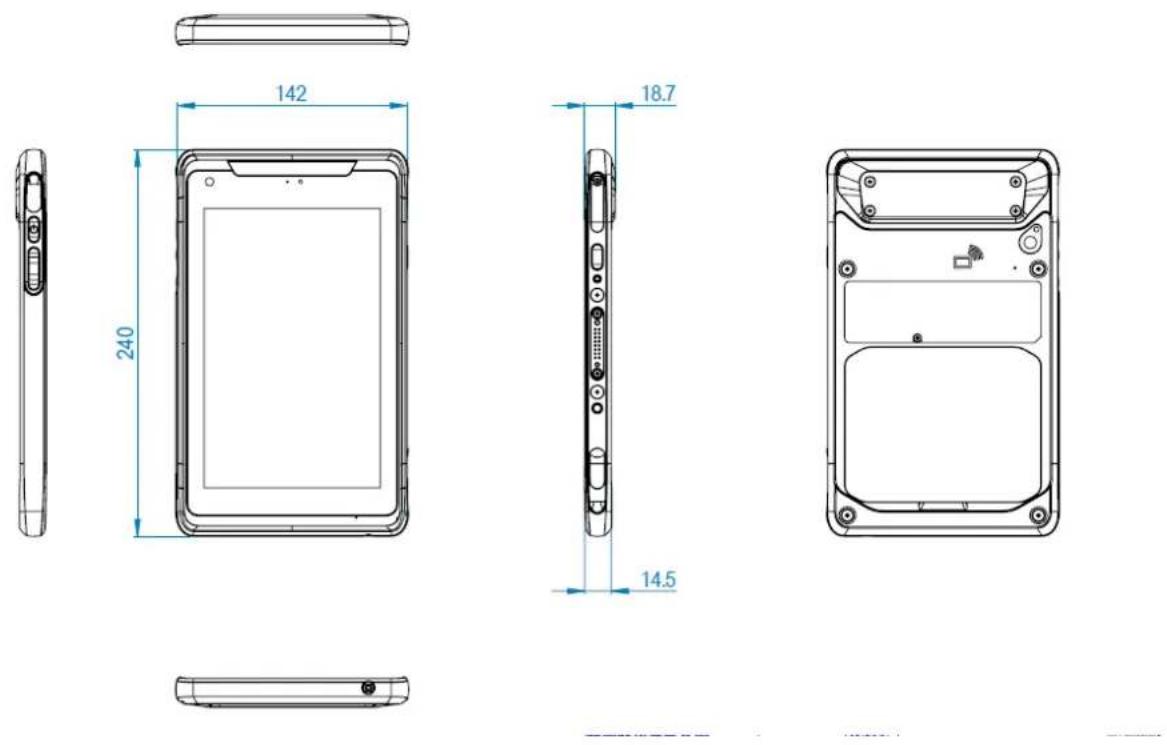
| IngressProtection | Dimensions | 142 x 240 x 14.5mm (W x H x D) | |
| Weight | 600g | ||
| Color | Black/orange, Grey/Blue, White/Blue | ||
1.4.2 Product Outlook and Dimensions
All AIM8I/AIM8Q Series share the same dimension, the following illustraon uses AIM8I as example.
1.5 Exploring the AIM8I/AIM8Q
1.5.1 Front View
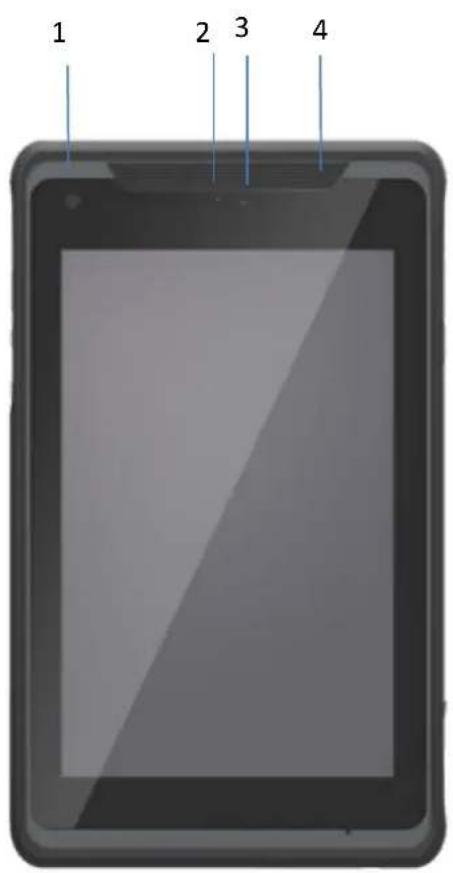
| No. | Component |
| 1 | Front Camera |
| 2 | Power LED |
| 3 | Light Sensor |
| 4 | Speaker |
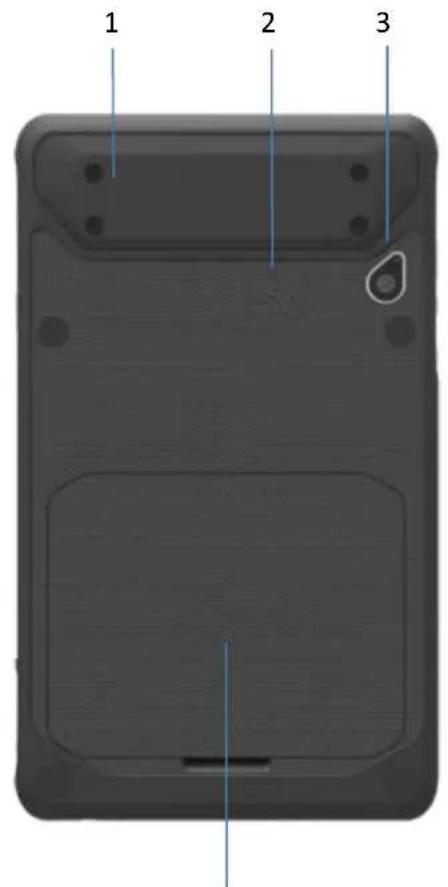
1.5.2 Rear View
4
| No. | Component |
| 1 | Extension Module |
| 2 | NFC |
| 3 | Rear Camera with LED Flash |
| 4 | Battery Cover |
1.5.3 Right View
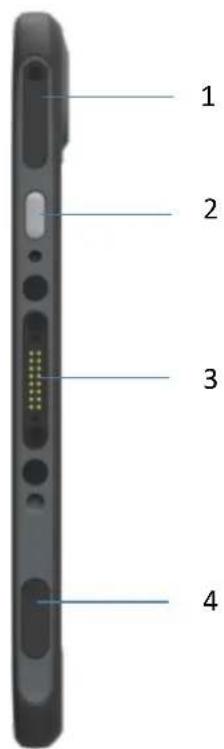
| No. | Component |
| 1 | SIM & SD Card Door |
| 2 | Programmable Key (Default BCR) |
| 3 | Pogo Pin (USB3.0) |
| 4 | Micro USB Door |
1.5.4 Left View
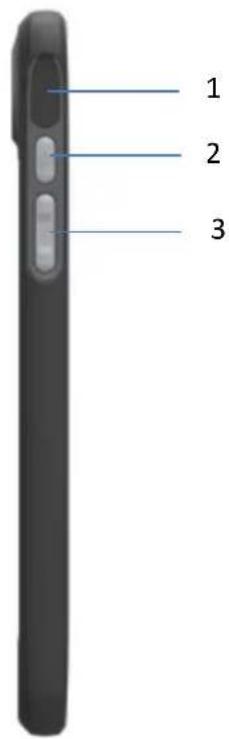
| No. | Component |
| 1 | Micro HDMI Door |
| 2 | Power Button |
| 3 | Volume Key UP/Down |
1.5.5 Bottom View

natural_image
Top-down view of a smartphone with a labeled button (no text or symbols on the device body)| No. | Component |
| 1 | Audio Jack (Headset Combo) |
Chapter 2 Getting Started
2.1 Charge the Computer
To charge the embedded battery in AIM8I/AIM8Q, connect the Micro USB adaptor on the AIM8I/AIM8Q computer.

natural_image
Close-up of a black smartphone rear panel with visible indicator lights and mounting holes (no text or symbols)
Micro USB Connector
| Note | Please charge for at least one hour when you use this computer for the first time. |
2.2 Turn on the Computer
Push the Power Button (located at no. 2 of Section 1.5.4 Left View.) for 3 seconds to start the computer.
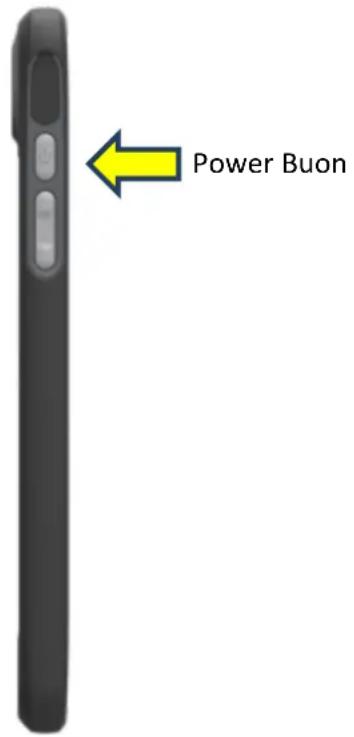
2.3 Sleep Mode
While the computer is running, push the Power Button for 1 second will move the equipment into sleep mode for power saving. Push the Power Button again will enable the backlight again.
2.4 Operate the computer
AIM8I/AIM8Q is equipped with a 8" Capacitive Touch Panel. Use finger to touch the following Active Area to operate the computer.
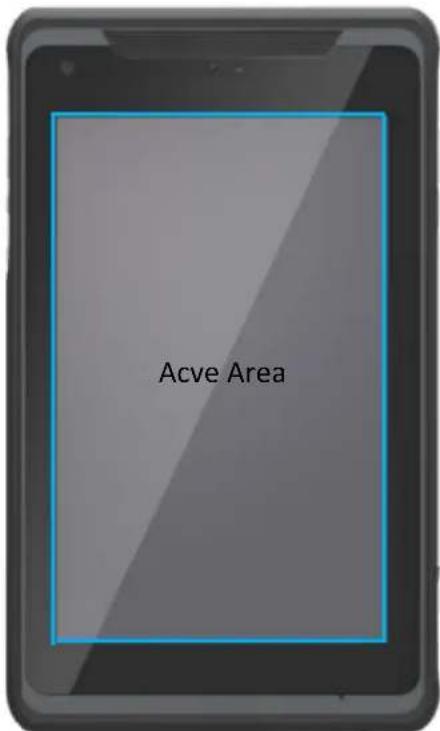
2.5 LED indicator status
AIM8I/AIM8Q is equipped with one LED indicator for battery status. The following shows LED status for different power states.
This power LED has three colors: Red, Green, and Blue.
a) The Red LED blinks when internal battery capacity is below 10% to warn the user to charge.
b) The Blue LED lights up when internal battery is being charged.
c) The Green LED lights up when internal battery has been fully charged.
Chapter 3 Basic Setups
 | WLAN access requires a separate purchase of an access point. Contact a wireless service provider for more information. |
 | Screens used in this manual are for illustrative purposes only. Actual screens may vary depending on your product version and pre-installed Operating System versions. |
AIM8I system power down when system battery level drops to 7%, whereas AIM8Q system power down when system battery level drops to 0%
3.1 Windows 10 IoT Enterprise Basic Setups
Windows 10 IoT Enterprise Home Screen
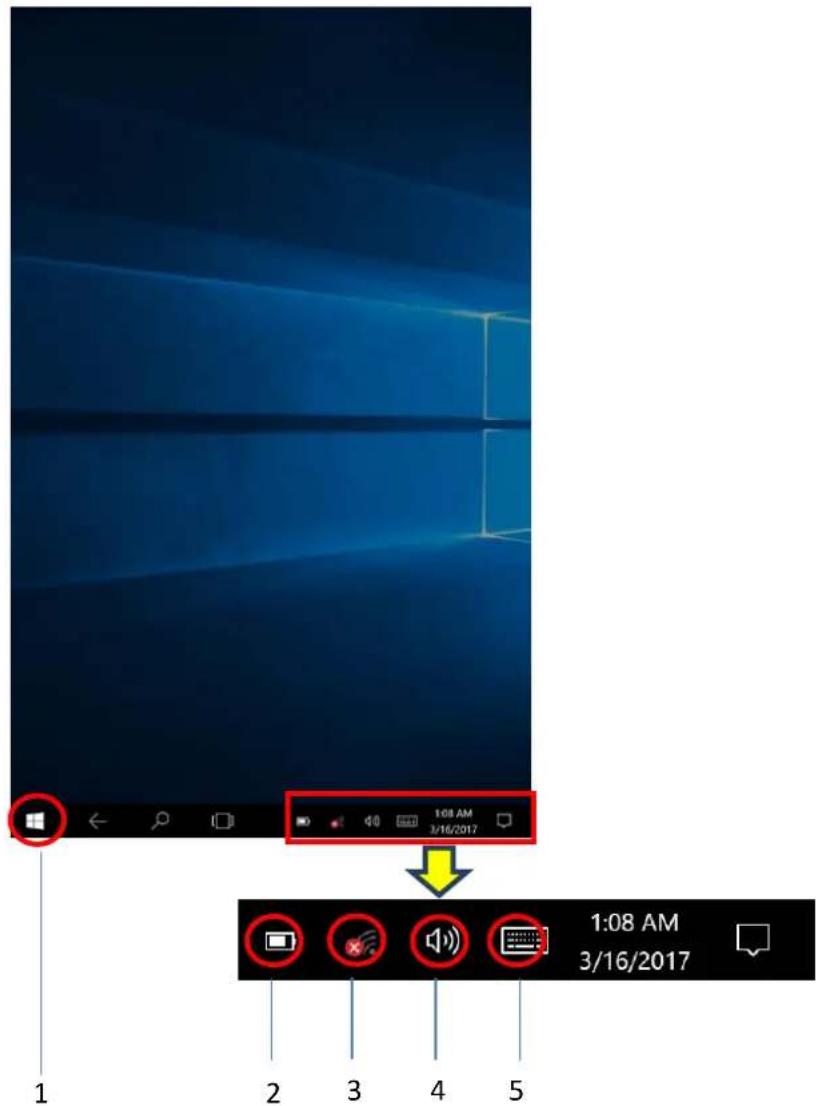
| No. | Function |
| 1 | Program Launcher |
| 2 | Battery Status |
| 3 | Connect WLAN |
| 4 | Adjust Audio Volume |
| 5 | Open the On-screen keyboard |
3.2 Android 6.0.1 Basic Settings
Android 6.0.1 Home Screen
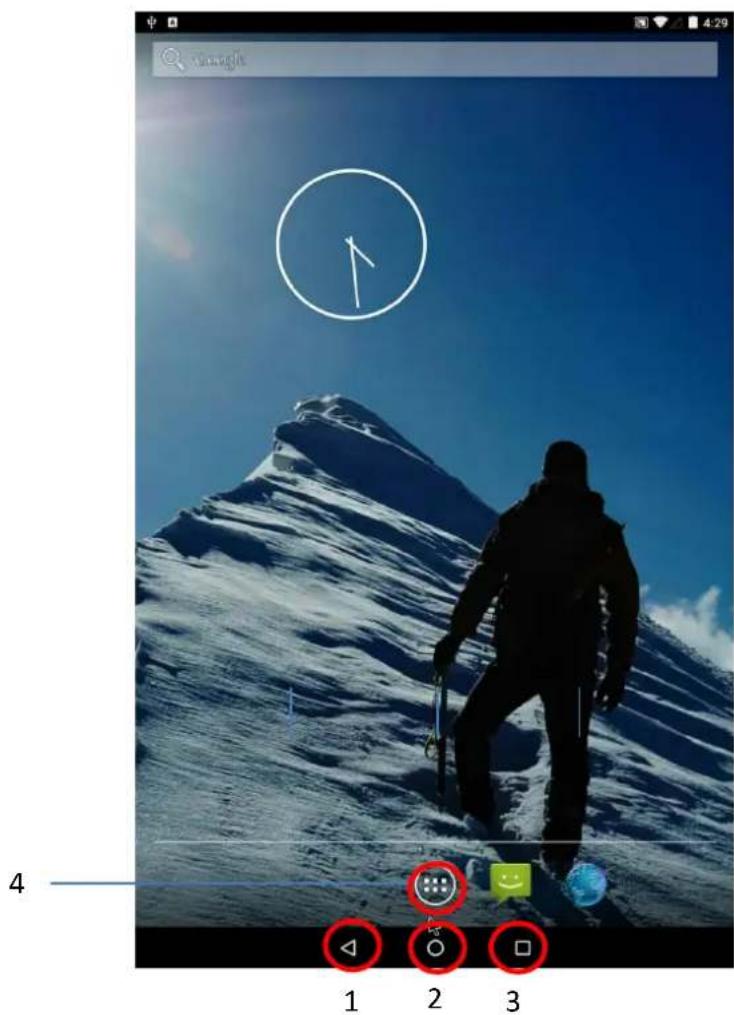
| No. | Function |
| 1 | Back |
| 2 | Home |
| 3 | Background Applications |
| 4 | Program Launcher |
Tap top of the screen and scroll down for Settings menu
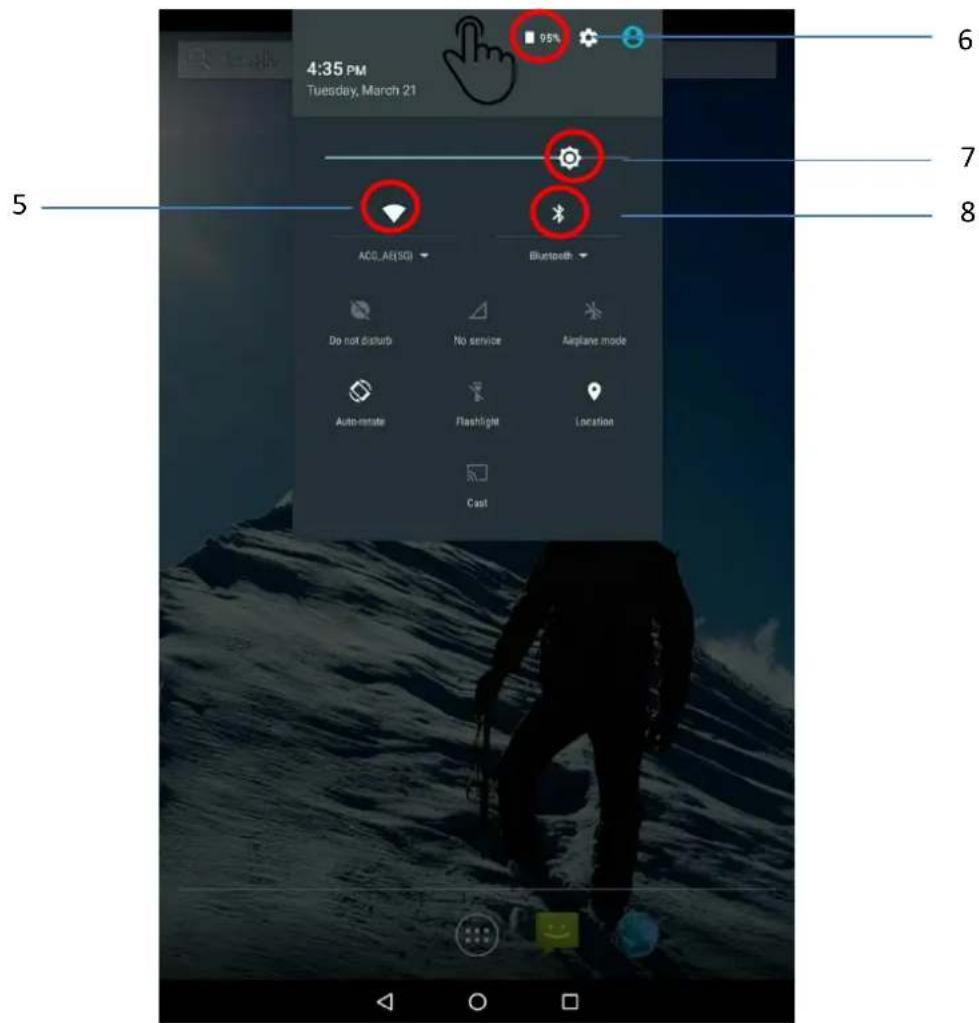
| No. | Function |
| 5 | Connect WLAN |
| 6 | Battery Status |
| 7 | Adjust Backlight |
| 8 | Connect Bluetooth |
Chapter 4 Running applications
4.1 Installing applications
There are multiple ways to install applications on AIM8I/AIM8Q and this section shows the steps to install applications via Micro SD cards.
- Before installation, please ensure your Micro SD card has been correctly formatted with FAT32 file system.
- Copy .exe (Windows) or .apk (Android) on the Micro SD card.
- Open the Micro SD card slot on the top of the device and inset the card.
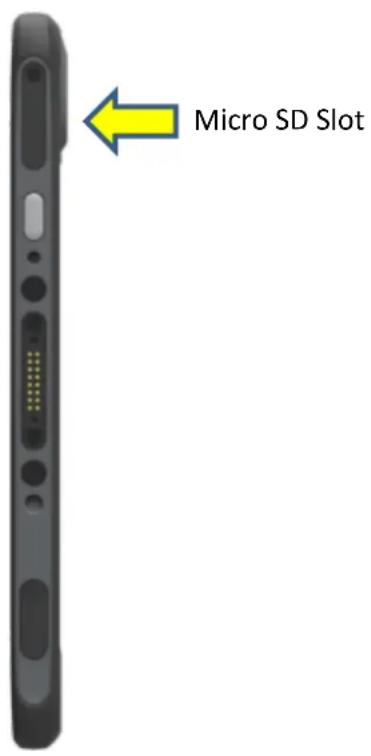
4.1.1 Install applications with Windows 10 IoT Enterprise
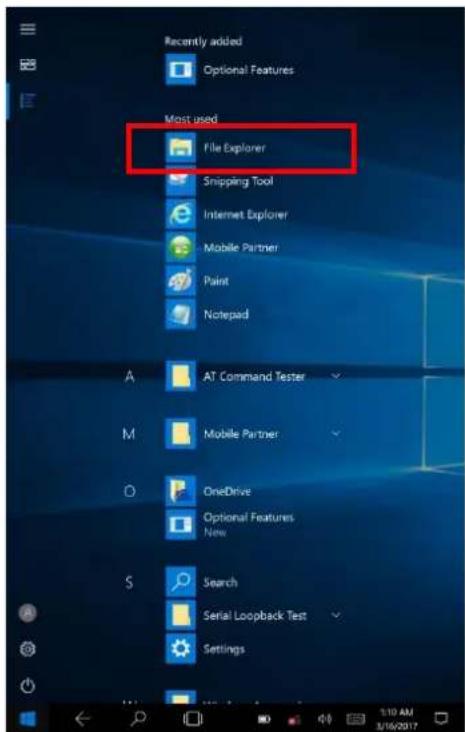
a) Go to Program Launcher
b) Launch File Explorer and will find Secure Digital storage device (D:)
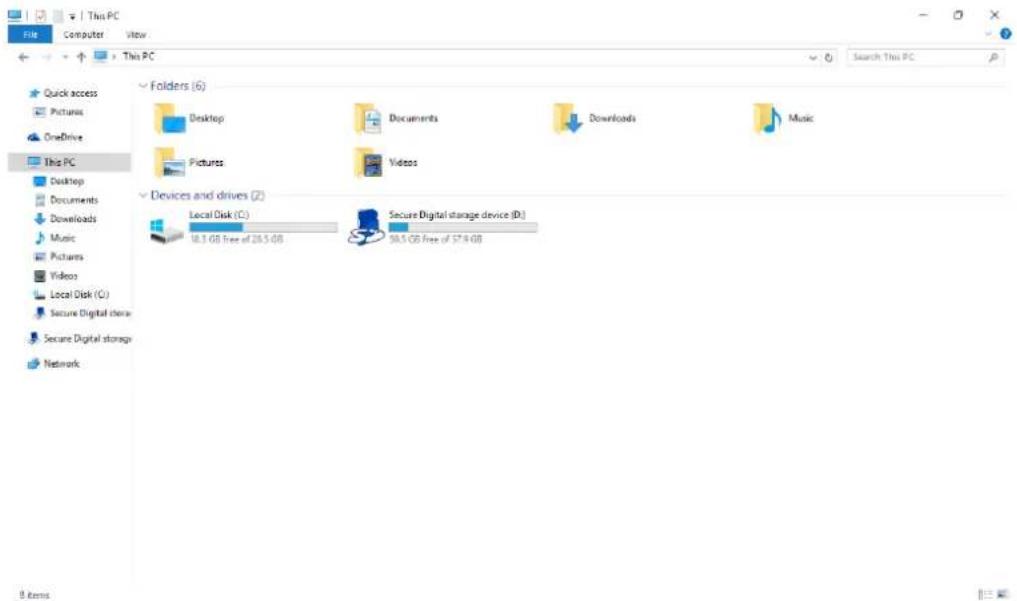
c) Tap Secure Digital storage device (D:) to find .exe executable file.
d) Tap .exe file to install the application.
4.1.2 Install applications with Android 6.0.1
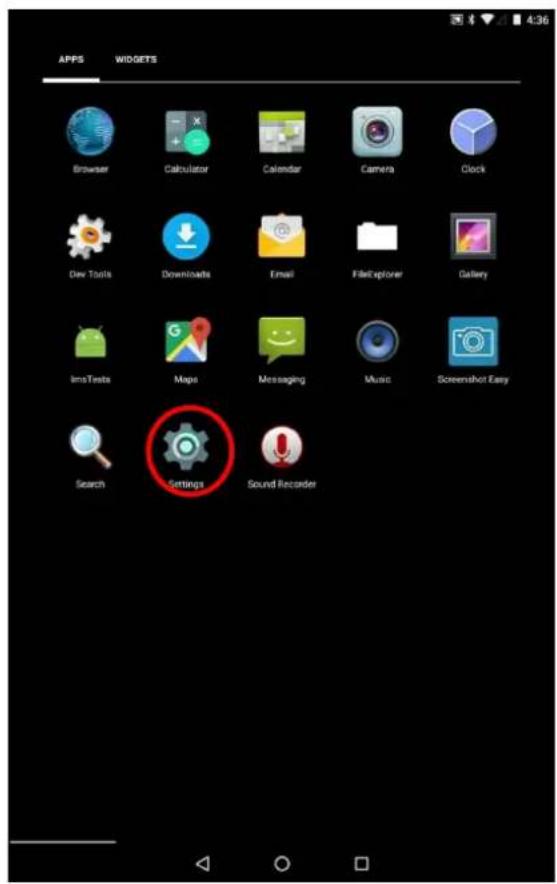
a) Go to Settings
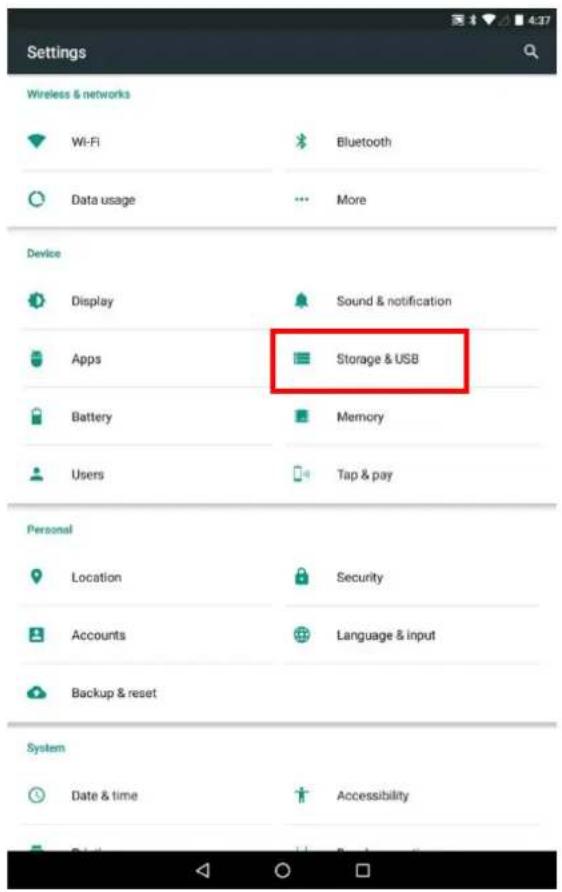
b) Go to Storage & USB
c) Go to SD card
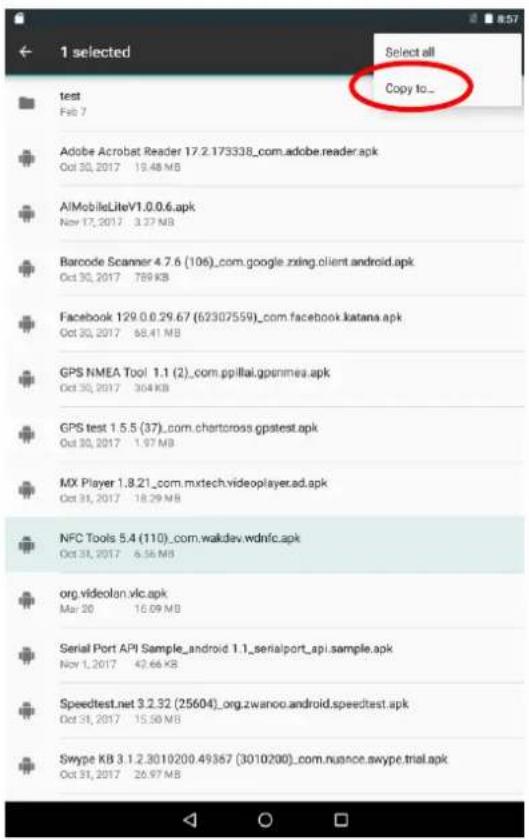
d) Long press the apk file and press "copy to..."
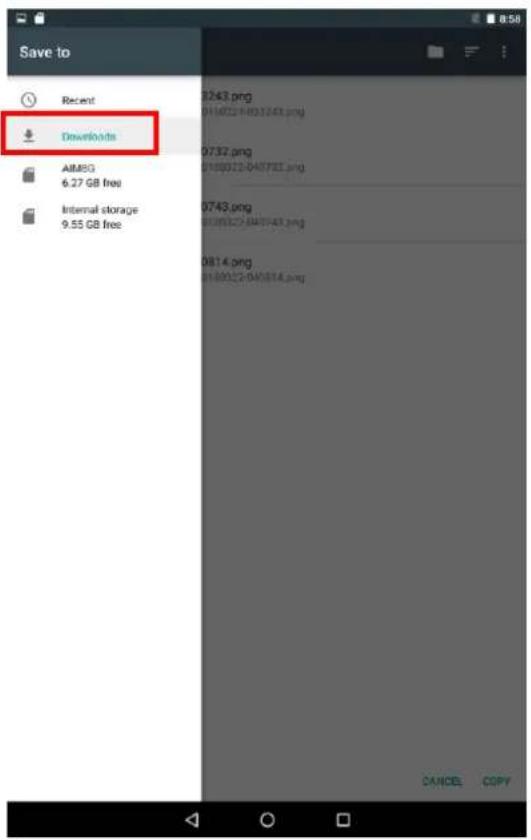
e) Select "Downloads"
f) Click "Copy" on the lower right corner
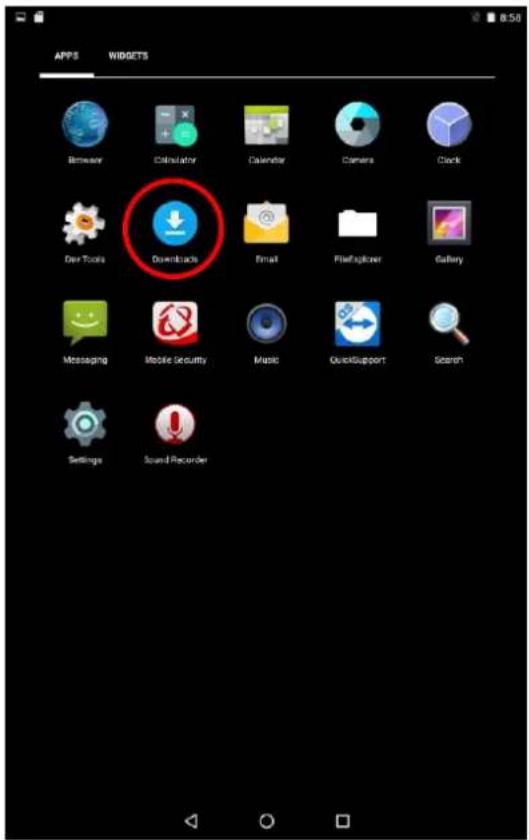
g) Go to "Downloads" on the menu
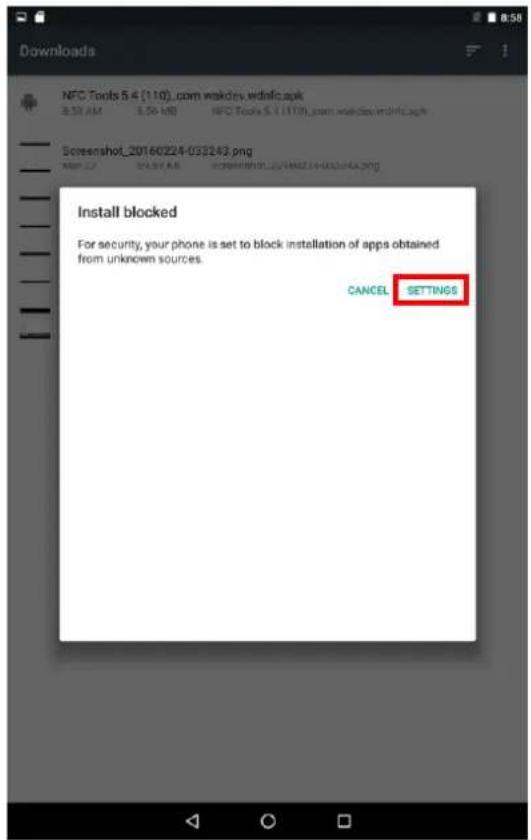
h) Select the apk, and click Settings(first time install)
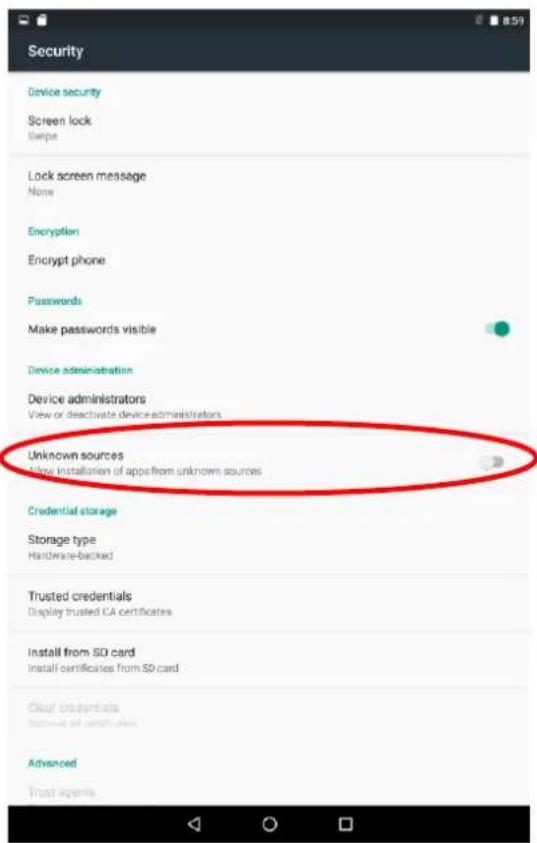
i) Turn on the "Unknown sources"
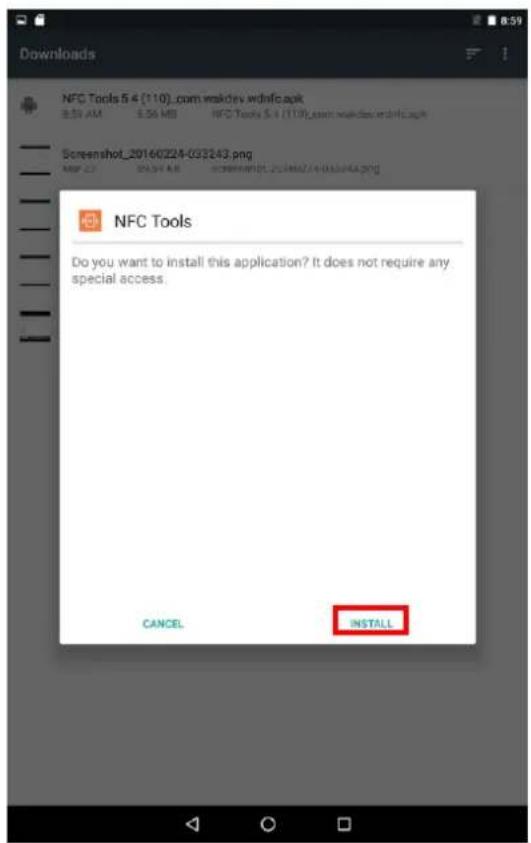
j) Then go back to "Downloads", and install the apk
Chapter 5 Maintenance
5.1 Maintaining the LCD Display
- Do not scratch the surface of the screen with any hard objects.
- Do not spray liquid directly on the screen or allow excess liquid to drip down inside the device.
- Do not place anything, such as food and drink, on the screen at any time to prevent damage to the screen.
- Clean the LCD display only with a soft cloth dampened with denatured alcohol or a proprietary LCD screen cleaner.
5.2 Cleaning the AIM8I/AIM8Q
- Turn off the device and unplug the power cord.
- Wipe the screen and exterior with a soft, damp cloth moistened only with water.
Do not use liquid or aerosol cleaners on the screen, as these will discolor the finish and damage the screen.
5.3 Trouble Shooting
When System behaves abnormally, such as
- Failure to power on.
- Failure to power off.
- Power LED does not light up when DC power plug in.
- System does not respond to touch behaviors.
Contact your distributer, sales representative, or Advantech's customer service center for technical support if you need additional assistance. Please have the following information ready before you call:
■ Product name and serial number.
■ Descriptions of your peripheral attachments.
- Descriptions of your software (operating system, version, application software, etc.)
■ A complete description of the problem.
■ The exact wording of any error messages.
■ Symptoms, photo or video if available.
5.4 ENERGY STAR
An ENERGY STAR qualified computer delivers substantial savings over a conventional computer. Desktop, integrated desktop, and notebook (laptop) computers, workstations, small-scale servers, and thin clients are all eligible to earn the ENERGY STAR, and those that do are now more efficient than ever.
It is an honor for Advantech to provide you such products.
What is ENERGY STAR?
ENERGY STAR is a U.S. Environmental Protection Agency (EPA) voluntary program that helps businesses and individuals save money and protect our climate through superior energy efficiency.
The ENERGY STAR program was established by EPA in 1992, under the authority of the Clean Air Act Section 103(g). Section103(g) of the Clean Air Act directs the Administrator to "conduct a basic engineering research and technology program to develop, evaluate, and demonstrate non-regulatory strategies and technologies for reducing air pollution."
In 2005, Congress enacted the Energy Policy Act. Section 131 of the Act amends Section 324 (42 USC 6294) of the Energy Policy and Conservation Act, and "established at the Department of Energy and the Environmental Protection Agency a voluntary program to identify and promote energy-efficient products and buildings in order to reduce energy consumption, improve energy security, and reduce pollution through voluntary labeling of or other forms of communication about products and buildings that meet the highest energy efficiency standards."
For more information, please visit www.energystar.gov
AIM8I is to enter display sleep mode after 4 minutes and computer sleep mode after
10 minutes in default; AIM8Q display goes to dark and enter suspend mode after 1 min idle. To wake it from sleep mode, simply press the power button on the back cover, while under sleep mode it allows the device to save 80% or more energy.
Power Management System:
Lists of default power management systems
| Balanced(Default) | AIM8I: Idle 4 mins. closes screen, 10 min. enters sleep mode.AIM8Q: Idle 1 min. closes screen and enter sleep mode. |
| High performance | Never idle and never enters sleep mode. |

- AIM8I/AIM8Q Computer
- ADVANTECH
- 研華科技
- Copyright
- Acknowledgements
- Declaration of Conformity
- CE Conformity Statement
- FCC Compliance Statement
- 15.21
- FCC Radiation Exposure Statement
- IC warning statement
- NCC Warning Statement
- Article 12
- Article 14
- Safety Instructions
- Battery Safety
- Battery Charge Notice
- Storage and Safety Notice
- WEEE
- Following information is only for EU-member states:
- Technical Support and Assistance
- TABLE OF CONTENT
- Chapter 1 Introduction....12
- Chapter 2 Getting Started....21
- Chapter 3 Basic Setups....24
- Chapter 4 Running applications....28
- Chapter 5 Maintenance....34
- Chapter 1 Introduction
- Symbols Used in this Manual
- Product Features
- Package Contents
- Product Specifications
- Technical Specifications
- Product Outlook and Dimensions
- Exploring the AIM8I/AIM8Q
- Front View
- Rear View
- Right View
- Left View
- Bottom View
- Chapter 2 Getting Started
- Charge the Computer
- Turn on the Computer
- Sleep Mode
- Operate the computer
- LED indicator status
- Chapter 3 Basic Setups
- Windows 10 IoT Enterprise Basic Setups
- Android 6.0.1 Basic Settings
- Chapter 4 Running applications
- Installing applications
- Install applications with Windows 10 IoT Enterprise
- Install applications with Android 6.0.1
- Chapter 5 Maintenance
- Maintaining the LCD Display
- Cleaning the AIM8I/AIM8Q
- Trouble Shooting
- ENERGY STAR
- What is ENERGY STAR?
- Power Management System:
Brand : Advantech
Model : AIM-65
Category : Tablet