
27UK850 - Screen LG - Free user manual and instructions
Find the device manual for free 27UK850 LG in PDF.


User questions about 27UK850 LG
0 question about this device. Answer the ones you know or ask your own.
Ask a new question about this device
Download the instructions for your Screen in PDF format for free! Find your manual 27UK850 - LG and take your electronic device back in hand. On this page are published all the documents necessary for the use of your device. 27UK850 by LG.
USER MANUAL 27UK850 LG
Owner's Manual IPS LED MONITOR (LED MONITOR\*)
*LG LED Monitors are LCD Monitors with LED Backlighting.
Please read the safety information carefully before using the product.
IPS LED Monitor (LED Monitor) Model List
27UK850
27BK85U
CONTENTS
3 LICENSE
4 ASSEMBLING AND PREPARING
4 Product Components
5 Supported Drivers and Software
6 Component and Button Description
6 - How to Use the Joystick Button
7 Input Connector
8 Moving and Lifting the Monitor
9 Installing the Monitor
9 - Assembling the stand base
10 - Using the cable holder
11 - Installing onto a table
12 - Adjusting the angle
12 - Adjusting the Stand Height
13 - Pivot Feature
14 - Using the Kensington lock
15 - Detaching the Stand Body
15 - Installing the wall mount plate
15 - Installing to a wall
17 USING THE MONITOR
17 Connecting to a PC
17 - HDMI connection
17 - DisplayPort connection
18 - USB-C connection
18 Connecting to AV Devices
18 - HDMI connection
19 Connecting Peripherals
19 - USB Cable connection - PC
19 Connecting to External Devices
19 - Connecting Headphones
20 USER SETTINGS
20 Activating the Main Menu
20 - Main Menu Features
21 User Settings
21 - Menu Settings
26 TROUBLESHOOTING
28 SPECIFICATIONS
28 27UK850/27BK85U
29 Factory Support Mode (Preset Mode, PC)
29 HDMI
29 DisplayPort / USB-C
30 HDMI Timing (Video)
30 Power LED
LICENSE
Each model has different licenses. Visit www.lg.com for more information on the license.

HIGH-DEFINITION MULTIMEDIA INTERFACE
The terms HDMI and HDMI High-Definition Multimedia Interface, and the HDMI Logo are trademarks or registered trademarks of HDMI Licensing Administrator, Inc. in the United States and other countries.

VESA, VESA logo, DisplayPort compliance logo and DisplayPort compliance logo for dual-mode source devices are all registered trademarks of the Video Electronics Standards Association.
MaxxAudio®
MaxxAudio and additional MAXX trademarks are trademarks and/or registered trademarks of Waves Audio Ltd.
The SuperSpeed USB Trident logo is a registered trademark of USB Implementers Forum, Inc.
USB Type-C ^TM and USB-C ^TM are trademarks of USB Implementers Forum.
The following content is only applied to the monitor which is sold in Europe market and which needs to meet the ErP Directive:
* This monitor is set to be turned off automatically in 4 hours after you turned on display if there is no adjustment to display.
* To make this setting be disabled, change the option to 'Off' in OSD menu of "Automatic Standby".
ASSEMBLING AND PREPARING
Product Components
Please check whether all the components are included in the box before using the product. If there are missing components, contact the retail store where you purchased the product. Note that the product and components may look different from those shown here.
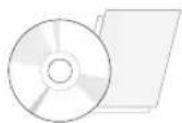
CD(Owner's Manual) / Card

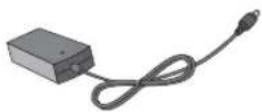
Power Cord AC-DC Adapter
( Depending on the country )
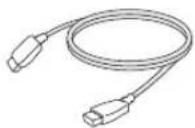
HDMI Cable
( Depending on the coun-
try )
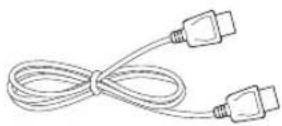
DisplayPort Cable
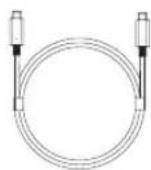
USB C-C cable
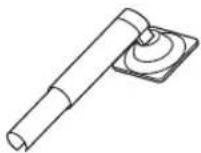
Stand Body
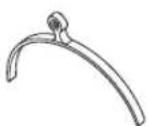
Stand Base Cable Holder


CAUTION
Always use genuine components to ensure safety and product performance.
The product warranty will not cover damage or injury caused by the use of counterfeit components.
It is recommend that use the supplied components.
If you use generic cables not certified by LG, the screen may not display or there may be image noises.

NOTE
Note that the components may look different from those shown here.
Without prior notice, all information and specifications in this manual are subject to change to improve the performance of the product.
To purchase optional accessories, visit an electronics store or online shopping site or contact the retail store where you purchased the product.
Supported Drivers and Software
Check the drivers and software supported by your product and refer to the manuals on the CD enclosed in the product package.
| Drivers and Software Installation Priority | 27UK850/27BK85U | |
| Monitor Driver Recommended O | ||
| OnScreen Control Recommended O | ||
| Dual Controller Optional O | ||
| True Color Pro Optional O |
Required and Recommended: You can download and install the latest version from the enclosed CD or from the LGE website (www.lg.com).
Optional: You can download and install the latest version from the LGE website (www.lg.com).
Component and Button Description
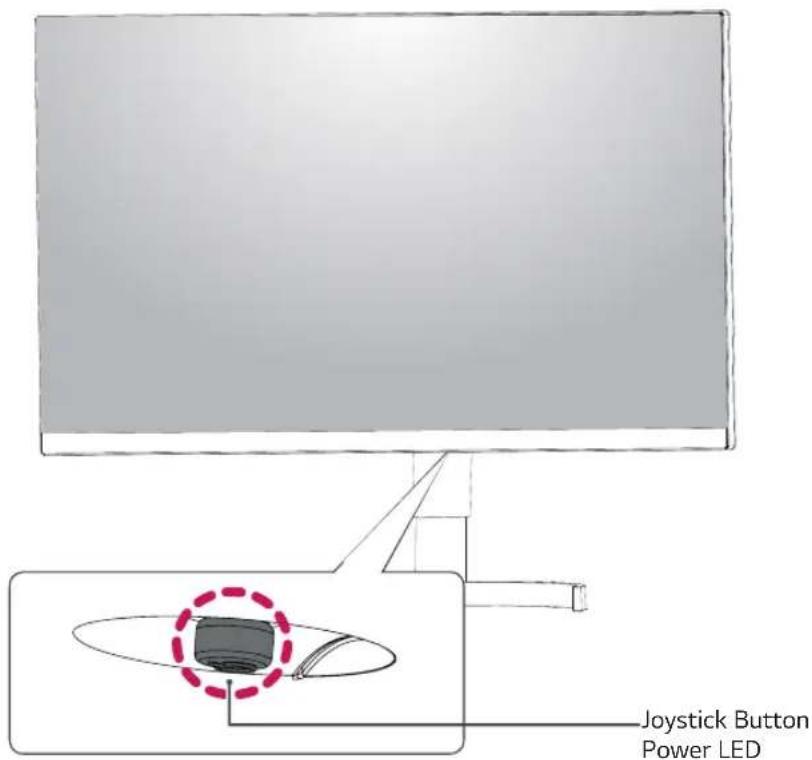
text_image
Joystick Button Power LEDOn: power is on
Off: power is off
How to Use the Joystick Button
You can easily control the functions of the monitor by pressing the joystick button or moving it left/right with your finger.
Basic Functions
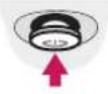 | Power on | Press the joystick button once with your finger to turn on the monitor. | |
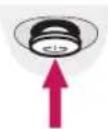 | Power off | Press and hold the joystick button once with your finger to turn off the monitor. | |
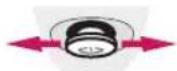 | ◀/▶ | Volume Control | You can control the volume by moving the joystick button left/right. |

NOTE
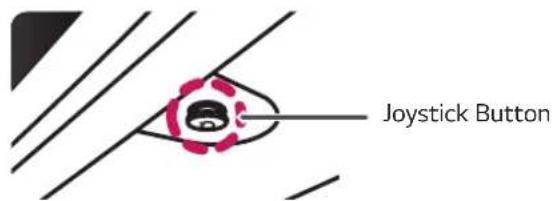
- The joystick button is located at the bottom of the monitor.
Input Connector
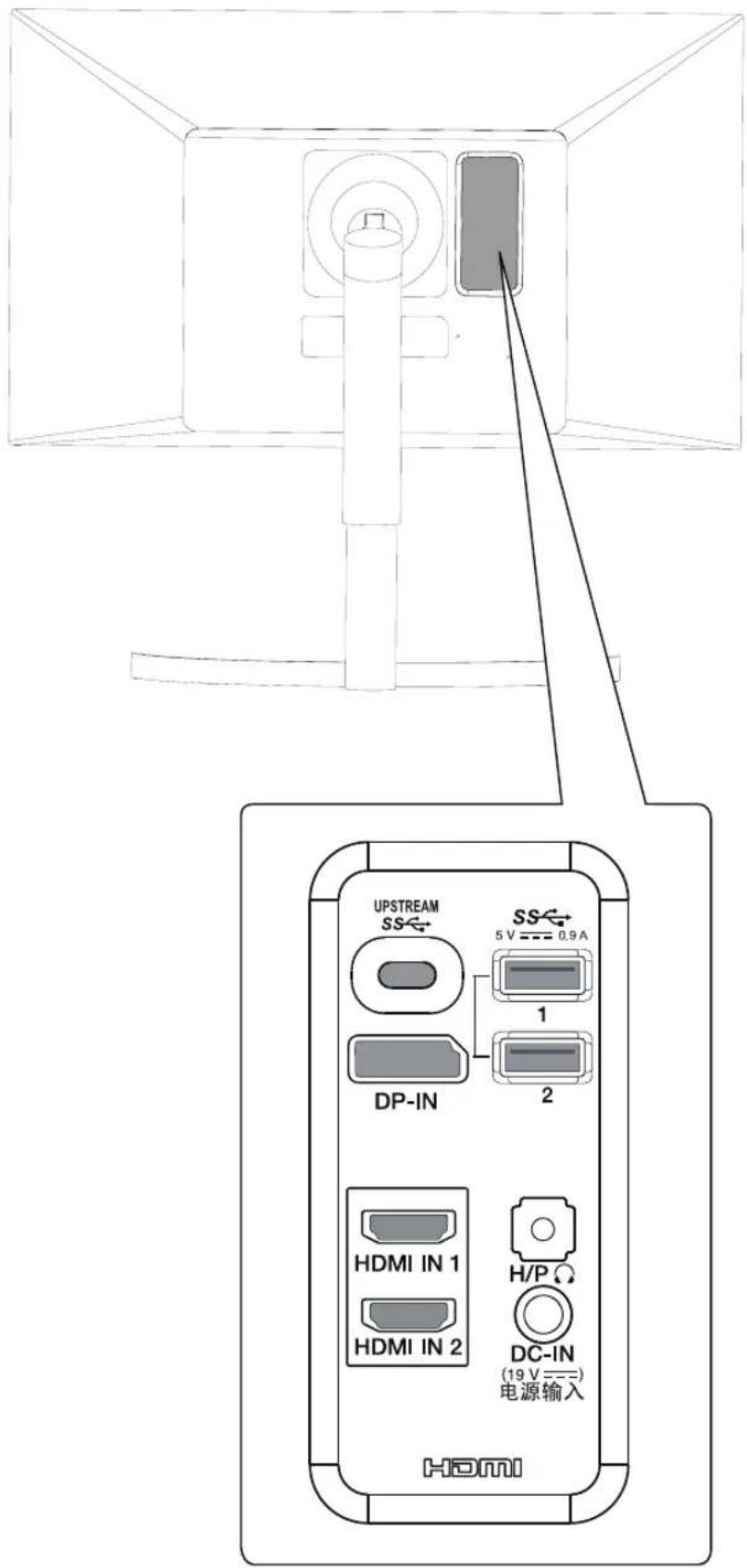
text_image
UPSTREAM SS← 5 V --- 0.9A 1 DP-IN 2 HDMI IN 1 HDMI IN 2 H/PΩ DC-IN (19 V = =) 电源输入 HDMIMoving and Lifting the Monitor
When moving or lifting the monitor, follow these instructions to prevent the monitor from being scratched or damaged and to ensure safe transportation regardless of its shape or size.
It is advisable to place the monitor in the original box or packing material before attempting to move it.
Before moving or lifting the monitor, disconnect the power cord and all cables.
Hold the top and bottom of the monitor frame firmly. Do not hold the screen itself.
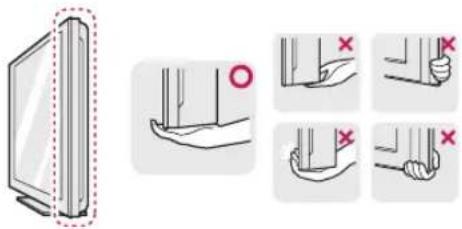
text_image
Diagram illustrating hand positioning and grip application steps with magnified views showing correct and incorrect statesWhen holding the monitor, the screen should face away from you to prevent it being scratched.
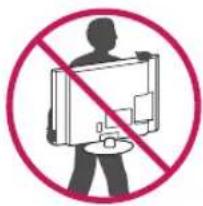
text_image
Prohibition sign with silhouette of person holding a computer and crossed out by a diagonal lineWhen moving the monitor, avoid any strong shock or vibrations to the product.
When moving the monitor, keep it upright, never turn the monitor on its side or tilt it sideways.

CAUTION
As far as possible, avoid touching the monitor screen. This may result in damage to the screen or some of the pixels used to create images.
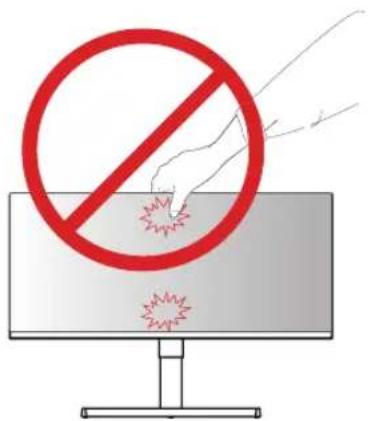
text_image
Safety warning sign with prohibition symbol and explosion icons on monitorIf you use the monitor panel without the stand base, its joystick button may cause the monitor to become unstable and fall, resulting in damage to the monitor or human injury. In addition, this may cause the joystick button to malfunction.
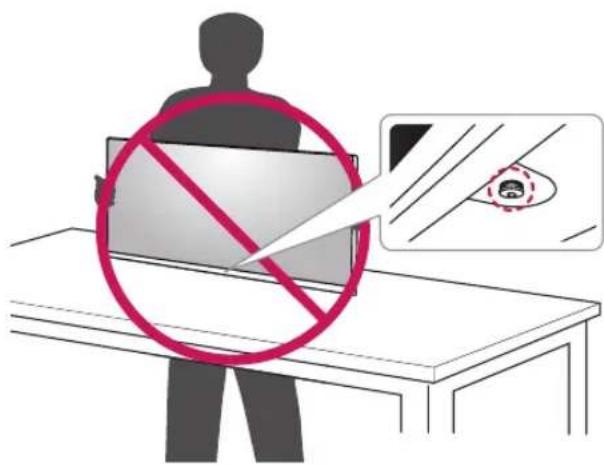
text_image
Safety warning illustration showing a person holding a 'No' symbol with a magnified inset showing a face detection device.Installing the Monitor
Assembling the stand base
1 Please put a soft cloth on a low table or box to protect the screen of the monitor.

natural_image
Line drawing of a simple rectangular table with four legs and a shaded top surface (no text or symbols)2 Please put the monitor on the soft cloth with the screen facing down.
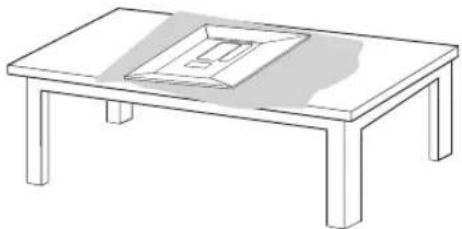
natural_image
Line drawing of a simple wooden table with a framed picture on the top (no text or symbols)3 1 Assemble the Head and Stand body.
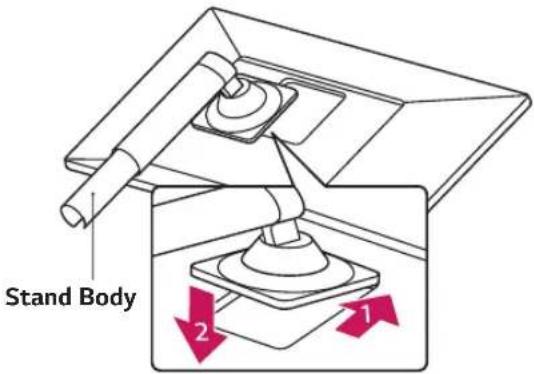
text_image
Stand Body 2 1● Assemble the Stand body and Stand base.
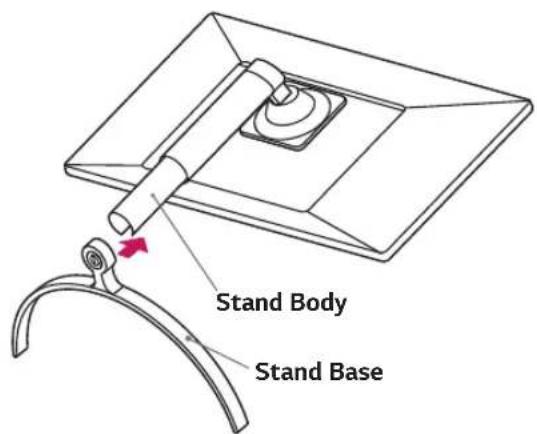
text_image
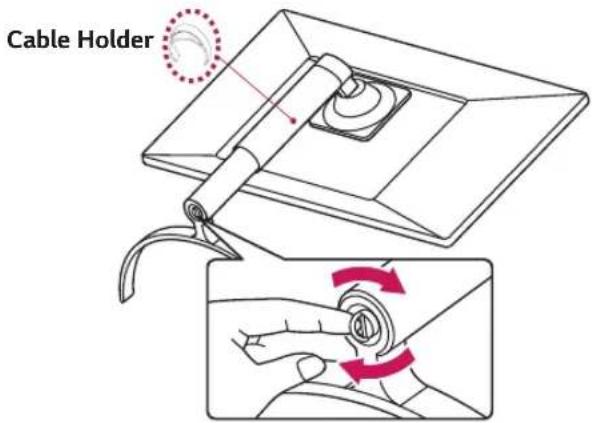
Stand Body Stand Base4 Turn the screw clockwise to secure the stand base.
text_image
Cable HolderCAUTION
To avoid injury to your fingers or feet when you Assembly the Stand Body and Base, you should hold the Stand Base firmly.
NOTE
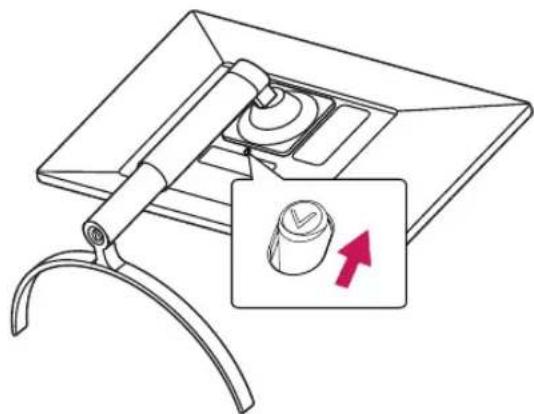
Press the stand until the button reaches the top.
natural_image
Technical line drawing of a mechanical device with a highlighted component and an arrow indicator (no text or symbols)
CAUTION
Illustrations in this document represent typical procedures, so they may look different from the actual product.
Do not carry the monitor upside down by just holding the stand base. This may cause the monitor to fall off the stand and could result in personal injury.
When lifting or moving the monitor, do not touch the monitor screen. The force applied to the monitor screen may cause damage to it.
Do not apply foreign substances (oils, lubricants, etc.) to the screw parts when assembling the product. (Doing so may damage the product.)
Applying excessive force when tightening screws may cause damage to the monitor. Damage caused in this way will not be covered by the product warranty.

NOTE
You can disassemble the stand in the reverse order of the assembly.
Using the cable holder
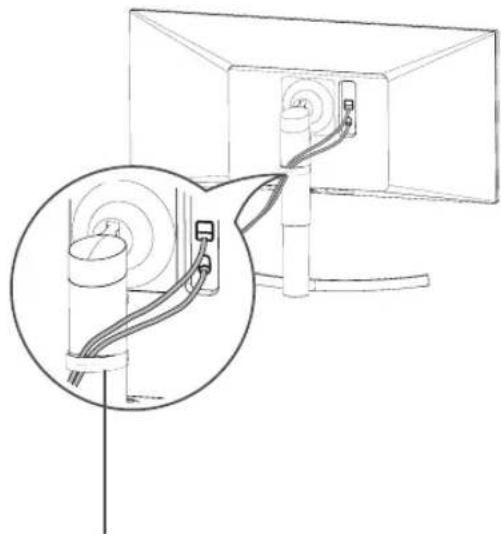
Arrange the cables using the cable holder as shown in the illustration.
natural_image
Diagram showing cable routing between a computer monitor and a cable holder, with an inset magnified view of cable routing (no text or symbols present)Cable Holder
Installing onto a table
1 Lift the monitor and place it on the table in an upright position.
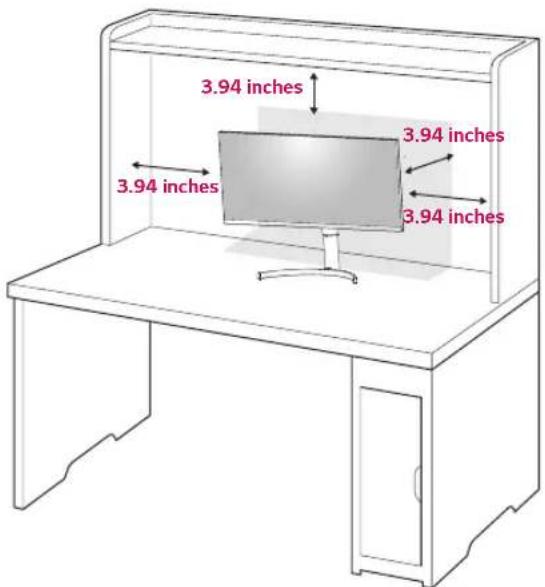
Place at least 3.94 inches away from the wall to ensure sufficient ventilation.
text_image
3.94 inches 3.94 inches 3.94 inches 3.94 inches2 Connect the Power cord to the monitor, then plug the power cord into the wall outlet.
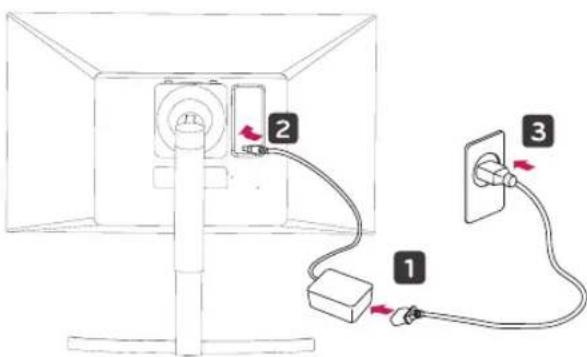
text_image
Diagram showing cable installation with labeled components: power outlet, socket, and plug connections3 Press the joystick button on the bottom of the monitor to turn on the monitor.

CAUTION
Unplug the power cord prior to moving or installing the monitor. There is risk of electric shock.
Cautions When Connecting Power Cord
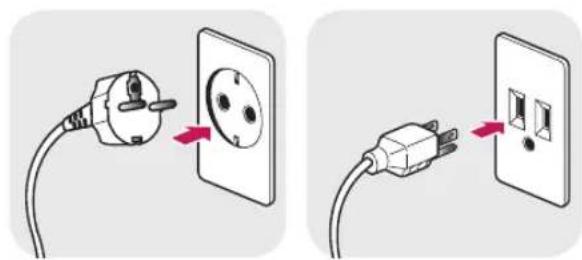
natural_image
Two-step diagram showing a power outlet connected to a wall socket, with no text or symbols present.100-240 V \~
Make sure to use the power cord that is provided in the product package and connect it to a grounded power outlet.
If you need another power cord, please contact your local dealer or the nearest retail store.
Adjusting the angle
1 Place the monitor in an upright position, mounted on the stand base.
2 Adjust the angle of the screen. The angle of the screen can be adjusted forwards or backwards for a comfortable viewing experience.
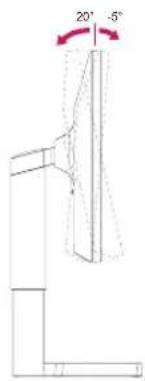
text_image
20° -5°Front SideRear Side

WARNING
To avoid injury to the fingers when adjusting the screen, do not hold the lower part of the monitor's frame as illustrated below.
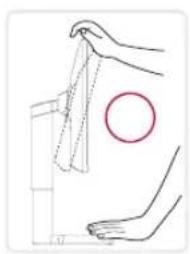
natural_image
Illustration of a hand cleaning a surface with a circular mark (no text or symbols)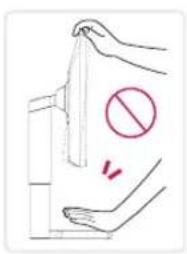
text_image
Diagram showing hand holding a bag with a prohibition symbol and a pair of hands below, indicating a stop or limit.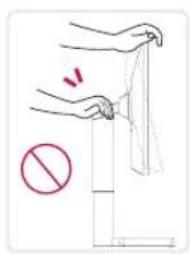
text_image
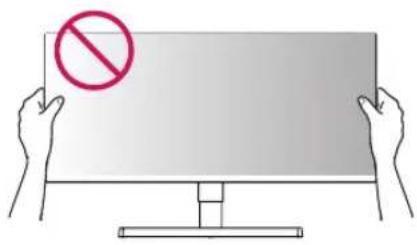
Diagram showing hand holding a cloth with a red prohibition symbol below, indicating no movement or restriction.Be careful not to touch or press the screen area when adjusting the angle of the monitor.
text_image
Illustration showing two hands holding a blank sign with a red prohibition symbol above them.Adjusting the Stand Height
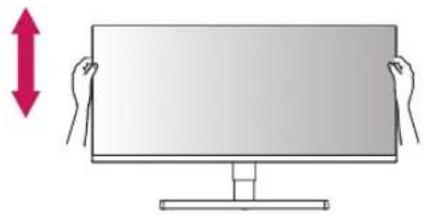
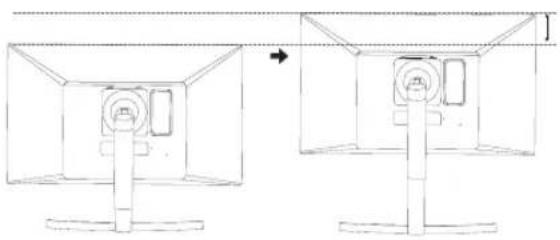
1 Handle the monitor with both hands for safety.
natural_image
Illustration of two hands holding a blank computer monitor with a red upward arrow indicating motion (no text or symbols)2 The height can be adjusted up to 4.33 inches.
4.33 inches
natural_image
Diagram showing two views of a room with a vertical stand and a circular vent, no text or symbols present
WARNING
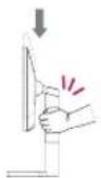
Do not put your fingers or hand between the screen and the base (chassis) when adjusting the screen's height.
Pivot Feature
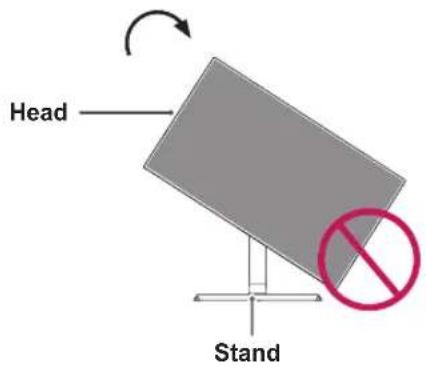
The pivot feature allows the monitor to rotate 90^ clockwise.
text_image
Head Stand
WARNING
To avoid scratching the stand base, make sure that when rotating the monitor using the pivot feature, the stand does not make contact with the monitor.
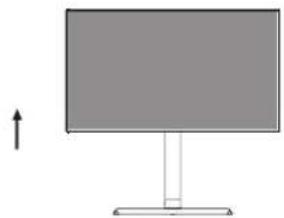
1 Raise the monitor to the maximum height.
natural_image
Simple diagram of a monitor with a stand and an upward arrow, no text or symbols present.2 Adjust the angle of the monitor in the direction of the arrow as shown in the figure.
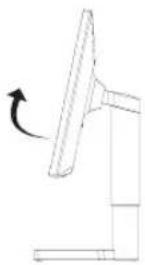
3 Rotate the monitor clockwise as shown in the figure.
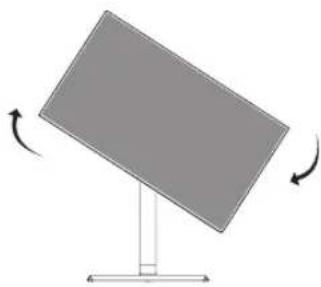
natural_image
Simple diagram of a tilted rectangular panel with curved arrows indicating rotation (no text or symbols)4 Complete the installation by rotating the monitor 90° as shown below.
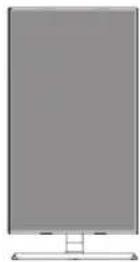

NOTE
Auto Pivot feature of the display is not supported. The screen can be rotated easily using the screen pivot shortcut key provided with your Windows operating system. Note that some Windows versions and some graphics card drivers may use different settings for the screen pivot key or may not support the pivot key at all.

WARNING
Take care when rotating the monitor if the cable is connected.
To avoid injury when rotating the display, do not place your fingers between the display and the stand base.

natural_image
Line drawing of a hand holding a tool above a mechanical component, with a red prohibition symbol below (no text or labels)Using the Kensington lock
The Kensington security system connector is located at the back of the Monitor set.
For more information on installation and usage, refer to the Kensington lock user manual or visit the website at http://www.kensington.com.
Connect the Kensington security system cable between the Monitor set and a table.
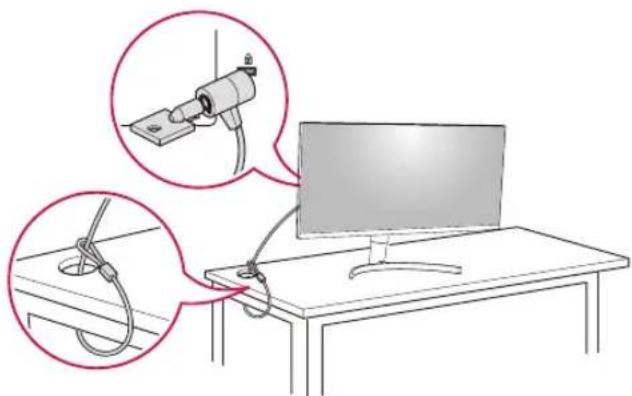
text_image
Diagram showing cable installation steps with magnified views of a device and rope connection to a monitor
NOTE
Use of the Kensington lock is optional.
The accessories can be purchased at your local electronics store.

NOTE
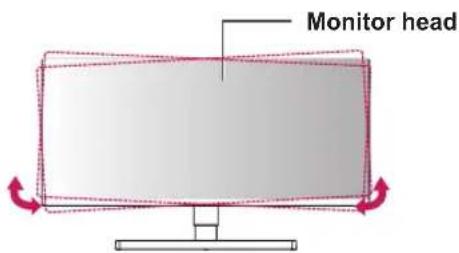
The left or right side of the monitor head can be slightly rotated up or down (up to 3°). Adjust the horizontal level of the monitor head.
text_image
Monitor headDetaching the Stand Body
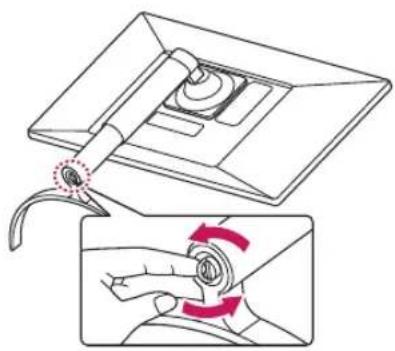
1 Place the monitor's screen face down. To protect the screen from scratches, cover the surface with a soft cloth.
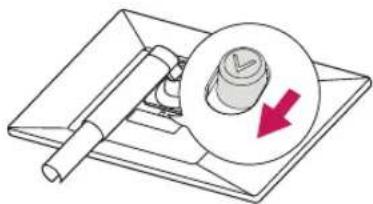
2 Remove the stand from the monitor by pressing the button on the bottom center of the back of the monitor.
1
natural_image
Diagram showing a mechanical device with a curved handle and a magnified view of the lever mechanism (no text or symbols)②
natural_image
Illustration of a mechanical device with a magnified inset showing a circular component and a red arrow (no text or symbols)Installing the wall mount plate
This monitor supports the specification of the standard wall mount plate or compatible device.
1 Place the screen face down. To protect the screen from scratches, cover the surface with a soft cloth.
2 Place the wall mount plate onto the monitor and align it with the screw holes.
3 Tighten the four screws to fix the plate to the monitor using a screwdriver.

NOTE
The wall mount plate is sold separately.
For more information on installation, refer to the wall mount plate's installation guide.
Be careful not to use excessive force when mounting the wall mount plate, as this can damage the monitor's screen.
Installing to a wall
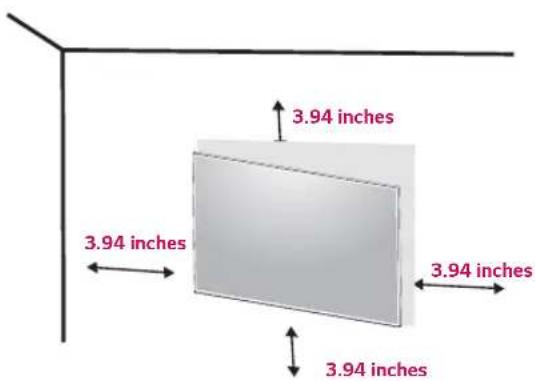
Install the monitor at least 3.94 inches away from the wall and leave about 3.94 inches of space at each side of the monitor to ensure sufficient ventilation. Detailed installation instructions can be obtained from your local retail store. Please refer to the manual to install and set up a tilting wall mounting bracket.
text_image
3.94 inches 3.94 inches 3.94 inches 3.94 inchesTo install the monitor to a wall, attach a wall mounting bracket (optional) to the back of the monitor.
Make sure that the wall mounting bracket is securely fixed to the monitor and to the wall.
1 If you use screw longer than standard, the monitor might be damaged internally.
2 If you use improper screw, the product might be damaged and drop from mounted position.
In this case, LG Electronics is not responsible for it.
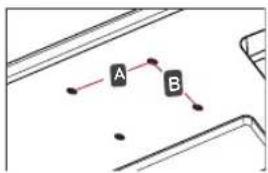
| Wall Mount (A x B) | 100 x 100 |
| Standard screw M4 | x L10 |
| Number of screws 4 | |
| Wall Mount Plate(Optional) | RW120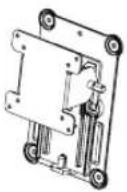 |
Wall Mount (A x B)
flowchart
graph TD
    A["A"] --> B["B"]
    A --> C["..."]
    B --> D["..."]

CAUTION
Unplug the power cord before moving or installing the monitor to avoid electric shocks.
Installing the monitor on the ceiling or on a slanted wall may result in the monitor falling off, which could lead to injury. Please use the genuine LG wall mounting bracket. For more information, contact your local retail store or a qualified installer.
Applying excessive force when fastening screws may cause damage to the monitor. Damage caused in this way will not be covered by the product warranty.
Use the wall mounting bracket and screws that conform to the VESA standard. Damage caused by the use or misuse of inappropriate components will not be covered by the product warranty.
Screw length from outer surface of back cover should be under Max. 0.31 inches.
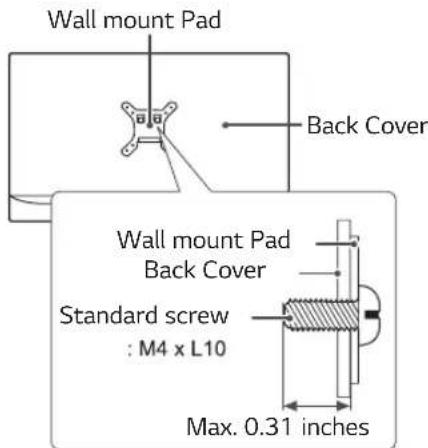
text_image
Wall mount Pad Back Cover Wall mount Pad Back Cover Standard screw : M4 x L10 Max. 0.31 inches
NOTE
Use the screws specified by the VESA standard. The wall mount kit includes the installation guide and all necessary parts.
The wall mounting bracket is optional. The accessories can be purchased at your local retail store. The length of the screw may differ for each wall mounting bracket. Ensure the correct length screw is used.
For more information, please refer to the user manual for the wall mounting bracket.
USING THE MONITOR
Connecting to a PC
This monitor supports the *Plug and Play feature.
*Plug and Play: A feature that allows you to add a device to your computer without having to reconfigure anything or install any manual drivers.
HDMI connection
Transmits the digital video and audio signals from your PC and A/V devices to the monitor. Connect your PC and AV device to the monitor with the HDMI cable as illustrated below.
Press the menu button and then select the input option from the input menu.
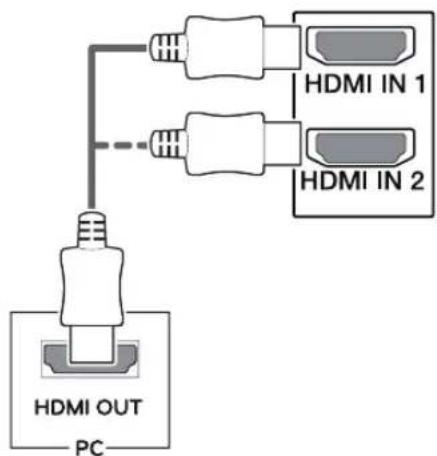
text_image
HDMI OUT PC HDMI IN 1 HDMI IN 2
NOTE
If you use HDMI PC, it can cause compatibility problem.
Use a certified cable with the HDMI logo attached. If you do not use a certified HDMI cable, the screen may not display or a connection error may occur.
Recommended HDMI cable types
- High-Speed HDMI ^TM Cable
- High-Speed HDMI ^TM Cable with Ethernet
DisplayPort connection
Transmits the digital video and audio signals from your PC to the monitor. Connect your PC to the monitor using the Displayport cable as illustrated below.
Press the menu button and then select the input option from the input menu.
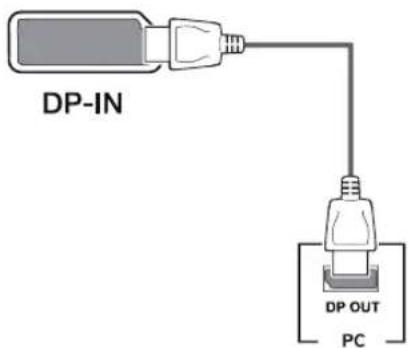
text_image
DP-IN DP OUT PC
NOTE
- There may be no video or audio output depending on the DP version of the PC.
- If you use generic cables not certified by LG, the screen may not display or there may be image noises.
- For using Mini DP to DP (Mini DisplayPort to DisplayPort) cable, it is recommended that you use DisplayPort 1.2 cable.
USB-C connection
Transmits digital video and audio signals from your PC to the monitor.
Connect the monitor to your PC using the USB-C cable as shown in the illustration below.
Press the menu button and then select the input option from the input menu.
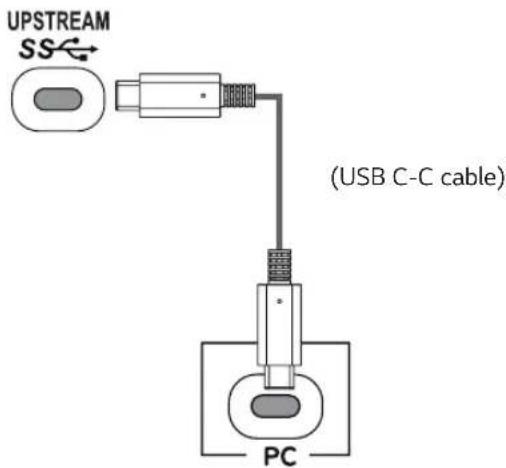
text_image
UPSTREAM SS (USB C-C cable) PC
NOTE
- PD(Power Delivery) and DP Alternate Mode(DP over USB-C) are supported via USB-C Port.
- Features may not work properly depending on the connected device's specifications and the environment.
- USB-C port is not for the Monitor Power source but for a PC power source.
Connect Adapter to supply power to the Monitor
Connecting to AV Devices
HDMI connection
Transmits the digital video and audio signals from your PC and A/V devices to the monitor. Connect your PC and AV device to the monitor with the HDMI cable as illustrated below.
Press the menu button and then select the input option from the input menu.
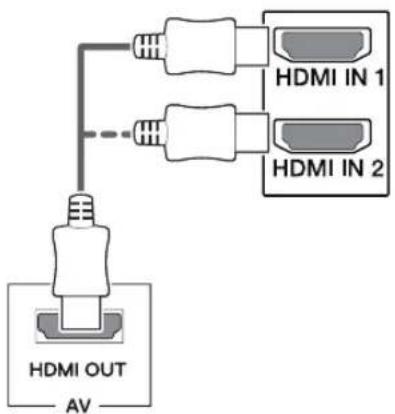
text_image
HDMI OUT AV HDMI IN 1 HDMI IN 2
NOTE
Use a certified cable with the HDMI logo attached. If you do not use a certified HDMI cable, the screen may not display or a connection error may occur.
Recommended HDMI cable types
- High-Speed HDMI ^® /TM Cable
- High-Speed HDMI ^® /™ Cable with Ethernet
Connecting Peripherals
USB Cable connection - PC
The USB port on the product functions as a USB hub.
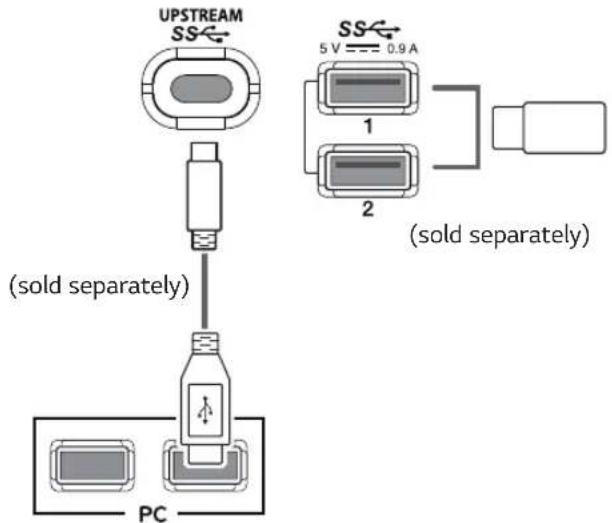
text_image
UPSTREAM SS← 5 V 0.9 A 1 2 (sold separately) (sold separately) PC
NOTE
Make sure to install the most recent Windows OS service pack before using the product.
Peripheral devices are sold separately.
A keyboard, mouse, or USB device can be connected to the USB port.
To use USB Downstream port of monitor, user must connect Upstream port of monitor to Host PC using USB C-C or USB C-A cable.
When the USB C-C cable is connected between Upstream port of monitor and Host PC, the Downstream port of monitor support USB 2.0 device.
When the USB C-A cable is connected between Upstream port of monitor and Host PC, the Downstream port of monitor support USB 3.0 device.
However, Host PC must support USB 3.0 function.

CAUTION
Cautions When Using a USB Device
AUSB device with an automatic recognition program installed, or that uses its own driver, may not be recognized.
Some USB devices may not be supported or may not work properly.
It is recommended to use a USB hub or hard disk drive with power supplied. (If the power supply is not adequate, the USB device may not be recognized properly.)
Connecting to External Devices
Connecting Headphones
Connect peripherals to the monitor via the headphones port. Connect as illustrated.
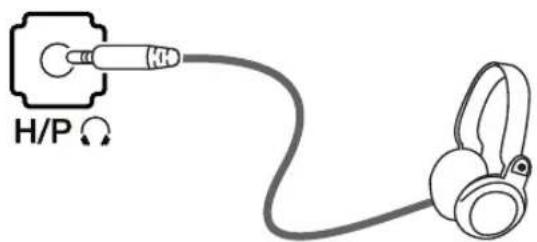
text_image
H/P Ω(sold separately)

NOTE
• Peripheral devices are sold separately.
- If you use angled earphones, it may cause a problem with connecting another external device to the monitor. Therefore, it is recommended to use straight earphones.
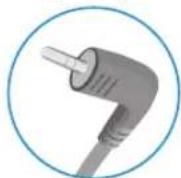
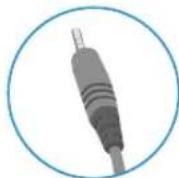
Angled Straight
- Depending on the audio settings of the PC and external device, headphones and speaker functions may be limited.
USER SETTINGS
Activating the Main Menu
1 Press the joystick button on the bottom of the monitor.
2 To view the settings menu, press the joystick button at the bottom of the monitor and then enter the Settings.
3 Move the joystick up/down (▲/▼) and left/right(◀/▶) to set the options.
4 Press the joystick button once more to exit the main menu.
text_image
Joystick Button| Button Menu Status Description | |||
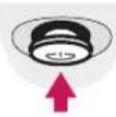 | Main menu disabled Enables the main menu. | ||
| Main menu enabled | Exits the main menu.(Holding down the button to turn off the monitor. You can turn off the monitor this way at any time, including when the OSD is on.) | ||
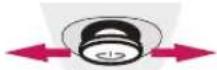 | ◀ | Main menu disabled Adjusts the monitor volume level. | |
| Main menu enabled Enters the Input feature. | |||
| ▶ | Main menu disabled Adjusts the monitor volume level. | ||
| Main menu enabled Enters the Settings features. | |||
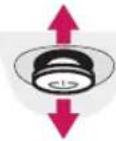 | ▲ | Main menu disabled Displays information on the current input. | |
| Main menu enabled Turns off the monitor. | |||
| ▼ | Main menu disabled Displays information on the current input. | ||
| Main menu enabled Enters the Game features. | |||
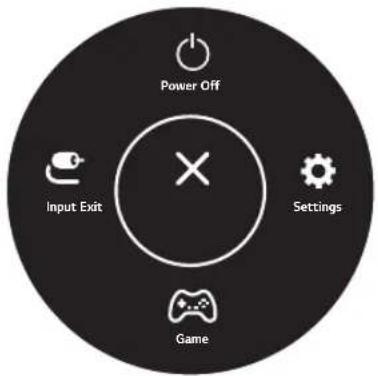
Main Menu Features
text_image
Power Off Input Exit Settings Game| Main Menu Description | |
| Input Sets input mode. | |
| Power Off Turns off the monitor. | |
| Settings Configures the screen settings. | |
| Game Sets the game mode for gaming. | |
| Exit | Exits the main menu. |
User Settings
Menu Settings
1 To view the settings menu, press the joystick button at the bottom of the monitor and then enter the settings.
2 Configure the options by moving the joystick up/down/left/right.
3 To return to the upper settings or set other settings items, move the joystick to◀or press (💡)
4 If you want to exit the settings menu, move the joystick to ◀ until you exit.
- When you enter the menu, instructions on how to use the button will appear in the bottom right corner of the screen.

Quick Settings

Input

Picture Sound General


CAUTION
- Your monitor's OSD (On Screen Display) may differ slightly from that shown in this manual.
Each option is described below.
| Settings > Quick Settings Description | ||
| Brightness | Adjusts the color contrast and brightness of the screen. | |
| Contrast | ||
| Volume Adjusts the volume level. |  NOTEYou can adjust Mute / Unmute by moving the joystick button to▼in the Volume menu. NOTEYou can adjust Mute / Unmute by moving the joystick button to▼in the Volume menu. | |
| Color Temp | Custom | The user can adjust it to red, green, or blue by customization. |
| Warm Sets the | screen color to a reddish tone. | |
| Medium Sets the | screen color between a red and blue tone. | |
| Cool Sets the | screen color to a bluish tone. | |
| MaxxAudio | On | MaxxAudio®by waves, recipient of a Technical GRAMMY Award®is a suite of studio-quality sound tools for a superior listening experience. |
| Off Disables the | MaxxAudio function. | |
| Settings > Input Description | ||
| Input List Selects the input mode. | ||
| Aspect Ratio | Adjusts the aspect ratio of the screen. | |
| Full Wide | Displays the video in wide-screen, regardless of the video signal input. | |
| Original | Displays video according to the aspect ratio of the video signal input. | |
| 1:1 | The aspect ratio is not adjusted from the original. | |
| [6x33]NOTEThe display may look the same for Full Wide, Original, and 1:1 options at the recommended resolution (3840 x 2160).There is no 1:1 menu on FreeSync Mode. (Go to Picture → Game Adjust → FreeSync, to set from FreeSync Basic or Extended to Off) | ||
Picture Mode on SDR(Non-HDR) signal.
| Settings > Picture Description | ||
| Picture Mode | Custom | Allows the user to adjust each element. The color mode of the main menu can be adjusted. |
| Reader Optimizes | the screen for viewing documents. You can brighten the screen in the OSD menu. | |
| Photo Optimizes | the screen for photos. | |
| Cinema Optimizes | the screen for video. | |
| HDR Effect Optimizes | the screen for high dynamic range. | |
| Dark Room 1 | This mode adjusts the brightness to the optimal level for working in a dark environment. | |
| Dark Room 2 This | mode sets the brightness to a lower level than Dark Room 1. | |
| Color Weakness | This mode is for users who cannot distinguish between red and green. It enables users with color weakness to easily distinguish between the two colors. | |
| FPS Game 1 This | mode is optimized for FPS games. | |
| FPS Game 2 | It has a higher Black Stabilizer value than FPS Game 1. It is suitable for very dark FPS games. | |
| RTS Game This mode is optimized for RTS Game. | ||
| Custom (Game) | In this mode, users can customize various elements including game-related options. | |
| EBU | A standard TV PAL color space for broadcasting. | |
| REC709 | A standard HDTV color space for broadcasting. | |
| SMPTE-C | A standard TV NTSC color space for broadcasting. | |
| Calibration 1 Adjusts to the last calibrated screen. | ||
| Calibration 2 Adjusts to the previously calibrated screen. | ||

NOTE
- If the picture mode is changed, the screen may flicker or the resolution of your PC screen may be affected.
- Calibration 2: Installation of TRUE COLOR PRO and proceeding Calibration will enable this menu.
Picture Mode on HDR signal.
| Settings > Picture | Description | |
| Picture Mode | HDR Vivid | Optimized the screen for HDR vivid colors. |
| HDR Standard | Optimized the screen for HDR. | |
| HDR Game | Optimized the screen for HDR Games. | |
| HDR Cinema | Optimized the screen for HDR video. | |

NOTE
- HDR content may not be operated properly depending on the Windows10 OS setting. Please check the HDR On / Off setting of Windows.
- When the HDR function is turned on, the characters or picture quality may be poor according to Graphic card performance.
- While the HDR function is on, screen flickering or cracking may occur when changing the monitor input or power on/off according to Graphic card performance.
| Picture Adjust Brightness Adjusts the brightness of the screen. | |||||
| Contrast Adjusts the contrast of the screen. | |||||
| Sharpness Adjusts the sharpness of the screen. | |||||
| SUPER RESOLUTION+ | High Optimized picture quality is displayed when a user wants crystal clear images. It is effective for high quality video or game. | ||||
| Middle The optimized picture quality is displayed when a user wants images between low and high modes for comfortable viewing. It is effective for UCC or SD video. | |||||
| Low The optimized picture quality is displayed when a user wants smooth and natural im-ages. It is effective for slow-moving pictures or still images. | |||||
| Off Select this option for everyday viewing. SUPER RESOLUTION+ is turned off in this mode. | |||||
| NOTEBecause this is a function to increase the sharpness of low resolution pictures, it is not recommended to use the function for normal text or for desktop icons. Doing so may result in unnecessarily high sharpness. | |||||
| Black Level Sets the offset level (for HDMI only).Offset: as a reference for a video signal, this is the darkest color the monitor can display. | |||||
| Game Adjust | Response Time | Sets a response time for displayed pictures based on the speed of the screen.For a normal environment, it is recommended that you useFast.For a fast-moving picture, it is recommended that you useFaster.Setting toFastermay cause image sticking. | |
| FasterSets the response time to faster. | |||
| FastSets the responsetime to fast. | |||
| NormalSets the responsetime to normal. | |||
| OffDoes not use theresponse time improvementfeature. | |||
| FreeSync | Provides seamless and natural images by synchronizing the vertical frequency of the input signal with that of the output signal.CAUTIONSupported Interface: DisplayPort, HDMISupported Graphic Card: A graphic card that supports AMD's FreeSync is necessary.Supported Version: Make sure to update the graphic card to the latest driver.For more information and requirement, refer to AMD website at http://www.amd.com/FreeSync | ||
| ExtendedEnable widerfrequency range of FreeSync function than basic mode.The screen may flicker during the game play. | |||
| BasicEnable basic frequency range of FreeSync function. | |||
| OffFreeSync functionoff. | |||
| Black Stabilizer | You can control the black contrast to have better visibility in dark scenes.IncreasingtheBlack Stabilizervalue brightens the low gray level area on the screen. (You can easily distinguish objects on dark game screens.)Reducing theBlack Stabilizervalue darkens the low gray level area and increases the dynamic contrast on the screen. | ||
| Color Adjust Gamma Mode 1, Mode 2, Mode 3 | The higher the gamma value, the darker the image becomes. Likewise, the lower the gamma value, the lighter the image becomes. | ||
| If you do not need to adjust the gamma settings, select Mode 4. | |||
| Custom | |||
| Warm | |||
| Medium | |||
| Cool | |||
| You can customize the picture color usingRed, Green,andBluecolors. | |||
| Settings > Sound | Description | ||
Volume Adjusts the volume level.  NOTE• You can adjustMute / Unmuteby moving the joystick button to▼in theVolumemenu. NOTE• You can adjustMute / Unmuteby moving the joystick button to▼in theVolumemenu. | |||
| MaxxAudio | On | MaxxAudio®by waves, recipient of a Technical GRAMMY Award®is a suite of studio-quality sound tools for a superior listening experience. | |
| OffDisables the MaxxAudio function. | |||
| Settings > General Description | ||
| Language Sets the menu screen to the desired language. | ||
| SMART ENERGY SAVING | High Saves energy using the high-efficiency SMART ENERGY SAVING feature. | |
| Low Saves energy using the low-efficiency SMART ENERGY SAVING feature. | ||
| Off Disables the SMART ENERGY SAVING feature. | ||
| Power LED Turns the power LED on the bottom of the monitor on or off. | ||
| On The power LED turns on automatically. | ||
| Off The power LED turns off. | ||
| Automatic Standby | Feature that automatically turns off the monitor when there is no movement on the screen for a period of time. You can set a timer for the auto-off function. (Off, 4 H, 6 H, and 8 H) | |
DisplayPort 1.2 Enables or disables DisplayPort 1.2. NOTEBe sure to configure this option according to the DisplayPort version supported by your graphics card. Set this option to Disable if your graphics card does not support DisplayPort 1.2. NOTEBe sure to configure this option according to the DisplayPort version supported by your graphics card. Set this option to Disable if your graphics card does not support DisplayPort 1.2. | ||
| Buzzer | This feature lets you set the sound generated from Buzzer when your monitor powers on. | |
| On Enables your monitor's Buzzer. | ||
| Off Disables your monitor's Buzzer. | ||
| OSD Lock This feature disables the configuration and adjustment of menus. | ||
| On Enables OSD Lock. | ||
| Off Disables OSD Lock. | ||
| [ADBT] NOTEAll features are disabled except Brightness, Contrast, Volume, Input List, Aspect Ratio, OSD Lock and Information. | ||
| OSD Size User can select OSD Size to Large or Small. | ||
| Deep Sleep Mode | When Deep sleep mode is enabled, power consumption is minimized while the monitor is in standby mode. | |
| On Enables Deep sleep Mode. | ||
| Off Disables Deep sleep Mode. | ||
| NOTEUSB HUB functions will not work in standby mode while Deep sleep Mode is enabled in standby mode. | ||
| Information | The display information will be shown the Model, Serial Number, Total Power On Time, Resolution. | |
| Reset | Do you want to reset your settings? | |
| No | Cancel the select. | |
| Yes Returns to the default settings. | ||

NOTE
- Saving Data depends on the Panel. So, these values may be different from each panel and/or panel vendor. If the SMART ENERGY SAVING option is High or Low, monitor luminance become higher or lower depending on the source.
TROUBLESHOOTING
| Nothing is displayed on the screen. | |
| Is the monitor's power cord plugged in? | Check if the power cord is correctly plugged into the power outlet. |
| Is the power LED on? | Check the power cable connection and press the power button. |
| Is the power on and the power LED displaying white? | Check that the connected input is enabled (Settings > Input > Input list). |
| Is the OUT OF RANGE message being displayed? | This occurs when signals transferred from the PC (graphics card) are out of the horizontal or vertical frequency range of the monitor. Please see the Product Specification section of this manual to set the appropriate frequency. |
| Is the No Signal message being displayed? | This is displayed when the signal cable between the PC and the monitor is missing or disconnected. Check the cable and reconnect it. |
| The OSD lock message is being displayed. | |
| Are some functions not available when you press the Menu button? | The OSD is locked. Go to Settings > General and set OSD Lock to Off. |
| The screen retains an image. | |
| Does image sticking occur even when the monitor is turned off? | Displaying a still image for a prolonged time may cause damage to the screen, resulting in the retention of the image.To extend the lifetime of the monitor, use a screensaver. |
| Screen display is unstable and shaky / Images displayed on the monitor leave shadow trails. | |
| Did you select the appropriate resolution? | If the selected resolution is HDMI 1080i 60/50 Hz (interlaced), the screen may be flickering. Change the resolution to 1080P or the recommended resolution. |

NOTE
- Vertical frequency In order to display an image, the screen must be refreshed dozens of times per second, like a fluorescent lamp. The number of times the screen is refreshed per second is called vertical frequency, or refresh rate, and is represented by Hz.
- Horizontal frequency The time it takes to display one horizontal line is called the horizontal cycle. If 1 is divided by the horizontal interval, the result is the number of horizontal lines displayed per second. This is called horizontal frequency and is represented by kHz.
• LED can be lighted with Set OSD Menu.
Settings > General > Power LED > On

NOTE
Check if the graphics card's resolution or frequency is within the range allowed by the monitor and set it to the recommended (optimal) resolution in Control Panel > Display > settings.
Not setting the graphics card to the recommended (optimal) resolution may result in blurred text, a dimmed screen, a truncated display area, or misalignment of the display.
The setting methods may be different depending on the computer or operating system, and some resolutions may not be available depending on the performance of the graphics card. If this is the case, contact the manufacturer of the computer or graphics card for assistance.
Some graphics cards may not support 3840 x 2160 resolution. If the resolution cannot be displayed, contact the manufacturer of your graphics card.
| The display color is abnormal. | |
| Does the display appear discolored (16 colors)? | Set the color to 24 bit (true color) or higher. In Windows, go to Control Panel > Display > Settings > Color Quality. |
| Does the display color appear unstable or monochrome? | Check if the signal cable is connected properly. Reconnect the cable or reinsert the PC's graphics card. |
| Are there spots on the screen? | When using the monitor, pixilated spots (red, green, blue, white, or black) may appear on the screen. This is normal for an LCD screen. It is not an error, nor is it related to the monitor's performance. |
| Do you see an "Unrecognized monitor, Plug&Play (VESA DDC) monitor found" message? | |
| Have you installed the display driver? | Be sure to install the display driver from the display driver CD (or diskette) that comes with your display. Or, you can also download the driver from our web site: http://www.lg.com.Make sure to check if the video card supports Plug&Play function. |
| No sound from the headphone port or speaker. | |
| Are images displayed using DisplayPort or HDMI input without sound? | Try increasing the volume using the button on the monitor.Set the audio output of the PC to the monitor you are using. On Microsoft Windows, go toControl Panel > Hardware and Sound > Sound > set the monitor as default device. |
SPECIFICATIONS
27UK850/27BK85U
| LCD Screen Type TFT (Thin Film Transistor) | LCD (Liquid Crystal Display) Screen | |
| Resolution Maximum Resolution 3840 x 2160 @ 60 Hz | ||
| Video Signal Horizontal Frequency 30 kHz to 135 kHz | ||
| Input Connector HDMI IN1, HDMI IN2, DP(DisplayPort) IN, H/P, USB-C, USB ( ) 162 | ||
| Power input 19 V --- 7.0 A | ||
| Power consumption (Typ.) | On mode: 32 W Typ. (ENERGY STAR® standard)*50 W Typ. (Outgoing condition)**Sleep Mode ≤ 0.5 WOff Mode ≤ 0.3 W | |
| AC/DC adaptor Type A16-140P1A, CHICONY POWER TECHNOLOGY(SUZHOU)CO.,LTD.Output: 19 V =7.37 A | ||
| Environmental Conditions | Operating Condition | Temperature: 0°C to 40°C (32 °F to 104 °F); Humidity: < 80% |
| Storing Condition | Temperature: -20°C to 60°C (-4 °F to 140 °F); Humidity: < 85% | |
| Dimension Monitor Size (Width x Height x Depth) | ||
| Weight (Without Packaging) | With Stand | 6.1 kg (13.4 lbs) |
| Without Stand 4.8 kg (10.5 lbs) | ||
The specifications are subject to change without notice.
* The power consumption level can be different by operating condition and monitor setting.
* The On mode power consumption is measured with ENERGY STAR® test standard.
** The On mode power consumption is measured with LGE test standard (Full White pattern, Maximum resolution).
Factory Support Mode (Preset Mode, PC)
HDMI
| Display Modes (Resolution) | Horizontal Frequency(kHz) | Vertical Frequency(Hz) | Polarity(H/V) | Remarks |
| 640 x 480 31.469 59.94 -/- | ||||
| 800 x 600 37.879 60.317 +/+ | ||||
| 1024 x 768 48.363 60 -/- | ||||
| 1152 x 864 54.347 60.05 +/+ | ||||
| 1280 x 720 45 60 +/+ | ||||
| 1280 x 800 49.702 59.810 -/+ | ||||
| 1280 x 1024 63.981 60.02 +/+ | ||||
| 1600 x 900 60 60 +/+ | ||||
| 1920 x 1080 67.5 60 +/- | ||||
| 2560 x 1440 88.79 59.95 +/- | ||||
| 3840 x 2160 67.5 30 +/- | ||||
| 3840 x 2160 135 60 +/- | When HDMI ULTRA HD Deep Color is set to ON |
DisplayPort / USB-C
| Display Modes (Resolution) | Horizontal Frequency(kHz) | Vertical Frequency(Hz) | Polarity(H/V) Remarks |
| 640 x 480 31.469 59.94 -/- | |||
| 800 x 600 37.879 60.317 | +/+ | ||
| 1024 x 768 48.363 60 | -/- | ||
| 1152 x 864 54.347 60.05 +/+ | |||
| 1280 x 720 45 60 | +/+ | ||
| 1280 x 800 49.702 59.810 | -/+ | ||
| 1280 x 1024 63.981 60.02 +/+ | |||
| 1600 x 900 60 60 | +/+ | ||
| 1920 x 1080 67.5 60 | +/- | ||
| 2560 x 1440 88.79 59.95 +/- | |||
| 3840 x 2160 66.66 30 | +/- | ||
| 3840 x 2160 133.32 60 | +/- |
HDMI Timing (Video)
| Factory support mode (Preset Mode) | Horizontal Frequency(kHz) | Vertical Frequency(Hz) | Remarks |
| 480p 31.5 60 | |||
| 720p 45.0 60 | |||
| 1080p 67.5 60 | |||
| 2160p 135 60 | When HDMI ULTRA HD Deep Color is set to ON |
Power LED
| Mode LED Color | |
| On Mode White (For a few seconds) | |
| Sleep Mode Off | |
| Off Mode Off |

LG
Life's Good
To obtain the source code under GPL, LGPL, MPL, and other open source licenses, that is contained in this product, please visit http://opensource.lge.com. In addition to the source code, all referred license terms, warranty disclaimers and copyright notices are available for download.LG Electronics will also provide open source code to you on CD-ROM for a charge covering the cost of performing such distribution (such as the cost of media, shipping, and handling) upon email request to opensource@lge.com. This offer is valid for three (3) years from the date on which you purchased the product.
Declaration of Conformity
Trade Name: LG
Responsible Party: LG Electronics Inc.
Address : 1000 Sylvan Ave. Englewood Cliffs NJ 07632 U.S.A
TEL: 201-266-2534
*above information is only for USA FCC Regulatory
This device meets the EMC requirements for home appliances (Class B) and is intended for home usage. This device can be used in all regions. Read the owner's manual (CD) carefully and keep it at hand. Please note that the label attached to the product provides information for technical support.
MODEL
SERIAL
ENERGY STAR is a set of power-saving guidelines issued by the U.S.Environmental Protection Agency(EPA).

As an ENERGY STAR Partner LGE U. S. A., Inc. has determined that this product meets the ENERGY STAR guidelines for energy efficiency.
Refer to ENERGY STAR.gov for more information on the ENERGY STAR program.