
27MP89HM - Screen LG - Free user manual and instructions
Find the device manual for free 27MP89HM LG in PDF.


User questions about 27MP89HM LG
0 question about this device. Answer the ones you know or ask your own.
Ask a new question about this device
Download the instructions for your Screen in PDF format for free! Find your manual 27MP89HM - LG and take your electronic device back in hand. On this page are published all the documents necessary for the use of your device. 27MP89HM by LG.
USER MANUAL 27MP89HM LG
Owner's Manual IPS LED MONITOR (LED MONITOR\*)
*LG LED Monitors are LCD Monitors with LED Backlighting.
Please read this manual carefully before operating your set and retain it for future reference.
IPS LED MONITOR MODEL
27MP89HM
CONTENTS
LICENSE 3
ASSEMBLING AND PREPARING - 4
- Product Components ---- 4
- Supported Drivers and Software ---- 5
- Component and Button Description ---- 6
How to Use the Joystick Button
Input Connector
- Moving and Lifting the Monitor ---- 8
- Setting up the Monitor set 9
Attaching the Stand Base
Mounting on a table
Using the cable holder
Installing to a wall
USING THE MONITOR SET ---- 13
- Connecting to a PC ----13
- Connecting to AV Devices ----14
CUSTOMIZING SETTINGS ---- 15
TROUBLESHOOTING ---- 21
SPECIFICATIONS 22
- Preset Modes (Resolution) 23
- Indicator 23
LICENSE
Each model has different licenses. Visit www.lg.com for more information on the license.

The terms HDMI and HDMI High-Definition Multimedia Interface, and the HDMI logo are trademarks or registered trademarks of HDMI Licensing LLC in the United States and other countries.

MAXX AUDIO®
MaxxAudio and additional MAXX trademarks are trademarks and/or registered trademarks of Waves Audio Ltd.
The following content is only applied to the monitor which is sold in Europe market and which needs to meet the ErP Directive. * This monitor is set to be turned off automatically in 4 hours after you turned on display if there is no adjustment to display. * To make this setting be disabled, change the option to 'Off' in OSD menu of "Automatic Standby".
ASSEMBLING AND PREPARING
Product Components
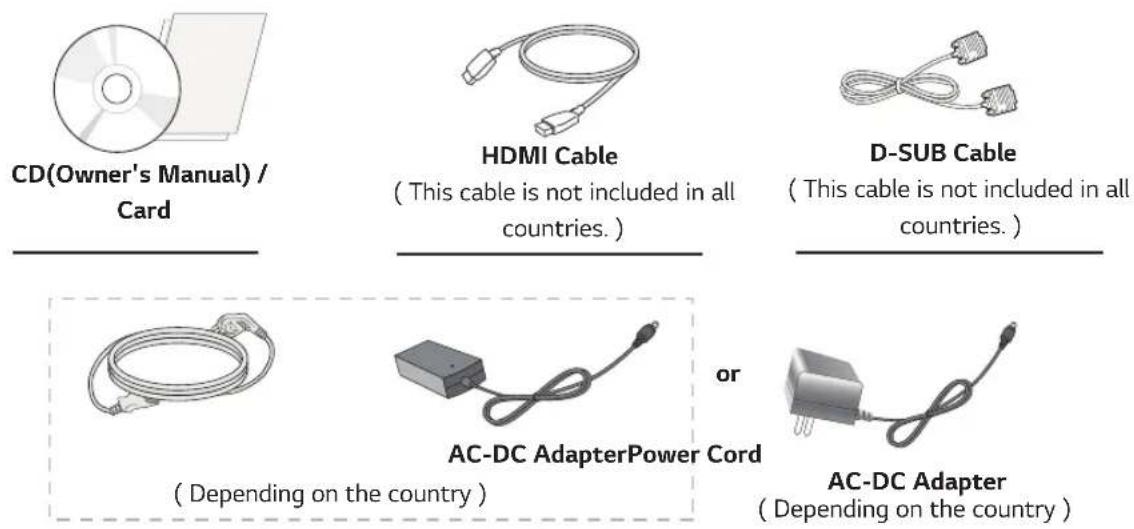
Please check whether all the components are included in the box before using the product. If there are missing components, contact the retail store where you purchased the product. Note that the product and components may look different from those shown here.
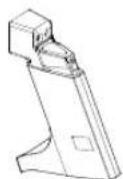
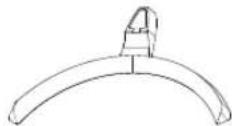
Stand Body Stand Base Screw Cover


Cable Holder 2 Screws

CAUTION
Always use genuine components to ensure safety and product performance.
The product warranty will not cover damage or injury caused by the use of counterfeit components.
It is recommend that use the supplied components.
If you use generic cables not certified by LG, the screen may not display or there may be image noises.

NOTE
Note that the components may look different from those shown here.
Without prior notice, all information and specifications in this manual are subject to change to improve the performance of the product.
To purchase optional accessories, visit an electronics store or online shopping site or contact the retail store where you purchased the product.
Supported Drivers and Software
Check the drivers and software supported by your product and refer to the manuals on the CD enclosed in the product package.
| Drivers and Software Installation Priority | 27MP89HM | |
| Monitor Driver Recommended O | ||
| OnScreen Control Recommended O |
Required and Recommended: You can download and install the latest version from the enclosed CD or from the LGE website (www.lg.com).
Optional: You can download and install the latest version from the LGE website (www.lg.com).
Component and Button Description
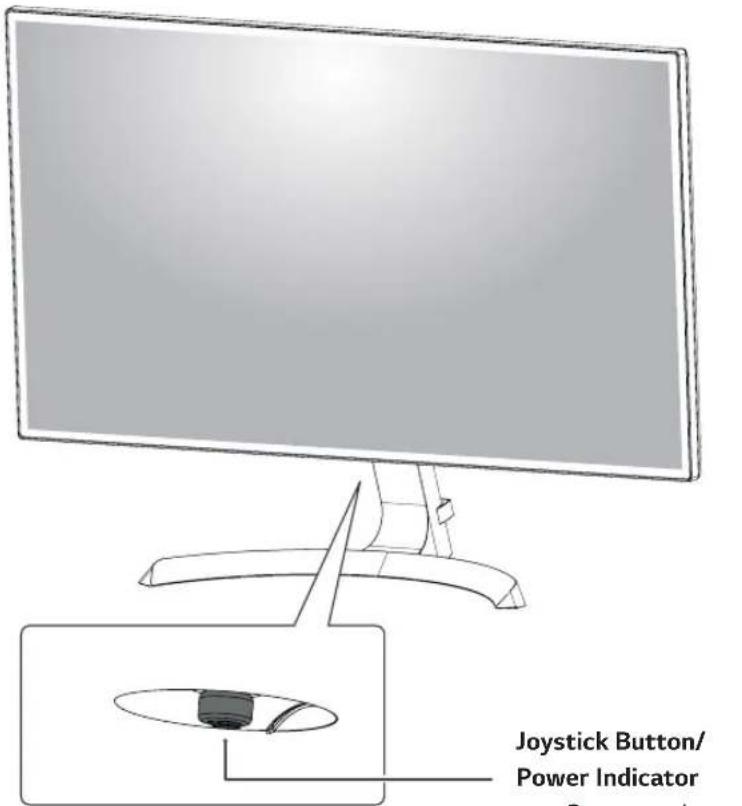
text_image
Joystick Button/ Power IndicatorJoystick Button/
Power Indicator
On: power is on
Off: power is off
How to Use the Joystick Button
You can easily control the functions of the monitor by pressing the joystick button or moving it left/right with your finger.
Basic Functions
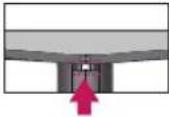 | Power on | Press the joystick button once with your finger to turn on the monitor. | |
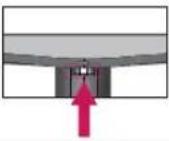 | Power off | Press and hold the joystick button once with your finger to turn off the monitor. | |
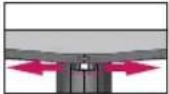 | ◀/▶ | Volume Control | You can control the volume by moving the joystick button left/right. |

NOTE
The joystick button is located at the bottom of the monitor.
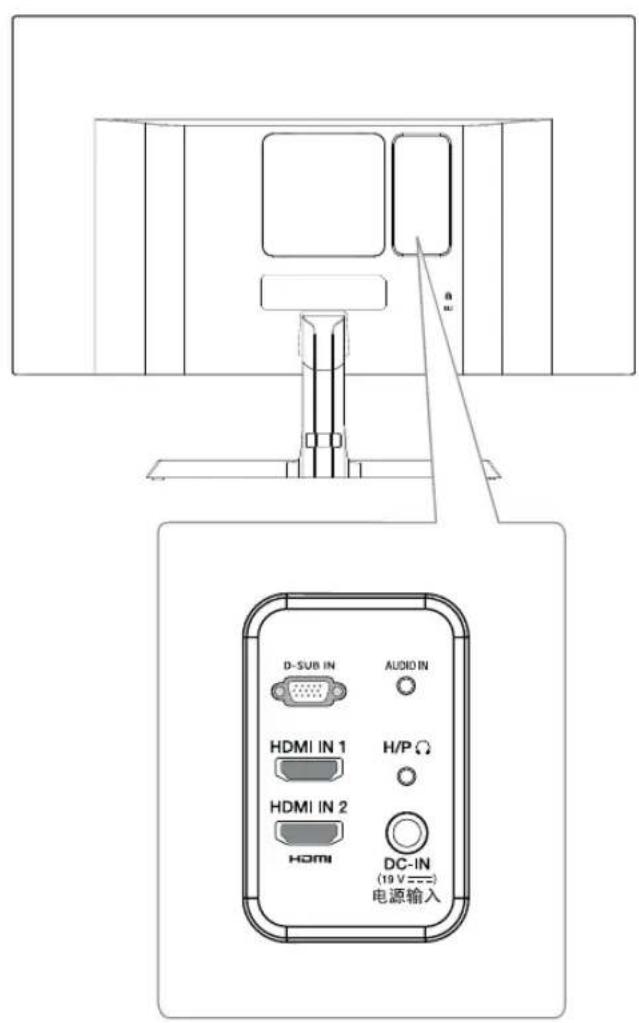
Input Connector
text_image
D-SUB IN AUDIO IN HDMI IN 1 H/P Ω HDMI IN 2 HDMI DC-IN (19 V ==) 电源输入Moving and Lifting the Monitor
When moving or lifting the monitor, follow these instructions to prevent the monitor from being scratched or damaged and to ensure safe transportation regardless of its shape or size.
It is advisable to place the monitor in the original box or packing material before attempting to move it.
Before moving or lifting the monitor, disconnect the power cord and all cables.
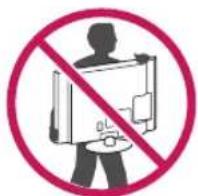
Hold the top and bottom of the monitor frame firmly.
Do not hold the panel itself.

text_image
Diagram illustrating hand positioning and movement of a screen, with red X marks indicating correct or incorrect positions.When holding the monitor, the screen should face away from you to prevent it being scratched.
text_image
Prohibition sign with silhouette of person holding a device and crossed-out box, enclosed in red circleWhen moving the monitor, avoid any strong shock or vibrations to the product.
When moving the monitor, keep it upright, never turn the monitor on its side or tilt it sideways.

CAUTION
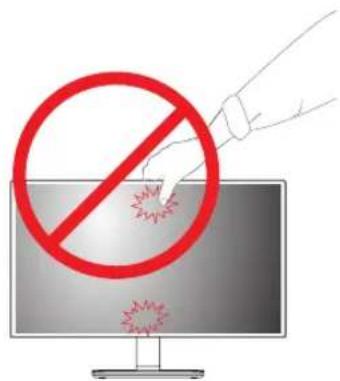
As far as possible, avoid touching the monitor screen. This may result in damage to the screen or some of the pixels used to create images.
text_image
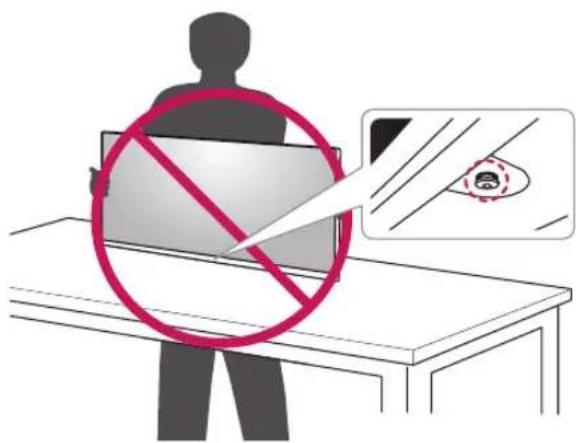
Illustration showing a hand holding a prohibition sign over a computer monitor, with red explosion icons below.If you use the monitor panel without the stand base, its joystick button may cause the monitor to become unstable and fall, resulting in damage to the monitor or human injury. In addition, this may cause the joystick button to malfunction.
text_image
Illustration showing a person holding a device with a red prohibition symbol, alongside a magnified image of a face with a circular mark.Setting up the Monitor set
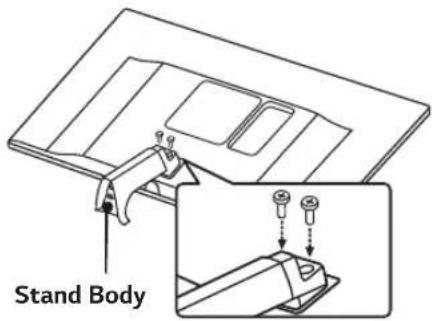
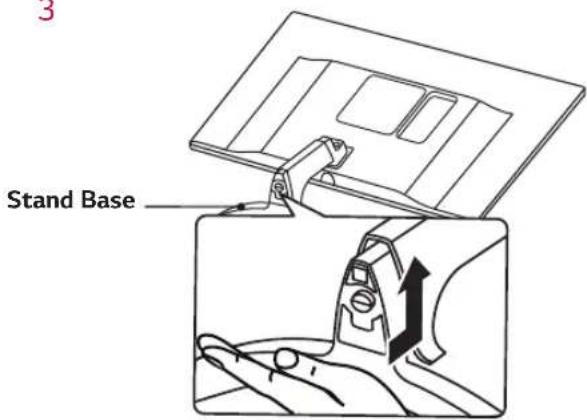
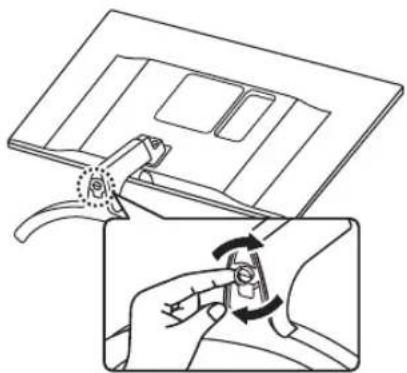
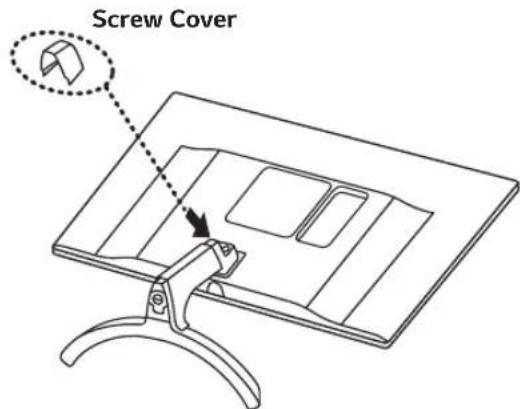
Attaching the Stand Base
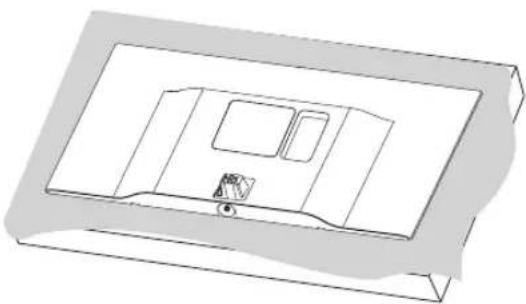
1
natural_image
3D technical line drawing of a rectangular enclosure with internal compartments and a small inset component (no text or symbols)
CAUTION
To protect the screen from scratches, cover the surface with a soft cloth.
2
text_image
Stand Body3
text_image
Stand Base4
natural_image
Illustration of a hand using a pliers to adjust or install a small component, showing no text or symbols.5
text_image
Screw Cover
WARNING
To avoid injury to the fingers and foot when Assembly Stand Body and Base, should hold Base when assembly stand body and base.

CAUTION
Illustrations in this document represent typical procedures, so they may look different from the actual product.
Do not carry the monitor upside down by just holding the stand base. This may cause the monitor to fall off the stand and could result in personal injury.
When lifting or moving the monitor, do not touch the monitor screen. The force applied to the monitor screen may cause damage to it.
Do not apply foreign substances (oils, lubricants, etc.) to the screw parts when assembling the product. (Doing so may damage the product.)
Applying excessive force when tightening screws may cause damage to the monitor. Damage caused in this way will not be covered by the product warranty.

NOTE
You can disassemble the stand in the reverse order of the assembly.
Mounting on a table
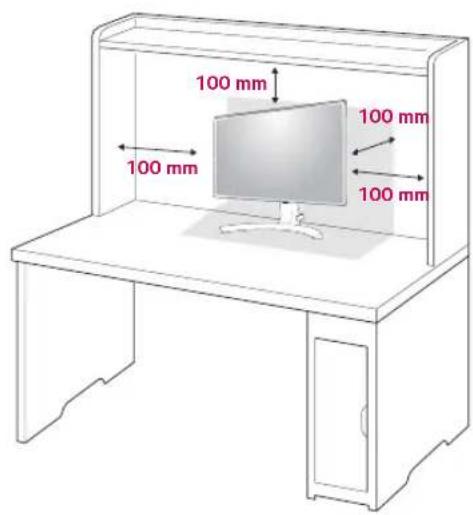
1 Lift and tilt the Monitor set into its upright position on a table.
Leave a 100 mm (minimum) space from the wall for proper ventilation.
text_image
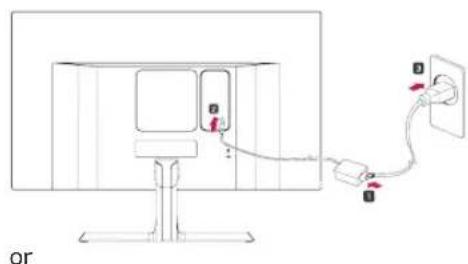
100 mm 100 mm 100 mm 100 mm2 Connect the AC-DC Adapter and Power Cord to a wall outlet.
text_image
or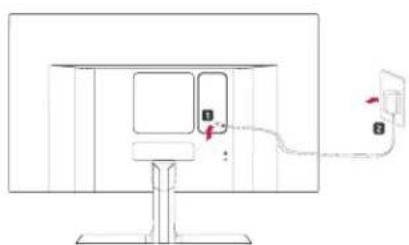
natural_image
Line drawing of a monitor setup with a cable and power outlet, no text or symbols present3 Press the joystick button on the bottom of the monitor to turn on the monitor.

CAUTION
Unplug the power cord prior to moving or installing the monitor. There is risk of electric shock.
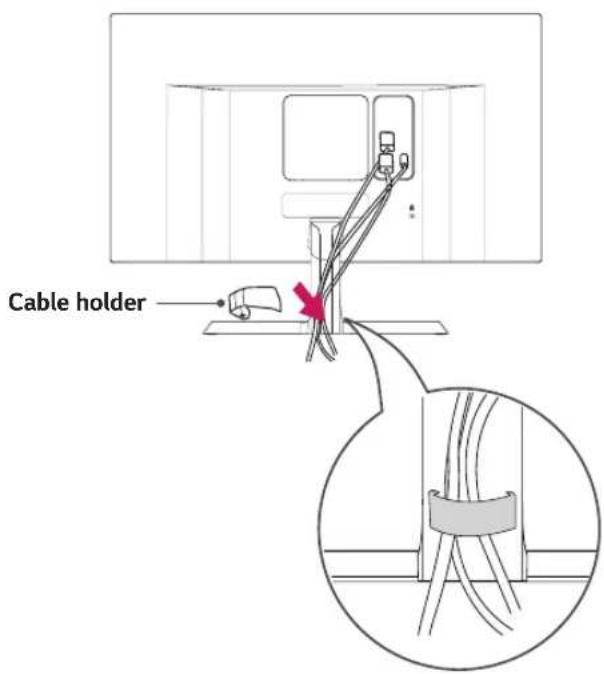
Using the cable holder
text_image
Cable holder
WARNING
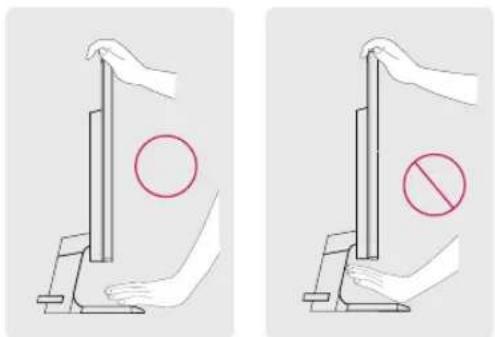
When you adjust the angle, do not hold the bottom of the Monitor set frame as shown on the following illustration, as may injure your fingers.
natural_image
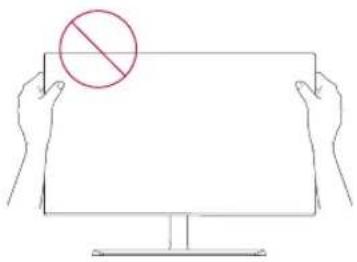
Two diagrams showing hand positioning of a flag with a circle and a prohibition symbol (no text or labels)Do not touch or press the screen when adjusting the angle of the monitor.
natural_image
Line drawing of two hands holding a blank rectangular sign with a red prohibition symbol (no text or numbers present)
NOTE
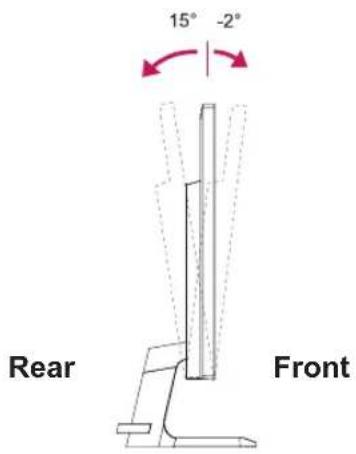
Tilt from +15 to -2 degrees up or down to adjust the angle of the Monitor set to suit your view.
text_image
15° -2° Rear FrontUsing the Kensington security system
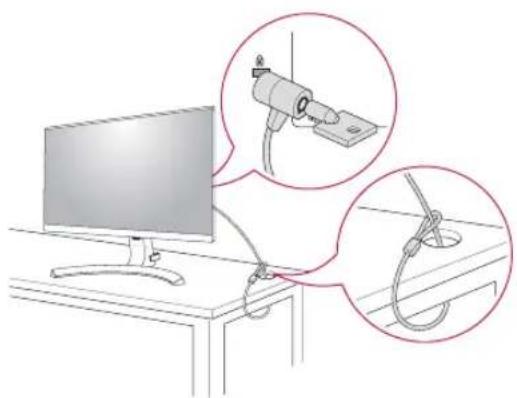
The Kensington security system connector is located at the back of the Monitor set. For more information of installation and using, refer to the manual supplied with the Kensington security system or visit http://www.kensington.com.
Connect the Kensington security system cable between the Monitor set and a table.
natural_image
Illustration of a computer monitor connected to a cable with magnified insets showing mechanical components (no text or symbols)
NOTE
The Kensington security system is optional. You can obtain it from most electronics stores.
Installing to a wall
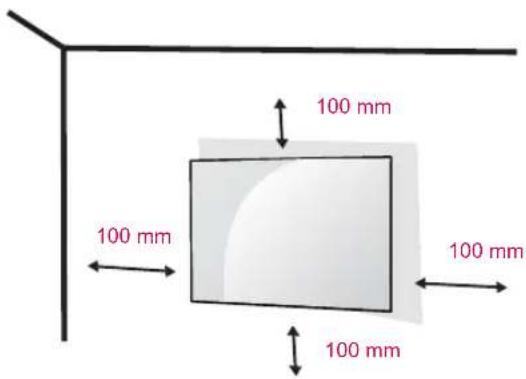
Install the monitor at least 100 mm away from the wall and leave about 100 mm of space at each side of the monitor to ensure sufficient ventilation. Detailed installation instructions can be obtained from your local retail store. Please refer to the manual to install and set up a tilting wall mounting bracket.
text_image
100 mm 100 mm 100 mm 100 mmTo install the monitor to a wall, attach a wall mounting bracket (optional) to the back of the monitor.
Make sure that the wall mounting bracket is securely fixed to the monitor and to the wall.
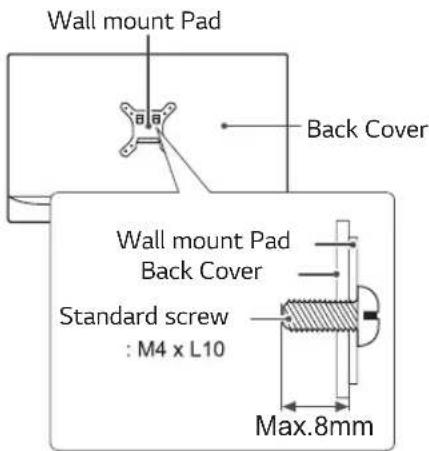
1 If you use screw longer than standard, the monitor might be damaged internally.
2 If you use improper screw, the product might be damaged and drop from mounted position.
In this case, LG Electronics is not responsible for it.
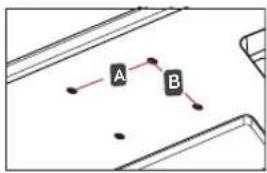
| Wall Mount (A x B) | 100 x 100 |
| Standard screw | M4 x L10 |
| Number of screws | 4 |
| Wall Mount Plate(Optional) | RW120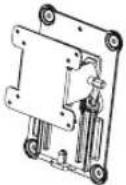 |
Wall Mount (A x B)
flowchart
graph TD
    A["A"] --> B["B"]
    A --> C["..."]
    B --> D["..."]

CAUTION
Unplug the power cord before moving or installing the monitor to avoid electric shocks.
Installing the monitor on the ceiling or on a slanted wall may result in the monitor falling off, which could lead to injury. Please use the genuine LG wall mounting bracket. For more information, contact your local retail store or a qualified installer.
Applying excessive force when fastening screws may cause damage to the monitor. Damage caused in this way will not be covered by the product warranty.
Use the wall mounting bracket and screws that conform to the VESA standard. Damage caused by the use or misuse of inappropriate components will not be covered by the product warranty.
Screw length from outer surface of back cover should be under 8mm.
text_image
Wall mount Pad Back Cover Wall mount Pad Back Cover Standard screw : M4 x L10 Max.8mm
NOTE
Use the screws specified by the VESA standard. The wall mount kit includes the installation guide and all necessary parts.
The wall mounting bracket is optional. The accessories can be purchased at your local retail store. The length of the screw may differ for each wall mounting bracket. Ensure the correct length screw is used.
For more information, please refer to the user manual for the wall mounting bracket.
USING THE MONITOR SET
Connecting to a PC
Your Monitor set supports Plug & Play*.
*Plug & Play: A PC recognizes a connected device that users connect to a PC and turn on, without device configuration or user intervention.
D-SUB connection
Transmits analog video from your PC to the Monitor set. Connect the PC and the Monitor set with the supplied D-sub 15 pin signal cable as shown in the following illustrations.
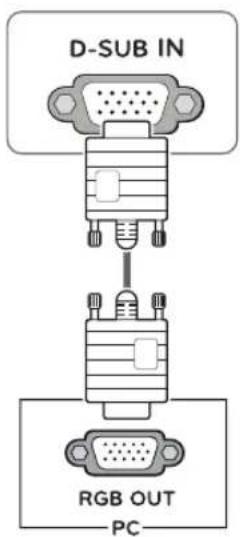
text_image
D-SUB IN RGB OUT PCHDMI connection
Transmits the digital video and audio signals from your PC and A/V devices to the monitor. Connect your PC and AV device to the monitor with the HDMI cable as illustrated below.
Press the menu button and then select the input option from the input menu.
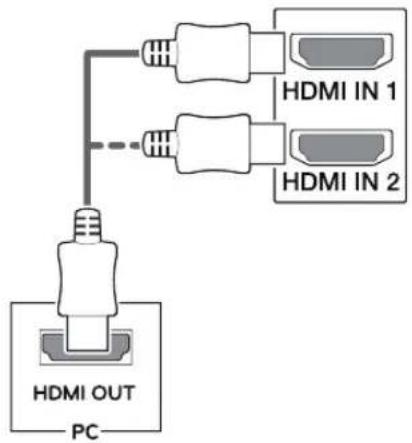
flowchart
graph TD
    A["PC"] --> B["HDMI OUT"]
    B --> C["HDMI IN 1"]
    B --> D["HDMI IN 2"]

NOTE
If you use HDMI PC, it can cause compatibility problem.
Use a certified cable with the HDMI logo attached. If you do not use a certified HDMI cable, the screen may not display or a connection error may occur.
Recommended HDMI cable types
- High-Speed HDMI®/TM Cable
- High-Speed HDMI®/TM Cable with Ethernet
Connecting to AV Devices
HDMI connection
Transmits the digital video and audio signals from your PC and A/V devices to the monitor. Connect your PC and AV device to the monitor with the HDMI cable as illustrated below.
Press the menu button and then select the input option from the input menu.
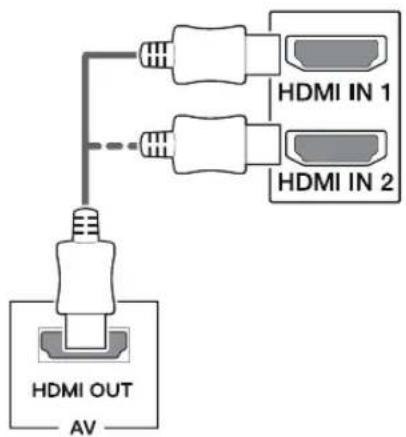
text_image
HDMI OUT AV HDMI IN 1 HDMI IN 2
NOTE
If you use HDMI PC, it can cause compatibility problem.
Use a certified cable with the HDMI logo attached. If you do not use a certified HDMI cable, the screen may not display or a connection error may occur.
Recommended HDMI cable types
- High-Speed HDMI®/TM Cable
- High-Speed HDMI®/TM Cable with Ethernet
Connecting Headphones
Connect peripherals to the monitor via the headphones port. Connect as illustrated.
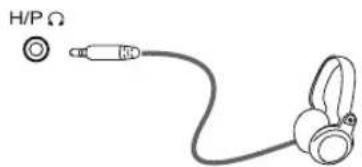
natural_image
Line drawing of a headset with a cap and ear connector (no text or symbols)(sold separately)
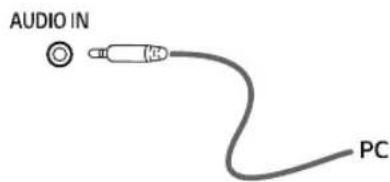
text_image
AUDIO IN PC
NOTE
Peripheral devices are sold separately.
If you use angled headphones, it may cause a problem with connecting another external device to the monitor. Therefore, it is recommended to use straight headphones.
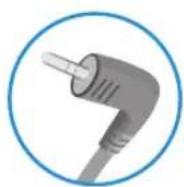
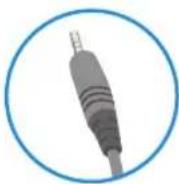
Angle Type Straight Type
Depending on the audio settings of the PC and external device, headphones and speaker functions may be limited.
CUSTOMIZING SETTINGS
Activating the Main Menu
1 Press the joystick button on the bottom of the monitor.
2 Move the joystick up/down (▲/▼) and left/right(◄/►) to set the options.
3 Press the joystick button once more to close the main menu.
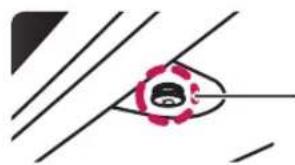
natural_image
Simple line drawing of a stylized eye with pink outline and black diagonal lines (no text or symbols)Joystick Button
| Button Menu Status Description | |||
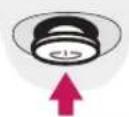 | Main menu disabled Enables the main menu. | ||
| Main menu enabled | Close the main menu.(Long press the button to turn off the monitor) | ||
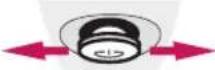 | ◀ | Main menu disabled Adjusts the monitor volume level. | |
| Main menu enabled Enters the input features. | |||
| ▶ | Main menu disabled Adjusts the monitor volume level. | ||
| Main menu enabled Enters the menu feature. | |||
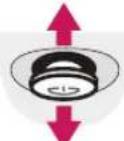 | ▲ | Main menu disabled Enables the main menu. | |
| Main menu enabled Turns off the monitor. | |||
| ▼ | Main menu disabled Enables the main menu. | ||
| Main menu enabled Enters the picture mode feature. | |||
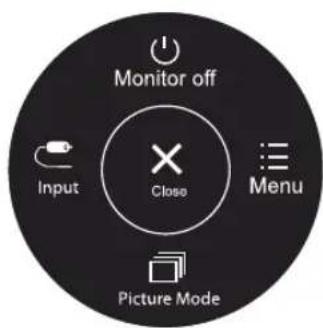
Main Menu Features
text_image
Monitor off Input Close Menu Picture Mode| Main Menu Description | |
| Menu Configures the screen settings. | |
| Picture Mode | Select picture mode to achieve the best display effect. |
| Input Sets input mode. | |
| Monitor off Turns off the monitor. | |
| Close Close the main menu. | |
Customizing settings
| Menu > Quick Settings Description | |
| Brightness | Adjusts the color contrast and brightness of the screen. |
| Contrast | |
| Volume Adjusts the volume. | |
 NOTE• You can adjust Mute/ Unmute by moving the joystick button to ▼ in the Volume menu. NOTE• You can adjust Mute/ Unmute by moving the joystick button to ▼ in the Volume menu. | |
| Ratio Adjusts the screen ratio. | |
| Original Displays a video according to the input video signal aspect ratio. | |
| SMART ENERGY SAVING | High Enables SMART ENERGY SAVING you can save energy with this energy- high efficient. |
| Low Enables SMART ENERGY SAVING you can save energy with this energy- low efficient. | |
| Off Disables SMART ENERGY SAVING . | |
* SMART ENERGY SAVING : Conserve energy by using luminance compensation algorithm.

NOTE
The display may look the same for Wide, Original options at the recommended resolution (1920 x 1080).
The ratio is disabled in the interlaced signal.
Saving Data depends on the Panel. So, those values should be different from each panel and panel vendor. If option of SMART ENERGY SAVING is High or Low, monitor luminance become higher or lower depend on source.
Customizing settings
| Menu > Picture | Description | |||
| Picture Mode | Custom | Allows the user to adjust each element. The color mode of the main menu can be adjusted. | ||
| Reader 1 | It is a mode that the screen is adjusted to the best for the new spaper. If you want screen more bright, you can control brightness in Menu OSD. | |||
| Reader 2 | It is a mode that the screen is adjusted to the best for the cartoon. If you want screen more bright, you can control brightness in Menu OSD. | |||
| Photo Optimizes | the screen to view photos. | |||
| Cinema Optimizes | the screen to improve the visual effects of a video. | |||
| Color Weakness | This mode is for users who cannot distinguish between red and green. It enables users with color weakness to easily distinguish between the two colors. | |||
| Game Optimizes | the screen for gameplay. | |||
| Picture Adjust SUPER RESOLUTION+ | High Optimized picture quality is displayed when a user wants crystal clear images. It is effective for high quality video or game. | |||
| Middle The optimized picture quality is displayed when a user wants images between low and high modes for comfortable viewing. It is effective for UCC or SD video. | ||||
| Low The optimized picture quality is displayed when a user wants smooth and natural images. It is effective for slow -moving pictures or still images. | ||||
| Off | Select this option for everyday viewing. SUPER RESOLUTION+ is turned off in this mode. | |||
| Sharpness | Adjusts the sharpness of the screen. | |||
| Black Level | Sets the offset level (for HDMI only).Offset as a reference for a video signal, this is the darkest color the monitor can display. | |||
| High Keeps the current contrast ratio of the screen. | ||||
| Lowers the black levels and raises the white levels from the current contrast ratio of the screen. | ||||
| DFC | On | Adjusts the brightness automatically according to the screen. | ||
| Off | Disables the DFC feature. | |||
| Game Adjust | Response Time | Sets a response time for displayed pictures based on the speed of the screen. For a normal environment, it is recommended that you use Middle. For a fast-moving picture, it is recommended that you use high.Setting to High may cause image sticking. | ||
| High Sets | the response time to High. | |||
| Middle Sets | the response time to Middle. | |||
| Low Sets | the response time to Low. | |||
| Off | Does not use the response time improvement feature. | |||

NOTE
- This is subsidiary for color weakness user. Therefore if you feel uncomfortable with the screen, please turn off this function.
- This function can't distinguish some colors in some images.
| Game Adjust | FreeSync | Provides seamless and natural images by synchronizing the vertical frequency of the input signal with that of the output signal.CAUTIONSupported Interface: HDMI.Supported Graphic Card : A graphic card that supports AMD's FreeSync is necessary.Supported Version : Make sure to update the graphic card to the latest driver.For more information and requirement, refer to AMD website at http://www.amd.com/FreeSync | |
| On FreeSync function on. | |||
| Off FreeSync function off. | |||
| Black Stabilizer | Black Stabilizer:You can control the black contrast to have better visibility in dark scenes.Increasing the Black Stabilizer value brightens the low gray level area on the screen.(You can easily distinguish objects on dark game screens.)Reducing the Black Stabilizer value darkens the low gray level area and increases the dynamic contrast on the screen. | ||
| Cross Hair | Cross Hair provides a mark on the center of the screen for First Person Shooter(FPS) games.Users can select thecross hairthat fits their gaming environment among four differentcross hairs.When the monitor is off or enters energy saving mode, the Cross Hair feature is automatically turnedoff. | ||
| Color Adjust Gamma Mode 1, | Mode 2,Mode 3 | The higher the gamma value, the darker the image becomes. Likewise, the lower the gamma value, the lighter the image becomes. | |
| Mode 4 | If you do not need to adjust the gamma settings, select Mode 4. | ||
| Color Temp Selects the factory default picture color.Warm: Sets the screen color to a reddish tone.Medium: Sets the screen color between a red and blue tone.Cool: Sets the screen color to a bluish tone.Custom: The user can adjust it to red, green or blue by customization. | |||
| Red/Green/Blue | You can customize the picture color using Red, Green, and Blue colors. | ||
| Six Color | Meets the user requirements for colors through adjusting the color and saturation of the six colors(Red_Hue, Red_Saturation, Green_Hue, Green_Saturation, Blue_Hue, Blue_Saturation, Cyan_Hue, Cyan_Saturation, Magenta_Hue, Magenta_Saturation, Yellow_Hue, Yellow_Saturation) and s ing the Six Color settings.*Hue: Adjusts tone of the screen.*Saturation: Adjusts the saturation of the screen colors. The lower the value, less saturated and bright the colors become. The higher the value, the more saturated and dark the colors become. | ||
| Reset Returns the color settings to the default settings. | |||
| Display Horizontal To move image left and right. | |||
Customizing settings
| Menu > Sound Description | ||
| MaxxAudio On MaxxAudio | ^® by Waves, recipient of a Technical GRAMMY Award ^® is a suite of studio-quality sound tools for a superior listening experience. | |
| Off Disables the MaxxAudio function. | ||
| MaxxAudio Settings | The user can set the sound quality manually. | |
| MaxxBass Bass Enhancement. | ||
| MaxxTreble | Treble Enhancement. | |
| MaxxDialog | Dialog Enhancement. | |
| Maxx3D | Enhances the three dimensional effect of the sound. | |
| Reset | Returns the sound quality to the default settings. | |
| Midnight Mode | On Lets you enjoy rich and full sound at a low volume. | |
| Off Disables Midnight Mode. | ||
| Main Audio Main Audio have two options Audio-In , HDMI.(Only for HDMI ) | ||
| Menu > General Description | ||
| Language To choose the language in which the control names are displayed. | ||
| Power LED Turns the power indicator on the bottom side of the monitor on/off. | ||
| On The power indicator is automatically turned on. | ||
| Off The power indicator is turned off. | ||
| Automatic Standby The monitor will automatically switch to standby mode after a certain period. | ||
| Resolution | User can set the desired resolution.This option is enabled only when the screen resolution on your computer is set to the following(D-SUB only). | |
| NOTEThe function is enabled only when the screen resolution on your computer is set to the following, except that the PC output wrong resolution. | ||
| 1024x768, 1280x768, 1360x768, 1366x768,Off | ||
| 1280x960, 1600x900,Off | ||
| 1440x900, 1600x900,Off | ||
| OSD Lock Prevents incorrect key input. | ||
| On Key input is disabled. | ||
| NOTEAll function except for the OSD Lock mode, brightness, Contrast, Input and Volume are disabled. | ||
| Off Key input is enabled. | ||
| Menu > Auto Configuration Description | ||
| Do you want to Auto Configuration? | ||
| Yes Operate the Auto configuration for optimal display in D-SUB. | ||
| Cancel Cancel the select. | ||

NOTE
This function will be enable only in analog input.
| Menu > Reset Description | |
| Do you want to reset your settings? | |
| Reset Returns to the default settings. | |
| Cancel Cancel the select. | |
TROUBLESHOOTING
Check the following before calling for service.
| No image appears | |
| Is the power cord of the display connected? | Check and see if the power cord is connected properly to the power outlet. |
| Is the power indicator light on? | Press the Power button. |
| Do you see an "Out of Range" message on the screen? | This message appears when the signal from the PC (video card) is out of horizontal or vertical frequency range of the display. See the 'Specifications' section of this manual and configure your display again. |
| Do you see a "NO SIGNAL" message on the screen? | After the monitor is on "NO SIGNAL", the monitor goes to DPM mode.This is displayed when the signal cable between the PC and the monitor is missing or disconnected. Check the cable and reconnect it. |
| Can 't you control some functions in OSD? | |
| Can't you select some menu in OSD? | • You can unlock the OSD controls at any time by entering the OSD lock menu and changing items to off. |

CAUTION
Check Control Panel▶ Display▶ Settings and see if the frequency or the resolution were changed. If yes, readjust the video card to the recommend resolution.
If the recommended resolution (optimal resolution) is not selected, letters may be blurred and the screen may be dimmed, truncated or biased. Make sure to select the recommend resolution.
The setting method can differ by computer and O/S (Operation System), and resolution mentioned above may not be supported by the video card performance. In this case, please ask to the computer or the video card manufacturer.
| Display image is incorrect | |
| The screen color is mono or abnormal. | Check if the signal cable is properly connected and use a screwdriver to fasten if necessary.Make sure the video card is properly inserted in the slot.Set the color setting higher than 24 bits (true color) atControl Panel ▶ Settings. |
| The screen blinks. | Check if the screen is set to interlace mode and if yes, change it to the recommend resolution. |
| Do you see an "Unrecognized monitor, Plug&Play (VESA DDC) monitor found" message? | |
| Have you installed the display driver? | Be sure to install the display driver from the display driver CD (or diskette) that comes with your display. Or, you can also download the driver from our website: http://www.lg.com.Make sure to check if the video card supports Plug&Play function. |
| The screen is flickering. | |
| Did you select the recommended resolution? | • If the selected resolution is HDMI 1080i 60/50 Hz, the screen may be flickering. Change the resolution to the recommended resolution 1080P. |
SPECIFICATIONS
27MP89HM
| LCD Screen Type TFT (Thin Film Transistor) | LCD(Liquid Crystal Display) Screen | |
| Resolution Maximum R | Resolution 1920 x 1080 @ 75 Hz | |
| Recommended Resolution 1920 x 1080 @ 60 Hz | ||
| Video Signal Horizontal | Frequency HDMI: 30 ~ 85 KHz (FreeSync on)HDMI: 30 ~ 83 KHz (FreeSync off)Analog: 30 ~ 83 KHz | |
| Vertical Frequency HDMI: 40 ~ 75 Hz (FreeSync on)HDMI: 56 ~ 75 Hz (FreeSync off)Analog: 56 ~ 75 Hz | ||
| Synchronization Separate Sync, Digital. | ||
| Input Connector HDMI 1/2 IN, D-SUB IN, HP OUT, AUDIO IN | ||
| Power Input 19 V | ---1.6 A | |
| Power Consumption On | Mode: 20.3 W Typ. (ENERGY STAR® standard) *24.5 W Typ. (Outgoing condition) **Sleep Mode ≤ 0.3 WOff Mode ≤ 0.3 W | |
| AC/DC adaptor | Type ADS-40SG-19-3 19032G, manufactured by SHENZHEN HONOR ELECTRONIC or Type ADS-40FSG-19 19032GPG-1, manufactured by SHENZHEN HONOR ELECTRONIC or Type ADS-40FSG-19 19032GPBR-1, manufactured by SHENZHEN HONOR ELECTRONIC or Type ADS-40FSG-19 19032GPI-1, manufactured by SHENZHEN HONOR ELECTRONIC or Type ADS-40FSG-19 19032GPCU-1, manufactured by SHENZHEN HONOR ELECTRONIC or Type ADS-32FSG-19 19032EPCU-1L, manufactured by SHENZHEN HONOR ELECTRONIC or Type LCAP21A, manufactured by LIEN CHANG ELECTRONIC ENTERPRISE or Type LCAP26A-A, manufactured by LIEN CHANG ELECTRONIC ENTERPRISE or Type LCAP26A-E, manufactured by LIEN CHANG ELECTRONIC ENTERPRISE or Type LCAP26A-I, manufactured by LIEN CHANG ELECTRONIC ENTERPRISE or Type LCAP26A-B, manufactured by LIEN CHANG ELECTRONIC ENTERPRISE or Type LCAP51A, manufactured by LIEN CHANG ELECTRONIC ENTERPRISE or Type PA-1031-23, manufactured by Lite-On Technology Corporation | |
| OUTPUT: 19 V--- 1.7 A | ||
| Environmental conditions | Operating Temperature Operating Humidity | 0 °C to 40 °CLess than 80% |
| Storage Temperature Storage Humidity | -20 °C to 60 °CLess than 85 % | |
| Dimension | Monitor Size (Width x Height x Depth) | |
| With Stand | 613.1 mm x 456.2 mm x 209.7 mm | |
| Without Stand | 613.1 mm x 352.8 mm x 60.5 mm | |
| Weight (Without Packaging) | With Stand | 4.8 Kg |
| Without Stand | 4.3 Kg | |
Product specifications shown above may be changed without prior notice due to upgrade of product functions.
* The power consumption level can be different by operating condition and monitor setting.
* The On mode power consumption is measured with ENERGY STAR® test standard.
** The On mode power consumption is measured with LGE test standard (Full White pattern, Maximum resolution).
Preset Modes (Resolution)
D-SUB/HDMI PC Timing
| Display Modes (Resolution) | Horizontal Frequency(kHz) | Vertical Frequency(Hz) | Polarity(H/V) | |
| 720 x 400 31.468 70 -/+ | ||||
| 640 x 480 31.469 60 -/- | ||||
| 640 x 480 37.500 75 -/- | ||||
| 800 x 600 37.879 60 +/+ | ||||
| 800 x 600 46.875 75 +/+ | ||||
| 1024 x 768 48.363 60 -/- | ||||
| 1024 x 768 60.023 75 +/+ | ||||
| 1152 x 864 67.500 75 +/+ | ||||
| 1280 x 1024 63.981 60 +/+ | ||||
| 1280 x 1024 79.976 75 +/+ | ||||
| 1680 x 1050 65.290 60 -/+ | ||||
| 1920 x 1080 67.500 60 +/+ Recommend Mode | ||||
| 1920 x 1080 83.89 75 +/+ FreeSync on |
HDMI AV Timing
| Factory support mode(Preset Mode) | HorizontalFrequency(kHz) | VerticalFrequency(Hz) | HDMI |
| 480P 31.50 60 O | |||
| 576P 31.25 50 O | |||
| 720P 37.50 50 O | |||
| 720P 45.00 60 O | |||
| 1080P 56.25 50 O | |||
| 1080P 67.50 60 | ORecommend Mode |
Indicator
| Mode LED Color | |
| On Mode White | |
| Sleep Mode | Off |
| Off Mode | Off |

text_image
LG Life's GoodMake sure to read the Safety Precautions before using the product. Keep the Owner's Manual (CD) in an accessible place for future reference.
The model and serial number of the SET is located on the back and one side of the SET. Record it below should you ever need service.
MODEL
SERIAL

ENERGY STAR® is a set of power-saving guidelines issued by the U.S.EnvironmentAL Protection Agency (EPA).
As an ENERGY STAR® Partner LGE U. S. A., Inc. has determined that this product meets the ENERGY STAR® guidelines for energy efficiency.
Refer to ENERGYSTAR.gov for more information on the ENERGY STAR® program.