
MWD-520 - Uncategorized FRANKLIN - Free user manual and instructions
Find the device manual for free MWD-520 FRANKLIN in PDF.


| Product Type | Electronic Dictionary / Thesaurus |
| Brand | Franklin |
| Model | MWD-520 |
| Battery | 1 CR-2016 3V lithium battery |
| Dimensions | 9.35 x 10.2 x 2.5 cm |
| Weight | Not specified |
| Display | LCD screen (adjustable contrast) |
| Number of Entries | Over 80,000 |
| My Word List Capacity | Up to 40 words |
| Databank Capacity | Up to 100 names and phone numbers |
| Main Functions | Dictionary, thesaurus, Confusables, MatchMaker, spelling correction, learning exercises (Flashcards, Spelling Bee), games (Hangman, Jumble, Anagrams, Tic-Tac-Toe), calculator, metric/currency converter, world clock, databank |
| Special Features | Built-in book clip and ribbon bookmark, password protection for databank, adjustable shutoff time and type size |
| Warranty | 1 year (US), 2 years (EU and Switzerland) |
| Cleaning | Spray mild glass cleaner on cloth, wipe surface; do not spray directly |
| Storage | Avoid extreme heat, cold, humidity |
| FCC Compliance | Class B digital device, Part 15 |
Frequently Asked Questions - MWD-520 FRANKLIN
User questions about MWD-520 FRANKLIN
0 question about this device. Answer the ones you know or ask your own.
Ask a new question about this device
Download the instructions for your Uncategorized in PDF format for free! Find your manual MWD-520 - FRANKLIN and take your electronic device back in hand. On this page are published all the documents necessary for the use of your device. MWD-520 by FRANKLIN.
USER MANUAL MWD-520 FRANKLIN
MWD-520
User's Guide
www.franklin.com
License Agreement
READ THIS LICENSE AGREEMENT BEFORE USING THE ELECTRONIC REFERENCE. YOUR USE OF THE ELECTRONIC REFERENCE DEEMS THAT YOU ACCEPT THE TERMS OF THIS LICENSE. IF YOU DO NOTAGREE WITH THESE TERMS, YOU MAY RETURN THIS PACKAGE WITH PURCHASE RECEIPT TO THE DEALER FROM WHICH YOU PURCHASED THE ELECTRONIC REFERENCE AND YOUR PURCHASE PRICE WILL BE REFUNDED. ELECTRONIC REFERENCE means the software product and documentation found in this package and FRANKLIN means Franklin Electronic Publishers, Inc.
Limited Use License
All rights in the ELECTRONIC REFERENCE remain the property of FRANKLIN. Through your purchase, FRANKLIN grants you a personal and nonexclusive licensed to use this ELECTRONIC REFERENCE. You may not make any copies of the ELECTRONIC REFERENCE or of the data stored therein, whether in electronic or print format. Such copying would be in violation of applicable copyright laws. Further, you may not modify, adapt, disassemble, decompile, translate, create derivative works of, or in any way reverse engineer the ELECTRONIC REFERENCE. You may not export or reexport, directly or indirectly, the ELECTRONIC REFERENCE without compliance with appropriate governmental regulations. The ELECTRONIC REFERENCE contains Franklin's confidential and proprietary information which you agree to take adequate steps to protect from unauthorized disclosure or use. This license is effective until terminated. This license terminates immediately without notice from FRANKLIN if you fail to comply with any provision of this license.
Introduction
Congratulations on your purchase of this unit. You can now use your dictionary as a bookmark! Clip the unit onto the cover of your book and use the ribbon to mark a page. With this dictionary you can find over 80,000 entries, correct misspellings, save words to My Word List, sharpen your spelling and increase your vocabulary with learning exercises, and play fun, educational word games. You can also set local and world times using the clocks or store names and numbers using the databank.
Getting Started
Gently pull the battery insulation tab to remove it. Use a paper clip to gently press the Reset button on the back of the unit. See “Resetting Your Unit” for details.
Key Guide
Main Keys
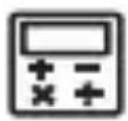
Toggles between the calculator and Conversions menu.
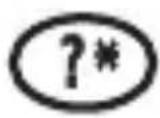
Goes to the Confusables® list. At the Entry screen, types a ? to stand for a letter in a word. At a menu, displays a menu item. At a dictionary entry, displays the headword. In games, reveals the word and forfeits the game.

Toggles between the Home and World Time/Date.
Goes to the Databank menu.

Goes to the dictionary.
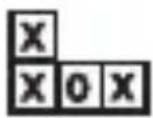
Goes to the Games menu.

Goes to the Learning Exercises menu.

Goes to the Setup menu.
Function Keys

In the dictionary, goes to the Entry screen. In the calculator, clears all entries. In the converter and databank, goes to its main menu.

Backs up, erases a letter, or turns off the highlight at an entry.

Shifts to type capital letters and punctuation marks.

Enters a word, selects an item, or begins a highlight in an entry.

Displays a help message.

Direction Keys
Move in the indicated direction.

Goes to the next entry.

Goes to the previous entry.

At menus and dictionary entries, pages down. At the Entry screen, types a space.
Key Combinations\*
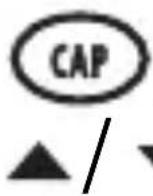
+ At a dictionary entry, goes to the top or bottom of an entry. At menus, goes to the top or bottom of a list.
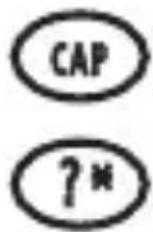
+ At the Entry screen, types an asterisk to stand for a series of letters in a word. In games, gives a hint or shuffles the letters.
*Hold down the first key while pressing the second.
Calculator Keys
Q-P Types numbers.
A(1/x) Calculates a reciprocal.
S( ) Calculates a square root.
D(x^2) Squares a number.
F(%) Calculates a percentage.
G(.) Inserts a decimal point.
H(+), J(-) Adds, subtracts, multiplies or divides numbers.
Z(+/-) Changes the number on the screen to a negative or positive number.
X_(M+) Adds the number on the screen to the number stored in the memory.
C(M-) Subtracts the number on the screen from the number stored in the memory.
V(MR) Recalls the number stored in the memory.
B(Mc) Clears the memory.
▶ About Screen Illustrations
Some screen illustrations in this User's Guide may differ slightly from what you see on screen. This does not mean that your unit is malfunctioning.
▶ Help is Always at Hand
You can view a help message at any screen by pressing HELP. Use the direction keys to read the message. To exit help, press BACK. To read a tutorial describing how to use the product, select Tutorial from the Setup menu.
Replacing the Battery
Your unit uses 1 CR-2016, 3-volt lithium battery. Important!! Before you follow these steps please have the new battery at hand. You will also need a small Phillips screwdriver (one that fits into screws with an “x” notch).
- Turn the unit off and turn it over.
- Use a Phillips screwdriver to remove the screw on the battery cover and then remove the cover.
- Remove the old battery and insert the new one with the positive (+) side facing up.
- Replace the battery cover.
Warning! If the battery wears out completely, or if you take more than a few seconds while changing the battery, any user-entered information will be erased. You should always keep written copies of your important information.
▶ Follow the Arrows
The flashing arrows on the right of the screen show which arrow keys you can press to move around menus or view more text.
Setting the Clock
The clock lets you set a Home Time and view local times around the world. You must set the Home time before viewing World Times as World Times are based on Home Time.
▶ Setting Home Time
1.

You see the Home Time mode.
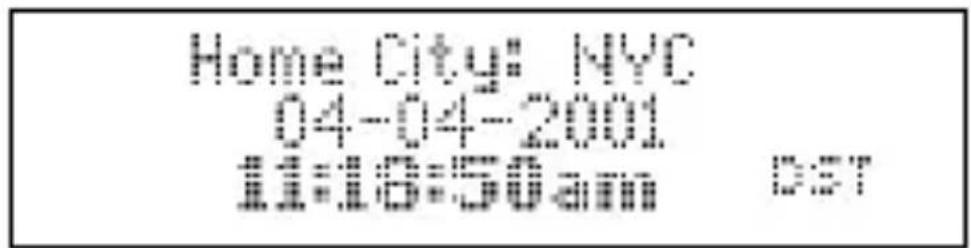
- Press S to enter the setting mode.
- Press ENTER to select Set Time Format.
Press or to cycle through the 12- and 24-hour Day/ Month/Year formats. Press ENTER to save your selection.
- Press ▼ to highlight Set DST and press ENTER to select it.
Press ▼ or ▲ to cycle between DST On or DST Off. Press ENTER to select your choice.
- Press ▼ to highlight Set Home Time and press ENTER to select it.
Press or until the current hour is displayed.
Press to move to minutes, then press or until the current minute is displayed.
Press ENTER to set the time.
- Press ▼ to highlight Set Date and press ENTER to select it.
Use or to move to the next or previous field.
Use or to scroll to the current day/month/year. Press ENTER to set it.
- Press ▼ to highlight Set City and press ENTER to select it.
Press or until your local city is displayed. Press ENTER to select it.
- Press to exit setting mode.
▶ Setting World Time
- Press until you see World City.
Press S to enter Setting Mode.
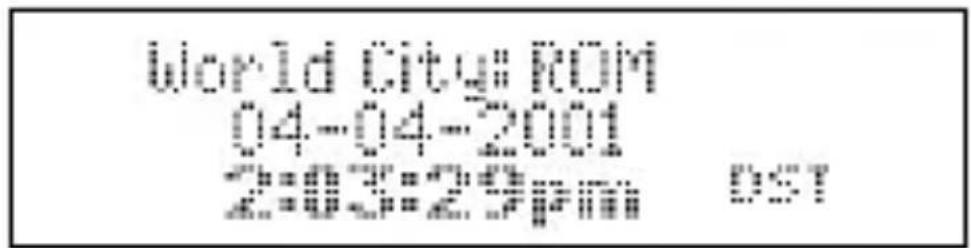
- Press ENTER to select Set DST.
Press ▼ or ▲ to cycle between DST On or DST Off. Press ENTER to select your choice.
- Press ▼ to highlight Set World City and press ENTER to select it.
Press or until the city you want is displayed. Press ENTER to select it.
- Press to exit Setting Mode and see the World City time.
Changing the Settings
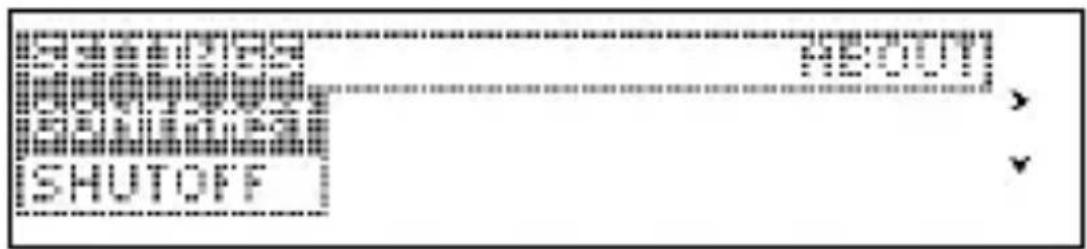
When using this dictionary, you can adjust the screen contrast, the shutoff time, and the type size. The shutoff time is how long your unit stays on if you forget to turn it off.
- Press SETUP.
- Press ▼ or ▲ to highlight Contrast, Shutoff, or Type Size in the Settings menu.
-
Press ENTER.
-
Press or to highlight a new setting and press ENTER to select it.
Press BACK to leave the setting unchanged.
- Press CLEAR to return to the Entry screen.
Viewing a Demonstration or Tutorial
You can view a tutorial or a demonstration of this dictionary at any time.
- Press SETUP.
- Press to select the About menu.
- Press or to highlight either Tutorial or View Demo.
- Press ENTER.
To stop the demonstration or exit from the Tutorial and go to the Entry screen, press CLEAR.
Finding Definitions
It's easy to look up a word in this dictionary. Simply type it in at the Entry screen.
- Press

- Type a word (for example, study).
![Enter your word [STUDY4]](/content/2026/05/793061/images/320b915ee11ebfdf4cfaac99d30839a32ec6a996bf31c99f8861474dad6be8cd.jpg)
To erase a letter, press BACK.
To type a capital, hold CAP and press a letter key.
To look up a hyphenated word, type a space in place of the hyphen.
-
Press ENTER to view the definition.
-
Press or SPACE to scroll down through the nition.
-
Press NEXT or PREV to view the next or previous definition.
-
Press CLEAR to return to the Entry screen.
Correcting Misspellings
If you misspell a word, don't worry. It will be corrected automatically. You can even spell it phonetically.
-
Type a misspelled word (for example, chear).
To erase a letter, press BACK. -
Press ENTER.
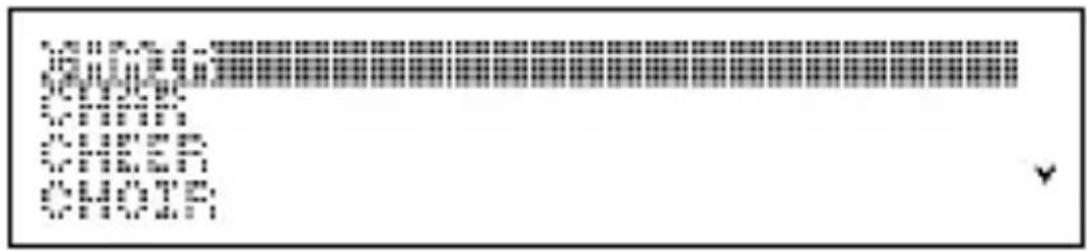
If there is more than one word in the correction list, you see the list. If there is only one correct word, you go to the definition.
- Press or to highlight a correction.
- Press ENTER to view its dictionary entry.
To go back to the correction list, press BACK. - Press CLEAR when finished.
Finding Confusables®
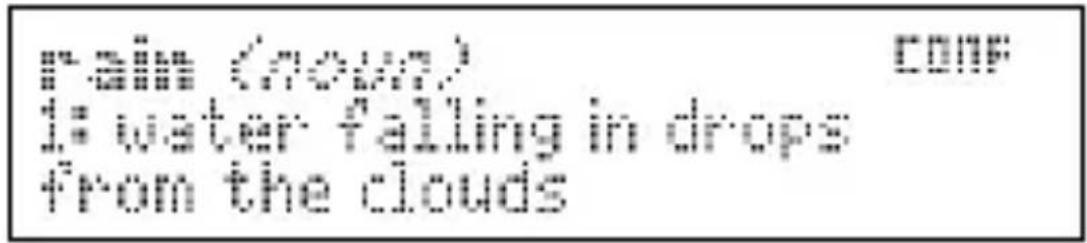
Confusables are homonyms and spelling variants that are easy to confuse. If a word has Confusables, CONF will flash in the upper right of the screen.
- Type a word (for example, rain) and press ENTER.
- Press ?*.
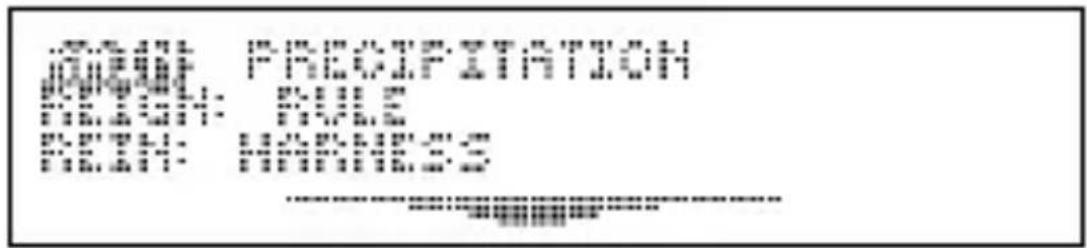
Confusables are displayed with identifying words.
- Press ENTER to highlight the first word.
-
Press or to move the highlight to the word you want.
-
Press ENTER to search for a definition.
-
Press CLEAR to return to the Entry screen.
Finding a Letter in a Word
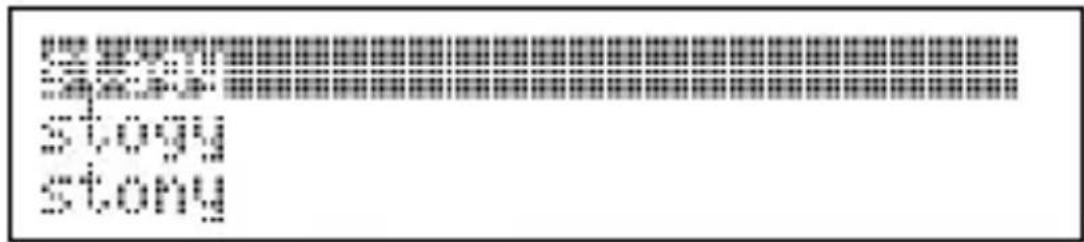
If you know how to spell part of a word, you can use MatchMaker™ to find words containing those letters by typing a question mark (?) in place of each unknown letter.
- Press
- Type a word with ?'s (for example, st??y).
- Press ENTER.

-
Press or to move the highlight to the word you want and press ENTER to view its definition.
-
Press CLEAR when finished.
▶ Word Finding Tips
You can also use ?'s to help solve crossword puzzles. For example, you can search for a five-letter word in which the second letter is h and the last letter is w. Enter ?h??w to see possible answers.
Finding a Series of Letters
You can also use MatchMaker to find prefixes, suffixes and other parts of words. To do so, type an asterisk (*) in a word. Asterisks stand for a series of letters.
Note: If you type an asterisk at the beginning of a word, it may take a little while to find the matching words.
- Type a word with an ✱ (for example, intra*).
To type an asterisk, hold CAP and press ?*. - Press ENTER.
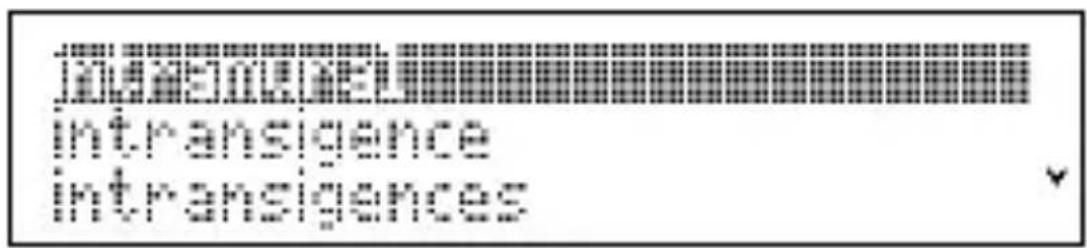
- Press or to move the highlight to the word you want and press ENTER to view its definition.
- Press CLEAR when finished.
Highlighting Words
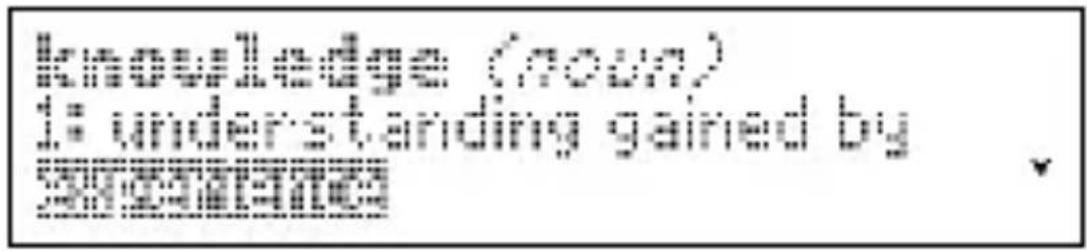
Another way to look up words is by highlighting them in dictionary entries or word lists. Then you can find their definitions, Confusables ^® , or add them to My Word List.
- At any text, press ENTER to start the highlight.
To turn the highlight off, press BACK.
- Press the arrow keys to highlight a word.
To ... Press ...
define the word ENTER
view Confusables ?*
add to My Word List LEARN
Using My Word List
You can save up to 40 words in My Word List for personal study or review.
Warning: All the words in My Word List will be erased if your batteries run out of power, or your unit is reset.
▶ Adding Words
- Press LEARN.
- Press ENTER to select My Word List.
If you haven't added words to your word list, Word List: Empty appears. - Highlight Add a word and press ENTER.
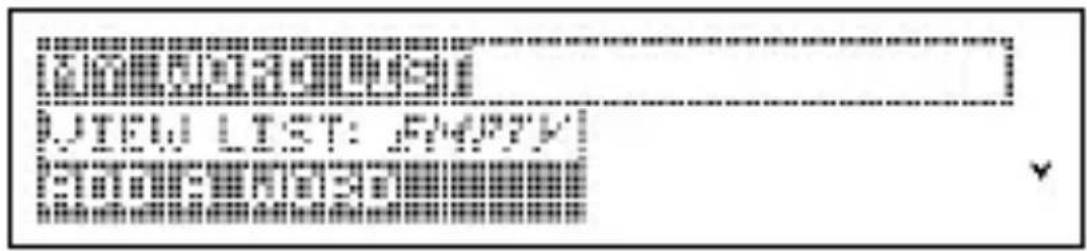
- Type a word and then press ENTER to add it.
▶ Viewing My Word List
- Press LEARN and select My Word List.
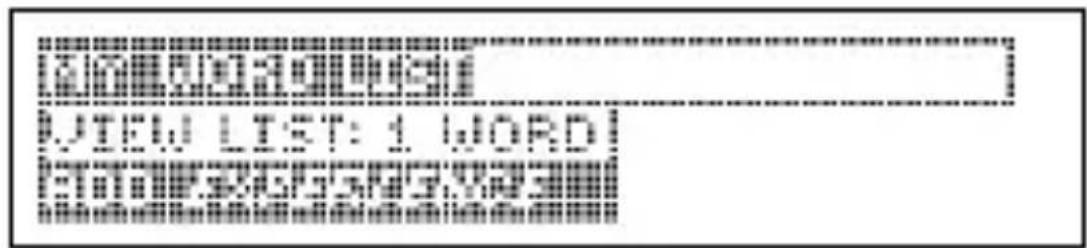
- Highlight Word list: x word(s) and press ENTER.
You see the word or words you added.
▶ Adding Highlighted Words
At any text, you can highlight a word and add it to My Word List.
- At text, press ENTER to start the highlight.
- Use the arrow keys to highlight the word you want.
- Press LEARN.
Add "your word" appears in the menu.
- Press ENTER to add the word.
▶ Deleting One Word from My Word List
- Press LEARN and highlight My Word List.
- Press ▼ or ▲ to highlight Delete a Word and press ENTER.
- Press or to highlight the word you want to remove and press ENTER.
The message Word deleted appears on the screen and the word is removed from My Word List.
▶ Erasing My Word List
- Press LEARN and select My Word List.
- Press or to highlight Erase the Li
- Press ENTER.
- Press Y to erase the entire list.
Press N to return to the My Word List menu without erasing the list.
▶ Adding Words Not Found in This Dictionary
When you add a word not in this dictionary, you're given three options: Cancel, Add Anyway, or Correction List. Select an option. Caution!! Adding words to My Word List not found in this dictionary uses considerably more memory than words that are. If you add only words that are not in the dictionary, My Word List may only hold as few as 10 words.
Using Learning Exercises
You can test your spelling skills and improve your vocabulary with Learning Exercises.
▶ Spelling Bee
- Press LEARN.
- Press ▼ or ▲ to highlight Spelling Bee and press ENTER.
You can use words from My Word List or words in the SAT* Word List.
Note: Because you cannot type accents, accented words from My Word List will not be used in My Spelling Bee.
-
Select the list you want and press ENTER.
A word will flash on the screen for you to spell. -
Type in the word you just saw and press ENTER to see if you spelled it correctly.
-
Press ENTER to see the definition of the word or press SPACE for a new word.
-
Press CLEAR when finished.
* SAT is a registered trademark of the College Entrance Examination Board, which was not involved in the production of, and does not endorse, this product.
▶ Flashcards
- Press LEARN.
- Press or to highlight Flashcards and press ENTER.
You can use words from My Word List or words in the SAT List.
- Select the word list you want and press ENTER.
A word will be displayed on the screen for you to study or define.
- Press CLEAR when finished.
Storing Names & Phone Numbers
This product has a databank that can save as many as 100 names and phone numbers. The total amount of names and numbers that you can save depends upon the number of characters in each entry.
▶ To Add an Entry to the Databank
- Press
- Use ▼ to highlight New Entry and press ENTER.
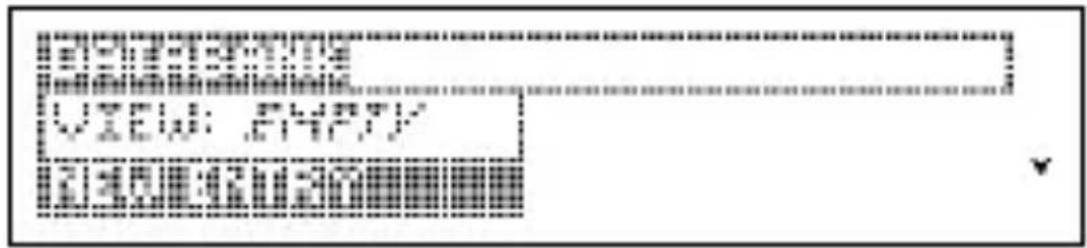
- Type a name and then press ENTER.
Each name can contain up to 30 characters, including spaces, with letters appearing as capitals. Note: Accented characters are not supported in the data-bank.
To delete a character, press BACK. To edit, press To Type... Press...
a space SPACE
a hyphen J
a period .'
an apostrophe CAP and.'
- Use the numbered keys to type a phone number and then press ENTER.
To type a hyphen between the parts of a phone number, press J.
Note: You cannot type letters in a phone number.
▶ To View the Databank
1.

- Press or , if needed, to see View List and then press ENTER.
- To view a name, type it or use or to see the name you want.
▶ To Edit Databank Entries
1.

- Press or , if needed, to see Edit Entry, then press ENTER.
- Type the name you want to edit, or use or to select it, then press ENTER.
Edit the name field. You can use BACK to delete characters. Press ENTER to move to the number field. Edit the Number field and press ENTER to save all changes. To cancel the edit and return to the Databank menu without saving changes, press

Keep Copies of Important Data
Warning! Your databank information is safely stored in memory as long as the battery supplies power.
However, if the battery loses all power, this information will be permanently lost. Always keep written copies of your important information.
▶ To Delete an Entry from the Databank
1.

- Press or to highlight Delete Entry and then press ENTER.
- Press or to highlight the entry you want to delete.
- Press ENTER.
- Press Y to delete the entry or N to cancel the deletion.
▶ To Erase All the Databank Entries
Warning! This procedure permanently erases all the names and numbers in your databank.
- Press

- Press ▼ or ▲ to highlight Erase all data and then press ENTER.
- Press Y to erase all the entries or N to cancel the operation.
Using a Password
You can use a password to keep the information in the databank private. The password is requested when the unit is turned on and the databank is accessed.
Password Warnings
Warning! After you set the password, you must enter the password to access the databank for the first time during a session. Always record your password and keep it in a separate place.
If you forget the password, you must reset the unit to access the databank. Warning! Resetting the unit erases all user-entered information. Always keep written copies of your data.
If you do not have a reset button located on the back of your unit, remove the batteries, wait at least two minutes, and then re-install them. For battery instructions, see "Replacing the Battery".
If you have a reset button, use the end of a straightened paper clip to gently press the reset button.
If the unit does not reset after pressing the reset button, follow the above instructions for removing the batteries.
▶ Password Setup
1.

- Press ▼ or ▲ to see Set Password and press ENTER.
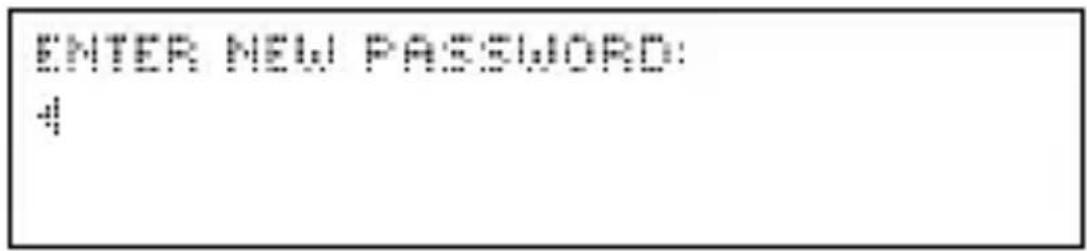
- Type a password and then press ENTER.
Your password can have up to 8 characters.
You are prompted to retype your password, and press ENTER to confirm.
- To test the password, press ON/OFF twice, press

, type the password, and press ENTER.
- To disable the password, repeat Steps 1 and 2 above, and press ENTER when Enter Password displays.
Playing the Games
▶ Selecting a Game
-
Press
-
Use the arrow keys to move the highlight to the game you want.
- Press ENTER to select it.
▶ Changing Game Settings
You can choose the skill level for a game.
-
Press
-
Press CAP and then ▼ to highlight Game Settings and press ENTER.
- Press or to highlight a new setting.
- Press ENTER when finished to save the new settings. Press BACK to return to the Games list.
▶ Getting Help in the Games
During any game you can read instructions by pressing HELP. In any game, except Tic Tac Toe, you can get a hint by holding CAP and pressing ?* or reveal the game word or words by pressing ?*. Note: If you reveal the word or words, you lose the round.
Hangman
Dictionary Hangman uses all the words in the dictionary for the game. SAT Hangman uses only the words in the SAT Word List and User List Hangman uses the words you entered in My Word List. The rules for all three games are the same.
Hangman selects a mystery word and challenges you to guess it letter by letter. The letters of the mystery word are hidden by question marks. The number of guesses remaining is indicated by #'s.
Type letters that you think are in the mystery word. If you are correct, the letter appears in place of the corresponding question mark or marks.
Jumble
As in Hangman, the three Jumble games draw from the three different lists. The rules for all three games are the same.
Jumble tests your ability to unscramble letters and form words. Jumble shows a series of letters. Type words made from these letters and then press ENTER. Hold CAP and press ?* to shuffle the letters in the root word. To see the definition of a particular word, use or to move the high-
light to the word you want and press 📄. Press BACK to return to Jumble.
Anagrams
Anagrams challenges you to find all of the words that can occur within a selected word. Each letter can only be used as many times as it appears in the selected word. Each anagram must be a specified minimum length. This will flash on the screen before each game. The number of possible anagrams is shown on the right side of the screen.
Type an anagram and then press ENTER. Use the arrow keys to view anagrams you’ve already entered. Hold CAP and press ?* to shuffle the letters in the selected word. Press ?* to end a round and reveal the word.
Press to see the definition of the word.
Press BACK to return to Anagrams.
Tic-Tac-Toe
In Tic-Tac-Toe, your challenge is to get three X's in a row before your opponent can get three O's in a row.
You can choose to play 1 Player Tic-Tac-Toe in which you play against the unit or 2 Player Tic-Tac-Toe in which you play against a friend.
Use the arrow keys to move your X to the spot that you want and then press ENTER. Then your opponent, either the computer or a friend, will place an O. The game ends when one side places three in a row or if there is a tie.
Using the Calculator
▶ Making Calculations

- Type a number.
You can type up to 10 digits.
- Press H(+), J(-), K(X), L(÷) to add, subtract, multiply, or divide..
- Type another number.
- Press ENTER.
To repeat the calculation, press ENTER again.
- Press CLEAR to clear the current calculations.
▶ Using the Calculator Memory
- In the Calculator, make a calculation or type a number.
- To add the number on the screen to the number stored in memory, press X (M+). To subtract the number on the screen from the number stored in memory, press C (M-).
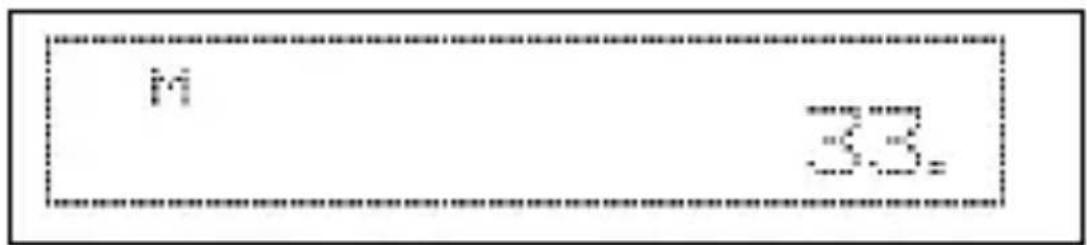
M indicates the number is stored in memory.
- To retrieve the number from memory, press V(MR).
- To clear the memory, press B (mc).
Using the Converter
The converter allows you to easily convert measurements and currency.
▶ Making Metric Conversions
- Press 📋 until you see the Conversions menu.
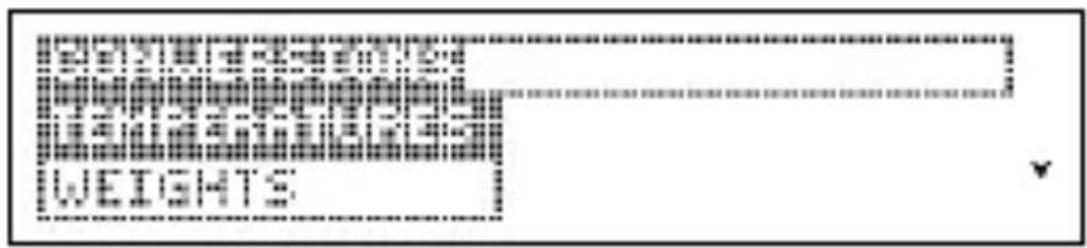
- Press to select a conversion category and press ENTER.
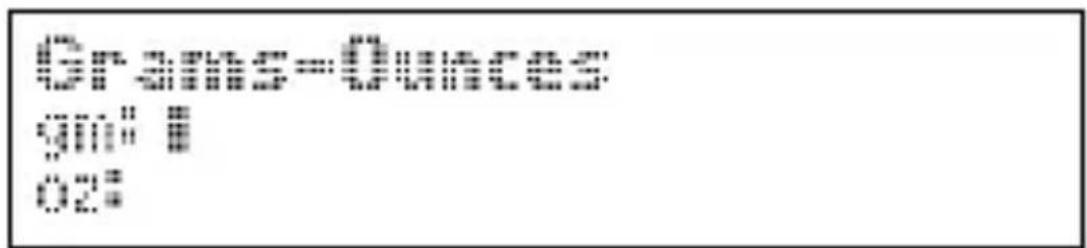
- Type a number after one of the units.
Press or to move between the lines. Press BACK to delete a number.
- Press ENTER to convert it.
- Press CLEAR when finished.
▶ Making Currency Conversions
- Press 📋 until you see the Conversions menu.
- Press CAP and then ▼ to highlight Currency Converter and then press ENTER.
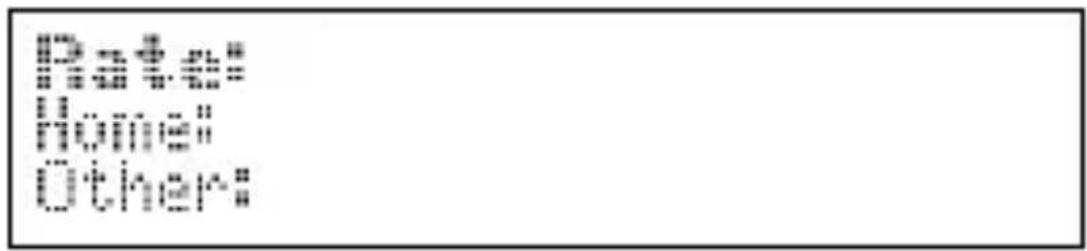
-
Enter a conversion rate and press ENTER. The rate should be in units of the other currency per one unit of the home currency (n other/1 home).
-
Enter an amount for the home or other currency.
Press or to move between the lines. Press BACK to erase a number.
- Press ENTER to convert it.
Resetting Your Unit
If the keyboard fails to respond, or if the screen performs erratically, perform a system reset by following the steps below.
- Hold CLEAR and press ON/OFF.
If nothing happens, try Step 2.
- Use a paper clip to gently press the reset button located on the back of the unit.
Warning! Pressing the reset button with more than light pressure may permanently disable your unit. In addition, resetting the unit erases settings and user-entered information.
This unit may change operating modes due to Electrostatic Discharge. Normal operation of this unit can be reestablished by pressing the reset key, ON/OFF, or by removing/replacing batteries.
Copyrights, Trademarks, and Patents
Model: MWD-520-01
- Batteries: one CR-2016 lithium
- Size: 9.35 × 10.2 × 2.5 ~cm .
ISBN 1-59074-149-8
Contacts
Please have your product number (MWD-520-01) and date of purchase handy when you call to register. For customer service and technical support call 609-386-8997 or visit us at www.franklin.com
Cleaning, Storage, Problems
To clean, spray a mild glass cleaner onto a cloth and wipe its surface. Do not spray liquids directly on this product. Do not use or store this product in extreme or prolonged heat, cold, humidity, or other adverse conditions. If you have a problem with this product, refer to the warranty.
Copyrights, Patents, and Trademarks
© 2003 Franklin Electronic Publishers, Inc., Burlington, N.J. 08016-4907 USA. All rights reserved.
© 1989 Merriam-Webster, Incorporated
"A MERRIAM-WEBSTER" and "WREATH & MONOGRAM" are registered trademarks of Merriam Webster, Incorporated and are used herein pursuant to License.
US Patents: 4830618; 5203705; 5,218,536; 5,333,313.
FCC Notice
This device complies with Part 15 of the FCC Rules. Operation is subject to the following two conditions: (1) This device may not cause harmful interference, and (2) This device must accept any interference received, including interference that may cause undesired operation.
Warning: Changes or modifications to this unit not expressly approved by the party responsible for compliance could void the user's authority to operate the equipment.
NOTE: This equipment has been tested and found to comply with the limits for a Class B digital device, pursuant to Part 15 of the FCC Rules. These limits are designed to provide reasonable protection against harmful interference in a residential installation. This equipment generates, uses and can radiate radio frequency energy and, if not installed and used in accordance with the instructions, may cause harmful interference to radio communications. However, there is no guarantee that interference will not occur in a particular installation. If this equipment does cause harmful interference to radio or television reception, which can be determined by turning the equipment off and on, the user is encouraged to try to correct the interference by one or more of the following measures:
-Reorient or relocate the receiving antenna.
—Increase the separation between the equipment and receiver.
-Connect the equipment into an outlet on a circuit different from that to which the receiver is connected.
-Consult the dealer or an experienced radio/TV technician for help.
NOTE: This unit was tested with shielded cables on the peripheral devices. Shielded cables must be used with the unit to insure compliance.
NOTE: The manufacturer is not responsible for any radio or TV interference caused by unauthorized modifications to this equipment. Such modifications could void the user's authority to operate the equipment.
Limited Warranty (EU and Switzerland)
This product, excluding batteries and liquid crystal display (LCD), is guaranteed by Franklin for a period of two years from the date of purchase. It will be repaired or replaced with an equivalent product (at Franklin's option) free of charge for any defect due to faulty workmanship or materials.
Products purchased outside the European Union and Switzerland that are returned under warranty should be returned to the original vendor with proof of purchase and description of fault. Charges will be made for all repairs unless valid proof of purchase is provided.
This warranty explicitly excludes defects due to misuse, accidental damage, or wear and tear. This guarantee does not affect the consumer's statutory rights.
Limited Warranty (outside U.S., EU and Switzerland)
This product, excluding batteries and liquid crystal display (LCD), is guaranteed by Franklin for a period of one year from the date of purchase. It will be repaired or replaced with an equivalent product (at Franklin's option) free of charge for any defect due to faulty workmanship or materials.
Products purchased outside the United States, the European Union and Switzerland that are returned under warranty should be returned to the original vendor with proof of purchase and description of fault.
Charges will be made for all repairs unless valid proof of purchase is provided.
This warranty explicitly excludes defects due to misuse, accidental damage, or wear and tear. This guarantee does not affect the consumer's statutory rights.
Limited Warranty (U.S. only)
LIMITED WARRANTY, DISCLAIMER OF WARRANTIES AND LIMITED REMEDY
(A) LIMITED WARRANTY. FRANKLIN WARRANTS TO THE ORIGINAL END USER THAT FOR A PERIOD OF ONE (1) YEAR FROM THE ORIGINAL DATE OF PURCHASE AS EVIDENCED BY A COPY OF YOUR RECEIPT, YOUR FRANKLIN PRODUCT SHALL BE FREE FROM DEFECTS IN MATERIALS AND WORKMANSHIP. THIS LIMITED WARRANTY DOES NOT INCLUDE DAMAGE DUE TO ACTS OF GOD, ACCIDENT, MISUSE, ABUSE, NEGLIGENCE, MODIFICATION, UNSUITABLE ENVIRONMENT OR IMPROPER MAINTENANCE. THE SOLE OBLIGATION AND LIABILITY OF FRANKLIN, AND YOUR EXCLUSIVE REMEDY UNDER THIS LIMITED WARRANTY, WILL BE REPAIR OR REPLACEMENT WITH THE SAME OR AN EQUIVALENT PRODUCT OF THE DEFECTIVE PORTION OF THE PRODUCT, AT THE SOLE OPTION OF FRANKLIN IF IT DETERMINES THAT THE PRODUCT WAS DEFECTIVE AND THE DEFECTS AROSE WITHIN THE DURATION OF THE LIMITED WARRANTY. THIS REMEDY IS YOUR EXCLUSIVE REMEDY FOR BREACH OF THIS WARRANTY. THIS WARRANTY GIVES YOU CERTAIN RIGHTS; YOU MAY ALSO HAVE OTHER LEGISLATED RIGHTS THAT MAY VARY FROM JURISDICTION TO JURISDICTION.
(B) DISCLAIMER OF WARRANTIES AND LIMITATION OF LIABILITY.
EXCEPT FOR THE LIMITED WARRANTIES EXPRESSLY RECITED ABOVE, THIS FRANKLIN IS PROVIDED ON AN “AS IS” BASIS, WITHOUT ANY OTHER WARRANTIES OR CONDITIONS, EXPRESS OR IMPLIED, INCLUDING, BUT NOT LIMITED TO, WARRANTIES OF MERCHANTABILITY QUALITY, MERCHANTABILITY OR FITNESS FOR A PARTICULAR PURPOSE, OR THOSE ARISING BY LAW, STATUTE, USAGE OF TRADE, OR COURSE OF DEALING. THIS WARRANTY APPLIES ONLY TO PRODUCTS MANUFACTURED BY FRANKLIN AND DOES NOT INCLUDE BATTERIES, CORROSION OF BATTERY CONTACTS OR ANY OTHER DAMAGE CAUSED BY BATTERIES. NEITHER FRANKLIN NOR OUR DEALERS OR SUPPLIERS SHALL HAVE ANY LIABILITY TO YOU OR ANY OTHER PERSON OR ENTITY FOR ANY INDIRECT, INCIDENTAL, SPECIAL, OR CONSEQUENTIAL DAMAGES WHATSOEVER, INCLUDING, BUT NOT LIMITED TO, LOSS OF REVENUE OR PROFIT, LOST OR DAMAGED DATA OR OTHER COMMERCIAL OR ECONOMIC LOSS, EVEN IF
WE HAVE BEEN ADVISED OF THE POSSIBILITY OF SUCH DAMAGES, OR THEY ARE OTHERWISE FORESEEABLE. WE ARE ALSO NOT RESPONSIBLE FOR CLAIMS BY A THIRD PARTY. OUR MAXIMUM AGGREGATE LIABILITY TO YOU, AND THAT OF OUR DEALERS AND SUPPLIERS, SHALL NOT EXCEED THE AMOUNT PAID BY YOU FOR THE FRANKLIN PRODUCT AS EVIDENCED BY YOUR PURCHASE RECEIPT. YOU ACKNOWLEDGE THAT THIS IS A REASONABLE ALLOCATION OF RISK. SOME STATES/COUNTRIES DO NOT ALLOW THE EXCLUSION OR LIMITATION OF LIABILITY FOR CONSEQUENTIAL OR INCIDENTAL DAMAGES, SO THE ABOVE LIMITATION MAY NOT APPLY TO YOU. IF THE LAWS OF THE RELEVANT JURISDICTION DO NOT PERMIT FULL WAIVER OF IMPLIED WARRANTIES, THEN THE DURATION OF IMPLIED WARRANTIES AND CONDITIONS ARE LIMITED TO THE DURATION OF THE EXPRESS WARRANTY GRANTED HEREIN.
(C) WARRANTY SERVICE: UPON DISCOVERING A DEFECT, YOU MUST CALL FRANKLIN'S CUSTOMER SERVICE DESK, 1-800-266-5626, TO REQUEST A RETURN MERCHANDISE AUTHORIZATION ("RMA") NUMBER, BEFORE RETURNING THE PRODUCT (TRANSPORTATION CHARGES PREPAID) TO:
FRANKLIN ELECTRONIC PUBLISHERS, INC.
ATTN: SERVICE DEPARTMENT
ONE FRANKLIN PLAZA
BURLINGTON, NJ 08016-4907
IF YOU RETURN A FRANKLIN PRODUCT, PLEASE INCLUDE A NOTE WITH THE RMA, YOUR NAME, ADDRESS, TELEPHONE NUMBER, A BRIEF DESCRIPTION OF THE DEFECT AND A COPY OF YOUR SALES RECEIPT AS PROOF OF YOUR ORIGINAL DATE OF PURCHASE. YOU MUST ALSO WRITE THE RMA PROMINENTLY ON THE PACKAGE IF YOU RETURN THE PRODUCT, OTHERWISE THERE MAY BE A LENGTHY DELAY IN THE PROCESSING OF YOUR RETURN. WE STRONGLY RECOMMEND USING A TRACKABLE FORM OF DELIVERY TO FRANKLIN FOR YOUR RETURN.
LBD-28004-00
Rev. A