PDF Toolkit - Logiciel photo/vidéo Foxit - Free user manual and instructions
Find the device manual for free PDF Toolkit Foxit in PDF.


User questions about PDF Toolkit Foxit
0 question about this device. Answer the ones you know or ask your own.
Ask a new question about this device
Download the instructions for your Logiciel photo/vidéo in PDF format for free! Find your manual PDF Toolkit - Foxit and take your electronic device back in hand. On this page are published all the documents necessary for the use of your device. PDF Toolkit by Foxit.
USER MANUAL PDF Toolkit Foxit
1.1 Why Foxit PDF Toolkit is your choice....2
1.2 Foxit PDF Toolkit Features .... 3
1.2.1 Image2PDF Features....3
1.2.2 Oce2PDF Features....3
1.2.3 PDFWatermark Features 4
1.2.4 PDFHeaderFooter Features 5
1.2.5 PDFOpmizer Features....5
1.2.6 PDFRedactor Features....6
1.2.7 PDFMetadata Features....6
1.2.8 PDF2text Features 7
1.2.9 Text2PDF Features....7
1.2.10 Html2PDF Features....8
1.3 Common Use Case Scenarios....8
1.3.1 Image2PDF Use Case Scenarios....8
1.3.2 Oce2PDF Use Case Scenarios 8
1.3.3 PDFWatermark Use Case Scenarios 9
1.3.4 PDFHeaderFooter Use Case Scenarios 9
1.3.5 PDFOpmizer Use Case Scenarios....9
1.3.6 PDFRedactor Use Case Scenarios 9
1.3.7 PDFMetadata Use Case Scenarios....9
1.3.8 PDF2Text Use Case Scenarios....9
1.3.9 Text2PDF Use Case Scenarios....10
1.3.10 Html2PDF Use Case Scenarios....10
1.4 System Requirements....10
1.5 About This Manual....10
2 Installing and Uninstalling Foxit PDF Toolkit 12
2.1 Installation 12
2.2 Evaluaon 13
2.3 About License....14
2.4 Registraon....14
2.5 Uninstallaon....16
3 Command Line Usage.... 17
3.1 Image2PDF 17
3.1.1 Basic Syntax....17
3.1.2 Command Line Summary 17
3.1.3 Basic Usage....21
3.2 Oce2PDF 31
3.2.1 Basic Syntax 31
3.2.2 Command Line Summary 31
3.2.3 Basic Usage....34
3.3 PDFWatermark....42
3.3.1 Basic Syntax 42
3.3.2 Command Line Summary 42
3.3.3 Basic Usage 45
3.4 PDFHeaderFooter....52
3.4.1 Basic Syntax 52
3.4.2 Command Line Summary 52
3.4.3 Basic Usage....56
3.5 PDFOpmizer 64
3.5.1 Basic Syntax 64
3.5.2 Command Line Summary 64
3.5.3 Basic Usage....70
3.6 PDFRedactor 80
3.6.1 Basic Syntax 80
3.6.2 Command Line Summary 80
3.6.3 Basic Usage....86
3.7 PDFMetadata 99
3.7.1 Basic Syntax 99
3.7.2 Command Line Summary 99
3.7.3 Basic Usage....102
3.8 PDF2Text....110
3.8.1 Basic Syntax 110
3.8.2 Command Line Summary 110
3.8.3 Basic Usage....114
www.foxitsoftware.com
3.9 Text2PDF 123
3.9.1 Basic Syntax....123
3.9.2 Command Line Summary 123
3.9.3 Basic Usage....127
3.10 Html2PDF 137
3.10.1 Basic Syntax 137
3.10.2 Command Line Summary 137
3.10.3 Basic Usage....141
3.11 RMS....151
3.11.1 Basic Syntax 151
4 Foxit Conguraon Tool....152
4.1 Watermark Conguration Tool....152
4.1.1 Watermark Sengs....153
4.2 PDFHeaderFooter Conguraon Tool....155
4.2.1 Header/Footer Sengs....157
5 Working with API 159
5.1 Image2PDF 160
5.1.1 Working with Image2PDF API....160
5.1.2 Reporng Progress Messages and Errors....163
5.2 Oce2PDF 164
5.2.1 Working with Oce2PDF API....164
5.2.2 Reporng Progress Messages and Errors....167
5.3 PDFWatermark....168
5.3.1 Working with PDFWatermark API 168
5.3.2 Reporng Progress Messages and Errors....170
5.4 PDFHeaderFooter....171
5.4.1 Working with PDFHeaderFooter API 171
5.4.2 Reporng Progress Messages and Errors....173
5.5 PDFOpmizer....174
5.5.1 Working with PDFOpmizer API....174
5.5.2 Reporng Progress Messages and Errors....177
5.6 PDFRedactor 179
www.foxitsoftware.com
5.6.1 Working with PDFRedactor API 179
5.6.2 Reporng Progress Messages and Errors....182
5.7 PDFMetadata....184
5.7.1 Working with PDFMetadata API....184
5.7.2 Reporng Progress Messages and Errors....186
5.8 PDF2Text....187
5.8.1 Working with PDF2Text API....187
5.8.2 Reporng Progress Messages and Errors....190
5.9 Text2PDF....191
5.9.1 Working with Text2PDF API....191
5.9.2 Reporng Progress Messages and Errors....194
5.10 Html2PDF....195
5.10.1 Working with Html2PDF API....195
5.10.2 Reporng Progress Messages and Errors....199
6.1 Reporng Problem....201
6.2 Contact Informaon....201
6 Support....201
1 Introducon to Foxit PDF Toolkit
Foxit PDF Toolkit consists of a series of command line tools to perform batch PDF generaon and processing. It includes 11 modules: Image2PDF, Oce2PDF, PDFWatermark, PDFHeaderFooter, PDFOpmizer, PDFRedactor, PDFMetadata, PDF2Text, Text2PDF, Html2PDF and RMS. Each module oers a simple-to-use API for users who want to perform PDF manipulaon through API.
In this manual, we will introduce the modules: Image2PDF, Oce2PDF, PDFWatermark, PDFHeaderFooter, PDFOpmizer, PDFRedactor, PDFMetadata, PDF2Text, Text2PDF and Html2PDF. For the RMS PDF Protecon module, the user manual will cover in detail the module's basic syntax in secon 3.11 "RMS". Browse to the "rms" folder in the installaon package for a more detailed introducon.
Image2PDF is an easy-to-use command line tool used to batch convert large volumes of image les into high-quality PDF les, without requiring additional soware installaon. Image2PDF currently supports the following image formats: BMP, PNG, JPEG, JPX, GIF, TIFF (or TIF, including the image with a single page or mulple pages). This module provides many features to customize the output properes of the generated PDF les.
Oce2PDF batch converts large volumes of Microso Oce documents into professional-quality PDF les. Microso Oce must be installed, because the Oce2PDF tool saves the converted PDF les using the Microso Oce Engine. Oce2PDF currently supports the more popular document formats, which includes doc, docx, xls, xlsx, ppt and pptx. Additionally, the tool can convert and create professional-quality PDF les that support PDF/A Standard compliances.
PDFWatermark allows users to batch add a watermark into PDF les, without requiring additional soware installation. The PDFWatermark tool applies a pre-made watermark to PDF les, which supports watermarks in text, image-based or PDF formats. The watermark is saved as a conguration le with the extension “.xml”, which is generated by the built-in Foxit Conguration Tool (Either fpdfwmconf.exe or fpdfwmconf64.exe, a GUI applicaon, depending on your operang system).
PDFHeaderFooter batch adds headers and footers into large volumes of PDF les, without requiring additional soware installaon. The PDFHeaderFooter tool applies pre-made header/footer to PDF les. The headers and footers are saved as a conguraon le with the extension ".xml", which is generated by the built-in Foxit Conguraon Tool (Either fpdfconf.exe or fpdfconf64.exe, a GUI applicaon, depending on your operang system).
PDFOpmizer batch reduces the size of PDF les to save disk space and make les easier to send and store, without requiring additional soware installaon. This tool optimizes PDF les by downsampling or compressing images, unembedding fonts, and discarding objects or user data. PDFOpmizer oers some opons to clean up PDF les, such as using Flate to encode streams that are not encoded, converng LZW encoding to Flate encoding, and removing invalid bookmarks and invalid links.
PDFRedactor batch redacts PDF documents by completely removing sensitive content or private informaon from your PDF documents prior to making them available to others, without requiring additional soware installaon. With PDFRedactor, users can use redacon marks to redact or remove the sensitive contents that are visible in a PDF document and can specify custom text to appear over the redacon marks.
PDFMetadata batch sets document metadata informaon of PDF les, without requiring additional soware installaon. With PDFMetadata, users can set the tle, author, subject, keywords and creator of PDF les, and view the metadata informaon. Seng metadata greatly helps in searching and organizing PDF les.
PDF2text batch converts large volumes of PDF les into plain text les, without requiring additional soware installaon. With PDF2Text, users can extract text content from a textual PDF le and save the text as a plain text le, which is useful for text indexing or content retrieval.
Text2PDF batch converts large volumes of plain text les into high-quality PDF les with rich text formaing, without requiring additional soware installaon. This tool converts plain text to PDF les including sengs of the page size, page margin, font style, font size, font color, password, and metadata.
Html2PDF converts a batch of local html les or a webpage (URL) into professional-quality PDF le(s), without requiring additional soware installaon. With Html2PDF tool, users can convert both the online webpage and local html les like invoices or reports into PDF le(s) with an industrial-strength html rendering engine.
1.1 Why Foxit PDF Toolkit is your choice
Foxit is an Amazon-invested leading soware provider of soluons for reading, eding, creang, organizing, and securing PDF documents. Foxit PDF Toolkit is a suite of modules to perform high volume PDF generaon and processing. These modules help IT organizaons develop workows to process large amounts of PDF les. They also provide libraries for soware development groups to incorporate PDF processing into their applicaons. Customers choose this product for the following reasons:
High performance – Mul-threading support speeds up the PDF processing based on today's server architectures.
Professional quality – Professional-quality on PDF manipulaon and PDF conversion.
Lightweight footprint – Lower memory usage and faster installaon.
- Perfect message mechanism – Gives more perfect message hints if users encounter problems when using the tools to oer beer user experience.
- Robust and stable – Ensures smooth running of the applicaon and enhancement of fault tolerant.
- Easy to integrate – Command line or applicaon interfaces enable exible and seamless integration with user's exisng workows.
Plug and Play – Choose one or more of the specic modules that meet your needs.
Foxit oers 24/7 support for its products and are fully supported by the PDF industry's largest development team of support engineers. Updates are released on a regular basis to improve user experience by adding new features and enhancements. Foxit PDF Toolkit is the best soluon for PDF batch processing and integraon of high performance features at a low cost!
1.2 Foxit PDF Toolkit Features
1.2.1 Image2PDF Features
- Batch convert image les into PDF les.
Finish faster with mul-threaded processing. - Make the complex simple with sub-folder recursion processing.
- Support single-le processing, single-folder processing and mul-le processing.
- Support various image formats like BMP, PNG, JPEG, JPX, GIF and TIFF (TIF).
- Convert multiple image les into one PDF le, or individual PDF les.
- Specify any resoluon (DPI) for the PDF le to be converted.
- Set page width and height for the PDF le to be converted.
- Set margins for each PDF page.
- Support password encryption to secure PDF les.
- Add bookmarks to the PDF le to be converted.
Set document metadata informaon, including tle, subject, keywords, author, and creator. - Support wildcard characters in batch conversion, e.g., *.jpg, *.png.
- Oer simple-to-use API.
1.2.2 Oce2PDF Features
Batch convert Microso Oce les into PDF les.
Finish faster with mul-threaded processing.
Make the complex simple with sub-folder recursion processing.
- Support single-le processing and single-folder processing.
- Support password-protected Microso Oce les.
Support the popular Oce document formats, including doc, docx, xls, xlsx, ppt and pptx. - Add bookmarks to PDF les converted only from Microso Word documents.
- Provide scale opons for Microso Excel conversion.
- Convert every sheet of a Microso Excel document into a single PDF le.
- Retain hyperlinks in PDF les from Microso Oce les.
- Support converng to PDF/A compliant PDF les
Support wildcard character in batch conversion, e.g., *.docx, *.pptx. - Oer simple-to-use API.
1.2.3 PDFWatermark Features
Batch add a watermark into PDF les.
Finish faster with mul-threaded processing.
Make the complex simple with sub-folder recursion processing.
- Support single PDF le processing and single-folder processing.
- Support password-protected PDF les.
- Support text, image, and PDF as the source of watermarks.
- Support stylized text watermarks that include text font, font size, font color, bold, and underline sengs.
Support image watermarks in various formats (BMP, DIB, JPG, JPEG, JPE, GIF, TIF, PNG, and TIFF).
- Support one page and mul-page PDF watermarks.
Set and preview the watermark via the built-in GUI conguraon tool.
- Rotate watermark in 360 degree rotaons.
- Set opacity for watermarks.
- Scale watermark relave to target page size.
Control the visibility of watermarks when prinng.
- Control the on-screen visibility of watermarks.
- Keep watermark posion and size for dierent page sizes.
- Determine watermark posion within the document.
- Posion watermark in front of or behind the document content.
- Specify a page range to add watermark.
- Export watermarks to XML les.
- Add watermark to PDF with XML conguraon le.
Set document metadata informaon, including tle, subject, keywords, author, and creator.
- Support wildcard character in batch processing, e.g., *.pdf.
- Oer simple-to-use API.
1.2.4 PDFHeaderFooter Features
Batch add headers and footers into PDF les.
- Finish faster with mul-threaded processing.
Make the complex simple with sub-folder recursion processing.
- Support single PDF le processing and single-folder processing.
• Support password-protected PDF les.
Set and preview the headers and footers via the built-in GUI conguraon tool.
- Support stylized text for the headers and footers, including text font, font size, font color, underline and embedded font sengs.
• Support margins sengs.
- Determine header and footer posion.
- Support dynamic content, such as date and page number, as a header or footer.
- Support page number and date format sengs.
- Shrink a document to avoid overwriting the document's text and graphics.
- Keep position and size of headers and footers constant on dierent page sizes.
- Specify a page range to add headers and footers.
- Export headers and footers to XML les.
- Add headers and footers to PDF with XML conguraon le.
Set document metadata informaon, including tle, subject, keywords, author, and creator.
- Support wildcard characters in batch processing, e.g., *.pdf.
- Oer simple-to-use API.
1.2.5 PDFOpmizer Features
Batch opmize PDF les.
Finish faster with mul-threaded processing.
Make the complex simple with sub-folder recursion processing.
- Support single PDF le processing and single-folder processing.
- Support password-protected PDF les.
- Support downsampling and compression for color/grayscale and monochrome images.
- Unembed fonts in PDF les.
Discard objects and user data of PDF les:
Discard all form submission, import and reset acons.
- Flaen form elds.
Discard all JavaScript acons.
- Discard embedded page thumbnails.
- Discard embedded print sengs.
Discard bookmarks.
- Discard all comments, forms and mulmedia.
- Discard external cross references.
- Discard document informaon and metadata.
- Discard le aachments.
- Discard private data of other applicaons.
Clear up PDF les:
Discard all form submission, import and reset acons.
- Use Flate to encode streams that are not encoded.
In streams that use LZW encoding, use Flate instead.
Remove invalid bookmarks.
Remove invalid links.
Set document metadata informaon, including title, subject, keywords, author, and creator.
- Support wildcard characters in batch processing, e.g., *.pdf.
- Oer simple-to-use API.
1.2.6 PDFRedactor Features
- Batch redact or remove sensitive content from PDF les.
Finish faster with mul-threaded processing. - Make the complex simple with sub-folder recursion processing.
- Support single PDF le processing and single-folder processing.
- Support password-protected PDF les.
- Opon to set the search keyword mode for specific words/phrases or paerns.
- Specify the characters of keyword you want to redact.
- Set a page range to apply redacon.
- Set a ll color to mark redacons.
• Overlay redacon marks with specied text. - Set the alignment of the overlay text.
- Set the font style of the overlay text.
- Set the font size of the overlay text.
- Set the font color of the overlay text.
Set document metadata informaon, including title, subject, keywords, author, and creator. - Support wildcard characters in batch processing, e.g., *.pdf.
- Oer simple-to-use API.
1.2.7 PDFMetadata Features
Batch set document metadata informaon.
Finish faster with mul-threaded processing.
Make the complex simple with sub-folder recursion processing.
- Support single PDF le processing and single-folder processing.
- Support password-protected PDF les.
- Set the tle of PDF les.
- Set the subject of PDF les.
- Set the keywords of PDF les.
- Set the author of PDF les.
- Set the creator of PDF les.
• View PDF metadata informaon.
- Support wildcard characters in batch processing, e.g., *.pdf.
- Oer simple-to-use API.
1.2.8 PDF2text Features
- Batch convert PDF les into plain text les.
Finish faster with mul-threaded processing. - Make the complex simple with sub-folder recursion processing.
- Support single PDF le processing and single-folder processing.
- Support password-protected PDF les.
- Specify a page range you want to extract text from.
- Get the total number of characters on each page.
- Print the characters number of each page to the screen.
- Opon to retain PDF page layout.
- Opon to retain the page break of PDFs.
- Opon to convert each PDF page into individual text les.
- Convert to UTF-8 and UTF-16 encoded les.
- Support wildcard characters in batch processing, e.g., *.pdf.
- Oer simple-to-use API.
1.2.9 Text2PDF Features
- Batch convert text les into PDF les.
Finish faster with mul-threaded processing.
Make the complex simple with sub-folder recursion processing. - Support single-le processing and single-folder processing.
- Support most commonly used languages.
- Set page width and height for the PDF le to be converted.
-
Set margins for each PDF page.
-
Support font style, font size and font color sengs.
- Set open password for the PDF le to be converted.
- Support password encryption to secure PDF les.
Set document metadata informaon, including tle, subject, keywords, author, and creator. - Support wildcard characters in batch processing, e.g., *.txt.
- Oer simple-to-use API.
1.2.10 Html2PDF Features
Batch convert local html les into PDF les.
- Convert a webpage (URL) into a PDF le.
Finish faster with mul-threaded processing.
Make the complex simple with sub-folder recursion processing.
- Support single PDF le processing and single-folder processing.
- Set page width and height for the PDF le to be converted.
- Set margins for each PDF page.
- Sets cache address to store html page resources temporarily.
- Set meout to load webpages.
- Set all the page contents to one single PDF page.
- Oponally disable retaining hyperlinks in the generated PDF les.
Rotate pages to 0, 90, 180, or 270 degrees.
- Preserve original page layout.
Support wildcard characters in batch conversion, e.g., *.html, *.htm.
- Oer simple-to-use API.
1.3 Common Use Case Scenarios
1.3.1 Image2PDF Use Case Scenarios
Batch convert images into PDF les for better image management.
- Create electronic books for users to scan paper documents to image les, and then convert them into a single PDF le.
Make image albums for users to collect their photos and then convert them into a single PDF le.
1.3.2 Oce2PDF Use Case Scenarios
Batch convert Microso Oce les into PDF les.
- Set the converted PDF les to be compliant with PDF/A standard for beer archiving.
1.3.3 PDFWatermark Use Case Scenarios
Batch add a watermark into PDF les to protect users and their copyrights. Users can use company logos, author signatures, products, PDF les or web addresses as watermarks to protect their PDF les.
Label PDF le status for beer management. Users can easily label status of their PDF les, such as approved, dra, nal or condenal. For example, label “Condenal” on PDF pages that include sensitive informaon or “Dra” on a preliminary PDF document to be distributed for review.
1.3.4 PDFHeaderFooter Use Case Scenarios
Batch add headers and footers into PDF les to include information such as the date, page numbers, or the tle of the document.
1.3.5 PDFOpmizer Use Case Scenarios
Batch opmize large PDF les for electronic document exchange or space-saving document archiving. Large PDF les are not suitable for electronic document exchange or document archiving. Users can opmize large PDF documents instead of converng them into other formats.
1.3.6 PDFRedactor Use Case Scenarios
Batch redact or remove sensitive content or private informaon from PDF les. Users can redact or remove sensitive text that are visible in PDF documents before distribung them to others, which could also help prevent the receivers from tracing the documents back to the sender.
1.3.7 PDFMetadata Use Case Scenarios
Batch set document metadata informaon of PDF les. Users can set the tle, author, subject, keywords and creator of PDF les, which could greatly help in searching and organizing PDF les. For example, the keywords can be particularly useful for narrowing searches.
1.3.8 PDF2Text Use Case Scenarios
Batch convert PDF les into plain text les for beer archiving and indexing PDF les. It is indeed helpful for text indexing and content retrieval by creang a full-text searchable archive database.
1.3.9 Text2PDF Use Case Scenarios
Batch convert plain text les into PDF les for beer viewing or eding. It is not easy for users to view or edit plain text les, and in this case, users can convert them into PDF les for further processing.
1.3.10 Html2PDF Use Case Scenarios
- Convert a batch of local html les or a webpage (URL) into PDF les, making them easier to print or archive. For some large html les or a webpage which contain(s) many contents, it is not convenient to print or archive them directly. In this case, users can convert them into PDF le(s) which are widely used in prinng and document archiving.
1.4 System Requirements
Windows Plaorm :
Windows Server 2012
Windows Server 2008 R2
Windows Server 2003
Windows 10
Windows 8.1
Windows 7
Windows Vista
Note For the Oce2PDF module, please make sure that you have already installed Microso Oce 2007 SP2 or later, and the virtual printers. If Microso Oce 2007 is not the SP2 version, please download the "Microso Save as PDF" plugin from http://www.microso.com/en-us/download/details.aspx?id=9943.
1.5 About This Manual
This manual aims at introducing how to use the command line of Foxit PDF Toolkit. It is intended for the users who want to batch generate or process PDF les.
Secon 1: gives an introducon of Foxit PDF Toolkit.
Secon 2: illustrates how to install and uninstall Foxit PDF Toolkit.
Secon 3: describes basic usage of Foxit PDF Toolkit.
Secon 4: introduces Foxit Conguraon Tool of PDFWatermark and PDFHeaderFooter modules.
Secon 5: shows how to work with API.
Secon 6: provides support informaon.
2 Installing and Uninstalling Foxit PDF Toolkit
2.1 Installaon
Installaon of Foxit PDF Toolkit is straighorward. You can download the trial release package, which is a zipper from Foxit website (hps://www.foxitsoware.com/products/pdf-toolkit/), and then extract the package to the desired locaon as shown in the following gure. In this manual, we rename the package "pdools" and unzip it to the directory "C:\pdools". The package contains:
congtool: conguraon tools for pdfwatermark and pdeaderFooter
doc: user manual for Foxit PDF Toolkit
include: header le for Foxit PDF Toolkit
lib: third-part libraries and databases for Foxit PDF Toolkit
rms: RMS command line tool
samples: some batch samples for Foxit PDF Toolkit
tesiles: tesiles for Foxit PDF Toolkit
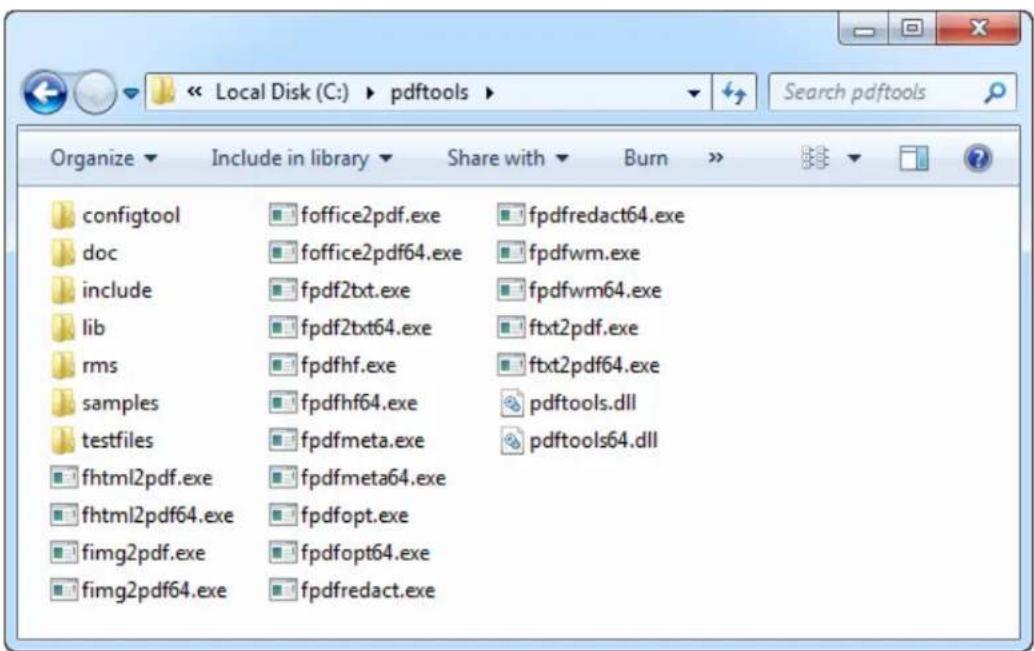
text_image
Local Disk (C:) ▶ pdftools Organize ▼ Include in library ▼ Share with ▼ Burn >> configtool foffice2pdf.exe fpdfredact64.exe doc foffice2pdf64.exe fpdfwm.exe include fpdf2txt.exe fpdfwm64.exe lib fpdf2txt64.exe ftxt2pdf.exe rms fpdfhf.exe ftxt2pdf64.exe samples fpdfhf64.exe pdftools.dll testfiles fpdfmeta.exe pdftools64.dll fhtml2pdf.exe fpdfmeta64.exe fhtml2pdf64.exe fpdfopt.exe fimg2pdf.exe fpdfopt64.exe fimg2pdf64.exe fpdfredact.exeFoxit PDF Toolkit package
Aer that, open a terminal session and navigate to the installaon locaon to run your applicaon (except for PDFWatermark and PDFHeaderFooter modules, which are used only aer using the Foxit Conguraon Tool to generate conguraon le containing the seng informaon of watermark or header/footer). For the Oce2PDF module, please make sure that you have already installed Microso Oce 2007 SP2 or later, and the virtual printers. If Microso Oce 2007 is not the SP2 version, please download the "Microso Save as PDF" plugin from hp://www.microso.com/en-us/download/details.aspx?id=9943.
Tips: You can set the installaon path to Environment Variables, which allows you to use the commands in the terminal window directly without needing to change the directory to the installaon locaon. Go to Start-> Control Panel-> System-> Advanced system sengs -> Advanced -> Environment Variables, in the "User variables for Administrator" box, select PATH and Edit, and then add the installaon path as shown in the following gure. If the environment variable "path" does not exist, create it by clicking New.
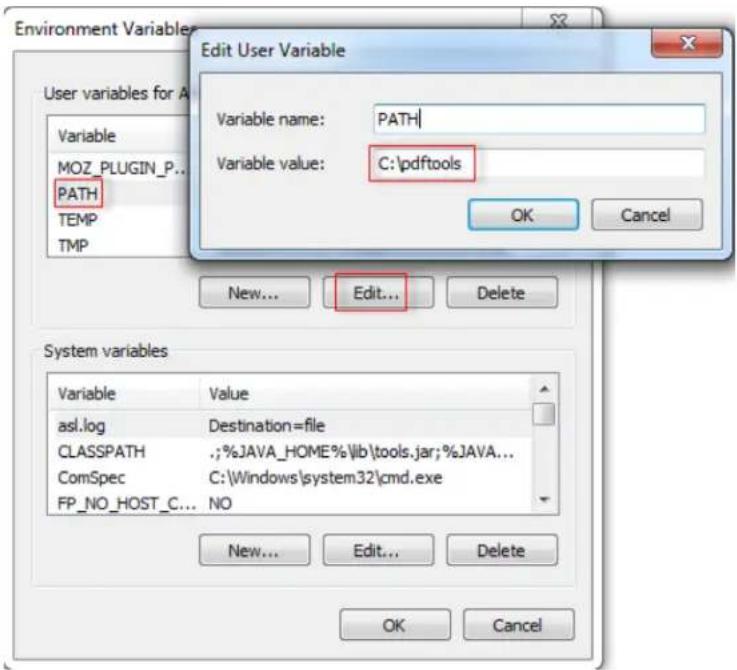
text_image
Environment Variables Edit User Variable User variables for A Variable MOZ_PLUGIN_P... PATH TEMP TMP Variable name: PATH Variable value: C:\pdftools OK Cancel New... Edit... Delete System variables Variable Value asl.log Destination=file CLASSPATH ;;%JAVA_HOME%\lb\tools.jar;%JAVA... ComSpec C:\Windows\system32\cmd.exe FP_NO_HOST_C... NO New... Edit... Delete OK CancelSet installaon path to Environment Variables
2.2 Evaluaon
The Foxit PDF Toolkit is distributed on a "try-before-you -buy" basis. Foxit allows users to download trial version to evaluate the features. You have a 30-day free trial, during which the pages of all generated PDF les will contain our watermark, and for the PDF2Text module, you can only convert the rst ten PDF pages into plain text les. Aer the evaluaon period, customers that want to connue to use the product should purchase a licensed version from Foxit website at hps://www.foxitsoware.com/products/pdf-toolkit/.
2.3 About License
Foxit PDF Toolkit provides three types of licenses for customers to choose.
- Desktop License- It is only available on desktop systems, which is perfect for personal or small business use. Each license is good for one user on one machine.
- Server License- It is available on servers, with 8 CPUs, which is good for small-to medium-sized businesses that need higher performance on a single server. If your server has more than 8 CPUs, please contact Foxit sales team to purchase Enterprise License.
- Enterprise License- It is intended for large companies that need to process a large number of PDF documents on mulple high-performance servers. Enterprise License also includes features for integrang the Foxit PDF Toolkit into your own applicaons. Please contact Foxit sales team to purchase Enterprise License.
2.4 Registraon
When you get the acvaon code for the module you want to purchase, please use the argument "-register
a. Click on the Start menu.
b. Type "cmd" in the Search programs and les box and press Enter.
In the opening Command Prompt window, type "cd C:\pdools" to navigate to the installaon locaon as follows.
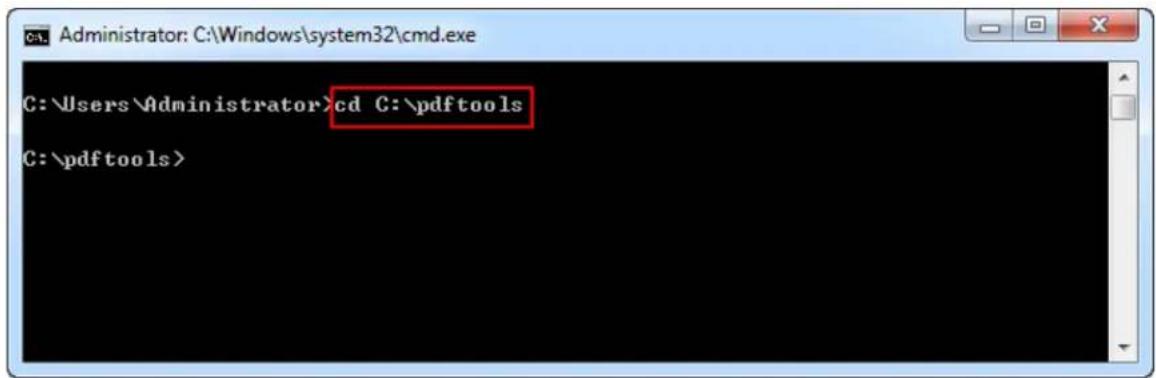
text_image
C:\Users\Administrator>cd C:\pdftools C:\pdftools>Navigate to the installaon locaon
Assume you get an acvaon code (77505-010G0-91000-PN37T-4Z8GS-0JKC3) for the Image2PDF module, you may type "mg2pdf-register 77505-010G0-91000-PN37T-4Z8GS-0JKC3 FoxitTest" in the Command Prompt window as shown below.
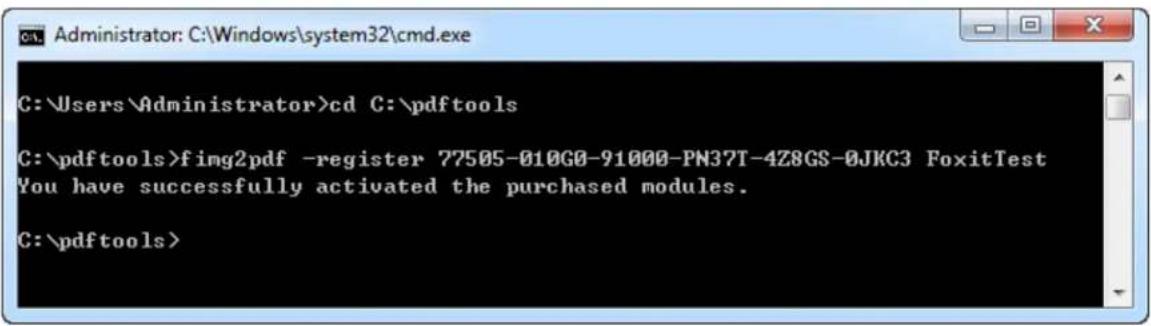
text_image
C:\Users\Administrator>cd C:\pdftools C:\pdftools>fimg2pdf -register 77505-010G0-91000-PN37T-4Z8GS-0JKC3 FoxitTest You have successfully activated the purchased modules. C:\pdftools>Register Foxit Convert2PDF tool
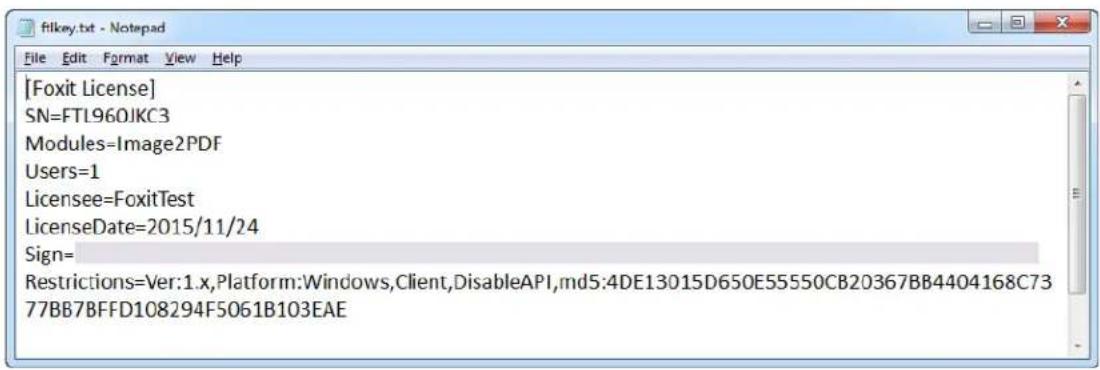
Here, "FoxitTest" is the licensee name you input. Aer acvation, a key le named "ftlkey.txt" will be generated in the installed path with the contents shown in the following gure.
text_image
[Foxit License] SN=FTL960JKC3 Modules=Image2PDF Users=1 Licensee=FoxitTest LicenseDate=2015/11/24 Sign= Restrictions=Ver:1.x,Platform:Windows,Client,DisableAPI,md5:4DE13015D650E55550CB20367BB4404168C73 77BB7BFFD108294F5061B103EAEThe content of the generated key le
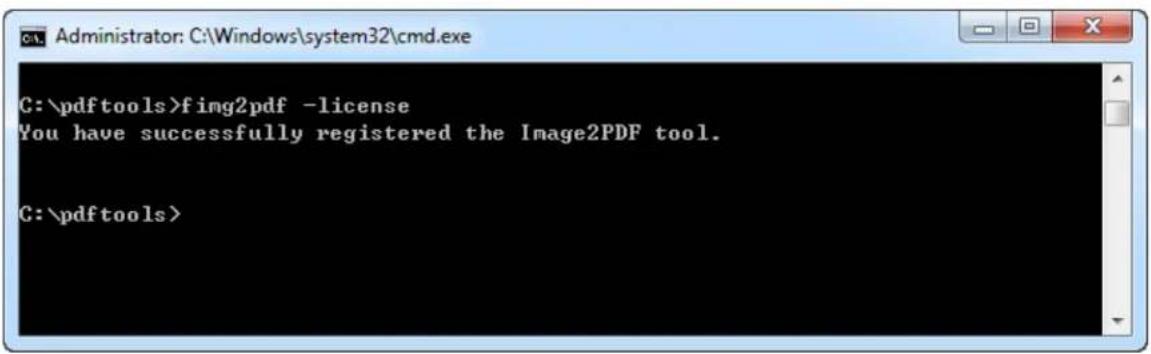
Then you can run "-mg2pdf -license" in the Command Prompt window to check the license agreement as follows.
text_image
C:\pdftools>fimg2pdf -license You have successfully registered the Image2PDF tool.Check the license agreement
2.5 Uninstallaon
If you want to uninstall the Foxit PDF Toolkit, all you need to do is to delete the installed folder.
3 Command Line Usage
3.1 Image2PDF
3.1.1 Basic Syntax
fimg2pdf <-i <srcle/srcfolder>> <-o <desile/desolder>> [[-width <PDF width>] [-height <PDF height>]]
    [-dpi <resolution>] [-margin <le [top right bottom]>] [-b] [-sp <password>]
    [-tle <tle>] [-subject <subject>] [-keywords <keywords>] [-author <author>] [-creator <creator>]
    [-r [recursion]] [-t <thread>] [-log <logle>] [-l <level>]
mg2pdf -register <code> <licensee>
mg2pdf -license
mg2pdf -version/-v
mg2pdf -help/-h
Note:
- <> required
• [ ] oponal
• / mutually exclusive
• A space is needed between the command line argument and the value
Only the <-i
3.1.2 Command Line Summary
Note For some arguments whose values are strings, users can choose whether to add quotation marks (“”) to the strings. In the manual we have added notes where adding quotation marks (“”) is required.
| Opon | Parameter | Descripon |
| -i | <-i>>e.g.-i c:\input\1.jpg-i "c:\input\1.jpg" "c:\input\2.f"-i c:\input-i "c:\input\*.jpg" | Species the input le to be converted.▪ The input string can be the name of a single image le (.bmp, .png, .jpg, .jpx, .gif, .f, .), mulple image les, or a folder.The le name can contain the wildcard character (*). For example, use *. to include all TIFF image les in a given folder.Note Wildcard character (*.*) is currently not supported. |
| -o | <-o>e.g.-o d:\output\one.pdf-o d:\output | Species the path of the output PDF le or folder.If user species a path of a PDF le, (e.g. -od:\output\one.pdf), all input image les will be combined into a single PDF le.If user species a path of a folder, (e.g. -od:\output), every input image le will be converted into individual PDF les.Note The specied output path must already exist. |
| -width | [-width]e.g.-width 612 | Sets the page width of the output PDF le in points.Default: Width of input image.Note The -width and -height opons must be used together with a set value greater than 0. |
| -height | [-height]e.g.-height 792 | Sets the page height of the output PDF le in points.Default: Height of input image.Note The -width and -height opons must be used together with a set value greater than 0. |
| -dpi | [-dpi]e.g.-dpi 0-dpi 1-dpi 300 | Species DPI (Dots Per Inch) resoluon of the output PDF le. The default value is 72.-dpi 0: uses the default image width and height informaon.-dpi 1: uses the DPI value of the input image.-dpi: sets the DPI resoluon as the given integer.NoteIf the program failed to get the DPI value of the input image when the (-dpi) is set to 1, the DPI value will be 96.The -weight, -height and -dpi opons should not be used together.If you only use -width and -dpi, or -height and -dpi, the width or height seng will be omied.If you use -width, -height and -dpi, the dpi seng will be omied. |
| -margin | [-margin] | Sets size of margin for each PDF page in points.Default value for each margin: 0.Allowable values: 0-size of page in points; in addition, the sum of the le and right values must be less than the width of the page, and the sum of the top and boom values must be less than the height of the page.-margin le top right boom-margin 20: sets the le margin to 20 points.-margin 10 20: sets the le margin to 10 points and the top margin to 20 points.-margin 10 20 0: sets the le margin to 10 points, the top margin to 20 points, and the right margin to 0 points.-margin 10 20 0 40: sets the le margin to 10 points, the top margin to 20 points, the right margin to 0 points, and the boom margin to 40 points. |
| -b | [-b]e.g.-b | Uses the lename of the image(s) to create bookmark(s) for the output PDF. |
| -sp | [-sp]e.g.-sp 123-sp welcome | Sets the document open password of the output PDF as the "string". By default, there is no password. |
| -tle | <-tle>e.g.-tle “Foxit PDF ToolkitUser Manual” | Sets tle of PDF les. |
| -subject | <-subject>e.g.-subject “Foxit PDF Toolkit” | Sets subject of PDF les. |
| -keywords | [-keywords]e.g.-keywords “Foxit” | Sets keywords of PDF les. |
| -author | [-author]e.g.-author “Jessie” | Sets author of PDF les. |
| -creator | [-creator]e.g.-creator “Foxit PhantomPDF”-creator “Foxit Reader”-creator “Microso® Word 2013” | Sets creator of PDF les.Note It indicates the name of the applicaon that created the source document from which a PDF is generated. For example, if the source document was created from Microso® Word 2013, then you can set the creator to “Microso® Word 2013”. |
| -r | [-r [integer]]e.g.-r-r 0-r 1-r 2... | Species the number of layers to recurse when the input is a folder.-r 0 <-r>: searches the full folders.-r 1: searches only the current folder.-r 2: searches the current folder and its sub-folders...NoteIf no integer value is specied, or if the integer value is 0, then full folders will be searched. By default, the number of layers to recurse is 1, which means that only the current folder will be searched and not sub-folders.The input folder will be skipped if it is secured and the messages will be displayed. |
| -t | [-t{-t-1-t 2]e.g.-log d:\a.log | Species the number of CPU threads to use.The default value is 1. |
| -log-l | [-log{-log d:\a.log}e.g. -log d:\a.log[-l]e.g.-l 1-l 2-l 3-l 4 | Writes log informaon into a logle at the specied exisng path.Sets the log level. The default is 4.-l 1: logs messages only concerning program crashes.-l 2: logs failure messages concerning the errors caused during execuon or those returned from underlying libraries, as well as those for level 1.-l 3: logs warning messages concerning the PDF les that are overwrien, as well as those for level 2.-l 4: logs informaonal messages, as well as those for level 3.Note The argument (-l) is valid only when (-log) is used. |
| -register | [-register] -registere.g.-register 77505-010G0-G1000-XMQ8D-2CR7R-TPBEI Foxit | Registers the command line tool.: the acvaon code from Foxit.: the Licensee name designated by the users. |
| -help/-h | [-help/-h]e.g.-help-h | Prints the usage informaon. |
| -version/-v | [-version/-v]e.g.-version-v | Prints the version informaon. |
| -license | [-license]e.g. -license | Prints the license agreement. |
3.1.3 Basic Usage
3.1.3.1 Input and Output
a) Input (-i)
The input les should be a single image le, mulple image les, or a folder. Users are not able to input mulple folders, as well as a mixture composed of folders and image les. For example:
-i c:\input\1.jpg (a single image le)
-i "c:\input\1.jpg" "c:\input\2.f" (mulple image les)
-i c:\input (a single folder)
Note If the input les are mulple image les, it is recommended to enclose each input path with quotaon marks (“”). In this manual, we add (“”) whenever the input les are mulple image les.
It supports relave paths if the input les are in the current working folder. Users can input just the name of the image les or folder, instead of an absolute path. For example:
-i test\3.bmp ("test\3.bmp" is in the current working folder)
-i test ("test" folder is in the current working folder)
It also supports wildcard characters, which are used to process mulple image les in specied formats. For example:
-i "c:\input\*.jpg" (Only convert images with JPG format)
-i "c:\input\*.jpg" "c:\input\*.f" (Only convert images with JPG and TIF formats)
-i "test\*.png" (Only convert images with PNG format)
Note When using wildcard characters in the input les, it is recommended to enclose the input les with quotation marks (“”). In this manual, we add (“”) whenever the input les contain wildcard characters.
b) Output (-o)
There are two output formats:
- Combine mulple image les into one PDF le
- Convert each image le into individual PDF les
If you want to combine mulple image les into one PDF le, you should specify the output path of a PDF le. If you want to convert each image le into individual PDF les, you should specify the output path of a folder. For example:
-o d:\output\one.pdf (Combine mulple image les into one PDF le)
-o d:\output (Convert each image le into individual PDF les)
Note The specied output path must already exist.
The output also supports relave paths if the specied output locaon is in the current working folder. Users can input just the name of the PDF le or output folder, instead of an absolute path. For example:
-o output\one.pdf ("output" folder is in the current working folder)
-o output ("output" folder is in the current working folder)
When the input is one or more image les, or if it includes wildcard characters, the output should be a single PDF le. For example, the rst following line combines the "3.bmp" and "4.gif" image les into "out.pdf" le, where the "test" and "output" folders are both in the current working folder. And the second line combines all the ".jpg" and ".tif" image les in the "c:\input" folder into "out.pdf" in "d:\output" folder.
mg2pdf -i "test\3.bmp" "test\4.gif" -o output\out.pdf
mg2pdf -i "c:\input\*.jpg" "c:\input\*.f" -o d:\output\out.pdf
Usage Examples
1) Convert each image le into individual PDF les:
mg2pdf -i test -o output ("test" and "output" folders are both in the current working folder)
mg2pdf -i c:\input -o d:\output
2) Combine mulple image les into one PDF le:
mg2pdf -i "test\3.bmp" "test\4.gif" -o output\one.pdf
mg2pdf -i c:\input\1.jpg -o d:\output\one.pdf
mg2pdf -i "c:\input\1.jpg" "c:\input\2.f" -o d:\output\one.pdf
mg2pdf -i c:\input -o d:\output\one.pdf
mg2pdf -i "c:\input\*.jpg" -o d:\output\one.pdf
3.1.3.2 PDF/Page Sengs
a) Page size seng (-width, -height)
The oponal arguments (-width) and (-height) are used to set the page width and height for the output PDF le in points.
Note The -width and -height opons must be used together with a set value greater than 0.
Usage Example
1) Set the page width and height to 400 and 300 for the output PDF le (-width 400 -height 300)
mg2pdf -i "c:\input\1.jpg" "c:\input\2.f" -o d:\output\one.pdf -width 400 -height 300
mg2pdf -i c:\input -o d:\output -width 400 -height 300
mg2pdf -i "c:\input\*.jpg" -o d:\output\one.pdf -width 400 -height 300
b) Resoluon (DPI) seng (-dpi)
The oponal argument (-dpi) is used to set the resoluon for the output PDF le. By default, the DPI (Dots Per Inch) is 72, which is the typical resoluon for web images. For more details about this argument, please refer to secon 3.1.2 "Command Line Summary".
Note
- If the program failed to get the DPI value of the input image when the (-dpi) is set to 1, the DPI value will be 96.
• The opons -weight, -height and -dpi should not be used together.
If you only use -width and -dpi, or -height and -dpi, the width or height seng will be omied.
If you use -width, -height and -dpi, the dpi seing will be omied.
Usage Examples
1) Use the default image width and height informaon (-dpi 0)
mg2pdf -i "c:\input\1.jpg" "c:\input\2.f" -o d:\output\one.pdf -dpi 0
mg2pdf -i c:\input -o d:\output -dpi 0
mg2pdf -i "c:\input\*.jpg" -o d:\output\one.pdf -dpi 0
2) Use the DPI informaon of the original image (-dpi 1)
mg2pdf -i "c:\input\1.jpg" "c:\input\2.f" -o d:\output\one.pdf -dpi 1
mg2pdf -i c:\input -o d:\output -dpi 1
mg2pdf -i "c:\input\*.jpg" -o d:\output\one.pdf -dpi 1
3) Set the DPI to 300 for the output PDF le (-dpi 300)
mg2pdf -i "c:\input\1.jpg" "c:\input\2.f" -o d:\output\one.pdf -dpi 300
mg2pdf -i c:\input -o d:\output -dpi 300
mg2pdf -i "c:\input\*.jpg" -o d:\output\one.pdf -dpi 300
c) Bookmark (-b)
The oponal argument (-b) is used to create bookmarks for the output PDF le. The name of the bookmarks is the name of the images.
Usage Example
1) Create bookmarks for the output PDF le (-b)
mg2pdf -i "c:\input\1.jpg" "c:\input\2.f" -o d:\output\one.pdf -b
mg2pdf -i c:\input -o d:\output\one.pdf -b
mg2pdf -i "c:\input\*.jpg" -o d:\output\one.pdf -b
d) Margin seng (-margin)
The oponal argument (-margin) is used to set size of margin for each PDF page in points. By default, the output PDF page has no margin. For more details about this argument, please refer to secon 3.1.2 "Command Line Summary".
Note The sum of the le and right values must be less than the width of the page, and the sum of the top and boom values must be less than the height of the page.
Usage Example
1) Set the le margin to 20 points (-margin 20)
mg2pdf -i "c:\input\1.jpg" "c:\input\2.f" -o d:\output\one.pdf -margin 20
mg2pdf -i c:\input -o d:\output\one.pdf -margin 20
mg2pdf -i "c:\input\*.jpg" -o d:\output\one.pdf -margin 20
2) Set the le margin to 20 points, and the top margin to 10 points (-margin 20 10)
mg2pdf -i "c:\input\1.jpg" "c:\input\2.f" -o d:\output\one.pdf -margin 20 10
mg2pdf -i c:\input -o d:\output\one.pdf -margin 20 10
mg2pdf -i "c:\input\*.jpg" -o d:\output\one.pdf -margin 20 10
3) Set the le margin to 10 points, the top margin to 10 points and the right margin to 30 points (-margin 10 10 30)
mg2pdf -i "c:\input\1.jpg" "c:\input\2.f" -o d:\output\one.pdf -margin 10 10 30
mg2pdf -i c:\input -o d:\output\one.pdf -margin 10 10 30
mg2pdf -i "c:\input*.jpg" -o d:\output\one.pdf -margin 10 10 30
4) Set the le margin to 10 points, the top margin to 10 points, the right margin to 30 points and the boom margin to 20 points (-margin 10 10 30 20)
mg2pdf -i "c:\input\1.jpg" "c:\input\2.f" -o d:\output\one.pdf -margin 10 10 30 20
mg2pdf -i c:\input -o d:\output\one.pdf -margin 10 10 30 20
mg2pdf -i "c:\input*.jpg" -o d:\output\one.pdf -margin 10 10 30 20
e) Password seng (-sp)
The oponal argument (-sp) is used to set the open password for the output PDF le. By default, the output PDF le has no open password.
Usage Example
1) Set the open password to "welcome" for the output PDF les (-sp welcome)
mg2pdf -i "c:\input\1.jpg" "c:\input\2.f" -o d:\output\one.pdf -sp welcome
mg2pdf -i c:\input -o d:\output -sp welcome
mg2pdf -i "c:\input*.jpg" -o d:\output\one.pdf -sp welcome
3.1.3.3 Document Metadata Sengs
a) Title (-tle)
The oponal argument (-tle) is used to set tle of PDF les.
Usage Example
1) Set document tle to "Foxit PDF Toolkit User Manual" (-tle "Foxit PDF Toolkit User Manual")
mg2pdf -i "c:\input\1.jpg" "c:\input\2.f" -o d:\output\one.pdf -tle "Foxit PDF Toolkit User Manual"
mg2pdf -i c:\input -o d:\output\one.pdf -tle "Foxit PDF Toolkit User Manual"
mg2pdf -i "c:\input*.jpg" -o d:\output\one.pdf -tle "Foxit PDF Toolkit User Manual"
b) Subject (-subject)
The oponal argument (-subject) is used to set subject of PDF les.
Usage Example
1) Set document subject to "Foxit PDF Toolkit" (-subject "Foxit PDF Toolkit")
mg2pdf -i "c:\input\1.jpg" "c:\input\2.f" -o d:\output\one.pdf -subject "Foxit PDF Toolkit"
mg2pdf -i c:\input -o d:\output\one.pdf -subject "Foxit PDF Toolkit"
mg2pdf -i "c:\input\*.jpg" -o d:\output\one.pdf -subject "Foxit PDF Toolkit"
c) Keywords (-keywords)
The oponal argument (-keywords) is used to set keywords of PDF les.
Usage Example
1) Set document keywords to "toolkit" (-keywords "toolkit")
mg2pdf -i "c:\input\1.jpg" "c:\input\2.f" -o d:\output\one.pdf -keywords "toolkit"
mg2pdf -i c:\input -o d:\output\one.pdf -keywords "toolkit"
mg2pdf -i "c:\input\*.jpg" -o d:\output\one.pdf -keywords "toolkit"
d) Author (-author)
The oponal argument (-author) is used to set author of PDF les.
Usage Example
1) Set document author to "Jessie" (-author "Jessie")
mg2pdf -i "c:\input\1.jpg" "c:\input\2.f" -o d:\output\one.pdf -author "Jessie"
mg2pdf -i c:\input -o d:\output\one.pdf -author "Jessie"
mg2pdf -i "c:\input\*.jpg" -o d:\output\one.pdf -author "Jessie"
e) Creator (-creator)
The oponal argument (-creator) is used to set le creaon application information of PDF les.
Usage Example
1) Set document creator to "Foxit Reader" (-creator "Foxit Reader")
mg2pdf -i "c:\input\1.jpg" "c:\input\2.f" -o d:\output\one.pdf -creator "Foxit Reader"
mg2pdf -i c:\input -o d:\output\one.pdf -creator "Foxit Reader"
mg2pdf -i "c:\input\*.jpg" -o d:\output\one.pdf -creator "Foxit Reader"
3.1.3.4 Recursion Depth of Sub-folders
The oponal argument (-r) indicates the recursion depth of sub-folders, which is valid only when the input is a folder or a path that includes wildcard characters like "c:\input*.jpg". By default, the recursion depth is 1, so the sub-folders will not be processed. For more details about this argument, please refer to secon 3.1.2 "Command Line Summary".
Usage Examples
1) Search the full folders (-r or -r 0)
mg2pdf -i test -o output -r 0
mg2pdf -i c:\input -o d:\output -r 0
mg2pdf -i "c:\input\*.jpg" -o d:\output\one.pdf -r 0
mg2pdf -i test -o output -r
mg2pdf -i c:\input -o d:\output -r
mg2pdf -i "c:\input\*.jpg" -o d:\output\one.pdf -r
2) Search only the current folder (-r 1)
mg2pdf -i test -o output -r 1
mg2pdf -i c:\input -o d:\output -r 1
mg2pdf -i "c:\input\*.jpg" -o d:\output\one.pdf -r 1
Note If you don't use this argument, the current folder will be searched by default. For example:
mg2pdf -i test -o output
mg2pdf -i c:\input -o d:\output
mg2pdf -i "c:\input\*.jpg" -o d:\output\one.pdf
3) Search the current folder and its sub-folders (-r 2)
mg2pdf -i test -o output -r 2
mg2pdf -i c:\input -o d:\output -r 2
mg2pdf -i "c:\input\*.jpg" -o d:\output\one.pdf -r 2
3.1.3.5 Mul-thread Support
The oponal argument (-t) indicates the number of threads that are used to speed up batch conversion by making full use of the CPU. By default, the number of the threads is 1.
Note It is recommended that you set the value of the number according to your computer's CPU conguraon.
Usage Example
1) Set the number of threads to 3 (-t 3)
mg2pdf -i test -o output -t 3
mg2pdf -i c:\input -o d:\output -t 3
mg2pdf -i "c:\input\*.jpg" -o d:\output\one.pdf -t 3
3.1.3.6 Other Oponal Arguments
a) Log le (-log
The oponal argument (-log) indicates the path of logle, where the log message is placed. The argument (-l) indicates the log level. It is valid only when (-log) is used. By default, the log level is 4. For more details about this argument, please refer to section 3.1.2 "Command Line Summary".
Usage Example
1) Save the log le to "d:\output\image2pdf.log" and set the log level to 3 (-log d:\output\image2pdf.log -l 3)
mg2pdf -i c:\input -o d:\output -log d:\output\image2pdf.log -l 3
b) Register informaon (-register
The oponal argument (-register) is used to register the command line tool. The is the acvaon code from Foxit and
Usage Example
1) Register the image2pdf tool with the code "77505-010G0-G1000-XMQ8D-2CR7R-TPBEI" and the licensee "Foxit" (-register 77505-010G0-G1000-XMQ8D-2CR7R-TPBEI Foixt)
mg2pdf -register 77505-010G0-G1000-XMQ8D-2CR7R-TPBEI Foixt
c) License agreement (-license)
The oponal argument (-license) is used to print the license agreement.
Usage Example
1) Print the license informaon (-license)
mg2pdf -license
d) Version informaon (-version/-v)
The oponal argument (-version/-v) is used to print the version informaon.
Usage Example
1) Print the version informaon (-version/-v)
mg2pdf -version
mg2pdf -v
e) Help informaon (-help/-h)
The oponal argument (-help/-h) is used to print the usage informaon.
Usage Example
1) Print the usage informaon (-help/-h)
mg2pdf -help
mg2pdf -h
3.2 Oce2PDF
3.2.1 Basic Syntax
foce2pdf <-i <srcle/srcfolder>> <-o <destle/desolder>> [-pdfa] [-b <bookmark level>] [-scale]
    [-op <password>] [-r [recursion]] [-t <threads>] [-log <logle>] [-l <level>]
foce2pdf -register <code> <licensee>
foce2pdf -license
foce2pdf -version/-v
foce2pdf -help/-h
Note:
- <> required
• [ ] oponal
• / mutually exclusive
• A space is needed between the command line argument and the value
Only the <-i
3.2.2 Command Line Summary
Note For some arguments whose values are strings, users can choose whether to add quotation marks (``') to the strings. In the manual we have added notes where adding quotation marks (``') is required.
| Opon | Parameter | Descripon |
| -i-o | <-i>>e.g.-i c:\input\1.doc-i c:\input-i "c:\input\*.ppt"<-o>>e.g.-o D:\output\1.pdf-o D:\output | Species the input le to be converted.The input string can be the name of a single Microso Oce le (.doc, .docx, .xls, .xlsx, .ppt, .pptx) or a folder.The le name can contain the wildcard character (*). For example, use *.doc to include all Doc les in a given folder.Note The wildcard character (*.*) is currently not supported.Species the path of the output PDF le or folder.■ If the input is a single Microso Oce le, the output should be a single PDF le, (e.g. -o D:\output\1.pdf).■ If the input is a folder, the output should be a folder, (e.g. -o D:\output).Note The specied output path must already exist. |
| -pdfa | [-pdfa]e.g.-pdfa | Species that the output PDF le(s) should be compliant with the PDF/A standard. |
| -b | [-b]e.g.-b 0-b 1-b 2 | Creates bookmarks for the output PDF le.If not set, there are no PDF bookmarks.-b 0: Not to create PDF bookmarks.-b 1: Create PDF bookmarks using headings of a Microso Word le.-b 2: Create PDF bookmarks using bookmarks of a Microso Word le.Note This argument (-b) is valid only for Microso Word les. |
| -scale-op | [-scale>]e.g.-scale 0-scale 1-scale 2-scale 3[-op] | Species a conversion mode for Microso Excel les.The default is 1.-scale 0: No scaling. Convert sheets at their actual size.-scale 1: Fit all columns on one page. Scale every sheet so that it is one page wide.-scale 2: Fit all rows on one page. Scale every sheet so that it is one page high.-scale 3: Fit sheet on one page. Scale every sheet so that it is on one page.Note This argument (-scale) is supported only on versions higher than Microso Oce 2007 and is valid only for Microso Excel les.Species the open password for the input le. Not required if the input le is not password protected.Note The output PDF le will not retain the open password from the input le. |
| -r | [-r [integer]]e.g.-r-r 0-r 1-r 2... | Species the number of layers to recurse when the input is a folder.-r 0 <-r>: searches the full folders.-r 1: searches only the current folder.-r 2: searches the current folder and its sub-folders...NoteIf no integer value is specified, or if the integer value is 0, then full folders will be searched. By default, the number of layers to recurse is 1, which means that only the current folder will be searched and not sub-folders.The input Microso Oce le or folder will be skipped if it is secured and the messages will be displayed. |
| -t | [-t]e.g.-t 1-t 2 | Species the number of CPU threads to use.The default value is 1. |
| -log | [-log]e.g.-log d:\a.log | Writes log informaon into a logle at the specied exisng path. |
| -l | [-l]e.g.-l 1-l 2-l 3-l 4 | Sets the log level. The default is 4.-l 1: logs messages only concerning program crashes.-l 2: logs failure messages concerning the errors caused during execuon or those returned from underlying libraries, as well as those for level 1.-1 3: logs warning messages concerning the PDF les that are overwrien, as well as those for level 2.-1 4: logs informaonal messages, as well as those for level 3.Note The argument (-1) is valid only when (-log) is used. |
| -register | [-register] -registere.g.-register 77505-010G0-G1000-XMQ8D-2CR7R-TPBEI Foxit | Registers the command line tool.: the acvaon code from Foxit.: the Licensee name designated by the users. |
| -help/-h | [-help/-h] e.g.-help-h | Prints the usage informaon. |
| -version/-v | [-version/-v] e.g.-version-v | Prints the version informaon. |
| -license | [-license] e.g.-license | Prints the license agreement. |
3.2.3 Basic Usage
3.2.3.1 Input and Output
a) Input (-i)
The input le should be a single Microso Oce le or a folder. Users are not able to input multiple Oce les or folders, as well as a mixture composed of folders and Oce les. For example:
-i c:\input\1.doc (a single Microso Oce le)
-i c:\input (a single folder)
It supports relave paths if the input le is in the current working folder. Users can input just the name of the Microso Oce le or folder, instead of an absolute path. For example:
-i test\2.xls ("test\2.xls" is in the current working folder)
-i test ("test" folder is in the current working folder)
It also supports wildcard characters, which are used to process multiple oce les in specied formats. For example:
-i "c:\input\*.doc" (Only convert Oce les with DOC format)
-i "test\*.xls" (Only convert Oce les with XLS format)
Note When using wildcard characters in the input les, it is recommended to enclose the input les with quotation marks (“”). In this manual, we add (“”) whenever the input les contain wildcard characters.
b) Output (-o)
If the input is a single Microso Oce le, you should specify the output path of a PDF le. If the input is a single folder, you should specify the output path of a folder. For example:
-o d:\output\ 1.pdf
-o d:\output
Note The specied output path must already exist.
The output also supports relave paths if the specied output location is in the current working folder. Users can input just the name of the PDF le or output folder, instead of an absolute path. For example:
-o output\2.pdf ("output\2.pdf" is in the current working folder)
-o output ("output" folder is in the current working folder)
Usage Examples
1) Convert Microso Oce documents into PDF les:
foce2pdf -i test\2.xls -o output\2.pdf
foce2pdf -i c:\input -o d:\output
foce2pdf -i "c:\input\*.doc" -o d:\output
foce2pdf -i test -o output
3.2.3.2 Bookmark
The oponal argument (-b) is used to create bookmarks for the output PDF le. If not set, there are no PDF bookmarks by default. For more details about this argument, please refer to secon 3.2.2 "Command Line Summary".
Note This argument is valid only for Microso Word les.
Usage Example
1) Create PDF bookmarks using headings of a Microso Word le (-b 1)
foce2pdf -i c:\input\1.doc -o d:\output\1.pdf -b 1
foce2pdf -i c:\input -o d:\output -b 1
foce2pdf -i test -o output -b 1
foce2pdf -i "c:\input\*.doc" -o d:\output -b 1
2) Create PDF bookmarks using bookmarks of a Microso Word le (-b 2)
foce2pdf -i c:\input\1.doc -o d:\output\1.pdf -b 2
foce2pdf -i c:\input -o d:\output -b 2
foce2pdf -i test -o output -b 2
foce2pdf -i "c:\input\*.doc" -o d:\output -b 2
3.2.3.3 Scale
The oponal argument (-scale) is used to specify a conversion mode for Microso Excel les. For more details about this argument, please refer to secon 3.2.2 "Command Line Summary".
Note This argument is supported only on versions higher than Microso Oce 2007 and is valid only for Microso Excel les.
Usage Example
1) Convert sheets at their actual size (-scale 0)
foce2pdf -i c:\input\1.xlsx -o d:\output\1.pdf -scale 0
foce2pdf -i c:\input -o d:\output -scale 0
foce2pdf -i test -o output -scale 0
foce2pdf -i "c:\input\*.xls" -o d:\output -scale 0
2) Fit all columns on one page (-scale 1)
foce2pdf -i c:\input\1.xlsx -o d:\output\1.pdf -scale 1
foce2pdf -i c:\input -o d:\output -scale 1
foce2pdf -i test -o output -scale 1
foce2pdf -i "c:\input\*.xls" -o d:\output -scale 1
3) Fit all rows on one page (-scale 2)
foce2pdf -i c:\input\1.xlsx -o d:\output\1.pdf -scale 2
foce2pdf -i c:\input -o d:\output -scale 2
foce2pdf -i test -o output -scale 2
foce2pdf -i "c:\input\*.xls" -o d:\output -scale 2
4) Fit sheet on one page (-scale 3)
foce2pdf -i c:\input\1.xlsx -o d:\output\1.pdf -scale 3
foce2pdf -i c:\input -o d:\output -scale 3
foce2pdf -i test -o output -scale 3
foce2pdf -i "c:\input\*.xls" -o d:\output -scale 3
3.2.3.4 PDF/A Support
The oponal argument (-pdfa) is used to specify the output PDF le to be compliant with the PDF/A Standard. PDF/A is an ISO standardized version of the PDF, specialized for the digital preservaon of electronic documents dening provisions for long-term archiving.
Note It only supports PDF/A-1b Standard. For more details about PDF/A-1b, please refer to PDF Reference.
Usage Example
1) Specify the output PDF le to be compliant with PDF/A Standard (-pdfa)
foce2pdf -i c:\input\1.doc -o d:\output\1.pdf -pdfa
foce2pdf -i c:\input -o d:\output -pdfa
foce2pdf -i test -o output -pdfa
foce2pdf -i "c:\input\*.doc" -o d:\output -pdfa
3.2.3.5 Open Password
The oponal argument (-op) indicates the open password for a password-protected input Microso Oce le. It is not required if the input le is not password protected.
Note The output PDF le will not retain the open password from the input le.
Usage Example
1) Specify the open password for a password-protected input Oce le (-op 123)
foce2pdf -i c:\input\1.doc -o d:\output\1.pdf -op 123
foce2pdf -i test\2.xls -o output\2.pdf -op 123
2) Specify the open password for all input Oce les that have been protected with the same password (-op 123)
foce2pdf -i c:\input -o d:\output -op 123
foce2pdf -i test -o output -op 123
foce2pdf -i "c:\input\*.doc" -o d:\output -op 123
Note It only supports typing one value for the argument (-op). Only les with the same open password can be processed together and les with dierent open password need to be processed separately.
3.2.3.6 Recursion Depth of Sub-folders
The oponal argument (-r) indicates the recursion depth of sub-folders, which is valid only when the input is a folder or a path that includes wildcard characters like "c:\input*.doc". By default, the recursion depth is 1, so the sub-folders will not be processed. For more details about this argument, please refer to secon 3.2.2 "Command Line Summary".
Usage Examples
1) Search the full folders (-r or -r 0)
foce2pdf -i c:\input -o d:\output -r
foce2pdf -i test -o output -r
foce2pdf -i "c:\input\*.doc" -o d:\output -r
foce2pdf -i c:\input -o d:\output -r 0
foce2pdf -i test -o output -r 0
foce2pdf -i "c:\input\*.doc" -o d:\output -r 0
2) Search only the current folder (-r 1)
foce2pdf -i c:\input -o d:\output -r 1
foce2pdf -i test -o output -r 1
foce2pdf -i "c:\input\*.doc" -o d:\output -r 1
Note If you don't use this argument, the current folder will be searched by default. For example:
foce2pdf -i c:\input -o d:\output
foce2pdf -i test -o output
foce2pdf -i "c:\input\*.doc" -o d:\output
3) Search the current folder and its sub-folders (-r 2)
foce2pdf -i c:\input -o d:\output -r 2
foce2pdf -i test -o output -r 2
foce2pdf -i "c:\input\*.doc" -o d:\output -r 2
3.2.3.7 Mul-thread Support
The oponal argument (-t) indicates the number of threads that are used to speed up batch conversion by making full use of the CPU. By default, the number of threads is 1.
Note It is recommended that you set the value of the number according to your computer's CPU conguraon.
Usage Example
1) Set the number of threads to 3 (-t 3)
foce2pdf -i c:\input -o d:\output -t 3
foce2pdf -i test -o output -t 3
foce2pdf -i "c:\input\*.doc" -o d:\output -t 3
3.2.3.8 Other Oponal Arguments
a) Log le (-log
The oponal argument (-log) indicates the path of logle, where the log message is placed. The argument (-l) indicates the log level. It is valid only when (-log) is used. By default, the log level is 4. For more details about this argument, please refer to secon 3.2.2 "Command Line Summary".
Usage Example
1) Save the log le to "d:\output\oce2pdf.log" and set the log level to 3 (-log d:\output\oce2pdf.log -l 3)
foce2pdf -i c:\input\1.doc -o d:\output\1.pdf -log d:\output\oce2pdf.log -l 3
b) Register informaon (-register )
The oponal argument (-register) is used to register the command line tool. The is the acvaon code from Foxit and
Usage Example
2) Register the oce2pdf tool with the code "77505-010G0-G1000-XMQ8D-2CR7R-TPBEI" and the licensee "Foxit" (-register 77505-010G0-G1000-XMQ8D-2CR7R-TPBEI Foixt)
foce2pdf -register 77505-010G0-G1000-XMQ8D-2CR7R-TPBEI Foixt
c) License agreement (-license)
The oponal argument (-license) is used to print the license agreement.
Usage Example
1) Print the license informaon (-license)
foce2pdf -license
d) Version informaon (-version/-v)
The oponal argument (-version/-v) is used to print the version informaon.
Usage Example
1) Print the version informaon (-version/-v)
foce2pdf -version
foce2pdf -v
e) Help informaon (-help/-h)
The oponal argument (-help/-h) is used to print the usage informaon.
Usage Example
1) Print the usage informaon (-help/-h)
foce2pdf -help
foce2pdf -h
3.3 PDFWatermark
3.3.1 Basic Syntax
fpdfwm <-i <srcle/srcfolder>> <-o <desile/desolder>> <-conf <xmlle>> [-op <password>]
    [-tle <tle>] [-subject <subject>] [-keywords <keywords>] [-author <author>] [-creator <creator>]
    [-r [recursion]] [-t <threads>] [-log <logle>] [-l <level>]
fpdfwm -register <code> <licensee>
fpdfwm -license
fpdfwm -version/-v
fpdfwm -help/-h
Note:
- <> required
• [ ] oponal
• / mutually exclusive
• A space is needed between the command line argument and the value
Only the <-i
3.3.2 Command Line Summary
Note For some arguments whose values are strings, users can choose whether to add quotation marks (“”) to the strings. In the manual we have added notes where adding quotation marks (“”) is required.
| Opon | Parameter | Descripon |
| -i-o | <-i>>e.g.-i c:\input\1.pdf-i c:\input<-o>>e.g.-o d:\output\1_wm.pdf-o d:\output | Species the input le to be processed.The input string can be the name of a single PDF le or a folder.The le name can contain the wildcard character (*). For example, use *.pdf to include all PDF les in a given folder.Note Wildcard character (*.*) is currently not supported.Species the path of the output PDF le or folder.■ If the input is a PDF le, the output should be a single PDF le, (e.g. -o d:\output\1_wm.pdf).■ If the input is a folder, the output should be a folder, (e.g. -o d:\output).Note The specied output path must already exist. |
| -conf | <-conf>e.g.-conf c:\watermark.xml | Species the conguraon le on the PDFWatermark tool.This le should be generated by the built-in Foxit Conguraon Tool. |
| -op | [-op>] | Species the open password for the input le. Not required if the input le is not password protected.Note The output PDF le will retain the open password from the input le. |
| -tle | <-tle>>e.g.-tle “Foxit PDF ToolkitUser Manual” | Sets tle of PDF les. |
| -subject | <-subject>>e.g.-subject “Foxit PDF Toolkit” | Sets subject of PDF les. |
| -keywords | [-keywords]]e.g.-keywords “Foxit” | Sets keywords of PDF les. |
| -author | [-author>]e.g.-author “Jessie” | Sets author of PDF les. |
| -creator | [-creator]e.g.-creator “Foxit PhantomPDF”-creator “Foxit Reader”-creator “Microso® Word 2013” | Sets creator of PDF les.Note It indicates the name of the applicaon that created the source document from which a PDF is generated. For example, if the source document was created from Microso® Word 2013, then you can set the creator to “Microso® Word 2013”. |
| -r | [-r [integer]]e.g.-r-r 0-r 1-r 2... | Species the number of layers to recurse when the input is a folder.-r 0 <-r>: searches the full folders.-r 1: searches only the current folder.-r 2: searches the current folder and its sub-folders...NoteIf no integer value is specied, or if the integer value is 0, then full folders will be searched. By default, the number of layers to recurse is 1, which means that only the current folder will be searched and not sub-folders.The input PDF le or folder will be skipped if it is secured and the messages will be displayed. |
| -t | [-t]e.g.-t 1-t 2 | Species the number of CPU threads to use.The default value is 1. |
| -log | [-log]e.g. -log d:\a.log | Writes log informaon into a logle at the specied exisng path. |
| -l | [-l]e.g.-l 1-l 2-l 3-l 4 | Sets the log level. The default is 4.-l 1: logs messages only concerning program crashes.-l 2: logs failure messages concerning the errors caused during execuon or those returned from underlying libraries, as well as those for level 1.-1 3: logs warning messages concerning the PDF les that are overwrien, as well as those for level 2.-1 4: logs informaonal messages, as well as those for level 3.Note The argument (-1) is valid only when (-log) is used. |
| -register | [-register] -registere.g.-register 77505-010G0-G1000-XMQ8D-2CR7R-TPBEI Foxit | Registers the command line tool.: the acvaon code from Foxit.: the Licensee name designated by the users. |
| -help/-h | [-help/-h] e.g.-help-h | Prints the usage informaon. |
| -version/-v | [-version/-v] e.g.-version-v | Prints the version informaon. |
| -license | [-license] e.g.-license | Prints the license agreement. |
3.3.3 Basic Usage
3.3.3.1 Required Arguments
a) Input (-i)
The input le should be a single PDF le or a folder. Users are not able to input mulple PDF les or folders, as well as a mixture composed of folders and PDF les. For example:
-i c:\input\1.pdf (a single PDF le)
-i c:\input (a single folder)
It supports relave paths if the input le is in the current working folder. Users can input just the name of the PDF le or folder, instead of an absolute path. For example:
-i test\2.pdf ("test\2.pdf" is in the current working folder)
-i test ("test" folder is in the current working folder)
It also supports wildcard characters, which are used to process mulple PDF les. For example:
-i "c:\input*.pdf" (Only convert PDF les under "c:\input" folder)
-i "test*.pdf" (Only convert PDF les under "test" folder)
Note When using wildcard characters in the input les, it is recommended to enclose the input les with quotation marks (“”). In this manual, we add (“”) whenever the input les contain wildcard characters.
b) Output (-o)
If the input is a single PDF le, you should specify the output path of a PDF le. If the input is a single folder, you should specify the output path of a folder. For example:
-o d:\output\ 1_wm.pdf (a single PDF le)
-o d:\output (a single folder)
Note The specied output path must already exist.
The output supports relave path if the specied output locaon is in the current working folder. Users can input just the name of the PDF le or output folder, instead of an absolute path. For example:
-o output\2_wm.pdf ("output" folder is in the current working folder)
-o output ("output" folder is in the current working folder)
c) XML Conguraon File (-conf)
The XML conguraon le argument (-conf) is required in the command line. The conguraon le contains the seng informaon of watermark, which is generated by the built-in Foxit Conguraon Tool (fpdfwmconf.exe or fpdfwmconf64.exe). For more details about watermark setngs, please refer to secon 4.1.1 "Watermark Seings". Users should input the path of an XML le. For example:
-conf c:\conf_wm.xml
It also supports relave paths if the specied XML conguraon le is in the current working folder.
Users can input just the name of the XML le, instead of an absolute path. For example:
-conf conf_wm.xml (conf_wm.xml is in the current working folder)
Usage Examples
1) Add a watermark into PDF les:
fpdfwm -i test -o output -conf conf_wm.xml
fpdfwm -i "c:\input\*.pdf" -o d:\output -conf c:\conf_wm.xml
fpdfwm -i c:\input\1.pdf -o d:\output\1_wm.pdf -conf c:\conf_wm.xml
3.3.3.2 Open Password
The oponal argument (-op) indicates the open password for a password-protected input PDF le. It is not required if the input le is not password protected.
Note The output PDF le will retain the open password from the input le.
Usage Example
1) Specify the open password for a password-protected input PDF le (-op 123)
fpdfwm -i test\2.pdf -o output\2_wm.pdf -conf c:\conf_wm.xml -op 123
fpdfwm -i c:\input\1.pdf -o d:\output\1_wm.pdf -conf c:\conf_wm.xml -op 123
2) Specify the open password for all input PDF les that have been protected with the same password (-op 123)
fpdfwm -i test -o output -conf conf_wm.xlm -op 123
fpdfwm -i c:\input -o d:\output -conf c:\conf_wm.xml -op 123
Note It only supports typing one value for the argument (-op). Only les with the same open password can be processed together and les with dierent open password need to be processed separately.
3.3.3.3 Document Metadata Sengs
a) Title (-tle)
The oponal argument (-tle) is used to settle of PDF les.
Usage Example
1) Set document tle to "Foxit PDF Toolkit User Manual" (-tle "Foxit PDF Toolkit User Manual")
fpdfwm -i test -o output -conf conf_wm.xml -tle "Foxit PDF Toolkit User Manual"
fpdfwm -i "c:\input\*.pdf" -o d:\output -conf c:\conf_wm.xml -tle "Foxit PDF Toolkit User Manual"
fpdfwm -i c:\input\1.pdf -o d:\output\1_wm.pdf -conf c:\conf_wm.xml -tle "Foxit PDF Toolkit User Manual"
b) Subject (-subject)
The oponal argument (-subject) is used to set subject of PDF les.
Usage Example
1) Set document subject to "Foxit PDF Toolkit" (-subject "Foxit PDF Toolkit")
fpdfwm -i test -o output -conf conf_wm.xml -subject "Foxit PDF Toolkit"
fpdfwm -i "c:\input\*.pdf" -o d:\output -conf c:\conf_wm.xml -subject "Foxit PDF Toolkit"
fpdfwm -i c:\input\1.pdf -o d:\output\1_wm.pdf -conf c:\conf_wm.xml -subject "Foxit PDF Toolkit"
c) Keywords (-keywords)
The oponal argument (-keywords) is used to set keywords of PDF les.
Usage Example
1) Set document keywords to "toolkit" (-keywords "toolkit")
fpdfwm -i test -o output -conf conf_wm.xml -keywords "toolkit"
fpdfwm -i "c:\input\*.pdf" -o d:\output -conf c:\conf_wm.xml -keywords "toolkit"
fpdfwm -i c:\input\1.pdf -o d:\output\1_wm.pdf -conf c:\conf_wm.xml -keywords "toolkit"
d) Author (-author)
The oponal argument (-author) is used to set author of PDF les.
Usage Example
1) Set document author to "Jessie" (-author "Jessie")
fpdfwm -i test -o output -conf conf_wm.xml -author "Jessie"
fpdfwm -i "c:\input\*.pdf" -o d:\output -conf c:\conf_wm.xml -author "Jessie"
fpdfwm -i c:\input\1.pdf -o d:\output\1_wm.pdf -conf c:\conf_wm.xml -author "Jessie"
e) Creator (-creator)
The oponal argument (-creator) is used to set le creaon application information of PDF les.
Usage Example
1) Set document creator to "Foxit Reader" (-creator "Foxit Reader")
fpdfwm -i test -o output -conf conf_wm.xml -creator "Foxit Reader"
fpdfwm -i "c:\input\*.pdf" -o d:\output -conf c:\conf_wm.xml -creator "Foxit Reader"
fpdfwm -i c:\input\1.pdf -o d:\output\1_wm.pdf -conf c:\conf_wm.xml -creator "Foxit Reader"
3.3.3.4 Recursion Depth of Sub-folders
The oponal argument (-r) indicates the recursion depth of sub-folders, which is valid only when the input is a folder or a path that includes wildcard characters like "c:\input*.pdf". By default, the recursion depth is 1, so the sub-folders will not be processed. For more details about this argument, please refer to secon 3.3.2 "Command Line Summary".
Usage Examples
1) Search the full folders (-r or -r 0)
fpdfwm -i test -o output -conf conf_wm.xml -r
fpdfwm -i c:\input -o d:\output -conf c:\conf_wm.xml -r
fpdfwm -i test -o output -conf conf_wm.xml -r 0
fpdfwm -i c:\input -o d:\output -conf c:\conf_wm.xml -r 0
2) Search only the current folder (-r 1)
fpdfwm -i test -o output -conf conf_wm.xml -r 1
fpdfwm -i c:\input -o d:\output -conf c:\conf_wm.xml -r 1
Note If you don't use this argument, the current folder will be searched by default. For example:
fpdfwm -i test -o output -conf conf_wm.xml
fpdfwm -i c:\input -o d:\output -conf c:\conf_wm.xml
3) Search the current folder and its sub-folders (-r 2)
fpdfwm -i test -o output -conf conf_wm.xml -r 2
fpdfwm -i c:\input -o d:\output -conf c:\conf_wm.xml -r 2
3.3.3.5 Mul-thread Support
The oponal argument (-t) indicates the number of threads that are used to speed up batch programming by making full use of the CPU. By default, the number of the threads is 1.
Note It is recommended that you set the value of the number according to your computer's CPU conguraon.
Usage Example
1) Set the number of threads to 3 (-t 3)
fpdfwm -i test -o output -conf conf_wm.xml -t 3
fpdfwm -i c:\input -o d:\output -conf c:\conf_wm.xml -t 3
3.3.3.6 Other Oponal Arguments
a) Log le (-log
The oponal argument (-log) indicates the path of logle, where the log message is placed. The argument (-l) indicates the log level. It is valid only when (-log) is used. By default, the log level is 4. For more details about this argument, please refer to secon 3.3.2 "Command Line Summary".
Usage Example
1) Save the log le to "d:\output\watermark.log" and set the log level to 3 (-log d:\output\watermark.log -l 3)
fpdfwm -i c:\input -o d:\output -conf c:\conf_wm.xml -log d:\output\watermark.log -l 3
b) Register informaon (-register
The oponal argument (-register) is used to register the command line tool. The is the acvaon code from Foxit and
Usage Example
3) Register the pdfwatermark tool with the code "77505-010G0-G1000-XMQ8D-2CR7R-TPBEI" and the licensee "Foxit" (-register 77505-010G0-G1000-XMQ8D-2CR7R-TPBEI Foixt) fpdfwm -register 77505-010G0-G1000-XMQ8D-2CR7R-TPBEI Foixt
c) License agreement (-license)
The oponal argument (-license) is used to print the license agreement.
Usage Example
1) Print the license informaon (-license) fpdfwm -license
d) Version informaon (-version/-v)
The oponal argument (-version/-v) is used to print the version informaon.
Usage Example
1) Print the version informaon (-version/-v) fpdfwm -version fpdfwm -v
e) Help informaon (-help/-h)
The oponal argument (-help/-h) is used to print the usage informaon.
Usage Example
1) Print the usage informaon (-help/-h)
fpdfwm -help fpdfwm -h
3.4 PDFHeaderFooter
3.4.1 Basic Syntax
fpdf <-i <srcle/srcfolder>> <-o <desile/desolder>> <-mode <operaon mode>> [-conf <xmlle>]
    [-overlay] [-op <password>] [-tle <tle>] [-subject <subject>] [-keywords <keywords>]
    [-author <author>] [-creator <creator>] [-r [recursion]] [-t <threads>] [-log <logle>] [-l <level>]
fpdf -register <code> <licensee>
fpdf -license
fpdf -version/-v
fpdf -help/-h
Note:
- <> required
• [ ] oponal
• / mutually exclusive
• A space is needed between the command line argument and the value
Only the <-i
3.4.2 Command Line Summary
Note For some arguments whose values are strings, users can choose whether to add quotation marks (“”) to the strings. In the manual we have added notes where adding quotation marks (“”) is required.
| Opon | Parameter | Descripon |
| -i-o | <-i>>e.g.-i c:\input\1.pdf-i c:\input<-o>>e.g.-o d:\ output\1_hf.pdf-o d:\output | Species the input le to be processed.The input string can be the name of a single PDF le or a folder.The le name can contain the wildcard character (*). For example, use *.pdf to include all PDF les in a given folder.Note Wildcard character (*.*) is currently not supported.Species the path of the output PDF le or folder.▪ If the input is a PDF le, the output should be a single PDF le, (e.g. -o d:\output\1_hf.pdf).▪ If the input is a folder, the output should be a folder, (e.g. -o d:\output).Note The specied output path must already exist. |
| -mode | <-mode>>e.g.-mode 1-mode 2-mode 3 | Species the mode to be used.▪ -mode 1: adds a new header/footer.An exisng header/footer will be overlaid if the (-overlay) argument is set; otherwise, the document will not be modied if a header/footer already exists.▪ -mode 2: replaces an exisng header/footer.If none exists in the document, a new header/footer will be added.▪ -mode 3: removes an exisng header/footer.If none exists in the document, the document will not be modied. |
| -conf | <-conf>>e.g.-conf c:\input\hf.xml | Species the conguraon le on the PDFHeaderFooter tool.This le should be generated by the built-in Foxit Conguraon Tool.Note This argument (-conf) will only be used if (-mode) is set to 1 or 2. |
| -overlay | [-overlay]e.g.-overlay | Overlays an exisng header/footer.Note This argument (-overlay) is valid only when (-mode) is set to 1. |
| -op-tle | [-op]<string>]e.g.-op 123-op welcome<-tle>e.g.-tle “Foxit PDF ToolkitUser Manual” | Species the open password for the input le. Not required if the input le is not password protected.Note The output PDF le will retain the open password from the input le.Sets tle of PDF les. |
| -subject | <-subject>e.g.-subject “Foxit PDF Toolkit” | Sets subject of PDF les. |
| -keywords | [-keywords]e.g.-keywords “Foxit” | Sets keywords of PDF les. |
| -author | [-author]e.g.-author “Jessie” | Sets author of PDF les. |
| -creator | [-creator]e.g.-creator “Foxit PhantomPDF”-creator “Foxit Reader”-creator “Microso® Word 2013” | Sets creator of PDF les.Note It indicates the name of the applicaon that created the source document from which a PDF is generated. For example, if the source document was created from Microso® Word 2013, then you can set the creator to “Microso® Word 2013”. |
| -r | [-r [integer]]e.g.-r-r 0-r 1-r 2... | Species the number of layers to recurse when the input is a folder.-r 0 <-r>: searches the full folders.-r 1: searches only the current folder.-r 2: searches the current folder and its sub-folders...NoteIf no integer value is specied, or if the integer value is 0, then full folders will be searched. By default, the number of layers to recurse is 1, which means that only the current folder will be searched and not sub-folders.The input PDF le or folder will be skipped if it is secured and the messages will be displayed. |
| -t | [-t]e.g.-t 1-t 2 | Species the number of CPU threads to use.The default value is 1. |
| -log | [-log]e.g. -log d:\a.log | Writes log informaon into a logle at the speciedexisng path. |
| -l | [-l]e.g.-l 1-l 2-l 3-l 4 | Sets the log level. The default is 4.-l 1: logs messages only concerning programcrashes.-l 2: logs failure messages concerning the errorscaused during execuon or those returned fromunderlying libraries, as well as those for level 1.-l 3: logs warning messages concerning the PDFles that are overwrien, as well as those forlevel 2.-l 4: logs informaonal messages, as well as thosefor level 3.Note The argument (-l) is valid only when (-log) is used. |
| -register | [-register] -registere.g.-register 77505-010G0-G1000-XMQ8D-2CR7R-TPBEI Foxit | Registers the command line tool.:the acvaon code from Foxit.:the Licensee name designated by theusers. |
| -help/-h | [-help/-h]e.g.-help-h | Prints the usage informaon. |
| -version/-v | [-version/-v]e.g.-version-v | Prints the version informaon. |
| -license | [-license]e.g.-license | Prints the license agreement. |
3.4.3 Basic Usage
3.4.3.1 Required Arguments
a) Input (-i)
The input le should be a single PDF le or a folder. Users are not able to input mulple PDF les or folders, as well as a mixture composed of folders and PDF les. For example:
-i c:\input\1.pdf (a single PDF le)
-i c:\input (a single folder)
It supports relave paths if the input le is in the current working folder. Users can input just the name of the PDF le or folder, instead of an absolute path. For example:
-i test\2.pdf ("test\2.pdf" is in the current working folder)
-i test ("test" folder is in the current working folder)
It also supports wildcard characters, which are used to process mulple PDF les. For example:
-i "c:\input\*.pdf" (Only convert PDF les under "c:\input" folder)
-i "test\*.pdf" (Only convert PDF les under "test" folder)
Note When using wildcard characters in the input les, it is recommended to enclose the input les with quotation marks (“”). In this manual, we add (“”) whenever the input les contain wildcard characters.
b) Output (-o)
If the input is a single PDF le, you should specify the output path of a PDF le. If the input is a single folder, you should specify the output path of a folder. For example:
-o d:\output\1_hf.pdf (a single PDF le)
-o d:\output (a single folder)
Note The specied output path must already exist.
The output supports relave paths if the specied output locaon is in the current working folder. Users can input just the name of the PDF le or output folder, instead of an absolute path. For example:
-o output\1_hf.pdf ("output" folder is in the current working folder)
-o output ("output" folder is in the current working folder)
c) Operaon Mode (-mode)
The operaon mode argument (-mode) is required in the command line, which is used to specify the mode to process header/footer. For more details about this argument, please refer to secon 3.4.2 "Command Line Summary".
d) XML Conguraon File (-conf)
The XML conguraon le argument (-conf) is required in the command line when the argument (-mode) is set to 1 or 2. The conguraon le contains the seng informaon of header/footer, which is generated by the built-in Foxit Conguraon Tool (fpdfhfconf.exe or fpdfconf64.exe). For more details about header/footer setngs, please refer to secon 4.2.1 "Header/Footer Sengs". Users should input a path of an XML le. For example:
-conf c:\conf_hf.xml
It also supports relave paths if the specied XML conguraon le is in the current working folder. Users can input just the name of the XML le, instead of an absolute path. For example:
-conf conf_hf.xml (conf_hf.xml is in the current working folder)
Usage Examples
1) Add a new header/footer into PDF les (-mode 1 -conf conf_hf.xml)
fpdf -i c:\input\1.pdf -o d:\output\1_hf.pdf -mode 1 -conf c:\conf_hf.xml fpdf -i "c:\input*.pdf" -o d:\output -mode 1 -conf c:\conf_hf.xml fpdf -i test -o output -mode 1 -conf conf_hf.xml
2) Replace the header/footer in PDF les (-mode 2 -conf conf_hf.xml)
fpdf -i c:\input\1.pdf -o d:\output\1_hf.pdf -mode 2 -conf c:\conf_hf.xml fpdf -i "c:\input*.pdf" -o d:\output -mode 2 -conf c:\conf_hf.xml fpdf -i test -o output -mode 2 -conf conf_hf.xml
3) Remove the header/footer in PDF les (-mode 3)
fpdf -i c:\input\1.pdf -o d:\output\1_hf.pdf -mode 3
fpdf -i "c:\input\*.pdf" -o d:\output -mode 3
fpdf -i test -o output -mode 3
3.4.3.2 Overlay
The oponal argument (-overlay) is used to overlay an exisng header/footer in PDF le. It is valid only when the argument (-mode) is set to 1 and the PDF le already contains a header/footer.
Usage Example
1) Overlay an exisng header/footer in PDF le. (-overlay)
fpdf -i c:\input\1.pdf -o d:\output\1_hf.pdf -mode 1 -conf c:\conf_hf.xml -overlay
fpdf -i c:\input -o d:\output -mode 1 -conf c:\conf_hf.xml -overlay
fpdf -i test -o output -mode 1 -conf conf_hf.xml -overlay
3.4.3.3 Open Password
The oponal argument (-op) indicates the open password for a password-protected input PDF le. It is not required if the input le is not password protected.
Note The output PDF le will retain the open password from the input le.
Usage Example
1) Specify the open password for a password-protected input PDF le (-op 123)
fpdf -i c:\input\1.pdf -o d:\output\1_hf.pdf -mode 1 -conf c:\conf_hf.xml -op 123
fpdf -i test\2.pdf -o output\2_hf.pdf -mode 2 -conf conf_hf.xml -op 123
fpdf -i test\3.pdf -o output\3_hf.pdf -mode 3 -op 123
2) Specify the open password for all input PDF les that have been protected with the same password (-op 123)
fpdf -i c:\input -o d:\output -mode 1 -conf c:\conf_hf.xml -op 123
fpdf -i test -o output -mode 2 -conf conf_hf.xml -op 123
fpdf -i test -o output -mode 3 -op 123
Note It only supports typing one value for the argument (-op). Only les with the same open password can be processed together and les with dierent open password need to be processed separately.
3.4.3.4 Document Metadata Sengs
a) Title (-tle)
The oponal argument (-tle) is used to settle of PDF les.
Usage Example
1) Set document tle to "Foxit PDF Toolkit User Manual" (-tle "Foxit PDF Toolkit User Manual")
fpdf -i c:\input\1.pdf -o d:\output\1_hf.pdf -mode 3 -tle "Foxit PDF Toolkit User Manual" fpdf -i test -o output -mode 2 -conf conf_hf.xml -title "Foxit PDF Toolkit User Manual" fpdf -i "c:\input*.pdf" -o d:\output -mode 1 -conf c:\conf_hf.xml -tle "Foxit PDF Toolkit User Manual"
b) Subject (-subject)
The oponal argument (-subject) is used to set subject of PDF les.
Usage Example
1) Set document subject to "Foxit PDF Toolkit" (-subject "Foxit PDF Toolkit")
fpdf -i c:\input\1.pdf -o d:\output\1_hf.pdf -mode 3 -subject "Foxit PDF Toolkit" fpdf -i test -o output -mode 2 -conf conf_hf.xml -subject "Foxit PDF Toolkit" fpdf -i "c:\input*.pdf" -o d:\output -mode 1 -conf c:\conf_hf.xml -subject "Foxit PDF Toolkit"
c) Keywords (-keywords)
The oponal argument (-keywords) is used to set keywords of PDF les.
Usage Example
1) Set document keywords to "toolkit" (-keywords "toolkit")
fpdf -i c:\input\1.pdf -o d:\output\1_hf.pdf -mode 3 -keywords "toolkit"
fpdf -i test -o output -mode 2 -conf conf_hf.xml -keywords "toolkit"
fpdf -i "c:\input\*.pdf" -o d:\output -mode 1 -conf c:\conf_hf.xml -keywords "toolkit"
d) Author (-author)
The oponal argument (-author) is used to set author of PDF les.
Usage Example
1) Set document author to "Jessie" (-author "Jessie")
fpdf -i c:\input\1.pdf -o d:\output\1_hf.pdf -mode 3 -author "Jessie"
fpdf -i test -o output -mode 2 -conf conf_hf.xml -author "Jessie"
fpdf -i "c:\input\*.pdf" -o d:\output -mode 1 -conf c:\conf_hf.xml -author "Jessie"
e) Creator (-creator)
The oponal argument (-creator) is used to set le creaon application information of PDF les.
Usage Example
1) Set document creator to "Foxit Reader" (-creator "Foxit Reader")
fpdf -i c:\input\1.pdf -o d:\output\1_hf.pdf -mode 3 -creator "Foxit Reader"
fpdf -i test -o output -mode 2 -conf conf_hf.xml -creator "Foxit Reader"
fpdf -i "c:\input\*.pdf" -o d:\output -mode 1 -conf c:\conf_hf.xml -creator "Foxit Reader"
3.4.3.5 Recursion Depth of Sub-folders
The oponal argument (-r) indicates the recursion depth of sub-folders, which is valid only when the input is a folder or a path that includes wildcard characters like "c:\input*.pdf". By default, the recursion depth is 1, so the sub-folders will not be processed. For more details about this argument, please refer to secon 3.4.2 "Command Line Summary".
Usage Examples
1) Search the full folders (-r or -r 0)
fpdf -i c:\input -o d:\output -mode 1 -conf c:\conf_hf.xml -r
fpdf -i test -o output -mode 2 -conf conf_hf.xml -r
fpdf -i test -o output -mode 3 -r
fpdf -i c:\input -o d:\output -mode 1 -conf c:\conf_hf.xml -r 0
fpdf -i test -o output -mode 2 -conf conf_hf.xml -r 0
fpdf -i test -o output -mode 3 -r 0
2) Search only the current folder (-r 1)
fpdf -i c:\input -o d:\output -mode 1 -conf c:\conf_hf.xml -r 1
fpdf -i test -o output -mode 2 -conf conf_hf.xml -r 1
fpdf -i test -o output -mode 3 -r 1
Note If you don't use this argument, the current folder will be searched by default. For example:
fpdf -i c:\input -o d:\output -mode 1 -conf c:\conf_hf.xml
fpdf -i test -o output -mode 2 -conf conf_hf.xml
fpdf -i test -o output -mode 3
3) Search the current folder and its sub-folders (-r 2)
fpdf -i c:\input -o d:\output -mode 1 -conf c:\conf_hf.xml -r 2
fpdf -i test -o output -mode 2 -conf conf_hf.xml -r 2
fpdf -i test -o output -mode 3 -r 2
3.4.3.6 Mul-thread Support
The oponal argument (-t) indicates the number of threads that are used to speed up batch programming by making full use of the CPU. By default, the number of the threads is 1.
Note It is recommended that you set the value of the number according to your computer's CPU conguraon.
Usage Example
1) Set the number of threads to 3 (-t 3)
fpdf -i c:\input -o d:\output -mode 1 -conf c:\conf_hf.xml -t 3
fpdf -i test -o output -mode 2 -conf conf_hf.xml -t 3
fpdf -i test -o output -mode 3 -t 3
3.4.3.7 Other Oponal Arguments
a) Log le (-log -l)
The oponal argument (-log) indicates the path of logle, where the log message is placed. The argument (-l) indicates the log level. It is valid only when (-log) is used. By default, the log level is 4. For more details about this argument, please refer to secon 3.4.2 "Command Line Summary".
Usage Example
1) Save the log le to "d:\output\hf.log" and set the log level to 3 (-log d:\output\hf.log -l 3)
fpdf -i c:\input -o d:\output -mode 1 -conf c:\conf_hf.xml -log d:\output\hf.log -l 3 fpdf -i test -o output -mode 2 -conf conf_hf.xml -log d:\output\hf.log -l 3 fpdf -i test -o output -mode 3 -log d:\output\hf.log -l 3
b) Register informaon (-register )
The oponal argument (-register) is used to register the command line tool. The is the acvaon code from Foxit and
Usage Example
4) Register the pdeaderfooter tool with the code "77505-010G0-G1000-XMQ8D-2CR7R-TPBEI" and the licensee "Foxit" (-register 77505-010G0-G1000-XMQ8D-2CR7R-TPBEI Foixt) fpdf -register 77505-010G0-G1000-XMQ8D-2CR7R-TPBEI Foixt
c) License agreement (-license)
The oponal argument (-license) is used to print the license agreement.
Usage Example
1) Print the license informaon (-license)
fpdf -license
d) Version informaon (-version/-v)
The oponal argument (-version/-v) is used to print the version informaon.
Usage Example
1) Print the version informaon (-version/-v)
fpdf -version
fpdf -v
e) Help informaon (-help/-h)
The oponal argument (-help/-h) is used to print the usage informaon.
Usage Example
1) Print the usage informaon (-help/-h)
fpdf -help
fpdf -h
3.5 PDFOpmizer
3.5.1 Basic Syntax
fpdfopt <-i <srcle/srcfolder>> <-o <desile/destfolder>> [-dc <algorithm> [DPIAbove] [DPISet]]
    [-cc <algorithm> <level> [blocksize]] [-dm <algorithm> [DPIAbove] [DPISet]] [-cm <algorithm> [level]]
    [-rd] [-u] [-d <intlist>] [-cl <intlist>] [-op <password>]
    [-r [recursion]] [-t <thread>] [-log <logle>] [-l <level>]
fpdfopt -register <code> <licensee>
fpdfopt -license
fpdfopt -version/-v
fpdfopt -help/-h
Note:
- <> required
• [ ] oponal
• / mutually exclusive
• A space is needed between the command line argument and the value
Only the <-i
3.5.2 Command Line Summary
Note For some arguments whose values are strings, users can choose whether to add quotation marks (“”) to the strings. In the manual we have added notes where adding quotation marks (“”) is required.
| Opon | Parameter | Descripon |
| -i-o | < -i < string >>e.g.-i C:\input\1.pdf- i c:\input<-o>>e.g.-o D:\output\1_opt.pdf-o D:\output | Species the input le to be optimized.The input string can be the name of a single PDF le or a folder.The le name can contain the wildcard character (*). For example, use *.pdf to include all PDF les in a given folder.Note Wildcard character (*.*) is currently not supported.Species the path of the output PDF le or folder.▪ If the input is a PDF le, the output should be a single PDF le, (e.g. -o D:\output\1_opt.pdf).▪ If the input is a folder, the output should be a folder, (e.g. -o D:\output).Note The specied output path must already exist. |
| -dc | [-dc[integer][integer]]-dc[DPIAbove][DPISet]e.g.-dc a 225 150-dc s 225 150-dc b 225 150-dc a-dc s-dc b | Downsamples color/grayscale images.▪: Chooses downsampling algorithmsa: Average Downsamplings: SubSamplingb: Bicubic Downsampling▪ [DPIAbove]: DPI threshold value. Images with a DPI higher than this value will be downsampled. Default value: 225. Allowable range: DPISet-DPISet*10▪ [DPISet]: Target DPI value images will be downsampled to if their DPI is above the threshold. Default value: 150. Allowable range: 9-2400.Note▪ The DPIAbove and DPISet must be set at the same me.▪ If the argument (-dc) is not set, images will not be downsampled. |
| -cc | [-cc[integer]]-cc[blocksize]e.g.-cc j min-cc j low-cc j medium-cc j high-cc j max-cc j2 min 256-cc j2 low 256-cc j2 medium 256-cc j2 high 256-cc j2 max 256 | Compresses color/grayscale images.▪: Chooses compression algorithm.j: JPEGj2: JPEG2000▪: Chooses quality level. Allowable levels are min, low, medium, high and max.▪ [blocksize]: Chooses block size for JPEG2000 algorithm only. Default value: 256. Allowable values: 128-2048.Note If the argument (-cc) is not set, images will not be compressed. |
| -dm | [-dm[integer][integer]]-dm[DPIAbove] [DPISet]e.g.-dm a 450 300-dm s 450 300-dm b 450 300-dma-dms-dmb | Downsamples monochrome images.: Chooses downsampling algorithmsa: Average Downsamplings: SubSamplingb: Bicubic Downsampling[DPIAbove]: DPI threshold value. Images with a DPI higher than this value will be downsampled. Default value: 450. Allowable range: DPISet-DPISet*10[DPISet]: Target DPI value images will be downsampled to if their DPI is above the threshold. Default value: 300. Allowable range: 9-2400.NoteThe DPIAbove and DPISet must be set at the same me.If the argument (-dm) is not set, images will not be downsampled. |
| -cm | [-cm[string]]-cm[level]e.g.-cm jbig2 lossless-cm jbig2 lossy-cm cci-cm runlength | Compresses monochrome images.: Chooses compression algorithm.jbig2: JBIG2cci: CCITT Group 4runlength: RUN LENGTH[level]: Chooses quality level for JBIG2 algorithm only. Allowable levels are lossless and lossy.Note If the argument (-cm) is not set, images will not be compressed. |
| -rd | [-rd]e.g. -rd | If this ag is set, images will be optimized only if there is a reducon in size. |
| -u | [-u]e.g.-u | Unembeds all fonts in selected PDF document(s). |
| -d | [-d] -d e.g. -d "1" -d "1,3,11" -d "2-11" | Discards objects and user data:1: discards all form submission, import and reset acons.2: aens form elds.3: discards all JavaScript acons.4: discards embedded page thumbnails.5: discards embedded print sengs.6: discards bookmarks.7: discards all comments, forms and mulmedia.8: discards external cross references.9: discards document informaon and metadata.10: discards le aachments.11: discards private data of other applicaons.Note Theshould be entered in the format "1,3,11" or "2-11" without any spaces. |
| -cl | [-cl] -cl e.g. -cl "1" -cl "1,3,4" -cl "1-4" | Clears up the streams, bookmarks or links.1: Use Flate to encode streams that are not encoded.2: In streams that use LZW encoding, use Flate instead.3: Remove invalid bookmarks.4: Remove invalid links.Note Theshould be entered in the format "1,2,3,4" or "1-4" without any spaces. |
| -op-tle | [-op] e.g. -op 123 -op welcome<-tle>e.g.-tle “Foxit PDF ToolkitUser Manual” | Species the open password for the input le. Not required if the input le is not password protected.Note The output PDF le will retain the open password from the input le.Sets tle of PDF les. |
| -subject | <-subject>e.g.-subject “Foxit PDF Toolkit” | Sets subject of PDF les. |
| -keywords | [-keywords]e.g.-keywords “Foxit” | Sets keywords of PDF les. |
| -author | [-author]e.g.-author “Jessie” | Sets author of PDF les. |
| -creator | [-creator]e.g.-creator “Foxit PhantomPDF”-creator “Foxit Reader”-creator “Microso® Word 2013” | Sets creator of PDF les.Note It indicates the name of the applicaon that created the source document from which a PDF is generated. For example, if the source document was created from Microso® Word 2013, then you can set the creator to “Microso® Word 2013”. |
| -r | [-r [integer]]e.g.-r-r 0-r 1-r 2... | Species the number of layers to recurse when the input is a folder.-r 0 <-r>: searches the full folders.-r 1: searches only the current folder.-r 2: searches the current folder and its sub-folders...NoteIf no integer value is specied, or if the integer value is 0, then full folders will be searched. By default, the number of layers to recurse is 1, which means that only the current folder will be searched and not sub-folders.The input PDF le or folder will be skipped if it is secured and the messages will be displayed. |
| -t | [-t]e.g.-t 1-t 2 | Species the number of CPU threads to use.The default value is 1. |
| -log | [-log]e.g.-log d:\a.log | Writes log informaon into a logle at the specied exisng path. |
| -l | [-l]e.g.-l 1-l 2-l 3-l 4 | Sets the log level. The default is 4.-l 1: logs messages only concerning program crashes.-l 2: logs failure messages concerning the errors caused during execuon or those returned from underlying libraries, as well as those for level 1.-l 3: logs warning messages concerning the PDF les that are overwrien, as well as those for level 2.-l 4: logs informaonal messages, as well as those for level 3.NoteThe argument (-l) is valid only when (-log) is used. |
| -register | [-register] -registere.g.-register 77505-010G0-G1000-XMQ8D-2CR7R-TPBEI Foxit | Registers the command line tool.:the acvaon code from Foxit.:the Licensee name designated by the users. |
| -help/-h | [-help/-h]e.g.-help-h | Prints the usage informaon. |
| -version/-v | [-version/-v]e.g.-version-v | Prints the version informaon. |
| -license | [-license]e.g. -license | Prints the license agreement. |
3.5.3 Basic Usage
3.5.3.1 Input and Output
a) Input (-i)
The input le should be a single PDF le or a folder. Users are not able to input mulple PDF les or folders, as well as a mixture composed of folders and PDF les. For example:
-i c:\input\1.pdf (a single PDF le)
-i c:\input (a single folder)
It supports relave paths if the input le is in the current working folder. Users can input just the name of the PDF le or folder, instead of an absolute path. For example:
-i test\2.pdf ("test\2.pdf" is in the current working folder)
-i test ("test" folder is in the current working folder)
It also supports wildcard characters, which are used to process mulple PDF les. For example:
-i "c:\input\*.pdf" (Only convert PDF les under "c:\input" folder)
-i "test\*.pdf" (Only convert PDF les under "test" folder)
Note When using wildcard characters in the input les, it is recommended to enclose the input les with quotation marks (“”). In this manual, we add (“”) whenever the input les contain wildcard characters.
b) Output (-o)
If the input is a single PDF le, you should specify the output path of a PDF le. If the input is a single folder, you should specify the output path of a folder. For example:
-o d:\output\1_opt.pdf (a single PDF le)
-o d:\output (a single folder)
Note The specied output path must already exist.
The output also supports relave paths if the specied output location is in the current working folder. Users can input just the name of the PDF le or output folder, instead of an absolute path. For example:
-o output\2_opt.pdf ("output" folder is in the current working folder)
-o output ("output" folder is in the current working folder)
Usage Examples
1) Opmize a single PDF le:
fpdfopt -i c:\input\1.pdf -o d:\output\1_opt.pdf
2) Opmize PDF les in a folder:
fpdfopt -i test -o output
fpdfopt -i c:\input -o d:\output
fpdfopt -i "c:\input\*.pdf" -o d:\output
3.5.3.2 PDF/Page Sengs
a) Color/grayscale images Downsampling (-dc)
The oponal argument (-dc) is used to downsample color/grayscale images in the input PDF le. By default, images will not be downsampled. For more details about this argument, please refer to secon 3.5.2 "Command Line Summary".
Usage Example
1) Downsample all color/grayscale images with an original resoluon higher than 300 dpi to a new resoluon of 100 dpi using the Average Downsampling algorithm (-dc a 300 100)
fpdfopt -i c:\input\1.pdf -o d:\output\1_opt.pdf -dc a 300 100
fpdfopt -i test -o output -dc a 300 100
fpdfopt -i c:\input -o d:\output -dc a 300 100
2) Downsample all color/grayscale images with an original resoluon higher than 225 dpi to a new resoluon of 150 dpi using the Bicubic Downsampling algorithm (-dc b, 225 and 150 are the default values)
fpdfopt -i c:\input\1.pdf -o d:\output\1_opt.pdf -dc b
fpdfopt -i test -o output -dc b
fpdfopt -i c:\input -o d:\output -dc b
b) Color/grayscale images Compression (-cc)
The oponal argument (-cc) is used to compress color/grayscale images in the input PDF les with JPEG or JPEG2000 algorithm. For more details about this argument, please refer to secon 3.5.2 "Command Line Summary".
Usage Example
1) Compress color/grayscale images with medium quality JEPG (-cc j medium)
fpdfopt -i c:\input\1.pdf -o d:\output\1_opt.pdf -cc j medium
fpdfopt -i test -o output -cc j medium
fpdfopt -i c:\input -o d:\output -cc j medium
2) Compress color/grayscale images with maximum quality JEPG2000 (-cc j2 max)
fpdfopt -i c:\input\1.pdf -o d:\output\1_opt.pdf -cc j2 max
fpdfopt -i test -o output -cc j2 max
fpdfopt -i c:\input -o d:\output -cc j2 max
c) Monochrome images Downsampling (-dm)
The oponal argument (-dm) is used to downsample monochrome images in the input PDF le. By default, images will not be downsampled. For more details about this argument, please refer to secon 3.5.2 "Command Line Summary".
Usage Example
1) Downsample all monochrome images with an original resoluon higher than 300 dpi to a new resoluon of 100 dpi using the Average Downsampling algorithm (-dm a 300 100)
fpdfopt -i c:\input\1.pdf -o d:\output\1_opt.pdf -dm a 300 100
fpdfopt -i test -o output -dm a 300 100
fpdfopt -i c:\input -o d:\output -dm a 300 100
2) Downsample all monochrome images with an original resoluon higher than 450 dpi to a new resoluon of 300 dpi using the Bicubic Downsampling algorithm (-dm b, 450 and 300 are the default values)
fpdfopt -i c:\input\1.pdf -o d:\output\1_opt.pdf -dm b
fpdfopt -i test -o output -dm b
fpdfopt -i c:\input -o d:\output -dm b
d) Monochrome images Compression (-cm)
The oponal argument (-cm) is used to compress monochrome images in the input PDF le with JBIG2, CCITT Group 4, or Run Length algorithm. For more details about this argument, please refer to secon 3.5.2 "Command Line Summary".
Usage Example
1) Compress monochrome images with lossless quality JBIG2 (-cm jbig2 lossless)
fpdfopt -i c:\input\1.pdf -o d:\output\1_opt.pdf -cm jbig2 lossless
fpdfopt -i test -o output -cm jbig2 lossless
fpdfopt -i c:\input -o d:\output -cm jbig2 lossless
2) Compress monochrome images with Run Length (-cm runlength)
fpdfopt -i c:\input\1.pdf -o d:\output\1_opt.pdf -cm runlength
fpdfopt -i test -o output -cm runlength
fpdfopt -i c:\input -o d:\output -cm runlength
e) Reducon (-rd)
The oponal argument (-rd) is used to optimize images only if there is a reduction in size.
Usage Example
1) Opmize images only if there is a reducon in size (-rd)
fpdfopt -i c:\input\1.pdf -o d:\output\1_opt.pdf -rd
fpdfopt -i test -o output -rd
fpdfopt -i c:\input -o d:\output -rd
f) Unembedded fonts (-u)
The oponal argument (-u) is used to unembed all fonts in selected PDF documents.
Usage Example
1) Unembed all fonts in selected PDF documents (-u)
fpdfopt -i c:\input\1.pdf -o d:\output\1_opt.pdf -u
fpdfopt -i test -o output -u
fpdfopt -i c:\input -o d:\output -u
g) Objects and user data Discard (-d)
The oponal argument (-d) is used to discard objects and user data in PDF les. For more details about this argument, please refer to secon 3.5.2 "Command Line Summary".
Usage Example
1) Discard all form submission, import and reset acons (-d "1")
fpdfopt -i c:\input\1.pdf -o d:\output\1_opt.pdf -d "1"
fpdfopt -i test -o output -d "1"
fpdfopt -i c:\input -o d:\output -d "1"
2) Flaen form elds, discard all JavaScript acons and discard bookmarks (-d "2,3,6")
fpdfopt -i c:\input\1.pdf -o d:\output\1_opt.pdf -d "2,3,6"
fpdfopt -i test -o output -d "2,3,6"
fpdfopt -i c:\input -o d:\output -d "2,3,6"
h) Clear up (-cl)
The oponal argument (-cl) is used to clear up stream, bookmarks, or links. For more details about this argument, please refer to secon 3.5.2 "Command Line Summary".
Usage Example
1) Use Flate to encode streams that are not encoded, and remove invalid bookmarks (-cl "1,3")
fpdfopt -i c:\input\1.pdf -o d:\output\1_opt.pdf -cl "1,3"
fpdfopt -i test -o output -cl "1,3"
fpdfopt -i c:\input -o d:\output -cl "1,3"
i) Open Password (-op)
The oponal argument (-op) indicates the open password for a password-protected input PDF le. It is not required if the input le is not password protected.
Note The output PDF le will retain the open password from the input le.
Usage Example
1) Specify the open password for a password-protected input PDF le (-op 123)
fpdfopt -i c:\input\1.pdf -o d:\output\1_opt.pdf -op 123
fpdfopt -i test\2.pdf -o output\2_opt.pdf -op 123
2) Specify the open password for all input PDF les that have been protected with the same password (-op 123)
fpdfopt -i c:\input -o d:\output -op 123
fpdfopt -i test -o output -op 123
Note It only supports typing one value for the argument (-op). Only les with the same open password can be processed together and les with dierent open password need to be processed separately.
3.5.3.3 Document Metadata Sengs
a) Title (-tle)
The oponal argument (-tle) is used to settle of PDF files.
Usage Example
1) Set document tle to "Foxit PDF Toolkit User Manual" (-tle "Foxit PDF Toolkit User Manual")
fpdfopt -i c:\input\1.pdf -o d:\output\1_opt.pdf -title "Foxit PDF Toolkit User Manual"
fpdfopt -i test -o output -tle "Foxit PDF Toolkit User Manual"
fpdfopt -i "c:\input*.pdf" -o d:\output -tle "Foxit PDF Toolkit User Manual"
b) Subject (-subject)
The oponal argument (-subject) is used to set subject of PDF les.
Usage Example
1) Set document subject to "Foxit PDF Toolkit" (-subject "Foxit PDF Toolkit")
fpdfopt -i c:\input\1.pdf -o d:\output\1_opt.pdf -subject "Foxit PDF Toolkit"
fpdfopt -i test -o output -subject "Foxit PDF Toolkit"
fpdfopt -i "c:\input\*.pdf" -o d:\output -subject "Foxit PDF Toolkit"
c) Keywords (-keywords)
The oponal argument (-keywords) is used to set keywords of PDF les.
Usage Example
1) Set document keywords to "toolkit" (-keywords "toolkit")
fpdfopt -i c:\input\1.pdf -o d:\output\1_opt.pdf -keywords "toolkit"
fpdfopt -i test -o output -keywords "toolkit"
fpdfopt -i "c:\input\*.pdf" -o d:\output -keywords "toolkit"
d) Author (-author)
The oponal argument (-author) is used to set author of PDF les.
Usage Example
1) Set document author to "Jessie" (-author "Jessie")
fpdfopt -i c:\input\1.pdf -o d:\output\1_opt.pdf -author "Jessie"
fpdfopt -i test -o output -author "Jessie"
fpdfopt -i "c:\input\*.pdf" -o d:\output -author "Jessie"
e) Creator (-creator)
The oponal argument (-creator) is used to set le creaon application information of PDF les.
Usage Example
1) Set document creator to "Foxit Reader" (-creator "Foxit Reader") fpdfopt -i c:\input\1.pdf -o d:\output\1_opt.pdf -creator "Foxit Reader"
fpdfopt -i test -o output -creator "Foxit Reader"
fpdfopt -i "c:\input\*.pdf" -o d:\output -creator "Foxit Reader"
3.5.3.4 Recursion Depth of Sub-folders
The oponal argument (-r) indicates the recursion depth of sub-folders, which is valid only when the input is a folder or a path that includes wildcard characters like "c:\input*.pdf". By default, the recursion depth is 1, so the sub-folders will not be processed. For more details about this argument, please refer to secon 3.5.2 "Command Line Summary".
Usage Examples
1) Search the full folders (-r or -r 0)
fpdfopt -i test -o output -r
fpdfopt -i c:\input -o d:\output -r
fpdfopt -i test -o output -r 0
fpdfopt -i c:\input -o d:\output -r 0
2) Search only the current folder (-r 1)
fpdfopt -i test -o output -r 1
fpdfopt -i c:\input -o d:\output -r 1
Note If you don't use this argument, the current folder will be searched by default. For example:
fpdfopt -i test -o output
fpdfopt -i c:\input -o d:\output
3) Search the current folder and its sub-folders (-r 2)
fpdfopt -i test -o output -r 2
fpdfopt -i c:\input -o d:\output -r 2
3.5.3.5 Mul-thread Support
The oponal argument (-t) indicates the number of threads that are used to speed up batch optimization by making full use of the CPU. By default, the number of the threads is 1.
Note It is recommended that you set the value of the number according to your computer's CPU conguraon.
Usage Example
1) Set the number of threads to 3 (-t 3)
fpdfopt -i test -o output -t 3
fpdfopt -i c:\input -o d:\output -t 3
3.5.3.6 Other Oponal Arguments
a) Log le (-log
The oponal argument (-log) indicates the path of logle, where the log message is placed. The argument (-l) indicates the log level. It is valid only when (-log) is used. By default, the log level is 4. For more details about this argument, please refer to section 3.5.2 "Command Line Summary".
Usage Example
1) Save the log le to "d:\output\pdfopmizer.log" and set the log level to 3 (-log d:\output\pdfopmizer.log -l 3)
fpdfopt -i c:\input -o d:\output -log d:\output\pdfopmizer.log -l 3
b) Register informaon (-register
The oponal argument (-register) is used to register the command line tool. The is the acvaon code from Foxit and
Usage Example
5) Register the pdfopmizer tool with the code "77505-010G0-G1000-XMQ8D-2CR7R-TPBEI" and the licensee "Foxit" (-register 77505-010G0-G1000-XMQ8D-2CR7R-TPBEI Foixt)
fpdfopt -register 77505-010G0-G1000-XMQ8D-2CR7R-TPBEI Foixt
c) License agreement (-license)
The oponal argument (-license) is used to print the license agreement.
Usage Example
1) Print the license informaon (-license)
fpdfopt -license
d) Version informaon (-version/-v)
The oponal argument (-version/-v) is used to print the version informaon.
Usage Example
1) Print the version informaon (-version/-v)
fpdfopt -version
fpdfopt -v
e) Help informaon (-help/-h)
The oponal argument (-help/-h) is used to print the usage informaon.
Usage Example
1) Print the usage informaon (-help/-h)
fpdfopt -help
fpdfopt -h
3.6 PDFRedactor
3.6.1 Basic Syntax
fpdfredact <-i <srcle/srcfolder>> <-o <desile/desolder>> <-mode <operaon mode>>
<-keyword <searchword>/<paern><country>>
[-character <singlepos>/<startpos><endpos>>] [-range <page range>] [-markcolor <R> <G> <B>]
[-tx <text>] [-ta <alignment>] [-font <fontname>] [-fs <fontsize>] [-fontcolor <R> <G> <B>] [-form]
[-op <password>] [-tle <title>] [-subject <subject>] [-keywords <keywords>] [-author <author>]
[-creator <creator>] [-r [recursion]] [-t <thread>] [-log <logle>] [-l <level>]
fpdfredact -register <code> <licensee>
fpdfredact -license
fpdfredact -version/-v
fpdfredact -help/-h
Note:
- <> required
• [ ] oponal
• / mutually exclusive
• A space is needed between the command line argument and the value
Only the <-i
3.6.2 Command Line Summary
Note For some arguments whose values are strings, users can choose whether to add quotaon marks (“”). In the manual we have added notes where adding quotaon marks (“”) is required.
| Opon | Parameter | Descripon |
| -iOpon | <-i>>e.g.-i c:\input\1.pdf-i c:\input-i “c:\input\*.pdf”Parameter | Species the input le to be redacted.▪ The input string can be the name of a single PDF le or a folder.▪ The le name can contain the wildcard character (*). For example, use *.pdf toDescrion |
| include all PDF les in a given folder.Note Wildcard character (*.*) is currently not supported. | ||
| -o | <-o>>e.g.-o d:\output\1_reda.pdf-o d:\output | Species the path of the output PDF le or folder.■ If the input is a PDF le, the output should be a single PDF le, (e.g. -od:\output\1_reda.pdf).■ If the input is a folder, the output should be a folder, (e.g. -o d:\output).Note The specied output path must already exist. |
| -mode | <-mode>>e.g.-mode 1-mode 2 | Species the mode of the keyword to be searched.●-mode 1: sets the mode of the keyword to a word or phrase.●-mode 2: sets the mode of the keyword to a paern. |
| -keyword | <-keyword/<integer>>></<keyword///e.g.-keyword "Foxit"-keyword "Foxit PDF Toolkit"-keyword 1 1-keyword 1 2-keyword 2 3-keyword 3 4-keyword 4 5-keyword 5 8-keyword 5 10... | Species the search keyword. There are two types of keyword and the "-mode" argument determines which one to use.●-keywordis used when -mode 1 is set. Andis a string with quotaon marks.●-keywordis used when -mode 2 is set.value could be:1: Phone Number2: Date3: Social Security Number4: Email Address5: Credit Card Numbervalue could be:1: EN_US2: China3: China_TW&HK4: French5: German |
| Opon | Parameter | Descripon |
| 6: Japan7: Korean8: Brazil9: Spain10: TurkeyNote If the keyword contains special characters like quotaon marks and slashes, you should add the escape character (\) before them. | ||
| -character | [-character]<integer>]/<integer>>]-character/singlepos>/<<startpos><endpos>>e.g.-character 3-character 1 4 | Species the characters of the keyword you want to redact. By default, all the characters of the keyword will be redacted.-character<singlepos>: redacts only the singlepos character of the keyword.For example,-character 3: redacts only the third character of the keyword.-character<startpos>: redacts the characters of the keyword in the range from startpos to endpos.For example,-character 1 4: redacts the rst character to the fourth character of the keyword. |
| -range | -rang<String>e.g.-range “1,5,9”-range “all”-range “even”-range “odd”-range “2-10,30”-range “10,50-”-range “odd,100-” | Species a page range to apply redacon. By default, all of the pages will apply redacon.Applies redacon to pages 1,5, and 9:-range “1,5,9”Applies redacon to all of the pages:-range “all”Applies redacon to all even pages:-range “even”Applies redacon to all odd pages:-range “odd”Applies redacon to pages in the range from 2-10 and page 30:-range “2-10,30”Applies redacon to page 10 and all pages in the range from 50 to the last page:-range “10,50-”Applies redacon to all odd pages and all pages in the range from 100 to the last page:-range “odd,100-” |
| -markcolor | [-markcolor] -markcolore.g. -markcolor 0 0 0 -markcolor 255 255 0 -markcolor 255 255 255 ... | Species the ll color used to mark for redacon with the RGB color model. By default, the ll color is black. Allowable range of the values for each RGB component is 0-255. |
| -tx | [-tx]-txe.g.-tx “secret” | Overlays redacon marks with the specied text.Note If the keyword contains special characters like quotaon marks and slashes, you should add the escape character (\) before them. |
| -ta | [-ta]-tae.g.-ta 1-ta 2-ta 3 | Sets the alignment of the text designated by the -tx opon. The default value is 1.-ta 1: aligns the text le.-ta 2: aligns the text center.-ta 3: aligns the text right.Note The (-ta) is valid only when (-tx) is used. |
| -font | [-font]-fonte.g. -font “Calibri” -font “Helveca” -font “Arial” ... | Sets the font style of the text designated by the -tx opon.NoteThe font style you set should be installed on a local environment, otherwise the default font style will be used.The (-font) is valid only when (-tx) is used. |
| -fs | [-fs] -fse.g.-fs 8-fs 11-fs 72 | Sets the font size of the text designated by the -tx opon. Default value: 9. Allowable range: 8-72.Note The (-fs) is valid only when (-tx) is used. |
| -fontcolor | [-fontcolor] -fontcolore.g.-fontcolor 0 0 0-fontcolor 255 255 0-fontcolor 255 255 255 ... | Species the font color of the text designated by the -tx opon with the RGB color model. By default, the font color is green.Allowable range of the values for each RGB component is 0-255.Note The (-fontcolor) is valid only when (-tx) is used. |
| -form | [-form] | If this argument is set, both PDF forms and main body of text will be searched for the specied keyword, otherwise only main body of text will be searched.Note If the keyword in the PDF form is generated by JavaScript, it will not be searched. |
| -op | [-op] | Species the open password for the input le. Not required if the input le is not password protected.Note The output PDF le will retain the open password from the input le. |
| -tle | <-tle>e.g.-tle “Foxit PDF Toolkit User Manual” | Sets tle of PDF les. |
| -subject | <-subject>e.g.-subject “Foxit PDF Toolkit” | Sets subject of PDF les. |
| -keywords | [-keywords] e.g.-keywords “Foxit” | Sets keywords of PDF les. |
| -author | [-author]e.g.-author "Jessie" | Sets author of PDF les. |
| -creator | [-creator]e.g.-creator "Foxit PhantomPDF"-creator "Foxit Reader"-creator "Microso® Word 2013" | Sets creator of PDF les.Note It indicates the name of the applicaon that created the source document from which a PDF is generated. For example, if the source document was created from Microso® Word 2013, then you can set the creator to "Microso® Word 2013". |
| -r | [-r [integer]]e.g.-r-r 0-r 1-r 2... | Species the number of layers to recurse when the input is a folder.-r 0<-r>: searches the full folders.-r 1: searches only the current folder.-r 2: searches the current folder and its sub-folders....NoteIf no integer value is specied, or if the integer value is 0, then full folders will be searched. By default, the number of layers to recurse is 1, which means that only the current folder will be searched and not sub-folders.The input PDF le or folder will be skipped if it is secured and the messages will be displayed. |
| -t | [-t]e.g.-t 1-t 2 | Species the number of CPU threads to use. The default value is 1. |
| -log | [-log]e.g.-log d:\a.log | Writes log informaon into a logle at the specied exisng path. |
| -l | [-l]e.g.-l 1-l 2-l 3-l 4 | Sets the log level. The default is 4.-l 1: logs messages only concerning programcrashes.-l 2: logs failure messages concerning the errors caused during execuon or those returned from underlying libraries, as well as those for level 1.-l 3: logs warning messages concerning the PDF les that are overwrien, as well as those for level 2.-l 4: logs informaonal messages, as well as those for level 3.Note The argument (-l) is valid only when (-log) is used. |
| -register | [-register] -registere.g.-register 77505-010G0-G1000-XMQ8D-2CR7R-TPBEI Foxit | Registers the command line tool.:the acvaon code from Foxit.:the Licensee name designated by the users. |
| -help/-h | [-help]/[-h]e.g.-help-h | Prints the usage informaon. |
| -version/-v | [-version]/[-v]e.g.-version-v | Prints the version informaon. |
| -license | [-license]e.g.-license | Prints the license agreement. |
3.6.3 Basic Usage
3.6.3.1 Required Arguments
a) Input (-i)
The input le should be a single PDF le or a folder. Users are not able to input mulple PDF les or folders, as well as a mixture composed of folders and PDF les. For example:
-i c:\input\1.pdf (a single PDF le)
-i c:\input (a single folder)
It supports relave paths if the input le is in the current working folder. Users can input just the name of the PDF le or folder, instead of an absolute path. For example:
-i test\2.pdf ("test\2.pdf" is in the current working folder)
-i test ("test" folder is in the current working folder)
It also supports wildcard characters, which are used to process mulple PDF les. For example:
-i "c:\input*.pdf" (Only convert PDF les under "c:\input" folder)
-i "test*.pdf" (Only convert PDF les under "test" folder)
Note When using wildcard characters in the input les, it is recommended to enclose the input les with quotation marks (“”). In this manual, we add (“”) whenever the input les contain wildcard characters.
b) Output (-o)
If the input is a single PDF le, you should specify the output path of a PDF le. If the input is a single folder, you should specify the output path of a folder. For example:
-o d:\output\1_reda.pdf (a single PDF le)
-o d:\output (a single folder)
Note The specied output path must already exist.
The output also supports relave paths if the specied output locaon is in the current working folder. Users can input just the name of the output PDF le or folder, instead of an absolute path. For example:
-o output\2_reda.pdf ("output" folder is in the current working folder)
-o output ("output" folder is in the current working folder)
c) Operaon Mode (-mode)
The operaon mode argument (-mode) is required in the command line for specifying the mode of the keyword to be searched. There are two types of keywords: one is a word or phrase, and the other is a paern. For example,
-mode 1 (keyword is a word or phrase)
-mode 2 (keyword is a paern)
d) Search Keyword (-keyword)
The search keyword argument (-keyword) is required in the command line and its value is dependent on the seng of the argument (-mode). For more details about this argument, please refer to 3.6.2 "Command Line Summary". The -mode and -keyword arguments are grouped together. For example,
-mode 1 -keyword "Foxit"
-mode 1 -keyword "Foxit Soware"
-mode 2 -keyword 1 2
-mode 2 -keyword 2 8
Usage Examples
1) Redact(Remove) the sensitive content "Foxit" from PDF le(s):
fpdfredact -i c:\input\1.pdf -o d:\output\1_reda.pdf -mode 1 -keyword "Foxit"
fpdfredact -i test\2.pdf -o output\2_reda.pdf -mode 1 -keyword "Foxit"
fpdfredact -i c:\input -o d:\output -mode 1 -keyword "Foxit"
fpdfredact -i test -o output -mode 1 -keyword "Foxit"
fpdfredact -i "c:\input\*.pdf" -o d:\output -mode 1 -keyword "Foxit"
2) Redact(Remove) the sensitive content "Phone Number" pattern in "En_US" country from PDF le(s):
fpdfredact -i c:\input\1.pdf -o d:\output\1_reda.pdf -mode 2 -keyword 1 1
fpdfredact -i test\2.pdf -o output\2_reda.pdf -mode 2 -keyword 1 1
fpdfredact -i c:\input -o d:\output -mode 2 -keyword 1 1
fpdfredact -i test -o output -mode 2 -keyword 1 1
fpdfredact -i "c:\input\*.pdf" -o d:\output -mode 2 -keyword 1 1
3.6.3.2 Redacon Sengs
a) Redacon range of the Keyword (-character)
The oponal argument (-character) is used to specify the characters of the keyword you want to redact. If this argument is not set, all the characters of the keyword will be redacted by default. For more details about this argument, please refer to secon 3.6.2 "Command Line Summary".
Usage Example
1) Redact only the third character of the keyword (-character 3)
fpdfredact -i c:\input\1.pdf -o d:\output\1_reda.pdf -mode 1 -keyword "Foxit" -character 3
fpdfredact -i test\2.pdf -o output\2_reda.pdf -mode 2 -keyword 1 1 -character 3
fpdfredact -i c:\input -o d:\output -mode 1 -keyword "Foxit Soware" -character 3
fpdfredact -i test -o output -mode 2 -keyword 1 1 -character 3
fpdfredact -i "c:\input\*.pdf" -o d:\output -mode 2 -keyword 2 6 -character 3
2) Redacts the rst character to the fourth character of the keyword (-character 14)
fpdfredact -i c:\input\1.pdf -o d:\output\1_reda.pdf -mode 1 -keyword "Foxit" -character 1 4
fpdfredact -i test\2.pdf -o output\2_reda.pdf -mode 2 -keyword 1 1 -character 1 4
fpdfredact -i c:\input -o d:\output -mode 1 -keyword "Foxit Soware" -character 1 4
fpdfredact -i test -o output -mode 2 -keyword 1 1 -character 1 4
fpdfredact -i "c:\input*.pdf" -o d:\output -mode 2 -keyword 2 6 -character 1 4
b) Page range to apply redacon (-range)
The oponal argument (-range) is used to specify a page range to apply redacon. If this argument is not set, all of the pages will apply redacon. For more details about this argument, please refer to secon 3.6.2 "Command Line Summary".
Usage Example
1) Apply redacon to pages 2,3 and 8 (-range "2,3,8")
fpdfredact -i c:\input\1.pdf -o d:\output\1_reda.pdf -mode 1 -keyword "Foxit" -range "2,3,8"
fpdfredact -i test\2.pdf -o output\2_reda.pdf -mode 2 -keyword 1 1 -range "2,3,8"
fpdfredact -i c:\input -o d:\output -mode 1 -keyword "Foxit Soware" -range "2,3,8"
fpdfredact -i test -o output -mode 2 -keyword 1 1 -range "2,3,8"
fpdfredact -i "c:\input\*.pdf" -o d:\output -mode 2 -keyword 2 6 -range "2,3,8"
2) Apply redacon to all even pages (-range "even")
fpdfredact -i c:\input\1.pdf -o d:\output\1_reda.pdf -mode 1 -keyword "Foxit" -range "even"
fpdfredact -i test\2.pdf -o output\2_reda.pdf -mode 2 -keyword 1 1 -range "even"
fpdfredact -i c:\input -o d:\output -mode 1 -keyword "Foxit Soware" -range "even"
fpdfredact -i test -o output -mode 2 -keyword 1 1 -range "even"
fpdfredact -i "c:\input*.pdf" -o d:\output -mode 2 -keyword 2 6 -range "even"
3) Apply redacon to pages in the range from 2-10 and page 30 (-range "2-10,30")
fpdfredact -i c:\input\1.pdf -o d:\output\1_reda.pdf -mode 1 -keyword "Foxit" -range "2-10,30"
fpdfredact -i test\2.pdf -o output\2_reda.pdf -mode 2 -keyword 1 1 -range "2-10,30"
fpdfredact -i c:\input -o d:\output -mode 1 -keyword "Foxit Soware" -range "2-10,30"
fpdfredact -i test -o output -mode 2 -keyword 1 1 -range "2-10,30"
fpdfredact -i "c:\input\*.pdf" -o d:\output -mode 2 -keyword 2 6 -range "2-10,30"
4) Apply redacon to all odd pages and all pages in the range from 100 to the last page (-range "odd,100-")
fpdfredact -i c:\input\1.pdf -o d:\output\1_reda.pdf -mode 1 -keyword "Foxit" -range "odd,100-"
fpdfredact -i test\2.pdf -o output\2_reda.pdf -mode 2 -keyword 1 1 -range "odd,100-"
fpdfredact -i c:\input -o d:\output -mode 1 -keyword "Foxit Soware" -range "odd,100-"
fpdfredact -i test -o output -mode 2 -keyword 1 1 -range "odd,100-"
fpdfredact -i "c:\input* .pdf" -o d:\output -mode 2 -keyword 2 6 -range "odd,100-
c) Fill color for redacon marks (-markcolor)
The oponal argument (-markcolor) is used to specify the ll color used to mark for redaction with the RGB color model. If this argument is not set, the ll color is black by default. The allowable range of the values for each RGB component is from 0 to 255.
Usage Example
1) Set the ll color to blue for the redacon marks (-markcolor 0 0 255)
fpdfredact -i c:\input\1.pdf -o d:\output\1_reda.pdf -mode 1 -keyword "Foxit" -markcolor 0 0 255
fpdfredact -i test\2.pdf -o output\2_reda.pdf -mode 2 -keyword 1 1 -markcolor 0 0 255
fpdfredact -i c:\input -o d:\output -mode 1 -keyword "Foxit Soware" -markcolor 0 0 255
fpdfredact -i test -o output -mode 2 -keyword 1 1 -markcolor 0 0 255
fpdfredact -i "c:\input\*.pdf" -o d:\output -mode 2 -keyword 2 6 -markcolor 0 0 255
d) Overlay text (-tx)
The oponal argument (-tx) is used to add overlay text to redacon marks. Overlay text appears on top of redacon marks, which is useful for sensitive content that needs to be removed aer redacon. Users can specify custom text to appear over the redacon marks.
Usage Example
1) Use overlay text "secret" to appear on sensitive text "Foxit" selected for redacon (-tx "secret")
fpdfredact -i c:\input\1.pdf -o d:\output\1_reda.pdf -mode 1 -keyword "Foxit" -tx "secret"
fpdfredact -i test\2.pdf -o output\2_reda.pdf -mode 2 -keyword 1 1 -tx "secret"
fpdfredact -i c:\input -o d:\output -mode 1 -keyword "Foxit Soware" -tx "secret"
fpdfredact -i test -o output -mode 2 -keyword 1 1 -tx "secret"
fpdfredact -i "c:\input*.pdf" -o d:\output -mode 2 -keyword 2 6 -tx "secret"
e) Text alignment (-ta)
The oponal argument (-ta) is used to set alignment of the overlay text designated by the -tx option. It is valid only when (-tx) is used. The default value is 1, which will be le aligned.
Usage Example
1) Align the text to the le (-ta 1)
fpdfredact -i c:\input\1.pdf -o d:\output\1_reda.pdf -mode 1 -keyword "Foxit" -tx "secret" -ta 1
fpdfredact -i test\2.pdf -o output\2_reda.pdf -mode 2 -keyword 1 1 -tx "secret" -ta 1
fpdfredact -i c:\input -o d:\output -mode 1 -keyword "Foxit Soware" -tx "secret" -ta 1
fpdfredact -i test -o output -mode 2 -keyword 1 1 -tx "secret" -ta 1
fpdfredact -i "c:\input\*.pdf" -o d:\output -mode 2 -keyword 2 6 -tx "secret" -ta 1
2) Align the text to the center (-ta 2)
fpdfredact -i c:\input\1.pdf -o d:\output\1_reda.pdf -mode 1 -keyword "Foxit" -tx "secret" -ta 2
fpdfredact -i test\2.pdf -o output\2_reda.pdf -mode 2 -keyword 1 1 -tx "secret" -ta 2
fpdfredact -i c:\input -o d:\output -mode 1 -keyword "Foxit Soware" -tx "secret" -ta 2
fpdfredact -i test -o output -mode 2 -keyword 1 1 -tx "secret" -ta 2
fpdfredact -i "c:\input\*.pdf" -o d:\output -mode 2 -keyword 2 6 -tx "secret" -ta 2
3) Align the text to the right (-ta 3)
fpdfredact -i c:\input\1.pdf -o d:\output\1_reda.pdf -mode 1 -keyword "Foxit" -tx "secret" -ta 3
fpdfredact -i test\2.pdf -o output\2_reda.pdf -mode 2 -keyword 1 1 -tx "secret" -ta 3
fpdfredact -i c:\input -o d:\output -mode 1 -keyword "Foxit Soware" -tx "secret" -ta 3
fpdfredact -i test -o output -mode 2 -keyword 1 1 -tx "secret" -ta 3
fpdfredact -i "c:\input\*.pdf" -o d:\output -mode 2 -keyword 2 6 -tx "secret" -ta 3
f) Text font (-font)
The oponal argument (-font) is used to set the font style of the overlay text designated by the -tx opon. It is valid only when (-tx) is used.
Note The font style you set should be installed on a local environment, otherwise the default font style will be used.
Usage Example
1) Set the font of the overlay text to "Calibri" (-font "Calibri")
fpdfredact -i c:\input\1.pdf -o d:\output\1_reda.pdf -mode 1 -keyword "Foxit" -tx "secret" -font "Calibri"
fpdfredact -i test\2.pdf -o output\2_reda.pdf -mode 2 -keyword 1 1 -tx "secret" -font "Calibri" fpdfredact -i c:\input -o d:\output -mode 1 -keyword "Foxit Soware" -tx "secret" -font "Calibri" fpdfredact -i test -o output -mode 2 -keyword 1 1 -tx "secret" -font "Calibri"
fpdfredact -i "c:\input*.pdf" -o d:\output -mode 2 -keyword 2 6 -tx "secret" -font "Calibri"
g) Text font size (-fs)
The oponal argument (-fs) is used to set the font size of the overlay text designated by the -tx opon. It is valid only when (-tx) is used. The default value is set to 9, and the allowable range is from 8 to 72.
Usage Example
1) Set the font size of the overlay text to 12 (-fs 12)
fpdfredact -i c:\input\1.pdf -o d:\output\1_reda.pdf -mode 1 -keyword "Foxit" -tx "secret" -fs 12 fpdfredact -i test\2.pdf -o output\2_reda.pdf -mode 2 -keyword 1 1 -tx "secret" -fs 12
fpdfredact -i c:\input -o d:\output -mode 1 -keyword "Foxit Soware" -tx "secret" -fs 12
fpdfredact -i test -o output -mode 2 -keyword 1 1 -tx "secret" -fs 12
fpdfredact -i "c:\input*.pdf" -o d:\output -mode 2 -keyword 2 6 -tx "secret" -fs 12
h) Text font color (-fontcolor)
The oponal argument (-fontcolor) is used to set the font color of the overlay text designated by the -tx opon with the RGB color model. It is valid only when (-tx) is used. By default, the font color is green. The allowable range of the values for each RGB component is from 0 to 255.
Usage Example
1) Set the font color of the overlay text to yellow (-fontcolor 255 255 0)
fpdfredact -i c:\input\1.pdf -o d:\output\1_reda.pdf -mode 1 -keyword "Foxit" -tx "xx" -fontcolor 255 255 0
fpdfredact -i test\2.pdf -o output\2_reda.pdf -mode 2 -keyword 1 1 -tx "xx" -fontcolor 255 255 0
fpdfredact -i c:\input -o d:\output -mode 1 -keyword "Foxit Soware" -tx "xx" -fontcolor 255 255 0
fpdfredact -i test -o output -mode 2 -keyword 1 1 -tx "xx" -fontcolor 255 255 0
fpdfredact -i "c:\input\*.pdf" -o d:\output -mode 2 -keyword 2 6 -tx "xx" -fontcolor 255 255 0
i) Form (-form)
The oponal argument (-form) is used to search the specified keyword in both PDF forms and the main body of text. If this argument is not set, only main body of text will be searched.
Note If the keyword in the PDF form is generated by JavaScript, it will not be searched.
Usage Example
1) Search the specied keyword in both PDF forms and the main body of text (-form)
fpdfredact -i c:\input\1.pdf -o d:\output\1_reda.pdf -mode 1 -keyword "Foxit" -form
fpdfredact -i test\2.pdf -o output\2_reda.pdf -mode 2 -keyword 1 1 -form
fpdfredact -i c:\input -o d:\output -mode 1 -keyword "Foxit Soware" -form
fpdfredact -i test -o output -mode 2 -keyword 1 1 -form
fpdfredact -i "c:\input*.pdf" -o d:\output -mode 2 -keyword 2 6 -form
3.6.3.3 Open Password
The oponal argument (-op) indicates the open password for a password-protected input PDF le. It is not required if the input le is not password protected.
Note The output PDF le will retain the open password from the input le.
Usage Example
1) Specify the open password for a password-protected input PDF le (-op 123)
fpdfredact -i c:\input\1.pdf -o d:\output\1_reda.pdf -mode 1 -keyword "Foxit" -op 123
fpdfredact -i test\2.pdf -o output\2_reda.pdf -mode 2 -keyword 1 1 -op 123
2) Specify the open password for all input PDF les that have been protected with the same password (-op 123)
fpdfredact -i c:\input -o d:\output -mode 1 -keyword "Foxit" -op 123
fpdfredact -i test -o output -mode 2 -keyword 1 1 -op 123
Note It only supports typing one value for the argument (-op). Only les with the same open password can be processed together and les with dierent open password need to be processed separately.
3.6.3.4 Document Metadata Sengs
a) Title (-tle)
The oponal argument (-tle) is used to set tle of PDF les.
Usage Example
1) Set document tle to "Foxit PDF Toolkit User Manual" (-tle "Foxit PDF Toolkit User Manual")
fpdfredact -i c:\input\1.pdf -o d:\output\1_reda.pdf -mode 1 -keyword "Foxit" -tle "Foxit PDF Toolkit User Manual"
fpdfredact -i test\2.pdf -o output\2_reda.pdf -mode 2 -keyword 1 1 -tle "Foxit PDF Toolkit User Manual"
fpdfredact -i c:\input -o d:\output -mode 1 -keyword "Foxit Soware" -tle "Foxit PDF Toolkit User Manual"
fpdfredact -i test -o output -mode 2 -keyword 1 1 -tle "Foxit PDF Toolkit User Manual"
fpdfredact -i "c:\input\*.pdf" -o d:\output -mode 2 -keyword 2 6 -tle "Foxit PDF Toolkit User Manual"
b) Subject (-subject)
The oponal argument (-subject) is used to set subject of PDF les.
Usage Example
1) Set document subject to "Foxit PDF Toolkit" (-subject "Foxit PDF Toolkit")
fpdfredact -i c:\input\1.pdf -o d:\output\1_reda.pdf -mode 1 -keyword "Foxit" -subject "Foxit PDF Toolkit"
fpdfredact -i test\2.pdf -o output\2_reda.pdf -mode 2 -keyword 1 1 -subject "Foxit PDF Toolkit"
fpdfredact -i c:\input -o d:\output -mode 1 -keyword "Foxit Soware" -subject "Foxit PDF Toolkit"
fpdfredact -i test -o output -mode 2 -keyword 1 1 -subject "Foxit PDF Toolkit"
fpdfredact -i "c:\input\*.pdf" -o d:\output -mode 2 -keyword 2 6 -subject "Foxit PDF Toolkit"
c) Keywords (-keywords)
The oponal argument (-keywords) is used to set keywords of PDF les.
Usage Example
1) Set document keywords to "toolkit" (-keywords "toolkit")
fpdfredact -i c:\input\1.pdf -o d:\output\1_reda.pdf -mode 1 -keyword "Foxit" -keywords "toolkit"
fpdfredact -i test\2.pdf -o output\2_reda.pdf -mode 2 -keyword 1 1 -keywords "toolkit"
fpdfredact -i c:\input -o d:\output -mode 1 -keyword "Foxit Soware" -keywords "toolkit"
fpdfredact -i test -o output -mode 2 -keyword 1 1 -keywords "toolkit"
fpdfredact -i "c:\input\*.pdf" -o d:\output -mode 2 -keyword 2 6 -keywords "toolkit"
d) Author (-author)
The oponal argument (-author) is used to set author of PDF les.
Usage Example
1) Set document author to "Jessie" (-author "Jessie")
fpdfredact -i c:\input\1.pdf -o d:\output\1_reda.pdf -mode 1 -keyword "Foxit" -author "Jessie"
fpdfredact -i test\2.pdf -o output\2_reda.pdf -mode 2 -keyword 1 1 -author "Jessie"
fpdfredact -i c:\input -o d:\output -mode 1 -keyword "Foxit Soware" -author "Jessie"
fpdfredact -i test -o output -mode 2 -keyword 1 1 -author "Jessie"
fpdfredact -i "c:\input\*.pdf" -o d:\output -mode 2 -keyword 2 6 -author "Jessie"
e) Creator (-creator)
The oponal argument (-creator) is used to set le creaon application information of PDF les.
Usage Example
1) Set document creator to "Foxit Reader" (-creator "Foxit Reader")
fpdfredact -i c:\input\1.pdf -o d:\output\1_reda.pdf -mode 1 -keyword "Foxit" -creator "Foxit Reader"
fpdfredact -i test\2.pdf -o output\2_reda.pdf -mode 2 -keyword 1 1 -creator "Foxit Reader"
fpdfredact -i c:\input -o d:\output -mode 1 -keyword "Foxit Soware" -creator "Foxit Reader"
fpdfredact -i test -o output -mode 2 -keyword 1 1 -creator "Foxit Reader"
fpdfredact -i "c:\input\*.pdf" -o d:\output -mode 2 -keyword 2 6 -creator "Foxit Reader"
3.6.3.5 Recursion Depth of Sub-folders
The oponal argument (-r) indicates the recursion depth of sub-folders, which is valid only when the input is a folder or a path that includes wildcard characters like "c:\input*.pdf". By default, the recursion depth is 1, so the sub-folders will not be processed. For more details about this argument, please refer to secon 3.6.2 "Command Line Summary".
Usage Examples
1) Search the full folders (-r or -r 0)
fpdfredact -i test -o output -mode 1 -keyword "Foxit" -r
fpdfredact -i c:\input -o d:\output -mode 2 -keyword 2 5 -r
fpdfredact -i c:\input\*.pdf -o d:\output -mode 2 -keyword 3 6 -r
fpdfredact -i test -o output -mode 1 -keyword "Foxit" -r 0
fpdfredact -i c:\input -o d:\output -mode 2 -keyword 2 5 -r 0
fpdfredact -i "c:\input\*.pdf" -o d:\output -mode 2 -keyword 3 6 -r 0
2) Search only the current folder (-r 1)
fpdfredact -i test -o output -mode 1 -keyword "Foxit" -r 1
fpdfredact -i c:\input -o d:\output -mode 2 -keyword 2 5 -r 1
fpdfredact -i "c:\input\*.pdf" -o d:\output -mode 2 -keyword 3 6 -r 1
Note If you don't use this argument, the current folder will be searched by default. For example:
fpdfredact -i test -o output -mode 1 -keyword "Foxit"
fpdfredact -i c:\input -o d:\output -mode 2 -keyword 2 5
fpdfredact -i "c:\input\*.pdf" -o d:\output -mode 2 -keyword 3 6
3) Search the current folder and its sub-folders (-r 2)
fpdfredact -i test -o output -mode 1 -keyword "Foxit" -r 2
fpdfredact -i c:\input -o d:\output -mode 2 -keyword 2 5 -r 2
fpdfredact -i "c:\input\*.pdf" -o d:\output -mode 2 -keyword 3 6 -r 2
3.6.3.6 Mul-thread Support
The oponal argument (-t) indicates the number of threads that are used to speed up batch programming by making full use of the CPU. By default, the number of threads is 1.
Note It is recommended that you set the value of the number according to your computer's CPU conguraon.
Usage Example
1) Set the number of threads to 3 (-t 3)
fpdfredact -i test -o output -mode 1 -keyword "Foxit" -t 3
fpdfredact -i c:\input -o d:\output -mode 2 -keyword 2 5 -t 3
fpdfredact -i "c:\input\*.pdf" -o d:\output -mode 2 -keyword 3 6 -t 3
3.6.3.7 Other Oponal Arguments
a) Log le (-log
The oponal argument (-log) indicates the path of logle, where the log message is placed. The argument (-l) indicates the log level. It is valid only when (-log) is used. By default, the log level is 4. For more details about this argument, please refer to secon 3.6.2 "Command Line Summary".
Usage Example
1) Save the log le to "d:\output\pdfredactor.log" and set the log level to 3 (-log d:\output\pdfredactor.log -l 3)
fpdfredact -i c:\input -o d:\output -mode 1 -keyword "Foxit" -log d:\output\pdfredactor.log -l 3
b) Register informaon (-register
The oponal argument (-register) is used to register the command line tool. The is the acvaon code from Foxit and the
Usage Example
6) Register the pdfredactor tool with the code "77505-010G0-G1000-XMQ8D-2CR7R-TPBEI" and the licensee "Foxit" (-register 77505-010G0-G1000-XMQ8D-2CR7R-TPBEI Foixt)
fpdfredact -register 77505-010G0-G1000-XMQ8D-2CR7R-TPBEI Foixt
c) License agreement (-license)
The oponal argument (-license) is used to print the license agreement.
Usage Example
1) Print the license agreement (-license)
fpdfredact -license
d) Version informaon (-version/-v)
The oponal argument (-version/-v) is used to print the version informaon.
Usage Example
1) Print the version informaon (-version/-v)
fpdfredact -version
fpdfredact -v
e) Help informaon (-help/-h)
The oponal argument (-help/-h) is used to print the usage informaon.
Usage Example
1) Print the usage informaon (-help/-h)
fpdfredact -help
fpdfredact -h
3.7 PDFMetadata
3.7.1 Basic Syntax
fpdfmeta <-i <srcle/srcfolder>> <-o <desile/desolder>> [-tle <tle>] [-subject <subject>]
    [-keywords <keywords>] [-author <author>] [-creator <creator>] [-op <password>]
    [-r [recursion]] [-t <thread>] [-log <logle>] [-l <level>]
fpdfmeta <-i <srcle>> <-properes> [-t 1] [-op <password>] [-log <logle>] [-l <level>]
fpdfmeta -register <code> <licensee>
fpdfmeta -license
fpdfmeta -version/-v
fpdfmeta -help/-h
Note:
- <> required
• [ ] oponal
• / mutually exclusive
• A space is needed between the command line argument and the value
If you want to set document metadata for PDF les, you should set not only <-i
keywords,-author and -creator). If you just want to view PDF metadata informaon, the <-i
All others are oponal, which are available for controlling the process as desired. The arguments could be given in any order. Full details on each are explained in the following secon.
3.7.2 Command Line Summary
Note For some arguments whose values are strings, users can choose whether to add quotaon marks (“”). In the manual we have added notes where adding quotaon marks (“”) is required.
| Opon | Parameter | Descripon |
| -i | <-i>>e.g.-i c:\input\1.pdf-i c:\input-i “c:\input\*.pdf” | Species the input le to be processed.▪ The input string can be the name of a single PDF le or a folder.▪ The le name can contain the wildcard character (*). For example, use *.pdf toinclude all PDF les in a given folder.Note Wildcard character (*.*) is currently not supported. |
| -o | <-o>>e.g.-od:\output\1_meta.pdf-od:\output | Species the path of the output PDF le or folder.▪ If the input is a PDF le, the output should be a single PDF le, (e.g. -od:\output\1_meta.pdf).▪ If the input is a folder, the output should be a folder, (e.g. -od:\output).Note The specied output path must already exist. |
| -tle | <-tle>>e.g.-tle “Foxit PDF Toolkit User Manual” | Sets tle of PDF les. |
| -subject | <-subject>>e.g.-subject “Foxit PDF Toolkit” | Sets subject of PDF les. |
| -keywords | [-keywords>]e.g.-keywords “Foxit”-keywords “img2pdf oce2pdf pdfwatermark pdfmetadata” | Sets keywords of PDF les. |
| -author | [-author>]e.g.-author “Jessie” | Sets author of PDF les. |
| -creator-properes | [-creator>]e.g.-creator “Foxit PhantomPDF”-creator “Foxit Reader”-creator “Microso® Word 2013” | Sets creator of PDF les.Note It indicates the name of the applicaon that created the source document from which a PDF is generated. For example, if the source document was created from Microso® Word 2013, then you can set the creator to “Microso® Word 2013”.Views metadata informaon of the PDF le designated by the -i opon, such as Title, Subject, Author, Keywords and Creator.Note The argument (-properes) can be only used with -i, -t, -op, -log and -l opons. The value of -i must be a PDF le, and the value of -t must be 1 if it is set. |
| -op | [-op]e.g.-op 123-op welcome | Species the open password for the input le. Not required if the input le is not password protected.Note The output PDF le will retain the open password from the input le. |
| -r | [-r [integer]]e.g.-r-r 0-r 1-r 2... | Species the number of layers to recurse when the input is a folder.-r 0 <-r>: searches the full folders.-r 1: searches only the current folder.-r 2: searches the current folder and its sub-folders...NoteIf no integer value is specied, or if the integer value is 0, then full folders will be searched. By default, the number of layers to recurse is 1, which means that only the current folder will be searched and not sub-folders.The input PDF le or folder will be skipped if it is secured and the messages will be displayed. |
| -t | [-t]e.g.-t 1-t 2 | Species the number of CPU threads to use. The default value is 1. |
| -log | [-log]e.g.-log d:\a.log | Writes log informaon into a logle at the specied exisng path. |
| -l | [-]e.g.-l 1-l 2-l 3-l 4 | Sets the log level. The default is 4.-l 1: logs messages only concerning program crashes.-l 2: logs failure messages concerning the errors caused during execuon or those returned from underlying libraries, as well as those for level 1.-l 3: logs warning messages concerning the PDF les that are overwrien, as well as those for level 2.-l 4: logs informaonal messages, as well as those for level 3.Note The argument (-l) is valid only when (-log) is used. |
| -register | [-register<String>] -register<licensee> e.g.-register 77505-010G0-G1000-XMQ8D-2CR7R-TPBEI Foxit | Registers the command line tool.:the acvaon code from Foxit.:the Licensee name designated by the users. |
| -help/-h | [-help]/[-h]e.g.-help-h | Prints the usage informaon. |
| -version/-v | [-version]/[-v]e.g.-version-v | Prints the version informaon. |
| -license | [-license]e.g.-license | Prints the license agreement. |
3.7.3 Basic Usage
3.7.3.1 Input and Output
a) Input (-i)
The input le should be a single PDF le or a folder. Users are not able to input mulple PDF les or folders, as well as a mixture composed of folders and PDF les. For example:
-i c:\input\1.pdf (a single PDF le)
-i c:\input (a single folder)
It supports relave paths if the input le is in the current working folder. Users can input just the name of the PDF le or folder, instead of an absolute path. For example:
-i test\2.pdf ("test\2.pdf" is in the current working folder)
-i test ("test" folder is in the current working folder)
It also supports wildcard characters, which are used to process mulple PDF les. For example:
-i "c:\input*.pdf" (Only convert PDF les under "c:\input" folder)
-i "test*.pdf" (Only convert PDF les under "test" folder)
Note When using wildcard characters in the input les, it is recommended to enclose the input les with quotation marks (“”). In this manual, we add (“”) whenever the input les contain wildcard characters.
b) Output (-o)
If the input is a single PDF le, you should specify the output path of a PDF le. If the input is a single folder, you should specify the output path of a folder. For example:
-o d:\output\1_meta.pdf (a single PDF le)
-o d:\output (a single folder)
Note The specied output path must already exist.
The output also supports relave paths if the specied output locaon is in the current working folder. Users can input just the name of the output PDF le or folder, instead of an absolute path. For example:
-o output\2_meta.pdf ("output" folder is in the current working folder)
-o output ("output" folder is in the current working folder)
3.7.3.2 Document Metadata Sengs
a) Title (-tle)
The oponal argument (-tle) is used to settle of PDF les.
Usage Example
1) Set document tle to "Foxit PDF Toolkit User Manual" (-tle "Foxit PDF Toolkit User Manual")
fpdfmeta -i c:\input\1.pdf -o d:\output\1_meta.pdf -tle "Foxit PDF Toolkit User Manual"
fpdfmeta -i test\2.pdf -o output\2_meta.pdf -tle "Foxit PDF Toolkit User Manual"
fpdfmeta -i test -o output -tle "Foxit PDF Toolkit User Manual"
fpdfmeta -i c:\input -o d:\output -title "Foxit PDF Toolkit User Manual"
fpdfmeta -i "c:\input\*.pdf" -o d:\output -tle "Foxit PDF Toolkit User Manual"
b) Subject (-subject)
The oponal argument (-subject) is used to set subject of PDF les.
Usage Example
1) Set document subject to "Foxit PDF Toolkit" (-subject "Foxit PDF Toolkit")
fpdfmeta -i c:\input\1.pdf -o d:\output\1_meta.pdf -subject "Foxit PDF Toolkit"
fpdfmeta -i test\2.pdf -o output\2_meta.pdf -subject "Foxit PDF Toolkit"
fpdfmeta -i test -o output -subject "Foxit PDF Toolkit"
fpdfmeta -i c:\input -o d:\output -subject "Foxit PDF Toolkit"
fpdfmeta -i "c:\input*.pdf" -o d:\output -subject "Foxit PDF Toolkit"
c) Keywords (-keywords)
The oponal argument (-keywords) is used to set keywords of PDF les.
Usage Example
1) Set document keywords to "Foxit" (-keywords "Foxit")
fpdfmeta -i c:\input\1.pdf -o d:\output\1_meta.pdf -keywords "Foxit"
fpdfmeta -i test\2.pdf -o output\2_meta.pdf -keywords "Foxit"
fpdfmeta -i test -o output -keywords "Foxit"
fpdfmeta -i c:\input -o d:\output -keywords "Foxit"
fpdfmeta -i "c:\input*.pdf" -o d:\output -keywords "Foxit"
2) Set document keywords to "image2pdf pdfmetadata pdfwatermark" (-keywords "image2pdf pdfmetadata pdfwatermark")
fpdfmeta -i c:\input\1.pdf -o d:\output\1_meta.pdf -keywords "image2pdf pdfmetadata pdfwatermark"
fpdfmeta -i test\2.pdf -o output\2_meta.pdf -keywords "image2pdf pdfmetadata pdfwatermark"
fpdfmeta -i test -o output -keywords "image2pdf pdfmetadata pdfwatermark"
fpdfmeta -i c:\input -o d:\output -keywords "image2pdf pdfmetadata pdfwatermark"
fpdfmeta -i "c:\input\*.pdf" -o d:\output -keywords "image2pdf pdfmetadata pdfwatermark"
d) Author (-author)
The oponal argument (-author) is used to set author of PDF les.
Usage Example
1) Set document author to "Jessie" (-author "Jessie")
fpdfmeta -i c:\input\1.pdf -o d:\output\1_meta.pdf -author "Jessie"
fpdfmeta -i test\2.pdf -o output\2_meta.pdf -author "Jessie"
fpdfmeta -i test -o output -author "Jessie"
fpdfmeta -i c:\input -o d:\output -author "Jessie"
fpdfmeta -i "c:\input*.pdf" -o d:\output -author "Jessie"
e) Creator (-creator)
The oponal argument (-creator) is used to set le creaon application information of PDF les.
Usage Example
1) Set document creator to "Foxit Reader" (-creator "Foxit Reader")
fpdfmeta -i c:\input\1.pdf -o d:\output\1_meta.pdf -creator "Foxit Reader"
fpdfmeta -i test\2.pdf -o output\2_meta.pdf -creator "Foxit Reader"
fpdfmeta -i test -o output -creator "Foxit Reader"
fpdfmeta -i c:\input -o d:\output -creator "Foxit Reader"
fpdfmeta -i "c:\input*.pdf" -o d:\output -creator "Foxit Reader"
3.7.3.3 Open Password
The oponal argument (-op) indicates the open password for a password-protected input PDF le. It is not required if the input le is not password protected.
Note The output PDF le will retain the open password from the input le.
Usage Example
1) Specify the open password for a password-protected input PDF le (-op 123)
fpdfmeta -i c:\input\1.pdf -o d:\output\1_meta.pdf -author "Jessie" -subject "Foxit PDF Toolkit" -keywords "Foxit" -op 123
fpdfmeta -i test\2.pdf -o output\2_meta.pdf -tle "Foxit PDF Toolkit User Manual" -creator "Foxit Phantom" -op 123
2) Specify the open password for all input PDF les that have been protected with the same password (-op welcome)
fpdfmeta -i c:\input -o d:\output -author "Jessie" -subject "Foxit PDF Toolkit" -keywords "Foxit" -op welcome
fpdfmeta -i test -o output -tle "Foxit PDF Toolkit User Manual" -creator "Foxit Phantom" -op welcome
Note It only supports typing one value for the argument (-op). Only les with the same open password can be processed together and les with dierent open password need to be processed separately.
3.7.3.4 View metadata informaon
The oponal argument (-properes) is used to view metadata information of the PDF le designated by the -i opon.
Note The argument (-properes) can be only used with -i, -t, -op, -log and -l opons. The value of -i must be a PDF le, and the value of -t must be 1 if it is set.
Usage Example
1) View the metadata informaon of the document (foxit.pdf) (-i c:\foxit.pdf -properes)
fpdfmeta -i c:\foxit.pdf -properes
2) View the metadata informaon of the document (user_manual.pdf) and specify the open password (-i c:\user_manual.pdf -op 123 -properes)
fpdfmeta -i c:\user_manual.pdf -op 123 -properes
3.7.3.5 Recursion Depth of Sub-folders
The oponal argument (-r) indicates the recursion depth of sub-folders, which is valid only when the input is a folder or a path that includes wildcard characters like "c:\input*.pdf". By default, the recursion depth is 1, so the sub-folders will not be processed. For more details about this argument, please refer to secon 3.7.2 "Command Line Summary".
Usage Examples
1) Search the full folders (-r or -r 0)
fpdfmeta -i test -o output -tle "Foxit PDF Toolkit User Manual" -author "Jessie" -r fpdfmeta -i c:\input -o d:\output -subject "Foxit PDF Toolkit" -keywords "Foxit" -r fpdfmeta -i c:\input*.pdf -o d:\output -creator "Foxit Reader"-r fpdfmeta -i test -o output -tle "Foxit PDF Toolkit User Manual" -author "Jessie" -r 0 fpdfmeta -i c:\input -o d:\output -subject "Foxit PDF Toolkit" -keywords "Foxit" -r 0 fpdfmeta -i "c:\input*.pdf" -o d:\output -creator "Foxit Reader" -r 0
2) Search only the current folder (-r 1)
fpdfmeta -i test -o output -tle "Foxit PDF Toolkit User Manual" -author "Jessie" -r 1 fpdfmeta -i c:\input -o d:\output -subject "Foxit PDF Toolkit" -keywords "Foxit" -r 1 fpdfmeta -i "c:\input*.pdf" -o d:\output -creator "Foxit Reader" -r 1
Note If you don't use this argument, the current folder will be searched by default. For example:
fpdfmeta -i test -o output -tle "Foxit PDF Toolkit User Manual" -author "Jessie" fpdfmeta -i c:\input -o d:\output -subject "Foxit PDF Toolkit" -keywords "Foxit" fpdfmeta -i "c:\input*.pdf" -o d:\output -creator "Foxit Reader"
3) Search the current folder and its sub-folders (-r 2)
fpdfmeta -i test -o output -tle "Foxit PDF Toolkit User Manual" -author "Jessie" -r 2 fpdfmeta -i c:\input -o d:\output -subject "Foxit PDF Toolkit" -keywords "Foxit" -r 2 fpdfmeta -i "c:\input*.pdf" -o d:\output -creator "Foxit Reader" -r 2
3.7.3.6 Mul-thread Support
The oponal argument (-t) indicates the number of threads that are used to speed up batch programming by making full use of the CPU. By default, the number of the threads is 1.
Note It is recommended that you set the value of the number according to your computer's CPU conguraon.
Usage Example
1) Set the number of threads to 3 (-t 3)
fpdfmeta -i test -o output -tle "Foxit PDF Toolkit User Manual" -author "Jessie" -t 3 fpdfmeta -i c:\input -o d:\output -subject "Foxit PDF Toolkit" -keywords "Foxit" -t 3 fpdfmeta -i "c:\input*.pdf" -o d:\output -creator "Foxit Reader" -t 3
3.7.3.7 Other Oponal Arguments
a) Log le (-log
The oponal argument (-log) indicates the path of logle, where the log message is placed. The argument (-l) indicates the log level. It is valid only when (-log) is used. By default, the log level is 4. For more details about this argument, please refer to secon 3.7.2 "Command Line Summary".
Usage Example
1) Save the log le to "d:\output\pdfmetadata.log" and set the log level to 3 (-log d:\output\pdfmetadata.log -l 3)
fpdfmeta -i c:\input -o d:\output -keywords "Foxit" -log d:\output\pdfmetadata.log -l 3
b) Register informaon (-register
The oponal argument (-register) is used to register the command line tool. The is the acvaon code from Foxit and the
Usage Example
7) Register the pdfmetadata tool with the code "77505-010G0-G1000-XMQ8D-2CR7R-TPBEI" and the licensee "Foxit" (-register 77505-010G0-G1000-XMQ8D-2CR7R-TPBEI Foixt)
fpdfmeta -register 77505-010G0-G1000-XMQ8D-2CR7R-TPBEI Foixt
c) License agreement (-license)
The oponal argument (-license) is used to print the license agreement.
Usage Example
1) Print the license informaon (-license)
fpdfmeta -license
d) Version informaon (-version/-v)
The oponal argument (-version/-v) is used to print the version informaon.
Usage Example
1) Print the version informaon (-version/-v)
fpdfmeta -version
fpdfmeta -v
e) Help informaon (-help/-h)
The oponal argument (-help/-h) is used to print the usage informaon.
Usage Example
1) Print the usage informaon (-help/-h)
fpdfmeta -help
fpdfmeta -h
3.8 PDF2Text
3.8.1 Basic Syntax
fpdf2txt <-i <srcle/srcfolder>> <-o <desile/destfolder>> [-range <page range>] [-charcount] [-printcount]
    [-notype] [-nopagenumber] [-singlepage] [-encoding <text encoding>] [-op <password>]
    [-r [recursion]] [-t <thread>] [-log <logle>] [-l <level>]
fpdf2txt -register <code> <licensee>
fpdf2txt -license
fpdf2txt -version/-v
fpdf2txt -help/-h
Note:
- <> required
• [ ] oponal
• / mutually exclusive
• A space is needed between the command line argument and the value
Only the <-i
3.8.2 Command Line Summary
Note For some arguments whose values are strings, users can choose whether to add quotation marks (“”) to the strings. In the manual we have added notes where adding quotation marks (“”) is required.
| Opon | Parameter | Descripon |
| -i-o | <-i>>e.g.-i c:\input\1.pdf-i c:\input-i “c:\input\*.pdf”<-o>>e.g.-od:\output\1.txt-o d:\output | Species the input le to be converted.The input string can be the name of a single PDF le or a folder.The le name can contain the wildcard character (*). For example, use *.pdf to include all PDF les in a given folder.Note Wildcard character (*.*) is currently not supported.Species the path of the output text le or folder.▪ If the input is a single PDF le, the output should be a single text le, (e.g. -od:\output\1.txt).▪ If the input is a folder, the output should be a folder, (e.g. -od:\output).Note The specied output path must already exist. |
| -range | -range.g.-range “1,5,9”-range “all”-range “even”-range “odd”-range “2-10,30”-range “10,50-”-range “odd,100-” | Species a page range to convert. By default, all of the pages will be converted.▪ Converts page 1,5, and 9:-range “1,5,9”▪ Converts all pages:-range “all”▪ Converts all even pages:-range “even”▪ Converts all odd pages:-range “odd”▪ Converts pages in the range from 2-10 and page 30:-range “2-10,30”▪ Converts page 10 and all pages in the range from 50 to the last page:-range “10,50-”▪ Converts all odd pages and all pages in the range from 100 to the last page:-range “odd,100-” |
| -charcount | [-charcount]e.g.-charcount | Gets the total number of characters on each page.Note The content of generated text les will only contain the number of characters on each page, if this argument is set. |
| -printcount | [-printcount]e.g.-printcount | Prints the number of characters to the screen.Note: The argument (-printcount) is valid only when (-charcount) is used. |
| -notype | [-notype]e.g.-notype | Disables retaining the PDF page layout for the output text les. |
| -nopagenumber | [-nopagenumber]e.g.-nopagenumber | Disables retaining the page break for the output text les. |
| -singlepage | <-singlepage>e.g.-singlepage | Converts each PDF page into individual text les. |
| -encoding | <-encoding<eng><-encoding<text encoding>e.g.-encoding UTF8-encoding UTF16 | Species Unicode text encoding. The allowable value is UTF8 and UTF16. The default is UTF8. |
| -op | [-op]e.g.-op 123-op welcome | Species the open password for the input le. Not required if the input le is not password protected. |
| -r | [-r [integer]]e.g.-r-r 0-r 1-r 2... | Species the number of layers to recurse when the input is a folder.-r 0 <-r>: searches the full folders.-r 1: searches only the current folder.-r 2: searches the current folder and its sub-folders...NoteIf no integer value is specied, or if the integer value is 0, then full folders will be searched. By default, the number of layers to recurse is 1, which means that only the current folder will be searched and not sub-folders.The input PDF le or folder will be skipped if it is secured and the messages will be displayed. |
| -t | [-t]e.g.-t 1-t 2... | Species the number of CPU threads to use.The default value is 1. |
| -log | [-log]e.g.-log d:\a.log | Writes log informaon into a logle at the specied exisng path. |
| -l | [-l]e.g.-l 1-l 2-l 3-l 4 | Sets the log level. The default is 4.-l 1: logs messages only concerning program crashes.-l 2: logs failure messages concerning the errors caused during execuon or those returned from underlying libraries, as well as those for level 1.-l 3: logs warning messages concerning the PDF les that are overwrien, as well as those for level 2.-l 4: logs informaonal messages, as well as those for level 3.NoteThe argument (-l) is valid only when (-log) is used. |
| -register | [-register] -registere.g.-register 77505-010G0-G1000-XMQ8D-2CR7R-TPBEIFoxit | Registers the command line tool.:the acvaon code from Foxit.:the Licensee name designated by the users. |
| -help/-h | [-help]/[-h]e.g.-help-h | Prints the usage informaon. |
| -version/-v | [-version]/[-v]e.g.-version-v | Prints the version informaon. |
| -license | [-license]e.g.-license | Prints the license agreement. |
3.8.3 Basic Usage
3.8.3.1 Input and Output
a) Input (-i)
The input le should be a single PDF le or a folder. Users are not able to input mulple PDF les or folders, as well as a mixture composed of folders and PDF les. For example:
-i c:\input\1.pdf (a single text le)
-i c:\input (a single folder)
It supports relave paths if the input le is in the current working folder. Users can input just the name of the PDF le or folder, instead of an absolute path. For example:
-i test\1.pdf ("test\1.pdf" is in the current working folder)
-i test ("test" folder is in the current working folder)
It also supports wildcard characters, which are used to process mulple PDF les. For example:
-i "c:\input\*.pdf" (Only convert PDF les under "c:\input" folder)
-i "test\*.pdf" (Only convert PDF les under "test" folder)
Note When using wildcard characters in the input les, it is recommended to enclose the input les with quotation marks (“”). In this manual, we add (“”) whenever the input les contain wildcard characters.
b) Output (-o)
If the input is a single PDF le, you should specify the output path of a text le. If the input is a single folder, you should specify the output path of a folder. For example:
-o d:\output\output.txt (a single text le)
-o d:\output (a single folder)
Note The specied output path must already exist.
The output also supports relave paths if the specied output locaon is in the current working folder. Users can input just the name of the output text le or folder, instead of an absolute path. For example:
-o output\output.txt ("output" folder is in the current working folder)
-o output ("output" folder is in the current working folder)
Usage Examples
1) Convert a single PDF le to text le:
fpdf2txt -i c:\input\1.pdf -o d:\output\1.txt
fpdf2txt -i test\2.pdf -o output\2.txt
2) Convert the PDF les in a folder to text les:
fpdf2txt -i c:\input -o d:\output
fpdf2txt -i test -o output
fpdf2txt -i c:\input\*.pdf -o d:\output
fpdf2txt -i "test\*.pdf" -o output
3.8.3.2 Conversion Sengs
a) Page range to convert (-range)
The oponal argument (-range) is used to specify a page range to convert. If this argument is not set, all of the pages will be converted. For more details about this argument, please refer to secon 3.8.2 "Command Line Summary".
Usage Example
1) Convert pages 2,3 and 8 (-range "2,3,8")
fpdf2txt -i c:\input\1.pdf -o d:\output\1.txt -range "2,3,8"
fpdf2txt -i test\2.pdf -o output\2.txt -range "2,3,8"
fpdf2txt -i c:\input -o d:\output -range "2,3,8"
fpdf2txt -i test -o output -range "2,3,8"
fpdf2txt -i "c:\input\*.pdf" -o d:\output -range "2,3,8"
2) Convert all even pages (-range "even")
fpdf2txt -i c:\input\1.pdf -o d:\output\1.txt -range "even"
fpdf2txt -i test\2.pdf -o output\2.txt -range "even"
fpdf2txt -i c:\input -o d:\output -range "even"
fpdf2txt -i test -o output -range "even"
fpdf2txt -i "c:\input\*.pdf" -o d:\output -range "even"
3) Convert pages in the range from 2-10 and page 30 (-range "2-10,30")
fpdf2txt -i c:\input\1.pdf -o d:\output\1.txt -range "2-10,30"
fpdf2txt -i test\2.pdf -o output\2.txt -range "2-10,30"
fpdf2txt -i c:\input -o d:\output -range "2-10,30"
fpdf2txt -i test -o output -range "2-10,30"
fpdf2txt -i "c:\input\*.pdf" -o d:\output -range "2-10,30"
4) Convert all odd pages and all pages in the range from 100 to the last page (-range "odd,100-")
fpdf2txt -i c:\input\1.pdf -o d:\output\1.txt -range "odd,100-"
fpdf2txt -i test\2.pdf -o output\2.txt -range "odd,100-"
fpdf2txt -i c:\input -o d:\output -range "odd,100-"
fpdf2txt -i test -o output -range "odd,100-"
fpdf2txt -i "c:\input*.pdf" -o d:\output -range "odd,100-
b) Total number of characters on each page (-charcount)
The oponal argument (-charcount) is used to get the total number of characters on each page. The content of generated text les will only contain the number of characters on each page, if this argument is set.
Usage Example
1) Get the total number of characters on each page (-charcount)
fpdf2txt -i c:\input\1.pdf -o d:\output\1.txt -charcount
fpdf2txt -i test\2.pdf -o output\2.txt -charcount
fpdf2txt -i c:\input -o d:\output -charcount
fpdf2txt -i test -o output -charcount
fpdf2txt -i "c:\input\*.pdf" -o d:\output -charcount
c) Print characters number to the screen (-printcount)
The oponal argument (-printcount) is used to print the number of characters to the screen. It is valid only when (-charcount) is used.
Usage Example
1) Print the number of characters to the screen (-printcount)
fpdf2txt -i c:\input\1.pdf -o d:\output\1.txt -charcount -printcount
fpdf2txt -i test\2.pdf -o output\2.txt -charcount -printcount
fpdf2txt -i c:\input -o d:\output -charcount -printcount
fpdf2txt -i test -o output -charcount -printcount
fpdf2txt -i "c:\input*.pdf" -o d:\output -charcount -printcount
d) Ignore the PDF page layout (-notype)
The oponal argument (-notype) is used to ignore the PDF page layout. If this argument is set, the text le will not retain the PDF page layout.
Usage Example
1) Ignore the PDF page layout (-notype)
fpdf2txt -i c:\input\1.pdf -o d:\output\1.txt -notype
fpdf2txt -i test\2.pdf -o output\2.txt -notype
fpdf2txt -i c:\input -o d:\output -notype
fpdf2txt -i test -o output -notype
fpdf2txt -i "c:\input\*.pdf" -o d:\output -notype
e) Ignore the page break in the PDF (-nopagenumber)
The oponal argument (-nopagenumber) is used to ignore the page break in the PDF. If this argument is set, the text le will not retain the page break.
Usage Example
1) Ignore the page break in the PDF (-nopagenumber)
fpdf2txt -i c:\input\1.pdf -o d:\output\1.txt -nopagenumber
fpdf2txt -i test\2.pdf -o output\2.txt -nopagenumber
fpdf2txt -i c:\input -o d:\output -nopagenumber
fpdf2txt -i test -o output -nopagenumber
fpdf2txt -i "c:\input\*.pdf" -o d:\output -nopagenumber
f) Convert each PDF page into individual text les (-singlepage)
The oponal argument (-singlepage) is used to convert each PDF page into individual text les.
Usage Example
1) Convert each PDF page into individual text les (-singlepage)
fpdf2txt -i c:\input\1.pdf -o d:\output\1.txt -singlepage
fpdf2txt -i test\2.pdf -o output\2.txt -singlepage
fpdf2txt -i c:\input -o d:\output -singlepage
fpdf2txt -i test -o output -singlepage
fpdf2txt -i "c:\input\*.pdf" -o d:\output -singlepage
g) Text encoding (-encoding)
The oponal argument (-encoding) is used to specify Unicode text encoding. The allowable value is UTF8 and UTF16. By default, the text encoding is UTF8.
Usage Example
1) Set text encoding to UTF16 (-encoding UTF16)
fpdf2txt -i c:\input\1.pdf -o d:\output\1.txt -encoding UTF16
fpdf2txt -i test\2.pdf -o output\2.txt -encoding UTF16
fpdf2txt -i c:\input -o d:\output -encoding UTF16
fpdf2txt -i test -o output -encoding UTF16
fpdf2txt -i "c:\input\*.pdf" -o d:\output -encoding UTF16
3.8.3.3 Open Password
The oponal argument (-op) indicates the open password for a password-protected input PDF le. It is not required if the input le is not password protected.
Usage Example
1) Specify the open password for a password-protected input PDF le (-op 123)
fpdf2txt -i c:\input\1.pdf -o d:\output\1.txt -op 123
fpdf2txt -i test\2.pdf -o output\2.txt -op 123
fpdf2txt -i c:\input -o d:\output -op 123
fpdf2txt -i test -o output -op 123
fpdf2txt -i "c:\input\*.pdf" -o d:\output -op 123
2) Specify the open password for all input PDF les that have been protected with the same password (-op welcome)
fpdf2txt -i c:\input\1.pdf -o d:\output\1.txt -op welcome
fpdf2txt -i test\2.pdf -o output\2.txt -op welcome
fpdf2txt -i c:\input -o d:\output -op welcome
fpdf2txt -i test -o output -op welcome
fpdf2txt -i "c:\input\*.pdf" -o d:\output -op welcome
Note It only supports typing one value for the argument (-op). Only les with the same open password can be processed together and les with dierent open password need to be processed separately.
3.8.3.4 Recursion Depth of Sub-folders
The oponal argument (-r) indicates the recursion depth of sub-folders, which is valid only when the input is a folder or a path that includes wildcard characters like "c:\input*.pdf". By default, the recursion depth is 1, so the sub-folders will not be processed. For more details about this argument, please refer to secon 3.8.2 "Command Line Summary".
Usage Examples
1) Search the full folders (-r or -r 0)
fpdf2txt -i c:\input -o d:\output -r
fpdf2txt -i test -o output -r
fpdf2txt -i "c:\input\*.pdf" -o d:\output -r
fpdf2txt -i c:\input -o d:\output -r 0
fpdf2txt -i test -o output -r 0
fpdf2txt -i "c:\input\*.pdf" -o d:\output -r 0
2) Search only the current folder (-r 1)
fpdf2txt -i c:\input -o d:\output -r 1
fpdf2txt -i test -o output -r 1
fpdf2txt -i "c:\input\*.pdf" -o d:\output -r 1
Note If you don't use this argument, the current folder will be searched by default. For example:
fpdf2txt -i c:\input -o d:\output
fpdf2txt -i test -o output
fpdf2txt -i "c:\input\*.pdf" -o d:\output
3) Search the current folder and its sub-folders (-r 2)
fpdf2txt -i c:\input -o d:\output -r 2
fpdf2txt -i test -o output -r 2
fpdf2txt -i "c:\input*.pdf" -o d:\output -r 2
3.8.3.5 Mul-thread Support
The oponal argument (-t) indicates the number of threads that are used to speed up batch programming by making full use of the CPU. By default, the number of threads is 1.
Note It is recommended that you set the value of the number according to your computer's CPU conguraon.
Usage Example
1) Set the number of threads to 3 (-t 3)
fpdf2txt -i c:\input -o d:\output -t 3
fpdf2txt -i test -o output -t 3
fpdf2txt -i "c:\input*.pdf" -o d:\output -t 3
3.8.3.6 Other Oponal Arguments
a) Log le (-log
The oponal argument (-log) indicates the path of logle, where the log message is placed. The argument (-l) indicates the log level. It is valid only when (-log) is used. By default, the log level is 4. For more details about this argument, please refer to secon 3.8.2 "Command Line Summary".
Usage Example
1) Save the log le to "d:\output\pdf2text.log" and set the log level to 3 (-log d:\output\pdf2text.log -l 3)
fpdf2txt -i c:\input -o d:\output -log d:\output\pdf2text.log -l 3
b) Register informaon (-register )
The oponal argument (-register) is used to register the command line tool. The is the acvaon code from Foxit and the
Usage Example
8) Register the pdf2text tool with the code "77505-010G0-G1000-XMQ8D-2CR7R-TPBEI" and the licensee "Foxit" (-register 77505-010G0-G1000-XMQ8D-2CR7R-TPBEI Foixt)
fpdf2txt -register 77505-010G0-G1000-XMQ8D-2CR7R-TPBEI Foixt
c) License agreement (-license)
The oponal argument (-license) is used to print the license agreement.
Usage Example
1) Print the license agreement (-license)
fpdf2txt -license
d) Version informaon (-version/-v)
The oponal argument (-version/-v) is used to print the version informaon.
Usage Example
1) Print the version informaon (-version/-v)
fpdf2txt -version
fpdf2txt -v
e) Help informaon (-help/-h)
The oponal argument (-help/-h) is used to print the usage informaon.
Usage Example
1) Print the usage informaon (-help/-h)
fpdf2txt -help
fpdf2txt -h
3.9 Text2PDF
3.9.1 Basic Syntax
xt2pdf <-i <srcle/srcfolder>> <-o <desile/destfolder>> [-width <PDF width>] [-height <PDF height>]
[-margin <le [top right bottom]>] [-font <fontname>] [-fs <fontsize>] [-fontcolor <R> <G> <B>]
[-sp <password>] [-tle <title>] [-subject <subject>] [-keywords <keywords>] [-author <author>]
[-creator <creator>] [-r [recursion]] [-t <thread>] [-log <logle>] [-l <level>]
xt2pdf -register <code> <licensee>
xt2pdf -license
xt2pdf -version/-v
xt2pdf -help/-h
Note:
- <> required
• [ ] oponal
• / mutually exclusive
• A space is needed between the command line argument and the value
Only the <-i
3.9.2 Command Line Summary
Note For some arguments whose values are strings, users can choose whether to add quotation marks (“”) to the strings. In the manual we have added notes where adding quotation marks (“”) is required.
| Opon | Parameter | Descripon |
| -i | <-i>>e.g.-i c:\input\1.txt-i c:\input-i “c:\input\*.txt” | Species the input le to be converted.▪ The input string can be the name of a single text le or a folder.▪ The le name can contain the wildcard character (*). For example, use *.txt to include all text les in a given folder.Note Wildcard character (*.*) is currently not supported. |
| -o | <-o>>e.g.-o d:\output\1.pdf-o d:\output | Species the path of the output PDF le or folder.▪ If the input is a single text le, the output should be a single PDF le, (e.g. -o d:\output\1.pdf).▪ If the input is a folder, the output should be a folder, (e.g. -o d:\output).Note The specied output path must already exist. |
| -width | [-width>]e.g.-width 612 | Sets the page width of the output PDF le in points.Default width value: 595 points. Allowable range: 8-14400 points. |
| -height | [-height>]e.g.-height 792 | Sets the page height of the output PDF le in points.Default height value: 842 points. Allowable range: 8-14400 points. |
| -margin | [-marginpoints points]>-margin(e.g.-margin 20-margin 10 20-margin 10 20 0-margin 10 20 0 40 | Sets size of margin for each PDF page in points. Default margin values: 60 72 60 72.Allowable values: 0-size of page in points; in addition, the sum of the le and right values must be less than the width of the page, and the sum of the top and boom values must be less than the height of the page.-margin le top right boom-margin 20: sets the le margin to 20 points.-margin 10 20: sets the le margin to 10 points and the top margin to 20 points.-margin 10 20 0: sets the le margin to 10 points, the top margin to 20 points, and the right margin to 0 points.-margin 10 20 0 40: sets the le margin to 10 points, the top margin to 20 points, the right margin to 0 points, and the boom margin to 40 points. |
| -font | [-font[]-fonte.g.-font Calibri-font Helveca-font Arial... | Sets the font style of the text in PDF les to be converted.Note The font style you set should be installed on a local environment, otherwise the default font style will be used. |
| -fs | [-fs] -fse.g.-fs 8-fs 11-fs 72 | Sets the font size of the text in PDF les to be converted.Default value: 9. Allowable range: 8-72. |
| -fontcolor | [-fontcolor] -fontcolore.g.-fontcolor 0 0 0-fontcolor 255 255 0-fontcolor 255 255 255 ... | Sets the font color of the text in PDF les to be converted. By default, the font color of the output PDF is black.Allowable range of the values for each RGB component is 0-255. |
| -sp | [-sp] e.g.-sp welcome | Sets the document open password of the output PDF as the "string". By default, there is no password. |
| -tle | <-tle>e.g.-tle "Foxit PDF Toolkit User Manual" | Sets tle of PDF les. |
| -subject | <-subject>e.g.-subject "Foxit PDF Toolkit" | Sets subject of PDF les. |
| -keywords | [-keywords] e.g.-keywords "Foxit" | Sets keywords of PDF les. |
| -author | [-author]e.g.-author "Jessie" | Sets author of PDF les. |
| -creator | [-creator]e.g.-creator "Foxit PhantomPDF"-creator "Foxit Reader"-creator "Microso® Word 2013" | Sets creator of PDF les.Note It indicates the name of the applicaon that created the source document from which a PDF is generated. For example, if the source document was created from Microso® Word 2013, then you can set the creator to "Microso® Word 2013". |
| -r | [-r [integer]]e.g.-r-r 0-r 1-r 2... | Species the number of layers to recurse when the input is a folder.-r 0 <-r>: searches the full folders.-r 1: searches only the current folder.-r 2: searches the current folder and its sub-folders...NoteIf no integer value is specified, or if the integer value is 0, then full folders will be searched. By default, the number of layers to recurse is 1, which means that only the current folder will be searched and not sub-folders.The input folder will be skipped if it is secured and the messages will be displayed. |
| -t | [-t]e.g.-t 1-t 2... | Species the number of CPU threads to use. The default value is 1. |
| -log | [-log]e.g.-log d:\a.log | Writes log informaon into a logle at the specied exisng path. |
| -I | [-]e.g.-I 1-I 2-I 3-I 4 | Sets the log level. The default is 4.-I 1: logs messages only concerning program crashes.-I 2: logs failure messages concerning the errors caused during execuon or those returned from underlying libraries, as well as those for level 1.-I 3: logs warning messages concerning the PDF les that are overwrien, as well as those for level 2.-I 4: logs informaonal messages, as well as those for level 3.Note The argument (-I) is valid only when (-log) is used. |
| -register | [-register<String>] -register<licensee> e.g.-register 77505-010G0-G1000-XMQ8D-2CR7R-TPBEI Foxit | Registers the command line tool.:the acvaon code from Foxit.:the Licensee name designated by the users. |
| -help/-h | [-help]/[-h]e.g.-help-h | Prints the usage informaon. |
| -version/-v | [-version]/[-v]e.g.-version-v | Prints the version informaon. |
| -license | [-license]e.g.-license | Prints the license agreement. |
3.9.3 Basic Usage
3.9.3.1 Input and Output
a) Input (-i)
The input le should be a single text le or a folder. Users are not able to input mulple les or folders, as well as a mixture composed of folders and text les. For example:
-i c:\input\1.txt (a single text le)
-i c:\input (a single folder)
It supports relave paths if the input le is in the current working folder. Users can input just the name of the PDF le or folder, instead of an absolute path. For example:
-i test\1.txt ("test\1.txt" is in the current working folder)
-i test ("test" folder is in the current working folder)
It also supports wildcard characters, which are used to process mulple les. For example:
-i "c:\input\*.txt" (Only convert text les under "c:\input" folder)
-i "test\*.txt" (Only convert text les under "test" folder)
Note When using wildcard characters in the input les, it is recommended to enclose the input les with quotation marks (“”). In this manual, we add (“”) whenever the input les contain wildcard characters.
b) Output (-o)
If the input is a single text le, you should specify the output path of a PDF le. If the input is a single folder, you should specify the output path of a folder. For example:
-o d:\output\output.pdf (a single PDF le)
-o d:\output (a single folder)
Note The specied output path must already exist.
The output also supports relave paths if the specied output locaon is in the current working folder. Users can input just the name of the output PDF le or folder, instead of an absolute path. For example:
-o output\output.pdf ("output" folder is in the current working folder)
-o output ("output" folder is in the current working folder)
Usage Examples
1) Convert a single text le to PDF:
xt2pdf -i c:\input\1.txt -o d:\output\1.pdf
xt2pdf -i test\2.txt -o output\2.pdf
2) Convert the text les in a folder to PDF:
xt2pdf -i c:\input -o d:\output
xt2pdf -i test -o output
xt2pdf -i c:\input\*.txt -o d:\output
xt2pdf -i test\*.txt -o output
3.9.3.2 PDF/page Sengs for Conversion
a) Page size seng (-width, -height)
The oponal arguments (-width) and (-height) are used to set the page width and height for the output PDF le in points. The default width and height are 595 and 842 points respectively with the allowable range of 8-14400 points.
Usage Example
1) Set the page width and height to 400 and 300 for the output PDF le (-width 400 - height 300)
xt2pdf -i c:\input\1.txt -o d:\output\1.pdf -width 400 -height 300
xt2pdf -i c:\input -o d:\output -width 400 -height 300
xt2pdf -i test -o output -width 400 -height 300
xt2pdf -i "c:\input\*.txt" -o d:\output -width 400 -height 300
b) Margin seng (-margin)
The oponal argument (-margin) is used to set size of margin for each PDF page in points. The default margin values are 60 72 60 72. For more details about this argument, please refer to secon 3.9.2 "Command Line Summary".
Note The sum of the le and right values must be less than the width of the page, and the sum of the top and boom values must be less than the height of the page.
Usage Example
1) Set the le margin to 20 points (-margin 20)
xt2pdf -i c:\input\1.txt -o d:\output\1.pdf -margin 20
xt2pdf -i c:\input -o d:\output -margin 20
xt2pdf -i test -o output -margin 20
xt2pdf -i "c:\input\*.txt" -o d:\output -margin 20
2) Set the le margin to 20 points, and the top margin to 10 points (-margin 20 10)
xt2pdf -i c:\input\1.txt -o d:\output\1.pdf -margin 20 10
xt2pdf -i c:\input -o d:\output -margin 20 10
xt2pdf -i test -o output -margin 20 10
xt2pdf -i "c:\input\*.txt" -o d:\output -margin 20 10
3) Set the le margin to 10 points, the top margin to 10 points and the right margin to 30 points (-margin 10 10 30)
xt2pdf -i c:\input\1.txt -o d:\output\1.pdf -margin 10 10 30
xt2pdf -i c:\input -o d:\output -margin 10 10 30
xt2pdf -i test -o output -margin 10 10 30
xt2pdf -i "c:\input\*.txt" -o d:\output -margin 10 10 30
4) Set the le margin to 10 points, the top margin to 10 points, the right margin to 30 points and the boom margin to 20 points (-margin 10 10 30 20)
xt2pdf -i c:\input\1.txt -o d:\output\1.pdf -margin 10 10 30 20
xt2pdf -i c:\input -o d:\output -margin 10 10 30 20
xt2pdf -i test -o output -margin 10 10 30 20
xt2pdf -i "c:\input\*.txt" -o d:\output -margin 10 10 30 20
c) Password seng (-sp)
The oponal argument (-sp) is used to set the open password for the output PDF le. By default, the output PDF le has no open password.
Usage Example
1) Set the open password to "welcome" for the output PDF les (-sp welcome)
xt2pdf -i c:\input\1.txt -o d:\output\1.pdf -sp welcome
xt2pdf -i c:\input -o d:\output -sp welcome
xt2pdf -i test -o output -sp welcome
xt2pdf -i "c:\input*.txt" -o d:\output -sp welcome
3.9.3.3 Font Sengs
a) Text font (-font)
The oponal arguments (-font) is used to set the font style of the text in PDF les to be converted.
Note The font style you set should be installed on a local environment, otherwise the default font style will be used.
Usage Example
1) Set the font style to "Calibri" (-font "Calibri")
xt2pdf -i c:\input\1.txt -o d:\output\1.pdf -font "Calibri"
xt2pdf -i c:\input -o d:\output -font "Calibri"
xt2pdf -i test -o output -font "Calibri"
xt2pdf -i "c:\input\*.txt" -o d:\output -font "Calibri"
b) Text font size (-fs)
The oponal argument (-fs) is used to set the font size of the text in PDF les to be converted. The default value is set to 9, and the allowable range is from 8 to 72.
Usage Example
1) Set the font size to 12 (-fs 12)
xt2pdf -i c:\input\1.txt -o d:\output\1.pdf -fs 12
xt2pdf -i c:\input -o d:\output -fs 12
xt2pdf -i test -o output -fs 12
xt2pdf -i "c:\input\*.txt" -o d:\output -fs 12
c) Text font color (-fontcolor)
The oponal argument (-fontcolor) is used to set the font color of the text in PDF les to be converted. By default, the font color is black. The allowable range of the values for each RGB component is from 0 to 255.
Usage Example
1) Set the font color to blue (-fontcolor 0 0 255)
xt2pdf -i c:\input\1.txt -o d:\output\1.pdf -fontcolor 0 0 255
xt2pdf -i c:\input -o d:\output -fontcolor 0 0 255
xt2pdf -i test -o output -fontcolor 0 0 255
xt2pdf -i "c:\input*.txt" -o d:\output -fontcolor 0 0 255
3.9.3.4 Document Metadata Sengs
a) Title (-tle)
The oponal argument (-tle) is used to set tle of PDF les.
Usage Example
1) Set document tle to "Foxit PDF Toolkit User Manual" (-tle "Foxit PDF Toolkit User Manual")
xt2pdf -i c:\input\1.txt -o d:\output\1.pdf -tle "Foxit PDF Toolkit User Manual"
xt2pdf -i c:\input -o d:\output -title "Foxit PDF Toolkit User Manual"
xt2pdf -i test -o output -tle "Foxit PDF Toolkit User Manual"
xt2pdf -i "c:\input\*.txt" -o d:\output -tle "Foxit PDF Toolkit User Manual"
b) Subject (-subject)
The oponal argument (-subject) is used to set subject of PDF les.
Usage Example
1) Set document subject to "Foxit PDF Toolkit" (-subject "Foxit PDF Toolkit")
xt2pdf -i c:\input\1.txt -o d:\output\1.pdf -subject "Foxit PDF Toolkit"
xt2pdf -i c:\input -o d:\output -subject "Foxit PDF Toolkit"
xt2pdf -i test -o output -subject "Foxit PDF Toolkit"
xt2pdf -i "c:\input\*.txt" -o d:\output -subject "Foxit PDF Toolkit"
c) Keywords (-keywords)
The oponal argument (-keywords) is used to set keywords of PDF les.
Usage Example
1) Set document keywords to "Foxit" (-keywords "Foxit")
xt2pdf -i c:\input\1.txt -o d:\output\1.pdf -keywords "Foxit"
xt2pdf -i c:\input -o d:\output -keywords "Foxit"
xt2pdf -i test -o output -keywords "Foxit"
xt2pdf -i "c:\input*.txt" -o d:\output -keywords "Foxit"
d) Author (-author)
The oponal argument (-author) is used to set an author of PDF les.
Usage Example
1) Set document author to "Jessie" (-author "Jessie")
xt2pdf -i c:\input\1.txt -o d:\output\1.pdf -author "Jessie"
xt2pdf -i c:\input -o d:\output -author "Jessie"
xt2pdf -i test -o output -author "Jessie"
xt2pdf -i "c:\input\*.txt" -o d:\output -author "Jessie"
e) Creator (-creator)
The oponal argument (-creator) is used to set le creaon applicaon informaon of PDF les.
Usage Example
1) Set document creator to "Foxit Reader" (-creator "Foxit Reader")
xt2pdf -i c:\input\1.txt -o d:\output\1.pdf -creator "Foxit Reader"
xt2pdf -i c:\input -o d:\output -creator "Foxit Reader"
xt2pdf -i test -o output -creator "Foxit Reader"
xt2pdf -i "c:\input\*.txt" -o d:\output -creator "Foxit Reader"
3.9.3.5 Recursion Depth of Sub-folders
The oponal argument (-r) indicates the recursion depth of sub-folders, which is valid only when the input is a folder or a path that includes wildcard characters like "c:\input*.txt". By default, the
recursion depth is 1, so the sub-folders will not be processed. For more details about this argument, please refer to 3.9.2 "Command Line Summary".
Usage Examples
1) Search the full folders (-r or -r 0)
xt2pdf -i c:\input -o d:\output -r
xt2pdf -i test -o output -r
xt2pdf -i "c:\input\*.txt" -o d:\output -r
xt2pdf -i c:\input -o d:\output -r 0
xt2pdf -i test -o output -r 0
xt2pdf -i "c:\input\*.txt" -o d:\output -r 0
2) Search only the current folder (-r 1)
xt2pdf -i c:\input -o d:\output -r 1
xt2pdf -i test -o output -r 1
xt2pdf -i "c:\input*.txt" -o d:\output -r 1
Note If you don't use this argument, the current folder will be searched by default. For example:
xt2pdf -i c:\input -o d:\output
xt2pdf -i test -o output
xt2pdf -i "c:\input\*.txt" -o d:\output
3) Search the current folder and its sub-folders (-r 2)
xt2pdf -i c:\input -o d:\output -r 2
xt2pdf -i test -o output -r 2
xt2pdf -i "c:\input*.txt" -o d:\output -r 2
3.9.3.6 Mul-thread Support
The oponal argument (-t) indicates the number of threads that are used to speed up batch programming by making full use of the CPU. By default, the number of threads is 1.
Note It is recommended that you set the value of the number according to your computer's CPU conguraon.
Usage Example
1) Set the number of threads to 3 (-t 3)
xt2pdf -i c:\input -o d:\output -t 3
xt2pdf -i test -o output -t 3
xt2pdf -i "c:\input\*.txt" -o d:\output -t 3
3.9.3.7 Other Oponal Arguments
a) Log le (-log
The oponal argument (-log) indicates the path of logle, where the log message is placed. The argument (-l) indicates the log level. It is valid only when (-log) is used. By default, the log level is 4. For more details about this argument, please refer to secon 3.9.2 "Command Line Summary".
Usage Example
1) Save the log le to "d:\output\text2pdf.log" and set the log level to 3 (-log d:\output\text2pdf.log -l 3) xt2pdf -i c:\input -o d:\output -log d:\output\text2pdf.log -l 3
b) Register informaon (-register
The oponal argument (-register) is used to register the command line tool. The is the acvaon code from Foxit and the
Usage Example
1) Register the text2pdf tool with the code "77505-010G0-G1000-XMQ8D-2CR7R-TPBEI" and the licensee "Foxit" (-register 77505-010G0-G1000-XMQ8D-2CR7R-TPBEI Foixt) xt2pdf -register 77505-010G0-G1000-XMQ8D-2CR7R-TPBEI Foixt
c) License agreement (-license)
The oponal argument (-license) is used to print the license agreement.
Usage Example
1) Print the license agreement (-license)
xt2pdf -license
d) Version informaon (-version/-v)
The oponal argument (-version/-v) is used to print the version informaon.
Usage Example
1) Print the version informaon (-version/-v)
xt2pdf -version
xt2pdf -v
e) Help informaon (-help/-h)
The oponal argument (-help/-h) is used to print the usage informaon.
Usage Example
1) Print the usage informaon (-help/-h)
- <> required
• [ ] oponal
• / mutually exclusive
• A space is needed between the command line argument and the value
Only the <-i
3.10.2 Command Line Summary
Note For some arguments whose values are strings, users can choose whether to add quotation marks (“”) to the strings. In the manual we have added notes where adding quotation marks (“”) is required.
| Opon | Parameter | Descripon |
| -i-o | <-i>e.g.-i “www.foxitsoware.com”-i c:\input\1.htm-i c:\input-i “c:\input\*.html”<-o>>e.g.-o d:\output\1..pdf-o d:\output | Species the input le to be converted.The input string can be the name of a single html le or a folder, or a URL.The le name can contain the wildcard character (*). For example, use *.html to include all html les in a given folder.Note Wildcard characters (*.*) is currently not supported.Species the path of the output PDF le or folder.NoteThe specied output path must already exist.If the input is a folder, the output should be a folder, (e.g. -i c:\input -o d:\output). |
| -width | [-width]e.g.-width 612 | Sets the page width of the output PDF le in points.Default width value: 842 points. Allowable range: 16-14400 points. |
| -height | [-height]e.g.-height 792 | Sets the page height of the output PDF le in points.Default height value: 595 points. Allowable range: 16-14400 points. |
| -margin-cache | [-margin]<points [points points points]>]-margin<le [top right boom]>e.g.-margin 20-margin 10 20-margin 10 20 0-margin 10 20 0 40[-cache] -cachee.g.-cache “d:\resources” | Sets size of margin for each PDF page in points. Default margin values are 10 10 10 10.Allowable values: 0-size of page in points; in addition, the sum of the le and right values must be less than the width of the page, and the sum of the top and boom values must be less than the height of the page.-margin le top right boom-margin 20: sets the le margin to 20 points.-margin 10 20: sets the le margin to 10 points and the top margin to 20 points.-margin 10 20 0: sets the le margin to 10 points, the top margin to 20 points, and the right margin to 0 points.-margin 10 20 0 40: sets the le margin to 10 points, the top margin to 20 points, the right margin to 0 points, and the boom margin to 40 points.Sets cache address to store html page resources temporarily.The page resources of the converted webpage will be downloaded and stored to this cache address first, and then will be deleted after conversion.Note If this argument is not set, a folder named “cache” will be generated in the installation folder. |
| -timeout | [-meout]-meoute.g.-meout 30 | Sets timeout in seconds to load webpages. Default value is 120s.The webpages will not continue to be loaded when the time is used up.Note The -meout argument should be set to a value greater than 15. If users set a value less than 15, the timeout value will be set to 15. |
| -singlepage | [-singlepage] e.g.-singlepage | Sets all the page contents to one single PDF page. |
| -nolink | [-nolink] e.g.-nolink | Converts the input to PDF files with no link annotations retained. |
| -rotate | [-rotate <0/90/180/270]>] e.g.-rotate 0-rotate 90-rotate 180-rotate 270 | Sets page rotation for output PDF files. The value must be 0, 90, 180 or 270, and the default value is 0. |
| -checklazyload | [-checklazyload] e.g.-checklazyload | Improves the conversion quality if the webpages include lazy loading elements or if the network/hardware performance is not good enough. The tool will spend at least 5 seconds waiting for loading the web elements before starting conversion.Note The -checklazyload argument is useful in thefollowing two situaons:Some special long webpages use lazy loading design paern to make the page load faster and reduce server load.The performance of the network or the hardware you use is not good enough. |
| -r | [-r [integer]]e.g.-r-r 0-r 1-r 2... | Species the number of layers to recurse when the input is a folder.-r 0 <-r>: searches the full folders.-r 1: searches only the current folder.-r 2: searches the current folder and its sub-folders...NoteIf no integer value is specied, or if the integer value is 0, then full folders will be searched. By default, the number of layers to recurse is 1, which means that only the current folder will be searched and not sub-folders.The input folder will be skipped if it is secured and the messages will be displayed. |
| -t | [-t]e.g.-t 1-t 2... | Species the number of CPU threads to use. The default value is 1. |
| -log | [-log]e.g.-log d:\a.log | Writes log informaon into a logle at the specied exisng path. |
| -l | [-l]e.g.-l 1-l 2-l 3-l 4 | Sets the log level. The default is 4.-l 1: logs messages only concerning program crashes.-l 2: logs failure messages concerning the errors caused during execuon or thosereturned from underlying libraries, as well as those for level 1.-l 3: logs warning messages concerning the PDF les that are overwrien, as well as those for level 2.-l 4: logs informaonal messages, as well as those for level 3.Note The argument (-l) is valid only when (-log) is used. |
| -register | [-register] -register | Registers the command line tool.: the acvaon code from Foxit.: the Licensee name designated by the users. |
| -help/-h | [-help]/[-h]e.g.-help-h | Prints the usage informaon. |
| -version/-v | [-version]/[-v]e.g.-version-v | Prints the version informaon. |
| -license | [-license]e.g.-license | Prints the license agreement. |
3.10.3 Basic Usage
3.10.3.1 Input and Output
a) Input (-i)
The input les should be a single html le, a URL, or a folder. Users are not able to input multiple html les (or URLs) or folders, as well as a mixture composed of folders and html les (or URLs). For example:
-i c:\input\1.html (a single html le)
-i "www.foxitsoware.com" (a URL)
-i c:\input (a single folder)
Note If the input is a URL, it is recommended to enclose it with quotaon marks (""). In particular, if the string of the URL contains special characters, the quotaon marks are required. In this manual, we add ("") whenever the input is a URL.
It supports relave paths if the input le is in the current working folder. Users can input just the name of the html le or folder, instead of an absolute path. For example:
-i test\2.htm ("test\2.htm" is in the current working folder) -i test ("test" folder is in the current working folder)
It also supports wildcard characters, which are used to process mulple html les in specied formats. For example:
-i "c:\input*.html" (Only convert html with HTML format) -i "test*.htm" (Only convert html with HTM format)
Note When using wildcard characters in the input les, it is recommended to enclose the input les with quotaon marks (“”). In this manual, we all add (“”) when the input les use wildcard characters.
b) Output (-o)
If the input is a single html le or a URL, you should specify the output folder, including the output le if needed, while if the input is a single folder, you can only specify the output folder. For example:
-i c:\input\1.html -o d:\output\ 1.pdf -i "www.foxitsoware.com" -o d:\output -i c:\input -o d:\output
Note
The specied output path must already exist.
If you specify the output folder without the output le when the input is a single html le, the output PDF will be named with the source le's name by default.
If you specify the output folder without the output le when the input is a URL, the output PDF will be named with the tle of the URL by default.
The output also supports relave paths if the specied output locaon is in the current working folder. Users can input just the name of the PDF le or output folder, instead of an absolute path. For example:
-o output\2.pdf ("output\2.pdf" is in the current working folder)
-o output ("output" folder is in the current working folder)
Usage Examples
1) Convert a html le or a URL into a PDF le:
tml2pdf -i c:\input\1.html -o d:\output\1.pdf
tml2pdf -i test\2.html -o output
tml2pdf -i "www.foxitsoware.com" -o output\foxit.pdf
2) Convert html les in a folder into PDF les:
tml2pdf -i c:\input -o d:\output
tml2pdf -i test -o output
3.10.3.2 PDF/Page Sengs
a) Page size seng (-width, -height)
The oponal arguments (-width) and (-height) are used to set the page width and height for the output PDF le in points. The default width and height are 842 and 595 points respectively with the allowable range of 16-14400 points.
Usage Example
1) Set the page width and height to 400 and 300 for the output PDF le (-width 400 -height 300)
tml2pdf -i c:\input -o d:\output -width 400 -height 300
tml2pdf -i test\1.html -o d:\output\1.pdf -width 400 -height 300
tml2pdf -i "c:\input*.html" -o d:\output -width 400 -height 300
tml2pdf -i "www.foxitsoware.com" -o output -width 400 -height 300
b) Margin seng (-margin)
The oponal argument (-margin) is used to set size of margin for each PDF page in points. The default margin values are 10 10 10 10. For more details about this argument, please refer to secon 3.10.2 "Command Line Summary".
Note The sum of the le and right values must be less than the width of the page, and the sum of the top and boom values must be less than the height of the page.
Usage Example
1) Set the le margin to 20 points (-margin 20)
tml2pdf -i c:\input -o d:\output -margin 20
tml2pdf -i test\1.html -o d:\output\1.pdf -margin 20
tml2pdf -i "c:\input* .html" -o d:\output -margin 20
tml2pdf -i "www.foxitsoware.com" -o output -margin 20
2) Set the le margin to 20 points, and the top margin to 10 points (-margin 20 10)
tml2pdf -i c:\input -o d:\output -margin 20 10
tml2pdf -i test\1.html -o d:\output\1.pdf -margin 20 10
tml2pdf -i "c:\input\*.html" -o d:\output -margin 20 10
tml2pdf -i "www.foxitsoware.com" -o output -margin 20 10
3) Set the le margin to 10 points, the top margin to 10 points and the right margin to 30 points (-margin 10 10 30)
tml2pdf -i c:\input -o d:\output -margin 10 10 30
tml2pdf -i test\1.html -o d:\output\1.pdf -margin 10 10 30
tml2pdf -i "c:\input\*.html" -o d:\output -margin 10 10 30
tml2pdf -i "www.foxitsoware.com" -o output -margin 10 10 30
4) Set the le margin to 10 points, the top margin to 10 points, the right margin to 30 points and the boom margin to 20 points (-margin 10 10 30 20)
tml2pdf -i c:\input -o d:\output -margin 10 10 30 20
tml2pdf -i test\1.html -o d:\output\1.pdf -margin 10 10 30 20
tml2pdf -i "c:\input\*.html" -o d:\output -margin 10 10 30 20
tml2pdf -i "www.foxitsoware.com" -o output -margin 10 10 30 20
c) Single page (-singlepage)
The oponal argument (-singlepage) is used to set all the page contents to one single PDF page.
Usage Example
1) Set all the page contents to one single PDF page (-singlepage)
tml2pdf -i c:\input -o d:\output -singlepage
tml2pdf -i test\1.html -o d:\output\1.pdf -singlepage
tml2pdf -i "c:\input*.html" -o d:\output -singlepage
tml2pdf -i "www.foxitsoware.com" -o output -singlepage
d) Disable retaining hyperlinks (-nolink)
The oponal argument (-nolink) is used to convert the input to PDF les with no link annotaons retained. If users set this argument, no acon will be triggered when they click the links in the output PDF le.
Usage Example
1) Convert the input to PDF les with no link annotaons (-nolink)
tml2pdf -i c:\input -o d:\output -nolink
tml2pdf -i test\1.html -o d:\output\1.pdf -nolink
tml2pdf -i "c:\input\*.html" -o d:\output -nolink
tml2pdf -i "www.foxitsoware.com" -o output -nolink
e) Page rotaon (-rotate)
The oponal argument (-rotate) is used to set page rotation for the output PDF les. The seeing value must be 0, 90, 180 or 270 and the default value is 0.
Usage Example
1) Set page rotaon to 90 degree (-rotate 90)
tml2pdf -i c:\input -o d:\output -rotate 90
tml2pdf -i test\1.html -o d:\output\1.pdf -rotate 90
tml2pdf -i "c:\input\*.html" -o d:\output -rotate 90
tml2pdf -i "www.foxitsoware.com" -o output -rotate 90
3.10.3.3 Cache Address Seng
a) Cache address (-cache)
The oponal argument (-cache) is used to set cache address to store html page resources temporarily. The page resources of the converted webpage will be downloaded and stored to this cache address rst, and then will be deleted aer conversion. If this argument is not set, a folder named "cache" will be generated in the installaon folder.
Usage Example
1) Set cache address to "d:\resources" (-cache "d:\resources")
tml2pdf -i c:\input -o d:\output -cache "d:\resources"
tml2pdf -i test\1.html -o d:\output\1.pdf -cache "d:\resources"
tml2pdf -i "c:\input**.html" -o d:\output -cache "d:\resources"
tml2pdf -i "www.foxitsoware.com" -o output -cache "d:\resources"
3.10.3.4 Timeout Seng
a) Timeout for loading (-meout)
The oponal argument (-meout) is used to set meout in seconds to load webpages. The webpages will not connue to be loaded when the me is used up. The default value is 120s, and the meout value will be set to 15 if users set a value less than 15.
Usage Example
1) Set the timeout to "200s" to load a webpage (-meout 200)
tml2pdf -i c:\input -o d:\output -meout 200
tml2pdf -i test\1.html -o d:\output\1.pdf -meout 200
tml2pdf -i "c:\input\*.html" -o d:\output -meout 200
tml2pdf -i "www.foxitsoware.com" -o output -meout 200
3.10.3.5 Check lazy load
a) Check lazy load (-checklazyload)
The oponal argument (-checklazyload) is used to improve the conversion quality if the webpages include lazy loading elements or if the network/hardware performance is not good enough.
Note The -checklazyload argument is useful in the following two situations:
Some special long webpages use lazy loading design pattern to make the page load faster and reduce server load, therefore some web elements are designed to be delayed loading, which will act the conversion quality.
If the network or hardware performance is not good enough, the web elements loading will be inuenced, which will also act the conversion quality.
If this argument is set, the tool will spend at least 5 seconds waiing for loading the web elements before starng conversion, which can help improve the conversion quality.
Usage Example
1) Improve the conversion quality if the webpages include lazy loading elements or if the network/hardware performance is not good enough (-checklazyload)
tml2pdf -i c:\input -o d:\output -checklazyload
tml2pdf -i test\1.html -o d:\output\1.pdf -checklazyload
tml2pdf -i "c:\input*.html" -o d:\output -checklazyload
tml2pdf -i "www.foxitsware.com" -o output -checklazyload
3.10.3.6 Recursion Depth of Sub-folders
The oponal argument (-r) indicates the recursion depth of sub-folders, which is valid only when the input is a folder or a path that includes wildcard character like "c:\input*.html". By default, the recursion depth is 1, so the sub-folders will not be processed. For more details about this argument, please refer to secon 3.10.2 "Command Line Summary".
Usage Examples
1) Search the full sub-folders (-r or -r 0)
tml2pdf -i test -o output -r
tml2pdf -i c:\input -o d:\output -r
tml2pdf -i "c:\input\*.html" -o d:\output -r
tml2pdf -i test -o output -r 0
tml2pdf -i c:\input -o d:\output -r 0
tml2pdf -i "c:\input\*.html" -o d:\output -r 0
2) Search only the current folder (-r 1)
tml2pdf -i test -o output -r 1
tml2pdf -i c:\input -o d:\output -r 1
tml2pdf -i "c:\input\*.html" -o d:\output -r 1
Note If you don't use this argument, the current folder will be searched by default. For example:
tml2pdf -i test -o output
tml2pdf -i c:\input -o d:\output
tml2pdf -i "c:\input\*.html" -o d:\output
3) Search the current folder and its sub-folders (-r 2)
tml2pdf -i test -o output -r 2
tml2pdf -i c:\input -o d:\output -r 2
tml2pdf -i "c:\input\*.html" -o d:\output -r 2
3.10.3.7 Mul-thread Support
The oponal argument (-t) indicates the number of threads that are used to speed up batch conversion by making full use of the CPU. By default, the number of the threads is 1.
Note It is recommended that you set the value of the number according to your computer's CPU conguraon.
Usage Example
1) Set the number of threads to 3 (-t 3)
tml2pdf -i test -o output -t 3
tml2pdf -i c:\input -o d:\output -t 3
tml2pdf -i "c:\input\*.html" -o d:\output -t 3
3.10.3.8 Other Oponal Arguments
a) Log le (-log
The oponal argument (-log) indicates the path of logle, where the log message is placed. The argument (-l) indicates the log level. It is valid only when (-log) is used. By default, the log level is 4. For more details about this argument, please refer to secon 3.10.2 "Command Line Summary".
Usage Example
1) Save the log le to "d:\output\html2pdf.log" and set the log level to 3 (-log d:\output\html2pdf.log -l 3)
tml2pdf -i c:\input -o d:\output -log d:\output\html2pdf.log -l 3
b) Register informaon (-register )
The oponal argument (-register) is used to register the command line tool. The is the acvaon code from Foxit and
Usage Example
1) Register the html2pdf tool with the code "40G01-01000-50000-2JCTF-3DV20-RZOF4" and the licensee "Jessie" (-register 40G01-01000-50000-2JCTF-3DV20-RZOF4 Jessie) tml2pdf -register 40G01-01000-50000-2JCTF-3DV20-RZOF4 Jessie
c) License agreement (-license)
The oponal argument (-license) is used to print the license agreement.
Usage Example
1) Print the license agreement (-license) tml2pdf -license
d) Version informaon (-version/-v)
The oponal argument (-version/-v) is used to print the version informaon.
Usage Example
1) Print the version informaon (-version/-v)
tml2pdf -version
tml2pdf -v
e) Help informaon (-help/-h)
The oponal argument (-help/-h) is used to print the usage information.
Usage Example
1) Print the usage informaon (-help/-h)
tml2pdf -help
tml2pdf -h
3.11 RMS
3.11.1 Basic Syntax
RMSProtector [/decrypt <locaon>]
[/encrypt <locaon> </template <name> [issuer]> [/highstrength] [/revoke]
[/MicrosoIRMV1]]
[/encrypt <locaon> </user <name> /rights <rights> [issuer]> [/highstrength] [/revoke]
[/MicrosoIRMV1]]
[/showtemplates [/sync]] [/preserveaributes]
[/showencrypon <locaon>]
[/log <log_le> [/append] [/simple]] [/silent]
RMSProtector /register <code> <licensee>
RMSProtector /license
Note:
- <> required
• [ ] oponal
• A space is needed between the command line argument and the value
For the RMS tool, please go to the "rms" folder in the installaon package for a more detailed introducon.
4 Foxit Conguraon Tool
4.1 Watermark Conguraon Tool
Foxit PDFWatermark Conguraon Tool is used to set the properes of watermarks and then save them as a conguraon le with the extension ".xml", which is required in the command line. The watermark seings contain four main parts: source, appearance, posion in page, and page range opons. We will give a detailed introducon on each part in the following seconds.
First, go to "congtool" folder, double-click the fpdfwmconf.exe or fpdfwmconf64.exe to launch the Foxit PDFWatermark Conguraon Tool, and then you can see the conguraon screen as follows.
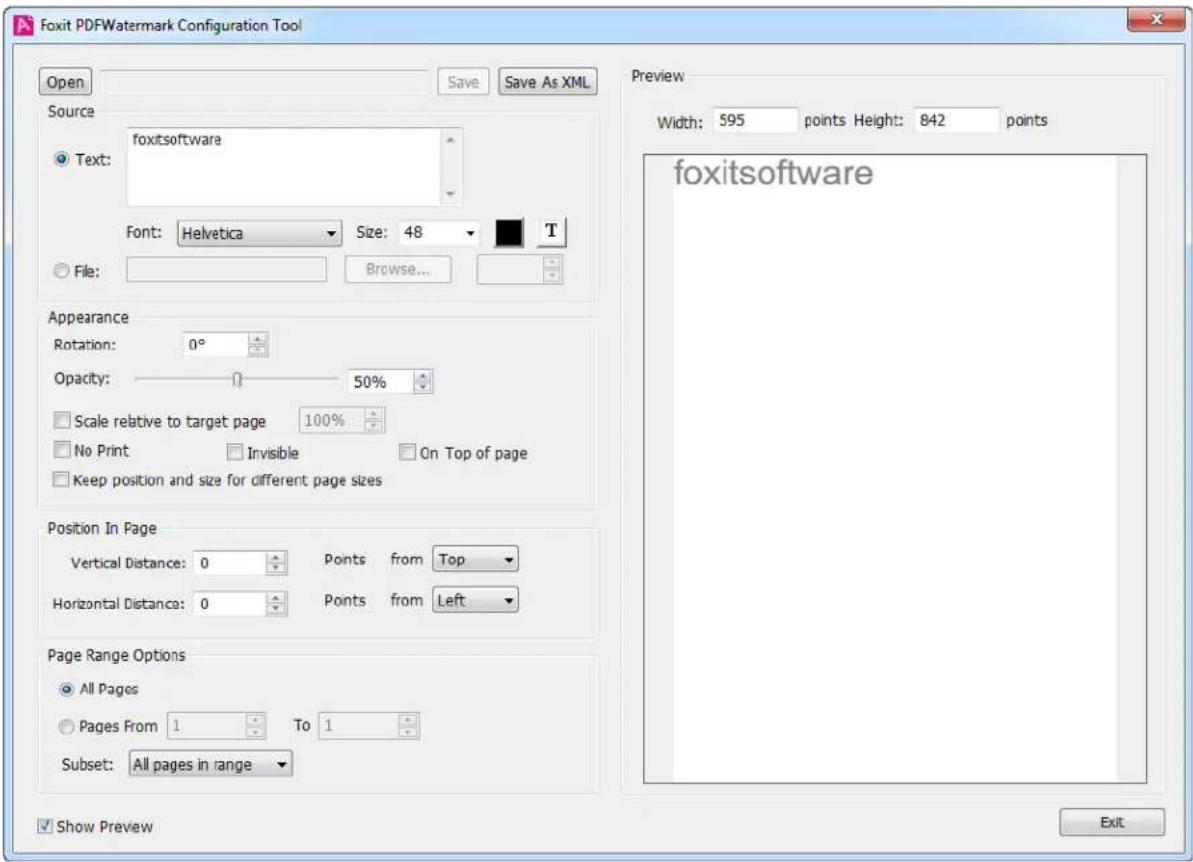
text_image
Foxit PDFWatermark Configuration Tool Open Save Save As XML Source foxitsoftware Text: Font: Helvetica Size: 48 File: Browse... Appearance Rotation: 0° Opacity: 50% Scale relative to target page 100% No Print Invisible On Top of page Keep position and size for different page sizes Position In Page Vertical Distance: 0 Points from Top Horizontal Distance: 0 Points from Left Page Range Options All Pages Pages From 1 To 1 Subset: All pages in range Preview Width: 595 points Height: 842 points foxitsoftware Show Preview ExitPDFWatermark Conguraon Screen
Users can click the "Open" buon to load an exisng watermark conguraon le (.xml), and then edit its sengs according to their desired requirement. Aer eding, users can click "Save" button to save the changes or click "Save As XML" buon to save it as a new watermark conguraon le.
Check "Show Preview" to preview how the text/image/PDF watermark will be displayed in the PDF le. By default, it is checked.
4.1.1 Watermark Sengs
4.1.1.1 Source
Foxit PDFWatermark supports three types of watermarks: text, image and PDF.
Text Watermark
Text
Users can enter text in the content box, which will be appeared as text watermark in the preview window.
Font
This opon is acvated only when Text Watermark is selected. Users can choose the font name, font size, and font color from the drop-down menus.
Underline
Users can click T on to set underline for text when Text Watermark is selected.
Image Watermark
File
Users can browse their computer and choose an image that will be appeared as image watermark in preview window. The following image formats are currently supported: BMP, DIB, JPG, JPEG, JPE, GIF, PNG, TIFF and TIF.
PDF Watermark
File
Users can browse their computer and choose a PDF le. The preview window will display the rst page of the PDF le, you can click the selecon box on the right side of the "Browse..." buon to preview other pages and decide which PDF page will be used to set as PDF watermark.
4.1.1.2 Appearance
This secon introduces how to set the appearance for text/image/PDF watermarks.
Rotaon
Users can enter an angle to rotate the text/image/PDF watermark. The rotaon angle can be set between 0 and 360.
• Opacity
This opon is used to set the transparence for text/image/PDF watermarks. The value is from 0 to 100 (0 meaning invisible, and 100 meaning visibly solid).
• Scale relave to target page
Check "Scale relave to target page" and enter a number in the percentage box to resize the text/image/PDF watermark in relaon to the PDF page's dimensions.
Note The drop-down box of font size will be empty if you check "Scale relave to target page". And if you reset the font size, the "Scale relave to target page" will be unchecked.
No Print
This opon is used to control the visibility for text/image/PDF watermarks when you print the PDF. If you check "No Print", the added watermark will not be shown when prinng. By default, it is not checked.
- Invisible
This opon is used to control the visibility for text/image/PDF watermarks on screen. If you check "Invisible", the added watermark will not be shown on screen. By default, it is not checked.
- On Top of page
If you Check "On Top of page", the text/image/PDF watermark will be placed on top of the page content, that is, the watermark may cover some content. Otherwise, the watermark will be placed under the content, and the page content may obstruct your view of some part of the watermark. By default, it is not checked.
- Keep posion and size for dierent page size
This opon is used to control watermark variaons in a PDF with pages of varying sizes. If you check "Keep posion and size for dierent page size", the added watermark will be the same in dierent pages.
Note Please do not check "Keep posion and size for dierent page size" and "Scale relave to target page" simultaneously, or the "Keep posion and size for dierent page size" will be omied, that is, it will not have any eect.
4.1.1.3 Posion in page
Watermark posion in page is controlled by Vercal Distance and Horizontal Distance posioning. The distance unit is points. Users can set the relave benchmark for the distance, such as Top, Boom, Le, Right and Center.
4.1.1.4 Page Range Opons
Page range opons are used to choose the page range to add watermark. Users can select all pages or specify the page range, or choose even or odd pages via clicking the right items in the subset list.
4.2 PDFHeaderFooter Conguraon Tool
Foxit PDFHeaderFooter Conguraon Tool is used to set the properes of header/footer and then save them as a conguration le with extension ".xml" which is required in the command line. The header/footer sengs contain six main parts: font, margin, appearance opons, text, page number and date format, and page range opons. We will give a detailed introducon on each part in the following seconds.
First, go to "congtool" folder, double-click the fpdfconf.exe or fpdfconf64.exe to launch Foxit PDFHeaderFooter Conguraon Tool, and then you can see the conguraon screen as follows.
www.foxitsoftware.com
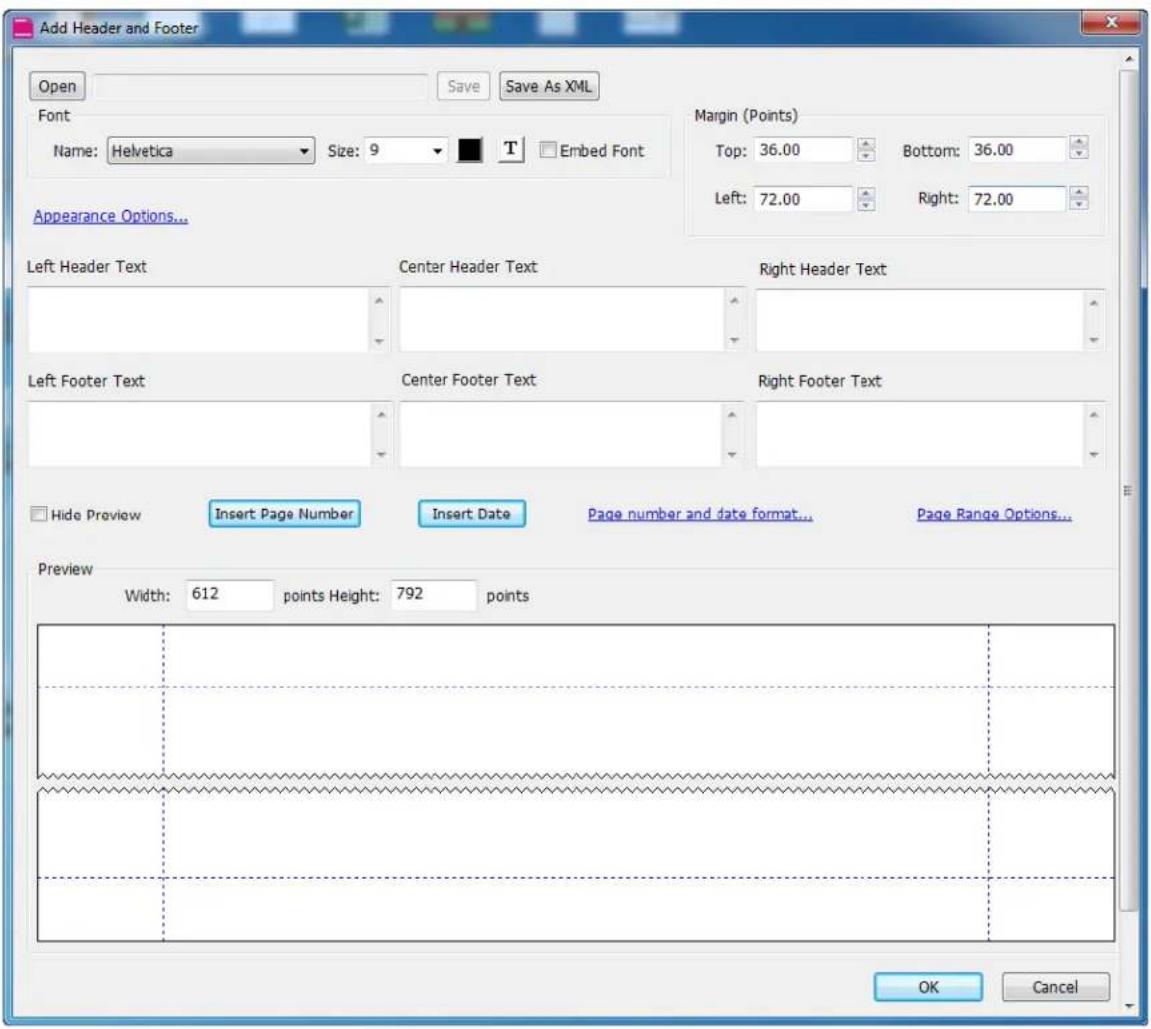
text_image
Add Header and Footer Open Save Save As XML Font Name: Helvetica Size: 9 T Embed Font Appearance Options... Margin (Points) Top: 36.00 Bottom: 36.00 Left: 72.00 Right: 72.00 Left Header Text Center Header Text Right Header Text Left Footer Text Center Footer Text Right Footer Text Hide Preview Insert Page Number Insert Date Page number and date format... Page Range Options... Preview Width: 612 points Height: 792 points OK CancelPDFHeaderFooter Conguraon Screen
Users can click the "Open" buon to load an exisng header/footer conguraon le (.xml), and then edit its sengs according to their desired requirement. Aer eding, users can click "Save" button to save the changes or click "Save As XML" buon to save it as a new header/footer conguraon le.
Check "Hide Preview" to hide the preview window about how the header/footer will be displayed in the PDF le. By default, it is unchecked.
4.2.1 Header/Footer Sengs
4.2.1.1 Font
The font opon allows users to choose the font name, font size and font color from the drop-down menus, to click the T icon to set underline for text, and to check the "Embed Font" to set the text font as embedded font.
4.2.1.2 Margin
The margin opon is used to control the header/footer posion in PDF page. The unit is "points". Users can set margins in four direcons for the added header/footer, including top, boom, le and right.
4.2.1.3 Appearance Opons
There are two opons you can choose when you click on "Appearance Opons" as shown in the following gure. One is "Shrink document to avoid overwring the document's text and graphics", which can be used to shrink the document when the added header/footer may overwrite the text or graphic in the document. The other is "Keep posion and size of header/footer text constant when prinng on dierent page sizes", which can keep the added header/footer at the same posion in dierent pages.
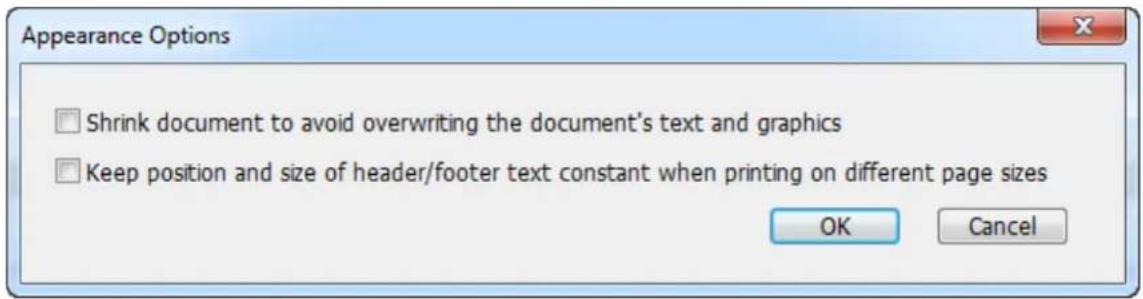
text_image
Appearance Options Shrink document to avoid overwriting the document's text and graphics Keep position and size of header/footer text constant when printing on different page sizes OK CancelAppearance Opons
4.2.1.4 Text
Six text-input boxes are provided to input the texts of header/footer you want to add. It includes le header text, center header text, right header text, le footer text, center footer text and right footer text. Users can input text to the desired box to add the header/footer.
4.2.1.5 Page Number and Date Format
Click "Page Number and Date Format" to open the seeing window as shown in the following gure. Users can set the Date Format, Page Number Format and Start Page Number. Aer seng, click the "Insert Page Number" buon to insert page number to the desired text-input box, and click the "Insert Date" buon to insert date to the desired text-input box.
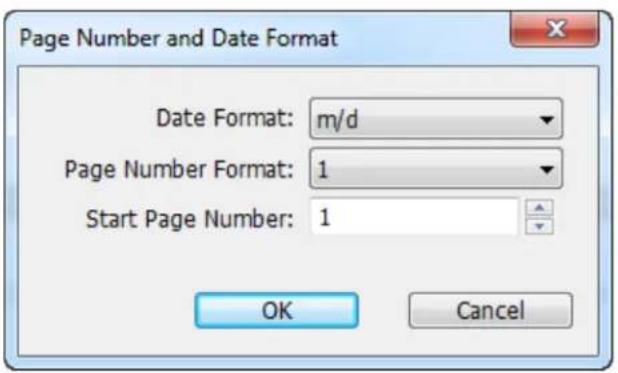
text_image
Page Number and Date Format Date Format: m/d Page Number Format: 1 Start Page Number: 1 OK CancelPage Number and Date Format
4.2.1.6 Page Range Opons
Click the "Page Range Opons" to open the sengs window as shown in the following gure. Page range opons are used to choose the page range to add header/footer. Users can select all pages or specify the page range, or choose even pages or odd pages via clicking the right items in the subset list.
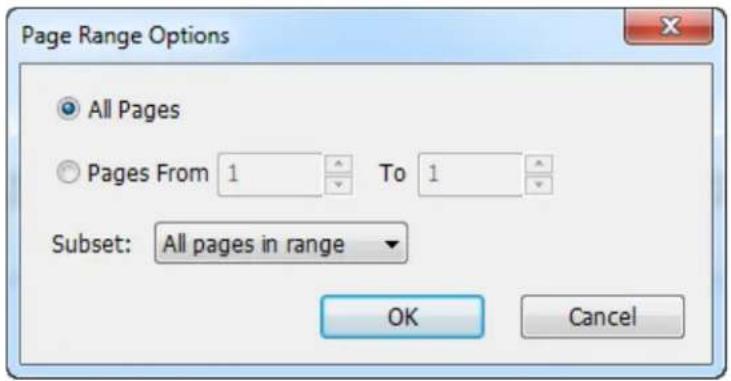
text_image
Page Range Options All Pages Pages From 1 To 1 Subset: All pages in range OK CancelPage Range Opons
5 Working with API
Foxit PDF Toolkit provides another way for users who want to perform PDF manipulaon through API.
Note To integrate the Foxit PDF Toolkit into your own applicaons with API, please contact Foxit sales team to purchase Enterprise License.
Each module oers a simple-to-use API. Four funcons are required for developers who want to integrate the Foxit PDF Toolkit into their own applicaons.
First, inialize Foxit PDF Toolkit library and check the license.
int FXT_InitLibrary(const wchar_t* key, int screenFlag);
The parameter "key" is the path of the license le ("lkey.txt", generated in the installation path aer registering the module using the acvaon code purchased from Foxit.). The parameter "screenFlag" controls whether to print the output informaon to screen. If the value is 1, print the output informaon to screen, not vice versa.
Second, call the funcon of the desired module.
int FXT_Image2PDFRun(const wchar_t* commandline, FXT_CallbackFun callback, void* userData = 0);
int FXT_Oce2PDFRun(const wchar_t * commandline, FXT_CallbackFun callback, void* userData = 0);
int FXT_WatermarkRun(const wchar_t * commandline, FXT_CallbackFun callback, void* userData = 0);
int FXT_HeaderFooterRun(const wchar_t * commandline, FXT_CallbackFun callback, void* userData = 0);
int FXT_OpmizerRun(const wchar_t * commandline, FXT_CallbackFun callback, void* userData = 0);
int FXT_RedactorRun(const wchar_t * commandline, FXT_CallbackFun callback, void* userData = 0);
int FXT_MetadataRun(const wchar_t * commandline, FXT_CallbackFun callback, void* userData = 0);
int FXT_PDF2TextRun(const wchar_t * commandline, FXT_CallbackFun callback, void* userData = 0);
int FXT_Text2PDFRun(const wchar_t * commandline, FXT_CallbackFun callback, void* userData = 0);
int FXT_Html2PDFRun(const wchar_t * commandline, FXT_CallbackFun callback, void* userData = 0);
Select the corresponding funcon of the module. Where, the parameter "commandline" is a command string which is exactly the same as the general syntax used for the command line applicaon (e.g. "-i c:\input -o d:\output"). The parameter "callback" is the callback funcon provided for users to do some special processing. The parameter "userData" is a pointer used to transfer user data.
Third, declare the callback funcon.
typedef wchar_t*(*FXT_CallbackFun)(void* userdata, int mode, wchar_t* msg, bool* isStop)
The parameter "useData" is a pointer of user data. The parameter "mode" species the output mode of informaon including CALLBACK_PDFTOOL_RUN_ERROR, CALLBACK_PDFTOOL_PARAM_ERROR,
CALLBACK_PDFTOOL_MSG and CALLBACK_PDFTOOL_PASSWORD. The parameter "msg" is the output message when calling the callback funcon. The parameter "isStop" controls whether to stop the current applicaon. If the value is true, stop the current applicaon, otherwise, connue running the applicaon.
Last, release and destroy Foxit PDF Toolkit library.
void FXT_DestroyLibrary();
For more details about the API, please refer to the header le "fxpdools.h" in the "include" folder in the installaon path.
The following are some examples on how to work with API for each tool.
5.1 Image2PDF
5.1.1 Working with Image2PDF API
The following is the simplest applicaon that can be built using Image2PDF API:
// Using C/C++
void main(int argc, char* argv[])
{
int ret = FXT_InitLibrary(L"license_key", 0);
FXT_Image2PDFRun(L"-i d:\\input -o d:\\output\\output.pdf", myCallBack, NULL);
FXT_DestroyLibrary();
}
This application converts all the image les in the "d:\input" folder into one PDF le (output.pdf). To convert each image le into individual PDF les, just delete "output.pdf" from the command string.
The command string ("-i d:\input -o d:\output\output.pdf") of the above applicaon is set by users directly in advance. Users also can get the command string through the command line. Building a command line applicaon using Image2PDF API is as simple as the following:
// Using C/C++
void main(int argc, char* argv[])
{
int ret = FXT_InitLibrary(L"license_key", 0);
std::wstring strCommandLine = GetCommandLineW();
std::wstring::size_type pos = strCommandLine.find(L".exe");
strCommandLine = strCommandLine.substr(pos + 6);
FXT_Image2PDFRun(strCommandLine.c_str(), myCallBack, NULL);
FXT_DestroyLibrary();
}
It is also possible to build the command string dynamically (e.g. based on the user or a dynamic input) as illustrated in the following code snippet:
void main(int argc, char* argv[])
{
int ret = FXT_InitLibrary(L"license_key", 0);
std::wstring input_folder = L"d:\\samples\\input";//or image file: input.jpg...
std::wstring output_folder = L"d:\\samples\\output";//or PDF file: output.pdf...
std::wstring set_password = L"secret";
std::wstring log_file = L"d:\\samples\\output\\image2pdf.log";
// set thread number.
int thread_number = 4;
// log level.
int log_level = 4;
// the resolution (DPI:= Dots Pet Inch) for the output PDF file. Valid only when width
// and height is not set.
int dpi = 96;
// recursion depth of search sub-folders. 0: search the full folders.
int depth = 0;
// page size of the output PDF file.
int width = 500, height = 500;
// page margin of the output PDF file. No margin by default.
int margin_top = 20, margin_bottom = 20, margin_left = 20, margin_right = 20;
// create bookmark for the output PDF file using image name.
bool bookmark = true;
// set title of PDF files.
std::wstring title = L"Foxit PDF Toolkit User Manual";
// set subject of PDF files.
std::wstring subject = L"Foxit PDF Toolkit";
// set keywords of PDF files.
std::wstring keywords = L"PDF Toolkit";
// set author of PDF files.
std::wstring author = L"Jessie";
// set file creation application information of PDF files.
std::wstring creator = L"Foxit Reader";
// ----
// Given the above settings build a command string
std::wstring strCommandline = L";
}
if(!input_folder.empty())
strCommandLine.append(L"i").append(input_folder).append(L" ");
if(!output_folder.empty())
strCommandLine.append(L"-o").append(output_folder).append(L" ");
if(!set_password.empty())
strCommandLine.append(L"-sp").append(set_password).append(L" ");
if(!title.empty())
strCommandLine.append(L"-title").append(title).append(L" ");
if(!subject.empty())
strCommandLine.append(L"-subject").append(subject).append(L" ");
if(!keywords.empty())
strCommandLine.append(L"-keywords").append(keywords).append(L" ");
if(!author.empty())
strCommandLine.append(L"-author").append(author).append(L" ");
if(!creator.empty())
strCommandLine.append(L"-creator").append_creator).append(L" ");
if(!log_file.empty())
strCommandLine.append(L"-log").append(log_file).append(L" ");
const int MAX_LEGHT = 128;
const int DATA_RADIX = 10;
wchar_t temp[MAX_LEGHT] = {0};
if (log_level > 0)
{
_itow(log_level,temp,DATA_RADIX);
strCommandLine.append(L"-l").append(temp).append(L" ");
}
if (width > 0 && height > 0)
{
wmemset(temp, 0 , MAX_LEGHT);
_itow(width, temp ,DATA_RADIX);
strCommandLine.append(L"-width").append(temp).append(L" ");
wmemset(temp, 0 , MAX_LEGHT);
_itow(height, temp ,DATA_RADIX);
strCommandLine.append(L"-height").append(temp).append(L" ");
}
else
{
//use dpi to set page size.
if (dpi >=0)
{
wmemset(temp, 0 ,MAX_LEGHT);
_itow(dpi, temp ,DATA_RADIX);
strCommandLine.append(L"-dpi").append(temp).append(L" ");
}
}
if (depth >= 0)
{
wmemset(temp, 0 , MAX_LEGHT);
_itow(depth, temp ,DATA_RADIX);
strCommandLine.append(L"-depth " ).append(temp).append(L" ");
}
if (thread_number>= 0)
{
wmemset(temp, 0, MAX_LEGHT);
_itow(thread_number, temp ,DATA_RADIX);
strCommandLine.append(L"-t " ).append(temp).append(L" ");
}
if (margin_top >= 0 || margin_right >= 0 || margin_bottom >= 0 || margin_left >= 0)
{
bool flag = false;
if (margin_left >= 0)
{
wmemset(temp, 0, MAX_LEGHT);
_itow(margin_left, temp ,DATA_RADIX);
strCommandLine.append(L"-margin " ).append(temp).append(L" ");
if (margin_top >= 0)
{
wmemset(temp, 0, MAX_LEGHT);
_itow(margin_top, temp ,DATA_RADIX);
strCommandLine.append(temp).append(L" ");
if (margin_right >= 0)
{
wmemset(temp, 0, MAX_LEGHT);
_itow(margin_right, temp ,DATA_RADIX);
strCommandLine.append(temp).append(L" ");
if (margin_bottom >= 0)
{
wmemset(temp, 0, MAX_LEGHT);
_itow(margin_bottom, temp ,DATA_RADIX);
strCommandLine.append(temp).append(L" ");
}
}
}
}
if(bookmark) strCommandLine.append(L"-b").append(L" );
FXT_Image2PDFRun(strCommandLine.c_str(), myCallBack, NULL);
FXT_DestroyLibrary();
}
5.1.2 Reporng Progress Messages and Errors
To nd out if Image2PDF processing was successful, the applicaon can query the status code returned by FXT_Image2PDFRun().
For example,
int ret = FXT_Image2PDFRun(...);
if (ret == FXT_ERROR_SUCCESS) {
// No errors...
}
else if (ret == FXT_ERROR_LICENSE) {
// Invalid license...
}
else if (ret == FXT_ERROR_PARAM) {
// Invalid param
}
else if (ret == FXT_ERROR_LIBRARY) {
// Failed to initialize Foxit PDF SDK Library
}
else if (ret == FXT_ERROR_ERROR) {
// Failed to convert image into pdf.
}
else {
// Other error
}
A non-zero value indicates that an error was encountered. You can nd the list for all error codes in the "include/fxpdools.h" header.
For more detailed error and message reporting, you can pass a pointer to the custom callback function in the second parameter of FXT_Image2PDFRun(). The last parameter in FXT_Image2PDFRun() is a pointer to custom data that you may want to pass to the callback function.
The following is a sample callback funcon:
// Using C/C++
wchar_t* MyCallback(void* userdata, int mode, wchar_t* msg, bool* isStop) {
if (mode == CALLBACK_PDFTOOL_RUN_ERROR) {
wcout << L"Error: " << msg << endl;
}
else if (mode == CALLBACK_PDFTOOL_PARAM_ERROR) {
wcout << msg;
}
else if (mode == CALLBACK_PDFTOOL_MSG) {
wcout << msg;
}
else if (mode == CALLBACK_PDFTOOL_PASSWORD) {
static wstring password;
wcin >> password;
return (wchar_t*)password.c_str();
}
return 0;
}
5.2 Oce2PDF
5.2.1 Working with Oce2PDF API
The following is the simplest applicaon that can be built using Oce2PDF API:
// Using C/C++
void main(int argc, char* argv[])
{
int ret = FXT_InitLibrary(L"license_key", 0);
FXT_Office2PDFRun(L"-i d:\\input -o d:\\output", myCallBack, NULL);
FXT_DestroyLibrary();
}
This application converts all the Microso Oce les in the "d:\input" folder into PDF les under the "d:\output" folder except for the secured les.
The command string ("-i d:\input -o d:\output") of the above application is set by users directly in advance. Users also can get the command string through the command line. Building a command line applicaon using Oce2PDF API is as simple as the following:
// Using C/C++
void main(int argc, char* argv[])
{
int ret = FXT_InitLibrary(L"license_key", 0);
std::wstring strCommandLine = GetCommandLineW();
std::wstring::size_type pos = strCommandLine.find(L".exe");
strCommandLine = strCommandLine.substr (pos + 6);
FXT_Office2PDFRun(strCommandLine.c_str(), myCallBack, NULL);
FXT_DestroyLibrary();
}
It is also possible to build the command string dynamically (e.g. based on the user or a dynamic input) as illustrated in the following code snippet:
void main(int argc, char* argv[])
{
int ret = FXT_InitLibrary(L"license_key", 1);
std::wstring input_folder = L"d:\\samples\\input";//or office file: input.doc...
std::wstring output_folder = L"d:\\samples\\output";//or PDF file: output.pdf...
std::wstring open_password = L"secret";
std::wstring log_file = L"d:\\samples\\output\\office2pdf.log";
// set thread number
int thread_number = 4;
// log level
int log_level = 4;
// create bookmark for the output PDF file using headings of a Microsoft Word file.
int bookmark = 1;
// specify that the output PDF file(s) should be compliant with the PDF/A standard.
bool pdfa = true;
// specify the conversion mode for Microsoft Excel files.
int scale = 3;
// ----
// Given the above settings build a command string.
std::wstring strCommandLine = L";
if(!input_folder.empty())
strCommandLine.append(L"-i " ).append(input_folder).append(L" ");
if(!output_folder.empty())
strCommandLine.append(L"-o " ).append(output_folder).append(L" ");
if(!open_password.empty())
strCommandLine.append(L"-op " ).append(open_password).append(L" ");
if(!log_file.empty())
strCommandLine.append(L"-log " ).append(log_file).append(L" );
const int MAX_LEGHT = 128;
const int DATA_RADIX = 10;
wchar_t temp[MAX_LEGHT] = {0};
if(log_level > 0)
{
_itow(log_level,temp,DATA_RADIX);
strCommandLine.append(L"-l " ).append(temp).append(L" );
}
if(thread_number>= 0)
{
wmemset(temp, 0 , MAX_LEGHT);
_itow(thread_number, temp ,DATA_RADIX);
strCommandLine.append(L"-t " ).append(temp).append(L" );
}
if(bookmark >= 0)
{
wmemset(temp, 0 , MAX_LEGHT);
_itow(bookmark, temp ,DATA_RADIX);
strCommandLine.append(L"-b " ).append(temp).append(L" );
}
if(pdfa) strCommandLine.append(L"-pdfa").append(L" );
if(scale >= 0)
{
wmemset(temp, 0 , MAX_LEGHT);
_itow(scale, temp ,DATA_RADIX);
strCommandLine.append(L"-scale " ).append(temp).append(L" );
}
FXT_Office2PDFRun(strCommandLine.c_str(), myCallBack, NULL);
FXT_DestroyLibrary();
}
5.2.2 Reporng Progress Messages and Errors
To nd out if Oce2PDF processing was successful, the applicaon can query the status code returned by FXT_Oce2PDFRun().
For example,
int ret = FXT_Office2PDFRun(...);
if (ret == FXT_ERROR_SUCCESS) {
// No errors...
}
else if (ret == FXT_ERROR_LICENSE) {
// Invalid license...
}
else if (ret == FXT_ERROR_PARAM) {
// Invalid param
}
else if (ret == FXT_ERROR_LIBRARY) {
// Failed to initialize Foxit PDF SDK Library
}
else {
// Other error
}
A non-zero value indicates that an error was encountered. You can nd the list for all error codes in the "include/fxpdools.h" header.
For more detailed error and message reporting, you can pass a pointer to the custom callback function in the second parameter of FXT_Oce2PDFRun(). The last parameter in FXT_Oce2PDFRun() is a pointer to custom data that you may want to pass to the callback function.
The following is a sample callback funcon:
// Using C/C++
wchar_t* MyCallback(void* userdata, int mode, wchar_t* msg, bool* isStop) {
if (mode == CALLBACK_PDFTOOL_RUN_ERROR) {
wcout << L"Error: " << msg << endl;
}
else if (mode == CALLBACK_PDFTOOL_PARAM_ERROR) {
wcout << msg;
}
else if (mode == CALLBACK_PDFTOOL_MSG) {
wcout << msg;
}
else if (mode == CALLBACK_PDFTOOL_PASSWORD) {
static wstring password;
wcin >> password;
return (wchar_t*)password.c_str();
}
return 0;
}
5.3 PDFWatermark
5.3.1 Working with PDFWatermark API
The following is the simplest applicaon that can be built using PDFWatermark API:
// Using C/C++
void main(int argc, char* argv[])
{
int ret = FXT_InitLibrary(L"license_key", 0);
int FXT_WatermarkRun(L"-i d:\\input -o d:\\output -conf d:\\conf_wm.xml", myCallBack, NULL);
FXT_DestroyLibrary();
}
This application adds a watermark into PDF les. All the PDF les in the "d:\input" folder will be added a watermark and output to "d:\output" folder except for the secured les.
The command string ("-i d:\input -o d:\output -conf d:\conf_wm.xml ") of the above applicaon is set by users directly in advance. Users also can get the command string through the command line. Building a command line applicaon using PDFWatermark API is as simple as the following:
// Using C/C++
void main(int argc, char* argv[])
{
int ret = FXT_InitLibrary(L"license_key", 0);
std::wstring strCommandLine = GetCommandLineW();
std::wstring::size_type pos = strCommandLine.find(L".exe");
strCommandLine = strCommandLine.substr(pos + 6);
FXT_WatermarkRun(strCommandLine.c_str(), myCallBack, NULL);
FXT_DestroyLibrary();
}
It is also possible to build the command string dynamically (e.g. based on the user or a dynamic input) as illustrated in the following code snippet:
void main(int argc, char* argv[])
{
int ret = FXT_InitLibrary(L"license_key", 0);
std::wstring input_folder = L"d:\\samples\\input";//or PDF file: input.pdf...
std::wstring output_folder = L"d:\\samples\\output";//or PDF file: output.pdf...
std::wstring set_password = L"secret";
std::wstring log_file = L"d:\\samples\\output\\watermark.log";
std::wstring conf_file = L"d:\\samples\\conf\\conf_wm.xml";//the configuration file
// set title of PDF files.
std::wstring title = L"Foxit PDF Toolkit User Manual";
// set subject of PDF files.
std::wstring subject = L"Foxit PDF Toolkit";
// set keywords of PDF files.
std::wstring keywords = L"PDF Toolkit";
// set author of PDF files.
std::wstring author = L"Jessie";
// set file creation application information of PDF files.
std::wstring creator = L"Foxit Reader";
//set thread number
int thread_number = 4;
// log level
int log_level = 4;
// ----
// Given the above settings build a command string.
std::wstring strCommandline = L";
if(!input_folder.empty())
strCommandline.append(L"-i").append(input_folder).append(L" ");
if(!output_folder.empty())
strCommandline.append(L"-o").append(output_folder).append(L" ");
if(!conf_file.empty())
strCommandline.append(L"-conf").append(conf_file).append(L" ");
if(!set_password.empty())
strCommandline.append(L"-op").append(set_password).append(L" );
if(!title.empty())
strCommandline.append(L"-title").append(title).append(L" );
if(!subject.empty())
strCommandline.append(L"-subject").append(subject).append(L" );
if(!keywords.empty())
strCommandline.append(L"-keywords").append(keywords).append(L" );
if(!author.empty())
strCommandline.append(L"-author").append(author).append(L" );
if(!creator.empty())
strCommandline.append(L"-creator").append_creator).append(L" );
if(!log_file.empty())
strCommandline.append(L"-log").append(log_file).append(L" );
const int MAX_LEGHT = 128;
const int DATA_RADIX = 10;
wchar_t temp[MAX_LEGHT] = {0};
if (log_level > 0)
{
_itow(log_level,temp,DATA_RADIX);
strCommandLine.append(L"-1").append(temp).append(L" ");
}
if (thread_number >= 0)
{
wmemset(temp, 0, MAX_LEGHT);
_itow(thread_number, temp, DATA_RADIX);
strCommandLine.append(L"-t").append(temp).append(L" ");
}
FXT_WatermarkRun(strCommandLine.c_str(), myCallBack, NULL);
FXT_DestroyLibrary();
5.3.2 Reporng Progress Messages and Errors
To nd out if PDFWatermark processing was successful, the applicaon can query the status code returned by FXT_WatermarkRun().
For example,
int ret = FXT_WatermarkRun(...);
if (ret == FXT_ERROR_SUCCESS) {
// No errors...
}
else if (ret == FXT_ERROR_LICENSE) {
// Invalid license...
}
else if (ret == FXT_ERROR_PARAM) {
// Invalid param
}
else if (ret == FXT_ERROR_LIBRARY) {
// Failed to initialize Foxit PDF SDK Library
}
else if (ret == FXT_ERROR_ERROR) {
// Failed to add a watermark to PDF file.
}
else {
// Other error
}
A non-zero value indicates that an error was encountered. You can nd the list for all error codes in the "include/fxpdools.h" header.
For more detailed error and message reporting, you can pass a pointer to the custom callback function in the second parameter of FXT_WatermarkRun(). The last parameter in FXT_WatermarkRun() is a pointer to custom data that you may want to pass to the callback function.
The following is a sample callback funcon:
// Using C/C++
wchar_t* MyCallback(void* userData, int mode, wchar_t* msg, bool* isStop) {
if (mode == CALLBACK_PDFTOOL_RUN_ERROR) {
wcout << L"Error: " << msg << endl;
}
else if (mode == CALLBACK_PDFTOOL_PARAM_ERROR) {
wcout << msg;
}
else if (mode == CALLBACK_PDFTOOL_MSG) {
wcout << msg;
}
else if (mode == CALLBACK_PDFTOOL_PASSWORD) {
static wstring password;
wcin >> password;
return (wchar_t*)password.c_str();
}
return 0;
}
5.4 PDFHeaderFooter
5.4.1 Working with PDFHeaderFooter API
The following is the simplest applicaon that can be built using PDFHeaderFooter API:
// Using C/C++
void main(int argc, char* argv[])
{
int ret = FXT_InitLibrary(L"license_key", 0);
FXT_HeaderFooterRun(L"-i d:\\input -o d:\\output\\output.pdf -mode 1 -overlay -conf
d:\\conf_hf.xml", myCallBack, NULL);
FXT_DestroyLibrary();
}
This application adds headers/footers into PDF les. All the PDF les in the "d:\input" folder will be added a header/footer and output to "d:\output" folder except for the secured les.
The command string ("-i d:\input -o d:\output\output.pdf -mode 1 -overlay -conf d:\conf_hf.xml") of the above applicaon is set by users directly in advance. Users also can get the command string through the command line. Building a command line applicaon using PDFHeaderFooter API is as simple as the following:
// Using C/C++
void main(int argc, char* argv[])
{
int ret = FXT_InitLibrary(L"license_key", 0);
std::wstring strCommandLine = GetCommandLineW();
std::wstring::size_type pos = strCommandLine.find(L".exe");
strCommandLine = strCommandLine.substr(pos + 6);
FXT_HeaderFooterRun(strCommandline.c_str(), myCallBack, NULL);
FXT_DestroyLibrary();
}
It is also possible to build the command string dynamically (e.g. based on the user or a dynamic input) as illustrated in the following code snippet:
void main(int argc, char* argv[])
{
int ret = FXT_InitLibrary(L"license_key", 1);
std::wstring input_folder = L"d:\\samples\\input";//or PDF file: input.pdf...
std::wstring output_folder = L"d:\\samples\\output";//or PDF file: output.pdf...
std::wstring open_password = L"secret";
std::wstring log_file = L"d:\\samples\\output\\headerfooter.log";
std::wstring conf_file = L"d:\\samples\\conf\\conf_hf.xml;// the configuration tool
// set thread number
int thread_number = 4;
// log level
int log_level = 4;
// specify the mode to be used. Adds a new header/footer.
int mode = 1;
// set title of PDF files.
std::wstring title = L"Foxit PDF Toolkit User Manual";
// set subject of PDF files.
std::wstring subject = L"Foxit PDF Toolkit";
// set keywords of PDF files.
std::wstring keywords = L"PDF Toolkit";
// set author of PDF files.
std::wstring author = L"Jessie";
// set file creation application information of PDF files.
std::wstring creator = L"Foxit Reader";
// ----
// Given the above settings build a command string.
std::wstring strCommandline = L";
if(!input_folder.empty())
strCommandline.append(L"-i " ).append(input_folder).append(L" ");
if(!output_folder.empty())
strCommandline.append(L"-o " ).append(output_folder).append(L" );
if(!open_password.empty())
strCommandline.append(L"-op " ).append(open_password).append(L" );
if(!title.empty())
strCommandline.append(L"-title " ).append(title).append(L" );
if(!subject.empty())
strCommandLine.append(L"-subject " ).append(subject).append(L" ");
if(!keywords.empty())
strCommandLine.append(L"-keywords " ).append(keywords).append(L" ");
if(!author.empty())
strCommandLine.append(L"-author " ).append(author).append(L" ");
if(!creator.empty())
strCommandLine.append(L"-creator " ).append_creator).append(L" ");
if(!log_file.empty())
strCommandLine.append(L"-log " ).append(log_file).append(L" );
const int MAX_LEGHT = 128;
const int DATA_RADIX = 10;
wchar_t temp[MAX_LEGHT] = {0};
if (log_level > 0)
{
_itow(log_level,temp,DATA_RADIX);
strCommandLine.append(L"-l " ).append(temp).append(L" ");
}
if (thread_number>= 0)
{
wmemset(temp, 0 , MAX_LEGHT);
_itow(thread_number, temp ,DATA_RADIX);
strCommandLine.append(L"-t " ).append(temp).append(L" ");
}
if (mode >= 0)
{
wmemset(temp, 0 , MAX_LEGHT);
_itow(mode, temp ,DATA_RADIX);
strCommandLine.append(L"-mode " ).append(temp).append(L" ");
}
if(!config.empty())
strCommandLine.append(L"-conf " ).append(conf_file).append(L" );
FXT_HeaderFooterRun(strCommandLine.c_str(), myCallBack, NULL);
FXT_DestroyLibrary();
}
5.4.2 Reporng Progress Messages and Errors
To nd out if PDFHeaderFooter processing was successful, the applicaon can query the status code returned by FXT_HeaderFooterRun().
For example,
int ret = FXT_HeaderFooterRun(...);
if (ret == FXT_ERROR_SUCCESS) {
// No errors...
}
else if (ret == FXT_ERROR_LICENSE) {
// Invalid license...
}
else if (ret == FXT_ERROR_PARAM) {
// Invalid param
}
else if (ret == FXT_ERROR_LIBRARY) {
// Failed to initialize Foxit PDF SDK Library
}
else if (ret == FXT_ERROR_ERROR) {
// Failed to add header and footer to PDF file.
}
else {
// Other error
}
A non-zero value indicates that an error was encountered. You can nd the list for all error codes in the "include/fxpdools.h" header.
For more detailed error and message reporting, you can pass a pointer to the custom callback function in the second parameter of FXT_Header0FooterRun(). The last parameter in FXT_HeaderFooterRun() is a pointer to custom data that you may want to pass to the callback function.
The following is a sample callback funcon:
// Using C/C++
wchar_t* MyCallback(void* userdata, int mode, wchar_t* msg, bool* isStop) {
if (mode == CALLBACK_PDFTOOL_RUN_ERROR) {
wcout << L"Error: " << msg << endl;
}
else if (mode == CALLBACK_PDFTOOL_PARAM_ERROR) {
wcout << msg;
}
else if (mode == CALLBACK_PDFTOOL_MSG) {
wcout << msg;
}
else if (mode == CALLBACK_PDFTOOL_PASSWORD) {
static wstring password;
wcin >> password;
return (wchar_t*)password.c_str();
}
return 0;
}
5.5 PDFOpmizer
5.5.1 Working with PDFOpmizer API
The following is the simplest applicaon that can be built using PDFOpmizer API:
// Using C/C++
void main(int argc, char* argv[])
{
int ret = FXT_InitLibrary(L"license_key", 0);
FXT_OptimizerRun(L"-i d:\\input -o d:\\output", myCallBack, NULL);
FXT_DestroyLibrary();
}
This application optimizes PDF les. All the PDF les in the "d:\input" folder will be optimized and output to "d:\output" folder except for the secured les.
The command string ("-i d:\input -o d:\output\output.pdf") of the above applicaon is set by users directly in advance. Users also can get the command string through the command line. Building a command line applicaon using Image2PDF API is as simple as the following:
// Using C/C++
void main(int argc, char* argv[])
{
int ret = FXT_InitLibrary(L"license_key", 0);
std::wstring strCommandLine = GetCommandLineW();
std::wstring::size_type pos = strCommandLine.find(L".exe");
strCommandLine = strCommandLine.substr(pos + 6);
FXT_OptimizerRun(strCommandLine.c_str(), myCallBack, NULL);
FXT_DestroyLibrary();
}
It is also possible to build the command string dynamically (e.g. based on the user or a dynamic input) as illustrated in the following code snippet:
int main(int argc, char* argv[])
{
int ret = FXT_InitLibrary(L"license_key", 0);
std::wstring input_folder = L"d:\\samples\\input"; //or PDF file: input.pdf
std::wstring output_folder = L"d:\\samples\\output"; //or PDF file: output.pdf
std::wstring set_password = L"secret";
std::wstring log_file = L"d:\\samples\\Output\\pdfoptimizer.log";
// set title of PDF files.
std::wstring title = L"Foxit PDF Toolkit User Manual";
// set subject of PDF files.
std::wstring subject = L"Foxit PDF Toolkit";
// set keywords of PDF files.
std::wstring keywords = L"PDF Toolkit";
// set author of PDF files.
std::wstring author = L"Jessie";
// set file creation application information of PDF files.
std::wstring creator = L"Foxit Reader";
//set thread number.
int thread_number = 4;
// log level
int log_level = 4;
// recursion depth of search sub-folders. 0: search the full folders.
int depth = 0;
// ----
// Given the above settings build a command string.
std::wstring strCommandline = L";
if(!input_folder.empty())
strCommandline.append(L"-i").append(input_folder).append(L" ");
if(!output_folder.empty())
strCommandline.append(L"-o").append(output_folder).append(L" ");
if(!set_password.empty())
strCommandline.append(L"-op").append(set_password).append(L" ");
if(!title.empty())
strCommandline.append(L"-title").append(title).append(L" ");
if(!subject.empty())
strCommandline.append(L"-subject").append(subject).append(L" ");
if(!keywords.empty())
strCommandline.append(L"-keywords").append(keywords).append(L" ");
if(!author.empty())
strCommandline.append(L"-author").append(author).append(L" ");
if(!creator.empty())
strCommandline.append(L"-creator").append_creator).append(L" ");
if(!log_file.empty())
strCommandline.append(L"-log").append(log_file).append(L" );
const int MAX_LEGHT = 128;
const int DATA_RADIX = 10;
wchar_t temp[MAX_LEGHT] = {0};
if (thread_number >= 0) //set thread number
{
wmemset(temp, 0, MAX_LEGHT);
_itow(thread_number, temp, DATA_RADIX);
strCommandline.append(L"-t").append(temp).append(L" ");
}
if (log_level > 0)
{
_itow(log_level, temp, DATA_RADIX);
strCommandline.append(L"-l").append(temp).append(L" ");
}
if (depth >= 0)
{
wmemset(temp, 0 , MAX_LEGHT);
_itow(depth, temp ,DATA_RADIX);
strCommandline.append(L"-r " ).append(temp).append(L" ");
}
//set color/gray images DownSample
std::wstring dcAlgorithm = L"b"; //or "a","s"
std::wstring dcDpiAbove = L"225";
std::wstring dcDpiSet = L"150";
strCommandline.append(L"-dc ") .append(dcAlgorithm).append(L" ");
strCommandline.append(dcDpiAbove).append(L" ");
strCommandline.append(dcDpiSet).append(L" );
//set color/gray images compress
std::wstring ccAlgorithm = L"j"; //or "j2"
std::wstring ccLevel = L"medium"; //or "min","low","high","max"
strCommandline.append(L"-cc ") .append(ccAlgorithm).append(L" ");
strCommandline.append(ccLevel).append(L" );
//set monochrome images DownSample
std::wstring dmAlgorithm = L"b"; //or "a","s"
std::wstring dmDpiAbove = L"450";
std::wstring dmDpiSet = L"300";
strCommandline.append(L"-dm ") .append(dmAlgorithm).append(L" ");
strCommandline.append(dmDpiAbove).append(L" ");
strCommandline.append(dmDpiSet).append(L" );
//set monochrome images compress
std::wstring cmAlgorithm = L"jbig2"; //or "ccitt","runlength"
std::wstring cmLevel = L"lossless"; //or "lossy"
strCommandline.append(L"-cm ") .append(cmAlgorithm).append(L" );
strCommandline.append(cmLevel).append(L" );
//Discard objects or User Data.
std::wstring discardList = L"\1-11\";
strCommandline.append(L"-d ") .append(discardList).append(L" );
//Cleans up streams, bookmarks, or links.
std::wstring cleanupList = L"\1-4\";
strCommandline.append(L"-cl ") .append(cleanupList).append(L" );
strCommandline.append(L"-rd");
//Unembeds all fonts in selected PDF document(s).
strCommandline.append(L"-u");
FXT_OptimizerRun(strCommandline.c_str(), myCallBack, NULL);
FXT_DestroyLibrary();
}
5.5.2 Reporng Progress Messages and Errors
To nd out if PDFOpmizer processing was successful, the applicaon can query the status code returned by FXT_OpmizerRun().
For example,
int ret = FXT_OptimizerRun(...);
if (ret == FXT_ERROR_SUCCESS) {
// No errors...
}
else if (ret == FXT_ERROR_LICENSE) {
// Invalid license...
}
else if (ret == FXT_ERROR_PARAM) {
// Invalid parameter
}
else if (ret == FXT_ERROR_LIBRARY) {
// Failed to initialize Foxit PDF SDK Library
}
else if (ret == FXT_ERROR_ERROR) {
// Failed to optimize PDF file
}
else {
// Other error
}
A non-zero value indicates that an error was encountered. You can nd the list for all error codes in the "include/fxpdools.h" header.
For more detailed error and message reporting, you can pass a pointer to the custom callback function in the second parameter of FXT_OpmizerRun(). The last parameter in FXT_OpmizerRun() is a pointer to custom data that you may want to pass to the callback function.
The following is a sample callback funcon:
// Using C/C++
wchar_t* MyCallback(void* userdata, int mode, wchar_t* msg, bool* isStop) {
if (mode == CALLBACK_PDFTOOL_RUN_ERROR) {
wcout << L"Error: " << msg << endl;
}
else if (mode == CALLBACK_PDFTOOL_PARAM_ERROR) {
wcout << msg;
}
else if (mode == CALLBACK_PDFTOOL_MSG) {
wcout << msg;
}
else if (mode == CALLBACK_PDFTOOL_PASSWORD) {
static wstring password;
wcin >> password;
return (wchar_t*)password.c_str();
}
return 0;
}
5.6 PDFRedactor
5.6.1 Working with PDFRedactor API
The following is the simplest applicaon that can be built using PDFRedactor API:
// Using C/C++
void main(int argc, char* argv[])
{
int ret = FXT_InitLibrary(L"license_key", 0);
FXT_RedactorRun(L"-i d:\\input -o d:\\output -mode 1 -keyword "foxit"', myCallBack, NULL);
FXT_DestroyLibrary();
}
This application redacts (removes) the sensitive content "Foxit" from the PDF les in the "d:\input" folder except for the secured les, and the redacted PDF les will be saved to the "d:\output" folder.
The command string ("-i d:\input -o d:\output -mode 1 -keyword "foxit") of the above application is set by users directly in advance. Users also can get the command string through command line. Building a command line applicaon using PDFRedactor API is as simple as the following:
// Using C/C++
void main(int argc, char* argv[])
{
int ret = FXT_InitLibrary(L"license_key", 0);
std::wstring strCommandLine = GetCommandLineW();
std::wstring::size_type pos = strCommandLine.find(L".exe");
strCommandLine = strCommandLine.substr(pos + 6);
FXT_RedactorRun(strCommandLine.c_str(), myCallBack, NULL);
FXT_DestroyLibrary();
}
It is also possible to build the command string dynamically (e.g. based on the user or a dynamic input) as illustrated in the following code snippet:
void main(int argc, char* argv[])
{
int ret = FXT_InitLibrary(L"license_key", 0);
std::wstring input_folder = L"d:\\samples\\input";//or a PDF file: input.pdf
std::wstring output_folder = L"d:\\samples\\output";//or a PDF file: output.pdf...
std::wstring open_password = L"secret";//open password
std::wstring log_file = L"d:\\samples\\output\\convert2pdf.log";
// the mode of keyword to be searched.
int mode = 1;
// the keyword needed to be searched.
std::wstring keyword = L"Foxit";
// the characters of the keyword you want to redact.
int character = 3;
// the page range to apply redaction.
std::wstring range = L"1,5,9";
// fill color for redaction marks.
int markcolor = 255 255 0;
// specify the overlay text for redaction marks.
std::wstring tx = L"secret";
// the alignment of the overlay text.
int ta = 1;
// the font style of the overlay text.
std::wstring font = L"Calibri";
// the font size of the overlay text.
int fs = 11;
// font color of the overlay text.
int fontcolor = 200 255 0;
// Search the specified keyword in both PDF forms and the main body of text.
bool form = true;
// set title of PDF files.
std::wstring title = L"Foxit PDF Toolkit User Manual";
// set subject of PDF files.
std::wstring subject = L"Foxit PDF Toolkit";
// set keywords of PDF files.
std::wstring keywords = L"PDF Toolkit";
// set author of PDF files.
std::wstring author = L"Jessie";
// set file creation application information of PDF files.
std::wstring creator = L"Foxit Reader";
// recursion depth of search sub-folders. 0: search all of the full folders.
int depth = 0;
// set thread number.
int thread_number = 4;
// log level.
int log_level = 4;
// ----
// Given the above settings build a command string.
std::wstring strCommandline = L";
if(!input_folder.empty())
strCommandLine.append(L"-i").append(input_folder).append(L" ");
if(!output_folder.empty())
strCommandLine.append(L"-o").append(output_folder).append(L" ");
if(!keyword.empty())
strCommandLine.append(L"-keyword").append(keyword).append(L" ");
if(!range.empty())
strCommandLine.append(L"-range").append(range).append(L" ");
if(!tx.empty())
strCommandLine.append(L"-tx").append(tx).append(L" ");
if(!font.empty())
strCommandLine.append(L"-font").append(font).append(L" ");
if(!open_password.empty())
strCommandLine.append(L"-op").append(open_password).append(L" ");
if(!title.empty())
strCommandLine.append(L"-title").append(title).append(L" ");
if(!subject.empty())
strCommandLine.append(L"-subject").append(subject).append(L" ");
if(!keywords.empty())
strCommandLine.append(L"-keywords").append(keywords).append(L" ");
if(!author.empty())
strCommandLine.append(L"-author").append(author).append(L" ");
if(!creator.empty())
strCommandLine.append(L"-creator").append_creator).append(L" ");
if(!log_file.empty())
strCommandLine.append(L"-log").append(log_file).append(L" ");
const int MAX_LEGHT = 128;
const int DATA_RADIX = 10;
wchar_t temp[MAX_LEGHT] = {0};
if (log_level > 0)
{
_itow(log_level,temp,DATA_RADIX);
strCommandLine.append(L"-l").append(temp).append(L" ");
}
if (depth >= 0)
{
wmemset(temp, 0, MAX_LEGHT);
_itow(depth, temp,DATA_RADIX);
strCommandLine.append(L"-depth").append(temp).append(L" ");
}
if (thread_number>= 0)
{
wmemset(temp, 0, MAX_LEGHT);
_itow(thread_number, temp,DATA_RADIX);
strCommandLine.append(L"-t").append(temp).append(L" ");
}
}
if (mode >= 0)
{
wmemset(temp, 0, MAX_LEGHT);
_itow(mode, temp ,DATA_RADIX);
strCommandLine.append(L"-mode " ).append(temp).append(L" ");
}
if (character >= 0)
{
wmemset(temp, 0, MAX_LEGHT);
_itow(character, temp ,DATA_RADIX);
strCommandLine.append(L"-character " ).append(temp).append(L" ");
}
if (R >= 0 && G >= 0 && B >= 0)
{
wmemset(temp, 0, MAX_LEGHT);
_itow(markcolor, temp ,DATA_RADIX);
strCommandLine.append(L"-markcolor " ).append(temp).append(L" ");
}
if (ta>= 0)
{
wmemset(temp, 0, MAX_LEGHT);
_itow(ta, temp ,DATA_RADIX);
strCommandLine.append(L"-ta " ).append(temp).append(L" ");
}
if (fs>= 0)
{
wmemset(temp, 0, MAX_LEGHT);
_itow(fs, temp ,DATA_RADIX);
strCommandLine.append(L"-fs " ).append(temp).append(L" ");
}
if (R >= 0 && G >= 0 && B >= 0)
{
wmemset(temp, 0, MAX_LEGHT);
_itow(fontcolor, temp ,DATA_RADIX);
strCommandLine.append(L"-fontcolor " ).append(temp).append(L" ");
}
if (form) strCommandLine.append(L"-form").append(L" );
FXT_RedactorRun(strCommandLine.c_str(), myCallBack, NULL);
FXT_DestroyLibrary();
}
5.6.2 Reporng Progress Messages and Errors
To nd out if PDFRedactor processing was successful, the applicaon can query the status code returned by FXT_RedactorRun().
For example,
int ret = FXT_RedactorRun(...);
if (ret == FXT_ERROR_SUCCESS) {
// No errors...
}
else if (ret == FXT_ERROR_LICENSE) {
// Invalid license...
}
else if (ret == FXT_ERROR_PARAM) {
// Invalid param
}
else if (ret == FXT_ERROR_LIBRARY) {
// Failed to initialize Foxit PDF SDK Library
}
else if (ret == FXT_ERROR_ERROR) {
// Failed to redact PDF file.
}
else {
// Other error
}
A non-zero value indicates that an error was encountered. You can nd the list for all error code in the "include/fxpdools.h" header.
For more detailed error and message reporting, you can pass a pointer to the custom callback function in the second parameter of FXT_RedactorRun(). The last parameter in FXT_RedactorRun() is a pointer to custom data that you may want to pass to the callback function.
The following is a sample callback funcon:
// Using C/C++
wchar_t* MyCallback(void* userdata, int mode, wchar_t* msg, bool* isStop) {
if (mode == CALLBACK_PDFTOOL_RUN_ERROR) {
wcout << L"Error: " << msg << endl;
}
else if (mode == CALLBACK_PDFTOOL_PARAM_ERROR) {
wcout << msg;
}
else if (mode == CALLBACK_PDFTOOL_MSG) {
wcout << msg;
}
else if (mode == CALLBACK_PDFTOOL_PASSWORD) {
static wstring password;
wcin >> password;
return (wchar_t*)password.c_str();
}
return 0;
}
5.7 PDFMetadata
5.7.1 Working with PDFMetadata API
The following is the simplest applicaon that can be built using PDFMetadata API:
// Using C/C++
void main(int argc, char* argv[])
{
int ret = FXT_InitLibrary(L"license_key", 0);
FXT_MetadataRun(L"-i d:\\input -o d:\\output -title "Foxit PDF Toolkit User Manual", myCallBack, NULL);
FXT_DestroyLibrary();
}
This application adds document the information to the PDF les in the "d:\input" folder except for the secured les, and the output PDF les will be saved to the "d:\output" folder.
The command string ("-i d:\input -o d:\output -title "Foxit PDF Toolkit User Manual") of the above applicaon is set by users directly in advance. Users also can get the command string through command line. Building a command line applicaon using PDFMetadata API is as simple as the following:
// Using C/C++
void main(int argc, char* argv[])
{
int ret = FXT_InitLibrary(L"license_key", 0);
std::wstring strCommandLine = GetCommandLineW();
std::wstring::size_type pos = strCommandLine.find(L".exe");
strCommandLine = strCommandLine.substr(pos + 6);
FXT_MetadataRun(strCommandLine.c_str(), myCallBack, NULL);
FXT_DestroyLibrary();
}
It is also possible to build the command string dynamically (e.g. based on the user or a dynamic input) as illustrated in the following code snippet:
void main(int argc, char* argv[])
{
int ret = FXT_InitLibrary(L"license_key", 0);
std::string input_folder = L"d:\\samples\\input";//or a PDF file: input.pdf
std::string output_folder = L"d:\\samples\\output";//or a PDF file: output.pdf...
std::string open_password = L"secret";//open password
std::string log_file = L"d:\\samples\\output\\pdfmetadata.log";
// set title of PDF files.
std::string title = L"Foxit PDF Toolkit User Manual";
// set subject of PDF files.
std::string subject = L"Foxit PDF Toolkit";
// set keywords of PDF files.
std::string keywords = L"PDF Toolkit";
// set author of PDF files.
std::string author = L"Jessie";
// set file creation application information of PDF files.
std::string creator = L"Foxit Reader";
// recursion depth of search sub-folders. 0: search all of the full folders.
int depth = 0;
// set thread number.
int thread_number = 4;
// log level.
int log_level = 4;
// ----
// Given the above settings build a command string.
std::string strCommandLine = L Cambodia
if(!input_folder.empty())
strCommandLine.append(L"-i").append(input_folder).append(L"");
if(!output_folder.empty())
strCommandLine.append(L"-o").append(output_folder).append(L" );
if(!title.empty())
strCommandLine.append(L"-title").append(title).append(L" );
if(!subject.empty())
strCommandLine.append(L"-subject").append(subject).append(L" );
if(!keywords.empty())
strCommandLine.append(L"-keywords").append(keywords).append(L" );
if(!author.empty())
strCommandLine.append(L"-author").append(author).append(L" );
if(!creator.empty())
strCommandLine.append(L"-creator").append_creator).append(L" );
if(!open_password.empty())
strCommandLine.append(L"-op").append(open_password).append(L" );
if(!log_file.empty())
strCommandLine.append(L"-log").append(log_file).append(L" );
const int MAX_LEGHT = 128;
const int DATA_RADIX = 10;
wchar_t temp[MAX_LEGHT] = {0};
if (log_level > 0)
{
_itow(log_level,temp,DATA_RADIX);
}
strCommandLine.append(L"-1").append(temp).append(L" ");
}
if (depth >= 0)
{
wmemset(temp, 0, MAX_LEGHT);
_itow(depth, temp, DATA_RADIX);
strCommandLine.append(L"-depth").append(temp).append(L" ");
}
if (thread_number>= 0)
{
wmemset(temp, 0, MAX_LEGHT);
_itow(thread_number, temp, DATA_RADIX);
strCommandLine.append(L"-t").append(temp).append(L" ");
}
FXT_MetadataRun(strCommandLine.c_str(), myCallBack, NULL);
FXT_DestroyLibrary();
}
5.7.2 Reporng Progress Messages and Errors
To nd out if PDFMetadata processing was successful, the applicaon can query the status code returned by FXT_MetadataRun().
For example,
int ret = FXT_MetadataRun(...);
if (ret == FXT_ERROR_SUCCESS) {
// No errors...
}
else if (ret == FXT_ERROR_LICENSE) {
// Invalid license...
}
else if (ret == FXT_ERROR_PARAM) {
// Invalid param
}
else if (ret == FXT_ERROR_LIBRARY) {
// Failed to initialize Foxit PDF SDK Library
}
else if (ret == FXT_ERROR_ERROR) {
// Failed to set metadata information of PDF file
}
else {
// Other error
}
A non-zero value indicates that an error was encountered. You can nd the list for all error code in the "include/fxpdools.h" header.
For more detailed error and message reporting, you can pass a pointer to the custom callback
funcon in the second parameter of FXT_MetadataRun(). The last parameter in FXT_MetadataRun() is a pointer to custom data that you may want to pass to the callback funcon.
The following is a sample callback funcon:
// Using C/C++
wchar_t* MyCallback(void* userdata, int mode, wchar_t* msg, bool* isStop) {
if (mode == CALLBACK_PDFTOOL_RUN_ERROR) {
wcout << L"Error: " << msg << endl;
}
else if (mode == CALLBACK_PDFTOOL_PARAM_ERROR) {
wcout << msg;
}
else if (mode == CALLBACK_PDFTOOL_MSG) {
wcout << msg;
}
else if (mode == CALLBACK_PDFTOOL_PASSWORD) {
static wstring password;
wcin >> password;
return (wchar_t*)password.c_str();
}
return 0;
}
5.8 PDF2Text
5.8.1 Working with PDF2Text API
The following is the simplest applicaon that can be built using PDF2Text API:
// Using C/C++
void main(int argc, char* argv[])
{
int ret = FXT_InitLibrary(L"license_key", 0);
FXT_PDF2TextRun(L"-i d:\\input -o d:\\output", myCallBack, NULL);
FXT_DestroyLibrary();
}
This application converts all the PDF les in the "d:\input" folder into text les under the "d:\output" folder except for the secured les.
The command string ("-i d:\input -o d:\output") of the above application is set by users directly in advance. Users also can get the command string through the command line. Building a command line applicaon using PDF2Text API is as simple as the following:
// Using C/C++
void main(int argc, char* argv[])
{
int ret = FXT_InitLibrary(L"license_key", 0);
std::wstring strCommandLine = GetCommandLineW();
std::wstring::size_type pos = strCommandLine.find(L".exe");
strCommandLine = strCommandLine.substr(pos + 6);
FXT_PDF2TextRun(strCommandLine.c_str(), myCallBack, NULL);
FXT_DestroyLibrary();
}
It is also possible to build the command string dynamically (e.g. based on the user or a dynamic input) as illustrated in the following code snippet:
void main(int argc, char* argv[])
{
int ret = FXT_InitLibrary(L"license_key", 0);
std::wstring input_folder = L"d:\\samples\\input";//or a PDF file: input.pdf
std::wstring output_folder = L"d:\\samples\\output";//or a text file: output.txt...
std::wstring open_password = L"secret";//open password
std::wstring log_file = L"d:\\samples\\output\\PDF2Text.log";
// the page range to convert.
std::wstring range = L"all";
// get the total number of characters on each page.
bool charcount = false;
// print the number of characters to the screen.
bool printcount = false;
// ignore the PDF page layout.
bool notype = true;
// ignore the page break in the PDF.
bool nopagenumber = true;
// convert each PDF page into individual text files.
bool singlepage = true;
// Set Unicode text encoding to UTF16.
std::wstring encoding = L"UTF16";
// recursion depth of search sub-folders. 0: search all of the full folders
int depth = 0;
// set thread number
int thread_number = 4;
// log level
int log_level = 4;
// ----
// Given the above settings build a command string.
std::wstring strCommandline = L";
}
if(!input_folder.empty())
strCommandline.append(L"-i").append(input_folder).append(L" ");
if(!output_folder.empty())
strCommandline.append(L"-o").append(output_folder).append(L" ");
if(!open_password.empty())
strCommandline.append(L"-op").append(open_password).append(L" ");
if(!range.empty())
strCommandline.append(L"-range").append(range).append(L" ");
if(!encoding.empty())
strCommandline.append(L"-encoding").append(encoding).append(L" ");
if(!log_file.empty())
strCommandline.append(L"-log").append(log_file).append(L" );
const int MAX_LEGHT = 128;
const int DATA_RADIX = 10;
wchar_t temp[MAX_LEGHT] = {0};
if (log_level > 0)
{
_itow(log_level,temp,DATA_RADIX);
strCommandline.append(L"-l").append(temp).append(L" ");
}
if (depth >= 0)
{
wmemset(temp, 0, MAX_LEGHT);
_itow(depth, temp,DATA_RADIX);
strCommandline.append(L"-depth").append(temp).append(L" ");
}
if (thread_number>= 0)
{
wmemset(temp, 0, MAX_LEGHT);
_itow(thread_number, temp,DATA_RADIX);
strCommandline.append(L"-t").append(temp).append(L" ");
}
if(charcount) strCommandline.append(L"-charcount").append(L" ");
if(printcount) strCommandline.append(L"-printcount").append(L" ");
if(notype) strCommandline.append(L"-notype").append(L" ");
if(nopagenumber) strCommandline.append(L"-nopagenumber").append(L" ");
if(singlepage) strCommandline.append(L"-singlepage").append(L" );
FXT_PDF2TextRun(strCommandline.c_str(), myCallBack, NULL);
FXT_DestroyLibrary();
}
5.8.2 Reporng Progress Messages and Errors
To nd out if PDF2Text processing was successful, the applicaon can query the status code returned by FXT_PDF2TextRun().
For example,
int ret = FXT_PDF2TextRun(...);
if (ret == FXT_ERROR_SUCCESS) {
// No errors...
}
else if (ret == FXT_ERROR_LICENSE) {
// Invalid license...
}
else if (ret == FXT_ERROR_PARAM) {
// Invalid param
}
else if (ret == FXT_ERROR_LIBRARY) {
// Failed to initialize Foxit PDF SDK Library
}
else if (ret == FXT_ERROR_ERROR) {
// Failed to convert PDF file to text file
}
else {
// Other error
}
A non-zero value indicates that an error was encountered. You can nd the list for all error codes in the "include/fxpdools.h" header.
For more detailed error and message reporting, you can pass a pointer to the custom callback function in the second parameter of FXT_PDF2TextRun(). The last parameter in FXT_PDF2TextRun() is a pointer to custom data that you may want to pass to the callback function.
The following is a sample callback funcon:
// Using C/C++
wchar_t* MyCallback(void* userdata, int mode, wchar_t* msg, bool* isStop) {
if (mode == CALLBACK_PDFTOOL_RUN_ERROR) {
wcout << L"Error: " << msg << endl;
}
else if (mode == CALLBACK_PDFTOOL_PARAM_ERROR) {
wcout << msg;
}
else if (mode == CALLBACK_PDFTOOL_MSG) {
wcout << msg;
}
else if (mode == CALLBACK_PDFTOOL_PASSWORD) {
static wstring password;
wcin >> password;
return (wchar_t*)password.c_str();
}
return 0;
}
5.9 Text2PDF
5.9.1 Working with Text2PDF API
The following is the simplest applicaon that can be built using Text2PDF API:
// Using C/C++
void main(int argc, char* argv[])
{
int ret = FXT_InitLibrary(L"license_key", 0);
FXT_Text2PDFRun(L"-i d:\\input -o d:\\output", myCallBack, NULL);
FXT_DestroyLibrary();
}
This application converts all the text les in the "d:\input" folder into PDF les under the "d:\output" folder.
The command string ("-i d:\input -o d:\output") of the above application is set by users directly in advance. Users also can get the command string through the command line. Building a command line applicaon using Text2PDF API is as simple as the following:
// Using C/C++
void main(int argc, char* argv[])
{
int ret = FXT_InitLibrary(L"license_key", 0);
std::wstring strCommandLine = GetCommandLineW();
std::wstring::size_type pos = strCommandLine.find(L".exe");
strCommandLine = strCommandLine.substr(pos + 6);
FXT_Text2PDFRun(strCommandLine.c_str(), myCallBack, NULL);
FXT_DestroyLibrary();
}
It is also possible to build the command string dynamically (e.g. based on the user or a dynamic input) as illustrated in the following code snippet:
void main(int argc, char* argv[])
{
int ret = FXT_InitLibrary(L"license_key", 0);
std::wstring input_folder = L"d:\\samples\\input";//or a text file: input.txt
std::wstring output_folder = L"d:\\samples\\output";//or a PDF file: output.pdf...
std::wstring set_password = L"secret";//open password for office files
std::wstring log_file = L"d:\\samples\\output\\convert2pdf.log";
// page size of the output PDF file
int width = 500, height = 500;
// page margin of the output PDF file.
int margin_top = 20, margin_bottom = 20, margin_left = 20, margin_right = 20;
// font style of the output PDF file
std::wstring font = L"Calibri";
// font size of the output PDF file
int fs = 11;
// font color of the output PDF file
int fontcolor = 255 255 0;
// set title of PDF files.
std::wstring title = L"Foxit PDF Toolkit User Manual";
// set subject of PDF files.
std::wstring subject = L"Foxit PDF Toolkit";
// set keywords of PDF files.
std::wstring keywords = L"PDF Toolkit";
// set author of PDF files.
std::wstring author = L"Jessie";
// set file creation application information of PDF files.
std::wstring creator = L"Foxit Reader";
// recursion depth of search sub-folders. 0: search all of the full folders
int depth = 0;
// set thread number.
int thread_number = 4;
// log level.
int log_level = 4;
// ----
// Given the above settings build a command string.
std::wstring strCommandLine = L"""
if(!input_folder.empty())
strCommandLine.append(L"-i").append(input_folder).append(L" ");
if(!output_folder.empty())
strCommandLine.append(L"-o").append(output_folder).append(L" ");
if(!set_password.empty())
strCommandLine.append(L"-sp").append(set_password).append(L" );
if(!font.empty())
strCommandLine.append(L"-font").append(font).append(L" ");
if(!title.empty())
strCommandLine.append(L"-title").append(title).append(L" ");
if(!subject.empty())
strCommandLine.append(L"-subject").append(subject).append(L" );
if(!keywords.empty())
strCommandline.append(L"-keywords " ).append(keywords).append(L" ");
if(!author.empty())
strCommandline.append(L"-author " ).append(author).append(L" ");
if(!creator.empty())
strCommandline.append(L"-creator " ).append_creator).append(L" ");
if(!log_file.empty())
strCommandline.append(L"-log " ).append(log_file).append(L" ");
const int MAX_LEGHT = 128;
const int DATA_RADIX = 10;
wchar_t temp[MAX_LEGHT] = {0};
if (log_level > 0)
{
_itow(log_level,temp,DATA_RADIX);
strCommandline.append(L"-1 " ).append(temp).append(L" ");
}
if (depth >= 0)
{
wmemset(temp, 0 , MAX_LEGHT);
_itow(depth, temp ,DATA_RADIX);
strCommandline.append(L"-depth " ).append(temp).append(L" ");
}
if (thread_number>= 0)
{
wmemset(temp, 0 , MAX_LEGHT);
_itow(thread_number, temp ,DATA_RADIX);
strCommandline.append(L"-t " ).append(temp).append(L" );
}
if (width > 0 && height > 0)
{
wmemset(temp, 0 , MAX_LEGHT);
_itow(width, temp ,DATA_RADIX);
strCommandline.append(L"-width " ).append(temp).append(L" );
wmemset(temp, 0 , MAX_LEGHT);
_itow(height, temp ,DATA_RADIX);
strCommandline.append(L"-height " ).append(temp).append(L" );
}
if (margin_top >= 0 || margin_right >= 0 || margin_bottom >= 0 || margin_left >= 0)
{
bool flag = false;
if (margin_left >= 0)
{
wmemset(temp, 0 , MAX_LEGHT);
_itow(margin_left, temp ,DATA_RADIX);
strCommandline.append(L"-margin " ).append(temp).append(L" );
if(margin_top >= 0)
{
wmemset(temp, 0 , MAX_LEGHT);
_itow(margin_top, temp ,DATA_RADIX);
strCommandLine.append(temp).append(L" ");
if(margin_right >= 0)
{
wmemset(temp, 0, MAX_LEGHT);
_itow(margin_right, temp, DATA_RADIX);
strCommandLine.append(temp).append(L" ");
if(margin_bottom >= 0)
{
wmemset(temp, 0, MAX_LEGHT);
_itow(margin_bottom, temp, DATA_RADIX);
strCommandLine.append(temp).append(L" ");
}
}
if (fs>= 0)
{
wmemset(temp, 0, MAX_LEGHT);
_itow(fs, temp, DATA_RADIX);
strCommandLine.append(L"-fs").append(temp).append(L" ");
}
if (R >= 0 && G >= 0 && B >= 0)
{
wmemset(temp, 0, MAX_LEGHT);
_itow(fontcolor, temp, DATA_RADIX);
strCommandLine.append(L"-fontcolor").append(temp).append(L" ");
}
FXT_Text2PDFRun(strCommandLine.c_str(), myCallBack, NULL);
FXT_DestroyLibrary();
}
5.9.2 Reporng Progress Messages and Errors
To nd out if Text2PDF processing was successful, the applicaon can query the status code returned by FXT_Text2PDFRun().
For example,
int ret = FXT_Text2PDFRun(...);
if (ret == FXT_ERROR_SUCCESS) {
// No errors...
}
else if (ret == FXT_ERROR_LICENSE) {
// Invalid license...
}
else if (ret == FXT_ERROR_PARAM) {
// Invalid param
}
else if (ret == FXT_ERROR_LIBRARY) {
// Failed to initialize Foxit PDF SDK Library
}
else if (ret == FXT_ERROR_ERROR) {
// Failed to convert text file to PDF file
}
else {
// Other error
}
A non-zero value indicates that an error was encountered. You can nd the list for all error codes in the "include/fxpdools.h" header.
For more detailed error and message reporting, you can pass a pointer to the custom callback function in the second parameter of FXT_Text2PDFRun(). The last parameter in FXT_Text2PDFRun() is a pointer to custom data that you may want to pass to the callback function.
The following is a sample callback funcon:
// Using C/C++
wchar_t* MyCallback(void* userdata, int mode, wchar_t* msg, bool* isStop) {
if (mode == CALLBACK_PDFTOOL_RUN_ERROR) {
wcout << L"Error: " << msg << endl;
}
else if (mode == CALLBACK_PDFTOOL_PARAM_ERROR) {
wcout << msg;
}
else if (mode == CALLBACK_PDFTOOL_MSG) {
wcout << msg;
}
else if (mode == CALLBACK_PDFTOOL_PASSWORD) {
static wstring password;
wcin >> password;
return (wchar_t*)password.c_str();
}
return 0;
}
5.10 Html2PDF
5.10.1 Working with Html2PDF API
The following is the simplest applicaon that can be built using Html2PDF API:
// Using C/C++
void main(int argc, char* argv[])
{
int ret = FXT_InitLibrary(L"license_key", 0);
FXT_Html2PDFRun(L"-i d:\\input -o d:\\output", myCallBack, NULL);
FXT_DestroyLibrary();
}
This application converts all the html les in the "d:\input" folder into PDF les under the "d:\output" folder.
The command string ("-i d:\input -o d:\output") of the above application is set by users directly in advance. Users also can get the command string through command line. Building a command line applicaon using Html2PDF API is as simple as the following:
// Using C/C++
void main(int argc, char* argv[])
{
int ret = FXT_InitLibrary(L"license_key", 0);
std::wstring strCommandLine = GetCommandLineW();
std::wstring::size_type pos = strCommandLine.find(L".exe");
strCommandLine = strCommandLine.substr(pos + 6);
FXT_Html2PDFRun(strCommandLine.c_str(), myCallBack, NULL);
FXT_DestroyLibrary();
}
It is also possible to build the command string dynamically (e.g. based on the user or a dynamic input) as illustrated in the following code snippet:
void main(int argc, char* argv[])
{
int ret = FXT_InitLibrary(L"license_key", 0);
std::wstring input_folder = L"d:\\samples\\input";//or a html file or a URL
std::wstring output_folder = L"d:\\samples\\output";//or a PDF file: output.pdf...
std::wstring log_file = L"d:\\samples\\output\\html2pdf.log";
// page size of the output PDF file.
int width = 500, height = 500;
// page margin of the output PDF file.
int margin_top = 20, margin_bottom = 20, margin_left = 20, margin_right = 20;
// cache address of html page resources.
std::wstring cache = L"d:\resources";
// timeout to load a webpage.
int timeout = 60;
// set all the page contents to one single PDF page.
bool singlepage = true;
// disable retaining hyperlinks in PDF files from html files or URL.
bool nolink = true;
// page rotation for output PDF file.
int rotate = 90;
// improves the conversion quality if the webpages include lazy loading elements or if
// the network/hardware performance is not good enough.
bool checklazyload = true;
// recursion depth of search sub-folders. 0: search all of the full folders.
int depth = 0;
// set thread number
int thread_number = 4;
// log level
int log_level = 4;
// ----
// Given the above settings build a command string.
std::wstring strCommandline = L";
if(!input_folder.empty())
strCommandline.append(L"-i").append(input_folder).append(L" ");
if(!output_folder.empty())
strCommandline.append(L"-o").append(output_folder).append(L" ");
if(!cache.empty())
strCommandline.append(L"-cache").append(cache).append(L" ");
if(!log_file.empty())
strCommandline.append(L"-log").append(log_file).append(L" );
const int MAX_LEGHT = 128;
const int DATA_RADIX = 10;
wchar_t temp[MAX_LEGHT] = {0};
if (log_level > 0)
{
_itow(log_level,temp,DATA_RADIX);
strCommandline.append(L"-l").append(temp).append(L" ");
}
if (depth >= 0)
{
wmemset(temp, 0, MAX_LEGHT);
_itow(depth, temp ,DATA_RADIX);
strCommandline.append(L"-depth").append(temp).append(L" ");
}
if (thread_number>= 0)
{
wmemset(temp, 0, MAX_LEGHT);
_itow(thread_number, temp ,DATA_RADIX);
strCommandline.append(L"-t").append(temp).append(L" ");
}
if (width > 0 && height > 0)
{
wmemset(temp, 0, MAX_LEGHT);
_itow(width, temp ,DATA_RADIX);
strCommandline.append(L"-width").append(temp).append(L" );
wmemset(temp, 0, MAX_LEGHT);
_itow(height, temp ,DATA_RADIX);
strCommandline.append(L"-height").append(temp).append(L" );
}
if (margin_top >= 0 || margin_right >= 0 || margin_bottom >= 0 || margin_left >= 0)
{
bool flag = false;
if (margin_left >= 0)
{
wmemset(temp, 0, MAX_LEGHT);
_itow(margin_left, temp, DATA_RADIX);
strCommandline.append(L"-margin").append(temp).append(L" ");
if(margin_top >= 0)
{
wmemset(temp, 0, MAX_LEGHT);
_itow(margin_top, temp, DATA_RADIX);
strCommandline.append(temp).append(L" ");
if(margin_right >= 0)
{
wmemset(temp, 0, MAX_LEGHT);
_itow(margin_right, temp, DATA_RADIX);
strCommandline.append(temp).append(L" ");
if(margin_bottom >= 0)
{
wmemset(temp, 0, MAX_LEGHT);
_itow(margin_bottom, temp, DATA_RADIX);
strCommandline.append(temp).append(L" ");
}
}
}
if (timeout>= 0)
{
wmemset(temp, 0, MAX_LEGHT);
_itow(timeout, temp, DATA_RADIX);
strCommandline.append(L"-timeout").append(temp).append(L" ");
}
if(singlepage) strCommandline.append(L"-singlepage").append(L" ");
if(nolink) strCommandline.append(L"-nolink").append(L" );
if (rotate>= 0)
{
wmemset(temp, 0, MAX_LEGHT);
_itow(rotate, temp, DATA_RADIX);
strCommandline.append(L"-rotate").append(temp).append(L" ");
}
if(checklazyload) strCommandline.append(L"-checklazyload").append(L" );
FXT_Html2PDFRun(strCommandline.c_str(), myCallBack, NULL);
FXT_DestroyLibrary();
}
5.10.2 Reporng Progress Messages and Errors
To nd out if Html2PDF processing was successful, the applicaon can query the status code returned by FXT_Html2PDFRun().
For example,
int ret = FXT_Html2PDFRun(...);
if (ret == FXT_ERROR_SUCCESS) {
// No errors...
}
else if (ret == FXT_ERROR_LICENSE) {
// Invalid license...
}
else if (ret == FXT_ERROR_PARAM) {
// Invalid param
}
else if (ret == FXT_ERROR_LIBRARY) {
// Failed to initialize GSDK Library
}
else if (ret == FXT_ERROR_ERROR) {
// Failed to convert html file into PDF file
}
else {
// Other error
}
A non-zero value indicates that an error was encountered. You can nd the list for all error code in the "include/fxpdools.h" header.
For more detailed error and message reporting, you can pass a pointer to the custom callback function in the second parameter of FXT_Html2PDFRun(). The last parameter in FXT_Html2PDFRun() is a pointer to custom data that you may want to pass to the callback function.
The following is a sample callback funcon:
// Using C/C++
wchar_t* MyCallback(void* userdata, int mode, wchar_t* msg, bool* isStop) {
if (mode == CALLBACK_PDFTOOL_RUN_ERROR) {
wcout << L"Error: " << msg << endl;
}
else if (mode == CALLBACK_PDFTOOL_PARAM_ERROR) {
wcout << msg;
}
else if (mode == CALLBACK_PDFTOOL_MSG) {
wcout << msg;
}
else if (mode == CALLBACK_PDFTOOL_PASSWORD) {
static wstring password;
wcin >> password;
return (wchar_t*)password.c_str();
}
return 0;
}
6 Support
6.1 Reporng Problem
Should you encounter any technical quesons or bug issues when using Foxit PDF Toolkit command line tools, please submit the problem report to Foxit support team at http://www.foxitsoware.com/support/. In order to beer help you solve the problem, please provide the following informaon:
- Contact details
• Product name and its version - Your Operang System
• Detailed descripon of the problem
• Any other related informaon, such as error screenshot
Note
- In the unfortunate event that Foxit PDF Toolkit should crash, Foxit PDF Toolkit will generate two les named “CRASHLOG.TXT” and “CRASH.DMP” under the current execuon directory. The “CRASHLOG.TXT” le will record the detailed information of the module and the system that are used at the me the crash occurred. To help our engineering team track down the problem and provide a soluon, please submit the two les to Foxit support team. Thank you for your cooperaon.
- For the html2pdf module, if you have installed security soware locally and access the webpages embedded with adversing JavaScript, the main program "tml2pdf.exe" (or "tml2pdf64.exe") and the background program "fxhtml2pdf.exe" may be deleted by the security soware. In order to use html2pdf module properly, please add the following lists to the security soware's white list, where "[installPath]" is the installaon path of Foxit PDF Toolkit.
[installPath]\tml2pdf.exe
[installPath]\tml2pdf64.exe
[installPath]\lib\html2pdf\x64\fxhtml2pdf.exe
[installPath]\lib\html2pdf\x86\fxhtml2pdf.exe
6.2 Contact Informaon
You can contact Foxit directly, please use the contact informaon as follows:
Foxit Support:
• hp://www.foxitsoware.com/support/
Sales Contact:
• Phone: 1-866-680-3668
• Email: sales@foxitsoware.com
Support & General Contact:
• Phone: 1-866-MYFOXIT or 1-866-693-6948
• Email: support@foxitsoware.com