USER MANUAL TA 955 Safescan
Safescan Time Attendance Systems
TA-900 series

Contents
1.0 CONSIDERATION
1.1 Environmental Considerations
2.0 MOUNTING AND CONNECTING THE TERMINAL
2.1 Connect the TCP/IP network cable if you want to synchronize the terminal through the network
2.2 Wi-Fi connection
2.3 Function Keys and Display
2.4 Key functions
3.0 FIRST USE
4.0 IDENTITY VERIFICATION
5.0 USER
5.1 Check-in ____
5.1.1 Add New User ID. NO
5.1.2 Add New User Name
5.1.3 How to create a User Name
5.1.4 Enroll New User Fingerprint (FP)
5.1.5 Enroll New User with Password (PWD)
5.1.6 Enroll New User with RFID Card (Card)
5.1.7 ID card verification
5.1.8 Set User Authority (Purview)
5.1.9 Save/Exit New User registration
5.2 Manage User(s)
5.2.1 Search for user(s)
5.2.2 User(s) Attendance records
5.2.3 Edit User(s)
5.2.4 Delete User(s)
5.2.5 Add User(s)
5.3 Short Message Service (SMS)
5.3.1 How to create a Short Message
5.3.2 How to write a text for Short Message
5.3.3 View Public Short messages
5.3.4 View Personal Short messages
5.4 Work Codes
5.4.1 Adding Work Codes
5.4.2 How to create a Work Code Name
5.4.3 Editing and Deleting Work Codes
5.4.4 Using Work Codes
6.0 COMMUNICATION SETTINGS
6.1 Network (Ethernet)
6.2 RS232/485
6.3 Setting Security for RS 232 Communications
6.4 Wi-Fi configuration
6.4.1 Manual Wireless Configuration
7.0 SYSTEM SETTING OVERVIEW
7.1 System Setting
7.1.1 Suggested Threshold Settings
7.1.2 Date format
7.2 Data management
7.2.1 Picture formats
7.3 Keyboard ____
7.4 Display Setting
7.5 Reset ____
7.6 Bell setting
7.7 Miscellaneous Settings (Misc. Set)
7.7.1 Sleep time (Idle)
7.7.2 Fingerprint Image (FP Image)
7.7.3 Power Button
7.7.4 Language
8.0 DATE AND TIME SETTING
8.1 Changing Date and Time settings
9.0 USB DISK/PENDRIVE (FLASH DRIVE)
9.1 Downloading Attendance Records/ Logs
9.2 How to Download Attendance Records
9.3 Downloading User Data (i.e. fingerprints, RFID Card and PWD)
9.4 Downloading SMS (Short Message)
9.5 Uploading user data (templates)
9.6 Uploading SMS (Short Message)
9.7 Uploading Picture(s)
10.0 AUTO TEST
10.1 TFT Screen Test
10.2 Audio Test
10.3 Keypad Test
10.4 Fingerprint Sensor Test
10.5 Real-time clock (RTC) Test
11.0 RECORD (ATTENDANCE/AUDIT LOGS)
12.1 Records Information
12.2 Device information
13.0 FINGERPRINT RECOGNITION TECHNOLOGY
13.1 How Fingerprint Recognition Technology Works
13.2 Getting Good Fingerprint Images
13.3 Correcting Wet or Dry Fingerprint Images
13.4 Proper Finger Placement
13.5 Fingerprint Matching
13.5.1 1:N Fingerprint Matching
13.5.2 How to Use 1:N Fingerprint Matching
13.5.3 1:1 Fingerprint Matching (ID. NO +fingerprint)
13.5.4 How to Use 1:1 Fingerprint Matching
13.6 Password Matching
13.6.1 How to Use Password Matching
14.0 GETTING FAMILIAR WITH THE KEYPAD
16.1 How to create a "word"
17.0 SYNCHRONIZE DATA WITH THE SOFTWARE
17.1 By USB stick
17.2 Via local Network TCP/IP or Wi-Fi
17.2.1 Connect Terminal with Safescan Time Attendance Software
17.3 Synchronizing user data with Time Attendance Software
Manual
Safescan Time Attendance Systems
TA-900 series

Package contents:
- Safescan time attendance terminal (model 910, 920, 955, 960 & 965)
- Installation CD with Safescan Time Attendant software and quick guide
- Power adapter with removable Euro and UK plug
- Metal fixing bracket for wall-fitting (incl. 2 special screws and screwdriver)
- Mounting materials (4 screws, 4 dowels)
- 5x RFID badges (only with 910, 920, 955, 965)
The Safescan TA-900 series time attendance systems record your staff's check-in and -out times. The time records for each user are stored on the Safescan registration terminal and can be transferred to your PC directly by network (TCP/IP) connection or indirectly by uploading the data onto your USB stick. On your PC you can then process the data, for example by using the Safescan Time Attendant software.
The TA-900 series consists of the 2 following models:
- Safescan TA-910, registration through RFID proximity badge (or keyfob) and/or password
- Safescan TA-920; Internal WiFi module; registration through RFID proximity badge (or keyfob) and/or password
- Safescan TA-955, registration through fingerprint, RFID proximity badge (or keyfob) and/or password
- Safescan TA-960; Internal WiFi module; registration through fingerprint and/or password
- Safescan TA-965; Internal WiFi module; registration through fingerprint, RFID proximity badge (or keyfob) and/or password
The Safescan Time Attendant software, which is shipped with each TA-900 terminal, enables you to make selections of time attendance records sorted by group employee, per group of employees or by period of time. Reports can be printed or exported for further use in other programs. User logs and records can easily be adjusted; removed or new logs can be added.
This manual has been written to provide instructions on how to setup and operate the TA-900 series devices. Where applicable, references to the Safescan Time Attendant software have been added. All functions described in this document are current as of November 2011. Every effort has been made to ensure the information in this document is complete and consistent with the Safescan TA-900 Series you have purchased. Since the Safescan TA-900 Series is constantly being improved, it is remotely possible that this document may not precisely coincide with the Safescan TA-900 you have purchased. Safescan will not assume liability for any direct or indirect financial loss resulting from any inaccuracies or omissions found in this document.
If after reading this manual you have any questions/remarks, suggestions, etc. regarding the contents of this manual, or regarding the TA-900 series or any other Safescan products, or if you are looking for more resources to help you setup and/or operate your Safescan product, then please don't hesitate to visit our website at www.safescan.com/support
1.0 Consideration
The Safescan TA-900 Series Time Attendance terminals are designed to work with Safescan Time Attendance PC-software.
1.1 Environmental Considerations
Do not install or operate the Safescan TA-900 Series where strong light is present. Intense light will adversely impact the sensor's ability to accurately read fingerprints.
The Safescan TA-900 Series operating temperature range is 0^ to 40^ C ( 32^ to 105^ F). Do not operate the Safescan TA-900 Series in very hot environments. Keep the Safescan TA-900 Series away from direct heat sources and provide adequate ventilation to prevent the Safescan TA-900 Series from overheating.
2.0 Mounting and connecting the terminal
Mount the metal mounting bracket to a wall at a height of 1.4 - 1.5 meters.

natural_image
Technical line drawing of a mechanical component with two views: top shows a bracket and side shows a cylindrical part with curved ends (no text or symbols)
Screw 3x Security screw
Connect the mains adapter to the bottom of the terminal. The terminal is now ready for use.
TA Terminal - Back TA Terminal - Left side
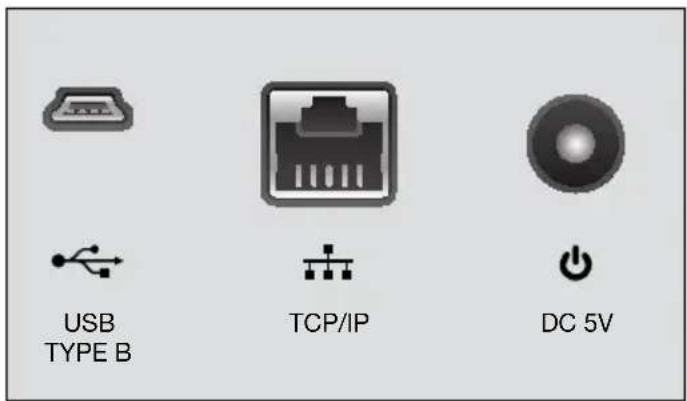

2.1 Connect the TCP/IP network cable if you want to synchronize the terminal through the network.
TCP/IP
If there isn't a TCP/IP network connection available, you can read out the data
with a USB stick (PenDrive) and subsequently read this in into the Switch
Safescan Time Attendant software.

flowchart
graph TD
    A["Top Node"] --> B["TA 800 series"]
    A --> C["PC"]
2.2 Wi-Fi connection
To connect the TA-920, 960 or 965 by Wi-Fi please follow the steps described in chapter 6.4.
2.3 Function key and display
TA-910 / 920
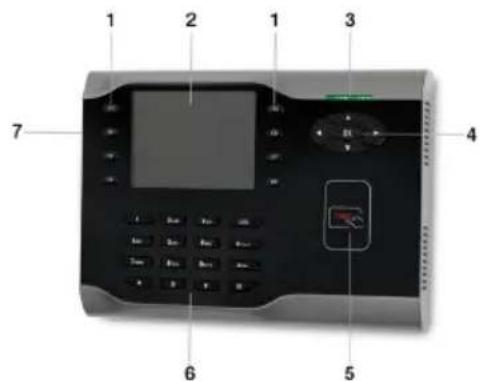
- Function keys
- TFT screen
- LED indicator
- Navigation keys
- RFID Badge sensor area
- Keypad
- USB upload/download port
TA-955 / 960 / 965

- Function keys
- TFT screen
- LED indicator
- Navigation keys
- RFID Badge sensor area (only 955 & 965)
- Fingerprint sensor
- Keypad
- USB upload/download port
2.4 Key functions:

: Press and hold for 3 seconds to switch the terminal off.
: To switch to T9 text input mode in the menu screen.

: To cancel operations, to exit (sub) menus or to exit T9 text input mode.