
MegaPAD 5504 - Monitor XORO - Free user manual and instructions
Find the device manual for free MegaPAD 5504 XORO in PDF.


| Product Type | Android Monitor / Smart Display |
| Model | MegaPAD 5504 |
| Operating System | Android (Linux-based) |
| Processor | Not specified |
| Display | Touchscreen |
| Memory | Internal storage (partitioned for apps and user files), RAM (size not specified) |
| Storage Expansion | SD/SDHC card reader (up to 32GB), USB storage |
| Connectivity | Wi-Fi 802.11 b/g/n, Bluetooth, LAN (RJ45), MiniUSB 2.0, USB 2.0 x1 (on some models more) |
| Audio | Built-in speaker, headphone output (3.5mm) |
| Video Output | Not specified (likely via HDMI, but not mentioned in manual) |
| Camera | Front camera |
| Power Supply | DC 12V adapter (supplied), 100-240V AC input |
| Mounting | VESA compatible (threaded holes on back), adjustable stand included |
| Weight | Not specified |
| Dimensions | Not specified |
| File Systems Supported | FAT32, NTFS, FAT |
| Media Playback | Music: MP3, WMA, WAV; Pictures: JPEG, BMP, PNG, GIF; Video: MKV, MPEG, VOB, TS, MOV, AVI, H.264 up to 1080p |
| Wireless Display | Miracast supported |
| Security | Screen lock (pattern, PIN, password), owner info, unknown sources toggle |
| Languages | Multiple languages (set in system settings) |
| Included Accessories | Power supply, USB cable, stand, user manual |
Frequently Asked Questions - MegaPAD 5504 XORO
User questions about MegaPAD 5504 XORO
0 question about this device. Answer the ones you know or ask your own.
Ask a new question about this device
Download the instructions for your Monitor in PDF format for free! Find your manual MegaPAD 5504 - XORO and take your electronic device back in hand. On this page are published all the documents necessary for the use of your device. MegaPAD 5504 by XORO.
USER MANUAL MegaPAD 5504 XORO
FREE TO CHOOSE INNOVATIONS
XORO®
MegaPAD

Definition, Desktop 12
Electronic Security....2
Usage, Package Contents .... 3
Device 4
Connections, Turn ON / OFF, Additional input devices 6
Device (Megapad2704 V2/ 3204 V2) 7
Connections, Turn ON / OFF, Additional input devices 8
Installation....9
Definition, Desktop 10
System Symbols, Connect to the Computer 11
Android system settings....12
Wi-Fi, Bluetooth 13
Data usage 14
Sound, Display 15
Storage, Apps 16
Location access, security 17
Language, Backup & reset, Date & Time 18
Accessibility, Developer options 19
Google PlayStore, Install / deinstall applications 20
APK Installer 20
Music Playback, Picture Playback 21
Movie Playback, Installed Applications 22
Troubleshooting....23
Warranty & Recycling Information....24
Licenses & Disclaimer 25
7 Wifi Antenna Anschlüsse
8 Mikrofon
9 SD Card SDHC Kartenleser
Megapad1403V2/1404/1564 Megapad2154/2404V2/2403V2
Stromversorgung

Select delay time to capture the screen
15s later capture
Set the location of screenshot storage flash
Show the screenshot button in the statusbar

Speicher
Intermer Speichver

StabilityTest 2,41 MB
Source Code
FREE TO CHOOSE INNOVATIONS
XORO®
MegaPAD
USER MANUAL (ENG)
Electronic Security
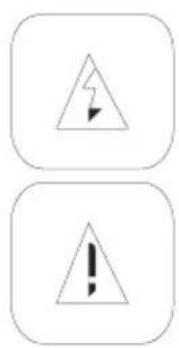
The lightning flash with an arrowhead symbol within an equilateral triangle is intended to alert the user of the presence of un-insulated "dangerous voltage" within the product's enclosure that may be of sufficient magnitude to constitute a risk of electric shock to persons.
The exclamation point within an equilateral triangle is intended to alert the user of the presence of important operating and maintenance (servicing) instructions in the literature accompanying the appliance. This device complies with Part 15 of the FCC Rules. The FCC Rules are developed to avoid or reduce the interference of electrical devices at home. This device may cause radio wave. If it is not installed as instructed, it may cause. interference to radio or TV, especially at the moment of switching on and off.
User's Manual
- All the safety precautions and the operating instructions should be followed
- The safety and operating instructions should be retained for future reference.
Power supply
- Never touch the device with wet hands.
- This device works only with the storm voltage marked on the rear panel.
- Keep the appliance away from rain and moisture.
• If you want to pull the plug out of the plug socket, always pull directly on the plug. Never pull on the cable as it could tear. - Make sure that the power cable is not bent, caught or run over and that it does not come into contact with heat sources.
- Make sure that the power cable is not wound around the device while in operation.
- Never place the machine on the power cable while it is being operated.
- Only use extension cables that are designed for the power consumption level of the machine.
- Only operate the machine if the electrical voltage stated on the type plate beneath the machine agrees with the voltage on your plug socket. The wrong voltage can destroy the machine.
- Do not open the appliance.
- Pull out the mains plug if the appliance is not to be used over a longer period of time.
• Take care that nobody can trip over the power supply cable.
Position
- Do not connect accessories on the box which are not defined by the manufacturer.
- Do not place this product on an unstable cart, stand, tripod, bracket, or table. The product may fall, causing serious injury to a child or adult, and serious damage to the product. Use only with a cart, stand, tripod, bracket, or table recommended by the manufacturer, or sold with the product. Any mounting of the product should follow the manufacturer's instructions, and should use a mounting accessory recommended by the manufacturer.
-
A product and cart combination should be moved with care. Quick stops, excessive force, and uneven surfaces may cause the product and cart combination to overturn.
-
The device is able to show a still image on the TV screen or monitor over an unlimited period of time. This can cause damage to the screen. It is therefore advisable to activate the screen saver. Or switch the player off, if the device is not in use.
- Do not uses the device permanent in the 4:3 mode. This can cause damage to the TV screen.
- Do not increase the volume when the box is just playing very quiet sections. This cold damage the speaker if very loud passages starts all of a sudden after the quiet section.
- Switch the box off by the Off/On switch if it is not going to used for a longer period of time. Please unplug the power cable from the wall outlet.
- Disconnect the main plug during thunderstorms.
- Slots and openings in the cabinet are provided for ventilation and to ensure reliable operation of the product and to protect it from overheating, and these openings must not be blocked or covered.
- The openings should never be blocked by placing the product on a bed, sofa, rug, or other similar surface.
- This product should not be placed in a built-in installation such as a bookcase or rack unless proper ventilation is provided or the manufacturer's instructions have been adhered to.
- Protect the device against weather influences, moistures and high temperature.
- Never spill liquid of any kind on the product.
- Do not expose the device and the remote control to direct sunlight.
Usage
- Playback of supported video, picture and music files
• Installing and running the supported applications - Connecting to a network via WLAN and LAN
- Connection from compatible storage devices and USB HID devices
- The unit is designed exclusively for use in private households
Package Contents
The following components are supplied with the Xoro MegaPAD:
- Xoro MegaPAD
- power Supply
- USB Cable
- pillar
- User manual
If any of these items are missing, please contact your dealer as soon as possible. Keep the original packaging in the event that the unit needs to be returned to the dealer.
Device (MegaPAD 1403 V2 /1404)
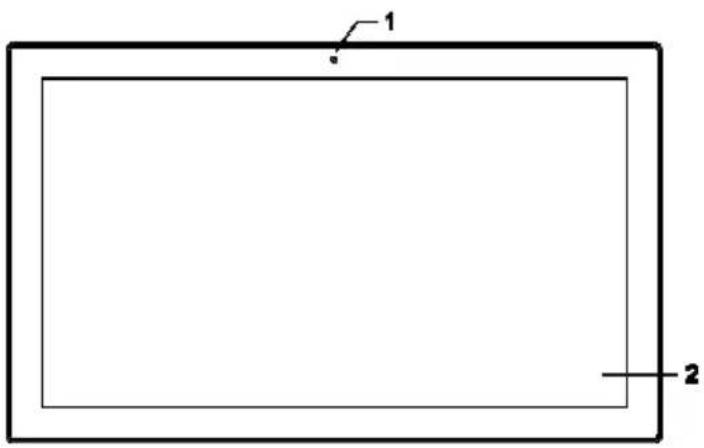
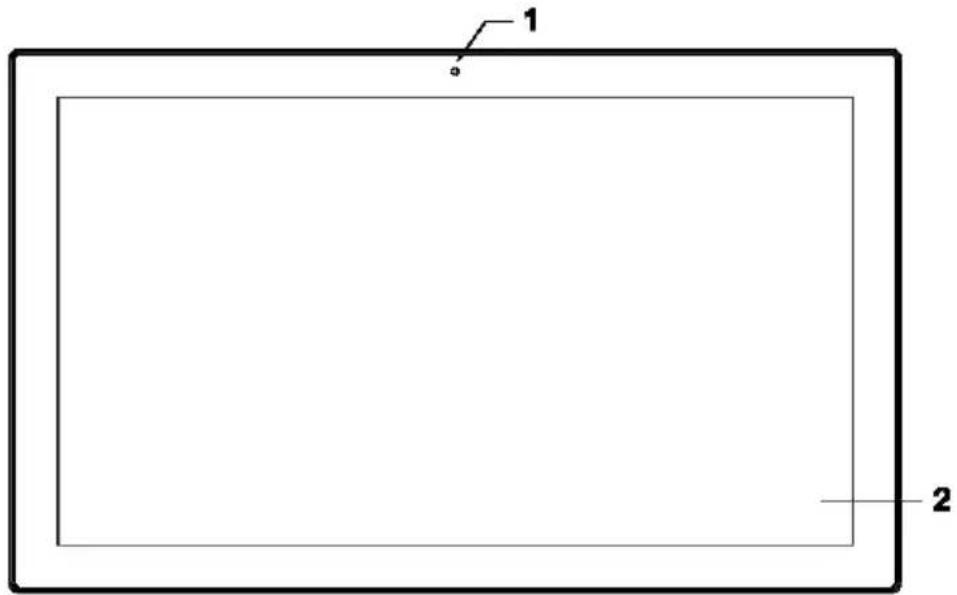
Frontside
Backside (MegaPAD 1403V2 / 1404)

Backside (MegaPAD 1854V2/2154V2/24xxV2)
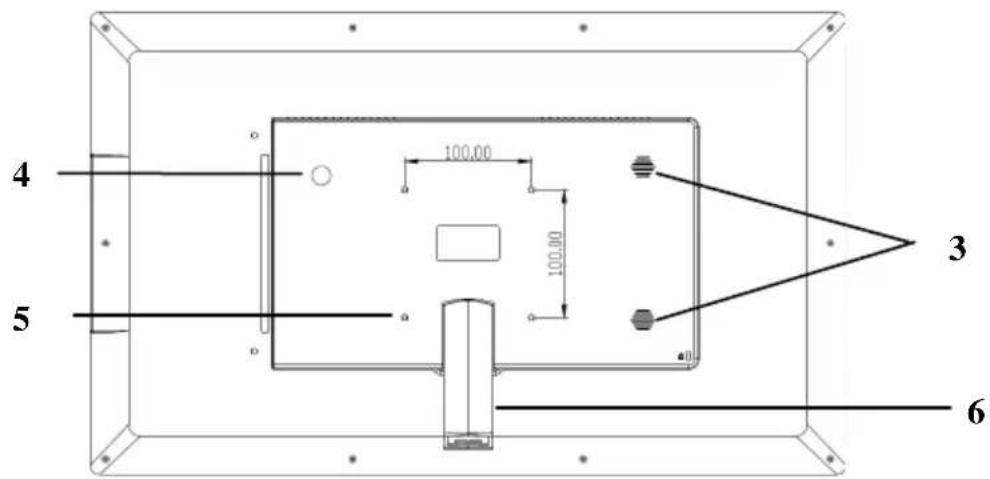
Backside MegaPAD 1564 V2
1 front camera
2 touchscreen
3 speaker
4 Power to push on / off the device (page 5)
5 Threaded holes for mounting on mounting systems
6 Stand
Connections
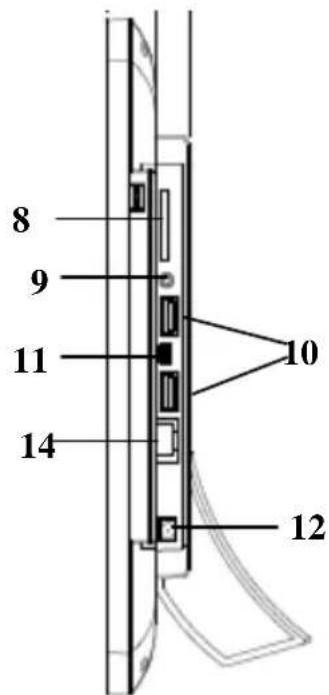
8 SD Card SD (HC) memory card slot
9 headphone output
10 USB 2.0 port for USB disk or other peripheral
11 MiniUSB 2.0 port
12 DC connector for the power supply
14 LAN RJ45 LAN port
Turn Device on / off
To turn on the unit, press the Power button (4) until the start animation appears on the screen. The device will boot automatically to the desktop (page 10).
Tapping the Power button (4) during operation, you can put the device in the standby mode.
Press the Power button for a while then displays a shutdown menu. You can then choose whether the unit shut down (power off), put it in the "airplane mode" (page 13), or turn the unit in the "silent mode"!
Additional input devices
Do you want to make the operation of the device more comfortable, you can connect via the USB ports keyboards and / or mouse. The Android operating system supports standard commercial input devices. They do not rely on expensive special accessories.
We recommend the purchase of a mouse and a keyboard if necessary (possibly wireless). Thus, the handling of the device is facilitated. Many apps that can be installed in addition, require these input devices.
Frontside
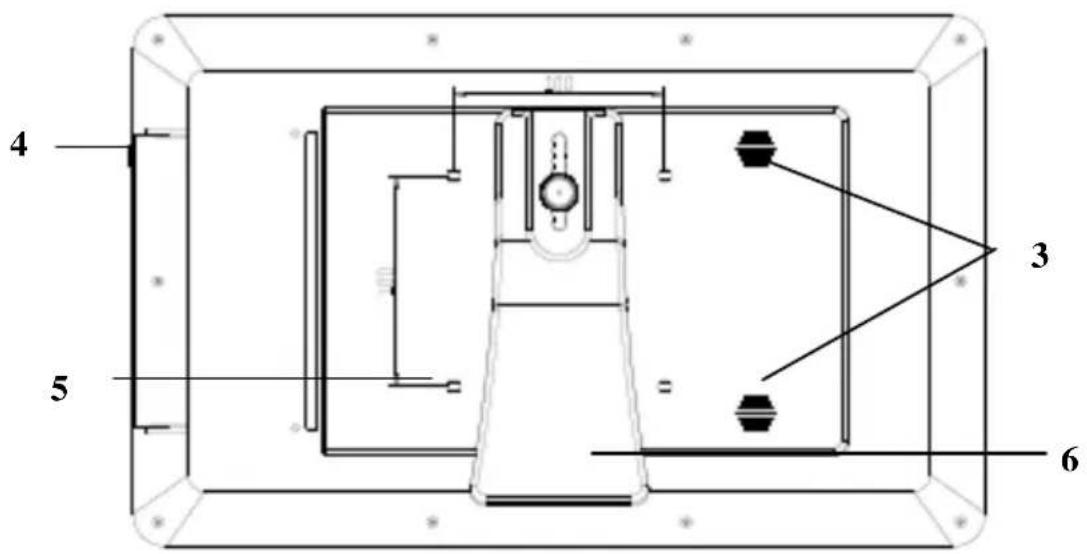
Backside
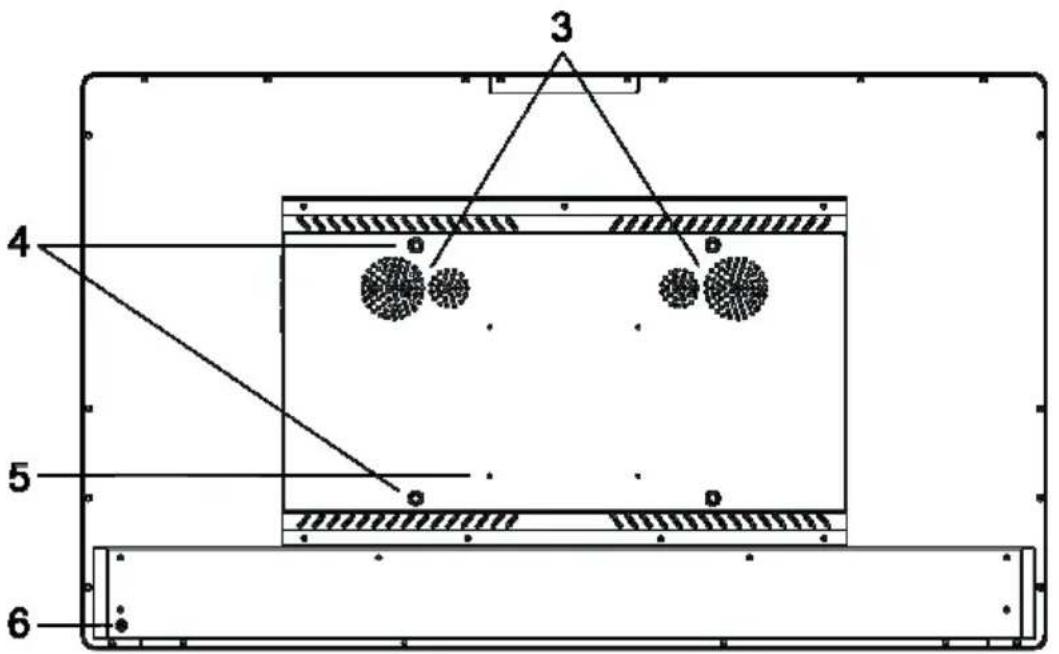
1 front camera
2 touchscreen
3 speaker
4 Threaded holes for mounting the adjustable stand
5 Threaded holes for mounting on mounting systems
6 Power to push on / off the device (page 8)
Connections (MegaPAD 2704V2 / 3204 V2)

7 Wifi antenna port
8 microphone
9 SD Card SD (HC) memory card slot
10 headphone output
11 MiniUSB 2.0 port
12 USB 2.0 port for USB disk or other peripheral
13 connector for the power supply
14 LAN RJ45 LAN port
Turn Device on / off
To turn on the unit, press the Power button (6) on the rear panel until the start animation appears on the screen. The device will boot automatically to the desktop (page 10).
Tapping the Power button (4) during operation, you can put the device in the standby mode.
Press the Power button for a while then displays a shutdown menu. You can then choose whether the unit shut down (power off), put it in the "airplane mode" (page 13), or turn the unit in the "silent mode"!
Additional input devices
Do you want to make the operation of the device more comfortable, you can connect via the USB ports keyboards and / or mouse. The Android operating system supports standard commercial input devices. They do not rely on expensive special accessories.
We recommend the purchase of a mouse and a keyboard if necessary (possibly wireless). Thus, the handling of the device is facilitated. Many apps that can be installed in addition, require these input devices.
Installation
The device has a plurality of openings on the back for horizontal & vertical hanging on the wall or for installation on standard monitor / TV bracket systems. If you mount the device freely, use the supplied stand rest.

Megapad1403V2/1404/1564 Megapad2154/2404V2/2403V2
power supply
Use only the supplied AC adapter to power the Xoro MegaPAD . Please read the information on the nameplate of the power supply .
Note:
The power supply provides a stabilized DC voltage of 12 volts. Operation with non-stabilized voltage can damage the instrument. Only use the supplied power supply, safe operation and compliance with all regulations and standards is ensured.
headphone
With the headphone output, you can connect headphones or an external Hi-Fi system. When using the port's internal loudspeaker of the device are automatically switched off.
USB ports & memory cards
The device has several USB 2.0 ports. Use these connectors to USB devices such as mass storage devices (USB sticks) or USB input devices (mouse, keyboard, etc.) can be connected.
Also, the device has a memory card slot for SD (HC) memory cards. The device supports memory cards with a capacity of up to 32GB.
Notes:
- It supports only the file systems FAT/FAT32/NTFS. If a medium is formatted with a different file system, then this may not be recognized by the device.
- The USB ports on this device are not suitable for charging other devices with integrated battery (eg mobile phones, tablet computers, MP3 players, etc.). Notice., The specifications on the type plate with respect to the maximum power output of the USB ports
- Unfortunately, there are a variety of different SD cards and USB 2.0 storage devices on the market, so that a fundamental compatibility of all storage media can not always be guaranteed.
Connecting to a network
You can use the device wirelessly to your wireless router (page 12).
Bluetooth
You can connect the device wirelessly with your Bluetooth devices (page 12).
Definition
The Xoro MegaPAD equipped with the Android operating mode. The name of the operating system Android is derived from the Greek word " androide" from , which means as much as „human-like“ and is increasingly being used as an operating system for mobile devices such as smartphones , netbooks and tablets .
Android was a Linux-based open source operating system developed by the Open Handset Alliance, which is composed of a variety of large companies, software developers and handset manufacturers and their main member is the company Google.
Android itself does not have its own support. In order to get support you log into the different Google Groups, use the internal support forum and the online documentation. However, there are many websites, forums and communities that deal specifically with the extensive functions of Android and the developer problems. Because the operating system is very complex, only the basic features and key programs are explained in this manual.
Desktop

The desktop is where individual program shortcuts or mini-applications (widgets) can be stored for five configurable surfaces. By Swipe left or right to reach the next surface. Return to the default desktop you always by clicking on the icon in the toolbar.
An overview of all programs stored on the system they can reach by clicking the icon 📄 at the right top of the screen.
Each displayed in the program overview icons can be linked to the desktop by holding the desired icon down for long. The link is then placed on the desktop and can be located where desired.

Alternatively, offer many programs to its own desktop application (widget). You can find the widget in the upper part of the program overview. By clicking on the desired widgets it is placed on the desktop
To delete an icon or a widget from the desktop must be pressed the corresponding icon or widget long and drawn on appearing at the top of the image X.
System symbols
| Home Button |  | Returns to the Home screen |
| Back Button |  | Switches to previously |
| Menu Button |  | Displays the menu of an application |
| Selection |  | Lists the applications previously used to |
| Volume |  | To adjust the volume |
| Overview |  | Displays a list of all installed applications and widgets |
Connect device to the computer
You can connect the Xoro MegaPad to a computer to transfer data between the device and the PC. The device is detected on your computer as a USB mass storage device. The device must be switched on for it!
- Connect the device via a USB connection cable to your computer
- Now the following window appears on the display of the Xoro MegaPAD:

- Tap "Turn on USB storage" button. Your computer will recognize the Xoro MegaPad as a USB mass storage device and you can exchange data between the devices.
• To stop the data exchange with the device, tap the "Turn off USB storage" and unplug the USB cable.
Note:
While the access to the computer to the internal memory of the device may not have all system functions. In order to use the device properly disable the PC connection!
Android System Settings

- Tap the menu item "Wi-Fi" on the slider to "ON" appears. Now, the unit automatically searches for available WLAN networks in the area.
- Tap on the name of the network to which you want to connect your device. If the network requires a password, now opens a window for entering a password.
- Enter the password and tap the wireless network on "Connect". The password is stored in the device and the network automatically establishes the connection when it is in range.
By clicking the icon at the right top of the screen, you can configure advanced connection settings.
Pairing-Geräte

DW-018
Verfügbar

Y2

jesusforever
Settings / WIRELESS & NETWORKS / Bluetooth
To set up the Bluetooth connection, proceed as follows:
- Tap the menu item "Bluetooth" on the slider to "ON". Now, the unit automatically searches for all available Bluetooth devices in the area.
- Tap the name of the device with which you want to connect.
- In the next window you a key for the connection is displayed. Now click on "Pair"
- On the device with which you want to connect, a message should appear to confirm the connection. You may need to enter the previously generated key for this connection!
- Other settings for the connection you can make by clicking on the icon behind the name of the connected device. You can also use the connection manually disable (unpair).
- By clicking the icon: the right top of the screen, advanced connection settings can be made.
To change the visibility of the device you can click the icon on top.

Settings / WIRELESS & NETWORKS / Data usage
In this menu item you can display statistical analysis on the data volume used. This is for example useful if you do not have Internet flatrate and your Internet is charged by data volume.
By clicking the ☐ in, you can make advanced settings.

Settings / WIRELESS & NETWORKS / More...
If you activate the "airplane mode" option, all radio connections are disconnected at once and turned off.
In the menu item "VPN" they can set up a virtual private network (VPN). The VPN client works for the production of simple PPTP and L2TP-based VPNs and can moreover be extended optionally with other third-party clients.
In the menu item "Portable Hotspot", you can configure the device as a wireless hotspot if you want, for example, share a set on the machine UMTS internet connection with other WiFi-enabled devices.
To do this, enable the feature and set "Set up Wi-Fi hotspot" menu item in the connection settings (SSID, password) firmly. The device will act as a mobile Wi-Fi router.
The menu items "Ethernet" and "Mobile networks" are only active when you connect external devices (UMTS Sticks, Ethernet adapter) to the device. If these devices are supported by the Android operating system, you can make settings in each menu option.
Settings / DEVICE / Sound
In the right hand column, you can adjust the volume, edit the system sounds or turn on / off.

Display
Helligkeitsstufe
Hintergrund
Ruhezustand
Never
Daydream
Schriftgröße
Normal
In the right hand column, you can change background and the font size (Small, Normal, Large, Huge). The setting affects the Android operating system and has no effects on the desktop of the device.
The Xoro MegaPAD is compatible with devices that support Wi-Fi Certified Miracast TM protocol for wireless transmission. To activate the function for wireless transmission tap the "Wireless Display" menu and make a connection to a compliant device. If the connection is active, you can transfer the screen and so video and audio stream content wirelessly on a variety of screens and other devices with Miracast. Example, you can assign the device the screen on a TV with a certified Miracast adapter.
Notes:
• To use this function, a wireless connection is required.
• Take in setting up the connection, the manual of the display device to help and follow the steps listed there.
ScreenshotSetting
ScreenshotSetting
Select delay time to capture the screen
15s later capture
Set the location of screenshot storage flash
Show the screenshot button in the statusbar

Speicher
Intermer Speichver

StabilityTest 2,41 MB
Settings / DEVICE / ScreenshotSetting
You have the option to save the contents of the screen as a photo. If you want to use this function, proceed as follows:
- Go into the settings menu by tapping the icon "Settings", this is located on the desktop or in the program overview.
- Tap the "Device" menu on the menu "Screenshot Setting".
- You can now click on the right side by setting the checkmark determine where the screen shots are saved and in which timeframe the screenshot is to be created.
- By placing a check mark in the last option, a photo icon is permanently displayed in the options bar and created by touching a screen shot in the predefined location in operation.
Settings / DEVICE / Storage
In the lower area, you can determine how much space is available on the attached storage devices. You can delete memory cards and storage devices safely remove ("Remove card", "Unmount").
"Internal Memory"
In this section apps are installed by default. It is not possible for user files (MP3, JPEG) stored in this area.
"Internal SD Card"
In this area you can store user files. Some apps can "Settings / Apps" are moved from internal memory to the virtual, internal SD card in the area.
„Reserved Memory“
This area of memory is reserved for the Android operating system.
Settings / DEVICE / Apps
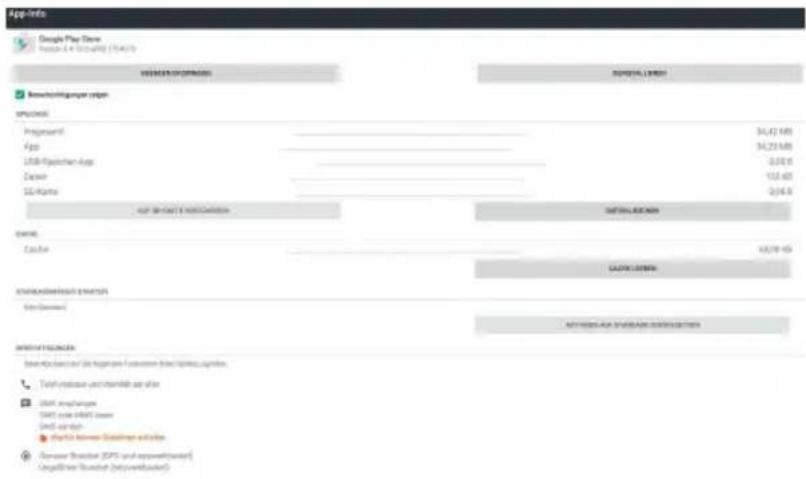
In this section you can manage apps:
- Uninstall
- force stop
- delete data
- Move to internal SD card or internal memory
- Clear cache
Android Operation Mode
Select an app from the "Downloads", "On SD Card", "Active" or "All". You can then select one of the management functions. System services and apps may not be capable to uninstall or stop.
Note:
A portion of the memory of the device is used by the hardware (GPU, Wi-Fi) and is not for the operating system or apps. Therefore, a smaller value for the memory is displayed in the view Apps / ACTIVE / RAM than is actually installed.

In this menu you can determine whether the device is allowed to use your current location. Your location is determined by an active Internet connection.
Settings / PERSONAL / Security
In this menu, you can configure various security settings, including:
Screen lock If you want to protect the device against unauthorized access, you can configure in this menu item different ways to lock the screen. owner info This is where you can enter information about you as an owner, are visible in the lock screen of the device.
Unknown sources Is this setting enabled, you can also install applications that do not originate from the Google Play Store
Verify apps If this function is activated, who examined the all of Google's applications for malicious code
Sprache & Eingabe
Sprache
In this menu, you can configure various settings for language and keyboard functions, including:
Language Sets the language for the Android operating system and apps.
Spell checker Enables and configures the spell check of the operating system.
Personal dictionary Displays your personal dictionary Input Methods Allows you to set and config the default input method
Pointer Speed Allows you to set the total speed of the mouse pointer.
Settings / PERSONAL / Backup & reset
By resetting the Android operating mode, all data will be deleted from the internal memory. All settings must be made again and then all apps will be reinstalled.
Reset the device before you distribute them to other people or if problems occur that can not change settings or uninstall apps can eliminate.
Settings / ACCOUNTS
Allows you to add and manage e-mail, Google and Exchange accounts or accounts of social networks (Facebook, Twitter, ect.)
Datum & Uhrzeit
Automatic date & time Enable this setting if the unit relate the current time from the Internet (recommended). When the "Auto Date / Time" is turned off, you can adjust at this point time and date manually.
Use 24-hour format If you turn this function off, the time is not displayed in 24-hour format.
Choose date format Determines in what format the date display is
Bedienungshilfen
Dienste
In this menu, various functions enable the operation of the appliance simplistic to, for example, the display of the menu text can be increased globally.
Settings / SYSTEM / Developer options
These settings should only be modified by expert users and in consultation with the Xoro Customer Service.
A check in the "USB debugging" for example activates the debug mode of the device. This feature is primarily of interest to developers, as able to talk with, among others, system files, and can be read. Furthermore, users can with profound technical knowledge to send commands to the phone or control the device with programs such as "Android Debug Bridge" via PC and communicate with the smartphone.
Settings / SYSTEM / About Tablet
At this point, information about the software installed on the Xoro MegaPad firmware are displayed. If you want to contact the Xoro Customer Service, please write down next to serial number and the software version.
GooglePlay Store

With the icon 📋 takes you from the program overview out in the Google Play Store. Please follow the on-screen instructions to register there once or login with an existing account. Signing up is free!
In Google Play Store, you can arbitrarily by free and fee-based programs (apps), games, movies, music or books for and install instantly on your device. Purchased products are usually available on other Android devices and must not be bought again.
Install applications manually
Sicherheit
Bidschirmulcherheit
Displaysperte
Wochen
info zum Eigentümer
Passodrider
Passwörter sichtbar
Geräteverwaltung
You can install applications on the device manually of course, as will be explained below.
- First you need under the menu item "Security" a hook behind the "Unknown sources" (page 37) if necessary.
- Embark to the settings menu by tapping the icon "Settings" on the desktop or in the program overview.
- Copy the installation file in APK format to an SD card or USB disk
- Install the application as described on the next page with the "ApkInstaller" or from any file manager on your device.
Note:
Be critical when you install apps from unknown sources. Prior to installation, is displayed on the data and functions accessed by an application.
Deinstall Application

Set out as described above, in the "Settings" menu and tap under the menu item "Device" "Apps" option. Now you will see a list of downloaded applications and can view more information by clicking on the application. Now select to remove "Uninstall" to delete the program from your device.
Apk Installer
With the "ApkInstaller" You can manage applications on Xoro MegaPAD. To access the program, tap on the icon in the main menu

ApkInstaller
![graph TD A["Install"] --> B["Manage"] B --> C["Exit"]](/content/2026/05/791274/images/c941095d01c6f3dc1a0cf817e9da799a4bb63651ed9f71e85378d70bea6d174b.jpg)
With the option "Install" to install the applications reside on the device.
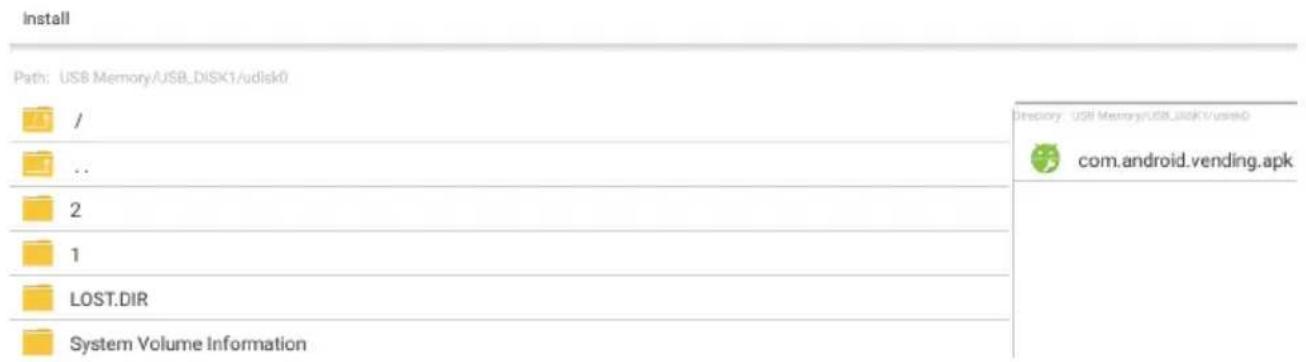
With the "Manage" option to start exporting or uninstall the installed applications.
The "Exit" option they leave the ApkInstaller.
Music Playback

To play music, connect a media (USB storage device or memory card), are stored in the music files. Now press the Icon to start the playback program.

The application lists existing directories and files supported on. Select the file you want to play.
More options for music playback can be accessed via the application menu
Available buttons and functions of the remote control:

Back to directory / file list
Select next / previous file
▶|| Pause/Continue Playback
Supported file formats: MP3,WMA,WAV
Picture Playback
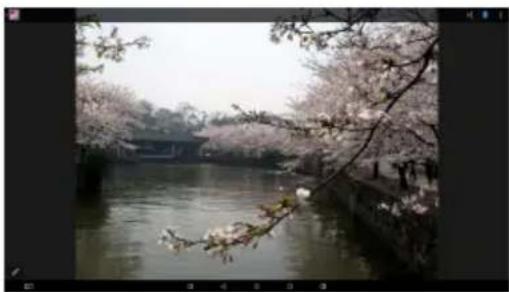
To see the photos you connect a media (USB storage device or memory card), on the images are stored. Now press the icon to start the playback program.

The application lists existing directories and files supported on. Select the file you want to play.
If you play music in the background, the music can be used when watching in the background! Available buttons and functions of the remote control in this application, see above.
More options for image reproduction can be found in the application menu
Supported file formats: JPEG, BMP, PNG, GIF
Movie Playback

Video

Magical Europe - 4K Timelapse
00:00/04:19

4K - UHD &Seen By My Eyes&,
00:00/05:02

distributor_ascot_elite_entertai
00:00/00:22
To play videos, connect a media (USB storage device or memory card) that stores the video files. Now press the Icon to start the playback program.

The application lists existing directories and files supported on. Select the file you want to play.
More options for music playback can be accessed via the application menu
Available buttons and functions of the remote control:
Back to directory / file list
Select next / previous file
Pause/Continue Playback
Supported media: MKV, MPEG, VOB, TS, MOV, AVI u.a.
Video Decoder: MPEG-1/2/4, H.264 (bis 1080p)
Notes:
If several programs installed to play media files, you are asked which program you want to use one times or every time. Make your selection and confirm with "OK"
Installed Applications
The Xoro MegaPAD Android operating mode is already equipped with the main application, which are explained in the following. For more information on the individual applications use the appropriate documentation by the manufacturer of the software on the Internet.
Browser
With the pre-installed browser, you can browse web pages, save your favorite pages as "bookmark" and open multiple web pages simultaneously in multiple "tabs".
With pre-installed e-mail client, you can check your emails from POP3, IMAP and Exchange servers. When you start the e-mail app for the first time, all the necessary information is requested to do so. Apply to get your e-mail provider about the correct server settings. Go to Manage to "Settings / Accounts & sync" to existing e-mail, Google or Exchange accounts or add more.
Please read the following information to find out the possible cause of a problem before contacting service.
| Problem Solution | |
| There is no picture | Check if the power supply is properly connected and turned on the unit |
| No Sound | Check to see if mute is activated in the volume control (mute)Turn up the volume until you hear the sound againDrag the infected headphones from the device |
| No internet connection | Check if the wireless router is working properlyCheck whether the parameters on Xoro MegaPad are set correctly. Take, for example, on the setting DHCPRun the automatic search for networks againEnter the correct password (This is set in the router configuration).Do not choose a foreign networks.The Internet server may intermittently become unavailable or overloaded.Check if the unit is in "airplane mode" (page 13) |
| Wrong Time and date | Check the settings for the time zone and insert it again. |
Perform repairs never even through, please let this always qualified personnel. Contact the service technician if the following faults:
- If the power supply or power cable is defective.
- If objects have fallen into the unit.
- If the device has come into contact with water.
- If the unit does not work use.
- If the unit has been dropped and if the product has power fluctuations.
Use original spare parts and accessories. Unauthorized substitutions may result in short circuits or fires and other mishaps.
Contact Xoro-Support:
In case the products delivered are not free from defects in material or workmanship, MAS Electronic AG has the right to either repair or replace the defective product at its choice. MAS Electronic AG manufactures and repairs goods using components which are new or equivalent to new in accordance with industry standards and practice. The warranty for wearing parts (e.g. rechargeable batteries) is limited to 6 months. In case the device is equipped with internal data storage (e.g. hard disc drive, Flash drive), the customer is responsible to backup his data before sending the device. MAS Elektronik AG is not liable for any data loss on returned devices. MAS Electronic AG reserves the right to reset returned devices to factory defaults. Please note your personal settings for this reason.
MAS Electronic AG is not liable for any accessories not belonging to original package content such as DVDs, hard disc drives, Flash storage devices, batteries, etc. This limited warranty covers the warranty requirements set by authorities in your country.
This limited warranty only is valid in the coThis limited warranty does not cover finishes, accessories or batteries, nor does it cover damage resulting from accident, misuse, abuse, dirt, water, battery leakage, tampering, servicing performed or attempted by unauthorized service agencies. This limited warranty does not cover damages resulting from firmware upgrades. Only in case of firmware upgrades needed to add functions promised at time of purchase, such damages are covered by this limited warranty. For a correct and frictionless completion of warranty or repairs you need a RMA No. You may obtain a RMA on the internet at www.mas.de/FAQ or by telephone.
Please send the device in its original packing material, all standard accessories and a copy of the invoice, a description of defect and the RMA No. to following address. Please note the RMA number clear and in large numbers on the outer package.
Recycling Information
Recycling of electronic devices
This product is designed and manufactured with high quality materials and components which can be recycled and reused. This symbol means that electrical and electronic equipment, at their end-of-life, should be disposed of separately from your household waste. Please, dispose of this equipment at your local community waste collection/recycling centre. In the European Union there are separate collection systems for used electrical and electronic product. Please, help us to conserve the environment we live in!
Recycling of paper and carton
The material recycling symbol on the carton and user manual denotes that they are recyclable. Dispose them not with the normal household waste.
Recycling of plastic parts
The material recycling symbol on the plastic parts denotes that they are recyclable. Do not dispose them in household waste.
Green Dot
The “Grüne Punkt” denotes that the MAS Elektronik AG pays a duty to the “Society for Waste Prevention and Secondary Resource Generation”.


We would like to point out that the firmware of the Xoro MegaPAD contains open source software, which is licensed under the GNU General Public License (GPL) and Lesser General Public License (LGPL). To ensure a GPL / LGPL compliant use of the programs, please refer to the license terms of the GPL / LGPL.
Under the Agreement of the GPL and LGPL, we provide the source code of these programs are available. The corresponding code can be at the e-mail address: Apply for beta@ersservice.de. You get the source code then on CD by mail! You can modify and distribute the source code under the terms of the GPL / LGPL license. However, we assume no technical support for changes to the source code!
License text
The license text of the GNU General Public License is available in the download area of the product on our website, as well as on http://www.gnu.org!

Sourcecode
The source codes used are when they are not available in the download area of the product, starting from purchase to purchase up to 3 years on request by e-mail!
Trademarks
The Android logo, Google Search TM , Google Maps TM , Gmail TM , YouTube TM , Google PlayStore TM and Google Talk TM are trademarks of Google Inc.
All other trademarks and copyrights are the property of their respective owners!
Disclaimer
Some content and services accessible through this device belong to third parties and by copyright, patent, trademark and / or other laws are protected for the protection of intellectual property. Such content and services are provided solely for your personal, non-commercial use. Xoro is not liable for damage to software or hardware or damage to property arising from the use of the services and of the device, unless these are due to gross negligence or intent, his agents, or his legal representatives.
For direct or indirect damage - in particular damage to other software, damage to hardware, damage for loss of use and damage caused by functional failure of the device, the company can not be held liable. Only the User shall be liable for the consequences of use of the software used on the device and the hardware.
The device and the software used was developed with great care, however errors can never be ruled out. It can therefore not be held responsible for the security of your data!
EC Declaration
With the CE mark declares XORO, a registered trademark of the MAS Elektronik AG that the Device meets the guidelines 2014/53/EU.
The full text of the EU Declaration of Conformity is available under the following
Internet address available: http://www.xoro.de/downloads/.
FREE TO CHOOSE INNOVATIONS
XORO by MAS Elektronik AG
Weidegrund 3
21614 Buxtehude
Deutschland
Telefon: 04161 800 24 24


- XORO®
- MEGAPAD
- MEGAPAD1403V2/1404/1564 MEGAPAD2154/2404V2/2403V2
- STROMVERSORGUNG
- SPEICHER
- SOURCE CODE
- ELECTRONIC SECURITY
- USER'S MANUAL
- POWER SUPPLY
- POSITION
- USAGE
- PACKAGE CONTENTS
- DEVICE (MEGAPAD 1403 V2 /1404)
- BACKSIDE MEGAPAD 1564 V2
- CONNECTIONS
- TURN DEVICE ON / OFF
- ADDITIONAL INPUT DEVICES
- CONNECTIONS (MEGAPAD 2704V2 / 3204 V2)
- INSTALLATION
- NOTE
- HEADPHONE
- USB PORTS & MEMORY CARDS
- NOTES
- CONNECTING TO A NETWORK
- BLUETOOTH
- DEFINITION
- DESKTOP
- SYSTEM SYMBOLS
- CONNECT DEVICE TO THE COMPUTER
- ANDROID SYSTEM SETTINGS
- PAIRING-GERÄTE
- VERFÜGBAR
- SETTINGS / WIRELESS & NETWORKS / BLUETOOTH
- SETTINGS / WIRELESS & NETWORKS / DATA USAGE
- SETTINGS / WIRELESS & NETWORKS / MORE
- SETTINGS / DEVICE / SOUND
- DISPLAY
- SCREENSHOTSETTING
- SETTINGS / DEVICE / SCREENSHOTSETTING
- SETTINGS / DEVICE / STORAGE
- INTERNAL MEMORY
- INTERNAL SD CARD
- „RESERVED MEMORY
- SETTINGS / DEVICE / APPS
- ANDROID OPERATION MODE
- SETTINGS / PERSONAL / SECURITY
- SPRACHE & EINGABE
- SETTINGS / PERSONAL / BACKUP & RESET
- SETTINGS / ACCOUNTS
- DATUM & UHRZEIT
- BEDIENUNGSHILFEN
- SETTINGS / SYSTEM / DEVELOPER OPTIONS
- SETTINGS / SYSTEM / ABOUT TABLET
- GOOGLEPLAY STORE
- INSTALL APPLICATIONS MANUALLY
- SICHERHEIT
- DEINSTALL APPLICATION
- APK INSTALLER
- MUSIC PLAYBACK
- PICTURE PLAYBACK
- MOVIE PLAYBACK
- INSTALLED APPLICATIONS
- BROWSER
- CONTACT XORO-SUPPORT
- RECYCLING INFORMATION
- RECYCLING OF ELECTRONIC DEVICES
- RECYCLING OF PAPER AND CARTON
- RECYCLING OF PLASTIC PARTS
- GREEN DOT
- LICENSE TEXT
- SOURCECODE
- TRADEMARKS
- DISCLAIMER
- EC DECLARATION
- XORO BY MAS ELEKTRONIK AG
Brand : XORO
Model : MegaPAD 5504
Category : Monitor