
YP-M1JEB - Mp3 player SAMSUNG - Free user manual and instructions
Find the device manual for free YP-M1JEB SAMSUNG in PDF.


User questions about YP-M1JEB SAMSUNG
0 question about this device. Answer the ones you know or ask your own.
Ask a new question about this device
Download the instructions for your Mp3 player in PDF format for free! Find your manual YP-M1JEB - SAMSUNG and take your electronic device back in hand. On this page are published all the documents necessary for the use of your device. YP-M1JEB by SAMSUNG.
USER MANUAL YP-M1JEB SAMSUNG
Thank you for purchasing this Samsung product.
To receive a more complete service, please
register your product at
www.samsung.com/register

features of your new MP3 Player
Good looking. Smart. Reliable. And lots of fun. Your new MP3 player is all this and more. Its state-of-the-art technology delivers rich sound, and vibrant pictures. You'll love your new MP3 player, whether you're exercising, downloading your favourite tunes, watching videos, or even listening to FM Radio.
Use it once, and you'll wonder how you ever lived without it.
PUTTING THE "MULTI" IN MULTIMEDIA
We call it an MP3 player, but it's much more than that. It allows you to view pictures, text, videos and listen to FM radio.
The built-in Bluetooth wireless technology turns your MP3 player into your own personal network.
TACTILE TOUCHSCREEN
Your MP3 player has a responsive touchscreen that reacts in a tactile way to your touch.
You can experience various vibration effects.
EXTERNAL MEMORY CARD
Your MP3 player has a built-in memory slot compatible with microSD ^TM and microSDHC ^TM cards which are primarily used to back up or transfer fi les and data.
HANDY AND USEFUL WIDGETS!
Place clock, calendar and other widgets on your main menu screen for your convenience, providing direct and easy access.
You can change and decorate buttons and icons on the background.
ACOUSTIC WONDER
Your new MP3 player has built-in DNSe ^™ (Digital Natural Sound engine), Samsung's unique sound technology created to deliver richer, deeper sound for an unbelievable listening experience.
safety information
What the icons and signs in this user manual mean :
 WARNING WARNING | Means that death or serious personal injury is a risk. |
 CAUTION CAUTION | Means that there is a potential risk for personal injury or material damage. |
 CAUTION CAUTION | To reduce the risk of fi re, explosion, electric shock, or personal injury when using your MP3 player, follow these basic safety precautions: |
 NOTE NOTE | Means hints or referential pages that may be helpful to operate the player. |
 | Do NOT attempt. |
 | Do NOT disassemble. |
 | Do NOT touch. |
 | Follow directions explicitly. |
 | Unplug the power plug from the wall socket. |
 | Call the service centre for help. |
These warning signs are here to prevent injury to you and others.
Please follow them explicitly.
After reading this section, keep it in a safe place for future reference.
safety information
This manual describes how to properly use your new MP3 player. Read it carefully to avoid damaging the player and injuring yourself. Pay particular attention to the following serious warnings:
PROTECT YOURSELF

- Do not disassemble, repair, or modify this product on your own.
- Do not get the product wet or drop it in water. If the product gets wet, do not switch it on because you could get an electric shock. Instead, contact a Samsung Customer Service Centre near you.
- Do not use the product during a thunderstorm, as it may cause malfunction or a risk of electric shock.

- Do not use the earphones while you are driving a bicycle, automobile or motorcycle.
It can cause a serious accident, and furthermore, is prohibited by law in some areas.
Using the earphones while walking or jogging on a road, in particular, on a crosswalk can lead to a serious accident.
- For your safety, make sure the earphone cable does not get in the way of your arm or other surrounding objects.

- Do not place the product in damp, dusty, or sooty areas because these environments could lead to fire or electric shock.
- Do not use the product if the screen is cracked or broken. Broken glass or acrylic could cause injury to your hand or face. Bring the product to a Samsung service centre to replace the screen. Damage caused by careless handling will void the warranty.
PROTECT YOURSELF

- Using earphones or headphones for an extended time may cause serious damage to your hearing.
If you are exposed to sound louder than 85db for an extended time, you may adversely affect your hearing. The louder the sound is, the more seriously damaged your hearing may be (an ordinary conversation is between 50 to 60db and road noise is approximately 80db).
You are strongly advised to set the volume level to medium (the medium level is usually less than 2/3 of the maximum).
- If you feel a ringing in the ear(s), lower the volume or stop using the earphones or headphones.
- Do not expose the battery to excessive heat such as sunshine, fire or the like.
PROTECT YOUR MP3 PLAYER

- Do not leave the player in temperatures above 35°C (95°F), such as a sauna or a parked car.
- Do not cause excessive impact on the player by dropping it.
- Do not place heavy objects on top of the player.
- Prevent any foreign particles or dust from entering into the product.
- Do not place the product near magnetic objects.

- Be sure to backup important data. Samsung is not responsible for data loss.
- Use only accessories provided by or approved by Samsung.

- Do not spray water on the product. Never clean the product with chemical substances such as benzene or thinner, as it may cause fire, electric shock or deteriorate the surface.

- Failure to follow these instructions may lead to physical injuries or damage to the player.

- When printing this user manual, we recommend that you print in colour and check "Fit to Page" in the print option for better viewing.
contents
THE BASICS

11 What's included
12 Your MP3 player
14 Resetting the system
15 Charging the battery
16 Caring for the battery
16 Turning the Power on & off
17 Controlling the volume
17 Disabling the touch screen
18 Browsing for files using "file browser"
18 Deleting files with "file browser"
19 Checking the status indicators
20 Using the touch screen
24 Setting the main menu display
26 Widget icons
28 Using widgets
33 Using the Mini-player/Quick tray
35 Using virtual keyboard
36 Switching list mode
38 Connecting to a TV
39 Using screen rotation
40 Changing the settings and preferences
41 Sound Setting Options
42 Display Setting Options
43 Language Setting Options
44 Time Setting Options
45 System Setting Options
contents
EMODIO
49
49 PC requirements
50 Using EmoDio
WATCHING A VIDEO
52
52 Watching a video
53 Video playback display
54 Touch icons for playback control
55 Creating chapters
55 Screen capture
56 Using bookmarks
57 Using the video menu
LISTENING TO MUSIC
61
61 Listening by category
63 Music playback display
64 Touch icons for playback control
65 Repeating a section
66 Creating a playlist on your MP3 player
70 Using the music menu
VIEWING PICTURES
75
75 Viewing pictures
76 Enlarging a picture
76 Watching a slideshow
77 Using the picture menu
contents
READING TEXT

80 Reading text
81 Using bookmarks
82 Using the text menu
USING THE EXTERNAL MEMORY CARD

83 Inserting the external memory card
83 Removing the external memory card
84 Playing a file in the external memory card
85 To transfer a file in the memory card to the player
86 Deleting a file in the external memory card
87 To transfer a file in the player to the memory card
LISTENING TO FM RADIO

88 Listening to FM radio
89 FM radio display
90 To search for FM stations
91 Recording FM radio
92 Switching to preset or manual mode
93 Using the FM radio menu
PLAYING VIDEO GAMES

96 Playing video games
contents
USING BLUETOOTH
102
102 What is Bluetooth?
103 Bluetooth settings
105 Connecting a Bluetooth device
108 Using a Bluetooth stereo headset
109 Using a Bluetooth mobile phone
114 Transferring files to/from a Bluetooth device
116 Checking Bluetooth devices
SETTING THE ALARM
118
118 Setting the alarm
VIEWING DATACASTS
120
120 Viewing datacasts
VOICE RECORDING
121
121 Voice recording
ENJOYING FLASH FILES
123
123 Viewing flash files
contents
USING THE CALCULATOR
124
124 Using the calculator
VIEWING
THE ADDRESS BOOK
125
125 Viewing the address book
TROUBLESHOOTING
127
127 Troubleshooting
APPENDIX
130
130 Menu tree
131 Product specifications
134 Licence
the basics
WHAT'S INCLUDED
Your new MP3 player comes with these accessories. If you're missing any of these items, please contact a Samsung Customer Service Centre near you.
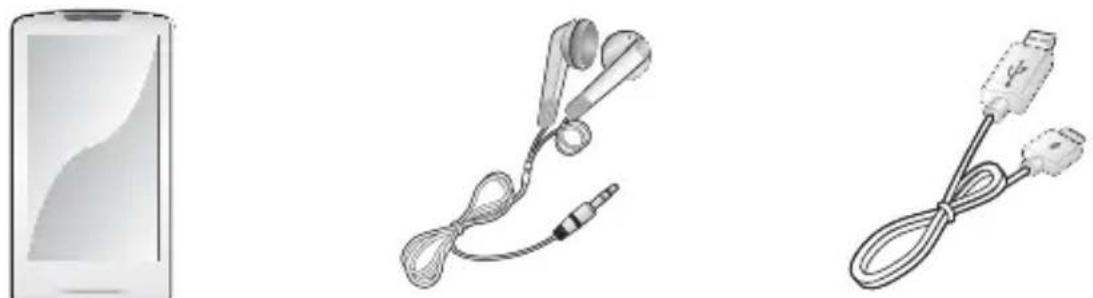
Player Earphones USB Cable
The accessories in your box may look slightly different than these.
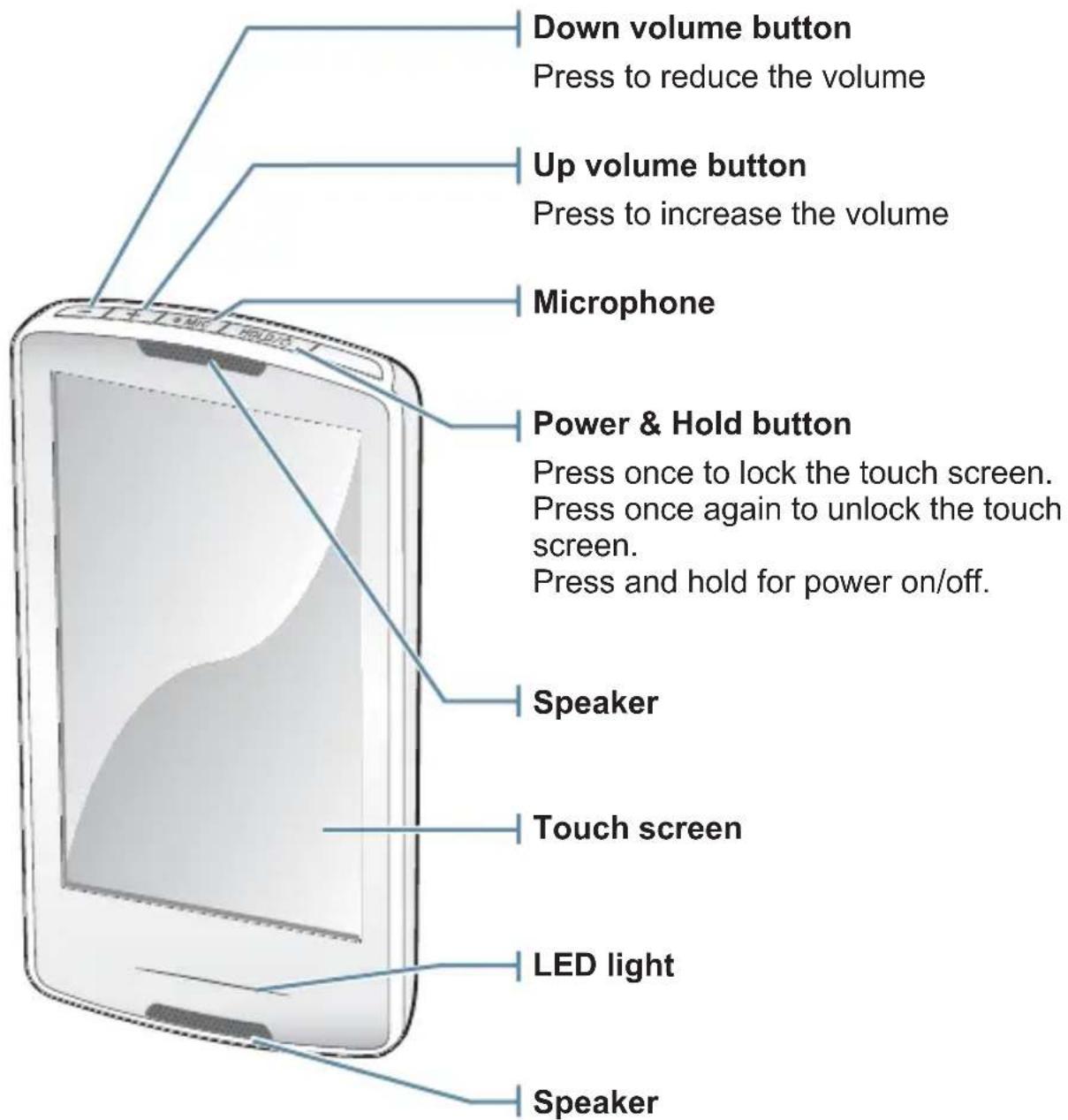
text_image
Down volume button Press to reduce the volume Up volume button Press to increase the volume Microphone Power & Hold button Press once to lock the touch screen. Press once again to unlock the touch screen. Press and hold for power on/off. Speaker Touch screen LED light Speaker12 _ the basics
YOUR MP3 PLAYER (Continued)
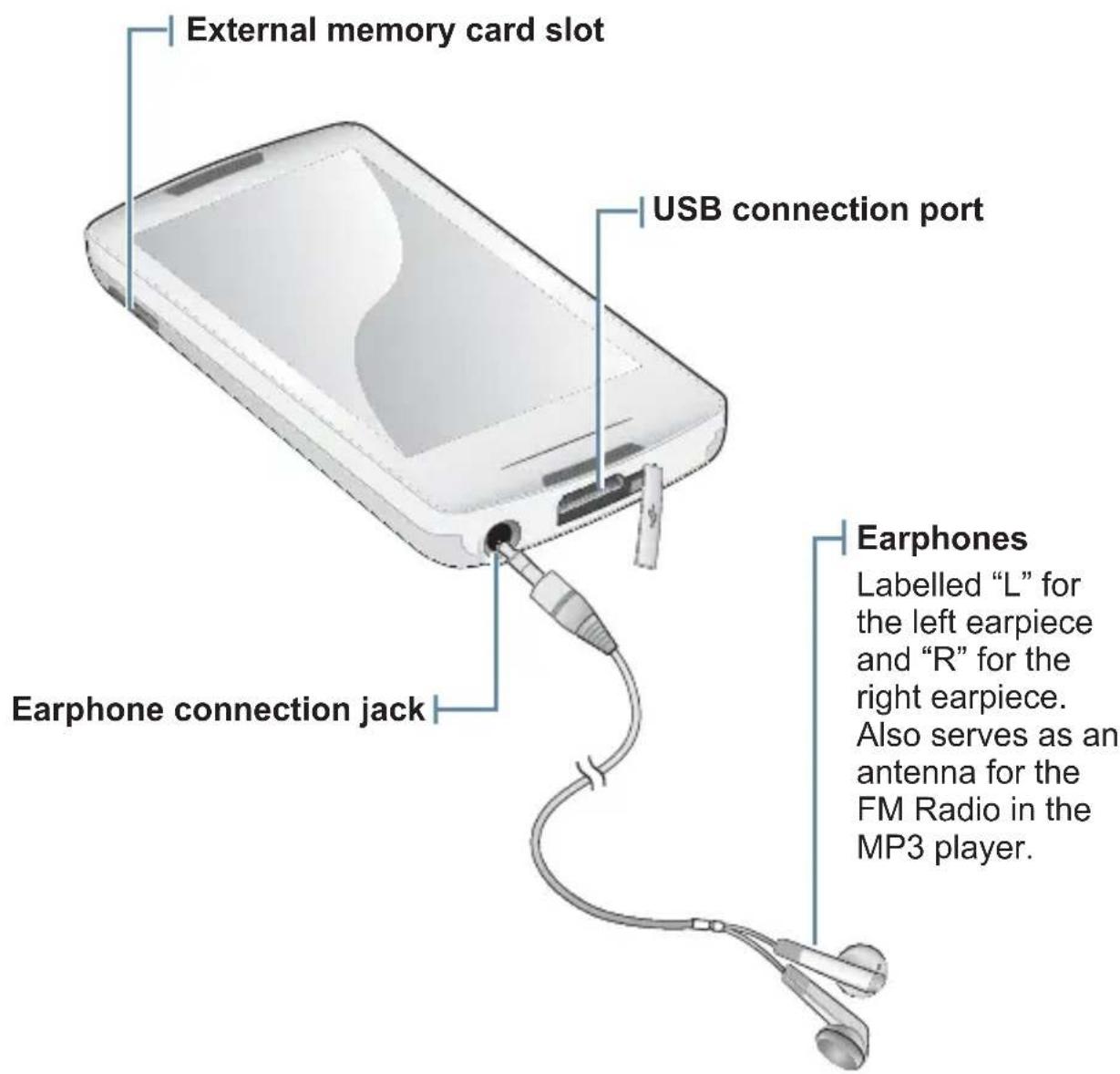
text_image
External memory card slot USB connection port Earphone connection jack Earphones Labelled "L" for the left earpiece and "R" for the right earpiece. Also serves as an antenna for the FM Radio in the MP3 player.RESETTING THE SYSTEM
If your MP3 player won't turn on, won't play music, or isn't recognised by your computer when you connect it, you may have to reset the system.
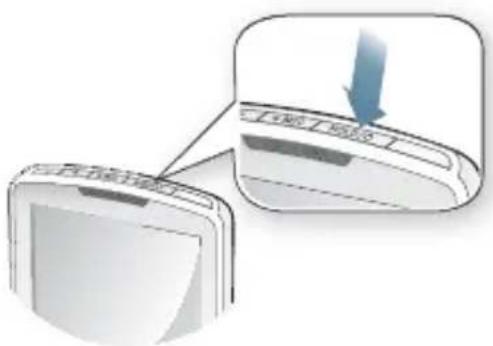
text_image
Diagram showing a device with a blue arrow pointing to a component, indicating a process or operation.Press and hold the [ HOLD / ⏻ ] button for more than 10 seconds.
■ The system will be initialized.
- Your settings and fi les will not be affected.
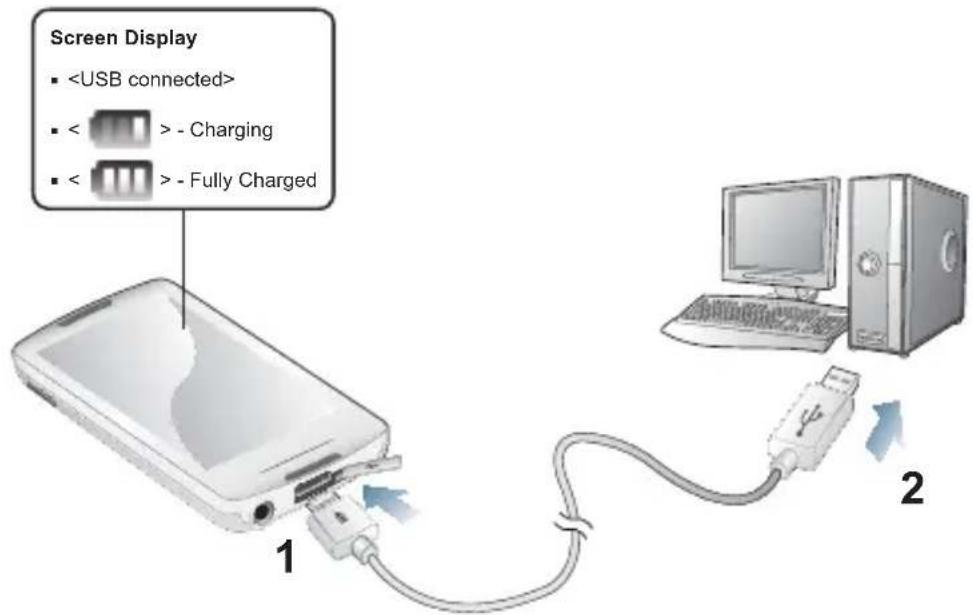
Charge the player before using it for the first time and when you haven't used it for a while.
text_image
Screen Display •-
Connect the smaller end of the USB cable to the USB connection port on the bottom of the player.
-
Connect the larger end of the USB cable to the USB port ( ) on your PC.
Charging Time about 3 hours


- Total charging time varies depending on your PC environment.
- The player can only be charged by connecting to your PC with the USB cable. Do not use a separate USB AC Adapter as it may not charge the battery or allow proper operation of the player.
CARING FOR THE BATTERY
Your battery will last longer if you follow these simple guidelines for caring and storing the player.
- Recharge the battery within the temperature range of 5^ 35^ (40°F\~95°F).
- Do not overcharge (longer than 12 hours).
Excessive charging or discharging may shorten the battery's life. - Battery life naturally shortens slowly over time.

NOTE
- If you are charging the player while it is connected to a laptop computer, make sure the laptop's battery is also fully charged or that the laptop is plugged into its power source.

CAUTION
- The rechargeable battery incorporated in this product is not user replaceable. For information on its replacement, please contact your service provider.
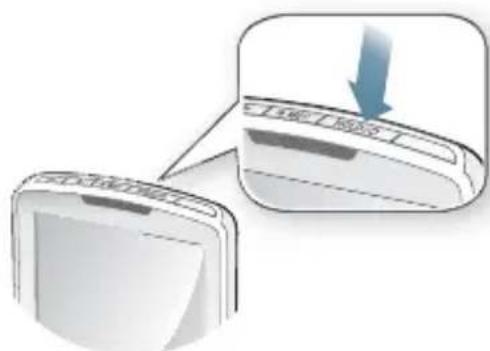
Turning the Power on
Press and hold the [ HOLD / ⏻ ] button.
Turning the Power off
Press and hold the [ ] button.
natural_image
Illustration of a device with a blue arrow pointing to a portion of its cover (no text or symbols present)
NOTE
- Your MP3 player will be automatically turned off when none of the buttons and icons have been pressed for 5 minutes in the pause mode.
CONTROLLING THE VOLUME
You can adjust the volume while a file is playing back.
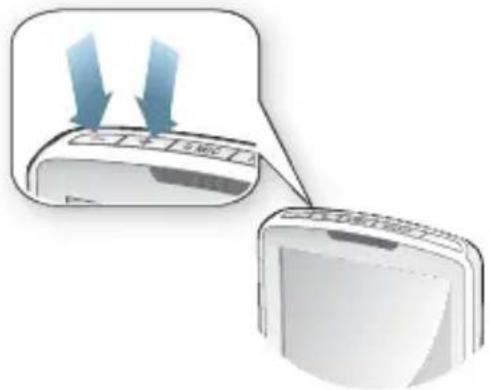
Press the [ - ], [ button.
text_image
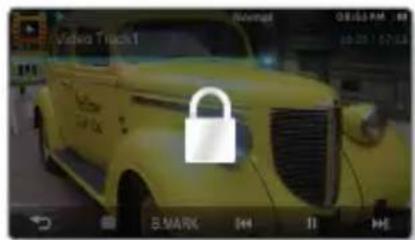
Diagram showing airflow direction of a device with blue arrows indicating flow, alongside a computer monitor displaying the same air.The Hold function disables the touch screen of your MP3 player, so that if you accidentally bump it while working out, for example-your music won't be interrupted.
-
Press the [ HOLD / ⏻ ] button once.
-
Press the [ HOLD / ⏻ ] button once again to release the hold function.
text_image
Video Track 1 Normal 08:53 PM 10:20:17:43 E.MARK H I H
- If you set to
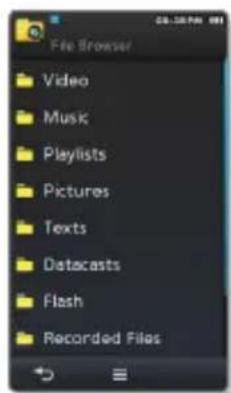
BROWSING FOR FILES USING "File Browser"
Search easily for files using the "File Browser" function.
-
Select the icon on the main menu screen.
-
Select a desired folder to bring up the file list.
-
Select a desired file.
■ The fi le will start playing.
text_image
File Browser Video Music Playlists Pictures Texts Datacasts Flash Recorded FilesDELETING FILES WITH "File Browser"
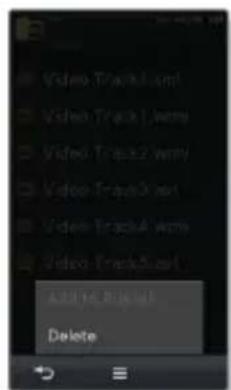
Follow steps 1-2 above.
- Tap the [ ] icon.
- Select
. -
Select the file that you want to delete and tap
. -
Tap the [ ] icon to select all files.
■ The fi le will be deleted.
text_image
Video Track1.xml Video Track1.wmy Video Track2.wmy Video Track3.wt Video Track4.wms Video Track5.wt ADD 16.0 (RGB) Delete
NOTE
- You can delete a file directly in the file list of video and music modes as well as in the
. - The selected file cannot be deleted while it's playing back.

CAUTION
- Once files are deleted, they cannot be recovered.
18 _ the basics
CHECKING THE STATUS INDICATORS
The player's current status indicators are displayed on the top of the screen.

text_image
Video Track.avi Normal 08:55 PM| Alarm Indicator Lock Indicator | |
| Bluetooth Indicator Current | |
| Memory Card Indicator Battery Status |

The screen pictures are for illustration purposes only. The actual screen may differ.
Tap on the touch screen with your thumb or fingertip.
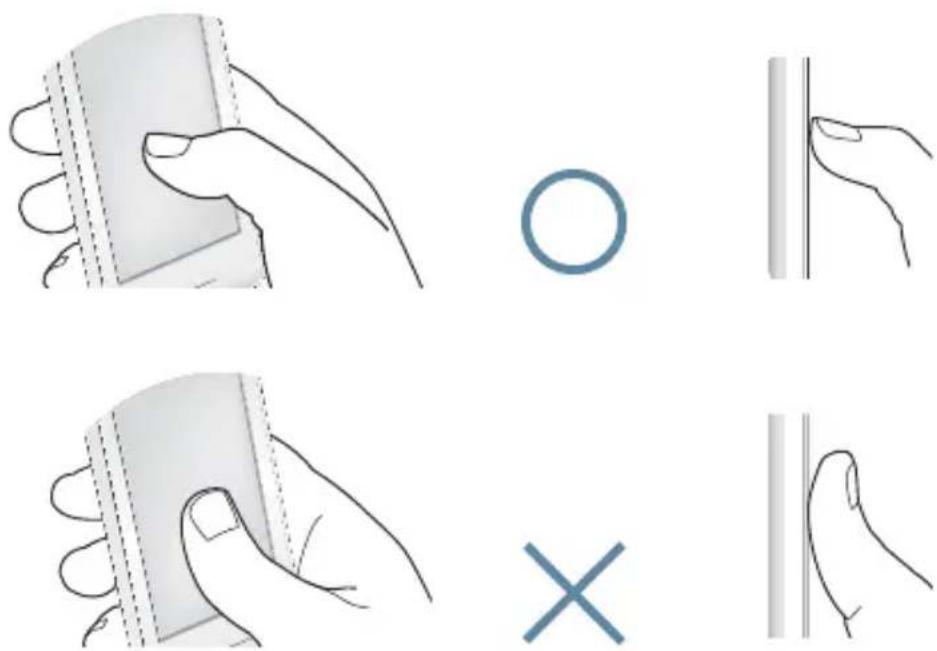

- Do not use force when touching the touch screen, as it may cause damage to the screen.
- To avoid damage to the touch screen, do not use any object other than your thumb or fingers to operate it.
- Do not tap on the touch screen if your thumb or fingers are not clean.
- Do not tap on the touch screen with gloves on.
- The touch screen may not function if you use a fingernail or other instruments such as a ballpoint pen.
USING THE TOUCH SCREEN (Continued)
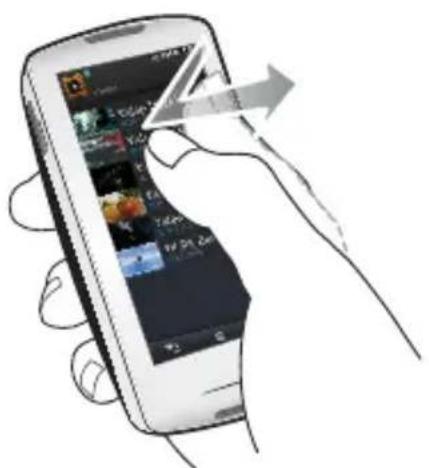
Tapping
Tap on the desired part on the touch screen.
text_image
Illustration of a hand holding a smartphone displaying an app interface with Chinese text and icons, showing a right-hand rule.Examples
| 1. Rorselactain item tapping on move to the next screen | its icon, or select an item from the list. |
| 2. To display playback information and function icons | Tap on the touch screen to display playback information and video, music, picture and text view icons. |
USING THE TOUCH SCREEN (Continued)
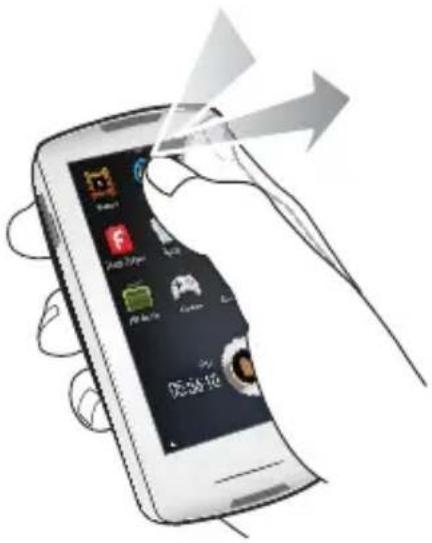
Longer Touch
Press and hold the desired part of the touch screen.
text_image
Illustration of a hand holding a smartphone displaying app icons with arrows indicating motion or transformation, showing a 36.56x speed.Examples
| 1. Moving to the previous playback screen. | ■ Press and hold the [IMAGE] icon to play a recently played fi le or to move to the playback screen of the current fi le. |
| Creating video chapters2. | ■ Press and hold on the screen during video playback to create a total of 5 chapters for the current video. |
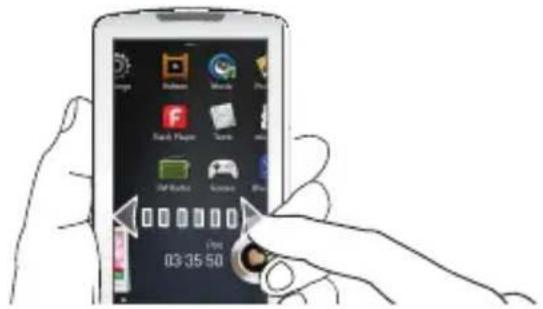
Dragging
Tap and drag your thumb or fingers to the desired point.
text_image
Illustration of a smartphone screen displaying app icons with a hand interacting with it, showing time and battery status.Examples
| 1. Bragsing the play is seen of the screen | touch screen horizontally to browse the main menu screen. |
| 2. Moving to the previous/ next list | You can check the next/previous list by dragging vertically in the video and music menu screen. |
| 3. Controlling the Play Status Bar | Tap the play status bar on the screen and drag your thumb or fingers to a desired point before releasing it. |
| 4. Page Move / Playback Searching | Drag horizontally while in video or music playback to skip backward / forward depending on the horizontal stroke setting.Drag horizontally in the picture view screen to move to the previous / next picture.Drag horizontally in the text view screen to move to the previous / next page. |
| Moving Widget Icons5. | While using widgets, select the main menu or widget icon to move and drag it to the desired point. |
SETTING THE MAIN MENU DISPLAY
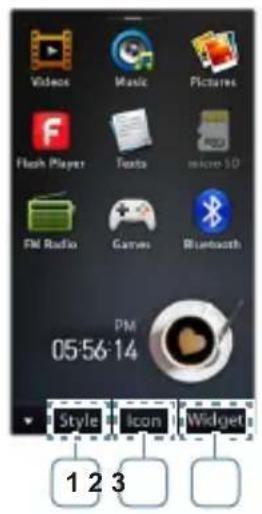
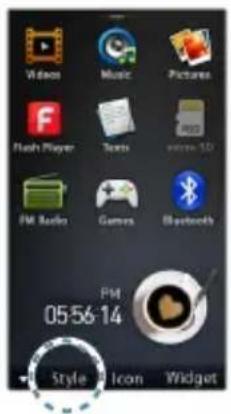
In the main menu, tap the [▲] icon at the bottom to display a context menu where you can customize the main menu.
text_image
Videos Music Pictures Flash Player Texts micro 10 FM Radio Canvas Bluetooth PM 05:56:14 Style Icon Widget 1 2 3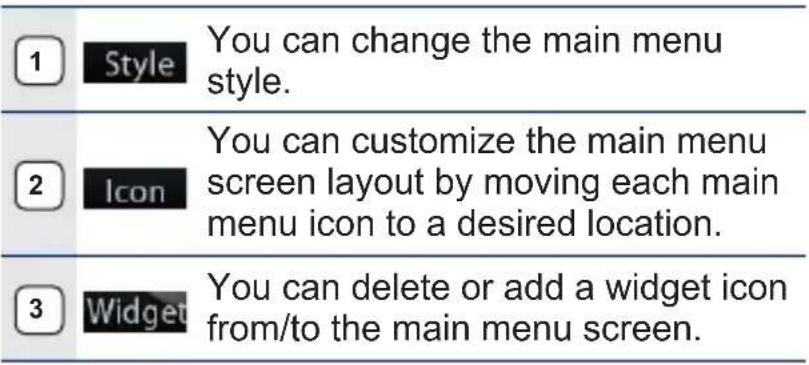 |
To change the main menu style
Select a desired main menu style.
text_image
Video Music Pictures Flash Player Texts home 3D FM Radio Games Bluetooth PM 05:56:14 Style Icon Widget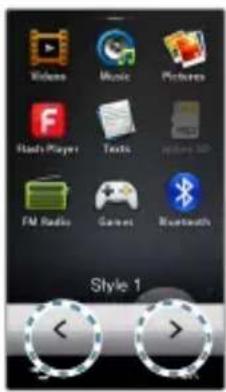
text_image
Videos Music Pictures Hands Player Texts Radio 3D FM Radio Games Bluetooth Style 1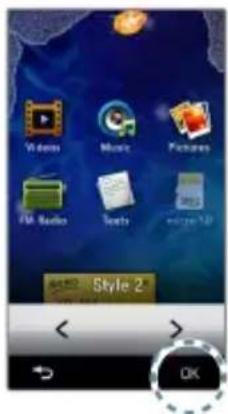
text_image
Videos Movies Pictures FM Radio Books Windows XP Style 2 OK24 _ the basics
SETTING THE MAIN MENU DISPLAY (Continued)
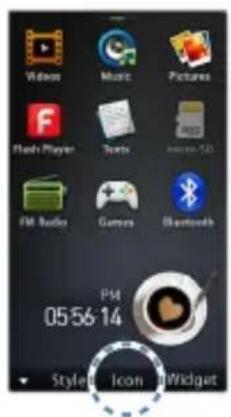
To change the main menu screen layout
Tap a main menu icon and drag it to a desired location/page.
- Drag the main menu icon to the lower menu bar to delete the icon from the main menu.
text_image
Video Music Pictures Flash Player Texts Volume 523 FM Audio Games Bluetooths PM 05:56:14 Style Icon Widget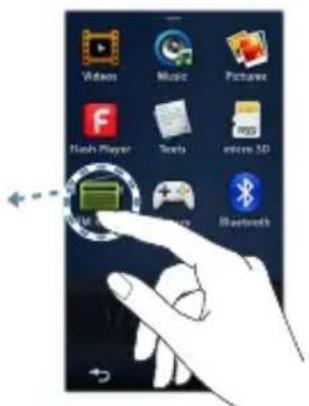
text_image
Video Music Pictures Flash Player Songs entire 5D Radio Bluetooth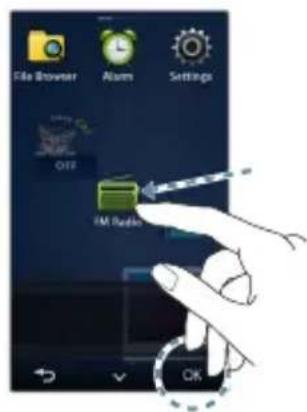
text_image
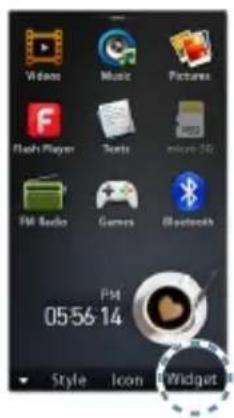
File Browser Alarm Settings OFF IM Radio OKTo add / delete a widget icon
Drag a widget icon from the widget bar to the main menu screen or drag it from the main menu screen to the widget bar.
text_image
Video Music Pictures Flash Player Texts micro-3D FM Radio Games Bluetooth PM 05:56:14 Style Icon Widget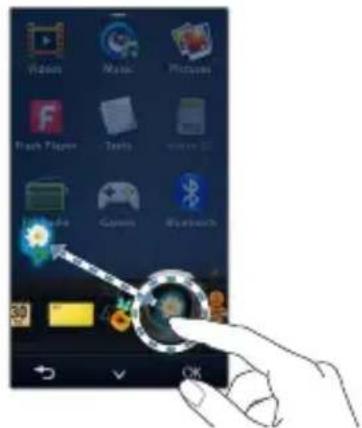
text_image
Screenshot of a smartphone home screen showing app icons with a hand pointing to a button labeled 'OK' and a flower icon.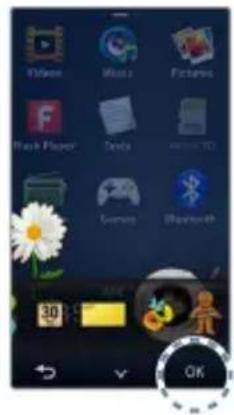
text_image
Video Music Pictures Flash Player Texts www.10 Gemsys Bluetooth 30 OKWIDGET ICONS
A Widget is a small specialized GUI application on the screen that provides easy access to frequently used functions such as a clock, calendar and note. Place the clock, calendar and other widgets on your main menu screen for convenience, providing direct and easy access.
Displays an analogue clock and shows the current time. The time can also be set. See page 28.
Displays a digital clock and shows the current time. The time can also be set. See page 28.
You can note and save a memo. See page 29.
You can view the calendar and your schedules. See page 30.
You can can check the current time of two major cities in the world. See page 31.

You can view pictures saved in the player in slideshow mode. You can select a folder for a slideshow. See page 32.
Tap the light bulb to adjust the brightness of the touch screen.
- You can set also the brightness in
WIDGET ICONS (Continued)
Tap to schedule your sleep time. It will automatically turn the power off at the scheduled time.
- You can set also the sleep time in
You can check the remaining capacity of the battery.
You can listen to music or FM radio in the main menu screen without switching to music or FM radio mode.

A decorative item showing a butterfly around a flower.

A decorative item with floral leaves that flutter when tapped.

A decorative item of a coffee cup that steams when tapped.

A decorative item of a cookie that cracks a bit when tapped.
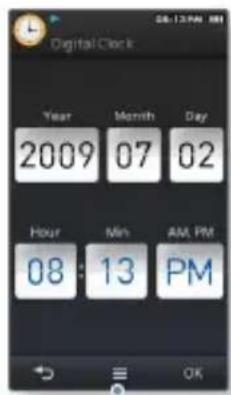
To set the current time
- Tap on the digital or analogue clock widget on the main menu screen.
- Set each
, , , , , - Tap
.
text_image
Digital Clock Year Month Day 2009 07 02 Hour Min AM PM 08:13 PM OKClock Option
-