
DBD-1660 - Uncategorized FRANKLIN - Free user manual and instructions
Find the device manual for free DBD-1660 FRANKLIN in PDF.


User questions about DBD-1660 FRANKLIN
0 question about this device. Answer the ones you know or ask your own.
Ask a new question about this device
Download the instructions for your Uncategorized in PDF format for free! Find your manual DBD-1660 - FRANKLIN and take your electronic device back in hand. On this page are published all the documents necessary for the use of your device. DBD-1660 by FRANKLIN.
USER MANUAL DBD-1660 FRANKLIN
READ THIS LICENSE AGREEMENT BEFORE USING ANY BOOKMAN® PRODUCT.
THIS LICENSE IS VALID ONLY FOR PURCHASES IN THE UNITED STATES. YOUR USE OF THE BOOKMAN PRODUCT DEEMS THAT YOU ACCEPT THE TERMS OF THIS LICENSE. IF YOU DO NOT AGREE WITH THESE TERMS, YOU MAY RETURN THIS PACKAGE WITH PURCHASE RECEIPT TO THE DEALER FROM WHICH YOU PURCHASED THE BOOKMAN PRODUCT AND YOUR PURCHASE PRICE WILL BE REFUNDED. BOOKMAN PRODUCT means the software product and documentation found in this package and FRANKLIN means Franklin Electronic Publishers, Inc.
LIMITED USE LICENSE
All rights in the BOOKMAN PRODUCT remain the property of FRANKLIN. Through your purchase, FRANKLIN grants you a personal and nonexclusive LICENSE to use the BOOKMAN PRODUCT on a single FRANKLIN BOOKMAN at a time. You may not make any copies of the BOOKMAN PRODUCT or of the data stored therein, whether in electronic or print format. Such copying would be in violation of applicable copyright laws. Further, you may not modify, adapt, disassemble, decompile, translate, create derivative works of, or in any way reverse engineer the BOOKMAN PRODUCT. You may not export or reexport, directly or indirectly, the BOOKMAN PRODUCT without compliance with appropriate governmental regulations. The BOOKMAN PRODUCT contains Franklin's confidential and proprietary information which you agree to take adequate steps to protect from unauthorized disclosure or use. This LICENSE is effective until terminated. This LICENSE terminates immediately without notice from FRANKLIN if you fail to comply with any provision of this LICENSE.
Introduction
Welcome to the world of Franklin! With the Deutsch/Englisch Professor PRO you can:
- find translations;
- correct misspellings;
- conjugate words;
• study the Grammar Guide; - save names and phone numbers to the databank;
- save words to My Word List;
• sharpen your spelling and increase your English vocabulary with ten School Essentials;
• and play nine fun, educational word games.
Table of Contents
Key Guide ....53
Using the Special Features .....55
Installing Book Cards .....56
Installing Batteries .....56
Selecting a Book .....57
Book Card Keys ....57
Changing the Language .....58
Using the Main Menu .....59
Changing the Settings .....60
Viewing a Demonstration or Tutorial . . .60
Translating German Words .....62
Translating English Words .....63
Finding Letters in Words .....65
Highlighting Words .....66
Using the School Essentials .....67
Using the Grammar Guide .....70
Advanced Verb Conjugations .....71
Translating Traveller's Phrases .....74
Using My Word List ....75
Playing the Games 78
Using the Clock .....82
Using the Databank ....83
Using the Calculator . . . . . . . . . . . . . . . . . . . . . . . . . . . . . . . . . . . . . . . . . . . . . . . 85
Table of Contents
Using the Converter .....86
Transferring Words Between Books ...88
Resetting Your Product .....88
Book Card Care ....89
Copyrights, Trademarks and Patents . .89
FCC Notice (U.S. Only) .....90
Limited Warranty (U.S. only) .....91
Limited Warranty
(outside U.S., EU and Switzerland) . . . .92
Limited Warranty
(EU and Switzerland) .....92
Key Guide
Key Guide
Dictionary Function Keys
F1 (CONJ) Conjugates a word.
F2 (E/D) Toggles the entry language between German and English.
F3 (DICT) Goes to the Word Entry screen.
F4 (LEARN) Goes to the School Essentials menu.
F5 (GAMES) Goes to the Games menu.
Organizer Function Keys\*
F1 (CLOCK) Goes to the clock.
F2 (DATA) Goes to the Databank menu.
F3 (CALC) Goes to the calculator.
F4 (CONV) Goes to the metric converter.
F5 (CURR) Goes to the currency converter.
Main Keys
AN/AUS
HILFE
Turns the product on or off.
Displays a help message. When at an inflection screen, displays the Grammar Guide section about the inflection you were viewing.
From the organizer, the function keys correspond to the clock, databank, calculator, and converters.

Types B.

In the dictionary, goes to the Word Entry screen. Clears the calculator. In the databank and converter, goes to the respective main menu.

Backs up, erases a letter, or turns off the highlight at an entry.

Enters a word, selects an item, or begins a highlight in an entry.

Displays the main menus for the dictionary.

At the Word Entry screen, types a ? to stand for a letter in a word. At a menu, displays a menu item. At a dictionary entry, displays the headword. In games, reveals the word and forfeits the game.

Shifts to type capital letters and punctuation marks.

Goes to the organizer: clock, databank, calculator, metric converter and currency converter. Press MENÜ to return to the dictionary.
_’ In the databank, types an underscore (_).

Exits the book you were reading.
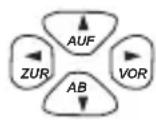
Direction Keys
Moves in the indicated direction.

At the Word Entry screen, types a space. At menus and dictionary entries, pages down.
Combination Keys\*
A + At a dictionary entry or the AUF / traveller's phrases menu, pages AB up or down.
+ At a dictionary entry, displays the next or previous entry.
+ At a menu, goes to the first or last item. At a dictionary entry, goes to the start or end of the entry.
+ Transfers a word between books.
+ At the Word Entry screen, types a hyphen (-).
▲ +M In the Address field of the databank, types @.
① + _'Types an apostrophe (').
▲+_Types a slash (/).
* Hold the first key while pressing the second.
A + Goes to the traveller's phrases SATZ menu. If a word is in the Word ? * Entry screen or is highlighted, finds any phrases containing that word. ↑ + At the Word Entry screen, types SATZ an asterisk to stand for a series of letters in a word. In games, gives a hint.
Calculator Keys
A (1/x) Calculates a reciprocal.
S() Calculates a square root.
D(x^2) Squares a number.
F (%) Calculates a percentage.
G(.) Inserts a decimal point.
H(+)/J(-) Adds, subtracts, multiplies, or
K(x) / L(÷) divides numbers.
Y (+/-) Changes the number on the screen to a negative or positive number.
X(M+) Adds the number to the number stored in the memory.
C(-) Subtracts the number from the number stored in the memory.
V(MR) Recalls the number stored in the memory.
B (mc) Clears the memory.
Your unit is equipped with several special features that many, but not all, BOOKMAN book cards use. To learn if you can use the special features with a particular book card, read its User's Guide.
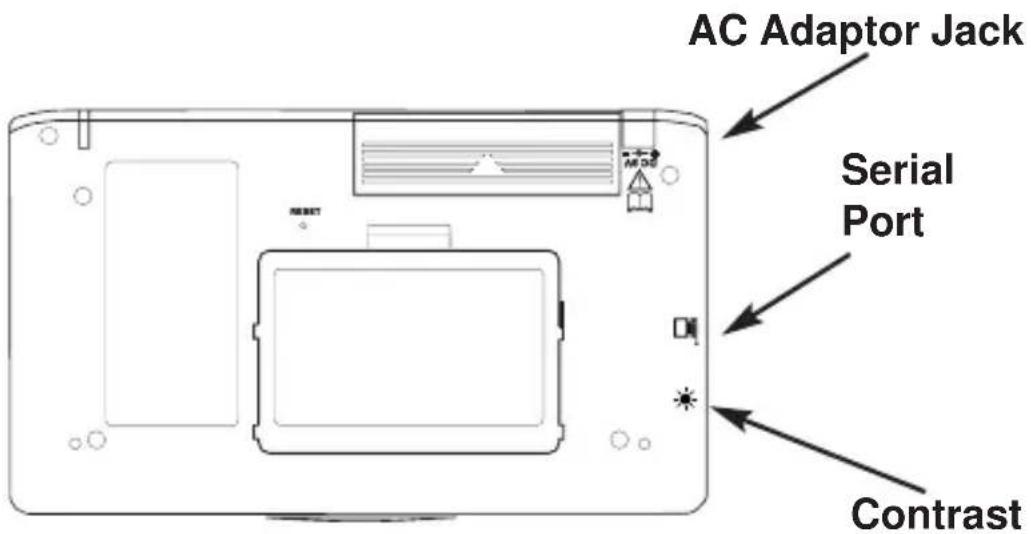
Contrast: The dial on the side of the unit under the serial port enables you to dim or lighten the screen.
AC Adaptor Jack: The AC/DC adaptor is in the 9 volt range within a current range of 200 to 300 milliamperes.
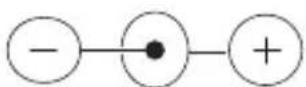
This symbol indicates that the inner core of the plug of an AC adaptor is
negative and that the outer part of the plug is positive. If the symbol on our AC/DC adaptor does not match the above symbol, confirm its compatibility at its place of purchase.
Serial Port: Plug in a serial cable here to connect the Deutsch/Englisch Professor PRO to your PC using the BOOKMAN Connectivity Kit (available at www.franklin.com/de).
Installing Batteries
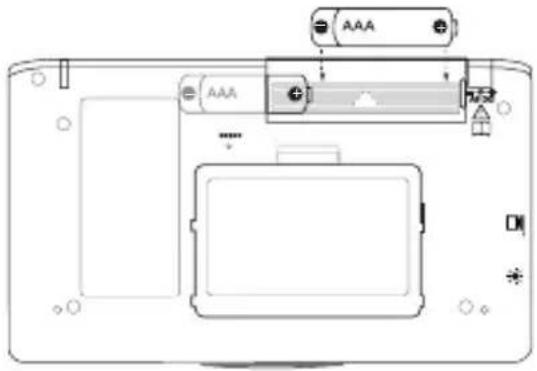
Your unit is powered by two AAA batteries. Follow these easy instructions to install or replace them.
- Turn your unit off and turn it over.
- Open the battery cover on the back of your unit by pushing in the direction of the arrow.
-
Remove the old batteries, if necessary.
-
Install the batteries following the +/- markings in the battery compartment.
-
Replace the battery cover.
Warning: If the batteries wear-out completely, or if you take more than a few seconds while changing the batteries, any user-entered information in the built-in book or book card may be erased. You should always keep written copies of your important information.
Installing Book Cards
Your unit contains a built-in book. You can purchase more titles on book cards at www.franklin.com/de. To install a book card, follow these steps.
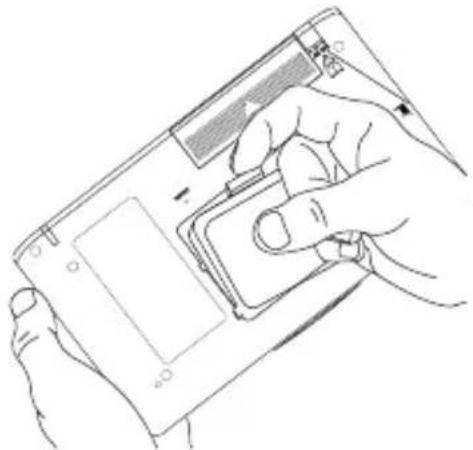
- Turn your unit off and turn it over.
- Remove the blank protector or any other book card that might be installed.
- Align the tabs on the book card with the notches in the slot.
natural_image
Line drawing of hands holding a tablet device (no text or symbols visible)- Press the book card down until it snaps into place.
Warning: Never install or remove a book card while your unit is on. Any information that was entered in the built-in book or book card will be erased.
Selecting a Book
Book Card Keys
Once a book card is installed in the product, you can select which book you want to use.
- Turn your product on.
- Press KARTE.
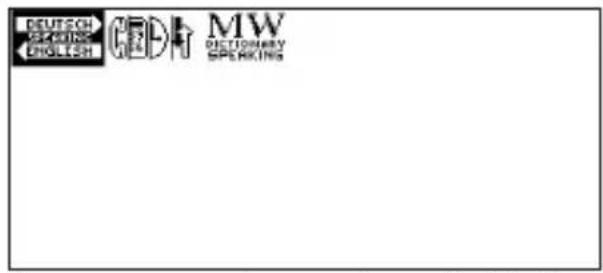
Icons appear for each available book. The built-in book is highlighted.
3.
Press

to
highlight
- Press EINGABE to select it.
- Press KARTE to return to the Card menu.
▶ Book Card Troubleshooting
If your book card is performing erratically, follow the reset instructions on page 88. If this does not fix the problem, remove the book card and then remove the white rubber strip located between the two metal pins. Clean the rubber strip with your fingers and then replace it making sure it is completely in its notch.
The F1 - F5 keys on your product change functions according to the book card you select. Their functions are labelled on individual cards.
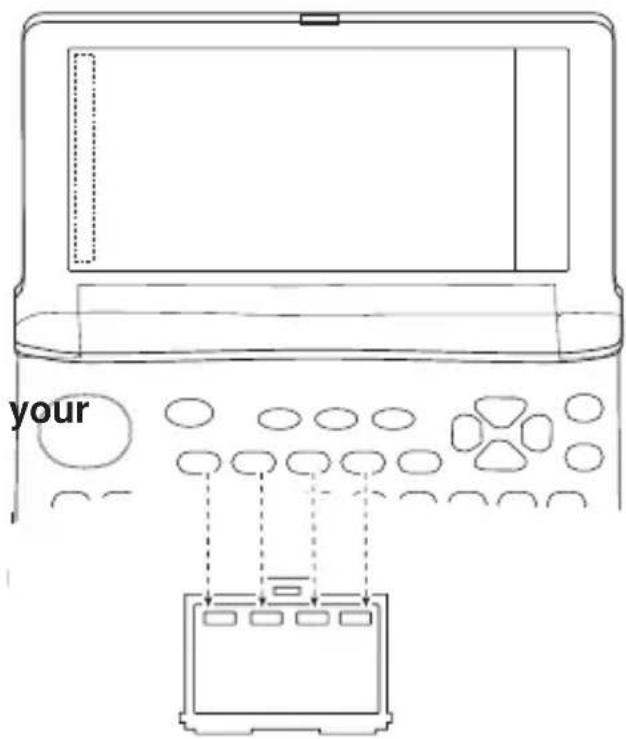
When in your book card:
For... Press...
the red key F1
the green key F2
the yellow key F3
the blue key F4
Changing the Language
Changing the Language
Message Language
When you turn on this product for the first time, you must choose the message language. Press A for German or press B for English.
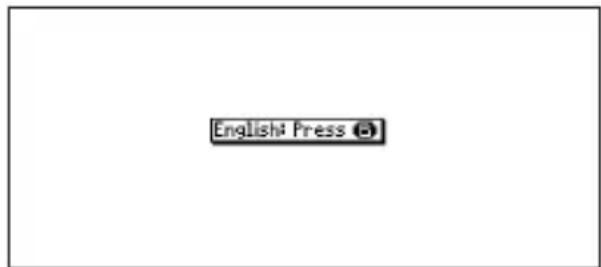
The message language is the language of prompts, help, and other messages. You can change the message language after your initial decision. See “Changing the Settings” on page 60 to learn how.
Entry Language
The entry language is the language in which you enter words at the Word Entry screen. This determines which dictionary you will use, German or English.
- Press MENÜ.
- Use the arrow keys to highlight

- Press EINGABE.
Select at the icon menu to go to the English-to-German dictionary.
Or you can press E/D (F2) at the Word Entry screen to switch between German and English.
Using the Main Menu
When you press MENÜ, you will see ten icons. Use these to quickly take you to different parts of your Deutsch/Englisch Professor PRO.
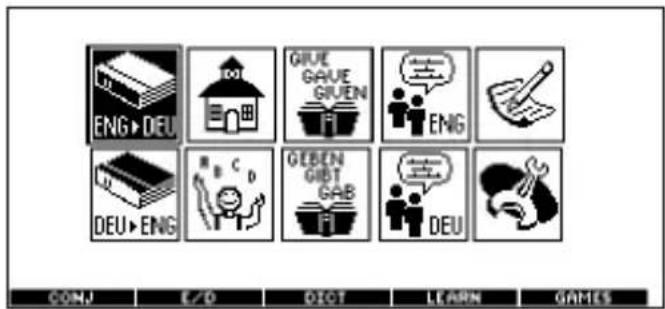
▶ Understanding the Menu

Goes to the English-to-German dictionary.

Goes to the German-to-English dictionary.

Goes to the School Essentials menu.

Goes to the Games menu.

Goes to the English conjugation prompt.
Using the Main Menu

Goes to the German conjugation prompt.

Goes to the English traveller's phrases menu.

Goes to the German traveller's phrases menu.

Goes to My Word List.

Goes to the Tools menu.
1. Press MENÜ.

will be highlighted the first time ress MENÜ.
2. Use the arrow keys to highlight the icon you want and press EINGABE.
▶ Follow the Arrows
The flashing arrows on the left of the screen show which arrow keys you can press to move around menus or view more text.
Viewing a Demonstration or Tutorial
You can view a demonstration or tutorial of this dictionary at any time.
- Press MENÜ.
- Use the arrow keys to highlight

and press EINGABE.
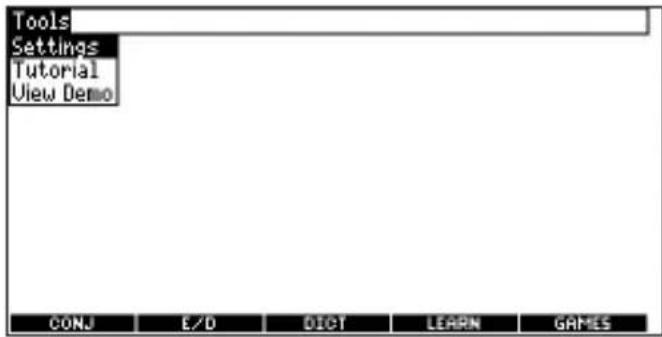
- Press to highlight either Tutorial or View Demo and press EINGABE.
To stop the demonstration or exit from the tutorial and go to the Word Entry screen, press CLEAR.
When a book card is installed in your product, select Demo from the Setup menu to see the demonstration for that card.
Changing the Settings
When using this dictionary, you can activate the Learn a Word feature or adjust the shutoff time, the type size, and the message language. The shutoff time is how long your product stays on if you forget to turn it off.
- Press MENÜ.
- Use the arrow keys to highlight

and press EINGABE.
Settings will be highlighted.
- Press EINGABE to select it.
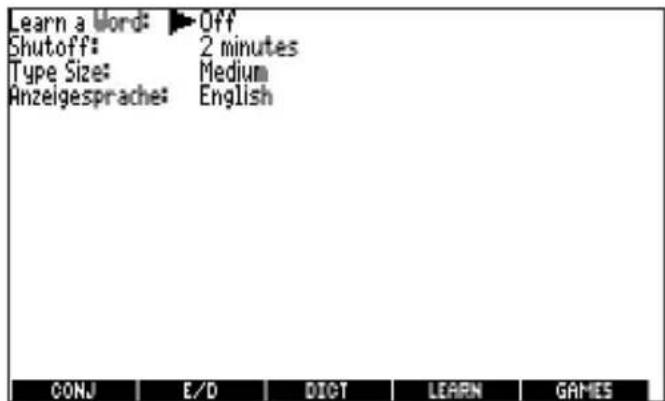
4.


to

move
Learn a Word, Shutoff, Type Size, or Anzeigesprache (Messages).
Changing the Settings
Changing the Settings
5.
Press ZUR
setting.
Your changes are automatically saved.
6. Press EINGABE when done.
Press CLEAR to return to the Word Entry screen.
▶ Learn a New Word
Your dictionary comes with a Learn a Word feature to help you increase your English or German vocabulary. Each time you turn your Deutsch/Englisch Professor PRO on, you can see a different headword taken from the dictionary. If you wish to turn this feature on,
press MENÜ. Highlight

press EINGABE. Press EINGABE again to select Settings.
Press or to turn the feature on and press EINGABE when done. When German is the entry language, you will be shown a German word.
When English is the entry language, the you will be shown an English word. To learn how to change the entry language, read “Changing the Language” on page 58.
▶ About Screen Illustrations
Some screen illustrations in this User's Guide may differ slightly from what you see on screen. This does not mean that your product is malfunctioning. The examples in this manual use German as the message language.
▶ Help is Always at Hand
You can view a help message at any screen by pressing HILFE.
Press or to read the
message. To exit help, press

Translating German Words
Your Deutsch/Englisch Professor PRO is fully bilingual. Try translating a German word.
- Press CLEAR.
- Press E/D (F2) to change the entry language from English to German, if needed.
- Type a word (for example, Zahlungsmittel).
To erase a letter, press ☑Note: You do not need to type accents. To type accents, if desired, type the letter (for example, U) and press
repeatedly until the accent you want appears (for example, Ü). To type a capital, hold and press a letter key. To type a hyphen, hold and press J.
- Press EINGABE to view the English translation.
Translating German Words
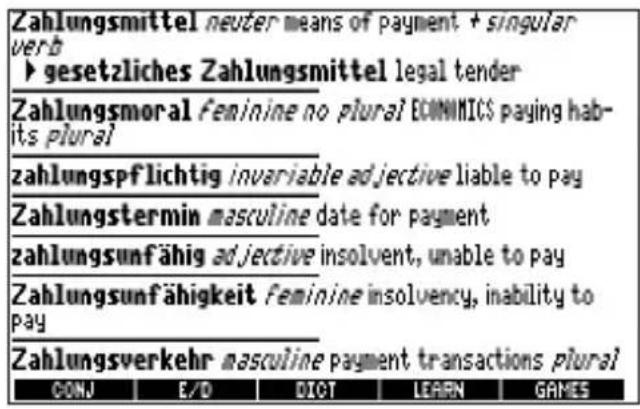
Press

or

to
scroll.
5.
Hold
and VOR
ZUR press
view the next or previous definition.
6. Press CLEAR when done.
▶ Explanation of Genders
German nouns are different than English nouns in that they must be masculine, feminine, or neuter. Each definition of a noun indicates which gender it is with M, F, or N.
Translating German Words
▶ Understanding Definitions
Dictionary entries consist of headwords, parts of speech, and/or definitions. Other forms of the word may follow the headword. Capitalized words indicate the category for which the word is used. After the definition, you may see a list of usage examples.
If you enter a misspelled word, a list of corrections appears. Highlight the word you want and then press EINGABE to see its dictionary entry.
Translating English Words
You can also use the Deutsch/Englisch Professor PRO to translate English words into German.
- Press CLEAR.
- Press E/D (F2) to change the entry language from German to English, if needed.
- Type a word (for example, where).
To erase a letter, press ☑Note: You do not need to type accents. To type accents, if desired, type the letter (for example, U) and press
repeatedly until the accent you appears (for example, ). To
type a capital, hold and press a letter key. To type a hyphen, hold and press J.

- Press EINGABE to view the German translation.
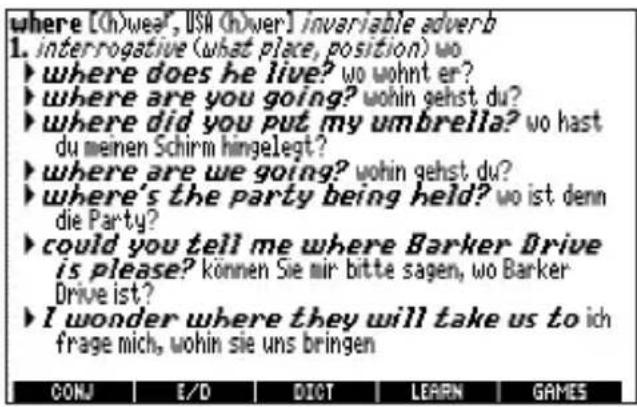
- Press CLEAR when done.
▶ Choosing Multiple Forms
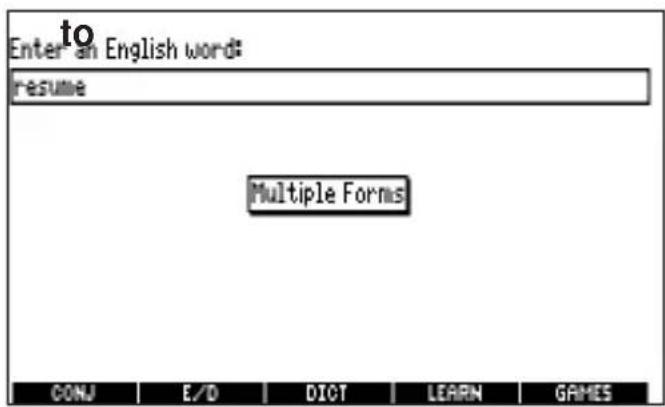
Some words in this dictionary have more than one form (for example, Reise, reise, reiße). When the word you are looking up has multiple forms, the different forms appear in a list.
Simply highlight the form you want and press EINGABE to see its dictionary entry. For example, enter reise at the Word Entry screen.
or
Translating English Words
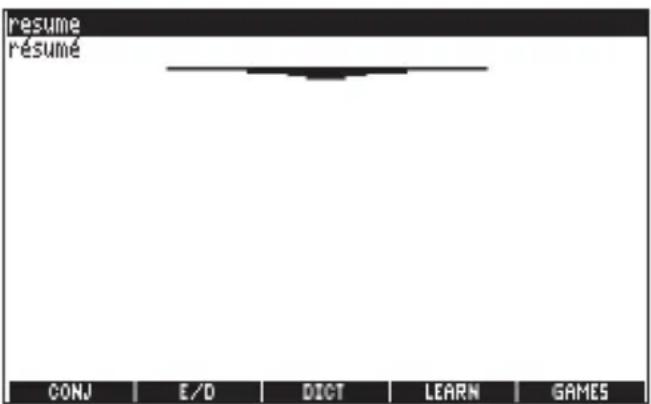
Highlight the form you want and press EINGABE to see its dictionary entry. To go back to the Multiple Forms list, press
Finding Letters in Words
If you are uncertain about how to spell a word, type a question mark (?) in place of each unknown letter. To find prefixes, suffixes, and other parts of words, type an asterisk (*) in a word. Each asterisk stands for zero, one or more letters.
Note: If you type an asterisk at the beginning of a word, it may take a little while to find the matching words.
- Press CLEAR.
- Press E/D (F2) to switch to the English Word Entry screen, if needed.
- Type a word with ?s and *s.
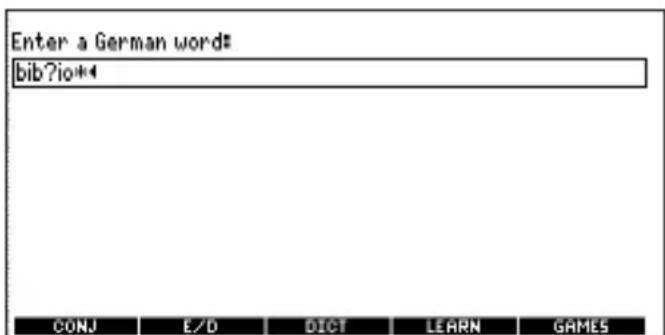
To type an asterisk, hold down

and press

Finding Letters in Words
Highlighting Words
4. Press EINGABE.
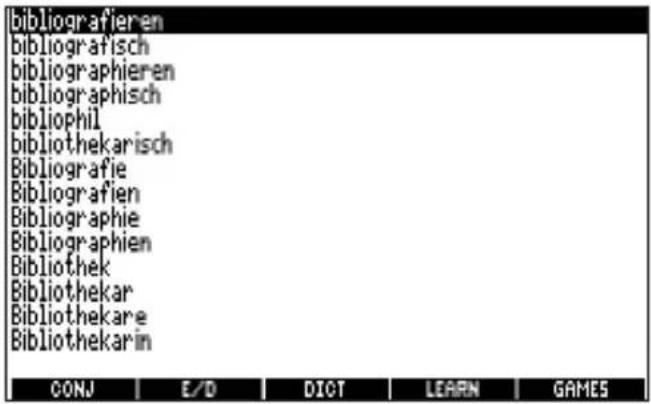
- Press to move the highlight to the word you want and press EINGABE to view its definition.
- Press CLEAR when done.
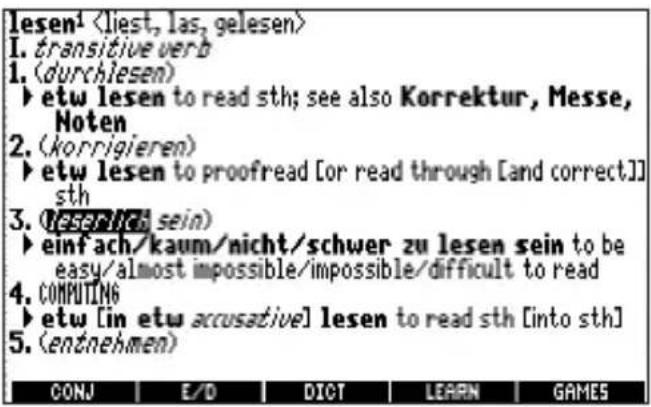
Another way to look up words is by highlighting them in dictionary entries or word lists. You can then find their definitions and phrases or add them to My Word List.
1. At any text, press EINGABE to start the highlight.
![lesen 1. transitive verb 1. (durchlesen) ► etw lesen to read sth; see also Korrektur, Messe, Noten 2. (korrigieren) ► etw lesen to proofread [or read through [and correct]] sth 3. (leserlich sein) ► einfach/kaum/nicht/schwer zu lesen sein to be easy/almost impossible/impossible/difficult to read 4. COMPUTING ► etw [in etw accusative] lesen to read sth [into sth] 5. (entnehmen) CONJ E/D DICT LEARN GAMES](/content/2026/05/789610/images/a73d474152cefabd96efc55aa73a3ba84a4705477b621e1330711608a08bb1c2.jpg)
To turn the highlight off, press

- Use the arrow keys to move the highlight to the word you want.
Highlighting Words
Using the School Essentials
- Press CLEAR when done.
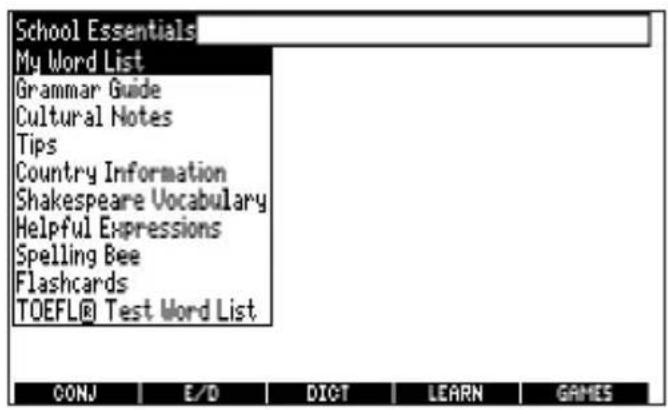
Using the School Essentials, you can read country information, cultural notes, tips, Shakespeare vocabulary, and helpful expressions. You can test your spelling, improve your vocabulary, browse the TOEFL® Test Word List*, and receive grammar guidance (see “Using the Grammar Guide” on page 27).
To access School Essentials, press
MENÜ, highlight and press
EINGABE. Or you can press LEARN (F4).
* TOEFL and the Test of English as a Foreign Language are registered trademarks of Educational Testing Service (ETS). This product is not endorsed or approved by ETS.
Using the School Essentials
Using the School Essentials
Cultural Notes
From the School Essentials menu, use

to highlight Cultural Notes and EINGABE.
You can choose to read about any of the listed English cultural topics.
Tips
From the School Essentials menu, use

to highlight Tips and press
EINGABE.
You can choose to read about any of the listed English language usage tips.
Country Information
From the School Essentials menu, use

to highlight Country Information ress EINGABE.
You can choose to read about Great Britain, the United States of America, or Germany.
Shakespeare Vocabulary
From the School Essentials menu, use

to highlight Shakespeare
Vocabulary and press EINGABE.
You can choose to read any of the listed words from Shakespeare's works and their German translation.
Helpful Expressions
From the School Essentials menu, use

to highlight Helpful Expressions ress EINGABE.
You can choose to read the list of common expressions for any of the listed English or German topics.
Spelling Bee
- From the School Essentials menu,
use AB to highlight Spell and press EINGABE.
My Spelling Bee (English) uses English words from My Word List. My Spelling Bee (German) uses German words from My Word List.
Using the School Essentials
Using the School Essentials
TOEFL ^® Test Spelling Bee uses words from the TOEFL ^® Test Word List.
- Highlight the word list you want and press EINGABE.
A word is displayed for you to spell. Press +to display the word again.
- Type in the word you just saw and press EINGABE to see if you spelled it right.
Press EINGABE to see the definition.
Press to return to Spelling Bee.
-
Press for a new word.
-
Press CLEAR when done.
Flashcards
- From the School Essentials menu,
use AB to highlight and press EINGABE.
My Flashcards (English) uses English words from My Word List. My Flashcards (German) uses German words from My Word List. TOEFL® Test Flashcards uses words from the TOEFL® Test Word List.
- Highlight the word list you want and press EINGABE.
A word will be displayed on the screen for you to study or define.
Press EINGABE to see the definition.
Press to return to Flashcards.
-
Press to see a new word.
-
Press CLEAR when done.
Viewing the TOEFL® Test Word List
- From the School Essentials menu,
use AB to highlight ® TestOEF, Word List and press EINGABE to view the list.
- Press or to scroll
You can also type the first few letters Flashcards word to find it on the list (for example, type col to find collaborate).
Press EINGABE at any word to view its definition.
Press CONJ (F1) at any word to conjugate it.
- Press to return to the list.
Using the Grammar Guide
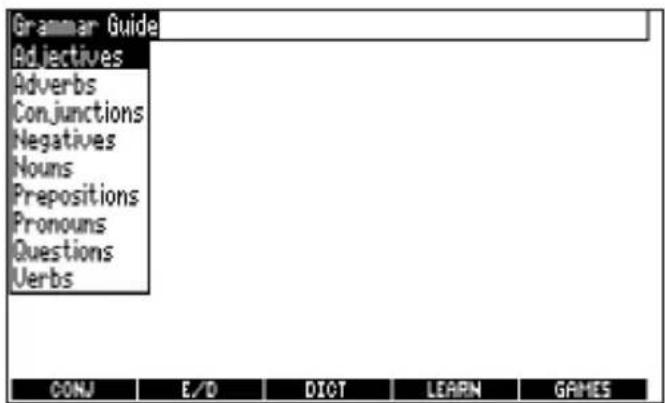
Your Deutsch/Englisch Professor PRO includes a helpful Grammar Guide that describes parts of speech. You can view
it by selecting from the main menu or by pressing LEARN (F4).
From the School Essentials Menu
-
Press MENÜ, highlight and then press EINGABE. Or you can press LEARN (F4).
-
Press to highlight Guide and then press EINGABE.
Using the Grammar Guide
-
Press to highlight the topic you want to study and then press EINGABE.
-
Press or to read.
-
Press VOR + or ZUR + t view the next or previous topic.
From an Inflection Screen
-
Press MENÜ, highlight and then press EINGABE.
-
Type a word to conjugate and then press CONJ (F1).
-
Press VOR + or ZUR + repeatedly to find the tense you want to read about in the Grammar Guide.
-
Press HILFE. Information about the tense will be displayed along with usage examples.
-
Press to return to the inflection screen.
-
Press CLEAR to return to the Word Entry screen.
Advanced Verb Conjugations
Conjugations show inflections or changes in a word's gender, tense, and form. This dictionary includes extensive inflections of nouns, verbs, modifiers and other words.
From the Icon Menu
- Press MENÜ, use the arrow keys
to highlight and then press EINGABE.
To choose English conjugation, press

You can also press CONJ (F1) and then E/D (F2) to choose the language.
- Type a word (for example, denken).
- Press CONJ (F1).
If needed, highlight the part of speech or translation you want and press EINGABE.
These are the principal forms of the German verb “denken”. The English translations are below each German inflection.
- Press or to
Press to display the root word.
Advanced Verb Conjugations
- Press either CONJ (F1) or hold
and press repeatedly to view more inflections.
If the word is a noun, an adjective, or another modifier, then there will not be any other inflections.
- Press CLEAR when done.
From a Dictionary Entry
Some words have different parts of speech or multiple translations. You can easily find which part of speech or specific translation you will need to conjugate by first looking up the word and then pressing CONJ (F1). Follow this example:
- Press MENÜ, use the arrow keys
to highlight and then press EINGABE.
To choose English, press you can also press CONJ (F1) and then E/D (F2) to choose the language.
-
Type a word (for example, reden) and press EINGABE.
-
Use the arrow keys to highlight a form, if needed.
Advanced Verb Conjugations
In this case, choose reden.
Capitalized words are usually nouns.
4. Press EINGABE to look it up.
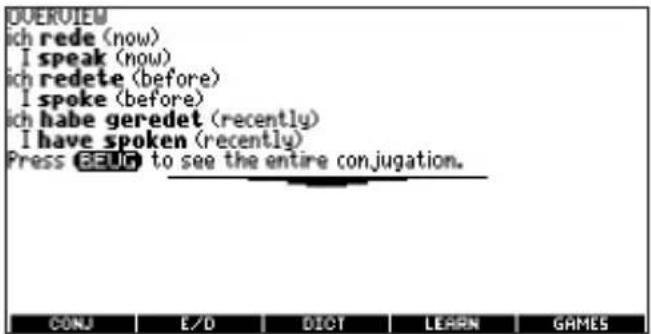
Read the definition to find the verb you want (for example, to speak).
- Press CONJ (F1) to conjugate the headword, reden.
- Highlight the translation you want (for example, speak) and press EINGABE.
These are the principal forms of the German verb “reden”. The English translations are below each German inflection.
7.


to
Press to display the root word.
Advanced Verb Conjugations
- Press either CONJ (F1) or hold
▲ and press repeatedly to view more inflections.
If the word is a noun, an adjective, or another modifier, then there will not be any other inflections.
- Press CLEAR when done.
▶ Getting Grammar Guidance
When viewing inflections, you can press HILFE to go directly to the Grammar Guide and view detailed descriptions of how to use the inflections you were viewing along with usage examples.
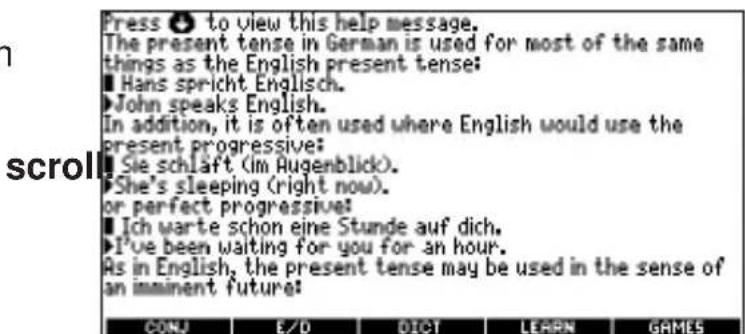
Advanced Verb Conjugations
Advanced Verb Conjugations
▶ Accenting Letters
You can look up accented words without typing accents. If there are no Multiple Forms, the Deutsch/Englisch Professor PRO will take you directly to the word. If there are Multiple Forms, you will have to choose the correct word from a Multiple Forms list. See “Choosing Multiple Forms” on page 64 for more information. Remember, if you want to enter an accent yourself, type the letter and press until the appropriate accent appears.
▶ Viewing English Inflections
If you are unfamiliar with inflections, it may be helpful to look at some inflected forms of English verbs. Switch the entry language to English (if necessary), type write and press CONJ (F1) to see the different forms of the English verb "write". This will give you a good idea of each inflection form.
▶ Verb Conjugations
The Deutsch/Englisch Professor PRO conjugates German verbs into the following forms: present, preterite, future, present subjunctive, future subjunctive, preterite subjunctive, present conditional, imperative, present participle, past participle, perfect indicative, pluperfect indicative, future perfect, perfect subjunctive, pluperfect subjunctive, future perfect subjunctive, and past conditional.
Translating Traveller's Phrases
There are two ways in which you can translate several helpful phrases in categories ranging from Emergencies to Business Communication to Time & Dates.
Browsing Through Phrases
- Press MENÜ.
- Use the arrow keys to highlight

and then press EINGABE to the German categories.
Press view the English phrases.
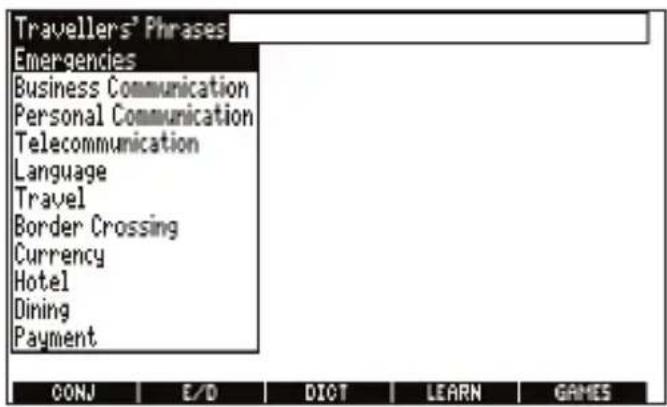
You can also hold and press
SATZ ? * to go straight to the Traveller's Phrases menu in the same language as the lookup language.
Translating Traveller's Phrases
- Press or to high the category you want and press EINGABE.
- Press for to highl the phrase you want to translate and then press EINGABE.
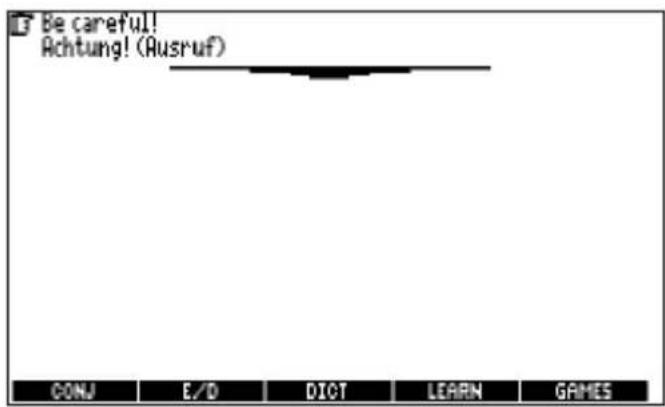
Searching for a Specific Phrase
- Press CLEAR and press E/D (F2) to select the lookup language, if needed.
- Type a keyword for which you want to find a phrase (for example, ticket).
- Hold and ?* press
Translating Traveller's Phrases
Using My Word List
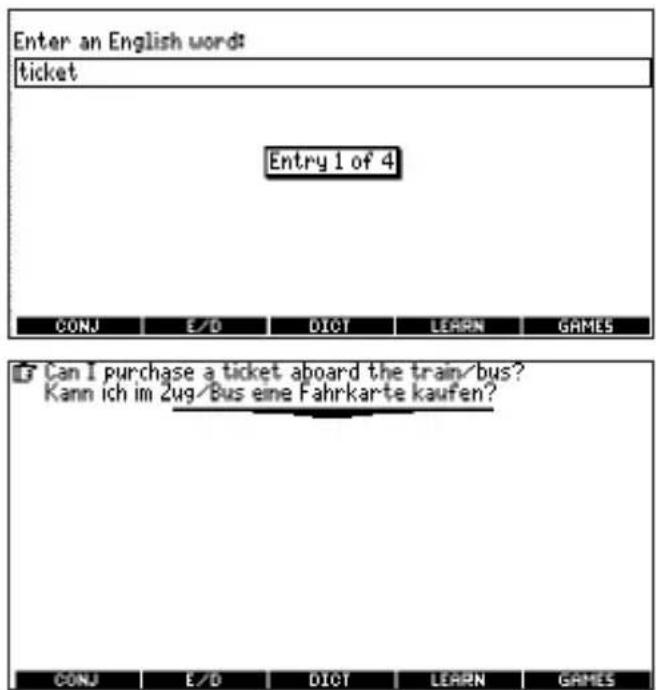
- If more than one phrase is found,
press AB to scroll.
- Press CLEAR when done.
You can save up to 40 words total, in both English and German, in My Word List for personal study or review. My Word List is saved between sessions unless your product is reset.
Adding Words from the Main Menu
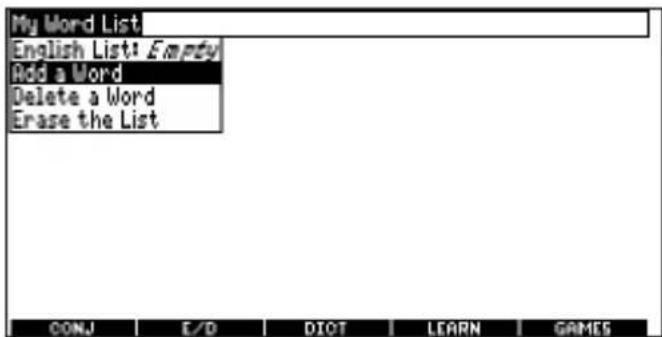
- Press MENÜ, highlight then press EINGABE.

You can also highlight and press EINGABE twice. Or you can press LEARN (F4) and then press EINGABE.
-
Press E/D (F2) to switch from the English to the German List, if needed.
-
Press or to highly Add a Word and press EINGABE.
Using My Word List
Using My Word List
- Type a word.
- Press EINGABE to add the word.
- Press CLEAR when done.
Adding Words from the Word Entry Screen
You can also add words to My Word List directly from the Word Entry screen. Since many German words are compounds from two or more words, you will have to add each component separately to your word list.
- Press CLEAR.
- Press E/D (F2) to choose the language of the word you want to add.
English words will be added to the English list; German words will be added to the German list.
- Type the word you want to add to your word list (for example, knowledge).
- Press LEARN (F4).
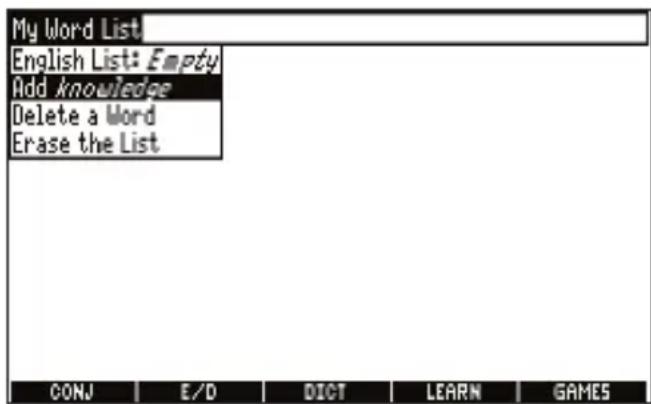
Your selection is included in the menu item.
- Press EINGABE to add the word. If needed, highlight the component you want and press EINGABE.
- Press CLEAR to return to the Word Entry screen.
▶ Adding Highlighted Words
You can also add words to My Word List from definitions and correction lists. First highlight a word and then press LEARN (F4). Your selection is included in the menu item. Press EINGABE to add the word.
Viewing My Word List
- Press MENÜ, highlight then press EINGABE.

Or you can press LEARN (F4) and then press EINGABE.
- Press E/D (F2) to switch to the English or German List, if needed.
English list: Empty (or German list: Empty) will be displayed if either is empty.
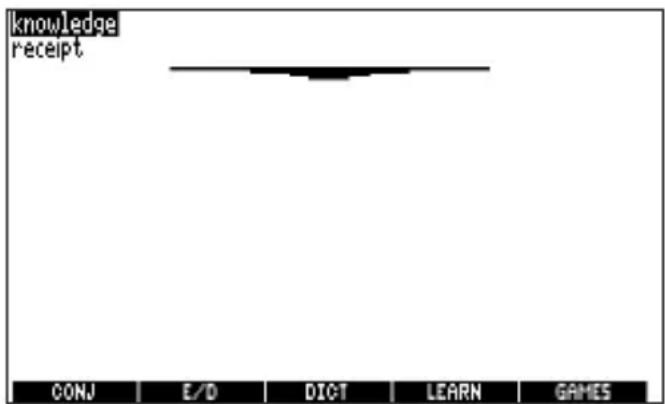
- Press EINGABE to view the list.
-
Highlight a word on the list.
-
Press EINGABE to view its translation(s) or CONJ (F1) to view its inflections.
Removing a Word from My Word List
- Press MENÜ, highlight then press EINGABE.

Or you can press LEARN (F4) and then press EINGABE.
- Press E/D (F2) to switch to the English or German List, if needed.
- Select Delete a Word and then highlight the word you want to delete.
- Press EINGABE to delete that word.
Erasing My Word List
- Press MENÜ, highlight then press EINGABE.

Or you can press LEARN (F4) and then press EINGABE.
- Press E/D (F2) to switch to the English or German List, if needed.
- Select Erase the List.
Press Y to erase the list or press N to cancel.
Note: When you erase one list, the other list is not erased.
Playing the Games
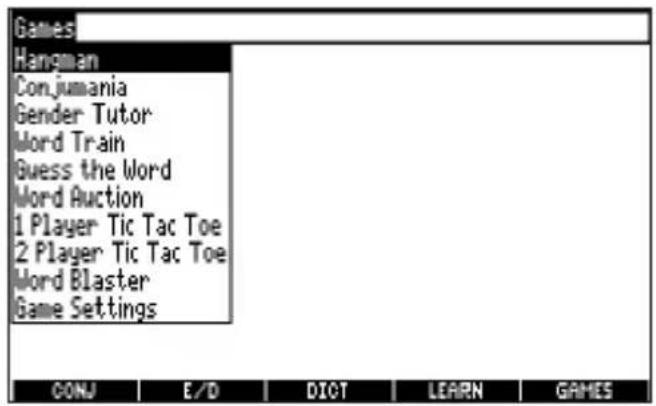
You have nine fun games to choose from.
Changing Game Settings
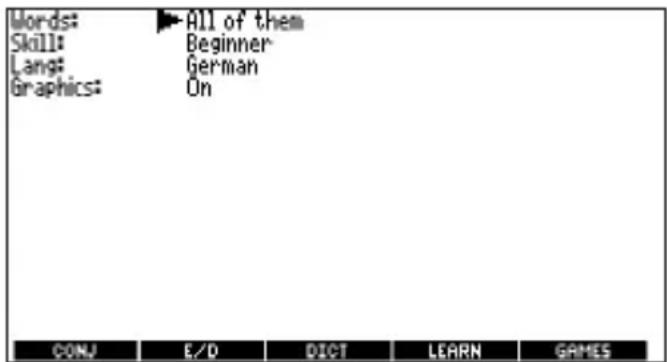
Before you play, you can choose the source of the words, the skill level, the language and whether or not graphics will be used.
- Press MENÜ, highlight and press EINGABE.
Or you can press GAMES (F5).
- Hold down and press to highlight Game Settings and press EINGABE.
Playing the Games
3.


to

move
Words, Skill, Lang or Graphics.
Words chooses the source of the words: All of them, TOEFL® Test List, My Word List, Enter your own, or Learn a Word list.
Skill determines how easy or difficult a game is.
Lang enables you to select the language for the game.
Graphics lets you turn on or off images between rounds.
-
Use or to change the setting(s) you want.
-
Press EINGABE when done.
Selecting a Game
In the Games list, use or to move the highlight to the game of your choice and press EINGABE.
Getting Help in the Games
During any game you can read instructions by pressing HILFE.
You can get a hint by holding and pressing or reveal the game word by pressing .?
Note: If you reveal the game word, you lose the round.
Hangman
Hangman selects a mystery word and challenges you to guess it letter by letter. The letters of the mystery word are hidden by question marks. The number of guesses remaining is indicated by #'s.
Type letters that you think are in the mystery word. If you are correct, the letter appears in place of the corresponding question mark(s). To see the translation of the game word, press
EINGABE. Press to return to the game.
Conjumania!™
Conjumania! teaches verb conjugations. It shows you an infinitive verb and asks you to enter a conjugation. Your conjugation must be spelled correctly, including accents. Type your guess and then press EINGABE. To see the translation of the game word, press
EINGABE. Press to return to the game. To try a new conjugation, press
Gender Tutor™
Gender Tutor asks you to guess the gender of German nouns. Press M for masculine, F for feminine, and N for neuter. To see the translation of the game word, press EINGABE. Press

to return to the game.
Word Train™
In Word Train, you and the train take turns typing letters to form a word.
Whoever types the last letter of the word wins.
To view the letters you can type at your
turn, hold and press . Press SATZ
SATZ to end a round and reveal the word.
To see the translation of the game
word, press EINGABE. Press to return to the game.
Guess the Word
In Guess the Word, you must type the missing letters in the mystery word. To read the definition of the mystery word,
press, it needed. Press or , if needed, to select a missing letter and then type the letter that you think belongs there.
Continue typing letters until the word is complete or no more tries are left. Or
press to give up and reveal the word.
To see the translation of the game
word, press EINGABE. Press to
return to the game. Press to play a new round.
Playing the Games
Playing the Games
Word Auction™
In Word Auction, you try to bid on all the letters of a mystery word, before your cash runs out. The amount of each bid depends on the frequency of the letter.
All bids will cost you whether correct or incorrect. If you guess the word by revealing all of the letters, your remaining cash is added to the next round.
To see the translation of the game
word, press EINGABE. Press to return to the game.
Word Blaster™
In Word Blaster you try to guess the mystery word before all its letters appear. As soon as you know the word press EINGABE. Then type your guess and press EINGABE.
If your guess is incorrect, Word Blaster asks you for another word. The speed at which the letters appear is set by the skill level.
To see the translation of the game
word, press EINGABE. Press to return to the game.
Tic Tac Toe
Tic Tac Toe challenges you to get three X's in a row before your opponent gets three O's in a row. You can play alone or with a friend. The game begins with the X in the center of the grid. Use the arrow keys to move your letter to the position you want and then press EINGABE. The first player to get three game letters in a row, wins.
Using the Clock
Using the Clock
The clock displays the current time and date. You can save two times: Home time and World time.
1. Press
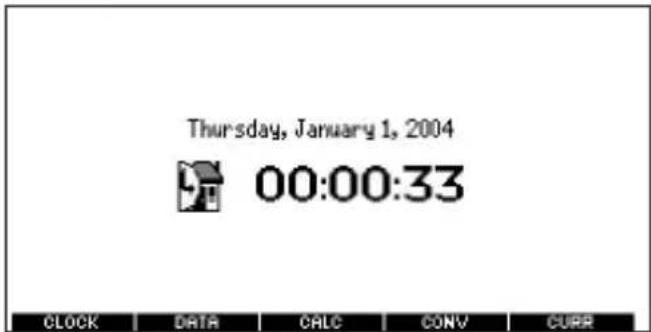
Press CLOCK (F1) to toggle
between Home time ( ) and World

-
Press EINGABE to set the time and date.
-
Use and to scroll through the options in the highlighted field.
-
Use and to move to another field.
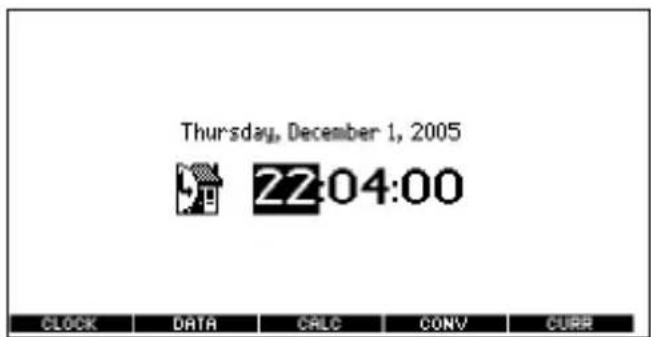
- Press EINGABE when done.
Press CLEAR to exit without saving the settings.
- Set the World time the same way you set the Home time.
Note: You can set only the hour and minute in the World time.
Using the Databank
Using the Databank
Adding Entries
You can store as many as 100 names and telephone numbers in the databank. The total number of names you can add depends on the size of each entry.
- Press and DATA
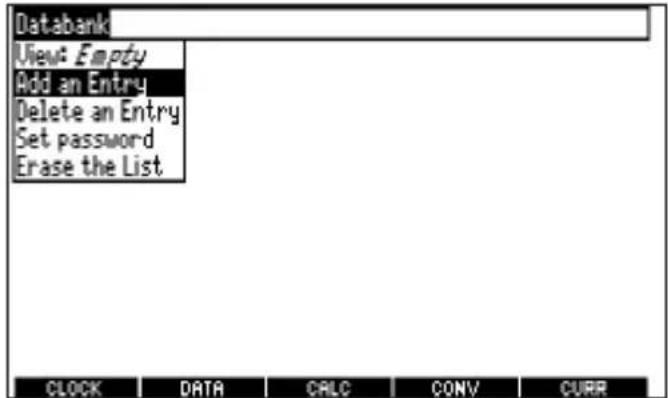
- Highlight Add an Entry and then press EINGABE.
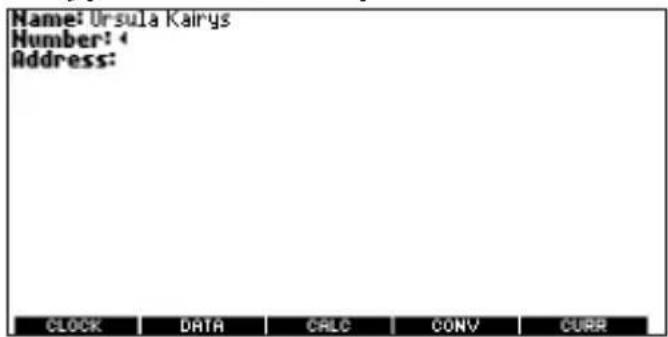
- Type a name and press EINGABE.
-
Type a phone number and press EINGABE.
-
Type a postal address or e-mail address and press EINGABE.
To type an @, hold and press M.
Viewing or Editing Entries (F2).
- Press and DATA (F2)
- Highlight View: XX entries (XX% free) and then press EINGABE.
- To edit an entry, highlight it and press EINGABE.
Type your changes. Use to move the cursor; use to delete.
- Press EINGABE to move to the number field.
Press EINGABE twice to move to the address field. - Press EINGABE again to save your changes or hold down and
press to cancel your changes.
Deleting Entries
- Press and DATA (F2)
-
Highlight Delete an Entry and then press EINGABE.
-
Highlight the entry you want to delete and press EINGABE.
- To delete all databank entries, highlight Erase the List in the Databank menu and then press EINGABE.
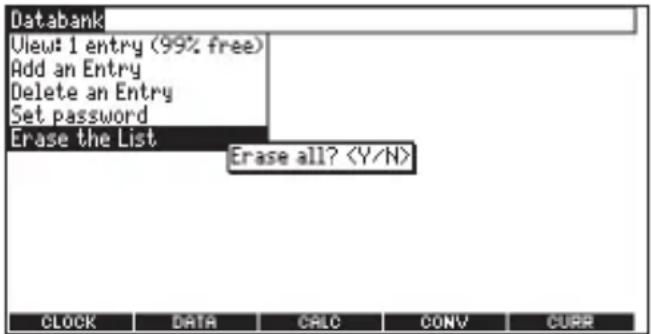
- Press Y to erase all databank entries or N to cancel the deletion. Using a Password
You can use a password to prevent unauthorized access to the databank.
Warning! Always write the password in a safe, separate location. If you lose or forget the password, you will be able to use the databank again only by removing the batteries from your DBD-1660, which will permanently erase all the information stored in the databank.
- Press and DATA (F2)
- Highlight Set password and then press EINGABE.
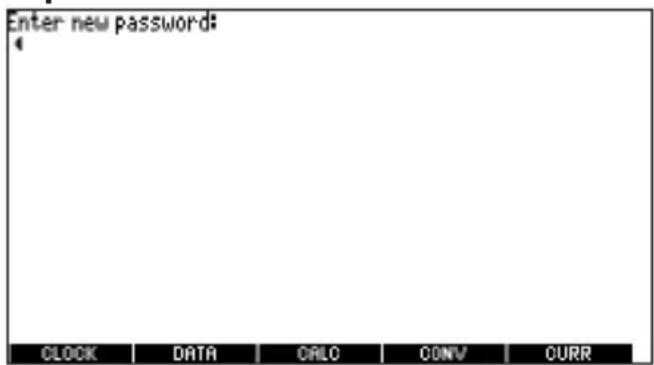
- Type a password of up to eight characters and press EINGABE.
Use to move the cursor; use to delete.

- Press C to confirm or CLEAR to cancel the password.
The password you set will be requested the first time that the databank is used during a session.
- To change the password, repeat Steps 1-4.
To remove a password, press EINGABE at the blank password screen.
Using the Calculator
Using the Calculator
Making Calculations
- Press and CALC (F3).
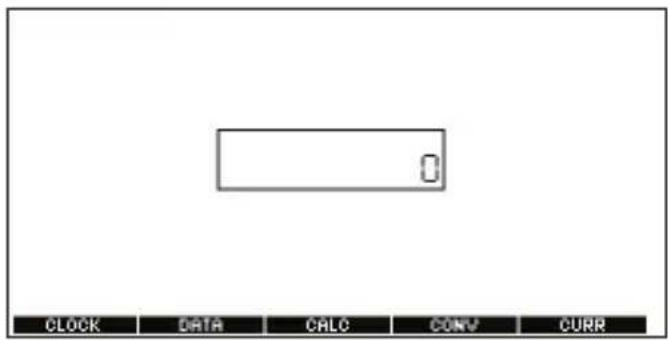
- Type a number.
Note: You can type up to 10 digits. To type a decimal, press G (.). To change the sign of a number, press Y (+/-).
- Press a math function key.
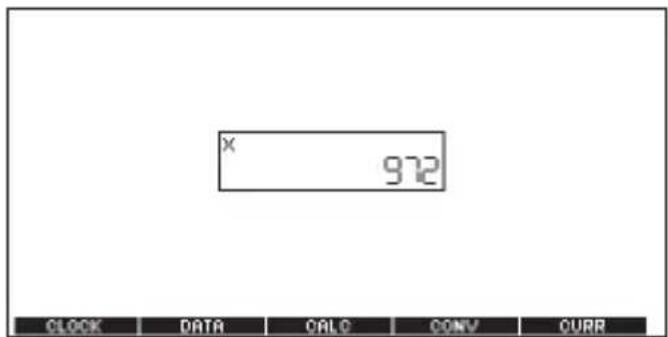
-
Type another number.
-
Press EINGABE.
To repeat the calculation, press EINGABE again.
- Press CLEAR to clear the current calculations.
To Calculate... Press...
reciprocals A (1/x)
squares D (x2)
percentages F (%)
square roots S (√x)
negative numbers Y (+/-)
Using the Calculator
Using the Converter
Using the Calculator Memory
- In the Calculator, make a calculation or type a number.
- To add the number on the screen to the number stored in memory, press X(M+) .
- To subtract the number on the screen from the number stored in memory, press C(-) .
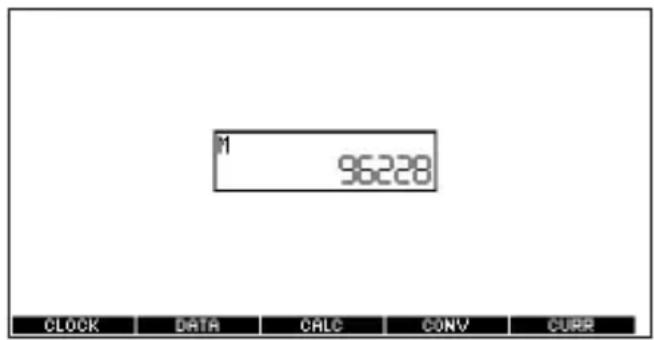
M indicates the number is stored in memory.
- To retrieve the number from memory, press V_(MR) .
- To clear the memory, press B (mc).
The converter allows you to convert measurements and currency.
Making Metric Conversions
- Press and CONV (F4).
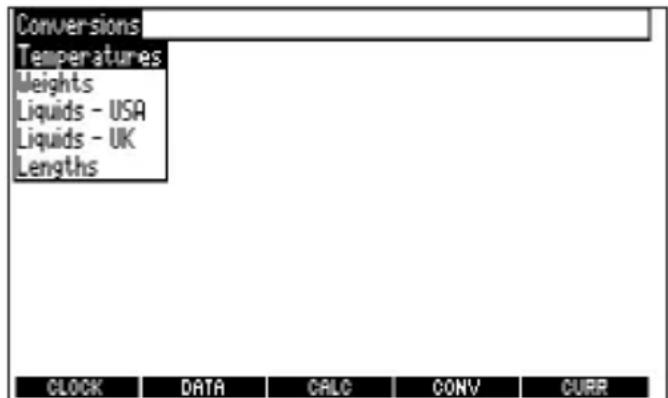
-
Use to select a conversion category (for example, Weights).
-
Select a conversion (for example, grams/ounces).
Using the Converter
Using the Converter
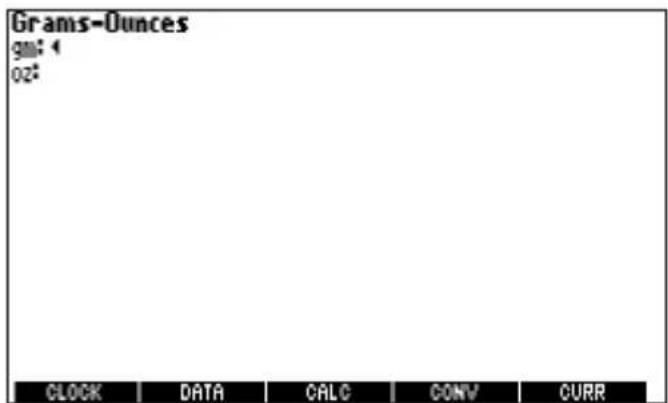
- Type a number after one of the units.
Note: Press or to
between the lines. Press to delete a number.
- Press EINGABE to convert it.
Making Currency Conversions
- Press and CURR (F5).
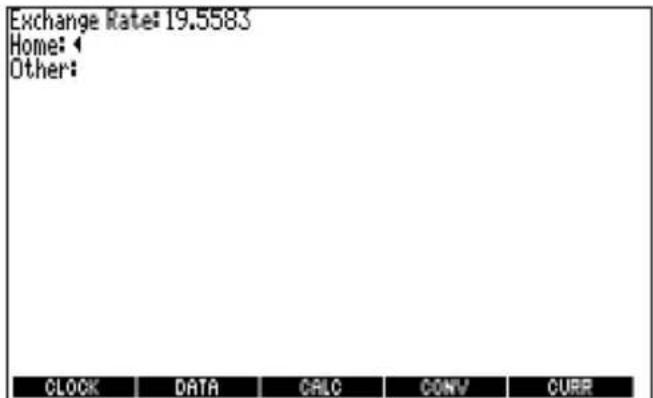
- Enter a conversion rate.
The rate should be in units of the other currency per one unit of the home currency (n other/1 home).
- Enter an amount for the home or other currency.
Press AUF or AB to move
between the lines. Use to delete a number.
- Press EINGABE to convert it.
Transferring Words Between Books
This dictionary can transfer words with certain other BOOKMAN book cards. To send a word to another book, you must first install a book card in your product, and that book card must be able to send or receive words in the selected language. To learn if a book card can send or receive words, read its User's Guide.
- Highlight a word in this dictionary.
To highlight a word in a dictionary entry, press EINGABE to start the highlight and use the arrow keys to move the highlight to the word you want.
- Hold and press KARTE.
- Highlight the icon of the other book.
- Press EINGABE.
The word you highlighted appears in the other book.
- Press EINGABE again, if needed, to search for that word.
This unit may change operating modes due to static electricity. Normal operation of this unit can be re-established by pressing the reset key, AN/AUS, or by removing/replacing batteries.
Resetting Your Product
If the keyboard fails to respond, or if the screen performs erratically, perform a system reset by following the steps below.
- Hold CLEAR and press AN/AUS.
If nothing happens, try Step 2.
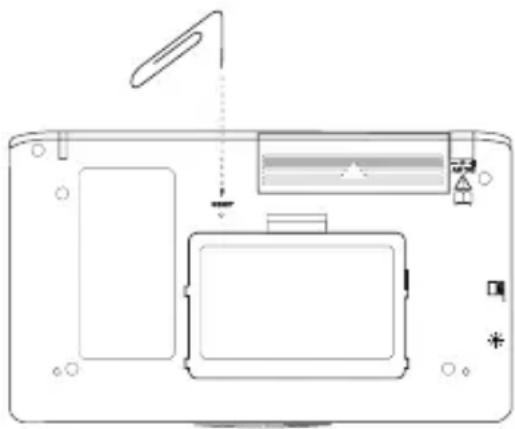
- Use a paper clip to gently press the reset button on your unit.
The reset button is recessed in a pin-sized hole above the book card slot.
natural_image
Diagram of a device interior with labeled components and no readable text or symbolsWarning! Pressing the reset button with more than light pressure may permanently disable your product. In addition, resetting the product erases settings and information entered in its built-in book and in an installed book card.
Book Card Care
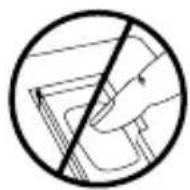
- Do not touch the metal contacts on the book cards.
Caution: Touching these electrical contacts with statically charged objects, including your fingers, could erase information entered in a book card or built-in book.
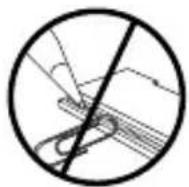
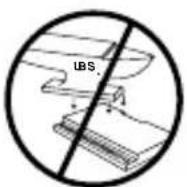
- Do not put excessive pressure on the book cards.
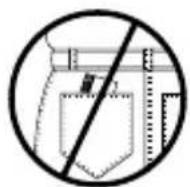
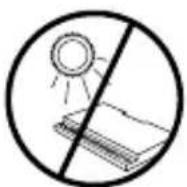
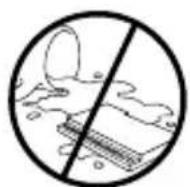
- Do not expose the book cards to heat, cold, or liquids.
Copyrights, Trademarks and Patents
Model: DBD-1660
- Batteries: two x AAA
© 2002-2004 Franklin Electronic Publishers, Inc., Burlington, N.J. 08016-4907 USA. All rights reserved.
FCC Tested To Comply With FCC Standards FOR HOME OR OFFICE USE.
U.S. Patents 4,830,618; 4,891,775; 5,113,340; 5,203,705; 5,218,536; 5,333,313; 5,396,606; 5,497,474; 5,627,726
ISBN 1-59074-300-8

Warning! If the batteries wear out completely, or if you take more than a few seconds while changing the batteries, any user entered information may be erased. You should always keep written copies of your important information.
Battery disposal: Do not dispose of batteries with normal household waste. Please obey your local regulations when disposing used batteries.
Note: If the keyboard fails to respond or if the screen performs erratically, perform a system reset.
Warning! Pressing the reset button with more than light pressure may permanently disable your unit. In addition, resetting the unit erases settings and information you may have entered.
This device complies with Part 15 of the FCC Rules. Operation is subject to the following two conditions: (1) This device may not cause harmful interference, and (2) This device must accept any interference received, including interference that may cause undesired operation.
Warning: Changes or modifications to this unit not expressly approved by the party responsible for compliance could void the user's authority to operate the equipment.
NOTE: This equipment has been tested and found to comply with the limits for a Class B digital device, pursuant to Part 15 of the FCC Rules. These limits are designed to provide reasonable protection against harmful interference in a residential installation. This equipment generates, uses and can radiate radio frequency energy and, if not installed and used in accordance with the instructions, may cause harmful interference to radio communications. However, there is no guarantee that interference will not occur in a particular installation. If this equipment does cause harmful interference to radio or television reception, which can be determined by turning the equipment off and on, the user is encouraged to try to correct the interference by one or more of the following measures:
-Reorient or relocate the receiving antenna.
—Increase the separation between the equipment and receiver.
-Connect the equipment into an outlet on a circuit different from that to which the receiver is connected.
-Consult the dealer or an experienced radio/TV technician for help.
NOTE: This unit was tested with shielded cables on the peripheral devices.
Shielded cables must be used with the unit to insure compliance.
NOTE: The manufacturer is not responsible for any radio or TV interference caused by unauthorized modifications to this equipment. Such modifications could void the user's authority to operate the equipment.
LIMITED WARRANTY, DISCLAIMER OF WARRANTIES, AND LIMITED REMEDY
(A) LIMITED WARRANTY. FRANKLIN WARRANTS TO THE ORIGINAL END USER THAT FOR A PERIOD OF ONE (1) YEAR FROM THE ORIGINAL DATE OF PURCHASE AS EVIDENCED BY A COPY OF YOUR RECEIPT, YOUR FRANKLIN PRODUCT SHALL BE FREE FROM DEFECTS IN MATERIALS AND WORKMANSHIP. THIS LIMITED WARRANTY DOES NOT INCLUDE DAMAGE DUE TO ACTS OF GOD, ACCIDENT, MISUSE, ABUSE, NEGLIGENCE, MODIFICATION, UNSUITABLE ENVIRONMENT OR IMPROPER MAINTENANCE. THE SOLE OBLIGATION AND LIABILITY OF FRANKLIN, AND YOUR EXCLUSIVE REMEDY UNDER THIS LIMITED WARRANTY, WILL BE REPAIR OR REPLACEMENT WITH THE SAME OR AN EQUIVALENT PRODUCT OF THE DEFECTIVE PORTION OF THE PRODUCT, AT THE SOLE OPTION OF FRANKLIN IF IT DETERMINES THAT THE PRODUCT WAS DEFECTIVE AND THE DEFECTS AROSE WITHIN THE DURATION OF THE LIMITED WARRANTY. THIS REMEDY IS YOUR EXCLUSIVE REMEDY FOR BREACH OF THIS WARRANTY. THIS WARRANTY GIVES YOU CERTAIN RIGHTS; YOU MAY ALSO HAVE OTHER LEGISLATED RIGHTS THAT MAY VARY FROM JURISDICTION TO JURISDICTION.
(B) DISCLAIMER OF WARRANTIES AND LIMITATION OF LIABILITY. EXCEPT FOR THE LIMITED WARRANTIES EXPRESSLY RECITED ABOVE, THIS FRANKLIN IS PROVIDED ON AN "AS IS" BASIS, WITHOUT ANY OTHER WARRANTIES OR CONDITIONS, EXPRESS OR IMPLIED, INCLUDING, BUT NOT LIMITED TO, WARRANTIES OF MERCHANTABILITY QUALITY, MERCHANTABILITY OR FITNESS FOR A PARTICULAR PURPOSE, OR THOSE ARISING BY LAW, STATUTE, USAGE OF TRADE, OR COURSE OF DEALING. THIS WARRANTY APPLIES ONLY TO PRODUCTS MANUFACTURED BY FRANKLIN AND DOES NOT INCLUDE BATTERIES, CORROSION OF BATTERY CONTACTS OR ANY OTHER DAMAGE CAUSED BY BATTERIES. NEITHER FRANKLIN NOR OUR DEALERS OR SUPPLIERS SHALL HAVE ANY LIABILITY TO YOU OR ANY OTHER PERSON OR ENTITY FOR ANY INDIRECT, INCIDENTAL, SPECIAL, OR CONSEQUENTIAL DAMAGES WHATSOEVER, INCLUDING, BUT NOT LIMITED TO, LOSS OF REVENUE OR PROFIT, LOST OR DAMAGED DATA OR OTHER COMMERCIAL OR ECONOMIC LOSS, EVEN IF WE HAVE BEEN ADVISED OF THE POSSIBILITY OF SUCH DAMAGES, OR THEY ARE OTHERWISE FORESEEABLE. WE ARE ALSO NOT RESPONSIBLE FOR CLAIMS BY A THIRD PARTY. OUR MAXIMUM AGGREGATE LIABILITY TO YOU, AND THAT OF OUR DEALERS AND SUPPLIERS, SHALL NOT EXCEED THE AMOUNT PAID BY YOU FOR THE FRANKLIN PRODUCT AS EVIDENCED BY YOUR PURCHASE RECEIPT. YOU ACKNOWLEDGE THAT THIS IS A REASONABLE ALLOCATION OF RISK. SOME STATES/COUNTRIES DO NOT ALLOW THE EXCLUSION OR LIMITATION OF LIABILITY FOR CONSEQUENTIAL OR INCIDENTAL DAMAGES, SO THE ABOVE LIMITATION MAY NOT APPLY TO YOU. IF THE LAWS OF THE RELEVANT JURISDICTION DO NOT PERMIT FULL WAIVER OF IMPLIED WARRANTIES, THEN THE DURATION OF IMPLIED WARRANTIES AND CONDITIONS ARE LIMITED TO THE DURATION OF THE EXPRESS WARRANTY GRANTED HEREIN.
(C) WARRANTY SERVICE: UPON DISCOVERING A DEFECT, YOU MUST CALL FRANKLIN'S CUSTOMER SERVICE DESK, 1-800-266-5626, TO REQUEST A RETURN MERCHANDISE AUTHORIZATION ("RMA") NUMBER, BEFORE RETURNING THE PRODUCT (TRANSPORTATION CHARGES PREPAID) TO: FRANKLIN ELECTRONIC PUBLISHERS, INC.
ATTN: SERVICE DEPARTMENT
ONE FRANKLIN PLAZA
BURLINGTON, NJ 08016-4907
IF YOU RETURN A FRANKLIN PRODUCT, PLEASE INCLUDE A NOTE WITH THE RMA, YOUR NAME, ADDRESS, TELEPHONE NUMBER, A BRIEF DESCRIPTION OF THE DEFECT AND A COPY OF YOUR SALES RECEIPT AS PROOF OF YOUR ORIGINAL DATE OF PURCHASE. YOU MUST ALSO WRITE THE RMA PROMINENTLY ON THE PACKAGE IF YOU RETURN THE PRODUCT, OTHERWISE THERE MAY BE A LENGTHY DELAY IN THE PROCESSING OF YOUR RETURN. WE STRONGLY RECOMMEND USING A TRACKABLE FORM OF DELIVERY TO FRANKLIN FOR YOUR RETURN.
Limited Warranty (EU and Switzerland)
This product, excluding batteries and liquid crystal display (LCD), is guaranteed by Franklin for a period of two years from the date of purchase. It will be repaired or replaced with an equivalent product (at Franklin's option) free of charge for any defect due to faulty workmanship or materials.
Products purchased outside the European Union and Switzerland that are returned under warranty should be returned to the original vendor with proof of purchase and description of fault. Charges will be made for all repairs unless valid proof of purchase is provided.
This warranty explicitly excludes defects due to misuse, accidental damage, or wear and tear. This guarantee does not affect the consumer's statutory rights.
Limited Warranty (outside U.S., EU and Switzerland)
This product, excluding batteries and liquid crystal display (LCD), is guaranteed by Franklin for a period of one year from the date of purchase. It will be repaired or replaced with an equivalent product (at Franklin's option) free of charge for any defect due to faulty workmanship or materials.
Products purchased outside the United States, the European Union and Switzerland that are returned under warranty should be returned to the original vendor with proof of purchase and description of fault. Charges will be made for all repairs unless valid proof of purchase is provided.
This warranty explicitly excludes defects due to misuse, accidental damage, or wear and tear. This guarantee does not affect the consumer's statutory rights.
Electronic Publishers
www.franklin.com/de