
E173U - USB Drive HUAWEI - Free user manual and instructions
Find the device manual for free E173U HUAWEI in PDF.


| Brand | Huawei |
| Model | E173U |
| Product Type | USB Data Card / Modem |
| Network Support | 2G / 3G (HSPA/UMTS) |
| Interface | USB 2.0 |
| Dimensions (Approx.) | 89 x 27 x 12 mm |
| Weight (Approx.) | 20 g |
| Power Supply | USB bus-powered |
| Operating System Compatibility | Windows XP / Vista / 7, Mac OS X, Linux |
| Installation | Auto-run with Mobile Partner software |
| Frequency Bands | 800/900/1800/2100 MHz (typical 3G) |
| Data Rate (Downlink) | Up to 7.2 Mbps (HSPA) |
| Security | Standard SIM card lock |
| LED Indicators | Network status (power/connection) |
| Maintenance | Keep dry; clean with soft cloth |
| Package Contents | USB data card, user manual, software CD |
| Certifications | CE, FCC |
Frequently Asked Questions - E173U HUAWEI
User questions about E173U HUAWEI
0 question about this device. Answer the ones you know or ask your own.
Ask a new question about this device
Download the instructions for your USB Drive in PDF format for free! Find your manual E173U - HUAWEI and take your electronic device back in hand. On this page are published all the documents necessary for the use of your device. E173U by HUAWEI.
USER MANUAL E173U HUAWEI
natural_image
White Huawei smartphone with rounded top and front panel (no visible text or symbols on body)Huawei Device Co. Ltd.
Q1. After the data card is inserted, the Modem and PCUI in the Device Manager cannot be normally identified (a Question Mark or Yellow Exclamation Mark is displayed) and fail to recover after a long time. What should I do in this situation?
A1.
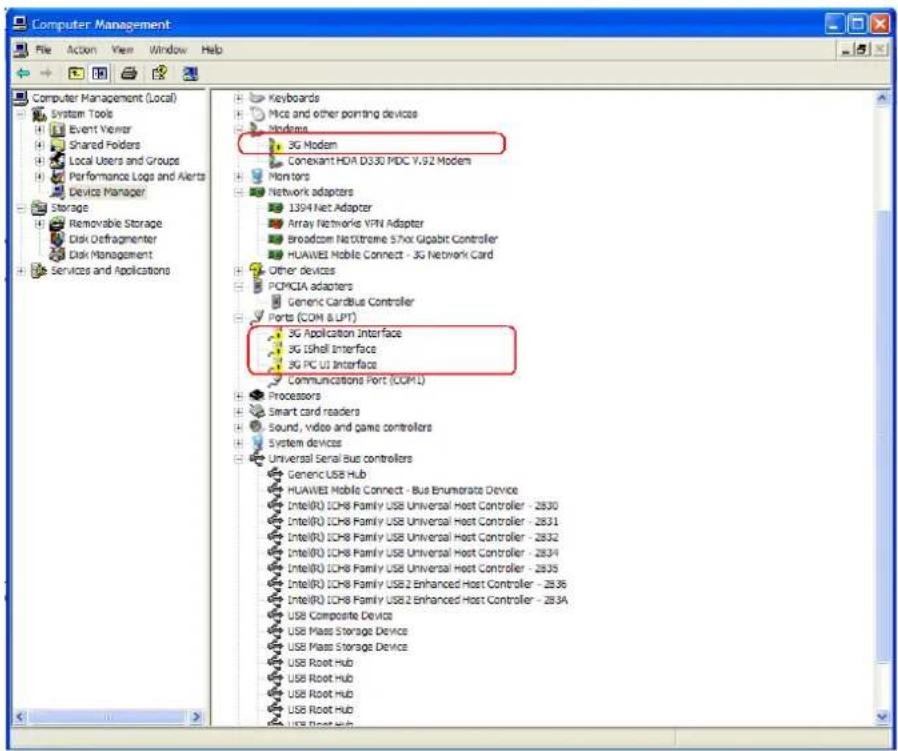
To solve the problem, do as follows:
- Remove the data card and re-insert it.
- If the problem persists, make sure that the drive is installed by following the normal installation procedure. If the drive is installed manually, ensure that autorun.exe is the first program to be run. If the installation fails to meet the requirements, uninstall and then reinstall the Mobile Partner.
Q2. After I access or search the 2G network, the USB channel is blocked. What should I do in this situation?
A2. Remove the data card and then re-insert it or use another USB port.
Q3. How to remove the network connection dialog box, which prompts whether to use the modem when I access the network without using the USB modem.
A3. This problem is caused by improper settings related to PC PPP dial-up.
To solve the problem, perform the following steps to select Never dial a connection in the Internet Options page.
- Open the IE browser.
- Choose Tools > Internet Options.
- Enter the Connection module.
- Select Never dial a connection.
- Click OK.
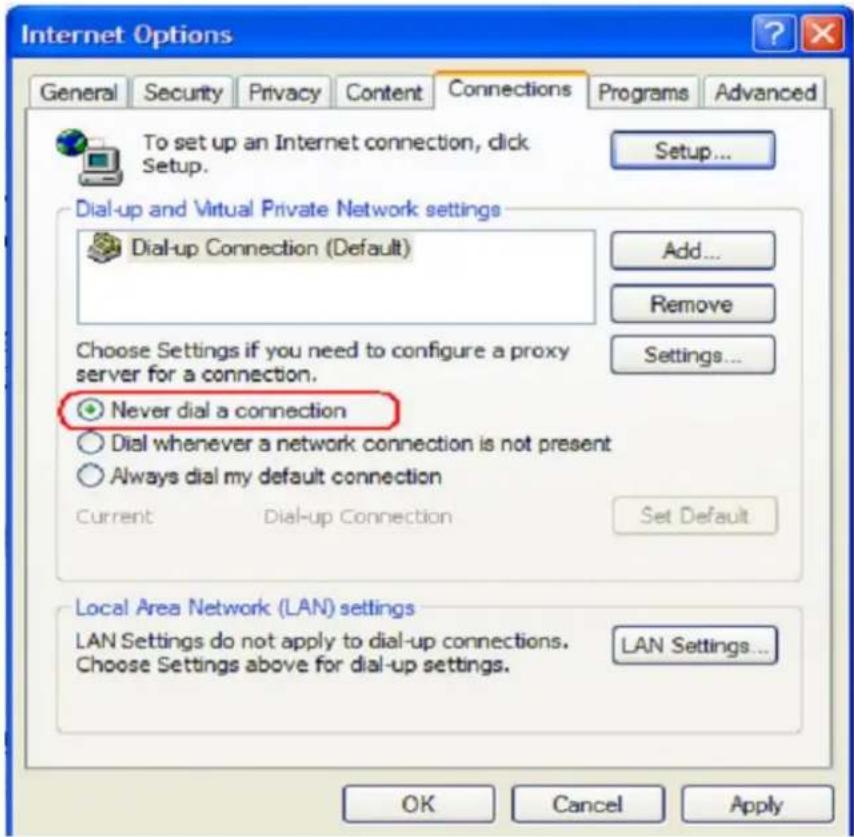
Q4. Why cannot I open web pages after a dial-Up connection is set up on Windows 7?
A4. 1. In the command window, enter ipconfig /all, and then record the IP address allocated to the PC.
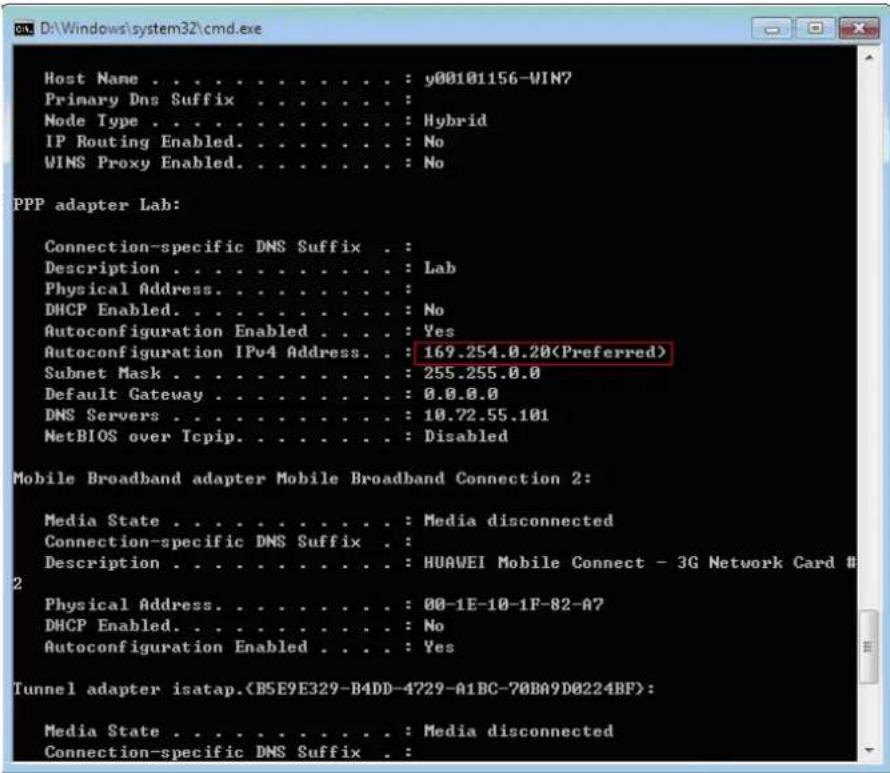
- Check the network adapter properties and record the allocated IP address.
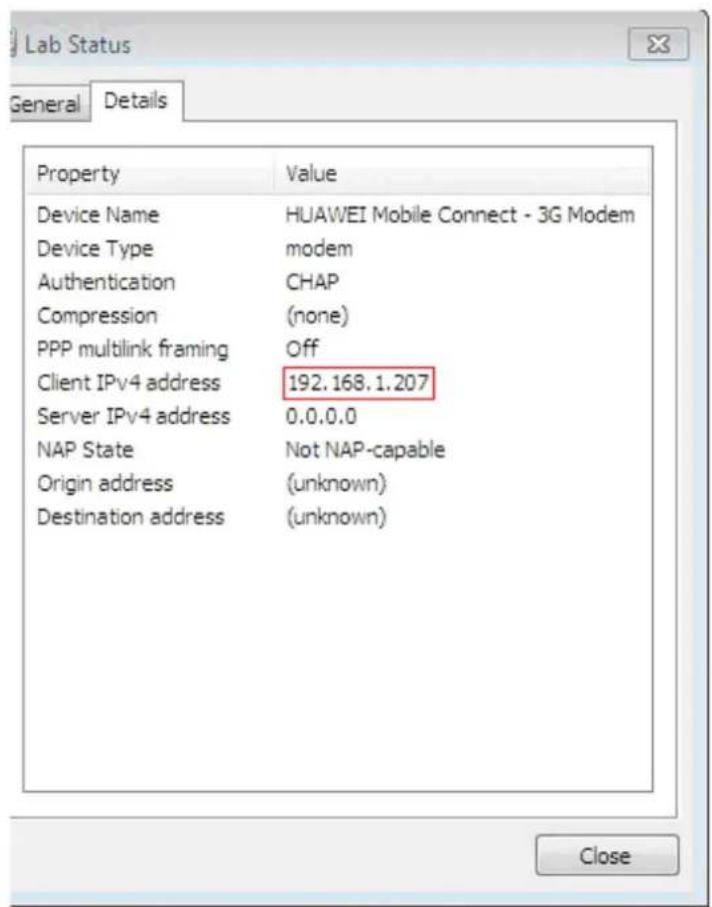
- If the two IP addresses are different, it indicates that the IP address allocated to the PC is not applied successfully.
This problem exists in earlier versions of Windows 7. Microsoft engineers confirm that the problem is caused by a system defect.
Q5. How Can I enable automatic installation?
To enable the Windows XP/2K play function, do as follows:
- Choose Start > Run and type gpedit.msc in the Run box.
- The Group Policy Object Editor window is displayed.
- In the left pane, choose Local Computer Policy > Computer Configuration > Administrative Templates > System, in the right pane, choose Setting, double-click Turn off Autoplay.
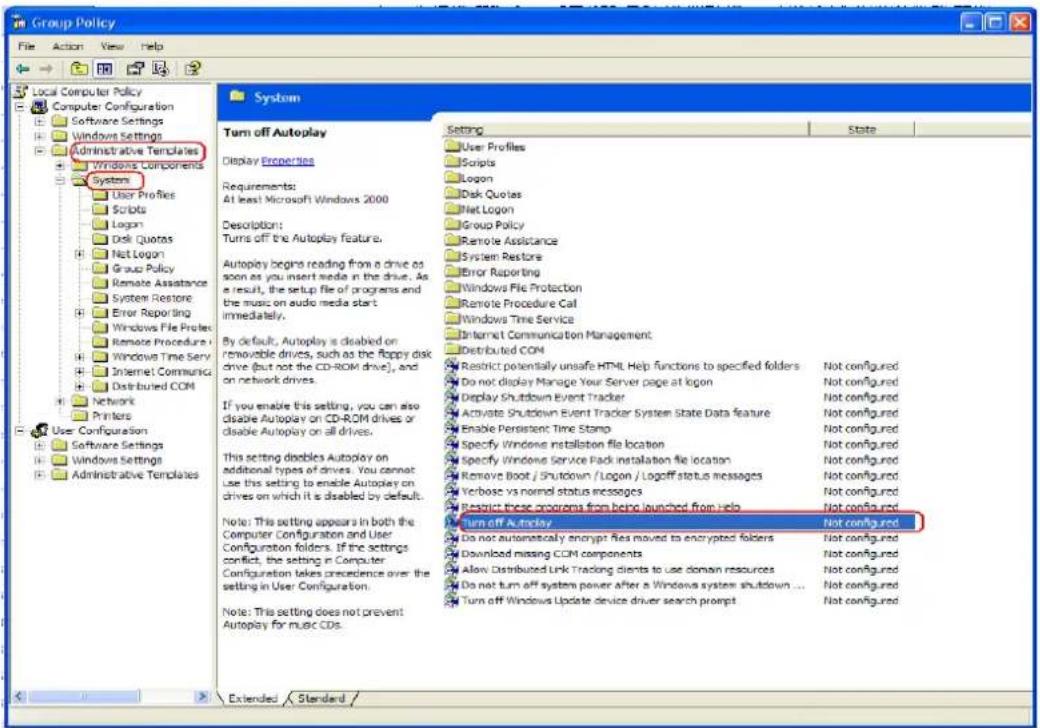
- Click the Setting tab, select the Not Configured or Disabled option, and then click OK to close the Group Policy Object Editor window.
- Right-click the mobile storage device with Autoplay to be disabled on My Computer or Device Manager, and choose Properties from the shortcut menu.
- In the AutoPlay dialog box, select the Select an action to perform option.
- Configure the operation to be automatically performed, and then click OK.
Q.6 If automatic installation is not enabled, how can I install the data card manually?
To install the data card manually, do as follows:
- Insert the data card and wait until the virtual drive is identified.
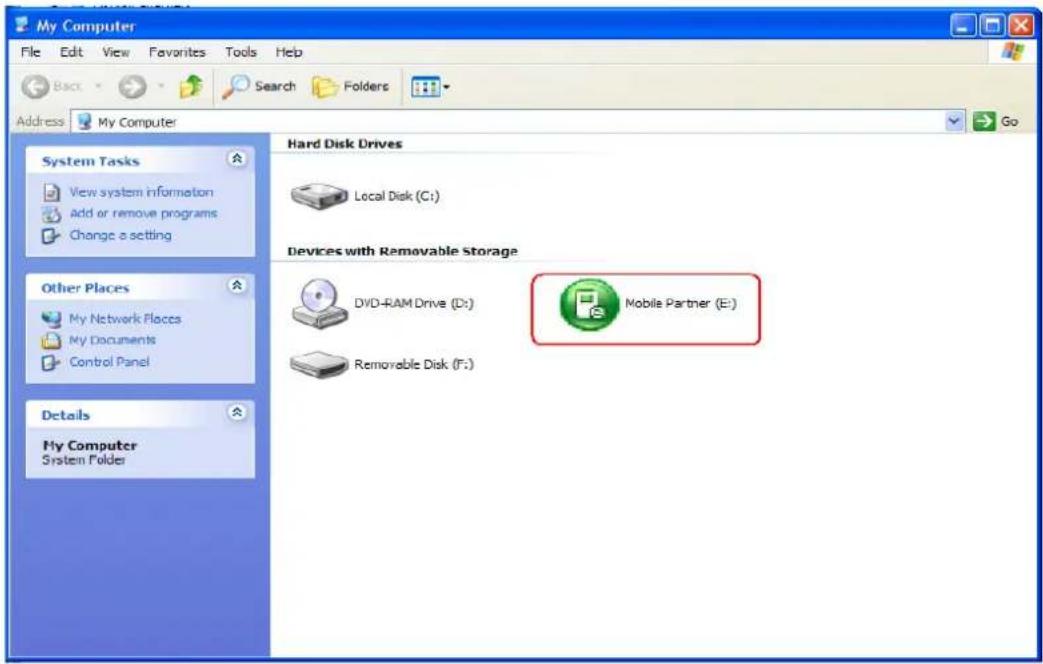
- Double-click My Computer. Click the green Mobile Partner icon.
- Run autorun.exe. Note that running other .exe program may cause that the data card cannot work properly. Alternatively, you can right-click the mobile partner CD-ROM icon and then choose Autoplay to run the setup program automatically.
- The normal installation procedure is performed.
- Install the related software by following steps.
Brand : HUAWEI
Model : E173U
Category : USB Drive