
bd340i - Uncategorized HP - Free user manual and instructions
Find the device manual for free bd340i HP in PDF.


| Product Type | Laptop |
| Model | HP bd340i |
| Brand | HP |
| Processor | Intel Core i5 (11th gen) |
| RAM | 8 GB DDR4 |
| Storage | 256 GB SSD |
| Display Size | 13.3 inches |
| Display Resolution | 1920 x 1080 pixels |
| Graphics | Intel UHD Graphics |
| Operating System | Windows 10 Home |
| Battery Life | Up to 10 hours |
| Dimensions (W x D x H) | 30.6 x 20.4 x 1.6 cm |
| Weight | 1.2 kg |
| Ports | 2 x USB 3.0, 1 x USB-C, HDMI, headphone/mic |
| Wireless Connectivity | Wi-Fi 6, Bluetooth 5.0 |
| Camera | 720p HD webcam |
| Audio | Dual stereo speakers |
| Power Adapter | 45 W USB-C |
| Warranty | 1 year limited |
Frequently Asked Questions - bd340i HP
User questions about bd340i HP
0 question about this device. Answer the ones you know or ask your own.
Ask a new question about this device
Download the instructions for your Uncategorized in PDF format for free! Find your manual bd340i - HP and take your electronic device back in hand. On this page are published all the documents necessary for the use of your device. bd340i by HP.
USER MANUAL bd340i HP
Internal BD / DVD / CD Writer User Manual
REV.1
2010
SAFETYINSTRUCTIONS
Please read all instructions carefully and keep this User's Manual for your reference. Carefully note all Cautions and Warnings.
- Always install electrical equipment close to an electrical outlet and ensure that the outlet is easily accessible.
- Place power cords where people will not step or trip on them. Do not place objects over power cords.
- Install equipment on a stable surface. If equipment is not installed on a stable surface, it may drop and cause injury.
- Do not place computer equipment in direct sunlight, on heating units, or near electrical appliances that draw large amounts of current.
- Computer equipment enclosures often have openings for air convection. To protect equipment from overheating, do not cover air convection openings.
- Ensure that the power source voltage is appropriate whenever connecting equipment to a power outlet.
- If your computer equipment is not in use for several days, disconnect it from the power outlet to avoid damage by transient power surges.
- Protect electrical equipment from humidity.
- Always disconnect computer equipment from the electrical outlet before cleaning. Do not use liquid or sprayed detergent for cleaning – use a moist cloth.
- Never pour any liquid into computer equipment openings; internal contact with liquid could cause fire or electrical shock.
- Keep the area around your computer equipment clean from dust, smoke, and other contaminants.
- Never open this drive's enclosure. For safety reasons, the drive should be opened only by qualified service personnel.
- Do not drop or jolt the drive.
- If any of the following situations arise, have your drive checked by qualified service personnel:
(a) The power cord or plug is damaged.
(b) Liquid has penetrated into the equipment.
(c) The equipment has been exposed to moisture.
(d) The equipment has not worked well or you can not get it to work according to the user's manual.
(e) The equipment was dropped and damaged.
(f) The equipment has obvious signs of damage. - DANGER: Invisible laser radiation when opened. Avoid direct exposure to beam. Complies with FDA radiation performance standards, 21 CFR, subchapter J. Laser power: Wave Length: 783±3nm (CD); 658±3nm (DVD). Emission power: 0.7 mW. Laser diode: class 3b.
- DO NOT STORE THIS EQUIPMENT IN AN ENVIRONMENT WITH TEMPERATURE ABOVE 60°C (140°F). Excessive heat may damage the equipment.
- The sound pressure level at the operator's position according to IEC704-1:1982 is equal to or less than 70 dB (A).
FCC COMPLIANCE STATEMENT
Note: This equipment has been tested and found to comply with the limits for a Class B digital device, pursuant to Part 15 of the FCC Rules. These limits are designed to provide reasonable protection against harmful interference in a residential installation. This equipment generates, uses, and can radiate radio frequency energy and, if not installed and used in accordance with the instructions, may cause harmful interference to radio communications. However, there is no guarantee that interference will not occur in a particular installation. If this equipment does cause harmful interference to radio or television reception, which can be determined by turning the equipment off and on, the user is encouraged to try to correct the interference by one of the following measures:
- Reorient or relocate the receiving antenna.
- Increase the separation between the equipment and receiver.
- Connect the equipment in to an outlet on a circuit different from that to which the receiver is connected.
- Consult the dealer or an experienced radio/TV technician for help.
FCC Caution: To assure continued compliance, (example – use only shielded interface cables when connecting to computer or peripheral devices). Any changes or modifications not expressly approved by the party responsible for compliance could void the user's authority to operate this equipment.
This device complies with Part 15 of the FCC Rules. Operation is subject to the following two conditions: (1) this device may not cause harmful interference, and (2) this device must accept any interference received, including interference that may cause undesired operation.
PRECAUTIONS
CAUTION: Do not attempt to open the drive for service. Removing the cover may cause exposure to harmful laser beams and electrical voltage. To obtain service, return the defective drive to the vendor where the drive was purchased.
- Use the original package for transporting the drive or sending it back for service. The original packaging was designed and tested to protect your drive under rough conditions.
- Keep your discs clean. Using a soft, dust-free cloth to clean the disc surface before recording will improve data integrity.
- The copyright laws of each country govern the reproduction of copyrighted works. The person using this drive may be liable if it is used to make unauthorized copies of copyrighted works.
- When recording data to a disc we recommend the user reserving sufficient buffer space for creating an image file (At least 650MB for CD; 5GB for DVD; and if your drive supports Double Layer DVD+R or Dual Layer DVD-R writing, then at least 9GB space is needed. At least 30GB for BD-R SL / BD-RE SL. At least 60GB for BD-R DL / BD-RE DL).
ENGLISH
TABLE OF CONTENTS
INTRODUCTION
What You Can Do with the BD Writer....6
Format Compatibility....7
Recording Modes Supported....7
System Configuration
System Requirements .... 8
Features and Controls
Front View....9
Rear View....10
INSTALLATION
Hardware Installation of Serial ATA Drives....11
OPERATION
Installing Software 12
To Use the BD Writer....12
To Install Software....12
Loading and Unloading the Tray....13
Recording & Playing
Recording CDs, DVDs & BDs....14
Playing DVDs & BDs....14
Playing Regionally Encoded DVDs....14
About Software & Manuals....14
Recommended Recordable & ReWritable Media....15
TROUBLESHOOTING
Read Problems 16
Write Problems....17
INTRODUCTION
This BD (Blu-ray Disc) writer provides professional-quality BD, DVD and CD performance for writing, rewriting and reading. The drive is equipped with buffer underrun technology to eliminate buffer underrun errors, so you can safely use your computer for other things while you're writing to BD, DVD or CD, and using a web connection, you can update this drive's flash memory to the latest firmware revisions without opening the drive.
NOTE: The drive's maximum write, rewrite and read speeds are noted on the original package.
What You Can Do with the BD Writer
- Record data onto recordable or rewritable BDs, DVDs or CDs.
● Save photos and other images on recordable or rewritable BDs, DVDs or CDs. - Record digital video or slide shows onto BD-R, BD-RE, DVD+R, DVD+RW, DVD-R, and DVD-RW discs.
● Archive images and video to BDs, DVDs or CDs. - Play BD-R (BD Recordable), BD-RE (BD Rewritable), DVD+R, DVD+RW, DVD-R, and DVD-RW discs.
- Play music CDs.
● Play VCD, DVD and BD movies. - Access interactive reference materials stored on DVDs & BDs.
● Master new software programs on BDs, DVDs or CDs.
BD functions:
● Write to BD-R SL (25GB) media
● Write to BD-RE SL (25GB) media
● Write to BD-DL (50GB) media
● Read BD-ROM, BD-R SL, BD-R DL, BD-RE SL and BD-RE DL media
DVD functions:
● Write to DVD+R and DVD-R (recordable DVD) media
● Write to DVD+RW and DVD-RW (re-writable DVD) media
- Read DVD-ROM, DVD+R, DVD-R, DVD+RW, DVD-RW, DVD+R9 and DVD-R9 discs.
- Write to double-layer DVD+R (recordable DVD+R9) and dual-layer DVD-R (recordable DVD-R9) media
- Read or write to DVD-RAM media
CD functions:
● Write to CD-R (recordable CD) media
● Write to ultra-speed CD-RW (rewritable CD) media
- Read CD-ROM and CD-R data media, and CD-RW and CD-DA (audio) media
Format Compatibility
BD write: BD-R Version 1.1, BD-RE Version 2.1
BD read: BD-ROM Version 1.3
DVD write: DVD+R Version 1.0 & 1.1, DVD+R9 Version 1.0, DVD-R9 Version 3.0, DVD+RW Version 1.1, DVD-R Version 2.1, and DVD-RW Version 1.1, DVD-RAM Version 2.2 (only for drives that support DVD-RAM rewriting)
DVD read: DVD-ROM single/dual layer (PTP, OTP), DVD-R, DVD+R, DVD+R9, DVD-R9, DVD-RW, DVD+RW, DVD-RAM (only for drives that support DVD-RAM reading)
CD write: Orange Book Part 2 CD-R Volume 1, Part 2 CD-R Volume 2 Multi Speed, Part 3 CD-RW Volume 1 Low Speed, Part 3 CD-RW Volume 2 High Speed, Part 3 CD-RW Volume 3 Ultra Speed
CD read: CD-DA, CD-ROM, CD-ROM/XA, Photo-CD, Multi-session, Karaoke-CD, Video CD, CD-I FMV, CD Extra, CD Plus, CD-R, and CD-RW
Recording Modes Supported
Track at Once
Data can be recorded to disc one track at a time. New tracks can be added later. This mode requires the disc to be "closed" (through the software application) before music CDs can be played back in a CD player or CD-ROM drive.
Disc at Once
Data can be recorded to an entire disc in one pass. In this mode, new data can not be added later.
Session at Once
Data can be recorded to a disc one session at a time. In this mode, new sessions can be written later. This mode allows more disc space to be used than multi-session mode allows, because no gap is created between sessions.
Multi Session
Data can be recorded to a disc in one session. In this mode, new sessions can be written later. This mode allows less disc space to be used than session-at-once mode allows, because a gap is created between sessions.
Packet Writing
Data can be added directly to or deleted from rewritable media. (Useful for data backup.) This mode requires software that supports packet writing.
To ensure stable read/write/rewrite performance, a Windows-based PC system with the following features is required.
| CPU Pentium 4 2.0 | GHz or faster |
| Operating System | Microsoft Windows 2000 SP4 / Windows XP SP2 / Windows Vista / Windows 7 |
| Memory 512MB or higher RAM | |
| Hard Drive Minimum | 30GB available capacity |
| Interface Available | Serial ATA (SATA) interface connector |
For High Definition BD Movie Playback & BD Authoring:
| CPU Pentium D 3.4GHz or faster | |
| Operating System | Microsoft Windows XP SP2 / Windows Vista / Windows 7 |
| Memory 1GB or higher RAM | |
| Hard Drive Minimum 60GB available capacity | |
| Display Devices for Digital Output | HDCP capable monitor or TVHDCP capable graphics card with 256MB RAM, PCI Express x16, 1920x1200 resolution, 32bit colorGPU Requirements:Support DXVA decoding for MPEG2 High Definition Video, Support DXVA decoding for H.264 High Definition Video, Support decoding 2 DXVA streams simultaneously (these 2 streams may in different format), Blending 3 High Definition (1920x1080) ARGB32 texture less than 3ms,Support HDCP for DVI / HDMI output via COPPRecommended GPU:nVIDIA GeForce 7600GT or higher and ATI X1600 or higherGraphics card drivers have to support HDCP standard:nVIDIA ForceWare 92.91 or later version, ATI CATALYST 6.7 or later version |
*Remark 1:
HDCP: High-bandwidth Digital Content Protection
DXVA: Direct X Video Acceleration
DVI: Digital Visual Interface
HDMI: High Definition Multimedia Interface
COPP: Certified Output Protection Protocol
FEATURES AND CONTROLS
Front View
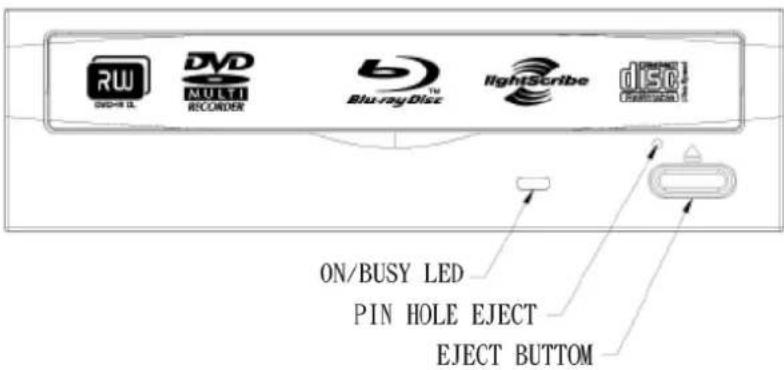
Figure: Representative front view of BD drive (your drive may differ)
| A | Eject / Close Button | Push button to open or close the tray. |
| B | On / Busy LED | Indication of drive's operation status. When LED is on, the disc is loaded and ready; when blinking, the drive is reading / writing / rewriting or the disc is loading. |
| C | Pin Hole Eject | If the Eject button fails to work properly, insert a paper clip into this hole to open the tray.CAUTION: Turn off power to the drive before performing manual ejection. |
Rear View
For Serial ATA Drives:
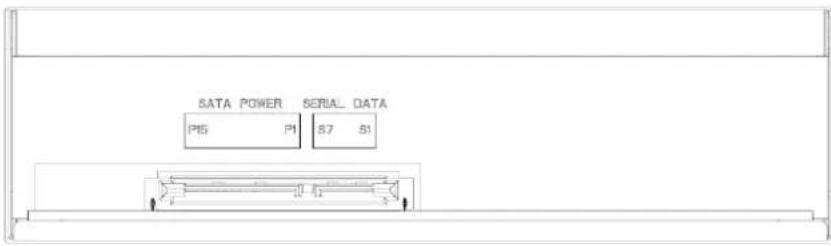
Figure: Rear view of Serial ATA drive
| Serial ATAPower Connector | 15-pin connector for DC power input. |
| Serial ATAData Connector | 7-pin connector for Serial ATA data interface. |
HARDWARE INSTALLATION OF SERIAL ATA DRIVES
- Turn off your PC and disconnect all power cords.
- Refer to your PC user's manual to remove the PC cover.
- Find an empty bay, slide the drive into the bay and mount the drive by using 4 screws.
-
Connect a Serial ATA data cable to the Primary or Secondary Serial ATA port on the motherboard or PCI card of your PC.
-
Connect the other end of the Serial ATA data cable to your drive.
NOTE: The pin definition of Serial ATA data cable connector should be the same as that in the following figure.
-
(Optional) It may be necessary for you to use a 4-pin to Serial ATA power adapter. It depends on the power connectors of your PC power supply. If one is required, attach this 4-pin to Serial ATA power adapter to the 4-pin power connector from your PC power supply.
-
Connect the Serial ATA power connector to the power connector on the rear panel of your drive.
NOTE: The Serial ATA power connector is larger than the Serial ATA data cable connector. And the pin definition of Serial ATA power connector should be the same as that in the following figure.
- Put the PC cover back and connect the power cords.
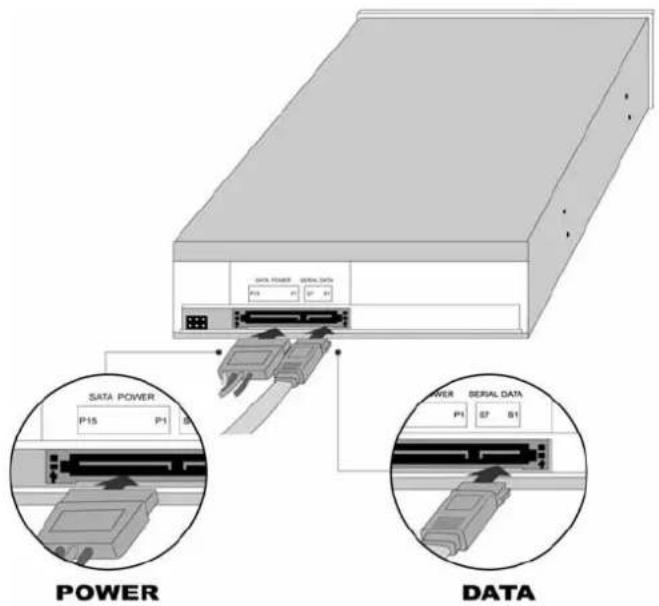
Figure: Rear Panel of Serial ATA Drive
OPERATION
Installing Software
Your Windows system already has device drivers that let you use the drive to install and set up software from CD-ROMs, DVD-ROMs and BD-ROMs as soon as the drive is installed. However, to make use of all the drive's features, such as writing to discs and playing commercially recorded movies, you need to install additional software.
To Use the BD Writer:
As a CD-ROM drive: Most Windows Operating Systems (Windows Vista,
Windows XP, Windows 2000) supply a generic CD-ROM device driver that lets the BD drive function as a standard CD-ROM drive as soon as it's installed. If you're using one of these operating systems, you do not need to install additional software to read or play CDs.
As a DVD-ROM drive: Most operating systems also let the DVD drive function as a DVD-ROM drive as soon as it's installed. If you're using one of these operating systems, you do not need to install additional software to read or play DVDs.
As a CD, DVD or BD writer: To write to CD, DVD or BD media (recordable or rewritable), you need to install additional software. The software CD included with your BD drive includes this software, offering functions such as mastering, packet writing, backing up your hard disk or files, capturing audio, and more
As a BD-ROM drive: This drive can be used as BDROM as soon as drive is installed.
To Install Software:
Install any software that came with your drive by inserting the software disc into the drive and following the onscreen instructions.
Loading and Unloading the Tray
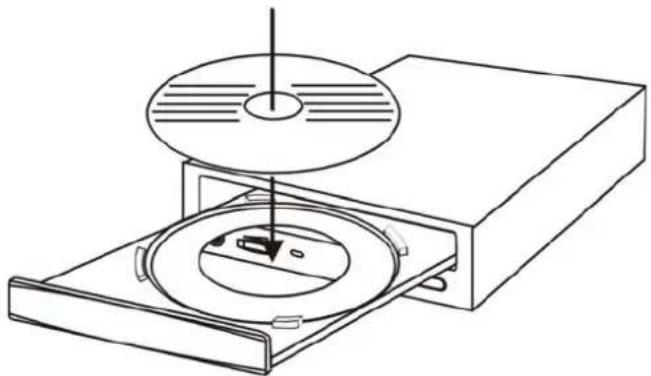
(1) While the BD drive is powered up, push the Eject button on the front panel to eject the tray.
(2) Place a disc in the tray's depression. To write to the data side, place the disc with the label side up. The disc should lie flat in the tray.
natural_image
Line drawing of a CD or DVD disc being placed into a box, showing internal components and a pointer (no text or symbols)Figure: Loading the Tray
(3) Press the Eject button again to retract the tray.
RECORDING & PLAYING
Recording CDs, DVDs & BDs
To record CDs, DVDs & BDs, ensure that you have installed the proper software (see previous page).
Playing DVDs & BDs
To play commercially released movies on DVD or BD on this drive, you must have BD playback software installed on your PC. If you do not have BD playback software on your PC, or if you want to replace your BD playback software, install the appropriate application from the enclosed software CD (see previous page).
Playing Regionally Encoded BDs and DVDs
Some BDs and DVDs are encoded to be played in a certain region, such as North America or Europe. Your drive must be set to the correct region code to play these discs.
No region code is preset when the BD drive is shipped. Instead, the first time a DVD with a region setting is inserted into the BD drive, the act of inserting the DVD sets the drive to that region code.
If you later insert a DVD with a different region code, you are prompted to accept a region code change. If you do not accept the change, the DVD will not play. If you do accept the change, the BD drive's region code setting is changed.
NOTE: You may change the BD drive's region code only 5 times. After that, you will not be able to change your drive's code setting. (Your DVD playback software will warn you if you approach the 5-change limit.)
About Software & Manuals
The detailed user's manual for the recording and playback software is automatically installed on your computer when you install the software itself.
RECOMMENDED RECORDABLE & REWRITABLE MEDIA
For consistent high quality, we recommend CD, DVD and BD media from the following manufacturers (recommendations are subject to change without notice):
| CD-RMedia: |  | CMC, LEADDATA, MBI, MCC, PLASMON, PRODISC, PRODISC, RITEK, TY, HP | |
| Low Speed CD-RW Media: |  | CMC, MKM, RICOH, RITEK, HP | |
| High Speed CD-RW Media: |  | CMC, MBI, MKM, RITEK, HP | |
| Ultra Speed CD-RW Media: |  | MKM | |
| DVD-R Media: |  | CMC, DAXON, LEADDATA, MAXELL, MKM, RITEK PRODISC, SONY, TDK, TY, HP | |
| DVD-R9 Media: |  | MKM, CMC, RITEK | |
| DVD-RW Media: |  | CMC, JVC, MKM, RITEK, TDK, HP | |
| DVD+R Media: |  | CMC, MBI, MAXELL, MKM, PRODISC, RICOH, TDK RITEK, SONY, TY, HP | |
| DVD+R9 Media: |  | MKM, RITEK, CMC, HP | |
| DVD+RW Media: |  | CMC, MBI, MKM, PHILIPS, RICOH, RITEK, HP | |
| Blu-ray Disc Media |  | BD-R SL: SONY, MITSUBISHI, RITEK, TDK(HtL), TY(LtH), HPBD-RE SL: MITSUBISHI, TDK, SONY, RITEK, HPBD-R DL: MITSUBISHI, TDK, HPBD-RE DL: TDK , HP |
*Only specific drives support DVD-RAM, double-layer and/or dual-layer recording. Refer to your drive's original package.
TROUBLESHOOTING
If you have trouble during installation or use of your BD drive, please refer to the following information.
Read Problems
| Symptom | Possible Cause | Solution |
| Does not operate | No power | · Ensure that the power cord is connected securely (at all connections). |
| SATA cable not properly connected | · Ensure that the SATA cable and connectors are not damaged (check the pins carefully), and that both sides are connected. | |
| BD drive can not be recognized | Power cable not properly connected | · Ensure that the power cord is connected securely (at all connections). |
| SATA cable not properly connected | · Ensure that the SATA cable and connectors are not damaged (check the pins carefully), and that both sides are connected. | |
| Excessive noise when reading a disc | Unbalanced disc loaded | · Replace the disc with another. |
| Sticker or label attached to the surface | · Detach the sticker/label carefully, ensuring that you don’t scratch the disc. | |
| Cannot open the tray (Eject) | Drive locked by software · | Wait until the software activity is finished; or· Stop the software activity and then press eject. |
| Disc set incorrectly in tray | · Turn off power to the drive, then insert a small stick or paper clip into the emergency eject hole to eject the tray. | |
| Cannot read a previous session of a CD-RW disc that has been written to at least twice | "Load Contents" or "Import Session" was not selected during write process | · Make sure you properly select “import previous sessions” when writing new data to the disc. |
| Defective or damaged disc | · Always use high-quality media.· Always handle discs with care and keep them clean. Deep scratches, fingerprints, or other contaminants on a disc’s surface can make it unreadable. | |
| Disc inserted upside down · | Remove the disc from the tray and reinsert it label side up. |
Write Problems
| Symptom | Possible Cause | Solution |
| Cannot write to disc | Authoring software used does not support your BD drive | Use the authoring software provided with the BD drive.If using other software, contact the software supplier (or check the appropriate website) to ensure that it supports your BD drive. |
| Disc inserted upside down | Reinsert the disc label side up. | |
| Insufficient hard disk capacity | Ensure that 1.2 to 2 times the capacity of the write data is available on hard disk.(Required capacity may vary according to write method.) | |
| No power | Ensure that the power cord is connected securely (at all connections). | |
| SATA cable not properly connected | Ensure that the SATA cable and connectors are not damaged (check the pins carefully), and both sides are connected. | |
| Writing errors occur | Defective or damaged disc | Always use high-quality media.Always handle discs with care and keep them clean. Deep scratches, fingerprints, or other contaminants on a disc's surface can make it unreadable. |
| Insufficient hard disk capacity | Ensure that 1.2 to 2 times the capacity of the write data is available on hard disk.(Required capacity may vary according to write method.) | |
| Drive not recognized | SATA cable not properly connected | Ensure that the SATA cable and connectors are not damaged (check the pins carefully), and both sides are connected. |
| Authoring software used does not support your BD drive | Use the authoring software provided with your BD drive.If using other software, contact the software supplier (or check the appropriate website) to ensure that it supports your BD drive. | |
| Cannot write at highest speed | BD/DVD/CD media not compatible with high speed | Use media rated for the highest speed your drive can write to. |
| Defective or damaged disc | Always use high-quality media.Always handle discs with care and keep them clean. Deep scratches, fingerprints, or other contaminants on a disc's surface can make it unreadable. | |
| Authoring software used does not support your BD drive | Use the authoring software provided with your BD drive.If using other software, contact the software supplier (or check the appropriate website) to ensure that it supports your BD drive. |

- SAFETYINSTRUCTIONS
- FCC COMPLIANCE STATEMENT
- PRECAUTIONS
- CAUTION: Do not attempt to open the drive for service. Removing the cover may cause exposure to harmful laser beams and electrical voltage. To obtain service, return the defective drive to the vendor where the drive was purchased.
- ENGLISH
- TABLE OF CONTENTS
- INTRODUCTION
- System Configuration
- Features and Controls
- INSTALLATION
- OPERATION
- Recording & Playing
- TROUBLESHOOTING
- What You Can Do with the BD Writer
- BD functions:
- DVD functions:
- CD functions:
- Format Compatibility
- Recording Modes Supported
- Track at Once
- Disc at Once
- Session at Once
- Multi Session
- Packet Writing
- Front View
- Rear View
- HARDWARE INSTALLATION OF SERIAL ATA DRIVES
- Installing Software
- To Use the BD Writer:
- To Install Software:
- Loading and Unloading the Tray
- Recording CDs, DVDs & BDs
- Playing DVDs & BDs
- Playing Regionally Encoded BDs and DVDs
- About Software & Manuals
- RECOMMENDED RECORDABLE & REWRITABLE MEDIA
Brand : HP
Model : bd340i
Category : Uncategorized