
VistaPlus AP15 - Processor PLANTRONICS - Free user manual and instructions
Find the device manual for free VistaPlus AP15 PLANTRONICS in PDF.


User questions about VistaPlus AP15 PLANTRONICS
0 question about this device. Answer the ones you know or ask your own.
Ask a new question about this device
Download the instructions for your Processor in PDF format for free! Find your manual VistaPlus AP15 - PLANTRONICS and take your electronic device back in hand. On this page are published all the documents necessary for the use of your device. VistaPlus AP15 by PLANTRONICS.
USER MANUAL VistaPlus AP15 PLANTRONICS
text_image
PLANTRONICS. SOUND INNOVATION'Plantronics AP15
text_image
PLANTRONICS 1 2 3 4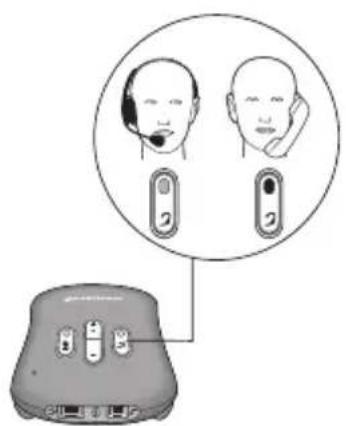
text_image
Diagram showing a device connected to two head-mounted devices, with a magnified circular view highlighting the top-down view of the first two devices.A
text_image
ABCDEFB
text_image
Diagram showing a headset with a head-mounted microphone and its perception of the device's face profile, with an inset close-up highlighting the device's head.C
natural_image
Diagram showing earphones connected to a device with a plus/minus signs, no text or symbols presentD
text_image
1·3·5·7·8E
text_image
Diagram showing three earphones with sound waves connected to a device, including a note and musical note icon.F
text_image
Diagram showing a person wearing a headset connected to four switches and a radio, with a device labeled 'Analog TV' nearby.G
Features
text_image
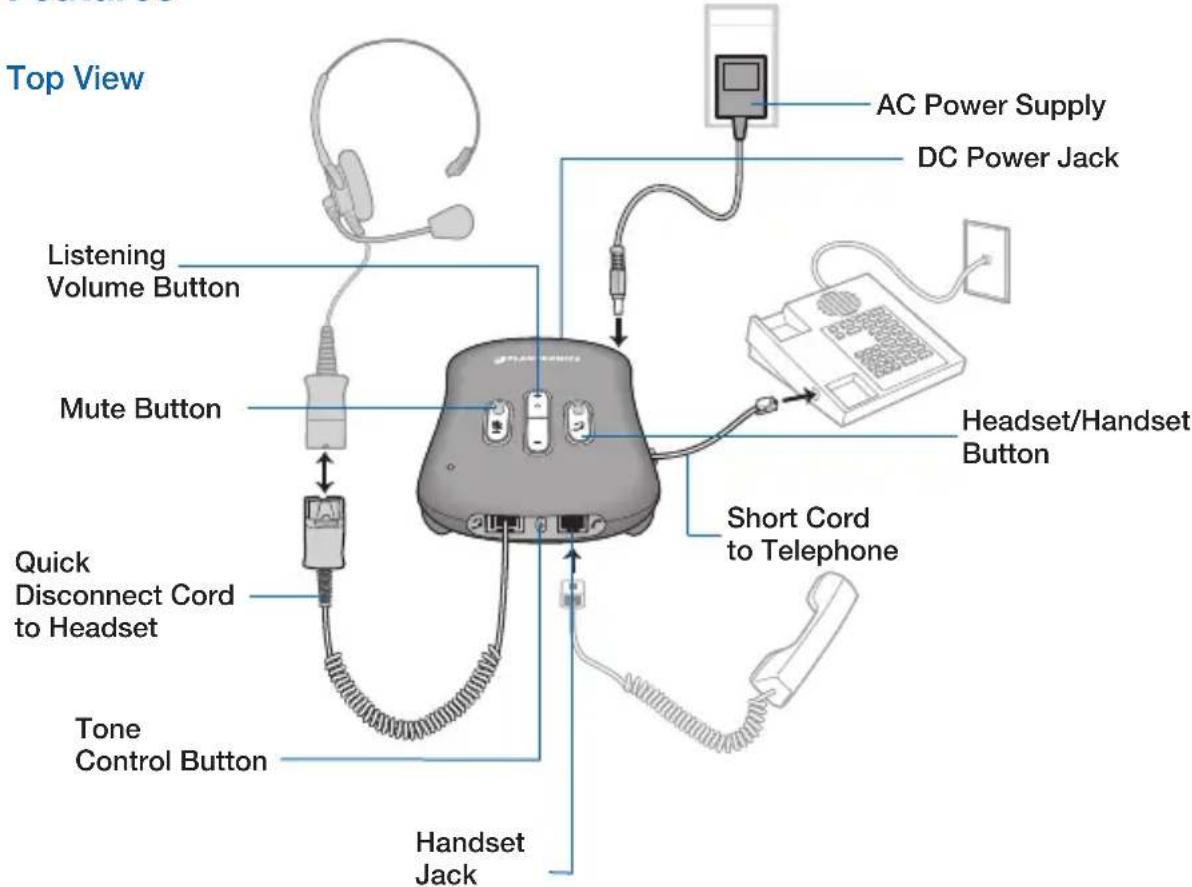
Top View AC Power Supply DC Power Jack Listening Volume Button Mute Button Headset/Handset Button Short Cord to Telephone Quick Disconnect Cord to Headset Tone Control Button Handset JackBottom View
text_image
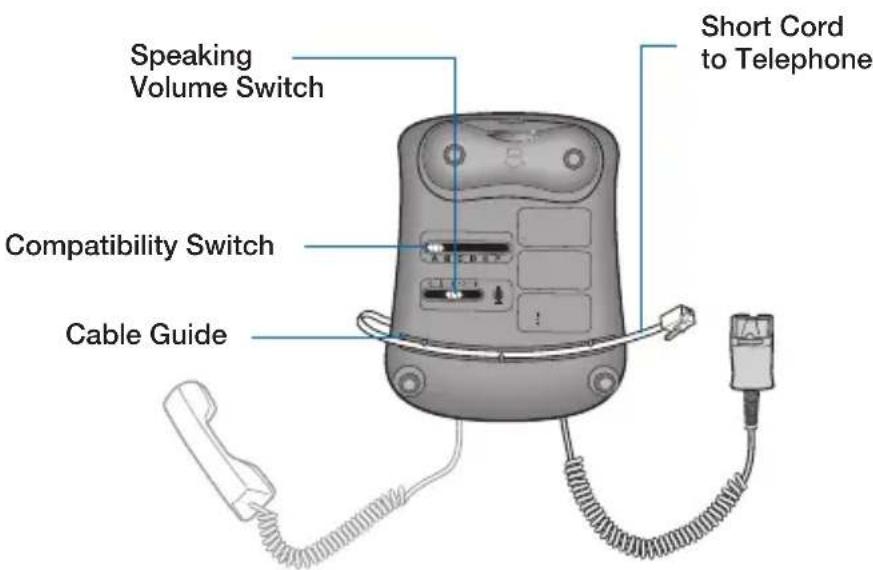
Speaking Volume Switch Short Cord to Telephone Compatibility Switch Cable GuideContents
Features 2
Connecting AP15 Audio Processor....4
Using Headset or Handset....4
Adjusting AP15 for Compatibility with your Telephone....4
Making and Receiving Calls with Headset....4
Adjusting Listening Volume 4
Adjusting Speaking Volume 4
Adjusting Tone....5
Muting a Call ....5
Welcome
Congratulations on purchasing your new Plantronics product. This User Guide contains instructions for setting up and using the Plantronics AP15. The AP15 is a digital audio processor designed to provide advanced levels of audio using ADRO® algorithm to improve poor incoming audio quality and compensate for loud background noises.
Please refer to the separate safety instructions booklet for important product safety information prior to installation or use of the product.
Getting Assistance
The Plantronics Technical Assistance Center is ready to assist you. You can find answers to frequently asked questions, ask a question using e-mail, receive service over the Internet, or speak directly with a representative. Visit www.plantronics.com/support
Registering Your Product
Visit www.plantronics.com/product registration to register your product online so we can provide you with the best service and technical support.
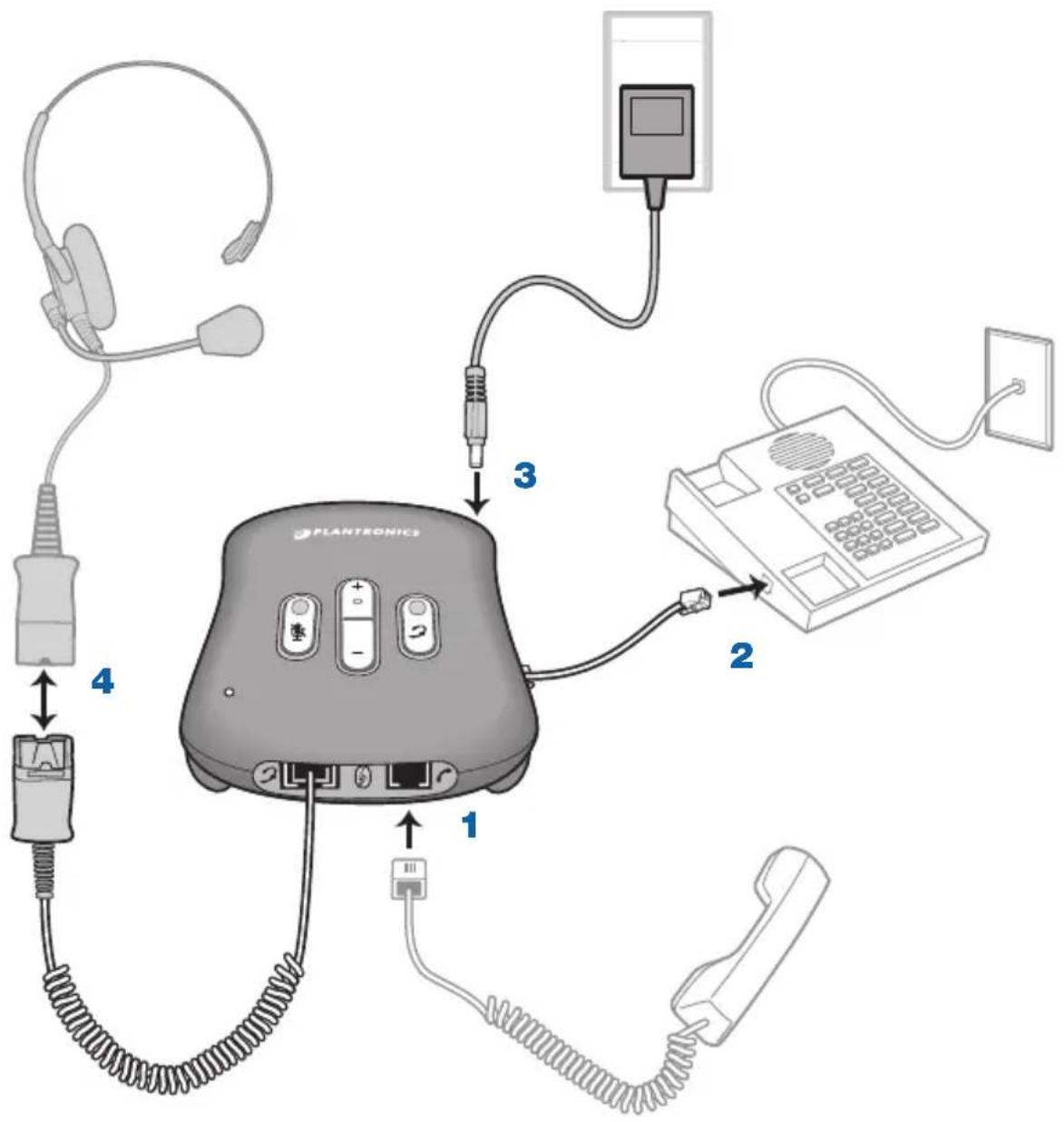
Connecting AP15 Audio Processor
It is important for correct and safe operation that the AP15 short cord is installed into the proper jack of your telephone. Follow these instructions carefully, especially if your telephone has two jacks where the handset was attached. Be sure to note or mark which jack was used for the handset.
- Disconnect the handset coil cord from your telephone and connect it to the handset jack on the AP15 with the handset symbol.
- Connect the free end of the short cord (the other end comes attached to the AP15) to the now open handset port on your telephone.
- Connect the power supply to the DC power jack on the AP15 and connect to power source.
- Connect your headset (not supplied) into the Quick Disconnect™ cord from the AP15.
A. Using the Headset or the Handset
To use the headset, wear the headset and press the headset/handset button until the indicator is green. To use the handset, press the headset/handset button until the indicator is off.
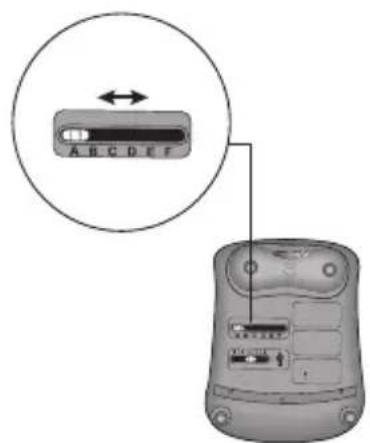
B. Adjusting AP15 for Compatibility with your Telephone
If your telephone has a volume control, set it to mid-range.
- While wearing the headset, remove handset from telephone cradle and listen for a clear dial tone.
- If you do not hear a clear, crisp dial tone, slide the compatibility switch on the bottom of the AP15 through positions A – F until you hear a clear dial tone.
NOTE Trying different settings for the best sound will not harm your telephone or the AP15.
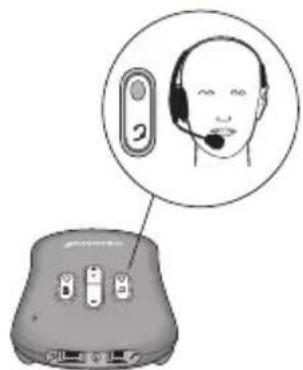
C. Making and Receiving Calls with Headset
To make a call while wearing the headset, lift the handset from the telephone. Press the headset/handset button if the indicator is not already green. Listen for a dial tone and make a test call.
If the call is not clear, try changing the compatibility switch. If necessary, adjust the speaking and/or listening volume to select the best performance.
To receive a call, lift the handset from the telephone cradle.
To disconnect a call, return the handset to the telephone cradle.
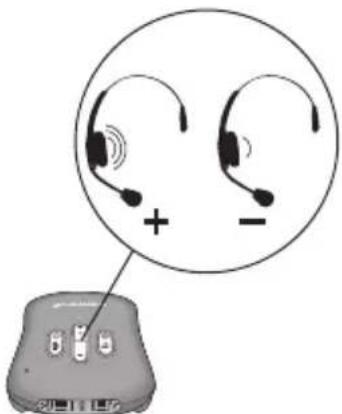
D. Adjusting Listening Volume
If your telephone has a volume control, set it to mid-range.
Make a test call to a friend and adjust the listening volume as follows:
-
To increase your listening volume, press the + at the top of the listening volume button.
-
To decrease your listening volume, press the – at the bottom of the listening volume button.
NOTES
• If the listening volume is set too high, the listening clarity may be affected.
• If you hear your own voice too loudly, reduce the volume setting on the telephone.
- Use the volume control on the AP15 not the phone to adjust to a comfortable listening level.
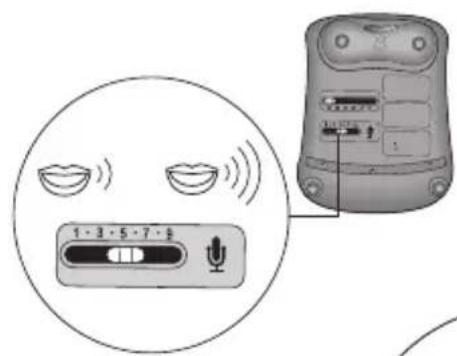
E. Adjusting Speaking Volume
- Locate the speaking volume switch on the bottom of the AP15.
- During a call, slide the speaking volume switch from position 1 (quietest) to position 9 (loudest) until the caller can hear you at the same level as with the handset.
NOTE During the call you can switch back and forth between the handset and the headset using the headset/handset button so your listener can easily compare speaking volumes.
F. Adjusting Tone
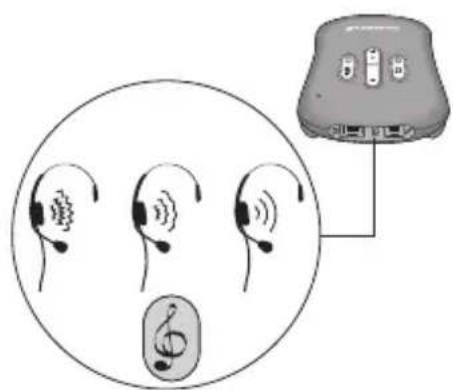
During a call, press the tone control button on the front end of the AP15 to select the preferred sound.
NOTE The tone control button has three settings.
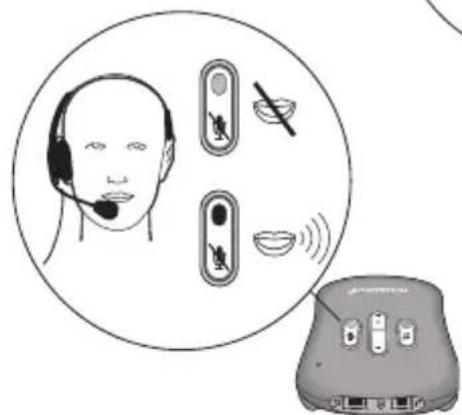
G. Muting a Call
While wearing the headset, press the mute button. The mute indicator will be orange. To deactivate mute, press the mute button again. The mute indicator will be off.
Troubleshooting
PROBLEM
I cannot hear callers or callers cannot hear me
Possible cause Remedy
Compatibility switch set incorrectly Move compatibility switch and listen for a dial tone.
Cable not plugged in correctly Check connections to your headset and telephone. Ensure that you can hear a dial tone.
Headset/Handset setting incorrect Ensure that the green indicator is showing on the headset/handset button.
Low listening volume Increase the listening volume by pressing the + at the top of the listening volume button.
Mute function switched on Press the mute button to deactivate mute if the mute indicator is orange.
PROBLEM
Caller cannot hear me clearly
Possible cause Remedy
Your voice is unclear to callers Adjust the speaking volume switch so you can be heard clearly. Do not set this level too high.
PROBLEM
I have to adjust the volume on every call
Possible cause Remedy
Adjusting volume on phone will cause volume to change for each call
ADRO adjusts input for a consistent output. Use the listening volume button on the AP15 to set the desired volume level.
Maintenance
Disconnect the AP15 from telephone and power supply and clean it with a soft, damp cloth. Do not use solvents or other cleaners. Allow AP15 to dry completely before reconnecting.
FCC PART 15 REGULATORy InFORMATION
DECLARATION OF COnFORMITY
We Plantronics, 345 Encinal Street Santa Cruz, California, 95060 USA (800) 544-4660 declare under our sole responsibility that the product AP15 complies with Part 15 of the FCC Rules. Operation is subject to the following two conditions: (1) this device may not cause harmful interference, and (2) this device must accept any interference received, including interference that may cause undesired operation.
Note: This equipment has been tested and found to comply with the limits for a Class B digital device, pursuant to part 15 of the FCC Rules. These limits are designed to provide reasonable protection against harmful interference in a residential installation. This equipment generates, uses, and can radiate radio frequency energy and, if not installed and used in accordance with the instructions, may cause harmful interference to radio communications. However, there is no guarantee that interference will not occur in a particular installation. If this equipment does cause harmful interference to radio or television reception, which can be determined by turning the equipment off and on, the user is encouraged to try to correct the interference by one or more of the following measures:
—Reorient or relocate the receiving antenna.
—Increase the separation between the equipment and receiver.
—Connect the equipment into an outlet on a circuit different from that to which the receiver is connected.
—Consult the dealer or an experienced radio/TV technician for help.
Changes or modifications not expressly approved by the party responsible for compliance could void the user's authority to operate the equipment.
FCC PART 68 REGuLATORy InFORMATION
This equipment complies with Part 68 of the FCC rules and the requirements adopted by the ACTA. On the equipment is a label that contains, among other information, a product identifier in the format US:AAAEQ##TXXXX. If requested, this number must be provided to the telephone company.
A plug and jack used to connect this equipment to the premises wiring and telephone network must comply with the applicable FCC Part 68 rules and requirements adopted by the ACTA. A compliant telephone cord and modular plug is provided with this product. It is designed to be connected to a compatible modular jack that is also compliant. See installation instructions for details.
The REN is used to determine the number of devices that may be connected to a telephone line. Excessive RENs on a telephone line may result in the devices not ringing in response to an incoming call. In most but not all areas, the sum of RENs should not exceed five (5.0). To be certain of the number of devices that may be connected to a line, as determined by the total RENs, contact the local telephone company. For products approved after July 23, 2001, the REN for this product is part of the product identifier that has the format US: AAAEQ##TXXXX. The digits represented by ## are the REN without the decimal point (e.g., 03 is an REN of 0.3). For earlier products, the REN is separately shown on the label.
If this equipment causes harm to the telephone network, the telephone company will notify you in advance that temporary discontinuance of service may be required. But if advance notice isn't practical, the telephone company will notify the customer as soon as possible. Also, you will be advised of your right to file a complaint with the FCC if you believe it is necessary.
The telephone company may make changes in its facilities, equipment, operations or procedures that could affect the operation of the equipment. If this happens the telephone company will provide advance notice in order for you to make the necessary modifications to maintain uninterrupted service.
If trouble is experienced with this equipment, for repair or warranty information, please contact customer service at (800) 544-4660. If the equipment is causing harm to the telephone network, the telephone company may request that you disconnect the equipment until the problem is resolved.
This equipment does not contain any user serviceable components.
Connection to party line service is subject to state tariffs. Contact the state public utility commissions, public service commission or corporations commission for information.
If your home has specially wired alarm equipment connected to the telephone line, ensure the installation of this equipment does not disable your alarm equipment. If you have questions about what will disable alarm equipment, consult your telephone company or a qualified installer.
Plantronics, Inc.
345 Encinal Street
Santa Cruz, CA 95060
United States
Tel: 800-544-4660
Tel: 831-426-5858
www.plantronics.com
©2008 Plantronics, Inc. All rights reserved. Plantronics, the logo design, CS50, CS55. IntelliStand, and Sound Innovation are trademarks or registered trademarks of Plantronics, Inc. All other trademarks are the property of their respective owners.
US patents Patents U.S. 5,259,780.
80002-01 (08.08)