
Canvio Cast - External Storage TOSHIBA - Free user manual and instructions
Find the device manual for free Canvio Cast TOSHIBA in PDF.


| Product Type | Toshiba Canvio Cast Wireless Adapter |
| Brand | Toshiba |
| Model | Canvio Cast |
| Dimensions | 63 mm (W) x 48 mm (D) x 10 mm (H) |
| Weight | Approximately 24 g (0.8 oz) |
| Power Input | AC Adapter 100-240V, 50/60 Hz; Adapter input: 5V DC/2A |
| Wireless Standard | Wi-Fi 802.11 b/g/n 2.4 GHz |
| Number of Simultaneous Connections | Up to 6 at 5 m distance |
| Supported File Formats | Video: MOV, MP4, M4V, 3GP, AVI, MTS, M2TS; Music: MP3, M4a, AAC, WAV; Picture: JPG, BMP, PNG; Document: pdf, doc, docx, ppt, pptx, xls, xlsx, txt, rtf |
| Supported Devices | iOS 6.0-7.0, Android 2.3-4.2, Windows 7/8/8.1/Vista/XP, OS X Lion/Mountain Lion/Mavericks |
| Connectivity | USB 2.0 port for external storage connection |
| Modes | Bridge Mode (public network) and Station Mode (home network) |
| Chromecast Support | Yes (requires Station Mode) |
| App | Toshiba Wireless Adapter app for iOS and Android |
| Media Playback | Stream video, music, photos, and documents via app |
| File Management | Upload, download, move, delete, and rename files via app |
| Operating Temperature | 5°C to 35°C (41°F to 95°F) |
| Indicator Lights | Power, Wi-Fi, and storage status LEDs |
| Cleaning | Use a lightly dampened cloth. Do not use liquid or aerosol cleaners. |
| Safety | Contains lead (California Prop 65). Avoid near medical devices. Do not disassemble. |
| Warranty | Standard Limited Warranty (details in package) |
Frequently Asked Questions - Canvio Cast TOSHIBA
User questions about Canvio Cast TOSHIBA
0 question about this device. Answer the ones you know or ask your own.
Ask a new question about this device
Download the instructions for your External Storage in PDF format for free! Find your manual Canvio Cast - TOSHIBA and take your electronic device back in hand. On this page are published all the documents necessary for the use of your device. Canvio Cast by TOSHIBA.
USER MANUAL Canvio Cast TOSHIBA
Leading Innovation >>>
Canvio Cast™ Wireless Adapter User's Manual
Safety information and Rules and Regulations for wireless LAN
▲ CAUTION
Wireless LAN devices may cause interference with medical equipment such as cardiac pacemakers. If you use personal medical equipment, consult with your physician and medical equipment instructions before using the Product. The Product should not be used in environments with medical equipment such as hospitals and medical offices, or near users of personal medical equipment, as use of this Product may cause injury in such environments.
▲ CAUTION
Always turn off wireless functionality if the computer is near automatic control equipment or appliances such as automatic doors or fire detectors. Radio waves can cause malfunction of such equipment, possibly resulting in injury.
NOTE
Do not use the Wireless LAN functionality near a microwave oven or in areas subject to radio interference or magnetic fields. Interference from a microwave oven or other source can disrupt Wireless LAN operation.
NOTE
The transmission speed over the wireless LAN, and the distance over which the wireless LAN can reach, may vary depending on surrounding electromagnetic environment, obstacles, access point design and configuration, client design and software/hardware configurations. The transmission rate described is the theoretical maximum speed as specified under the appropriate standard – the actual transmission speed will be lower than the theoretical maximum speed.
Disclaimer
TO THE MAXIMUM EXTENT PERMITTED BY APPLICABLE LAW, TOSHIBA CORPORATION, ITS AFFILIATES AND/OR SUPPLIERS ("TOSHIBA") DISCLAIM ALL WARRANTIES WITH REGARD TO THE SOFTWARE, EITHER EXPRESSLY -IMPLIED, OR STATUTORY, INCLUDING, BUT NOT LIMITED TO, THE WARRANTY OF NONINFRINGEMENT OF THIRD PARTY RIGHTS, AND THE IMPLIED WARRANTIES AND CONDITIONS OF MERCHANTABILITY AND FITNESS FOR A PARTICULAR PURPOSE. THE ENTIRE RISK AS TO THE QUALITY AND PERFORMANCE OF THE SOFTWARE IS WITH YOU. TOSHIBA SHALL NOT WARRANT THAT THE FUNCTIONS CONTAINED IN THE SOFTWARE WILL MEET YOUR REQUIREMENTS OR THAT THE OPERATION OF THE SOFTWARE WILL BE UNINTERRUPTED OR ERROR-FREE.
Notwithstanding the above, portions of the software include software files subject to certain open source license agreements, and such open source software files are subject to the notices and additional terms and conditions that are referenced in the End User License Agreement (“EULA”) shown in the “Toshiba Legal Information” section of the “Legal information” available under the “About CANVIO Cast” in the “Settings” app. Such open source software files are provided on an “AS IS” basis to the maximum extent permitted by applicable law.
Please carefully read the “Open source licenses” section of the “Legal Information” available under the “About CANVIO Cast” in the “Settings” app for the relevant copyright and licensing terms. If there is any discrepancy between the terms and conditions of the applicable open source license agreement and the EULA, the terms and conditions of the applicable open source license agreement prevail with respect to the applicable open source software.
Until the date that is three years after you acquired the Software, you may obtain a copy of the source code corresponding to the binaries for the GPL-licensed file by sending a request to TOSHIBA customer service at support.toshiba.com and TOSHIBA will send you a link to such source code.
Federal Communications Commission (FCC) Notice (USA)
This equipment has been tested and found to comply with the limits for a Class B digital device, pursuant to Part 15 of the FCC Rules. These limits are designed to provide reasonable protection against harmful interference in a residential installation.
This equipment generates, uses, and can radiate radio frequency energy and, if not installed and used in accordance with the instructions, may cause harmful interference to radio communications. However, there is no guarantee that interference will not occur in a particular installation. If this equipment does cause harmful interference to radio or television reception, which can be determined by turning the equipment off and on, the user is encouraged to try to correct the interference by one or more of the following measures:
◆Reorient or relocate the receiving antenna.
◆ Increase the separation between the equipment and the receiver.
Connect the equipment into an outlet on a circuit different from that to which the receiver is connected.
◆Consult the dealer or an experienced radio or television technician for help.
NOTE
Changes or modifications to this equipment not expressly approved by Toshiba or parties authorized by Toshiba could void the user's authority to operate this equipment.
Declaration of Conformity for Products Marked with the FCC Logo (USA)
This device complies with Part 15 of the FCC Rules. Operation is subject to the following two conditions:
1) This device may not cause harmful interference, and
2) This device must accept any interference received, including interference that may cause undesired operation.
SAR information
The Electromagnetic Compliance (EMC) of this product has been verified typically for this product category for a so call Residential, Commercial & Light Industry Environment. Any other working environment has not been verified by Toshiba and the use of this product in these working environments is maybe restricted or cannot be recommended. Possible consequences of the use of this product in non-verified working environments can be: Disturbances of other products or of this product in the nearby surrounding area with temporarily malfunction or data loss/corruption as result. Example of non-verified working environments and related advices:
Industrial environment (e.g. where 3-phase 380V mains is being used mainly): Danger of disturbances of this product due to possible strong electromagnetic fields especially near to big machinery or power units.
Medical environment: The compliance to the Medical Device Directive has not been verified by Toshiba, therefore this product cannot be used as a medical product without further verification. The use in usual office environments e.g. in hospitals should be no problem if there is no restriction by the responsible administration.
Automotive environment: Please search the owner instructions of the related vehicle for advices regarding the use of this product (category).
◆Aviation environment: Please follow the instructions of the flight personnel regarding restrictions of use.
Additional environments not related to EMC
Outdoor use: As a typical home/office equipment this product has no special resistance against ingress of moisture and is not strong shock proofed.
◆Explosive atmosphere: The use of this product in such special working environment (Ex) is not allowed.
Radiation Exposure Statement
This equipment complies with FCC radiation exposure limits set forth for an uncontrolled environment.
Canadian Notice
This device complies with Industry Canada license-exempt RSS standard(s). Operation is subject to the following two conditions: (1) this device may not cause interference, and (2) this device must accept any interference, including interference that may cause undesired operation of the device.
To comply with the Canadian RF exposure compliance requirements, this device and its antenna must not be co-located or operating in conjunction with any other antenna or transmitter.
Radiation Exposure Statement:
This equipment complies with IC radiation exposure limits set forth for an uncontrolled environment.
This manual may not be reproduced in any form without the prior written permission of Toshiba. No liability is assumed with respect to the use of the information contained herein.
© 2014 Toshiba America Information Systems, Inc. All rights reserved.
Notice
The information contained in this manual, including but not limited to any product specifications, is subject to change without notice.
TOSHIBA CORPORATION AND TOSHIBA AMERICA INFORMATION SYSTEMS, INC. (TOSHIBA) PROVIDES NO WARRANTY WITH REGARD TO THIS MANUAL OR ANY OTHER INFORMATION CONTAINED HEREIN AND HEREBY EXPRESSLY DISCLAIMS ANY IMPLIED WARRANTIES OF MERCHANTABILITY OR FITNESS FOR ANY PARTICULAR PURPOSE WITH REGARD TO ANY OF THE FOREGOING. TOSHIBA ASSUMES NO LIABILITY FOR ANY DAMAGES INCURRED DIRECTLY OR INDIRECTLY FROM ANY TECHNICAL OR TYPOGRAPHICAL ERRORS OR OMISSIONS CONTAINED HEREIN OR FOR DISCREPANCIES BETWEEN THE PRODUCT AND THE MANUAL. IN NO EVENT SHALL TOSHIBA BE LIABLE FOR ANY INCIDENTAL, CONSEQUENTIAL, SPECIAL, OR EXEMPLARY DAMAGES, WHETHER BASED ON TORT, CONTRACT OR OTHERWISE, ARISING OUT OF OR IN CONNECTION WITH THIS MANUAL OR ANY OTHER INFORMATION CONTAINED HEREIN OR THE USE THEREOF.
Third party services and other Internet services are not provided by Toshiba, may change or be discontinued at any time and may be subject to Internet service provider restrictions. Toshiba makes no warranties, representations, or assurances about the content, availability, compatibility or functionality of third-party content or services. Use of third party Internet services may require the creation of a separate account and payment of one-time and/or recurring charges.
Trademarks
Canvio and Canvio Cast are either trademarks or registered trademarks of Toshiba America Information Systems, Inc.
Apple, App Store, iPad, iPhone, iPod, Mac OS, OS X, Safari and Time Machine are trademarks of Apple Inc., registered in the U.S. and other countries.
Firefox is a registered trademark of the Mozilla Foundation.
Android, Chromecast, Chrome, and Google Cast Ready, and are trademarks of Google Inc.
IOS is a trademark or registered trademark of Cisco in the U.S. and other countries and is used under license.
Wi-Fi ^® is a registered trademark of Wi-Fi Alliance ^® .
Windows and Internet Explorer are either registered trademarks or trademarks of Microsoft Corporation in the United States and/or other countries.
All other product names and trademarks are the property of their respective owners.
Safety icons
This manual contains safety instructions that must be observed to avoid potential hazards that could result in personal injuries, damage to your equipment, or loss of data. These safety cautions have been classified according to the seriousness of the risk, and icons highlight these instructions as follows:
| ⚠️ DANGER | Indicates an imminently hazardous situation which, if not avoided, will result in death or serious injury. |
| ⚠️ WARNING | Indicates a potentially hazardous situation which, if not avoided, could result in death or serious injury. |
| ⚠️ CAUTION | Indicates a potentially hazardous situation which, if not avoided, may result in minor or moderate injury. |
| CAUTION | Indicates a potentially hazardous situation which, if not avoided, may result in property damage. |
| NOTE | Provides important information. |
Precautions
This section lists important precautions which users of our product(s) (and anyone else) should observe in order to avoid injury and damage to property, and to ensure safe and correct use of our products. Please be sure that you understand the meaning of each label and graphic symbol described below before you move on to the detailed descriptions of the precautions, and comply with the precautions stated.
California Prop 65 Warning
▲WARNING
This product contains chemicals, including lead, known to the State of California to cause cancer and birth defects or other reproductive harm. Wash hands after handling.

For the state of California only.
Safety Precautions
▲WARNING
Failure to observe any of the following instructions may result in risk of fire, electric shock, serious bodily injury and/or damage to your device.
AC Adapter
Always use the Toshiba AC Adapter that was provided with your device or as specified by Toshiba and use correct power source specified on the regulatory label of the device or adapter. Always ensure a secure electrical connection. Be careful if you use a multiple connector to avoid current overload on one socket.
Disassembly, Modification, or Tampering
Do not disassemble, modify, tamper with or repair your device (including AC Adapter or power cable/cord).
Do not leave parts such as plastic covers and electrical plugs within the reach of children and pets. Misuse of the part including, without limitation, accidental swallowing the part may cause choking and suffocation resulting in death or serious injury. If you suspect a part has been swallowed, immediately take appropriate emergency action and consult a doctor.
▲WARNING
Service Provider
◆ Disconnect device from the electrical outlet and take device to an authorized Toshiba service provider if:
◆AC adapter or power cable/cord is damaged.
Liquid has spilled into device or an object (such as a screw, staple or paper clip) has entered device.
Device has been dropped, subject to shock or impact and/or damaged in some way.
◆Noticeable signs of overheating, smoke, deformation, cracks, leaks or unusual odor occur.
◆Service is needed on a component inside the compartments requiring opening or removal of covers.
If the Product produces an odor, overheats or smokes, immediately turn off the drive and disconnect the power cord from the outlet and disconnect the USB cable from the device. Failure to do so may result in fire, damage to the drive and/or personal injury including burns and electric shock. Do not use the drive again and contact the Toshiba Customer Support Center.
Do not plug the AC adapter into a power source that does not correspond to the voltage, current and the frequency specified on the regulatory label of the unit. An overload on the socket and/or AC adapter may cause a fire or electric shock, possibly resulting in serious injury.
▲WARNING
Always confirm that the power plug (and extension cable plug if used) has been fully inserted into the socket, to ensure a secure electrical connection. Failure to do so may result in a fire or electric shock, possibly resulting in serious injury. Be careful if you use a multiple connector. An overload on one socket could cause a fire or electric shock, possibly resulting in serious injury.
Always make sure the drive and AC adapter have adequate ventilation and are protected from overheating when the AC adapter is connected to a power outlet. Inadequate ventilation may cause the drive and AC adapter to overheat resulting in a fire or electric shock and serious injury.
✿ Unplug device from the electrical outlet before cleaning. Do not use liquid cleaners or aerosol cleaners. The injected combustible gas produced by these types of cleaners may remain inside of your product. The electrostatic spark from the motor or contact point of switch may ignite the gas residue, which could result in an explosion, fire, or burn injury. Instead use a lightly dampened cloth for cleaning in general and remove dust with a dry cloth.
CAUTION
✿ Never pull on a power cord/cable to remove a plug from a socket. Always grasp the plug directly.
Do not disconnect the USB cable and AC adapter while operating, as it may result in loss of data or damage to the drive.
Do not touch the USB cable and AC adapter while operating, as it may result in loss of data or damage to the drive.
Do not bump, drop or jar the drive, as it may result in loss of data or damage to the drive.
Do not use the drive at high or low temperatures or sudden temperature changes. This may result in loss of data or damage to the drive. (Operating: 5°C-35°C)
Do not use device in a wet location. Do not connect/disconnect a power plug/cord with wet hands.
Do not cover the drive during operation, as it may become overheated.
Do not use the drive during a thunderstorm. If you see lightning or hear thunder, immediately turn off the device to which this drive is connected, and disconnect the power cord from the outlet, and disconnect the USB cable from the computer. An electric surge caused by the lightning may result in loss of data or damage to the drive.
Do not place the drive on a shaky table, uneven, tilted surface or other unstable location. The drive may fall, causing damage to the drive or possibly injury.
NOTE
◆Compatibility may vary depending on user's hardware configuration and operating system.
Use only the accessories supplied by the manufacturer. This drive needs the power supply from the AC adapter supplied by the manufacturer.
Product specifications are subject to change without notice.
Protection of stored data
For your important data, please make periodic back-up copies of all the data stored on the hard disk or other storage devices as a precaution against possible failures, alteration, or loss of the data. IF YOUR DATA IS ALTERED OR LOST DUE TO ANY TROUBLE, FAILURE OR MALFUNCTION OF THE STORAGE DEVICES AND THE DATA CANNOT BE RECOVERED, TOSHIBA SHALL NOT BE LIABLE FOR ANY DAMAGE OR LOSS OF DATA, OR ANY OTHER DAMAGE RESULTING THEREFROM. WHEN COPYING OR TRANSFERRING YOUR DATA, PLEASE BE SURE TO CONFIRM WHETHER THE DATA HAS BEEN SUCCESSFULLY COPIED OR TRANSFERRED. TOSHIBA DISCLAIMS ANY LIABILITY FOR THE FAILURE TO COPY OR TRANSFER THE DATA CORRECTLY.
Critical Applications
This adapter you have purchased is not designed for any “critical applications.” “Critical applications” means life support systems, medical applications, connections to implanted medical devices, commercial transportation, nuclear facilities or systems or any other applications where product failure could lead to injury to persons or loss of life or catastrophic property damage. ACCORDINGLY, TOSHIBA, ITS AFFILIATES AND SUPPLIERS DISCLAIM ANY AND ALL LIABILITY ARISING OUT OF THE USE OF THE COMPUTER PRODUCTS IN ANY CRITICAL APPLICATIONS. IF YOU USE THE COMPUTER PRODUCTS IN A CRITICAL APPLICATION, YOU, AND NOT TOSHIBA, ASSUME FULL RESPONSIBILITY FOR SUCH USE.
Contents
Introduction....16
Overview 16
Package contents 16
Features 17
Chapter 1: Specifications ....18
Product Specifications and supported devices.... 18
System requirements 18
Supported file type.... 19
Hardware specifications 19
Additional specifications.... 19
Physical dimensions 19
Environmental Requirements.... 19
Power Requirements.... 19
Chapter 2: Getting Started....20
Product overview 20
Setting up your device 21
Connect wirelessly to a PC/Mac.... 22
File copy wirelessly to PC 22
File copy wirelessly to Mac.... 23
Chapter 3: The Toshiba Wireless Adapter App.....24
Installing and launching the app 24
App main menu.... 25
File/folder 26
Searching for files 26
Refresh.... 26
View.... 26
Edit files.... 27
Chapter 4: Media Playback ....28
Video, photos, music, and documents 28
Picture playback 29
To view a Slideshow 30
Video playback.... 30
Music playback 31
Viewing documents.... 32
Task Manager 33
Chapter 5: Configuring Internet Settings .....34
Internet settings 34
Internet connection in Bridge Mode 35
Internet connection in Station Mode.... 38
Chapter 6: Chromecast™ Support......41
Chromecast™ connect.... 41
Chromecast™ disconnect 43
Video support 43
Photo support 44
Chapter 7: Settings......45
Wireless Settings 46
Operation Settings 46
Application Settings 46
Contacting Toshiba.... 47
Call Toshiba Customer Support Center...... 47
Index 48
Introduction
Overview
The Canvio Cast™ Wireless Adapter is a compact device that wirelessly connects a storage device, such as an external hard drive, to your mobile device or computer. The Toshiba Wireless Adapter app lets you stream music, pictures, video, and document files to an iPad, iPhone, iPod touch, Android™ tablet or smartphone, or other Wi-Fi® enabled tablets, smartphones, or computers. See “Product Specifications and supported devices” on page 18 for a list of compatible devices and Web browsers.
Package contents
The Canvio Cast ^™ Wireless Adapter includes the following components:
◆AC adapter (US-pin)
USB 2.0 cable
◆Quick Start document
◆Standard Limited Warranty information
Features
Connect to external storage devices wirelessly from your iOS or Android™ devices, or your computer.
- Access and stream your music, videos, pictures, and data using the free Toshiba Wireless Adapter app supporting iPhone, iPad, and Android™ operating systems.
Stream your movies and videos to your TV using the Google Cast™ Ready app.
Chapter 1
Specifications
Product Specifications and supported devices
This chapter summarizes the technical specifications and supported devices for your Canvio Cast™ Wireless Adapter.
System requirements
Your Canvio Cast™ Wireless Adapter can be used with the following devices:
| Compatible devices | iPhone or iPad version 6.0 - 7.0 |
| Android^TM platform based smartphones or tablets version 2.3 - 4.2 | |
| Operating System W | Windows ^ 7, Windows Vista ^ , Windows ^ XP, Windows 8, Windows 8.1 |
| OS X Lion, OS X Mountain Lion, OS X Mavericks | |
| Web browser Microsoft | ^ Internet Explorer ^ version 8 - 11 |
| Mozilla ^ Firefox ^ version 3 - 31 | |
| Google Chrome^TM version 13 - 33 | |
| Apple Safari version 5 - 7 |
NOTE
Use of the Time Machine software is not supported.
Supported file type
◆Video: iOS: Support MOV/MP4/M4V
Android™: Support MP4/M4V3GP/AVI/MTS/M2TS; link to external software
Codex: H.264/AVC, MPEG-4 SP, AVCHD
Music: MP3, M4a, AAC, WAV
Codex: MP3 (VBR), AAC, HE-AAC, WAV
Picture: JPG/BMP/PNG
Document: pdf, doc, docx, ppt, pptx, xls, xlsx, txt, rtf
Hardware specifications
◆Support Wi-Fi ^ : 11 b/g/n 2.4GHz
◆ Number of connections: 6, at a distance of 5m
Drive format: NTFS
Additional specifications
Physical dimensions
| Size | 63 (W) x 48 (D) x 10 (H) mm(2.5 (W) x 1.9 (D) x 0.4 (H) in. |
| Weight | Approximately 24g (0.8 oz) |
Environmental Requirements
| Operating conditions | |
| Ambient temperature | 5°C (41°F) to 35°C (95°F) |
Power Requirements
| AC Adapter | 100-240V AC50 or 60 Hz (cycles per second) |
| Wireless adapter | Input: 5V DC/2A |
Chapter 2
Getting Started
This chapter provides a general overview and information on how to get started using your Canvio Cast™ Wireless Adapter.
Product overview
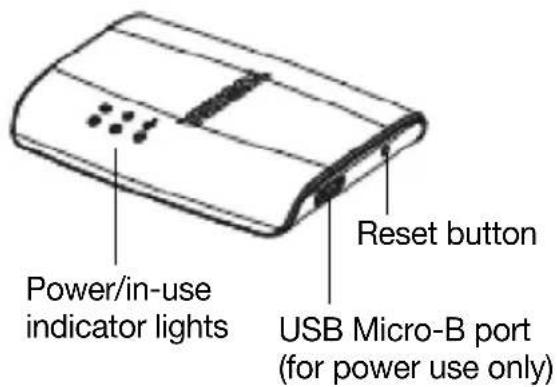
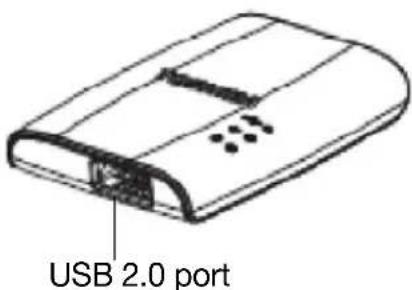
(Sample Illustration) Canvio Cast™ Wireless Adapter ports and indicator lights
Indicator lights—Displays the Wi-Fi ^® , Power, and Storage connection status of the device.
USB Micro-B port—Allows charging of the battery via USB cable/AC adapter (for power use only).
Reset button—Press and hold the button two (2) times to reset the device.
USB 2.0 port—Allows the transfer of data via the USB cable and charging of the battery via the USB cable/AC adapter.
NOTE
Handle your Canvio Cast™ Wireless Adapter carefully to avoid scratching or damaging the surface.
Setting up your device
1 Connect the AC adapter to the Canvio Cast™ Wireless Adapter and to a working electrical outlet.
The device turns on automatically.
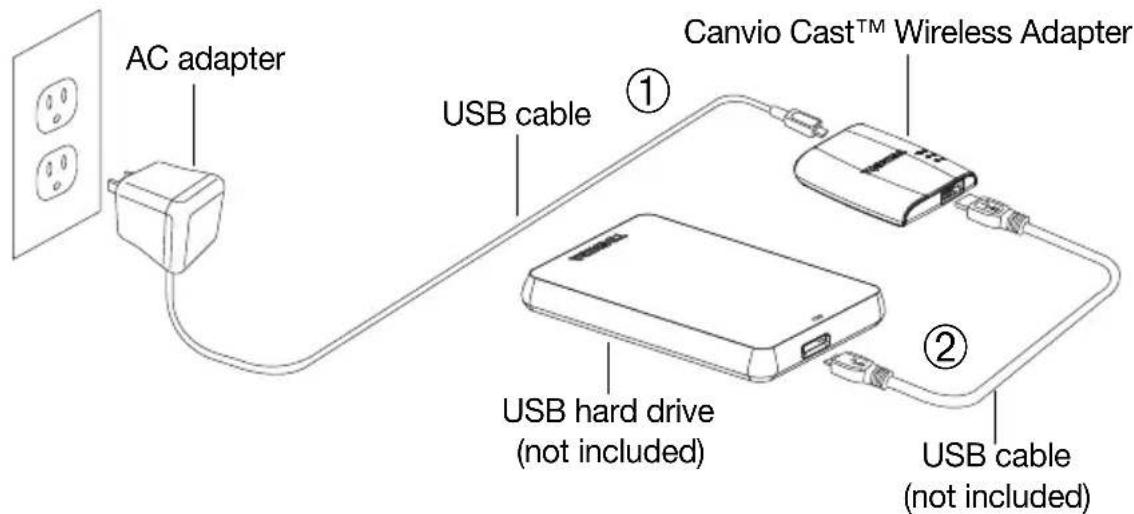
(Sample Illustration) Connecting the Canvio Cast™ Wireless Adapter
2 Connect the Canvio Cast™ Wireless Adapter to a USB hard drive using a USB cable (not included).
The indicator lights flash for a few minutes while the device initializes. Wait for the lights to stop flashing before moving on to the next step.
3 Go to the Google Play™ or App Store and download the app named TOSHIBA Wireless Adapter, installing it to your Android™ or iOS smartphone or tablet. See “Installing and launching the app” on page 24.
Connect to the Canvio Cast™ Wireless Adapter through one of the following three modes:
Connect from an Android™ or iOS device
Connect from a browser on a computer
Connect to the Internet while connected to the Canvio Cast™ Wireless Adapter
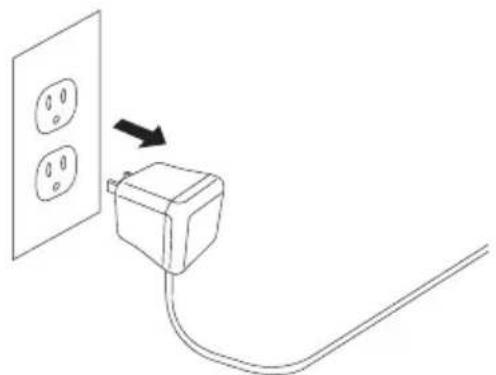
4 To power off the Canvio Cast™ Wireless Adapter, unplug the AC adapter from the power supply.
natural_image
Simple line drawing of a wall socket connected to a power outlet plug, with an arrow indicating direction (no text or symbols)(Sample Illustration) Unplugging the Canvio Cast™ Wireless Adapter
Connect wirelessly to a PC/Mac
1 Press the ON/OFF button to power on the system.
2 Once the Wi-Fi ^® indicator light stops blinking, enable the Wireless LAN feature on your PC/Mac and open the Wireless Network connection.
3 Select the Toshiba wssd xxxx wireless connection (where xxxx is a 4-digit number generated by your Canvio Cast™ Wireless Adapter (default wireless SSID: Toshiba wadpxxxx), and then enter a password if one has been established.
File copy wirelessly to PC
You can wirelessly transfer files from the storage device attached to the Canvio Cast™ Wireless Adapter to a PC once the drive has been mapped.
1 To map the drive, on your PC, go to Computer, and then Map Network Drive.
2 Select a letter from the Drive drop down menu.
3 In the Folder field, type \xxx.xxx.xxx.xxx\share (where xxx.xxx.xxx.xxx is your Canvio Cast™ Wireless Adapter's IP address) and click Finish.
You should now be able to see your Canvio Cast™ Wireless Adapter on your PC's My Computer screen.
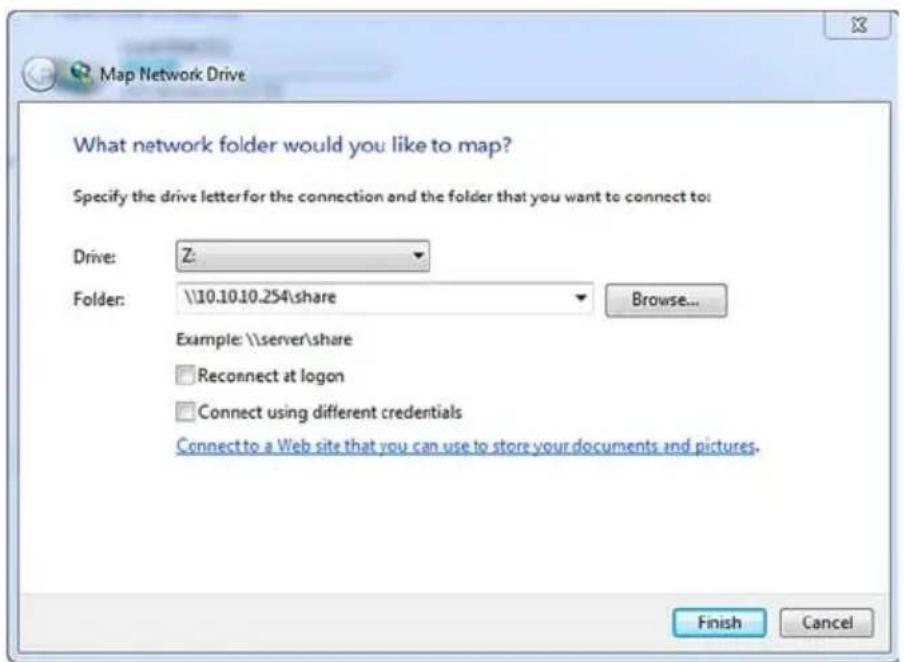
(Sample Image) Map Network Drive screen
File copy wirelessly to Mac
On a Mac, the Canvio Cast™ Wireless Hard Drive automatically displays as a network drive. You can transfer files by simply dragging and dropping them to your desired location.
Chapter 3
The Toshiba Wireless Adapter App
You can enjoy your videos, photos, music and documents on your iOS or Android™ device from the TOSHIBA Wireless Adapter app. If you have already installed the app, see “Media Playback” on page 28.
Installing and launching the app
1 On your mobile device go to the Google Play™ or App Store and download the app named TOSHIBA Wireless Adapter. Follow the instructions to install it to your Android™ or iOS smartphone or tablet.
2 When the indicator lights are solid, create a wireless connection to the Canvio Cast™ Wireless Adapter from your mobile device.
3 On your mobile device, tap launch the App. TOSHIBA Wireless Adapter to
You can now run the Wireless Adapter App on your mobile device.
App main menu
The Toshiba Wireless Adapter app provides an easy way to access photos, videos, music, and files from an easy-to-use interface.
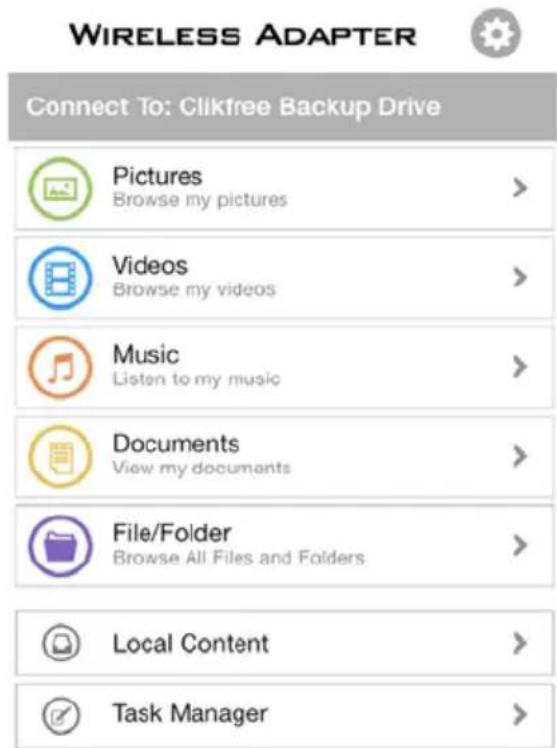
(Sample Image) Wireless Adapter app main menu
The Toshiba Wireless Adapter app main menu features the following sections:
Pictures—Provides access to picture files on the attached storage device
Videos—Provides access to video files on the attached storage device
Music—Provides access to music files on the attached storage device
Documents—Provides access to document files on the attached storage device
File/Folder—Provides access to all folders and files on the attached storage device
- Local Content—Provides access to files on the local device
Task Manager—Manages uploading and downloading of files
File/folder
You can view all files and folders on your attached storage drive from the File/Folder view. It maps the folder view, allowing you to browse all the files located on the storage device and show them in their original structure.
Searching for files
You can use the search tool (located at the top of all views) to find a specific file.
1 If the Search & Explorer tool is missing, swipe down the top of the screen to display the Search & Explorer tool.

(Sample Image) Search tool (at the top of the window)
2 In the search field, enter all or part of the file name and tap the Search button on the virtual keyboard.
Refresh
In the Table view pull down and, when you see the up arrow, release it to refresh the content list.
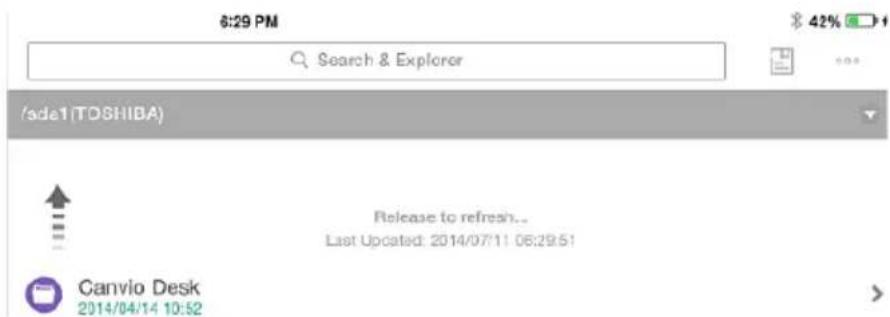
(Sample Image) Refresh the current view
View
You can switch between List and Thumbnail modes. Each mode provides two search methods:
1 Tap the Show mode button (upper-right).
Four modes are available:
◆ List View (Sort by Date)
◆Thumbnail View (Sort by Date)
◆List View (Sort by Name)
◆Thumbnail View (Sort by Name)
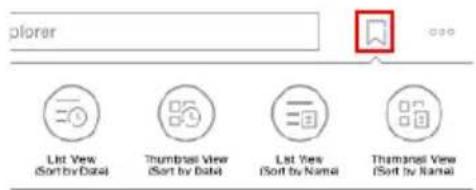
(Sample Image) View settings
2 Select the desired mode.
Edit files
Tap the Edit (●●●) button to enable the file action menus. A check box will appear next to each file name in the file list. In addition to the above operations, you can also long-press the file/folder in the list to enter edit mode.
The following navigation buttons are available on this window:

New Folder button—Tap to create a new folder in the current directory.

Album button—Tap to upload the photos from your tablet/phone album. You can also take pictures through this functionality.

Select all/Deselect all button—Tap to place/remove a check mark next to each file name in the current window.

Download button—Tap to download the selected file(s). You can download files from the attached storage device to your tablet, phone, or other device. The download task is added to the Task Manager. Note that if files download or upload before the Task Manager displays, they will not appear in the Task Manager.

Delete button—Tap to delete the selected file(s)/folder(s).

Move to button—Tap to move the selected file(s)/folder(s) to another folder.

Rename button—Tap to rename the selected file/folder. (Available only when one file/folder is selected.)

Upload—When you tap the local content (on your mobile device) through the menu view, you can upload a local file to the attached storage device.
Done
Done button—Tap to recover the edit menus. The check boxes next to the selected file/folder names in the file list are removed.
Chapter 4
Media Playback
This chapter provides instructions on playing videos, listening to music, and viewing photos and documents using the Toshiba Wireless Adapter app.
Video, photos, music, and documents
The Toshiba Wireless Adapter app provides access to your media located on the external storage device and on your mobile device. For example, you can play videos and music from your attached storage device directly from the app.
You can organize and display all files by file type. You can also quickly browse all files of each type located on the attached storage device.
NOTE
You can access any media/document file via the File/Folder menu in the main Wireless Adapter app window.
Picture playback
To view the photo(s) that are stored on the attached storage device, follow the steps below:
1 Open the Toshiba Wireless Adapter app.
2 From the main menu, select Pictures to display the picture files located on the attached storage device.
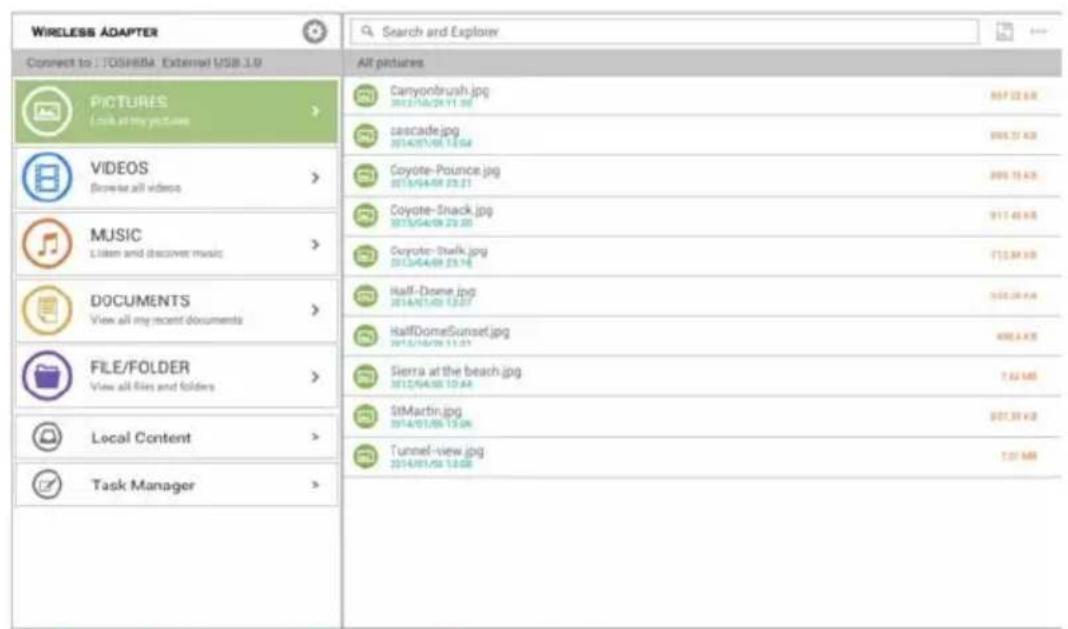
(Sample Image) Picture files window
3 Select a picture file to display the picture in the Picture Viewer.
NOTE
Swipe right/left to show the next or previous photo in a specific directory. All of the pictures located on the attached storage device or in a folder you have changed or created can be displayed.
NOTE
Use the zooming motion to zoom in on pictures.
To view a Slideshow
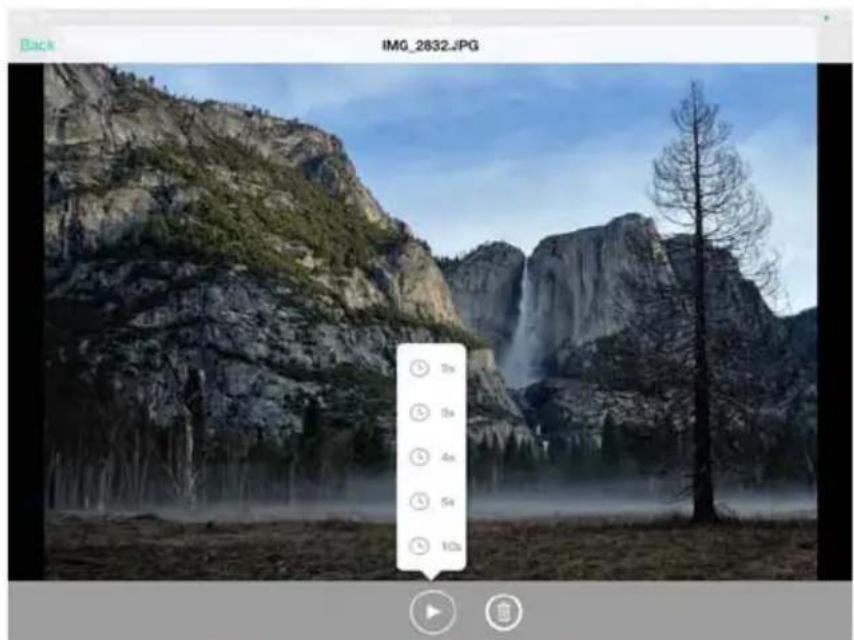
1 To start a Slideshow, tap the Slideshow button while viewing a photo.
The Slideshow Options window appears.
natural_image
Mountain landscape with waterfall and evergreen trees, no visible text or symbols(Sample Image) Slideshow Options window
2 To play a slideshow, tap the Play (▶) button.
3 Select the desired play interval time before you begin the Slideshow.
NOTE Pictures may shuffle during slideshow.
Video playback
To play a video that is stored on the attached storage device:
1 Open the Toshiba Wireless Adapter app.
2 From the main menu, select Videos to display the video files located on the attached storage device.
3 Tap the video you wish to play.
NOTE
While the video is playing, you can tap the screen again to display the Pause, Fast-Forward, and Reverse buttons.
| NOTE | When you pause a movie, the app automatically places a bookmark at the point in which you paused it. When you return to the movie, it automatically resumes from where you paused it. It also continues to play to the next movie in the list when the current movie ends. (You can change these settings by toggling theResume PlaybackandContinuous Playbackbuttons in the Application Settings screen.) |
| NOTE | Your device’s media player may be limited to playing only certain video formats. If a video stored on the attached storage device doesn’t play, it may be of a file format that is not supported by your media player. You may be able to obtain a third-party media player app for your device that will allow you to play the video. |
4 To stop video playback, press the Stop button on the device and close the media player.
Music playback
To play music files on the attached storage device:
1 Open the Toshiba Wireless Adapter app.
2 From the main menu, select Music to display the music files located on the attached storage device.
3 To play a song, select the desired music file, and then tap the Play () button.
NOTE You can create a playlist.
To find a specific song, tap the Search Bar, and then type all or part of the song title in the Search field.
4 To play music in the background, tap the Back (Back) button.
Your music continues to play, and the “Now Playing” menu appears below the menu view.
5 Tap the Now Playing () button to display the controls for the currently playing song.
To pause the currently playing song, tap the Pause (⑪) button.
To go back to the previous song in the selection, tap the Back To ( ) button.
To move forward or back within the currently playing song, drag the progress bar at the top of the Now Playing window.

To continuously repeat the currently playing song, tap the Repeat () button.
To play the songs within the selection in random order, tap the Random () button.
To play the songs within the selection in the order in which they appear, tap the Order () button.
Viewing documents
To view a document that is stored on the attached storage device:
1 In the main menu, select Documents to display the document files you have stored on the attached storage device.
2 Select the desired document file to open it.
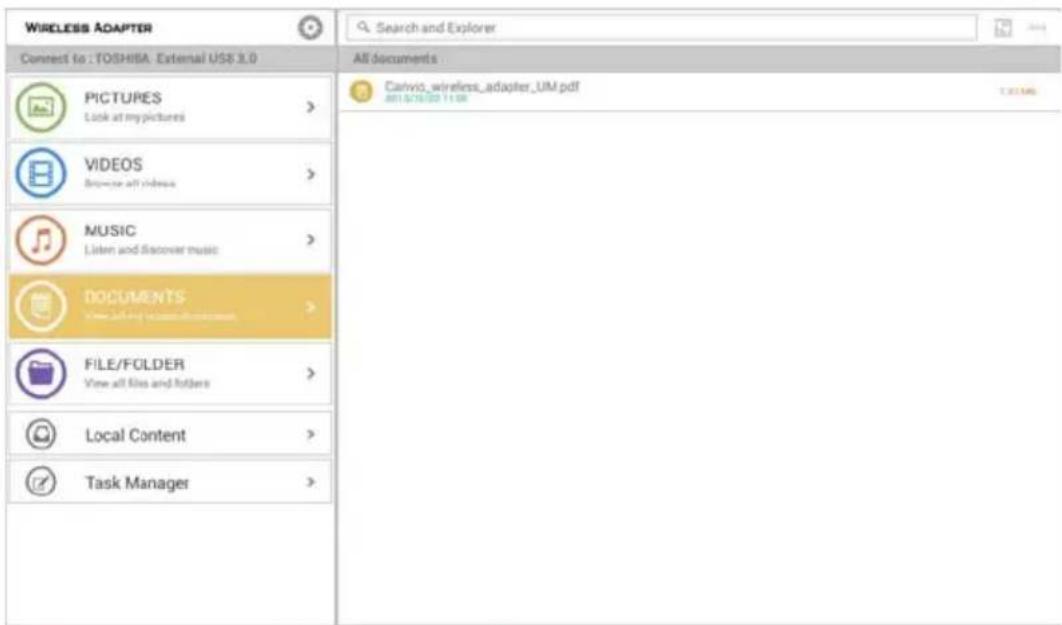
(Sample Image) Document files window
NOTE
Compatible file types are: pdf / txt / html / doc / docx / xlsx.
In the iPhone and iPad app, only supported file types can be viewed. In the Android™ app, you are prompted to open the document in another available app. You can choose to use that app just once or always. If you select “Always”, you will not see the prompt again.
3 To view the page thumbnails of the .pdf file, tap the Thumbnail () button.
4 To go back to the previous window, tap the Done (Done) button.
Task Manager
The Task Manager lets you manage file uploads and downloads. Each task can be deleted or you can delete all tasks.
In the main menu, select Task Manager to display the Task Manager options.
Chapter 5
Configuring Internet Settings
Internet settings
The Internet screen allows you to configure the Internet settings for your Canvio Cast ^™ Wireless Adapter.
There are two (2) Canvio Cast ^TM Wireless Adapter work connection modes to choose from:
Home Network (Station Mode)
◆ Public Network (Bridge Mode)
In the Bridge Mode, you can connect the Canvio Cast ^™ Wireless Adapter to a network while keeping your mobile device connected to the Canvio Cast ^™ Wireless Adapter. This allows you to access the Internet without having to disconnect your device from the Canvio Cast ^™ network and connect it to the local network.
In the Station Mode, both the Canvio Cast ^TM Wireless Adapter and your mobile device are connected to the local network. In this mode, you can still access the Canvio Cast ^TM Wireless Adapter and Internet, however this method also allows the Canvio Cast ^TM Wireless Adapter communicate with a Chromecast ^TM device that is also connected to the same network. The Canvio Cast ^TM Wireless Adapter must be set to Station Mode in order to connect to a Chromecast ^TM device.
Internet connection in Bridge Mode
NOTE
You must be connected to the network to choose or switch to Public Network (Bridge Mode).
To configure your Internet settings to run in Station mode:
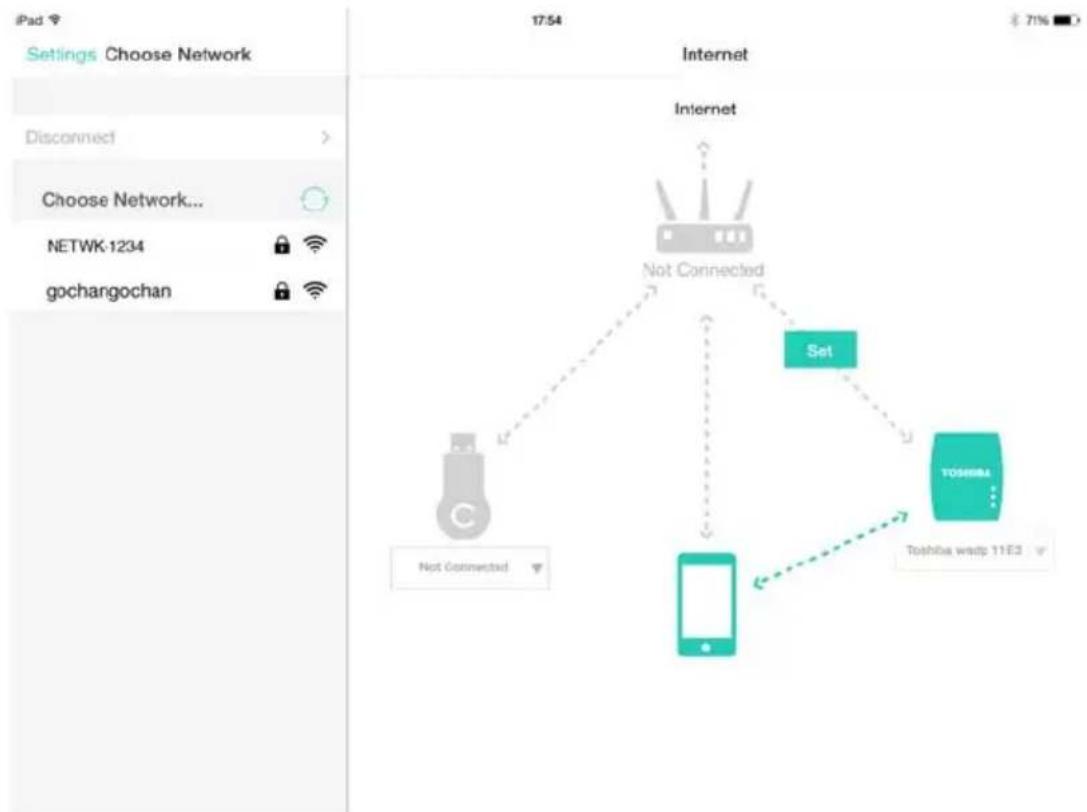
1 Go to Settings, and then Internet to display the Wi-Fi® connections window.
flowchart
graph TD
    A["Device"] -->|Not Connected| B["Smartphone"]
    B --> C["Toshiba wadp 11E3"]
    C --> D["Set"]
    D --> E["Internet"]
    E --> F["Not Connected"]
    style A fill:#f9f,stroke:#333
    style B fill:#ccf,stroke:#333
    style C fill:#cfc,stroke:#333
    style D fill:#fcc,stroke:#333
    style E fill:#cff,stroke:#333
(Sample Image) Wi-Fi ^® connections window (iOS)
2 Connect the Canvio Cast™ Wireless Adapter to the router by tapping the Set () icon that is located between the Not Connected and TOSHIBA icons within the network connection diagram.
3 Choose the wireless network you wish to connect to from the options listed in the “Choose Network” menu, and then enter the password to connect to it.
You will see a window similar to the one below.
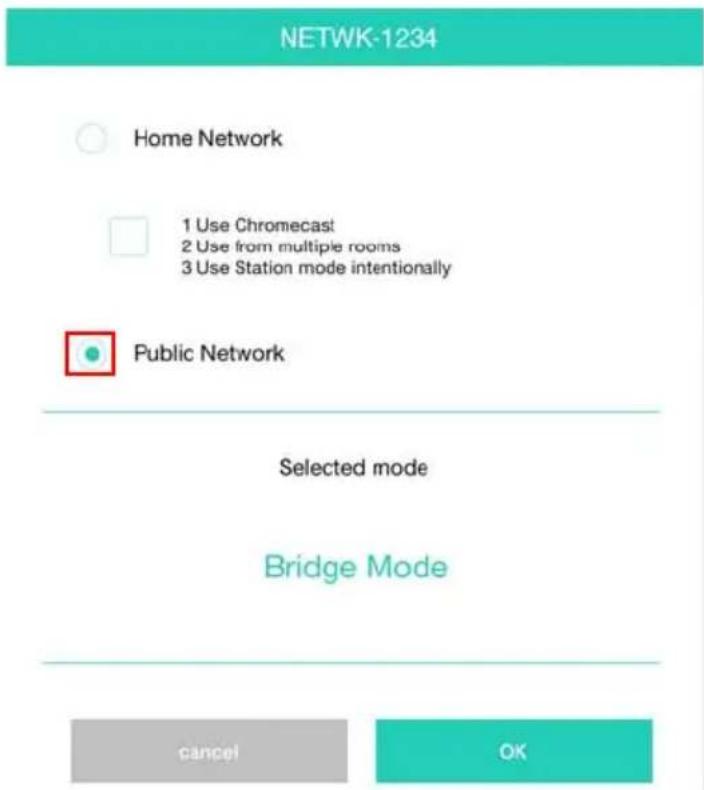
(Sample Image) Choosing Bridge Mode window (iOS)
4 Ensure that the Public Network (Bridge Mode) radio button is enabled.
5 Tap the OK button.
The following message appears if you are switching from Station Mode to Bridge Mode:
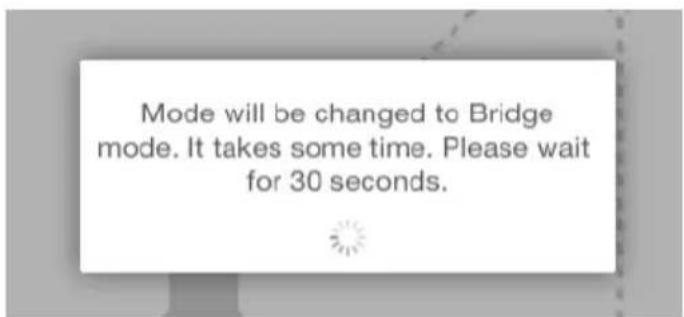
(Sample Image) Message window (iOS)
If the app cannot find the Canvio Cast™ Wireless Adapter, you may see an error message.
6 To change the WLAN to the access point on the Canvio Cast™ Wireless Adapter, return to the Settings window.
7 Select your router.
If the app is successful at finding the Canvio Cast™ Wireless Adapter, you may see the following message:
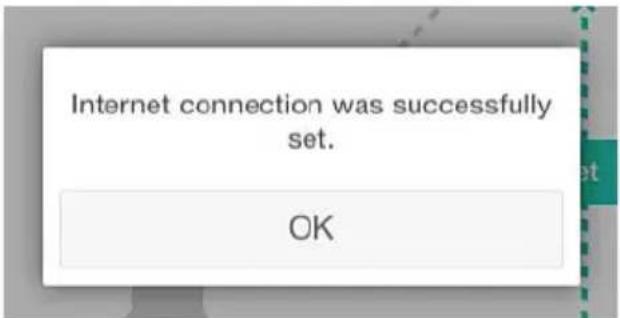
(Sample Image) Message window (iOS)
The following screen displays a successful connection:
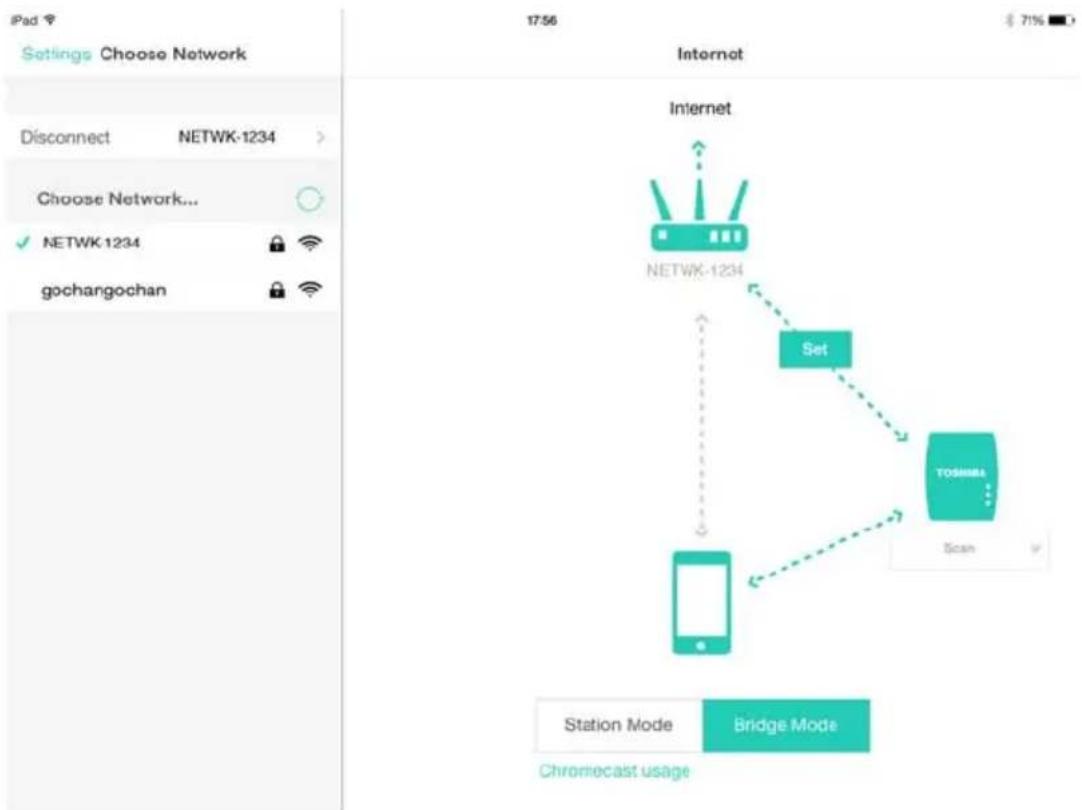
(Sample Image) Successful connection window (iOS)
Internet connection in Station Mode
If you connect to the network via Station Mode, other people will have access to your attached storage device through the network.
Exercise caution when using "Station Mode" in a public place.
NOTE
You must be connected to the network to choose or switch to Home Network (Station Mode).
1 On the Wi-Fi ^® connections window, select Station Mode.

Chromecast usage
(Sample Image) Work Mode options
You will see a window similar to the one below.
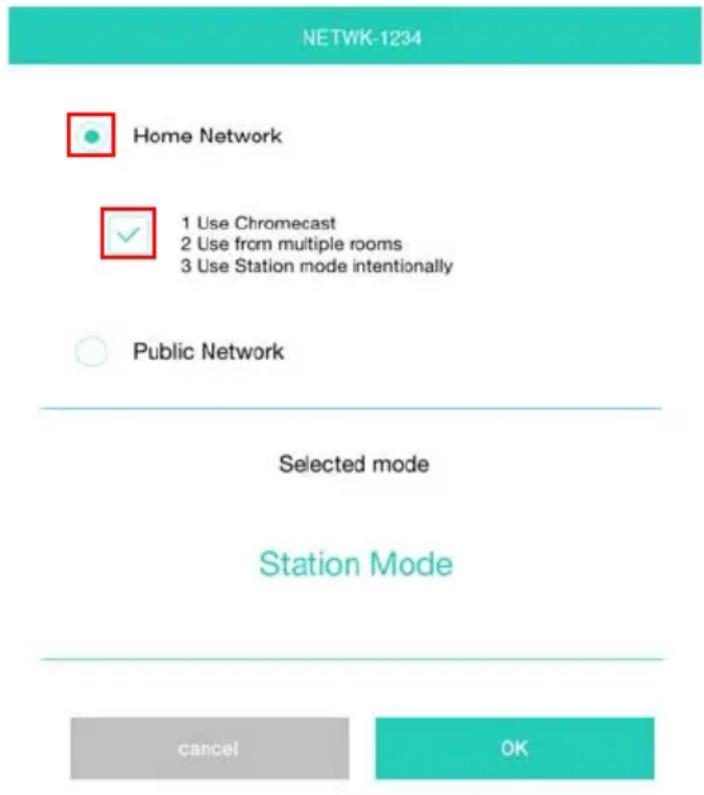
(Sample Image) Choosing Station Mode window (iOS)
2 Ensure that the Home Network radio button is enabled and select the checkbox to enable it.
3 Tap the OK button.
The following message appears when switching from Bridge Mode to Station Mode:
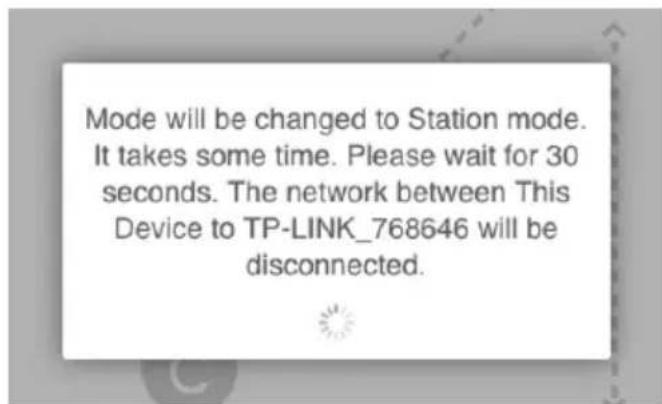
(Sample Image) Message window (iOS)
You may see the following message:
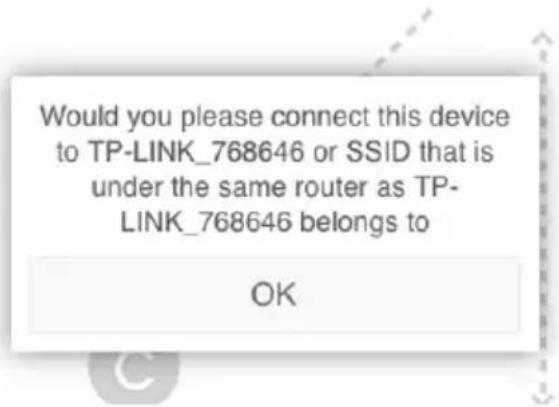
(Sample Image) Message window (iOS)
If the app cannot find the Canvio Cast™ Wireless Adapter, you may see the following message:
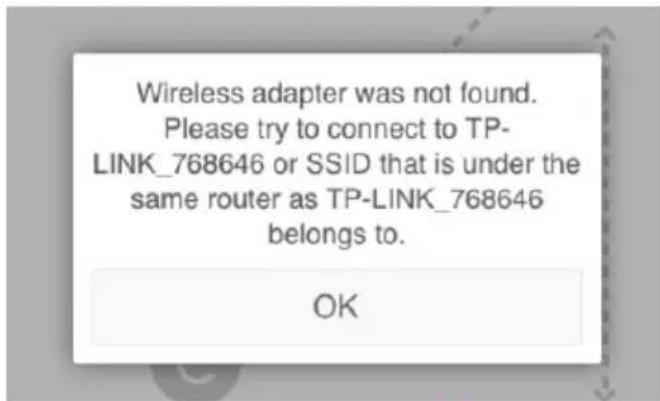
(Sample Image) Message window (iOS)
4 To change the WLAN to the access point on the Canvio Cast™ Wireless Adapter, return to the Settings window.
5 Select your router.
If the app is successful at finding the Canvio Cast™ Wireless Adapter, you may see the following message:
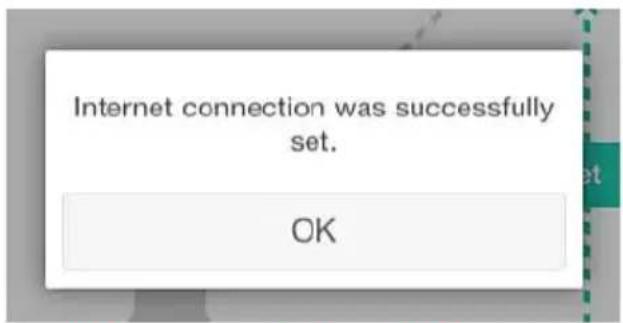
(Sample Image) Message window (iOS)
The screen below displays a successful connection:
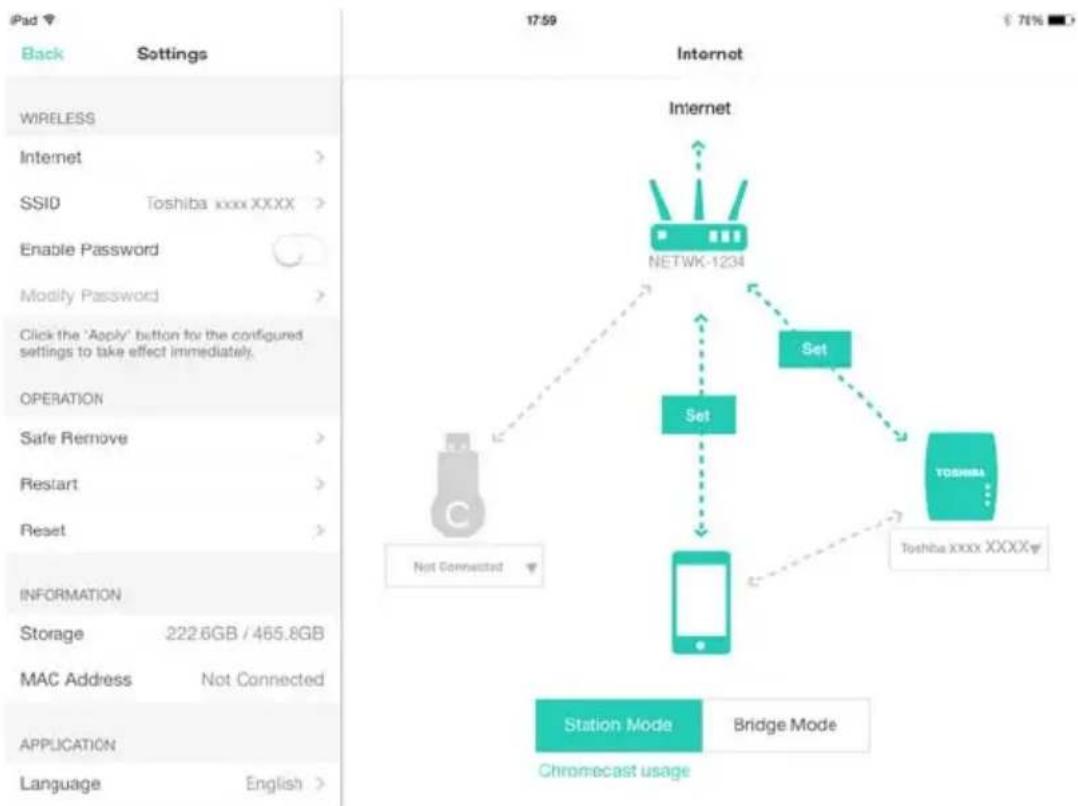
(Sample Image) Successful connection window (iOS)
Chapter 6
Chromecast™ Support
Chromecast™ connect
The Toshiba Wireless Adapter app lets you play files from your attached storage device using Chromecast™.
Begin by setting up your Chromecast™ device (sold separately) per the instructions provided with the device.
Next, ensure that your Canvio Cast™ Wireless Adapter is set to Station Mode and that your device is connected to a router, see "Internet connection in Station Mode" on page 38.
To connect to Chromecast™:
1 In the upper-right corner of the screen, tap the
ChromeCast (☐) i c o n .
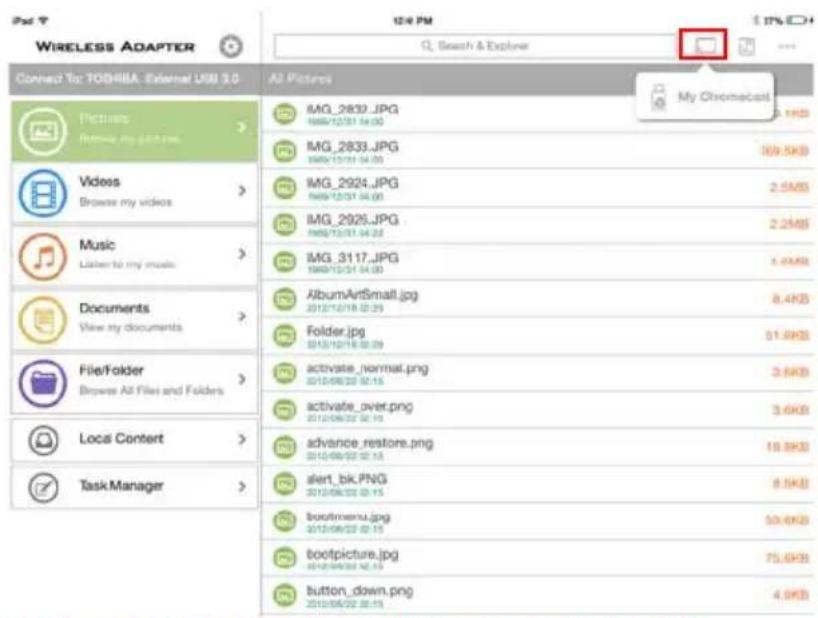
(Sample Image) Connecting Chromecast™ (iOS)
A pop-up menu appears.
2 Select Chromecast.
You may also connect via the Setting Internet page.
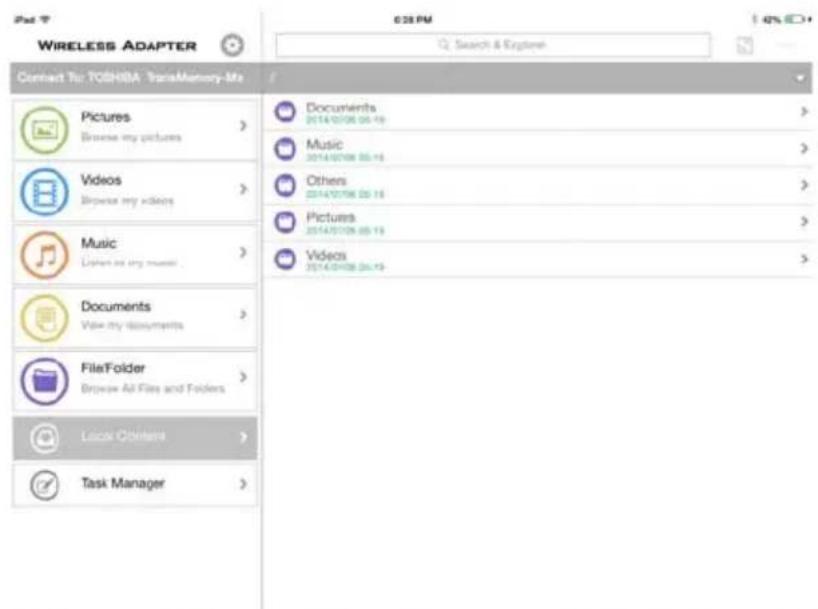
(Sample Image) Connecting Chromecast™ - Internet (iOS)
Chromecast™ disconnect
To disconnect Chromecast™:
1 In the upper-right corner of the screen, tap the
ChromeCast (☐) i c o n .
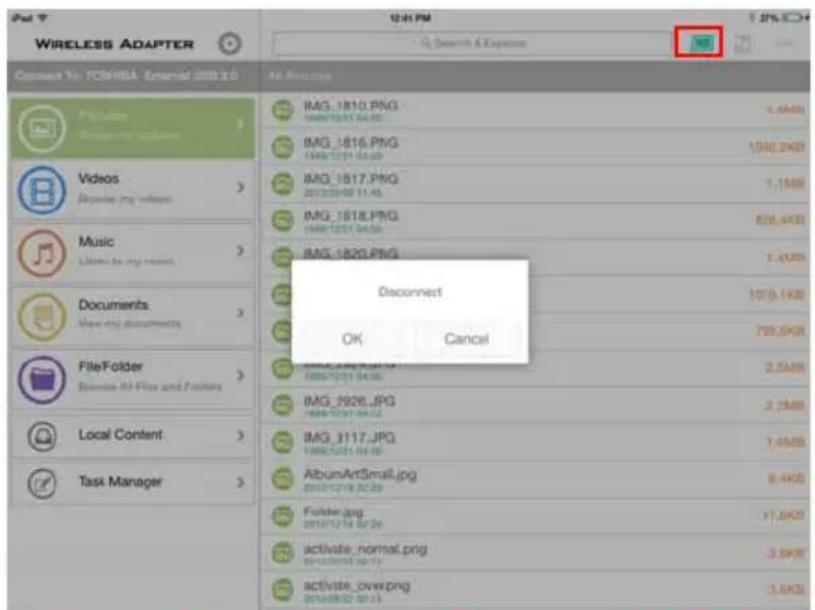
(Sample Image) Disconnecting Chromecast™ (iOS)
2 Tap OK.
Video support
If the ChromeCast (☐) icon is displayed, Chromecast™ is functional.
1 Tap a video file.
The video begins to load.
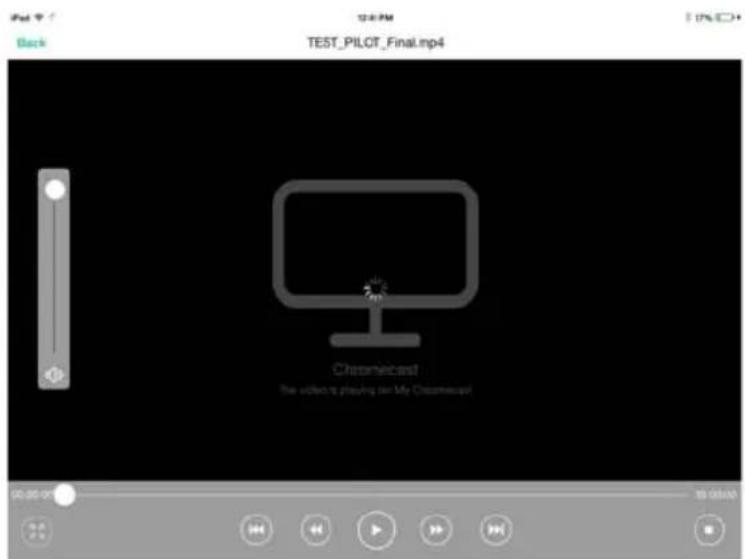
(Sample Image) Video loading (iOS)
2 While the video is playing, you can use the progress bar to move to a different location in the video playback. You can also use the following navigation buttons to manipulate the video playback:

Skip to Last button—Allows you to skip to the last track of the video.

Rewind button—Allows you to rewind the video.

Play button—Allows you to begin or resume playback of the video.

Fast Forward button—Allows you to fast forward the video.

Skip to Next button—Allows you to skip to the next track of the video.

Stop button—Allows you to stop the video playback.
Back
Back button—Allows you to play the video in the background.
Photo support
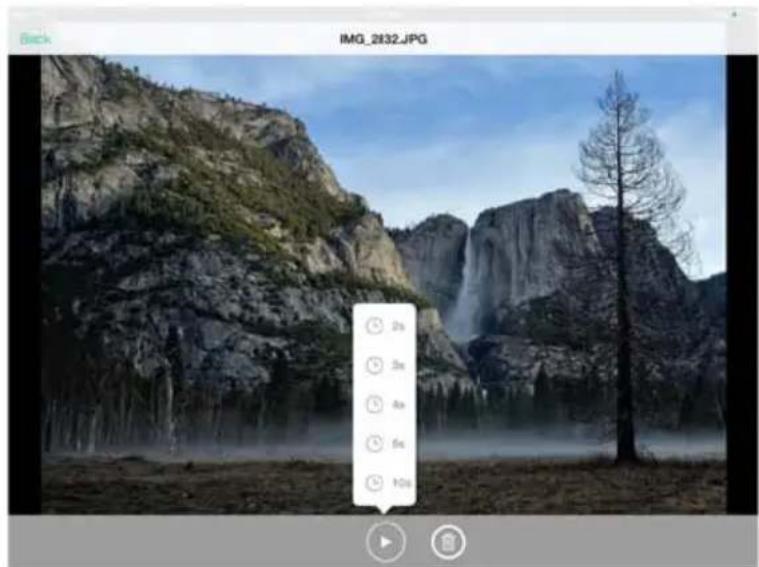
If the ChromeCast (☐) icon is displayed, your photos can be mirrored to the TV. This also supports the slideshow function.
natural_image
Mountain landscape with waterfall and evergreen trees, no visible text or symbols(Sample Image) Video loading (iOS)
To play a slideshow, tap the Play (▶) button, and then tap the desired speed of the slideshow playback.
Chapter 7
Settings
The Toshiba Wireless Adapter app allows you to configure various settings, including the app's language, playback options, and password setup.
To go to the Settings menu, click the Settings () icon from the main menu.
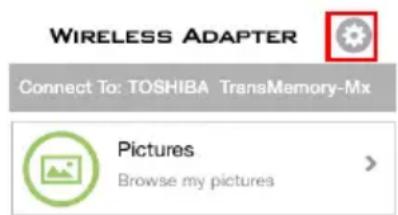
(Sample Image) Wireless Adapter Settings icon
NOTE
You must be wirelessly connected to the Canvio Cast ^TM Wireless Adapter to make any changes in the Settings menu.
The Settings menu features the following sections:
- Wireless—Allows you to configure wireless connectivity settings
Operations—Allows you to safely perform restart and disconnect operations
Information—Provides information about the connected storage device and MAC address
Application—Allows you to configure language, cache, and playback settings
- About—Provides information about the app, including version and firmware details
Wireless Settings
Wireless settings include:
Internet—Switch from Station to Bridge Mode
Station Mode—Connect via the Wi-Fi® adapter and then browse the data located on the attached storage device.
Bridge Mode—Connect to the Canvio Cast™ Wireless Adapter via the Toshiba Wireless Adapter app while also connecting to a local network to access the Internet.
- SSID—Update the Canvio Cast™ network name
Enable Password—Set a password for the Wi-Fi® network. The Canvio Cast™ Wireless Adapter will restrict access to the attached storage device to increase security.
Modify Password—If the password feature has not been enabled, this feature is disabled
Operation Settings
- Safe Remove—Safely removes the attached storage device
◆ Restart—Restarts the Canvio Cast™ Wireless Adapter
Reset—Resets the Canvio Cast™ Wireless Adapter
Application Settings
Language—Configure the app's language setting. The default is English.
Clean Cache—Clears the cache
Resume Playback—Resumes media playback upon playback restart from where it left off; toggle ON/OFF
Continuous Playback—Continuously plays media; toggle ON/OFF
Contacting Toshiba
For technical support, or to stay current on the most recent software and hardware options for your computer, and for other product information, be sure to regularly check the Toshiba Web site at support.toshiba.com.
Call Toshiba Customer Support Center
Toshiba Customer Support Center is ready to help with personal service 24 hours a day, 7 days a week.
888-592-0944 From inside the United States
949-583-3305 From outside the United States
Index
A
app
install 24
launch 24
app main menu
Documents 25
File/Folder 25
Local Content 25
Music 25
Pictures 25
Task Manager 25
Videos 25
B
button
Reset 20
C
Chromecast™ settings
application 46
operation 46
Wi-Fi® 46
wireless 46
Chromecast™ support
connect 41
disconnect 43
photo support 44
video support 43
Contacting Toshiba 47
D
device
specifications 18
supported devices 18
E
Edit files
Album button 27
Delete button 27
Done button 27
Download button 27
Move to button 27
New Folder button 27
Rename button 27
Select all/Deselect all button 27
Upload button 27
F
File/Folder
Download 27
edit files 27
refresh 26
searching for files 26
view 26
|
icon
safety 8
Internet connection
Bridge Mode 35
Station Mode 38
Internet settings 34
M
media playback 28
O
overview 16
indicator lights 20
Reset button 20
USB 2.0 port 21
USB Micro-B port 20
P
package contents 16
playback
music 31
picture 29
slideshow 30
video 30
viewing documents 32
ports
USB 2.0 21
USB Micro-B 20
product overview 20
S
safety
icons 8
setup
Chromecast™ device 45
connection 21
specifications
environmental requirements 19
hardware specifications 19
physical dimensions 19
power requirements 19
supported file types 19
system requirements 18
T
Task Manager 33
Toshiba Wireless Adapter App
File/Folder 26
Toshiba Wireless Adapter app
main menu 25
Trademarks 7
V
Video support
Back button 44
Fast Forward button 44
Play button 44
Rewind button 44
Skip to Last button 44
Skip to Next button 44
Stop button 44
W
wireless connection
file copy to Mac 23
file copy to PC 22
PC/Mac 22