
DSM-320RD - Memory reader D-LINK - Free user manual and instructions
Find the device manual for free DSM-320RD D-LINK in PDF.


User questions about DSM-320RD D-LINK
0 question about this device. Answer the ones you know or ask your own.
Ask a new question about this device
Download the instructions for your Memory reader in PDF format for free! Find your manual DSM-320RD - D-LINK and take your electronic device back in hand. On this page are published all the documents necessary for the use of your device. DSM-320RD by D-LINK.
USER MANUAL DSM-320RD D-LINK
MEDIALOUNGE™ Entertainment Network
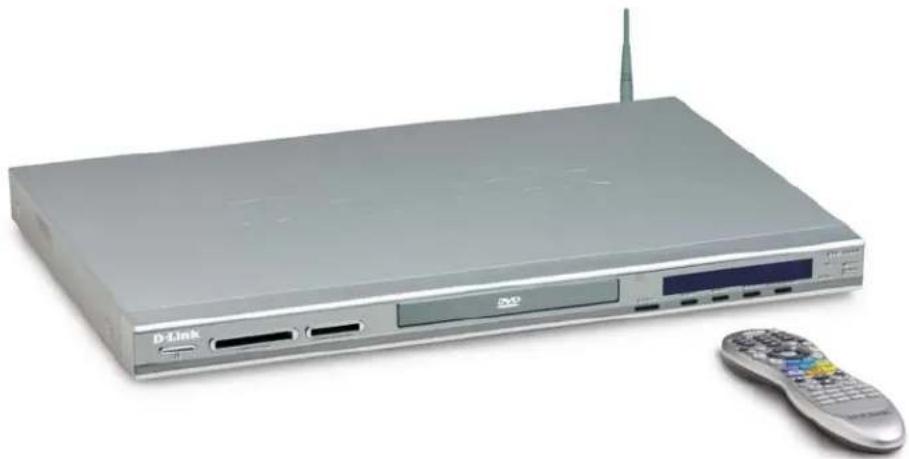
D-Link® DSM-320RD
Wireless Media Player with DVD and Card Reader
natural_image
Exterior view of a silver D-Link computer with antenna and control panel (no visible text or symbols)Manual
v.1.0
D-Link®
Building Networks for People
Patent Pending
Contents
Safety Information....5
Introduction 8
Package Contents 10
System Requirements 10
Features & Benefits 11
Hardware Overview 12
Front Panel 12
Rear Panel 12
Getting Started 13
Using the Remote Control....13
Installing the D-Link® Media Server Software 17
Choosing Music, Photo, and Video Files to Share 21
Using the D-Link® Media Server Software 25
Accessing the Media on your PCs 25
Sharing Media Content in Folders 26
Refreshing Folder Contents 26
Naming the Media Server 27
Stopping the D-Link Media Server 28
Using Windows® Media Connect Software 29
Configuring Windows® Media Connect 29
Connecting the DSM-320RD 33
Video Connections 33
Audio Connections 34
Network Connections 35
Network Layout 36
Using the On-Screen Keyboard 37
The DSM-320RD Setup Wizard 38
Windows Connect Now Configuration 43
DSM-320RD Menu 48
Menu Basics 48
Menu Home 48
Music 49
Music Quality 49
Supported Music Formats 49
Organizing Music Files....50
Playing a Track....51
Creating a Preset 52
Browsing for Music 53
Creating Music Playlists....54
Playing a Playlist 54
Controlling Music Playback ....54
Playing a Group of Songs 54
Playing Individual Songs 54
Viewing Photos while Music is Playing 55
Shuffle and Repeat 55
Photo 56
Supported Photo Formats....56
Organizing Photo Albums ....57
Playing a Photo Slideshow 58
Controlling Photo Playback ....58
Shuffle and Repeat 58
Viewing Photo Information 59
Photo Viewing Effects 60
Video 61
Supported Video Formats 61
Viewing a Video 61
Using the Remote Control with Videos 62
Search 63
DVD 64
Viewing a DVD 64
Using the Remote Control with DVDs 64
DVD Player Considerations ....66
Memory Card 67
Viewing a Memory Card 67
Supported File Types 68
Online Media....69
AOL® Services 69
For AOL® Members: 70
Radio@AOL 71
Radio@AOL Presets 72
AOL® Services for Non-members 73
Live365™ 76
Napster™ 78
Rhapsody™ 79
Current Rhapsody™ Subscribers 79
For Users New to Rhapsody™ 80
Configuring Rhapsody™ for use with the DSM-320RD 86
Setup 88
Network 88
Wireless 89
System 91
DVD 92
General 93
Audio/Video 93
Additional Settings 94
Music Presets 94
Memory Card....95
Adjust Video....95
Version 96
Frequently Asked Questions....97
Troubleshooting 99
Technical Specifications 106
Appendix 108
Setting Microsoft Windows Power Options 108
Wireless Installation Considerations ....109
Audio and Video Cables Guide....110
Glossary 111
Networking 111
Music 113
Photo 114
Video 115
Warranty 116
Registration 119
Contacting Technical Support 120
Safety Information
For optimum performance, please read the following information carefully. Safety Precautions

CAUTION
RISK OF ELECTRIC SHOCK DO NOT OPEN

CAUTION : TO REDUCE THE RISK OF ELECTRIC SHOCK, DO NOT REMOVE COVER (OR BACK). NO USER SERVICEABLE PARTS INSIDE. REFER SERVICING TO QUALIFIED SERVICE PERSONNEL.

The lightning flash with arrowhead symbol, within an equilateral triangle, is intended to alert users to the presence of uninsulated “dangerous voltage” within the product’s enclosure that may be of sufficient magnitude to constitute a risk of electric shock to persons.

The exclamation point within an equilateral triangle is intended to alert the user to the presence of important operating and maintenance (servicing) instructions in the literature accompanying the appliance.
CAUTION!
THIS PRODUCT UTILIZES A LASER. USE OF CONTROLS OR ADJUSTMENTS OR PERFORMANCE OF PROCEDURES OTHER THAN THOSE SPECIFIED HEREIN MAY RESULT IN HAZARDOUS RADIATION EXPOSURE. DO NOT OPEN COVERS AND DO NOT REPAIR YOURSELF. REFER SERVICING TO QUALIFIED PERSONNEL. VISIBLE AND INVISIBLE LASER RADIATION WHEN OPEN AND INTERLOCK DEFEATED. DO NOT STARE INTO BEAM. THE BEAN IS LOCATED INSIDE NEAR THE DECK MECHANISM.
CAUTION!
THE POWER SUPPLY CORD IS USED AS THE MAIN DISCONNECT DEVICE. ENSURE THAT THE SOCKET-OUTLET IS LOCATED/INSTALLED NEAR THE EQUIPMENT AND IS EASILY ACCESSIBLE.
WARNING!
TO REDUCE THE RISK OF FIRE, ELECTRIC SHOCK, OR PRODUCT DAMAGE, DO NOT EXPOSE THE UNIT TO RAIN, MOISTURE, DRIPPING, OR SPLASHING. DO NOT PLACE OBJECTS FILLED WITH LIQUIDS UPON THE UNIT.
Safety (continued)
CAUTION!
- DO NOT INSTALL OR PLACE THIS UNIT IN A BOOKCASE, BUILT-IN CABINET OR IN ANOTHER CONFINED SPACE. ENSURE THE UNIT IS WELL VENTILATED. TO PREVENT RISK OF ELECTRIC SHOCK OR FIRE HAZARD DUE TO OVERHEATING, ENSURE THAT CURTAINS AND ANY OTHER MATERIALS DO NOT OBSTRUCT THE VENTILATION VENTS.
- DO NOT OBSTRUCT THE UNIT'S VENTILATION OPENINGS WITH NEWSPAPERS, TABLECLOTHS, CURTAINS, AND SIMILAR ITEMS.
- DO NOT PLACE SOURCES OF NAKED FLAMES, SUCH AS LIGHTED CANDLES, ON THE UNIT.
• DISPOSE OF BATTERIES IN AN ENVIRONMENTALLY-FRIENDLY MANNER.
CAUTION!
TO PREVENT ELECTRIC SHOCK, MATCH THE WIDE BLADE OF THE PLUG TO THE WIDE SLOT OF THE ELECTRICAL OUTLET AND FULLY INSERT.
This device is designed and manufactured to assure personal safety. Improper use can result in electric shock or fire hazard. The safeguards incorporated in this unit will protect you if you observe the following procedures for installation, use, and servicing. This device does not contain any user serviceable parts.
- Carefully read and follow the Manual and Quick Installation Guide.
- Do not place the product near heat sources such as radiators, heat registers, stoves, or other products that produce heat.
- Do not use this product near water.
- Unplug the unit from the wall outlet before cleaning. Do not use liquid cleaners or aerosol cleaners. Use a damp cloth for cleaning.
- Power-supply cords should be routed so that they are not likely to be walked on or pinched by items placed upon or against them.
- Do not overload wall outlets.
- Do not use this product during a storm. Unplug the unit from the wall outlet. If the product is to be left unattended for a long period of time. This will prevent damage to the product due to lightning and power-line surges.
- Do not attempt to service this product yourself. Opening the cover may expose you to dangerous voltage or other hazards. For service, please contact a qualified service technician.
Safety (continued)
Radio and TV Interference:
This equipment has been tested and found to comply with the limits for a Class B digital device, pursuant to Part 15 of the FCC Rules. These limits are designed to provide reasonable protection against harmful interference in a residential installation. This equipment generates, uses and can radiate radio frequency energy and, if not installed and used in accordance with the instructions, may cause harmful interference to radio communications. However, there is no guarantee that interference will not occur in a particular installation. If this equipment does cause harmful interference to radio or television reception, which can be determined by turning the equipment off and on, the user is encouraged to try to correct the interference by one or more of the following measures:
- Reorient or relocate the receiving antenna.
- Increase the separation between the equipment and receiver.
- Connect the equipment into an outlet on a circuit different from that to which the receiver is connected.
- Consult the dealer or an experienced radio/TV technician for help.
Any unauthorized changes or modifications to this equipment would void the user's authority to operate this device. This device complies with Part 15 of the FCC Rules. Operation is subject to the following two conditions: (1) This device may not cause harmful interference, and (2) this device must accept any interference received, including interference that may cause undesired operation.
Introduction
D-Link® introduces the latest addition to its multimedia family of products: the D-Link® MediaLounge™ DSM-320RD Wireless Media Player with DVD and Card Reader. The DSM-320RD integrates home computer systems and home entertainment centers. Movies, music, and photos can be enjoyed from the comfort of the living room. The DSM-320RD connects easily to a wired or wireless network. The DSM-320RD features 802.11g wireless technology for transfer speeds of up to 54Mbps on a wireless network and can connect to a wired network at speeds up to 100Mbps. These options provide you with the maximum throughput for sharing and transferring digital media.
Simple to setup with a sleek design that makes it a natural addition to any home entertainment center. The AV jacks on the back panel of the DSM-320RD allow for direct connection to your television. Use the included remote control to access media content stored on your PC. Browse music files, watch videos, and display photos, all on your television! In addition, the DSM-320RD lets you access online media content on your television through an existing broadband Internet connection.
The DSM-320RD features a Progressive Scan DVD player that allows you to enjoy your favorite DVDs with superior picture quality. In addition to DVDs, this DVD Player will also play SVCD, CD-R, CD-RW, CD, DVD-R, DVD-RW, and MP3 discs.
The DSM-320RD also features a built-in 5-in-1 card reader, which provides a fast and convenient way to view and share digital photos, music, and videos stored on a memory card. Insert the memory card into the card reader and your media content becomes just a click away. Popular memory cards, including SD, Memory Stick, MultiMediaCard, and Compact Flash (Type I and II) are supported.
With support for Windows® Connect Now (WCN), configuring the wireless settings is easier than ever before. WCN allows you to run the Wireless Network Setup Wizard from Windows XP and transfer the wireless settings to the DSM-320RD using a USB thumbdrive.
The DSM-320RD adheres to the Universal Plug-&-Play AV specification and allows it to communicate with other UPnP AV media devices. The DSM-320RD is part of Microsoft's PlaysforSure logo program that ensures the compatibility of the device with Windows Media Protected Audio files.
The DSM-320RD supports the majority of audio, video, and image file formats and streams them directly from your PC. You can stream MP3, WMA, WAV, OGG
Introduction (continued)
Vorbis, and AIFF files from your computer and enjoy them on your home stereo system. Watch stored videos in MPEG1/2/4, AVI, or Xvid format on your television. Enjoy slideshows of your favorite photos in JPEG, JPEG2000, TIFF, GIF, BMP or PNG formats. Better yet, it's easy to access the files through the television interface using the remote control included with the DSM-320RD.
Experience digital media like never before with the MediaLounge DSM-320RD Wireless Media Player. The DSM-320RD includes everything you need to instantly access and play music, videos, and photos using your home entertainment center.
Disclaimer: Certain content and services accessible via the DSM-320RD may include materials owned by third parties. The users shall be entirely responsible for ensuring that they have the necessary rights to access and use such third party content. D-Link assumes no liability for and shall not be responsible for a user's access of such content, including but not limited to unlawfully 'ripped' or downloaded content. Further, D-Link does not guarantee the availability of any third party content or services, including that which may be referenced herein, and shall not be responsible for any changes to or the lack of availability of such third party content or services.
This product incorporates copyright protection technology that is protected by U.S. patents and other intellectual property rights. Use of this copyright protection technology must be authorized by Macrovision, and is intended for home and other limited viewing uses only unless otherwise authorized by Macrovision. Reverse engineering or disassembly is prohibited. This product incorporates copyright protection technology that is protected by U.S. patents and other intellectual property rights. Use of this copyright protection technology must be authorized by Macrovision, and is intended for home and other limited viewing uses only unless otherwise authorized by Macrovision. Reverse engineering or disassembly is prohibited.
Consumers should note that not all high definition television sets are fully compatible with this product and may cause artifacts to be displayed in the picture. In case of 525 progressive scan picture problems, it is recommended that the user switch the connection to the "Standard Definition" output. If there are questions regarding our TV set compatibility with this model 525p DVD player please contact our customer service center.
Package Contents
natural_image
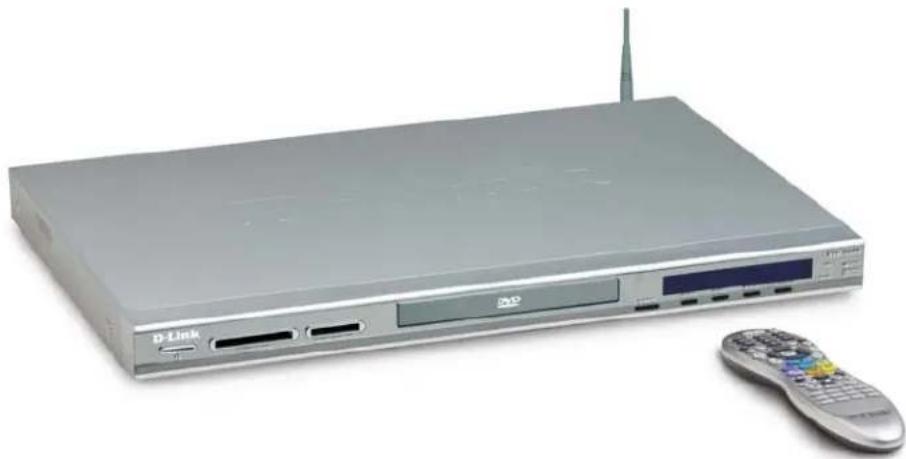
Exterior view of a silver D-Link computer with remote control and antenna (no visible text or symbols)D-Link DSM-320RD Wireless Media Player with DVD and Card Reader
Printed Quick Installation Guide
CD-ROM with Manual (Contains D-Link Media Server Software, Quick Installation Guide, and Manual)
2dBi Wireless Antenna
Ethernet (CAT5-UTP/Straight-Through) Cable
Standard Composite RCA Audio/Video Cable
S-Video Cable
Remote Control with Batteries
System Requirements
- Television with composite, S-Video, or component video inputs and an audio device with composite, coaxial digital or optical digital audio inputs.
A wireless (802.11g or 802.11b) or Ethernet network.
Minimum to run the Media Server software: PC with 500MHz processor, 128MB RAM and 20MB of hard disk space.
Windows XP/2000.
A CD-ROM drive.
Features & Benefits
Stream media content from a PC or D-Link Central Home Drive to your entertainment center.
■ Listen to digital music on your stereo system.
■ View digital photos, slideshows, and videos on TV.
■ Progressive Scan DVD player provides superior picture quality.
Built-in 5-in-1 card reader provides instant access to music, photos, and Videos on Memory Cards.
■ Support for Windows ® Connect Now (WCN) for easy wireless setup.
Easily connect to your wireless network using 802.11g at up to 54Mbps. 802.11b compatible at 11Mbps.
■ Connect using an Ethernet network cable at up to 100Mbps.
■ UPnP AV and INMPR compliant for maximum compatibility.
■ PlaysForSure™ Audio logo certified. WMDRM content can be streamed to the unit using Windows® Media Connect software.
■ Support for most popular digital media formats.
■ Remote controlled TV interface for quick access to your media content.
■ Sleek design complements your existing audio/video equipment.
■ Optical and coaxial digital audio output.
■ Component video output.
64- or 128-bit WEP security and WPA-PSK support.
■ Convenient one-touch access to preset music.
■ Supports DHCP for easy connection to your home network.
Color coded one-touch shortcut buttons on the remote, for quick access to music, photos, videos, DVDs, memory cards and online media content.
Built-in screensaver.
Easy setup wizard.
Hardware Overview
Front Panel
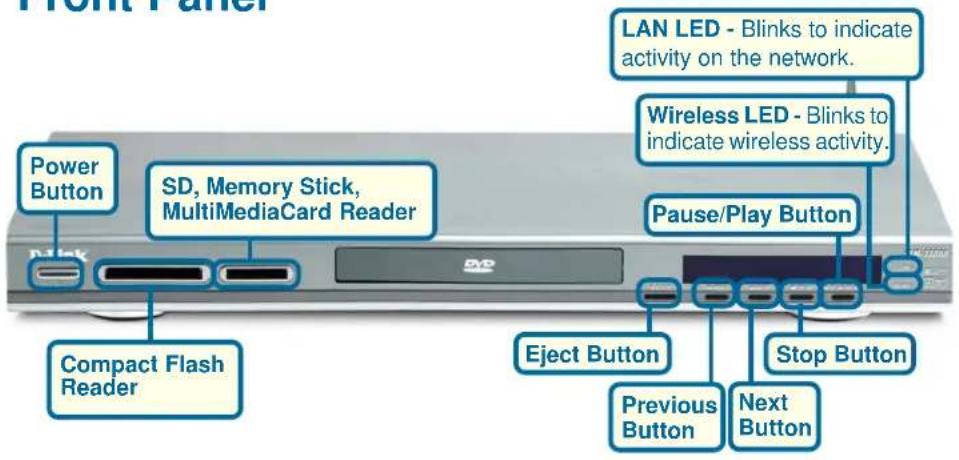
Rear Panel
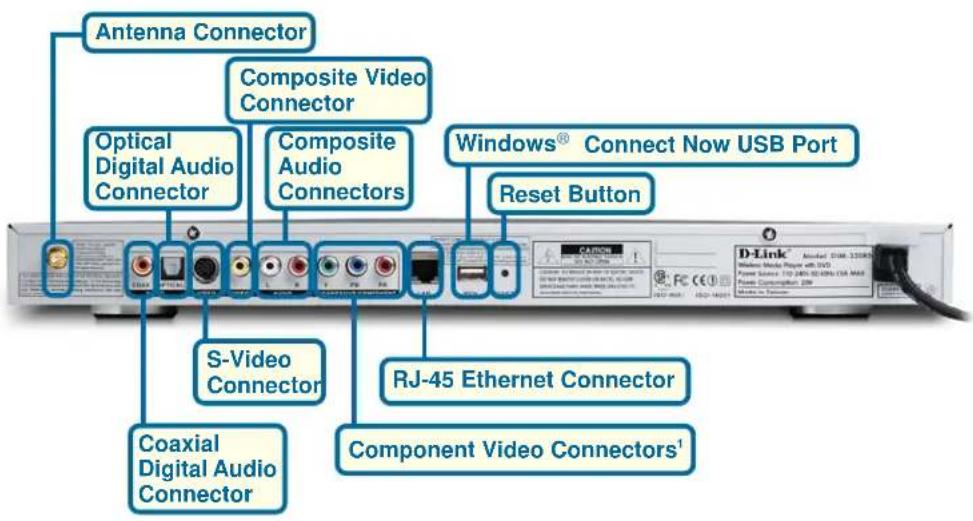
'For European customers, a SCART interface will replace the Component Video Connectors.
Getting Started
To begin using the DSM-320RD Wireless Media Player, you will need:
An existing home network (including a wireless 802.11b or 802.11g router or a router/hub with an available Ethernet port).
The DSM-320RD Media Server software installed on the PC you will be sharing files from. This computer will collect music, photo and video content from local sources (a digital camera for example) and from the Internet (downloaded MP3 music, digital photos, or video files).
The DSM-320RD Wireless Media Player connected to your television and audio system.
Using the Remote Control
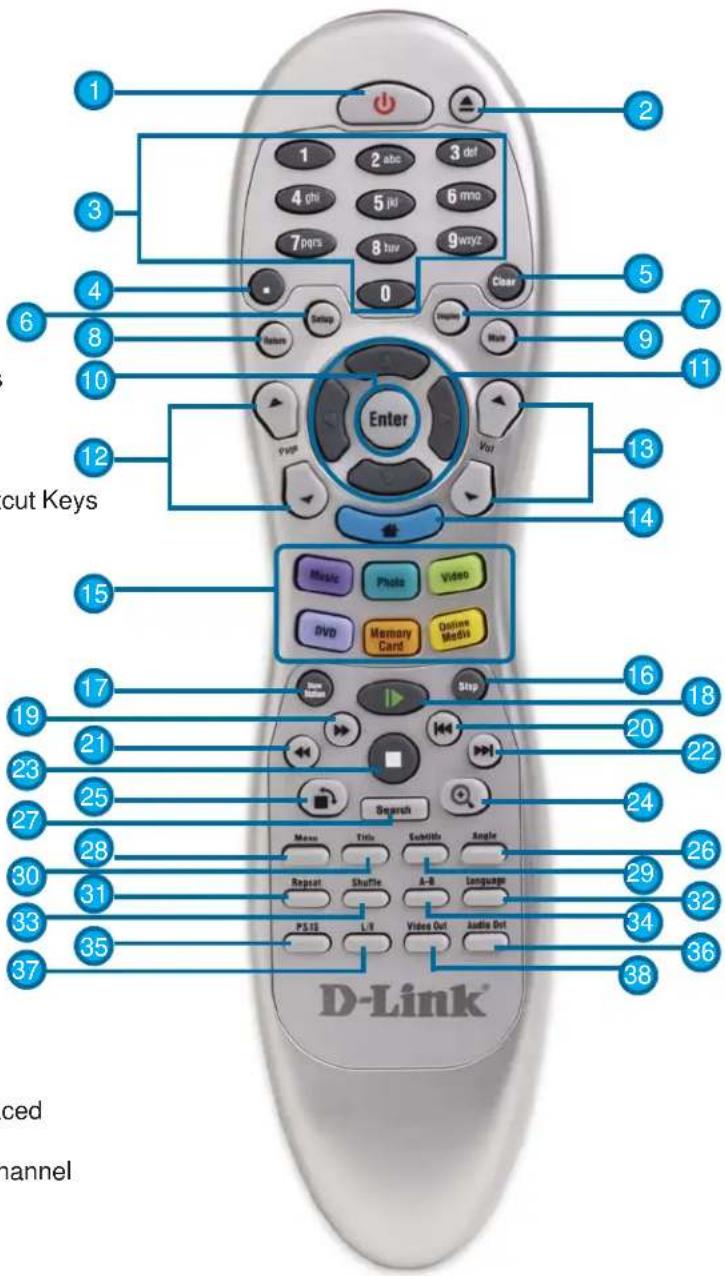
The remote control is used to configure and control the DSM-320RD.
Information for the Setup Wizard is entered by using the remote control. The remote is used to enter numbers, letters, special characters and to make selections from an on-screen keyboard. The on-screen keyboard is activated by pressing Enter on the remote control whenever the on-screen cursor is located in a field where text is required.
The following page details the remote control and shows the function of each button.
The recommended range for remote control usage is within 15 feet from the unit, with the remote angled at no more than 45 degrees.
Using the Remote Control (continued)
- Power
- Eject DVD
- Numeric Keys
- “.” (period or dot)
- Clear
- Setup
- Display
- Return
- Mute
- Enter
- Navigation Buttons
- Page Up & Down
- Volume + & -
- Home
- Color-Coded Shortcut Keys
- Step
- Slow Motion
- Play/Pause
- Fast Forward
- Previous
- Rewind
- Next
- Stop
- Zoom
- Rotate
- Angle
- Search
- Menu
- Subtitle
- Title
- Repeat
- Language
- Shuffle
- A-B Video Replay
- Progressive/Interlaced
- Audio Out
- Left/Right Audio Channel
- Video Out
Using the Remote Control (continued)
| Power | Turn the DSM-320RD ON or OFF. |
| Eject Open and | close the DVD tray. |
| Number Keys Enter numbers where needed, or use the onscreen keyboard to input text. Number keys 1-9 can be defined as Music presets. To define a preset, highlight the desired music selection onscreen, and press down on the desired number (from 1-9) on the remote control until the preset icon appears. Press the assigned number to play the selection. | |
| “.” (a period, also known as a dot.) | |
| Clear Delete text. | |
| Return Return to the previous page. | |
| Setup Access the Setup Menu. | |
| Display Display information about a file. For instance, view the type of photo and the name, date and other information about the photo. | |
| Mute Turn OFF the audio. | |
| Page Up/Down Press Up to scroll up a page, and press Down to scroll down. | |
| Arrow keys Move the onscreen cursor, navigate through media file names, and use for primary navigation through the interface. Right is forward, left is back. | |
| Enter Make a selection. | |
| Volume + Increase the volume. | |
| Volume - Decrease the volume. | |
| Home Navigate to the DSM-320RD's home screen. | |
| Music Access the Music mode. | |
| Photo Access the Photo mode. | |
| Video Access the Video mode. | |
| DVD Access the DVD mode. | |
| Memory Card Access the Memory Card mode. | |
| Online Media Access the Online Media mode. | |
| Slow Motion Play video in slow motion in DVD. | |
| Step Pauses video and advances the video by one frame in DVD. | |
| Play Functions While viewing and listening to your media, you can use these keys to Stop, Play/Pause, Rewind, Fast Forward, go back (Prev), or go to the next item (Next). | |
| Rotate Rotate the photo. | |
| Search Enter the Search function to find your media file on your PC or search video timeframe. | |
| Zoom Zoom in/out on the photo or video. | |
| Menu Access the current menu. | |
| Title Displays the DVD's title. | |
| Subtitle Displays DVD subtitles. | |
| Angle If the DVD has multiple angle support, you can toggle between different camera angles. | |
| Repeat Repeat the current Music, Video, Photo Slideshow, DVD, CD, or VCD selection. | |
| Shuffle Shuffle music tracks in a playlist or photos during a slideshow. | |
| A-B Select a start point (A) and an end point (B) of video to replay. | |
| Language Select the audio language in DVD. | |
| PS/IS Toggle between Progressive Scan and Interlaced Scan. | |
| L/R Toggle between Left or Right audio channels. | |
| Video Out Used to select different video output. Default is composite/S-Video. | |
| Audio Out Used to select different audio output. Default is composite. | |
Installing the D-Link® Media Server Software
To share audio, video, and photo files from your computer, it is necessary to install the D-Link® Media Server software on the PC that contains the files you want to share. The D-Link® Media Server software allows you to point to the folders on your PC's hard drive that contain the audio, video, and photo files you want to share. The D-Link® Media Server software then streams the information to your DSM-320RD via your wired/wireless network connection.
Currently the DSM-320RD only connects to one Media Server at a time. If more than one PC contains files you want to share, you can select one of the following options:
- Copy all of the files to one computer designated to run the D-Link® Media Server Software.
- Map network drives from the computer with the D-Link® Media Server software to additional computers that contain files you want to share. This method also allows you to share files from computers that cannot run the D-Link® Media Server software such as Macintosh systems. The computer running the D-Link® Media Server software must always be on when streaming content from any computer.
- Install the D-Link® Media Server software on each computer. You can only connect to one server at a time. To connect to another server, you must go into the setup and change the Default Server.
To install the D-Link® Media Server software, follow the steps on the following pages.
Note: If you have a version of the D-Link® Media Server already installed on your system, please uninstall the software and restart your system before installing a newer version of the software.
Installing the D-Link® Media Server Software (continued)
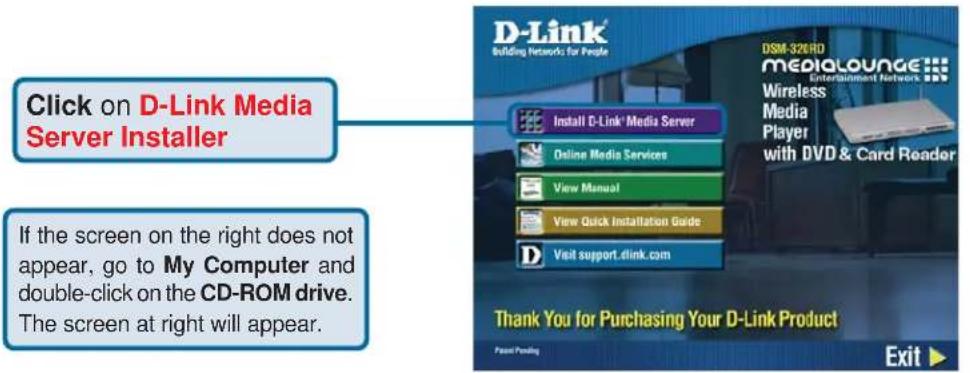
The D-Link Media Server Setup Wizard will appear.
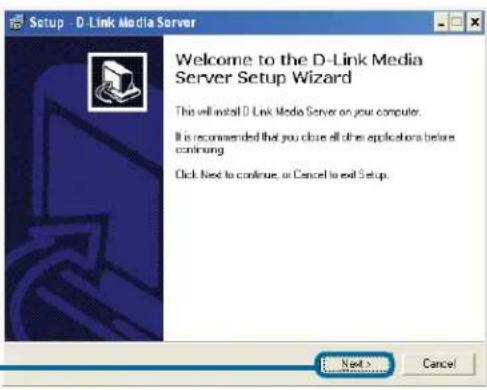
Click Next
Installing the D-Link® Media Server Software (continued)
The D-Link license agreement screen appears.
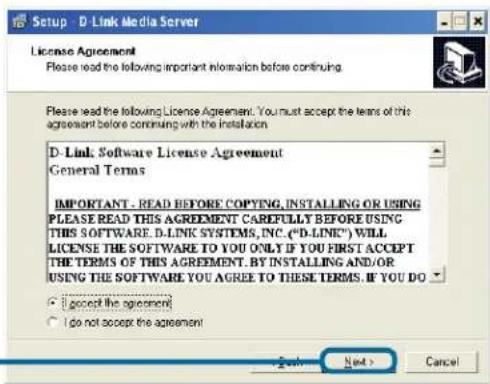
Click Next
Choose a Destination location or accept the default location. This is where the D-Link Media Server software will be copied to on your system.
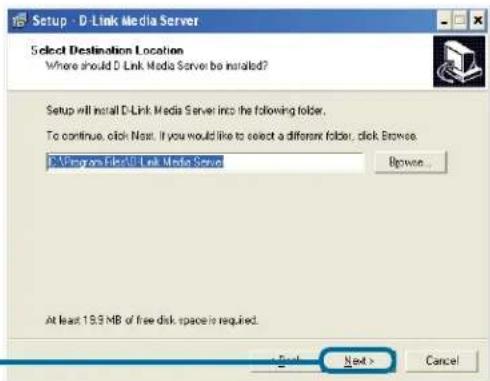
Click Next
Choose a Start Menu folder or accept the default location.
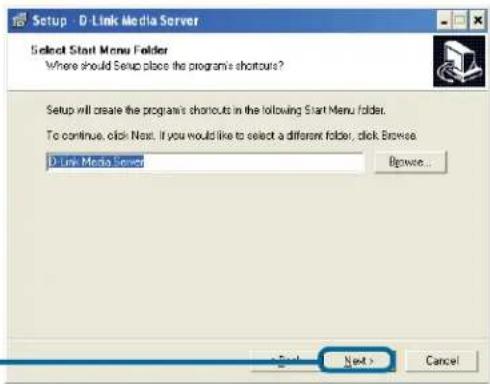
Click Next
Installing the D-Link® Media Server Software (continued)
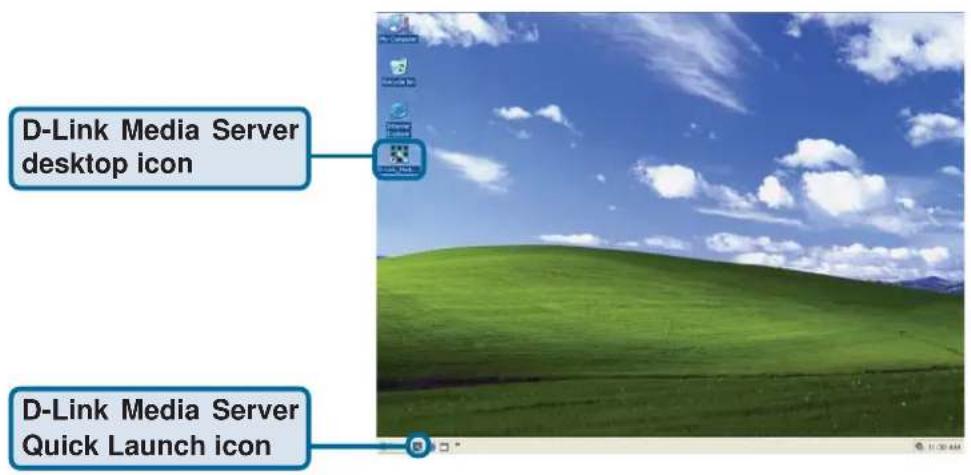
Select the icons you want created. Select Create a desktop icon to access the program from your desktop.
Select Create a Quick Launch icon to access the program from your taskbar.
Select Create a startup icon so the program launches on startup.
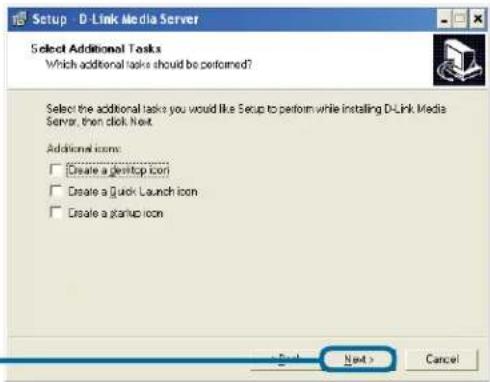
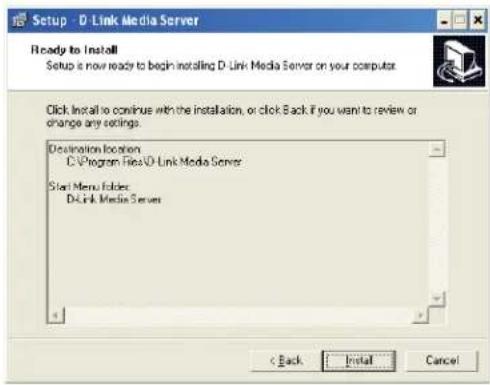
Click Install
The necessary software will be copied to the specified locations on your computer.
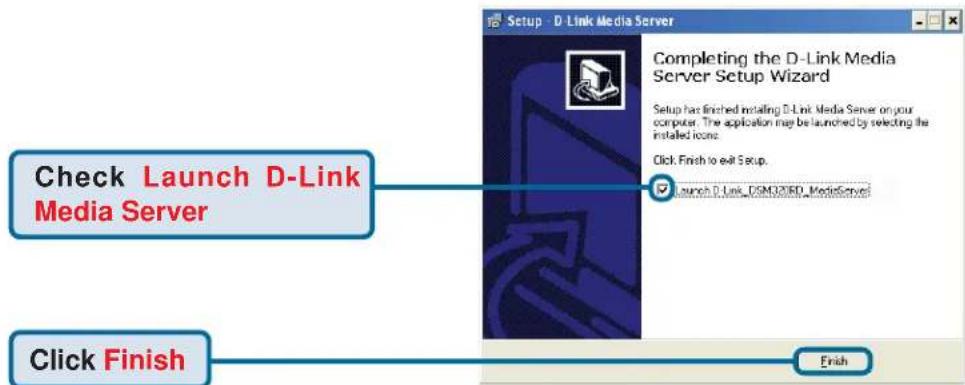
The D-Link® Media Server software installation has been completed!
Choosing Music, Photo, and Video Files to Share
The D-Link® Media Server software enables you to share the files from your computer with the DSM-320RD. By sharing the files, there is no need to copy the files from your computer to the unit before they can play. The data is streamed directly from the files on your computer over the network to your DSM-320RD. Follow the steps on the following pages to choose the music, photo, and video files to share.
If you chose to create a desktop or Quick Launch icon during the software installation, click on the 📄 icon to launch the D-Link Media Server software application.
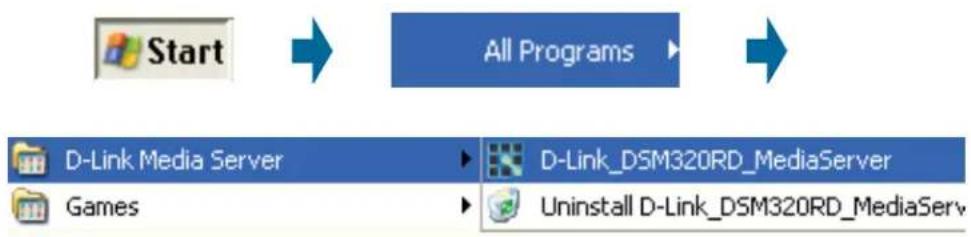
If you chose not to create a desktop or Quick Launch icon during the software installation, then you can launch the application by going to your Start Menu, selecting All Programs, and then clicking on D-Link Media Server icon within the D-Link Media Server folder.
flowchart
graph LR
    A["Start"] --> B["All Programs"]
    B --> C["D-Link Media Server"]
    B --> D["D-Link_DSM320RD MediaServer"]
    B --> E["Games"]
    B --> F["Uninstall D-Link_DSM320RD MediaServ"]
Choosing Music, Photo, and Video Files to Share (continued)
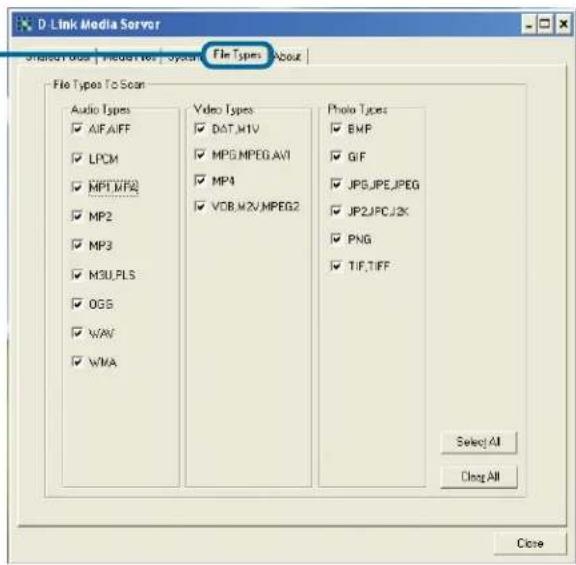
The File Types tab is where you select the types of audio, video, and photo files that you want to share.
The Shared Folder tab is where you select the folders that contain your audio, video, and photo files.
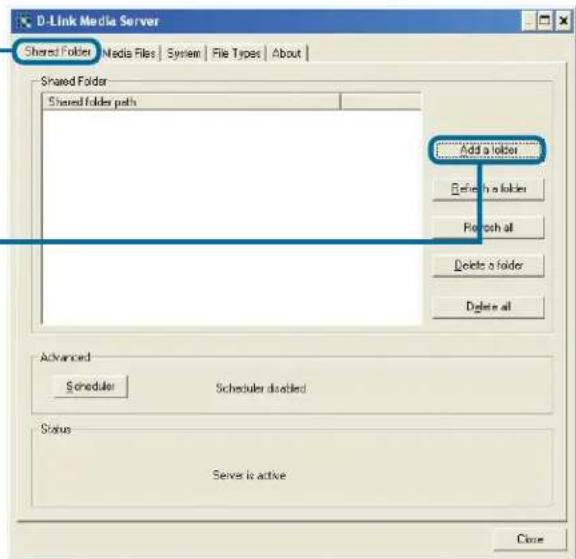
Click Add a folder
Choosing Music, Photo, and Video Files to Share (continued)
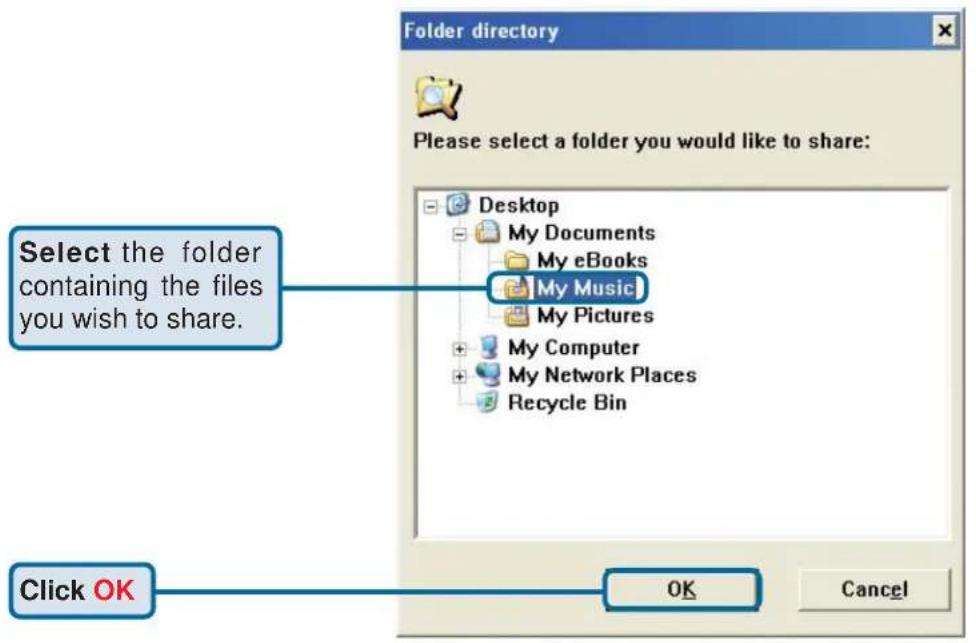
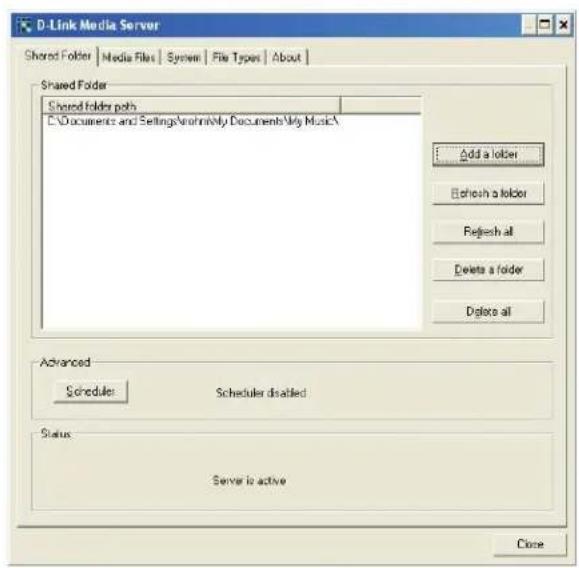
Repeat the steps until all of the folders containing audio, video, and photos you want to share have been added.
Choosing Music, Photo, and Video Files to Share (continued)
The Media Files tab will show all your audio, video, and photo files as well as display important file information.
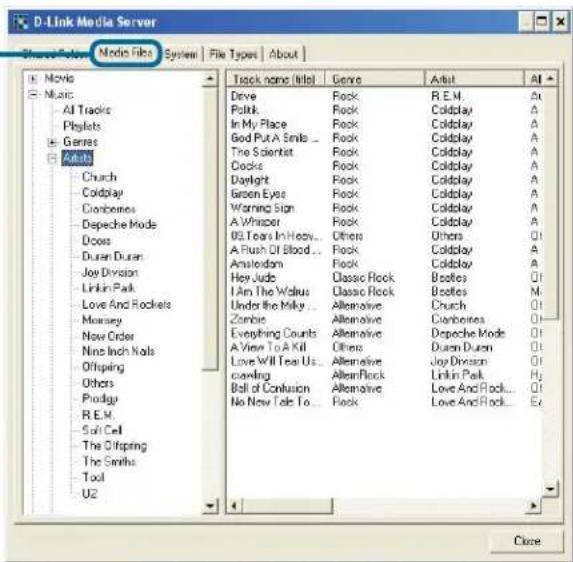
The D-Link® Media Server software configuration is complete!
Using the D-Link® Media Server Software Accessing the Media on your PCs
Before you can access the media from a PC, you must install the D-Link® Media Server software (See Page 17). Simply install the included software on each PC where music, video, or digital photos are stored.
If you selected the option to Create a startup icon during the Media Server software installation (See Page 20), the D-Link® Media Server software will automatically start whenever you power on your PC.
Whenever you close the Media Server configuration window, you can return to the Media Server configuration window by clicking on the Media Server icon in your system tray.
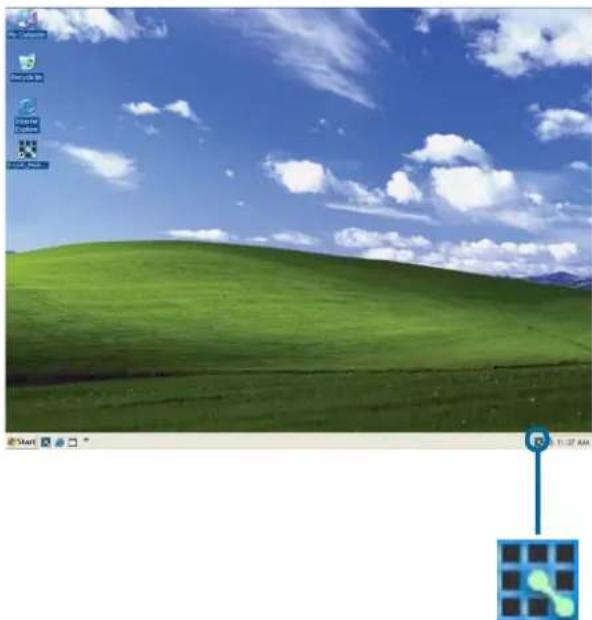
natural_image
Windows XP desktop wallpaper showing a green hill under a blue sky with clouds, no visible text or symbols on the landscape itself.DSM-320RD System Tray Icon
Using the D-Link Media Server Software (continued)
Sharing Media Content in Folders
The D-Link Media Server will share media content from selected directory folders. All subfolders within a shared folder are shared as well.
The Shared Folders tab displays the list of shared folders.
Add folders where your music, photos, and videos are stored, or remove folders you no longer wish to share. Depending on the number of files in your folders, there may be a slight delay before the path appears in the window.
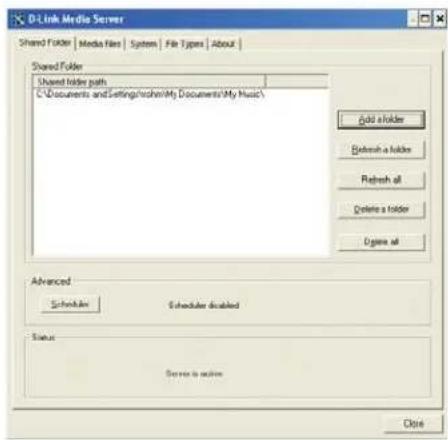
Refreshing Folder Contents
The D-Link Media Server software scans the folders you share when you initially Add a folder. If you copy additional files into these folders, they will be seen by the DSM-320RD when you refresh the folder contents.
Refresh a folder: To refresh a folder's contents, select a folder and then click the Refresh a folder button.
Refresh multiple folders: Multiple folders can be selected if you hold down the Ctrl key while clicking on each folder. Click on the Refresh a folder button after you've selected all the folders to refresh.
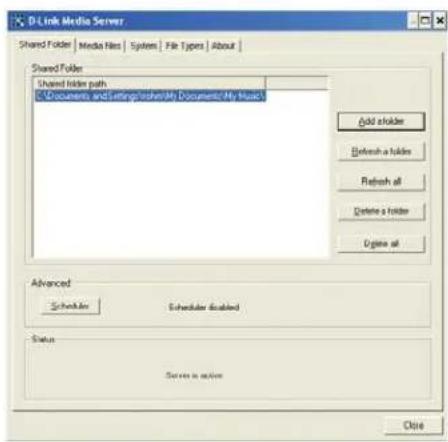
Refresh all folders: All folders can be refreshed by clicking on the Refresh all button.
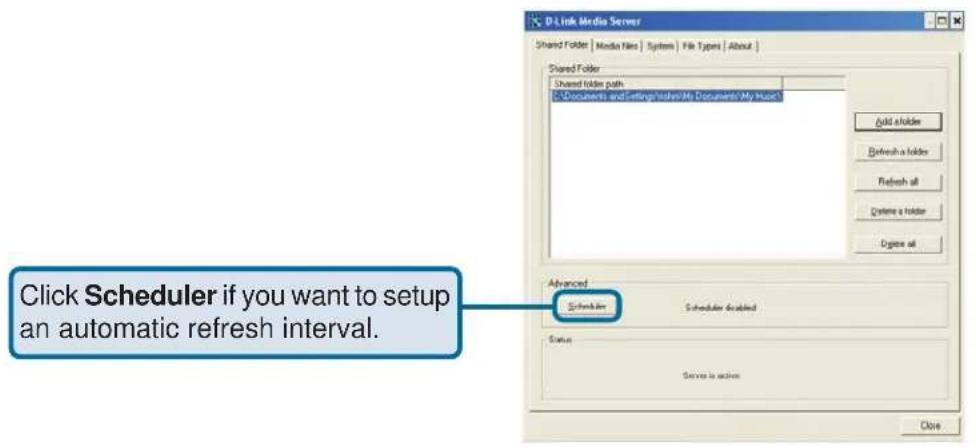
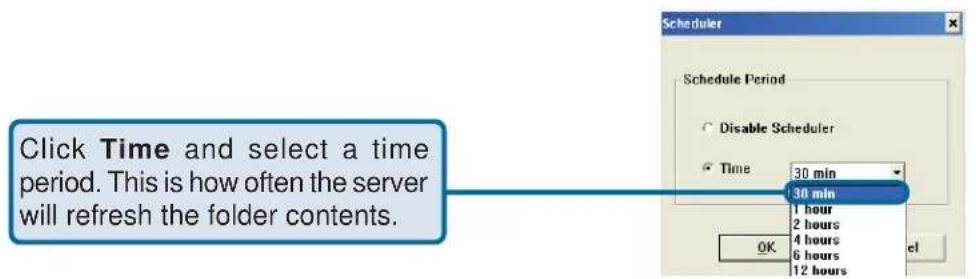
Scheduler: You can schedule the D-Link Media Server software to automatically refresh the contents of all of your folders.
Using the D-Link Media Server Software (continued)
Naming the Media Server
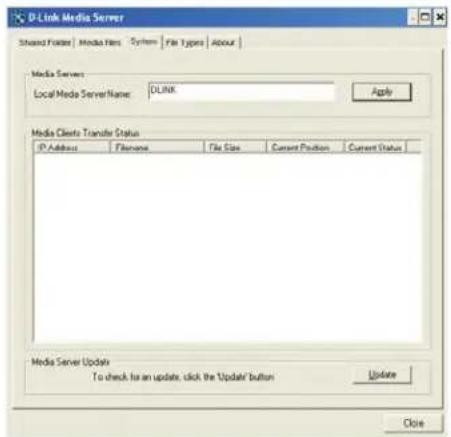
The Media Server name is entered here. This is the server name that is displayed when searching for available media servers in the DSM-320RD interface.
Using the D-Link Media Server Software (continued)
Stopping the D-Link Media Server
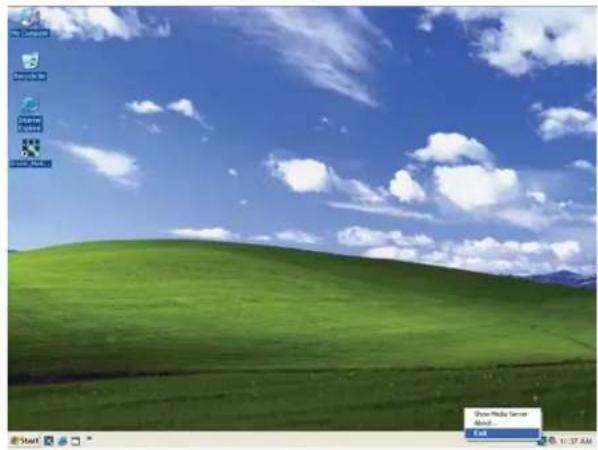
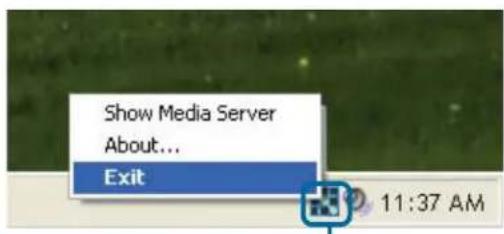
To stop the D-Link® Media Server (and stop sharing your photos, video and music on your PC), right-click on the server icon and select Exit from the server menu.
Note: The photo, video, and music files stored on your computer will be available to your DSM-320RD only if the D-Link® Media Server is running. Online media content that does not require PC-based software (such as Radio@AOL and Live365) can still be accessed from the DSM-320RD without running the D-Link® Media Server software.
natural_image
Windows XP desktop wallpaper showing a green rolling hill under a blue sky with clouds (no text or symbols on the landscape itself)D-Link Media Server Menu
To open the D-Link Media Server menu, right click on the system tray icon. The server menu will then be displayed.
Using Windows® Media Connect
Software
Windows XP users with Service Pack 2 can utilize the Windows® Media Connect software in addition to or instead of using the D-Link Media Server software. The Windows® Media Connect software allows the DSM-320RD to playback DRM (Digital Rights Management) protected files. The Windows® Media Connect software is available via Windows Update if you are using Windows XP with Service Pack 2.
Configuring Windows® Media Connect
Launch the Windows® Media Connect software and the window below will appear:
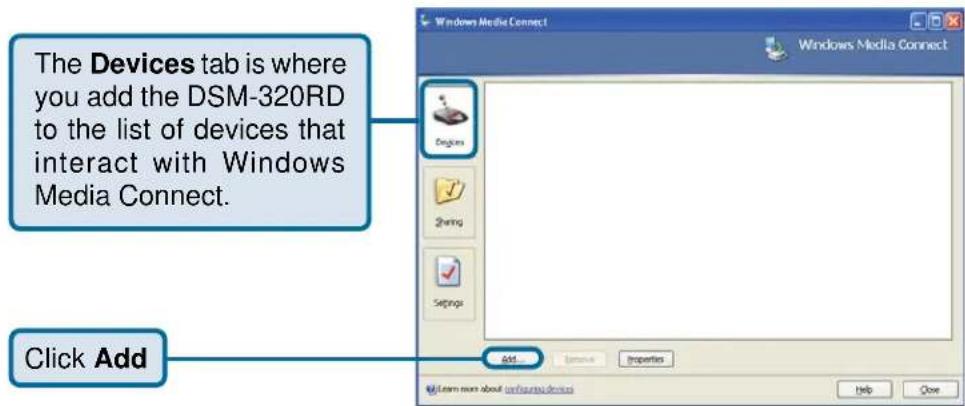
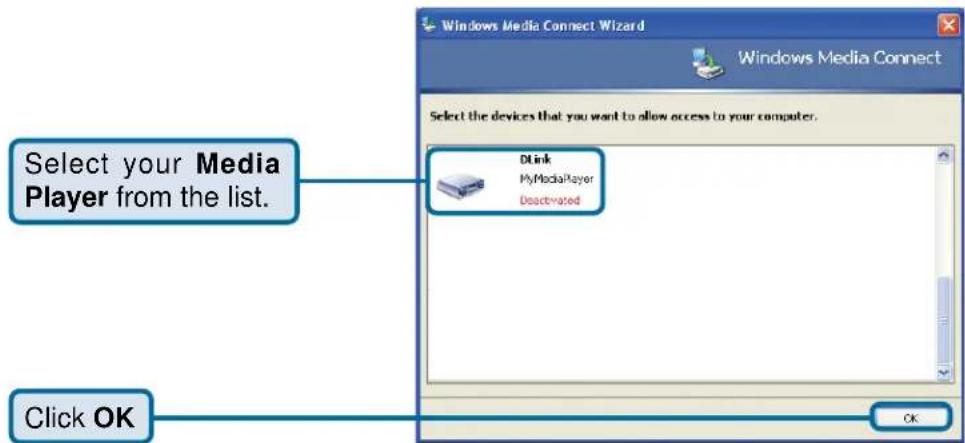
Using Windows® Media Connect Software (continued)
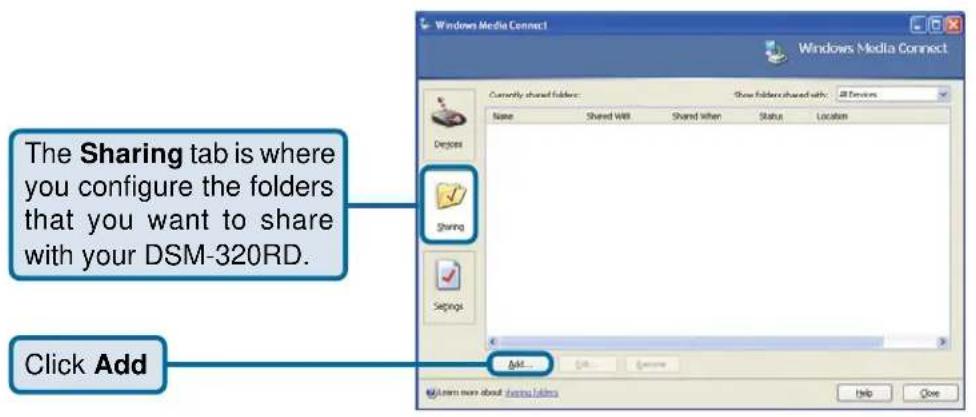
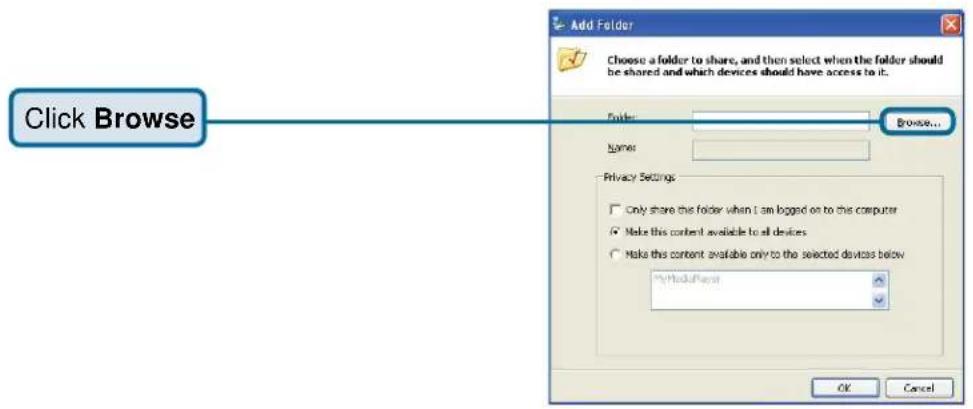
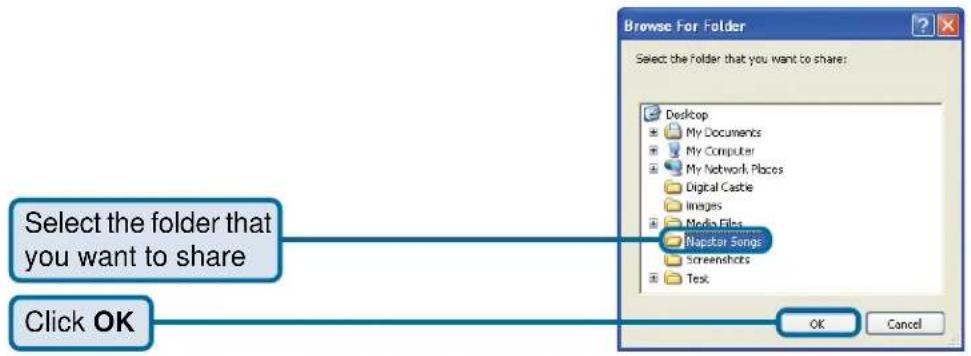
Using Windows® Media Connect Software (continued)
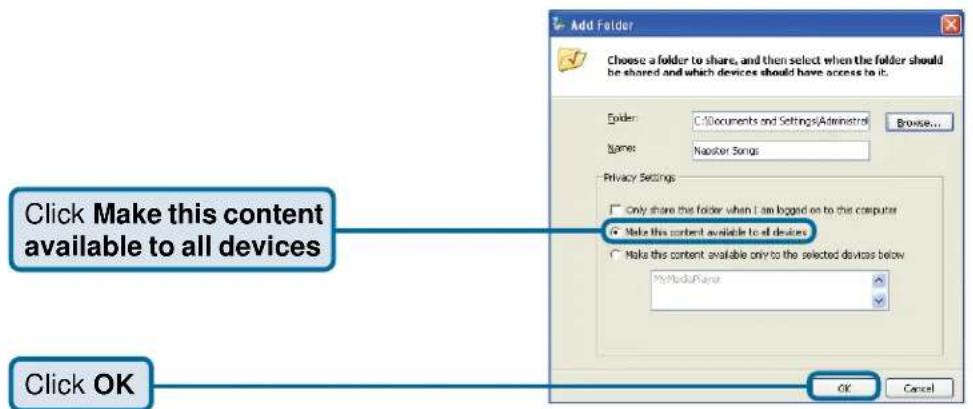
The Shared Folders will appear in the window. Repeat the steps until you've shared all of the folders that you want the DSM-320RD to access.
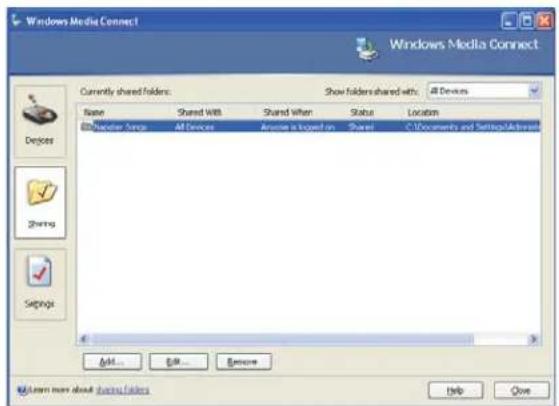
Using Windows® Media Connect Software (continued)
The DSM-320RD supports additional file types that are not supported by the Windows® Media Connect software. The file types shown below are supported by both Windows® Media Connect and the DSM-320RD. File Type File Extension DetailsAudio
Windows Media Audio .wma Does not support WMA lossless, WMA Pro WAV.wav MP3 .mp3 Up to 192kbpsPhoto
JPEG .jpg Does not support CMYK or YCCK GIF .gif Does not support animated gifs BMP .bmp non-compressed TIFF .tif Does not support CMTK, YMC, YMCK, or KCMY PNG .png Non-alpha channel onlyVideo
Audio Video Interleaved .avi MPEG4 layer only, does not support uncompressed AVI MPEG-1 .mp1, mpeg, or .mpg Up to 8Mbps MPEG-2 .mp1, mpeg, or .mpg Up to 8MbpsPlaylists
M3U .m3u Note: Windows ^® Media Connect currently does not support Fast Forward and Rewind with protected files. Be sure to select the Windows® Media Connect server as the default server in the DSM-320RD System Setup if you want to access the Windows® Media Connect software. To do so, press the SETUP button on the remote control. Navigate to System by using the down arrow and then press ENTER. Navigate to View All Servers using the down arrow and press ENTER to view a list of available servers. Connecting the DSM-320RD
All audio, video, and networking connections are located on the rear panel of the DSM-320RD.Video Connections
Select one of three ways to connect video to your DSM-320RD:• Composite Video Connector
Plug the supplied yellow video cable into the DSM-320RD and the matching opposite end of the cable to your television input. • S-Video Connector
Plug the supplied S-Video cable into the S-Video connector and the opposite end into the S-Video connector on your television. - Component Connectors
Match the color coded cables to the matching connectors on the DSM-320RD and into the component video input of your television. Note: This cable is not supplied.  The VIDEO OUT button on the remote control toggles between the composite/S-Video output and the component output. If component connectors are used but not selected, the screen will be tinted blue.Connecting the DSM-320RD (continued) Audio Connections
The AUDIO OUT button on the remote control toggles between the composite audio output and the digital audio output (optical/coaxial).- Composite Audio
Plug the supplied red and white connectors into the color-coded matching jacks on the DSM-320RD. Plug the opposite ends to the matching jacks on your television or audio/video system. • Optical Digital Audio
Connect an optical audio connector into the DSM-320RD and the matching opposite end of the cable to the audio input of your audio system. Note: This cable is not supplied. • Coaxial Digital Audio
Connect a coaxial audio connector into the DSM-320RD and the matching opposite end of the cable to the audio input of your audio system. Note: This cable is not supplied. Connecting the DSM-320RD (continued) Network Connections
Select one of two ways to connect a network to your DSM-320RD:• RJ-45 Ethernet Connector
Connect the supplied Ethernet cable to the network cable connector, and attach the other end to the network. - Wireless Antenna
Attach the supplied antenna by threading it onto the antenna connector. Be sure the antenna is secure and in an upright position. natural_image
Front view of a computer monitor with ports and a cable connector (no visible text or symbols)Network Layout
Below is a diagram displaying what your network might look like once all of the connections have been made to the D-Link® DSM-320RD Wireless Media Player. flowchart
graph TD
    A["Internet"] --> B["Cable/DSL Modem"]
    B --> C["Wireless Router"]
    C --> D["Central Home Drive"]
    D --> E["Entertainment System"]
    F["MP3 Player"] --> G["Desktop PC"]
    H["Digital Camcorder"] --> G
    I["Digital Camera"] --> G
    J["MP3 Player"] --> K["Digital Camcorder"]
    L["Digital Camera"] --> K
    M["Memory Card"] --> N["DVD"]
    O["Internet"] --> P["Internet"]
    Q["Internet"] --> R["Internet"]
    S["Internet"] --> T["Internet"]
    U["Internet"] --> V["Internet"]
    W["Internet"] --> X["Internet"]
    Y["Internet"] --> Z["Internet"]
    style A fill:#f9f,stroke:#333
    style B fill:#ccf,stroke:#333
    style C fill:#cfc,stroke:#333
    style D fill:#fcc,stroke:#333
    style E fill:#cff,stroke:#333
    style F fill:#ffc,stroke:#333
    style G fill:#fcf,stroke:#333
    style H fill:#cff,stroke:#333
    style I fill:#ffc,stroke:#333
    style J fill:#cff,stroke:#333
    style K fill:#ffc,stroke:#333
    style L fill:#ffc,stroke:#333
    style M fill:#ffc,stroke:#333
    style N fill:#cff,stroke:#333
    style O fill:#ffc,stroke:#333
    style P fill:#ffc,stroke:#333
    style Q fill:#ffc,stroke:#333
    style R fill:#ffc,stroke:#333
    style S fill:#ffc,stroke:#333
    style T fill:#ffc,stroke:#333
Using the On-Screen Keyboard
Whenever the cursor is in a text field and you need to enter text, press ENTER on the remote control and the on-screen keyboard will appear.  The keyboard is used for a variety of functions such as naming your DSM-320RD and performing searches for music, photos or video. To use the keyboard, highlight a character with the arrow buttons on the remote control and press the ENTER button. Text can also be entered by using numbers 2-9 on the remote, just as you would on a cell phone. Highlight ENTER and press ENTER when you're finished entering text.Special Keys
 The backspace key will erase the previous character.  The shift key will toggle the keyboard between upper and lower case characters.  The clear key will erase all of the characters that have been entered. To exit out of the keyboard screen without making any changes, hit the RETURN button on the remote control.The DSM-320RD Setup Wizard
The DSM-320RD Setup Wizard is navigated using the directional arrows and the ENTER button on the remote control. To toggle between the configuration options, use the up and down arrows on the remote control. To toggle between the Back, Next, and Rescan buttons, use the left and right arrows on the remote control. Press ENTER to select a field or confirm a selection.Welcome Screen
During the initial startup, the DSM-320RD displays the Setup Wizard Welcome screen. Press ENTER on the remote control to proceed to the next screen. Personalize your MediaLounge Media Player
If you would like to change the name of the Media Player, press ENTER on the Remote Control to display the on-screen keyboard. To proceed to the next page, use the down arrow button on the remote control to navigate to the Next button and press ENTER. The DSM-320RD Setup Wizard (continued)
Select Your Network Connection
The connection type defaults to Wireless.Wireless
If using a wireless network, press the down arrow on the remote control to navigate to the Next button. Once the Next button is highlighted, press ENTER on the remote control to proceed to the next screen. Wired
To select Wired, press the ENTER button on the remote control while the Connection is highlighted. Press the up arrow on the remote control to choose Wired. Press ENTER again to make the selection and then press the down arrow on the remote control to navigate to the Next button. Once the Next button is highlighted, press ENTER on the remote control to proceed to the next screen. Skip to the Current Network Settings screen on page 41.Select the SSID
Select the SSID (network identifier) that is being used by your wireless network. To select an SSID, press ENTER on the remote control while the SSID window is highlighted. Use the up arrow and down arrow buttons on the remote control to navigate through the list. Once you've highlighted the correct SSID, press ENTER on the remote control. Press the down arrow on the remote control to navigate to the Next button.  The Rescan button will refresh the list of available networks. Use the left arrow and right arrow to navigate from the Next button to the Rescan button. If you cannot locate the SSID, selectThe DSM-320RD Setup Wizard (continued)
Current Wireless Settings
Your current wireless settings are displayed based on the SSID you selected in the previous step. If you chose the enter the SSID manually, then the default settings are entered. SSID The SSID name selected on the previous screen appears here. You can change the SSID you selected or enter one manually by pressing the ENTER button To use Windows® Connect Now (WCN), please skip to page 43.  on the remote control with this field highlighted. The on-screen keyboard will be displayed and you can enter the SSID.Mode
There are two different modes to select from: Ad-Hoc and Infrastructure Mode. Ad-Hoc Mode is used for peer to peer wireless networks that do not contain a router or an access point. Infrastructure Mode is used for networks with an access point or router. To toggle between the two, press the ENTER button when Mode is highlighted. The up arrow and down arrow will toggle between the two options. Press ENTER again to select.Encryption
WEP (Wired Equivalent Privacy) & WPA (WiFi Protected Access; a wireless standard designed to improve upon the security features of WEP), are two encryption technologies used by wireless devices. There are six options configurable under this setting; Disable, 64bits-Hex, 128bits-Hex, 64bits-ASCII, 128bits-ASCII, and WPA-PSK-TKIP. To toggle between the options, press the ENTER button when Encrypt is highlighted. The up arrow and down arrow will toggle between the six options. Press ENTER again to select.Key Index
Select a number between 1 and 4. To toggle between the options, press the ENTER button when Key Index is highlighted. The up arrow and down arrow will toggle between the four options. Press ENTER again to select.Key
To connect to an encrypted wireless device, the key you enter here must match the key of the device exactly.The DSM-320RD Setup Wizard (continued)
Key (continued)
Press the ENTER button on the remote control with this field highlighted to enter a key. The on-screen keyboard will be displayed and you can enter the key. Keys are defined by entering in a string in HEX (hexadecimal - using characters 0-9, A-F) or ASCII (American Standard Code for Information Interchange – alphanumeric characters) format.| Encryption 64-bit 128-bit | ||||
| Character Length | Example | Character Length | Example | |
| HEX | 10 123 | 45678FA 26 456 | FBCDF123 | 400122225271730 |
| ASCII | 5 DMODE 13 2002HA | ALOSWIN1 | ||
Current Network Settings
Your current network settings are displayed and can be modified at this point. DHCP is the default setting. The DHCP option allows your DHCP enabled device to assign the IP configuration to the DSM-320RD.DHCP
If your network has a DHCP server then press the down arrow on the remote control to  navigate to the Next button. Once the Next button is highlighted, press ENTER on the remote control to proceed to the next screen.Static
If using a static IP address, press ENTER on the remote control with Configuration highlighted. The up arrow and down arrow toggle between the options. Press ENTER to make a selection. The on-screen keyboard or numbers on the remote are used to enter your address settings. Be sure to enter a unique IP address within the same range as the network. After entering the appropriate settings for your network, use the down arrow to navigate to the Next button. Press ENTER on the remote control to proceed to the next screen. Please see the Glossary for an explanation of DHCP and static IP addresses.The DSM-320RD Setup Wizard (continued)
Select a Media Server
Select a Media Server from the list by pressing the ENTER button on the remote control with the Media Server list highlighted. Use the up arrow and down arrow to navigate through the list of servers. Press ENTER again to select a Media Server. Use the down arrow to navigate to the Next button.  Rescan will refresh the list of available Media Servers. Use the left and right arrows to navigate between the Next and Rescan button. A Media Server is any PC running the D-Link Media Server software or UPnP AV compliant device on the network that can communicate with the DSM-320RD.Setup is Complete
Press ENTER on the remote control with Done highlighted to complete the setup. Your MediaLounge™ DSM-320RD is now ready to stream music, photo, and video content for enjoyment on your home entertainment center.  If you do not have a Media Server configured, you are still able to complete the Setup Wizard. This allows you to use the Online Services that do not require a Media Server such as Radio@AOL and Live365. Windows Connect Now Configuration
If you already have wireless settings configured on your PC, instead of using the setup wizard, you can use Windows® Connect Now (WCN) to configure the wireless settings on your DSM-320RD. Note: WCN is only available on PCs running WindowsXP with Service Pack 2 installed. In the menu bar, go to Start > All Programs > Accessories > Communications and click Wireless Network Setup Wizard.  Your system will display the Setup Wizard Welcome screen. Click Next to continue. Windows Connect Now Configuration (continued)
Select to add a new device to your existing wireless network and click Next to continue.  The wizard provides two methods for setting up a wireless network. Using a USB flash drive is recommended. Select to use a USB flash drive to save your wireless network settings and click Next to continue. Windows Connect Now Configuration (continued)
Plug your flash drive into a USB port on this computer. The drive letter will appear in the pull down menu. You can choose to use this drive or select another drive. Click Next to save your wireless settings to the USB flash drive. This may take a few seconds. This screen will appear when the wireless settings have been saved to the USB flash drive. Next, remove the USB Flash Drive from your PC and insert into the USB port on the back panel of the DSM-320RD labeled "WCN."   Windows Connect Now Configuration (continued)
The following screen will appear, prompting you to apply your wireless settings. Click OK to continue. SSID: M-LoungeWCN WCN settings detected. Would you like to apply the settings? OK Cancel The following screen confirms that your wireless settings have been applied. Click OK. SSID: M-LoungeWCN The WCN settings have been applied. System is restarting. Please remove the USB drive. OK Next, remove the USB Flash Drive from the DSM-320RD and insert it back into the USB port on your PC. Click Next to continue. Windows Connect Now Configuration (continued)
Wireless configuration using WCN is now complete. The setup wizard will display the devices that have been setup with your wireless network. Click Finish. DSM-320RD Menu
Menu Basics
The DSM-320RD uses an on-screen menu interface. As you move through the menus, you will use the selection arrows on the remote control to move up, down, right and left. The highlight bar moves from item to item as you press the selection arrows. In some instances you will need to press ENTER on the remote control to access the pulldown menu within an item. You will then see an arrow within the highlighted bar. These arrow "hints" help you with menu navigation, and show you the possible paths you may take. For example, a down arrow hints that more items are available if you move the highlight bar down. To move to the next menu screen, use the right arrow. Similarly, use the left arrow to move to the previous screen.Menu Home
The menu home screen is the top level menu. You will see one of the two home screens shown below. The top screen appears if you have the D-Link Media Server software up and running on your network. The bottom screen appears if you are using third party server software. From this home screen, you can access MY MEDIA, DVD, MEMORY CARD, or ONLINE MEDIA. To jump directly to the home screen, press the HOME button in the center of the remote control. Music
Music Quality
Your music listening experience on the media player depends upon the quality of your digital music files on your PC. Avoid quality settings below 48kbps as they are unsupported. For CD quality music, rip your MP3s at 128kbps or higher, with a sample rate of 44.1kHz.Supported Music Formats
The following music file formats are supported: MP3 (up to 192 kbps) MPEG-1, Layer 3 Audio file -The standard Internet music file format. This is the most commonly used audio format. WMA (Does not support WMA lossless, WMA Pro) Windows Media Audio file - Supported by the Microsoft Windows Media player and some music jukebox programs. Also supports WMDRM protected WMA files when using Windows Media Connect. WAV WAV was developed by Microsoft and IBM. WAV sound files end in .wav and are compatible with Windows applications supporting audio. AIFF (AIFF files must be encoded in PCM format only.) AIFF (Audio Interchange File Format) was developed by Apple Computers and is the standard audio format for Macintosh computers. File extensions are .AIF or .IEF. MPEG 1 and MPEG 2 Moving Pictures Experts Group created standards for compressing audio and video. Audio uses the file extension .mp3. OGG Vorbis Open source audio format. Uses the file extension .ogg.Music (continued)
Organizing Music Files
Music files are located on your PC and can be contained in one directory folder, or organized in several subfolders.  The DSM-320RD automatically organizes your music files by genres, artists, albums, and tracks. This information is obtained from the ID3 tags in each of your music files. The ID3 tag is created for you when you rip (copy) your music from your CD. However, if your music files have incorrect or incomplete tags, the tracks may not appear where they should in your music categories.Music (continued)
Playing a Track
Once you enter the music menu, there are several ways that you can view tracks. You can view all tracks, playlists, tracks by genre, artist, album, or folder name. Use the selection arrows to navigate to the track you wish to play. Once you have located the appropriate track, highlight it and press ENTER or PLAY on the remote control. The track will begin playing on your stereo or television speakers.  To play a track starting from the main home screen: 1. Select the MUSIC category from the Home page or click on the MUSIC button on the remote control. 2. Select a viewing category. Use the down arrow and up arrow on the remote control to navigate to a viewing category (by All Tracks, Playlists, Genres, Artists, Albums, or Folders). Select the option by clicking ENTER or the right arrow on the remote control. 3. Select a Track. Use the up arrow and down arrow buttons to navigate one track at a time. The PAGE up and PAGE down buttons can be used to navigate through the track list one page at a time. 4. After the appropriate track is highlighted, press ENTER or PLAY on the remote control.Music (continued)
Creating a Preset
To create a preset, follow the steps below: 1. Select the MUSIC category from the Home page or click on the MUSIC button on the remote control. 2. Select a viewing category. Use the down arrow and up arrow on the remote control to navigate to a viewing category (by All Tracks, Playlists, Genres, Artists, Albums, or Folders). Select the option by clicking ENTER or the right arrow on the remote control. 3. Select a Track. Use the up arrow and down arrow buttons to navigate one track at a time. The PAGE up and PAGE down buttons can be used to navigate through the track list one page at a time. Highlight the track to define as a preset. 4. Press the number of the preset you want to assign to this track. Select a number between 1-9 on your remote control. If you select the number 1, hold the number 1 key down until the preset number icon appears next to your selection after about five seconds. The number of the preset you selected will remain next to the track. If you selected a number that has already been assigned to another song, the previous selection will no longer be defined as a preset. Note: Presets cannot be erased but can be replaced by another selection. After creating a preset, you can play the preset any time the DSM-320RD and the PC containing the tracks are powered on by pressing the preset number on your remote control. The song files on your PC must remain in the same folder location that they were in when the preset was created. You can play your favorite preset during a slideshow presentation by pressing the number of the preset during the slideshow playback.Music (continued)
Browsing for Music
There are many ways to browse for a music track. For example, let's use the following music file located in the following shared location: c:\Documents and Settings\Rob\My Documents\My Music\Violator\Halo.mp3 Halo.mp3 Artist: Depeche Mode Album: Violator Genre: Alternative To browse for this track in the track list: 1. Select All Tracks 2. Highlight Halo To browse by artist: 1. Select Artists 2. Select Depeche Mode 3. Select Violator 4. Highlight Halo To browse by album: 1. Select Albums 2. Select Violator 3. Highlight Halo To browse by genre: 1. Select Genres 2. Select Alternative 3. Select Depeche Mode 4. Select Violator 5. Highlight Halo To browse by folder: 1. Select Folders 2. Select My Music 3. Select Violator 4. Select Halo Also see the SEARCH function on page 63 for additional search options.Music (continued)
Creating Music Playlists
Use your favorite music software on your PC to create music playlists. A playlist allows you to specify exactly what tracks to play and in what order to play them. For example, create a “favorites” playlist and just listen to your favorite tracks. Save the playlist in the industry standard .m3u playlist format. The DSM-320RD will play tracks from playlists you create on your computer. The media player supports playlists in two standard formats: m3u MPEG Playlist File pls MPEG Playlist File Software for playing music on your PC can be used to create playlists. WinAmp ^TM and Microsoft Windows Media Player ^TM are two examples.Playing a Playlist
To play all the tracks in a playlist, highlight the playlist name and press the PLAY button. All tracks will be played in the order they appear in the playlist.Controlling Music Playback
Your DSM-320RD works just like a stereo or CD player. Controlling your music playback will be an easy and natural experience. Use the remote to PLAY, PAUSE, or STOP music.Playing a Group of Songs
Highlight any folder and press the PLAY button on the remote control. All of the songs within the selected folder will be played. You can highlight a genre of music and all files that are associated with that genre will be played. Genre categories are defined when an audio file is created. You can play songs within a folder from a specified track forward. For instance, if you have a folder with ten tracks and select Track 3, clicking on the PLAY button will play tracks 3 through 10. Note: If you press the ENTER button on the remote control instead of the PLAY button, only the selected track (Track 3) is played.Playing Individual Songs
Individual songs can be played by highlighting a song and pressing ENTER on the remote control.Music (continued)
Viewing Photos while Music is Playing
Your DSM-320RD is capable of displaying photos and playing background or preset music simultaneously. Background Music: You can start background music by playing a song in MUSIC mode. Go to PHOTO mode and start your photo slideshow. Preset Music: To play presets during your slideshow, simply press a number on the remote control that corresponds with an existing Preset. The appropriate song will begin playing (See Creating a Preset on page 52 for additional details).Shuffle and Repeat
You can turn on the repeat function to continuously play individual tracks, playlists, or tracks within a folder. When you are playing or repeating a group of tracks, you can randomize the play order by pressing the SHUFFLE button on the remote control. To repeat a track or a group of tracks, click REPEAT on the remote control. When the icon with the text REPEAT below it appears, you are in the repeat current track mode. When the repeat icon with the ALL text below it appears, you are in Repeat All mode. This will repeat all of the tracks within your currently selected folder or playlist.  When you select a music track, information about the song is displayed (if available), as shown here. Photo
Supported Photo Formats
The following photo file formats are supported: BMP (non-compressed) Windows bitmap file. Widely used in Microsoft Windows for pictures and backgrounds. JPEG (grayscale, RGB, YCbCy) (Does not support CMYK, YCCK.) The JPEG format is the Internet and digital photo format standard used by most digital cameras. GIF (Animated GIF's are not supported) Older format still widely available on the internet for photos, web pages, and clip art. ■ PNG (Non-alpha channel only) Portable Network Graphics standard created in response to limitations in the GIF file format. TIFF (RGB) (Does not support CMYK, YMC, YMCK, KCMY) Tagged Image File Format is a raster file format. JPEG2000 JPEG2000 is a new image format based on the latest compression technology.Photo (continued)
Organizing Photo Albums
Unlike music files, photos contain little information about their content. Therefore, photos are organized by their filename and by the folder they are in. Many digital cameras will organize your photos into folders when you connect and unload them to your PC. Each time you dock or connect, a new folder is created using the current date and time, and all photos are copied into that folder. To simplify browsing on your DSM-320RD, you can create folders on your PC. For instance, create a folder in the My Pictures directory called Vacation and copy all of your vacation photos into it. Your DSM-320RD will show the Vacation folder. To play a slideshow of the folder, highlight it and press the PLAY button. To view a list of photos in the folder, highlight it and press the right arrow button. You can give your photos meaningful names by renaming the files on the PC. Most digital cameras number photos sequentially. For example, rename the photo IM001125.jpg to sunset.jpg on your PC. The photo will be displayed as sunset.jpg on your DSM-320RD\*. Right-click on the file and select Rename.  If the file extension does not appear as part of the name displayed when you select rename, then it is not necessary to enter the file extension (.jpg) at the end of the filename. To rename IM001125.jpg to sunset.jpg, type in sunset and hit Enter on your computer's keyboard. sunset
If the file extension appears as part of the name when you select rename, then be sure to include the extension when renaming the file. To rename IM001125.jpg to sunset.jpg, type in sunset.jpg and hit Enter on your computer's keyboard. You can create as many folders as you need. Create a folder for the year, then create folders inside for each of the months, and then folders in each month for special occasions (birthday, vacation, holidays, etc...). \*Folder creation and renaming files must be done on the PC via standard Windows procedures.Photo (continued)
Playing a Photo Slideshow
To start playing a photo slideshow, highlight a folder and press the PLAY button. The first photo will be displayed and then followed by the next photo in the folder. All photos in the folder will be displayed.Controlling Photo Playback
Controlling photo playback is very similar to controlling a CD player. Once you have started a photo slideshow, use the remote to PLAY, PAUSE, or STOP the show. Press the PREV and NEXT buttons to skip to the previous or next photo. To set the amount of time before the next photo in a slideshow is displayed, click SETUP on your remote and select General/additional settings. You can set the slide show delay at an interval between 1 second and 2 minutes.Shuffle and Repeat
Photos are displayed in alphabetical order by filename. During slideshow playback you can shuffle the order by pressing the SHUFFLE button on your remote control. Shuffle automatically enables the repeat function. To repeat all of the photos in a slideshow, press the REPEAT button on the remote control during the slideshow before the end of the slideshow. If the last image in the folder is displayed before you press repeat, then you must go to the previous page and start the slideshow again. Be sure to press the REPEAT button before you see the end of slideshow image in the upper right corner of the screen. Below are the icons you will see in the upper right corner.  Shuffle on  Shuffle off  Repeat all  Repeat off  End of slideshow  Pause  Invalid option selected  PlayPhoto (continued)
Viewing Photo Information
To view information about a photo, highlight the photo and press the DISPLAY button. Photo (continued)
Photo Viewing Effects
When viewing a photo you can change the on-screen appearance by applying rotate, pan, and zoom effects. These on-screen effects are only for enhancing the on-screen view and are not saved to the actual file. To access the photo viewing effects, press the MENU button on the remote control while viewing the photo that you want to manipulate. To select an effect, highlight the effect using the arrow keys on the remote control and press ENTER on the remote control to select the effect. You can also use the ZOOM and ROTATE buttons on the remote control to achieve the same effects.  Rotate clockwise 90 degrees: Selecting this option will rotate the image clockwise 90 degrees every time it is selected. Rotate counter-clockwise 90 degrees: Selecting this option will rotate the image counter-clockwise 90 degrees every time it is selected. Rotate 180 degrees: Selecting this option will rotate the image 180 degrees every time it is selected. Pan: When this option is selected, you can move the image using the arrow buttons on the remote control. Zoom: Use the down or right arrow to zoom in on an image. Use the up or left arrow to zoom out. The image can zoom 5 steps either direction. Exit: Use this button to exit from the effects menu or you can select the MENU button on the remote control.Video
Supported Video Formats
The following video file formats are supported: MPEG-1 (up to 8Mbps) MPEG-2 (up to 8Mbps) ■ MPEG-4 (ASP - Advanced Simple Profile) AVI (MPEG4 layer only, does not support uncompressed AVI) XVID (with MP3 and PCM)Viewing a Video
Once you enter the Video menu, you can view your list of videos. Use the selection arrows to navigate to the video folder you wish to view. Highlight and press ENTER to view the video folder. After you have selected a video folder, scroll down and highlight the video you wish to view and press ENTER or press PLAY to view the video. Video (continued)
Using the Remote Control with Videos
ENTER - Click ENTER to play your highlighted video. PLAY/PAUSE - To pause the video and to resume playing the video. \+ (VOLUME) - To increase the volume. \- (VOLUME) - To decrease the volume. MUTE - To silence the audio portion of the video. FF - To fast forward through the video. DISPLAY - To view the track time; the resolution and the bit rate. REPEAT - To repeat the video after viewing it. Below are the on-screen indicators when a button is pressed. These icons will appear in the upper right corner of the screen:  Pause  Play  Repeat  Repeat off  Mute sound  Fast Forward  Invalid option selected  Fast RewindSearch
Click the SEARCH button on the remote control and the screen below will appear. This screen allows you to search for music tracks, videos, or photos. Use the up and down arrows on the remote control to navigate through the options. Press ENTER on the remote control to make a selection. Use the down arrow to navigate to the next field. Media Type: You can select All types of media or specify music, photo, or video.  Search Type: There are two options available under the Search Type. \- Starts With will search for files that begin with the characters entered in the Search For: field. For example, a Starts With search for en would bring up the following: Enjoy The Silence Enter Sandman Endless Love \- Contains will search for files that contain the specified characters anywhere in the file name. For example, a Contains search for en would bring up the following titles: This is the End The Unforgiven The Great Pretender Enjoy The Silence Enter Sandman Endless Love Search For: To enter text, arrow to the field to highlight it, press ENTER on the remote control and the on-screen keyboard will appear. Enter the title you are searching for. The more detailed you are, the more accurate the results will be. The search feature will locate all titles that contain the text you entered that match the media type selected. To begin a search, use the down arrow to navigate to the SEARCH button and press ENTER.DVD
Viewing a DVD
Once you enter the DVD menu, if there is a disc in the DVD tray and the Auto Play setting is enabled (see Setup-DVD on page 92), the DVD will automatically play. Otherwise, press the Play button to launch the DVD menu. Use the selection arrows and ENTER button to navigate the DVD menu.Using the Remote Control with DVDs
EJECT - The Eject button opens and closes the DVD tray located on the front panel of the DSM-320RD. DISPLAY - To view the DVD title, chapter, time and audio/video options. ENTER - Click ENTER to make your selection from the DVD menu. PLAY/PAUSE - To pause the DVD and to resume playing the DVD. \+ (VOLUME) - To increase the volume. \- (VOLUME) - To decrease the volume. MUTE - To silence the audio portion of the DVD. SLOW MOTION - To play the DVD in slow motion. Fast Forward - To fast forward through the DVD. Fast Rewind - To fast rewind through the DVD.DVD (continued)
Next - To jump forward to the next chapter. Prev - To jump back to the previous chapter. ZOOM - To zoom in/out on the video. Title - Displays the DVD's title. Subtitle - Displays DVD subtitles. Angle - If the DVD has multiple angle support, you can toggle between different camera angles. REPEAT - To repeat the video after viewing it. A-B - Select a start point (A) and an end point (AB) of video to replay. Below are the on-screen indicators when a button is pressed. These icons will appear in the upper right corner of the screen:  Pause  Play  Repeat Chapter  Repeat Title  Replay A  Replay AB  Repeat/Replay off  Step  Slow  Fast Forward  Invalid option selected  Fast Rewind  Zoom  Mute soundDVD (continued)
DVD Player Considerations
- CD-R/CD-RW discs recorded by CDDA method can be played. Some CD-R/CD-RW discs may be incompatible due to laser pick-up and disc design. DVD-R discs recorded by DVD-Video method can be played. Some DVD-R discs may be incompatible due to laser pick up and disc design. This DVD player may not support some MP3 recordings due to differences in recording formats condition.Memory Card
Viewing a Memory Card
In the Memory Card menu, the DSM-320RD will display if there are any memory cards plugged in to the device. The two memory card slots will display "Empty" if there are no available cards. When you plug in a memory card, the memory card type will display in Slot 1 or Slot 2. Use the selection arrows and press ENTER to select a memory card for viewing. Depending on your photo display options, your files will either display in a list or as thumbnails (see Setup-Additional Settings on page 94). You can also select Auto Playback (see Setup-Memory Card on page 95) in the setup menu and your files will automatically play when a card is inserted. Press ENTER to display the image in a full screen and use the up and down selection arrows to navigate back and forward through your files. Supported File Types
The DVD player and Card Reader support the following file types:| Music: | Photos: |
| .mp1 | .jpg |
| .mpa | .jpeg |
| .mp2 | .tif |
| .mp3 | .tiff |
| .wav | |
| .aif | |
| .aiff | |
| .wma | |
| .lpcm | |
| .ogg |
| Video: |
| .mpg |
| .mpeg |
| .m1v |
| .dat |
| .m2v |
| .vob |
| .avi |
| .mp4 |
Online Media
Currently the DSM-320RD supports Radio@AOL ^1 , Rhapsody ^™2 , and Live365 ^™ online services. Content downloaded from Napster ^™3 can also be used with your DSM-320RD. New services will be added in the future and made available via firmware upgrades. If your DSM-320RD is configured to perform firmware upgrades automatically (see Version on page 96 for details), then you will see new options as soon as they become available. To access the Online Media section, select Online Media from the Home screen or click the ONLINE MEDIA button on your remote control. AOL® Services
The screen above will appear. Select AOL® Services by pressing ENTER on your remote control. This service allows you to listen to online radio. When you select AOL® Services, a setup wizard will appear, leading you through the simple steps required to listen to Radio@AOL. \* AOL® ISP Service is NOT required to access the AOL online radio. You can be an AOL member and have another Internet Service Provider. ^1 Radio@AOL is available for USA customers only. ^2 Rhapsody ^TM is available for USA customers only. ^3 Napster ^™ is available for USA, Canada, and England customers only.Online Media (continued)
After selecting AOL® Services (as shown on the previous page), you will be given the option to sign in as an AOL® Member, or, if you are not a member, you can enjoy a Free Trial. AOL® members will sign in as follows:For AOL® Members:
Click AOL Members - Sign In.  Click OK.  Enter your AOL screen name and password.  As an AOL member, you are now ready to use Radio@AOL or Radio@AOL Presets!  Click Radio@AOL to enter the radio station selection screen.Online Media (continued) For AOL® Members (continued)
Radio@AOL Information about the current selection will be displayed here.  Use the up and down arrow buttons on your remote to scroll up and down through the genre list. If a station is highlighted, you will need to press the left arrow on your remote control to navigate to the genre list. When you've found a genre you like, you can press ENTER or use the right arrow button on your remote control to navigate to the station list. The up and down arrow buttons on your remote control are used to navigate through the list of stations. Press ENTER on the remote control to select a station. Use the left arrow on the remote control to return to the genre list. Radio@AOL presets can be programmed from this screen. To program a preset, hold the MENU button on the remote control until the AOL preset icon appears next to the station you've selected. Up to five stations can be programmed as presets. The presets will remain in memory just as they do on your home/car stereo. Presets are only erased as new ones are programmed or if the MENU button is pressed again while the same station is highlighted. After you've stored five presets, any new preset selection will take the place of one of the previous presets. To play presets you must go to the AOL Presets screen as shown on the next page. To exit from the station selection screen, press the left arrow on your remote control. Note: The screensaver feature is disabled on the Radio@AOL and Radio@AOL Presets screens.Online Media (continued)
For AOL® Members (continued)
 Preset Radio stations are available here. Use the arrow buttons on your remote control to highlight the station of your choice and press ENTER to select it. AOL® Presets can only be accessed via this screen. AOL® has a list of presets already programmed or you can define your own selections as shown on the previous page. Note: Only Radio@AOL subscribers can select their own presets. Free trial users are not able to select their own presets.Online Media (continued)
AOL® Services for Non-members
 Click Setup to begin your free trial of Radio@AOL using your DSM-320RD. Click Free Trial. Click OK. You are now ready to begin your free trial. Please see the previous pages for an explanation of your listening options. Non-members have access to Radio@AOL Presets, and can select from five preset stations. (AOL members can configure their own preset stations.)Online Media (continued)
Live365™
Live365 ^™ is an Internet radio service that provides unlimited on-demand access to thousands of radio stations. The audio is streamed directly over the Internet. Live365 ^™ allows you to select your own preset stations and provides custom station recommendations. Select Online Media from the Home screen or click the ONLINE MEDIA button on your remote control. Press the down arrow on the remote control to select Live365 ^™ and press ENTER to select it.  Use the up and down arrows on the remote control to navigate through the options. Press ENTER on the remote control to make a selection. Use the down arrow to navigate to the next field. ALL Broadcasts: Displays all available internet radio stations.  My Presets: Displays your preset stations. Press the MENU button to delete the station from your preset list. My Recommendations: Lists recommended stations based on your preset stations. Press the MENU button to add a station to your preset list.Online Media (continued) Live365™ (continued)
Editor's Station Picks: Lists recommended stations based on your preset stations. Press the MENU button to add a station to your preset list. Genres: Lists stations according to genre. Press the MENU button to add a station to your preset list. Setups: Click to access setup features such as Login and Learn about Sign Up information. Search: Allows you to enter a song or artist to search for Live365 stations that play that music. Press the MENU button to add a station to your preset list.  Click Login to enter in your Login information. If you do not have a Live365 account, click Learn about Sign Up information. Enter in your User Name and Password, and click OK.Online Media (continued)
Napster™
Napster™ is a legal music service that gives subscribers on-demand access to over 700,000 music tracks. Napster™ subscribers can listen to and collect full-length, high-quality tracks online and offline. Subscribers can also collect as many tracks as desired on the hard drives of up to 3 PC computers to listen offline and use with the DSM-320RD.  These tracks can be enjoyed for the duration of your Napster™ subscription. Files downloaded with Napster™ are in the Windows Media DRM format. This is a type of copy protection. These files can be played on the DSM-320RD if you use the Windows® Media Connect software. This software can only be run on Windows® XP with Service Pack 2 or Windows® XP Media Center Edition. For details on configuring Windows® Media Connect, please refer to page 29 of the manual. Online Media (continued) Napster™ (continued)
You can search by artist, track names, album names, and even search other member's collections. Select a track that you want to download. Click the download button to download the file to your computer. The library window will display the download status.   By default, downloaded music is stored in the My Music folder on your hard drive. Online Media (continued) Napster™ (continued)
Important! You need to use the Windows Media Connect® software to play the protected files that you download from Napster™. Please see page 29 for details. Be sure to select the Windows® Media Connect server as the default server in the DSM-320RD System Setup if you want to access content downloaded from Napster™. To do so, press the SETUP button on the remote control. Navigate to System by using the down arrow and then press ENTER. Navigate to View All Servers using the down arrow and press ENTER to view a list of available servers. Online Media (continued)
Rhapsody™
Rhapsody ^™ is a subscription music service that provides unlimited on-demand access to over 725,000 music tracks. The CD quality audio is streamed directly over the Internet. Rhapsody ^™ also offers access to Internet radio stations and allows you to create your own custom stations. Select Online Media from the Home screen or click the ONLINE MEDIA button on your remote control. Press the down arrow on the remote control to select Rhapsody™ and press ENTER to select it. Note: You must have the Rhapsody™ software running on a computer before selecting Rhapsody™ from the menu. Current Rhapsody™ Subscribers
If you already have an account with Rhapsody™ and have the Rhapsody™ software installed on your computer, please skip to page 86 - Configuring Rhapsody™ for use with the DSM-320RD.Online Media (continued) For Users New to Rhapsody™
The D-Link DSM-320RD CD-ROM contains a link to the latest version of the Rhapsody™ software. Click Online Media Services Note: You can also get to the link by visiting our website at http://support.dlink.com  Click Rhapsody  Online Media (continued)
For Users New to Rhapsody™ (continued)
The installation software will begin downloading to your computer.  Click Next
Please read the Terms of Use. If you do not agree to these terms, the installation process can not occur. Click I agree
Online Media (continued)
For Users New to Rhapsody™ (continued)
Select a destination folder for the software installation or use the default location. Click Next
If you are connecting through a proxy server you can enter the settings here. If you are unsure, leave it as is. Click Next
Online Media (continued)
For Users New to Rhapsody™ (continued)
 By default the options are configured to create shortcuts on your Desktop and on the Quick Launch toolbar. Click Finish Click Register Now! Fill in the blank fields to begin the registration process. Click NextOnline Media (continued)
For Users New to Rhapsody™ (continued)
Complete the registration information on this page.  Click Next  Click FinishOnline Media (continued)
For Users New to Rhapsody™ (continued)
Enter DLINK-MUSIC as the coupon code and click the Start Here button.  Select the service plan that you would like to sign up for.  Now that you've installed the Rhapsody™ software and created an account, you need to configure the software for use with the DSM-320RD. Please follow the steps on the following page to configure the software.Online Media (continued)
Configuring Rhapsody™ for use with the DSM-320RD
To use Rhapsody ^™ with your DSM-320RD you need to enable the UPnP Server within the User Settings. To do this, launch the Rhapsody ^™ application and follow the steps below. Go to Options and select User Settings  Online Media (continued)
Configuring Rhapsody™ for use with the DSM-320RD (continued)
Only songs (albums or individual tracks) and radio stations that have been added to your library are available for streaming to your DSM-320RD. The library displays music and radio stations that have been added to your library. The library can be sorted by artist, tracks, albums, and radio stations. If you've created playlists, you can sort these as well. Only items listed in the library are accessible through the DSM-320RD.  To add a song to your library, click on the down arrow icon next to the selected track.  Once your library is configured, you can access the Rhapsody™ content on your DSM-320RD just as you would with media stored on your computer.Setup
If you want to change the configuration of your setup you can press the SETUP button on the remote control. For an explanation of the terminology used in the Setup functions, please see the Glossary. Press SETUP on your remote control to access the setup features. Using the up arrow and down arrow buttons on your remote control, scroll down the list to highlight your selection then press ENTER or the right arrow to select your choice. Navigating the menus
Use the up and down arrow buttons on the remote control to navigate between the options. Press ENTER on the remote to select the highlighted item. Use the up and down arrows to toggle through the settings. Press ENTER to make a selection. After making all of your selections, you must navigate to the OK button and press ENTER to save the settings. To toggle between OK and CANCEL, use the left and right arrow buttons. Press ENTER in a text field, to display the onscreen keyboard. You can enter text either by using the onscreen keyboard, or by using the digits and letters on your remote control.Network
Connection: Select Wired or Wireless. Use the up arrow or down arrow to toggle between selections. Press ENTER to select the option. Press the down arrow to proceed to the next option. Setup (continued)
Configuration: Select Static or DHCP by pressing the up arrow or down arrow. When the desired option is highlighted, press ENTER on the remote. If Static is selected, you will need to input the IP, Netmask, Gateway, and DNS. A DHCP-enabled router automatically assigns IP addresses to devices on your network. If you have a DHCP-enabled router, select DHCP. If you do not have a DHCP-enabled router, you will select Static and provide the following information:Entering address information:
Press ENTER on the remote control to select a highlighted field. Enter the address information by using the number keys (0-9) on the remote control. Use the dot button (“.”) on the remote control as you would when entering an address on a computer. The CLEAR button will erase the entire field. Use the left arrow to erase one character. IP: Enter the IP address of the DSM-320RD. Netmask: Enter the subnet mask of the DSM-320RD. Gateway: Enter the IP address of the router on your network. DNS: Enter the IP address of the domain name server.Wireless
SSID: Enter the SSID (Service Set Identifier, or the name of the wireless network) by pressing ENTER on the remote control when the field is highlighted. The on-screen keyboard will appear and you can manually enter an SSID.  Site Survey: When highlighted, press ENTER on the remote control. A list of available SSID's will appear. Navigate the list using the up and down arrows. Mode: Ad-Hoc Mode is used for peer to peer wireless networks that do not contain a router or an access point. Infrastructure Mode is used for networks with an access point or router. To toggle between the two, press the ENTER button when Mode is highlighted. The up arrow and down arrow will toggle between the two options. Press ENTER again to select.Setup (continued)
Encryption: WEP (Wired Equivalent Privacy) & WPA (WiFi Protected Access; a wireless standard designed to improve upon the security features of WEP), are two encryption technologies used by wireless devices. The type of encryption determines the key length. 128-bit encryption requires a longer key than 64-bit encryption. Keys are defined by entering in a string in HEX (hexadecimal - using characters 0-9, A-F) or ASCII (American Standard Code for Information Interchange – alphanumeric characters) format. ASCII format is provided so you can enter a string that is easier to remember. The ASCII string is converted to HEX for use over the network. Four keys can be defined, so that you can change keys easily. WPA-PSK-TKIP requires your router and the DSM-320RD to have the same pre-shared key to establish a wireless connection. There are six options configurable under this setting, Disable, 64bits-Hex, 128bits-Hex, 64bits-ASCII, 28bits-ASCII, and WPA-PSK-TKIP. To toggle between the options, press the ENTER button when Encrypt is highlighted. The up arrow and down arrow will toggle between the six options. Press ENTER again to select. Key Index: Select a number between 1 and 4. To toggle between the options, press the ENTER button when Key Index is highlighted. The up arrow and down arrow will toggle between the four options. Press ENTER again to select. Key: To connect to an encrypted wireless device, the key you enter here must match the key of the device exactly. Press the ENTER button on the remote control with this field highlighted to enter a key. The on-screen keyboard will be displayed and you can enter the key.Wep Key Types and Examples:
64-bit Hex: Keys are exactly 10 characters in length. Example: 12345678FA is a valid string of 10 characters for 64-bit encryption. 128-bit Hex: Keys are exactly 26 characters in length. Example: 456FBCDF123400122225271730 is a valid string of 26 characters for 128-bit encryption. 64-bit ASCII: Keys are exactly 5 characters in length. Example: DMODE is a valid string of 5 characters for 64-bit encryption. 128-bit ASCII: Keys are exactly 13 characters in length. Example: 2002HALOSWIN1 is a valid string of 13 characters for 128-bit encryption.Setup (continued)
System
Device Name: You can change the name of your DSM-320RD here. To do so, press ENTER on the remote control with the Device Name field highlighted. The on-screen keyboard will appear.  Default Server: The default server is listed here. This field is not editable. To change the default server, you must select a server by going to View All Servers. If you are using multiple servers, such as Windows® Media Connect and the D-Link® Media Server software, then you must toggle between servers by selecting the server from the View All Servers option. View All Servers: Navigate to this button by using the down arrow on the remote control. Press ENTER on the remote control to view a list of all the devices that are available to share media on your network. System Restart: Navigate to this button by using the down arrow on your remote control. Press ENTER on the remote control to restart the DSM-320RD. System Reset: You will lose all current settings when selecting this option. The factory defaults will be restored and any settings you have entered will be erased. To navigate to this option, use the down arrow on your remote control. Press ENTER to perform a system reset. Wizard: When you select the Wizard option in the System Setup window, you will launch the Setup Wizard. This is the same Setup Wizard that is run during the initial startup of your device. Setup (continued)
DVD
Audio Language: To change the audio language, press ENTER on the remote control with the Audio Language field highlighted. Use the up or down arrow to make your selection and press ENTER. Subtitle: To change the subtitle language, press ENTER on the  remote control with the Subtitle field highlighted. use the up or down arrow to make your selection and press Enter. Angle: Enabling the Angle option allows you to toggle between multiple camera angles if it is supported on your DVD. Auto Play: Enabling the Auto Play option will automatically play the DVD if there is a disc in the DVD player upon entering the DVD menu. Rating: The Rating option allows you to select the highest rating level of DVD that will be played. The seven options are: Off, G, PG, PG-13, R, NC-17, and X. You must enter your password to change the rating level. Edit Password: By default, the rating password is set to "1234." To edit the password, verify the old password, enter a new password (up to 8 numeric digits), and confirm the new password.Setup (continued)
General
The General option contains a submenu of four options: Audio/Video
Aspect ratio: The aspect ratio can be adjusted to match the capture settings of your video clips. Video Output: You can select the video output from this screen or by pressing the VIDEO OUT button on the remote control from any screen. The Composite setting should be selected for composite or S-Video connections. If component connectors are used but not selected, the screen will have a blue tint.  Audio Output: The audio output can be modified from this screen or by pressing the AUDIO OUT button on the remote control from any screen. If you are playing audio that has been encoded in 5.1 surround then sound is in pass-through mode. This means that you cannot adjust the volume on the remote control or Mute the sound using the remote control. With 5.1 surround audio you must control the volume level from your digital tuner/receiver.Setup (continued)
Additional Settings
Screen Saver Delay: Select the amount of idle time before the screen saver appears. Choose a time between 1-30 minutes. Use the up and down arrows on your remote control to navigate through the list. Press the ENTER button on your remote control to make a selection.  Photo Display: Choose to have photos displayed as a list or as thumbnails. Thumbnails are small previews of the image but may take longer to appear. Slide Show Delay: The interval selected here is the amount of time that each image will be shown on the screen before changing to the next image. The lowest setting is 1 second. The maximum amount of time between images is 2 minutes. Photo Scaling: Choose Keep as Original, Scale with Distortion, or Fit to Screen.Music Presets
View all presets: This option will display the track titles of songs that have been defined as presets. Clear all presets: This option will erase all of the presets. The List of Presets page displays all presets that have been defined. You cannot modify the presets from this page. Presets 1-6 are displayed on the first page. Use the up and down arrow keys to toggle between the pages. To define presets, please see Creating A Preset on page 52.  Setup (continued)
Memory Card
Auto Playback: Enabling the Auto Playback function will automatically play the slideshow of files when you enter the Memory Card menu. Adjust Video
Composite (RCA and S-Video): Selecting this option will allow you to adjust the Contrast, Brightness, and Hue of an RCA and/or S-Video connection to your monitor. Component (YPbPr): Selecting this option will allow you to adjust the Contrast, Brightness, and Hue of a Component connection to your monitor.    Composite (RCA and S-Video) Component (YPbPr)Setup (continued)
Version
Automatically check for firmware update: Firmware updates are system software updates that correct known issues and add new features to your DSM-320RD. If Yes is selected, your DSM-320RD will check the Internet periodically to locate available firmware updates. If a firmware update is located, you will be prompted to update.  Check for Updates: Press ENTER on the remote control when this option is highlighted to check for firmware updates immediately. If a firmware update is located, you will be prompted to update. IMPORTANT: DO NOT TURN OFF THE UNIT OR DISCONNECT THE POWER DURING THE FIRMWARE UPDATE. Once the update has been completed the DSM-320RD will restart. Some firmware updates may display an informational message telling you to upgrade your version of the D-Link Media Server software. Your current version of the software should still work, but to utilize all of the latest firmware features you should upgrade your Media Server software. Please visit http://support.dlink.com for the latest version of the Media Server software. Note: If you have a version of the D-Link Media Server already installed on your system, please uninstall the software and restart your system before installing a newer version of the D-Link Media Server software.Frequently Asked Questions
What kind of files are supported by the DSM-320RD? ■ Audio - MP3, WMA, WAV, AIFF, OGG Video - MPEG 1, 2, and 4, AVI, XVID Images - JPEG, PNG, BMP, GIF, TIFF, JPEG2000 What do I need to set up the D-Link's DSM-320RD? You must have a Microsoft Windows-based home network in place, with at least one PC running Microsoft Windows XP/2000. Will any software need to be installed on my computer? Yes, the D-Link Media Server Software, Windows ^ Media Connect, or any UPnP AV compliant media server software needs to be installed on a networked Windows-based PC. From this PC, you can choose the media files to be streamed to your TV. To access Rhapsody ^TM content, you will need the Rhapsody ^TM software installed on your computer. What operating system do I need to run the server software? Windows XP/2000 How does the D-Link DSM-320RD get its files from my computer? As soon as you have installed the D-Link ^® Media Server software on your PC, the server software will be launched, allowing you to add media files. You may then select folders than contain music, photos, and videos that you want to play. Can I access Radio@AOL, Rhapsody™, and/or Live365 without the Media Server software running? Yes, by pressing the ONLINE MEDIA button on the remote control from the Home screen. Note: You do however need the Rhapsody software running on your computer.Frequently Asked Questions (continued)
If I am running Windows® Media Connect, do I need to run the D-Link® Media Server software? No, you may run both applications but it is not necessary to run both at the same time. What about Copy Protection and DRM support? The most common method of copy protection is WMA DRM (Digital Rights Management). The DSM-320RD can play these types of files if you are using the Windows® Media Connect software. For instructions on configuring Windows® Media Connect, please see page 29. Can I use my Universal remote control? No, the DSM-320RD is not compatible with a universal remote but you can use a remote with learning ability. Can I connect the DSM-320RD directly to a PC without using a router or a hub? ■ Yes, please make note of the following: Wireless Users: Set the Mode to Ad-Hoc in the wireless settings. Wired Users: Connect an Ethernet cable directly from the DSM-320RD's Ethernet port to the Ethernet port on your PC. The DSM-320RD's Ethernet port is Auto MDI/MDI-X, so a special Ethernet cable is not required. All Users: If DHCP software isn't running on your computer, you will need to assign a static IP address to the DSM-320RD. Note: Online Media and firmware upgrades are not available without an Internet connection. How do I change the bit rate of an audio file? There are various conversion programs available for download on the Internet.Troubleshooting
I cannot see the Setup Wizard when I turn on my DSM-320RD player for the first time. Make sure your TV is displaying the appropriate video source. You may need to use the AV Input, Source, Select, or TV/Video button on your TV or TV remote to change video sources. If you are having trouble changing the video source, refer to the instructions that came with your TV. If you did not connect the player directly to your TV, but are instead passing the signal through your VCR, make sure your VCR is displaying the appropriate video source. You may need to use the Input or Source button on your VCR or VCR's remote control. Some VCRs only pass the signal through when they are turned off. If you are having trouble displaying the correct video source, refer to the instructions that came with your VCR. ■ Make sure cables are connected to the IN jacks on your TV or VCR, not the OUT jacks. The cables you are using to connect your receiver to your TV or other equipment may be damaged or defective. Try exchanging the cables connected to the receiver with other cables that you know are working properly. ■ Make sure you have firmly attached the power adapter plug to the back of the player. Also, verify the power adapter is plugged into a working power outlet and that the outlet is not controlled by a light switch. I've updated the firmware on my DSM-320RD but all of the features do not work. Be sure you've updated to the latest version of the D-Link Media Server software as well. You can download the latest version at http://support.dlink.comTroubleshooting (continued)
I inserted the a DVD into the DSM-320RD, but there is no on screen display. A possible cause for this problem may be that the disc was inserted upside down or the disc may be dirty, scratched, or cracked. Please make sure the disc is inserted right side up, and the disc is clean, or else replace the disc. The DVD stops playing. The video skips or the sound is abnormal. A possible cause for this problem may be that the disc is not in good condition and has cracks or scratches on its surface. Please try to clean or replace the disc. Another possible cause is that the DSM-320RD is located too close to an amplifier. If this is the case, please move any speakers further away from the DSM-320RD. My remote control isn't working. ■ Make sure the batteries are inserted correctly. - Try removing the batteries and reinserting them without touching any buttons on the remote control. - Replace the batteries with new ones. The volume and mute buttons on the remote control don't work when playing content that was encoded in 5.1 surround. The volume can only be adjusted on your digital stereo receiver.Troubleshooting (continued)
I can't find any of my music, photos, or video.
Make sure your computer is powered on and that it has not entered standby mode. You may need to change your computer's power settings if you want your content to be available all the time. ■ Make sure the Media Server software is running on your computer. Look for the Media Server icon in your system tray. If necessary, start the Media Server software again. - Click on the Media Server icon and select Show Media Server to verify you are sharing the correct directories. If using a wired network, verify the Ethernet cable is properly attached to your DSM-320RD and to a network switch, hub or router. Verify that the switch, hub or router is powered on. If you are using static IP addresses, verify the IP address and netmask are in the same range as other addresses on your network. Verify that the address is not already in use by another PC or device. ■ Make sure the files you are sharing use a supported file format and encoding scheme.I can't hear any sound when I'm playing music.
■ Make sure the audio cables are properly connected. If the audio cables are connected to your TV, the TV must be on to hear any music. If the audio cables are connected to your stereo, make sure the stereo is on and you have the correct stereo input source selected. If you are having trouble selecting the correct audio source, refer to the instructions that came with your stereo.Troubleshooting (continued)
Some of my MP3 and WMA files don't appear.
The DSM-320RD supports the most common music file formats. However, there are almost an infinite variety of bit rates and sample rates. If a file does not appear on the receiver, it most likely uses an unsupported rate. The files may be copy protected. To share your files, turn copy protection off when you rip them (Note: WMA DRM files can be played by using Windows Media Connect Server software, see page 29 for details). The following MP3 sample rates are supported: 4, 8, 16, 22.05, 24, 32, 44.1, 48, 88.2 and 96 kHz. For best results, rip your MP3 files at 128 kbps or higher, with a sample rate of 44.1 kHz.I am not able to play certain media files.
The DSM-320RD supports most industry standard file formats but even supported file formats can be encoded in ways that are not supported. Try exporting media with different encoding settings or using different software applications to encode your files.Troubleshooting (continued)
Checking the bit and sample rates of a music file.
To check the bit and sample rates of a music file: 1. Right-click on the file and select Properties. 2. Select the Summary tab and click the Advanced button. Scroll to the bottom of the list. The file to the right has a bit rate of 128 kbps and a sample rate of 44 kHz. In most cases, the sample rate does not matter unless you come across a file that will not play or appear on your player. Use the above procedure to check the file settings for supported rates. I created a playlist on my computer, but it doesn't appear on my media player.
■ Make sure the playlist file is located in a folder shared by your media player. Copy the playlist to your shared music folder or click on the Media Server icon to add or change your folder options.How do I reset my DSM-320RD?
Under normal circumstances, you should not need to reset your media player. However, to fully reset the media player, lightly insert a paper clip into the reset opening on the unit's rear panel for ten seconds.What version of firmware do I have?
From the main home screen, press the SETUP button and select Version. The firmware version will be listed.Troubleshooting (continued)
I am unable to access Rhapsody™ content.
Make sure Rhapsody ^™ is running on a computer connected to the network and check your network connections. Verify that the UPnP Server has been started in Rhapsody ^™ . Within the Rhapsody ^™ application on your computer, go to Options, select User Settings, and go to the UPnP tab. If the Status is stopped, click on the Start button. Be sure to check Start UPnP server once logged in. Make sure you are able to play audio from within the Rhapsody™ application on the computer. If you are unable to play Rhapsody™ content from the computer, check your network and Internet connection. If your Internet connection is ok but you are still unable to play Rhapsody™ content, please contact Rhapsody™ support. To contact Rhapsody™ support, go to http://www.listen.com/dlink and click on Contact Us at the bottom of the page.I am unable to access Napster™ content.
Make sure you have Windows ^® Media Connect running and that you are sharing the folder that contains the Napster ^TM audio files. Make sure you have validated the D-Link ^® player from within Windows ^® Media Connect.I was able to browse and play content from my media player, but now I can no longer browse or play any content from my media server.
This is a problem we have noticed with Norton Anti-Virus 2005. Your media player caches the available media server for 30 minutes. During this time, if the connection between your PC media server and the media player was disconnected, you will need to restart your PC to solve this issue.Troubleshooting (continued)
When sharing files with the D-Link Media Server, my PC is very slow. If you are sharing gigabytes of content, especially videos, please make sure that you are not running any other software that requires high CPU usage. It takes a long time to share files with the D-Link Media Server. If you are sharing gigabytes of content with your media server software, it may take several minutes depending on the size of the content you are sharing. The DSM-320RD will not play my AVI files. ■ Make sure that your AVI files are smaller than 2GB. AVI files have a limitation of 2GB. This is a limitation set in the AVI standard.Technical Specifications
Network
• TCP/IP (DHCP or Static IP Address) • 802.11g Wireless (Supports up to 54Mbps transfer rate) • 802.11b Wireless (Supports up to 11Mbps transfer rate) • Wired LAN: 10/100MbpsMedia Streaming Protocol
\- HTTPSupported Audio Formats\*:
• MP3 (up to 192 kbps) - WAV & AIFF (AIFF files must be encoded in PCM format only.) • WMA (Does not support WMA lossless, WMA Pro) - MPEG 1 and MPEG 2 - Audio using the file extension .mp3 - OGG Vorbis - Audio using the .ogg extensionSupported Image Formats\*:
- JPEG (Grayscale, RGB, YCbCy) (Does not support CMYK, YCCK) - BMP (Non-compressed) • PNG (Non-alpha channel only) • TIFF (RGB) (Does not support CMYK, YMC, YMCK, KCMY) - JPEG2000 • GIF (Does not support animated GIF's)Supported Video Formats\*:
• MPEG 1 (up to 8Mbps) • MPEG 2 (up to 8Mbps) • MPEG 4 (ASP - Advanced Simple Profile) • XVID (with MP3 and PCM) - AVI (MPEG4 layer only, does not support uncompressed AVI)Audio Playlist Formats\*:
• M3U • PLSOutputs:
- RCA audio jacks - RCA video - S-Video - Component Video • Optical Digital Audio - Coax Digital Audio \* Supported file types for DVD and Card reader may vary. Please see page 68 for a full list of supported file types.Technical Specifications (continued)
Antenna:
- Type: 2.4GHz swivel-type monopole antenna • Frequency: 2.4GHz to 2.5GHz - Impedance: 50 ohms - Gain: 2dBiDimensions
• H x W x L: 1.5" x 11.25" x 16.75" - Weight: 5.5 poundsSecurity:
- Hardware based WEP (Wired Equivalent Privacy) and WPA-PSK - Up to 128-bit encryptionConfiguration:
• UPnP-AV 1.0 Enabled • INMPR CompliantPC System Requirements
- Connection to 802.11g wireless or Ethernet network - Windows 2000 or XP - 500MHz processor - 128MB memory • 20MB available hard disk space - CD-ROM drive - Broadband Internet Service (For online media access and firmware updates)Power Source:
• 100\~240V 50/60Hz, 0.5A Max.Power Consumption:
• 10WEnvironmental specification
- Operating temperature: 0^ to 45^ • Storage temperature:-25°C to 55°C - Operating relative humidity: 10% to 95% non-condensingWarranty:
• 1 YearAppendix
Setting Microsoft Windows Power Options
If you want access to your music and photos all the time, make sure to configure your PC's power settings. Do not allow your computer to enter a standby power state, or you will have to "wake up" your PC to view music or photos on your DSM-320RD. However, your monitor can be in a low power state or turned off. To change your power settings on Windows XP: 1. Click on Start. 2. Select Control Panel. 3. Select Performance and Maintenance. 4. Select Power Options. 5. Change both System standby and System hibernates to Never. 6. Click OK. To change your power settings on Windows 2000: 1. Click on Start. 2. Select Settings. 3. Select Control Panel. 4. Select Power Options. 5. Change both System standby and System hibernates to Never. 6. Click OK.Appendix (continued)
Wireless Installation Considerations
The D-Link ^® DSM-320RD can be integrated into a wireless network from virtually anywhere within its operating range. However, the range can be limited by the number of walls, thickness of walls, and location of the walls that the wireless signal must pass through. Typical ranges vary depending on the types of materials and background RF (radio frequency) noise in your home or business. The key to maximizing wireless range is to follow these basic guidelines: - Keep the number of walls and ceilings between the DSM-320RD and other network devices to a minimum. Each wall or ceiling can reduce your DSM-320RD's range from 3-90 feet (1-30 meters). Be aware of the direct line between network devices. A wall that is 1.5 feet thick (.5 meters), at a 45-degree angle appears to be almost 3 feet (1 meter) thick. At a 2-degree angle it looks over 42 feet (14 meters) thick! Position devices so that the signal will travel straight through a wall or ceiling (instead of at an angle) for better reception. ■ Building materials can impede the wireless signal. A solid metal door or aluminum studs may have a negative effect on the range. Try to position wireless devices and computers with wireless adapters so that the signal passes through drywall or open doorways and not other materials. - Keep your product away (at least 3-6 feet or 1-2 meters) from electrical devices or appliances that generate RF noise. You can also add a directional antenna to help with range and sensitivity issues.Appendix (continued)
Audio and Video Cables Guide
Good
| Composite Audio | Composite Video | ||
| Better | Most common audio cable. Offers good quality audio. (also known as RCA Audio) | Most common video cable. Sends all video information through a single wire. (also known as RCA Video) | |
| Optical Digital Audio | S-Video | ||
| Best | Sends audio signals through a beam of light, leaving no room for interference. | By splitting video signal into two: one for brightness (luminance) and one for color (chrominance), it delivers a marked improvement over Composite cables. | |
| Coaxial Digital Audio | Component Video | ||
| Sends audio signals digitally and can handle a wider range of information for clean, crisp audio. | By splitting video signal into three: one for brightness (luminance) and two for color (chrominance), they deliver a great picture with minimum interference. | ||