
E5878s Prime - Uncategorized HUAWEI - Free user manual and instructions
Find the device manual for free E5878s Prime HUAWEI in PDF.


| Product Type | Mobile WiFi Hotspot |
| Model | E5878s Prime |
| Network Support | LTE, 3G, 2G |
| Wi-Fi Standard | 802.11 b/g/n |
| Max Wi-Fi Devices | 10 (9 via Wi-Fi + 1 via USB) |
| Display | OLED screen showing signal, battery, SMS, Wi-Fi status |
| SIM Card Type | Micro-SIM |
| Battery Capacity | 1500 mAh (typical) |
| Battery Life | Up to 6 hours of continuous use (estimated) |
| Charger Model | HW-050100XYW (5V, 1A) |
| Dimensions | Approximately 100 x 58 x 14 mm |
| Weight | Approximately 100 g |
| Ports | Micro USB (charging/data), Reset button |
| Web Management | Available at http://192.168.8.1 (default) |
| Default Username/Password | admin / admin |
| Security | WPA2-PSK, default SSID and key on label |
| Wi-Fi Extender | Supported (up to 9 clients) |
| Ethernet (WAN) | Supported via optional AF18 adapter |
| Battery Saving Mode | Standby mode with screen off, auto Wi-Fi off |
| Reset to Factory | Press and hold reset button until restart |
| Accessories | USB cable, charger (optional), AF18 adapter (optional) |
Frequently Asked Questions - E5878s Prime HUAWEI
User questions about E5878s Prime HUAWEI
0 question about this device. Answer the ones you know or ask your own.
Ask a new question about this device
Download the instructions for your Uncategorized in PDF format for free! Find your manual E5878s Prime - HUAWEI and take your electronic device back in hand. On this page are published all the documents necessary for the use of your device. E5878s Prime by HUAWEI.
USER MANUAL E5878s Prime HUAWEI
Quick Start
Thank you for purchasing the Mobile WiFi. This Mobile WiFi brings you a high speed wireless network connection.
This document will help you understand your Mobile WiFi so you can start using it right away. Please read this document carefully before using your Mobile WiFi.
For detailed information about the functions and configurations of the Mobile WiFi, refer to the online help on the web management page that comes with the Mobile WiFi.
For detailed instructions for logging in to the web management page, refer to "Logging In to the Web Management Page".
Getting to Know Your Mobile WiFi
Note:
The Mobile WiFi function descriptions and illustrations in this document are for your reference only. The product you have purchased may vary.
Application Scenarios
Wi-Fi devices (such as smartphones, tablet computers, and game consoles) or computers can all access the Internet through Mobile WiFi. The specific connection procedure depends on the operating system of the Wi-Fi device or computer. Establish a connection according to your device's specific instructions.
Scenario 1: Accessing the Internet Using an LTE, 3G, or 2G Network
The Mobile WiFi uses your operator's LTE, 3G, or 2G network to access the Internet.
a) Wi-Fi or USB connection
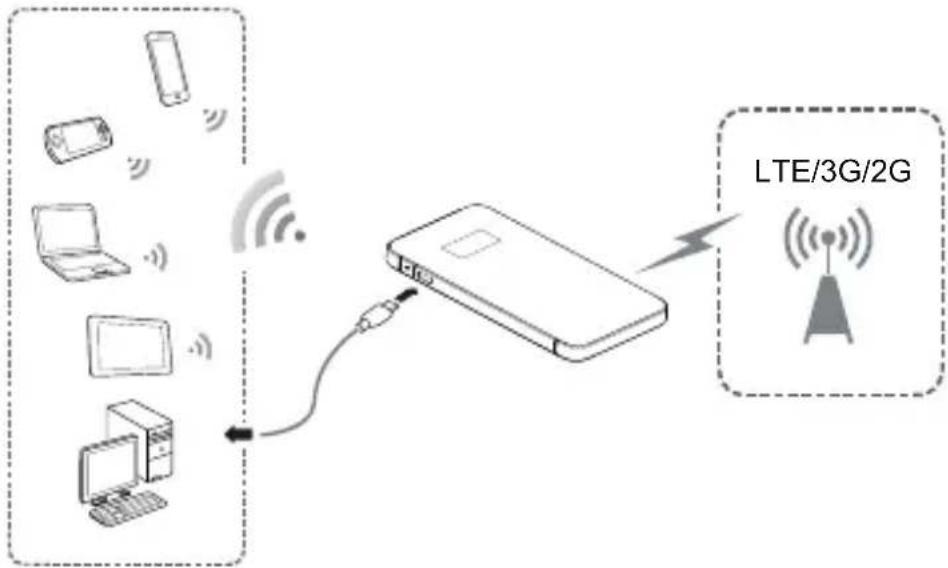
flowchart
graph TD
    A["Mobile Devices"] -->|Wireless Signal| B["Device"]
    C["Laptop"] -->|Wireless Signal| B
    D["Computer"] -->|Wireless Signal| B
    E["Radio Station"] -->|Wireless Signal| B
    B --> F["LTE/3G/2G"]
b) Network port connection (LAN)
Connect the Mobile WiFi to the network adapter AF18 (hereinafter referred to as the AF18), and then connect the AF18's network port to a computer using a network cable.
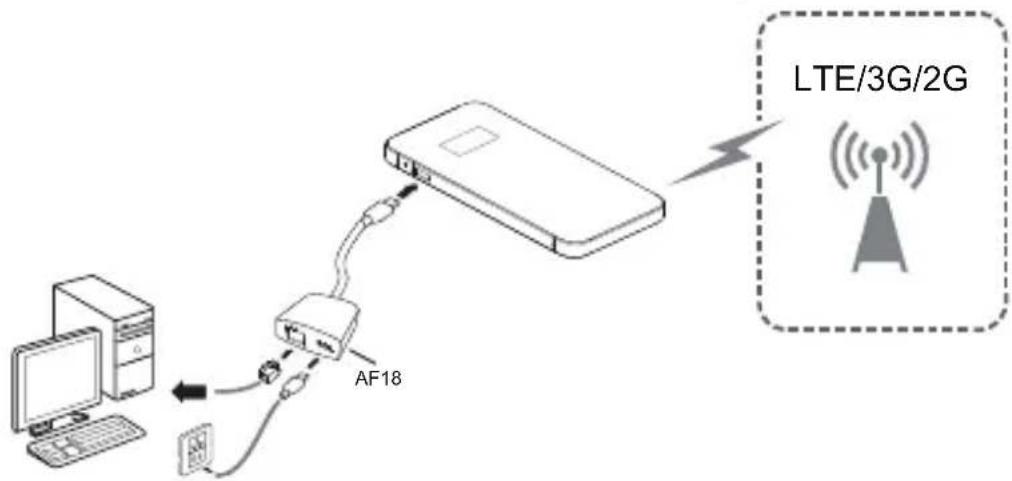
flowchart
graph TD
    A["Computer"] -->|Data Flow| B["AF18"]
    B --> C["LTE/3G/2G"]
    C --> D["Wireless Tower"]
Note:
The AF18 is an optional accessory. If it is not included in the package, you can purchase one separately.
Scenario 2: Accessing the Internet Using a Wi-Fi Network
The Mobile WiFi supports the Wi-Fi Extender function. When you use the Mobile WiFi in Wi-Fi coverage areas, for example, an airport, cafe, hotel, or your home, your Mobile WiFi will connect to known Wi-Fi hotspots, helping you save mobile data usage. For details about adding Wi-Fi hotspots, see "Adding a Wi-Fi Hotspot".
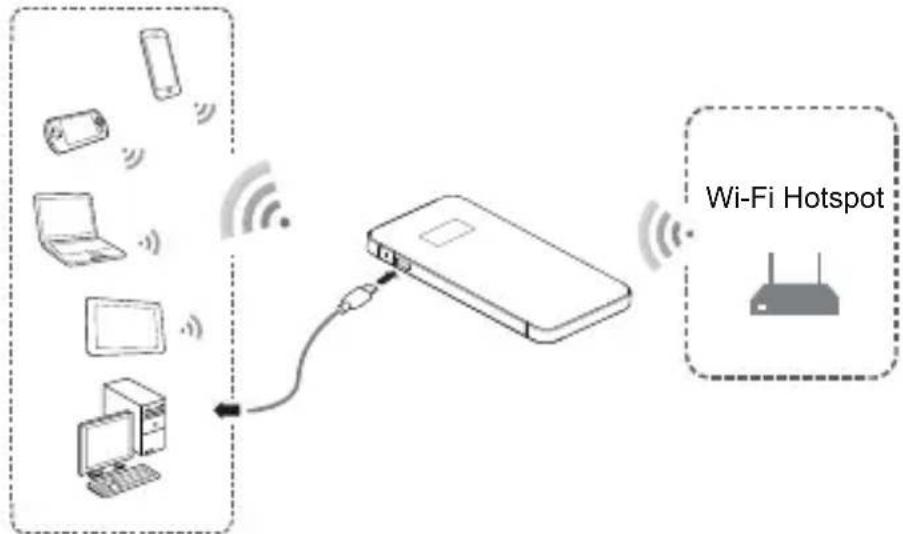
flowchart
graph TD
    A["Wi-Fi Hotspot"] --> B["Device"]
    B --> C["Router"]
    D["Mobile Device"] -->|Wireless Signal| B
    E["Laptop"] -->|Wireless Signal| B
    F["Computer"] -->|Wireless Signal| B
    G["Desktop Computer"] -->|Wireless Signal| B
Scenario 3: Accessing the Internet Using Ethernet (WAN)
Connect the Mobile WiFi to AF18, and then connect the AF18's network port to the Ethernet port using a network cable. You can then access the Internet via Ethernet, such as a home ADSL, hotel DHCP, or campus static IP broadband network.
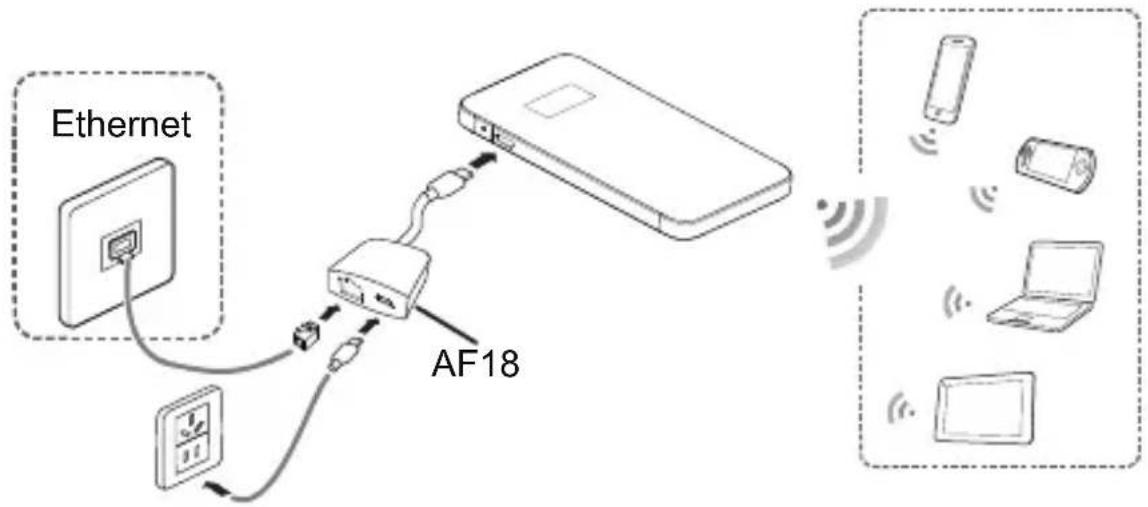
flowchart
graph TD
    A["Ethernet"] -->|Wireless Signal| B["AF18"]
    B --> C["Device"]
    D["Laptop"] -->|Wireless Signal| E["Smartphone"]
    F["Desktop"] -->|Wireless Signal| G["Smartphone"]
    H["Mobile Phone"] -->|Wireless Signal| I["Smartphone"]
Appearance
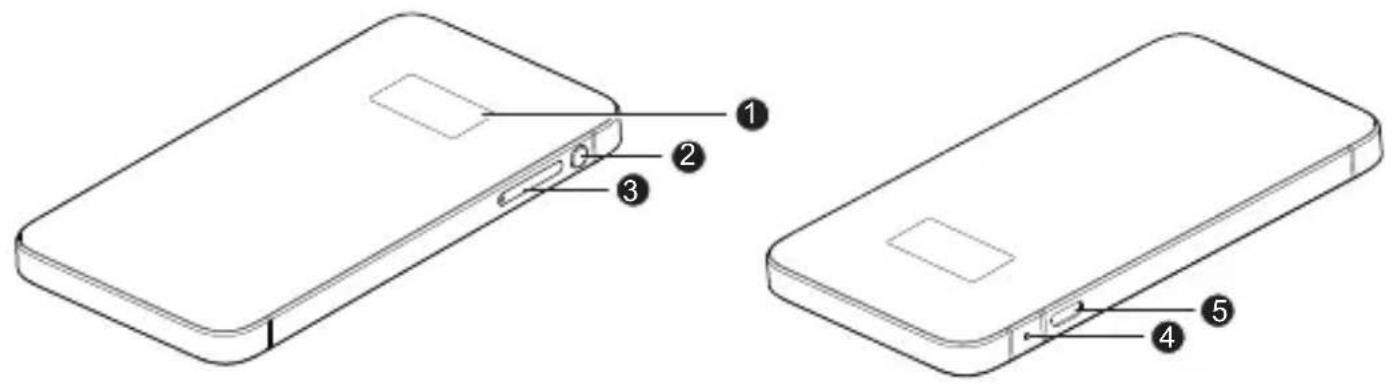
① Screen
② Power button
③ Micro-SIM card tray
4 Reset button
5 Micro USB port
Screen
flowchart
graph TD
    A["1"] --> B["2"]
    B --> C["3"]
    C --> D["4"]
    D --> E["5"]
    E --> F["6"]
    F --> G["7"]
    G --> H["8"]
    I["R"] --> J["4G ↑↓"]
    K["WiFi 1"] --> L["I/O"]
    M["0 B/2GB"] --> N["Ground"]
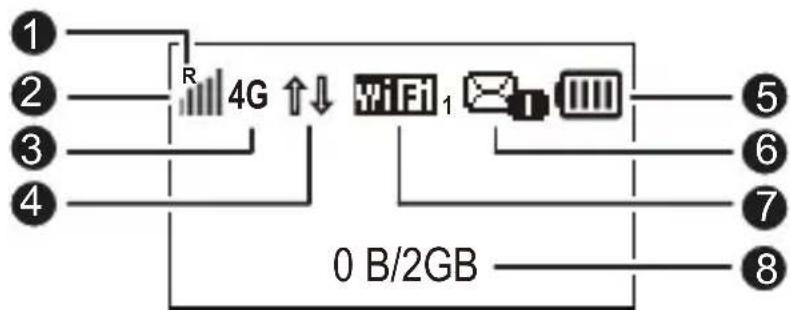
① Roaming
R: Data roaming turned on.
② Signal strength
Signal strength from weak to strong.
③ Network type
- 4G/3G/2G: Connected to an LTE/3G/2G network.
• : Connected to WLAN.
④ Data connection status
⑤ Battery
Battery level from low to high.
⑥ SMS
- New messages.
• Number of new messages.
⑦ Wi-Fi
- Wi-Fi turned on.
• Number of connected Wi-Fi devices.
⑧ Traffic statistics
• Data usage this month.
• Monthly data usage limit.
Note:
- To set the start date of the monthly data usage statistics and data usage limit, go to the web management page.
- Data traffic information is for your reference only. For more accurate data traffic information, please consult your service provider.
SSID and Wireless Network Encryption Key
When a Wi-Fi device establishes a connection to the Mobile WiFi for the first time, you may need to enter the default Service Set Identifier (SSID) and wireless network encryption key.
The default SSID and encryption key are printed on the Mobile WiFi label. The label is included in the package.
It is recommended that you log in to the web management page and change your SSID and network encryption key.
Press the power button to view the current SSID and network encryption key on the screen.
Connecting an Android Device to the Mobile WiFi Using a 2D Barcode
- Search for HUAWEI Mobile WiFi in Google Play or HUAWEI App Center and download the app to your Android device.
- Scan the 2D Barcode on the Mobile WiFi label using the HUAWEI Mobile WiFi App.
Your Android device will then connect to the Mobile WiFi.
Getting Started
Installing
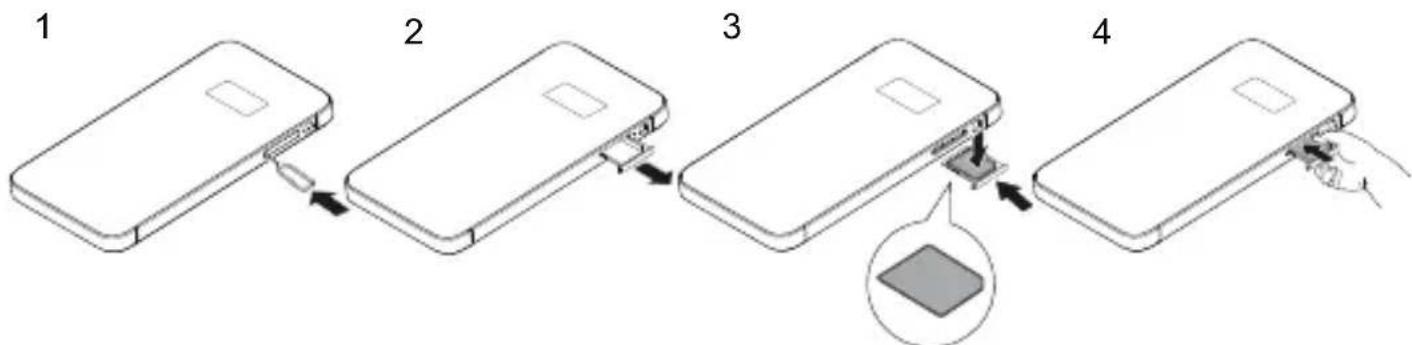
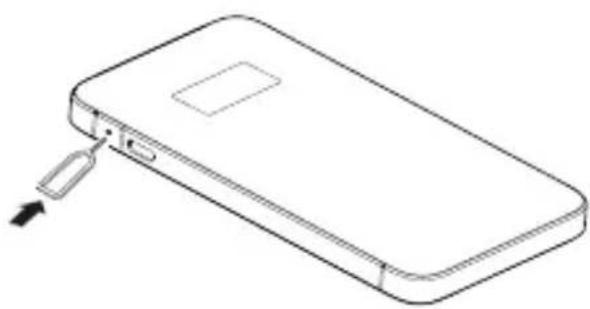
Install the micro-SIM card according to the illustration.
flowchart
graph TD
    A["1: Device with USB cable"] --> B["2: USB cable being inserted"]
    B --> C["3: USB cable being inserted into a package"]
    C --> D["4: Final packaging with close-up and hand placement"]
Charging the Battery
If the Mobile WiFi has not been used for a long time or if the battery is fully depleted, the Mobile WiFi may not power on immediately after the charger is plugged in. Please charge the battery for a while before attempting to power on the Mobile WiFi.
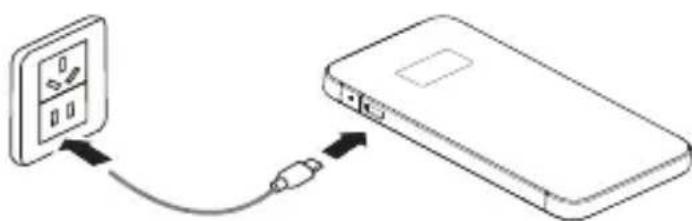
Method 1: Use the charger to charge the device
Note:
- Only use chargers compatible with the Mobile WiFi and provided by a designated manufacturer. Use of an incompatible charger or one from an unknown manufacturer may cause the Mobile WiFi to
natural_image
Diagram showing a device connected to a battery via cable (no text or symbols present)malfunction, fail, or could even cause a fire. Such use voids all warranties, whether expressed or implied, on the product.
- The charger is an optional accessory. If it is not included in the package, you may contact an authorized dealer to buy a charger compatible with the Mobile WiFi.
- The Mobile WiFi's charger model is HW-050100XYW. X and Y represent letters or numbers that vary by region. For details about the specific charger model, contact an authorized dealer.
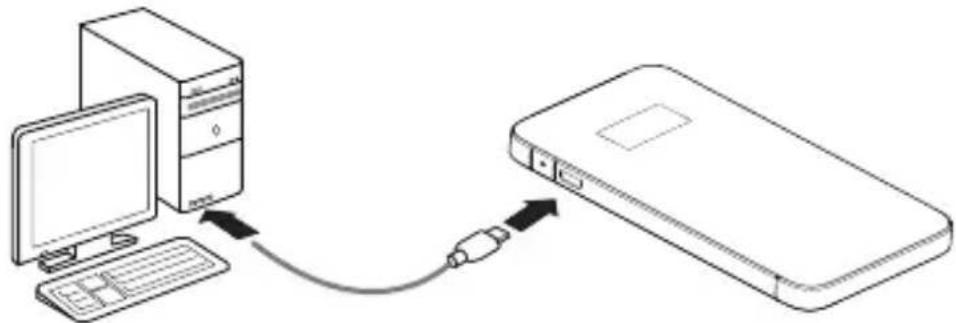
Method 2: Charge the device through a computer connection
Use the data cable provided with your device to connect the Mobile WiFi to the computer.
natural_image
Diagram showing connection between a desktop computer and a physical electronic device (no text or symbols present)Turning on the Mobile WiFi
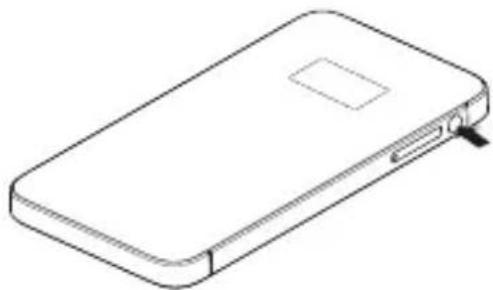
Press and hold the power button until the screen lights up, indicating that the Mobile WiFi is turned on.
You can log in to the web management page and turn the fast boot function on or off. This function greatly reduces the Mobile WiFi's boot-up time.
Note:
natural_image
Line drawing of a smartphone with a closed lid and USB port (no text or symbols)Press and hold the power button to turn off the Mobile WiFi.
Verifying the PIN
If the Mobile WiFi's network parameters have been correctly configured but you cannot access the Internet after powering it on, PIN verification may be enabled. Log in to the web management page and enter the PIN when prompted. To avoid entering the PIN every time you power on the Mobile WiFi, disable PIN verification from the web management page. The PIN/PUK is delivered with your SIM card. For more details, contact your service provider.
Connecting to the Internet
Using an LTE, 3G, or 2G Network
By default, the Mobile WiFi's management parameters have been preset according to your operator's requirements. The Mobile WiFi will be connected to the Internet after its startup.
If data is transmitted, the Mobile WiFi will automatically connect to the Internet. If data is not transmitted for a period of time, the Mobile WiFi will automatically disconnect from the network connection.
Note:
You can log in to the web management page to enable or disable the automatic dialing while roaming function. If this function is turned off, when the Mobile WiFi enters a roaming network, it will automatically disconnect from the Internet connection that has already been established. You will need to manually establish this network connection again.
Using a Wi-Fi Network
- Ensure that the Wi-Fi extender function is enabled.
- The Mobile WiFi automatically connects to a Wi-Fi hotspot set by your service provider or yourself. When the Mobile WiFi is connected to a Wi-Fi network, and the Wi-Fi hotspot SSID are displayed on the screen.
Note:
- After connecting to a Wi-Fi network, the Mobile WiFi automatically reconnects to the network the next time you are under that network's coverage.
- For details about adding Wi-Fi hotspots, see "Adding a Wi-Fi Hotspot".
Using Ethernet (WAN)
- Connect the Mobile WiFi to the AF18.
- Use the network cable to connect the AF18 to the router.
- Make sure 📁 appears on the screen.
- Log in to the Mobile WiFi's web management page and configure the parameters of the Ethernet connection.
▶ Dynamic IP: Does not need to be configured.
- PPPoE: Enter the user name and password for a dial-up connection.
Static IP: Select static IP in connection mode and enter the IP address, default gateway address, DNS server address, and so on.
Note:
For detailed information about the user name, password, IP address, default gateway address, DNS server address, and other settings, contact your operator.
Logging In to the Web Management Page
- Make sure the connection between the Mobile WiFi and the Wi-Fi device or computer is working normally.
- Open the browser, and enter http://192.168.8.1 in the address box.
Note:
If the IP address conflicts with other IP addresses on the network, the IP address of the Mobile WiFi automatically changes. Check the current IP address on the Mobile WiFi screen.
- Enter the user name and password to log in to the web management page.
Note:
- The default user name is admin.
- The default password is admin.
Turning Wi-Fi Extender On or Off
You can log in to the Mobile WiFi's web management page to enable or disable the Wi-Fi extender.
Note:
After the Wi-Fi extender function is enabled, up to nine Wi-Fi devices can be connected to the Mobile WiFi.
Adding a Wi-Fi Hotspot
- Log in to the web management page.
- From the settings page, choose Wi-Fi extender.
- Scan for Wi-Fi hotspots and connect to the desired one.
Battery Saving Mode
If the Mobile WiFi has been inactive for some time, the Mobile WiFi enters the standby mode, in which the display screen turns off. Pressing any button causes the display screen to light up.
When the Mobile WiFi is being powered only by the battery, you can choose to enable or disable the automatic Wi-Fi off function. If this function is enabled and if no Wi-Fi devices access the Mobile WiFi for a period of time, the Wi-Fi turns off automatically. You can press any button to turn the Wi-Fi on again.
Restoring to Factory Settings
If you forget the user name, password, or SSID you have set, you can restore the Mobile WiFi to its factory settings.
To do so, simply press and hold the reset button until the Mobile WiFi restarts.
natural_image
Line drawing of a smartphone with a USB cable inserted, showing the internal portion of the device (no text or symbols)Example 1: Connecting to a Computer (for example, running the Windows 7 operating system) through Wi-Fi
- Ensure that the Mobile WiFi's Wi-Fi function is on.
- Select Start > Control Panel > Network and Internet > Network and Sharing Center > Connect to a network.
Note:
Before establishing a Wi-Fi connection, ensure that the computer is equipped with a wireless network adapter. If the computer indicates a wireless network connection, the wireless network adapter can be used. Otherwise, verify that your wireless network adapter is working properly.
- Select the wireless network connection with the Mobile WiFi's SSID and click Connect.
Note:
- If the wireless network connection is encrypted, enter the correct wireless network encryption key.
-
The default SSID and encryption key are printed on the Mobile WiFi's label.
-
Wait a moment for the wireless network connection icon to appear in the system tray in the lower right corner of the computer screen. The wireless network connection is then established.
Example 2: Connecting to a Game Console (for example, PSP) through Wi-Fi
- On the PSP, turn on the WLAN.
- Choose Settings > Network Settings.
- Select Infrastructure Mode.
- Select New Connection, and enter the connection name.
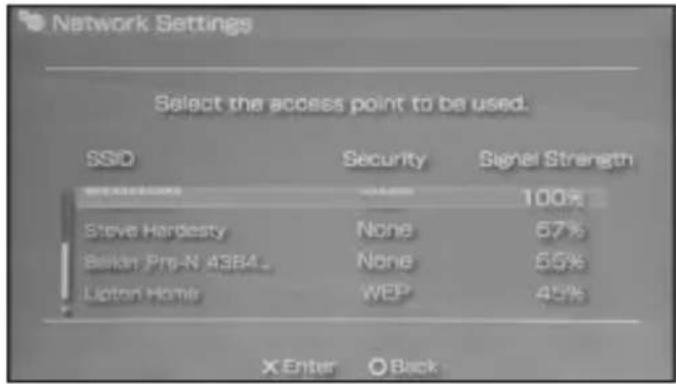
- Select Scan to search for wireless networks. A list of access points will be displayed on the screen.
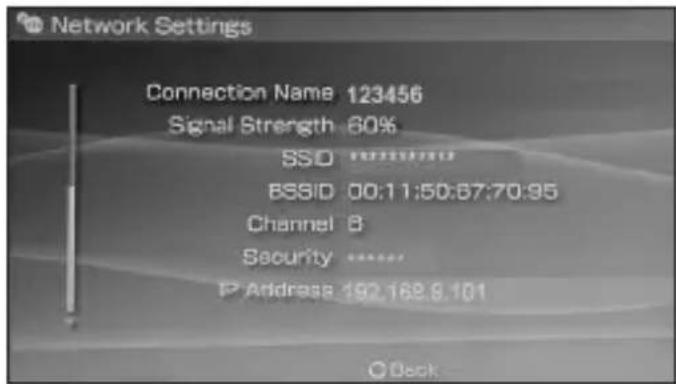
- Select the access point with the Mobile WiFi's SSID, and press the ▶ button on the PSP. Confirm the SSID, and enter the correct wireless network encryption key.
- Press the ▶ button to proceed to the next step, and then press the X button to
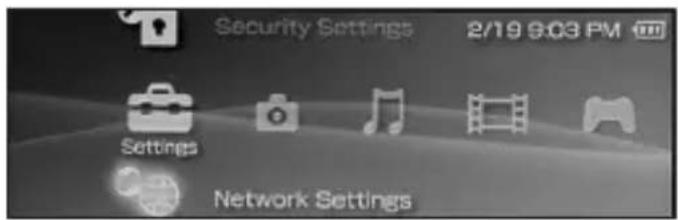
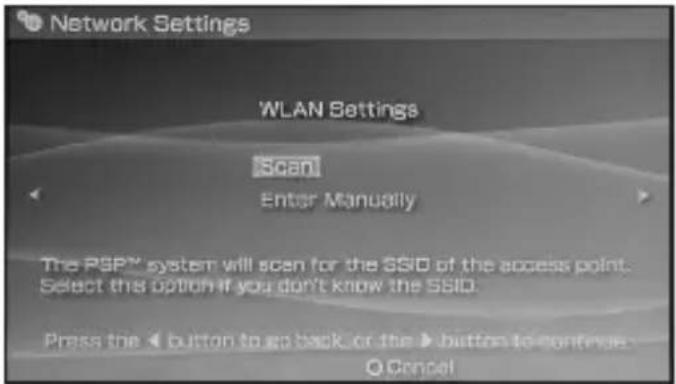
save settings.
- Select Test Connection to test whether the network connection is successful.
- You can now open the browser and access the network.
Example 3: Connecting to a Tablet Computer (for example, iPad) through Wi-Fi
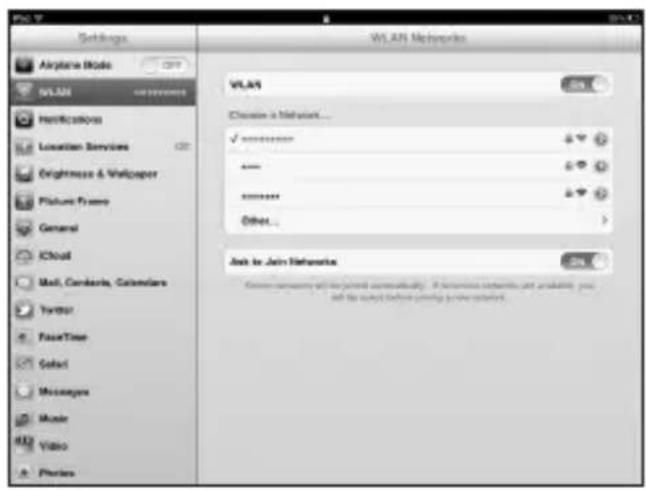
- Touch Settings > WLAN to turn on WLAN.
- The tablet computer automatically searches for wireless connections and displays a list of access points.
- Select the access point with the Mobile WiFi's SSID.
- If required, enter the correct wireless network encryption key, and tap Join. (The lock icon indicates that the encryption key is required to connect to this wireless network.)
Note:
Wi-Fi devices, such as an iPhone, iPod touch, PS3 and NDSi, can all access the Internet through the Mobile WiFi. For specific operations, refer to the Wi-Fi device's user manual.
Tips
When the Mobile WiFi is in use for an extended period of time, it will become warm and may overheat. Should this happen, the Mobile WiFi will automatically close the network connection and turn off to protect itself from damage. If this occurs, place the Mobile WiFi in a well ventilated space to allow the heat to dissipate, then turn it on and continue to use it as normal.
If you are unable to use the Mobile WiFi as normal, try the following:
- Consult the online help on the web management page.
- Restart the Mobile WiFi.
- Restore the Mobile WiFi to the factory settings.
- Consult your operator.
Version: V100R001_01 Part Number: 31010RLY

is a trademark of ETSI.


- Quick Start
- Thank you for purchasing the Mobile WiFi. This Mobile WiFi brings you a high speed wireless network connection.
- Getting to Know Your Mobile WiFi
- Note:
- Application Scenarios
- b) Network port connection (LAN)
- Scenario 2: Accessing the Internet Using a Wi-Fi Network
- Scenario 3: Accessing the Internet Using Ethernet (WAN)
- Screen
- ① Roaming
- ② Signal strength
- ③ Network type
- ④ Data connection status
- ⑤ Battery
- ⑥ SMS
- ⑦ Wi-Fi
- ⑧ Traffic statistics
- SSID and Wireless Network Encryption Key
- Connecting an Android Device to the Mobile WiFi Using a 2D Barcode
- Getting Started
- Installing
- Charging the Battery
- Method 2: Charge the device through a computer connection
- Turning on the Mobile WiFi
- Verifying the PIN
- Connecting to the Internet
- Using an LTE, 3G, or 2G Network
- Using a Wi-Fi Network
- Using Ethernet (WAN)
- Logging In to the Web Management Page
- Turning Wi-Fi Extender On or Off
- Adding a Wi-Fi Hotspot
- Battery Saving Mode
- Restoring to Factory Settings
- Example 1: Connecting to a Computer (for example, running the Windows 7 operating system) through Wi-Fi
- Example 2: Connecting to a Game Console (for example, PSP) through Wi-Fi
- Example 3: Connecting to a Tablet Computer (for example, iPad) through Wi-Fi
- Tips
Brand : HUAWEI
Model : E5878s Prime
Category : Uncategorized