
NID-260M - Uncategorized FRANKLIN - Free user manual and instructions
Find the device manual for free NID-260M FRANKLIN in PDF.


| Type of product | Electronic handheld dictionary and reference device |
| Model | NID-260 (Webster's Third New International Dictionary) |
| Brand | Franklin |
| Dimensions (closed) | 4.375 x 5.5 x 0.75 inches (111 x 140 x 19 mm) |
| Weight | 9.3 oz (264 g) without batteries |
| Power supply | 2 x AAA batteries (not rechargeable) |
| Display | Monochrome LCD in lid |
| Built-in reference books | Webster's Third New International Dictionary (Unabridged), Merriam-Webster's Concise Dictionary of English Usage, Merriam-Webster's Guide to Punctuation and Style 2nd Ed., Franklin Thesaurus, SAT Test Word List |
| Main functions | Word lookup, spell correction, confusables, inflections, full text search, thesaurus, punctuation/style guide, SAT word list, My Vocabulary List, search history, games (Hangman, Letris, Jumble, Anagrams), calculator, phone book, clock, converter (metric and currency), PC connectivity via USB, MMC/SD card slot |
| Additional software | Franklin PC Desktop, Mobipocket Reader for Franklin with PC View, AudibleManager |
| PC system requirements | Windows XP or Vista, 256-color VGA monitor, 20 MB free disk space, 32 MB RAM, USB port, CD-ROM drive |
| Memory expansion | MMC/SD card (sold separately) |
| Care and cleaning | Wipe with soft, dry cloth; do not use harsh chemicals; keep away from moisture and extreme temperatures |
| Safety precautions | Use only recommended batteries; do not recharge non-rechargeable batteries; remove rechargeable batteries before charging; keep batteries away from children; dispose of batteries properly |
| Reset | Use a paper clip to press reset button on back; or hold CLEAR and press reset for factory defaults |
| Warranty | One year (U.S., outside EU/Switzerland); two years (EU and Switzerland); see manual for details |
| Manufacturer | Franklin Electronic Publishers, Inc., Burlington, NJ, USA |
| Importer for EU | Franklin Electronic Publishers GmbH, Kapellenstr. 13, 85622 Feldkirchen, Germany |
Frequently Asked Questions - NID-260M FRANKLIN
User questions about NID-260M FRANKLIN
0 question about this device. Answer the ones you know or ask your own.
Ask a new question about this device
Download the instructions for your Uncategorized in PDF format for free! Find your manual NID-260M - FRANKLIN and take your electronic device back in hand. On this page are published all the documents necessary for the use of your device. NID-260M by FRANKLIN.
USER MANUAL NID-260M FRANKLIN
Webster's Third New International Dictionary

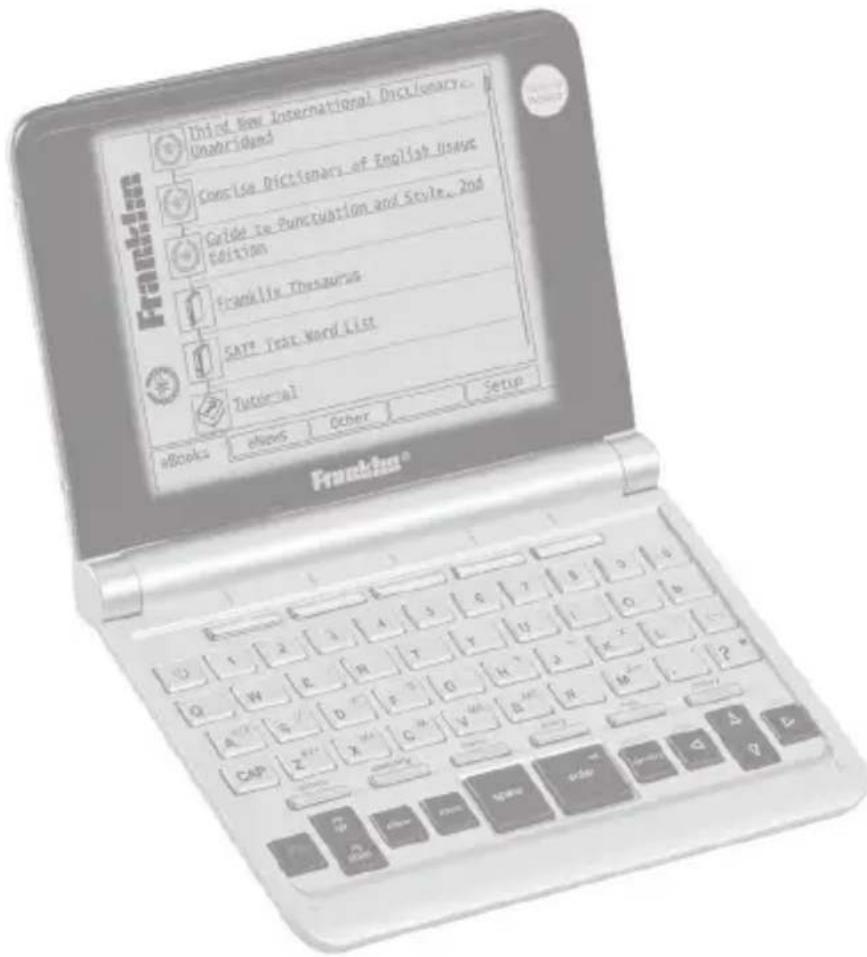
User's Guide
READ THIS LICENSE AGREEMENT BEFORE USING THE ELECTRONIC REFERENCE. YOUR USE OF THE ELECTRONIC REFERENCE DEEMS THAT YOU ACCEPT THE TERMS OF THIS LICENSE. IF YOU DO NOT AGREE WITH THESE TERMS, YOU MAY RETURN THIS PACKAGE WITH PURCHASE RECEIPT TO THE DEALER FROM WHICH YOU PURCHASED THE ELECTRONIC REFERENCE AND YOUR PURCHASE PRICE WILL BE REFUNDED. ELECTRONIC REFERENCE means the software product and documentation found in this package and FRANKLIN means Franklin Electronic Publishers, Inc.
Limited Use License
All rights in the ELECTRONIC REFERENCE remain the property of FRANKLIN. Through your purchase, FRANKLIN grants you a personal and nonexclusive license to use this ELECTRONIC REFERENCE. You may not make any copies of the ELECTRONIC REFERENCE or of the data stored therein at the time of purchase, whether in electronic or print format. Such copying would be in violation of applicable copyright laws. Further, you may not modify, adapt, disassemble, decompile, translate, create derivative works of, or in any way reverse engineer the ELECTRONIC REFERENCE. You may not export or reexport, directly or indirectly, the ELECTRONIC REFERENCE without compliance with appropriate governmental regulations. The ELECTRONIC REFERENCE contains Franklin's confidential and proprietary information which you agree to take adequate steps to protect from unauthorized disclosure or use. This license is effective until terminated by Franklin. This license terminates immediately without notice from FRANKLIN if you fail to comply with any provision of this license.
Please read the following safety warnings and precautions before using your device. Note: If this device is to be used by young children, this User's Guide should be read to them by an adult and their use of the device should be monitored. Failure to do so may cause injury.
Table of Contents
Introduction ......3
Battery Information ....5
Understanding Your Device ......7
Key Guide ......9
Product Care 11
Resetting Your Device 12
Getting Started 13
Using the Library 14
Changing the Settings 16
Selecting a Book 18
Looking Up a Word 19
Confusables by Franklin 22
Highlighting Words 24
Using Annotations, Modifications and Highlights 26
Viewing the Annotations List ...... 28
Viewing Inflections by Franklin ..... 29
Searching Definitions ...... 31
Viewing
Supplemental Information ...... 32
Using the Thesaurus 34
Using the
Punctuation and Style Guide ......35
Using the SAT® Test Word List ...... 37
Using My Vocabulary List ...... 39
Viewing Your Search History...... 42
Using the Menus 42
Playing the Games 44
Using the Clock 47
Using the Calculator 48
Using the Phone Book 50
Using the Converter 54
Installing the
Franklin PC Desktop 56
Connecting Your Device 57
Using the Franklin PC Desktop ..... 58
Using the
Franklin PC View™ Feature ...... 63
Specifications 68
Recycling and Disposal 69
FCC Notice 69
Disclaimer of Warranties 70
Limited Warranty
(EU and Switzerland) 70
Limited Warranty (Outside U.S.,
EU and Switzerland) 70
Limited Warranty (U.S. only) ...... 71
Introduction
Congratulations on your purchase of the NID-260, Webster's Third New International Dictionary! The NID-260 is an educational, informational, and versatile handheld computing device. Your package includes:
- your NID-260 device
• Franklin PC Desktop installation CD-ROM - USB cable
Your NID-260 has the ability to store eBooks, RSS eNews and other documents. It has a built-in organizer, with a clock, calculator, converter and phone book.
To install the Franklin PC Desktop on your PC, your computer must meet the following minimum system requirements:
- IBM-compatible Pentium class PC or higher
• 256 color VGA monitor
• Mouse or other pointing device - Windows® XP or Windows Vista®
• 20 MB free disk space
• 32 MB RAM
• Available USB port - CD-ROM Drive
Introduction
Your NID-260 contains the following reference books:
- Webster's Third New International Dictionary, Unabridged
- Merriam-Webster's Concise Dictionary of English Usage
- Merriam-Webster's Guide to Punctuation and Style, 2nd Edition
• Franklin Thesaurus - SAT^® * Test Word List
Expand your vocabulary by looking up definitions of words using the unabridged dictionary. Investigate word and phrase meanings and origins using the usage dictionary. Read about rules of punctuation and style to improve your writing. Look up thesaurus entries using the thesaurus. For additional help in using this device, read the Tutorial. Save a list of vocabulary that you want to learn, study and remember.
*SAT is a registered trademark of the College Entrance Examination Board, which was not involved in the production of, and does not endorse, this product.
Introduction Introduction
Most of these books include a word search feature that helps you find words just by typing the first few letters. If you can't find the words you want, phonetic spell correction is available to show you other possibilities. In addition, a word search feature is included which allows you to type a “?” in place of any single letter and a “*” in place of zero, one or more letters in a word so that you can search based on the letters you are sure of. Verbs are conjugated in all tenses to make learning and comprehension easier.
Searching is not limited to headwords. You can also search for words that occur in the definitions of the unabridged dictionary.
Purchase titles and expand your content by loading it from MMC/SD (MultiMediaCard/Secure Digital). These convenient cards (sold separately) slip easily into the side of your NID-260. Transfer files directly from your PC to an MMC/SD and you can carry more books and other documents around with you. Use the Franklin PC View™ feature of the Franklin PC Desktop to view content from the NID-260 on a personal computer. Just connect your device to a PC and you can use the dictionary features on a PC screen.
Battery Information
Your unit is powered by two AAA batteries. Follow these easy instructions to install or replace them.
- Turn your unit off and turn it over.
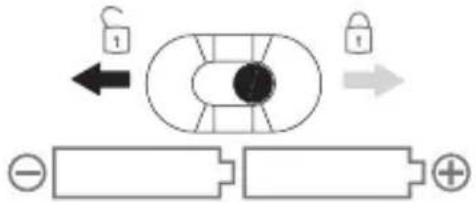
- Unlock the battery compartment by sliding the switch to the left.
-
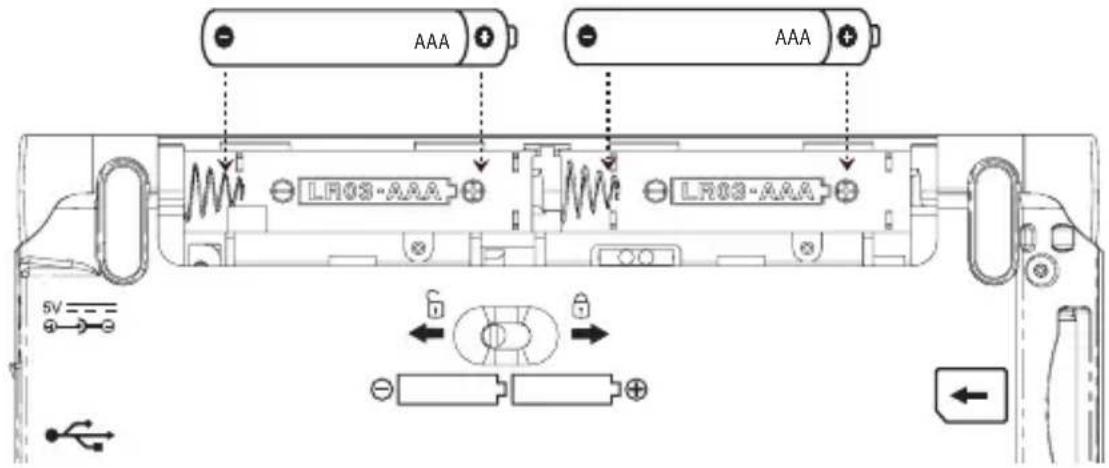
Open the battery cover on the back of your unit by positioning your thumbs in the grooves and lightly pushing it away from the device.
-
Remove the old batteries, if necessary.
-
Install the batteries following the +/- markings in the battery compartment. Important: Be sure that the batteries are installed correctly. Wrong polarity may damage the unit.
- Replace the battery cover.
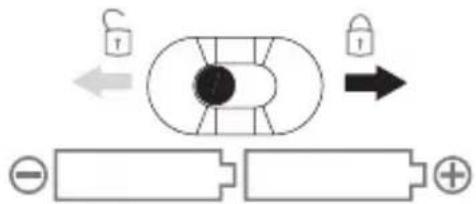
- Re-lock the battery compartment door by sliding the switch to the right.
Warning! If the batteries wear out completely, or if you take more than a few seconds while changing the batteries, the contrast, date and time settings are reset and any recently entered information may be erased. You should always keep written copies of your important information.
Battery Precautions
- Non-rechargeable batteries are not to be re-charged. Never recharge batteries that come with the device.
• Rechargeable batteries are to be removed from the device before being charged.
• Rechargeable batteries are only to be charged under adult supervision.
• Only batteries of the same or equivalent type as recommended are to be used.
• The supply terminals are not to be short-circuited. - Do not expose batteries to direct heat or try to take batteries apart. Follow the battery manufacturer's instructions for battery use.
• Always remove a weak or dead battery from the device. - To avoid damage caused by leakage of the battery fluid, replace the battery or batteries once every two years regardless of how much the device has been used during that time.
- Should a battery leak, the device may become damaged. Clean the battery compartment immediately, avoiding contact with your skin.
- Keep batteries out of reach of small children. If swallowed, consult a physician immediately.
Understanding Your Device
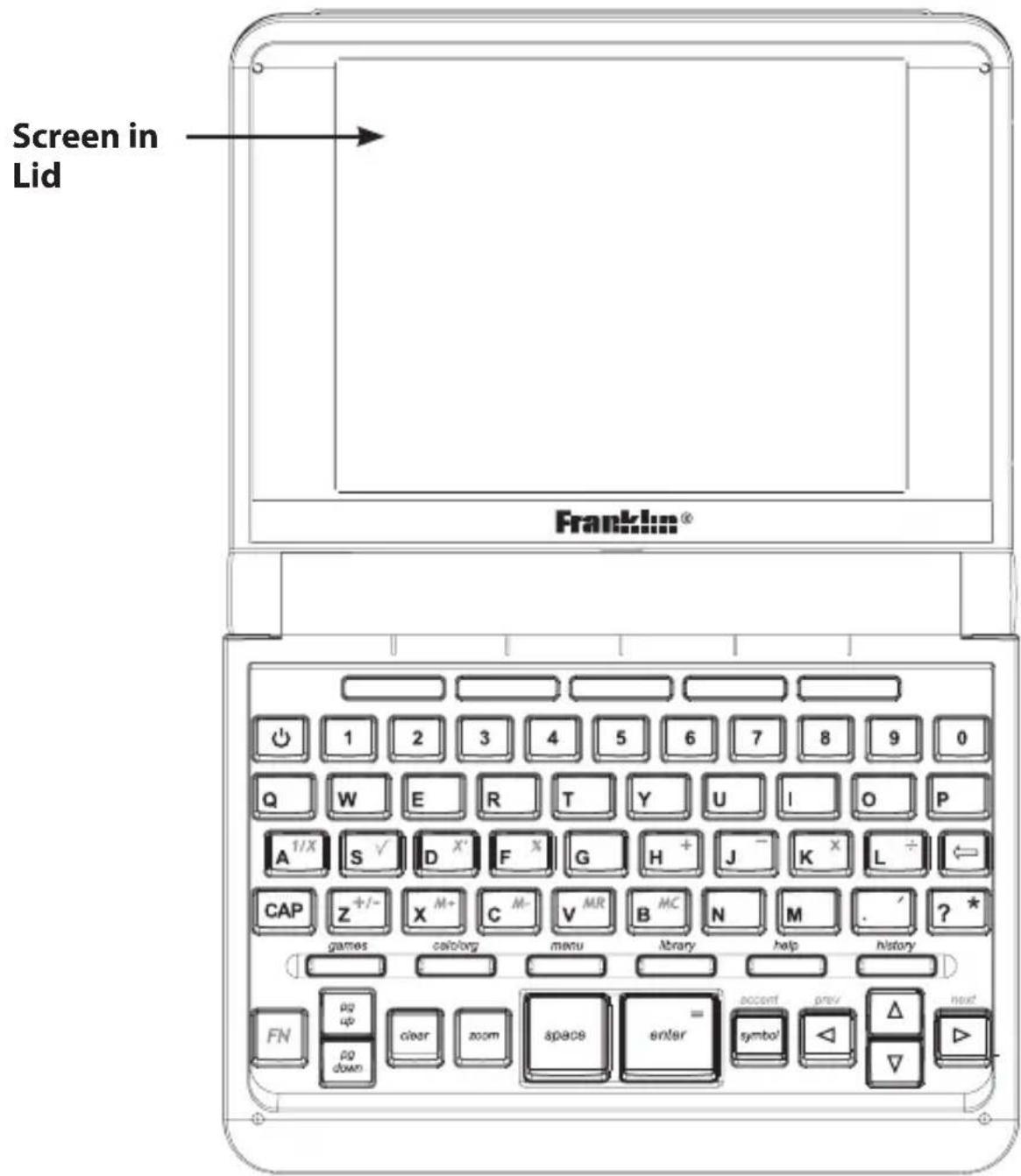
Screen in Lid: The screen of the NID-260 is contained in the lid, so you can tilt the screen for optimum viewing.
Understanding Your Device
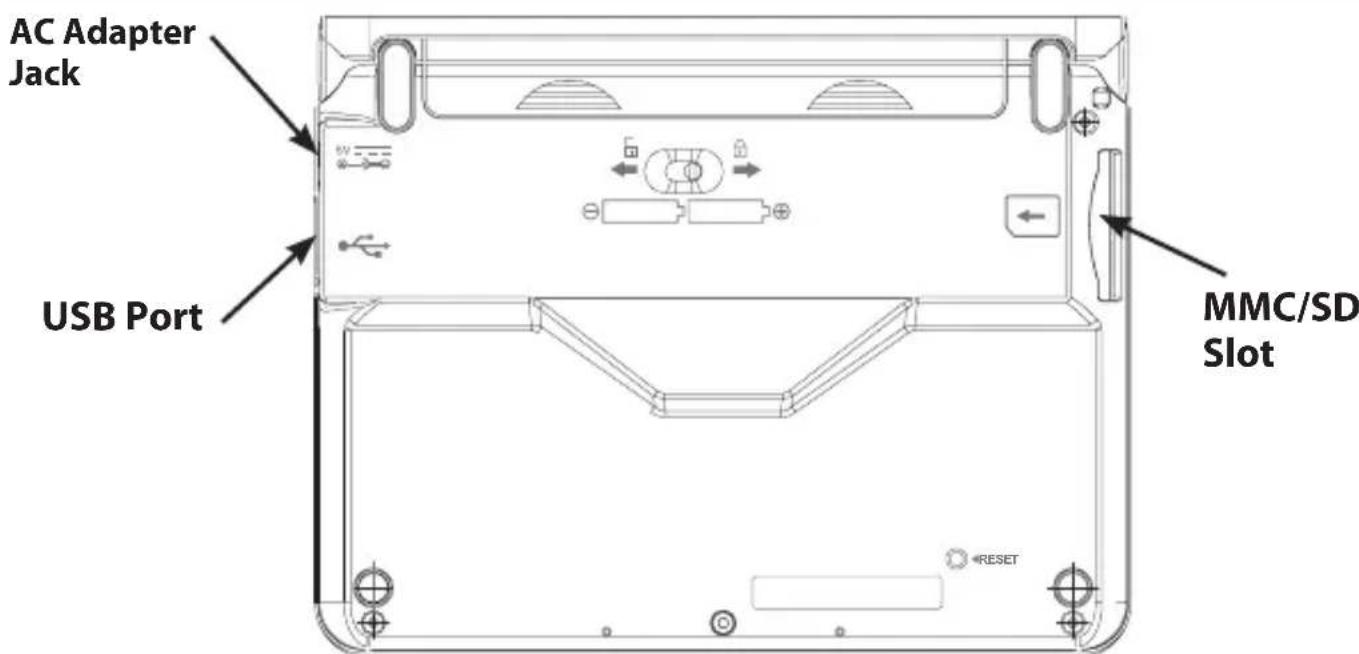
AC Adapter Jack: The AC/DC adapter input requires regulated 5 volt output of at least 500 milliamperes.

This symbol indicates that the inner core of the plug of an AC adapter is positive and that the outer part of the plug is negative. If the symbol on your AC/DC adapter does not match the above symbol, confirm its compatibility at its place of purchase.
USB Port: Plug a USB cable into this port to connect your device to your PC.
Note: This port is covered by a plastic flap. Use your finger to open the flap before inserting a USB cable.
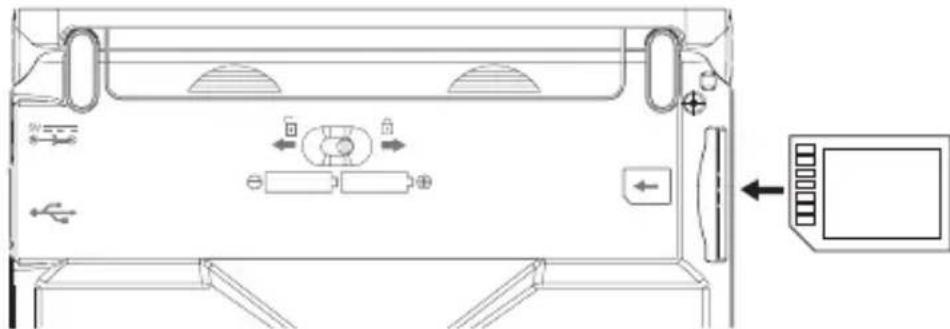
MMC/SD Slot: Insert MMC/SD here. Slide the MMC/SD into the slot with the contacts facing the back of the device. Push gently until it clicks into place. To remove an MMC/SD from the slot, put your thumb on the MMC/SD and push it in slightly. You hear a click and the MMC/SD pops out. Slide it out of the slot.
natural_image
Technical line drawing of a device rear panel with directional arrows and control buttons (no text or symbols)8
Key Guide
Key Guide
Function Keys
Goes to the Library.
Displays your search history.
Displays information about your current screen.
Opens a menu, if available.
Goes to the Games Menu.
Goes to the Organizer.

Turns the product on or off.
Selects an item. In the calculator, performs a calculation. In text, highlights a word.

Clears an input box. From text, goes to the main screen of a book.

Backs up, erases a letter, or turns off the highlight in text.

At an input box or other entry field, cycles through the available symbols, including @/_\~:;, and #.

Shifts to type capital letters and punctuation marks.

Shifts to type numbers, punctuation marks and accents.

Adjusts the font size.

At an input box, types a ? to stand for a letter in a word.

At an input box, types a period.
Navigation Keys
In the indicated direction. In text, press the left (◀ or right (▶) button to highlight the next or previous link, when available. When no links are available, pages up or down. In text, press the up (▲) or down (▼) button to highlight the previous or next link, when available. When no links are available, scrolls up or down one line at a time.
Key Guide Key Guide
Scrolls up one screen at a time.
Scrolls down one screen at a time.
Combination Keys\*

+ At an input box, types an asterisk (*) to stand for zero, one or more letters in a word.

+ Types an apostrophe.

+ Cycles through the accents for the last typed letter, if available.
* Hold the first key while pressing the second.
Calculator Keys
A(1/x) Calculates a reciprocal.
S() Calculates a square root.
D(x^2) Squares a number.
F(%) Calculates a percentage.

Inserts a decimal point.
H(+),J(-) Adds, subtracts, multiplies or K(x),L(÷) divides numbers.
Z(+/-) Changes the number on the screen to a negative or positive number.
X(m+) Adds the number to the number stored in memory.
C(M-) Subtracts the number from the number stored in memory.
V(✗) Recalls the number stored in memory.
B(☐) Clears the memory.
√ About Screen Illustrations
Some screen illustrations and Soft Key labels in this User's Guide may differ slightly from what you see on screen. This does not mean that your unit is malfunctioning.
Soft Keys
In this device, up to five extra functions are available depending on what you are doing and what you are reading. They are indicated by "tabs" or "labels" across the bottom of the screen. Because they can change from location to location, they are called "soft". To use a Soft Key, press the unlabeled key at the top of the keyboard that corresponds to the label you want.
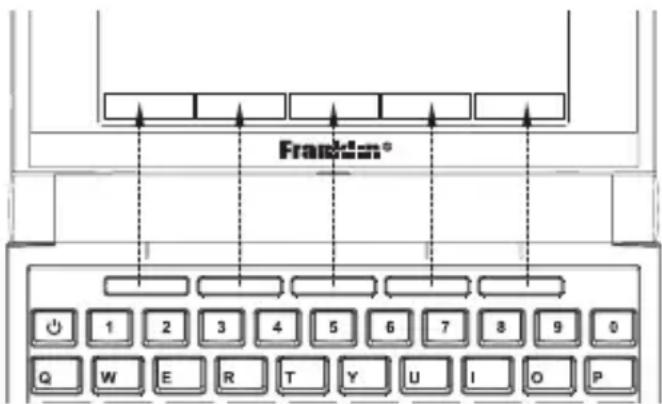
For example, at the Library, the following Soft Keys are available:
eBooks
Opens the list of eBooks.
eNews
Opens the list of eNews.
Other
Opens the list of My Vocabulary List and any miscellaneous text files.
Setup
Displays the Settings List.
Please read each individual section for information on what Soft Keys are available.
Your NID-260 is designed to be light, compact and durable. However, it is an electronic device and must be treated carefully. Putting unnecessary pressure on it or striking the device against other objects can cause damage.
In order to avoid damage to your NID-260, please:
- Keep the lid closed when you are not using it. This will protect the screen from being broken, scratched or marred in any way.
- Do not drop, crush, bend, or apply excessive force to the device.
- Do not expose your NID-260 to moisture, extreme temperatures or other adverse conditions. Avoid storing it in damp, humid or wet places. It is not waterproof.
- Clean the device by wiping with a soft, dry cloth. Do not use harsh chemicals.
- Should the device's glass break, properly dispose of the product avoiding contact with your skin, then wash your hands immediately.
- Please keep screen protectors and plastic bags away from babies and children to avoid danger of suffocation.
If the keyboard fails to respond, or if the screen performs erratically, perform a system reset by following the steps below.
1. Use a paper clip to gently press the reset button on your unit.
If nothing happens, try step 2.
The reset button is recessed in a pin-sized hole on the back of the unit, below the battery compartment.
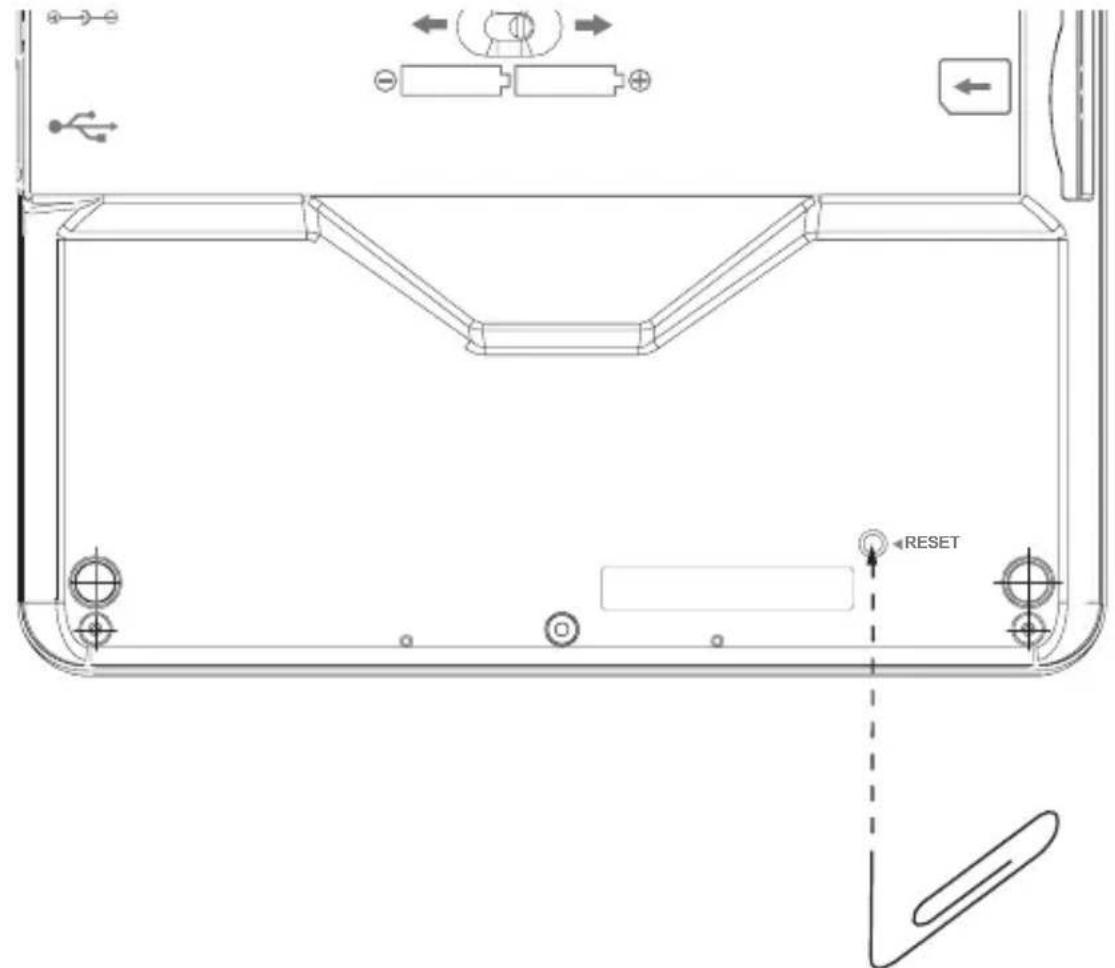
Warning! Pressing the reset button with more than light pressure may permanently disable your product. In addition, resetting the product resets the volume, contrast, date and time settings to their defaults and may erase any recently entered information.
2. Hold CLEAR and press the reset button.
Warning! This restores factory defaults, so all saved information and settings will be erased.
Getting Started
Getting Started
The first time you turn on your device, a contrast bar is displayed. The contrast indicates how dark or light the screen is.
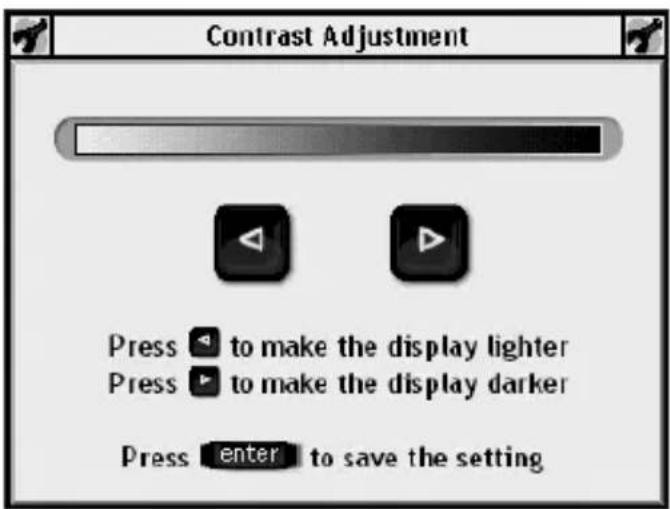
- Press ◀r to adjust the contrast.
- Press ENTER when done.
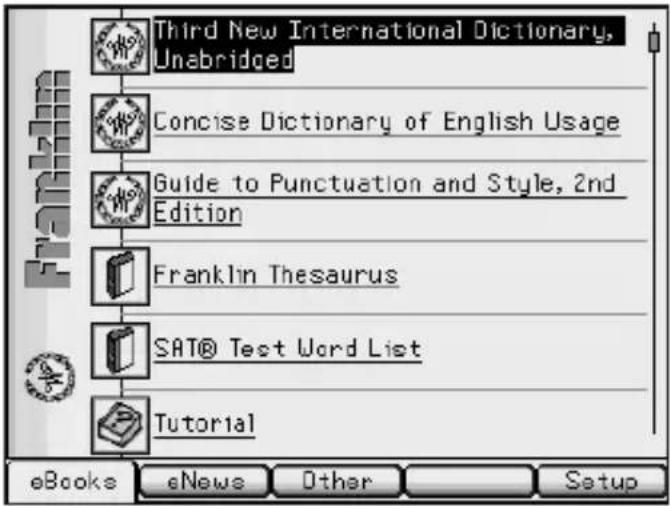
The eBooks tab of the Library is displayed.
Changing the Language
Initially, the language of the NID-260 is set to English. You can change the message language to German.
- Press Setup
- Press ENTER to select User Preferences.
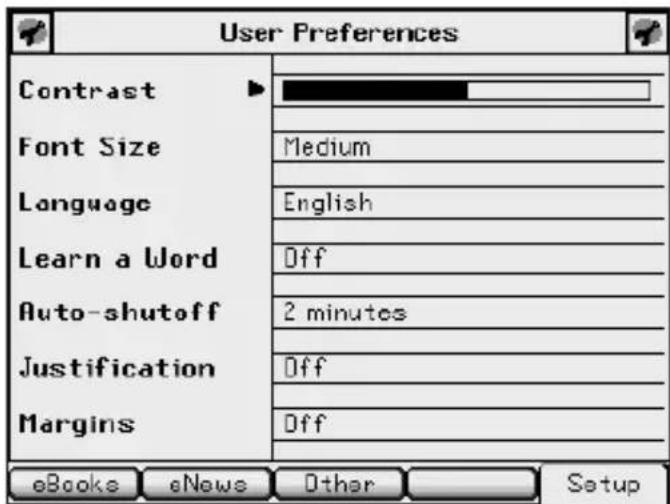
- Press to move to Language.
- Press
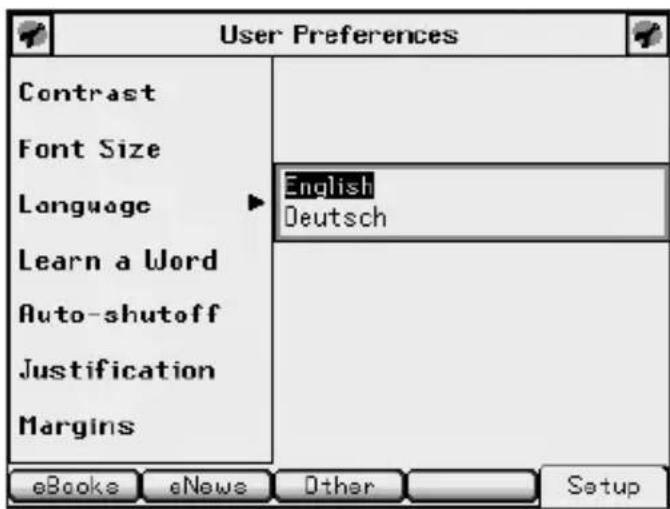
Getting Started
Using the Library
5. Press to highlight Deutsch and then press ENTER.
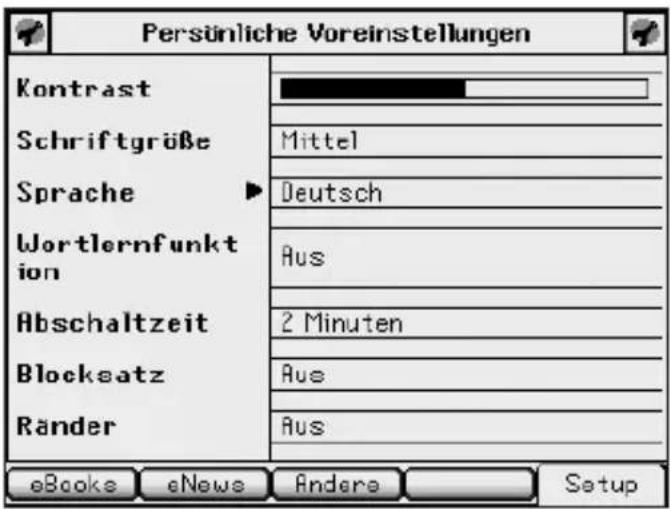
The Library is displayed.
The Library is your home screen.
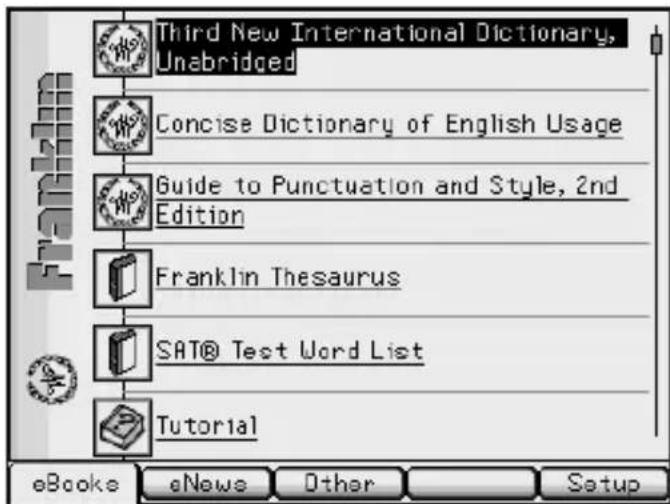
This is the hub of the NID-260 and the place to start in order to access all of the dictionaries and other books stored in your device. At any time, and from any location, press LIBRARY to return to this location.
The Library consists of four tabs: eBooks, eNews, Other and Setup. The first three of these tabs keep track of the different kinds of files that you can store on your device, and the Setup tab opens the Settings List. To select a tab, simply press the Soft Key that refers to that tab, that is, the blank key at the top of the keyboard that lines up with the name of the tab where it is displayed on the screen.
Using the Library
Try it now by pressing the four Soft Keys at the top of the keyboard to see what happens. Then press to return to the list of books.
Utilities
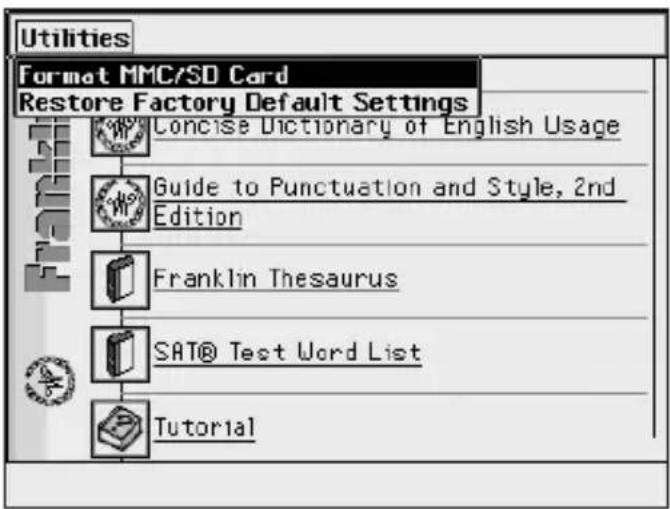
From anywhere within the Library, press MENU to open the Utilities Menu. From this menu, you can reset your device to its factory defaults or format an MMC/SD. Warning! Resetting to the factory defaults returns the device to its initial settings, as it was when you purchased it, and erases any saved information. Formatting an MMC/SD enables you to erase an MMC/SD without connecting to your PC.
- Press LIBRARY.
- Press MENU.
Using the Library
- Press ▲ or to highlight the one you want and then press ENTER.
Format MMC/SD Card erases all information from an installed MMC/SD.
Restore Factory Default Settings resets all settings to what they were the first time you turned on your device. You are asked to confirm the selected action.
- Press to confirm or Cancel to cancel.
Changing the Settings
At the Library, press to display the Settings List. From the Settings List, you can change your user preferences, game settings, date and time settings, and view the version and identification information. For information regarding your game settings, please see "Game Settings" on page 44. For information regarding your date and time settings, please see "Setting the Date and Time" on page 47. Press or to highlight the menu item you want and then press ENTER to select it.
User Preferences
- Press LIBRARY.
- Press Setup
- Press ▲ or to highlight User Preferences and then press ENTER.
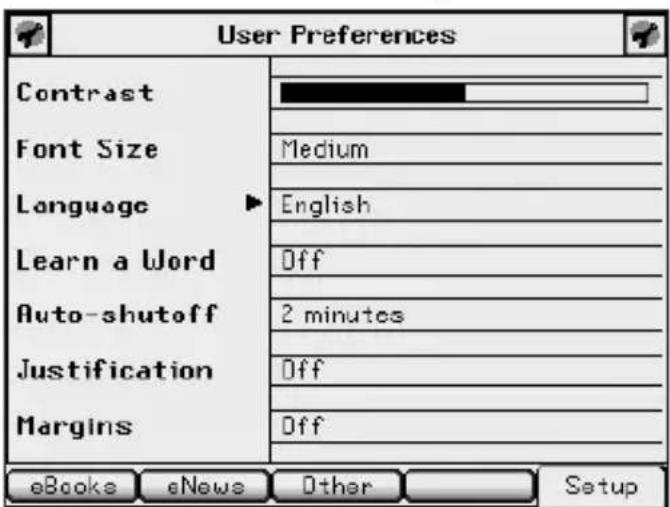
- Press ▲ or ▶ to move to Contrast, Font Size, Language, Learn a Word, Auto-shutoff, Justification, or Margins.
Changing the Settings
Contrast determines how dark or light the screen is.
Font Size determines how large or small the text is in this device.
Language determines the language used for helptext, menu items and pop-up messages.
Learn a Word determines whether or not you see a word every time you turn on your device.
Auto-shutoff determines how long your device stays on if you forget to turn it off.
Justification determines whether or not the text of your books is fully justified.
Margins determines whether or not books have margins.
- Press ▶ to open the menu of options.
Note: For Contrast, there is no menu of options; ▶ and simply adjust the screen contrast when the pointer is there.
-
Press ▲ or ▶ to move the highlight to your choice.
-
Press ◀r ENTER to accept the setting.
Press to exit the menu without changing the setting.
- Press or ENTER to return to the Settings List.
Changing the Settings Changing the Settings
Learn a Word √
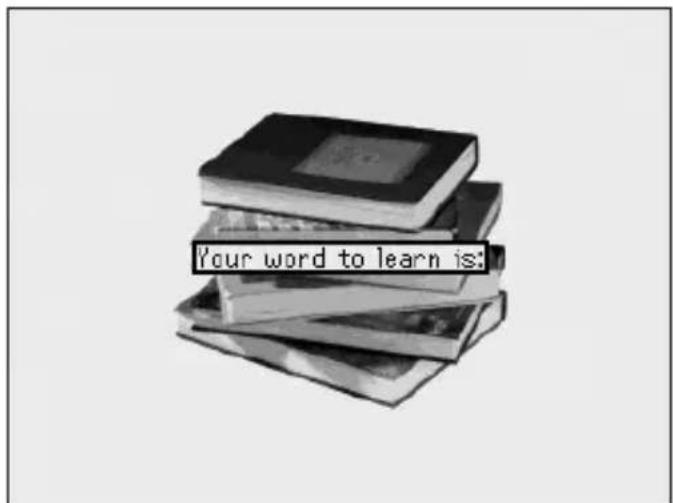
Your NID-260 comes with a Learn a Word feature to help you increase your vocabulary. Each time you turn on your device, you can see a different word taken from one of the dictionaries in your device.
![3rd New International Dictionary, Unabridged ubiqu-ui-tous -wad-as, -walasl adj [ubiquity + -ous] : existing or being everywhere at the same time : occurring or capable of appearing everywhere or in many places throughout a particular area, sphere, or production : CMHIFRESENT Conj Theo List](/content/2026/05/788662/images/72c9d6f34d1aaf41789105b0124bc39d02bda994ffd50617ff5b7bf037b76466.jpg)
From the User Preferences menu, open the Learn a Word options menu. Press ▲ or ▼ to highlight the book you want to use and then press ENTER.
You can learn words from Webster's Third New International Dictionary, Unabridged.
Information
The information screen displays version and identification information about your NID-260 as well as your Personal ID number (PID). You may be asked for your PID when you register your device or purchase books and other content from Franklin or Mobipocket.
Help is Always at Hand √
For additional assistance while you use your device, a help message is available at any screen by pressing HELP. Use the navigation buttons to read the message. Press ← to exit help. This information is also available by selecting Tutorial in the Library.
Selecting a Book
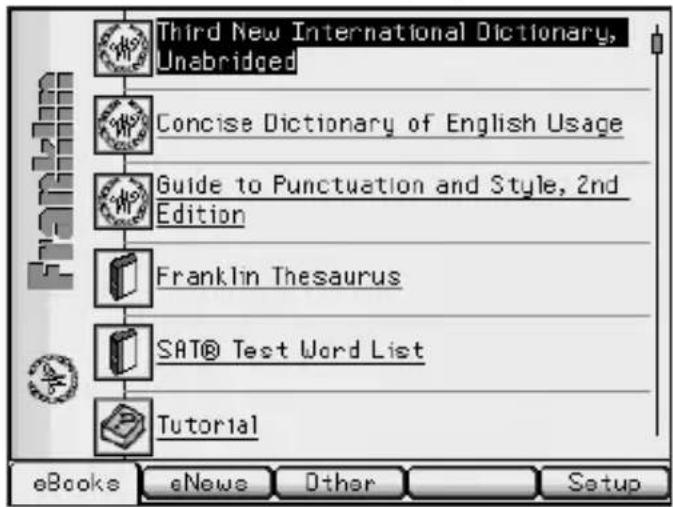
In your NID-260, you can select from a variety of reference material that comes with your device. You can look up definitions using Webster's Third New International Dictionary, Unabridged, meanings and origins of words and phrases using the Concise Dictionary or English Usage, and thesaurus entries using the Franklin Thesaurus. You can read about the rules of punctuation and style using the Guide to Punctuation and Style, 2nd Edition. You can increase your vocabulary using the SAT® Test Word List.
1. Press LIBRARY.
The eBooks tab is displayed.
Selecting a Book
- Press ▲ or to move the highlight to Third New International Dictionary, Unabridged and then press ENTER to select it.
Note: This is the method to select any book or file in any of the tabs. That is, use the navigation buttons to scroll through your list of files, and press ENTER to open the highlighted file.
Note: eNews is only available through the Mobipocket Reader for Franklin, made available through the Franklin PC Desktop. For more information on using your device on your PC, please see "Using the Franklin PC Desktop" on page 58.
Looking Up a Word
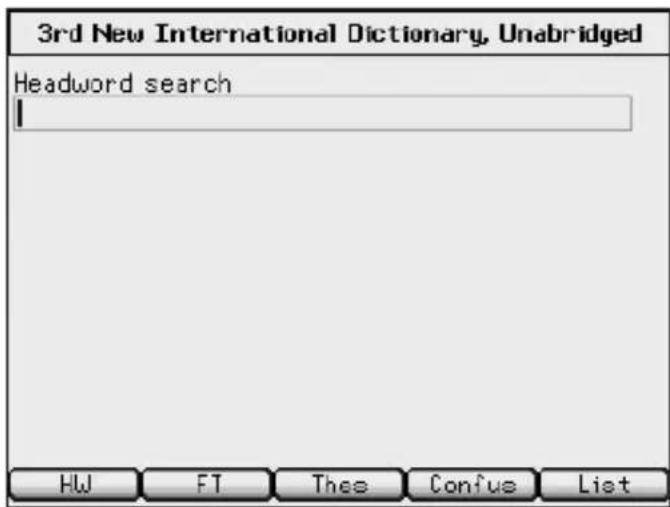
After selecting Webster's Third New International Dictionary, Unabridged you see a word search screen. Type words at this screen for instant access to all the definitions in this book.
Note: You can type and search for words in all of the dictionaries in your NID-260.
1. Begin to type a word, for example essential.
As you type letters, the first word in the book that matches the letters you type will move to the top of the word list. You may not have to type the entire word in order to find the one you want. In this example, note that "essential" appears on the screen after you type "essent".
![3rd New International Dictionary, Unabridged Headword search essential essentia essential [1] essential [2] essential amino acid essential clause essential hypertension essential oil essential predication essential proposition essentialism essentialist [1] essentialist [2] HW FT Thee Confus List](/content/2026/05/788662/images/84e004530f52d858b4663ae8662278250bb1f9e5a153115e954e96fdd255598d.jpg)
- When the word you want is on the screen, press ▼ until the word you want is highlighted.
Looking Up a Word
![3rd New International Dictionary, Unabridged Headword search essent essentia essential [1] essential [2] essential amino acid essential clause essential hypertension essential oil 1es-sen-tial /a'senchal, e'-, E-l adj [ME essencial, fr. LL essentialis, fr. L essentia essence + -a/is -a] HW FT Thee Confus List](/content/2026/05/788662/images/2a8acebb9f4b111a912e48a057fc243794663a4454a1caa3e6ce88cefcf471da.jpg)
Or you can continue typing letters until the word is complete and the matching word in the list is automatically highlighted.
Once a word in the list is highlighted, notice the "preview pane" at the bottom of the screen. This pane is a quick, 3-line snapshot of the definition and can help you quickly determine which sense of a word you want to view.
3. Press ENTER to look it up.
![3rd New International Dictionary, Unabridged 1es-sen-tial (a'senchal, e'-, @-l adj [ME essencial, fr. LL essentialis, fr. L essentia essence + -a/is -al] 1 : of or relating to an essence: as 1 a : having or realizing in itself the essence of its kind : having or consisting of the basic, most fundamental nature, property, quality, or attribute peculiar to or necessary or indispensable to its kind 1 b : forming or constituting the essence of Conj Theo List](/content/2026/05/788662/images/2b6d168b639af140a21242f13c7e794255b7b7b50ff1c05ea936d2cbaa6f0379.jpg)
-
Use the navigation buttons to read the entire definition.
-
Press CLEAR when done.
Soft Keys in √ Webster's Third New International Dictionary, Unabridged
While using the unabridged dictionary, at any given moment, up to five extra functions are available. For example, in the entry for “essential”, you see the following Soft Keys:
Press... To...
Please remember, the Soft Keys vary based on the book you are in. These are the Soft Keys while in Webster's Third New International Dictionary, Unabridged.
* The SofinKevsis only displayed in dictionary entries of Webster's Third New International Dictionary, Unabridged when a word has Confusables. Please see "Confusables by Franklin" on page 22 for more information.
Note: When there is no active word, for example at an empty word search screen, remains at the word search screen (or goes to the word search screen from the full text search screen), goes to the full text search screen, goes to the word search screen of the Franklin Thesaurus, goes to the Confusables search screen, and List displays My Vocabulary List.
Spell Correction √
If you type a misspelled word, inflected form, or a word not in a book, nothing in the word list will be highlighted as a match. Press ENTER to view a list of possible spelling corrections for the word as you typed it.
![3rd New International Dictionary, Unabridged Headword search nolij nolina nolition noll nolle nolle pros nolle prosequi noll-kholl nolo nolo contendere no-load Spell correction: • knowledge [1] • noology • molge • moulage • mileage • neology Press Enter to find similar words HW FT Thee Confus List](/content/2026/05/788662/images/2dfc99917bc196874762c7c51a64ecfce7a5805953cdd9cc60a3a849d5cc78e1.jpg)
Press ▲ or ▼ to highlight the word you want, then press ENTER to look it up.
MatchMaker √
If you are uncertain about how to spell a word, type a question mark (?) in place of each unknown letter. To find prefixes, suffixes, and other parts of words, type an asterisk (*) in a word. Each asterisk stands for zero, one or more letters.
Note: If you type an asterisk at the beginning of a word, it may take a little while to find the matching words.
- Press LIBRARY.
-
Press ▲ or to highlight Concise Dictionary of English Usage and then press ENTER.
-
Type con?er*.
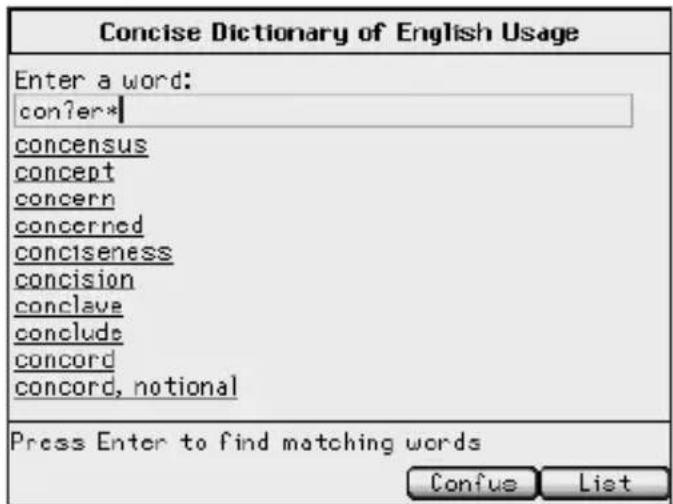
Press CAP to type an asterisk.
4. Press ENTER.
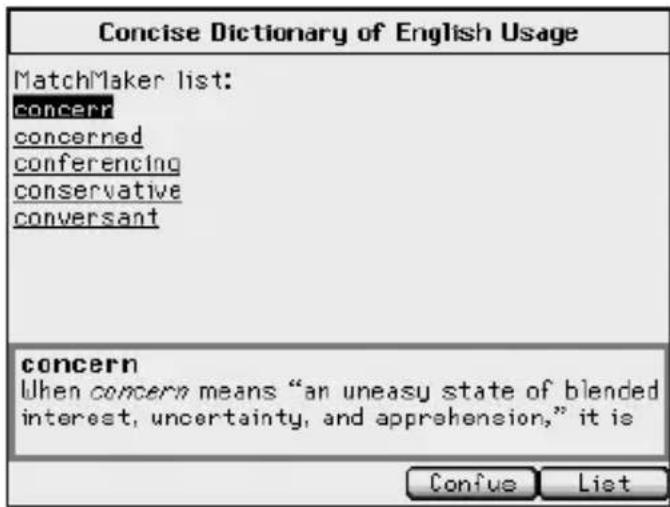
A list of matches is displayed with the first word highlighted.
5. Press ▲ or to highlight the word you were looking for and then press ENTER to look it up.
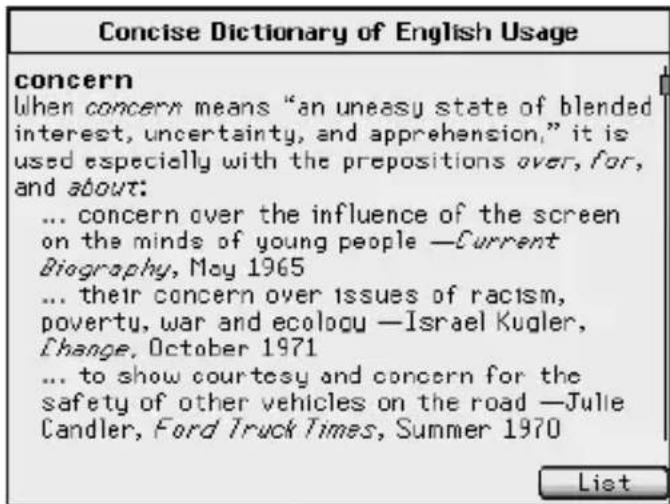
6. Press CLEAR when done.
Soft Keys in the √ Concise Dictionary of English Usage
While using the Concise Dictionary of English Usage, two extra functions are available. For example, in the entry for “concern”, you see the following Soft Keys:
Press... To...
Confus * look up Confusables for your word.
List add "concern" to My Vocabulary List.
Please remember, the Soft Keys vary based on the book you are in. These are the Soft Keys while in the Concise Dictionary of English Usage.
Note: When there is no active word, for example at the empty word search screen, go to the Confusables search screen, and
List displays My Vocabulary List.
Confusables are homonyms,
homophones and spelling variants that are easy to confuse, e.g. rain, reign, rein. If the word you looked up in Webster's Third New International Dictionary, Unabridged or Concise Dictionary of English Usage is a confusable, you see the Soft Key. To view Confusables, do the following:
- Press LIBRARY.
- Press ▲ or to highlight Third New International Dictionary, Unabridged and then press ENTER.
- Type rain and then press ENTER.
3rd New International Dictionary, Unabridged
^1 rain frān l n, -s often attrib [ME reyn, fr. OE regn, rēn; akin to OHG regan rain, ON regn, Goth reign, and perh. to ON rain dampness, L rigare to water]
1 a: water falling in drops condensed from vapor in the atmosphere — compare ORIZZLE, MIST
1 b: the descent of water in drops esp. from the clouds
1 c: water that has fallen as rain : RADIWATER
2 a: a fall of rain esp. heavier or of longer duration than a shower: RAINSTORM (the roads ... can be used in summer only and then if
Conj Thee Confus Liet
When you see on the
screen, press it to view the Confusables.
Confusables by Franklin Confusables by Franklin
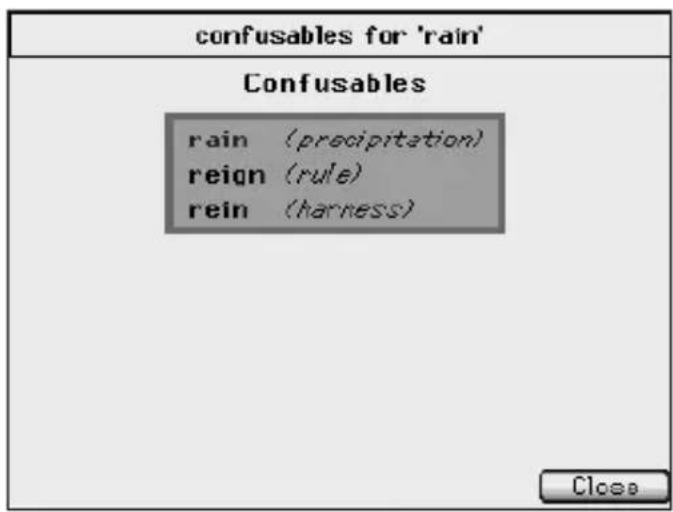
The confusable word is indicated with boldface on the left side of the box followed by a brief definition on the right side.
5. Press to return to the dictionary entry.
Using the Confusables Search Screen
Webster's Third New International Dictionary, Unabridged and Concise Dictionary of English Usage also contain a Confusables search screen where you can search a word list for all the Confusables contained in the thesaurus.
1. Press LIBRARY.
2. Press ▲ or to highlight Concise Dictionary of English Usage and then press ENTER.
3. Press Confus
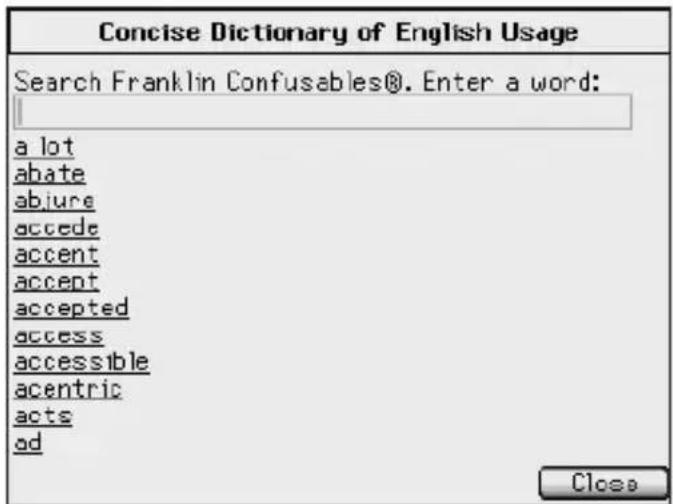
4. Begin to type a word, for example insure.
As you type letters, the first Confusable in the book that matches the letters you type will move to the top of the list. You may not have to type the entire Confusable in order to find the one you want. In this example, note that "insure" appears on the screen after you type "ins".
Confusables by Franklin
5. When the Confusable you want is on the screen, press ▼ until it is highlighted.
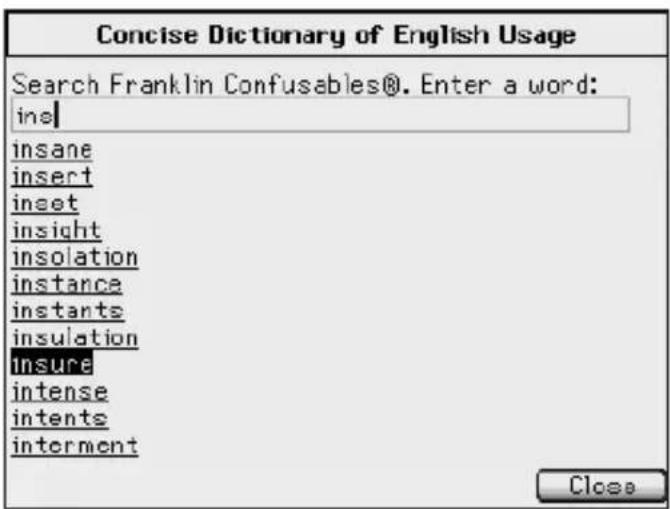
6. Press ENTER to look it up.
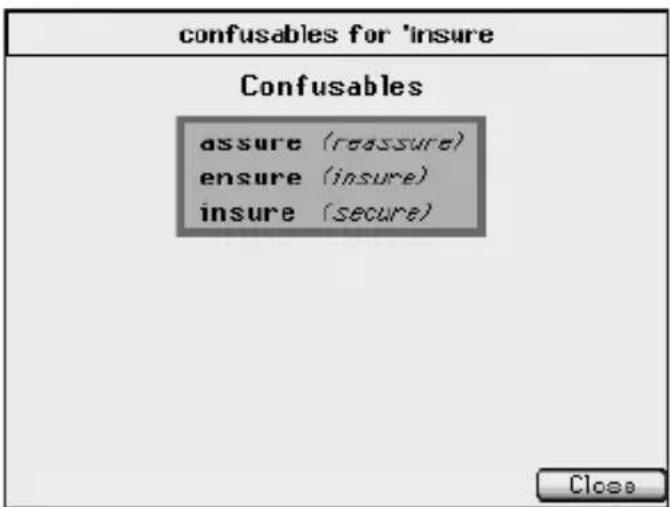
The confusable word is indicated with boldface on the left side of the box followed by a brief definition on the right side.
7. Press to return to the word search screen.
Highlighting Words
Another way to look up words is by highlighting them in text. You can then find their definition or translation, copy the word to the clipboard, highlight the word in the entry, add a note, or edit the word.
1. At any text, press ENTER to start the highlight.
![3rd New International Dictionary, Unabridged righteous /riches/ adj [alter. (influenced by -eous) of earlier rightwise, rightuous, fr. ME rightwise, rightuos, fr. OE riftuis, fr. riht, n., right + wis wise—more at RIGHT, WISE] 1 : doing that which is right : acting rightly or juetly : conforming to the standard of the divine or the moral law : free from guilt or sin : JUST, UPRIGHT, VIRTUCUS Z a : according with that which is right : characterized by uprightness or justice : morally right or justifiable : free from Conj Thee List](/content/2026/05/788662/images/b91e3f557091f9a4d79d956585537ef9918dcebfc53edd9d512ebbbc84c41f28.jpg)
To turn the highlight off, press

2. Use the navigation buttons to move the highlight to the word you want.
Note: If you want to highlight more than one word, move the highlight to the first word you want to highlight, then hold and press the navigation buttons to move the highlight to the last word.
Highlighting Words
Highlighting Words
![3rd New International Dictionary, Unabridged righ-teous /riches/ adj [alter. (influenced by -eous) of earlier rightwise, rightuous, fr. ME rightwise, rightuos, fr. OE riftuis, fr. riht, n., right + wis wise—more at RIGHT, WISE] 1 : doing that which is right : acting rightly or justly : conforming to the standard of the divine or the moral law : free from guilt or sin : JUST, UPRIGHT, VIRTUCUS Z a : according with that which is right : characterized by uprightness or justice : morally right or justifiable : free from Conj Thee List](/content/2026/05/788662/images/3f37e36015ef39642fee23bdf75db11a28e896e7c43113ec799b5954ad7b6e4a.jpg)
3. Press ENTER.
![3rd New International Dictionary, Unabridged right-teous /riches/ adj [alter. (influenced by -eous) of earlier rightwise, rightuous, fr. ME rightwise, rightwos, fr. OE riftuis, fr. rint, n., right + wis wise—more at RIGHT, WISE] 1 : doing that which is right : acting rightly or justly : conforming to the standard of the divine or the moral law : free from guilt or Lookup Translate Copy Highlight Add note Modify RIGHT, VIRTUCUS ding with that which is right : zed by uprightness or justice : morally right or justifiable : free from Conj Thee List](/content/2026/05/788662/images/504d58097b7df1638b26ee91a4bcbde254005618256b6264e022059eb3983acc.jpg)
A menu is displayed at the location of the highlight.
Lookup searches for your word in any available dictionary of the same language as the highlighted word.
Translate searches for your word in any available dictionary that translates from the language of the highlighted word to another language.
Copy copies your word to the clipboard.
Highlight saves a highlight over your word or words in the text.
Add note allows you to add an explanatory note regarding your word.
Modify allows you to replace the selected word or words with your own preference.
-
Press ▲ or to highlight the option you want and then press ENTER.
-
Press CLEAR when done.
Using Annotations, Modifications and Highlights
Your device contains three special features that help you to customize your books. The Highlight, Modify and Add note menu items allow you to mark, edit and expand the text of any of the books in this device. To review how to highlight a word or words in text, please see "Highlighting Words" on page 24.
Annotations
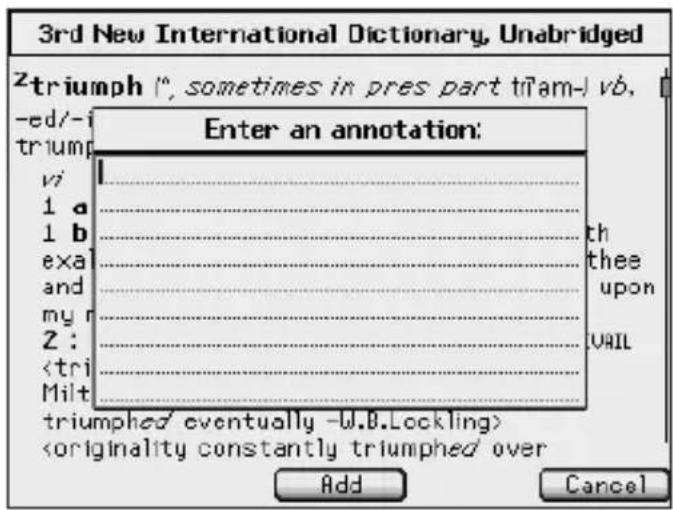
Customize your learning by entering annotations that explain, in your own words, the meaning and usage of the words you selected. Write examples you can apply in your job or in any other of your daily routines.
When you select Add note from the menu, a note screen is displayed prompting you to add a note to the text.
Using Annotations, Modifications and Highlights
To edit a modification at a later time, highlight the crossed out section of text and press ENTER. Then select Edit modification from the menu to edit your modifications. Press to delete the modification, press to apply accept any changes to the modification, or press to exit without accepting any changes.Highlights
When you select Highlight from the menu, your selected word or words are shaded in the text (a little darker than the shading for annotations) so they stand out and are easy to spot.  To delete your highlight at a later time, highlight the highlighted section of text and press ENTER. Then select Delete highlight from the menu to erase the highlight.Viewing the Annotations List
At any time, you can see a list of all the bookmarks, annotations, highlights and modifications you have saved within a particular eBook. 1. Enter a book where you have saved a bookmark, annotation, highlight and/or modification. 2. Press MENU. 3. Press ▶or, if necessary, to view the eBook menu. 4. Press ▼if necessary, to highlight Annotations and then press ENTER. The Annotations list is displayed, sorted in alphabetical order by the headword of the entries in which the notes are saved.  The entire text of the note you added is displayed for annotations and modifications. The entire text you highlighted is displayed for highlights. The headword is displayed for bookmarks.Viewing the Annotations List
The following icons indicate the type of notation:  5. Use the navigation buttons to view the list. 6. Press or to highlight a particular notation. Press to delete the highlighted notation. Press OK to confirm the deletion or press Cancel to cancel. 7. Press ENTER to go to the location of that notation in the eBook. View the entire text of your notation as described in "Using Annotations, Modifications, and Highlights" on page 26. 8. Press ← to return to the Annotations list. 9. Press to close the Annotations List. Press to delete the list of notes from this eBook. Press OK to confirm the deletion or press Cancel to cancel.Viewing Inflections by Franklin
Inflections show changes in a word's gender, tense, and form. When you see a Soft Key, it means that the dictionary includes extensive inflections (provided by Franklin) of nouns, verbs, modifiers and other words. In this device, inflections are available in Webster's Third New International Dictionary, Unabridged. 1. Press LIBRARY. 2. Press ▲ or to highlight Third New International Dictionary, Unabridged and then press ENTER. 3. Begin to type a word, for example, jostle. As you type letters, the first word in the book that matches the letters you type will move to the top of the word list. You may not have to type the entire word in order to find the one you want. In this example, note that "jostle" appears on the screen after you type "jost". Viewing Inflections by Franklin
4. When the word you want is on the screen, press ▼ until the word you want is highlighted.  Or you can continue typing letters until the word is complete and the matching word in the list is automatically highlighted. Once a word in the list is highlighted, notice the "preview pane" at the bottom of the screen. This pane is a quick, 3-line snapshot of the definition and can help you quickly determine which sense of a word you want to view. 5. Press ENTER to look it up. The dictionary entry for "jostle" is displayed.Viewing Inflections by Franklin
6. Press . Conj
If needed, use the navigation buttons to highlight the part of speech you want and then press ENTER.  The principal forms of the verb "jostle" are displayed.7. Use the navigation buttons to read the text.
Viewing Inflections by Franklin
8. Press to see a menu of available tenses.
9. Press ▲ or to highlight the tense you want and then press ENTER.
10. Press or to view previous the next or previous tense. Press return to the overview. Press to return to the previous screen. 11. Press CLEAR when done.Searching Definitions
You can also search for words that occur in definitions of other words in Webster's Third New International Dictionary, Unabridged. 1. Press LIBRARY. 2. Press ▲ or to highlight Third New International Dictionary, Unabridged and then press ENTER. 3. Press . FT You see the full text search screen. Press to return to the word search screen.  4. Begin to type a word, for example create. As you type letters, the first word in the book that matches the letters you type will move to the top of the word list. You may not have to type the entire word in order to find the one you want. In this example, note that "create" appears on the screenSearching Definitions
after you type "creat". 5. When the word you want is on the screen, press ▼ until the word you want is highlighted.  Note: The number of definitions that contain the word is displayed following the word. 6. Press ENTER.  The list of definitions that contain "create" is displayed. Press HW to return to the word search screen.Searching Definitions
The number in brackets next to the word indicates which definition sense of the word you are viewing.7. Press ▲ or to move the highlight to the entry you want to view.
Once a word in the list is highlighted, notice the "preview pane" at the bottom of the screen. This pane is a quick, 3-line snapshot of the definition and can help you quickly determine which entry you want to view.8. Press ENTER to view the definition of the highlighted word.
 The entry is displayed that contains the selected word.9. Use the navigation buttons to read the entire entry.
10. Press CLEAR when done.
Viewing Supplemental Information
In Webster's Third New International Dictionary, Unabridged, you can review three sections of supplemental information, provided by Webster's, to help you understand your dictionary. 1. Press LIBRARY. 2. Press ▲ or to highlight Third New International Dictionary, Unabridged and then press ENTER. 3. Press MENU. 4. Press ▶ to view the Go to menu. 5. Press ▼ to highlight Tables search, Pronunciation symbols or Abbreviations Used in this Dictionary and then press ENTER.
Tables search displays a list of the tables included in the unabridged dictionary. Please see "Tables Search" on page 33 for more information. Pronunciation symbols displays a table of the pronunciation symbols used in the dictionary and explanations and examples of the sound.Viewing Supplemental Information
Abbreviations Used in this Dictionary displays a table of the abbreviations used in the dictionary and their expansions. 6. Use the navigation buttons to scroll through the tables. 7. Press or CLEAR to return to the word search screen.Tables Search √
When you select Tables search, you are presented with an alphabetical list of the tables included in the unabridged dictionary.  1. Press ▲ or ▶ highlight the table you want to view. Or you can type letters to go directly to that part of the list. Once a table in the list is highlighted, notice the "preview pane" at the bottom of theViewing Supplemental Information
screen. This pane is a quick, 3-line snapshot of the table and can help you quickly determine which table you want to view. 2. Press ENTER to view the highlighted table.| Diacritics | |
| (é) | acute accent |
| (e) | grave accent |
| (ô) | circumflex |
| (ñ) | tilde |
| (ō) | macron |
| (ǔ) | breve |
| (č) | ha ček |
| (naïve) | diaeresis |
| (glögg) | umlaut |
| (ç) | cedilla |
Using the Thesaurus
Your device also comes with the Franklin Thesaurus. Thesaurus entries may consist of parts of speech, brief definitions, synonyms, antonyms, classmates and idioms. 1. Press LIBRARY. 2. Press ▲ or to highlight Franklin Thesaurus and then press ENTER.  3. Begin to type a word, for example cringe. As you type letters, the first word in the book that matches the letters you type will move to the top of the word list. You may not have to type the entire word in order to find the one you want. In this example, note that "cringe" appears on the screen after you type "crin".Using the Thesaurus
 4. When the word you want is on the screen, press ▼ until the word you want is highlighted.  Or you can continue typing letters until the word is complete and the matching word in the list is automatically highlighted. Once a word in the list is highlighted, notice the "preview pane" at the bottom of the screen. This pane is a quick, 3-line snapshot of the thesaurus entry and can help youUsing the Thesaurus
quickly determine which entry you want to view.5. Press ENTER to look it up.
 6. Use the navigation buttons to read the entire entry. 7. Press CLEAR when done.Soft Keys in the √ Franklin Thesaurus
While using the Franklin Thesaurus, one extra function is available. For example, in the entry for "cringe", you see the following Soft Key:Press... To...
 add "cringe" to My Vocabulary List. Please remember, the Soft Keys vary based on the book you are in. These are the Soft Keys while in the Franklin Thesaurus. Note: When there is no active word, for example at the empty word search screen, displays My Vocabulary List.Using the Punctuation and Style Guide
Your NID-260 includes a helpful guide that describes punctuation and style to help you improve your knowledge and writing. 1. Press LIBRARY. 2. Press ▲ or to highlight Guide to Punctuation and Style, 2nd Edition and then press ENTER.Guide to Punctuation and Style
Contents
Preface +1. Punctuation 2. Capitals, Italics, and Quotation Marks 3. Plurals, Possessives, and Compounds 4. Abbreviations 5.Numbers 6. Grammar and Composition 7. Problems in Word Usage 8. Notes and Bibliographies 3. Press ▲ or to highlight the topic you want and then press ENTER. Continue selecting subsections, if necessary, until you reach the text of the guide. When selecting an item, indicates a topic contains a sub-menu, and indicates the text of topic follows.Using the Punctuation and Style Guide
4. Use the navigation buttons to read the text.
Press oNexto Previous view the next or previous topic, if available. Press Cto return to the main menu.5. Press CLEAR when done.
Using the Word Usage Glossary √ Index
The punctuation and style guide contains an index of words reference in the "Word Usage Glossary" topic of the guide. To access this topic, select "7. Problems in Word Usage | Word Usage Glossary". 1. Press LIBRARY. 2. Press ▲ or to highlight Guide to Punctuation and Style, 2nd Edition and then press ENTER. 3. Press MENU. 4. Press ▶ to see the Go to menu.Using the Punctuation and Style Guide
5. Press ▼ to highlight Word Usage Glossary Index and then press ENTER.
 An alphabetical list of the words used in the glossary is displayed.6. Begin to type a word, for example phenomena.
As you type letters, the first word in the book that matches the letters you type will move to the top of the word list. You may not have to type the entire word in order to find the one you want. In this example, note that "phenomena" appears on the screen after you type "p".7. When the word you want is on the screen, press ▼ until the word you want is highlighted.
Or you can continue typing letters until the word is complete and the matching word in the list is automatically highlighted.Using the Punctuation and Style Guide
Once a word in the list is highlighted, notice the "preview pane" at the bottom of the screen. This pane is a quick, 3-line snapshot of the glossary. 8. Press ENTER to see it.
 9. Use the navigation buttons to read the entire entry, if necessary. 10. Press CLEAR when done.Using the SAT® Test Word List
Your NID-260 includes a word list to help you learn vocabulary words that you might find in Scholastic Aptitude Test (SAT®). 1. Press LIBRARY. 2. Press ▲ or to highlight SAT® Test Word List and then press ENTER.  The word list is displayed. 3. Begin to type a word, for example gregarious. As you type letters, the first word in the book that matches the letters you type will move to the top of the word list. You may not have to type the entire word in order to find the one you want. In this example, note that "gregarious" appears on the screen after you type "gre".Using the SAT® Test Word List
Using the SAT® Test Word List
4. When the word you want is on the screen, press ▼ until the word you want is highlighted.
 Or you can continue typing letters until the word is complete and the matching word in the list is automatically highlighted.5. Press ENTER.
The word is displayed in a detail screen.6. Press to look up its definition in the Third New International Dictionary, Unabridged.
A menu is displayed listing available dictionary entries for your word.| Third New International Dictionary: gregarious |
| gre-gar-i-ous lgré'ga(a)rēas, grē-, -ger-, -gār-l adj [L gregarius of or relating to a herd or flock, fr. greg-, grey herd, flock + -arius -aru; akin to OIr graig herd of horses, Gk ageirein to collect, |
7. Press ▲ or to highlight the entry you want, if necessary, and then press ENTER.
 3. Press ▲ or to highlight My Vocabulary List and then press ENTER. Using My Vocabulary List Using My Vocabulary List
My Vocabulary List is displayed. If there are no items in your list, you see the message "this list is empty".4. Press Add
 Press to close the word entry screen without adding a word.5. Type a word and then press Add
 If there are multiple books or entries to which to link, a menu is displayed indicating the entries (and books, if necessary) corresponding to your word.6. Press ▲ or to highlight the book or entry you want and then press ENTER.
 The word you typed is added to My Vocabulary List.7. Press when done.
Adding Words Not in Any √ Dictionary
If you type a word that is misspelled or not found in any book, you are notified and asked if you want to add it anyway. Press to add the word or press to return to your list without adding the word.Adding Words From an Entry √
If you are viewing a definition or phrase, press to add the item to My Vocabulary List. You are asked to confirm the addition.Using My Vocabulary List
 Press to add the word or press to return to your list without adding the word.Viewing My Vocabulary List
1. Press LIBRARY. 2. Press . Other 3. Press ▲ or to highlight My Vocabulary List and then press ENTER. My Vocabulary List is displayed. The book linked to the word is indicated, followed by a priority marker and then the word. The following icons refer to the indicated dictionary: Unab Webster's Third New International Dictionary, Unabridged Conc Concise Dictionary of English Usage Thes Franklin ThesaurusUsing My Vocabulary List
Press to cycle through the priority settings. The following icons refer to the indicated priority: - No special status. √ You have learned the word. ! You need to learn the word. To see My Vocabulary List for another language, press if available. 4. Press ▲ or to highlight a different item in your list. 5. Press ENTER to look it up. 6. Press to return to your previous location.Deleting Items from √ My Vocabulary List
While viewing your list, press ▲ and ▼ to highlight the item you want to delete and then press Delete to delete it. Press to delete the word or to cancel the deletion. Caution: The item may be deleted without asking for confirmation.Other Languages √
If you add dictionaries in other languages to your device, you have the capability of saving words in those languages. Use , when available, to move between the lists.Viewing Your Search History
Your NID-260 remembers and keeps track of the last 100 entries you have viewed. Any time you want to view this list, press HISTORY.  The most recently viewed entry is at the top of the list. The book where you looked up the word is indicated. Press ▲ or ▼ to move the highlight to an entry you want to revisit and then press ENTER to look it up. Press reset erase the search history. Press Close to return to your previous location.Using the Menus
Each book included in your NID-260 has access to two menus of additional options, eBook and Go to. Press MENU to open the menus. Press ▶ or ▶ move between the eBook and Go to menus. Press ▶ or ▶ highlight the menu item you want and then press ENTER to select it. Note: The available menu items differ from book to book.eBook Menu
 Add bookmark adds a bookmark at your current location. Note: This menu item is displayed only while in text. Remove bookmark removes the bookmark from your current location. Note: This menu item is displayed only when a bookmark exists at your current location in text.Using the Menus Using the Menus
Annotations displays your list of bookmarks, annotations, highlights and modifications. For more information, please see "Viewing the Annotations List", on page 28. For more information on Annotations, Highlights and Modifications please see page 26. Paste pastes any information copied to the clipboard at your current location. Note: This menu item is displayed only when you have previously highlighted text and selected Copy from the pop-up menu. Find opens a search input box. Type a word and then press to search for that word in the current eBook. Press Cancel to cancel the search at any time. Note: This menu item is displayed only within the text of an eBook. Settings goes to the Settings List. For information on the Settings List, please see page 16.Go to Menu
 Go to first page goes to the first page of the current book. Search goes to the word search screen of the Franklin Thesaurus and SAT® Test Word List. Headword Search goes to the headword search screen of Webster's Third New International Dictionary, Unabridged. Headword goes to the headword search screen of the Concise Dictionary of English Usage. Full text search goes to the full text search screen in Webster's Third New International Dictionary, Unabridged.Using the Menus
Tables search displays the list of tables included in Webster's Third New International Dictionary, Unabridged. For more information, please see "Tables search" on page 33. Pronunciation Symbols displays a table of the pronunciation and phonetic symbols used in Webster's Third New International Dictionary, Unabridged, and explanations and examples. Abbreviations Used in this Dictionary displays a list of abbreviations found in Webster's Third New International Dictionary, Unabridged and their expansions. Table of Contents goes to the main menu of the Guide to Punctuation and Style, 2nd Edition. Word Usage Glossary Index displays an index of words referenced in the "Word Usage Glossary" topic of the Guide to Punctuation and Style, 2nd Edition. For more information, please see "Using the Word Usage Glossary Index" on page 36. Copyright displays copyright information for the Franklin Thesaurus and SAT® Test Word List.Playing the Games
Game Settings
Before you play, you can choose the skill level, the game book, the word list, and whether or not graphics will be used. 1. Press GAMES. 2. Press . Setup 3. Press ▲ or to highlight Game Settings and then press ENTER. The Game Settings menu is displayed.  4. Press or to move to Skill Level, Game Book, Word List, or Graphics. Skill Level determines how easy or difficult a game is. Game Book determines which installed book will be the source of the words. Note: Some games cannot be played with certain books. Word List determines which subset of words from that book will be used. Graphics lets you turn on or off images between rounds. 5. Press ▶ to open the menu of options. 6. Press ▲ or to move the highlight to your choice. 7. Press ◀r ENTER to accept the setting. Press to exit the menu without changing the setting. 8. Press GAMES to return to the Games Menu.Selecting a Game √
Press GAMES to display the Games Menu.  Press ▲ or ▼ to move the highlight to the game of your choice and then press ENTER.Getting Help in the Games √
During any game, you can read instructions by pressing HELP. You can get a hint, when available, by pressing or give up by pressing Quit Note: If you reveal the game word, you lose the round.Hangman
 Hangman selects a mystery word and challenges you to guess it letter by letter. The letters of the mystery word are hidden by question marks. The number of guesses remaining is indicated by #s and is also displayed at the bottom of the screen. Type letters that you think are in the mystery word. If you are correct, the letter appears in place of the corresponding question mark(s). Press Hint to fill in a letter. To look up the word, press Press to return to the game. To try a new word, press New.Playing the Games Playing the Games
Letris
 In Letris, try to form words from the letters that fall down the screen. The moment letters are put together to form a valid word, those letters disappear and the remaining letters shift and fall into the opening created by the disappearing letters. Words can be formed both horizontally and vertically. You earn points for each word you make. The longer the word, the better your score. As you advance rounds, the letters fall more rapidly. If the pile of letters reaches the top of the screen, the game is over. Use the navigation buttons to move the letters as they fall. Hold FN and press ▶ or ▶to move the letters as far right or left as possible. Press ▼to drop a letter. Press to pause the game at any time, then press to start playing again. To try another round, press NewJumble
 Jumble presents a mystery word where the letters are out of order. Your goal is to re-order all the letters to spell a valid word. There may be multiple solutions. The number of required solutions is displayed at the top right corner of the screen. Press to jumble the letters. Type your guess and press ENTER. To look up the word, press Press to return to the game. To try a new word, press NewAnagrams
 Anagrams presents a game word. Your goal is to find the requested number of words that can be spelling using any number of letters of the game word. The number of required solutions is displayed at the top right corner of the screen. You can only use a letter as many times as it appears in the game word. Press to jumble the letters. Type your guess and press ENTER. Use the navigation buttons to scroll through the list of solution words, if necessary. After the game is over, use the navigation buttons to highlight a word to look up and then press Entry Press ← to return to the game. To play again, press New The clock displays the current time, date and a home city. You can toggle to the world time by pressing . ClockSetting the Date and Time
1. Press CALC/ORG. 2. Press . Setup 3. Press ▲ or ▶ to highlight Date and Time and then press ENTER.  The Date and Time Menu is displayed. 4. Press ▲ or to move to Time Format, Local Time, Local DST, Set Time, World Time, World DST, Date Format, or Set Date. Time Format determines whether you use a 12 hour or 24 hour clock. Local Time determines your home city. Local DST sets whether or not you are currently in daylight savings time. Set Time allows you to set the hour and minutes according to the selected clock format.Using the Clock
World Time determines your world city. World DST sets whether or not your world city is in daylight savings time. Date Format determines how you display the date. Set Date allows you to set the day, month and year according to the selected date format.5. Press to open the menu of options.
For the Set Time and Set Date settings, press to highlight the first field.6. Press ▲ or ▶ to move the highlight to your choice.
For the Set Time and Set Date settings, press ▶ again to move to the next field. Repeat step 6 for each field in the setting, then proceed to step 7.7. Press ◀r ENTER to accept the settings.
Press ← to exit the menu without changing the setting.8. Press CALC/ORG to return to the organiser.
Using the Calculator
The calculator is automatically displayed every time you access the organizer.1. Press CALC/ORG.
2. Press . Calc
3. Perform your calculation.
You can type up to 10 digits. Press... To... type a decimal point Z(+/-) use negative numbers A(1/x) calculate reciprocals S(√x) calculate square roots D(x²) calculate squares F(%) calculate percentagesMemory Keys √
Press... To... X(m+) add the number on the screen to the number stored in memoryUsing the Calculator Using the Calculator
C(M-) subtract the number on the screen from the number stored in memory V(a) recall the number from memory B(1) clear memory Practice with the following equations. a. (32 × 12) - (8 × 8) = 320 - Press B(1) - Type 32. - Press K(x) . - Type 12. - Press ENTER. - Press X(M+). - Type 8. - Press K(x) . - Type 8. - Press ENTER. - Press C(M - ) - Press V( )  b. 320 ÷ 16 = 20 - Press V( ) - Press L(÷) . - Type 16. - Press ENTER. c. 320 × 7 = 2240 - Press V( ) - Press K(x) . - Type 7. - Press ENTER. d. (-39) ÷ (-5) = 7.8 - Type 39. - Press Z(+/-). - Press L(÷) . - Type 5. - Press Z(+ / -) . - Press ENTER. e. 1.07^3 = 1.225043 - Type 1. - Press - Type 07. - Press K( x) . - Type 1. - Press - Type 07. - Press ENTER. - Press ENTER again.Using the Calculator
f. 19 = 4.35889894354 - Type 19. - Press S() .  g. 18% of 478 = 86.04 - Type 478. - Press K( x) . - Type 18. - Press F(%). Using the Phone Book
Adding Entries
You can store up to 100 entries in the phone book. The total number of entries you can add depends on the size of each entry. 1. Press CALC/ORG. 2. Press Phone  3. Press ▲ or to highlight Add an Entry and then press ENTER.  4. Type a name. 5. Press ▼ to go to the next field.  6. Continue filling in the fields until all the information for that contact has been added. Press ▲ to return to a previous field. Press □ to erase a character. Press □ to type a period. Hold CAP and press □ to type an apostrophe. Press SYMBOL repeatedly to cycle through the available symbols, including @ / \_ \~ : ; , and # . Hold FN and press SYMBOL repeatedly to add an accent to the letter to the left of the cursor. 7. Press ENTER to save the entry.Viewing or Editing Entries
1. Press CALC/ORG. 2. Press Phone 3. Press ▲ or to highlight View: ... and then press ENTER.  4. Press ▲ or to highlight the entry you want to view and then press ENTER. Using the Phone Book Using the Phone Book
5. Press ENTER again to edit the entry.
 Type your changes. Use ▶ or ▶ to move the cursor; use □ to delete. Use ▶ or ▶ to move between fields.6. Press ENTER to save your changes.
Press to exit without saving any changes.Deleting Entries
1. Press CALC/ORG. 2. Press Phone 3. Press ▲ or to highlight Delete an Entry and then press ENTER. 4. Press ▲ or to highlight the entry you want to delete and then press ENTER.  Press to delete the entry or Cancel to cancel the deletion. To delete all of the entries in the phone book, at the Phone Book menu, highlight Erase the List and then press ENTER.  Press to erase the list or Cancel to cancel the deletion.Using the Phone Book Using the Phone Book
Using a Password
You can use a password to prevent unauthorized access to the phone book. Warning! Always write the password in a safe, separate location. If you lose or forget the password, you will be able to use the phone book again only by restoring the factory defaults of your NID-260, which will permanently erase all the information stored in the phone book. 1. Press CALC/ORG. 2. Press Phone 3. Press ▲ or to highlight Set your password and then press ENTER.  4. Type a password of four to 15 characters and press ENTER. Use ◀ to move the cursor; use delete.  5. Re-type the password and then press ENTER to confirm it.  The password you set will be requested the first time that the phone book is used during a session. Type the password and then press ENTER. 6. To change the password, repeat steps 1-5. To disable a password, press ENTER at an empty Set your password screen. Using the Converter
The converter allows you to convert values of measurement and currency.Making Metric Conversions
1. Press CALC/ORG. 2. Press Conv  3. Press ▲ or to highlight the conversion category you want and then press ENTER. Note: If you select Temperatures you go directly to the entry screen. 4. Press ▲ or to highlight the units you want to convert between and then press ENTER.Using the Converter
 5. Type a number after one of the units. Press ▲ or ▼ to move between the lines. Press □ to delete a number. 6. Press ENTER to convert the units. Making Currency Conversions
1. Press CALC/ORG. 2. Press Conv 3. Press ▲ or to highlight Currency Converter and then press ENTER.  4. Type an exchange rate and press ENTER. The exchange rate should be in units of the other currency per one unit of the home currency (n other/1 home). For example, to convert between U.S. Dollars and Euros, enter an exchange rate of 1.38969. This means that 1 U.S. Dollar is the equivalent of 1.38969 Euros.  5. Type an amount for the home or other currency. Press ▲ or ▼ to move between the lines. Press □ to delete a number. 6. Press ENTER to convert the amount. Installing the Franklin PC Desktop
To install the Franklin PC Desktop from the installation CD-ROM, follow these steps. Warning: You must install the software on your PC before you connect your device to your computer, so that your computer can properly install the drivers necessary to communicate with your NID-260.1. Insert the installation CD-ROM into the CD-ROM drive on your PC.
The installation screen appears. If this screen DOES NOT launch automatically, follow these steps. • From your PC desktop, double-click My Computer. • Double-click the CD-ROM drive.2. Follow the instructions on the screen to install the program.
The Franklin PC Desktop and the Mobipocket Reader for Franklin with the Franklin PC View™ feature are installed. Note: The installation language of the Franklin PC Desktop and the Mobipocket Reader for Franklin are matched to the language of your Windows® operating system.3. Once installation is finished, click the Finish button to close the installation screen.
The Franklin PC Desktop launches and you are prompted to begin the installation of the AudibleManager®.Installing the Franklin PC Desktop
Note: You may be prompted to restart your computer.4. Follow the instructions on the screen to install the program.
When the installation is complete, the AudibleManager® is launched. Note: To continue learning about the Franklin PC Desktop and the Franklin PC View™ feature, please minimize the AudibleManager® at this time.Special note for users of the Windows Vista® operating system:
Before you continue, please visit www.franklin-de.com/BM\_SD\_Vista for downloads and instructions for establishing compatibility between this software, your device, and Windows Vista®. Your PC will not be able to recognize your device without this update.5. Connect your device to your PC.
Please see page 57 for details.Opening your Software √
You can access the Franklin PC Desktop, the Mobipocket Reader for Franklin, and the AudibleManager® at any time by double-clicking their respective icons on your PC desktop or Start | Programs and then the application you want to open.Connecting Your Device
Your NID-260 has a built-in USB port and comes with a cable to connect it to your desktop or laptop computer. natural_image
Line drawing of a computer tower with cable and connector, showing internal components and an open device (no text or symbols)natural_image
Abstract geometric shape resembling a stylized letter 'F' with arrow-like extensions (no text or symbols)Connecting Your Device
The keyboard on your device is now disabled. You must use the PC keyboard and mouse when your device is connected to the PC. On your PC, the image of your device on the Franklin PC Desktop changes to indicate that your device is properly connected.   3. Close any pop-up windows that may open, such as "My Stuff", "My Handheld" or "Removable Disk". 4. Click to open the Mobipocket Reader for Franklin. The "New Handheld Detected" dialog box is displayed. 5. Click Next to add your Franklin device to your list of recognized devices. 6. Close the Mobipocket Reader for Franklin and return to the Franklin PC Desktop.Using the Franklin PC Desktop
The Franklin PC Desktop is a PC application that enables you to read and use the content of your NID-260 on your PC using the Franklin PC View™ feature of the Mobipocket Reader for Franklin. You can also use the Franklin PC Desktop to purchase more content, register your device, and backup or restore your device data. Before you can use the Franklin PC Desktop, make sure you have completed the instructions in the "Installing the Franklin PC Desktop" and "Connecting Your Device" sections on pages 56 and 57. Note: Some features of Franklin PC Desktop require an Internet connection and the use of Internet Explorer 5.0 or higher. Franklin PC Desktop Functions
1. Double-click desktop.
 your PC The Franklin PC Desktop opens.2. Click the link you want.
Registration opens the product registration Web page. eBookStore opens a Web page where you can shop for additional eBooks to read on your device or PC. Backup saves to your PC a copy of all saved data from your device. Restore restores to your device the most recent backup of all saved data from your PC. Support opens a product support Web page. Help opens a help file about the Franklin PC Desktop in the Mobipocket Reader for Franklin. In addition to the links listed above, the following icons provide you with quick access to the other software on your PC.Click... To...
 open Mobipocket Reader for Franklin and use the Franklin PC View™ feature. Please see "Using the Franklin PC View™ Feature" on page 63 for more information.  open AudibleManager®.  open Windows Explorer to your "My Music" folder on your PC. When your device is connected, the "Audio" folder opens. If an MMC/SD is installed in your device, the card's "Audio" folder is also opened. Note: The playback of audio files is not available on the NID-260.Copying Files to Your Device
Your device is not limited to the books it comes with. You can copy eBooks, RSS eNews and other files to expand and personalize your device. Note: Once you have begun using your Mobipocket Reader for Franklin to download and install RSS eNews subscriptions, any updates to these files will automatically update to your device when you connect it to your PC. Try copying an eBook file to your device: 1. Double-click on your PC desktop. The Franklin PC Desktop opens. 2. Make sure your device is connected to your PC. See "Connecting Your Device" on page 57 for more information. 3. Double-click the My Documents icon on your Desktop to browse for files on your PC. 4. Browse until you find a file you want to copy to your device. 5. Right-click an eBook file you want to copy to your device and then click "Copy" from the pop-up menu. 6. Double-click the My Computer icon on your Desktop. 7. Double-click the drive on your handheld to which you want to copy files. Franklin Flash refers to a drive that stores general purpose files, including your phone book files and My Vocabulary List. You can write to this drive, but available memory is limited. This may appear labelled as My Stuff. Franklin SD/MMC refers to the drive of any removable MMC/SD installed in your device. Available memory is determined by the size of the card. If you have formatted the card using the Utilities in your device, this will appear as My Card. This may appear labelled as Removable Disk. Note: When you open My Computer, you also see the drive labelled My Handheld. This refers to a drive that contains your device's primary content. This drive is read-only. 8. Double-click the "eBooks" folder, if available. 9. Right-click in the window where you want to copy the eBook file and then click "Paste" from the pop-up menu. Warning: It is highly recommended that in order to use as many files as you can on your device, you save them to a MMC/SD. This protects the books that come with your device and any user-entered information from being overwritten or erased accidentally. 10. When you are finished copying files to your device, unplug the USB cable. 11. On your device, press LIBRARY, if necessary, to go to the Library on your device. The eBook file you copied to your handheld will be displayed in the Library. 12. Press ▲ or ▼ to highlight the eBook you want to open and then press ENTER. Note: Repeat these steps to copy as many files to your device as you want.Backup Your Data
The Franklin PC Desktop enables you to backup all user-entered information that is saved on your device. While your device is connected to your PC, click the Backup link of the Franklin PC Desktop to save your data. A confirmation dialog is shown when the backup is complete.Restore Your Data
If you lose data because you needed to reset your device to factory defaults, you can restore your data to the point when you last saved a backup file. While your device is connected to your PC, click the Restore link of the Franklin PC Desktop. A confirmation dialog is shown when the restoration is complete. Note: If you have made changes to the data saved on your device, those changes will be overwritten if you perform a restoration. There is no synchronization between the PC and your device during a Backup or Restore.Using the AudibleManager®
Use the AudibleManager ^® to access any Audible ^™ format audio books on your PC and to purchase and download additional audio books. Any Audible™ format audio books you have stored on your PC are displayed in the top center pane of the AudibleManager®. The bottom right pane displays information about your device. When your device is connected to your PC, any Audible™ format audio books are displayed in bottom center pane. Note: for additional information about how the AudibleManager® works, please read its helptext by clicking Help | Help in the tool bar. To move an audio file to your device, follow these steps. 1. Double-click on your PC desktop. The Franklin PC Desktop opens. 2. Make sure your device is connected to your PC. See "Connecting Your Device" on page 57 for more information. 3. Click to open the AudibleManager®. 4. Click the check box in the bottom right pane of the AudibleManager® of the drive where you want to save files. Note: External Drive saves to the MMC/SD you have installed in your device. If you do not have an MMC/SD installed, you may not have enough memory in your Internal Drive to copy audio files to your device. Remember, the playback of audio files is not available on the NID-260. 5. Click the audio book you want in the top center pane and drag it to the bottom center pane. A status bar is displayed indicating the progress of the transfer.Listening to audio books on √ your PC
To listen to an audio book on your PC, double-click the file and it will open in your PC's default media player. The Franklin PC View™ feature allows you to read the eBooks stored on your device on your PC. 1. Double-click on your PC desktop. The Franklin PC Desktop opens. 2. Make sure your device is connected to your PC. See "Connecting Your Device" on page 57 for more information. 3. Click to open the Mobipocket Reader for Franklin. Note: If you are prompted to install the latest version of Mobipocket Reader, please click No and continue with the instructions below.\*  \* After your initial installation of the Franklin PC Desktop, you can get the latest Mobipocket Reader update by selecting Help from the toolbar. Then select Check for Mobi Reader Update and follow the instructions on your PC screen. The My Library pane of the Mobipocket Reader for Franklin is displayed. The first time you open the desktop Reader, this pane will most likely be empty. Franklin in the tool bar indicates that the desktop Reader sees your Franklin device. You may be asked to visit the eBookstore. Click the Close button at this time. Click eBook store to shop for eBooks at a later time.4. Click Franklin PC View in the left pane of the desktop Reader.
 The list of eBooks stored on your device is displayed in the main pane of the desktop Reader. 5. Click the eBook you want to read and then click Read 6. Use your keyboard and mouse to read the eBook just as you would on your device. Using the Franklin PC View™ Feature
Note: Click Franklin PC View in the left pane of the Reader at any time to return to the Library of your device. 7. Try the following examples to get familiar with the Franklin PC View™ feature.Looking Up Words
1. Click Franklin PC View. 2. Click 3rd New International Dictionary, Unabridged and then click ▶ Read 3. Type discover and press ENTER on your PC keyboard. The dictionary entry is displayed. 4. Press the right or left arrow keys to page up or down and read the text. Note: Any available Soft Keys are displayed across the bottom of the window. Click... To... Search go to the empty word search screen. Conj look up any inflections for "discover". Confus display Confusables for your word, if available. Back return to your previous location.Using the Franklin PC View™ Feature
Please remember, the Soft Keys vary based on the book you are in. These are the Soft Keys while in Webster's Third New International Dictionary, Unabridged. 5. Press Backspace or Stack return to the word search screen and search for another word. At the word search screen, press Full text to go to the full text search screen, to search for words in definitions. 6. Click Franklin PC View to return to the list of eBooks stored on your device. Note: Music files, your search history, most games and organizer functions cannot be used from the Franklin PC View feature. To access any Audible™ format audio books on your PC, open the AudibleManager®.Finding Inflections
1. From within the entry for discover, click . Conj If needed, click the part of speech you want. The principal forms of the verb "discover" are displayed. 2. Press the right or left arrow keys to page up or down and read the text.Using the Franklin PC View™ Feature
3. Click Tense a menu of available tenses. 4. Click the tense you want and then press ENTER. 5. Click Next of the Previous bottom of the page to view the next or previous tense. Click return to the overview. Click Close turn to the previous screen. 6. Click Franklin PC View to return to the list of eBooks stored on your device.Finding Words in Definitions
1. Click Franklin PC View. 2. Click 3rd New International Dictionary, Unabridged and then click ▶ Read 3. Click to go to the full text search screen. 4. Type gloaming and then click "gloaming [5]." 5. Click "pelt [3]."Using the Franklin PC View™ Feature
Looking Up a Punctuation and Style Topic
1. Click Franklin PC View. 2. Click Guide to Punctuation and Style and then click ▶ Read 3. Click a topic you want to read. When selecting an item, indicates a topic contains a sub-menu, and indicates the text of topic follows. 4. Continue clicking topics until you reach the text. Click at the bottom of the screen to return to the table of contents. Click or at the Previous bottom of the page to go to the next or previous topic, if available. 5. To exit, click Franklin PC View.Additional Functions √
The following functions are also accessible while you read an eBook. Note: for additional information about how the Mobipocket Reader for Franklin works, please read its helptext by clicking Help | Mobi Reader Help in the tool bar.Using the Franklin PC View™ Feature
Using the Franklin PC View™ Feature
Click... To...
 Send \- copy the eBook to your device.  Table of contents \- go to the table of contents, if available.  go to the previous page.  go to the next page.  Back go to your previous location.  increase the font size.  decrease the font size.  Annotate \- add a bookmark or annotation at your current location in the eBook or display your list of previously added bookmarks, notes, highlights and modifications.  Display change the display of the eBook in the desktop Reader.  Fulbscreen toggle the desktop Reader to and from full screen view.Highlighting Text in the √ Franklin PC View function
Another way to look up words is by highlighting them in text. You can then find their definition or translation, or copy the word to the clipboard. Highlighting words in the Franklin PC View™ feature differs from the method in your device.1. Click and drag the mouse across the text you want to highlight.
A pop-up menu is displayed.2. Use the up or down arrow keys to highlight the menu item you want and then press ENTER to select it.
Note: For a description of available menu items, please see "Highlighting Words" on page 24. Add link is a menu item, unavailable on your device. This item adds an hyperlink from this section of text to a destination of your choosing, so you can create your own cross references. Once selected, go to your target position, highlight the desired section of text, then select Set link target from the pop-up menu.Specifications
Model: NID-260 Webster's Third New International Dictionary, Unabridged
- Batteries: 2 x AAA - Size: 4.375 x 5.5 x 0.75 in (lid closed) - Weight: 9.3 oz (without batteries) © 2003-2009 Franklin Electronic Publishers, Inc., Burlington, NJ 08016-4907. U.S.A. All rights reserved. Content: © 2001-2002 Merriam-Webster, Incorporated. All rights reserved. © 2005 Mobipocket.com S.A. Paris, France. All rights reserved. Licensed under Audible Patent Nos. 5,926,624, 6,170,060, 6,253,237, 6,560,651, 5,872,712 and 6,158,005. Audible and AudibleReady are trademarks of Audible, Inc. © 2005 Audible, Inc. All rights reserved. This software is the property of Audible, Inc. Possession and use of this software must conform strictly to the license agreement between Franklin and Audible, Inc., and possession does not convey any right to disclose, reproduce, or permit others to use the software without the specific written authorization of Audible, Inc.Specifications
Windows is a registered trademark of Microsoft Corporation in the United States and other countries. Windows Vista is either a registered trademark or trademark of Microsoft Corporation in the United States and/or other countries. Imported to the European Community by: Franklin Electronic Publishers GmbH Kapellenstr. 13 85622 Feldkirchen, Germany U.S. Patents: 5,203,705; 5,396,606; 5,497,474 ISBN: 978-1-59074-505-2 Device Disposal
 This device should be disposed through your local electronic product recycling system – do not throw into the trash bin.Packaging Disposal √
Please save this User's Guide and all packing materials, as they contain important information. In case of disposal, please refer to your local recycling system.Battery Disposal
 Do not dispose of batteries with normal household waste. Please obey your local regulations when disposing of used batteries. This unit may change operating modes, lose information stored in memory, or fail to respond due to electrostatic discharge or electrical fast transients. Normal operation of this unit may be re-established by pressing the reset key, by pressing 🔒, or by removing and replacing the batteries. This device complies with Part 15 of the FCC Rules. Operation is subject to the following two conditions: (1) This device may not cause harmful interference, and (2) This device must accept any interference received, including interference that may cause undesired operation. Warning: Changes or modifications to this unit not expressly approved by the party responsible for compliance could void the user's authority to operate the equipment. NOTE: This equipment has been tested and found to comply with the limits for a Class B digital device, pursuant to Part 15 of the FCC Rules. These limits are designed to provide reasonable protection against harmful interference in a residential installation. This equipment generates, uses and can radiate radio frequency energy and, if not installed and used in accordance with the instructions, may cause harmful interference to radio communications. However, there is no guarantee that interference will not occur in a particular installation. If this equipment does cause harmful interference to radio or television reception, which can be determined by turning the equipment off and on, the user is encouraged to try to correct the interference by one or more of the following measures: -Reorient or relocate the receiving antenna. –Increase the separation between the equipment and receiver. -Connect the equipment into an outlet on a circuit different from that to which the receiver is connected. -Consult the dealer or an experienced radio/TV technician for help. NOTE: This unit was tested with shielded cables on the peripheral devices. Shielded cables must be used with the unit to insure compliance. NOTE: The manufacturer is not responsible for any radio or TV interference caused by unauthorized modifications to this equipment. Such modifications could void the user's authority to operate the equipment.Disclaimer of Warranties
Except as specifically provided herein, Franklin makes no warranty of any kind, express or implied, with respect to this product.Limited Warranty (EU and Switzerland)
Notwithstanding the disclaimer of warranties above, this product, excluding batteries and liquid crystal display (LCD), is guaranteed by Franklin to be free of defects in materials or workmanship for a period of two years from the date of purchase. It will be repaired or replaced with an equivalent product (at Franklin's option) free of charge for any defect in workmanship or materials during that time. This warranty explicitly excludes defects due to misuse, accidental damage, or wear and tear. This warranty does not affect the consumer's statutory rights.Limited Warranty (Outside U.S., EU and Switzerland)
Notwithstanding the disclaimer of warranties above, this product, excluding batteries and liquid crystal display (LCD), is guaranteed by Franklin to be free of defects in materials or workmanship for a period of one year from the date of purchase. It will be repaired or replaced with an equivalent product (at Franklin's option) free of charge for any defect in workmanship or materials during that time. Products purchased outside the United States, the European Union and Switzerland that are returned under warranty should be returned to the original vendor with proof of purchase and description of fault. Charges will be made for all repairs unless valid proof of purchase is provided. This warranty explicitly excludes defects due to misuse, accidental damage, or wear and tear. This warranty does not affect the consumer's statutory rights.LIMITED WARRANTY, DISCLAIMER OF WARRANTIES, AND LIMITED REMEDY
FRANKLIN WARRANTS TO THE ORIGINAL PURCHASER THAT THIS PRODUCT WILL BE FREE FROM DEFECTS IN MATERIALS AND WORKMANSHIP FOR A PERIOD OF ONE (1) YEAR FROM THE ORIGINAL DATE OF PURCHASE AS EVIDENCED BY A COPY OF THE SALES RECEIPT. THIS LIMITED WARRANTY DOES NOT COVER DAMAGE DUE TO ACTS OF GOD, ACCIDENT, MISUSE, ABUSE, NEGLIGENCE, MODIFICATION, UNSUITABLE ENVIRONMENT, OR IMPROPER MAINTENANCE. THE SOLE OBLIGATION AND LIABILITY OF FRANKLIN, AND THE EXCLUSIVE REMEDY UNDER THIS LIMITED WARRANTY, IS REPAIR OR REPLACEMENT AT THE SOLE OPTION OF FRANKLIN AND THIS REMEDY APPLIES ONLY IN THE CASE IN WHICH FRANKLIN DETERMINES THAT THE PRODUCT WAS DEFECTIVE AND THAT THE DEFECT AROSE WITHIN THE DURATION OF THE LIMITED WARRANTY. THIS REMEDY IS THE EXCLUSIVE REMEDY FOR BREACH OF THIS WARRANTY. THIS WARRANTY GIVES YOU CERTAIN RIGHTS; YOU MAY ALSO HAVE OTHER RIGHTS THAT MAY VARY FROM JURISDICTION TO JURISDICTION. EXCEPT FOR THE LIMITED WARRANTY EXPRESSLY RECITED ABOVE, THIS FRANKLIN PRODUCT IS PROVIDED ON AN "AS IS" BASIS, WITHOUT ANY OTHER WARRANTIES, EXPRESS OR IMPLIED, INCLUDING, BUT NOT LIMITED TO, WARRANTIES OF MERCHANTABILITY QUALITY, MERCHANTABILITY, OR FITNESS FOR A PARTICULAR PURPOSE, OR THOSE ARISING BY LAW, STATUTE, USAGE OF TRADE, OR COURSE OF DEALING. THIS WARRANTY APPLIES ONLY TO PRODUCTS MANUFACTURED BY OR FOR FRANKLIN AND SPECIFICALLY DOES NOT INCLUDE BATTERIES, CORROSION OF BATTERY CONTACTS OR ANY OTHER DAMAGE CAUSED BY BATTERIES. FRANKLIN SHALL NOT HAVE ANY LIABILITY TO THE PURCHASER OR ANY OTHER PERSON OR ENTITY FOR ANY INDIRECT, INCIDENTAL, SPECIAL, OR CONSEQUENTIAL DAMAGES WHATSOEVER, INCLUDING, BUT NOT LIMITED TO, LOSS OF REVENUE OR PROFIT, LOST OR CORRUPTED DATA, OR OTHER COMMERCIAL OR ECONOMIC LOSS, EVEN IF FRANKLIN HAS BEEN ADVISED OF THE POSSIBILITY OF SUCH DAMAGES, OR EVEN IF OTHERWISE FORESEEABLE. FRANKLIN IS NOT RESPONSIBLE FOR CLAIMS BY A THIRD PARTY. FRANKLIN'S MAXIMUM AGGREGATE LIABILITY SHALL NOT EXCEED THE AMOUNT PAID FOR THE PRODUCT AS EVIDENCED BY THE SALES RECEIPT. SOME STATES/JURISDICTIONS DO NOT ALLOW THE EXCLUSION OR LIMITATION OF LIABILITY FOR CONSEQUENTIAL OR INCIDENTAL DAMAGES, SO THE ABOVE LIMITATION MAY NOT APPLY TO YOU. IF THE LAWS OF THE RELEVANT JURISDICTION DO NOT PERMIT FULL WAIVER OF IMPLIED WARRANTIES, THEN THE DURATION OF IMPLIED WARRANTIES AND CONDITIONS ARE LIMITED TO THE DURATION OF THE EXPRESS WARRANTY GRANTED HEREIN. Warranty Service: If you think your product is defective, call Franklin's Customer Service Desk, 1-800-266-5626, to request a return merchandise authorization ("RMA") number, before returning the product (transportation charges prepaid) to: Franklin Electronic Publishers, Inc. Attn: Service Department One Franklin Plaza Burlington, NJ 08016-4907 If you return a Franklin product, please include your name, address, telephone number, a brief description of the defect and a copy of your sales receipt as proof of your original date of purchase. You must also write the RMA prominently on the package if you return the product; otherwise there may be a lengthy delay in the processing of your return. Franklin strongly recommends using a trackable form of deliver to Franklin for your return. APD-28002-00 Rev. AFranklin®
Electronic Publishers www.franklin.com- Webster's Third New International Dictionary
- Limited Use License
- Table of Contents
- Introduction
- Introduction Introduction
- Battery Information
- Battery Precautions
- Understanding Your Device
- Key Guide
- Function Keys
- Navigation Keys
- Key Guide Key Guide
- Combination Keys\*
- Calculator Keys
- √ About Screen Illustrations
- Soft Keys
- Use a paper clip to gently press the reset button on your unit.
- Hold CLEAR and press the reset button.
- Getting Started
- Changing the Language
- Using the Library
- Press to highlight Deutsch and then press ENTER.
- Utilities
- Changing the Settings
- User Preferences
- Changing the Settings Changing the Settings
- Learn a Word √
- Information
- Help is Always at Hand √
- Selecting a Book
- Press LIBRARY.
- Looking Up a Word
- Begin to type a word, for example essential.
- Press ENTER to look it up.
- Soft Keys in √ Webster's Third New International Dictionary, Unabridged
- Press... To...
- Spell Correction √
- MatchMaker √
- Press ENTER.
- Press ▲ or to highlight the word you were looking for and then press ENTER to look it up.
- Press CLEAR when done.
- Soft Keys in the √ Concise Dictionary of English Usage
- 3rd New International Dictionary, Unabridged
- Confusables by Franklin Confusables by Franklin
- Press to return to the dictionary entry.
- Using the Confusables Search Screen
- Press ▲ or to highlight Concise Dictionary of English Usage and then press ENTER.
- Press Confus
- Begin to type a word, for example insure.
- Confusables by Franklin
- When the Confusable you want is on the screen, press ▼ until it is highlighted.
- Press ENTER to look it up.
- Press to return to the word search screen.
- Highlighting Words
- At any text, press ENTER to start the highlight.
- Use the navigation buttons to move the highlight to the word you want.
- Press ENTER.
- Using Annotations, Modifications and Highlights
- Annotations
- Modifications
- Highlights
- Viewing the Annotations List
- Viewing Inflections by Franklin
- Press . Conj
- Use the navigation buttons to read the text.
- Press to see a menu of available tenses.
- Press ▲ or to highlight the tense you want and then press ENTER.
- Searching Definitions
- Press ▲ or to move the highlight to the entry you want to view.
- Press ENTER to view the definition of the highlighted word.
- Use the navigation buttons to read the entire entry.
- Press CLEAR when done.
- Viewing Supplemental Information
- Press ▼ to highlight Tables search, Pronunciation symbols or Abbreviations Used in this Dictionary and then press ENTER.
- Tables Search √
- Using the Thesaurus
- Press ENTER to look it up.
- Soft Keys in the √ Franklin Thesaurus
- Using the Punctuation and Style Guide
- Guide to Punctuation and Style
- Contents
- Use the navigation buttons to read the text.
- Press CLEAR when done.
- Using the Word Usage Glossary √ Index
- Press ▼ to highlight Word Usage Glossary Index and then press ENTER.
- Begin to type a word, for example phenomena.
- When the word you want is on the screen, press ▼ until the word you want is highlighted.
- Press ENTER to see it.
- Using the SAT® Test Word List
- When the word you want is on the screen, press ▼ until the word you want is highlighted.
- Press ENTER.
- Press to look up its definition in the Third New International Dictionary, Unabridged.
- Press ▲ or to highlight the entry you want, if necessary, and then press ENTER.
- Using My Vocabulary List
- Soft Keys in the √ SAT® Test Word Adding Words List 1. Press LIBRARY
- Using My Vocabulary List Using My Vocabulary List
- Press Add
- Type a word and then press Add
- Press ▲ or to highlight the book or entry you want and then press ENTER.
- Press when done.
- Adding Words Not in Any √ Dictionary
- Adding Words From an Entry √
- Viewing My Vocabulary List
- Deleting Items from √ My Vocabulary List
- Other Languages √
- Viewing Your Search History
- Using the Menus
- eBook Menu
- Using the Menus Using the Menus
- Go to Menu
- Playing the Games
- Game Settings
- Selecting a Game √
- Getting Help in the Games √
- Hangman
- Playing the Games Playing the Games
- Letris
- Jumble
- Anagrams
- Setting the Date and Time
- Using the Clock
- Press to open the menu of options.
- Press ▲ or ▶ to move the highlight to your choice.
- Press ◀r ENTER to accept the settings.
- Press CALC/ORG to return to the organiser.
- Using the Calculator
- Press CALC/ORG.
- Press . Calc
- Perform your calculation.
- Memory Keys √
- Using the Calculator Using the Calculator
- Using the Phone Book
- Adding Entries
- Viewing or Editing Entries
- Using the Phone Book Using the Phone Book
- Press ENTER again to edit the entry.
- Press ENTER to save your changes.
- Deleting Entries
- Using a Password
- Using the Converter
- Making Metric Conversions
- Making Currency Conversions
- Installing the Franklin PC Desktop
- Insert the installation CD-ROM into the CD-ROM drive on your PC.
- Follow the instructions on the screen to install the program.
- Once installation is finished, click the Finish button to close the installation screen.
- Follow the instructions on the screen to install the program.
- Special note for users of the Windows Vista® operating system:
- Connect your device to your PC.
- Opening your Software √
- Connecting Your Device
- Using the Franklin PC Desktop
- Franklin PC Desktop Functions
- Double-click desktop.
- Click the link you want.
- Click... To...
- Copying Files to Your Device
- Backup Your Data
- Restore Your Data
- Using the AudibleManager®
- Listening to audio books on √ your PC
- Click Franklin PC View in the left pane of the desktop Reader.
- Using the Franklin PC View™ Feature
- Looking Up Words
- Finding Inflections
- Finding Words in Definitions
- Looking Up a Punctuation and Style Topic
- Additional Functions √
- Highlighting Text in the √ Franklin PC View function
- Click and drag the mouse across the text you want to highlight.
- Use the up or down arrow keys to highlight the menu item you want and then press ENTER to select it.
- Specifications
- Model: NID-260 Webster's Third New International Dictionary, Unabridged
- Device Disposal
- Packaging Disposal √
- Battery Disposal
- Disclaimer of Warranties
- Limited Warranty (EU and Switzerland)
- Limited Warranty (Outside U.S., EU and Switzerland)
- LIMITED WARRANTY, DISCLAIMER OF WARRANTIES, AND LIMITED REMEDY
- Franklin®
Brand : FRANKLIN
Model : NID-260M
Category : Uncategorized