Folding Keyboard - Keyboard Matias - Free user manual and instructions
Find the device manual for free Folding Keyboard Matias in PDF.


| Product Type | Bluetooth Folding Keyboard |
| Compatibility | BlackBerry smartphones |
| Dimensions (approx.) | 15.5 x 9.0 x 1.2 cm (closed) |
| Weight (approx.) | 180 g |
| Power Source | 2 AAA batteries (included) |
| Battery Life | Estimated 3-6 months with normal use |
| Connection Type | Bluetooth 2.0+ |
| Wireless Range | Up to 10 meters (33 feet) |
| Indicator Lights | Blue (on/connecting), Yellow (off), Red (low battery) |
| Key Layout | Standard QWERTY with function keys |
| Special Keys | Esc, Menu (Windows keys), Arrow keys, Enter, Hotkeys |
| Supported OS | BlackBerry OS 4.2+ |
| Driver Requirement | Optional driver software for full functionality |
| Warranty | 1 year limited warranty |
| Accessories Included | Batteries, Quick setup guide |
| Care Instructions | Turn off before folding; clean with dry cloth |
Frequently Asked Questions - Folding Keyboard Matias
User questions about Folding Keyboard Matias
0 question about this device. Answer the ones you know or ask your own.
Ask a new question about this device
Download the instructions for your Keyboard in PDF format for free! Find your manual Folding Keyboard - Matias and take your electronic device back in hand. On this page are published all the documents necessary for the use of your device. Folding Keyboard by Matias.
USER MANUAL Folding Keyboard Matias
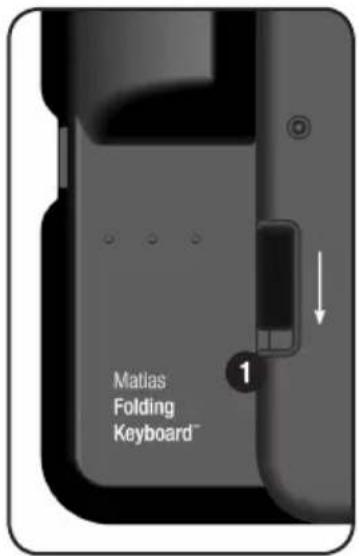
①pening & closing the keyboard
To open, slide the open switch down.
To close, fold and press the two ends together.
REMEMBER to turn the keyboard OFF before you close it.
2 Insert batteries
Batteries are included in the box.
3n/Off Button
Press the On/Off button to turn the keyboard on and off.
The blue light B flashes when you turn it on, and keeps flashing until it connects.
The yellow light Y flashes for a few seconds when you turn it off.
The red light R flashes when the batteries are low.
4 river installation & setup
Please turn to page 4.
text_image
Matlas Folding Keyboard™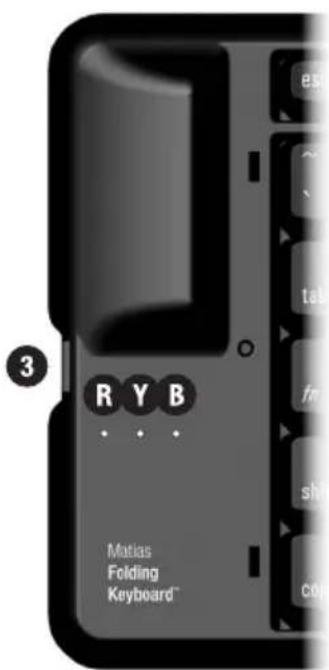
text_image
3 RYB Matlas Folding Keyboard™For more information, please visit:
Technical support:
www.matias.ca/foldingkeyboard/support
Injury prevention and health:
www.matias.ca/health
Warranty information:
please turn to page 29.
Matias Corporation
221 Narinia Crescent
Newmarket, Ontario, L3X 2E1
Canada
Telephone: +1-905-265-8844
e-mail: info@matias.ca
www.matias.ca

text_image
QR code image containing encoded data, no visible human-readable textYou can download this manual from:
http://matias.ca/manuals/FK306_manual_EN.pdf
Table of Contents
1 Quick Setup
5 Getting Started
6 Easy Install
16 Installing via PC
17 Must Read
18 Turn the Keyboard ON first
19 What the flashing lights mean
20 Turn the Keyboard Off BEFORE you close it
21 How It Works
22 Esc key moves you back
22 Menu keys
22 Opening & Exiting Applications
22 Select, Cut, Copy & Paste Text
23 Some keys may not work as expected
23 Hot Keys — Custom keyboard shortcuts
25 Troubleshooting
26 PgUp / PgDown (or some other key) doesn't work
26 How to stop the annoying “connection lost” messages
27 The driver stopped connecting to my keyboard
27 I can't pair Bluetooth devices anymore
27 Error message: Injector API policy. Please contact...
28 Getting Help
29 Warranty Information
Getting Started
6 Easy Install
16 Installing via PC
Easy Install
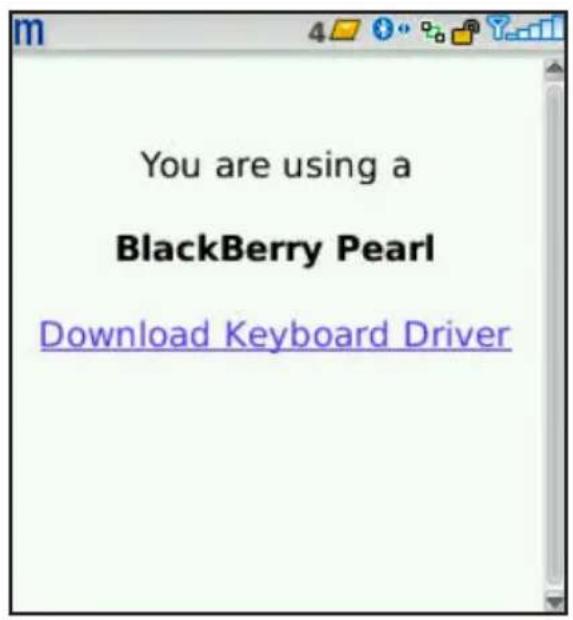
1 In your BlackBerry, open the Internet Browser and go to...
www.installer.cc
text_image
You are using a BlackBerry Pearl Download Keyboard Driver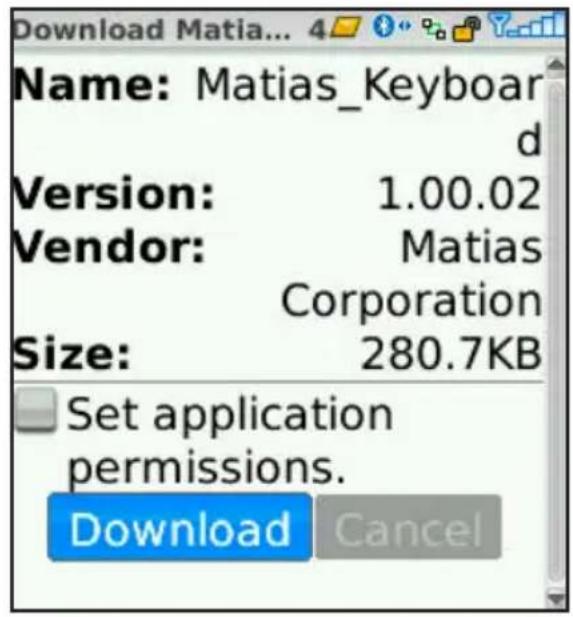
text_image
Download Matia... 4 Name: Matias_Keyboard d Version: 1.00.02 Vendor: Matias Corporation Size: 280.7KB Set application permissions. Download Cancel2 The web page will identify your BlackBerry.
Click on Download Keyboard Driver.
3lick Download.
text_image
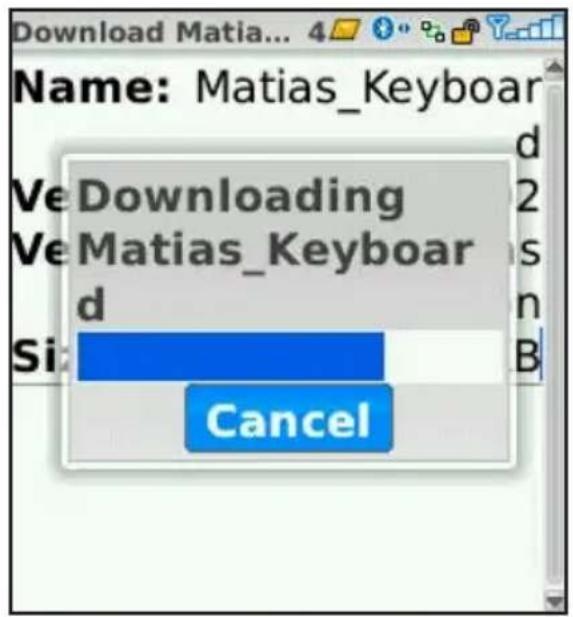
Name: Matias_Keyboard veDownloading veMatias_Keyboard d Si: B Cancel4 Iait for the driver to finish downloading.
text_image
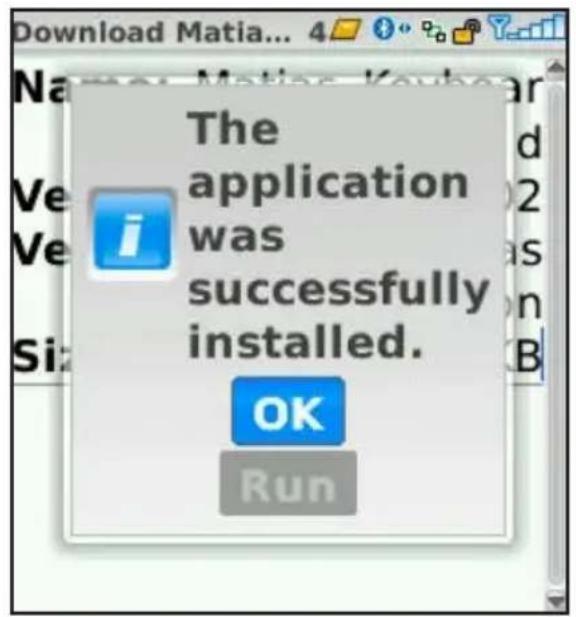
The application was successfully installed. OK Run5lick OK.
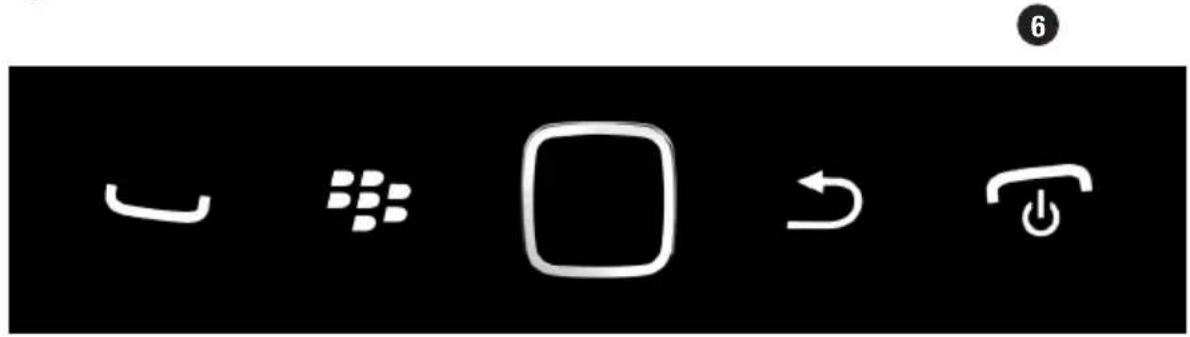
6ress the End key on your BlackBerry.
natural_image
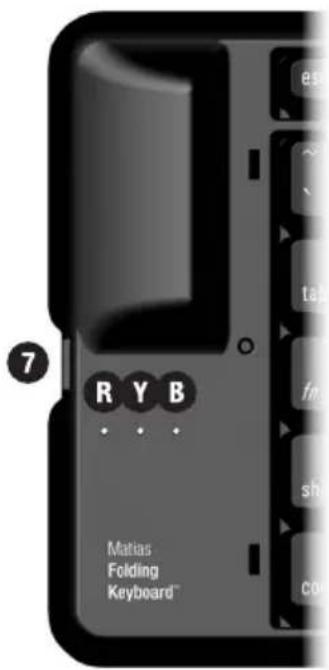
Four white icons on black background: curved line, grid pattern, square, right-turn arrow, and power button (no text or symbols)⑦urn on the keyboard, by pressing the on/off button. ⑦
The blue light Ⓑ will start flashing to indicate it's on.
If the yellow light Y flashes, you turned it off.
If the red light R flashes, you need new batteries.
text_image
7 R Y B Matias Folding Keyboard™8pen the Set Up Bluetooth application.

text_image
Set Up Bluetooth9 elect Add Device or Search.
text_image
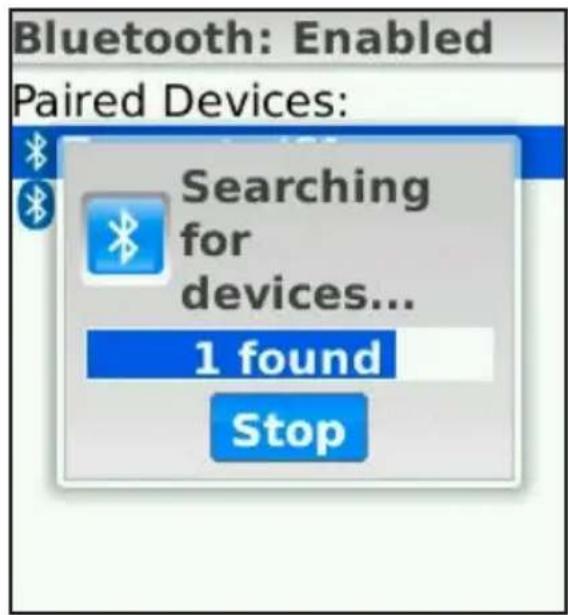
Bluetooth: Enabled Paired Devices: Searching for devices... 1 found Stop10 Our BlackBerry will begin searching for devices.
It may find more than one.
text_image
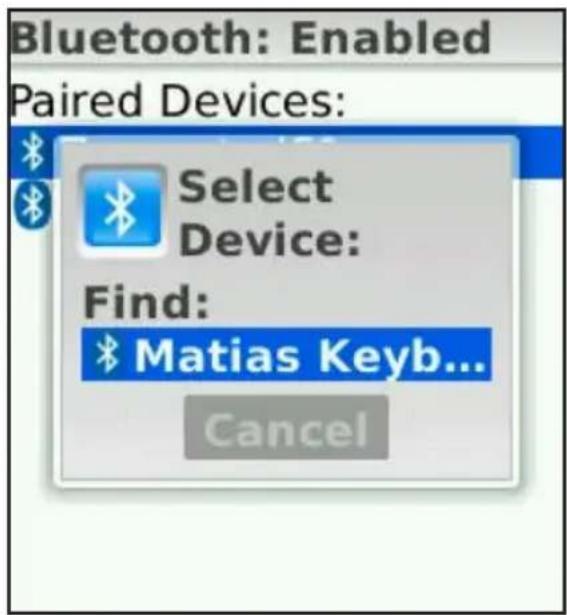
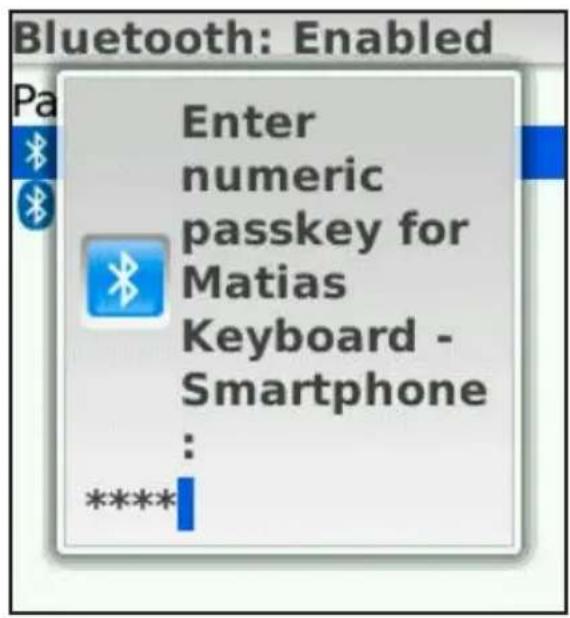
Bluetooth: Enabled Paired Devices: Select Device: Find: Matias Keyb... CancelWhen it's done searching, you'll see a list of devices.
Click on Matias Keyboard - Smartphone
Depending on your screen size, it may only show the beginning of the name.
text_image
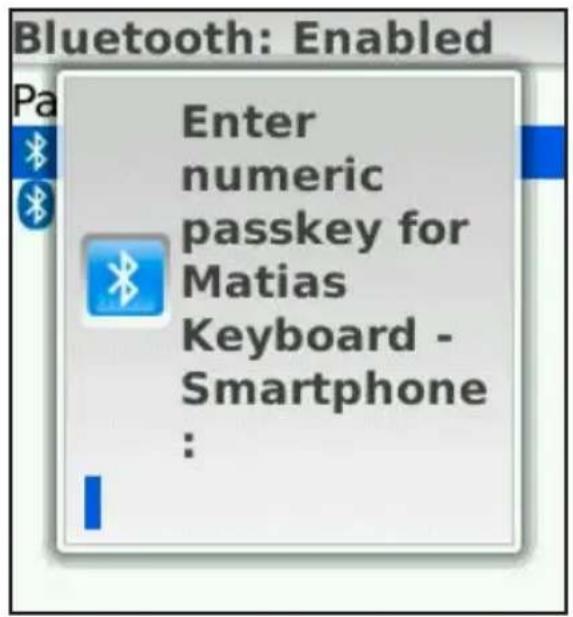
Bluetooth: Enabled Enter numeric passkey for Matias Keyboard - Smartphone :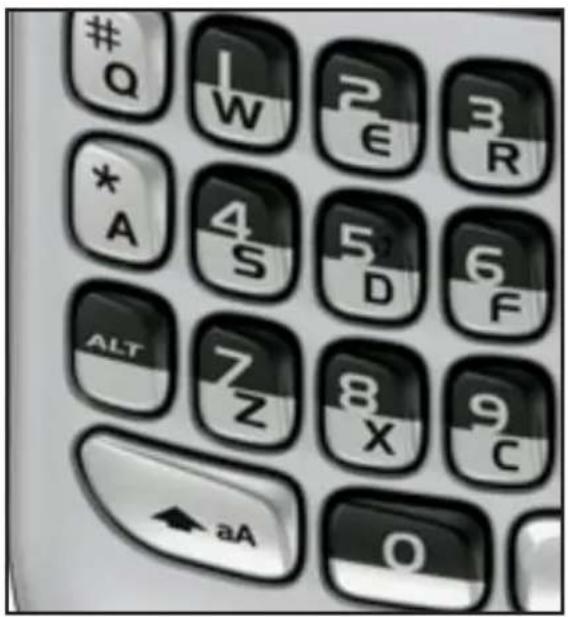
text_image
Q I W 2 € 3 R
* A 4 S 5 D 6 F ALT 7 Z 8 X 9 C ← aA O12ype 1234 on your BlackBerry.
text_image
Bluetooth: Enabled Enter numeric passkey for Matias Keyboard - Smartphone : *****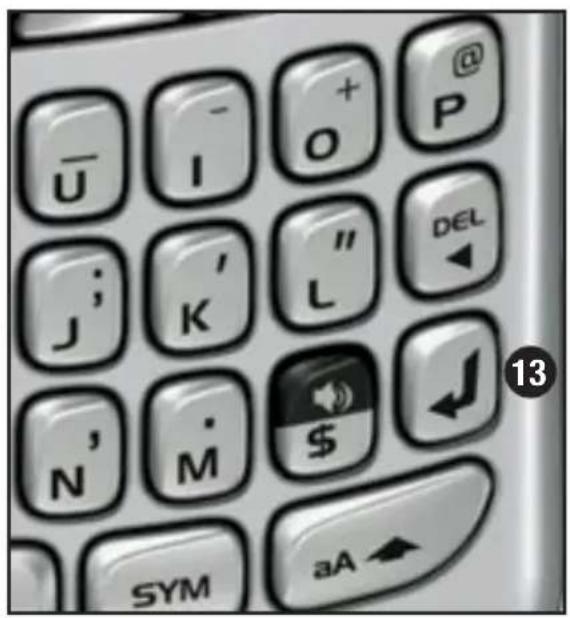
text_image
ū I o P j K L DEL N M $ SYM aA 1313nen press Enter on your BlackBerry.
text_image
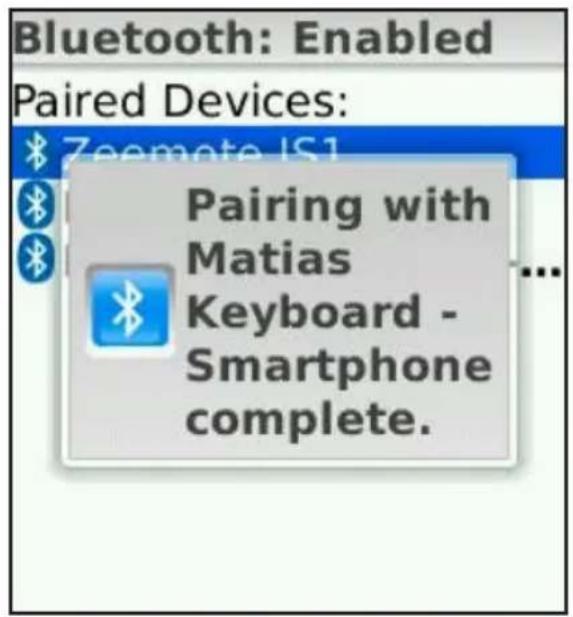
Bluetooth: Enabled Paired Devices: Zoomote IS1 Pairing with Matias Keyboard - Smartphone complete.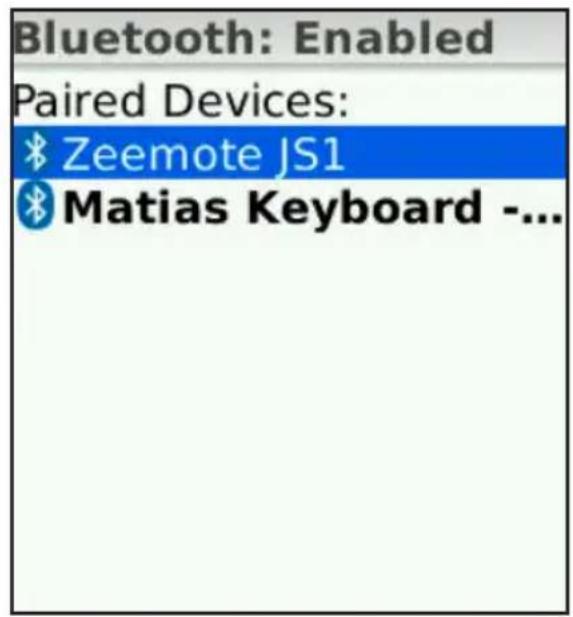
text_image
Bluetooth: Enabled Paired Devices: Zeemote JS1 Matias Keyboard -...14 lait until pairing is complete. Where the list of paired
devices appears, you should see the new keyboard shown in the list.
16 ess the End key on your BlackBerry.

natural_image
Simple white power button icon on black background (no text or symbols)
text_image
Matias Keyboard
text_image
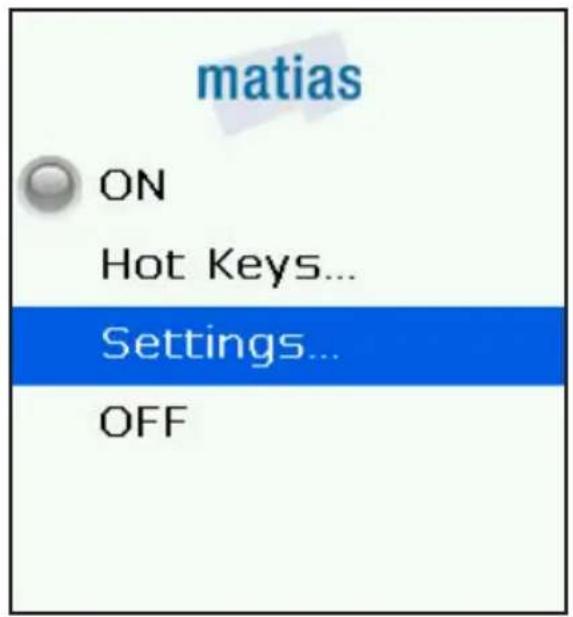
Downloads17 pen the Matias Keyboard application. It may be in the Downloads directory.
text_image
matias ON Hot Keys... Settings... OFF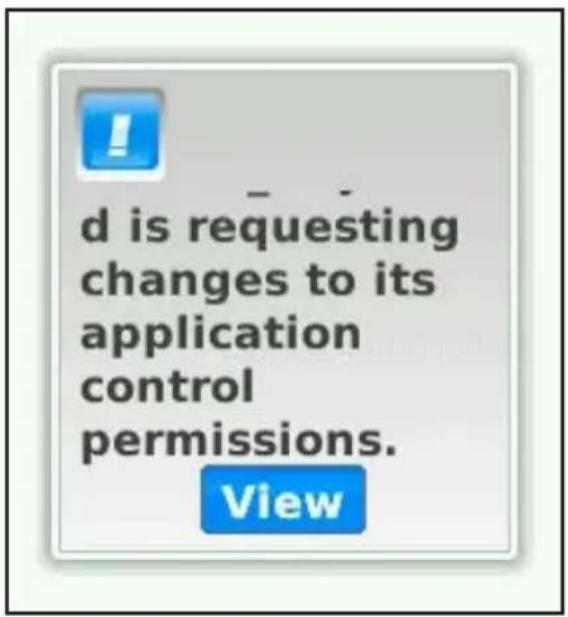
text_image
d is requesting changes to its application control permissions. View18 this screen appears, proceed to Step 22.
If a request to change Application Control Permissions appears, click View.
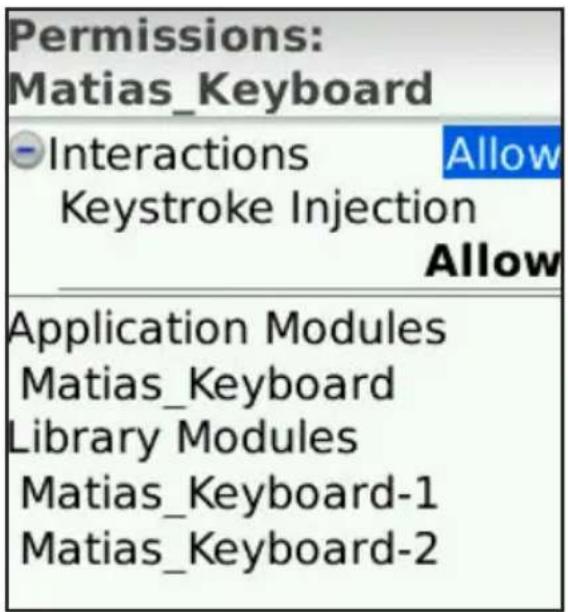
19 Permissions settings screen will appear. The correct settings have already been set by the driver.
This screen will look different for different BlackBerry models.
You don't need to change anything.
Proceed to Step 20.
text_image
Permissions: Matias_Keyboard - Interactions Allow Keystroke Injection Allow Application Modules Matias_Keyboard Library Modules Matias_Keyboard-1 Matias_Keyboard-220ress the Back button on your BlackBerry.

natural_image
Simple curved arrow symbol pointing left, on black background (no text or labels)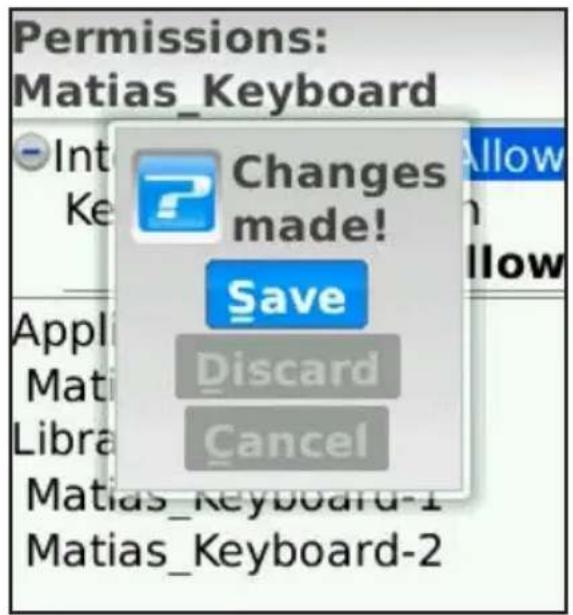
text_image
Permissions: Matias_Keyboard Int Ke Changes made! Save Discard Cancel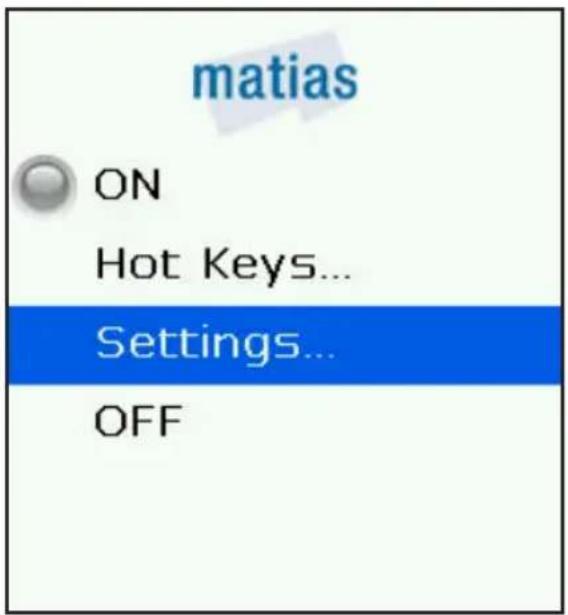
text_image
matias ON Hot Keys... Settings... OFF21lick Save. Scroll up and click ON.
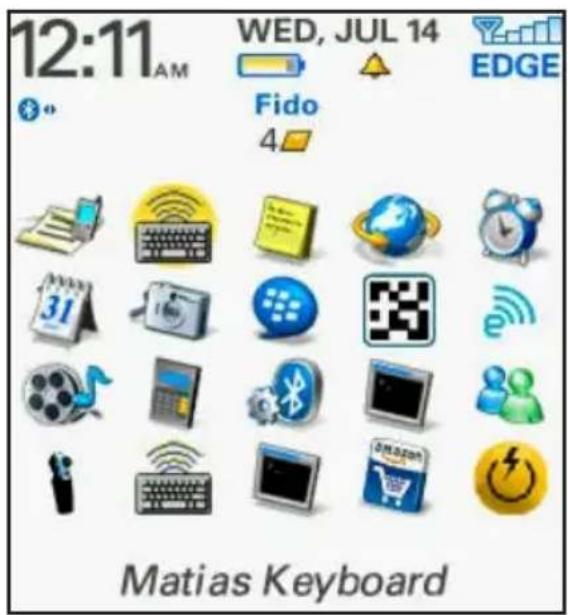
23 he driver will turn ON and automatically exit the application.
text_image
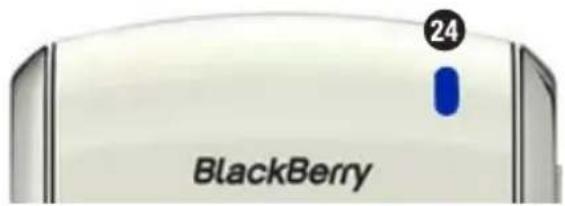
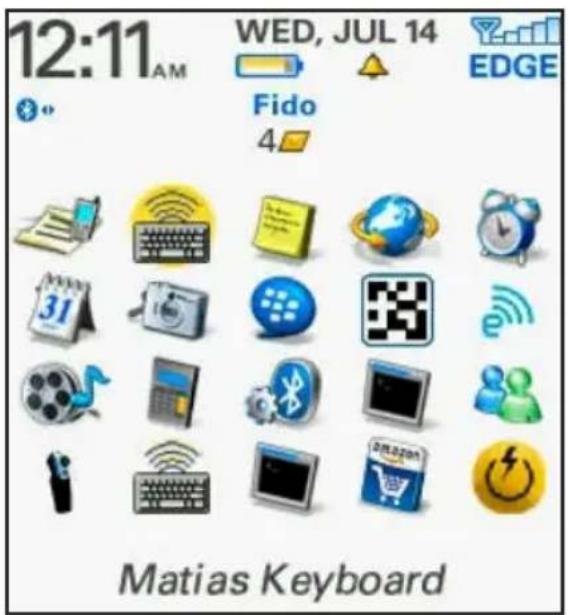
12:11 AM WED, JUL 14 EDGE Fido 4 31 Matias Keyboard24ter a brief pause, a blue light on your BlackBerry will start flashing.
The keyboard is now connected and working.
text_image
24 BlackBerry25 pressing the Arrow keys on the keyboard lets you select different applications.
Pressing the Enter key on the keyboard will open an application.
text_image
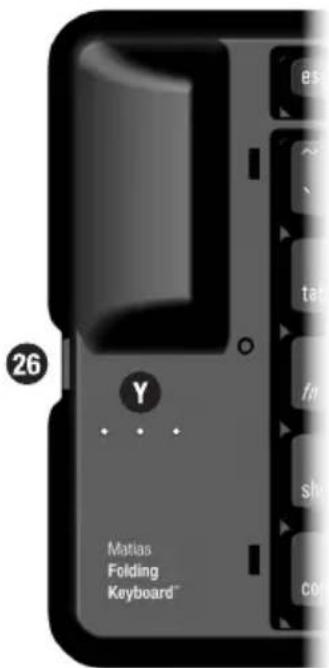
12:11 AM WED, JUL 14 EDGE Fido 4 31 Matias Keyboard260 turn the keyboard Off, press the On/Off button 26
A yellow light with blink briefly to indicate that it's off.
text_image
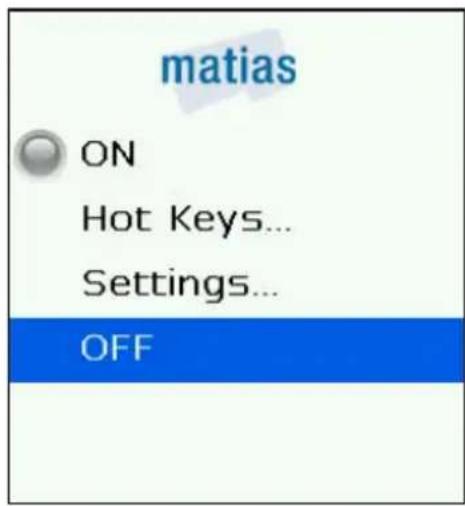
26 Matias Folding Keyboard™27) conserve your BlackBerry's battery power, we recommend that you turn the driver Off when you're not using the keyboard.
Scroll down and click OFF.
The driver will turn off and exit automatically.
text_image
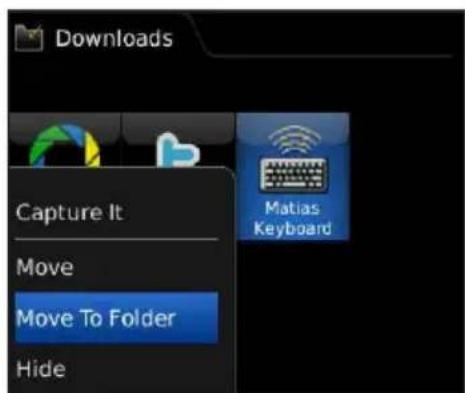
matias ON Hot Keys... Settings... OFF28or convenience, you may want to move the Keyboard driver to a different location.
text_image
Downloads Capture It Move Move To Folder Hide Matias Keyboard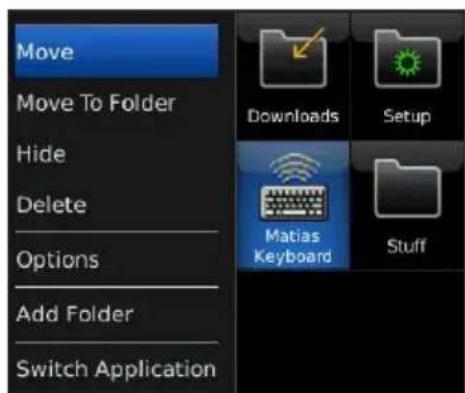
text_image
Move Move To Folder Hide Delete Options Add Folder Switch Application Downloads Setup Matias Keyboard Stuff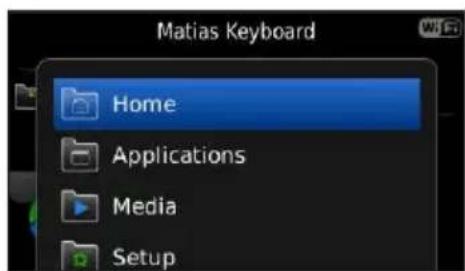
text_image
Matias Keyboard Home Applications Media Setup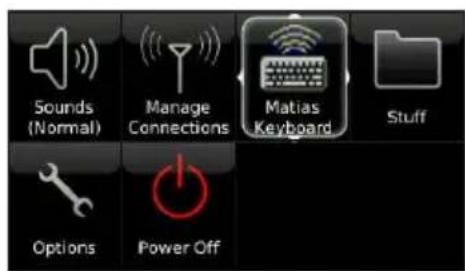
text_image
Sounds (Normal) Manage Connections Matias Keyboard Stuff Options Power OffTo move it to a different folder, select the driver, press the Menu button, click Move To Folder, then click on the desired folder.
To move the driver to a different position, select it, press the Menu button, click Move, then click on the desired position.
Installing via PC
From the Internet browser on your PC, go to this web page and follow the instructions...
www.installer.cc
Must Read
18 Turn the Keyboard ON first
19 What the flashing lights mean
20 Turn the Keyboard Off BEFORE you close it
Turn the Keyboard ON first
The fastest way for the keyboard to connect to your BlackBerry is to follow these simple steps...
1urn ON the keyboard. You'll see the Blue light flashing.
2urn ON the driver software.
3ait a few moments.
4 When the Blue light on your keyboard stops flashing, and the Blue light on your BlackBerry starts flashing, the keyboard is connected.
What the flashing lights mean
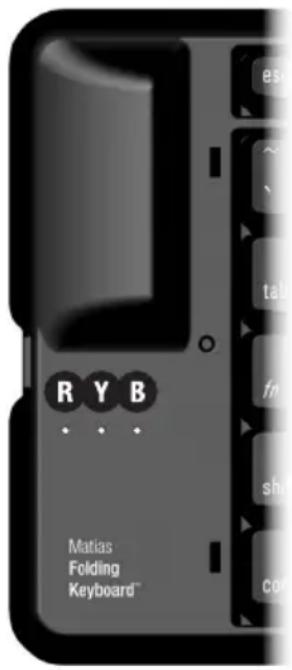
Blue B = keyboard ON and trying to connect.
It will stop blinking when it's connected.
Yellow Y = keyboard is OFF and it's safe to fold it closed.
It will stop blinking after a few seconds.
Red R = your batteries are low.
text_image
R Y B Matias Folding Keyboard™Turn the keyboard Off BEFORE you close it
If you close the keyboard while it's still connected to your BlackBerry, it will send random key presses to your BlackBerry.
To prevent this from happening, follow these steps...
1ress the on/off button on the keyboard to turn it off. A yellow light will flash briefly.
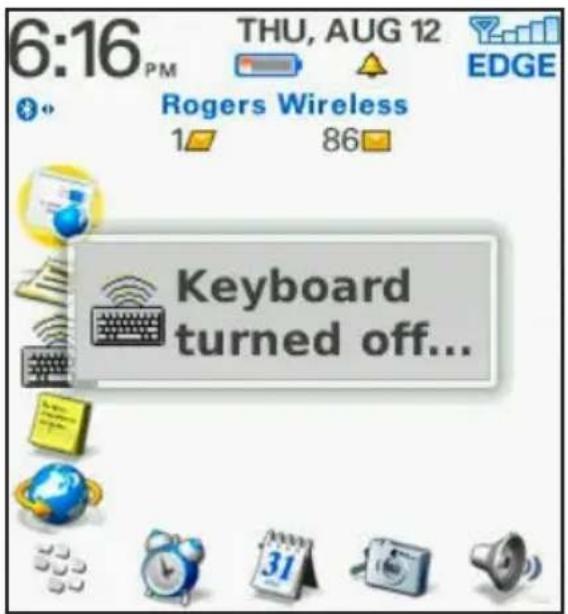
2 The BlackBerry will beep and show a Keyboard turned off... message.
text_image
6:16 PM THU, AUG 12 EDGE Rogers Wireless 1 86 Keyboard turned off...3 you don't see the message in step 2, open the driver software and turn it off.
How It Works
22 Esc key moves you back
22 Menu keys
22 Opening & Exiting Applications
22 Select, Cut, Copy & Paste Text
23 Some keys may not work as expected
23 Hot Keys — Custom keyboard shortcuts
Esc moves you back
The Esc key moves you back. It works exactly like the Escape key on your BlackBerry.
Menu keys
The left and right Windows keys reproduce the Menu key.
Opening & Exiting Applications
From the Home screen, you can use the Arrow keys to select an application, and the Enter key to open it.
Press the Esc key one or more times to exit applications.
Select, Cut, Copy & Paste Text
Many standard keyboard shortcuts work as you would expect, including Cut, Copy & Paste (Ctrl-X, Ctrl-C, Ctrl-V).
You can Select Text by holding down the Shift key and tapping the Arrow keys.
Some keys may not work as expected
We've done our best to make everything work as normally as possible, but you should not expect it to be exactly like your PC keyboard.
The BlackBerry is not a PC, and was not designed to work with PC keyboards.
So, not every key will work the way it does on a PC. They may work as expected in some applications, but not in others.
Hot Keys — Custom keyboard shortcuts
You can create your own keyboard shortcuts for opening apps, dialing phone numbers, opening web pages, and more.
Select the Hot Keys... menu in the driver, and click to select the various options.
Troubleshooting
26 PgUp / PgDown (or some other key) doesn't work
26 How to stop the annoying “connection lost” messages
27 The driver stopped connecting to my keyboard
27 I can't pair Bluetooth devices anymore
27 Error message: Injector API policy. Please contact...
PgUp / PgDown (or some other key) doesn't work
This is normal.
The BlackBerry is not a PC, and was not designed with PC keyboards in mind.
So, not every key will work the way it does on a PC. They may work as expected in some applications, but not in others.
We've done our best to make everything work as normally as possible, but you should not expect it to be exactly like your PC keyboard.
How to stop the annoying “connection lost” messages
Turn the keyboard driver software off, when you're not using the keyboard.
This stops the “connection lost” messages.
It also saves battery life on your BlackBerry.
The driver stopped connecting to my keyboard
Try turning the driver Off, and then On.
If that doesn't fix it, turn your BlackBerry Off, and then On.
I can't pair Bluetooth devices anymore
1urn OFF the keyboard driver.
2 air the new device.
3urn the keyboard driver back on.
If that doesn't work, turn your BlackBerry off, and then back on.
Error message: Injector API policy. Please contact your BES admin...
This is called “Injector API Blocking” — a security measure in the BES Application Control Policy for your BlackBerry.
Contact your BES administrator and ask them to follow the instructions on this web page:
http://matias.ca/besconfig
Getting Help
You can reach our Help Desk by email at help@matias.ca or by phone at 1-905-265-8844 or 1-888-663-4263.
MATIAS FOLDING KEYBOARD LIMITED WARRANTY
Matias Corporation (“Matias”) warrants to the original end user (“Customer”) that these products will be free from defects in workmanship and materials, under normal use, for 1 year from the date of original purchase from Matias or its authorized reseller. Matias’ sole obligation under this express warranty shall be (at Matias’ option and expense) to repair or replace the product or part with a comparable product or part. All products or parts that are replaced become the property of Matias.
LIMITATION OF LIABILITY
To the full extent allowed by law, Matias excludes for itself and its suppliers any liability (whether based in contract or in tort, including negligence) for incidental, consequential, indirect, special or punitive damages of any kind, or for loss of revenue or profits, loss of business, loss of information or data, or other financial loss arising out of or in connection with the sale, installation, maintenance, use, performance, failure, or interruption of this product, even if Matias or its authorized reseller has been advised of the possibility of such damages, and limits its liability to replacement, repair, or refund of the purchase price paid, at Matias' option. This disclaimer of liability for damages will not be affected if any remedy provided herein shall fail of its essential purpose.
WARRANTY PROCEDURE
1 Please contact the Matias Help Desk by e-mail at help@matias.ca or by phone at (905) 265-8844, and give a detailed explanation of the problem.
We will first try to solve your problem by e-mail/phone.
3 e-mail/phone support is not successful or if the item is defective, Matias will assign you an EMA number (Exchange Merchandise Authorization), and send instructions for returning the product for replacement.
4. For more information about our Return Policy, please visit our website at: www.matias.ca/returns
natural_image
Simple line drawing of a trash bin with two crossed lines and a blank rectangular base (no text or symbols)Copyright © 2010 Matias Corporation. All rights reserved. Matias Folding Keyboard, Matias, and the Matias logo are trademarks of the Matias Corporation. BlackBerry is a trademark of Research in Motion Limited. Other names may also be trademarks and their owners are respectfully acknowledged. Patent Pending. Made in China.